Selenium é um projeto que abrange uma variedade de ferramentas e bibliotecas
que permitem e suportam a automação de navegadores da web.
Ele fornece extensões para emular a interação do usuário com os navegadores,
um servidor de distribuição para escalonar a alocação do navegador,
e a infraestrutura para implementações da Especificação W3C WebDriver
que permite escrever código intercambiável para todos os principais navegadores da web.
Este projeto é possível graças a colaboradores voluntários
que dedicam milhares de horas de seu próprio tempo,
e disponibilizaram o código-fonte disponível gratuitamente
para qualquer um usar, aproveitar e melhorar.
Selenium reúne criadores de navegadores, engenheiros e entusiastas
para promover uma discussão aberta sobre a automação da plataforma da web.
O projeto organiza uma conferência anual
para ensinar e nutrir a comunidade.
No núcleo do Selenium está WebDriver,
uma interface para escrever conjuntos de instruções que podem ser executados alternadamente em muitos
navegadores. Aqui está uma das instruções mais simples que você pode fazer:
Consulte a Visão Geral para verificar os diferentes componentes do projeto
e decidir se o Selenium é a ferramenta certa para você.
Você deve continuar no Guia de Introdução
para entender como instalar o Selenium e usá-lo com sucesso como uma
ferramenta de automação de teste e dimensionar testes simples como esse para serem executados em ambientes grandes
e distribuídos em vários navegadores e em vários sistemas operacionais diferentes.
1 - Resumo
Será Selenium a ferramenta para você? Veja um resumo dos componentes do projecto.
Selenium não é só uma ferramenta ou API,
mas sim uma composição de várias ferramentas.
WebDriver
Se você está começando com automação de testes de um site de desktop ou site para celular, então
vai usar as APIs WebDriver. O WebDriver
usa APIs de automação de navegador disponibilizadas por fornecedores de navegador para o controlar e
executar testes. É como se um usuário real o estivesse operando. Como o
WebDriver não exige que sua API seja compilada com o código do aplicativo,
não é intrusivo. Portanto, você está testando o
mesmo aplicativo que você envia aos ambientes de produção.
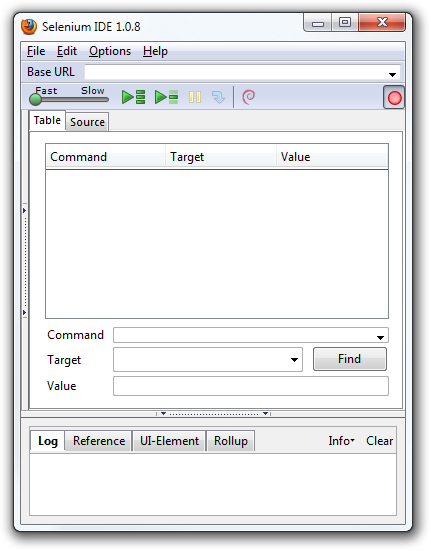
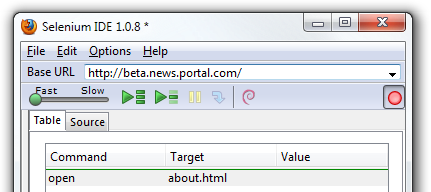
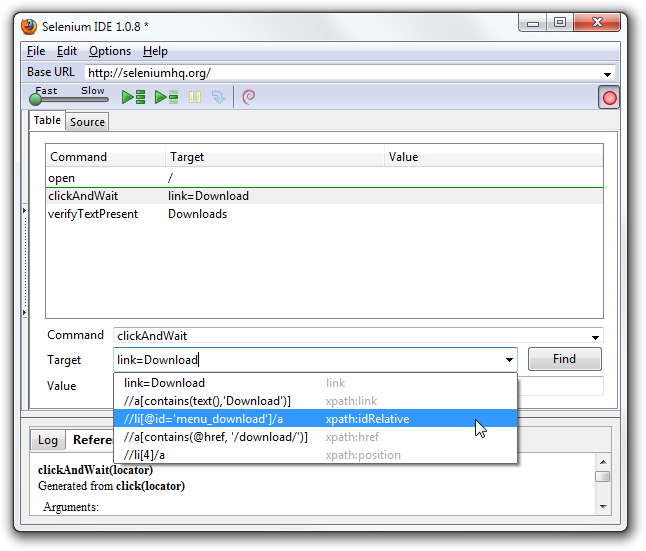
IDE
IDE (Ambiente de Desenvolvimento Integrado, em português)
é a ferramenta que você usa para desenvolver seus casos de teste Selenium. É uma extensão para Chrome
e Firefox fácil de usar e geralmente é a maneira mais eficiente de desenvolver
casos de teste. Ela registra as ações dos usuários no navegador para você, usando
comandos Selenium existentes, com parâmetros definidos pelo contexto daquele
elemento. Isso não é apenas uma economia de tempo, mas também uma maneira excelente
de aprender a sintaxe de script do Selenium.
Grid
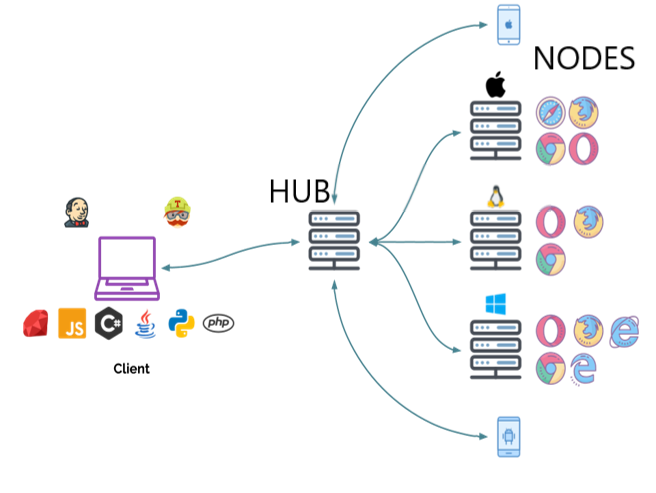
Selenium Grid permite que você execute casos de teste em diferentes
máquinas em diferentes plataformas. O controle para
acionar os casos de teste está na extremidade local, e
quando os casos de teste são acionados, eles são automaticamente
executados pela extremidade remota.
Após o desenvolvimento dos testes WebDriver, você pode enfrentar
a necessidade de executar seus testes em vários navegadores e
combinações de sistemas operacionais.
É aqui que o Grid entra em cena.
1.1 - Entendendo os componentes
Construir um conjunto de testes usando WebDriver exigirá que você entenda e
use efetivamente uma série de componentes diferentes. Como com tudo em
software, pessoas diferentes usam termos diferentes para a mesma ideia. Abaixo está
uma análise de como os termos são usados nesta descrição.
Terminologia
API: interface de programação de aplicativo. Este é o conjunto de “comandos” que
você usa para manipular o WebDriver.
Biblioteca: um módulo de código que contém as APIs e o código necessário
para implementá-los. As bibliotecas são específicas para cada linguagem, por exemplo arquivos
.jar para Java, arquivos .dll para .NET, etc.
Driver: responsável por controlar o navegador atual. A maioria dos drivers
são criados pelos próprios fornecedores de navegadores. Os drivers são geralmente
módulos executáveis que são executados no sistema com o próprio navegador,
não no sistema que está executando o conjunto de testes. (Embora esses possam ser
mesmo sistema.) NOTA: Algumas pessoas se referem aos drivers como proxies.
Framework: uma biblioteca adicional usada como suporte para suítes do WebDriver.
Essas estruturas podem ser estruturas de teste, como JUnit ou NUnit.
Eles também podem ser estruturas que suportam recursos de linguagem natural, como
como Cucumber ou Robot Framework. Frameworks também podem ser escritos e usados para
coisas como manipulação ou configuração do sistema em teste,
criação de dados, oráculos de teste, etc.
As partes e peças
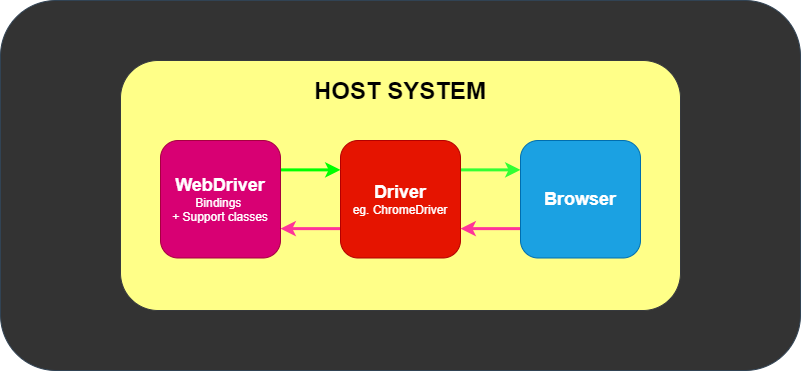
No mínimo, o WebDriver se comunica com um navegador por meio de um driver. Comunicação
é bidirecional: o WebDriver passa comandos para o navegador por meio do driver e
recebe informações de volta pela mesma rota.
O driver é específico para o navegador, como ChromeDriver para Google
Chrome / Chromium, GeckoDriver para Mozilla Firefox, etc. O driver é
executado no mesmo sistema do navegador. Este pode, ou não ser, o mesmo sistema onde
os próprios testes estão sendo executados.
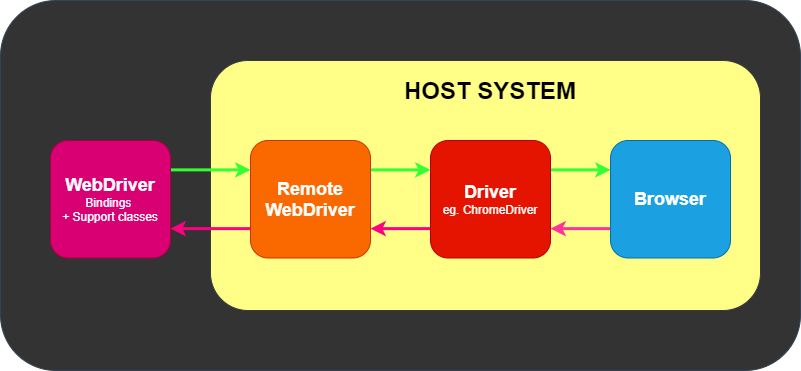
Este exemplo simples acima é comunicação direta. Comunicação para o
navegador também pode ser comunicação remota através do servidor Selenium ou
RemoteWebDriver. RemoteWebDriver roda no mesmo sistema que o driver
e o navegador.
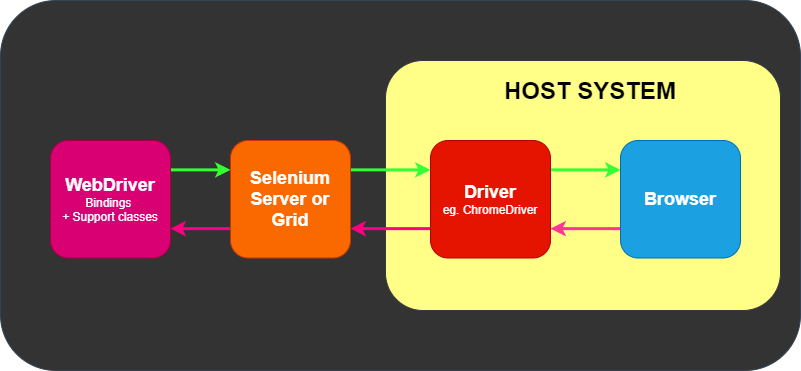
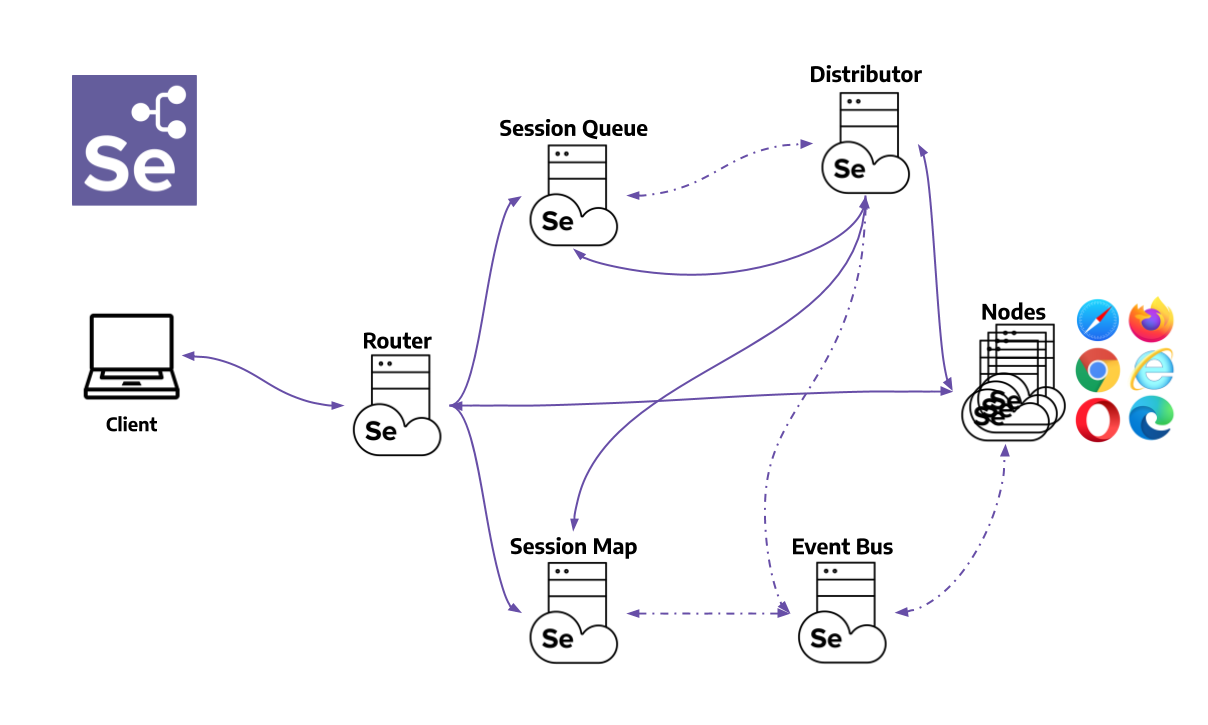
A comunicação remota também pode ocorrer usando Selenium Server ou Selenium
Grid, que, por sua vez, fala com o driver no sistema host
Onde frameworks se encaixam
O WebDriver tem um trabalho e apenas um trabalho: comunicar-se com o navegador por meio de qualquer um
dos métodos acima. O WebDriver não sabe nada sobre testes: ele não
sabe como comparar coisas, afirmar passa ou falha, e certamente não sabe
uma coisa sobre relatórios ou gramática Dado / Quando / Então.
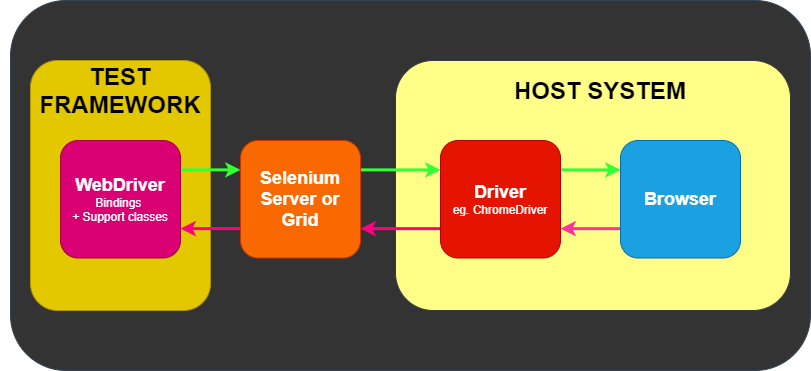
É aqui que vários frameworks entram em cena. No mínimo, você precisará de um framework de
teste que corresponde às linguagens, por exemplo, NUnit para .NET, JUnit
para Java, RSpec para Ruby, etc.
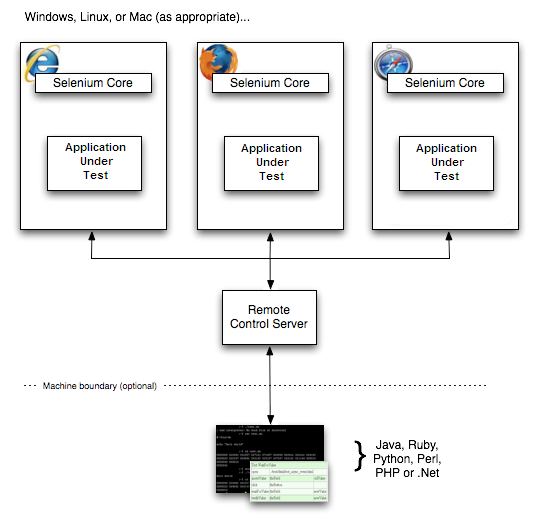
O framework de teste é responsável por rodar e executar seu WebDriver
e etapas relacionadas em seus testes. Como tal, você pode pensar nele parecendo a imagem seguinte.
Frameworks/ferramentas de linguagem natural, como Cucumber, podem existir como parte desse
framework de teste na figura acima, ou eles podem envolver o framework de teste
inteiramente em sua própria implementação.
1.2 - Detalhes
Selenium é um projeto abrangente para uma gama de ferramentas e bibliotecas que permitem e suportam a automação de navegadores da web.
Selenium controla navegadores
Selenium é muitas coisas
mas, em sua essência, é um conjunto de ferramentas para automação de navegador da web
que usa as melhores técnicas disponíveis
para controlar remotamente as instâncias do navegador
e emular a interação do usuário com o navegador.
Ele permite que os usuários simulem atividades comuns realizadas por usuários finais;
inserir texto em campos,
selecionando valores suspensos e caixas de seleção,
e clicar em links em documentos.
Ele também fornece muitos outros controles, como o movimento do mouse,
execução arbitrária de JavaScript e muito mais.
Embora seja usado principalmente para testes de front-end de sites,
Selenium é basicamente uma biblioteca de agente de usuário de navegador.
As interfaces são onipresentes em seus aplicativos,
o que incentiva a composição com outras bibliotecas para atender a sua finalidade.
Uma interface para tudo
Um dos princípios norteadores do projeto
é oferecer suporte a uma interface comum para todas as tecnologias de navegador (principais).
Os navegadores da web são aplicativos incrivelmente complexos e altamente projetados,
realizando suas operações de maneiras completamente diferentes
mas que frequentemente têm a mesma aparência ao fazê-lo.
Mesmo que o texto seja renderizado com as mesmas fontes,
as imagens sejam exibidas no mesmo lugar
e os links levem você ao mesmo destino.
O que está acontecendo por baixo é tão diferente quanto noite e dia.
Selenium “abstrai” essas diferenças,
esconde seus detalhes e complexidades da pessoa que está escrevendo o código.
Isso permite que você escreva várias linhas de código para realizar um fluxo de trabalho complicado,
mas essas mesmas linhas serão executadas no Firefox,
Internet Explorer, Chrome e todos os outros navegadores compatíveis.
Ferramentas e suporte
A abordagem de design minimalista do Selenium lhe dá a
versatilidade para ser incluído como um componente em aplicações maiores.
A infraestrutura circundante fornecida sob o Selenium
dá a você as ferramentas para montar
sua Grid de navegadores
para que os testes possam ser executados em diferentes navegadores e sistemas operacionais
em uma variedade de máquinas.
Imagine um banco de computadores em sua sala de servidores ou data center
todos abrindo navegadores ao mesmo tempo
acessando links, formulários,
e tabelas — testando seu aplicativo 24 horas por dia.
Por meio da interface de programação simples
fornecido para os idiomas mais comuns,
esses testes serão executados incansavelmente em paralelo,
reportando de volta para você quando ocorrerem erros.
É o objetivo de ajudar a tornar isso uma realidade para você,
fornecendo aos usuários ferramentas e documentação não apenas para controlar os navegadores
mas para tornar mais fácil dimensionar e implantar essas grades.
Quem usa Selenium
Muitas das empresas mais importantes do mundo
adotaram o Selenium para seus testes baseados em navegador,
frequentemente substituindo esforços de anos envolvendo outras ferramentas proprietárias.
À medida que sua popularidade cresceu, seus requisitos e desafios se multiplicaram.
Conforme a web se torna mais complicada
e novas tecnologias são adicionadas aos sites,
é a missão deste projeto acompanhá-los sempre que possível.
Sendo um projeto de código aberto,
este apoio é fornecido por meio da generosa doação de tempo de muitos voluntários,
cada um deles tem um “trabalho diurno”.
Outra missão do projeto é incentivar
mais voluntários para participar deste esforço,
e construir uma comunidade forte
para que o projeto possa continuar a acompanhar as tecnologias emergentes
e permanecer uma plataforma dominante para automação de teste funcional.
2 - WebDriver
WebDriver manipula um navegador nativamente; aprenda mais sobre isso.
O WebDriver manipula um navegador nativamente, como um usuário faria, seja localmente
ou em uma máquina remota usando o servidor Selenium,
marca um salto em termos de automação do navegador.
Selenium WebDriver refere-se a ambas as ligações de linguagem
e as implementações do código de controle do navegador individual.
Isso é comumente referido como apenas WebDriver.
WebDriver é projetado como uma interface de programação simples e mais concisa.
WebDriver é uma API compacta orientada a objetos.
Ele manipula o navegador de forma eficaz.
2.1 - Começando
Se você é novo no Selenium, nós temos alguns recursos que podem te ajudar a se atualizar imediatamente.
Selenium suporta automação de todos os principais navegadores do mercado
por meio do uso do WebDriver.
WebDriver é uma API e protocolo que define uma interface de linguagem neutra
para controlar o comportamento dos navegadores da web.
Cada navegador é apoiado por uma implementação WebDriver específica, chamada de driver.
O driver é o componente responsável por delegar ao navegador,
e lida com a comunicação de e para o Selenium e o navegador.
Essa separação é parte de um esforço consciente para que os fornecedores de navegadores
assumam a responsabilidade pela implementação de seus navegadores.
Selenium faz uso desses drivers de terceiros sempre que possível,
mas também fornece seus próprios drivers mantidos pelo projeto
para os casos em que isso não é uma realidade.
A estrutura do Selenium une todas essas peças
por meio de uma interface voltada para o usuário que permite aos diferentes back-ends de navegador
serem usados de forma transparente,
permitindo a automação entre navegadores e plataformas cruzadas.
Selenium setup is quite different from the setup of other commercial tools.
Before you can start writing Selenium code, you have to
install the language bindings libraries for your language of choice, the browser you
want to use, and the driver for that browser.
Follow the links below to get up and going with Selenium WebDriver.
If you wish to start with a low-code/record and playback tool, please check
Selenium IDE
Once you get things working, if you want to scale up your tests, check out the
Selenium Grid.
2.1.1 - Instalando bibliotecas do Selenium
Configurando a biblioteca Selenium para sua linguagem de programação favorita.
Primeiro você precisa instalar as bibliotecas Selenium para seu projeto de automação.
O processo de instalação de bibliotecas depende da linguagem que você escolher usar.
Outras observações para usar o Visual Studio Code (vscode) e C#
Instale a versão compatível do .NET SDK conforme a seção acima.
Instale também as extensões do vscode (Ctrl-Shift-X) para C# e NuGet.
Siga as instruções aqui para criar e rodar o seu projeto de “Hello World” no console usando C#.
Você também pode criar um projeto inicial do NUnit usando a linha de comando dotnet new NUnit.
Certifique-se de que o arquivo %appdata%\NuGet\nuget.config esteja configurado corretamente, pois alguns desenvolvedores relataram que ele estará vazio devido a alguns problemas.
Se o nuget.config estiver vazio ou não estiver configurado corretamente, as compilações .NET falharão para projetos que estiverem usando Selenium.
Adicione a seguinte seção ao arquivo nuget.config se esse estiver vazio:
Para mais informações sobre nuget.configclique aqui.
Você pode ter que customizar nuget.config para atender às suas necessidades.
Agora, volte para o vscode, aperte Ctrl-Shift-P, e digite “NuGet Add Package”, e adicione os pacotes necessários para
o Selenium como o Selenium.WebDriver.
Aperte Enter e selecione a versão.
Agora você pode usar os exemplos da documentação relacionados ao C# com o vscode.
Você pode ver a minima versão suportada do Ruby para cada versão do Selenium em
rubygems.org
O Selenium pode ser instalado de duas formas diferentes.
Instruções passo a passo para programar um script Selenium
Assim que você tiver o Selenium instalado,
você estará pronto para programar códigos Selenium.
Oito Componentes Básicos
Tudo que o Selenium faz é enviar comandos ao navegador de internet para fazer algo ou solicitar informações dele.
A maior parte do que você irá fazer com o Selenium é uma combinação desses comandos básicos.
Click on the link to “View full example on GitHub” to see the code in context.
1. Iniciando uma sessão
Para ter mais detalhes sobre como iniciar uma sessão, leia nossa documentação em driver sessions
3. Solicitando informação do navegador de internet
Existem diversos tipos de informação sobre o navegador de internet que você
pode solicitar, incluindo window handles, tamanho / posição do navegador, cookies, alertas e etc.
Sincronizar o código ao estado atual do navegador é um dos maiores
desafios
quando se trabalha com o Selenium, fazer isso de maneira bem feita é um tópico avançado.
Essencialmente, você quer ter certeza absoluta de que o elemento está na página antes de tentar localizá-lo
e o elemento está em um estado interativo antes de você tentar interagir com ele.
Uma espera implícita raramente é a melhor solução, mas é a mais fácil de demonstrar aqui, então
vamos usá-la como um substituto.
A maioria dos comandos na maior parte das sessões do Selenium são relacionados a elementos e você não pode
interagir
com um sem o primeiro encontrando um elemento
# Running Selenium Java Tests
The following steps will guide you on how to
run Selenium Java tests using a repository
of `SeleniumHQ/seleniumhq.github.io` examples.
## Initial Setup
### Prerequisites
Ensure that Java Development Kit (JDK) and Maven
are installed on your system. If they are not installed,
you will need to download and install them. You can
find detailed installation guides for both on their
respective official sites.
### Clone the repository
First, we need to get the Selenium Java examples
on your local machine. This can be done by
cloning the `SeleniumHQ/seleniumhq.github.io` Git repository.
Run the following command in your terminal:
```bash
git clone https://github.com/SeleniumHQ/seleniumhq.github.io.git
```## Navigate to the java directory
After cloning the repository, navigate into the
directory where the Selenium Java examples are
located. Run the following command:
```bash
cd seleniumhq.github.io/examples/java
```## Running the Tests
### Install dependencies
Before running the tests, we need to install all
necessary dependencies. Maven, a software
project management tool, can do this for us.
Run the following command:
```bash
mvn test-compile
```### Run all tests
To verify if everything is installed correctly and
functioning properly, we should run all
available tests. This can be done with the following command:
```bash
mvn test```Please be patient! If this is your first time running these tests,
it might take a while to download and verify all necessary browser drivers.
## Execute a specific example
To run a specific Selenium Java example, use the following command:
```bash
mvn exec:java -D"exec.mainClass"="dev.selenium.getting_started.FirstScript" -D"exec.classpathScope"=test```Make sure to replace `dev.selenium.getting_started.FirstScript` with the path and name of the example you want to run.
# Running tests from Selenium Python examples
#### 1. Clone this repository
```
git clone https://github.com/SeleniumHQ/seleniumhq.github.io.git
```#### 2. Navigate to `python` directory
```
cd seleniumhq.github.io/examples/python
```#### 3. Create a virtual environment
- On Windows:
```
py -m venv venv
venv\Scripts\activate
```- On Linux/Mac:
```
python3 -m venv venv
source venv/bin/activate
```#### 4. Install dependencies:
```
pip install -r requirements.txt
```> for help, see: https://packaging.python.org/en/latest/tutorials/installing-packages
#### 5. Run tests
- Run all tests with the default Python interpreter:
```
pytest
```- Run all tests with every installed/supported Python interpreter:
```
tox
```> Please have some patience - If you are doing it for the first time, it will take a little while to download the browser drivers
- Run a specific example:
```
pytest path/to/test_script.py
```> Make sure to replace `path/to/test_script.py` with the path and name of the example you want to run
# Running Selenium .NET (C#) Tests
The following steps will guide you on how to
run Selenium .NET (C#) tests using the examples
from the `SeleniumHQ/seleniumhq.github.io` repository.
## Initial Setup
### Prerequisites
Ensure you have the following installed:
- [.NET SDK (8.0 or later)](https://dotnet.microsoft.com/en-us/download) to run the test suite;
10.0 or later if you want to run `HelloSelenium.cs` directly (see
[Execute a single script](#execute-a-single-script))
- An IDE like [Visual Studio](https://visualstudio.microsoft.com/) or [Visual Studio Code](https://code.visualstudio.com/)
- [.NET CLI tools](https://learn.microsoft.com/en-us/dotnet/core/tools/)
### Clone the repository
Clone the Selenium documentation repository to your local machine:
```bash
git clone https://github.com/SeleniumHQ/seleniumhq.github.io.git
```## Execute a single script
`HelloSelenium.cs` is a standalone script (not part of the `SeleniumDocs` test
project) that follows the first script example. Requires the .NET 10 SDK or
later for [file-based apps](https://learn.microsoft.com/en-us/dotnet/core/whats-new/dotnet-10/overview#file-based-apps).
```bash
cd seleniumhq.github.io/examples/dotnet
dotnet run HelloSelenium.cs
```## Navigate to the .NET directory
### Change into the .NET examples directory:
```bash
cd seleniumhq.github.io/examples/dotnet/SeleniumDocs
```## Running the Tests
### Restore dependencies
Install necessary dependencies using the .NET CLI:
```bash
dotnet restore
```### Run all tests
To run all available tests:
```bash
dotnet test```### Run a Specific Test Method
To run a specific test method using its fully qualified name:
```bash
dotnet test --filter "FullyQualifiedName=Namespace.ClassName.MethodName"```For example:
```bash
dotnet test --filter "FullyQualifiedName=SeleniumDocs.GettingStarted.UsingSeleniumTest.EightComponents"```You can also filter by test name only (if it's unique):
```bash
dotnet test --filter "Name=EightComponents"```
# Running all tests from Selenium ruby example
Follow these steps to run all test example from selenium ruby
1. Clone this repository
```
git clone https://github.com/SeleniumHQ/seleniumhq.github.io.git
```2. Navigate to `ruby` directory
```
cd seleniumhq.github.io/examples/ruby
```3. Install dependencies using bundler
```
bundler install
```4. Run all tests
```
bundle exec rspec
```> Please keep some patience - If you are doing it for the first time, it will take a little while to verify and download the browser drivers
# Execute a ruby script
Use this command to run a ruby script and follow the first script example
```
ruby example_script.rb
```
# Running all tests from Selenium javascript example
Follow these steps to run all test example from selenium javascript
1. Clone this repository
```
git clone https://github.com/SeleniumHQ/seleniumhq.github.io.git
```2. Navigate to `javascript` directory
```
cd seleniumhq.github.io/examples/javascript
```3. Install dependencies using node
```
npm install
```4. Run all all tests
```
npm test
```> Please keep some patience - If you are doing it for the first time, it will take a little while to verify and download the browser drivers
# Execute a javascript test
Use this command to run a JavaScript and follow the first script example
```
node example_script.spec.js
```
Most Selenium users execute many sessions and need to organize them to minimize duplication and keep the code
more maintainable. Read on to learn about how to put this code into context for your use case with
Using Selenium.
2.1.3 - Organizando e executando o código Selenium
Escalonamento da execução do Selenium com um IDE e uma biblioteca do Test Runner
Se quiser executar mais do que um punhado de scripts pontuais, precisa de
ser capaz de organizar e trabalhar com seu código. Esta página deve dar a você
ideias de como fazer coisas produtivas com seu código Selenium.
Usos comuns
A maioria das pessoas usa o Selenium para executar testes automatizados para aplicações web,
mas o Selenium suporta qualquer caso de uso de automação de navegador.
Tarefas Repetitivas
Talvez seja necessário fazer login em um site e baixar algo ou enviar um formulário.
Você pode criar um script Selenium para ser executado com um serviço em horários pré-definidos.
Web Scrapping
Está a tentar recolher dados de um site que não tem uma API? O Selenium
permitirá que você faça isso, mas certifique-se de estar familiarizado com os termos de serviço do site
termos de serviço do site, pois alguns sites não permitem isso e outros até bloqueiam o Selenium.
Testes
Executar o Selenium para testes requer fazer asserções sobre as ações tomadas pelo Selenium.
Então uma boa biblioteca de asserções é necessária. Características adicionais para prover estrutura para testes
requerem o uso de Executador de teste.
IDEs
Independentemente de como você usa o código do Selenium,
não será muito eficaz escrevendo ou executando-o sem um bom
ambiente de desenvolvimento integrado. Aqui estão algumas opções comuns…
Mesmo que não esteja a usar o Selenium para testes, se tiver casos de uso avançado, pode fazer
sentido usar um executor de testes para organizar melhor seu código. Ser capaz de usar hooks antes/depois
e executar coisas em grupos ou em paralelo pode ser muito útil.
Escolhendo
Há muitos executores de teste diferentes disponíveis.
Todos os exemplos de código nesta documentação podem ser encontrados em (ou estão sendo movidos para) nossos diretórios
que usam test runners e são executados a cada lançamento para garantir que todo o código esteja correto e atualizado.
Aqui está uma lista de executores de teste com links. O primeiro item é o que é usado por este repositório e o que
que será usado para todos os exemplos nesta página.
JUnit - Uma estrutura de teste amplamente utilizada para testes Selenium baseados em Java.
TestNG - Oferece recursos extras, como execução de testes paralelos e testes parametrizados.
pytest -Uma escolha preferida por muitos, graças à sua simplicidade e aos seus poderosos plugins.
unittest - A estrutura de testes da biblioteca padrão do Python.
NUnit - Um popular framework de teste unitário para .NET.
MS Test - O Framework de testes unitários da Microsoft.
RSpec - A biblioteca de testes mais utilizada para executar testes Selenium em Ruby.
Minitest - Um framework de testes leve que vem com a biblioteca padrão do Ruby.
Jest - Principalmente conhecido como um framework de teste para React, também pode ser utilizado para testes Selenium.
Mocha - A biblioteca JS mais comum para executar testes Selenium.
Kotest - Uma estrutura de testes flexível e abrangente, projetada especificamente para Kotlin.
JUnit5 - A estrutura de testes padrão do Java, totalmente compatível com Kotlin.
Instalando
Isto é muito semelhante ao que foi requerido em Install a Selenium Library.
Este código está apenas a mostrar exemplos do que está a ser usado no nosso projeto de Exemplos de Documentação.
Maven
Gradle
Para usá-lo em um projeto, adicione-o ao arquivo requirements.txt:
in the project’s csproj especifique a dependência como PackageReference em ItemGroup:
Add to project’s gemfile
In your project’s package.json, adicionar requisito às dependências:
# frozen_string_literal: truerequire'selenium-webdriver'require'selenium/webdriver/support/guards'RSpec.configuredo|config|# Enable flags like --only-failures and --next-failureconfig.example_status_persistence_file_path='.rspec_status'# Disable RSpec exposing methods globally on `Module` and `main`config.disable_monkey_patching!Dir.mktmpdir('tmp')config.example_status_persistence_file_path='tmp/examples.txt'config.expect_with:rspecdo|c|c.syntax=:expectendconfig.beforedo|example|bug_tracker='https://github.com/SeleniumHQ/seleniumhq.github.io/issues'guards=Selenium::WebDriver::Support::Guards.new(example,bug_tracker:bug_tracker)guards.add_condition(:platform,Selenium::WebDriver::Platform.os)guards.add_condition(:ci,Selenium::WebDriver::Platform.ci)results=guards.dispositionsend(*results)ifresultsendconfig.after{@driver&.quit}defstart_sessionoptions=Selenium::WebDriver::Chrome::Options.newoptions.add_argument('disable-search-engine-choice-screen')options.add_argument('--no-sandbox')@driver=Selenium::WebDriver.for(:chrome,options:options)enddefstart_bidi_sessionoptions=Selenium::WebDriver::Chrome::Options.new(web_socket_url:true)@driver=Selenium::WebDriver.for:chrome,options:optionsenddefstart_firefoxoptions=Selenium::WebDriver::Options.firefox(timeouts:{implicit:1500})@driver=Selenium::WebDriver.for:firefox,options:optionsendend
# Running tests from Selenium Python examples
#### 1. Clone this repository
```
git clone https://github.com/SeleniumHQ/seleniumhq.github.io.git
```#### 2. Navigate to `python` directory
```
cd seleniumhq.github.io/examples/python
```#### 3. Create a virtual environment
- On Windows:
```
py -m venv venv
venv\Scripts\activate
```- On Linux/Mac:
```
python3 -m venv venv
source venv/bin/activate
```#### 4. Install dependencies:
```
pip install -r requirements.txt
```> for help, see: https://packaging.python.org/en/latest/tutorials/installing-packages
#### 5. Run tests
- Run all tests with the default Python interpreter:
```
pytest
```- Run all tests with every installed/supported Python interpreter:
```
tox
```> Please have some patience - If you are doing it for the first time, it will take a little while to download the browser drivers
- Run a specific example:
```
pytest path/to/test_script.py
```> Make sure to replace `path/to/test_script.py` with the path and name of the example you want to run
# Running Selenium .NET (C#) Tests
The following steps will guide you on how to
run Selenium .NET (C#) tests using the examples
from the `SeleniumHQ/seleniumhq.github.io` repository.
## Initial Setup
### Prerequisites
Ensure you have the following installed:
- [.NET SDK (8.0 or later)](https://dotnet.microsoft.com/en-us/download) to run the test suite;
10.0 or later if you want to run `HelloSelenium.cs` directly (see
[Execute a single script](#execute-a-single-script))
- An IDE like [Visual Studio](https://visualstudio.microsoft.com/) or [Visual Studio Code](https://code.visualstudio.com/)
- [.NET CLI tools](https://learn.microsoft.com/en-us/dotnet/core/tools/)
### Clone the repository
Clone the Selenium documentation repository to your local machine:
```bash
git clone https://github.com/SeleniumHQ/seleniumhq.github.io.git
```## Execute a single script
`HelloSelenium.cs` is a standalone script (not part of the `SeleniumDocs` test
project) that follows the first script example. Requires the .NET 10 SDK or
later for [file-based apps](https://learn.microsoft.com/en-us/dotnet/core/whats-new/dotnet-10/overview#file-based-apps).
```bash
cd seleniumhq.github.io/examples/dotnet
dotnet run HelloSelenium.cs
```## Navigate to the .NET directory
### Change into the .NET examples directory:
```bash
cd seleniumhq.github.io/examples/dotnet/SeleniumDocs
```## Running the Tests
### Restore dependencies
Install necessary dependencies using the .NET CLI:
```bash
dotnet restore
```### Run all tests
To run all available tests:
```bash
dotnet test```### Run a Specific Test Method
To run a specific test method using its fully qualified name:
```bash
dotnet test --filter "FullyQualifiedName=Namespace.ClassName.MethodName"```For example:
```bash
dotnet test --filter "FullyQualifiedName=SeleniumDocs.GettingStarted.UsingSeleniumTest.EightComponents"```You can also filter by test name only (if it's unique):
```bash
dotnet test --filter "Name=EightComponents"```
# Running all tests from Selenium ruby example
Follow these steps to run all test example from selenium ruby
1. Clone this repository
```
git clone https://github.com/SeleniumHQ/seleniumhq.github.io.git
```2. Navigate to `ruby` directory
```
cd seleniumhq.github.io/examples/ruby
```3. Install dependencies using bundler
```
bundler install
```4. Run all tests
```
bundle exec rspec
```> Please keep some patience - If you are doing it for the first time, it will take a little while to verify and download the browser drivers
# Execute a ruby script
Use this command to run a ruby script and follow the first script example
```
ruby example_script.rb
```
O principal argumento exclusivo para iniciar um driver local inclui informações sobre a inicialização do serviço de driver necessário na máquina local.
Objeto de Serviço se aplica apenas a drivers locais e fornece informações sobre o driver do navegador.
packagedev.selenium.drivers;importdev.selenium.BaseTest;importjava.time.Duration;importjava.time.temporal.ChronoUnit;importorg.junit.jupiter.api.Test;importorg.junit.jupiter.api.Assertions;importorg.openqa.selenium.PageLoadStrategy;importorg.openqa.selenium.Proxy;importorg.openqa.selenium.UnexpectedAlertBehaviour;importorg.openqa.selenium.WebDriver;importorg.openqa.selenium.chrome.ChromeOptions;importorg.openqa.selenium.remote.CapabilityType;importorg.openqa.selenium.chrome.ChromeDriver;publicclassOptionsTestextendsBaseTest{@TestpublicvoidsetPageLoadStrategyNormal(){ChromeOptionschromeOptions=getDefaultChromeOptions();chromeOptions.setPageLoadStrategy(PageLoadStrategy.NORMAL);WebDriverdriver=newChromeDriver(chromeOptions);try{// Navigate to Urldriver.get("https://selenium.dev");}finally{driver.quit();}}@TestpublicvoidsetPageLoadStrategyEager(){ChromeOptionschromeOptions=getDefaultChromeOptions();chromeOptions.setPageLoadStrategy(PageLoadStrategy.EAGER);WebDriverdriver=newChromeDriver(chromeOptions);try{// Navigate to Urldriver.get("https://selenium.dev");}finally{driver.quit();}}@TestpublicvoidsetPageLoadStrategyNone(){ChromeOptionschromeOptions=getDefaultChromeOptions();chromeOptions.setPageLoadStrategy(PageLoadStrategy.NONE);WebDriverdriver=newChromeDriver(chromeOptions);try{// Navigate to Urldriver.get("https://selenium.dev");}finally{driver.quit();}}@TestpublicvoidsetAcceptInsecureCerts(){ChromeOptionschromeOptions=getDefaultChromeOptions();chromeOptions.setAcceptInsecureCerts(true);WebDriverdriver=newChromeDriver(chromeOptions);try{// Navigate to Urldriver.get("https://selenium.dev");}finally{driver.quit();}}@TestpublicvoidgetBrowserName(){ChromeOptionschromeOptions=getDefaultChromeOptions();Stringname=chromeOptions.getBrowserName();Assertions.assertFalse(name.isEmpty(),"Browser name should not be empty");}@TestpublicvoidsetBrowserVersion(){ChromeOptionschromeOptions=getDefaultChromeOptions();Stringversion="latest";chromeOptions.setBrowserVersion(version);Assertions.assertEquals(version,chromeOptions.getBrowserVersion());}@TestpublicvoidsetPlatformName(){ChromeOptionschromeOptions=getDefaultChromeOptions();Stringplatform="OS X 10.6";chromeOptions.setPlatformName(platform);Assertions.assertEquals(platform,chromeOptions.getPlatformName().toString());}@TestpublicvoidsetScriptTimeout(){ChromeOptionschromeOptions=getDefaultChromeOptions();Durationduration=Duration.of(5,ChronoUnit.SECONDS);chromeOptions.setScriptTimeout(duration);WebDriverdriver=newChromeDriver(chromeOptions);try{Durationtimeout=driver.manage().timeouts().getScriptTimeout();Assertions.assertEquals(timeout,duration,"The script timeout should be set to 5 seconds.");}finally{driver.quit();}}@TestpublicvoidsetPageLoadTimeout(){ChromeOptionschromeOptions=getDefaultChromeOptions();Durationduration=Duration.of(5,ChronoUnit.SECONDS);chromeOptions.setPageLoadTimeout(duration);WebDriverdriver=newChromeDriver(chromeOptions);try{Durationtimeout=driver.manage().timeouts().getPageLoadTimeout();Assertions.assertEquals(timeout,duration,"The page load timeout should be set to 5 seconds.");}finally{driver.quit();}}@TestpublicvoidsetImplicitWaitTimeout(){ChromeOptionschromeOptions=getDefaultChromeOptions();Durationduration=Duration.of(5,ChronoUnit.SECONDS);chromeOptions.setImplicitWaitTimeout(duration);WebDriverdriver=newChromeDriver(chromeOptions);try{Durationtimeout=driver.manage().timeouts().getImplicitWaitTimeout();Assertions.assertEquals(timeout,duration,"The implicit wait timeout should be set to 5 seconds.");}finally{driver.quit();}}@TestpublicvoidsetUnhandledPromptBehaviour(){ChromeOptionschromeOptions=getDefaultChromeOptions();chromeOptions.setUnhandledPromptBehaviour(UnexpectedAlertBehaviour.DISMISS_AND_NOTIFY);//verify the capability object is not nullObjectcapabilityObject=chromeOptions.getCapability(CapabilityType.UNHANDLED_PROMPT_BEHAVIOUR);Assertions.assertNotNull(capabilityObject,"Capability UNHANDLED_PROMPT_BEHAVIOUR should not be null.");Assertions.assertEquals(capabilityObject.toString(),UnexpectedAlertBehaviour.DISMISS_AND_NOTIFY.toString());}@TestpublicvoidsetWindowRect(){ChromeOptionschromeOptions=getDefaultChromeOptions();chromeOptions.setCapability(CapabilityType.SET_WINDOW_RECT,true);//verify the capability object is not nullObjectcapabilityObject=chromeOptions.getCapability(CapabilityType.SET_WINDOW_RECT);Assertions.assertNotNull(capabilityObject,"Capability SET_WINDOW_RECT should not be null.");Booleancapability=(Boolean)capabilityObject;Assertions.assertTrue(capability,"The capability SET_WINDOW_RECT should be set to true.");}@TestpublicvoidsetStrictFileInteractability(){ChromeOptionschromeOptions=getDefaultChromeOptions();chromeOptions.setCapability(CapabilityType.STRICT_FILE_INTERACTABILITY,true);//verify the capability object is not nullObjectcapabilityObject=chromeOptions.getCapability(CapabilityType.STRICT_FILE_INTERACTABILITY);Assertions.assertNotNull(capabilityObject,"Capability STRICT_FILE_INTERACTABILITY should not be null.");Booleancapability=(Boolean)capabilityObject;Assertions.assertTrue(capability,"The capability STRICT_FILE_INTERACTABILITY should be set to true.");}@TestpublicvoidsetsProxy(){Proxyproxy=newProxy();proxy.setHttpProxy("myproxy.com:8080");ChromeOptionsoptions=getDefaultChromeOptions();options.setCapability("proxy",proxy);ObjectcapabilityObject=options.getCapability("proxy");Assertions.assertNotNull(capabilityObject,"Capability proxy should not be null.");Assertions.assertEquals("myproxy.com:8080",((Proxy)capabilityObject).getHttpProxy());}}
fromseleniumimportwebdriverfromselenium.webdriver.common.proxyimportProxyfromselenium.webdriver.common.proxyimportProxyTypedeftest_page_load_strategy_normal():options=get_default_chrome_options()options.page_load_strategy='normal'driver=webdriver.Chrome(options=options)driver.get("https://www.selenium.dev/")driver.quit()deftest_page_load_strategy_eager():options=get_default_chrome_options()options.page_load_strategy='eager'driver=webdriver.Chrome(options=options)driver.get("https://www.selenium.dev/")driver.quit()deftest_page_load_strategy_none():options=get_default_chrome_options()options.page_load_strategy='none'driver=webdriver.Chrome(options=options)driver.get("https://www.selenium.dev/")driver.quit()deftest_timeouts_script():options=get_default_chrome_options()options.timeouts={'script':5000}driver=webdriver.Chrome(options=options)driver.get("https://www.selenium.dev/")driver.quit()deftest_timeouts_page_load():options=get_default_chrome_options()options.timeouts={'pageLoad':5000}driver=webdriver.Chrome(options=options)driver.get("https://www.selenium.dev/")driver.quit()deftest_timeouts_implicit_wait():options=get_default_chrome_options()options.timeouts={'implicit':5000}driver=webdriver.Chrome(options=options)driver.get("https://www.selenium.dev/")driver.quit()deftest_unhandled_prompt():options=get_default_chrome_options()options.unhandled_prompt_behavior='accept'driver=webdriver.Chrome(options=options)driver.get("https://www.selenium.dev/")driver.quit()deftest_set_window_rect():options=webdriver.FirefoxOptions()options.set_window_rect=True# Full support in Firefoxdriver=webdriver.Firefox(options=options)driver.get("https://www.selenium.dev/")driver.quit()deftest_strict_file_interactability():options=get_default_chrome_options()options.strict_file_interactability=Truedriver=webdriver.Chrome(options=options)driver.get("https://www.selenium.dev/")driver.quit()deftest_proxy():options=get_default_chrome_options()options.proxy=Proxy({'proxyType':ProxyType.MANUAL,'httpProxy':'http.proxy:1234'})driver=webdriver.Chrome(options=options)driver.get("https://www.selenium.dev/")driver.quit()deftest_set_browser_name():options=get_default_chrome_options()assertoptions.capabilities['browserName']=='chrome'driver=webdriver.Chrome(options=options)driver.get("https://www.selenium.dev/")driver.quit()deftest_set_browser_version():options=get_default_chrome_options()options.browser_version='stable'assertoptions.capabilities['browserVersion']=='stable'driver=webdriver.Chrome(options=options)driver.get("https://www.selenium.dev/")driver.quit()deftest_platform_name():options=get_default_chrome_options()options.platform_name='any'driver=webdriver.Chrome(options=options)driver.get("https://www.selenium.dev/")driver.quit()deftest_accept_insecure_certs():options=get_default_chrome_options()options.accept_insecure_certs=Truedriver=webdriver.Chrome(options=options)driver.get("https://www.selenium.dev/")driver.quit()defget_default_chrome_options():options=webdriver.ChromeOptions()options.add_argument("--no-sandbox")returnoptions
usingSystem;usingSystem.Diagnostics;usingSystem.IO;usingSystem.Net;usingSystem.Net.Http;usingSystem.Net.Sockets;usingSystem.Runtime.InteropServices;usingSystem.Threading.Tasks;usingMicrosoft.VisualStudio.TestTools.UnitTesting;usingOpenQA.Selenium;usingOpenQA.Selenium.Chrome;namespaceSeleniumDocs{publicclassBaseTest{protectedIWebDriverdriver;protectedUriGridUrl;privateProcess_webserverProcess;privateconststringServerJarName="selenium-server-4.50.0.jar";privatestaticreadonlystringBaseDirectory=AppContext.BaseDirectory;privateconststringRelativePathToGrid="../../../../../";privatereadonlystring_examplesDirectory=Path.GetFullPath(Path.Combine(BaseDirectory,RelativePathToGrid)); [TestCleanup]publicvoidCleanup(){driver?.Quit();if(_webserverProcess!=null){StopServer();}}protectedvoidStartDriver(stringbrowserVersion=null){ChromeOptionsoptions=newChromeOptions();options.UseWebSocketUrl=true;if(browserVersion!=null){options.BrowserVersion=browserVersion;stringuserDataDir=System.IO.Path.Combine(System.IO.Path.GetTempPath(),System.IO.Path.GetRandomFileName());System.IO.Directory.CreateDirectory(userDataDir);options.AddArgument($"--user-data-dir={userDataDir}");options.AddArgument("--no-sandbox");options.AddArgument("--disable-dev-shm-usage");}driver=newChromeDriver(options);}protectedasyncTaskStartServer(){if(_webserverProcess==null||_webserverProcess.HasExited){_webserverProcess=newProcess();_webserverProcess.StartInfo.FileName=RuntimeInformation.IsOSPlatform(OSPlatform.Windows)?"java.exe":"java";stringport=GetFreeTcpPort().ToString();GridUrl=newUri("http://localhost:"+port+"/wd/hub");_webserverProcess.StartInfo.Arguments=" -jar "+ServerJarName+" standalone --port "+port+" --selenium-manager true --enable-managed-downloads true";_webserverProcess.StartInfo.WorkingDirectory=_examplesDirectory;_webserverProcess.Start();awaitEnsureGridIsRunningAsync();}}privatevoidStopServer(){if(_webserverProcess!=null&&!_webserverProcess.HasExited){_webserverProcess.Kill();_webserverProcess.Dispose();_webserverProcess=null;}}privatestaticintGetFreeTcpPort(){TcpListenerl=newTcpListener(IPAddress.Loopback,0);l.Start();intport=((IPEndPoint)l.LocalEndpoint).Port;l.Stop();returnport;}privateasyncTaskEnsureGridIsRunningAsync(){DateTimetimeout=DateTime.Now.Add(TimeSpan.FromSeconds(240));boolisRunning=false;HttpClientclient=newHttpClient();while(!isRunning&&DateTime.Now<timeout){try{HttpResponseMessageresponse=awaitclient.GetAsync(GridUrl+"/status");if(response.IsSuccessStatusCode){isRunning=true;}else{awaitTask.Delay(1000);}}catch(HttpRequestException){awaitTask.Delay(1000);}}if(!isRunning){thrownewTimeoutException("Could not confirm the remote selenium server is running within 30 seconds");}}}}
# frozen_string_literal: truerequire'spec_helper'RSpec.describe'Chrome'dodescribe'Driver Options'dolet(:chrome_location){driver_finder&&ENV.fetch('CHROME_BIN',nil)}let(:url){'https://www.selenium.dev/selenium/web/'}it'page load strategy normal'dooptions=Selenium::WebDriver::Options.chromeoptions.page_load_strategy=:normaldriver=Selenium::WebDriver.for:chrome,options:optionsdriver.get(url)driver.quitendit'page load strategy eager'dooptions=Selenium::WebDriver::Options.chromeoptions.page_load_strategy=:eagerdriver=Selenium::WebDriver.for:chrome,options:optionsdriver.get(url)driver.quitendit'page load strategy none'dooptions=Selenium::WebDriver::Options.chromeoptions.page_load_strategy=:nonedriver=Selenium::WebDriver.for:chrome,options:optionsdriver.get(url)driver.quitendit'sets remote capabilities',skip:'this is example code that will not execute'dooptions=Selenium::WebDriver::Options.firefoxoptions.platform_name='Windows 10'options.browser_version='latest'cloud_options={}cloud_options[:build]=my_test_buildcloud_options[:name]=my_test_nameoptions.add_option('cloud:options',cloud_options)driver=Selenium::WebDriver.for:remote,capabilities:optionsdriver.get(url)driver.quitendit'accepts untrusted certificates'dooptions=Selenium::WebDriver::Options.chromeoptions.accept_insecure_certs=truedriver=Selenium::WebDriver.for:chrome,options:optionsdriver.get(url)driver.quitendit'sets unhandled prompt behavior'dooptions=Selenium::WebDriver::Options.chromeoptions.unhandled_prompt_behavior=:acceptdriver=Selenium::WebDriver.for:chrome,options:optionsdriver.get(url)driver.quitendit'sets window rect'dooptions=Selenium::WebDriver::Options.firefoxoptions.set_window_rect=truedriver=Selenium::WebDriver.for:firefox,options:optionsdriver.get(url)driver.quitendit'sets strict file interactability'dooptions=Selenium::WebDriver::Options.chromeoptions.strict_file_interactability=truedriver=Selenium::WebDriver.for:chrome,options:optionsdriver.get(url)driver.quitendit'sets the proxy'dooptions=Selenium::WebDriver::Options.chromeoptions.proxy=Selenium::WebDriver::Proxy.new(http:'myproxy.com:8080')driver=Selenium::WebDriver.for:chrome,options:optionsdriver.get(url)driver.quitendit'sets the implicit timeout'dooptions=Selenium::WebDriver::Options.chromeoptions.timeouts={implicit:1}driver=Selenium::WebDriver.for:chrome,options:optionsdriver.get(url)driver.quitendit'sets the page load timeout'dooptions=Selenium::WebDriver::Options.chromeoptions.timeouts={page_load:400_000}driver=Selenium::WebDriver.for:chrome,options:optionsdriver.get(url)driver.quitendit'sets the script timeout'dooptions=Selenium::WebDriver::Options.chromeoptions.timeouts={script:40_000}driver=Selenium::WebDriver.for:chrome,options:optionsdriver.get(url)driver.quitendit'sets capabilities in the pre-selenium 4 way',skip:'this is example code that will not execute'docaps=Selenium::WebDriver::Remote::Capabilities.firefoxcaps[:platform]='Windows 10'caps[:version]='92'caps[:build]=my_test_buildcaps[:name]=my_test_namedriver=Selenium::WebDriver.for:remote,url:cloud_url,desired_capabilities:capsdriver.get(url)driver.quitendendend
fromseleniumimportwebdriverfromselenium.webdriver.common.proxyimportProxyfromselenium.webdriver.common.proxyimportProxyTypedeftest_page_load_strategy_normal():options=get_default_chrome_options()options.page_load_strategy='normal'driver=webdriver.Chrome(options=options)driver.get("https://www.selenium.dev/")driver.quit()deftest_page_load_strategy_eager():options=get_default_chrome_options()options.page_load_strategy='eager'driver=webdriver.Chrome(options=options)driver.get("https://www.selenium.dev/")driver.quit()deftest_page_load_strategy_none():options=get_default_chrome_options()options.page_load_strategy='none'driver=webdriver.Chrome(options=options)driver.get("https://www.selenium.dev/")driver.quit()deftest_timeouts_script():options=get_default_chrome_options()options.timeouts={'script':5000}driver=webdriver.Chrome(options=options)driver.get("https://www.selenium.dev/")driver.quit()deftest_timeouts_page_load():options=get_default_chrome_options()options.timeouts={'pageLoad':5000}driver=webdriver.Chrome(options=options)driver.get("https://www.selenium.dev/")driver.quit()deftest_timeouts_implicit_wait():options=get_default_chrome_options()options.timeouts={'implicit':5000}driver=webdriver.Chrome(options=options)driver.get("https://www.selenium.dev/")driver.quit()deftest_unhandled_prompt():options=get_default_chrome_options()options.unhandled_prompt_behavior='accept'driver=webdriver.Chrome(options=options)driver.get("https://www.selenium.dev/")driver.quit()deftest_set_window_rect():options=webdriver.FirefoxOptions()options.set_window_rect=True# Full support in Firefoxdriver=webdriver.Firefox(options=options)driver.get("https://www.selenium.dev/")driver.quit()deftest_strict_file_interactability():options=get_default_chrome_options()options.strict_file_interactability=Truedriver=webdriver.Chrome(options=options)driver.get("https://www.selenium.dev/")driver.quit()deftest_proxy():options=get_default_chrome_options()options.proxy=Proxy({'proxyType':ProxyType.MANUAL,'httpProxy':'http.proxy:1234'})driver=webdriver.Chrome(options=options)driver.get("https://www.selenium.dev/")driver.quit()deftest_set_browser_name():options=get_default_chrome_options()assertoptions.capabilities['browserName']=='chrome'driver=webdriver.Chrome(options=options)driver.get("https://www.selenium.dev/")driver.quit()deftest_set_browser_version():options=get_default_chrome_options()options.browser_version='stable'assertoptions.capabilities['browserVersion']=='stable'driver=webdriver.Chrome(options=options)driver.get("https://www.selenium.dev/")driver.quit()deftest_platform_name():options=get_default_chrome_options()options.platform_name='any'driver=webdriver.Chrome(options=options)driver.get("https://www.selenium.dev/")driver.quit()deftest_accept_insecure_certs():options=get_default_chrome_options()options.accept_insecure_certs=Truedriver=webdriver.Chrome(options=options)driver.get("https://www.selenium.dev/")driver.quit()defget_default_chrome_options():options=webdriver.ChromeOptions()options.add_argument("--no-sandbox")returnoptions
# frozen_string_literal: truerequire'spec_helper'RSpec.describe'Chrome'dodescribe'Driver Options'dolet(:chrome_location){driver_finder&&ENV.fetch('CHROME_BIN',nil)}let(:url){'https://www.selenium.dev/selenium/web/'}it'page load strategy normal'dooptions=Selenium::WebDriver::Options.chromeoptions.page_load_strategy=:normaldriver=Selenium::WebDriver.for:chrome,options:optionsdriver.get(url)driver.quitendit'page load strategy eager'dooptions=Selenium::WebDriver::Options.chromeoptions.page_load_strategy=:eagerdriver=Selenium::WebDriver.for:chrome,options:optionsdriver.get(url)driver.quitendit'page load strategy none'dooptions=Selenium::WebDriver::Options.chromeoptions.page_load_strategy=:nonedriver=Selenium::WebDriver.for:chrome,options:optionsdriver.get(url)driver.quitendit'sets remote capabilities',skip:'this is example code that will not execute'dooptions=Selenium::WebDriver::Options.firefoxoptions.platform_name='Windows 10'options.browser_version='latest'cloud_options={}cloud_options[:build]=my_test_buildcloud_options[:name]=my_test_nameoptions.add_option('cloud:options',cloud_options)driver=Selenium::WebDriver.for:remote,capabilities:optionsdriver.get(url)driver.quitendit'accepts untrusted certificates'dooptions=Selenium::WebDriver::Options.chromeoptions.accept_insecure_certs=truedriver=Selenium::WebDriver.for:chrome,options:optionsdriver.get(url)driver.quitendit'sets unhandled prompt behavior'dooptions=Selenium::WebDriver::Options.chromeoptions.unhandled_prompt_behavior=:acceptdriver=Selenium::WebDriver.for:chrome,options:optionsdriver.get(url)driver.quitendit'sets window rect'dooptions=Selenium::WebDriver::Options.firefoxoptions.set_window_rect=truedriver=Selenium::WebDriver.for:firefox,options:optionsdriver.get(url)driver.quitendit'sets strict file interactability'dooptions=Selenium::WebDriver::Options.chromeoptions.strict_file_interactability=truedriver=Selenium::WebDriver.for:chrome,options:optionsdriver.get(url)driver.quitendit'sets the proxy'dooptions=Selenium::WebDriver::Options.chromeoptions.proxy=Selenium::WebDriver::Proxy.new(http:'myproxy.com:8080')driver=Selenium::WebDriver.for:chrome,options:optionsdriver.get(url)driver.quitendit'sets the implicit timeout'dooptions=Selenium::WebDriver::Options.chromeoptions.timeouts={implicit:1}driver=Selenium::WebDriver.for:chrome,options:optionsdriver.get(url)driver.quitendit'sets the page load timeout'dooptions=Selenium::WebDriver::Options.chromeoptions.timeouts={page_load:400_000}driver=Selenium::WebDriver.for:chrome,options:optionsdriver.get(url)driver.quitendit'sets the script timeout'dooptions=Selenium::WebDriver::Options.chromeoptions.timeouts={script:40_000}driver=Selenium::WebDriver.for:chrome,options:optionsdriver.get(url)driver.quitendit'sets capabilities in the pre-selenium 4 way',skip:'this is example code that will not execute'docaps=Selenium::WebDriver::Remote::Capabilities.firefoxcaps[:platform]='Windows 10'caps[:version]='92'caps[:build]=my_test_buildcaps[:name]=my_test_namedriver=Selenium::WebDriver.for:remote,url:cloud_url,desired_capabilities:capsdriver.get(url)driver.quitendendend
Esses recursos são compartilhados por todos os navegadores.
Page being translated from English to Portuguese.
Do you speak Portuguese? Help us to translate
it by sending us pull requests!
No Selenium 3, os recursos foram definidos em uma sessão usando classes de recursos desejados.
A partir do Selenium 4, você deve usar as classes de opções do navegador.
Para sessões remotas de driver, uma instância de opções do navegador é necessária, pois determina qual navegador será usado.
Essas opções são descritas na especificação w3c para Capabilities.
Cada navegador tem custom options que podem ser definidas além das definidas na especificação.
browserName
Esta capacidade é usada para definir o browserName para uma determinada sessão.
Se o navegador especificado não estiver instalado no
extremidade remota, a criação da sessão falhará.
packagedev.selenium.drivers;importdev.selenium.BaseTest;importjava.time.Duration;importjava.time.temporal.ChronoUnit;importorg.junit.jupiter.api.Test;importorg.junit.jupiter.api.Assertions;importorg.openqa.selenium.PageLoadStrategy;importorg.openqa.selenium.Proxy;importorg.openqa.selenium.UnexpectedAlertBehaviour;importorg.openqa.selenium.WebDriver;importorg.openqa.selenium.chrome.ChromeOptions;importorg.openqa.selenium.remote.CapabilityType;importorg.openqa.selenium.chrome.ChromeDriver;publicclassOptionsTestextendsBaseTest{@TestpublicvoidsetPageLoadStrategyNormal(){ChromeOptionschromeOptions=getDefaultChromeOptions();chromeOptions.setPageLoadStrategy(PageLoadStrategy.NORMAL);WebDriverdriver=newChromeDriver(chromeOptions);try{// Navigate to Urldriver.get("https://selenium.dev");}finally{driver.quit();}}@TestpublicvoidsetPageLoadStrategyEager(){ChromeOptionschromeOptions=getDefaultChromeOptions();chromeOptions.setPageLoadStrategy(PageLoadStrategy.EAGER);WebDriverdriver=newChromeDriver(chromeOptions);try{// Navigate to Urldriver.get("https://selenium.dev");}finally{driver.quit();}}@TestpublicvoidsetPageLoadStrategyNone(){ChromeOptionschromeOptions=getDefaultChromeOptions();chromeOptions.setPageLoadStrategy(PageLoadStrategy.NONE);WebDriverdriver=newChromeDriver(chromeOptions);try{// Navigate to Urldriver.get("https://selenium.dev");}finally{driver.quit();}}@TestpublicvoidsetAcceptInsecureCerts(){ChromeOptionschromeOptions=getDefaultChromeOptions();chromeOptions.setAcceptInsecureCerts(true);WebDriverdriver=newChromeDriver(chromeOptions);try{// Navigate to Urldriver.get("https://selenium.dev");}finally{driver.quit();}}@TestpublicvoidgetBrowserName(){ChromeOptionschromeOptions=getDefaultChromeOptions();Stringname=chromeOptions.getBrowserName();Assertions.assertFalse(name.isEmpty(),"Browser name should not be empty");}@TestpublicvoidsetBrowserVersion(){ChromeOptionschromeOptions=getDefaultChromeOptions();Stringversion="latest";chromeOptions.setBrowserVersion(version);Assertions.assertEquals(version,chromeOptions.getBrowserVersion());}@TestpublicvoidsetPlatformName(){ChromeOptionschromeOptions=getDefaultChromeOptions();Stringplatform="OS X 10.6";chromeOptions.setPlatformName(platform);Assertions.assertEquals(platform,chromeOptions.getPlatformName().toString());}@TestpublicvoidsetScriptTimeout(){ChromeOptionschromeOptions=getDefaultChromeOptions();Durationduration=Duration.of(5,ChronoUnit.SECONDS);chromeOptions.setScriptTimeout(duration);WebDriverdriver=newChromeDriver(chromeOptions);try{Durationtimeout=driver.manage().timeouts().getScriptTimeout();Assertions.assertEquals(timeout,duration,"The script timeout should be set to 5 seconds.");}finally{driver.quit();}}@TestpublicvoidsetPageLoadTimeout(){ChromeOptionschromeOptions=getDefaultChromeOptions();Durationduration=Duration.of(5,ChronoUnit.SECONDS);chromeOptions.setPageLoadTimeout(duration);WebDriverdriver=newChromeDriver(chromeOptions);try{Durationtimeout=driver.manage().timeouts().getPageLoadTimeout();Assertions.assertEquals(timeout,duration,"The page load timeout should be set to 5 seconds.");}finally{driver.quit();}}@TestpublicvoidsetImplicitWaitTimeout(){ChromeOptionschromeOptions=getDefaultChromeOptions();Durationduration=Duration.of(5,ChronoUnit.SECONDS);chromeOptions.setImplicitWaitTimeout(duration);WebDriverdriver=newChromeDriver(chromeOptions);try{Durationtimeout=driver.manage().timeouts().getImplicitWaitTimeout();Assertions.assertEquals(timeout,duration,"The implicit wait timeout should be set to 5 seconds.");}finally{driver.quit();}}@TestpublicvoidsetUnhandledPromptBehaviour(){ChromeOptionschromeOptions=getDefaultChromeOptions();chromeOptions.setUnhandledPromptBehaviour(UnexpectedAlertBehaviour.DISMISS_AND_NOTIFY);//verify the capability object is not nullObjectcapabilityObject=chromeOptions.getCapability(CapabilityType.UNHANDLED_PROMPT_BEHAVIOUR);Assertions.assertNotNull(capabilityObject,"Capability UNHANDLED_PROMPT_BEHAVIOUR should not be null.");Assertions.assertEquals(capabilityObject.toString(),UnexpectedAlertBehaviour.DISMISS_AND_NOTIFY.toString());}@TestpublicvoidsetWindowRect(){ChromeOptionschromeOptions=getDefaultChromeOptions();chromeOptions.setCapability(CapabilityType.SET_WINDOW_RECT,true);//verify the capability object is not nullObjectcapabilityObject=chromeOptions.getCapability(CapabilityType.SET_WINDOW_RECT);Assertions.assertNotNull(capabilityObject,"Capability SET_WINDOW_RECT should not be null.");Booleancapability=(Boolean)capabilityObject;Assertions.assertTrue(capability,"The capability SET_WINDOW_RECT should be set to true.");}@TestpublicvoidsetStrictFileInteractability(){ChromeOptionschromeOptions=getDefaultChromeOptions();chromeOptions.setCapability(CapabilityType.STRICT_FILE_INTERACTABILITY,true);//verify the capability object is not nullObjectcapabilityObject=chromeOptions.getCapability(CapabilityType.STRICT_FILE_INTERACTABILITY);Assertions.assertNotNull(capabilityObject,"Capability STRICT_FILE_INTERACTABILITY should not be null.");Booleancapability=(Boolean)capabilityObject;Assertions.assertTrue(capability,"The capability STRICT_FILE_INTERACTABILITY should be set to true.");}@TestpublicvoidsetsProxy(){Proxyproxy=newProxy();proxy.setHttpProxy("myproxy.com:8080");ChromeOptionsoptions=getDefaultChromeOptions();options.setCapability("proxy",proxy);ObjectcapabilityObject=options.getCapability("proxy");Assertions.assertNotNull(capabilityObject,"Capability proxy should not be null.");Assertions.assertEquals("myproxy.com:8080",((Proxy)capabilityObject).getHttpProxy());}}
fromseleniumimportwebdriverfromselenium.webdriver.common.proxyimportProxyfromselenium.webdriver.common.proxyimportProxyTypedeftest_page_load_strategy_normal():options=get_default_chrome_options()options.page_load_strategy='normal'driver=webdriver.Chrome(options=options)driver.get("https://www.selenium.dev/")driver.quit()deftest_page_load_strategy_eager():options=get_default_chrome_options()options.page_load_strategy='eager'driver=webdriver.Chrome(options=options)driver.get("https://www.selenium.dev/")driver.quit()deftest_page_load_strategy_none():options=get_default_chrome_options()options.page_load_strategy='none'driver=webdriver.Chrome(options=options)driver.get("https://www.selenium.dev/")driver.quit()deftest_timeouts_script():options=get_default_chrome_options()options.timeouts={'script':5000}driver=webdriver.Chrome(options=options)driver.get("https://www.selenium.dev/")driver.quit()deftest_timeouts_page_load():options=get_default_chrome_options()options.timeouts={'pageLoad':5000}driver=webdriver.Chrome(options=options)driver.get("https://www.selenium.dev/")driver.quit()deftest_timeouts_implicit_wait():options=get_default_chrome_options()options.timeouts={'implicit':5000}driver=webdriver.Chrome(options=options)driver.get("https://www.selenium.dev/")driver.quit()deftest_unhandled_prompt():options=get_default_chrome_options()options.unhandled_prompt_behavior='accept'driver=webdriver.Chrome(options=options)driver.get("https://www.selenium.dev/")driver.quit()deftest_set_window_rect():options=webdriver.FirefoxOptions()options.set_window_rect=True# Full support in Firefoxdriver=webdriver.Firefox(options=options)driver.get("https://www.selenium.dev/")driver.quit()deftest_strict_file_interactability():options=get_default_chrome_options()options.strict_file_interactability=Truedriver=webdriver.Chrome(options=options)driver.get("https://www.selenium.dev/")driver.quit()deftest_proxy():options=get_default_chrome_options()options.proxy=Proxy({'proxyType':ProxyType.MANUAL,'httpProxy':'http.proxy:1234'})driver=webdriver.Chrome(options=options)driver.get("https://www.selenium.dev/")driver.quit()deftest_set_browser_name():options=get_default_chrome_options()assertoptions.capabilities['browserName']=='chrome'driver=webdriver.Chrome(options=options)driver.get("https://www.selenium.dev/")driver.quit()deftest_set_browser_version():options=get_default_chrome_options()options.browser_version='stable'assertoptions.capabilities['browserVersion']=='stable'driver=webdriver.Chrome(options=options)driver.get("https://www.selenium.dev/")driver.quit()deftest_platform_name():options=get_default_chrome_options()options.platform_name='any'driver=webdriver.Chrome(options=options)driver.get("https://www.selenium.dev/")driver.quit()deftest_accept_insecure_certs():options=get_default_chrome_options()options.accept_insecure_certs=Truedriver=webdriver.Chrome(options=options)driver.get("https://www.selenium.dev/")driver.quit()defget_default_chrome_options():options=webdriver.ChromeOptions()options.add_argument("--no-sandbox")returnoptions
# frozen_string_literal: truerequire'spec_helper'RSpec.describe'Chrome'dodescribe'Driver Options'dolet(:chrome_location){driver_finder&&ENV.fetch('CHROME_BIN',nil)}let(:url){'https://www.selenium.dev/selenium/web/'}it'page load strategy normal'dooptions=Selenium::WebDriver::Options.chromeoptions.page_load_strategy=:normaldriver=Selenium::WebDriver.for:chrome,options:optionsdriver.get(url)driver.quitendit'page load strategy eager'dooptions=Selenium::WebDriver::Options.chromeoptions.page_load_strategy=:eagerdriver=Selenium::WebDriver.for:chrome,options:optionsdriver.get(url)driver.quitendit'page load strategy none'dooptions=Selenium::WebDriver::Options.chromeoptions.page_load_strategy=:nonedriver=Selenium::WebDriver.for:chrome,options:optionsdriver.get(url)driver.quitendit'sets remote capabilities',skip:'this is example code that will not execute'dooptions=Selenium::WebDriver::Options.firefoxoptions.platform_name='Windows 10'options.browser_version='latest'cloud_options={}cloud_options[:build]=my_test_buildcloud_options[:name]=my_test_nameoptions.add_option('cloud:options',cloud_options)driver=Selenium::WebDriver.for:remote,capabilities:optionsdriver.get(url)driver.quitendit'accepts untrusted certificates'dooptions=Selenium::WebDriver::Options.chromeoptions.accept_insecure_certs=truedriver=Selenium::WebDriver.for:chrome,options:optionsdriver.get(url)driver.quitendit'sets unhandled prompt behavior'dooptions=Selenium::WebDriver::Options.chromeoptions.unhandled_prompt_behavior=:acceptdriver=Selenium::WebDriver.for:chrome,options:optionsdriver.get(url)driver.quitendit'sets window rect'dooptions=Selenium::WebDriver::Options.firefoxoptions.set_window_rect=truedriver=Selenium::WebDriver.for:firefox,options:optionsdriver.get(url)driver.quitendit'sets strict file interactability'dooptions=Selenium::WebDriver::Options.chromeoptions.strict_file_interactability=truedriver=Selenium::WebDriver.for:chrome,options:optionsdriver.get(url)driver.quitendit'sets the proxy'dooptions=Selenium::WebDriver::Options.chromeoptions.proxy=Selenium::WebDriver::Proxy.new(http:'myproxy.com:8080')driver=Selenium::WebDriver.for:chrome,options:optionsdriver.get(url)driver.quitendit'sets the implicit timeout'dooptions=Selenium::WebDriver::Options.chromeoptions.timeouts={implicit:1}driver=Selenium::WebDriver.for:chrome,options:optionsdriver.get(url)driver.quitendit'sets the page load timeout'dooptions=Selenium::WebDriver::Options.chromeoptions.timeouts={page_load:400_000}driver=Selenium::WebDriver.for:chrome,options:optionsdriver.get(url)driver.quitendit'sets the script timeout'dooptions=Selenium::WebDriver::Options.chromeoptions.timeouts={script:40_000}driver=Selenium::WebDriver.for:chrome,options:optionsdriver.get(url)driver.quitendit'sets capabilities in the pre-selenium 4 way',skip:'this is example code that will not execute'docaps=Selenium::WebDriver::Remote::Capabilities.firefoxcaps[:platform]='Windows 10'caps[:version]='92'caps[:build]=my_test_buildcaps[:name]=my_test_namedriver=Selenium::WebDriver.for:remote,url:cloud_url,desired_capabilities:capsdriver.get(url)driver.quitendendend
Esta capacidade é opcional, é usada para
defina a versão do navegador disponível na extremidade remota.
Por exemplo, se solicitar o Chrome versão 75 em um sistema que
tiver apenas 80 instalados, a criação da sessão falhará.
packagedev.selenium.drivers;importdev.selenium.BaseTest;importjava.time.Duration;importjava.time.temporal.ChronoUnit;importorg.junit.jupiter.api.Test;importorg.junit.jupiter.api.Assertions;importorg.openqa.selenium.PageLoadStrategy;importorg.openqa.selenium.Proxy;importorg.openqa.selenium.UnexpectedAlertBehaviour;importorg.openqa.selenium.WebDriver;importorg.openqa.selenium.chrome.ChromeOptions;importorg.openqa.selenium.remote.CapabilityType;importorg.openqa.selenium.chrome.ChromeDriver;publicclassOptionsTestextendsBaseTest{@TestpublicvoidsetPageLoadStrategyNormal(){ChromeOptionschromeOptions=getDefaultChromeOptions();chromeOptions.setPageLoadStrategy(PageLoadStrategy.NORMAL);WebDriverdriver=newChromeDriver(chromeOptions);try{// Navigate to Urldriver.get("https://selenium.dev");}finally{driver.quit();}}@TestpublicvoidsetPageLoadStrategyEager(){ChromeOptionschromeOptions=getDefaultChromeOptions();chromeOptions.setPageLoadStrategy(PageLoadStrategy.EAGER);WebDriverdriver=newChromeDriver(chromeOptions);try{// Navigate to Urldriver.get("https://selenium.dev");}finally{driver.quit();}}@TestpublicvoidsetPageLoadStrategyNone(){ChromeOptionschromeOptions=getDefaultChromeOptions();chromeOptions.setPageLoadStrategy(PageLoadStrategy.NONE);WebDriverdriver=newChromeDriver(chromeOptions);try{// Navigate to Urldriver.get("https://selenium.dev");}finally{driver.quit();}}@TestpublicvoidsetAcceptInsecureCerts(){ChromeOptionschromeOptions=getDefaultChromeOptions();chromeOptions.setAcceptInsecureCerts(true);WebDriverdriver=newChromeDriver(chromeOptions);try{// Navigate to Urldriver.get("https://selenium.dev");}finally{driver.quit();}}@TestpublicvoidgetBrowserName(){ChromeOptionschromeOptions=getDefaultChromeOptions();Stringname=chromeOptions.getBrowserName();Assertions.assertFalse(name.isEmpty(),"Browser name should not be empty");}@TestpublicvoidsetBrowserVersion(){ChromeOptionschromeOptions=getDefaultChromeOptions();Stringversion="latest";chromeOptions.setBrowserVersion(version);Assertions.assertEquals(version,chromeOptions.getBrowserVersion());}@TestpublicvoidsetPlatformName(){ChromeOptionschromeOptions=getDefaultChromeOptions();Stringplatform="OS X 10.6";chromeOptions.setPlatformName(platform);Assertions.assertEquals(platform,chromeOptions.getPlatformName().toString());}@TestpublicvoidsetScriptTimeout(){ChromeOptionschromeOptions=getDefaultChromeOptions();Durationduration=Duration.of(5,ChronoUnit.SECONDS);chromeOptions.setScriptTimeout(duration);WebDriverdriver=newChromeDriver(chromeOptions);try{Durationtimeout=driver.manage().timeouts().getScriptTimeout();Assertions.assertEquals(timeout,duration,"The script timeout should be set to 5 seconds.");}finally{driver.quit();}}@TestpublicvoidsetPageLoadTimeout(){ChromeOptionschromeOptions=getDefaultChromeOptions();Durationduration=Duration.of(5,ChronoUnit.SECONDS);chromeOptions.setPageLoadTimeout(duration);WebDriverdriver=newChromeDriver(chromeOptions);try{Durationtimeout=driver.manage().timeouts().getPageLoadTimeout();Assertions.assertEquals(timeout,duration,"The page load timeout should be set to 5 seconds.");}finally{driver.quit();}}@TestpublicvoidsetImplicitWaitTimeout(){ChromeOptionschromeOptions=getDefaultChromeOptions();Durationduration=Duration.of(5,ChronoUnit.SECONDS);chromeOptions.setImplicitWaitTimeout(duration);WebDriverdriver=newChromeDriver(chromeOptions);try{Durationtimeout=driver.manage().timeouts().getImplicitWaitTimeout();Assertions.assertEquals(timeout,duration,"The implicit wait timeout should be set to 5 seconds.");}finally{driver.quit();}}@TestpublicvoidsetUnhandledPromptBehaviour(){ChromeOptionschromeOptions=getDefaultChromeOptions();chromeOptions.setUnhandledPromptBehaviour(UnexpectedAlertBehaviour.DISMISS_AND_NOTIFY);//verify the capability object is not nullObjectcapabilityObject=chromeOptions.getCapability(CapabilityType.UNHANDLED_PROMPT_BEHAVIOUR);Assertions.assertNotNull(capabilityObject,"Capability UNHANDLED_PROMPT_BEHAVIOUR should not be null.");Assertions.assertEquals(capabilityObject.toString(),UnexpectedAlertBehaviour.DISMISS_AND_NOTIFY.toString());}@TestpublicvoidsetWindowRect(){ChromeOptionschromeOptions=getDefaultChromeOptions();chromeOptions.setCapability(CapabilityType.SET_WINDOW_RECT,true);//verify the capability object is not nullObjectcapabilityObject=chromeOptions.getCapability(CapabilityType.SET_WINDOW_RECT);Assertions.assertNotNull(capabilityObject,"Capability SET_WINDOW_RECT should not be null.");Booleancapability=(Boolean)capabilityObject;Assertions.assertTrue(capability,"The capability SET_WINDOW_RECT should be set to true.");}@TestpublicvoidsetStrictFileInteractability(){ChromeOptionschromeOptions=getDefaultChromeOptions();chromeOptions.setCapability(CapabilityType.STRICT_FILE_INTERACTABILITY,true);//verify the capability object is not nullObjectcapabilityObject=chromeOptions.getCapability(CapabilityType.STRICT_FILE_INTERACTABILITY);Assertions.assertNotNull(capabilityObject,"Capability STRICT_FILE_INTERACTABILITY should not be null.");Booleancapability=(Boolean)capabilityObject;Assertions.assertTrue(capability,"The capability STRICT_FILE_INTERACTABILITY should be set to true.");}@TestpublicvoidsetsProxy(){Proxyproxy=newProxy();proxy.setHttpProxy("myproxy.com:8080");ChromeOptionsoptions=getDefaultChromeOptions();options.setCapability("proxy",proxy);ObjectcapabilityObject=options.getCapability("proxy");Assertions.assertNotNull(capabilityObject,"Capability proxy should not be null.");Assertions.assertEquals("myproxy.com:8080",((Proxy)capabilityObject).getHttpProxy());}}
fromseleniumimportwebdriverfromselenium.webdriver.common.proxyimportProxyfromselenium.webdriver.common.proxyimportProxyTypedeftest_page_load_strategy_normal():options=get_default_chrome_options()options.page_load_strategy='normal'driver=webdriver.Chrome(options=options)driver.get("https://www.selenium.dev/")driver.quit()deftest_page_load_strategy_eager():options=get_default_chrome_options()options.page_load_strategy='eager'driver=webdriver.Chrome(options=options)driver.get("https://www.selenium.dev/")driver.quit()deftest_page_load_strategy_none():options=get_default_chrome_options()options.page_load_strategy='none'driver=webdriver.Chrome(options=options)driver.get("https://www.selenium.dev/")driver.quit()deftest_timeouts_script():options=get_default_chrome_options()options.timeouts={'script':5000}driver=webdriver.Chrome(options=options)driver.get("https://www.selenium.dev/")driver.quit()deftest_timeouts_page_load():options=get_default_chrome_options()options.timeouts={'pageLoad':5000}driver=webdriver.Chrome(options=options)driver.get("https://www.selenium.dev/")driver.quit()deftest_timeouts_implicit_wait():options=get_default_chrome_options()options.timeouts={'implicit':5000}driver=webdriver.Chrome(options=options)driver.get("https://www.selenium.dev/")driver.quit()deftest_unhandled_prompt():options=get_default_chrome_options()options.unhandled_prompt_behavior='accept'driver=webdriver.Chrome(options=options)driver.get("https://www.selenium.dev/")driver.quit()deftest_set_window_rect():options=webdriver.FirefoxOptions()options.set_window_rect=True# Full support in Firefoxdriver=webdriver.Firefox(options=options)driver.get("https://www.selenium.dev/")driver.quit()deftest_strict_file_interactability():options=get_default_chrome_options()options.strict_file_interactability=Truedriver=webdriver.Chrome(options=options)driver.get("https://www.selenium.dev/")driver.quit()deftest_proxy():options=get_default_chrome_options()options.proxy=Proxy({'proxyType':ProxyType.MANUAL,'httpProxy':'http.proxy:1234'})driver=webdriver.Chrome(options=options)driver.get("https://www.selenium.dev/")driver.quit()deftest_set_browser_name():options=get_default_chrome_options()assertoptions.capabilities['browserName']=='chrome'driver=webdriver.Chrome(options=options)driver.get("https://www.selenium.dev/")driver.quit()deftest_set_browser_version():options=get_default_chrome_options()options.browser_version='stable'assertoptions.capabilities['browserVersion']=='stable'driver=webdriver.Chrome(options=options)driver.get("https://www.selenium.dev/")driver.quit()deftest_platform_name():options=get_default_chrome_options()options.platform_name='any'driver=webdriver.Chrome(options=options)driver.get("https://www.selenium.dev/")driver.quit()deftest_accept_insecure_certs():options=get_default_chrome_options()options.accept_insecure_certs=Truedriver=webdriver.Chrome(options=options)driver.get("https://www.selenium.dev/")driver.quit()defget_default_chrome_options():options=webdriver.ChromeOptions()options.add_argument("--no-sandbox")returnoptions
# frozen_string_literal: truerequire'spec_helper'RSpec.describe'Chrome'dodescribe'Driver Options'dolet(:chrome_location){driver_finder&&ENV.fetch('CHROME_BIN',nil)}let(:url){'https://www.selenium.dev/selenium/web/'}it'page load strategy normal'dooptions=Selenium::WebDriver::Options.chromeoptions.page_load_strategy=:normaldriver=Selenium::WebDriver.for:chrome,options:optionsdriver.get(url)driver.quitendit'page load strategy eager'dooptions=Selenium::WebDriver::Options.chromeoptions.page_load_strategy=:eagerdriver=Selenium::WebDriver.for:chrome,options:optionsdriver.get(url)driver.quitendit'page load strategy none'dooptions=Selenium::WebDriver::Options.chromeoptions.page_load_strategy=:nonedriver=Selenium::WebDriver.for:chrome,options:optionsdriver.get(url)driver.quitendit'sets remote capabilities',skip:'this is example code that will not execute'dooptions=Selenium::WebDriver::Options.firefoxoptions.platform_name='Windows 10'options.browser_version='latest'cloud_options={}cloud_options[:build]=my_test_buildcloud_options[:name]=my_test_nameoptions.add_option('cloud:options',cloud_options)driver=Selenium::WebDriver.for:remote,capabilities:optionsdriver.get(url)driver.quitendit'accepts untrusted certificates'dooptions=Selenium::WebDriver::Options.chromeoptions.accept_insecure_certs=truedriver=Selenium::WebDriver.for:chrome,options:optionsdriver.get(url)driver.quitendit'sets unhandled prompt behavior'dooptions=Selenium::WebDriver::Options.chromeoptions.unhandled_prompt_behavior=:acceptdriver=Selenium::WebDriver.for:chrome,options:optionsdriver.get(url)driver.quitendit'sets window rect'dooptions=Selenium::WebDriver::Options.firefoxoptions.set_window_rect=truedriver=Selenium::WebDriver.for:firefox,options:optionsdriver.get(url)driver.quitendit'sets strict file interactability'dooptions=Selenium::WebDriver::Options.chromeoptions.strict_file_interactability=truedriver=Selenium::WebDriver.for:chrome,options:optionsdriver.get(url)driver.quitendit'sets the proxy'dooptions=Selenium::WebDriver::Options.chromeoptions.proxy=Selenium::WebDriver::Proxy.new(http:'myproxy.com:8080')driver=Selenium::WebDriver.for:chrome,options:optionsdriver.get(url)driver.quitendit'sets the implicit timeout'dooptions=Selenium::WebDriver::Options.chromeoptions.timeouts={implicit:1}driver=Selenium::WebDriver.for:chrome,options:optionsdriver.get(url)driver.quitendit'sets the page load timeout'dooptions=Selenium::WebDriver::Options.chromeoptions.timeouts={page_load:400_000}driver=Selenium::WebDriver.for:chrome,options:optionsdriver.get(url)driver.quitendit'sets the script timeout'dooptions=Selenium::WebDriver::Options.chromeoptions.timeouts={script:40_000}driver=Selenium::WebDriver.for:chrome,options:optionsdriver.get(url)driver.quitendit'sets capabilities in the pre-selenium 4 way',skip:'this is example code that will not execute'docaps=Selenium::WebDriver::Remote::Capabilities.firefoxcaps[:platform]='Windows 10'caps[:version]='92'caps[:build]=my_test_buildcaps[:name]=my_test_namedriver=Selenium::WebDriver.for:remote,url:cloud_url,desired_capabilities:capsdriver.get(url)driver.quitendendend
Três tipos de estratégias de carregamento de página estão disponíveis.
A estratégia de carregamento da página consulta o
document.readyState
conforme descrito na tabela abaixo:
Estratégia
Estado pronto
Notas
normal
completo
Usado por padrão, aguarda o download de todos os recursos
ansioso
interativo
O acesso DOM está pronto, mas outros recursos como imagens ainda podem estar carregando
nenhum
Qualquer
Não bloqueia o WebDriver
A propriedade document.readyState de um documento descreve o estado de carregamento do documento atual.
Ao navegar para uma nova página via URL, por padrão, o WebDriver irá adiar a conclusão de uma navegação
(por exemplo, driver.navigate().get()) até que o estado pronto do documento seja concluído. isso não
significa necessariamente que a página terminou de carregar, especialmente para sites como Single Page Applications
que usam JavaScript para carregar conteúdo dinamicamente depois que o estado Pronto retorna completo. Observe também
que esse comportamento não se aplica à navegação resultante de clicar em um elemento ou enviar um formulário.
Se uma página demorar muito para carregar como resultado do download de ativos (por exemplo, imagens, css, js)
que não são importantes para a automação, você pode mudar do parâmetro padrão de normal para
eager ou none para acelerar a sessão. Esse valor se aplica a toda a sessão, portanto, certifique-se
que sua waiting strategy é suficiente para minimizar
descamação.
normal (default)
WebDriver waits until the load
event fire is returned.
packagedev.selenium.drivers;importdev.selenium.BaseTest;importjava.time.Duration;importjava.time.temporal.ChronoUnit;importorg.junit.jupiter.api.Test;importorg.junit.jupiter.api.Assertions;importorg.openqa.selenium.PageLoadStrategy;importorg.openqa.selenium.Proxy;importorg.openqa.selenium.UnexpectedAlertBehaviour;importorg.openqa.selenium.WebDriver;importorg.openqa.selenium.chrome.ChromeOptions;importorg.openqa.selenium.remote.CapabilityType;importorg.openqa.selenium.chrome.ChromeDriver;publicclassOptionsTestextendsBaseTest{@TestpublicvoidsetPageLoadStrategyNormal(){ChromeOptionschromeOptions=getDefaultChromeOptions();chromeOptions.setPageLoadStrategy(PageLoadStrategy.NORMAL);WebDriverdriver=newChromeDriver(chromeOptions);try{// Navigate to Urldriver.get("https://selenium.dev");}finally{driver.quit();}}@TestpublicvoidsetPageLoadStrategyEager(){ChromeOptionschromeOptions=getDefaultChromeOptions();chromeOptions.setPageLoadStrategy(PageLoadStrategy.EAGER);WebDriverdriver=newChromeDriver(chromeOptions);try{// Navigate to Urldriver.get("https://selenium.dev");}finally{driver.quit();}}@TestpublicvoidsetPageLoadStrategyNone(){ChromeOptionschromeOptions=getDefaultChromeOptions();chromeOptions.setPageLoadStrategy(PageLoadStrategy.NONE);WebDriverdriver=newChromeDriver(chromeOptions);try{// Navigate to Urldriver.get("https://selenium.dev");}finally{driver.quit();}}@TestpublicvoidsetAcceptInsecureCerts(){ChromeOptionschromeOptions=getDefaultChromeOptions();chromeOptions.setAcceptInsecureCerts(true);WebDriverdriver=newChromeDriver(chromeOptions);try{// Navigate to Urldriver.get("https://selenium.dev");}finally{driver.quit();}}@TestpublicvoidgetBrowserName(){ChromeOptionschromeOptions=getDefaultChromeOptions();Stringname=chromeOptions.getBrowserName();Assertions.assertFalse(name.isEmpty(),"Browser name should not be empty");}@TestpublicvoidsetBrowserVersion(){ChromeOptionschromeOptions=getDefaultChromeOptions();Stringversion="latest";chromeOptions.setBrowserVersion(version);Assertions.assertEquals(version,chromeOptions.getBrowserVersion());}@TestpublicvoidsetPlatformName(){ChromeOptionschromeOptions=getDefaultChromeOptions();Stringplatform="OS X 10.6";chromeOptions.setPlatformName(platform);Assertions.assertEquals(platform,chromeOptions.getPlatformName().toString());}@TestpublicvoidsetScriptTimeout(){ChromeOptionschromeOptions=getDefaultChromeOptions();Durationduration=Duration.of(5,ChronoUnit.SECONDS);chromeOptions.setScriptTimeout(duration);WebDriverdriver=newChromeDriver(chromeOptions);try{Durationtimeout=driver.manage().timeouts().getScriptTimeout();Assertions.assertEquals(timeout,duration,"The script timeout should be set to 5 seconds.");}finally{driver.quit();}}@TestpublicvoidsetPageLoadTimeout(){ChromeOptionschromeOptions=getDefaultChromeOptions();Durationduration=Duration.of(5,ChronoUnit.SECONDS);chromeOptions.setPageLoadTimeout(duration);WebDriverdriver=newChromeDriver(chromeOptions);try{Durationtimeout=driver.manage().timeouts().getPageLoadTimeout();Assertions.assertEquals(timeout,duration,"The page load timeout should be set to 5 seconds.");}finally{driver.quit();}}@TestpublicvoidsetImplicitWaitTimeout(){ChromeOptionschromeOptions=getDefaultChromeOptions();Durationduration=Duration.of(5,ChronoUnit.SECONDS);chromeOptions.setImplicitWaitTimeout(duration);WebDriverdriver=newChromeDriver(chromeOptions);try{Durationtimeout=driver.manage().timeouts().getImplicitWaitTimeout();Assertions.assertEquals(timeout,duration,"The implicit wait timeout should be set to 5 seconds.");}finally{driver.quit();}}@TestpublicvoidsetUnhandledPromptBehaviour(){ChromeOptionschromeOptions=getDefaultChromeOptions();chromeOptions.setUnhandledPromptBehaviour(UnexpectedAlertBehaviour.DISMISS_AND_NOTIFY);//verify the capability object is not nullObjectcapabilityObject=chromeOptions.getCapability(CapabilityType.UNHANDLED_PROMPT_BEHAVIOUR);Assertions.assertNotNull(capabilityObject,"Capability UNHANDLED_PROMPT_BEHAVIOUR should not be null.");Assertions.assertEquals(capabilityObject.toString(),UnexpectedAlertBehaviour.DISMISS_AND_NOTIFY.toString());}@TestpublicvoidsetWindowRect(){ChromeOptionschromeOptions=getDefaultChromeOptions();chromeOptions.setCapability(CapabilityType.SET_WINDOW_RECT,true);//verify the capability object is not nullObjectcapabilityObject=chromeOptions.getCapability(CapabilityType.SET_WINDOW_RECT);Assertions.assertNotNull(capabilityObject,"Capability SET_WINDOW_RECT should not be null.");Booleancapability=(Boolean)capabilityObject;Assertions.assertTrue(capability,"The capability SET_WINDOW_RECT should be set to true.");}@TestpublicvoidsetStrictFileInteractability(){ChromeOptionschromeOptions=getDefaultChromeOptions();chromeOptions.setCapability(CapabilityType.STRICT_FILE_INTERACTABILITY,true);//verify the capability object is not nullObjectcapabilityObject=chromeOptions.getCapability(CapabilityType.STRICT_FILE_INTERACTABILITY);Assertions.assertNotNull(capabilityObject,"Capability STRICT_FILE_INTERACTABILITY should not be null.");Booleancapability=(Boolean)capabilityObject;Assertions.assertTrue(capability,"The capability STRICT_FILE_INTERACTABILITY should be set to true.");}@TestpublicvoidsetsProxy(){Proxyproxy=newProxy();proxy.setHttpProxy("myproxy.com:8080");ChromeOptionsoptions=getDefaultChromeOptions();options.setCapability("proxy",proxy);ObjectcapabilityObject=options.getCapability("proxy");Assertions.assertNotNull(capabilityObject,"Capability proxy should not be null.");Assertions.assertEquals("myproxy.com:8080",((Proxy)capabilityObject).getHttpProxy());}}
fromseleniumimportwebdriverfromselenium.webdriver.common.proxyimportProxyfromselenium.webdriver.common.proxyimportProxyTypedeftest_page_load_strategy_normal():options=get_default_chrome_options()options.page_load_strategy='normal'driver=webdriver.Chrome(options=options)driver.get("https://www.selenium.dev/")driver.quit()deftest_page_load_strategy_eager():options=get_default_chrome_options()options.page_load_strategy='eager'driver=webdriver.Chrome(options=options)driver.get("https://www.selenium.dev/")driver.quit()deftest_page_load_strategy_none():options=get_default_chrome_options()options.page_load_strategy='none'driver=webdriver.Chrome(options=options)driver.get("https://www.selenium.dev/")driver.quit()deftest_timeouts_script():options=get_default_chrome_options()options.timeouts={'script':5000}driver=webdriver.Chrome(options=options)driver.get("https://www.selenium.dev/")driver.quit()deftest_timeouts_page_load():options=get_default_chrome_options()options.timeouts={'pageLoad':5000}driver=webdriver.Chrome(options=options)driver.get("https://www.selenium.dev/")driver.quit()deftest_timeouts_implicit_wait():options=get_default_chrome_options()options.timeouts={'implicit':5000}driver=webdriver.Chrome(options=options)driver.get("https://www.selenium.dev/")driver.quit()deftest_unhandled_prompt():options=get_default_chrome_options()options.unhandled_prompt_behavior='accept'driver=webdriver.Chrome(options=options)driver.get("https://www.selenium.dev/")driver.quit()deftest_set_window_rect():options=webdriver.FirefoxOptions()options.set_window_rect=True# Full support in Firefoxdriver=webdriver.Firefox(options=options)driver.get("https://www.selenium.dev/")driver.quit()deftest_strict_file_interactability():options=get_default_chrome_options()options.strict_file_interactability=Truedriver=webdriver.Chrome(options=options)driver.get("https://www.selenium.dev/")driver.quit()deftest_proxy():options=get_default_chrome_options()options.proxy=Proxy({'proxyType':ProxyType.MANUAL,'httpProxy':'http.proxy:1234'})driver=webdriver.Chrome(options=options)driver.get("https://www.selenium.dev/")driver.quit()deftest_set_browser_name():options=get_default_chrome_options()assertoptions.capabilities['browserName']=='chrome'driver=webdriver.Chrome(options=options)driver.get("https://www.selenium.dev/")driver.quit()deftest_set_browser_version():options=get_default_chrome_options()options.browser_version='stable'assertoptions.capabilities['browserVersion']=='stable'driver=webdriver.Chrome(options=options)driver.get("https://www.selenium.dev/")driver.quit()deftest_platform_name():options=get_default_chrome_options()options.platform_name='any'driver=webdriver.Chrome(options=options)driver.get("https://www.selenium.dev/")driver.quit()deftest_accept_insecure_certs():options=get_default_chrome_options()options.accept_insecure_certs=Truedriver=webdriver.Chrome(options=options)driver.get("https://www.selenium.dev/")driver.quit()defget_default_chrome_options():options=webdriver.ChromeOptions()options.add_argument("--no-sandbox")returnoptions
# frozen_string_literal: truerequire'spec_helper'RSpec.describe'Chrome'dodescribe'Driver Options'dolet(:chrome_location){driver_finder&&ENV.fetch('CHROME_BIN',nil)}let(:url){'https://www.selenium.dev/selenium/web/'}it'page load strategy normal'dooptions=Selenium::WebDriver::Options.chromeoptions.page_load_strategy=:normaldriver=Selenium::WebDriver.for:chrome,options:optionsdriver.get(url)driver.quitendit'page load strategy eager'dooptions=Selenium::WebDriver::Options.chromeoptions.page_load_strategy=:eagerdriver=Selenium::WebDriver.for:chrome,options:optionsdriver.get(url)driver.quitendit'page load strategy none'dooptions=Selenium::WebDriver::Options.chromeoptions.page_load_strategy=:nonedriver=Selenium::WebDriver.for:chrome,options:optionsdriver.get(url)driver.quitendit'sets remote capabilities',skip:'this is example code that will not execute'dooptions=Selenium::WebDriver::Options.firefoxoptions.platform_name='Windows 10'options.browser_version='latest'cloud_options={}cloud_options[:build]=my_test_buildcloud_options[:name]=my_test_nameoptions.add_option('cloud:options',cloud_options)driver=Selenium::WebDriver.for:remote,capabilities:optionsdriver.get(url)driver.quitendit'accepts untrusted certificates'dooptions=Selenium::WebDriver::Options.chromeoptions.accept_insecure_certs=truedriver=Selenium::WebDriver.for:chrome,options:optionsdriver.get(url)driver.quitendit'sets unhandled prompt behavior'dooptions=Selenium::WebDriver::Options.chromeoptions.unhandled_prompt_behavior=:acceptdriver=Selenium::WebDriver.for:chrome,options:optionsdriver.get(url)driver.quitendit'sets window rect'dooptions=Selenium::WebDriver::Options.firefoxoptions.set_window_rect=truedriver=Selenium::WebDriver.for:firefox,options:optionsdriver.get(url)driver.quitendit'sets strict file interactability'dooptions=Selenium::WebDriver::Options.chromeoptions.strict_file_interactability=truedriver=Selenium::WebDriver.for:chrome,options:optionsdriver.get(url)driver.quitendit'sets the proxy'dooptions=Selenium::WebDriver::Options.chromeoptions.proxy=Selenium::WebDriver::Proxy.new(http:'myproxy.com:8080')driver=Selenium::WebDriver.for:chrome,options:optionsdriver.get(url)driver.quitendit'sets the implicit timeout'dooptions=Selenium::WebDriver::Options.chromeoptions.timeouts={implicit:1}driver=Selenium::WebDriver.for:chrome,options:optionsdriver.get(url)driver.quitendit'sets the page load timeout'dooptions=Selenium::WebDriver::Options.chromeoptions.timeouts={page_load:400_000}driver=Selenium::WebDriver.for:chrome,options:optionsdriver.get(url)driver.quitendit'sets the script timeout'dooptions=Selenium::WebDriver::Options.chromeoptions.timeouts={script:40_000}driver=Selenium::WebDriver.for:chrome,options:optionsdriver.get(url)driver.quitendit'sets capabilities in the pre-selenium 4 way',skip:'this is example code that will not execute'docaps=Selenium::WebDriver::Remote::Capabilities.firefoxcaps[:platform]='Windows 10'caps[:version]='92'caps[:build]=my_test_buildcaps[:name]=my_test_namedriver=Selenium::WebDriver.for:remote,url:cloud_url,desired_capabilities:capsdriver.get(url)driver.quitendendend
constChrome=require('selenium-webdriver/chrome');const{Browser,Builder}=require("selenium-webdriver");constoptions=newChrome.Options()describe('Page loading strategies',function(){it('Navigate using eager page loading strategy',asyncfunction(){letdriver=newBuilder().forBrowser(Browser.CHROME).setChromeOptions(options.setPageLoadStrategy('eager')).build();awaitdriver.get('https://www.selenium.dev/selenium/web/blank.html');awaitdriver.quit();});it('Navigate using none page loading strategy',asyncfunction(){letdriver=newBuilder().forBrowser(Browser.CHROME).setChromeOptions(options.setPageLoadStrategy('none')).build();awaitdriver.get('https://www.selenium.dev/selenium/web/blank.html');awaitdriver.quit();});it('Navigate using normal page loading strategy',asyncfunction(){letdriver=newBuilder().forBrowser(Browser.CHROME).setChromeOptions(options.setPageLoadStrategy('normal')).build();awaitdriver.get('https://www.selenium.dev/selenium/web/blank.html');awaitdriver.quit();});it('Should be able to accept certs',asyncfunction(){letdriver=newBuilder().forBrowser(Browser.CHROME).setChromeOptions(options.setAcceptInsecureCerts(true)).build();awaitdriver.get('https://www.selenium.dev/selenium/web/blank.html');awaitdriver.quit();});});
packagedev.selenium.drivers;importdev.selenium.BaseTest;importjava.time.Duration;importjava.time.temporal.ChronoUnit;importorg.junit.jupiter.api.Test;importorg.junit.jupiter.api.Assertions;importorg.openqa.selenium.PageLoadStrategy;importorg.openqa.selenium.Proxy;importorg.openqa.selenium.UnexpectedAlertBehaviour;importorg.openqa.selenium.WebDriver;importorg.openqa.selenium.chrome.ChromeOptions;importorg.openqa.selenium.remote.CapabilityType;importorg.openqa.selenium.chrome.ChromeDriver;publicclassOptionsTestextendsBaseTest{@TestpublicvoidsetPageLoadStrategyNormal(){ChromeOptionschromeOptions=getDefaultChromeOptions();chromeOptions.setPageLoadStrategy(PageLoadStrategy.NORMAL);WebDriverdriver=newChromeDriver(chromeOptions);try{// Navigate to Urldriver.get("https://selenium.dev");}finally{driver.quit();}}@TestpublicvoidsetPageLoadStrategyEager(){ChromeOptionschromeOptions=getDefaultChromeOptions();chromeOptions.setPageLoadStrategy(PageLoadStrategy.EAGER);WebDriverdriver=newChromeDriver(chromeOptions);try{// Navigate to Urldriver.get("https://selenium.dev");}finally{driver.quit();}}@TestpublicvoidsetPageLoadStrategyNone(){ChromeOptionschromeOptions=getDefaultChromeOptions();chromeOptions.setPageLoadStrategy(PageLoadStrategy.NONE);WebDriverdriver=newChromeDriver(chromeOptions);try{// Navigate to Urldriver.get("https://selenium.dev");}finally{driver.quit();}}@TestpublicvoidsetAcceptInsecureCerts(){ChromeOptionschromeOptions=getDefaultChromeOptions();chromeOptions.setAcceptInsecureCerts(true);WebDriverdriver=newChromeDriver(chromeOptions);try{// Navigate to Urldriver.get("https://selenium.dev");}finally{driver.quit();}}@TestpublicvoidgetBrowserName(){ChromeOptionschromeOptions=getDefaultChromeOptions();Stringname=chromeOptions.getBrowserName();Assertions.assertFalse(name.isEmpty(),"Browser name should not be empty");}@TestpublicvoidsetBrowserVersion(){ChromeOptionschromeOptions=getDefaultChromeOptions();Stringversion="latest";chromeOptions.setBrowserVersion(version);Assertions.assertEquals(version,chromeOptions.getBrowserVersion());}@TestpublicvoidsetPlatformName(){ChromeOptionschromeOptions=getDefaultChromeOptions();Stringplatform="OS X 10.6";chromeOptions.setPlatformName(platform);Assertions.assertEquals(platform,chromeOptions.getPlatformName().toString());}@TestpublicvoidsetScriptTimeout(){ChromeOptionschromeOptions=getDefaultChromeOptions();Durationduration=Duration.of(5,ChronoUnit.SECONDS);chromeOptions.setScriptTimeout(duration);WebDriverdriver=newChromeDriver(chromeOptions);try{Durationtimeout=driver.manage().timeouts().getScriptTimeout();Assertions.assertEquals(timeout,duration,"The script timeout should be set to 5 seconds.");}finally{driver.quit();}}@TestpublicvoidsetPageLoadTimeout(){ChromeOptionschromeOptions=getDefaultChromeOptions();Durationduration=Duration.of(5,ChronoUnit.SECONDS);chromeOptions.setPageLoadTimeout(duration);WebDriverdriver=newChromeDriver(chromeOptions);try{Durationtimeout=driver.manage().timeouts().getPageLoadTimeout();Assertions.assertEquals(timeout,duration,"The page load timeout should be set to 5 seconds.");}finally{driver.quit();}}@TestpublicvoidsetImplicitWaitTimeout(){ChromeOptionschromeOptions=getDefaultChromeOptions();Durationduration=Duration.of(5,ChronoUnit.SECONDS);chromeOptions.setImplicitWaitTimeout(duration);WebDriverdriver=newChromeDriver(chromeOptions);try{Durationtimeout=driver.manage().timeouts().getImplicitWaitTimeout();Assertions.assertEquals(timeout,duration,"The implicit wait timeout should be set to 5 seconds.");}finally{driver.quit();}}@TestpublicvoidsetUnhandledPromptBehaviour(){ChromeOptionschromeOptions=getDefaultChromeOptions();chromeOptions.setUnhandledPromptBehaviour(UnexpectedAlertBehaviour.DISMISS_AND_NOTIFY);//verify the capability object is not nullObjectcapabilityObject=chromeOptions.getCapability(CapabilityType.UNHANDLED_PROMPT_BEHAVIOUR);Assertions.assertNotNull(capabilityObject,"Capability UNHANDLED_PROMPT_BEHAVIOUR should not be null.");Assertions.assertEquals(capabilityObject.toString(),UnexpectedAlertBehaviour.DISMISS_AND_NOTIFY.toString());}@TestpublicvoidsetWindowRect(){ChromeOptionschromeOptions=getDefaultChromeOptions();chromeOptions.setCapability(CapabilityType.SET_WINDOW_RECT,true);//verify the capability object is not nullObjectcapabilityObject=chromeOptions.getCapability(CapabilityType.SET_WINDOW_RECT);Assertions.assertNotNull(capabilityObject,"Capability SET_WINDOW_RECT should not be null.");Booleancapability=(Boolean)capabilityObject;Assertions.assertTrue(capability,"The capability SET_WINDOW_RECT should be set to true.");}@TestpublicvoidsetStrictFileInteractability(){ChromeOptionschromeOptions=getDefaultChromeOptions();chromeOptions.setCapability(CapabilityType.STRICT_FILE_INTERACTABILITY,true);//verify the capability object is not nullObjectcapabilityObject=chromeOptions.getCapability(CapabilityType.STRICT_FILE_INTERACTABILITY);Assertions.assertNotNull(capabilityObject,"Capability STRICT_FILE_INTERACTABILITY should not be null.");Booleancapability=(Boolean)capabilityObject;Assertions.assertTrue(capability,"The capability STRICT_FILE_INTERACTABILITY should be set to true.");}@TestpublicvoidsetsProxy(){Proxyproxy=newProxy();proxy.setHttpProxy("myproxy.com:8080");ChromeOptionsoptions=getDefaultChromeOptions();options.setCapability("proxy",proxy);ObjectcapabilityObject=options.getCapability("proxy");Assertions.assertNotNull(capabilityObject,"Capability proxy should not be null.");Assertions.assertEquals("myproxy.com:8080",((Proxy)capabilityObject).getHttpProxy());}}
fromseleniumimportwebdriverfromselenium.webdriver.common.proxyimportProxyfromselenium.webdriver.common.proxyimportProxyTypedeftest_page_load_strategy_normal():options=get_default_chrome_options()options.page_load_strategy='normal'driver=webdriver.Chrome(options=options)driver.get("https://www.selenium.dev/")driver.quit()deftest_page_load_strategy_eager():options=get_default_chrome_options()options.page_load_strategy='eager'driver=webdriver.Chrome(options=options)driver.get("https://www.selenium.dev/")driver.quit()deftest_page_load_strategy_none():options=get_default_chrome_options()options.page_load_strategy='none'driver=webdriver.Chrome(options=options)driver.get("https://www.selenium.dev/")driver.quit()deftest_timeouts_script():options=get_default_chrome_options()options.timeouts={'script':5000}driver=webdriver.Chrome(options=options)driver.get("https://www.selenium.dev/")driver.quit()deftest_timeouts_page_load():options=get_default_chrome_options()options.timeouts={'pageLoad':5000}driver=webdriver.Chrome(options=options)driver.get("https://www.selenium.dev/")driver.quit()deftest_timeouts_implicit_wait():options=get_default_chrome_options()options.timeouts={'implicit':5000}driver=webdriver.Chrome(options=options)driver.get("https://www.selenium.dev/")driver.quit()deftest_unhandled_prompt():options=get_default_chrome_options()options.unhandled_prompt_behavior='accept'driver=webdriver.Chrome(options=options)driver.get("https://www.selenium.dev/")driver.quit()deftest_set_window_rect():options=webdriver.FirefoxOptions()options.set_window_rect=True# Full support in Firefoxdriver=webdriver.Firefox(options=options)driver.get("https://www.selenium.dev/")driver.quit()deftest_strict_file_interactability():options=get_default_chrome_options()options.strict_file_interactability=Truedriver=webdriver.Chrome(options=options)driver.get("https://www.selenium.dev/")driver.quit()deftest_proxy():options=get_default_chrome_options()options.proxy=Proxy({'proxyType':ProxyType.MANUAL,'httpProxy':'http.proxy:1234'})driver=webdriver.Chrome(options=options)driver.get("https://www.selenium.dev/")driver.quit()deftest_set_browser_name():options=get_default_chrome_options()assertoptions.capabilities['browserName']=='chrome'driver=webdriver.Chrome(options=options)driver.get("https://www.selenium.dev/")driver.quit()deftest_set_browser_version():options=get_default_chrome_options()options.browser_version='stable'assertoptions.capabilities['browserVersion']=='stable'driver=webdriver.Chrome(options=options)driver.get("https://www.selenium.dev/")driver.quit()deftest_platform_name():options=get_default_chrome_options()options.platform_name='any'driver=webdriver.Chrome(options=options)driver.get("https://www.selenium.dev/")driver.quit()deftest_accept_insecure_certs():options=get_default_chrome_options()options.accept_insecure_certs=Truedriver=webdriver.Chrome(options=options)driver.get("https://www.selenium.dev/")driver.quit()defget_default_chrome_options():options=webdriver.ChromeOptions()options.add_argument("--no-sandbox")returnoptions
# frozen_string_literal: truerequire'spec_helper'RSpec.describe'Chrome'dodescribe'Driver Options'dolet(:chrome_location){driver_finder&&ENV.fetch('CHROME_BIN',nil)}let(:url){'https://www.selenium.dev/selenium/web/'}it'page load strategy normal'dooptions=Selenium::WebDriver::Options.chromeoptions.page_load_strategy=:normaldriver=Selenium::WebDriver.for:chrome,options:optionsdriver.get(url)driver.quitendit'page load strategy eager'dooptions=Selenium::WebDriver::Options.chromeoptions.page_load_strategy=:eagerdriver=Selenium::WebDriver.for:chrome,options:optionsdriver.get(url)driver.quitendit'page load strategy none'dooptions=Selenium::WebDriver::Options.chromeoptions.page_load_strategy=:nonedriver=Selenium::WebDriver.for:chrome,options:optionsdriver.get(url)driver.quitendit'sets remote capabilities',skip:'this is example code that will not execute'dooptions=Selenium::WebDriver::Options.firefoxoptions.platform_name='Windows 10'options.browser_version='latest'cloud_options={}cloud_options[:build]=my_test_buildcloud_options[:name]=my_test_nameoptions.add_option('cloud:options',cloud_options)driver=Selenium::WebDriver.for:remote,capabilities:optionsdriver.get(url)driver.quitendit'accepts untrusted certificates'dooptions=Selenium::WebDriver::Options.chromeoptions.accept_insecure_certs=truedriver=Selenium::WebDriver.for:chrome,options:optionsdriver.get(url)driver.quitendit'sets unhandled prompt behavior'dooptions=Selenium::WebDriver::Options.chromeoptions.unhandled_prompt_behavior=:acceptdriver=Selenium::WebDriver.for:chrome,options:optionsdriver.get(url)driver.quitendit'sets window rect'dooptions=Selenium::WebDriver::Options.firefoxoptions.set_window_rect=truedriver=Selenium::WebDriver.for:firefox,options:optionsdriver.get(url)driver.quitendit'sets strict file interactability'dooptions=Selenium::WebDriver::Options.chromeoptions.strict_file_interactability=truedriver=Selenium::WebDriver.for:chrome,options:optionsdriver.get(url)driver.quitendit'sets the proxy'dooptions=Selenium::WebDriver::Options.chromeoptions.proxy=Selenium::WebDriver::Proxy.new(http:'myproxy.com:8080')driver=Selenium::WebDriver.for:chrome,options:optionsdriver.get(url)driver.quitendit'sets the implicit timeout'dooptions=Selenium::WebDriver::Options.chromeoptions.timeouts={implicit:1}driver=Selenium::WebDriver.for:chrome,options:optionsdriver.get(url)driver.quitendit'sets the page load timeout'dooptions=Selenium::WebDriver::Options.chromeoptions.timeouts={page_load:400_000}driver=Selenium::WebDriver.for:chrome,options:optionsdriver.get(url)driver.quitendit'sets the script timeout'dooptions=Selenium::WebDriver::Options.chromeoptions.timeouts={script:40_000}driver=Selenium::WebDriver.for:chrome,options:optionsdriver.get(url)driver.quitendit'sets capabilities in the pre-selenium 4 way',skip:'this is example code that will not execute'docaps=Selenium::WebDriver::Remote::Capabilities.firefoxcaps[:platform]='Windows 10'caps[:version]='92'caps[:build]=my_test_buildcaps[:name]=my_test_namedriver=Selenium::WebDriver.for:remote,url:cloud_url,desired_capabilities:capsdriver.get(url)driver.quitendendend
constChrome=require('selenium-webdriver/chrome');const{Browser,Builder}=require("selenium-webdriver");constoptions=newChrome.Options()describe('Page loading strategies',function(){it('Navigate using eager page loading strategy',asyncfunction(){letdriver=newBuilder().forBrowser(Browser.CHROME).setChromeOptions(options.setPageLoadStrategy('eager')).build();awaitdriver.get('https://www.selenium.dev/selenium/web/blank.html');awaitdriver.quit();});it('Navigate using none page loading strategy',asyncfunction(){letdriver=newBuilder().forBrowser(Browser.CHROME).setChromeOptions(options.setPageLoadStrategy('none')).build();awaitdriver.get('https://www.selenium.dev/selenium/web/blank.html');awaitdriver.quit();});it('Navigate using normal page loading strategy',asyncfunction(){letdriver=newBuilder().forBrowser(Browser.CHROME).setChromeOptions(options.setPageLoadStrategy('normal')).build();awaitdriver.get('https://www.selenium.dev/selenium/web/blank.html');awaitdriver.quit();});it('Should be able to accept certs',asyncfunction(){letdriver=newBuilder().forBrowser(Browser.CHROME).setChromeOptions(options.setAcceptInsecureCerts(true)).build();awaitdriver.get('https://www.selenium.dev/selenium/web/blank.html');awaitdriver.quit();});});
packagedev.selenium.drivers;importdev.selenium.BaseTest;importjava.time.Duration;importjava.time.temporal.ChronoUnit;importorg.junit.jupiter.api.Test;importorg.junit.jupiter.api.Assertions;importorg.openqa.selenium.PageLoadStrategy;importorg.openqa.selenium.Proxy;importorg.openqa.selenium.UnexpectedAlertBehaviour;importorg.openqa.selenium.WebDriver;importorg.openqa.selenium.chrome.ChromeOptions;importorg.openqa.selenium.remote.CapabilityType;importorg.openqa.selenium.chrome.ChromeDriver;publicclassOptionsTestextendsBaseTest{@TestpublicvoidsetPageLoadStrategyNormal(){ChromeOptionschromeOptions=getDefaultChromeOptions();chromeOptions.setPageLoadStrategy(PageLoadStrategy.NORMAL);WebDriverdriver=newChromeDriver(chromeOptions);try{// Navigate to Urldriver.get("https://selenium.dev");}finally{driver.quit();}}@TestpublicvoidsetPageLoadStrategyEager(){ChromeOptionschromeOptions=getDefaultChromeOptions();chromeOptions.setPageLoadStrategy(PageLoadStrategy.EAGER);WebDriverdriver=newChromeDriver(chromeOptions);try{// Navigate to Urldriver.get("https://selenium.dev");}finally{driver.quit();}}@TestpublicvoidsetPageLoadStrategyNone(){ChromeOptionschromeOptions=getDefaultChromeOptions();chromeOptions.setPageLoadStrategy(PageLoadStrategy.NONE);WebDriverdriver=newChromeDriver(chromeOptions);try{// Navigate to Urldriver.get("https://selenium.dev");}finally{driver.quit();}}@TestpublicvoidsetAcceptInsecureCerts(){ChromeOptionschromeOptions=getDefaultChromeOptions();chromeOptions.setAcceptInsecureCerts(true);WebDriverdriver=newChromeDriver(chromeOptions);try{// Navigate to Urldriver.get("https://selenium.dev");}finally{driver.quit();}}@TestpublicvoidgetBrowserName(){ChromeOptionschromeOptions=getDefaultChromeOptions();Stringname=chromeOptions.getBrowserName();Assertions.assertFalse(name.isEmpty(),"Browser name should not be empty");}@TestpublicvoidsetBrowserVersion(){ChromeOptionschromeOptions=getDefaultChromeOptions();Stringversion="latest";chromeOptions.setBrowserVersion(version);Assertions.assertEquals(version,chromeOptions.getBrowserVersion());}@TestpublicvoidsetPlatformName(){ChromeOptionschromeOptions=getDefaultChromeOptions();Stringplatform="OS X 10.6";chromeOptions.setPlatformName(platform);Assertions.assertEquals(platform,chromeOptions.getPlatformName().toString());}@TestpublicvoidsetScriptTimeout(){ChromeOptionschromeOptions=getDefaultChromeOptions();Durationduration=Duration.of(5,ChronoUnit.SECONDS);chromeOptions.setScriptTimeout(duration);WebDriverdriver=newChromeDriver(chromeOptions);try{Durationtimeout=driver.manage().timeouts().getScriptTimeout();Assertions.assertEquals(timeout,duration,"The script timeout should be set to 5 seconds.");}finally{driver.quit();}}@TestpublicvoidsetPageLoadTimeout(){ChromeOptionschromeOptions=getDefaultChromeOptions();Durationduration=Duration.of(5,ChronoUnit.SECONDS);chromeOptions.setPageLoadTimeout(duration);WebDriverdriver=newChromeDriver(chromeOptions);try{Durationtimeout=driver.manage().timeouts().getPageLoadTimeout();Assertions.assertEquals(timeout,duration,"The page load timeout should be set to 5 seconds.");}finally{driver.quit();}}@TestpublicvoidsetImplicitWaitTimeout(){ChromeOptionschromeOptions=getDefaultChromeOptions();Durationduration=Duration.of(5,ChronoUnit.SECONDS);chromeOptions.setImplicitWaitTimeout(duration);WebDriverdriver=newChromeDriver(chromeOptions);try{Durationtimeout=driver.manage().timeouts().getImplicitWaitTimeout();Assertions.assertEquals(timeout,duration,"The implicit wait timeout should be set to 5 seconds.");}finally{driver.quit();}}@TestpublicvoidsetUnhandledPromptBehaviour(){ChromeOptionschromeOptions=getDefaultChromeOptions();chromeOptions.setUnhandledPromptBehaviour(UnexpectedAlertBehaviour.DISMISS_AND_NOTIFY);//verify the capability object is not nullObjectcapabilityObject=chromeOptions.getCapability(CapabilityType.UNHANDLED_PROMPT_BEHAVIOUR);Assertions.assertNotNull(capabilityObject,"Capability UNHANDLED_PROMPT_BEHAVIOUR should not be null.");Assertions.assertEquals(capabilityObject.toString(),UnexpectedAlertBehaviour.DISMISS_AND_NOTIFY.toString());}@TestpublicvoidsetWindowRect(){ChromeOptionschromeOptions=getDefaultChromeOptions();chromeOptions.setCapability(CapabilityType.SET_WINDOW_RECT,true);//verify the capability object is not nullObjectcapabilityObject=chromeOptions.getCapability(CapabilityType.SET_WINDOW_RECT);Assertions.assertNotNull(capabilityObject,"Capability SET_WINDOW_RECT should not be null.");Booleancapability=(Boolean)capabilityObject;Assertions.assertTrue(capability,"The capability SET_WINDOW_RECT should be set to true.");}@TestpublicvoidsetStrictFileInteractability(){ChromeOptionschromeOptions=getDefaultChromeOptions();chromeOptions.setCapability(CapabilityType.STRICT_FILE_INTERACTABILITY,true);//verify the capability object is not nullObjectcapabilityObject=chromeOptions.getCapability(CapabilityType.STRICT_FILE_INTERACTABILITY);Assertions.assertNotNull(capabilityObject,"Capability STRICT_FILE_INTERACTABILITY should not be null.");Booleancapability=(Boolean)capabilityObject;Assertions.assertTrue(capability,"The capability STRICT_FILE_INTERACTABILITY should be set to true.");}@TestpublicvoidsetsProxy(){Proxyproxy=newProxy();proxy.setHttpProxy("myproxy.com:8080");ChromeOptionsoptions=getDefaultChromeOptions();options.setCapability("proxy",proxy);ObjectcapabilityObject=options.getCapability("proxy");Assertions.assertNotNull(capabilityObject,"Capability proxy should not be null.");Assertions.assertEquals("myproxy.com:8080",((Proxy)capabilityObject).getHttpProxy());}}
fromseleniumimportwebdriverfromselenium.webdriver.common.proxyimportProxyfromselenium.webdriver.common.proxyimportProxyTypedeftest_page_load_strategy_normal():options=get_default_chrome_options()options.page_load_strategy='normal'driver=webdriver.Chrome(options=options)driver.get("https://www.selenium.dev/")driver.quit()deftest_page_load_strategy_eager():options=get_default_chrome_options()options.page_load_strategy='eager'driver=webdriver.Chrome(options=options)driver.get("https://www.selenium.dev/")driver.quit()deftest_page_load_strategy_none():options=get_default_chrome_options()options.page_load_strategy='none'driver=webdriver.Chrome(options=options)driver.get("https://www.selenium.dev/")driver.quit()deftest_timeouts_script():options=get_default_chrome_options()options.timeouts={'script':5000}driver=webdriver.Chrome(options=options)driver.get("https://www.selenium.dev/")driver.quit()deftest_timeouts_page_load():options=get_default_chrome_options()options.timeouts={'pageLoad':5000}driver=webdriver.Chrome(options=options)driver.get("https://www.selenium.dev/")driver.quit()deftest_timeouts_implicit_wait():options=get_default_chrome_options()options.timeouts={'implicit':5000}driver=webdriver.Chrome(options=options)driver.get("https://www.selenium.dev/")driver.quit()deftest_unhandled_prompt():options=get_default_chrome_options()options.unhandled_prompt_behavior='accept'driver=webdriver.Chrome(options=options)driver.get("https://www.selenium.dev/")driver.quit()deftest_set_window_rect():options=webdriver.FirefoxOptions()options.set_window_rect=True# Full support in Firefoxdriver=webdriver.Firefox(options=options)driver.get("https://www.selenium.dev/")driver.quit()deftest_strict_file_interactability():options=get_default_chrome_options()options.strict_file_interactability=Truedriver=webdriver.Chrome(options=options)driver.get("https://www.selenium.dev/")driver.quit()deftest_proxy():options=get_default_chrome_options()options.proxy=Proxy({'proxyType':ProxyType.MANUAL,'httpProxy':'http.proxy:1234'})driver=webdriver.Chrome(options=options)driver.get("https://www.selenium.dev/")driver.quit()deftest_set_browser_name():options=get_default_chrome_options()assertoptions.capabilities['browserName']=='chrome'driver=webdriver.Chrome(options=options)driver.get("https://www.selenium.dev/")driver.quit()deftest_set_browser_version():options=get_default_chrome_options()options.browser_version='stable'assertoptions.capabilities['browserVersion']=='stable'driver=webdriver.Chrome(options=options)driver.get("https://www.selenium.dev/")driver.quit()deftest_platform_name():options=get_default_chrome_options()options.platform_name='any'driver=webdriver.Chrome(options=options)driver.get("https://www.selenium.dev/")driver.quit()deftest_accept_insecure_certs():options=get_default_chrome_options()options.accept_insecure_certs=Truedriver=webdriver.Chrome(options=options)driver.get("https://www.selenium.dev/")driver.quit()defget_default_chrome_options():options=webdriver.ChromeOptions()options.add_argument("--no-sandbox")returnoptions
# frozen_string_literal: truerequire'spec_helper'RSpec.describe'Chrome'dodescribe'Driver Options'dolet(:chrome_location){driver_finder&&ENV.fetch('CHROME_BIN',nil)}let(:url){'https://www.selenium.dev/selenium/web/'}it'page load strategy normal'dooptions=Selenium::WebDriver::Options.chromeoptions.page_load_strategy=:normaldriver=Selenium::WebDriver.for:chrome,options:optionsdriver.get(url)driver.quitendit'page load strategy eager'dooptions=Selenium::WebDriver::Options.chromeoptions.page_load_strategy=:eagerdriver=Selenium::WebDriver.for:chrome,options:optionsdriver.get(url)driver.quitendit'page load strategy none'dooptions=Selenium::WebDriver::Options.chromeoptions.page_load_strategy=:nonedriver=Selenium::WebDriver.for:chrome,options:optionsdriver.get(url)driver.quitendit'sets remote capabilities',skip:'this is example code that will not execute'dooptions=Selenium::WebDriver::Options.firefoxoptions.platform_name='Windows 10'options.browser_version='latest'cloud_options={}cloud_options[:build]=my_test_buildcloud_options[:name]=my_test_nameoptions.add_option('cloud:options',cloud_options)driver=Selenium::WebDriver.for:remote,capabilities:optionsdriver.get(url)driver.quitendit'accepts untrusted certificates'dooptions=Selenium::WebDriver::Options.chromeoptions.accept_insecure_certs=truedriver=Selenium::WebDriver.for:chrome,options:optionsdriver.get(url)driver.quitendit'sets unhandled prompt behavior'dooptions=Selenium::WebDriver::Options.chromeoptions.unhandled_prompt_behavior=:acceptdriver=Selenium::WebDriver.for:chrome,options:optionsdriver.get(url)driver.quitendit'sets window rect'dooptions=Selenium::WebDriver::Options.firefoxoptions.set_window_rect=truedriver=Selenium::WebDriver.for:firefox,options:optionsdriver.get(url)driver.quitendit'sets strict file interactability'dooptions=Selenium::WebDriver::Options.chromeoptions.strict_file_interactability=truedriver=Selenium::WebDriver.for:chrome,options:optionsdriver.get(url)driver.quitendit'sets the proxy'dooptions=Selenium::WebDriver::Options.chromeoptions.proxy=Selenium::WebDriver::Proxy.new(http:'myproxy.com:8080')driver=Selenium::WebDriver.for:chrome,options:optionsdriver.get(url)driver.quitendit'sets the implicit timeout'dooptions=Selenium::WebDriver::Options.chromeoptions.timeouts={implicit:1}driver=Selenium::WebDriver.for:chrome,options:optionsdriver.get(url)driver.quitendit'sets the page load timeout'dooptions=Selenium::WebDriver::Options.chromeoptions.timeouts={page_load:400_000}driver=Selenium::WebDriver.for:chrome,options:optionsdriver.get(url)driver.quitendit'sets the script timeout'dooptions=Selenium::WebDriver::Options.chromeoptions.timeouts={script:40_000}driver=Selenium::WebDriver.for:chrome,options:optionsdriver.get(url)driver.quitendit'sets capabilities in the pre-selenium 4 way',skip:'this is example code that will not execute'docaps=Selenium::WebDriver::Remote::Capabilities.firefoxcaps[:platform]='Windows 10'caps[:version]='92'caps[:build]=my_test_buildcaps[:name]=my_test_namedriver=Selenium::WebDriver.for:remote,url:cloud_url,desired_capabilities:capsdriver.get(url)driver.quitendendend
constChrome=require('selenium-webdriver/chrome');const{Browser,Builder}=require("selenium-webdriver");constoptions=newChrome.Options()describe('Page loading strategies',function(){it('Navigate using eager page loading strategy',asyncfunction(){letdriver=newBuilder().forBrowser(Browser.CHROME).setChromeOptions(options.setPageLoadStrategy('eager')).build();awaitdriver.get('https://www.selenium.dev/selenium/web/blank.html');awaitdriver.quit();});it('Navigate using none page loading strategy',asyncfunction(){letdriver=newBuilder().forBrowser(Browser.CHROME).setChromeOptions(options.setPageLoadStrategy('none')).build();awaitdriver.get('https://www.selenium.dev/selenium/web/blank.html');awaitdriver.quit();});it('Navigate using normal page loading strategy',asyncfunction(){letdriver=newBuilder().forBrowser(Browser.CHROME).setChromeOptions(options.setPageLoadStrategy('normal')).build();awaitdriver.get('https://www.selenium.dev/selenium/web/blank.html');awaitdriver.quit();});it('Should be able to accept certs',asyncfunction(){letdriver=newBuilder().forBrowser(Browser.CHROME).setChromeOptions(options.setAcceptInsecureCerts(true)).build();awaitdriver.get('https://www.selenium.dev/selenium/web/blank.html');awaitdriver.quit();});});
packagedev.selenium.drivers;importdev.selenium.BaseTest;importjava.time.Duration;importjava.time.temporal.ChronoUnit;importorg.junit.jupiter.api.Test;importorg.junit.jupiter.api.Assertions;importorg.openqa.selenium.PageLoadStrategy;importorg.openqa.selenium.Proxy;importorg.openqa.selenium.UnexpectedAlertBehaviour;importorg.openqa.selenium.WebDriver;importorg.openqa.selenium.chrome.ChromeOptions;importorg.openqa.selenium.remote.CapabilityType;importorg.openqa.selenium.chrome.ChromeDriver;publicclassOptionsTestextendsBaseTest{@TestpublicvoidsetPageLoadStrategyNormal(){ChromeOptionschromeOptions=getDefaultChromeOptions();chromeOptions.setPageLoadStrategy(PageLoadStrategy.NORMAL);WebDriverdriver=newChromeDriver(chromeOptions);try{// Navigate to Urldriver.get("https://selenium.dev");}finally{driver.quit();}}@TestpublicvoidsetPageLoadStrategyEager(){ChromeOptionschromeOptions=getDefaultChromeOptions();chromeOptions.setPageLoadStrategy(PageLoadStrategy.EAGER);WebDriverdriver=newChromeDriver(chromeOptions);try{// Navigate to Urldriver.get("https://selenium.dev");}finally{driver.quit();}}@TestpublicvoidsetPageLoadStrategyNone(){ChromeOptionschromeOptions=getDefaultChromeOptions();chromeOptions.setPageLoadStrategy(PageLoadStrategy.NONE);WebDriverdriver=newChromeDriver(chromeOptions);try{// Navigate to Urldriver.get("https://selenium.dev");}finally{driver.quit();}}@TestpublicvoidsetAcceptInsecureCerts(){ChromeOptionschromeOptions=getDefaultChromeOptions();chromeOptions.setAcceptInsecureCerts(true);WebDriverdriver=newChromeDriver(chromeOptions);try{// Navigate to Urldriver.get("https://selenium.dev");}finally{driver.quit();}}@TestpublicvoidgetBrowserName(){ChromeOptionschromeOptions=getDefaultChromeOptions();Stringname=chromeOptions.getBrowserName();Assertions.assertFalse(name.isEmpty(),"Browser name should not be empty");}@TestpublicvoidsetBrowserVersion(){ChromeOptionschromeOptions=getDefaultChromeOptions();Stringversion="latest";chromeOptions.setBrowserVersion(version);Assertions.assertEquals(version,chromeOptions.getBrowserVersion());}@TestpublicvoidsetPlatformName(){ChromeOptionschromeOptions=getDefaultChromeOptions();Stringplatform="OS X 10.6";chromeOptions.setPlatformName(platform);Assertions.assertEquals(platform,chromeOptions.getPlatformName().toString());}@TestpublicvoidsetScriptTimeout(){ChromeOptionschromeOptions=getDefaultChromeOptions();Durationduration=Duration.of(5,ChronoUnit.SECONDS);chromeOptions.setScriptTimeout(duration);WebDriverdriver=newChromeDriver(chromeOptions);try{Durationtimeout=driver.manage().timeouts().getScriptTimeout();Assertions.assertEquals(timeout,duration,"The script timeout should be set to 5 seconds.");}finally{driver.quit();}}@TestpublicvoidsetPageLoadTimeout(){ChromeOptionschromeOptions=getDefaultChromeOptions();Durationduration=Duration.of(5,ChronoUnit.SECONDS);chromeOptions.setPageLoadTimeout(duration);WebDriverdriver=newChromeDriver(chromeOptions);try{Durationtimeout=driver.manage().timeouts().getPageLoadTimeout();Assertions.assertEquals(timeout,duration,"The page load timeout should be set to 5 seconds.");}finally{driver.quit();}}@TestpublicvoidsetImplicitWaitTimeout(){ChromeOptionschromeOptions=getDefaultChromeOptions();Durationduration=Duration.of(5,ChronoUnit.SECONDS);chromeOptions.setImplicitWaitTimeout(duration);WebDriverdriver=newChromeDriver(chromeOptions);try{Durationtimeout=driver.manage().timeouts().getImplicitWaitTimeout();Assertions.assertEquals(timeout,duration,"The implicit wait timeout should be set to 5 seconds.");}finally{driver.quit();}}@TestpublicvoidsetUnhandledPromptBehaviour(){ChromeOptionschromeOptions=getDefaultChromeOptions();chromeOptions.setUnhandledPromptBehaviour(UnexpectedAlertBehaviour.DISMISS_AND_NOTIFY);//verify the capability object is not nullObjectcapabilityObject=chromeOptions.getCapability(CapabilityType.UNHANDLED_PROMPT_BEHAVIOUR);Assertions.assertNotNull(capabilityObject,"Capability UNHANDLED_PROMPT_BEHAVIOUR should not be null.");Assertions.assertEquals(capabilityObject.toString(),UnexpectedAlertBehaviour.DISMISS_AND_NOTIFY.toString());}@TestpublicvoidsetWindowRect(){ChromeOptionschromeOptions=getDefaultChromeOptions();chromeOptions.setCapability(CapabilityType.SET_WINDOW_RECT,true);//verify the capability object is not nullObjectcapabilityObject=chromeOptions.getCapability(CapabilityType.SET_WINDOW_RECT);Assertions.assertNotNull(capabilityObject,"Capability SET_WINDOW_RECT should not be null.");Booleancapability=(Boolean)capabilityObject;Assertions.assertTrue(capability,"The capability SET_WINDOW_RECT should be set to true.");}@TestpublicvoidsetStrictFileInteractability(){ChromeOptionschromeOptions=getDefaultChromeOptions();chromeOptions.setCapability(CapabilityType.STRICT_FILE_INTERACTABILITY,true);//verify the capability object is not nullObjectcapabilityObject=chromeOptions.getCapability(CapabilityType.STRICT_FILE_INTERACTABILITY);Assertions.assertNotNull(capabilityObject,"Capability STRICT_FILE_INTERACTABILITY should not be null.");Booleancapability=(Boolean)capabilityObject;Assertions.assertTrue(capability,"The capability STRICT_FILE_INTERACTABILITY should be set to true.");}@TestpublicvoidsetsProxy(){Proxyproxy=newProxy();proxy.setHttpProxy("myproxy.com:8080");ChromeOptionsoptions=getDefaultChromeOptions();options.setCapability("proxy",proxy);ObjectcapabilityObject=options.getCapability("proxy");Assertions.assertNotNull(capabilityObject,"Capability proxy should not be null.");Assertions.assertEquals("myproxy.com:8080",((Proxy)capabilityObject).getHttpProxy());}}
fromseleniumimportwebdriverfromselenium.webdriver.common.proxyimportProxyfromselenium.webdriver.common.proxyimportProxyTypedeftest_page_load_strategy_normal():options=get_default_chrome_options()options.page_load_strategy='normal'driver=webdriver.Chrome(options=options)driver.get("https://www.selenium.dev/")driver.quit()deftest_page_load_strategy_eager():options=get_default_chrome_options()options.page_load_strategy='eager'driver=webdriver.Chrome(options=options)driver.get("https://www.selenium.dev/")driver.quit()deftest_page_load_strategy_none():options=get_default_chrome_options()options.page_load_strategy='none'driver=webdriver.Chrome(options=options)driver.get("https://www.selenium.dev/")driver.quit()deftest_timeouts_script():options=get_default_chrome_options()options.timeouts={'script':5000}driver=webdriver.Chrome(options=options)driver.get("https://www.selenium.dev/")driver.quit()deftest_timeouts_page_load():options=get_default_chrome_options()options.timeouts={'pageLoad':5000}driver=webdriver.Chrome(options=options)driver.get("https://www.selenium.dev/")driver.quit()deftest_timeouts_implicit_wait():options=get_default_chrome_options()options.timeouts={'implicit':5000}driver=webdriver.Chrome(options=options)driver.get("https://www.selenium.dev/")driver.quit()deftest_unhandled_prompt():options=get_default_chrome_options()options.unhandled_prompt_behavior='accept'driver=webdriver.Chrome(options=options)driver.get("https://www.selenium.dev/")driver.quit()deftest_set_window_rect():options=webdriver.FirefoxOptions()options.set_window_rect=True# Full support in Firefoxdriver=webdriver.Firefox(options=options)driver.get("https://www.selenium.dev/")driver.quit()deftest_strict_file_interactability():options=get_default_chrome_options()options.strict_file_interactability=Truedriver=webdriver.Chrome(options=options)driver.get("https://www.selenium.dev/")driver.quit()deftest_proxy():options=get_default_chrome_options()options.proxy=Proxy({'proxyType':ProxyType.MANUAL,'httpProxy':'http.proxy:1234'})driver=webdriver.Chrome(options=options)driver.get("https://www.selenium.dev/")driver.quit()deftest_set_browser_name():options=get_default_chrome_options()assertoptions.capabilities['browserName']=='chrome'driver=webdriver.Chrome(options=options)driver.get("https://www.selenium.dev/")driver.quit()deftest_set_browser_version():options=get_default_chrome_options()options.browser_version='stable'assertoptions.capabilities['browserVersion']=='stable'driver=webdriver.Chrome(options=options)driver.get("https://www.selenium.dev/")driver.quit()deftest_platform_name():options=get_default_chrome_options()options.platform_name='any'driver=webdriver.Chrome(options=options)driver.get("https://www.selenium.dev/")driver.quit()deftest_accept_insecure_certs():options=get_default_chrome_options()options.accept_insecure_certs=Truedriver=webdriver.Chrome(options=options)driver.get("https://www.selenium.dev/")driver.quit()defget_default_chrome_options():options=webdriver.ChromeOptions()options.add_argument("--no-sandbox")returnoptions
# frozen_string_literal: truerequire'spec_helper'RSpec.describe'Chrome'dodescribe'Driver Options'dolet(:chrome_location){driver_finder&&ENV.fetch('CHROME_BIN',nil)}let(:url){'https://www.selenium.dev/selenium/web/'}it'page load strategy normal'dooptions=Selenium::WebDriver::Options.chromeoptions.page_load_strategy=:normaldriver=Selenium::WebDriver.for:chrome,options:optionsdriver.get(url)driver.quitendit'page load strategy eager'dooptions=Selenium::WebDriver::Options.chromeoptions.page_load_strategy=:eagerdriver=Selenium::WebDriver.for:chrome,options:optionsdriver.get(url)driver.quitendit'page load strategy none'dooptions=Selenium::WebDriver::Options.chromeoptions.page_load_strategy=:nonedriver=Selenium::WebDriver.for:chrome,options:optionsdriver.get(url)driver.quitendit'sets remote capabilities',skip:'this is example code that will not execute'dooptions=Selenium::WebDriver::Options.firefoxoptions.platform_name='Windows 10'options.browser_version='latest'cloud_options={}cloud_options[:build]=my_test_buildcloud_options[:name]=my_test_nameoptions.add_option('cloud:options',cloud_options)driver=Selenium::WebDriver.for:remote,capabilities:optionsdriver.get(url)driver.quitendit'accepts untrusted certificates'dooptions=Selenium::WebDriver::Options.chromeoptions.accept_insecure_certs=truedriver=Selenium::WebDriver.for:chrome,options:optionsdriver.get(url)driver.quitendit'sets unhandled prompt behavior'dooptions=Selenium::WebDriver::Options.chromeoptions.unhandled_prompt_behavior=:acceptdriver=Selenium::WebDriver.for:chrome,options:optionsdriver.get(url)driver.quitendit'sets window rect'dooptions=Selenium::WebDriver::Options.firefoxoptions.set_window_rect=truedriver=Selenium::WebDriver.for:firefox,options:optionsdriver.get(url)driver.quitendit'sets strict file interactability'dooptions=Selenium::WebDriver::Options.chromeoptions.strict_file_interactability=truedriver=Selenium::WebDriver.for:chrome,options:optionsdriver.get(url)driver.quitendit'sets the proxy'dooptions=Selenium::WebDriver::Options.chromeoptions.proxy=Selenium::WebDriver::Proxy.new(http:'myproxy.com:8080')driver=Selenium::WebDriver.for:chrome,options:optionsdriver.get(url)driver.quitendit'sets the implicit timeout'dooptions=Selenium::WebDriver::Options.chromeoptions.timeouts={implicit:1}driver=Selenium::WebDriver.for:chrome,options:optionsdriver.get(url)driver.quitendit'sets the page load timeout'dooptions=Selenium::WebDriver::Options.chromeoptions.timeouts={page_load:400_000}driver=Selenium::WebDriver.for:chrome,options:optionsdriver.get(url)driver.quitendit'sets the script timeout'dooptions=Selenium::WebDriver::Options.chromeoptions.timeouts={script:40_000}driver=Selenium::WebDriver.for:chrome,options:optionsdriver.get(url)driver.quitendit'sets capabilities in the pre-selenium 4 way',skip:'this is example code that will not execute'docaps=Selenium::WebDriver::Remote::Capabilities.firefoxcaps[:platform]='Windows 10'caps[:version]='92'caps[:build]=my_test_buildcaps[:name]=my_test_namedriver=Selenium::WebDriver.for:remote,url:cloud_url,desired_capabilities:capsdriver.get(url)driver.quitendendend
This capability checks whether an expired (or)
invalid TLS Certificate is used while navigating
during a session.
If the capability is set to false, an
insecure certificate error
will be returned as navigation encounters any domain
certificate problems. If set to true, invalid certificate will be
trusted by the browser.
All self-signed certificates will be trusted by this capability by default.
Once set, acceptInsecureCerts capability will have an
effect for the entire session.
packagedev.selenium.drivers;importdev.selenium.BaseTest;importjava.time.Duration;importjava.time.temporal.ChronoUnit;importorg.junit.jupiter.api.Test;importorg.junit.jupiter.api.Assertions;importorg.openqa.selenium.PageLoadStrategy;importorg.openqa.selenium.Proxy;importorg.openqa.selenium.UnexpectedAlertBehaviour;importorg.openqa.selenium.WebDriver;importorg.openqa.selenium.chrome.ChromeOptions;importorg.openqa.selenium.remote.CapabilityType;importorg.openqa.selenium.chrome.ChromeDriver;publicclassOptionsTestextendsBaseTest{@TestpublicvoidsetPageLoadStrategyNormal(){ChromeOptionschromeOptions=getDefaultChromeOptions();chromeOptions.setPageLoadStrategy(PageLoadStrategy.NORMAL);WebDriverdriver=newChromeDriver(chromeOptions);try{// Navigate to Urldriver.get("https://selenium.dev");}finally{driver.quit();}}@TestpublicvoidsetPageLoadStrategyEager(){ChromeOptionschromeOptions=getDefaultChromeOptions();chromeOptions.setPageLoadStrategy(PageLoadStrategy.EAGER);WebDriverdriver=newChromeDriver(chromeOptions);try{// Navigate to Urldriver.get("https://selenium.dev");}finally{driver.quit();}}@TestpublicvoidsetPageLoadStrategyNone(){ChromeOptionschromeOptions=getDefaultChromeOptions();chromeOptions.setPageLoadStrategy(PageLoadStrategy.NONE);WebDriverdriver=newChromeDriver(chromeOptions);try{// Navigate to Urldriver.get("https://selenium.dev");}finally{driver.quit();}}@TestpublicvoidsetAcceptInsecureCerts(){ChromeOptionschromeOptions=getDefaultChromeOptions();chromeOptions.setAcceptInsecureCerts(true);WebDriverdriver=newChromeDriver(chromeOptions);try{// Navigate to Urldriver.get("https://selenium.dev");}finally{driver.quit();}}@TestpublicvoidgetBrowserName(){ChromeOptionschromeOptions=getDefaultChromeOptions();Stringname=chromeOptions.getBrowserName();Assertions.assertFalse(name.isEmpty(),"Browser name should not be empty");}@TestpublicvoidsetBrowserVersion(){ChromeOptionschromeOptions=getDefaultChromeOptions();Stringversion="latest";chromeOptions.setBrowserVersion(version);Assertions.assertEquals(version,chromeOptions.getBrowserVersion());}@TestpublicvoidsetPlatformName(){ChromeOptionschromeOptions=getDefaultChromeOptions();Stringplatform="OS X 10.6";chromeOptions.setPlatformName(platform);Assertions.assertEquals(platform,chromeOptions.getPlatformName().toString());}@TestpublicvoidsetScriptTimeout(){ChromeOptionschromeOptions=getDefaultChromeOptions();Durationduration=Duration.of(5,ChronoUnit.SECONDS);chromeOptions.setScriptTimeout(duration);WebDriverdriver=newChromeDriver(chromeOptions);try{Durationtimeout=driver.manage().timeouts().getScriptTimeout();Assertions.assertEquals(timeout,duration,"The script timeout should be set to 5 seconds.");}finally{driver.quit();}}@TestpublicvoidsetPageLoadTimeout(){ChromeOptionschromeOptions=getDefaultChromeOptions();Durationduration=Duration.of(5,ChronoUnit.SECONDS);chromeOptions.setPageLoadTimeout(duration);WebDriverdriver=newChromeDriver(chromeOptions);try{Durationtimeout=driver.manage().timeouts().getPageLoadTimeout();Assertions.assertEquals(timeout,duration,"The page load timeout should be set to 5 seconds.");}finally{driver.quit();}}@TestpublicvoidsetImplicitWaitTimeout(){ChromeOptionschromeOptions=getDefaultChromeOptions();Durationduration=Duration.of(5,ChronoUnit.SECONDS);chromeOptions.setImplicitWaitTimeout(duration);WebDriverdriver=newChromeDriver(chromeOptions);try{Durationtimeout=driver.manage().timeouts().getImplicitWaitTimeout();Assertions.assertEquals(timeout,duration,"The implicit wait timeout should be set to 5 seconds.");}finally{driver.quit();}}@TestpublicvoidsetUnhandledPromptBehaviour(){ChromeOptionschromeOptions=getDefaultChromeOptions();chromeOptions.setUnhandledPromptBehaviour(UnexpectedAlertBehaviour.DISMISS_AND_NOTIFY);//verify the capability object is not nullObjectcapabilityObject=chromeOptions.getCapability(CapabilityType.UNHANDLED_PROMPT_BEHAVIOUR);Assertions.assertNotNull(capabilityObject,"Capability UNHANDLED_PROMPT_BEHAVIOUR should not be null.");Assertions.assertEquals(capabilityObject.toString(),UnexpectedAlertBehaviour.DISMISS_AND_NOTIFY.toString());}@TestpublicvoidsetWindowRect(){ChromeOptionschromeOptions=getDefaultChromeOptions();chromeOptions.setCapability(CapabilityType.SET_WINDOW_RECT,true);//verify the capability object is not nullObjectcapabilityObject=chromeOptions.getCapability(CapabilityType.SET_WINDOW_RECT);Assertions.assertNotNull(capabilityObject,"Capability SET_WINDOW_RECT should not be null.");Booleancapability=(Boolean)capabilityObject;Assertions.assertTrue(capability,"The capability SET_WINDOW_RECT should be set to true.");}@TestpublicvoidsetStrictFileInteractability(){ChromeOptionschromeOptions=getDefaultChromeOptions();chromeOptions.setCapability(CapabilityType.STRICT_FILE_INTERACTABILITY,true);//verify the capability object is not nullObjectcapabilityObject=chromeOptions.getCapability(CapabilityType.STRICT_FILE_INTERACTABILITY);Assertions.assertNotNull(capabilityObject,"Capability STRICT_FILE_INTERACTABILITY should not be null.");Booleancapability=(Boolean)capabilityObject;Assertions.assertTrue(capability,"The capability STRICT_FILE_INTERACTABILITY should be set to true.");}@TestpublicvoidsetsProxy(){Proxyproxy=newProxy();proxy.setHttpProxy("myproxy.com:8080");ChromeOptionsoptions=getDefaultChromeOptions();options.setCapability("proxy",proxy);ObjectcapabilityObject=options.getCapability("proxy");Assertions.assertNotNull(capabilityObject,"Capability proxy should not be null.");Assertions.assertEquals("myproxy.com:8080",((Proxy)capabilityObject).getHttpProxy());}}
fromseleniumimportwebdriverfromselenium.webdriver.common.proxyimportProxyfromselenium.webdriver.common.proxyimportProxyTypedeftest_page_load_strategy_normal():options=get_default_chrome_options()options.page_load_strategy='normal'driver=webdriver.Chrome(options=options)driver.get("https://www.selenium.dev/")driver.quit()deftest_page_load_strategy_eager():options=get_default_chrome_options()options.page_load_strategy='eager'driver=webdriver.Chrome(options=options)driver.get("https://www.selenium.dev/")driver.quit()deftest_page_load_strategy_none():options=get_default_chrome_options()options.page_load_strategy='none'driver=webdriver.Chrome(options=options)driver.get("https://www.selenium.dev/")driver.quit()deftest_timeouts_script():options=get_default_chrome_options()options.timeouts={'script':5000}driver=webdriver.Chrome(options=options)driver.get("https://www.selenium.dev/")driver.quit()deftest_timeouts_page_load():options=get_default_chrome_options()options.timeouts={'pageLoad':5000}driver=webdriver.Chrome(options=options)driver.get("https://www.selenium.dev/")driver.quit()deftest_timeouts_implicit_wait():options=get_default_chrome_options()options.timeouts={'implicit':5000}driver=webdriver.Chrome(options=options)driver.get("https://www.selenium.dev/")driver.quit()deftest_unhandled_prompt():options=get_default_chrome_options()options.unhandled_prompt_behavior='accept'driver=webdriver.Chrome(options=options)driver.get("https://www.selenium.dev/")driver.quit()deftest_set_window_rect():options=webdriver.FirefoxOptions()options.set_window_rect=True# Full support in Firefoxdriver=webdriver.Firefox(options=options)driver.get("https://www.selenium.dev/")driver.quit()deftest_strict_file_interactability():options=get_default_chrome_options()options.strict_file_interactability=Truedriver=webdriver.Chrome(options=options)driver.get("https://www.selenium.dev/")driver.quit()deftest_proxy():options=get_default_chrome_options()options.proxy=Proxy({'proxyType':ProxyType.MANUAL,'httpProxy':'http.proxy:1234'})driver=webdriver.Chrome(options=options)driver.get("https://www.selenium.dev/")driver.quit()deftest_set_browser_name():options=get_default_chrome_options()assertoptions.capabilities['browserName']=='chrome'driver=webdriver.Chrome(options=options)driver.get("https://www.selenium.dev/")driver.quit()deftest_set_browser_version():options=get_default_chrome_options()options.browser_version='stable'assertoptions.capabilities['browserVersion']=='stable'driver=webdriver.Chrome(options=options)driver.get("https://www.selenium.dev/")driver.quit()deftest_platform_name():options=get_default_chrome_options()options.platform_name='any'driver=webdriver.Chrome(options=options)driver.get("https://www.selenium.dev/")driver.quit()deftest_accept_insecure_certs():options=get_default_chrome_options()options.accept_insecure_certs=Truedriver=webdriver.Chrome(options=options)driver.get("https://www.selenium.dev/")driver.quit()defget_default_chrome_options():options=webdriver.ChromeOptions()options.add_argument("--no-sandbox")returnoptions
# frozen_string_literal: truerequire'spec_helper'RSpec.describe'Chrome'dodescribe'Driver Options'dolet(:chrome_location){driver_finder&&ENV.fetch('CHROME_BIN',nil)}let(:url){'https://www.selenium.dev/selenium/web/'}it'page load strategy normal'dooptions=Selenium::WebDriver::Options.chromeoptions.page_load_strategy=:normaldriver=Selenium::WebDriver.for:chrome,options:optionsdriver.get(url)driver.quitendit'page load strategy eager'dooptions=Selenium::WebDriver::Options.chromeoptions.page_load_strategy=:eagerdriver=Selenium::WebDriver.for:chrome,options:optionsdriver.get(url)driver.quitendit'page load strategy none'dooptions=Selenium::WebDriver::Options.chromeoptions.page_load_strategy=:nonedriver=Selenium::WebDriver.for:chrome,options:optionsdriver.get(url)driver.quitendit'sets remote capabilities',skip:'this is example code that will not execute'dooptions=Selenium::WebDriver::Options.firefoxoptions.platform_name='Windows 10'options.browser_version='latest'cloud_options={}cloud_options[:build]=my_test_buildcloud_options[:name]=my_test_nameoptions.add_option('cloud:options',cloud_options)driver=Selenium::WebDriver.for:remote,capabilities:optionsdriver.get(url)driver.quitendit'accepts untrusted certificates'dooptions=Selenium::WebDriver::Options.chromeoptions.accept_insecure_certs=truedriver=Selenium::WebDriver.for:chrome,options:optionsdriver.get(url)driver.quitendit'sets unhandled prompt behavior'dooptions=Selenium::WebDriver::Options.chromeoptions.unhandled_prompt_behavior=:acceptdriver=Selenium::WebDriver.for:chrome,options:optionsdriver.get(url)driver.quitendit'sets window rect'dooptions=Selenium::WebDriver::Options.firefoxoptions.set_window_rect=truedriver=Selenium::WebDriver.for:firefox,options:optionsdriver.get(url)driver.quitendit'sets strict file interactability'dooptions=Selenium::WebDriver::Options.chromeoptions.strict_file_interactability=truedriver=Selenium::WebDriver.for:chrome,options:optionsdriver.get(url)driver.quitendit'sets the proxy'dooptions=Selenium::WebDriver::Options.chromeoptions.proxy=Selenium::WebDriver::Proxy.new(http:'myproxy.com:8080')driver=Selenium::WebDriver.for:chrome,options:optionsdriver.get(url)driver.quitendit'sets the implicit timeout'dooptions=Selenium::WebDriver::Options.chromeoptions.timeouts={implicit:1}driver=Selenium::WebDriver.for:chrome,options:optionsdriver.get(url)driver.quitendit'sets the page load timeout'dooptions=Selenium::WebDriver::Options.chromeoptions.timeouts={page_load:400_000}driver=Selenium::WebDriver.for:chrome,options:optionsdriver.get(url)driver.quitendit'sets the script timeout'dooptions=Selenium::WebDriver::Options.chromeoptions.timeouts={script:40_000}driver=Selenium::WebDriver.for:chrome,options:optionsdriver.get(url)driver.quitendit'sets capabilities in the pre-selenium 4 way',skip:'this is example code that will not execute'docaps=Selenium::WebDriver::Remote::Capabilities.firefoxcaps[:platform]='Windows 10'caps[:version]='92'caps[:build]=my_test_buildcaps[:name]=my_test_namedriver=Selenium::WebDriver.for:remote,url:cloud_url,desired_capabilities:capsdriver.get(url)driver.quitendendend
constChrome=require('selenium-webdriver/chrome');const{Browser,Builder}=require("selenium-webdriver");constoptions=newChrome.Options()describe('Page loading strategies',function(){it('Navigate using eager page loading strategy',asyncfunction(){letdriver=newBuilder().forBrowser(Browser.CHROME).setChromeOptions(options.setPageLoadStrategy('eager')).build();awaitdriver.get('https://www.selenium.dev/selenium/web/blank.html');awaitdriver.quit();});it('Navigate using none page loading strategy',asyncfunction(){letdriver=newBuilder().forBrowser(Browser.CHROME).setChromeOptions(options.setPageLoadStrategy('none')).build();awaitdriver.get('https://www.selenium.dev/selenium/web/blank.html');awaitdriver.quit();});it('Navigate using normal page loading strategy',asyncfunction(){letdriver=newBuilder().forBrowser(Browser.CHROME).setChromeOptions(options.setPageLoadStrategy('normal')).build();awaitdriver.get('https://www.selenium.dev/selenium/web/blank.html');awaitdriver.quit();});it('Should be able to accept certs',asyncfunction(){letdriver=newBuilder().forBrowser(Browser.CHROME).setChromeOptions(options.setAcceptInsecureCerts(true)).build();awaitdriver.get('https://www.selenium.dev/selenium/web/blank.html');awaitdriver.quit();});});
A WebDriver session is imposed with a certain session timeout
interval, during which the user can control the behaviour
of executing scripts or retrieving information from the browser.
Each session timeout is configured with
combination of different timeouts as described below:
Script Timeout
Specifies when to interrupt an executing script in
a current browsing context. The default timeout 30,000
is imposed when a new session is created by WebDriver.
packagedev.selenium.drivers;importdev.selenium.BaseTest;importjava.time.Duration;importjava.time.temporal.ChronoUnit;importorg.junit.jupiter.api.Test;importorg.junit.jupiter.api.Assertions;importorg.openqa.selenium.PageLoadStrategy;importorg.openqa.selenium.Proxy;importorg.openqa.selenium.UnexpectedAlertBehaviour;importorg.openqa.selenium.WebDriver;importorg.openqa.selenium.chrome.ChromeOptions;importorg.openqa.selenium.remote.CapabilityType;importorg.openqa.selenium.chrome.ChromeDriver;publicclassOptionsTestextendsBaseTest{@TestpublicvoidsetPageLoadStrategyNormal(){ChromeOptionschromeOptions=getDefaultChromeOptions();chromeOptions.setPageLoadStrategy(PageLoadStrategy.NORMAL);WebDriverdriver=newChromeDriver(chromeOptions);try{// Navigate to Urldriver.get("https://selenium.dev");}finally{driver.quit();}}@TestpublicvoidsetPageLoadStrategyEager(){ChromeOptionschromeOptions=getDefaultChromeOptions();chromeOptions.setPageLoadStrategy(PageLoadStrategy.EAGER);WebDriverdriver=newChromeDriver(chromeOptions);try{// Navigate to Urldriver.get("https://selenium.dev");}finally{driver.quit();}}@TestpublicvoidsetPageLoadStrategyNone(){ChromeOptionschromeOptions=getDefaultChromeOptions();chromeOptions.setPageLoadStrategy(PageLoadStrategy.NONE);WebDriverdriver=newChromeDriver(chromeOptions);try{// Navigate to Urldriver.get("https://selenium.dev");}finally{driver.quit();}}@TestpublicvoidsetAcceptInsecureCerts(){ChromeOptionschromeOptions=getDefaultChromeOptions();chromeOptions.setAcceptInsecureCerts(true);WebDriverdriver=newChromeDriver(chromeOptions);try{// Navigate to Urldriver.get("https://selenium.dev");}finally{driver.quit();}}@TestpublicvoidgetBrowserName(){ChromeOptionschromeOptions=getDefaultChromeOptions();Stringname=chromeOptions.getBrowserName();Assertions.assertFalse(name.isEmpty(),"Browser name should not be empty");}@TestpublicvoidsetBrowserVersion(){ChromeOptionschromeOptions=getDefaultChromeOptions();Stringversion="latest";chromeOptions.setBrowserVersion(version);Assertions.assertEquals(version,chromeOptions.getBrowserVersion());}@TestpublicvoidsetPlatformName(){ChromeOptionschromeOptions=getDefaultChromeOptions();Stringplatform="OS X 10.6";chromeOptions.setPlatformName(platform);Assertions.assertEquals(platform,chromeOptions.getPlatformName().toString());}@TestpublicvoidsetScriptTimeout(){ChromeOptionschromeOptions=getDefaultChromeOptions();Durationduration=Duration.of(5,ChronoUnit.SECONDS);chromeOptions.setScriptTimeout(duration);WebDriverdriver=newChromeDriver(chromeOptions);try{Durationtimeout=driver.manage().timeouts().getScriptTimeout();Assertions.assertEquals(timeout,duration,"The script timeout should be set to 5 seconds.");}finally{driver.quit();}}@TestpublicvoidsetPageLoadTimeout(){ChromeOptionschromeOptions=getDefaultChromeOptions();Durationduration=Duration.of(5,ChronoUnit.SECONDS);chromeOptions.setPageLoadTimeout(duration);WebDriverdriver=newChromeDriver(chromeOptions);try{Durationtimeout=driver.manage().timeouts().getPageLoadTimeout();Assertions.assertEquals(timeout,duration,"The page load timeout should be set to 5 seconds.");}finally{driver.quit();}}@TestpublicvoidsetImplicitWaitTimeout(){ChromeOptionschromeOptions=getDefaultChromeOptions();Durationduration=Duration.of(5,ChronoUnit.SECONDS);chromeOptions.setImplicitWaitTimeout(duration);WebDriverdriver=newChromeDriver(chromeOptions);try{Durationtimeout=driver.manage().timeouts().getImplicitWaitTimeout();Assertions.assertEquals(timeout,duration,"The implicit wait timeout should be set to 5 seconds.");}finally{driver.quit();}}@TestpublicvoidsetUnhandledPromptBehaviour(){ChromeOptionschromeOptions=getDefaultChromeOptions();chromeOptions.setUnhandledPromptBehaviour(UnexpectedAlertBehaviour.DISMISS_AND_NOTIFY);//verify the capability object is not nullObjectcapabilityObject=chromeOptions.getCapability(CapabilityType.UNHANDLED_PROMPT_BEHAVIOUR);Assertions.assertNotNull(capabilityObject,"Capability UNHANDLED_PROMPT_BEHAVIOUR should not be null.");Assertions.assertEquals(capabilityObject.toString(),UnexpectedAlertBehaviour.DISMISS_AND_NOTIFY.toString());}@TestpublicvoidsetWindowRect(){ChromeOptionschromeOptions=getDefaultChromeOptions();chromeOptions.setCapability(CapabilityType.SET_WINDOW_RECT,true);//verify the capability object is not nullObjectcapabilityObject=chromeOptions.getCapability(CapabilityType.SET_WINDOW_RECT);Assertions.assertNotNull(capabilityObject,"Capability SET_WINDOW_RECT should not be null.");Booleancapability=(Boolean)capabilityObject;Assertions.assertTrue(capability,"The capability SET_WINDOW_RECT should be set to true.");}@TestpublicvoidsetStrictFileInteractability(){ChromeOptionschromeOptions=getDefaultChromeOptions();chromeOptions.setCapability(CapabilityType.STRICT_FILE_INTERACTABILITY,true);//verify the capability object is not nullObjectcapabilityObject=chromeOptions.getCapability(CapabilityType.STRICT_FILE_INTERACTABILITY);Assertions.assertNotNull(capabilityObject,"Capability STRICT_FILE_INTERACTABILITY should not be null.");Booleancapability=(Boolean)capabilityObject;Assertions.assertTrue(capability,"The capability STRICT_FILE_INTERACTABILITY should be set to true.");}@TestpublicvoidsetsProxy(){Proxyproxy=newProxy();proxy.setHttpProxy("myproxy.com:8080");ChromeOptionsoptions=getDefaultChromeOptions();options.setCapability("proxy",proxy);ObjectcapabilityObject=options.getCapability("proxy");Assertions.assertNotNull(capabilityObject,"Capability proxy should not be null.");Assertions.assertEquals("myproxy.com:8080",((Proxy)capabilityObject).getHttpProxy());}}
fromseleniumimportwebdriverfromselenium.webdriver.common.proxyimportProxyfromselenium.webdriver.common.proxyimportProxyTypedeftest_page_load_strategy_normal():options=get_default_chrome_options()options.page_load_strategy='normal'driver=webdriver.Chrome(options=options)driver.get("https://www.selenium.dev/")driver.quit()deftest_page_load_strategy_eager():options=get_default_chrome_options()options.page_load_strategy='eager'driver=webdriver.Chrome(options=options)driver.get("https://www.selenium.dev/")driver.quit()deftest_page_load_strategy_none():options=get_default_chrome_options()options.page_load_strategy='none'driver=webdriver.Chrome(options=options)driver.get("https://www.selenium.dev/")driver.quit()deftest_timeouts_script():options=get_default_chrome_options()options.timeouts={'script':5000}driver=webdriver.Chrome(options=options)driver.get("https://www.selenium.dev/")driver.quit()deftest_timeouts_page_load():options=get_default_chrome_options()options.timeouts={'pageLoad':5000}driver=webdriver.Chrome(options=options)driver.get("https://www.selenium.dev/")driver.quit()deftest_timeouts_implicit_wait():options=get_default_chrome_options()options.timeouts={'implicit':5000}driver=webdriver.Chrome(options=options)driver.get("https://www.selenium.dev/")driver.quit()deftest_unhandled_prompt():options=get_default_chrome_options()options.unhandled_prompt_behavior='accept'driver=webdriver.Chrome(options=options)driver.get("https://www.selenium.dev/")driver.quit()deftest_set_window_rect():options=webdriver.FirefoxOptions()options.set_window_rect=True# Full support in Firefoxdriver=webdriver.Firefox(options=options)driver.get("https://www.selenium.dev/")driver.quit()deftest_strict_file_interactability():options=get_default_chrome_options()options.strict_file_interactability=Truedriver=webdriver.Chrome(options=options)driver.get("https://www.selenium.dev/")driver.quit()deftest_proxy():options=get_default_chrome_options()options.proxy=Proxy({'proxyType':ProxyType.MANUAL,'httpProxy':'http.proxy:1234'})driver=webdriver.Chrome(options=options)driver.get("https://www.selenium.dev/")driver.quit()deftest_set_browser_name():options=get_default_chrome_options()assertoptions.capabilities['browserName']=='chrome'driver=webdriver.Chrome(options=options)driver.get("https://www.selenium.dev/")driver.quit()deftest_set_browser_version():options=get_default_chrome_options()options.browser_version='stable'assertoptions.capabilities['browserVersion']=='stable'driver=webdriver.Chrome(options=options)driver.get("https://www.selenium.dev/")driver.quit()deftest_platform_name():options=get_default_chrome_options()options.platform_name='any'driver=webdriver.Chrome(options=options)driver.get("https://www.selenium.dev/")driver.quit()deftest_accept_insecure_certs():options=get_default_chrome_options()options.accept_insecure_certs=Truedriver=webdriver.Chrome(options=options)driver.get("https://www.selenium.dev/")driver.quit()defget_default_chrome_options():options=webdriver.ChromeOptions()options.add_argument("--no-sandbox")returnoptions
# frozen_string_literal: truerequire'spec_helper'RSpec.describe'Chrome'dodescribe'Driver Options'dolet(:chrome_location){driver_finder&&ENV.fetch('CHROME_BIN',nil)}let(:url){'https://www.selenium.dev/selenium/web/'}it'page load strategy normal'dooptions=Selenium::WebDriver::Options.chromeoptions.page_load_strategy=:normaldriver=Selenium::WebDriver.for:chrome,options:optionsdriver.get(url)driver.quitendit'page load strategy eager'dooptions=Selenium::WebDriver::Options.chromeoptions.page_load_strategy=:eagerdriver=Selenium::WebDriver.for:chrome,options:optionsdriver.get(url)driver.quitendit'page load strategy none'dooptions=Selenium::WebDriver::Options.chromeoptions.page_load_strategy=:nonedriver=Selenium::WebDriver.for:chrome,options:optionsdriver.get(url)driver.quitendit'sets remote capabilities',skip:'this is example code that will not execute'dooptions=Selenium::WebDriver::Options.firefoxoptions.platform_name='Windows 10'options.browser_version='latest'cloud_options={}cloud_options[:build]=my_test_buildcloud_options[:name]=my_test_nameoptions.add_option('cloud:options',cloud_options)driver=Selenium::WebDriver.for:remote,capabilities:optionsdriver.get(url)driver.quitendit'accepts untrusted certificates'dooptions=Selenium::WebDriver::Options.chromeoptions.accept_insecure_certs=truedriver=Selenium::WebDriver.for:chrome,options:optionsdriver.get(url)driver.quitendit'sets unhandled prompt behavior'dooptions=Selenium::WebDriver::Options.chromeoptions.unhandled_prompt_behavior=:acceptdriver=Selenium::WebDriver.for:chrome,options:optionsdriver.get(url)driver.quitendit'sets window rect'dooptions=Selenium::WebDriver::Options.firefoxoptions.set_window_rect=truedriver=Selenium::WebDriver.for:firefox,options:optionsdriver.get(url)driver.quitendit'sets strict file interactability'dooptions=Selenium::WebDriver::Options.chromeoptions.strict_file_interactability=truedriver=Selenium::WebDriver.for:chrome,options:optionsdriver.get(url)driver.quitendit'sets the proxy'dooptions=Selenium::WebDriver::Options.chromeoptions.proxy=Selenium::WebDriver::Proxy.new(http:'myproxy.com:8080')driver=Selenium::WebDriver.for:chrome,options:optionsdriver.get(url)driver.quitendit'sets the implicit timeout'dooptions=Selenium::WebDriver::Options.chromeoptions.timeouts={implicit:1}driver=Selenium::WebDriver.for:chrome,options:optionsdriver.get(url)driver.quitendit'sets the page load timeout'dooptions=Selenium::WebDriver::Options.chromeoptions.timeouts={page_load:400_000}driver=Selenium::WebDriver.for:chrome,options:optionsdriver.get(url)driver.quitendit'sets the script timeout'dooptions=Selenium::WebDriver::Options.chromeoptions.timeouts={script:40_000}driver=Selenium::WebDriver.for:chrome,options:optionsdriver.get(url)driver.quitendit'sets capabilities in the pre-selenium 4 way',skip:'this is example code that will not execute'docaps=Selenium::WebDriver::Remote::Capabilities.firefoxcaps[:platform]='Windows 10'caps[:version]='92'caps[:build]=my_test_buildcaps[:name]=my_test_namedriver=Selenium::WebDriver.for:remote,url:cloud_url,desired_capabilities:capsdriver.get(url)driver.quitendendend
Specifies the time interval in which web page
needs to be loaded in a current browsing context.
The default timeout 300,000 is imposed when a
new session is created by WebDriver. If page load limits
a given/default time frame, the script will be stopped by
TimeoutException.
packagedev.selenium.drivers;importdev.selenium.BaseTest;importjava.time.Duration;importjava.time.temporal.ChronoUnit;importorg.junit.jupiter.api.Test;importorg.junit.jupiter.api.Assertions;importorg.openqa.selenium.PageLoadStrategy;importorg.openqa.selenium.Proxy;importorg.openqa.selenium.UnexpectedAlertBehaviour;importorg.openqa.selenium.WebDriver;importorg.openqa.selenium.chrome.ChromeOptions;importorg.openqa.selenium.remote.CapabilityType;importorg.openqa.selenium.chrome.ChromeDriver;publicclassOptionsTestextendsBaseTest{@TestpublicvoidsetPageLoadStrategyNormal(){ChromeOptionschromeOptions=getDefaultChromeOptions();chromeOptions.setPageLoadStrategy(PageLoadStrategy.NORMAL);WebDriverdriver=newChromeDriver(chromeOptions);try{// Navigate to Urldriver.get("https://selenium.dev");}finally{driver.quit();}}@TestpublicvoidsetPageLoadStrategyEager(){ChromeOptionschromeOptions=getDefaultChromeOptions();chromeOptions.setPageLoadStrategy(PageLoadStrategy.EAGER);WebDriverdriver=newChromeDriver(chromeOptions);try{// Navigate to Urldriver.get("https://selenium.dev");}finally{driver.quit();}}@TestpublicvoidsetPageLoadStrategyNone(){ChromeOptionschromeOptions=getDefaultChromeOptions();chromeOptions.setPageLoadStrategy(PageLoadStrategy.NONE);WebDriverdriver=newChromeDriver(chromeOptions);try{// Navigate to Urldriver.get("https://selenium.dev");}finally{driver.quit();}}@TestpublicvoidsetAcceptInsecureCerts(){ChromeOptionschromeOptions=getDefaultChromeOptions();chromeOptions.setAcceptInsecureCerts(true);WebDriverdriver=newChromeDriver(chromeOptions);try{// Navigate to Urldriver.get("https://selenium.dev");}finally{driver.quit();}}@TestpublicvoidgetBrowserName(){ChromeOptionschromeOptions=getDefaultChromeOptions();Stringname=chromeOptions.getBrowserName();Assertions.assertFalse(name.isEmpty(),"Browser name should not be empty");}@TestpublicvoidsetBrowserVersion(){ChromeOptionschromeOptions=getDefaultChromeOptions();Stringversion="latest";chromeOptions.setBrowserVersion(version);Assertions.assertEquals(version,chromeOptions.getBrowserVersion());}@TestpublicvoidsetPlatformName(){ChromeOptionschromeOptions=getDefaultChromeOptions();Stringplatform="OS X 10.6";chromeOptions.setPlatformName(platform);Assertions.assertEquals(platform,chromeOptions.getPlatformName().toString());}@TestpublicvoidsetScriptTimeout(){ChromeOptionschromeOptions=getDefaultChromeOptions();Durationduration=Duration.of(5,ChronoUnit.SECONDS);chromeOptions.setScriptTimeout(duration);WebDriverdriver=newChromeDriver(chromeOptions);try{Durationtimeout=driver.manage().timeouts().getScriptTimeout();Assertions.assertEquals(timeout,duration,"The script timeout should be set to 5 seconds.");}finally{driver.quit();}}@TestpublicvoidsetPageLoadTimeout(){ChromeOptionschromeOptions=getDefaultChromeOptions();Durationduration=Duration.of(5,ChronoUnit.SECONDS);chromeOptions.setPageLoadTimeout(duration);WebDriverdriver=newChromeDriver(chromeOptions);try{Durationtimeout=driver.manage().timeouts().getPageLoadTimeout();Assertions.assertEquals(timeout,duration,"The page load timeout should be set to 5 seconds.");}finally{driver.quit();}}@TestpublicvoidsetImplicitWaitTimeout(){ChromeOptionschromeOptions=getDefaultChromeOptions();Durationduration=Duration.of(5,ChronoUnit.SECONDS);chromeOptions.setImplicitWaitTimeout(duration);WebDriverdriver=newChromeDriver(chromeOptions);try{Durationtimeout=driver.manage().timeouts().getImplicitWaitTimeout();Assertions.assertEquals(timeout,duration,"The implicit wait timeout should be set to 5 seconds.");}finally{driver.quit();}}@TestpublicvoidsetUnhandledPromptBehaviour(){ChromeOptionschromeOptions=getDefaultChromeOptions();chromeOptions.setUnhandledPromptBehaviour(UnexpectedAlertBehaviour.DISMISS_AND_NOTIFY);//verify the capability object is not nullObjectcapabilityObject=chromeOptions.getCapability(CapabilityType.UNHANDLED_PROMPT_BEHAVIOUR);Assertions.assertNotNull(capabilityObject,"Capability UNHANDLED_PROMPT_BEHAVIOUR should not be null.");Assertions.assertEquals(capabilityObject.toString(),UnexpectedAlertBehaviour.DISMISS_AND_NOTIFY.toString());}@TestpublicvoidsetWindowRect(){ChromeOptionschromeOptions=getDefaultChromeOptions();chromeOptions.setCapability(CapabilityType.SET_WINDOW_RECT,true);//verify the capability object is not nullObjectcapabilityObject=chromeOptions.getCapability(CapabilityType.SET_WINDOW_RECT);Assertions.assertNotNull(capabilityObject,"Capability SET_WINDOW_RECT should not be null.");Booleancapability=(Boolean)capabilityObject;Assertions.assertTrue(capability,"The capability SET_WINDOW_RECT should be set to true.");}@TestpublicvoidsetStrictFileInteractability(){ChromeOptionschromeOptions=getDefaultChromeOptions();chromeOptions.setCapability(CapabilityType.STRICT_FILE_INTERACTABILITY,true);//verify the capability object is not nullObjectcapabilityObject=chromeOptions.getCapability(CapabilityType.STRICT_FILE_INTERACTABILITY);Assertions.assertNotNull(capabilityObject,"Capability STRICT_FILE_INTERACTABILITY should not be null.");Booleancapability=(Boolean)capabilityObject;Assertions.assertTrue(capability,"The capability STRICT_FILE_INTERACTABILITY should be set to true.");}@TestpublicvoidsetsProxy(){Proxyproxy=newProxy();proxy.setHttpProxy("myproxy.com:8080");ChromeOptionsoptions=getDefaultChromeOptions();options.setCapability("proxy",proxy);ObjectcapabilityObject=options.getCapability("proxy");Assertions.assertNotNull(capabilityObject,"Capability proxy should not be null.");Assertions.assertEquals("myproxy.com:8080",((Proxy)capabilityObject).getHttpProxy());}}
fromseleniumimportwebdriverfromselenium.webdriver.common.proxyimportProxyfromselenium.webdriver.common.proxyimportProxyTypedeftest_page_load_strategy_normal():options=get_default_chrome_options()options.page_load_strategy='normal'driver=webdriver.Chrome(options=options)driver.get("https://www.selenium.dev/")driver.quit()deftest_page_load_strategy_eager():options=get_default_chrome_options()options.page_load_strategy='eager'driver=webdriver.Chrome(options=options)driver.get("https://www.selenium.dev/")driver.quit()deftest_page_load_strategy_none():options=get_default_chrome_options()options.page_load_strategy='none'driver=webdriver.Chrome(options=options)driver.get("https://www.selenium.dev/")driver.quit()deftest_timeouts_script():options=get_default_chrome_options()options.timeouts={'script':5000}driver=webdriver.Chrome(options=options)driver.get("https://www.selenium.dev/")driver.quit()deftest_timeouts_page_load():options=get_default_chrome_options()options.timeouts={'pageLoad':5000}driver=webdriver.Chrome(options=options)driver.get("https://www.selenium.dev/")driver.quit()deftest_timeouts_implicit_wait():options=get_default_chrome_options()options.timeouts={'implicit':5000}driver=webdriver.Chrome(options=options)driver.get("https://www.selenium.dev/")driver.quit()deftest_unhandled_prompt():options=get_default_chrome_options()options.unhandled_prompt_behavior='accept'driver=webdriver.Chrome(options=options)driver.get("https://www.selenium.dev/")driver.quit()deftest_set_window_rect():options=webdriver.FirefoxOptions()options.set_window_rect=True# Full support in Firefoxdriver=webdriver.Firefox(options=options)driver.get("https://www.selenium.dev/")driver.quit()deftest_strict_file_interactability():options=get_default_chrome_options()options.strict_file_interactability=Truedriver=webdriver.Chrome(options=options)driver.get("https://www.selenium.dev/")driver.quit()deftest_proxy():options=get_default_chrome_options()options.proxy=Proxy({'proxyType':ProxyType.MANUAL,'httpProxy':'http.proxy:1234'})driver=webdriver.Chrome(options=options)driver.get("https://www.selenium.dev/")driver.quit()deftest_set_browser_name():options=get_default_chrome_options()assertoptions.capabilities['browserName']=='chrome'driver=webdriver.Chrome(options=options)driver.get("https://www.selenium.dev/")driver.quit()deftest_set_browser_version():options=get_default_chrome_options()options.browser_version='stable'assertoptions.capabilities['browserVersion']=='stable'driver=webdriver.Chrome(options=options)driver.get("https://www.selenium.dev/")driver.quit()deftest_platform_name():options=get_default_chrome_options()options.platform_name='any'driver=webdriver.Chrome(options=options)driver.get("https://www.selenium.dev/")driver.quit()deftest_accept_insecure_certs():options=get_default_chrome_options()options.accept_insecure_certs=Truedriver=webdriver.Chrome(options=options)driver.get("https://www.selenium.dev/")driver.quit()defget_default_chrome_options():options=webdriver.ChromeOptions()options.add_argument("--no-sandbox")returnoptions
# frozen_string_literal: truerequire'spec_helper'RSpec.describe'Chrome'dodescribe'Driver Options'dolet(:chrome_location){driver_finder&&ENV.fetch('CHROME_BIN',nil)}let(:url){'https://www.selenium.dev/selenium/web/'}it'page load strategy normal'dooptions=Selenium::WebDriver::Options.chromeoptions.page_load_strategy=:normaldriver=Selenium::WebDriver.for:chrome,options:optionsdriver.get(url)driver.quitendit'page load strategy eager'dooptions=Selenium::WebDriver::Options.chromeoptions.page_load_strategy=:eagerdriver=Selenium::WebDriver.for:chrome,options:optionsdriver.get(url)driver.quitendit'page load strategy none'dooptions=Selenium::WebDriver::Options.chromeoptions.page_load_strategy=:nonedriver=Selenium::WebDriver.for:chrome,options:optionsdriver.get(url)driver.quitendit'sets remote capabilities',skip:'this is example code that will not execute'dooptions=Selenium::WebDriver::Options.firefoxoptions.platform_name='Windows 10'options.browser_version='latest'cloud_options={}cloud_options[:build]=my_test_buildcloud_options[:name]=my_test_nameoptions.add_option('cloud:options',cloud_options)driver=Selenium::WebDriver.for:remote,capabilities:optionsdriver.get(url)driver.quitendit'accepts untrusted certificates'dooptions=Selenium::WebDriver::Options.chromeoptions.accept_insecure_certs=truedriver=Selenium::WebDriver.for:chrome,options:optionsdriver.get(url)driver.quitendit'sets unhandled prompt behavior'dooptions=Selenium::WebDriver::Options.chromeoptions.unhandled_prompt_behavior=:acceptdriver=Selenium::WebDriver.for:chrome,options:optionsdriver.get(url)driver.quitendit'sets window rect'dooptions=Selenium::WebDriver::Options.firefoxoptions.set_window_rect=truedriver=Selenium::WebDriver.for:firefox,options:optionsdriver.get(url)driver.quitendit'sets strict file interactability'dooptions=Selenium::WebDriver::Options.chromeoptions.strict_file_interactability=truedriver=Selenium::WebDriver.for:chrome,options:optionsdriver.get(url)driver.quitendit'sets the proxy'dooptions=Selenium::WebDriver::Options.chromeoptions.proxy=Selenium::WebDriver::Proxy.new(http:'myproxy.com:8080')driver=Selenium::WebDriver.for:chrome,options:optionsdriver.get(url)driver.quitendit'sets the implicit timeout'dooptions=Selenium::WebDriver::Options.chromeoptions.timeouts={implicit:1}driver=Selenium::WebDriver.for:chrome,options:optionsdriver.get(url)driver.quitendit'sets the page load timeout'dooptions=Selenium::WebDriver::Options.chromeoptions.timeouts={page_load:400_000}driver=Selenium::WebDriver.for:chrome,options:optionsdriver.get(url)driver.quitendit'sets the script timeout'dooptions=Selenium::WebDriver::Options.chromeoptions.timeouts={script:40_000}driver=Selenium::WebDriver.for:chrome,options:optionsdriver.get(url)driver.quitendit'sets capabilities in the pre-selenium 4 way',skip:'this is example code that will not execute'docaps=Selenium::WebDriver::Remote::Capabilities.firefoxcaps[:platform]='Windows 10'caps[:version]='92'caps[:build]=my_test_buildcaps[:name]=my_test_namedriver=Selenium::WebDriver.for:remote,url:cloud_url,desired_capabilities:capsdriver.get(url)driver.quitendendend
This specifies the time to wait for the
implicit element location strategy when
locating elements. The default timeout 0
is imposed when a new session is created by WebDriver.
packagedev.selenium.drivers;importdev.selenium.BaseTest;importjava.time.Duration;importjava.time.temporal.ChronoUnit;importorg.junit.jupiter.api.Test;importorg.junit.jupiter.api.Assertions;importorg.openqa.selenium.PageLoadStrategy;importorg.openqa.selenium.Proxy;importorg.openqa.selenium.UnexpectedAlertBehaviour;importorg.openqa.selenium.WebDriver;importorg.openqa.selenium.chrome.ChromeOptions;importorg.openqa.selenium.remote.CapabilityType;importorg.openqa.selenium.chrome.ChromeDriver;publicclassOptionsTestextendsBaseTest{@TestpublicvoidsetPageLoadStrategyNormal(){ChromeOptionschromeOptions=getDefaultChromeOptions();chromeOptions.setPageLoadStrategy(PageLoadStrategy.NORMAL);WebDriverdriver=newChromeDriver(chromeOptions);try{// Navigate to Urldriver.get("https://selenium.dev");}finally{driver.quit();}}@TestpublicvoidsetPageLoadStrategyEager(){ChromeOptionschromeOptions=getDefaultChromeOptions();chromeOptions.setPageLoadStrategy(PageLoadStrategy.EAGER);WebDriverdriver=newChromeDriver(chromeOptions);try{// Navigate to Urldriver.get("https://selenium.dev");}finally{driver.quit();}}@TestpublicvoidsetPageLoadStrategyNone(){ChromeOptionschromeOptions=getDefaultChromeOptions();chromeOptions.setPageLoadStrategy(PageLoadStrategy.NONE);WebDriverdriver=newChromeDriver(chromeOptions);try{// Navigate to Urldriver.get("https://selenium.dev");}finally{driver.quit();}}@TestpublicvoidsetAcceptInsecureCerts(){ChromeOptionschromeOptions=getDefaultChromeOptions();chromeOptions.setAcceptInsecureCerts(true);WebDriverdriver=newChromeDriver(chromeOptions);try{// Navigate to Urldriver.get("https://selenium.dev");}finally{driver.quit();}}@TestpublicvoidgetBrowserName(){ChromeOptionschromeOptions=getDefaultChromeOptions();Stringname=chromeOptions.getBrowserName();Assertions.assertFalse(name.isEmpty(),"Browser name should not be empty");}@TestpublicvoidsetBrowserVersion(){ChromeOptionschromeOptions=getDefaultChromeOptions();Stringversion="latest";chromeOptions.setBrowserVersion(version);Assertions.assertEquals(version,chromeOptions.getBrowserVersion());}@TestpublicvoidsetPlatformName(){ChromeOptionschromeOptions=getDefaultChromeOptions();Stringplatform="OS X 10.6";chromeOptions.setPlatformName(platform);Assertions.assertEquals(platform,chromeOptions.getPlatformName().toString());}@TestpublicvoidsetScriptTimeout(){ChromeOptionschromeOptions=getDefaultChromeOptions();Durationduration=Duration.of(5,ChronoUnit.SECONDS);chromeOptions.setScriptTimeout(duration);WebDriverdriver=newChromeDriver(chromeOptions);try{Durationtimeout=driver.manage().timeouts().getScriptTimeout();Assertions.assertEquals(timeout,duration,"The script timeout should be set to 5 seconds.");}finally{driver.quit();}}@TestpublicvoidsetPageLoadTimeout(){ChromeOptionschromeOptions=getDefaultChromeOptions();Durationduration=Duration.of(5,ChronoUnit.SECONDS);chromeOptions.setPageLoadTimeout(duration);WebDriverdriver=newChromeDriver(chromeOptions);try{Durationtimeout=driver.manage().timeouts().getPageLoadTimeout();Assertions.assertEquals(timeout,duration,"The page load timeout should be set to 5 seconds.");}finally{driver.quit();}}@TestpublicvoidsetImplicitWaitTimeout(){ChromeOptionschromeOptions=getDefaultChromeOptions();Durationduration=Duration.of(5,ChronoUnit.SECONDS);chromeOptions.setImplicitWaitTimeout(duration);WebDriverdriver=newChromeDriver(chromeOptions);try{Durationtimeout=driver.manage().timeouts().getImplicitWaitTimeout();Assertions.assertEquals(timeout,duration,"The implicit wait timeout should be set to 5 seconds.");}finally{driver.quit();}}@TestpublicvoidsetUnhandledPromptBehaviour(){ChromeOptionschromeOptions=getDefaultChromeOptions();chromeOptions.setUnhandledPromptBehaviour(UnexpectedAlertBehaviour.DISMISS_AND_NOTIFY);//verify the capability object is not nullObjectcapabilityObject=chromeOptions.getCapability(CapabilityType.UNHANDLED_PROMPT_BEHAVIOUR);Assertions.assertNotNull(capabilityObject,"Capability UNHANDLED_PROMPT_BEHAVIOUR should not be null.");Assertions.assertEquals(capabilityObject.toString(),UnexpectedAlertBehaviour.DISMISS_AND_NOTIFY.toString());}@TestpublicvoidsetWindowRect(){ChromeOptionschromeOptions=getDefaultChromeOptions();chromeOptions.setCapability(CapabilityType.SET_WINDOW_RECT,true);//verify the capability object is not nullObjectcapabilityObject=chromeOptions.getCapability(CapabilityType.SET_WINDOW_RECT);Assertions.assertNotNull(capabilityObject,"Capability SET_WINDOW_RECT should not be null.");Booleancapability=(Boolean)capabilityObject;Assertions.assertTrue(capability,"The capability SET_WINDOW_RECT should be set to true.");}@TestpublicvoidsetStrictFileInteractability(){ChromeOptionschromeOptions=getDefaultChromeOptions();chromeOptions.setCapability(CapabilityType.STRICT_FILE_INTERACTABILITY,true);//verify the capability object is not nullObjectcapabilityObject=chromeOptions.getCapability(CapabilityType.STRICT_FILE_INTERACTABILITY);Assertions.assertNotNull(capabilityObject,"Capability STRICT_FILE_INTERACTABILITY should not be null.");Booleancapability=(Boolean)capabilityObject;Assertions.assertTrue(capability,"The capability STRICT_FILE_INTERACTABILITY should be set to true.");}@TestpublicvoidsetsProxy(){Proxyproxy=newProxy();proxy.setHttpProxy("myproxy.com:8080");ChromeOptionsoptions=getDefaultChromeOptions();options.setCapability("proxy",proxy);ObjectcapabilityObject=options.getCapability("proxy");Assertions.assertNotNull(capabilityObject,"Capability proxy should not be null.");Assertions.assertEquals("myproxy.com:8080",((Proxy)capabilityObject).getHttpProxy());}}
fromseleniumimportwebdriverfromselenium.webdriver.common.proxyimportProxyfromselenium.webdriver.common.proxyimportProxyTypedeftest_page_load_strategy_normal():options=get_default_chrome_options()options.page_load_strategy='normal'driver=webdriver.Chrome(options=options)driver.get("https://www.selenium.dev/")driver.quit()deftest_page_load_strategy_eager():options=get_default_chrome_options()options.page_load_strategy='eager'driver=webdriver.Chrome(options=options)driver.get("https://www.selenium.dev/")driver.quit()deftest_page_load_strategy_none():options=get_default_chrome_options()options.page_load_strategy='none'driver=webdriver.Chrome(options=options)driver.get("https://www.selenium.dev/")driver.quit()deftest_timeouts_script():options=get_default_chrome_options()options.timeouts={'script':5000}driver=webdriver.Chrome(options=options)driver.get("https://www.selenium.dev/")driver.quit()deftest_timeouts_page_load():options=get_default_chrome_options()options.timeouts={'pageLoad':5000}driver=webdriver.Chrome(options=options)driver.get("https://www.selenium.dev/")driver.quit()deftest_timeouts_implicit_wait():options=get_default_chrome_options()options.timeouts={'implicit':5000}driver=webdriver.Chrome(options=options)driver.get("https://www.selenium.dev/")driver.quit()deftest_unhandled_prompt():options=get_default_chrome_options()options.unhandled_prompt_behavior='accept'driver=webdriver.Chrome(options=options)driver.get("https://www.selenium.dev/")driver.quit()deftest_set_window_rect():options=webdriver.FirefoxOptions()options.set_window_rect=True# Full support in Firefoxdriver=webdriver.Firefox(options=options)driver.get("https://www.selenium.dev/")driver.quit()deftest_strict_file_interactability():options=get_default_chrome_options()options.strict_file_interactability=Truedriver=webdriver.Chrome(options=options)driver.get("https://www.selenium.dev/")driver.quit()deftest_proxy():options=get_default_chrome_options()options.proxy=Proxy({'proxyType':ProxyType.MANUAL,'httpProxy':'http.proxy:1234'})driver=webdriver.Chrome(options=options)driver.get("https://www.selenium.dev/")driver.quit()deftest_set_browser_name():options=get_default_chrome_options()assertoptions.capabilities['browserName']=='chrome'driver=webdriver.Chrome(options=options)driver.get("https://www.selenium.dev/")driver.quit()deftest_set_browser_version():options=get_default_chrome_options()options.browser_version='stable'assertoptions.capabilities['browserVersion']=='stable'driver=webdriver.Chrome(options=options)driver.get("https://www.selenium.dev/")driver.quit()deftest_platform_name():options=get_default_chrome_options()options.platform_name='any'driver=webdriver.Chrome(options=options)driver.get("https://www.selenium.dev/")driver.quit()deftest_accept_insecure_certs():options=get_default_chrome_options()options.accept_insecure_certs=Truedriver=webdriver.Chrome(options=options)driver.get("https://www.selenium.dev/")driver.quit()defget_default_chrome_options():options=webdriver.ChromeOptions()options.add_argument("--no-sandbox")returnoptions
# frozen_string_literal: truerequire'spec_helper'RSpec.describe'Chrome'dodescribe'Driver Options'dolet(:chrome_location){driver_finder&&ENV.fetch('CHROME_BIN',nil)}let(:url){'https://www.selenium.dev/selenium/web/'}it'page load strategy normal'dooptions=Selenium::WebDriver::Options.chromeoptions.page_load_strategy=:normaldriver=Selenium::WebDriver.for:chrome,options:optionsdriver.get(url)driver.quitendit'page load strategy eager'dooptions=Selenium::WebDriver::Options.chromeoptions.page_load_strategy=:eagerdriver=Selenium::WebDriver.for:chrome,options:optionsdriver.get(url)driver.quitendit'page load strategy none'dooptions=Selenium::WebDriver::Options.chromeoptions.page_load_strategy=:nonedriver=Selenium::WebDriver.for:chrome,options:optionsdriver.get(url)driver.quitendit'sets remote capabilities',skip:'this is example code that will not execute'dooptions=Selenium::WebDriver::Options.firefoxoptions.platform_name='Windows 10'options.browser_version='latest'cloud_options={}cloud_options[:build]=my_test_buildcloud_options[:name]=my_test_nameoptions.add_option('cloud:options',cloud_options)driver=Selenium::WebDriver.for:remote,capabilities:optionsdriver.get(url)driver.quitendit'accepts untrusted certificates'dooptions=Selenium::WebDriver::Options.chromeoptions.accept_insecure_certs=truedriver=Selenium::WebDriver.for:chrome,options:optionsdriver.get(url)driver.quitendit'sets unhandled prompt behavior'dooptions=Selenium::WebDriver::Options.chromeoptions.unhandled_prompt_behavior=:acceptdriver=Selenium::WebDriver.for:chrome,options:optionsdriver.get(url)driver.quitendit'sets window rect'dooptions=Selenium::WebDriver::Options.firefoxoptions.set_window_rect=truedriver=Selenium::WebDriver.for:firefox,options:optionsdriver.get(url)driver.quitendit'sets strict file interactability'dooptions=Selenium::WebDriver::Options.chromeoptions.strict_file_interactability=truedriver=Selenium::WebDriver.for:chrome,options:optionsdriver.get(url)driver.quitendit'sets the proxy'dooptions=Selenium::WebDriver::Options.chromeoptions.proxy=Selenium::WebDriver::Proxy.new(http:'myproxy.com:8080')driver=Selenium::WebDriver.for:chrome,options:optionsdriver.get(url)driver.quitendit'sets the implicit timeout'dooptions=Selenium::WebDriver::Options.chromeoptions.timeouts={implicit:1}driver=Selenium::WebDriver.for:chrome,options:optionsdriver.get(url)driver.quitendit'sets the page load timeout'dooptions=Selenium::WebDriver::Options.chromeoptions.timeouts={page_load:400_000}driver=Selenium::WebDriver.for:chrome,options:optionsdriver.get(url)driver.quitendit'sets the script timeout'dooptions=Selenium::WebDriver::Options.chromeoptions.timeouts={script:40_000}driver=Selenium::WebDriver.for:chrome,options:optionsdriver.get(url)driver.quitendit'sets capabilities in the pre-selenium 4 way',skip:'this is example code that will not execute'docaps=Selenium::WebDriver::Remote::Capabilities.firefoxcaps[:platform]='Windows 10'caps[:version]='92'caps[:build]=my_test_buildcaps[:name]=my_test_namedriver=Selenium::WebDriver.for:remote,url:cloud_url,desired_capabilities:capsdriver.get(url)driver.quitendendend
Specifies the state of current session’s user prompt handler.
Defaults to dismiss and notify state
User Prompt Handler
This defines what action must take when a
user prompt encounters at the remote-end. This is defined by
unhandledPromptBehavior capability and has the following states:
packagedev.selenium.drivers;importdev.selenium.BaseTest;importjava.time.Duration;importjava.time.temporal.ChronoUnit;importorg.junit.jupiter.api.Test;importorg.junit.jupiter.api.Assertions;importorg.openqa.selenium.PageLoadStrategy;importorg.openqa.selenium.Proxy;importorg.openqa.selenium.UnexpectedAlertBehaviour;importorg.openqa.selenium.WebDriver;importorg.openqa.selenium.chrome.ChromeOptions;importorg.openqa.selenium.remote.CapabilityType;importorg.openqa.selenium.chrome.ChromeDriver;publicclassOptionsTestextendsBaseTest{@TestpublicvoidsetPageLoadStrategyNormal(){ChromeOptionschromeOptions=getDefaultChromeOptions();chromeOptions.setPageLoadStrategy(PageLoadStrategy.NORMAL);WebDriverdriver=newChromeDriver(chromeOptions);try{// Navigate to Urldriver.get("https://selenium.dev");}finally{driver.quit();}}@TestpublicvoidsetPageLoadStrategyEager(){ChromeOptionschromeOptions=getDefaultChromeOptions();chromeOptions.setPageLoadStrategy(PageLoadStrategy.EAGER);WebDriverdriver=newChromeDriver(chromeOptions);try{// Navigate to Urldriver.get("https://selenium.dev");}finally{driver.quit();}}@TestpublicvoidsetPageLoadStrategyNone(){ChromeOptionschromeOptions=getDefaultChromeOptions();chromeOptions.setPageLoadStrategy(PageLoadStrategy.NONE);WebDriverdriver=newChromeDriver(chromeOptions);try{// Navigate to Urldriver.get("https://selenium.dev");}finally{driver.quit();}}@TestpublicvoidsetAcceptInsecureCerts(){ChromeOptionschromeOptions=getDefaultChromeOptions();chromeOptions.setAcceptInsecureCerts(true);WebDriverdriver=newChromeDriver(chromeOptions);try{// Navigate to Urldriver.get("https://selenium.dev");}finally{driver.quit();}}@TestpublicvoidgetBrowserName(){ChromeOptionschromeOptions=getDefaultChromeOptions();Stringname=chromeOptions.getBrowserName();Assertions.assertFalse(name.isEmpty(),"Browser name should not be empty");}@TestpublicvoidsetBrowserVersion(){ChromeOptionschromeOptions=getDefaultChromeOptions();Stringversion="latest";chromeOptions.setBrowserVersion(version);Assertions.assertEquals(version,chromeOptions.getBrowserVersion());}@TestpublicvoidsetPlatformName(){ChromeOptionschromeOptions=getDefaultChromeOptions();Stringplatform="OS X 10.6";chromeOptions.setPlatformName(platform);Assertions.assertEquals(platform,chromeOptions.getPlatformName().toString());}@TestpublicvoidsetScriptTimeout(){ChromeOptionschromeOptions=getDefaultChromeOptions();Durationduration=Duration.of(5,ChronoUnit.SECONDS);chromeOptions.setScriptTimeout(duration);WebDriverdriver=newChromeDriver(chromeOptions);try{Durationtimeout=driver.manage().timeouts().getScriptTimeout();Assertions.assertEquals(timeout,duration,"The script timeout should be set to 5 seconds.");}finally{driver.quit();}}@TestpublicvoidsetPageLoadTimeout(){ChromeOptionschromeOptions=getDefaultChromeOptions();Durationduration=Duration.of(5,ChronoUnit.SECONDS);chromeOptions.setPageLoadTimeout(duration);WebDriverdriver=newChromeDriver(chromeOptions);try{Durationtimeout=driver.manage().timeouts().getPageLoadTimeout();Assertions.assertEquals(timeout,duration,"The page load timeout should be set to 5 seconds.");}finally{driver.quit();}}@TestpublicvoidsetImplicitWaitTimeout(){ChromeOptionschromeOptions=getDefaultChromeOptions();Durationduration=Duration.of(5,ChronoUnit.SECONDS);chromeOptions.setImplicitWaitTimeout(duration);WebDriverdriver=newChromeDriver(chromeOptions);try{Durationtimeout=driver.manage().timeouts().getImplicitWaitTimeout();Assertions.assertEquals(timeout,duration,"The implicit wait timeout should be set to 5 seconds.");}finally{driver.quit();}}@TestpublicvoidsetUnhandledPromptBehaviour(){ChromeOptionschromeOptions=getDefaultChromeOptions();chromeOptions.setUnhandledPromptBehaviour(UnexpectedAlertBehaviour.DISMISS_AND_NOTIFY);//verify the capability object is not nullObjectcapabilityObject=chromeOptions.getCapability(CapabilityType.UNHANDLED_PROMPT_BEHAVIOUR);Assertions.assertNotNull(capabilityObject,"Capability UNHANDLED_PROMPT_BEHAVIOUR should not be null.");Assertions.assertEquals(capabilityObject.toString(),UnexpectedAlertBehaviour.DISMISS_AND_NOTIFY.toString());}@TestpublicvoidsetWindowRect(){ChromeOptionschromeOptions=getDefaultChromeOptions();chromeOptions.setCapability(CapabilityType.SET_WINDOW_RECT,true);//verify the capability object is not nullObjectcapabilityObject=chromeOptions.getCapability(CapabilityType.SET_WINDOW_RECT);Assertions.assertNotNull(capabilityObject,"Capability SET_WINDOW_RECT should not be null.");Booleancapability=(Boolean)capabilityObject;Assertions.assertTrue(capability,"The capability SET_WINDOW_RECT should be set to true.");}@TestpublicvoidsetStrictFileInteractability(){ChromeOptionschromeOptions=getDefaultChromeOptions();chromeOptions.setCapability(CapabilityType.STRICT_FILE_INTERACTABILITY,true);//verify the capability object is not nullObjectcapabilityObject=chromeOptions.getCapability(CapabilityType.STRICT_FILE_INTERACTABILITY);Assertions.assertNotNull(capabilityObject,"Capability STRICT_FILE_INTERACTABILITY should not be null.");Booleancapability=(Boolean)capabilityObject;Assertions.assertTrue(capability,"The capability STRICT_FILE_INTERACTABILITY should be set to true.");}@TestpublicvoidsetsProxy(){Proxyproxy=newProxy();proxy.setHttpProxy("myproxy.com:8080");ChromeOptionsoptions=getDefaultChromeOptions();options.setCapability("proxy",proxy);ObjectcapabilityObject=options.getCapability("proxy");Assertions.assertNotNull(capabilityObject,"Capability proxy should not be null.");Assertions.assertEquals("myproxy.com:8080",((Proxy)capabilityObject).getHttpProxy());}}
fromseleniumimportwebdriverfromselenium.webdriver.common.proxyimportProxyfromselenium.webdriver.common.proxyimportProxyTypedeftest_page_load_strategy_normal():options=get_default_chrome_options()options.page_load_strategy='normal'driver=webdriver.Chrome(options=options)driver.get("https://www.selenium.dev/")driver.quit()deftest_page_load_strategy_eager():options=get_default_chrome_options()options.page_load_strategy='eager'driver=webdriver.Chrome(options=options)driver.get("https://www.selenium.dev/")driver.quit()deftest_page_load_strategy_none():options=get_default_chrome_options()options.page_load_strategy='none'driver=webdriver.Chrome(options=options)driver.get("https://www.selenium.dev/")driver.quit()deftest_timeouts_script():options=get_default_chrome_options()options.timeouts={'script':5000}driver=webdriver.Chrome(options=options)driver.get("https://www.selenium.dev/")driver.quit()deftest_timeouts_page_load():options=get_default_chrome_options()options.timeouts={'pageLoad':5000}driver=webdriver.Chrome(options=options)driver.get("https://www.selenium.dev/")driver.quit()deftest_timeouts_implicit_wait():options=get_default_chrome_options()options.timeouts={'implicit':5000}driver=webdriver.Chrome(options=options)driver.get("https://www.selenium.dev/")driver.quit()deftest_unhandled_prompt():options=get_default_chrome_options()options.unhandled_prompt_behavior='accept'driver=webdriver.Chrome(options=options)driver.get("https://www.selenium.dev/")driver.quit()deftest_set_window_rect():options=webdriver.FirefoxOptions()options.set_window_rect=True# Full support in Firefoxdriver=webdriver.Firefox(options=options)driver.get("https://www.selenium.dev/")driver.quit()deftest_strict_file_interactability():options=get_default_chrome_options()options.strict_file_interactability=Truedriver=webdriver.Chrome(options=options)driver.get("https://www.selenium.dev/")driver.quit()deftest_proxy():options=get_default_chrome_options()options.proxy=Proxy({'proxyType':ProxyType.MANUAL,'httpProxy':'http.proxy:1234'})driver=webdriver.Chrome(options=options)driver.get("https://www.selenium.dev/")driver.quit()deftest_set_browser_name():options=get_default_chrome_options()assertoptions.capabilities['browserName']=='chrome'driver=webdriver.Chrome(options=options)driver.get("https://www.selenium.dev/")driver.quit()deftest_set_browser_version():options=get_default_chrome_options()options.browser_version='stable'assertoptions.capabilities['browserVersion']=='stable'driver=webdriver.Chrome(options=options)driver.get("https://www.selenium.dev/")driver.quit()deftest_platform_name():options=get_default_chrome_options()options.platform_name='any'driver=webdriver.Chrome(options=options)driver.get("https://www.selenium.dev/")driver.quit()deftest_accept_insecure_certs():options=get_default_chrome_options()options.accept_insecure_certs=Truedriver=webdriver.Chrome(options=options)driver.get("https://www.selenium.dev/")driver.quit()defget_default_chrome_options():options=webdriver.ChromeOptions()options.add_argument("--no-sandbox")returnoptions
# frozen_string_literal: truerequire'spec_helper'RSpec.describe'Chrome'dodescribe'Driver Options'dolet(:chrome_location){driver_finder&&ENV.fetch('CHROME_BIN',nil)}let(:url){'https://www.selenium.dev/selenium/web/'}it'page load strategy normal'dooptions=Selenium::WebDriver::Options.chromeoptions.page_load_strategy=:normaldriver=Selenium::WebDriver.for:chrome,options:optionsdriver.get(url)driver.quitendit'page load strategy eager'dooptions=Selenium::WebDriver::Options.chromeoptions.page_load_strategy=:eagerdriver=Selenium::WebDriver.for:chrome,options:optionsdriver.get(url)driver.quitendit'page load strategy none'dooptions=Selenium::WebDriver::Options.chromeoptions.page_load_strategy=:nonedriver=Selenium::WebDriver.for:chrome,options:optionsdriver.get(url)driver.quitendit'sets remote capabilities',skip:'this is example code that will not execute'dooptions=Selenium::WebDriver::Options.firefoxoptions.platform_name='Windows 10'options.browser_version='latest'cloud_options={}cloud_options[:build]=my_test_buildcloud_options[:name]=my_test_nameoptions.add_option('cloud:options',cloud_options)driver=Selenium::WebDriver.for:remote,capabilities:optionsdriver.get(url)driver.quitendit'accepts untrusted certificates'dooptions=Selenium::WebDriver::Options.chromeoptions.accept_insecure_certs=truedriver=Selenium::WebDriver.for:chrome,options:optionsdriver.get(url)driver.quitendit'sets unhandled prompt behavior'dooptions=Selenium::WebDriver::Options.chromeoptions.unhandled_prompt_behavior=:acceptdriver=Selenium::WebDriver.for:chrome,options:optionsdriver.get(url)driver.quitendit'sets window rect'dooptions=Selenium::WebDriver::Options.firefoxoptions.set_window_rect=truedriver=Selenium::WebDriver.for:firefox,options:optionsdriver.get(url)driver.quitendit'sets strict file interactability'dooptions=Selenium::WebDriver::Options.chromeoptions.strict_file_interactability=truedriver=Selenium::WebDriver.for:chrome,options:optionsdriver.get(url)driver.quitendit'sets the proxy'dooptions=Selenium::WebDriver::Options.chromeoptions.proxy=Selenium::WebDriver::Proxy.new(http:'myproxy.com:8080')driver=Selenium::WebDriver.for:chrome,options:optionsdriver.get(url)driver.quitendit'sets the implicit timeout'dooptions=Selenium::WebDriver::Options.chromeoptions.timeouts={implicit:1}driver=Selenium::WebDriver.for:chrome,options:optionsdriver.get(url)driver.quitendit'sets the page load timeout'dooptions=Selenium::WebDriver::Options.chromeoptions.timeouts={page_load:400_000}driver=Selenium::WebDriver.for:chrome,options:optionsdriver.get(url)driver.quitendit'sets the script timeout'dooptions=Selenium::WebDriver::Options.chromeoptions.timeouts={script:40_000}driver=Selenium::WebDriver.for:chrome,options:optionsdriver.get(url)driver.quitendit'sets capabilities in the pre-selenium 4 way',skip:'this is example code that will not execute'docaps=Selenium::WebDriver::Remote::Capabilities.firefoxcaps[:platform]='Windows 10'caps[:version]='92'caps[:build]=my_test_buildcaps[:name]=my_test_namedriver=Selenium::WebDriver.for:remote,url:cloud_url,desired_capabilities:capsdriver.get(url)driver.quitendendend
Nota: Para prompts de beforeunload especificamente,
o ChromeDriver precisa que ignore seja definido além de ter o
BiDi habilitado para manter o prompt aberto.
packagedev.selenium.drivers;importdev.selenium.BaseTest;importjava.time.Duration;importjava.time.temporal.ChronoUnit;importorg.junit.jupiter.api.Test;importorg.junit.jupiter.api.Assertions;importorg.openqa.selenium.PageLoadStrategy;importorg.openqa.selenium.Proxy;importorg.openqa.selenium.UnexpectedAlertBehaviour;importorg.openqa.selenium.WebDriver;importorg.openqa.selenium.chrome.ChromeOptions;importorg.openqa.selenium.remote.CapabilityType;importorg.openqa.selenium.chrome.ChromeDriver;publicclassOptionsTestextendsBaseTest{@TestpublicvoidsetPageLoadStrategyNormal(){ChromeOptionschromeOptions=getDefaultChromeOptions();chromeOptions.setPageLoadStrategy(PageLoadStrategy.NORMAL);WebDriverdriver=newChromeDriver(chromeOptions);try{// Navigate to Urldriver.get("https://selenium.dev");}finally{driver.quit();}}@TestpublicvoidsetPageLoadStrategyEager(){ChromeOptionschromeOptions=getDefaultChromeOptions();chromeOptions.setPageLoadStrategy(PageLoadStrategy.EAGER);WebDriverdriver=newChromeDriver(chromeOptions);try{// Navigate to Urldriver.get("https://selenium.dev");}finally{driver.quit();}}@TestpublicvoidsetPageLoadStrategyNone(){ChromeOptionschromeOptions=getDefaultChromeOptions();chromeOptions.setPageLoadStrategy(PageLoadStrategy.NONE);WebDriverdriver=newChromeDriver(chromeOptions);try{// Navigate to Urldriver.get("https://selenium.dev");}finally{driver.quit();}}@TestpublicvoidsetAcceptInsecureCerts(){ChromeOptionschromeOptions=getDefaultChromeOptions();chromeOptions.setAcceptInsecureCerts(true);WebDriverdriver=newChromeDriver(chromeOptions);try{// Navigate to Urldriver.get("https://selenium.dev");}finally{driver.quit();}}@TestpublicvoidgetBrowserName(){ChromeOptionschromeOptions=getDefaultChromeOptions();Stringname=chromeOptions.getBrowserName();Assertions.assertFalse(name.isEmpty(),"Browser name should not be empty");}@TestpublicvoidsetBrowserVersion(){ChromeOptionschromeOptions=getDefaultChromeOptions();Stringversion="latest";chromeOptions.setBrowserVersion(version);Assertions.assertEquals(version,chromeOptions.getBrowserVersion());}@TestpublicvoidsetPlatformName(){ChromeOptionschromeOptions=getDefaultChromeOptions();Stringplatform="OS X 10.6";chromeOptions.setPlatformName(platform);Assertions.assertEquals(platform,chromeOptions.getPlatformName().toString());}@TestpublicvoidsetScriptTimeout(){ChromeOptionschromeOptions=getDefaultChromeOptions();Durationduration=Duration.of(5,ChronoUnit.SECONDS);chromeOptions.setScriptTimeout(duration);WebDriverdriver=newChromeDriver(chromeOptions);try{Durationtimeout=driver.manage().timeouts().getScriptTimeout();Assertions.assertEquals(timeout,duration,"The script timeout should be set to 5 seconds.");}finally{driver.quit();}}@TestpublicvoidsetPageLoadTimeout(){ChromeOptionschromeOptions=getDefaultChromeOptions();Durationduration=Duration.of(5,ChronoUnit.SECONDS);chromeOptions.setPageLoadTimeout(duration);WebDriverdriver=newChromeDriver(chromeOptions);try{Durationtimeout=driver.manage().timeouts().getPageLoadTimeout();Assertions.assertEquals(timeout,duration,"The page load timeout should be set to 5 seconds.");}finally{driver.quit();}}@TestpublicvoidsetImplicitWaitTimeout(){ChromeOptionschromeOptions=getDefaultChromeOptions();Durationduration=Duration.of(5,ChronoUnit.SECONDS);chromeOptions.setImplicitWaitTimeout(duration);WebDriverdriver=newChromeDriver(chromeOptions);try{Durationtimeout=driver.manage().timeouts().getImplicitWaitTimeout();Assertions.assertEquals(timeout,duration,"The implicit wait timeout should be set to 5 seconds.");}finally{driver.quit();}}@TestpublicvoidsetUnhandledPromptBehaviour(){ChromeOptionschromeOptions=getDefaultChromeOptions();chromeOptions.setUnhandledPromptBehaviour(UnexpectedAlertBehaviour.DISMISS_AND_NOTIFY);//verify the capability object is not nullObjectcapabilityObject=chromeOptions.getCapability(CapabilityType.UNHANDLED_PROMPT_BEHAVIOUR);Assertions.assertNotNull(capabilityObject,"Capability UNHANDLED_PROMPT_BEHAVIOUR should not be null.");Assertions.assertEquals(capabilityObject.toString(),UnexpectedAlertBehaviour.DISMISS_AND_NOTIFY.toString());}@TestpublicvoidsetWindowRect(){ChromeOptionschromeOptions=getDefaultChromeOptions();chromeOptions.setCapability(CapabilityType.SET_WINDOW_RECT,true);//verify the capability object is not nullObjectcapabilityObject=chromeOptions.getCapability(CapabilityType.SET_WINDOW_RECT);Assertions.assertNotNull(capabilityObject,"Capability SET_WINDOW_RECT should not be null.");Booleancapability=(Boolean)capabilityObject;Assertions.assertTrue(capability,"The capability SET_WINDOW_RECT should be set to true.");}@TestpublicvoidsetStrictFileInteractability(){ChromeOptionschromeOptions=getDefaultChromeOptions();chromeOptions.setCapability(CapabilityType.STRICT_FILE_INTERACTABILITY,true);//verify the capability object is not nullObjectcapabilityObject=chromeOptions.getCapability(CapabilityType.STRICT_FILE_INTERACTABILITY);Assertions.assertNotNull(capabilityObject,"Capability STRICT_FILE_INTERACTABILITY should not be null.");Booleancapability=(Boolean)capabilityObject;Assertions.assertTrue(capability,"The capability STRICT_FILE_INTERACTABILITY should be set to true.");}@TestpublicvoidsetsProxy(){Proxyproxy=newProxy();proxy.setHttpProxy("myproxy.com:8080");ChromeOptionsoptions=getDefaultChromeOptions();options.setCapability("proxy",proxy);ObjectcapabilityObject=options.getCapability("proxy");Assertions.assertNotNull(capabilityObject,"Capability proxy should not be null.");Assertions.assertEquals("myproxy.com:8080",((Proxy)capabilityObject).getHttpProxy());}}
options=webdriver.FirefoxOptions()options.set_window_rect=True# Full support in Firefoxdriver=webdriver.Firefox(options=options)
fromseleniumimportwebdriverfromselenium.webdriver.common.proxyimportProxyfromselenium.webdriver.common.proxyimportProxyTypedeftest_page_load_strategy_normal():options=get_default_chrome_options()options.page_load_strategy='normal'driver=webdriver.Chrome(options=options)driver.get("https://www.selenium.dev/")driver.quit()deftest_page_load_strategy_eager():options=get_default_chrome_options()options.page_load_strategy='eager'driver=webdriver.Chrome(options=options)driver.get("https://www.selenium.dev/")driver.quit()deftest_page_load_strategy_none():options=get_default_chrome_options()options.page_load_strategy='none'driver=webdriver.Chrome(options=options)driver.get("https://www.selenium.dev/")driver.quit()deftest_timeouts_script():options=get_default_chrome_options()options.timeouts={'script':5000}driver=webdriver.Chrome(options=options)driver.get("https://www.selenium.dev/")driver.quit()deftest_timeouts_page_load():options=get_default_chrome_options()options.timeouts={'pageLoad':5000}driver=webdriver.Chrome(options=options)driver.get("https://www.selenium.dev/")driver.quit()deftest_timeouts_implicit_wait():options=get_default_chrome_options()options.timeouts={'implicit':5000}driver=webdriver.Chrome(options=options)driver.get("https://www.selenium.dev/")driver.quit()deftest_unhandled_prompt():options=get_default_chrome_options()options.unhandled_prompt_behavior='accept'driver=webdriver.Chrome(options=options)driver.get("https://www.selenium.dev/")driver.quit()deftest_set_window_rect():options=webdriver.FirefoxOptions()options.set_window_rect=True# Full support in Firefoxdriver=webdriver.Firefox(options=options)driver.get("https://www.selenium.dev/")driver.quit()deftest_strict_file_interactability():options=get_default_chrome_options()options.strict_file_interactability=Truedriver=webdriver.Chrome(options=options)driver.get("https://www.selenium.dev/")driver.quit()deftest_proxy():options=get_default_chrome_options()options.proxy=Proxy({'proxyType':ProxyType.MANUAL,'httpProxy':'http.proxy:1234'})driver=webdriver.Chrome(options=options)driver.get("https://www.selenium.dev/")driver.quit()deftest_set_browser_name():options=get_default_chrome_options()assertoptions.capabilities['browserName']=='chrome'driver=webdriver.Chrome(options=options)driver.get("https://www.selenium.dev/")driver.quit()deftest_set_browser_version():options=get_default_chrome_options()options.browser_version='stable'assertoptions.capabilities['browserVersion']=='stable'driver=webdriver.Chrome(options=options)driver.get("https://www.selenium.dev/")driver.quit()deftest_platform_name():options=get_default_chrome_options()options.platform_name='any'driver=webdriver.Chrome(options=options)driver.get("https://www.selenium.dev/")driver.quit()deftest_accept_insecure_certs():options=get_default_chrome_options()options.accept_insecure_certs=Truedriver=webdriver.Chrome(options=options)driver.get("https://www.selenium.dev/")driver.quit()defget_default_chrome_options():options=webdriver.ChromeOptions()options.add_argument("--no-sandbox")returnoptions
# frozen_string_literal: truerequire'spec_helper'RSpec.describe'Chrome'dodescribe'Driver Options'dolet(:chrome_location){driver_finder&&ENV.fetch('CHROME_BIN',nil)}let(:url){'https://www.selenium.dev/selenium/web/'}it'page load strategy normal'dooptions=Selenium::WebDriver::Options.chromeoptions.page_load_strategy=:normaldriver=Selenium::WebDriver.for:chrome,options:optionsdriver.get(url)driver.quitendit'page load strategy eager'dooptions=Selenium::WebDriver::Options.chromeoptions.page_load_strategy=:eagerdriver=Selenium::WebDriver.for:chrome,options:optionsdriver.get(url)driver.quitendit'page load strategy none'dooptions=Selenium::WebDriver::Options.chromeoptions.page_load_strategy=:nonedriver=Selenium::WebDriver.for:chrome,options:optionsdriver.get(url)driver.quitendit'sets remote capabilities',skip:'this is example code that will not execute'dooptions=Selenium::WebDriver::Options.firefoxoptions.platform_name='Windows 10'options.browser_version='latest'cloud_options={}cloud_options[:build]=my_test_buildcloud_options[:name]=my_test_nameoptions.add_option('cloud:options',cloud_options)driver=Selenium::WebDriver.for:remote,capabilities:optionsdriver.get(url)driver.quitendit'accepts untrusted certificates'dooptions=Selenium::WebDriver::Options.chromeoptions.accept_insecure_certs=truedriver=Selenium::WebDriver.for:chrome,options:optionsdriver.get(url)driver.quitendit'sets unhandled prompt behavior'dooptions=Selenium::WebDriver::Options.chromeoptions.unhandled_prompt_behavior=:acceptdriver=Selenium::WebDriver.for:chrome,options:optionsdriver.get(url)driver.quitendit'sets window rect'dooptions=Selenium::WebDriver::Options.firefoxoptions.set_window_rect=truedriver=Selenium::WebDriver.for:firefox,options:optionsdriver.get(url)driver.quitendit'sets strict file interactability'dooptions=Selenium::WebDriver::Options.chromeoptions.strict_file_interactability=truedriver=Selenium::WebDriver.for:chrome,options:optionsdriver.get(url)driver.quitendit'sets the proxy'dooptions=Selenium::WebDriver::Options.chromeoptions.proxy=Selenium::WebDriver::Proxy.new(http:'myproxy.com:8080')driver=Selenium::WebDriver.for:chrome,options:optionsdriver.get(url)driver.quitendit'sets the implicit timeout'dooptions=Selenium::WebDriver::Options.chromeoptions.timeouts={implicit:1}driver=Selenium::WebDriver.for:chrome,options:optionsdriver.get(url)driver.quitendit'sets the page load timeout'dooptions=Selenium::WebDriver::Options.chromeoptions.timeouts={page_load:400_000}driver=Selenium::WebDriver.for:chrome,options:optionsdriver.get(url)driver.quitendit'sets the script timeout'dooptions=Selenium::WebDriver::Options.chromeoptions.timeouts={script:40_000}driver=Selenium::WebDriver.for:chrome,options:optionsdriver.get(url)driver.quitendit'sets capabilities in the pre-selenium 4 way',skip:'this is example code that will not execute'docaps=Selenium::WebDriver::Remote::Capabilities.firefoxcaps[:platform]='Windows 10'caps[:version]='92'caps[:build]=my_test_buildcaps[:name]=my_test_namedriver=Selenium::WebDriver.for:remote,url:cloud_url,desired_capabilities:capsdriver.get(url)driver.quitendendend
This new capability indicates if strict interactability checks
should be applied to input type=file elements. As strict interactability
checks are off by default, there is a change in behaviour
when using Element Send Keys with hidden file upload controls.
packagedev.selenium.drivers;importdev.selenium.BaseTest;importjava.time.Duration;importjava.time.temporal.ChronoUnit;importorg.junit.jupiter.api.Test;importorg.junit.jupiter.api.Assertions;importorg.openqa.selenium.PageLoadStrategy;importorg.openqa.selenium.Proxy;importorg.openqa.selenium.UnexpectedAlertBehaviour;importorg.openqa.selenium.WebDriver;importorg.openqa.selenium.chrome.ChromeOptions;importorg.openqa.selenium.remote.CapabilityType;importorg.openqa.selenium.chrome.ChromeDriver;publicclassOptionsTestextendsBaseTest{@TestpublicvoidsetPageLoadStrategyNormal(){ChromeOptionschromeOptions=getDefaultChromeOptions();chromeOptions.setPageLoadStrategy(PageLoadStrategy.NORMAL);WebDriverdriver=newChromeDriver(chromeOptions);try{// Navigate to Urldriver.get("https://selenium.dev");}finally{driver.quit();}}@TestpublicvoidsetPageLoadStrategyEager(){ChromeOptionschromeOptions=getDefaultChromeOptions();chromeOptions.setPageLoadStrategy(PageLoadStrategy.EAGER);WebDriverdriver=newChromeDriver(chromeOptions);try{// Navigate to Urldriver.get("https://selenium.dev");}finally{driver.quit();}}@TestpublicvoidsetPageLoadStrategyNone(){ChromeOptionschromeOptions=getDefaultChromeOptions();chromeOptions.setPageLoadStrategy(PageLoadStrategy.NONE);WebDriverdriver=newChromeDriver(chromeOptions);try{// Navigate to Urldriver.get("https://selenium.dev");}finally{driver.quit();}}@TestpublicvoidsetAcceptInsecureCerts(){ChromeOptionschromeOptions=getDefaultChromeOptions();chromeOptions.setAcceptInsecureCerts(true);WebDriverdriver=newChromeDriver(chromeOptions);try{// Navigate to Urldriver.get("https://selenium.dev");}finally{driver.quit();}}@TestpublicvoidgetBrowserName(){ChromeOptionschromeOptions=getDefaultChromeOptions();Stringname=chromeOptions.getBrowserName();Assertions.assertFalse(name.isEmpty(),"Browser name should not be empty");}@TestpublicvoidsetBrowserVersion(){ChromeOptionschromeOptions=getDefaultChromeOptions();Stringversion="latest";chromeOptions.setBrowserVersion(version);Assertions.assertEquals(version,chromeOptions.getBrowserVersion());}@TestpublicvoidsetPlatformName(){ChromeOptionschromeOptions=getDefaultChromeOptions();Stringplatform="OS X 10.6";chromeOptions.setPlatformName(platform);Assertions.assertEquals(platform,chromeOptions.getPlatformName().toString());}@TestpublicvoidsetScriptTimeout(){ChromeOptionschromeOptions=getDefaultChromeOptions();Durationduration=Duration.of(5,ChronoUnit.SECONDS);chromeOptions.setScriptTimeout(duration);WebDriverdriver=newChromeDriver(chromeOptions);try{Durationtimeout=driver.manage().timeouts().getScriptTimeout();Assertions.assertEquals(timeout,duration,"The script timeout should be set to 5 seconds.");}finally{driver.quit();}}@TestpublicvoidsetPageLoadTimeout(){ChromeOptionschromeOptions=getDefaultChromeOptions();Durationduration=Duration.of(5,ChronoUnit.SECONDS);chromeOptions.setPageLoadTimeout(duration);WebDriverdriver=newChromeDriver(chromeOptions);try{Durationtimeout=driver.manage().timeouts().getPageLoadTimeout();Assertions.assertEquals(timeout,duration,"The page load timeout should be set to 5 seconds.");}finally{driver.quit();}}@TestpublicvoidsetImplicitWaitTimeout(){ChromeOptionschromeOptions=getDefaultChromeOptions();Durationduration=Duration.of(5,ChronoUnit.SECONDS);chromeOptions.setImplicitWaitTimeout(duration);WebDriverdriver=newChromeDriver(chromeOptions);try{Durationtimeout=driver.manage().timeouts().getImplicitWaitTimeout();Assertions.assertEquals(timeout,duration,"The implicit wait timeout should be set to 5 seconds.");}finally{driver.quit();}}@TestpublicvoidsetUnhandledPromptBehaviour(){ChromeOptionschromeOptions=getDefaultChromeOptions();chromeOptions.setUnhandledPromptBehaviour(UnexpectedAlertBehaviour.DISMISS_AND_NOTIFY);//verify the capability object is not nullObjectcapabilityObject=chromeOptions.getCapability(CapabilityType.UNHANDLED_PROMPT_BEHAVIOUR);Assertions.assertNotNull(capabilityObject,"Capability UNHANDLED_PROMPT_BEHAVIOUR should not be null.");Assertions.assertEquals(capabilityObject.toString(),UnexpectedAlertBehaviour.DISMISS_AND_NOTIFY.toString());}@TestpublicvoidsetWindowRect(){ChromeOptionschromeOptions=getDefaultChromeOptions();chromeOptions.setCapability(CapabilityType.SET_WINDOW_RECT,true);//verify the capability object is not nullObjectcapabilityObject=chromeOptions.getCapability(CapabilityType.SET_WINDOW_RECT);Assertions.assertNotNull(capabilityObject,"Capability SET_WINDOW_RECT should not be null.");Booleancapability=(Boolean)capabilityObject;Assertions.assertTrue(capability,"The capability SET_WINDOW_RECT should be set to true.");}@TestpublicvoidsetStrictFileInteractability(){ChromeOptionschromeOptions=getDefaultChromeOptions();chromeOptions.setCapability(CapabilityType.STRICT_FILE_INTERACTABILITY,true);//verify the capability object is not nullObjectcapabilityObject=chromeOptions.getCapability(CapabilityType.STRICT_FILE_INTERACTABILITY);Assertions.assertNotNull(capabilityObject,"Capability STRICT_FILE_INTERACTABILITY should not be null.");Booleancapability=(Boolean)capabilityObject;Assertions.assertTrue(capability,"The capability STRICT_FILE_INTERACTABILITY should be set to true.");}@TestpublicvoidsetsProxy(){Proxyproxy=newProxy();proxy.setHttpProxy("myproxy.com:8080");ChromeOptionsoptions=getDefaultChromeOptions();options.setCapability("proxy",proxy);ObjectcapabilityObject=options.getCapability("proxy");Assertions.assertNotNull(capabilityObject,"Capability proxy should not be null.");Assertions.assertEquals("myproxy.com:8080",((Proxy)capabilityObject).getHttpProxy());}}
fromseleniumimportwebdriverfromselenium.webdriver.common.proxyimportProxyfromselenium.webdriver.common.proxyimportProxyTypedeftest_page_load_strategy_normal():options=get_default_chrome_options()options.page_load_strategy='normal'driver=webdriver.Chrome(options=options)driver.get("https://www.selenium.dev/")driver.quit()deftest_page_load_strategy_eager():options=get_default_chrome_options()options.page_load_strategy='eager'driver=webdriver.Chrome(options=options)driver.get("https://www.selenium.dev/")driver.quit()deftest_page_load_strategy_none():options=get_default_chrome_options()options.page_load_strategy='none'driver=webdriver.Chrome(options=options)driver.get("https://www.selenium.dev/")driver.quit()deftest_timeouts_script():options=get_default_chrome_options()options.timeouts={'script':5000}driver=webdriver.Chrome(options=options)driver.get("https://www.selenium.dev/")driver.quit()deftest_timeouts_page_load():options=get_default_chrome_options()options.timeouts={'pageLoad':5000}driver=webdriver.Chrome(options=options)driver.get("https://www.selenium.dev/")driver.quit()deftest_timeouts_implicit_wait():options=get_default_chrome_options()options.timeouts={'implicit':5000}driver=webdriver.Chrome(options=options)driver.get("https://www.selenium.dev/")driver.quit()deftest_unhandled_prompt():options=get_default_chrome_options()options.unhandled_prompt_behavior='accept'driver=webdriver.Chrome(options=options)driver.get("https://www.selenium.dev/")driver.quit()deftest_set_window_rect():options=webdriver.FirefoxOptions()options.set_window_rect=True# Full support in Firefoxdriver=webdriver.Firefox(options=options)driver.get("https://www.selenium.dev/")driver.quit()deftest_strict_file_interactability():options=get_default_chrome_options()options.strict_file_interactability=Truedriver=webdriver.Chrome(options=options)driver.get("https://www.selenium.dev/")driver.quit()deftest_proxy():options=get_default_chrome_options()options.proxy=Proxy({'proxyType':ProxyType.MANUAL,'httpProxy':'http.proxy:1234'})driver=webdriver.Chrome(options=options)driver.get("https://www.selenium.dev/")driver.quit()deftest_set_browser_name():options=get_default_chrome_options()assertoptions.capabilities['browserName']=='chrome'driver=webdriver.Chrome(options=options)driver.get("https://www.selenium.dev/")driver.quit()deftest_set_browser_version():options=get_default_chrome_options()options.browser_version='stable'assertoptions.capabilities['browserVersion']=='stable'driver=webdriver.Chrome(options=options)driver.get("https://www.selenium.dev/")driver.quit()deftest_platform_name():options=get_default_chrome_options()options.platform_name='any'driver=webdriver.Chrome(options=options)driver.get("https://www.selenium.dev/")driver.quit()deftest_accept_insecure_certs():options=get_default_chrome_options()options.accept_insecure_certs=Truedriver=webdriver.Chrome(options=options)driver.get("https://www.selenium.dev/")driver.quit()defget_default_chrome_options():options=webdriver.ChromeOptions()options.add_argument("--no-sandbox")returnoptions
# frozen_string_literal: truerequire'spec_helper'RSpec.describe'Chrome'dodescribe'Driver Options'dolet(:chrome_location){driver_finder&&ENV.fetch('CHROME_BIN',nil)}let(:url){'https://www.selenium.dev/selenium/web/'}it'page load strategy normal'dooptions=Selenium::WebDriver::Options.chromeoptions.page_load_strategy=:normaldriver=Selenium::WebDriver.for:chrome,options:optionsdriver.get(url)driver.quitendit'page load strategy eager'dooptions=Selenium::WebDriver::Options.chromeoptions.page_load_strategy=:eagerdriver=Selenium::WebDriver.for:chrome,options:optionsdriver.get(url)driver.quitendit'page load strategy none'dooptions=Selenium::WebDriver::Options.chromeoptions.page_load_strategy=:nonedriver=Selenium::WebDriver.for:chrome,options:optionsdriver.get(url)driver.quitendit'sets remote capabilities',skip:'this is example code that will not execute'dooptions=Selenium::WebDriver::Options.firefoxoptions.platform_name='Windows 10'options.browser_version='latest'cloud_options={}cloud_options[:build]=my_test_buildcloud_options[:name]=my_test_nameoptions.add_option('cloud:options',cloud_options)driver=Selenium::WebDriver.for:remote,capabilities:optionsdriver.get(url)driver.quitendit'accepts untrusted certificates'dooptions=Selenium::WebDriver::Options.chromeoptions.accept_insecure_certs=truedriver=Selenium::WebDriver.for:chrome,options:optionsdriver.get(url)driver.quitendit'sets unhandled prompt behavior'dooptions=Selenium::WebDriver::Options.chromeoptions.unhandled_prompt_behavior=:acceptdriver=Selenium::WebDriver.for:chrome,options:optionsdriver.get(url)driver.quitendit'sets window rect'dooptions=Selenium::WebDriver::Options.firefoxoptions.set_window_rect=truedriver=Selenium::WebDriver.for:firefox,options:optionsdriver.get(url)driver.quitendit'sets strict file interactability'dooptions=Selenium::WebDriver::Options.chromeoptions.strict_file_interactability=truedriver=Selenium::WebDriver.for:chrome,options:optionsdriver.get(url)driver.quitendit'sets the proxy'dooptions=Selenium::WebDriver::Options.chromeoptions.proxy=Selenium::WebDriver::Proxy.new(http:'myproxy.com:8080')driver=Selenium::WebDriver.for:chrome,options:optionsdriver.get(url)driver.quitendit'sets the implicit timeout'dooptions=Selenium::WebDriver::Options.chromeoptions.timeouts={implicit:1}driver=Selenium::WebDriver.for:chrome,options:optionsdriver.get(url)driver.quitendit'sets the page load timeout'dooptions=Selenium::WebDriver::Options.chromeoptions.timeouts={page_load:400_000}driver=Selenium::WebDriver.for:chrome,options:optionsdriver.get(url)driver.quitendit'sets the script timeout'dooptions=Selenium::WebDriver::Options.chromeoptions.timeouts={script:40_000}driver=Selenium::WebDriver.for:chrome,options:optionsdriver.get(url)driver.quitendit'sets capabilities in the pre-selenium 4 way',skip:'this is example code that will not execute'docaps=Selenium::WebDriver::Remote::Capabilities.firefoxcaps[:platform]='Windows 10'caps[:version]='92'caps[:build]=my_test_buildcaps[:name]=my_test_namedriver=Selenium::WebDriver.for:remote,url:cloud_url,desired_capabilities:capsdriver.get(url)driver.quitendendend
A proxy server acts as an intermediary for
requests between a client and a server. In simple,
the traffic flows through the proxy server
on its way to the address you requested and back.
A proxy server for automation scripts
with Selenium could be helpful for:
Capture network traffic
Mock backend calls made by the website
Access the required website under complex network
topologies or strict corporate restrictions/policies.
If you are in a corporate environment, and a
browser fails to connect to a URL, this is most
likely because the environment needs a proxy to be accessed.
Selenium WebDriver provides a way to proxy settings:
packagedev.selenium.drivers;importdev.selenium.BaseTest;importjava.time.Duration;importjava.time.temporal.ChronoUnit;importorg.junit.jupiter.api.Test;importorg.junit.jupiter.api.Assertions;importorg.openqa.selenium.PageLoadStrategy;importorg.openqa.selenium.Proxy;importorg.openqa.selenium.UnexpectedAlertBehaviour;importorg.openqa.selenium.WebDriver;importorg.openqa.selenium.chrome.ChromeOptions;importorg.openqa.selenium.remote.CapabilityType;importorg.openqa.selenium.chrome.ChromeDriver;publicclassOptionsTestextendsBaseTest{@TestpublicvoidsetPageLoadStrategyNormal(){ChromeOptionschromeOptions=getDefaultChromeOptions();chromeOptions.setPageLoadStrategy(PageLoadStrategy.NORMAL);WebDriverdriver=newChromeDriver(chromeOptions);try{// Navigate to Urldriver.get("https://selenium.dev");}finally{driver.quit();}}@TestpublicvoidsetPageLoadStrategyEager(){ChromeOptionschromeOptions=getDefaultChromeOptions();chromeOptions.setPageLoadStrategy(PageLoadStrategy.EAGER);WebDriverdriver=newChromeDriver(chromeOptions);try{// Navigate to Urldriver.get("https://selenium.dev");}finally{driver.quit();}}@TestpublicvoidsetPageLoadStrategyNone(){ChromeOptionschromeOptions=getDefaultChromeOptions();chromeOptions.setPageLoadStrategy(PageLoadStrategy.NONE);WebDriverdriver=newChromeDriver(chromeOptions);try{// Navigate to Urldriver.get("https://selenium.dev");}finally{driver.quit();}}@TestpublicvoidsetAcceptInsecureCerts(){ChromeOptionschromeOptions=getDefaultChromeOptions();chromeOptions.setAcceptInsecureCerts(true);WebDriverdriver=newChromeDriver(chromeOptions);try{// Navigate to Urldriver.get("https://selenium.dev");}finally{driver.quit();}}@TestpublicvoidgetBrowserName(){ChromeOptionschromeOptions=getDefaultChromeOptions();Stringname=chromeOptions.getBrowserName();Assertions.assertFalse(name.isEmpty(),"Browser name should not be empty");}@TestpublicvoidsetBrowserVersion(){ChromeOptionschromeOptions=getDefaultChromeOptions();Stringversion="latest";chromeOptions.setBrowserVersion(version);Assertions.assertEquals(version,chromeOptions.getBrowserVersion());}@TestpublicvoidsetPlatformName(){ChromeOptionschromeOptions=getDefaultChromeOptions();Stringplatform="OS X 10.6";chromeOptions.setPlatformName(platform);Assertions.assertEquals(platform,chromeOptions.getPlatformName().toString());}@TestpublicvoidsetScriptTimeout(){ChromeOptionschromeOptions=getDefaultChromeOptions();Durationduration=Duration.of(5,ChronoUnit.SECONDS);chromeOptions.setScriptTimeout(duration);WebDriverdriver=newChromeDriver(chromeOptions);try{Durationtimeout=driver.manage().timeouts().getScriptTimeout();Assertions.assertEquals(timeout,duration,"The script timeout should be set to 5 seconds.");}finally{driver.quit();}}@TestpublicvoidsetPageLoadTimeout(){ChromeOptionschromeOptions=getDefaultChromeOptions();Durationduration=Duration.of(5,ChronoUnit.SECONDS);chromeOptions.setPageLoadTimeout(duration);WebDriverdriver=newChromeDriver(chromeOptions);try{Durationtimeout=driver.manage().timeouts().getPageLoadTimeout();Assertions.assertEquals(timeout,duration,"The page load timeout should be set to 5 seconds.");}finally{driver.quit();}}@TestpublicvoidsetImplicitWaitTimeout(){ChromeOptionschromeOptions=getDefaultChromeOptions();Durationduration=Duration.of(5,ChronoUnit.SECONDS);chromeOptions.setImplicitWaitTimeout(duration);WebDriverdriver=newChromeDriver(chromeOptions);try{Durationtimeout=driver.manage().timeouts().getImplicitWaitTimeout();Assertions.assertEquals(timeout,duration,"The implicit wait timeout should be set to 5 seconds.");}finally{driver.quit();}}@TestpublicvoidsetUnhandledPromptBehaviour(){ChromeOptionschromeOptions=getDefaultChromeOptions();chromeOptions.setUnhandledPromptBehaviour(UnexpectedAlertBehaviour.DISMISS_AND_NOTIFY);//verify the capability object is not nullObjectcapabilityObject=chromeOptions.getCapability(CapabilityType.UNHANDLED_PROMPT_BEHAVIOUR);Assertions.assertNotNull(capabilityObject,"Capability UNHANDLED_PROMPT_BEHAVIOUR should not be null.");Assertions.assertEquals(capabilityObject.toString(),UnexpectedAlertBehaviour.DISMISS_AND_NOTIFY.toString());}@TestpublicvoidsetWindowRect(){ChromeOptionschromeOptions=getDefaultChromeOptions();chromeOptions.setCapability(CapabilityType.SET_WINDOW_RECT,true);//verify the capability object is not nullObjectcapabilityObject=chromeOptions.getCapability(CapabilityType.SET_WINDOW_RECT);Assertions.assertNotNull(capabilityObject,"Capability SET_WINDOW_RECT should not be null.");Booleancapability=(Boolean)capabilityObject;Assertions.assertTrue(capability,"The capability SET_WINDOW_RECT should be set to true.");}@TestpublicvoidsetStrictFileInteractability(){ChromeOptionschromeOptions=getDefaultChromeOptions();chromeOptions.setCapability(CapabilityType.STRICT_FILE_INTERACTABILITY,true);//verify the capability object is not nullObjectcapabilityObject=chromeOptions.getCapability(CapabilityType.STRICT_FILE_INTERACTABILITY);Assertions.assertNotNull(capabilityObject,"Capability STRICT_FILE_INTERACTABILITY should not be null.");Booleancapability=(Boolean)capabilityObject;Assertions.assertTrue(capability,"The capability STRICT_FILE_INTERACTABILITY should be set to true.");}@TestpublicvoidsetsProxy(){Proxyproxy=newProxy();proxy.setHttpProxy("myproxy.com:8080");ChromeOptionsoptions=getDefaultChromeOptions();options.setCapability("proxy",proxy);ObjectcapabilityObject=options.getCapability("proxy");Assertions.assertNotNull(capabilityObject,"Capability proxy should not be null.");Assertions.assertEquals("myproxy.com:8080",((Proxy)capabilityObject).getHttpProxy());}}
fromseleniumimportwebdriverfromselenium.webdriver.common.proxyimportProxyfromselenium.webdriver.common.proxyimportProxyTypedeftest_page_load_strategy_normal():options=get_default_chrome_options()options.page_load_strategy='normal'driver=webdriver.Chrome(options=options)driver.get("https://www.selenium.dev/")driver.quit()deftest_page_load_strategy_eager():options=get_default_chrome_options()options.page_load_strategy='eager'driver=webdriver.Chrome(options=options)driver.get("https://www.selenium.dev/")driver.quit()deftest_page_load_strategy_none():options=get_default_chrome_options()options.page_load_strategy='none'driver=webdriver.Chrome(options=options)driver.get("https://www.selenium.dev/")driver.quit()deftest_timeouts_script():options=get_default_chrome_options()options.timeouts={'script':5000}driver=webdriver.Chrome(options=options)driver.get("https://www.selenium.dev/")driver.quit()deftest_timeouts_page_load():options=get_default_chrome_options()options.timeouts={'pageLoad':5000}driver=webdriver.Chrome(options=options)driver.get("https://www.selenium.dev/")driver.quit()deftest_timeouts_implicit_wait():options=get_default_chrome_options()options.timeouts={'implicit':5000}driver=webdriver.Chrome(options=options)driver.get("https://www.selenium.dev/")driver.quit()deftest_unhandled_prompt():options=get_default_chrome_options()options.unhandled_prompt_behavior='accept'driver=webdriver.Chrome(options=options)driver.get("https://www.selenium.dev/")driver.quit()deftest_set_window_rect():options=webdriver.FirefoxOptions()options.set_window_rect=True# Full support in Firefoxdriver=webdriver.Firefox(options=options)driver.get("https://www.selenium.dev/")driver.quit()deftest_strict_file_interactability():options=get_default_chrome_options()options.strict_file_interactability=Truedriver=webdriver.Chrome(options=options)driver.get("https://www.selenium.dev/")driver.quit()deftest_proxy():options=get_default_chrome_options()options.proxy=Proxy({'proxyType':ProxyType.MANUAL,'httpProxy':'http.proxy:1234'})driver=webdriver.Chrome(options=options)driver.get("https://www.selenium.dev/")driver.quit()deftest_set_browser_name():options=get_default_chrome_options()assertoptions.capabilities['browserName']=='chrome'driver=webdriver.Chrome(options=options)driver.get("https://www.selenium.dev/")driver.quit()deftest_set_browser_version():options=get_default_chrome_options()options.browser_version='stable'assertoptions.capabilities['browserVersion']=='stable'driver=webdriver.Chrome(options=options)driver.get("https://www.selenium.dev/")driver.quit()deftest_platform_name():options=get_default_chrome_options()options.platform_name='any'driver=webdriver.Chrome(options=options)driver.get("https://www.selenium.dev/")driver.quit()deftest_accept_insecure_certs():options=get_default_chrome_options()options.accept_insecure_certs=Truedriver=webdriver.Chrome(options=options)driver.get("https://www.selenium.dev/")driver.quit()defget_default_chrome_options():options=webdriver.ChromeOptions()options.add_argument("--no-sandbox")returnoptions
# frozen_string_literal: truerequire'spec_helper'RSpec.describe'Chrome'dodescribe'Driver Options'dolet(:chrome_location){driver_finder&&ENV.fetch('CHROME_BIN',nil)}let(:url){'https://www.selenium.dev/selenium/web/'}it'page load strategy normal'dooptions=Selenium::WebDriver::Options.chromeoptions.page_load_strategy=:normaldriver=Selenium::WebDriver.for:chrome,options:optionsdriver.get(url)driver.quitendit'page load strategy eager'dooptions=Selenium::WebDriver::Options.chromeoptions.page_load_strategy=:eagerdriver=Selenium::WebDriver.for:chrome,options:optionsdriver.get(url)driver.quitendit'page load strategy none'dooptions=Selenium::WebDriver::Options.chromeoptions.page_load_strategy=:nonedriver=Selenium::WebDriver.for:chrome,options:optionsdriver.get(url)driver.quitendit'sets remote capabilities',skip:'this is example code that will not execute'dooptions=Selenium::WebDriver::Options.firefoxoptions.platform_name='Windows 10'options.browser_version='latest'cloud_options={}cloud_options[:build]=my_test_buildcloud_options[:name]=my_test_nameoptions.add_option('cloud:options',cloud_options)driver=Selenium::WebDriver.for:remote,capabilities:optionsdriver.get(url)driver.quitendit'accepts untrusted certificates'dooptions=Selenium::WebDriver::Options.chromeoptions.accept_insecure_certs=truedriver=Selenium::WebDriver.for:chrome,options:optionsdriver.get(url)driver.quitendit'sets unhandled prompt behavior'dooptions=Selenium::WebDriver::Options.chromeoptions.unhandled_prompt_behavior=:acceptdriver=Selenium::WebDriver.for:chrome,options:optionsdriver.get(url)driver.quitendit'sets window rect'dooptions=Selenium::WebDriver::Options.firefoxoptions.set_window_rect=truedriver=Selenium::WebDriver.for:firefox,options:optionsdriver.get(url)driver.quitendit'sets strict file interactability'dooptions=Selenium::WebDriver::Options.chromeoptions.strict_file_interactability=truedriver=Selenium::WebDriver.for:chrome,options:optionsdriver.get(url)driver.quitendit'sets the proxy'dooptions=Selenium::WebDriver::Options.chromeoptions.proxy=Selenium::WebDriver::Proxy.new(http:'myproxy.com:8080')driver=Selenium::WebDriver.for:chrome,options:optionsdriver.get(url)driver.quitendit'sets the implicit timeout'dooptions=Selenium::WebDriver::Options.chromeoptions.timeouts={implicit:1}driver=Selenium::WebDriver.for:chrome,options:optionsdriver.get(url)driver.quitendit'sets the page load timeout'dooptions=Selenium::WebDriver::Options.chromeoptions.timeouts={page_load:400_000}driver=Selenium::WebDriver.for:chrome,options:optionsdriver.get(url)driver.quitendit'sets the script timeout'dooptions=Selenium::WebDriver::Options.chromeoptions.timeouts={script:40_000}driver=Selenium::WebDriver.for:chrome,options:optionsdriver.get(url)driver.quitendit'sets capabilities in the pre-selenium 4 way',skip:'this is example code that will not execute'docaps=Selenium::WebDriver::Remote::Capabilities.firefoxcaps[:platform]='Windows 10'caps[:version]='92'caps[:build]=my_test_buildcaps[:name]=my_test_namedriver=Selenium::WebDriver.for:remote,url:cloud_url,desired_capabilities:capsdriver.get(url)driver.quitendendend
The Service classes are for managing the starting and stopping of drivers.
They can not be used with a Remote WebDriver session.
Service classes allow you to specify information about the driver,
like location and which port to use.
They also let you specify what arguments get passed
to the command line. Most of the useful arguments are related to logging.
Default Service instance
To start a driver with a default service instance:
Note: If you are using Selenium 4.6 or greater, you shouldn’t need to set a driver location.
If you can not update Selenium or have an advanced use case here is how to specify the driver location:
Logging functionality varies between browsers. Most browsers allow you to
specify location and level of logs. Take a look at the respective browser page:
Page being translated from
English to Portuguese. Do you speak Portuguese? Help us to translate
it by sending us pull requests!
Selenium lets you automate browsers on remote computers if
there is a Selenium Grid running on them. The computer that
executes the code is referred to as the client computer, and the computer with the browser and driver is
referred to as the remote computer or sometimes as an end-node.
To direct Selenium tests to the remote computer, you need to use a Remote WebDriver class
and pass the URL including the port of the grid on that machine. Please see the grid documentation
for all the various ways the grid can be configured.
Basic Example
The driver needs to know where to send commands to and which browser to start on the Remote computer. So an address
and an options instance are both required.
packagedev.selenium.drivers;importdev.selenium.BaseTest;importjava.io.File;importjava.io.IOException;importjava.net.URL;importjava.nio.file.Files;importjava.nio.file.Path;importjava.time.Duration;importjava.util.ArrayList;importjava.util.Comparator;importjava.util.List;importjava.util.Map;importorg.junit.jupiter.api.Assertions;importorg.junit.jupiter.api.BeforeEach;importorg.junit.jupiter.api.Test;importorg.openqa.selenium.By;importorg.openqa.selenium.HasDownloads;importorg.openqa.selenium.WebElement;importorg.openqa.selenium.chrome.ChromeOptions;importorg.openqa.selenium.chromium.HasCasting;importorg.openqa.selenium.remote.Augmenter;importorg.openqa.selenium.remote.LocalFileDetector;importorg.openqa.selenium.remote.RemoteWebDriver;importorg.openqa.selenium.remote.http.ClientConfig;importorg.openqa.selenium.support.ui.WebDriverWait;publicclassRemoteWebDriverTestextendsBaseTest{URLgridUrl;@BeforeEachpublicvoidstartGrid(){gridUrl=startStandaloneGrid();}@TestpublicvoidrunRemote(){ChromeOptionsoptions=getDefaultChromeOptions();driver=newRemoteWebDriver(gridUrl,options);}@Testpublicvoiduploads(){ChromeOptionsoptions=getDefaultChromeOptions();driver=newRemoteWebDriver(gridUrl,options);driver.get("https://the-internet.herokuapp.com/upload");FileuploadFile=newFile("src/test/resources/selenium-snapshot.png");((RemoteWebDriver)driver).setFileDetector(newLocalFileDetector());WebElementfileInput=driver.findElement(By.cssSelector("input[type=file]"));fileInput.sendKeys(uploadFile.getAbsolutePath());driver.findElement(By.id("file-submit")).click();WebElementfileName=driver.findElement(By.id("uploaded-files"));Assertions.assertEquals("selenium-snapshot.png",fileName.getText());}@Testpublicvoiddownloads()throwsIOException{ChromeOptionsoptions=getDefaultChromeOptions();options.setEnableDownloads(true);driver=newRemoteWebDriver(gridUrl,options);List<String>fileNames=newArrayList<>();fileNames.add("file_1.txt");fileNames.add("file_2.jpg");driver.get("https://www.selenium.dev/selenium/web/downloads/download.html");driver.findElement(By.id("file-1")).click();driver.findElement(By.id("file-2")).click();newWebDriverWait(driver,Duration.ofSeconds(5)).until(d->((HasDownloads)d).getDownloadableFiles().contains("file_2.jpg"));List<String>files=((HasDownloads)driver).getDownloadableFiles();// Sorting them to avoid differences when comparing the filesfileNames.sort(Comparator.naturalOrder());files.sort(Comparator.naturalOrder());Assertions.assertEquals(fileNames,files);StringdownloadableFile=files.get(0);PathtargetDirectory=Files.createTempDirectory("download");((HasDownloads)driver).downloadFile(downloadableFile,targetDirectory);StringfileContent=String.join("",Files.readAllLines(targetDirectory.resolve(downloadableFile)));Assertions.assertEquals("Hello, World!",fileContent);((HasDownloads)driver).deleteDownloadableFiles();Assertions.assertTrue(((HasDownloads)driver).getDownloadableFiles().isEmpty());}@Testpublicvoidaugment(){ChromeOptionsoptions=getDefaultChromeOptions();driver=newRemoteWebDriver(gridUrl,options);driver=newAugmenter().augment(driver);Assertions.assertTrue(driverinstanceofHasCasting);}@TestpublicvoidremoteWebDriverBuilder(){driver=RemoteWebDriver.builder().address(gridUrl).oneOf(getDefaultChromeOptions()).setCapability("ext:options",Map.of("key","value")).config(ClientConfig.defaultConfig()).build();Assertions.assertTrue(driverinstanceofHasCasting);}}
const{Browser,Builder,By}=require('selenium-webdriver')constChrome=require('selenium-webdriver/chrome')constremote=require('selenium-webdriver/remote')constassert=require('node:assert')constfs=require('node:fs')constos=require('node:os')constpath=require('node:path')const{startGrid,stopGrid}=require('./gridServer')asyncfunctionwaitForFile(filePath,timeout){constdeadline=Date.now()+timeoutwhile(!fs.existsSync(filePath)){if(Date.now()>deadline){thrownewError(`Timed out waiting for ${filePath} to be written`)}awaitnewPromise((resolve)=>setTimeout(resolve,100))}}describe('Remote WebDriver Test',function(){letdriverletgridUrlletgridProcessbeforeEach(asyncfunction(){constgrid=awaitstartGrid()gridUrl=grid.urlgridProcess=grid.process})afterEach(asyncfunction(){try{if(driver){awaitdriver.quit()driver=null}}finally{stopGrid(gridProcess)}})it('Basic Example',asyncfunction(){constoptions=newChrome.Options().addArguments('--no-sandbox')driver=newBuilder().forBrowser(Browser.CHROME).setChromeOptions(options).usingServer(gridUrl).build()})it('Uploads',asyncfunction(){constoptions=newChrome.Options().addArguments('--no-sandbox')driver=newBuilder().forBrowser(Browser.CHROME).setChromeOptions(options).usingServer(gridUrl).build()awaitdriver.get('https://the-internet.herokuapp.com/upload')constuploadFile=path.resolve('./test/resources/selenium-snapshot.png')awaitdriver.setFileDetector(newremote.FileDetector())awaitdriver.findElement(By.css('input[type=file]')).sendKeys(uploadFile)awaitdriver.findElement(By.id('file-submit')).click()constfileName=awaitdriver.findElement(By.id('uploaded-files')).getText()assert.strictEqual(fileName,'selenium-snapshot.png')})it('Downloads',asyncfunction(){constoptions=newChrome.Options().addArguments('--no-sandbox').enableDownloads()driver=newBuilder().forBrowser(Browser.CHROME).setChromeOptions(options).usingServer(gridUrl).build()constfileNames=['file_1.txt','file_2.jpg']awaitdriver.get('https://www.selenium.dev/selenium/web/downloads/download.html')awaitdriver.findElement(By.id('file-1')).click()awaitdriver.findElement(By.id('file-2')).click()awaitdriver.wait(async(d)=>{constdownloaded=awaitd.getDownloadableFiles()returnfileNames.every((name)=>downloaded.includes(name))},5000)constfiles=awaitdriver.getDownloadableFiles()assert.deepStrictEqual(files.sort(),fileNames.sort())consttargetDirectory=fs.mkdtempSync(path.join(os.tmpdir(),'downloads-'))constdownloadableFile=files[0]awaitdriver.downloadFile(downloadableFile,targetDirectory)constdownloadedFilePath=path.join(targetDirectory,downloadableFile)awaitwaitForFile(downloadedFilePath,5000)constfileContent=fs.readFileSync(downloadedFilePath,'utf8')assert.strictEqual(fileContent.trim(),'Hello, World!')awaitdriver.deleteDownloadableFiles()assert.deepStrictEqual(awaitdriver.getDownloadableFiles(),[])})it('Browser specific functionalities',asyncfunction(){constoptions=newChrome.Options().addArguments('--no-sandbox')driver=newBuilder().forBrowser(Browser.CHROME).setChromeOptions(options).usingServer(gridUrl).build()assert.ok(driverinstanceofChrome.Driver)})})
Uploading a file is more complicated for Remote WebDriver sessions because the file you want to
upload is likely on the computer executing the code, but the driver on the
remote computer is looking for the provided path on its local file system.
The solution is to use a Local File Detector. When one is set, Selenium will bundle
the file, and send it to the remote machine, so the driver can see the reference to it.
Some bindings include a basic local file detector by default, and all of them allow
for a custom file detector.
Java does not include a Local File Detector by default, so you must always add one to do uploads.
packagedev.selenium.drivers;importdev.selenium.BaseTest;importjava.io.File;importjava.io.IOException;importjava.net.URL;importjava.nio.file.Files;importjava.nio.file.Path;importjava.time.Duration;importjava.util.ArrayList;importjava.util.Comparator;importjava.util.List;importjava.util.Map;importorg.junit.jupiter.api.Assertions;importorg.junit.jupiter.api.BeforeEach;importorg.junit.jupiter.api.Test;importorg.openqa.selenium.By;importorg.openqa.selenium.HasDownloads;importorg.openqa.selenium.WebElement;importorg.openqa.selenium.chrome.ChromeOptions;importorg.openqa.selenium.chromium.HasCasting;importorg.openqa.selenium.remote.Augmenter;importorg.openqa.selenium.remote.LocalFileDetector;importorg.openqa.selenium.remote.RemoteWebDriver;importorg.openqa.selenium.remote.http.ClientConfig;importorg.openqa.selenium.support.ui.WebDriverWait;publicclassRemoteWebDriverTestextendsBaseTest{URLgridUrl;@BeforeEachpublicvoidstartGrid(){gridUrl=startStandaloneGrid();}@TestpublicvoidrunRemote(){ChromeOptionsoptions=getDefaultChromeOptions();driver=newRemoteWebDriver(gridUrl,options);}@Testpublicvoiduploads(){ChromeOptionsoptions=getDefaultChromeOptions();driver=newRemoteWebDriver(gridUrl,options);driver.get("https://the-internet.herokuapp.com/upload");FileuploadFile=newFile("src/test/resources/selenium-snapshot.png");((RemoteWebDriver)driver).setFileDetector(newLocalFileDetector());WebElementfileInput=driver.findElement(By.cssSelector("input[type=file]"));fileInput.sendKeys(uploadFile.getAbsolutePath());driver.findElement(By.id("file-submit")).click();WebElementfileName=driver.findElement(By.id("uploaded-files"));Assertions.assertEquals("selenium-snapshot.png",fileName.getText());}@Testpublicvoiddownloads()throwsIOException{ChromeOptionsoptions=getDefaultChromeOptions();options.setEnableDownloads(true);driver=newRemoteWebDriver(gridUrl,options);List<String>fileNames=newArrayList<>();fileNames.add("file_1.txt");fileNames.add("file_2.jpg");driver.get("https://www.selenium.dev/selenium/web/downloads/download.html");driver.findElement(By.id("file-1")).click();driver.findElement(By.id("file-2")).click();newWebDriverWait(driver,Duration.ofSeconds(5)).until(d->((HasDownloads)d).getDownloadableFiles().contains("file_2.jpg"));List<String>files=((HasDownloads)driver).getDownloadableFiles();// Sorting them to avoid differences when comparing the filesfileNames.sort(Comparator.naturalOrder());files.sort(Comparator.naturalOrder());Assertions.assertEquals(fileNames,files);StringdownloadableFile=files.get(0);PathtargetDirectory=Files.createTempDirectory("download");((HasDownloads)driver).downloadFile(downloadableFile,targetDirectory);StringfileContent=String.join("",Files.readAllLines(targetDirectory.resolve(downloadableFile)));Assertions.assertEquals("Hello, World!",fileContent);((HasDownloads)driver).deleteDownloadableFiles();Assertions.assertTrue(((HasDownloads)driver).getDownloadableFiles().isEmpty());}@Testpublicvoidaugment(){ChromeOptionsoptions=getDefaultChromeOptions();driver=newRemoteWebDriver(gridUrl,options);driver=newAugmenter().augment(driver);Assertions.assertTrue(driverinstanceofHasCasting);}@TestpublicvoidremoteWebDriverBuilder(){driver=RemoteWebDriver.builder().address(gridUrl).oneOf(getDefaultChromeOptions()).setCapability("ext:options",Map.of("key","value")).config(ClientConfig.defaultConfig()).build();Assertions.assertTrue(driverinstanceofHasCasting);}}
Python adds a local file detector to remote webdriver instances by default, but you can also create your own class.
const{Browser,Builder,By}=require('selenium-webdriver')constChrome=require('selenium-webdriver/chrome')constremote=require('selenium-webdriver/remote')constassert=require('node:assert')constfs=require('node:fs')constos=require('node:os')constpath=require('node:path')const{startGrid,stopGrid}=require('./gridServer')asyncfunctionwaitForFile(filePath,timeout){constdeadline=Date.now()+timeoutwhile(!fs.existsSync(filePath)){if(Date.now()>deadline){thrownewError(`Timed out waiting for ${filePath} to be written`)}awaitnewPromise((resolve)=>setTimeout(resolve,100))}}describe('Remote WebDriver Test',function(){letdriverletgridUrlletgridProcessbeforeEach(asyncfunction(){constgrid=awaitstartGrid()gridUrl=grid.urlgridProcess=grid.process})afterEach(asyncfunction(){try{if(driver){awaitdriver.quit()driver=null}}finally{stopGrid(gridProcess)}})it('Basic Example',asyncfunction(){constoptions=newChrome.Options().addArguments('--no-sandbox')driver=newBuilder().forBrowser(Browser.CHROME).setChromeOptions(options).usingServer(gridUrl).build()})it('Uploads',asyncfunction(){constoptions=newChrome.Options().addArguments('--no-sandbox')driver=newBuilder().forBrowser(Browser.CHROME).setChromeOptions(options).usingServer(gridUrl).build()awaitdriver.get('https://the-internet.herokuapp.com/upload')constuploadFile=path.resolve('./test/resources/selenium-snapshot.png')awaitdriver.setFileDetector(newremote.FileDetector())awaitdriver.findElement(By.css('input[type=file]')).sendKeys(uploadFile)awaitdriver.findElement(By.id('file-submit')).click()constfileName=awaitdriver.findElement(By.id('uploaded-files')).getText()assert.strictEqual(fileName,'selenium-snapshot.png')})it('Downloads',asyncfunction(){constoptions=newChrome.Options().addArguments('--no-sandbox').enableDownloads()driver=newBuilder().forBrowser(Browser.CHROME).setChromeOptions(options).usingServer(gridUrl).build()constfileNames=['file_1.txt','file_2.jpg']awaitdriver.get('https://www.selenium.dev/selenium/web/downloads/download.html')awaitdriver.findElement(By.id('file-1')).click()awaitdriver.findElement(By.id('file-2')).click()awaitdriver.wait(async(d)=>{constdownloaded=awaitd.getDownloadableFiles()returnfileNames.every((name)=>downloaded.includes(name))},5000)constfiles=awaitdriver.getDownloadableFiles()assert.deepStrictEqual(files.sort(),fileNames.sort())consttargetDirectory=fs.mkdtempSync(path.join(os.tmpdir(),'downloads-'))constdownloadableFile=files[0]awaitdriver.downloadFile(downloadableFile,targetDirectory)constdownloadedFilePath=path.join(targetDirectory,downloadableFile)awaitwaitForFile(downloadedFilePath,5000)constfileContent=fs.readFileSync(downloadedFilePath,'utf8')assert.strictEqual(fileContent.trim(),'Hello, World!')awaitdriver.deleteDownloadableFiles()assert.deepStrictEqual(awaitdriver.getDownloadableFiles(),[])})it('Browser specific functionalities',asyncfunction(){constoptions=newChrome.Options().addArguments('--no-sandbox')driver=newBuilder().forBrowser(Browser.CHROME).setChromeOptions(options).usingServer(gridUrl).build()assert.ok(driverinstanceofChrome.Driver)})})
Chrome, Edge and Firefox each allow you to set the location of the download directory.
When you do this on a remote computer, though, the location is on the remote computer’s local file system.
Selenium allows you to enable downloads to get these files onto the client computer.
Enable Downloads in the Grid
Regardless of the client, when starting the grid in node or standalone mode,
you must add the flag:
--enable-managed-downloads true
Enable Downloads in the Client
The grid uses the se:downloadsEnabled capability to toggle whether to be responsible for managing the browser location.
Each of the bindings have a method in the options class to set this.
packagedev.selenium.drivers;importdev.selenium.BaseTest;importjava.io.File;importjava.io.IOException;importjava.net.URL;importjava.nio.file.Files;importjava.nio.file.Path;importjava.time.Duration;importjava.util.ArrayList;importjava.util.Comparator;importjava.util.List;importjava.util.Map;importorg.junit.jupiter.api.Assertions;importorg.junit.jupiter.api.BeforeEach;importorg.junit.jupiter.api.Test;importorg.openqa.selenium.By;importorg.openqa.selenium.HasDownloads;importorg.openqa.selenium.WebElement;importorg.openqa.selenium.chrome.ChromeOptions;importorg.openqa.selenium.chromium.HasCasting;importorg.openqa.selenium.remote.Augmenter;importorg.openqa.selenium.remote.LocalFileDetector;importorg.openqa.selenium.remote.RemoteWebDriver;importorg.openqa.selenium.remote.http.ClientConfig;importorg.openqa.selenium.support.ui.WebDriverWait;publicclassRemoteWebDriverTestextendsBaseTest{URLgridUrl;@BeforeEachpublicvoidstartGrid(){gridUrl=startStandaloneGrid();}@TestpublicvoidrunRemote(){ChromeOptionsoptions=getDefaultChromeOptions();driver=newRemoteWebDriver(gridUrl,options);}@Testpublicvoiduploads(){ChromeOptionsoptions=getDefaultChromeOptions();driver=newRemoteWebDriver(gridUrl,options);driver.get("https://the-internet.herokuapp.com/upload");FileuploadFile=newFile("src/test/resources/selenium-snapshot.png");((RemoteWebDriver)driver).setFileDetector(newLocalFileDetector());WebElementfileInput=driver.findElement(By.cssSelector("input[type=file]"));fileInput.sendKeys(uploadFile.getAbsolutePath());driver.findElement(By.id("file-submit")).click();WebElementfileName=driver.findElement(By.id("uploaded-files"));Assertions.assertEquals("selenium-snapshot.png",fileName.getText());}@Testpublicvoiddownloads()throwsIOException{ChromeOptionsoptions=getDefaultChromeOptions();options.setEnableDownloads(true);driver=newRemoteWebDriver(gridUrl,options);List<String>fileNames=newArrayList<>();fileNames.add("file_1.txt");fileNames.add("file_2.jpg");driver.get("https://www.selenium.dev/selenium/web/downloads/download.html");driver.findElement(By.id("file-1")).click();driver.findElement(By.id("file-2")).click();newWebDriverWait(driver,Duration.ofSeconds(5)).until(d->((HasDownloads)d).getDownloadableFiles().contains("file_2.jpg"));List<String>files=((HasDownloads)driver).getDownloadableFiles();// Sorting them to avoid differences when comparing the filesfileNames.sort(Comparator.naturalOrder());files.sort(Comparator.naturalOrder());Assertions.assertEquals(fileNames,files);StringdownloadableFile=files.get(0);PathtargetDirectory=Files.createTempDirectory("download");((HasDownloads)driver).downloadFile(downloadableFile,targetDirectory);StringfileContent=String.join("",Files.readAllLines(targetDirectory.resolve(downloadableFile)));Assertions.assertEquals("Hello, World!",fileContent);((HasDownloads)driver).deleteDownloadableFiles();Assertions.assertTrue(((HasDownloads)driver).getDownloadableFiles().isEmpty());}@Testpublicvoidaugment(){ChromeOptionsoptions=getDefaultChromeOptions();driver=newRemoteWebDriver(gridUrl,options);driver=newAugmenter().augment(driver);Assertions.assertTrue(driverinstanceofHasCasting);}@TestpublicvoidremoteWebDriverBuilder(){driver=RemoteWebDriver.builder().address(gridUrl).oneOf(getDefaultChromeOptions()).setCapability("ext:options",Map.of("key","value")).config(ClientConfig.defaultConfig()).build();Assertions.assertTrue(driverinstanceofHasCasting);}}
const{Browser,Builder,By}=require('selenium-webdriver')constChrome=require('selenium-webdriver/chrome')constremote=require('selenium-webdriver/remote')constassert=require('node:assert')constfs=require('node:fs')constos=require('node:os')constpath=require('node:path')const{startGrid,stopGrid}=require('./gridServer')asyncfunctionwaitForFile(filePath,timeout){constdeadline=Date.now()+timeoutwhile(!fs.existsSync(filePath)){if(Date.now()>deadline){thrownewError(`Timed out waiting for ${filePath} to be written`)}awaitnewPromise((resolve)=>setTimeout(resolve,100))}}describe('Remote WebDriver Test',function(){letdriverletgridUrlletgridProcessbeforeEach(asyncfunction(){constgrid=awaitstartGrid()gridUrl=grid.urlgridProcess=grid.process})afterEach(asyncfunction(){try{if(driver){awaitdriver.quit()driver=null}}finally{stopGrid(gridProcess)}})it('Basic Example',asyncfunction(){constoptions=newChrome.Options().addArguments('--no-sandbox')driver=newBuilder().forBrowser(Browser.CHROME).setChromeOptions(options).usingServer(gridUrl).build()})it('Uploads',asyncfunction(){constoptions=newChrome.Options().addArguments('--no-sandbox')driver=newBuilder().forBrowser(Browser.CHROME).setChromeOptions(options).usingServer(gridUrl).build()awaitdriver.get('https://the-internet.herokuapp.com/upload')constuploadFile=path.resolve('./test/resources/selenium-snapshot.png')awaitdriver.setFileDetector(newremote.FileDetector())awaitdriver.findElement(By.css('input[type=file]')).sendKeys(uploadFile)awaitdriver.findElement(By.id('file-submit')).click()constfileName=awaitdriver.findElement(By.id('uploaded-files')).getText()assert.strictEqual(fileName,'selenium-snapshot.png')})it('Downloads',asyncfunction(){constoptions=newChrome.Options().addArguments('--no-sandbox').enableDownloads()driver=newBuilder().forBrowser(Browser.CHROME).setChromeOptions(options).usingServer(gridUrl).build()constfileNames=['file_1.txt','file_2.jpg']awaitdriver.get('https://www.selenium.dev/selenium/web/downloads/download.html')awaitdriver.findElement(By.id('file-1')).click()awaitdriver.findElement(By.id('file-2')).click()awaitdriver.wait(async(d)=>{constdownloaded=awaitd.getDownloadableFiles()returnfileNames.every((name)=>downloaded.includes(name))},5000)constfiles=awaitdriver.getDownloadableFiles()assert.deepStrictEqual(files.sort(),fileNames.sort())consttargetDirectory=fs.mkdtempSync(path.join(os.tmpdir(),'downloads-'))constdownloadableFile=files[0]awaitdriver.downloadFile(downloadableFile,targetDirectory)constdownloadedFilePath=path.join(targetDirectory,downloadableFile)awaitwaitForFile(downloadedFilePath,5000)constfileContent=fs.readFileSync(downloadedFilePath,'utf8')assert.strictEqual(fileContent.trim(),'Hello, World!')awaitdriver.deleteDownloadableFiles()assert.deepStrictEqual(awaitdriver.getDownloadableFiles(),[])})it('Browser specific functionalities',asyncfunction(){constoptions=newChrome.Options().addArguments('--no-sandbox')driver=newBuilder().forBrowser(Browser.CHROME).setChromeOptions(options).usingServer(gridUrl).build()assert.ok(driverinstanceofChrome.Driver)})})
Be aware that Selenium is not waiting for files to finish downloading,
so the list is an immediate snapshot of what file names are currently in the directory for the given session.
packagedev.selenium.drivers;importdev.selenium.BaseTest;importjava.io.File;importjava.io.IOException;importjava.net.URL;importjava.nio.file.Files;importjava.nio.file.Path;importjava.time.Duration;importjava.util.ArrayList;importjava.util.Comparator;importjava.util.List;importjava.util.Map;importorg.junit.jupiter.api.Assertions;importorg.junit.jupiter.api.BeforeEach;importorg.junit.jupiter.api.Test;importorg.openqa.selenium.By;importorg.openqa.selenium.HasDownloads;importorg.openqa.selenium.WebElement;importorg.openqa.selenium.chrome.ChromeOptions;importorg.openqa.selenium.chromium.HasCasting;importorg.openqa.selenium.remote.Augmenter;importorg.openqa.selenium.remote.LocalFileDetector;importorg.openqa.selenium.remote.RemoteWebDriver;importorg.openqa.selenium.remote.http.ClientConfig;importorg.openqa.selenium.support.ui.WebDriverWait;publicclassRemoteWebDriverTestextendsBaseTest{URLgridUrl;@BeforeEachpublicvoidstartGrid(){gridUrl=startStandaloneGrid();}@TestpublicvoidrunRemote(){ChromeOptionsoptions=getDefaultChromeOptions();driver=newRemoteWebDriver(gridUrl,options);}@Testpublicvoiduploads(){ChromeOptionsoptions=getDefaultChromeOptions();driver=newRemoteWebDriver(gridUrl,options);driver.get("https://the-internet.herokuapp.com/upload");FileuploadFile=newFile("src/test/resources/selenium-snapshot.png");((RemoteWebDriver)driver).setFileDetector(newLocalFileDetector());WebElementfileInput=driver.findElement(By.cssSelector("input[type=file]"));fileInput.sendKeys(uploadFile.getAbsolutePath());driver.findElement(By.id("file-submit")).click();WebElementfileName=driver.findElement(By.id("uploaded-files"));Assertions.assertEquals("selenium-snapshot.png",fileName.getText());}@Testpublicvoiddownloads()throwsIOException{ChromeOptionsoptions=getDefaultChromeOptions();options.setEnableDownloads(true);driver=newRemoteWebDriver(gridUrl,options);List<String>fileNames=newArrayList<>();fileNames.add("file_1.txt");fileNames.add("file_2.jpg");driver.get("https://www.selenium.dev/selenium/web/downloads/download.html");driver.findElement(By.id("file-1")).click();driver.findElement(By.id("file-2")).click();newWebDriverWait(driver,Duration.ofSeconds(5)).until(d->((HasDownloads)d).getDownloadableFiles().contains("file_2.jpg"));List<String>files=((HasDownloads)driver).getDownloadableFiles();// Sorting them to avoid differences when comparing the filesfileNames.sort(Comparator.naturalOrder());files.sort(Comparator.naturalOrder());Assertions.assertEquals(fileNames,files);StringdownloadableFile=files.get(0);PathtargetDirectory=Files.createTempDirectory("download");((HasDownloads)driver).downloadFile(downloadableFile,targetDirectory);StringfileContent=String.join("",Files.readAllLines(targetDirectory.resolve(downloadableFile)));Assertions.assertEquals("Hello, World!",fileContent);((HasDownloads)driver).deleteDownloadableFiles();Assertions.assertTrue(((HasDownloads)driver).getDownloadableFiles().isEmpty());}@Testpublicvoidaugment(){ChromeOptionsoptions=getDefaultChromeOptions();driver=newRemoteWebDriver(gridUrl,options);driver=newAugmenter().augment(driver);Assertions.assertTrue(driverinstanceofHasCasting);}@TestpublicvoidremoteWebDriverBuilder(){driver=RemoteWebDriver.builder().address(gridUrl).oneOf(getDefaultChromeOptions()).setCapability("ext:options",Map.of("key","value")).config(ClientConfig.defaultConfig()).build();Assertions.assertTrue(driverinstanceofHasCasting);}}
const{Browser,Builder,By}=require('selenium-webdriver')constChrome=require('selenium-webdriver/chrome')constremote=require('selenium-webdriver/remote')constassert=require('node:assert')constfs=require('node:fs')constos=require('node:os')constpath=require('node:path')const{startGrid,stopGrid}=require('./gridServer')asyncfunctionwaitForFile(filePath,timeout){constdeadline=Date.now()+timeoutwhile(!fs.existsSync(filePath)){if(Date.now()>deadline){thrownewError(`Timed out waiting for ${filePath} to be written`)}awaitnewPromise((resolve)=>setTimeout(resolve,100))}}describe('Remote WebDriver Test',function(){letdriverletgridUrlletgridProcessbeforeEach(asyncfunction(){constgrid=awaitstartGrid()gridUrl=grid.urlgridProcess=grid.process})afterEach(asyncfunction(){try{if(driver){awaitdriver.quit()driver=null}}finally{stopGrid(gridProcess)}})it('Basic Example',asyncfunction(){constoptions=newChrome.Options().addArguments('--no-sandbox')driver=newBuilder().forBrowser(Browser.CHROME).setChromeOptions(options).usingServer(gridUrl).build()})it('Uploads',asyncfunction(){constoptions=newChrome.Options().addArguments('--no-sandbox')driver=newBuilder().forBrowser(Browser.CHROME).setChromeOptions(options).usingServer(gridUrl).build()awaitdriver.get('https://the-internet.herokuapp.com/upload')constuploadFile=path.resolve('./test/resources/selenium-snapshot.png')awaitdriver.setFileDetector(newremote.FileDetector())awaitdriver.findElement(By.css('input[type=file]')).sendKeys(uploadFile)awaitdriver.findElement(By.id('file-submit')).click()constfileName=awaitdriver.findElement(By.id('uploaded-files')).getText()assert.strictEqual(fileName,'selenium-snapshot.png')})it('Downloads',asyncfunction(){constoptions=newChrome.Options().addArguments('--no-sandbox').enableDownloads()driver=newBuilder().forBrowser(Browser.CHROME).setChromeOptions(options).usingServer(gridUrl).build()constfileNames=['file_1.txt','file_2.jpg']awaitdriver.get('https://www.selenium.dev/selenium/web/downloads/download.html')awaitdriver.findElement(By.id('file-1')).click()awaitdriver.findElement(By.id('file-2')).click()awaitdriver.wait(async(d)=>{constdownloaded=awaitd.getDownloadableFiles()returnfileNames.every((name)=>downloaded.includes(name))},5000)constfiles=awaitdriver.getDownloadableFiles()assert.deepStrictEqual(files.sort(),fileNames.sort())consttargetDirectory=fs.mkdtempSync(path.join(os.tmpdir(),'downloads-'))constdownloadableFile=files[0]awaitdriver.downloadFile(downloadableFile,targetDirectory)constdownloadedFilePath=path.join(targetDirectory,downloadableFile)awaitwaitForFile(downloadedFilePath,5000)constfileContent=fs.readFileSync(downloadedFilePath,'utf8')assert.strictEqual(fileContent.trim(),'Hello, World!')awaitdriver.deleteDownloadableFiles()assert.deepStrictEqual(awaitdriver.getDownloadableFiles(),[])})it('Browser specific functionalities',asyncfunction(){constoptions=newChrome.Options().addArguments('--no-sandbox')driver=newBuilder().forBrowser(Browser.CHROME).setChromeOptions(options).usingServer(gridUrl).build()assert.ok(driverinstanceofChrome.Driver)})})
packagedev.selenium.drivers;importdev.selenium.BaseTest;importjava.io.File;importjava.io.IOException;importjava.net.URL;importjava.nio.file.Files;importjava.nio.file.Path;importjava.time.Duration;importjava.util.ArrayList;importjava.util.Comparator;importjava.util.List;importjava.util.Map;importorg.junit.jupiter.api.Assertions;importorg.junit.jupiter.api.BeforeEach;importorg.junit.jupiter.api.Test;importorg.openqa.selenium.By;importorg.openqa.selenium.HasDownloads;importorg.openqa.selenium.WebElement;importorg.openqa.selenium.chrome.ChromeOptions;importorg.openqa.selenium.chromium.HasCasting;importorg.openqa.selenium.remote.Augmenter;importorg.openqa.selenium.remote.LocalFileDetector;importorg.openqa.selenium.remote.RemoteWebDriver;importorg.openqa.selenium.remote.http.ClientConfig;importorg.openqa.selenium.support.ui.WebDriverWait;publicclassRemoteWebDriverTestextendsBaseTest{URLgridUrl;@BeforeEachpublicvoidstartGrid(){gridUrl=startStandaloneGrid();}@TestpublicvoidrunRemote(){ChromeOptionsoptions=getDefaultChromeOptions();driver=newRemoteWebDriver(gridUrl,options);}@Testpublicvoiduploads(){ChromeOptionsoptions=getDefaultChromeOptions();driver=newRemoteWebDriver(gridUrl,options);driver.get("https://the-internet.herokuapp.com/upload");FileuploadFile=newFile("src/test/resources/selenium-snapshot.png");((RemoteWebDriver)driver).setFileDetector(newLocalFileDetector());WebElementfileInput=driver.findElement(By.cssSelector("input[type=file]"));fileInput.sendKeys(uploadFile.getAbsolutePath());driver.findElement(By.id("file-submit")).click();WebElementfileName=driver.findElement(By.id("uploaded-files"));Assertions.assertEquals("selenium-snapshot.png",fileName.getText());}@Testpublicvoiddownloads()throwsIOException{ChromeOptionsoptions=getDefaultChromeOptions();options.setEnableDownloads(true);driver=newRemoteWebDriver(gridUrl,options);List<String>fileNames=newArrayList<>();fileNames.add("file_1.txt");fileNames.add("file_2.jpg");driver.get("https://www.selenium.dev/selenium/web/downloads/download.html");driver.findElement(By.id("file-1")).click();driver.findElement(By.id("file-2")).click();newWebDriverWait(driver,Duration.ofSeconds(5)).until(d->((HasDownloads)d).getDownloadableFiles().contains("file_2.jpg"));List<String>files=((HasDownloads)driver).getDownloadableFiles();// Sorting them to avoid differences when comparing the filesfileNames.sort(Comparator.naturalOrder());files.sort(Comparator.naturalOrder());Assertions.assertEquals(fileNames,files);StringdownloadableFile=files.get(0);PathtargetDirectory=Files.createTempDirectory("download");((HasDownloads)driver).downloadFile(downloadableFile,targetDirectory);StringfileContent=String.join("",Files.readAllLines(targetDirectory.resolve(downloadableFile)));Assertions.assertEquals("Hello, World!",fileContent);((HasDownloads)driver).deleteDownloadableFiles();Assertions.assertTrue(((HasDownloads)driver).getDownloadableFiles().isEmpty());}@Testpublicvoidaugment(){ChromeOptionsoptions=getDefaultChromeOptions();driver=newRemoteWebDriver(gridUrl,options);driver=newAugmenter().augment(driver);Assertions.assertTrue(driverinstanceofHasCasting);}@TestpublicvoidremoteWebDriverBuilder(){driver=RemoteWebDriver.builder().address(gridUrl).oneOf(getDefaultChromeOptions()).setCapability("ext:options",Map.of("key","value")).config(ClientConfig.defaultConfig()).build();Assertions.assertTrue(driverinstanceofHasCasting);}}
const{Browser,Builder,By}=require('selenium-webdriver')constChrome=require('selenium-webdriver/chrome')constremote=require('selenium-webdriver/remote')constassert=require('node:assert')constfs=require('node:fs')constos=require('node:os')constpath=require('node:path')const{startGrid,stopGrid}=require('./gridServer')asyncfunctionwaitForFile(filePath,timeout){constdeadline=Date.now()+timeoutwhile(!fs.existsSync(filePath)){if(Date.now()>deadline){thrownewError(`Timed out waiting for ${filePath} to be written`)}awaitnewPromise((resolve)=>setTimeout(resolve,100))}}describe('Remote WebDriver Test',function(){letdriverletgridUrlletgridProcessbeforeEach(asyncfunction(){constgrid=awaitstartGrid()gridUrl=grid.urlgridProcess=grid.process})afterEach(asyncfunction(){try{if(driver){awaitdriver.quit()driver=null}}finally{stopGrid(gridProcess)}})it('Basic Example',asyncfunction(){constoptions=newChrome.Options().addArguments('--no-sandbox')driver=newBuilder().forBrowser(Browser.CHROME).setChromeOptions(options).usingServer(gridUrl).build()})it('Uploads',asyncfunction(){constoptions=newChrome.Options().addArguments('--no-sandbox')driver=newBuilder().forBrowser(Browser.CHROME).setChromeOptions(options).usingServer(gridUrl).build()awaitdriver.get('https://the-internet.herokuapp.com/upload')constuploadFile=path.resolve('./test/resources/selenium-snapshot.png')awaitdriver.setFileDetector(newremote.FileDetector())awaitdriver.findElement(By.css('input[type=file]')).sendKeys(uploadFile)awaitdriver.findElement(By.id('file-submit')).click()constfileName=awaitdriver.findElement(By.id('uploaded-files')).getText()assert.strictEqual(fileName,'selenium-snapshot.png')})it('Downloads',asyncfunction(){constoptions=newChrome.Options().addArguments('--no-sandbox').enableDownloads()driver=newBuilder().forBrowser(Browser.CHROME).setChromeOptions(options).usingServer(gridUrl).build()constfileNames=['file_1.txt','file_2.jpg']awaitdriver.get('https://www.selenium.dev/selenium/web/downloads/download.html')awaitdriver.findElement(By.id('file-1')).click()awaitdriver.findElement(By.id('file-2')).click()awaitdriver.wait(async(d)=>{constdownloaded=awaitd.getDownloadableFiles()returnfileNames.every((name)=>downloaded.includes(name))},5000)constfiles=awaitdriver.getDownloadableFiles()assert.deepStrictEqual(files.sort(),fileNames.sort())consttargetDirectory=fs.mkdtempSync(path.join(os.tmpdir(),'downloads-'))constdownloadableFile=files[0]awaitdriver.downloadFile(downloadableFile,targetDirectory)constdownloadedFilePath=path.join(targetDirectory,downloadableFile)awaitwaitForFile(downloadedFilePath,5000)constfileContent=fs.readFileSync(downloadedFilePath,'utf8')assert.strictEqual(fileContent.trim(),'Hello, World!')awaitdriver.deleteDownloadableFiles()assert.deepStrictEqual(awaitdriver.getDownloadableFiles(),[])})it('Browser specific functionalities',asyncfunction(){constoptions=newChrome.Options().addArguments('--no-sandbox')driver=newBuilder().forBrowser(Browser.CHROME).setChromeOptions(options).usingServer(gridUrl).build()assert.ok(driverinstanceofChrome.Driver)})})
packagedev.selenium.drivers;importdev.selenium.BaseTest;importjava.io.File;importjava.io.IOException;importjava.net.URL;importjava.nio.file.Files;importjava.nio.file.Path;importjava.time.Duration;importjava.util.ArrayList;importjava.util.Comparator;importjava.util.List;importjava.util.Map;importorg.junit.jupiter.api.Assertions;importorg.junit.jupiter.api.BeforeEach;importorg.junit.jupiter.api.Test;importorg.openqa.selenium.By;importorg.openqa.selenium.HasDownloads;importorg.openqa.selenium.WebElement;importorg.openqa.selenium.chrome.ChromeOptions;importorg.openqa.selenium.chromium.HasCasting;importorg.openqa.selenium.remote.Augmenter;importorg.openqa.selenium.remote.LocalFileDetector;importorg.openqa.selenium.remote.RemoteWebDriver;importorg.openqa.selenium.remote.http.ClientConfig;importorg.openqa.selenium.support.ui.WebDriverWait;publicclassRemoteWebDriverTestextendsBaseTest{URLgridUrl;@BeforeEachpublicvoidstartGrid(){gridUrl=startStandaloneGrid();}@TestpublicvoidrunRemote(){ChromeOptionsoptions=getDefaultChromeOptions();driver=newRemoteWebDriver(gridUrl,options);}@Testpublicvoiduploads(){ChromeOptionsoptions=getDefaultChromeOptions();driver=newRemoteWebDriver(gridUrl,options);driver.get("https://the-internet.herokuapp.com/upload");FileuploadFile=newFile("src/test/resources/selenium-snapshot.png");((RemoteWebDriver)driver).setFileDetector(newLocalFileDetector());WebElementfileInput=driver.findElement(By.cssSelector("input[type=file]"));fileInput.sendKeys(uploadFile.getAbsolutePath());driver.findElement(By.id("file-submit")).click();WebElementfileName=driver.findElement(By.id("uploaded-files"));Assertions.assertEquals("selenium-snapshot.png",fileName.getText());}@Testpublicvoiddownloads()throwsIOException{ChromeOptionsoptions=getDefaultChromeOptions();options.setEnableDownloads(true);driver=newRemoteWebDriver(gridUrl,options);List<String>fileNames=newArrayList<>();fileNames.add("file_1.txt");fileNames.add("file_2.jpg");driver.get("https://www.selenium.dev/selenium/web/downloads/download.html");driver.findElement(By.id("file-1")).click();driver.findElement(By.id("file-2")).click();newWebDriverWait(driver,Duration.ofSeconds(5)).until(d->((HasDownloads)d).getDownloadableFiles().contains("file_2.jpg"));List<String>files=((HasDownloads)driver).getDownloadableFiles();// Sorting them to avoid differences when comparing the filesfileNames.sort(Comparator.naturalOrder());files.sort(Comparator.naturalOrder());Assertions.assertEquals(fileNames,files);StringdownloadableFile=files.get(0);PathtargetDirectory=Files.createTempDirectory("download");((HasDownloads)driver).downloadFile(downloadableFile,targetDirectory);StringfileContent=String.join("",Files.readAllLines(targetDirectory.resolve(downloadableFile)));Assertions.assertEquals("Hello, World!",fileContent);((HasDownloads)driver).deleteDownloadableFiles();Assertions.assertTrue(((HasDownloads)driver).getDownloadableFiles().isEmpty());}@Testpublicvoidaugment(){ChromeOptionsoptions=getDefaultChromeOptions();driver=newRemoteWebDriver(gridUrl,options);driver=newAugmenter().augment(driver);Assertions.assertTrue(driverinstanceofHasCasting);}@TestpublicvoidremoteWebDriverBuilder(){driver=RemoteWebDriver.builder().address(gridUrl).oneOf(getDefaultChromeOptions()).setCapability("ext:options",Map.of("key","value")).config(ClientConfig.defaultConfig()).build();Assertions.assertTrue(driverinstanceofHasCasting);}}
const{Browser,Builder,By}=require('selenium-webdriver')constChrome=require('selenium-webdriver/chrome')constremote=require('selenium-webdriver/remote')constassert=require('node:assert')constfs=require('node:fs')constos=require('node:os')constpath=require('node:path')const{startGrid,stopGrid}=require('./gridServer')asyncfunctionwaitForFile(filePath,timeout){constdeadline=Date.now()+timeoutwhile(!fs.existsSync(filePath)){if(Date.now()>deadline){thrownewError(`Timed out waiting for ${filePath} to be written`)}awaitnewPromise((resolve)=>setTimeout(resolve,100))}}describe('Remote WebDriver Test',function(){letdriverletgridUrlletgridProcessbeforeEach(asyncfunction(){constgrid=awaitstartGrid()gridUrl=grid.urlgridProcess=grid.process})afterEach(asyncfunction(){try{if(driver){awaitdriver.quit()driver=null}}finally{stopGrid(gridProcess)}})it('Basic Example',asyncfunction(){constoptions=newChrome.Options().addArguments('--no-sandbox')driver=newBuilder().forBrowser(Browser.CHROME).setChromeOptions(options).usingServer(gridUrl).build()})it('Uploads',asyncfunction(){constoptions=newChrome.Options().addArguments('--no-sandbox')driver=newBuilder().forBrowser(Browser.CHROME).setChromeOptions(options).usingServer(gridUrl).build()awaitdriver.get('https://the-internet.herokuapp.com/upload')constuploadFile=path.resolve('./test/resources/selenium-snapshot.png')awaitdriver.setFileDetector(newremote.FileDetector())awaitdriver.findElement(By.css('input[type=file]')).sendKeys(uploadFile)awaitdriver.findElement(By.id('file-submit')).click()constfileName=awaitdriver.findElement(By.id('uploaded-files')).getText()assert.strictEqual(fileName,'selenium-snapshot.png')})it('Downloads',asyncfunction(){constoptions=newChrome.Options().addArguments('--no-sandbox').enableDownloads()driver=newBuilder().forBrowser(Browser.CHROME).setChromeOptions(options).usingServer(gridUrl).build()constfileNames=['file_1.txt','file_2.jpg']awaitdriver.get('https://www.selenium.dev/selenium/web/downloads/download.html')awaitdriver.findElement(By.id('file-1')).click()awaitdriver.findElement(By.id('file-2')).click()awaitdriver.wait(async(d)=>{constdownloaded=awaitd.getDownloadableFiles()returnfileNames.every((name)=>downloaded.includes(name))},5000)constfiles=awaitdriver.getDownloadableFiles()assert.deepStrictEqual(files.sort(),fileNames.sort())consttargetDirectory=fs.mkdtempSync(path.join(os.tmpdir(),'downloads-'))constdownloadableFile=files[0]awaitdriver.downloadFile(downloadableFile,targetDirectory)constdownloadedFilePath=path.join(targetDirectory,downloadableFile)awaitwaitForFile(downloadedFilePath,5000)constfileContent=fs.readFileSync(downloadedFilePath,'utf8')assert.strictEqual(fileContent.trim(),'Hello, World!')awaitdriver.deleteDownloadableFiles()assert.deepStrictEqual(awaitdriver.getDownloadableFiles(),[])})it('Browser specific functionalities',asyncfunction(){constoptions=newChrome.Options().addArguments('--no-sandbox')driver=newBuilder().forBrowser(Browser.CHROME).setChromeOptions(options).usingServer(gridUrl).build()assert.ok(driverinstanceofChrome.Driver)})})
Each browser has implemented special functionality that is available only to that browser.
Each of the Selenium bindings has implemented a different way to use those features in a Remote Session
Java requires you to use the Augmenter class, which allows it to automatically pull in implementations for
all interfaces that match the capabilities used with the RemoteWebDriver
packagedev.selenium.drivers;importdev.selenium.BaseTest;importjava.io.File;importjava.io.IOException;importjava.net.URL;importjava.nio.file.Files;importjava.nio.file.Path;importjava.time.Duration;importjava.util.ArrayList;importjava.util.Comparator;importjava.util.List;importjava.util.Map;importorg.junit.jupiter.api.Assertions;importorg.junit.jupiter.api.BeforeEach;importorg.junit.jupiter.api.Test;importorg.openqa.selenium.By;importorg.openqa.selenium.HasDownloads;importorg.openqa.selenium.WebElement;importorg.openqa.selenium.chrome.ChromeOptions;importorg.openqa.selenium.chromium.HasCasting;importorg.openqa.selenium.remote.Augmenter;importorg.openqa.selenium.remote.LocalFileDetector;importorg.openqa.selenium.remote.RemoteWebDriver;importorg.openqa.selenium.remote.http.ClientConfig;importorg.openqa.selenium.support.ui.WebDriverWait;publicclassRemoteWebDriverTestextendsBaseTest{URLgridUrl;@BeforeEachpublicvoidstartGrid(){gridUrl=startStandaloneGrid();}@TestpublicvoidrunRemote(){ChromeOptionsoptions=getDefaultChromeOptions();driver=newRemoteWebDriver(gridUrl,options);}@Testpublicvoiduploads(){ChromeOptionsoptions=getDefaultChromeOptions();driver=newRemoteWebDriver(gridUrl,options);driver.get("https://the-internet.herokuapp.com/upload");FileuploadFile=newFile("src/test/resources/selenium-snapshot.png");((RemoteWebDriver)driver).setFileDetector(newLocalFileDetector());WebElementfileInput=driver.findElement(By.cssSelector("input[type=file]"));fileInput.sendKeys(uploadFile.getAbsolutePath());driver.findElement(By.id("file-submit")).click();WebElementfileName=driver.findElement(By.id("uploaded-files"));Assertions.assertEquals("selenium-snapshot.png",fileName.getText());}@Testpublicvoiddownloads()throwsIOException{ChromeOptionsoptions=getDefaultChromeOptions();options.setEnableDownloads(true);driver=newRemoteWebDriver(gridUrl,options);List<String>fileNames=newArrayList<>();fileNames.add("file_1.txt");fileNames.add("file_2.jpg");driver.get("https://www.selenium.dev/selenium/web/downloads/download.html");driver.findElement(By.id("file-1")).click();driver.findElement(By.id("file-2")).click();newWebDriverWait(driver,Duration.ofSeconds(5)).until(d->((HasDownloads)d).getDownloadableFiles().contains("file_2.jpg"));List<String>files=((HasDownloads)driver).getDownloadableFiles();// Sorting them to avoid differences when comparing the filesfileNames.sort(Comparator.naturalOrder());files.sort(Comparator.naturalOrder());Assertions.assertEquals(fileNames,files);StringdownloadableFile=files.get(0);PathtargetDirectory=Files.createTempDirectory("download");((HasDownloads)driver).downloadFile(downloadableFile,targetDirectory);StringfileContent=String.join("",Files.readAllLines(targetDirectory.resolve(downloadableFile)));Assertions.assertEquals("Hello, World!",fileContent);((HasDownloads)driver).deleteDownloadableFiles();Assertions.assertTrue(((HasDownloads)driver).getDownloadableFiles().isEmpty());}@Testpublicvoidaugment(){ChromeOptionsoptions=getDefaultChromeOptions();driver=newRemoteWebDriver(gridUrl,options);driver=newAugmenter().augment(driver);Assertions.assertTrue(driverinstanceofHasCasting);}@TestpublicvoidremoteWebDriverBuilder(){driver=RemoteWebDriver.builder().address(gridUrl).oneOf(getDefaultChromeOptions()).setCapability("ext:options",Map.of("key","value")).config(ClientConfig.defaultConfig()).build();Assertions.assertTrue(driverinstanceofHasCasting);}}
Of interest, using the RemoteWebDriverBuilder automatically augments the driver, so it is a great way
to get all the functionality by default:
packagedev.selenium.drivers;importdev.selenium.BaseTest;importjava.io.File;importjava.io.IOException;importjava.net.URL;importjava.nio.file.Files;importjava.nio.file.Path;importjava.time.Duration;importjava.util.ArrayList;importjava.util.Comparator;importjava.util.List;importjava.util.Map;importorg.junit.jupiter.api.Assertions;importorg.junit.jupiter.api.BeforeEach;importorg.junit.jupiter.api.Test;importorg.openqa.selenium.By;importorg.openqa.selenium.HasDownloads;importorg.openqa.selenium.WebElement;importorg.openqa.selenium.chrome.ChromeOptions;importorg.openqa.selenium.chromium.HasCasting;importorg.openqa.selenium.remote.Augmenter;importorg.openqa.selenium.remote.LocalFileDetector;importorg.openqa.selenium.remote.RemoteWebDriver;importorg.openqa.selenium.remote.http.ClientConfig;importorg.openqa.selenium.support.ui.WebDriverWait;publicclassRemoteWebDriverTestextendsBaseTest{URLgridUrl;@BeforeEachpublicvoidstartGrid(){gridUrl=startStandaloneGrid();}@TestpublicvoidrunRemote(){ChromeOptionsoptions=getDefaultChromeOptions();driver=newRemoteWebDriver(gridUrl,options);}@Testpublicvoiduploads(){ChromeOptionsoptions=getDefaultChromeOptions();driver=newRemoteWebDriver(gridUrl,options);driver.get("https://the-internet.herokuapp.com/upload");FileuploadFile=newFile("src/test/resources/selenium-snapshot.png");((RemoteWebDriver)driver).setFileDetector(newLocalFileDetector());WebElementfileInput=driver.findElement(By.cssSelector("input[type=file]"));fileInput.sendKeys(uploadFile.getAbsolutePath());driver.findElement(By.id("file-submit")).click();WebElementfileName=driver.findElement(By.id("uploaded-files"));Assertions.assertEquals("selenium-snapshot.png",fileName.getText());}@Testpublicvoiddownloads()throwsIOException{ChromeOptionsoptions=getDefaultChromeOptions();options.setEnableDownloads(true);driver=newRemoteWebDriver(gridUrl,options);List<String>fileNames=newArrayList<>();fileNames.add("file_1.txt");fileNames.add("file_2.jpg");driver.get("https://www.selenium.dev/selenium/web/downloads/download.html");driver.findElement(By.id("file-1")).click();driver.findElement(By.id("file-2")).click();newWebDriverWait(driver,Duration.ofSeconds(5)).until(d->((HasDownloads)d).getDownloadableFiles().contains("file_2.jpg"));List<String>files=((HasDownloads)driver).getDownloadableFiles();// Sorting them to avoid differences when comparing the filesfileNames.sort(Comparator.naturalOrder());files.sort(Comparator.naturalOrder());Assertions.assertEquals(fileNames,files);StringdownloadableFile=files.get(0);PathtargetDirectory=Files.createTempDirectory("download");((HasDownloads)driver).downloadFile(downloadableFile,targetDirectory);StringfileContent=String.join("",Files.readAllLines(targetDirectory.resolve(downloadableFile)));Assertions.assertEquals("Hello, World!",fileContent);((HasDownloads)driver).deleteDownloadableFiles();Assertions.assertTrue(((HasDownloads)driver).getDownloadableFiles().isEmpty());}@Testpublicvoidaugment(){ChromeOptionsoptions=getDefaultChromeOptions();driver=newRemoteWebDriver(gridUrl,options);driver=newAugmenter().augment(driver);Assertions.assertTrue(driverinstanceofHasCasting);}@TestpublicvoidremoteWebDriverBuilder(){driver=RemoteWebDriver.builder().address(gridUrl).oneOf(getDefaultChromeOptions()).setCapability("ext:options",Map.of("key","value")).config(ClientConfig.defaultConfig()).build();Assertions.assertTrue(driverinstanceofHasCasting);}}
Ruby uses mixins to add applicable browser specific methods to the Remote WebDriver session;
the methods should always just work for you.
JavaScript returns the browser-specific driver class (such as `chrome.Driver`) directly when connecting to a
Remote Session, so no augmenting step is needed to access browser specific functionality.
const{Browser,Builder,By}=require('selenium-webdriver')constChrome=require('selenium-webdriver/chrome')constremote=require('selenium-webdriver/remote')constassert=require('node:assert')constfs=require('node:fs')constos=require('node:os')constpath=require('node:path')const{startGrid,stopGrid}=require('./gridServer')asyncfunctionwaitForFile(filePath,timeout){constdeadline=Date.now()+timeoutwhile(!fs.existsSync(filePath)){if(Date.now()>deadline){thrownewError(`Timed out waiting for ${filePath} to be written`)}awaitnewPromise((resolve)=>setTimeout(resolve,100))}}describe('Remote WebDriver Test',function(){letdriverletgridUrlletgridProcessbeforeEach(asyncfunction(){constgrid=awaitstartGrid()gridUrl=grid.urlgridProcess=grid.process})afterEach(asyncfunction(){try{if(driver){awaitdriver.quit()driver=null}}finally{stopGrid(gridProcess)}})it('Basic Example',asyncfunction(){constoptions=newChrome.Options().addArguments('--no-sandbox')driver=newBuilder().forBrowser(Browser.CHROME).setChromeOptions(options).usingServer(gridUrl).build()})it('Uploads',asyncfunction(){constoptions=newChrome.Options().addArguments('--no-sandbox')driver=newBuilder().forBrowser(Browser.CHROME).setChromeOptions(options).usingServer(gridUrl).build()awaitdriver.get('https://the-internet.herokuapp.com/upload')constuploadFile=path.resolve('./test/resources/selenium-snapshot.png')awaitdriver.setFileDetector(newremote.FileDetector())awaitdriver.findElement(By.css('input[type=file]')).sendKeys(uploadFile)awaitdriver.findElement(By.id('file-submit')).click()constfileName=awaitdriver.findElement(By.id('uploaded-files')).getText()assert.strictEqual(fileName,'selenium-snapshot.png')})it('Downloads',asyncfunction(){constoptions=newChrome.Options().addArguments('--no-sandbox').enableDownloads()driver=newBuilder().forBrowser(Browser.CHROME).setChromeOptions(options).usingServer(gridUrl).build()constfileNames=['file_1.txt','file_2.jpg']awaitdriver.get('https://www.selenium.dev/selenium/web/downloads/download.html')awaitdriver.findElement(By.id('file-1')).click()awaitdriver.findElement(By.id('file-2')).click()awaitdriver.wait(async(d)=>{constdownloaded=awaitd.getDownloadableFiles()returnfileNames.every((name)=>downloaded.includes(name))},5000)constfiles=awaitdriver.getDownloadableFiles()assert.deepStrictEqual(files.sort(),fileNames.sort())consttargetDirectory=fs.mkdtempSync(path.join(os.tmpdir(),'downloads-'))constdownloadableFile=files[0]awaitdriver.downloadFile(downloadableFile,targetDirectory)constdownloadedFilePath=path.join(targetDirectory,downloadableFile)awaitwaitForFile(downloadedFilePath,5000)constfileContent=fs.readFileSync(downloadedFilePath,'utf8')assert.strictEqual(fileContent.trim(),'Hello, World!')awaitdriver.deleteDownloadableFiles()assert.deepStrictEqual(awaitdriver.getDownloadableFiles(),[])})it('Browser specific functionalities',asyncfunction(){constoptions=newChrome.Options().addArguments('--no-sandbox')driver=newBuilder().forBrowser(Browser.CHROME).setChromeOptions(options).usingServer(gridUrl).build()assert.ok(driverinstanceofChrome.Driver)})})
This feature is only available for Java client binding (Beta onwards). The Remote WebDriver client sends requests to the Selenium Grid server, which passes them to the WebDriver. Tracing should be enabled at the server and client-side to trace the HTTP requests end-to-end. Both ends should have a trace exporter setup pointing to the visualization framework.
By default, tracing is enabled for both client and server.
To set up the visualization framework Jaeger UI and Selenium Grid 4, please refer to Tracing Setup for the desired version.
For client-side setup, follow the steps below.
Add the required dependencies
Installation of external libraries for tracing exporter can be done using Maven.
Add the opentelemetry-exporter-jaeger and grpc-netty dependency in your project pom.xml:
packagedev.selenium.browsers;importdev.selenium.BaseTest;importjava.io.File;importjava.io.IOException;importjava.io.PrintStream;importjava.nio.file.Files;importjava.nio.file.Path;importjava.nio.file.Paths;importjava.util.List;importjava.util.Map;importjava.util.logging.Level;importjava.util.regex.Pattern;importorg.junit.jupiter.api.AfterEach;importorg.junit.jupiter.api.Assertions;importorg.junit.jupiter.api.Test;importorg.junit.jupiter.api.condition.DisabledOnOs;importorg.junit.jupiter.api.condition.OS;importorg.openqa.selenium.By;importorg.openqa.selenium.WebElement;importorg.openqa.selenium.bidi.webextension.ExtensionPath;importorg.openqa.selenium.bidi.webextension.InstallExtensionParameters;importorg.openqa.selenium.bidi.webextension.WebExtension;importorg.openqa.selenium.chrome.ChromeDriver;importorg.openqa.selenium.chrome.ChromeDriverService;importorg.openqa.selenium.chrome.ChromeOptions;importorg.openqa.selenium.chromium.ChromiumDriverLogLevel;importorg.openqa.selenium.chromium.ChromiumNetworkConditions;importorg.openqa.selenium.logging.*;importorg.openqa.selenium.remote.service.DriverFinder;publicclassChromeTestextendsBaseTest{@AfterEachpublicvoidclearProperties(){System.clearProperty(ChromeDriverService.CHROME_DRIVER_LOG_PROPERTY);System.clearProperty(ChromeDriverService.CHROME_DRIVER_LOG_LEVEL_PROPERTY);}@TestpublicvoidbasicOptions(){ChromeOptionsoptions=getDefaultChromeOptions();driver=newChromeDriver(options);}@Testpublicvoidarguments(){ChromeOptionsoptions=getDefaultChromeOptions();options.addArguments("--start-maximized");driver=newChromeDriver(options);}@TestpublicvoidsetBrowserLocation(){ChromeOptionsoptions=getDefaultChromeOptions();options.setBinary(getChromeLocation());driver=newChromeDriver(options);}@Test@DisabledOnOs(OS.WINDOWS)publicvoidextensionOptions(){ChromeOptionsoptions=getDefaultChromeOptions();options.enableBiDi();options.addArguments("--remote-debugging-pipe");options.addArguments("--enable-unsafe-extension-debugging");driver=newChromeDriver(options);Pathpath=Paths.get("src/test/resources/extensions/selenium-example");WebExtensionextension=newWebExtension(driver);ExtensionPathextensionPath=newExtensionPath(path.toString());InstallExtensionParametersparameters=newInstallExtensionParameters(extensionPath);extension.install(parameters);driver.get("https://www.selenium.dev/selenium/web/blank.html");WebElementinjected=driver.findElement(By.id("webextensions-selenium-example"));Assertions.assertEquals("Content injected by webextensions-selenium-example",injected.getText());}@TestpublicvoidexcludeSwitches(){ChromeOptionsoptions=getDefaultChromeOptions();options.setExperimentalOption("excludeSwitches",List.of("disable-popup-blocking"));driver=newChromeDriver(options);}@TestpublicvoidloggingPreferences(){ChromeOptionsoptions=getDefaultChromeOptions();LoggingPreferenceslogPrefs=newLoggingPreferences();logPrefs.enable(LogType.PERFORMANCE,Level.ALL);options.setCapability(ChromeOptions.LOGGING_PREFS,logPrefs);driver=newChromeDriver(options);driver.get("https://www.selenium.dev");LogEntrieslogEntries=driver.manage().logs().get(LogType.PERFORMANCE);Assertions.assertFalse(logEntries.getAll().isEmpty());}@TestpublicvoidlogsToFile()throwsIOException{FilelogLocation=getTempFile("logsToFile",".log");ChromeDriverServiceservice=newChromeDriverService.Builder().withLogFile(logLocation).build();driver=newChromeDriver(service);StringfileContent=newString(Files.readAllBytes(logLocation.toPath()));Assertions.assertTrue(fileContent.contains("Starting ChromeDriver"));}@TestpublicvoidlogsToConsole()throwsIOException{FilelogLocation=getTempFile("logsToConsole",".log");System.setOut(newPrintStream(logLocation));ChromeDriverServiceservice=newChromeDriverService.Builder().withLogOutput(System.out).build();driver=newChromeDriver(service);StringfileContent=newString(Files.readAllBytes(logLocation.toPath()));Assertions.assertTrue(fileContent.contains("Starting ChromeDriver"));}@TestpublicvoidlogsWithLevel()throwsIOException{FilelogLocation=getTempFile("logsWithLevel",".log");System.setProperty(ChromeDriverService.CHROME_DRIVER_LOG_PROPERTY,logLocation.getAbsolutePath());ChromeDriverServiceservice=newChromeDriverService.Builder().withLogLevel(ChromiumDriverLogLevel.DEBUG).build();driver=newChromeDriver(service);StringfileContent=newString(Files.readAllBytes(logLocation.toPath()));Assertions.assertTrue(fileContent.contains("[DEBUG]:"));}@TestpublicvoidconfigureDriverLogs()throwsIOException{FilelogLocation=getTempFile("configureDriverLogs",".log");System.setProperty(ChromeDriverService.CHROME_DRIVER_LOG_PROPERTY,logLocation.getAbsolutePath());System.setProperty(ChromeDriverService.CHROME_DRIVER_LOG_LEVEL_PROPERTY,ChromiumDriverLogLevel.DEBUG.toString());ChromeDriverServiceservice=newChromeDriverService.Builder().withAppendLog(true).withReadableTimestamp(true).build();driver=newChromeDriver(service);StringfileContent=newString(Files.readAllBytes(logLocation.toPath()));Patternpattern=Pattern.compile("\\[\\d\\d-\\d\\d-\\d\\d\\d\\d",Pattern.CASE_INSENSITIVE);Assertions.assertTrue(pattern.matcher(fileContent).find());}@TestpublicvoiddisableBuildChecks()throwsIOException{FilelogLocation=getTempFile("disableBuildChecks",".log");System.setProperty(ChromeDriverService.CHROME_DRIVER_LOG_PROPERTY,logLocation.getAbsolutePath());System.setProperty(ChromeDriverService.CHROME_DRIVER_LOG_LEVEL_PROPERTY,ChromiumDriverLogLevel.WARNING.toString());ChromeDriverServiceservice=newChromeDriverService.Builder().withBuildCheckDisabled(true).build();driver=newChromeDriver(service);StringfileContent=newString(Files.readAllBytes(logLocation.toPath()));Stringexpected="[WARNING]: You are using an unsupported command-line switch: --disable-build-check";Assertions.assertTrue(fileContent.contains(expected));}privateFilegetChromeLocation(){ChromeOptionsoptions=getDefaultChromeOptions();options.setBrowserVersion("stable");DriverFinderfinder=newDriverFinder(ChromeDriverService.createDefaultService(),options);returnnewFile(finder.getBrowserPath());}@TestpublicvoidsetPermission(){ChromeDriverdriver=newChromeDriver();driver.get("https://www.selenium.dev");driver.setPermission("camera","denied");// Verify the permission state is 'denied'Stringscript="return navigator.permissions.query({ name: 'camera' })"+" .then(permissionStatus => permissionStatus.state);";StringpermissionState=(String)driver.executeScript(script);Assertions.assertEquals("denied",permissionState);driver.quit();}@TestpublicvoidsetNetworkConditions(){driver=newChromeDriver();ChromiumNetworkConditionsnetworkConditions=newChromiumNetworkConditions();networkConditions.setOffline(false);networkConditions.setLatency(java.time.Duration.ofMillis(20));// 20 ms of latencynetworkConditions.setDownloadThroughput(2000*1024/8);// 2000 kbpsnetworkConditions.setUploadThroughput(2000*1024/8);// 2000 kbps((ChromeDriver)driver).setNetworkConditions(networkConditions);driver.get("https://www.selenium.dev");// Assert the network conditions are set as expectedChromiumNetworkConditionsactualConditions=((ChromeDriver)driver).getNetworkConditions();Assertions.assertAll(()->Assertions.assertEquals(networkConditions.getOffline(),actualConditions.getOffline()),()->Assertions.assertEquals(networkConditions.getLatency(),actualConditions.getLatency()),()->Assertions.assertEquals(networkConditions.getDownloadThroughput(),actualConditions.getDownloadThroughput()),()->Assertions.assertEquals(networkConditions.getUploadThroughput(),actualConditions.getUploadThroughput()));((ChromeDriver)driver).deleteNetworkConditions();driver.quit();}@TestpublicvoidcastFeatures(){ChromeDriverdriver=newChromeDriver();List<Map<String,String>>sinks=driver.getCastSinks();if(!sinks.isEmpty()){StringsinkName=sinks.get(0).get("name");driver.startTabMirroring(sinkName);driver.stopCasting(sinkName);}driver.quit();}@TestpublicvoidgetBrowserLogs(){ChromeDriverdriver=newChromeDriver();driver.get("https://www.selenium.dev/selenium/web/bidi/logEntryAdded.html");WebElementconsoleLogButton=driver.findElement(By.id("consoleError"));consoleLogButton.click();LogEntrieslogs=driver.manage().logs().get(LogType.BROWSER);// Assert that at least one log contains the expected messagebooleanlogFound=false;for(LogEntrylog:logs){if(log.getMessage().contains("I am console error")){logFound=true;break;}}Assertions.assertTrue(logFound,"No matching log message found.");driver.quit();}}
importosimportreimportsubprocessimportpytestfromseleniumimportwebdriverfromselenium.webdriver.common.byimportBydeftest_basic_options():options=webdriver.ChromeOptions()options.add_argument("--no-sandbox")driver=webdriver.Chrome(options=options)driver.quit()deftest_args():options=get_default_chrome_options()options.add_argument("--start-maximized")driver=webdriver.Chrome(options=options)driver.get('http://selenium.dev')driver.quit()deftest_set_browser_location(chrome_bin):options=get_default_chrome_options()options.binary_location=chrome_bindriver=webdriver.Chrome(options=options)driver.quit()deftest_add_extension():options=get_default_chrome_options()extension_file_path=os.path.abspath("tests/extensions/webextensions-selenium-example.crx")options.add_extension(extension_file_path)driver=webdriver.Chrome(options=options)driver.get("https://www.selenium.dev/selenium/web/blank.html")driver.quit()deftest_keep_browser_open():options=get_default_chrome_options()options.add_experimental_option("detach",True)driver=webdriver.Chrome(options=options)driver.get('http://selenium.dev')driver.quit()deftest_exclude_switches():options=get_default_chrome_options()options.add_experimental_option('excludeSwitches',['disable-popup-blocking'])driver=webdriver.Chrome(options=options)driver.get('http://selenium.dev')driver.quit()deftest_log_to_file(log_path):service=webdriver.ChromeService(log_output=log_path)driver=webdriver.Chrome(service=service)withopen(log_path,'r')asfp:assert"Starting ChromeDriver"infp.readline()driver.quit()deftest_log_to_stdout(capfd):service=webdriver.ChromeService(log_output=subprocess.STDOUT)driver=webdriver.Chrome(service=service)out,err=capfd.readouterr()assert"Starting ChromeDriver"inoutdriver.quit()deftest_log_level(capfd):service=webdriver.ChromeService(service_args=['--log-level=DEBUG'],log_output=subprocess.STDOUT)driver=webdriver.Chrome(service=service)out,err=capfd.readouterr()assert'[DEBUG]'inerrdriver.quit()deftest_log_features(log_path):service=webdriver.ChromeService(service_args=['--append-log','--readable-timestamp'],log_output=log_path)driver=webdriver.Chrome(service=service)withopen(log_path,'r')asf:assertre.match(r"\[\d\d-\d\d-\d\d\d\d",f.read())driver.quit()deftest_build_checks(capfd):service=webdriver.ChromeService(service_args=['--disable-build-check'],log_output=subprocess.STDOUT)driver=webdriver.Chrome(service=service)expected="[WARNING]: You are using an unsupported command-line switch: --disable-build-check"out,err=capfd.readouterr()assertexpectedinerrdriver.quit()deftest_set_network_conditions():driver=webdriver.Chrome()network_conditions={"offline":False,"latency":20,# 20 ms of latency"download_throughput":2000*1024/8,# 2000 kbps"upload_throughput":2000*1024/8,# 2000 kbps}driver.set_network_conditions(**network_conditions)driver.get("https://www.selenium.dev")# check whether the network conditions are setassertdriver.get_network_conditions()==network_conditionsdriver.quit()deftest_set_permissions():driver=webdriver.Chrome()driver.get('https://www.selenium.dev')driver.set_permissions('camera','denied')assertget_permission_state(driver,'camera')=='denied'driver.quit()defget_permission_state(driver,name):"""Helper function to query the permission state."""script="""
const callback = arguments[arguments.length - 1];
navigator.permissions.query({name: arguments[0]}).then(permissionStatus => {
callback(permissionStatus.state);
});
"""returndriver.execute_async_script(script,name)deftest_cast_features():driver=webdriver.Chrome()try:sinks=driver.get_sinks()ifsinks:sink_name=sinks[0]['name']driver.start_tab_mirroring(sink_name)driver.stop_casting(sink_name)else:pytest.skip("No available Cast sinks to test with.")finally:driver.quit()deftest_get_browser_logs():driver=webdriver.Chrome()driver.get("https://www.selenium.dev/selenium/web/bidi/logEntryAdded.html")driver.find_element(By.ID,"consoleError").click()logs=driver.get_log("browser")# Assert that at least one log contains the expected messageassertany("I am console error"inlog['message']forloginlogs),"No matching log message found."driver.quit()defget_default_chrome_options():options=webdriver.ChromeOptions()options.add_argument("--no-sandbox")returnoptions
usingSystem;usingSystem.IO;usingSystem.Linq;usingSystem.Runtime.InteropServices;usingSystem.Text.RegularExpressions;usingSystem.Threading.Tasks;usingMicrosoft.VisualStudio.TestTools.UnitTesting;usingOpenQA.Selenium;usingOpenQA.Selenium.BiDi;usingOpenQA.Selenium.BiDi.WebExtension;usingOpenQA.Selenium.Chrome;usingOpenQA.Selenium.Chromium;namespaceSeleniumDocs.Browsers{ [TestClass]publicclassChromeTest{privateChromeDriverdriver;privatestring_logLocation; [TestCleanup]publicvoidCleanup(){driver?.Quit();if(_logLocation!=null&&File.Exists(_logLocation)){LogFile.TryDelete(_logLocation);}} [TestMethod]publicvoidBasicOptions(){varoptions=newChromeOptions();driver=newChromeDriver(options);} [TestMethod]publicvoidArguments(){varoptions=newChromeOptions();options.AddArgument("--start-maximized");driver=newChromeDriver(options);} [TestMethod]publicasyncTaskSetBrowserLocation(){stringuserDataDir=Path.Combine(Path.GetTempPath(),Path.GetRandomFileName());Directory.CreateDirectory(userDataDir);varoptions=newChromeOptions();options.AddArgument($"--user-data-dir={userDataDir}");options.AddArgument("--no-sandbox");options.AddArgument("--disable-dev-shm-usage");options.BinaryLocation=awaitGetChromeLocationAsync();driver=newChromeDriver(options);} [TestMethod]publicasyncTaskInstallExtension(){if(RuntimeInformation.IsOSPlatform(OSPlatform.Windows)){Assert.Inconclusive("Extension install via BiDi is not supported on Windows");return;}varoptions=newChromeOptions();options.UseWebSocketUrl=true;options.AddArgument("--remote-debugging-pipe");options.AddArgument("--enable-unsafe-extension-debugging");driver=newChromeDriver(options);varbaseDir=AppDomain.CurrentDomain.BaseDirectory;varextensionDir=Path.GetFullPath(Path.Combine(baseDir,"../../../Extensions/webextensions-selenium-example"));varbidi=awaitdriver.AsBiDiAsync();awaitbidi.WebExtension.InstallAsync(newExtensionPath(extensionDir));driver.Url="https://www.selenium.dev/selenium/web/blank.html";IWebElementinjected=driver.FindElement(By.Id("webextensions-selenium-example"));Assert.AreEqual("Content injected by webextensions-selenium-example",injected.Text);} [TestMethod]publicvoidExcludeSwitch(){varoptions=newChromeOptions();options.AddExcludedArgument("disable-popup-blocking");driver=newChromeDriver(options);} [TestMethod]publicvoidLogsToFile(){varservice=ChromeDriverService.CreateDefaultService();service.LogPath=GetLogLocation();driver=newChromeDriver(service);driver.Quit();// Close the Service log file before readingvarlines=LogFile.ReadLines(GetLogLocation());Assert.IsNotNull(lines.FirstOrDefault(line=>line.Contains("Starting ChromeDriver")));} [TestMethod]publicvoidLogsLevel(){varservice=ChromeDriverService.CreateDefaultService();service.LogPath=GetLogLocation();service.LogLevel=ChromiumDriverLogLevel.Debug;driver=newChromeDriver(service);driver.Quit();// Close the Service log file before readingvarlines=LogFile.ReadLines(GetLogLocation());Assert.IsNotNull(lines.FirstOrDefault(line=>line.Contains("[DEBUG]:")));} [TestMethod]publicvoidConfigureDriverLogs(){varservice=ChromeDriverService.CreateDefaultService();service.LogPath=GetLogLocation();service.EnableVerboseLogging=true;service.EnableAppendLog=true;service.ReadableTimestamp=true;driver=newChromeDriver(service);driver.Quit();// Close the Service log file before readingvarlines=LogFile.ReadLines(GetLogLocation());varregex=newRegex(@"\[\d\d-\d\d-\d\d\d\d \d\d:\d\d:\d\d\.\d+\]");Assert.IsNotNull(lines.FirstOrDefault(line=>regex.Matches(line).Count>0));} [TestMethod]publicvoidDisableBuildCheck(){varservice=ChromeDriverService.CreateDefaultService();service.LogPath=GetLogLocation();service.EnableVerboseLogging=true;service.DisableBuildCheck=true;driver=newChromeDriver(service);driver.Quit();// Close the Service log file before readingvarexpected="[WARNING]: You are using an unsupported command-line switch: --disable-build-check";varlines=LogFile.ReadLines(GetLogLocation());Assert.IsNotNull(lines.FirstOrDefault(line=>line.Contains(expected)));}privatestringGetLogLocation(){if(string.IsNullOrEmpty(_logLocation)&&!File.Exists(_logLocation)){_logLocation=Path.GetTempFileName();}return_logLocation;}privatestaticasyncTask<string>GetChromeLocationAsync(){varoptions=newChromeOptions{BrowserVersion="stable"};returnawaitnewDriverFinder(options).GetBrowserPathAsync();}}}
# frozen_string_literal: truerequire'spec_helper'RSpec.describe'Chrome'dodescribe'Options'dolet(:chrome_location){driver_finder&&ENV.fetch('CHROME_BIN',nil)}it'basic options'dooptions=Selenium::WebDriver::Options.chrome@driver=Selenium::WebDriver.for:chrome,options:optionsendit'add arguments'dooptions=Selenium::WebDriver::Options.chromeoptions.args<<'--start-maximized'@driver=Selenium::WebDriver.for:chrome,options:optionsendit'sets location of binary'douser_data_dir=Dir.mktmpdir('chrome-profile-')options=Selenium::WebDriver::Options.chromeoptions.add_argument("--user-data-dir=#{user_data_dir}")options.add_argument('--no-sandbox')options.add_argument('--disable-dev-shm-usage')options.binary=chrome_location@driver=Selenium::WebDriver.for:chrome,options:optionsendit'add extensions'doextension_file_path=File.expand_path('../spec_support/extensions/webextensions-selenium-example.crx',__dir__)options=Selenium::WebDriver::Options.chromeoptions.add_extension(extension_file_path)@driver=Selenium::WebDriver.for:chrome,options:options@driver.get('https://www.selenium.dev/selenium/web/blank.html')endit'keeps browser open'dooptions=Selenium::WebDriver::Options.chromeoptions.detach=true@driver=Selenium::WebDriver.for:chrome,options:optionsendit'excludes switches'dooptions=Selenium::WebDriver::Options.chromeoptions.exclude_switches<<'disable-popup-blocking'@driver=Selenium::WebDriver.for:chrome,options:optionsendenddescribe'Service'dolet(:file_name){File.expand_path('chromedriver.log')}after{FileUtils.rm_f(file_name)}it'logs to file'doservice=Selenium::WebDriver::Service.chromeservice.log=file_name@driver=Selenium::WebDriver.for:chrome,service:serviceexpect(File.readlines(file_name).first).toinclude('Starting ChromeDriver')endit'logs to console'doservice=Selenium::WebDriver::Service.chromeservice.log=$stdoutexpect{@driver=Selenium::WebDriver.for:chrome,service:service}.tooutput(/Starting ChromeDriver/).to_stdout_from_any_processendit'sets log level'doservice=Selenium::WebDriver::Service.chromeservice.log=file_nameservice.args<<'--log-level=DEBUG'@driver=Selenium::WebDriver.for:chrome,service:serviceexpect(File.readlines(file_name).grep(/\[DEBUG\]:/).any?).toeqtrueendit'sets log features'doargs=["--log-path=#{file_name}",'--verbose']service=Selenium::WebDriver::Service.chrome(args:args)service.args<<'--append-log'service.args<<'--readable-timestamp'@driver=Selenium::WebDriver.for:chrome,service:serviceexpect(File.readlines(file_name).grep(/\[\d\d-\d\d-\d\d\d\d/).any?).toeqtrueendit'disables build checks'doservice=Selenium::WebDriver::Service.chromelog:file_name,args:['--verbose']service.args<<'--disable-build-check'@driver=Selenium::WebDriver.for:chrome,service:servicewarning=/\[WARNING\]: You are using an unsupported command-line switch: --disable-build-check/expect(File.readlines(file_name).grep(warning).any?).toeqtrueendenddescribe'Special Features'doit'casts'do@driver=Selenium::WebDriver.for:chromesinks=@driver.cast_sinksunlesssinks.empty?device_name=sinks.first['name']@driver.start_cast_tab_mirroring(device_name)expect{@driver.stop_casting(device_name)}.not_toraise_exceptionendendit'gets and sets network conditions'do@driver=Selenium::WebDriver.for:chrome@driver.network_conditions={offline:false,latency:100,throughput:200}expect(@driver.network_conditions).toeq('offline'=>false,'latency'=>100,'download_throughput'=>200,'upload_throughput'=>200)endit'gets the browser logs'do@driver=Selenium::WebDriver.for:chrome@driver.navigate.to'https://www.selenium.dev/selenium/web/'sleep1logs=@driver.logs.get(:browser)expect(logs.first.message).toinclude'Failed to load resource'endit'sets permissions'do@driver=Selenium::WebDriver.for:chrome@driver.navigate.to'https://www.selenium.dev/selenium/web/'@driver.add_permission('camera','denied')@driver.add_permissions('clipboard-read'=>'denied','clipboard-write'=>'prompt')expect(permission('camera')).toeq('denied')expect(permission('clipboard-read')).toeq('denied')expect(permission('clipboard-write')).toeq('prompt')endenddefdriver_finderoptions=Selenium::WebDriver::Options.chrome(browser_version:'stable')service=Selenium::WebDriver::Service.chromefinder=Selenium::WebDriver::DriverFinder.new(options,service)ENV['CHROMEDRIVER_BIN']=finder.driver_pathENV['CHROME_BIN']=finder.browser_pathenddefpermission(name)@driver.execute_async_script('callback = arguments[arguments.length - 1];'\'callback(navigator.permissions.query({name: arguments[0]}));',name)['state']endend
constChrome=require('selenium-webdriver/chrome');const{Browser,Builder}=require("selenium-webdriver");constoptions=newChrome.Options();describe('Should be able to Test Command line arguments',function(){it('headless',asyncfunction(){letdriver=newBuilder().forBrowser(Browser.CHROME).setChromeOptions(options.addArguments('--headless=new')).build();awaitdriver.get('https://www.selenium.dev/selenium/web/blank.html');awaitdriver.quit();});it('exclude switches',asyncfunction(){letdriver=newBuilder().forBrowser(Browser.CHROME).setChromeOptions(options.excludeSwitches('enable-automation')).build();awaitdriver.get('https://www.selenium.dev/selenium/web/blank.html');awaitdriver.quit();});it('Keep browser open - set detach to true ',asyncfunction(){letdriver=newBuilder().forBrowser(Browser.CHROME).setChromeOptions(options.detachDriver(true)).build();awaitdriver.get('https://www.selenium.dev/selenium/web/blank.html');// As tests runs in ci, quitting the driver instance to avoid any failures
awaitdriver.quit();});xit('Start browser from specified location ',asyncfunction(){letdriver=newBuilder().forBrowser(Browser.CHROME).setChromeOptions(options.setChromeBinaryPath(`Path to chrome binary`)).build();awaitdriver.get('https://www.selenium.dev/selenium/web/blank.html');awaitdriver.quit();});it('Basic Chrome test',asyncfunction(){constOptions=newChrome.Options();letdriver=newBuilder().forBrowser(Browser.CHROME).setChromeOptions(Options).build();awaitdriver.get('https://www.selenium.dev/selenium/web/blank.html');awaitdriver.quit();});it('Add Extension',asyncfunction(){constoptions=newChrome.Options();letdriver=newBuilder().forBrowser(Browser.CHROME).setChromeOptions(options.addExtensions(['./test/resources/extensions/webextensions-selenium-example.crx'])).build();awaitdriver.get('https://www.selenium.dev/selenium/web/blank.html');awaitdriver.quit();});});
Alguns exemplos de uso com capacidades diferentes:
Argumentos
The args parameter is for a list of command line switches to be used when starting the browser.
There are two excellent resources for investigating these arguments:
packagedev.selenium.browsers;importdev.selenium.BaseTest;importjava.io.File;importjava.io.IOException;importjava.io.PrintStream;importjava.nio.file.Files;importjava.nio.file.Path;importjava.nio.file.Paths;importjava.util.List;importjava.util.Map;importjava.util.logging.Level;importjava.util.regex.Pattern;importorg.junit.jupiter.api.AfterEach;importorg.junit.jupiter.api.Assertions;importorg.junit.jupiter.api.Test;importorg.junit.jupiter.api.condition.DisabledOnOs;importorg.junit.jupiter.api.condition.OS;importorg.openqa.selenium.By;importorg.openqa.selenium.WebElement;importorg.openqa.selenium.bidi.webextension.ExtensionPath;importorg.openqa.selenium.bidi.webextension.InstallExtensionParameters;importorg.openqa.selenium.bidi.webextension.WebExtension;importorg.openqa.selenium.chrome.ChromeDriver;importorg.openqa.selenium.chrome.ChromeDriverService;importorg.openqa.selenium.chrome.ChromeOptions;importorg.openqa.selenium.chromium.ChromiumDriverLogLevel;importorg.openqa.selenium.chromium.ChromiumNetworkConditions;importorg.openqa.selenium.logging.*;importorg.openqa.selenium.remote.service.DriverFinder;publicclassChromeTestextendsBaseTest{@AfterEachpublicvoidclearProperties(){System.clearProperty(ChromeDriverService.CHROME_DRIVER_LOG_PROPERTY);System.clearProperty(ChromeDriverService.CHROME_DRIVER_LOG_LEVEL_PROPERTY);}@TestpublicvoidbasicOptions(){ChromeOptionsoptions=getDefaultChromeOptions();driver=newChromeDriver(options);}@Testpublicvoidarguments(){ChromeOptionsoptions=getDefaultChromeOptions();options.addArguments("--start-maximized");driver=newChromeDriver(options);}@TestpublicvoidsetBrowserLocation(){ChromeOptionsoptions=getDefaultChromeOptions();options.setBinary(getChromeLocation());driver=newChromeDriver(options);}@Test@DisabledOnOs(OS.WINDOWS)publicvoidextensionOptions(){ChromeOptionsoptions=getDefaultChromeOptions();options.enableBiDi();options.addArguments("--remote-debugging-pipe");options.addArguments("--enable-unsafe-extension-debugging");driver=newChromeDriver(options);Pathpath=Paths.get("src/test/resources/extensions/selenium-example");WebExtensionextension=newWebExtension(driver);ExtensionPathextensionPath=newExtensionPath(path.toString());InstallExtensionParametersparameters=newInstallExtensionParameters(extensionPath);extension.install(parameters);driver.get("https://www.selenium.dev/selenium/web/blank.html");WebElementinjected=driver.findElement(By.id("webextensions-selenium-example"));Assertions.assertEquals("Content injected by webextensions-selenium-example",injected.getText());}@TestpublicvoidexcludeSwitches(){ChromeOptionsoptions=getDefaultChromeOptions();options.setExperimentalOption("excludeSwitches",List.of("disable-popup-blocking"));driver=newChromeDriver(options);}@TestpublicvoidloggingPreferences(){ChromeOptionsoptions=getDefaultChromeOptions();LoggingPreferenceslogPrefs=newLoggingPreferences();logPrefs.enable(LogType.PERFORMANCE,Level.ALL);options.setCapability(ChromeOptions.LOGGING_PREFS,logPrefs);driver=newChromeDriver(options);driver.get("https://www.selenium.dev");LogEntrieslogEntries=driver.manage().logs().get(LogType.PERFORMANCE);Assertions.assertFalse(logEntries.getAll().isEmpty());}@TestpublicvoidlogsToFile()throwsIOException{FilelogLocation=getTempFile("logsToFile",".log");ChromeDriverServiceservice=newChromeDriverService.Builder().withLogFile(logLocation).build();driver=newChromeDriver(service);StringfileContent=newString(Files.readAllBytes(logLocation.toPath()));Assertions.assertTrue(fileContent.contains("Starting ChromeDriver"));}@TestpublicvoidlogsToConsole()throwsIOException{FilelogLocation=getTempFile("logsToConsole",".log");System.setOut(newPrintStream(logLocation));ChromeDriverServiceservice=newChromeDriverService.Builder().withLogOutput(System.out).build();driver=newChromeDriver(service);StringfileContent=newString(Files.readAllBytes(logLocation.toPath()));Assertions.assertTrue(fileContent.contains("Starting ChromeDriver"));}@TestpublicvoidlogsWithLevel()throwsIOException{FilelogLocation=getTempFile("logsWithLevel",".log");System.setProperty(ChromeDriverService.CHROME_DRIVER_LOG_PROPERTY,logLocation.getAbsolutePath());ChromeDriverServiceservice=newChromeDriverService.Builder().withLogLevel(ChromiumDriverLogLevel.DEBUG).build();driver=newChromeDriver(service);StringfileContent=newString(Files.readAllBytes(logLocation.toPath()));Assertions.assertTrue(fileContent.contains("[DEBUG]:"));}@TestpublicvoidconfigureDriverLogs()throwsIOException{FilelogLocation=getTempFile("configureDriverLogs",".log");System.setProperty(ChromeDriverService.CHROME_DRIVER_LOG_PROPERTY,logLocation.getAbsolutePath());System.setProperty(ChromeDriverService.CHROME_DRIVER_LOG_LEVEL_PROPERTY,ChromiumDriverLogLevel.DEBUG.toString());ChromeDriverServiceservice=newChromeDriverService.Builder().withAppendLog(true).withReadableTimestamp(true).build();driver=newChromeDriver(service);StringfileContent=newString(Files.readAllBytes(logLocation.toPath()));Patternpattern=Pattern.compile("\\[\\d\\d-\\d\\d-\\d\\d\\d\\d",Pattern.CASE_INSENSITIVE);Assertions.assertTrue(pattern.matcher(fileContent).find());}@TestpublicvoiddisableBuildChecks()throwsIOException{FilelogLocation=getTempFile("disableBuildChecks",".log");System.setProperty(ChromeDriverService.CHROME_DRIVER_LOG_PROPERTY,logLocation.getAbsolutePath());System.setProperty(ChromeDriverService.CHROME_DRIVER_LOG_LEVEL_PROPERTY,ChromiumDriverLogLevel.WARNING.toString());ChromeDriverServiceservice=newChromeDriverService.Builder().withBuildCheckDisabled(true).build();driver=newChromeDriver(service);StringfileContent=newString(Files.readAllBytes(logLocation.toPath()));Stringexpected="[WARNING]: You are using an unsupported command-line switch: --disable-build-check";Assertions.assertTrue(fileContent.contains(expected));}privateFilegetChromeLocation(){ChromeOptionsoptions=getDefaultChromeOptions();options.setBrowserVersion("stable");DriverFinderfinder=newDriverFinder(ChromeDriverService.createDefaultService(),options);returnnewFile(finder.getBrowserPath());}@TestpublicvoidsetPermission(){ChromeDriverdriver=newChromeDriver();driver.get("https://www.selenium.dev");driver.setPermission("camera","denied");// Verify the permission state is 'denied'Stringscript="return navigator.permissions.query({ name: 'camera' })"+" .then(permissionStatus => permissionStatus.state);";StringpermissionState=(String)driver.executeScript(script);Assertions.assertEquals("denied",permissionState);driver.quit();}@TestpublicvoidsetNetworkConditions(){driver=newChromeDriver();ChromiumNetworkConditionsnetworkConditions=newChromiumNetworkConditions();networkConditions.setOffline(false);networkConditions.setLatency(java.time.Duration.ofMillis(20));// 20 ms of latencynetworkConditions.setDownloadThroughput(2000*1024/8);// 2000 kbpsnetworkConditions.setUploadThroughput(2000*1024/8);// 2000 kbps((ChromeDriver)driver).setNetworkConditions(networkConditions);driver.get("https://www.selenium.dev");// Assert the network conditions are set as expectedChromiumNetworkConditionsactualConditions=((ChromeDriver)driver).getNetworkConditions();Assertions.assertAll(()->Assertions.assertEquals(networkConditions.getOffline(),actualConditions.getOffline()),()->Assertions.assertEquals(networkConditions.getLatency(),actualConditions.getLatency()),()->Assertions.assertEquals(networkConditions.getDownloadThroughput(),actualConditions.getDownloadThroughput()),()->Assertions.assertEquals(networkConditions.getUploadThroughput(),actualConditions.getUploadThroughput()));((ChromeDriver)driver).deleteNetworkConditions();driver.quit();}@TestpublicvoidcastFeatures(){ChromeDriverdriver=newChromeDriver();List<Map<String,String>>sinks=driver.getCastSinks();if(!sinks.isEmpty()){StringsinkName=sinks.get(0).get("name");driver.startTabMirroring(sinkName);driver.stopCasting(sinkName);}driver.quit();}@TestpublicvoidgetBrowserLogs(){ChromeDriverdriver=newChromeDriver();driver.get("https://www.selenium.dev/selenium/web/bidi/logEntryAdded.html");WebElementconsoleLogButton=driver.findElement(By.id("consoleError"));consoleLogButton.click();LogEntrieslogs=driver.manage().logs().get(LogType.BROWSER);// Assert that at least one log contains the expected messagebooleanlogFound=false;for(LogEntrylog:logs){if(log.getMessage().contains("I am console error")){logFound=true;break;}}Assertions.assertTrue(logFound,"No matching log message found.");driver.quit();}}
importosimportreimportsubprocessimportpytestfromseleniumimportwebdriverfromselenium.webdriver.common.byimportBydeftest_basic_options():options=webdriver.ChromeOptions()options.add_argument("--no-sandbox")driver=webdriver.Chrome(options=options)driver.quit()deftest_args():options=get_default_chrome_options()options.add_argument("--start-maximized")driver=webdriver.Chrome(options=options)driver.get('http://selenium.dev')driver.quit()deftest_set_browser_location(chrome_bin):options=get_default_chrome_options()options.binary_location=chrome_bindriver=webdriver.Chrome(options=options)driver.quit()deftest_add_extension():options=get_default_chrome_options()extension_file_path=os.path.abspath("tests/extensions/webextensions-selenium-example.crx")options.add_extension(extension_file_path)driver=webdriver.Chrome(options=options)driver.get("https://www.selenium.dev/selenium/web/blank.html")driver.quit()deftest_keep_browser_open():options=get_default_chrome_options()options.add_experimental_option("detach",True)driver=webdriver.Chrome(options=options)driver.get('http://selenium.dev')driver.quit()deftest_exclude_switches():options=get_default_chrome_options()options.add_experimental_option('excludeSwitches',['disable-popup-blocking'])driver=webdriver.Chrome(options=options)driver.get('http://selenium.dev')driver.quit()deftest_log_to_file(log_path):service=webdriver.ChromeService(log_output=log_path)driver=webdriver.Chrome(service=service)withopen(log_path,'r')asfp:assert"Starting ChromeDriver"infp.readline()driver.quit()deftest_log_to_stdout(capfd):service=webdriver.ChromeService(log_output=subprocess.STDOUT)driver=webdriver.Chrome(service=service)out,err=capfd.readouterr()assert"Starting ChromeDriver"inoutdriver.quit()deftest_log_level(capfd):service=webdriver.ChromeService(service_args=['--log-level=DEBUG'],log_output=subprocess.STDOUT)driver=webdriver.Chrome(service=service)out,err=capfd.readouterr()assert'[DEBUG]'inerrdriver.quit()deftest_log_features(log_path):service=webdriver.ChromeService(service_args=['--append-log','--readable-timestamp'],log_output=log_path)driver=webdriver.Chrome(service=service)withopen(log_path,'r')asf:assertre.match(r"\[\d\d-\d\d-\d\d\d\d",f.read())driver.quit()deftest_build_checks(capfd):service=webdriver.ChromeService(service_args=['--disable-build-check'],log_output=subprocess.STDOUT)driver=webdriver.Chrome(service=service)expected="[WARNING]: You are using an unsupported command-line switch: --disable-build-check"out,err=capfd.readouterr()assertexpectedinerrdriver.quit()deftest_set_network_conditions():driver=webdriver.Chrome()network_conditions={"offline":False,"latency":20,# 20 ms of latency"download_throughput":2000*1024/8,# 2000 kbps"upload_throughput":2000*1024/8,# 2000 kbps}driver.set_network_conditions(**network_conditions)driver.get("https://www.selenium.dev")# check whether the network conditions are setassertdriver.get_network_conditions()==network_conditionsdriver.quit()deftest_set_permissions():driver=webdriver.Chrome()driver.get('https://www.selenium.dev')driver.set_permissions('camera','denied')assertget_permission_state(driver,'camera')=='denied'driver.quit()defget_permission_state(driver,name):"""Helper function to query the permission state."""script="""
const callback = arguments[arguments.length - 1];
navigator.permissions.query({name: arguments[0]}).then(permissionStatus => {
callback(permissionStatus.state);
});
"""returndriver.execute_async_script(script,name)deftest_cast_features():driver=webdriver.Chrome()try:sinks=driver.get_sinks()ifsinks:sink_name=sinks[0]['name']driver.start_tab_mirroring(sink_name)driver.stop_casting(sink_name)else:pytest.skip("No available Cast sinks to test with.")finally:driver.quit()deftest_get_browser_logs():driver=webdriver.Chrome()driver.get("https://www.selenium.dev/selenium/web/bidi/logEntryAdded.html")driver.find_element(By.ID,"consoleError").click()logs=driver.get_log("browser")# Assert that at least one log contains the expected messageassertany("I am console error"inlog['message']forloginlogs),"No matching log message found."driver.quit()defget_default_chrome_options():options=webdriver.ChromeOptions()options.add_argument("--no-sandbox")returnoptions
usingSystem;usingSystem.IO;usingSystem.Linq;usingSystem.Runtime.InteropServices;usingSystem.Text.RegularExpressions;usingSystem.Threading.Tasks;usingMicrosoft.VisualStudio.TestTools.UnitTesting;usingOpenQA.Selenium;usingOpenQA.Selenium.BiDi;usingOpenQA.Selenium.BiDi.WebExtension;usingOpenQA.Selenium.Chrome;usingOpenQA.Selenium.Chromium;namespaceSeleniumDocs.Browsers{ [TestClass]publicclassChromeTest{privateChromeDriverdriver;privatestring_logLocation; [TestCleanup]publicvoidCleanup(){driver?.Quit();if(_logLocation!=null&&File.Exists(_logLocation)){LogFile.TryDelete(_logLocation);}} [TestMethod]publicvoidBasicOptions(){varoptions=newChromeOptions();driver=newChromeDriver(options);} [TestMethod]publicvoidArguments(){varoptions=newChromeOptions();options.AddArgument("--start-maximized");driver=newChromeDriver(options);} [TestMethod]publicasyncTaskSetBrowserLocation(){stringuserDataDir=Path.Combine(Path.GetTempPath(),Path.GetRandomFileName());Directory.CreateDirectory(userDataDir);varoptions=newChromeOptions();options.AddArgument($"--user-data-dir={userDataDir}");options.AddArgument("--no-sandbox");options.AddArgument("--disable-dev-shm-usage");options.BinaryLocation=awaitGetChromeLocationAsync();driver=newChromeDriver(options);} [TestMethod]publicasyncTaskInstallExtension(){if(RuntimeInformation.IsOSPlatform(OSPlatform.Windows)){Assert.Inconclusive("Extension install via BiDi is not supported on Windows");return;}varoptions=newChromeOptions();options.UseWebSocketUrl=true;options.AddArgument("--remote-debugging-pipe");options.AddArgument("--enable-unsafe-extension-debugging");driver=newChromeDriver(options);varbaseDir=AppDomain.CurrentDomain.BaseDirectory;varextensionDir=Path.GetFullPath(Path.Combine(baseDir,"../../../Extensions/webextensions-selenium-example"));varbidi=awaitdriver.AsBiDiAsync();awaitbidi.WebExtension.InstallAsync(newExtensionPath(extensionDir));driver.Url="https://www.selenium.dev/selenium/web/blank.html";IWebElementinjected=driver.FindElement(By.Id("webextensions-selenium-example"));Assert.AreEqual("Content injected by webextensions-selenium-example",injected.Text);} [TestMethod]publicvoidExcludeSwitch(){varoptions=newChromeOptions();options.AddExcludedArgument("disable-popup-blocking");driver=newChromeDriver(options);} [TestMethod]publicvoidLogsToFile(){varservice=ChromeDriverService.CreateDefaultService();service.LogPath=GetLogLocation();driver=newChromeDriver(service);driver.Quit();// Close the Service log file before readingvarlines=LogFile.ReadLines(GetLogLocation());Assert.IsNotNull(lines.FirstOrDefault(line=>line.Contains("Starting ChromeDriver")));} [TestMethod]publicvoidLogsLevel(){varservice=ChromeDriverService.CreateDefaultService();service.LogPath=GetLogLocation();service.LogLevel=ChromiumDriverLogLevel.Debug;driver=newChromeDriver(service);driver.Quit();// Close the Service log file before readingvarlines=LogFile.ReadLines(GetLogLocation());Assert.IsNotNull(lines.FirstOrDefault(line=>line.Contains("[DEBUG]:")));} [TestMethod]publicvoidConfigureDriverLogs(){varservice=ChromeDriverService.CreateDefaultService();service.LogPath=GetLogLocation();service.EnableVerboseLogging=true;service.EnableAppendLog=true;service.ReadableTimestamp=true;driver=newChromeDriver(service);driver.Quit();// Close the Service log file before readingvarlines=LogFile.ReadLines(GetLogLocation());varregex=newRegex(@"\[\d\d-\d\d-\d\d\d\d \d\d:\d\d:\d\d\.\d+\]");Assert.IsNotNull(lines.FirstOrDefault(line=>regex.Matches(line).Count>0));} [TestMethod]publicvoidDisableBuildCheck(){varservice=ChromeDriverService.CreateDefaultService();service.LogPath=GetLogLocation();service.EnableVerboseLogging=true;service.DisableBuildCheck=true;driver=newChromeDriver(service);driver.Quit();// Close the Service log file before readingvarexpected="[WARNING]: You are using an unsupported command-line switch: --disable-build-check";varlines=LogFile.ReadLines(GetLogLocation());Assert.IsNotNull(lines.FirstOrDefault(line=>line.Contains(expected)));}privatestringGetLogLocation(){if(string.IsNullOrEmpty(_logLocation)&&!File.Exists(_logLocation)){_logLocation=Path.GetTempFileName();}return_logLocation;}privatestaticasyncTask<string>GetChromeLocationAsync(){varoptions=newChromeOptions{BrowserVersion="stable"};returnawaitnewDriverFinder(options).GetBrowserPathAsync();}}}
# frozen_string_literal: truerequire'spec_helper'RSpec.describe'Chrome'dodescribe'Options'dolet(:chrome_location){driver_finder&&ENV.fetch('CHROME_BIN',nil)}it'basic options'dooptions=Selenium::WebDriver::Options.chrome@driver=Selenium::WebDriver.for:chrome,options:optionsendit'add arguments'dooptions=Selenium::WebDriver::Options.chromeoptions.args<<'--start-maximized'@driver=Selenium::WebDriver.for:chrome,options:optionsendit'sets location of binary'douser_data_dir=Dir.mktmpdir('chrome-profile-')options=Selenium::WebDriver::Options.chromeoptions.add_argument("--user-data-dir=#{user_data_dir}")options.add_argument('--no-sandbox')options.add_argument('--disable-dev-shm-usage')options.binary=chrome_location@driver=Selenium::WebDriver.for:chrome,options:optionsendit'add extensions'doextension_file_path=File.expand_path('../spec_support/extensions/webextensions-selenium-example.crx',__dir__)options=Selenium::WebDriver::Options.chromeoptions.add_extension(extension_file_path)@driver=Selenium::WebDriver.for:chrome,options:options@driver.get('https://www.selenium.dev/selenium/web/blank.html')endit'keeps browser open'dooptions=Selenium::WebDriver::Options.chromeoptions.detach=true@driver=Selenium::WebDriver.for:chrome,options:optionsendit'excludes switches'dooptions=Selenium::WebDriver::Options.chromeoptions.exclude_switches<<'disable-popup-blocking'@driver=Selenium::WebDriver.for:chrome,options:optionsendenddescribe'Service'dolet(:file_name){File.expand_path('chromedriver.log')}after{FileUtils.rm_f(file_name)}it'logs to file'doservice=Selenium::WebDriver::Service.chromeservice.log=file_name@driver=Selenium::WebDriver.for:chrome,service:serviceexpect(File.readlines(file_name).first).toinclude('Starting ChromeDriver')endit'logs to console'doservice=Selenium::WebDriver::Service.chromeservice.log=$stdoutexpect{@driver=Selenium::WebDriver.for:chrome,service:service}.tooutput(/Starting ChromeDriver/).to_stdout_from_any_processendit'sets log level'doservice=Selenium::WebDriver::Service.chromeservice.log=file_nameservice.args<<'--log-level=DEBUG'@driver=Selenium::WebDriver.for:chrome,service:serviceexpect(File.readlines(file_name).grep(/\[DEBUG\]:/).any?).toeqtrueendit'sets log features'doargs=["--log-path=#{file_name}",'--verbose']service=Selenium::WebDriver::Service.chrome(args:args)service.args<<'--append-log'service.args<<'--readable-timestamp'@driver=Selenium::WebDriver.for:chrome,service:serviceexpect(File.readlines(file_name).grep(/\[\d\d-\d\d-\d\d\d\d/).any?).toeqtrueendit'disables build checks'doservice=Selenium::WebDriver::Service.chromelog:file_name,args:['--verbose']service.args<<'--disable-build-check'@driver=Selenium::WebDriver.for:chrome,service:servicewarning=/\[WARNING\]: You are using an unsupported command-line switch: --disable-build-check/expect(File.readlines(file_name).grep(warning).any?).toeqtrueendenddescribe'Special Features'doit'casts'do@driver=Selenium::WebDriver.for:chromesinks=@driver.cast_sinksunlesssinks.empty?device_name=sinks.first['name']@driver.start_cast_tab_mirroring(device_name)expect{@driver.stop_casting(device_name)}.not_toraise_exceptionendendit'gets and sets network conditions'do@driver=Selenium::WebDriver.for:chrome@driver.network_conditions={offline:false,latency:100,throughput:200}expect(@driver.network_conditions).toeq('offline'=>false,'latency'=>100,'download_throughput'=>200,'upload_throughput'=>200)endit'gets the browser logs'do@driver=Selenium::WebDriver.for:chrome@driver.navigate.to'https://www.selenium.dev/selenium/web/'sleep1logs=@driver.logs.get(:browser)expect(logs.first.message).toinclude'Failed to load resource'endit'sets permissions'do@driver=Selenium::WebDriver.for:chrome@driver.navigate.to'https://www.selenium.dev/selenium/web/'@driver.add_permission('camera','denied')@driver.add_permissions('clipboard-read'=>'denied','clipboard-write'=>'prompt')expect(permission('camera')).toeq('denied')expect(permission('clipboard-read')).toeq('denied')expect(permission('clipboard-write')).toeq('prompt')endenddefdriver_finderoptions=Selenium::WebDriver::Options.chrome(browser_version:'stable')service=Selenium::WebDriver::Service.chromefinder=Selenium::WebDriver::DriverFinder.new(options,service)ENV['CHROMEDRIVER_BIN']=finder.driver_pathENV['CHROME_BIN']=finder.browser_pathenddefpermission(name)@driver.execute_async_script('callback = arguments[arguments.length - 1];'\'callback(navigator.permissions.query({name: arguments[0]}));',name)['state']endend
constChrome=require('selenium-webdriver/chrome');const{Browser,Builder}=require("selenium-webdriver");constoptions=newChrome.Options();describe('Should be able to Test Command line arguments',function(){it('headless',asyncfunction(){letdriver=newBuilder().forBrowser(Browser.CHROME).setChromeOptions(options.addArguments('--headless=new')).build();awaitdriver.get('https://www.selenium.dev/selenium/web/blank.html');awaitdriver.quit();});it('exclude switches',asyncfunction(){letdriver=newBuilder().forBrowser(Browser.CHROME).setChromeOptions(options.excludeSwitches('enable-automation')).build();awaitdriver.get('https://www.selenium.dev/selenium/web/blank.html');awaitdriver.quit();});it('Keep browser open - set detach to true ',asyncfunction(){letdriver=newBuilder().forBrowser(Browser.CHROME).setChromeOptions(options.detachDriver(true)).build();awaitdriver.get('https://www.selenium.dev/selenium/web/blank.html');// As tests runs in ci, quitting the driver instance to avoid any failures
awaitdriver.quit();});xit('Start browser from specified location ',asyncfunction(){letdriver=newBuilder().forBrowser(Browser.CHROME).setChromeOptions(options.setChromeBinaryPath(`Path to chrome binary`)).build();awaitdriver.get('https://www.selenium.dev/selenium/web/blank.html');awaitdriver.quit();});it('Basic Chrome test',asyncfunction(){constOptions=newChrome.Options();letdriver=newBuilder().forBrowser(Browser.CHROME).setChromeOptions(Options).build();awaitdriver.get('https://www.selenium.dev/selenium/web/blank.html');awaitdriver.quit();});it('Add Extension',asyncfunction(){constoptions=newChrome.Options();letdriver=newBuilder().forBrowser(Browser.CHROME).setChromeOptions(options.addExtensions(['./test/resources/extensions/webextensions-selenium-example.crx'])).build();awaitdriver.get('https://www.selenium.dev/selenium/web/blank.html');awaitdriver.quit();});});
packagedev.selenium.browsers;importdev.selenium.BaseTest;importjava.io.File;importjava.io.IOException;importjava.io.PrintStream;importjava.nio.file.Files;importjava.nio.file.Path;importjava.nio.file.Paths;importjava.util.List;importjava.util.Map;importjava.util.logging.Level;importjava.util.regex.Pattern;importorg.junit.jupiter.api.AfterEach;importorg.junit.jupiter.api.Assertions;importorg.junit.jupiter.api.Test;importorg.junit.jupiter.api.condition.DisabledOnOs;importorg.junit.jupiter.api.condition.OS;importorg.openqa.selenium.By;importorg.openqa.selenium.WebElement;importorg.openqa.selenium.bidi.webextension.ExtensionPath;importorg.openqa.selenium.bidi.webextension.InstallExtensionParameters;importorg.openqa.selenium.bidi.webextension.WebExtension;importorg.openqa.selenium.chrome.ChromeDriver;importorg.openqa.selenium.chrome.ChromeDriverService;importorg.openqa.selenium.chrome.ChromeOptions;importorg.openqa.selenium.chromium.ChromiumDriverLogLevel;importorg.openqa.selenium.chromium.ChromiumNetworkConditions;importorg.openqa.selenium.logging.*;importorg.openqa.selenium.remote.service.DriverFinder;publicclassChromeTestextendsBaseTest{@AfterEachpublicvoidclearProperties(){System.clearProperty(ChromeDriverService.CHROME_DRIVER_LOG_PROPERTY);System.clearProperty(ChromeDriverService.CHROME_DRIVER_LOG_LEVEL_PROPERTY);}@TestpublicvoidbasicOptions(){ChromeOptionsoptions=getDefaultChromeOptions();driver=newChromeDriver(options);}@Testpublicvoidarguments(){ChromeOptionsoptions=getDefaultChromeOptions();options.addArguments("--start-maximized");driver=newChromeDriver(options);}@TestpublicvoidsetBrowserLocation(){ChromeOptionsoptions=getDefaultChromeOptions();options.setBinary(getChromeLocation());driver=newChromeDriver(options);}@Test@DisabledOnOs(OS.WINDOWS)publicvoidextensionOptions(){ChromeOptionsoptions=getDefaultChromeOptions();options.enableBiDi();options.addArguments("--remote-debugging-pipe");options.addArguments("--enable-unsafe-extension-debugging");driver=newChromeDriver(options);Pathpath=Paths.get("src/test/resources/extensions/selenium-example");WebExtensionextension=newWebExtension(driver);ExtensionPathextensionPath=newExtensionPath(path.toString());InstallExtensionParametersparameters=newInstallExtensionParameters(extensionPath);extension.install(parameters);driver.get("https://www.selenium.dev/selenium/web/blank.html");WebElementinjected=driver.findElement(By.id("webextensions-selenium-example"));Assertions.assertEquals("Content injected by webextensions-selenium-example",injected.getText());}@TestpublicvoidexcludeSwitches(){ChromeOptionsoptions=getDefaultChromeOptions();options.setExperimentalOption("excludeSwitches",List.of("disable-popup-blocking"));driver=newChromeDriver(options);}@TestpublicvoidloggingPreferences(){ChromeOptionsoptions=getDefaultChromeOptions();LoggingPreferenceslogPrefs=newLoggingPreferences();logPrefs.enable(LogType.PERFORMANCE,Level.ALL);options.setCapability(ChromeOptions.LOGGING_PREFS,logPrefs);driver=newChromeDriver(options);driver.get("https://www.selenium.dev");LogEntrieslogEntries=driver.manage().logs().get(LogType.PERFORMANCE);Assertions.assertFalse(logEntries.getAll().isEmpty());}@TestpublicvoidlogsToFile()throwsIOException{FilelogLocation=getTempFile("logsToFile",".log");ChromeDriverServiceservice=newChromeDriverService.Builder().withLogFile(logLocation).build();driver=newChromeDriver(service);StringfileContent=newString(Files.readAllBytes(logLocation.toPath()));Assertions.assertTrue(fileContent.contains("Starting ChromeDriver"));}@TestpublicvoidlogsToConsole()throwsIOException{FilelogLocation=getTempFile("logsToConsole",".log");System.setOut(newPrintStream(logLocation));ChromeDriverServiceservice=newChromeDriverService.Builder().withLogOutput(System.out).build();driver=newChromeDriver(service);StringfileContent=newString(Files.readAllBytes(logLocation.toPath()));Assertions.assertTrue(fileContent.contains("Starting ChromeDriver"));}@TestpublicvoidlogsWithLevel()throwsIOException{FilelogLocation=getTempFile("logsWithLevel",".log");System.setProperty(ChromeDriverService.CHROME_DRIVER_LOG_PROPERTY,logLocation.getAbsolutePath());ChromeDriverServiceservice=newChromeDriverService.Builder().withLogLevel(ChromiumDriverLogLevel.DEBUG).build();driver=newChromeDriver(service);StringfileContent=newString(Files.readAllBytes(logLocation.toPath()));Assertions.assertTrue(fileContent.contains("[DEBUG]:"));}@TestpublicvoidconfigureDriverLogs()throwsIOException{FilelogLocation=getTempFile("configureDriverLogs",".log");System.setProperty(ChromeDriverService.CHROME_DRIVER_LOG_PROPERTY,logLocation.getAbsolutePath());System.setProperty(ChromeDriverService.CHROME_DRIVER_LOG_LEVEL_PROPERTY,ChromiumDriverLogLevel.DEBUG.toString());ChromeDriverServiceservice=newChromeDriverService.Builder().withAppendLog(true).withReadableTimestamp(true).build();driver=newChromeDriver(service);StringfileContent=newString(Files.readAllBytes(logLocation.toPath()));Patternpattern=Pattern.compile("\\[\\d\\d-\\d\\d-\\d\\d\\d\\d",Pattern.CASE_INSENSITIVE);Assertions.assertTrue(pattern.matcher(fileContent).find());}@TestpublicvoiddisableBuildChecks()throwsIOException{FilelogLocation=getTempFile("disableBuildChecks",".log");System.setProperty(ChromeDriverService.CHROME_DRIVER_LOG_PROPERTY,logLocation.getAbsolutePath());System.setProperty(ChromeDriverService.CHROME_DRIVER_LOG_LEVEL_PROPERTY,ChromiumDriverLogLevel.WARNING.toString());ChromeDriverServiceservice=newChromeDriverService.Builder().withBuildCheckDisabled(true).build();driver=newChromeDriver(service);StringfileContent=newString(Files.readAllBytes(logLocation.toPath()));Stringexpected="[WARNING]: You are using an unsupported command-line switch: --disable-build-check";Assertions.assertTrue(fileContent.contains(expected));}privateFilegetChromeLocation(){ChromeOptionsoptions=getDefaultChromeOptions();options.setBrowserVersion("stable");DriverFinderfinder=newDriverFinder(ChromeDriverService.createDefaultService(),options);returnnewFile(finder.getBrowserPath());}@TestpublicvoidsetPermission(){ChromeDriverdriver=newChromeDriver();driver.get("https://www.selenium.dev");driver.setPermission("camera","denied");// Verify the permission state is 'denied'Stringscript="return navigator.permissions.query({ name: 'camera' })"+" .then(permissionStatus => permissionStatus.state);";StringpermissionState=(String)driver.executeScript(script);Assertions.assertEquals("denied",permissionState);driver.quit();}@TestpublicvoidsetNetworkConditions(){driver=newChromeDriver();ChromiumNetworkConditionsnetworkConditions=newChromiumNetworkConditions();networkConditions.setOffline(false);networkConditions.setLatency(java.time.Duration.ofMillis(20));// 20 ms of latencynetworkConditions.setDownloadThroughput(2000*1024/8);// 2000 kbpsnetworkConditions.setUploadThroughput(2000*1024/8);// 2000 kbps((ChromeDriver)driver).setNetworkConditions(networkConditions);driver.get("https://www.selenium.dev");// Assert the network conditions are set as expectedChromiumNetworkConditionsactualConditions=((ChromeDriver)driver).getNetworkConditions();Assertions.assertAll(()->Assertions.assertEquals(networkConditions.getOffline(),actualConditions.getOffline()),()->Assertions.assertEquals(networkConditions.getLatency(),actualConditions.getLatency()),()->Assertions.assertEquals(networkConditions.getDownloadThroughput(),actualConditions.getDownloadThroughput()),()->Assertions.assertEquals(networkConditions.getUploadThroughput(),actualConditions.getUploadThroughput()));((ChromeDriver)driver).deleteNetworkConditions();driver.quit();}@TestpublicvoidcastFeatures(){ChromeDriverdriver=newChromeDriver();List<Map<String,String>>sinks=driver.getCastSinks();if(!sinks.isEmpty()){StringsinkName=sinks.get(0).get("name");driver.startTabMirroring(sinkName);driver.stopCasting(sinkName);}driver.quit();}@TestpublicvoidgetBrowserLogs(){ChromeDriverdriver=newChromeDriver();driver.get("https://www.selenium.dev/selenium/web/bidi/logEntryAdded.html");WebElementconsoleLogButton=driver.findElement(By.id("consoleError"));consoleLogButton.click();LogEntrieslogs=driver.manage().logs().get(LogType.BROWSER);// Assert that at least one log contains the expected messagebooleanlogFound=false;for(LogEntrylog:logs){if(log.getMessage().contains("I am console error")){logFound=true;break;}}Assertions.assertTrue(logFound,"No matching log message found.");driver.quit();}}
importosimportreimportsubprocessimportpytestfromseleniumimportwebdriverfromselenium.webdriver.common.byimportBydeftest_basic_options():options=webdriver.ChromeOptions()options.add_argument("--no-sandbox")driver=webdriver.Chrome(options=options)driver.quit()deftest_args():options=get_default_chrome_options()options.add_argument("--start-maximized")driver=webdriver.Chrome(options=options)driver.get('http://selenium.dev')driver.quit()deftest_set_browser_location(chrome_bin):options=get_default_chrome_options()options.binary_location=chrome_bindriver=webdriver.Chrome(options=options)driver.quit()deftest_add_extension():options=get_default_chrome_options()extension_file_path=os.path.abspath("tests/extensions/webextensions-selenium-example.crx")options.add_extension(extension_file_path)driver=webdriver.Chrome(options=options)driver.get("https://www.selenium.dev/selenium/web/blank.html")driver.quit()deftest_keep_browser_open():options=get_default_chrome_options()options.add_experimental_option("detach",True)driver=webdriver.Chrome(options=options)driver.get('http://selenium.dev')driver.quit()deftest_exclude_switches():options=get_default_chrome_options()options.add_experimental_option('excludeSwitches',['disable-popup-blocking'])driver=webdriver.Chrome(options=options)driver.get('http://selenium.dev')driver.quit()deftest_log_to_file(log_path):service=webdriver.ChromeService(log_output=log_path)driver=webdriver.Chrome(service=service)withopen(log_path,'r')asfp:assert"Starting ChromeDriver"infp.readline()driver.quit()deftest_log_to_stdout(capfd):service=webdriver.ChromeService(log_output=subprocess.STDOUT)driver=webdriver.Chrome(service=service)out,err=capfd.readouterr()assert"Starting ChromeDriver"inoutdriver.quit()deftest_log_level(capfd):service=webdriver.ChromeService(service_args=['--log-level=DEBUG'],log_output=subprocess.STDOUT)driver=webdriver.Chrome(service=service)out,err=capfd.readouterr()assert'[DEBUG]'inerrdriver.quit()deftest_log_features(log_path):service=webdriver.ChromeService(service_args=['--append-log','--readable-timestamp'],log_output=log_path)driver=webdriver.Chrome(service=service)withopen(log_path,'r')asf:assertre.match(r"\[\d\d-\d\d-\d\d\d\d",f.read())driver.quit()deftest_build_checks(capfd):service=webdriver.ChromeService(service_args=['--disable-build-check'],log_output=subprocess.STDOUT)driver=webdriver.Chrome(service=service)expected="[WARNING]: You are using an unsupported command-line switch: --disable-build-check"out,err=capfd.readouterr()assertexpectedinerrdriver.quit()deftest_set_network_conditions():driver=webdriver.Chrome()network_conditions={"offline":False,"latency":20,# 20 ms of latency"download_throughput":2000*1024/8,# 2000 kbps"upload_throughput":2000*1024/8,# 2000 kbps}driver.set_network_conditions(**network_conditions)driver.get("https://www.selenium.dev")# check whether the network conditions are setassertdriver.get_network_conditions()==network_conditionsdriver.quit()deftest_set_permissions():driver=webdriver.Chrome()driver.get('https://www.selenium.dev')driver.set_permissions('camera','denied')assertget_permission_state(driver,'camera')=='denied'driver.quit()defget_permission_state(driver,name):"""Helper function to query the permission state."""script="""
const callback = arguments[arguments.length - 1];
navigator.permissions.query({name: arguments[0]}).then(permissionStatus => {
callback(permissionStatus.state);
});
"""returndriver.execute_async_script(script,name)deftest_cast_features():driver=webdriver.Chrome()try:sinks=driver.get_sinks()ifsinks:sink_name=sinks[0]['name']driver.start_tab_mirroring(sink_name)driver.stop_casting(sink_name)else:pytest.skip("No available Cast sinks to test with.")finally:driver.quit()deftest_get_browser_logs():driver=webdriver.Chrome()driver.get("https://www.selenium.dev/selenium/web/bidi/logEntryAdded.html")driver.find_element(By.ID,"consoleError").click()logs=driver.get_log("browser")# Assert that at least one log contains the expected messageassertany("I am console error"inlog['message']forloginlogs),"No matching log message found."driver.quit()defget_default_chrome_options():options=webdriver.ChromeOptions()options.add_argument("--no-sandbox")returnoptions
usingSystem;usingSystem.IO;usingSystem.Linq;usingSystem.Runtime.InteropServices;usingSystem.Text.RegularExpressions;usingSystem.Threading.Tasks;usingMicrosoft.VisualStudio.TestTools.UnitTesting;usingOpenQA.Selenium;usingOpenQA.Selenium.BiDi;usingOpenQA.Selenium.BiDi.WebExtension;usingOpenQA.Selenium.Chrome;usingOpenQA.Selenium.Chromium;namespaceSeleniumDocs.Browsers{ [TestClass]publicclassChromeTest{privateChromeDriverdriver;privatestring_logLocation; [TestCleanup]publicvoidCleanup(){driver?.Quit();if(_logLocation!=null&&File.Exists(_logLocation)){LogFile.TryDelete(_logLocation);}} [TestMethod]publicvoidBasicOptions(){varoptions=newChromeOptions();driver=newChromeDriver(options);} [TestMethod]publicvoidArguments(){varoptions=newChromeOptions();options.AddArgument("--start-maximized");driver=newChromeDriver(options);} [TestMethod]publicasyncTaskSetBrowserLocation(){stringuserDataDir=Path.Combine(Path.GetTempPath(),Path.GetRandomFileName());Directory.CreateDirectory(userDataDir);varoptions=newChromeOptions();options.AddArgument($"--user-data-dir={userDataDir}");options.AddArgument("--no-sandbox");options.AddArgument("--disable-dev-shm-usage");options.BinaryLocation=awaitGetChromeLocationAsync();driver=newChromeDriver(options);} [TestMethod]publicasyncTaskInstallExtension(){if(RuntimeInformation.IsOSPlatform(OSPlatform.Windows)){Assert.Inconclusive("Extension install via BiDi is not supported on Windows");return;}varoptions=newChromeOptions();options.UseWebSocketUrl=true;options.AddArgument("--remote-debugging-pipe");options.AddArgument("--enable-unsafe-extension-debugging");driver=newChromeDriver(options);varbaseDir=AppDomain.CurrentDomain.BaseDirectory;varextensionDir=Path.GetFullPath(Path.Combine(baseDir,"../../../Extensions/webextensions-selenium-example"));varbidi=awaitdriver.AsBiDiAsync();awaitbidi.WebExtension.InstallAsync(newExtensionPath(extensionDir));driver.Url="https://www.selenium.dev/selenium/web/blank.html";IWebElementinjected=driver.FindElement(By.Id("webextensions-selenium-example"));Assert.AreEqual("Content injected by webextensions-selenium-example",injected.Text);} [TestMethod]publicvoidExcludeSwitch(){varoptions=newChromeOptions();options.AddExcludedArgument("disable-popup-blocking");driver=newChromeDriver(options);} [TestMethod]publicvoidLogsToFile(){varservice=ChromeDriverService.CreateDefaultService();service.LogPath=GetLogLocation();driver=newChromeDriver(service);driver.Quit();// Close the Service log file before readingvarlines=LogFile.ReadLines(GetLogLocation());Assert.IsNotNull(lines.FirstOrDefault(line=>line.Contains("Starting ChromeDriver")));} [TestMethod]publicvoidLogsLevel(){varservice=ChromeDriverService.CreateDefaultService();service.LogPath=GetLogLocation();service.LogLevel=ChromiumDriverLogLevel.Debug;driver=newChromeDriver(service);driver.Quit();// Close the Service log file before readingvarlines=LogFile.ReadLines(GetLogLocation());Assert.IsNotNull(lines.FirstOrDefault(line=>line.Contains("[DEBUG]:")));} [TestMethod]publicvoidConfigureDriverLogs(){varservice=ChromeDriverService.CreateDefaultService();service.LogPath=GetLogLocation();service.EnableVerboseLogging=true;service.EnableAppendLog=true;service.ReadableTimestamp=true;driver=newChromeDriver(service);driver.Quit();// Close the Service log file before readingvarlines=LogFile.ReadLines(GetLogLocation());varregex=newRegex(@"\[\d\d-\d\d-\d\d\d\d \d\d:\d\d:\d\d\.\d+\]");Assert.IsNotNull(lines.FirstOrDefault(line=>regex.Matches(line).Count>0));} [TestMethod]publicvoidDisableBuildCheck(){varservice=ChromeDriverService.CreateDefaultService();service.LogPath=GetLogLocation();service.EnableVerboseLogging=true;service.DisableBuildCheck=true;driver=newChromeDriver(service);driver.Quit();// Close the Service log file before readingvarexpected="[WARNING]: You are using an unsupported command-line switch: --disable-build-check";varlines=LogFile.ReadLines(GetLogLocation());Assert.IsNotNull(lines.FirstOrDefault(line=>line.Contains(expected)));}privatestringGetLogLocation(){if(string.IsNullOrEmpty(_logLocation)&&!File.Exists(_logLocation)){_logLocation=Path.GetTempFileName();}return_logLocation;}privatestaticasyncTask<string>GetChromeLocationAsync(){varoptions=newChromeOptions{BrowserVersion="stable"};returnawaitnewDriverFinder(options).GetBrowserPathAsync();}}}
# frozen_string_literal: truerequire'spec_helper'RSpec.describe'Chrome'dodescribe'Options'dolet(:chrome_location){driver_finder&&ENV.fetch('CHROME_BIN',nil)}it'basic options'dooptions=Selenium::WebDriver::Options.chrome@driver=Selenium::WebDriver.for:chrome,options:optionsendit'add arguments'dooptions=Selenium::WebDriver::Options.chromeoptions.args<<'--start-maximized'@driver=Selenium::WebDriver.for:chrome,options:optionsendit'sets location of binary'douser_data_dir=Dir.mktmpdir('chrome-profile-')options=Selenium::WebDriver::Options.chromeoptions.add_argument("--user-data-dir=#{user_data_dir}")options.add_argument('--no-sandbox')options.add_argument('--disable-dev-shm-usage')options.binary=chrome_location@driver=Selenium::WebDriver.for:chrome,options:optionsendit'add extensions'doextension_file_path=File.expand_path('../spec_support/extensions/webextensions-selenium-example.crx',__dir__)options=Selenium::WebDriver::Options.chromeoptions.add_extension(extension_file_path)@driver=Selenium::WebDriver.for:chrome,options:options@driver.get('https://www.selenium.dev/selenium/web/blank.html')endit'keeps browser open'dooptions=Selenium::WebDriver::Options.chromeoptions.detach=true@driver=Selenium::WebDriver.for:chrome,options:optionsendit'excludes switches'dooptions=Selenium::WebDriver::Options.chromeoptions.exclude_switches<<'disable-popup-blocking'@driver=Selenium::WebDriver.for:chrome,options:optionsendenddescribe'Service'dolet(:file_name){File.expand_path('chromedriver.log')}after{FileUtils.rm_f(file_name)}it'logs to file'doservice=Selenium::WebDriver::Service.chromeservice.log=file_name@driver=Selenium::WebDriver.for:chrome,service:serviceexpect(File.readlines(file_name).first).toinclude('Starting ChromeDriver')endit'logs to console'doservice=Selenium::WebDriver::Service.chromeservice.log=$stdoutexpect{@driver=Selenium::WebDriver.for:chrome,service:service}.tooutput(/Starting ChromeDriver/).to_stdout_from_any_processendit'sets log level'doservice=Selenium::WebDriver::Service.chromeservice.log=file_nameservice.args<<'--log-level=DEBUG'@driver=Selenium::WebDriver.for:chrome,service:serviceexpect(File.readlines(file_name).grep(/\[DEBUG\]:/).any?).toeqtrueendit'sets log features'doargs=["--log-path=#{file_name}",'--verbose']service=Selenium::WebDriver::Service.chrome(args:args)service.args<<'--append-log'service.args<<'--readable-timestamp'@driver=Selenium::WebDriver.for:chrome,service:serviceexpect(File.readlines(file_name).grep(/\[\d\d-\d\d-\d\d\d\d/).any?).toeqtrueendit'disables build checks'doservice=Selenium::WebDriver::Service.chromelog:file_name,args:['--verbose']service.args<<'--disable-build-check'@driver=Selenium::WebDriver.for:chrome,service:servicewarning=/\[WARNING\]: You are using an unsupported command-line switch: --disable-build-check/expect(File.readlines(file_name).grep(warning).any?).toeqtrueendenddescribe'Special Features'doit'casts'do@driver=Selenium::WebDriver.for:chromesinks=@driver.cast_sinksunlesssinks.empty?device_name=sinks.first['name']@driver.start_cast_tab_mirroring(device_name)expect{@driver.stop_casting(device_name)}.not_toraise_exceptionendendit'gets and sets network conditions'do@driver=Selenium::WebDriver.for:chrome@driver.network_conditions={offline:false,latency:100,throughput:200}expect(@driver.network_conditions).toeq('offline'=>false,'latency'=>100,'download_throughput'=>200,'upload_throughput'=>200)endit'gets the browser logs'do@driver=Selenium::WebDriver.for:chrome@driver.navigate.to'https://www.selenium.dev/selenium/web/'sleep1logs=@driver.logs.get(:browser)expect(logs.first.message).toinclude'Failed to load resource'endit'sets permissions'do@driver=Selenium::WebDriver.for:chrome@driver.navigate.to'https://www.selenium.dev/selenium/web/'@driver.add_permission('camera','denied')@driver.add_permissions('clipboard-read'=>'denied','clipboard-write'=>'prompt')expect(permission('camera')).toeq('denied')expect(permission('clipboard-read')).toeq('denied')expect(permission('clipboard-write')).toeq('prompt')endenddefdriver_finderoptions=Selenium::WebDriver::Options.chrome(browser_version:'stable')service=Selenium::WebDriver::Service.chromefinder=Selenium::WebDriver::DriverFinder.new(options,service)ENV['CHROMEDRIVER_BIN']=finder.driver_pathENV['CHROME_BIN']=finder.browser_pathenddefpermission(name)@driver.execute_async_script('callback = arguments[arguments.length - 1];'\'callback(navigator.permissions.query({name: arguments[0]}));',name)['state']endend
letdriver=newBuilder().forBrowser(Browser.CHROME).setChromeOptions(options.setChromeBinaryPath(`Path to chrome binary`)).build();
constChrome=require('selenium-webdriver/chrome');const{Browser,Builder}=require("selenium-webdriver");constoptions=newChrome.Options();describe('Should be able to Test Command line arguments',function(){it('headless',asyncfunction(){letdriver=newBuilder().forBrowser(Browser.CHROME).setChromeOptions(options.addArguments('--headless=new')).build();awaitdriver.get('https://www.selenium.dev/selenium/web/blank.html');awaitdriver.quit();});it('exclude switches',asyncfunction(){letdriver=newBuilder().forBrowser(Browser.CHROME).setChromeOptions(options.excludeSwitches('enable-automation')).build();awaitdriver.get('https://www.selenium.dev/selenium/web/blank.html');awaitdriver.quit();});it('Keep browser open - set detach to true ',asyncfunction(){letdriver=newBuilder().forBrowser(Browser.CHROME).setChromeOptions(options.detachDriver(true)).build();awaitdriver.get('https://www.selenium.dev/selenium/web/blank.html');// As tests runs in ci, quitting the driver instance to avoid any failures
awaitdriver.quit();});xit('Start browser from specified location ',asyncfunction(){letdriver=newBuilder().forBrowser(Browser.CHROME).setChromeOptions(options.setChromeBinaryPath(`Path to chrome binary`)).build();awaitdriver.get('https://www.selenium.dev/selenium/web/blank.html');awaitdriver.quit();});it('Basic Chrome test',asyncfunction(){constOptions=newChrome.Options();letdriver=newBuilder().forBrowser(Browser.CHROME).setChromeOptions(Options).build();awaitdriver.get('https://www.selenium.dev/selenium/web/blank.html');awaitdriver.quit();});it('Add Extension',asyncfunction(){constoptions=newChrome.Options();letdriver=newBuilder().forBrowser(Browser.CHROME).setChromeOptions(options.addExtensions(['./test/resources/extensions/webextensions-selenium-example.crx'])).build();awaitdriver.get('https://www.selenium.dev/selenium/web/blank.html');awaitdriver.quit();});});
packagedev.selenium.browsers;importdev.selenium.BaseTest;importjava.io.File;importjava.io.IOException;importjava.io.PrintStream;importjava.nio.file.Files;importjava.nio.file.Path;importjava.nio.file.Paths;importjava.util.List;importjava.util.Map;importjava.util.logging.Level;importjava.util.regex.Pattern;importorg.junit.jupiter.api.AfterEach;importorg.junit.jupiter.api.Assertions;importorg.junit.jupiter.api.Test;importorg.junit.jupiter.api.condition.DisabledOnOs;importorg.junit.jupiter.api.condition.OS;importorg.openqa.selenium.By;importorg.openqa.selenium.WebElement;importorg.openqa.selenium.bidi.webextension.ExtensionPath;importorg.openqa.selenium.bidi.webextension.InstallExtensionParameters;importorg.openqa.selenium.bidi.webextension.WebExtension;importorg.openqa.selenium.chrome.ChromeDriver;importorg.openqa.selenium.chrome.ChromeDriverService;importorg.openqa.selenium.chrome.ChromeOptions;importorg.openqa.selenium.chromium.ChromiumDriverLogLevel;importorg.openqa.selenium.chromium.ChromiumNetworkConditions;importorg.openqa.selenium.logging.*;importorg.openqa.selenium.remote.service.DriverFinder;publicclassChromeTestextendsBaseTest{@AfterEachpublicvoidclearProperties(){System.clearProperty(ChromeDriverService.CHROME_DRIVER_LOG_PROPERTY);System.clearProperty(ChromeDriverService.CHROME_DRIVER_LOG_LEVEL_PROPERTY);}@TestpublicvoidbasicOptions(){ChromeOptionsoptions=getDefaultChromeOptions();driver=newChromeDriver(options);}@Testpublicvoidarguments(){ChromeOptionsoptions=getDefaultChromeOptions();options.addArguments("--start-maximized");driver=newChromeDriver(options);}@TestpublicvoidsetBrowserLocation(){ChromeOptionsoptions=getDefaultChromeOptions();options.setBinary(getChromeLocation());driver=newChromeDriver(options);}@Test@DisabledOnOs(OS.WINDOWS)publicvoidextensionOptions(){ChromeOptionsoptions=getDefaultChromeOptions();options.enableBiDi();options.addArguments("--remote-debugging-pipe");options.addArguments("--enable-unsafe-extension-debugging");driver=newChromeDriver(options);Pathpath=Paths.get("src/test/resources/extensions/selenium-example");WebExtensionextension=newWebExtension(driver);ExtensionPathextensionPath=newExtensionPath(path.toString());InstallExtensionParametersparameters=newInstallExtensionParameters(extensionPath);extension.install(parameters);driver.get("https://www.selenium.dev/selenium/web/blank.html");WebElementinjected=driver.findElement(By.id("webextensions-selenium-example"));Assertions.assertEquals("Content injected by webextensions-selenium-example",injected.getText());}@TestpublicvoidexcludeSwitches(){ChromeOptionsoptions=getDefaultChromeOptions();options.setExperimentalOption("excludeSwitches",List.of("disable-popup-blocking"));driver=newChromeDriver(options);}@TestpublicvoidloggingPreferences(){ChromeOptionsoptions=getDefaultChromeOptions();LoggingPreferenceslogPrefs=newLoggingPreferences();logPrefs.enable(LogType.PERFORMANCE,Level.ALL);options.setCapability(ChromeOptions.LOGGING_PREFS,logPrefs);driver=newChromeDriver(options);driver.get("https://www.selenium.dev");LogEntrieslogEntries=driver.manage().logs().get(LogType.PERFORMANCE);Assertions.assertFalse(logEntries.getAll().isEmpty());}@TestpublicvoidlogsToFile()throwsIOException{FilelogLocation=getTempFile("logsToFile",".log");ChromeDriverServiceservice=newChromeDriverService.Builder().withLogFile(logLocation).build();driver=newChromeDriver(service);StringfileContent=newString(Files.readAllBytes(logLocation.toPath()));Assertions.assertTrue(fileContent.contains("Starting ChromeDriver"));}@TestpublicvoidlogsToConsole()throwsIOException{FilelogLocation=getTempFile("logsToConsole",".log");System.setOut(newPrintStream(logLocation));ChromeDriverServiceservice=newChromeDriverService.Builder().withLogOutput(System.out).build();driver=newChromeDriver(service);StringfileContent=newString(Files.readAllBytes(logLocation.toPath()));Assertions.assertTrue(fileContent.contains("Starting ChromeDriver"));}@TestpublicvoidlogsWithLevel()throwsIOException{FilelogLocation=getTempFile("logsWithLevel",".log");System.setProperty(ChromeDriverService.CHROME_DRIVER_LOG_PROPERTY,logLocation.getAbsolutePath());ChromeDriverServiceservice=newChromeDriverService.Builder().withLogLevel(ChromiumDriverLogLevel.DEBUG).build();driver=newChromeDriver(service);StringfileContent=newString(Files.readAllBytes(logLocation.toPath()));Assertions.assertTrue(fileContent.contains("[DEBUG]:"));}@TestpublicvoidconfigureDriverLogs()throwsIOException{FilelogLocation=getTempFile("configureDriverLogs",".log");System.setProperty(ChromeDriverService.CHROME_DRIVER_LOG_PROPERTY,logLocation.getAbsolutePath());System.setProperty(ChromeDriverService.CHROME_DRIVER_LOG_LEVEL_PROPERTY,ChromiumDriverLogLevel.DEBUG.toString());ChromeDriverServiceservice=newChromeDriverService.Builder().withAppendLog(true).withReadableTimestamp(true).build();driver=newChromeDriver(service);StringfileContent=newString(Files.readAllBytes(logLocation.toPath()));Patternpattern=Pattern.compile("\\[\\d\\d-\\d\\d-\\d\\d\\d\\d",Pattern.CASE_INSENSITIVE);Assertions.assertTrue(pattern.matcher(fileContent).find());}@TestpublicvoiddisableBuildChecks()throwsIOException{FilelogLocation=getTempFile("disableBuildChecks",".log");System.setProperty(ChromeDriverService.CHROME_DRIVER_LOG_PROPERTY,logLocation.getAbsolutePath());System.setProperty(ChromeDriverService.CHROME_DRIVER_LOG_LEVEL_PROPERTY,ChromiumDriverLogLevel.WARNING.toString());ChromeDriverServiceservice=newChromeDriverService.Builder().withBuildCheckDisabled(true).build();driver=newChromeDriver(service);StringfileContent=newString(Files.readAllBytes(logLocation.toPath()));Stringexpected="[WARNING]: You are using an unsupported command-line switch: --disable-build-check";Assertions.assertTrue(fileContent.contains(expected));}privateFilegetChromeLocation(){ChromeOptionsoptions=getDefaultChromeOptions();options.setBrowserVersion("stable");DriverFinderfinder=newDriverFinder(ChromeDriverService.createDefaultService(),options);returnnewFile(finder.getBrowserPath());}@TestpublicvoidsetPermission(){ChromeDriverdriver=newChromeDriver();driver.get("https://www.selenium.dev");driver.setPermission("camera","denied");// Verify the permission state is 'denied'Stringscript="return navigator.permissions.query({ name: 'camera' })"+" .then(permissionStatus => permissionStatus.state);";StringpermissionState=(String)driver.executeScript(script);Assertions.assertEquals("denied",permissionState);driver.quit();}@TestpublicvoidsetNetworkConditions(){driver=newChromeDriver();ChromiumNetworkConditionsnetworkConditions=newChromiumNetworkConditions();networkConditions.setOffline(false);networkConditions.setLatency(java.time.Duration.ofMillis(20));// 20 ms of latencynetworkConditions.setDownloadThroughput(2000*1024/8);// 2000 kbpsnetworkConditions.setUploadThroughput(2000*1024/8);// 2000 kbps((ChromeDriver)driver).setNetworkConditions(networkConditions);driver.get("https://www.selenium.dev");// Assert the network conditions are set as expectedChromiumNetworkConditionsactualConditions=((ChromeDriver)driver).getNetworkConditions();Assertions.assertAll(()->Assertions.assertEquals(networkConditions.getOffline(),actualConditions.getOffline()),()->Assertions.assertEquals(networkConditions.getLatency(),actualConditions.getLatency()),()->Assertions.assertEquals(networkConditions.getDownloadThroughput(),actualConditions.getDownloadThroughput()),()->Assertions.assertEquals(networkConditions.getUploadThroughput(),actualConditions.getUploadThroughput()));((ChromeDriver)driver).deleteNetworkConditions();driver.quit();}@TestpublicvoidcastFeatures(){ChromeDriverdriver=newChromeDriver();List<Map<String,String>>sinks=driver.getCastSinks();if(!sinks.isEmpty()){StringsinkName=sinks.get(0).get("name");driver.startTabMirroring(sinkName);driver.stopCasting(sinkName);}driver.quit();}@TestpublicvoidgetBrowserLogs(){ChromeDriverdriver=newChromeDriver();driver.get("https://www.selenium.dev/selenium/web/bidi/logEntryAdded.html");WebElementconsoleLogButton=driver.findElement(By.id("consoleError"));consoleLogButton.click();LogEntrieslogs=driver.manage().logs().get(LogType.BROWSER);// Assert that at least one log contains the expected messagebooleanlogFound=false;for(LogEntrylog:logs){if(log.getMessage().contains("I am console error")){logFound=true;break;}}Assertions.assertTrue(logFound,"No matching log message found.");driver.quit();}}
importosimportreimportsubprocessimportpytestfromseleniumimportwebdriverfromselenium.webdriver.common.byimportBydeftest_basic_options():options=webdriver.ChromeOptions()options.add_argument("--no-sandbox")driver=webdriver.Chrome(options=options)driver.quit()deftest_args():options=get_default_chrome_options()options.add_argument("--start-maximized")driver=webdriver.Chrome(options=options)driver.get('http://selenium.dev')driver.quit()deftest_set_browser_location(chrome_bin):options=get_default_chrome_options()options.binary_location=chrome_bindriver=webdriver.Chrome(options=options)driver.quit()deftest_add_extension():options=get_default_chrome_options()extension_file_path=os.path.abspath("tests/extensions/webextensions-selenium-example.crx")options.add_extension(extension_file_path)driver=webdriver.Chrome(options=options)driver.get("https://www.selenium.dev/selenium/web/blank.html")driver.quit()deftest_keep_browser_open():options=get_default_chrome_options()options.add_experimental_option("detach",True)driver=webdriver.Chrome(options=options)driver.get('http://selenium.dev')driver.quit()deftest_exclude_switches():options=get_default_chrome_options()options.add_experimental_option('excludeSwitches',['disable-popup-blocking'])driver=webdriver.Chrome(options=options)driver.get('http://selenium.dev')driver.quit()deftest_log_to_file(log_path):service=webdriver.ChromeService(log_output=log_path)driver=webdriver.Chrome(service=service)withopen(log_path,'r')asfp:assert"Starting ChromeDriver"infp.readline()driver.quit()deftest_log_to_stdout(capfd):service=webdriver.ChromeService(log_output=subprocess.STDOUT)driver=webdriver.Chrome(service=service)out,err=capfd.readouterr()assert"Starting ChromeDriver"inoutdriver.quit()deftest_log_level(capfd):service=webdriver.ChromeService(service_args=['--log-level=DEBUG'],log_output=subprocess.STDOUT)driver=webdriver.Chrome(service=service)out,err=capfd.readouterr()assert'[DEBUG]'inerrdriver.quit()deftest_log_features(log_path):service=webdriver.ChromeService(service_args=['--append-log','--readable-timestamp'],log_output=log_path)driver=webdriver.Chrome(service=service)withopen(log_path,'r')asf:assertre.match(r"\[\d\d-\d\d-\d\d\d\d",f.read())driver.quit()deftest_build_checks(capfd):service=webdriver.ChromeService(service_args=['--disable-build-check'],log_output=subprocess.STDOUT)driver=webdriver.Chrome(service=service)expected="[WARNING]: You are using an unsupported command-line switch: --disable-build-check"out,err=capfd.readouterr()assertexpectedinerrdriver.quit()deftest_set_network_conditions():driver=webdriver.Chrome()network_conditions={"offline":False,"latency":20,# 20 ms of latency"download_throughput":2000*1024/8,# 2000 kbps"upload_throughput":2000*1024/8,# 2000 kbps}driver.set_network_conditions(**network_conditions)driver.get("https://www.selenium.dev")# check whether the network conditions are setassertdriver.get_network_conditions()==network_conditionsdriver.quit()deftest_set_permissions():driver=webdriver.Chrome()driver.get('https://www.selenium.dev')driver.set_permissions('camera','denied')assertget_permission_state(driver,'camera')=='denied'driver.quit()defget_permission_state(driver,name):"""Helper function to query the permission state."""script="""
const callback = arguments[arguments.length - 1];
navigator.permissions.query({name: arguments[0]}).then(permissionStatus => {
callback(permissionStatus.state);
});
"""returndriver.execute_async_script(script,name)deftest_cast_features():driver=webdriver.Chrome()try:sinks=driver.get_sinks()ifsinks:sink_name=sinks[0]['name']driver.start_tab_mirroring(sink_name)driver.stop_casting(sink_name)else:pytest.skip("No available Cast sinks to test with.")finally:driver.quit()deftest_get_browser_logs():driver=webdriver.Chrome()driver.get("https://www.selenium.dev/selenium/web/bidi/logEntryAdded.html")driver.find_element(By.ID,"consoleError").click()logs=driver.get_log("browser")# Assert that at least one log contains the expected messageassertany("I am console error"inlog['message']forloginlogs),"No matching log message found."driver.quit()defget_default_chrome_options():options=webdriver.ChromeOptions()options.add_argument("--no-sandbox")returnoptions
usingSystem;usingSystem.IO;usingSystem.Linq;usingSystem.Runtime.InteropServices;usingSystem.Text.RegularExpressions;usingSystem.Threading.Tasks;usingMicrosoft.VisualStudio.TestTools.UnitTesting;usingOpenQA.Selenium;usingOpenQA.Selenium.BiDi;usingOpenQA.Selenium.BiDi.WebExtension;usingOpenQA.Selenium.Chrome;usingOpenQA.Selenium.Chromium;namespaceSeleniumDocs.Browsers{ [TestClass]publicclassChromeTest{privateChromeDriverdriver;privatestring_logLocation; [TestCleanup]publicvoidCleanup(){driver?.Quit();if(_logLocation!=null&&File.Exists(_logLocation)){LogFile.TryDelete(_logLocation);}} [TestMethod]publicvoidBasicOptions(){varoptions=newChromeOptions();driver=newChromeDriver(options);} [TestMethod]publicvoidArguments(){varoptions=newChromeOptions();options.AddArgument("--start-maximized");driver=newChromeDriver(options);} [TestMethod]publicasyncTaskSetBrowserLocation(){stringuserDataDir=Path.Combine(Path.GetTempPath(),Path.GetRandomFileName());Directory.CreateDirectory(userDataDir);varoptions=newChromeOptions();options.AddArgument($"--user-data-dir={userDataDir}");options.AddArgument("--no-sandbox");options.AddArgument("--disable-dev-shm-usage");options.BinaryLocation=awaitGetChromeLocationAsync();driver=newChromeDriver(options);} [TestMethod]publicasyncTaskInstallExtension(){if(RuntimeInformation.IsOSPlatform(OSPlatform.Windows)){Assert.Inconclusive("Extension install via BiDi is not supported on Windows");return;}varoptions=newChromeOptions();options.UseWebSocketUrl=true;options.AddArgument("--remote-debugging-pipe");options.AddArgument("--enable-unsafe-extension-debugging");driver=newChromeDriver(options);varbaseDir=AppDomain.CurrentDomain.BaseDirectory;varextensionDir=Path.GetFullPath(Path.Combine(baseDir,"../../../Extensions/webextensions-selenium-example"));varbidi=awaitdriver.AsBiDiAsync();awaitbidi.WebExtension.InstallAsync(newExtensionPath(extensionDir));driver.Url="https://www.selenium.dev/selenium/web/blank.html";IWebElementinjected=driver.FindElement(By.Id("webextensions-selenium-example"));Assert.AreEqual("Content injected by webextensions-selenium-example",injected.Text);} [TestMethod]publicvoidExcludeSwitch(){varoptions=newChromeOptions();options.AddExcludedArgument("disable-popup-blocking");driver=newChromeDriver(options);} [TestMethod]publicvoidLogsToFile(){varservice=ChromeDriverService.CreateDefaultService();service.LogPath=GetLogLocation();driver=newChromeDriver(service);driver.Quit();// Close the Service log file before readingvarlines=LogFile.ReadLines(GetLogLocation());Assert.IsNotNull(lines.FirstOrDefault(line=>line.Contains("Starting ChromeDriver")));} [TestMethod]publicvoidLogsLevel(){varservice=ChromeDriverService.CreateDefaultService();service.LogPath=GetLogLocation();service.LogLevel=ChromiumDriverLogLevel.Debug;driver=newChromeDriver(service);driver.Quit();// Close the Service log file before readingvarlines=LogFile.ReadLines(GetLogLocation());Assert.IsNotNull(lines.FirstOrDefault(line=>line.Contains("[DEBUG]:")));} [TestMethod]publicvoidConfigureDriverLogs(){varservice=ChromeDriverService.CreateDefaultService();service.LogPath=GetLogLocation();service.EnableVerboseLogging=true;service.EnableAppendLog=true;service.ReadableTimestamp=true;driver=newChromeDriver(service);driver.Quit();// Close the Service log file before readingvarlines=LogFile.ReadLines(GetLogLocation());varregex=newRegex(@"\[\d\d-\d\d-\d\d\d\d \d\d:\d\d:\d\d\.\d+\]");Assert.IsNotNull(lines.FirstOrDefault(line=>regex.Matches(line).Count>0));} [TestMethod]publicvoidDisableBuildCheck(){varservice=ChromeDriverService.CreateDefaultService();service.LogPath=GetLogLocation();service.EnableVerboseLogging=true;service.DisableBuildCheck=true;driver=newChromeDriver(service);driver.Quit();// Close the Service log file before readingvarexpected="[WARNING]: You are using an unsupported command-line switch: --disable-build-check";varlines=LogFile.ReadLines(GetLogLocation());Assert.IsNotNull(lines.FirstOrDefault(line=>line.Contains(expected)));}privatestringGetLogLocation(){if(string.IsNullOrEmpty(_logLocation)&&!File.Exists(_logLocation)){_logLocation=Path.GetTempFileName();}return_logLocation;}privatestaticasyncTask<string>GetChromeLocationAsync(){varoptions=newChromeOptions{BrowserVersion="stable"};returnawaitnewDriverFinder(options).GetBrowserPathAsync();}}}
# frozen_string_literal: truerequire'spec_helper'RSpec.describe'Chrome'dodescribe'Options'dolet(:chrome_location){driver_finder&&ENV.fetch('CHROME_BIN',nil)}it'basic options'dooptions=Selenium::WebDriver::Options.chrome@driver=Selenium::WebDriver.for:chrome,options:optionsendit'add arguments'dooptions=Selenium::WebDriver::Options.chromeoptions.args<<'--start-maximized'@driver=Selenium::WebDriver.for:chrome,options:optionsendit'sets location of binary'douser_data_dir=Dir.mktmpdir('chrome-profile-')options=Selenium::WebDriver::Options.chromeoptions.add_argument("--user-data-dir=#{user_data_dir}")options.add_argument('--no-sandbox')options.add_argument('--disable-dev-shm-usage')options.binary=chrome_location@driver=Selenium::WebDriver.for:chrome,options:optionsendit'add extensions'doextension_file_path=File.expand_path('../spec_support/extensions/webextensions-selenium-example.crx',__dir__)options=Selenium::WebDriver::Options.chromeoptions.add_extension(extension_file_path)@driver=Selenium::WebDriver.for:chrome,options:options@driver.get('https://www.selenium.dev/selenium/web/blank.html')endit'keeps browser open'dooptions=Selenium::WebDriver::Options.chromeoptions.detach=true@driver=Selenium::WebDriver.for:chrome,options:optionsendit'excludes switches'dooptions=Selenium::WebDriver::Options.chromeoptions.exclude_switches<<'disable-popup-blocking'@driver=Selenium::WebDriver.for:chrome,options:optionsendenddescribe'Service'dolet(:file_name){File.expand_path('chromedriver.log')}after{FileUtils.rm_f(file_name)}it'logs to file'doservice=Selenium::WebDriver::Service.chromeservice.log=file_name@driver=Selenium::WebDriver.for:chrome,service:serviceexpect(File.readlines(file_name).first).toinclude('Starting ChromeDriver')endit'logs to console'doservice=Selenium::WebDriver::Service.chromeservice.log=$stdoutexpect{@driver=Selenium::WebDriver.for:chrome,service:service}.tooutput(/Starting ChromeDriver/).to_stdout_from_any_processendit'sets log level'doservice=Selenium::WebDriver::Service.chromeservice.log=file_nameservice.args<<'--log-level=DEBUG'@driver=Selenium::WebDriver.for:chrome,service:serviceexpect(File.readlines(file_name).grep(/\[DEBUG\]:/).any?).toeqtrueendit'sets log features'doargs=["--log-path=#{file_name}",'--verbose']service=Selenium::WebDriver::Service.chrome(args:args)service.args<<'--append-log'service.args<<'--readable-timestamp'@driver=Selenium::WebDriver.for:chrome,service:serviceexpect(File.readlines(file_name).grep(/\[\d\d-\d\d-\d\d\d\d/).any?).toeqtrueendit'disables build checks'doservice=Selenium::WebDriver::Service.chromelog:file_name,args:['--verbose']service.args<<'--disable-build-check'@driver=Selenium::WebDriver.for:chrome,service:servicewarning=/\[WARNING\]: You are using an unsupported command-line switch: --disable-build-check/expect(File.readlines(file_name).grep(warning).any?).toeqtrueendenddescribe'Special Features'doit'casts'do@driver=Selenium::WebDriver.for:chromesinks=@driver.cast_sinksunlesssinks.empty?device_name=sinks.first['name']@driver.start_cast_tab_mirroring(device_name)expect{@driver.stop_casting(device_name)}.not_toraise_exceptionendendit'gets and sets network conditions'do@driver=Selenium::WebDriver.for:chrome@driver.network_conditions={offline:false,latency:100,throughput:200}expect(@driver.network_conditions).toeq('offline'=>false,'latency'=>100,'download_throughput'=>200,'upload_throughput'=>200)endit'gets the browser logs'do@driver=Selenium::WebDriver.for:chrome@driver.navigate.to'https://www.selenium.dev/selenium/web/'sleep1logs=@driver.logs.get(:browser)expect(logs.first.message).toinclude'Failed to load resource'endit'sets permissions'do@driver=Selenium::WebDriver.for:chrome@driver.navigate.to'https://www.selenium.dev/selenium/web/'@driver.add_permission('camera','denied')@driver.add_permissions('clipboard-read'=>'denied','clipboard-write'=>'prompt')expect(permission('camera')).toeq('denied')expect(permission('clipboard-read')).toeq('denied')expect(permission('clipboard-write')).toeq('prompt')endenddefdriver_finderoptions=Selenium::WebDriver::Options.chrome(browser_version:'stable')service=Selenium::WebDriver::Service.chromefinder=Selenium::WebDriver::DriverFinder.new(options,service)ENV['CHROMEDRIVER_BIN']=finder.driver_pathENV['CHROME_BIN']=finder.browser_pathenddefpermission(name)@driver.execute_async_script('callback = arguments[arguments.length - 1];'\'callback(navigator.permissions.query({name: arguments[0]}));',name)['state']endend
constChrome=require('selenium-webdriver/chrome');const{Browser,Builder}=require("selenium-webdriver");constoptions=newChrome.Options();describe('Should be able to Test Command line arguments',function(){it('headless',asyncfunction(){letdriver=newBuilder().forBrowser(Browser.CHROME).setChromeOptions(options.addArguments('--headless=new')).build();awaitdriver.get('https://www.selenium.dev/selenium/web/blank.html');awaitdriver.quit();});it('exclude switches',asyncfunction(){letdriver=newBuilder().forBrowser(Browser.CHROME).setChromeOptions(options.excludeSwitches('enable-automation')).build();awaitdriver.get('https://www.selenium.dev/selenium/web/blank.html');awaitdriver.quit();});it('Keep browser open - set detach to true ',asyncfunction(){letdriver=newBuilder().forBrowser(Browser.CHROME).setChromeOptions(options.detachDriver(true)).build();awaitdriver.get('https://www.selenium.dev/selenium/web/blank.html');// As tests runs in ci, quitting the driver instance to avoid any failures
awaitdriver.quit();});xit('Start browser from specified location ',asyncfunction(){letdriver=newBuilder().forBrowser(Browser.CHROME).setChromeOptions(options.setChromeBinaryPath(`Path to chrome binary`)).build();awaitdriver.get('https://www.selenium.dev/selenium/web/blank.html');awaitdriver.quit();});it('Basic Chrome test',asyncfunction(){constOptions=newChrome.Options();letdriver=newBuilder().forBrowser(Browser.CHROME).setChromeOptions(Options).build();awaitdriver.get('https://www.selenium.dev/selenium/web/blank.html');awaitdriver.quit();});it('Add Extension',asyncfunction(){constoptions=newChrome.Options();letdriver=newBuilder().forBrowser(Browser.CHROME).setChromeOptions(options.addExtensions(['./test/resources/extensions/webextensions-selenium-example.crx'])).build();awaitdriver.get('https://www.selenium.dev/selenium/web/blank.html');awaitdriver.quit();});});
importosimportreimportsubprocessimportpytestfromseleniumimportwebdriverfromselenium.webdriver.common.byimportBydeftest_basic_options():options=webdriver.ChromeOptions()options.add_argument("--no-sandbox")driver=webdriver.Chrome(options=options)driver.quit()deftest_args():options=get_default_chrome_options()options.add_argument("--start-maximized")driver=webdriver.Chrome(options=options)driver.get('http://selenium.dev')driver.quit()deftest_set_browser_location(chrome_bin):options=get_default_chrome_options()options.binary_location=chrome_bindriver=webdriver.Chrome(options=options)driver.quit()deftest_add_extension():options=get_default_chrome_options()extension_file_path=os.path.abspath("tests/extensions/webextensions-selenium-example.crx")options.add_extension(extension_file_path)driver=webdriver.Chrome(options=options)driver.get("https://www.selenium.dev/selenium/web/blank.html")driver.quit()deftest_keep_browser_open():options=get_default_chrome_options()options.add_experimental_option("detach",True)driver=webdriver.Chrome(options=options)driver.get('http://selenium.dev')driver.quit()deftest_exclude_switches():options=get_default_chrome_options()options.add_experimental_option('excludeSwitches',['disable-popup-blocking'])driver=webdriver.Chrome(options=options)driver.get('http://selenium.dev')driver.quit()deftest_log_to_file(log_path):service=webdriver.ChromeService(log_output=log_path)driver=webdriver.Chrome(service=service)withopen(log_path,'r')asfp:assert"Starting ChromeDriver"infp.readline()driver.quit()deftest_log_to_stdout(capfd):service=webdriver.ChromeService(log_output=subprocess.STDOUT)driver=webdriver.Chrome(service=service)out,err=capfd.readouterr()assert"Starting ChromeDriver"inoutdriver.quit()deftest_log_level(capfd):service=webdriver.ChromeService(service_args=['--log-level=DEBUG'],log_output=subprocess.STDOUT)driver=webdriver.Chrome(service=service)out,err=capfd.readouterr()assert'[DEBUG]'inerrdriver.quit()deftest_log_features(log_path):service=webdriver.ChromeService(service_args=['--append-log','--readable-timestamp'],log_output=log_path)driver=webdriver.Chrome(service=service)withopen(log_path,'r')asf:assertre.match(r"\[\d\d-\d\d-\d\d\d\d",f.read())driver.quit()deftest_build_checks(capfd):service=webdriver.ChromeService(service_args=['--disable-build-check'],log_output=subprocess.STDOUT)driver=webdriver.Chrome(service=service)expected="[WARNING]: You are using an unsupported command-line switch: --disable-build-check"out,err=capfd.readouterr()assertexpectedinerrdriver.quit()deftest_set_network_conditions():driver=webdriver.Chrome()network_conditions={"offline":False,"latency":20,# 20 ms of latency"download_throughput":2000*1024/8,# 2000 kbps"upload_throughput":2000*1024/8,# 2000 kbps}driver.set_network_conditions(**network_conditions)driver.get("https://www.selenium.dev")# check whether the network conditions are setassertdriver.get_network_conditions()==network_conditionsdriver.quit()deftest_set_permissions():driver=webdriver.Chrome()driver.get('https://www.selenium.dev')driver.set_permissions('camera','denied')assertget_permission_state(driver,'camera')=='denied'driver.quit()defget_permission_state(driver,name):"""Helper function to query the permission state."""script="""
const callback = arguments[arguments.length - 1];
navigator.permissions.query({name: arguments[0]}).then(permissionStatus => {
callback(permissionStatus.state);
});
"""returndriver.execute_async_script(script,name)deftest_cast_features():driver=webdriver.Chrome()try:sinks=driver.get_sinks()ifsinks:sink_name=sinks[0]['name']driver.start_tab_mirroring(sink_name)driver.stop_casting(sink_name)else:pytest.skip("No available Cast sinks to test with.")finally:driver.quit()deftest_get_browser_logs():driver=webdriver.Chrome()driver.get("https://www.selenium.dev/selenium/web/bidi/logEntryAdded.html")driver.find_element(By.ID,"consoleError").click()logs=driver.get_log("browser")# Assert that at least one log contains the expected messageassertany("I am console error"inlog['message']forloginlogs),"No matching log message found."driver.quit()defget_default_chrome_options():options=webdriver.ChromeOptions()options.add_argument("--no-sandbox")returnoptions
Note: This is already the default behavior in .NET.
# frozen_string_literal: truerequire'spec_helper'RSpec.describe'Chrome'dodescribe'Options'dolet(:chrome_location){driver_finder&&ENV.fetch('CHROME_BIN',nil)}it'basic options'dooptions=Selenium::WebDriver::Options.chrome@driver=Selenium::WebDriver.for:chrome,options:optionsendit'add arguments'dooptions=Selenium::WebDriver::Options.chromeoptions.args<<'--start-maximized'@driver=Selenium::WebDriver.for:chrome,options:optionsendit'sets location of binary'douser_data_dir=Dir.mktmpdir('chrome-profile-')options=Selenium::WebDriver::Options.chromeoptions.add_argument("--user-data-dir=#{user_data_dir}")options.add_argument('--no-sandbox')options.add_argument('--disable-dev-shm-usage')options.binary=chrome_location@driver=Selenium::WebDriver.for:chrome,options:optionsendit'add extensions'doextension_file_path=File.expand_path('../spec_support/extensions/webextensions-selenium-example.crx',__dir__)options=Selenium::WebDriver::Options.chromeoptions.add_extension(extension_file_path)@driver=Selenium::WebDriver.for:chrome,options:options@driver.get('https://www.selenium.dev/selenium/web/blank.html')endit'keeps browser open'dooptions=Selenium::WebDriver::Options.chromeoptions.detach=true@driver=Selenium::WebDriver.for:chrome,options:optionsendit'excludes switches'dooptions=Selenium::WebDriver::Options.chromeoptions.exclude_switches<<'disable-popup-blocking'@driver=Selenium::WebDriver.for:chrome,options:optionsendenddescribe'Service'dolet(:file_name){File.expand_path('chromedriver.log')}after{FileUtils.rm_f(file_name)}it'logs to file'doservice=Selenium::WebDriver::Service.chromeservice.log=file_name@driver=Selenium::WebDriver.for:chrome,service:serviceexpect(File.readlines(file_name).first).toinclude('Starting ChromeDriver')endit'logs to console'doservice=Selenium::WebDriver::Service.chromeservice.log=$stdoutexpect{@driver=Selenium::WebDriver.for:chrome,service:service}.tooutput(/Starting ChromeDriver/).to_stdout_from_any_processendit'sets log level'doservice=Selenium::WebDriver::Service.chromeservice.log=file_nameservice.args<<'--log-level=DEBUG'@driver=Selenium::WebDriver.for:chrome,service:serviceexpect(File.readlines(file_name).grep(/\[DEBUG\]:/).any?).toeqtrueendit'sets log features'doargs=["--log-path=#{file_name}",'--verbose']service=Selenium::WebDriver::Service.chrome(args:args)service.args<<'--append-log'service.args<<'--readable-timestamp'@driver=Selenium::WebDriver.for:chrome,service:serviceexpect(File.readlines(file_name).grep(/\[\d\d-\d\d-\d\d\d\d/).any?).toeqtrueendit'disables build checks'doservice=Selenium::WebDriver::Service.chromelog:file_name,args:['--verbose']service.args<<'--disable-build-check'@driver=Selenium::WebDriver.for:chrome,service:servicewarning=/\[WARNING\]: You are using an unsupported command-line switch: --disable-build-check/expect(File.readlines(file_name).grep(warning).any?).toeqtrueendenddescribe'Special Features'doit'casts'do@driver=Selenium::WebDriver.for:chromesinks=@driver.cast_sinksunlesssinks.empty?device_name=sinks.first['name']@driver.start_cast_tab_mirroring(device_name)expect{@driver.stop_casting(device_name)}.not_toraise_exceptionendendit'gets and sets network conditions'do@driver=Selenium::WebDriver.for:chrome@driver.network_conditions={offline:false,latency:100,throughput:200}expect(@driver.network_conditions).toeq('offline'=>false,'latency'=>100,'download_throughput'=>200,'upload_throughput'=>200)endit'gets the browser logs'do@driver=Selenium::WebDriver.for:chrome@driver.navigate.to'https://www.selenium.dev/selenium/web/'sleep1logs=@driver.logs.get(:browser)expect(logs.first.message).toinclude'Failed to load resource'endit'sets permissions'do@driver=Selenium::WebDriver.for:chrome@driver.navigate.to'https://www.selenium.dev/selenium/web/'@driver.add_permission('camera','denied')@driver.add_permissions('clipboard-read'=>'denied','clipboard-write'=>'prompt')expect(permission('camera')).toeq('denied')expect(permission('clipboard-read')).toeq('denied')expect(permission('clipboard-write')).toeq('prompt')endenddefdriver_finderoptions=Selenium::WebDriver::Options.chrome(browser_version:'stable')service=Selenium::WebDriver::Service.chromefinder=Selenium::WebDriver::DriverFinder.new(options,service)ENV['CHROMEDRIVER_BIN']=finder.driver_pathENV['CHROME_BIN']=finder.browser_pathenddefpermission(name)@driver.execute_async_script('callback = arguments[arguments.length - 1];'\'callback(navigator.permissions.query({name: arguments[0]}));',name)['state']endend
constChrome=require('selenium-webdriver/chrome');const{Browser,Builder}=require("selenium-webdriver");constoptions=newChrome.Options();describe('Should be able to Test Command line arguments',function(){it('headless',asyncfunction(){letdriver=newBuilder().forBrowser(Browser.CHROME).setChromeOptions(options.addArguments('--headless=new')).build();awaitdriver.get('https://www.selenium.dev/selenium/web/blank.html');awaitdriver.quit();});it('exclude switches',asyncfunction(){letdriver=newBuilder().forBrowser(Browser.CHROME).setChromeOptions(options.excludeSwitches('enable-automation')).build();awaitdriver.get('https://www.selenium.dev/selenium/web/blank.html');awaitdriver.quit();});it('Keep browser open - set detach to true ',asyncfunction(){letdriver=newBuilder().forBrowser(Browser.CHROME).setChromeOptions(options.detachDriver(true)).build();awaitdriver.get('https://www.selenium.dev/selenium/web/blank.html');// As tests runs in ci, quitting the driver instance to avoid any failures
awaitdriver.quit();});xit('Start browser from specified location ',asyncfunction(){letdriver=newBuilder().forBrowser(Browser.CHROME).setChromeOptions(options.setChromeBinaryPath(`Path to chrome binary`)).build();awaitdriver.get('https://www.selenium.dev/selenium/web/blank.html');awaitdriver.quit();});it('Basic Chrome test',asyncfunction(){constOptions=newChrome.Options();letdriver=newBuilder().forBrowser(Browser.CHROME).setChromeOptions(Options).build();awaitdriver.get('https://www.selenium.dev/selenium/web/blank.html');awaitdriver.quit();});it('Add Extension',asyncfunction(){constoptions=newChrome.Options();letdriver=newBuilder().forBrowser(Browser.CHROME).setChromeOptions(options.addExtensions(['./test/resources/extensions/webextensions-selenium-example.crx'])).build();awaitdriver.get('https://www.selenium.dev/selenium/web/blank.html');awaitdriver.quit();});});
packagedev.selenium.browsers;importdev.selenium.BaseTest;importjava.io.File;importjava.io.IOException;importjava.io.PrintStream;importjava.nio.file.Files;importjava.nio.file.Path;importjava.nio.file.Paths;importjava.util.List;importjava.util.Map;importjava.util.logging.Level;importjava.util.regex.Pattern;importorg.junit.jupiter.api.AfterEach;importorg.junit.jupiter.api.Assertions;importorg.junit.jupiter.api.Test;importorg.junit.jupiter.api.condition.DisabledOnOs;importorg.junit.jupiter.api.condition.OS;importorg.openqa.selenium.By;importorg.openqa.selenium.WebElement;importorg.openqa.selenium.bidi.webextension.ExtensionPath;importorg.openqa.selenium.bidi.webextension.InstallExtensionParameters;importorg.openqa.selenium.bidi.webextension.WebExtension;importorg.openqa.selenium.chrome.ChromeDriver;importorg.openqa.selenium.chrome.ChromeDriverService;importorg.openqa.selenium.chrome.ChromeOptions;importorg.openqa.selenium.chromium.ChromiumDriverLogLevel;importorg.openqa.selenium.chromium.ChromiumNetworkConditions;importorg.openqa.selenium.logging.*;importorg.openqa.selenium.remote.service.DriverFinder;publicclassChromeTestextendsBaseTest{@AfterEachpublicvoidclearProperties(){System.clearProperty(ChromeDriverService.CHROME_DRIVER_LOG_PROPERTY);System.clearProperty(ChromeDriverService.CHROME_DRIVER_LOG_LEVEL_PROPERTY);}@TestpublicvoidbasicOptions(){ChromeOptionsoptions=getDefaultChromeOptions();driver=newChromeDriver(options);}@Testpublicvoidarguments(){ChromeOptionsoptions=getDefaultChromeOptions();options.addArguments("--start-maximized");driver=newChromeDriver(options);}@TestpublicvoidsetBrowserLocation(){ChromeOptionsoptions=getDefaultChromeOptions();options.setBinary(getChromeLocation());driver=newChromeDriver(options);}@Test@DisabledOnOs(OS.WINDOWS)publicvoidextensionOptions(){ChromeOptionsoptions=getDefaultChromeOptions();options.enableBiDi();options.addArguments("--remote-debugging-pipe");options.addArguments("--enable-unsafe-extension-debugging");driver=newChromeDriver(options);Pathpath=Paths.get("src/test/resources/extensions/selenium-example");WebExtensionextension=newWebExtension(driver);ExtensionPathextensionPath=newExtensionPath(path.toString());InstallExtensionParametersparameters=newInstallExtensionParameters(extensionPath);extension.install(parameters);driver.get("https://www.selenium.dev/selenium/web/blank.html");WebElementinjected=driver.findElement(By.id("webextensions-selenium-example"));Assertions.assertEquals("Content injected by webextensions-selenium-example",injected.getText());}@TestpublicvoidexcludeSwitches(){ChromeOptionsoptions=getDefaultChromeOptions();options.setExperimentalOption("excludeSwitches",List.of("disable-popup-blocking"));driver=newChromeDriver(options);}@TestpublicvoidloggingPreferences(){ChromeOptionsoptions=getDefaultChromeOptions();LoggingPreferenceslogPrefs=newLoggingPreferences();logPrefs.enable(LogType.PERFORMANCE,Level.ALL);options.setCapability(ChromeOptions.LOGGING_PREFS,logPrefs);driver=newChromeDriver(options);driver.get("https://www.selenium.dev");LogEntrieslogEntries=driver.manage().logs().get(LogType.PERFORMANCE);Assertions.assertFalse(logEntries.getAll().isEmpty());}@TestpublicvoidlogsToFile()throwsIOException{FilelogLocation=getTempFile("logsToFile",".log");ChromeDriverServiceservice=newChromeDriverService.Builder().withLogFile(logLocation).build();driver=newChromeDriver(service);StringfileContent=newString(Files.readAllBytes(logLocation.toPath()));Assertions.assertTrue(fileContent.contains("Starting ChromeDriver"));}@TestpublicvoidlogsToConsole()throwsIOException{FilelogLocation=getTempFile("logsToConsole",".log");System.setOut(newPrintStream(logLocation));ChromeDriverServiceservice=newChromeDriverService.Builder().withLogOutput(System.out).build();driver=newChromeDriver(service);StringfileContent=newString(Files.readAllBytes(logLocation.toPath()));Assertions.assertTrue(fileContent.contains("Starting ChromeDriver"));}@TestpublicvoidlogsWithLevel()throwsIOException{FilelogLocation=getTempFile("logsWithLevel",".log");System.setProperty(ChromeDriverService.CHROME_DRIVER_LOG_PROPERTY,logLocation.getAbsolutePath());ChromeDriverServiceservice=newChromeDriverService.Builder().withLogLevel(ChromiumDriverLogLevel.DEBUG).build();driver=newChromeDriver(service);StringfileContent=newString(Files.readAllBytes(logLocation.toPath()));Assertions.assertTrue(fileContent.contains("[DEBUG]:"));}@TestpublicvoidconfigureDriverLogs()throwsIOException{FilelogLocation=getTempFile("configureDriverLogs",".log");System.setProperty(ChromeDriverService.CHROME_DRIVER_LOG_PROPERTY,logLocation.getAbsolutePath());System.setProperty(ChromeDriverService.CHROME_DRIVER_LOG_LEVEL_PROPERTY,ChromiumDriverLogLevel.DEBUG.toString());ChromeDriverServiceservice=newChromeDriverService.Builder().withAppendLog(true).withReadableTimestamp(true).build();driver=newChromeDriver(service);StringfileContent=newString(Files.readAllBytes(logLocation.toPath()));Patternpattern=Pattern.compile("\\[\\d\\d-\\d\\d-\\d\\d\\d\\d",Pattern.CASE_INSENSITIVE);Assertions.assertTrue(pattern.matcher(fileContent).find());}@TestpublicvoiddisableBuildChecks()throwsIOException{FilelogLocation=getTempFile("disableBuildChecks",".log");System.setProperty(ChromeDriverService.CHROME_DRIVER_LOG_PROPERTY,logLocation.getAbsolutePath());System.setProperty(ChromeDriverService.CHROME_DRIVER_LOG_LEVEL_PROPERTY,ChromiumDriverLogLevel.WARNING.toString());ChromeDriverServiceservice=newChromeDriverService.Builder().withBuildCheckDisabled(true).build();driver=newChromeDriver(service);StringfileContent=newString(Files.readAllBytes(logLocation.toPath()));Stringexpected="[WARNING]: You are using an unsupported command-line switch: --disable-build-check";Assertions.assertTrue(fileContent.contains(expected));}privateFilegetChromeLocation(){ChromeOptionsoptions=getDefaultChromeOptions();options.setBrowserVersion("stable");DriverFinderfinder=newDriverFinder(ChromeDriverService.createDefaultService(),options);returnnewFile(finder.getBrowserPath());}@TestpublicvoidsetPermission(){ChromeDriverdriver=newChromeDriver();driver.get("https://www.selenium.dev");driver.setPermission("camera","denied");// Verify the permission state is 'denied'Stringscript="return navigator.permissions.query({ name: 'camera' })"+" .then(permissionStatus => permissionStatus.state);";StringpermissionState=(String)driver.executeScript(script);Assertions.assertEquals("denied",permissionState);driver.quit();}@TestpublicvoidsetNetworkConditions(){driver=newChromeDriver();ChromiumNetworkConditionsnetworkConditions=newChromiumNetworkConditions();networkConditions.setOffline(false);networkConditions.setLatency(java.time.Duration.ofMillis(20));// 20 ms of latencynetworkConditions.setDownloadThroughput(2000*1024/8);// 2000 kbpsnetworkConditions.setUploadThroughput(2000*1024/8);// 2000 kbps((ChromeDriver)driver).setNetworkConditions(networkConditions);driver.get("https://www.selenium.dev");// Assert the network conditions are set as expectedChromiumNetworkConditionsactualConditions=((ChromeDriver)driver).getNetworkConditions();Assertions.assertAll(()->Assertions.assertEquals(networkConditions.getOffline(),actualConditions.getOffline()),()->Assertions.assertEquals(networkConditions.getLatency(),actualConditions.getLatency()),()->Assertions.assertEquals(networkConditions.getDownloadThroughput(),actualConditions.getDownloadThroughput()),()->Assertions.assertEquals(networkConditions.getUploadThroughput(),actualConditions.getUploadThroughput()));((ChromeDriver)driver).deleteNetworkConditions();driver.quit();}@TestpublicvoidcastFeatures(){ChromeDriverdriver=newChromeDriver();List<Map<String,String>>sinks=driver.getCastSinks();if(!sinks.isEmpty()){StringsinkName=sinks.get(0).get("name");driver.startTabMirroring(sinkName);driver.stopCasting(sinkName);}driver.quit();}@TestpublicvoidgetBrowserLogs(){ChromeDriverdriver=newChromeDriver();driver.get("https://www.selenium.dev/selenium/web/bidi/logEntryAdded.html");WebElementconsoleLogButton=driver.findElement(By.id("consoleError"));consoleLogButton.click();LogEntrieslogs=driver.manage().logs().get(LogType.BROWSER);// Assert that at least one log contains the expected messagebooleanlogFound=false;for(LogEntrylog:logs){if(log.getMessage().contains("I am console error")){logFound=true;break;}}Assertions.assertTrue(logFound,"No matching log message found.");driver.quit();}}
importosimportreimportsubprocessimportpytestfromseleniumimportwebdriverfromselenium.webdriver.common.byimportBydeftest_basic_options():options=webdriver.ChromeOptions()options.add_argument("--no-sandbox")driver=webdriver.Chrome(options=options)driver.quit()deftest_args():options=get_default_chrome_options()options.add_argument("--start-maximized")driver=webdriver.Chrome(options=options)driver.get('http://selenium.dev')driver.quit()deftest_set_browser_location(chrome_bin):options=get_default_chrome_options()options.binary_location=chrome_bindriver=webdriver.Chrome(options=options)driver.quit()deftest_add_extension():options=get_default_chrome_options()extension_file_path=os.path.abspath("tests/extensions/webextensions-selenium-example.crx")options.add_extension(extension_file_path)driver=webdriver.Chrome(options=options)driver.get("https://www.selenium.dev/selenium/web/blank.html")driver.quit()deftest_keep_browser_open():options=get_default_chrome_options()options.add_experimental_option("detach",True)driver=webdriver.Chrome(options=options)driver.get('http://selenium.dev')driver.quit()deftest_exclude_switches():options=get_default_chrome_options()options.add_experimental_option('excludeSwitches',['disable-popup-blocking'])driver=webdriver.Chrome(options=options)driver.get('http://selenium.dev')driver.quit()deftest_log_to_file(log_path):service=webdriver.ChromeService(log_output=log_path)driver=webdriver.Chrome(service=service)withopen(log_path,'r')asfp:assert"Starting ChromeDriver"infp.readline()driver.quit()deftest_log_to_stdout(capfd):service=webdriver.ChromeService(log_output=subprocess.STDOUT)driver=webdriver.Chrome(service=service)out,err=capfd.readouterr()assert"Starting ChromeDriver"inoutdriver.quit()deftest_log_level(capfd):service=webdriver.ChromeService(service_args=['--log-level=DEBUG'],log_output=subprocess.STDOUT)driver=webdriver.Chrome(service=service)out,err=capfd.readouterr()assert'[DEBUG]'inerrdriver.quit()deftest_log_features(log_path):service=webdriver.ChromeService(service_args=['--append-log','--readable-timestamp'],log_output=log_path)driver=webdriver.Chrome(service=service)withopen(log_path,'r')asf:assertre.match(r"\[\d\d-\d\d-\d\d\d\d",f.read())driver.quit()deftest_build_checks(capfd):service=webdriver.ChromeService(service_args=['--disable-build-check'],log_output=subprocess.STDOUT)driver=webdriver.Chrome(service=service)expected="[WARNING]: You are using an unsupported command-line switch: --disable-build-check"out,err=capfd.readouterr()assertexpectedinerrdriver.quit()deftest_set_network_conditions():driver=webdriver.Chrome()network_conditions={"offline":False,"latency":20,# 20 ms of latency"download_throughput":2000*1024/8,# 2000 kbps"upload_throughput":2000*1024/8,# 2000 kbps}driver.set_network_conditions(**network_conditions)driver.get("https://www.selenium.dev")# check whether the network conditions are setassertdriver.get_network_conditions()==network_conditionsdriver.quit()deftest_set_permissions():driver=webdriver.Chrome()driver.get('https://www.selenium.dev')driver.set_permissions('camera','denied')assertget_permission_state(driver,'camera')=='denied'driver.quit()defget_permission_state(driver,name):"""Helper function to query the permission state."""script="""
const callback = arguments[arguments.length - 1];
navigator.permissions.query({name: arguments[0]}).then(permissionStatus => {
callback(permissionStatus.state);
});
"""returndriver.execute_async_script(script,name)deftest_cast_features():driver=webdriver.Chrome()try:sinks=driver.get_sinks()ifsinks:sink_name=sinks[0]['name']driver.start_tab_mirroring(sink_name)driver.stop_casting(sink_name)else:pytest.skip("No available Cast sinks to test with.")finally:driver.quit()deftest_get_browser_logs():driver=webdriver.Chrome()driver.get("https://www.selenium.dev/selenium/web/bidi/logEntryAdded.html")driver.find_element(By.ID,"consoleError").click()logs=driver.get_log("browser")# Assert that at least one log contains the expected messageassertany("I am console error"inlog['message']forloginlogs),"No matching log message found."driver.quit()defget_default_chrome_options():options=webdriver.ChromeOptions()options.add_argument("--no-sandbox")returnoptions
usingSystem;usingSystem.IO;usingSystem.Linq;usingSystem.Runtime.InteropServices;usingSystem.Text.RegularExpressions;usingSystem.Threading.Tasks;usingMicrosoft.VisualStudio.TestTools.UnitTesting;usingOpenQA.Selenium;usingOpenQA.Selenium.BiDi;usingOpenQA.Selenium.BiDi.WebExtension;usingOpenQA.Selenium.Chrome;usingOpenQA.Selenium.Chromium;namespaceSeleniumDocs.Browsers{ [TestClass]publicclassChromeTest{privateChromeDriverdriver;privatestring_logLocation; [TestCleanup]publicvoidCleanup(){driver?.Quit();if(_logLocation!=null&&File.Exists(_logLocation)){LogFile.TryDelete(_logLocation);}} [TestMethod]publicvoidBasicOptions(){varoptions=newChromeOptions();driver=newChromeDriver(options);} [TestMethod]publicvoidArguments(){varoptions=newChromeOptions();options.AddArgument("--start-maximized");driver=newChromeDriver(options);} [TestMethod]publicasyncTaskSetBrowserLocation(){stringuserDataDir=Path.Combine(Path.GetTempPath(),Path.GetRandomFileName());Directory.CreateDirectory(userDataDir);varoptions=newChromeOptions();options.AddArgument($"--user-data-dir={userDataDir}");options.AddArgument("--no-sandbox");options.AddArgument("--disable-dev-shm-usage");options.BinaryLocation=awaitGetChromeLocationAsync();driver=newChromeDriver(options);} [TestMethod]publicasyncTaskInstallExtension(){if(RuntimeInformation.IsOSPlatform(OSPlatform.Windows)){Assert.Inconclusive("Extension install via BiDi is not supported on Windows");return;}varoptions=newChromeOptions();options.UseWebSocketUrl=true;options.AddArgument("--remote-debugging-pipe");options.AddArgument("--enable-unsafe-extension-debugging");driver=newChromeDriver(options);varbaseDir=AppDomain.CurrentDomain.BaseDirectory;varextensionDir=Path.GetFullPath(Path.Combine(baseDir,"../../../Extensions/webextensions-selenium-example"));varbidi=awaitdriver.AsBiDiAsync();awaitbidi.WebExtension.InstallAsync(newExtensionPath(extensionDir));driver.Url="https://www.selenium.dev/selenium/web/blank.html";IWebElementinjected=driver.FindElement(By.Id("webextensions-selenium-example"));Assert.AreEqual("Content injected by webextensions-selenium-example",injected.Text);} [TestMethod]publicvoidExcludeSwitch(){varoptions=newChromeOptions();options.AddExcludedArgument("disable-popup-blocking");driver=newChromeDriver(options);} [TestMethod]publicvoidLogsToFile(){varservice=ChromeDriverService.CreateDefaultService();service.LogPath=GetLogLocation();driver=newChromeDriver(service);driver.Quit();// Close the Service log file before readingvarlines=LogFile.ReadLines(GetLogLocation());Assert.IsNotNull(lines.FirstOrDefault(line=>line.Contains("Starting ChromeDriver")));} [TestMethod]publicvoidLogsLevel(){varservice=ChromeDriverService.CreateDefaultService();service.LogPath=GetLogLocation();service.LogLevel=ChromiumDriverLogLevel.Debug;driver=newChromeDriver(service);driver.Quit();// Close the Service log file before readingvarlines=LogFile.ReadLines(GetLogLocation());Assert.IsNotNull(lines.FirstOrDefault(line=>line.Contains("[DEBUG]:")));} [TestMethod]publicvoidConfigureDriverLogs(){varservice=ChromeDriverService.CreateDefaultService();service.LogPath=GetLogLocation();service.EnableVerboseLogging=true;service.EnableAppendLog=true;service.ReadableTimestamp=true;driver=newChromeDriver(service);driver.Quit();// Close the Service log file before readingvarlines=LogFile.ReadLines(GetLogLocation());varregex=newRegex(@"\[\d\d-\d\d-\d\d\d\d \d\d:\d\d:\d\d\.\d+\]");Assert.IsNotNull(lines.FirstOrDefault(line=>regex.Matches(line).Count>0));} [TestMethod]publicvoidDisableBuildCheck(){varservice=ChromeDriverService.CreateDefaultService();service.LogPath=GetLogLocation();service.EnableVerboseLogging=true;service.DisableBuildCheck=true;driver=newChromeDriver(service);driver.Quit();// Close the Service log file before readingvarexpected="[WARNING]: You are using an unsupported command-line switch: --disable-build-check";varlines=LogFile.ReadLines(GetLogLocation());Assert.IsNotNull(lines.FirstOrDefault(line=>line.Contains(expected)));}privatestringGetLogLocation(){if(string.IsNullOrEmpty(_logLocation)&&!File.Exists(_logLocation)){_logLocation=Path.GetTempFileName();}return_logLocation;}privatestaticasyncTask<string>GetChromeLocationAsync(){varoptions=newChromeOptions{BrowserVersion="stable"};returnawaitnewDriverFinder(options).GetBrowserPathAsync();}}}
# frozen_string_literal: truerequire'spec_helper'RSpec.describe'Chrome'dodescribe'Options'dolet(:chrome_location){driver_finder&&ENV.fetch('CHROME_BIN',nil)}it'basic options'dooptions=Selenium::WebDriver::Options.chrome@driver=Selenium::WebDriver.for:chrome,options:optionsendit'add arguments'dooptions=Selenium::WebDriver::Options.chromeoptions.args<<'--start-maximized'@driver=Selenium::WebDriver.for:chrome,options:optionsendit'sets location of binary'douser_data_dir=Dir.mktmpdir('chrome-profile-')options=Selenium::WebDriver::Options.chromeoptions.add_argument("--user-data-dir=#{user_data_dir}")options.add_argument('--no-sandbox')options.add_argument('--disable-dev-shm-usage')options.binary=chrome_location@driver=Selenium::WebDriver.for:chrome,options:optionsendit'add extensions'doextension_file_path=File.expand_path('../spec_support/extensions/webextensions-selenium-example.crx',__dir__)options=Selenium::WebDriver::Options.chromeoptions.add_extension(extension_file_path)@driver=Selenium::WebDriver.for:chrome,options:options@driver.get('https://www.selenium.dev/selenium/web/blank.html')endit'keeps browser open'dooptions=Selenium::WebDriver::Options.chromeoptions.detach=true@driver=Selenium::WebDriver.for:chrome,options:optionsendit'excludes switches'dooptions=Selenium::WebDriver::Options.chromeoptions.exclude_switches<<'disable-popup-blocking'@driver=Selenium::WebDriver.for:chrome,options:optionsendenddescribe'Service'dolet(:file_name){File.expand_path('chromedriver.log')}after{FileUtils.rm_f(file_name)}it'logs to file'doservice=Selenium::WebDriver::Service.chromeservice.log=file_name@driver=Selenium::WebDriver.for:chrome,service:serviceexpect(File.readlines(file_name).first).toinclude('Starting ChromeDriver')endit'logs to console'doservice=Selenium::WebDriver::Service.chromeservice.log=$stdoutexpect{@driver=Selenium::WebDriver.for:chrome,service:service}.tooutput(/Starting ChromeDriver/).to_stdout_from_any_processendit'sets log level'doservice=Selenium::WebDriver::Service.chromeservice.log=file_nameservice.args<<'--log-level=DEBUG'@driver=Selenium::WebDriver.for:chrome,service:serviceexpect(File.readlines(file_name).grep(/\[DEBUG\]:/).any?).toeqtrueendit'sets log features'doargs=["--log-path=#{file_name}",'--verbose']service=Selenium::WebDriver::Service.chrome(args:args)service.args<<'--append-log'service.args<<'--readable-timestamp'@driver=Selenium::WebDriver.for:chrome,service:serviceexpect(File.readlines(file_name).grep(/\[\d\d-\d\d-\d\d\d\d/).any?).toeqtrueendit'disables build checks'doservice=Selenium::WebDriver::Service.chromelog:file_name,args:['--verbose']service.args<<'--disable-build-check'@driver=Selenium::WebDriver.for:chrome,service:servicewarning=/\[WARNING\]: You are using an unsupported command-line switch: --disable-build-check/expect(File.readlines(file_name).grep(warning).any?).toeqtrueendenddescribe'Special Features'doit'casts'do@driver=Selenium::WebDriver.for:chromesinks=@driver.cast_sinksunlesssinks.empty?device_name=sinks.first['name']@driver.start_cast_tab_mirroring(device_name)expect{@driver.stop_casting(device_name)}.not_toraise_exceptionendendit'gets and sets network conditions'do@driver=Selenium::WebDriver.for:chrome@driver.network_conditions={offline:false,latency:100,throughput:200}expect(@driver.network_conditions).toeq('offline'=>false,'latency'=>100,'download_throughput'=>200,'upload_throughput'=>200)endit'gets the browser logs'do@driver=Selenium::WebDriver.for:chrome@driver.navigate.to'https://www.selenium.dev/selenium/web/'sleep1logs=@driver.logs.get(:browser)expect(logs.first.message).toinclude'Failed to load resource'endit'sets permissions'do@driver=Selenium::WebDriver.for:chrome@driver.navigate.to'https://www.selenium.dev/selenium/web/'@driver.add_permission('camera','denied')@driver.add_permissions('clipboard-read'=>'denied','clipboard-write'=>'prompt')expect(permission('camera')).toeq('denied')expect(permission('clipboard-read')).toeq('denied')expect(permission('clipboard-write')).toeq('prompt')endenddefdriver_finderoptions=Selenium::WebDriver::Options.chrome(browser_version:'stable')service=Selenium::WebDriver::Service.chromefinder=Selenium::WebDriver::DriverFinder.new(options,service)ENV['CHROMEDRIVER_BIN']=finder.driver_pathENV['CHROME_BIN']=finder.browser_pathenddefpermission(name)@driver.execute_async_script('callback = arguments[arguments.length - 1];'\'callback(navigator.permissions.query({name: arguments[0]}));',name)['state']endend
constChrome=require('selenium-webdriver/chrome');const{Browser,Builder}=require("selenium-webdriver");constoptions=newChrome.Options();describe('Should be able to Test Command line arguments',function(){it('headless',asyncfunction(){letdriver=newBuilder().forBrowser(Browser.CHROME).setChromeOptions(options.addArguments('--headless=new')).build();awaitdriver.get('https://www.selenium.dev/selenium/web/blank.html');awaitdriver.quit();});it('exclude switches',asyncfunction(){letdriver=newBuilder().forBrowser(Browser.CHROME).setChromeOptions(options.excludeSwitches('enable-automation')).build();awaitdriver.get('https://www.selenium.dev/selenium/web/blank.html');awaitdriver.quit();});it('Keep browser open - set detach to true ',asyncfunction(){letdriver=newBuilder().forBrowser(Browser.CHROME).setChromeOptions(options.detachDriver(true)).build();awaitdriver.get('https://www.selenium.dev/selenium/web/blank.html');// As tests runs in ci, quitting the driver instance to avoid any failures
awaitdriver.quit();});xit('Start browser from specified location ',asyncfunction(){letdriver=newBuilder().forBrowser(Browser.CHROME).setChromeOptions(options.setChromeBinaryPath(`Path to chrome binary`)).build();awaitdriver.get('https://www.selenium.dev/selenium/web/blank.html');awaitdriver.quit();});it('Basic Chrome test',asyncfunction(){constOptions=newChrome.Options();letdriver=newBuilder().forBrowser(Browser.CHROME).setChromeOptions(Options).build();awaitdriver.get('https://www.selenium.dev/selenium/web/blank.html');awaitdriver.quit();});it('Add Extension',asyncfunction(){constoptions=newChrome.Options();letdriver=newBuilder().forBrowser(Browser.CHROME).setChromeOptions(options.addExtensions(['./test/resources/extensions/webextensions-selenium-example.crx'])).build();awaitdriver.get('https://www.selenium.dev/selenium/web/blank.html');awaitdriver.quit();});});
Examples for creating a default Service object, and for setting driver location and port
can be found on the Driver Service page.
Log output
Getting driver logs can be helpful for debugging issues. The Service class lets you
direct where the logs will go. Logging output is ignored unless the user directs it somewhere.
File output
To change the logging output to save to a specific file:
packagedev.selenium.browsers;importdev.selenium.BaseTest;importjava.io.File;importjava.io.IOException;importjava.io.PrintStream;importjava.nio.file.Files;importjava.nio.file.Path;importjava.nio.file.Paths;importjava.util.List;importjava.util.Map;importjava.util.logging.Level;importjava.util.regex.Pattern;importorg.junit.jupiter.api.AfterEach;importorg.junit.jupiter.api.Assertions;importorg.junit.jupiter.api.Test;importorg.junit.jupiter.api.condition.DisabledOnOs;importorg.junit.jupiter.api.condition.OS;importorg.openqa.selenium.By;importorg.openqa.selenium.WebElement;importorg.openqa.selenium.bidi.webextension.ExtensionPath;importorg.openqa.selenium.bidi.webextension.InstallExtensionParameters;importorg.openqa.selenium.bidi.webextension.WebExtension;importorg.openqa.selenium.chrome.ChromeDriver;importorg.openqa.selenium.chrome.ChromeDriverService;importorg.openqa.selenium.chrome.ChromeOptions;importorg.openqa.selenium.chromium.ChromiumDriverLogLevel;importorg.openqa.selenium.chromium.ChromiumNetworkConditions;importorg.openqa.selenium.logging.*;importorg.openqa.selenium.remote.service.DriverFinder;publicclassChromeTestextendsBaseTest{@AfterEachpublicvoidclearProperties(){System.clearProperty(ChromeDriverService.CHROME_DRIVER_LOG_PROPERTY);System.clearProperty(ChromeDriverService.CHROME_DRIVER_LOG_LEVEL_PROPERTY);}@TestpublicvoidbasicOptions(){ChromeOptionsoptions=getDefaultChromeOptions();driver=newChromeDriver(options);}@Testpublicvoidarguments(){ChromeOptionsoptions=getDefaultChromeOptions();options.addArguments("--start-maximized");driver=newChromeDriver(options);}@TestpublicvoidsetBrowserLocation(){ChromeOptionsoptions=getDefaultChromeOptions();options.setBinary(getChromeLocation());driver=newChromeDriver(options);}@Test@DisabledOnOs(OS.WINDOWS)publicvoidextensionOptions(){ChromeOptionsoptions=getDefaultChromeOptions();options.enableBiDi();options.addArguments("--remote-debugging-pipe");options.addArguments("--enable-unsafe-extension-debugging");driver=newChromeDriver(options);Pathpath=Paths.get("src/test/resources/extensions/selenium-example");WebExtensionextension=newWebExtension(driver);ExtensionPathextensionPath=newExtensionPath(path.toString());InstallExtensionParametersparameters=newInstallExtensionParameters(extensionPath);extension.install(parameters);driver.get("https://www.selenium.dev/selenium/web/blank.html");WebElementinjected=driver.findElement(By.id("webextensions-selenium-example"));Assertions.assertEquals("Content injected by webextensions-selenium-example",injected.getText());}@TestpublicvoidexcludeSwitches(){ChromeOptionsoptions=getDefaultChromeOptions();options.setExperimentalOption("excludeSwitches",List.of("disable-popup-blocking"));driver=newChromeDriver(options);}@TestpublicvoidloggingPreferences(){ChromeOptionsoptions=getDefaultChromeOptions();LoggingPreferenceslogPrefs=newLoggingPreferences();logPrefs.enable(LogType.PERFORMANCE,Level.ALL);options.setCapability(ChromeOptions.LOGGING_PREFS,logPrefs);driver=newChromeDriver(options);driver.get("https://www.selenium.dev");LogEntrieslogEntries=driver.manage().logs().get(LogType.PERFORMANCE);Assertions.assertFalse(logEntries.getAll().isEmpty());}@TestpublicvoidlogsToFile()throwsIOException{FilelogLocation=getTempFile("logsToFile",".log");ChromeDriverServiceservice=newChromeDriverService.Builder().withLogFile(logLocation).build();driver=newChromeDriver(service);StringfileContent=newString(Files.readAllBytes(logLocation.toPath()));Assertions.assertTrue(fileContent.contains("Starting ChromeDriver"));}@TestpublicvoidlogsToConsole()throwsIOException{FilelogLocation=getTempFile("logsToConsole",".log");System.setOut(newPrintStream(logLocation));ChromeDriverServiceservice=newChromeDriverService.Builder().withLogOutput(System.out).build();driver=newChromeDriver(service);StringfileContent=newString(Files.readAllBytes(logLocation.toPath()));Assertions.assertTrue(fileContent.contains("Starting ChromeDriver"));}@TestpublicvoidlogsWithLevel()throwsIOException{FilelogLocation=getTempFile("logsWithLevel",".log");System.setProperty(ChromeDriverService.CHROME_DRIVER_LOG_PROPERTY,logLocation.getAbsolutePath());ChromeDriverServiceservice=newChromeDriverService.Builder().withLogLevel(ChromiumDriverLogLevel.DEBUG).build();driver=newChromeDriver(service);StringfileContent=newString(Files.readAllBytes(logLocation.toPath()));Assertions.assertTrue(fileContent.contains("[DEBUG]:"));}@TestpublicvoidconfigureDriverLogs()throwsIOException{FilelogLocation=getTempFile("configureDriverLogs",".log");System.setProperty(ChromeDriverService.CHROME_DRIVER_LOG_PROPERTY,logLocation.getAbsolutePath());System.setProperty(ChromeDriverService.CHROME_DRIVER_LOG_LEVEL_PROPERTY,ChromiumDriverLogLevel.DEBUG.toString());ChromeDriverServiceservice=newChromeDriverService.Builder().withAppendLog(true).withReadableTimestamp(true).build();driver=newChromeDriver(service);StringfileContent=newString(Files.readAllBytes(logLocation.toPath()));Patternpattern=Pattern.compile("\\[\\d\\d-\\d\\d-\\d\\d\\d\\d",Pattern.CASE_INSENSITIVE);Assertions.assertTrue(pattern.matcher(fileContent).find());}@TestpublicvoiddisableBuildChecks()throwsIOException{FilelogLocation=getTempFile("disableBuildChecks",".log");System.setProperty(ChromeDriverService.CHROME_DRIVER_LOG_PROPERTY,logLocation.getAbsolutePath());System.setProperty(ChromeDriverService.CHROME_DRIVER_LOG_LEVEL_PROPERTY,ChromiumDriverLogLevel.WARNING.toString());ChromeDriverServiceservice=newChromeDriverService.Builder().withBuildCheckDisabled(true).build();driver=newChromeDriver(service);StringfileContent=newString(Files.readAllBytes(logLocation.toPath()));Stringexpected="[WARNING]: You are using an unsupported command-line switch: --disable-build-check";Assertions.assertTrue(fileContent.contains(expected));}privateFilegetChromeLocation(){ChromeOptionsoptions=getDefaultChromeOptions();options.setBrowserVersion("stable");DriverFinderfinder=newDriverFinder(ChromeDriverService.createDefaultService(),options);returnnewFile(finder.getBrowserPath());}@TestpublicvoidsetPermission(){ChromeDriverdriver=newChromeDriver();driver.get("https://www.selenium.dev");driver.setPermission("camera","denied");// Verify the permission state is 'denied'Stringscript="return navigator.permissions.query({ name: 'camera' })"+" .then(permissionStatus => permissionStatus.state);";StringpermissionState=(String)driver.executeScript(script);Assertions.assertEquals("denied",permissionState);driver.quit();}@TestpublicvoidsetNetworkConditions(){driver=newChromeDriver();ChromiumNetworkConditionsnetworkConditions=newChromiumNetworkConditions();networkConditions.setOffline(false);networkConditions.setLatency(java.time.Duration.ofMillis(20));// 20 ms of latencynetworkConditions.setDownloadThroughput(2000*1024/8);// 2000 kbpsnetworkConditions.setUploadThroughput(2000*1024/8);// 2000 kbps((ChromeDriver)driver).setNetworkConditions(networkConditions);driver.get("https://www.selenium.dev");// Assert the network conditions are set as expectedChromiumNetworkConditionsactualConditions=((ChromeDriver)driver).getNetworkConditions();Assertions.assertAll(()->Assertions.assertEquals(networkConditions.getOffline(),actualConditions.getOffline()),()->Assertions.assertEquals(networkConditions.getLatency(),actualConditions.getLatency()),()->Assertions.assertEquals(networkConditions.getDownloadThroughput(),actualConditions.getDownloadThroughput()),()->Assertions.assertEquals(networkConditions.getUploadThroughput(),actualConditions.getUploadThroughput()));((ChromeDriver)driver).deleteNetworkConditions();driver.quit();}@TestpublicvoidcastFeatures(){ChromeDriverdriver=newChromeDriver();List<Map<String,String>>sinks=driver.getCastSinks();if(!sinks.isEmpty()){StringsinkName=sinks.get(0).get("name");driver.startTabMirroring(sinkName);driver.stopCasting(sinkName);}driver.quit();}@TestpublicvoidgetBrowserLogs(){ChromeDriverdriver=newChromeDriver();driver.get("https://www.selenium.dev/selenium/web/bidi/logEntryAdded.html");WebElementconsoleLogButton=driver.findElement(By.id("consoleError"));consoleLogButton.click();LogEntrieslogs=driver.manage().logs().get(LogType.BROWSER);// Assert that at least one log contains the expected messagebooleanlogFound=false;for(LogEntrylog:logs){if(log.getMessage().contains("I am console error")){logFound=true;break;}}Assertions.assertTrue(logFound,"No matching log message found.");driver.quit();}}
Note: Java also allows setting file output by System Property: Property key: ChromeDriverService.CHROME_DRIVER_LOG_PROPERTY Property value: String representing path to log file
importosimportreimportsubprocessimportpytestfromseleniumimportwebdriverfromselenium.webdriver.common.byimportBydeftest_basic_options():options=webdriver.ChromeOptions()options.add_argument("--no-sandbox")driver=webdriver.Chrome(options=options)driver.quit()deftest_args():options=get_default_chrome_options()options.add_argument("--start-maximized")driver=webdriver.Chrome(options=options)driver.get('http://selenium.dev')driver.quit()deftest_set_browser_location(chrome_bin):options=get_default_chrome_options()options.binary_location=chrome_bindriver=webdriver.Chrome(options=options)driver.quit()deftest_add_extension():options=get_default_chrome_options()extension_file_path=os.path.abspath("tests/extensions/webextensions-selenium-example.crx")options.add_extension(extension_file_path)driver=webdriver.Chrome(options=options)driver.get("https://www.selenium.dev/selenium/web/blank.html")driver.quit()deftest_keep_browser_open():options=get_default_chrome_options()options.add_experimental_option("detach",True)driver=webdriver.Chrome(options=options)driver.get('http://selenium.dev')driver.quit()deftest_exclude_switches():options=get_default_chrome_options()options.add_experimental_option('excludeSwitches',['disable-popup-blocking'])driver=webdriver.Chrome(options=options)driver.get('http://selenium.dev')driver.quit()deftest_log_to_file(log_path):service=webdriver.ChromeService(log_output=log_path)driver=webdriver.Chrome(service=service)withopen(log_path,'r')asfp:assert"Starting ChromeDriver"infp.readline()driver.quit()deftest_log_to_stdout(capfd):service=webdriver.ChromeService(log_output=subprocess.STDOUT)driver=webdriver.Chrome(service=service)out,err=capfd.readouterr()assert"Starting ChromeDriver"inoutdriver.quit()deftest_log_level(capfd):service=webdriver.ChromeService(service_args=['--log-level=DEBUG'],log_output=subprocess.STDOUT)driver=webdriver.Chrome(service=service)out,err=capfd.readouterr()assert'[DEBUG]'inerrdriver.quit()deftest_log_features(log_path):service=webdriver.ChromeService(service_args=['--append-log','--readable-timestamp'],log_output=log_path)driver=webdriver.Chrome(service=service)withopen(log_path,'r')asf:assertre.match(r"\[\d\d-\d\d-\d\d\d\d",f.read())driver.quit()deftest_build_checks(capfd):service=webdriver.ChromeService(service_args=['--disable-build-check'],log_output=subprocess.STDOUT)driver=webdriver.Chrome(service=service)expected="[WARNING]: You are using an unsupported command-line switch: --disable-build-check"out,err=capfd.readouterr()assertexpectedinerrdriver.quit()deftest_set_network_conditions():driver=webdriver.Chrome()network_conditions={"offline":False,"latency":20,# 20 ms of latency"download_throughput":2000*1024/8,# 2000 kbps"upload_throughput":2000*1024/8,# 2000 kbps}driver.set_network_conditions(**network_conditions)driver.get("https://www.selenium.dev")# check whether the network conditions are setassertdriver.get_network_conditions()==network_conditionsdriver.quit()deftest_set_permissions():driver=webdriver.Chrome()driver.get('https://www.selenium.dev')driver.set_permissions('camera','denied')assertget_permission_state(driver,'camera')=='denied'driver.quit()defget_permission_state(driver,name):"""Helper function to query the permission state."""script="""
const callback = arguments[arguments.length - 1];
navigator.permissions.query({name: arguments[0]}).then(permissionStatus => {
callback(permissionStatus.state);
});
"""returndriver.execute_async_script(script,name)deftest_cast_features():driver=webdriver.Chrome()try:sinks=driver.get_sinks()ifsinks:sink_name=sinks[0]['name']driver.start_tab_mirroring(sink_name)driver.stop_casting(sink_name)else:pytest.skip("No available Cast sinks to test with.")finally:driver.quit()deftest_get_browser_logs():driver=webdriver.Chrome()driver.get("https://www.selenium.dev/selenium/web/bidi/logEntryAdded.html")driver.find_element(By.ID,"consoleError").click()logs=driver.get_log("browser")# Assert that at least one log contains the expected messageassertany("I am console error"inlog['message']forloginlogs),"No matching log message found."driver.quit()defget_default_chrome_options():options=webdriver.ChromeOptions()options.add_argument("--no-sandbox")returnoptions
usingSystem;usingSystem.IO;usingSystem.Linq;usingSystem.Runtime.InteropServices;usingSystem.Text.RegularExpressions;usingSystem.Threading.Tasks;usingMicrosoft.VisualStudio.TestTools.UnitTesting;usingOpenQA.Selenium;usingOpenQA.Selenium.BiDi;usingOpenQA.Selenium.BiDi.WebExtension;usingOpenQA.Selenium.Chrome;usingOpenQA.Selenium.Chromium;namespaceSeleniumDocs.Browsers{ [TestClass]publicclassChromeTest{privateChromeDriverdriver;privatestring_logLocation; [TestCleanup]publicvoidCleanup(){driver?.Quit();if(_logLocation!=null&&File.Exists(_logLocation)){LogFile.TryDelete(_logLocation);}} [TestMethod]publicvoidBasicOptions(){varoptions=newChromeOptions();driver=newChromeDriver(options);} [TestMethod]publicvoidArguments(){varoptions=newChromeOptions();options.AddArgument("--start-maximized");driver=newChromeDriver(options);} [TestMethod]publicasyncTaskSetBrowserLocation(){stringuserDataDir=Path.Combine(Path.GetTempPath(),Path.GetRandomFileName());Directory.CreateDirectory(userDataDir);varoptions=newChromeOptions();options.AddArgument($"--user-data-dir={userDataDir}");options.AddArgument("--no-sandbox");options.AddArgument("--disable-dev-shm-usage");options.BinaryLocation=awaitGetChromeLocationAsync();driver=newChromeDriver(options);} [TestMethod]publicasyncTaskInstallExtension(){if(RuntimeInformation.IsOSPlatform(OSPlatform.Windows)){Assert.Inconclusive("Extension install via BiDi is not supported on Windows");return;}varoptions=newChromeOptions();options.UseWebSocketUrl=true;options.AddArgument("--remote-debugging-pipe");options.AddArgument("--enable-unsafe-extension-debugging");driver=newChromeDriver(options);varbaseDir=AppDomain.CurrentDomain.BaseDirectory;varextensionDir=Path.GetFullPath(Path.Combine(baseDir,"../../../Extensions/webextensions-selenium-example"));varbidi=awaitdriver.AsBiDiAsync();awaitbidi.WebExtension.InstallAsync(newExtensionPath(extensionDir));driver.Url="https://www.selenium.dev/selenium/web/blank.html";IWebElementinjected=driver.FindElement(By.Id("webextensions-selenium-example"));Assert.AreEqual("Content injected by webextensions-selenium-example",injected.Text);} [TestMethod]publicvoidExcludeSwitch(){varoptions=newChromeOptions();options.AddExcludedArgument("disable-popup-blocking");driver=newChromeDriver(options);} [TestMethod]publicvoidLogsToFile(){varservice=ChromeDriverService.CreateDefaultService();service.LogPath=GetLogLocation();driver=newChromeDriver(service);driver.Quit();// Close the Service log file before readingvarlines=LogFile.ReadLines(GetLogLocation());Assert.IsNotNull(lines.FirstOrDefault(line=>line.Contains("Starting ChromeDriver")));} [TestMethod]publicvoidLogsLevel(){varservice=ChromeDriverService.CreateDefaultService();service.LogPath=GetLogLocation();service.LogLevel=ChromiumDriverLogLevel.Debug;driver=newChromeDriver(service);driver.Quit();// Close the Service log file before readingvarlines=LogFile.ReadLines(GetLogLocation());Assert.IsNotNull(lines.FirstOrDefault(line=>line.Contains("[DEBUG]:")));} [TestMethod]publicvoidConfigureDriverLogs(){varservice=ChromeDriverService.CreateDefaultService();service.LogPath=GetLogLocation();service.EnableVerboseLogging=true;service.EnableAppendLog=true;service.ReadableTimestamp=true;driver=newChromeDriver(service);driver.Quit();// Close the Service log file before readingvarlines=LogFile.ReadLines(GetLogLocation());varregex=newRegex(@"\[\d\d-\d\d-\d\d\d\d \d\d:\d\d:\d\d\.\d+\]");Assert.IsNotNull(lines.FirstOrDefault(line=>regex.Matches(line).Count>0));} [TestMethod]publicvoidDisableBuildCheck(){varservice=ChromeDriverService.CreateDefaultService();service.LogPath=GetLogLocation();service.EnableVerboseLogging=true;service.DisableBuildCheck=true;driver=newChromeDriver(service);driver.Quit();// Close the Service log file before readingvarexpected="[WARNING]: You are using an unsupported command-line switch: --disable-build-check";varlines=LogFile.ReadLines(GetLogLocation());Assert.IsNotNull(lines.FirstOrDefault(line=>line.Contains(expected)));}privatestringGetLogLocation(){if(string.IsNullOrEmpty(_logLocation)&&!File.Exists(_logLocation)){_logLocation=Path.GetTempFileName();}return_logLocation;}privatestaticasyncTask<string>GetChromeLocationAsync(){varoptions=newChromeOptions{BrowserVersion="stable"};returnawaitnewDriverFinder(options).GetBrowserPathAsync();}}}
# frozen_string_literal: truerequire'spec_helper'RSpec.describe'Chrome'dodescribe'Options'dolet(:chrome_location){driver_finder&&ENV.fetch('CHROME_BIN',nil)}it'basic options'dooptions=Selenium::WebDriver::Options.chrome@driver=Selenium::WebDriver.for:chrome,options:optionsendit'add arguments'dooptions=Selenium::WebDriver::Options.chromeoptions.args<<'--start-maximized'@driver=Selenium::WebDriver.for:chrome,options:optionsendit'sets location of binary'douser_data_dir=Dir.mktmpdir('chrome-profile-')options=Selenium::WebDriver::Options.chromeoptions.add_argument("--user-data-dir=#{user_data_dir}")options.add_argument('--no-sandbox')options.add_argument('--disable-dev-shm-usage')options.binary=chrome_location@driver=Selenium::WebDriver.for:chrome,options:optionsendit'add extensions'doextension_file_path=File.expand_path('../spec_support/extensions/webextensions-selenium-example.crx',__dir__)options=Selenium::WebDriver::Options.chromeoptions.add_extension(extension_file_path)@driver=Selenium::WebDriver.for:chrome,options:options@driver.get('https://www.selenium.dev/selenium/web/blank.html')endit'keeps browser open'dooptions=Selenium::WebDriver::Options.chromeoptions.detach=true@driver=Selenium::WebDriver.for:chrome,options:optionsendit'excludes switches'dooptions=Selenium::WebDriver::Options.chromeoptions.exclude_switches<<'disable-popup-blocking'@driver=Selenium::WebDriver.for:chrome,options:optionsendenddescribe'Service'dolet(:file_name){File.expand_path('chromedriver.log')}after{FileUtils.rm_f(file_name)}it'logs to file'doservice=Selenium::WebDriver::Service.chromeservice.log=file_name@driver=Selenium::WebDriver.for:chrome,service:serviceexpect(File.readlines(file_name).first).toinclude('Starting ChromeDriver')endit'logs to console'doservice=Selenium::WebDriver::Service.chromeservice.log=$stdoutexpect{@driver=Selenium::WebDriver.for:chrome,service:service}.tooutput(/Starting ChromeDriver/).to_stdout_from_any_processendit'sets log level'doservice=Selenium::WebDriver::Service.chromeservice.log=file_nameservice.args<<'--log-level=DEBUG'@driver=Selenium::WebDriver.for:chrome,service:serviceexpect(File.readlines(file_name).grep(/\[DEBUG\]:/).any?).toeqtrueendit'sets log features'doargs=["--log-path=#{file_name}",'--verbose']service=Selenium::WebDriver::Service.chrome(args:args)service.args<<'--append-log'service.args<<'--readable-timestamp'@driver=Selenium::WebDriver.for:chrome,service:serviceexpect(File.readlines(file_name).grep(/\[\d\d-\d\d-\d\d\d\d/).any?).toeqtrueendit'disables build checks'doservice=Selenium::WebDriver::Service.chromelog:file_name,args:['--verbose']service.args<<'--disable-build-check'@driver=Selenium::WebDriver.for:chrome,service:servicewarning=/\[WARNING\]: You are using an unsupported command-line switch: --disable-build-check/expect(File.readlines(file_name).grep(warning).any?).toeqtrueendenddescribe'Special Features'doit'casts'do@driver=Selenium::WebDriver.for:chromesinks=@driver.cast_sinksunlesssinks.empty?device_name=sinks.first['name']@driver.start_cast_tab_mirroring(device_name)expect{@driver.stop_casting(device_name)}.not_toraise_exceptionendendit'gets and sets network conditions'do@driver=Selenium::WebDriver.for:chrome@driver.network_conditions={offline:false,latency:100,throughput:200}expect(@driver.network_conditions).toeq('offline'=>false,'latency'=>100,'download_throughput'=>200,'upload_throughput'=>200)endit'gets the browser logs'do@driver=Selenium::WebDriver.for:chrome@driver.navigate.to'https://www.selenium.dev/selenium/web/'sleep1logs=@driver.logs.get(:browser)expect(logs.first.message).toinclude'Failed to load resource'endit'sets permissions'do@driver=Selenium::WebDriver.for:chrome@driver.navigate.to'https://www.selenium.dev/selenium/web/'@driver.add_permission('camera','denied')@driver.add_permissions('clipboard-read'=>'denied','clipboard-write'=>'prompt')expect(permission('camera')).toeq('denied')expect(permission('clipboard-read')).toeq('denied')expect(permission('clipboard-write')).toeq('prompt')endenddefdriver_finderoptions=Selenium::WebDriver::Options.chrome(browser_version:'stable')service=Selenium::WebDriver::Service.chromefinder=Selenium::WebDriver::DriverFinder.new(options,service)ENV['CHROMEDRIVER_BIN']=finder.driver_pathENV['CHROME_BIN']=finder.browser_pathenddefpermission(name)@driver.execute_async_script('callback = arguments[arguments.length - 1];'\'callback(navigator.permissions.query({name: arguments[0]}));',name)['state']endend
packagedev.selenium.browsers;importdev.selenium.BaseTest;importjava.io.File;importjava.io.IOException;importjava.io.PrintStream;importjava.nio.file.Files;importjava.nio.file.Path;importjava.nio.file.Paths;importjava.util.List;importjava.util.Map;importjava.util.logging.Level;importjava.util.regex.Pattern;importorg.junit.jupiter.api.AfterEach;importorg.junit.jupiter.api.Assertions;importorg.junit.jupiter.api.Test;importorg.junit.jupiter.api.condition.DisabledOnOs;importorg.junit.jupiter.api.condition.OS;importorg.openqa.selenium.By;importorg.openqa.selenium.WebElement;importorg.openqa.selenium.bidi.webextension.ExtensionPath;importorg.openqa.selenium.bidi.webextension.InstallExtensionParameters;importorg.openqa.selenium.bidi.webextension.WebExtension;importorg.openqa.selenium.chrome.ChromeDriver;importorg.openqa.selenium.chrome.ChromeDriverService;importorg.openqa.selenium.chrome.ChromeOptions;importorg.openqa.selenium.chromium.ChromiumDriverLogLevel;importorg.openqa.selenium.chromium.ChromiumNetworkConditions;importorg.openqa.selenium.logging.*;importorg.openqa.selenium.remote.service.DriverFinder;publicclassChromeTestextendsBaseTest{@AfterEachpublicvoidclearProperties(){System.clearProperty(ChromeDriverService.CHROME_DRIVER_LOG_PROPERTY);System.clearProperty(ChromeDriverService.CHROME_DRIVER_LOG_LEVEL_PROPERTY);}@TestpublicvoidbasicOptions(){ChromeOptionsoptions=getDefaultChromeOptions();driver=newChromeDriver(options);}@Testpublicvoidarguments(){ChromeOptionsoptions=getDefaultChromeOptions();options.addArguments("--start-maximized");driver=newChromeDriver(options);}@TestpublicvoidsetBrowserLocation(){ChromeOptionsoptions=getDefaultChromeOptions();options.setBinary(getChromeLocation());driver=newChromeDriver(options);}@Test@DisabledOnOs(OS.WINDOWS)publicvoidextensionOptions(){ChromeOptionsoptions=getDefaultChromeOptions();options.enableBiDi();options.addArguments("--remote-debugging-pipe");options.addArguments("--enable-unsafe-extension-debugging");driver=newChromeDriver(options);Pathpath=Paths.get("src/test/resources/extensions/selenium-example");WebExtensionextension=newWebExtension(driver);ExtensionPathextensionPath=newExtensionPath(path.toString());InstallExtensionParametersparameters=newInstallExtensionParameters(extensionPath);extension.install(parameters);driver.get("https://www.selenium.dev/selenium/web/blank.html");WebElementinjected=driver.findElement(By.id("webextensions-selenium-example"));Assertions.assertEquals("Content injected by webextensions-selenium-example",injected.getText());}@TestpublicvoidexcludeSwitches(){ChromeOptionsoptions=getDefaultChromeOptions();options.setExperimentalOption("excludeSwitches",List.of("disable-popup-blocking"));driver=newChromeDriver(options);}@TestpublicvoidloggingPreferences(){ChromeOptionsoptions=getDefaultChromeOptions();LoggingPreferenceslogPrefs=newLoggingPreferences();logPrefs.enable(LogType.PERFORMANCE,Level.ALL);options.setCapability(ChromeOptions.LOGGING_PREFS,logPrefs);driver=newChromeDriver(options);driver.get("https://www.selenium.dev");LogEntrieslogEntries=driver.manage().logs().get(LogType.PERFORMANCE);Assertions.assertFalse(logEntries.getAll().isEmpty());}@TestpublicvoidlogsToFile()throwsIOException{FilelogLocation=getTempFile("logsToFile",".log");ChromeDriverServiceservice=newChromeDriverService.Builder().withLogFile(logLocation).build();driver=newChromeDriver(service);StringfileContent=newString(Files.readAllBytes(logLocation.toPath()));Assertions.assertTrue(fileContent.contains("Starting ChromeDriver"));}@TestpublicvoidlogsToConsole()throwsIOException{FilelogLocation=getTempFile("logsToConsole",".log");System.setOut(newPrintStream(logLocation));ChromeDriverServiceservice=newChromeDriverService.Builder().withLogOutput(System.out).build();driver=newChromeDriver(service);StringfileContent=newString(Files.readAllBytes(logLocation.toPath()));Assertions.assertTrue(fileContent.contains("Starting ChromeDriver"));}@TestpublicvoidlogsWithLevel()throwsIOException{FilelogLocation=getTempFile("logsWithLevel",".log");System.setProperty(ChromeDriverService.CHROME_DRIVER_LOG_PROPERTY,logLocation.getAbsolutePath());ChromeDriverServiceservice=newChromeDriverService.Builder().withLogLevel(ChromiumDriverLogLevel.DEBUG).build();driver=newChromeDriver(service);StringfileContent=newString(Files.readAllBytes(logLocation.toPath()));Assertions.assertTrue(fileContent.contains("[DEBUG]:"));}@TestpublicvoidconfigureDriverLogs()throwsIOException{FilelogLocation=getTempFile("configureDriverLogs",".log");System.setProperty(ChromeDriverService.CHROME_DRIVER_LOG_PROPERTY,logLocation.getAbsolutePath());System.setProperty(ChromeDriverService.CHROME_DRIVER_LOG_LEVEL_PROPERTY,ChromiumDriverLogLevel.DEBUG.toString());ChromeDriverServiceservice=newChromeDriverService.Builder().withAppendLog(true).withReadableTimestamp(true).build();driver=newChromeDriver(service);StringfileContent=newString(Files.readAllBytes(logLocation.toPath()));Patternpattern=Pattern.compile("\\[\\d\\d-\\d\\d-\\d\\d\\d\\d",Pattern.CASE_INSENSITIVE);Assertions.assertTrue(pattern.matcher(fileContent).find());}@TestpublicvoiddisableBuildChecks()throwsIOException{FilelogLocation=getTempFile("disableBuildChecks",".log");System.setProperty(ChromeDriverService.CHROME_DRIVER_LOG_PROPERTY,logLocation.getAbsolutePath());System.setProperty(ChromeDriverService.CHROME_DRIVER_LOG_LEVEL_PROPERTY,ChromiumDriverLogLevel.WARNING.toString());ChromeDriverServiceservice=newChromeDriverService.Builder().withBuildCheckDisabled(true).build();driver=newChromeDriver(service);StringfileContent=newString(Files.readAllBytes(logLocation.toPath()));Stringexpected="[WARNING]: You are using an unsupported command-line switch: --disable-build-check";Assertions.assertTrue(fileContent.contains(expected));}privateFilegetChromeLocation(){ChromeOptionsoptions=getDefaultChromeOptions();options.setBrowserVersion("stable");DriverFinderfinder=newDriverFinder(ChromeDriverService.createDefaultService(),options);returnnewFile(finder.getBrowserPath());}@TestpublicvoidsetPermission(){ChromeDriverdriver=newChromeDriver();driver.get("https://www.selenium.dev");driver.setPermission("camera","denied");// Verify the permission state is 'denied'Stringscript="return navigator.permissions.query({ name: 'camera' })"+" .then(permissionStatus => permissionStatus.state);";StringpermissionState=(String)driver.executeScript(script);Assertions.assertEquals("denied",permissionState);driver.quit();}@TestpublicvoidsetNetworkConditions(){driver=newChromeDriver();ChromiumNetworkConditionsnetworkConditions=newChromiumNetworkConditions();networkConditions.setOffline(false);networkConditions.setLatency(java.time.Duration.ofMillis(20));// 20 ms of latencynetworkConditions.setDownloadThroughput(2000*1024/8);// 2000 kbpsnetworkConditions.setUploadThroughput(2000*1024/8);// 2000 kbps((ChromeDriver)driver).setNetworkConditions(networkConditions);driver.get("https://www.selenium.dev");// Assert the network conditions are set as expectedChromiumNetworkConditionsactualConditions=((ChromeDriver)driver).getNetworkConditions();Assertions.assertAll(()->Assertions.assertEquals(networkConditions.getOffline(),actualConditions.getOffline()),()->Assertions.assertEquals(networkConditions.getLatency(),actualConditions.getLatency()),()->Assertions.assertEquals(networkConditions.getDownloadThroughput(),actualConditions.getDownloadThroughput()),()->Assertions.assertEquals(networkConditions.getUploadThroughput(),actualConditions.getUploadThroughput()));((ChromeDriver)driver).deleteNetworkConditions();driver.quit();}@TestpublicvoidcastFeatures(){ChromeDriverdriver=newChromeDriver();List<Map<String,String>>sinks=driver.getCastSinks();if(!sinks.isEmpty()){StringsinkName=sinks.get(0).get("name");driver.startTabMirroring(sinkName);driver.stopCasting(sinkName);}driver.quit();}@TestpublicvoidgetBrowserLogs(){ChromeDriverdriver=newChromeDriver();driver.get("https://www.selenium.dev/selenium/web/bidi/logEntryAdded.html");WebElementconsoleLogButton=driver.findElement(By.id("consoleError"));consoleLogButton.click();LogEntrieslogs=driver.manage().logs().get(LogType.BROWSER);// Assert that at least one log contains the expected messagebooleanlogFound=false;for(LogEntrylog:logs){if(log.getMessage().contains("I am console error")){logFound=true;break;}}Assertions.assertTrue(logFound,"No matching log message found.");driver.quit();}}
Note: Java also allows setting console output by System Property; Property key: ChromeDriverService.CHROME_DRIVER_LOG_PROPERTY Property value: DriverService.LOG_STDOUT or DriverService.LOG_STDERR
importosimportreimportsubprocessimportpytestfromseleniumimportwebdriverfromselenium.webdriver.common.byimportBydeftest_basic_options():options=webdriver.ChromeOptions()options.add_argument("--no-sandbox")driver=webdriver.Chrome(options=options)driver.quit()deftest_args():options=get_default_chrome_options()options.add_argument("--start-maximized")driver=webdriver.Chrome(options=options)driver.get('http://selenium.dev')driver.quit()deftest_set_browser_location(chrome_bin):options=get_default_chrome_options()options.binary_location=chrome_bindriver=webdriver.Chrome(options=options)driver.quit()deftest_add_extension():options=get_default_chrome_options()extension_file_path=os.path.abspath("tests/extensions/webextensions-selenium-example.crx")options.add_extension(extension_file_path)driver=webdriver.Chrome(options=options)driver.get("https://www.selenium.dev/selenium/web/blank.html")driver.quit()deftest_keep_browser_open():options=get_default_chrome_options()options.add_experimental_option("detach",True)driver=webdriver.Chrome(options=options)driver.get('http://selenium.dev')driver.quit()deftest_exclude_switches():options=get_default_chrome_options()options.add_experimental_option('excludeSwitches',['disable-popup-blocking'])driver=webdriver.Chrome(options=options)driver.get('http://selenium.dev')driver.quit()deftest_log_to_file(log_path):service=webdriver.ChromeService(log_output=log_path)driver=webdriver.Chrome(service=service)withopen(log_path,'r')asfp:assert"Starting ChromeDriver"infp.readline()driver.quit()deftest_log_to_stdout(capfd):service=webdriver.ChromeService(log_output=subprocess.STDOUT)driver=webdriver.Chrome(service=service)out,err=capfd.readouterr()assert"Starting ChromeDriver"inoutdriver.quit()deftest_log_level(capfd):service=webdriver.ChromeService(service_args=['--log-level=DEBUG'],log_output=subprocess.STDOUT)driver=webdriver.Chrome(service=service)out,err=capfd.readouterr()assert'[DEBUG]'inerrdriver.quit()deftest_log_features(log_path):service=webdriver.ChromeService(service_args=['--append-log','--readable-timestamp'],log_output=log_path)driver=webdriver.Chrome(service=service)withopen(log_path,'r')asf:assertre.match(r"\[\d\d-\d\d-\d\d\d\d",f.read())driver.quit()deftest_build_checks(capfd):service=webdriver.ChromeService(service_args=['--disable-build-check'],log_output=subprocess.STDOUT)driver=webdriver.Chrome(service=service)expected="[WARNING]: You are using an unsupported command-line switch: --disable-build-check"out,err=capfd.readouterr()assertexpectedinerrdriver.quit()deftest_set_network_conditions():driver=webdriver.Chrome()network_conditions={"offline":False,"latency":20,# 20 ms of latency"download_throughput":2000*1024/8,# 2000 kbps"upload_throughput":2000*1024/8,# 2000 kbps}driver.set_network_conditions(**network_conditions)driver.get("https://www.selenium.dev")# check whether the network conditions are setassertdriver.get_network_conditions()==network_conditionsdriver.quit()deftest_set_permissions():driver=webdriver.Chrome()driver.get('https://www.selenium.dev')driver.set_permissions('camera','denied')assertget_permission_state(driver,'camera')=='denied'driver.quit()defget_permission_state(driver,name):"""Helper function to query the permission state."""script="""
const callback = arguments[arguments.length - 1];
navigator.permissions.query({name: arguments[0]}).then(permissionStatus => {
callback(permissionStatus.state);
});
"""returndriver.execute_async_script(script,name)deftest_cast_features():driver=webdriver.Chrome()try:sinks=driver.get_sinks()ifsinks:sink_name=sinks[0]['name']driver.start_tab_mirroring(sink_name)driver.stop_casting(sink_name)else:pytest.skip("No available Cast sinks to test with.")finally:driver.quit()deftest_get_browser_logs():driver=webdriver.Chrome()driver.get("https://www.selenium.dev/selenium/web/bidi/logEntryAdded.html")driver.find_element(By.ID,"consoleError").click()logs=driver.get_log("browser")# Assert that at least one log contains the expected messageassertany("I am console error"inlog['message']forloginlogs),"No matching log message found."driver.quit()defget_default_chrome_options():options=webdriver.ChromeOptions()options.add_argument("--no-sandbox")returnoptions
# frozen_string_literal: truerequire'spec_helper'RSpec.describe'Chrome'dodescribe'Options'dolet(:chrome_location){driver_finder&&ENV.fetch('CHROME_BIN',nil)}it'basic options'dooptions=Selenium::WebDriver::Options.chrome@driver=Selenium::WebDriver.for:chrome,options:optionsendit'add arguments'dooptions=Selenium::WebDriver::Options.chromeoptions.args<<'--start-maximized'@driver=Selenium::WebDriver.for:chrome,options:optionsendit'sets location of binary'douser_data_dir=Dir.mktmpdir('chrome-profile-')options=Selenium::WebDriver::Options.chromeoptions.add_argument("--user-data-dir=#{user_data_dir}")options.add_argument('--no-sandbox')options.add_argument('--disable-dev-shm-usage')options.binary=chrome_location@driver=Selenium::WebDriver.for:chrome,options:optionsendit'add extensions'doextension_file_path=File.expand_path('../spec_support/extensions/webextensions-selenium-example.crx',__dir__)options=Selenium::WebDriver::Options.chromeoptions.add_extension(extension_file_path)@driver=Selenium::WebDriver.for:chrome,options:options@driver.get('https://www.selenium.dev/selenium/web/blank.html')endit'keeps browser open'dooptions=Selenium::WebDriver::Options.chromeoptions.detach=true@driver=Selenium::WebDriver.for:chrome,options:optionsendit'excludes switches'dooptions=Selenium::WebDriver::Options.chromeoptions.exclude_switches<<'disable-popup-blocking'@driver=Selenium::WebDriver.for:chrome,options:optionsendenddescribe'Service'dolet(:file_name){File.expand_path('chromedriver.log')}after{FileUtils.rm_f(file_name)}it'logs to file'doservice=Selenium::WebDriver::Service.chromeservice.log=file_name@driver=Selenium::WebDriver.for:chrome,service:serviceexpect(File.readlines(file_name).first).toinclude('Starting ChromeDriver')endit'logs to console'doservice=Selenium::WebDriver::Service.chromeservice.log=$stdoutexpect{@driver=Selenium::WebDriver.for:chrome,service:service}.tooutput(/Starting ChromeDriver/).to_stdout_from_any_processendit'sets log level'doservice=Selenium::WebDriver::Service.chromeservice.log=file_nameservice.args<<'--log-level=DEBUG'@driver=Selenium::WebDriver.for:chrome,service:serviceexpect(File.readlines(file_name).grep(/\[DEBUG\]:/).any?).toeqtrueendit'sets log features'doargs=["--log-path=#{file_name}",'--verbose']service=Selenium::WebDriver::Service.chrome(args:args)service.args<<'--append-log'service.args<<'--readable-timestamp'@driver=Selenium::WebDriver.for:chrome,service:serviceexpect(File.readlines(file_name).grep(/\[\d\d-\d\d-\d\d\d\d/).any?).toeqtrueendit'disables build checks'doservice=Selenium::WebDriver::Service.chromelog:file_name,args:['--verbose']service.args<<'--disable-build-check'@driver=Selenium::WebDriver.for:chrome,service:servicewarning=/\[WARNING\]: You are using an unsupported command-line switch: --disable-build-check/expect(File.readlines(file_name).grep(warning).any?).toeqtrueendenddescribe'Special Features'doit'casts'do@driver=Selenium::WebDriver.for:chromesinks=@driver.cast_sinksunlesssinks.empty?device_name=sinks.first['name']@driver.start_cast_tab_mirroring(device_name)expect{@driver.stop_casting(device_name)}.not_toraise_exceptionendendit'gets and sets network conditions'do@driver=Selenium::WebDriver.for:chrome@driver.network_conditions={offline:false,latency:100,throughput:200}expect(@driver.network_conditions).toeq('offline'=>false,'latency'=>100,'download_throughput'=>200,'upload_throughput'=>200)endit'gets the browser logs'do@driver=Selenium::WebDriver.for:chrome@driver.navigate.to'https://www.selenium.dev/selenium/web/'sleep1logs=@driver.logs.get(:browser)expect(logs.first.message).toinclude'Failed to load resource'endit'sets permissions'do@driver=Selenium::WebDriver.for:chrome@driver.navigate.to'https://www.selenium.dev/selenium/web/'@driver.add_permission('camera','denied')@driver.add_permissions('clipboard-read'=>'denied','clipboard-write'=>'prompt')expect(permission('camera')).toeq('denied')expect(permission('clipboard-read')).toeq('denied')expect(permission('clipboard-write')).toeq('prompt')endenddefdriver_finderoptions=Selenium::WebDriver::Options.chrome(browser_version:'stable')service=Selenium::WebDriver::Service.chromefinder=Selenium::WebDriver::DriverFinder.new(options,service)ENV['CHROMEDRIVER_BIN']=finder.driver_pathENV['CHROME_BIN']=finder.browser_pathenddefpermission(name)@driver.execute_async_script('callback = arguments[arguments.length - 1];'\'callback(navigator.permissions.query({name: arguments[0]}));',name)['state']endend
There are 6 available log levels: ALL, DEBUG, INFO, WARNING, SEVERE, and OFF.
Note that --verbose is equivalent to --log-level=ALL and --silent is equivalent to --log-level=OFF,
so this example is just setting the log level generically:
packagedev.selenium.browsers;importdev.selenium.BaseTest;importjava.io.File;importjava.io.IOException;importjava.io.PrintStream;importjava.nio.file.Files;importjava.nio.file.Path;importjava.nio.file.Paths;importjava.util.List;importjava.util.Map;importjava.util.logging.Level;importjava.util.regex.Pattern;importorg.junit.jupiter.api.AfterEach;importorg.junit.jupiter.api.Assertions;importorg.junit.jupiter.api.Test;importorg.junit.jupiter.api.condition.DisabledOnOs;importorg.junit.jupiter.api.condition.OS;importorg.openqa.selenium.By;importorg.openqa.selenium.WebElement;importorg.openqa.selenium.bidi.webextension.ExtensionPath;importorg.openqa.selenium.bidi.webextension.InstallExtensionParameters;importorg.openqa.selenium.bidi.webextension.WebExtension;importorg.openqa.selenium.chrome.ChromeDriver;importorg.openqa.selenium.chrome.ChromeDriverService;importorg.openqa.selenium.chrome.ChromeOptions;importorg.openqa.selenium.chromium.ChromiumDriverLogLevel;importorg.openqa.selenium.chromium.ChromiumNetworkConditions;importorg.openqa.selenium.logging.*;importorg.openqa.selenium.remote.service.DriverFinder;publicclassChromeTestextendsBaseTest{@AfterEachpublicvoidclearProperties(){System.clearProperty(ChromeDriverService.CHROME_DRIVER_LOG_PROPERTY);System.clearProperty(ChromeDriverService.CHROME_DRIVER_LOG_LEVEL_PROPERTY);}@TestpublicvoidbasicOptions(){ChromeOptionsoptions=getDefaultChromeOptions();driver=newChromeDriver(options);}@Testpublicvoidarguments(){ChromeOptionsoptions=getDefaultChromeOptions();options.addArguments("--start-maximized");driver=newChromeDriver(options);}@TestpublicvoidsetBrowserLocation(){ChromeOptionsoptions=getDefaultChromeOptions();options.setBinary(getChromeLocation());driver=newChromeDriver(options);}@Test@DisabledOnOs(OS.WINDOWS)publicvoidextensionOptions(){ChromeOptionsoptions=getDefaultChromeOptions();options.enableBiDi();options.addArguments("--remote-debugging-pipe");options.addArguments("--enable-unsafe-extension-debugging");driver=newChromeDriver(options);Pathpath=Paths.get("src/test/resources/extensions/selenium-example");WebExtensionextension=newWebExtension(driver);ExtensionPathextensionPath=newExtensionPath(path.toString());InstallExtensionParametersparameters=newInstallExtensionParameters(extensionPath);extension.install(parameters);driver.get("https://www.selenium.dev/selenium/web/blank.html");WebElementinjected=driver.findElement(By.id("webextensions-selenium-example"));Assertions.assertEquals("Content injected by webextensions-selenium-example",injected.getText());}@TestpublicvoidexcludeSwitches(){ChromeOptionsoptions=getDefaultChromeOptions();options.setExperimentalOption("excludeSwitches",List.of("disable-popup-blocking"));driver=newChromeDriver(options);}@TestpublicvoidloggingPreferences(){ChromeOptionsoptions=getDefaultChromeOptions();LoggingPreferenceslogPrefs=newLoggingPreferences();logPrefs.enable(LogType.PERFORMANCE,Level.ALL);options.setCapability(ChromeOptions.LOGGING_PREFS,logPrefs);driver=newChromeDriver(options);driver.get("https://www.selenium.dev");LogEntrieslogEntries=driver.manage().logs().get(LogType.PERFORMANCE);Assertions.assertFalse(logEntries.getAll().isEmpty());}@TestpublicvoidlogsToFile()throwsIOException{FilelogLocation=getTempFile("logsToFile",".log");ChromeDriverServiceservice=newChromeDriverService.Builder().withLogFile(logLocation).build();driver=newChromeDriver(service);StringfileContent=newString(Files.readAllBytes(logLocation.toPath()));Assertions.assertTrue(fileContent.contains("Starting ChromeDriver"));}@TestpublicvoidlogsToConsole()throwsIOException{FilelogLocation=getTempFile("logsToConsole",".log");System.setOut(newPrintStream(logLocation));ChromeDriverServiceservice=newChromeDriverService.Builder().withLogOutput(System.out).build();driver=newChromeDriver(service);StringfileContent=newString(Files.readAllBytes(logLocation.toPath()));Assertions.assertTrue(fileContent.contains("Starting ChromeDriver"));}@TestpublicvoidlogsWithLevel()throwsIOException{FilelogLocation=getTempFile("logsWithLevel",".log");System.setProperty(ChromeDriverService.CHROME_DRIVER_LOG_PROPERTY,logLocation.getAbsolutePath());ChromeDriverServiceservice=newChromeDriverService.Builder().withLogLevel(ChromiumDriverLogLevel.DEBUG).build();driver=newChromeDriver(service);StringfileContent=newString(Files.readAllBytes(logLocation.toPath()));Assertions.assertTrue(fileContent.contains("[DEBUG]:"));}@TestpublicvoidconfigureDriverLogs()throwsIOException{FilelogLocation=getTempFile("configureDriverLogs",".log");System.setProperty(ChromeDriverService.CHROME_DRIVER_LOG_PROPERTY,logLocation.getAbsolutePath());System.setProperty(ChromeDriverService.CHROME_DRIVER_LOG_LEVEL_PROPERTY,ChromiumDriverLogLevel.DEBUG.toString());ChromeDriverServiceservice=newChromeDriverService.Builder().withAppendLog(true).withReadableTimestamp(true).build();driver=newChromeDriver(service);StringfileContent=newString(Files.readAllBytes(logLocation.toPath()));Patternpattern=Pattern.compile("\\[\\d\\d-\\d\\d-\\d\\d\\d\\d",Pattern.CASE_INSENSITIVE);Assertions.assertTrue(pattern.matcher(fileContent).find());}@TestpublicvoiddisableBuildChecks()throwsIOException{FilelogLocation=getTempFile("disableBuildChecks",".log");System.setProperty(ChromeDriverService.CHROME_DRIVER_LOG_PROPERTY,logLocation.getAbsolutePath());System.setProperty(ChromeDriverService.CHROME_DRIVER_LOG_LEVEL_PROPERTY,ChromiumDriverLogLevel.WARNING.toString());ChromeDriverServiceservice=newChromeDriverService.Builder().withBuildCheckDisabled(true).build();driver=newChromeDriver(service);StringfileContent=newString(Files.readAllBytes(logLocation.toPath()));Stringexpected="[WARNING]: You are using an unsupported command-line switch: --disable-build-check";Assertions.assertTrue(fileContent.contains(expected));}privateFilegetChromeLocation(){ChromeOptionsoptions=getDefaultChromeOptions();options.setBrowserVersion("stable");DriverFinderfinder=newDriverFinder(ChromeDriverService.createDefaultService(),options);returnnewFile(finder.getBrowserPath());}@TestpublicvoidsetPermission(){ChromeDriverdriver=newChromeDriver();driver.get("https://www.selenium.dev");driver.setPermission("camera","denied");// Verify the permission state is 'denied'Stringscript="return navigator.permissions.query({ name: 'camera' })"+" .then(permissionStatus => permissionStatus.state);";StringpermissionState=(String)driver.executeScript(script);Assertions.assertEquals("denied",permissionState);driver.quit();}@TestpublicvoidsetNetworkConditions(){driver=newChromeDriver();ChromiumNetworkConditionsnetworkConditions=newChromiumNetworkConditions();networkConditions.setOffline(false);networkConditions.setLatency(java.time.Duration.ofMillis(20));// 20 ms of latencynetworkConditions.setDownloadThroughput(2000*1024/8);// 2000 kbpsnetworkConditions.setUploadThroughput(2000*1024/8);// 2000 kbps((ChromeDriver)driver).setNetworkConditions(networkConditions);driver.get("https://www.selenium.dev");// Assert the network conditions are set as expectedChromiumNetworkConditionsactualConditions=((ChromeDriver)driver).getNetworkConditions();Assertions.assertAll(()->Assertions.assertEquals(networkConditions.getOffline(),actualConditions.getOffline()),()->Assertions.assertEquals(networkConditions.getLatency(),actualConditions.getLatency()),()->Assertions.assertEquals(networkConditions.getDownloadThroughput(),actualConditions.getDownloadThroughput()),()->Assertions.assertEquals(networkConditions.getUploadThroughput(),actualConditions.getUploadThroughput()));((ChromeDriver)driver).deleteNetworkConditions();driver.quit();}@TestpublicvoidcastFeatures(){ChromeDriverdriver=newChromeDriver();List<Map<String,String>>sinks=driver.getCastSinks();if(!sinks.isEmpty()){StringsinkName=sinks.get(0).get("name");driver.startTabMirroring(sinkName);driver.stopCasting(sinkName);}driver.quit();}@TestpublicvoidgetBrowserLogs(){ChromeDriverdriver=newChromeDriver();driver.get("https://www.selenium.dev/selenium/web/bidi/logEntryAdded.html");WebElementconsoleLogButton=driver.findElement(By.id("consoleError"));consoleLogButton.click();LogEntrieslogs=driver.manage().logs().get(LogType.BROWSER);// Assert that at least one log contains the expected messagebooleanlogFound=false;for(LogEntrylog:logs){if(log.getMessage().contains("I am console error")){logFound=true;break;}}Assertions.assertTrue(logFound,"No matching log message found.");driver.quit();}}
Note: Java also allows setting log level by System Property: Property key: ChromeDriverService.CHROME_DRIVER_LOG_LEVEL_PROPERTY Property value: String representation of ChromiumDriverLogLevel enum
importosimportreimportsubprocessimportpytestfromseleniumimportwebdriverfromselenium.webdriver.common.byimportBydeftest_basic_options():options=webdriver.ChromeOptions()options.add_argument("--no-sandbox")driver=webdriver.Chrome(options=options)driver.quit()deftest_args():options=get_default_chrome_options()options.add_argument("--start-maximized")driver=webdriver.Chrome(options=options)driver.get('http://selenium.dev')driver.quit()deftest_set_browser_location(chrome_bin):options=get_default_chrome_options()options.binary_location=chrome_bindriver=webdriver.Chrome(options=options)driver.quit()deftest_add_extension():options=get_default_chrome_options()extension_file_path=os.path.abspath("tests/extensions/webextensions-selenium-example.crx")options.add_extension(extension_file_path)driver=webdriver.Chrome(options=options)driver.get("https://www.selenium.dev/selenium/web/blank.html")driver.quit()deftest_keep_browser_open():options=get_default_chrome_options()options.add_experimental_option("detach",True)driver=webdriver.Chrome(options=options)driver.get('http://selenium.dev')driver.quit()deftest_exclude_switches():options=get_default_chrome_options()options.add_experimental_option('excludeSwitches',['disable-popup-blocking'])driver=webdriver.Chrome(options=options)driver.get('http://selenium.dev')driver.quit()deftest_log_to_file(log_path):service=webdriver.ChromeService(log_output=log_path)driver=webdriver.Chrome(service=service)withopen(log_path,'r')asfp:assert"Starting ChromeDriver"infp.readline()driver.quit()deftest_log_to_stdout(capfd):service=webdriver.ChromeService(log_output=subprocess.STDOUT)driver=webdriver.Chrome(service=service)out,err=capfd.readouterr()assert"Starting ChromeDriver"inoutdriver.quit()deftest_log_level(capfd):service=webdriver.ChromeService(service_args=['--log-level=DEBUG'],log_output=subprocess.STDOUT)driver=webdriver.Chrome(service=service)out,err=capfd.readouterr()assert'[DEBUG]'inerrdriver.quit()deftest_log_features(log_path):service=webdriver.ChromeService(service_args=['--append-log','--readable-timestamp'],log_output=log_path)driver=webdriver.Chrome(service=service)withopen(log_path,'r')asf:assertre.match(r"\[\d\d-\d\d-\d\d\d\d",f.read())driver.quit()deftest_build_checks(capfd):service=webdriver.ChromeService(service_args=['--disable-build-check'],log_output=subprocess.STDOUT)driver=webdriver.Chrome(service=service)expected="[WARNING]: You are using an unsupported command-line switch: --disable-build-check"out,err=capfd.readouterr()assertexpectedinerrdriver.quit()deftest_set_network_conditions():driver=webdriver.Chrome()network_conditions={"offline":False,"latency":20,# 20 ms of latency"download_throughput":2000*1024/8,# 2000 kbps"upload_throughput":2000*1024/8,# 2000 kbps}driver.set_network_conditions(**network_conditions)driver.get("https://www.selenium.dev")# check whether the network conditions are setassertdriver.get_network_conditions()==network_conditionsdriver.quit()deftest_set_permissions():driver=webdriver.Chrome()driver.get('https://www.selenium.dev')driver.set_permissions('camera','denied')assertget_permission_state(driver,'camera')=='denied'driver.quit()defget_permission_state(driver,name):"""Helper function to query the permission state."""script="""
const callback = arguments[arguments.length - 1];
navigator.permissions.query({name: arguments[0]}).then(permissionStatus => {
callback(permissionStatus.state);
});
"""returndriver.execute_async_script(script,name)deftest_cast_features():driver=webdriver.Chrome()try:sinks=driver.get_sinks()ifsinks:sink_name=sinks[0]['name']driver.start_tab_mirroring(sink_name)driver.stop_casting(sink_name)else:pytest.skip("No available Cast sinks to test with.")finally:driver.quit()deftest_get_browser_logs():driver=webdriver.Chrome()driver.get("https://www.selenium.dev/selenium/web/bidi/logEntryAdded.html")driver.find_element(By.ID,"consoleError").click()logs=driver.get_log("browser")# Assert that at least one log contains the expected messageassertany("I am console error"inlog['message']forloginlogs),"No matching log message found."driver.quit()defget_default_chrome_options():options=webdriver.ChromeOptions()options.add_argument("--no-sandbox")returnoptions
# frozen_string_literal: truerequire'spec_helper'RSpec.describe'Chrome'dodescribe'Options'dolet(:chrome_location){driver_finder&&ENV.fetch('CHROME_BIN',nil)}it'basic options'dooptions=Selenium::WebDriver::Options.chrome@driver=Selenium::WebDriver.for:chrome,options:optionsendit'add arguments'dooptions=Selenium::WebDriver::Options.chromeoptions.args<<'--start-maximized'@driver=Selenium::WebDriver.for:chrome,options:optionsendit'sets location of binary'douser_data_dir=Dir.mktmpdir('chrome-profile-')options=Selenium::WebDriver::Options.chromeoptions.add_argument("--user-data-dir=#{user_data_dir}")options.add_argument('--no-sandbox')options.add_argument('--disable-dev-shm-usage')options.binary=chrome_location@driver=Selenium::WebDriver.for:chrome,options:optionsendit'add extensions'doextension_file_path=File.expand_path('../spec_support/extensions/webextensions-selenium-example.crx',__dir__)options=Selenium::WebDriver::Options.chromeoptions.add_extension(extension_file_path)@driver=Selenium::WebDriver.for:chrome,options:options@driver.get('https://www.selenium.dev/selenium/web/blank.html')endit'keeps browser open'dooptions=Selenium::WebDriver::Options.chromeoptions.detach=true@driver=Selenium::WebDriver.for:chrome,options:optionsendit'excludes switches'dooptions=Selenium::WebDriver::Options.chromeoptions.exclude_switches<<'disable-popup-blocking'@driver=Selenium::WebDriver.for:chrome,options:optionsendenddescribe'Service'dolet(:file_name){File.expand_path('chromedriver.log')}after{FileUtils.rm_f(file_name)}it'logs to file'doservice=Selenium::WebDriver::Service.chromeservice.log=file_name@driver=Selenium::WebDriver.for:chrome,service:serviceexpect(File.readlines(file_name).first).toinclude('Starting ChromeDriver')endit'logs to console'doservice=Selenium::WebDriver::Service.chromeservice.log=$stdoutexpect{@driver=Selenium::WebDriver.for:chrome,service:service}.tooutput(/Starting ChromeDriver/).to_stdout_from_any_processendit'sets log level'doservice=Selenium::WebDriver::Service.chromeservice.log=file_nameservice.args<<'--log-level=DEBUG'@driver=Selenium::WebDriver.for:chrome,service:serviceexpect(File.readlines(file_name).grep(/\[DEBUG\]:/).any?).toeqtrueendit'sets log features'doargs=["--log-path=#{file_name}",'--verbose']service=Selenium::WebDriver::Service.chrome(args:args)service.args<<'--append-log'service.args<<'--readable-timestamp'@driver=Selenium::WebDriver.for:chrome,service:serviceexpect(File.readlines(file_name).grep(/\[\d\d-\d\d-\d\d\d\d/).any?).toeqtrueendit'disables build checks'doservice=Selenium::WebDriver::Service.chromelog:file_name,args:['--verbose']service.args<<'--disable-build-check'@driver=Selenium::WebDriver.for:chrome,service:servicewarning=/\[WARNING\]: You are using an unsupported command-line switch: --disable-build-check/expect(File.readlines(file_name).grep(warning).any?).toeqtrueendenddescribe'Special Features'doit'casts'do@driver=Selenium::WebDriver.for:chromesinks=@driver.cast_sinksunlesssinks.empty?device_name=sinks.first['name']@driver.start_cast_tab_mirroring(device_name)expect{@driver.stop_casting(device_name)}.not_toraise_exceptionendendit'gets and sets network conditions'do@driver=Selenium::WebDriver.for:chrome@driver.network_conditions={offline:false,latency:100,throughput:200}expect(@driver.network_conditions).toeq('offline'=>false,'latency'=>100,'download_throughput'=>200,'upload_throughput'=>200)endit'gets the browser logs'do@driver=Selenium::WebDriver.for:chrome@driver.navigate.to'https://www.selenium.dev/selenium/web/'sleep1logs=@driver.logs.get(:browser)expect(logs.first.message).toinclude'Failed to load resource'endit'sets permissions'do@driver=Selenium::WebDriver.for:chrome@driver.navigate.to'https://www.selenium.dev/selenium/web/'@driver.add_permission('camera','denied')@driver.add_permissions('clipboard-read'=>'denied','clipboard-write'=>'prompt')expect(permission('camera')).toeq('denied')expect(permission('clipboard-read')).toeq('denied')expect(permission('clipboard-write')).toeq('prompt')endenddefdriver_finderoptions=Selenium::WebDriver::Options.chrome(browser_version:'stable')service=Selenium::WebDriver::Service.chromefinder=Selenium::WebDriver::DriverFinder.new(options,service)ENV['CHROMEDRIVER_BIN']=finder.driver_pathENV['CHROME_BIN']=finder.browser_pathenddefpermission(name)@driver.execute_async_script('callback = arguments[arguments.length - 1];'\'callback(navigator.permissions.query({name: arguments[0]}));',name)['state']endend
There are 2 features that are only available when logging to a file:
append log
readable timestamps
To use them, you need to also explicitly specify the log path and log level.
The log output will be managed by the driver, not the process, so minor differences may be seen.
packagedev.selenium.browsers;importdev.selenium.BaseTest;importjava.io.File;importjava.io.IOException;importjava.io.PrintStream;importjava.nio.file.Files;importjava.nio.file.Path;importjava.nio.file.Paths;importjava.util.List;importjava.util.Map;importjava.util.logging.Level;importjava.util.regex.Pattern;importorg.junit.jupiter.api.AfterEach;importorg.junit.jupiter.api.Assertions;importorg.junit.jupiter.api.Test;importorg.junit.jupiter.api.condition.DisabledOnOs;importorg.junit.jupiter.api.condition.OS;importorg.openqa.selenium.By;importorg.openqa.selenium.WebElement;importorg.openqa.selenium.bidi.webextension.ExtensionPath;importorg.openqa.selenium.bidi.webextension.InstallExtensionParameters;importorg.openqa.selenium.bidi.webextension.WebExtension;importorg.openqa.selenium.chrome.ChromeDriver;importorg.openqa.selenium.chrome.ChromeDriverService;importorg.openqa.selenium.chrome.ChromeOptions;importorg.openqa.selenium.chromium.ChromiumDriverLogLevel;importorg.openqa.selenium.chromium.ChromiumNetworkConditions;importorg.openqa.selenium.logging.*;importorg.openqa.selenium.remote.service.DriverFinder;publicclassChromeTestextendsBaseTest{@AfterEachpublicvoidclearProperties(){System.clearProperty(ChromeDriverService.CHROME_DRIVER_LOG_PROPERTY);System.clearProperty(ChromeDriverService.CHROME_DRIVER_LOG_LEVEL_PROPERTY);}@TestpublicvoidbasicOptions(){ChromeOptionsoptions=getDefaultChromeOptions();driver=newChromeDriver(options);}@Testpublicvoidarguments(){ChromeOptionsoptions=getDefaultChromeOptions();options.addArguments("--start-maximized");driver=newChromeDriver(options);}@TestpublicvoidsetBrowserLocation(){ChromeOptionsoptions=getDefaultChromeOptions();options.setBinary(getChromeLocation());driver=newChromeDriver(options);}@Test@DisabledOnOs(OS.WINDOWS)publicvoidextensionOptions(){ChromeOptionsoptions=getDefaultChromeOptions();options.enableBiDi();options.addArguments("--remote-debugging-pipe");options.addArguments("--enable-unsafe-extension-debugging");driver=newChromeDriver(options);Pathpath=Paths.get("src/test/resources/extensions/selenium-example");WebExtensionextension=newWebExtension(driver);ExtensionPathextensionPath=newExtensionPath(path.toString());InstallExtensionParametersparameters=newInstallExtensionParameters(extensionPath);extension.install(parameters);driver.get("https://www.selenium.dev/selenium/web/blank.html");WebElementinjected=driver.findElement(By.id("webextensions-selenium-example"));Assertions.assertEquals("Content injected by webextensions-selenium-example",injected.getText());}@TestpublicvoidexcludeSwitches(){ChromeOptionsoptions=getDefaultChromeOptions();options.setExperimentalOption("excludeSwitches",List.of("disable-popup-blocking"));driver=newChromeDriver(options);}@TestpublicvoidloggingPreferences(){ChromeOptionsoptions=getDefaultChromeOptions();LoggingPreferenceslogPrefs=newLoggingPreferences();logPrefs.enable(LogType.PERFORMANCE,Level.ALL);options.setCapability(ChromeOptions.LOGGING_PREFS,logPrefs);driver=newChromeDriver(options);driver.get("https://www.selenium.dev");LogEntrieslogEntries=driver.manage().logs().get(LogType.PERFORMANCE);Assertions.assertFalse(logEntries.getAll().isEmpty());}@TestpublicvoidlogsToFile()throwsIOException{FilelogLocation=getTempFile("logsToFile",".log");ChromeDriverServiceservice=newChromeDriverService.Builder().withLogFile(logLocation).build();driver=newChromeDriver(service);StringfileContent=newString(Files.readAllBytes(logLocation.toPath()));Assertions.assertTrue(fileContent.contains("Starting ChromeDriver"));}@TestpublicvoidlogsToConsole()throwsIOException{FilelogLocation=getTempFile("logsToConsole",".log");System.setOut(newPrintStream(logLocation));ChromeDriverServiceservice=newChromeDriverService.Builder().withLogOutput(System.out).build();driver=newChromeDriver(service);StringfileContent=newString(Files.readAllBytes(logLocation.toPath()));Assertions.assertTrue(fileContent.contains("Starting ChromeDriver"));}@TestpublicvoidlogsWithLevel()throwsIOException{FilelogLocation=getTempFile("logsWithLevel",".log");System.setProperty(ChromeDriverService.CHROME_DRIVER_LOG_PROPERTY,logLocation.getAbsolutePath());ChromeDriverServiceservice=newChromeDriverService.Builder().withLogLevel(ChromiumDriverLogLevel.DEBUG).build();driver=newChromeDriver(service);StringfileContent=newString(Files.readAllBytes(logLocation.toPath()));Assertions.assertTrue(fileContent.contains("[DEBUG]:"));}@TestpublicvoidconfigureDriverLogs()throwsIOException{FilelogLocation=getTempFile("configureDriverLogs",".log");System.setProperty(ChromeDriverService.CHROME_DRIVER_LOG_PROPERTY,logLocation.getAbsolutePath());System.setProperty(ChromeDriverService.CHROME_DRIVER_LOG_LEVEL_PROPERTY,ChromiumDriverLogLevel.DEBUG.toString());ChromeDriverServiceservice=newChromeDriverService.Builder().withAppendLog(true).withReadableTimestamp(true).build();driver=newChromeDriver(service);StringfileContent=newString(Files.readAllBytes(logLocation.toPath()));Patternpattern=Pattern.compile("\\[\\d\\d-\\d\\d-\\d\\d\\d\\d",Pattern.CASE_INSENSITIVE);Assertions.assertTrue(pattern.matcher(fileContent).find());}@TestpublicvoiddisableBuildChecks()throwsIOException{FilelogLocation=getTempFile("disableBuildChecks",".log");System.setProperty(ChromeDriverService.CHROME_DRIVER_LOG_PROPERTY,logLocation.getAbsolutePath());System.setProperty(ChromeDriverService.CHROME_DRIVER_LOG_LEVEL_PROPERTY,ChromiumDriverLogLevel.WARNING.toString());ChromeDriverServiceservice=newChromeDriverService.Builder().withBuildCheckDisabled(true).build();driver=newChromeDriver(service);StringfileContent=newString(Files.readAllBytes(logLocation.toPath()));Stringexpected="[WARNING]: You are using an unsupported command-line switch: --disable-build-check";Assertions.assertTrue(fileContent.contains(expected));}privateFilegetChromeLocation(){ChromeOptionsoptions=getDefaultChromeOptions();options.setBrowserVersion("stable");DriverFinderfinder=newDriverFinder(ChromeDriverService.createDefaultService(),options);returnnewFile(finder.getBrowserPath());}@TestpublicvoidsetPermission(){ChromeDriverdriver=newChromeDriver();driver.get("https://www.selenium.dev");driver.setPermission("camera","denied");// Verify the permission state is 'denied'Stringscript="return navigator.permissions.query({ name: 'camera' })"+" .then(permissionStatus => permissionStatus.state);";StringpermissionState=(String)driver.executeScript(script);Assertions.assertEquals("denied",permissionState);driver.quit();}@TestpublicvoidsetNetworkConditions(){driver=newChromeDriver();ChromiumNetworkConditionsnetworkConditions=newChromiumNetworkConditions();networkConditions.setOffline(false);networkConditions.setLatency(java.time.Duration.ofMillis(20));// 20 ms of latencynetworkConditions.setDownloadThroughput(2000*1024/8);// 2000 kbpsnetworkConditions.setUploadThroughput(2000*1024/8);// 2000 kbps((ChromeDriver)driver).setNetworkConditions(networkConditions);driver.get("https://www.selenium.dev");// Assert the network conditions are set as expectedChromiumNetworkConditionsactualConditions=((ChromeDriver)driver).getNetworkConditions();Assertions.assertAll(()->Assertions.assertEquals(networkConditions.getOffline(),actualConditions.getOffline()),()->Assertions.assertEquals(networkConditions.getLatency(),actualConditions.getLatency()),()->Assertions.assertEquals(networkConditions.getDownloadThroughput(),actualConditions.getDownloadThroughput()),()->Assertions.assertEquals(networkConditions.getUploadThroughput(),actualConditions.getUploadThroughput()));((ChromeDriver)driver).deleteNetworkConditions();driver.quit();}@TestpublicvoidcastFeatures(){ChromeDriverdriver=newChromeDriver();List<Map<String,String>>sinks=driver.getCastSinks();if(!sinks.isEmpty()){StringsinkName=sinks.get(0).get("name");driver.startTabMirroring(sinkName);driver.stopCasting(sinkName);}driver.quit();}@TestpublicvoidgetBrowserLogs(){ChromeDriverdriver=newChromeDriver();driver.get("https://www.selenium.dev/selenium/web/bidi/logEntryAdded.html");WebElementconsoleLogButton=driver.findElement(By.id("consoleError"));consoleLogButton.click();LogEntrieslogs=driver.manage().logs().get(LogType.BROWSER);// Assert that at least one log contains the expected messagebooleanlogFound=false;for(LogEntrylog:logs){if(log.getMessage().contains("I am console error")){logFound=true;break;}}Assertions.assertTrue(logFound,"No matching log message found.");driver.quit();}}
Note: Java also allows toggling these features by System Property: Property keys: ChromeDriverService.CHROME_DRIVER_APPEND_LOG_PROPERTY and ChromeDriverService.CHROME_DRIVER_READABLE_TIMESTAMP Property value: "true" or "false"
importosimportreimportsubprocessimportpytestfromseleniumimportwebdriverfromselenium.webdriver.common.byimportBydeftest_basic_options():options=webdriver.ChromeOptions()options.add_argument("--no-sandbox")driver=webdriver.Chrome(options=options)driver.quit()deftest_args():options=get_default_chrome_options()options.add_argument("--start-maximized")driver=webdriver.Chrome(options=options)driver.get('http://selenium.dev')driver.quit()deftest_set_browser_location(chrome_bin):options=get_default_chrome_options()options.binary_location=chrome_bindriver=webdriver.Chrome(options=options)driver.quit()deftest_add_extension():options=get_default_chrome_options()extension_file_path=os.path.abspath("tests/extensions/webextensions-selenium-example.crx")options.add_extension(extension_file_path)driver=webdriver.Chrome(options=options)driver.get("https://www.selenium.dev/selenium/web/blank.html")driver.quit()deftest_keep_browser_open():options=get_default_chrome_options()options.add_experimental_option("detach",True)driver=webdriver.Chrome(options=options)driver.get('http://selenium.dev')driver.quit()deftest_exclude_switches():options=get_default_chrome_options()options.add_experimental_option('excludeSwitches',['disable-popup-blocking'])driver=webdriver.Chrome(options=options)driver.get('http://selenium.dev')driver.quit()deftest_log_to_file(log_path):service=webdriver.ChromeService(log_output=log_path)driver=webdriver.Chrome(service=service)withopen(log_path,'r')asfp:assert"Starting ChromeDriver"infp.readline()driver.quit()deftest_log_to_stdout(capfd):service=webdriver.ChromeService(log_output=subprocess.STDOUT)driver=webdriver.Chrome(service=service)out,err=capfd.readouterr()assert"Starting ChromeDriver"inoutdriver.quit()deftest_log_level(capfd):service=webdriver.ChromeService(service_args=['--log-level=DEBUG'],log_output=subprocess.STDOUT)driver=webdriver.Chrome(service=service)out,err=capfd.readouterr()assert'[DEBUG]'inerrdriver.quit()deftest_log_features(log_path):service=webdriver.ChromeService(service_args=['--append-log','--readable-timestamp'],log_output=log_path)driver=webdriver.Chrome(service=service)withopen(log_path,'r')asf:assertre.match(r"\[\d\d-\d\d-\d\d\d\d",f.read())driver.quit()deftest_build_checks(capfd):service=webdriver.ChromeService(service_args=['--disable-build-check'],log_output=subprocess.STDOUT)driver=webdriver.Chrome(service=service)expected="[WARNING]: You are using an unsupported command-line switch: --disable-build-check"out,err=capfd.readouterr()assertexpectedinerrdriver.quit()deftest_set_network_conditions():driver=webdriver.Chrome()network_conditions={"offline":False,"latency":20,# 20 ms of latency"download_throughput":2000*1024/8,# 2000 kbps"upload_throughput":2000*1024/8,# 2000 kbps}driver.set_network_conditions(**network_conditions)driver.get("https://www.selenium.dev")# check whether the network conditions are setassertdriver.get_network_conditions()==network_conditionsdriver.quit()deftest_set_permissions():driver=webdriver.Chrome()driver.get('https://www.selenium.dev')driver.set_permissions('camera','denied')assertget_permission_state(driver,'camera')=='denied'driver.quit()defget_permission_state(driver,name):"""Helper function to query the permission state."""script="""
const callback = arguments[arguments.length - 1];
navigator.permissions.query({name: arguments[0]}).then(permissionStatus => {
callback(permissionStatus.state);
});
"""returndriver.execute_async_script(script,name)deftest_cast_features():driver=webdriver.Chrome()try:sinks=driver.get_sinks()ifsinks:sink_name=sinks[0]['name']driver.start_tab_mirroring(sink_name)driver.stop_casting(sink_name)else:pytest.skip("No available Cast sinks to test with.")finally:driver.quit()deftest_get_browser_logs():driver=webdriver.Chrome()driver.get("https://www.selenium.dev/selenium/web/bidi/logEntryAdded.html")driver.find_element(By.ID,"consoleError").click()logs=driver.get_log("browser")# Assert that at least one log contains the expected messageassertany("I am console error"inlog['message']forloginlogs),"No matching log message found."driver.quit()defget_default_chrome_options():options=webdriver.ChromeOptions()options.add_argument("--no-sandbox")returnoptions
# frozen_string_literal: truerequire'spec_helper'RSpec.describe'Chrome'dodescribe'Options'dolet(:chrome_location){driver_finder&&ENV.fetch('CHROME_BIN',nil)}it'basic options'dooptions=Selenium::WebDriver::Options.chrome@driver=Selenium::WebDriver.for:chrome,options:optionsendit'add arguments'dooptions=Selenium::WebDriver::Options.chromeoptions.args<<'--start-maximized'@driver=Selenium::WebDriver.for:chrome,options:optionsendit'sets location of binary'douser_data_dir=Dir.mktmpdir('chrome-profile-')options=Selenium::WebDriver::Options.chromeoptions.add_argument("--user-data-dir=#{user_data_dir}")options.add_argument('--no-sandbox')options.add_argument('--disable-dev-shm-usage')options.binary=chrome_location@driver=Selenium::WebDriver.for:chrome,options:optionsendit'add extensions'doextension_file_path=File.expand_path('../spec_support/extensions/webextensions-selenium-example.crx',__dir__)options=Selenium::WebDriver::Options.chromeoptions.add_extension(extension_file_path)@driver=Selenium::WebDriver.for:chrome,options:options@driver.get('https://www.selenium.dev/selenium/web/blank.html')endit'keeps browser open'dooptions=Selenium::WebDriver::Options.chromeoptions.detach=true@driver=Selenium::WebDriver.for:chrome,options:optionsendit'excludes switches'dooptions=Selenium::WebDriver::Options.chromeoptions.exclude_switches<<'disable-popup-blocking'@driver=Selenium::WebDriver.for:chrome,options:optionsendenddescribe'Service'dolet(:file_name){File.expand_path('chromedriver.log')}after{FileUtils.rm_f(file_name)}it'logs to file'doservice=Selenium::WebDriver::Service.chromeservice.log=file_name@driver=Selenium::WebDriver.for:chrome,service:serviceexpect(File.readlines(file_name).first).toinclude('Starting ChromeDriver')endit'logs to console'doservice=Selenium::WebDriver::Service.chromeservice.log=$stdoutexpect{@driver=Selenium::WebDriver.for:chrome,service:service}.tooutput(/Starting ChromeDriver/).to_stdout_from_any_processendit'sets log level'doservice=Selenium::WebDriver::Service.chromeservice.log=file_nameservice.args<<'--log-level=DEBUG'@driver=Selenium::WebDriver.for:chrome,service:serviceexpect(File.readlines(file_name).grep(/\[DEBUG\]:/).any?).toeqtrueendit'sets log features'doargs=["--log-path=#{file_name}",'--verbose']service=Selenium::WebDriver::Service.chrome(args:args)service.args<<'--append-log'service.args<<'--readable-timestamp'@driver=Selenium::WebDriver.for:chrome,service:serviceexpect(File.readlines(file_name).grep(/\[\d\d-\d\d-\d\d\d\d/).any?).toeqtrueendit'disables build checks'doservice=Selenium::WebDriver::Service.chromelog:file_name,args:['--verbose']service.args<<'--disable-build-check'@driver=Selenium::WebDriver.for:chrome,service:servicewarning=/\[WARNING\]: You are using an unsupported command-line switch: --disable-build-check/expect(File.readlines(file_name).grep(warning).any?).toeqtrueendenddescribe'Special Features'doit'casts'do@driver=Selenium::WebDriver.for:chromesinks=@driver.cast_sinksunlesssinks.empty?device_name=sinks.first['name']@driver.start_cast_tab_mirroring(device_name)expect{@driver.stop_casting(device_name)}.not_toraise_exceptionendendit'gets and sets network conditions'do@driver=Selenium::WebDriver.for:chrome@driver.network_conditions={offline:false,latency:100,throughput:200}expect(@driver.network_conditions).toeq('offline'=>false,'latency'=>100,'download_throughput'=>200,'upload_throughput'=>200)endit'gets the browser logs'do@driver=Selenium::WebDriver.for:chrome@driver.navigate.to'https://www.selenium.dev/selenium/web/'sleep1logs=@driver.logs.get(:browser)expect(logs.first.message).toinclude'Failed to load resource'endit'sets permissions'do@driver=Selenium::WebDriver.for:chrome@driver.navigate.to'https://www.selenium.dev/selenium/web/'@driver.add_permission('camera','denied')@driver.add_permissions('clipboard-read'=>'denied','clipboard-write'=>'prompt')expect(permission('camera')).toeq('denied')expect(permission('clipboard-read')).toeq('denied')expect(permission('clipboard-write')).toeq('prompt')endenddefdriver_finderoptions=Selenium::WebDriver::Options.chrome(browser_version:'stable')service=Selenium::WebDriver::Service.chromefinder=Selenium::WebDriver::DriverFinder.new(options,service)ENV['CHROMEDRIVER_BIN']=finder.driver_pathENV['CHROME_BIN']=finder.browser_pathenddefpermission(name)@driver.execute_async_script('callback = arguments[arguments.length - 1];'\'callback(navigator.permissions.query({name: arguments[0]}));',name)['state']endend
Chromedriver and Chrome browser versions should match, and if they don’t the driver will error.
If you disable the build check, you can force the driver to be used with any version of Chrome.
Note that this is an unsupported feature, and bugs will not be investigated.
packagedev.selenium.browsers;importdev.selenium.BaseTest;importjava.io.File;importjava.io.IOException;importjava.io.PrintStream;importjava.nio.file.Files;importjava.nio.file.Path;importjava.nio.file.Paths;importjava.util.List;importjava.util.Map;importjava.util.logging.Level;importjava.util.regex.Pattern;importorg.junit.jupiter.api.AfterEach;importorg.junit.jupiter.api.Assertions;importorg.junit.jupiter.api.Test;importorg.junit.jupiter.api.condition.DisabledOnOs;importorg.junit.jupiter.api.condition.OS;importorg.openqa.selenium.By;importorg.openqa.selenium.WebElement;importorg.openqa.selenium.bidi.webextension.ExtensionPath;importorg.openqa.selenium.bidi.webextension.InstallExtensionParameters;importorg.openqa.selenium.bidi.webextension.WebExtension;importorg.openqa.selenium.chrome.ChromeDriver;importorg.openqa.selenium.chrome.ChromeDriverService;importorg.openqa.selenium.chrome.ChromeOptions;importorg.openqa.selenium.chromium.ChromiumDriverLogLevel;importorg.openqa.selenium.chromium.ChromiumNetworkConditions;importorg.openqa.selenium.logging.*;importorg.openqa.selenium.remote.service.DriverFinder;publicclassChromeTestextendsBaseTest{@AfterEachpublicvoidclearProperties(){System.clearProperty(ChromeDriverService.CHROME_DRIVER_LOG_PROPERTY);System.clearProperty(ChromeDriverService.CHROME_DRIVER_LOG_LEVEL_PROPERTY);}@TestpublicvoidbasicOptions(){ChromeOptionsoptions=getDefaultChromeOptions();driver=newChromeDriver(options);}@Testpublicvoidarguments(){ChromeOptionsoptions=getDefaultChromeOptions();options.addArguments("--start-maximized");driver=newChromeDriver(options);}@TestpublicvoidsetBrowserLocation(){ChromeOptionsoptions=getDefaultChromeOptions();options.setBinary(getChromeLocation());driver=newChromeDriver(options);}@Test@DisabledOnOs(OS.WINDOWS)publicvoidextensionOptions(){ChromeOptionsoptions=getDefaultChromeOptions();options.enableBiDi();options.addArguments("--remote-debugging-pipe");options.addArguments("--enable-unsafe-extension-debugging");driver=newChromeDriver(options);Pathpath=Paths.get("src/test/resources/extensions/selenium-example");WebExtensionextension=newWebExtension(driver);ExtensionPathextensionPath=newExtensionPath(path.toString());InstallExtensionParametersparameters=newInstallExtensionParameters(extensionPath);extension.install(parameters);driver.get("https://www.selenium.dev/selenium/web/blank.html");WebElementinjected=driver.findElement(By.id("webextensions-selenium-example"));Assertions.assertEquals("Content injected by webextensions-selenium-example",injected.getText());}@TestpublicvoidexcludeSwitches(){ChromeOptionsoptions=getDefaultChromeOptions();options.setExperimentalOption("excludeSwitches",List.of("disable-popup-blocking"));driver=newChromeDriver(options);}@TestpublicvoidloggingPreferences(){ChromeOptionsoptions=getDefaultChromeOptions();LoggingPreferenceslogPrefs=newLoggingPreferences();logPrefs.enable(LogType.PERFORMANCE,Level.ALL);options.setCapability(ChromeOptions.LOGGING_PREFS,logPrefs);driver=newChromeDriver(options);driver.get("https://www.selenium.dev");LogEntrieslogEntries=driver.manage().logs().get(LogType.PERFORMANCE);Assertions.assertFalse(logEntries.getAll().isEmpty());}@TestpublicvoidlogsToFile()throwsIOException{FilelogLocation=getTempFile("logsToFile",".log");ChromeDriverServiceservice=newChromeDriverService.Builder().withLogFile(logLocation).build();driver=newChromeDriver(service);StringfileContent=newString(Files.readAllBytes(logLocation.toPath()));Assertions.assertTrue(fileContent.contains("Starting ChromeDriver"));}@TestpublicvoidlogsToConsole()throwsIOException{FilelogLocation=getTempFile("logsToConsole",".log");System.setOut(newPrintStream(logLocation));ChromeDriverServiceservice=newChromeDriverService.Builder().withLogOutput(System.out).build();driver=newChromeDriver(service);StringfileContent=newString(Files.readAllBytes(logLocation.toPath()));Assertions.assertTrue(fileContent.contains("Starting ChromeDriver"));}@TestpublicvoidlogsWithLevel()throwsIOException{FilelogLocation=getTempFile("logsWithLevel",".log");System.setProperty(ChromeDriverService.CHROME_DRIVER_LOG_PROPERTY,logLocation.getAbsolutePath());ChromeDriverServiceservice=newChromeDriverService.Builder().withLogLevel(ChromiumDriverLogLevel.DEBUG).build();driver=newChromeDriver(service);StringfileContent=newString(Files.readAllBytes(logLocation.toPath()));Assertions.assertTrue(fileContent.contains("[DEBUG]:"));}@TestpublicvoidconfigureDriverLogs()throwsIOException{FilelogLocation=getTempFile("configureDriverLogs",".log");System.setProperty(ChromeDriverService.CHROME_DRIVER_LOG_PROPERTY,logLocation.getAbsolutePath());System.setProperty(ChromeDriverService.CHROME_DRIVER_LOG_LEVEL_PROPERTY,ChromiumDriverLogLevel.DEBUG.toString());ChromeDriverServiceservice=newChromeDriverService.Builder().withAppendLog(true).withReadableTimestamp(true).build();driver=newChromeDriver(service);StringfileContent=newString(Files.readAllBytes(logLocation.toPath()));Patternpattern=Pattern.compile("\\[\\d\\d-\\d\\d-\\d\\d\\d\\d",Pattern.CASE_INSENSITIVE);Assertions.assertTrue(pattern.matcher(fileContent).find());}@TestpublicvoiddisableBuildChecks()throwsIOException{FilelogLocation=getTempFile("disableBuildChecks",".log");System.setProperty(ChromeDriverService.CHROME_DRIVER_LOG_PROPERTY,logLocation.getAbsolutePath());System.setProperty(ChromeDriverService.CHROME_DRIVER_LOG_LEVEL_PROPERTY,ChromiumDriverLogLevel.WARNING.toString());ChromeDriverServiceservice=newChromeDriverService.Builder().withBuildCheckDisabled(true).build();driver=newChromeDriver(service);StringfileContent=newString(Files.readAllBytes(logLocation.toPath()));Stringexpected="[WARNING]: You are using an unsupported command-line switch: --disable-build-check";Assertions.assertTrue(fileContent.contains(expected));}privateFilegetChromeLocation(){ChromeOptionsoptions=getDefaultChromeOptions();options.setBrowserVersion("stable");DriverFinderfinder=newDriverFinder(ChromeDriverService.createDefaultService(),options);returnnewFile(finder.getBrowserPath());}@TestpublicvoidsetPermission(){ChromeDriverdriver=newChromeDriver();driver.get("https://www.selenium.dev");driver.setPermission("camera","denied");// Verify the permission state is 'denied'Stringscript="return navigator.permissions.query({ name: 'camera' })"+" .then(permissionStatus => permissionStatus.state);";StringpermissionState=(String)driver.executeScript(script);Assertions.assertEquals("denied",permissionState);driver.quit();}@TestpublicvoidsetNetworkConditions(){driver=newChromeDriver();ChromiumNetworkConditionsnetworkConditions=newChromiumNetworkConditions();networkConditions.setOffline(false);networkConditions.setLatency(java.time.Duration.ofMillis(20));// 20 ms of latencynetworkConditions.setDownloadThroughput(2000*1024/8);// 2000 kbpsnetworkConditions.setUploadThroughput(2000*1024/8);// 2000 kbps((ChromeDriver)driver).setNetworkConditions(networkConditions);driver.get("https://www.selenium.dev");// Assert the network conditions are set as expectedChromiumNetworkConditionsactualConditions=((ChromeDriver)driver).getNetworkConditions();Assertions.assertAll(()->Assertions.assertEquals(networkConditions.getOffline(),actualConditions.getOffline()),()->Assertions.assertEquals(networkConditions.getLatency(),actualConditions.getLatency()),()->Assertions.assertEquals(networkConditions.getDownloadThroughput(),actualConditions.getDownloadThroughput()),()->Assertions.assertEquals(networkConditions.getUploadThroughput(),actualConditions.getUploadThroughput()));((ChromeDriver)driver).deleteNetworkConditions();driver.quit();}@TestpublicvoidcastFeatures(){ChromeDriverdriver=newChromeDriver();List<Map<String,String>>sinks=driver.getCastSinks();if(!sinks.isEmpty()){StringsinkName=sinks.get(0).get("name");driver.startTabMirroring(sinkName);driver.stopCasting(sinkName);}driver.quit();}@TestpublicvoidgetBrowserLogs(){ChromeDriverdriver=newChromeDriver();driver.get("https://www.selenium.dev/selenium/web/bidi/logEntryAdded.html");WebElementconsoleLogButton=driver.findElement(By.id("consoleError"));consoleLogButton.click();LogEntrieslogs=driver.manage().logs().get(LogType.BROWSER);// Assert that at least one log contains the expected messagebooleanlogFound=false;for(LogEntrylog:logs){if(log.getMessage().contains("I am console error")){logFound=true;break;}}Assertions.assertTrue(logFound,"No matching log message found.");driver.quit();}}
Note: Java also allows disabling build checks by System Property: Property key: ChromeDriverService.CHROME_DRIVER_DISABLE_BUILD_CHECK Property value: "true" or "false"
importosimportreimportsubprocessimportpytestfromseleniumimportwebdriverfromselenium.webdriver.common.byimportBydeftest_basic_options():options=webdriver.ChromeOptions()options.add_argument("--no-sandbox")driver=webdriver.Chrome(options=options)driver.quit()deftest_args():options=get_default_chrome_options()options.add_argument("--start-maximized")driver=webdriver.Chrome(options=options)driver.get('http://selenium.dev')driver.quit()deftest_set_browser_location(chrome_bin):options=get_default_chrome_options()options.binary_location=chrome_bindriver=webdriver.Chrome(options=options)driver.quit()deftest_add_extension():options=get_default_chrome_options()extension_file_path=os.path.abspath("tests/extensions/webextensions-selenium-example.crx")options.add_extension(extension_file_path)driver=webdriver.Chrome(options=options)driver.get("https://www.selenium.dev/selenium/web/blank.html")driver.quit()deftest_keep_browser_open():options=get_default_chrome_options()options.add_experimental_option("detach",True)driver=webdriver.Chrome(options=options)driver.get('http://selenium.dev')driver.quit()deftest_exclude_switches():options=get_default_chrome_options()options.add_experimental_option('excludeSwitches',['disable-popup-blocking'])driver=webdriver.Chrome(options=options)driver.get('http://selenium.dev')driver.quit()deftest_log_to_file(log_path):service=webdriver.ChromeService(log_output=log_path)driver=webdriver.Chrome(service=service)withopen(log_path,'r')asfp:assert"Starting ChromeDriver"infp.readline()driver.quit()deftest_log_to_stdout(capfd):service=webdriver.ChromeService(log_output=subprocess.STDOUT)driver=webdriver.Chrome(service=service)out,err=capfd.readouterr()assert"Starting ChromeDriver"inoutdriver.quit()deftest_log_level(capfd):service=webdriver.ChromeService(service_args=['--log-level=DEBUG'],log_output=subprocess.STDOUT)driver=webdriver.Chrome(service=service)out,err=capfd.readouterr()assert'[DEBUG]'inerrdriver.quit()deftest_log_features(log_path):service=webdriver.ChromeService(service_args=['--append-log','--readable-timestamp'],log_output=log_path)driver=webdriver.Chrome(service=service)withopen(log_path,'r')asf:assertre.match(r"\[\d\d-\d\d-\d\d\d\d",f.read())driver.quit()deftest_build_checks(capfd):service=webdriver.ChromeService(service_args=['--disable-build-check'],log_output=subprocess.STDOUT)driver=webdriver.Chrome(service=service)expected="[WARNING]: You are using an unsupported command-line switch: --disable-build-check"out,err=capfd.readouterr()assertexpectedinerrdriver.quit()deftest_set_network_conditions():driver=webdriver.Chrome()network_conditions={"offline":False,"latency":20,# 20 ms of latency"download_throughput":2000*1024/8,# 2000 kbps"upload_throughput":2000*1024/8,# 2000 kbps}driver.set_network_conditions(**network_conditions)driver.get("https://www.selenium.dev")# check whether the network conditions are setassertdriver.get_network_conditions()==network_conditionsdriver.quit()deftest_set_permissions():driver=webdriver.Chrome()driver.get('https://www.selenium.dev')driver.set_permissions('camera','denied')assertget_permission_state(driver,'camera')=='denied'driver.quit()defget_permission_state(driver,name):"""Helper function to query the permission state."""script="""
const callback = arguments[arguments.length - 1];
navigator.permissions.query({name: arguments[0]}).then(permissionStatus => {
callback(permissionStatus.state);
});
"""returndriver.execute_async_script(script,name)deftest_cast_features():driver=webdriver.Chrome()try:sinks=driver.get_sinks()ifsinks:sink_name=sinks[0]['name']driver.start_tab_mirroring(sink_name)driver.stop_casting(sink_name)else:pytest.skip("No available Cast sinks to test with.")finally:driver.quit()deftest_get_browser_logs():driver=webdriver.Chrome()driver.get("https://www.selenium.dev/selenium/web/bidi/logEntryAdded.html")driver.find_element(By.ID,"consoleError").click()logs=driver.get_log("browser")# Assert that at least one log contains the expected messageassertany("I am console error"inlog['message']forloginlogs),"No matching log message found."driver.quit()defget_default_chrome_options():options=webdriver.ChromeOptions()options.add_argument("--no-sandbox")returnoptions
usingSystem;usingSystem.IO;usingSystem.Linq;usingSystem.Runtime.InteropServices;usingSystem.Text.RegularExpressions;usingSystem.Threading.Tasks;usingMicrosoft.VisualStudio.TestTools.UnitTesting;usingOpenQA.Selenium;usingOpenQA.Selenium.BiDi;usingOpenQA.Selenium.BiDi.WebExtension;usingOpenQA.Selenium.Chrome;usingOpenQA.Selenium.Chromium;namespaceSeleniumDocs.Browsers{ [TestClass]publicclassChromeTest{privateChromeDriverdriver;privatestring_logLocation; [TestCleanup]publicvoidCleanup(){driver?.Quit();if(_logLocation!=null&&File.Exists(_logLocation)){LogFile.TryDelete(_logLocation);}} [TestMethod]publicvoidBasicOptions(){varoptions=newChromeOptions();driver=newChromeDriver(options);} [TestMethod]publicvoidArguments(){varoptions=newChromeOptions();options.AddArgument("--start-maximized");driver=newChromeDriver(options);} [TestMethod]publicasyncTaskSetBrowserLocation(){stringuserDataDir=Path.Combine(Path.GetTempPath(),Path.GetRandomFileName());Directory.CreateDirectory(userDataDir);varoptions=newChromeOptions();options.AddArgument($"--user-data-dir={userDataDir}");options.AddArgument("--no-sandbox");options.AddArgument("--disable-dev-shm-usage");options.BinaryLocation=awaitGetChromeLocationAsync();driver=newChromeDriver(options);} [TestMethod]publicasyncTaskInstallExtension(){if(RuntimeInformation.IsOSPlatform(OSPlatform.Windows)){Assert.Inconclusive("Extension install via BiDi is not supported on Windows");return;}varoptions=newChromeOptions();options.UseWebSocketUrl=true;options.AddArgument("--remote-debugging-pipe");options.AddArgument("--enable-unsafe-extension-debugging");driver=newChromeDriver(options);varbaseDir=AppDomain.CurrentDomain.BaseDirectory;varextensionDir=Path.GetFullPath(Path.Combine(baseDir,"../../../Extensions/webextensions-selenium-example"));varbidi=awaitdriver.AsBiDiAsync();awaitbidi.WebExtension.InstallAsync(newExtensionPath(extensionDir));driver.Url="https://www.selenium.dev/selenium/web/blank.html";IWebElementinjected=driver.FindElement(By.Id("webextensions-selenium-example"));Assert.AreEqual("Content injected by webextensions-selenium-example",injected.Text);} [TestMethod]publicvoidExcludeSwitch(){varoptions=newChromeOptions();options.AddExcludedArgument("disable-popup-blocking");driver=newChromeDriver(options);} [TestMethod]publicvoidLogsToFile(){varservice=ChromeDriverService.CreateDefaultService();service.LogPath=GetLogLocation();driver=newChromeDriver(service);driver.Quit();// Close the Service log file before readingvarlines=LogFile.ReadLines(GetLogLocation());Assert.IsNotNull(lines.FirstOrDefault(line=>line.Contains("Starting ChromeDriver")));} [TestMethod]publicvoidLogsLevel(){varservice=ChromeDriverService.CreateDefaultService();service.LogPath=GetLogLocation();service.LogLevel=ChromiumDriverLogLevel.Debug;driver=newChromeDriver(service);driver.Quit();// Close the Service log file before readingvarlines=LogFile.ReadLines(GetLogLocation());Assert.IsNotNull(lines.FirstOrDefault(line=>line.Contains("[DEBUG]:")));} [TestMethod]publicvoidConfigureDriverLogs(){varservice=ChromeDriverService.CreateDefaultService();service.LogPath=GetLogLocation();service.EnableVerboseLogging=true;service.EnableAppendLog=true;service.ReadableTimestamp=true;driver=newChromeDriver(service);driver.Quit();// Close the Service log file before readingvarlines=LogFile.ReadLines(GetLogLocation());varregex=newRegex(@"\[\d\d-\d\d-\d\d\d\d \d\d:\d\d:\d\d\.\d+\]");Assert.IsNotNull(lines.FirstOrDefault(line=>regex.Matches(line).Count>0));} [TestMethod]publicvoidDisableBuildCheck(){varservice=ChromeDriverService.CreateDefaultService();service.LogPath=GetLogLocation();service.EnableVerboseLogging=true;service.DisableBuildCheck=true;driver=newChromeDriver(service);driver.Quit();// Close the Service log file before readingvarexpected="[WARNING]: You are using an unsupported command-line switch: --disable-build-check";varlines=LogFile.ReadLines(GetLogLocation());Assert.IsNotNull(lines.FirstOrDefault(line=>line.Contains(expected)));}privatestringGetLogLocation(){if(string.IsNullOrEmpty(_logLocation)&&!File.Exists(_logLocation)){_logLocation=Path.GetTempFileName();}return_logLocation;}privatestaticasyncTask<string>GetChromeLocationAsync(){varoptions=newChromeOptions{BrowserVersion="stable"};returnawaitnewDriverFinder(options).GetBrowserPathAsync();}}}
# frozen_string_literal: truerequire'spec_helper'RSpec.describe'Chrome'dodescribe'Options'dolet(:chrome_location){driver_finder&&ENV.fetch('CHROME_BIN',nil)}it'basic options'dooptions=Selenium::WebDriver::Options.chrome@driver=Selenium::WebDriver.for:chrome,options:optionsendit'add arguments'dooptions=Selenium::WebDriver::Options.chromeoptions.args<<'--start-maximized'@driver=Selenium::WebDriver.for:chrome,options:optionsendit'sets location of binary'douser_data_dir=Dir.mktmpdir('chrome-profile-')options=Selenium::WebDriver::Options.chromeoptions.add_argument("--user-data-dir=#{user_data_dir}")options.add_argument('--no-sandbox')options.add_argument('--disable-dev-shm-usage')options.binary=chrome_location@driver=Selenium::WebDriver.for:chrome,options:optionsendit'add extensions'doextension_file_path=File.expand_path('../spec_support/extensions/webextensions-selenium-example.crx',__dir__)options=Selenium::WebDriver::Options.chromeoptions.add_extension(extension_file_path)@driver=Selenium::WebDriver.for:chrome,options:options@driver.get('https://www.selenium.dev/selenium/web/blank.html')endit'keeps browser open'dooptions=Selenium::WebDriver::Options.chromeoptions.detach=true@driver=Selenium::WebDriver.for:chrome,options:optionsendit'excludes switches'dooptions=Selenium::WebDriver::Options.chromeoptions.exclude_switches<<'disable-popup-blocking'@driver=Selenium::WebDriver.for:chrome,options:optionsendenddescribe'Service'dolet(:file_name){File.expand_path('chromedriver.log')}after{FileUtils.rm_f(file_name)}it'logs to file'doservice=Selenium::WebDriver::Service.chromeservice.log=file_name@driver=Selenium::WebDriver.for:chrome,service:serviceexpect(File.readlines(file_name).first).toinclude('Starting ChromeDriver')endit'logs to console'doservice=Selenium::WebDriver::Service.chromeservice.log=$stdoutexpect{@driver=Selenium::WebDriver.for:chrome,service:service}.tooutput(/Starting ChromeDriver/).to_stdout_from_any_processendit'sets log level'doservice=Selenium::WebDriver::Service.chromeservice.log=file_nameservice.args<<'--log-level=DEBUG'@driver=Selenium::WebDriver.for:chrome,service:serviceexpect(File.readlines(file_name).grep(/\[DEBUG\]:/).any?).toeqtrueendit'sets log features'doargs=["--log-path=#{file_name}",'--verbose']service=Selenium::WebDriver::Service.chrome(args:args)service.args<<'--append-log'service.args<<'--readable-timestamp'@driver=Selenium::WebDriver.for:chrome,service:serviceexpect(File.readlines(file_name).grep(/\[\d\d-\d\d-\d\d\d\d/).any?).toeqtrueendit'disables build checks'doservice=Selenium::WebDriver::Service.chromelog:file_name,args:['--verbose']service.args<<'--disable-build-check'@driver=Selenium::WebDriver.for:chrome,service:servicewarning=/\[WARNING\]: You are using an unsupported command-line switch: --disable-build-check/expect(File.readlines(file_name).grep(warning).any?).toeqtrueendenddescribe'Special Features'doit'casts'do@driver=Selenium::WebDriver.for:chromesinks=@driver.cast_sinksunlesssinks.empty?device_name=sinks.first['name']@driver.start_cast_tab_mirroring(device_name)expect{@driver.stop_casting(device_name)}.not_toraise_exceptionendendit'gets and sets network conditions'do@driver=Selenium::WebDriver.for:chrome@driver.network_conditions={offline:false,latency:100,throughput:200}expect(@driver.network_conditions).toeq('offline'=>false,'latency'=>100,'download_throughput'=>200,'upload_throughput'=>200)endit'gets the browser logs'do@driver=Selenium::WebDriver.for:chrome@driver.navigate.to'https://www.selenium.dev/selenium/web/'sleep1logs=@driver.logs.get(:browser)expect(logs.first.message).toinclude'Failed to load resource'endit'sets permissions'do@driver=Selenium::WebDriver.for:chrome@driver.navigate.to'https://www.selenium.dev/selenium/web/'@driver.add_permission('camera','denied')@driver.add_permissions('clipboard-read'=>'denied','clipboard-write'=>'prompt')expect(permission('camera')).toeq('denied')expect(permission('clipboard-read')).toeq('denied')expect(permission('clipboard-write')).toeq('prompt')endenddefdriver_finderoptions=Selenium::WebDriver::Options.chrome(browser_version:'stable')service=Selenium::WebDriver::Service.chromefinder=Selenium::WebDriver::DriverFinder.new(options,service)ENV['CHROMEDRIVER_BIN']=finder.driver_pathENV['CHROME_BIN']=finder.browser_pathenddefpermission(name)@driver.execute_async_script('callback = arguments[arguments.length - 1];'\'callback(navigator.permissions.query({name: arguments[0]}));',name)['state']endend
packagedev.selenium.browsers;importdev.selenium.BaseTest;importjava.io.File;importjava.io.IOException;importjava.io.PrintStream;importjava.nio.file.Files;importjava.nio.file.Path;importjava.nio.file.Paths;importjava.util.List;importjava.util.Map;importjava.util.logging.Level;importjava.util.regex.Pattern;importorg.junit.jupiter.api.AfterEach;importorg.junit.jupiter.api.Assertions;importorg.junit.jupiter.api.Test;importorg.junit.jupiter.api.condition.DisabledOnOs;importorg.junit.jupiter.api.condition.OS;importorg.openqa.selenium.By;importorg.openqa.selenium.WebElement;importorg.openqa.selenium.bidi.webextension.ExtensionPath;importorg.openqa.selenium.bidi.webextension.InstallExtensionParameters;importorg.openqa.selenium.bidi.webextension.WebExtension;importorg.openqa.selenium.chrome.ChromeDriver;importorg.openqa.selenium.chrome.ChromeDriverService;importorg.openqa.selenium.chrome.ChromeOptions;importorg.openqa.selenium.chromium.ChromiumDriverLogLevel;importorg.openqa.selenium.chromium.ChromiumNetworkConditions;importorg.openqa.selenium.logging.*;importorg.openqa.selenium.remote.service.DriverFinder;publicclassChromeTestextendsBaseTest{@AfterEachpublicvoidclearProperties(){System.clearProperty(ChromeDriverService.CHROME_DRIVER_LOG_PROPERTY);System.clearProperty(ChromeDriverService.CHROME_DRIVER_LOG_LEVEL_PROPERTY);}@TestpublicvoidbasicOptions(){ChromeOptionsoptions=getDefaultChromeOptions();driver=newChromeDriver(options);}@Testpublicvoidarguments(){ChromeOptionsoptions=getDefaultChromeOptions();options.addArguments("--start-maximized");driver=newChromeDriver(options);}@TestpublicvoidsetBrowserLocation(){ChromeOptionsoptions=getDefaultChromeOptions();options.setBinary(getChromeLocation());driver=newChromeDriver(options);}@Test@DisabledOnOs(OS.WINDOWS)publicvoidextensionOptions(){ChromeOptionsoptions=getDefaultChromeOptions();options.enableBiDi();options.addArguments("--remote-debugging-pipe");options.addArguments("--enable-unsafe-extension-debugging");driver=newChromeDriver(options);Pathpath=Paths.get("src/test/resources/extensions/selenium-example");WebExtensionextension=newWebExtension(driver);ExtensionPathextensionPath=newExtensionPath(path.toString());InstallExtensionParametersparameters=newInstallExtensionParameters(extensionPath);extension.install(parameters);driver.get("https://www.selenium.dev/selenium/web/blank.html");WebElementinjected=driver.findElement(By.id("webextensions-selenium-example"));Assertions.assertEquals("Content injected by webextensions-selenium-example",injected.getText());}@TestpublicvoidexcludeSwitches(){ChromeOptionsoptions=getDefaultChromeOptions();options.setExperimentalOption("excludeSwitches",List.of("disable-popup-blocking"));driver=newChromeDriver(options);}@TestpublicvoidloggingPreferences(){ChromeOptionsoptions=getDefaultChromeOptions();LoggingPreferenceslogPrefs=newLoggingPreferences();logPrefs.enable(LogType.PERFORMANCE,Level.ALL);options.setCapability(ChromeOptions.LOGGING_PREFS,logPrefs);driver=newChromeDriver(options);driver.get("https://www.selenium.dev");LogEntrieslogEntries=driver.manage().logs().get(LogType.PERFORMANCE);Assertions.assertFalse(logEntries.getAll().isEmpty());}@TestpublicvoidlogsToFile()throwsIOException{FilelogLocation=getTempFile("logsToFile",".log");ChromeDriverServiceservice=newChromeDriverService.Builder().withLogFile(logLocation).build();driver=newChromeDriver(service);StringfileContent=newString(Files.readAllBytes(logLocation.toPath()));Assertions.assertTrue(fileContent.contains("Starting ChromeDriver"));}@TestpublicvoidlogsToConsole()throwsIOException{FilelogLocation=getTempFile("logsToConsole",".log");System.setOut(newPrintStream(logLocation));ChromeDriverServiceservice=newChromeDriverService.Builder().withLogOutput(System.out).build();driver=newChromeDriver(service);StringfileContent=newString(Files.readAllBytes(logLocation.toPath()));Assertions.assertTrue(fileContent.contains("Starting ChromeDriver"));}@TestpublicvoidlogsWithLevel()throwsIOException{FilelogLocation=getTempFile("logsWithLevel",".log");System.setProperty(ChromeDriverService.CHROME_DRIVER_LOG_PROPERTY,logLocation.getAbsolutePath());ChromeDriverServiceservice=newChromeDriverService.Builder().withLogLevel(ChromiumDriverLogLevel.DEBUG).build();driver=newChromeDriver(service);StringfileContent=newString(Files.readAllBytes(logLocation.toPath()));Assertions.assertTrue(fileContent.contains("[DEBUG]:"));}@TestpublicvoidconfigureDriverLogs()throwsIOException{FilelogLocation=getTempFile("configureDriverLogs",".log");System.setProperty(ChromeDriverService.CHROME_DRIVER_LOG_PROPERTY,logLocation.getAbsolutePath());System.setProperty(ChromeDriverService.CHROME_DRIVER_LOG_LEVEL_PROPERTY,ChromiumDriverLogLevel.DEBUG.toString());ChromeDriverServiceservice=newChromeDriverService.Builder().withAppendLog(true).withReadableTimestamp(true).build();driver=newChromeDriver(service);StringfileContent=newString(Files.readAllBytes(logLocation.toPath()));Patternpattern=Pattern.compile("\\[\\d\\d-\\d\\d-\\d\\d\\d\\d",Pattern.CASE_INSENSITIVE);Assertions.assertTrue(pattern.matcher(fileContent).find());}@TestpublicvoiddisableBuildChecks()throwsIOException{FilelogLocation=getTempFile("disableBuildChecks",".log");System.setProperty(ChromeDriverService.CHROME_DRIVER_LOG_PROPERTY,logLocation.getAbsolutePath());System.setProperty(ChromeDriverService.CHROME_DRIVER_LOG_LEVEL_PROPERTY,ChromiumDriverLogLevel.WARNING.toString());ChromeDriverServiceservice=newChromeDriverService.Builder().withBuildCheckDisabled(true).build();driver=newChromeDriver(service);StringfileContent=newString(Files.readAllBytes(logLocation.toPath()));Stringexpected="[WARNING]: You are using an unsupported command-line switch: --disable-build-check";Assertions.assertTrue(fileContent.contains(expected));}privateFilegetChromeLocation(){ChromeOptionsoptions=getDefaultChromeOptions();options.setBrowserVersion("stable");DriverFinderfinder=newDriverFinder(ChromeDriverService.createDefaultService(),options);returnnewFile(finder.getBrowserPath());}@TestpublicvoidsetPermission(){ChromeDriverdriver=newChromeDriver();driver.get("https://www.selenium.dev");driver.setPermission("camera","denied");// Verify the permission state is 'denied'Stringscript="return navigator.permissions.query({ name: 'camera' })"+" .then(permissionStatus => permissionStatus.state);";StringpermissionState=(String)driver.executeScript(script);Assertions.assertEquals("denied",permissionState);driver.quit();}@TestpublicvoidsetNetworkConditions(){driver=newChromeDriver();ChromiumNetworkConditionsnetworkConditions=newChromiumNetworkConditions();networkConditions.setOffline(false);networkConditions.setLatency(java.time.Duration.ofMillis(20));// 20 ms of latencynetworkConditions.setDownloadThroughput(2000*1024/8);// 2000 kbpsnetworkConditions.setUploadThroughput(2000*1024/8);// 2000 kbps((ChromeDriver)driver).setNetworkConditions(networkConditions);driver.get("https://www.selenium.dev");// Assert the network conditions are set as expectedChromiumNetworkConditionsactualConditions=((ChromeDriver)driver).getNetworkConditions();Assertions.assertAll(()->Assertions.assertEquals(networkConditions.getOffline(),actualConditions.getOffline()),()->Assertions.assertEquals(networkConditions.getLatency(),actualConditions.getLatency()),()->Assertions.assertEquals(networkConditions.getDownloadThroughput(),actualConditions.getDownloadThroughput()),()->Assertions.assertEquals(networkConditions.getUploadThroughput(),actualConditions.getUploadThroughput()));((ChromeDriver)driver).deleteNetworkConditions();driver.quit();}@TestpublicvoidcastFeatures(){ChromeDriverdriver=newChromeDriver();List<Map<String,String>>sinks=driver.getCastSinks();if(!sinks.isEmpty()){StringsinkName=sinks.get(0).get("name");driver.startTabMirroring(sinkName);driver.stopCasting(sinkName);}driver.quit();}@TestpublicvoidgetBrowserLogs(){ChromeDriverdriver=newChromeDriver();driver.get("https://www.selenium.dev/selenium/web/bidi/logEntryAdded.html");WebElementconsoleLogButton=driver.findElement(By.id("consoleError"));consoleLogButton.click();LogEntrieslogs=driver.manage().logs().get(LogType.BROWSER);// Assert that at least one log contains the expected messagebooleanlogFound=false;for(LogEntrylog:logs){if(log.getMessage().contains("I am console error")){logFound=true;break;}}Assertions.assertTrue(logFound,"No matching log message found.");driver.quit();}}
importosimportreimportsubprocessimportpytestfromseleniumimportwebdriverfromselenium.webdriver.common.byimportBydeftest_basic_options():options=webdriver.ChromeOptions()options.add_argument("--no-sandbox")driver=webdriver.Chrome(options=options)driver.quit()deftest_args():options=get_default_chrome_options()options.add_argument("--start-maximized")driver=webdriver.Chrome(options=options)driver.get('http://selenium.dev')driver.quit()deftest_set_browser_location(chrome_bin):options=get_default_chrome_options()options.binary_location=chrome_bindriver=webdriver.Chrome(options=options)driver.quit()deftest_add_extension():options=get_default_chrome_options()extension_file_path=os.path.abspath("tests/extensions/webextensions-selenium-example.crx")options.add_extension(extension_file_path)driver=webdriver.Chrome(options=options)driver.get("https://www.selenium.dev/selenium/web/blank.html")driver.quit()deftest_keep_browser_open():options=get_default_chrome_options()options.add_experimental_option("detach",True)driver=webdriver.Chrome(options=options)driver.get('http://selenium.dev')driver.quit()deftest_exclude_switches():options=get_default_chrome_options()options.add_experimental_option('excludeSwitches',['disable-popup-blocking'])driver=webdriver.Chrome(options=options)driver.get('http://selenium.dev')driver.quit()deftest_log_to_file(log_path):service=webdriver.ChromeService(log_output=log_path)driver=webdriver.Chrome(service=service)withopen(log_path,'r')asfp:assert"Starting ChromeDriver"infp.readline()driver.quit()deftest_log_to_stdout(capfd):service=webdriver.ChromeService(log_output=subprocess.STDOUT)driver=webdriver.Chrome(service=service)out,err=capfd.readouterr()assert"Starting ChromeDriver"inoutdriver.quit()deftest_log_level(capfd):service=webdriver.ChromeService(service_args=['--log-level=DEBUG'],log_output=subprocess.STDOUT)driver=webdriver.Chrome(service=service)out,err=capfd.readouterr()assert'[DEBUG]'inerrdriver.quit()deftest_log_features(log_path):service=webdriver.ChromeService(service_args=['--append-log','--readable-timestamp'],log_output=log_path)driver=webdriver.Chrome(service=service)withopen(log_path,'r')asf:assertre.match(r"\[\d\d-\d\d-\d\d\d\d",f.read())driver.quit()deftest_build_checks(capfd):service=webdriver.ChromeService(service_args=['--disable-build-check'],log_output=subprocess.STDOUT)driver=webdriver.Chrome(service=service)expected="[WARNING]: You are using an unsupported command-line switch: --disable-build-check"out,err=capfd.readouterr()assertexpectedinerrdriver.quit()deftest_set_network_conditions():driver=webdriver.Chrome()network_conditions={"offline":False,"latency":20,# 20 ms of latency"download_throughput":2000*1024/8,# 2000 kbps"upload_throughput":2000*1024/8,# 2000 kbps}driver.set_network_conditions(**network_conditions)driver.get("https://www.selenium.dev")# check whether the network conditions are setassertdriver.get_network_conditions()==network_conditionsdriver.quit()deftest_set_permissions():driver=webdriver.Chrome()driver.get('https://www.selenium.dev')driver.set_permissions('camera','denied')assertget_permission_state(driver,'camera')=='denied'driver.quit()defget_permission_state(driver,name):"""Helper function to query the permission state."""script="""
const callback = arguments[arguments.length - 1];
navigator.permissions.query({name: arguments[0]}).then(permissionStatus => {
callback(permissionStatus.state);
});
"""returndriver.execute_async_script(script,name)deftest_cast_features():driver=webdriver.Chrome()try:sinks=driver.get_sinks()ifsinks:sink_name=sinks[0]['name']driver.start_tab_mirroring(sink_name)driver.stop_casting(sink_name)else:pytest.skip("No available Cast sinks to test with.")finally:driver.quit()deftest_get_browser_logs():driver=webdriver.Chrome()driver.get("https://www.selenium.dev/selenium/web/bidi/logEntryAdded.html")driver.find_element(By.ID,"consoleError").click()logs=driver.get_log("browser")# Assert that at least one log contains the expected messageassertany("I am console error"inlog['message']forloginlogs),"No matching log message found."driver.quit()defget_default_chrome_options():options=webdriver.ChromeOptions()options.add_argument("--no-sandbox")returnoptions
# frozen_string_literal: truerequire'spec_helper'RSpec.describe'Chrome'dodescribe'Options'dolet(:chrome_location){driver_finder&&ENV.fetch('CHROME_BIN',nil)}it'basic options'dooptions=Selenium::WebDriver::Options.chrome@driver=Selenium::WebDriver.for:chrome,options:optionsendit'add arguments'dooptions=Selenium::WebDriver::Options.chromeoptions.args<<'--start-maximized'@driver=Selenium::WebDriver.for:chrome,options:optionsendit'sets location of binary'douser_data_dir=Dir.mktmpdir('chrome-profile-')options=Selenium::WebDriver::Options.chromeoptions.add_argument("--user-data-dir=#{user_data_dir}")options.add_argument('--no-sandbox')options.add_argument('--disable-dev-shm-usage')options.binary=chrome_location@driver=Selenium::WebDriver.for:chrome,options:optionsendit'add extensions'doextension_file_path=File.expand_path('../spec_support/extensions/webextensions-selenium-example.crx',__dir__)options=Selenium::WebDriver::Options.chromeoptions.add_extension(extension_file_path)@driver=Selenium::WebDriver.for:chrome,options:options@driver.get('https://www.selenium.dev/selenium/web/blank.html')endit'keeps browser open'dooptions=Selenium::WebDriver::Options.chromeoptions.detach=true@driver=Selenium::WebDriver.for:chrome,options:optionsendit'excludes switches'dooptions=Selenium::WebDriver::Options.chromeoptions.exclude_switches<<'disable-popup-blocking'@driver=Selenium::WebDriver.for:chrome,options:optionsendenddescribe'Service'dolet(:file_name){File.expand_path('chromedriver.log')}after{FileUtils.rm_f(file_name)}it'logs to file'doservice=Selenium::WebDriver::Service.chromeservice.log=file_name@driver=Selenium::WebDriver.for:chrome,service:serviceexpect(File.readlines(file_name).first).toinclude('Starting ChromeDriver')endit'logs to console'doservice=Selenium::WebDriver::Service.chromeservice.log=$stdoutexpect{@driver=Selenium::WebDriver.for:chrome,service:service}.tooutput(/Starting ChromeDriver/).to_stdout_from_any_processendit'sets log level'doservice=Selenium::WebDriver::Service.chromeservice.log=file_nameservice.args<<'--log-level=DEBUG'@driver=Selenium::WebDriver.for:chrome,service:serviceexpect(File.readlines(file_name).grep(/\[DEBUG\]:/).any?).toeqtrueendit'sets log features'doargs=["--log-path=#{file_name}",'--verbose']service=Selenium::WebDriver::Service.chrome(args:args)service.args<<'--append-log'service.args<<'--readable-timestamp'@driver=Selenium::WebDriver.for:chrome,service:serviceexpect(File.readlines(file_name).grep(/\[\d\d-\d\d-\d\d\d\d/).any?).toeqtrueendit'disables build checks'doservice=Selenium::WebDriver::Service.chromelog:file_name,args:['--verbose']service.args<<'--disable-build-check'@driver=Selenium::WebDriver.for:chrome,service:servicewarning=/\[WARNING\]: You are using an unsupported command-line switch: --disable-build-check/expect(File.readlines(file_name).grep(warning).any?).toeqtrueendenddescribe'Special Features'doit'casts'do@driver=Selenium::WebDriver.for:chromesinks=@driver.cast_sinksunlesssinks.empty?device_name=sinks.first['name']@driver.start_cast_tab_mirroring(device_name)expect{@driver.stop_casting(device_name)}.not_toraise_exceptionendendit'gets and sets network conditions'do@driver=Selenium::WebDriver.for:chrome@driver.network_conditions={offline:false,latency:100,throughput:200}expect(@driver.network_conditions).toeq('offline'=>false,'latency'=>100,'download_throughput'=>200,'upload_throughput'=>200)endit'gets the browser logs'do@driver=Selenium::WebDriver.for:chrome@driver.navigate.to'https://www.selenium.dev/selenium/web/'sleep1logs=@driver.logs.get(:browser)expect(logs.first.message).toinclude'Failed to load resource'endit'sets permissions'do@driver=Selenium::WebDriver.for:chrome@driver.navigate.to'https://www.selenium.dev/selenium/web/'@driver.add_permission('camera','denied')@driver.add_permissions('clipboard-read'=>'denied','clipboard-write'=>'prompt')expect(permission('camera')).toeq('denied')expect(permission('clipboard-read')).toeq('denied')expect(permission('clipboard-write')).toeq('prompt')endenddefdriver_finderoptions=Selenium::WebDriver::Options.chrome(browser_version:'stable')service=Selenium::WebDriver::Service.chromefinder=Selenium::WebDriver::DriverFinder.new(options,service)ENV['CHROMEDRIVER_BIN']=finder.driver_pathENV['CHROME_BIN']=finder.browser_pathenddefpermission(name)@driver.execute_async_script('callback = arguments[arguments.length - 1];'\'callback(navigator.permissions.query({name: arguments[0]}));',name)['state']endend
Pode simular vários estados de rede (como exemplo, simular situações com pouca banda).
The following examples are for local webdrivers. For remote webdrivers,
please refer to the
Remote WebDriver page.
ChromiumNetworkConditionsnetworkConditions=newChromiumNetworkConditions();networkConditions.setOffline(false);networkConditions.setLatency(java.time.Duration.ofMillis(20));// 20 ms of latencynetworkConditions.setDownloadThroughput(2000*1024/8);// 2000 kbpsnetworkConditions.setUploadThroughput(2000*1024/8);// 2000 kbps((ChromeDriver)driver).setNetworkConditions(networkConditions);
packagedev.selenium.browsers;importdev.selenium.BaseTest;importjava.io.File;importjava.io.IOException;importjava.io.PrintStream;importjava.nio.file.Files;importjava.nio.file.Path;importjava.nio.file.Paths;importjava.util.List;importjava.util.Map;importjava.util.logging.Level;importjava.util.regex.Pattern;importorg.junit.jupiter.api.AfterEach;importorg.junit.jupiter.api.Assertions;importorg.junit.jupiter.api.Test;importorg.junit.jupiter.api.condition.DisabledOnOs;importorg.junit.jupiter.api.condition.OS;importorg.openqa.selenium.By;importorg.openqa.selenium.WebElement;importorg.openqa.selenium.bidi.webextension.ExtensionPath;importorg.openqa.selenium.bidi.webextension.InstallExtensionParameters;importorg.openqa.selenium.bidi.webextension.WebExtension;importorg.openqa.selenium.chrome.ChromeDriver;importorg.openqa.selenium.chrome.ChromeDriverService;importorg.openqa.selenium.chrome.ChromeOptions;importorg.openqa.selenium.chromium.ChromiumDriverLogLevel;importorg.openqa.selenium.chromium.ChromiumNetworkConditions;importorg.openqa.selenium.logging.*;importorg.openqa.selenium.remote.service.DriverFinder;publicclassChromeTestextendsBaseTest{@AfterEachpublicvoidclearProperties(){System.clearProperty(ChromeDriverService.CHROME_DRIVER_LOG_PROPERTY);System.clearProperty(ChromeDriverService.CHROME_DRIVER_LOG_LEVEL_PROPERTY);}@TestpublicvoidbasicOptions(){ChromeOptionsoptions=getDefaultChromeOptions();driver=newChromeDriver(options);}@Testpublicvoidarguments(){ChromeOptionsoptions=getDefaultChromeOptions();options.addArguments("--start-maximized");driver=newChromeDriver(options);}@TestpublicvoidsetBrowserLocation(){ChromeOptionsoptions=getDefaultChromeOptions();options.setBinary(getChromeLocation());driver=newChromeDriver(options);}@Test@DisabledOnOs(OS.WINDOWS)publicvoidextensionOptions(){ChromeOptionsoptions=getDefaultChromeOptions();options.enableBiDi();options.addArguments("--remote-debugging-pipe");options.addArguments("--enable-unsafe-extension-debugging");driver=newChromeDriver(options);Pathpath=Paths.get("src/test/resources/extensions/selenium-example");WebExtensionextension=newWebExtension(driver);ExtensionPathextensionPath=newExtensionPath(path.toString());InstallExtensionParametersparameters=newInstallExtensionParameters(extensionPath);extension.install(parameters);driver.get("https://www.selenium.dev/selenium/web/blank.html");WebElementinjected=driver.findElement(By.id("webextensions-selenium-example"));Assertions.assertEquals("Content injected by webextensions-selenium-example",injected.getText());}@TestpublicvoidexcludeSwitches(){ChromeOptionsoptions=getDefaultChromeOptions();options.setExperimentalOption("excludeSwitches",List.of("disable-popup-blocking"));driver=newChromeDriver(options);}@TestpublicvoidloggingPreferences(){ChromeOptionsoptions=getDefaultChromeOptions();LoggingPreferenceslogPrefs=newLoggingPreferences();logPrefs.enable(LogType.PERFORMANCE,Level.ALL);options.setCapability(ChromeOptions.LOGGING_PREFS,logPrefs);driver=newChromeDriver(options);driver.get("https://www.selenium.dev");LogEntrieslogEntries=driver.manage().logs().get(LogType.PERFORMANCE);Assertions.assertFalse(logEntries.getAll().isEmpty());}@TestpublicvoidlogsToFile()throwsIOException{FilelogLocation=getTempFile("logsToFile",".log");ChromeDriverServiceservice=newChromeDriverService.Builder().withLogFile(logLocation).build();driver=newChromeDriver(service);StringfileContent=newString(Files.readAllBytes(logLocation.toPath()));Assertions.assertTrue(fileContent.contains("Starting ChromeDriver"));}@TestpublicvoidlogsToConsole()throwsIOException{FilelogLocation=getTempFile("logsToConsole",".log");System.setOut(newPrintStream(logLocation));ChromeDriverServiceservice=newChromeDriverService.Builder().withLogOutput(System.out).build();driver=newChromeDriver(service);StringfileContent=newString(Files.readAllBytes(logLocation.toPath()));Assertions.assertTrue(fileContent.contains("Starting ChromeDriver"));}@TestpublicvoidlogsWithLevel()throwsIOException{FilelogLocation=getTempFile("logsWithLevel",".log");System.setProperty(ChromeDriverService.CHROME_DRIVER_LOG_PROPERTY,logLocation.getAbsolutePath());ChromeDriverServiceservice=newChromeDriverService.Builder().withLogLevel(ChromiumDriverLogLevel.DEBUG).build();driver=newChromeDriver(service);StringfileContent=newString(Files.readAllBytes(logLocation.toPath()));Assertions.assertTrue(fileContent.contains("[DEBUG]:"));}@TestpublicvoidconfigureDriverLogs()throwsIOException{FilelogLocation=getTempFile("configureDriverLogs",".log");System.setProperty(ChromeDriverService.CHROME_DRIVER_LOG_PROPERTY,logLocation.getAbsolutePath());System.setProperty(ChromeDriverService.CHROME_DRIVER_LOG_LEVEL_PROPERTY,ChromiumDriverLogLevel.DEBUG.toString());ChromeDriverServiceservice=newChromeDriverService.Builder().withAppendLog(true).withReadableTimestamp(true).build();driver=newChromeDriver(service);StringfileContent=newString(Files.readAllBytes(logLocation.toPath()));Patternpattern=Pattern.compile("\\[\\d\\d-\\d\\d-\\d\\d\\d\\d",Pattern.CASE_INSENSITIVE);Assertions.assertTrue(pattern.matcher(fileContent).find());}@TestpublicvoiddisableBuildChecks()throwsIOException{FilelogLocation=getTempFile("disableBuildChecks",".log");System.setProperty(ChromeDriverService.CHROME_DRIVER_LOG_PROPERTY,logLocation.getAbsolutePath());System.setProperty(ChromeDriverService.CHROME_DRIVER_LOG_LEVEL_PROPERTY,ChromiumDriverLogLevel.WARNING.toString());ChromeDriverServiceservice=newChromeDriverService.Builder().withBuildCheckDisabled(true).build();driver=newChromeDriver(service);StringfileContent=newString(Files.readAllBytes(logLocation.toPath()));Stringexpected="[WARNING]: You are using an unsupported command-line switch: --disable-build-check";Assertions.assertTrue(fileContent.contains(expected));}privateFilegetChromeLocation(){ChromeOptionsoptions=getDefaultChromeOptions();options.setBrowserVersion("stable");DriverFinderfinder=newDriverFinder(ChromeDriverService.createDefaultService(),options);returnnewFile(finder.getBrowserPath());}@TestpublicvoidsetPermission(){ChromeDriverdriver=newChromeDriver();driver.get("https://www.selenium.dev");driver.setPermission("camera","denied");// Verify the permission state is 'denied'Stringscript="return navigator.permissions.query({ name: 'camera' })"+" .then(permissionStatus => permissionStatus.state);";StringpermissionState=(String)driver.executeScript(script);Assertions.assertEquals("denied",permissionState);driver.quit();}@TestpublicvoidsetNetworkConditions(){driver=newChromeDriver();ChromiumNetworkConditionsnetworkConditions=newChromiumNetworkConditions();networkConditions.setOffline(false);networkConditions.setLatency(java.time.Duration.ofMillis(20));// 20 ms of latencynetworkConditions.setDownloadThroughput(2000*1024/8);// 2000 kbpsnetworkConditions.setUploadThroughput(2000*1024/8);// 2000 kbps((ChromeDriver)driver).setNetworkConditions(networkConditions);driver.get("https://www.selenium.dev");// Assert the network conditions are set as expectedChromiumNetworkConditionsactualConditions=((ChromeDriver)driver).getNetworkConditions();Assertions.assertAll(()->Assertions.assertEquals(networkConditions.getOffline(),actualConditions.getOffline()),()->Assertions.assertEquals(networkConditions.getLatency(),actualConditions.getLatency()),()->Assertions.assertEquals(networkConditions.getDownloadThroughput(),actualConditions.getDownloadThroughput()),()->Assertions.assertEquals(networkConditions.getUploadThroughput(),actualConditions.getUploadThroughput()));((ChromeDriver)driver).deleteNetworkConditions();driver.quit();}@TestpublicvoidcastFeatures(){ChromeDriverdriver=newChromeDriver();List<Map<String,String>>sinks=driver.getCastSinks();if(!sinks.isEmpty()){StringsinkName=sinks.get(0).get("name");driver.startTabMirroring(sinkName);driver.stopCasting(sinkName);}driver.quit();}@TestpublicvoidgetBrowserLogs(){ChromeDriverdriver=newChromeDriver();driver.get("https://www.selenium.dev/selenium/web/bidi/logEntryAdded.html");WebElementconsoleLogButton=driver.findElement(By.id("consoleError"));consoleLogButton.click();LogEntrieslogs=driver.manage().logs().get(LogType.BROWSER);// Assert that at least one log contains the expected messagebooleanlogFound=false;for(LogEntrylog:logs){if(log.getMessage().contains("I am console error")){logFound=true;break;}}Assertions.assertTrue(logFound,"No matching log message found.");driver.quit();}}
network_conditions={"offline":False,"latency":20,# 20 ms of latency"download_throughput":2000*1024/8,# 2000 kbps"upload_throughput":2000*1024/8,# 2000 kbps}driver.set_network_conditions(**network_conditions)
importosimportreimportsubprocessimportpytestfromseleniumimportwebdriverfromselenium.webdriver.common.byimportBydeftest_basic_options():options=webdriver.ChromeOptions()options.add_argument("--no-sandbox")driver=webdriver.Chrome(options=options)driver.quit()deftest_args():options=get_default_chrome_options()options.add_argument("--start-maximized")driver=webdriver.Chrome(options=options)driver.get('http://selenium.dev')driver.quit()deftest_set_browser_location(chrome_bin):options=get_default_chrome_options()options.binary_location=chrome_bindriver=webdriver.Chrome(options=options)driver.quit()deftest_add_extension():options=get_default_chrome_options()extension_file_path=os.path.abspath("tests/extensions/webextensions-selenium-example.crx")options.add_extension(extension_file_path)driver=webdriver.Chrome(options=options)driver.get("https://www.selenium.dev/selenium/web/blank.html")driver.quit()deftest_keep_browser_open():options=get_default_chrome_options()options.add_experimental_option("detach",True)driver=webdriver.Chrome(options=options)driver.get('http://selenium.dev')driver.quit()deftest_exclude_switches():options=get_default_chrome_options()options.add_experimental_option('excludeSwitches',['disable-popup-blocking'])driver=webdriver.Chrome(options=options)driver.get('http://selenium.dev')driver.quit()deftest_log_to_file(log_path):service=webdriver.ChromeService(log_output=log_path)driver=webdriver.Chrome(service=service)withopen(log_path,'r')asfp:assert"Starting ChromeDriver"infp.readline()driver.quit()deftest_log_to_stdout(capfd):service=webdriver.ChromeService(log_output=subprocess.STDOUT)driver=webdriver.Chrome(service=service)out,err=capfd.readouterr()assert"Starting ChromeDriver"inoutdriver.quit()deftest_log_level(capfd):service=webdriver.ChromeService(service_args=['--log-level=DEBUG'],log_output=subprocess.STDOUT)driver=webdriver.Chrome(service=service)out,err=capfd.readouterr()assert'[DEBUG]'inerrdriver.quit()deftest_log_features(log_path):service=webdriver.ChromeService(service_args=['--append-log','--readable-timestamp'],log_output=log_path)driver=webdriver.Chrome(service=service)withopen(log_path,'r')asf:assertre.match(r"\[\d\d-\d\d-\d\d\d\d",f.read())driver.quit()deftest_build_checks(capfd):service=webdriver.ChromeService(service_args=['--disable-build-check'],log_output=subprocess.STDOUT)driver=webdriver.Chrome(service=service)expected="[WARNING]: You are using an unsupported command-line switch: --disable-build-check"out,err=capfd.readouterr()assertexpectedinerrdriver.quit()deftest_set_network_conditions():driver=webdriver.Chrome()network_conditions={"offline":False,"latency":20,# 20 ms of latency"download_throughput":2000*1024/8,# 2000 kbps"upload_throughput":2000*1024/8,# 2000 kbps}driver.set_network_conditions(**network_conditions)driver.get("https://www.selenium.dev")# check whether the network conditions are setassertdriver.get_network_conditions()==network_conditionsdriver.quit()deftest_set_permissions():driver=webdriver.Chrome()driver.get('https://www.selenium.dev')driver.set_permissions('camera','denied')assertget_permission_state(driver,'camera')=='denied'driver.quit()defget_permission_state(driver,name):"""Helper function to query the permission state."""script="""
const callback = arguments[arguments.length - 1];
navigator.permissions.query({name: arguments[0]}).then(permissionStatus => {
callback(permissionStatus.state);
});
"""returndriver.execute_async_script(script,name)deftest_cast_features():driver=webdriver.Chrome()try:sinks=driver.get_sinks()ifsinks:sink_name=sinks[0]['name']driver.start_tab_mirroring(sink_name)driver.stop_casting(sink_name)else:pytest.skip("No available Cast sinks to test with.")finally:driver.quit()deftest_get_browser_logs():driver=webdriver.Chrome()driver.get("https://www.selenium.dev/selenium/web/bidi/logEntryAdded.html")driver.find_element(By.ID,"consoleError").click()logs=driver.get_log("browser")# Assert that at least one log contains the expected messageassertany("I am console error"inlog['message']forloginlogs),"No matching log message found."driver.quit()defget_default_chrome_options():options=webdriver.ChromeOptions()options.add_argument("--no-sandbox")returnoptions
# frozen_string_literal: truerequire'spec_helper'RSpec.describe'Chrome'dodescribe'Options'dolet(:chrome_location){driver_finder&&ENV.fetch('CHROME_BIN',nil)}it'basic options'dooptions=Selenium::WebDriver::Options.chrome@driver=Selenium::WebDriver.for:chrome,options:optionsendit'add arguments'dooptions=Selenium::WebDriver::Options.chromeoptions.args<<'--start-maximized'@driver=Selenium::WebDriver.for:chrome,options:optionsendit'sets location of binary'douser_data_dir=Dir.mktmpdir('chrome-profile-')options=Selenium::WebDriver::Options.chromeoptions.add_argument("--user-data-dir=#{user_data_dir}")options.add_argument('--no-sandbox')options.add_argument('--disable-dev-shm-usage')options.binary=chrome_location@driver=Selenium::WebDriver.for:chrome,options:optionsendit'add extensions'doextension_file_path=File.expand_path('../spec_support/extensions/webextensions-selenium-example.crx',__dir__)options=Selenium::WebDriver::Options.chromeoptions.add_extension(extension_file_path)@driver=Selenium::WebDriver.for:chrome,options:options@driver.get('https://www.selenium.dev/selenium/web/blank.html')endit'keeps browser open'dooptions=Selenium::WebDriver::Options.chromeoptions.detach=true@driver=Selenium::WebDriver.for:chrome,options:optionsendit'excludes switches'dooptions=Selenium::WebDriver::Options.chromeoptions.exclude_switches<<'disable-popup-blocking'@driver=Selenium::WebDriver.for:chrome,options:optionsendenddescribe'Service'dolet(:file_name){File.expand_path('chromedriver.log')}after{FileUtils.rm_f(file_name)}it'logs to file'doservice=Selenium::WebDriver::Service.chromeservice.log=file_name@driver=Selenium::WebDriver.for:chrome,service:serviceexpect(File.readlines(file_name).first).toinclude('Starting ChromeDriver')endit'logs to console'doservice=Selenium::WebDriver::Service.chromeservice.log=$stdoutexpect{@driver=Selenium::WebDriver.for:chrome,service:service}.tooutput(/Starting ChromeDriver/).to_stdout_from_any_processendit'sets log level'doservice=Selenium::WebDriver::Service.chromeservice.log=file_nameservice.args<<'--log-level=DEBUG'@driver=Selenium::WebDriver.for:chrome,service:serviceexpect(File.readlines(file_name).grep(/\[DEBUG\]:/).any?).toeqtrueendit'sets log features'doargs=["--log-path=#{file_name}",'--verbose']service=Selenium::WebDriver::Service.chrome(args:args)service.args<<'--append-log'service.args<<'--readable-timestamp'@driver=Selenium::WebDriver.for:chrome,service:serviceexpect(File.readlines(file_name).grep(/\[\d\d-\d\d-\d\d\d\d/).any?).toeqtrueendit'disables build checks'doservice=Selenium::WebDriver::Service.chromelog:file_name,args:['--verbose']service.args<<'--disable-build-check'@driver=Selenium::WebDriver.for:chrome,service:servicewarning=/\[WARNING\]: You are using an unsupported command-line switch: --disable-build-check/expect(File.readlines(file_name).grep(warning).any?).toeqtrueendenddescribe'Special Features'doit'casts'do@driver=Selenium::WebDriver.for:chromesinks=@driver.cast_sinksunlesssinks.empty?device_name=sinks.first['name']@driver.start_cast_tab_mirroring(device_name)expect{@driver.stop_casting(device_name)}.not_toraise_exceptionendendit'gets and sets network conditions'do@driver=Selenium::WebDriver.for:chrome@driver.network_conditions={offline:false,latency:100,throughput:200}expect(@driver.network_conditions).toeq('offline'=>false,'latency'=>100,'download_throughput'=>200,'upload_throughput'=>200)endit'gets the browser logs'do@driver=Selenium::WebDriver.for:chrome@driver.navigate.to'https://www.selenium.dev/selenium/web/'sleep1logs=@driver.logs.get(:browser)expect(logs.first.message).toinclude'Failed to load resource'endit'sets permissions'do@driver=Selenium::WebDriver.for:chrome@driver.navigate.to'https://www.selenium.dev/selenium/web/'@driver.add_permission('camera','denied')@driver.add_permissions('clipboard-read'=>'denied','clipboard-write'=>'prompt')expect(permission('camera')).toeq('denied')expect(permission('clipboard-read')).toeq('denied')expect(permission('clipboard-write')).toeq('prompt')endenddefdriver_finderoptions=Selenium::WebDriver::Options.chrome(browser_version:'stable')service=Selenium::WebDriver::Service.chromefinder=Selenium::WebDriver::DriverFinder.new(options,service)ENV['CHROMEDRIVER_BIN']=finder.driver_pathENV['CHROME_BIN']=finder.browser_pathenddefpermission(name)@driver.execute_async_script('callback = arguments[arguments.length - 1];'\'callback(navigator.permissions.query({name: arguments[0]}));',name)['state']endend
packagedev.selenium.browsers;importdev.selenium.BaseTest;importjava.io.File;importjava.io.IOException;importjava.io.PrintStream;importjava.nio.file.Files;importjava.nio.file.Path;importjava.nio.file.Paths;importjava.util.List;importjava.util.Map;importjava.util.logging.Level;importjava.util.regex.Pattern;importorg.junit.jupiter.api.AfterEach;importorg.junit.jupiter.api.Assertions;importorg.junit.jupiter.api.Test;importorg.junit.jupiter.api.condition.DisabledOnOs;importorg.junit.jupiter.api.condition.OS;importorg.openqa.selenium.By;importorg.openqa.selenium.WebElement;importorg.openqa.selenium.bidi.webextension.ExtensionPath;importorg.openqa.selenium.bidi.webextension.InstallExtensionParameters;importorg.openqa.selenium.bidi.webextension.WebExtension;importorg.openqa.selenium.chrome.ChromeDriver;importorg.openqa.selenium.chrome.ChromeDriverService;importorg.openqa.selenium.chrome.ChromeOptions;importorg.openqa.selenium.chromium.ChromiumDriverLogLevel;importorg.openqa.selenium.chromium.ChromiumNetworkConditions;importorg.openqa.selenium.logging.*;importorg.openqa.selenium.remote.service.DriverFinder;publicclassChromeTestextendsBaseTest{@AfterEachpublicvoidclearProperties(){System.clearProperty(ChromeDriverService.CHROME_DRIVER_LOG_PROPERTY);System.clearProperty(ChromeDriverService.CHROME_DRIVER_LOG_LEVEL_PROPERTY);}@TestpublicvoidbasicOptions(){ChromeOptionsoptions=getDefaultChromeOptions();driver=newChromeDriver(options);}@Testpublicvoidarguments(){ChromeOptionsoptions=getDefaultChromeOptions();options.addArguments("--start-maximized");driver=newChromeDriver(options);}@TestpublicvoidsetBrowserLocation(){ChromeOptionsoptions=getDefaultChromeOptions();options.setBinary(getChromeLocation());driver=newChromeDriver(options);}@Test@DisabledOnOs(OS.WINDOWS)publicvoidextensionOptions(){ChromeOptionsoptions=getDefaultChromeOptions();options.enableBiDi();options.addArguments("--remote-debugging-pipe");options.addArguments("--enable-unsafe-extension-debugging");driver=newChromeDriver(options);Pathpath=Paths.get("src/test/resources/extensions/selenium-example");WebExtensionextension=newWebExtension(driver);ExtensionPathextensionPath=newExtensionPath(path.toString());InstallExtensionParametersparameters=newInstallExtensionParameters(extensionPath);extension.install(parameters);driver.get("https://www.selenium.dev/selenium/web/blank.html");WebElementinjected=driver.findElement(By.id("webextensions-selenium-example"));Assertions.assertEquals("Content injected by webextensions-selenium-example",injected.getText());}@TestpublicvoidexcludeSwitches(){ChromeOptionsoptions=getDefaultChromeOptions();options.setExperimentalOption("excludeSwitches",List.of("disable-popup-blocking"));driver=newChromeDriver(options);}@TestpublicvoidloggingPreferences(){ChromeOptionsoptions=getDefaultChromeOptions();LoggingPreferenceslogPrefs=newLoggingPreferences();logPrefs.enable(LogType.PERFORMANCE,Level.ALL);options.setCapability(ChromeOptions.LOGGING_PREFS,logPrefs);driver=newChromeDriver(options);driver.get("https://www.selenium.dev");LogEntrieslogEntries=driver.manage().logs().get(LogType.PERFORMANCE);Assertions.assertFalse(logEntries.getAll().isEmpty());}@TestpublicvoidlogsToFile()throwsIOException{FilelogLocation=getTempFile("logsToFile",".log");ChromeDriverServiceservice=newChromeDriverService.Builder().withLogFile(logLocation).build();driver=newChromeDriver(service);StringfileContent=newString(Files.readAllBytes(logLocation.toPath()));Assertions.assertTrue(fileContent.contains("Starting ChromeDriver"));}@TestpublicvoidlogsToConsole()throwsIOException{FilelogLocation=getTempFile("logsToConsole",".log");System.setOut(newPrintStream(logLocation));ChromeDriverServiceservice=newChromeDriverService.Builder().withLogOutput(System.out).build();driver=newChromeDriver(service);StringfileContent=newString(Files.readAllBytes(logLocation.toPath()));Assertions.assertTrue(fileContent.contains("Starting ChromeDriver"));}@TestpublicvoidlogsWithLevel()throwsIOException{FilelogLocation=getTempFile("logsWithLevel",".log");System.setProperty(ChromeDriverService.CHROME_DRIVER_LOG_PROPERTY,logLocation.getAbsolutePath());ChromeDriverServiceservice=newChromeDriverService.Builder().withLogLevel(ChromiumDriverLogLevel.DEBUG).build();driver=newChromeDriver(service);StringfileContent=newString(Files.readAllBytes(logLocation.toPath()));Assertions.assertTrue(fileContent.contains("[DEBUG]:"));}@TestpublicvoidconfigureDriverLogs()throwsIOException{FilelogLocation=getTempFile("configureDriverLogs",".log");System.setProperty(ChromeDriverService.CHROME_DRIVER_LOG_PROPERTY,logLocation.getAbsolutePath());System.setProperty(ChromeDriverService.CHROME_DRIVER_LOG_LEVEL_PROPERTY,ChromiumDriverLogLevel.DEBUG.toString());ChromeDriverServiceservice=newChromeDriverService.Builder().withAppendLog(true).withReadableTimestamp(true).build();driver=newChromeDriver(service);StringfileContent=newString(Files.readAllBytes(logLocation.toPath()));Patternpattern=Pattern.compile("\\[\\d\\d-\\d\\d-\\d\\d\\d\\d",Pattern.CASE_INSENSITIVE);Assertions.assertTrue(pattern.matcher(fileContent).find());}@TestpublicvoiddisableBuildChecks()throwsIOException{FilelogLocation=getTempFile("disableBuildChecks",".log");System.setProperty(ChromeDriverService.CHROME_DRIVER_LOG_PROPERTY,logLocation.getAbsolutePath());System.setProperty(ChromeDriverService.CHROME_DRIVER_LOG_LEVEL_PROPERTY,ChromiumDriverLogLevel.WARNING.toString());ChromeDriverServiceservice=newChromeDriverService.Builder().withBuildCheckDisabled(true).build();driver=newChromeDriver(service);StringfileContent=newString(Files.readAllBytes(logLocation.toPath()));Stringexpected="[WARNING]: You are using an unsupported command-line switch: --disable-build-check";Assertions.assertTrue(fileContent.contains(expected));}privateFilegetChromeLocation(){ChromeOptionsoptions=getDefaultChromeOptions();options.setBrowserVersion("stable");DriverFinderfinder=newDriverFinder(ChromeDriverService.createDefaultService(),options);returnnewFile(finder.getBrowserPath());}@TestpublicvoidsetPermission(){ChromeDriverdriver=newChromeDriver();driver.get("https://www.selenium.dev");driver.setPermission("camera","denied");// Verify the permission state is 'denied'Stringscript="return navigator.permissions.query({ name: 'camera' })"+" .then(permissionStatus => permissionStatus.state);";StringpermissionState=(String)driver.executeScript(script);Assertions.assertEquals("denied",permissionState);driver.quit();}@TestpublicvoidsetNetworkConditions(){driver=newChromeDriver();ChromiumNetworkConditionsnetworkConditions=newChromiumNetworkConditions();networkConditions.setOffline(false);networkConditions.setLatency(java.time.Duration.ofMillis(20));// 20 ms of latencynetworkConditions.setDownloadThroughput(2000*1024/8);// 2000 kbpsnetworkConditions.setUploadThroughput(2000*1024/8);// 2000 kbps((ChromeDriver)driver).setNetworkConditions(networkConditions);driver.get("https://www.selenium.dev");// Assert the network conditions are set as expectedChromiumNetworkConditionsactualConditions=((ChromeDriver)driver).getNetworkConditions();Assertions.assertAll(()->Assertions.assertEquals(networkConditions.getOffline(),actualConditions.getOffline()),()->Assertions.assertEquals(networkConditions.getLatency(),actualConditions.getLatency()),()->Assertions.assertEquals(networkConditions.getDownloadThroughput(),actualConditions.getDownloadThroughput()),()->Assertions.assertEquals(networkConditions.getUploadThroughput(),actualConditions.getUploadThroughput()));((ChromeDriver)driver).deleteNetworkConditions();driver.quit();}@TestpublicvoidcastFeatures(){ChromeDriverdriver=newChromeDriver();List<Map<String,String>>sinks=driver.getCastSinks();if(!sinks.isEmpty()){StringsinkName=sinks.get(0).get("name");driver.startTabMirroring(sinkName);driver.stopCasting(sinkName);}driver.quit();}@TestpublicvoidgetBrowserLogs(){ChromeDriverdriver=newChromeDriver();driver.get("https://www.selenium.dev/selenium/web/bidi/logEntryAdded.html");WebElementconsoleLogButton=driver.findElement(By.id("consoleError"));consoleLogButton.click();LogEntrieslogs=driver.manage().logs().get(LogType.BROWSER);// Assert that at least one log contains the expected messagebooleanlogFound=false;for(LogEntrylog:logs){if(log.getMessage().contains("I am console error")){logFound=true;break;}}Assertions.assertTrue(logFound,"No matching log message found.");driver.quit();}}
importosimportreimportsubprocessimportpytestfromseleniumimportwebdriverfromselenium.webdriver.common.byimportBydeftest_basic_options():options=webdriver.ChromeOptions()options.add_argument("--no-sandbox")driver=webdriver.Chrome(options=options)driver.quit()deftest_args():options=get_default_chrome_options()options.add_argument("--start-maximized")driver=webdriver.Chrome(options=options)driver.get('http://selenium.dev')driver.quit()deftest_set_browser_location(chrome_bin):options=get_default_chrome_options()options.binary_location=chrome_bindriver=webdriver.Chrome(options=options)driver.quit()deftest_add_extension():options=get_default_chrome_options()extension_file_path=os.path.abspath("tests/extensions/webextensions-selenium-example.crx")options.add_extension(extension_file_path)driver=webdriver.Chrome(options=options)driver.get("https://www.selenium.dev/selenium/web/blank.html")driver.quit()deftest_keep_browser_open():options=get_default_chrome_options()options.add_experimental_option("detach",True)driver=webdriver.Chrome(options=options)driver.get('http://selenium.dev')driver.quit()deftest_exclude_switches():options=get_default_chrome_options()options.add_experimental_option('excludeSwitches',['disable-popup-blocking'])driver=webdriver.Chrome(options=options)driver.get('http://selenium.dev')driver.quit()deftest_log_to_file(log_path):service=webdriver.ChromeService(log_output=log_path)driver=webdriver.Chrome(service=service)withopen(log_path,'r')asfp:assert"Starting ChromeDriver"infp.readline()driver.quit()deftest_log_to_stdout(capfd):service=webdriver.ChromeService(log_output=subprocess.STDOUT)driver=webdriver.Chrome(service=service)out,err=capfd.readouterr()assert"Starting ChromeDriver"inoutdriver.quit()deftest_log_level(capfd):service=webdriver.ChromeService(service_args=['--log-level=DEBUG'],log_output=subprocess.STDOUT)driver=webdriver.Chrome(service=service)out,err=capfd.readouterr()assert'[DEBUG]'inerrdriver.quit()deftest_log_features(log_path):service=webdriver.ChromeService(service_args=['--append-log','--readable-timestamp'],log_output=log_path)driver=webdriver.Chrome(service=service)withopen(log_path,'r')asf:assertre.match(r"\[\d\d-\d\d-\d\d\d\d",f.read())driver.quit()deftest_build_checks(capfd):service=webdriver.ChromeService(service_args=['--disable-build-check'],log_output=subprocess.STDOUT)driver=webdriver.Chrome(service=service)expected="[WARNING]: You are using an unsupported command-line switch: --disable-build-check"out,err=capfd.readouterr()assertexpectedinerrdriver.quit()deftest_set_network_conditions():driver=webdriver.Chrome()network_conditions={"offline":False,"latency":20,# 20 ms of latency"download_throughput":2000*1024/8,# 2000 kbps"upload_throughput":2000*1024/8,# 2000 kbps}driver.set_network_conditions(**network_conditions)driver.get("https://www.selenium.dev")# check whether the network conditions are setassertdriver.get_network_conditions()==network_conditionsdriver.quit()deftest_set_permissions():driver=webdriver.Chrome()driver.get('https://www.selenium.dev')driver.set_permissions('camera','denied')assertget_permission_state(driver,'camera')=='denied'driver.quit()defget_permission_state(driver,name):"""Helper function to query the permission state."""script="""
const callback = arguments[arguments.length - 1];
navigator.permissions.query({name: arguments[0]}).then(permissionStatus => {
callback(permissionStatus.state);
});
"""returndriver.execute_async_script(script,name)deftest_cast_features():driver=webdriver.Chrome()try:sinks=driver.get_sinks()ifsinks:sink_name=sinks[0]['name']driver.start_tab_mirroring(sink_name)driver.stop_casting(sink_name)else:pytest.skip("No available Cast sinks to test with.")finally:driver.quit()deftest_get_browser_logs():driver=webdriver.Chrome()driver.get("https://www.selenium.dev/selenium/web/bidi/logEntryAdded.html")driver.find_element(By.ID,"consoleError").click()logs=driver.get_log("browser")# Assert that at least one log contains the expected messageassertany("I am console error"inlog['message']forloginlogs),"No matching log message found."driver.quit()defget_default_chrome_options():options=webdriver.ChromeOptions()options.add_argument("--no-sandbox")returnoptions
# frozen_string_literal: truerequire'spec_helper'RSpec.describe'Chrome'dodescribe'Options'dolet(:chrome_location){driver_finder&&ENV.fetch('CHROME_BIN',nil)}it'basic options'dooptions=Selenium::WebDriver::Options.chrome@driver=Selenium::WebDriver.for:chrome,options:optionsendit'add arguments'dooptions=Selenium::WebDriver::Options.chromeoptions.args<<'--start-maximized'@driver=Selenium::WebDriver.for:chrome,options:optionsendit'sets location of binary'douser_data_dir=Dir.mktmpdir('chrome-profile-')options=Selenium::WebDriver::Options.chromeoptions.add_argument("--user-data-dir=#{user_data_dir}")options.add_argument('--no-sandbox')options.add_argument('--disable-dev-shm-usage')options.binary=chrome_location@driver=Selenium::WebDriver.for:chrome,options:optionsendit'add extensions'doextension_file_path=File.expand_path('../spec_support/extensions/webextensions-selenium-example.crx',__dir__)options=Selenium::WebDriver::Options.chromeoptions.add_extension(extension_file_path)@driver=Selenium::WebDriver.for:chrome,options:options@driver.get('https://www.selenium.dev/selenium/web/blank.html')endit'keeps browser open'dooptions=Selenium::WebDriver::Options.chromeoptions.detach=true@driver=Selenium::WebDriver.for:chrome,options:optionsendit'excludes switches'dooptions=Selenium::WebDriver::Options.chromeoptions.exclude_switches<<'disable-popup-blocking'@driver=Selenium::WebDriver.for:chrome,options:optionsendenddescribe'Service'dolet(:file_name){File.expand_path('chromedriver.log')}after{FileUtils.rm_f(file_name)}it'logs to file'doservice=Selenium::WebDriver::Service.chromeservice.log=file_name@driver=Selenium::WebDriver.for:chrome,service:serviceexpect(File.readlines(file_name).first).toinclude('Starting ChromeDriver')endit'logs to console'doservice=Selenium::WebDriver::Service.chromeservice.log=$stdoutexpect{@driver=Selenium::WebDriver.for:chrome,service:service}.tooutput(/Starting ChromeDriver/).to_stdout_from_any_processendit'sets log level'doservice=Selenium::WebDriver::Service.chromeservice.log=file_nameservice.args<<'--log-level=DEBUG'@driver=Selenium::WebDriver.for:chrome,service:serviceexpect(File.readlines(file_name).grep(/\[DEBUG\]:/).any?).toeqtrueendit'sets log features'doargs=["--log-path=#{file_name}",'--verbose']service=Selenium::WebDriver::Service.chrome(args:args)service.args<<'--append-log'service.args<<'--readable-timestamp'@driver=Selenium::WebDriver.for:chrome,service:serviceexpect(File.readlines(file_name).grep(/\[\d\d-\d\d-\d\d\d\d/).any?).toeqtrueendit'disables build checks'doservice=Selenium::WebDriver::Service.chromelog:file_name,args:['--verbose']service.args<<'--disable-build-check'@driver=Selenium::WebDriver.for:chrome,service:servicewarning=/\[WARNING\]: You are using an unsupported command-line switch: --disable-build-check/expect(File.readlines(file_name).grep(warning).any?).toeqtrueendenddescribe'Special Features'doit'casts'do@driver=Selenium::WebDriver.for:chromesinks=@driver.cast_sinksunlesssinks.empty?device_name=sinks.first['name']@driver.start_cast_tab_mirroring(device_name)expect{@driver.stop_casting(device_name)}.not_toraise_exceptionendendit'gets and sets network conditions'do@driver=Selenium::WebDriver.for:chrome@driver.network_conditions={offline:false,latency:100,throughput:200}expect(@driver.network_conditions).toeq('offline'=>false,'latency'=>100,'download_throughput'=>200,'upload_throughput'=>200)endit'gets the browser logs'do@driver=Selenium::WebDriver.for:chrome@driver.navigate.to'https://www.selenium.dev/selenium/web/'sleep1logs=@driver.logs.get(:browser)expect(logs.first.message).toinclude'Failed to load resource'endit'sets permissions'do@driver=Selenium::WebDriver.for:chrome@driver.navigate.to'https://www.selenium.dev/selenium/web/'@driver.add_permission('camera','denied')@driver.add_permissions('clipboard-read'=>'denied','clipboard-write'=>'prompt')expect(permission('camera')).toeq('denied')expect(permission('clipboard-read')).toeq('denied')expect(permission('clipboard-write')).toeq('prompt')endenddefdriver_finderoptions=Selenium::WebDriver::Options.chrome(browser_version:'stable')service=Selenium::WebDriver::Service.chromefinder=Selenium::WebDriver::DriverFinder.new(options,service)ENV['CHROMEDRIVER_BIN']=finder.driver_pathENV['CHROME_BIN']=finder.browser_pathenddefpermission(name)@driver.execute_async_script('callback = arguments[arguments.length - 1];'\'callback(navigator.permissions.query({name: arguments[0]}));',name)['state']endend
packagedev.selenium.browsers;importdev.selenium.BaseTest;importjava.io.File;importjava.io.IOException;importjava.io.PrintStream;importjava.nio.file.Files;importjava.nio.file.Path;importjava.nio.file.Paths;importjava.util.List;importjava.util.Map;importjava.util.logging.Level;importjava.util.regex.Pattern;importorg.junit.jupiter.api.AfterEach;importorg.junit.jupiter.api.Assertions;importorg.junit.jupiter.api.Test;importorg.junit.jupiter.api.condition.DisabledOnOs;importorg.junit.jupiter.api.condition.OS;importorg.openqa.selenium.By;importorg.openqa.selenium.WebElement;importorg.openqa.selenium.bidi.webextension.ExtensionPath;importorg.openqa.selenium.bidi.webextension.InstallExtensionParameters;importorg.openqa.selenium.bidi.webextension.WebExtension;importorg.openqa.selenium.chrome.ChromeDriver;importorg.openqa.selenium.chrome.ChromeDriverService;importorg.openqa.selenium.chrome.ChromeOptions;importorg.openqa.selenium.chromium.ChromiumDriverLogLevel;importorg.openqa.selenium.chromium.ChromiumNetworkConditions;importorg.openqa.selenium.logging.*;importorg.openqa.selenium.remote.service.DriverFinder;publicclassChromeTestextendsBaseTest{@AfterEachpublicvoidclearProperties(){System.clearProperty(ChromeDriverService.CHROME_DRIVER_LOG_PROPERTY);System.clearProperty(ChromeDriverService.CHROME_DRIVER_LOG_LEVEL_PROPERTY);}@TestpublicvoidbasicOptions(){ChromeOptionsoptions=getDefaultChromeOptions();driver=newChromeDriver(options);}@Testpublicvoidarguments(){ChromeOptionsoptions=getDefaultChromeOptions();options.addArguments("--start-maximized");driver=newChromeDriver(options);}@TestpublicvoidsetBrowserLocation(){ChromeOptionsoptions=getDefaultChromeOptions();options.setBinary(getChromeLocation());driver=newChromeDriver(options);}@Test@DisabledOnOs(OS.WINDOWS)publicvoidextensionOptions(){ChromeOptionsoptions=getDefaultChromeOptions();options.enableBiDi();options.addArguments("--remote-debugging-pipe");options.addArguments("--enable-unsafe-extension-debugging");driver=newChromeDriver(options);Pathpath=Paths.get("src/test/resources/extensions/selenium-example");WebExtensionextension=newWebExtension(driver);ExtensionPathextensionPath=newExtensionPath(path.toString());InstallExtensionParametersparameters=newInstallExtensionParameters(extensionPath);extension.install(parameters);driver.get("https://www.selenium.dev/selenium/web/blank.html");WebElementinjected=driver.findElement(By.id("webextensions-selenium-example"));Assertions.assertEquals("Content injected by webextensions-selenium-example",injected.getText());}@TestpublicvoidexcludeSwitches(){ChromeOptionsoptions=getDefaultChromeOptions();options.setExperimentalOption("excludeSwitches",List.of("disable-popup-blocking"));driver=newChromeDriver(options);}@TestpublicvoidloggingPreferences(){ChromeOptionsoptions=getDefaultChromeOptions();LoggingPreferenceslogPrefs=newLoggingPreferences();logPrefs.enable(LogType.PERFORMANCE,Level.ALL);options.setCapability(ChromeOptions.LOGGING_PREFS,logPrefs);driver=newChromeDriver(options);driver.get("https://www.selenium.dev");LogEntrieslogEntries=driver.manage().logs().get(LogType.PERFORMANCE);Assertions.assertFalse(logEntries.getAll().isEmpty());}@TestpublicvoidlogsToFile()throwsIOException{FilelogLocation=getTempFile("logsToFile",".log");ChromeDriverServiceservice=newChromeDriverService.Builder().withLogFile(logLocation).build();driver=newChromeDriver(service);StringfileContent=newString(Files.readAllBytes(logLocation.toPath()));Assertions.assertTrue(fileContent.contains("Starting ChromeDriver"));}@TestpublicvoidlogsToConsole()throwsIOException{FilelogLocation=getTempFile("logsToConsole",".log");System.setOut(newPrintStream(logLocation));ChromeDriverServiceservice=newChromeDriverService.Builder().withLogOutput(System.out).build();driver=newChromeDriver(service);StringfileContent=newString(Files.readAllBytes(logLocation.toPath()));Assertions.assertTrue(fileContent.contains("Starting ChromeDriver"));}@TestpublicvoidlogsWithLevel()throwsIOException{FilelogLocation=getTempFile("logsWithLevel",".log");System.setProperty(ChromeDriverService.CHROME_DRIVER_LOG_PROPERTY,logLocation.getAbsolutePath());ChromeDriverServiceservice=newChromeDriverService.Builder().withLogLevel(ChromiumDriverLogLevel.DEBUG).build();driver=newChromeDriver(service);StringfileContent=newString(Files.readAllBytes(logLocation.toPath()));Assertions.assertTrue(fileContent.contains("[DEBUG]:"));}@TestpublicvoidconfigureDriverLogs()throwsIOException{FilelogLocation=getTempFile("configureDriverLogs",".log");System.setProperty(ChromeDriverService.CHROME_DRIVER_LOG_PROPERTY,logLocation.getAbsolutePath());System.setProperty(ChromeDriverService.CHROME_DRIVER_LOG_LEVEL_PROPERTY,ChromiumDriverLogLevel.DEBUG.toString());ChromeDriverServiceservice=newChromeDriverService.Builder().withAppendLog(true).withReadableTimestamp(true).build();driver=newChromeDriver(service);StringfileContent=newString(Files.readAllBytes(logLocation.toPath()));Patternpattern=Pattern.compile("\\[\\d\\d-\\d\\d-\\d\\d\\d\\d",Pattern.CASE_INSENSITIVE);Assertions.assertTrue(pattern.matcher(fileContent).find());}@TestpublicvoiddisableBuildChecks()throwsIOException{FilelogLocation=getTempFile("disableBuildChecks",".log");System.setProperty(ChromeDriverService.CHROME_DRIVER_LOG_PROPERTY,logLocation.getAbsolutePath());System.setProperty(ChromeDriverService.CHROME_DRIVER_LOG_LEVEL_PROPERTY,ChromiumDriverLogLevel.WARNING.toString());ChromeDriverServiceservice=newChromeDriverService.Builder().withBuildCheckDisabled(true).build();driver=newChromeDriver(service);StringfileContent=newString(Files.readAllBytes(logLocation.toPath()));Stringexpected="[WARNING]: You are using an unsupported command-line switch: --disable-build-check";Assertions.assertTrue(fileContent.contains(expected));}privateFilegetChromeLocation(){ChromeOptionsoptions=getDefaultChromeOptions();options.setBrowserVersion("stable");DriverFinderfinder=newDriverFinder(ChromeDriverService.createDefaultService(),options);returnnewFile(finder.getBrowserPath());}@TestpublicvoidsetPermission(){ChromeDriverdriver=newChromeDriver();driver.get("https://www.selenium.dev");driver.setPermission("camera","denied");// Verify the permission state is 'denied'Stringscript="return navigator.permissions.query({ name: 'camera' })"+" .then(permissionStatus => permissionStatus.state);";StringpermissionState=(String)driver.executeScript(script);Assertions.assertEquals("denied",permissionState);driver.quit();}@TestpublicvoidsetNetworkConditions(){driver=newChromeDriver();ChromiumNetworkConditionsnetworkConditions=newChromiumNetworkConditions();networkConditions.setOffline(false);networkConditions.setLatency(java.time.Duration.ofMillis(20));// 20 ms of latencynetworkConditions.setDownloadThroughput(2000*1024/8);// 2000 kbpsnetworkConditions.setUploadThroughput(2000*1024/8);// 2000 kbps((ChromeDriver)driver).setNetworkConditions(networkConditions);driver.get("https://www.selenium.dev");// Assert the network conditions are set as expectedChromiumNetworkConditionsactualConditions=((ChromeDriver)driver).getNetworkConditions();Assertions.assertAll(()->Assertions.assertEquals(networkConditions.getOffline(),actualConditions.getOffline()),()->Assertions.assertEquals(networkConditions.getLatency(),actualConditions.getLatency()),()->Assertions.assertEquals(networkConditions.getDownloadThroughput(),actualConditions.getDownloadThroughput()),()->Assertions.assertEquals(networkConditions.getUploadThroughput(),actualConditions.getUploadThroughput()));((ChromeDriver)driver).deleteNetworkConditions();driver.quit();}@TestpublicvoidcastFeatures(){ChromeDriverdriver=newChromeDriver();List<Map<String,String>>sinks=driver.getCastSinks();if(!sinks.isEmpty()){StringsinkName=sinks.get(0).get("name");driver.startTabMirroring(sinkName);driver.stopCasting(sinkName);}driver.quit();}@TestpublicvoidgetBrowserLogs(){ChromeDriverdriver=newChromeDriver();driver.get("https://www.selenium.dev/selenium/web/bidi/logEntryAdded.html");WebElementconsoleLogButton=driver.findElement(By.id("consoleError"));consoleLogButton.click();LogEntrieslogs=driver.manage().logs().get(LogType.BROWSER);// Assert that at least one log contains the expected messagebooleanlogFound=false;for(LogEntrylog:logs){if(log.getMessage().contains("I am console error")){logFound=true;break;}}Assertions.assertTrue(logFound,"No matching log message found.");driver.quit();}}
importosimportreimportsubprocessimportpytestfromseleniumimportwebdriverfromselenium.webdriver.common.byimportBydeftest_basic_options():options=webdriver.ChromeOptions()options.add_argument("--no-sandbox")driver=webdriver.Chrome(options=options)driver.quit()deftest_args():options=get_default_chrome_options()options.add_argument("--start-maximized")driver=webdriver.Chrome(options=options)driver.get('http://selenium.dev')driver.quit()deftest_set_browser_location(chrome_bin):options=get_default_chrome_options()options.binary_location=chrome_bindriver=webdriver.Chrome(options=options)driver.quit()deftest_add_extension():options=get_default_chrome_options()extension_file_path=os.path.abspath("tests/extensions/webextensions-selenium-example.crx")options.add_extension(extension_file_path)driver=webdriver.Chrome(options=options)driver.get("https://www.selenium.dev/selenium/web/blank.html")driver.quit()deftest_keep_browser_open():options=get_default_chrome_options()options.add_experimental_option("detach",True)driver=webdriver.Chrome(options=options)driver.get('http://selenium.dev')driver.quit()deftest_exclude_switches():options=get_default_chrome_options()options.add_experimental_option('excludeSwitches',['disable-popup-blocking'])driver=webdriver.Chrome(options=options)driver.get('http://selenium.dev')driver.quit()deftest_log_to_file(log_path):service=webdriver.ChromeService(log_output=log_path)driver=webdriver.Chrome(service=service)withopen(log_path,'r')asfp:assert"Starting ChromeDriver"infp.readline()driver.quit()deftest_log_to_stdout(capfd):service=webdriver.ChromeService(log_output=subprocess.STDOUT)driver=webdriver.Chrome(service=service)out,err=capfd.readouterr()assert"Starting ChromeDriver"inoutdriver.quit()deftest_log_level(capfd):service=webdriver.ChromeService(service_args=['--log-level=DEBUG'],log_output=subprocess.STDOUT)driver=webdriver.Chrome(service=service)out,err=capfd.readouterr()assert'[DEBUG]'inerrdriver.quit()deftest_log_features(log_path):service=webdriver.ChromeService(service_args=['--append-log','--readable-timestamp'],log_output=log_path)driver=webdriver.Chrome(service=service)withopen(log_path,'r')asf:assertre.match(r"\[\d\d-\d\d-\d\d\d\d",f.read())driver.quit()deftest_build_checks(capfd):service=webdriver.ChromeService(service_args=['--disable-build-check'],log_output=subprocess.STDOUT)driver=webdriver.Chrome(service=service)expected="[WARNING]: You are using an unsupported command-line switch: --disable-build-check"out,err=capfd.readouterr()assertexpectedinerrdriver.quit()deftest_set_network_conditions():driver=webdriver.Chrome()network_conditions={"offline":False,"latency":20,# 20 ms of latency"download_throughput":2000*1024/8,# 2000 kbps"upload_throughput":2000*1024/8,# 2000 kbps}driver.set_network_conditions(**network_conditions)driver.get("https://www.selenium.dev")# check whether the network conditions are setassertdriver.get_network_conditions()==network_conditionsdriver.quit()deftest_set_permissions():driver=webdriver.Chrome()driver.get('https://www.selenium.dev')driver.set_permissions('camera','denied')assertget_permission_state(driver,'camera')=='denied'driver.quit()defget_permission_state(driver,name):"""Helper function to query the permission state."""script="""
const callback = arguments[arguments.length - 1];
navigator.permissions.query({name: arguments[0]}).then(permissionStatus => {
callback(permissionStatus.state);
});
"""returndriver.execute_async_script(script,name)deftest_cast_features():driver=webdriver.Chrome()try:sinks=driver.get_sinks()ifsinks:sink_name=sinks[0]['name']driver.start_tab_mirroring(sink_name)driver.stop_casting(sink_name)else:pytest.skip("No available Cast sinks to test with.")finally:driver.quit()deftest_get_browser_logs():driver=webdriver.Chrome()driver.get("https://www.selenium.dev/selenium/web/bidi/logEntryAdded.html")driver.find_element(By.ID,"consoleError").click()logs=driver.get_log("browser")# Assert that at least one log contains the expected messageassertany("I am console error"inlog['message']forloginlogs),"No matching log message found."driver.quit()defget_default_chrome_options():options=webdriver.ChromeOptions()options.add_argument("--no-sandbox")returnoptions
# frozen_string_literal: truerequire'spec_helper'RSpec.describe'Chrome'dodescribe'Options'dolet(:chrome_location){driver_finder&&ENV.fetch('CHROME_BIN',nil)}it'basic options'dooptions=Selenium::WebDriver::Options.chrome@driver=Selenium::WebDriver.for:chrome,options:optionsendit'add arguments'dooptions=Selenium::WebDriver::Options.chromeoptions.args<<'--start-maximized'@driver=Selenium::WebDriver.for:chrome,options:optionsendit'sets location of binary'douser_data_dir=Dir.mktmpdir('chrome-profile-')options=Selenium::WebDriver::Options.chromeoptions.add_argument("--user-data-dir=#{user_data_dir}")options.add_argument('--no-sandbox')options.add_argument('--disable-dev-shm-usage')options.binary=chrome_location@driver=Selenium::WebDriver.for:chrome,options:optionsendit'add extensions'doextension_file_path=File.expand_path('../spec_support/extensions/webextensions-selenium-example.crx',__dir__)options=Selenium::WebDriver::Options.chromeoptions.add_extension(extension_file_path)@driver=Selenium::WebDriver.for:chrome,options:options@driver.get('https://www.selenium.dev/selenium/web/blank.html')endit'keeps browser open'dooptions=Selenium::WebDriver::Options.chromeoptions.detach=true@driver=Selenium::WebDriver.for:chrome,options:optionsendit'excludes switches'dooptions=Selenium::WebDriver::Options.chromeoptions.exclude_switches<<'disable-popup-blocking'@driver=Selenium::WebDriver.for:chrome,options:optionsendenddescribe'Service'dolet(:file_name){File.expand_path('chromedriver.log')}after{FileUtils.rm_f(file_name)}it'logs to file'doservice=Selenium::WebDriver::Service.chromeservice.log=file_name@driver=Selenium::WebDriver.for:chrome,service:serviceexpect(File.readlines(file_name).first).toinclude('Starting ChromeDriver')endit'logs to console'doservice=Selenium::WebDriver::Service.chromeservice.log=$stdoutexpect{@driver=Selenium::WebDriver.for:chrome,service:service}.tooutput(/Starting ChromeDriver/).to_stdout_from_any_processendit'sets log level'doservice=Selenium::WebDriver::Service.chromeservice.log=file_nameservice.args<<'--log-level=DEBUG'@driver=Selenium::WebDriver.for:chrome,service:serviceexpect(File.readlines(file_name).grep(/\[DEBUG\]:/).any?).toeqtrueendit'sets log features'doargs=["--log-path=#{file_name}",'--verbose']service=Selenium::WebDriver::Service.chrome(args:args)service.args<<'--append-log'service.args<<'--readable-timestamp'@driver=Selenium::WebDriver.for:chrome,service:serviceexpect(File.readlines(file_name).grep(/\[\d\d-\d\d-\d\d\d\d/).any?).toeqtrueendit'disables build checks'doservice=Selenium::WebDriver::Service.chromelog:file_name,args:['--verbose']service.args<<'--disable-build-check'@driver=Selenium::WebDriver.for:chrome,service:servicewarning=/\[WARNING\]: You are using an unsupported command-line switch: --disable-build-check/expect(File.readlines(file_name).grep(warning).any?).toeqtrueendenddescribe'Special Features'doit'casts'do@driver=Selenium::WebDriver.for:chromesinks=@driver.cast_sinksunlesssinks.empty?device_name=sinks.first['name']@driver.start_cast_tab_mirroring(device_name)expect{@driver.stop_casting(device_name)}.not_toraise_exceptionendendit'gets and sets network conditions'do@driver=Selenium::WebDriver.for:chrome@driver.network_conditions={offline:false,latency:100,throughput:200}expect(@driver.network_conditions).toeq('offline'=>false,'latency'=>100,'download_throughput'=>200,'upload_throughput'=>200)endit'gets the browser logs'do@driver=Selenium::WebDriver.for:chrome@driver.navigate.to'https://www.selenium.dev/selenium/web/'sleep1logs=@driver.logs.get(:browser)expect(logs.first.message).toinclude'Failed to load resource'endit'sets permissions'do@driver=Selenium::WebDriver.for:chrome@driver.navigate.to'https://www.selenium.dev/selenium/web/'@driver.add_permission('camera','denied')@driver.add_permissions('clipboard-read'=>'denied','clipboard-write'=>'prompt')expect(permission('camera')).toeq('denied')expect(permission('clipboard-read')).toeq('denied')expect(permission('clipboard-write')).toeq('prompt')endenddefdriver_finderoptions=Selenium::WebDriver::Options.chrome(browser_version:'stable')service=Selenium::WebDriver::Service.chromefinder=Selenium::WebDriver::DriverFinder.new(options,service)ENV['CHROMEDRIVER_BIN']=finder.driver_pathENV['CHROME_BIN']=finder.browser_pathenddefpermission(name)@driver.execute_async_script('callback = arguments[arguments.length - 1];'\'callback(navigator.permissions.query({name: arguments[0]}));',name)['state']endend
Veja a secção Chrome DevTools para mais informação em como usar Chrome DevTools
2.3.2 - Funcionalidade específica do Edge
Estas capacidades e características são específicas ao navegador Microsoft Edge.
Microsoft Edge foi criado com recurso ao Chromium, cuja versão mais antiga suportada é a v79.
Tal como o Chrome, a versão (maior) do edgedriver deve ser igual à do navegador Edge.
Todas as capacidades e opções encontradas na página Chrome page irão funcionar de igual forma para o Edge.
Opções
Capabilities common to all browsers are described on the Options page.
packagedev.selenium.browsers;importdev.selenium.BaseTest;importjava.io.File;importjava.io.IOException;importjava.io.PrintStream;importjava.nio.file.Files;importjava.nio.file.Path;importjava.nio.file.Paths;importjava.util.List;importjava.util.Map;importjava.util.logging.Level;importjava.util.regex.Pattern;importorg.junit.jupiter.api.AfterEach;importorg.junit.jupiter.api.Assertions;importorg.junit.jupiter.api.Test;importorg.openqa.selenium.By;importorg.openqa.selenium.WebElement;importorg.openqa.selenium.chromium.ChromiumDriverLogLevel;importorg.openqa.selenium.chromium.ChromiumNetworkConditions;importorg.openqa.selenium.edge.EdgeDriver;importorg.openqa.selenium.edge.EdgeDriverService;importorg.openqa.selenium.edge.EdgeOptions;importorg.openqa.selenium.logging.LogEntries;importorg.openqa.selenium.logging.LogEntry;importorg.openqa.selenium.logging.LogType;importorg.openqa.selenium.logging.LoggingPreferences;importorg.openqa.selenium.remote.service.DriverFinder;publicclassEdgeTestextendsBaseTest{@AfterEachpublicvoidclearProperties(){System.clearProperty(EdgeDriverService.EDGE_DRIVER_LOG_PROPERTY);System.clearProperty(EdgeDriverService.EDGE_DRIVER_LOG_LEVEL_PROPERTY);}@TestpublicvoidbasicOptions(){EdgeOptionsoptions=getDefaultEdgeOptions();driver=newEdgeDriver(options);}@Testpublicvoidarguments(){EdgeOptionsoptions=getDefaultEdgeOptions();options.addArguments("--start-maximized");driver=newEdgeDriver(options);}@TestpublicvoidsetBrowserLocation(){EdgeOptionsoptions=getDefaultEdgeOptions();options.setBinary(getEdgeLocation());driver=newEdgeDriver(options);}@TestpublicvoidextensionOptions(){EdgeOptionsoptions=getDefaultEdgeOptions();Pathpath=Paths.get("src/test/resources/extensions/webextensions-selenium-example.crx");FileextensionFilePath=newFile(path.toUri());options.addExtensions(extensionFilePath);driver=newEdgeDriver(options);driver.get("https://www.selenium.dev/selenium/web/blank.html");WebElementinjected=driver.findElement(By.id("webextensions-selenium-example"));Assertions.assertEquals("Content injected by webextensions-selenium-example",injected.getText());}@TestpublicvoidexcludeSwitches(){EdgeOptionsoptions=getDefaultEdgeOptions();options.setExperimentalOption("excludeSwitches",List.of("disable-popup-blocking"));driver=newEdgeDriver(options);}@TestpublicvoidloggingPreferences(){EdgeOptionsoptions=getDefaultEdgeOptions();LoggingPreferenceslogPrefs=newLoggingPreferences();logPrefs.enable(LogType.PERFORMANCE,Level.ALL);options.setCapability(EdgeOptions.LOGGING_PREFS,logPrefs);driver=newEdgeDriver(options);driver.get("https://www.selenium.dev");LogEntrieslogEntries=driver.manage().logs().get(LogType.PERFORMANCE);Assertions.assertFalse(logEntries.getAll().isEmpty());}@TestpublicvoidlogsToFile()throwsIOException{FilelogLocation=getTempFile("logsToFile",".log");EdgeDriverServiceservice=newEdgeDriverService.Builder().withLogFile(logLocation).build();driver=newEdgeDriver(service,getDefaultEdgeOptions());StringfileContent=newString(Files.readAllBytes(logLocation.toPath()));Assertions.assertTrue(fileContent.contains("Starting Microsoft Edge WebDriver"));}@TestpublicvoidlogsToConsole()throwsIOException{FilelogLocation=getTempFile("logsToConsole",".log");System.setOut(newPrintStream(logLocation));EdgeDriverServiceservice=newEdgeDriverService.Builder().withLogOutput(System.out).build();driver=newEdgeDriver(service,getDefaultEdgeOptions());StringfileContent=newString(Files.readAllBytes(logLocation.toPath()));Assertions.assertTrue(fileContent.contains("Starting msedgedriver"));}@TestpublicvoidlogsWithLevel()throwsIOException{FilelogLocation=getTempFile("logsWithLevel",".log");System.setProperty(EdgeDriverService.EDGE_DRIVER_LOG_PROPERTY,logLocation.getAbsolutePath());EdgeDriverServiceservice=newEdgeDriverService.Builder().withLoglevel(ChromiumDriverLogLevel.DEBUG).build();driver=newEdgeDriver(service,getDefaultEdgeOptions());StringfileContent=newString(Files.readAllBytes(logLocation.toPath()));Assertions.assertTrue(fileContent.contains("[DEBUG]:"));}@TestpublicvoidconfigureDriverLogs()throwsIOException{FilelogLocation=getTempFile("configureDriverLogs",".log");System.setProperty(EdgeDriverService.EDGE_DRIVER_LOG_PROPERTY,logLocation.getAbsolutePath());System.setProperty(EdgeDriverService.EDGE_DRIVER_LOG_LEVEL_PROPERTY,ChromiumDriverLogLevel.DEBUG.toString());EdgeDriverServiceservice=newEdgeDriverService.Builder().withAppendLog(true).withReadableTimestamp(true).build();driver=newEdgeDriver(service,getDefaultEdgeOptions());StringfileContent=newString(Files.readAllBytes(logLocation.toPath()));Patternpattern=Pattern.compile("\\[\\d\\d-\\d\\d-\\d\\d\\d\\d",Pattern.CASE_INSENSITIVE);Assertions.assertTrue(pattern.matcher(fileContent).find());}@TestpublicvoiddisableBuildChecks()throwsIOException{FilelogLocation=getTempFile("disableBuildChecks",".log");System.setProperty(EdgeDriverService.EDGE_DRIVER_LOG_PROPERTY,logLocation.getAbsolutePath());System.setProperty(EdgeDriverService.EDGE_DRIVER_LOG_LEVEL_PROPERTY,ChromiumDriverLogLevel.WARNING.toString());EdgeDriverServiceservice=newEdgeDriverService.Builder().withBuildCheckDisabled(true).build();driver=newEdgeDriver(service,getDefaultEdgeOptions());StringfileContent=newString(Files.readAllBytes(logLocation.toPath()));Stringexpected="[WARNING]: You are using an unsupported command-line switch: --disable-build-check";Assertions.assertTrue(fileContent.contains(expected));}privateFilegetEdgeLocation(){EdgeOptionsoptions=getDefaultEdgeOptions();options.setBrowserVersion("stable");DriverFinderfinder=newDriverFinder(EdgeDriverService.createDefaultService(),options);returnnewFile(finder.getBrowserPath());}@TestpublicvoidsetPermissions(){EdgeDriverdriver=newEdgeDriver(getDefaultEdgeOptions());driver.get("https://www.selenium.dev");driver.setPermission("camera","denied");// Verify the permission state is 'denied'Stringscript="return navigator.permissions.query({ name: 'camera' })"+" .then(permissionStatus => permissionStatus.state);";StringpermissionState=(String)driver.executeScript(script);Assertions.assertEquals("denied",permissionState);driver.quit();}@TestpublicvoidsetNetworkConditions(){driver=newEdgeDriver(getDefaultEdgeOptions());ChromiumNetworkConditionsnetworkConditions=newChromiumNetworkConditions();networkConditions.setOffline(false);networkConditions.setLatency(java.time.Duration.ofMillis(20));// 20 ms of latencynetworkConditions.setDownloadThroughput(2000*1024/8);// 2000 kbpsnetworkConditions.setUploadThroughput(2000*1024/8);// 2000 kbps((EdgeDriver)driver).setNetworkConditions(networkConditions);driver.get("https://www.selenium.dev");// Assert the network conditions are set as expectedChromiumNetworkConditionsactualConditions=((EdgeDriver)driver).getNetworkConditions();Assertions.assertAll(()->Assertions.assertEquals(networkConditions.getOffline(),actualConditions.getOffline()),()->Assertions.assertEquals(networkConditions.getLatency(),actualConditions.getLatency()),()->Assertions.assertEquals(networkConditions.getDownloadThroughput(),actualConditions.getDownloadThroughput()),()->Assertions.assertEquals(networkConditions.getUploadThroughput(),actualConditions.getUploadThroughput()));((EdgeDriver)driver).deleteNetworkConditions();}@TestpublicvoidcastFeatures(){EdgeDriverdriver=newEdgeDriver(getDefaultEdgeOptions());List<Map<String,String>>sinks=driver.getCastSinks();if(!sinks.isEmpty()){StringsinkName=sinks.get(0).get("name");driver.startTabMirroring(sinkName);driver.stopCasting(sinkName);}driver.quit();}@TestpublicvoidgetBrowserLogs(){EdgeDriverdriver=newEdgeDriver(getDefaultEdgeOptions());driver.get("https://www.selenium.dev/selenium/web/bidi/logEntryAdded.html");WebElementconsoleLogButton=driver.findElement(By.id("consoleError"));consoleLogButton.click();LogEntrieslogs=driver.manage().logs().get(LogType.BROWSER);// Assert that at least one log contains the expected messagebooleanlogFound=false;for(LogEntrylog:logs){if(log.getMessage().contains("I am console error")){logFound=true;break;}}Assertions.assertTrue(logFound,"No matching log message found.");driver.quit();}}
importosimportreimportsubprocessimportpytestfromseleniumimportwebdriverfromselenium.webdriver.common.byimportBydeftest_basic_options():options=webdriver.EdgeOptions()options.add_argument("--no-sandbox")driver=webdriver.Edge(options=options)driver.quit()deftest_args():options=get_default_edge_options()options.add_argument("--start-maximized")driver=webdriver.Edge(options=options)driver.get('http://selenium.dev')driver.quit()deftest_set_browser_location(edge_bin):options=get_default_edge_options()options.binary_location=edge_bindriver=webdriver.Edge(options=options)driver.quit()deftest_add_extension():options=get_default_edge_options()extension_file_path=os.path.abspath("tests/extensions/webextensions-selenium-example.crx")options.add_extension(extension_file_path)driver=webdriver.Edge(options=options)driver.get("https://www.selenium.dev/selenium/web/blank.html")driver.quit()deftest_keep_browser_open():options=get_default_edge_options()options.add_experimental_option("detach",True)driver=webdriver.Edge(options=options)driver.get('http://selenium.dev')driver.quit()deftest_exclude_switches():options=get_default_edge_options()options.add_experimental_option('excludeSwitches',['disable-popup-blocking'])driver=webdriver.Edge(options=options)driver.get('http://selenium.dev')driver.quit()deftest_log_to_file(log_path):service=webdriver.EdgeService(log_output=log_path)driver=webdriver.Edge(service=service,options=get_default_edge_options())withopen(log_path,'r')asfp:assert"Starting"infp.readline()driver.quit()deftest_log_to_stdout(capfd):service=webdriver.EdgeService(log_output=subprocess.STDOUT)driver=webdriver.Edge(service=service,options=get_default_edge_options())out,err=capfd.readouterr()assert"Starting"inoutdriver.quit()deftest_log_level(log_path):service=webdriver.EdgeService(service_args=['--log-level=DEBUG'],log_output=log_path)driver=webdriver.Edge(service=service,options=get_default_edge_options())withopen(log_path,'r')asf:assert'[DEBUG]'inf.read()driver.quit()deftest_log_features(log_path):service=webdriver.EdgeService(service_args=['--append-log','--readable-timestamp'],log_output=log_path)driver=webdriver.Edge(service=service,options=get_default_edge_options())withopen(log_path,'r')asf:assertre.match(r"\[\d\d-\d\d-\d\d\d\d",f.read())driver.quit()deftest_build_checks(log_path):service=webdriver.EdgeService(service_args=['--disable-build-check'],log_output=log_path)driver=webdriver.Edge(service=service,options=get_default_edge_options())expected="[WARNING]: You are using an unsupported command-line switch: --disable-build-check"withopen(log_path,'r')asf:assertexpectedinf.read()driver.quit()deftest_set_network_conditions():driver=webdriver.Edge(options=get_default_edge_options())network_conditions={"offline":False,"latency":20,# 20 ms of latency"download_throughput":2000*1024/8,# 2000 kbps"upload_throughput":2000*1024/8,# 2000 kbps}driver.set_network_conditions(**network_conditions)driver.get("https://www.selenium.dev")# check whether the network conditions are setassertdriver.get_network_conditions()==network_conditionsdriver.quit()deftest_set_permissions():driver=webdriver.Edge(options=get_default_edge_options())driver.get('https://www.selenium.dev')driver.set_permissions('camera','denied')assertget_permission_state(driver,'camera')=='denied'driver.quit()defget_permission_state(driver,name):"""Helper function to query the permission state."""script="""
const callback = arguments[arguments.length - 1];
navigator.permissions.query({name: arguments[0]}).then(permissionStatus => {
callback(permissionStatus.state);
});
"""returndriver.execute_async_script(script,name)deftest_cast_features():driver=webdriver.Edge(options=get_default_edge_options())try:sinks=driver.get_sinks()ifsinks:sink_name=sinks[0]['name']driver.start_tab_mirroring(sink_name)driver.stop_casting(sink_name)else:pytest.skip("No available Cast sinks to test with.")finally:driver.quit()deftest_get_browser_logs():driver=webdriver.Edge(options=get_default_edge_options())driver.get("https://www.selenium.dev/selenium/web/bidi/logEntryAdded.html")driver.find_element(By.ID,"consoleError").click()logs=driver.get_log("browser")# Assert that at least one log contains the expected messageassertany("I am console error"inlog['message']forloginlogs),"No matching log message found."driver.quit()defget_default_edge_options():options=webdriver.EdgeOptions()options.add_argument("--no-sandbox")returnoptions
usingSystem;usingSystem.IO;usingSystem.Linq;usingSystem.Text.RegularExpressions;usingSystem.Threading;usingMicrosoft.VisualStudio.TestTools.UnitTesting;usingOpenQA.Selenium;usingOpenQA.Selenium.Chromium;usingOpenQA.Selenium.Edge;namespaceSeleniumDocs.Browsers{ [TestClass]publicclassEdgeTest{privateEdgeDriverdriver;privatestring_logLocation; [TestCleanup]publicvoidCleanup(){driver?.Quit();if(_logLocation!=null&&File.Exists(_logLocation)){try{File.Delete(_logLocation);}catch(IOException){}}} [TestMethod]publicvoidBasicOptions(){varoptions=newEdgeOptions();options.AddArgument("--no-sandbox");driver=newEdgeDriver(options);} [TestMethod]publicvoidArguments(){varoptions=newEdgeOptions();options.AddArgument("--no-sandbox");options.AddArgument("--start-maximized");driver=newEdgeDriver(options);} [TestMethod]publicasyncSystem.Threading.Tasks.TaskSetBrowserLocation(){varoptions=newEdgeOptions();options.AddArgument("--no-sandbox");options.BinaryLocation=awaitGetEdgeLocationAsync();driver=newEdgeDriver(options);} [TestMethod]publicvoidInstallExtension(){varoptions=newEdgeOptions();options.AddArgument("--no-sandbox");varbaseDir=AppDomain.CurrentDomain.BaseDirectory;varextensionFilePath=Path.Combine(baseDir,"../../../Extensions/webextensions-selenium-example.crx");options.AddExtension(extensionFilePath);driver=newEdgeDriver(options);driver.Url="https://www.selenium.dev/selenium/web/blank.html";IWebElementinjected=driver.FindElement(By.Id("webextensions-selenium-example"));Assert.AreEqual("Content injected by webextensions-selenium-example",injected.Text);} [TestMethod]publicvoidExcludeSwitch(){varoptions=newEdgeOptions();options.AddArgument("--no-sandbox");options.AddExcludedArgument("disable-popup-blocking");driver=newEdgeDriver(options);} [TestMethod]publicvoidLogsToFile(){varservice=EdgeDriverService.CreateDefaultService();varoptions=newEdgeOptions();options.AddArgument("--no-sandbox");service.LogPath=GetLogLocation();driver=newEdgeDriver(service,options);driver.Quit();service.Dispose();varlines=ReadLogLines(GetLogLocation());Assert.IsNotNull(lines.FirstOrDefault(line=>line.Contains("Starting Microsoft Edge WebDriver")));} [TestMethod]publicvoidLogsLevel(){varservice=EdgeDriverService.CreateDefaultService();varoptions=newEdgeOptions();options.AddArgument("--no-sandbox");service.LogPath=GetLogLocation();service.LogLevel=ChromiumDriverLogLevel.Debug;driver=newEdgeDriver(service,options);driver.Quit();service.Dispose();varlines=ReadLogLines(GetLogLocation());Assert.IsNotNull(lines.FirstOrDefault(line=>line.Contains("[DEBUG]:")));} [TestMethod]publicvoidConfigureDriverLogs(){varservice=EdgeDriverService.CreateDefaultService();varoptions=newEdgeOptions();options.AddArgument("--no-sandbox");service.LogPath=GetLogLocation();service.EnableVerboseLogging=true;service.EnableAppendLog=true;service.ReadableTimestamp=true;driver=newEdgeDriver(service,options);driver.Quit();service.Dispose();varlines=ReadLogLines(GetLogLocation());varregex=newRegex(@"\[\d\d-\d\d-\d\d\d\d \d\d:\d\d:\d\d\.\d+\]");Assert.IsNotNull(lines.FirstOrDefault(line=>regex.Matches(line).Count>0));} [TestMethod]publicvoidDisableBuildCheck(){varservice=EdgeDriverService.CreateDefaultService();varoptions=newEdgeOptions();options.AddArgument("--no-sandbox");service.LogPath=GetLogLocation();service.EnableVerboseLogging=true;service.DisableBuildCheck=true;driver=newEdgeDriver(service,options);driver.Quit();service.Dispose();varexpected="[WARNING]: You are using an unsupported command-line switch: --disable-build-check";varlines=ReadLogLines(GetLogLocation());Assert.IsNotNull(lines.FirstOrDefault(line=>line.Contains(expected)));}privatestaticstring[]ReadLogLines(stringpath){constintmaxAttempts=20;for(varattempt=1;attempt<=maxAttempts;attempt++){try{returnLogFile.ReadLines(path);}catch(IOException)when(attempt<maxAttempts){Thread.Sleep(500);}}returnLogFile.ReadLines(path);}privatestringGetLogLocation(){if(string.IsNullOrEmpty(_logLocation)&&!File.Exists(_logLocation)){_logLocation=Path.GetTempFileName();}return_logLocation;}privatestaticasyncSystem.Threading.Tasks.Task<string>GetEdgeLocationAsync(){varoptions=newEdgeOptions{BrowserVersion="stable"};returnawaitnewDriverFinder(options).GetBrowserPathAsync();}}}
# frozen_string_literal: truerequire'spec_helper'RSpec.describe'Edge'dodescribe'Options'dolet(:edge_location){driver_finder&&ENV.fetch('EDGE_BIN',nil)}it'basic options'dooptions=Selenium::WebDriver::Options.edgeoptions.args<<'--no-sandbox'@driver=Selenium::WebDriver.for:edge,options:optionsendit'add arguments'dooptions=Selenium::WebDriver::Options.edgeoptions.args<<'--no-sandbox'options.args<<'--start-maximized'@driver=Selenium::WebDriver.for:edge,options:optionsendit'sets location of binary'dooptions=Selenium::WebDriver::Options.edgeoptions.args<<'--no-sandbox'options.binary=edge_location@driver=Selenium::WebDriver.for:edge,options:optionsendit'add extensions'doextension_file_path=File.expand_path('../spec_support/extensions/webextensions-selenium-example.crx',__dir__)options=Selenium::WebDriver::Options.edgeoptions.args<<'--no-sandbox'options.add_extension(extension_file_path)@driver=Selenium::WebDriver.for:edge,options:options@driver.get('https://www.selenium.dev/selenium/web/blank.html')injected=@driver.find_element(:id,'webextensions-selenium-example')expect(injected.text).toeq'Content injected by webextensions-selenium-example'endit'keeps browser open'dooptions=Selenium::WebDriver::Options.edgeoptions.args<<'--no-sandbox'options.detach=true@driver=Selenium::WebDriver.for:edge,options:optionsendit'excludes switches'dooptions=Selenium::WebDriver::Options.edgeoptions.args<<'--no-sandbox'options.exclude_switches<<'disable-popup-blocking'@driver=Selenium::WebDriver.for:edge,options:optionsendenddescribe'Service'dolet(:file_name){File.expand_path('msedgedriver.log')}after{FileUtils.rm_f(file_name)}it'logs to file'doservice=Selenium::WebDriver::Service.edgeoptions=Selenium::WebDriver::Options.edgeoptions.args<<'--no-sandbox'service.log=file_name@driver=Selenium::WebDriver.for:edge,service:service,options:optionsexpect(File.readlines(file_name).first).toinclude('Starting')endit'logs to console'doservice=Selenium::WebDriver::Service.edgeoptions=Selenium::WebDriver::Options.edgeoptions.args<<'--no-sandbox'service.log=$stdoutexpect{@driver=Selenium::WebDriver.for:edge,service:service,options:options}.tooutput(/Starting/).to_stdout_from_any_processendit'sets log level'doservice=Selenium::WebDriver::Service.edgeoptions=Selenium::WebDriver::Options.edgeoptions.args<<'--no-sandbox'service.log=file_nameservice.args<<'--log-level=DEBUG'@driver=Selenium::WebDriver.for:edge,service:service,options:optionsexpect(File.readlines(file_name).grep(/\[DEBUG\]:/).any?).toeqtrueendit'sets log features'doargs=["--log-path=#{file_name}",'--verbose']service=Selenium::WebDriver::Service.edge(args:args)options=Selenium::WebDriver::Options.edgeoptions.args<<'--no-sandbox'service.args<<'--append-log'service.args<<'--readable-timestamp'@driver=Selenium::WebDriver.for:edge,service:service,options:optionsexpect(File.readlines(file_name).grep(/\[\d\d-\d\d-\d\d\d\d/).any?).toeqtrueendit'disables build checks'doservice=Selenium::WebDriver::Service.edgelog:file_name,args:['--verbose']options=Selenium::WebDriver::Options.edgeoptions.args<<'--no-sandbox'service.args<<'--disable-build-check'@driver=Selenium::WebDriver.for:edge,service:service,options:optionswarning=/\[WARNING\]: You are using an unsupported command-line switch: --disable-build-check/expect(File.readlines(file_name).grep(warning).any?).toeqtrueendenddescribe'Special Features'doit'casts'dooptions=Selenium::WebDriver::Options.edgeoptions.args<<'--no-sandbox'@driver=Selenium::WebDriver.for:edge,options:optionssinks=@driver.cast_sinksunlesssinks.empty?device_name=sinks.first['name']@driver.start_cast_tab_mirroring(device_name)expect{@driver.stop_casting(device_name)}.not_toraise_exceptionendendit'gets and sets network conditions'dooptions=Selenium::WebDriver::Options.edgeoptions.args<<'--no-sandbox'@driver=Selenium::WebDriver.for:edge,options:options@driver.network_conditions={offline:false,latency:100,throughput:200}expect(@driver.network_conditions).toeq('offline'=>false,'latency'=>100,'download_throughput'=>200,'upload_throughput'=>200)endit'gets the browser logs'dooptions=Selenium::WebDriver::Options.edgeoptions.args<<'--no-sandbox'@driver=Selenium::WebDriver.for:edge,options:options@driver.navigate.to'https://www.selenium.dev/selenium/web/'sleep1logs=@driver.logs.get(:browser)expect(logs.first.message).toinclude'Failed to load resource'endit'sets permissions'dooptions=Selenium::WebDriver::Options.edgeoptions.args<<'--no-sandbox'@driver=Selenium::WebDriver.for:edge,options:options@driver.navigate.to'https://www.selenium.dev/selenium/web/'@driver.add_permission('camera','denied')@driver.add_permissions('clipboard-read'=>'denied','clipboard-write'=>'prompt')expect(permission('camera')).toeq('denied')expect(permission('clipboard-read')).toeq('denied')expect(permission('clipboard-write')).toeq('prompt')endenddefdriver_finderoptions=Selenium::WebDriver::Options.edge(browser_version:'stable')service=Selenium::WebDriver::Service.edgefinder=Selenium::WebDriver::DriverFinder.new(options,service)ENV['EDGEDRIVER_BIN']=finder.driver_pathENV['EDGE_BIN']=finder.browser_pathenddefpermission(name)@driver.execute_async_script('callback = arguments[arguments.length - 1];'\'callback(navigator.permissions.query({name: arguments[0]}));',name)['state']endend
The args parameter is for a list of command line switches to be used when starting the browser.
There are two excellent resources for investigating these arguments:
packagedev.selenium.browsers;importdev.selenium.BaseTest;importjava.io.File;importjava.io.IOException;importjava.io.PrintStream;importjava.nio.file.Files;importjava.nio.file.Path;importjava.nio.file.Paths;importjava.util.List;importjava.util.Map;importjava.util.logging.Level;importjava.util.regex.Pattern;importorg.junit.jupiter.api.AfterEach;importorg.junit.jupiter.api.Assertions;importorg.junit.jupiter.api.Test;importorg.openqa.selenium.By;importorg.openqa.selenium.WebElement;importorg.openqa.selenium.chromium.ChromiumDriverLogLevel;importorg.openqa.selenium.chromium.ChromiumNetworkConditions;importorg.openqa.selenium.edge.EdgeDriver;importorg.openqa.selenium.edge.EdgeDriverService;importorg.openqa.selenium.edge.EdgeOptions;importorg.openqa.selenium.logging.LogEntries;importorg.openqa.selenium.logging.LogEntry;importorg.openqa.selenium.logging.LogType;importorg.openqa.selenium.logging.LoggingPreferences;importorg.openqa.selenium.remote.service.DriverFinder;publicclassEdgeTestextendsBaseTest{@AfterEachpublicvoidclearProperties(){System.clearProperty(EdgeDriverService.EDGE_DRIVER_LOG_PROPERTY);System.clearProperty(EdgeDriverService.EDGE_DRIVER_LOG_LEVEL_PROPERTY);}@TestpublicvoidbasicOptions(){EdgeOptionsoptions=getDefaultEdgeOptions();driver=newEdgeDriver(options);}@Testpublicvoidarguments(){EdgeOptionsoptions=getDefaultEdgeOptions();options.addArguments("--start-maximized");driver=newEdgeDriver(options);}@TestpublicvoidsetBrowserLocation(){EdgeOptionsoptions=getDefaultEdgeOptions();options.setBinary(getEdgeLocation());driver=newEdgeDriver(options);}@TestpublicvoidextensionOptions(){EdgeOptionsoptions=getDefaultEdgeOptions();Pathpath=Paths.get("src/test/resources/extensions/webextensions-selenium-example.crx");FileextensionFilePath=newFile(path.toUri());options.addExtensions(extensionFilePath);driver=newEdgeDriver(options);driver.get("https://www.selenium.dev/selenium/web/blank.html");WebElementinjected=driver.findElement(By.id("webextensions-selenium-example"));Assertions.assertEquals("Content injected by webextensions-selenium-example",injected.getText());}@TestpublicvoidexcludeSwitches(){EdgeOptionsoptions=getDefaultEdgeOptions();options.setExperimentalOption("excludeSwitches",List.of("disable-popup-blocking"));driver=newEdgeDriver(options);}@TestpublicvoidloggingPreferences(){EdgeOptionsoptions=getDefaultEdgeOptions();LoggingPreferenceslogPrefs=newLoggingPreferences();logPrefs.enable(LogType.PERFORMANCE,Level.ALL);options.setCapability(EdgeOptions.LOGGING_PREFS,logPrefs);driver=newEdgeDriver(options);driver.get("https://www.selenium.dev");LogEntrieslogEntries=driver.manage().logs().get(LogType.PERFORMANCE);Assertions.assertFalse(logEntries.getAll().isEmpty());}@TestpublicvoidlogsToFile()throwsIOException{FilelogLocation=getTempFile("logsToFile",".log");EdgeDriverServiceservice=newEdgeDriverService.Builder().withLogFile(logLocation).build();driver=newEdgeDriver(service,getDefaultEdgeOptions());StringfileContent=newString(Files.readAllBytes(logLocation.toPath()));Assertions.assertTrue(fileContent.contains("Starting Microsoft Edge WebDriver"));}@TestpublicvoidlogsToConsole()throwsIOException{FilelogLocation=getTempFile("logsToConsole",".log");System.setOut(newPrintStream(logLocation));EdgeDriverServiceservice=newEdgeDriverService.Builder().withLogOutput(System.out).build();driver=newEdgeDriver(service,getDefaultEdgeOptions());StringfileContent=newString(Files.readAllBytes(logLocation.toPath()));Assertions.assertTrue(fileContent.contains("Starting msedgedriver"));}@TestpublicvoidlogsWithLevel()throwsIOException{FilelogLocation=getTempFile("logsWithLevel",".log");System.setProperty(EdgeDriverService.EDGE_DRIVER_LOG_PROPERTY,logLocation.getAbsolutePath());EdgeDriverServiceservice=newEdgeDriverService.Builder().withLoglevel(ChromiumDriverLogLevel.DEBUG).build();driver=newEdgeDriver(service,getDefaultEdgeOptions());StringfileContent=newString(Files.readAllBytes(logLocation.toPath()));Assertions.assertTrue(fileContent.contains("[DEBUG]:"));}@TestpublicvoidconfigureDriverLogs()throwsIOException{FilelogLocation=getTempFile("configureDriverLogs",".log");System.setProperty(EdgeDriverService.EDGE_DRIVER_LOG_PROPERTY,logLocation.getAbsolutePath());System.setProperty(EdgeDriverService.EDGE_DRIVER_LOG_LEVEL_PROPERTY,ChromiumDriverLogLevel.DEBUG.toString());EdgeDriverServiceservice=newEdgeDriverService.Builder().withAppendLog(true).withReadableTimestamp(true).build();driver=newEdgeDriver(service,getDefaultEdgeOptions());StringfileContent=newString(Files.readAllBytes(logLocation.toPath()));Patternpattern=Pattern.compile("\\[\\d\\d-\\d\\d-\\d\\d\\d\\d",Pattern.CASE_INSENSITIVE);Assertions.assertTrue(pattern.matcher(fileContent).find());}@TestpublicvoiddisableBuildChecks()throwsIOException{FilelogLocation=getTempFile("disableBuildChecks",".log");System.setProperty(EdgeDriverService.EDGE_DRIVER_LOG_PROPERTY,logLocation.getAbsolutePath());System.setProperty(EdgeDriverService.EDGE_DRIVER_LOG_LEVEL_PROPERTY,ChromiumDriverLogLevel.WARNING.toString());EdgeDriverServiceservice=newEdgeDriverService.Builder().withBuildCheckDisabled(true).build();driver=newEdgeDriver(service,getDefaultEdgeOptions());StringfileContent=newString(Files.readAllBytes(logLocation.toPath()));Stringexpected="[WARNING]: You are using an unsupported command-line switch: --disable-build-check";Assertions.assertTrue(fileContent.contains(expected));}privateFilegetEdgeLocation(){EdgeOptionsoptions=getDefaultEdgeOptions();options.setBrowserVersion("stable");DriverFinderfinder=newDriverFinder(EdgeDriverService.createDefaultService(),options);returnnewFile(finder.getBrowserPath());}@TestpublicvoidsetPermissions(){EdgeDriverdriver=newEdgeDriver(getDefaultEdgeOptions());driver.get("https://www.selenium.dev");driver.setPermission("camera","denied");// Verify the permission state is 'denied'Stringscript="return navigator.permissions.query({ name: 'camera' })"+" .then(permissionStatus => permissionStatus.state);";StringpermissionState=(String)driver.executeScript(script);Assertions.assertEquals("denied",permissionState);driver.quit();}@TestpublicvoidsetNetworkConditions(){driver=newEdgeDriver(getDefaultEdgeOptions());ChromiumNetworkConditionsnetworkConditions=newChromiumNetworkConditions();networkConditions.setOffline(false);networkConditions.setLatency(java.time.Duration.ofMillis(20));// 20 ms of latencynetworkConditions.setDownloadThroughput(2000*1024/8);// 2000 kbpsnetworkConditions.setUploadThroughput(2000*1024/8);// 2000 kbps((EdgeDriver)driver).setNetworkConditions(networkConditions);driver.get("https://www.selenium.dev");// Assert the network conditions are set as expectedChromiumNetworkConditionsactualConditions=((EdgeDriver)driver).getNetworkConditions();Assertions.assertAll(()->Assertions.assertEquals(networkConditions.getOffline(),actualConditions.getOffline()),()->Assertions.assertEquals(networkConditions.getLatency(),actualConditions.getLatency()),()->Assertions.assertEquals(networkConditions.getDownloadThroughput(),actualConditions.getDownloadThroughput()),()->Assertions.assertEquals(networkConditions.getUploadThroughput(),actualConditions.getUploadThroughput()));((EdgeDriver)driver).deleteNetworkConditions();}@TestpublicvoidcastFeatures(){EdgeDriverdriver=newEdgeDriver(getDefaultEdgeOptions());List<Map<String,String>>sinks=driver.getCastSinks();if(!sinks.isEmpty()){StringsinkName=sinks.get(0).get("name");driver.startTabMirroring(sinkName);driver.stopCasting(sinkName);}driver.quit();}@TestpublicvoidgetBrowserLogs(){EdgeDriverdriver=newEdgeDriver(getDefaultEdgeOptions());driver.get("https://www.selenium.dev/selenium/web/bidi/logEntryAdded.html");WebElementconsoleLogButton=driver.findElement(By.id("consoleError"));consoleLogButton.click();LogEntrieslogs=driver.manage().logs().get(LogType.BROWSER);// Assert that at least one log contains the expected messagebooleanlogFound=false;for(LogEntrylog:logs){if(log.getMessage().contains("I am console error")){logFound=true;break;}}Assertions.assertTrue(logFound,"No matching log message found.");driver.quit();}}
importosimportreimportsubprocessimportpytestfromseleniumimportwebdriverfromselenium.webdriver.common.byimportBydeftest_basic_options():options=webdriver.EdgeOptions()options.add_argument("--no-sandbox")driver=webdriver.Edge(options=options)driver.quit()deftest_args():options=get_default_edge_options()options.add_argument("--start-maximized")driver=webdriver.Edge(options=options)driver.get('http://selenium.dev')driver.quit()deftest_set_browser_location(edge_bin):options=get_default_edge_options()options.binary_location=edge_bindriver=webdriver.Edge(options=options)driver.quit()deftest_add_extension():options=get_default_edge_options()extension_file_path=os.path.abspath("tests/extensions/webextensions-selenium-example.crx")options.add_extension(extension_file_path)driver=webdriver.Edge(options=options)driver.get("https://www.selenium.dev/selenium/web/blank.html")driver.quit()deftest_keep_browser_open():options=get_default_edge_options()options.add_experimental_option("detach",True)driver=webdriver.Edge(options=options)driver.get('http://selenium.dev')driver.quit()deftest_exclude_switches():options=get_default_edge_options()options.add_experimental_option('excludeSwitches',['disable-popup-blocking'])driver=webdriver.Edge(options=options)driver.get('http://selenium.dev')driver.quit()deftest_log_to_file(log_path):service=webdriver.EdgeService(log_output=log_path)driver=webdriver.Edge(service=service,options=get_default_edge_options())withopen(log_path,'r')asfp:assert"Starting"infp.readline()driver.quit()deftest_log_to_stdout(capfd):service=webdriver.EdgeService(log_output=subprocess.STDOUT)driver=webdriver.Edge(service=service,options=get_default_edge_options())out,err=capfd.readouterr()assert"Starting"inoutdriver.quit()deftest_log_level(log_path):service=webdriver.EdgeService(service_args=['--log-level=DEBUG'],log_output=log_path)driver=webdriver.Edge(service=service,options=get_default_edge_options())withopen(log_path,'r')asf:assert'[DEBUG]'inf.read()driver.quit()deftest_log_features(log_path):service=webdriver.EdgeService(service_args=['--append-log','--readable-timestamp'],log_output=log_path)driver=webdriver.Edge(service=service,options=get_default_edge_options())withopen(log_path,'r')asf:assertre.match(r"\[\d\d-\d\d-\d\d\d\d",f.read())driver.quit()deftest_build_checks(log_path):service=webdriver.EdgeService(service_args=['--disable-build-check'],log_output=log_path)driver=webdriver.Edge(service=service,options=get_default_edge_options())expected="[WARNING]: You are using an unsupported command-line switch: --disable-build-check"withopen(log_path,'r')asf:assertexpectedinf.read()driver.quit()deftest_set_network_conditions():driver=webdriver.Edge(options=get_default_edge_options())network_conditions={"offline":False,"latency":20,# 20 ms of latency"download_throughput":2000*1024/8,# 2000 kbps"upload_throughput":2000*1024/8,# 2000 kbps}driver.set_network_conditions(**network_conditions)driver.get("https://www.selenium.dev")# check whether the network conditions are setassertdriver.get_network_conditions()==network_conditionsdriver.quit()deftest_set_permissions():driver=webdriver.Edge(options=get_default_edge_options())driver.get('https://www.selenium.dev')driver.set_permissions('camera','denied')assertget_permission_state(driver,'camera')=='denied'driver.quit()defget_permission_state(driver,name):"""Helper function to query the permission state."""script="""
const callback = arguments[arguments.length - 1];
navigator.permissions.query({name: arguments[0]}).then(permissionStatus => {
callback(permissionStatus.state);
});
"""returndriver.execute_async_script(script,name)deftest_cast_features():driver=webdriver.Edge(options=get_default_edge_options())try:sinks=driver.get_sinks()ifsinks:sink_name=sinks[0]['name']driver.start_tab_mirroring(sink_name)driver.stop_casting(sink_name)else:pytest.skip("No available Cast sinks to test with.")finally:driver.quit()deftest_get_browser_logs():driver=webdriver.Edge(options=get_default_edge_options())driver.get("https://www.selenium.dev/selenium/web/bidi/logEntryAdded.html")driver.find_element(By.ID,"consoleError").click()logs=driver.get_log("browser")# Assert that at least one log contains the expected messageassertany("I am console error"inlog['message']forloginlogs),"No matching log message found."driver.quit()defget_default_edge_options():options=webdriver.EdgeOptions()options.add_argument("--no-sandbox")returnoptions
usingSystem;usingSystem.IO;usingSystem.Linq;usingSystem.Text.RegularExpressions;usingSystem.Threading;usingMicrosoft.VisualStudio.TestTools.UnitTesting;usingOpenQA.Selenium;usingOpenQA.Selenium.Chromium;usingOpenQA.Selenium.Edge;namespaceSeleniumDocs.Browsers{ [TestClass]publicclassEdgeTest{privateEdgeDriverdriver;privatestring_logLocation; [TestCleanup]publicvoidCleanup(){driver?.Quit();if(_logLocation!=null&&File.Exists(_logLocation)){try{File.Delete(_logLocation);}catch(IOException){}}} [TestMethod]publicvoidBasicOptions(){varoptions=newEdgeOptions();options.AddArgument("--no-sandbox");driver=newEdgeDriver(options);} [TestMethod]publicvoidArguments(){varoptions=newEdgeOptions();options.AddArgument("--no-sandbox");options.AddArgument("--start-maximized");driver=newEdgeDriver(options);} [TestMethod]publicasyncSystem.Threading.Tasks.TaskSetBrowserLocation(){varoptions=newEdgeOptions();options.AddArgument("--no-sandbox");options.BinaryLocation=awaitGetEdgeLocationAsync();driver=newEdgeDriver(options);} [TestMethod]publicvoidInstallExtension(){varoptions=newEdgeOptions();options.AddArgument("--no-sandbox");varbaseDir=AppDomain.CurrentDomain.BaseDirectory;varextensionFilePath=Path.Combine(baseDir,"../../../Extensions/webextensions-selenium-example.crx");options.AddExtension(extensionFilePath);driver=newEdgeDriver(options);driver.Url="https://www.selenium.dev/selenium/web/blank.html";IWebElementinjected=driver.FindElement(By.Id("webextensions-selenium-example"));Assert.AreEqual("Content injected by webextensions-selenium-example",injected.Text);} [TestMethod]publicvoidExcludeSwitch(){varoptions=newEdgeOptions();options.AddArgument("--no-sandbox");options.AddExcludedArgument("disable-popup-blocking");driver=newEdgeDriver(options);} [TestMethod]publicvoidLogsToFile(){varservice=EdgeDriverService.CreateDefaultService();varoptions=newEdgeOptions();options.AddArgument("--no-sandbox");service.LogPath=GetLogLocation();driver=newEdgeDriver(service,options);driver.Quit();service.Dispose();varlines=ReadLogLines(GetLogLocation());Assert.IsNotNull(lines.FirstOrDefault(line=>line.Contains("Starting Microsoft Edge WebDriver")));} [TestMethod]publicvoidLogsLevel(){varservice=EdgeDriverService.CreateDefaultService();varoptions=newEdgeOptions();options.AddArgument("--no-sandbox");service.LogPath=GetLogLocation();service.LogLevel=ChromiumDriverLogLevel.Debug;driver=newEdgeDriver(service,options);driver.Quit();service.Dispose();varlines=ReadLogLines(GetLogLocation());Assert.IsNotNull(lines.FirstOrDefault(line=>line.Contains("[DEBUG]:")));} [TestMethod]publicvoidConfigureDriverLogs(){varservice=EdgeDriverService.CreateDefaultService();varoptions=newEdgeOptions();options.AddArgument("--no-sandbox");service.LogPath=GetLogLocation();service.EnableVerboseLogging=true;service.EnableAppendLog=true;service.ReadableTimestamp=true;driver=newEdgeDriver(service,options);driver.Quit();service.Dispose();varlines=ReadLogLines(GetLogLocation());varregex=newRegex(@"\[\d\d-\d\d-\d\d\d\d \d\d:\d\d:\d\d\.\d+\]");Assert.IsNotNull(lines.FirstOrDefault(line=>regex.Matches(line).Count>0));} [TestMethod]publicvoidDisableBuildCheck(){varservice=EdgeDriverService.CreateDefaultService();varoptions=newEdgeOptions();options.AddArgument("--no-sandbox");service.LogPath=GetLogLocation();service.EnableVerboseLogging=true;service.DisableBuildCheck=true;driver=newEdgeDriver(service,options);driver.Quit();service.Dispose();varexpected="[WARNING]: You are using an unsupported command-line switch: --disable-build-check";varlines=ReadLogLines(GetLogLocation());Assert.IsNotNull(lines.FirstOrDefault(line=>line.Contains(expected)));}privatestaticstring[]ReadLogLines(stringpath){constintmaxAttempts=20;for(varattempt=1;attempt<=maxAttempts;attempt++){try{returnLogFile.ReadLines(path);}catch(IOException)when(attempt<maxAttempts){Thread.Sleep(500);}}returnLogFile.ReadLines(path);}privatestringGetLogLocation(){if(string.IsNullOrEmpty(_logLocation)&&!File.Exists(_logLocation)){_logLocation=Path.GetTempFileName();}return_logLocation;}privatestaticasyncSystem.Threading.Tasks.Task<string>GetEdgeLocationAsync(){varoptions=newEdgeOptions{BrowserVersion="stable"};returnawaitnewDriverFinder(options).GetBrowserPathAsync();}}}
# frozen_string_literal: truerequire'spec_helper'RSpec.describe'Edge'dodescribe'Options'dolet(:edge_location){driver_finder&&ENV.fetch('EDGE_BIN',nil)}it'basic options'dooptions=Selenium::WebDriver::Options.edgeoptions.args<<'--no-sandbox'@driver=Selenium::WebDriver.for:edge,options:optionsendit'add arguments'dooptions=Selenium::WebDriver::Options.edgeoptions.args<<'--no-sandbox'options.args<<'--start-maximized'@driver=Selenium::WebDriver.for:edge,options:optionsendit'sets location of binary'dooptions=Selenium::WebDriver::Options.edgeoptions.args<<'--no-sandbox'options.binary=edge_location@driver=Selenium::WebDriver.for:edge,options:optionsendit'add extensions'doextension_file_path=File.expand_path('../spec_support/extensions/webextensions-selenium-example.crx',__dir__)options=Selenium::WebDriver::Options.edgeoptions.args<<'--no-sandbox'options.add_extension(extension_file_path)@driver=Selenium::WebDriver.for:edge,options:options@driver.get('https://www.selenium.dev/selenium/web/blank.html')injected=@driver.find_element(:id,'webextensions-selenium-example')expect(injected.text).toeq'Content injected by webextensions-selenium-example'endit'keeps browser open'dooptions=Selenium::WebDriver::Options.edgeoptions.args<<'--no-sandbox'options.detach=true@driver=Selenium::WebDriver.for:edge,options:optionsendit'excludes switches'dooptions=Selenium::WebDriver::Options.edgeoptions.args<<'--no-sandbox'options.exclude_switches<<'disable-popup-blocking'@driver=Selenium::WebDriver.for:edge,options:optionsendenddescribe'Service'dolet(:file_name){File.expand_path('msedgedriver.log')}after{FileUtils.rm_f(file_name)}it'logs to file'doservice=Selenium::WebDriver::Service.edgeoptions=Selenium::WebDriver::Options.edgeoptions.args<<'--no-sandbox'service.log=file_name@driver=Selenium::WebDriver.for:edge,service:service,options:optionsexpect(File.readlines(file_name).first).toinclude('Starting')endit'logs to console'doservice=Selenium::WebDriver::Service.edgeoptions=Selenium::WebDriver::Options.edgeoptions.args<<'--no-sandbox'service.log=$stdoutexpect{@driver=Selenium::WebDriver.for:edge,service:service,options:options}.tooutput(/Starting/).to_stdout_from_any_processendit'sets log level'doservice=Selenium::WebDriver::Service.edgeoptions=Selenium::WebDriver::Options.edgeoptions.args<<'--no-sandbox'service.log=file_nameservice.args<<'--log-level=DEBUG'@driver=Selenium::WebDriver.for:edge,service:service,options:optionsexpect(File.readlines(file_name).grep(/\[DEBUG\]:/).any?).toeqtrueendit'sets log features'doargs=["--log-path=#{file_name}",'--verbose']service=Selenium::WebDriver::Service.edge(args:args)options=Selenium::WebDriver::Options.edgeoptions.args<<'--no-sandbox'service.args<<'--append-log'service.args<<'--readable-timestamp'@driver=Selenium::WebDriver.for:edge,service:service,options:optionsexpect(File.readlines(file_name).grep(/\[\d\d-\d\d-\d\d\d\d/).any?).toeqtrueendit'disables build checks'doservice=Selenium::WebDriver::Service.edgelog:file_name,args:['--verbose']options=Selenium::WebDriver::Options.edgeoptions.args<<'--no-sandbox'service.args<<'--disable-build-check'@driver=Selenium::WebDriver.for:edge,service:service,options:optionswarning=/\[WARNING\]: You are using an unsupported command-line switch: --disable-build-check/expect(File.readlines(file_name).grep(warning).any?).toeqtrueendenddescribe'Special Features'doit'casts'dooptions=Selenium::WebDriver::Options.edgeoptions.args<<'--no-sandbox'@driver=Selenium::WebDriver.for:edge,options:optionssinks=@driver.cast_sinksunlesssinks.empty?device_name=sinks.first['name']@driver.start_cast_tab_mirroring(device_name)expect{@driver.stop_casting(device_name)}.not_toraise_exceptionendendit'gets and sets network conditions'dooptions=Selenium::WebDriver::Options.edgeoptions.args<<'--no-sandbox'@driver=Selenium::WebDriver.for:edge,options:options@driver.network_conditions={offline:false,latency:100,throughput:200}expect(@driver.network_conditions).toeq('offline'=>false,'latency'=>100,'download_throughput'=>200,'upload_throughput'=>200)endit'gets the browser logs'dooptions=Selenium::WebDriver::Options.edgeoptions.args<<'--no-sandbox'@driver=Selenium::WebDriver.for:edge,options:options@driver.navigate.to'https://www.selenium.dev/selenium/web/'sleep1logs=@driver.logs.get(:browser)expect(logs.first.message).toinclude'Failed to load resource'endit'sets permissions'dooptions=Selenium::WebDriver::Options.edgeoptions.args<<'--no-sandbox'@driver=Selenium::WebDriver.for:edge,options:options@driver.navigate.to'https://www.selenium.dev/selenium/web/'@driver.add_permission('camera','denied')@driver.add_permissions('clipboard-read'=>'denied','clipboard-write'=>'prompt')expect(permission('camera')).toeq('denied')expect(permission('clipboard-read')).toeq('denied')expect(permission('clipboard-write')).toeq('prompt')endenddefdriver_finderoptions=Selenium::WebDriver::Options.edge(browser_version:'stable')service=Selenium::WebDriver::Service.edgefinder=Selenium::WebDriver::DriverFinder.new(options,service)ENV['EDGEDRIVER_BIN']=finder.driver_pathENV['EDGE_BIN']=finder.browser_pathenddefpermission(name)@driver.execute_async_script('callback = arguments[arguments.length - 1];'\'callback(navigator.permissions.query({name: arguments[0]}));',name)['state']endend
const{Browser,By,Builder}=require('selenium-webdriver');constedge=require('selenium-webdriver/edge');constassert=require("assert");functiongetDefaultEdgeOptions(){returnnewedge.Options().addArguments('--no-sandbox');}describe('Should be able to Test Command line arguments',function(){it('headless',asyncfunction(){letdriver=newBuilder().forBrowser(Browser.EDGE).setEdgeOptions(getDefaultEdgeOptions().addArguments('--headless=new')).build();awaitdriver.get('https://www.selenium.dev/selenium/web/blank.html');awaitdriver.quit();});it('exclude switches',asyncfunction(){letdriver=newBuilder().forBrowser(Browser.EDGE).setEdgeOptions(getDefaultEdgeOptions().excludeSwitches('enable-automation')).build();awaitdriver.get('https://www.selenium.dev/selenium/web/blank.html');awaitdriver.quit();});it('Keep browser open - set detach to true ',asyncfunction(){letdriver=newBuilder().forBrowser(Browser.EDGE).setEdgeOptions(getDefaultEdgeOptions().detachDriver(true)).build();awaitdriver.get('https://www.selenium.dev/selenium/web/blank.html');// As tests runs in ci, quitting the driver instance to avoid any failures
awaitdriver.quit();});it('Basic edge test',asyncfunction(){letdriver=newBuilder().forBrowser(Browser.EDGE).setEdgeOptions(getDefaultEdgeOptions()).build();awaitdriver.get('https://www.selenium.dev/selenium/web/blank.html');awaitdriver.quit();});it('Add Extension',asyncfunction(){letdriver=newBuilder().forBrowser(Browser.EDGE).setEdgeOptions(getDefaultEdgeOptions().addExtensions(['./test/resources/extensions/webextensions-selenium-example.crx'])).build();awaitdriver.get('https://www.selenium.dev/selenium/web/blank.html');letinjected=awaitdriver.findElement(By.id('webextensions-selenium-example'));assert.equal(awaitinjected.getText(),`Content injected by webextensions-selenium-example`)awaitdriver.quit();});});
The binary parameter takes the path of an alternate location of browser to use. With this parameter you can
use chromedriver to drive various Chromium based browsers.
packagedev.selenium.browsers;importdev.selenium.BaseTest;importjava.io.File;importjava.io.IOException;importjava.io.PrintStream;importjava.nio.file.Files;importjava.nio.file.Path;importjava.nio.file.Paths;importjava.util.List;importjava.util.Map;importjava.util.logging.Level;importjava.util.regex.Pattern;importorg.junit.jupiter.api.AfterEach;importorg.junit.jupiter.api.Assertions;importorg.junit.jupiter.api.Test;importorg.openqa.selenium.By;importorg.openqa.selenium.WebElement;importorg.openqa.selenium.chromium.ChromiumDriverLogLevel;importorg.openqa.selenium.chromium.ChromiumNetworkConditions;importorg.openqa.selenium.edge.EdgeDriver;importorg.openqa.selenium.edge.EdgeDriverService;importorg.openqa.selenium.edge.EdgeOptions;importorg.openqa.selenium.logging.LogEntries;importorg.openqa.selenium.logging.LogEntry;importorg.openqa.selenium.logging.LogType;importorg.openqa.selenium.logging.LoggingPreferences;importorg.openqa.selenium.remote.service.DriverFinder;publicclassEdgeTestextendsBaseTest{@AfterEachpublicvoidclearProperties(){System.clearProperty(EdgeDriverService.EDGE_DRIVER_LOG_PROPERTY);System.clearProperty(EdgeDriverService.EDGE_DRIVER_LOG_LEVEL_PROPERTY);}@TestpublicvoidbasicOptions(){EdgeOptionsoptions=getDefaultEdgeOptions();driver=newEdgeDriver(options);}@Testpublicvoidarguments(){EdgeOptionsoptions=getDefaultEdgeOptions();options.addArguments("--start-maximized");driver=newEdgeDriver(options);}@TestpublicvoidsetBrowserLocation(){EdgeOptionsoptions=getDefaultEdgeOptions();options.setBinary(getEdgeLocation());driver=newEdgeDriver(options);}@TestpublicvoidextensionOptions(){EdgeOptionsoptions=getDefaultEdgeOptions();Pathpath=Paths.get("src/test/resources/extensions/webextensions-selenium-example.crx");FileextensionFilePath=newFile(path.toUri());options.addExtensions(extensionFilePath);driver=newEdgeDriver(options);driver.get("https://www.selenium.dev/selenium/web/blank.html");WebElementinjected=driver.findElement(By.id("webextensions-selenium-example"));Assertions.assertEquals("Content injected by webextensions-selenium-example",injected.getText());}@TestpublicvoidexcludeSwitches(){EdgeOptionsoptions=getDefaultEdgeOptions();options.setExperimentalOption("excludeSwitches",List.of("disable-popup-blocking"));driver=newEdgeDriver(options);}@TestpublicvoidloggingPreferences(){EdgeOptionsoptions=getDefaultEdgeOptions();LoggingPreferenceslogPrefs=newLoggingPreferences();logPrefs.enable(LogType.PERFORMANCE,Level.ALL);options.setCapability(EdgeOptions.LOGGING_PREFS,logPrefs);driver=newEdgeDriver(options);driver.get("https://www.selenium.dev");LogEntrieslogEntries=driver.manage().logs().get(LogType.PERFORMANCE);Assertions.assertFalse(logEntries.getAll().isEmpty());}@TestpublicvoidlogsToFile()throwsIOException{FilelogLocation=getTempFile("logsToFile",".log");EdgeDriverServiceservice=newEdgeDriverService.Builder().withLogFile(logLocation).build();driver=newEdgeDriver(service,getDefaultEdgeOptions());StringfileContent=newString(Files.readAllBytes(logLocation.toPath()));Assertions.assertTrue(fileContent.contains("Starting Microsoft Edge WebDriver"));}@TestpublicvoidlogsToConsole()throwsIOException{FilelogLocation=getTempFile("logsToConsole",".log");System.setOut(newPrintStream(logLocation));EdgeDriverServiceservice=newEdgeDriverService.Builder().withLogOutput(System.out).build();driver=newEdgeDriver(service,getDefaultEdgeOptions());StringfileContent=newString(Files.readAllBytes(logLocation.toPath()));Assertions.assertTrue(fileContent.contains("Starting msedgedriver"));}@TestpublicvoidlogsWithLevel()throwsIOException{FilelogLocation=getTempFile("logsWithLevel",".log");System.setProperty(EdgeDriverService.EDGE_DRIVER_LOG_PROPERTY,logLocation.getAbsolutePath());EdgeDriverServiceservice=newEdgeDriverService.Builder().withLoglevel(ChromiumDriverLogLevel.DEBUG).build();driver=newEdgeDriver(service,getDefaultEdgeOptions());StringfileContent=newString(Files.readAllBytes(logLocation.toPath()));Assertions.assertTrue(fileContent.contains("[DEBUG]:"));}@TestpublicvoidconfigureDriverLogs()throwsIOException{FilelogLocation=getTempFile("configureDriverLogs",".log");System.setProperty(EdgeDriverService.EDGE_DRIVER_LOG_PROPERTY,logLocation.getAbsolutePath());System.setProperty(EdgeDriverService.EDGE_DRIVER_LOG_LEVEL_PROPERTY,ChromiumDriverLogLevel.DEBUG.toString());EdgeDriverServiceservice=newEdgeDriverService.Builder().withAppendLog(true).withReadableTimestamp(true).build();driver=newEdgeDriver(service,getDefaultEdgeOptions());StringfileContent=newString(Files.readAllBytes(logLocation.toPath()));Patternpattern=Pattern.compile("\\[\\d\\d-\\d\\d-\\d\\d\\d\\d",Pattern.CASE_INSENSITIVE);Assertions.assertTrue(pattern.matcher(fileContent).find());}@TestpublicvoiddisableBuildChecks()throwsIOException{FilelogLocation=getTempFile("disableBuildChecks",".log");System.setProperty(EdgeDriverService.EDGE_DRIVER_LOG_PROPERTY,logLocation.getAbsolutePath());System.setProperty(EdgeDriverService.EDGE_DRIVER_LOG_LEVEL_PROPERTY,ChromiumDriverLogLevel.WARNING.toString());EdgeDriverServiceservice=newEdgeDriverService.Builder().withBuildCheckDisabled(true).build();driver=newEdgeDriver(service,getDefaultEdgeOptions());StringfileContent=newString(Files.readAllBytes(logLocation.toPath()));Stringexpected="[WARNING]: You are using an unsupported command-line switch: --disable-build-check";Assertions.assertTrue(fileContent.contains(expected));}privateFilegetEdgeLocation(){EdgeOptionsoptions=getDefaultEdgeOptions();options.setBrowserVersion("stable");DriverFinderfinder=newDriverFinder(EdgeDriverService.createDefaultService(),options);returnnewFile(finder.getBrowserPath());}@TestpublicvoidsetPermissions(){EdgeDriverdriver=newEdgeDriver(getDefaultEdgeOptions());driver.get("https://www.selenium.dev");driver.setPermission("camera","denied");// Verify the permission state is 'denied'Stringscript="return navigator.permissions.query({ name: 'camera' })"+" .then(permissionStatus => permissionStatus.state);";StringpermissionState=(String)driver.executeScript(script);Assertions.assertEquals("denied",permissionState);driver.quit();}@TestpublicvoidsetNetworkConditions(){driver=newEdgeDriver(getDefaultEdgeOptions());ChromiumNetworkConditionsnetworkConditions=newChromiumNetworkConditions();networkConditions.setOffline(false);networkConditions.setLatency(java.time.Duration.ofMillis(20));// 20 ms of latencynetworkConditions.setDownloadThroughput(2000*1024/8);// 2000 kbpsnetworkConditions.setUploadThroughput(2000*1024/8);// 2000 kbps((EdgeDriver)driver).setNetworkConditions(networkConditions);driver.get("https://www.selenium.dev");// Assert the network conditions are set as expectedChromiumNetworkConditionsactualConditions=((EdgeDriver)driver).getNetworkConditions();Assertions.assertAll(()->Assertions.assertEquals(networkConditions.getOffline(),actualConditions.getOffline()),()->Assertions.assertEquals(networkConditions.getLatency(),actualConditions.getLatency()),()->Assertions.assertEquals(networkConditions.getDownloadThroughput(),actualConditions.getDownloadThroughput()),()->Assertions.assertEquals(networkConditions.getUploadThroughput(),actualConditions.getUploadThroughput()));((EdgeDriver)driver).deleteNetworkConditions();}@TestpublicvoidcastFeatures(){EdgeDriverdriver=newEdgeDriver(getDefaultEdgeOptions());List<Map<String,String>>sinks=driver.getCastSinks();if(!sinks.isEmpty()){StringsinkName=sinks.get(0).get("name");driver.startTabMirroring(sinkName);driver.stopCasting(sinkName);}driver.quit();}@TestpublicvoidgetBrowserLogs(){EdgeDriverdriver=newEdgeDriver(getDefaultEdgeOptions());driver.get("https://www.selenium.dev/selenium/web/bidi/logEntryAdded.html");WebElementconsoleLogButton=driver.findElement(By.id("consoleError"));consoleLogButton.click();LogEntrieslogs=driver.manage().logs().get(LogType.BROWSER);// Assert that at least one log contains the expected messagebooleanlogFound=false;for(LogEntrylog:logs){if(log.getMessage().contains("I am console error")){logFound=true;break;}}Assertions.assertTrue(logFound,"No matching log message found.");driver.quit();}}
importosimportreimportsubprocessimportpytestfromseleniumimportwebdriverfromselenium.webdriver.common.byimportBydeftest_basic_options():options=webdriver.EdgeOptions()options.add_argument("--no-sandbox")driver=webdriver.Edge(options=options)driver.quit()deftest_args():options=get_default_edge_options()options.add_argument("--start-maximized")driver=webdriver.Edge(options=options)driver.get('http://selenium.dev')driver.quit()deftest_set_browser_location(edge_bin):options=get_default_edge_options()options.binary_location=edge_bindriver=webdriver.Edge(options=options)driver.quit()deftest_add_extension():options=get_default_edge_options()extension_file_path=os.path.abspath("tests/extensions/webextensions-selenium-example.crx")options.add_extension(extension_file_path)driver=webdriver.Edge(options=options)driver.get("https://www.selenium.dev/selenium/web/blank.html")driver.quit()deftest_keep_browser_open():options=get_default_edge_options()options.add_experimental_option("detach",True)driver=webdriver.Edge(options=options)driver.get('http://selenium.dev')driver.quit()deftest_exclude_switches():options=get_default_edge_options()options.add_experimental_option('excludeSwitches',['disable-popup-blocking'])driver=webdriver.Edge(options=options)driver.get('http://selenium.dev')driver.quit()deftest_log_to_file(log_path):service=webdriver.EdgeService(log_output=log_path)driver=webdriver.Edge(service=service,options=get_default_edge_options())withopen(log_path,'r')asfp:assert"Starting"infp.readline()driver.quit()deftest_log_to_stdout(capfd):service=webdriver.EdgeService(log_output=subprocess.STDOUT)driver=webdriver.Edge(service=service,options=get_default_edge_options())out,err=capfd.readouterr()assert"Starting"inoutdriver.quit()deftest_log_level(log_path):service=webdriver.EdgeService(service_args=['--log-level=DEBUG'],log_output=log_path)driver=webdriver.Edge(service=service,options=get_default_edge_options())withopen(log_path,'r')asf:assert'[DEBUG]'inf.read()driver.quit()deftest_log_features(log_path):service=webdriver.EdgeService(service_args=['--append-log','--readable-timestamp'],log_output=log_path)driver=webdriver.Edge(service=service,options=get_default_edge_options())withopen(log_path,'r')asf:assertre.match(r"\[\d\d-\d\d-\d\d\d\d",f.read())driver.quit()deftest_build_checks(log_path):service=webdriver.EdgeService(service_args=['--disable-build-check'],log_output=log_path)driver=webdriver.Edge(service=service,options=get_default_edge_options())expected="[WARNING]: You are using an unsupported command-line switch: --disable-build-check"withopen(log_path,'r')asf:assertexpectedinf.read()driver.quit()deftest_set_network_conditions():driver=webdriver.Edge(options=get_default_edge_options())network_conditions={"offline":False,"latency":20,# 20 ms of latency"download_throughput":2000*1024/8,# 2000 kbps"upload_throughput":2000*1024/8,# 2000 kbps}driver.set_network_conditions(**network_conditions)driver.get("https://www.selenium.dev")# check whether the network conditions are setassertdriver.get_network_conditions()==network_conditionsdriver.quit()deftest_set_permissions():driver=webdriver.Edge(options=get_default_edge_options())driver.get('https://www.selenium.dev')driver.set_permissions('camera','denied')assertget_permission_state(driver,'camera')=='denied'driver.quit()defget_permission_state(driver,name):"""Helper function to query the permission state."""script="""
const callback = arguments[arguments.length - 1];
navigator.permissions.query({name: arguments[0]}).then(permissionStatus => {
callback(permissionStatus.state);
});
"""returndriver.execute_async_script(script,name)deftest_cast_features():driver=webdriver.Edge(options=get_default_edge_options())try:sinks=driver.get_sinks()ifsinks:sink_name=sinks[0]['name']driver.start_tab_mirroring(sink_name)driver.stop_casting(sink_name)else:pytest.skip("No available Cast sinks to test with.")finally:driver.quit()deftest_get_browser_logs():driver=webdriver.Edge(options=get_default_edge_options())driver.get("https://www.selenium.dev/selenium/web/bidi/logEntryAdded.html")driver.find_element(By.ID,"consoleError").click()logs=driver.get_log("browser")# Assert that at least one log contains the expected messageassertany("I am console error"inlog['message']forloginlogs),"No matching log message found."driver.quit()defget_default_edge_options():options=webdriver.EdgeOptions()options.add_argument("--no-sandbox")returnoptions
usingSystem;usingSystem.IO;usingSystem.Linq;usingSystem.Text.RegularExpressions;usingSystem.Threading;usingMicrosoft.VisualStudio.TestTools.UnitTesting;usingOpenQA.Selenium;usingOpenQA.Selenium.Chromium;usingOpenQA.Selenium.Edge;namespaceSeleniumDocs.Browsers{ [TestClass]publicclassEdgeTest{privateEdgeDriverdriver;privatestring_logLocation; [TestCleanup]publicvoidCleanup(){driver?.Quit();if(_logLocation!=null&&File.Exists(_logLocation)){try{File.Delete(_logLocation);}catch(IOException){}}} [TestMethod]publicvoidBasicOptions(){varoptions=newEdgeOptions();options.AddArgument("--no-sandbox");driver=newEdgeDriver(options);} [TestMethod]publicvoidArguments(){varoptions=newEdgeOptions();options.AddArgument("--no-sandbox");options.AddArgument("--start-maximized");driver=newEdgeDriver(options);} [TestMethod]publicasyncSystem.Threading.Tasks.TaskSetBrowserLocation(){varoptions=newEdgeOptions();options.AddArgument("--no-sandbox");options.BinaryLocation=awaitGetEdgeLocationAsync();driver=newEdgeDriver(options);} [TestMethod]publicvoidInstallExtension(){varoptions=newEdgeOptions();options.AddArgument("--no-sandbox");varbaseDir=AppDomain.CurrentDomain.BaseDirectory;varextensionFilePath=Path.Combine(baseDir,"../../../Extensions/webextensions-selenium-example.crx");options.AddExtension(extensionFilePath);driver=newEdgeDriver(options);driver.Url="https://www.selenium.dev/selenium/web/blank.html";IWebElementinjected=driver.FindElement(By.Id("webextensions-selenium-example"));Assert.AreEqual("Content injected by webextensions-selenium-example",injected.Text);} [TestMethod]publicvoidExcludeSwitch(){varoptions=newEdgeOptions();options.AddArgument("--no-sandbox");options.AddExcludedArgument("disable-popup-blocking");driver=newEdgeDriver(options);} [TestMethod]publicvoidLogsToFile(){varservice=EdgeDriverService.CreateDefaultService();varoptions=newEdgeOptions();options.AddArgument("--no-sandbox");service.LogPath=GetLogLocation();driver=newEdgeDriver(service,options);driver.Quit();service.Dispose();varlines=ReadLogLines(GetLogLocation());Assert.IsNotNull(lines.FirstOrDefault(line=>line.Contains("Starting Microsoft Edge WebDriver")));} [TestMethod]publicvoidLogsLevel(){varservice=EdgeDriverService.CreateDefaultService();varoptions=newEdgeOptions();options.AddArgument("--no-sandbox");service.LogPath=GetLogLocation();service.LogLevel=ChromiumDriverLogLevel.Debug;driver=newEdgeDriver(service,options);driver.Quit();service.Dispose();varlines=ReadLogLines(GetLogLocation());Assert.IsNotNull(lines.FirstOrDefault(line=>line.Contains("[DEBUG]:")));} [TestMethod]publicvoidConfigureDriverLogs(){varservice=EdgeDriverService.CreateDefaultService();varoptions=newEdgeOptions();options.AddArgument("--no-sandbox");service.LogPath=GetLogLocation();service.EnableVerboseLogging=true;service.EnableAppendLog=true;service.ReadableTimestamp=true;driver=newEdgeDriver(service,options);driver.Quit();service.Dispose();varlines=ReadLogLines(GetLogLocation());varregex=newRegex(@"\[\d\d-\d\d-\d\d\d\d \d\d:\d\d:\d\d\.\d+\]");Assert.IsNotNull(lines.FirstOrDefault(line=>regex.Matches(line).Count>0));} [TestMethod]publicvoidDisableBuildCheck(){varservice=EdgeDriverService.CreateDefaultService();varoptions=newEdgeOptions();options.AddArgument("--no-sandbox");service.LogPath=GetLogLocation();service.EnableVerboseLogging=true;service.DisableBuildCheck=true;driver=newEdgeDriver(service,options);driver.Quit();service.Dispose();varexpected="[WARNING]: You are using an unsupported command-line switch: --disable-build-check";varlines=ReadLogLines(GetLogLocation());Assert.IsNotNull(lines.FirstOrDefault(line=>line.Contains(expected)));}privatestaticstring[]ReadLogLines(stringpath){constintmaxAttempts=20;for(varattempt=1;attempt<=maxAttempts;attempt++){try{returnLogFile.ReadLines(path);}catch(IOException)when(attempt<maxAttempts){Thread.Sleep(500);}}returnLogFile.ReadLines(path);}privatestringGetLogLocation(){if(string.IsNullOrEmpty(_logLocation)&&!File.Exists(_logLocation)){_logLocation=Path.GetTempFileName();}return_logLocation;}privatestaticasyncSystem.Threading.Tasks.Task<string>GetEdgeLocationAsync(){varoptions=newEdgeOptions{BrowserVersion="stable"};returnawaitnewDriverFinder(options).GetBrowserPathAsync();}}}
# frozen_string_literal: truerequire'spec_helper'RSpec.describe'Edge'dodescribe'Options'dolet(:edge_location){driver_finder&&ENV.fetch('EDGE_BIN',nil)}it'basic options'dooptions=Selenium::WebDriver::Options.edgeoptions.args<<'--no-sandbox'@driver=Selenium::WebDriver.for:edge,options:optionsendit'add arguments'dooptions=Selenium::WebDriver::Options.edgeoptions.args<<'--no-sandbox'options.args<<'--start-maximized'@driver=Selenium::WebDriver.for:edge,options:optionsendit'sets location of binary'dooptions=Selenium::WebDriver::Options.edgeoptions.args<<'--no-sandbox'options.binary=edge_location@driver=Selenium::WebDriver.for:edge,options:optionsendit'add extensions'doextension_file_path=File.expand_path('../spec_support/extensions/webextensions-selenium-example.crx',__dir__)options=Selenium::WebDriver::Options.edgeoptions.args<<'--no-sandbox'options.add_extension(extension_file_path)@driver=Selenium::WebDriver.for:edge,options:options@driver.get('https://www.selenium.dev/selenium/web/blank.html')injected=@driver.find_element(:id,'webextensions-selenium-example')expect(injected.text).toeq'Content injected by webextensions-selenium-example'endit'keeps browser open'dooptions=Selenium::WebDriver::Options.edgeoptions.args<<'--no-sandbox'options.detach=true@driver=Selenium::WebDriver.for:edge,options:optionsendit'excludes switches'dooptions=Selenium::WebDriver::Options.edgeoptions.args<<'--no-sandbox'options.exclude_switches<<'disable-popup-blocking'@driver=Selenium::WebDriver.for:edge,options:optionsendenddescribe'Service'dolet(:file_name){File.expand_path('msedgedriver.log')}after{FileUtils.rm_f(file_name)}it'logs to file'doservice=Selenium::WebDriver::Service.edgeoptions=Selenium::WebDriver::Options.edgeoptions.args<<'--no-sandbox'service.log=file_name@driver=Selenium::WebDriver.for:edge,service:service,options:optionsexpect(File.readlines(file_name).first).toinclude('Starting')endit'logs to console'doservice=Selenium::WebDriver::Service.edgeoptions=Selenium::WebDriver::Options.edgeoptions.args<<'--no-sandbox'service.log=$stdoutexpect{@driver=Selenium::WebDriver.for:edge,service:service,options:options}.tooutput(/Starting/).to_stdout_from_any_processendit'sets log level'doservice=Selenium::WebDriver::Service.edgeoptions=Selenium::WebDriver::Options.edgeoptions.args<<'--no-sandbox'service.log=file_nameservice.args<<'--log-level=DEBUG'@driver=Selenium::WebDriver.for:edge,service:service,options:optionsexpect(File.readlines(file_name).grep(/\[DEBUG\]:/).any?).toeqtrueendit'sets log features'doargs=["--log-path=#{file_name}",'--verbose']service=Selenium::WebDriver::Service.edge(args:args)options=Selenium::WebDriver::Options.edgeoptions.args<<'--no-sandbox'service.args<<'--append-log'service.args<<'--readable-timestamp'@driver=Selenium::WebDriver.for:edge,service:service,options:optionsexpect(File.readlines(file_name).grep(/\[\d\d-\d\d-\d\d\d\d/).any?).toeqtrueendit'disables build checks'doservice=Selenium::WebDriver::Service.edgelog:file_name,args:['--verbose']options=Selenium::WebDriver::Options.edgeoptions.args<<'--no-sandbox'service.args<<'--disable-build-check'@driver=Selenium::WebDriver.for:edge,service:service,options:optionswarning=/\[WARNING\]: You are using an unsupported command-line switch: --disable-build-check/expect(File.readlines(file_name).grep(warning).any?).toeqtrueendenddescribe'Special Features'doit'casts'dooptions=Selenium::WebDriver::Options.edgeoptions.args<<'--no-sandbox'@driver=Selenium::WebDriver.for:edge,options:optionssinks=@driver.cast_sinksunlesssinks.empty?device_name=sinks.first['name']@driver.start_cast_tab_mirroring(device_name)expect{@driver.stop_casting(device_name)}.not_toraise_exceptionendendit'gets and sets network conditions'dooptions=Selenium::WebDriver::Options.edgeoptions.args<<'--no-sandbox'@driver=Selenium::WebDriver.for:edge,options:options@driver.network_conditions={offline:false,latency:100,throughput:200}expect(@driver.network_conditions).toeq('offline'=>false,'latency'=>100,'download_throughput'=>200,'upload_throughput'=>200)endit'gets the browser logs'dooptions=Selenium::WebDriver::Options.edgeoptions.args<<'--no-sandbox'@driver=Selenium::WebDriver.for:edge,options:options@driver.navigate.to'https://www.selenium.dev/selenium/web/'sleep1logs=@driver.logs.get(:browser)expect(logs.first.message).toinclude'Failed to load resource'endit'sets permissions'dooptions=Selenium::WebDriver::Options.edgeoptions.args<<'--no-sandbox'@driver=Selenium::WebDriver.for:edge,options:options@driver.navigate.to'https://www.selenium.dev/selenium/web/'@driver.add_permission('camera','denied')@driver.add_permissions('clipboard-read'=>'denied','clipboard-write'=>'prompt')expect(permission('camera')).toeq('denied')expect(permission('clipboard-read')).toeq('denied')expect(permission('clipboard-write')).toeq('prompt')endenddefdriver_finderoptions=Selenium::WebDriver::Options.edge(browser_version:'stable')service=Selenium::WebDriver::Service.edgefinder=Selenium::WebDriver::DriverFinder.new(options,service)ENV['EDGEDRIVER_BIN']=finder.driver_pathENV['EDGE_BIN']=finder.browser_pathenddefpermission(name)@driver.execute_async_script('callback = arguments[arguments.length - 1];'\'callback(navigator.permissions.query({name: arguments[0]}));',name)['state']endend
packagedev.selenium.browsers;importdev.selenium.BaseTest;importjava.io.File;importjava.io.IOException;importjava.io.PrintStream;importjava.nio.file.Files;importjava.nio.file.Path;importjava.nio.file.Paths;importjava.util.List;importjava.util.Map;importjava.util.logging.Level;importjava.util.regex.Pattern;importorg.junit.jupiter.api.AfterEach;importorg.junit.jupiter.api.Assertions;importorg.junit.jupiter.api.Test;importorg.openqa.selenium.By;importorg.openqa.selenium.WebElement;importorg.openqa.selenium.chromium.ChromiumDriverLogLevel;importorg.openqa.selenium.chromium.ChromiumNetworkConditions;importorg.openqa.selenium.edge.EdgeDriver;importorg.openqa.selenium.edge.EdgeDriverService;importorg.openqa.selenium.edge.EdgeOptions;importorg.openqa.selenium.logging.LogEntries;importorg.openqa.selenium.logging.LogEntry;importorg.openqa.selenium.logging.LogType;importorg.openqa.selenium.logging.LoggingPreferences;importorg.openqa.selenium.remote.service.DriverFinder;publicclassEdgeTestextendsBaseTest{@AfterEachpublicvoidclearProperties(){System.clearProperty(EdgeDriverService.EDGE_DRIVER_LOG_PROPERTY);System.clearProperty(EdgeDriverService.EDGE_DRIVER_LOG_LEVEL_PROPERTY);}@TestpublicvoidbasicOptions(){EdgeOptionsoptions=getDefaultEdgeOptions();driver=newEdgeDriver(options);}@Testpublicvoidarguments(){EdgeOptionsoptions=getDefaultEdgeOptions();options.addArguments("--start-maximized");driver=newEdgeDriver(options);}@TestpublicvoidsetBrowserLocation(){EdgeOptionsoptions=getDefaultEdgeOptions();options.setBinary(getEdgeLocation());driver=newEdgeDriver(options);}@TestpublicvoidextensionOptions(){EdgeOptionsoptions=getDefaultEdgeOptions();Pathpath=Paths.get("src/test/resources/extensions/webextensions-selenium-example.crx");FileextensionFilePath=newFile(path.toUri());options.addExtensions(extensionFilePath);driver=newEdgeDriver(options);driver.get("https://www.selenium.dev/selenium/web/blank.html");WebElementinjected=driver.findElement(By.id("webextensions-selenium-example"));Assertions.assertEquals("Content injected by webextensions-selenium-example",injected.getText());}@TestpublicvoidexcludeSwitches(){EdgeOptionsoptions=getDefaultEdgeOptions();options.setExperimentalOption("excludeSwitches",List.of("disable-popup-blocking"));driver=newEdgeDriver(options);}@TestpublicvoidloggingPreferences(){EdgeOptionsoptions=getDefaultEdgeOptions();LoggingPreferenceslogPrefs=newLoggingPreferences();logPrefs.enable(LogType.PERFORMANCE,Level.ALL);options.setCapability(EdgeOptions.LOGGING_PREFS,logPrefs);driver=newEdgeDriver(options);driver.get("https://www.selenium.dev");LogEntrieslogEntries=driver.manage().logs().get(LogType.PERFORMANCE);Assertions.assertFalse(logEntries.getAll().isEmpty());}@TestpublicvoidlogsToFile()throwsIOException{FilelogLocation=getTempFile("logsToFile",".log");EdgeDriverServiceservice=newEdgeDriverService.Builder().withLogFile(logLocation).build();driver=newEdgeDriver(service,getDefaultEdgeOptions());StringfileContent=newString(Files.readAllBytes(logLocation.toPath()));Assertions.assertTrue(fileContent.contains("Starting Microsoft Edge WebDriver"));}@TestpublicvoidlogsToConsole()throwsIOException{FilelogLocation=getTempFile("logsToConsole",".log");System.setOut(newPrintStream(logLocation));EdgeDriverServiceservice=newEdgeDriverService.Builder().withLogOutput(System.out).build();driver=newEdgeDriver(service,getDefaultEdgeOptions());StringfileContent=newString(Files.readAllBytes(logLocation.toPath()));Assertions.assertTrue(fileContent.contains("Starting msedgedriver"));}@TestpublicvoidlogsWithLevel()throwsIOException{FilelogLocation=getTempFile("logsWithLevel",".log");System.setProperty(EdgeDriverService.EDGE_DRIVER_LOG_PROPERTY,logLocation.getAbsolutePath());EdgeDriverServiceservice=newEdgeDriverService.Builder().withLoglevel(ChromiumDriverLogLevel.DEBUG).build();driver=newEdgeDriver(service,getDefaultEdgeOptions());StringfileContent=newString(Files.readAllBytes(logLocation.toPath()));Assertions.assertTrue(fileContent.contains("[DEBUG]:"));}@TestpublicvoidconfigureDriverLogs()throwsIOException{FilelogLocation=getTempFile("configureDriverLogs",".log");System.setProperty(EdgeDriverService.EDGE_DRIVER_LOG_PROPERTY,logLocation.getAbsolutePath());System.setProperty(EdgeDriverService.EDGE_DRIVER_LOG_LEVEL_PROPERTY,ChromiumDriverLogLevel.DEBUG.toString());EdgeDriverServiceservice=newEdgeDriverService.Builder().withAppendLog(true).withReadableTimestamp(true).build();driver=newEdgeDriver(service,getDefaultEdgeOptions());StringfileContent=newString(Files.readAllBytes(logLocation.toPath()));Patternpattern=Pattern.compile("\\[\\d\\d-\\d\\d-\\d\\d\\d\\d",Pattern.CASE_INSENSITIVE);Assertions.assertTrue(pattern.matcher(fileContent).find());}@TestpublicvoiddisableBuildChecks()throwsIOException{FilelogLocation=getTempFile("disableBuildChecks",".log");System.setProperty(EdgeDriverService.EDGE_DRIVER_LOG_PROPERTY,logLocation.getAbsolutePath());System.setProperty(EdgeDriverService.EDGE_DRIVER_LOG_LEVEL_PROPERTY,ChromiumDriverLogLevel.WARNING.toString());EdgeDriverServiceservice=newEdgeDriverService.Builder().withBuildCheckDisabled(true).build();driver=newEdgeDriver(service,getDefaultEdgeOptions());StringfileContent=newString(Files.readAllBytes(logLocation.toPath()));Stringexpected="[WARNING]: You are using an unsupported command-line switch: --disable-build-check";Assertions.assertTrue(fileContent.contains(expected));}privateFilegetEdgeLocation(){EdgeOptionsoptions=getDefaultEdgeOptions();options.setBrowserVersion("stable");DriverFinderfinder=newDriverFinder(EdgeDriverService.createDefaultService(),options);returnnewFile(finder.getBrowserPath());}@TestpublicvoidsetPermissions(){EdgeDriverdriver=newEdgeDriver(getDefaultEdgeOptions());driver.get("https://www.selenium.dev");driver.setPermission("camera","denied");// Verify the permission state is 'denied'Stringscript="return navigator.permissions.query({ name: 'camera' })"+" .then(permissionStatus => permissionStatus.state);";StringpermissionState=(String)driver.executeScript(script);Assertions.assertEquals("denied",permissionState);driver.quit();}@TestpublicvoidsetNetworkConditions(){driver=newEdgeDriver(getDefaultEdgeOptions());ChromiumNetworkConditionsnetworkConditions=newChromiumNetworkConditions();networkConditions.setOffline(false);networkConditions.setLatency(java.time.Duration.ofMillis(20));// 20 ms of latencynetworkConditions.setDownloadThroughput(2000*1024/8);// 2000 kbpsnetworkConditions.setUploadThroughput(2000*1024/8);// 2000 kbps((EdgeDriver)driver).setNetworkConditions(networkConditions);driver.get("https://www.selenium.dev");// Assert the network conditions are set as expectedChromiumNetworkConditionsactualConditions=((EdgeDriver)driver).getNetworkConditions();Assertions.assertAll(()->Assertions.assertEquals(networkConditions.getOffline(),actualConditions.getOffline()),()->Assertions.assertEquals(networkConditions.getLatency(),actualConditions.getLatency()),()->Assertions.assertEquals(networkConditions.getDownloadThroughput(),actualConditions.getDownloadThroughput()),()->Assertions.assertEquals(networkConditions.getUploadThroughput(),actualConditions.getUploadThroughput()));((EdgeDriver)driver).deleteNetworkConditions();}@TestpublicvoidcastFeatures(){EdgeDriverdriver=newEdgeDriver(getDefaultEdgeOptions());List<Map<String,String>>sinks=driver.getCastSinks();if(!sinks.isEmpty()){StringsinkName=sinks.get(0).get("name");driver.startTabMirroring(sinkName);driver.stopCasting(sinkName);}driver.quit();}@TestpublicvoidgetBrowserLogs(){EdgeDriverdriver=newEdgeDriver(getDefaultEdgeOptions());driver.get("https://www.selenium.dev/selenium/web/bidi/logEntryAdded.html");WebElementconsoleLogButton=driver.findElement(By.id("consoleError"));consoleLogButton.click();LogEntrieslogs=driver.manage().logs().get(LogType.BROWSER);// Assert that at least one log contains the expected messagebooleanlogFound=false;for(LogEntrylog:logs){if(log.getMessage().contains("I am console error")){logFound=true;break;}}Assertions.assertTrue(logFound,"No matching log message found.");driver.quit();}}
importosimportreimportsubprocessimportpytestfromseleniumimportwebdriverfromselenium.webdriver.common.byimportBydeftest_basic_options():options=webdriver.EdgeOptions()options.add_argument("--no-sandbox")driver=webdriver.Edge(options=options)driver.quit()deftest_args():options=get_default_edge_options()options.add_argument("--start-maximized")driver=webdriver.Edge(options=options)driver.get('http://selenium.dev')driver.quit()deftest_set_browser_location(edge_bin):options=get_default_edge_options()options.binary_location=edge_bindriver=webdriver.Edge(options=options)driver.quit()deftest_add_extension():options=get_default_edge_options()extension_file_path=os.path.abspath("tests/extensions/webextensions-selenium-example.crx")options.add_extension(extension_file_path)driver=webdriver.Edge(options=options)driver.get("https://www.selenium.dev/selenium/web/blank.html")driver.quit()deftest_keep_browser_open():options=get_default_edge_options()options.add_experimental_option("detach",True)driver=webdriver.Edge(options=options)driver.get('http://selenium.dev')driver.quit()deftest_exclude_switches():options=get_default_edge_options()options.add_experimental_option('excludeSwitches',['disable-popup-blocking'])driver=webdriver.Edge(options=options)driver.get('http://selenium.dev')driver.quit()deftest_log_to_file(log_path):service=webdriver.EdgeService(log_output=log_path)driver=webdriver.Edge(service=service,options=get_default_edge_options())withopen(log_path,'r')asfp:assert"Starting"infp.readline()driver.quit()deftest_log_to_stdout(capfd):service=webdriver.EdgeService(log_output=subprocess.STDOUT)driver=webdriver.Edge(service=service,options=get_default_edge_options())out,err=capfd.readouterr()assert"Starting"inoutdriver.quit()deftest_log_level(log_path):service=webdriver.EdgeService(service_args=['--log-level=DEBUG'],log_output=log_path)driver=webdriver.Edge(service=service,options=get_default_edge_options())withopen(log_path,'r')asf:assert'[DEBUG]'inf.read()driver.quit()deftest_log_features(log_path):service=webdriver.EdgeService(service_args=['--append-log','--readable-timestamp'],log_output=log_path)driver=webdriver.Edge(service=service,options=get_default_edge_options())withopen(log_path,'r')asf:assertre.match(r"\[\d\d-\d\d-\d\d\d\d",f.read())driver.quit()deftest_build_checks(log_path):service=webdriver.EdgeService(service_args=['--disable-build-check'],log_output=log_path)driver=webdriver.Edge(service=service,options=get_default_edge_options())expected="[WARNING]: You are using an unsupported command-line switch: --disable-build-check"withopen(log_path,'r')asf:assertexpectedinf.read()driver.quit()deftest_set_network_conditions():driver=webdriver.Edge(options=get_default_edge_options())network_conditions={"offline":False,"latency":20,# 20 ms of latency"download_throughput":2000*1024/8,# 2000 kbps"upload_throughput":2000*1024/8,# 2000 kbps}driver.set_network_conditions(**network_conditions)driver.get("https://www.selenium.dev")# check whether the network conditions are setassertdriver.get_network_conditions()==network_conditionsdriver.quit()deftest_set_permissions():driver=webdriver.Edge(options=get_default_edge_options())driver.get('https://www.selenium.dev')driver.set_permissions('camera','denied')assertget_permission_state(driver,'camera')=='denied'driver.quit()defget_permission_state(driver,name):"""Helper function to query the permission state."""script="""
const callback = arguments[arguments.length - 1];
navigator.permissions.query({name: arguments[0]}).then(permissionStatus => {
callback(permissionStatus.state);
});
"""returndriver.execute_async_script(script,name)deftest_cast_features():driver=webdriver.Edge(options=get_default_edge_options())try:sinks=driver.get_sinks()ifsinks:sink_name=sinks[0]['name']driver.start_tab_mirroring(sink_name)driver.stop_casting(sink_name)else:pytest.skip("No available Cast sinks to test with.")finally:driver.quit()deftest_get_browser_logs():driver=webdriver.Edge(options=get_default_edge_options())driver.get("https://www.selenium.dev/selenium/web/bidi/logEntryAdded.html")driver.find_element(By.ID,"consoleError").click()logs=driver.get_log("browser")# Assert that at least one log contains the expected messageassertany("I am console error"inlog['message']forloginlogs),"No matching log message found."driver.quit()defget_default_edge_options():options=webdriver.EdgeOptions()options.add_argument("--no-sandbox")returnoptions
usingSystem;usingSystem.IO;usingSystem.Linq;usingSystem.Text.RegularExpressions;usingSystem.Threading;usingMicrosoft.VisualStudio.TestTools.UnitTesting;usingOpenQA.Selenium;usingOpenQA.Selenium.Chromium;usingOpenQA.Selenium.Edge;namespaceSeleniumDocs.Browsers{ [TestClass]publicclassEdgeTest{privateEdgeDriverdriver;privatestring_logLocation; [TestCleanup]publicvoidCleanup(){driver?.Quit();if(_logLocation!=null&&File.Exists(_logLocation)){try{File.Delete(_logLocation);}catch(IOException){}}} [TestMethod]publicvoidBasicOptions(){varoptions=newEdgeOptions();options.AddArgument("--no-sandbox");driver=newEdgeDriver(options);} [TestMethod]publicvoidArguments(){varoptions=newEdgeOptions();options.AddArgument("--no-sandbox");options.AddArgument("--start-maximized");driver=newEdgeDriver(options);} [TestMethod]publicasyncSystem.Threading.Tasks.TaskSetBrowserLocation(){varoptions=newEdgeOptions();options.AddArgument("--no-sandbox");options.BinaryLocation=awaitGetEdgeLocationAsync();driver=newEdgeDriver(options);} [TestMethod]publicvoidInstallExtension(){varoptions=newEdgeOptions();options.AddArgument("--no-sandbox");varbaseDir=AppDomain.CurrentDomain.BaseDirectory;varextensionFilePath=Path.Combine(baseDir,"../../../Extensions/webextensions-selenium-example.crx");options.AddExtension(extensionFilePath);driver=newEdgeDriver(options);driver.Url="https://www.selenium.dev/selenium/web/blank.html";IWebElementinjected=driver.FindElement(By.Id("webextensions-selenium-example"));Assert.AreEqual("Content injected by webextensions-selenium-example",injected.Text);} [TestMethod]publicvoidExcludeSwitch(){varoptions=newEdgeOptions();options.AddArgument("--no-sandbox");options.AddExcludedArgument("disable-popup-blocking");driver=newEdgeDriver(options);} [TestMethod]publicvoidLogsToFile(){varservice=EdgeDriverService.CreateDefaultService();varoptions=newEdgeOptions();options.AddArgument("--no-sandbox");service.LogPath=GetLogLocation();driver=newEdgeDriver(service,options);driver.Quit();service.Dispose();varlines=ReadLogLines(GetLogLocation());Assert.IsNotNull(lines.FirstOrDefault(line=>line.Contains("Starting Microsoft Edge WebDriver")));} [TestMethod]publicvoidLogsLevel(){varservice=EdgeDriverService.CreateDefaultService();varoptions=newEdgeOptions();options.AddArgument("--no-sandbox");service.LogPath=GetLogLocation();service.LogLevel=ChromiumDriverLogLevel.Debug;driver=newEdgeDriver(service,options);driver.Quit();service.Dispose();varlines=ReadLogLines(GetLogLocation());Assert.IsNotNull(lines.FirstOrDefault(line=>line.Contains("[DEBUG]:")));} [TestMethod]publicvoidConfigureDriverLogs(){varservice=EdgeDriverService.CreateDefaultService();varoptions=newEdgeOptions();options.AddArgument("--no-sandbox");service.LogPath=GetLogLocation();service.EnableVerboseLogging=true;service.EnableAppendLog=true;service.ReadableTimestamp=true;driver=newEdgeDriver(service,options);driver.Quit();service.Dispose();varlines=ReadLogLines(GetLogLocation());varregex=newRegex(@"\[\d\d-\d\d-\d\d\d\d \d\d:\d\d:\d\d\.\d+\]");Assert.IsNotNull(lines.FirstOrDefault(line=>regex.Matches(line).Count>0));} [TestMethod]publicvoidDisableBuildCheck(){varservice=EdgeDriverService.CreateDefaultService();varoptions=newEdgeOptions();options.AddArgument("--no-sandbox");service.LogPath=GetLogLocation();service.EnableVerboseLogging=true;service.DisableBuildCheck=true;driver=newEdgeDriver(service,options);driver.Quit();service.Dispose();varexpected="[WARNING]: You are using an unsupported command-line switch: --disable-build-check";varlines=ReadLogLines(GetLogLocation());Assert.IsNotNull(lines.FirstOrDefault(line=>line.Contains(expected)));}privatestaticstring[]ReadLogLines(stringpath){constintmaxAttempts=20;for(varattempt=1;attempt<=maxAttempts;attempt++){try{returnLogFile.ReadLines(path);}catch(IOException)when(attempt<maxAttempts){Thread.Sleep(500);}}returnLogFile.ReadLines(path);}privatestringGetLogLocation(){if(string.IsNullOrEmpty(_logLocation)&&!File.Exists(_logLocation)){_logLocation=Path.GetTempFileName();}return_logLocation;}privatestaticasyncSystem.Threading.Tasks.Task<string>GetEdgeLocationAsync(){varoptions=newEdgeOptions{BrowserVersion="stable"};returnawaitnewDriverFinder(options).GetBrowserPathAsync();}}}
# frozen_string_literal: truerequire'spec_helper'RSpec.describe'Edge'dodescribe'Options'dolet(:edge_location){driver_finder&&ENV.fetch('EDGE_BIN',nil)}it'basic options'dooptions=Selenium::WebDriver::Options.edgeoptions.args<<'--no-sandbox'@driver=Selenium::WebDriver.for:edge,options:optionsendit'add arguments'dooptions=Selenium::WebDriver::Options.edgeoptions.args<<'--no-sandbox'options.args<<'--start-maximized'@driver=Selenium::WebDriver.for:edge,options:optionsendit'sets location of binary'dooptions=Selenium::WebDriver::Options.edgeoptions.args<<'--no-sandbox'options.binary=edge_location@driver=Selenium::WebDriver.for:edge,options:optionsendit'add extensions'doextension_file_path=File.expand_path('../spec_support/extensions/webextensions-selenium-example.crx',__dir__)options=Selenium::WebDriver::Options.edgeoptions.args<<'--no-sandbox'options.add_extension(extension_file_path)@driver=Selenium::WebDriver.for:edge,options:options@driver.get('https://www.selenium.dev/selenium/web/blank.html')injected=@driver.find_element(:id,'webextensions-selenium-example')expect(injected.text).toeq'Content injected by webextensions-selenium-example'endit'keeps browser open'dooptions=Selenium::WebDriver::Options.edgeoptions.args<<'--no-sandbox'options.detach=true@driver=Selenium::WebDriver.for:edge,options:optionsendit'excludes switches'dooptions=Selenium::WebDriver::Options.edgeoptions.args<<'--no-sandbox'options.exclude_switches<<'disable-popup-blocking'@driver=Selenium::WebDriver.for:edge,options:optionsendenddescribe'Service'dolet(:file_name){File.expand_path('msedgedriver.log')}after{FileUtils.rm_f(file_name)}it'logs to file'doservice=Selenium::WebDriver::Service.edgeoptions=Selenium::WebDriver::Options.edgeoptions.args<<'--no-sandbox'service.log=file_name@driver=Selenium::WebDriver.for:edge,service:service,options:optionsexpect(File.readlines(file_name).first).toinclude('Starting')endit'logs to console'doservice=Selenium::WebDriver::Service.edgeoptions=Selenium::WebDriver::Options.edgeoptions.args<<'--no-sandbox'service.log=$stdoutexpect{@driver=Selenium::WebDriver.for:edge,service:service,options:options}.tooutput(/Starting/).to_stdout_from_any_processendit'sets log level'doservice=Selenium::WebDriver::Service.edgeoptions=Selenium::WebDriver::Options.edgeoptions.args<<'--no-sandbox'service.log=file_nameservice.args<<'--log-level=DEBUG'@driver=Selenium::WebDriver.for:edge,service:service,options:optionsexpect(File.readlines(file_name).grep(/\[DEBUG\]:/).any?).toeqtrueendit'sets log features'doargs=["--log-path=#{file_name}",'--verbose']service=Selenium::WebDriver::Service.edge(args:args)options=Selenium::WebDriver::Options.edgeoptions.args<<'--no-sandbox'service.args<<'--append-log'service.args<<'--readable-timestamp'@driver=Selenium::WebDriver.for:edge,service:service,options:optionsexpect(File.readlines(file_name).grep(/\[\d\d-\d\d-\d\d\d\d/).any?).toeqtrueendit'disables build checks'doservice=Selenium::WebDriver::Service.edgelog:file_name,args:['--verbose']options=Selenium::WebDriver::Options.edgeoptions.args<<'--no-sandbox'service.args<<'--disable-build-check'@driver=Selenium::WebDriver.for:edge,service:service,options:optionswarning=/\[WARNING\]: You are using an unsupported command-line switch: --disable-build-check/expect(File.readlines(file_name).grep(warning).any?).toeqtrueendenddescribe'Special Features'doit'casts'dooptions=Selenium::WebDriver::Options.edgeoptions.args<<'--no-sandbox'@driver=Selenium::WebDriver.for:edge,options:optionssinks=@driver.cast_sinksunlesssinks.empty?device_name=sinks.first['name']@driver.start_cast_tab_mirroring(device_name)expect{@driver.stop_casting(device_name)}.not_toraise_exceptionendendit'gets and sets network conditions'dooptions=Selenium::WebDriver::Options.edgeoptions.args<<'--no-sandbox'@driver=Selenium::WebDriver.for:edge,options:options@driver.network_conditions={offline:false,latency:100,throughput:200}expect(@driver.network_conditions).toeq('offline'=>false,'latency'=>100,'download_throughput'=>200,'upload_throughput'=>200)endit'gets the browser logs'dooptions=Selenium::WebDriver::Options.edgeoptions.args<<'--no-sandbox'@driver=Selenium::WebDriver.for:edge,options:options@driver.navigate.to'https://www.selenium.dev/selenium/web/'sleep1logs=@driver.logs.get(:browser)expect(logs.first.message).toinclude'Failed to load resource'endit'sets permissions'dooptions=Selenium::WebDriver::Options.edgeoptions.args<<'--no-sandbox'@driver=Selenium::WebDriver.for:edge,options:options@driver.navigate.to'https://www.selenium.dev/selenium/web/'@driver.add_permission('camera','denied')@driver.add_permissions('clipboard-read'=>'denied','clipboard-write'=>'prompt')expect(permission('camera')).toeq('denied')expect(permission('clipboard-read')).toeq('denied')expect(permission('clipboard-write')).toeq('prompt')endenddefdriver_finderoptions=Selenium::WebDriver::Options.edge(browser_version:'stable')service=Selenium::WebDriver::Service.edgefinder=Selenium::WebDriver::DriverFinder.new(options,service)ENV['EDGEDRIVER_BIN']=finder.driver_pathENV['EDGE_BIN']=finder.browser_pathenddefpermission(name)@driver.execute_async_script('callback = arguments[arguments.length - 1];'\'callback(navigator.permissions.query({name: arguments[0]}));',name)['state']endend
const{Browser,By,Builder}=require('selenium-webdriver');constedge=require('selenium-webdriver/edge');constassert=require("assert");functiongetDefaultEdgeOptions(){returnnewedge.Options().addArguments('--no-sandbox');}describe('Should be able to Test Command line arguments',function(){it('headless',asyncfunction(){letdriver=newBuilder().forBrowser(Browser.EDGE).setEdgeOptions(getDefaultEdgeOptions().addArguments('--headless=new')).build();awaitdriver.get('https://www.selenium.dev/selenium/web/blank.html');awaitdriver.quit();});it('exclude switches',asyncfunction(){letdriver=newBuilder().forBrowser(Browser.EDGE).setEdgeOptions(getDefaultEdgeOptions().excludeSwitches('enable-automation')).build();awaitdriver.get('https://www.selenium.dev/selenium/web/blank.html');awaitdriver.quit();});it('Keep browser open - set detach to true ',asyncfunction(){letdriver=newBuilder().forBrowser(Browser.EDGE).setEdgeOptions(getDefaultEdgeOptions().detachDriver(true)).build();awaitdriver.get('https://www.selenium.dev/selenium/web/blank.html');// As tests runs in ci, quitting the driver instance to avoid any failures
awaitdriver.quit();});it('Basic edge test',asyncfunction(){letdriver=newBuilder().forBrowser(Browser.EDGE).setEdgeOptions(getDefaultEdgeOptions()).build();awaitdriver.get('https://www.selenium.dev/selenium/web/blank.html');awaitdriver.quit();});it('Add Extension',asyncfunction(){letdriver=newBuilder().forBrowser(Browser.EDGE).setEdgeOptions(getDefaultEdgeOptions().addExtensions(['./test/resources/extensions/webextensions-selenium-example.crx'])).build();awaitdriver.get('https://www.selenium.dev/selenium/web/blank.html');letinjected=awaitdriver.findElement(By.id('webextensions-selenium-example'));assert.equal(awaitinjected.getText(),`Content injected by webextensions-selenium-example`)awaitdriver.quit();});});
importosimportreimportsubprocessimportpytestfromseleniumimportwebdriverfromselenium.webdriver.common.byimportBydeftest_basic_options():options=webdriver.EdgeOptions()options.add_argument("--no-sandbox")driver=webdriver.Edge(options=options)driver.quit()deftest_args():options=get_default_edge_options()options.add_argument("--start-maximized")driver=webdriver.Edge(options=options)driver.get('http://selenium.dev')driver.quit()deftest_set_browser_location(edge_bin):options=get_default_edge_options()options.binary_location=edge_bindriver=webdriver.Edge(options=options)driver.quit()deftest_add_extension():options=get_default_edge_options()extension_file_path=os.path.abspath("tests/extensions/webextensions-selenium-example.crx")options.add_extension(extension_file_path)driver=webdriver.Edge(options=options)driver.get("https://www.selenium.dev/selenium/web/blank.html")driver.quit()deftest_keep_browser_open():options=get_default_edge_options()options.add_experimental_option("detach",True)driver=webdriver.Edge(options=options)driver.get('http://selenium.dev')driver.quit()deftest_exclude_switches():options=get_default_edge_options()options.add_experimental_option('excludeSwitches',['disable-popup-blocking'])driver=webdriver.Edge(options=options)driver.get('http://selenium.dev')driver.quit()deftest_log_to_file(log_path):service=webdriver.EdgeService(log_output=log_path)driver=webdriver.Edge(service=service,options=get_default_edge_options())withopen(log_path,'r')asfp:assert"Starting"infp.readline()driver.quit()deftest_log_to_stdout(capfd):service=webdriver.EdgeService(log_output=subprocess.STDOUT)driver=webdriver.Edge(service=service,options=get_default_edge_options())out,err=capfd.readouterr()assert"Starting"inoutdriver.quit()deftest_log_level(log_path):service=webdriver.EdgeService(service_args=['--log-level=DEBUG'],log_output=log_path)driver=webdriver.Edge(service=service,options=get_default_edge_options())withopen(log_path,'r')asf:assert'[DEBUG]'inf.read()driver.quit()deftest_log_features(log_path):service=webdriver.EdgeService(service_args=['--append-log','--readable-timestamp'],log_output=log_path)driver=webdriver.Edge(service=service,options=get_default_edge_options())withopen(log_path,'r')asf:assertre.match(r"\[\d\d-\d\d-\d\d\d\d",f.read())driver.quit()deftest_build_checks(log_path):service=webdriver.EdgeService(service_args=['--disable-build-check'],log_output=log_path)driver=webdriver.Edge(service=service,options=get_default_edge_options())expected="[WARNING]: You are using an unsupported command-line switch: --disable-build-check"withopen(log_path,'r')asf:assertexpectedinf.read()driver.quit()deftest_set_network_conditions():driver=webdriver.Edge(options=get_default_edge_options())network_conditions={"offline":False,"latency":20,# 20 ms of latency"download_throughput":2000*1024/8,# 2000 kbps"upload_throughput":2000*1024/8,# 2000 kbps}driver.set_network_conditions(**network_conditions)driver.get("https://www.selenium.dev")# check whether the network conditions are setassertdriver.get_network_conditions()==network_conditionsdriver.quit()deftest_set_permissions():driver=webdriver.Edge(options=get_default_edge_options())driver.get('https://www.selenium.dev')driver.set_permissions('camera','denied')assertget_permission_state(driver,'camera')=='denied'driver.quit()defget_permission_state(driver,name):"""Helper function to query the permission state."""script="""
const callback = arguments[arguments.length - 1];
navigator.permissions.query({name: arguments[0]}).then(permissionStatus => {
callback(permissionStatus.state);
});
"""returndriver.execute_async_script(script,name)deftest_cast_features():driver=webdriver.Edge(options=get_default_edge_options())try:sinks=driver.get_sinks()ifsinks:sink_name=sinks[0]['name']driver.start_tab_mirroring(sink_name)driver.stop_casting(sink_name)else:pytest.skip("No available Cast sinks to test with.")finally:driver.quit()deftest_get_browser_logs():driver=webdriver.Edge(options=get_default_edge_options())driver.get("https://www.selenium.dev/selenium/web/bidi/logEntryAdded.html")driver.find_element(By.ID,"consoleError").click()logs=driver.get_log("browser")# Assert that at least one log contains the expected messageassertany("I am console error"inlog['message']forloginlogs),"No matching log message found."driver.quit()defget_default_edge_options():options=webdriver.EdgeOptions()options.add_argument("--no-sandbox")returnoptions
Note: This is already the default behavior in .NET.
# frozen_string_literal: truerequire'spec_helper'RSpec.describe'Edge'dodescribe'Options'dolet(:edge_location){driver_finder&&ENV.fetch('EDGE_BIN',nil)}it'basic options'dooptions=Selenium::WebDriver::Options.edgeoptions.args<<'--no-sandbox'@driver=Selenium::WebDriver.for:edge,options:optionsendit'add arguments'dooptions=Selenium::WebDriver::Options.edgeoptions.args<<'--no-sandbox'options.args<<'--start-maximized'@driver=Selenium::WebDriver.for:edge,options:optionsendit'sets location of binary'dooptions=Selenium::WebDriver::Options.edgeoptions.args<<'--no-sandbox'options.binary=edge_location@driver=Selenium::WebDriver.for:edge,options:optionsendit'add extensions'doextension_file_path=File.expand_path('../spec_support/extensions/webextensions-selenium-example.crx',__dir__)options=Selenium::WebDriver::Options.edgeoptions.args<<'--no-sandbox'options.add_extension(extension_file_path)@driver=Selenium::WebDriver.for:edge,options:options@driver.get('https://www.selenium.dev/selenium/web/blank.html')injected=@driver.find_element(:id,'webextensions-selenium-example')expect(injected.text).toeq'Content injected by webextensions-selenium-example'endit'keeps browser open'dooptions=Selenium::WebDriver::Options.edgeoptions.args<<'--no-sandbox'options.detach=true@driver=Selenium::WebDriver.for:edge,options:optionsendit'excludes switches'dooptions=Selenium::WebDriver::Options.edgeoptions.args<<'--no-sandbox'options.exclude_switches<<'disable-popup-blocking'@driver=Selenium::WebDriver.for:edge,options:optionsendenddescribe'Service'dolet(:file_name){File.expand_path('msedgedriver.log')}after{FileUtils.rm_f(file_name)}it'logs to file'doservice=Selenium::WebDriver::Service.edgeoptions=Selenium::WebDriver::Options.edgeoptions.args<<'--no-sandbox'service.log=file_name@driver=Selenium::WebDriver.for:edge,service:service,options:optionsexpect(File.readlines(file_name).first).toinclude('Starting')endit'logs to console'doservice=Selenium::WebDriver::Service.edgeoptions=Selenium::WebDriver::Options.edgeoptions.args<<'--no-sandbox'service.log=$stdoutexpect{@driver=Selenium::WebDriver.for:edge,service:service,options:options}.tooutput(/Starting/).to_stdout_from_any_processendit'sets log level'doservice=Selenium::WebDriver::Service.edgeoptions=Selenium::WebDriver::Options.edgeoptions.args<<'--no-sandbox'service.log=file_nameservice.args<<'--log-level=DEBUG'@driver=Selenium::WebDriver.for:edge,service:service,options:optionsexpect(File.readlines(file_name).grep(/\[DEBUG\]:/).any?).toeqtrueendit'sets log features'doargs=["--log-path=#{file_name}",'--verbose']service=Selenium::WebDriver::Service.edge(args:args)options=Selenium::WebDriver::Options.edgeoptions.args<<'--no-sandbox'service.args<<'--append-log'service.args<<'--readable-timestamp'@driver=Selenium::WebDriver.for:edge,service:service,options:optionsexpect(File.readlines(file_name).grep(/\[\d\d-\d\d-\d\d\d\d/).any?).toeqtrueendit'disables build checks'doservice=Selenium::WebDriver::Service.edgelog:file_name,args:['--verbose']options=Selenium::WebDriver::Options.edgeoptions.args<<'--no-sandbox'service.args<<'--disable-build-check'@driver=Selenium::WebDriver.for:edge,service:service,options:optionswarning=/\[WARNING\]: You are using an unsupported command-line switch: --disable-build-check/expect(File.readlines(file_name).grep(warning).any?).toeqtrueendenddescribe'Special Features'doit'casts'dooptions=Selenium::WebDriver::Options.edgeoptions.args<<'--no-sandbox'@driver=Selenium::WebDriver.for:edge,options:optionssinks=@driver.cast_sinksunlesssinks.empty?device_name=sinks.first['name']@driver.start_cast_tab_mirroring(device_name)expect{@driver.stop_casting(device_name)}.not_toraise_exceptionendendit'gets and sets network conditions'dooptions=Selenium::WebDriver::Options.edgeoptions.args<<'--no-sandbox'@driver=Selenium::WebDriver.for:edge,options:options@driver.network_conditions={offline:false,latency:100,throughput:200}expect(@driver.network_conditions).toeq('offline'=>false,'latency'=>100,'download_throughput'=>200,'upload_throughput'=>200)endit'gets the browser logs'dooptions=Selenium::WebDriver::Options.edgeoptions.args<<'--no-sandbox'@driver=Selenium::WebDriver.for:edge,options:options@driver.navigate.to'https://www.selenium.dev/selenium/web/'sleep1logs=@driver.logs.get(:browser)expect(logs.first.message).toinclude'Failed to load resource'endit'sets permissions'dooptions=Selenium::WebDriver::Options.edgeoptions.args<<'--no-sandbox'@driver=Selenium::WebDriver.for:edge,options:options@driver.navigate.to'https://www.selenium.dev/selenium/web/'@driver.add_permission('camera','denied')@driver.add_permissions('clipboard-read'=>'denied','clipboard-write'=>'prompt')expect(permission('camera')).toeq('denied')expect(permission('clipboard-read')).toeq('denied')expect(permission('clipboard-write')).toeq('prompt')endenddefdriver_finderoptions=Selenium::WebDriver::Options.edge(browser_version:'stable')service=Selenium::WebDriver::Service.edgefinder=Selenium::WebDriver::DriverFinder.new(options,service)ENV['EDGEDRIVER_BIN']=finder.driver_pathENV['EDGE_BIN']=finder.browser_pathenddefpermission(name)@driver.execute_async_script('callback = arguments[arguments.length - 1];'\'callback(navigator.permissions.query({name: arguments[0]}));',name)['state']endend
const{Browser,By,Builder}=require('selenium-webdriver');constedge=require('selenium-webdriver/edge');constassert=require("assert");functiongetDefaultEdgeOptions(){returnnewedge.Options().addArguments('--no-sandbox');}describe('Should be able to Test Command line arguments',function(){it('headless',asyncfunction(){letdriver=newBuilder().forBrowser(Browser.EDGE).setEdgeOptions(getDefaultEdgeOptions().addArguments('--headless=new')).build();awaitdriver.get('https://www.selenium.dev/selenium/web/blank.html');awaitdriver.quit();});it('exclude switches',asyncfunction(){letdriver=newBuilder().forBrowser(Browser.EDGE).setEdgeOptions(getDefaultEdgeOptions().excludeSwitches('enable-automation')).build();awaitdriver.get('https://www.selenium.dev/selenium/web/blank.html');awaitdriver.quit();});it('Keep browser open - set detach to true ',asyncfunction(){letdriver=newBuilder().forBrowser(Browser.EDGE).setEdgeOptions(getDefaultEdgeOptions().detachDriver(true)).build();awaitdriver.get('https://www.selenium.dev/selenium/web/blank.html');// As tests runs in ci, quitting the driver instance to avoid any failures
awaitdriver.quit();});it('Basic edge test',asyncfunction(){letdriver=newBuilder().forBrowser(Browser.EDGE).setEdgeOptions(getDefaultEdgeOptions()).build();awaitdriver.get('https://www.selenium.dev/selenium/web/blank.html');awaitdriver.quit();});it('Add Extension',asyncfunction(){letdriver=newBuilder().forBrowser(Browser.EDGE).setEdgeOptions(getDefaultEdgeOptions().addExtensions(['./test/resources/extensions/webextensions-selenium-example.crx'])).build();awaitdriver.get('https://www.selenium.dev/selenium/web/blank.html');letinjected=awaitdriver.findElement(By.id('webextensions-selenium-example'));assert.equal(awaitinjected.getText(),`Content injected by webextensions-selenium-example`)awaitdriver.quit();});});
MSEdgedriver has several default arguments it uses to start the browser.
If you do not want those arguments added, pass them into excludeSwitches.
A common example is to turn the popup blocker back on. A full list of default arguments
can be parsed from the
Chromium Source Code
packagedev.selenium.browsers;importdev.selenium.BaseTest;importjava.io.File;importjava.io.IOException;importjava.io.PrintStream;importjava.nio.file.Files;importjava.nio.file.Path;importjava.nio.file.Paths;importjava.util.List;importjava.util.Map;importjava.util.logging.Level;importjava.util.regex.Pattern;importorg.junit.jupiter.api.AfterEach;importorg.junit.jupiter.api.Assertions;importorg.junit.jupiter.api.Test;importorg.openqa.selenium.By;importorg.openqa.selenium.WebElement;importorg.openqa.selenium.chromium.ChromiumDriverLogLevel;importorg.openqa.selenium.chromium.ChromiumNetworkConditions;importorg.openqa.selenium.edge.EdgeDriver;importorg.openqa.selenium.edge.EdgeDriverService;importorg.openqa.selenium.edge.EdgeOptions;importorg.openqa.selenium.logging.LogEntries;importorg.openqa.selenium.logging.LogEntry;importorg.openqa.selenium.logging.LogType;importorg.openqa.selenium.logging.LoggingPreferences;importorg.openqa.selenium.remote.service.DriverFinder;publicclassEdgeTestextendsBaseTest{@AfterEachpublicvoidclearProperties(){System.clearProperty(EdgeDriverService.EDGE_DRIVER_LOG_PROPERTY);System.clearProperty(EdgeDriverService.EDGE_DRIVER_LOG_LEVEL_PROPERTY);}@TestpublicvoidbasicOptions(){EdgeOptionsoptions=getDefaultEdgeOptions();driver=newEdgeDriver(options);}@Testpublicvoidarguments(){EdgeOptionsoptions=getDefaultEdgeOptions();options.addArguments("--start-maximized");driver=newEdgeDriver(options);}@TestpublicvoidsetBrowserLocation(){EdgeOptionsoptions=getDefaultEdgeOptions();options.setBinary(getEdgeLocation());driver=newEdgeDriver(options);}@TestpublicvoidextensionOptions(){EdgeOptionsoptions=getDefaultEdgeOptions();Pathpath=Paths.get("src/test/resources/extensions/webextensions-selenium-example.crx");FileextensionFilePath=newFile(path.toUri());options.addExtensions(extensionFilePath);driver=newEdgeDriver(options);driver.get("https://www.selenium.dev/selenium/web/blank.html");WebElementinjected=driver.findElement(By.id("webextensions-selenium-example"));Assertions.assertEquals("Content injected by webextensions-selenium-example",injected.getText());}@TestpublicvoidexcludeSwitches(){EdgeOptionsoptions=getDefaultEdgeOptions();options.setExperimentalOption("excludeSwitches",List.of("disable-popup-blocking"));driver=newEdgeDriver(options);}@TestpublicvoidloggingPreferences(){EdgeOptionsoptions=getDefaultEdgeOptions();LoggingPreferenceslogPrefs=newLoggingPreferences();logPrefs.enable(LogType.PERFORMANCE,Level.ALL);options.setCapability(EdgeOptions.LOGGING_PREFS,logPrefs);driver=newEdgeDriver(options);driver.get("https://www.selenium.dev");LogEntrieslogEntries=driver.manage().logs().get(LogType.PERFORMANCE);Assertions.assertFalse(logEntries.getAll().isEmpty());}@TestpublicvoidlogsToFile()throwsIOException{FilelogLocation=getTempFile("logsToFile",".log");EdgeDriverServiceservice=newEdgeDriverService.Builder().withLogFile(logLocation).build();driver=newEdgeDriver(service,getDefaultEdgeOptions());StringfileContent=newString(Files.readAllBytes(logLocation.toPath()));Assertions.assertTrue(fileContent.contains("Starting Microsoft Edge WebDriver"));}@TestpublicvoidlogsToConsole()throwsIOException{FilelogLocation=getTempFile("logsToConsole",".log");System.setOut(newPrintStream(logLocation));EdgeDriverServiceservice=newEdgeDriverService.Builder().withLogOutput(System.out).build();driver=newEdgeDriver(service,getDefaultEdgeOptions());StringfileContent=newString(Files.readAllBytes(logLocation.toPath()));Assertions.assertTrue(fileContent.contains("Starting msedgedriver"));}@TestpublicvoidlogsWithLevel()throwsIOException{FilelogLocation=getTempFile("logsWithLevel",".log");System.setProperty(EdgeDriverService.EDGE_DRIVER_LOG_PROPERTY,logLocation.getAbsolutePath());EdgeDriverServiceservice=newEdgeDriverService.Builder().withLoglevel(ChromiumDriverLogLevel.DEBUG).build();driver=newEdgeDriver(service,getDefaultEdgeOptions());StringfileContent=newString(Files.readAllBytes(logLocation.toPath()));Assertions.assertTrue(fileContent.contains("[DEBUG]:"));}@TestpublicvoidconfigureDriverLogs()throwsIOException{FilelogLocation=getTempFile("configureDriverLogs",".log");System.setProperty(EdgeDriverService.EDGE_DRIVER_LOG_PROPERTY,logLocation.getAbsolutePath());System.setProperty(EdgeDriverService.EDGE_DRIVER_LOG_LEVEL_PROPERTY,ChromiumDriverLogLevel.DEBUG.toString());EdgeDriverServiceservice=newEdgeDriverService.Builder().withAppendLog(true).withReadableTimestamp(true).build();driver=newEdgeDriver(service,getDefaultEdgeOptions());StringfileContent=newString(Files.readAllBytes(logLocation.toPath()));Patternpattern=Pattern.compile("\\[\\d\\d-\\d\\d-\\d\\d\\d\\d",Pattern.CASE_INSENSITIVE);Assertions.assertTrue(pattern.matcher(fileContent).find());}@TestpublicvoiddisableBuildChecks()throwsIOException{FilelogLocation=getTempFile("disableBuildChecks",".log");System.setProperty(EdgeDriverService.EDGE_DRIVER_LOG_PROPERTY,logLocation.getAbsolutePath());System.setProperty(EdgeDriverService.EDGE_DRIVER_LOG_LEVEL_PROPERTY,ChromiumDriverLogLevel.WARNING.toString());EdgeDriverServiceservice=newEdgeDriverService.Builder().withBuildCheckDisabled(true).build();driver=newEdgeDriver(service,getDefaultEdgeOptions());StringfileContent=newString(Files.readAllBytes(logLocation.toPath()));Stringexpected="[WARNING]: You are using an unsupported command-line switch: --disable-build-check";Assertions.assertTrue(fileContent.contains(expected));}privateFilegetEdgeLocation(){EdgeOptionsoptions=getDefaultEdgeOptions();options.setBrowserVersion("stable");DriverFinderfinder=newDriverFinder(EdgeDriverService.createDefaultService(),options);returnnewFile(finder.getBrowserPath());}@TestpublicvoidsetPermissions(){EdgeDriverdriver=newEdgeDriver(getDefaultEdgeOptions());driver.get("https://www.selenium.dev");driver.setPermission("camera","denied");// Verify the permission state is 'denied'Stringscript="return navigator.permissions.query({ name: 'camera' })"+" .then(permissionStatus => permissionStatus.state);";StringpermissionState=(String)driver.executeScript(script);Assertions.assertEquals("denied",permissionState);driver.quit();}@TestpublicvoidsetNetworkConditions(){driver=newEdgeDriver(getDefaultEdgeOptions());ChromiumNetworkConditionsnetworkConditions=newChromiumNetworkConditions();networkConditions.setOffline(false);networkConditions.setLatency(java.time.Duration.ofMillis(20));// 20 ms of latencynetworkConditions.setDownloadThroughput(2000*1024/8);// 2000 kbpsnetworkConditions.setUploadThroughput(2000*1024/8);// 2000 kbps((EdgeDriver)driver).setNetworkConditions(networkConditions);driver.get("https://www.selenium.dev");// Assert the network conditions are set as expectedChromiumNetworkConditionsactualConditions=((EdgeDriver)driver).getNetworkConditions();Assertions.assertAll(()->Assertions.assertEquals(networkConditions.getOffline(),actualConditions.getOffline()),()->Assertions.assertEquals(networkConditions.getLatency(),actualConditions.getLatency()),()->Assertions.assertEquals(networkConditions.getDownloadThroughput(),actualConditions.getDownloadThroughput()),()->Assertions.assertEquals(networkConditions.getUploadThroughput(),actualConditions.getUploadThroughput()));((EdgeDriver)driver).deleteNetworkConditions();}@TestpublicvoidcastFeatures(){EdgeDriverdriver=newEdgeDriver(getDefaultEdgeOptions());List<Map<String,String>>sinks=driver.getCastSinks();if(!sinks.isEmpty()){StringsinkName=sinks.get(0).get("name");driver.startTabMirroring(sinkName);driver.stopCasting(sinkName);}driver.quit();}@TestpublicvoidgetBrowserLogs(){EdgeDriverdriver=newEdgeDriver(getDefaultEdgeOptions());driver.get("https://www.selenium.dev/selenium/web/bidi/logEntryAdded.html");WebElementconsoleLogButton=driver.findElement(By.id("consoleError"));consoleLogButton.click();LogEntrieslogs=driver.manage().logs().get(LogType.BROWSER);// Assert that at least one log contains the expected messagebooleanlogFound=false;for(LogEntrylog:logs){if(log.getMessage().contains("I am console error")){logFound=true;break;}}Assertions.assertTrue(logFound,"No matching log message found.");driver.quit();}}
importosimportreimportsubprocessimportpytestfromseleniumimportwebdriverfromselenium.webdriver.common.byimportBydeftest_basic_options():options=webdriver.EdgeOptions()options.add_argument("--no-sandbox")driver=webdriver.Edge(options=options)driver.quit()deftest_args():options=get_default_edge_options()options.add_argument("--start-maximized")driver=webdriver.Edge(options=options)driver.get('http://selenium.dev')driver.quit()deftest_set_browser_location(edge_bin):options=get_default_edge_options()options.binary_location=edge_bindriver=webdriver.Edge(options=options)driver.quit()deftest_add_extension():options=get_default_edge_options()extension_file_path=os.path.abspath("tests/extensions/webextensions-selenium-example.crx")options.add_extension(extension_file_path)driver=webdriver.Edge(options=options)driver.get("https://www.selenium.dev/selenium/web/blank.html")driver.quit()deftest_keep_browser_open():options=get_default_edge_options()options.add_experimental_option("detach",True)driver=webdriver.Edge(options=options)driver.get('http://selenium.dev')driver.quit()deftest_exclude_switches():options=get_default_edge_options()options.add_experimental_option('excludeSwitches',['disable-popup-blocking'])driver=webdriver.Edge(options=options)driver.get('http://selenium.dev')driver.quit()deftest_log_to_file(log_path):service=webdriver.EdgeService(log_output=log_path)driver=webdriver.Edge(service=service,options=get_default_edge_options())withopen(log_path,'r')asfp:assert"Starting"infp.readline()driver.quit()deftest_log_to_stdout(capfd):service=webdriver.EdgeService(log_output=subprocess.STDOUT)driver=webdriver.Edge(service=service,options=get_default_edge_options())out,err=capfd.readouterr()assert"Starting"inoutdriver.quit()deftest_log_level(log_path):service=webdriver.EdgeService(service_args=['--log-level=DEBUG'],log_output=log_path)driver=webdriver.Edge(service=service,options=get_default_edge_options())withopen(log_path,'r')asf:assert'[DEBUG]'inf.read()driver.quit()deftest_log_features(log_path):service=webdriver.EdgeService(service_args=['--append-log','--readable-timestamp'],log_output=log_path)driver=webdriver.Edge(service=service,options=get_default_edge_options())withopen(log_path,'r')asf:assertre.match(r"\[\d\d-\d\d-\d\d\d\d",f.read())driver.quit()deftest_build_checks(log_path):service=webdriver.EdgeService(service_args=['--disable-build-check'],log_output=log_path)driver=webdriver.Edge(service=service,options=get_default_edge_options())expected="[WARNING]: You are using an unsupported command-line switch: --disable-build-check"withopen(log_path,'r')asf:assertexpectedinf.read()driver.quit()deftest_set_network_conditions():driver=webdriver.Edge(options=get_default_edge_options())network_conditions={"offline":False,"latency":20,# 20 ms of latency"download_throughput":2000*1024/8,# 2000 kbps"upload_throughput":2000*1024/8,# 2000 kbps}driver.set_network_conditions(**network_conditions)driver.get("https://www.selenium.dev")# check whether the network conditions are setassertdriver.get_network_conditions()==network_conditionsdriver.quit()deftest_set_permissions():driver=webdriver.Edge(options=get_default_edge_options())driver.get('https://www.selenium.dev')driver.set_permissions('camera','denied')assertget_permission_state(driver,'camera')=='denied'driver.quit()defget_permission_state(driver,name):"""Helper function to query the permission state."""script="""
const callback = arguments[arguments.length - 1];
navigator.permissions.query({name: arguments[0]}).then(permissionStatus => {
callback(permissionStatus.state);
});
"""returndriver.execute_async_script(script,name)deftest_cast_features():driver=webdriver.Edge(options=get_default_edge_options())try:sinks=driver.get_sinks()ifsinks:sink_name=sinks[0]['name']driver.start_tab_mirroring(sink_name)driver.stop_casting(sink_name)else:pytest.skip("No available Cast sinks to test with.")finally:driver.quit()deftest_get_browser_logs():driver=webdriver.Edge(options=get_default_edge_options())driver.get("https://www.selenium.dev/selenium/web/bidi/logEntryAdded.html")driver.find_element(By.ID,"consoleError").click()logs=driver.get_log("browser")# Assert that at least one log contains the expected messageassertany("I am console error"inlog['message']forloginlogs),"No matching log message found."driver.quit()defget_default_edge_options():options=webdriver.EdgeOptions()options.add_argument("--no-sandbox")returnoptions
Assert.AreEqual("Content injected by webextensions-selenium-example",injected.Text);
usingSystem;usingSystem.IO;usingSystem.Linq;usingSystem.Text.RegularExpressions;usingSystem.Threading;usingMicrosoft.VisualStudio.TestTools.UnitTesting;usingOpenQA.Selenium;usingOpenQA.Selenium.Chromium;usingOpenQA.Selenium.Edge;namespaceSeleniumDocs.Browsers{ [TestClass]publicclassEdgeTest{privateEdgeDriverdriver;privatestring_logLocation; [TestCleanup]publicvoidCleanup(){driver?.Quit();if(_logLocation!=null&&File.Exists(_logLocation)){try{File.Delete(_logLocation);}catch(IOException){}}} [TestMethod]publicvoidBasicOptions(){varoptions=newEdgeOptions();options.AddArgument("--no-sandbox");driver=newEdgeDriver(options);} [TestMethod]publicvoidArguments(){varoptions=newEdgeOptions();options.AddArgument("--no-sandbox");options.AddArgument("--start-maximized");driver=newEdgeDriver(options);} [TestMethod]publicasyncSystem.Threading.Tasks.TaskSetBrowserLocation(){varoptions=newEdgeOptions();options.AddArgument("--no-sandbox");options.BinaryLocation=awaitGetEdgeLocationAsync();driver=newEdgeDriver(options);} [TestMethod]publicvoidInstallExtension(){varoptions=newEdgeOptions();options.AddArgument("--no-sandbox");varbaseDir=AppDomain.CurrentDomain.BaseDirectory;varextensionFilePath=Path.Combine(baseDir,"../../../Extensions/webextensions-selenium-example.crx");options.AddExtension(extensionFilePath);driver=newEdgeDriver(options);driver.Url="https://www.selenium.dev/selenium/web/blank.html";IWebElementinjected=driver.FindElement(By.Id("webextensions-selenium-example"));Assert.AreEqual("Content injected by webextensions-selenium-example",injected.Text);} [TestMethod]publicvoidExcludeSwitch(){varoptions=newEdgeOptions();options.AddArgument("--no-sandbox");options.AddExcludedArgument("disable-popup-blocking");driver=newEdgeDriver(options);} [TestMethod]publicvoidLogsToFile(){varservice=EdgeDriverService.CreateDefaultService();varoptions=newEdgeOptions();options.AddArgument("--no-sandbox");service.LogPath=GetLogLocation();driver=newEdgeDriver(service,options);driver.Quit();service.Dispose();varlines=ReadLogLines(GetLogLocation());Assert.IsNotNull(lines.FirstOrDefault(line=>line.Contains("Starting Microsoft Edge WebDriver")));} [TestMethod]publicvoidLogsLevel(){varservice=EdgeDriverService.CreateDefaultService();varoptions=newEdgeOptions();options.AddArgument("--no-sandbox");service.LogPath=GetLogLocation();service.LogLevel=ChromiumDriverLogLevel.Debug;driver=newEdgeDriver(service,options);driver.Quit();service.Dispose();varlines=ReadLogLines(GetLogLocation());Assert.IsNotNull(lines.FirstOrDefault(line=>line.Contains("[DEBUG]:")));} [TestMethod]publicvoidConfigureDriverLogs(){varservice=EdgeDriverService.CreateDefaultService();varoptions=newEdgeOptions();options.AddArgument("--no-sandbox");service.LogPath=GetLogLocation();service.EnableVerboseLogging=true;service.EnableAppendLog=true;service.ReadableTimestamp=true;driver=newEdgeDriver(service,options);driver.Quit();service.Dispose();varlines=ReadLogLines(GetLogLocation());varregex=newRegex(@"\[\d\d-\d\d-\d\d\d\d \d\d:\d\d:\d\d\.\d+\]");Assert.IsNotNull(lines.FirstOrDefault(line=>regex.Matches(line).Count>0));} [TestMethod]publicvoidDisableBuildCheck(){varservice=EdgeDriverService.CreateDefaultService();varoptions=newEdgeOptions();options.AddArgument("--no-sandbox");service.LogPath=GetLogLocation();service.EnableVerboseLogging=true;service.DisableBuildCheck=true;driver=newEdgeDriver(service,options);driver.Quit();service.Dispose();varexpected="[WARNING]: You are using an unsupported command-line switch: --disable-build-check";varlines=ReadLogLines(GetLogLocation());Assert.IsNotNull(lines.FirstOrDefault(line=>line.Contains(expected)));}privatestaticstring[]ReadLogLines(stringpath){constintmaxAttempts=20;for(varattempt=1;attempt<=maxAttempts;attempt++){try{returnLogFile.ReadLines(path);}catch(IOException)when(attempt<maxAttempts){Thread.Sleep(500);}}returnLogFile.ReadLines(path);}privatestringGetLogLocation(){if(string.IsNullOrEmpty(_logLocation)&&!File.Exists(_logLocation)){_logLocation=Path.GetTempFileName();}return_logLocation;}privatestaticasyncSystem.Threading.Tasks.Task<string>GetEdgeLocationAsync(){varoptions=newEdgeOptions{BrowserVersion="stable"};returnawaitnewDriverFinder(options).GetBrowserPathAsync();}}}
# frozen_string_literal: truerequire'spec_helper'RSpec.describe'Edge'dodescribe'Options'dolet(:edge_location){driver_finder&&ENV.fetch('EDGE_BIN',nil)}it'basic options'dooptions=Selenium::WebDriver::Options.edgeoptions.args<<'--no-sandbox'@driver=Selenium::WebDriver.for:edge,options:optionsendit'add arguments'dooptions=Selenium::WebDriver::Options.edgeoptions.args<<'--no-sandbox'options.args<<'--start-maximized'@driver=Selenium::WebDriver.for:edge,options:optionsendit'sets location of binary'dooptions=Selenium::WebDriver::Options.edgeoptions.args<<'--no-sandbox'options.binary=edge_location@driver=Selenium::WebDriver.for:edge,options:optionsendit'add extensions'doextension_file_path=File.expand_path('../spec_support/extensions/webextensions-selenium-example.crx',__dir__)options=Selenium::WebDriver::Options.edgeoptions.args<<'--no-sandbox'options.add_extension(extension_file_path)@driver=Selenium::WebDriver.for:edge,options:options@driver.get('https://www.selenium.dev/selenium/web/blank.html')injected=@driver.find_element(:id,'webextensions-selenium-example')expect(injected.text).toeq'Content injected by webextensions-selenium-example'endit'keeps browser open'dooptions=Selenium::WebDriver::Options.edgeoptions.args<<'--no-sandbox'options.detach=true@driver=Selenium::WebDriver.for:edge,options:optionsendit'excludes switches'dooptions=Selenium::WebDriver::Options.edgeoptions.args<<'--no-sandbox'options.exclude_switches<<'disable-popup-blocking'@driver=Selenium::WebDriver.for:edge,options:optionsendenddescribe'Service'dolet(:file_name){File.expand_path('msedgedriver.log')}after{FileUtils.rm_f(file_name)}it'logs to file'doservice=Selenium::WebDriver::Service.edgeoptions=Selenium::WebDriver::Options.edgeoptions.args<<'--no-sandbox'service.log=file_name@driver=Selenium::WebDriver.for:edge,service:service,options:optionsexpect(File.readlines(file_name).first).toinclude('Starting')endit'logs to console'doservice=Selenium::WebDriver::Service.edgeoptions=Selenium::WebDriver::Options.edgeoptions.args<<'--no-sandbox'service.log=$stdoutexpect{@driver=Selenium::WebDriver.for:edge,service:service,options:options}.tooutput(/Starting/).to_stdout_from_any_processendit'sets log level'doservice=Selenium::WebDriver::Service.edgeoptions=Selenium::WebDriver::Options.edgeoptions.args<<'--no-sandbox'service.log=file_nameservice.args<<'--log-level=DEBUG'@driver=Selenium::WebDriver.for:edge,service:service,options:optionsexpect(File.readlines(file_name).grep(/\[DEBUG\]:/).any?).toeqtrueendit'sets log features'doargs=["--log-path=#{file_name}",'--verbose']service=Selenium::WebDriver::Service.edge(args:args)options=Selenium::WebDriver::Options.edgeoptions.args<<'--no-sandbox'service.args<<'--append-log'service.args<<'--readable-timestamp'@driver=Selenium::WebDriver.for:edge,service:service,options:optionsexpect(File.readlines(file_name).grep(/\[\d\d-\d\d-\d\d\d\d/).any?).toeqtrueendit'disables build checks'doservice=Selenium::WebDriver::Service.edgelog:file_name,args:['--verbose']options=Selenium::WebDriver::Options.edgeoptions.args<<'--no-sandbox'service.args<<'--disable-build-check'@driver=Selenium::WebDriver.for:edge,service:service,options:optionswarning=/\[WARNING\]: You are using an unsupported command-line switch: --disable-build-check/expect(File.readlines(file_name).grep(warning).any?).toeqtrueendenddescribe'Special Features'doit'casts'dooptions=Selenium::WebDriver::Options.edgeoptions.args<<'--no-sandbox'@driver=Selenium::WebDriver.for:edge,options:optionssinks=@driver.cast_sinksunlesssinks.empty?device_name=sinks.first['name']@driver.start_cast_tab_mirroring(device_name)expect{@driver.stop_casting(device_name)}.not_toraise_exceptionendendit'gets and sets network conditions'dooptions=Selenium::WebDriver::Options.edgeoptions.args<<'--no-sandbox'@driver=Selenium::WebDriver.for:edge,options:options@driver.network_conditions={offline:false,latency:100,throughput:200}expect(@driver.network_conditions).toeq('offline'=>false,'latency'=>100,'download_throughput'=>200,'upload_throughput'=>200)endit'gets the browser logs'dooptions=Selenium::WebDriver::Options.edgeoptions.args<<'--no-sandbox'@driver=Selenium::WebDriver.for:edge,options:options@driver.navigate.to'https://www.selenium.dev/selenium/web/'sleep1logs=@driver.logs.get(:browser)expect(logs.first.message).toinclude'Failed to load resource'endit'sets permissions'dooptions=Selenium::WebDriver::Options.edgeoptions.args<<'--no-sandbox'@driver=Selenium::WebDriver.for:edge,options:options@driver.navigate.to'https://www.selenium.dev/selenium/web/'@driver.add_permission('camera','denied')@driver.add_permissions('clipboard-read'=>'denied','clipboard-write'=>'prompt')expect(permission('camera')).toeq('denied')expect(permission('clipboard-read')).toeq('denied')expect(permission('clipboard-write')).toeq('prompt')endenddefdriver_finderoptions=Selenium::WebDriver::Options.edge(browser_version:'stable')service=Selenium::WebDriver::Service.edgefinder=Selenium::WebDriver::DriverFinder.new(options,service)ENV['EDGEDRIVER_BIN']=finder.driver_pathENV['EDGE_BIN']=finder.browser_pathenddefpermission(name)@driver.execute_async_script('callback = arguments[arguments.length - 1];'\'callback(navigator.permissions.query({name: arguments[0]}));',name)['state']endend
const{Browser,By,Builder}=require('selenium-webdriver');constedge=require('selenium-webdriver/edge');constassert=require("assert");functiongetDefaultEdgeOptions(){returnnewedge.Options().addArguments('--no-sandbox');}describe('Should be able to Test Command line arguments',function(){it('headless',asyncfunction(){letdriver=newBuilder().forBrowser(Browser.EDGE).setEdgeOptions(getDefaultEdgeOptions().addArguments('--headless=new')).build();awaitdriver.get('https://www.selenium.dev/selenium/web/blank.html');awaitdriver.quit();});it('exclude switches',asyncfunction(){letdriver=newBuilder().forBrowser(Browser.EDGE).setEdgeOptions(getDefaultEdgeOptions().excludeSwitches('enable-automation')).build();awaitdriver.get('https://www.selenium.dev/selenium/web/blank.html');awaitdriver.quit();});it('Keep browser open - set detach to true ',asyncfunction(){letdriver=newBuilder().forBrowser(Browser.EDGE).setEdgeOptions(getDefaultEdgeOptions().detachDriver(true)).build();awaitdriver.get('https://www.selenium.dev/selenium/web/blank.html');// As tests runs in ci, quitting the driver instance to avoid any failures
awaitdriver.quit();});it('Basic edge test',asyncfunction(){letdriver=newBuilder().forBrowser(Browser.EDGE).setEdgeOptions(getDefaultEdgeOptions()).build();awaitdriver.get('https://www.selenium.dev/selenium/web/blank.html');awaitdriver.quit();});it('Add Extension',asyncfunction(){letdriver=newBuilder().forBrowser(Browser.EDGE).setEdgeOptions(getDefaultEdgeOptions().addExtensions(['./test/resources/extensions/webextensions-selenium-example.crx'])).build();awaitdriver.get('https://www.selenium.dev/selenium/web/blank.html');letinjected=awaitdriver.findElement(By.id('webextensions-selenium-example'));assert.equal(awaitinjected.getText(),`Content injected by webextensions-selenium-example`)awaitdriver.quit();});});
Examples for creating a default Service object, and for setting driver location and port
can be found on the Driver Service page.
Log output
Getting driver logs can be helpful for debugging issues. The Service class lets you
direct where the logs will go. Logging output is ignored unless the user directs it somewhere.
File output
To change the logging output to save to a specific file:
packagedev.selenium.browsers;importdev.selenium.BaseTest;importjava.io.File;importjava.io.IOException;importjava.io.PrintStream;importjava.nio.file.Files;importjava.nio.file.Path;importjava.nio.file.Paths;importjava.util.List;importjava.util.Map;importjava.util.logging.Level;importjava.util.regex.Pattern;importorg.junit.jupiter.api.AfterEach;importorg.junit.jupiter.api.Assertions;importorg.junit.jupiter.api.Test;importorg.openqa.selenium.By;importorg.openqa.selenium.WebElement;importorg.openqa.selenium.chromium.ChromiumDriverLogLevel;importorg.openqa.selenium.chromium.ChromiumNetworkConditions;importorg.openqa.selenium.edge.EdgeDriver;importorg.openqa.selenium.edge.EdgeDriverService;importorg.openqa.selenium.edge.EdgeOptions;importorg.openqa.selenium.logging.LogEntries;importorg.openqa.selenium.logging.LogEntry;importorg.openqa.selenium.logging.LogType;importorg.openqa.selenium.logging.LoggingPreferences;importorg.openqa.selenium.remote.service.DriverFinder;publicclassEdgeTestextendsBaseTest{@AfterEachpublicvoidclearProperties(){System.clearProperty(EdgeDriverService.EDGE_DRIVER_LOG_PROPERTY);System.clearProperty(EdgeDriverService.EDGE_DRIVER_LOG_LEVEL_PROPERTY);}@TestpublicvoidbasicOptions(){EdgeOptionsoptions=getDefaultEdgeOptions();driver=newEdgeDriver(options);}@Testpublicvoidarguments(){EdgeOptionsoptions=getDefaultEdgeOptions();options.addArguments("--start-maximized");driver=newEdgeDriver(options);}@TestpublicvoidsetBrowserLocation(){EdgeOptionsoptions=getDefaultEdgeOptions();options.setBinary(getEdgeLocation());driver=newEdgeDriver(options);}@TestpublicvoidextensionOptions(){EdgeOptionsoptions=getDefaultEdgeOptions();Pathpath=Paths.get("src/test/resources/extensions/webextensions-selenium-example.crx");FileextensionFilePath=newFile(path.toUri());options.addExtensions(extensionFilePath);driver=newEdgeDriver(options);driver.get("https://www.selenium.dev/selenium/web/blank.html");WebElementinjected=driver.findElement(By.id("webextensions-selenium-example"));Assertions.assertEquals("Content injected by webextensions-selenium-example",injected.getText());}@TestpublicvoidexcludeSwitches(){EdgeOptionsoptions=getDefaultEdgeOptions();options.setExperimentalOption("excludeSwitches",List.of("disable-popup-blocking"));driver=newEdgeDriver(options);}@TestpublicvoidloggingPreferences(){EdgeOptionsoptions=getDefaultEdgeOptions();LoggingPreferenceslogPrefs=newLoggingPreferences();logPrefs.enable(LogType.PERFORMANCE,Level.ALL);options.setCapability(EdgeOptions.LOGGING_PREFS,logPrefs);driver=newEdgeDriver(options);driver.get("https://www.selenium.dev");LogEntrieslogEntries=driver.manage().logs().get(LogType.PERFORMANCE);Assertions.assertFalse(logEntries.getAll().isEmpty());}@TestpublicvoidlogsToFile()throwsIOException{FilelogLocation=getTempFile("logsToFile",".log");EdgeDriverServiceservice=newEdgeDriverService.Builder().withLogFile(logLocation).build();driver=newEdgeDriver(service,getDefaultEdgeOptions());StringfileContent=newString(Files.readAllBytes(logLocation.toPath()));Assertions.assertTrue(fileContent.contains("Starting Microsoft Edge WebDriver"));}@TestpublicvoidlogsToConsole()throwsIOException{FilelogLocation=getTempFile("logsToConsole",".log");System.setOut(newPrintStream(logLocation));EdgeDriverServiceservice=newEdgeDriverService.Builder().withLogOutput(System.out).build();driver=newEdgeDriver(service,getDefaultEdgeOptions());StringfileContent=newString(Files.readAllBytes(logLocation.toPath()));Assertions.assertTrue(fileContent.contains("Starting msedgedriver"));}@TestpublicvoidlogsWithLevel()throwsIOException{FilelogLocation=getTempFile("logsWithLevel",".log");System.setProperty(EdgeDriverService.EDGE_DRIVER_LOG_PROPERTY,logLocation.getAbsolutePath());EdgeDriverServiceservice=newEdgeDriverService.Builder().withLoglevel(ChromiumDriverLogLevel.DEBUG).build();driver=newEdgeDriver(service,getDefaultEdgeOptions());StringfileContent=newString(Files.readAllBytes(logLocation.toPath()));Assertions.assertTrue(fileContent.contains("[DEBUG]:"));}@TestpublicvoidconfigureDriverLogs()throwsIOException{FilelogLocation=getTempFile("configureDriverLogs",".log");System.setProperty(EdgeDriverService.EDGE_DRIVER_LOG_PROPERTY,logLocation.getAbsolutePath());System.setProperty(EdgeDriverService.EDGE_DRIVER_LOG_LEVEL_PROPERTY,ChromiumDriverLogLevel.DEBUG.toString());EdgeDriverServiceservice=newEdgeDriverService.Builder().withAppendLog(true).withReadableTimestamp(true).build();driver=newEdgeDriver(service,getDefaultEdgeOptions());StringfileContent=newString(Files.readAllBytes(logLocation.toPath()));Patternpattern=Pattern.compile("\\[\\d\\d-\\d\\d-\\d\\d\\d\\d",Pattern.CASE_INSENSITIVE);Assertions.assertTrue(pattern.matcher(fileContent).find());}@TestpublicvoiddisableBuildChecks()throwsIOException{FilelogLocation=getTempFile("disableBuildChecks",".log");System.setProperty(EdgeDriverService.EDGE_DRIVER_LOG_PROPERTY,logLocation.getAbsolutePath());System.setProperty(EdgeDriverService.EDGE_DRIVER_LOG_LEVEL_PROPERTY,ChromiumDriverLogLevel.WARNING.toString());EdgeDriverServiceservice=newEdgeDriverService.Builder().withBuildCheckDisabled(true).build();driver=newEdgeDriver(service,getDefaultEdgeOptions());StringfileContent=newString(Files.readAllBytes(logLocation.toPath()));Stringexpected="[WARNING]: You are using an unsupported command-line switch: --disable-build-check";Assertions.assertTrue(fileContent.contains(expected));}privateFilegetEdgeLocation(){EdgeOptionsoptions=getDefaultEdgeOptions();options.setBrowserVersion("stable");DriverFinderfinder=newDriverFinder(EdgeDriverService.createDefaultService(),options);returnnewFile(finder.getBrowserPath());}@TestpublicvoidsetPermissions(){EdgeDriverdriver=newEdgeDriver(getDefaultEdgeOptions());driver.get("https://www.selenium.dev");driver.setPermission("camera","denied");// Verify the permission state is 'denied'Stringscript="return navigator.permissions.query({ name: 'camera' })"+" .then(permissionStatus => permissionStatus.state);";StringpermissionState=(String)driver.executeScript(script);Assertions.assertEquals("denied",permissionState);driver.quit();}@TestpublicvoidsetNetworkConditions(){driver=newEdgeDriver(getDefaultEdgeOptions());ChromiumNetworkConditionsnetworkConditions=newChromiumNetworkConditions();networkConditions.setOffline(false);networkConditions.setLatency(java.time.Duration.ofMillis(20));// 20 ms of latencynetworkConditions.setDownloadThroughput(2000*1024/8);// 2000 kbpsnetworkConditions.setUploadThroughput(2000*1024/8);// 2000 kbps((EdgeDriver)driver).setNetworkConditions(networkConditions);driver.get("https://www.selenium.dev");// Assert the network conditions are set as expectedChromiumNetworkConditionsactualConditions=((EdgeDriver)driver).getNetworkConditions();Assertions.assertAll(()->Assertions.assertEquals(networkConditions.getOffline(),actualConditions.getOffline()),()->Assertions.assertEquals(networkConditions.getLatency(),actualConditions.getLatency()),()->Assertions.assertEquals(networkConditions.getDownloadThroughput(),actualConditions.getDownloadThroughput()),()->Assertions.assertEquals(networkConditions.getUploadThroughput(),actualConditions.getUploadThroughput()));((EdgeDriver)driver).deleteNetworkConditions();}@TestpublicvoidcastFeatures(){EdgeDriverdriver=newEdgeDriver(getDefaultEdgeOptions());List<Map<String,String>>sinks=driver.getCastSinks();if(!sinks.isEmpty()){StringsinkName=sinks.get(0).get("name");driver.startTabMirroring(sinkName);driver.stopCasting(sinkName);}driver.quit();}@TestpublicvoidgetBrowserLogs(){EdgeDriverdriver=newEdgeDriver(getDefaultEdgeOptions());driver.get("https://www.selenium.dev/selenium/web/bidi/logEntryAdded.html");WebElementconsoleLogButton=driver.findElement(By.id("consoleError"));consoleLogButton.click();LogEntrieslogs=driver.manage().logs().get(LogType.BROWSER);// Assert that at least one log contains the expected messagebooleanlogFound=false;for(LogEntrylog:logs){if(log.getMessage().contains("I am console error")){logFound=true;break;}}Assertions.assertTrue(logFound,"No matching log message found.");driver.quit();}}
Note: Java also allows setting file output by System Property: Property key: EdgeDriverService.EDGE_DRIVER_LOG_PROPERTY Property value: String representing path to log file
importosimportreimportsubprocessimportpytestfromseleniumimportwebdriverfromselenium.webdriver.common.byimportBydeftest_basic_options():options=webdriver.EdgeOptions()options.add_argument("--no-sandbox")driver=webdriver.Edge(options=options)driver.quit()deftest_args():options=get_default_edge_options()options.add_argument("--start-maximized")driver=webdriver.Edge(options=options)driver.get('http://selenium.dev')driver.quit()deftest_set_browser_location(edge_bin):options=get_default_edge_options()options.binary_location=edge_bindriver=webdriver.Edge(options=options)driver.quit()deftest_add_extension():options=get_default_edge_options()extension_file_path=os.path.abspath("tests/extensions/webextensions-selenium-example.crx")options.add_extension(extension_file_path)driver=webdriver.Edge(options=options)driver.get("https://www.selenium.dev/selenium/web/blank.html")driver.quit()deftest_keep_browser_open():options=get_default_edge_options()options.add_experimental_option("detach",True)driver=webdriver.Edge(options=options)driver.get('http://selenium.dev')driver.quit()deftest_exclude_switches():options=get_default_edge_options()options.add_experimental_option('excludeSwitches',['disable-popup-blocking'])driver=webdriver.Edge(options=options)driver.get('http://selenium.dev')driver.quit()deftest_log_to_file(log_path):service=webdriver.EdgeService(log_output=log_path)driver=webdriver.Edge(service=service,options=get_default_edge_options())withopen(log_path,'r')asfp:assert"Starting"infp.readline()driver.quit()deftest_log_to_stdout(capfd):service=webdriver.EdgeService(log_output=subprocess.STDOUT)driver=webdriver.Edge(service=service,options=get_default_edge_options())out,err=capfd.readouterr()assert"Starting"inoutdriver.quit()deftest_log_level(log_path):service=webdriver.EdgeService(service_args=['--log-level=DEBUG'],log_output=log_path)driver=webdriver.Edge(service=service,options=get_default_edge_options())withopen(log_path,'r')asf:assert'[DEBUG]'inf.read()driver.quit()deftest_log_features(log_path):service=webdriver.EdgeService(service_args=['--append-log','--readable-timestamp'],log_output=log_path)driver=webdriver.Edge(service=service,options=get_default_edge_options())withopen(log_path,'r')asf:assertre.match(r"\[\d\d-\d\d-\d\d\d\d",f.read())driver.quit()deftest_build_checks(log_path):service=webdriver.EdgeService(service_args=['--disable-build-check'],log_output=log_path)driver=webdriver.Edge(service=service,options=get_default_edge_options())expected="[WARNING]: You are using an unsupported command-line switch: --disable-build-check"withopen(log_path,'r')asf:assertexpectedinf.read()driver.quit()deftest_set_network_conditions():driver=webdriver.Edge(options=get_default_edge_options())network_conditions={"offline":False,"latency":20,# 20 ms of latency"download_throughput":2000*1024/8,# 2000 kbps"upload_throughput":2000*1024/8,# 2000 kbps}driver.set_network_conditions(**network_conditions)driver.get("https://www.selenium.dev")# check whether the network conditions are setassertdriver.get_network_conditions()==network_conditionsdriver.quit()deftest_set_permissions():driver=webdriver.Edge(options=get_default_edge_options())driver.get('https://www.selenium.dev')driver.set_permissions('camera','denied')assertget_permission_state(driver,'camera')=='denied'driver.quit()defget_permission_state(driver,name):"""Helper function to query the permission state."""script="""
const callback = arguments[arguments.length - 1];
navigator.permissions.query({name: arguments[0]}).then(permissionStatus => {
callback(permissionStatus.state);
});
"""returndriver.execute_async_script(script,name)deftest_cast_features():driver=webdriver.Edge(options=get_default_edge_options())try:sinks=driver.get_sinks()ifsinks:sink_name=sinks[0]['name']driver.start_tab_mirroring(sink_name)driver.stop_casting(sink_name)else:pytest.skip("No available Cast sinks to test with.")finally:driver.quit()deftest_get_browser_logs():driver=webdriver.Edge(options=get_default_edge_options())driver.get("https://www.selenium.dev/selenium/web/bidi/logEntryAdded.html")driver.find_element(By.ID,"consoleError").click()logs=driver.get_log("browser")# Assert that at least one log contains the expected messageassertany("I am console error"inlog['message']forloginlogs),"No matching log message found."driver.quit()defget_default_edge_options():options=webdriver.EdgeOptions()options.add_argument("--no-sandbox")returnoptions
usingSystem;usingSystem.IO;usingSystem.Linq;usingSystem.Text.RegularExpressions;usingSystem.Threading;usingMicrosoft.VisualStudio.TestTools.UnitTesting;usingOpenQA.Selenium;usingOpenQA.Selenium.Chromium;usingOpenQA.Selenium.Edge;namespaceSeleniumDocs.Browsers{ [TestClass]publicclassEdgeTest{privateEdgeDriverdriver;privatestring_logLocation; [TestCleanup]publicvoidCleanup(){driver?.Quit();if(_logLocation!=null&&File.Exists(_logLocation)){try{File.Delete(_logLocation);}catch(IOException){}}} [TestMethod]publicvoidBasicOptions(){varoptions=newEdgeOptions();options.AddArgument("--no-sandbox");driver=newEdgeDriver(options);} [TestMethod]publicvoidArguments(){varoptions=newEdgeOptions();options.AddArgument("--no-sandbox");options.AddArgument("--start-maximized");driver=newEdgeDriver(options);} [TestMethod]publicasyncSystem.Threading.Tasks.TaskSetBrowserLocation(){varoptions=newEdgeOptions();options.AddArgument("--no-sandbox");options.BinaryLocation=awaitGetEdgeLocationAsync();driver=newEdgeDriver(options);} [TestMethod]publicvoidInstallExtension(){varoptions=newEdgeOptions();options.AddArgument("--no-sandbox");varbaseDir=AppDomain.CurrentDomain.BaseDirectory;varextensionFilePath=Path.Combine(baseDir,"../../../Extensions/webextensions-selenium-example.crx");options.AddExtension(extensionFilePath);driver=newEdgeDriver(options);driver.Url="https://www.selenium.dev/selenium/web/blank.html";IWebElementinjected=driver.FindElement(By.Id("webextensions-selenium-example"));Assert.AreEqual("Content injected by webextensions-selenium-example",injected.Text);} [TestMethod]publicvoidExcludeSwitch(){varoptions=newEdgeOptions();options.AddArgument("--no-sandbox");options.AddExcludedArgument("disable-popup-blocking");driver=newEdgeDriver(options);} [TestMethod]publicvoidLogsToFile(){varservice=EdgeDriverService.CreateDefaultService();varoptions=newEdgeOptions();options.AddArgument("--no-sandbox");service.LogPath=GetLogLocation();driver=newEdgeDriver(service,options);driver.Quit();service.Dispose();varlines=ReadLogLines(GetLogLocation());Assert.IsNotNull(lines.FirstOrDefault(line=>line.Contains("Starting Microsoft Edge WebDriver")));} [TestMethod]publicvoidLogsLevel(){varservice=EdgeDriverService.CreateDefaultService();varoptions=newEdgeOptions();options.AddArgument("--no-sandbox");service.LogPath=GetLogLocation();service.LogLevel=ChromiumDriverLogLevel.Debug;driver=newEdgeDriver(service,options);driver.Quit();service.Dispose();varlines=ReadLogLines(GetLogLocation());Assert.IsNotNull(lines.FirstOrDefault(line=>line.Contains("[DEBUG]:")));} [TestMethod]publicvoidConfigureDriverLogs(){varservice=EdgeDriverService.CreateDefaultService();varoptions=newEdgeOptions();options.AddArgument("--no-sandbox");service.LogPath=GetLogLocation();service.EnableVerboseLogging=true;service.EnableAppendLog=true;service.ReadableTimestamp=true;driver=newEdgeDriver(service,options);driver.Quit();service.Dispose();varlines=ReadLogLines(GetLogLocation());varregex=newRegex(@"\[\d\d-\d\d-\d\d\d\d \d\d:\d\d:\d\d\.\d+\]");Assert.IsNotNull(lines.FirstOrDefault(line=>regex.Matches(line).Count>0));} [TestMethod]publicvoidDisableBuildCheck(){varservice=EdgeDriverService.CreateDefaultService();varoptions=newEdgeOptions();options.AddArgument("--no-sandbox");service.LogPath=GetLogLocation();service.EnableVerboseLogging=true;service.DisableBuildCheck=true;driver=newEdgeDriver(service,options);driver.Quit();service.Dispose();varexpected="[WARNING]: You are using an unsupported command-line switch: --disable-build-check";varlines=ReadLogLines(GetLogLocation());Assert.IsNotNull(lines.FirstOrDefault(line=>line.Contains(expected)));}privatestaticstring[]ReadLogLines(stringpath){constintmaxAttempts=20;for(varattempt=1;attempt<=maxAttempts;attempt++){try{returnLogFile.ReadLines(path);}catch(IOException)when(attempt<maxAttempts){Thread.Sleep(500);}}returnLogFile.ReadLines(path);}privatestringGetLogLocation(){if(string.IsNullOrEmpty(_logLocation)&&!File.Exists(_logLocation)){_logLocation=Path.GetTempFileName();}return_logLocation;}privatestaticasyncSystem.Threading.Tasks.Task<string>GetEdgeLocationAsync(){varoptions=newEdgeOptions{BrowserVersion="stable"};returnawaitnewDriverFinder(options).GetBrowserPathAsync();}}}
# frozen_string_literal: truerequire'spec_helper'RSpec.describe'Edge'dodescribe'Options'dolet(:edge_location){driver_finder&&ENV.fetch('EDGE_BIN',nil)}it'basic options'dooptions=Selenium::WebDriver::Options.edgeoptions.args<<'--no-sandbox'@driver=Selenium::WebDriver.for:edge,options:optionsendit'add arguments'dooptions=Selenium::WebDriver::Options.edgeoptions.args<<'--no-sandbox'options.args<<'--start-maximized'@driver=Selenium::WebDriver.for:edge,options:optionsendit'sets location of binary'dooptions=Selenium::WebDriver::Options.edgeoptions.args<<'--no-sandbox'options.binary=edge_location@driver=Selenium::WebDriver.for:edge,options:optionsendit'add extensions'doextension_file_path=File.expand_path('../spec_support/extensions/webextensions-selenium-example.crx',__dir__)options=Selenium::WebDriver::Options.edgeoptions.args<<'--no-sandbox'options.add_extension(extension_file_path)@driver=Selenium::WebDriver.for:edge,options:options@driver.get('https://www.selenium.dev/selenium/web/blank.html')injected=@driver.find_element(:id,'webextensions-selenium-example')expect(injected.text).toeq'Content injected by webextensions-selenium-example'endit'keeps browser open'dooptions=Selenium::WebDriver::Options.edgeoptions.args<<'--no-sandbox'options.detach=true@driver=Selenium::WebDriver.for:edge,options:optionsendit'excludes switches'dooptions=Selenium::WebDriver::Options.edgeoptions.args<<'--no-sandbox'options.exclude_switches<<'disable-popup-blocking'@driver=Selenium::WebDriver.for:edge,options:optionsendenddescribe'Service'dolet(:file_name){File.expand_path('msedgedriver.log')}after{FileUtils.rm_f(file_name)}it'logs to file'doservice=Selenium::WebDriver::Service.edgeoptions=Selenium::WebDriver::Options.edgeoptions.args<<'--no-sandbox'service.log=file_name@driver=Selenium::WebDriver.for:edge,service:service,options:optionsexpect(File.readlines(file_name).first).toinclude('Starting')endit'logs to console'doservice=Selenium::WebDriver::Service.edgeoptions=Selenium::WebDriver::Options.edgeoptions.args<<'--no-sandbox'service.log=$stdoutexpect{@driver=Selenium::WebDriver.for:edge,service:service,options:options}.tooutput(/Starting/).to_stdout_from_any_processendit'sets log level'doservice=Selenium::WebDriver::Service.edgeoptions=Selenium::WebDriver::Options.edgeoptions.args<<'--no-sandbox'service.log=file_nameservice.args<<'--log-level=DEBUG'@driver=Selenium::WebDriver.for:edge,service:service,options:optionsexpect(File.readlines(file_name).grep(/\[DEBUG\]:/).any?).toeqtrueendit'sets log features'doargs=["--log-path=#{file_name}",'--verbose']service=Selenium::WebDriver::Service.edge(args:args)options=Selenium::WebDriver::Options.edgeoptions.args<<'--no-sandbox'service.args<<'--append-log'service.args<<'--readable-timestamp'@driver=Selenium::WebDriver.for:edge,service:service,options:optionsexpect(File.readlines(file_name).grep(/\[\d\d-\d\d-\d\d\d\d/).any?).toeqtrueendit'disables build checks'doservice=Selenium::WebDriver::Service.edgelog:file_name,args:['--verbose']options=Selenium::WebDriver::Options.edgeoptions.args<<'--no-sandbox'service.args<<'--disable-build-check'@driver=Selenium::WebDriver.for:edge,service:service,options:optionswarning=/\[WARNING\]: You are using an unsupported command-line switch: --disable-build-check/expect(File.readlines(file_name).grep(warning).any?).toeqtrueendenddescribe'Special Features'doit'casts'dooptions=Selenium::WebDriver::Options.edgeoptions.args<<'--no-sandbox'@driver=Selenium::WebDriver.for:edge,options:optionssinks=@driver.cast_sinksunlesssinks.empty?device_name=sinks.first['name']@driver.start_cast_tab_mirroring(device_name)expect{@driver.stop_casting(device_name)}.not_toraise_exceptionendendit'gets and sets network conditions'dooptions=Selenium::WebDriver::Options.edgeoptions.args<<'--no-sandbox'@driver=Selenium::WebDriver.for:edge,options:options@driver.network_conditions={offline:false,latency:100,throughput:200}expect(@driver.network_conditions).toeq('offline'=>false,'latency'=>100,'download_throughput'=>200,'upload_throughput'=>200)endit'gets the browser logs'dooptions=Selenium::WebDriver::Options.edgeoptions.args<<'--no-sandbox'@driver=Selenium::WebDriver.for:edge,options:options@driver.navigate.to'https://www.selenium.dev/selenium/web/'sleep1logs=@driver.logs.get(:browser)expect(logs.first.message).toinclude'Failed to load resource'endit'sets permissions'dooptions=Selenium::WebDriver::Options.edgeoptions.args<<'--no-sandbox'@driver=Selenium::WebDriver.for:edge,options:options@driver.navigate.to'https://www.selenium.dev/selenium/web/'@driver.add_permission('camera','denied')@driver.add_permissions('clipboard-read'=>'denied','clipboard-write'=>'prompt')expect(permission('camera')).toeq('denied')expect(permission('clipboard-read')).toeq('denied')expect(permission('clipboard-write')).toeq('prompt')endenddefdriver_finderoptions=Selenium::WebDriver::Options.edge(browser_version:'stable')service=Selenium::WebDriver::Service.edgefinder=Selenium::WebDriver::DriverFinder.new(options,service)ENV['EDGEDRIVER_BIN']=finder.driver_pathENV['EDGE_BIN']=finder.browser_pathenddefpermission(name)@driver.execute_async_script('callback = arguments[arguments.length - 1];'\'callback(navigator.permissions.query({name: arguments[0]}));',name)['state']endend
packagedev.selenium.browsers;importdev.selenium.BaseTest;importjava.io.File;importjava.io.IOException;importjava.io.PrintStream;importjava.nio.file.Files;importjava.nio.file.Path;importjava.nio.file.Paths;importjava.util.List;importjava.util.Map;importjava.util.logging.Level;importjava.util.regex.Pattern;importorg.junit.jupiter.api.AfterEach;importorg.junit.jupiter.api.Assertions;importorg.junit.jupiter.api.Test;importorg.openqa.selenium.By;importorg.openqa.selenium.WebElement;importorg.openqa.selenium.chromium.ChromiumDriverLogLevel;importorg.openqa.selenium.chromium.ChromiumNetworkConditions;importorg.openqa.selenium.edge.EdgeDriver;importorg.openqa.selenium.edge.EdgeDriverService;importorg.openqa.selenium.edge.EdgeOptions;importorg.openqa.selenium.logging.LogEntries;importorg.openqa.selenium.logging.LogEntry;importorg.openqa.selenium.logging.LogType;importorg.openqa.selenium.logging.LoggingPreferences;importorg.openqa.selenium.remote.service.DriverFinder;publicclassEdgeTestextendsBaseTest{@AfterEachpublicvoidclearProperties(){System.clearProperty(EdgeDriverService.EDGE_DRIVER_LOG_PROPERTY);System.clearProperty(EdgeDriverService.EDGE_DRIVER_LOG_LEVEL_PROPERTY);}@TestpublicvoidbasicOptions(){EdgeOptionsoptions=getDefaultEdgeOptions();driver=newEdgeDriver(options);}@Testpublicvoidarguments(){EdgeOptionsoptions=getDefaultEdgeOptions();options.addArguments("--start-maximized");driver=newEdgeDriver(options);}@TestpublicvoidsetBrowserLocation(){EdgeOptionsoptions=getDefaultEdgeOptions();options.setBinary(getEdgeLocation());driver=newEdgeDriver(options);}@TestpublicvoidextensionOptions(){EdgeOptionsoptions=getDefaultEdgeOptions();Pathpath=Paths.get("src/test/resources/extensions/webextensions-selenium-example.crx");FileextensionFilePath=newFile(path.toUri());options.addExtensions(extensionFilePath);driver=newEdgeDriver(options);driver.get("https://www.selenium.dev/selenium/web/blank.html");WebElementinjected=driver.findElement(By.id("webextensions-selenium-example"));Assertions.assertEquals("Content injected by webextensions-selenium-example",injected.getText());}@TestpublicvoidexcludeSwitches(){EdgeOptionsoptions=getDefaultEdgeOptions();options.setExperimentalOption("excludeSwitches",List.of("disable-popup-blocking"));driver=newEdgeDriver(options);}@TestpublicvoidloggingPreferences(){EdgeOptionsoptions=getDefaultEdgeOptions();LoggingPreferenceslogPrefs=newLoggingPreferences();logPrefs.enable(LogType.PERFORMANCE,Level.ALL);options.setCapability(EdgeOptions.LOGGING_PREFS,logPrefs);driver=newEdgeDriver(options);driver.get("https://www.selenium.dev");LogEntrieslogEntries=driver.manage().logs().get(LogType.PERFORMANCE);Assertions.assertFalse(logEntries.getAll().isEmpty());}@TestpublicvoidlogsToFile()throwsIOException{FilelogLocation=getTempFile("logsToFile",".log");EdgeDriverServiceservice=newEdgeDriverService.Builder().withLogFile(logLocation).build();driver=newEdgeDriver(service,getDefaultEdgeOptions());StringfileContent=newString(Files.readAllBytes(logLocation.toPath()));Assertions.assertTrue(fileContent.contains("Starting Microsoft Edge WebDriver"));}@TestpublicvoidlogsToConsole()throwsIOException{FilelogLocation=getTempFile("logsToConsole",".log");System.setOut(newPrintStream(logLocation));EdgeDriverServiceservice=newEdgeDriverService.Builder().withLogOutput(System.out).build();driver=newEdgeDriver(service,getDefaultEdgeOptions());StringfileContent=newString(Files.readAllBytes(logLocation.toPath()));Assertions.assertTrue(fileContent.contains("Starting msedgedriver"));}@TestpublicvoidlogsWithLevel()throwsIOException{FilelogLocation=getTempFile("logsWithLevel",".log");System.setProperty(EdgeDriverService.EDGE_DRIVER_LOG_PROPERTY,logLocation.getAbsolutePath());EdgeDriverServiceservice=newEdgeDriverService.Builder().withLoglevel(ChromiumDriverLogLevel.DEBUG).build();driver=newEdgeDriver(service,getDefaultEdgeOptions());StringfileContent=newString(Files.readAllBytes(logLocation.toPath()));Assertions.assertTrue(fileContent.contains("[DEBUG]:"));}@TestpublicvoidconfigureDriverLogs()throwsIOException{FilelogLocation=getTempFile("configureDriverLogs",".log");System.setProperty(EdgeDriverService.EDGE_DRIVER_LOG_PROPERTY,logLocation.getAbsolutePath());System.setProperty(EdgeDriverService.EDGE_DRIVER_LOG_LEVEL_PROPERTY,ChromiumDriverLogLevel.DEBUG.toString());EdgeDriverServiceservice=newEdgeDriverService.Builder().withAppendLog(true).withReadableTimestamp(true).build();driver=newEdgeDriver(service,getDefaultEdgeOptions());StringfileContent=newString(Files.readAllBytes(logLocation.toPath()));Patternpattern=Pattern.compile("\\[\\d\\d-\\d\\d-\\d\\d\\d\\d",Pattern.CASE_INSENSITIVE);Assertions.assertTrue(pattern.matcher(fileContent).find());}@TestpublicvoiddisableBuildChecks()throwsIOException{FilelogLocation=getTempFile("disableBuildChecks",".log");System.setProperty(EdgeDriverService.EDGE_DRIVER_LOG_PROPERTY,logLocation.getAbsolutePath());System.setProperty(EdgeDriverService.EDGE_DRIVER_LOG_LEVEL_PROPERTY,ChromiumDriverLogLevel.WARNING.toString());EdgeDriverServiceservice=newEdgeDriverService.Builder().withBuildCheckDisabled(true).build();driver=newEdgeDriver(service,getDefaultEdgeOptions());StringfileContent=newString(Files.readAllBytes(logLocation.toPath()));Stringexpected="[WARNING]: You are using an unsupported command-line switch: --disable-build-check";Assertions.assertTrue(fileContent.contains(expected));}privateFilegetEdgeLocation(){EdgeOptionsoptions=getDefaultEdgeOptions();options.setBrowserVersion("stable");DriverFinderfinder=newDriverFinder(EdgeDriverService.createDefaultService(),options);returnnewFile(finder.getBrowserPath());}@TestpublicvoidsetPermissions(){EdgeDriverdriver=newEdgeDriver(getDefaultEdgeOptions());driver.get("https://www.selenium.dev");driver.setPermission("camera","denied");// Verify the permission state is 'denied'Stringscript="return navigator.permissions.query({ name: 'camera' })"+" .then(permissionStatus => permissionStatus.state);";StringpermissionState=(String)driver.executeScript(script);Assertions.assertEquals("denied",permissionState);driver.quit();}@TestpublicvoidsetNetworkConditions(){driver=newEdgeDriver(getDefaultEdgeOptions());ChromiumNetworkConditionsnetworkConditions=newChromiumNetworkConditions();networkConditions.setOffline(false);networkConditions.setLatency(java.time.Duration.ofMillis(20));// 20 ms of latencynetworkConditions.setDownloadThroughput(2000*1024/8);// 2000 kbpsnetworkConditions.setUploadThroughput(2000*1024/8);// 2000 kbps((EdgeDriver)driver).setNetworkConditions(networkConditions);driver.get("https://www.selenium.dev");// Assert the network conditions are set as expectedChromiumNetworkConditionsactualConditions=((EdgeDriver)driver).getNetworkConditions();Assertions.assertAll(()->Assertions.assertEquals(networkConditions.getOffline(),actualConditions.getOffline()),()->Assertions.assertEquals(networkConditions.getLatency(),actualConditions.getLatency()),()->Assertions.assertEquals(networkConditions.getDownloadThroughput(),actualConditions.getDownloadThroughput()),()->Assertions.assertEquals(networkConditions.getUploadThroughput(),actualConditions.getUploadThroughput()));((EdgeDriver)driver).deleteNetworkConditions();}@TestpublicvoidcastFeatures(){EdgeDriverdriver=newEdgeDriver(getDefaultEdgeOptions());List<Map<String,String>>sinks=driver.getCastSinks();if(!sinks.isEmpty()){StringsinkName=sinks.get(0).get("name");driver.startTabMirroring(sinkName);driver.stopCasting(sinkName);}driver.quit();}@TestpublicvoidgetBrowserLogs(){EdgeDriverdriver=newEdgeDriver(getDefaultEdgeOptions());driver.get("https://www.selenium.dev/selenium/web/bidi/logEntryAdded.html");WebElementconsoleLogButton=driver.findElement(By.id("consoleError"));consoleLogButton.click();LogEntrieslogs=driver.manage().logs().get(LogType.BROWSER);// Assert that at least one log contains the expected messagebooleanlogFound=false;for(LogEntrylog:logs){if(log.getMessage().contains("I am console error")){logFound=true;break;}}Assertions.assertTrue(logFound,"No matching log message found.");driver.quit();}}
Note: Java also allows setting console output by System Property; Property key: EdgeDriverService.EDGE_DRIVER_LOG_PROPERTY Property value: DriverService.LOG_STDOUT or DriverService.LOG_STDERR
importosimportreimportsubprocessimportpytestfromseleniumimportwebdriverfromselenium.webdriver.common.byimportBydeftest_basic_options():options=webdriver.EdgeOptions()options.add_argument("--no-sandbox")driver=webdriver.Edge(options=options)driver.quit()deftest_args():options=get_default_edge_options()options.add_argument("--start-maximized")driver=webdriver.Edge(options=options)driver.get('http://selenium.dev')driver.quit()deftest_set_browser_location(edge_bin):options=get_default_edge_options()options.binary_location=edge_bindriver=webdriver.Edge(options=options)driver.quit()deftest_add_extension():options=get_default_edge_options()extension_file_path=os.path.abspath("tests/extensions/webextensions-selenium-example.crx")options.add_extension(extension_file_path)driver=webdriver.Edge(options=options)driver.get("https://www.selenium.dev/selenium/web/blank.html")driver.quit()deftest_keep_browser_open():options=get_default_edge_options()options.add_experimental_option("detach",True)driver=webdriver.Edge(options=options)driver.get('http://selenium.dev')driver.quit()deftest_exclude_switches():options=get_default_edge_options()options.add_experimental_option('excludeSwitches',['disable-popup-blocking'])driver=webdriver.Edge(options=options)driver.get('http://selenium.dev')driver.quit()deftest_log_to_file(log_path):service=webdriver.EdgeService(log_output=log_path)driver=webdriver.Edge(service=service,options=get_default_edge_options())withopen(log_path,'r')asfp:assert"Starting"infp.readline()driver.quit()deftest_log_to_stdout(capfd):service=webdriver.EdgeService(log_output=subprocess.STDOUT)driver=webdriver.Edge(service=service,options=get_default_edge_options())out,err=capfd.readouterr()assert"Starting"inoutdriver.quit()deftest_log_level(log_path):service=webdriver.EdgeService(service_args=['--log-level=DEBUG'],log_output=log_path)driver=webdriver.Edge(service=service,options=get_default_edge_options())withopen(log_path,'r')asf:assert'[DEBUG]'inf.read()driver.quit()deftest_log_features(log_path):service=webdriver.EdgeService(service_args=['--append-log','--readable-timestamp'],log_output=log_path)driver=webdriver.Edge(service=service,options=get_default_edge_options())withopen(log_path,'r')asf:assertre.match(r"\[\d\d-\d\d-\d\d\d\d",f.read())driver.quit()deftest_build_checks(log_path):service=webdriver.EdgeService(service_args=['--disable-build-check'],log_output=log_path)driver=webdriver.Edge(service=service,options=get_default_edge_options())expected="[WARNING]: You are using an unsupported command-line switch: --disable-build-check"withopen(log_path,'r')asf:assertexpectedinf.read()driver.quit()deftest_set_network_conditions():driver=webdriver.Edge(options=get_default_edge_options())network_conditions={"offline":False,"latency":20,# 20 ms of latency"download_throughput":2000*1024/8,# 2000 kbps"upload_throughput":2000*1024/8,# 2000 kbps}driver.set_network_conditions(**network_conditions)driver.get("https://www.selenium.dev")# check whether the network conditions are setassertdriver.get_network_conditions()==network_conditionsdriver.quit()deftest_set_permissions():driver=webdriver.Edge(options=get_default_edge_options())driver.get('https://www.selenium.dev')driver.set_permissions('camera','denied')assertget_permission_state(driver,'camera')=='denied'driver.quit()defget_permission_state(driver,name):"""Helper function to query the permission state."""script="""
const callback = arguments[arguments.length - 1];
navigator.permissions.query({name: arguments[0]}).then(permissionStatus => {
callback(permissionStatus.state);
});
"""returndriver.execute_async_script(script,name)deftest_cast_features():driver=webdriver.Edge(options=get_default_edge_options())try:sinks=driver.get_sinks()ifsinks:sink_name=sinks[0]['name']driver.start_tab_mirroring(sink_name)driver.stop_casting(sink_name)else:pytest.skip("No available Cast sinks to test with.")finally:driver.quit()deftest_get_browser_logs():driver=webdriver.Edge(options=get_default_edge_options())driver.get("https://www.selenium.dev/selenium/web/bidi/logEntryAdded.html")driver.find_element(By.ID,"consoleError").click()logs=driver.get_log("browser")# Assert that at least one log contains the expected messageassertany("I am console error"inlog['message']forloginlogs),"No matching log message found."driver.quit()defget_default_edge_options():options=webdriver.EdgeOptions()options.add_argument("--no-sandbox")returnoptions
# frozen_string_literal: truerequire'spec_helper'RSpec.describe'Edge'dodescribe'Options'dolet(:edge_location){driver_finder&&ENV.fetch('EDGE_BIN',nil)}it'basic options'dooptions=Selenium::WebDriver::Options.edgeoptions.args<<'--no-sandbox'@driver=Selenium::WebDriver.for:edge,options:optionsendit'add arguments'dooptions=Selenium::WebDriver::Options.edgeoptions.args<<'--no-sandbox'options.args<<'--start-maximized'@driver=Selenium::WebDriver.for:edge,options:optionsendit'sets location of binary'dooptions=Selenium::WebDriver::Options.edgeoptions.args<<'--no-sandbox'options.binary=edge_location@driver=Selenium::WebDriver.for:edge,options:optionsendit'add extensions'doextension_file_path=File.expand_path('../spec_support/extensions/webextensions-selenium-example.crx',__dir__)options=Selenium::WebDriver::Options.edgeoptions.args<<'--no-sandbox'options.add_extension(extension_file_path)@driver=Selenium::WebDriver.for:edge,options:options@driver.get('https://www.selenium.dev/selenium/web/blank.html')injected=@driver.find_element(:id,'webextensions-selenium-example')expect(injected.text).toeq'Content injected by webextensions-selenium-example'endit'keeps browser open'dooptions=Selenium::WebDriver::Options.edgeoptions.args<<'--no-sandbox'options.detach=true@driver=Selenium::WebDriver.for:edge,options:optionsendit'excludes switches'dooptions=Selenium::WebDriver::Options.edgeoptions.args<<'--no-sandbox'options.exclude_switches<<'disable-popup-blocking'@driver=Selenium::WebDriver.for:edge,options:optionsendenddescribe'Service'dolet(:file_name){File.expand_path('msedgedriver.log')}after{FileUtils.rm_f(file_name)}it'logs to file'doservice=Selenium::WebDriver::Service.edgeoptions=Selenium::WebDriver::Options.edgeoptions.args<<'--no-sandbox'service.log=file_name@driver=Selenium::WebDriver.for:edge,service:service,options:optionsexpect(File.readlines(file_name).first).toinclude('Starting')endit'logs to console'doservice=Selenium::WebDriver::Service.edgeoptions=Selenium::WebDriver::Options.edgeoptions.args<<'--no-sandbox'service.log=$stdoutexpect{@driver=Selenium::WebDriver.for:edge,service:service,options:options}.tooutput(/Starting/).to_stdout_from_any_processendit'sets log level'doservice=Selenium::WebDriver::Service.edgeoptions=Selenium::WebDriver::Options.edgeoptions.args<<'--no-sandbox'service.log=file_nameservice.args<<'--log-level=DEBUG'@driver=Selenium::WebDriver.for:edge,service:service,options:optionsexpect(File.readlines(file_name).grep(/\[DEBUG\]:/).any?).toeqtrueendit'sets log features'doargs=["--log-path=#{file_name}",'--verbose']service=Selenium::WebDriver::Service.edge(args:args)options=Selenium::WebDriver::Options.edgeoptions.args<<'--no-sandbox'service.args<<'--append-log'service.args<<'--readable-timestamp'@driver=Selenium::WebDriver.for:edge,service:service,options:optionsexpect(File.readlines(file_name).grep(/\[\d\d-\d\d-\d\d\d\d/).any?).toeqtrueendit'disables build checks'doservice=Selenium::WebDriver::Service.edgelog:file_name,args:['--verbose']options=Selenium::WebDriver::Options.edgeoptions.args<<'--no-sandbox'service.args<<'--disable-build-check'@driver=Selenium::WebDriver.for:edge,service:service,options:optionswarning=/\[WARNING\]: You are using an unsupported command-line switch: --disable-build-check/expect(File.readlines(file_name).grep(warning).any?).toeqtrueendenddescribe'Special Features'doit'casts'dooptions=Selenium::WebDriver::Options.edgeoptions.args<<'--no-sandbox'@driver=Selenium::WebDriver.for:edge,options:optionssinks=@driver.cast_sinksunlesssinks.empty?device_name=sinks.first['name']@driver.start_cast_tab_mirroring(device_name)expect{@driver.stop_casting(device_name)}.not_toraise_exceptionendendit'gets and sets network conditions'dooptions=Selenium::WebDriver::Options.edgeoptions.args<<'--no-sandbox'@driver=Selenium::WebDriver.for:edge,options:options@driver.network_conditions={offline:false,latency:100,throughput:200}expect(@driver.network_conditions).toeq('offline'=>false,'latency'=>100,'download_throughput'=>200,'upload_throughput'=>200)endit'gets the browser logs'dooptions=Selenium::WebDriver::Options.edgeoptions.args<<'--no-sandbox'@driver=Selenium::WebDriver.for:edge,options:options@driver.navigate.to'https://www.selenium.dev/selenium/web/'sleep1logs=@driver.logs.get(:browser)expect(logs.first.message).toinclude'Failed to load resource'endit'sets permissions'dooptions=Selenium::WebDriver::Options.edgeoptions.args<<'--no-sandbox'@driver=Selenium::WebDriver.for:edge,options:options@driver.navigate.to'https://www.selenium.dev/selenium/web/'@driver.add_permission('camera','denied')@driver.add_permissions('clipboard-read'=>'denied','clipboard-write'=>'prompt')expect(permission('camera')).toeq('denied')expect(permission('clipboard-read')).toeq('denied')expect(permission('clipboard-write')).toeq('prompt')endenddefdriver_finderoptions=Selenium::WebDriver::Options.edge(browser_version:'stable')service=Selenium::WebDriver::Service.edgefinder=Selenium::WebDriver::DriverFinder.new(options,service)ENV['EDGEDRIVER_BIN']=finder.driver_pathENV['EDGE_BIN']=finder.browser_pathenddefpermission(name)@driver.execute_async_script('callback = arguments[arguments.length - 1];'\'callback(navigator.permissions.query({name: arguments[0]}));',name)['state']endend
There are 6 available log levels: ALL, DEBUG, INFO, WARNING, SEVERE, and OFF.
Note that --verbose is equivalent to --log-level=ALL and --silent is equivalent to --log-level=OFF,
so this example is just setting the log level generically:
packagedev.selenium.browsers;importdev.selenium.BaseTest;importjava.io.File;importjava.io.IOException;importjava.io.PrintStream;importjava.nio.file.Files;importjava.nio.file.Path;importjava.nio.file.Paths;importjava.util.List;importjava.util.Map;importjava.util.logging.Level;importjava.util.regex.Pattern;importorg.junit.jupiter.api.AfterEach;importorg.junit.jupiter.api.Assertions;importorg.junit.jupiter.api.Test;importorg.openqa.selenium.By;importorg.openqa.selenium.WebElement;importorg.openqa.selenium.chromium.ChromiumDriverLogLevel;importorg.openqa.selenium.chromium.ChromiumNetworkConditions;importorg.openqa.selenium.edge.EdgeDriver;importorg.openqa.selenium.edge.EdgeDriverService;importorg.openqa.selenium.edge.EdgeOptions;importorg.openqa.selenium.logging.LogEntries;importorg.openqa.selenium.logging.LogEntry;importorg.openqa.selenium.logging.LogType;importorg.openqa.selenium.logging.LoggingPreferences;importorg.openqa.selenium.remote.service.DriverFinder;publicclassEdgeTestextendsBaseTest{@AfterEachpublicvoidclearProperties(){System.clearProperty(EdgeDriverService.EDGE_DRIVER_LOG_PROPERTY);System.clearProperty(EdgeDriverService.EDGE_DRIVER_LOG_LEVEL_PROPERTY);}@TestpublicvoidbasicOptions(){EdgeOptionsoptions=getDefaultEdgeOptions();driver=newEdgeDriver(options);}@Testpublicvoidarguments(){EdgeOptionsoptions=getDefaultEdgeOptions();options.addArguments("--start-maximized");driver=newEdgeDriver(options);}@TestpublicvoidsetBrowserLocation(){EdgeOptionsoptions=getDefaultEdgeOptions();options.setBinary(getEdgeLocation());driver=newEdgeDriver(options);}@TestpublicvoidextensionOptions(){EdgeOptionsoptions=getDefaultEdgeOptions();Pathpath=Paths.get("src/test/resources/extensions/webextensions-selenium-example.crx");FileextensionFilePath=newFile(path.toUri());options.addExtensions(extensionFilePath);driver=newEdgeDriver(options);driver.get("https://www.selenium.dev/selenium/web/blank.html");WebElementinjected=driver.findElement(By.id("webextensions-selenium-example"));Assertions.assertEquals("Content injected by webextensions-selenium-example",injected.getText());}@TestpublicvoidexcludeSwitches(){EdgeOptionsoptions=getDefaultEdgeOptions();options.setExperimentalOption("excludeSwitches",List.of("disable-popup-blocking"));driver=newEdgeDriver(options);}@TestpublicvoidloggingPreferences(){EdgeOptionsoptions=getDefaultEdgeOptions();LoggingPreferenceslogPrefs=newLoggingPreferences();logPrefs.enable(LogType.PERFORMANCE,Level.ALL);options.setCapability(EdgeOptions.LOGGING_PREFS,logPrefs);driver=newEdgeDriver(options);driver.get("https://www.selenium.dev");LogEntrieslogEntries=driver.manage().logs().get(LogType.PERFORMANCE);Assertions.assertFalse(logEntries.getAll().isEmpty());}@TestpublicvoidlogsToFile()throwsIOException{FilelogLocation=getTempFile("logsToFile",".log");EdgeDriverServiceservice=newEdgeDriverService.Builder().withLogFile(logLocation).build();driver=newEdgeDriver(service,getDefaultEdgeOptions());StringfileContent=newString(Files.readAllBytes(logLocation.toPath()));Assertions.assertTrue(fileContent.contains("Starting Microsoft Edge WebDriver"));}@TestpublicvoidlogsToConsole()throwsIOException{FilelogLocation=getTempFile("logsToConsole",".log");System.setOut(newPrintStream(logLocation));EdgeDriverServiceservice=newEdgeDriverService.Builder().withLogOutput(System.out).build();driver=newEdgeDriver(service,getDefaultEdgeOptions());StringfileContent=newString(Files.readAllBytes(logLocation.toPath()));Assertions.assertTrue(fileContent.contains("Starting msedgedriver"));}@TestpublicvoidlogsWithLevel()throwsIOException{FilelogLocation=getTempFile("logsWithLevel",".log");System.setProperty(EdgeDriverService.EDGE_DRIVER_LOG_PROPERTY,logLocation.getAbsolutePath());EdgeDriverServiceservice=newEdgeDriverService.Builder().withLoglevel(ChromiumDriverLogLevel.DEBUG).build();driver=newEdgeDriver(service,getDefaultEdgeOptions());StringfileContent=newString(Files.readAllBytes(logLocation.toPath()));Assertions.assertTrue(fileContent.contains("[DEBUG]:"));}@TestpublicvoidconfigureDriverLogs()throwsIOException{FilelogLocation=getTempFile("configureDriverLogs",".log");System.setProperty(EdgeDriverService.EDGE_DRIVER_LOG_PROPERTY,logLocation.getAbsolutePath());System.setProperty(EdgeDriverService.EDGE_DRIVER_LOG_LEVEL_PROPERTY,ChromiumDriverLogLevel.DEBUG.toString());EdgeDriverServiceservice=newEdgeDriverService.Builder().withAppendLog(true).withReadableTimestamp(true).build();driver=newEdgeDriver(service,getDefaultEdgeOptions());StringfileContent=newString(Files.readAllBytes(logLocation.toPath()));Patternpattern=Pattern.compile("\\[\\d\\d-\\d\\d-\\d\\d\\d\\d",Pattern.CASE_INSENSITIVE);Assertions.assertTrue(pattern.matcher(fileContent).find());}@TestpublicvoiddisableBuildChecks()throwsIOException{FilelogLocation=getTempFile("disableBuildChecks",".log");System.setProperty(EdgeDriverService.EDGE_DRIVER_LOG_PROPERTY,logLocation.getAbsolutePath());System.setProperty(EdgeDriverService.EDGE_DRIVER_LOG_LEVEL_PROPERTY,ChromiumDriverLogLevel.WARNING.toString());EdgeDriverServiceservice=newEdgeDriverService.Builder().withBuildCheckDisabled(true).build();driver=newEdgeDriver(service,getDefaultEdgeOptions());StringfileContent=newString(Files.readAllBytes(logLocation.toPath()));Stringexpected="[WARNING]: You are using an unsupported command-line switch: --disable-build-check";Assertions.assertTrue(fileContent.contains(expected));}privateFilegetEdgeLocation(){EdgeOptionsoptions=getDefaultEdgeOptions();options.setBrowserVersion("stable");DriverFinderfinder=newDriverFinder(EdgeDriverService.createDefaultService(),options);returnnewFile(finder.getBrowserPath());}@TestpublicvoidsetPermissions(){EdgeDriverdriver=newEdgeDriver(getDefaultEdgeOptions());driver.get("https://www.selenium.dev");driver.setPermission("camera","denied");// Verify the permission state is 'denied'Stringscript="return navigator.permissions.query({ name: 'camera' })"+" .then(permissionStatus => permissionStatus.state);";StringpermissionState=(String)driver.executeScript(script);Assertions.assertEquals("denied",permissionState);driver.quit();}@TestpublicvoidsetNetworkConditions(){driver=newEdgeDriver(getDefaultEdgeOptions());ChromiumNetworkConditionsnetworkConditions=newChromiumNetworkConditions();networkConditions.setOffline(false);networkConditions.setLatency(java.time.Duration.ofMillis(20));// 20 ms of latencynetworkConditions.setDownloadThroughput(2000*1024/8);// 2000 kbpsnetworkConditions.setUploadThroughput(2000*1024/8);// 2000 kbps((EdgeDriver)driver).setNetworkConditions(networkConditions);driver.get("https://www.selenium.dev");// Assert the network conditions are set as expectedChromiumNetworkConditionsactualConditions=((EdgeDriver)driver).getNetworkConditions();Assertions.assertAll(()->Assertions.assertEquals(networkConditions.getOffline(),actualConditions.getOffline()),()->Assertions.assertEquals(networkConditions.getLatency(),actualConditions.getLatency()),()->Assertions.assertEquals(networkConditions.getDownloadThroughput(),actualConditions.getDownloadThroughput()),()->Assertions.assertEquals(networkConditions.getUploadThroughput(),actualConditions.getUploadThroughput()));((EdgeDriver)driver).deleteNetworkConditions();}@TestpublicvoidcastFeatures(){EdgeDriverdriver=newEdgeDriver(getDefaultEdgeOptions());List<Map<String,String>>sinks=driver.getCastSinks();if(!sinks.isEmpty()){StringsinkName=sinks.get(0).get("name");driver.startTabMirroring(sinkName);driver.stopCasting(sinkName);}driver.quit();}@TestpublicvoidgetBrowserLogs(){EdgeDriverdriver=newEdgeDriver(getDefaultEdgeOptions());driver.get("https://www.selenium.dev/selenium/web/bidi/logEntryAdded.html");WebElementconsoleLogButton=driver.findElement(By.id("consoleError"));consoleLogButton.click();LogEntrieslogs=driver.manage().logs().get(LogType.BROWSER);// Assert that at least one log contains the expected messagebooleanlogFound=false;for(LogEntrylog:logs){if(log.getMessage().contains("I am console error")){logFound=true;break;}}Assertions.assertTrue(logFound,"No matching log message found.");driver.quit();}}
Note: Java also allows setting log level by System Property: Property key: EdgeDriverService.EDGE_DRIVER_LOG_LEVEL_PROPERTY Property value: String representation of ChromiumDriverLogLevel enum
importosimportreimportsubprocessimportpytestfromseleniumimportwebdriverfromselenium.webdriver.common.byimportBydeftest_basic_options():options=webdriver.EdgeOptions()options.add_argument("--no-sandbox")driver=webdriver.Edge(options=options)driver.quit()deftest_args():options=get_default_edge_options()options.add_argument("--start-maximized")driver=webdriver.Edge(options=options)driver.get('http://selenium.dev')driver.quit()deftest_set_browser_location(edge_bin):options=get_default_edge_options()options.binary_location=edge_bindriver=webdriver.Edge(options=options)driver.quit()deftest_add_extension():options=get_default_edge_options()extension_file_path=os.path.abspath("tests/extensions/webextensions-selenium-example.crx")options.add_extension(extension_file_path)driver=webdriver.Edge(options=options)driver.get("https://www.selenium.dev/selenium/web/blank.html")driver.quit()deftest_keep_browser_open():options=get_default_edge_options()options.add_experimental_option("detach",True)driver=webdriver.Edge(options=options)driver.get('http://selenium.dev')driver.quit()deftest_exclude_switches():options=get_default_edge_options()options.add_experimental_option('excludeSwitches',['disable-popup-blocking'])driver=webdriver.Edge(options=options)driver.get('http://selenium.dev')driver.quit()deftest_log_to_file(log_path):service=webdriver.EdgeService(log_output=log_path)driver=webdriver.Edge(service=service,options=get_default_edge_options())withopen(log_path,'r')asfp:assert"Starting"infp.readline()driver.quit()deftest_log_to_stdout(capfd):service=webdriver.EdgeService(log_output=subprocess.STDOUT)driver=webdriver.Edge(service=service,options=get_default_edge_options())out,err=capfd.readouterr()assert"Starting"inoutdriver.quit()deftest_log_level(log_path):service=webdriver.EdgeService(service_args=['--log-level=DEBUG'],log_output=log_path)driver=webdriver.Edge(service=service,options=get_default_edge_options())withopen(log_path,'r')asf:assert'[DEBUG]'inf.read()driver.quit()deftest_log_features(log_path):service=webdriver.EdgeService(service_args=['--append-log','--readable-timestamp'],log_output=log_path)driver=webdriver.Edge(service=service,options=get_default_edge_options())withopen(log_path,'r')asf:assertre.match(r"\[\d\d-\d\d-\d\d\d\d",f.read())driver.quit()deftest_build_checks(log_path):service=webdriver.EdgeService(service_args=['--disable-build-check'],log_output=log_path)driver=webdriver.Edge(service=service,options=get_default_edge_options())expected="[WARNING]: You are using an unsupported command-line switch: --disable-build-check"withopen(log_path,'r')asf:assertexpectedinf.read()driver.quit()deftest_set_network_conditions():driver=webdriver.Edge(options=get_default_edge_options())network_conditions={"offline":False,"latency":20,# 20 ms of latency"download_throughput":2000*1024/8,# 2000 kbps"upload_throughput":2000*1024/8,# 2000 kbps}driver.set_network_conditions(**network_conditions)driver.get("https://www.selenium.dev")# check whether the network conditions are setassertdriver.get_network_conditions()==network_conditionsdriver.quit()deftest_set_permissions():driver=webdriver.Edge(options=get_default_edge_options())driver.get('https://www.selenium.dev')driver.set_permissions('camera','denied')assertget_permission_state(driver,'camera')=='denied'driver.quit()defget_permission_state(driver,name):"""Helper function to query the permission state."""script="""
const callback = arguments[arguments.length - 1];
navigator.permissions.query({name: arguments[0]}).then(permissionStatus => {
callback(permissionStatus.state);
});
"""returndriver.execute_async_script(script,name)deftest_cast_features():driver=webdriver.Edge(options=get_default_edge_options())try:sinks=driver.get_sinks()ifsinks:sink_name=sinks[0]['name']driver.start_tab_mirroring(sink_name)driver.stop_casting(sink_name)else:pytest.skip("No available Cast sinks to test with.")finally:driver.quit()deftest_get_browser_logs():driver=webdriver.Edge(options=get_default_edge_options())driver.get("https://www.selenium.dev/selenium/web/bidi/logEntryAdded.html")driver.find_element(By.ID,"consoleError").click()logs=driver.get_log("browser")# Assert that at least one log contains the expected messageassertany("I am console error"inlog['message']forloginlogs),"No matching log message found."driver.quit()defget_default_edge_options():options=webdriver.EdgeOptions()options.add_argument("--no-sandbox")returnoptions
# frozen_string_literal: truerequire'spec_helper'RSpec.describe'Edge'dodescribe'Options'dolet(:edge_location){driver_finder&&ENV.fetch('EDGE_BIN',nil)}it'basic options'dooptions=Selenium::WebDriver::Options.edgeoptions.args<<'--no-sandbox'@driver=Selenium::WebDriver.for:edge,options:optionsendit'add arguments'dooptions=Selenium::WebDriver::Options.edgeoptions.args<<'--no-sandbox'options.args<<'--start-maximized'@driver=Selenium::WebDriver.for:edge,options:optionsendit'sets location of binary'dooptions=Selenium::WebDriver::Options.edgeoptions.args<<'--no-sandbox'options.binary=edge_location@driver=Selenium::WebDriver.for:edge,options:optionsendit'add extensions'doextension_file_path=File.expand_path('../spec_support/extensions/webextensions-selenium-example.crx',__dir__)options=Selenium::WebDriver::Options.edgeoptions.args<<'--no-sandbox'options.add_extension(extension_file_path)@driver=Selenium::WebDriver.for:edge,options:options@driver.get('https://www.selenium.dev/selenium/web/blank.html')injected=@driver.find_element(:id,'webextensions-selenium-example')expect(injected.text).toeq'Content injected by webextensions-selenium-example'endit'keeps browser open'dooptions=Selenium::WebDriver::Options.edgeoptions.args<<'--no-sandbox'options.detach=true@driver=Selenium::WebDriver.for:edge,options:optionsendit'excludes switches'dooptions=Selenium::WebDriver::Options.edgeoptions.args<<'--no-sandbox'options.exclude_switches<<'disable-popup-blocking'@driver=Selenium::WebDriver.for:edge,options:optionsendenddescribe'Service'dolet(:file_name){File.expand_path('msedgedriver.log')}after{FileUtils.rm_f(file_name)}it'logs to file'doservice=Selenium::WebDriver::Service.edgeoptions=Selenium::WebDriver::Options.edgeoptions.args<<'--no-sandbox'service.log=file_name@driver=Selenium::WebDriver.for:edge,service:service,options:optionsexpect(File.readlines(file_name).first).toinclude('Starting')endit'logs to console'doservice=Selenium::WebDriver::Service.edgeoptions=Selenium::WebDriver::Options.edgeoptions.args<<'--no-sandbox'service.log=$stdoutexpect{@driver=Selenium::WebDriver.for:edge,service:service,options:options}.tooutput(/Starting/).to_stdout_from_any_processendit'sets log level'doservice=Selenium::WebDriver::Service.edgeoptions=Selenium::WebDriver::Options.edgeoptions.args<<'--no-sandbox'service.log=file_nameservice.args<<'--log-level=DEBUG'@driver=Selenium::WebDriver.for:edge,service:service,options:optionsexpect(File.readlines(file_name).grep(/\[DEBUG\]:/).any?).toeqtrueendit'sets log features'doargs=["--log-path=#{file_name}",'--verbose']service=Selenium::WebDriver::Service.edge(args:args)options=Selenium::WebDriver::Options.edgeoptions.args<<'--no-sandbox'service.args<<'--append-log'service.args<<'--readable-timestamp'@driver=Selenium::WebDriver.for:edge,service:service,options:optionsexpect(File.readlines(file_name).grep(/\[\d\d-\d\d-\d\d\d\d/).any?).toeqtrueendit'disables build checks'doservice=Selenium::WebDriver::Service.edgelog:file_name,args:['--verbose']options=Selenium::WebDriver::Options.edgeoptions.args<<'--no-sandbox'service.args<<'--disable-build-check'@driver=Selenium::WebDriver.for:edge,service:service,options:optionswarning=/\[WARNING\]: You are using an unsupported command-line switch: --disable-build-check/expect(File.readlines(file_name).grep(warning).any?).toeqtrueendenddescribe'Special Features'doit'casts'dooptions=Selenium::WebDriver::Options.edgeoptions.args<<'--no-sandbox'@driver=Selenium::WebDriver.for:edge,options:optionssinks=@driver.cast_sinksunlesssinks.empty?device_name=sinks.first['name']@driver.start_cast_tab_mirroring(device_name)expect{@driver.stop_casting(device_name)}.not_toraise_exceptionendendit'gets and sets network conditions'dooptions=Selenium::WebDriver::Options.edgeoptions.args<<'--no-sandbox'@driver=Selenium::WebDriver.for:edge,options:options@driver.network_conditions={offline:false,latency:100,throughput:200}expect(@driver.network_conditions).toeq('offline'=>false,'latency'=>100,'download_throughput'=>200,'upload_throughput'=>200)endit'gets the browser logs'dooptions=Selenium::WebDriver::Options.edgeoptions.args<<'--no-sandbox'@driver=Selenium::WebDriver.for:edge,options:options@driver.navigate.to'https://www.selenium.dev/selenium/web/'sleep1logs=@driver.logs.get(:browser)expect(logs.first.message).toinclude'Failed to load resource'endit'sets permissions'dooptions=Selenium::WebDriver::Options.edgeoptions.args<<'--no-sandbox'@driver=Selenium::WebDriver.for:edge,options:options@driver.navigate.to'https://www.selenium.dev/selenium/web/'@driver.add_permission('camera','denied')@driver.add_permissions('clipboard-read'=>'denied','clipboard-write'=>'prompt')expect(permission('camera')).toeq('denied')expect(permission('clipboard-read')).toeq('denied')expect(permission('clipboard-write')).toeq('prompt')endenddefdriver_finderoptions=Selenium::WebDriver::Options.edge(browser_version:'stable')service=Selenium::WebDriver::Service.edgefinder=Selenium::WebDriver::DriverFinder.new(options,service)ENV['EDGEDRIVER_BIN']=finder.driver_pathENV['EDGE_BIN']=finder.browser_pathenddefpermission(name)@driver.execute_async_script('callback = arguments[arguments.length - 1];'\'callback(navigator.permissions.query({name: arguments[0]}));',name)['state']endend
There are 2 features that are only available when logging to a file:
append log
readable timestamps
To use them, you need to also explicitly specify the log path and log level.
The log output will be managed by the driver, not the process, so minor differences may be seen.
packagedev.selenium.browsers;importdev.selenium.BaseTest;importjava.io.File;importjava.io.IOException;importjava.io.PrintStream;importjava.nio.file.Files;importjava.nio.file.Path;importjava.nio.file.Paths;importjava.util.List;importjava.util.Map;importjava.util.logging.Level;importjava.util.regex.Pattern;importorg.junit.jupiter.api.AfterEach;importorg.junit.jupiter.api.Assertions;importorg.junit.jupiter.api.Test;importorg.openqa.selenium.By;importorg.openqa.selenium.WebElement;importorg.openqa.selenium.chromium.ChromiumDriverLogLevel;importorg.openqa.selenium.chromium.ChromiumNetworkConditions;importorg.openqa.selenium.edge.EdgeDriver;importorg.openqa.selenium.edge.EdgeDriverService;importorg.openqa.selenium.edge.EdgeOptions;importorg.openqa.selenium.logging.LogEntries;importorg.openqa.selenium.logging.LogEntry;importorg.openqa.selenium.logging.LogType;importorg.openqa.selenium.logging.LoggingPreferences;importorg.openqa.selenium.remote.service.DriverFinder;publicclassEdgeTestextendsBaseTest{@AfterEachpublicvoidclearProperties(){System.clearProperty(EdgeDriverService.EDGE_DRIVER_LOG_PROPERTY);System.clearProperty(EdgeDriverService.EDGE_DRIVER_LOG_LEVEL_PROPERTY);}@TestpublicvoidbasicOptions(){EdgeOptionsoptions=getDefaultEdgeOptions();driver=newEdgeDriver(options);}@Testpublicvoidarguments(){EdgeOptionsoptions=getDefaultEdgeOptions();options.addArguments("--start-maximized");driver=newEdgeDriver(options);}@TestpublicvoidsetBrowserLocation(){EdgeOptionsoptions=getDefaultEdgeOptions();options.setBinary(getEdgeLocation());driver=newEdgeDriver(options);}@TestpublicvoidextensionOptions(){EdgeOptionsoptions=getDefaultEdgeOptions();Pathpath=Paths.get("src/test/resources/extensions/webextensions-selenium-example.crx");FileextensionFilePath=newFile(path.toUri());options.addExtensions(extensionFilePath);driver=newEdgeDriver(options);driver.get("https://www.selenium.dev/selenium/web/blank.html");WebElementinjected=driver.findElement(By.id("webextensions-selenium-example"));Assertions.assertEquals("Content injected by webextensions-selenium-example",injected.getText());}@TestpublicvoidexcludeSwitches(){EdgeOptionsoptions=getDefaultEdgeOptions();options.setExperimentalOption("excludeSwitches",List.of("disable-popup-blocking"));driver=newEdgeDriver(options);}@TestpublicvoidloggingPreferences(){EdgeOptionsoptions=getDefaultEdgeOptions();LoggingPreferenceslogPrefs=newLoggingPreferences();logPrefs.enable(LogType.PERFORMANCE,Level.ALL);options.setCapability(EdgeOptions.LOGGING_PREFS,logPrefs);driver=newEdgeDriver(options);driver.get("https://www.selenium.dev");LogEntrieslogEntries=driver.manage().logs().get(LogType.PERFORMANCE);Assertions.assertFalse(logEntries.getAll().isEmpty());}@TestpublicvoidlogsToFile()throwsIOException{FilelogLocation=getTempFile("logsToFile",".log");EdgeDriverServiceservice=newEdgeDriverService.Builder().withLogFile(logLocation).build();driver=newEdgeDriver(service,getDefaultEdgeOptions());StringfileContent=newString(Files.readAllBytes(logLocation.toPath()));Assertions.assertTrue(fileContent.contains("Starting Microsoft Edge WebDriver"));}@TestpublicvoidlogsToConsole()throwsIOException{FilelogLocation=getTempFile("logsToConsole",".log");System.setOut(newPrintStream(logLocation));EdgeDriverServiceservice=newEdgeDriverService.Builder().withLogOutput(System.out).build();driver=newEdgeDriver(service,getDefaultEdgeOptions());StringfileContent=newString(Files.readAllBytes(logLocation.toPath()));Assertions.assertTrue(fileContent.contains("Starting msedgedriver"));}@TestpublicvoidlogsWithLevel()throwsIOException{FilelogLocation=getTempFile("logsWithLevel",".log");System.setProperty(EdgeDriverService.EDGE_DRIVER_LOG_PROPERTY,logLocation.getAbsolutePath());EdgeDriverServiceservice=newEdgeDriverService.Builder().withLoglevel(ChromiumDriverLogLevel.DEBUG).build();driver=newEdgeDriver(service,getDefaultEdgeOptions());StringfileContent=newString(Files.readAllBytes(logLocation.toPath()));Assertions.assertTrue(fileContent.contains("[DEBUG]:"));}@TestpublicvoidconfigureDriverLogs()throwsIOException{FilelogLocation=getTempFile("configureDriverLogs",".log");System.setProperty(EdgeDriverService.EDGE_DRIVER_LOG_PROPERTY,logLocation.getAbsolutePath());System.setProperty(EdgeDriverService.EDGE_DRIVER_LOG_LEVEL_PROPERTY,ChromiumDriverLogLevel.DEBUG.toString());EdgeDriverServiceservice=newEdgeDriverService.Builder().withAppendLog(true).withReadableTimestamp(true).build();driver=newEdgeDriver(service,getDefaultEdgeOptions());StringfileContent=newString(Files.readAllBytes(logLocation.toPath()));Patternpattern=Pattern.compile("\\[\\d\\d-\\d\\d-\\d\\d\\d\\d",Pattern.CASE_INSENSITIVE);Assertions.assertTrue(pattern.matcher(fileContent).find());}@TestpublicvoiddisableBuildChecks()throwsIOException{FilelogLocation=getTempFile("disableBuildChecks",".log");System.setProperty(EdgeDriverService.EDGE_DRIVER_LOG_PROPERTY,logLocation.getAbsolutePath());System.setProperty(EdgeDriverService.EDGE_DRIVER_LOG_LEVEL_PROPERTY,ChromiumDriverLogLevel.WARNING.toString());EdgeDriverServiceservice=newEdgeDriverService.Builder().withBuildCheckDisabled(true).build();driver=newEdgeDriver(service,getDefaultEdgeOptions());StringfileContent=newString(Files.readAllBytes(logLocation.toPath()));Stringexpected="[WARNING]: You are using an unsupported command-line switch: --disable-build-check";Assertions.assertTrue(fileContent.contains(expected));}privateFilegetEdgeLocation(){EdgeOptionsoptions=getDefaultEdgeOptions();options.setBrowserVersion("stable");DriverFinderfinder=newDriverFinder(EdgeDriverService.createDefaultService(),options);returnnewFile(finder.getBrowserPath());}@TestpublicvoidsetPermissions(){EdgeDriverdriver=newEdgeDriver(getDefaultEdgeOptions());driver.get("https://www.selenium.dev");driver.setPermission("camera","denied");// Verify the permission state is 'denied'Stringscript="return navigator.permissions.query({ name: 'camera' })"+" .then(permissionStatus => permissionStatus.state);";StringpermissionState=(String)driver.executeScript(script);Assertions.assertEquals("denied",permissionState);driver.quit();}@TestpublicvoidsetNetworkConditions(){driver=newEdgeDriver(getDefaultEdgeOptions());ChromiumNetworkConditionsnetworkConditions=newChromiumNetworkConditions();networkConditions.setOffline(false);networkConditions.setLatency(java.time.Duration.ofMillis(20));// 20 ms of latencynetworkConditions.setDownloadThroughput(2000*1024/8);// 2000 kbpsnetworkConditions.setUploadThroughput(2000*1024/8);// 2000 kbps((EdgeDriver)driver).setNetworkConditions(networkConditions);driver.get("https://www.selenium.dev");// Assert the network conditions are set as expectedChromiumNetworkConditionsactualConditions=((EdgeDriver)driver).getNetworkConditions();Assertions.assertAll(()->Assertions.assertEquals(networkConditions.getOffline(),actualConditions.getOffline()),()->Assertions.assertEquals(networkConditions.getLatency(),actualConditions.getLatency()),()->Assertions.assertEquals(networkConditions.getDownloadThroughput(),actualConditions.getDownloadThroughput()),()->Assertions.assertEquals(networkConditions.getUploadThroughput(),actualConditions.getUploadThroughput()));((EdgeDriver)driver).deleteNetworkConditions();}@TestpublicvoidcastFeatures(){EdgeDriverdriver=newEdgeDriver(getDefaultEdgeOptions());List<Map<String,String>>sinks=driver.getCastSinks();if(!sinks.isEmpty()){StringsinkName=sinks.get(0).get("name");driver.startTabMirroring(sinkName);driver.stopCasting(sinkName);}driver.quit();}@TestpublicvoidgetBrowserLogs(){EdgeDriverdriver=newEdgeDriver(getDefaultEdgeOptions());driver.get("https://www.selenium.dev/selenium/web/bidi/logEntryAdded.html");WebElementconsoleLogButton=driver.findElement(By.id("consoleError"));consoleLogButton.click();LogEntrieslogs=driver.manage().logs().get(LogType.BROWSER);// Assert that at least one log contains the expected messagebooleanlogFound=false;for(LogEntrylog:logs){if(log.getMessage().contains("I am console error")){logFound=true;break;}}Assertions.assertTrue(logFound,"No matching log message found.");driver.quit();}}
Note: Java also allows toggling these features by System Property: Property keys: EdgeDriverService.EDGE_DRIVER_APPEND_LOG_PROPERTY and EdgeDriverService.EDGE_DRIVER_READABLE_TIMESTAMP Property value: "true" or "false"
importosimportreimportsubprocessimportpytestfromseleniumimportwebdriverfromselenium.webdriver.common.byimportBydeftest_basic_options():options=webdriver.EdgeOptions()options.add_argument("--no-sandbox")driver=webdriver.Edge(options=options)driver.quit()deftest_args():options=get_default_edge_options()options.add_argument("--start-maximized")driver=webdriver.Edge(options=options)driver.get('http://selenium.dev')driver.quit()deftest_set_browser_location(edge_bin):options=get_default_edge_options()options.binary_location=edge_bindriver=webdriver.Edge(options=options)driver.quit()deftest_add_extension():options=get_default_edge_options()extension_file_path=os.path.abspath("tests/extensions/webextensions-selenium-example.crx")options.add_extension(extension_file_path)driver=webdriver.Edge(options=options)driver.get("https://www.selenium.dev/selenium/web/blank.html")driver.quit()deftest_keep_browser_open():options=get_default_edge_options()options.add_experimental_option("detach",True)driver=webdriver.Edge(options=options)driver.get('http://selenium.dev')driver.quit()deftest_exclude_switches():options=get_default_edge_options()options.add_experimental_option('excludeSwitches',['disable-popup-blocking'])driver=webdriver.Edge(options=options)driver.get('http://selenium.dev')driver.quit()deftest_log_to_file(log_path):service=webdriver.EdgeService(log_output=log_path)driver=webdriver.Edge(service=service,options=get_default_edge_options())withopen(log_path,'r')asfp:assert"Starting"infp.readline()driver.quit()deftest_log_to_stdout(capfd):service=webdriver.EdgeService(log_output=subprocess.STDOUT)driver=webdriver.Edge(service=service,options=get_default_edge_options())out,err=capfd.readouterr()assert"Starting"inoutdriver.quit()deftest_log_level(log_path):service=webdriver.EdgeService(service_args=['--log-level=DEBUG'],log_output=log_path)driver=webdriver.Edge(service=service,options=get_default_edge_options())withopen(log_path,'r')asf:assert'[DEBUG]'inf.read()driver.quit()deftest_log_features(log_path):service=webdriver.EdgeService(service_args=['--append-log','--readable-timestamp'],log_output=log_path)driver=webdriver.Edge(service=service,options=get_default_edge_options())withopen(log_path,'r')asf:assertre.match(r"\[\d\d-\d\d-\d\d\d\d",f.read())driver.quit()deftest_build_checks(log_path):service=webdriver.EdgeService(service_args=['--disable-build-check'],log_output=log_path)driver=webdriver.Edge(service=service,options=get_default_edge_options())expected="[WARNING]: You are using an unsupported command-line switch: --disable-build-check"withopen(log_path,'r')asf:assertexpectedinf.read()driver.quit()deftest_set_network_conditions():driver=webdriver.Edge(options=get_default_edge_options())network_conditions={"offline":False,"latency":20,# 20 ms of latency"download_throughput":2000*1024/8,# 2000 kbps"upload_throughput":2000*1024/8,# 2000 kbps}driver.set_network_conditions(**network_conditions)driver.get("https://www.selenium.dev")# check whether the network conditions are setassertdriver.get_network_conditions()==network_conditionsdriver.quit()deftest_set_permissions():driver=webdriver.Edge(options=get_default_edge_options())driver.get('https://www.selenium.dev')driver.set_permissions('camera','denied')assertget_permission_state(driver,'camera')=='denied'driver.quit()defget_permission_state(driver,name):"""Helper function to query the permission state."""script="""
const callback = arguments[arguments.length - 1];
navigator.permissions.query({name: arguments[0]}).then(permissionStatus => {
callback(permissionStatus.state);
});
"""returndriver.execute_async_script(script,name)deftest_cast_features():driver=webdriver.Edge(options=get_default_edge_options())try:sinks=driver.get_sinks()ifsinks:sink_name=sinks[0]['name']driver.start_tab_mirroring(sink_name)driver.stop_casting(sink_name)else:pytest.skip("No available Cast sinks to test with.")finally:driver.quit()deftest_get_browser_logs():driver=webdriver.Edge(options=get_default_edge_options())driver.get("https://www.selenium.dev/selenium/web/bidi/logEntryAdded.html")driver.find_element(By.ID,"consoleError").click()logs=driver.get_log("browser")# Assert that at least one log contains the expected messageassertany("I am console error"inlog['message']forloginlogs),"No matching log message found."driver.quit()defget_default_edge_options():options=webdriver.EdgeOptions()options.add_argument("--no-sandbox")returnoptions
# frozen_string_literal: truerequire'spec_helper'RSpec.describe'Edge'dodescribe'Options'dolet(:edge_location){driver_finder&&ENV.fetch('EDGE_BIN',nil)}it'basic options'dooptions=Selenium::WebDriver::Options.edgeoptions.args<<'--no-sandbox'@driver=Selenium::WebDriver.for:edge,options:optionsendit'add arguments'dooptions=Selenium::WebDriver::Options.edgeoptions.args<<'--no-sandbox'options.args<<'--start-maximized'@driver=Selenium::WebDriver.for:edge,options:optionsendit'sets location of binary'dooptions=Selenium::WebDriver::Options.edgeoptions.args<<'--no-sandbox'options.binary=edge_location@driver=Selenium::WebDriver.for:edge,options:optionsendit'add extensions'doextension_file_path=File.expand_path('../spec_support/extensions/webextensions-selenium-example.crx',__dir__)options=Selenium::WebDriver::Options.edgeoptions.args<<'--no-sandbox'options.add_extension(extension_file_path)@driver=Selenium::WebDriver.for:edge,options:options@driver.get('https://www.selenium.dev/selenium/web/blank.html')injected=@driver.find_element(:id,'webextensions-selenium-example')expect(injected.text).toeq'Content injected by webextensions-selenium-example'endit'keeps browser open'dooptions=Selenium::WebDriver::Options.edgeoptions.args<<'--no-sandbox'options.detach=true@driver=Selenium::WebDriver.for:edge,options:optionsendit'excludes switches'dooptions=Selenium::WebDriver::Options.edgeoptions.args<<'--no-sandbox'options.exclude_switches<<'disable-popup-blocking'@driver=Selenium::WebDriver.for:edge,options:optionsendenddescribe'Service'dolet(:file_name){File.expand_path('msedgedriver.log')}after{FileUtils.rm_f(file_name)}it'logs to file'doservice=Selenium::WebDriver::Service.edgeoptions=Selenium::WebDriver::Options.edgeoptions.args<<'--no-sandbox'service.log=file_name@driver=Selenium::WebDriver.for:edge,service:service,options:optionsexpect(File.readlines(file_name).first).toinclude('Starting')endit'logs to console'doservice=Selenium::WebDriver::Service.edgeoptions=Selenium::WebDriver::Options.edgeoptions.args<<'--no-sandbox'service.log=$stdoutexpect{@driver=Selenium::WebDriver.for:edge,service:service,options:options}.tooutput(/Starting/).to_stdout_from_any_processendit'sets log level'doservice=Selenium::WebDriver::Service.edgeoptions=Selenium::WebDriver::Options.edgeoptions.args<<'--no-sandbox'service.log=file_nameservice.args<<'--log-level=DEBUG'@driver=Selenium::WebDriver.for:edge,service:service,options:optionsexpect(File.readlines(file_name).grep(/\[DEBUG\]:/).any?).toeqtrueendit'sets log features'doargs=["--log-path=#{file_name}",'--verbose']service=Selenium::WebDriver::Service.edge(args:args)options=Selenium::WebDriver::Options.edgeoptions.args<<'--no-sandbox'service.args<<'--append-log'service.args<<'--readable-timestamp'@driver=Selenium::WebDriver.for:edge,service:service,options:optionsexpect(File.readlines(file_name).grep(/\[\d\d-\d\d-\d\d\d\d/).any?).toeqtrueendit'disables build checks'doservice=Selenium::WebDriver::Service.edgelog:file_name,args:['--verbose']options=Selenium::WebDriver::Options.edgeoptions.args<<'--no-sandbox'service.args<<'--disable-build-check'@driver=Selenium::WebDriver.for:edge,service:service,options:optionswarning=/\[WARNING\]: You are using an unsupported command-line switch: --disable-build-check/expect(File.readlines(file_name).grep(warning).any?).toeqtrueendenddescribe'Special Features'doit'casts'dooptions=Selenium::WebDriver::Options.edgeoptions.args<<'--no-sandbox'@driver=Selenium::WebDriver.for:edge,options:optionssinks=@driver.cast_sinksunlesssinks.empty?device_name=sinks.first['name']@driver.start_cast_tab_mirroring(device_name)expect{@driver.stop_casting(device_name)}.not_toraise_exceptionendendit'gets and sets network conditions'dooptions=Selenium::WebDriver::Options.edgeoptions.args<<'--no-sandbox'@driver=Selenium::WebDriver.for:edge,options:options@driver.network_conditions={offline:false,latency:100,throughput:200}expect(@driver.network_conditions).toeq('offline'=>false,'latency'=>100,'download_throughput'=>200,'upload_throughput'=>200)endit'gets the browser logs'dooptions=Selenium::WebDriver::Options.edgeoptions.args<<'--no-sandbox'@driver=Selenium::WebDriver.for:edge,options:options@driver.navigate.to'https://www.selenium.dev/selenium/web/'sleep1logs=@driver.logs.get(:browser)expect(logs.first.message).toinclude'Failed to load resource'endit'sets permissions'dooptions=Selenium::WebDriver::Options.edgeoptions.args<<'--no-sandbox'@driver=Selenium::WebDriver.for:edge,options:options@driver.navigate.to'https://www.selenium.dev/selenium/web/'@driver.add_permission('camera','denied')@driver.add_permissions('clipboard-read'=>'denied','clipboard-write'=>'prompt')expect(permission('camera')).toeq('denied')expect(permission('clipboard-read')).toeq('denied')expect(permission('clipboard-write')).toeq('prompt')endenddefdriver_finderoptions=Selenium::WebDriver::Options.edge(browser_version:'stable')service=Selenium::WebDriver::Service.edgefinder=Selenium::WebDriver::DriverFinder.new(options,service)ENV['EDGEDRIVER_BIN']=finder.driver_pathENV['EDGE_BIN']=finder.browser_pathenddefpermission(name)@driver.execute_async_script('callback = arguments[arguments.length - 1];'\'callback(navigator.permissions.query({name: arguments[0]}));',name)['state']endend
Edge browser and msedgedriver versions should match, and if they don’t the driver will error.
If you disable the build check, you can force the driver to be used with any version of Edge.
Note that this is an unsupported feature, and bugs will not be investigated.
packagedev.selenium.browsers;importdev.selenium.BaseTest;importjava.io.File;importjava.io.IOException;importjava.io.PrintStream;importjava.nio.file.Files;importjava.nio.file.Path;importjava.nio.file.Paths;importjava.util.List;importjava.util.Map;importjava.util.logging.Level;importjava.util.regex.Pattern;importorg.junit.jupiter.api.AfterEach;importorg.junit.jupiter.api.Assertions;importorg.junit.jupiter.api.Test;importorg.openqa.selenium.By;importorg.openqa.selenium.WebElement;importorg.openqa.selenium.chromium.ChromiumDriverLogLevel;importorg.openqa.selenium.chromium.ChromiumNetworkConditions;importorg.openqa.selenium.edge.EdgeDriver;importorg.openqa.selenium.edge.EdgeDriverService;importorg.openqa.selenium.edge.EdgeOptions;importorg.openqa.selenium.logging.LogEntries;importorg.openqa.selenium.logging.LogEntry;importorg.openqa.selenium.logging.LogType;importorg.openqa.selenium.logging.LoggingPreferences;importorg.openqa.selenium.remote.service.DriverFinder;publicclassEdgeTestextendsBaseTest{@AfterEachpublicvoidclearProperties(){System.clearProperty(EdgeDriverService.EDGE_DRIVER_LOG_PROPERTY);System.clearProperty(EdgeDriverService.EDGE_DRIVER_LOG_LEVEL_PROPERTY);}@TestpublicvoidbasicOptions(){EdgeOptionsoptions=getDefaultEdgeOptions();driver=newEdgeDriver(options);}@Testpublicvoidarguments(){EdgeOptionsoptions=getDefaultEdgeOptions();options.addArguments("--start-maximized");driver=newEdgeDriver(options);}@TestpublicvoidsetBrowserLocation(){EdgeOptionsoptions=getDefaultEdgeOptions();options.setBinary(getEdgeLocation());driver=newEdgeDriver(options);}@TestpublicvoidextensionOptions(){EdgeOptionsoptions=getDefaultEdgeOptions();Pathpath=Paths.get("src/test/resources/extensions/webextensions-selenium-example.crx");FileextensionFilePath=newFile(path.toUri());options.addExtensions(extensionFilePath);driver=newEdgeDriver(options);driver.get("https://www.selenium.dev/selenium/web/blank.html");WebElementinjected=driver.findElement(By.id("webextensions-selenium-example"));Assertions.assertEquals("Content injected by webextensions-selenium-example",injected.getText());}@TestpublicvoidexcludeSwitches(){EdgeOptionsoptions=getDefaultEdgeOptions();options.setExperimentalOption("excludeSwitches",List.of("disable-popup-blocking"));driver=newEdgeDriver(options);}@TestpublicvoidloggingPreferences(){EdgeOptionsoptions=getDefaultEdgeOptions();LoggingPreferenceslogPrefs=newLoggingPreferences();logPrefs.enable(LogType.PERFORMANCE,Level.ALL);options.setCapability(EdgeOptions.LOGGING_PREFS,logPrefs);driver=newEdgeDriver(options);driver.get("https://www.selenium.dev");LogEntrieslogEntries=driver.manage().logs().get(LogType.PERFORMANCE);Assertions.assertFalse(logEntries.getAll().isEmpty());}@TestpublicvoidlogsToFile()throwsIOException{FilelogLocation=getTempFile("logsToFile",".log");EdgeDriverServiceservice=newEdgeDriverService.Builder().withLogFile(logLocation).build();driver=newEdgeDriver(service,getDefaultEdgeOptions());StringfileContent=newString(Files.readAllBytes(logLocation.toPath()));Assertions.assertTrue(fileContent.contains("Starting Microsoft Edge WebDriver"));}@TestpublicvoidlogsToConsole()throwsIOException{FilelogLocation=getTempFile("logsToConsole",".log");System.setOut(newPrintStream(logLocation));EdgeDriverServiceservice=newEdgeDriverService.Builder().withLogOutput(System.out).build();driver=newEdgeDriver(service,getDefaultEdgeOptions());StringfileContent=newString(Files.readAllBytes(logLocation.toPath()));Assertions.assertTrue(fileContent.contains("Starting msedgedriver"));}@TestpublicvoidlogsWithLevel()throwsIOException{FilelogLocation=getTempFile("logsWithLevel",".log");System.setProperty(EdgeDriverService.EDGE_DRIVER_LOG_PROPERTY,logLocation.getAbsolutePath());EdgeDriverServiceservice=newEdgeDriverService.Builder().withLoglevel(ChromiumDriverLogLevel.DEBUG).build();driver=newEdgeDriver(service,getDefaultEdgeOptions());StringfileContent=newString(Files.readAllBytes(logLocation.toPath()));Assertions.assertTrue(fileContent.contains("[DEBUG]:"));}@TestpublicvoidconfigureDriverLogs()throwsIOException{FilelogLocation=getTempFile("configureDriverLogs",".log");System.setProperty(EdgeDriverService.EDGE_DRIVER_LOG_PROPERTY,logLocation.getAbsolutePath());System.setProperty(EdgeDriverService.EDGE_DRIVER_LOG_LEVEL_PROPERTY,ChromiumDriverLogLevel.DEBUG.toString());EdgeDriverServiceservice=newEdgeDriverService.Builder().withAppendLog(true).withReadableTimestamp(true).build();driver=newEdgeDriver(service,getDefaultEdgeOptions());StringfileContent=newString(Files.readAllBytes(logLocation.toPath()));Patternpattern=Pattern.compile("\\[\\d\\d-\\d\\d-\\d\\d\\d\\d",Pattern.CASE_INSENSITIVE);Assertions.assertTrue(pattern.matcher(fileContent).find());}@TestpublicvoiddisableBuildChecks()throwsIOException{FilelogLocation=getTempFile("disableBuildChecks",".log");System.setProperty(EdgeDriverService.EDGE_DRIVER_LOG_PROPERTY,logLocation.getAbsolutePath());System.setProperty(EdgeDriverService.EDGE_DRIVER_LOG_LEVEL_PROPERTY,ChromiumDriverLogLevel.WARNING.toString());EdgeDriverServiceservice=newEdgeDriverService.Builder().withBuildCheckDisabled(true).build();driver=newEdgeDriver(service,getDefaultEdgeOptions());StringfileContent=newString(Files.readAllBytes(logLocation.toPath()));Stringexpected="[WARNING]: You are using an unsupported command-line switch: --disable-build-check";Assertions.assertTrue(fileContent.contains(expected));}privateFilegetEdgeLocation(){EdgeOptionsoptions=getDefaultEdgeOptions();options.setBrowserVersion("stable");DriverFinderfinder=newDriverFinder(EdgeDriverService.createDefaultService(),options);returnnewFile(finder.getBrowserPath());}@TestpublicvoidsetPermissions(){EdgeDriverdriver=newEdgeDriver(getDefaultEdgeOptions());driver.get("https://www.selenium.dev");driver.setPermission("camera","denied");// Verify the permission state is 'denied'Stringscript="return navigator.permissions.query({ name: 'camera' })"+" .then(permissionStatus => permissionStatus.state);";StringpermissionState=(String)driver.executeScript(script);Assertions.assertEquals("denied",permissionState);driver.quit();}@TestpublicvoidsetNetworkConditions(){driver=newEdgeDriver(getDefaultEdgeOptions());ChromiumNetworkConditionsnetworkConditions=newChromiumNetworkConditions();networkConditions.setOffline(false);networkConditions.setLatency(java.time.Duration.ofMillis(20));// 20 ms of latencynetworkConditions.setDownloadThroughput(2000*1024/8);// 2000 kbpsnetworkConditions.setUploadThroughput(2000*1024/8);// 2000 kbps((EdgeDriver)driver).setNetworkConditions(networkConditions);driver.get("https://www.selenium.dev");// Assert the network conditions are set as expectedChromiumNetworkConditionsactualConditions=((EdgeDriver)driver).getNetworkConditions();Assertions.assertAll(()->Assertions.assertEquals(networkConditions.getOffline(),actualConditions.getOffline()),()->Assertions.assertEquals(networkConditions.getLatency(),actualConditions.getLatency()),()->Assertions.assertEquals(networkConditions.getDownloadThroughput(),actualConditions.getDownloadThroughput()),()->Assertions.assertEquals(networkConditions.getUploadThroughput(),actualConditions.getUploadThroughput()));((EdgeDriver)driver).deleteNetworkConditions();}@TestpublicvoidcastFeatures(){EdgeDriverdriver=newEdgeDriver(getDefaultEdgeOptions());List<Map<String,String>>sinks=driver.getCastSinks();if(!sinks.isEmpty()){StringsinkName=sinks.get(0).get("name");driver.startTabMirroring(sinkName);driver.stopCasting(sinkName);}driver.quit();}@TestpublicvoidgetBrowserLogs(){EdgeDriverdriver=newEdgeDriver(getDefaultEdgeOptions());driver.get("https://www.selenium.dev/selenium/web/bidi/logEntryAdded.html");WebElementconsoleLogButton=driver.findElement(By.id("consoleError"));consoleLogButton.click();LogEntrieslogs=driver.manage().logs().get(LogType.BROWSER);// Assert that at least one log contains the expected messagebooleanlogFound=false;for(LogEntrylog:logs){if(log.getMessage().contains("I am console error")){logFound=true;break;}}Assertions.assertTrue(logFound,"No matching log message found.");driver.quit();}}
Note: Java also allows disabling build checks by System Property: Property key: EdgeDriverService.EDGE_DRIVER_DISABLE_BUILD_CHECK Property value: "true" or "false"
importosimportreimportsubprocessimportpytestfromseleniumimportwebdriverfromselenium.webdriver.common.byimportBydeftest_basic_options():options=webdriver.EdgeOptions()options.add_argument("--no-sandbox")driver=webdriver.Edge(options=options)driver.quit()deftest_args():options=get_default_edge_options()options.add_argument("--start-maximized")driver=webdriver.Edge(options=options)driver.get('http://selenium.dev')driver.quit()deftest_set_browser_location(edge_bin):options=get_default_edge_options()options.binary_location=edge_bindriver=webdriver.Edge(options=options)driver.quit()deftest_add_extension():options=get_default_edge_options()extension_file_path=os.path.abspath("tests/extensions/webextensions-selenium-example.crx")options.add_extension(extension_file_path)driver=webdriver.Edge(options=options)driver.get("https://www.selenium.dev/selenium/web/blank.html")driver.quit()deftest_keep_browser_open():options=get_default_edge_options()options.add_experimental_option("detach",True)driver=webdriver.Edge(options=options)driver.get('http://selenium.dev')driver.quit()deftest_exclude_switches():options=get_default_edge_options()options.add_experimental_option('excludeSwitches',['disable-popup-blocking'])driver=webdriver.Edge(options=options)driver.get('http://selenium.dev')driver.quit()deftest_log_to_file(log_path):service=webdriver.EdgeService(log_output=log_path)driver=webdriver.Edge(service=service,options=get_default_edge_options())withopen(log_path,'r')asfp:assert"Starting"infp.readline()driver.quit()deftest_log_to_stdout(capfd):service=webdriver.EdgeService(log_output=subprocess.STDOUT)driver=webdriver.Edge(service=service,options=get_default_edge_options())out,err=capfd.readouterr()assert"Starting"inoutdriver.quit()deftest_log_level(log_path):service=webdriver.EdgeService(service_args=['--log-level=DEBUG'],log_output=log_path)driver=webdriver.Edge(service=service,options=get_default_edge_options())withopen(log_path,'r')asf:assert'[DEBUG]'inf.read()driver.quit()deftest_log_features(log_path):service=webdriver.EdgeService(service_args=['--append-log','--readable-timestamp'],log_output=log_path)driver=webdriver.Edge(service=service,options=get_default_edge_options())withopen(log_path,'r')asf:assertre.match(r"\[\d\d-\d\d-\d\d\d\d",f.read())driver.quit()deftest_build_checks(log_path):service=webdriver.EdgeService(service_args=['--disable-build-check'],log_output=log_path)driver=webdriver.Edge(service=service,options=get_default_edge_options())expected="[WARNING]: You are using an unsupported command-line switch: --disable-build-check"withopen(log_path,'r')asf:assertexpectedinf.read()driver.quit()deftest_set_network_conditions():driver=webdriver.Edge(options=get_default_edge_options())network_conditions={"offline":False,"latency":20,# 20 ms of latency"download_throughput":2000*1024/8,# 2000 kbps"upload_throughput":2000*1024/8,# 2000 kbps}driver.set_network_conditions(**network_conditions)driver.get("https://www.selenium.dev")# check whether the network conditions are setassertdriver.get_network_conditions()==network_conditionsdriver.quit()deftest_set_permissions():driver=webdriver.Edge(options=get_default_edge_options())driver.get('https://www.selenium.dev')driver.set_permissions('camera','denied')assertget_permission_state(driver,'camera')=='denied'driver.quit()defget_permission_state(driver,name):"""Helper function to query the permission state."""script="""
const callback = arguments[arguments.length - 1];
navigator.permissions.query({name: arguments[0]}).then(permissionStatus => {
callback(permissionStatus.state);
});
"""returndriver.execute_async_script(script,name)deftest_cast_features():driver=webdriver.Edge(options=get_default_edge_options())try:sinks=driver.get_sinks()ifsinks:sink_name=sinks[0]['name']driver.start_tab_mirroring(sink_name)driver.stop_casting(sink_name)else:pytest.skip("No available Cast sinks to test with.")finally:driver.quit()deftest_get_browser_logs():driver=webdriver.Edge(options=get_default_edge_options())driver.get("https://www.selenium.dev/selenium/web/bidi/logEntryAdded.html")driver.find_element(By.ID,"consoleError").click()logs=driver.get_log("browser")# Assert that at least one log contains the expected messageassertany("I am console error"inlog['message']forloginlogs),"No matching log message found."driver.quit()defget_default_edge_options():options=webdriver.EdgeOptions()options.add_argument("--no-sandbox")returnoptions
usingSystem;usingSystem.IO;usingSystem.Linq;usingSystem.Text.RegularExpressions;usingSystem.Threading;usingMicrosoft.VisualStudio.TestTools.UnitTesting;usingOpenQA.Selenium;usingOpenQA.Selenium.Chromium;usingOpenQA.Selenium.Edge;namespaceSeleniumDocs.Browsers{ [TestClass]publicclassEdgeTest{privateEdgeDriverdriver;privatestring_logLocation; [TestCleanup]publicvoidCleanup(){driver?.Quit();if(_logLocation!=null&&File.Exists(_logLocation)){try{File.Delete(_logLocation);}catch(IOException){}}} [TestMethod]publicvoidBasicOptions(){varoptions=newEdgeOptions();options.AddArgument("--no-sandbox");driver=newEdgeDriver(options);} [TestMethod]publicvoidArguments(){varoptions=newEdgeOptions();options.AddArgument("--no-sandbox");options.AddArgument("--start-maximized");driver=newEdgeDriver(options);} [TestMethod]publicasyncSystem.Threading.Tasks.TaskSetBrowserLocation(){varoptions=newEdgeOptions();options.AddArgument("--no-sandbox");options.BinaryLocation=awaitGetEdgeLocationAsync();driver=newEdgeDriver(options);} [TestMethod]publicvoidInstallExtension(){varoptions=newEdgeOptions();options.AddArgument("--no-sandbox");varbaseDir=AppDomain.CurrentDomain.BaseDirectory;varextensionFilePath=Path.Combine(baseDir,"../../../Extensions/webextensions-selenium-example.crx");options.AddExtension(extensionFilePath);driver=newEdgeDriver(options);driver.Url="https://www.selenium.dev/selenium/web/blank.html";IWebElementinjected=driver.FindElement(By.Id("webextensions-selenium-example"));Assert.AreEqual("Content injected by webextensions-selenium-example",injected.Text);} [TestMethod]publicvoidExcludeSwitch(){varoptions=newEdgeOptions();options.AddArgument("--no-sandbox");options.AddExcludedArgument("disable-popup-blocking");driver=newEdgeDriver(options);} [TestMethod]publicvoidLogsToFile(){varservice=EdgeDriverService.CreateDefaultService();varoptions=newEdgeOptions();options.AddArgument("--no-sandbox");service.LogPath=GetLogLocation();driver=newEdgeDriver(service,options);driver.Quit();service.Dispose();varlines=ReadLogLines(GetLogLocation());Assert.IsNotNull(lines.FirstOrDefault(line=>line.Contains("Starting Microsoft Edge WebDriver")));} [TestMethod]publicvoidLogsLevel(){varservice=EdgeDriverService.CreateDefaultService();varoptions=newEdgeOptions();options.AddArgument("--no-sandbox");service.LogPath=GetLogLocation();service.LogLevel=ChromiumDriverLogLevel.Debug;driver=newEdgeDriver(service,options);driver.Quit();service.Dispose();varlines=ReadLogLines(GetLogLocation());Assert.IsNotNull(lines.FirstOrDefault(line=>line.Contains("[DEBUG]:")));} [TestMethod]publicvoidConfigureDriverLogs(){varservice=EdgeDriverService.CreateDefaultService();varoptions=newEdgeOptions();options.AddArgument("--no-sandbox");service.LogPath=GetLogLocation();service.EnableVerboseLogging=true;service.EnableAppendLog=true;service.ReadableTimestamp=true;driver=newEdgeDriver(service,options);driver.Quit();service.Dispose();varlines=ReadLogLines(GetLogLocation());varregex=newRegex(@"\[\d\d-\d\d-\d\d\d\d \d\d:\d\d:\d\d\.\d+\]");Assert.IsNotNull(lines.FirstOrDefault(line=>regex.Matches(line).Count>0));} [TestMethod]publicvoidDisableBuildCheck(){varservice=EdgeDriverService.CreateDefaultService();varoptions=newEdgeOptions();options.AddArgument("--no-sandbox");service.LogPath=GetLogLocation();service.EnableVerboseLogging=true;service.DisableBuildCheck=true;driver=newEdgeDriver(service,options);driver.Quit();service.Dispose();varexpected="[WARNING]: You are using an unsupported command-line switch: --disable-build-check";varlines=ReadLogLines(GetLogLocation());Assert.IsNotNull(lines.FirstOrDefault(line=>line.Contains(expected)));}privatestaticstring[]ReadLogLines(stringpath){constintmaxAttempts=20;for(varattempt=1;attempt<=maxAttempts;attempt++){try{returnLogFile.ReadLines(path);}catch(IOException)when(attempt<maxAttempts){Thread.Sleep(500);}}returnLogFile.ReadLines(path);}privatestringGetLogLocation(){if(string.IsNullOrEmpty(_logLocation)&&!File.Exists(_logLocation)){_logLocation=Path.GetTempFileName();}return_logLocation;}privatestaticasyncSystem.Threading.Tasks.Task<string>GetEdgeLocationAsync(){varoptions=newEdgeOptions{BrowserVersion="stable"};returnawaitnewDriverFinder(options).GetBrowserPathAsync();}}}
# frozen_string_literal: truerequire'spec_helper'RSpec.describe'Edge'dodescribe'Options'dolet(:edge_location){driver_finder&&ENV.fetch('EDGE_BIN',nil)}it'basic options'dooptions=Selenium::WebDriver::Options.edgeoptions.args<<'--no-sandbox'@driver=Selenium::WebDriver.for:edge,options:optionsendit'add arguments'dooptions=Selenium::WebDriver::Options.edgeoptions.args<<'--no-sandbox'options.args<<'--start-maximized'@driver=Selenium::WebDriver.for:edge,options:optionsendit'sets location of binary'dooptions=Selenium::WebDriver::Options.edgeoptions.args<<'--no-sandbox'options.binary=edge_location@driver=Selenium::WebDriver.for:edge,options:optionsendit'add extensions'doextension_file_path=File.expand_path('../spec_support/extensions/webextensions-selenium-example.crx',__dir__)options=Selenium::WebDriver::Options.edgeoptions.args<<'--no-sandbox'options.add_extension(extension_file_path)@driver=Selenium::WebDriver.for:edge,options:options@driver.get('https://www.selenium.dev/selenium/web/blank.html')injected=@driver.find_element(:id,'webextensions-selenium-example')expect(injected.text).toeq'Content injected by webextensions-selenium-example'endit'keeps browser open'dooptions=Selenium::WebDriver::Options.edgeoptions.args<<'--no-sandbox'options.detach=true@driver=Selenium::WebDriver.for:edge,options:optionsendit'excludes switches'dooptions=Selenium::WebDriver::Options.edgeoptions.args<<'--no-sandbox'options.exclude_switches<<'disable-popup-blocking'@driver=Selenium::WebDriver.for:edge,options:optionsendenddescribe'Service'dolet(:file_name){File.expand_path('msedgedriver.log')}after{FileUtils.rm_f(file_name)}it'logs to file'doservice=Selenium::WebDriver::Service.edgeoptions=Selenium::WebDriver::Options.edgeoptions.args<<'--no-sandbox'service.log=file_name@driver=Selenium::WebDriver.for:edge,service:service,options:optionsexpect(File.readlines(file_name).first).toinclude('Starting')endit'logs to console'doservice=Selenium::WebDriver::Service.edgeoptions=Selenium::WebDriver::Options.edgeoptions.args<<'--no-sandbox'service.log=$stdoutexpect{@driver=Selenium::WebDriver.for:edge,service:service,options:options}.tooutput(/Starting/).to_stdout_from_any_processendit'sets log level'doservice=Selenium::WebDriver::Service.edgeoptions=Selenium::WebDriver::Options.edgeoptions.args<<'--no-sandbox'service.log=file_nameservice.args<<'--log-level=DEBUG'@driver=Selenium::WebDriver.for:edge,service:service,options:optionsexpect(File.readlines(file_name).grep(/\[DEBUG\]:/).any?).toeqtrueendit'sets log features'doargs=["--log-path=#{file_name}",'--verbose']service=Selenium::WebDriver::Service.edge(args:args)options=Selenium::WebDriver::Options.edgeoptions.args<<'--no-sandbox'service.args<<'--append-log'service.args<<'--readable-timestamp'@driver=Selenium::WebDriver.for:edge,service:service,options:optionsexpect(File.readlines(file_name).grep(/\[\d\d-\d\d-\d\d\d\d/).any?).toeqtrueendit'disables build checks'doservice=Selenium::WebDriver::Service.edgelog:file_name,args:['--verbose']options=Selenium::WebDriver::Options.edgeoptions.args<<'--no-sandbox'service.args<<'--disable-build-check'@driver=Selenium::WebDriver.for:edge,service:service,options:optionswarning=/\[WARNING\]: You are using an unsupported command-line switch: --disable-build-check/expect(File.readlines(file_name).grep(warning).any?).toeqtrueendenddescribe'Special Features'doit'casts'dooptions=Selenium::WebDriver::Options.edgeoptions.args<<'--no-sandbox'@driver=Selenium::WebDriver.for:edge,options:optionssinks=@driver.cast_sinksunlesssinks.empty?device_name=sinks.first['name']@driver.start_cast_tab_mirroring(device_name)expect{@driver.stop_casting(device_name)}.not_toraise_exceptionendendit'gets and sets network conditions'dooptions=Selenium::WebDriver::Options.edgeoptions.args<<'--no-sandbox'@driver=Selenium::WebDriver.for:edge,options:options@driver.network_conditions={offline:false,latency:100,throughput:200}expect(@driver.network_conditions).toeq('offline'=>false,'latency'=>100,'download_throughput'=>200,'upload_throughput'=>200)endit'gets the browser logs'dooptions=Selenium::WebDriver::Options.edgeoptions.args<<'--no-sandbox'@driver=Selenium::WebDriver.for:edge,options:options@driver.navigate.to'https://www.selenium.dev/selenium/web/'sleep1logs=@driver.logs.get(:browser)expect(logs.first.message).toinclude'Failed to load resource'endit'sets permissions'dooptions=Selenium::WebDriver::Options.edgeoptions.args<<'--no-sandbox'@driver=Selenium::WebDriver.for:edge,options:options@driver.navigate.to'https://www.selenium.dev/selenium/web/'@driver.add_permission('camera','denied')@driver.add_permissions('clipboard-read'=>'denied','clipboard-write'=>'prompt')expect(permission('camera')).toeq('denied')expect(permission('clipboard-read')).toeq('denied')expect(permission('clipboard-write')).toeq('prompt')endenddefdriver_finderoptions=Selenium::WebDriver::Options.edge(browser_version:'stable')service=Selenium::WebDriver::Service.edgefinder=Selenium::WebDriver::DriverFinder.new(options,service)ENV['EDGEDRIVER_BIN']=finder.driver_pathENV['EDGE_BIN']=finder.browser_pathenddefpermission(name)@driver.execute_async_script('callback = arguments[arguments.length - 1];'\'callback(navigator.permissions.query({name: arguments[0]}));',name)['state']endend
O Microsoft Edge pode ser controlado em modo “compatibilidade Internet Explorer”, são usadas
classes do Internet Explorer Driver em conjunção com o Microsoft Edge.
Leia a página Internet Explorer para mais detalhes.
Special Features
Some browsers have implemented additional features that are unique to them.
Casting
You can drive Chrome Cast devices with Edge, including sharing tabs
packagedev.selenium.browsers;importdev.selenium.BaseTest;importjava.io.File;importjava.io.IOException;importjava.io.PrintStream;importjava.nio.file.Files;importjava.nio.file.Path;importjava.nio.file.Paths;importjava.util.List;importjava.util.Map;importjava.util.logging.Level;importjava.util.regex.Pattern;importorg.junit.jupiter.api.AfterEach;importorg.junit.jupiter.api.Assertions;importorg.junit.jupiter.api.Test;importorg.openqa.selenium.By;importorg.openqa.selenium.WebElement;importorg.openqa.selenium.chromium.ChromiumDriverLogLevel;importorg.openqa.selenium.chromium.ChromiumNetworkConditions;importorg.openqa.selenium.edge.EdgeDriver;importorg.openqa.selenium.edge.EdgeDriverService;importorg.openqa.selenium.edge.EdgeOptions;importorg.openqa.selenium.logging.LogEntries;importorg.openqa.selenium.logging.LogEntry;importorg.openqa.selenium.logging.LogType;importorg.openqa.selenium.logging.LoggingPreferences;importorg.openqa.selenium.remote.service.DriverFinder;publicclassEdgeTestextendsBaseTest{@AfterEachpublicvoidclearProperties(){System.clearProperty(EdgeDriverService.EDGE_DRIVER_LOG_PROPERTY);System.clearProperty(EdgeDriverService.EDGE_DRIVER_LOG_LEVEL_PROPERTY);}@TestpublicvoidbasicOptions(){EdgeOptionsoptions=getDefaultEdgeOptions();driver=newEdgeDriver(options);}@Testpublicvoidarguments(){EdgeOptionsoptions=getDefaultEdgeOptions();options.addArguments("--start-maximized");driver=newEdgeDriver(options);}@TestpublicvoidsetBrowserLocation(){EdgeOptionsoptions=getDefaultEdgeOptions();options.setBinary(getEdgeLocation());driver=newEdgeDriver(options);}@TestpublicvoidextensionOptions(){EdgeOptionsoptions=getDefaultEdgeOptions();Pathpath=Paths.get("src/test/resources/extensions/webextensions-selenium-example.crx");FileextensionFilePath=newFile(path.toUri());options.addExtensions(extensionFilePath);driver=newEdgeDriver(options);driver.get("https://www.selenium.dev/selenium/web/blank.html");WebElementinjected=driver.findElement(By.id("webextensions-selenium-example"));Assertions.assertEquals("Content injected by webextensions-selenium-example",injected.getText());}@TestpublicvoidexcludeSwitches(){EdgeOptionsoptions=getDefaultEdgeOptions();options.setExperimentalOption("excludeSwitches",List.of("disable-popup-blocking"));driver=newEdgeDriver(options);}@TestpublicvoidloggingPreferences(){EdgeOptionsoptions=getDefaultEdgeOptions();LoggingPreferenceslogPrefs=newLoggingPreferences();logPrefs.enable(LogType.PERFORMANCE,Level.ALL);options.setCapability(EdgeOptions.LOGGING_PREFS,logPrefs);driver=newEdgeDriver(options);driver.get("https://www.selenium.dev");LogEntrieslogEntries=driver.manage().logs().get(LogType.PERFORMANCE);Assertions.assertFalse(logEntries.getAll().isEmpty());}@TestpublicvoidlogsToFile()throwsIOException{FilelogLocation=getTempFile("logsToFile",".log");EdgeDriverServiceservice=newEdgeDriverService.Builder().withLogFile(logLocation).build();driver=newEdgeDriver(service,getDefaultEdgeOptions());StringfileContent=newString(Files.readAllBytes(logLocation.toPath()));Assertions.assertTrue(fileContent.contains("Starting Microsoft Edge WebDriver"));}@TestpublicvoidlogsToConsole()throwsIOException{FilelogLocation=getTempFile("logsToConsole",".log");System.setOut(newPrintStream(logLocation));EdgeDriverServiceservice=newEdgeDriverService.Builder().withLogOutput(System.out).build();driver=newEdgeDriver(service,getDefaultEdgeOptions());StringfileContent=newString(Files.readAllBytes(logLocation.toPath()));Assertions.assertTrue(fileContent.contains("Starting msedgedriver"));}@TestpublicvoidlogsWithLevel()throwsIOException{FilelogLocation=getTempFile("logsWithLevel",".log");System.setProperty(EdgeDriverService.EDGE_DRIVER_LOG_PROPERTY,logLocation.getAbsolutePath());EdgeDriverServiceservice=newEdgeDriverService.Builder().withLoglevel(ChromiumDriverLogLevel.DEBUG).build();driver=newEdgeDriver(service,getDefaultEdgeOptions());StringfileContent=newString(Files.readAllBytes(logLocation.toPath()));Assertions.assertTrue(fileContent.contains("[DEBUG]:"));}@TestpublicvoidconfigureDriverLogs()throwsIOException{FilelogLocation=getTempFile("configureDriverLogs",".log");System.setProperty(EdgeDriverService.EDGE_DRIVER_LOG_PROPERTY,logLocation.getAbsolutePath());System.setProperty(EdgeDriverService.EDGE_DRIVER_LOG_LEVEL_PROPERTY,ChromiumDriverLogLevel.DEBUG.toString());EdgeDriverServiceservice=newEdgeDriverService.Builder().withAppendLog(true).withReadableTimestamp(true).build();driver=newEdgeDriver(service,getDefaultEdgeOptions());StringfileContent=newString(Files.readAllBytes(logLocation.toPath()));Patternpattern=Pattern.compile("\\[\\d\\d-\\d\\d-\\d\\d\\d\\d",Pattern.CASE_INSENSITIVE);Assertions.assertTrue(pattern.matcher(fileContent).find());}@TestpublicvoiddisableBuildChecks()throwsIOException{FilelogLocation=getTempFile("disableBuildChecks",".log");System.setProperty(EdgeDriverService.EDGE_DRIVER_LOG_PROPERTY,logLocation.getAbsolutePath());System.setProperty(EdgeDriverService.EDGE_DRIVER_LOG_LEVEL_PROPERTY,ChromiumDriverLogLevel.WARNING.toString());EdgeDriverServiceservice=newEdgeDriverService.Builder().withBuildCheckDisabled(true).build();driver=newEdgeDriver(service,getDefaultEdgeOptions());StringfileContent=newString(Files.readAllBytes(logLocation.toPath()));Stringexpected="[WARNING]: You are using an unsupported command-line switch: --disable-build-check";Assertions.assertTrue(fileContent.contains(expected));}privateFilegetEdgeLocation(){EdgeOptionsoptions=getDefaultEdgeOptions();options.setBrowserVersion("stable");DriverFinderfinder=newDriverFinder(EdgeDriverService.createDefaultService(),options);returnnewFile(finder.getBrowserPath());}@TestpublicvoidsetPermissions(){EdgeDriverdriver=newEdgeDriver(getDefaultEdgeOptions());driver.get("https://www.selenium.dev");driver.setPermission("camera","denied");// Verify the permission state is 'denied'Stringscript="return navigator.permissions.query({ name: 'camera' })"+" .then(permissionStatus => permissionStatus.state);";StringpermissionState=(String)driver.executeScript(script);Assertions.assertEquals("denied",permissionState);driver.quit();}@TestpublicvoidsetNetworkConditions(){driver=newEdgeDriver(getDefaultEdgeOptions());ChromiumNetworkConditionsnetworkConditions=newChromiumNetworkConditions();networkConditions.setOffline(false);networkConditions.setLatency(java.time.Duration.ofMillis(20));// 20 ms of latencynetworkConditions.setDownloadThroughput(2000*1024/8);// 2000 kbpsnetworkConditions.setUploadThroughput(2000*1024/8);// 2000 kbps((EdgeDriver)driver).setNetworkConditions(networkConditions);driver.get("https://www.selenium.dev");// Assert the network conditions are set as expectedChromiumNetworkConditionsactualConditions=((EdgeDriver)driver).getNetworkConditions();Assertions.assertAll(()->Assertions.assertEquals(networkConditions.getOffline(),actualConditions.getOffline()),()->Assertions.assertEquals(networkConditions.getLatency(),actualConditions.getLatency()),()->Assertions.assertEquals(networkConditions.getDownloadThroughput(),actualConditions.getDownloadThroughput()),()->Assertions.assertEquals(networkConditions.getUploadThroughput(),actualConditions.getUploadThroughput()));((EdgeDriver)driver).deleteNetworkConditions();}@TestpublicvoidcastFeatures(){EdgeDriverdriver=newEdgeDriver(getDefaultEdgeOptions());List<Map<String,String>>sinks=driver.getCastSinks();if(!sinks.isEmpty()){StringsinkName=sinks.get(0).get("name");driver.startTabMirroring(sinkName);driver.stopCasting(sinkName);}driver.quit();}@TestpublicvoidgetBrowserLogs(){EdgeDriverdriver=newEdgeDriver(getDefaultEdgeOptions());driver.get("https://www.selenium.dev/selenium/web/bidi/logEntryAdded.html");WebElementconsoleLogButton=driver.findElement(By.id("consoleError"));consoleLogButton.click();LogEntrieslogs=driver.manage().logs().get(LogType.BROWSER);// Assert that at least one log contains the expected messagebooleanlogFound=false;for(LogEntrylog:logs){if(log.getMessage().contains("I am console error")){logFound=true;break;}}Assertions.assertTrue(logFound,"No matching log message found.");driver.quit();}}
importosimportreimportsubprocessimportpytestfromseleniumimportwebdriverfromselenium.webdriver.common.byimportBydeftest_basic_options():options=webdriver.EdgeOptions()options.add_argument("--no-sandbox")driver=webdriver.Edge(options=options)driver.quit()deftest_args():options=get_default_edge_options()options.add_argument("--start-maximized")driver=webdriver.Edge(options=options)driver.get('http://selenium.dev')driver.quit()deftest_set_browser_location(edge_bin):options=get_default_edge_options()options.binary_location=edge_bindriver=webdriver.Edge(options=options)driver.quit()deftest_add_extension():options=get_default_edge_options()extension_file_path=os.path.abspath("tests/extensions/webextensions-selenium-example.crx")options.add_extension(extension_file_path)driver=webdriver.Edge(options=options)driver.get("https://www.selenium.dev/selenium/web/blank.html")driver.quit()deftest_keep_browser_open():options=get_default_edge_options()options.add_experimental_option("detach",True)driver=webdriver.Edge(options=options)driver.get('http://selenium.dev')driver.quit()deftest_exclude_switches():options=get_default_edge_options()options.add_experimental_option('excludeSwitches',['disable-popup-blocking'])driver=webdriver.Edge(options=options)driver.get('http://selenium.dev')driver.quit()deftest_log_to_file(log_path):service=webdriver.EdgeService(log_output=log_path)driver=webdriver.Edge(service=service,options=get_default_edge_options())withopen(log_path,'r')asfp:assert"Starting"infp.readline()driver.quit()deftest_log_to_stdout(capfd):service=webdriver.EdgeService(log_output=subprocess.STDOUT)driver=webdriver.Edge(service=service,options=get_default_edge_options())out,err=capfd.readouterr()assert"Starting"inoutdriver.quit()deftest_log_level(log_path):service=webdriver.EdgeService(service_args=['--log-level=DEBUG'],log_output=log_path)driver=webdriver.Edge(service=service,options=get_default_edge_options())withopen(log_path,'r')asf:assert'[DEBUG]'inf.read()driver.quit()deftest_log_features(log_path):service=webdriver.EdgeService(service_args=['--append-log','--readable-timestamp'],log_output=log_path)driver=webdriver.Edge(service=service,options=get_default_edge_options())withopen(log_path,'r')asf:assertre.match(r"\[\d\d-\d\d-\d\d\d\d",f.read())driver.quit()deftest_build_checks(log_path):service=webdriver.EdgeService(service_args=['--disable-build-check'],log_output=log_path)driver=webdriver.Edge(service=service,options=get_default_edge_options())expected="[WARNING]: You are using an unsupported command-line switch: --disable-build-check"withopen(log_path,'r')asf:assertexpectedinf.read()driver.quit()deftest_set_network_conditions():driver=webdriver.Edge(options=get_default_edge_options())network_conditions={"offline":False,"latency":20,# 20 ms of latency"download_throughput":2000*1024/8,# 2000 kbps"upload_throughput":2000*1024/8,# 2000 kbps}driver.set_network_conditions(**network_conditions)driver.get("https://www.selenium.dev")# check whether the network conditions are setassertdriver.get_network_conditions()==network_conditionsdriver.quit()deftest_set_permissions():driver=webdriver.Edge(options=get_default_edge_options())driver.get('https://www.selenium.dev')driver.set_permissions('camera','denied')assertget_permission_state(driver,'camera')=='denied'driver.quit()defget_permission_state(driver,name):"""Helper function to query the permission state."""script="""
const callback = arguments[arguments.length - 1];
navigator.permissions.query({name: arguments[0]}).then(permissionStatus => {
callback(permissionStatus.state);
});
"""returndriver.execute_async_script(script,name)deftest_cast_features():driver=webdriver.Edge(options=get_default_edge_options())try:sinks=driver.get_sinks()ifsinks:sink_name=sinks[0]['name']driver.start_tab_mirroring(sink_name)driver.stop_casting(sink_name)else:pytest.skip("No available Cast sinks to test with.")finally:driver.quit()deftest_get_browser_logs():driver=webdriver.Edge(options=get_default_edge_options())driver.get("https://www.selenium.dev/selenium/web/bidi/logEntryAdded.html")driver.find_element(By.ID,"consoleError").click()logs=driver.get_log("browser")# Assert that at least one log contains the expected messageassertany("I am console error"inlog['message']forloginlogs),"No matching log message found."driver.quit()defget_default_edge_options():options=webdriver.EdgeOptions()options.add_argument("--no-sandbox")returnoptions
# frozen_string_literal: truerequire'spec_helper'RSpec.describe'Edge'dodescribe'Options'dolet(:edge_location){driver_finder&&ENV.fetch('EDGE_BIN',nil)}it'basic options'dooptions=Selenium::WebDriver::Options.edgeoptions.args<<'--no-sandbox'@driver=Selenium::WebDriver.for:edge,options:optionsendit'add arguments'dooptions=Selenium::WebDriver::Options.edgeoptions.args<<'--no-sandbox'options.args<<'--start-maximized'@driver=Selenium::WebDriver.for:edge,options:optionsendit'sets location of binary'dooptions=Selenium::WebDriver::Options.edgeoptions.args<<'--no-sandbox'options.binary=edge_location@driver=Selenium::WebDriver.for:edge,options:optionsendit'add extensions'doextension_file_path=File.expand_path('../spec_support/extensions/webextensions-selenium-example.crx',__dir__)options=Selenium::WebDriver::Options.edgeoptions.args<<'--no-sandbox'options.add_extension(extension_file_path)@driver=Selenium::WebDriver.for:edge,options:options@driver.get('https://www.selenium.dev/selenium/web/blank.html')injected=@driver.find_element(:id,'webextensions-selenium-example')expect(injected.text).toeq'Content injected by webextensions-selenium-example'endit'keeps browser open'dooptions=Selenium::WebDriver::Options.edgeoptions.args<<'--no-sandbox'options.detach=true@driver=Selenium::WebDriver.for:edge,options:optionsendit'excludes switches'dooptions=Selenium::WebDriver::Options.edgeoptions.args<<'--no-sandbox'options.exclude_switches<<'disable-popup-blocking'@driver=Selenium::WebDriver.for:edge,options:optionsendenddescribe'Service'dolet(:file_name){File.expand_path('msedgedriver.log')}after{FileUtils.rm_f(file_name)}it'logs to file'doservice=Selenium::WebDriver::Service.edgeoptions=Selenium::WebDriver::Options.edgeoptions.args<<'--no-sandbox'service.log=file_name@driver=Selenium::WebDriver.for:edge,service:service,options:optionsexpect(File.readlines(file_name).first).toinclude('Starting')endit'logs to console'doservice=Selenium::WebDriver::Service.edgeoptions=Selenium::WebDriver::Options.edgeoptions.args<<'--no-sandbox'service.log=$stdoutexpect{@driver=Selenium::WebDriver.for:edge,service:service,options:options}.tooutput(/Starting/).to_stdout_from_any_processendit'sets log level'doservice=Selenium::WebDriver::Service.edgeoptions=Selenium::WebDriver::Options.edgeoptions.args<<'--no-sandbox'service.log=file_nameservice.args<<'--log-level=DEBUG'@driver=Selenium::WebDriver.for:edge,service:service,options:optionsexpect(File.readlines(file_name).grep(/\[DEBUG\]:/).any?).toeqtrueendit'sets log features'doargs=["--log-path=#{file_name}",'--verbose']service=Selenium::WebDriver::Service.edge(args:args)options=Selenium::WebDriver::Options.edgeoptions.args<<'--no-sandbox'service.args<<'--append-log'service.args<<'--readable-timestamp'@driver=Selenium::WebDriver.for:edge,service:service,options:optionsexpect(File.readlines(file_name).grep(/\[\d\d-\d\d-\d\d\d\d/).any?).toeqtrueendit'disables build checks'doservice=Selenium::WebDriver::Service.edgelog:file_name,args:['--verbose']options=Selenium::WebDriver::Options.edgeoptions.args<<'--no-sandbox'service.args<<'--disable-build-check'@driver=Selenium::WebDriver.for:edge,service:service,options:optionswarning=/\[WARNING\]: You are using an unsupported command-line switch: --disable-build-check/expect(File.readlines(file_name).grep(warning).any?).toeqtrueendenddescribe'Special Features'doit'casts'dooptions=Selenium::WebDriver::Options.edgeoptions.args<<'--no-sandbox'@driver=Selenium::WebDriver.for:edge,options:optionssinks=@driver.cast_sinksunlesssinks.empty?device_name=sinks.first['name']@driver.start_cast_tab_mirroring(device_name)expect{@driver.stop_casting(device_name)}.not_toraise_exceptionendendit'gets and sets network conditions'dooptions=Selenium::WebDriver::Options.edgeoptions.args<<'--no-sandbox'@driver=Selenium::WebDriver.for:edge,options:options@driver.network_conditions={offline:false,latency:100,throughput:200}expect(@driver.network_conditions).toeq('offline'=>false,'latency'=>100,'download_throughput'=>200,'upload_throughput'=>200)endit'gets the browser logs'dooptions=Selenium::WebDriver::Options.edgeoptions.args<<'--no-sandbox'@driver=Selenium::WebDriver.for:edge,options:options@driver.navigate.to'https://www.selenium.dev/selenium/web/'sleep1logs=@driver.logs.get(:browser)expect(logs.first.message).toinclude'Failed to load resource'endit'sets permissions'dooptions=Selenium::WebDriver::Options.edgeoptions.args<<'--no-sandbox'@driver=Selenium::WebDriver.for:edge,options:options@driver.navigate.to'https://www.selenium.dev/selenium/web/'@driver.add_permission('camera','denied')@driver.add_permissions('clipboard-read'=>'denied','clipboard-write'=>'prompt')expect(permission('camera')).toeq('denied')expect(permission('clipboard-read')).toeq('denied')expect(permission('clipboard-write')).toeq('prompt')endenddefdriver_finderoptions=Selenium::WebDriver::Options.edge(browser_version:'stable')service=Selenium::WebDriver::Service.edgefinder=Selenium::WebDriver::DriverFinder.new(options,service)ENV['EDGEDRIVER_BIN']=finder.driver_pathENV['EDGE_BIN']=finder.browser_pathenddefpermission(name)@driver.execute_async_script('callback = arguments[arguments.length - 1];'\'callback(navigator.permissions.query({name: arguments[0]}));',name)['state']endend
packagedev.selenium.browsers;importdev.selenium.BaseTest;importjava.io.File;importjava.io.IOException;importjava.io.PrintStream;importjava.nio.file.Files;importjava.nio.file.Path;importjava.nio.file.Paths;importjava.util.List;importjava.util.Map;importjava.util.logging.Level;importjava.util.regex.Pattern;importorg.junit.jupiter.api.AfterEach;importorg.junit.jupiter.api.Assertions;importorg.junit.jupiter.api.Test;importorg.openqa.selenium.By;importorg.openqa.selenium.WebElement;importorg.openqa.selenium.chromium.ChromiumDriverLogLevel;importorg.openqa.selenium.chromium.ChromiumNetworkConditions;importorg.openqa.selenium.edge.EdgeDriver;importorg.openqa.selenium.edge.EdgeDriverService;importorg.openqa.selenium.edge.EdgeOptions;importorg.openqa.selenium.logging.LogEntries;importorg.openqa.selenium.logging.LogEntry;importorg.openqa.selenium.logging.LogType;importorg.openqa.selenium.logging.LoggingPreferences;importorg.openqa.selenium.remote.service.DriverFinder;publicclassEdgeTestextendsBaseTest{@AfterEachpublicvoidclearProperties(){System.clearProperty(EdgeDriverService.EDGE_DRIVER_LOG_PROPERTY);System.clearProperty(EdgeDriverService.EDGE_DRIVER_LOG_LEVEL_PROPERTY);}@TestpublicvoidbasicOptions(){EdgeOptionsoptions=getDefaultEdgeOptions();driver=newEdgeDriver(options);}@Testpublicvoidarguments(){EdgeOptionsoptions=getDefaultEdgeOptions();options.addArguments("--start-maximized");driver=newEdgeDriver(options);}@TestpublicvoidsetBrowserLocation(){EdgeOptionsoptions=getDefaultEdgeOptions();options.setBinary(getEdgeLocation());driver=newEdgeDriver(options);}@TestpublicvoidextensionOptions(){EdgeOptionsoptions=getDefaultEdgeOptions();Pathpath=Paths.get("src/test/resources/extensions/webextensions-selenium-example.crx");FileextensionFilePath=newFile(path.toUri());options.addExtensions(extensionFilePath);driver=newEdgeDriver(options);driver.get("https://www.selenium.dev/selenium/web/blank.html");WebElementinjected=driver.findElement(By.id("webextensions-selenium-example"));Assertions.assertEquals("Content injected by webextensions-selenium-example",injected.getText());}@TestpublicvoidexcludeSwitches(){EdgeOptionsoptions=getDefaultEdgeOptions();options.setExperimentalOption("excludeSwitches",List.of("disable-popup-blocking"));driver=newEdgeDriver(options);}@TestpublicvoidloggingPreferences(){EdgeOptionsoptions=getDefaultEdgeOptions();LoggingPreferenceslogPrefs=newLoggingPreferences();logPrefs.enable(LogType.PERFORMANCE,Level.ALL);options.setCapability(EdgeOptions.LOGGING_PREFS,logPrefs);driver=newEdgeDriver(options);driver.get("https://www.selenium.dev");LogEntrieslogEntries=driver.manage().logs().get(LogType.PERFORMANCE);Assertions.assertFalse(logEntries.getAll().isEmpty());}@TestpublicvoidlogsToFile()throwsIOException{FilelogLocation=getTempFile("logsToFile",".log");EdgeDriverServiceservice=newEdgeDriverService.Builder().withLogFile(logLocation).build();driver=newEdgeDriver(service,getDefaultEdgeOptions());StringfileContent=newString(Files.readAllBytes(logLocation.toPath()));Assertions.assertTrue(fileContent.contains("Starting Microsoft Edge WebDriver"));}@TestpublicvoidlogsToConsole()throwsIOException{FilelogLocation=getTempFile("logsToConsole",".log");System.setOut(newPrintStream(logLocation));EdgeDriverServiceservice=newEdgeDriverService.Builder().withLogOutput(System.out).build();driver=newEdgeDriver(service,getDefaultEdgeOptions());StringfileContent=newString(Files.readAllBytes(logLocation.toPath()));Assertions.assertTrue(fileContent.contains("Starting msedgedriver"));}@TestpublicvoidlogsWithLevel()throwsIOException{FilelogLocation=getTempFile("logsWithLevel",".log");System.setProperty(EdgeDriverService.EDGE_DRIVER_LOG_PROPERTY,logLocation.getAbsolutePath());EdgeDriverServiceservice=newEdgeDriverService.Builder().withLoglevel(ChromiumDriverLogLevel.DEBUG).build();driver=newEdgeDriver(service,getDefaultEdgeOptions());StringfileContent=newString(Files.readAllBytes(logLocation.toPath()));Assertions.assertTrue(fileContent.contains("[DEBUG]:"));}@TestpublicvoidconfigureDriverLogs()throwsIOException{FilelogLocation=getTempFile("configureDriverLogs",".log");System.setProperty(EdgeDriverService.EDGE_DRIVER_LOG_PROPERTY,logLocation.getAbsolutePath());System.setProperty(EdgeDriverService.EDGE_DRIVER_LOG_LEVEL_PROPERTY,ChromiumDriverLogLevel.DEBUG.toString());EdgeDriverServiceservice=newEdgeDriverService.Builder().withAppendLog(true).withReadableTimestamp(true).build();driver=newEdgeDriver(service,getDefaultEdgeOptions());StringfileContent=newString(Files.readAllBytes(logLocation.toPath()));Patternpattern=Pattern.compile("\\[\\d\\d-\\d\\d-\\d\\d\\d\\d",Pattern.CASE_INSENSITIVE);Assertions.assertTrue(pattern.matcher(fileContent).find());}@TestpublicvoiddisableBuildChecks()throwsIOException{FilelogLocation=getTempFile("disableBuildChecks",".log");System.setProperty(EdgeDriverService.EDGE_DRIVER_LOG_PROPERTY,logLocation.getAbsolutePath());System.setProperty(EdgeDriverService.EDGE_DRIVER_LOG_LEVEL_PROPERTY,ChromiumDriverLogLevel.WARNING.toString());EdgeDriverServiceservice=newEdgeDriverService.Builder().withBuildCheckDisabled(true).build();driver=newEdgeDriver(service,getDefaultEdgeOptions());StringfileContent=newString(Files.readAllBytes(logLocation.toPath()));Stringexpected="[WARNING]: You are using an unsupported command-line switch: --disable-build-check";Assertions.assertTrue(fileContent.contains(expected));}privateFilegetEdgeLocation(){EdgeOptionsoptions=getDefaultEdgeOptions();options.setBrowserVersion("stable");DriverFinderfinder=newDriverFinder(EdgeDriverService.createDefaultService(),options);returnnewFile(finder.getBrowserPath());}@TestpublicvoidsetPermissions(){EdgeDriverdriver=newEdgeDriver(getDefaultEdgeOptions());driver.get("https://www.selenium.dev");driver.setPermission("camera","denied");// Verify the permission state is 'denied'Stringscript="return navigator.permissions.query({ name: 'camera' })"+" .then(permissionStatus => permissionStatus.state);";StringpermissionState=(String)driver.executeScript(script);Assertions.assertEquals("denied",permissionState);driver.quit();}@TestpublicvoidsetNetworkConditions(){driver=newEdgeDriver(getDefaultEdgeOptions());ChromiumNetworkConditionsnetworkConditions=newChromiumNetworkConditions();networkConditions.setOffline(false);networkConditions.setLatency(java.time.Duration.ofMillis(20));// 20 ms of latencynetworkConditions.setDownloadThroughput(2000*1024/8);// 2000 kbpsnetworkConditions.setUploadThroughput(2000*1024/8);// 2000 kbps((EdgeDriver)driver).setNetworkConditions(networkConditions);driver.get("https://www.selenium.dev");// Assert the network conditions are set as expectedChromiumNetworkConditionsactualConditions=((EdgeDriver)driver).getNetworkConditions();Assertions.assertAll(()->Assertions.assertEquals(networkConditions.getOffline(),actualConditions.getOffline()),()->Assertions.assertEquals(networkConditions.getLatency(),actualConditions.getLatency()),()->Assertions.assertEquals(networkConditions.getDownloadThroughput(),actualConditions.getDownloadThroughput()),()->Assertions.assertEquals(networkConditions.getUploadThroughput(),actualConditions.getUploadThroughput()));((EdgeDriver)driver).deleteNetworkConditions();}@TestpublicvoidcastFeatures(){EdgeDriverdriver=newEdgeDriver(getDefaultEdgeOptions());List<Map<String,String>>sinks=driver.getCastSinks();if(!sinks.isEmpty()){StringsinkName=sinks.get(0).get("name");driver.startTabMirroring(sinkName);driver.stopCasting(sinkName);}driver.quit();}@TestpublicvoidgetBrowserLogs(){EdgeDriverdriver=newEdgeDriver(getDefaultEdgeOptions());driver.get("https://www.selenium.dev/selenium/web/bidi/logEntryAdded.html");WebElementconsoleLogButton=driver.findElement(By.id("consoleError"));consoleLogButton.click();LogEntrieslogs=driver.manage().logs().get(LogType.BROWSER);// Assert that at least one log contains the expected messagebooleanlogFound=false;for(LogEntrylog:logs){if(log.getMessage().contains("I am console error")){logFound=true;break;}}Assertions.assertTrue(logFound,"No matching log message found.");driver.quit();}}
network_conditions={"offline":False,"latency":20,# 20 ms of latency"download_throughput":2000*1024/8,# 2000 kbps"upload_throughput":2000*1024/8,# 2000 kbps}
importosimportreimportsubprocessimportpytestfromseleniumimportwebdriverfromselenium.webdriver.common.byimportBydeftest_basic_options():options=webdriver.EdgeOptions()options.add_argument("--no-sandbox")driver=webdriver.Edge(options=options)driver.quit()deftest_args():options=get_default_edge_options()options.add_argument("--start-maximized")driver=webdriver.Edge(options=options)driver.get('http://selenium.dev')driver.quit()deftest_set_browser_location(edge_bin):options=get_default_edge_options()options.binary_location=edge_bindriver=webdriver.Edge(options=options)driver.quit()deftest_add_extension():options=get_default_edge_options()extension_file_path=os.path.abspath("tests/extensions/webextensions-selenium-example.crx")options.add_extension(extension_file_path)driver=webdriver.Edge(options=options)driver.get("https://www.selenium.dev/selenium/web/blank.html")driver.quit()deftest_keep_browser_open():options=get_default_edge_options()options.add_experimental_option("detach",True)driver=webdriver.Edge(options=options)driver.get('http://selenium.dev')driver.quit()deftest_exclude_switches():options=get_default_edge_options()options.add_experimental_option('excludeSwitches',['disable-popup-blocking'])driver=webdriver.Edge(options=options)driver.get('http://selenium.dev')driver.quit()deftest_log_to_file(log_path):service=webdriver.EdgeService(log_output=log_path)driver=webdriver.Edge(service=service,options=get_default_edge_options())withopen(log_path,'r')asfp:assert"Starting"infp.readline()driver.quit()deftest_log_to_stdout(capfd):service=webdriver.EdgeService(log_output=subprocess.STDOUT)driver=webdriver.Edge(service=service,options=get_default_edge_options())out,err=capfd.readouterr()assert"Starting"inoutdriver.quit()deftest_log_level(log_path):service=webdriver.EdgeService(service_args=['--log-level=DEBUG'],log_output=log_path)driver=webdriver.Edge(service=service,options=get_default_edge_options())withopen(log_path,'r')asf:assert'[DEBUG]'inf.read()driver.quit()deftest_log_features(log_path):service=webdriver.EdgeService(service_args=['--append-log','--readable-timestamp'],log_output=log_path)driver=webdriver.Edge(service=service,options=get_default_edge_options())withopen(log_path,'r')asf:assertre.match(r"\[\d\d-\d\d-\d\d\d\d",f.read())driver.quit()deftest_build_checks(log_path):service=webdriver.EdgeService(service_args=['--disable-build-check'],log_output=log_path)driver=webdriver.Edge(service=service,options=get_default_edge_options())expected="[WARNING]: You are using an unsupported command-line switch: --disable-build-check"withopen(log_path,'r')asf:assertexpectedinf.read()driver.quit()deftest_set_network_conditions():driver=webdriver.Edge(options=get_default_edge_options())network_conditions={"offline":False,"latency":20,# 20 ms of latency"download_throughput":2000*1024/8,# 2000 kbps"upload_throughput":2000*1024/8,# 2000 kbps}driver.set_network_conditions(**network_conditions)driver.get("https://www.selenium.dev")# check whether the network conditions are setassertdriver.get_network_conditions()==network_conditionsdriver.quit()deftest_set_permissions():driver=webdriver.Edge(options=get_default_edge_options())driver.get('https://www.selenium.dev')driver.set_permissions('camera','denied')assertget_permission_state(driver,'camera')=='denied'driver.quit()defget_permission_state(driver,name):"""Helper function to query the permission state."""script="""
const callback = arguments[arguments.length - 1];
navigator.permissions.query({name: arguments[0]}).then(permissionStatus => {
callback(permissionStatus.state);
});
"""returndriver.execute_async_script(script,name)deftest_cast_features():driver=webdriver.Edge(options=get_default_edge_options())try:sinks=driver.get_sinks()ifsinks:sink_name=sinks[0]['name']driver.start_tab_mirroring(sink_name)driver.stop_casting(sink_name)else:pytest.skip("No available Cast sinks to test with.")finally:driver.quit()deftest_get_browser_logs():driver=webdriver.Edge(options=get_default_edge_options())driver.get("https://www.selenium.dev/selenium/web/bidi/logEntryAdded.html")driver.find_element(By.ID,"consoleError").click()logs=driver.get_log("browser")# Assert that at least one log contains the expected messageassertany("I am console error"inlog['message']forloginlogs),"No matching log message found."driver.quit()defget_default_edge_options():options=webdriver.EdgeOptions()options.add_argument("--no-sandbox")returnoptions
# frozen_string_literal: truerequire'spec_helper'RSpec.describe'Edge'dodescribe'Options'dolet(:edge_location){driver_finder&&ENV.fetch('EDGE_BIN',nil)}it'basic options'dooptions=Selenium::WebDriver::Options.edgeoptions.args<<'--no-sandbox'@driver=Selenium::WebDriver.for:edge,options:optionsendit'add arguments'dooptions=Selenium::WebDriver::Options.edgeoptions.args<<'--no-sandbox'options.args<<'--start-maximized'@driver=Selenium::WebDriver.for:edge,options:optionsendit'sets location of binary'dooptions=Selenium::WebDriver::Options.edgeoptions.args<<'--no-sandbox'options.binary=edge_location@driver=Selenium::WebDriver.for:edge,options:optionsendit'add extensions'doextension_file_path=File.expand_path('../spec_support/extensions/webextensions-selenium-example.crx',__dir__)options=Selenium::WebDriver::Options.edgeoptions.args<<'--no-sandbox'options.add_extension(extension_file_path)@driver=Selenium::WebDriver.for:edge,options:options@driver.get('https://www.selenium.dev/selenium/web/blank.html')injected=@driver.find_element(:id,'webextensions-selenium-example')expect(injected.text).toeq'Content injected by webextensions-selenium-example'endit'keeps browser open'dooptions=Selenium::WebDriver::Options.edgeoptions.args<<'--no-sandbox'options.detach=true@driver=Selenium::WebDriver.for:edge,options:optionsendit'excludes switches'dooptions=Selenium::WebDriver::Options.edgeoptions.args<<'--no-sandbox'options.exclude_switches<<'disable-popup-blocking'@driver=Selenium::WebDriver.for:edge,options:optionsendenddescribe'Service'dolet(:file_name){File.expand_path('msedgedriver.log')}after{FileUtils.rm_f(file_name)}it'logs to file'doservice=Selenium::WebDriver::Service.edgeoptions=Selenium::WebDriver::Options.edgeoptions.args<<'--no-sandbox'service.log=file_name@driver=Selenium::WebDriver.for:edge,service:service,options:optionsexpect(File.readlines(file_name).first).toinclude('Starting')endit'logs to console'doservice=Selenium::WebDriver::Service.edgeoptions=Selenium::WebDriver::Options.edgeoptions.args<<'--no-sandbox'service.log=$stdoutexpect{@driver=Selenium::WebDriver.for:edge,service:service,options:options}.tooutput(/Starting/).to_stdout_from_any_processendit'sets log level'doservice=Selenium::WebDriver::Service.edgeoptions=Selenium::WebDriver::Options.edgeoptions.args<<'--no-sandbox'service.log=file_nameservice.args<<'--log-level=DEBUG'@driver=Selenium::WebDriver.for:edge,service:service,options:optionsexpect(File.readlines(file_name).grep(/\[DEBUG\]:/).any?).toeqtrueendit'sets log features'doargs=["--log-path=#{file_name}",'--verbose']service=Selenium::WebDriver::Service.edge(args:args)options=Selenium::WebDriver::Options.edgeoptions.args<<'--no-sandbox'service.args<<'--append-log'service.args<<'--readable-timestamp'@driver=Selenium::WebDriver.for:edge,service:service,options:optionsexpect(File.readlines(file_name).grep(/\[\d\d-\d\d-\d\d\d\d/).any?).toeqtrueendit'disables build checks'doservice=Selenium::WebDriver::Service.edgelog:file_name,args:['--verbose']options=Selenium::WebDriver::Options.edgeoptions.args<<'--no-sandbox'service.args<<'--disable-build-check'@driver=Selenium::WebDriver.for:edge,service:service,options:optionswarning=/\[WARNING\]: You are using an unsupported command-line switch: --disable-build-check/expect(File.readlines(file_name).grep(warning).any?).toeqtrueendenddescribe'Special Features'doit'casts'dooptions=Selenium::WebDriver::Options.edgeoptions.args<<'--no-sandbox'@driver=Selenium::WebDriver.for:edge,options:optionssinks=@driver.cast_sinksunlesssinks.empty?device_name=sinks.first['name']@driver.start_cast_tab_mirroring(device_name)expect{@driver.stop_casting(device_name)}.not_toraise_exceptionendendit'gets and sets network conditions'dooptions=Selenium::WebDriver::Options.edgeoptions.args<<'--no-sandbox'@driver=Selenium::WebDriver.for:edge,options:options@driver.network_conditions={offline:false,latency:100,throughput:200}expect(@driver.network_conditions).toeq('offline'=>false,'latency'=>100,'download_throughput'=>200,'upload_throughput'=>200)endit'gets the browser logs'dooptions=Selenium::WebDriver::Options.edgeoptions.args<<'--no-sandbox'@driver=Selenium::WebDriver.for:edge,options:options@driver.navigate.to'https://www.selenium.dev/selenium/web/'sleep1logs=@driver.logs.get(:browser)expect(logs.first.message).toinclude'Failed to load resource'endit'sets permissions'dooptions=Selenium::WebDriver::Options.edgeoptions.args<<'--no-sandbox'@driver=Selenium::WebDriver.for:edge,options:options@driver.navigate.to'https://www.selenium.dev/selenium/web/'@driver.add_permission('camera','denied')@driver.add_permissions('clipboard-read'=>'denied','clipboard-write'=>'prompt')expect(permission('camera')).toeq('denied')expect(permission('clipboard-read')).toeq('denied')expect(permission('clipboard-write')).toeq('prompt')endenddefdriver_finderoptions=Selenium::WebDriver::Options.edge(browser_version:'stable')service=Selenium::WebDriver::Service.edgefinder=Selenium::WebDriver::DriverFinder.new(options,service)ENV['EDGEDRIVER_BIN']=finder.driver_pathENV['EDGE_BIN']=finder.browser_pathenddefpermission(name)@driver.execute_async_script('callback = arguments[arguments.length - 1];'\'callback(navigator.permissions.query({name: arguments[0]}));',name)['state']endend
packagedev.selenium.browsers;importdev.selenium.BaseTest;importjava.io.File;importjava.io.IOException;importjava.io.PrintStream;importjava.nio.file.Files;importjava.nio.file.Path;importjava.nio.file.Paths;importjava.util.List;importjava.util.Map;importjava.util.logging.Level;importjava.util.regex.Pattern;importorg.junit.jupiter.api.AfterEach;importorg.junit.jupiter.api.Assertions;importorg.junit.jupiter.api.Test;importorg.openqa.selenium.By;importorg.openqa.selenium.WebElement;importorg.openqa.selenium.chromium.ChromiumDriverLogLevel;importorg.openqa.selenium.chromium.ChromiumNetworkConditions;importorg.openqa.selenium.edge.EdgeDriver;importorg.openqa.selenium.edge.EdgeDriverService;importorg.openqa.selenium.edge.EdgeOptions;importorg.openqa.selenium.logging.LogEntries;importorg.openqa.selenium.logging.LogEntry;importorg.openqa.selenium.logging.LogType;importorg.openqa.selenium.logging.LoggingPreferences;importorg.openqa.selenium.remote.service.DriverFinder;publicclassEdgeTestextendsBaseTest{@AfterEachpublicvoidclearProperties(){System.clearProperty(EdgeDriverService.EDGE_DRIVER_LOG_PROPERTY);System.clearProperty(EdgeDriverService.EDGE_DRIVER_LOG_LEVEL_PROPERTY);}@TestpublicvoidbasicOptions(){EdgeOptionsoptions=getDefaultEdgeOptions();driver=newEdgeDriver(options);}@Testpublicvoidarguments(){EdgeOptionsoptions=getDefaultEdgeOptions();options.addArguments("--start-maximized");driver=newEdgeDriver(options);}@TestpublicvoidsetBrowserLocation(){EdgeOptionsoptions=getDefaultEdgeOptions();options.setBinary(getEdgeLocation());driver=newEdgeDriver(options);}@TestpublicvoidextensionOptions(){EdgeOptionsoptions=getDefaultEdgeOptions();Pathpath=Paths.get("src/test/resources/extensions/webextensions-selenium-example.crx");FileextensionFilePath=newFile(path.toUri());options.addExtensions(extensionFilePath);driver=newEdgeDriver(options);driver.get("https://www.selenium.dev/selenium/web/blank.html");WebElementinjected=driver.findElement(By.id("webextensions-selenium-example"));Assertions.assertEquals("Content injected by webextensions-selenium-example",injected.getText());}@TestpublicvoidexcludeSwitches(){EdgeOptionsoptions=getDefaultEdgeOptions();options.setExperimentalOption("excludeSwitches",List.of("disable-popup-blocking"));driver=newEdgeDriver(options);}@TestpublicvoidloggingPreferences(){EdgeOptionsoptions=getDefaultEdgeOptions();LoggingPreferenceslogPrefs=newLoggingPreferences();logPrefs.enable(LogType.PERFORMANCE,Level.ALL);options.setCapability(EdgeOptions.LOGGING_PREFS,logPrefs);driver=newEdgeDriver(options);driver.get("https://www.selenium.dev");LogEntrieslogEntries=driver.manage().logs().get(LogType.PERFORMANCE);Assertions.assertFalse(logEntries.getAll().isEmpty());}@TestpublicvoidlogsToFile()throwsIOException{FilelogLocation=getTempFile("logsToFile",".log");EdgeDriverServiceservice=newEdgeDriverService.Builder().withLogFile(logLocation).build();driver=newEdgeDriver(service,getDefaultEdgeOptions());StringfileContent=newString(Files.readAllBytes(logLocation.toPath()));Assertions.assertTrue(fileContent.contains("Starting Microsoft Edge WebDriver"));}@TestpublicvoidlogsToConsole()throwsIOException{FilelogLocation=getTempFile("logsToConsole",".log");System.setOut(newPrintStream(logLocation));EdgeDriverServiceservice=newEdgeDriverService.Builder().withLogOutput(System.out).build();driver=newEdgeDriver(service,getDefaultEdgeOptions());StringfileContent=newString(Files.readAllBytes(logLocation.toPath()));Assertions.assertTrue(fileContent.contains("Starting msedgedriver"));}@TestpublicvoidlogsWithLevel()throwsIOException{FilelogLocation=getTempFile("logsWithLevel",".log");System.setProperty(EdgeDriverService.EDGE_DRIVER_LOG_PROPERTY,logLocation.getAbsolutePath());EdgeDriverServiceservice=newEdgeDriverService.Builder().withLoglevel(ChromiumDriverLogLevel.DEBUG).build();driver=newEdgeDriver(service,getDefaultEdgeOptions());StringfileContent=newString(Files.readAllBytes(logLocation.toPath()));Assertions.assertTrue(fileContent.contains("[DEBUG]:"));}@TestpublicvoidconfigureDriverLogs()throwsIOException{FilelogLocation=getTempFile("configureDriverLogs",".log");System.setProperty(EdgeDriverService.EDGE_DRIVER_LOG_PROPERTY,logLocation.getAbsolutePath());System.setProperty(EdgeDriverService.EDGE_DRIVER_LOG_LEVEL_PROPERTY,ChromiumDriverLogLevel.DEBUG.toString());EdgeDriverServiceservice=newEdgeDriverService.Builder().withAppendLog(true).withReadableTimestamp(true).build();driver=newEdgeDriver(service,getDefaultEdgeOptions());StringfileContent=newString(Files.readAllBytes(logLocation.toPath()));Patternpattern=Pattern.compile("\\[\\d\\d-\\d\\d-\\d\\d\\d\\d",Pattern.CASE_INSENSITIVE);Assertions.assertTrue(pattern.matcher(fileContent).find());}@TestpublicvoiddisableBuildChecks()throwsIOException{FilelogLocation=getTempFile("disableBuildChecks",".log");System.setProperty(EdgeDriverService.EDGE_DRIVER_LOG_PROPERTY,logLocation.getAbsolutePath());System.setProperty(EdgeDriverService.EDGE_DRIVER_LOG_LEVEL_PROPERTY,ChromiumDriverLogLevel.WARNING.toString());EdgeDriverServiceservice=newEdgeDriverService.Builder().withBuildCheckDisabled(true).build();driver=newEdgeDriver(service,getDefaultEdgeOptions());StringfileContent=newString(Files.readAllBytes(logLocation.toPath()));Stringexpected="[WARNING]: You are using an unsupported command-line switch: --disable-build-check";Assertions.assertTrue(fileContent.contains(expected));}privateFilegetEdgeLocation(){EdgeOptionsoptions=getDefaultEdgeOptions();options.setBrowserVersion("stable");DriverFinderfinder=newDriverFinder(EdgeDriverService.createDefaultService(),options);returnnewFile(finder.getBrowserPath());}@TestpublicvoidsetPermissions(){EdgeDriverdriver=newEdgeDriver(getDefaultEdgeOptions());driver.get("https://www.selenium.dev");driver.setPermission("camera","denied");// Verify the permission state is 'denied'Stringscript="return navigator.permissions.query({ name: 'camera' })"+" .then(permissionStatus => permissionStatus.state);";StringpermissionState=(String)driver.executeScript(script);Assertions.assertEquals("denied",permissionState);driver.quit();}@TestpublicvoidsetNetworkConditions(){driver=newEdgeDriver(getDefaultEdgeOptions());ChromiumNetworkConditionsnetworkConditions=newChromiumNetworkConditions();networkConditions.setOffline(false);networkConditions.setLatency(java.time.Duration.ofMillis(20));// 20 ms of latencynetworkConditions.setDownloadThroughput(2000*1024/8);// 2000 kbpsnetworkConditions.setUploadThroughput(2000*1024/8);// 2000 kbps((EdgeDriver)driver).setNetworkConditions(networkConditions);driver.get("https://www.selenium.dev");// Assert the network conditions are set as expectedChromiumNetworkConditionsactualConditions=((EdgeDriver)driver).getNetworkConditions();Assertions.assertAll(()->Assertions.assertEquals(networkConditions.getOffline(),actualConditions.getOffline()),()->Assertions.assertEquals(networkConditions.getLatency(),actualConditions.getLatency()),()->Assertions.assertEquals(networkConditions.getDownloadThroughput(),actualConditions.getDownloadThroughput()),()->Assertions.assertEquals(networkConditions.getUploadThroughput(),actualConditions.getUploadThroughput()));((EdgeDriver)driver).deleteNetworkConditions();}@TestpublicvoidcastFeatures(){EdgeDriverdriver=newEdgeDriver(getDefaultEdgeOptions());List<Map<String,String>>sinks=driver.getCastSinks();if(!sinks.isEmpty()){StringsinkName=sinks.get(0).get("name");driver.startTabMirroring(sinkName);driver.stopCasting(sinkName);}driver.quit();}@TestpublicvoidgetBrowserLogs(){EdgeDriverdriver=newEdgeDriver(getDefaultEdgeOptions());driver.get("https://www.selenium.dev/selenium/web/bidi/logEntryAdded.html");WebElementconsoleLogButton=driver.findElement(By.id("consoleError"));consoleLogButton.click();LogEntrieslogs=driver.manage().logs().get(LogType.BROWSER);// Assert that at least one log contains the expected messagebooleanlogFound=false;for(LogEntrylog:logs){if(log.getMessage().contains("I am console error")){logFound=true;break;}}Assertions.assertTrue(logFound,"No matching log message found.");driver.quit();}}
importosimportreimportsubprocessimportpytestfromseleniumimportwebdriverfromselenium.webdriver.common.byimportBydeftest_basic_options():options=webdriver.EdgeOptions()options.add_argument("--no-sandbox")driver=webdriver.Edge(options=options)driver.quit()deftest_args():options=get_default_edge_options()options.add_argument("--start-maximized")driver=webdriver.Edge(options=options)driver.get('http://selenium.dev')driver.quit()deftest_set_browser_location(edge_bin):options=get_default_edge_options()options.binary_location=edge_bindriver=webdriver.Edge(options=options)driver.quit()deftest_add_extension():options=get_default_edge_options()extension_file_path=os.path.abspath("tests/extensions/webextensions-selenium-example.crx")options.add_extension(extension_file_path)driver=webdriver.Edge(options=options)driver.get("https://www.selenium.dev/selenium/web/blank.html")driver.quit()deftest_keep_browser_open():options=get_default_edge_options()options.add_experimental_option("detach",True)driver=webdriver.Edge(options=options)driver.get('http://selenium.dev')driver.quit()deftest_exclude_switches():options=get_default_edge_options()options.add_experimental_option('excludeSwitches',['disable-popup-blocking'])driver=webdriver.Edge(options=options)driver.get('http://selenium.dev')driver.quit()deftest_log_to_file(log_path):service=webdriver.EdgeService(log_output=log_path)driver=webdriver.Edge(service=service,options=get_default_edge_options())withopen(log_path,'r')asfp:assert"Starting"infp.readline()driver.quit()deftest_log_to_stdout(capfd):service=webdriver.EdgeService(log_output=subprocess.STDOUT)driver=webdriver.Edge(service=service,options=get_default_edge_options())out,err=capfd.readouterr()assert"Starting"inoutdriver.quit()deftest_log_level(log_path):service=webdriver.EdgeService(service_args=['--log-level=DEBUG'],log_output=log_path)driver=webdriver.Edge(service=service,options=get_default_edge_options())withopen(log_path,'r')asf:assert'[DEBUG]'inf.read()driver.quit()deftest_log_features(log_path):service=webdriver.EdgeService(service_args=['--append-log','--readable-timestamp'],log_output=log_path)driver=webdriver.Edge(service=service,options=get_default_edge_options())withopen(log_path,'r')asf:assertre.match(r"\[\d\d-\d\d-\d\d\d\d",f.read())driver.quit()deftest_build_checks(log_path):service=webdriver.EdgeService(service_args=['--disable-build-check'],log_output=log_path)driver=webdriver.Edge(service=service,options=get_default_edge_options())expected="[WARNING]: You are using an unsupported command-line switch: --disable-build-check"withopen(log_path,'r')asf:assertexpectedinf.read()driver.quit()deftest_set_network_conditions():driver=webdriver.Edge(options=get_default_edge_options())network_conditions={"offline":False,"latency":20,# 20 ms of latency"download_throughput":2000*1024/8,# 2000 kbps"upload_throughput":2000*1024/8,# 2000 kbps}driver.set_network_conditions(**network_conditions)driver.get("https://www.selenium.dev")# check whether the network conditions are setassertdriver.get_network_conditions()==network_conditionsdriver.quit()deftest_set_permissions():driver=webdriver.Edge(options=get_default_edge_options())driver.get('https://www.selenium.dev')driver.set_permissions('camera','denied')assertget_permission_state(driver,'camera')=='denied'driver.quit()defget_permission_state(driver,name):"""Helper function to query the permission state."""script="""
const callback = arguments[arguments.length - 1];
navigator.permissions.query({name: arguments[0]}).then(permissionStatus => {
callback(permissionStatus.state);
});
"""returndriver.execute_async_script(script,name)deftest_cast_features():driver=webdriver.Edge(options=get_default_edge_options())try:sinks=driver.get_sinks()ifsinks:sink_name=sinks[0]['name']driver.start_tab_mirroring(sink_name)driver.stop_casting(sink_name)else:pytest.skip("No available Cast sinks to test with.")finally:driver.quit()deftest_get_browser_logs():driver=webdriver.Edge(options=get_default_edge_options())driver.get("https://www.selenium.dev/selenium/web/bidi/logEntryAdded.html")driver.find_element(By.ID,"consoleError").click()logs=driver.get_log("browser")# Assert that at least one log contains the expected messageassertany("I am console error"inlog['message']forloginlogs),"No matching log message found."driver.quit()defget_default_edge_options():options=webdriver.EdgeOptions()options.add_argument("--no-sandbox")returnoptions
# frozen_string_literal: truerequire'spec_helper'RSpec.describe'Edge'dodescribe'Options'dolet(:edge_location){driver_finder&&ENV.fetch('EDGE_BIN',nil)}it'basic options'dooptions=Selenium::WebDriver::Options.edgeoptions.args<<'--no-sandbox'@driver=Selenium::WebDriver.for:edge,options:optionsendit'add arguments'dooptions=Selenium::WebDriver::Options.edgeoptions.args<<'--no-sandbox'options.args<<'--start-maximized'@driver=Selenium::WebDriver.for:edge,options:optionsendit'sets location of binary'dooptions=Selenium::WebDriver::Options.edgeoptions.args<<'--no-sandbox'options.binary=edge_location@driver=Selenium::WebDriver.for:edge,options:optionsendit'add extensions'doextension_file_path=File.expand_path('../spec_support/extensions/webextensions-selenium-example.crx',__dir__)options=Selenium::WebDriver::Options.edgeoptions.args<<'--no-sandbox'options.add_extension(extension_file_path)@driver=Selenium::WebDriver.for:edge,options:options@driver.get('https://www.selenium.dev/selenium/web/blank.html')injected=@driver.find_element(:id,'webextensions-selenium-example')expect(injected.text).toeq'Content injected by webextensions-selenium-example'endit'keeps browser open'dooptions=Selenium::WebDriver::Options.edgeoptions.args<<'--no-sandbox'options.detach=true@driver=Selenium::WebDriver.for:edge,options:optionsendit'excludes switches'dooptions=Selenium::WebDriver::Options.edgeoptions.args<<'--no-sandbox'options.exclude_switches<<'disable-popup-blocking'@driver=Selenium::WebDriver.for:edge,options:optionsendenddescribe'Service'dolet(:file_name){File.expand_path('msedgedriver.log')}after{FileUtils.rm_f(file_name)}it'logs to file'doservice=Selenium::WebDriver::Service.edgeoptions=Selenium::WebDriver::Options.edgeoptions.args<<'--no-sandbox'service.log=file_name@driver=Selenium::WebDriver.for:edge,service:service,options:optionsexpect(File.readlines(file_name).first).toinclude('Starting')endit'logs to console'doservice=Selenium::WebDriver::Service.edgeoptions=Selenium::WebDriver::Options.edgeoptions.args<<'--no-sandbox'service.log=$stdoutexpect{@driver=Selenium::WebDriver.for:edge,service:service,options:options}.tooutput(/Starting/).to_stdout_from_any_processendit'sets log level'doservice=Selenium::WebDriver::Service.edgeoptions=Selenium::WebDriver::Options.edgeoptions.args<<'--no-sandbox'service.log=file_nameservice.args<<'--log-level=DEBUG'@driver=Selenium::WebDriver.for:edge,service:service,options:optionsexpect(File.readlines(file_name).grep(/\[DEBUG\]:/).any?).toeqtrueendit'sets log features'doargs=["--log-path=#{file_name}",'--verbose']service=Selenium::WebDriver::Service.edge(args:args)options=Selenium::WebDriver::Options.edgeoptions.args<<'--no-sandbox'service.args<<'--append-log'service.args<<'--readable-timestamp'@driver=Selenium::WebDriver.for:edge,service:service,options:optionsexpect(File.readlines(file_name).grep(/\[\d\d-\d\d-\d\d\d\d/).any?).toeqtrueendit'disables build checks'doservice=Selenium::WebDriver::Service.edgelog:file_name,args:['--verbose']options=Selenium::WebDriver::Options.edgeoptions.args<<'--no-sandbox'service.args<<'--disable-build-check'@driver=Selenium::WebDriver.for:edge,service:service,options:optionswarning=/\[WARNING\]: You are using an unsupported command-line switch: --disable-build-check/expect(File.readlines(file_name).grep(warning).any?).toeqtrueendenddescribe'Special Features'doit'casts'dooptions=Selenium::WebDriver::Options.edgeoptions.args<<'--no-sandbox'@driver=Selenium::WebDriver.for:edge,options:optionssinks=@driver.cast_sinksunlesssinks.empty?device_name=sinks.first['name']@driver.start_cast_tab_mirroring(device_name)expect{@driver.stop_casting(device_name)}.not_toraise_exceptionendendit'gets and sets network conditions'dooptions=Selenium::WebDriver::Options.edgeoptions.args<<'--no-sandbox'@driver=Selenium::WebDriver.for:edge,options:options@driver.network_conditions={offline:false,latency:100,throughput:200}expect(@driver.network_conditions).toeq('offline'=>false,'latency'=>100,'download_throughput'=>200,'upload_throughput'=>200)endit'gets the browser logs'dooptions=Selenium::WebDriver::Options.edgeoptions.args<<'--no-sandbox'@driver=Selenium::WebDriver.for:edge,options:options@driver.navigate.to'https://www.selenium.dev/selenium/web/'sleep1logs=@driver.logs.get(:browser)expect(logs.first.message).toinclude'Failed to load resource'endit'sets permissions'dooptions=Selenium::WebDriver::Options.edgeoptions.args<<'--no-sandbox'@driver=Selenium::WebDriver.for:edge,options:options@driver.navigate.to'https://www.selenium.dev/selenium/web/'@driver.add_permission('camera','denied')@driver.add_permissions('clipboard-read'=>'denied','clipboard-write'=>'prompt')expect(permission('camera')).toeq('denied')expect(permission('clipboard-read')).toeq('denied')expect(permission('clipboard-write')).toeq('prompt')endenddefdriver_finderoptions=Selenium::WebDriver::Options.edge(browser_version:'stable')service=Selenium::WebDriver::Service.edgefinder=Selenium::WebDriver::DriverFinder.new(options,service)ENV['EDGEDRIVER_BIN']=finder.driver_pathENV['EDGE_BIN']=finder.browser_pathenddefpermission(name)@driver.execute_async_script('callback = arguments[arguments.length - 1];'\'callback(navigator.permissions.query({name: arguments[0]}));',name)['state']endend
packagedev.selenium.browsers;importdev.selenium.BaseTest;importjava.io.File;importjava.io.IOException;importjava.io.PrintStream;importjava.nio.file.Files;importjava.nio.file.Path;importjava.nio.file.Paths;importjava.util.List;importjava.util.Map;importjava.util.logging.Level;importjava.util.regex.Pattern;importorg.junit.jupiter.api.AfterEach;importorg.junit.jupiter.api.Assertions;importorg.junit.jupiter.api.Test;importorg.openqa.selenium.By;importorg.openqa.selenium.WebElement;importorg.openqa.selenium.chromium.ChromiumDriverLogLevel;importorg.openqa.selenium.chromium.ChromiumNetworkConditions;importorg.openqa.selenium.edge.EdgeDriver;importorg.openqa.selenium.edge.EdgeDriverService;importorg.openqa.selenium.edge.EdgeOptions;importorg.openqa.selenium.logging.LogEntries;importorg.openqa.selenium.logging.LogEntry;importorg.openqa.selenium.logging.LogType;importorg.openqa.selenium.logging.LoggingPreferences;importorg.openqa.selenium.remote.service.DriverFinder;publicclassEdgeTestextendsBaseTest{@AfterEachpublicvoidclearProperties(){System.clearProperty(EdgeDriverService.EDGE_DRIVER_LOG_PROPERTY);System.clearProperty(EdgeDriverService.EDGE_DRIVER_LOG_LEVEL_PROPERTY);}@TestpublicvoidbasicOptions(){EdgeOptionsoptions=getDefaultEdgeOptions();driver=newEdgeDriver(options);}@Testpublicvoidarguments(){EdgeOptionsoptions=getDefaultEdgeOptions();options.addArguments("--start-maximized");driver=newEdgeDriver(options);}@TestpublicvoidsetBrowserLocation(){EdgeOptionsoptions=getDefaultEdgeOptions();options.setBinary(getEdgeLocation());driver=newEdgeDriver(options);}@TestpublicvoidextensionOptions(){EdgeOptionsoptions=getDefaultEdgeOptions();Pathpath=Paths.get("src/test/resources/extensions/webextensions-selenium-example.crx");FileextensionFilePath=newFile(path.toUri());options.addExtensions(extensionFilePath);driver=newEdgeDriver(options);driver.get("https://www.selenium.dev/selenium/web/blank.html");WebElementinjected=driver.findElement(By.id("webextensions-selenium-example"));Assertions.assertEquals("Content injected by webextensions-selenium-example",injected.getText());}@TestpublicvoidexcludeSwitches(){EdgeOptionsoptions=getDefaultEdgeOptions();options.setExperimentalOption("excludeSwitches",List.of("disable-popup-blocking"));driver=newEdgeDriver(options);}@TestpublicvoidloggingPreferences(){EdgeOptionsoptions=getDefaultEdgeOptions();LoggingPreferenceslogPrefs=newLoggingPreferences();logPrefs.enable(LogType.PERFORMANCE,Level.ALL);options.setCapability(EdgeOptions.LOGGING_PREFS,logPrefs);driver=newEdgeDriver(options);driver.get("https://www.selenium.dev");LogEntrieslogEntries=driver.manage().logs().get(LogType.PERFORMANCE);Assertions.assertFalse(logEntries.getAll().isEmpty());}@TestpublicvoidlogsToFile()throwsIOException{FilelogLocation=getTempFile("logsToFile",".log");EdgeDriverServiceservice=newEdgeDriverService.Builder().withLogFile(logLocation).build();driver=newEdgeDriver(service,getDefaultEdgeOptions());StringfileContent=newString(Files.readAllBytes(logLocation.toPath()));Assertions.assertTrue(fileContent.contains("Starting Microsoft Edge WebDriver"));}@TestpublicvoidlogsToConsole()throwsIOException{FilelogLocation=getTempFile("logsToConsole",".log");System.setOut(newPrintStream(logLocation));EdgeDriverServiceservice=newEdgeDriverService.Builder().withLogOutput(System.out).build();driver=newEdgeDriver(service,getDefaultEdgeOptions());StringfileContent=newString(Files.readAllBytes(logLocation.toPath()));Assertions.assertTrue(fileContent.contains("Starting msedgedriver"));}@TestpublicvoidlogsWithLevel()throwsIOException{FilelogLocation=getTempFile("logsWithLevel",".log");System.setProperty(EdgeDriverService.EDGE_DRIVER_LOG_PROPERTY,logLocation.getAbsolutePath());EdgeDriverServiceservice=newEdgeDriverService.Builder().withLoglevel(ChromiumDriverLogLevel.DEBUG).build();driver=newEdgeDriver(service,getDefaultEdgeOptions());StringfileContent=newString(Files.readAllBytes(logLocation.toPath()));Assertions.assertTrue(fileContent.contains("[DEBUG]:"));}@TestpublicvoidconfigureDriverLogs()throwsIOException{FilelogLocation=getTempFile("configureDriverLogs",".log");System.setProperty(EdgeDriverService.EDGE_DRIVER_LOG_PROPERTY,logLocation.getAbsolutePath());System.setProperty(EdgeDriverService.EDGE_DRIVER_LOG_LEVEL_PROPERTY,ChromiumDriverLogLevel.DEBUG.toString());EdgeDriverServiceservice=newEdgeDriverService.Builder().withAppendLog(true).withReadableTimestamp(true).build();driver=newEdgeDriver(service,getDefaultEdgeOptions());StringfileContent=newString(Files.readAllBytes(logLocation.toPath()));Patternpattern=Pattern.compile("\\[\\d\\d-\\d\\d-\\d\\d\\d\\d",Pattern.CASE_INSENSITIVE);Assertions.assertTrue(pattern.matcher(fileContent).find());}@TestpublicvoiddisableBuildChecks()throwsIOException{FilelogLocation=getTempFile("disableBuildChecks",".log");System.setProperty(EdgeDriverService.EDGE_DRIVER_LOG_PROPERTY,logLocation.getAbsolutePath());System.setProperty(EdgeDriverService.EDGE_DRIVER_LOG_LEVEL_PROPERTY,ChromiumDriverLogLevel.WARNING.toString());EdgeDriverServiceservice=newEdgeDriverService.Builder().withBuildCheckDisabled(true).build();driver=newEdgeDriver(service,getDefaultEdgeOptions());StringfileContent=newString(Files.readAllBytes(logLocation.toPath()));Stringexpected="[WARNING]: You are using an unsupported command-line switch: --disable-build-check";Assertions.assertTrue(fileContent.contains(expected));}privateFilegetEdgeLocation(){EdgeOptionsoptions=getDefaultEdgeOptions();options.setBrowserVersion("stable");DriverFinderfinder=newDriverFinder(EdgeDriverService.createDefaultService(),options);returnnewFile(finder.getBrowserPath());}@TestpublicvoidsetPermissions(){EdgeDriverdriver=newEdgeDriver(getDefaultEdgeOptions());driver.get("https://www.selenium.dev");driver.setPermission("camera","denied");// Verify the permission state is 'denied'Stringscript="return navigator.permissions.query({ name: 'camera' })"+" .then(permissionStatus => permissionStatus.state);";StringpermissionState=(String)driver.executeScript(script);Assertions.assertEquals("denied",permissionState);driver.quit();}@TestpublicvoidsetNetworkConditions(){driver=newEdgeDriver(getDefaultEdgeOptions());ChromiumNetworkConditionsnetworkConditions=newChromiumNetworkConditions();networkConditions.setOffline(false);networkConditions.setLatency(java.time.Duration.ofMillis(20));// 20 ms of latencynetworkConditions.setDownloadThroughput(2000*1024/8);// 2000 kbpsnetworkConditions.setUploadThroughput(2000*1024/8);// 2000 kbps((EdgeDriver)driver).setNetworkConditions(networkConditions);driver.get("https://www.selenium.dev");// Assert the network conditions are set as expectedChromiumNetworkConditionsactualConditions=((EdgeDriver)driver).getNetworkConditions();Assertions.assertAll(()->Assertions.assertEquals(networkConditions.getOffline(),actualConditions.getOffline()),()->Assertions.assertEquals(networkConditions.getLatency(),actualConditions.getLatency()),()->Assertions.assertEquals(networkConditions.getDownloadThroughput(),actualConditions.getDownloadThroughput()),()->Assertions.assertEquals(networkConditions.getUploadThroughput(),actualConditions.getUploadThroughput()));((EdgeDriver)driver).deleteNetworkConditions();}@TestpublicvoidcastFeatures(){EdgeDriverdriver=newEdgeDriver(getDefaultEdgeOptions());List<Map<String,String>>sinks=driver.getCastSinks();if(!sinks.isEmpty()){StringsinkName=sinks.get(0).get("name");driver.startTabMirroring(sinkName);driver.stopCasting(sinkName);}driver.quit();}@TestpublicvoidgetBrowserLogs(){EdgeDriverdriver=newEdgeDriver(getDefaultEdgeOptions());driver.get("https://www.selenium.dev/selenium/web/bidi/logEntryAdded.html");WebElementconsoleLogButton=driver.findElement(By.id("consoleError"));consoleLogButton.click();LogEntrieslogs=driver.manage().logs().get(LogType.BROWSER);// Assert that at least one log contains the expected messagebooleanlogFound=false;for(LogEntrylog:logs){if(log.getMessage().contains("I am console error")){logFound=true;break;}}Assertions.assertTrue(logFound,"No matching log message found.");driver.quit();}}
importosimportreimportsubprocessimportpytestfromseleniumimportwebdriverfromselenium.webdriver.common.byimportBydeftest_basic_options():options=webdriver.EdgeOptions()options.add_argument("--no-sandbox")driver=webdriver.Edge(options=options)driver.quit()deftest_args():options=get_default_edge_options()options.add_argument("--start-maximized")driver=webdriver.Edge(options=options)driver.get('http://selenium.dev')driver.quit()deftest_set_browser_location(edge_bin):options=get_default_edge_options()options.binary_location=edge_bindriver=webdriver.Edge(options=options)driver.quit()deftest_add_extension():options=get_default_edge_options()extension_file_path=os.path.abspath("tests/extensions/webextensions-selenium-example.crx")options.add_extension(extension_file_path)driver=webdriver.Edge(options=options)driver.get("https://www.selenium.dev/selenium/web/blank.html")driver.quit()deftest_keep_browser_open():options=get_default_edge_options()options.add_experimental_option("detach",True)driver=webdriver.Edge(options=options)driver.get('http://selenium.dev')driver.quit()deftest_exclude_switches():options=get_default_edge_options()options.add_experimental_option('excludeSwitches',['disable-popup-blocking'])driver=webdriver.Edge(options=options)driver.get('http://selenium.dev')driver.quit()deftest_log_to_file(log_path):service=webdriver.EdgeService(log_output=log_path)driver=webdriver.Edge(service=service,options=get_default_edge_options())withopen(log_path,'r')asfp:assert"Starting"infp.readline()driver.quit()deftest_log_to_stdout(capfd):service=webdriver.EdgeService(log_output=subprocess.STDOUT)driver=webdriver.Edge(service=service,options=get_default_edge_options())out,err=capfd.readouterr()assert"Starting"inoutdriver.quit()deftest_log_level(log_path):service=webdriver.EdgeService(service_args=['--log-level=DEBUG'],log_output=log_path)driver=webdriver.Edge(service=service,options=get_default_edge_options())withopen(log_path,'r')asf:assert'[DEBUG]'inf.read()driver.quit()deftest_log_features(log_path):service=webdriver.EdgeService(service_args=['--append-log','--readable-timestamp'],log_output=log_path)driver=webdriver.Edge(service=service,options=get_default_edge_options())withopen(log_path,'r')asf:assertre.match(r"\[\d\d-\d\d-\d\d\d\d",f.read())driver.quit()deftest_build_checks(log_path):service=webdriver.EdgeService(service_args=['--disable-build-check'],log_output=log_path)driver=webdriver.Edge(service=service,options=get_default_edge_options())expected="[WARNING]: You are using an unsupported command-line switch: --disable-build-check"withopen(log_path,'r')asf:assertexpectedinf.read()driver.quit()deftest_set_network_conditions():driver=webdriver.Edge(options=get_default_edge_options())network_conditions={"offline":False,"latency":20,# 20 ms of latency"download_throughput":2000*1024/8,# 2000 kbps"upload_throughput":2000*1024/8,# 2000 kbps}driver.set_network_conditions(**network_conditions)driver.get("https://www.selenium.dev")# check whether the network conditions are setassertdriver.get_network_conditions()==network_conditionsdriver.quit()deftest_set_permissions():driver=webdriver.Edge(options=get_default_edge_options())driver.get('https://www.selenium.dev')driver.set_permissions('camera','denied')assertget_permission_state(driver,'camera')=='denied'driver.quit()defget_permission_state(driver,name):"""Helper function to query the permission state."""script="""
const callback = arguments[arguments.length - 1];
navigator.permissions.query({name: arguments[0]}).then(permissionStatus => {
callback(permissionStatus.state);
});
"""returndriver.execute_async_script(script,name)deftest_cast_features():driver=webdriver.Edge(options=get_default_edge_options())try:sinks=driver.get_sinks()ifsinks:sink_name=sinks[0]['name']driver.start_tab_mirroring(sink_name)driver.stop_casting(sink_name)else:pytest.skip("No available Cast sinks to test with.")finally:driver.quit()deftest_get_browser_logs():driver=webdriver.Edge(options=get_default_edge_options())driver.get("https://www.selenium.dev/selenium/web/bidi/logEntryAdded.html")driver.find_element(By.ID,"consoleError").click()logs=driver.get_log("browser")# Assert that at least one log contains the expected messageassertany("I am console error"inlog['message']forloginlogs),"No matching log message found."driver.quit()defget_default_edge_options():options=webdriver.EdgeOptions()options.add_argument("--no-sandbox")returnoptions
# frozen_string_literal: truerequire'spec_helper'RSpec.describe'Edge'dodescribe'Options'dolet(:edge_location){driver_finder&&ENV.fetch('EDGE_BIN',nil)}it'basic options'dooptions=Selenium::WebDriver::Options.edgeoptions.args<<'--no-sandbox'@driver=Selenium::WebDriver.for:edge,options:optionsendit'add arguments'dooptions=Selenium::WebDriver::Options.edgeoptions.args<<'--no-sandbox'options.args<<'--start-maximized'@driver=Selenium::WebDriver.for:edge,options:optionsendit'sets location of binary'dooptions=Selenium::WebDriver::Options.edgeoptions.args<<'--no-sandbox'options.binary=edge_location@driver=Selenium::WebDriver.for:edge,options:optionsendit'add extensions'doextension_file_path=File.expand_path('../spec_support/extensions/webextensions-selenium-example.crx',__dir__)options=Selenium::WebDriver::Options.edgeoptions.args<<'--no-sandbox'options.add_extension(extension_file_path)@driver=Selenium::WebDriver.for:edge,options:options@driver.get('https://www.selenium.dev/selenium/web/blank.html')injected=@driver.find_element(:id,'webextensions-selenium-example')expect(injected.text).toeq'Content injected by webextensions-selenium-example'endit'keeps browser open'dooptions=Selenium::WebDriver::Options.edgeoptions.args<<'--no-sandbox'options.detach=true@driver=Selenium::WebDriver.for:edge,options:optionsendit'excludes switches'dooptions=Selenium::WebDriver::Options.edgeoptions.args<<'--no-sandbox'options.exclude_switches<<'disable-popup-blocking'@driver=Selenium::WebDriver.for:edge,options:optionsendenddescribe'Service'dolet(:file_name){File.expand_path('msedgedriver.log')}after{FileUtils.rm_f(file_name)}it'logs to file'doservice=Selenium::WebDriver::Service.edgeoptions=Selenium::WebDriver::Options.edgeoptions.args<<'--no-sandbox'service.log=file_name@driver=Selenium::WebDriver.for:edge,service:service,options:optionsexpect(File.readlines(file_name).first).toinclude('Starting')endit'logs to console'doservice=Selenium::WebDriver::Service.edgeoptions=Selenium::WebDriver::Options.edgeoptions.args<<'--no-sandbox'service.log=$stdoutexpect{@driver=Selenium::WebDriver.for:edge,service:service,options:options}.tooutput(/Starting/).to_stdout_from_any_processendit'sets log level'doservice=Selenium::WebDriver::Service.edgeoptions=Selenium::WebDriver::Options.edgeoptions.args<<'--no-sandbox'service.log=file_nameservice.args<<'--log-level=DEBUG'@driver=Selenium::WebDriver.for:edge,service:service,options:optionsexpect(File.readlines(file_name).grep(/\[DEBUG\]:/).any?).toeqtrueendit'sets log features'doargs=["--log-path=#{file_name}",'--verbose']service=Selenium::WebDriver::Service.edge(args:args)options=Selenium::WebDriver::Options.edgeoptions.args<<'--no-sandbox'service.args<<'--append-log'service.args<<'--readable-timestamp'@driver=Selenium::WebDriver.for:edge,service:service,options:optionsexpect(File.readlines(file_name).grep(/\[\d\d-\d\d-\d\d\d\d/).any?).toeqtrueendit'disables build checks'doservice=Selenium::WebDriver::Service.edgelog:file_name,args:['--verbose']options=Selenium::WebDriver::Options.edgeoptions.args<<'--no-sandbox'service.args<<'--disable-build-check'@driver=Selenium::WebDriver.for:edge,service:service,options:optionswarning=/\[WARNING\]: You are using an unsupported command-line switch: --disable-build-check/expect(File.readlines(file_name).grep(warning).any?).toeqtrueendenddescribe'Special Features'doit'casts'dooptions=Selenium::WebDriver::Options.edgeoptions.args<<'--no-sandbox'@driver=Selenium::WebDriver.for:edge,options:optionssinks=@driver.cast_sinksunlesssinks.empty?device_name=sinks.first['name']@driver.start_cast_tab_mirroring(device_name)expect{@driver.stop_casting(device_name)}.not_toraise_exceptionendendit'gets and sets network conditions'dooptions=Selenium::WebDriver::Options.edgeoptions.args<<'--no-sandbox'@driver=Selenium::WebDriver.for:edge,options:options@driver.network_conditions={offline:false,latency:100,throughput:200}expect(@driver.network_conditions).toeq('offline'=>false,'latency'=>100,'download_throughput'=>200,'upload_throughput'=>200)endit'gets the browser logs'dooptions=Selenium::WebDriver::Options.edgeoptions.args<<'--no-sandbox'@driver=Selenium::WebDriver.for:edge,options:options@driver.navigate.to'https://www.selenium.dev/selenium/web/'sleep1logs=@driver.logs.get(:browser)expect(logs.first.message).toinclude'Failed to load resource'endit'sets permissions'dooptions=Selenium::WebDriver::Options.edgeoptions.args<<'--no-sandbox'@driver=Selenium::WebDriver.for:edge,options:options@driver.navigate.to'https://www.selenium.dev/selenium/web/'@driver.add_permission('camera','denied')@driver.add_permissions('clipboard-read'=>'denied','clipboard-write'=>'prompt')expect(permission('camera')).toeq('denied')expect(permission('clipboard-read')).toeq('denied')expect(permission('clipboard-write')).toeq('prompt')endenddefdriver_finderoptions=Selenium::WebDriver::Options.edge(browser_version:'stable')service=Selenium::WebDriver::Service.edgefinder=Selenium::WebDriver::DriverFinder.new(options,service)ENV['EDGEDRIVER_BIN']=finder.driver_pathENV['EDGE_BIN']=finder.browser_pathenddefpermission(name)@driver.execute_async_script('callback = arguments[arguments.length - 1];'\'callback(navigator.permissions.query({name: arguments[0]}));',name)['state']endend
packagedev.selenium.browsers;importdev.selenium.BaseTest;importjava.io.File;importjava.io.IOException;importjava.io.PrintStream;importjava.nio.file.Files;importjava.nio.file.Path;importjava.nio.file.Paths;importorg.junit.jupiter.api.AfterEach;importorg.junit.jupiter.api.Assertions;importorg.junit.jupiter.api.Test;importorg.junit.jupiter.api.condition.DisabledOnOs;importorg.junit.jupiter.api.condition.OS;importorg.openqa.selenium.By;importorg.openqa.selenium.OutputType;importorg.openqa.selenium.WebElement;importorg.openqa.selenium.firefox.*;importorg.openqa.selenium.remote.service.DriverFinder;publicclassFirefoxTestextendsBaseTest{privateFirefoxDriverdriver;@AfterEachpublicvoidclearProperties(){System.clearProperty(GeckoDriverService.GECKO_DRIVER_LOG_PROPERTY);System.clearProperty(GeckoDriverService.GECKO_DRIVER_LOG_LEVEL_PROPERTY);if(driver!=null){driver.quit();}}@TestpublicvoidbasicOptions(){FirefoxOptionsoptions=newFirefoxOptions();driver=newFirefoxDriver(options);}@Testpublicvoidarguments(){FirefoxOptionsoptions=newFirefoxOptions();options.addArguments("-headless");driver=newFirefoxDriver(options);}@Test@DisabledOnOs(OS.WINDOWS)publicvoidsetBrowserLocation(){FirefoxOptionsoptions=newFirefoxOptions();options.setBinary(getFirefoxLocation());driver=newFirefoxDriver(options);}@TestpublicvoidlogsToFile()throwsIOException{FilelogLocation=getTempFile("logsToFile",".log");FirefoxDriverServiceservice=newGeckoDriverService.Builder().withLogFile(logLocation).build();driver=newFirefoxDriver(service);StringfileContent=newString(Files.readAllBytes(logLocation.toPath()));Assertions.assertTrue(fileContent.contains("geckodriver INFO Listening on"));}@TestpublicvoidlogsToConsole()throwsIOException{FilelogLocation=getTempFile("logsToConsole",".log");System.setOut(newPrintStream(logLocation));FirefoxDriverServiceservice=newGeckoDriverService.Builder().withLogOutput(System.out).build();driver=newFirefoxDriver(service);StringfileContent=newString(Files.readAllBytes(logLocation.toPath()));Assertions.assertTrue(fileContent.contains("geckodriver INFO Listening on"));}@TestpublicvoidlogsWithLevel()throwsIOException{FilelogLocation=getTempFile("logsWithLevel",".log");System.setProperty(GeckoDriverService.GECKO_DRIVER_LOG_PROPERTY,logLocation.getAbsolutePath());FirefoxDriverServiceservice=newGeckoDriverService.Builder().withLogLevel(FirefoxDriverLogLevel.DEBUG).build();driver=newFirefoxDriver(service);StringfileContent=newString(Files.readAllBytes(logLocation.toPath()));Assertions.assertTrue(fileContent.contains("Marionette\tDEBUG"));}@TestpublicvoidstopsTruncatingLogs()throwsIOException{FilelogLocation=getTempFile("geckodriver-","log");System.setProperty(GeckoDriverService.GECKO_DRIVER_LOG_PROPERTY,logLocation.getAbsolutePath());System.setProperty(GeckoDriverService.GECKO_DRIVER_LOG_LEVEL_PROPERTY,FirefoxDriverLogLevel.DEBUG.toString());FirefoxDriverServiceservice=newGeckoDriverService.Builder().withTruncatedLogs(false).build();driver=newFirefoxDriver(service);StringfileContent=newString(Files.readAllBytes(logLocation.toPath()));Assertions.assertFalse(fileContent.contains(" ... "));}@TestpublicvoidsetProfileLocation(){FileprofileDirectory=getTempDirectory("profile-");FirefoxDriverServiceservice=newGeckoDriverService.Builder().withProfileRoot(profileDirectory).build();driver=newFirefoxDriver(service);Stringlocation=(String)driver.getCapabilities().getCapability("moz:profile");Assertions.assertTrue(location.contains(profileDirectory.getAbsolutePath()));}@TestpublicvoidinstallAddon(){driver=startFirefoxDriver();PathxpiPath=Paths.get("src/test/resources/extensions/selenium-example.xpi");driver.installExtension(xpiPath);driver.get("https://www.selenium.dev/selenium/web/blank.html");WebElementinjected=driver.findElement(By.id("webextensions-selenium-example"));Assertions.assertEquals("Content injected by webextensions-selenium-example",injected.getText());}@TestpublicvoiduninstallAddon(){driver=startFirefoxDriver();PathxpiPath=Paths.get("src/test/resources/extensions/selenium-example.xpi");Stringid=driver.installExtension(xpiPath);driver.uninstallExtension(id);driver.get("https://www.selenium.dev/selenium/web/blank.html");Assertions.assertEquals(driver.findElements(By.id("webextensions-selenium-example")).size(),0);}@TestpublicvoidinstallUnsignedAddonPath(){driver=startFirefoxDriver();Pathpath=Paths.get("src/test/resources/extensions/selenium-example");driver.installExtension(path,true);driver.get("https://www.selenium.dev/selenium/web/blank.html");WebElementinjected=getLocatedElement(driver,By.id("webextensions-selenium-example"));Assertions.assertEquals("Content injected by webextensions-selenium-example",injected.getText());}privatePathgetFirefoxLocation(){FirefoxOptionsoptions=newFirefoxOptions();options.setBrowserVersion("stable");DriverFinderfinder=newDriverFinder(GeckoDriverService.createDefaultService(),options);returnPath.of(finder.getBrowserPath());}@TestpublicvoidfullPageScreenshot()throwsException{driver=startFirefoxDriver();driver.get("https://www.selenium.dev");Filescreenshot=driver.getFullPageScreenshotAs(OutputType.FILE);FiletargetFile=newFile("full_page_screenshot.png");Files.move(screenshot.toPath(),targetFile.toPath());// Verify the screenshot file existsAssertions.assertTrue(targetFile.exists(),"The full page screenshot file should exist");Files.deleteIfExists(targetFile.toPath());}@TestpublicvoidsetContext(){GeckoDriverServiceservice=newGeckoDriverService.Builder().withAllowSystemAccess(true).build();driver=newFirefoxDriver(service,newFirefoxOptions());driver.setContext(FirefoxCommandContext.CHROME);driver.executeScript("console.log('Inside Chrome context');");// Verify the context is back to "content"Assertions.assertEquals(FirefoxCommandContext.CHROME,driver.getContext(),"The context should be 'chrome'");}@TestpublicvoidfirefoxProfile(){FirefoxProfileprofile=newFirefoxProfile();FirefoxOptionsoptions=newFirefoxOptions();profile.setPreference("javascript.enabled","False");options.setProfile(profile);driver=newFirefoxDriver(options);}}
importosimportsubprocessimportsysimportpytestfromseleniumimportwebdriverdeftest_basic_options():options=webdriver.FirefoxOptions()driver=webdriver.Firefox(options=options)driver.quit()deftest_arguments():options=webdriver.FirefoxOptions()options.add_argument("-headless")driver=webdriver.Firefox(options=options)driver.quit()deftest_set_browser_location(firefox_bin):options=webdriver.FirefoxOptions()options.binary_location=firefox_bindriver=webdriver.Firefox(options=options)driver.quit()deftest_log_to_file(log_path):service=webdriver.FirefoxService(log_output=log_path,service_args=['--log','debug'])driver=webdriver.Firefox(service=service)driver.get("https://www.selenium.dev")withopen(log_path,'r')asfp:assert"geckodriver INFO Listening on"infp.readline()driver.quit()deftest_log_to_stdout(capfd):service=webdriver.FirefoxService(log_output=subprocess.STDOUT)driver=webdriver.Firefox(service=service)out,err=capfd.readouterr()assert"geckodriver INFO Listening on"inoutdriver.quit()deftest_log_level(log_path):service=webdriver.FirefoxService(log_output=log_path,service_args=['--log','debug'])driver=webdriver.Firefox(service=service)withopen(log_path,'r')asf:assert'\tDEBUG'inf.read()driver.quit()deftest_log_truncation(log_path):service=webdriver.FirefoxService(service_args=['--log-no-truncate','--log','debug'],log_output=log_path)driver=webdriver.Firefox(service=service)withopen(log_path,'r')asf:assert' ... 'notinf.read()driver.quit()deftest_profile_location(temp_dir):service=webdriver.FirefoxService(service_args=['--profile-root',temp_dir])driver=webdriver.Firefox(service=service)profile_name=driver.capabilities.get('moz:profile').replace('\\','/').split('/')[-1]assertprofile_nameinos.listdir(temp_dir)driver.quit()deftest_install_addon(firefox_driver,addon_path_xpi):driver=firefox_driverdriver.install_addon(addon_path_xpi)driver.get("https://www.selenium.dev/selenium/web/blank.html")injected=driver.find_element(webdriver.common.by.By.ID,"webextensions-selenium-example")assertinjected.text=="Content injected by webextensions-selenium-example"deftest_uninstall_addon(firefox_driver,addon_path_xpi):driver=firefox_driverid=driver.install_addon(addon_path_xpi)driver.uninstall_addon(id)driver.get("https://www.selenium.dev/selenium/web/blank.html")assertlen(driver.find_elements(webdriver.common.by.By.ID,"webextensions-selenium-example"))==0deftest_install_unsigned_addon_directory(firefox_driver,addon_path_dir):driver=firefox_driverdriver.install_addon(addon_path_dir,temporary=True)driver.get("https://www.selenium.dev/selenium/web/blank.html")injected=driver.find_element(webdriver.common.by.By.ID,"webextensions-selenium-example")assertinjected.text=="Content injected by webextensions-selenium-example"deftest_install_unsigned_addon_directory_slash(firefox_driver,addon_path_dir_slash):driver=firefox_driverdriver.install_addon(addon_path_dir_slash,temporary=True)driver.get("https://www.selenium.dev/selenium/web/blank.html")injected=driver.find_element(webdriver.common.by.By.ID,"webextensions-selenium-example")assertinjected.text=="Content injected by webextensions-selenium-example"deftest_full_page_screenshot(firefox_driver):driver=firefox_driverdriver.get("https://www.selenium.dev")driver.save_full_page_screenshot("full_page_screenshot.png")assertos.path.exists("full_page_screenshot.png")driver.quit()deftest_set_context():options=webdriver.FirefoxOptions()service=webdriver.FirefoxService(service_args=["--allow-system-access"])driver=webdriver.Firefox(options=options,service=service)withdriver.context(driver.CONTEXT_CHROME):driver.execute_script("console.log('Inside Chrome context');")# Check if the context is back to contentassertdriver.execute("GET_CONTEXT")["value"]=="content"driver.quit()deftest_firefox_profile():fromselenium.webdriver.firefox.optionsimportOptionsfromselenium.webdriver.firefox.firefox_profileimportFirefoxProfileoptions=Options()firefox_profile=FirefoxProfile()firefox_profile.set_preference("javascript.enabled",False)options.profile=firefox_profiledriver=webdriver.Firefox(options=options)driver.quit()
usingSystem;usingSystem.Collections.Generic;usingSystem.IO;usingSystem.Linq;usingMicrosoft.VisualStudio.TestTools.UnitTesting;usingOpenQA.Selenium;usingOpenQA.Selenium.Firefox;usingOpenQA.Selenium.Internal.Logging;namespaceSeleniumDocs.Browsers{ [TestClass]publicclassFirefoxTest{privateFirefoxDriverdriver;privatestring_logLocation;privatestring_tempPath; [TestCleanup]publicvoidCleanup(){driver?.Quit();if(!String.IsNullOrEmpty(_logLocation)&&File.Exists(_logLocation)){LogFile.TryDelete(_logLocation);}if(_tempPath!=null&&Directory.Exists(_tempPath)){Directory.Delete(_tempPath,true);}} [TestMethod]publicvoidBasicOptions(){varoptions=newFirefoxOptions();driver=newFirefoxDriver(options);} [TestMethod]publicvoidArguments(){varoptions=newFirefoxOptions();options.AddArgument("-headless");driver=newFirefoxDriver(options);} [TestMethod]publicasyncSystem.Threading.Tasks.TaskSetBinary(){varoptions=newFirefoxOptions();options.BinaryLocation=awaitGetFirefoxLocationAsync();driver=newFirefoxDriver(options);} [TestMethod]publicvoidLogsToFile(){varservice=FirefoxDriverService.CreateDefaultService();service.LogPath=GetLogLocation();driver=newFirefoxDriver(service);driver.Quit();// Close the Service log file before readingvarlines=LogFile.ReadLines(GetLogLocation());Assert.IsNotNull(lines.FirstOrDefault(line=>line.Contains("geckodriver INFO Listening on")));} [TestMethod]publicvoidLogsToConsole(){TestLogHandlertestLogHandler=newTestLogHandler();ResetGlobalLog();try{Log.SetLevel(LogEventLevel.Trace).Handlers.Add(testLogHandler);varservice=FirefoxDriverService.CreateDefaultService();driver=newFirefoxDriver(service);Assert.IsTrue(testLogHandler.Events.Count>=1);Assert.IsTrue(testLogHandler.Events.Any(e=>e.Message.Contains("geckodriver")));}finally{ResetGlobalLog();}} [TestMethod]publicvoidLogsLevel(){varservice=FirefoxDriverService.CreateDefaultService();service.LogPath=GetLogLocation();service.LogLevel=FirefoxDriverLogLevel.Debug;driver=newFirefoxDriver(service);driver.Quit();// Close the Service log file before readingvarlines=LogFile.ReadLines(GetLogLocation());Assert.IsNotNull(lines.FirstOrDefault(line=>line.Contains("Marionette\tDEBUG")));} [TestMethod]publicvoidStopsTruncatingLogs(){varservice=FirefoxDriverService.CreateDefaultService();service.LogTruncate=false;service.LogLevel=FirefoxDriverLogLevel.Debug;driver=newFirefoxDriver(service);driver.Quit();// Close the Service log file before readingvarlines=LogFile.ReadLines(GetLogLocation());Assert.IsNull(lines.FirstOrDefault(line=>line.Contains(" ... ")));} [TestMethod]publicvoidSetProfileLocation(){varservice=FirefoxDriverService.CreateDefaultService();service.ProfileRoot=GetTempDirectory();driver=newFirefoxDriver(service);stringprofile=((string)driver.Capabilities.GetCapability("moz:profile")).Replace('\\','/');vardirName=profile.Split('/').Last();varprofileDirectories=Directory.GetDirectories(GetTempDirectory()).Select(Path.GetFileName);Assert.IsTrue(profileDirectories.Contains(dirName));} [TestMethod]publicvoidInstallAddon(){SetWaitingDriver();stringbaseDir=AppDomain.CurrentDomain.BaseDirectory;stringextensionFilePath=Path.Combine(baseDir,"../../../Extensions/webextensions-selenium-example.xpi");driver.InstallAddOnFromFile(Path.GetFullPath(extensionFilePath));driver.Url="https://www.selenium.dev/selenium/web/blank.html";IWebElementinjected=driver.FindElement(By.Id("webextensions-selenium-example"));Assert.AreEqual("Content injected by webextensions-selenium-example",injected.Text);} [TestMethod]publicvoidUnInstallAddon(){driver=newFirefoxDriver();stringbaseDir=AppDomain.CurrentDomain.BaseDirectory;stringextensionFilePath=Path.Combine(baseDir,"../../../Extensions/webextensions-selenium-example.xpi");stringextensionId=driver.InstallAddOnFromFile(Path.GetFullPath(extensionFilePath));driver.UninstallAddOn(extensionId);driver.Url="https://www.selenium.dev/selenium/web/blank.html";Assert.AreEqual(driver.FindElements(By.Id("webextensions-selenium-example")).Count,0);} [TestMethod]publicvoidInstallUnsignedAddon(){SetWaitingDriver();stringbaseDir=AppDomain.CurrentDomain.BaseDirectory;stringextensionDirPath=Path.Combine(baseDir,"../../../Extensions/webextensions-selenium-example/");driver.InstallAddOnFromDirectory(Path.GetFullPath(extensionDirPath),true);driver.Url="https://www.selenium.dev/selenium/web/blank.html";IWebElementinjected=driver.FindElement(By.Id("webextensions-selenium-example"));Assert.AreEqual("Content injected by webextensions-selenium-example",injected.Text);}privatestringGetLogLocation(){if(string.IsNullOrEmpty(_logLocation)&&!File.Exists(_logLocation)){_logLocation=Path.GetTempFileName();}return_logLocation;}privatestringGetTempDirectory(){if(string.IsNullOrEmpty(_tempPath)){_tempPath=Directory.CreateTempSubdirectory("profile-").FullName;}return_tempPath;}privatevoidSetWaitingDriver(){driver=newFirefoxDriver();driver.Manage().Timeouts().ImplicitWait=TimeSpan.FromSeconds(2);}privatestaticasyncSystem.Threading.Tasks.Task<string>GetFirefoxLocationAsync(){varoptions=newFirefoxOptions(){BrowserVersion="stable"};returnawaitnewDriverFinder(options).GetBrowserPathAsync();}privatevoidResetGlobalLog(){Log.SetLevel(LogEventLevel.Info);Log.Handlers.Clear().Handlers.Add(newTextWriterHandler(Console.Error));}}}classTestLogHandler:ILogHandler{publicILogHandlerClone(){returnthis;}publicvoidHandle(LogEventlogEvent){Events.Add(logEvent);}publicIList<LogEvent>Events{get;internalset;}=newList<LogEvent>();}
# frozen_string_literal: truerequire'spec_helper'RSpec.describe'Firefox'dodescribe'Options'dolet(:firefox_location){driver_finder&&ENV.fetch('FIREFOX_BIN',nil)}it'basic options'dooptions=Selenium::WebDriver::Options.firefox@driver=Selenium::WebDriver.for:firefox,options:optionsendit'add arguments'dooptions=Selenium::WebDriver::Options.firefoxoptions.args<<'-headless'@driver=Selenium::WebDriver.for:firefox,options:optionsendit'sets location of binary'dooptions=Selenium::WebDriver::Options.firefoxoptions.binary=firefox_location@driver=Selenium::WebDriver.for:firefox,options:optionsendenddescribe'Service'dolet(:file_name){Tempfile.new('geckodriver').path}let(:root_directory){Dir.mktmpdir}afterdoFileUtils.rm_f(file_name)FileUtils.rm_rf(root_directory)endit'logs to file'doservice=Selenium::WebDriver::Service.firefoxservice.log=file_name@driver=Selenium::WebDriver.for:firefox,service:serviceexpect(File.readlines(file_name).first).toinclude("geckodriver\tINFO\tListening on")endit'logs to console'doservice=Selenium::WebDriver::Service.firefoxservice.log=$stdoutexpect{@driver=Selenium::WebDriver.for:firefox,service:service}.tooutput(/geckodriver INFO Listening on/).to_stdout_from_any_processendit'sets log level'doservice=Selenium::WebDriver::Service.firefoxservice.log=file_nameservice.args+=%w[--log debug]@driver=Selenium::WebDriver.for:firefox,service:serviceexpect(File.readlines(file_name).grep(/Marionette DEBUG/).any?).toeqtrueendit'stops truncating log lines'doservice=Selenium::WebDriver::Service.firefox(log:file_name,args:%w[--log debug])service.args<<'--log-no-truncate'@driver=Selenium::WebDriver.for:firefox,service:serviceexpect(File.readlines(file_name).grep(/ \.\.\. /).any?).toeqfalseendit'sets default profile location'doservice=Selenium::WebDriver::Service.firefoxservice.args+=['--profile-root',root_directory]@driver=Selenium::WebDriver.for:firefox,service:serviceprofile_location=Dir.new(@driver.capabilities['moz:profile'])expect(profile_location.path.gsub('\\','/')).toinclude(root_directory)endenddescribe'Features'dolet(:driver){start_firefox}it'installs addon'doextension_file_path=File.expand_path('../spec_support/extensions/webextensions-selenium-example.xpi',__dir__)driver.install_addon(extension_file_path)driver.get'https://www.selenium.dev/selenium/web/blank.html'injected=driver.find_element(id:'webextensions-selenium-example')expect(injected.text).toeq'Content injected by webextensions-selenium-example'endit'uninstalls addon'doextension_file_path=File.expand_path('../spec_support/extensions/webextensions-selenium-example.xpi',__dir__)extension_id=driver.install_addon(extension_file_path)driver.uninstall_addon(extension_id)driver.get'https://www.selenium.dev/selenium/web/blank.html'expect(driver.find_elements(id:'webextensions-selenium-example')).tobe_emptyendit'installs unsigned addon'doextension_dir_path=File.expand_path('../spec_support/extensions/webextensions-selenium-example/',__dir__)driver.install_addon(extension_dir_path,true)driver.navigate.to'https://www.selenium.dev/selenium/web/blank.html'injected=driver.find_element(id:'webextensions-selenium-example')expect(injected.text).toeq'Content injected by webextensions-selenium-example'endit'takes full page screenshot'dodriver.navigate.to'https://www.selenium.dev/selenium/web/blank.html'Dir.mktmpdir('screenshot_test')do|dir|screenshot=driver.save_full_page_screenshot(File.join(dir,'screenshot.png'))expect(screenshot).tobe_aFileendendit'sets the context'dodriver.context='content'expect(driver.context).toeq'content'endenddescribe'Profile'doit'creates a new profile'doprofile=Selenium::WebDriver::Firefox::Profile.newprofile['browser.download.dir']='/tmp/webdriver-downloads'options=Selenium::WebDriver::Firefox::Options.new(profile:profile)expect(options.profile).toeq(profile)endenddefdriver_finderoptions=Selenium::WebDriver::Options.firefox(browser_version:'stable')service=Selenium::WebDriver::Service.firefoxfinder=Selenium::WebDriver::DriverFinder.new(options,service)ENV['GECKODRIVER_BIN']=finder.driver_pathENV['FIREFOX_BIN']=finder.browser_pathendend
Alguns exemplos de uso com capacidades diferentes:
Argumentos
O parametro args é usado para indicar uma lista de opções ao iniciar o navegador.
Opções mais frequentes incluem -headless e "-profile", "/path/to/profile"
packagedev.selenium.browsers;importdev.selenium.BaseTest;importjava.io.File;importjava.io.IOException;importjava.io.PrintStream;importjava.nio.file.Files;importjava.nio.file.Path;importjava.nio.file.Paths;importorg.junit.jupiter.api.AfterEach;importorg.junit.jupiter.api.Assertions;importorg.junit.jupiter.api.Test;importorg.junit.jupiter.api.condition.DisabledOnOs;importorg.junit.jupiter.api.condition.OS;importorg.openqa.selenium.By;importorg.openqa.selenium.OutputType;importorg.openqa.selenium.WebElement;importorg.openqa.selenium.firefox.*;importorg.openqa.selenium.remote.service.DriverFinder;publicclassFirefoxTestextendsBaseTest{privateFirefoxDriverdriver;@AfterEachpublicvoidclearProperties(){System.clearProperty(GeckoDriverService.GECKO_DRIVER_LOG_PROPERTY);System.clearProperty(GeckoDriverService.GECKO_DRIVER_LOG_LEVEL_PROPERTY);if(driver!=null){driver.quit();}}@TestpublicvoidbasicOptions(){FirefoxOptionsoptions=newFirefoxOptions();driver=newFirefoxDriver(options);}@Testpublicvoidarguments(){FirefoxOptionsoptions=newFirefoxOptions();options.addArguments("-headless");driver=newFirefoxDriver(options);}@Test@DisabledOnOs(OS.WINDOWS)publicvoidsetBrowserLocation(){FirefoxOptionsoptions=newFirefoxOptions();options.setBinary(getFirefoxLocation());driver=newFirefoxDriver(options);}@TestpublicvoidlogsToFile()throwsIOException{FilelogLocation=getTempFile("logsToFile",".log");FirefoxDriverServiceservice=newGeckoDriverService.Builder().withLogFile(logLocation).build();driver=newFirefoxDriver(service);StringfileContent=newString(Files.readAllBytes(logLocation.toPath()));Assertions.assertTrue(fileContent.contains("geckodriver INFO Listening on"));}@TestpublicvoidlogsToConsole()throwsIOException{FilelogLocation=getTempFile("logsToConsole",".log");System.setOut(newPrintStream(logLocation));FirefoxDriverServiceservice=newGeckoDriverService.Builder().withLogOutput(System.out).build();driver=newFirefoxDriver(service);StringfileContent=newString(Files.readAllBytes(logLocation.toPath()));Assertions.assertTrue(fileContent.contains("geckodriver INFO Listening on"));}@TestpublicvoidlogsWithLevel()throwsIOException{FilelogLocation=getTempFile("logsWithLevel",".log");System.setProperty(GeckoDriverService.GECKO_DRIVER_LOG_PROPERTY,logLocation.getAbsolutePath());FirefoxDriverServiceservice=newGeckoDriverService.Builder().withLogLevel(FirefoxDriverLogLevel.DEBUG).build();driver=newFirefoxDriver(service);StringfileContent=newString(Files.readAllBytes(logLocation.toPath()));Assertions.assertTrue(fileContent.contains("Marionette\tDEBUG"));}@TestpublicvoidstopsTruncatingLogs()throwsIOException{FilelogLocation=getTempFile("geckodriver-","log");System.setProperty(GeckoDriverService.GECKO_DRIVER_LOG_PROPERTY,logLocation.getAbsolutePath());System.setProperty(GeckoDriverService.GECKO_DRIVER_LOG_LEVEL_PROPERTY,FirefoxDriverLogLevel.DEBUG.toString());FirefoxDriverServiceservice=newGeckoDriverService.Builder().withTruncatedLogs(false).build();driver=newFirefoxDriver(service);StringfileContent=newString(Files.readAllBytes(logLocation.toPath()));Assertions.assertFalse(fileContent.contains(" ... "));}@TestpublicvoidsetProfileLocation(){FileprofileDirectory=getTempDirectory("profile-");FirefoxDriverServiceservice=newGeckoDriverService.Builder().withProfileRoot(profileDirectory).build();driver=newFirefoxDriver(service);Stringlocation=(String)driver.getCapabilities().getCapability("moz:profile");Assertions.assertTrue(location.contains(profileDirectory.getAbsolutePath()));}@TestpublicvoidinstallAddon(){driver=startFirefoxDriver();PathxpiPath=Paths.get("src/test/resources/extensions/selenium-example.xpi");driver.installExtension(xpiPath);driver.get("https://www.selenium.dev/selenium/web/blank.html");WebElementinjected=driver.findElement(By.id("webextensions-selenium-example"));Assertions.assertEquals("Content injected by webextensions-selenium-example",injected.getText());}@TestpublicvoiduninstallAddon(){driver=startFirefoxDriver();PathxpiPath=Paths.get("src/test/resources/extensions/selenium-example.xpi");Stringid=driver.installExtension(xpiPath);driver.uninstallExtension(id);driver.get("https://www.selenium.dev/selenium/web/blank.html");Assertions.assertEquals(driver.findElements(By.id("webextensions-selenium-example")).size(),0);}@TestpublicvoidinstallUnsignedAddonPath(){driver=startFirefoxDriver();Pathpath=Paths.get("src/test/resources/extensions/selenium-example");driver.installExtension(path,true);driver.get("https://www.selenium.dev/selenium/web/blank.html");WebElementinjected=getLocatedElement(driver,By.id("webextensions-selenium-example"));Assertions.assertEquals("Content injected by webextensions-selenium-example",injected.getText());}privatePathgetFirefoxLocation(){FirefoxOptionsoptions=newFirefoxOptions();options.setBrowserVersion("stable");DriverFinderfinder=newDriverFinder(GeckoDriverService.createDefaultService(),options);returnPath.of(finder.getBrowserPath());}@TestpublicvoidfullPageScreenshot()throwsException{driver=startFirefoxDriver();driver.get("https://www.selenium.dev");Filescreenshot=driver.getFullPageScreenshotAs(OutputType.FILE);FiletargetFile=newFile("full_page_screenshot.png");Files.move(screenshot.toPath(),targetFile.toPath());// Verify the screenshot file existsAssertions.assertTrue(targetFile.exists(),"The full page screenshot file should exist");Files.deleteIfExists(targetFile.toPath());}@TestpublicvoidsetContext(){GeckoDriverServiceservice=newGeckoDriverService.Builder().withAllowSystemAccess(true).build();driver=newFirefoxDriver(service,newFirefoxOptions());driver.setContext(FirefoxCommandContext.CHROME);driver.executeScript("console.log('Inside Chrome context');");// Verify the context is back to "content"Assertions.assertEquals(FirefoxCommandContext.CHROME,driver.getContext(),"The context should be 'chrome'");}@TestpublicvoidfirefoxProfile(){FirefoxProfileprofile=newFirefoxProfile();FirefoxOptionsoptions=newFirefoxOptions();profile.setPreference("javascript.enabled","False");options.setProfile(profile);driver=newFirefoxDriver(options);}}
importosimportsubprocessimportsysimportpytestfromseleniumimportwebdriverdeftest_basic_options():options=webdriver.FirefoxOptions()driver=webdriver.Firefox(options=options)driver.quit()deftest_arguments():options=webdriver.FirefoxOptions()options.add_argument("-headless")driver=webdriver.Firefox(options=options)driver.quit()deftest_set_browser_location(firefox_bin):options=webdriver.FirefoxOptions()options.binary_location=firefox_bindriver=webdriver.Firefox(options=options)driver.quit()deftest_log_to_file(log_path):service=webdriver.FirefoxService(log_output=log_path,service_args=['--log','debug'])driver=webdriver.Firefox(service=service)driver.get("https://www.selenium.dev")withopen(log_path,'r')asfp:assert"geckodriver INFO Listening on"infp.readline()driver.quit()deftest_log_to_stdout(capfd):service=webdriver.FirefoxService(log_output=subprocess.STDOUT)driver=webdriver.Firefox(service=service)out,err=capfd.readouterr()assert"geckodriver INFO Listening on"inoutdriver.quit()deftest_log_level(log_path):service=webdriver.FirefoxService(log_output=log_path,service_args=['--log','debug'])driver=webdriver.Firefox(service=service)withopen(log_path,'r')asf:assert'\tDEBUG'inf.read()driver.quit()deftest_log_truncation(log_path):service=webdriver.FirefoxService(service_args=['--log-no-truncate','--log','debug'],log_output=log_path)driver=webdriver.Firefox(service=service)withopen(log_path,'r')asf:assert' ... 'notinf.read()driver.quit()deftest_profile_location(temp_dir):service=webdriver.FirefoxService(service_args=['--profile-root',temp_dir])driver=webdriver.Firefox(service=service)profile_name=driver.capabilities.get('moz:profile').replace('\\','/').split('/')[-1]assertprofile_nameinos.listdir(temp_dir)driver.quit()deftest_install_addon(firefox_driver,addon_path_xpi):driver=firefox_driverdriver.install_addon(addon_path_xpi)driver.get("https://www.selenium.dev/selenium/web/blank.html")injected=driver.find_element(webdriver.common.by.By.ID,"webextensions-selenium-example")assertinjected.text=="Content injected by webextensions-selenium-example"deftest_uninstall_addon(firefox_driver,addon_path_xpi):driver=firefox_driverid=driver.install_addon(addon_path_xpi)driver.uninstall_addon(id)driver.get("https://www.selenium.dev/selenium/web/blank.html")assertlen(driver.find_elements(webdriver.common.by.By.ID,"webextensions-selenium-example"))==0deftest_install_unsigned_addon_directory(firefox_driver,addon_path_dir):driver=firefox_driverdriver.install_addon(addon_path_dir,temporary=True)driver.get("https://www.selenium.dev/selenium/web/blank.html")injected=driver.find_element(webdriver.common.by.By.ID,"webextensions-selenium-example")assertinjected.text=="Content injected by webextensions-selenium-example"deftest_install_unsigned_addon_directory_slash(firefox_driver,addon_path_dir_slash):driver=firefox_driverdriver.install_addon(addon_path_dir_slash,temporary=True)driver.get("https://www.selenium.dev/selenium/web/blank.html")injected=driver.find_element(webdriver.common.by.By.ID,"webextensions-selenium-example")assertinjected.text=="Content injected by webextensions-selenium-example"deftest_full_page_screenshot(firefox_driver):driver=firefox_driverdriver.get("https://www.selenium.dev")driver.save_full_page_screenshot("full_page_screenshot.png")assertos.path.exists("full_page_screenshot.png")driver.quit()deftest_set_context():options=webdriver.FirefoxOptions()service=webdriver.FirefoxService(service_args=["--allow-system-access"])driver=webdriver.Firefox(options=options,service=service)withdriver.context(driver.CONTEXT_CHROME):driver.execute_script("console.log('Inside Chrome context');")# Check if the context is back to contentassertdriver.execute("GET_CONTEXT")["value"]=="content"driver.quit()deftest_firefox_profile():fromselenium.webdriver.firefox.optionsimportOptionsfromselenium.webdriver.firefox.firefox_profileimportFirefoxProfileoptions=Options()firefox_profile=FirefoxProfile()firefox_profile.set_preference("javascript.enabled",False)options.profile=firefox_profiledriver=webdriver.Firefox(options=options)driver.quit()
usingSystem;usingSystem.Collections.Generic;usingSystem.IO;usingSystem.Linq;usingMicrosoft.VisualStudio.TestTools.UnitTesting;usingOpenQA.Selenium;usingOpenQA.Selenium.Firefox;usingOpenQA.Selenium.Internal.Logging;namespaceSeleniumDocs.Browsers{ [TestClass]publicclassFirefoxTest{privateFirefoxDriverdriver;privatestring_logLocation;privatestring_tempPath; [TestCleanup]publicvoidCleanup(){driver?.Quit();if(!String.IsNullOrEmpty(_logLocation)&&File.Exists(_logLocation)){LogFile.TryDelete(_logLocation);}if(_tempPath!=null&&Directory.Exists(_tempPath)){Directory.Delete(_tempPath,true);}} [TestMethod]publicvoidBasicOptions(){varoptions=newFirefoxOptions();driver=newFirefoxDriver(options);} [TestMethod]publicvoidArguments(){varoptions=newFirefoxOptions();options.AddArgument("-headless");driver=newFirefoxDriver(options);} [TestMethod]publicasyncSystem.Threading.Tasks.TaskSetBinary(){varoptions=newFirefoxOptions();options.BinaryLocation=awaitGetFirefoxLocationAsync();driver=newFirefoxDriver(options);} [TestMethod]publicvoidLogsToFile(){varservice=FirefoxDriverService.CreateDefaultService();service.LogPath=GetLogLocation();driver=newFirefoxDriver(service);driver.Quit();// Close the Service log file before readingvarlines=LogFile.ReadLines(GetLogLocation());Assert.IsNotNull(lines.FirstOrDefault(line=>line.Contains("geckodriver INFO Listening on")));} [TestMethod]publicvoidLogsToConsole(){TestLogHandlertestLogHandler=newTestLogHandler();ResetGlobalLog();try{Log.SetLevel(LogEventLevel.Trace).Handlers.Add(testLogHandler);varservice=FirefoxDriverService.CreateDefaultService();driver=newFirefoxDriver(service);Assert.IsTrue(testLogHandler.Events.Count>=1);Assert.IsTrue(testLogHandler.Events.Any(e=>e.Message.Contains("geckodriver")));}finally{ResetGlobalLog();}} [TestMethod]publicvoidLogsLevel(){varservice=FirefoxDriverService.CreateDefaultService();service.LogPath=GetLogLocation();service.LogLevel=FirefoxDriverLogLevel.Debug;driver=newFirefoxDriver(service);driver.Quit();// Close the Service log file before readingvarlines=LogFile.ReadLines(GetLogLocation());Assert.IsNotNull(lines.FirstOrDefault(line=>line.Contains("Marionette\tDEBUG")));} [TestMethod]publicvoidStopsTruncatingLogs(){varservice=FirefoxDriverService.CreateDefaultService();service.LogTruncate=false;service.LogLevel=FirefoxDriverLogLevel.Debug;driver=newFirefoxDriver(service);driver.Quit();// Close the Service log file before readingvarlines=LogFile.ReadLines(GetLogLocation());Assert.IsNull(lines.FirstOrDefault(line=>line.Contains(" ... ")));} [TestMethod]publicvoidSetProfileLocation(){varservice=FirefoxDriverService.CreateDefaultService();service.ProfileRoot=GetTempDirectory();driver=newFirefoxDriver(service);stringprofile=((string)driver.Capabilities.GetCapability("moz:profile")).Replace('\\','/');vardirName=profile.Split('/').Last();varprofileDirectories=Directory.GetDirectories(GetTempDirectory()).Select(Path.GetFileName);Assert.IsTrue(profileDirectories.Contains(dirName));} [TestMethod]publicvoidInstallAddon(){SetWaitingDriver();stringbaseDir=AppDomain.CurrentDomain.BaseDirectory;stringextensionFilePath=Path.Combine(baseDir,"../../../Extensions/webextensions-selenium-example.xpi");driver.InstallAddOnFromFile(Path.GetFullPath(extensionFilePath));driver.Url="https://www.selenium.dev/selenium/web/blank.html";IWebElementinjected=driver.FindElement(By.Id("webextensions-selenium-example"));Assert.AreEqual("Content injected by webextensions-selenium-example",injected.Text);} [TestMethod]publicvoidUnInstallAddon(){driver=newFirefoxDriver();stringbaseDir=AppDomain.CurrentDomain.BaseDirectory;stringextensionFilePath=Path.Combine(baseDir,"../../../Extensions/webextensions-selenium-example.xpi");stringextensionId=driver.InstallAddOnFromFile(Path.GetFullPath(extensionFilePath));driver.UninstallAddOn(extensionId);driver.Url="https://www.selenium.dev/selenium/web/blank.html";Assert.AreEqual(driver.FindElements(By.Id("webextensions-selenium-example")).Count,0);} [TestMethod]publicvoidInstallUnsignedAddon(){SetWaitingDriver();stringbaseDir=AppDomain.CurrentDomain.BaseDirectory;stringextensionDirPath=Path.Combine(baseDir,"../../../Extensions/webextensions-selenium-example/");driver.InstallAddOnFromDirectory(Path.GetFullPath(extensionDirPath),true);driver.Url="https://www.selenium.dev/selenium/web/blank.html";IWebElementinjected=driver.FindElement(By.Id("webextensions-selenium-example"));Assert.AreEqual("Content injected by webextensions-selenium-example",injected.Text);}privatestringGetLogLocation(){if(string.IsNullOrEmpty(_logLocation)&&!File.Exists(_logLocation)){_logLocation=Path.GetTempFileName();}return_logLocation;}privatestringGetTempDirectory(){if(string.IsNullOrEmpty(_tempPath)){_tempPath=Directory.CreateTempSubdirectory("profile-").FullName;}return_tempPath;}privatevoidSetWaitingDriver(){driver=newFirefoxDriver();driver.Manage().Timeouts().ImplicitWait=TimeSpan.FromSeconds(2);}privatestaticasyncSystem.Threading.Tasks.Task<string>GetFirefoxLocationAsync(){varoptions=newFirefoxOptions(){BrowserVersion="stable"};returnawaitnewDriverFinder(options).GetBrowserPathAsync();}privatevoidResetGlobalLog(){Log.SetLevel(LogEventLevel.Info);Log.Handlers.Clear().Handlers.Add(newTextWriterHandler(Console.Error));}}}classTestLogHandler:ILogHandler{publicILogHandlerClone(){returnthis;}publicvoidHandle(LogEventlogEvent){Events.Add(logEvent);}publicIList<LogEvent>Events{get;internalset;}=newList<LogEvent>();}
# frozen_string_literal: truerequire'spec_helper'RSpec.describe'Firefox'dodescribe'Options'dolet(:firefox_location){driver_finder&&ENV.fetch('FIREFOX_BIN',nil)}it'basic options'dooptions=Selenium::WebDriver::Options.firefox@driver=Selenium::WebDriver.for:firefox,options:optionsendit'add arguments'dooptions=Selenium::WebDriver::Options.firefoxoptions.args<<'-headless'@driver=Selenium::WebDriver.for:firefox,options:optionsendit'sets location of binary'dooptions=Selenium::WebDriver::Options.firefoxoptions.binary=firefox_location@driver=Selenium::WebDriver.for:firefox,options:optionsendenddescribe'Service'dolet(:file_name){Tempfile.new('geckodriver').path}let(:root_directory){Dir.mktmpdir}afterdoFileUtils.rm_f(file_name)FileUtils.rm_rf(root_directory)endit'logs to file'doservice=Selenium::WebDriver::Service.firefoxservice.log=file_name@driver=Selenium::WebDriver.for:firefox,service:serviceexpect(File.readlines(file_name).first).toinclude("geckodriver\tINFO\tListening on")endit'logs to console'doservice=Selenium::WebDriver::Service.firefoxservice.log=$stdoutexpect{@driver=Selenium::WebDriver.for:firefox,service:service}.tooutput(/geckodriver INFO Listening on/).to_stdout_from_any_processendit'sets log level'doservice=Selenium::WebDriver::Service.firefoxservice.log=file_nameservice.args+=%w[--log debug]@driver=Selenium::WebDriver.for:firefox,service:serviceexpect(File.readlines(file_name).grep(/Marionette DEBUG/).any?).toeqtrueendit'stops truncating log lines'doservice=Selenium::WebDriver::Service.firefox(log:file_name,args:%w[--log debug])service.args<<'--log-no-truncate'@driver=Selenium::WebDriver.for:firefox,service:serviceexpect(File.readlines(file_name).grep(/ \.\.\. /).any?).toeqfalseendit'sets default profile location'doservice=Selenium::WebDriver::Service.firefoxservice.args+=['--profile-root',root_directory]@driver=Selenium::WebDriver.for:firefox,service:serviceprofile_location=Dir.new(@driver.capabilities['moz:profile'])expect(profile_location.path.gsub('\\','/')).toinclude(root_directory)endenddescribe'Features'dolet(:driver){start_firefox}it'installs addon'doextension_file_path=File.expand_path('../spec_support/extensions/webextensions-selenium-example.xpi',__dir__)driver.install_addon(extension_file_path)driver.get'https://www.selenium.dev/selenium/web/blank.html'injected=driver.find_element(id:'webextensions-selenium-example')expect(injected.text).toeq'Content injected by webextensions-selenium-example'endit'uninstalls addon'doextension_file_path=File.expand_path('../spec_support/extensions/webextensions-selenium-example.xpi',__dir__)extension_id=driver.install_addon(extension_file_path)driver.uninstall_addon(extension_id)driver.get'https://www.selenium.dev/selenium/web/blank.html'expect(driver.find_elements(id:'webextensions-selenium-example')).tobe_emptyendit'installs unsigned addon'doextension_dir_path=File.expand_path('../spec_support/extensions/webextensions-selenium-example/',__dir__)driver.install_addon(extension_dir_path,true)driver.navigate.to'https://www.selenium.dev/selenium/web/blank.html'injected=driver.find_element(id:'webextensions-selenium-example')expect(injected.text).toeq'Content injected by webextensions-selenium-example'endit'takes full page screenshot'dodriver.navigate.to'https://www.selenium.dev/selenium/web/blank.html'Dir.mktmpdir('screenshot_test')do|dir|screenshot=driver.save_full_page_screenshot(File.join(dir,'screenshot.png'))expect(screenshot).tobe_aFileendendit'sets the context'dodriver.context='content'expect(driver.context).toeq'content'endenddescribe'Profile'doit'creates a new profile'doprofile=Selenium::WebDriver::Firefox::Profile.newprofile['browser.download.dir']='/tmp/webdriver-downloads'options=Selenium::WebDriver::Firefox::Options.new(profile:profile)expect(options.profile).toeq(profile)endenddefdriver_finderoptions=Selenium::WebDriver::Options.firefox(browser_version:'stable')service=Selenium::WebDriver::Service.firefoxfinder=Selenium::WebDriver::DriverFinder.new(options,service)ENV['GECKODRIVER_BIN']=finder.driver_pathENV['FIREFOX_BIN']=finder.browser_pathendend
const{Browser,By,Builder}=require('selenium-webdriver');constFirefox=require('selenium-webdriver/firefox');constoptions=newFirefox.Options();constpath=require('path');constassert=require("assert");describe('Should be able to Test Command line arguments',function(){it('headless',asyncfunction(){letdriver=newBuilder().forBrowser(Browser.FIREFOX).setFirefoxOptions(options.addArguments('--headless')).build();awaitdriver.get('https://www.selenium.dev/selenium/web/blank.html');awaitdriver.quit();});it('Should be able to add extension',asyncfunction(){constxpiPath=path.resolve('./test/resources/extensions/selenium-example.xpi')letdriver=newBuilder().forBrowser(Browser.FIREFOX).build()letid=awaitdriver.installAddon(xpiPath);awaitdriver.uninstallAddon(id);awaitdriver.get('https://www.selenium.dev/selenium/web/blank.html');constele=awaitdriver.findElements(By.id("webextensions-selenium-example"));assert.equal(ele.length,0);awaitdriver.quit();});it('Should be able to install unsigned addon',asyncfunction(){constxpiPath=path.resolve('./test/resources/extensions/selenium-example')letdriver=newBuilder().forBrowser(Browser.FIREFOX).build()letid=awaitdriver.installAddon(xpiPath,true);awaitdriver.uninstallAddon(id);awaitdriver.get('https://www.selenium.dev/selenium/web/blank.html');constele=awaitdriver.findElements(By.id("webextensions-selenium-example"));assert.equal(ele.length,0);awaitdriver.quit();});});
O parametro binary é usado contendo o caminho para uma localização específica do navegador.
Como exemplo, pode usar este parametro para indicar ao geckodriver a versão Firefox Nightly ao invés da
versão de produção, quando ambas versões estão presentes no seu computador.
packagedev.selenium.browsers;importdev.selenium.BaseTest;importjava.io.File;importjava.io.IOException;importjava.io.PrintStream;importjava.nio.file.Files;importjava.nio.file.Path;importjava.nio.file.Paths;importorg.junit.jupiter.api.AfterEach;importorg.junit.jupiter.api.Assertions;importorg.junit.jupiter.api.Test;importorg.junit.jupiter.api.condition.DisabledOnOs;importorg.junit.jupiter.api.condition.OS;importorg.openqa.selenium.By;importorg.openqa.selenium.OutputType;importorg.openqa.selenium.WebElement;importorg.openqa.selenium.firefox.*;importorg.openqa.selenium.remote.service.DriverFinder;publicclassFirefoxTestextendsBaseTest{privateFirefoxDriverdriver;@AfterEachpublicvoidclearProperties(){System.clearProperty(GeckoDriverService.GECKO_DRIVER_LOG_PROPERTY);System.clearProperty(GeckoDriverService.GECKO_DRIVER_LOG_LEVEL_PROPERTY);if(driver!=null){driver.quit();}}@TestpublicvoidbasicOptions(){FirefoxOptionsoptions=newFirefoxOptions();driver=newFirefoxDriver(options);}@Testpublicvoidarguments(){FirefoxOptionsoptions=newFirefoxOptions();options.addArguments("-headless");driver=newFirefoxDriver(options);}@Test@DisabledOnOs(OS.WINDOWS)publicvoidsetBrowserLocation(){FirefoxOptionsoptions=newFirefoxOptions();options.setBinary(getFirefoxLocation());driver=newFirefoxDriver(options);}@TestpublicvoidlogsToFile()throwsIOException{FilelogLocation=getTempFile("logsToFile",".log");FirefoxDriverServiceservice=newGeckoDriverService.Builder().withLogFile(logLocation).build();driver=newFirefoxDriver(service);StringfileContent=newString(Files.readAllBytes(logLocation.toPath()));Assertions.assertTrue(fileContent.contains("geckodriver INFO Listening on"));}@TestpublicvoidlogsToConsole()throwsIOException{FilelogLocation=getTempFile("logsToConsole",".log");System.setOut(newPrintStream(logLocation));FirefoxDriverServiceservice=newGeckoDriverService.Builder().withLogOutput(System.out).build();driver=newFirefoxDriver(service);StringfileContent=newString(Files.readAllBytes(logLocation.toPath()));Assertions.assertTrue(fileContent.contains("geckodriver INFO Listening on"));}@TestpublicvoidlogsWithLevel()throwsIOException{FilelogLocation=getTempFile("logsWithLevel",".log");System.setProperty(GeckoDriverService.GECKO_DRIVER_LOG_PROPERTY,logLocation.getAbsolutePath());FirefoxDriverServiceservice=newGeckoDriverService.Builder().withLogLevel(FirefoxDriverLogLevel.DEBUG).build();driver=newFirefoxDriver(service);StringfileContent=newString(Files.readAllBytes(logLocation.toPath()));Assertions.assertTrue(fileContent.contains("Marionette\tDEBUG"));}@TestpublicvoidstopsTruncatingLogs()throwsIOException{FilelogLocation=getTempFile("geckodriver-","log");System.setProperty(GeckoDriverService.GECKO_DRIVER_LOG_PROPERTY,logLocation.getAbsolutePath());System.setProperty(GeckoDriverService.GECKO_DRIVER_LOG_LEVEL_PROPERTY,FirefoxDriverLogLevel.DEBUG.toString());FirefoxDriverServiceservice=newGeckoDriverService.Builder().withTruncatedLogs(false).build();driver=newFirefoxDriver(service);StringfileContent=newString(Files.readAllBytes(logLocation.toPath()));Assertions.assertFalse(fileContent.contains(" ... "));}@TestpublicvoidsetProfileLocation(){FileprofileDirectory=getTempDirectory("profile-");FirefoxDriverServiceservice=newGeckoDriverService.Builder().withProfileRoot(profileDirectory).build();driver=newFirefoxDriver(service);Stringlocation=(String)driver.getCapabilities().getCapability("moz:profile");Assertions.assertTrue(location.contains(profileDirectory.getAbsolutePath()));}@TestpublicvoidinstallAddon(){driver=startFirefoxDriver();PathxpiPath=Paths.get("src/test/resources/extensions/selenium-example.xpi");driver.installExtension(xpiPath);driver.get("https://www.selenium.dev/selenium/web/blank.html");WebElementinjected=driver.findElement(By.id("webextensions-selenium-example"));Assertions.assertEquals("Content injected by webextensions-selenium-example",injected.getText());}@TestpublicvoiduninstallAddon(){driver=startFirefoxDriver();PathxpiPath=Paths.get("src/test/resources/extensions/selenium-example.xpi");Stringid=driver.installExtension(xpiPath);driver.uninstallExtension(id);driver.get("https://www.selenium.dev/selenium/web/blank.html");Assertions.assertEquals(driver.findElements(By.id("webextensions-selenium-example")).size(),0);}@TestpublicvoidinstallUnsignedAddonPath(){driver=startFirefoxDriver();Pathpath=Paths.get("src/test/resources/extensions/selenium-example");driver.installExtension(path,true);driver.get("https://www.selenium.dev/selenium/web/blank.html");WebElementinjected=getLocatedElement(driver,By.id("webextensions-selenium-example"));Assertions.assertEquals("Content injected by webextensions-selenium-example",injected.getText());}privatePathgetFirefoxLocation(){FirefoxOptionsoptions=newFirefoxOptions();options.setBrowserVersion("stable");DriverFinderfinder=newDriverFinder(GeckoDriverService.createDefaultService(),options);returnPath.of(finder.getBrowserPath());}@TestpublicvoidfullPageScreenshot()throwsException{driver=startFirefoxDriver();driver.get("https://www.selenium.dev");Filescreenshot=driver.getFullPageScreenshotAs(OutputType.FILE);FiletargetFile=newFile("full_page_screenshot.png");Files.move(screenshot.toPath(),targetFile.toPath());// Verify the screenshot file existsAssertions.assertTrue(targetFile.exists(),"The full page screenshot file should exist");Files.deleteIfExists(targetFile.toPath());}@TestpublicvoidsetContext(){GeckoDriverServiceservice=newGeckoDriverService.Builder().withAllowSystemAccess(true).build();driver=newFirefoxDriver(service,newFirefoxOptions());driver.setContext(FirefoxCommandContext.CHROME);driver.executeScript("console.log('Inside Chrome context');");// Verify the context is back to "content"Assertions.assertEquals(FirefoxCommandContext.CHROME,driver.getContext(),"The context should be 'chrome'");}@TestpublicvoidfirefoxProfile(){FirefoxProfileprofile=newFirefoxProfile();FirefoxOptionsoptions=newFirefoxOptions();profile.setPreference("javascript.enabled","False");options.setProfile(profile);driver=newFirefoxDriver(options);}}
importosimportsubprocessimportsysimportpytestfromseleniumimportwebdriverdeftest_basic_options():options=webdriver.FirefoxOptions()driver=webdriver.Firefox(options=options)driver.quit()deftest_arguments():options=webdriver.FirefoxOptions()options.add_argument("-headless")driver=webdriver.Firefox(options=options)driver.quit()deftest_set_browser_location(firefox_bin):options=webdriver.FirefoxOptions()options.binary_location=firefox_bindriver=webdriver.Firefox(options=options)driver.quit()deftest_log_to_file(log_path):service=webdriver.FirefoxService(log_output=log_path,service_args=['--log','debug'])driver=webdriver.Firefox(service=service)driver.get("https://www.selenium.dev")withopen(log_path,'r')asfp:assert"geckodriver INFO Listening on"infp.readline()driver.quit()deftest_log_to_stdout(capfd):service=webdriver.FirefoxService(log_output=subprocess.STDOUT)driver=webdriver.Firefox(service=service)out,err=capfd.readouterr()assert"geckodriver INFO Listening on"inoutdriver.quit()deftest_log_level(log_path):service=webdriver.FirefoxService(log_output=log_path,service_args=['--log','debug'])driver=webdriver.Firefox(service=service)withopen(log_path,'r')asf:assert'\tDEBUG'inf.read()driver.quit()deftest_log_truncation(log_path):service=webdriver.FirefoxService(service_args=['--log-no-truncate','--log','debug'],log_output=log_path)driver=webdriver.Firefox(service=service)withopen(log_path,'r')asf:assert' ... 'notinf.read()driver.quit()deftest_profile_location(temp_dir):service=webdriver.FirefoxService(service_args=['--profile-root',temp_dir])driver=webdriver.Firefox(service=service)profile_name=driver.capabilities.get('moz:profile').replace('\\','/').split('/')[-1]assertprofile_nameinos.listdir(temp_dir)driver.quit()deftest_install_addon(firefox_driver,addon_path_xpi):driver=firefox_driverdriver.install_addon(addon_path_xpi)driver.get("https://www.selenium.dev/selenium/web/blank.html")injected=driver.find_element(webdriver.common.by.By.ID,"webextensions-selenium-example")assertinjected.text=="Content injected by webextensions-selenium-example"deftest_uninstall_addon(firefox_driver,addon_path_xpi):driver=firefox_driverid=driver.install_addon(addon_path_xpi)driver.uninstall_addon(id)driver.get("https://www.selenium.dev/selenium/web/blank.html")assertlen(driver.find_elements(webdriver.common.by.By.ID,"webextensions-selenium-example"))==0deftest_install_unsigned_addon_directory(firefox_driver,addon_path_dir):driver=firefox_driverdriver.install_addon(addon_path_dir,temporary=True)driver.get("https://www.selenium.dev/selenium/web/blank.html")injected=driver.find_element(webdriver.common.by.By.ID,"webextensions-selenium-example")assertinjected.text=="Content injected by webextensions-selenium-example"deftest_install_unsigned_addon_directory_slash(firefox_driver,addon_path_dir_slash):driver=firefox_driverdriver.install_addon(addon_path_dir_slash,temporary=True)driver.get("https://www.selenium.dev/selenium/web/blank.html")injected=driver.find_element(webdriver.common.by.By.ID,"webextensions-selenium-example")assertinjected.text=="Content injected by webextensions-selenium-example"deftest_full_page_screenshot(firefox_driver):driver=firefox_driverdriver.get("https://www.selenium.dev")driver.save_full_page_screenshot("full_page_screenshot.png")assertos.path.exists("full_page_screenshot.png")driver.quit()deftest_set_context():options=webdriver.FirefoxOptions()service=webdriver.FirefoxService(service_args=["--allow-system-access"])driver=webdriver.Firefox(options=options,service=service)withdriver.context(driver.CONTEXT_CHROME):driver.execute_script("console.log('Inside Chrome context');")# Check if the context is back to contentassertdriver.execute("GET_CONTEXT")["value"]=="content"driver.quit()deftest_firefox_profile():fromselenium.webdriver.firefox.optionsimportOptionsfromselenium.webdriver.firefox.firefox_profileimportFirefoxProfileoptions=Options()firefox_profile=FirefoxProfile()firefox_profile.set_preference("javascript.enabled",False)options.profile=firefox_profiledriver=webdriver.Firefox(options=options)driver.quit()
usingSystem;usingSystem.Collections.Generic;usingSystem.IO;usingSystem.Linq;usingMicrosoft.VisualStudio.TestTools.UnitTesting;usingOpenQA.Selenium;usingOpenQA.Selenium.Firefox;usingOpenQA.Selenium.Internal.Logging;namespaceSeleniumDocs.Browsers{ [TestClass]publicclassFirefoxTest{privateFirefoxDriverdriver;privatestring_logLocation;privatestring_tempPath; [TestCleanup]publicvoidCleanup(){driver?.Quit();if(!String.IsNullOrEmpty(_logLocation)&&File.Exists(_logLocation)){LogFile.TryDelete(_logLocation);}if(_tempPath!=null&&Directory.Exists(_tempPath)){Directory.Delete(_tempPath,true);}} [TestMethod]publicvoidBasicOptions(){varoptions=newFirefoxOptions();driver=newFirefoxDriver(options);} [TestMethod]publicvoidArguments(){varoptions=newFirefoxOptions();options.AddArgument("-headless");driver=newFirefoxDriver(options);} [TestMethod]publicasyncSystem.Threading.Tasks.TaskSetBinary(){varoptions=newFirefoxOptions();options.BinaryLocation=awaitGetFirefoxLocationAsync();driver=newFirefoxDriver(options);} [TestMethod]publicvoidLogsToFile(){varservice=FirefoxDriverService.CreateDefaultService();service.LogPath=GetLogLocation();driver=newFirefoxDriver(service);driver.Quit();// Close the Service log file before readingvarlines=LogFile.ReadLines(GetLogLocation());Assert.IsNotNull(lines.FirstOrDefault(line=>line.Contains("geckodriver INFO Listening on")));} [TestMethod]publicvoidLogsToConsole(){TestLogHandlertestLogHandler=newTestLogHandler();ResetGlobalLog();try{Log.SetLevel(LogEventLevel.Trace).Handlers.Add(testLogHandler);varservice=FirefoxDriverService.CreateDefaultService();driver=newFirefoxDriver(service);Assert.IsTrue(testLogHandler.Events.Count>=1);Assert.IsTrue(testLogHandler.Events.Any(e=>e.Message.Contains("geckodriver")));}finally{ResetGlobalLog();}} [TestMethod]publicvoidLogsLevel(){varservice=FirefoxDriverService.CreateDefaultService();service.LogPath=GetLogLocation();service.LogLevel=FirefoxDriverLogLevel.Debug;driver=newFirefoxDriver(service);driver.Quit();// Close the Service log file before readingvarlines=LogFile.ReadLines(GetLogLocation());Assert.IsNotNull(lines.FirstOrDefault(line=>line.Contains("Marionette\tDEBUG")));} [TestMethod]publicvoidStopsTruncatingLogs(){varservice=FirefoxDriverService.CreateDefaultService();service.LogTruncate=false;service.LogLevel=FirefoxDriverLogLevel.Debug;driver=newFirefoxDriver(service);driver.Quit();// Close the Service log file before readingvarlines=LogFile.ReadLines(GetLogLocation());Assert.IsNull(lines.FirstOrDefault(line=>line.Contains(" ... ")));} [TestMethod]publicvoidSetProfileLocation(){varservice=FirefoxDriverService.CreateDefaultService();service.ProfileRoot=GetTempDirectory();driver=newFirefoxDriver(service);stringprofile=((string)driver.Capabilities.GetCapability("moz:profile")).Replace('\\','/');vardirName=profile.Split('/').Last();varprofileDirectories=Directory.GetDirectories(GetTempDirectory()).Select(Path.GetFileName);Assert.IsTrue(profileDirectories.Contains(dirName));} [TestMethod]publicvoidInstallAddon(){SetWaitingDriver();stringbaseDir=AppDomain.CurrentDomain.BaseDirectory;stringextensionFilePath=Path.Combine(baseDir,"../../../Extensions/webextensions-selenium-example.xpi");driver.InstallAddOnFromFile(Path.GetFullPath(extensionFilePath));driver.Url="https://www.selenium.dev/selenium/web/blank.html";IWebElementinjected=driver.FindElement(By.Id("webextensions-selenium-example"));Assert.AreEqual("Content injected by webextensions-selenium-example",injected.Text);} [TestMethod]publicvoidUnInstallAddon(){driver=newFirefoxDriver();stringbaseDir=AppDomain.CurrentDomain.BaseDirectory;stringextensionFilePath=Path.Combine(baseDir,"../../../Extensions/webextensions-selenium-example.xpi");stringextensionId=driver.InstallAddOnFromFile(Path.GetFullPath(extensionFilePath));driver.UninstallAddOn(extensionId);driver.Url="https://www.selenium.dev/selenium/web/blank.html";Assert.AreEqual(driver.FindElements(By.Id("webextensions-selenium-example")).Count,0);} [TestMethod]publicvoidInstallUnsignedAddon(){SetWaitingDriver();stringbaseDir=AppDomain.CurrentDomain.BaseDirectory;stringextensionDirPath=Path.Combine(baseDir,"../../../Extensions/webextensions-selenium-example/");driver.InstallAddOnFromDirectory(Path.GetFullPath(extensionDirPath),true);driver.Url="https://www.selenium.dev/selenium/web/blank.html";IWebElementinjected=driver.FindElement(By.Id("webextensions-selenium-example"));Assert.AreEqual("Content injected by webextensions-selenium-example",injected.Text);}privatestringGetLogLocation(){if(string.IsNullOrEmpty(_logLocation)&&!File.Exists(_logLocation)){_logLocation=Path.GetTempFileName();}return_logLocation;}privatestringGetTempDirectory(){if(string.IsNullOrEmpty(_tempPath)){_tempPath=Directory.CreateTempSubdirectory("profile-").FullName;}return_tempPath;}privatevoidSetWaitingDriver(){driver=newFirefoxDriver();driver.Manage().Timeouts().ImplicitWait=TimeSpan.FromSeconds(2);}privatestaticasyncSystem.Threading.Tasks.Task<string>GetFirefoxLocationAsync(){varoptions=newFirefoxOptions(){BrowserVersion="stable"};returnawaitnewDriverFinder(options).GetBrowserPathAsync();}privatevoidResetGlobalLog(){Log.SetLevel(LogEventLevel.Info);Log.Handlers.Clear().Handlers.Add(newTextWriterHandler(Console.Error));}}}classTestLogHandler:ILogHandler{publicILogHandlerClone(){returnthis;}publicvoidHandle(LogEventlogEvent){Events.Add(logEvent);}publicIList<LogEvent>Events{get;internalset;}=newList<LogEvent>();}
# frozen_string_literal: truerequire'spec_helper'RSpec.describe'Firefox'dodescribe'Options'dolet(:firefox_location){driver_finder&&ENV.fetch('FIREFOX_BIN',nil)}it'basic options'dooptions=Selenium::WebDriver::Options.firefox@driver=Selenium::WebDriver.for:firefox,options:optionsendit'add arguments'dooptions=Selenium::WebDriver::Options.firefoxoptions.args<<'-headless'@driver=Selenium::WebDriver.for:firefox,options:optionsendit'sets location of binary'dooptions=Selenium::WebDriver::Options.firefoxoptions.binary=firefox_location@driver=Selenium::WebDriver.for:firefox,options:optionsendenddescribe'Service'dolet(:file_name){Tempfile.new('geckodriver').path}let(:root_directory){Dir.mktmpdir}afterdoFileUtils.rm_f(file_name)FileUtils.rm_rf(root_directory)endit'logs to file'doservice=Selenium::WebDriver::Service.firefoxservice.log=file_name@driver=Selenium::WebDriver.for:firefox,service:serviceexpect(File.readlines(file_name).first).toinclude("geckodriver\tINFO\tListening on")endit'logs to console'doservice=Selenium::WebDriver::Service.firefoxservice.log=$stdoutexpect{@driver=Selenium::WebDriver.for:firefox,service:service}.tooutput(/geckodriver INFO Listening on/).to_stdout_from_any_processendit'sets log level'doservice=Selenium::WebDriver::Service.firefoxservice.log=file_nameservice.args+=%w[--log debug]@driver=Selenium::WebDriver.for:firefox,service:serviceexpect(File.readlines(file_name).grep(/Marionette DEBUG/).any?).toeqtrueendit'stops truncating log lines'doservice=Selenium::WebDriver::Service.firefox(log:file_name,args:%w[--log debug])service.args<<'--log-no-truncate'@driver=Selenium::WebDriver.for:firefox,service:serviceexpect(File.readlines(file_name).grep(/ \.\.\. /).any?).toeqfalseendit'sets default profile location'doservice=Selenium::WebDriver::Service.firefoxservice.args+=['--profile-root',root_directory]@driver=Selenium::WebDriver.for:firefox,service:serviceprofile_location=Dir.new(@driver.capabilities['moz:profile'])expect(profile_location.path.gsub('\\','/')).toinclude(root_directory)endenddescribe'Features'dolet(:driver){start_firefox}it'installs addon'doextension_file_path=File.expand_path('../spec_support/extensions/webextensions-selenium-example.xpi',__dir__)driver.install_addon(extension_file_path)driver.get'https://www.selenium.dev/selenium/web/blank.html'injected=driver.find_element(id:'webextensions-selenium-example')expect(injected.text).toeq'Content injected by webextensions-selenium-example'endit'uninstalls addon'doextension_file_path=File.expand_path('../spec_support/extensions/webextensions-selenium-example.xpi',__dir__)extension_id=driver.install_addon(extension_file_path)driver.uninstall_addon(extension_id)driver.get'https://www.selenium.dev/selenium/web/blank.html'expect(driver.find_elements(id:'webextensions-selenium-example')).tobe_emptyendit'installs unsigned addon'doextension_dir_path=File.expand_path('../spec_support/extensions/webextensions-selenium-example/',__dir__)driver.install_addon(extension_dir_path,true)driver.navigate.to'https://www.selenium.dev/selenium/web/blank.html'injected=driver.find_element(id:'webextensions-selenium-example')expect(injected.text).toeq'Content injected by webextensions-selenium-example'endit'takes full page screenshot'dodriver.navigate.to'https://www.selenium.dev/selenium/web/blank.html'Dir.mktmpdir('screenshot_test')do|dir|screenshot=driver.save_full_page_screenshot(File.join(dir,'screenshot.png'))expect(screenshot).tobe_aFileendendit'sets the context'dodriver.context='content'expect(driver.context).toeq'content'endenddescribe'Profile'doit'creates a new profile'doprofile=Selenium::WebDriver::Firefox::Profile.newprofile['browser.download.dir']='/tmp/webdriver-downloads'options=Selenium::WebDriver::Firefox::Options.new(profile:profile)expect(options.profile).toeq(profile)endenddefdriver_finderoptions=Selenium::WebDriver::Options.firefox(browser_version:'stable')service=Selenium::WebDriver::Service.firefoxfinder=Selenium::WebDriver::DriverFinder.new(options,service)ENV['GECKODRIVER_BIN']=finder.driver_pathENV['FIREFOX_BIN']=finder.browser_pathendend
packagedev.selenium.browsers;importdev.selenium.BaseTest;importjava.io.File;importjava.io.IOException;importjava.io.PrintStream;importjava.nio.file.Files;importjava.nio.file.Path;importjava.nio.file.Paths;importorg.junit.jupiter.api.AfterEach;importorg.junit.jupiter.api.Assertions;importorg.junit.jupiter.api.Test;importorg.junit.jupiter.api.condition.DisabledOnOs;importorg.junit.jupiter.api.condition.OS;importorg.openqa.selenium.By;importorg.openqa.selenium.OutputType;importorg.openqa.selenium.WebElement;importorg.openqa.selenium.firefox.*;importorg.openqa.selenium.remote.service.DriverFinder;publicclassFirefoxTestextendsBaseTest{privateFirefoxDriverdriver;@AfterEachpublicvoidclearProperties(){System.clearProperty(GeckoDriverService.GECKO_DRIVER_LOG_PROPERTY);System.clearProperty(GeckoDriverService.GECKO_DRIVER_LOG_LEVEL_PROPERTY);if(driver!=null){driver.quit();}}@TestpublicvoidbasicOptions(){FirefoxOptionsoptions=newFirefoxOptions();driver=newFirefoxDriver(options);}@Testpublicvoidarguments(){FirefoxOptionsoptions=newFirefoxOptions();options.addArguments("-headless");driver=newFirefoxDriver(options);}@Test@DisabledOnOs(OS.WINDOWS)publicvoidsetBrowserLocation(){FirefoxOptionsoptions=newFirefoxOptions();options.setBinary(getFirefoxLocation());driver=newFirefoxDriver(options);}@TestpublicvoidlogsToFile()throwsIOException{FilelogLocation=getTempFile("logsToFile",".log");FirefoxDriverServiceservice=newGeckoDriverService.Builder().withLogFile(logLocation).build();driver=newFirefoxDriver(service);StringfileContent=newString(Files.readAllBytes(logLocation.toPath()));Assertions.assertTrue(fileContent.contains("geckodriver INFO Listening on"));}@TestpublicvoidlogsToConsole()throwsIOException{FilelogLocation=getTempFile("logsToConsole",".log");System.setOut(newPrintStream(logLocation));FirefoxDriverServiceservice=newGeckoDriverService.Builder().withLogOutput(System.out).build();driver=newFirefoxDriver(service);StringfileContent=newString(Files.readAllBytes(logLocation.toPath()));Assertions.assertTrue(fileContent.contains("geckodriver INFO Listening on"));}@TestpublicvoidlogsWithLevel()throwsIOException{FilelogLocation=getTempFile("logsWithLevel",".log");System.setProperty(GeckoDriverService.GECKO_DRIVER_LOG_PROPERTY,logLocation.getAbsolutePath());FirefoxDriverServiceservice=newGeckoDriverService.Builder().withLogLevel(FirefoxDriverLogLevel.DEBUG).build();driver=newFirefoxDriver(service);StringfileContent=newString(Files.readAllBytes(logLocation.toPath()));Assertions.assertTrue(fileContent.contains("Marionette\tDEBUG"));}@TestpublicvoidstopsTruncatingLogs()throwsIOException{FilelogLocation=getTempFile("geckodriver-","log");System.setProperty(GeckoDriverService.GECKO_DRIVER_LOG_PROPERTY,logLocation.getAbsolutePath());System.setProperty(GeckoDriverService.GECKO_DRIVER_LOG_LEVEL_PROPERTY,FirefoxDriverLogLevel.DEBUG.toString());FirefoxDriverServiceservice=newGeckoDriverService.Builder().withTruncatedLogs(false).build();driver=newFirefoxDriver(service);StringfileContent=newString(Files.readAllBytes(logLocation.toPath()));Assertions.assertFalse(fileContent.contains(" ... "));}@TestpublicvoidsetProfileLocation(){FileprofileDirectory=getTempDirectory("profile-");FirefoxDriverServiceservice=newGeckoDriverService.Builder().withProfileRoot(profileDirectory).build();driver=newFirefoxDriver(service);Stringlocation=(String)driver.getCapabilities().getCapability("moz:profile");Assertions.assertTrue(location.contains(profileDirectory.getAbsolutePath()));}@TestpublicvoidinstallAddon(){driver=startFirefoxDriver();PathxpiPath=Paths.get("src/test/resources/extensions/selenium-example.xpi");driver.installExtension(xpiPath);driver.get("https://www.selenium.dev/selenium/web/blank.html");WebElementinjected=driver.findElement(By.id("webextensions-selenium-example"));Assertions.assertEquals("Content injected by webextensions-selenium-example",injected.getText());}@TestpublicvoiduninstallAddon(){driver=startFirefoxDriver();PathxpiPath=Paths.get("src/test/resources/extensions/selenium-example.xpi");Stringid=driver.installExtension(xpiPath);driver.uninstallExtension(id);driver.get("https://www.selenium.dev/selenium/web/blank.html");Assertions.assertEquals(driver.findElements(By.id("webextensions-selenium-example")).size(),0);}@TestpublicvoidinstallUnsignedAddonPath(){driver=startFirefoxDriver();Pathpath=Paths.get("src/test/resources/extensions/selenium-example");driver.installExtension(path,true);driver.get("https://www.selenium.dev/selenium/web/blank.html");WebElementinjected=getLocatedElement(driver,By.id("webextensions-selenium-example"));Assertions.assertEquals("Content injected by webextensions-selenium-example",injected.getText());}privatePathgetFirefoxLocation(){FirefoxOptionsoptions=newFirefoxOptions();options.setBrowserVersion("stable");DriverFinderfinder=newDriverFinder(GeckoDriverService.createDefaultService(),options);returnPath.of(finder.getBrowserPath());}@TestpublicvoidfullPageScreenshot()throwsException{driver=startFirefoxDriver();driver.get("https://www.selenium.dev");Filescreenshot=driver.getFullPageScreenshotAs(OutputType.FILE);FiletargetFile=newFile("full_page_screenshot.png");Files.move(screenshot.toPath(),targetFile.toPath());// Verify the screenshot file existsAssertions.assertTrue(targetFile.exists(),"The full page screenshot file should exist");Files.deleteIfExists(targetFile.toPath());}@TestpublicvoidsetContext(){GeckoDriverServiceservice=newGeckoDriverService.Builder().withAllowSystemAccess(true).build();driver=newFirefoxDriver(service,newFirefoxOptions());driver.setContext(FirefoxCommandContext.CHROME);driver.executeScript("console.log('Inside Chrome context');");// Verify the context is back to "content"Assertions.assertEquals(FirefoxCommandContext.CHROME,driver.getContext(),"The context should be 'chrome'");}@TestpublicvoidfirefoxProfile(){FirefoxProfileprofile=newFirefoxProfile();FirefoxOptionsoptions=newFirefoxOptions();profile.setPreference("javascript.enabled","False");options.setProfile(profile);driver=newFirefoxDriver(options);}}
importosimportsubprocessimportsysimportpytestfromseleniumimportwebdriverdeftest_basic_options():options=webdriver.FirefoxOptions()driver=webdriver.Firefox(options=options)driver.quit()deftest_arguments():options=webdriver.FirefoxOptions()options.add_argument("-headless")driver=webdriver.Firefox(options=options)driver.quit()deftest_set_browser_location(firefox_bin):options=webdriver.FirefoxOptions()options.binary_location=firefox_bindriver=webdriver.Firefox(options=options)driver.quit()deftest_log_to_file(log_path):service=webdriver.FirefoxService(log_output=log_path,service_args=['--log','debug'])driver=webdriver.Firefox(service=service)driver.get("https://www.selenium.dev")withopen(log_path,'r')asfp:assert"geckodriver INFO Listening on"infp.readline()driver.quit()deftest_log_to_stdout(capfd):service=webdriver.FirefoxService(log_output=subprocess.STDOUT)driver=webdriver.Firefox(service=service)out,err=capfd.readouterr()assert"geckodriver INFO Listening on"inoutdriver.quit()deftest_log_level(log_path):service=webdriver.FirefoxService(log_output=log_path,service_args=['--log','debug'])driver=webdriver.Firefox(service=service)withopen(log_path,'r')asf:assert'\tDEBUG'inf.read()driver.quit()deftest_log_truncation(log_path):service=webdriver.FirefoxService(service_args=['--log-no-truncate','--log','debug'],log_output=log_path)driver=webdriver.Firefox(service=service)withopen(log_path,'r')asf:assert' ... 'notinf.read()driver.quit()deftest_profile_location(temp_dir):service=webdriver.FirefoxService(service_args=['--profile-root',temp_dir])driver=webdriver.Firefox(service=service)profile_name=driver.capabilities.get('moz:profile').replace('\\','/').split('/')[-1]assertprofile_nameinos.listdir(temp_dir)driver.quit()deftest_install_addon(firefox_driver,addon_path_xpi):driver=firefox_driverdriver.install_addon(addon_path_xpi)driver.get("https://www.selenium.dev/selenium/web/blank.html")injected=driver.find_element(webdriver.common.by.By.ID,"webextensions-selenium-example")assertinjected.text=="Content injected by webextensions-selenium-example"deftest_uninstall_addon(firefox_driver,addon_path_xpi):driver=firefox_driverid=driver.install_addon(addon_path_xpi)driver.uninstall_addon(id)driver.get("https://www.selenium.dev/selenium/web/blank.html")assertlen(driver.find_elements(webdriver.common.by.By.ID,"webextensions-selenium-example"))==0deftest_install_unsigned_addon_directory(firefox_driver,addon_path_dir):driver=firefox_driverdriver.install_addon(addon_path_dir,temporary=True)driver.get("https://www.selenium.dev/selenium/web/blank.html")injected=driver.find_element(webdriver.common.by.By.ID,"webextensions-selenium-example")assertinjected.text=="Content injected by webextensions-selenium-example"deftest_install_unsigned_addon_directory_slash(firefox_driver,addon_path_dir_slash):driver=firefox_driverdriver.install_addon(addon_path_dir_slash,temporary=True)driver.get("https://www.selenium.dev/selenium/web/blank.html")injected=driver.find_element(webdriver.common.by.By.ID,"webextensions-selenium-example")assertinjected.text=="Content injected by webextensions-selenium-example"deftest_full_page_screenshot(firefox_driver):driver=firefox_driverdriver.get("https://www.selenium.dev")driver.save_full_page_screenshot("full_page_screenshot.png")assertos.path.exists("full_page_screenshot.png")driver.quit()deftest_set_context():options=webdriver.FirefoxOptions()service=webdriver.FirefoxService(service_args=["--allow-system-access"])driver=webdriver.Firefox(options=options,service=service)withdriver.context(driver.CONTEXT_CHROME):driver.execute_script("console.log('Inside Chrome context');")# Check if the context is back to contentassertdriver.execute("GET_CONTEXT")["value"]=="content"driver.quit()deftest_firefox_profile():fromselenium.webdriver.firefox.optionsimportOptionsfromselenium.webdriver.firefox.firefox_profileimportFirefoxProfileoptions=Options()firefox_profile=FirefoxProfile()firefox_profile.set_preference("javascript.enabled",False)options.profile=firefox_profiledriver=webdriver.Firefox(options=options)driver.quit()
# frozen_string_literal: truerequire'spec_helper'RSpec.describe'Firefox'dodescribe'Options'dolet(:firefox_location){driver_finder&&ENV.fetch('FIREFOX_BIN',nil)}it'basic options'dooptions=Selenium::WebDriver::Options.firefox@driver=Selenium::WebDriver.for:firefox,options:optionsendit'add arguments'dooptions=Selenium::WebDriver::Options.firefoxoptions.args<<'-headless'@driver=Selenium::WebDriver.for:firefox,options:optionsendit'sets location of binary'dooptions=Selenium::WebDriver::Options.firefoxoptions.binary=firefox_location@driver=Selenium::WebDriver.for:firefox,options:optionsendenddescribe'Service'dolet(:file_name){Tempfile.new('geckodriver').path}let(:root_directory){Dir.mktmpdir}afterdoFileUtils.rm_f(file_name)FileUtils.rm_rf(root_directory)endit'logs to file'doservice=Selenium::WebDriver::Service.firefoxservice.log=file_name@driver=Selenium::WebDriver.for:firefox,service:serviceexpect(File.readlines(file_name).first).toinclude("geckodriver\tINFO\tListening on")endit'logs to console'doservice=Selenium::WebDriver::Service.firefoxservice.log=$stdoutexpect{@driver=Selenium::WebDriver.for:firefox,service:service}.tooutput(/geckodriver INFO Listening on/).to_stdout_from_any_processendit'sets log level'doservice=Selenium::WebDriver::Service.firefoxservice.log=file_nameservice.args+=%w[--log debug]@driver=Selenium::WebDriver.for:firefox,service:serviceexpect(File.readlines(file_name).grep(/Marionette DEBUG/).any?).toeqtrueendit'stops truncating log lines'doservice=Selenium::WebDriver::Service.firefox(log:file_name,args:%w[--log debug])service.args<<'--log-no-truncate'@driver=Selenium::WebDriver.for:firefox,service:serviceexpect(File.readlines(file_name).grep(/ \.\.\. /).any?).toeqfalseendit'sets default profile location'doservice=Selenium::WebDriver::Service.firefoxservice.args+=['--profile-root',root_directory]@driver=Selenium::WebDriver.for:firefox,service:serviceprofile_location=Dir.new(@driver.capabilities['moz:profile'])expect(profile_location.path.gsub('\\','/')).toinclude(root_directory)endenddescribe'Features'dolet(:driver){start_firefox}it'installs addon'doextension_file_path=File.expand_path('../spec_support/extensions/webextensions-selenium-example.xpi',__dir__)driver.install_addon(extension_file_path)driver.get'https://www.selenium.dev/selenium/web/blank.html'injected=driver.find_element(id:'webextensions-selenium-example')expect(injected.text).toeq'Content injected by webextensions-selenium-example'endit'uninstalls addon'doextension_file_path=File.expand_path('../spec_support/extensions/webextensions-selenium-example.xpi',__dir__)extension_id=driver.install_addon(extension_file_path)driver.uninstall_addon(extension_id)driver.get'https://www.selenium.dev/selenium/web/blank.html'expect(driver.find_elements(id:'webextensions-selenium-example')).tobe_emptyendit'installs unsigned addon'doextension_dir_path=File.expand_path('../spec_support/extensions/webextensions-selenium-example/',__dir__)driver.install_addon(extension_dir_path,true)driver.navigate.to'https://www.selenium.dev/selenium/web/blank.html'injected=driver.find_element(id:'webextensions-selenium-example')expect(injected.text).toeq'Content injected by webextensions-selenium-example'endit'takes full page screenshot'dodriver.navigate.to'https://www.selenium.dev/selenium/web/blank.html'Dir.mktmpdir('screenshot_test')do|dir|screenshot=driver.save_full_page_screenshot(File.join(dir,'screenshot.png'))expect(screenshot).tobe_aFileendendit'sets the context'dodriver.context='content'expect(driver.context).toeq'content'endenddescribe'Profile'doit'creates a new profile'doprofile=Selenium::WebDriver::Firefox::Profile.newprofile['browser.download.dir']='/tmp/webdriver-downloads'options=Selenium::WebDriver::Firefox::Options.new(profile:profile)expect(options.profile).toeq(profile)endenddefdriver_finderoptions=Selenium::WebDriver::Options.firefox(browser_version:'stable')service=Selenium::WebDriver::Service.firefoxfinder=Selenium::WebDriver::DriverFinder.new(options,service)ENV['GECKODRIVER_BIN']=finder.driver_pathENV['FIREFOX_BIN']=finder.browser_pathendend
const{Builder}=require("selenium-webdriver");constfirefox=require('selenium-webdriver/firefox');constoptions=newfirefox.Options();letprofile='/path to custom profile';options.setProfile(profile);constdriver=newBuilder().forBrowser('firefox').setFirefoxOptions(options).build();
Note: Whether you create an empty FirefoxProfile or point it to the directory of your own profile, Selenium
will create a temporary directory to store either the data of the new profile or a copy of your existing one. Every
time you run your program, a different temporary directory will be created. These directories are not cleaned up
explicitly by Selenium, they should eventually get removed by the operating system. However, if you want to remove
the copy manually (e.g. if your profile is large in size), the path of the copy is exposed by the FirefoxProfile
object. Check the language specific implementation to see how to retrieve that location.
If you want to use an existing Firefox profile, you can pass in the path to that profile. Please refer to the official
Firefox documentation
for instructions on how to find the directory of your profile.
Service
Service settings common to all browsers are described on the Service page.
Log output
Getting driver logs can be helpful for debugging various issues. The Service class lets you
direct where the logs will go. Logging output is ignored unless the user directs it somewhere.
File output
To change the logging output to save to a specific file:
packagedev.selenium.browsers;importdev.selenium.BaseTest;importjava.io.File;importjava.io.IOException;importjava.io.PrintStream;importjava.nio.file.Files;importjava.nio.file.Path;importjava.nio.file.Paths;importorg.junit.jupiter.api.AfterEach;importorg.junit.jupiter.api.Assertions;importorg.junit.jupiter.api.Test;importorg.junit.jupiter.api.condition.DisabledOnOs;importorg.junit.jupiter.api.condition.OS;importorg.openqa.selenium.By;importorg.openqa.selenium.OutputType;importorg.openqa.selenium.WebElement;importorg.openqa.selenium.firefox.*;importorg.openqa.selenium.remote.service.DriverFinder;publicclassFirefoxTestextendsBaseTest{privateFirefoxDriverdriver;@AfterEachpublicvoidclearProperties(){System.clearProperty(GeckoDriverService.GECKO_DRIVER_LOG_PROPERTY);System.clearProperty(GeckoDriverService.GECKO_DRIVER_LOG_LEVEL_PROPERTY);if(driver!=null){driver.quit();}}@TestpublicvoidbasicOptions(){FirefoxOptionsoptions=newFirefoxOptions();driver=newFirefoxDriver(options);}@Testpublicvoidarguments(){FirefoxOptionsoptions=newFirefoxOptions();options.addArguments("-headless");driver=newFirefoxDriver(options);}@Test@DisabledOnOs(OS.WINDOWS)publicvoidsetBrowserLocation(){FirefoxOptionsoptions=newFirefoxOptions();options.setBinary(getFirefoxLocation());driver=newFirefoxDriver(options);}@TestpublicvoidlogsToFile()throwsIOException{FilelogLocation=getTempFile("logsToFile",".log");FirefoxDriverServiceservice=newGeckoDriverService.Builder().withLogFile(logLocation).build();driver=newFirefoxDriver(service);StringfileContent=newString(Files.readAllBytes(logLocation.toPath()));Assertions.assertTrue(fileContent.contains("geckodriver INFO Listening on"));}@TestpublicvoidlogsToConsole()throwsIOException{FilelogLocation=getTempFile("logsToConsole",".log");System.setOut(newPrintStream(logLocation));FirefoxDriverServiceservice=newGeckoDriverService.Builder().withLogOutput(System.out).build();driver=newFirefoxDriver(service);StringfileContent=newString(Files.readAllBytes(logLocation.toPath()));Assertions.assertTrue(fileContent.contains("geckodriver INFO Listening on"));}@TestpublicvoidlogsWithLevel()throwsIOException{FilelogLocation=getTempFile("logsWithLevel",".log");System.setProperty(GeckoDriverService.GECKO_DRIVER_LOG_PROPERTY,logLocation.getAbsolutePath());FirefoxDriverServiceservice=newGeckoDriverService.Builder().withLogLevel(FirefoxDriverLogLevel.DEBUG).build();driver=newFirefoxDriver(service);StringfileContent=newString(Files.readAllBytes(logLocation.toPath()));Assertions.assertTrue(fileContent.contains("Marionette\tDEBUG"));}@TestpublicvoidstopsTruncatingLogs()throwsIOException{FilelogLocation=getTempFile("geckodriver-","log");System.setProperty(GeckoDriverService.GECKO_DRIVER_LOG_PROPERTY,logLocation.getAbsolutePath());System.setProperty(GeckoDriverService.GECKO_DRIVER_LOG_LEVEL_PROPERTY,FirefoxDriverLogLevel.DEBUG.toString());FirefoxDriverServiceservice=newGeckoDriverService.Builder().withTruncatedLogs(false).build();driver=newFirefoxDriver(service);StringfileContent=newString(Files.readAllBytes(logLocation.toPath()));Assertions.assertFalse(fileContent.contains(" ... "));}@TestpublicvoidsetProfileLocation(){FileprofileDirectory=getTempDirectory("profile-");FirefoxDriverServiceservice=newGeckoDriverService.Builder().withProfileRoot(profileDirectory).build();driver=newFirefoxDriver(service);Stringlocation=(String)driver.getCapabilities().getCapability("moz:profile");Assertions.assertTrue(location.contains(profileDirectory.getAbsolutePath()));}@TestpublicvoidinstallAddon(){driver=startFirefoxDriver();PathxpiPath=Paths.get("src/test/resources/extensions/selenium-example.xpi");driver.installExtension(xpiPath);driver.get("https://www.selenium.dev/selenium/web/blank.html");WebElementinjected=driver.findElement(By.id("webextensions-selenium-example"));Assertions.assertEquals("Content injected by webextensions-selenium-example",injected.getText());}@TestpublicvoiduninstallAddon(){driver=startFirefoxDriver();PathxpiPath=Paths.get("src/test/resources/extensions/selenium-example.xpi");Stringid=driver.installExtension(xpiPath);driver.uninstallExtension(id);driver.get("https://www.selenium.dev/selenium/web/blank.html");Assertions.assertEquals(driver.findElements(By.id("webextensions-selenium-example")).size(),0);}@TestpublicvoidinstallUnsignedAddonPath(){driver=startFirefoxDriver();Pathpath=Paths.get("src/test/resources/extensions/selenium-example");driver.installExtension(path,true);driver.get("https://www.selenium.dev/selenium/web/blank.html");WebElementinjected=getLocatedElement(driver,By.id("webextensions-selenium-example"));Assertions.assertEquals("Content injected by webextensions-selenium-example",injected.getText());}privatePathgetFirefoxLocation(){FirefoxOptionsoptions=newFirefoxOptions();options.setBrowserVersion("stable");DriverFinderfinder=newDriverFinder(GeckoDriverService.createDefaultService(),options);returnPath.of(finder.getBrowserPath());}@TestpublicvoidfullPageScreenshot()throwsException{driver=startFirefoxDriver();driver.get("https://www.selenium.dev");Filescreenshot=driver.getFullPageScreenshotAs(OutputType.FILE);FiletargetFile=newFile("full_page_screenshot.png");Files.move(screenshot.toPath(),targetFile.toPath());// Verify the screenshot file existsAssertions.assertTrue(targetFile.exists(),"The full page screenshot file should exist");Files.deleteIfExists(targetFile.toPath());}@TestpublicvoidsetContext(){GeckoDriverServiceservice=newGeckoDriverService.Builder().withAllowSystemAccess(true).build();driver=newFirefoxDriver(service,newFirefoxOptions());driver.setContext(FirefoxCommandContext.CHROME);driver.executeScript("console.log('Inside Chrome context');");// Verify the context is back to "content"Assertions.assertEquals(FirefoxCommandContext.CHROME,driver.getContext(),"The context should be 'chrome'");}@TestpublicvoidfirefoxProfile(){FirefoxProfileprofile=newFirefoxProfile();FirefoxOptionsoptions=newFirefoxOptions();profile.setPreference("javascript.enabled","False");options.setProfile(profile);driver=newFirefoxDriver(options);}}
Note: Java also allows setting file output by System Property: Property key: GeckoDriverService.GECKO_DRIVER_LOG_PROPERTY Property value: String representing path to log file
importosimportsubprocessimportsysimportpytestfromseleniumimportwebdriverdeftest_basic_options():options=webdriver.FirefoxOptions()driver=webdriver.Firefox(options=options)driver.quit()deftest_arguments():options=webdriver.FirefoxOptions()options.add_argument("-headless")driver=webdriver.Firefox(options=options)driver.quit()deftest_set_browser_location(firefox_bin):options=webdriver.FirefoxOptions()options.binary_location=firefox_bindriver=webdriver.Firefox(options=options)driver.quit()deftest_log_to_file(log_path):service=webdriver.FirefoxService(log_output=log_path,service_args=['--log','debug'])driver=webdriver.Firefox(service=service)driver.get("https://www.selenium.dev")withopen(log_path,'r')asfp:assert"geckodriver INFO Listening on"infp.readline()driver.quit()deftest_log_to_stdout(capfd):service=webdriver.FirefoxService(log_output=subprocess.STDOUT)driver=webdriver.Firefox(service=service)out,err=capfd.readouterr()assert"geckodriver INFO Listening on"inoutdriver.quit()deftest_log_level(log_path):service=webdriver.FirefoxService(log_output=log_path,service_args=['--log','debug'])driver=webdriver.Firefox(service=service)withopen(log_path,'r')asf:assert'\tDEBUG'inf.read()driver.quit()deftest_log_truncation(log_path):service=webdriver.FirefoxService(service_args=['--log-no-truncate','--log','debug'],log_output=log_path)driver=webdriver.Firefox(service=service)withopen(log_path,'r')asf:assert' ... 'notinf.read()driver.quit()deftest_profile_location(temp_dir):service=webdriver.FirefoxService(service_args=['--profile-root',temp_dir])driver=webdriver.Firefox(service=service)profile_name=driver.capabilities.get('moz:profile').replace('\\','/').split('/')[-1]assertprofile_nameinos.listdir(temp_dir)driver.quit()deftest_install_addon(firefox_driver,addon_path_xpi):driver=firefox_driverdriver.install_addon(addon_path_xpi)driver.get("https://www.selenium.dev/selenium/web/blank.html")injected=driver.find_element(webdriver.common.by.By.ID,"webextensions-selenium-example")assertinjected.text=="Content injected by webextensions-selenium-example"deftest_uninstall_addon(firefox_driver,addon_path_xpi):driver=firefox_driverid=driver.install_addon(addon_path_xpi)driver.uninstall_addon(id)driver.get("https://www.selenium.dev/selenium/web/blank.html")assertlen(driver.find_elements(webdriver.common.by.By.ID,"webextensions-selenium-example"))==0deftest_install_unsigned_addon_directory(firefox_driver,addon_path_dir):driver=firefox_driverdriver.install_addon(addon_path_dir,temporary=True)driver.get("https://www.selenium.dev/selenium/web/blank.html")injected=driver.find_element(webdriver.common.by.By.ID,"webextensions-selenium-example")assertinjected.text=="Content injected by webextensions-selenium-example"deftest_install_unsigned_addon_directory_slash(firefox_driver,addon_path_dir_slash):driver=firefox_driverdriver.install_addon(addon_path_dir_slash,temporary=True)driver.get("https://www.selenium.dev/selenium/web/blank.html")injected=driver.find_element(webdriver.common.by.By.ID,"webextensions-selenium-example")assertinjected.text=="Content injected by webextensions-selenium-example"deftest_full_page_screenshot(firefox_driver):driver=firefox_driverdriver.get("https://www.selenium.dev")driver.save_full_page_screenshot("full_page_screenshot.png")assertos.path.exists("full_page_screenshot.png")driver.quit()deftest_set_context():options=webdriver.FirefoxOptions()service=webdriver.FirefoxService(service_args=["--allow-system-access"])driver=webdriver.Firefox(options=options,service=service)withdriver.context(driver.CONTEXT_CHROME):driver.execute_script("console.log('Inside Chrome context');")# Check if the context is back to contentassertdriver.execute("GET_CONTEXT")["value"]=="content"driver.quit()deftest_firefox_profile():fromselenium.webdriver.firefox.optionsimportOptionsfromselenium.webdriver.firefox.firefox_profileimportFirefoxProfileoptions=Options()firefox_profile=FirefoxProfile()firefox_profile.set_preference("javascript.enabled",False)options.profile=firefox_profiledriver=webdriver.Firefox(options=options)driver.quit()
# frozen_string_literal: truerequire'spec_helper'RSpec.describe'Firefox'dodescribe'Options'dolet(:firefox_location){driver_finder&&ENV.fetch('FIREFOX_BIN',nil)}it'basic options'dooptions=Selenium::WebDriver::Options.firefox@driver=Selenium::WebDriver.for:firefox,options:optionsendit'add arguments'dooptions=Selenium::WebDriver::Options.firefoxoptions.args<<'-headless'@driver=Selenium::WebDriver.for:firefox,options:optionsendit'sets location of binary'dooptions=Selenium::WebDriver::Options.firefoxoptions.binary=firefox_location@driver=Selenium::WebDriver.for:firefox,options:optionsendenddescribe'Service'dolet(:file_name){Tempfile.new('geckodriver').path}let(:root_directory){Dir.mktmpdir}afterdoFileUtils.rm_f(file_name)FileUtils.rm_rf(root_directory)endit'logs to file'doservice=Selenium::WebDriver::Service.firefoxservice.log=file_name@driver=Selenium::WebDriver.for:firefox,service:serviceexpect(File.readlines(file_name).first).toinclude("geckodriver\tINFO\tListening on")endit'logs to console'doservice=Selenium::WebDriver::Service.firefoxservice.log=$stdoutexpect{@driver=Selenium::WebDriver.for:firefox,service:service}.tooutput(/geckodriver INFO Listening on/).to_stdout_from_any_processendit'sets log level'doservice=Selenium::WebDriver::Service.firefoxservice.log=file_nameservice.args+=%w[--log debug]@driver=Selenium::WebDriver.for:firefox,service:serviceexpect(File.readlines(file_name).grep(/Marionette DEBUG/).any?).toeqtrueendit'stops truncating log lines'doservice=Selenium::WebDriver::Service.firefox(log:file_name,args:%w[--log debug])service.args<<'--log-no-truncate'@driver=Selenium::WebDriver.for:firefox,service:serviceexpect(File.readlines(file_name).grep(/ \.\.\. /).any?).toeqfalseendit'sets default profile location'doservice=Selenium::WebDriver::Service.firefoxservice.args+=['--profile-root',root_directory]@driver=Selenium::WebDriver.for:firefox,service:serviceprofile_location=Dir.new(@driver.capabilities['moz:profile'])expect(profile_location.path.gsub('\\','/')).toinclude(root_directory)endenddescribe'Features'dolet(:driver){start_firefox}it'installs addon'doextension_file_path=File.expand_path('../spec_support/extensions/webextensions-selenium-example.xpi',__dir__)driver.install_addon(extension_file_path)driver.get'https://www.selenium.dev/selenium/web/blank.html'injected=driver.find_element(id:'webextensions-selenium-example')expect(injected.text).toeq'Content injected by webextensions-selenium-example'endit'uninstalls addon'doextension_file_path=File.expand_path('../spec_support/extensions/webextensions-selenium-example.xpi',__dir__)extension_id=driver.install_addon(extension_file_path)driver.uninstall_addon(extension_id)driver.get'https://www.selenium.dev/selenium/web/blank.html'expect(driver.find_elements(id:'webextensions-selenium-example')).tobe_emptyendit'installs unsigned addon'doextension_dir_path=File.expand_path('../spec_support/extensions/webextensions-selenium-example/',__dir__)driver.install_addon(extension_dir_path,true)driver.navigate.to'https://www.selenium.dev/selenium/web/blank.html'injected=driver.find_element(id:'webextensions-selenium-example')expect(injected.text).toeq'Content injected by webextensions-selenium-example'endit'takes full page screenshot'dodriver.navigate.to'https://www.selenium.dev/selenium/web/blank.html'Dir.mktmpdir('screenshot_test')do|dir|screenshot=driver.save_full_page_screenshot(File.join(dir,'screenshot.png'))expect(screenshot).tobe_aFileendendit'sets the context'dodriver.context='content'expect(driver.context).toeq'content'endenddescribe'Profile'doit'creates a new profile'doprofile=Selenium::WebDriver::Firefox::Profile.newprofile['browser.download.dir']='/tmp/webdriver-downloads'options=Selenium::WebDriver::Firefox::Options.new(profile:profile)expect(options.profile).toeq(profile)endenddefdriver_finderoptions=Selenium::WebDriver::Options.firefox(browser_version:'stable')service=Selenium::WebDriver::Service.firefoxfinder=Selenium::WebDriver::DriverFinder.new(options,service)ENV['GECKODRIVER_BIN']=finder.driver_pathENV['FIREFOX_BIN']=finder.browser_pathendend
packagedev.selenium.browsers;importdev.selenium.BaseTest;importjava.io.File;importjava.io.IOException;importjava.io.PrintStream;importjava.nio.file.Files;importjava.nio.file.Path;importjava.nio.file.Paths;importorg.junit.jupiter.api.AfterEach;importorg.junit.jupiter.api.Assertions;importorg.junit.jupiter.api.Test;importorg.junit.jupiter.api.condition.DisabledOnOs;importorg.junit.jupiter.api.condition.OS;importorg.openqa.selenium.By;importorg.openqa.selenium.OutputType;importorg.openqa.selenium.WebElement;importorg.openqa.selenium.firefox.*;importorg.openqa.selenium.remote.service.DriverFinder;publicclassFirefoxTestextendsBaseTest{privateFirefoxDriverdriver;@AfterEachpublicvoidclearProperties(){System.clearProperty(GeckoDriverService.GECKO_DRIVER_LOG_PROPERTY);System.clearProperty(GeckoDriverService.GECKO_DRIVER_LOG_LEVEL_PROPERTY);if(driver!=null){driver.quit();}}@TestpublicvoidbasicOptions(){FirefoxOptionsoptions=newFirefoxOptions();driver=newFirefoxDriver(options);}@Testpublicvoidarguments(){FirefoxOptionsoptions=newFirefoxOptions();options.addArguments("-headless");driver=newFirefoxDriver(options);}@Test@DisabledOnOs(OS.WINDOWS)publicvoidsetBrowserLocation(){FirefoxOptionsoptions=newFirefoxOptions();options.setBinary(getFirefoxLocation());driver=newFirefoxDriver(options);}@TestpublicvoidlogsToFile()throwsIOException{FilelogLocation=getTempFile("logsToFile",".log");FirefoxDriverServiceservice=newGeckoDriverService.Builder().withLogFile(logLocation).build();driver=newFirefoxDriver(service);StringfileContent=newString(Files.readAllBytes(logLocation.toPath()));Assertions.assertTrue(fileContent.contains("geckodriver INFO Listening on"));}@TestpublicvoidlogsToConsole()throwsIOException{FilelogLocation=getTempFile("logsToConsole",".log");System.setOut(newPrintStream(logLocation));FirefoxDriverServiceservice=newGeckoDriverService.Builder().withLogOutput(System.out).build();driver=newFirefoxDriver(service);StringfileContent=newString(Files.readAllBytes(logLocation.toPath()));Assertions.assertTrue(fileContent.contains("geckodriver INFO Listening on"));}@TestpublicvoidlogsWithLevel()throwsIOException{FilelogLocation=getTempFile("logsWithLevel",".log");System.setProperty(GeckoDriverService.GECKO_DRIVER_LOG_PROPERTY,logLocation.getAbsolutePath());FirefoxDriverServiceservice=newGeckoDriverService.Builder().withLogLevel(FirefoxDriverLogLevel.DEBUG).build();driver=newFirefoxDriver(service);StringfileContent=newString(Files.readAllBytes(logLocation.toPath()));Assertions.assertTrue(fileContent.contains("Marionette\tDEBUG"));}@TestpublicvoidstopsTruncatingLogs()throwsIOException{FilelogLocation=getTempFile("geckodriver-","log");System.setProperty(GeckoDriverService.GECKO_DRIVER_LOG_PROPERTY,logLocation.getAbsolutePath());System.setProperty(GeckoDriverService.GECKO_DRIVER_LOG_LEVEL_PROPERTY,FirefoxDriverLogLevel.DEBUG.toString());FirefoxDriverServiceservice=newGeckoDriverService.Builder().withTruncatedLogs(false).build();driver=newFirefoxDriver(service);StringfileContent=newString(Files.readAllBytes(logLocation.toPath()));Assertions.assertFalse(fileContent.contains(" ... "));}@TestpublicvoidsetProfileLocation(){FileprofileDirectory=getTempDirectory("profile-");FirefoxDriverServiceservice=newGeckoDriverService.Builder().withProfileRoot(profileDirectory).build();driver=newFirefoxDriver(service);Stringlocation=(String)driver.getCapabilities().getCapability("moz:profile");Assertions.assertTrue(location.contains(profileDirectory.getAbsolutePath()));}@TestpublicvoidinstallAddon(){driver=startFirefoxDriver();PathxpiPath=Paths.get("src/test/resources/extensions/selenium-example.xpi");driver.installExtension(xpiPath);driver.get("https://www.selenium.dev/selenium/web/blank.html");WebElementinjected=driver.findElement(By.id("webextensions-selenium-example"));Assertions.assertEquals("Content injected by webextensions-selenium-example",injected.getText());}@TestpublicvoiduninstallAddon(){driver=startFirefoxDriver();PathxpiPath=Paths.get("src/test/resources/extensions/selenium-example.xpi");Stringid=driver.installExtension(xpiPath);driver.uninstallExtension(id);driver.get("https://www.selenium.dev/selenium/web/blank.html");Assertions.assertEquals(driver.findElements(By.id("webextensions-selenium-example")).size(),0);}@TestpublicvoidinstallUnsignedAddonPath(){driver=startFirefoxDriver();Pathpath=Paths.get("src/test/resources/extensions/selenium-example");driver.installExtension(path,true);driver.get("https://www.selenium.dev/selenium/web/blank.html");WebElementinjected=getLocatedElement(driver,By.id("webextensions-selenium-example"));Assertions.assertEquals("Content injected by webextensions-selenium-example",injected.getText());}privatePathgetFirefoxLocation(){FirefoxOptionsoptions=newFirefoxOptions();options.setBrowserVersion("stable");DriverFinderfinder=newDriverFinder(GeckoDriverService.createDefaultService(),options);returnPath.of(finder.getBrowserPath());}@TestpublicvoidfullPageScreenshot()throwsException{driver=startFirefoxDriver();driver.get("https://www.selenium.dev");Filescreenshot=driver.getFullPageScreenshotAs(OutputType.FILE);FiletargetFile=newFile("full_page_screenshot.png");Files.move(screenshot.toPath(),targetFile.toPath());// Verify the screenshot file existsAssertions.assertTrue(targetFile.exists(),"The full page screenshot file should exist");Files.deleteIfExists(targetFile.toPath());}@TestpublicvoidsetContext(){GeckoDriverServiceservice=newGeckoDriverService.Builder().withAllowSystemAccess(true).build();driver=newFirefoxDriver(service,newFirefoxOptions());driver.setContext(FirefoxCommandContext.CHROME);driver.executeScript("console.log('Inside Chrome context');");// Verify the context is back to "content"Assertions.assertEquals(FirefoxCommandContext.CHROME,driver.getContext(),"The context should be 'chrome'");}@TestpublicvoidfirefoxProfile(){FirefoxProfileprofile=newFirefoxProfile();FirefoxOptionsoptions=newFirefoxOptions();profile.setPreference("javascript.enabled","False");options.setProfile(profile);driver=newFirefoxDriver(options);}}
Note: Java also allows setting console output by System Property; Property key: GeckoDriverService.GECKO_DRIVER_LOG_PROPERTY Property value: DriverService.LOG_STDOUT or DriverService.LOG_STDERR
importosimportsubprocessimportsysimportpytestfromseleniumimportwebdriverdeftest_basic_options():options=webdriver.FirefoxOptions()driver=webdriver.Firefox(options=options)driver.quit()deftest_arguments():options=webdriver.FirefoxOptions()options.add_argument("-headless")driver=webdriver.Firefox(options=options)driver.quit()deftest_set_browser_location(firefox_bin):options=webdriver.FirefoxOptions()options.binary_location=firefox_bindriver=webdriver.Firefox(options=options)driver.quit()deftest_log_to_file(log_path):service=webdriver.FirefoxService(log_output=log_path,service_args=['--log','debug'])driver=webdriver.Firefox(service=service)driver.get("https://www.selenium.dev")withopen(log_path,'r')asfp:assert"geckodriver INFO Listening on"infp.readline()driver.quit()deftest_log_to_stdout(capfd):service=webdriver.FirefoxService(log_output=subprocess.STDOUT)driver=webdriver.Firefox(service=service)out,err=capfd.readouterr()assert"geckodriver INFO Listening on"inoutdriver.quit()deftest_log_level(log_path):service=webdriver.FirefoxService(log_output=log_path,service_args=['--log','debug'])driver=webdriver.Firefox(service=service)withopen(log_path,'r')asf:assert'\tDEBUG'inf.read()driver.quit()deftest_log_truncation(log_path):service=webdriver.FirefoxService(service_args=['--log-no-truncate','--log','debug'],log_output=log_path)driver=webdriver.Firefox(service=service)withopen(log_path,'r')asf:assert' ... 'notinf.read()driver.quit()deftest_profile_location(temp_dir):service=webdriver.FirefoxService(service_args=['--profile-root',temp_dir])driver=webdriver.Firefox(service=service)profile_name=driver.capabilities.get('moz:profile').replace('\\','/').split('/')[-1]assertprofile_nameinos.listdir(temp_dir)driver.quit()deftest_install_addon(firefox_driver,addon_path_xpi):driver=firefox_driverdriver.install_addon(addon_path_xpi)driver.get("https://www.selenium.dev/selenium/web/blank.html")injected=driver.find_element(webdriver.common.by.By.ID,"webextensions-selenium-example")assertinjected.text=="Content injected by webextensions-selenium-example"deftest_uninstall_addon(firefox_driver,addon_path_xpi):driver=firefox_driverid=driver.install_addon(addon_path_xpi)driver.uninstall_addon(id)driver.get("https://www.selenium.dev/selenium/web/blank.html")assertlen(driver.find_elements(webdriver.common.by.By.ID,"webextensions-selenium-example"))==0deftest_install_unsigned_addon_directory(firefox_driver,addon_path_dir):driver=firefox_driverdriver.install_addon(addon_path_dir,temporary=True)driver.get("https://www.selenium.dev/selenium/web/blank.html")injected=driver.find_element(webdriver.common.by.By.ID,"webextensions-selenium-example")assertinjected.text=="Content injected by webextensions-selenium-example"deftest_install_unsigned_addon_directory_slash(firefox_driver,addon_path_dir_slash):driver=firefox_driverdriver.install_addon(addon_path_dir_slash,temporary=True)driver.get("https://www.selenium.dev/selenium/web/blank.html")injected=driver.find_element(webdriver.common.by.By.ID,"webextensions-selenium-example")assertinjected.text=="Content injected by webextensions-selenium-example"deftest_full_page_screenshot(firefox_driver):driver=firefox_driverdriver.get("https://www.selenium.dev")driver.save_full_page_screenshot("full_page_screenshot.png")assertos.path.exists("full_page_screenshot.png")driver.quit()deftest_set_context():options=webdriver.FirefoxOptions()service=webdriver.FirefoxService(service_args=["--allow-system-access"])driver=webdriver.Firefox(options=options,service=service)withdriver.context(driver.CONTEXT_CHROME):driver.execute_script("console.log('Inside Chrome context');")# Check if the context is back to contentassertdriver.execute("GET_CONTEXT")["value"]=="content"driver.quit()deftest_firefox_profile():fromselenium.webdriver.firefox.optionsimportOptionsfromselenium.webdriver.firefox.firefox_profileimportFirefoxProfileoptions=Options()firefox_profile=FirefoxProfile()firefox_profile.set_preference("javascript.enabled",False)options.profile=firefox_profiledriver=webdriver.Firefox(options=options)driver.quit()
# frozen_string_literal: truerequire'spec_helper'RSpec.describe'Firefox'dodescribe'Options'dolet(:firefox_location){driver_finder&&ENV.fetch('FIREFOX_BIN',nil)}it'basic options'dooptions=Selenium::WebDriver::Options.firefox@driver=Selenium::WebDriver.for:firefox,options:optionsendit'add arguments'dooptions=Selenium::WebDriver::Options.firefoxoptions.args<<'-headless'@driver=Selenium::WebDriver.for:firefox,options:optionsendit'sets location of binary'dooptions=Selenium::WebDriver::Options.firefoxoptions.binary=firefox_location@driver=Selenium::WebDriver.for:firefox,options:optionsendenddescribe'Service'dolet(:file_name){Tempfile.new('geckodriver').path}let(:root_directory){Dir.mktmpdir}afterdoFileUtils.rm_f(file_name)FileUtils.rm_rf(root_directory)endit'logs to file'doservice=Selenium::WebDriver::Service.firefoxservice.log=file_name@driver=Selenium::WebDriver.for:firefox,service:serviceexpect(File.readlines(file_name).first).toinclude("geckodriver\tINFO\tListening on")endit'logs to console'doservice=Selenium::WebDriver::Service.firefoxservice.log=$stdoutexpect{@driver=Selenium::WebDriver.for:firefox,service:service}.tooutput(/geckodriver INFO Listening on/).to_stdout_from_any_processendit'sets log level'doservice=Selenium::WebDriver::Service.firefoxservice.log=file_nameservice.args+=%w[--log debug]@driver=Selenium::WebDriver.for:firefox,service:serviceexpect(File.readlines(file_name).grep(/Marionette DEBUG/).any?).toeqtrueendit'stops truncating log lines'doservice=Selenium::WebDriver::Service.firefox(log:file_name,args:%w[--log debug])service.args<<'--log-no-truncate'@driver=Selenium::WebDriver.for:firefox,service:serviceexpect(File.readlines(file_name).grep(/ \.\.\. /).any?).toeqfalseendit'sets default profile location'doservice=Selenium::WebDriver::Service.firefoxservice.args+=['--profile-root',root_directory]@driver=Selenium::WebDriver.for:firefox,service:serviceprofile_location=Dir.new(@driver.capabilities['moz:profile'])expect(profile_location.path.gsub('\\','/')).toinclude(root_directory)endenddescribe'Features'dolet(:driver){start_firefox}it'installs addon'doextension_file_path=File.expand_path('../spec_support/extensions/webextensions-selenium-example.xpi',__dir__)driver.install_addon(extension_file_path)driver.get'https://www.selenium.dev/selenium/web/blank.html'injected=driver.find_element(id:'webextensions-selenium-example')expect(injected.text).toeq'Content injected by webextensions-selenium-example'endit'uninstalls addon'doextension_file_path=File.expand_path('../spec_support/extensions/webextensions-selenium-example.xpi',__dir__)extension_id=driver.install_addon(extension_file_path)driver.uninstall_addon(extension_id)driver.get'https://www.selenium.dev/selenium/web/blank.html'expect(driver.find_elements(id:'webextensions-selenium-example')).tobe_emptyendit'installs unsigned addon'doextension_dir_path=File.expand_path('../spec_support/extensions/webextensions-selenium-example/',__dir__)driver.install_addon(extension_dir_path,true)driver.navigate.to'https://www.selenium.dev/selenium/web/blank.html'injected=driver.find_element(id:'webextensions-selenium-example')expect(injected.text).toeq'Content injected by webextensions-selenium-example'endit'takes full page screenshot'dodriver.navigate.to'https://www.selenium.dev/selenium/web/blank.html'Dir.mktmpdir('screenshot_test')do|dir|screenshot=driver.save_full_page_screenshot(File.join(dir,'screenshot.png'))expect(screenshot).tobe_aFileendendit'sets the context'dodriver.context='content'expect(driver.context).toeq'content'endenddescribe'Profile'doit'creates a new profile'doprofile=Selenium::WebDriver::Firefox::Profile.newprofile['browser.download.dir']='/tmp/webdriver-downloads'options=Selenium::WebDriver::Firefox::Options.new(profile:profile)expect(options.profile).toeq(profile)endenddefdriver_finderoptions=Selenium::WebDriver::Options.firefox(browser_version:'stable')service=Selenium::WebDriver::Service.firefoxfinder=Selenium::WebDriver::DriverFinder.new(options,service)ENV['GECKODRIVER_BIN']=finder.driver_pathENV['FIREFOX_BIN']=finder.browser_pathendend
packagedev.selenium.browsers;importdev.selenium.BaseTest;importjava.io.File;importjava.io.IOException;importjava.io.PrintStream;importjava.nio.file.Files;importjava.nio.file.Path;importjava.nio.file.Paths;importorg.junit.jupiter.api.AfterEach;importorg.junit.jupiter.api.Assertions;importorg.junit.jupiter.api.Test;importorg.junit.jupiter.api.condition.DisabledOnOs;importorg.junit.jupiter.api.condition.OS;importorg.openqa.selenium.By;importorg.openqa.selenium.OutputType;importorg.openqa.selenium.WebElement;importorg.openqa.selenium.firefox.*;importorg.openqa.selenium.remote.service.DriverFinder;publicclassFirefoxTestextendsBaseTest{privateFirefoxDriverdriver;@AfterEachpublicvoidclearProperties(){System.clearProperty(GeckoDriverService.GECKO_DRIVER_LOG_PROPERTY);System.clearProperty(GeckoDriverService.GECKO_DRIVER_LOG_LEVEL_PROPERTY);if(driver!=null){driver.quit();}}@TestpublicvoidbasicOptions(){FirefoxOptionsoptions=newFirefoxOptions();driver=newFirefoxDriver(options);}@Testpublicvoidarguments(){FirefoxOptionsoptions=newFirefoxOptions();options.addArguments("-headless");driver=newFirefoxDriver(options);}@Test@DisabledOnOs(OS.WINDOWS)publicvoidsetBrowserLocation(){FirefoxOptionsoptions=newFirefoxOptions();options.setBinary(getFirefoxLocation());driver=newFirefoxDriver(options);}@TestpublicvoidlogsToFile()throwsIOException{FilelogLocation=getTempFile("logsToFile",".log");FirefoxDriverServiceservice=newGeckoDriverService.Builder().withLogFile(logLocation).build();driver=newFirefoxDriver(service);StringfileContent=newString(Files.readAllBytes(logLocation.toPath()));Assertions.assertTrue(fileContent.contains("geckodriver INFO Listening on"));}@TestpublicvoidlogsToConsole()throwsIOException{FilelogLocation=getTempFile("logsToConsole",".log");System.setOut(newPrintStream(logLocation));FirefoxDriverServiceservice=newGeckoDriverService.Builder().withLogOutput(System.out).build();driver=newFirefoxDriver(service);StringfileContent=newString(Files.readAllBytes(logLocation.toPath()));Assertions.assertTrue(fileContent.contains("geckodriver INFO Listening on"));}@TestpublicvoidlogsWithLevel()throwsIOException{FilelogLocation=getTempFile("logsWithLevel",".log");System.setProperty(GeckoDriverService.GECKO_DRIVER_LOG_PROPERTY,logLocation.getAbsolutePath());FirefoxDriverServiceservice=newGeckoDriverService.Builder().withLogLevel(FirefoxDriverLogLevel.DEBUG).build();driver=newFirefoxDriver(service);StringfileContent=newString(Files.readAllBytes(logLocation.toPath()));Assertions.assertTrue(fileContent.contains("Marionette\tDEBUG"));}@TestpublicvoidstopsTruncatingLogs()throwsIOException{FilelogLocation=getTempFile("geckodriver-","log");System.setProperty(GeckoDriverService.GECKO_DRIVER_LOG_PROPERTY,logLocation.getAbsolutePath());System.setProperty(GeckoDriverService.GECKO_DRIVER_LOG_LEVEL_PROPERTY,FirefoxDriverLogLevel.DEBUG.toString());FirefoxDriverServiceservice=newGeckoDriverService.Builder().withTruncatedLogs(false).build();driver=newFirefoxDriver(service);StringfileContent=newString(Files.readAllBytes(logLocation.toPath()));Assertions.assertFalse(fileContent.contains(" ... "));}@TestpublicvoidsetProfileLocation(){FileprofileDirectory=getTempDirectory("profile-");FirefoxDriverServiceservice=newGeckoDriverService.Builder().withProfileRoot(profileDirectory).build();driver=newFirefoxDriver(service);Stringlocation=(String)driver.getCapabilities().getCapability("moz:profile");Assertions.assertTrue(location.contains(profileDirectory.getAbsolutePath()));}@TestpublicvoidinstallAddon(){driver=startFirefoxDriver();PathxpiPath=Paths.get("src/test/resources/extensions/selenium-example.xpi");driver.installExtension(xpiPath);driver.get("https://www.selenium.dev/selenium/web/blank.html");WebElementinjected=driver.findElement(By.id("webextensions-selenium-example"));Assertions.assertEquals("Content injected by webextensions-selenium-example",injected.getText());}@TestpublicvoiduninstallAddon(){driver=startFirefoxDriver();PathxpiPath=Paths.get("src/test/resources/extensions/selenium-example.xpi");Stringid=driver.installExtension(xpiPath);driver.uninstallExtension(id);driver.get("https://www.selenium.dev/selenium/web/blank.html");Assertions.assertEquals(driver.findElements(By.id("webextensions-selenium-example")).size(),0);}@TestpublicvoidinstallUnsignedAddonPath(){driver=startFirefoxDriver();Pathpath=Paths.get("src/test/resources/extensions/selenium-example");driver.installExtension(path,true);driver.get("https://www.selenium.dev/selenium/web/blank.html");WebElementinjected=getLocatedElement(driver,By.id("webextensions-selenium-example"));Assertions.assertEquals("Content injected by webextensions-selenium-example",injected.getText());}privatePathgetFirefoxLocation(){FirefoxOptionsoptions=newFirefoxOptions();options.setBrowserVersion("stable");DriverFinderfinder=newDriverFinder(GeckoDriverService.createDefaultService(),options);returnPath.of(finder.getBrowserPath());}@TestpublicvoidfullPageScreenshot()throwsException{driver=startFirefoxDriver();driver.get("https://www.selenium.dev");Filescreenshot=driver.getFullPageScreenshotAs(OutputType.FILE);FiletargetFile=newFile("full_page_screenshot.png");Files.move(screenshot.toPath(),targetFile.toPath());// Verify the screenshot file existsAssertions.assertTrue(targetFile.exists(),"The full page screenshot file should exist");Files.deleteIfExists(targetFile.toPath());}@TestpublicvoidsetContext(){GeckoDriverServiceservice=newGeckoDriverService.Builder().withAllowSystemAccess(true).build();driver=newFirefoxDriver(service,newFirefoxOptions());driver.setContext(FirefoxCommandContext.CHROME);driver.executeScript("console.log('Inside Chrome context');");// Verify the context is back to "content"Assertions.assertEquals(FirefoxCommandContext.CHROME,driver.getContext(),"The context should be 'chrome'");}@TestpublicvoidfirefoxProfile(){FirefoxProfileprofile=newFirefoxProfile();FirefoxOptionsoptions=newFirefoxOptions();profile.setPreference("javascript.enabled","False");options.setProfile(profile);driver=newFirefoxDriver(options);}}
Note: Java also allows setting log level by System Property: Property key: GeckoDriverService.GECKO_DRIVER_LOG_LEVEL_PROPERTY Property value: String representation of FirefoxDriverLogLevel enum
importosimportsubprocessimportsysimportpytestfromseleniumimportwebdriverdeftest_basic_options():options=webdriver.FirefoxOptions()driver=webdriver.Firefox(options=options)driver.quit()deftest_arguments():options=webdriver.FirefoxOptions()options.add_argument("-headless")driver=webdriver.Firefox(options=options)driver.quit()deftest_set_browser_location(firefox_bin):options=webdriver.FirefoxOptions()options.binary_location=firefox_bindriver=webdriver.Firefox(options=options)driver.quit()deftest_log_to_file(log_path):service=webdriver.FirefoxService(log_output=log_path,service_args=['--log','debug'])driver=webdriver.Firefox(service=service)driver.get("https://www.selenium.dev")withopen(log_path,'r')asfp:assert"geckodriver INFO Listening on"infp.readline()driver.quit()deftest_log_to_stdout(capfd):service=webdriver.FirefoxService(log_output=subprocess.STDOUT)driver=webdriver.Firefox(service=service)out,err=capfd.readouterr()assert"geckodriver INFO Listening on"inoutdriver.quit()deftest_log_level(log_path):service=webdriver.FirefoxService(log_output=log_path,service_args=['--log','debug'])driver=webdriver.Firefox(service=service)withopen(log_path,'r')asf:assert'\tDEBUG'inf.read()driver.quit()deftest_log_truncation(log_path):service=webdriver.FirefoxService(service_args=['--log-no-truncate','--log','debug'],log_output=log_path)driver=webdriver.Firefox(service=service)withopen(log_path,'r')asf:assert' ... 'notinf.read()driver.quit()deftest_profile_location(temp_dir):service=webdriver.FirefoxService(service_args=['--profile-root',temp_dir])driver=webdriver.Firefox(service=service)profile_name=driver.capabilities.get('moz:profile').replace('\\','/').split('/')[-1]assertprofile_nameinos.listdir(temp_dir)driver.quit()deftest_install_addon(firefox_driver,addon_path_xpi):driver=firefox_driverdriver.install_addon(addon_path_xpi)driver.get("https://www.selenium.dev/selenium/web/blank.html")injected=driver.find_element(webdriver.common.by.By.ID,"webextensions-selenium-example")assertinjected.text=="Content injected by webextensions-selenium-example"deftest_uninstall_addon(firefox_driver,addon_path_xpi):driver=firefox_driverid=driver.install_addon(addon_path_xpi)driver.uninstall_addon(id)driver.get("https://www.selenium.dev/selenium/web/blank.html")assertlen(driver.find_elements(webdriver.common.by.By.ID,"webextensions-selenium-example"))==0deftest_install_unsigned_addon_directory(firefox_driver,addon_path_dir):driver=firefox_driverdriver.install_addon(addon_path_dir,temporary=True)driver.get("https://www.selenium.dev/selenium/web/blank.html")injected=driver.find_element(webdriver.common.by.By.ID,"webextensions-selenium-example")assertinjected.text=="Content injected by webextensions-selenium-example"deftest_install_unsigned_addon_directory_slash(firefox_driver,addon_path_dir_slash):driver=firefox_driverdriver.install_addon(addon_path_dir_slash,temporary=True)driver.get("https://www.selenium.dev/selenium/web/blank.html")injected=driver.find_element(webdriver.common.by.By.ID,"webextensions-selenium-example")assertinjected.text=="Content injected by webextensions-selenium-example"deftest_full_page_screenshot(firefox_driver):driver=firefox_driverdriver.get("https://www.selenium.dev")driver.save_full_page_screenshot("full_page_screenshot.png")assertos.path.exists("full_page_screenshot.png")driver.quit()deftest_set_context():options=webdriver.FirefoxOptions()service=webdriver.FirefoxService(service_args=["--allow-system-access"])driver=webdriver.Firefox(options=options,service=service)withdriver.context(driver.CONTEXT_CHROME):driver.execute_script("console.log('Inside Chrome context');")# Check if the context is back to contentassertdriver.execute("GET_CONTEXT")["value"]=="content"driver.quit()deftest_firefox_profile():fromselenium.webdriver.firefox.optionsimportOptionsfromselenium.webdriver.firefox.firefox_profileimportFirefoxProfileoptions=Options()firefox_profile=FirefoxProfile()firefox_profile.set_preference("javascript.enabled",False)options.profile=firefox_profiledriver=webdriver.Firefox(options=options)driver.quit()
# frozen_string_literal: truerequire'spec_helper'RSpec.describe'Firefox'dodescribe'Options'dolet(:firefox_location){driver_finder&&ENV.fetch('FIREFOX_BIN',nil)}it'basic options'dooptions=Selenium::WebDriver::Options.firefox@driver=Selenium::WebDriver.for:firefox,options:optionsendit'add arguments'dooptions=Selenium::WebDriver::Options.firefoxoptions.args<<'-headless'@driver=Selenium::WebDriver.for:firefox,options:optionsendit'sets location of binary'dooptions=Selenium::WebDriver::Options.firefoxoptions.binary=firefox_location@driver=Selenium::WebDriver.for:firefox,options:optionsendenddescribe'Service'dolet(:file_name){Tempfile.new('geckodriver').path}let(:root_directory){Dir.mktmpdir}afterdoFileUtils.rm_f(file_name)FileUtils.rm_rf(root_directory)endit'logs to file'doservice=Selenium::WebDriver::Service.firefoxservice.log=file_name@driver=Selenium::WebDriver.for:firefox,service:serviceexpect(File.readlines(file_name).first).toinclude("geckodriver\tINFO\tListening on")endit'logs to console'doservice=Selenium::WebDriver::Service.firefoxservice.log=$stdoutexpect{@driver=Selenium::WebDriver.for:firefox,service:service}.tooutput(/geckodriver INFO Listening on/).to_stdout_from_any_processendit'sets log level'doservice=Selenium::WebDriver::Service.firefoxservice.log=file_nameservice.args+=%w[--log debug]@driver=Selenium::WebDriver.for:firefox,service:serviceexpect(File.readlines(file_name).grep(/Marionette DEBUG/).any?).toeqtrueendit'stops truncating log lines'doservice=Selenium::WebDriver::Service.firefox(log:file_name,args:%w[--log debug])service.args<<'--log-no-truncate'@driver=Selenium::WebDriver.for:firefox,service:serviceexpect(File.readlines(file_name).grep(/ \.\.\. /).any?).toeqfalseendit'sets default profile location'doservice=Selenium::WebDriver::Service.firefoxservice.args+=['--profile-root',root_directory]@driver=Selenium::WebDriver.for:firefox,service:serviceprofile_location=Dir.new(@driver.capabilities['moz:profile'])expect(profile_location.path.gsub('\\','/')).toinclude(root_directory)endenddescribe'Features'dolet(:driver){start_firefox}it'installs addon'doextension_file_path=File.expand_path('../spec_support/extensions/webextensions-selenium-example.xpi',__dir__)driver.install_addon(extension_file_path)driver.get'https://www.selenium.dev/selenium/web/blank.html'injected=driver.find_element(id:'webextensions-selenium-example')expect(injected.text).toeq'Content injected by webextensions-selenium-example'endit'uninstalls addon'doextension_file_path=File.expand_path('../spec_support/extensions/webextensions-selenium-example.xpi',__dir__)extension_id=driver.install_addon(extension_file_path)driver.uninstall_addon(extension_id)driver.get'https://www.selenium.dev/selenium/web/blank.html'expect(driver.find_elements(id:'webextensions-selenium-example')).tobe_emptyendit'installs unsigned addon'doextension_dir_path=File.expand_path('../spec_support/extensions/webextensions-selenium-example/',__dir__)driver.install_addon(extension_dir_path,true)driver.navigate.to'https://www.selenium.dev/selenium/web/blank.html'injected=driver.find_element(id:'webextensions-selenium-example')expect(injected.text).toeq'Content injected by webextensions-selenium-example'endit'takes full page screenshot'dodriver.navigate.to'https://www.selenium.dev/selenium/web/blank.html'Dir.mktmpdir('screenshot_test')do|dir|screenshot=driver.save_full_page_screenshot(File.join(dir,'screenshot.png'))expect(screenshot).tobe_aFileendendit'sets the context'dodriver.context='content'expect(driver.context).toeq'content'endenddescribe'Profile'doit'creates a new profile'doprofile=Selenium::WebDriver::Firefox::Profile.newprofile['browser.download.dir']='/tmp/webdriver-downloads'options=Selenium::WebDriver::Firefox::Options.new(profile:profile)expect(options.profile).toeq(profile)endenddefdriver_finderoptions=Selenium::WebDriver::Options.firefox(browser_version:'stable')service=Selenium::WebDriver::Service.firefoxfinder=Selenium::WebDriver::DriverFinder.new(options,service)ENV['GECKODRIVER_BIN']=finder.driver_pathENV['FIREFOX_BIN']=finder.browser_pathendend
The driver logs everything that gets sent to it, including string representations of large binaries, so
Firefox truncates lines by default. To turn off truncation:
packagedev.selenium.browsers;importdev.selenium.BaseTest;importjava.io.File;importjava.io.IOException;importjava.io.PrintStream;importjava.nio.file.Files;importjava.nio.file.Path;importjava.nio.file.Paths;importorg.junit.jupiter.api.AfterEach;importorg.junit.jupiter.api.Assertions;importorg.junit.jupiter.api.Test;importorg.junit.jupiter.api.condition.DisabledOnOs;importorg.junit.jupiter.api.condition.OS;importorg.openqa.selenium.By;importorg.openqa.selenium.OutputType;importorg.openqa.selenium.WebElement;importorg.openqa.selenium.firefox.*;importorg.openqa.selenium.remote.service.DriverFinder;publicclassFirefoxTestextendsBaseTest{privateFirefoxDriverdriver;@AfterEachpublicvoidclearProperties(){System.clearProperty(GeckoDriverService.GECKO_DRIVER_LOG_PROPERTY);System.clearProperty(GeckoDriverService.GECKO_DRIVER_LOG_LEVEL_PROPERTY);if(driver!=null){driver.quit();}}@TestpublicvoidbasicOptions(){FirefoxOptionsoptions=newFirefoxOptions();driver=newFirefoxDriver(options);}@Testpublicvoidarguments(){FirefoxOptionsoptions=newFirefoxOptions();options.addArguments("-headless");driver=newFirefoxDriver(options);}@Test@DisabledOnOs(OS.WINDOWS)publicvoidsetBrowserLocation(){FirefoxOptionsoptions=newFirefoxOptions();options.setBinary(getFirefoxLocation());driver=newFirefoxDriver(options);}@TestpublicvoidlogsToFile()throwsIOException{FilelogLocation=getTempFile("logsToFile",".log");FirefoxDriverServiceservice=newGeckoDriverService.Builder().withLogFile(logLocation).build();driver=newFirefoxDriver(service);StringfileContent=newString(Files.readAllBytes(logLocation.toPath()));Assertions.assertTrue(fileContent.contains("geckodriver INFO Listening on"));}@TestpublicvoidlogsToConsole()throwsIOException{FilelogLocation=getTempFile("logsToConsole",".log");System.setOut(newPrintStream(logLocation));FirefoxDriverServiceservice=newGeckoDriverService.Builder().withLogOutput(System.out).build();driver=newFirefoxDriver(service);StringfileContent=newString(Files.readAllBytes(logLocation.toPath()));Assertions.assertTrue(fileContent.contains("geckodriver INFO Listening on"));}@TestpublicvoidlogsWithLevel()throwsIOException{FilelogLocation=getTempFile("logsWithLevel",".log");System.setProperty(GeckoDriverService.GECKO_DRIVER_LOG_PROPERTY,logLocation.getAbsolutePath());FirefoxDriverServiceservice=newGeckoDriverService.Builder().withLogLevel(FirefoxDriverLogLevel.DEBUG).build();driver=newFirefoxDriver(service);StringfileContent=newString(Files.readAllBytes(logLocation.toPath()));Assertions.assertTrue(fileContent.contains("Marionette\tDEBUG"));}@TestpublicvoidstopsTruncatingLogs()throwsIOException{FilelogLocation=getTempFile("geckodriver-","log");System.setProperty(GeckoDriverService.GECKO_DRIVER_LOG_PROPERTY,logLocation.getAbsolutePath());System.setProperty(GeckoDriverService.GECKO_DRIVER_LOG_LEVEL_PROPERTY,FirefoxDriverLogLevel.DEBUG.toString());FirefoxDriverServiceservice=newGeckoDriverService.Builder().withTruncatedLogs(false).build();driver=newFirefoxDriver(service);StringfileContent=newString(Files.readAllBytes(logLocation.toPath()));Assertions.assertFalse(fileContent.contains(" ... "));}@TestpublicvoidsetProfileLocation(){FileprofileDirectory=getTempDirectory("profile-");FirefoxDriverServiceservice=newGeckoDriverService.Builder().withProfileRoot(profileDirectory).build();driver=newFirefoxDriver(service);Stringlocation=(String)driver.getCapabilities().getCapability("moz:profile");Assertions.assertTrue(location.contains(profileDirectory.getAbsolutePath()));}@TestpublicvoidinstallAddon(){driver=startFirefoxDriver();PathxpiPath=Paths.get("src/test/resources/extensions/selenium-example.xpi");driver.installExtension(xpiPath);driver.get("https://www.selenium.dev/selenium/web/blank.html");WebElementinjected=driver.findElement(By.id("webextensions-selenium-example"));Assertions.assertEquals("Content injected by webextensions-selenium-example",injected.getText());}@TestpublicvoiduninstallAddon(){driver=startFirefoxDriver();PathxpiPath=Paths.get("src/test/resources/extensions/selenium-example.xpi");Stringid=driver.installExtension(xpiPath);driver.uninstallExtension(id);driver.get("https://www.selenium.dev/selenium/web/blank.html");Assertions.assertEquals(driver.findElements(By.id("webextensions-selenium-example")).size(),0);}@TestpublicvoidinstallUnsignedAddonPath(){driver=startFirefoxDriver();Pathpath=Paths.get("src/test/resources/extensions/selenium-example");driver.installExtension(path,true);driver.get("https://www.selenium.dev/selenium/web/blank.html");WebElementinjected=getLocatedElement(driver,By.id("webextensions-selenium-example"));Assertions.assertEquals("Content injected by webextensions-selenium-example",injected.getText());}privatePathgetFirefoxLocation(){FirefoxOptionsoptions=newFirefoxOptions();options.setBrowserVersion("stable");DriverFinderfinder=newDriverFinder(GeckoDriverService.createDefaultService(),options);returnPath.of(finder.getBrowserPath());}@TestpublicvoidfullPageScreenshot()throwsException{driver=startFirefoxDriver();driver.get("https://www.selenium.dev");Filescreenshot=driver.getFullPageScreenshotAs(OutputType.FILE);FiletargetFile=newFile("full_page_screenshot.png");Files.move(screenshot.toPath(),targetFile.toPath());// Verify the screenshot file existsAssertions.assertTrue(targetFile.exists(),"The full page screenshot file should exist");Files.deleteIfExists(targetFile.toPath());}@TestpublicvoidsetContext(){GeckoDriverServiceservice=newGeckoDriverService.Builder().withAllowSystemAccess(true).build();driver=newFirefoxDriver(service,newFirefoxOptions());driver.setContext(FirefoxCommandContext.CHROME);driver.executeScript("console.log('Inside Chrome context');");// Verify the context is back to "content"Assertions.assertEquals(FirefoxCommandContext.CHROME,driver.getContext(),"The context should be 'chrome'");}@TestpublicvoidfirefoxProfile(){FirefoxProfileprofile=newFirefoxProfile();FirefoxOptionsoptions=newFirefoxOptions();profile.setPreference("javascript.enabled","False");options.setProfile(profile);driver=newFirefoxDriver(options);}}
Note: Java also allows setting log level by System Property: Property key: GeckoDriverService.GECKO_DRIVER_LOG_NO_TRUNCATE Property value: "true" or "false"
importosimportsubprocessimportsysimportpytestfromseleniumimportwebdriverdeftest_basic_options():options=webdriver.FirefoxOptions()driver=webdriver.Firefox(options=options)driver.quit()deftest_arguments():options=webdriver.FirefoxOptions()options.add_argument("-headless")driver=webdriver.Firefox(options=options)driver.quit()deftest_set_browser_location(firefox_bin):options=webdriver.FirefoxOptions()options.binary_location=firefox_bindriver=webdriver.Firefox(options=options)driver.quit()deftest_log_to_file(log_path):service=webdriver.FirefoxService(log_output=log_path,service_args=['--log','debug'])driver=webdriver.Firefox(service=service)driver.get("https://www.selenium.dev")withopen(log_path,'r')asfp:assert"geckodriver INFO Listening on"infp.readline()driver.quit()deftest_log_to_stdout(capfd):service=webdriver.FirefoxService(log_output=subprocess.STDOUT)driver=webdriver.Firefox(service=service)out,err=capfd.readouterr()assert"geckodriver INFO Listening on"inoutdriver.quit()deftest_log_level(log_path):service=webdriver.FirefoxService(log_output=log_path,service_args=['--log','debug'])driver=webdriver.Firefox(service=service)withopen(log_path,'r')asf:assert'\tDEBUG'inf.read()driver.quit()deftest_log_truncation(log_path):service=webdriver.FirefoxService(service_args=['--log-no-truncate','--log','debug'],log_output=log_path)driver=webdriver.Firefox(service=service)withopen(log_path,'r')asf:assert' ... 'notinf.read()driver.quit()deftest_profile_location(temp_dir):service=webdriver.FirefoxService(service_args=['--profile-root',temp_dir])driver=webdriver.Firefox(service=service)profile_name=driver.capabilities.get('moz:profile').replace('\\','/').split('/')[-1]assertprofile_nameinos.listdir(temp_dir)driver.quit()deftest_install_addon(firefox_driver,addon_path_xpi):driver=firefox_driverdriver.install_addon(addon_path_xpi)driver.get("https://www.selenium.dev/selenium/web/blank.html")injected=driver.find_element(webdriver.common.by.By.ID,"webextensions-selenium-example")assertinjected.text=="Content injected by webextensions-selenium-example"deftest_uninstall_addon(firefox_driver,addon_path_xpi):driver=firefox_driverid=driver.install_addon(addon_path_xpi)driver.uninstall_addon(id)driver.get("https://www.selenium.dev/selenium/web/blank.html")assertlen(driver.find_elements(webdriver.common.by.By.ID,"webextensions-selenium-example"))==0deftest_install_unsigned_addon_directory(firefox_driver,addon_path_dir):driver=firefox_driverdriver.install_addon(addon_path_dir,temporary=True)driver.get("https://www.selenium.dev/selenium/web/blank.html")injected=driver.find_element(webdriver.common.by.By.ID,"webextensions-selenium-example")assertinjected.text=="Content injected by webextensions-selenium-example"deftest_install_unsigned_addon_directory_slash(firefox_driver,addon_path_dir_slash):driver=firefox_driverdriver.install_addon(addon_path_dir_slash,temporary=True)driver.get("https://www.selenium.dev/selenium/web/blank.html")injected=driver.find_element(webdriver.common.by.By.ID,"webextensions-selenium-example")assertinjected.text=="Content injected by webextensions-selenium-example"deftest_full_page_screenshot(firefox_driver):driver=firefox_driverdriver.get("https://www.selenium.dev")driver.save_full_page_screenshot("full_page_screenshot.png")assertos.path.exists("full_page_screenshot.png")driver.quit()deftest_set_context():options=webdriver.FirefoxOptions()service=webdriver.FirefoxService(service_args=["--allow-system-access"])driver=webdriver.Firefox(options=options,service=service)withdriver.context(driver.CONTEXT_CHROME):driver.execute_script("console.log('Inside Chrome context');")# Check if the context is back to contentassertdriver.execute("GET_CONTEXT")["value"]=="content"driver.quit()deftest_firefox_profile():fromselenium.webdriver.firefox.optionsimportOptionsfromselenium.webdriver.firefox.firefox_profileimportFirefoxProfileoptions=Options()firefox_profile=FirefoxProfile()firefox_profile.set_preference("javascript.enabled",False)options.profile=firefox_profiledriver=webdriver.Firefox(options=options)driver.quit()
# frozen_string_literal: truerequire'spec_helper'RSpec.describe'Firefox'dodescribe'Options'dolet(:firefox_location){driver_finder&&ENV.fetch('FIREFOX_BIN',nil)}it'basic options'dooptions=Selenium::WebDriver::Options.firefox@driver=Selenium::WebDriver.for:firefox,options:optionsendit'add arguments'dooptions=Selenium::WebDriver::Options.firefoxoptions.args<<'-headless'@driver=Selenium::WebDriver.for:firefox,options:optionsendit'sets location of binary'dooptions=Selenium::WebDriver::Options.firefoxoptions.binary=firefox_location@driver=Selenium::WebDriver.for:firefox,options:optionsendenddescribe'Service'dolet(:file_name){Tempfile.new('geckodriver').path}let(:root_directory){Dir.mktmpdir}afterdoFileUtils.rm_f(file_name)FileUtils.rm_rf(root_directory)endit'logs to file'doservice=Selenium::WebDriver::Service.firefoxservice.log=file_name@driver=Selenium::WebDriver.for:firefox,service:serviceexpect(File.readlines(file_name).first).toinclude("geckodriver\tINFO\tListening on")endit'logs to console'doservice=Selenium::WebDriver::Service.firefoxservice.log=$stdoutexpect{@driver=Selenium::WebDriver.for:firefox,service:service}.tooutput(/geckodriver INFO Listening on/).to_stdout_from_any_processendit'sets log level'doservice=Selenium::WebDriver::Service.firefoxservice.log=file_nameservice.args+=%w[--log debug]@driver=Selenium::WebDriver.for:firefox,service:serviceexpect(File.readlines(file_name).grep(/Marionette DEBUG/).any?).toeqtrueendit'stops truncating log lines'doservice=Selenium::WebDriver::Service.firefox(log:file_name,args:%w[--log debug])service.args<<'--log-no-truncate'@driver=Selenium::WebDriver.for:firefox,service:serviceexpect(File.readlines(file_name).grep(/ \.\.\. /).any?).toeqfalseendit'sets default profile location'doservice=Selenium::WebDriver::Service.firefoxservice.args+=['--profile-root',root_directory]@driver=Selenium::WebDriver.for:firefox,service:serviceprofile_location=Dir.new(@driver.capabilities['moz:profile'])expect(profile_location.path.gsub('\\','/')).toinclude(root_directory)endenddescribe'Features'dolet(:driver){start_firefox}it'installs addon'doextension_file_path=File.expand_path('../spec_support/extensions/webextensions-selenium-example.xpi',__dir__)driver.install_addon(extension_file_path)driver.get'https://www.selenium.dev/selenium/web/blank.html'injected=driver.find_element(id:'webextensions-selenium-example')expect(injected.text).toeq'Content injected by webextensions-selenium-example'endit'uninstalls addon'doextension_file_path=File.expand_path('../spec_support/extensions/webextensions-selenium-example.xpi',__dir__)extension_id=driver.install_addon(extension_file_path)driver.uninstall_addon(extension_id)driver.get'https://www.selenium.dev/selenium/web/blank.html'expect(driver.find_elements(id:'webextensions-selenium-example')).tobe_emptyendit'installs unsigned addon'doextension_dir_path=File.expand_path('../spec_support/extensions/webextensions-selenium-example/',__dir__)driver.install_addon(extension_dir_path,true)driver.navigate.to'https://www.selenium.dev/selenium/web/blank.html'injected=driver.find_element(id:'webextensions-selenium-example')expect(injected.text).toeq'Content injected by webextensions-selenium-example'endit'takes full page screenshot'dodriver.navigate.to'https://www.selenium.dev/selenium/web/blank.html'Dir.mktmpdir('screenshot_test')do|dir|screenshot=driver.save_full_page_screenshot(File.join(dir,'screenshot.png'))expect(screenshot).tobe_aFileendendit'sets the context'dodriver.context='content'expect(driver.context).toeq'content'endenddescribe'Profile'doit'creates a new profile'doprofile=Selenium::WebDriver::Firefox::Profile.newprofile['browser.download.dir']='/tmp/webdriver-downloads'options=Selenium::WebDriver::Firefox::Options.new(profile:profile)expect(options.profile).toeq(profile)endenddefdriver_finderoptions=Selenium::WebDriver::Options.firefox(browser_version:'stable')service=Selenium::WebDriver::Service.firefoxfinder=Selenium::WebDriver::DriverFinder.new(options,service)ENV['GECKODRIVER_BIN']=finder.driver_pathENV['FIREFOX_BIN']=finder.browser_pathendend
The default directory for profiles is the system temporary directory. If you do not have access to that directory,
or want profiles to be created some place specific, you can change the profile root directory:
packagedev.selenium.browsers;importdev.selenium.BaseTest;importjava.io.File;importjava.io.IOException;importjava.io.PrintStream;importjava.nio.file.Files;importjava.nio.file.Path;importjava.nio.file.Paths;importorg.junit.jupiter.api.AfterEach;importorg.junit.jupiter.api.Assertions;importorg.junit.jupiter.api.Test;importorg.junit.jupiter.api.condition.DisabledOnOs;importorg.junit.jupiter.api.condition.OS;importorg.openqa.selenium.By;importorg.openqa.selenium.OutputType;importorg.openqa.selenium.WebElement;importorg.openqa.selenium.firefox.*;importorg.openqa.selenium.remote.service.DriverFinder;publicclassFirefoxTestextendsBaseTest{privateFirefoxDriverdriver;@AfterEachpublicvoidclearProperties(){System.clearProperty(GeckoDriverService.GECKO_DRIVER_LOG_PROPERTY);System.clearProperty(GeckoDriverService.GECKO_DRIVER_LOG_LEVEL_PROPERTY);if(driver!=null){driver.quit();}}@TestpublicvoidbasicOptions(){FirefoxOptionsoptions=newFirefoxOptions();driver=newFirefoxDriver(options);}@Testpublicvoidarguments(){FirefoxOptionsoptions=newFirefoxOptions();options.addArguments("-headless");driver=newFirefoxDriver(options);}@Test@DisabledOnOs(OS.WINDOWS)publicvoidsetBrowserLocation(){FirefoxOptionsoptions=newFirefoxOptions();options.setBinary(getFirefoxLocation());driver=newFirefoxDriver(options);}@TestpublicvoidlogsToFile()throwsIOException{FilelogLocation=getTempFile("logsToFile",".log");FirefoxDriverServiceservice=newGeckoDriverService.Builder().withLogFile(logLocation).build();driver=newFirefoxDriver(service);StringfileContent=newString(Files.readAllBytes(logLocation.toPath()));Assertions.assertTrue(fileContent.contains("geckodriver INFO Listening on"));}@TestpublicvoidlogsToConsole()throwsIOException{FilelogLocation=getTempFile("logsToConsole",".log");System.setOut(newPrintStream(logLocation));FirefoxDriverServiceservice=newGeckoDriverService.Builder().withLogOutput(System.out).build();driver=newFirefoxDriver(service);StringfileContent=newString(Files.readAllBytes(logLocation.toPath()));Assertions.assertTrue(fileContent.contains("geckodriver INFO Listening on"));}@TestpublicvoidlogsWithLevel()throwsIOException{FilelogLocation=getTempFile("logsWithLevel",".log");System.setProperty(GeckoDriverService.GECKO_DRIVER_LOG_PROPERTY,logLocation.getAbsolutePath());FirefoxDriverServiceservice=newGeckoDriverService.Builder().withLogLevel(FirefoxDriverLogLevel.DEBUG).build();driver=newFirefoxDriver(service);StringfileContent=newString(Files.readAllBytes(logLocation.toPath()));Assertions.assertTrue(fileContent.contains("Marionette\tDEBUG"));}@TestpublicvoidstopsTruncatingLogs()throwsIOException{FilelogLocation=getTempFile("geckodriver-","log");System.setProperty(GeckoDriverService.GECKO_DRIVER_LOG_PROPERTY,logLocation.getAbsolutePath());System.setProperty(GeckoDriverService.GECKO_DRIVER_LOG_LEVEL_PROPERTY,FirefoxDriverLogLevel.DEBUG.toString());FirefoxDriverServiceservice=newGeckoDriverService.Builder().withTruncatedLogs(false).build();driver=newFirefoxDriver(service);StringfileContent=newString(Files.readAllBytes(logLocation.toPath()));Assertions.assertFalse(fileContent.contains(" ... "));}@TestpublicvoidsetProfileLocation(){FileprofileDirectory=getTempDirectory("profile-");FirefoxDriverServiceservice=newGeckoDriverService.Builder().withProfileRoot(profileDirectory).build();driver=newFirefoxDriver(service);Stringlocation=(String)driver.getCapabilities().getCapability("moz:profile");Assertions.assertTrue(location.contains(profileDirectory.getAbsolutePath()));}@TestpublicvoidinstallAddon(){driver=startFirefoxDriver();PathxpiPath=Paths.get("src/test/resources/extensions/selenium-example.xpi");driver.installExtension(xpiPath);driver.get("https://www.selenium.dev/selenium/web/blank.html");WebElementinjected=driver.findElement(By.id("webextensions-selenium-example"));Assertions.assertEquals("Content injected by webextensions-selenium-example",injected.getText());}@TestpublicvoiduninstallAddon(){driver=startFirefoxDriver();PathxpiPath=Paths.get("src/test/resources/extensions/selenium-example.xpi");Stringid=driver.installExtension(xpiPath);driver.uninstallExtension(id);driver.get("https://www.selenium.dev/selenium/web/blank.html");Assertions.assertEquals(driver.findElements(By.id("webextensions-selenium-example")).size(),0);}@TestpublicvoidinstallUnsignedAddonPath(){driver=startFirefoxDriver();Pathpath=Paths.get("src/test/resources/extensions/selenium-example");driver.installExtension(path,true);driver.get("https://www.selenium.dev/selenium/web/blank.html");WebElementinjected=getLocatedElement(driver,By.id("webextensions-selenium-example"));Assertions.assertEquals("Content injected by webextensions-selenium-example",injected.getText());}privatePathgetFirefoxLocation(){FirefoxOptionsoptions=newFirefoxOptions();options.setBrowserVersion("stable");DriverFinderfinder=newDriverFinder(GeckoDriverService.createDefaultService(),options);returnPath.of(finder.getBrowserPath());}@TestpublicvoidfullPageScreenshot()throwsException{driver=startFirefoxDriver();driver.get("https://www.selenium.dev");Filescreenshot=driver.getFullPageScreenshotAs(OutputType.FILE);FiletargetFile=newFile("full_page_screenshot.png");Files.move(screenshot.toPath(),targetFile.toPath());// Verify the screenshot file existsAssertions.assertTrue(targetFile.exists(),"The full page screenshot file should exist");Files.deleteIfExists(targetFile.toPath());}@TestpublicvoidsetContext(){GeckoDriverServiceservice=newGeckoDriverService.Builder().withAllowSystemAccess(true).build();driver=newFirefoxDriver(service,newFirefoxOptions());driver.setContext(FirefoxCommandContext.CHROME);driver.executeScript("console.log('Inside Chrome context');");// Verify the context is back to "content"Assertions.assertEquals(FirefoxCommandContext.CHROME,driver.getContext(),"The context should be 'chrome'");}@TestpublicvoidfirefoxProfile(){FirefoxProfileprofile=newFirefoxProfile();FirefoxOptionsoptions=newFirefoxOptions();profile.setPreference("javascript.enabled","False");options.setProfile(profile);driver=newFirefoxDriver(options);}}
Note: Java also allows setting log level by System Property: Property key: GeckoDriverService.GECKO_DRIVER_PROFILE_ROOT Property value: String representing path to profile root directory
importosimportsubprocessimportsysimportpytestfromseleniumimportwebdriverdeftest_basic_options():options=webdriver.FirefoxOptions()driver=webdriver.Firefox(options=options)driver.quit()deftest_arguments():options=webdriver.FirefoxOptions()options.add_argument("-headless")driver=webdriver.Firefox(options=options)driver.quit()deftest_set_browser_location(firefox_bin):options=webdriver.FirefoxOptions()options.binary_location=firefox_bindriver=webdriver.Firefox(options=options)driver.quit()deftest_log_to_file(log_path):service=webdriver.FirefoxService(log_output=log_path,service_args=['--log','debug'])driver=webdriver.Firefox(service=service)driver.get("https://www.selenium.dev")withopen(log_path,'r')asfp:assert"geckodriver INFO Listening on"infp.readline()driver.quit()deftest_log_to_stdout(capfd):service=webdriver.FirefoxService(log_output=subprocess.STDOUT)driver=webdriver.Firefox(service=service)out,err=capfd.readouterr()assert"geckodriver INFO Listening on"inoutdriver.quit()deftest_log_level(log_path):service=webdriver.FirefoxService(log_output=log_path,service_args=['--log','debug'])driver=webdriver.Firefox(service=service)withopen(log_path,'r')asf:assert'\tDEBUG'inf.read()driver.quit()deftest_log_truncation(log_path):service=webdriver.FirefoxService(service_args=['--log-no-truncate','--log','debug'],log_output=log_path)driver=webdriver.Firefox(service=service)withopen(log_path,'r')asf:assert' ... 'notinf.read()driver.quit()deftest_profile_location(temp_dir):service=webdriver.FirefoxService(service_args=['--profile-root',temp_dir])driver=webdriver.Firefox(service=service)profile_name=driver.capabilities.get('moz:profile').replace('\\','/').split('/')[-1]assertprofile_nameinos.listdir(temp_dir)driver.quit()deftest_install_addon(firefox_driver,addon_path_xpi):driver=firefox_driverdriver.install_addon(addon_path_xpi)driver.get("https://www.selenium.dev/selenium/web/blank.html")injected=driver.find_element(webdriver.common.by.By.ID,"webextensions-selenium-example")assertinjected.text=="Content injected by webextensions-selenium-example"deftest_uninstall_addon(firefox_driver,addon_path_xpi):driver=firefox_driverid=driver.install_addon(addon_path_xpi)driver.uninstall_addon(id)driver.get("https://www.selenium.dev/selenium/web/blank.html")assertlen(driver.find_elements(webdriver.common.by.By.ID,"webextensions-selenium-example"))==0deftest_install_unsigned_addon_directory(firefox_driver,addon_path_dir):driver=firefox_driverdriver.install_addon(addon_path_dir,temporary=True)driver.get("https://www.selenium.dev/selenium/web/blank.html")injected=driver.find_element(webdriver.common.by.By.ID,"webextensions-selenium-example")assertinjected.text=="Content injected by webextensions-selenium-example"deftest_install_unsigned_addon_directory_slash(firefox_driver,addon_path_dir_slash):driver=firefox_driverdriver.install_addon(addon_path_dir_slash,temporary=True)driver.get("https://www.selenium.dev/selenium/web/blank.html")injected=driver.find_element(webdriver.common.by.By.ID,"webextensions-selenium-example")assertinjected.text=="Content injected by webextensions-selenium-example"deftest_full_page_screenshot(firefox_driver):driver=firefox_driverdriver.get("https://www.selenium.dev")driver.save_full_page_screenshot("full_page_screenshot.png")assertos.path.exists("full_page_screenshot.png")driver.quit()deftest_set_context():options=webdriver.FirefoxOptions()service=webdriver.FirefoxService(service_args=["--allow-system-access"])driver=webdriver.Firefox(options=options,service=service)withdriver.context(driver.CONTEXT_CHROME):driver.execute_script("console.log('Inside Chrome context');")# Check if the context is back to contentassertdriver.execute("GET_CONTEXT")["value"]=="content"driver.quit()deftest_firefox_profile():fromselenium.webdriver.firefox.optionsimportOptionsfromselenium.webdriver.firefox.firefox_profileimportFirefoxProfileoptions=Options()firefox_profile=FirefoxProfile()firefox_profile.set_preference("javascript.enabled",False)options.profile=firefox_profiledriver=webdriver.Firefox(options=options)driver.quit()
# frozen_string_literal: truerequire'spec_helper'RSpec.describe'Firefox'dodescribe'Options'dolet(:firefox_location){driver_finder&&ENV.fetch('FIREFOX_BIN',nil)}it'basic options'dooptions=Selenium::WebDriver::Options.firefox@driver=Selenium::WebDriver.for:firefox,options:optionsendit'add arguments'dooptions=Selenium::WebDriver::Options.firefoxoptions.args<<'-headless'@driver=Selenium::WebDriver.for:firefox,options:optionsendit'sets location of binary'dooptions=Selenium::WebDriver::Options.firefoxoptions.binary=firefox_location@driver=Selenium::WebDriver.for:firefox,options:optionsendenddescribe'Service'dolet(:file_name){Tempfile.new('geckodriver').path}let(:root_directory){Dir.mktmpdir}afterdoFileUtils.rm_f(file_name)FileUtils.rm_rf(root_directory)endit'logs to file'doservice=Selenium::WebDriver::Service.firefoxservice.log=file_name@driver=Selenium::WebDriver.for:firefox,service:serviceexpect(File.readlines(file_name).first).toinclude("geckodriver\tINFO\tListening on")endit'logs to console'doservice=Selenium::WebDriver::Service.firefoxservice.log=$stdoutexpect{@driver=Selenium::WebDriver.for:firefox,service:service}.tooutput(/geckodriver INFO Listening on/).to_stdout_from_any_processendit'sets log level'doservice=Selenium::WebDriver::Service.firefoxservice.log=file_nameservice.args+=%w[--log debug]@driver=Selenium::WebDriver.for:firefox,service:serviceexpect(File.readlines(file_name).grep(/Marionette DEBUG/).any?).toeqtrueendit'stops truncating log lines'doservice=Selenium::WebDriver::Service.firefox(log:file_name,args:%w[--log debug])service.args<<'--log-no-truncate'@driver=Selenium::WebDriver.for:firefox,service:serviceexpect(File.readlines(file_name).grep(/ \.\.\. /).any?).toeqfalseendit'sets default profile location'doservice=Selenium::WebDriver::Service.firefoxservice.args+=['--profile-root',root_directory]@driver=Selenium::WebDriver.for:firefox,service:serviceprofile_location=Dir.new(@driver.capabilities['moz:profile'])expect(profile_location.path.gsub('\\','/')).toinclude(root_directory)endenddescribe'Features'dolet(:driver){start_firefox}it'installs addon'doextension_file_path=File.expand_path('../spec_support/extensions/webextensions-selenium-example.xpi',__dir__)driver.install_addon(extension_file_path)driver.get'https://www.selenium.dev/selenium/web/blank.html'injected=driver.find_element(id:'webextensions-selenium-example')expect(injected.text).toeq'Content injected by webextensions-selenium-example'endit'uninstalls addon'doextension_file_path=File.expand_path('../spec_support/extensions/webextensions-selenium-example.xpi',__dir__)extension_id=driver.install_addon(extension_file_path)driver.uninstall_addon(extension_id)driver.get'https://www.selenium.dev/selenium/web/blank.html'expect(driver.find_elements(id:'webextensions-selenium-example')).tobe_emptyendit'installs unsigned addon'doextension_dir_path=File.expand_path('../spec_support/extensions/webextensions-selenium-example/',__dir__)driver.install_addon(extension_dir_path,true)driver.navigate.to'https://www.selenium.dev/selenium/web/blank.html'injected=driver.find_element(id:'webextensions-selenium-example')expect(injected.text).toeq'Content injected by webextensions-selenium-example'endit'takes full page screenshot'dodriver.navigate.to'https://www.selenium.dev/selenium/web/blank.html'Dir.mktmpdir('screenshot_test')do|dir|screenshot=driver.save_full_page_screenshot(File.join(dir,'screenshot.png'))expect(screenshot).tobe_aFileendendit'sets the context'dodriver.context='content'expect(driver.context).toeq'content'endenddescribe'Profile'doit'creates a new profile'doprofile=Selenium::WebDriver::Firefox::Profile.newprofile['browser.download.dir']='/tmp/webdriver-downloads'options=Selenium::WebDriver::Firefox::Options.new(profile:profile)expect(options.profile).toeq(profile)endenddefdriver_finderoptions=Selenium::WebDriver::Options.firefox(browser_version:'stable')service=Selenium::WebDriver::Service.firefoxfinder=Selenium::WebDriver::DriverFinder.new(options,service)ENV['GECKODRIVER_BIN']=finder.driver_pathENV['FIREFOX_BIN']=finder.browser_pathendend
packagedev.selenium.browsers;importdev.selenium.BaseTest;importjava.io.File;importjava.io.IOException;importjava.io.PrintStream;importjava.nio.file.Files;importjava.nio.file.Path;importjava.nio.file.Paths;importorg.junit.jupiter.api.AfterEach;importorg.junit.jupiter.api.Assertions;importorg.junit.jupiter.api.Test;importorg.junit.jupiter.api.condition.DisabledOnOs;importorg.junit.jupiter.api.condition.OS;importorg.openqa.selenium.By;importorg.openqa.selenium.OutputType;importorg.openqa.selenium.WebElement;importorg.openqa.selenium.firefox.*;importorg.openqa.selenium.remote.service.DriverFinder;publicclassFirefoxTestextendsBaseTest{privateFirefoxDriverdriver;@AfterEachpublicvoidclearProperties(){System.clearProperty(GeckoDriverService.GECKO_DRIVER_LOG_PROPERTY);System.clearProperty(GeckoDriverService.GECKO_DRIVER_LOG_LEVEL_PROPERTY);if(driver!=null){driver.quit();}}@TestpublicvoidbasicOptions(){FirefoxOptionsoptions=newFirefoxOptions();driver=newFirefoxDriver(options);}@Testpublicvoidarguments(){FirefoxOptionsoptions=newFirefoxOptions();options.addArguments("-headless");driver=newFirefoxDriver(options);}@Test@DisabledOnOs(OS.WINDOWS)publicvoidsetBrowserLocation(){FirefoxOptionsoptions=newFirefoxOptions();options.setBinary(getFirefoxLocation());driver=newFirefoxDriver(options);}@TestpublicvoidlogsToFile()throwsIOException{FilelogLocation=getTempFile("logsToFile",".log");FirefoxDriverServiceservice=newGeckoDriverService.Builder().withLogFile(logLocation).build();driver=newFirefoxDriver(service);StringfileContent=newString(Files.readAllBytes(logLocation.toPath()));Assertions.assertTrue(fileContent.contains("geckodriver INFO Listening on"));}@TestpublicvoidlogsToConsole()throwsIOException{FilelogLocation=getTempFile("logsToConsole",".log");System.setOut(newPrintStream(logLocation));FirefoxDriverServiceservice=newGeckoDriverService.Builder().withLogOutput(System.out).build();driver=newFirefoxDriver(service);StringfileContent=newString(Files.readAllBytes(logLocation.toPath()));Assertions.assertTrue(fileContent.contains("geckodriver INFO Listening on"));}@TestpublicvoidlogsWithLevel()throwsIOException{FilelogLocation=getTempFile("logsWithLevel",".log");System.setProperty(GeckoDriverService.GECKO_DRIVER_LOG_PROPERTY,logLocation.getAbsolutePath());FirefoxDriverServiceservice=newGeckoDriverService.Builder().withLogLevel(FirefoxDriverLogLevel.DEBUG).build();driver=newFirefoxDriver(service);StringfileContent=newString(Files.readAllBytes(logLocation.toPath()));Assertions.assertTrue(fileContent.contains("Marionette\tDEBUG"));}@TestpublicvoidstopsTruncatingLogs()throwsIOException{FilelogLocation=getTempFile("geckodriver-","log");System.setProperty(GeckoDriverService.GECKO_DRIVER_LOG_PROPERTY,logLocation.getAbsolutePath());System.setProperty(GeckoDriverService.GECKO_DRIVER_LOG_LEVEL_PROPERTY,FirefoxDriverLogLevel.DEBUG.toString());FirefoxDriverServiceservice=newGeckoDriverService.Builder().withTruncatedLogs(false).build();driver=newFirefoxDriver(service);StringfileContent=newString(Files.readAllBytes(logLocation.toPath()));Assertions.assertFalse(fileContent.contains(" ... "));}@TestpublicvoidsetProfileLocation(){FileprofileDirectory=getTempDirectory("profile-");FirefoxDriverServiceservice=newGeckoDriverService.Builder().withProfileRoot(profileDirectory).build();driver=newFirefoxDriver(service);Stringlocation=(String)driver.getCapabilities().getCapability("moz:profile");Assertions.assertTrue(location.contains(profileDirectory.getAbsolutePath()));}@TestpublicvoidinstallAddon(){driver=startFirefoxDriver();PathxpiPath=Paths.get("src/test/resources/extensions/selenium-example.xpi");driver.installExtension(xpiPath);driver.get("https://www.selenium.dev/selenium/web/blank.html");WebElementinjected=driver.findElement(By.id("webextensions-selenium-example"));Assertions.assertEquals("Content injected by webextensions-selenium-example",injected.getText());}@TestpublicvoiduninstallAddon(){driver=startFirefoxDriver();PathxpiPath=Paths.get("src/test/resources/extensions/selenium-example.xpi");Stringid=driver.installExtension(xpiPath);driver.uninstallExtension(id);driver.get("https://www.selenium.dev/selenium/web/blank.html");Assertions.assertEquals(driver.findElements(By.id("webextensions-selenium-example")).size(),0);}@TestpublicvoidinstallUnsignedAddonPath(){driver=startFirefoxDriver();Pathpath=Paths.get("src/test/resources/extensions/selenium-example");driver.installExtension(path,true);driver.get("https://www.selenium.dev/selenium/web/blank.html");WebElementinjected=getLocatedElement(driver,By.id("webextensions-selenium-example"));Assertions.assertEquals("Content injected by webextensions-selenium-example",injected.getText());}privatePathgetFirefoxLocation(){FirefoxOptionsoptions=newFirefoxOptions();options.setBrowserVersion("stable");DriverFinderfinder=newDriverFinder(GeckoDriverService.createDefaultService(),options);returnPath.of(finder.getBrowserPath());}@TestpublicvoidfullPageScreenshot()throwsException{driver=startFirefoxDriver();driver.get("https://www.selenium.dev");Filescreenshot=driver.getFullPageScreenshotAs(OutputType.FILE);FiletargetFile=newFile("full_page_screenshot.png");Files.move(screenshot.toPath(),targetFile.toPath());// Verify the screenshot file existsAssertions.assertTrue(targetFile.exists(),"The full page screenshot file should exist");Files.deleteIfExists(targetFile.toPath());}@TestpublicvoidsetContext(){GeckoDriverServiceservice=newGeckoDriverService.Builder().withAllowSystemAccess(true).build();driver=newFirefoxDriver(service,newFirefoxOptions());driver.setContext(FirefoxCommandContext.CHROME);driver.executeScript("console.log('Inside Chrome context');");// Verify the context is back to "content"Assertions.assertEquals(FirefoxCommandContext.CHROME,driver.getContext(),"The context should be 'chrome'");}@TestpublicvoidfirefoxProfile(){FirefoxProfileprofile=newFirefoxProfile();FirefoxOptionsoptions=newFirefoxOptions();profile.setPreference("javascript.enabled","False");options.setProfile(profile);driver=newFirefoxDriver(options);}}
importosimportsubprocessimportsysimportpytestfromseleniumimportwebdriverdeftest_basic_options():options=webdriver.FirefoxOptions()driver=webdriver.Firefox(options=options)driver.quit()deftest_arguments():options=webdriver.FirefoxOptions()options.add_argument("-headless")driver=webdriver.Firefox(options=options)driver.quit()deftest_set_browser_location(firefox_bin):options=webdriver.FirefoxOptions()options.binary_location=firefox_bindriver=webdriver.Firefox(options=options)driver.quit()deftest_log_to_file(log_path):service=webdriver.FirefoxService(log_output=log_path,service_args=['--log','debug'])driver=webdriver.Firefox(service=service)driver.get("https://www.selenium.dev")withopen(log_path,'r')asfp:assert"geckodriver INFO Listening on"infp.readline()driver.quit()deftest_log_to_stdout(capfd):service=webdriver.FirefoxService(log_output=subprocess.STDOUT)driver=webdriver.Firefox(service=service)out,err=capfd.readouterr()assert"geckodriver INFO Listening on"inoutdriver.quit()deftest_log_level(log_path):service=webdriver.FirefoxService(log_output=log_path,service_args=['--log','debug'])driver=webdriver.Firefox(service=service)withopen(log_path,'r')asf:assert'\tDEBUG'inf.read()driver.quit()deftest_log_truncation(log_path):service=webdriver.FirefoxService(service_args=['--log-no-truncate','--log','debug'],log_output=log_path)driver=webdriver.Firefox(service=service)withopen(log_path,'r')asf:assert' ... 'notinf.read()driver.quit()deftest_profile_location(temp_dir):service=webdriver.FirefoxService(service_args=['--profile-root',temp_dir])driver=webdriver.Firefox(service=service)profile_name=driver.capabilities.get('moz:profile').replace('\\','/').split('/')[-1]assertprofile_nameinos.listdir(temp_dir)driver.quit()deftest_install_addon(firefox_driver,addon_path_xpi):driver=firefox_driverdriver.install_addon(addon_path_xpi)driver.get("https://www.selenium.dev/selenium/web/blank.html")injected=driver.find_element(webdriver.common.by.By.ID,"webextensions-selenium-example")assertinjected.text=="Content injected by webextensions-selenium-example"deftest_uninstall_addon(firefox_driver,addon_path_xpi):driver=firefox_driverid=driver.install_addon(addon_path_xpi)driver.uninstall_addon(id)driver.get("https://www.selenium.dev/selenium/web/blank.html")assertlen(driver.find_elements(webdriver.common.by.By.ID,"webextensions-selenium-example"))==0deftest_install_unsigned_addon_directory(firefox_driver,addon_path_dir):driver=firefox_driverdriver.install_addon(addon_path_dir,temporary=True)driver.get("https://www.selenium.dev/selenium/web/blank.html")injected=driver.find_element(webdriver.common.by.By.ID,"webextensions-selenium-example")assertinjected.text=="Content injected by webextensions-selenium-example"deftest_install_unsigned_addon_directory_slash(firefox_driver,addon_path_dir_slash):driver=firefox_driverdriver.install_addon(addon_path_dir_slash,temporary=True)driver.get("https://www.selenium.dev/selenium/web/blank.html")injected=driver.find_element(webdriver.common.by.By.ID,"webextensions-selenium-example")assertinjected.text=="Content injected by webextensions-selenium-example"deftest_full_page_screenshot(firefox_driver):driver=firefox_driverdriver.get("https://www.selenium.dev")driver.save_full_page_screenshot("full_page_screenshot.png")assertos.path.exists("full_page_screenshot.png")driver.quit()deftest_set_context():options=webdriver.FirefoxOptions()service=webdriver.FirefoxService(service_args=["--allow-system-access"])driver=webdriver.Firefox(options=options,service=service)withdriver.context(driver.CONTEXT_CHROME):driver.execute_script("console.log('Inside Chrome context');")# Check if the context is back to contentassertdriver.execute("GET_CONTEXT")["value"]=="content"driver.quit()deftest_firefox_profile():fromselenium.webdriver.firefox.optionsimportOptionsfromselenium.webdriver.firefox.firefox_profileimportFirefoxProfileoptions=Options()firefox_profile=FirefoxProfile()firefox_profile.set_preference("javascript.enabled",False)options.profile=firefox_profiledriver=webdriver.Firefox(options=options)driver.quit()
usingSystem;usingSystem.Collections.Generic;usingSystem.IO;usingSystem.Linq;usingMicrosoft.VisualStudio.TestTools.UnitTesting;usingOpenQA.Selenium;usingOpenQA.Selenium.Firefox;usingOpenQA.Selenium.Internal.Logging;namespaceSeleniumDocs.Browsers{ [TestClass]publicclassFirefoxTest{privateFirefoxDriverdriver;privatestring_logLocation;privatestring_tempPath; [TestCleanup]publicvoidCleanup(){driver?.Quit();if(!String.IsNullOrEmpty(_logLocation)&&File.Exists(_logLocation)){LogFile.TryDelete(_logLocation);}if(_tempPath!=null&&Directory.Exists(_tempPath)){Directory.Delete(_tempPath,true);}} [TestMethod]publicvoidBasicOptions(){varoptions=newFirefoxOptions();driver=newFirefoxDriver(options);} [TestMethod]publicvoidArguments(){varoptions=newFirefoxOptions();options.AddArgument("-headless");driver=newFirefoxDriver(options);} [TestMethod]publicasyncSystem.Threading.Tasks.TaskSetBinary(){varoptions=newFirefoxOptions();options.BinaryLocation=awaitGetFirefoxLocationAsync();driver=newFirefoxDriver(options);} [TestMethod]publicvoidLogsToFile(){varservice=FirefoxDriverService.CreateDefaultService();service.LogPath=GetLogLocation();driver=newFirefoxDriver(service);driver.Quit();// Close the Service log file before readingvarlines=LogFile.ReadLines(GetLogLocation());Assert.IsNotNull(lines.FirstOrDefault(line=>line.Contains("geckodriver INFO Listening on")));} [TestMethod]publicvoidLogsToConsole(){TestLogHandlertestLogHandler=newTestLogHandler();ResetGlobalLog();try{Log.SetLevel(LogEventLevel.Trace).Handlers.Add(testLogHandler);varservice=FirefoxDriverService.CreateDefaultService();driver=newFirefoxDriver(service);Assert.IsTrue(testLogHandler.Events.Count>=1);Assert.IsTrue(testLogHandler.Events.Any(e=>e.Message.Contains("geckodriver")));}finally{ResetGlobalLog();}} [TestMethod]publicvoidLogsLevel(){varservice=FirefoxDriverService.CreateDefaultService();service.LogPath=GetLogLocation();service.LogLevel=FirefoxDriverLogLevel.Debug;driver=newFirefoxDriver(service);driver.Quit();// Close the Service log file before readingvarlines=LogFile.ReadLines(GetLogLocation());Assert.IsNotNull(lines.FirstOrDefault(line=>line.Contains("Marionette\tDEBUG")));} [TestMethod]publicvoidStopsTruncatingLogs(){varservice=FirefoxDriverService.CreateDefaultService();service.LogTruncate=false;service.LogLevel=FirefoxDriverLogLevel.Debug;driver=newFirefoxDriver(service);driver.Quit();// Close the Service log file before readingvarlines=LogFile.ReadLines(GetLogLocation());Assert.IsNull(lines.FirstOrDefault(line=>line.Contains(" ... ")));} [TestMethod]publicvoidSetProfileLocation(){varservice=FirefoxDriverService.CreateDefaultService();service.ProfileRoot=GetTempDirectory();driver=newFirefoxDriver(service);stringprofile=((string)driver.Capabilities.GetCapability("moz:profile")).Replace('\\','/');vardirName=profile.Split('/').Last();varprofileDirectories=Directory.GetDirectories(GetTempDirectory()).Select(Path.GetFileName);Assert.IsTrue(profileDirectories.Contains(dirName));} [TestMethod]publicvoidInstallAddon(){SetWaitingDriver();stringbaseDir=AppDomain.CurrentDomain.BaseDirectory;stringextensionFilePath=Path.Combine(baseDir,"../../../Extensions/webextensions-selenium-example.xpi");driver.InstallAddOnFromFile(Path.GetFullPath(extensionFilePath));driver.Url="https://www.selenium.dev/selenium/web/blank.html";IWebElementinjected=driver.FindElement(By.Id("webextensions-selenium-example"));Assert.AreEqual("Content injected by webextensions-selenium-example",injected.Text);} [TestMethod]publicvoidUnInstallAddon(){driver=newFirefoxDriver();stringbaseDir=AppDomain.CurrentDomain.BaseDirectory;stringextensionFilePath=Path.Combine(baseDir,"../../../Extensions/webextensions-selenium-example.xpi");stringextensionId=driver.InstallAddOnFromFile(Path.GetFullPath(extensionFilePath));driver.UninstallAddOn(extensionId);driver.Url="https://www.selenium.dev/selenium/web/blank.html";Assert.AreEqual(driver.FindElements(By.Id("webextensions-selenium-example")).Count,0);} [TestMethod]publicvoidInstallUnsignedAddon(){SetWaitingDriver();stringbaseDir=AppDomain.CurrentDomain.BaseDirectory;stringextensionDirPath=Path.Combine(baseDir,"../../../Extensions/webextensions-selenium-example/");driver.InstallAddOnFromDirectory(Path.GetFullPath(extensionDirPath),true);driver.Url="https://www.selenium.dev/selenium/web/blank.html";IWebElementinjected=driver.FindElement(By.Id("webextensions-selenium-example"));Assert.AreEqual("Content injected by webextensions-selenium-example",injected.Text);}privatestringGetLogLocation(){if(string.IsNullOrEmpty(_logLocation)&&!File.Exists(_logLocation)){_logLocation=Path.GetTempFileName();}return_logLocation;}privatestringGetTempDirectory(){if(string.IsNullOrEmpty(_tempPath)){_tempPath=Directory.CreateTempSubdirectory("profile-").FullName;}return_tempPath;}privatevoidSetWaitingDriver(){driver=newFirefoxDriver();driver.Manage().Timeouts().ImplicitWait=TimeSpan.FromSeconds(2);}privatestaticasyncSystem.Threading.Tasks.Task<string>GetFirefoxLocationAsync(){varoptions=newFirefoxOptions(){BrowserVersion="stable"};returnawaitnewDriverFinder(options).GetBrowserPathAsync();}privatevoidResetGlobalLog(){Log.SetLevel(LogEventLevel.Info);Log.Handlers.Clear().Handlers.Add(newTextWriterHandler(Console.Error));}}}classTestLogHandler:ILogHandler{publicILogHandlerClone(){returnthis;}publicvoidHandle(LogEventlogEvent){Events.Add(logEvent);}publicIList<LogEvent>Events{get;internalset;}=newList<LogEvent>();}
# frozen_string_literal: truerequire'spec_helper'RSpec.describe'Firefox'dodescribe'Options'dolet(:firefox_location){driver_finder&&ENV.fetch('FIREFOX_BIN',nil)}it'basic options'dooptions=Selenium::WebDriver::Options.firefox@driver=Selenium::WebDriver.for:firefox,options:optionsendit'add arguments'dooptions=Selenium::WebDriver::Options.firefoxoptions.args<<'-headless'@driver=Selenium::WebDriver.for:firefox,options:optionsendit'sets location of binary'dooptions=Selenium::WebDriver::Options.firefoxoptions.binary=firefox_location@driver=Selenium::WebDriver.for:firefox,options:optionsendenddescribe'Service'dolet(:file_name){Tempfile.new('geckodriver').path}let(:root_directory){Dir.mktmpdir}afterdoFileUtils.rm_f(file_name)FileUtils.rm_rf(root_directory)endit'logs to file'doservice=Selenium::WebDriver::Service.firefoxservice.log=file_name@driver=Selenium::WebDriver.for:firefox,service:serviceexpect(File.readlines(file_name).first).toinclude("geckodriver\tINFO\tListening on")endit'logs to console'doservice=Selenium::WebDriver::Service.firefoxservice.log=$stdoutexpect{@driver=Selenium::WebDriver.for:firefox,service:service}.tooutput(/geckodriver INFO Listening on/).to_stdout_from_any_processendit'sets log level'doservice=Selenium::WebDriver::Service.firefoxservice.log=file_nameservice.args+=%w[--log debug]@driver=Selenium::WebDriver.for:firefox,service:serviceexpect(File.readlines(file_name).grep(/Marionette DEBUG/).any?).toeqtrueendit'stops truncating log lines'doservice=Selenium::WebDriver::Service.firefox(log:file_name,args:%w[--log debug])service.args<<'--log-no-truncate'@driver=Selenium::WebDriver.for:firefox,service:serviceexpect(File.readlines(file_name).grep(/ \.\.\. /).any?).toeqfalseendit'sets default profile location'doservice=Selenium::WebDriver::Service.firefoxservice.args+=['--profile-root',root_directory]@driver=Selenium::WebDriver.for:firefox,service:serviceprofile_location=Dir.new(@driver.capabilities['moz:profile'])expect(profile_location.path.gsub('\\','/')).toinclude(root_directory)endenddescribe'Features'dolet(:driver){start_firefox}it'installs addon'doextension_file_path=File.expand_path('../spec_support/extensions/webextensions-selenium-example.xpi',__dir__)driver.install_addon(extension_file_path)driver.get'https://www.selenium.dev/selenium/web/blank.html'injected=driver.find_element(id:'webextensions-selenium-example')expect(injected.text).toeq'Content injected by webextensions-selenium-example'endit'uninstalls addon'doextension_file_path=File.expand_path('../spec_support/extensions/webextensions-selenium-example.xpi',__dir__)extension_id=driver.install_addon(extension_file_path)driver.uninstall_addon(extension_id)driver.get'https://www.selenium.dev/selenium/web/blank.html'expect(driver.find_elements(id:'webextensions-selenium-example')).tobe_emptyendit'installs unsigned addon'doextension_dir_path=File.expand_path('../spec_support/extensions/webextensions-selenium-example/',__dir__)driver.install_addon(extension_dir_path,true)driver.navigate.to'https://www.selenium.dev/selenium/web/blank.html'injected=driver.find_element(id:'webextensions-selenium-example')expect(injected.text).toeq'Content injected by webextensions-selenium-example'endit'takes full page screenshot'dodriver.navigate.to'https://www.selenium.dev/selenium/web/blank.html'Dir.mktmpdir('screenshot_test')do|dir|screenshot=driver.save_full_page_screenshot(File.join(dir,'screenshot.png'))expect(screenshot).tobe_aFileendendit'sets the context'dodriver.context='content'expect(driver.context).toeq'content'endenddescribe'Profile'doit'creates a new profile'doprofile=Selenium::WebDriver::Firefox::Profile.newprofile['browser.download.dir']='/tmp/webdriver-downloads'options=Selenium::WebDriver::Firefox::Options.new(profile:profile)expect(options.profile).toeq(profile)endenddefdriver_finderoptions=Selenium::WebDriver::Options.firefox(browser_version:'stable')service=Selenium::WebDriver::Service.firefoxfinder=Selenium::WebDriver::DriverFinder.new(options,service)ENV['GECKODRIVER_BIN']=finder.driver_pathENV['FIREFOX_BIN']=finder.browser_pathendend
const{Browser,By,Builder}=require('selenium-webdriver');constFirefox=require('selenium-webdriver/firefox');constoptions=newFirefox.Options();constpath=require('path');constassert=require("assert");describe('Should be able to Test Command line arguments',function(){it('headless',asyncfunction(){letdriver=newBuilder().forBrowser(Browser.FIREFOX).setFirefoxOptions(options.addArguments('--headless')).build();awaitdriver.get('https://www.selenium.dev/selenium/web/blank.html');awaitdriver.quit();});it('Should be able to add extension',asyncfunction(){constxpiPath=path.resolve('./test/resources/extensions/selenium-example.xpi')letdriver=newBuilder().forBrowser(Browser.FIREFOX).build()letid=awaitdriver.installAddon(xpiPath);awaitdriver.uninstallAddon(id);awaitdriver.get('https://www.selenium.dev/selenium/web/blank.html');constele=awaitdriver.findElements(By.id("webextensions-selenium-example"));assert.equal(ele.length,0);awaitdriver.quit();});it('Should be able to install unsigned addon',asyncfunction(){constxpiPath=path.resolve('./test/resources/extensions/selenium-example')letdriver=newBuilder().forBrowser(Browser.FIREFOX).build()letid=awaitdriver.installAddon(xpiPath,true);awaitdriver.uninstallAddon(id);awaitdriver.get('https://www.selenium.dev/selenium/web/blank.html');constele=awaitdriver.findElements(By.id("webextensions-selenium-example"));assert.equal(ele.length,0);awaitdriver.quit();});});
packagedev.selenium.browsers;importdev.selenium.BaseTest;importjava.io.File;importjava.io.IOException;importjava.io.PrintStream;importjava.nio.file.Files;importjava.nio.file.Path;importjava.nio.file.Paths;importorg.junit.jupiter.api.AfterEach;importorg.junit.jupiter.api.Assertions;importorg.junit.jupiter.api.Test;importorg.junit.jupiter.api.condition.DisabledOnOs;importorg.junit.jupiter.api.condition.OS;importorg.openqa.selenium.By;importorg.openqa.selenium.OutputType;importorg.openqa.selenium.WebElement;importorg.openqa.selenium.firefox.*;importorg.openqa.selenium.remote.service.DriverFinder;publicclassFirefoxTestextendsBaseTest{privateFirefoxDriverdriver;@AfterEachpublicvoidclearProperties(){System.clearProperty(GeckoDriverService.GECKO_DRIVER_LOG_PROPERTY);System.clearProperty(GeckoDriverService.GECKO_DRIVER_LOG_LEVEL_PROPERTY);if(driver!=null){driver.quit();}}@TestpublicvoidbasicOptions(){FirefoxOptionsoptions=newFirefoxOptions();driver=newFirefoxDriver(options);}@Testpublicvoidarguments(){FirefoxOptionsoptions=newFirefoxOptions();options.addArguments("-headless");driver=newFirefoxDriver(options);}@Test@DisabledOnOs(OS.WINDOWS)publicvoidsetBrowserLocation(){FirefoxOptionsoptions=newFirefoxOptions();options.setBinary(getFirefoxLocation());driver=newFirefoxDriver(options);}@TestpublicvoidlogsToFile()throwsIOException{FilelogLocation=getTempFile("logsToFile",".log");FirefoxDriverServiceservice=newGeckoDriverService.Builder().withLogFile(logLocation).build();driver=newFirefoxDriver(service);StringfileContent=newString(Files.readAllBytes(logLocation.toPath()));Assertions.assertTrue(fileContent.contains("geckodriver INFO Listening on"));}@TestpublicvoidlogsToConsole()throwsIOException{FilelogLocation=getTempFile("logsToConsole",".log");System.setOut(newPrintStream(logLocation));FirefoxDriverServiceservice=newGeckoDriverService.Builder().withLogOutput(System.out).build();driver=newFirefoxDriver(service);StringfileContent=newString(Files.readAllBytes(logLocation.toPath()));Assertions.assertTrue(fileContent.contains("geckodriver INFO Listening on"));}@TestpublicvoidlogsWithLevel()throwsIOException{FilelogLocation=getTempFile("logsWithLevel",".log");System.setProperty(GeckoDriverService.GECKO_DRIVER_LOG_PROPERTY,logLocation.getAbsolutePath());FirefoxDriverServiceservice=newGeckoDriverService.Builder().withLogLevel(FirefoxDriverLogLevel.DEBUG).build();driver=newFirefoxDriver(service);StringfileContent=newString(Files.readAllBytes(logLocation.toPath()));Assertions.assertTrue(fileContent.contains("Marionette\tDEBUG"));}@TestpublicvoidstopsTruncatingLogs()throwsIOException{FilelogLocation=getTempFile("geckodriver-","log");System.setProperty(GeckoDriverService.GECKO_DRIVER_LOG_PROPERTY,logLocation.getAbsolutePath());System.setProperty(GeckoDriverService.GECKO_DRIVER_LOG_LEVEL_PROPERTY,FirefoxDriverLogLevel.DEBUG.toString());FirefoxDriverServiceservice=newGeckoDriverService.Builder().withTruncatedLogs(false).build();driver=newFirefoxDriver(service);StringfileContent=newString(Files.readAllBytes(logLocation.toPath()));Assertions.assertFalse(fileContent.contains(" ... "));}@TestpublicvoidsetProfileLocation(){FileprofileDirectory=getTempDirectory("profile-");FirefoxDriverServiceservice=newGeckoDriverService.Builder().withProfileRoot(profileDirectory).build();driver=newFirefoxDriver(service);Stringlocation=(String)driver.getCapabilities().getCapability("moz:profile");Assertions.assertTrue(location.contains(profileDirectory.getAbsolutePath()));}@TestpublicvoidinstallAddon(){driver=startFirefoxDriver();PathxpiPath=Paths.get("src/test/resources/extensions/selenium-example.xpi");driver.installExtension(xpiPath);driver.get("https://www.selenium.dev/selenium/web/blank.html");WebElementinjected=driver.findElement(By.id("webextensions-selenium-example"));Assertions.assertEquals("Content injected by webextensions-selenium-example",injected.getText());}@TestpublicvoiduninstallAddon(){driver=startFirefoxDriver();PathxpiPath=Paths.get("src/test/resources/extensions/selenium-example.xpi");Stringid=driver.installExtension(xpiPath);driver.uninstallExtension(id);driver.get("https://www.selenium.dev/selenium/web/blank.html");Assertions.assertEquals(driver.findElements(By.id("webextensions-selenium-example")).size(),0);}@TestpublicvoidinstallUnsignedAddonPath(){driver=startFirefoxDriver();Pathpath=Paths.get("src/test/resources/extensions/selenium-example");driver.installExtension(path,true);driver.get("https://www.selenium.dev/selenium/web/blank.html");WebElementinjected=getLocatedElement(driver,By.id("webextensions-selenium-example"));Assertions.assertEquals("Content injected by webextensions-selenium-example",injected.getText());}privatePathgetFirefoxLocation(){FirefoxOptionsoptions=newFirefoxOptions();options.setBrowserVersion("stable");DriverFinderfinder=newDriverFinder(GeckoDriverService.createDefaultService(),options);returnPath.of(finder.getBrowserPath());}@TestpublicvoidfullPageScreenshot()throwsException{driver=startFirefoxDriver();driver.get("https://www.selenium.dev");Filescreenshot=driver.getFullPageScreenshotAs(OutputType.FILE);FiletargetFile=newFile("full_page_screenshot.png");Files.move(screenshot.toPath(),targetFile.toPath());// Verify the screenshot file existsAssertions.assertTrue(targetFile.exists(),"The full page screenshot file should exist");Files.deleteIfExists(targetFile.toPath());}@TestpublicvoidsetContext(){GeckoDriverServiceservice=newGeckoDriverService.Builder().withAllowSystemAccess(true).build();driver=newFirefoxDriver(service,newFirefoxOptions());driver.setContext(FirefoxCommandContext.CHROME);driver.executeScript("console.log('Inside Chrome context');");// Verify the context is back to "content"Assertions.assertEquals(FirefoxCommandContext.CHROME,driver.getContext(),"The context should be 'chrome'");}@TestpublicvoidfirefoxProfile(){FirefoxProfileprofile=newFirefoxProfile();FirefoxOptionsoptions=newFirefoxOptions();profile.setPreference("javascript.enabled","False");options.setProfile(profile);driver=newFirefoxDriver(options);}}
importosimportsubprocessimportsysimportpytestfromseleniumimportwebdriverdeftest_basic_options():options=webdriver.FirefoxOptions()driver=webdriver.Firefox(options=options)driver.quit()deftest_arguments():options=webdriver.FirefoxOptions()options.add_argument("-headless")driver=webdriver.Firefox(options=options)driver.quit()deftest_set_browser_location(firefox_bin):options=webdriver.FirefoxOptions()options.binary_location=firefox_bindriver=webdriver.Firefox(options=options)driver.quit()deftest_log_to_file(log_path):service=webdriver.FirefoxService(log_output=log_path,service_args=['--log','debug'])driver=webdriver.Firefox(service=service)driver.get("https://www.selenium.dev")withopen(log_path,'r')asfp:assert"geckodriver INFO Listening on"infp.readline()driver.quit()deftest_log_to_stdout(capfd):service=webdriver.FirefoxService(log_output=subprocess.STDOUT)driver=webdriver.Firefox(service=service)out,err=capfd.readouterr()assert"geckodriver INFO Listening on"inoutdriver.quit()deftest_log_level(log_path):service=webdriver.FirefoxService(log_output=log_path,service_args=['--log','debug'])driver=webdriver.Firefox(service=service)withopen(log_path,'r')asf:assert'\tDEBUG'inf.read()driver.quit()deftest_log_truncation(log_path):service=webdriver.FirefoxService(service_args=['--log-no-truncate','--log','debug'],log_output=log_path)driver=webdriver.Firefox(service=service)withopen(log_path,'r')asf:assert' ... 'notinf.read()driver.quit()deftest_profile_location(temp_dir):service=webdriver.FirefoxService(service_args=['--profile-root',temp_dir])driver=webdriver.Firefox(service=service)profile_name=driver.capabilities.get('moz:profile').replace('\\','/').split('/')[-1]assertprofile_nameinos.listdir(temp_dir)driver.quit()deftest_install_addon(firefox_driver,addon_path_xpi):driver=firefox_driverdriver.install_addon(addon_path_xpi)driver.get("https://www.selenium.dev/selenium/web/blank.html")injected=driver.find_element(webdriver.common.by.By.ID,"webextensions-selenium-example")assertinjected.text=="Content injected by webextensions-selenium-example"deftest_uninstall_addon(firefox_driver,addon_path_xpi):driver=firefox_driverid=driver.install_addon(addon_path_xpi)driver.uninstall_addon(id)driver.get("https://www.selenium.dev/selenium/web/blank.html")assertlen(driver.find_elements(webdriver.common.by.By.ID,"webextensions-selenium-example"))==0deftest_install_unsigned_addon_directory(firefox_driver,addon_path_dir):driver=firefox_driverdriver.install_addon(addon_path_dir,temporary=True)driver.get("https://www.selenium.dev/selenium/web/blank.html")injected=driver.find_element(webdriver.common.by.By.ID,"webextensions-selenium-example")assertinjected.text=="Content injected by webextensions-selenium-example"deftest_install_unsigned_addon_directory_slash(firefox_driver,addon_path_dir_slash):driver=firefox_driverdriver.install_addon(addon_path_dir_slash,temporary=True)driver.get("https://www.selenium.dev/selenium/web/blank.html")injected=driver.find_element(webdriver.common.by.By.ID,"webextensions-selenium-example")assertinjected.text=="Content injected by webextensions-selenium-example"deftest_full_page_screenshot(firefox_driver):driver=firefox_driverdriver.get("https://www.selenium.dev")driver.save_full_page_screenshot("full_page_screenshot.png")assertos.path.exists("full_page_screenshot.png")driver.quit()deftest_set_context():options=webdriver.FirefoxOptions()service=webdriver.FirefoxService(service_args=["--allow-system-access"])driver=webdriver.Firefox(options=options,service=service)withdriver.context(driver.CONTEXT_CHROME):driver.execute_script("console.log('Inside Chrome context');")# Check if the context is back to contentassertdriver.execute("GET_CONTEXT")["value"]=="content"driver.quit()deftest_firefox_profile():fromselenium.webdriver.firefox.optionsimportOptionsfromselenium.webdriver.firefox.firefox_profileimportFirefoxProfileoptions=Options()firefox_profile=FirefoxProfile()firefox_profile.set_preference("javascript.enabled",False)options.profile=firefox_profiledriver=webdriver.Firefox(options=options)driver.quit()
usingSystem;usingSystem.Collections.Generic;usingSystem.IO;usingSystem.Linq;usingMicrosoft.VisualStudio.TestTools.UnitTesting;usingOpenQA.Selenium;usingOpenQA.Selenium.Firefox;usingOpenQA.Selenium.Internal.Logging;namespaceSeleniumDocs.Browsers{ [TestClass]publicclassFirefoxTest{privateFirefoxDriverdriver;privatestring_logLocation;privatestring_tempPath; [TestCleanup]publicvoidCleanup(){driver?.Quit();if(!String.IsNullOrEmpty(_logLocation)&&File.Exists(_logLocation)){LogFile.TryDelete(_logLocation);}if(_tempPath!=null&&Directory.Exists(_tempPath)){Directory.Delete(_tempPath,true);}} [TestMethod]publicvoidBasicOptions(){varoptions=newFirefoxOptions();driver=newFirefoxDriver(options);} [TestMethod]publicvoidArguments(){varoptions=newFirefoxOptions();options.AddArgument("-headless");driver=newFirefoxDriver(options);} [TestMethod]publicasyncSystem.Threading.Tasks.TaskSetBinary(){varoptions=newFirefoxOptions();options.BinaryLocation=awaitGetFirefoxLocationAsync();driver=newFirefoxDriver(options);} [TestMethod]publicvoidLogsToFile(){varservice=FirefoxDriverService.CreateDefaultService();service.LogPath=GetLogLocation();driver=newFirefoxDriver(service);driver.Quit();// Close the Service log file before readingvarlines=LogFile.ReadLines(GetLogLocation());Assert.IsNotNull(lines.FirstOrDefault(line=>line.Contains("geckodriver INFO Listening on")));} [TestMethod]publicvoidLogsToConsole(){TestLogHandlertestLogHandler=newTestLogHandler();ResetGlobalLog();try{Log.SetLevel(LogEventLevel.Trace).Handlers.Add(testLogHandler);varservice=FirefoxDriverService.CreateDefaultService();driver=newFirefoxDriver(service);Assert.IsTrue(testLogHandler.Events.Count>=1);Assert.IsTrue(testLogHandler.Events.Any(e=>e.Message.Contains("geckodriver")));}finally{ResetGlobalLog();}} [TestMethod]publicvoidLogsLevel(){varservice=FirefoxDriverService.CreateDefaultService();service.LogPath=GetLogLocation();service.LogLevel=FirefoxDriverLogLevel.Debug;driver=newFirefoxDriver(service);driver.Quit();// Close the Service log file before readingvarlines=LogFile.ReadLines(GetLogLocation());Assert.IsNotNull(lines.FirstOrDefault(line=>line.Contains("Marionette\tDEBUG")));} [TestMethod]publicvoidStopsTruncatingLogs(){varservice=FirefoxDriverService.CreateDefaultService();service.LogTruncate=false;service.LogLevel=FirefoxDriverLogLevel.Debug;driver=newFirefoxDriver(service);driver.Quit();// Close the Service log file before readingvarlines=LogFile.ReadLines(GetLogLocation());Assert.IsNull(lines.FirstOrDefault(line=>line.Contains(" ... ")));} [TestMethod]publicvoidSetProfileLocation(){varservice=FirefoxDriverService.CreateDefaultService();service.ProfileRoot=GetTempDirectory();driver=newFirefoxDriver(service);stringprofile=((string)driver.Capabilities.GetCapability("moz:profile")).Replace('\\','/');vardirName=profile.Split('/').Last();varprofileDirectories=Directory.GetDirectories(GetTempDirectory()).Select(Path.GetFileName);Assert.IsTrue(profileDirectories.Contains(dirName));} [TestMethod]publicvoidInstallAddon(){SetWaitingDriver();stringbaseDir=AppDomain.CurrentDomain.BaseDirectory;stringextensionFilePath=Path.Combine(baseDir,"../../../Extensions/webextensions-selenium-example.xpi");driver.InstallAddOnFromFile(Path.GetFullPath(extensionFilePath));driver.Url="https://www.selenium.dev/selenium/web/blank.html";IWebElementinjected=driver.FindElement(By.Id("webextensions-selenium-example"));Assert.AreEqual("Content injected by webextensions-selenium-example",injected.Text);} [TestMethod]publicvoidUnInstallAddon(){driver=newFirefoxDriver();stringbaseDir=AppDomain.CurrentDomain.BaseDirectory;stringextensionFilePath=Path.Combine(baseDir,"../../../Extensions/webextensions-selenium-example.xpi");stringextensionId=driver.InstallAddOnFromFile(Path.GetFullPath(extensionFilePath));driver.UninstallAddOn(extensionId);driver.Url="https://www.selenium.dev/selenium/web/blank.html";Assert.AreEqual(driver.FindElements(By.Id("webextensions-selenium-example")).Count,0);} [TestMethod]publicvoidInstallUnsignedAddon(){SetWaitingDriver();stringbaseDir=AppDomain.CurrentDomain.BaseDirectory;stringextensionDirPath=Path.Combine(baseDir,"../../../Extensions/webextensions-selenium-example/");driver.InstallAddOnFromDirectory(Path.GetFullPath(extensionDirPath),true);driver.Url="https://www.selenium.dev/selenium/web/blank.html";IWebElementinjected=driver.FindElement(By.Id("webextensions-selenium-example"));Assert.AreEqual("Content injected by webextensions-selenium-example",injected.Text);}privatestringGetLogLocation(){if(string.IsNullOrEmpty(_logLocation)&&!File.Exists(_logLocation)){_logLocation=Path.GetTempFileName();}return_logLocation;}privatestringGetTempDirectory(){if(string.IsNullOrEmpty(_tempPath)){_tempPath=Directory.CreateTempSubdirectory("profile-").FullName;}return_tempPath;}privatevoidSetWaitingDriver(){driver=newFirefoxDriver();driver.Manage().Timeouts().ImplicitWait=TimeSpan.FromSeconds(2);}privatestaticasyncSystem.Threading.Tasks.Task<string>GetFirefoxLocationAsync(){varoptions=newFirefoxOptions(){BrowserVersion="stable"};returnawaitnewDriverFinder(options).GetBrowserPathAsync();}privatevoidResetGlobalLog(){Log.SetLevel(LogEventLevel.Info);Log.Handlers.Clear().Handlers.Add(newTextWriterHandler(Console.Error));}}}classTestLogHandler:ILogHandler{publicILogHandlerClone(){returnthis;}publicvoidHandle(LogEventlogEvent){Events.Add(logEvent);}publicIList<LogEvent>Events{get;internalset;}=newList<LogEvent>();}
# frozen_string_literal: truerequire'spec_helper'RSpec.describe'Firefox'dodescribe'Options'dolet(:firefox_location){driver_finder&&ENV.fetch('FIREFOX_BIN',nil)}it'basic options'dooptions=Selenium::WebDriver::Options.firefox@driver=Selenium::WebDriver.for:firefox,options:optionsendit'add arguments'dooptions=Selenium::WebDriver::Options.firefoxoptions.args<<'-headless'@driver=Selenium::WebDriver.for:firefox,options:optionsendit'sets location of binary'dooptions=Selenium::WebDriver::Options.firefoxoptions.binary=firefox_location@driver=Selenium::WebDriver.for:firefox,options:optionsendenddescribe'Service'dolet(:file_name){Tempfile.new('geckodriver').path}let(:root_directory){Dir.mktmpdir}afterdoFileUtils.rm_f(file_name)FileUtils.rm_rf(root_directory)endit'logs to file'doservice=Selenium::WebDriver::Service.firefoxservice.log=file_name@driver=Selenium::WebDriver.for:firefox,service:serviceexpect(File.readlines(file_name).first).toinclude("geckodriver\tINFO\tListening on")endit'logs to console'doservice=Selenium::WebDriver::Service.firefoxservice.log=$stdoutexpect{@driver=Selenium::WebDriver.for:firefox,service:service}.tooutput(/geckodriver INFO Listening on/).to_stdout_from_any_processendit'sets log level'doservice=Selenium::WebDriver::Service.firefoxservice.log=file_nameservice.args+=%w[--log debug]@driver=Selenium::WebDriver.for:firefox,service:serviceexpect(File.readlines(file_name).grep(/Marionette DEBUG/).any?).toeqtrueendit'stops truncating log lines'doservice=Selenium::WebDriver::Service.firefox(log:file_name,args:%w[--log debug])service.args<<'--log-no-truncate'@driver=Selenium::WebDriver.for:firefox,service:serviceexpect(File.readlines(file_name).grep(/ \.\.\. /).any?).toeqfalseendit'sets default profile location'doservice=Selenium::WebDriver::Service.firefoxservice.args+=['--profile-root',root_directory]@driver=Selenium::WebDriver.for:firefox,service:serviceprofile_location=Dir.new(@driver.capabilities['moz:profile'])expect(profile_location.path.gsub('\\','/')).toinclude(root_directory)endenddescribe'Features'dolet(:driver){start_firefox}it'installs addon'doextension_file_path=File.expand_path('../spec_support/extensions/webextensions-selenium-example.xpi',__dir__)driver.install_addon(extension_file_path)driver.get'https://www.selenium.dev/selenium/web/blank.html'injected=driver.find_element(id:'webextensions-selenium-example')expect(injected.text).toeq'Content injected by webextensions-selenium-example'endit'uninstalls addon'doextension_file_path=File.expand_path('../spec_support/extensions/webextensions-selenium-example.xpi',__dir__)extension_id=driver.install_addon(extension_file_path)driver.uninstall_addon(extension_id)driver.get'https://www.selenium.dev/selenium/web/blank.html'expect(driver.find_elements(id:'webextensions-selenium-example')).tobe_emptyendit'installs unsigned addon'doextension_dir_path=File.expand_path('../spec_support/extensions/webextensions-selenium-example/',__dir__)driver.install_addon(extension_dir_path,true)driver.navigate.to'https://www.selenium.dev/selenium/web/blank.html'injected=driver.find_element(id:'webextensions-selenium-example')expect(injected.text).toeq'Content injected by webextensions-selenium-example'endit'takes full page screenshot'dodriver.navigate.to'https://www.selenium.dev/selenium/web/blank.html'Dir.mktmpdir('screenshot_test')do|dir|screenshot=driver.save_full_page_screenshot(File.join(dir,'screenshot.png'))expect(screenshot).tobe_aFileendendit'sets the context'dodriver.context='content'expect(driver.context).toeq'content'endenddescribe'Profile'doit'creates a new profile'doprofile=Selenium::WebDriver::Firefox::Profile.newprofile['browser.download.dir']='/tmp/webdriver-downloads'options=Selenium::WebDriver::Firefox::Options.new(profile:profile)expect(options.profile).toeq(profile)endenddefdriver_finderoptions=Selenium::WebDriver::Options.firefox(browser_version:'stable')service=Selenium::WebDriver::Service.firefoxfinder=Selenium::WebDriver::DriverFinder.new(options,service)ENV['GECKODRIVER_BIN']=finder.driver_pathENV['FIREFOX_BIN']=finder.browser_pathendend
const{Browser,By,Builder}=require('selenium-webdriver');constFirefox=require('selenium-webdriver/firefox');constoptions=newFirefox.Options();constpath=require('path');constassert=require("assert");describe('Should be able to Test Command line arguments',function(){it('headless',asyncfunction(){letdriver=newBuilder().forBrowser(Browser.FIREFOX).setFirefoxOptions(options.addArguments('--headless')).build();awaitdriver.get('https://www.selenium.dev/selenium/web/blank.html');awaitdriver.quit();});it('Should be able to add extension',asyncfunction(){constxpiPath=path.resolve('./test/resources/extensions/selenium-example.xpi')letdriver=newBuilder().forBrowser(Browser.FIREFOX).build()letid=awaitdriver.installAddon(xpiPath);awaitdriver.uninstallAddon(id);awaitdriver.get('https://www.selenium.dev/selenium/web/blank.html');constele=awaitdriver.findElements(By.id("webextensions-selenium-example"));assert.equal(ele.length,0);awaitdriver.quit();});it('Should be able to install unsigned addon',asyncfunction(){constxpiPath=path.resolve('./test/resources/extensions/selenium-example')letdriver=newBuilder().forBrowser(Browser.FIREFOX).build()letid=awaitdriver.installAddon(xpiPath,true);awaitdriver.uninstallAddon(id);awaitdriver.get('https://www.selenium.dev/selenium/web/blank.html');constele=awaitdriver.findElements(By.id("webextensions-selenium-example"));assert.equal(ele.length,0);awaitdriver.quit();});});
Quando trabalhar em uma extensão não terminada ou não publicada, provavelmente ela não estará assinada.
Desta forma, só pode ser instalada como “temporária”. Isto pode ser feito passando uma arquivo ZIP ou
uma pasta, este é um exemplo com uma pasta:
packagedev.selenium.browsers;importdev.selenium.BaseTest;importjava.io.File;importjava.io.IOException;importjava.io.PrintStream;importjava.nio.file.Files;importjava.nio.file.Path;importjava.nio.file.Paths;importorg.junit.jupiter.api.AfterEach;importorg.junit.jupiter.api.Assertions;importorg.junit.jupiter.api.Test;importorg.junit.jupiter.api.condition.DisabledOnOs;importorg.junit.jupiter.api.condition.OS;importorg.openqa.selenium.By;importorg.openqa.selenium.OutputType;importorg.openqa.selenium.WebElement;importorg.openqa.selenium.firefox.*;importorg.openqa.selenium.remote.service.DriverFinder;publicclassFirefoxTestextendsBaseTest{privateFirefoxDriverdriver;@AfterEachpublicvoidclearProperties(){System.clearProperty(GeckoDriverService.GECKO_DRIVER_LOG_PROPERTY);System.clearProperty(GeckoDriverService.GECKO_DRIVER_LOG_LEVEL_PROPERTY);if(driver!=null){driver.quit();}}@TestpublicvoidbasicOptions(){FirefoxOptionsoptions=newFirefoxOptions();driver=newFirefoxDriver(options);}@Testpublicvoidarguments(){FirefoxOptionsoptions=newFirefoxOptions();options.addArguments("-headless");driver=newFirefoxDriver(options);}@Test@DisabledOnOs(OS.WINDOWS)publicvoidsetBrowserLocation(){FirefoxOptionsoptions=newFirefoxOptions();options.setBinary(getFirefoxLocation());driver=newFirefoxDriver(options);}@TestpublicvoidlogsToFile()throwsIOException{FilelogLocation=getTempFile("logsToFile",".log");FirefoxDriverServiceservice=newGeckoDriverService.Builder().withLogFile(logLocation).build();driver=newFirefoxDriver(service);StringfileContent=newString(Files.readAllBytes(logLocation.toPath()));Assertions.assertTrue(fileContent.contains("geckodriver INFO Listening on"));}@TestpublicvoidlogsToConsole()throwsIOException{FilelogLocation=getTempFile("logsToConsole",".log");System.setOut(newPrintStream(logLocation));FirefoxDriverServiceservice=newGeckoDriverService.Builder().withLogOutput(System.out).build();driver=newFirefoxDriver(service);StringfileContent=newString(Files.readAllBytes(logLocation.toPath()));Assertions.assertTrue(fileContent.contains("geckodriver INFO Listening on"));}@TestpublicvoidlogsWithLevel()throwsIOException{FilelogLocation=getTempFile("logsWithLevel",".log");System.setProperty(GeckoDriverService.GECKO_DRIVER_LOG_PROPERTY,logLocation.getAbsolutePath());FirefoxDriverServiceservice=newGeckoDriverService.Builder().withLogLevel(FirefoxDriverLogLevel.DEBUG).build();driver=newFirefoxDriver(service);StringfileContent=newString(Files.readAllBytes(logLocation.toPath()));Assertions.assertTrue(fileContent.contains("Marionette\tDEBUG"));}@TestpublicvoidstopsTruncatingLogs()throwsIOException{FilelogLocation=getTempFile("geckodriver-","log");System.setProperty(GeckoDriverService.GECKO_DRIVER_LOG_PROPERTY,logLocation.getAbsolutePath());System.setProperty(GeckoDriverService.GECKO_DRIVER_LOG_LEVEL_PROPERTY,FirefoxDriverLogLevel.DEBUG.toString());FirefoxDriverServiceservice=newGeckoDriverService.Builder().withTruncatedLogs(false).build();driver=newFirefoxDriver(service);StringfileContent=newString(Files.readAllBytes(logLocation.toPath()));Assertions.assertFalse(fileContent.contains(" ... "));}@TestpublicvoidsetProfileLocation(){FileprofileDirectory=getTempDirectory("profile-");FirefoxDriverServiceservice=newGeckoDriverService.Builder().withProfileRoot(profileDirectory).build();driver=newFirefoxDriver(service);Stringlocation=(String)driver.getCapabilities().getCapability("moz:profile");Assertions.assertTrue(location.contains(profileDirectory.getAbsolutePath()));}@TestpublicvoidinstallAddon(){driver=startFirefoxDriver();PathxpiPath=Paths.get("src/test/resources/extensions/selenium-example.xpi");driver.installExtension(xpiPath);driver.get("https://www.selenium.dev/selenium/web/blank.html");WebElementinjected=driver.findElement(By.id("webextensions-selenium-example"));Assertions.assertEquals("Content injected by webextensions-selenium-example",injected.getText());}@TestpublicvoiduninstallAddon(){driver=startFirefoxDriver();PathxpiPath=Paths.get("src/test/resources/extensions/selenium-example.xpi");Stringid=driver.installExtension(xpiPath);driver.uninstallExtension(id);driver.get("https://www.selenium.dev/selenium/web/blank.html");Assertions.assertEquals(driver.findElements(By.id("webextensions-selenium-example")).size(),0);}@TestpublicvoidinstallUnsignedAddonPath(){driver=startFirefoxDriver();Pathpath=Paths.get("src/test/resources/extensions/selenium-example");driver.installExtension(path,true);driver.get("https://www.selenium.dev/selenium/web/blank.html");WebElementinjected=getLocatedElement(driver,By.id("webextensions-selenium-example"));Assertions.assertEquals("Content injected by webextensions-selenium-example",injected.getText());}privatePathgetFirefoxLocation(){FirefoxOptionsoptions=newFirefoxOptions();options.setBrowserVersion("stable");DriverFinderfinder=newDriverFinder(GeckoDriverService.createDefaultService(),options);returnPath.of(finder.getBrowserPath());}@TestpublicvoidfullPageScreenshot()throwsException{driver=startFirefoxDriver();driver.get("https://www.selenium.dev");Filescreenshot=driver.getFullPageScreenshotAs(OutputType.FILE);FiletargetFile=newFile("full_page_screenshot.png");Files.move(screenshot.toPath(),targetFile.toPath());// Verify the screenshot file existsAssertions.assertTrue(targetFile.exists(),"The full page screenshot file should exist");Files.deleteIfExists(targetFile.toPath());}@TestpublicvoidsetContext(){GeckoDriverServiceservice=newGeckoDriverService.Builder().withAllowSystemAccess(true).build();driver=newFirefoxDriver(service,newFirefoxOptions());driver.setContext(FirefoxCommandContext.CHROME);driver.executeScript("console.log('Inside Chrome context');");// Verify the context is back to "content"Assertions.assertEquals(FirefoxCommandContext.CHROME,driver.getContext(),"The context should be 'chrome'");}@TestpublicvoidfirefoxProfile(){FirefoxProfileprofile=newFirefoxProfile();FirefoxOptionsoptions=newFirefoxOptions();profile.setPreference("javascript.enabled","False");options.setProfile(profile);driver=newFirefoxDriver(options);}}
importosimportsubprocessimportsysimportpytestfromseleniumimportwebdriverdeftest_basic_options():options=webdriver.FirefoxOptions()driver=webdriver.Firefox(options=options)driver.quit()deftest_arguments():options=webdriver.FirefoxOptions()options.add_argument("-headless")driver=webdriver.Firefox(options=options)driver.quit()deftest_set_browser_location(firefox_bin):options=webdriver.FirefoxOptions()options.binary_location=firefox_bindriver=webdriver.Firefox(options=options)driver.quit()deftest_log_to_file(log_path):service=webdriver.FirefoxService(log_output=log_path,service_args=['--log','debug'])driver=webdriver.Firefox(service=service)driver.get("https://www.selenium.dev")withopen(log_path,'r')asfp:assert"geckodriver INFO Listening on"infp.readline()driver.quit()deftest_log_to_stdout(capfd):service=webdriver.FirefoxService(log_output=subprocess.STDOUT)driver=webdriver.Firefox(service=service)out,err=capfd.readouterr()assert"geckodriver INFO Listening on"inoutdriver.quit()deftest_log_level(log_path):service=webdriver.FirefoxService(log_output=log_path,service_args=['--log','debug'])driver=webdriver.Firefox(service=service)withopen(log_path,'r')asf:assert'\tDEBUG'inf.read()driver.quit()deftest_log_truncation(log_path):service=webdriver.FirefoxService(service_args=['--log-no-truncate','--log','debug'],log_output=log_path)driver=webdriver.Firefox(service=service)withopen(log_path,'r')asf:assert' ... 'notinf.read()driver.quit()deftest_profile_location(temp_dir):service=webdriver.FirefoxService(service_args=['--profile-root',temp_dir])driver=webdriver.Firefox(service=service)profile_name=driver.capabilities.get('moz:profile').replace('\\','/').split('/')[-1]assertprofile_nameinos.listdir(temp_dir)driver.quit()deftest_install_addon(firefox_driver,addon_path_xpi):driver=firefox_driverdriver.install_addon(addon_path_xpi)driver.get("https://www.selenium.dev/selenium/web/blank.html")injected=driver.find_element(webdriver.common.by.By.ID,"webextensions-selenium-example")assertinjected.text=="Content injected by webextensions-selenium-example"deftest_uninstall_addon(firefox_driver,addon_path_xpi):driver=firefox_driverid=driver.install_addon(addon_path_xpi)driver.uninstall_addon(id)driver.get("https://www.selenium.dev/selenium/web/blank.html")assertlen(driver.find_elements(webdriver.common.by.By.ID,"webextensions-selenium-example"))==0deftest_install_unsigned_addon_directory(firefox_driver,addon_path_dir):driver=firefox_driverdriver.install_addon(addon_path_dir,temporary=True)driver.get("https://www.selenium.dev/selenium/web/blank.html")injected=driver.find_element(webdriver.common.by.By.ID,"webextensions-selenium-example")assertinjected.text=="Content injected by webextensions-selenium-example"deftest_install_unsigned_addon_directory_slash(firefox_driver,addon_path_dir_slash):driver=firefox_driverdriver.install_addon(addon_path_dir_slash,temporary=True)driver.get("https://www.selenium.dev/selenium/web/blank.html")injected=driver.find_element(webdriver.common.by.By.ID,"webextensions-selenium-example")assertinjected.text=="Content injected by webextensions-selenium-example"deftest_full_page_screenshot(firefox_driver):driver=firefox_driverdriver.get("https://www.selenium.dev")driver.save_full_page_screenshot("full_page_screenshot.png")assertos.path.exists("full_page_screenshot.png")driver.quit()deftest_set_context():options=webdriver.FirefoxOptions()service=webdriver.FirefoxService(service_args=["--allow-system-access"])driver=webdriver.Firefox(options=options,service=service)withdriver.context(driver.CONTEXT_CHROME):driver.execute_script("console.log('Inside Chrome context');")# Check if the context is back to contentassertdriver.execute("GET_CONTEXT")["value"]=="content"driver.quit()deftest_firefox_profile():fromselenium.webdriver.firefox.optionsimportOptionsfromselenium.webdriver.firefox.firefox_profileimportFirefoxProfileoptions=Options()firefox_profile=FirefoxProfile()firefox_profile.set_preference("javascript.enabled",False)options.profile=firefox_profiledriver=webdriver.Firefox(options=options)driver.quit()
usingSystem;usingSystem.Collections.Generic;usingSystem.IO;usingSystem.Linq;usingMicrosoft.VisualStudio.TestTools.UnitTesting;usingOpenQA.Selenium;usingOpenQA.Selenium.Firefox;usingOpenQA.Selenium.Internal.Logging;namespaceSeleniumDocs.Browsers{ [TestClass]publicclassFirefoxTest{privateFirefoxDriverdriver;privatestring_logLocation;privatestring_tempPath; [TestCleanup]publicvoidCleanup(){driver?.Quit();if(!String.IsNullOrEmpty(_logLocation)&&File.Exists(_logLocation)){LogFile.TryDelete(_logLocation);}if(_tempPath!=null&&Directory.Exists(_tempPath)){Directory.Delete(_tempPath,true);}} [TestMethod]publicvoidBasicOptions(){varoptions=newFirefoxOptions();driver=newFirefoxDriver(options);} [TestMethod]publicvoidArguments(){varoptions=newFirefoxOptions();options.AddArgument("-headless");driver=newFirefoxDriver(options);} [TestMethod]publicasyncSystem.Threading.Tasks.TaskSetBinary(){varoptions=newFirefoxOptions();options.BinaryLocation=awaitGetFirefoxLocationAsync();driver=newFirefoxDriver(options);} [TestMethod]publicvoidLogsToFile(){varservice=FirefoxDriverService.CreateDefaultService();service.LogPath=GetLogLocation();driver=newFirefoxDriver(service);driver.Quit();// Close the Service log file before readingvarlines=LogFile.ReadLines(GetLogLocation());Assert.IsNotNull(lines.FirstOrDefault(line=>line.Contains("geckodriver INFO Listening on")));} [TestMethod]publicvoidLogsToConsole(){TestLogHandlertestLogHandler=newTestLogHandler();ResetGlobalLog();try{Log.SetLevel(LogEventLevel.Trace).Handlers.Add(testLogHandler);varservice=FirefoxDriverService.CreateDefaultService();driver=newFirefoxDriver(service);Assert.IsTrue(testLogHandler.Events.Count>=1);Assert.IsTrue(testLogHandler.Events.Any(e=>e.Message.Contains("geckodriver")));}finally{ResetGlobalLog();}} [TestMethod]publicvoidLogsLevel(){varservice=FirefoxDriverService.CreateDefaultService();service.LogPath=GetLogLocation();service.LogLevel=FirefoxDriverLogLevel.Debug;driver=newFirefoxDriver(service);driver.Quit();// Close the Service log file before readingvarlines=LogFile.ReadLines(GetLogLocation());Assert.IsNotNull(lines.FirstOrDefault(line=>line.Contains("Marionette\tDEBUG")));} [TestMethod]publicvoidStopsTruncatingLogs(){varservice=FirefoxDriverService.CreateDefaultService();service.LogTruncate=false;service.LogLevel=FirefoxDriverLogLevel.Debug;driver=newFirefoxDriver(service);driver.Quit();// Close the Service log file before readingvarlines=LogFile.ReadLines(GetLogLocation());Assert.IsNull(lines.FirstOrDefault(line=>line.Contains(" ... ")));} [TestMethod]publicvoidSetProfileLocation(){varservice=FirefoxDriverService.CreateDefaultService();service.ProfileRoot=GetTempDirectory();driver=newFirefoxDriver(service);stringprofile=((string)driver.Capabilities.GetCapability("moz:profile")).Replace('\\','/');vardirName=profile.Split('/').Last();varprofileDirectories=Directory.GetDirectories(GetTempDirectory()).Select(Path.GetFileName);Assert.IsTrue(profileDirectories.Contains(dirName));} [TestMethod]publicvoidInstallAddon(){SetWaitingDriver();stringbaseDir=AppDomain.CurrentDomain.BaseDirectory;stringextensionFilePath=Path.Combine(baseDir,"../../../Extensions/webextensions-selenium-example.xpi");driver.InstallAddOnFromFile(Path.GetFullPath(extensionFilePath));driver.Url="https://www.selenium.dev/selenium/web/blank.html";IWebElementinjected=driver.FindElement(By.Id("webextensions-selenium-example"));Assert.AreEqual("Content injected by webextensions-selenium-example",injected.Text);} [TestMethod]publicvoidUnInstallAddon(){driver=newFirefoxDriver();stringbaseDir=AppDomain.CurrentDomain.BaseDirectory;stringextensionFilePath=Path.Combine(baseDir,"../../../Extensions/webextensions-selenium-example.xpi");stringextensionId=driver.InstallAddOnFromFile(Path.GetFullPath(extensionFilePath));driver.UninstallAddOn(extensionId);driver.Url="https://www.selenium.dev/selenium/web/blank.html";Assert.AreEqual(driver.FindElements(By.Id("webextensions-selenium-example")).Count,0);} [TestMethod]publicvoidInstallUnsignedAddon(){SetWaitingDriver();stringbaseDir=AppDomain.CurrentDomain.BaseDirectory;stringextensionDirPath=Path.Combine(baseDir,"../../../Extensions/webextensions-selenium-example/");driver.InstallAddOnFromDirectory(Path.GetFullPath(extensionDirPath),true);driver.Url="https://www.selenium.dev/selenium/web/blank.html";IWebElementinjected=driver.FindElement(By.Id("webextensions-selenium-example"));Assert.AreEqual("Content injected by webextensions-selenium-example",injected.Text);}privatestringGetLogLocation(){if(string.IsNullOrEmpty(_logLocation)&&!File.Exists(_logLocation)){_logLocation=Path.GetTempFileName();}return_logLocation;}privatestringGetTempDirectory(){if(string.IsNullOrEmpty(_tempPath)){_tempPath=Directory.CreateTempSubdirectory("profile-").FullName;}return_tempPath;}privatevoidSetWaitingDriver(){driver=newFirefoxDriver();driver.Manage().Timeouts().ImplicitWait=TimeSpan.FromSeconds(2);}privatestaticasyncSystem.Threading.Tasks.Task<string>GetFirefoxLocationAsync(){varoptions=newFirefoxOptions(){BrowserVersion="stable"};returnawaitnewDriverFinder(options).GetBrowserPathAsync();}privatevoidResetGlobalLog(){Log.SetLevel(LogEventLevel.Info);Log.Handlers.Clear().Handlers.Add(newTextWriterHandler(Console.Error));}}}classTestLogHandler:ILogHandler{publicILogHandlerClone(){returnthis;}publicvoidHandle(LogEventlogEvent){Events.Add(logEvent);}publicIList<LogEvent>Events{get;internalset;}=newList<LogEvent>();}
# frozen_string_literal: truerequire'spec_helper'RSpec.describe'Firefox'dodescribe'Options'dolet(:firefox_location){driver_finder&&ENV.fetch('FIREFOX_BIN',nil)}it'basic options'dooptions=Selenium::WebDriver::Options.firefox@driver=Selenium::WebDriver.for:firefox,options:optionsendit'add arguments'dooptions=Selenium::WebDriver::Options.firefoxoptions.args<<'-headless'@driver=Selenium::WebDriver.for:firefox,options:optionsendit'sets location of binary'dooptions=Selenium::WebDriver::Options.firefoxoptions.binary=firefox_location@driver=Selenium::WebDriver.for:firefox,options:optionsendenddescribe'Service'dolet(:file_name){Tempfile.new('geckodriver').path}let(:root_directory){Dir.mktmpdir}afterdoFileUtils.rm_f(file_name)FileUtils.rm_rf(root_directory)endit'logs to file'doservice=Selenium::WebDriver::Service.firefoxservice.log=file_name@driver=Selenium::WebDriver.for:firefox,service:serviceexpect(File.readlines(file_name).first).toinclude("geckodriver\tINFO\tListening on")endit'logs to console'doservice=Selenium::WebDriver::Service.firefoxservice.log=$stdoutexpect{@driver=Selenium::WebDriver.for:firefox,service:service}.tooutput(/geckodriver INFO Listening on/).to_stdout_from_any_processendit'sets log level'doservice=Selenium::WebDriver::Service.firefoxservice.log=file_nameservice.args+=%w[--log debug]@driver=Selenium::WebDriver.for:firefox,service:serviceexpect(File.readlines(file_name).grep(/Marionette DEBUG/).any?).toeqtrueendit'stops truncating log lines'doservice=Selenium::WebDriver::Service.firefox(log:file_name,args:%w[--log debug])service.args<<'--log-no-truncate'@driver=Selenium::WebDriver.for:firefox,service:serviceexpect(File.readlines(file_name).grep(/ \.\.\. /).any?).toeqfalseendit'sets default profile location'doservice=Selenium::WebDriver::Service.firefoxservice.args+=['--profile-root',root_directory]@driver=Selenium::WebDriver.for:firefox,service:serviceprofile_location=Dir.new(@driver.capabilities['moz:profile'])expect(profile_location.path.gsub('\\','/')).toinclude(root_directory)endenddescribe'Features'dolet(:driver){start_firefox}it'installs addon'doextension_file_path=File.expand_path('../spec_support/extensions/webextensions-selenium-example.xpi',__dir__)driver.install_addon(extension_file_path)driver.get'https://www.selenium.dev/selenium/web/blank.html'injected=driver.find_element(id:'webextensions-selenium-example')expect(injected.text).toeq'Content injected by webextensions-selenium-example'endit'uninstalls addon'doextension_file_path=File.expand_path('../spec_support/extensions/webextensions-selenium-example.xpi',__dir__)extension_id=driver.install_addon(extension_file_path)driver.uninstall_addon(extension_id)driver.get'https://www.selenium.dev/selenium/web/blank.html'expect(driver.find_elements(id:'webextensions-selenium-example')).tobe_emptyendit'installs unsigned addon'doextension_dir_path=File.expand_path('../spec_support/extensions/webextensions-selenium-example/',__dir__)driver.install_addon(extension_dir_path,true)driver.navigate.to'https://www.selenium.dev/selenium/web/blank.html'injected=driver.find_element(id:'webextensions-selenium-example')expect(injected.text).toeq'Content injected by webextensions-selenium-example'endit'takes full page screenshot'dodriver.navigate.to'https://www.selenium.dev/selenium/web/blank.html'Dir.mktmpdir('screenshot_test')do|dir|screenshot=driver.save_full_page_screenshot(File.join(dir,'screenshot.png'))expect(screenshot).tobe_aFileendendit'sets the context'dodriver.context='content'expect(driver.context).toeq'content'endenddescribe'Profile'doit'creates a new profile'doprofile=Selenium::WebDriver::Firefox::Profile.newprofile['browser.download.dir']='/tmp/webdriver-downloads'options=Selenium::WebDriver::Firefox::Options.new(profile:profile)expect(options.profile).toeq(profile)endenddefdriver_finderoptions=Selenium::WebDriver::Options.firefox(browser_version:'stable')service=Selenium::WebDriver::Service.firefoxfinder=Selenium::WebDriver::DriverFinder.new(options,service)ENV['GECKODRIVER_BIN']=finder.driver_pathENV['FIREFOX_BIN']=finder.browser_pathendend
const{Browser,By,Builder}=require('selenium-webdriver');constFirefox=require('selenium-webdriver/firefox');constoptions=newFirefox.Options();constpath=require('path');constassert=require("assert");describe('Should be able to Test Command line arguments',function(){it('headless',asyncfunction(){letdriver=newBuilder().forBrowser(Browser.FIREFOX).setFirefoxOptions(options.addArguments('--headless')).build();awaitdriver.get('https://www.selenium.dev/selenium/web/blank.html');awaitdriver.quit();});it('Should be able to add extension',asyncfunction(){constxpiPath=path.resolve('./test/resources/extensions/selenium-example.xpi')letdriver=newBuilder().forBrowser(Browser.FIREFOX).build()letid=awaitdriver.installAddon(xpiPath);awaitdriver.uninstallAddon(id);awaitdriver.get('https://www.selenium.dev/selenium/web/blank.html');constele=awaitdriver.findElements(By.id("webextensions-selenium-example"));assert.equal(ele.length,0);awaitdriver.quit();});it('Should be able to install unsigned addon',asyncfunction(){constxpiPath=path.resolve('./test/resources/extensions/selenium-example')letdriver=newBuilder().forBrowser(Browser.FIREFOX).build()letid=awaitdriver.installAddon(xpiPath,true);awaitdriver.uninstallAddon(id);awaitdriver.get('https://www.selenium.dev/selenium/web/blank.html');constele=awaitdriver.findElements(By.id("webextensions-selenium-example"));assert.equal(ele.length,0);awaitdriver.quit();});});
packagedev.selenium.browsers;importdev.selenium.BaseTest;importjava.io.File;importjava.io.IOException;importjava.io.PrintStream;importjava.nio.file.Files;importjava.nio.file.Path;importjava.nio.file.Paths;importorg.junit.jupiter.api.AfterEach;importorg.junit.jupiter.api.Assertions;importorg.junit.jupiter.api.Test;importorg.junit.jupiter.api.condition.DisabledOnOs;importorg.junit.jupiter.api.condition.OS;importorg.openqa.selenium.By;importorg.openqa.selenium.OutputType;importorg.openqa.selenium.WebElement;importorg.openqa.selenium.firefox.*;importorg.openqa.selenium.remote.service.DriverFinder;publicclassFirefoxTestextendsBaseTest{privateFirefoxDriverdriver;@AfterEachpublicvoidclearProperties(){System.clearProperty(GeckoDriverService.GECKO_DRIVER_LOG_PROPERTY);System.clearProperty(GeckoDriverService.GECKO_DRIVER_LOG_LEVEL_PROPERTY);if(driver!=null){driver.quit();}}@TestpublicvoidbasicOptions(){FirefoxOptionsoptions=newFirefoxOptions();driver=newFirefoxDriver(options);}@Testpublicvoidarguments(){FirefoxOptionsoptions=newFirefoxOptions();options.addArguments("-headless");driver=newFirefoxDriver(options);}@Test@DisabledOnOs(OS.WINDOWS)publicvoidsetBrowserLocation(){FirefoxOptionsoptions=newFirefoxOptions();options.setBinary(getFirefoxLocation());driver=newFirefoxDriver(options);}@TestpublicvoidlogsToFile()throwsIOException{FilelogLocation=getTempFile("logsToFile",".log");FirefoxDriverServiceservice=newGeckoDriverService.Builder().withLogFile(logLocation).build();driver=newFirefoxDriver(service);StringfileContent=newString(Files.readAllBytes(logLocation.toPath()));Assertions.assertTrue(fileContent.contains("geckodriver INFO Listening on"));}@TestpublicvoidlogsToConsole()throwsIOException{FilelogLocation=getTempFile("logsToConsole",".log");System.setOut(newPrintStream(logLocation));FirefoxDriverServiceservice=newGeckoDriverService.Builder().withLogOutput(System.out).build();driver=newFirefoxDriver(service);StringfileContent=newString(Files.readAllBytes(logLocation.toPath()));Assertions.assertTrue(fileContent.contains("geckodriver INFO Listening on"));}@TestpublicvoidlogsWithLevel()throwsIOException{FilelogLocation=getTempFile("logsWithLevel",".log");System.setProperty(GeckoDriverService.GECKO_DRIVER_LOG_PROPERTY,logLocation.getAbsolutePath());FirefoxDriverServiceservice=newGeckoDriverService.Builder().withLogLevel(FirefoxDriverLogLevel.DEBUG).build();driver=newFirefoxDriver(service);StringfileContent=newString(Files.readAllBytes(logLocation.toPath()));Assertions.assertTrue(fileContent.contains("Marionette\tDEBUG"));}@TestpublicvoidstopsTruncatingLogs()throwsIOException{FilelogLocation=getTempFile("geckodriver-","log");System.setProperty(GeckoDriverService.GECKO_DRIVER_LOG_PROPERTY,logLocation.getAbsolutePath());System.setProperty(GeckoDriverService.GECKO_DRIVER_LOG_LEVEL_PROPERTY,FirefoxDriverLogLevel.DEBUG.toString());FirefoxDriverServiceservice=newGeckoDriverService.Builder().withTruncatedLogs(false).build();driver=newFirefoxDriver(service);StringfileContent=newString(Files.readAllBytes(logLocation.toPath()));Assertions.assertFalse(fileContent.contains(" ... "));}@TestpublicvoidsetProfileLocation(){FileprofileDirectory=getTempDirectory("profile-");FirefoxDriverServiceservice=newGeckoDriverService.Builder().withProfileRoot(profileDirectory).build();driver=newFirefoxDriver(service);Stringlocation=(String)driver.getCapabilities().getCapability("moz:profile");Assertions.assertTrue(location.contains(profileDirectory.getAbsolutePath()));}@TestpublicvoidinstallAddon(){driver=startFirefoxDriver();PathxpiPath=Paths.get("src/test/resources/extensions/selenium-example.xpi");driver.installExtension(xpiPath);driver.get("https://www.selenium.dev/selenium/web/blank.html");WebElementinjected=driver.findElement(By.id("webextensions-selenium-example"));Assertions.assertEquals("Content injected by webextensions-selenium-example",injected.getText());}@TestpublicvoiduninstallAddon(){driver=startFirefoxDriver();PathxpiPath=Paths.get("src/test/resources/extensions/selenium-example.xpi");Stringid=driver.installExtension(xpiPath);driver.uninstallExtension(id);driver.get("https://www.selenium.dev/selenium/web/blank.html");Assertions.assertEquals(driver.findElements(By.id("webextensions-selenium-example")).size(),0);}@TestpublicvoidinstallUnsignedAddonPath(){driver=startFirefoxDriver();Pathpath=Paths.get("src/test/resources/extensions/selenium-example");driver.installExtension(path,true);driver.get("https://www.selenium.dev/selenium/web/blank.html");WebElementinjected=getLocatedElement(driver,By.id("webextensions-selenium-example"));Assertions.assertEquals("Content injected by webextensions-selenium-example",injected.getText());}privatePathgetFirefoxLocation(){FirefoxOptionsoptions=newFirefoxOptions();options.setBrowserVersion("stable");DriverFinderfinder=newDriverFinder(GeckoDriverService.createDefaultService(),options);returnPath.of(finder.getBrowserPath());}@TestpublicvoidfullPageScreenshot()throwsException{driver=startFirefoxDriver();driver.get("https://www.selenium.dev");Filescreenshot=driver.getFullPageScreenshotAs(OutputType.FILE);FiletargetFile=newFile("full_page_screenshot.png");Files.move(screenshot.toPath(),targetFile.toPath());// Verify the screenshot file existsAssertions.assertTrue(targetFile.exists(),"The full page screenshot file should exist");Files.deleteIfExists(targetFile.toPath());}@TestpublicvoidsetContext(){GeckoDriverServiceservice=newGeckoDriverService.Builder().withAllowSystemAccess(true).build();driver=newFirefoxDriver(service,newFirefoxOptions());driver.setContext(FirefoxCommandContext.CHROME);driver.executeScript("console.log('Inside Chrome context');");// Verify the context is back to "content"Assertions.assertEquals(FirefoxCommandContext.CHROME,driver.getContext(),"The context should be 'chrome'");}@TestpublicvoidfirefoxProfile(){FirefoxProfileprofile=newFirefoxProfile();FirefoxOptionsoptions=newFirefoxOptions();profile.setPreference("javascript.enabled","False");options.setProfile(profile);driver=newFirefoxDriver(options);}}
importosimportsubprocessimportsysimportpytestfromseleniumimportwebdriverdeftest_basic_options():options=webdriver.FirefoxOptions()driver=webdriver.Firefox(options=options)driver.quit()deftest_arguments():options=webdriver.FirefoxOptions()options.add_argument("-headless")driver=webdriver.Firefox(options=options)driver.quit()deftest_set_browser_location(firefox_bin):options=webdriver.FirefoxOptions()options.binary_location=firefox_bindriver=webdriver.Firefox(options=options)driver.quit()deftest_log_to_file(log_path):service=webdriver.FirefoxService(log_output=log_path,service_args=['--log','debug'])driver=webdriver.Firefox(service=service)driver.get("https://www.selenium.dev")withopen(log_path,'r')asfp:assert"geckodriver INFO Listening on"infp.readline()driver.quit()deftest_log_to_stdout(capfd):service=webdriver.FirefoxService(log_output=subprocess.STDOUT)driver=webdriver.Firefox(service=service)out,err=capfd.readouterr()assert"geckodriver INFO Listening on"inoutdriver.quit()deftest_log_level(log_path):service=webdriver.FirefoxService(log_output=log_path,service_args=['--log','debug'])driver=webdriver.Firefox(service=service)withopen(log_path,'r')asf:assert'\tDEBUG'inf.read()driver.quit()deftest_log_truncation(log_path):service=webdriver.FirefoxService(service_args=['--log-no-truncate','--log','debug'],log_output=log_path)driver=webdriver.Firefox(service=service)withopen(log_path,'r')asf:assert' ... 'notinf.read()driver.quit()deftest_profile_location(temp_dir):service=webdriver.FirefoxService(service_args=['--profile-root',temp_dir])driver=webdriver.Firefox(service=service)profile_name=driver.capabilities.get('moz:profile').replace('\\','/').split('/')[-1]assertprofile_nameinos.listdir(temp_dir)driver.quit()deftest_install_addon(firefox_driver,addon_path_xpi):driver=firefox_driverdriver.install_addon(addon_path_xpi)driver.get("https://www.selenium.dev/selenium/web/blank.html")injected=driver.find_element(webdriver.common.by.By.ID,"webextensions-selenium-example")assertinjected.text=="Content injected by webextensions-selenium-example"deftest_uninstall_addon(firefox_driver,addon_path_xpi):driver=firefox_driverid=driver.install_addon(addon_path_xpi)driver.uninstall_addon(id)driver.get("https://www.selenium.dev/selenium/web/blank.html")assertlen(driver.find_elements(webdriver.common.by.By.ID,"webextensions-selenium-example"))==0deftest_install_unsigned_addon_directory(firefox_driver,addon_path_dir):driver=firefox_driverdriver.install_addon(addon_path_dir,temporary=True)driver.get("https://www.selenium.dev/selenium/web/blank.html")injected=driver.find_element(webdriver.common.by.By.ID,"webextensions-selenium-example")assertinjected.text=="Content injected by webextensions-selenium-example"deftest_install_unsigned_addon_directory_slash(firefox_driver,addon_path_dir_slash):driver=firefox_driverdriver.install_addon(addon_path_dir_slash,temporary=True)driver.get("https://www.selenium.dev/selenium/web/blank.html")injected=driver.find_element(webdriver.common.by.By.ID,"webextensions-selenium-example")assertinjected.text=="Content injected by webextensions-selenium-example"deftest_full_page_screenshot(firefox_driver):driver=firefox_driverdriver.get("https://www.selenium.dev")driver.save_full_page_screenshot("full_page_screenshot.png")assertos.path.exists("full_page_screenshot.png")driver.quit()deftest_set_context():options=webdriver.FirefoxOptions()service=webdriver.FirefoxService(service_args=["--allow-system-access"])driver=webdriver.Firefox(options=options,service=service)withdriver.context(driver.CONTEXT_CHROME):driver.execute_script("console.log('Inside Chrome context');")# Check if the context is back to contentassertdriver.execute("GET_CONTEXT")["value"]=="content"driver.quit()deftest_firefox_profile():fromselenium.webdriver.firefox.optionsimportOptionsfromselenium.webdriver.firefox.firefox_profileimportFirefoxProfileoptions=Options()firefox_profile=FirefoxProfile()firefox_profile.set_preference("javascript.enabled",False)options.profile=firefox_profiledriver=webdriver.Firefox(options=options)driver.quit()
# frozen_string_literal: truerequire'spec_helper'RSpec.describe'Firefox'dodescribe'Options'dolet(:firefox_location){driver_finder&&ENV.fetch('FIREFOX_BIN',nil)}it'basic options'dooptions=Selenium::WebDriver::Options.firefox@driver=Selenium::WebDriver.for:firefox,options:optionsendit'add arguments'dooptions=Selenium::WebDriver::Options.firefoxoptions.args<<'-headless'@driver=Selenium::WebDriver.for:firefox,options:optionsendit'sets location of binary'dooptions=Selenium::WebDriver::Options.firefoxoptions.binary=firefox_location@driver=Selenium::WebDriver.for:firefox,options:optionsendenddescribe'Service'dolet(:file_name){Tempfile.new('geckodriver').path}let(:root_directory){Dir.mktmpdir}afterdoFileUtils.rm_f(file_name)FileUtils.rm_rf(root_directory)endit'logs to file'doservice=Selenium::WebDriver::Service.firefoxservice.log=file_name@driver=Selenium::WebDriver.for:firefox,service:serviceexpect(File.readlines(file_name).first).toinclude("geckodriver\tINFO\tListening on")endit'logs to console'doservice=Selenium::WebDriver::Service.firefoxservice.log=$stdoutexpect{@driver=Selenium::WebDriver.for:firefox,service:service}.tooutput(/geckodriver INFO Listening on/).to_stdout_from_any_processendit'sets log level'doservice=Selenium::WebDriver::Service.firefoxservice.log=file_nameservice.args+=%w[--log debug]@driver=Selenium::WebDriver.for:firefox,service:serviceexpect(File.readlines(file_name).grep(/Marionette DEBUG/).any?).toeqtrueendit'stops truncating log lines'doservice=Selenium::WebDriver::Service.firefox(log:file_name,args:%w[--log debug])service.args<<'--log-no-truncate'@driver=Selenium::WebDriver.for:firefox,service:serviceexpect(File.readlines(file_name).grep(/ \.\.\. /).any?).toeqfalseendit'sets default profile location'doservice=Selenium::WebDriver::Service.firefoxservice.args+=['--profile-root',root_directory]@driver=Selenium::WebDriver.for:firefox,service:serviceprofile_location=Dir.new(@driver.capabilities['moz:profile'])expect(profile_location.path.gsub('\\','/')).toinclude(root_directory)endenddescribe'Features'dolet(:driver){start_firefox}it'installs addon'doextension_file_path=File.expand_path('../spec_support/extensions/webextensions-selenium-example.xpi',__dir__)driver.install_addon(extension_file_path)driver.get'https://www.selenium.dev/selenium/web/blank.html'injected=driver.find_element(id:'webextensions-selenium-example')expect(injected.text).toeq'Content injected by webextensions-selenium-example'endit'uninstalls addon'doextension_file_path=File.expand_path('../spec_support/extensions/webextensions-selenium-example.xpi',__dir__)extension_id=driver.install_addon(extension_file_path)driver.uninstall_addon(extension_id)driver.get'https://www.selenium.dev/selenium/web/blank.html'expect(driver.find_elements(id:'webextensions-selenium-example')).tobe_emptyendit'installs unsigned addon'doextension_dir_path=File.expand_path('../spec_support/extensions/webextensions-selenium-example/',__dir__)driver.install_addon(extension_dir_path,true)driver.navigate.to'https://www.selenium.dev/selenium/web/blank.html'injected=driver.find_element(id:'webextensions-selenium-example')expect(injected.text).toeq'Content injected by webextensions-selenium-example'endit'takes full page screenshot'dodriver.navigate.to'https://www.selenium.dev/selenium/web/blank.html'Dir.mktmpdir('screenshot_test')do|dir|screenshot=driver.save_full_page_screenshot(File.join(dir,'screenshot.png'))expect(screenshot).tobe_aFileendendit'sets the context'dodriver.context='content'expect(driver.context).toeq'content'endenddescribe'Profile'doit'creates a new profile'doprofile=Selenium::WebDriver::Firefox::Profile.newprofile['browser.download.dir']='/tmp/webdriver-downloads'options=Selenium::WebDriver::Firefox::Options.new(profile:profile)expect(options.profile).toeq(profile)endenddefdriver_finderoptions=Selenium::WebDriver::Options.firefox(browser_version:'stable')service=Selenium::WebDriver::Service.firefoxfinder=Selenium::WebDriver::DriverFinder.new(options,service)ENV['GECKODRIVER_BIN']=finder.driver_pathENV['FIREFOX_BIN']=finder.browser_pathendend
packagedev.selenium.browsers;importdev.selenium.BaseTest;importjava.io.File;importjava.io.IOException;importjava.io.PrintStream;importjava.nio.file.Files;importjava.nio.file.Path;importjava.nio.file.Paths;importorg.junit.jupiter.api.AfterEach;importorg.junit.jupiter.api.Assertions;importorg.junit.jupiter.api.Test;importorg.junit.jupiter.api.condition.DisabledOnOs;importorg.junit.jupiter.api.condition.OS;importorg.openqa.selenium.By;importorg.openqa.selenium.OutputType;importorg.openqa.selenium.WebElement;importorg.openqa.selenium.firefox.*;importorg.openqa.selenium.remote.service.DriverFinder;publicclassFirefoxTestextendsBaseTest{privateFirefoxDriverdriver;@AfterEachpublicvoidclearProperties(){System.clearProperty(GeckoDriverService.GECKO_DRIVER_LOG_PROPERTY);System.clearProperty(GeckoDriverService.GECKO_DRIVER_LOG_LEVEL_PROPERTY);if(driver!=null){driver.quit();}}@TestpublicvoidbasicOptions(){FirefoxOptionsoptions=newFirefoxOptions();driver=newFirefoxDriver(options);}@Testpublicvoidarguments(){FirefoxOptionsoptions=newFirefoxOptions();options.addArguments("-headless");driver=newFirefoxDriver(options);}@Test@DisabledOnOs(OS.WINDOWS)publicvoidsetBrowserLocation(){FirefoxOptionsoptions=newFirefoxOptions();options.setBinary(getFirefoxLocation());driver=newFirefoxDriver(options);}@TestpublicvoidlogsToFile()throwsIOException{FilelogLocation=getTempFile("logsToFile",".log");FirefoxDriverServiceservice=newGeckoDriverService.Builder().withLogFile(logLocation).build();driver=newFirefoxDriver(service);StringfileContent=newString(Files.readAllBytes(logLocation.toPath()));Assertions.assertTrue(fileContent.contains("geckodriver INFO Listening on"));}@TestpublicvoidlogsToConsole()throwsIOException{FilelogLocation=getTempFile("logsToConsole",".log");System.setOut(newPrintStream(logLocation));FirefoxDriverServiceservice=newGeckoDriverService.Builder().withLogOutput(System.out).build();driver=newFirefoxDriver(service);StringfileContent=newString(Files.readAllBytes(logLocation.toPath()));Assertions.assertTrue(fileContent.contains("geckodriver INFO Listening on"));}@TestpublicvoidlogsWithLevel()throwsIOException{FilelogLocation=getTempFile("logsWithLevel",".log");System.setProperty(GeckoDriverService.GECKO_DRIVER_LOG_PROPERTY,logLocation.getAbsolutePath());FirefoxDriverServiceservice=newGeckoDriverService.Builder().withLogLevel(FirefoxDriverLogLevel.DEBUG).build();driver=newFirefoxDriver(service);StringfileContent=newString(Files.readAllBytes(logLocation.toPath()));Assertions.assertTrue(fileContent.contains("Marionette\tDEBUG"));}@TestpublicvoidstopsTruncatingLogs()throwsIOException{FilelogLocation=getTempFile("geckodriver-","log");System.setProperty(GeckoDriverService.GECKO_DRIVER_LOG_PROPERTY,logLocation.getAbsolutePath());System.setProperty(GeckoDriverService.GECKO_DRIVER_LOG_LEVEL_PROPERTY,FirefoxDriverLogLevel.DEBUG.toString());FirefoxDriverServiceservice=newGeckoDriverService.Builder().withTruncatedLogs(false).build();driver=newFirefoxDriver(service);StringfileContent=newString(Files.readAllBytes(logLocation.toPath()));Assertions.assertFalse(fileContent.contains(" ... "));}@TestpublicvoidsetProfileLocation(){FileprofileDirectory=getTempDirectory("profile-");FirefoxDriverServiceservice=newGeckoDriverService.Builder().withProfileRoot(profileDirectory).build();driver=newFirefoxDriver(service);Stringlocation=(String)driver.getCapabilities().getCapability("moz:profile");Assertions.assertTrue(location.contains(profileDirectory.getAbsolutePath()));}@TestpublicvoidinstallAddon(){driver=startFirefoxDriver();PathxpiPath=Paths.get("src/test/resources/extensions/selenium-example.xpi");driver.installExtension(xpiPath);driver.get("https://www.selenium.dev/selenium/web/blank.html");WebElementinjected=driver.findElement(By.id("webextensions-selenium-example"));Assertions.assertEquals("Content injected by webextensions-selenium-example",injected.getText());}@TestpublicvoiduninstallAddon(){driver=startFirefoxDriver();PathxpiPath=Paths.get("src/test/resources/extensions/selenium-example.xpi");Stringid=driver.installExtension(xpiPath);driver.uninstallExtension(id);driver.get("https://www.selenium.dev/selenium/web/blank.html");Assertions.assertEquals(driver.findElements(By.id("webextensions-selenium-example")).size(),0);}@TestpublicvoidinstallUnsignedAddonPath(){driver=startFirefoxDriver();Pathpath=Paths.get("src/test/resources/extensions/selenium-example");driver.installExtension(path,true);driver.get("https://www.selenium.dev/selenium/web/blank.html");WebElementinjected=getLocatedElement(driver,By.id("webextensions-selenium-example"));Assertions.assertEquals("Content injected by webextensions-selenium-example",injected.getText());}privatePathgetFirefoxLocation(){FirefoxOptionsoptions=newFirefoxOptions();options.setBrowserVersion("stable");DriverFinderfinder=newDriverFinder(GeckoDriverService.createDefaultService(),options);returnPath.of(finder.getBrowserPath());}@TestpublicvoidfullPageScreenshot()throwsException{driver=startFirefoxDriver();driver.get("https://www.selenium.dev");Filescreenshot=driver.getFullPageScreenshotAs(OutputType.FILE);FiletargetFile=newFile("full_page_screenshot.png");Files.move(screenshot.toPath(),targetFile.toPath());// Verify the screenshot file existsAssertions.assertTrue(targetFile.exists(),"The full page screenshot file should exist");Files.deleteIfExists(targetFile.toPath());}@TestpublicvoidsetContext(){GeckoDriverServiceservice=newGeckoDriverService.Builder().withAllowSystemAccess(true).build();driver=newFirefoxDriver(service,newFirefoxOptions());driver.setContext(FirefoxCommandContext.CHROME);driver.executeScript("console.log('Inside Chrome context');");// Verify the context is back to "content"Assertions.assertEquals(FirefoxCommandContext.CHROME,driver.getContext(),"The context should be 'chrome'");}@TestpublicvoidfirefoxProfile(){FirefoxProfileprofile=newFirefoxProfile();FirefoxOptionsoptions=newFirefoxOptions();profile.setPreference("javascript.enabled","False");options.setProfile(profile);driver=newFirefoxDriver(options);}}
importosimportsubprocessimportsysimportpytestfromseleniumimportwebdriverdeftest_basic_options():options=webdriver.FirefoxOptions()driver=webdriver.Firefox(options=options)driver.quit()deftest_arguments():options=webdriver.FirefoxOptions()options.add_argument("-headless")driver=webdriver.Firefox(options=options)driver.quit()deftest_set_browser_location(firefox_bin):options=webdriver.FirefoxOptions()options.binary_location=firefox_bindriver=webdriver.Firefox(options=options)driver.quit()deftest_log_to_file(log_path):service=webdriver.FirefoxService(log_output=log_path,service_args=['--log','debug'])driver=webdriver.Firefox(service=service)driver.get("https://www.selenium.dev")withopen(log_path,'r')asfp:assert"geckodriver INFO Listening on"infp.readline()driver.quit()deftest_log_to_stdout(capfd):service=webdriver.FirefoxService(log_output=subprocess.STDOUT)driver=webdriver.Firefox(service=service)out,err=capfd.readouterr()assert"geckodriver INFO Listening on"inoutdriver.quit()deftest_log_level(log_path):service=webdriver.FirefoxService(log_output=log_path,service_args=['--log','debug'])driver=webdriver.Firefox(service=service)withopen(log_path,'r')asf:assert'\tDEBUG'inf.read()driver.quit()deftest_log_truncation(log_path):service=webdriver.FirefoxService(service_args=['--log-no-truncate','--log','debug'],log_output=log_path)driver=webdriver.Firefox(service=service)withopen(log_path,'r')asf:assert' ... 'notinf.read()driver.quit()deftest_profile_location(temp_dir):service=webdriver.FirefoxService(service_args=['--profile-root',temp_dir])driver=webdriver.Firefox(service=service)profile_name=driver.capabilities.get('moz:profile').replace('\\','/').split('/')[-1]assertprofile_nameinos.listdir(temp_dir)driver.quit()deftest_install_addon(firefox_driver,addon_path_xpi):driver=firefox_driverdriver.install_addon(addon_path_xpi)driver.get("https://www.selenium.dev/selenium/web/blank.html")injected=driver.find_element(webdriver.common.by.By.ID,"webextensions-selenium-example")assertinjected.text=="Content injected by webextensions-selenium-example"deftest_uninstall_addon(firefox_driver,addon_path_xpi):driver=firefox_driverid=driver.install_addon(addon_path_xpi)driver.uninstall_addon(id)driver.get("https://www.selenium.dev/selenium/web/blank.html")assertlen(driver.find_elements(webdriver.common.by.By.ID,"webextensions-selenium-example"))==0deftest_install_unsigned_addon_directory(firefox_driver,addon_path_dir):driver=firefox_driverdriver.install_addon(addon_path_dir,temporary=True)driver.get("https://www.selenium.dev/selenium/web/blank.html")injected=driver.find_element(webdriver.common.by.By.ID,"webextensions-selenium-example")assertinjected.text=="Content injected by webextensions-selenium-example"deftest_install_unsigned_addon_directory_slash(firefox_driver,addon_path_dir_slash):driver=firefox_driverdriver.install_addon(addon_path_dir_slash,temporary=True)driver.get("https://www.selenium.dev/selenium/web/blank.html")injected=driver.find_element(webdriver.common.by.By.ID,"webextensions-selenium-example")assertinjected.text=="Content injected by webextensions-selenium-example"deftest_full_page_screenshot(firefox_driver):driver=firefox_driverdriver.get("https://www.selenium.dev")driver.save_full_page_screenshot("full_page_screenshot.png")assertos.path.exists("full_page_screenshot.png")driver.quit()deftest_set_context():options=webdriver.FirefoxOptions()service=webdriver.FirefoxService(service_args=["--allow-system-access"])driver=webdriver.Firefox(options=options,service=service)withdriver.context(driver.CONTEXT_CHROME):driver.execute_script("console.log('Inside Chrome context');")# Check if the context is back to contentassertdriver.execute("GET_CONTEXT")["value"]=="content"driver.quit()deftest_firefox_profile():fromselenium.webdriver.firefox.optionsimportOptionsfromselenium.webdriver.firefox.firefox_profileimportFirefoxProfileoptions=Options()firefox_profile=FirefoxProfile()firefox_profile.set_preference("javascript.enabled",False)options.profile=firefox_profiledriver=webdriver.Firefox(options=options)driver.quit()
# frozen_string_literal: truerequire'spec_helper'RSpec.describe'Firefox'dodescribe'Options'dolet(:firefox_location){driver_finder&&ENV.fetch('FIREFOX_BIN',nil)}it'basic options'dooptions=Selenium::WebDriver::Options.firefox@driver=Selenium::WebDriver.for:firefox,options:optionsendit'add arguments'dooptions=Selenium::WebDriver::Options.firefoxoptions.args<<'-headless'@driver=Selenium::WebDriver.for:firefox,options:optionsendit'sets location of binary'dooptions=Selenium::WebDriver::Options.firefoxoptions.binary=firefox_location@driver=Selenium::WebDriver.for:firefox,options:optionsendenddescribe'Service'dolet(:file_name){Tempfile.new('geckodriver').path}let(:root_directory){Dir.mktmpdir}afterdoFileUtils.rm_f(file_name)FileUtils.rm_rf(root_directory)endit'logs to file'doservice=Selenium::WebDriver::Service.firefoxservice.log=file_name@driver=Selenium::WebDriver.for:firefox,service:serviceexpect(File.readlines(file_name).first).toinclude("geckodriver\tINFO\tListening on")endit'logs to console'doservice=Selenium::WebDriver::Service.firefoxservice.log=$stdoutexpect{@driver=Selenium::WebDriver.for:firefox,service:service}.tooutput(/geckodriver INFO Listening on/).to_stdout_from_any_processendit'sets log level'doservice=Selenium::WebDriver::Service.firefoxservice.log=file_nameservice.args+=%w[--log debug]@driver=Selenium::WebDriver.for:firefox,service:serviceexpect(File.readlines(file_name).grep(/Marionette DEBUG/).any?).toeqtrueendit'stops truncating log lines'doservice=Selenium::WebDriver::Service.firefox(log:file_name,args:%w[--log debug])service.args<<'--log-no-truncate'@driver=Selenium::WebDriver.for:firefox,service:serviceexpect(File.readlines(file_name).grep(/ \.\.\. /).any?).toeqfalseendit'sets default profile location'doservice=Selenium::WebDriver::Service.firefoxservice.args+=['--profile-root',root_directory]@driver=Selenium::WebDriver.for:firefox,service:serviceprofile_location=Dir.new(@driver.capabilities['moz:profile'])expect(profile_location.path.gsub('\\','/')).toinclude(root_directory)endenddescribe'Features'dolet(:driver){start_firefox}it'installs addon'doextension_file_path=File.expand_path('../spec_support/extensions/webextensions-selenium-example.xpi',__dir__)driver.install_addon(extension_file_path)driver.get'https://www.selenium.dev/selenium/web/blank.html'injected=driver.find_element(id:'webextensions-selenium-example')expect(injected.text).toeq'Content injected by webextensions-selenium-example'endit'uninstalls addon'doextension_file_path=File.expand_path('../spec_support/extensions/webextensions-selenium-example.xpi',__dir__)extension_id=driver.install_addon(extension_file_path)driver.uninstall_addon(extension_id)driver.get'https://www.selenium.dev/selenium/web/blank.html'expect(driver.find_elements(id:'webextensions-selenium-example')).tobe_emptyendit'installs unsigned addon'doextension_dir_path=File.expand_path('../spec_support/extensions/webextensions-selenium-example/',__dir__)driver.install_addon(extension_dir_path,true)driver.navigate.to'https://www.selenium.dev/selenium/web/blank.html'injected=driver.find_element(id:'webextensions-selenium-example')expect(injected.text).toeq'Content injected by webextensions-selenium-example'endit'takes full page screenshot'dodriver.navigate.to'https://www.selenium.dev/selenium/web/blank.html'Dir.mktmpdir('screenshot_test')do|dir|screenshot=driver.save_full_page_screenshot(File.join(dir,'screenshot.png'))expect(screenshot).tobe_aFileendendit'sets the context'dodriver.context='content'expect(driver.context).toeq'content'endenddescribe'Profile'doit'creates a new profile'doprofile=Selenium::WebDriver::Firefox::Profile.newprofile['browser.download.dir']='/tmp/webdriver-downloads'options=Selenium::WebDriver::Firefox::Options.new(profile:profile)expect(options.profile).toeq(profile)endenddefdriver_finderoptions=Selenium::WebDriver::Options.firefox(browser_version:'stable')service=Selenium::WebDriver::Service.firefoxfinder=Selenium::WebDriver::DriverFinder.new(options,service)ENV['GECKODRIVER_BIN']=finder.driver_pathENV['FIREFOX_BIN']=finder.browser_pathendend
Note: As of Firefox 138, geckodriver needs to be started with the argument --allow-system-access to switch the context to CHROME.
2.3.4 - Funcionalidade específica do IE
Estas capacidades e características são específicas ao navegador Microsoft Internet Explorer.
Desde Junho de 2022, o Projecto Selenium deixou de suportar oficialmente o navegador Internet Explorer.
O driver Internet Explorer continua a suportar a execução do Microsoft Edge no modo “IE Compatibility Mode.”
Considerações especiais
O IE Driver é o único driver mantido directamente pelo Projecto Selenium.
Embora existam binários para as versões de 32 e 64 bits, existem algumas
limitações conhecidas
com o driver de 64 bits. Desta forma, recomenda-se a utilização do driver de 32 bits.
Informação adicional sobre como usar o Internet Explorer pode ser encontrada na
página IE Driver Server
Opções
Este é um exemplo de como iniciar o navegador Microsoft Edge em modo compatibilidade Internet Explorer
usando um conjunto de opções básicas:
importosimportsubprocessimportsysimportpytestfromseleniumimportwebdriver@pytest.mark.skipif(sys.platform!="win32",reason="requires Windows")deftest_basic_options_win10(edge_bin):options=webdriver.IeOptions()options.attach_to_edge_chrome=Trueoptions.edge_executable_path=edge_bindriver=webdriver.Ie(options=options)driver.quit()@pytest.mark.skipif(sys.platform!="win32",reason="requires Windows")deftest_basic_options_win11():options=webdriver.IeOptions()driver=webdriver.Ie(options=options)driver.quit()@pytest.mark.skipif(sys.platform!="win32",reason="requires Windows")deftest_file_upload_timeout():options=webdriver.IeOptions()options.file_upload_timeout=2000driver=webdriver.Ie(options=options)driver.quit()@pytest.mark.skipif(sys.platform!="win32",reason="requires Windows")deftest_ensure_clean_session():options=webdriver.IeOptions()options.ensure_clean_session=Truedriver=webdriver.Ie(options=options)driver.quit()@pytest.mark.skipif(sys.platform!="win32",reason="requires Windows")deftest_ignore_zoom_level():options=webdriver.IeOptions()options.ignore_zoom_level=Truedriver=webdriver.Ie(options=options)driver.quit()@pytest.mark.skipif(sys.platform!="win32",reason="requires Windows")deftest_ignore_protected_mode_settings():options=webdriver.IeOptions()options.ignore_protected_mode_settings=Truedriver=webdriver.Ie(options=options)driver.quit()@pytest.mark.skipif(sys.platform!="win32",reason="requires Windows")deftest_silent():service=webdriver.IeService(service_args=["--silent"])driver=webdriver.Ie(service=service)driver.quit()@pytest.mark.skipif(sys.platform!="win32",reason="requires Windows")deftest_cmd_options():options=webdriver.IeOptions()options.add_argument("-private")driver=webdriver.Ie(options=options)driver.quit()# Skipping this as it fails on Windows because the value of registry setting in # HKEY_CURRENT_USER\Software\Microsoft\Internet Explorer\Main\TabProcGrowth must be '0' @pytest.mark.skipdeftest_force_create_process_api():options=webdriver.IeOptions()options.force_create_process_api=Truedriver=webdriver.Ie(options=options)driver.quit()@pytest.mark.skipif(sys.platform!="win32",reason="requires Windows")deftest_log_to_file(log_path):service=webdriver.IeService(log_output=log_path,log_level="INFO")driver=webdriver.Ie(service=service)withopen(log_path,"r")asfp:assert"Starting WebDriver server"infp.readline()driver.quit()@pytest.mark.skipif(sys.platform!="win32",reason="requires Windows")deftest_log_to_stdout(capfd):service=webdriver.IeService(log_output=subprocess.STDOUT)driver=webdriver.Ie(service=service)out,err=capfd.readouterr()assert"Started InternetExplorerDriver server"inoutdriver.quit()@pytest.mark.skipif(sys.platform!="win32",reason="requires Windows")deftest_log_level(log_path):service=webdriver.IeService(log_output=log_path,log_level="WARN")driver=webdriver.Ie(service=service)withopen(log_path,"r")asfp:assert"Started InternetExplorerDriver server (32-bit)"infp.readline()driver.quit()@pytest.mark.skipif(sys.platform!="win32",reason="requires Windows")deftest_supporting_files(temp_dir):service=webdriver.IeService(service_args=["–extract-path="+temp_dir])driver=webdriver.Ie(service=service)driver.quit()
usingSystem;usingSystem.IO;usingSystem.Linq;usingMicrosoft.VisualStudio.TestTools.UnitTesting;usingOpenQA.Selenium.IE;usingSeleniumDocs.TestSupport;namespaceSeleniumDocs.Browsers{ [TestClassCustom] [EnabledOnOs("WINDOWS")]publicclassInternetExplorerTest{privateInternetExplorerDriver_driver;privatestring_logLocation;privatestring_tempPath; [TestCleanup]publicvoidCleanup(){_driver?.Quit();if(_logLocation!=null&&File.Exists(_logLocation)){LogFile.TryDelete(_logLocation);}if(_tempPath!=null&&File.Exists(_tempPath)){File.Delete(_tempPath);}} [TestMethod]publicvoidBasicOptionsWin10(){varoptions=newInternetExplorerOptions();options.AttachToEdgeChrome=true;options.EdgeExecutablePath=GetEdgeLocation();_driver=newInternetExplorerDriver(options);} [TestMethod]publicvoidBasicOptionsWin11(){varoptions=newInternetExplorerOptions();_driver=newInternetExplorerDriver(options);} [TestMethod]publicvoidLogsLevel(){varservice=InternetExplorerDriverService.CreateDefaultService();service.LogFile=GetLogLocation();service.LoggingLevel=InternetExplorerDriverLogLevel.Warn;_driver=newInternetExplorerDriver(service);_driver.Quit();// Close the Service log file before readingvarlines=LogFile.ReadLines(GetLogLocation());Assert.IsNotNull(lines.FirstOrDefault(line=>line.Contains("Invalid capability setting: timeouts is type null")));} [TestMethod]publicvoidSupportingFilesLocation(){varservice=InternetExplorerDriverService.CreateDefaultService();service.LibraryExtractionPath=GetTempDirectory();_driver=newInternetExplorerDriver(service);Assert.IsTrue(File.Exists(GetTempDirectory()+"/IEDriver.tmp"));}privatestringGetLogLocation(){if(_logLocation==null||!File.Exists(_logLocation)){_logLocation=Path.GetTempFileName();}return_logLocation;}privatestringGetTempDirectory(){if(_tempPath==null||!File.Exists(_tempPath)){_tempPath=Path.GetTempPath();}return_tempPath;}privatestringGetEdgeLocation(){returnEnvironment.GetEnvironmentVariable("EDGE_BIN");}}}
# frozen_string_literal: truerequire'spec_helper'RSpec.describe'Internet Explorer',skip:'the connection fails on the windows pipeline'dodescribe'Options'dolet(:edge_location){ENV.fetch('EDGE_BIN',nil)}let(:url){'https://www.selenium.dev/selenium/web/'}beforedo@options=Selenium::WebDriver::IE::Options.new@options.attach_to_edge_chrome=true@options.edge_executable_path=edge_locationendit'basic options Win10'dooptions=Selenium::WebDriver::IE::Options.newoptions.attach_to_edge_chrome=trueoptions.edge_executable_path=edge_location@driver=Selenium::WebDriver.for:ie,options:optionsendit'basic options Win11'dooptions=Selenium::WebDriver::Options.ie@driver=Selenium::WebDriver.for:ie,options:optionsendit'sets the file upload dialog timeout'do@options.file_upload_dialog_timeout=2000driver=Selenium::WebDriver.for(:ie,options:@options)driver.quitendit'ensures a clean session'do@options.ensure_clean_session=truedriver=Selenium::WebDriver.for(:ie,options:@options)driver.quitendit'ignores the zoom setting'do@options.ignore_zoom_level=truedriver=Selenium::WebDriver.for(:ie,options:@options)driver.quitendit'ignores the protected mode settings'do@options.ignore_protected_mode_settings=truedriver=Selenium::WebDriver.for(:ie,options:@options)driver.quitendit'adds the silent option'do@options.silent=trueexpect(@options.silent).tobe_truthyendit'sets the command line options'do@options.add_argument('-k')Selenium::WebDriver.for(:ie,options:@options)endit'launches ie with the create process api'do@options.force_create_process_api=trueSelenium::WebDriver.for(:ie,options:@options)expect(@options.instance_variable_get(:@options)['force_create_process_api']).toeq({force_create_process_api:true})endenddescribe'Service'dolet(:file_name){Tempfile.new('iedriver').path}let(:root_directory){Dir.mktmpdir}afterdoFileUtils.rm_f(file_name)FileUtils.remove_entryroot_directoryendit'logs to file'doservice=Selenium::WebDriver::Service.ieservice.log=file_name@driver=Selenium::WebDriver.for:ie,service:serviceexpect(File.readlines(file_name).first).toinclude('Started InternetExplorerDriver server')endit'logs to console'doservice=Selenium::WebDriver::Service.ieservice.log=$stdoutexpect{@driver=Selenium::WebDriver.for:ie,service:service}.tooutput(/Started InternetExplorerDriver server/).to_stdout_from_any_processendit'sets log level'doservice=Selenium::WebDriver::Service.ieservice.log=$stdoutservice.args<<'-log-level=WARN'expect{@driver=Selenium::WebDriver.for:ie,service:service}.tooutput(/Invalid capability setting: timeouts is type null/).to_stdout_from_any_processendit'sets location for supporting files'doservice=Selenium::WebDriver::Service.ieservice.args<<"–extract-path=#{root_directory}"@driver=Selenium::WebDriver.for:ie,service:serviceendendend
Se o IE não estiver presente no sistema (ausente por omissão no Windows 11), não necessita
usar os parametros “attachToEdgeChrome” e “withEdgeExecutablePath”, pois o IE Driver
irá encontrar e usar o Edge automaticamente.
Se o IE e o Edge estiverem ambos presentes no sistema, use o parametro “attachToEdgeChrome”,
o IE Driver irá encontrar e usar o Edge automaticamente.
importosimportsubprocessimportsysimportpytestfromseleniumimportwebdriver@pytest.mark.skipif(sys.platform!="win32",reason="requires Windows")deftest_basic_options_win10(edge_bin):options=webdriver.IeOptions()options.attach_to_edge_chrome=Trueoptions.edge_executable_path=edge_bindriver=webdriver.Ie(options=options)driver.quit()@pytest.mark.skipif(sys.platform!="win32",reason="requires Windows")deftest_basic_options_win11():options=webdriver.IeOptions()driver=webdriver.Ie(options=options)driver.quit()@pytest.mark.skipif(sys.platform!="win32",reason="requires Windows")deftest_file_upload_timeout():options=webdriver.IeOptions()options.file_upload_timeout=2000driver=webdriver.Ie(options=options)driver.quit()@pytest.mark.skipif(sys.platform!="win32",reason="requires Windows")deftest_ensure_clean_session():options=webdriver.IeOptions()options.ensure_clean_session=Truedriver=webdriver.Ie(options=options)driver.quit()@pytest.mark.skipif(sys.platform!="win32",reason="requires Windows")deftest_ignore_zoom_level():options=webdriver.IeOptions()options.ignore_zoom_level=Truedriver=webdriver.Ie(options=options)driver.quit()@pytest.mark.skipif(sys.platform!="win32",reason="requires Windows")deftest_ignore_protected_mode_settings():options=webdriver.IeOptions()options.ignore_protected_mode_settings=Truedriver=webdriver.Ie(options=options)driver.quit()@pytest.mark.skipif(sys.platform!="win32",reason="requires Windows")deftest_silent():service=webdriver.IeService(service_args=["--silent"])driver=webdriver.Ie(service=service)driver.quit()@pytest.mark.skipif(sys.platform!="win32",reason="requires Windows")deftest_cmd_options():options=webdriver.IeOptions()options.add_argument("-private")driver=webdriver.Ie(options=options)driver.quit()# Skipping this as it fails on Windows because the value of registry setting in # HKEY_CURRENT_USER\Software\Microsoft\Internet Explorer\Main\TabProcGrowth must be '0' @pytest.mark.skipdeftest_force_create_process_api():options=webdriver.IeOptions()options.force_create_process_api=Truedriver=webdriver.Ie(options=options)driver.quit()@pytest.mark.skipif(sys.platform!="win32",reason="requires Windows")deftest_log_to_file(log_path):service=webdriver.IeService(log_output=log_path,log_level="INFO")driver=webdriver.Ie(service=service)withopen(log_path,"r")asfp:assert"Starting WebDriver server"infp.readline()driver.quit()@pytest.mark.skipif(sys.platform!="win32",reason="requires Windows")deftest_log_to_stdout(capfd):service=webdriver.IeService(log_output=subprocess.STDOUT)driver=webdriver.Ie(service=service)out,err=capfd.readouterr()assert"Started InternetExplorerDriver server"inoutdriver.quit()@pytest.mark.skipif(sys.platform!="win32",reason="requires Windows")deftest_log_level(log_path):service=webdriver.IeService(log_output=log_path,log_level="WARN")driver=webdriver.Ie(service=service)withopen(log_path,"r")asfp:assert"Started InternetExplorerDriver server (32-bit)"infp.readline()driver.quit()@pytest.mark.skipif(sys.platform!="win32",reason="requires Windows")deftest_supporting_files(temp_dir):service=webdriver.IeService(service_args=["–extract-path="+temp_dir])driver=webdriver.Ie(service=service)driver.quit()
usingSystem;usingSystem.IO;usingSystem.Linq;usingMicrosoft.VisualStudio.TestTools.UnitTesting;usingOpenQA.Selenium.IE;usingSeleniumDocs.TestSupport;namespaceSeleniumDocs.Browsers{ [TestClassCustom] [EnabledOnOs("WINDOWS")]publicclassInternetExplorerTest{privateInternetExplorerDriver_driver;privatestring_logLocation;privatestring_tempPath; [TestCleanup]publicvoidCleanup(){_driver?.Quit();if(_logLocation!=null&&File.Exists(_logLocation)){LogFile.TryDelete(_logLocation);}if(_tempPath!=null&&File.Exists(_tempPath)){File.Delete(_tempPath);}} [TestMethod]publicvoidBasicOptionsWin10(){varoptions=newInternetExplorerOptions();options.AttachToEdgeChrome=true;options.EdgeExecutablePath=GetEdgeLocation();_driver=newInternetExplorerDriver(options);} [TestMethod]publicvoidBasicOptionsWin11(){varoptions=newInternetExplorerOptions();_driver=newInternetExplorerDriver(options);} [TestMethod]publicvoidLogsLevel(){varservice=InternetExplorerDriverService.CreateDefaultService();service.LogFile=GetLogLocation();service.LoggingLevel=InternetExplorerDriverLogLevel.Warn;_driver=newInternetExplorerDriver(service);_driver.Quit();// Close the Service log file before readingvarlines=LogFile.ReadLines(GetLogLocation());Assert.IsNotNull(lines.FirstOrDefault(line=>line.Contains("Invalid capability setting: timeouts is type null")));} [TestMethod]publicvoidSupportingFilesLocation(){varservice=InternetExplorerDriverService.CreateDefaultService();service.LibraryExtractionPath=GetTempDirectory();_driver=newInternetExplorerDriver(service);Assert.IsTrue(File.Exists(GetTempDirectory()+"/IEDriver.tmp"));}privatestringGetLogLocation(){if(_logLocation==null||!File.Exists(_logLocation)){_logLocation=Path.GetTempFileName();}return_logLocation;}privatestringGetTempDirectory(){if(_tempPath==null||!File.Exists(_tempPath)){_tempPath=Path.GetTempPath();}return_tempPath;}privatestringGetEdgeLocation(){returnEnvironment.GetEnvironmentVariable("EDGE_BIN");}}}
# frozen_string_literal: truerequire'spec_helper'RSpec.describe'Internet Explorer',skip:'the connection fails on the windows pipeline'dodescribe'Options'dolet(:edge_location){ENV.fetch('EDGE_BIN',nil)}let(:url){'https://www.selenium.dev/selenium/web/'}beforedo@options=Selenium::WebDriver::IE::Options.new@options.attach_to_edge_chrome=true@options.edge_executable_path=edge_locationendit'basic options Win10'dooptions=Selenium::WebDriver::IE::Options.newoptions.attach_to_edge_chrome=trueoptions.edge_executable_path=edge_location@driver=Selenium::WebDriver.for:ie,options:optionsendit'basic options Win11'dooptions=Selenium::WebDriver::Options.ie@driver=Selenium::WebDriver.for:ie,options:optionsendit'sets the file upload dialog timeout'do@options.file_upload_dialog_timeout=2000driver=Selenium::WebDriver.for(:ie,options:@options)driver.quitendit'ensures a clean session'do@options.ensure_clean_session=truedriver=Selenium::WebDriver.for(:ie,options:@options)driver.quitendit'ignores the zoom setting'do@options.ignore_zoom_level=truedriver=Selenium::WebDriver.for(:ie,options:@options)driver.quitendit'ignores the protected mode settings'do@options.ignore_protected_mode_settings=truedriver=Selenium::WebDriver.for(:ie,options:@options)driver.quitendit'adds the silent option'do@options.silent=trueexpect(@options.silent).tobe_truthyendit'sets the command line options'do@options.add_argument('-k')Selenium::WebDriver.for(:ie,options:@options)endit'launches ie with the create process api'do@options.force_create_process_api=trueSelenium::WebDriver.for(:ie,options:@options)expect(@options.instance_variable_get(:@options)['force_create_process_api']).toeq({force_create_process_api:true})endenddescribe'Service'dolet(:file_name){Tempfile.new('iedriver').path}let(:root_directory){Dir.mktmpdir}afterdoFileUtils.rm_f(file_name)FileUtils.remove_entryroot_directoryendit'logs to file'doservice=Selenium::WebDriver::Service.ieservice.log=file_name@driver=Selenium::WebDriver.for:ie,service:serviceexpect(File.readlines(file_name).first).toinclude('Started InternetExplorerDriver server')endit'logs to console'doservice=Selenium::WebDriver::Service.ieservice.log=$stdoutexpect{@driver=Selenium::WebDriver.for:ie,service:service}.tooutput(/Started InternetExplorerDriver server/).to_stdout_from_any_processendit'sets log level'doservice=Selenium::WebDriver::Service.ieservice.log=$stdoutservice.args<<'-log-level=WARN'expect{@driver=Selenium::WebDriver.for:ie,service:service}.tooutput(/Invalid capability setting: timeouts is type null/).to_stdout_from_any_processendit'sets location for supporting files'doservice=Selenium::WebDriver::Service.ieservice.args<<"–extract-path=#{root_directory}"@driver=Selenium::WebDriver.for:ie,service:serviceendendend
Aqui pode ver alguns exemplos de utilização com capacidades diferentes:
fileUploadDialogTimeout
Em alguns ambientes, o Internet Explorer pode expirar ao abrir a
Caixa de Diálogo de upload de arquivo. O IEDriver tem um tempo limite padrão de 1000 ms, mas você
pode aumentar o tempo limite usando o recurso fileUploadDialogTimeout.
importosimportsubprocessimportsysimportpytestfromseleniumimportwebdriver@pytest.mark.skipif(sys.platform!="win32",reason="requires Windows")deftest_basic_options_win10(edge_bin):options=webdriver.IeOptions()options.attach_to_edge_chrome=Trueoptions.edge_executable_path=edge_bindriver=webdriver.Ie(options=options)driver.quit()@pytest.mark.skipif(sys.platform!="win32",reason="requires Windows")deftest_basic_options_win11():options=webdriver.IeOptions()driver=webdriver.Ie(options=options)driver.quit()@pytest.mark.skipif(sys.platform!="win32",reason="requires Windows")deftest_file_upload_timeout():options=webdriver.IeOptions()options.file_upload_timeout=2000driver=webdriver.Ie(options=options)driver.quit()@pytest.mark.skipif(sys.platform!="win32",reason="requires Windows")deftest_ensure_clean_session():options=webdriver.IeOptions()options.ensure_clean_session=Truedriver=webdriver.Ie(options=options)driver.quit()@pytest.mark.skipif(sys.platform!="win32",reason="requires Windows")deftest_ignore_zoom_level():options=webdriver.IeOptions()options.ignore_zoom_level=Truedriver=webdriver.Ie(options=options)driver.quit()@pytest.mark.skipif(sys.platform!="win32",reason="requires Windows")deftest_ignore_protected_mode_settings():options=webdriver.IeOptions()options.ignore_protected_mode_settings=Truedriver=webdriver.Ie(options=options)driver.quit()@pytest.mark.skipif(sys.platform!="win32",reason="requires Windows")deftest_silent():service=webdriver.IeService(service_args=["--silent"])driver=webdriver.Ie(service=service)driver.quit()@pytest.mark.skipif(sys.platform!="win32",reason="requires Windows")deftest_cmd_options():options=webdriver.IeOptions()options.add_argument("-private")driver=webdriver.Ie(options=options)driver.quit()# Skipping this as it fails on Windows because the value of registry setting in # HKEY_CURRENT_USER\Software\Microsoft\Internet Explorer\Main\TabProcGrowth must be '0' @pytest.mark.skipdeftest_force_create_process_api():options=webdriver.IeOptions()options.force_create_process_api=Truedriver=webdriver.Ie(options=options)driver.quit()@pytest.mark.skipif(sys.platform!="win32",reason="requires Windows")deftest_log_to_file(log_path):service=webdriver.IeService(log_output=log_path,log_level="INFO")driver=webdriver.Ie(service=service)withopen(log_path,"r")asfp:assert"Starting WebDriver server"infp.readline()driver.quit()@pytest.mark.skipif(sys.platform!="win32",reason="requires Windows")deftest_log_to_stdout(capfd):service=webdriver.IeService(log_output=subprocess.STDOUT)driver=webdriver.Ie(service=service)out,err=capfd.readouterr()assert"Started InternetExplorerDriver server"inoutdriver.quit()@pytest.mark.skipif(sys.platform!="win32",reason="requires Windows")deftest_log_level(log_path):service=webdriver.IeService(log_output=log_path,log_level="WARN")driver=webdriver.Ie(service=service)withopen(log_path,"r")asfp:assert"Started InternetExplorerDriver server (32-bit)"infp.readline()driver.quit()@pytest.mark.skipif(sys.platform!="win32",reason="requires Windows")deftest_supporting_files(temp_dir):service=webdriver.IeService(service_args=["–extract-path="+temp_dir])driver=webdriver.Ie(service=service)driver.quit()
# frozen_string_literal: truerequire'spec_helper'RSpec.describe'Internet Explorer',skip:'the connection fails on the windows pipeline'dodescribe'Options'dolet(:edge_location){ENV.fetch('EDGE_BIN',nil)}let(:url){'https://www.selenium.dev/selenium/web/'}beforedo@options=Selenium::WebDriver::IE::Options.new@options.attach_to_edge_chrome=true@options.edge_executable_path=edge_locationendit'basic options Win10'dooptions=Selenium::WebDriver::IE::Options.newoptions.attach_to_edge_chrome=trueoptions.edge_executable_path=edge_location@driver=Selenium::WebDriver.for:ie,options:optionsendit'basic options Win11'dooptions=Selenium::WebDriver::Options.ie@driver=Selenium::WebDriver.for:ie,options:optionsendit'sets the file upload dialog timeout'do@options.file_upload_dialog_timeout=2000driver=Selenium::WebDriver.for(:ie,options:@options)driver.quitendit'ensures a clean session'do@options.ensure_clean_session=truedriver=Selenium::WebDriver.for(:ie,options:@options)driver.quitendit'ignores the zoom setting'do@options.ignore_zoom_level=truedriver=Selenium::WebDriver.for(:ie,options:@options)driver.quitendit'ignores the protected mode settings'do@options.ignore_protected_mode_settings=truedriver=Selenium::WebDriver.for(:ie,options:@options)driver.quitendit'adds the silent option'do@options.silent=trueexpect(@options.silent).tobe_truthyendit'sets the command line options'do@options.add_argument('-k')Selenium::WebDriver.for(:ie,options:@options)endit'launches ie with the create process api'do@options.force_create_process_api=trueSelenium::WebDriver.for(:ie,options:@options)expect(@options.instance_variable_get(:@options)['force_create_process_api']).toeq({force_create_process_api:true})endenddescribe'Service'dolet(:file_name){Tempfile.new('iedriver').path}let(:root_directory){Dir.mktmpdir}afterdoFileUtils.rm_f(file_name)FileUtils.remove_entryroot_directoryendit'logs to file'doservice=Selenium::WebDriver::Service.ieservice.log=file_name@driver=Selenium::WebDriver.for:ie,service:serviceexpect(File.readlines(file_name).first).toinclude('Started InternetExplorerDriver server')endit'logs to console'doservice=Selenium::WebDriver::Service.ieservice.log=$stdoutexpect{@driver=Selenium::WebDriver.for:ie,service:service}.tooutput(/Started InternetExplorerDriver server/).to_stdout_from_any_processendit'sets log level'doservice=Selenium::WebDriver::Service.ieservice.log=$stdoutservice.args<<'-log-level=WARN'expect{@driver=Selenium::WebDriver.for:ie,service:service}.tooutput(/Invalid capability setting: timeouts is type null/).to_stdout_from_any_processendit'sets location for supporting files'doservice=Selenium::WebDriver::Service.ieservice.args<<"–extract-path=#{root_directory}"@driver=Selenium::WebDriver.for:ie,service:serviceendendend
Quando definido como true, este recurso limpa o Cache,
Histórico do navegador e cookies para todas as instâncias em execução
do InternetExplorer, incluindo aquelas iniciadas manualmente
ou pelo driver. Por padrão, é definido como false.
Usar este recurso causará queda de desempenho quando
iniciar o navegador, pois o driver irá esperar até que o cache
seja limpo antes de iniciar o navegador IE.
Esse recurso aceita um valor booleano como parâmetro.
importosimportsubprocessimportsysimportpytestfromseleniumimportwebdriver@pytest.mark.skipif(sys.platform!="win32",reason="requires Windows")deftest_basic_options_win10(edge_bin):options=webdriver.IeOptions()options.attach_to_edge_chrome=Trueoptions.edge_executable_path=edge_bindriver=webdriver.Ie(options=options)driver.quit()@pytest.mark.skipif(sys.platform!="win32",reason="requires Windows")deftest_basic_options_win11():options=webdriver.IeOptions()driver=webdriver.Ie(options=options)driver.quit()@pytest.mark.skipif(sys.platform!="win32",reason="requires Windows")deftest_file_upload_timeout():options=webdriver.IeOptions()options.file_upload_timeout=2000driver=webdriver.Ie(options=options)driver.quit()@pytest.mark.skipif(sys.platform!="win32",reason="requires Windows")deftest_ensure_clean_session():options=webdriver.IeOptions()options.ensure_clean_session=Truedriver=webdriver.Ie(options=options)driver.quit()@pytest.mark.skipif(sys.platform!="win32",reason="requires Windows")deftest_ignore_zoom_level():options=webdriver.IeOptions()options.ignore_zoom_level=Truedriver=webdriver.Ie(options=options)driver.quit()@pytest.mark.skipif(sys.platform!="win32",reason="requires Windows")deftest_ignore_protected_mode_settings():options=webdriver.IeOptions()options.ignore_protected_mode_settings=Truedriver=webdriver.Ie(options=options)driver.quit()@pytest.mark.skipif(sys.platform!="win32",reason="requires Windows")deftest_silent():service=webdriver.IeService(service_args=["--silent"])driver=webdriver.Ie(service=service)driver.quit()@pytest.mark.skipif(sys.platform!="win32",reason="requires Windows")deftest_cmd_options():options=webdriver.IeOptions()options.add_argument("-private")driver=webdriver.Ie(options=options)driver.quit()# Skipping this as it fails on Windows because the value of registry setting in # HKEY_CURRENT_USER\Software\Microsoft\Internet Explorer\Main\TabProcGrowth must be '0' @pytest.mark.skipdeftest_force_create_process_api():options=webdriver.IeOptions()options.force_create_process_api=Truedriver=webdriver.Ie(options=options)driver.quit()@pytest.mark.skipif(sys.platform!="win32",reason="requires Windows")deftest_log_to_file(log_path):service=webdriver.IeService(log_output=log_path,log_level="INFO")driver=webdriver.Ie(service=service)withopen(log_path,"r")asfp:assert"Starting WebDriver server"infp.readline()driver.quit()@pytest.mark.skipif(sys.platform!="win32",reason="requires Windows")deftest_log_to_stdout(capfd):service=webdriver.IeService(log_output=subprocess.STDOUT)driver=webdriver.Ie(service=service)out,err=capfd.readouterr()assert"Started InternetExplorerDriver server"inoutdriver.quit()@pytest.mark.skipif(sys.platform!="win32",reason="requires Windows")deftest_log_level(log_path):service=webdriver.IeService(log_output=log_path,log_level="WARN")driver=webdriver.Ie(service=service)withopen(log_path,"r")asfp:assert"Started InternetExplorerDriver server (32-bit)"infp.readline()driver.quit()@pytest.mark.skipif(sys.platform!="win32",reason="requires Windows")deftest_supporting_files(temp_dir):service=webdriver.IeService(service_args=["–extract-path="+temp_dir])driver=webdriver.Ie(service=service)driver.quit()
# frozen_string_literal: truerequire'spec_helper'RSpec.describe'Internet Explorer',skip:'the connection fails on the windows pipeline'dodescribe'Options'dolet(:edge_location){ENV.fetch('EDGE_BIN',nil)}let(:url){'https://www.selenium.dev/selenium/web/'}beforedo@options=Selenium::WebDriver::IE::Options.new@options.attach_to_edge_chrome=true@options.edge_executable_path=edge_locationendit'basic options Win10'dooptions=Selenium::WebDriver::IE::Options.newoptions.attach_to_edge_chrome=trueoptions.edge_executable_path=edge_location@driver=Selenium::WebDriver.for:ie,options:optionsendit'basic options Win11'dooptions=Selenium::WebDriver::Options.ie@driver=Selenium::WebDriver.for:ie,options:optionsendit'sets the file upload dialog timeout'do@options.file_upload_dialog_timeout=2000driver=Selenium::WebDriver.for(:ie,options:@options)driver.quitendit'ensures a clean session'do@options.ensure_clean_session=truedriver=Selenium::WebDriver.for(:ie,options:@options)driver.quitendit'ignores the zoom setting'do@options.ignore_zoom_level=truedriver=Selenium::WebDriver.for(:ie,options:@options)driver.quitendit'ignores the protected mode settings'do@options.ignore_protected_mode_settings=truedriver=Selenium::WebDriver.for(:ie,options:@options)driver.quitendit'adds the silent option'do@options.silent=trueexpect(@options.silent).tobe_truthyendit'sets the command line options'do@options.add_argument('-k')Selenium::WebDriver.for(:ie,options:@options)endit'launches ie with the create process api'do@options.force_create_process_api=trueSelenium::WebDriver.for(:ie,options:@options)expect(@options.instance_variable_get(:@options)['force_create_process_api']).toeq({force_create_process_api:true})endenddescribe'Service'dolet(:file_name){Tempfile.new('iedriver').path}let(:root_directory){Dir.mktmpdir}afterdoFileUtils.rm_f(file_name)FileUtils.remove_entryroot_directoryendit'logs to file'doservice=Selenium::WebDriver::Service.ieservice.log=file_name@driver=Selenium::WebDriver.for:ie,service:serviceexpect(File.readlines(file_name).first).toinclude('Started InternetExplorerDriver server')endit'logs to console'doservice=Selenium::WebDriver::Service.ieservice.log=$stdoutexpect{@driver=Selenium::WebDriver.for:ie,service:service}.tooutput(/Started InternetExplorerDriver server/).to_stdout_from_any_processendit'sets log level'doservice=Selenium::WebDriver::Service.ieservice.log=$stdoutservice.args<<'-log-level=WARN'expect{@driver=Selenium::WebDriver.for:ie,service:service}.tooutput(/Invalid capability setting: timeouts is type null/).to_stdout_from_any_processendit'sets location for supporting files'doservice=Selenium::WebDriver::Service.ieservice.args<<"–extract-path=#{root_directory}"@driver=Selenium::WebDriver.for:ie,service:serviceendendend
O driver do InternetExplorer espera que o nível de zoom do navegador seja de 100%,
caso contrário, o driver lançará uma exceção. Este comportamento padrão
pode ser desativado definindo ignoreZoomSetting como true.
Esse recurso aceita um valor booleano como parâmetro.
importosimportsubprocessimportsysimportpytestfromseleniumimportwebdriver@pytest.mark.skipif(sys.platform!="win32",reason="requires Windows")deftest_basic_options_win10(edge_bin):options=webdriver.IeOptions()options.attach_to_edge_chrome=Trueoptions.edge_executable_path=edge_bindriver=webdriver.Ie(options=options)driver.quit()@pytest.mark.skipif(sys.platform!="win32",reason="requires Windows")deftest_basic_options_win11():options=webdriver.IeOptions()driver=webdriver.Ie(options=options)driver.quit()@pytest.mark.skipif(sys.platform!="win32",reason="requires Windows")deftest_file_upload_timeout():options=webdriver.IeOptions()options.file_upload_timeout=2000driver=webdriver.Ie(options=options)driver.quit()@pytest.mark.skipif(sys.platform!="win32",reason="requires Windows")deftest_ensure_clean_session():options=webdriver.IeOptions()options.ensure_clean_session=Truedriver=webdriver.Ie(options=options)driver.quit()@pytest.mark.skipif(sys.platform!="win32",reason="requires Windows")deftest_ignore_zoom_level():options=webdriver.IeOptions()options.ignore_zoom_level=Truedriver=webdriver.Ie(options=options)driver.quit()@pytest.mark.skipif(sys.platform!="win32",reason="requires Windows")deftest_ignore_protected_mode_settings():options=webdriver.IeOptions()options.ignore_protected_mode_settings=Truedriver=webdriver.Ie(options=options)driver.quit()@pytest.mark.skipif(sys.platform!="win32",reason="requires Windows")deftest_silent():service=webdriver.IeService(service_args=["--silent"])driver=webdriver.Ie(service=service)driver.quit()@pytest.mark.skipif(sys.platform!="win32",reason="requires Windows")deftest_cmd_options():options=webdriver.IeOptions()options.add_argument("-private")driver=webdriver.Ie(options=options)driver.quit()# Skipping this as it fails on Windows because the value of registry setting in # HKEY_CURRENT_USER\Software\Microsoft\Internet Explorer\Main\TabProcGrowth must be '0' @pytest.mark.skipdeftest_force_create_process_api():options=webdriver.IeOptions()options.force_create_process_api=Truedriver=webdriver.Ie(options=options)driver.quit()@pytest.mark.skipif(sys.platform!="win32",reason="requires Windows")deftest_log_to_file(log_path):service=webdriver.IeService(log_output=log_path,log_level="INFO")driver=webdriver.Ie(service=service)withopen(log_path,"r")asfp:assert"Starting WebDriver server"infp.readline()driver.quit()@pytest.mark.skipif(sys.platform!="win32",reason="requires Windows")deftest_log_to_stdout(capfd):service=webdriver.IeService(log_output=subprocess.STDOUT)driver=webdriver.Ie(service=service)out,err=capfd.readouterr()assert"Started InternetExplorerDriver server"inoutdriver.quit()@pytest.mark.skipif(sys.platform!="win32",reason="requires Windows")deftest_log_level(log_path):service=webdriver.IeService(log_output=log_path,log_level="WARN")driver=webdriver.Ie(service=service)withopen(log_path,"r")asfp:assert"Started InternetExplorerDriver server (32-bit)"infp.readline()driver.quit()@pytest.mark.skipif(sys.platform!="win32",reason="requires Windows")deftest_supporting_files(temp_dir):service=webdriver.IeService(service_args=["–extract-path="+temp_dir])driver=webdriver.Ie(service=service)driver.quit()
# frozen_string_literal: truerequire'spec_helper'RSpec.describe'Internet Explorer',skip:'the connection fails on the windows pipeline'dodescribe'Options'dolet(:edge_location){ENV.fetch('EDGE_BIN',nil)}let(:url){'https://www.selenium.dev/selenium/web/'}beforedo@options=Selenium::WebDriver::IE::Options.new@options.attach_to_edge_chrome=true@options.edge_executable_path=edge_locationendit'basic options Win10'dooptions=Selenium::WebDriver::IE::Options.newoptions.attach_to_edge_chrome=trueoptions.edge_executable_path=edge_location@driver=Selenium::WebDriver.for:ie,options:optionsendit'basic options Win11'dooptions=Selenium::WebDriver::Options.ie@driver=Selenium::WebDriver.for:ie,options:optionsendit'sets the file upload dialog timeout'do@options.file_upload_dialog_timeout=2000driver=Selenium::WebDriver.for(:ie,options:@options)driver.quitendit'ensures a clean session'do@options.ensure_clean_session=truedriver=Selenium::WebDriver.for(:ie,options:@options)driver.quitendit'ignores the zoom setting'do@options.ignore_zoom_level=truedriver=Selenium::WebDriver.for(:ie,options:@options)driver.quitendit'ignores the protected mode settings'do@options.ignore_protected_mode_settings=truedriver=Selenium::WebDriver.for(:ie,options:@options)driver.quitendit'adds the silent option'do@options.silent=trueexpect(@options.silent).tobe_truthyendit'sets the command line options'do@options.add_argument('-k')Selenium::WebDriver.for(:ie,options:@options)endit'launches ie with the create process api'do@options.force_create_process_api=trueSelenium::WebDriver.for(:ie,options:@options)expect(@options.instance_variable_get(:@options)['force_create_process_api']).toeq({force_create_process_api:true})endenddescribe'Service'dolet(:file_name){Tempfile.new('iedriver').path}let(:root_directory){Dir.mktmpdir}afterdoFileUtils.rm_f(file_name)FileUtils.remove_entryroot_directoryendit'logs to file'doservice=Selenium::WebDriver::Service.ieservice.log=file_name@driver=Selenium::WebDriver.for:ie,service:serviceexpect(File.readlines(file_name).first).toinclude('Started InternetExplorerDriver server')endit'logs to console'doservice=Selenium::WebDriver::Service.ieservice.log=$stdoutexpect{@driver=Selenium::WebDriver.for:ie,service:service}.tooutput(/Started InternetExplorerDriver server/).to_stdout_from_any_processendit'sets log level'doservice=Selenium::WebDriver::Service.ieservice.log=$stdoutservice.args<<'-log-level=WARN'expect{@driver=Selenium::WebDriver.for:ie,service:service}.tooutput(/Invalid capability setting: timeouts is type null/).to_stdout_from_any_processendit'sets location for supporting files'doservice=Selenium::WebDriver::Service.ieservice.args<<"–extract-path=#{root_directory}"@driver=Selenium::WebDriver.for:ie,service:serviceendendend
Se deve ignorar a verificação do Modo protegido durante o lançamento
uma nova sessão do IE.
Se não for definido e as configurações do Modo protegido não forem iguais para
todas as zonas, uma exceção será lançada pelo driver.
Se a capacidade for definida como true, os testes podem
tornar-se instáveis, não responderem ou os navegadores podem travar.
No entanto, esta ainda é de longe a segunda melhor escolha,
e a primeira escolha sempre deve ser
definir as configurações do Modo protegido de cada zona manualmente.
Se um usuário estiver usando esta propriedade,
apenas um “melhor esforço” no suporte será dado.
Esse recurso aceita um valor booleano como parâmetro.
importosimportsubprocessimportsysimportpytestfromseleniumimportwebdriver@pytest.mark.skipif(sys.platform!="win32",reason="requires Windows")deftest_basic_options_win10(edge_bin):options=webdriver.IeOptions()options.attach_to_edge_chrome=Trueoptions.edge_executable_path=edge_bindriver=webdriver.Ie(options=options)driver.quit()@pytest.mark.skipif(sys.platform!="win32",reason="requires Windows")deftest_basic_options_win11():options=webdriver.IeOptions()driver=webdriver.Ie(options=options)driver.quit()@pytest.mark.skipif(sys.platform!="win32",reason="requires Windows")deftest_file_upload_timeout():options=webdriver.IeOptions()options.file_upload_timeout=2000driver=webdriver.Ie(options=options)driver.quit()@pytest.mark.skipif(sys.platform!="win32",reason="requires Windows")deftest_ensure_clean_session():options=webdriver.IeOptions()options.ensure_clean_session=Truedriver=webdriver.Ie(options=options)driver.quit()@pytest.mark.skipif(sys.platform!="win32",reason="requires Windows")deftest_ignore_zoom_level():options=webdriver.IeOptions()options.ignore_zoom_level=Truedriver=webdriver.Ie(options=options)driver.quit()@pytest.mark.skipif(sys.platform!="win32",reason="requires Windows")deftest_ignore_protected_mode_settings():options=webdriver.IeOptions()options.ignore_protected_mode_settings=Truedriver=webdriver.Ie(options=options)driver.quit()@pytest.mark.skipif(sys.platform!="win32",reason="requires Windows")deftest_silent():service=webdriver.IeService(service_args=["--silent"])driver=webdriver.Ie(service=service)driver.quit()@pytest.mark.skipif(sys.platform!="win32",reason="requires Windows")deftest_cmd_options():options=webdriver.IeOptions()options.add_argument("-private")driver=webdriver.Ie(options=options)driver.quit()# Skipping this as it fails on Windows because the value of registry setting in # HKEY_CURRENT_USER\Software\Microsoft\Internet Explorer\Main\TabProcGrowth must be '0' @pytest.mark.skipdeftest_force_create_process_api():options=webdriver.IeOptions()options.force_create_process_api=Truedriver=webdriver.Ie(options=options)driver.quit()@pytest.mark.skipif(sys.platform!="win32",reason="requires Windows")deftest_log_to_file(log_path):service=webdriver.IeService(log_output=log_path,log_level="INFO")driver=webdriver.Ie(service=service)withopen(log_path,"r")asfp:assert"Starting WebDriver server"infp.readline()driver.quit()@pytest.mark.skipif(sys.platform!="win32",reason="requires Windows")deftest_log_to_stdout(capfd):service=webdriver.IeService(log_output=subprocess.STDOUT)driver=webdriver.Ie(service=service)out,err=capfd.readouterr()assert"Started InternetExplorerDriver server"inoutdriver.quit()@pytest.mark.skipif(sys.platform!="win32",reason="requires Windows")deftest_log_level(log_path):service=webdriver.IeService(log_output=log_path,log_level="WARN")driver=webdriver.Ie(service=service)withopen(log_path,"r")asfp:assert"Started InternetExplorerDriver server (32-bit)"infp.readline()driver.quit()@pytest.mark.skipif(sys.platform!="win32",reason="requires Windows")deftest_supporting_files(temp_dir):service=webdriver.IeService(service_args=["–extract-path="+temp_dir])driver=webdriver.Ie(service=service)driver.quit()
# frozen_string_literal: truerequire'spec_helper'RSpec.describe'Internet Explorer',skip:'the connection fails on the windows pipeline'dodescribe'Options'dolet(:edge_location){ENV.fetch('EDGE_BIN',nil)}let(:url){'https://www.selenium.dev/selenium/web/'}beforedo@options=Selenium::WebDriver::IE::Options.new@options.attach_to_edge_chrome=true@options.edge_executable_path=edge_locationendit'basic options Win10'dooptions=Selenium::WebDriver::IE::Options.newoptions.attach_to_edge_chrome=trueoptions.edge_executable_path=edge_location@driver=Selenium::WebDriver.for:ie,options:optionsendit'basic options Win11'dooptions=Selenium::WebDriver::Options.ie@driver=Selenium::WebDriver.for:ie,options:optionsendit'sets the file upload dialog timeout'do@options.file_upload_dialog_timeout=2000driver=Selenium::WebDriver.for(:ie,options:@options)driver.quitendit'ensures a clean session'do@options.ensure_clean_session=truedriver=Selenium::WebDriver.for(:ie,options:@options)driver.quitendit'ignores the zoom setting'do@options.ignore_zoom_level=truedriver=Selenium::WebDriver.for(:ie,options:@options)driver.quitendit'ignores the protected mode settings'do@options.ignore_protected_mode_settings=truedriver=Selenium::WebDriver.for(:ie,options:@options)driver.quitendit'adds the silent option'do@options.silent=trueexpect(@options.silent).tobe_truthyendit'sets the command line options'do@options.add_argument('-k')Selenium::WebDriver.for(:ie,options:@options)endit'launches ie with the create process api'do@options.force_create_process_api=trueSelenium::WebDriver.for(:ie,options:@options)expect(@options.instance_variable_get(:@options)['force_create_process_api']).toeq({force_create_process_api:true})endenddescribe'Service'dolet(:file_name){Tempfile.new('iedriver').path}let(:root_directory){Dir.mktmpdir}afterdoFileUtils.rm_f(file_name)FileUtils.remove_entryroot_directoryendit'logs to file'doservice=Selenium::WebDriver::Service.ieservice.log=file_name@driver=Selenium::WebDriver.for:ie,service:serviceexpect(File.readlines(file_name).first).toinclude('Started InternetExplorerDriver server')endit'logs to console'doservice=Selenium::WebDriver::Service.ieservice.log=$stdoutexpect{@driver=Selenium::WebDriver.for:ie,service:service}.tooutput(/Started InternetExplorerDriver server/).to_stdout_from_any_processendit'sets log level'doservice=Selenium::WebDriver::Service.ieservice.log=$stdoutservice.args<<'-log-level=WARN'expect{@driver=Selenium::WebDriver.for:ie,service:service}.tooutput(/Invalid capability setting: timeouts is type null/).to_stdout_from_any_processendit'sets location for supporting files'doservice=Selenium::WebDriver::Service.ieservice.args<<"–extract-path=#{root_directory}"@driver=Selenium::WebDriver.for:ie,service:serviceendendend
importosimportsubprocessimportsysimportpytestfromseleniumimportwebdriver@pytest.mark.skipif(sys.platform!="win32",reason="requires Windows")deftest_basic_options_win10(edge_bin):options=webdriver.IeOptions()options.attach_to_edge_chrome=Trueoptions.edge_executable_path=edge_bindriver=webdriver.Ie(options=options)driver.quit()@pytest.mark.skipif(sys.platform!="win32",reason="requires Windows")deftest_basic_options_win11():options=webdriver.IeOptions()driver=webdriver.Ie(options=options)driver.quit()@pytest.mark.skipif(sys.platform!="win32",reason="requires Windows")deftest_file_upload_timeout():options=webdriver.IeOptions()options.file_upload_timeout=2000driver=webdriver.Ie(options=options)driver.quit()@pytest.mark.skipif(sys.platform!="win32",reason="requires Windows")deftest_ensure_clean_session():options=webdriver.IeOptions()options.ensure_clean_session=Truedriver=webdriver.Ie(options=options)driver.quit()@pytest.mark.skipif(sys.platform!="win32",reason="requires Windows")deftest_ignore_zoom_level():options=webdriver.IeOptions()options.ignore_zoom_level=Truedriver=webdriver.Ie(options=options)driver.quit()@pytest.mark.skipif(sys.platform!="win32",reason="requires Windows")deftest_ignore_protected_mode_settings():options=webdriver.IeOptions()options.ignore_protected_mode_settings=Truedriver=webdriver.Ie(options=options)driver.quit()@pytest.mark.skipif(sys.platform!="win32",reason="requires Windows")deftest_silent():service=webdriver.IeService(service_args=["--silent"])driver=webdriver.Ie(service=service)driver.quit()@pytest.mark.skipif(sys.platform!="win32",reason="requires Windows")deftest_cmd_options():options=webdriver.IeOptions()options.add_argument("-private")driver=webdriver.Ie(options=options)driver.quit()# Skipping this as it fails on Windows because the value of registry setting in # HKEY_CURRENT_USER\Software\Microsoft\Internet Explorer\Main\TabProcGrowth must be '0' @pytest.mark.skipdeftest_force_create_process_api():options=webdriver.IeOptions()options.force_create_process_api=Truedriver=webdriver.Ie(options=options)driver.quit()@pytest.mark.skipif(sys.platform!="win32",reason="requires Windows")deftest_log_to_file(log_path):service=webdriver.IeService(log_output=log_path,log_level="INFO")driver=webdriver.Ie(service=service)withopen(log_path,"r")asfp:assert"Starting WebDriver server"infp.readline()driver.quit()@pytest.mark.skipif(sys.platform!="win32",reason="requires Windows")deftest_log_to_stdout(capfd):service=webdriver.IeService(log_output=subprocess.STDOUT)driver=webdriver.Ie(service=service)out,err=capfd.readouterr()assert"Started InternetExplorerDriver server"inoutdriver.quit()@pytest.mark.skipif(sys.platform!="win32",reason="requires Windows")deftest_log_level(log_path):service=webdriver.IeService(log_output=log_path,log_level="WARN")driver=webdriver.Ie(service=service)withopen(log_path,"r")asfp:assert"Started InternetExplorerDriver server (32-bit)"infp.readline()driver.quit()@pytest.mark.skipif(sys.platform!="win32",reason="requires Windows")deftest_supporting_files(temp_dir):service=webdriver.IeService(service_args=["–extract-path="+temp_dir])driver=webdriver.Ie(service=service)driver.quit()
# frozen_string_literal: truerequire'spec_helper'RSpec.describe'Internet Explorer',skip:'the connection fails on the windows pipeline'dodescribe'Options'dolet(:edge_location){ENV.fetch('EDGE_BIN',nil)}let(:url){'https://www.selenium.dev/selenium/web/'}beforedo@options=Selenium::WebDriver::IE::Options.new@options.attach_to_edge_chrome=true@options.edge_executable_path=edge_locationendit'basic options Win10'dooptions=Selenium::WebDriver::IE::Options.newoptions.attach_to_edge_chrome=trueoptions.edge_executable_path=edge_location@driver=Selenium::WebDriver.for:ie,options:optionsendit'basic options Win11'dooptions=Selenium::WebDriver::Options.ie@driver=Selenium::WebDriver.for:ie,options:optionsendit'sets the file upload dialog timeout'do@options.file_upload_dialog_timeout=2000driver=Selenium::WebDriver.for(:ie,options:@options)driver.quitendit'ensures a clean session'do@options.ensure_clean_session=truedriver=Selenium::WebDriver.for(:ie,options:@options)driver.quitendit'ignores the zoom setting'do@options.ignore_zoom_level=truedriver=Selenium::WebDriver.for(:ie,options:@options)driver.quitendit'ignores the protected mode settings'do@options.ignore_protected_mode_settings=truedriver=Selenium::WebDriver.for(:ie,options:@options)driver.quitendit'adds the silent option'do@options.silent=trueexpect(@options.silent).tobe_truthyendit'sets the command line options'do@options.add_argument('-k')Selenium::WebDriver.for(:ie,options:@options)endit'launches ie with the create process api'do@options.force_create_process_api=trueSelenium::WebDriver.for(:ie,options:@options)expect(@options.instance_variable_get(:@options)['force_create_process_api']).toeq({force_create_process_api:true})endenddescribe'Service'dolet(:file_name){Tempfile.new('iedriver').path}let(:root_directory){Dir.mktmpdir}afterdoFileUtils.rm_f(file_name)FileUtils.remove_entryroot_directoryendit'logs to file'doservice=Selenium::WebDriver::Service.ieservice.log=file_name@driver=Selenium::WebDriver.for:ie,service:serviceexpect(File.readlines(file_name).first).toinclude('Started InternetExplorerDriver server')endit'logs to console'doservice=Selenium::WebDriver::Service.ieservice.log=$stdoutexpect{@driver=Selenium::WebDriver.for:ie,service:service}.tooutput(/Started InternetExplorerDriver server/).to_stdout_from_any_processendit'sets log level'doservice=Selenium::WebDriver::Service.ieservice.log=$stdoutservice.args<<'-log-level=WARN'expect{@driver=Selenium::WebDriver.for:ie,service:service}.tooutput(/Invalid capability setting: timeouts is type null/).to_stdout_from_any_processendit'sets location for supporting files'doservice=Selenium::WebDriver::Service.ieservice.args<<"–extract-path=#{root_directory}"@driver=Selenium::WebDriver.for:ie,service:serviceendendend
O Internet Explorer inclui várias opções de linha de comando
que permitem solucionar problemas e configurar o navegador.
Os seguintes pontos descrevem algumas opções de linha de comando com suporte
-private: Usado para iniciar o IE no modo de navegação privada. Isso funciona para o IE 8 e versões posteriores.
-k: Inicia o Internet Explorer no modo quiosque.
O navegador é aberto em uma janela maximizada que não exibe a barra de endereço, os botões de navegação ou a barra de status.
-extoff: Inicia o IE no modo sem add-on.
Esta opção é usada especificamente para solucionar problemas com complementos do navegador. Funciona no IE 7 e versões posteriores.
Nota: forceCreateProcessApi deve ser habilitado para que os argumentos da linha de comando funcionem.
importosimportsubprocessimportsysimportpytestfromseleniumimportwebdriver@pytest.mark.skipif(sys.platform!="win32",reason="requires Windows")deftest_basic_options_win10(edge_bin):options=webdriver.IeOptions()options.attach_to_edge_chrome=Trueoptions.edge_executable_path=edge_bindriver=webdriver.Ie(options=options)driver.quit()@pytest.mark.skipif(sys.platform!="win32",reason="requires Windows")deftest_basic_options_win11():options=webdriver.IeOptions()driver=webdriver.Ie(options=options)driver.quit()@pytest.mark.skipif(sys.platform!="win32",reason="requires Windows")deftest_file_upload_timeout():options=webdriver.IeOptions()options.file_upload_timeout=2000driver=webdriver.Ie(options=options)driver.quit()@pytest.mark.skipif(sys.platform!="win32",reason="requires Windows")deftest_ensure_clean_session():options=webdriver.IeOptions()options.ensure_clean_session=Truedriver=webdriver.Ie(options=options)driver.quit()@pytest.mark.skipif(sys.platform!="win32",reason="requires Windows")deftest_ignore_zoom_level():options=webdriver.IeOptions()options.ignore_zoom_level=Truedriver=webdriver.Ie(options=options)driver.quit()@pytest.mark.skipif(sys.platform!="win32",reason="requires Windows")deftest_ignore_protected_mode_settings():options=webdriver.IeOptions()options.ignore_protected_mode_settings=Truedriver=webdriver.Ie(options=options)driver.quit()@pytest.mark.skipif(sys.platform!="win32",reason="requires Windows")deftest_silent():service=webdriver.IeService(service_args=["--silent"])driver=webdriver.Ie(service=service)driver.quit()@pytest.mark.skipif(sys.platform!="win32",reason="requires Windows")deftest_cmd_options():options=webdriver.IeOptions()options.add_argument("-private")driver=webdriver.Ie(options=options)driver.quit()# Skipping this as it fails on Windows because the value of registry setting in # HKEY_CURRENT_USER\Software\Microsoft\Internet Explorer\Main\TabProcGrowth must be '0' @pytest.mark.skipdeftest_force_create_process_api():options=webdriver.IeOptions()options.force_create_process_api=Truedriver=webdriver.Ie(options=options)driver.quit()@pytest.mark.skipif(sys.platform!="win32",reason="requires Windows")deftest_log_to_file(log_path):service=webdriver.IeService(log_output=log_path,log_level="INFO")driver=webdriver.Ie(service=service)withopen(log_path,"r")asfp:assert"Starting WebDriver server"infp.readline()driver.quit()@pytest.mark.skipif(sys.platform!="win32",reason="requires Windows")deftest_log_to_stdout(capfd):service=webdriver.IeService(log_output=subprocess.STDOUT)driver=webdriver.Ie(service=service)out,err=capfd.readouterr()assert"Started InternetExplorerDriver server"inoutdriver.quit()@pytest.mark.skipif(sys.platform!="win32",reason="requires Windows")deftest_log_level(log_path):service=webdriver.IeService(log_output=log_path,log_level="WARN")driver=webdriver.Ie(service=service)withopen(log_path,"r")asfp:assert"Started InternetExplorerDriver server (32-bit)"infp.readline()driver.quit()@pytest.mark.skipif(sys.platform!="win32",reason="requires Windows")deftest_supporting_files(temp_dir):service=webdriver.IeService(service_args=["–extract-path="+temp_dir])driver=webdriver.Ie(service=service)driver.quit()
# frozen_string_literal: truerequire'spec_helper'RSpec.describe'Internet Explorer',skip:'the connection fails on the windows pipeline'dodescribe'Options'dolet(:edge_location){ENV.fetch('EDGE_BIN',nil)}let(:url){'https://www.selenium.dev/selenium/web/'}beforedo@options=Selenium::WebDriver::IE::Options.new@options.attach_to_edge_chrome=true@options.edge_executable_path=edge_locationendit'basic options Win10'dooptions=Selenium::WebDriver::IE::Options.newoptions.attach_to_edge_chrome=trueoptions.edge_executable_path=edge_location@driver=Selenium::WebDriver.for:ie,options:optionsendit'basic options Win11'dooptions=Selenium::WebDriver::Options.ie@driver=Selenium::WebDriver.for:ie,options:optionsendit'sets the file upload dialog timeout'do@options.file_upload_dialog_timeout=2000driver=Selenium::WebDriver.for(:ie,options:@options)driver.quitendit'ensures a clean session'do@options.ensure_clean_session=truedriver=Selenium::WebDriver.for(:ie,options:@options)driver.quitendit'ignores the zoom setting'do@options.ignore_zoom_level=truedriver=Selenium::WebDriver.for(:ie,options:@options)driver.quitendit'ignores the protected mode settings'do@options.ignore_protected_mode_settings=truedriver=Selenium::WebDriver.for(:ie,options:@options)driver.quitendit'adds the silent option'do@options.silent=trueexpect(@options.silent).tobe_truthyendit'sets the command line options'do@options.add_argument('-k')Selenium::WebDriver.for(:ie,options:@options)endit'launches ie with the create process api'do@options.force_create_process_api=trueSelenium::WebDriver.for(:ie,options:@options)expect(@options.instance_variable_get(:@options)['force_create_process_api']).toeq({force_create_process_api:true})endenddescribe'Service'dolet(:file_name){Tempfile.new('iedriver').path}let(:root_directory){Dir.mktmpdir}afterdoFileUtils.rm_f(file_name)FileUtils.remove_entryroot_directoryendit'logs to file'doservice=Selenium::WebDriver::Service.ieservice.log=file_name@driver=Selenium::WebDriver.for:ie,service:serviceexpect(File.readlines(file_name).first).toinclude('Started InternetExplorerDriver server')endit'logs to console'doservice=Selenium::WebDriver::Service.ieservice.log=$stdoutexpect{@driver=Selenium::WebDriver.for:ie,service:service}.tooutput(/Started InternetExplorerDriver server/).to_stdout_from_any_processendit'sets log level'doservice=Selenium::WebDriver::Service.ieservice.log=$stdoutservice.args<<'-log-level=WARN'expect{@driver=Selenium::WebDriver.for:ie,service:service}.tooutput(/Invalid capability setting: timeouts is type null/).to_stdout_from_any_processendit'sets location for supporting files'doservice=Selenium::WebDriver::Service.ieservice.args<<"–extract-path=#{root_directory}"@driver=Selenium::WebDriver.for:ie,service:serviceendendend
importosimportsubprocessimportsysimportpytestfromseleniumimportwebdriver@pytest.mark.skipif(sys.platform!="win32",reason="requires Windows")deftest_basic_options_win10(edge_bin):options=webdriver.IeOptions()options.attach_to_edge_chrome=Trueoptions.edge_executable_path=edge_bindriver=webdriver.Ie(options=options)driver.quit()@pytest.mark.skipif(sys.platform!="win32",reason="requires Windows")deftest_basic_options_win11():options=webdriver.IeOptions()driver=webdriver.Ie(options=options)driver.quit()@pytest.mark.skipif(sys.platform!="win32",reason="requires Windows")deftest_file_upload_timeout():options=webdriver.IeOptions()options.file_upload_timeout=2000driver=webdriver.Ie(options=options)driver.quit()@pytest.mark.skipif(sys.platform!="win32",reason="requires Windows")deftest_ensure_clean_session():options=webdriver.IeOptions()options.ensure_clean_session=Truedriver=webdriver.Ie(options=options)driver.quit()@pytest.mark.skipif(sys.platform!="win32",reason="requires Windows")deftest_ignore_zoom_level():options=webdriver.IeOptions()options.ignore_zoom_level=Truedriver=webdriver.Ie(options=options)driver.quit()@pytest.mark.skipif(sys.platform!="win32",reason="requires Windows")deftest_ignore_protected_mode_settings():options=webdriver.IeOptions()options.ignore_protected_mode_settings=Truedriver=webdriver.Ie(options=options)driver.quit()@pytest.mark.skipif(sys.platform!="win32",reason="requires Windows")deftest_silent():service=webdriver.IeService(service_args=["--silent"])driver=webdriver.Ie(service=service)driver.quit()@pytest.mark.skipif(sys.platform!="win32",reason="requires Windows")deftest_cmd_options():options=webdriver.IeOptions()options.add_argument("-private")driver=webdriver.Ie(options=options)driver.quit()# Skipping this as it fails on Windows because the value of registry setting in # HKEY_CURRENT_USER\Software\Microsoft\Internet Explorer\Main\TabProcGrowth must be '0' @pytest.mark.skipdeftest_force_create_process_api():options=webdriver.IeOptions()options.force_create_process_api=Truedriver=webdriver.Ie(options=options)driver.quit()@pytest.mark.skipif(sys.platform!="win32",reason="requires Windows")deftest_log_to_file(log_path):service=webdriver.IeService(log_output=log_path,log_level="INFO")driver=webdriver.Ie(service=service)withopen(log_path,"r")asfp:assert"Starting WebDriver server"infp.readline()driver.quit()@pytest.mark.skipif(sys.platform!="win32",reason="requires Windows")deftest_log_to_stdout(capfd):service=webdriver.IeService(log_output=subprocess.STDOUT)driver=webdriver.Ie(service=service)out,err=capfd.readouterr()assert"Started InternetExplorerDriver server"inoutdriver.quit()@pytest.mark.skipif(sys.platform!="win32",reason="requires Windows")deftest_log_level(log_path):service=webdriver.IeService(log_output=log_path,log_level="WARN")driver=webdriver.Ie(service=service)withopen(log_path,"r")asfp:assert"Started InternetExplorerDriver server (32-bit)"infp.readline()driver.quit()@pytest.mark.skipif(sys.platform!="win32",reason="requires Windows")deftest_supporting_files(temp_dir):service=webdriver.IeService(service_args=["–extract-path="+temp_dir])driver=webdriver.Ie(service=service)driver.quit()
# frozen_string_literal: truerequire'spec_helper'RSpec.describe'Internet Explorer',skip:'the connection fails on the windows pipeline'dodescribe'Options'dolet(:edge_location){ENV.fetch('EDGE_BIN',nil)}let(:url){'https://www.selenium.dev/selenium/web/'}beforedo@options=Selenium::WebDriver::IE::Options.new@options.attach_to_edge_chrome=true@options.edge_executable_path=edge_locationendit'basic options Win10'dooptions=Selenium::WebDriver::IE::Options.newoptions.attach_to_edge_chrome=trueoptions.edge_executable_path=edge_location@driver=Selenium::WebDriver.for:ie,options:optionsendit'basic options Win11'dooptions=Selenium::WebDriver::Options.ie@driver=Selenium::WebDriver.for:ie,options:optionsendit'sets the file upload dialog timeout'do@options.file_upload_dialog_timeout=2000driver=Selenium::WebDriver.for(:ie,options:@options)driver.quitendit'ensures a clean session'do@options.ensure_clean_session=truedriver=Selenium::WebDriver.for(:ie,options:@options)driver.quitendit'ignores the zoom setting'do@options.ignore_zoom_level=truedriver=Selenium::WebDriver.for(:ie,options:@options)driver.quitendit'ignores the protected mode settings'do@options.ignore_protected_mode_settings=truedriver=Selenium::WebDriver.for(:ie,options:@options)driver.quitendit'adds the silent option'do@options.silent=trueexpect(@options.silent).tobe_truthyendit'sets the command line options'do@options.add_argument('-k')Selenium::WebDriver.for(:ie,options:@options)endit'launches ie with the create process api'do@options.force_create_process_api=trueSelenium::WebDriver.for(:ie,options:@options)expect(@options.instance_variable_get(:@options)['force_create_process_api']).toeq({force_create_process_api:true})endenddescribe'Service'dolet(:file_name){Tempfile.new('iedriver').path}let(:root_directory){Dir.mktmpdir}afterdoFileUtils.rm_f(file_name)FileUtils.remove_entryroot_directoryendit'logs to file'doservice=Selenium::WebDriver::Service.ieservice.log=file_name@driver=Selenium::WebDriver.for:ie,service:serviceexpect(File.readlines(file_name).first).toinclude('Started InternetExplorerDriver server')endit'logs to console'doservice=Selenium::WebDriver::Service.ieservice.log=$stdoutexpect{@driver=Selenium::WebDriver.for:ie,service:service}.tooutput(/Started InternetExplorerDriver server/).to_stdout_from_any_processendit'sets log level'doservice=Selenium::WebDriver::Service.ieservice.log=$stdoutservice.args<<'-log-level=WARN'expect{@driver=Selenium::WebDriver.for:ie,service:service}.tooutput(/Invalid capability setting: timeouts is type null/).to_stdout_from_any_processendit'sets location for supporting files'doservice=Selenium::WebDriver::Service.ieservice.args<<"–extract-path=#{root_directory}"@driver=Selenium::WebDriver.for:ie,service:serviceendendend
Service settings common to all browsers are described on the Service page.
Log output
Getting driver logs can be helpful for debugging various issues. The Service class lets you
direct where the logs will go. Logging output is ignored unless the user directs it somewhere.
File output
To change the logging output to save to a specific file:
importosimportsubprocessimportsysimportpytestfromseleniumimportwebdriver@pytest.mark.skipif(sys.platform!="win32",reason="requires Windows")deftest_basic_options_win10(edge_bin):options=webdriver.IeOptions()options.attach_to_edge_chrome=Trueoptions.edge_executable_path=edge_bindriver=webdriver.Ie(options=options)driver.quit()@pytest.mark.skipif(sys.platform!="win32",reason="requires Windows")deftest_basic_options_win11():options=webdriver.IeOptions()driver=webdriver.Ie(options=options)driver.quit()@pytest.mark.skipif(sys.platform!="win32",reason="requires Windows")deftest_file_upload_timeout():options=webdriver.IeOptions()options.file_upload_timeout=2000driver=webdriver.Ie(options=options)driver.quit()@pytest.mark.skipif(sys.platform!="win32",reason="requires Windows")deftest_ensure_clean_session():options=webdriver.IeOptions()options.ensure_clean_session=Truedriver=webdriver.Ie(options=options)driver.quit()@pytest.mark.skipif(sys.platform!="win32",reason="requires Windows")deftest_ignore_zoom_level():options=webdriver.IeOptions()options.ignore_zoom_level=Truedriver=webdriver.Ie(options=options)driver.quit()@pytest.mark.skipif(sys.platform!="win32",reason="requires Windows")deftest_ignore_protected_mode_settings():options=webdriver.IeOptions()options.ignore_protected_mode_settings=Truedriver=webdriver.Ie(options=options)driver.quit()@pytest.mark.skipif(sys.platform!="win32",reason="requires Windows")deftest_silent():service=webdriver.IeService(service_args=["--silent"])driver=webdriver.Ie(service=service)driver.quit()@pytest.mark.skipif(sys.platform!="win32",reason="requires Windows")deftest_cmd_options():options=webdriver.IeOptions()options.add_argument("-private")driver=webdriver.Ie(options=options)driver.quit()# Skipping this as it fails on Windows because the value of registry setting in # HKEY_CURRENT_USER\Software\Microsoft\Internet Explorer\Main\TabProcGrowth must be '0' @pytest.mark.skipdeftest_force_create_process_api():options=webdriver.IeOptions()options.force_create_process_api=Truedriver=webdriver.Ie(options=options)driver.quit()@pytest.mark.skipif(sys.platform!="win32",reason="requires Windows")deftest_log_to_file(log_path):service=webdriver.IeService(log_output=log_path,log_level="INFO")driver=webdriver.Ie(service=service)withopen(log_path,"r")asfp:assert"Starting WebDriver server"infp.readline()driver.quit()@pytest.mark.skipif(sys.platform!="win32",reason="requires Windows")deftest_log_to_stdout(capfd):service=webdriver.IeService(log_output=subprocess.STDOUT)driver=webdriver.Ie(service=service)out,err=capfd.readouterr()assert"Started InternetExplorerDriver server"inoutdriver.quit()@pytest.mark.skipif(sys.platform!="win32",reason="requires Windows")deftest_log_level(log_path):service=webdriver.IeService(log_output=log_path,log_level="WARN")driver=webdriver.Ie(service=service)withopen(log_path,"r")asfp:assert"Started InternetExplorerDriver server (32-bit)"infp.readline()driver.quit()@pytest.mark.skipif(sys.platform!="win32",reason="requires Windows")deftest_supporting_files(temp_dir):service=webdriver.IeService(service_args=["–extract-path="+temp_dir])driver=webdriver.Ie(service=service)driver.quit()
# frozen_string_literal: truerequire'spec_helper'RSpec.describe'Internet Explorer',skip:'the connection fails on the windows pipeline'dodescribe'Options'dolet(:edge_location){ENV.fetch('EDGE_BIN',nil)}let(:url){'https://www.selenium.dev/selenium/web/'}beforedo@options=Selenium::WebDriver::IE::Options.new@options.attach_to_edge_chrome=true@options.edge_executable_path=edge_locationendit'basic options Win10'dooptions=Selenium::WebDriver::IE::Options.newoptions.attach_to_edge_chrome=trueoptions.edge_executable_path=edge_location@driver=Selenium::WebDriver.for:ie,options:optionsendit'basic options Win11'dooptions=Selenium::WebDriver::Options.ie@driver=Selenium::WebDriver.for:ie,options:optionsendit'sets the file upload dialog timeout'do@options.file_upload_dialog_timeout=2000driver=Selenium::WebDriver.for(:ie,options:@options)driver.quitendit'ensures a clean session'do@options.ensure_clean_session=truedriver=Selenium::WebDriver.for(:ie,options:@options)driver.quitendit'ignores the zoom setting'do@options.ignore_zoom_level=truedriver=Selenium::WebDriver.for(:ie,options:@options)driver.quitendit'ignores the protected mode settings'do@options.ignore_protected_mode_settings=truedriver=Selenium::WebDriver.for(:ie,options:@options)driver.quitendit'adds the silent option'do@options.silent=trueexpect(@options.silent).tobe_truthyendit'sets the command line options'do@options.add_argument('-k')Selenium::WebDriver.for(:ie,options:@options)endit'launches ie with the create process api'do@options.force_create_process_api=trueSelenium::WebDriver.for(:ie,options:@options)expect(@options.instance_variable_get(:@options)['force_create_process_api']).toeq({force_create_process_api:true})endenddescribe'Service'dolet(:file_name){Tempfile.new('iedriver').path}let(:root_directory){Dir.mktmpdir}afterdoFileUtils.rm_f(file_name)FileUtils.remove_entryroot_directoryendit'logs to file'doservice=Selenium::WebDriver::Service.ieservice.log=file_name@driver=Selenium::WebDriver.for:ie,service:serviceexpect(File.readlines(file_name).first).toinclude('Started InternetExplorerDriver server')endit'logs to console'doservice=Selenium::WebDriver::Service.ieservice.log=$stdoutexpect{@driver=Selenium::WebDriver.for:ie,service:service}.tooutput(/Started InternetExplorerDriver server/).to_stdout_from_any_processendit'sets log level'doservice=Selenium::WebDriver::Service.ieservice.log=$stdoutservice.args<<'-log-level=WARN'expect{@driver=Selenium::WebDriver.for:ie,service:service}.tooutput(/Invalid capability setting: timeouts is type null/).to_stdout_from_any_processendit'sets location for supporting files'doservice=Selenium::WebDriver::Service.ieservice.args<<"–extract-path=#{root_directory}"@driver=Selenium::WebDriver.for:ie,service:serviceendendend
packagedev.selenium.browsers;importorg.junit.jupiter.api.AfterEach;importorg.junit.jupiter.api.Assertions;importorg.junit.jupiter.api.Test;importorg.junit.jupiter.api.condition.EnabledOnOs;importorg.junit.jupiter.api.condition.OS;importorg.openqa.selenium.ie.InternetExplorerDriver;importorg.openqa.selenium.ie.InternetExplorerDriverLogLevel;importorg.openqa.selenium.ie.InternetExplorerDriverService;importorg.openqa.selenium.ie.InternetExplorerOptions;importjava.io.File;importjava.io.IOException;importjava.io.PrintStream;importjava.nio.file.Files;@EnabledOnOs(OS.WINDOWS)publicclassInternetExplorerTest{publicInternetExplorerDriverdriver;privateFilelogLocation;privateFiletempDirectory;@AfterEachpublicvoidquit(){if(logLocation!=null&&logLocation.exists()){logLocation.delete();}if(tempDirectory!=null&&tempDirectory.exists()){tempDirectory.delete();}driver.quit();}@TestpublicvoidbasicOptionsWin10(){InternetExplorerOptionsoptions=newInternetExplorerOptions();options.attachToEdgeChrome();options.withEdgeExecutablePath(getEdgeLocation());driver=newInternetExplorerDriver(options);}@TestpublicvoidbasicOptionsWin11(){InternetExplorerOptionsoptions=newInternetExplorerOptions();driver=newInternetExplorerDriver(options);}@TestpublicvoidlogsToFile()throwsIOException{InternetExplorerDriverServiceservice=newInternetExplorerDriverService.Builder().withLogFile(getLogLocation()).build();driver=newInternetExplorerDriver(service);StringfileContent=newString(Files.readAllBytes(getLogLocation().toPath()));Assertions.assertTrue(fileContent.contains("Started InternetExplorerDriver server"));}@TestpublicvoidlogsToConsole()throwsIOException{System.setOut(newPrintStream(getLogLocation()));InternetExplorerDriverServiceservice=newInternetExplorerDriverService.Builder().withLogOutput(System.out).build();driver=newInternetExplorerDriver(service);StringfileContent=newString(Files.readAllBytes(getLogLocation().toPath()));Assertions.assertTrue(fileContent.contains("Started InternetExplorerDriver server"));}@TestpublicvoidlogsWithLevel()throwsIOException{System.setProperty(InternetExplorerDriverService.IE_DRIVER_LOGFILE_PROPERTY,getLogLocation().getAbsolutePath());InternetExplorerDriverServiceservice=newInternetExplorerDriverService.Builder().withLogLevel(InternetExplorerDriverLogLevel.WARN).build();driver=newInternetExplorerDriver(service);StringfileContent=newString(Files.readAllBytes(getLogLocation().toPath()));Assertions.assertTrue(fileContent.contains("Invalid capability setting: timeouts is type null"));}@TestpublicvoidsupportingFilesLocation()throwsIOException{InternetExplorerDriverServiceservice=newInternetExplorerDriverService.Builder().withExtractPath(getTempDirectory()).build();driver=newInternetExplorerDriver(service);Assertions.assertTrue(newFile(getTempDirectory()+"/IEDriver.tmp").exists());}privateFilegetLogLocation()throwsIOException{if(logLocation==null||!logLocation.exists()){logLocation=File.createTempFile("iedriver-",".log");}returnlogLocation;}privateFilegetTempDirectory()throwsIOException{if(tempDirectory==null||!tempDirectory.exists()){tempDirectory=Files.createTempDirectory("supporting-").toFile();}returntempDirectory;}privateStringgetEdgeLocation(){returnSystem.getenv("EDGE_BIN");}}
Note: Java also allows setting console output by System Property; Property key: InternetExplorerDriverService.IE_DRIVER_LOGFILE_PROPERTY Property value: DriverService.LOG_STDOUT or DriverService.LOG_STDERR
importosimportsubprocessimportsysimportpytestfromseleniumimportwebdriver@pytest.mark.skipif(sys.platform!="win32",reason="requires Windows")deftest_basic_options_win10(edge_bin):options=webdriver.IeOptions()options.attach_to_edge_chrome=Trueoptions.edge_executable_path=edge_bindriver=webdriver.Ie(options=options)driver.quit()@pytest.mark.skipif(sys.platform!="win32",reason="requires Windows")deftest_basic_options_win11():options=webdriver.IeOptions()driver=webdriver.Ie(options=options)driver.quit()@pytest.mark.skipif(sys.platform!="win32",reason="requires Windows")deftest_file_upload_timeout():options=webdriver.IeOptions()options.file_upload_timeout=2000driver=webdriver.Ie(options=options)driver.quit()@pytest.mark.skipif(sys.platform!="win32",reason="requires Windows")deftest_ensure_clean_session():options=webdriver.IeOptions()options.ensure_clean_session=Truedriver=webdriver.Ie(options=options)driver.quit()@pytest.mark.skipif(sys.platform!="win32",reason="requires Windows")deftest_ignore_zoom_level():options=webdriver.IeOptions()options.ignore_zoom_level=Truedriver=webdriver.Ie(options=options)driver.quit()@pytest.mark.skipif(sys.platform!="win32",reason="requires Windows")deftest_ignore_protected_mode_settings():options=webdriver.IeOptions()options.ignore_protected_mode_settings=Truedriver=webdriver.Ie(options=options)driver.quit()@pytest.mark.skipif(sys.platform!="win32",reason="requires Windows")deftest_silent():service=webdriver.IeService(service_args=["--silent"])driver=webdriver.Ie(service=service)driver.quit()@pytest.mark.skipif(sys.platform!="win32",reason="requires Windows")deftest_cmd_options():options=webdriver.IeOptions()options.add_argument("-private")driver=webdriver.Ie(options=options)driver.quit()# Skipping this as it fails on Windows because the value of registry setting in # HKEY_CURRENT_USER\Software\Microsoft\Internet Explorer\Main\TabProcGrowth must be '0' @pytest.mark.skipdeftest_force_create_process_api():options=webdriver.IeOptions()options.force_create_process_api=Truedriver=webdriver.Ie(options=options)driver.quit()@pytest.mark.skipif(sys.platform!="win32",reason="requires Windows")deftest_log_to_file(log_path):service=webdriver.IeService(log_output=log_path,log_level="INFO")driver=webdriver.Ie(service=service)withopen(log_path,"r")asfp:assert"Starting WebDriver server"infp.readline()driver.quit()@pytest.mark.skipif(sys.platform!="win32",reason="requires Windows")deftest_log_to_stdout(capfd):service=webdriver.IeService(log_output=subprocess.STDOUT)driver=webdriver.Ie(service=service)out,err=capfd.readouterr()assert"Started InternetExplorerDriver server"inoutdriver.quit()@pytest.mark.skipif(sys.platform!="win32",reason="requires Windows")deftest_log_level(log_path):service=webdriver.IeService(log_output=log_path,log_level="WARN")driver=webdriver.Ie(service=service)withopen(log_path,"r")asfp:assert"Started InternetExplorerDriver server (32-bit)"infp.readline()driver.quit()@pytest.mark.skipif(sys.platform!="win32",reason="requires Windows")deftest_supporting_files(temp_dir):service=webdriver.IeService(service_args=["–extract-path="+temp_dir])driver=webdriver.Ie(service=service)driver.quit()
# frozen_string_literal: truerequire'spec_helper'RSpec.describe'Internet Explorer',skip:'the connection fails on the windows pipeline'dodescribe'Options'dolet(:edge_location){ENV.fetch('EDGE_BIN',nil)}let(:url){'https://www.selenium.dev/selenium/web/'}beforedo@options=Selenium::WebDriver::IE::Options.new@options.attach_to_edge_chrome=true@options.edge_executable_path=edge_locationendit'basic options Win10'dooptions=Selenium::WebDriver::IE::Options.newoptions.attach_to_edge_chrome=trueoptions.edge_executable_path=edge_location@driver=Selenium::WebDriver.for:ie,options:optionsendit'basic options Win11'dooptions=Selenium::WebDriver::Options.ie@driver=Selenium::WebDriver.for:ie,options:optionsendit'sets the file upload dialog timeout'do@options.file_upload_dialog_timeout=2000driver=Selenium::WebDriver.for(:ie,options:@options)driver.quitendit'ensures a clean session'do@options.ensure_clean_session=truedriver=Selenium::WebDriver.for(:ie,options:@options)driver.quitendit'ignores the zoom setting'do@options.ignore_zoom_level=truedriver=Selenium::WebDriver.for(:ie,options:@options)driver.quitendit'ignores the protected mode settings'do@options.ignore_protected_mode_settings=truedriver=Selenium::WebDriver.for(:ie,options:@options)driver.quitendit'adds the silent option'do@options.silent=trueexpect(@options.silent).tobe_truthyendit'sets the command line options'do@options.add_argument('-k')Selenium::WebDriver.for(:ie,options:@options)endit'launches ie with the create process api'do@options.force_create_process_api=trueSelenium::WebDriver.for(:ie,options:@options)expect(@options.instance_variable_get(:@options)['force_create_process_api']).toeq({force_create_process_api:true})endenddescribe'Service'dolet(:file_name){Tempfile.new('iedriver').path}let(:root_directory){Dir.mktmpdir}afterdoFileUtils.rm_f(file_name)FileUtils.remove_entryroot_directoryendit'logs to file'doservice=Selenium::WebDriver::Service.ieservice.log=file_name@driver=Selenium::WebDriver.for:ie,service:serviceexpect(File.readlines(file_name).first).toinclude('Started InternetExplorerDriver server')endit'logs to console'doservice=Selenium::WebDriver::Service.ieservice.log=$stdoutexpect{@driver=Selenium::WebDriver.for:ie,service:service}.tooutput(/Started InternetExplorerDriver server/).to_stdout_from_any_processendit'sets log level'doservice=Selenium::WebDriver::Service.ieservice.log=$stdoutservice.args<<'-log-level=WARN'expect{@driver=Selenium::WebDriver.for:ie,service:service}.tooutput(/Invalid capability setting: timeouts is type null/).to_stdout_from_any_processendit'sets location for supporting files'doservice=Selenium::WebDriver::Service.ieservice.args<<"–extract-path=#{root_directory}"@driver=Selenium::WebDriver.for:ie,service:serviceendendend
packagedev.selenium.browsers;importorg.junit.jupiter.api.AfterEach;importorg.junit.jupiter.api.Assertions;importorg.junit.jupiter.api.Test;importorg.junit.jupiter.api.condition.EnabledOnOs;importorg.junit.jupiter.api.condition.OS;importorg.openqa.selenium.ie.InternetExplorerDriver;importorg.openqa.selenium.ie.InternetExplorerDriverLogLevel;importorg.openqa.selenium.ie.InternetExplorerDriverService;importorg.openqa.selenium.ie.InternetExplorerOptions;importjava.io.File;importjava.io.IOException;importjava.io.PrintStream;importjava.nio.file.Files;@EnabledOnOs(OS.WINDOWS)publicclassInternetExplorerTest{publicInternetExplorerDriverdriver;privateFilelogLocation;privateFiletempDirectory;@AfterEachpublicvoidquit(){if(logLocation!=null&&logLocation.exists()){logLocation.delete();}if(tempDirectory!=null&&tempDirectory.exists()){tempDirectory.delete();}driver.quit();}@TestpublicvoidbasicOptionsWin10(){InternetExplorerOptionsoptions=newInternetExplorerOptions();options.attachToEdgeChrome();options.withEdgeExecutablePath(getEdgeLocation());driver=newInternetExplorerDriver(options);}@TestpublicvoidbasicOptionsWin11(){InternetExplorerOptionsoptions=newInternetExplorerOptions();driver=newInternetExplorerDriver(options);}@TestpublicvoidlogsToFile()throwsIOException{InternetExplorerDriverServiceservice=newInternetExplorerDriverService.Builder().withLogFile(getLogLocation()).build();driver=newInternetExplorerDriver(service);StringfileContent=newString(Files.readAllBytes(getLogLocation().toPath()));Assertions.assertTrue(fileContent.contains("Started InternetExplorerDriver server"));}@TestpublicvoidlogsToConsole()throwsIOException{System.setOut(newPrintStream(getLogLocation()));InternetExplorerDriverServiceservice=newInternetExplorerDriverService.Builder().withLogOutput(System.out).build();driver=newInternetExplorerDriver(service);StringfileContent=newString(Files.readAllBytes(getLogLocation().toPath()));Assertions.assertTrue(fileContent.contains("Started InternetExplorerDriver server"));}@TestpublicvoidlogsWithLevel()throwsIOException{System.setProperty(InternetExplorerDriverService.IE_DRIVER_LOGFILE_PROPERTY,getLogLocation().getAbsolutePath());InternetExplorerDriverServiceservice=newInternetExplorerDriverService.Builder().withLogLevel(InternetExplorerDriverLogLevel.WARN).build();driver=newInternetExplorerDriver(service);StringfileContent=newString(Files.readAllBytes(getLogLocation().toPath()));Assertions.assertTrue(fileContent.contains("Invalid capability setting: timeouts is type null"));}@TestpublicvoidsupportingFilesLocation()throwsIOException{InternetExplorerDriverServiceservice=newInternetExplorerDriverService.Builder().withExtractPath(getTempDirectory()).build();driver=newInternetExplorerDriver(service);Assertions.assertTrue(newFile(getTempDirectory()+"/IEDriver.tmp").exists());}privateFilegetLogLocation()throwsIOException{if(logLocation==null||!logLocation.exists()){logLocation=File.createTempFile("iedriver-",".log");}returnlogLocation;}privateFilegetTempDirectory()throwsIOException{if(tempDirectory==null||!tempDirectory.exists()){tempDirectory=Files.createTempDirectory("supporting-").toFile();}returntempDirectory;}privateStringgetEdgeLocation(){returnSystem.getenv("EDGE_BIN");}}
Note: Java also allows setting log level by System Property: Property key: InternetExplorerDriverService.IE_DRIVER_LOGLEVEL_PROPERTY Property value: String representation of InternetExplorerDriverLogLevel.DEBUG.toString() enum
importosimportsubprocessimportsysimportpytestfromseleniumimportwebdriver@pytest.mark.skipif(sys.platform!="win32",reason="requires Windows")deftest_basic_options_win10(edge_bin):options=webdriver.IeOptions()options.attach_to_edge_chrome=Trueoptions.edge_executable_path=edge_bindriver=webdriver.Ie(options=options)driver.quit()@pytest.mark.skipif(sys.platform!="win32",reason="requires Windows")deftest_basic_options_win11():options=webdriver.IeOptions()driver=webdriver.Ie(options=options)driver.quit()@pytest.mark.skipif(sys.platform!="win32",reason="requires Windows")deftest_file_upload_timeout():options=webdriver.IeOptions()options.file_upload_timeout=2000driver=webdriver.Ie(options=options)driver.quit()@pytest.mark.skipif(sys.platform!="win32",reason="requires Windows")deftest_ensure_clean_session():options=webdriver.IeOptions()options.ensure_clean_session=Truedriver=webdriver.Ie(options=options)driver.quit()@pytest.mark.skipif(sys.platform!="win32",reason="requires Windows")deftest_ignore_zoom_level():options=webdriver.IeOptions()options.ignore_zoom_level=Truedriver=webdriver.Ie(options=options)driver.quit()@pytest.mark.skipif(sys.platform!="win32",reason="requires Windows")deftest_ignore_protected_mode_settings():options=webdriver.IeOptions()options.ignore_protected_mode_settings=Truedriver=webdriver.Ie(options=options)driver.quit()@pytest.mark.skipif(sys.platform!="win32",reason="requires Windows")deftest_silent():service=webdriver.IeService(service_args=["--silent"])driver=webdriver.Ie(service=service)driver.quit()@pytest.mark.skipif(sys.platform!="win32",reason="requires Windows")deftest_cmd_options():options=webdriver.IeOptions()options.add_argument("-private")driver=webdriver.Ie(options=options)driver.quit()# Skipping this as it fails on Windows because the value of registry setting in # HKEY_CURRENT_USER\Software\Microsoft\Internet Explorer\Main\TabProcGrowth must be '0' @pytest.mark.skipdeftest_force_create_process_api():options=webdriver.IeOptions()options.force_create_process_api=Truedriver=webdriver.Ie(options=options)driver.quit()@pytest.mark.skipif(sys.platform!="win32",reason="requires Windows")deftest_log_to_file(log_path):service=webdriver.IeService(log_output=log_path,log_level="INFO")driver=webdriver.Ie(service=service)withopen(log_path,"r")asfp:assert"Starting WebDriver server"infp.readline()driver.quit()@pytest.mark.skipif(sys.platform!="win32",reason="requires Windows")deftest_log_to_stdout(capfd):service=webdriver.IeService(log_output=subprocess.STDOUT)driver=webdriver.Ie(service=service)out,err=capfd.readouterr()assert"Started InternetExplorerDriver server"inoutdriver.quit()@pytest.mark.skipif(sys.platform!="win32",reason="requires Windows")deftest_log_level(log_path):service=webdriver.IeService(log_output=log_path,log_level="WARN")driver=webdriver.Ie(service=service)withopen(log_path,"r")asfp:assert"Started InternetExplorerDriver server (32-bit)"infp.readline()driver.quit()@pytest.mark.skipif(sys.platform!="win32",reason="requires Windows")deftest_supporting_files(temp_dir):service=webdriver.IeService(service_args=["–extract-path="+temp_dir])driver=webdriver.Ie(service=service)driver.quit()
usingSystem;usingSystem.IO;usingSystem.Linq;usingMicrosoft.VisualStudio.TestTools.UnitTesting;usingOpenQA.Selenium.IE;usingSeleniumDocs.TestSupport;namespaceSeleniumDocs.Browsers{ [TestClassCustom] [EnabledOnOs("WINDOWS")]publicclassInternetExplorerTest{privateInternetExplorerDriver_driver;privatestring_logLocation;privatestring_tempPath; [TestCleanup]publicvoidCleanup(){_driver?.Quit();if(_logLocation!=null&&File.Exists(_logLocation)){LogFile.TryDelete(_logLocation);}if(_tempPath!=null&&File.Exists(_tempPath)){File.Delete(_tempPath);}} [TestMethod]publicvoidBasicOptionsWin10(){varoptions=newInternetExplorerOptions();options.AttachToEdgeChrome=true;options.EdgeExecutablePath=GetEdgeLocation();_driver=newInternetExplorerDriver(options);} [TestMethod]publicvoidBasicOptionsWin11(){varoptions=newInternetExplorerOptions();_driver=newInternetExplorerDriver(options);} [TestMethod]publicvoidLogsLevel(){varservice=InternetExplorerDriverService.CreateDefaultService();service.LogFile=GetLogLocation();service.LoggingLevel=InternetExplorerDriverLogLevel.Warn;_driver=newInternetExplorerDriver(service);_driver.Quit();// Close the Service log file before readingvarlines=LogFile.ReadLines(GetLogLocation());Assert.IsNotNull(lines.FirstOrDefault(line=>line.Contains("Invalid capability setting: timeouts is type null")));} [TestMethod]publicvoidSupportingFilesLocation(){varservice=InternetExplorerDriverService.CreateDefaultService();service.LibraryExtractionPath=GetTempDirectory();_driver=newInternetExplorerDriver(service);Assert.IsTrue(File.Exists(GetTempDirectory()+"/IEDriver.tmp"));}privatestringGetLogLocation(){if(_logLocation==null||!File.Exists(_logLocation)){_logLocation=Path.GetTempFileName();}return_logLocation;}privatestringGetTempDirectory(){if(_tempPath==null||!File.Exists(_tempPath)){_tempPath=Path.GetTempPath();}return_tempPath;}privatestringGetEdgeLocation(){returnEnvironment.GetEnvironmentVariable("EDGE_BIN");}}}
# frozen_string_literal: truerequire'spec_helper'RSpec.describe'Internet Explorer',skip:'the connection fails on the windows pipeline'dodescribe'Options'dolet(:edge_location){ENV.fetch('EDGE_BIN',nil)}let(:url){'https://www.selenium.dev/selenium/web/'}beforedo@options=Selenium::WebDriver::IE::Options.new@options.attach_to_edge_chrome=true@options.edge_executable_path=edge_locationendit'basic options Win10'dooptions=Selenium::WebDriver::IE::Options.newoptions.attach_to_edge_chrome=trueoptions.edge_executable_path=edge_location@driver=Selenium::WebDriver.for:ie,options:optionsendit'basic options Win11'dooptions=Selenium::WebDriver::Options.ie@driver=Selenium::WebDriver.for:ie,options:optionsendit'sets the file upload dialog timeout'do@options.file_upload_dialog_timeout=2000driver=Selenium::WebDriver.for(:ie,options:@options)driver.quitendit'ensures a clean session'do@options.ensure_clean_session=truedriver=Selenium::WebDriver.for(:ie,options:@options)driver.quitendit'ignores the zoom setting'do@options.ignore_zoom_level=truedriver=Selenium::WebDriver.for(:ie,options:@options)driver.quitendit'ignores the protected mode settings'do@options.ignore_protected_mode_settings=truedriver=Selenium::WebDriver.for(:ie,options:@options)driver.quitendit'adds the silent option'do@options.silent=trueexpect(@options.silent).tobe_truthyendit'sets the command line options'do@options.add_argument('-k')Selenium::WebDriver.for(:ie,options:@options)endit'launches ie with the create process api'do@options.force_create_process_api=trueSelenium::WebDriver.for(:ie,options:@options)expect(@options.instance_variable_get(:@options)['force_create_process_api']).toeq({force_create_process_api:true})endenddescribe'Service'dolet(:file_name){Tempfile.new('iedriver').path}let(:root_directory){Dir.mktmpdir}afterdoFileUtils.rm_f(file_name)FileUtils.remove_entryroot_directoryendit'logs to file'doservice=Selenium::WebDriver::Service.ieservice.log=file_name@driver=Selenium::WebDriver.for:ie,service:serviceexpect(File.readlines(file_name).first).toinclude('Started InternetExplorerDriver server')endit'logs to console'doservice=Selenium::WebDriver::Service.ieservice.log=$stdoutexpect{@driver=Selenium::WebDriver.for:ie,service:service}.tooutput(/Started InternetExplorerDriver server/).to_stdout_from_any_processendit'sets log level'doservice=Selenium::WebDriver::Service.ieservice.log=$stdoutservice.args<<'-log-level=WARN'expect{@driver=Selenium::WebDriver.for:ie,service:service}.tooutput(/Invalid capability setting: timeouts is type null/).to_stdout_from_any_processendit'sets location for supporting files'doservice=Selenium::WebDriver::Service.ieservice.args<<"–extract-path=#{root_directory}"@driver=Selenium::WebDriver.for:ie,service:serviceendendend
importosimportsubprocessimportsysimportpytestfromseleniumimportwebdriver@pytest.mark.skipif(sys.platform!="win32",reason="requires Windows")deftest_basic_options_win10(edge_bin):options=webdriver.IeOptions()options.attach_to_edge_chrome=Trueoptions.edge_executable_path=edge_bindriver=webdriver.Ie(options=options)driver.quit()@pytest.mark.skipif(sys.platform!="win32",reason="requires Windows")deftest_basic_options_win11():options=webdriver.IeOptions()driver=webdriver.Ie(options=options)driver.quit()@pytest.mark.skipif(sys.platform!="win32",reason="requires Windows")deftest_file_upload_timeout():options=webdriver.IeOptions()options.file_upload_timeout=2000driver=webdriver.Ie(options=options)driver.quit()@pytest.mark.skipif(sys.platform!="win32",reason="requires Windows")deftest_ensure_clean_session():options=webdriver.IeOptions()options.ensure_clean_session=Truedriver=webdriver.Ie(options=options)driver.quit()@pytest.mark.skipif(sys.platform!="win32",reason="requires Windows")deftest_ignore_zoom_level():options=webdriver.IeOptions()options.ignore_zoom_level=Truedriver=webdriver.Ie(options=options)driver.quit()@pytest.mark.skipif(sys.platform!="win32",reason="requires Windows")deftest_ignore_protected_mode_settings():options=webdriver.IeOptions()options.ignore_protected_mode_settings=Truedriver=webdriver.Ie(options=options)driver.quit()@pytest.mark.skipif(sys.platform!="win32",reason="requires Windows")deftest_silent():service=webdriver.IeService(service_args=["--silent"])driver=webdriver.Ie(service=service)driver.quit()@pytest.mark.skipif(sys.platform!="win32",reason="requires Windows")deftest_cmd_options():options=webdriver.IeOptions()options.add_argument("-private")driver=webdriver.Ie(options=options)driver.quit()# Skipping this as it fails on Windows because the value of registry setting in # HKEY_CURRENT_USER\Software\Microsoft\Internet Explorer\Main\TabProcGrowth must be '0' @pytest.mark.skipdeftest_force_create_process_api():options=webdriver.IeOptions()options.force_create_process_api=Truedriver=webdriver.Ie(options=options)driver.quit()@pytest.mark.skipif(sys.platform!="win32",reason="requires Windows")deftest_log_to_file(log_path):service=webdriver.IeService(log_output=log_path,log_level="INFO")driver=webdriver.Ie(service=service)withopen(log_path,"r")asfp:assert"Starting WebDriver server"infp.readline()driver.quit()@pytest.mark.skipif(sys.platform!="win32",reason="requires Windows")deftest_log_to_stdout(capfd):service=webdriver.IeService(log_output=subprocess.STDOUT)driver=webdriver.Ie(service=service)out,err=capfd.readouterr()assert"Started InternetExplorerDriver server"inoutdriver.quit()@pytest.mark.skipif(sys.platform!="win32",reason="requires Windows")deftest_log_level(log_path):service=webdriver.IeService(log_output=log_path,log_level="WARN")driver=webdriver.Ie(service=service)withopen(log_path,"r")asfp:assert"Started InternetExplorerDriver server (32-bit)"infp.readline()driver.quit()@pytest.mark.skipif(sys.platform!="win32",reason="requires Windows")deftest_supporting_files(temp_dir):service=webdriver.IeService(service_args=["–extract-path="+temp_dir])driver=webdriver.Ie(service=service)driver.quit()
usingSystem;usingSystem.IO;usingSystem.Linq;usingMicrosoft.VisualStudio.TestTools.UnitTesting;usingOpenQA.Selenium.IE;usingSeleniumDocs.TestSupport;namespaceSeleniumDocs.Browsers{ [TestClassCustom] [EnabledOnOs("WINDOWS")]publicclassInternetExplorerTest{privateInternetExplorerDriver_driver;privatestring_logLocation;privatestring_tempPath; [TestCleanup]publicvoidCleanup(){_driver?.Quit();if(_logLocation!=null&&File.Exists(_logLocation)){LogFile.TryDelete(_logLocation);}if(_tempPath!=null&&File.Exists(_tempPath)){File.Delete(_tempPath);}} [TestMethod]publicvoidBasicOptionsWin10(){varoptions=newInternetExplorerOptions();options.AttachToEdgeChrome=true;options.EdgeExecutablePath=GetEdgeLocation();_driver=newInternetExplorerDriver(options);} [TestMethod]publicvoidBasicOptionsWin11(){varoptions=newInternetExplorerOptions();_driver=newInternetExplorerDriver(options);} [TestMethod]publicvoidLogsLevel(){varservice=InternetExplorerDriverService.CreateDefaultService();service.LogFile=GetLogLocation();service.LoggingLevel=InternetExplorerDriverLogLevel.Warn;_driver=newInternetExplorerDriver(service);_driver.Quit();// Close the Service log file before readingvarlines=LogFile.ReadLines(GetLogLocation());Assert.IsNotNull(lines.FirstOrDefault(line=>line.Contains("Invalid capability setting: timeouts is type null")));} [TestMethod]publicvoidSupportingFilesLocation(){varservice=InternetExplorerDriverService.CreateDefaultService();service.LibraryExtractionPath=GetTempDirectory();_driver=newInternetExplorerDriver(service);Assert.IsTrue(File.Exists(GetTempDirectory()+"/IEDriver.tmp"));}privatestringGetLogLocation(){if(_logLocation==null||!File.Exists(_logLocation)){_logLocation=Path.GetTempFileName();}return_logLocation;}privatestringGetTempDirectory(){if(_tempPath==null||!File.Exists(_tempPath)){_tempPath=Path.GetTempPath();}return_tempPath;}privatestringGetEdgeLocation(){returnEnvironment.GetEnvironmentVariable("EDGE_BIN");}}}
# frozen_string_literal: truerequire'spec_helper'RSpec.describe'Internet Explorer',skip:'the connection fails on the windows pipeline'dodescribe'Options'dolet(:edge_location){ENV.fetch('EDGE_BIN',nil)}let(:url){'https://www.selenium.dev/selenium/web/'}beforedo@options=Selenium::WebDriver::IE::Options.new@options.attach_to_edge_chrome=true@options.edge_executable_path=edge_locationendit'basic options Win10'dooptions=Selenium::WebDriver::IE::Options.newoptions.attach_to_edge_chrome=trueoptions.edge_executable_path=edge_location@driver=Selenium::WebDriver.for:ie,options:optionsendit'basic options Win11'dooptions=Selenium::WebDriver::Options.ie@driver=Selenium::WebDriver.for:ie,options:optionsendit'sets the file upload dialog timeout'do@options.file_upload_dialog_timeout=2000driver=Selenium::WebDriver.for(:ie,options:@options)driver.quitendit'ensures a clean session'do@options.ensure_clean_session=truedriver=Selenium::WebDriver.for(:ie,options:@options)driver.quitendit'ignores the zoom setting'do@options.ignore_zoom_level=truedriver=Selenium::WebDriver.for(:ie,options:@options)driver.quitendit'ignores the protected mode settings'do@options.ignore_protected_mode_settings=truedriver=Selenium::WebDriver.for(:ie,options:@options)driver.quitendit'adds the silent option'do@options.silent=trueexpect(@options.silent).tobe_truthyendit'sets the command line options'do@options.add_argument('-k')Selenium::WebDriver.for(:ie,options:@options)endit'launches ie with the create process api'do@options.force_create_process_api=trueSelenium::WebDriver.for(:ie,options:@options)expect(@options.instance_variable_get(:@options)['force_create_process_api']).toeq({force_create_process_api:true})endenddescribe'Service'dolet(:file_name){Tempfile.new('iedriver').path}let(:root_directory){Dir.mktmpdir}afterdoFileUtils.rm_f(file_name)FileUtils.remove_entryroot_directoryendit'logs to file'doservice=Selenium::WebDriver::Service.ieservice.log=file_name@driver=Selenium::WebDriver.for:ie,service:serviceexpect(File.readlines(file_name).first).toinclude('Started InternetExplorerDriver server')endit'logs to console'doservice=Selenium::WebDriver::Service.ieservice.log=$stdoutexpect{@driver=Selenium::WebDriver.for:ie,service:service}.tooutput(/Started InternetExplorerDriver server/).to_stdout_from_any_processendit'sets log level'doservice=Selenium::WebDriver::Service.ieservice.log=$stdoutservice.args<<'-log-level=WARN'expect{@driver=Selenium::WebDriver.for:ie,service:service}.tooutput(/Invalid capability setting: timeouts is type null/).to_stdout_from_any_processendit'sets location for supporting files'doservice=Selenium::WebDriver::Service.ieservice.args<<"–extract-path=#{root_directory}"@driver=Selenium::WebDriver.for:ie,service:serviceendendend
Estas capacidades e características são específicas ao navegador Apple Safari.
Ao invés dos drivers para Chromium e Firefox, o safaridriver faz parte to sistema Operativo.
Para activar a automação no Safari, execute o seguinte comando no terminal:
safaridriver --enable
Opções
Capacidades comuns a todos os navegadores estão descritas na página Opções.
Capacidades únicas ao Safari podem ser encontradas na página da Apple WebDriver para Safari
Este é um exemplo de como iniciar uma sessão Safari com um conjunto de opções básicas::
# frozen_string_literal: truerequire'spec_helper'# rubocop:disable RSpec/MultipleDescribesRSpec.describe'Safari',exclusive:{platform::macosx}dodescribe'Options'doit'basic options'dooptions=Selenium::WebDriver::Options.safari@driver=Selenium::WebDriver.for:safari,options:optionsendenddescribe'Service'dolet(:directory){"#{Dir.home}/Library/Logs/com.apple.WebDriver/*"}it'enables logs'dooriginal_count=Dir[directory].lengthservice=Selenium::WebDriver::Service.safariservice.args<<'--diagnose'@driver=Selenium::WebDriver.for:safari,service:serviceexpect(Dir[directory].length-original_count).toeq1endit'does not set log output'doservice=Selenium::WebDriver::Service.safariexpect{service.log=$stdout}.toraise_error(Selenium::WebDriver::Error::WebDriverError,/Safari Service does not support setting log output/)endendendRSpec.describe'Safari Technology Preview',skip:'This test is being skipped as GitHub Actions '\'have no support for Safari Technology Preview'doit'sets the technology preview'doSelenium::WebDriver::Safari.technology_preview!local_driver=Selenium::WebDriver.for:safariexpect(local_driver.capabilities.browser_name).toeq'Safari Technology Preview'endend# rubocop:enable RSpec/MultipleDescribes
constsafari=require('selenium-webdriver/safari');const{Browser,Builder}=require("selenium-webdriver");constoptions=newsafari.Options();constprocess=require('node:process');describe('Should be able to Test Command line arguments',function(){(process.platform==='darwin'?it:it.skip)('safari caps',asyncfunction(){letdriver=newBuilder().forBrowser(Browser.SAFARI).setSafariOptions(options).build();awaitdriver.get('https://www.selenium.dev/selenium/web/blank.html');awaitdriver.quit();});});
Se pretende automatizar Safari em iOS, deve olhar para o Projecto Appium.
Service
Service settings common to all browsers are described on the Service page.
Logging
Unlike other browsers, Safari doesn’t let you choose where logs are output, or change levels. The one option
available is to turn logs off or on. If logs are toggled on, they can be found at:~/Library/Logs/com.apple.WebDriver/.
Note: Java also allows setting console output by System Property; Property key: SafariDriverService.SAFARI_DRIVER_LOGGING Property value: "true" or "false"
# frozen_string_literal: truerequire'spec_helper'# rubocop:disable RSpec/MultipleDescribesRSpec.describe'Safari',exclusive:{platform::macosx}dodescribe'Options'doit'basic options'dooptions=Selenium::WebDriver::Options.safari@driver=Selenium::WebDriver.for:safari,options:optionsendenddescribe'Service'dolet(:directory){"#{Dir.home}/Library/Logs/com.apple.WebDriver/*"}it'enables logs'dooriginal_count=Dir[directory].lengthservice=Selenium::WebDriver::Service.safariservice.args<<'--diagnose'@driver=Selenium::WebDriver.for:safari,service:serviceexpect(Dir[directory].length-original_count).toeq1endit'does not set log output'doservice=Selenium::WebDriver::Service.safariexpect{service.log=$stdout}.toraise_error(Selenium::WebDriver::Error::WebDriverError,/Safari Service does not support setting log output/)endendendRSpec.describe'Safari Technology Preview',skip:'This test is being skipped as GitHub Actions '\'have no support for Safari Technology Preview'doit'sets the technology preview'doSelenium::WebDriver::Safari.technology_preview!local_driver=Selenium::WebDriver.for:safariexpect(local_driver.capabilities.browser_name).toeq'Safari Technology Preview'endend# rubocop:enable RSpec/MultipleDescribes
# frozen_string_literal: truerequire'spec_helper'# rubocop:disable RSpec/MultipleDescribesRSpec.describe'Safari',exclusive:{platform::macosx}dodescribe'Options'doit'basic options'dooptions=Selenium::WebDriver::Options.safari@driver=Selenium::WebDriver.for:safari,options:optionsendenddescribe'Service'dolet(:directory){"#{Dir.home}/Library/Logs/com.apple.WebDriver/*"}it'enables logs'dooriginal_count=Dir[directory].lengthservice=Selenium::WebDriver::Service.safariservice.args<<'--diagnose'@driver=Selenium::WebDriver.for:safari,service:serviceexpect(Dir[directory].length-original_count).toeq1endit'does not set log output'doservice=Selenium::WebDriver::Service.safariexpect{service.log=$stdout}.toraise_error(Selenium::WebDriver::Error::WebDriverError,/Safari Service does not support setting log output/)endendendRSpec.describe'Safari Technology Preview',skip:'This test is being skipped as GitHub Actions '\'have no support for Safari Technology Preview'doit'sets the technology preview'doSelenium::WebDriver::Safari.technology_preview!local_driver=Selenium::WebDriver.for:safariexpect(local_driver.capabilities.browser_name).toeq'Safari Technology Preview'endend# rubocop:enable RSpec/MultipleDescribes
Perhaps the most common challenge for browser automation is ensuring
that the web application is in a state to execute a particular
Selenium command as desired. The processes often end up in
a race condition where sometimes the browser gets into the right
state first (things work as intended) and sometimes the Selenium code
executes first (things do not work as intended). This is one of the
primary causes of flaky tests.
All navigation commands wait for a specific readyState value
based on the page load strategy (the
default value to wait for is "complete") before the driver returns control to the code.
The readyState only concerns itself with loading assets defined in the HTML,
but loaded JavaScript assets often result in changes to the site,
and elements that need to be interacted with may not yet be on the page
when the code is ready to execute the next Selenium command.
Similarly, in a lot of single page applications, elements get dynamically
added to a page or change visibility based on a click.
An element must be both present and
displayed on the page
in order for Selenium to interact with it.
Take this page for example: https://www.selenium.dev/selenium/web/dynamic.html
When the “Add a box!” button is clicked, a “div” element that does not exist is created.
When the “Reveal a new input” button is clicked, a hidden text field element is displayed.
In both cases the transition takes a couple seconds.
If the Selenium code is to click one of these buttons and interact with the resulting element,
it will do so before that element is ready and fail.
The first solution many people turn to is adding a sleep statement to
pause the code execution for a set period of time.
Because the code can’t know exactly how long it needs to wait, this
can fail when it doesn’t sleep long enough. Alternately, if the value is set too high
and a sleep statement is added in every place it is needed, the duration of
the session can become prohibitive.
Selenium provides two different mechanisms for synchronization that are better.
Implicit waits
Selenium has a built-in way to automatically wait for elements called an implicit wait.
An implicit wait value can be set either with the timeouts
capability in the browser options, or with a driver method (as shown below).
This is a global setting that applies to every element location call for the entire session.
The default value is 0, which means that if the element is not found, it will
immediately return an error. If an implicit wait is set, the driver will wait for the
duration of the provided value before returning the error. Note that as soon as the
element is located, the driver will return the element reference and the code will continue executing,
so a larger implicit wait value won’t necessarily increase the duration of the session.
Warning:
Do not mix implicit and explicit waits.
Doing so can cause unpredictable wait times.
For example, setting an implicit wait of 10 seconds
and an explicit wait of 15 seconds
could cause a timeout to occur after 20 seconds.
Solving our example with an implicit wait looks like this:
# frozen_string_literal: truerequire'spec_helper'RSpec.describe'Waits'dolet(:driver){start_session}it'fails'dodriver.get'https://www.selenium.dev/selenium/web/dynamic.html'driver.find_element(id:'adder').clickexpect{driver.find_element(id:'box0')}.toraise_error(Selenium::WebDriver::Error::NoSuchElementError)endit'sleeps'dodriver.get'https://www.selenium.dev/selenium/web/dynamic.html'driver.find_element(id:'adder').clicksleep1added=driver.find_element(id:'box0')expect(added.dom_attribute(:class)).toeq('redbox')endit'implicit'dodriver.manage.timeouts.implicit_wait=2driver.get'https://www.selenium.dev/selenium/web/dynamic.html'driver.find_element(id:'adder').clickadded=driver.find_element(id:'box0')expect(added.dom_attribute(:class)).toeq('redbox')endit'explicit'dodriver.get'https://www.selenium.dev/selenium/web/dynamic.html'revealed=driver.find_element(id:'revealed')driver.find_element(id:'reveal').clickwait=Selenium::WebDriver::Wait.newwait.until{revealed.displayed?}revealed.send_keys('Displayed')expect(revealed.property(:value)).toeq('Displayed')endit'options with explicit'dodriver.get'https://www.selenium.dev/selenium/web/dynamic.html'revealed=driver.find_element(id:'revealed')driver.find_element(id:'reveal').clickerrors=[Selenium::WebDriver::Error::NoSuchElementError,Selenium::WebDriver::Error::ElementNotInteractableError]wait=Selenium::WebDriver::Wait.new(timeout:2,interval:0.3,ignore:errors)wait.until{revealed.send_keys('Displayed')||true}expect(revealed.property(:value)).toeq('Displayed')endend
Explicit waits are loops added to the code that poll the application
for a specific condition to evaluate as true before it exits the loop and
continues to the next command in the code. If the condition is not met before a designated timeout value,
the code will give a timeout error. Since there are many ways for the application not to be in the desired state,
explicit waits are a great choice to specify the exact condition to wait for
in each place it is needed.
Another nice feature is that, by default, the Selenium Wait class automatically waits for the designated element to exist.
This example shows the condition being waited for as a lambda. Java also supports
Expected Conditions
# frozen_string_literal: truerequire'spec_helper'RSpec.describe'Waits'dolet(:driver){start_session}it'fails'dodriver.get'https://www.selenium.dev/selenium/web/dynamic.html'driver.find_element(id:'adder').clickexpect{driver.find_element(id:'box0')}.toraise_error(Selenium::WebDriver::Error::NoSuchElementError)endit'sleeps'dodriver.get'https://www.selenium.dev/selenium/web/dynamic.html'driver.find_element(id:'adder').clicksleep1added=driver.find_element(id:'box0')expect(added.dom_attribute(:class)).toeq('redbox')endit'implicit'dodriver.manage.timeouts.implicit_wait=2driver.get'https://www.selenium.dev/selenium/web/dynamic.html'driver.find_element(id:'adder').clickadded=driver.find_element(id:'box0')expect(added.dom_attribute(:class)).toeq('redbox')endit'explicit'dodriver.get'https://www.selenium.dev/selenium/web/dynamic.html'revealed=driver.find_element(id:'revealed')driver.find_element(id:'reveal').clickwait=Selenium::WebDriver::Wait.newwait.until{revealed.displayed?}revealed.send_keys('Displayed')expect(revealed.property(:value)).toeq('Displayed')endit'options with explicit'dodriver.get'https://www.selenium.dev/selenium/web/dynamic.html'revealed=driver.find_element(id:'revealed')driver.find_element(id:'reveal').clickerrors=[Selenium::WebDriver::Error::NoSuchElementError,Selenium::WebDriver::Error::ElementNotInteractableError]wait=Selenium::WebDriver::Wait.new(timeout:2,interval:0.3,ignore:errors)wait.until{revealed.send_keys('Displayed')||true}expect(revealed.property(:value)).toeq('Displayed')endend
The Wait class can be instantiated with various parameters that will change how the conditions are evaluated.
This can include:
Changing how often the code is evaluated (polling interval)
Specifying which exceptions should be handled automatically
Changing the total timeout length
Customizing the timeout message
For instance, if the element not interactable error is retried by default, then we can
add an action on a method inside the code getting executed (we just need to
make sure that the code returns true when it is successful):
The easiest way to customize Waits in Java is to use the FluentWait class:
# frozen_string_literal: truerequire'spec_helper'RSpec.describe'Waits'dolet(:driver){start_session}it'fails'dodriver.get'https://www.selenium.dev/selenium/web/dynamic.html'driver.find_element(id:'adder').clickexpect{driver.find_element(id:'box0')}.toraise_error(Selenium::WebDriver::Error::NoSuchElementError)endit'sleeps'dodriver.get'https://www.selenium.dev/selenium/web/dynamic.html'driver.find_element(id:'adder').clicksleep1added=driver.find_element(id:'box0')expect(added.dom_attribute(:class)).toeq('redbox')endit'implicit'dodriver.manage.timeouts.implicit_wait=2driver.get'https://www.selenium.dev/selenium/web/dynamic.html'driver.find_element(id:'adder').clickadded=driver.find_element(id:'box0')expect(added.dom_attribute(:class)).toeq('redbox')endit'explicit'dodriver.get'https://www.selenium.dev/selenium/web/dynamic.html'revealed=driver.find_element(id:'revealed')driver.find_element(id:'reveal').clickwait=Selenium::WebDriver::Wait.newwait.until{revealed.displayed?}revealed.send_keys('Displayed')expect(revealed.property(:value)).toeq('Displayed')endit'options with explicit'dodriver.get'https://www.selenium.dev/selenium/web/dynamic.html'revealed=driver.find_element(id:'revealed')driver.find_element(id:'reveal').clickerrors=[Selenium::WebDriver::Error::NoSuchElementError,Selenium::WebDriver::Error::ElementNotInteractableError]wait=Selenium::WebDriver::Wait.new(timeout:2,interval:0.3,ignore:errors)wait.until{revealed.send_keys('Displayed')||true}expect(revealed.property(:value)).toeq('Displayed')endend
A maioria do código que é escrito recorrendo às bibliotecas Selenium envolve trabalhar com elementos.
2.5.1 - Encontrando Elementos Web
Localizando elementos com base nos valores providenciados pelo localizador.
Um dos aspectos mais fundamentais do uso do Selenium é obter referências de elementos para trabalhar.
O Selenium oferece várias estratégias de localizador para identificar exclusivamente um elemento.
Há muitas maneiras de usar os localizadores em cenários complexos. Para os propósitos desta documentação,
use a página de teste de localizadores do Selenium.
Primeiro Elemento correspondente
Muitos localizadores irão corresponder a vários elementos na página.
O método de elemento de localização singular retornará uma referência ao
primeiro elemento encontrado dentro de um determinado contexto.
Avaliando o DOM inteiro
Quando o metodo find element é chamado na instância do driver, ele
retorna uma referência ao primeiro elemento no DOM que corresponde ao localizador fornecido.
Esse valor pode ser guardado e usado para ações futuras do elemento. Na página de teste de localizadores do Selenium, existem
dois elementos com o nome de classe information, então este método retorna o primeiro campo de texto.
# frozen_string_literal: truerequire'spec_helper'RSpec.describe'Element Finders'dolet(:driver){start_session}let(:locators_page){'https://www.selenium.dev/selenium/web/locators_tests/locators.html'}it'finds the first matching element'dodriver.navigate.tolocators_pagefirst_input=driver.find_element(class:'information')expect(first_input.attribute('id')).toeq('fname')endit'uses a subset of the dom to find an element'dodriver.navigate.tolocators_pageform=driver.find_element(tag_name:'form')input_element=form.find_element(class:'information')expect(input_element.attribute('id')).toeq('fname')endit'uses an optimized locator'dodriver.navigate.tolocators_pageinput_element=driver.find_element(css:'form .information')expect(input_element.attribute('id')).toeq('fname')endit'finds all matching elements'dodriver.navigate.tolocators_pageinputs=driver.find_elements(tag_name:'input')expect(inputs.size).tobe>1end# rubocop:disable RSpec/Outputit'gets an element from a collection'dodriver.navigate.tolocators_pageelements=driver.find_elements(tag_name:'p')elements.each{|e|puts"Paragraph text:#{e.text}"}expect(elements).not_tobe_emptyendit'finds element from element'dodriver.navigate.tolocators_pageform=driver.find_element(tag_name:'form')elements=form.find_elements(tag_name:'input')elements.each{|e|putse.attribute('value')}expect(elements).not_tobe_emptyend# rubocop:enable RSpec/Outputit'finds the active element'dodriver.navigate.tolocators_pagedriver.find_element(css:'#fname').send_keys('webElement')attr=driver.switch_to.active_element.attribute('name')expect(attr).toeq('fname')endend
const{Builder,By}=require('selenium-webdriver');constassert=require('assert');constLOCATORS_PAGE='https://www.selenium.dev/selenium/web/locators_tests/locators.html';describe('Finders',function(){it('finds the first matching element',asyncfunction(){letdriver=awaitnewBuilder().forBrowser('chrome').build();awaitdriver.get(LOCATORS_PAGE);constfirstInput=awaitdriver.findElement(By.className('information'));assert.equal(awaitfirstInput.getAttribute('id'),'fname');awaitdriver.quit();});it('finds an element within a subset of the DOM',asyncfunction(){letdriver=awaitnewBuilder().forBrowser('chrome').build();awaitdriver.get(LOCATORS_PAGE);constform=awaitdriver.findElement(By.tagName('form'));constinput=awaitform.findElement(By.className('information'));assert.equal(awaitinput.getAttribute('id'),'fname');awaitdriver.quit();});it('uses an optimized locator',asyncfunction(){letdriver=awaitnewBuilder().forBrowser('chrome').build();awaitdriver.get(LOCATORS_PAGE);constinput=awaitdriver.findElement(By.css('form .information'));assert.equal(awaitinput.getAttribute('id'),'fname');awaitdriver.quit();});it('finds all matching elements',asyncfunction(){letdriver=awaitnewBuilder().forBrowser('chrome').build();awaitdriver.get(LOCATORS_PAGE);constinputs=awaitdriver.findElements(By.tagName('input'));assert.ok(inputs.length>1);awaitdriver.quit();});it('gets an element from a collection',asyncfunction(){letdriver=awaitnewBuilder().forBrowser('chrome').build();awaitdriver.get(LOCATORS_PAGE);constelements=awaitdriver.findElements(By.tagName('p'));for(constelementofelements){console.log('Paragraph text:'+awaitelement.getText());}assert.ok(elements.length>0);awaitdriver.quit();});it('finds elements from an element',asyncfunction(){letdriver=awaitnewBuilder().forBrowser('chrome').build();awaitdriver.get(LOCATORS_PAGE);constform=awaitdriver.findElement(By.css('form'));constelements=awaitform.findElements(By.css('input'));for(consteofelements){console.log(awaite.getAttribute('value'));}assert.ok(elements.length>0);awaitdriver.quit();});it('gets the active element',asyncfunction(){letdriver=awaitnewBuilder().forBrowser('chrome').build();awaitdriver.get(LOCATORS_PAGE);awaitdriver.findElement(By.css('#fname')).sendKeys('webElement');constattr=awaitdriver.switchTo().activeElement().getAttribute('name');assert.equal(attr,'fname');awaitdriver.quit();});});
# frozen_string_literal: truerequire'spec_helper'RSpec.describe'Element Finders'dolet(:driver){start_session}let(:locators_page){'https://www.selenium.dev/selenium/web/locators_tests/locators.html'}it'finds the first matching element'dodriver.navigate.tolocators_pagefirst_input=driver.find_element(class:'information')expect(first_input.attribute('id')).toeq('fname')endit'uses a subset of the dom to find an element'dodriver.navigate.tolocators_pageform=driver.find_element(tag_name:'form')input_element=form.find_element(class:'information')expect(input_element.attribute('id')).toeq('fname')endit'uses an optimized locator'dodriver.navigate.tolocators_pageinput_element=driver.find_element(css:'form .information')expect(input_element.attribute('id')).toeq('fname')endit'finds all matching elements'dodriver.navigate.tolocators_pageinputs=driver.find_elements(tag_name:'input')expect(inputs.size).tobe>1end# rubocop:disable RSpec/Outputit'gets an element from a collection'dodriver.navigate.tolocators_pageelements=driver.find_elements(tag_name:'p')elements.each{|e|puts"Paragraph text:#{e.text}"}expect(elements).not_tobe_emptyendit'finds element from element'dodriver.navigate.tolocators_pageform=driver.find_element(tag_name:'form')elements=form.find_elements(tag_name:'input')elements.each{|e|putse.attribute('value')}expect(elements).not_tobe_emptyend# rubocop:enable RSpec/Outputit'finds the active element'dodriver.navigate.tolocators_pagedriver.find_element(css:'#fname').send_keys('webElement')attr=driver.switch_to.active_element.attribute('name')expect(attr).toeq('fname')endend
const{Builder,By}=require('selenium-webdriver');constassert=require('assert');constLOCATORS_PAGE='https://www.selenium.dev/selenium/web/locators_tests/locators.html';describe('Finders',function(){it('finds the first matching element',asyncfunction(){letdriver=awaitnewBuilder().forBrowser('chrome').build();awaitdriver.get(LOCATORS_PAGE);constfirstInput=awaitdriver.findElement(By.className('information'));assert.equal(awaitfirstInput.getAttribute('id'),'fname');awaitdriver.quit();});it('finds an element within a subset of the DOM',asyncfunction(){letdriver=awaitnewBuilder().forBrowser('chrome').build();awaitdriver.get(LOCATORS_PAGE);constform=awaitdriver.findElement(By.tagName('form'));constinput=awaitform.findElement(By.className('information'));assert.equal(awaitinput.getAttribute('id'),'fname');awaitdriver.quit();});it('uses an optimized locator',asyncfunction(){letdriver=awaitnewBuilder().forBrowser('chrome').build();awaitdriver.get(LOCATORS_PAGE);constinput=awaitdriver.findElement(By.css('form .information'));assert.equal(awaitinput.getAttribute('id'),'fname');awaitdriver.quit();});it('finds all matching elements',asyncfunction(){letdriver=awaitnewBuilder().forBrowser('chrome').build();awaitdriver.get(LOCATORS_PAGE);constinputs=awaitdriver.findElements(By.tagName('input'));assert.ok(inputs.length>1);awaitdriver.quit();});it('gets an element from a collection',asyncfunction(){letdriver=awaitnewBuilder().forBrowser('chrome').build();awaitdriver.get(LOCATORS_PAGE);constelements=awaitdriver.findElements(By.tagName('p'));for(constelementofelements){console.log('Paragraph text:'+awaitelement.getText());}assert.ok(elements.length>0);awaitdriver.quit();});it('finds elements from an element',asyncfunction(){letdriver=awaitnewBuilder().forBrowser('chrome').build();awaitdriver.get(LOCATORS_PAGE);constform=awaitdriver.findElement(By.css('form'));constelements=awaitform.findElements(By.css('input'));for(consteofelements){console.log(awaite.getAttribute('value'));}assert.ok(elements.length>0);awaitdriver.quit();});it('gets the active element',asyncfunction(){letdriver=awaitnewBuilder().forBrowser('chrome').build();awaitdriver.get(LOCATORS_PAGE);awaitdriver.findElement(By.css('#fname')).sendKeys('webElement');constattr=awaitdriver.switchTo().activeElement().getAttribute('name');assert.equal(attr,'fname');awaitdriver.quit();});});
Java e C# As classes WebDriver, WebElement e ShadowRoot todas implementam o SearchContext interface, que é
considerada uma role-based interface(interface baseada em função). As interfaces baseadas em função permitem determinar se uma determinada
implementação de driver suporta um recurso específico. Essas interfaces são claramente definidas e tentam
aderir a ter apenas um único papel de responsabilidade.
Evaluating the Shadow DOM
The Shadow DOM is an encapsulated DOM tree hidden inside an element.
With the release of v96 in Chromium Browsers, Selenium can now allow you to access this tree
with easy-to-use shadow root methods. NOTE: These methods require Selenium 4.0 or greater.
# frozen_string_literal: truerequire'spec_helper'RSpec.describe'Element Finders'dolet(:driver){start_session}let(:locators_page){'https://www.selenium.dev/selenium/web/locators_tests/locators.html'}it'finds the first matching element'dodriver.navigate.tolocators_pagefirst_input=driver.find_element(class:'information')expect(first_input.attribute('id')).toeq('fname')endit'uses a subset of the dom to find an element'dodriver.navigate.tolocators_pageform=driver.find_element(tag_name:'form')input_element=form.find_element(class:'information')expect(input_element.attribute('id')).toeq('fname')endit'uses an optimized locator'dodriver.navigate.tolocators_pageinput_element=driver.find_element(css:'form .information')expect(input_element.attribute('id')).toeq('fname')endit'finds all matching elements'dodriver.navigate.tolocators_pageinputs=driver.find_elements(tag_name:'input')expect(inputs.size).tobe>1end# rubocop:disable RSpec/Outputit'gets an element from a collection'dodriver.navigate.tolocators_pageelements=driver.find_elements(tag_name:'p')elements.each{|e|puts"Paragraph text:#{e.text}"}expect(elements).not_tobe_emptyendit'finds element from element'dodriver.navigate.tolocators_pageform=driver.find_element(tag_name:'form')elements=form.find_elements(tag_name:'input')elements.each{|e|putse.attribute('value')}expect(elements).not_tobe_emptyend# rubocop:enable RSpec/Outputit'finds the active element'dodriver.navigate.tolocators_pagedriver.find_element(css:'#fname').send_keys('webElement')attr=driver.switch_to.active_element.attribute('name')expect(attr).toeq('fname')endend
const{Builder,By}=require('selenium-webdriver');constassert=require('assert');constLOCATORS_PAGE='https://www.selenium.dev/selenium/web/locators_tests/locators.html';describe('Finders',function(){it('finds the first matching element',asyncfunction(){letdriver=awaitnewBuilder().forBrowser('chrome').build();awaitdriver.get(LOCATORS_PAGE);constfirstInput=awaitdriver.findElement(By.className('information'));assert.equal(awaitfirstInput.getAttribute('id'),'fname');awaitdriver.quit();});it('finds an element within a subset of the DOM',asyncfunction(){letdriver=awaitnewBuilder().forBrowser('chrome').build();awaitdriver.get(LOCATORS_PAGE);constform=awaitdriver.findElement(By.tagName('form'));constinput=awaitform.findElement(By.className('information'));assert.equal(awaitinput.getAttribute('id'),'fname');awaitdriver.quit();});it('uses an optimized locator',asyncfunction(){letdriver=awaitnewBuilder().forBrowser('chrome').build();awaitdriver.get(LOCATORS_PAGE);constinput=awaitdriver.findElement(By.css('form .information'));assert.equal(awaitinput.getAttribute('id'),'fname');awaitdriver.quit();});it('finds all matching elements',asyncfunction(){letdriver=awaitnewBuilder().forBrowser('chrome').build();awaitdriver.get(LOCATORS_PAGE);constinputs=awaitdriver.findElements(By.tagName('input'));assert.ok(inputs.length>1);awaitdriver.quit();});it('gets an element from a collection',asyncfunction(){letdriver=awaitnewBuilder().forBrowser('chrome').build();awaitdriver.get(LOCATORS_PAGE);constelements=awaitdriver.findElements(By.tagName('p'));for(constelementofelements){console.log('Paragraph text:'+awaitelement.getText());}assert.ok(elements.length>0);awaitdriver.quit();});it('finds elements from an element',asyncfunction(){letdriver=awaitnewBuilder().forBrowser('chrome').build();awaitdriver.get(LOCATORS_PAGE);constform=awaitdriver.findElement(By.css('form'));constelements=awaitform.findElements(By.css('input'));for(consteofelements){console.log(awaite.getAttribute('value'));}assert.ok(elements.length>0);awaitdriver.quit();});it('gets the active element',asyncfunction(){letdriver=awaitnewBuilder().forBrowser('chrome').build();awaitdriver.get(LOCATORS_PAGE);awaitdriver.findElement(By.css('#fname')).sendKeys('webElement');constattr=awaitdriver.switchTo().activeElement().getAttribute('name');assert.equal(attr,'fname');awaitdriver.quit();});});
Existem vários casos de uso para a necessidade de obter referências a todos os elementos que correspondem a um localizador, em vez
do que apenas o primeiro. Os métodos plurais find elements retornam uma coleção de referências de elementos.
Se não houver correspondências, uma lista vazia será retornada. Nesse caso,
referências a todos os elementos input serão devolvidas em uma coleção.
# frozen_string_literal: truerequire'spec_helper'RSpec.describe'Element Finders'dolet(:driver){start_session}let(:locators_page){'https://www.selenium.dev/selenium/web/locators_tests/locators.html'}it'finds the first matching element'dodriver.navigate.tolocators_pagefirst_input=driver.find_element(class:'information')expect(first_input.attribute('id')).toeq('fname')endit'uses a subset of the dom to find an element'dodriver.navigate.tolocators_pageform=driver.find_element(tag_name:'form')input_element=form.find_element(class:'information')expect(input_element.attribute('id')).toeq('fname')endit'uses an optimized locator'dodriver.navigate.tolocators_pageinput_element=driver.find_element(css:'form .information')expect(input_element.attribute('id')).toeq('fname')endit'finds all matching elements'dodriver.navigate.tolocators_pageinputs=driver.find_elements(tag_name:'input')expect(inputs.size).tobe>1end# rubocop:disable RSpec/Outputit'gets an element from a collection'dodriver.navigate.tolocators_pageelements=driver.find_elements(tag_name:'p')elements.each{|e|puts"Paragraph text:#{e.text}"}expect(elements).not_tobe_emptyendit'finds element from element'dodriver.navigate.tolocators_pageform=driver.find_element(tag_name:'form')elements=form.find_elements(tag_name:'input')elements.each{|e|putse.attribute('value')}expect(elements).not_tobe_emptyend# rubocop:enable RSpec/Outputit'finds the active element'dodriver.navigate.tolocators_pagedriver.find_element(css:'#fname').send_keys('webElement')attr=driver.switch_to.active_element.attribute('name')expect(attr).toeq('fname')endend
const{Builder,By}=require('selenium-webdriver');constassert=require('assert');constLOCATORS_PAGE='https://www.selenium.dev/selenium/web/locators_tests/locators.html';describe('Finders',function(){it('finds the first matching element',asyncfunction(){letdriver=awaitnewBuilder().forBrowser('chrome').build();awaitdriver.get(LOCATORS_PAGE);constfirstInput=awaitdriver.findElement(By.className('information'));assert.equal(awaitfirstInput.getAttribute('id'),'fname');awaitdriver.quit();});it('finds an element within a subset of the DOM',asyncfunction(){letdriver=awaitnewBuilder().forBrowser('chrome').build();awaitdriver.get(LOCATORS_PAGE);constform=awaitdriver.findElement(By.tagName('form'));constinput=awaitform.findElement(By.className('information'));assert.equal(awaitinput.getAttribute('id'),'fname');awaitdriver.quit();});it('uses an optimized locator',asyncfunction(){letdriver=awaitnewBuilder().forBrowser('chrome').build();awaitdriver.get(LOCATORS_PAGE);constinput=awaitdriver.findElement(By.css('form .information'));assert.equal(awaitinput.getAttribute('id'),'fname');awaitdriver.quit();});it('finds all matching elements',asyncfunction(){letdriver=awaitnewBuilder().forBrowser('chrome').build();awaitdriver.get(LOCATORS_PAGE);constinputs=awaitdriver.findElements(By.tagName('input'));assert.ok(inputs.length>1);awaitdriver.quit();});it('gets an element from a collection',asyncfunction(){letdriver=awaitnewBuilder().forBrowser('chrome').build();awaitdriver.get(LOCATORS_PAGE);constelements=awaitdriver.findElements(By.tagName('p'));for(constelementofelements){console.log('Paragraph text:'+awaitelement.getText());}assert.ok(elements.length>0);awaitdriver.quit();});it('finds elements from an element',asyncfunction(){letdriver=awaitnewBuilder().forBrowser('chrome').build();awaitdriver.get(LOCATORS_PAGE);constform=awaitdriver.findElement(By.css('form'));constelements=awaitform.findElements(By.css('input'));for(consteofelements){console.log(awaite.getAttribute('value'));}assert.ok(elements.length>0);awaitdriver.quit();});it('gets the active element',asyncfunction(){letdriver=awaitnewBuilder().forBrowser('chrome').build();awaitdriver.get(LOCATORS_PAGE);awaitdriver.findElement(By.css('#fname')).sendKeys('webElement');constattr=awaitdriver.switchTo().activeElement().getAttribute('name');assert.equal(attr,'fname');awaitdriver.quit();});});
Muitas vezes você obterá uma coleção de elementos, mas quer trabalhar apenas com um elemento específico, o que significa que você
precisa iterar sobre a coleção e identificar o que você deseja.
# frozen_string_literal: truerequire'spec_helper'RSpec.describe'Element Finders'dolet(:driver){start_session}let(:locators_page){'https://www.selenium.dev/selenium/web/locators_tests/locators.html'}it'finds the first matching element'dodriver.navigate.tolocators_pagefirst_input=driver.find_element(class:'information')expect(first_input.attribute('id')).toeq('fname')endit'uses a subset of the dom to find an element'dodriver.navigate.tolocators_pageform=driver.find_element(tag_name:'form')input_element=form.find_element(class:'information')expect(input_element.attribute('id')).toeq('fname')endit'uses an optimized locator'dodriver.navigate.tolocators_pageinput_element=driver.find_element(css:'form .information')expect(input_element.attribute('id')).toeq('fname')endit'finds all matching elements'dodriver.navigate.tolocators_pageinputs=driver.find_elements(tag_name:'input')expect(inputs.size).tobe>1end# rubocop:disable RSpec/Outputit'gets an element from a collection'dodriver.navigate.tolocators_pageelements=driver.find_elements(tag_name:'p')elements.each{|e|puts"Paragraph text:#{e.text}"}expect(elements).not_tobe_emptyendit'finds element from element'dodriver.navigate.tolocators_pageform=driver.find_element(tag_name:'form')elements=form.find_elements(tag_name:'input')elements.each{|e|putse.attribute('value')}expect(elements).not_tobe_emptyend# rubocop:enable RSpec/Outputit'finds the active element'dodriver.navigate.tolocators_pagedriver.find_element(css:'#fname').send_keys('webElement')attr=driver.switch_to.active_element.attribute('name')expect(attr).toeq('fname')endend
const{Builder,By}=require('selenium-webdriver');constassert=require('assert');constLOCATORS_PAGE='https://www.selenium.dev/selenium/web/locators_tests/locators.html';describe('Finders',function(){it('finds the first matching element',asyncfunction(){letdriver=awaitnewBuilder().forBrowser('chrome').build();awaitdriver.get(LOCATORS_PAGE);constfirstInput=awaitdriver.findElement(By.className('information'));assert.equal(awaitfirstInput.getAttribute('id'),'fname');awaitdriver.quit();});it('finds an element within a subset of the DOM',asyncfunction(){letdriver=awaitnewBuilder().forBrowser('chrome').build();awaitdriver.get(LOCATORS_PAGE);constform=awaitdriver.findElement(By.tagName('form'));constinput=awaitform.findElement(By.className('information'));assert.equal(awaitinput.getAttribute('id'),'fname');awaitdriver.quit();});it('uses an optimized locator',asyncfunction(){letdriver=awaitnewBuilder().forBrowser('chrome').build();awaitdriver.get(LOCATORS_PAGE);constinput=awaitdriver.findElement(By.css('form .information'));assert.equal(awaitinput.getAttribute('id'),'fname');awaitdriver.quit();});it('finds all matching elements',asyncfunction(){letdriver=awaitnewBuilder().forBrowser('chrome').build();awaitdriver.get(LOCATORS_PAGE);constinputs=awaitdriver.findElements(By.tagName('input'));assert.ok(inputs.length>1);awaitdriver.quit();});it('gets an element from a collection',asyncfunction(){letdriver=awaitnewBuilder().forBrowser('chrome').build();awaitdriver.get(LOCATORS_PAGE);constelements=awaitdriver.findElements(By.tagName('p'));for(constelementofelements){console.log('Paragraph text:'+awaitelement.getText());}assert.ok(elements.length>0);awaitdriver.quit();});it('finds elements from an element',asyncfunction(){letdriver=awaitnewBuilder().forBrowser('chrome').build();awaitdriver.get(LOCATORS_PAGE);constform=awaitdriver.findElement(By.css('form'));constelements=awaitform.findElements(By.css('input'));for(consteofelements){console.log(awaite.getAttribute('value'));}assert.ok(elements.length>0);awaitdriver.quit();});it('gets the active element',asyncfunction(){letdriver=awaitnewBuilder().forBrowser('chrome').build();awaitdriver.get(LOCATORS_PAGE);awaitdriver.findElement(By.css('#fname')).sendKeys('webElement');constattr=awaitdriver.switchTo().activeElement().getAttribute('name');assert.equal(attr,'fname');awaitdriver.quit();});});
Ele é usado para localizar a lista de WebElements filhos correspondentes dentro do contexto do elemento pai.
Para realizar isso, o WebElement pai é encadeado com o ‘findElements’ para acessar seus elementos filhos.
# frozen_string_literal: truerequire'spec_helper'RSpec.describe'Element Finders'dolet(:driver){start_session}let(:locators_page){'https://www.selenium.dev/selenium/web/locators_tests/locators.html'}it'finds the first matching element'dodriver.navigate.tolocators_pagefirst_input=driver.find_element(class:'information')expect(first_input.attribute('id')).toeq('fname')endit'uses a subset of the dom to find an element'dodriver.navigate.tolocators_pageform=driver.find_element(tag_name:'form')input_element=form.find_element(class:'information')expect(input_element.attribute('id')).toeq('fname')endit'uses an optimized locator'dodriver.navigate.tolocators_pageinput_element=driver.find_element(css:'form .information')expect(input_element.attribute('id')).toeq('fname')endit'finds all matching elements'dodriver.navigate.tolocators_pageinputs=driver.find_elements(tag_name:'input')expect(inputs.size).tobe>1end# rubocop:disable RSpec/Outputit'gets an element from a collection'dodriver.navigate.tolocators_pageelements=driver.find_elements(tag_name:'p')elements.each{|e|puts"Paragraph text:#{e.text}"}expect(elements).not_tobe_emptyendit'finds element from element'dodriver.navigate.tolocators_pageform=driver.find_element(tag_name:'form')elements=form.find_elements(tag_name:'input')elements.each{|e|putse.attribute('value')}expect(elements).not_tobe_emptyend# rubocop:enable RSpec/Outputit'finds the active element'dodriver.navigate.tolocators_pagedriver.find_element(css:'#fname').send_keys('webElement')attr=driver.switch_to.active_element.attribute('name')expect(attr).toeq('fname')endend
const{Builder,By}=require('selenium-webdriver');constassert=require('assert');constLOCATORS_PAGE='https://www.selenium.dev/selenium/web/locators_tests/locators.html';describe('Finders',function(){it('finds the first matching element',asyncfunction(){letdriver=awaitnewBuilder().forBrowser('chrome').build();awaitdriver.get(LOCATORS_PAGE);constfirstInput=awaitdriver.findElement(By.className('information'));assert.equal(awaitfirstInput.getAttribute('id'),'fname');awaitdriver.quit();});it('finds an element within a subset of the DOM',asyncfunction(){letdriver=awaitnewBuilder().forBrowser('chrome').build();awaitdriver.get(LOCATORS_PAGE);constform=awaitdriver.findElement(By.tagName('form'));constinput=awaitform.findElement(By.className('information'));assert.equal(awaitinput.getAttribute('id'),'fname');awaitdriver.quit();});it('uses an optimized locator',asyncfunction(){letdriver=awaitnewBuilder().forBrowser('chrome').build();awaitdriver.get(LOCATORS_PAGE);constinput=awaitdriver.findElement(By.css('form .information'));assert.equal(awaitinput.getAttribute('id'),'fname');awaitdriver.quit();});it('finds all matching elements',asyncfunction(){letdriver=awaitnewBuilder().forBrowser('chrome').build();awaitdriver.get(LOCATORS_PAGE);constinputs=awaitdriver.findElements(By.tagName('input'));assert.ok(inputs.length>1);awaitdriver.quit();});it('gets an element from a collection',asyncfunction(){letdriver=awaitnewBuilder().forBrowser('chrome').build();awaitdriver.get(LOCATORS_PAGE);constelements=awaitdriver.findElements(By.tagName('p'));for(constelementofelements){console.log('Paragraph text:'+awaitelement.getText());}assert.ok(elements.length>0);awaitdriver.quit();});it('finds elements from an element',asyncfunction(){letdriver=awaitnewBuilder().forBrowser('chrome').build();awaitdriver.get(LOCATORS_PAGE);constform=awaitdriver.findElement(By.css('form'));constelements=awaitform.findElements(By.css('input'));for(consteofelements){console.log(awaite.getAttribute('value'));}assert.ok(elements.length>0);awaitdriver.quit();});it('gets the active element',asyncfunction(){letdriver=awaitnewBuilder().forBrowser('chrome').build();awaitdriver.get(LOCATORS_PAGE);awaitdriver.findElement(By.css('#fname')).sendKeys('webElement');constattr=awaitdriver.switchTo().activeElement().getAttribute('name');assert.equal(attr,'fname');awaitdriver.quit();});});
# frozen_string_literal: truerequire'spec_helper'RSpec.describe'Element Finders'dolet(:driver){start_session}let(:locators_page){'https://www.selenium.dev/selenium/web/locators_tests/locators.html'}it'finds the first matching element'dodriver.navigate.tolocators_pagefirst_input=driver.find_element(class:'information')expect(first_input.attribute('id')).toeq('fname')endit'uses a subset of the dom to find an element'dodriver.navigate.tolocators_pageform=driver.find_element(tag_name:'form')input_element=form.find_element(class:'information')expect(input_element.attribute('id')).toeq('fname')endit'uses an optimized locator'dodriver.navigate.tolocators_pageinput_element=driver.find_element(css:'form .information')expect(input_element.attribute('id')).toeq('fname')endit'finds all matching elements'dodriver.navigate.tolocators_pageinputs=driver.find_elements(tag_name:'input')expect(inputs.size).tobe>1end# rubocop:disable RSpec/Outputit'gets an element from a collection'dodriver.navigate.tolocators_pageelements=driver.find_elements(tag_name:'p')elements.each{|e|puts"Paragraph text:#{e.text}"}expect(elements).not_tobe_emptyendit'finds element from element'dodriver.navigate.tolocators_pageform=driver.find_element(tag_name:'form')elements=form.find_elements(tag_name:'input')elements.each{|e|putse.attribute('value')}expect(elements).not_tobe_emptyend# rubocop:enable RSpec/Outputit'finds the active element'dodriver.navigate.tolocators_pagedriver.find_element(css:'#fname').send_keys('webElement')attr=driver.switch_to.active_element.attribute('name')expect(attr).toeq('fname')endend
const{Builder,By}=require('selenium-webdriver');constassert=require('assert');constLOCATORS_PAGE='https://www.selenium.dev/selenium/web/locators_tests/locators.html';describe('Finders',function(){it('finds the first matching element',asyncfunction(){letdriver=awaitnewBuilder().forBrowser('chrome').build();awaitdriver.get(LOCATORS_PAGE);constfirstInput=awaitdriver.findElement(By.className('information'));assert.equal(awaitfirstInput.getAttribute('id'),'fname');awaitdriver.quit();});it('finds an element within a subset of the DOM',asyncfunction(){letdriver=awaitnewBuilder().forBrowser('chrome').build();awaitdriver.get(LOCATORS_PAGE);constform=awaitdriver.findElement(By.tagName('form'));constinput=awaitform.findElement(By.className('information'));assert.equal(awaitinput.getAttribute('id'),'fname');awaitdriver.quit();});it('uses an optimized locator',asyncfunction(){letdriver=awaitnewBuilder().forBrowser('chrome').build();awaitdriver.get(LOCATORS_PAGE);constinput=awaitdriver.findElement(By.css('form .information'));assert.equal(awaitinput.getAttribute('id'),'fname');awaitdriver.quit();});it('finds all matching elements',asyncfunction(){letdriver=awaitnewBuilder().forBrowser('chrome').build();awaitdriver.get(LOCATORS_PAGE);constinputs=awaitdriver.findElements(By.tagName('input'));assert.ok(inputs.length>1);awaitdriver.quit();});it('gets an element from a collection',asyncfunction(){letdriver=awaitnewBuilder().forBrowser('chrome').build();awaitdriver.get(LOCATORS_PAGE);constelements=awaitdriver.findElements(By.tagName('p'));for(constelementofelements){console.log('Paragraph text:'+awaitelement.getText());}assert.ok(elements.length>0);awaitdriver.quit();});it('finds elements from an element',asyncfunction(){letdriver=awaitnewBuilder().forBrowser('chrome').build();awaitdriver.get(LOCATORS_PAGE);constform=awaitdriver.findElement(By.css('form'));constelements=awaitform.findElements(By.css('input'));for(consteofelements){console.log(awaite.getAttribute('value'));}assert.ok(elements.length>0);awaitdriver.quit();});it('gets the active element',asyncfunction(){letdriver=awaitnewBuilder().forBrowser('chrome').build();awaitdriver.get(LOCATORS_PAGE);awaitdriver.findElement(By.css('#fname')).sendKeys('webElement');constattr=awaitdriver.switchTo().activeElement().getAttribute('name');assert.equal(attr,'fname');awaitdriver.quit();});});
These methods are designed to closely emulate a user’s experience, so,
unlike the Actions API, it attempts to perform two things
before attempting the specified action.
If it determines the element is outside the viewport, it
scrolls the element into view, specifically
it will align the bottom of the element with the bottom of the viewport.
It ensures the element is interactable
before taking the action. This could mean that the scrolling was unsuccessful, or that the
element is not otherwise displayed. Determining if an element is displayed on a page was too difficult to
define directly in the webdriver specification,
so Selenium sends an execute command with a JavaScript atom that checks for things that would keep
the element from being displayed. If it determines an element is not in the viewport, not displayed, not
keyboard-interactable, or not
pointer-interactable,
it returns an element not interactable error.
driver.get("https://www.selenium.dev/selenium/web/inputs.html");// Click on the elementWebElementcheckInput=driver.findElement(By.name("checkbox_input"));checkInput.click();
packagedev.selenium.elements;importorg.junit.jupiter.api.Test;importorg.openqa.selenium.By;importorg.openqa.selenium.WebDriver;importorg.openqa.selenium.WebElement;importorg.openqa.selenium.chrome.ChromeDriver;importjava.time.Duration;import staticorg.junit.jupiter.api.Assertions.assertEquals;publicclassInteractionTest{@TestpublicvoidinteractWithElements(){WebDriverdriver=newChromeDriver();driver.manage().timeouts().implicitlyWait(Duration.ofMillis(500));// Navigate to Urldriver.get("https://www.selenium.dev/selenium/web/inputs.html");// Click on the elementWebElementcheckInput=driver.findElement(By.name("checkbox_input"));checkInput.click();BooleanisChecked=checkInput.isSelected();assertEquals(isChecked,false);// SendKeys// Clear field to empty it from any previous dataWebElementemailInput=driver.findElement(By.name("email_input"));emailInput.clear();// Enter TextStringemail="admin@localhost.dev";emailInput.sendKeys(email);// VerifyStringdata=emailInput.getAttribute("value");assertEquals(data,email);// Clear Element// Clear field to empty it from any previous dataemailInput.clear();data=emailInput.getAttribute("value");assertEquals(data,"");driver.quit();}}
# Navigate to URLdriver.get("https://www.selenium.dev/selenium/web/inputs.html")# Click on the checkboxcheck_input=driver.find_element(By.NAME,"checkbox_input")check_input.click()
fromseleniumimportwebdriverfromselenium.webdriver.common.byimportByimportpytestdeftest_interactions():# Initialize WebDriverdriver=webdriver.Chrome()driver.implicitly_wait(0.5)# Navigate to URLdriver.get("https://www.selenium.dev/selenium/web/inputs.html")# Click on the checkboxcheck_input=driver.find_element(By.NAME,"checkbox_input")check_input.click()is_checked=check_input.is_selected()assertis_checked==False# Handle the email input fieldemail_input=driver.find_element(By.NAME,"email_input")email_input.clear()# Clear fieldemail="admin@localhost.dev"email_input.send_keys(email)# Enter text# Verify inputdata=email_input.get_attribute("value")assertdata==email# Clear the email input field againemail_input.clear()data=email_input.get_attribute("value")assertdata==""# Quit the driverdriver.quit()
// Navigate to Urldriver.Navigate().GoToUrl("https://www.selenium.dev/selenium/web/inputs.html");// Click on the element IWebElementcheckInput=driver.FindElement(By.Name("checkbox_input"));checkInput.Click();
usingSystem;usingMicrosoft.VisualStudio.TestTools.UnitTesting;usingOpenQA.Selenium;usingOpenQA.Selenium.Chrome;namespaceSeleniumDocs.Elements{ [TestClass]publicclassInteractionTest{ [TestMethod]publicvoidTestInteractionCommands(){IWebDriverdriver=newChromeDriver();driver.Manage().Timeouts().ImplicitWait=TimeSpan.FromMilliseconds(500);// Navigate to Urldriver.Navigate().GoToUrl("https://www.selenium.dev/selenium/web/inputs.html");// Click on the element IWebElementcheckInput=driver.FindElement(By.Name("checkbox_input"));checkInput.Click();//VerifyBooleanisChecked=checkInput.Selected;Assert.AreEqual(isChecked,false);//SendKeys// Clear field to empty it from any previous dataIWebElementemailInput=driver.FindElement(By.Name("email_input"));emailInput.Clear();//Enter TextStringemail="admin@localhost.dev";emailInput.SendKeys(email);//VerifyStringdata=emailInput.GetAttribute("value");Assert.AreEqual(data,email);//Clear Element// Clear field to empty it from any previous dataemailInput.Clear();data=emailInput.GetAttribute("value");//VerifyAssert.AreEqual(data,"");//Quit the browserdriver.Quit();}}}
# frozen_string_literal: truerequire'spec_helper'RSpec.describe'Element Interaction'dolet(:driver){start_session}before{driver.get'https://www.selenium.dev/selenium/web/inputs.html'}it'clicks an element'dodriver.find_element(name:'color_input').clickendit'clears and send keys to an element'dodriver.find_element(name:'email_input').cleardriver.find_element(name:'email_input').send_keys'admin@localhost.dev'endend
// Navigate to Url
driver.get("https://www.selenium.dev/selenium/web/inputs.html")// Click the element
driver.findElement(By.name("color_input")).click();
Send keys
The element send keys command
types the provided keys into an keyboard interactable element.
Typically, this means an element is an input element of a form with a text type or an element
with a content-editable attribute. If it is not editable,
an invalid element state error is returned.
Here is the list of
possible keystrokes that WebDriver Supports.
// Clear field to empty it from any previous dataWebElementemailInput=driver.findElement(By.name("email_input"));emailInput.clear();// Enter TextStringemail="admin@localhost.dev";emailInput.sendKeys(email);
packagedev.selenium.elements;importorg.junit.jupiter.api.Test;importorg.openqa.selenium.By;importorg.openqa.selenium.WebDriver;importorg.openqa.selenium.WebElement;importorg.openqa.selenium.chrome.ChromeDriver;importjava.time.Duration;import staticorg.junit.jupiter.api.Assertions.assertEquals;publicclassInteractionTest{@TestpublicvoidinteractWithElements(){WebDriverdriver=newChromeDriver();driver.manage().timeouts().implicitlyWait(Duration.ofMillis(500));// Navigate to Urldriver.get("https://www.selenium.dev/selenium/web/inputs.html");// Click on the elementWebElementcheckInput=driver.findElement(By.name("checkbox_input"));checkInput.click();BooleanisChecked=checkInput.isSelected();assertEquals(isChecked,false);// SendKeys// Clear field to empty it from any previous dataWebElementemailInput=driver.findElement(By.name("email_input"));emailInput.clear();// Enter TextStringemail="admin@localhost.dev";emailInput.sendKeys(email);// VerifyStringdata=emailInput.getAttribute("value");assertEquals(data,email);// Clear Element// Clear field to empty it from any previous dataemailInput.clear();data=emailInput.getAttribute("value");assertEquals(data,"");driver.quit();}}
# Handle the email input fieldemail_input=driver.find_element(By.NAME,"email_input")email_input.clear()# Clear fieldemail="admin@localhost.dev"email_input.send_keys(email)# Enter text
fromseleniumimportwebdriverfromselenium.webdriver.common.byimportByimportpytestdeftest_interactions():# Initialize WebDriverdriver=webdriver.Chrome()driver.implicitly_wait(0.5)# Navigate to URLdriver.get("https://www.selenium.dev/selenium/web/inputs.html")# Click on the checkboxcheck_input=driver.find_element(By.NAME,"checkbox_input")check_input.click()is_checked=check_input.is_selected()assertis_checked==False# Handle the email input fieldemail_input=driver.find_element(By.NAME,"email_input")email_input.clear()# Clear fieldemail="admin@localhost.dev"email_input.send_keys(email)# Enter text# Verify inputdata=email_input.get_attribute("value")assertdata==email# Clear the email input field againemail_input.clear()data=email_input.get_attribute("value")assertdata==""# Quit the driverdriver.quit()
//SendKeys// Clear field to empty it from any previous dataIWebElementemailInput=driver.FindElement(By.Name("email_input"));emailInput.Clear();//Enter TextStringemail="admin@localhost.dev";emailInput.SendKeys(email);
usingSystem;usingMicrosoft.VisualStudio.TestTools.UnitTesting;usingOpenQA.Selenium;usingOpenQA.Selenium.Chrome;namespaceSeleniumDocs.Elements{ [TestClass]publicclassInteractionTest{ [TestMethod]publicvoidTestInteractionCommands(){IWebDriverdriver=newChromeDriver();driver.Manage().Timeouts().ImplicitWait=TimeSpan.FromMilliseconds(500);// Navigate to Urldriver.Navigate().GoToUrl("https://www.selenium.dev/selenium/web/inputs.html");// Click on the element IWebElementcheckInput=driver.FindElement(By.Name("checkbox_input"));checkInput.Click();//VerifyBooleanisChecked=checkInput.Selected;Assert.AreEqual(isChecked,false);//SendKeys// Clear field to empty it from any previous dataIWebElementemailInput=driver.FindElement(By.Name("email_input"));emailInput.Clear();//Enter TextStringemail="admin@localhost.dev";emailInput.SendKeys(email);//VerifyStringdata=emailInput.GetAttribute("value");Assert.AreEqual(data,email);//Clear Element// Clear field to empty it from any previous dataemailInput.Clear();data=emailInput.GetAttribute("value");//VerifyAssert.AreEqual(data,"");//Quit the browserdriver.Quit();}}}
# frozen_string_literal: truerequire'spec_helper'RSpec.describe'Element Interaction'dolet(:driver){start_session}before{driver.get'https://www.selenium.dev/selenium/web/inputs.html'}it'clicks an element'dodriver.find_element(name:'color_input').clickendit'clears and send keys to an element'dodriver.find_element(name:'email_input').cleardriver.find_element(name:'email_input').send_keys'admin@localhost.dev'endend
const{By,Browser,Builder}=require('selenium-webdriver');constassert=require("node:assert");describe('Element Interactions',function(){letdriver;before(asyncfunction(){driver=newBuilder().forBrowser(Browser.CHROME).build();});after(async()=>awaitdriver.quit());it('should Clear input and send keys into input field',asyncfunction(){try{awaitdriver.get('https://www.selenium.dev/selenium/web/inputs.html');letinputField=awaitdriver.findElement(By.name('no_type'));awaitinputField.clear();awaitinputField.sendKeys('Selenium');consttext=awaitinputField.getAttribute('value');assert.strictEqual(text,"Selenium");}catch(e){console.log(e)}});});
// Navigate to Url
driver.get("https://www.selenium.dev/selenium/web/inputs.html")//Clear field to empty it from any previous data
driver.findElement(By.name("email_input")).clear()// Enter text
driver.findElement(By.name("email_input")).sendKeys("admin@localhost.dev")
Clear
The element clear command resets the content of an element.
This requires an element to be editable,
and resettable. Typically,
this means an element is an input element of a form with a text type or an element
with acontent-editable attribute. If these conditions are not met,
an invalid element state error is returned.
// Clear field to empty it from any previous dataemailInput.clear();data=emailInput.getAttribute("value");
packagedev.selenium.elements;importorg.junit.jupiter.api.Test;importorg.openqa.selenium.By;importorg.openqa.selenium.WebDriver;importorg.openqa.selenium.WebElement;importorg.openqa.selenium.chrome.ChromeDriver;importjava.time.Duration;import staticorg.junit.jupiter.api.Assertions.assertEquals;publicclassInteractionTest{@TestpublicvoidinteractWithElements(){WebDriverdriver=newChromeDriver();driver.manage().timeouts().implicitlyWait(Duration.ofMillis(500));// Navigate to Urldriver.get("https://www.selenium.dev/selenium/web/inputs.html");// Click on the elementWebElementcheckInput=driver.findElement(By.name("checkbox_input"));checkInput.click();BooleanisChecked=checkInput.isSelected();assertEquals(isChecked,false);// SendKeys// Clear field to empty it from any previous dataWebElementemailInput=driver.findElement(By.name("email_input"));emailInput.clear();// Enter TextStringemail="admin@localhost.dev";emailInput.sendKeys(email);// VerifyStringdata=emailInput.getAttribute("value");assertEquals(data,email);// Clear Element// Clear field to empty it from any previous dataemailInput.clear();data=emailInput.getAttribute("value");assertEquals(data,"");driver.quit();}}
fromseleniumimportwebdriverfromselenium.webdriver.common.byimportByimportpytestdeftest_interactions():# Initialize WebDriverdriver=webdriver.Chrome()driver.implicitly_wait(0.5)# Navigate to URLdriver.get("https://www.selenium.dev/selenium/web/inputs.html")# Click on the checkboxcheck_input=driver.find_element(By.NAME,"checkbox_input")check_input.click()is_checked=check_input.is_selected()assertis_checked==False# Handle the email input fieldemail_input=driver.find_element(By.NAME,"email_input")email_input.clear()# Clear fieldemail="admin@localhost.dev"email_input.send_keys(email)# Enter text# Verify inputdata=email_input.get_attribute("value")assertdata==email# Clear the email input field againemail_input.clear()data=email_input.get_attribute("value")assertdata==""# Quit the driverdriver.quit()
//Clear Element// Clear field to empty it from any previous dataemailInput.Clear();data=emailInput.GetAttribute("value");
usingSystem;usingMicrosoft.VisualStudio.TestTools.UnitTesting;usingOpenQA.Selenium;usingOpenQA.Selenium.Chrome;namespaceSeleniumDocs.Elements{ [TestClass]publicclassInteractionTest{ [TestMethod]publicvoidTestInteractionCommands(){IWebDriverdriver=newChromeDriver();driver.Manage().Timeouts().ImplicitWait=TimeSpan.FromMilliseconds(500);// Navigate to Urldriver.Navigate().GoToUrl("https://www.selenium.dev/selenium/web/inputs.html");// Click on the element IWebElementcheckInput=driver.FindElement(By.Name("checkbox_input"));checkInput.Click();//VerifyBooleanisChecked=checkInput.Selected;Assert.AreEqual(isChecked,false);//SendKeys// Clear field to empty it from any previous dataIWebElementemailInput=driver.FindElement(By.Name("email_input"));emailInput.Clear();//Enter TextStringemail="admin@localhost.dev";emailInput.SendKeys(email);//VerifyStringdata=emailInput.GetAttribute("value");Assert.AreEqual(data,email);//Clear Element// Clear field to empty it from any previous dataemailInput.Clear();data=emailInput.GetAttribute("value");//VerifyAssert.AreEqual(data,"");//Quit the browserdriver.Quit();}}}
# frozen_string_literal: truerequire'spec_helper'RSpec.describe'Element Interaction'dolet(:driver){start_session}before{driver.get'https://www.selenium.dev/selenium/web/inputs.html'}it'clicks an element'dodriver.find_element(name:'color_input').clickendit'clears and send keys to an element'dodriver.find_element(name:'email_input').cleardriver.find_element(name:'email_input').send_keys'admin@localhost.dev'endend
const{By,Browser,Builder}=require('selenium-webdriver');constassert=require("node:assert");describe('Element Interactions',function(){letdriver;before(asyncfunction(){driver=newBuilder().forBrowser(Browser.CHROME).build();});after(async()=>awaitdriver.quit());it('should Clear input and send keys into input field',asyncfunction(){try{awaitdriver.get('https://www.selenium.dev/selenium/web/inputs.html');letinputField=awaitdriver.findElement(By.name('no_type'));awaitinputField.clear();awaitinputField.sendKeys('Selenium');consttext=awaitinputField.getAttribute('value');assert.strictEqual(text,"Selenium");}catch(e){console.log(e)}});});
// Navigate to Url
driver.get("https://www.selenium.dev/selenium/web/inputs.html")//Clear field to empty it from any previous data
driver.findElement(By.name("email_input")).clear()
Submit
In Selenium 4 this is no longer implemented with a separate endpoint and functions by executing a script. As
such, it is recommended not to use this method and to click the applicable form submission button instead.
2.5.3 - Information about web elements
What you can learn about an element.
There are a number of details you can query about a specific element.
Is Displayed
This method is used to check if the connected Element is
displayed on a webpage. Returns a Boolean value,
True if the connected element is displayed in the current
browsing context else returns false.
This functionality is mentioned in, but not defined by
the w3c specification due to the
impossibility of covering all potential conditions.
As such, Selenium cannot expect drivers to implement
this functionality directly, and now relies on
executing a large JavaScript function directly.
This function makes many approximations about an element’s
nature and relationship in the tree to return a value.
packagedev.selenium.elements;importorg.junit.jupiter.api.Test;importorg.openqa.selenium.By;importorg.openqa.selenium.Rectangle;importorg.openqa.selenium.WebDriver;importorg.openqa.selenium.WebElement;importorg.openqa.selenium.chrome.ChromeDriver;importjava.time.Duration;import staticorg.junit.jupiter.api.Assertions.assertEquals;import staticorg.junit.jupiter.api.Assertions.assertTrue;publicclassInformationTest{@TestpublicvoidinformationWithElements(){WebDriverdriver=newChromeDriver();driver.manage().timeouts().implicitlyWait(Duration.ofMillis(500));// Navigate to Urldriver.get("https://www.selenium.dev/selenium/web/inputs.html");// isDisplayed// Get boolean value for is element displaybooleanisEmailVisible=driver.findElement(By.name("email_input")).isDisplayed();assertTrue(isEmailVisible);// isEnabled// returns true if element is enabledbooleanisEnabledButton=driver.findElement(By.name("button_input")).isEnabled();assertTrue(isEnabledButton);// isSelected// returns true if element is checkedbooleanisSelectedCheck=driver.findElement(By.name("checkbox_input")).isSelected();assertTrue(isSelectedCheck);// TagName// returns TagName of the elementStringtagNameInp=driver.findElement(By.name("email_input")).getTagName();assertEquals("input",tagNameInp);// GetRect// Returns height, width, x and y coordinates referenced elementRectangleres=driver.findElement(By.name("range_input")).getRect();// Rectangle class provides getX,getY, getWidth, getHeight methodsassertEquals(10,res.getX());// Retrieves the computed style property 'font-size' of fieldStringcssValue=driver.findElement(By.name("color_input")).getCssValue("font-size");assertEquals(cssValue,"13.3333px");// GetText// Retrieves the text of the elementStringtext=driver.findElement(By.tagName("h1")).getText();assertEquals(text,"Testing Inputs");// FetchAttributes// identify the email text boxWebElementemailTxt=driver.findElement(By.name(("email_input")));// fetch the value property associated with the textboxStringvalueInfo=emailTxt.getAttribute("value");assertEquals(valueInfo,"admin@localhost");driver.quit();}}
// Navigate to Urldriver.Url="https://www.selenium.dev/selenium/web/inputs.html";// isDisplayed // Get boolean value for is element displayboolisEmailVisible=driver.FindElement(By.Name("email_input")).Displayed;
usingSystem;usingSystem.Drawing;usingMicrosoft.VisualStudio.TestTools.UnitTesting;usingOpenQA.Selenium;usingOpenQA.Selenium.Chrome;namespaceSeleniumDocs.Elements{ [TestClass]publicclassInformationTest{ [TestMethod]publicvoidTestInformationCommands(){WebDriverdriver=newChromeDriver();driver.Manage().Timeouts().ImplicitWait=TimeSpan.FromMilliseconds(500);// Navigate to Urldriver.Url="https://www.selenium.dev/selenium/web/inputs.html";// isDisplayed // Get boolean value for is element displayboolisEmailVisible=driver.FindElement(By.Name("email_input")).Displayed;Assert.AreEqual(isEmailVisible,true);// isEnabled// returns true if element is enabled else returns falseboolisEnabledButton=driver.FindElement(By.Name("button_input")).Enabled;Assert.AreEqual(isEnabledButton,true);// isSelected// returns true if element is checked else returns falseboolisSelectedCheck=driver.FindElement(By.Name("checkbox_input")).Selected;Assert.AreEqual(isSelectedCheck,true);// TagName// returns TagName of the elementstringtagNameInp=driver.FindElement(By.Name("email_input")).TagName;Assert.AreEqual(tagNameInp,"input");// Get Location and Size// Get LocationIWebElementrangeElement=driver.FindElement(By.Name("range_input"));Pointpoint=rangeElement.Location;Assert.IsNotNull(point.X);// Get Sizeintheight=rangeElement.Size.Height;Assert.IsNotNull(height);// Retrieves the computed style property 'font-size' of fieldstringcssValue=driver.FindElement(By.Name("color_input")).GetCssValue("font-size");Assert.AreEqual(cssValue,"13.3333px");// GetText// Retrieves the text of the elementstringtext=driver.FindElement(By.TagName("h1")).Text;Assert.AreEqual(text,"Testing Inputs");// FetchAttributes// identify the email text boxIWebElementemailTxt=driver.FindElement(By.Name("email_input"));// fetch the value property associated with the textboxstringvalueInfo=emailTxt.GetAttribute("value");Assert.AreEqual(valueInfo,"admin@localhost");//Quit the driverdriver.Quit();}}}
# frozen_string_literal: truerequire'spec_helper'RSpec.describe'Element Information'dolet(:driver){start_session}let(:url){'https://www.selenium.dev/selenium/web/inputs.html'}before{driver.get(url)}it'checks if an element is displayed'dodisplayed_value=driver.find_element(name:'email_input').displayed?expect(displayed_value).tobe_truthyendit'checks if an element is enabled'doenabled_value=driver.find_element(name:'email_input').enabled?expect(enabled_value).tobe_truthyendit'checks if an element is selected'doselected_value=driver.find_element(name:'email_input').selected?expect(selected_value).tobe_falseyendit'gets the tag name of an element'dotag_name=driver.find_element(name:'email_input').tag_nameexpect(tag_name).not_tobe_emptyendit'gets the size and position of an element'dosize=driver.find_element(name:'email_input').sizeexpect(size.width).tobe_positiveexpect(size.height).tobe_positiveendit'gets the css value of an element'docss_value=driver.find_element(name:'email_input').css_value('background-color')expect(css_value).not_tobe_emptyendit'gets the text of an element'dotext=driver.find_element(xpath:'//h1').textexpect(text).toeq('Testing Inputs')endit'gets the attribute value of an element'doattribute_value=driver.find_element(name:'number_input').attribute('value')expect(attribute_value).not_tobe_emptyendend
// Resolves Promise and returns boolean value
letresult=awaitdriver.findElement(By.name("email_input")).isDisplayed();
const{By,Builder}=require('selenium-webdriver');constassert=require("assert");describe('Element Information Test',function(){letdriver;before(asyncfunction(){driver=awaitnewBuilder().forBrowser('chrome').build();});beforeEach(async()=>{awaitdriver.get('https://www.selenium.dev/selenium/web/inputs.html');})it('Check if element is displayed',asyncfunction(){// Resolves Promise and returns boolean value
letresult=awaitdriver.findElement(By.name("email_input")).isDisplayed();assert.equal(result,true);});it('Check if button is enabled',asyncfunction(){// Resolves Promise and returns boolean value
letelement=awaitdriver.findElement(By.name("button_input")).isEnabled();assert.equal(element,true);});it('Check if checkbox is selected',asyncfunction(){// Returns true if element is checked else returns false
letisSelected=awaitdriver.findElement(By.name("checkbox_input")).isSelected();assert.equal(isSelected,true);});it('Should return the tagname',asyncfunction(){// Returns TagName of the element
letvalue=awaitdriver.findElement(By.name('email_input')).getTagName();assert.equal(value,"input");});it('Should be able to fetch element size and position ',asyncfunction(){// Returns height, width, x and y position of the element
letobject=awaitdriver.findElement(By.name('range_input')).getRect();assert.ok(object.height!==null)assert.ok(object.width!==null)assert.ok(object.y!==null)assert.ok(object.x!==null)});it('Should be able to fetch attributes and properties ',asyncfunction(){// identify the email text box
constemailElement=awaitdriver.findElement(By.xpath('//input[@name="email_input"]'));//fetch the attribute "name" associated with the textbox
constnameAttribute=awaitemailElement.getAttribute("name");assert.equal(nameAttribute,"email_input")});after(async()=>awaitdriver.quit());});describe('Element Information Test',function(){letdriver;before(asyncfunction(){driver=awaitnewBuilder().forBrowser('chrome').build();});it('Should return the css specified CSS value',asyncfunction(){awaitdriver.get('https://www.selenium.dev/selenium/web/colorPage.html');// Returns background color of the element
letvalue=awaitdriver.findElement(By.id('namedColor')).getCssValue('background-color');assert.equal(value,"rgba(0, 128, 0, 1)");});it('Should return the css specified CSS value',asyncfunction(){awaitdriver.get('https://www.selenium.dev/selenium/web/linked_image.html');// Returns text of the element
lettext=awaitdriver.findElement(By.id('justanotherLink')).getText();assert.equal(text,"Just another link.");});after(async()=>awaitdriver.quit());});
//navigates to url
driver.get("https://www.selenium.dev/selenium/web/inputs.html")//returns true if element is displayed else returns false
valflag=driver.findElement(By.name("email_input")).isDisplayed()
Is Enabled
This method is used to check if the connected Element
is enabled or disabled on a webpage.
Returns a boolean value, True if the connected element is
enabled in the current browsing context else returns false.
packagedev.selenium.elements;importorg.junit.jupiter.api.Test;importorg.openqa.selenium.By;importorg.openqa.selenium.Rectangle;importorg.openqa.selenium.WebDriver;importorg.openqa.selenium.WebElement;importorg.openqa.selenium.chrome.ChromeDriver;importjava.time.Duration;import staticorg.junit.jupiter.api.Assertions.assertEquals;import staticorg.junit.jupiter.api.Assertions.assertTrue;publicclassInformationTest{@TestpublicvoidinformationWithElements(){WebDriverdriver=newChromeDriver();driver.manage().timeouts().implicitlyWait(Duration.ofMillis(500));// Navigate to Urldriver.get("https://www.selenium.dev/selenium/web/inputs.html");// isDisplayed// Get boolean value for is element displaybooleanisEmailVisible=driver.findElement(By.name("email_input")).isDisplayed();assertTrue(isEmailVisible);// isEnabled// returns true if element is enabledbooleanisEnabledButton=driver.findElement(By.name("button_input")).isEnabled();assertTrue(isEnabledButton);// isSelected// returns true if element is checkedbooleanisSelectedCheck=driver.findElement(By.name("checkbox_input")).isSelected();assertTrue(isSelectedCheck);// TagName// returns TagName of the elementStringtagNameInp=driver.findElement(By.name("email_input")).getTagName();assertEquals("input",tagNameInp);// GetRect// Returns height, width, x and y coordinates referenced elementRectangleres=driver.findElement(By.name("range_input")).getRect();// Rectangle class provides getX,getY, getWidth, getHeight methodsassertEquals(10,res.getX());// Retrieves the computed style property 'font-size' of fieldStringcssValue=driver.findElement(By.name("color_input")).getCssValue("font-size");assertEquals(cssValue,"13.3333px");// GetText// Retrieves the text of the elementStringtext=driver.findElement(By.tagName("h1")).getText();assertEquals(text,"Testing Inputs");// FetchAttributes// identify the email text boxWebElementemailTxt=driver.findElement(By.name(("email_input")));// fetch the value property associated with the textboxStringvalueInfo=emailTxt.getAttribute("value");assertEquals(valueInfo,"admin@localhost");driver.quit();}}
usingSystem;usingSystem.Drawing;usingMicrosoft.VisualStudio.TestTools.UnitTesting;usingOpenQA.Selenium;usingOpenQA.Selenium.Chrome;namespaceSeleniumDocs.Elements{ [TestClass]publicclassInformationTest{ [TestMethod]publicvoidTestInformationCommands(){WebDriverdriver=newChromeDriver();driver.Manage().Timeouts().ImplicitWait=TimeSpan.FromMilliseconds(500);// Navigate to Urldriver.Url="https://www.selenium.dev/selenium/web/inputs.html";// isDisplayed // Get boolean value for is element displayboolisEmailVisible=driver.FindElement(By.Name("email_input")).Displayed;Assert.AreEqual(isEmailVisible,true);// isEnabled// returns true if element is enabled else returns falseboolisEnabledButton=driver.FindElement(By.Name("button_input")).Enabled;Assert.AreEqual(isEnabledButton,true);// isSelected// returns true if element is checked else returns falseboolisSelectedCheck=driver.FindElement(By.Name("checkbox_input")).Selected;Assert.AreEqual(isSelectedCheck,true);// TagName// returns TagName of the elementstringtagNameInp=driver.FindElement(By.Name("email_input")).TagName;Assert.AreEqual(tagNameInp,"input");// Get Location and Size// Get LocationIWebElementrangeElement=driver.FindElement(By.Name("range_input"));Pointpoint=rangeElement.Location;Assert.IsNotNull(point.X);// Get Sizeintheight=rangeElement.Size.Height;Assert.IsNotNull(height);// Retrieves the computed style property 'font-size' of fieldstringcssValue=driver.FindElement(By.Name("color_input")).GetCssValue("font-size");Assert.AreEqual(cssValue,"13.3333px");// GetText// Retrieves the text of the elementstringtext=driver.FindElement(By.TagName("h1")).Text;Assert.AreEqual(text,"Testing Inputs");// FetchAttributes// identify the email text boxIWebElementemailTxt=driver.FindElement(By.Name("email_input"));// fetch the value property associated with the textboxstringvalueInfo=emailTxt.GetAttribute("value");Assert.AreEqual(valueInfo,"admin@localhost");//Quit the driverdriver.Quit();}}}
# frozen_string_literal: truerequire'spec_helper'RSpec.describe'Element Information'dolet(:driver){start_session}let(:url){'https://www.selenium.dev/selenium/web/inputs.html'}before{driver.get(url)}it'checks if an element is displayed'dodisplayed_value=driver.find_element(name:'email_input').displayed?expect(displayed_value).tobe_truthyendit'checks if an element is enabled'doenabled_value=driver.find_element(name:'email_input').enabled?expect(enabled_value).tobe_truthyendit'checks if an element is selected'doselected_value=driver.find_element(name:'email_input').selected?expect(selected_value).tobe_falseyendit'gets the tag name of an element'dotag_name=driver.find_element(name:'email_input').tag_nameexpect(tag_name).not_tobe_emptyendit'gets the size and position of an element'dosize=driver.find_element(name:'email_input').sizeexpect(size.width).tobe_positiveexpect(size.height).tobe_positiveendit'gets the css value of an element'docss_value=driver.find_element(name:'email_input').css_value('background-color')expect(css_value).not_tobe_emptyendit'gets the text of an element'dotext=driver.find_element(xpath:'//h1').textexpect(text).toeq('Testing Inputs')endit'gets the attribute value of an element'doattribute_value=driver.find_element(name:'number_input').attribute('value')expect(attribute_value).not_tobe_emptyendend
// Resolves Promise and returns boolean value
letelement=awaitdriver.findElement(By.name("button_input")).isEnabled();
const{By,Builder}=require('selenium-webdriver');constassert=require("assert");describe('Element Information Test',function(){letdriver;before(asyncfunction(){driver=awaitnewBuilder().forBrowser('chrome').build();});beforeEach(async()=>{awaitdriver.get('https://www.selenium.dev/selenium/web/inputs.html');})it('Check if element is displayed',asyncfunction(){// Resolves Promise and returns boolean value
letresult=awaitdriver.findElement(By.name("email_input")).isDisplayed();assert.equal(result,true);});it('Check if button is enabled',asyncfunction(){// Resolves Promise and returns boolean value
letelement=awaitdriver.findElement(By.name("button_input")).isEnabled();assert.equal(element,true);});it('Check if checkbox is selected',asyncfunction(){// Returns true if element is checked else returns false
letisSelected=awaitdriver.findElement(By.name("checkbox_input")).isSelected();assert.equal(isSelected,true);});it('Should return the tagname',asyncfunction(){// Returns TagName of the element
letvalue=awaitdriver.findElement(By.name('email_input')).getTagName();assert.equal(value,"input");});it('Should be able to fetch element size and position ',asyncfunction(){// Returns height, width, x and y position of the element
letobject=awaitdriver.findElement(By.name('range_input')).getRect();assert.ok(object.height!==null)assert.ok(object.width!==null)assert.ok(object.y!==null)assert.ok(object.x!==null)});it('Should be able to fetch attributes and properties ',asyncfunction(){// identify the email text box
constemailElement=awaitdriver.findElement(By.xpath('//input[@name="email_input"]'));//fetch the attribute "name" associated with the textbox
constnameAttribute=awaitemailElement.getAttribute("name");assert.equal(nameAttribute,"email_input")});after(async()=>awaitdriver.quit());});describe('Element Information Test',function(){letdriver;before(asyncfunction(){driver=awaitnewBuilder().forBrowser('chrome').build();});it('Should return the css specified CSS value',asyncfunction(){awaitdriver.get('https://www.selenium.dev/selenium/web/colorPage.html');// Returns background color of the element
letvalue=awaitdriver.findElement(By.id('namedColor')).getCssValue('background-color');assert.equal(value,"rgba(0, 128, 0, 1)");});it('Should return the css specified CSS value',asyncfunction(){awaitdriver.get('https://www.selenium.dev/selenium/web/linked_image.html');// Returns text of the element
lettext=awaitdriver.findElement(By.id('justanotherLink')).getText();assert.equal(text,"Just another link.");});after(async()=>awaitdriver.quit());});
//navigates to url
driver.get("https://www.selenium.dev/selenium/web/inputs.html")//returns true if element is enabled else returns false
valattr=driver.findElement(By.name("button_input")).isEnabled()
Elemento está selecionado
Este método determina se o elemento referenciado
é Selected ou não. Este método é amplamente utilizado em
caixas de seleção, botões de opção, elementos de entrada e elementos de
opção.
Retorna um valor booleano, true se o elemento referenciado for
selected no contexto de navegação atual, caso contrário, retorna
false.
packagedev.selenium.elements;importorg.junit.jupiter.api.Test;importorg.openqa.selenium.By;importorg.openqa.selenium.Rectangle;importorg.openqa.selenium.WebDriver;importorg.openqa.selenium.WebElement;importorg.openqa.selenium.chrome.ChromeDriver;importjava.time.Duration;import staticorg.junit.jupiter.api.Assertions.assertEquals;import staticorg.junit.jupiter.api.Assertions.assertTrue;publicclassInformationTest{@TestpublicvoidinformationWithElements(){WebDriverdriver=newChromeDriver();driver.manage().timeouts().implicitlyWait(Duration.ofMillis(500));// Navigate to Urldriver.get("https://www.selenium.dev/selenium/web/inputs.html");// isDisplayed// Get boolean value for is element displaybooleanisEmailVisible=driver.findElement(By.name("email_input")).isDisplayed();assertTrue(isEmailVisible);// isEnabled// returns true if element is enabledbooleanisEnabledButton=driver.findElement(By.name("button_input")).isEnabled();assertTrue(isEnabledButton);// isSelected// returns true if element is checkedbooleanisSelectedCheck=driver.findElement(By.name("checkbox_input")).isSelected();assertTrue(isSelectedCheck);// TagName// returns TagName of the elementStringtagNameInp=driver.findElement(By.name("email_input")).getTagName();assertEquals("input",tagNameInp);// GetRect// Returns height, width, x and y coordinates referenced elementRectangleres=driver.findElement(By.name("range_input")).getRect();// Rectangle class provides getX,getY, getWidth, getHeight methodsassertEquals(10,res.getX());// Retrieves the computed style property 'font-size' of fieldStringcssValue=driver.findElement(By.name("color_input")).getCssValue("font-size");assertEquals(cssValue,"13.3333px");// GetText// Retrieves the text of the elementStringtext=driver.findElement(By.tagName("h1")).getText();assertEquals(text,"Testing Inputs");// FetchAttributes// identify the email text boxWebElementemailTxt=driver.findElement(By.name(("email_input")));// fetch the value property associated with the textboxStringvalueInfo=emailTxt.getAttribute("value");assertEquals(valueInfo,"admin@localhost");driver.quit();}}
usingSystem;usingSystem.Drawing;usingMicrosoft.VisualStudio.TestTools.UnitTesting;usingOpenQA.Selenium;usingOpenQA.Selenium.Chrome;namespaceSeleniumDocs.Elements{ [TestClass]publicclassInformationTest{ [TestMethod]publicvoidTestInformationCommands(){WebDriverdriver=newChromeDriver();driver.Manage().Timeouts().ImplicitWait=TimeSpan.FromMilliseconds(500);// Navigate to Urldriver.Url="https://www.selenium.dev/selenium/web/inputs.html";// isDisplayed // Get boolean value for is element displayboolisEmailVisible=driver.FindElement(By.Name("email_input")).Displayed;Assert.AreEqual(isEmailVisible,true);// isEnabled// returns true if element is enabled else returns falseboolisEnabledButton=driver.FindElement(By.Name("button_input")).Enabled;Assert.AreEqual(isEnabledButton,true);// isSelected// returns true if element is checked else returns falseboolisSelectedCheck=driver.FindElement(By.Name("checkbox_input")).Selected;Assert.AreEqual(isSelectedCheck,true);// TagName// returns TagName of the elementstringtagNameInp=driver.FindElement(By.Name("email_input")).TagName;Assert.AreEqual(tagNameInp,"input");// Get Location and Size// Get LocationIWebElementrangeElement=driver.FindElement(By.Name("range_input"));Pointpoint=rangeElement.Location;Assert.IsNotNull(point.X);// Get Sizeintheight=rangeElement.Size.Height;Assert.IsNotNull(height);// Retrieves the computed style property 'font-size' of fieldstringcssValue=driver.FindElement(By.Name("color_input")).GetCssValue("font-size");Assert.AreEqual(cssValue,"13.3333px");// GetText// Retrieves the text of the elementstringtext=driver.FindElement(By.TagName("h1")).Text;Assert.AreEqual(text,"Testing Inputs");// FetchAttributes// identify the email text boxIWebElementemailTxt=driver.FindElement(By.Name("email_input"));// fetch the value property associated with the textboxstringvalueInfo=emailTxt.GetAttribute("value");Assert.AreEqual(valueInfo,"admin@localhost");//Quit the driverdriver.Quit();}}}
# frozen_string_literal: truerequire'spec_helper'RSpec.describe'Element Information'dolet(:driver){start_session}let(:url){'https://www.selenium.dev/selenium/web/inputs.html'}before{driver.get(url)}it'checks if an element is displayed'dodisplayed_value=driver.find_element(name:'email_input').displayed?expect(displayed_value).tobe_truthyendit'checks if an element is enabled'doenabled_value=driver.find_element(name:'email_input').enabled?expect(enabled_value).tobe_truthyendit'checks if an element is selected'doselected_value=driver.find_element(name:'email_input').selected?expect(selected_value).tobe_falseyendit'gets the tag name of an element'dotag_name=driver.find_element(name:'email_input').tag_nameexpect(tag_name).not_tobe_emptyendit'gets the size and position of an element'dosize=driver.find_element(name:'email_input').sizeexpect(size.width).tobe_positiveexpect(size.height).tobe_positiveendit'gets the css value of an element'docss_value=driver.find_element(name:'email_input').css_value('background-color')expect(css_value).not_tobe_emptyendit'gets the text of an element'dotext=driver.find_element(xpath:'//h1').textexpect(text).toeq('Testing Inputs')endit'gets the attribute value of an element'doattribute_value=driver.find_element(name:'number_input').attribute('value')expect(attribute_value).not_tobe_emptyendend
// Returns true if element is checked else returns false
letisSelected=awaitdriver.findElement(By.name("checkbox_input")).isSelected();
const{By,Builder}=require('selenium-webdriver');constassert=require("assert");describe('Element Information Test',function(){letdriver;before(asyncfunction(){driver=awaitnewBuilder().forBrowser('chrome').build();});beforeEach(async()=>{awaitdriver.get('https://www.selenium.dev/selenium/web/inputs.html');})it('Check if element is displayed',asyncfunction(){// Resolves Promise and returns boolean value
letresult=awaitdriver.findElement(By.name("email_input")).isDisplayed();assert.equal(result,true);});it('Check if button is enabled',asyncfunction(){// Resolves Promise and returns boolean value
letelement=awaitdriver.findElement(By.name("button_input")).isEnabled();assert.equal(element,true);});it('Check if checkbox is selected',asyncfunction(){// Returns true if element is checked else returns false
letisSelected=awaitdriver.findElement(By.name("checkbox_input")).isSelected();assert.equal(isSelected,true);});it('Should return the tagname',asyncfunction(){// Returns TagName of the element
letvalue=awaitdriver.findElement(By.name('email_input')).getTagName();assert.equal(value,"input");});it('Should be able to fetch element size and position ',asyncfunction(){// Returns height, width, x and y position of the element
letobject=awaitdriver.findElement(By.name('range_input')).getRect();assert.ok(object.height!==null)assert.ok(object.width!==null)assert.ok(object.y!==null)assert.ok(object.x!==null)});it('Should be able to fetch attributes and properties ',asyncfunction(){// identify the email text box
constemailElement=awaitdriver.findElement(By.xpath('//input[@name="email_input"]'));//fetch the attribute "name" associated with the textbox
constnameAttribute=awaitemailElement.getAttribute("name");assert.equal(nameAttribute,"email_input")});after(async()=>awaitdriver.quit());});describe('Element Information Test',function(){letdriver;before(asyncfunction(){driver=awaitnewBuilder().forBrowser('chrome').build();});it('Should return the css specified CSS value',asyncfunction(){awaitdriver.get('https://www.selenium.dev/selenium/web/colorPage.html');// Returns background color of the element
letvalue=awaitdriver.findElement(By.id('namedColor')).getCssValue('background-color');assert.equal(value,"rgba(0, 128, 0, 1)");});it('Should return the css specified CSS value',asyncfunction(){awaitdriver.get('https://www.selenium.dev/selenium/web/linked_image.html');// Returns text of the element
lettext=awaitdriver.findElement(By.id('justanotherLink')).getText();assert.equal(text,"Just another link.");});after(async()=>awaitdriver.quit());});
//navigates to url
driver.get("https://www.selenium.dev/selenium/web/inputs.html")//returns true if element is checked else returns false
valattr=driver.findElement(By.name("checkbox_input")).isSelected()
Coletar TagName do elemento
É usado para buscar o TagName
do elemento referenciado que tem o foco no contexto de navegação atual.
packagedev.selenium.elements;importorg.junit.jupiter.api.Test;importorg.openqa.selenium.By;importorg.openqa.selenium.Rectangle;importorg.openqa.selenium.WebDriver;importorg.openqa.selenium.WebElement;importorg.openqa.selenium.chrome.ChromeDriver;importjava.time.Duration;import staticorg.junit.jupiter.api.Assertions.assertEquals;import staticorg.junit.jupiter.api.Assertions.assertTrue;publicclassInformationTest{@TestpublicvoidinformationWithElements(){WebDriverdriver=newChromeDriver();driver.manage().timeouts().implicitlyWait(Duration.ofMillis(500));// Navigate to Urldriver.get("https://www.selenium.dev/selenium/web/inputs.html");// isDisplayed// Get boolean value for is element displaybooleanisEmailVisible=driver.findElement(By.name("email_input")).isDisplayed();assertTrue(isEmailVisible);// isEnabled// returns true if element is enabledbooleanisEnabledButton=driver.findElement(By.name("button_input")).isEnabled();assertTrue(isEnabledButton);// isSelected// returns true if element is checkedbooleanisSelectedCheck=driver.findElement(By.name("checkbox_input")).isSelected();assertTrue(isSelectedCheck);// TagName// returns TagName of the elementStringtagNameInp=driver.findElement(By.name("email_input")).getTagName();assertEquals("input",tagNameInp);// GetRect// Returns height, width, x and y coordinates referenced elementRectangleres=driver.findElement(By.name("range_input")).getRect();// Rectangle class provides getX,getY, getWidth, getHeight methodsassertEquals(10,res.getX());// Retrieves the computed style property 'font-size' of fieldStringcssValue=driver.findElement(By.name("color_input")).getCssValue("font-size");assertEquals(cssValue,"13.3333px");// GetText// Retrieves the text of the elementStringtext=driver.findElement(By.tagName("h1")).getText();assertEquals(text,"Testing Inputs");// FetchAttributes// identify the email text boxWebElementemailTxt=driver.findElement(By.name(("email_input")));// fetch the value property associated with the textboxStringvalueInfo=emailTxt.getAttribute("value");assertEquals(valueInfo,"admin@localhost");driver.quit();}}
usingSystem;usingSystem.Drawing;usingMicrosoft.VisualStudio.TestTools.UnitTesting;usingOpenQA.Selenium;usingOpenQA.Selenium.Chrome;namespaceSeleniumDocs.Elements{ [TestClass]publicclassInformationTest{ [TestMethod]publicvoidTestInformationCommands(){WebDriverdriver=newChromeDriver();driver.Manage().Timeouts().ImplicitWait=TimeSpan.FromMilliseconds(500);// Navigate to Urldriver.Url="https://www.selenium.dev/selenium/web/inputs.html";// isDisplayed // Get boolean value for is element displayboolisEmailVisible=driver.FindElement(By.Name("email_input")).Displayed;Assert.AreEqual(isEmailVisible,true);// isEnabled// returns true if element is enabled else returns falseboolisEnabledButton=driver.FindElement(By.Name("button_input")).Enabled;Assert.AreEqual(isEnabledButton,true);// isSelected// returns true if element is checked else returns falseboolisSelectedCheck=driver.FindElement(By.Name("checkbox_input")).Selected;Assert.AreEqual(isSelectedCheck,true);// TagName// returns TagName of the elementstringtagNameInp=driver.FindElement(By.Name("email_input")).TagName;Assert.AreEqual(tagNameInp,"input");// Get Location and Size// Get LocationIWebElementrangeElement=driver.FindElement(By.Name("range_input"));Pointpoint=rangeElement.Location;Assert.IsNotNull(point.X);// Get Sizeintheight=rangeElement.Size.Height;Assert.IsNotNull(height);// Retrieves the computed style property 'font-size' of fieldstringcssValue=driver.FindElement(By.Name("color_input")).GetCssValue("font-size");Assert.AreEqual(cssValue,"13.3333px");// GetText// Retrieves the text of the elementstringtext=driver.FindElement(By.TagName("h1")).Text;Assert.AreEqual(text,"Testing Inputs");// FetchAttributes// identify the email text boxIWebElementemailTxt=driver.FindElement(By.Name("email_input"));// fetch the value property associated with the textboxstringvalueInfo=emailTxt.GetAttribute("value");Assert.AreEqual(valueInfo,"admin@localhost");//Quit the driverdriver.Quit();}}}
# frozen_string_literal: truerequire'spec_helper'RSpec.describe'Element Information'dolet(:driver){start_session}let(:url){'https://www.selenium.dev/selenium/web/inputs.html'}before{driver.get(url)}it'checks if an element is displayed'dodisplayed_value=driver.find_element(name:'email_input').displayed?expect(displayed_value).tobe_truthyendit'checks if an element is enabled'doenabled_value=driver.find_element(name:'email_input').enabled?expect(enabled_value).tobe_truthyendit'checks if an element is selected'doselected_value=driver.find_element(name:'email_input').selected?expect(selected_value).tobe_falseyendit'gets the tag name of an element'dotag_name=driver.find_element(name:'email_input').tag_nameexpect(tag_name).not_tobe_emptyendit'gets the size and position of an element'dosize=driver.find_element(name:'email_input').sizeexpect(size.width).tobe_positiveexpect(size.height).tobe_positiveendit'gets the css value of an element'docss_value=driver.find_element(name:'email_input').css_value('background-color')expect(css_value).not_tobe_emptyendit'gets the text of an element'dotext=driver.find_element(xpath:'//h1').textexpect(text).toeq('Testing Inputs')endit'gets the attribute value of an element'doattribute_value=driver.find_element(name:'number_input').attribute('value')expect(attribute_value).not_tobe_emptyendend
// Returns TagName of the element
letvalue=awaitdriver.findElement(By.name('email_input')).getTagName();
const{By,Builder}=require('selenium-webdriver');constassert=require("assert");describe('Element Information Test',function(){letdriver;before(asyncfunction(){driver=awaitnewBuilder().forBrowser('chrome').build();});beforeEach(async()=>{awaitdriver.get('https://www.selenium.dev/selenium/web/inputs.html');})it('Check if element is displayed',asyncfunction(){// Resolves Promise and returns boolean value
letresult=awaitdriver.findElement(By.name("email_input")).isDisplayed();assert.equal(result,true);});it('Check if button is enabled',asyncfunction(){// Resolves Promise and returns boolean value
letelement=awaitdriver.findElement(By.name("button_input")).isEnabled();assert.equal(element,true);});it('Check if checkbox is selected',asyncfunction(){// Returns true if element is checked else returns false
letisSelected=awaitdriver.findElement(By.name("checkbox_input")).isSelected();assert.equal(isSelected,true);});it('Should return the tagname',asyncfunction(){// Returns TagName of the element
letvalue=awaitdriver.findElement(By.name('email_input')).getTagName();assert.equal(value,"input");});it('Should be able to fetch element size and position ',asyncfunction(){// Returns height, width, x and y position of the element
letobject=awaitdriver.findElement(By.name('range_input')).getRect();assert.ok(object.height!==null)assert.ok(object.width!==null)assert.ok(object.y!==null)assert.ok(object.x!==null)});it('Should be able to fetch attributes and properties ',asyncfunction(){// identify the email text box
constemailElement=awaitdriver.findElement(By.xpath('//input[@name="email_input"]'));//fetch the attribute "name" associated with the textbox
constnameAttribute=awaitemailElement.getAttribute("name");assert.equal(nameAttribute,"email_input")});after(async()=>awaitdriver.quit());});describe('Element Information Test',function(){letdriver;before(asyncfunction(){driver=awaitnewBuilder().forBrowser('chrome').build();});it('Should return the css specified CSS value',asyncfunction(){awaitdriver.get('https://www.selenium.dev/selenium/web/colorPage.html');// Returns background color of the element
letvalue=awaitdriver.findElement(By.id('namedColor')).getCssValue('background-color');assert.equal(value,"rgba(0, 128, 0, 1)");});it('Should return the css specified CSS value',asyncfunction(){awaitdriver.get('https://www.selenium.dev/selenium/web/linked_image.html');// Returns text of the element
lettext=awaitdriver.findElement(By.id('justanotherLink')).getText();assert.equal(text,"Just another link.");});after(async()=>awaitdriver.quit());});
//navigates to url
driver.get("https://www.selenium.dev/selenium/web/inputs.html")//returns TagName of the element
valattr=driver.findElement(By.name("email_input")).getTagName()
Coletar retângulo do elemento
É usado para buscar as dimensões e coordenadas
do elemento referenciado.
O corpo de dados buscado contém os seguintes detalhes:
Posição do eixo X a partir do canto superior esquerdo do elemento
posição do eixo y a partir do canto superior esquerdo do elemento
Altura do elemento
Largura do elemento
Rectangleres=driver.findElement(By.name("range_input")).getRect();// Rectangle class provides getX,getY, getWidth, getHeight methodsassertEquals(10,res.getX());
packagedev.selenium.elements;importorg.junit.jupiter.api.Test;importorg.openqa.selenium.By;importorg.openqa.selenium.Rectangle;importorg.openqa.selenium.WebDriver;importorg.openqa.selenium.WebElement;importorg.openqa.selenium.chrome.ChromeDriver;importjava.time.Duration;import staticorg.junit.jupiter.api.Assertions.assertEquals;import staticorg.junit.jupiter.api.Assertions.assertTrue;publicclassInformationTest{@TestpublicvoidinformationWithElements(){WebDriverdriver=newChromeDriver();driver.manage().timeouts().implicitlyWait(Duration.ofMillis(500));// Navigate to Urldriver.get("https://www.selenium.dev/selenium/web/inputs.html");// isDisplayed// Get boolean value for is element displaybooleanisEmailVisible=driver.findElement(By.name("email_input")).isDisplayed();assertTrue(isEmailVisible);// isEnabled// returns true if element is enabledbooleanisEnabledButton=driver.findElement(By.name("button_input")).isEnabled();assertTrue(isEnabledButton);// isSelected// returns true if element is checkedbooleanisSelectedCheck=driver.findElement(By.name("checkbox_input")).isSelected();assertTrue(isSelectedCheck);// TagName// returns TagName of the elementStringtagNameInp=driver.findElement(By.name("email_input")).getTagName();assertEquals("input",tagNameInp);// GetRect// Returns height, width, x and y coordinates referenced elementRectangleres=driver.findElement(By.name("range_input")).getRect();// Rectangle class provides getX,getY, getWidth, getHeight methodsassertEquals(10,res.getX());// Retrieves the computed style property 'font-size' of fieldStringcssValue=driver.findElement(By.name("color_input")).getCssValue("font-size");assertEquals(cssValue,"13.3333px");// GetText// Retrieves the text of the elementStringtext=driver.findElement(By.tagName("h1")).getText();assertEquals(text,"Testing Inputs");// FetchAttributes// identify the email text boxWebElementemailTxt=driver.findElement(By.name(("email_input")));// fetch the value property associated with the textboxStringvalueInfo=emailTxt.getAttribute("value");assertEquals(valueInfo,"admin@localhost");driver.quit();}}
usingSystem;usingSystem.Drawing;usingMicrosoft.VisualStudio.TestTools.UnitTesting;usingOpenQA.Selenium;usingOpenQA.Selenium.Chrome;namespaceSeleniumDocs.Elements{ [TestClass]publicclassInformationTest{ [TestMethod]publicvoidTestInformationCommands(){WebDriverdriver=newChromeDriver();driver.Manage().Timeouts().ImplicitWait=TimeSpan.FromMilliseconds(500);// Navigate to Urldriver.Url="https://www.selenium.dev/selenium/web/inputs.html";// isDisplayed // Get boolean value for is element displayboolisEmailVisible=driver.FindElement(By.Name("email_input")).Displayed;Assert.AreEqual(isEmailVisible,true);// isEnabled// returns true if element is enabled else returns falseboolisEnabledButton=driver.FindElement(By.Name("button_input")).Enabled;Assert.AreEqual(isEnabledButton,true);// isSelected// returns true if element is checked else returns falseboolisSelectedCheck=driver.FindElement(By.Name("checkbox_input")).Selected;Assert.AreEqual(isSelectedCheck,true);// TagName// returns TagName of the elementstringtagNameInp=driver.FindElement(By.Name("email_input")).TagName;Assert.AreEqual(tagNameInp,"input");// Get Location and Size// Get LocationIWebElementrangeElement=driver.FindElement(By.Name("range_input"));Pointpoint=rangeElement.Location;Assert.IsNotNull(point.X);// Get Sizeintheight=rangeElement.Size.Height;Assert.IsNotNull(height);// Retrieves the computed style property 'font-size' of fieldstringcssValue=driver.FindElement(By.Name("color_input")).GetCssValue("font-size");Assert.AreEqual(cssValue,"13.3333px");// GetText// Retrieves the text of the elementstringtext=driver.FindElement(By.TagName("h1")).Text;Assert.AreEqual(text,"Testing Inputs");// FetchAttributes// identify the email text boxIWebElementemailTxt=driver.FindElement(By.Name("email_input"));// fetch the value property associated with the textboxstringvalueInfo=emailTxt.GetAttribute("value");Assert.AreEqual(valueInfo,"admin@localhost");//Quit the driverdriver.Quit();}}}
# frozen_string_literal: truerequire'spec_helper'RSpec.describe'Element Information'dolet(:driver){start_session}let(:url){'https://www.selenium.dev/selenium/web/inputs.html'}before{driver.get(url)}it'checks if an element is displayed'dodisplayed_value=driver.find_element(name:'email_input').displayed?expect(displayed_value).tobe_truthyendit'checks if an element is enabled'doenabled_value=driver.find_element(name:'email_input').enabled?expect(enabled_value).tobe_truthyendit'checks if an element is selected'doselected_value=driver.find_element(name:'email_input').selected?expect(selected_value).tobe_falseyendit'gets the tag name of an element'dotag_name=driver.find_element(name:'email_input').tag_nameexpect(tag_name).not_tobe_emptyendit'gets the size and position of an element'dosize=driver.find_element(name:'email_input').sizeexpect(size.width).tobe_positiveexpect(size.height).tobe_positiveendit'gets the css value of an element'docss_value=driver.find_element(name:'email_input').css_value('background-color')expect(css_value).not_tobe_emptyendit'gets the text of an element'dotext=driver.find_element(xpath:'//h1').textexpect(text).toeq('Testing Inputs')endit'gets the attribute value of an element'doattribute_value=driver.find_element(name:'number_input').attribute('value')expect(attribute_value).not_tobe_emptyendend
const{By,Builder}=require('selenium-webdriver');constassert=require("assert");describe('Element Information Test',function(){letdriver;before(asyncfunction(){driver=awaitnewBuilder().forBrowser('chrome').build();});beforeEach(async()=>{awaitdriver.get('https://www.selenium.dev/selenium/web/inputs.html');})it('Check if element is displayed',asyncfunction(){// Resolves Promise and returns boolean value
letresult=awaitdriver.findElement(By.name("email_input")).isDisplayed();assert.equal(result,true);});it('Check if button is enabled',asyncfunction(){// Resolves Promise and returns boolean value
letelement=awaitdriver.findElement(By.name("button_input")).isEnabled();assert.equal(element,true);});it('Check if checkbox is selected',asyncfunction(){// Returns true if element is checked else returns false
letisSelected=awaitdriver.findElement(By.name("checkbox_input")).isSelected();assert.equal(isSelected,true);});it('Should return the tagname',asyncfunction(){// Returns TagName of the element
letvalue=awaitdriver.findElement(By.name('email_input')).getTagName();assert.equal(value,"input");});it('Should be able to fetch element size and position ',asyncfunction(){// Returns height, width, x and y position of the element
letobject=awaitdriver.findElement(By.name('range_input')).getRect();assert.ok(object.height!==null)assert.ok(object.width!==null)assert.ok(object.y!==null)assert.ok(object.x!==null)});it('Should be able to fetch attributes and properties ',asyncfunction(){// identify the email text box
constemailElement=awaitdriver.findElement(By.xpath('//input[@name="email_input"]'));//fetch the attribute "name" associated with the textbox
constnameAttribute=awaitemailElement.getAttribute("name");assert.equal(nameAttribute,"email_input")});after(async()=>awaitdriver.quit());});describe('Element Information Test',function(){letdriver;before(asyncfunction(){driver=awaitnewBuilder().forBrowser('chrome').build();});it('Should return the css specified CSS value',asyncfunction(){awaitdriver.get('https://www.selenium.dev/selenium/web/colorPage.html');// Returns background color of the element
letvalue=awaitdriver.findElement(By.id('namedColor')).getCssValue('background-color');assert.equal(value,"rgba(0, 128, 0, 1)");});it('Should return the css specified CSS value',asyncfunction(){awaitdriver.get('https://www.selenium.dev/selenium/web/linked_image.html');// Returns text of the element
lettext=awaitdriver.findElement(By.id('justanotherLink')).getText();assert.equal(text,"Just another link.");});after(async()=>awaitdriver.quit());});
// Navigate to url
driver.get("https://www.selenium.dev/selenium/web/inputs.html")// Returns height, width, x and y coordinates referenced element
valres=driver.findElement(By.name("range_input")).rect// Rectangle class provides getX,getY, getWidth, getHeight methods
println(res.getX())
Coletar valor CSS do elemento
Recupera o valor da propriedade de estilo computado especificada
de um elemento no contexto de navegação atual.
packagedev.selenium.elements;importorg.junit.jupiter.api.Test;importorg.openqa.selenium.By;importorg.openqa.selenium.Rectangle;importorg.openqa.selenium.WebDriver;importorg.openqa.selenium.WebElement;importorg.openqa.selenium.chrome.ChromeDriver;importjava.time.Duration;import staticorg.junit.jupiter.api.Assertions.assertEquals;import staticorg.junit.jupiter.api.Assertions.assertTrue;publicclassInformationTest{@TestpublicvoidinformationWithElements(){WebDriverdriver=newChromeDriver();driver.manage().timeouts().implicitlyWait(Duration.ofMillis(500));// Navigate to Urldriver.get("https://www.selenium.dev/selenium/web/inputs.html");// isDisplayed// Get boolean value for is element displaybooleanisEmailVisible=driver.findElement(By.name("email_input")).isDisplayed();assertTrue(isEmailVisible);// isEnabled// returns true if element is enabledbooleanisEnabledButton=driver.findElement(By.name("button_input")).isEnabled();assertTrue(isEnabledButton);// isSelected// returns true if element is checkedbooleanisSelectedCheck=driver.findElement(By.name("checkbox_input")).isSelected();assertTrue(isSelectedCheck);// TagName// returns TagName of the elementStringtagNameInp=driver.findElement(By.name("email_input")).getTagName();assertEquals("input",tagNameInp);// GetRect// Returns height, width, x and y coordinates referenced elementRectangleres=driver.findElement(By.name("range_input")).getRect();// Rectangle class provides getX,getY, getWidth, getHeight methodsassertEquals(10,res.getX());// Retrieves the computed style property 'font-size' of fieldStringcssValue=driver.findElement(By.name("color_input")).getCssValue("font-size");assertEquals(cssValue,"13.3333px");// GetText// Retrieves the text of the elementStringtext=driver.findElement(By.tagName("h1")).getText();assertEquals(text,"Testing Inputs");// FetchAttributes// identify the email text boxWebElementemailTxt=driver.findElement(By.name(("email_input")));// fetch the value property associated with the textboxStringvalueInfo=emailTxt.getAttribute("value");assertEquals(valueInfo,"admin@localhost");driver.quit();}}
usingSystem;usingSystem.Drawing;usingMicrosoft.VisualStudio.TestTools.UnitTesting;usingOpenQA.Selenium;usingOpenQA.Selenium.Chrome;namespaceSeleniumDocs.Elements{ [TestClass]publicclassInformationTest{ [TestMethod]publicvoidTestInformationCommands(){WebDriverdriver=newChromeDriver();driver.Manage().Timeouts().ImplicitWait=TimeSpan.FromMilliseconds(500);// Navigate to Urldriver.Url="https://www.selenium.dev/selenium/web/inputs.html";// isDisplayed // Get boolean value for is element displayboolisEmailVisible=driver.FindElement(By.Name("email_input")).Displayed;Assert.AreEqual(isEmailVisible,true);// isEnabled// returns true if element is enabled else returns falseboolisEnabledButton=driver.FindElement(By.Name("button_input")).Enabled;Assert.AreEqual(isEnabledButton,true);// isSelected// returns true if element is checked else returns falseboolisSelectedCheck=driver.FindElement(By.Name("checkbox_input")).Selected;Assert.AreEqual(isSelectedCheck,true);// TagName// returns TagName of the elementstringtagNameInp=driver.FindElement(By.Name("email_input")).TagName;Assert.AreEqual(tagNameInp,"input");// Get Location and Size// Get LocationIWebElementrangeElement=driver.FindElement(By.Name("range_input"));Pointpoint=rangeElement.Location;Assert.IsNotNull(point.X);// Get Sizeintheight=rangeElement.Size.Height;Assert.IsNotNull(height);// Retrieves the computed style property 'font-size' of fieldstringcssValue=driver.FindElement(By.Name("color_input")).GetCssValue("font-size");Assert.AreEqual(cssValue,"13.3333px");// GetText// Retrieves the text of the elementstringtext=driver.FindElement(By.TagName("h1")).Text;Assert.AreEqual(text,"Testing Inputs");// FetchAttributes// identify the email text boxIWebElementemailTxt=driver.FindElement(By.Name("email_input"));// fetch the value property associated with the textboxstringvalueInfo=emailTxt.GetAttribute("value");Assert.AreEqual(valueInfo,"admin@localhost");//Quit the driverdriver.Quit();}}}
# frozen_string_literal: truerequire'spec_helper'RSpec.describe'Element Information'dolet(:driver){start_session}let(:url){'https://www.selenium.dev/selenium/web/inputs.html'}before{driver.get(url)}it'checks if an element is displayed'dodisplayed_value=driver.find_element(name:'email_input').displayed?expect(displayed_value).tobe_truthyendit'checks if an element is enabled'doenabled_value=driver.find_element(name:'email_input').enabled?expect(enabled_value).tobe_truthyendit'checks if an element is selected'doselected_value=driver.find_element(name:'email_input').selected?expect(selected_value).tobe_falseyendit'gets the tag name of an element'dotag_name=driver.find_element(name:'email_input').tag_nameexpect(tag_name).not_tobe_emptyendit'gets the size and position of an element'dosize=driver.find_element(name:'email_input').sizeexpect(size.width).tobe_positiveexpect(size.height).tobe_positiveendit'gets the css value of an element'docss_value=driver.find_element(name:'email_input').css_value('background-color')expect(css_value).not_tobe_emptyendit'gets the text of an element'dotext=driver.find_element(xpath:'//h1').textexpect(text).toeq('Testing Inputs')endit'gets the attribute value of an element'doattribute_value=driver.find_element(name:'number_input').attribute('value')expect(attribute_value).not_tobe_emptyendend
awaitdriver.get('https://www.selenium.dev/selenium/web/colorPage.html');// Returns background color of the element
letvalue=awaitdriver.findElement(By.id('namedColor')).getCssValue('background-color');
const{By,Builder}=require('selenium-webdriver');constassert=require("assert");describe('Element Information Test',function(){letdriver;before(asyncfunction(){driver=awaitnewBuilder().forBrowser('chrome').build();});beforeEach(async()=>{awaitdriver.get('https://www.selenium.dev/selenium/web/inputs.html');})it('Check if element is displayed',asyncfunction(){// Resolves Promise and returns boolean value
letresult=awaitdriver.findElement(By.name("email_input")).isDisplayed();assert.equal(result,true);});it('Check if button is enabled',asyncfunction(){// Resolves Promise and returns boolean value
letelement=awaitdriver.findElement(By.name("button_input")).isEnabled();assert.equal(element,true);});it('Check if checkbox is selected',asyncfunction(){// Returns true if element is checked else returns false
letisSelected=awaitdriver.findElement(By.name("checkbox_input")).isSelected();assert.equal(isSelected,true);});it('Should return the tagname',asyncfunction(){// Returns TagName of the element
letvalue=awaitdriver.findElement(By.name('email_input')).getTagName();assert.equal(value,"input");});it('Should be able to fetch element size and position ',asyncfunction(){// Returns height, width, x and y position of the element
letobject=awaitdriver.findElement(By.name('range_input')).getRect();assert.ok(object.height!==null)assert.ok(object.width!==null)assert.ok(object.y!==null)assert.ok(object.x!==null)});it('Should be able to fetch attributes and properties ',asyncfunction(){// identify the email text box
constemailElement=awaitdriver.findElement(By.xpath('//input[@name="email_input"]'));//fetch the attribute "name" associated with the textbox
constnameAttribute=awaitemailElement.getAttribute("name");assert.equal(nameAttribute,"email_input")});after(async()=>awaitdriver.quit());});describe('Element Information Test',function(){letdriver;before(asyncfunction(){driver=awaitnewBuilder().forBrowser('chrome').build();});it('Should return the css specified CSS value',asyncfunction(){awaitdriver.get('https://www.selenium.dev/selenium/web/colorPage.html');// Returns background color of the element
letvalue=awaitdriver.findElement(By.id('namedColor')).getCssValue('background-color');assert.equal(value,"rgba(0, 128, 0, 1)");});it('Should return the css specified CSS value',asyncfunction(){awaitdriver.get('https://www.selenium.dev/selenium/web/linked_image.html');// Returns text of the element
lettext=awaitdriver.findElement(By.id('justanotherLink')).getText();assert.equal(text,"Just another link.");});after(async()=>awaitdriver.quit());});
// Navigate to Url
driver.get("https://www.selenium.dev/selenium/web/colorPage.html")// Retrieves the computed style property 'color' of linktext
valcssValue=driver.findElement(By.id("namedColor")).getCssValue("background-color")
Coletar texto do elemento
Recupera o texto renderizado do elemento especificado.
packagedev.selenium.elements;importorg.junit.jupiter.api.Test;importorg.openqa.selenium.By;importorg.openqa.selenium.Rectangle;importorg.openqa.selenium.WebDriver;importorg.openqa.selenium.WebElement;importorg.openqa.selenium.chrome.ChromeDriver;importjava.time.Duration;import staticorg.junit.jupiter.api.Assertions.assertEquals;import staticorg.junit.jupiter.api.Assertions.assertTrue;publicclassInformationTest{@TestpublicvoidinformationWithElements(){WebDriverdriver=newChromeDriver();driver.manage().timeouts().implicitlyWait(Duration.ofMillis(500));// Navigate to Urldriver.get("https://www.selenium.dev/selenium/web/inputs.html");// isDisplayed// Get boolean value for is element displaybooleanisEmailVisible=driver.findElement(By.name("email_input")).isDisplayed();assertTrue(isEmailVisible);// isEnabled// returns true if element is enabledbooleanisEnabledButton=driver.findElement(By.name("button_input")).isEnabled();assertTrue(isEnabledButton);// isSelected// returns true if element is checkedbooleanisSelectedCheck=driver.findElement(By.name("checkbox_input")).isSelected();assertTrue(isSelectedCheck);// TagName// returns TagName of the elementStringtagNameInp=driver.findElement(By.name("email_input")).getTagName();assertEquals("input",tagNameInp);// GetRect// Returns height, width, x and y coordinates referenced elementRectangleres=driver.findElement(By.name("range_input")).getRect();// Rectangle class provides getX,getY, getWidth, getHeight methodsassertEquals(10,res.getX());// Retrieves the computed style property 'font-size' of fieldStringcssValue=driver.findElement(By.name("color_input")).getCssValue("font-size");assertEquals(cssValue,"13.3333px");// GetText// Retrieves the text of the elementStringtext=driver.findElement(By.tagName("h1")).getText();assertEquals(text,"Testing Inputs");// FetchAttributes// identify the email text boxWebElementemailTxt=driver.findElement(By.name(("email_input")));// fetch the value property associated with the textboxStringvalueInfo=emailTxt.getAttribute("value");assertEquals(valueInfo,"admin@localhost");driver.quit();}}
usingSystem;usingSystem.Drawing;usingMicrosoft.VisualStudio.TestTools.UnitTesting;usingOpenQA.Selenium;usingOpenQA.Selenium.Chrome;namespaceSeleniumDocs.Elements{ [TestClass]publicclassInformationTest{ [TestMethod]publicvoidTestInformationCommands(){WebDriverdriver=newChromeDriver();driver.Manage().Timeouts().ImplicitWait=TimeSpan.FromMilliseconds(500);// Navigate to Urldriver.Url="https://www.selenium.dev/selenium/web/inputs.html";// isDisplayed // Get boolean value for is element displayboolisEmailVisible=driver.FindElement(By.Name("email_input")).Displayed;Assert.AreEqual(isEmailVisible,true);// isEnabled// returns true if element is enabled else returns falseboolisEnabledButton=driver.FindElement(By.Name("button_input")).Enabled;Assert.AreEqual(isEnabledButton,true);// isSelected// returns true if element is checked else returns falseboolisSelectedCheck=driver.FindElement(By.Name("checkbox_input")).Selected;Assert.AreEqual(isSelectedCheck,true);// TagName// returns TagName of the elementstringtagNameInp=driver.FindElement(By.Name("email_input")).TagName;Assert.AreEqual(tagNameInp,"input");// Get Location and Size// Get LocationIWebElementrangeElement=driver.FindElement(By.Name("range_input"));Pointpoint=rangeElement.Location;Assert.IsNotNull(point.X);// Get Sizeintheight=rangeElement.Size.Height;Assert.IsNotNull(height);// Retrieves the computed style property 'font-size' of fieldstringcssValue=driver.FindElement(By.Name("color_input")).GetCssValue("font-size");Assert.AreEqual(cssValue,"13.3333px");// GetText// Retrieves the text of the elementstringtext=driver.FindElement(By.TagName("h1")).Text;Assert.AreEqual(text,"Testing Inputs");// FetchAttributes// identify the email text boxIWebElementemailTxt=driver.FindElement(By.Name("email_input"));// fetch the value property associated with the textboxstringvalueInfo=emailTxt.GetAttribute("value");Assert.AreEqual(valueInfo,"admin@localhost");//Quit the driverdriver.Quit();}}}
# frozen_string_literal: truerequire'spec_helper'RSpec.describe'Element Information'dolet(:driver){start_session}let(:url){'https://www.selenium.dev/selenium/web/inputs.html'}before{driver.get(url)}it'checks if an element is displayed'dodisplayed_value=driver.find_element(name:'email_input').displayed?expect(displayed_value).tobe_truthyendit'checks if an element is enabled'doenabled_value=driver.find_element(name:'email_input').enabled?expect(enabled_value).tobe_truthyendit'checks if an element is selected'doselected_value=driver.find_element(name:'email_input').selected?expect(selected_value).tobe_falseyendit'gets the tag name of an element'dotag_name=driver.find_element(name:'email_input').tag_nameexpect(tag_name).not_tobe_emptyendit'gets the size and position of an element'dosize=driver.find_element(name:'email_input').sizeexpect(size.width).tobe_positiveexpect(size.height).tobe_positiveendit'gets the css value of an element'docss_value=driver.find_element(name:'email_input').css_value('background-color')expect(css_value).not_tobe_emptyendit'gets the text of an element'dotext=driver.find_element(xpath:'//h1').textexpect(text).toeq('Testing Inputs')endit'gets the attribute value of an element'doattribute_value=driver.find_element(name:'number_input').attribute('value')expect(attribute_value).not_tobe_emptyendend
awaitdriver.get('https://www.selenium.dev/selenium/web/linked_image.html');// Returns text of the element
lettext=awaitdriver.findElement(By.id('justanotherLink')).getText();
const{By,Builder}=require('selenium-webdriver');constassert=require("assert");describe('Element Information Test',function(){letdriver;before(asyncfunction(){driver=awaitnewBuilder().forBrowser('chrome').build();});beforeEach(async()=>{awaitdriver.get('https://www.selenium.dev/selenium/web/inputs.html');})it('Check if element is displayed',asyncfunction(){// Resolves Promise and returns boolean value
letresult=awaitdriver.findElement(By.name("email_input")).isDisplayed();assert.equal(result,true);});it('Check if button is enabled',asyncfunction(){// Resolves Promise and returns boolean value
letelement=awaitdriver.findElement(By.name("button_input")).isEnabled();assert.equal(element,true);});it('Check if checkbox is selected',asyncfunction(){// Returns true if element is checked else returns false
letisSelected=awaitdriver.findElement(By.name("checkbox_input")).isSelected();assert.equal(isSelected,true);});it('Should return the tagname',asyncfunction(){// Returns TagName of the element
letvalue=awaitdriver.findElement(By.name('email_input')).getTagName();assert.equal(value,"input");});it('Should be able to fetch element size and position ',asyncfunction(){// Returns height, width, x and y position of the element
letobject=awaitdriver.findElement(By.name('range_input')).getRect();assert.ok(object.height!==null)assert.ok(object.width!==null)assert.ok(object.y!==null)assert.ok(object.x!==null)});it('Should be able to fetch attributes and properties ',asyncfunction(){// identify the email text box
constemailElement=awaitdriver.findElement(By.xpath('//input[@name="email_input"]'));//fetch the attribute "name" associated with the textbox
constnameAttribute=awaitemailElement.getAttribute("name");assert.equal(nameAttribute,"email_input")});after(async()=>awaitdriver.quit());});describe('Element Information Test',function(){letdriver;before(asyncfunction(){driver=awaitnewBuilder().forBrowser('chrome').build();});it('Should return the css specified CSS value',asyncfunction(){awaitdriver.get('https://www.selenium.dev/selenium/web/colorPage.html');// Returns background color of the element
letvalue=awaitdriver.findElement(By.id('namedColor')).getCssValue('background-color');assert.equal(value,"rgba(0, 128, 0, 1)");});it('Should return the css specified CSS value',asyncfunction(){awaitdriver.get('https://www.selenium.dev/selenium/web/linked_image.html');// Returns text of the element
lettext=awaitdriver.findElement(By.id('justanotherLink')).getText();assert.equal(text,"Just another link.");});after(async()=>awaitdriver.quit());});
// Navigate to URL
driver.get("https://www.selenium.dev/selenium/web/linked_image.html")// retrieves the text of the element
valtext=driver.findElement(By.id("justanotherlink")).getText()
Fetching Attributes or Properties
Fetches the run time value associated with a
DOM attribute. It returns the data associated
with the DOM attribute or property of the element.
WebElementemailTxt=driver.findElement(By.name(("email_input")));// fetch the value property associated with the textboxStringvalueInfo=emailTxt.getAttribute("value");assertEquals(valueInfo,"admin@localhost");
packagedev.selenium.elements;importorg.junit.jupiter.api.Test;importorg.openqa.selenium.By;importorg.openqa.selenium.Rectangle;importorg.openqa.selenium.WebDriver;importorg.openqa.selenium.WebElement;importorg.openqa.selenium.chrome.ChromeDriver;importjava.time.Duration;import staticorg.junit.jupiter.api.Assertions.assertEquals;import staticorg.junit.jupiter.api.Assertions.assertTrue;publicclassInformationTest{@TestpublicvoidinformationWithElements(){WebDriverdriver=newChromeDriver();driver.manage().timeouts().implicitlyWait(Duration.ofMillis(500));// Navigate to Urldriver.get("https://www.selenium.dev/selenium/web/inputs.html");// isDisplayed// Get boolean value for is element displaybooleanisEmailVisible=driver.findElement(By.name("email_input")).isDisplayed();assertTrue(isEmailVisible);// isEnabled// returns true if element is enabledbooleanisEnabledButton=driver.findElement(By.name("button_input")).isEnabled();assertTrue(isEnabledButton);// isSelected// returns true if element is checkedbooleanisSelectedCheck=driver.findElement(By.name("checkbox_input")).isSelected();assertTrue(isSelectedCheck);// TagName// returns TagName of the elementStringtagNameInp=driver.findElement(By.name("email_input")).getTagName();assertEquals("input",tagNameInp);// GetRect// Returns height, width, x and y coordinates referenced elementRectangleres=driver.findElement(By.name("range_input")).getRect();// Rectangle class provides getX,getY, getWidth, getHeight methodsassertEquals(10,res.getX());// Retrieves the computed style property 'font-size' of fieldStringcssValue=driver.findElement(By.name("color_input")).getCssValue("font-size");assertEquals(cssValue,"13.3333px");// GetText// Retrieves the text of the elementStringtext=driver.findElement(By.tagName("h1")).getText();assertEquals(text,"Testing Inputs");// FetchAttributes// identify the email text boxWebElementemailTxt=driver.findElement(By.name(("email_input")));// fetch the value property associated with the textboxStringvalueInfo=emailTxt.getAttribute("value");assertEquals(valueInfo,"admin@localhost");driver.quit();}}
// FetchAttributes// identify the email text boxIWebElementemailTxt=driver.FindElement(By.Name("email_input"));// fetch the value property associated with the textboxstringvalueInfo=emailTxt.GetAttribute("value");
usingSystem;usingSystem.Drawing;usingMicrosoft.VisualStudio.TestTools.UnitTesting;usingOpenQA.Selenium;usingOpenQA.Selenium.Chrome;namespaceSeleniumDocs.Elements{ [TestClass]publicclassInformationTest{ [TestMethod]publicvoidTestInformationCommands(){WebDriverdriver=newChromeDriver();driver.Manage().Timeouts().ImplicitWait=TimeSpan.FromMilliseconds(500);// Navigate to Urldriver.Url="https://www.selenium.dev/selenium/web/inputs.html";// isDisplayed // Get boolean value for is element displayboolisEmailVisible=driver.FindElement(By.Name("email_input")).Displayed;Assert.AreEqual(isEmailVisible,true);// isEnabled// returns true if element is enabled else returns falseboolisEnabledButton=driver.FindElement(By.Name("button_input")).Enabled;Assert.AreEqual(isEnabledButton,true);// isSelected// returns true if element is checked else returns falseboolisSelectedCheck=driver.FindElement(By.Name("checkbox_input")).Selected;Assert.AreEqual(isSelectedCheck,true);// TagName// returns TagName of the elementstringtagNameInp=driver.FindElement(By.Name("email_input")).TagName;Assert.AreEqual(tagNameInp,"input");// Get Location and Size// Get LocationIWebElementrangeElement=driver.FindElement(By.Name("range_input"));Pointpoint=rangeElement.Location;Assert.IsNotNull(point.X);// Get Sizeintheight=rangeElement.Size.Height;Assert.IsNotNull(height);// Retrieves the computed style property 'font-size' of fieldstringcssValue=driver.FindElement(By.Name("color_input")).GetCssValue("font-size");Assert.AreEqual(cssValue,"13.3333px");// GetText// Retrieves the text of the elementstringtext=driver.FindElement(By.TagName("h1")).Text;Assert.AreEqual(text,"Testing Inputs");// FetchAttributes// identify the email text boxIWebElementemailTxt=driver.FindElement(By.Name("email_input"));// fetch the value property associated with the textboxstringvalueInfo=emailTxt.GetAttribute("value");Assert.AreEqual(valueInfo,"admin@localhost");//Quit the driverdriver.Quit();}}}
# frozen_string_literal: truerequire'spec_helper'RSpec.describe'Element Information'dolet(:driver){start_session}let(:url){'https://www.selenium.dev/selenium/web/inputs.html'}before{driver.get(url)}it'checks if an element is displayed'dodisplayed_value=driver.find_element(name:'email_input').displayed?expect(displayed_value).tobe_truthyendit'checks if an element is enabled'doenabled_value=driver.find_element(name:'email_input').enabled?expect(enabled_value).tobe_truthyendit'checks if an element is selected'doselected_value=driver.find_element(name:'email_input').selected?expect(selected_value).tobe_falseyendit'gets the tag name of an element'dotag_name=driver.find_element(name:'email_input').tag_nameexpect(tag_name).not_tobe_emptyendit'gets the size and position of an element'dosize=driver.find_element(name:'email_input').sizeexpect(size.width).tobe_positiveexpect(size.height).tobe_positiveendit'gets the css value of an element'docss_value=driver.find_element(name:'email_input').css_value('background-color')expect(css_value).not_tobe_emptyendit'gets the text of an element'dotext=driver.find_element(xpath:'//h1').textexpect(text).toeq('Testing Inputs')endit'gets the attribute value of an element'doattribute_value=driver.find_element(name:'number_input').attribute('value')expect(attribute_value).not_tobe_emptyendend
// identify the email text box
constemailElement=awaitdriver.findElement(By.xpath('//input[@name="email_input"]'));//fetch the attribute "name" associated with the textbox
constnameAttribute=awaitemailElement.getAttribute("name");
const{By,Builder}=require('selenium-webdriver');constassert=require("assert");describe('Element Information Test',function(){letdriver;before(asyncfunction(){driver=awaitnewBuilder().forBrowser('chrome').build();});beforeEach(async()=>{awaitdriver.get('https://www.selenium.dev/selenium/web/inputs.html');})it('Check if element is displayed',asyncfunction(){// Resolves Promise and returns boolean value
letresult=awaitdriver.findElement(By.name("email_input")).isDisplayed();assert.equal(result,true);});it('Check if button is enabled',asyncfunction(){// Resolves Promise and returns boolean value
letelement=awaitdriver.findElement(By.name("button_input")).isEnabled();assert.equal(element,true);});it('Check if checkbox is selected',asyncfunction(){// Returns true if element is checked else returns false
letisSelected=awaitdriver.findElement(By.name("checkbox_input")).isSelected();assert.equal(isSelected,true);});it('Should return the tagname',asyncfunction(){// Returns TagName of the element
letvalue=awaitdriver.findElement(By.name('email_input')).getTagName();assert.equal(value,"input");});it('Should be able to fetch element size and position ',asyncfunction(){// Returns height, width, x and y position of the element
letobject=awaitdriver.findElement(By.name('range_input')).getRect();assert.ok(object.height!==null)assert.ok(object.width!==null)assert.ok(object.y!==null)assert.ok(object.x!==null)});it('Should be able to fetch attributes and properties ',asyncfunction(){// identify the email text box
constemailElement=awaitdriver.findElement(By.xpath('//input[@name="email_input"]'));//fetch the attribute "name" associated with the textbox
constnameAttribute=awaitemailElement.getAttribute("name");assert.equal(nameAttribute,"email_input")});after(async()=>awaitdriver.quit());});describe('Element Information Test',function(){letdriver;before(asyncfunction(){driver=awaitnewBuilder().forBrowser('chrome').build();});it('Should return the css specified CSS value',asyncfunction(){awaitdriver.get('https://www.selenium.dev/selenium/web/colorPage.html');// Returns background color of the element
letvalue=awaitdriver.findElement(By.id('namedColor')).getCssValue('background-color');assert.equal(value,"rgba(0, 128, 0, 1)");});it('Should return the css specified CSS value',asyncfunction(){awaitdriver.get('https://www.selenium.dev/selenium/web/linked_image.html');// Returns text of the element
lettext=awaitdriver.findElement(By.id('justanotherLink')).getText();assert.equal(text,"Just another link.");});after(async()=>awaitdriver.quit());});
// Navigate to URL
driver.get("https://www.selenium.dev/selenium/web/inputs.html")//fetch the value property associated with the textbox
valattr=driver.findElement(By.name("email_input")).getAttribute("value")
2.5.4 - Localizando elementos
Formas de identificar um ou mais elementos no DOM.
Um localizador é uma forma de identificar elementos numa página. São os argumentos passados aos métodos
Finders .
Visite os nossas directrizes e recomendações para dicas sobre
locators, incluindo quais usar e quando,
e também porque é que deve declarar localizadores separadamente dos finders.
Estratégias de seleção de elemento
Existem oito estratégias diferentes de localização de elementos embutidas no WebDriver:
Localizador
Descrição
class name
Localiza elementos cujo nome de classe contém o valor de pesquisa (nomes de classes compostas não são permitidos)
css selector
Localiza elementos que correspondem a um seletor CSS
id
Localiza elementos cujo atributo de ID corresponde ao valor de pesquisa
name
Localiza elementos cujo atributo NAME corresponde ao valor de pesquisa
link text
Localiza elementos âncora cujo texto visível corresponde ao valor de pesquisa
partial link text
Localiza elementos âncora cujo texto visível contém o valor da pesquisa. Se vários elementos forem correspondentes, apenas o primeiro será selecionado.
tag name
Localiza elementos cujo nome de tag corresponde ao valor de pesquisa
xpath
Localiza elementos que correspondem a uma expressão XPath
Creating Locators
To work on a web element using Selenium, we need to first locate it on the web page.
Selenium provides us above mentioned ways, using which we can locate element on the
page. To understand and create locator we will use the following HTML snippet.
<html><body><style>.information{background-color:white;color:black;padding:10px;}</style><h2>Contact Selenium</h2><form><inputtype="radio"name="gender"value="m"/>Male <inputtype="radio"name="gender"value="f"/>Female <br><br><labelfor="fname">First name:</label><br><inputclass="information"type="text"id="fname"name="fname"value="Jane"><br><br><labelfor="lname">Last name:</label><br><inputclass="information"type="text"id="lname"name="lname"value="Doe"><br><br><labelfor="newsletter">Newsletter:</label><inputtype="checkbox"name="newsletter"value="1"/><br><br><inputtype="submit"value="Submit"></form><p>To know more about Selenium, visit the official page
<ahref ="www.selenium.dev">Selenium Official Page</a></p></body></html>
class name
The HTML page web element can have attribute class. We can see an example in the
above shown HTML snippet. We can identify these elements using the class name locator
available in Selenium.
importjava.util.List;importorg.junit.jupiter.api.AfterEach;importorg.junit.jupiter.api.Assertions;importorg.junit.jupiter.api.BeforeEach;importorg.junit.jupiter.api.Test;importorg.openqa.selenium.By;importorg.openqa.selenium.WebDriver;importorg.openqa.selenium.WebElement;importorg.openqa.selenium.chrome.ChromeDriver;importorg.openqa.selenium.support.pagefactory.ByAll;importorg.openqa.selenium.support.pagefactory.ByChained;publicclassLocatorTest{privateWebDriverdriver;@BeforeEachpublicvoidsetUp(){// Initialize the driver before each testdriver=newChromeDriver();driver.get("https://www.selenium.dev/selenium/web/locators_tests/locators.html");}@AfterEachpublicvoidtearDown(){// Close the browser after each testif(driver!=null){driver.quit();}}@TestpublicvoidtestClassName(){WebElementelement=driver.findElement(By.className("information"));Assertions.assertNotNull(element);Assertions.assertEquals("input",element.getTagName());}@TestpublicvoidtestCssSelector(){WebElementelement=driver.findElement(By.cssSelector("#fname"));Assertions.assertNotNull(element);Assertions.assertEquals("Jane",element.getAttribute("value"));}@TestpublicvoidtestId(){WebElementelement=driver.findElement(By.id("lname"));Assertions.assertNotNull(element);Assertions.assertEquals("Doe",element.getAttribute("value"));}@TestpublicvoidtestName(){WebElementelement=driver.findElement(By.name("newsletter"));Assertions.assertNotNull(element);Assertions.assertEquals("input",element.getTagName());}@TestpublicvoidtestLinkText(){WebElementelement=driver.findElement(By.linkText("Selenium Official Page"));Assertions.assertNotNull(element);Assertions.assertEquals("https://www.selenium.dev/",element.getAttribute("href"));}@TestpublicvoidtestPartialLinkText(){WebElementelement=driver.findElement(By.partialLinkText("Official Page"));Assertions.assertNotNull(element);Assertions.assertEquals("https://www.selenium.dev/",element.getAttribute("href"));}@TestpublicvoidtestTagName(){WebElementelement=driver.findElement(By.tagName("a"));Assertions.assertNotNull(element);Assertions.assertEquals("https://www.selenium.dev/",element.getAttribute("href"));}@TestpublicvoidtestXpath(){WebElementelement=driver.findElement(By.xpath("//input[@value='f']"));Assertions.assertNotNull(element);Assertions.assertEquals("radio",element.getAttribute("type"));}@TestpublicvoidtestByAll(){driver.get("https://www.selenium.dev/selenium/web/login.html");Bylocator=newByAll(By.id("password-field"),By.id("username-field"));List<WebElement>loginInputs=driver.findElements(locator);Assertions.assertEquals(2,loginInputs.size());}@TestpublicvoidtestByChained(){driver.get("https://www.selenium.dev/selenium/web/login.html");Bylocator=newByChained(By.id("login-form"),By.tagName("input"));WebElementusernameInput=driver.findElement(locator);Assertions.assertEquals("Username",usernameInput.getAttribute("placeholder"));}}
importpytestfromseleniumimportwebdriverfromselenium.webdriver.common.byimportBydeftest_class_name():driver=webdriver.Chrome()driver.get("https://www.selenium.dev/selenium/web/locators_tests/locators.html")element=driver.find_element(By.CLASS_NAME,"information")assertelementisnotNoneassertelement.tag_name=="input"driver.quit()deftest_css_selector(driver):driver=webdriver.Chrome()driver.get("https://www.selenium.dev/selenium/web/locators_tests/locators.html")element=driver.find_element(By.CSS_SELECTOR,"#fname")assertelementisnotNoneassertelement.get_attribute("value")=="Jane"driver.quit()deftest_id(driver):driver=webdriver.Chrome()driver.get("https://www.selenium.dev/selenium/web/locators_tests/locators.html")element=driver.find_element(By.ID,"lname")assertelementisnotNoneassertelement.get_attribute("value")=="Doe"driver.quit()deftest_name(driver):driver=webdriver.Chrome()driver.get("https://www.selenium.dev/selenium/web/locators_tests/locators.html")element=driver.find_element(By.NAME,"newsletter")assertelementisnotNoneassertelement.tag_name=="input"driver.quit()deftest_link_text(driver):driver=webdriver.Chrome()driver.get("https://www.selenium.dev/selenium/web/locators_tests/locators.html")element=driver.find_element(By.LINK_TEXT,"Selenium Official Page")assertelementisnotNoneassertelement.get_attribute("href")=="https://www.selenium.dev/"driver.quit()deftest_partial_link_text(driver):driver=webdriver.Chrome()driver.get("https://www.selenium.dev/selenium/web/locators_tests/locators.html")element=driver.find_element(By.PARTIAL_LINK_TEXT,"Official Page")assertelementisnotNoneassertelement.get_attribute("href")=="https://www.selenium.dev/"driver.quit()deftest_tag_name(driver):driver=webdriver.Chrome()driver.get("https://www.selenium.dev/selenium/web/locators_tests/locators.html")element=driver.find_element(By.TAG_NAME,"a")assertelementisnotNoneassertelement.get_attribute("href")=="https://www.selenium.dev/"driver.quit()deftest_xpath(driver):driver=webdriver.Chrome()driver.get("https://www.selenium.dev/selenium/web/locators_tests/locators.html")element=driver.find_element(By.XPATH,"//input[@value='f']")assertelementisnotNoneassertelement.get_attribute("type")=="radio"driver.quit()
# frozen_string_literal: truerequire'spec_helper'RSpec.describe'Element Locators',skip:'These are reference following the documentation example'doit'finds element by class name'dodriver.find_element(class:'information')endit'finds element by css selector'dodriver.find_element(css:'#fname')endit'finds element by id'dodriver.find_element(id:'lname')endit'find element by name'dodriver.find_element(name:'newsletter')endit'finds element by link text'dodriver.find_element(link_text:'Selenium Official Page')endit'finds element by partial link text'dodriver.find_element(partial_link_text:'Official Page')endit'finds element by tag name'dodriver.find_element(tag_name:'a')endit'finds element by xpath'dodriver.find_element(xpath:"//input[@value='f']")endcontext'with relative locators'doit'finds element above'dodriver.find_element({relative:{tag_name:'input',above:{id:'password'}}})endit'finds element below'dodriver.find_element({relative:{tag_name:'input',below:{id:'email'}}})endit'finds element to the left'dodriver.find_element({relative:{tag_name:'button',left:{id:'submit'}}})endit'finds element to the right'dodriver.find_element({relative:{tag_name:'button',right:{id:'cancel'}}})endit'finds near element'dodriver.find_element({relative:{tag_name:'input',near:{id:'lbl-email'}}})endit'chains relative locators'dodriver.find_element({relative:{tag_name:'button',below:{id:'email'},right:{id:'cancel'}}})endendend
CSS is the language used to style HTML pages. We can use css selector locator strategy
to identify the element on the page. If the element has an id, we create the locator
as css = #id. Otherwise the format we follow is css =[attribute=value] .
Let us see an example from above HTML snippet. We will create locator for First Name
textbox, using css.
importjava.util.List;importorg.junit.jupiter.api.AfterEach;importorg.junit.jupiter.api.Assertions;importorg.junit.jupiter.api.BeforeEach;importorg.junit.jupiter.api.Test;importorg.openqa.selenium.By;importorg.openqa.selenium.WebDriver;importorg.openqa.selenium.WebElement;importorg.openqa.selenium.chrome.ChromeDriver;importorg.openqa.selenium.support.pagefactory.ByAll;importorg.openqa.selenium.support.pagefactory.ByChained;publicclassLocatorTest{privateWebDriverdriver;@BeforeEachpublicvoidsetUp(){// Initialize the driver before each testdriver=newChromeDriver();driver.get("https://www.selenium.dev/selenium/web/locators_tests/locators.html");}@AfterEachpublicvoidtearDown(){// Close the browser after each testif(driver!=null){driver.quit();}}@TestpublicvoidtestClassName(){WebElementelement=driver.findElement(By.className("information"));Assertions.assertNotNull(element);Assertions.assertEquals("input",element.getTagName());}@TestpublicvoidtestCssSelector(){WebElementelement=driver.findElement(By.cssSelector("#fname"));Assertions.assertNotNull(element);Assertions.assertEquals("Jane",element.getAttribute("value"));}@TestpublicvoidtestId(){WebElementelement=driver.findElement(By.id("lname"));Assertions.assertNotNull(element);Assertions.assertEquals("Doe",element.getAttribute("value"));}@TestpublicvoidtestName(){WebElementelement=driver.findElement(By.name("newsletter"));Assertions.assertNotNull(element);Assertions.assertEquals("input",element.getTagName());}@TestpublicvoidtestLinkText(){WebElementelement=driver.findElement(By.linkText("Selenium Official Page"));Assertions.assertNotNull(element);Assertions.assertEquals("https://www.selenium.dev/",element.getAttribute("href"));}@TestpublicvoidtestPartialLinkText(){WebElementelement=driver.findElement(By.partialLinkText("Official Page"));Assertions.assertNotNull(element);Assertions.assertEquals("https://www.selenium.dev/",element.getAttribute("href"));}@TestpublicvoidtestTagName(){WebElementelement=driver.findElement(By.tagName("a"));Assertions.assertNotNull(element);Assertions.assertEquals("https://www.selenium.dev/",element.getAttribute("href"));}@TestpublicvoidtestXpath(){WebElementelement=driver.findElement(By.xpath("//input[@value='f']"));Assertions.assertNotNull(element);Assertions.assertEquals("radio",element.getAttribute("type"));}@TestpublicvoidtestByAll(){driver.get("https://www.selenium.dev/selenium/web/login.html");Bylocator=newByAll(By.id("password-field"),By.id("username-field"));List<WebElement>loginInputs=driver.findElements(locator);Assertions.assertEquals(2,loginInputs.size());}@TestpublicvoidtestByChained(){driver.get("https://www.selenium.dev/selenium/web/login.html");Bylocator=newByChained(By.id("login-form"),By.tagName("input"));WebElementusernameInput=driver.findElement(locator);Assertions.assertEquals("Username",usernameInput.getAttribute("placeholder"));}}
importpytestfromseleniumimportwebdriverfromselenium.webdriver.common.byimportBydeftest_class_name():driver=webdriver.Chrome()driver.get("https://www.selenium.dev/selenium/web/locators_tests/locators.html")element=driver.find_element(By.CLASS_NAME,"information")assertelementisnotNoneassertelement.tag_name=="input"driver.quit()deftest_css_selector(driver):driver=webdriver.Chrome()driver.get("https://www.selenium.dev/selenium/web/locators_tests/locators.html")element=driver.find_element(By.CSS_SELECTOR,"#fname")assertelementisnotNoneassertelement.get_attribute("value")=="Jane"driver.quit()deftest_id(driver):driver=webdriver.Chrome()driver.get("https://www.selenium.dev/selenium/web/locators_tests/locators.html")element=driver.find_element(By.ID,"lname")assertelementisnotNoneassertelement.get_attribute("value")=="Doe"driver.quit()deftest_name(driver):driver=webdriver.Chrome()driver.get("https://www.selenium.dev/selenium/web/locators_tests/locators.html")element=driver.find_element(By.NAME,"newsletter")assertelementisnotNoneassertelement.tag_name=="input"driver.quit()deftest_link_text(driver):driver=webdriver.Chrome()driver.get("https://www.selenium.dev/selenium/web/locators_tests/locators.html")element=driver.find_element(By.LINK_TEXT,"Selenium Official Page")assertelementisnotNoneassertelement.get_attribute("href")=="https://www.selenium.dev/"driver.quit()deftest_partial_link_text(driver):driver=webdriver.Chrome()driver.get("https://www.selenium.dev/selenium/web/locators_tests/locators.html")element=driver.find_element(By.PARTIAL_LINK_TEXT,"Official Page")assertelementisnotNoneassertelement.get_attribute("href")=="https://www.selenium.dev/"driver.quit()deftest_tag_name(driver):driver=webdriver.Chrome()driver.get("https://www.selenium.dev/selenium/web/locators_tests/locators.html")element=driver.find_element(By.TAG_NAME,"a")assertelementisnotNoneassertelement.get_attribute("href")=="https://www.selenium.dev/"driver.quit()deftest_xpath(driver):driver=webdriver.Chrome()driver.get("https://www.selenium.dev/selenium/web/locators_tests/locators.html")element=driver.find_element(By.XPATH,"//input[@value='f']")assertelementisnotNoneassertelement.get_attribute("type")=="radio"driver.quit()
# frozen_string_literal: truerequire'spec_helper'RSpec.describe'Element Locators',skip:'These are reference following the documentation example'doit'finds element by class name'dodriver.find_element(class:'information')endit'finds element by css selector'dodriver.find_element(css:'#fname')endit'finds element by id'dodriver.find_element(id:'lname')endit'find element by name'dodriver.find_element(name:'newsletter')endit'finds element by link text'dodriver.find_element(link_text:'Selenium Official Page')endit'finds element by partial link text'dodriver.find_element(partial_link_text:'Official Page')endit'finds element by tag name'dodriver.find_element(tag_name:'a')endit'finds element by xpath'dodriver.find_element(xpath:"//input[@value='f']")endcontext'with relative locators'doit'finds element above'dodriver.find_element({relative:{tag_name:'input',above:{id:'password'}}})endit'finds element below'dodriver.find_element({relative:{tag_name:'input',below:{id:'email'}}})endit'finds element to the left'dodriver.find_element({relative:{tag_name:'button',left:{id:'submit'}}})endit'finds element to the right'dodriver.find_element({relative:{tag_name:'button',right:{id:'cancel'}}})endit'finds near element'dodriver.find_element({relative:{tag_name:'input',near:{id:'lbl-email'}}})endit'chains relative locators'dodriver.find_element({relative:{tag_name:'button',below:{id:'email'},right:{id:'cancel'}}})endendend
We can use the ID attribute available with element in a web page to locate it.
Generally the ID property should be unique for a element on the web page.
We will identify the Last Name field using it.
importjava.util.List;importorg.junit.jupiter.api.AfterEach;importorg.junit.jupiter.api.Assertions;importorg.junit.jupiter.api.BeforeEach;importorg.junit.jupiter.api.Test;importorg.openqa.selenium.By;importorg.openqa.selenium.WebDriver;importorg.openqa.selenium.WebElement;importorg.openqa.selenium.chrome.ChromeDriver;importorg.openqa.selenium.support.pagefactory.ByAll;importorg.openqa.selenium.support.pagefactory.ByChained;publicclassLocatorTest{privateWebDriverdriver;@BeforeEachpublicvoidsetUp(){// Initialize the driver before each testdriver=newChromeDriver();driver.get("https://www.selenium.dev/selenium/web/locators_tests/locators.html");}@AfterEachpublicvoidtearDown(){// Close the browser after each testif(driver!=null){driver.quit();}}@TestpublicvoidtestClassName(){WebElementelement=driver.findElement(By.className("information"));Assertions.assertNotNull(element);Assertions.assertEquals("input",element.getTagName());}@TestpublicvoidtestCssSelector(){WebElementelement=driver.findElement(By.cssSelector("#fname"));Assertions.assertNotNull(element);Assertions.assertEquals("Jane",element.getAttribute("value"));}@TestpublicvoidtestId(){WebElementelement=driver.findElement(By.id("lname"));Assertions.assertNotNull(element);Assertions.assertEquals("Doe",element.getAttribute("value"));}@TestpublicvoidtestName(){WebElementelement=driver.findElement(By.name("newsletter"));Assertions.assertNotNull(element);Assertions.assertEquals("input",element.getTagName());}@TestpublicvoidtestLinkText(){WebElementelement=driver.findElement(By.linkText("Selenium Official Page"));Assertions.assertNotNull(element);Assertions.assertEquals("https://www.selenium.dev/",element.getAttribute("href"));}@TestpublicvoidtestPartialLinkText(){WebElementelement=driver.findElement(By.partialLinkText("Official Page"));Assertions.assertNotNull(element);Assertions.assertEquals("https://www.selenium.dev/",element.getAttribute("href"));}@TestpublicvoidtestTagName(){WebElementelement=driver.findElement(By.tagName("a"));Assertions.assertNotNull(element);Assertions.assertEquals("https://www.selenium.dev/",element.getAttribute("href"));}@TestpublicvoidtestXpath(){WebElementelement=driver.findElement(By.xpath("//input[@value='f']"));Assertions.assertNotNull(element);Assertions.assertEquals("radio",element.getAttribute("type"));}@TestpublicvoidtestByAll(){driver.get("https://www.selenium.dev/selenium/web/login.html");Bylocator=newByAll(By.id("password-field"),By.id("username-field"));List<WebElement>loginInputs=driver.findElements(locator);Assertions.assertEquals(2,loginInputs.size());}@TestpublicvoidtestByChained(){driver.get("https://www.selenium.dev/selenium/web/login.html");Bylocator=newByChained(By.id("login-form"),By.tagName("input"));WebElementusernameInput=driver.findElement(locator);Assertions.assertEquals("Username",usernameInput.getAttribute("placeholder"));}}
importpytestfromseleniumimportwebdriverfromselenium.webdriver.common.byimportBydeftest_class_name():driver=webdriver.Chrome()driver.get("https://www.selenium.dev/selenium/web/locators_tests/locators.html")element=driver.find_element(By.CLASS_NAME,"information")assertelementisnotNoneassertelement.tag_name=="input"driver.quit()deftest_css_selector(driver):driver=webdriver.Chrome()driver.get("https://www.selenium.dev/selenium/web/locators_tests/locators.html")element=driver.find_element(By.CSS_SELECTOR,"#fname")assertelementisnotNoneassertelement.get_attribute("value")=="Jane"driver.quit()deftest_id(driver):driver=webdriver.Chrome()driver.get("https://www.selenium.dev/selenium/web/locators_tests/locators.html")element=driver.find_element(By.ID,"lname")assertelementisnotNoneassertelement.get_attribute("value")=="Doe"driver.quit()deftest_name(driver):driver=webdriver.Chrome()driver.get("https://www.selenium.dev/selenium/web/locators_tests/locators.html")element=driver.find_element(By.NAME,"newsletter")assertelementisnotNoneassertelement.tag_name=="input"driver.quit()deftest_link_text(driver):driver=webdriver.Chrome()driver.get("https://www.selenium.dev/selenium/web/locators_tests/locators.html")element=driver.find_element(By.LINK_TEXT,"Selenium Official Page")assertelementisnotNoneassertelement.get_attribute("href")=="https://www.selenium.dev/"driver.quit()deftest_partial_link_text(driver):driver=webdriver.Chrome()driver.get("https://www.selenium.dev/selenium/web/locators_tests/locators.html")element=driver.find_element(By.PARTIAL_LINK_TEXT,"Official Page")assertelementisnotNoneassertelement.get_attribute("href")=="https://www.selenium.dev/"driver.quit()deftest_tag_name(driver):driver=webdriver.Chrome()driver.get("https://www.selenium.dev/selenium/web/locators_tests/locators.html")element=driver.find_element(By.TAG_NAME,"a")assertelementisnotNoneassertelement.get_attribute("href")=="https://www.selenium.dev/"driver.quit()deftest_xpath(driver):driver=webdriver.Chrome()driver.get("https://www.selenium.dev/selenium/web/locators_tests/locators.html")element=driver.find_element(By.XPATH,"//input[@value='f']")assertelementisnotNoneassertelement.get_attribute("type")=="radio"driver.quit()
# frozen_string_literal: truerequire'spec_helper'RSpec.describe'Element Locators',skip:'These are reference following the documentation example'doit'finds element by class name'dodriver.find_element(class:'information')endit'finds element by css selector'dodriver.find_element(css:'#fname')endit'finds element by id'dodriver.find_element(id:'lname')endit'find element by name'dodriver.find_element(name:'newsletter')endit'finds element by link text'dodriver.find_element(link_text:'Selenium Official Page')endit'finds element by partial link text'dodriver.find_element(partial_link_text:'Official Page')endit'finds element by tag name'dodriver.find_element(tag_name:'a')endit'finds element by xpath'dodriver.find_element(xpath:"//input[@value='f']")endcontext'with relative locators'doit'finds element above'dodriver.find_element({relative:{tag_name:'input',above:{id:'password'}}})endit'finds element below'dodriver.find_element({relative:{tag_name:'input',below:{id:'email'}}})endit'finds element to the left'dodriver.find_element({relative:{tag_name:'button',left:{id:'submit'}}})endit'finds element to the right'dodriver.find_element({relative:{tag_name:'button',right:{id:'cancel'}}})endit'finds near element'dodriver.find_element({relative:{tag_name:'input',near:{id:'lbl-email'}}})endit'chains relative locators'dodriver.find_element({relative:{tag_name:'button',below:{id:'email'},right:{id:'cancel'}}})endendend
We can use the NAME attribute available with element in a web page to locate it.
Generally the NAME property should be unique for a element on the web page.
We will identify the Newsletter checkbox using it.
importjava.util.List;importorg.junit.jupiter.api.AfterEach;importorg.junit.jupiter.api.Assertions;importorg.junit.jupiter.api.BeforeEach;importorg.junit.jupiter.api.Test;importorg.openqa.selenium.By;importorg.openqa.selenium.WebDriver;importorg.openqa.selenium.WebElement;importorg.openqa.selenium.chrome.ChromeDriver;importorg.openqa.selenium.support.pagefactory.ByAll;importorg.openqa.selenium.support.pagefactory.ByChained;publicclassLocatorTest{privateWebDriverdriver;@BeforeEachpublicvoidsetUp(){// Initialize the driver before each testdriver=newChromeDriver();driver.get("https://www.selenium.dev/selenium/web/locators_tests/locators.html");}@AfterEachpublicvoidtearDown(){// Close the browser after each testif(driver!=null){driver.quit();}}@TestpublicvoidtestClassName(){WebElementelement=driver.findElement(By.className("information"));Assertions.assertNotNull(element);Assertions.assertEquals("input",element.getTagName());}@TestpublicvoidtestCssSelector(){WebElementelement=driver.findElement(By.cssSelector("#fname"));Assertions.assertNotNull(element);Assertions.assertEquals("Jane",element.getAttribute("value"));}@TestpublicvoidtestId(){WebElementelement=driver.findElement(By.id("lname"));Assertions.assertNotNull(element);Assertions.assertEquals("Doe",element.getAttribute("value"));}@TestpublicvoidtestName(){WebElementelement=driver.findElement(By.name("newsletter"));Assertions.assertNotNull(element);Assertions.assertEquals("input",element.getTagName());}@TestpublicvoidtestLinkText(){WebElementelement=driver.findElement(By.linkText("Selenium Official Page"));Assertions.assertNotNull(element);Assertions.assertEquals("https://www.selenium.dev/",element.getAttribute("href"));}@TestpublicvoidtestPartialLinkText(){WebElementelement=driver.findElement(By.partialLinkText("Official Page"));Assertions.assertNotNull(element);Assertions.assertEquals("https://www.selenium.dev/",element.getAttribute("href"));}@TestpublicvoidtestTagName(){WebElementelement=driver.findElement(By.tagName("a"));Assertions.assertNotNull(element);Assertions.assertEquals("https://www.selenium.dev/",element.getAttribute("href"));}@TestpublicvoidtestXpath(){WebElementelement=driver.findElement(By.xpath("//input[@value='f']"));Assertions.assertNotNull(element);Assertions.assertEquals("radio",element.getAttribute("type"));}@TestpublicvoidtestByAll(){driver.get("https://www.selenium.dev/selenium/web/login.html");Bylocator=newByAll(By.id("password-field"),By.id("username-field"));List<WebElement>loginInputs=driver.findElements(locator);Assertions.assertEquals(2,loginInputs.size());}@TestpublicvoidtestByChained(){driver.get("https://www.selenium.dev/selenium/web/login.html");Bylocator=newByChained(By.id("login-form"),By.tagName("input"));WebElementusernameInput=driver.findElement(locator);Assertions.assertEquals("Username",usernameInput.getAttribute("placeholder"));}}
importpytestfromseleniumimportwebdriverfromselenium.webdriver.common.byimportBydeftest_class_name():driver=webdriver.Chrome()driver.get("https://www.selenium.dev/selenium/web/locators_tests/locators.html")element=driver.find_element(By.CLASS_NAME,"information")assertelementisnotNoneassertelement.tag_name=="input"driver.quit()deftest_css_selector(driver):driver=webdriver.Chrome()driver.get("https://www.selenium.dev/selenium/web/locators_tests/locators.html")element=driver.find_element(By.CSS_SELECTOR,"#fname")assertelementisnotNoneassertelement.get_attribute("value")=="Jane"driver.quit()deftest_id(driver):driver=webdriver.Chrome()driver.get("https://www.selenium.dev/selenium/web/locators_tests/locators.html")element=driver.find_element(By.ID,"lname")assertelementisnotNoneassertelement.get_attribute("value")=="Doe"driver.quit()deftest_name(driver):driver=webdriver.Chrome()driver.get("https://www.selenium.dev/selenium/web/locators_tests/locators.html")element=driver.find_element(By.NAME,"newsletter")assertelementisnotNoneassertelement.tag_name=="input"driver.quit()deftest_link_text(driver):driver=webdriver.Chrome()driver.get("https://www.selenium.dev/selenium/web/locators_tests/locators.html")element=driver.find_element(By.LINK_TEXT,"Selenium Official Page")assertelementisnotNoneassertelement.get_attribute("href")=="https://www.selenium.dev/"driver.quit()deftest_partial_link_text(driver):driver=webdriver.Chrome()driver.get("https://www.selenium.dev/selenium/web/locators_tests/locators.html")element=driver.find_element(By.PARTIAL_LINK_TEXT,"Official Page")assertelementisnotNoneassertelement.get_attribute("href")=="https://www.selenium.dev/"driver.quit()deftest_tag_name(driver):driver=webdriver.Chrome()driver.get("https://www.selenium.dev/selenium/web/locators_tests/locators.html")element=driver.find_element(By.TAG_NAME,"a")assertelementisnotNoneassertelement.get_attribute("href")=="https://www.selenium.dev/"driver.quit()deftest_xpath(driver):driver=webdriver.Chrome()driver.get("https://www.selenium.dev/selenium/web/locators_tests/locators.html")element=driver.find_element(By.XPATH,"//input[@value='f']")assertelementisnotNoneassertelement.get_attribute("type")=="radio"driver.quit()
# frozen_string_literal: truerequire'spec_helper'RSpec.describe'Element Locators',skip:'These are reference following the documentation example'doit'finds element by class name'dodriver.find_element(class:'information')endit'finds element by css selector'dodriver.find_element(css:'#fname')endit'finds element by id'dodriver.find_element(id:'lname')endit'find element by name'dodriver.find_element(name:'newsletter')endit'finds element by link text'dodriver.find_element(link_text:'Selenium Official Page')endit'finds element by partial link text'dodriver.find_element(partial_link_text:'Official Page')endit'finds element by tag name'dodriver.find_element(tag_name:'a')endit'finds element by xpath'dodriver.find_element(xpath:"//input[@value='f']")endcontext'with relative locators'doit'finds element above'dodriver.find_element({relative:{tag_name:'input',above:{id:'password'}}})endit'finds element below'dodriver.find_element({relative:{tag_name:'input',below:{id:'email'}}})endit'finds element to the left'dodriver.find_element({relative:{tag_name:'button',left:{id:'submit'}}})endit'finds element to the right'dodriver.find_element({relative:{tag_name:'button',right:{id:'cancel'}}})endit'finds near element'dodriver.find_element({relative:{tag_name:'input',near:{id:'lbl-email'}}})endit'chains relative locators'dodriver.find_element({relative:{tag_name:'button',below:{id:'email'},right:{id:'cancel'}}})endendend
If the element we want to locate is a link, we can use the link text locator
to identify it on the web page. The link text is the text displayed of the link.
In the HTML snippet shared, we have a link available, lets see how will we locate it.
WebElementelement=driver.findElement(By.linkText("Selenium Official Page"));
importjava.util.List;importorg.junit.jupiter.api.AfterEach;importorg.junit.jupiter.api.Assertions;importorg.junit.jupiter.api.BeforeEach;importorg.junit.jupiter.api.Test;importorg.openqa.selenium.By;importorg.openqa.selenium.WebDriver;importorg.openqa.selenium.WebElement;importorg.openqa.selenium.chrome.ChromeDriver;importorg.openqa.selenium.support.pagefactory.ByAll;importorg.openqa.selenium.support.pagefactory.ByChained;publicclassLocatorTest{privateWebDriverdriver;@BeforeEachpublicvoidsetUp(){// Initialize the driver before each testdriver=newChromeDriver();driver.get("https://www.selenium.dev/selenium/web/locators_tests/locators.html");}@AfterEachpublicvoidtearDown(){// Close the browser after each testif(driver!=null){driver.quit();}}@TestpublicvoidtestClassName(){WebElementelement=driver.findElement(By.className("information"));Assertions.assertNotNull(element);Assertions.assertEquals("input",element.getTagName());}@TestpublicvoidtestCssSelector(){WebElementelement=driver.findElement(By.cssSelector("#fname"));Assertions.assertNotNull(element);Assertions.assertEquals("Jane",element.getAttribute("value"));}@TestpublicvoidtestId(){WebElementelement=driver.findElement(By.id("lname"));Assertions.assertNotNull(element);Assertions.assertEquals("Doe",element.getAttribute("value"));}@TestpublicvoidtestName(){WebElementelement=driver.findElement(By.name("newsletter"));Assertions.assertNotNull(element);Assertions.assertEquals("input",element.getTagName());}@TestpublicvoidtestLinkText(){WebElementelement=driver.findElement(By.linkText("Selenium Official Page"));Assertions.assertNotNull(element);Assertions.assertEquals("https://www.selenium.dev/",element.getAttribute("href"));}@TestpublicvoidtestPartialLinkText(){WebElementelement=driver.findElement(By.partialLinkText("Official Page"));Assertions.assertNotNull(element);Assertions.assertEquals("https://www.selenium.dev/",element.getAttribute("href"));}@TestpublicvoidtestTagName(){WebElementelement=driver.findElement(By.tagName("a"));Assertions.assertNotNull(element);Assertions.assertEquals("https://www.selenium.dev/",element.getAttribute("href"));}@TestpublicvoidtestXpath(){WebElementelement=driver.findElement(By.xpath("//input[@value='f']"));Assertions.assertNotNull(element);Assertions.assertEquals("radio",element.getAttribute("type"));}@TestpublicvoidtestByAll(){driver.get("https://www.selenium.dev/selenium/web/login.html");Bylocator=newByAll(By.id("password-field"),By.id("username-field"));List<WebElement>loginInputs=driver.findElements(locator);Assertions.assertEquals(2,loginInputs.size());}@TestpublicvoidtestByChained(){driver.get("https://www.selenium.dev/selenium/web/login.html");Bylocator=newByChained(By.id("login-form"),By.tagName("input"));WebElementusernameInput=driver.findElement(locator);Assertions.assertEquals("Username",usernameInput.getAttribute("placeholder"));}}
driver=webdriver.Chrome()driver.get("https://www.selenium.dev/selenium/web/locators_tests/locators.html")element=driver.find_element(By.LINK_TEXT,"Selenium Official Page")
importpytestfromseleniumimportwebdriverfromselenium.webdriver.common.byimportBydeftest_class_name():driver=webdriver.Chrome()driver.get("https://www.selenium.dev/selenium/web/locators_tests/locators.html")element=driver.find_element(By.CLASS_NAME,"information")assertelementisnotNoneassertelement.tag_name=="input"driver.quit()deftest_css_selector(driver):driver=webdriver.Chrome()driver.get("https://www.selenium.dev/selenium/web/locators_tests/locators.html")element=driver.find_element(By.CSS_SELECTOR,"#fname")assertelementisnotNoneassertelement.get_attribute("value")=="Jane"driver.quit()deftest_id(driver):driver=webdriver.Chrome()driver.get("https://www.selenium.dev/selenium/web/locators_tests/locators.html")element=driver.find_element(By.ID,"lname")assertelementisnotNoneassertelement.get_attribute("value")=="Doe"driver.quit()deftest_name(driver):driver=webdriver.Chrome()driver.get("https://www.selenium.dev/selenium/web/locators_tests/locators.html")element=driver.find_element(By.NAME,"newsletter")assertelementisnotNoneassertelement.tag_name=="input"driver.quit()deftest_link_text(driver):driver=webdriver.Chrome()driver.get("https://www.selenium.dev/selenium/web/locators_tests/locators.html")element=driver.find_element(By.LINK_TEXT,"Selenium Official Page")assertelementisnotNoneassertelement.get_attribute("href")=="https://www.selenium.dev/"driver.quit()deftest_partial_link_text(driver):driver=webdriver.Chrome()driver.get("https://www.selenium.dev/selenium/web/locators_tests/locators.html")element=driver.find_element(By.PARTIAL_LINK_TEXT,"Official Page")assertelementisnotNoneassertelement.get_attribute("href")=="https://www.selenium.dev/"driver.quit()deftest_tag_name(driver):driver=webdriver.Chrome()driver.get("https://www.selenium.dev/selenium/web/locators_tests/locators.html")element=driver.find_element(By.TAG_NAME,"a")assertelementisnotNoneassertelement.get_attribute("href")=="https://www.selenium.dev/"driver.quit()deftest_xpath(driver):driver=webdriver.Chrome()driver.get("https://www.selenium.dev/selenium/web/locators_tests/locators.html")element=driver.find_element(By.XPATH,"//input[@value='f']")assertelementisnotNoneassertelement.get_attribute("type")=="radio"driver.quit()
vardriver=newChromeDriver();driver.FindElement(By.LinkText("Selenium Official Page"));
driver.find_element(link_text:'Selenium Official Page')
# frozen_string_literal: truerequire'spec_helper'RSpec.describe'Element Locators',skip:'These are reference following the documentation example'doit'finds element by class name'dodriver.find_element(class:'information')endit'finds element by css selector'dodriver.find_element(css:'#fname')endit'finds element by id'dodriver.find_element(id:'lname')endit'find element by name'dodriver.find_element(name:'newsletter')endit'finds element by link text'dodriver.find_element(link_text:'Selenium Official Page')endit'finds element by partial link text'dodriver.find_element(partial_link_text:'Official Page')endit'finds element by tag name'dodriver.find_element(tag_name:'a')endit'finds element by xpath'dodriver.find_element(xpath:"//input[@value='f']")endcontext'with relative locators'doit'finds element above'dodriver.find_element({relative:{tag_name:'input',above:{id:'password'}}})endit'finds element below'dodriver.find_element({relative:{tag_name:'input',below:{id:'email'}}})endit'finds element to the left'dodriver.find_element({relative:{tag_name:'button',left:{id:'submit'}}})endit'finds element to the right'dodriver.find_element({relative:{tag_name:'button',right:{id:'cancel'}}})endit'finds near element'dodriver.find_element({relative:{tag_name:'input',near:{id:'lbl-email'}}})endit'chains relative locators'dodriver.find_element({relative:{tag_name:'button',below:{id:'email'},right:{id:'cancel'}}})endendend
letdriver=awaitnewBuilder().forBrowser('chrome').build();constloc=awaitdriver.findElement(By.linkText('Selenium Official Page'));
valdriver=ChromeDriver()valloc:WebElement=driver.findElement(By.linkText("Selenium Official Page"))
partial link text
If the element we want to locate is a link, we can use the partial link text locator
to identify it on the web page. The link text is the text displayed of the link.
We can pass partial text as value.
In the HTML snippet shared, we have a link available, lets see how will we locate it.
importjava.util.List;importorg.junit.jupiter.api.AfterEach;importorg.junit.jupiter.api.Assertions;importorg.junit.jupiter.api.BeforeEach;importorg.junit.jupiter.api.Test;importorg.openqa.selenium.By;importorg.openqa.selenium.WebDriver;importorg.openqa.selenium.WebElement;importorg.openqa.selenium.chrome.ChromeDriver;importorg.openqa.selenium.support.pagefactory.ByAll;importorg.openqa.selenium.support.pagefactory.ByChained;publicclassLocatorTest{privateWebDriverdriver;@BeforeEachpublicvoidsetUp(){// Initialize the driver before each testdriver=newChromeDriver();driver.get("https://www.selenium.dev/selenium/web/locators_tests/locators.html");}@AfterEachpublicvoidtearDown(){// Close the browser after each testif(driver!=null){driver.quit();}}@TestpublicvoidtestClassName(){WebElementelement=driver.findElement(By.className("information"));Assertions.assertNotNull(element);Assertions.assertEquals("input",element.getTagName());}@TestpublicvoidtestCssSelector(){WebElementelement=driver.findElement(By.cssSelector("#fname"));Assertions.assertNotNull(element);Assertions.assertEquals("Jane",element.getAttribute("value"));}@TestpublicvoidtestId(){WebElementelement=driver.findElement(By.id("lname"));Assertions.assertNotNull(element);Assertions.assertEquals("Doe",element.getAttribute("value"));}@TestpublicvoidtestName(){WebElementelement=driver.findElement(By.name("newsletter"));Assertions.assertNotNull(element);Assertions.assertEquals("input",element.getTagName());}@TestpublicvoidtestLinkText(){WebElementelement=driver.findElement(By.linkText("Selenium Official Page"));Assertions.assertNotNull(element);Assertions.assertEquals("https://www.selenium.dev/",element.getAttribute("href"));}@TestpublicvoidtestPartialLinkText(){WebElementelement=driver.findElement(By.partialLinkText("Official Page"));Assertions.assertNotNull(element);Assertions.assertEquals("https://www.selenium.dev/",element.getAttribute("href"));}@TestpublicvoidtestTagName(){WebElementelement=driver.findElement(By.tagName("a"));Assertions.assertNotNull(element);Assertions.assertEquals("https://www.selenium.dev/",element.getAttribute("href"));}@TestpublicvoidtestXpath(){WebElementelement=driver.findElement(By.xpath("//input[@value='f']"));Assertions.assertNotNull(element);Assertions.assertEquals("radio",element.getAttribute("type"));}@TestpublicvoidtestByAll(){driver.get("https://www.selenium.dev/selenium/web/login.html");Bylocator=newByAll(By.id("password-field"),By.id("username-field"));List<WebElement>loginInputs=driver.findElements(locator);Assertions.assertEquals(2,loginInputs.size());}@TestpublicvoidtestByChained(){driver.get("https://www.selenium.dev/selenium/web/login.html");Bylocator=newByChained(By.id("login-form"),By.tagName("input"));WebElementusernameInput=driver.findElement(locator);Assertions.assertEquals("Username",usernameInput.getAttribute("placeholder"));}}
importpytestfromseleniumimportwebdriverfromselenium.webdriver.common.byimportBydeftest_class_name():driver=webdriver.Chrome()driver.get("https://www.selenium.dev/selenium/web/locators_tests/locators.html")element=driver.find_element(By.CLASS_NAME,"information")assertelementisnotNoneassertelement.tag_name=="input"driver.quit()deftest_css_selector(driver):driver=webdriver.Chrome()driver.get("https://www.selenium.dev/selenium/web/locators_tests/locators.html")element=driver.find_element(By.CSS_SELECTOR,"#fname")assertelementisnotNoneassertelement.get_attribute("value")=="Jane"driver.quit()deftest_id(driver):driver=webdriver.Chrome()driver.get("https://www.selenium.dev/selenium/web/locators_tests/locators.html")element=driver.find_element(By.ID,"lname")assertelementisnotNoneassertelement.get_attribute("value")=="Doe"driver.quit()deftest_name(driver):driver=webdriver.Chrome()driver.get("https://www.selenium.dev/selenium/web/locators_tests/locators.html")element=driver.find_element(By.NAME,"newsletter")assertelementisnotNoneassertelement.tag_name=="input"driver.quit()deftest_link_text(driver):driver=webdriver.Chrome()driver.get("https://www.selenium.dev/selenium/web/locators_tests/locators.html")element=driver.find_element(By.LINK_TEXT,"Selenium Official Page")assertelementisnotNoneassertelement.get_attribute("href")=="https://www.selenium.dev/"driver.quit()deftest_partial_link_text(driver):driver=webdriver.Chrome()driver.get("https://www.selenium.dev/selenium/web/locators_tests/locators.html")element=driver.find_element(By.PARTIAL_LINK_TEXT,"Official Page")assertelementisnotNoneassertelement.get_attribute("href")=="https://www.selenium.dev/"driver.quit()deftest_tag_name(driver):driver=webdriver.Chrome()driver.get("https://www.selenium.dev/selenium/web/locators_tests/locators.html")element=driver.find_element(By.TAG_NAME,"a")assertelementisnotNoneassertelement.get_attribute("href")=="https://www.selenium.dev/"driver.quit()deftest_xpath(driver):driver=webdriver.Chrome()driver.get("https://www.selenium.dev/selenium/web/locators_tests/locators.html")element=driver.find_element(By.XPATH,"//input[@value='f']")assertelementisnotNoneassertelement.get_attribute("type")=="radio"driver.quit()
# frozen_string_literal: truerequire'spec_helper'RSpec.describe'Element Locators',skip:'These are reference following the documentation example'doit'finds element by class name'dodriver.find_element(class:'information')endit'finds element by css selector'dodriver.find_element(css:'#fname')endit'finds element by id'dodriver.find_element(id:'lname')endit'find element by name'dodriver.find_element(name:'newsletter')endit'finds element by link text'dodriver.find_element(link_text:'Selenium Official Page')endit'finds element by partial link text'dodriver.find_element(partial_link_text:'Official Page')endit'finds element by tag name'dodriver.find_element(tag_name:'a')endit'finds element by xpath'dodriver.find_element(xpath:"//input[@value='f']")endcontext'with relative locators'doit'finds element above'dodriver.find_element({relative:{tag_name:'input',above:{id:'password'}}})endit'finds element below'dodriver.find_element({relative:{tag_name:'input',below:{id:'email'}}})endit'finds element to the left'dodriver.find_element({relative:{tag_name:'button',left:{id:'submit'}}})endit'finds element to the right'dodriver.find_element({relative:{tag_name:'button',right:{id:'cancel'}}})endit'finds near element'dodriver.find_element({relative:{tag_name:'input',near:{id:'lbl-email'}}})endit'chains relative locators'dodriver.find_element({relative:{tag_name:'button',below:{id:'email'},right:{id:'cancel'}}})endendend
We can use the HTML TAG itself as a locator to identify the web element on the page.
From the above HTML snippet shared, lets identify the link, using its html tag “a”.
importjava.util.List;importorg.junit.jupiter.api.AfterEach;importorg.junit.jupiter.api.Assertions;importorg.junit.jupiter.api.BeforeEach;importorg.junit.jupiter.api.Test;importorg.openqa.selenium.By;importorg.openqa.selenium.WebDriver;importorg.openqa.selenium.WebElement;importorg.openqa.selenium.chrome.ChromeDriver;importorg.openqa.selenium.support.pagefactory.ByAll;importorg.openqa.selenium.support.pagefactory.ByChained;publicclassLocatorTest{privateWebDriverdriver;@BeforeEachpublicvoidsetUp(){// Initialize the driver before each testdriver=newChromeDriver();driver.get("https://www.selenium.dev/selenium/web/locators_tests/locators.html");}@AfterEachpublicvoidtearDown(){// Close the browser after each testif(driver!=null){driver.quit();}}@TestpublicvoidtestClassName(){WebElementelement=driver.findElement(By.className("information"));Assertions.assertNotNull(element);Assertions.assertEquals("input",element.getTagName());}@TestpublicvoidtestCssSelector(){WebElementelement=driver.findElement(By.cssSelector("#fname"));Assertions.assertNotNull(element);Assertions.assertEquals("Jane",element.getAttribute("value"));}@TestpublicvoidtestId(){WebElementelement=driver.findElement(By.id("lname"));Assertions.assertNotNull(element);Assertions.assertEquals("Doe",element.getAttribute("value"));}@TestpublicvoidtestName(){WebElementelement=driver.findElement(By.name("newsletter"));Assertions.assertNotNull(element);Assertions.assertEquals("input",element.getTagName());}@TestpublicvoidtestLinkText(){WebElementelement=driver.findElement(By.linkText("Selenium Official Page"));Assertions.assertNotNull(element);Assertions.assertEquals("https://www.selenium.dev/",element.getAttribute("href"));}@TestpublicvoidtestPartialLinkText(){WebElementelement=driver.findElement(By.partialLinkText("Official Page"));Assertions.assertNotNull(element);Assertions.assertEquals("https://www.selenium.dev/",element.getAttribute("href"));}@TestpublicvoidtestTagName(){WebElementelement=driver.findElement(By.tagName("a"));Assertions.assertNotNull(element);Assertions.assertEquals("https://www.selenium.dev/",element.getAttribute("href"));}@TestpublicvoidtestXpath(){WebElementelement=driver.findElement(By.xpath("//input[@value='f']"));Assertions.assertNotNull(element);Assertions.assertEquals("radio",element.getAttribute("type"));}@TestpublicvoidtestByAll(){driver.get("https://www.selenium.dev/selenium/web/login.html");Bylocator=newByAll(By.id("password-field"),By.id("username-field"));List<WebElement>loginInputs=driver.findElements(locator);Assertions.assertEquals(2,loginInputs.size());}@TestpublicvoidtestByChained(){driver.get("https://www.selenium.dev/selenium/web/login.html");Bylocator=newByChained(By.id("login-form"),By.tagName("input"));WebElementusernameInput=driver.findElement(locator);Assertions.assertEquals("Username",usernameInput.getAttribute("placeholder"));}}
importpytestfromseleniumimportwebdriverfromselenium.webdriver.common.byimportBydeftest_class_name():driver=webdriver.Chrome()driver.get("https://www.selenium.dev/selenium/web/locators_tests/locators.html")element=driver.find_element(By.CLASS_NAME,"information")assertelementisnotNoneassertelement.tag_name=="input"driver.quit()deftest_css_selector(driver):driver=webdriver.Chrome()driver.get("https://www.selenium.dev/selenium/web/locators_tests/locators.html")element=driver.find_element(By.CSS_SELECTOR,"#fname")assertelementisnotNoneassertelement.get_attribute("value")=="Jane"driver.quit()deftest_id(driver):driver=webdriver.Chrome()driver.get("https://www.selenium.dev/selenium/web/locators_tests/locators.html")element=driver.find_element(By.ID,"lname")assertelementisnotNoneassertelement.get_attribute("value")=="Doe"driver.quit()deftest_name(driver):driver=webdriver.Chrome()driver.get("https://www.selenium.dev/selenium/web/locators_tests/locators.html")element=driver.find_element(By.NAME,"newsletter")assertelementisnotNoneassertelement.tag_name=="input"driver.quit()deftest_link_text(driver):driver=webdriver.Chrome()driver.get("https://www.selenium.dev/selenium/web/locators_tests/locators.html")element=driver.find_element(By.LINK_TEXT,"Selenium Official Page")assertelementisnotNoneassertelement.get_attribute("href")=="https://www.selenium.dev/"driver.quit()deftest_partial_link_text(driver):driver=webdriver.Chrome()driver.get("https://www.selenium.dev/selenium/web/locators_tests/locators.html")element=driver.find_element(By.PARTIAL_LINK_TEXT,"Official Page")assertelementisnotNoneassertelement.get_attribute("href")=="https://www.selenium.dev/"driver.quit()deftest_tag_name(driver):driver=webdriver.Chrome()driver.get("https://www.selenium.dev/selenium/web/locators_tests/locators.html")element=driver.find_element(By.TAG_NAME,"a")assertelementisnotNoneassertelement.get_attribute("href")=="https://www.selenium.dev/"driver.quit()deftest_xpath(driver):driver=webdriver.Chrome()driver.get("https://www.selenium.dev/selenium/web/locators_tests/locators.html")element=driver.find_element(By.XPATH,"//input[@value='f']")assertelementisnotNoneassertelement.get_attribute("type")=="radio"driver.quit()
# frozen_string_literal: truerequire'spec_helper'RSpec.describe'Element Locators',skip:'These are reference following the documentation example'doit'finds element by class name'dodriver.find_element(class:'information')endit'finds element by css selector'dodriver.find_element(css:'#fname')endit'finds element by id'dodriver.find_element(id:'lname')endit'find element by name'dodriver.find_element(name:'newsletter')endit'finds element by link text'dodriver.find_element(link_text:'Selenium Official Page')endit'finds element by partial link text'dodriver.find_element(partial_link_text:'Official Page')endit'finds element by tag name'dodriver.find_element(tag_name:'a')endit'finds element by xpath'dodriver.find_element(xpath:"//input[@value='f']")endcontext'with relative locators'doit'finds element above'dodriver.find_element({relative:{tag_name:'input',above:{id:'password'}}})endit'finds element below'dodriver.find_element({relative:{tag_name:'input',below:{id:'email'}}})endit'finds element to the left'dodriver.find_element({relative:{tag_name:'button',left:{id:'submit'}}})endit'finds element to the right'dodriver.find_element({relative:{tag_name:'button',right:{id:'cancel'}}})endit'finds near element'dodriver.find_element({relative:{tag_name:'input',near:{id:'lbl-email'}}})endit'chains relative locators'dodriver.find_element({relative:{tag_name:'button',below:{id:'email'},right:{id:'cancel'}}})endendend
A HTML document can be considered as a XML document, and then we can use xpath
which will be the path traversed to reach the element of interest to locate the element.
The XPath could be absolute xpath, which is created from the root of the document.
Example - /html/form/input[1]. This will return the male radio button.
Or the xpath could be relative. Example- //input[@name=‘fname’]. This will return the
first name text box. Let us create locator for female radio button using xpath.
importjava.util.List;importorg.junit.jupiter.api.AfterEach;importorg.junit.jupiter.api.Assertions;importorg.junit.jupiter.api.BeforeEach;importorg.junit.jupiter.api.Test;importorg.openqa.selenium.By;importorg.openqa.selenium.WebDriver;importorg.openqa.selenium.WebElement;importorg.openqa.selenium.chrome.ChromeDriver;importorg.openqa.selenium.support.pagefactory.ByAll;importorg.openqa.selenium.support.pagefactory.ByChained;publicclassLocatorTest{privateWebDriverdriver;@BeforeEachpublicvoidsetUp(){// Initialize the driver before each testdriver=newChromeDriver();driver.get("https://www.selenium.dev/selenium/web/locators_tests/locators.html");}@AfterEachpublicvoidtearDown(){// Close the browser after each testif(driver!=null){driver.quit();}}@TestpublicvoidtestClassName(){WebElementelement=driver.findElement(By.className("information"));Assertions.assertNotNull(element);Assertions.assertEquals("input",element.getTagName());}@TestpublicvoidtestCssSelector(){WebElementelement=driver.findElement(By.cssSelector("#fname"));Assertions.assertNotNull(element);Assertions.assertEquals("Jane",element.getAttribute("value"));}@TestpublicvoidtestId(){WebElementelement=driver.findElement(By.id("lname"));Assertions.assertNotNull(element);Assertions.assertEquals("Doe",element.getAttribute("value"));}@TestpublicvoidtestName(){WebElementelement=driver.findElement(By.name("newsletter"));Assertions.assertNotNull(element);Assertions.assertEquals("input",element.getTagName());}@TestpublicvoidtestLinkText(){WebElementelement=driver.findElement(By.linkText("Selenium Official Page"));Assertions.assertNotNull(element);Assertions.assertEquals("https://www.selenium.dev/",element.getAttribute("href"));}@TestpublicvoidtestPartialLinkText(){WebElementelement=driver.findElement(By.partialLinkText("Official Page"));Assertions.assertNotNull(element);Assertions.assertEquals("https://www.selenium.dev/",element.getAttribute("href"));}@TestpublicvoidtestTagName(){WebElementelement=driver.findElement(By.tagName("a"));Assertions.assertNotNull(element);Assertions.assertEquals("https://www.selenium.dev/",element.getAttribute("href"));}@TestpublicvoidtestXpath(){WebElementelement=driver.findElement(By.xpath("//input[@value='f']"));Assertions.assertNotNull(element);Assertions.assertEquals("radio",element.getAttribute("type"));}@TestpublicvoidtestByAll(){driver.get("https://www.selenium.dev/selenium/web/login.html");Bylocator=newByAll(By.id("password-field"),By.id("username-field"));List<WebElement>loginInputs=driver.findElements(locator);Assertions.assertEquals(2,loginInputs.size());}@TestpublicvoidtestByChained(){driver.get("https://www.selenium.dev/selenium/web/login.html");Bylocator=newByChained(By.id("login-form"),By.tagName("input"));WebElementusernameInput=driver.findElement(locator);Assertions.assertEquals("Username",usernameInput.getAttribute("placeholder"));}}
importpytestfromseleniumimportwebdriverfromselenium.webdriver.common.byimportBydeftest_class_name():driver=webdriver.Chrome()driver.get("https://www.selenium.dev/selenium/web/locators_tests/locators.html")element=driver.find_element(By.CLASS_NAME,"information")assertelementisnotNoneassertelement.tag_name=="input"driver.quit()deftest_css_selector(driver):driver=webdriver.Chrome()driver.get("https://www.selenium.dev/selenium/web/locators_tests/locators.html")element=driver.find_element(By.CSS_SELECTOR,"#fname")assertelementisnotNoneassertelement.get_attribute("value")=="Jane"driver.quit()deftest_id(driver):driver=webdriver.Chrome()driver.get("https://www.selenium.dev/selenium/web/locators_tests/locators.html")element=driver.find_element(By.ID,"lname")assertelementisnotNoneassertelement.get_attribute("value")=="Doe"driver.quit()deftest_name(driver):driver=webdriver.Chrome()driver.get("https://www.selenium.dev/selenium/web/locators_tests/locators.html")element=driver.find_element(By.NAME,"newsletter")assertelementisnotNoneassertelement.tag_name=="input"driver.quit()deftest_link_text(driver):driver=webdriver.Chrome()driver.get("https://www.selenium.dev/selenium/web/locators_tests/locators.html")element=driver.find_element(By.LINK_TEXT,"Selenium Official Page")assertelementisnotNoneassertelement.get_attribute("href")=="https://www.selenium.dev/"driver.quit()deftest_partial_link_text(driver):driver=webdriver.Chrome()driver.get("https://www.selenium.dev/selenium/web/locators_tests/locators.html")element=driver.find_element(By.PARTIAL_LINK_TEXT,"Official Page")assertelementisnotNoneassertelement.get_attribute("href")=="https://www.selenium.dev/"driver.quit()deftest_tag_name(driver):driver=webdriver.Chrome()driver.get("https://www.selenium.dev/selenium/web/locators_tests/locators.html")element=driver.find_element(By.TAG_NAME,"a")assertelementisnotNoneassertelement.get_attribute("href")=="https://www.selenium.dev/"driver.quit()deftest_xpath(driver):driver=webdriver.Chrome()driver.get("https://www.selenium.dev/selenium/web/locators_tests/locators.html")element=driver.find_element(By.XPATH,"//input[@value='f']")assertelementisnotNoneassertelement.get_attribute("type")=="radio"driver.quit()
# frozen_string_literal: truerequire'spec_helper'RSpec.describe'Element Locators',skip:'These are reference following the documentation example'doit'finds element by class name'dodriver.find_element(class:'information')endit'finds element by css selector'dodriver.find_element(css:'#fname')endit'finds element by id'dodriver.find_element(id:'lname')endit'find element by name'dodriver.find_element(name:'newsletter')endit'finds element by link text'dodriver.find_element(link_text:'Selenium Official Page')endit'finds element by partial link text'dodriver.find_element(partial_link_text:'Official Page')endit'finds element by tag name'dodriver.find_element(tag_name:'a')endit'finds element by xpath'dodriver.find_element(xpath:"//input[@value='f']")endcontext'with relative locators'doit'finds element above'dodriver.find_element({relative:{tag_name:'input',above:{id:'password'}}})endit'finds element below'dodriver.find_element({relative:{tag_name:'input',below:{id:'email'}}})endit'finds element to the left'dodriver.find_element({relative:{tag_name:'button',left:{id:'submit'}}})endit'finds element to the right'dodriver.find_element({relative:{tag_name:'button',right:{id:'cancel'}}})endit'finds near element'dodriver.find_element({relative:{tag_name:'input',near:{id:'lbl-email'}}})endit'chains relative locators'dodriver.find_element({relative:{tag_name:'button',below:{id:'email'},right:{id:'cancel'}}})endendend
The FindElement makes using locators a breeze! For most languages,
all you need to do is utilize webdriver.common.by.By, however in
others it’s as simple as setting a parameter in the FindElement function
# frozen_string_literal: truerequire'spec_helper'RSpec.describe'Element Locators',skip:'These are reference following the documentation example'doit'finds element by class name'dodriver.find_element(class:'information')endit'finds element by css selector'dodriver.find_element(css:'#fname')endit'finds element by id'dodriver.find_element(id:'lname')endit'find element by name'dodriver.find_element(name:'newsletter')endit'finds element by link text'dodriver.find_element(link_text:'Selenium Official Page')endit'finds element by partial link text'dodriver.find_element(partial_link_text:'Official Page')endit'finds element by tag name'dodriver.find_element(tag_name:'a')endit'finds element by xpath'dodriver.find_element(xpath:"//input[@value='f']")endcontext'with relative locators'doit'finds element above'dodriver.find_element({relative:{tag_name:'input',above:{id:'password'}}})endit'finds element below'dodriver.find_element({relative:{tag_name:'input',below:{id:'email'}}})endit'finds element to the left'dodriver.find_element({relative:{tag_name:'button',left:{id:'submit'}}})endit'finds element to the right'dodriver.find_element({relative:{tag_name:'button',right:{id:'cancel'}}})endit'finds near element'dodriver.find_element({relative:{tag_name:'input',near:{id:'lbl-email'}}})endit'chains relative locators'dodriver.find_element({relative:{tag_name:'button',below:{id:'email'},right:{id:'cancel'}}})endendend
The ByChained class enables you to chain two By locators together. For example, instead of
having to locate a parent element, and then a child element of that parent, you can instead
combine those two FindElement functions into one.
importjava.util.List;importorg.junit.jupiter.api.AfterEach;importorg.junit.jupiter.api.Assertions;importorg.junit.jupiter.api.BeforeEach;importorg.junit.jupiter.api.Test;importorg.openqa.selenium.By;importorg.openqa.selenium.WebDriver;importorg.openqa.selenium.WebElement;importorg.openqa.selenium.chrome.ChromeDriver;importorg.openqa.selenium.support.pagefactory.ByAll;importorg.openqa.selenium.support.pagefactory.ByChained;publicclassLocatorTest{privateWebDriverdriver;@BeforeEachpublicvoidsetUp(){// Initialize the driver before each testdriver=newChromeDriver();driver.get("https://www.selenium.dev/selenium/web/locators_tests/locators.html");}@AfterEachpublicvoidtearDown(){// Close the browser after each testif(driver!=null){driver.quit();}}@TestpublicvoidtestClassName(){WebElementelement=driver.findElement(By.className("information"));Assertions.assertNotNull(element);Assertions.assertEquals("input",element.getTagName());}@TestpublicvoidtestCssSelector(){WebElementelement=driver.findElement(By.cssSelector("#fname"));Assertions.assertNotNull(element);Assertions.assertEquals("Jane",element.getAttribute("value"));}@TestpublicvoidtestId(){WebElementelement=driver.findElement(By.id("lname"));Assertions.assertNotNull(element);Assertions.assertEquals("Doe",element.getAttribute("value"));}@TestpublicvoidtestName(){WebElementelement=driver.findElement(By.name("newsletter"));Assertions.assertNotNull(element);Assertions.assertEquals("input",element.getTagName());}@TestpublicvoidtestLinkText(){WebElementelement=driver.findElement(By.linkText("Selenium Official Page"));Assertions.assertNotNull(element);Assertions.assertEquals("https://www.selenium.dev/",element.getAttribute("href"));}@TestpublicvoidtestPartialLinkText(){WebElementelement=driver.findElement(By.partialLinkText("Official Page"));Assertions.assertNotNull(element);Assertions.assertEquals("https://www.selenium.dev/",element.getAttribute("href"));}@TestpublicvoidtestTagName(){WebElementelement=driver.findElement(By.tagName("a"));Assertions.assertNotNull(element);Assertions.assertEquals("https://www.selenium.dev/",element.getAttribute("href"));}@TestpublicvoidtestXpath(){WebElementelement=driver.findElement(By.xpath("//input[@value='f']"));Assertions.assertNotNull(element);Assertions.assertEquals("radio",element.getAttribute("type"));}@TestpublicvoidtestByAll(){driver.get("https://www.selenium.dev/selenium/web/login.html");Bylocator=newByAll(By.id("password-field"),By.id("username-field"));List<WebElement>loginInputs=driver.findElements(locator);Assertions.assertEquals(2,loginInputs.size());}@TestpublicvoidtestByChained(){driver.get("https://www.selenium.dev/selenium/web/login.html");Bylocator=newByChained(By.id("login-form"),By.tagName("input"));WebElementusernameInput=driver.findElement(locator);Assertions.assertEquals("Username",usernameInput.getAttribute("placeholder"));}}
The ByAll class enables you to utilize two By locators at once, finding elements that match either of your By locators.
For example, instead of having to utilize two FindElement() functions to find the username and password input fields
separately, you can instead find them together in one clean FindElements()
importjava.util.List;importorg.junit.jupiter.api.AfterEach;importorg.junit.jupiter.api.Assertions;importorg.junit.jupiter.api.BeforeEach;importorg.junit.jupiter.api.Test;importorg.openqa.selenium.By;importorg.openqa.selenium.WebDriver;importorg.openqa.selenium.WebElement;importorg.openqa.selenium.chrome.ChromeDriver;importorg.openqa.selenium.support.pagefactory.ByAll;importorg.openqa.selenium.support.pagefactory.ByChained;publicclassLocatorTest{privateWebDriverdriver;@BeforeEachpublicvoidsetUp(){// Initialize the driver before each testdriver=newChromeDriver();driver.get("https://www.selenium.dev/selenium/web/locators_tests/locators.html");}@AfterEachpublicvoidtearDown(){// Close the browser after each testif(driver!=null){driver.quit();}}@TestpublicvoidtestClassName(){WebElementelement=driver.findElement(By.className("information"));Assertions.assertNotNull(element);Assertions.assertEquals("input",element.getTagName());}@TestpublicvoidtestCssSelector(){WebElementelement=driver.findElement(By.cssSelector("#fname"));Assertions.assertNotNull(element);Assertions.assertEquals("Jane",element.getAttribute("value"));}@TestpublicvoidtestId(){WebElementelement=driver.findElement(By.id("lname"));Assertions.assertNotNull(element);Assertions.assertEquals("Doe",element.getAttribute("value"));}@TestpublicvoidtestName(){WebElementelement=driver.findElement(By.name("newsletter"));Assertions.assertNotNull(element);Assertions.assertEquals("input",element.getTagName());}@TestpublicvoidtestLinkText(){WebElementelement=driver.findElement(By.linkText("Selenium Official Page"));Assertions.assertNotNull(element);Assertions.assertEquals("https://www.selenium.dev/",element.getAttribute("href"));}@TestpublicvoidtestPartialLinkText(){WebElementelement=driver.findElement(By.partialLinkText("Official Page"));Assertions.assertNotNull(element);Assertions.assertEquals("https://www.selenium.dev/",element.getAttribute("href"));}@TestpublicvoidtestTagName(){WebElementelement=driver.findElement(By.tagName("a"));Assertions.assertNotNull(element);Assertions.assertEquals("https://www.selenium.dev/",element.getAttribute("href"));}@TestpublicvoidtestXpath(){WebElementelement=driver.findElement(By.xpath("//input[@value='f']"));Assertions.assertNotNull(element);Assertions.assertEquals("radio",element.getAttribute("type"));}@TestpublicvoidtestByAll(){driver.get("https://www.selenium.dev/selenium/web/login.html");Bylocator=newByAll(By.id("password-field"),By.id("username-field"));List<WebElement>loginInputs=driver.findElements(locator);Assertions.assertEquals(2,loginInputs.size());}@TestpublicvoidtestByChained(){driver.get("https://www.selenium.dev/selenium/web/login.html");Bylocator=newByChained(By.id("login-form"),By.tagName("input"));WebElementusernameInput=driver.findElement(locator);Assertions.assertEquals("Username",usernameInput.getAttribute("placeholder"));}}
Selenium 4 introduces Relative Locators (previously
called as Friendly Locators). These locators are helpful when it is not easy to construct a locator for
the desired element, but easy to describe spatially where the element is in relation to an element that does have
an easily constructed locator.
How it works
Selenium uses the JavaScript function
getBoundingClientRect()
to determine the size and position of elements on the page, and can use this information to locate neighboring elements. find the relative elements.
Relative locator methods can take as the argument for the point of origin, either a previously located element reference,
or another locator. In these examples we’ll be using locators only, but you could swap the locator in the final method with
an element object and it will work the same.
Let us consider the below example for understanding the relative locators.
Available relative locators
Above
If the email text field element is not easily identifiable for some reason, but the password text field element is,
we can locate the text field element using the fact that it is an “input” element “above” the password element.
# frozen_string_literal: truerequire'spec_helper'RSpec.describe'Element Locators',skip:'These are reference following the documentation example'doit'finds element by class name'dodriver.find_element(class:'information')endit'finds element by css selector'dodriver.find_element(css:'#fname')endit'finds element by id'dodriver.find_element(id:'lname')endit'find element by name'dodriver.find_element(name:'newsletter')endit'finds element by link text'dodriver.find_element(link_text:'Selenium Official Page')endit'finds element by partial link text'dodriver.find_element(partial_link_text:'Official Page')endit'finds element by tag name'dodriver.find_element(tag_name:'a')endit'finds element by xpath'dodriver.find_element(xpath:"//input[@value='f']")endcontext'with relative locators'doit'finds element above'dodriver.find_element({relative:{tag_name:'input',above:{id:'password'}}})endit'finds element below'dodriver.find_element({relative:{tag_name:'input',below:{id:'email'}}})endit'finds element to the left'dodriver.find_element({relative:{tag_name:'button',left:{id:'submit'}}})endit'finds element to the right'dodriver.find_element({relative:{tag_name:'button',right:{id:'cancel'}}})endit'finds near element'dodriver.find_element({relative:{tag_name:'input',near:{id:'lbl-email'}}})endit'chains relative locators'dodriver.find_element({relative:{tag_name:'button',below:{id:'email'},right:{id:'cancel'}}})endendend
If the password text field element is not easily identifiable for some reason, but the email text field element is,
we can locate the text field element using the fact that it is an “input” element “below” the email element.
# frozen_string_literal: truerequire'spec_helper'RSpec.describe'Element Locators',skip:'These are reference following the documentation example'doit'finds element by class name'dodriver.find_element(class:'information')endit'finds element by css selector'dodriver.find_element(css:'#fname')endit'finds element by id'dodriver.find_element(id:'lname')endit'find element by name'dodriver.find_element(name:'newsletter')endit'finds element by link text'dodriver.find_element(link_text:'Selenium Official Page')endit'finds element by partial link text'dodriver.find_element(partial_link_text:'Official Page')endit'finds element by tag name'dodriver.find_element(tag_name:'a')endit'finds element by xpath'dodriver.find_element(xpath:"//input[@value='f']")endcontext'with relative locators'doit'finds element above'dodriver.find_element({relative:{tag_name:'input',above:{id:'password'}}})endit'finds element below'dodriver.find_element({relative:{tag_name:'input',below:{id:'email'}}})endit'finds element to the left'dodriver.find_element({relative:{tag_name:'button',left:{id:'submit'}}})endit'finds element to the right'dodriver.find_element({relative:{tag_name:'button',right:{id:'cancel'}}})endit'finds near element'dodriver.find_element({relative:{tag_name:'input',near:{id:'lbl-email'}}})endit'chains relative locators'dodriver.find_element({relative:{tag_name:'button',below:{id:'email'},right:{id:'cancel'}}})endendend
If the cancel button is not easily identifiable for some reason, but the submit button element is,
we can locate the cancel button element using the fact that it is a “button” element to the “left of” the submit element.
# frozen_string_literal: truerequire'spec_helper'RSpec.describe'Element Locators',skip:'These are reference following the documentation example'doit'finds element by class name'dodriver.find_element(class:'information')endit'finds element by css selector'dodriver.find_element(css:'#fname')endit'finds element by id'dodriver.find_element(id:'lname')endit'find element by name'dodriver.find_element(name:'newsletter')endit'finds element by link text'dodriver.find_element(link_text:'Selenium Official Page')endit'finds element by partial link text'dodriver.find_element(partial_link_text:'Official Page')endit'finds element by tag name'dodriver.find_element(tag_name:'a')endit'finds element by xpath'dodriver.find_element(xpath:"//input[@value='f']")endcontext'with relative locators'doit'finds element above'dodriver.find_element({relative:{tag_name:'input',above:{id:'password'}}})endit'finds element below'dodriver.find_element({relative:{tag_name:'input',below:{id:'email'}}})endit'finds element to the left'dodriver.find_element({relative:{tag_name:'button',left:{id:'submit'}}})endit'finds element to the right'dodriver.find_element({relative:{tag_name:'button',right:{id:'cancel'}}})endit'finds near element'dodriver.find_element({relative:{tag_name:'input',near:{id:'lbl-email'}}})endit'chains relative locators'dodriver.find_element({relative:{tag_name:'button',below:{id:'email'},right:{id:'cancel'}}})endendend
If the submit button is not easily identifiable for some reason, but the cancel button element is,
we can locate the submit button element using the fact that it is a “button” element “to the right of” the cancel element.
# frozen_string_literal: truerequire'spec_helper'RSpec.describe'Element Locators',skip:'These are reference following the documentation example'doit'finds element by class name'dodriver.find_element(class:'information')endit'finds element by css selector'dodriver.find_element(css:'#fname')endit'finds element by id'dodriver.find_element(id:'lname')endit'find element by name'dodriver.find_element(name:'newsletter')endit'finds element by link text'dodriver.find_element(link_text:'Selenium Official Page')endit'finds element by partial link text'dodriver.find_element(partial_link_text:'Official Page')endit'finds element by tag name'dodriver.find_element(tag_name:'a')endit'finds element by xpath'dodriver.find_element(xpath:"//input[@value='f']")endcontext'with relative locators'doit'finds element above'dodriver.find_element({relative:{tag_name:'input',above:{id:'password'}}})endit'finds element below'dodriver.find_element({relative:{tag_name:'input',below:{id:'email'}}})endit'finds element to the left'dodriver.find_element({relative:{tag_name:'button',left:{id:'submit'}}})endit'finds element to the right'dodriver.find_element({relative:{tag_name:'button',right:{id:'cancel'}}})endit'finds near element'dodriver.find_element({relative:{tag_name:'input',near:{id:'lbl-email'}}})endit'chains relative locators'dodriver.find_element({relative:{tag_name:'button',below:{id:'email'},right:{id:'cancel'}}})endendend
If the relative positioning is not obvious, or it varies based on window size, you can use the near method to
identify an element that is at most 50px away from the provided locator.
One great use case for this is to work with a form element that doesn’t have an easily constructed locator,
but its associated input label element does.
# frozen_string_literal: truerequire'spec_helper'RSpec.describe'Element Locators',skip:'These are reference following the documentation example'doit'finds element by class name'dodriver.find_element(class:'information')endit'finds element by css selector'dodriver.find_element(css:'#fname')endit'finds element by id'dodriver.find_element(id:'lname')endit'find element by name'dodriver.find_element(name:'newsletter')endit'finds element by link text'dodriver.find_element(link_text:'Selenium Official Page')endit'finds element by partial link text'dodriver.find_element(partial_link_text:'Official Page')endit'finds element by tag name'dodriver.find_element(tag_name:'a')endit'finds element by xpath'dodriver.find_element(xpath:"//input[@value='f']")endcontext'with relative locators'doit'finds element above'dodriver.find_element({relative:{tag_name:'input',above:{id:'password'}}})endit'finds element below'dodriver.find_element({relative:{tag_name:'input',below:{id:'email'}}})endit'finds element to the left'dodriver.find_element({relative:{tag_name:'button',left:{id:'submit'}}})endit'finds element to the right'dodriver.find_element({relative:{tag_name:'button',right:{id:'cancel'}}})endit'finds near element'dodriver.find_element({relative:{tag_name:'input',near:{id:'lbl-email'}}})endit'chains relative locators'dodriver.find_element({relative:{tag_name:'button',below:{id:'email'},right:{id:'cancel'}}})endendend
You can also chain locators if needed. Sometimes the element is most easily identified as being both above/below one element and right/left of another.
# frozen_string_literal: truerequire'spec_helper'RSpec.describe'Element Locators',skip:'These are reference following the documentation example'doit'finds element by class name'dodriver.find_element(class:'information')endit'finds element by css selector'dodriver.find_element(css:'#fname')endit'finds element by id'dodriver.find_element(id:'lname')endit'find element by name'dodriver.find_element(name:'newsletter')endit'finds element by link text'dodriver.find_element(link_text:'Selenium Official Page')endit'finds element by partial link text'dodriver.find_element(partial_link_text:'Official Page')endit'finds element by tag name'dodriver.find_element(tag_name:'a')endit'finds element by xpath'dodriver.find_element(xpath:"//input[@value='f']")endcontext'with relative locators'doit'finds element above'dodriver.find_element({relative:{tag_name:'input',above:{id:'password'}}})endit'finds element below'dodriver.find_element({relative:{tag_name:'input',below:{id:'email'}}})endit'finds element to the left'dodriver.find_element({relative:{tag_name:'button',left:{id:'submit'}}})endit'finds element to the right'dodriver.find_element({relative:{tag_name:'button',right:{id:'cancel'}}})endit'finds near element'dodriver.find_element({relative:{tag_name:'input',near:{id:'lbl-email'}}})endit'chains relative locators'dodriver.find_element({relative:{tag_name:'button',below:{id:'email'},right:{id:'cancel'}}})endendend
Because Selenium cannot interact with the file upload dialog, it provides a way
to upload files without opening the dialog. If the element is an input element with type file,
you can use the send keys method to send the full path to the file that will be uploaded.
const{Browser,By,until,Builder}=require("selenium-webdriver");constpath=require("path");constassert=require('node:assert');describe('File Upload Test',function(){letdriver;before(asyncfunction(){driver=newBuilder().forBrowser(Browser.CHROME).build();});after(async()=>awaitdriver.quit());it('Should be able to upload a file successfully',asyncfunction(){constimage=path.resolve('./test/resources/selenium-snapshot.png')awaitdriver.manage().setTimeouts({implicit:5000});// Navigate to URL
awaitdriver.get('https://the-internet.herokuapp.com/upload');// Upload snapshot
awaitdriver.findElement(By.id("file-upload")).sendKeys(image);awaitdriver.findElement(By.id("file-submit")).submit();constrevealed=awaitdriver.findElement(By.id('uploaded-files'))awaitdriver.wait(until.elementIsVisible(revealed),2000);constdata=awaitdriver.findElement(By.css('h3'));assert.equal(awaitdata.getText(),`File Uploaded!`);});});
packagedev.selenium.interactions;importdev.selenium.BaseChromeTest;importorg.junit.jupiter.api.Assertions;importorg.junit.jupiter.api.Test;publicclassInteractionsTestextendsBaseChromeTest{@TestpublicvoidgetTitle(){driver.get("https://www.selenium.dev/");// get titleStringtitle=driver.getTitle();Assertions.assertEquals(title,"Selenium");}@TestpublicvoidgetCurrentUrl(){driver.get("https://www.selenium.dev/");// get current urlStringurl=driver.getCurrentUrl();Assertions.assertEquals(url,"https://www.selenium.dev/");}}
// Licensed to the Software Freedom Conservancy (SFC) under one// or more contributor license agreements. See the NOTICE file// distributed with this work for additional information// regarding copyright ownership. The SFC licenses this file// to you under the Apache License, Version 2.0 (the// "License"); you may not use this file except in compliance// with the License. You may obtain a copy of the License at//// http://www.apache.org/licenses/LICENSE-2.0//// Unless required by applicable law or agreed to in writing,// software distributed under the License is distributed on an// "AS IS" BASIS, WITHOUT WARRANTIES OR CONDITIONS OF ANY// KIND, either express or implied. See the License for the// specific language governing permissions and limitations// under the License.usingSystem;usingMicrosoft.VisualStudio.TestTools.UnitTesting;usingOpenQA.Selenium;usingOpenQA.Selenium.Chrome;namespaceSeleniumDocumentation.SeleniumInteractions{ [TestClass]publicclassInteractionsTest{ [TestMethod]publicvoidTestInteractions(){WebDriverdriver=newChromeDriver();driver.Manage().Timeouts().ImplicitWait=TimeSpan.FromMilliseconds(500);// Navigate to Urldriver.Url="https://www.selenium.dev/";//GetTitleStringtitle=driver.Title;Assert.AreEqual(title,"Selenium");//GetCurrentURLStringurl=driver.Url;Assert.AreEqual(url,"https://www.selenium.dev/");//quitting driverdriver.Quit();//close all windows}}}
# frozen_string_literal: truerequire'spec_helper'RSpec.describe'Browser'dolet(:driver){start_session}it'gets the current title'dodriver.navigate.to'https://www.selenium.dev/'current_title=driver.titleexpect(current_title).toeq'Selenium'endit'gets the current url'dodriver.navigate.to'https://www.selenium.dev/'current_url=driver.current_urlexpect(current_url).toeq'https://www.selenium.dev/'endend
const{Builder}=require('selenium-webdriver');constassert=require("node:assert");describe('Interactions',function(){letdriver;before(asyncfunction(){driver=newBuilder().forBrowser('chrome').build();});after(async()=>awaitdriver.quit());it('Should be able to get title and current url',asyncfunction(){consturl='https://www.selenium.dev/';awaitdriver.get(url);//Get Current title
lettitle=awaitdriver.getTitle();assert.equal(title,"Selenium");//Get Current url
letcurrentUrl=awaitdriver.getCurrentUrl();assert.equal(currentUrl,url);});});
driver.title
Coletar a URL atual
Você pode ler a URL atual na barra de endereço do navegador usando:
packagedev.selenium.interactions;importdev.selenium.BaseChromeTest;importorg.junit.jupiter.api.Assertions;importorg.junit.jupiter.api.Test;publicclassInteractionsTestextendsBaseChromeTest{@TestpublicvoidgetTitle(){driver.get("https://www.selenium.dev/");// get titleStringtitle=driver.getTitle();Assertions.assertEquals(title,"Selenium");}@TestpublicvoidgetCurrentUrl(){driver.get("https://www.selenium.dev/");// get current urlStringurl=driver.getCurrentUrl();Assertions.assertEquals(url,"https://www.selenium.dev/");}}
// Licensed to the Software Freedom Conservancy (SFC) under one// or more contributor license agreements. See the NOTICE file// distributed with this work for additional information// regarding copyright ownership. The SFC licenses this file// to you under the Apache License, Version 2.0 (the// "License"); you may not use this file except in compliance// with the License. You may obtain a copy of the License at//// http://www.apache.org/licenses/LICENSE-2.0//// Unless required by applicable law or agreed to in writing,// software distributed under the License is distributed on an// "AS IS" BASIS, WITHOUT WARRANTIES OR CONDITIONS OF ANY// KIND, either express or implied. See the License for the// specific language governing permissions and limitations// under the License.usingSystem;usingMicrosoft.VisualStudio.TestTools.UnitTesting;usingOpenQA.Selenium;usingOpenQA.Selenium.Chrome;namespaceSeleniumDocumentation.SeleniumInteractions{ [TestClass]publicclassInteractionsTest{ [TestMethod]publicvoidTestInteractions(){WebDriverdriver=newChromeDriver();driver.Manage().Timeouts().ImplicitWait=TimeSpan.FromMilliseconds(500);// Navigate to Urldriver.Url="https://www.selenium.dev/";//GetTitleStringtitle=driver.Title;Assert.AreEqual(title,"Selenium");//GetCurrentURLStringurl=driver.Url;Assert.AreEqual(url,"https://www.selenium.dev/");//quitting driverdriver.Quit();//close all windows}}}
# frozen_string_literal: truerequire'spec_helper'RSpec.describe'Browser'dolet(:driver){start_session}it'gets the current title'dodriver.navigate.to'https://www.selenium.dev/'current_title=driver.titleexpect(current_title).toeq'Selenium'endit'gets the current url'dodriver.navigate.to'https://www.selenium.dev/'current_url=driver.current_urlexpect(current_url).toeq'https://www.selenium.dev/'endend
const{Builder}=require('selenium-webdriver');constassert=require("node:assert");describe('Interactions',function(){letdriver;before(asyncfunction(){driver=newBuilder().forBrowser('chrome').build();});after(async()=>awaitdriver.quit());it('Should be able to get title and current url',asyncfunction(){consturl='https://www.selenium.dev/';awaitdriver.get(url);//Get Current title
lettitle=awaitdriver.getTitle();assert.equal(title,"Selenium");//Get Current url
letcurrentUrl=awaitdriver.getCurrentUrl();assert.equal(currentUrl,url);});});
driver.currentUrl
2.6.1 - Browser navigation
Navegar para
A primeira coisa que você vai querer fazer depois de iniciar um navegador é
abrir o seu site. Isso pode ser feito em uma única linha, utilize o seguinte comando:
fromseleniumimportwebdriverdriver=webdriver.Chrome()driver.get("https://www.selenium.dev")driver.get("https://www.selenium.dev/selenium/web/index.html")title=driver.titleasserttitle=="Index of Available Pages"driver.back()title=driver.titleasserttitle=="Selenium"driver.forward()title=driver.titleasserttitle=="Index of Available Pages"driver.refresh()title=driver.titleasserttitle=="Index of Available Pages"driver.quit()
usingSystem;usingMicrosoft.VisualStudio.TestTools.UnitTesting;usingOpenQA.Selenium;usingOpenQA.Selenium.Chrome;namespaceSeleniumDocumentation.SeleniumInteractions{ [TestClass]publicclassNavigationTest{ [TestMethod]publicvoidTestNavigationCommands(){IWebDriverdriver=newChromeDriver();driver.Manage().Timeouts().ImplicitWait=TimeSpan.FromMilliseconds(500);//Convenientdriver.Url="https://selenium.dev";//Longerdriver.Navigate().GoToUrl("https://selenium.dev");vartitle=driver.Title;Assert.AreEqual("Selenium",title);//Backdriver.Navigate().Back();title=driver.Title;Assert.AreEqual("Selenium",title);//Forwarddriver.Navigate().Forward();title=driver.Title;Assert.AreEqual("Selenium",title);//Refreshdriver.Navigate().Refresh();title=driver.Title;Assert.AreEqual("Selenium",title);//Quit the browserdriver.Quit();}}}
it'navigates to a page'dodriver.navigate.to'https://www.selenium.dev/'
# frozen_string_literal: truerequire'spec_helper'RSpec.describe'Browser'dolet(:driver){start_session}it'navigates to a page'dodriver.navigate.to'https://www.selenium.dev/'driver.get'https://www.selenium.dev/'expect(driver.current_url).toeq'https://www.selenium.dev/'endit'navigates back'dodriver.navigate.to'https://www.selenium.dev/'driver.navigate.to'https://www.selenium.dev/selenium/web/inputs.html'driver.navigate.backexpect(driver.current_url).toeq'https://www.selenium.dev/'endit'navigates forward'dodriver.navigate.to'https://www.selenium.dev/'driver.navigate.to'https://www.selenium.dev/selenium/web/inputs.html'driver.navigate.backdriver.navigate.forwardexpect(driver.current_url).toeq'https://www.selenium.dev/selenium/web/inputs.html'endit'refreshes the page'dodriver.navigate.to'https://www.selenium.dev/'driver.navigate.refreshexpect(driver.current_url).toeq'https://www.selenium.dev/'endend
//Convenient
awaitdriver.get('https://www.selenium.dev');//Longer way
awaitdriver.navigate().to("https://www.selenium.dev/selenium/web/index.html");
const{Builder}=require('selenium-webdriver');constassert=require("node:assert");describe('Interactions - Navigation',function(){letdriver;before(asyncfunction(){driver=newBuilder().forBrowser('chrome').build();});after(async()=>awaitdriver.quit());it('Browser navigation test',asyncfunction(){//Convenient
awaitdriver.get('https://www.selenium.dev');//Longer way
awaitdriver.navigate().to("https://www.selenium.dev/selenium/web/index.html");lettitle=awaitdriver.getTitle();assert.equal(title,"Index of Available Pages");//Back
awaitdriver.navigate().back();title=awaitdriver.getTitle();assert.equal(title,"Selenium");//Forward
awaitdriver.navigate().forward();title=awaitdriver.getTitle();assert.equal(title,"Index of Available Pages");//Refresh
awaitdriver.navigate().refresh();title=awaitdriver.getTitle();assert.equal(title,"Index of Available Pages");});});
//Convenient
driver.get("https://selenium.dev")//Longer way
driver.navigate().to("https://selenium.dev")
fromseleniumimportwebdriverdriver=webdriver.Chrome()driver.get("https://www.selenium.dev")driver.get("https://www.selenium.dev/selenium/web/index.html")title=driver.titleasserttitle=="Index of Available Pages"driver.back()title=driver.titleasserttitle=="Selenium"driver.forward()title=driver.titleasserttitle=="Index of Available Pages"driver.refresh()title=driver.titleasserttitle=="Index of Available Pages"driver.quit()
usingSystem;usingMicrosoft.VisualStudio.TestTools.UnitTesting;usingOpenQA.Selenium;usingOpenQA.Selenium.Chrome;namespaceSeleniumDocumentation.SeleniumInteractions{ [TestClass]publicclassNavigationTest{ [TestMethod]publicvoidTestNavigationCommands(){IWebDriverdriver=newChromeDriver();driver.Manage().Timeouts().ImplicitWait=TimeSpan.FromMilliseconds(500);//Convenientdriver.Url="https://selenium.dev";//Longerdriver.Navigate().GoToUrl("https://selenium.dev");vartitle=driver.Title;Assert.AreEqual("Selenium",title);//Backdriver.Navigate().Back();title=driver.Title;Assert.AreEqual("Selenium",title);//Forwarddriver.Navigate().Forward();title=driver.Title;Assert.AreEqual("Selenium",title);//Refreshdriver.Navigate().Refresh();title=driver.Title;Assert.AreEqual("Selenium",title);//Quit the browserdriver.Quit();}}}
# frozen_string_literal: truerequire'spec_helper'RSpec.describe'Browser'dolet(:driver){start_session}it'navigates to a page'dodriver.navigate.to'https://www.selenium.dev/'driver.get'https://www.selenium.dev/'expect(driver.current_url).toeq'https://www.selenium.dev/'endit'navigates back'dodriver.navigate.to'https://www.selenium.dev/'driver.navigate.to'https://www.selenium.dev/selenium/web/inputs.html'driver.navigate.backexpect(driver.current_url).toeq'https://www.selenium.dev/'endit'navigates forward'dodriver.navigate.to'https://www.selenium.dev/'driver.navigate.to'https://www.selenium.dev/selenium/web/inputs.html'driver.navigate.backdriver.navigate.forwardexpect(driver.current_url).toeq'https://www.selenium.dev/selenium/web/inputs.html'endit'refreshes the page'dodriver.navigate.to'https://www.selenium.dev/'driver.navigate.refreshexpect(driver.current_url).toeq'https://www.selenium.dev/'endend
const{Builder}=require('selenium-webdriver');constassert=require("node:assert");describe('Interactions - Navigation',function(){letdriver;before(asyncfunction(){driver=newBuilder().forBrowser('chrome').build();});after(async()=>awaitdriver.quit());it('Browser navigation test',asyncfunction(){//Convenient
awaitdriver.get('https://www.selenium.dev');//Longer way
awaitdriver.navigate().to("https://www.selenium.dev/selenium/web/index.html");lettitle=awaitdriver.getTitle();assert.equal(title,"Index of Available Pages");//Back
awaitdriver.navigate().back();title=awaitdriver.getTitle();assert.equal(title,"Selenium");//Forward
awaitdriver.navigate().forward();title=awaitdriver.getTitle();assert.equal(title,"Index of Available Pages");//Refresh
awaitdriver.navigate().refresh();title=awaitdriver.getTitle();assert.equal(title,"Index of Available Pages");});});
fromseleniumimportwebdriverdriver=webdriver.Chrome()driver.get("https://www.selenium.dev")driver.get("https://www.selenium.dev/selenium/web/index.html")title=driver.titleasserttitle=="Index of Available Pages"driver.back()title=driver.titleasserttitle=="Selenium"driver.forward()title=driver.titleasserttitle=="Index of Available Pages"driver.refresh()title=driver.titleasserttitle=="Index of Available Pages"driver.quit()
usingSystem;usingMicrosoft.VisualStudio.TestTools.UnitTesting;usingOpenQA.Selenium;usingOpenQA.Selenium.Chrome;namespaceSeleniumDocumentation.SeleniumInteractions{ [TestClass]publicclassNavigationTest{ [TestMethod]publicvoidTestNavigationCommands(){IWebDriverdriver=newChromeDriver();driver.Manage().Timeouts().ImplicitWait=TimeSpan.FromMilliseconds(500);//Convenientdriver.Url="https://selenium.dev";//Longerdriver.Navigate().GoToUrl("https://selenium.dev");vartitle=driver.Title;Assert.AreEqual("Selenium",title);//Backdriver.Navigate().Back();title=driver.Title;Assert.AreEqual("Selenium",title);//Forwarddriver.Navigate().Forward();title=driver.Title;Assert.AreEqual("Selenium",title);//Refreshdriver.Navigate().Refresh();title=driver.Title;Assert.AreEqual("Selenium",title);//Quit the browserdriver.Quit();}}}
# frozen_string_literal: truerequire'spec_helper'RSpec.describe'Browser'dolet(:driver){start_session}it'navigates to a page'dodriver.navigate.to'https://www.selenium.dev/'driver.get'https://www.selenium.dev/'expect(driver.current_url).toeq'https://www.selenium.dev/'endit'navigates back'dodriver.navigate.to'https://www.selenium.dev/'driver.navigate.to'https://www.selenium.dev/selenium/web/inputs.html'driver.navigate.backexpect(driver.current_url).toeq'https://www.selenium.dev/'endit'navigates forward'dodriver.navigate.to'https://www.selenium.dev/'driver.navigate.to'https://www.selenium.dev/selenium/web/inputs.html'driver.navigate.backdriver.navigate.forwardexpect(driver.current_url).toeq'https://www.selenium.dev/selenium/web/inputs.html'endit'refreshes the page'dodriver.navigate.to'https://www.selenium.dev/'driver.navigate.refreshexpect(driver.current_url).toeq'https://www.selenium.dev/'endend
const{Builder}=require('selenium-webdriver');constassert=require("node:assert");describe('Interactions - Navigation',function(){letdriver;before(asyncfunction(){driver=newBuilder().forBrowser('chrome').build();});after(async()=>awaitdriver.quit());it('Browser navigation test',asyncfunction(){//Convenient
awaitdriver.get('https://www.selenium.dev');//Longer way
awaitdriver.navigate().to("https://www.selenium.dev/selenium/web/index.html");lettitle=awaitdriver.getTitle();assert.equal(title,"Index of Available Pages");//Back
awaitdriver.navigate().back();title=awaitdriver.getTitle();assert.equal(title,"Selenium");//Forward
awaitdriver.navigate().forward();title=awaitdriver.getTitle();assert.equal(title,"Index of Available Pages");//Refresh
awaitdriver.navigate().refresh();title=awaitdriver.getTitle();assert.equal(title,"Index of Available Pages");});});
fromseleniumimportwebdriverdriver=webdriver.Chrome()driver.get("https://www.selenium.dev")driver.get("https://www.selenium.dev/selenium/web/index.html")title=driver.titleasserttitle=="Index of Available Pages"driver.back()title=driver.titleasserttitle=="Selenium"driver.forward()title=driver.titleasserttitle=="Index of Available Pages"driver.refresh()title=driver.titleasserttitle=="Index of Available Pages"driver.quit()
usingSystem;usingMicrosoft.VisualStudio.TestTools.UnitTesting;usingOpenQA.Selenium;usingOpenQA.Selenium.Chrome;namespaceSeleniumDocumentation.SeleniumInteractions{ [TestClass]publicclassNavigationTest{ [TestMethod]publicvoidTestNavigationCommands(){IWebDriverdriver=newChromeDriver();driver.Manage().Timeouts().ImplicitWait=TimeSpan.FromMilliseconds(500);//Convenientdriver.Url="https://selenium.dev";//Longerdriver.Navigate().GoToUrl("https://selenium.dev");vartitle=driver.Title;Assert.AreEqual("Selenium",title);//Backdriver.Navigate().Back();title=driver.Title;Assert.AreEqual("Selenium",title);//Forwarddriver.Navigate().Forward();title=driver.Title;Assert.AreEqual("Selenium",title);//Refreshdriver.Navigate().Refresh();title=driver.Title;Assert.AreEqual("Selenium",title);//Quit the browserdriver.Quit();}}}
# frozen_string_literal: truerequire'spec_helper'RSpec.describe'Browser'dolet(:driver){start_session}it'navigates to a page'dodriver.navigate.to'https://www.selenium.dev/'driver.get'https://www.selenium.dev/'expect(driver.current_url).toeq'https://www.selenium.dev/'endit'navigates back'dodriver.navigate.to'https://www.selenium.dev/'driver.navigate.to'https://www.selenium.dev/selenium/web/inputs.html'driver.navigate.backexpect(driver.current_url).toeq'https://www.selenium.dev/'endit'navigates forward'dodriver.navigate.to'https://www.selenium.dev/'driver.navigate.to'https://www.selenium.dev/selenium/web/inputs.html'driver.navigate.backdriver.navigate.forwardexpect(driver.current_url).toeq'https://www.selenium.dev/selenium/web/inputs.html'endit'refreshes the page'dodriver.navigate.to'https://www.selenium.dev/'driver.navigate.refreshexpect(driver.current_url).toeq'https://www.selenium.dev/'endend
const{Builder}=require('selenium-webdriver');constassert=require("node:assert");describe('Interactions - Navigation',function(){letdriver;before(asyncfunction(){driver=newBuilder().forBrowser('chrome').build();});after(async()=>awaitdriver.quit());it('Browser navigation test',asyncfunction(){//Convenient
awaitdriver.get('https://www.selenium.dev');//Longer way
awaitdriver.navigate().to("https://www.selenium.dev/selenium/web/index.html");lettitle=awaitdriver.getTitle();assert.equal(title,"Index of Available Pages");//Back
awaitdriver.navigate().back();title=awaitdriver.getTitle();assert.equal(title,"Selenium");//Forward
awaitdriver.navigate().forward();title=awaitdriver.getTitle();assert.equal(title,"Index of Available Pages");//Refresh
awaitdriver.navigate().refresh();title=awaitdriver.getTitle();assert.equal(title,"Index of Available Pages");});});
driver.navigate().refresh()
2.6.2 - Alertas, prompts e confirmações JavaScript
WebDriver fornece uma API para trabalhar com os três tipos nativos de
mensagens pop-up oferecidas pelo JavaScript. Esses pop-ups são estilizados pelo
navegador e oferecem personalização limitada.
Alertas
O mais simples deles é referido como um alerta, que mostra um
mensagem personalizada e um único botão que dispensa o alerta, rotulado
na maioria dos navegadores como OK. Ele também pode ser dispensado na maioria dos navegadores
pressionando o botão Fechar, mas isso sempre fará a mesma coisa que
o botão OK. Veja um exemplo de alerta .
O WebDriver pode obter o texto do pop-up e aceitar ou dispensar esses
alertas.
// Licensed to the Software Freedom Conservancy (SFC) under one// or more contributor license agreements. See the NOTICE file// distributed with this work for additional information// regarding copyright ownership. The SFC licenses this file// to you under the Apache License, Version 2.0 (the// "License"); you may not use this file except in compliance// with the License. You may obtain a copy of the License at//// http://www.apache.org/licenses/LICENSE-2.0//// Unless required by applicable law or agreed to in writing,// software distributed under the License is distributed on an// "AS IS" BASIS, WITHOUT WARRANTIES OR CONDITIONS OF ANY// KIND, either express or implied. See the License for the// specific language governing permissions and limitations// under the License.packagedev.selenium.interactions;importdev.selenium.BaseTest;importorg.junit.jupiter.api.AfterEach;importorg.junit.jupiter.api.Assertions;importorg.junit.jupiter.api.BeforeEach;importorg.junit.jupiter.api.Test;importorg.openqa.selenium.Alert;importorg.openqa.selenium.By;importorg.openqa.selenium.JavascriptExecutor;importorg.openqa.selenium.WebDriver;importorg.openqa.selenium.WebElement;importorg.openqa.selenium.chrome.ChromeDriver;importorg.openqa.selenium.chrome.ChromeOptions;importorg.openqa.selenium.support.ui.ExpectedConditions;importorg.openqa.selenium.support.ui.WebDriverWait;importjava.time.Duration;import staticorg.junit.jupiter.api.Assertions.assertEquals;publicclassAlertsTestextendsBaseTest{@BeforeEachpublicvoidcreateSession(){driver=newChromeDriver();wait=newWebDriverWait(driver,Duration.ofSeconds(10));}@TestpublicvoidalertInformationTest(){driver.get("https://www.selenium.dev/selenium/web/alerts.html#");driver.findElement(By.id("alert")).click();wait.until(ExpectedConditions.alertIsPresent());Alertalert=driver.switchTo().alert();Assertions.assertEquals("cheese",alert.getText());alert.accept();}@TestpublicvoidalertEmptyInformationTest(){driver.get("https://www.selenium.dev/selenium/web/alerts.html#");driver.findElement(By.id("empty-alert")).click();wait.until(ExpectedConditions.alertIsPresent());Alertalert=driver.switchTo().alert();Assertions.assertEquals("",alert.getText());alert.accept();}@TestpublicvoidpromptDisplayAndInputTest(){driver.get("https://www.selenium.dev/selenium/web/alerts.html#");driver.findElement(By.id("prompt")).click();//Wait for the alert to be displayed and store it in a variablewait.until(ExpectedConditions.alertIsPresent());Alertalert=driver.switchTo().alert();Assertions.assertEquals("Enter something",alert.getText());alert.sendKeys("Selenium");alert.accept();}@TestpublicvoidpromptDefaultInputTest(){driver.get("https://www.selenium.dev/selenium/web/alerts.html#");driver.findElement(By.id("prompt-with-default")).click();wait.until(ExpectedConditions.alertIsPresent());Alertalert=driver.switchTo().alert();Assertions.assertEquals("Enter something",alert.getText());alert.accept();}@TestpublicvoidmultiplePromptInputsTest(){driver.get("https://www.selenium.dev/selenium/web/alerts.html#");driver.findElement(By.id("double-prompt")).click();wait.until(ExpectedConditions.alertIsPresent());Alertalert1=driver.switchTo().alert();Assertions.assertEquals("First",alert1.getText());alert1.sendKeys("first");alert1.accept();Alertalert2=driver.switchTo().alert();Assertions.assertEquals("Second",alert2.getText());alert2.sendKeys("second");alert2.accept();}@TestpublicvoidslowAlertTest(){driver.get("https://www.selenium.dev/selenium/web/alerts.html#");driver.findElement(By.id("slow-alert")).click();wait.until(ExpectedConditions.alertIsPresent());Alertalert=driver.switchTo().alert();Assertions.assertEquals("Slow",alert.getText());alert.accept();}@TestpublicvoidconfirmationAlertTest(){driver.get("https://www.selenium.dev/selenium/web/alerts.html#");driver.findElement(By.id("confirm")).click();wait.until(ExpectedConditions.alertIsPresent());Alertalert=driver.switchTo().alert();Assertions.assertEquals("Are you sure?",alert.getText());alert.accept();Assertions.assertTrue(driver.getCurrentUrl().endsWith("simpleTest.html"));}@TestpublicvoidiframeAlertTest(){driver.get("https://www.selenium.dev/selenium/web/alerts.html#");WebElementiframe=driver.findElement(By.name("iframeWithAlert"));driver.switchTo().frame(iframe);driver.findElement(By.id("alertInFrame")).click();wait.until(ExpectedConditions.alertIsPresent());Alertalert=driver.switchTo().alert();Assertions.assertEquals("framed cheese",alert.getText());alert.accept();}@TestpublicvoidnestedIframeAlertTest(){driver.get("https://www.selenium.dev/selenium/web/alerts.html#");WebElementiframe1=driver.findElement(By.name("iframeWithIframe"));driver.switchTo().frame(iframe1);WebElementiframe2=driver.findElement(By.name("iframeWithAlert"));driver.switchTo().frame(iframe2);driver.findElement(By.id("alertInFrame")).click();wait.until(ExpectedConditions.alertIsPresent());Alertalert=driver.switchTo().alert();Assertions.assertEquals("framed cheese",alert.getText());alert.accept();}@TestpublicvoidtestForAlerts(){ChromeOptionschromeOptions=getDefaultChromeOptions();chromeOptions.addArguments("disable-search-engine-choice-screen");WebDriverdriver=newChromeDriver(chromeOptions);driver.manage().timeouts().implicitlyWait(Duration.ofMillis(500));driver.get("https://www.selenium.dev/documentation/webdriver/interactions/alerts/");JavascriptExecutorjs=(JavascriptExecutor)driver;js.executeScript("alert('Sample Alert');");WebDriverWaitwait=newWebDriverWait(driver,Duration.ofSeconds(30));wait.until(ExpectedConditions.alertIsPresent());Alertalert=driver.switchTo().alert();assertEquals("Sample Alert",alert.getText());alert.accept();js.executeScript("confirm('Are you sure?');");wait=newWebDriverWait(driver,Duration.ofSeconds(30));wait.until(ExpectedConditions.alertIsPresent());alert=driver.switchTo().alert();assertEquals("Are you sure?",alert.getText());alert.dismiss();js.executeScript("prompt('What is your name?');");wait=newWebDriverWait(driver,Duration.ofSeconds(30));wait.until(ExpectedConditions.alertIsPresent());alert=driver.switchTo().alert();assertEquals("What is your name?",alert.getText());alert.sendKeys("Selenium");alert.accept();driver.quit();}}
element=driver.find_element(By.LINK_TEXT,"See an example alert")element.click()wait=WebDriverWait(driver,timeout=2)alert=wait.until(EC.alert_is_present())text=alert.textalert.accept()
fromseleniumimportwebdriverfromselenium.webdriver.common.byimportByfromselenium.webdriver.support.uiimportWebDriverWaitfromselenium.webdriver.supportimportexpected_conditionsasECglobalurlurl="https://www.selenium.dev/documentation/webdriver/interactions/alerts/"deftest_alert_popup():driver=webdriver.Chrome()driver.get(url)element=driver.find_element(By.LINK_TEXT,"See an example alert")element.click()wait=WebDriverWait(driver,timeout=2)alert=wait.until(EC.alert_is_present())text=alert.textalert.accept()asserttext=="Sample alert"driver.quit()deftest_confirm_popup():driver=webdriver.Chrome()driver.get(url)element=driver.find_element(By.LINK_TEXT,"See a sample confirm")driver.execute_script("arguments[0].click();",element)wait=WebDriverWait(driver,timeout=2)alert=wait.until(EC.alert_is_present())text=alert.textalert.dismiss()asserttext=="Are you sure?"driver.quit()deftest_prompt_popup():driver=webdriver.Chrome()driver.get(url)element=driver.find_element(By.LINK_TEXT,"See a sample prompt")driver.execute_script("arguments[0].click();",element)wait=WebDriverWait(driver,timeout=2)alert=wait.until(EC.alert_is_present())alert.send_keys("Selenium")text=alert.textalert.accept()asserttext=="What is your tool of choice?"driver.quit()
# Store the alert reference in a variablealert=driver.switch_to.alert# Get the text of the alertalert.text# Press on Cancel buttonalert.dismiss
# frozen_string_literal: truerequire'spec_helper'RSpec.describe'Alerts'dolet(:driver){start_session}beforedodriver.navigate.to'https://selenium.dev'endit'interacts with an alert'dodriver.execute_script'alert("Hello, World!")'# Store the alert reference in a variablealert=driver.switch_to.alert# Get the text of the alertalert.text# Press on Cancel buttonalert.dismissendit'interacts with a confirm'dodriver.execute_script'confirm("Are you sure?")'# Store the alert reference in a variablealert=driver.switch_to.alert# Get the text of the alertalert.text# Press on Cancel buttonalert.dismissendit'interacts with a prompt'dodriver.execute_script'prompt("What is your name?")'# Store the alert reference in a variablealert=driver.switch_to.alert# Type a messagealert.send_keys('selenium')# Press on Ok buttonalert.acceptendend
const{By,Builder,until}=require('selenium-webdriver');constassert=require("node:assert");describe('Interactions - Alerts',function(){letdriver;before(asyncfunction(){driver=awaitnewBuilder().forBrowser('chrome').build();});after(async()=>awaitdriver.quit());it('Should be able to getText from alert and accept',asyncfunction(){awaitdriver.get('https://www.selenium.dev/selenium/web/alerts.html');awaitdriver.findElement(By.id("alert")).click();awaitdriver.wait(until.alertIsPresent());letalert=awaitdriver.switchTo().alert();letalertText=awaitalert.getText();awaitalert.accept();// Verify
assert.equal(alertText,"cheese");});it('Should be able to getText from alert and dismiss',asyncfunction(){awaitdriver.get('https://www.selenium.dev/selenium/web/alerts.html');awaitdriver.findElement(By.id("confirm")).click();awaitdriver.wait(until.alertIsPresent());letalert=awaitdriver.switchTo().alert();letalertText=awaitalert.getText();awaitalert.dismiss();// Verify
assert.equal(alertText,"Are you sure?");});it('Should be able to enter text in alert prompt',asyncfunction(){lettext='Selenium';awaitdriver.get('https://www.selenium.dev/selenium/web/alerts.html');awaitdriver.findElement(By.id("prompt")).click();awaitdriver.wait(until.alertIsPresent());letalert=awaitdriver.switchTo().alert();//Type your message
awaitalert.sendKeys(text);awaitalert.accept();letenteredText=awaitdriver.findElement(By.id('text'));assert.equal(awaitenteredText.getText(),text);});});
//Click the link to activate the alert
driver.findElement(By.linkText("See an example alert")).click()//Wait for the alert to be displayed and store it in a variable
valalert=wait.until(ExpectedConditions.alertIsPresent())//Store the alert text in a variable
valtext=alert.getText()//Press the OK button
alert.accept()
Confirmação
Uma caixa de confirmação é semelhante a um alerta, exceto que o usuário também pode escolher
cancelar a mensagem. Veja
uma amostra de confirmação .
Este exemplo também mostra uma abordagem diferente para armazenar um alerta:
// Licensed to the Software Freedom Conservancy (SFC) under one// or more contributor license agreements. See the NOTICE file// distributed with this work for additional information// regarding copyright ownership. The SFC licenses this file// to you under the Apache License, Version 2.0 (the// "License"); you may not use this file except in compliance// with the License. You may obtain a copy of the License at//// http://www.apache.org/licenses/LICENSE-2.0//// Unless required by applicable law or agreed to in writing,// software distributed under the License is distributed on an// "AS IS" BASIS, WITHOUT WARRANTIES OR CONDITIONS OF ANY// KIND, either express or implied. See the License for the// specific language governing permissions and limitations// under the License.packagedev.selenium.interactions;importdev.selenium.BaseTest;importorg.junit.jupiter.api.AfterEach;importorg.junit.jupiter.api.Assertions;importorg.junit.jupiter.api.BeforeEach;importorg.junit.jupiter.api.Test;importorg.openqa.selenium.Alert;importorg.openqa.selenium.By;importorg.openqa.selenium.JavascriptExecutor;importorg.openqa.selenium.WebDriver;importorg.openqa.selenium.WebElement;importorg.openqa.selenium.chrome.ChromeDriver;importorg.openqa.selenium.chrome.ChromeOptions;importorg.openqa.selenium.support.ui.ExpectedConditions;importorg.openqa.selenium.support.ui.WebDriverWait;importjava.time.Duration;import staticorg.junit.jupiter.api.Assertions.assertEquals;publicclassAlertsTestextendsBaseTest{@BeforeEachpublicvoidcreateSession(){driver=newChromeDriver();wait=newWebDriverWait(driver,Duration.ofSeconds(10));}@TestpublicvoidalertInformationTest(){driver.get("https://www.selenium.dev/selenium/web/alerts.html#");driver.findElement(By.id("alert")).click();wait.until(ExpectedConditions.alertIsPresent());Alertalert=driver.switchTo().alert();Assertions.assertEquals("cheese",alert.getText());alert.accept();}@TestpublicvoidalertEmptyInformationTest(){driver.get("https://www.selenium.dev/selenium/web/alerts.html#");driver.findElement(By.id("empty-alert")).click();wait.until(ExpectedConditions.alertIsPresent());Alertalert=driver.switchTo().alert();Assertions.assertEquals("",alert.getText());alert.accept();}@TestpublicvoidpromptDisplayAndInputTest(){driver.get("https://www.selenium.dev/selenium/web/alerts.html#");driver.findElement(By.id("prompt")).click();//Wait for the alert to be displayed and store it in a variablewait.until(ExpectedConditions.alertIsPresent());Alertalert=driver.switchTo().alert();Assertions.assertEquals("Enter something",alert.getText());alert.sendKeys("Selenium");alert.accept();}@TestpublicvoidpromptDefaultInputTest(){driver.get("https://www.selenium.dev/selenium/web/alerts.html#");driver.findElement(By.id("prompt-with-default")).click();wait.until(ExpectedConditions.alertIsPresent());Alertalert=driver.switchTo().alert();Assertions.assertEquals("Enter something",alert.getText());alert.accept();}@TestpublicvoidmultiplePromptInputsTest(){driver.get("https://www.selenium.dev/selenium/web/alerts.html#");driver.findElement(By.id("double-prompt")).click();wait.until(ExpectedConditions.alertIsPresent());Alertalert1=driver.switchTo().alert();Assertions.assertEquals("First",alert1.getText());alert1.sendKeys("first");alert1.accept();Alertalert2=driver.switchTo().alert();Assertions.assertEquals("Second",alert2.getText());alert2.sendKeys("second");alert2.accept();}@TestpublicvoidslowAlertTest(){driver.get("https://www.selenium.dev/selenium/web/alerts.html#");driver.findElement(By.id("slow-alert")).click();wait.until(ExpectedConditions.alertIsPresent());Alertalert=driver.switchTo().alert();Assertions.assertEquals("Slow",alert.getText());alert.accept();}@TestpublicvoidconfirmationAlertTest(){driver.get("https://www.selenium.dev/selenium/web/alerts.html#");driver.findElement(By.id("confirm")).click();wait.until(ExpectedConditions.alertIsPresent());Alertalert=driver.switchTo().alert();Assertions.assertEquals("Are you sure?",alert.getText());alert.accept();Assertions.assertTrue(driver.getCurrentUrl().endsWith("simpleTest.html"));}@TestpublicvoidiframeAlertTest(){driver.get("https://www.selenium.dev/selenium/web/alerts.html#");WebElementiframe=driver.findElement(By.name("iframeWithAlert"));driver.switchTo().frame(iframe);driver.findElement(By.id("alertInFrame")).click();wait.until(ExpectedConditions.alertIsPresent());Alertalert=driver.switchTo().alert();Assertions.assertEquals("framed cheese",alert.getText());alert.accept();}@TestpublicvoidnestedIframeAlertTest(){driver.get("https://www.selenium.dev/selenium/web/alerts.html#");WebElementiframe1=driver.findElement(By.name("iframeWithIframe"));driver.switchTo().frame(iframe1);WebElementiframe2=driver.findElement(By.name("iframeWithAlert"));driver.switchTo().frame(iframe2);driver.findElement(By.id("alertInFrame")).click();wait.until(ExpectedConditions.alertIsPresent());Alertalert=driver.switchTo().alert();Assertions.assertEquals("framed cheese",alert.getText());alert.accept();}@TestpublicvoidtestForAlerts(){ChromeOptionschromeOptions=getDefaultChromeOptions();chromeOptions.addArguments("disable-search-engine-choice-screen");WebDriverdriver=newChromeDriver(chromeOptions);driver.manage().timeouts().implicitlyWait(Duration.ofMillis(500));driver.get("https://www.selenium.dev/documentation/webdriver/interactions/alerts/");JavascriptExecutorjs=(JavascriptExecutor)driver;js.executeScript("alert('Sample Alert');");WebDriverWaitwait=newWebDriverWait(driver,Duration.ofSeconds(30));wait.until(ExpectedConditions.alertIsPresent());Alertalert=driver.switchTo().alert();assertEquals("Sample Alert",alert.getText());alert.accept();js.executeScript("confirm('Are you sure?');");wait=newWebDriverWait(driver,Duration.ofSeconds(30));wait.until(ExpectedConditions.alertIsPresent());alert=driver.switchTo().alert();assertEquals("Are you sure?",alert.getText());alert.dismiss();js.executeScript("prompt('What is your name?');");wait=newWebDriverWait(driver,Duration.ofSeconds(30));wait.until(ExpectedConditions.alertIsPresent());alert=driver.switchTo().alert();assertEquals("What is your name?",alert.getText());alert.sendKeys("Selenium");alert.accept();driver.quit();}}
element=driver.find_element(By.LINK_TEXT,"See a sample confirm")driver.execute_script("arguments[0].click();",element)wait=WebDriverWait(driver,timeout=2)alert=wait.until(EC.alert_is_present())text=alert.textalert.dismiss()
fromseleniumimportwebdriverfromselenium.webdriver.common.byimportByfromselenium.webdriver.support.uiimportWebDriverWaitfromselenium.webdriver.supportimportexpected_conditionsasECglobalurlurl="https://www.selenium.dev/documentation/webdriver/interactions/alerts/"deftest_alert_popup():driver=webdriver.Chrome()driver.get(url)element=driver.find_element(By.LINK_TEXT,"See an example alert")element.click()wait=WebDriverWait(driver,timeout=2)alert=wait.until(EC.alert_is_present())text=alert.textalert.accept()asserttext=="Sample alert"driver.quit()deftest_confirm_popup():driver=webdriver.Chrome()driver.get(url)element=driver.find_element(By.LINK_TEXT,"See a sample confirm")driver.execute_script("arguments[0].click();",element)wait=WebDriverWait(driver,timeout=2)alert=wait.until(EC.alert_is_present())text=alert.textalert.dismiss()asserttext=="Are you sure?"driver.quit()deftest_prompt_popup():driver=webdriver.Chrome()driver.get(url)element=driver.find_element(By.LINK_TEXT,"See a sample prompt")driver.execute_script("arguments[0].click();",element)wait=WebDriverWait(driver,timeout=2)alert=wait.until(EC.alert_is_present())alert.send_keys("Selenium")text=alert.textalert.accept()asserttext=="What is your tool of choice?"driver.quit()
//Click the link to activate the alertdriver.FindElement(By.LinkText("See a sample confirm")).Click();//Wait for the alert to be displayedwait.Until(ExpectedConditions.AlertIsPresent());//Store the alert in a variableIAlertalert=driver.SwitchTo().Alert();//Store the alert in a variable for reusestringtext=alert.Text;//Press the Cancel buttonalert.Dismiss();
# Store the alert reference in a variablealert=driver.switch_to.alert# Get the text of the alertalert.text# Press on Cancel buttonalert.dismiss
# frozen_string_literal: truerequire'spec_helper'RSpec.describe'Alerts'dolet(:driver){start_session}beforedodriver.navigate.to'https://selenium.dev'endit'interacts with an alert'dodriver.execute_script'alert("Hello, World!")'# Store the alert reference in a variablealert=driver.switch_to.alert# Get the text of the alertalert.text# Press on Cancel buttonalert.dismissendit'interacts with a confirm'dodriver.execute_script'confirm("Are you sure?")'# Store the alert reference in a variablealert=driver.switch_to.alert# Get the text of the alertalert.text# Press on Cancel buttonalert.dismissendit'interacts with a prompt'dodriver.execute_script'prompt("What is your name?")'# Store the alert reference in a variablealert=driver.switch_to.alert# Type a messagealert.send_keys('selenium')# Press on Ok buttonalert.acceptendend
const{By,Builder,until}=require('selenium-webdriver');constassert=require("node:assert");describe('Interactions - Alerts',function(){letdriver;before(asyncfunction(){driver=awaitnewBuilder().forBrowser('chrome').build();});after(async()=>awaitdriver.quit());it('Should be able to getText from alert and accept',asyncfunction(){awaitdriver.get('https://www.selenium.dev/selenium/web/alerts.html');awaitdriver.findElement(By.id("alert")).click();awaitdriver.wait(until.alertIsPresent());letalert=awaitdriver.switchTo().alert();letalertText=awaitalert.getText();awaitalert.accept();// Verify
assert.equal(alertText,"cheese");});it('Should be able to getText from alert and dismiss',asyncfunction(){awaitdriver.get('https://www.selenium.dev/selenium/web/alerts.html');awaitdriver.findElement(By.id("confirm")).click();awaitdriver.wait(until.alertIsPresent());letalert=awaitdriver.switchTo().alert();letalertText=awaitalert.getText();awaitalert.dismiss();// Verify
assert.equal(alertText,"Are you sure?");});it('Should be able to enter text in alert prompt',asyncfunction(){lettext='Selenium';awaitdriver.get('https://www.selenium.dev/selenium/web/alerts.html');awaitdriver.findElement(By.id("prompt")).click();awaitdriver.wait(until.alertIsPresent());letalert=awaitdriver.switchTo().alert();//Type your message
awaitalert.sendKeys(text);awaitalert.accept();letenteredText=awaitdriver.findElement(By.id('text'));assert.equal(awaitenteredText.getText(),text);});});
//Click the link to activate the alert
driver.findElement(By.linkText("See a sample confirm")).click()//Wait for the alert to be displayed
wait.until(ExpectedConditions.alertIsPresent())//Store the alert in a variable
valalert=driver.switchTo().alert()//Store the alert in a variable for reuse
valtext=alert.text//Press the Cancel button
alert.dismiss()
Prompt
Os prompts são semelhantes às caixas de confirmação, exceto que também incluem um texto de
entrada. Semelhante a trabalhar com elementos de formulário, você pode
usar o sendKeys do WebDriver para preencher uma resposta. Isso substituirá
completamente o espaço de texto de exemplo. Pressionar o botão Cancelar não enviará nenhum texto.
Veja um exemplo de prompt .
//Wait for the alert to be displayed and store it in a variablewait.until(ExpectedConditions.alertIsPresent());Alertalert=driver.switchTo().alert();Assertions.assertEquals("Enter something",alert.getText());
// Licensed to the Software Freedom Conservancy (SFC) under one// or more contributor license agreements. See the NOTICE file// distributed with this work for additional information// regarding copyright ownership. The SFC licenses this file// to you under the Apache License, Version 2.0 (the// "License"); you may not use this file except in compliance// with the License. You may obtain a copy of the License at//// http://www.apache.org/licenses/LICENSE-2.0//// Unless required by applicable law or agreed to in writing,// software distributed under the License is distributed on an// "AS IS" BASIS, WITHOUT WARRANTIES OR CONDITIONS OF ANY// KIND, either express or implied. See the License for the// specific language governing permissions and limitations// under the License.packagedev.selenium.interactions;importdev.selenium.BaseTest;importorg.junit.jupiter.api.AfterEach;importorg.junit.jupiter.api.Assertions;importorg.junit.jupiter.api.BeforeEach;importorg.junit.jupiter.api.Test;importorg.openqa.selenium.Alert;importorg.openqa.selenium.By;importorg.openqa.selenium.JavascriptExecutor;importorg.openqa.selenium.WebDriver;importorg.openqa.selenium.WebElement;importorg.openqa.selenium.chrome.ChromeDriver;importorg.openqa.selenium.chrome.ChromeOptions;importorg.openqa.selenium.support.ui.ExpectedConditions;importorg.openqa.selenium.support.ui.WebDriverWait;importjava.time.Duration;import staticorg.junit.jupiter.api.Assertions.assertEquals;publicclassAlertsTestextendsBaseTest{@BeforeEachpublicvoidcreateSession(){driver=newChromeDriver();wait=newWebDriverWait(driver,Duration.ofSeconds(10));}@TestpublicvoidalertInformationTest(){driver.get("https://www.selenium.dev/selenium/web/alerts.html#");driver.findElement(By.id("alert")).click();wait.until(ExpectedConditions.alertIsPresent());Alertalert=driver.switchTo().alert();Assertions.assertEquals("cheese",alert.getText());alert.accept();}@TestpublicvoidalertEmptyInformationTest(){driver.get("https://www.selenium.dev/selenium/web/alerts.html#");driver.findElement(By.id("empty-alert")).click();wait.until(ExpectedConditions.alertIsPresent());Alertalert=driver.switchTo().alert();Assertions.assertEquals("",alert.getText());alert.accept();}@TestpublicvoidpromptDisplayAndInputTest(){driver.get("https://www.selenium.dev/selenium/web/alerts.html#");driver.findElement(By.id("prompt")).click();//Wait for the alert to be displayed and store it in a variablewait.until(ExpectedConditions.alertIsPresent());Alertalert=driver.switchTo().alert();Assertions.assertEquals("Enter something",alert.getText());alert.sendKeys("Selenium");alert.accept();}@TestpublicvoidpromptDefaultInputTest(){driver.get("https://www.selenium.dev/selenium/web/alerts.html#");driver.findElement(By.id("prompt-with-default")).click();wait.until(ExpectedConditions.alertIsPresent());Alertalert=driver.switchTo().alert();Assertions.assertEquals("Enter something",alert.getText());alert.accept();}@TestpublicvoidmultiplePromptInputsTest(){driver.get("https://www.selenium.dev/selenium/web/alerts.html#");driver.findElement(By.id("double-prompt")).click();wait.until(ExpectedConditions.alertIsPresent());Alertalert1=driver.switchTo().alert();Assertions.assertEquals("First",alert1.getText());alert1.sendKeys("first");alert1.accept();Alertalert2=driver.switchTo().alert();Assertions.assertEquals("Second",alert2.getText());alert2.sendKeys("second");alert2.accept();}@TestpublicvoidslowAlertTest(){driver.get("https://www.selenium.dev/selenium/web/alerts.html#");driver.findElement(By.id("slow-alert")).click();wait.until(ExpectedConditions.alertIsPresent());Alertalert=driver.switchTo().alert();Assertions.assertEquals("Slow",alert.getText());alert.accept();}@TestpublicvoidconfirmationAlertTest(){driver.get("https://www.selenium.dev/selenium/web/alerts.html#");driver.findElement(By.id("confirm")).click();wait.until(ExpectedConditions.alertIsPresent());Alertalert=driver.switchTo().alert();Assertions.assertEquals("Are you sure?",alert.getText());alert.accept();Assertions.assertTrue(driver.getCurrentUrl().endsWith("simpleTest.html"));}@TestpublicvoidiframeAlertTest(){driver.get("https://www.selenium.dev/selenium/web/alerts.html#");WebElementiframe=driver.findElement(By.name("iframeWithAlert"));driver.switchTo().frame(iframe);driver.findElement(By.id("alertInFrame")).click();wait.until(ExpectedConditions.alertIsPresent());Alertalert=driver.switchTo().alert();Assertions.assertEquals("framed cheese",alert.getText());alert.accept();}@TestpublicvoidnestedIframeAlertTest(){driver.get("https://www.selenium.dev/selenium/web/alerts.html#");WebElementiframe1=driver.findElement(By.name("iframeWithIframe"));driver.switchTo().frame(iframe1);WebElementiframe2=driver.findElement(By.name("iframeWithAlert"));driver.switchTo().frame(iframe2);driver.findElement(By.id("alertInFrame")).click();wait.until(ExpectedConditions.alertIsPresent());Alertalert=driver.switchTo().alert();Assertions.assertEquals("framed cheese",alert.getText());alert.accept();}@TestpublicvoidtestForAlerts(){ChromeOptionschromeOptions=getDefaultChromeOptions();chromeOptions.addArguments("disable-search-engine-choice-screen");WebDriverdriver=newChromeDriver(chromeOptions);driver.manage().timeouts().implicitlyWait(Duration.ofMillis(500));driver.get("https://www.selenium.dev/documentation/webdriver/interactions/alerts/");JavascriptExecutorjs=(JavascriptExecutor)driver;js.executeScript("alert('Sample Alert');");WebDriverWaitwait=newWebDriverWait(driver,Duration.ofSeconds(30));wait.until(ExpectedConditions.alertIsPresent());Alertalert=driver.switchTo().alert();assertEquals("Sample Alert",alert.getText());alert.accept();js.executeScript("confirm('Are you sure?');");wait=newWebDriverWait(driver,Duration.ofSeconds(30));wait.until(ExpectedConditions.alertIsPresent());alert=driver.switchTo().alert();assertEquals("Are you sure?",alert.getText());alert.dismiss();js.executeScript("prompt('What is your name?');");wait=newWebDriverWait(driver,Duration.ofSeconds(30));wait.until(ExpectedConditions.alertIsPresent());alert=driver.switchTo().alert();assertEquals("What is your name?",alert.getText());alert.sendKeys("Selenium");alert.accept();driver.quit();}}
element=driver.find_element(By.LINK_TEXT,"See a sample prompt")driver.execute_script("arguments[0].click();",element)wait=WebDriverWait(driver,timeout=2)alert=wait.until(EC.alert_is_present())alert.send_keys("Selenium")text=alert.textalert.accept()
fromseleniumimportwebdriverfromselenium.webdriver.common.byimportByfromselenium.webdriver.support.uiimportWebDriverWaitfromselenium.webdriver.supportimportexpected_conditionsasECglobalurlurl="https://www.selenium.dev/documentation/webdriver/interactions/alerts/"deftest_alert_popup():driver=webdriver.Chrome()driver.get(url)element=driver.find_element(By.LINK_TEXT,"See an example alert")element.click()wait=WebDriverWait(driver,timeout=2)alert=wait.until(EC.alert_is_present())text=alert.textalert.accept()asserttext=="Sample alert"driver.quit()deftest_confirm_popup():driver=webdriver.Chrome()driver.get(url)element=driver.find_element(By.LINK_TEXT,"See a sample confirm")driver.execute_script("arguments[0].click();",element)wait=WebDriverWait(driver,timeout=2)alert=wait.until(EC.alert_is_present())text=alert.textalert.dismiss()asserttext=="Are you sure?"driver.quit()deftest_prompt_popup():driver=webdriver.Chrome()driver.get(url)element=driver.find_element(By.LINK_TEXT,"See a sample prompt")driver.execute_script("arguments[0].click();",element)wait=WebDriverWait(driver,timeout=2)alert=wait.until(EC.alert_is_present())alert.send_keys("Selenium")text=alert.textalert.accept()asserttext=="What is your tool of choice?"driver.quit()
//Click the link to activate the alertdriver.FindElement(By.LinkText("See a sample prompt")).Click();//Wait for the alert to be displayed and store it in a variableIAlertalert=wait.Until(ExpectedConditions.AlertIsPresent());//Type your messagealert.SendKeys("Selenium");//Press the OK buttonalert.Accept();
# Store the alert reference in a variablealert=driver.switch_to.alert# Type a messagealert.send_keys('selenium')# Press on Ok buttonalert.accept
# frozen_string_literal: truerequire'spec_helper'RSpec.describe'Alerts'dolet(:driver){start_session}beforedodriver.navigate.to'https://selenium.dev'endit'interacts with an alert'dodriver.execute_script'alert("Hello, World!")'# Store the alert reference in a variablealert=driver.switch_to.alert# Get the text of the alertalert.text# Press on Cancel buttonalert.dismissendit'interacts with a confirm'dodriver.execute_script'confirm("Are you sure?")'# Store the alert reference in a variablealert=driver.switch_to.alert# Get the text of the alertalert.text# Press on Cancel buttonalert.dismissendit'interacts with a prompt'dodriver.execute_script'prompt("What is your name?")'# Store the alert reference in a variablealert=driver.switch_to.alert# Type a messagealert.send_keys('selenium')# Press on Ok buttonalert.acceptendend
letalert=awaitdriver.switchTo().alert();//Type your message
awaitalert.sendKeys(text);awaitalert.accept();
const{By,Builder,until}=require('selenium-webdriver');constassert=require("node:assert");describe('Interactions - Alerts',function(){letdriver;before(asyncfunction(){driver=awaitnewBuilder().forBrowser('chrome').build();});after(async()=>awaitdriver.quit());it('Should be able to getText from alert and accept',asyncfunction(){awaitdriver.get('https://www.selenium.dev/selenium/web/alerts.html');awaitdriver.findElement(By.id("alert")).click();awaitdriver.wait(until.alertIsPresent());letalert=awaitdriver.switchTo().alert();letalertText=awaitalert.getText();awaitalert.accept();// Verify
assert.equal(alertText,"cheese");});it('Should be able to getText from alert and dismiss',asyncfunction(){awaitdriver.get('https://www.selenium.dev/selenium/web/alerts.html');awaitdriver.findElement(By.id("confirm")).click();awaitdriver.wait(until.alertIsPresent());letalert=awaitdriver.switchTo().alert();letalertText=awaitalert.getText();awaitalert.dismiss();// Verify
assert.equal(alertText,"Are you sure?");});it('Should be able to enter text in alert prompt',asyncfunction(){lettext='Selenium';awaitdriver.get('https://www.selenium.dev/selenium/web/alerts.html');awaitdriver.findElement(By.id("prompt")).click();awaitdriver.wait(until.alertIsPresent());letalert=awaitdriver.switchTo().alert();//Type your message
awaitalert.sendKeys(text);awaitalert.accept();letenteredText=awaitdriver.findElement(By.id('text'));assert.equal(awaitenteredText.getText(),text);});});
//Click the link to activate the alert
driver.findElement(By.linkText("See a sample prompt")).click()//Wait for the alert to be displayed and store it in a variable
valalert=wait.until(ExpectedConditions.alertIsPresent())//Type your message
alert.sendKeys("Selenium")//Press the OK button
alert.accept()
beforeunload
Drivers recentes descartam automaticamente os prompts de beforeunload por padrão.
Para manter o comportamento antigo,
veja unhandledPromptBehavior.
2.6.3 - Trabalhando com cookies
Um cookie é um pequeno pedaço de dado enviado de um site e armazenado no seu computador.
Os cookies são usados principalmente para reconhecer o usuário e carregar as informações armazenadas.
A API WebDriver fornece uma maneira de interagir com cookies com métodos integrados:
Add Cookie
É usado para adicionar um cookie ao contexto de navegação atual.
Add Cookie aceita apenas um conjunto de objetos JSON serializáveis definidos. Aqui é o link para a lista de valores-chave JSON aceitos.
Em primeiro lugar, você precisa estar no domínio para qual o cookie será
valido. Se você está tentando predefinir cookies antes
de começar a interagir com um site e sua página inicial é grande / demora um pouco para carregar
uma alternativa é encontrar uma página menor no site (normalmente a página 404 é pequena,
por exemplo http://example.com/some404page)
// Licensed to the Software Freedom Conservancy (SFC) under one// or more contributor license agreements. See the NOTICE file// distributed with this work for additional information// regarding copyright ownership. The SFC licenses this file// to you under the Apache License, Version 2.0 (the// "License"); you may not use this file except in compliance// with the License. You may obtain a copy of the License at//// http://www.apache.org/licenses/LICENSE-2.0//// Unless required by applicable law or agreed to in writing,// software distributed under the License is distributed on an// "AS IS" BASIS, WITHOUT WARRANTIES OR CONDITIONS OF ANY// KIND, either express or implied. See the License for the// specific language governing permissions and limitations// under the License.packagedev.selenium.interactions;importorg.junit.jupiter.api.AfterEach;importorg.junit.jupiter.api.Test;importorg.junit.jupiter.api.Assertions;importorg.openqa.selenium.Cookie;importorg.openqa.selenium.WebDriver;importorg.openqa.selenium.chrome.ChromeDriver;importjava.util.Set;publicclassCookiesTest{WebDriverdriver=newChromeDriver();@AfterEachfinalvoidcloseBrowser(){if(driver!=null){driver.quit();}}@TestpublicvoidaddCookie(){driver.get("https://www.selenium.dev/selenium/web/blank.html");// Add cookie into current browser contextdriver.manage().addCookie(newCookie("key","value"));}@TestpublicvoidgetNamedCookie(){driver.get("https://www.selenium.dev/selenium/web/blank.html");// Add cookie into current browser contextdriver.manage().addCookie(newCookie("foo","bar"));// Get cookie details with named cookie 'foo'Cookiecookie=driver.manage().getCookieNamed("foo");Assertions.assertEquals(cookie.getValue(),"bar");}@TestpublicvoidgetAllCookies(){driver.get("https://www.selenium.dev/selenium/web/blank.html");// Add cookies into current browser contextdriver.manage().addCookie(newCookie("test1","cookie1"));driver.manage().addCookie(newCookie("test2","cookie2"));// Get cookiesSet<Cookie>cookies=driver.manage().getCookies();for(Cookiecookie:cookies){if(cookie.getName().equals("test1")){Assertions.assertEquals(cookie.getValue(),"cookie1");}if(cookie.getName().equals("test2")){Assertions.assertEquals(cookie.getValue(),"cookie2");}}}@TestpublicvoiddeleteCookieNamed(){driver.get("https://www.selenium.dev/selenium/web/blank.html");driver.manage().addCookie(newCookie("test1","cookie1"));// delete cookie nameddriver.manage().deleteCookieNamed("test1");}@TestpublicvoiddeleteCookieObject(){driver.get("https://www.selenium.dev/selenium/web/blank.html");Cookiecookie=newCookie("test2","cookie2");driver.manage().addCookie(cookie);/*
Selenium Java bindings also provides a way to delete
cookie by passing cookie object of current browsing context
*/driver.manage().deleteCookie(cookie);}@TestpublicvoiddeleteAllCookies(){driver.get("https://www.selenium.dev/selenium/web/blank.html");// Add cookies into current browser contextdriver.manage().addCookie(newCookie("test1","cookie1"));driver.manage().addCookie(newCookie("test2","cookie2"));// Delete All cookiesdriver.manage().deleteAllCookies();}@TestpublicvoidsameSiteCookie(){driver.get("http://www.example.com");Cookiecookie=newCookie.Builder("key","value").sameSite("Strict").build();Cookiecookie1=newCookie.Builder("key","value").sameSite("Lax").build();driver.manage().addCookie(cookie);driver.manage().addCookie(cookie1);System.out.println(cookie.getSameSite());System.out.println(cookie1.getSameSite());}}
driver=webdriver.Chrome()driver.get("http://www.example.com")# Adds the cookie into current browser contextdriver.add_cookie({"name":"key","value":"value"})
fromseleniumimportwebdriverdeftest_add_cookie():driver=webdriver.Chrome()driver.get("http://www.example.com")# Adds the cookie into current browser contextdriver.add_cookie({"name":"key","value":"value"})deftest_get_named_cookie():driver=webdriver.Chrome()driver.get("http://www.example.com")# Adds the cookie into current browser contextdriver.add_cookie({"name":"foo","value":"bar"})# Get cookie details with named cookie 'foo'print(driver.get_cookie("foo"))deftest_get_all_cookies():driver=webdriver.Chrome()driver.get("http://www.example.com")driver.add_cookie({"name":"test1","value":"cookie1"})driver.add_cookie({"name":"test2","value":"cookie2"})# Get all available cookiesprint(driver.get_cookies())deftest_delete_cookie():driver=webdriver.Chrome()driver.get("http://www.example.com")driver.add_cookie({"name":"test1","value":"cookie1"})driver.add_cookie({"name":"test2","value":"cookie2"})# Delete cookie with name 'test1'driver.delete_cookie("test1")deftest_delete_all_cookies():driver=webdriver.Chrome()driver.get("http://www.example.com")driver.add_cookie({"name":"test1","value":"cookie1"})driver.add_cookie({"name":"test2","value":"cookie2"})# Delete all cookiesdriver.delete_all_cookies()deftest_same_side_cookie_attr():driver=webdriver.Chrome()driver.get("http://www.example.com")# Adds the cookie into current browser context with sameSite 'Strict' (or) 'Lax'driver.add_cookie({"name":"foo","value":"value","sameSite":"Strict"})driver.add_cookie({"name":"foo1","value":"value","sameSite":"Lax"})cookie1=driver.get_cookie("foo")cookie2=driver.get_cookie("foo1")print(cookie1)print(cookie2)
driver.Url="https://www.selenium.dev/selenium/web/blank.html";// Add cookie into current browser contextdriver.Manage().Cookies.AddCookie(newCookie("key","value"));
// Licensed to the Software Freedom Conservancy (SFC) under one// or more contributor license agreements. See the NOTICE file// distributed with this work for additional information// regarding copyright ownership. The SFC licenses this file// to you under the Apache License, Version 2.0 (the// "License"); you may not use this file except in compliance// with the License. You may obtain a copy of the License at//// http://www.apache.org/licenses/LICENSE-2.0//// Unless required by applicable law or agreed to in writing,// software distributed under the License is distributed on an// "AS IS" BASIS, WITHOUT WARRANTIES OR CONDITIONS OF ANY// KIND, either express or implied. See the License for the// specific language governing permissions and limitations// under the License.usingSystem;usingMicrosoft.VisualStudio.TestTools.UnitTesting;usingOpenQA.Selenium;usingOpenQA.Selenium.Chrome;namespaceSeleniumDocs.Interactions{[TestClass]publicclassCookiesTest{WebDriverdriver=newChromeDriver(); [TestMethod]publicvoidaddCookie(){driver.Url="https://www.selenium.dev/selenium/web/blank.html";// Add cookie into current browser contextdriver.Manage().Cookies.AddCookie(newCookie("key","value"));driver.Quit();} [TestMethod]publicvoidgetNamedCookie(){driver.Url="https://www.selenium.dev/selenium/web/blank.html";// Add cookie into current browser contextdriver.Manage().Cookies.AddCookie(newCookie("foo","bar"));// Get cookie details with named cookie 'foo'Cookiecookie=driver.Manage().Cookies.GetCookieNamed("foo");Assert.AreEqual(cookie.Value,"bar");driver.Quit();} [TestMethod]publicvoidgetAllCookies(){driver.Url="https://www.selenium.dev/selenium/web/blank.html";// Add cookies into current browser contextdriver.Manage().Cookies.AddCookie(newCookie("test1","cookie1"));driver.Manage().Cookies.AddCookie(newCookie("test2","cookie2"));// Get cookiesvarcookies=driver.Manage().Cookies.AllCookies;foreach(varcookieincookies){if(cookie.Name.Equals("test1")){Assert.AreEqual("cookie1",cookie.Value);}if(cookie.Name.Equals("test2")){Assert.AreEqual("cookie2",cookie.Value);}}driver.Quit();} [TestMethod]publicvoiddeleteCookieNamed(){driver.Url="https://www.selenium.dev/selenium/web/blank.html";driver.Manage().Cookies.AddCookie(newCookie("test1","cookie1"));// delete cookie nameddriver.Manage().Cookies.DeleteCookieNamed("test1");driver.Quit();} [TestMethod]publicvoiddeleteCookieObject(){driver.Url="https://www.selenium.dev/selenium/web/blank.html";Cookiecookie=newCookie("test2","cookie2");driver.Manage().Cookies.AddCookie(cookie);/*
Selenium CSharp bindings also provides a way to delete
cookie by passing cookie object of current browsing context
*/driver.Manage().Cookies.DeleteCookie(cookie);driver.Quit();} [TestMethod]publicvoiddeleteAllCookies(){driver.Url="https://www.selenium.dev/selenium/web/blank.html";// Add cookies into current browser contextdriver.Manage().Cookies.AddCookie(newCookie("test1","cookie1"));driver.Manage().Cookies.AddCookie(newCookie("test2","cookie2"));// Delete All cookiesdriver.Manage().Cookies.DeleteAllCookies();driver.Quit();}}}
driver.navigate.to'https://www.selenium.dev/selenium/web/blank.html'# Add cookie into current browser contextdriver.manage.add_cookie(name:'key',value:'value')
# frozen_string_literal: truerequire'spec_helper'RSpec.describe'Cookies'dolet(:driver){start_session}it'adds a cookie'dodriver.navigate.to'https://www.selenium.dev/selenium/web/blank.html'# Add cookie into current browser contextdriver.manage.add_cookie(name:'key',value:'value')# Verify cookie was addedexpect(driver.manage.cookie_named('key')[:value]).toeq('value')endit'gets a named cookie'dodriver.navigate.to'https://www.selenium.dev/selenium/web/blank.html'# Add cookie into current browser contextdriver.manage.add_cookie(name:'foo',value:'bar')# Get cookie details with named cookie 'foo'cookie=driver.manage.cookie_named('foo')expect(cookie[:value]).toeq('bar')endit'gets all cookies'dodriver.navigate.to'https://www.selenium.dev/selenium/web/blank.html'# Add cookies into current browser contextdriver.manage.add_cookie(name:'test1',value:'cookie1')driver.manage.add_cookie(name:'test2',value:'cookie2')# Get cookiescookies=driver.manage.all_cookies# Verify both cookies exist with correct valuestest1_cookie=cookies.find{|c|c[:name]=='test1'}test2_cookie=cookies.find{|c|c[:name]=='test2'}expect(test1_cookie[:value]).toeq('cookie1')expect(test2_cookie[:value]).toeq('cookie2')endit'deletes a cookie by name'dodriver.navigate.to'https://www.selenium.dev/selenium/web/blank.html'driver.manage.add_cookie(name:'test1',value:'cookie1')# Delete cookie nameddriver.manage.delete_cookie('test1')# Verify cookie is deletedexpect{driver.manage.cookie_named('test1')}.toraise_error(Selenium::WebDriver::Error::NoSuchCookieError)endit'deletes all cookies'dodriver.navigate.to'https://www.selenium.dev/selenium/web/blank.html'# Add cookies into current browser contextdriver.manage.add_cookie(name:'test1',value:'cookie1')driver.manage.add_cookie(name:'test2',value:'cookie2')# Delete All cookiesdriver.manage.delete_all_cookies# Verify all cookies are deletedexpect(driver.manage.all_cookies.size).toeq(0)endend
const{Browser,Builder}=require("selenium-webdriver");constassert=require('assert')describe('Cookies',function(){letdriver;before(asyncfunction(){driver=newBuilder().forBrowser(Browser.CHROME).build();});after(async()=>awaitdriver.quit());it('Create a cookie',asyncfunction(){awaitdriver.get('https://www.selenium.dev/selenium/web/blank.html');// set a cookie on the current domain
awaitdriver.manage().addCookie({name:'key',value:'value'});});it('Create cookies with sameSite',asyncfunction(){awaitdriver.get('https://www.selenium.dev/selenium/web/blank.html');// set a cookie on the current domain with sameSite 'Strict' (or) 'Lax'
awaitdriver.manage().addCookie({name:'key',value:'value',sameSite:'Strict'});awaitdriver.manage().addCookie({name:'key',value:'value',sameSite:'Lax'});});it('Read cookie',asyncfunction(){awaitdriver.get('https://www.selenium.dev/selenium/web/blank.html');// set a cookie on the current domain
awaitdriver.manage().addCookie({name:'foo',value:'bar'});// Get cookie details with named cookie 'foo'
awaitdriver.manage().getCookie('foo').then(function(cookie){assert.equal(cookie.value,'bar');});});it('Read all cookies',asyncfunction(){awaitdriver.get('https://www.selenium.dev/selenium/web/blank.html');// Add few cookies
awaitdriver.manage().addCookie({name:'test1',value:'cookie1'});awaitdriver.manage().addCookie({name:'test2',value:'cookie2'});// Get all Available cookies
awaitdriver.manage().getCookies().then(function(cookies){assert.equal(cookies.filter(cookie=>cookie.name.startsWith('test')).length,2);});});it('Delete a cookie',asyncfunction(){awaitdriver.get('https://www.selenium.dev/selenium/web/blank.html');// Add few cookies
awaitdriver.manage().addCookie({name:'test1',value:'cookie1'});awaitdriver.manage().addCookie({name:'test2',value:'cookie2'});// Delete a cookie with name 'test1'
awaitdriver.manage().deleteCookie('test1');// Get all Available cookies
awaitdriver.manage().getCookies().then(function(cookies){assert.equal(cookies.filter(cookie=>cookie.name.startsWith('test')).length,1);});});it('Delete all cookies',asyncfunction(){awaitdriver.get('https://www.selenium.dev/selenium/web/blank.html');// Add few cookies
awaitdriver.manage().addCookie({name:'test1',value:'cookie1'});awaitdriver.manage().addCookie({name:'test2',value:'cookie2'});// Delete all cookies
awaitdriver.manage().deleteAllCookies();});});
importorg.openqa.selenium.Cookieimportorg.openqa.selenium.chrome.ChromeDriverfunmain(){valdriver=ChromeDriver()try{driver.get("https://example.com")// Adds the cookie into current browser context
driver.manage().addCookie(Cookie("key","value"))}finally{driver.quit()}}
Get Named Cookie
Retorna os dados do cookie serializado correspondentes ao nome do cookie entre todos os cookies associados.
// Licensed to the Software Freedom Conservancy (SFC) under one// or more contributor license agreements. See the NOTICE file// distributed with this work for additional information// regarding copyright ownership. The SFC licenses this file// to you under the Apache License, Version 2.0 (the// "License"); you may not use this file except in compliance// with the License. You may obtain a copy of the License at//// http://www.apache.org/licenses/LICENSE-2.0//// Unless required by applicable law or agreed to in writing,// software distributed under the License is distributed on an// "AS IS" BASIS, WITHOUT WARRANTIES OR CONDITIONS OF ANY// KIND, either express or implied. See the License for the// specific language governing permissions and limitations// under the License.packagedev.selenium.interactions;importorg.junit.jupiter.api.AfterEach;importorg.junit.jupiter.api.Test;importorg.junit.jupiter.api.Assertions;importorg.openqa.selenium.Cookie;importorg.openqa.selenium.WebDriver;importorg.openqa.selenium.chrome.ChromeDriver;importjava.util.Set;publicclassCookiesTest{WebDriverdriver=newChromeDriver();@AfterEachfinalvoidcloseBrowser(){if(driver!=null){driver.quit();}}@TestpublicvoidaddCookie(){driver.get("https://www.selenium.dev/selenium/web/blank.html");// Add cookie into current browser contextdriver.manage().addCookie(newCookie("key","value"));}@TestpublicvoidgetNamedCookie(){driver.get("https://www.selenium.dev/selenium/web/blank.html");// Add cookie into current browser contextdriver.manage().addCookie(newCookie("foo","bar"));// Get cookie details with named cookie 'foo'Cookiecookie=driver.manage().getCookieNamed("foo");Assertions.assertEquals(cookie.getValue(),"bar");}@TestpublicvoidgetAllCookies(){driver.get("https://www.selenium.dev/selenium/web/blank.html");// Add cookies into current browser contextdriver.manage().addCookie(newCookie("test1","cookie1"));driver.manage().addCookie(newCookie("test2","cookie2"));// Get cookiesSet<Cookie>cookies=driver.manage().getCookies();for(Cookiecookie:cookies){if(cookie.getName().equals("test1")){Assertions.assertEquals(cookie.getValue(),"cookie1");}if(cookie.getName().equals("test2")){Assertions.assertEquals(cookie.getValue(),"cookie2");}}}@TestpublicvoiddeleteCookieNamed(){driver.get("https://www.selenium.dev/selenium/web/blank.html");driver.manage().addCookie(newCookie("test1","cookie1"));// delete cookie nameddriver.manage().deleteCookieNamed("test1");}@TestpublicvoiddeleteCookieObject(){driver.get("https://www.selenium.dev/selenium/web/blank.html");Cookiecookie=newCookie("test2","cookie2");driver.manage().addCookie(cookie);/*
Selenium Java bindings also provides a way to delete
cookie by passing cookie object of current browsing context
*/driver.manage().deleteCookie(cookie);}@TestpublicvoiddeleteAllCookies(){driver.get("https://www.selenium.dev/selenium/web/blank.html");// Add cookies into current browser contextdriver.manage().addCookie(newCookie("test1","cookie1"));driver.manage().addCookie(newCookie("test2","cookie2"));// Delete All cookiesdriver.manage().deleteAllCookies();}@TestpublicvoidsameSiteCookie(){driver.get("http://www.example.com");Cookiecookie=newCookie.Builder("key","value").sameSite("Strict").build();Cookiecookie1=newCookie.Builder("key","value").sameSite("Lax").build();driver.manage().addCookie(cookie);driver.manage().addCookie(cookie1);System.out.println(cookie.getSameSite());System.out.println(cookie1.getSameSite());}}
driver=webdriver.Chrome()driver.get("http://www.example.com")# Adds the cookie into current browser contextdriver.add_cookie({"name":"foo","value":"bar"})# Get cookie details with named cookie 'foo'print(driver.get_cookie("foo"))
fromseleniumimportwebdriverdeftest_add_cookie():driver=webdriver.Chrome()driver.get("http://www.example.com")# Adds the cookie into current browser contextdriver.add_cookie({"name":"key","value":"value"})deftest_get_named_cookie():driver=webdriver.Chrome()driver.get("http://www.example.com")# Adds the cookie into current browser contextdriver.add_cookie({"name":"foo","value":"bar"})# Get cookie details with named cookie 'foo'print(driver.get_cookie("foo"))deftest_get_all_cookies():driver=webdriver.Chrome()driver.get("http://www.example.com")driver.add_cookie({"name":"test1","value":"cookie1"})driver.add_cookie({"name":"test2","value":"cookie2"})# Get all available cookiesprint(driver.get_cookies())deftest_delete_cookie():driver=webdriver.Chrome()driver.get("http://www.example.com")driver.add_cookie({"name":"test1","value":"cookie1"})driver.add_cookie({"name":"test2","value":"cookie2"})# Delete cookie with name 'test1'driver.delete_cookie("test1")deftest_delete_all_cookies():driver=webdriver.Chrome()driver.get("http://www.example.com")driver.add_cookie({"name":"test1","value":"cookie1"})driver.add_cookie({"name":"test2","value":"cookie2"})# Delete all cookiesdriver.delete_all_cookies()deftest_same_side_cookie_attr():driver=webdriver.Chrome()driver.get("http://www.example.com")# Adds the cookie into current browser context with sameSite 'Strict' (or) 'Lax'driver.add_cookie({"name":"foo","value":"value","sameSite":"Strict"})driver.add_cookie({"name":"foo1","value":"value","sameSite":"Lax"})cookie1=driver.get_cookie("foo")cookie2=driver.get_cookie("foo1")print(cookie1)print(cookie2)
driver.Url="https://www.selenium.dev/selenium/web/blank.html";// Add cookie into current browser contextdriver.Manage().Cookies.AddCookie(newCookie("foo","bar"));// Get cookie details with named cookie 'foo'Cookiecookie=driver.Manage().Cookies.GetCookieNamed("foo");
// Licensed to the Software Freedom Conservancy (SFC) under one// or more contributor license agreements. See the NOTICE file// distributed with this work for additional information// regarding copyright ownership. The SFC licenses this file// to you under the Apache License, Version 2.0 (the// "License"); you may not use this file except in compliance// with the License. You may obtain a copy of the License at//// http://www.apache.org/licenses/LICENSE-2.0//// Unless required by applicable law or agreed to in writing,// software distributed under the License is distributed on an// "AS IS" BASIS, WITHOUT WARRANTIES OR CONDITIONS OF ANY// KIND, either express or implied. See the License for the// specific language governing permissions and limitations// under the License.usingSystem;usingMicrosoft.VisualStudio.TestTools.UnitTesting;usingOpenQA.Selenium;usingOpenQA.Selenium.Chrome;namespaceSeleniumDocs.Interactions{[TestClass]publicclassCookiesTest{WebDriverdriver=newChromeDriver(); [TestMethod]publicvoidaddCookie(){driver.Url="https://www.selenium.dev/selenium/web/blank.html";// Add cookie into current browser contextdriver.Manage().Cookies.AddCookie(newCookie("key","value"));driver.Quit();} [TestMethod]publicvoidgetNamedCookie(){driver.Url="https://www.selenium.dev/selenium/web/blank.html";// Add cookie into current browser contextdriver.Manage().Cookies.AddCookie(newCookie("foo","bar"));// Get cookie details with named cookie 'foo'Cookiecookie=driver.Manage().Cookies.GetCookieNamed("foo");Assert.AreEqual(cookie.Value,"bar");driver.Quit();} [TestMethod]publicvoidgetAllCookies(){driver.Url="https://www.selenium.dev/selenium/web/blank.html";// Add cookies into current browser contextdriver.Manage().Cookies.AddCookie(newCookie("test1","cookie1"));driver.Manage().Cookies.AddCookie(newCookie("test2","cookie2"));// Get cookiesvarcookies=driver.Manage().Cookies.AllCookies;foreach(varcookieincookies){if(cookie.Name.Equals("test1")){Assert.AreEqual("cookie1",cookie.Value);}if(cookie.Name.Equals("test2")){Assert.AreEqual("cookie2",cookie.Value);}}driver.Quit();} [TestMethod]publicvoiddeleteCookieNamed(){driver.Url="https://www.selenium.dev/selenium/web/blank.html";driver.Manage().Cookies.AddCookie(newCookie("test1","cookie1"));// delete cookie nameddriver.Manage().Cookies.DeleteCookieNamed("test1");driver.Quit();} [TestMethod]publicvoiddeleteCookieObject(){driver.Url="https://www.selenium.dev/selenium/web/blank.html";Cookiecookie=newCookie("test2","cookie2");driver.Manage().Cookies.AddCookie(cookie);/*
Selenium CSharp bindings also provides a way to delete
cookie by passing cookie object of current browsing context
*/driver.Manage().Cookies.DeleteCookie(cookie);driver.Quit();} [TestMethod]publicvoiddeleteAllCookies(){driver.Url="https://www.selenium.dev/selenium/web/blank.html";// Add cookies into current browser contextdriver.Manage().Cookies.AddCookie(newCookie("test1","cookie1"));driver.Manage().Cookies.AddCookie(newCookie("test2","cookie2"));// Delete All cookiesdriver.Manage().Cookies.DeleteAllCookies();driver.Quit();}}}
driver.navigate.to'https://www.selenium.dev/selenium/web/blank.html'# Add cookie into current browser contextdriver.manage.add_cookie(name:'foo',value:'bar')# Get cookie details with named cookie 'foo'cookie=driver.manage.cookie_named('foo')
# frozen_string_literal: truerequire'spec_helper'RSpec.describe'Cookies'dolet(:driver){start_session}it'adds a cookie'dodriver.navigate.to'https://www.selenium.dev/selenium/web/blank.html'# Add cookie into current browser contextdriver.manage.add_cookie(name:'key',value:'value')# Verify cookie was addedexpect(driver.manage.cookie_named('key')[:value]).toeq('value')endit'gets a named cookie'dodriver.navigate.to'https://www.selenium.dev/selenium/web/blank.html'# Add cookie into current browser contextdriver.manage.add_cookie(name:'foo',value:'bar')# Get cookie details with named cookie 'foo'cookie=driver.manage.cookie_named('foo')expect(cookie[:value]).toeq('bar')endit'gets all cookies'dodriver.navigate.to'https://www.selenium.dev/selenium/web/blank.html'# Add cookies into current browser contextdriver.manage.add_cookie(name:'test1',value:'cookie1')driver.manage.add_cookie(name:'test2',value:'cookie2')# Get cookiescookies=driver.manage.all_cookies# Verify both cookies exist with correct valuestest1_cookie=cookies.find{|c|c[:name]=='test1'}test2_cookie=cookies.find{|c|c[:name]=='test2'}expect(test1_cookie[:value]).toeq('cookie1')expect(test2_cookie[:value]).toeq('cookie2')endit'deletes a cookie by name'dodriver.navigate.to'https://www.selenium.dev/selenium/web/blank.html'driver.manage.add_cookie(name:'test1',value:'cookie1')# Delete cookie nameddriver.manage.delete_cookie('test1')# Verify cookie is deletedexpect{driver.manage.cookie_named('test1')}.toraise_error(Selenium::WebDriver::Error::NoSuchCookieError)endit'deletes all cookies'dodriver.navigate.to'https://www.selenium.dev/selenium/web/blank.html'# Add cookies into current browser contextdriver.manage.add_cookie(name:'test1',value:'cookie1')driver.manage.add_cookie(name:'test2',value:'cookie2')# Delete All cookiesdriver.manage.delete_all_cookies# Verify all cookies are deletedexpect(driver.manage.all_cookies.size).toeq(0)endend
// set a cookie on the current domain
awaitdriver.manage().addCookie({name:'foo',value:'bar'});// Get cookie details with named cookie 'foo'
const{Browser,Builder}=require("selenium-webdriver");constassert=require('assert')describe('Cookies',function(){letdriver;before(asyncfunction(){driver=newBuilder().forBrowser(Browser.CHROME).build();});after(async()=>awaitdriver.quit());it('Create a cookie',asyncfunction(){awaitdriver.get('https://www.selenium.dev/selenium/web/blank.html');// set a cookie on the current domain
awaitdriver.manage().addCookie({name:'key',value:'value'});});it('Create cookies with sameSite',asyncfunction(){awaitdriver.get('https://www.selenium.dev/selenium/web/blank.html');// set a cookie on the current domain with sameSite 'Strict' (or) 'Lax'
awaitdriver.manage().addCookie({name:'key',value:'value',sameSite:'Strict'});awaitdriver.manage().addCookie({name:'key',value:'value',sameSite:'Lax'});});it('Read cookie',asyncfunction(){awaitdriver.get('https://www.selenium.dev/selenium/web/blank.html');// set a cookie on the current domain
awaitdriver.manage().addCookie({name:'foo',value:'bar'});// Get cookie details with named cookie 'foo'
awaitdriver.manage().getCookie('foo').then(function(cookie){assert.equal(cookie.value,'bar');});});it('Read all cookies',asyncfunction(){awaitdriver.get('https://www.selenium.dev/selenium/web/blank.html');// Add few cookies
awaitdriver.manage().addCookie({name:'test1',value:'cookie1'});awaitdriver.manage().addCookie({name:'test2',value:'cookie2'});// Get all Available cookies
awaitdriver.manage().getCookies().then(function(cookies){assert.equal(cookies.filter(cookie=>cookie.name.startsWith('test')).length,2);});});it('Delete a cookie',asyncfunction(){awaitdriver.get('https://www.selenium.dev/selenium/web/blank.html');// Add few cookies
awaitdriver.manage().addCookie({name:'test1',value:'cookie1'});awaitdriver.manage().addCookie({name:'test2',value:'cookie2'});// Delete a cookie with name 'test1'
awaitdriver.manage().deleteCookie('test1');// Get all Available cookies
awaitdriver.manage().getCookies().then(function(cookies){assert.equal(cookies.filter(cookie=>cookie.name.startsWith('test')).length,1);});});it('Delete all cookies',asyncfunction(){awaitdriver.get('https://www.selenium.dev/selenium/web/blank.html');// Add few cookies
awaitdriver.manage().addCookie({name:'test1',value:'cookie1'});awaitdriver.manage().addCookie({name:'test2',value:'cookie2'});// Delete all cookies
awaitdriver.manage().deleteAllCookies();});});
importorg.openqa.selenium.Cookieimportorg.openqa.selenium.chrome.ChromeDriverfunmain(){valdriver=ChromeDriver()try{driver.get("https://example.com")driver.manage().addCookie(Cookie("foo","bar"))// Get cookie details with named cookie 'foo'
valcookie=driver.manage().getCookieNamed("foo")println(cookie)}finally{driver.quit()}}
Get All Cookies
Retorna ‘dados de cookie serializados com sucesso’ para o contexto de navegação atual.
Se o navegador não estiver mais disponível, ele retornará um erro.
// Get cookie details with named cookie 'foo'Cookiecookie=driver.manage().getCookieNamed("foo");Assertions.assertEquals(cookie.getValue(),"bar");}@TestpublicvoidgetAllCookies(){driver.get("https://www.selenium.dev/selenium/web/blank.html");// Add cookies into current browser contextdriver.manage().addCookie(newCookie("test1","cookie1"));driver.manage().addCookie(newCookie("test2","cookie2"));// Get cookiesSet<Cookie>cookies=driver.manage().getCookies();for(Cookiecookie:cookies){
// Licensed to the Software Freedom Conservancy (SFC) under one// or more contributor license agreements. See the NOTICE file// distributed with this work for additional information// regarding copyright ownership. The SFC licenses this file// to you under the Apache License, Version 2.0 (the// "License"); you may not use this file except in compliance// with the License. You may obtain a copy of the License at//// http://www.apache.org/licenses/LICENSE-2.0//// Unless required by applicable law or agreed to in writing,// software distributed under the License is distributed on an// "AS IS" BASIS, WITHOUT WARRANTIES OR CONDITIONS OF ANY// KIND, either express or implied. See the License for the// specific language governing permissions and limitations// under the License.packagedev.selenium.interactions;importorg.junit.jupiter.api.AfterEach;importorg.junit.jupiter.api.Test;importorg.junit.jupiter.api.Assertions;importorg.openqa.selenium.Cookie;importorg.openqa.selenium.WebDriver;importorg.openqa.selenium.chrome.ChromeDriver;importjava.util.Set;publicclassCookiesTest{WebDriverdriver=newChromeDriver();@AfterEachfinalvoidcloseBrowser(){if(driver!=null){driver.quit();}}@TestpublicvoidaddCookie(){driver.get("https://www.selenium.dev/selenium/web/blank.html");// Add cookie into current browser contextdriver.manage().addCookie(newCookie("key","value"));}@TestpublicvoidgetNamedCookie(){driver.get("https://www.selenium.dev/selenium/web/blank.html");// Add cookie into current browser contextdriver.manage().addCookie(newCookie("foo","bar"));// Get cookie details with named cookie 'foo'Cookiecookie=driver.manage().getCookieNamed("foo");Assertions.assertEquals(cookie.getValue(),"bar");}@TestpublicvoidgetAllCookies(){driver.get("https://www.selenium.dev/selenium/web/blank.html");// Add cookies into current browser contextdriver.manage().addCookie(newCookie("test1","cookie1"));driver.manage().addCookie(newCookie("test2","cookie2"));// Get cookiesSet<Cookie>cookies=driver.manage().getCookies();for(Cookiecookie:cookies){if(cookie.getName().equals("test1")){Assertions.assertEquals(cookie.getValue(),"cookie1");}if(cookie.getName().equals("test2")){Assertions.assertEquals(cookie.getValue(),"cookie2");}}}@TestpublicvoiddeleteCookieNamed(){driver.get("https://www.selenium.dev/selenium/web/blank.html");driver.manage().addCookie(newCookie("test1","cookie1"));// delete cookie nameddriver.manage().deleteCookieNamed("test1");}@TestpublicvoiddeleteCookieObject(){driver.get("https://www.selenium.dev/selenium/web/blank.html");Cookiecookie=newCookie("test2","cookie2");driver.manage().addCookie(cookie);/*
Selenium Java bindings also provides a way to delete
cookie by passing cookie object of current browsing context
*/driver.manage().deleteCookie(cookie);}@TestpublicvoiddeleteAllCookies(){driver.get("https://www.selenium.dev/selenium/web/blank.html");// Add cookies into current browser contextdriver.manage().addCookie(newCookie("test1","cookie1"));driver.manage().addCookie(newCookie("test2","cookie2"));// Delete All cookiesdriver.manage().deleteAllCookies();}@TestpublicvoidsameSiteCookie(){driver.get("http://www.example.com");Cookiecookie=newCookie.Builder("key","value").sameSite("Strict").build();Cookiecookie1=newCookie.Builder("key","value").sameSite("Lax").build();driver.manage().addCookie(cookie);driver.manage().addCookie(cookie1);System.out.println(cookie.getSameSite());System.out.println(cookie1.getSameSite());}}
driver=webdriver.Chrome()driver.get("http://www.example.com")driver.add_cookie({"name":"test1","value":"cookie1"})driver.add_cookie({"name":"test2","value":"cookie2"})# Get all available cookiesprint(driver.get_cookies())
fromseleniumimportwebdriverdeftest_add_cookie():driver=webdriver.Chrome()driver.get("http://www.example.com")# Adds the cookie into current browser contextdriver.add_cookie({"name":"key","value":"value"})deftest_get_named_cookie():driver=webdriver.Chrome()driver.get("http://www.example.com")# Adds the cookie into current browser contextdriver.add_cookie({"name":"foo","value":"bar"})# Get cookie details with named cookie 'foo'print(driver.get_cookie("foo"))deftest_get_all_cookies():driver=webdriver.Chrome()driver.get("http://www.example.com")driver.add_cookie({"name":"test1","value":"cookie1"})driver.add_cookie({"name":"test2","value":"cookie2"})# Get all available cookiesprint(driver.get_cookies())deftest_delete_cookie():driver=webdriver.Chrome()driver.get("http://www.example.com")driver.add_cookie({"name":"test1","value":"cookie1"})driver.add_cookie({"name":"test2","value":"cookie2"})# Delete cookie with name 'test1'driver.delete_cookie("test1")deftest_delete_all_cookies():driver=webdriver.Chrome()driver.get("http://www.example.com")driver.add_cookie({"name":"test1","value":"cookie1"})driver.add_cookie({"name":"test2","value":"cookie2"})# Delete all cookiesdriver.delete_all_cookies()deftest_same_side_cookie_attr():driver=webdriver.Chrome()driver.get("http://www.example.com")# Adds the cookie into current browser context with sameSite 'Strict' (or) 'Lax'driver.add_cookie({"name":"foo","value":"value","sameSite":"Strict"})driver.add_cookie({"name":"foo1","value":"value","sameSite":"Lax"})cookie1=driver.get_cookie("foo")cookie2=driver.get_cookie("foo1")print(cookie1)print(cookie2)
driver.Url="https://www.selenium.dev/selenium/web/blank.html";// Add cookies into current browser contextdriver.Manage().Cookies.AddCookie(newCookie("test1","cookie1"));driver.Manage().Cookies.AddCookie(newCookie("test2","cookie2"));// Get cookiesvarcookies=driver.Manage().Cookies.AllCookies;foreach(varcookieincookies){if(cookie.Name.Equals("test1")){Assert.AreEqual("cookie1",cookie.Value);}if(cookie.Name.Equals("test2")){Assert.AreEqual("cookie2",cookie.Value);}}
// Licensed to the Software Freedom Conservancy (SFC) under one// or more contributor license agreements. See the NOTICE file// distributed with this work for additional information// regarding copyright ownership. The SFC licenses this file// to you under the Apache License, Version 2.0 (the// "License"); you may not use this file except in compliance// with the License. You may obtain a copy of the License at//// http://www.apache.org/licenses/LICENSE-2.0//// Unless required by applicable law or agreed to in writing,// software distributed under the License is distributed on an// "AS IS" BASIS, WITHOUT WARRANTIES OR CONDITIONS OF ANY// KIND, either express or implied. See the License for the// specific language governing permissions and limitations// under the License.usingSystem;usingMicrosoft.VisualStudio.TestTools.UnitTesting;usingOpenQA.Selenium;usingOpenQA.Selenium.Chrome;namespaceSeleniumDocs.Interactions{[TestClass]publicclassCookiesTest{WebDriverdriver=newChromeDriver(); [TestMethod]publicvoidaddCookie(){driver.Url="https://www.selenium.dev/selenium/web/blank.html";// Add cookie into current browser contextdriver.Manage().Cookies.AddCookie(newCookie("key","value"));driver.Quit();} [TestMethod]publicvoidgetNamedCookie(){driver.Url="https://www.selenium.dev/selenium/web/blank.html";// Add cookie into current browser contextdriver.Manage().Cookies.AddCookie(newCookie("foo","bar"));// Get cookie details with named cookie 'foo'Cookiecookie=driver.Manage().Cookies.GetCookieNamed("foo");Assert.AreEqual(cookie.Value,"bar");driver.Quit();} [TestMethod]publicvoidgetAllCookies(){driver.Url="https://www.selenium.dev/selenium/web/blank.html";// Add cookies into current browser contextdriver.Manage().Cookies.AddCookie(newCookie("test1","cookie1"));driver.Manage().Cookies.AddCookie(newCookie("test2","cookie2"));// Get cookiesvarcookies=driver.Manage().Cookies.AllCookies;foreach(varcookieincookies){if(cookie.Name.Equals("test1")){Assert.AreEqual("cookie1",cookie.Value);}if(cookie.Name.Equals("test2")){Assert.AreEqual("cookie2",cookie.Value);}}driver.Quit();} [TestMethod]publicvoiddeleteCookieNamed(){driver.Url="https://www.selenium.dev/selenium/web/blank.html";driver.Manage().Cookies.AddCookie(newCookie("test1","cookie1"));// delete cookie nameddriver.Manage().Cookies.DeleteCookieNamed("test1");driver.Quit();} [TestMethod]publicvoiddeleteCookieObject(){driver.Url="https://www.selenium.dev/selenium/web/blank.html";Cookiecookie=newCookie("test2","cookie2");driver.Manage().Cookies.AddCookie(cookie);/*
Selenium CSharp bindings also provides a way to delete
cookie by passing cookie object of current browsing context
*/driver.Manage().Cookies.DeleteCookie(cookie);driver.Quit();} [TestMethod]publicvoiddeleteAllCookies(){driver.Url="https://www.selenium.dev/selenium/web/blank.html";// Add cookies into current browser contextdriver.Manage().Cookies.AddCookie(newCookie("test1","cookie1"));driver.Manage().Cookies.AddCookie(newCookie("test2","cookie2"));// Delete All cookiesdriver.Manage().Cookies.DeleteAllCookies();driver.Quit();}}}
driver.navigate.to'https://www.selenium.dev/selenium/web/blank.html'# Add cookies into current browser contextdriver.manage.add_cookie(name:'test1',value:'cookie1')driver.manage.add_cookie(name:'test2',value:'cookie2')# Get cookiescookies=driver.manage.all_cookies
# frozen_string_literal: truerequire'spec_helper'RSpec.describe'Cookies'dolet(:driver){start_session}it'adds a cookie'dodriver.navigate.to'https://www.selenium.dev/selenium/web/blank.html'# Add cookie into current browser contextdriver.manage.add_cookie(name:'key',value:'value')# Verify cookie was addedexpect(driver.manage.cookie_named('key')[:value]).toeq('value')endit'gets a named cookie'dodriver.navigate.to'https://www.selenium.dev/selenium/web/blank.html'# Add cookie into current browser contextdriver.manage.add_cookie(name:'foo',value:'bar')# Get cookie details with named cookie 'foo'cookie=driver.manage.cookie_named('foo')expect(cookie[:value]).toeq('bar')endit'gets all cookies'dodriver.navigate.to'https://www.selenium.dev/selenium/web/blank.html'# Add cookies into current browser contextdriver.manage.add_cookie(name:'test1',value:'cookie1')driver.manage.add_cookie(name:'test2',value:'cookie2')# Get cookiescookies=driver.manage.all_cookies# Verify both cookies exist with correct valuestest1_cookie=cookies.find{|c|c[:name]=='test1'}test2_cookie=cookies.find{|c|c[:name]=='test2'}expect(test1_cookie[:value]).toeq('cookie1')expect(test2_cookie[:value]).toeq('cookie2')endit'deletes a cookie by name'dodriver.navigate.to'https://www.selenium.dev/selenium/web/blank.html'driver.manage.add_cookie(name:'test1',value:'cookie1')# Delete cookie nameddriver.manage.delete_cookie('test1')# Verify cookie is deletedexpect{driver.manage.cookie_named('test1')}.toraise_error(Selenium::WebDriver::Error::NoSuchCookieError)endit'deletes all cookies'dodriver.navigate.to'https://www.selenium.dev/selenium/web/blank.html'# Add cookies into current browser contextdriver.manage.add_cookie(name:'test1',value:'cookie1')driver.manage.add_cookie(name:'test2',value:'cookie2')# Delete All cookiesdriver.manage.delete_all_cookies# Verify all cookies are deletedexpect(driver.manage.all_cookies.size).toeq(0)endend
awaitdriver.manage().addCookie({name:'test2',value:'cookie2'});// Get all Available cookies
const{Browser,Builder}=require("selenium-webdriver");constassert=require('assert')describe('Cookies',function(){letdriver;before(asyncfunction(){driver=newBuilder().forBrowser(Browser.CHROME).build();});after(async()=>awaitdriver.quit());it('Create a cookie',asyncfunction(){awaitdriver.get('https://www.selenium.dev/selenium/web/blank.html');// set a cookie on the current domain
awaitdriver.manage().addCookie({name:'key',value:'value'});});it('Create cookies with sameSite',asyncfunction(){awaitdriver.get('https://www.selenium.dev/selenium/web/blank.html');// set a cookie on the current domain with sameSite 'Strict' (or) 'Lax'
awaitdriver.manage().addCookie({name:'key',value:'value',sameSite:'Strict'});awaitdriver.manage().addCookie({name:'key',value:'value',sameSite:'Lax'});});it('Read cookie',asyncfunction(){awaitdriver.get('https://www.selenium.dev/selenium/web/blank.html');// set a cookie on the current domain
awaitdriver.manage().addCookie({name:'foo',value:'bar'});// Get cookie details with named cookie 'foo'
awaitdriver.manage().getCookie('foo').then(function(cookie){assert.equal(cookie.value,'bar');});});it('Read all cookies',asyncfunction(){awaitdriver.get('https://www.selenium.dev/selenium/web/blank.html');// Add few cookies
awaitdriver.manage().addCookie({name:'test1',value:'cookie1'});awaitdriver.manage().addCookie({name:'test2',value:'cookie2'});// Get all Available cookies
awaitdriver.manage().getCookies().then(function(cookies){assert.equal(cookies.filter(cookie=>cookie.name.startsWith('test')).length,2);});});it('Delete a cookie',asyncfunction(){awaitdriver.get('https://www.selenium.dev/selenium/web/blank.html');// Add few cookies
awaitdriver.manage().addCookie({name:'test1',value:'cookie1'});awaitdriver.manage().addCookie({name:'test2',value:'cookie2'});// Delete a cookie with name 'test1'
awaitdriver.manage().deleteCookie('test1');// Get all Available cookies
awaitdriver.manage().getCookies().then(function(cookies){assert.equal(cookies.filter(cookie=>cookie.name.startsWith('test')).length,1);});});it('Delete all cookies',asyncfunction(){awaitdriver.get('https://www.selenium.dev/selenium/web/blank.html');// Add few cookies
awaitdriver.manage().addCookie({name:'test1',value:'cookie1'});awaitdriver.manage().addCookie({name:'test2',value:'cookie2'});// Delete all cookies
awaitdriver.manage().deleteAllCookies();});});
importorg.openqa.selenium.Cookieimportorg.openqa.selenium.chrome.ChromeDriverfunmain(){valdriver=ChromeDriver()try{driver.get("https://example.com")driver.manage().addCookie(Cookie("test1","cookie1"))driver.manage().addCookie(Cookie("test2","cookie2"))// Get All available cookies
valcookies=driver.manage().cookiesprintln(cookies)}finally{driver.quit()}}
Delete Cookie
Exclui os dados do cookie que correspondem ao nome do cookie fornecido.
// Licensed to the Software Freedom Conservancy (SFC) under one// or more contributor license agreements. See the NOTICE file// distributed with this work for additional information// regarding copyright ownership. The SFC licenses this file// to you under the Apache License, Version 2.0 (the// "License"); you may not use this file except in compliance// with the License. You may obtain a copy of the License at//// http://www.apache.org/licenses/LICENSE-2.0//// Unless required by applicable law or agreed to in writing,// software distributed under the License is distributed on an// "AS IS" BASIS, WITHOUT WARRANTIES OR CONDITIONS OF ANY// KIND, either express or implied. See the License for the// specific language governing permissions and limitations// under the License.packagedev.selenium.interactions;importorg.junit.jupiter.api.AfterEach;importorg.junit.jupiter.api.Test;importorg.junit.jupiter.api.Assertions;importorg.openqa.selenium.Cookie;importorg.openqa.selenium.WebDriver;importorg.openqa.selenium.chrome.ChromeDriver;importjava.util.Set;publicclassCookiesTest{WebDriverdriver=newChromeDriver();@AfterEachfinalvoidcloseBrowser(){if(driver!=null){driver.quit();}}@TestpublicvoidaddCookie(){driver.get("https://www.selenium.dev/selenium/web/blank.html");// Add cookie into current browser contextdriver.manage().addCookie(newCookie("key","value"));}@TestpublicvoidgetNamedCookie(){driver.get("https://www.selenium.dev/selenium/web/blank.html");// Add cookie into current browser contextdriver.manage().addCookie(newCookie("foo","bar"));// Get cookie details with named cookie 'foo'Cookiecookie=driver.manage().getCookieNamed("foo");Assertions.assertEquals(cookie.getValue(),"bar");}@TestpublicvoidgetAllCookies(){driver.get("https://www.selenium.dev/selenium/web/blank.html");// Add cookies into current browser contextdriver.manage().addCookie(newCookie("test1","cookie1"));driver.manage().addCookie(newCookie("test2","cookie2"));// Get cookiesSet<Cookie>cookies=driver.manage().getCookies();for(Cookiecookie:cookies){if(cookie.getName().equals("test1")){Assertions.assertEquals(cookie.getValue(),"cookie1");}if(cookie.getName().equals("test2")){Assertions.assertEquals(cookie.getValue(),"cookie2");}}}@TestpublicvoiddeleteCookieNamed(){driver.get("https://www.selenium.dev/selenium/web/blank.html");driver.manage().addCookie(newCookie("test1","cookie1"));// delete cookie nameddriver.manage().deleteCookieNamed("test1");}@TestpublicvoiddeleteCookieObject(){driver.get("https://www.selenium.dev/selenium/web/blank.html");Cookiecookie=newCookie("test2","cookie2");driver.manage().addCookie(cookie);/*
Selenium Java bindings also provides a way to delete
cookie by passing cookie object of current browsing context
*/driver.manage().deleteCookie(cookie);}@TestpublicvoiddeleteAllCookies(){driver.get("https://www.selenium.dev/selenium/web/blank.html");// Add cookies into current browser contextdriver.manage().addCookie(newCookie("test1","cookie1"));driver.manage().addCookie(newCookie("test2","cookie2"));// Delete All cookiesdriver.manage().deleteAllCookies();}@TestpublicvoidsameSiteCookie(){driver.get("http://www.example.com");Cookiecookie=newCookie.Builder("key","value").sameSite("Strict").build();Cookiecookie1=newCookie.Builder("key","value").sameSite("Lax").build();driver.manage().addCookie(cookie);driver.manage().addCookie(cookie1);System.out.println(cookie.getSameSite());System.out.println(cookie1.getSameSite());}}
driver=webdriver.Chrome()driver.get("http://www.example.com")driver.add_cookie({"name":"test1","value":"cookie1"})driver.add_cookie({"name":"test2","value":"cookie2"})# Delete cookie with name 'test1'driver.delete_cookie("test1")
fromseleniumimportwebdriverdeftest_add_cookie():driver=webdriver.Chrome()driver.get("http://www.example.com")# Adds the cookie into current browser contextdriver.add_cookie({"name":"key","value":"value"})deftest_get_named_cookie():driver=webdriver.Chrome()driver.get("http://www.example.com")# Adds the cookie into current browser contextdriver.add_cookie({"name":"foo","value":"bar"})# Get cookie details with named cookie 'foo'print(driver.get_cookie("foo"))deftest_get_all_cookies():driver=webdriver.Chrome()driver.get("http://www.example.com")driver.add_cookie({"name":"test1","value":"cookie1"})driver.add_cookie({"name":"test2","value":"cookie2"})# Get all available cookiesprint(driver.get_cookies())deftest_delete_cookie():driver=webdriver.Chrome()driver.get("http://www.example.com")driver.add_cookie({"name":"test1","value":"cookie1"})driver.add_cookie({"name":"test2","value":"cookie2"})# Delete cookie with name 'test1'driver.delete_cookie("test1")deftest_delete_all_cookies():driver=webdriver.Chrome()driver.get("http://www.example.com")driver.add_cookie({"name":"test1","value":"cookie1"})driver.add_cookie({"name":"test2","value":"cookie2"})# Delete all cookiesdriver.delete_all_cookies()deftest_same_side_cookie_attr():driver=webdriver.Chrome()driver.get("http://www.example.com")# Adds the cookie into current browser context with sameSite 'Strict' (or) 'Lax'driver.add_cookie({"name":"foo","value":"value","sameSite":"Strict"})driver.add_cookie({"name":"foo1","value":"value","sameSite":"Lax"})cookie1=driver.get_cookie("foo")cookie2=driver.get_cookie("foo1")print(cookie1)print(cookie2)
// Licensed to the Software Freedom Conservancy (SFC) under one// or more contributor license agreements. See the NOTICE file// distributed with this work for additional information// regarding copyright ownership. The SFC licenses this file// to you under the Apache License, Version 2.0 (the// "License"); you may not use this file except in compliance// with the License. You may obtain a copy of the License at//// http://www.apache.org/licenses/LICENSE-2.0//// Unless required by applicable law or agreed to in writing,// software distributed under the License is distributed on an// "AS IS" BASIS, WITHOUT WARRANTIES OR CONDITIONS OF ANY// KIND, either express or implied. See the License for the// specific language governing permissions and limitations// under the License.usingSystem;usingMicrosoft.VisualStudio.TestTools.UnitTesting;usingOpenQA.Selenium;usingOpenQA.Selenium.Chrome;namespaceSeleniumDocs.Interactions{[TestClass]publicclassCookiesTest{WebDriverdriver=newChromeDriver(); [TestMethod]publicvoidaddCookie(){driver.Url="https://www.selenium.dev/selenium/web/blank.html";// Add cookie into current browser contextdriver.Manage().Cookies.AddCookie(newCookie("key","value"));driver.Quit();} [TestMethod]publicvoidgetNamedCookie(){driver.Url="https://www.selenium.dev/selenium/web/blank.html";// Add cookie into current browser contextdriver.Manage().Cookies.AddCookie(newCookie("foo","bar"));// Get cookie details with named cookie 'foo'Cookiecookie=driver.Manage().Cookies.GetCookieNamed("foo");Assert.AreEqual(cookie.Value,"bar");driver.Quit();} [TestMethod]publicvoidgetAllCookies(){driver.Url="https://www.selenium.dev/selenium/web/blank.html";// Add cookies into current browser contextdriver.Manage().Cookies.AddCookie(newCookie("test1","cookie1"));driver.Manage().Cookies.AddCookie(newCookie("test2","cookie2"));// Get cookiesvarcookies=driver.Manage().Cookies.AllCookies;foreach(varcookieincookies){if(cookie.Name.Equals("test1")){Assert.AreEqual("cookie1",cookie.Value);}if(cookie.Name.Equals("test2")){Assert.AreEqual("cookie2",cookie.Value);}}driver.Quit();} [TestMethod]publicvoiddeleteCookieNamed(){driver.Url="https://www.selenium.dev/selenium/web/blank.html";driver.Manage().Cookies.AddCookie(newCookie("test1","cookie1"));// delete cookie nameddriver.Manage().Cookies.DeleteCookieNamed("test1");driver.Quit();} [TestMethod]publicvoiddeleteCookieObject(){driver.Url="https://www.selenium.dev/selenium/web/blank.html";Cookiecookie=newCookie("test2","cookie2");driver.Manage().Cookies.AddCookie(cookie);/*
Selenium CSharp bindings also provides a way to delete
cookie by passing cookie object of current browsing context
*/driver.Manage().Cookies.DeleteCookie(cookie);driver.Quit();} [TestMethod]publicvoiddeleteAllCookies(){driver.Url="https://www.selenium.dev/selenium/web/blank.html";// Add cookies into current browser contextdriver.Manage().Cookies.AddCookie(newCookie("test1","cookie1"));driver.Manage().Cookies.AddCookie(newCookie("test2","cookie2"));// Delete All cookiesdriver.Manage().Cookies.DeleteAllCookies();driver.Quit();}}}
# frozen_string_literal: truerequire'spec_helper'RSpec.describe'Cookies'dolet(:driver){start_session}it'adds a cookie'dodriver.navigate.to'https://www.selenium.dev/selenium/web/blank.html'# Add cookie into current browser contextdriver.manage.add_cookie(name:'key',value:'value')# Verify cookie was addedexpect(driver.manage.cookie_named('key')[:value]).toeq('value')endit'gets a named cookie'dodriver.navigate.to'https://www.selenium.dev/selenium/web/blank.html'# Add cookie into current browser contextdriver.manage.add_cookie(name:'foo',value:'bar')# Get cookie details with named cookie 'foo'cookie=driver.manage.cookie_named('foo')expect(cookie[:value]).toeq('bar')endit'gets all cookies'dodriver.navigate.to'https://www.selenium.dev/selenium/web/blank.html'# Add cookies into current browser contextdriver.manage.add_cookie(name:'test1',value:'cookie1')driver.manage.add_cookie(name:'test2',value:'cookie2')# Get cookiescookies=driver.manage.all_cookies# Verify both cookies exist with correct valuestest1_cookie=cookies.find{|c|c[:name]=='test1'}test2_cookie=cookies.find{|c|c[:name]=='test2'}expect(test1_cookie[:value]).toeq('cookie1')expect(test2_cookie[:value]).toeq('cookie2')endit'deletes a cookie by name'dodriver.navigate.to'https://www.selenium.dev/selenium/web/blank.html'driver.manage.add_cookie(name:'test1',value:'cookie1')# Delete cookie nameddriver.manage.delete_cookie('test1')# Verify cookie is deletedexpect{driver.manage.cookie_named('test1')}.toraise_error(Selenium::WebDriver::Error::NoSuchCookieError)endit'deletes all cookies'dodriver.navigate.to'https://www.selenium.dev/selenium/web/blank.html'# Add cookies into current browser contextdriver.manage.add_cookie(name:'test1',value:'cookie1')driver.manage.add_cookie(name:'test2',value:'cookie2')# Delete All cookiesdriver.manage.delete_all_cookies# Verify all cookies are deletedexpect(driver.manage.all_cookies.size).toeq(0)endend
const{Browser,Builder}=require("selenium-webdriver");constassert=require('assert')describe('Cookies',function(){letdriver;before(asyncfunction(){driver=newBuilder().forBrowser(Browser.CHROME).build();});after(async()=>awaitdriver.quit());it('Create a cookie',asyncfunction(){awaitdriver.get('https://www.selenium.dev/selenium/web/blank.html');// set a cookie on the current domain
awaitdriver.manage().addCookie({name:'key',value:'value'});});it('Create cookies with sameSite',asyncfunction(){awaitdriver.get('https://www.selenium.dev/selenium/web/blank.html');// set a cookie on the current domain with sameSite 'Strict' (or) 'Lax'
awaitdriver.manage().addCookie({name:'key',value:'value',sameSite:'Strict'});awaitdriver.manage().addCookie({name:'key',value:'value',sameSite:'Lax'});});it('Read cookie',asyncfunction(){awaitdriver.get('https://www.selenium.dev/selenium/web/blank.html');// set a cookie on the current domain
awaitdriver.manage().addCookie({name:'foo',value:'bar'});// Get cookie details with named cookie 'foo'
awaitdriver.manage().getCookie('foo').then(function(cookie){assert.equal(cookie.value,'bar');});});it('Read all cookies',asyncfunction(){awaitdriver.get('https://www.selenium.dev/selenium/web/blank.html');// Add few cookies
awaitdriver.manage().addCookie({name:'test1',value:'cookie1'});awaitdriver.manage().addCookie({name:'test2',value:'cookie2'});// Get all Available cookies
awaitdriver.manage().getCookies().then(function(cookies){assert.equal(cookies.filter(cookie=>cookie.name.startsWith('test')).length,2);});});it('Delete a cookie',asyncfunction(){awaitdriver.get('https://www.selenium.dev/selenium/web/blank.html');// Add few cookies
awaitdriver.manage().addCookie({name:'test1',value:'cookie1'});awaitdriver.manage().addCookie({name:'test2',value:'cookie2'});// Delete a cookie with name 'test1'
awaitdriver.manage().deleteCookie('test1');// Get all Available cookies
awaitdriver.manage().getCookies().then(function(cookies){assert.equal(cookies.filter(cookie=>cookie.name.startsWith('test')).length,1);});});it('Delete all cookies',asyncfunction(){awaitdriver.get('https://www.selenium.dev/selenium/web/blank.html');// Add few cookies
awaitdriver.manage().addCookie({name:'test1',value:'cookie1'});awaitdriver.manage().addCookie({name:'test2',value:'cookie2'});// Delete all cookies
awaitdriver.manage().deleteAllCookies();});});
importorg.openqa.selenium.Cookieimportorg.openqa.selenium.chrome.ChromeDriverfunmain(){valdriver=ChromeDriver()try{driver.get("https://example.com")driver.manage().addCookie(Cookie("test1","cookie1"))valcookie1=Cookie("test2","cookie2")driver.manage().addCookie(cookie1)// delete a cookie with name 'test1'
driver.manage().deleteCookieNamed("test1")// delete cookie by passing cookie object of current browsing context.
driver.manage().deleteCookie(cookie1)}finally{driver.quit()}}
Delete All Cookies
Exclui todos os cookies do contexto de navegação atual.
publicvoiddeleteAllCookies(){driver.get("https://www.selenium.dev/selenium/web/blank.html");// Add cookies into current browser contextdriver.manage().addCookie(newCookie("test1","cookie1"));driver.manage().addCookie(newCookie("test2","cookie2"));//DeleteAllcookies
// Licensed to the Software Freedom Conservancy (SFC) under one// or more contributor license agreements. See the NOTICE file// distributed with this work for additional information// regarding copyright ownership. The SFC licenses this file// to you under the Apache License, Version 2.0 (the// "License"); you may not use this file except in compliance// with the License. You may obtain a copy of the License at//// http://www.apache.org/licenses/LICENSE-2.0//// Unless required by applicable law or agreed to in writing,// software distributed under the License is distributed on an// "AS IS" BASIS, WITHOUT WARRANTIES OR CONDITIONS OF ANY// KIND, either express or implied. See the License for the// specific language governing permissions and limitations// under the License.packagedev.selenium.interactions;importorg.junit.jupiter.api.AfterEach;importorg.junit.jupiter.api.Test;importorg.junit.jupiter.api.Assertions;importorg.openqa.selenium.Cookie;importorg.openqa.selenium.WebDriver;importorg.openqa.selenium.chrome.ChromeDriver;importjava.util.Set;publicclassCookiesTest{WebDriverdriver=newChromeDriver();@AfterEachfinalvoidcloseBrowser(){if(driver!=null){driver.quit();}}@TestpublicvoidaddCookie(){driver.get("https://www.selenium.dev/selenium/web/blank.html");// Add cookie into current browser contextdriver.manage().addCookie(newCookie("key","value"));}@TestpublicvoidgetNamedCookie(){driver.get("https://www.selenium.dev/selenium/web/blank.html");// Add cookie into current browser contextdriver.manage().addCookie(newCookie("foo","bar"));// Get cookie details with named cookie 'foo'Cookiecookie=driver.manage().getCookieNamed("foo");Assertions.assertEquals(cookie.getValue(),"bar");}@TestpublicvoidgetAllCookies(){driver.get("https://www.selenium.dev/selenium/web/blank.html");// Add cookies into current browser contextdriver.manage().addCookie(newCookie("test1","cookie1"));driver.manage().addCookie(newCookie("test2","cookie2"));// Get cookiesSet<Cookie>cookies=driver.manage().getCookies();for(Cookiecookie:cookies){if(cookie.getName().equals("test1")){Assertions.assertEquals(cookie.getValue(),"cookie1");}if(cookie.getName().equals("test2")){Assertions.assertEquals(cookie.getValue(),"cookie2");}}}@TestpublicvoiddeleteCookieNamed(){driver.get("https://www.selenium.dev/selenium/web/blank.html");driver.manage().addCookie(newCookie("test1","cookie1"));// delete cookie nameddriver.manage().deleteCookieNamed("test1");}@TestpublicvoiddeleteCookieObject(){driver.get("https://www.selenium.dev/selenium/web/blank.html");Cookiecookie=newCookie("test2","cookie2");driver.manage().addCookie(cookie);/*
Selenium Java bindings also provides a way to delete
cookie by passing cookie object of current browsing context
*/driver.manage().deleteCookie(cookie);}@TestpublicvoiddeleteAllCookies(){driver.get("https://www.selenium.dev/selenium/web/blank.html");// Add cookies into current browser contextdriver.manage().addCookie(newCookie("test1","cookie1"));driver.manage().addCookie(newCookie("test2","cookie2"));// Delete All cookiesdriver.manage().deleteAllCookies();}@TestpublicvoidsameSiteCookie(){driver.get("http://www.example.com");Cookiecookie=newCookie.Builder("key","value").sameSite("Strict").build();Cookiecookie1=newCookie.Builder("key","value").sameSite("Lax").build();driver.manage().addCookie(cookie);driver.manage().addCookie(cookie1);System.out.println(cookie.getSameSite());System.out.println(cookie1.getSameSite());}}
driver=webdriver.Chrome()driver.get("http://www.example.com")driver.add_cookie({"name":"test1","value":"cookie1"})driver.add_cookie({"name":"test2","value":"cookie2"})# Delete all cookiesdriver.delete_all_cookies()
fromseleniumimportwebdriverdeftest_add_cookie():driver=webdriver.Chrome()driver.get("http://www.example.com")# Adds the cookie into current browser contextdriver.add_cookie({"name":"key","value":"value"})deftest_get_named_cookie():driver=webdriver.Chrome()driver.get("http://www.example.com")# Adds the cookie into current browser contextdriver.add_cookie({"name":"foo","value":"bar"})# Get cookie details with named cookie 'foo'print(driver.get_cookie("foo"))deftest_get_all_cookies():driver=webdriver.Chrome()driver.get("http://www.example.com")driver.add_cookie({"name":"test1","value":"cookie1"})driver.add_cookie({"name":"test2","value":"cookie2"})# Get all available cookiesprint(driver.get_cookies())deftest_delete_cookie():driver=webdriver.Chrome()driver.get("http://www.example.com")driver.add_cookie({"name":"test1","value":"cookie1"})driver.add_cookie({"name":"test2","value":"cookie2"})# Delete cookie with name 'test1'driver.delete_cookie("test1")deftest_delete_all_cookies():driver=webdriver.Chrome()driver.get("http://www.example.com")driver.add_cookie({"name":"test1","value":"cookie1"})driver.add_cookie({"name":"test2","value":"cookie2"})# Delete all cookiesdriver.delete_all_cookies()deftest_same_side_cookie_attr():driver=webdriver.Chrome()driver.get("http://www.example.com")# Adds the cookie into current browser context with sameSite 'Strict' (or) 'Lax'driver.add_cookie({"name":"foo","value":"value","sameSite":"Strict"})driver.add_cookie({"name":"foo1","value":"value","sameSite":"Lax"})cookie1=driver.get_cookie("foo")cookie2=driver.get_cookie("foo1")print(cookie1)print(cookie2)
driver.Url="https://www.selenium.dev/selenium/web/blank.html";// Add cookies into current browser contextdriver.Manage().Cookies.AddCookie(newCookie("test1","cookie1"));driver.Manage().Cookies.AddCookie(newCookie("test2","cookie2"));// Delete All cookiesdriver.Manage().Cookies.DeleteAllCookies();
// Licensed to the Software Freedom Conservancy (SFC) under one// or more contributor license agreements. See the NOTICE file// distributed with this work for additional information// regarding copyright ownership. The SFC licenses this file// to you under the Apache License, Version 2.0 (the// "License"); you may not use this file except in compliance// with the License. You may obtain a copy of the License at//// http://www.apache.org/licenses/LICENSE-2.0//// Unless required by applicable law or agreed to in writing,// software distributed under the License is distributed on an// "AS IS" BASIS, WITHOUT WARRANTIES OR CONDITIONS OF ANY// KIND, either express or implied. See the License for the// specific language governing permissions and limitations// under the License.usingSystem;usingMicrosoft.VisualStudio.TestTools.UnitTesting;usingOpenQA.Selenium;usingOpenQA.Selenium.Chrome;namespaceSeleniumDocs.Interactions{[TestClass]publicclassCookiesTest{WebDriverdriver=newChromeDriver(); [TestMethod]publicvoidaddCookie(){driver.Url="https://www.selenium.dev/selenium/web/blank.html";// Add cookie into current browser contextdriver.Manage().Cookies.AddCookie(newCookie("key","value"));driver.Quit();} [TestMethod]publicvoidgetNamedCookie(){driver.Url="https://www.selenium.dev/selenium/web/blank.html";// Add cookie into current browser contextdriver.Manage().Cookies.AddCookie(newCookie("foo","bar"));// Get cookie details with named cookie 'foo'Cookiecookie=driver.Manage().Cookies.GetCookieNamed("foo");Assert.AreEqual(cookie.Value,"bar");driver.Quit();} [TestMethod]publicvoidgetAllCookies(){driver.Url="https://www.selenium.dev/selenium/web/blank.html";// Add cookies into current browser contextdriver.Manage().Cookies.AddCookie(newCookie("test1","cookie1"));driver.Manage().Cookies.AddCookie(newCookie("test2","cookie2"));// Get cookiesvarcookies=driver.Manage().Cookies.AllCookies;foreach(varcookieincookies){if(cookie.Name.Equals("test1")){Assert.AreEqual("cookie1",cookie.Value);}if(cookie.Name.Equals("test2")){Assert.AreEqual("cookie2",cookie.Value);}}driver.Quit();} [TestMethod]publicvoiddeleteCookieNamed(){driver.Url="https://www.selenium.dev/selenium/web/blank.html";driver.Manage().Cookies.AddCookie(newCookie("test1","cookie1"));// delete cookie nameddriver.Manage().Cookies.DeleteCookieNamed("test1");driver.Quit();} [TestMethod]publicvoiddeleteCookieObject(){driver.Url="https://www.selenium.dev/selenium/web/blank.html";Cookiecookie=newCookie("test2","cookie2");driver.Manage().Cookies.AddCookie(cookie);/*
Selenium CSharp bindings also provides a way to delete
cookie by passing cookie object of current browsing context
*/driver.Manage().Cookies.DeleteCookie(cookie);driver.Quit();} [TestMethod]publicvoiddeleteAllCookies(){driver.Url="https://www.selenium.dev/selenium/web/blank.html";// Add cookies into current browser contextdriver.Manage().Cookies.AddCookie(newCookie("test1","cookie1"));driver.Manage().Cookies.AddCookie(newCookie("test2","cookie2"));// Delete All cookiesdriver.Manage().Cookies.DeleteAllCookies();driver.Quit();}}}
driver.navigate.to'https://www.selenium.dev/selenium/web/blank.html'# Add cookies into current browser contextdriver.manage.add_cookie(name:'test1',value:'cookie1')driver.manage.add_cookie(name:'test2',value:'cookie2')# Delete All cookiesdriver.manage.delete_all_cookies
# frozen_string_literal: truerequire'spec_helper'RSpec.describe'Cookies'dolet(:driver){start_session}it'adds a cookie'dodriver.navigate.to'https://www.selenium.dev/selenium/web/blank.html'# Add cookie into current browser contextdriver.manage.add_cookie(name:'key',value:'value')# Verify cookie was addedexpect(driver.manage.cookie_named('key')[:value]).toeq('value')endit'gets a named cookie'dodriver.navigate.to'https://www.selenium.dev/selenium/web/blank.html'# Add cookie into current browser contextdriver.manage.add_cookie(name:'foo',value:'bar')# Get cookie details with named cookie 'foo'cookie=driver.manage.cookie_named('foo')expect(cookie[:value]).toeq('bar')endit'gets all cookies'dodriver.navigate.to'https://www.selenium.dev/selenium/web/blank.html'# Add cookies into current browser contextdriver.manage.add_cookie(name:'test1',value:'cookie1')driver.manage.add_cookie(name:'test2',value:'cookie2')# Get cookiescookies=driver.manage.all_cookies# Verify both cookies exist with correct valuestest1_cookie=cookies.find{|c|c[:name]=='test1'}test2_cookie=cookies.find{|c|c[:name]=='test2'}expect(test1_cookie[:value]).toeq('cookie1')expect(test2_cookie[:value]).toeq('cookie2')endit'deletes a cookie by name'dodriver.navigate.to'https://www.selenium.dev/selenium/web/blank.html'driver.manage.add_cookie(name:'test1',value:'cookie1')# Delete cookie nameddriver.manage.delete_cookie('test1')# Verify cookie is deletedexpect{driver.manage.cookie_named('test1')}.toraise_error(Selenium::WebDriver::Error::NoSuchCookieError)endit'deletes all cookies'dodriver.navigate.to'https://www.selenium.dev/selenium/web/blank.html'# Add cookies into current browser contextdriver.manage.add_cookie(name:'test1',value:'cookie1')driver.manage.add_cookie(name:'test2',value:'cookie2')# Delete All cookiesdriver.manage.delete_all_cookies# Verify all cookies are deletedexpect(driver.manage.all_cookies.size).toeq(0)endend
const{Browser,Builder}=require("selenium-webdriver");constassert=require('assert')describe('Cookies',function(){letdriver;before(asyncfunction(){driver=newBuilder().forBrowser(Browser.CHROME).build();});after(async()=>awaitdriver.quit());it('Create a cookie',asyncfunction(){awaitdriver.get('https://www.selenium.dev/selenium/web/blank.html');// set a cookie on the current domain
awaitdriver.manage().addCookie({name:'key',value:'value'});});it('Create cookies with sameSite',asyncfunction(){awaitdriver.get('https://www.selenium.dev/selenium/web/blank.html');// set a cookie on the current domain with sameSite 'Strict' (or) 'Lax'
awaitdriver.manage().addCookie({name:'key',value:'value',sameSite:'Strict'});awaitdriver.manage().addCookie({name:'key',value:'value',sameSite:'Lax'});});it('Read cookie',asyncfunction(){awaitdriver.get('https://www.selenium.dev/selenium/web/blank.html');// set a cookie on the current domain
awaitdriver.manage().addCookie({name:'foo',value:'bar'});// Get cookie details with named cookie 'foo'
awaitdriver.manage().getCookie('foo').then(function(cookie){assert.equal(cookie.value,'bar');});});it('Read all cookies',asyncfunction(){awaitdriver.get('https://www.selenium.dev/selenium/web/blank.html');// Add few cookies
awaitdriver.manage().addCookie({name:'test1',value:'cookie1'});awaitdriver.manage().addCookie({name:'test2',value:'cookie2'});// Get all Available cookies
awaitdriver.manage().getCookies().then(function(cookies){assert.equal(cookies.filter(cookie=>cookie.name.startsWith('test')).length,2);});});it('Delete a cookie',asyncfunction(){awaitdriver.get('https://www.selenium.dev/selenium/web/blank.html');// Add few cookies
awaitdriver.manage().addCookie({name:'test1',value:'cookie1'});awaitdriver.manage().addCookie({name:'test2',value:'cookie2'});// Delete a cookie with name 'test1'
awaitdriver.manage().deleteCookie('test1');// Get all Available cookies
awaitdriver.manage().getCookies().then(function(cookies){assert.equal(cookies.filter(cookie=>cookie.name.startsWith('test')).length,1);});});it('Delete all cookies',asyncfunction(){awaitdriver.get('https://www.selenium.dev/selenium/web/blank.html');// Add few cookies
awaitdriver.manage().addCookie({name:'test1',value:'cookie1'});awaitdriver.manage().addCookie({name:'test2',value:'cookie2'});// Delete all cookies
awaitdriver.manage().deleteAllCookies();});});
importorg.openqa.selenium.Cookieimportorg.openqa.selenium.chrome.ChromeDriverfunmain(){valdriver=ChromeDriver()try{driver.get("https://example.com")driver.manage().addCookie(Cookie("test1","cookie1"))driver.manage().addCookie(Cookie("test2","cookie2"))// deletes all cookies
driver.manage().deleteAllCookies()}finally{driver.quit()}}
Same-Site Cookie Attribute
Permite que um usuário instrua os navegadores a controlar se os cookies
são enviados junto com a solicitação iniciada por sites de terceiros.
É usado para evitar ataques CSRF (Cross-Site Request Forgery).
O atributo de cookie Same-Site aceita dois parâmetros como instruções
Strict:
Quando o atributo sameSite é definido como Strict,
o cookie não será enviado junto com
solicitações iniciadas por sites de terceiros.
Lax:
Quando você define um atributo cookie sameSite como Lax,
o cookie será enviado junto com uma solicitação GET
iniciada por um site de terceiros.
Nota: a partir de agora, esse recurso está disponível no Chrome (versão 80+),
Firefox (versão 79+) e funciona com Selenium 4 e versões posteriores.
// Licensed to the Software Freedom Conservancy (SFC) under one// or more contributor license agreements. See the NOTICE file// distributed with this work for additional information// regarding copyright ownership. The SFC licenses this file// to you under the Apache License, Version 2.0 (the// "License"); you may not use this file except in compliance// with the License. You may obtain a copy of the License at//// http://www.apache.org/licenses/LICENSE-2.0//// Unless required by applicable law or agreed to in writing,// software distributed under the License is distributed on an// "AS IS" BASIS, WITHOUT WARRANTIES OR CONDITIONS OF ANY// KIND, either express or implied. See the License for the// specific language governing permissions and limitations// under the License.packagedev.selenium.interactions;importorg.junit.jupiter.api.AfterEach;importorg.junit.jupiter.api.Test;importorg.junit.jupiter.api.Assertions;importorg.openqa.selenium.Cookie;importorg.openqa.selenium.WebDriver;importorg.openqa.selenium.chrome.ChromeDriver;importjava.util.Set;publicclassCookiesTest{WebDriverdriver=newChromeDriver();@AfterEachfinalvoidcloseBrowser(){if(driver!=null){driver.quit();}}@TestpublicvoidaddCookie(){driver.get("https://www.selenium.dev/selenium/web/blank.html");// Add cookie into current browser contextdriver.manage().addCookie(newCookie("key","value"));}@TestpublicvoidgetNamedCookie(){driver.get("https://www.selenium.dev/selenium/web/blank.html");// Add cookie into current browser contextdriver.manage().addCookie(newCookie("foo","bar"));// Get cookie details with named cookie 'foo'Cookiecookie=driver.manage().getCookieNamed("foo");Assertions.assertEquals(cookie.getValue(),"bar");}@TestpublicvoidgetAllCookies(){driver.get("https://www.selenium.dev/selenium/web/blank.html");// Add cookies into current browser contextdriver.manage().addCookie(newCookie("test1","cookie1"));driver.manage().addCookie(newCookie("test2","cookie2"));// Get cookiesSet<Cookie>cookies=driver.manage().getCookies();for(Cookiecookie:cookies){if(cookie.getName().equals("test1")){Assertions.assertEquals(cookie.getValue(),"cookie1");}if(cookie.getName().equals("test2")){Assertions.assertEquals(cookie.getValue(),"cookie2");}}}@TestpublicvoiddeleteCookieNamed(){driver.get("https://www.selenium.dev/selenium/web/blank.html");driver.manage().addCookie(newCookie("test1","cookie1"));// delete cookie nameddriver.manage().deleteCookieNamed("test1");}@TestpublicvoiddeleteCookieObject(){driver.get("https://www.selenium.dev/selenium/web/blank.html");Cookiecookie=newCookie("test2","cookie2");driver.manage().addCookie(cookie);/*
Selenium Java bindings also provides a way to delete
cookie by passing cookie object of current browsing context
*/driver.manage().deleteCookie(cookie);}@TestpublicvoiddeleteAllCookies(){driver.get("https://www.selenium.dev/selenium/web/blank.html");// Add cookies into current browser contextdriver.manage().addCookie(newCookie("test1","cookie1"));driver.manage().addCookie(newCookie("test2","cookie2"));// Delete All cookiesdriver.manage().deleteAllCookies();}@TestpublicvoidsameSiteCookie(){driver.get("http://www.example.com");Cookiecookie=newCookie.Builder("key","value").sameSite("Strict").build();Cookiecookie1=newCookie.Builder("key","value").sameSite("Lax").build();driver.manage().addCookie(cookie);driver.manage().addCookie(cookie1);System.out.println(cookie.getSameSite());System.out.println(cookie1.getSameSite());}}
driver=webdriver.Chrome()driver.get("http://www.example.com")# Adds the cookie into current browser context with sameSite 'Strict' (or) 'Lax'driver.add_cookie({"name":"foo","value":"value","sameSite":"Strict"})driver.add_cookie({"name":"foo1","value":"value","sameSite":"Lax"})cookie1=driver.get_cookie("foo")cookie2=driver.get_cookie("foo1")print(cookie1)print(cookie2)
fromseleniumimportwebdriverdeftest_add_cookie():driver=webdriver.Chrome()driver.get("http://www.example.com")# Adds the cookie into current browser contextdriver.add_cookie({"name":"key","value":"value"})deftest_get_named_cookie():driver=webdriver.Chrome()driver.get("http://www.example.com")# Adds the cookie into current browser contextdriver.add_cookie({"name":"foo","value":"bar"})# Get cookie details with named cookie 'foo'print(driver.get_cookie("foo"))deftest_get_all_cookies():driver=webdriver.Chrome()driver.get("http://www.example.com")driver.add_cookie({"name":"test1","value":"cookie1"})driver.add_cookie({"name":"test2","value":"cookie2"})# Get all available cookiesprint(driver.get_cookies())deftest_delete_cookie():driver=webdriver.Chrome()driver.get("http://www.example.com")driver.add_cookie({"name":"test1","value":"cookie1"})driver.add_cookie({"name":"test2","value":"cookie2"})# Delete cookie with name 'test1'driver.delete_cookie("test1")deftest_delete_all_cookies():driver=webdriver.Chrome()driver.get("http://www.example.com")driver.add_cookie({"name":"test1","value":"cookie1"})driver.add_cookie({"name":"test2","value":"cookie2"})# Delete all cookiesdriver.delete_all_cookies()deftest_same_side_cookie_attr():driver=webdriver.Chrome()driver.get("http://www.example.com")# Adds the cookie into current browser context with sameSite 'Strict' (or) 'Lax'driver.add_cookie({"name":"foo","value":"value","sameSite":"Strict"})driver.add_cookie({"name":"foo1","value":"value","sameSite":"Lax"})cookie1=driver.get_cookie("foo")cookie2=driver.get_cookie("foo1")print(cookie1)print(cookie2)
require'selenium-webdriver'driver=Selenium::WebDriver.for:chromebegindriver.get'https://www.example.com'# Adds the cookie into current browser context with sameSite 'Strict' (or) 'Lax'driver.manage.add_cookie(name:"foo",value:"bar",same_site:"Strict")driver.manage.add_cookie(name:"foo1",value:"bar",same_site:"Lax")putsdriver.manage.cookie_named('foo')putsdriver.manage.cookie_named('foo1')ensuredriver.quitend
it('Create cookies with sameSite',asyncfunction(){awaitdriver.get('https://www.selenium.dev/selenium/web/blank.html');
const{Browser,Builder}=require("selenium-webdriver");constassert=require('assert')describe('Cookies',function(){letdriver;before(asyncfunction(){driver=newBuilder().forBrowser(Browser.CHROME).build();});after(async()=>awaitdriver.quit());it('Create a cookie',asyncfunction(){awaitdriver.get('https://www.selenium.dev/selenium/web/blank.html');// set a cookie on the current domain
awaitdriver.manage().addCookie({name:'key',value:'value'});});it('Create cookies with sameSite',asyncfunction(){awaitdriver.get('https://www.selenium.dev/selenium/web/blank.html');// set a cookie on the current domain with sameSite 'Strict' (or) 'Lax'
awaitdriver.manage().addCookie({name:'key',value:'value',sameSite:'Strict'});awaitdriver.manage().addCookie({name:'key',value:'value',sameSite:'Lax'});});it('Read cookie',asyncfunction(){awaitdriver.get('https://www.selenium.dev/selenium/web/blank.html');// set a cookie on the current domain
awaitdriver.manage().addCookie({name:'foo',value:'bar'});// Get cookie details with named cookie 'foo'
awaitdriver.manage().getCookie('foo').then(function(cookie){assert.equal(cookie.value,'bar');});});it('Read all cookies',asyncfunction(){awaitdriver.get('https://www.selenium.dev/selenium/web/blank.html');// Add few cookies
awaitdriver.manage().addCookie({name:'test1',value:'cookie1'});awaitdriver.manage().addCookie({name:'test2',value:'cookie2'});// Get all Available cookies
awaitdriver.manage().getCookies().then(function(cookies){assert.equal(cookies.filter(cookie=>cookie.name.startsWith('test')).length,2);});});it('Delete a cookie',asyncfunction(){awaitdriver.get('https://www.selenium.dev/selenium/web/blank.html');// Add few cookies
awaitdriver.manage().addCookie({name:'test1',value:'cookie1'});awaitdriver.manage().addCookie({name:'test2',value:'cookie2'});// Delete a cookie with name 'test1'
awaitdriver.manage().deleteCookie('test1');// Get all Available cookies
awaitdriver.manage().getCookies().then(function(cookies){assert.equal(cookies.filter(cookie=>cookie.name.startsWith('test')).length,1);});});it('Delete all cookies',asyncfunction(){awaitdriver.get('https://www.selenium.dev/selenium/web/blank.html');// Add few cookies
awaitdriver.manage().addCookie({name:'test1',value:'cookie1'});awaitdriver.manage().addCookie({name:'test2',value:'cookie2'});// Delete all cookies
awaitdriver.manage().deleteAllCookies();});});
Frames são um meio obsoleto de construir um layout de site a partir de
vários documentos no mesmo domínio. É improvável que você trabalhe com eles
a menos que você esteja trabalhando com um webapp pré-HTML5. Iframes permitem
a inserção de um documento de um domínio totalmente diferente, e são
ainda comumente usado.
Se você precisa trabalhar com frames ou iframes, o WebDriver permite que você
trabalhe com eles da mesma maneira. Considere um botão dentro de um iframe.
Se inspecionarmos o elemento usando as ferramentas de desenvolvimento do navegador, podemos
ver o seguinte:
# This won't workdriver.find_element(:tag_name,'button').click
// This won't work
awaitdriver.findElement(By.css('button')).click();
//This won't work
driver.findElement(By.tagName("button")).click()
No entanto, se não houver botões fora do iframe, você pode
em vez disso, obter um erro no such element. Isso acontece porque o Selenium é
ciente apenas dos elementos no documento de nível superior. Para interagir com
o botão, precisamos primeiro mudar para o quadro, de forma semelhante
a como alternamos janelas. WebDriver oferece três maneiras de mudar para
um frame.
Usando um WebElement
Alternar usando um WebElement é a opção mais flexível. Você pode
encontrar o quadro usando seu seletor preferido e mudar para ele.
//switch To IFrame using Web ElementWebElementiframe=driver.findElement(By.id("iframe1"));//Switch to the framedriver.switchTo().frame(iframe);assertEquals(true,driver.getPageSource().contains("We Leave From Here"));//Now we can type text into email fieldWebElementemailE=driver.findElement(By.id("email"));emailE.sendKeys("admin@selenium.dev");emailE.clear();
// Licensed to the Software Freedom Conservancy (SFC) under one// or more contributor license agreements. See the NOTICE file// distributed with this work for additional information// regarding copyright ownership. The SFC licenses this file// to you under the Apache License, Version 2.0 (the// "License"); you may not use this file except in compliance// with the License. You may obtain a copy of the License at//// http://www.apache.org/licenses/LICENSE-2.0//// Unless required by applicable law or agreed to in writing,// software distributed under the License is distributed on an// "AS IS" BASIS, WITHOUT WARRANTIES OR CONDITIONS OF ANY// KIND, either express or implied. See the License for the// specific language governing permissions and limitations// under the License.packagedev.selenium.interactions;importorg.junit.jupiter.api.Test;importorg.openqa.selenium.*;importorg.openqa.selenium.chrome.ChromeDriver;importjava.time.Duration;import staticorg.junit.jupiter.api.Assertions.assertEquals;publicclassFramesTest{@TestpublicvoidinformationWithElements(){WebDriverdriver=newChromeDriver();driver.manage().timeouts().implicitlyWait(Duration.ofMillis(500));// Navigate to Urldriver.get("https://www.selenium.dev/selenium/web/iframes.html");//switch To IFrame using Web ElementWebElementiframe=driver.findElement(By.id("iframe1"));//Switch to the framedriver.switchTo().frame(iframe);assertEquals(true,driver.getPageSource().contains("We Leave From Here"));//Now we can type text into email fieldWebElementemailE=driver.findElement(By.id("email"));emailE.sendKeys("admin@selenium.dev");emailE.clear();driver.switchTo().defaultContent();//switch To IFrame using name or idWebElementiframe1=driver.findElement(By.name("iframe1-name"));//Switch to the framedriver.switchTo().frame(iframe1);assertEquals(true,driver.getPageSource().contains("We Leave From Here"));WebElementemail=driver.findElement(By.id("email"));//Now we can type text into email fieldemail.sendKeys("admin@selenium.dev");email.clear();driver.switchTo().defaultContent();//switch To IFrame using indexdriver.switchTo().frame(0);assertEquals(true,driver.getPageSource().contains("We Leave From Here"));//leave framedriver.switchTo().defaultContent();assertEquals(true,driver.getPageSource().contains("This page has iframes"));//quit the browserdriver.quit();}}
# --- Switch to iframe using WebElement ---iframe=driver.find_element(By.ID,"iframe1")driver.switch_to.frame(iframe)assert"We Leave From Here"indriver.page_sourceemail_element=driver.find_element(By.ID,"email")email_element.send_keys("admin@selenium.dev")email_element.clear()driver.switch_to.default_content()
# Licensed to the Software Freedom Conservancy (SFC) under one# or more contributor license agreements. See the NOTICE file# distributed with this work for additional information# regarding copyright ownership. The SFC licenses this file# to you under the Apache License, Version 2.0 (the# "License"); you may not use this file except in compliance# with the License. You may obtain a copy of the License at## http://www.apache.org/licenses/LICENSE-2.0# Unless required by applicable law or agreed to in writing,# software distributed under the License is distributed on an# "AS IS" BASIS, WITHOUT WARRANTIES OR CONDITIONS OF ANY# KIND, either express or implied. See the License for the# specific language governing permissions and limitations# under the License.fromseleniumimportwebdriverfromselenium.webdriver.common.byimportBy#set chrome and launch web pagedriver=webdriver.Chrome()driver.get("https://www.selenium.dev/selenium/web/iframes.html")# --- Switch to iframe using WebElement ---iframe=driver.find_element(By.ID,"iframe1")driver.switch_to.frame(iframe)assert"We Leave From Here"indriver.page_sourceemail_element=driver.find_element(By.ID,"email")email_element.send_keys("admin@selenium.dev")email_element.clear()driver.switch_to.default_content()# --- Switch to iframe using name or ID ---iframe1=driver.find_element(By.NAME,"iframe1-name")# (This line doesn't switch, just locates)driver.switch_to.frame(iframe1)assert"We Leave From Here"indriver.page_sourceemail=driver.find_element(By.ID,"email")email.send_keys("admin@selenium.dev")email.clear()driver.switch_to.default_content()# --- Switch to iframe using index ---driver.switch_to.frame(0)assert"We Leave From Here"indriver.page_source# --- Final page content check ---driver.switch_to.default_content()assert"This page has iframes"indriver.page_source#quit the driverdriver.quit()#demo code for conference
//switch To IFrame using Web ElementIWebElementiframe=driver.FindElement(By.Id("iframe1"));//Switch to the framedriver.SwitchTo().Frame(iframe);Assert.AreEqual(true,driver.PageSource.Contains("We Leave From Here"));//Now we can type text into email fieldIWebElementemailE=driver.FindElement(By.Id("email"));emailE.SendKeys("admin@selenium.dev");emailE.Clear();
// Licensed to the Software Freedom Conservancy (SFC) under one// or more contributor license agreements. See the NOTICE file// distributed with this work for additional information// regarding copyright ownership. The SFC licenses this file// to you under the Apache License, Version 2.0 (the// "License"); you may not use this file except in compliance// with the License. You may obtain a copy of the License at//// http://www.apache.org/licenses/LICENSE-2.0//// Unless required by applicable law or agreed to in writing,// software distributed under the License is distributed on an// "AS IS" BASIS, WITHOUT WARRANTIES OR CONDITIONS OF ANY// KIND, either express or implied. See the License for the// specific language governing permissions and limitations// under the License.usingSystem;usingMicrosoft.VisualStudio.TestTools.UnitTesting;usingOpenQA.Selenium;usingOpenQA.Selenium.Chrome;usingSystem.Collections.Generic;namespaceSeleniumDocs.Interactions{ [TestClass]publicclassFramesTest{ [TestMethod]publicvoidTestFrames(){WebDriverdriver=newChromeDriver();driver.Manage().Timeouts().ImplicitWait=TimeSpan.FromMilliseconds(500);// Navigate to Urldriver.Url="https://www.selenium.dev/selenium/web/iframes.html";//switch To IFrame using Web ElementIWebElementiframe=driver.FindElement(By.Id("iframe1"));//Switch to the framedriver.SwitchTo().Frame(iframe);Assert.AreEqual(true,driver.PageSource.Contains("We Leave From Here"));//Now we can type text into email fieldIWebElementemailE=driver.FindElement(By.Id("email"));emailE.SendKeys("admin@selenium.dev");emailE.Clear();driver.SwitchTo().DefaultContent();//switch To IFrame using name or idIWebElementiframe1=driver.FindElement(By.Name("iframe1-name"));//Switch to the framedriver.SwitchTo().Frame(iframe1);Assert.AreEqual(true,driver.PageSource.Contains("We Leave From Here"));IWebElementemail=driver.FindElement(By.Id("email"));//Now we can type text into email fieldemail.SendKeys("admin@selenium.dev");email.Clear();driver.SwitchTo().DefaultContent();//switch To IFrame using indexdriver.SwitchTo().Frame(0);Assert.AreEqual(true,driver.PageSource.Contains("We Leave From Here"));//leave framedriver.SwitchTo().DefaultContent();Assert.AreEqual(true,driver.PageSource.Contains("This page has iframes"));//quit the browserdriver.Quit();}}}
iframe=driver.find_element(:id,'iframe1')driver.switch_to.frame(iframe)expect(driver.page_source).toinclude('We Leave From Here')email_element=driver.find_element(:id,'email')email_element.send_keys('admin@selenium.dev')email_element.cleardriver.switch_to.default_content
# Licensed to the Software Freedom Conservancy (SFC) under one# or more contributor license agreements. See the NOTICE file# distributed with this work for additional information# regarding copyright ownership. The SFC licenses this file# to you under the Apache License, Version 2.0 (the# "License"); you may not use this file except in compliance# with the License. You may obtain a copy of the License at## http://www.apache.org/licenses/LICENSE-2.0# Unless required by applicable law or agreed to in writing,# software distributed under the License is distributed on an# "AS IS" BASIS, WITHOUT WARRANTIES OR CONDITIONS OF ANY# KIND, either express or implied. See the License for the# specific language governing permissions and limitations# under the License.# frozen_string_literal: truerequire'spec_helper'RSpec.describe'Frames'dolet(:driver){start_session}it'performs iframe switching operations'dodriver.navigate.to'https://www.selenium.dev/selenium/web/iframes.html'# --- Switch to iframe using WebElement ---iframe=driver.find_element(:id,'iframe1')driver.switch_to.frame(iframe)expect(driver.page_source).toinclude('We Leave From Here')email_element=driver.find_element(:id,'email')email_element.send_keys('admin@selenium.dev')email_element.cleardriver.switch_to.default_content# --- Switch to iframe using name or ID ---iframe1=driver.find_element(:name,'iframe1-name')driver.switch_to.frame(iframe1)expect(driver.page_source).toinclude('We Leave From Here')email=driver.find_element(:id,'email')email.send_keys('admin@selenium.dev')email.cleardriver.switch_to.default_content# --- Switch to iframe using index ---driver.switch_to.frame(0)expect(driver.page_source).toinclude('We Leave From Here')# --- Final page content check ---driver.switch_to.default_contentexpect(driver.page_source).toinclude('This page has iframes')endend
// Store the web element
constiframe=driver.findElement(By.css('#modal > iframe'));// Switch to the frame
awaitdriver.switchTo().frame(iframe);// Now we can click the button
awaitdriver.findElement(By.css('button')).click();
//Store the web element
valiframe=driver.findElement(By.cssSelector("#modal>iframe"))//Switch to the frame
driver.switchTo().frame(iframe)//Now we can click the button
driver.findElement(By.tagName("button")).click()
Usando um name ou ID
Se o seu frame ou iframe tiver um atributo id ou name, ele pode ser
usado alternativamente. Se o name ou ID não for exclusivo na página, o
primeiro encontrado será utilizado.
//switch To IFrame using name or idWebElementiframe1=driver.findElement(By.name("iframe1-name"));//Switch to the framedriver.switchTo().frame(iframe1);assertEquals(true,driver.getPageSource().contains("We Leave From Here"));WebElementemail=driver.findElement(By.id("email"));//Now we can type text into email fieldemail.sendKeys("admin@selenium.dev");email.clear();
// Licensed to the Software Freedom Conservancy (SFC) under one// or more contributor license agreements. See the NOTICE file// distributed with this work for additional information// regarding copyright ownership. The SFC licenses this file// to you under the Apache License, Version 2.0 (the// "License"); you may not use this file except in compliance// with the License. You may obtain a copy of the License at//// http://www.apache.org/licenses/LICENSE-2.0//// Unless required by applicable law or agreed to in writing,// software distributed under the License is distributed on an// "AS IS" BASIS, WITHOUT WARRANTIES OR CONDITIONS OF ANY// KIND, either express or implied. See the License for the// specific language governing permissions and limitations// under the License.packagedev.selenium.interactions;importorg.junit.jupiter.api.Test;importorg.openqa.selenium.*;importorg.openqa.selenium.chrome.ChromeDriver;importjava.time.Duration;import staticorg.junit.jupiter.api.Assertions.assertEquals;publicclassFramesTest{@TestpublicvoidinformationWithElements(){WebDriverdriver=newChromeDriver();driver.manage().timeouts().implicitlyWait(Duration.ofMillis(500));// Navigate to Urldriver.get("https://www.selenium.dev/selenium/web/iframes.html");//switch To IFrame using Web ElementWebElementiframe=driver.findElement(By.id("iframe1"));//Switch to the framedriver.switchTo().frame(iframe);assertEquals(true,driver.getPageSource().contains("We Leave From Here"));//Now we can type text into email fieldWebElementemailE=driver.findElement(By.id("email"));emailE.sendKeys("admin@selenium.dev");emailE.clear();driver.switchTo().defaultContent();//switch To IFrame using name or idWebElementiframe1=driver.findElement(By.name("iframe1-name"));//Switch to the framedriver.switchTo().frame(iframe1);assertEquals(true,driver.getPageSource().contains("We Leave From Here"));WebElementemail=driver.findElement(By.id("email"));//Now we can type text into email fieldemail.sendKeys("admin@selenium.dev");email.clear();driver.switchTo().defaultContent();//switch To IFrame using indexdriver.switchTo().frame(0);assertEquals(true,driver.getPageSource().contains("We Leave From Here"));//leave framedriver.switchTo().defaultContent();assertEquals(true,driver.getPageSource().contains("This page has iframes"));//quit the browserdriver.quit();}}
# --- Switch to iframe using name or ID ---iframe1=driver.find_element(By.NAME,"iframe1-name")# (This line doesn't switch, just locates)driver.switch_to.frame(iframe1)assert"We Leave From Here"indriver.page_sourceemail=driver.find_element(By.ID,"email")email.send_keys("admin@selenium.dev")email.clear()driver.switch_to.default_content()
# Licensed to the Software Freedom Conservancy (SFC) under one# or more contributor license agreements. See the NOTICE file# distributed with this work for additional information# regarding copyright ownership. The SFC licenses this file# to you under the Apache License, Version 2.0 (the# "License"); you may not use this file except in compliance# with the License. You may obtain a copy of the License at## http://www.apache.org/licenses/LICENSE-2.0# Unless required by applicable law or agreed to in writing,# software distributed under the License is distributed on an# "AS IS" BASIS, WITHOUT WARRANTIES OR CONDITIONS OF ANY# KIND, either express or implied. See the License for the# specific language governing permissions and limitations# under the License.fromseleniumimportwebdriverfromselenium.webdriver.common.byimportBy#set chrome and launch web pagedriver=webdriver.Chrome()driver.get("https://www.selenium.dev/selenium/web/iframes.html")# --- Switch to iframe using WebElement ---iframe=driver.find_element(By.ID,"iframe1")driver.switch_to.frame(iframe)assert"We Leave From Here"indriver.page_sourceemail_element=driver.find_element(By.ID,"email")email_element.send_keys("admin@selenium.dev")email_element.clear()driver.switch_to.default_content()# --- Switch to iframe using name or ID ---iframe1=driver.find_element(By.NAME,"iframe1-name")# (This line doesn't switch, just locates)driver.switch_to.frame(iframe1)assert"We Leave From Here"indriver.page_sourceemail=driver.find_element(By.ID,"email")email.send_keys("admin@selenium.dev")email.clear()driver.switch_to.default_content()# --- Switch to iframe using index ---driver.switch_to.frame(0)assert"We Leave From Here"indriver.page_source# --- Final page content check ---driver.switch_to.default_content()assert"This page has iframes"indriver.page_source#quit the driverdriver.quit()#demo code for conference
//switch To IFrame using name or idIWebElementiframe1=driver.FindElement(By.Name("iframe1-name"));//Switch to the framedriver.SwitchTo().Frame(iframe1);Assert.AreEqual(true,driver.PageSource.Contains("We Leave From Here"));IWebElementemail=driver.FindElement(By.Id("email"));//Now we can type text into email fieldemail.SendKeys("admin@selenium.dev");email.Clear();
// Licensed to the Software Freedom Conservancy (SFC) under one// or more contributor license agreements. See the NOTICE file// distributed with this work for additional information// regarding copyright ownership. The SFC licenses this file// to you under the Apache License, Version 2.0 (the// "License"); you may not use this file except in compliance// with the License. You may obtain a copy of the License at//// http://www.apache.org/licenses/LICENSE-2.0//// Unless required by applicable law or agreed to in writing,// software distributed under the License is distributed on an// "AS IS" BASIS, WITHOUT WARRANTIES OR CONDITIONS OF ANY// KIND, either express or implied. See the License for the// specific language governing permissions and limitations// under the License.usingSystem;usingMicrosoft.VisualStudio.TestTools.UnitTesting;usingOpenQA.Selenium;usingOpenQA.Selenium.Chrome;usingSystem.Collections.Generic;namespaceSeleniumDocs.Interactions{ [TestClass]publicclassFramesTest{ [TestMethod]publicvoidTestFrames(){WebDriverdriver=newChromeDriver();driver.Manage().Timeouts().ImplicitWait=TimeSpan.FromMilliseconds(500);// Navigate to Urldriver.Url="https://www.selenium.dev/selenium/web/iframes.html";//switch To IFrame using Web ElementIWebElementiframe=driver.FindElement(By.Id("iframe1"));//Switch to the framedriver.SwitchTo().Frame(iframe);Assert.AreEqual(true,driver.PageSource.Contains("We Leave From Here"));//Now we can type text into email fieldIWebElementemailE=driver.FindElement(By.Id("email"));emailE.SendKeys("admin@selenium.dev");emailE.Clear();driver.SwitchTo().DefaultContent();//switch To IFrame using name or idIWebElementiframe1=driver.FindElement(By.Name("iframe1-name"));//Switch to the framedriver.SwitchTo().Frame(iframe1);Assert.AreEqual(true,driver.PageSource.Contains("We Leave From Here"));IWebElementemail=driver.FindElement(By.Id("email"));//Now we can type text into email fieldemail.SendKeys("admin@selenium.dev");email.Clear();driver.SwitchTo().DefaultContent();//switch To IFrame using indexdriver.SwitchTo().Frame(0);Assert.AreEqual(true,driver.PageSource.Contains("We Leave From Here"));//leave framedriver.SwitchTo().DefaultContent();Assert.AreEqual(true,driver.PageSource.Contains("This page has iframes"));//quit the browserdriver.Quit();}}}
iframe1=driver.find_element(:name,'iframe1-name')driver.switch_to.frame(iframe1)expect(driver.page_source).toinclude('We Leave From Here')email=driver.find_element(:id,'email')email.send_keys('admin@selenium.dev')email.cleardriver.switch_to.default_content
# Licensed to the Software Freedom Conservancy (SFC) under one# or more contributor license agreements. See the NOTICE file# distributed with this work for additional information# regarding copyright ownership. The SFC licenses this file# to you under the Apache License, Version 2.0 (the# "License"); you may not use this file except in compliance# with the License. You may obtain a copy of the License at## http://www.apache.org/licenses/LICENSE-2.0# Unless required by applicable law or agreed to in writing,# software distributed under the License is distributed on an# "AS IS" BASIS, WITHOUT WARRANTIES OR CONDITIONS OF ANY# KIND, either express or implied. See the License for the# specific language governing permissions and limitations# under the License.# frozen_string_literal: truerequire'spec_helper'RSpec.describe'Frames'dolet(:driver){start_session}it'performs iframe switching operations'dodriver.navigate.to'https://www.selenium.dev/selenium/web/iframes.html'# --- Switch to iframe using WebElement ---iframe=driver.find_element(:id,'iframe1')driver.switch_to.frame(iframe)expect(driver.page_source).toinclude('We Leave From Here')email_element=driver.find_element(:id,'email')email_element.send_keys('admin@selenium.dev')email_element.cleardriver.switch_to.default_content# --- Switch to iframe using name or ID ---iframe1=driver.find_element(:name,'iframe1-name')driver.switch_to.frame(iframe1)expect(driver.page_source).toinclude('We Leave From Here')email=driver.find_element(:id,'email')email.send_keys('admin@selenium.dev')email.cleardriver.switch_to.default_content# --- Switch to iframe using index ---driver.switch_to.frame(0)expect(driver.page_source).toinclude('We Leave From Here')# --- Final page content check ---driver.switch_to.default_contentexpect(driver.page_source).toinclude('This page has iframes')endend
// Using the ID
awaitdriver.switchTo().frame('buttonframe');// Or using the name instead
awaitdriver.switchTo().frame('myframe');// Now we can click the button
awaitdriver.findElement(By.css('button')).click();
//Using the ID
driver.switchTo().frame("buttonframe")//Or using the name instead
driver.switchTo().frame("myframe")//Now we can click the button
driver.findElement(By.tagName("button")).click()
Usando um índice
Também é possível usar o índice do frame, podendo ser
consultado usando window.frames em JavaScript.
//switch To IFrame using indexdriver.switchTo().frame(0);
// Licensed to the Software Freedom Conservancy (SFC) under one// or more contributor license agreements. See the NOTICE file// distributed with this work for additional information// regarding copyright ownership. The SFC licenses this file// to you under the Apache License, Version 2.0 (the// "License"); you may not use this file except in compliance// with the License. You may obtain a copy of the License at//// http://www.apache.org/licenses/LICENSE-2.0//// Unless required by applicable law or agreed to in writing,// software distributed under the License is distributed on an// "AS IS" BASIS, WITHOUT WARRANTIES OR CONDITIONS OF ANY// KIND, either express or implied. See the License for the// specific language governing permissions and limitations// under the License.packagedev.selenium.interactions;importorg.junit.jupiter.api.Test;importorg.openqa.selenium.*;importorg.openqa.selenium.chrome.ChromeDriver;importjava.time.Duration;import staticorg.junit.jupiter.api.Assertions.assertEquals;publicclassFramesTest{@TestpublicvoidinformationWithElements(){WebDriverdriver=newChromeDriver();driver.manage().timeouts().implicitlyWait(Duration.ofMillis(500));// Navigate to Urldriver.get("https://www.selenium.dev/selenium/web/iframes.html");//switch To IFrame using Web ElementWebElementiframe=driver.findElement(By.id("iframe1"));//Switch to the framedriver.switchTo().frame(iframe);assertEquals(true,driver.getPageSource().contains("We Leave From Here"));//Now we can type text into email fieldWebElementemailE=driver.findElement(By.id("email"));emailE.sendKeys("admin@selenium.dev");emailE.clear();driver.switchTo().defaultContent();//switch To IFrame using name or idWebElementiframe1=driver.findElement(By.name("iframe1-name"));//Switch to the framedriver.switchTo().frame(iframe1);assertEquals(true,driver.getPageSource().contains("We Leave From Here"));WebElementemail=driver.findElement(By.id("email"));//Now we can type text into email fieldemail.sendKeys("admin@selenium.dev");email.clear();driver.switchTo().defaultContent();//switch To IFrame using indexdriver.switchTo().frame(0);assertEquals(true,driver.getPageSource().contains("We Leave From Here"));//leave framedriver.switchTo().defaultContent();assertEquals(true,driver.getPageSource().contains("This page has iframes"));//quit the browserdriver.quit();}}
driver.switch_to.frame(0)assert"We Leave From Here"indriver.page_source
# Licensed to the Software Freedom Conservancy (SFC) under one# or more contributor license agreements. See the NOTICE file# distributed with this work for additional information# regarding copyright ownership. The SFC licenses this file# to you under the Apache License, Version 2.0 (the# "License"); you may not use this file except in compliance# with the License. You may obtain a copy of the License at## http://www.apache.org/licenses/LICENSE-2.0# Unless required by applicable law or agreed to in writing,# software distributed under the License is distributed on an# "AS IS" BASIS, WITHOUT WARRANTIES OR CONDITIONS OF ANY# KIND, either express or implied. See the License for the# specific language governing permissions and limitations# under the License.fromseleniumimportwebdriverfromselenium.webdriver.common.byimportBy#set chrome and launch web pagedriver=webdriver.Chrome()driver.get("https://www.selenium.dev/selenium/web/iframes.html")# --- Switch to iframe using WebElement ---iframe=driver.find_element(By.ID,"iframe1")driver.switch_to.frame(iframe)assert"We Leave From Here"indriver.page_sourceemail_element=driver.find_element(By.ID,"email")email_element.send_keys("admin@selenium.dev")email_element.clear()driver.switch_to.default_content()# --- Switch to iframe using name or ID ---iframe1=driver.find_element(By.NAME,"iframe1-name")# (This line doesn't switch, just locates)driver.switch_to.frame(iframe1)assert"We Leave From Here"indriver.page_sourceemail=driver.find_element(By.ID,"email")email.send_keys("admin@selenium.dev")email.clear()driver.switch_to.default_content()# --- Switch to iframe using index ---driver.switch_to.frame(0)assert"We Leave From Here"indriver.page_source# --- Final page content check ---driver.switch_to.default_content()assert"This page has iframes"indriver.page_source#quit the driverdriver.quit()#demo code for conference
//switch To IFrame using indexdriver.SwitchTo().Frame(0);
// Licensed to the Software Freedom Conservancy (SFC) under one// or more contributor license agreements. See the NOTICE file// distributed with this work for additional information// regarding copyright ownership. The SFC licenses this file// to you under the Apache License, Version 2.0 (the// "License"); you may not use this file except in compliance// with the License. You may obtain a copy of the License at//// http://www.apache.org/licenses/LICENSE-2.0//// Unless required by applicable law or agreed to in writing,// software distributed under the License is distributed on an// "AS IS" BASIS, WITHOUT WARRANTIES OR CONDITIONS OF ANY// KIND, either express or implied. See the License for the// specific language governing permissions and limitations// under the License.usingSystem;usingMicrosoft.VisualStudio.TestTools.UnitTesting;usingOpenQA.Selenium;usingOpenQA.Selenium.Chrome;usingSystem.Collections.Generic;namespaceSeleniumDocs.Interactions{ [TestClass]publicclassFramesTest{ [TestMethod]publicvoidTestFrames(){WebDriverdriver=newChromeDriver();driver.Manage().Timeouts().ImplicitWait=TimeSpan.FromMilliseconds(500);// Navigate to Urldriver.Url="https://www.selenium.dev/selenium/web/iframes.html";//switch To IFrame using Web ElementIWebElementiframe=driver.FindElement(By.Id("iframe1"));//Switch to the framedriver.SwitchTo().Frame(iframe);Assert.AreEqual(true,driver.PageSource.Contains("We Leave From Here"));//Now we can type text into email fieldIWebElementemailE=driver.FindElement(By.Id("email"));emailE.SendKeys("admin@selenium.dev");emailE.Clear();driver.SwitchTo().DefaultContent();//switch To IFrame using name or idIWebElementiframe1=driver.FindElement(By.Name("iframe1-name"));//Switch to the framedriver.SwitchTo().Frame(iframe1);Assert.AreEqual(true,driver.PageSource.Contains("We Leave From Here"));IWebElementemail=driver.FindElement(By.Id("email"));//Now we can type text into email fieldemail.SendKeys("admin@selenium.dev");email.Clear();driver.SwitchTo().DefaultContent();//switch To IFrame using indexdriver.SwitchTo().Frame(0);Assert.AreEqual(true,driver.PageSource.Contains("We Leave From Here"));//leave framedriver.SwitchTo().DefaultContent();Assert.AreEqual(true,driver.PageSource.Contains("This page has iframes"));//quit the browserdriver.Quit();}}}
driver.switch_to.frame(0)expect(driver.page_source).toinclude('We Leave From Here')
# Licensed to the Software Freedom Conservancy (SFC) under one# or more contributor license agreements. See the NOTICE file# distributed with this work for additional information# regarding copyright ownership. The SFC licenses this file# to you under the Apache License, Version 2.0 (the# "License"); you may not use this file except in compliance# with the License. You may obtain a copy of the License at## http://www.apache.org/licenses/LICENSE-2.0# Unless required by applicable law or agreed to in writing,# software distributed under the License is distributed on an# "AS IS" BASIS, WITHOUT WARRANTIES OR CONDITIONS OF ANY# KIND, either express or implied. See the License for the# specific language governing permissions and limitations# under the License.# frozen_string_literal: truerequire'spec_helper'RSpec.describe'Frames'dolet(:driver){start_session}it'performs iframe switching operations'dodriver.navigate.to'https://www.selenium.dev/selenium/web/iframes.html'# --- Switch to iframe using WebElement ---iframe=driver.find_element(:id,'iframe1')driver.switch_to.frame(iframe)expect(driver.page_source).toinclude('We Leave From Here')email_element=driver.find_element(:id,'email')email_element.send_keys('admin@selenium.dev')email_element.cleardriver.switch_to.default_content# --- Switch to iframe using name or ID ---iframe1=driver.find_element(:name,'iframe1-name')driver.switch_to.frame(iframe1)expect(driver.page_source).toinclude('We Leave From Here')email=driver.find_element(:id,'email')email.send_keys('admin@selenium.dev')email.cleardriver.switch_to.default_content# --- Switch to iframe using index ---driver.switch_to.frame(0)expect(driver.page_source).toinclude('We Leave From Here')# --- Final page content check ---driver.switch_to.default_contentexpect(driver.page_source).toinclude('This page has iframes')endend
// Switches to the second frame
awaitdriver.switchTo().frame(1);
// Switches to the second frame
driver.switchTo().frame(1)
Deixando um frame
Para deixar um iframe ou frameset, volte para o conteúdo padrão
como a seguir:
// Licensed to the Software Freedom Conservancy (SFC) under one// or more contributor license agreements. See the NOTICE file// distributed with this work for additional information// regarding copyright ownership. The SFC licenses this file// to you under the Apache License, Version 2.0 (the// "License"); you may not use this file except in compliance// with the License. You may obtain a copy of the License at//// http://www.apache.org/licenses/LICENSE-2.0//// Unless required by applicable law or agreed to in writing,// software distributed under the License is distributed on an// "AS IS" BASIS, WITHOUT WARRANTIES OR CONDITIONS OF ANY// KIND, either express or implied. See the License for the// specific language governing permissions and limitations// under the License.packagedev.selenium.interactions;importorg.junit.jupiter.api.Test;importorg.openqa.selenium.*;importorg.openqa.selenium.chrome.ChromeDriver;importjava.time.Duration;import staticorg.junit.jupiter.api.Assertions.assertEquals;publicclassFramesTest{@TestpublicvoidinformationWithElements(){WebDriverdriver=newChromeDriver();driver.manage().timeouts().implicitlyWait(Duration.ofMillis(500));// Navigate to Urldriver.get("https://www.selenium.dev/selenium/web/iframes.html");//switch To IFrame using Web ElementWebElementiframe=driver.findElement(By.id("iframe1"));//Switch to the framedriver.switchTo().frame(iframe);assertEquals(true,driver.getPageSource().contains("We Leave From Here"));//Now we can type text into email fieldWebElementemailE=driver.findElement(By.id("email"));emailE.sendKeys("admin@selenium.dev");emailE.clear();driver.switchTo().defaultContent();//switch To IFrame using name or idWebElementiframe1=driver.findElement(By.name("iframe1-name"));//Switch to the framedriver.switchTo().frame(iframe1);assertEquals(true,driver.getPageSource().contains("We Leave From Here"));WebElementemail=driver.findElement(By.id("email"));//Now we can type text into email fieldemail.sendKeys("admin@selenium.dev");email.clear();driver.switchTo().defaultContent();//switch To IFrame using indexdriver.switchTo().frame(0);assertEquals(true,driver.getPageSource().contains("We Leave From Here"));//leave framedriver.switchTo().defaultContent();assertEquals(true,driver.getPageSource().contains("This page has iframes"));//quit the browserdriver.quit();}}
driver.switch_to.default_content()assert"This page has iframes"indriver.page_source
# Licensed to the Software Freedom Conservancy (SFC) under one# or more contributor license agreements. See the NOTICE file# distributed with this work for additional information# regarding copyright ownership. The SFC licenses this file# to you under the Apache License, Version 2.0 (the# "License"); you may not use this file except in compliance# with the License. You may obtain a copy of the License at## http://www.apache.org/licenses/LICENSE-2.0# Unless required by applicable law or agreed to in writing,# software distributed under the License is distributed on an# "AS IS" BASIS, WITHOUT WARRANTIES OR CONDITIONS OF ANY# KIND, either express or implied. See the License for the# specific language governing permissions and limitations# under the License.fromseleniumimportwebdriverfromselenium.webdriver.common.byimportBy#set chrome and launch web pagedriver=webdriver.Chrome()driver.get("https://www.selenium.dev/selenium/web/iframes.html")# --- Switch to iframe using WebElement ---iframe=driver.find_element(By.ID,"iframe1")driver.switch_to.frame(iframe)assert"We Leave From Here"indriver.page_sourceemail_element=driver.find_element(By.ID,"email")email_element.send_keys("admin@selenium.dev")email_element.clear()driver.switch_to.default_content()# --- Switch to iframe using name or ID ---iframe1=driver.find_element(By.NAME,"iframe1-name")# (This line doesn't switch, just locates)driver.switch_to.frame(iframe1)assert"We Leave From Here"indriver.page_sourceemail=driver.find_element(By.ID,"email")email.send_keys("admin@selenium.dev")email.clear()driver.switch_to.default_content()# --- Switch to iframe using index ---driver.switch_to.frame(0)assert"We Leave From Here"indriver.page_source# --- Final page content check ---driver.switch_to.default_content()assert"This page has iframes"indriver.page_source#quit the driverdriver.quit()#demo code for conference
// Licensed to the Software Freedom Conservancy (SFC) under one// or more contributor license agreements. See the NOTICE file// distributed with this work for additional information// regarding copyright ownership. The SFC licenses this file// to you under the Apache License, Version 2.0 (the// "License"); you may not use this file except in compliance// with the License. You may obtain a copy of the License at//// http://www.apache.org/licenses/LICENSE-2.0//// Unless required by applicable law or agreed to in writing,// software distributed under the License is distributed on an// "AS IS" BASIS, WITHOUT WARRANTIES OR CONDITIONS OF ANY// KIND, either express or implied. See the License for the// specific language governing permissions and limitations// under the License.usingSystem;usingMicrosoft.VisualStudio.TestTools.UnitTesting;usingOpenQA.Selenium;usingOpenQA.Selenium.Chrome;usingSystem.Collections.Generic;namespaceSeleniumDocs.Interactions{ [TestClass]publicclassFramesTest{ [TestMethod]publicvoidTestFrames(){WebDriverdriver=newChromeDriver();driver.Manage().Timeouts().ImplicitWait=TimeSpan.FromMilliseconds(500);// Navigate to Urldriver.Url="https://www.selenium.dev/selenium/web/iframes.html";//switch To IFrame using Web ElementIWebElementiframe=driver.FindElement(By.Id("iframe1"));//Switch to the framedriver.SwitchTo().Frame(iframe);Assert.AreEqual(true,driver.PageSource.Contains("We Leave From Here"));//Now we can type text into email fieldIWebElementemailE=driver.FindElement(By.Id("email"));emailE.SendKeys("admin@selenium.dev");emailE.Clear();driver.SwitchTo().DefaultContent();//switch To IFrame using name or idIWebElementiframe1=driver.FindElement(By.Name("iframe1-name"));//Switch to the framedriver.SwitchTo().Frame(iframe1);Assert.AreEqual(true,driver.PageSource.Contains("We Leave From Here"));IWebElementemail=driver.FindElement(By.Id("email"));//Now we can type text into email fieldemail.SendKeys("admin@selenium.dev");email.Clear();driver.SwitchTo().DefaultContent();//switch To IFrame using indexdriver.SwitchTo().Frame(0);Assert.AreEqual(true,driver.PageSource.Contains("We Leave From Here"));//leave framedriver.SwitchTo().DefaultContent();Assert.AreEqual(true,driver.PageSource.Contains("This page has iframes"));//quit the browserdriver.Quit();}}}
driver.switch_to.default_contentexpect(driver.page_source).toinclude('This page has iframes')
# Licensed to the Software Freedom Conservancy (SFC) under one# or more contributor license agreements. See the NOTICE file# distributed with this work for additional information# regarding copyright ownership. The SFC licenses this file# to you under the Apache License, Version 2.0 (the# "License"); you may not use this file except in compliance# with the License. You may obtain a copy of the License at## http://www.apache.org/licenses/LICENSE-2.0# Unless required by applicable law or agreed to in writing,# software distributed under the License is distributed on an# "AS IS" BASIS, WITHOUT WARRANTIES OR CONDITIONS OF ANY# KIND, either express or implied. See the License for the# specific language governing permissions and limitations# under the License.# frozen_string_literal: truerequire'spec_helper'RSpec.describe'Frames'dolet(:driver){start_session}it'performs iframe switching operations'dodriver.navigate.to'https://www.selenium.dev/selenium/web/iframes.html'# --- Switch to iframe using WebElement ---iframe=driver.find_element(:id,'iframe1')driver.switch_to.frame(iframe)expect(driver.page_source).toinclude('We Leave From Here')email_element=driver.find_element(:id,'email')email_element.send_keys('admin@selenium.dev')email_element.cleardriver.switch_to.default_content# --- Switch to iframe using name or ID ---iframe1=driver.find_element(:name,'iframe1-name')driver.switch_to.frame(iframe1)expect(driver.page_source).toinclude('We Leave From Here')email=driver.find_element(:id,'email')email.send_keys('admin@selenium.dev')email.cleardriver.switch_to.default_content# --- Switch to iframe using index ---driver.switch_to.frame(0)expect(driver.page_source).toinclude('We Leave From Here')# --- Final page content check ---driver.switch_to.default_contentexpect(driver.page_source).toinclude('This page has iframes')endend
// Return to the top level
awaitdriver.switchTo().defaultContent();
// Return to the top level
driver.switchTo().defaultContent()
2.6.5 - Print Page
Printing a webpage is a common task, whether for sharing information or maintaining archives.
Selenium simplifies this process through its PrintOptions, PrintsPage, and browsingContext
classes, which provide a flexible and intuitive interface for automating the printing of web pages.
These classes enable you to configure printing preferences, such as page layout, margins, and scaling,
ensuring that the output meets your specific requirements.
Configuring
Orientation
Using the getOrientation() and setOrientation() methods, you can get/set the page orientation — either PORTRAIT or LANDSCAPE.
packagedev.selenium.interactions;importorg.junit.jupiter.api.Test;importorg.openqa.selenium.print.PageMargin;importorg.openqa.selenium.print.PrintOptions;importorg.openqa.selenium.print.PageSize;importdev.selenium.BaseChromeTest;publicclassPrintOptionsTestextendsBaseChromeTest{@TestpublicvoidTestOrientation(){driver.get("https://www.selenium.dev/");PrintOptionsprintOptions=newPrintOptions();printOptions.setOrientation(PrintOptions.Orientation.LANDSCAPE);PrintOptions.Orientationcurrent_orientation=printOptions.getOrientation();}@TestpublicvoidTestRange(){driver.get("https://www.selenium.dev/");PrintOptionsprintOptions=newPrintOptions();printOptions.setPageRanges("1-2");String[]current_range=printOptions.getPageRanges();}@TestpublicvoidTestSize(){driver.get("https://www.selenium.dev/");PrintOptionsprintOptions=newPrintOptions();printOptions.setPageSize(PageSize.ISO_A4);doublecurrentHeight=printOptions.getPageSize().getHeight();// use getWidth() to retrieve width}@TestpublicvoidTestMargins(){driver.get("https://www.selenium.dev/");PrintOptionsprintOptions=newPrintOptions();PageMarginmargins=newPageMargin(1.0,1.0,1.0,1.0);printOptions.setPageMargin(margins);doubletopMargin=margins.getTop();doublebottomMargin=margins.getBottom();doubleleftMargin=margins.getLeft();doublerightMargin=margins.getRight();}@TestpublicvoidTestScale(){driver.get("https://www.selenium.dev/");PrintOptionsprintOptions=newPrintOptions();printOptions.setScale(.50);doublecurrent_scale=printOptions.getScale();}@TestpublicvoidTestBackground(){driver.get("https://www.selenium.dev/");PrintOptionsprintOptions=newPrintOptions();printOptions.setBackground(true);booleancurrent_background=printOptions.getBackground();}@TestpublicvoidTestShrinkToFit(){driver.get("https://www.selenium.dev/");PrintOptionsprintOptions=newPrintOptions();printOptions.setShrinkToFit(true);booleancurrent_shrink_to_fit=printOptions.getShrinkToFit();}}
importpytestfromseleniumimportwebdriverfromselenium.webdriver.common.print_page_optionsimportPrintOptions@pytest.fixture()defdriver():driver=webdriver.Chrome()yielddriverdriver.quit()deftest_orientation(driver):driver.get("https://www.selenium.dev/")print_options=PrintOptions()print_options.orientation="landscape"## landscape or portraitassertprint_options.orientation=="landscape"deftest_range(driver):driver.get("https://www.selenium.dev/")print_options=PrintOptions()print_options.page_ranges=["1, 2, 3"]## ["1", "2", "3"] or ["1-3"]assertprint_options.page_ranges==["1, 2, 3"]deftest_size(driver):driver.get("https://www.selenium.dev/")print_options=PrintOptions()print_options.page_height=27.94# Use page_width to assign widthassertprint_options.page_height==27.94deftest_margin(driver):driver.get("https://www.selenium.dev/")print_options=PrintOptions()print_options.margin_top=10print_options.margin_bottom=10print_options.margin_left=10print_options.margin_right=10assertprint_options.margin_top==10assertprint_options.margin_bottom==10assertprint_options.margin_left==10assertprint_options.margin_right==10deftest_scale(driver):driver.get("https://www.selenium.dev/")print_options=PrintOptions()print_options.scale=0.5## 0.1 to 2.0current_scale=print_options.scaleassertcurrent_scale==0.5deftest_background(driver):driver.get("https://www.selenium.dev/")print_options=PrintOptions()print_options.background=True## True or Falseassertprint_options.backgroundisTruedeftest_shrink_to_fit(driver):driver.get("https://www.selenium.dev/")print_options=PrintOptions()print_options.shrink_to_fit=True## True or Falseassertprint_options.shrink_to_fitisTrue
packagedev.selenium.interactions;importorg.junit.jupiter.api.Test;importorg.openqa.selenium.print.PageMargin;importorg.openqa.selenium.print.PrintOptions;importorg.openqa.selenium.print.PageSize;importdev.selenium.BaseChromeTest;publicclassPrintOptionsTestextendsBaseChromeTest{@TestpublicvoidTestOrientation(){driver.get("https://www.selenium.dev/");PrintOptionsprintOptions=newPrintOptions();printOptions.setOrientation(PrintOptions.Orientation.LANDSCAPE);PrintOptions.Orientationcurrent_orientation=printOptions.getOrientation();}@TestpublicvoidTestRange(){driver.get("https://www.selenium.dev/");PrintOptionsprintOptions=newPrintOptions();printOptions.setPageRanges("1-2");String[]current_range=printOptions.getPageRanges();}@TestpublicvoidTestSize(){driver.get("https://www.selenium.dev/");PrintOptionsprintOptions=newPrintOptions();printOptions.setPageSize(PageSize.ISO_A4);doublecurrentHeight=printOptions.getPageSize().getHeight();// use getWidth() to retrieve width}@TestpublicvoidTestMargins(){driver.get("https://www.selenium.dev/");PrintOptionsprintOptions=newPrintOptions();PageMarginmargins=newPageMargin(1.0,1.0,1.0,1.0);printOptions.setPageMargin(margins);doubletopMargin=margins.getTop();doublebottomMargin=margins.getBottom();doubleleftMargin=margins.getLeft();doublerightMargin=margins.getRight();}@TestpublicvoidTestScale(){driver.get("https://www.selenium.dev/");PrintOptionsprintOptions=newPrintOptions();printOptions.setScale(.50);doublecurrent_scale=printOptions.getScale();}@TestpublicvoidTestBackground(){driver.get("https://www.selenium.dev/");PrintOptionsprintOptions=newPrintOptions();printOptions.setBackground(true);booleancurrent_background=printOptions.getBackground();}@TestpublicvoidTestShrinkToFit(){driver.get("https://www.selenium.dev/");PrintOptionsprintOptions=newPrintOptions();printOptions.setShrinkToFit(true);booleancurrent_shrink_to_fit=printOptions.getShrinkToFit();}}
[TestMethod]publicvoidTestRange(){IWebDriverdriver=newChromeDriver();driver.Navigate().GoToUrl("https://selenium.dev");PrintOptionsprintOptions=newPrintOptions();printOptions.AddPageRangeToPrint("1-3");// add range of pagesprintOptions.AddPageToPrint(5);// add individual page
driver.get("https://www.selenium.dev/")print_options=PrintOptions()print_options.page_ranges=["1, 2, 3"]## ["1", "2", "3"] or ["1-3"]assertprint_options.page_ranges==["1, 2, 3"]deftest_size(driver):driver.get("https://www.selenium.dev/")print_options=PrintOptions()print_options.page_height=27.94# Use page_width to assign width
importpytestfromseleniumimportwebdriverfromselenium.webdriver.common.print_page_optionsimportPrintOptions@pytest.fixture()defdriver():driver=webdriver.Chrome()yielddriverdriver.quit()deftest_orientation(driver):driver.get("https://www.selenium.dev/")print_options=PrintOptions()print_options.orientation="landscape"## landscape or portraitassertprint_options.orientation=="landscape"deftest_range(driver):driver.get("https://www.selenium.dev/")print_options=PrintOptions()print_options.page_ranges=["1, 2, 3"]## ["1", "2", "3"] or ["1-3"]assertprint_options.page_ranges==["1, 2, 3"]deftest_size(driver):driver.get("https://www.selenium.dev/")print_options=PrintOptions()print_options.page_height=27.94# Use page_width to assign widthassertprint_options.page_height==27.94deftest_margin(driver):driver.get("https://www.selenium.dev/")print_options=PrintOptions()print_options.margin_top=10print_options.margin_bottom=10print_options.margin_left=10print_options.margin_right=10assertprint_options.margin_top==10assertprint_options.margin_bottom==10assertprint_options.margin_left==10assertprint_options.margin_right==10deftest_scale(driver):driver.get("https://www.selenium.dev/")print_options=PrintOptions()print_options.scale=0.5## 0.1 to 2.0current_scale=print_options.scaleassertcurrent_scale==0.5deftest_background(driver):driver.get("https://www.selenium.dev/")print_options=PrintOptions()print_options.background=True## True or Falseassertprint_options.backgroundisTruedeftest_shrink_to_fit(driver):driver.get("https://www.selenium.dev/")print_options=PrintOptions()print_options.shrink_to_fit=True## True or Falseassertprint_options.shrink_to_fitisTrue
packagedev.selenium.interactions;importorg.junit.jupiter.api.Test;importorg.openqa.selenium.print.PageMargin;importorg.openqa.selenium.print.PrintOptions;importorg.openqa.selenium.print.PageSize;importdev.selenium.BaseChromeTest;publicclassPrintOptionsTestextendsBaseChromeTest{@TestpublicvoidTestOrientation(){driver.get("https://www.selenium.dev/");PrintOptionsprintOptions=newPrintOptions();printOptions.setOrientation(PrintOptions.Orientation.LANDSCAPE);PrintOptions.Orientationcurrent_orientation=printOptions.getOrientation();}@TestpublicvoidTestRange(){driver.get("https://www.selenium.dev/");PrintOptionsprintOptions=newPrintOptions();printOptions.setPageRanges("1-2");String[]current_range=printOptions.getPageRanges();}@TestpublicvoidTestSize(){driver.get("https://www.selenium.dev/");PrintOptionsprintOptions=newPrintOptions();printOptions.setPageSize(PageSize.ISO_A4);doublecurrentHeight=printOptions.getPageSize().getHeight();// use getWidth() to retrieve width}@TestpublicvoidTestMargins(){driver.get("https://www.selenium.dev/");PrintOptionsprintOptions=newPrintOptions();PageMarginmargins=newPageMargin(1.0,1.0,1.0,1.0);printOptions.setPageMargin(margins);doubletopMargin=margins.getTop();doublebottomMargin=margins.getBottom();doubleleftMargin=margins.getLeft();doublerightMargin=margins.getRight();}@TestpublicvoidTestScale(){driver.get("https://www.selenium.dev/");PrintOptionsprintOptions=newPrintOptions();printOptions.setScale(.50);doublecurrent_scale=printOptions.getScale();}@TestpublicvoidTestBackground(){driver.get("https://www.selenium.dev/");PrintOptionsprintOptions=newPrintOptions();printOptions.setBackground(true);booleancurrent_background=printOptions.getBackground();}@TestpublicvoidTestShrinkToFit(){driver.get("https://www.selenium.dev/");PrintOptionsprintOptions=newPrintOptions();printOptions.setShrinkToFit(true);booleancurrent_shrink_to_fit=printOptions.getShrinkToFit();}}
driver.get("https://www.selenium.dev/")print_options=PrintOptions()print_options.page_height=27.94# Use page_width to assign widthassertprint_options.page_height==27.94
importpytestfromseleniumimportwebdriverfromselenium.webdriver.common.print_page_optionsimportPrintOptions@pytest.fixture()defdriver():driver=webdriver.Chrome()yielddriverdriver.quit()deftest_orientation(driver):driver.get("https://www.selenium.dev/")print_options=PrintOptions()print_options.orientation="landscape"## landscape or portraitassertprint_options.orientation=="landscape"deftest_range(driver):driver.get("https://www.selenium.dev/")print_options=PrintOptions()print_options.page_ranges=["1, 2, 3"]## ["1", "2", "3"] or ["1-3"]assertprint_options.page_ranges==["1, 2, 3"]deftest_size(driver):driver.get("https://www.selenium.dev/")print_options=PrintOptions()print_options.page_height=27.94# Use page_width to assign widthassertprint_options.page_height==27.94deftest_margin(driver):driver.get("https://www.selenium.dev/")print_options=PrintOptions()print_options.margin_top=10print_options.margin_bottom=10print_options.margin_left=10print_options.margin_right=10assertprint_options.margin_top==10assertprint_options.margin_bottom==10assertprint_options.margin_left==10assertprint_options.margin_right==10deftest_scale(driver):driver.get("https://www.selenium.dev/")print_options=PrintOptions()print_options.scale=0.5## 0.1 to 2.0current_scale=print_options.scaleassertcurrent_scale==0.5deftest_background(driver):driver.get("https://www.selenium.dev/")print_options=PrintOptions()print_options.background=True## True or Falseassertprint_options.backgroundisTruedeftest_shrink_to_fit(driver):driver.get("https://www.selenium.dev/")print_options=PrintOptions()print_options.shrink_to_fit=True## True or Falseassertprint_options.shrink_to_fitisTrue
Using the getPageMargin() and setPageMargin() methods, you can set the margin sizes of the page you wish to print — i.e. top, bottom, left, and right margins.
packagedev.selenium.interactions;importorg.junit.jupiter.api.Test;importorg.openqa.selenium.print.PageMargin;importorg.openqa.selenium.print.PrintOptions;importorg.openqa.selenium.print.PageSize;importdev.selenium.BaseChromeTest;publicclassPrintOptionsTestextendsBaseChromeTest{@TestpublicvoidTestOrientation(){driver.get("https://www.selenium.dev/");PrintOptionsprintOptions=newPrintOptions();printOptions.setOrientation(PrintOptions.Orientation.LANDSCAPE);PrintOptions.Orientationcurrent_orientation=printOptions.getOrientation();}@TestpublicvoidTestRange(){driver.get("https://www.selenium.dev/");PrintOptionsprintOptions=newPrintOptions();printOptions.setPageRanges("1-2");String[]current_range=printOptions.getPageRanges();}@TestpublicvoidTestSize(){driver.get("https://www.selenium.dev/");PrintOptionsprintOptions=newPrintOptions();printOptions.setPageSize(PageSize.ISO_A4);doublecurrentHeight=printOptions.getPageSize().getHeight();// use getWidth() to retrieve width}@TestpublicvoidTestMargins(){driver.get("https://www.selenium.dev/");PrintOptionsprintOptions=newPrintOptions();PageMarginmargins=newPageMargin(1.0,1.0,1.0,1.0);printOptions.setPageMargin(margins);doubletopMargin=margins.getTop();doublebottomMargin=margins.getBottom();doubleleftMargin=margins.getLeft();doublerightMargin=margins.getRight();}@TestpublicvoidTestScale(){driver.get("https://www.selenium.dev/");PrintOptionsprintOptions=newPrintOptions();printOptions.setScale(.50);doublecurrent_scale=printOptions.getScale();}@TestpublicvoidTestBackground(){driver.get("https://www.selenium.dev/");PrintOptionsprintOptions=newPrintOptions();printOptions.setBackground(true);booleancurrent_background=printOptions.getBackground();}@TestpublicvoidTestShrinkToFit(){driver.get("https://www.selenium.dev/");PrintOptionsprintOptions=newPrintOptions();printOptions.setShrinkToFit(true);booleancurrent_shrink_to_fit=printOptions.getShrinkToFit();}}
importpytestfromseleniumimportwebdriverfromselenium.webdriver.common.print_page_optionsimportPrintOptions@pytest.fixture()defdriver():driver=webdriver.Chrome()yielddriverdriver.quit()deftest_orientation(driver):driver.get("https://www.selenium.dev/")print_options=PrintOptions()print_options.orientation="landscape"## landscape or portraitassertprint_options.orientation=="landscape"deftest_range(driver):driver.get("https://www.selenium.dev/")print_options=PrintOptions()print_options.page_ranges=["1, 2, 3"]## ["1", "2", "3"] or ["1-3"]assertprint_options.page_ranges==["1, 2, 3"]deftest_size(driver):driver.get("https://www.selenium.dev/")print_options=PrintOptions()print_options.page_height=27.94# Use page_width to assign widthassertprint_options.page_height==27.94deftest_margin(driver):driver.get("https://www.selenium.dev/")print_options=PrintOptions()print_options.margin_top=10print_options.margin_bottom=10print_options.margin_left=10print_options.margin_right=10assertprint_options.margin_top==10assertprint_options.margin_bottom==10assertprint_options.margin_left==10assertprint_options.margin_right==10deftest_scale(driver):driver.get("https://www.selenium.dev/")print_options=PrintOptions()print_options.scale=0.5## 0.1 to 2.0current_scale=print_options.scaleassertcurrent_scale==0.5deftest_background(driver):driver.get("https://www.selenium.dev/")print_options=PrintOptions()print_options.background=True## True or Falseassertprint_options.backgroundisTruedeftest_shrink_to_fit(driver):driver.get("https://www.selenium.dev/")print_options=PrintOptions()print_options.shrink_to_fit=True## True or Falseassertprint_options.shrink_to_fitisTrue
packagedev.selenium.interactions;importorg.junit.jupiter.api.Test;importorg.openqa.selenium.print.PageMargin;importorg.openqa.selenium.print.PrintOptions;importorg.openqa.selenium.print.PageSize;importdev.selenium.BaseChromeTest;publicclassPrintOptionsTestextendsBaseChromeTest{@TestpublicvoidTestOrientation(){driver.get("https://www.selenium.dev/");PrintOptionsprintOptions=newPrintOptions();printOptions.setOrientation(PrintOptions.Orientation.LANDSCAPE);PrintOptions.Orientationcurrent_orientation=printOptions.getOrientation();}@TestpublicvoidTestRange(){driver.get("https://www.selenium.dev/");PrintOptionsprintOptions=newPrintOptions();printOptions.setPageRanges("1-2");String[]current_range=printOptions.getPageRanges();}@TestpublicvoidTestSize(){driver.get("https://www.selenium.dev/");PrintOptionsprintOptions=newPrintOptions();printOptions.setPageSize(PageSize.ISO_A4);doublecurrentHeight=printOptions.getPageSize().getHeight();// use getWidth() to retrieve width}@TestpublicvoidTestMargins(){driver.get("https://www.selenium.dev/");PrintOptionsprintOptions=newPrintOptions();PageMarginmargins=newPageMargin(1.0,1.0,1.0,1.0);printOptions.setPageMargin(margins);doubletopMargin=margins.getTop();doublebottomMargin=margins.getBottom();doubleleftMargin=margins.getLeft();doublerightMargin=margins.getRight();}@TestpublicvoidTestScale(){driver.get("https://www.selenium.dev/");PrintOptionsprintOptions=newPrintOptions();printOptions.setScale(.50);doublecurrent_scale=printOptions.getScale();}@TestpublicvoidTestBackground(){driver.get("https://www.selenium.dev/");PrintOptionsprintOptions=newPrintOptions();printOptions.setBackground(true);booleancurrent_background=printOptions.getBackground();}@TestpublicvoidTestShrinkToFit(){driver.get("https://www.selenium.dev/");PrintOptionsprintOptions=newPrintOptions();printOptions.setShrinkToFit(true);booleancurrent_shrink_to_fit=printOptions.getShrinkToFit();}}
importpytestfromseleniumimportwebdriverfromselenium.webdriver.common.print_page_optionsimportPrintOptions@pytest.fixture()defdriver():driver=webdriver.Chrome()yielddriverdriver.quit()deftest_orientation(driver):driver.get("https://www.selenium.dev/")print_options=PrintOptions()print_options.orientation="landscape"## landscape or portraitassertprint_options.orientation=="landscape"deftest_range(driver):driver.get("https://www.selenium.dev/")print_options=PrintOptions()print_options.page_ranges=["1, 2, 3"]## ["1", "2", "3"] or ["1-3"]assertprint_options.page_ranges==["1, 2, 3"]deftest_size(driver):driver.get("https://www.selenium.dev/")print_options=PrintOptions()print_options.page_height=27.94# Use page_width to assign widthassertprint_options.page_height==27.94deftest_margin(driver):driver.get("https://www.selenium.dev/")print_options=PrintOptions()print_options.margin_top=10print_options.margin_bottom=10print_options.margin_left=10print_options.margin_right=10assertprint_options.margin_top==10assertprint_options.margin_bottom==10assertprint_options.margin_left==10assertprint_options.margin_right==10deftest_scale(driver):driver.get("https://www.selenium.dev/")print_options=PrintOptions()print_options.scale=0.5## 0.1 to 2.0current_scale=print_options.scaleassertcurrent_scale==0.5deftest_background(driver):driver.get("https://www.selenium.dev/")print_options=PrintOptions()print_options.background=True## True or Falseassertprint_options.backgroundisTruedeftest_shrink_to_fit(driver):driver.get("https://www.selenium.dev/")print_options=PrintOptions()print_options.shrink_to_fit=True## True or Falseassertprint_options.shrink_to_fitisTrue
packagedev.selenium.interactions;importorg.junit.jupiter.api.Test;importorg.openqa.selenium.print.PageMargin;importorg.openqa.selenium.print.PrintOptions;importorg.openqa.selenium.print.PageSize;importdev.selenium.BaseChromeTest;publicclassPrintOptionsTestextendsBaseChromeTest{@TestpublicvoidTestOrientation(){driver.get("https://www.selenium.dev/");PrintOptionsprintOptions=newPrintOptions();printOptions.setOrientation(PrintOptions.Orientation.LANDSCAPE);PrintOptions.Orientationcurrent_orientation=printOptions.getOrientation();}@TestpublicvoidTestRange(){driver.get("https://www.selenium.dev/");PrintOptionsprintOptions=newPrintOptions();printOptions.setPageRanges("1-2");String[]current_range=printOptions.getPageRanges();}@TestpublicvoidTestSize(){driver.get("https://www.selenium.dev/");PrintOptionsprintOptions=newPrintOptions();printOptions.setPageSize(PageSize.ISO_A4);doublecurrentHeight=printOptions.getPageSize().getHeight();// use getWidth() to retrieve width}@TestpublicvoidTestMargins(){driver.get("https://www.selenium.dev/");PrintOptionsprintOptions=newPrintOptions();PageMarginmargins=newPageMargin(1.0,1.0,1.0,1.0);printOptions.setPageMargin(margins);doubletopMargin=margins.getTop();doublebottomMargin=margins.getBottom();doubleleftMargin=margins.getLeft();doublerightMargin=margins.getRight();}@TestpublicvoidTestScale(){driver.get("https://www.selenium.dev/");PrintOptionsprintOptions=newPrintOptions();printOptions.setScale(.50);doublecurrent_scale=printOptions.getScale();}@TestpublicvoidTestBackground(){driver.get("https://www.selenium.dev/");PrintOptionsprintOptions=newPrintOptions();printOptions.setBackground(true);booleancurrent_background=printOptions.getBackground();}@TestpublicvoidTestShrinkToFit(){driver.get("https://www.selenium.dev/");PrintOptionsprintOptions=newPrintOptions();printOptions.setShrinkToFit(true);booleancurrent_shrink_to_fit=printOptions.getShrinkToFit();}}
importpytestfromseleniumimportwebdriverfromselenium.webdriver.common.print_page_optionsimportPrintOptions@pytest.fixture()defdriver():driver=webdriver.Chrome()yielddriverdriver.quit()deftest_orientation(driver):driver.get("https://www.selenium.dev/")print_options=PrintOptions()print_options.orientation="landscape"## landscape or portraitassertprint_options.orientation=="landscape"deftest_range(driver):driver.get("https://www.selenium.dev/")print_options=PrintOptions()print_options.page_ranges=["1, 2, 3"]## ["1", "2", "3"] or ["1-3"]assertprint_options.page_ranges==["1, 2, 3"]deftest_size(driver):driver.get("https://www.selenium.dev/")print_options=PrintOptions()print_options.page_height=27.94# Use page_width to assign widthassertprint_options.page_height==27.94deftest_margin(driver):driver.get("https://www.selenium.dev/")print_options=PrintOptions()print_options.margin_top=10print_options.margin_bottom=10print_options.margin_left=10print_options.margin_right=10assertprint_options.margin_top==10assertprint_options.margin_bottom==10assertprint_options.margin_left==10assertprint_options.margin_right==10deftest_scale(driver):driver.get("https://www.selenium.dev/")print_options=PrintOptions()print_options.scale=0.5## 0.1 to 2.0current_scale=print_options.scaleassertcurrent_scale==0.5deftest_background(driver):driver.get("https://www.selenium.dev/")print_options=PrintOptions()print_options.background=True## True or Falseassertprint_options.backgroundisTruedeftest_shrink_to_fit(driver):driver.get("https://www.selenium.dev/")print_options=PrintOptions()print_options.shrink_to_fit=True## True or Falseassertprint_options.shrink_to_fitisTrue
packagedev.selenium.interactions;importorg.junit.jupiter.api.Test;importorg.openqa.selenium.print.PageMargin;importorg.openqa.selenium.print.PrintOptions;importorg.openqa.selenium.print.PageSize;importdev.selenium.BaseChromeTest;publicclassPrintOptionsTestextendsBaseChromeTest{@TestpublicvoidTestOrientation(){driver.get("https://www.selenium.dev/");PrintOptionsprintOptions=newPrintOptions();printOptions.setOrientation(PrintOptions.Orientation.LANDSCAPE);PrintOptions.Orientationcurrent_orientation=printOptions.getOrientation();}@TestpublicvoidTestRange(){driver.get("https://www.selenium.dev/");PrintOptionsprintOptions=newPrintOptions();printOptions.setPageRanges("1-2");String[]current_range=printOptions.getPageRanges();}@TestpublicvoidTestSize(){driver.get("https://www.selenium.dev/");PrintOptionsprintOptions=newPrintOptions();printOptions.setPageSize(PageSize.ISO_A4);doublecurrentHeight=printOptions.getPageSize().getHeight();// use getWidth() to retrieve width}@TestpublicvoidTestMargins(){driver.get("https://www.selenium.dev/");PrintOptionsprintOptions=newPrintOptions();PageMarginmargins=newPageMargin(1.0,1.0,1.0,1.0);printOptions.setPageMargin(margins);doubletopMargin=margins.getTop();doublebottomMargin=margins.getBottom();doubleleftMargin=margins.getLeft();doublerightMargin=margins.getRight();}@TestpublicvoidTestScale(){driver.get("https://www.selenium.dev/");PrintOptionsprintOptions=newPrintOptions();printOptions.setScale(.50);doublecurrent_scale=printOptions.getScale();}@TestpublicvoidTestBackground(){driver.get("https://www.selenium.dev/");PrintOptionsprintOptions=newPrintOptions();printOptions.setBackground(true);booleancurrent_background=printOptions.getBackground();}@TestpublicvoidTestShrinkToFit(){driver.get("https://www.selenium.dev/");PrintOptionsprintOptions=newPrintOptions();printOptions.setShrinkToFit(true);booleancurrent_shrink_to_fit=printOptions.getShrinkToFit();}}
importpytestfromseleniumimportwebdriverfromselenium.webdriver.common.print_page_optionsimportPrintOptions@pytest.fixture()defdriver():driver=webdriver.Chrome()yielddriverdriver.quit()deftest_orientation(driver):driver.get("https://www.selenium.dev/")print_options=PrintOptions()print_options.orientation="landscape"## landscape or portraitassertprint_options.orientation=="landscape"deftest_range(driver):driver.get("https://www.selenium.dev/")print_options=PrintOptions()print_options.page_ranges=["1, 2, 3"]## ["1", "2", "3"] or ["1-3"]assertprint_options.page_ranges==["1, 2, 3"]deftest_size(driver):driver.get("https://www.selenium.dev/")print_options=PrintOptions()print_options.page_height=27.94# Use page_width to assign widthassertprint_options.page_height==27.94deftest_margin(driver):driver.get("https://www.selenium.dev/")print_options=PrintOptions()print_options.margin_top=10print_options.margin_bottom=10print_options.margin_left=10print_options.margin_right=10assertprint_options.margin_top==10assertprint_options.margin_bottom==10assertprint_options.margin_left==10assertprint_options.margin_right==10deftest_scale(driver):driver.get("https://www.selenium.dev/")print_options=PrintOptions()print_options.scale=0.5## 0.1 to 2.0current_scale=print_options.scaleassertcurrent_scale==0.5deftest_background(driver):driver.get("https://www.selenium.dev/")print_options=PrintOptions()print_options.background=True## True or Falseassertprint_options.backgroundisTruedeftest_shrink_to_fit(driver):driver.get("https://www.selenium.dev/")print_options=PrintOptions()print_options.shrink_to_fit=True## True or Falseassertprint_options.shrink_to_fitisTrue
Once you’ve configured your PrintOptions, you’re ready to print the page. To do this,
you can invoke the print function, which generates a PDF representation of the web page.
The resulting PDF can be saved to your local storage for further use or distribution.
Using PrintsPage(), the print command will return the PDF data in base64-encoded format, which can be decoded
and written to a file in your desired location, and using BrowsingContext() will return a String.
There may currently be multiple implementations depending on your language of choice. For example, with Java you
have the ability to print using either BrowsingContext() or PrintsPage(). Both take PrintOptions() objects as a
parameter.
Note: BrowsingContext() is part of Selenium’s BiDi implementation. To enable BiDi see Enabling Bidi
O WebDriver não faz distinção entre janelas e guias. E se
seu site abre uma nova guia ou janela, o Selenium permitirá que você trabalhe
usando um identificador. Cada janela tem um identificador único que permanece
persistente em uma única sessão. Você pode pegar o identificador atual usando:
// Navigate to Urldriver.get("https://www.selenium.dev/selenium/web/window_switching_tests/page_with_frame.html");//fetch handle of thisStringcurrHandle=driver.getWindowHandle();assertNotNull(currHandle);
packagedev.selenium.interactions;importorg.openqa.selenium.*;importorg.openqa.selenium.chrome.ChromeDriver;importjava.time.Duration;importorg.junit.jupiter.api.Test;import staticorg.junit.jupiter.api.Assertions.*;publicclassWindowsTest{@TestpublicvoidwindowsExampleCode(){WebDriverdriver=newChromeDriver();driver.manage().timeouts().implicitlyWait(Duration.ofMillis(500));// Navigate to Urldriver.get("https://www.selenium.dev/selenium/web/window_switching_tests/page_with_frame.html");//fetch handle of thisStringcurrHandle=driver.getWindowHandle();assertNotNull(currHandle);//click on link to open a new windowdriver.findElement(By.linkText("Open new window")).click();//fetch handles of all windows, there will be two, [0]- default, [1] - new windowObject[]windowHandles=driver.getWindowHandles().toArray();driver.switchTo().window((String)windowHandles[1]);//assert on title of new windowStringtitle=driver.getTitle();assertEquals("Simple Page",title);//closing current windowdriver.close();//Switch back to the old tab or windowdriver.switchTo().window((String)windowHandles[0]);//Opens a new tab and switches to new tabdriver.switchTo().newWindow(WindowType.TAB);assertEquals("",driver.getTitle());//Opens a new window and switches to new windowdriver.switchTo().newWindow(WindowType.WINDOW);assertEquals("",driver.getTitle());//quitting driverdriver.quit();//close all windows}}
importpytestfromseleniumimportwebdriverfromselenium.webdriver.support.uiimportWebDriverWaitfromselenium.webdriver.common.byimportByfromselenium.webdriver.supportimportexpected_conditionsasECurl="https://www.selenium.dev/selenium/web/window_switching_tests/page_with_frame.html"@pytest.fixture()defdriver():driver=webdriver.Chrome()yielddriverdriver.quit()deftest_current_window_handle(driver):driver.get(url)current_handle=driver.current_window_handleassertcurrent_handleisnotNonedeftest_switch_to_window(driver):driver.get(url)wait=WebDriverWait(driver,10)original_window_handle=driver.current_window_handledriver.find_element(By.LINK_TEXT,"Open new window").click()wait.until(EC.number_of_windows_to_be(2))new_window_handle=(set(driver.window_handles)-{original_window_handle}).pop()driver.switch_to.window(new_window_handle)assertdriver.current_window_handle==new_window_handledeftest_close_window(driver):driver.get(url)wait=WebDriverWait(driver,10)original_window_handle=driver.current_window_handledriver.find_element(By.LINK_TEXT,"Open new window").click()wait.until(EC.number_of_windows_to_be(2))new_window_handle=(set(driver.window_handles)-{original_window_handle}).pop()driver.switch_to.window(new_window_handle)driver.close()driver.switch_to.window(original_window_handle)assertdriver.current_window_handle==original_window_handleassertlen(driver.window_handles)==1deftest_create_new_window(driver):# Opens a new tab and switches to new tabdriver.switch_to.new_window('tab')assertdriver.title==""# Opens a new window and switches to new windowdriver.switch_to.new_window('window')assertdriver.title==""
// Navigate to Urldriver.Url="https://www.selenium.dev/selenium/web/window_switching_tests/page_with_frame.html";//fetch handle of thisStringcurrHandle=driver.CurrentWindowHandle;Assert.IsNotNull(currHandle);
usingSystem;usingMicrosoft.VisualStudio.TestTools.UnitTesting;usingOpenQA.Selenium;usingOpenQA.Selenium.Chrome;usingSystem.Collections.Generic;namespaceSeleniumDocs.Interactions{ [TestClass]publicclassWindowsTest{ [TestMethod]publicvoidTestWindowCommands(){WebDriverdriver=newChromeDriver();driver.Manage().Timeouts().ImplicitWait=TimeSpan.FromMilliseconds(500);// Navigate to Urldriver.Url="https://www.selenium.dev/selenium/web/window_switching_tests/page_with_frame.html";//fetch handle of thisStringcurrHandle=driver.CurrentWindowHandle;Assert.IsNotNull(currHandle);//click on link to open a new windowdriver.FindElement(By.LinkText("Open new window")).Click();//fetch handles of all windows, there will be two, [0]- default, [1] - new windowIList<string>windowHandles=newList<string>(driver.WindowHandles);driver.SwitchTo().Window(windowHandles[1]);//assert on title of new windowStringtitle=driver.Title;Assert.AreEqual("Simple Page",title);//closing current windowdriver.Close();//Switch back to the old tab or windowdriver.SwitchTo().Window(windowHandles[0]);//Opens a new tab and switches to new tabdriver.SwitchTo().NewWindow(WindowType.Tab);Assert.AreEqual("",driver.Title);//Opens a new window and switches to new windowdriver.SwitchTo().NewWindow(WindowType.Window);Assert.AreEqual("",driver.Title);//quitting driverdriver.Quit();//close all windows}}}
driver.window_handle
awaitdriver.getWindowHandle();
driver.windowHandle
Alternando janelas ou guias
Clicar em um link que abre em uma
nova janela focará a nova janela ou guia na tela, mas o WebDriver não saberá qual
janela que o sistema operacional considera ativa. Para trabalhar com a nova janela
você precisará mudar para ela. Se você tiver apenas duas guias ou janelas abertas,
e você sabe com qual janela você iniciou, pelo processo de eliminação
você pode percorrer as janelas ou guias que o WebDriver pode ver e alternar
para aquela que não é o original.
No entanto, o Selenium 4 fornece uma nova API NewWindow
que cria uma nova guia (ou) nova janela e muda automaticamente para ela.
//click on link to open a new windowdriver.findElement(By.linkText("Open new window")).click();//fetch handles of all windows, there will be two, [0]- default, [1] - new windowObject[]windowHandles=driver.getWindowHandles().toArray();driver.switchTo().window((String)windowHandles[1]);//assert on title of new windowStringtitle=driver.getTitle();assertEquals("Simple Page",title);
packagedev.selenium.interactions;importorg.openqa.selenium.*;importorg.openqa.selenium.chrome.ChromeDriver;importjava.time.Duration;importorg.junit.jupiter.api.Test;import staticorg.junit.jupiter.api.Assertions.*;publicclassWindowsTest{@TestpublicvoidwindowsExampleCode(){WebDriverdriver=newChromeDriver();driver.manage().timeouts().implicitlyWait(Duration.ofMillis(500));// Navigate to Urldriver.get("https://www.selenium.dev/selenium/web/window_switching_tests/page_with_frame.html");//fetch handle of thisStringcurrHandle=driver.getWindowHandle();assertNotNull(currHandle);//click on link to open a new windowdriver.findElement(By.linkText("Open new window")).click();//fetch handles of all windows, there will be two, [0]- default, [1] - new windowObject[]windowHandles=driver.getWindowHandles().toArray();driver.switchTo().window((String)windowHandles[1]);//assert on title of new windowStringtitle=driver.getTitle();assertEquals("Simple Page",title);//closing current windowdriver.close();//Switch back to the old tab or windowdriver.switchTo().window((String)windowHandles[0]);//Opens a new tab and switches to new tabdriver.switchTo().newWindow(WindowType.TAB);assertEquals("",driver.getTitle());//Opens a new window and switches to new windowdriver.switchTo().newWindow(WindowType.WINDOW);assertEquals("",driver.getTitle());//quitting driverdriver.quit();//close all windows}}
driver.get(url)wait=WebDriverWait(driver,10)original_window_handle=driver.current_window_handledriver.find_element(By.LINK_TEXT,"Open new window").click()wait.until(EC.number_of_windows_to_be(2))new_window_handle=(set(driver.window_handles)-{original_window_handle}).pop()driver.switch_to.window(new_window_handle)assertdriver.current_window_handle==new_window_handle
importpytestfromseleniumimportwebdriverfromselenium.webdriver.support.uiimportWebDriverWaitfromselenium.webdriver.common.byimportByfromselenium.webdriver.supportimportexpected_conditionsasECurl="https://www.selenium.dev/selenium/web/window_switching_tests/page_with_frame.html"@pytest.fixture()defdriver():driver=webdriver.Chrome()yielddriverdriver.quit()deftest_current_window_handle(driver):driver.get(url)current_handle=driver.current_window_handleassertcurrent_handleisnotNonedeftest_switch_to_window(driver):driver.get(url)wait=WebDriverWait(driver,10)original_window_handle=driver.current_window_handledriver.find_element(By.LINK_TEXT,"Open new window").click()wait.until(EC.number_of_windows_to_be(2))new_window_handle=(set(driver.window_handles)-{original_window_handle}).pop()driver.switch_to.window(new_window_handle)assertdriver.current_window_handle==new_window_handledeftest_close_window(driver):driver.get(url)wait=WebDriverWait(driver,10)original_window_handle=driver.current_window_handledriver.find_element(By.LINK_TEXT,"Open new window").click()wait.until(EC.number_of_windows_to_be(2))new_window_handle=(set(driver.window_handles)-{original_window_handle}).pop()driver.switch_to.window(new_window_handle)driver.close()driver.switch_to.window(original_window_handle)assertdriver.current_window_handle==original_window_handleassertlen(driver.window_handles)==1deftest_create_new_window(driver):# Opens a new tab and switches to new tabdriver.switch_to.new_window('tab')assertdriver.title==""# Opens a new window and switches to new windowdriver.switch_to.new_window('window')assertdriver.title==""
//click on link to open a new windowdriver.FindElement(By.LinkText("Open new window")).Click();//fetch handles of all windows, there will be two, [0]- default, [1] - new windowIList<string>windowHandles=newList<string>(driver.WindowHandles);driver.SwitchTo().Window(windowHandles[1]);//assert on title of new windowStringtitle=driver.Title;Assert.AreEqual("Simple Page",title);
usingSystem;usingMicrosoft.VisualStudio.TestTools.UnitTesting;usingOpenQA.Selenium;usingOpenQA.Selenium.Chrome;usingSystem.Collections.Generic;namespaceSeleniumDocs.Interactions{ [TestClass]publicclassWindowsTest{ [TestMethod]publicvoidTestWindowCommands(){WebDriverdriver=newChromeDriver();driver.Manage().Timeouts().ImplicitWait=TimeSpan.FromMilliseconds(500);// Navigate to Urldriver.Url="https://www.selenium.dev/selenium/web/window_switching_tests/page_with_frame.html";//fetch handle of thisStringcurrHandle=driver.CurrentWindowHandle;Assert.IsNotNull(currHandle);//click on link to open a new windowdriver.FindElement(By.LinkText("Open new window")).Click();//fetch handles of all windows, there will be two, [0]- default, [1] - new windowIList<string>windowHandles=newList<string>(driver.WindowHandles);driver.SwitchTo().Window(windowHandles[1]);//assert on title of new windowStringtitle=driver.Title;Assert.AreEqual("Simple Page",title);//closing current windowdriver.Close();//Switch back to the old tab or windowdriver.SwitchTo().Window(windowHandles[0]);//Opens a new tab and switches to new tabdriver.SwitchTo().NewWindow(WindowType.Tab);Assert.AreEqual("",driver.Title);//Opens a new window and switches to new windowdriver.SwitchTo().NewWindow(WindowType.Window);Assert.AreEqual("",driver.Title);//quitting driverdriver.Quit();//close all windows}}}
#Store the ID of the original windoworiginal_window=driver.window_handle#Check we don't have other windows open alreadyassert(driver.window_handles.length==1,'Expected one window')#Click the link which opens in a new windowdriver.find_element(link:'new window').click#Wait for the new window or tabwait.until{driver.window_handles.length==2}#Loop through until we find a new window handledriver.window_handles.eachdo|handle|ifhandle!=original_windowdriver.switch_to.windowhandlebreakendend#Wait for the new tab to finish loading contentwait.until{driver.title=='Selenium documentation'}
//Store the ID of the original window
constoriginalWindow=awaitdriver.getWindowHandle();//Check we don't have other windows open already
assert((awaitdriver.getAllWindowHandles()).length===1);//Click the link which opens in a new window
awaitdriver.findElement(By.linkText('new window')).click();//Wait for the new window or tab
awaitdriver.wait(async()=>(awaitdriver.getAllWindowHandles()).length===2,10000);//Loop through until we find a new window handle
constwindows=awaitdriver.getAllWindowHandles();windows.forEach(asynchandle=>{if(handle!==originalWindow){awaitdriver.switchTo().window(handle);}});//Wait for the new tab to finish loading content
awaitdriver.wait(until.titleIs('Selenium documentation'),10000);
//Store the ID of the original window
valoriginalWindow=driver.getWindowHandle()//Check we don't have other windows open already
assert(driver.getWindowHandles().size()===1)//Click the link which opens in a new window
driver.findElement(By.linkText("new window")).click()//Wait for the new window or tab
wait.until(numberOfWindowsToBe(2))//Loop through until we find a new window handle
for(windowHandleindriver.getWindowHandles()){if(!originalWindow.contentEquals(windowHandle)){driver.switchTo().window(windowHandle)break}}//Wait for the new tab to finish loading content
wait.until(titleIs("Selenium documentation"))
Fechando uma janela ou guia
Quando você fechar uma janela ou guia e que não é a
última janela ou guia aberta em seu navegador, você deve fechá-la e alternar
de volta para a janela que você estava usando anteriormente. Supondo que você seguiu a
amostra de código na seção anterior, você terá o identificador da janela
anterior armazenado em uma variável. Junte isso e você obterá:
//closing current windowdriver.close();//Switch back to the old tab or windowdriver.switchTo().window((String)windowHandles[0]);
packagedev.selenium.interactions;importorg.openqa.selenium.*;importorg.openqa.selenium.chrome.ChromeDriver;importjava.time.Duration;importorg.junit.jupiter.api.Test;import staticorg.junit.jupiter.api.Assertions.*;publicclassWindowsTest{@TestpublicvoidwindowsExampleCode(){WebDriverdriver=newChromeDriver();driver.manage().timeouts().implicitlyWait(Duration.ofMillis(500));// Navigate to Urldriver.get("https://www.selenium.dev/selenium/web/window_switching_tests/page_with_frame.html");//fetch handle of thisStringcurrHandle=driver.getWindowHandle();assertNotNull(currHandle);//click on link to open a new windowdriver.findElement(By.linkText("Open new window")).click();//fetch handles of all windows, there will be two, [0]- default, [1] - new windowObject[]windowHandles=driver.getWindowHandles().toArray();driver.switchTo().window((String)windowHandles[1]);//assert on title of new windowStringtitle=driver.getTitle();assertEquals("Simple Page",title);//closing current windowdriver.close();//Switch back to the old tab or windowdriver.switchTo().window((String)windowHandles[0]);//Opens a new tab and switches to new tabdriver.switchTo().newWindow(WindowType.TAB);assertEquals("",driver.getTitle());//Opens a new window and switches to new windowdriver.switchTo().newWindow(WindowType.WINDOW);assertEquals("",driver.getTitle());//quitting driverdriver.quit();//close all windows}}
importpytestfromseleniumimportwebdriverfromselenium.webdriver.support.uiimportWebDriverWaitfromselenium.webdriver.common.byimportByfromselenium.webdriver.supportimportexpected_conditionsasECurl="https://www.selenium.dev/selenium/web/window_switching_tests/page_with_frame.html"@pytest.fixture()defdriver():driver=webdriver.Chrome()yielddriverdriver.quit()deftest_current_window_handle(driver):driver.get(url)current_handle=driver.current_window_handleassertcurrent_handleisnotNonedeftest_switch_to_window(driver):driver.get(url)wait=WebDriverWait(driver,10)original_window_handle=driver.current_window_handledriver.find_element(By.LINK_TEXT,"Open new window").click()wait.until(EC.number_of_windows_to_be(2))new_window_handle=(set(driver.window_handles)-{original_window_handle}).pop()driver.switch_to.window(new_window_handle)assertdriver.current_window_handle==new_window_handledeftest_close_window(driver):driver.get(url)wait=WebDriverWait(driver,10)original_window_handle=driver.current_window_handledriver.find_element(By.LINK_TEXT,"Open new window").click()wait.until(EC.number_of_windows_to_be(2))new_window_handle=(set(driver.window_handles)-{original_window_handle}).pop()driver.switch_to.window(new_window_handle)driver.close()driver.switch_to.window(original_window_handle)assertdriver.current_window_handle==original_window_handleassertlen(driver.window_handles)==1deftest_create_new_window(driver):# Opens a new tab and switches to new tabdriver.switch_to.new_window('tab')assertdriver.title==""# Opens a new window and switches to new windowdriver.switch_to.new_window('window')assertdriver.title==""
//closing current windowdriver.Close();//Switch back to the old tab or windowdriver.SwitchTo().Window(windowHandles[0]);
usingSystem;usingMicrosoft.VisualStudio.TestTools.UnitTesting;usingOpenQA.Selenium;usingOpenQA.Selenium.Chrome;usingSystem.Collections.Generic;namespaceSeleniumDocs.Interactions{ [TestClass]publicclassWindowsTest{ [TestMethod]publicvoidTestWindowCommands(){WebDriverdriver=newChromeDriver();driver.Manage().Timeouts().ImplicitWait=TimeSpan.FromMilliseconds(500);// Navigate to Urldriver.Url="https://www.selenium.dev/selenium/web/window_switching_tests/page_with_frame.html";//fetch handle of thisStringcurrHandle=driver.CurrentWindowHandle;Assert.IsNotNull(currHandle);//click on link to open a new windowdriver.FindElement(By.LinkText("Open new window")).Click();//fetch handles of all windows, there will be two, [0]- default, [1] - new windowIList<string>windowHandles=newList<string>(driver.WindowHandles);driver.SwitchTo().Window(windowHandles[1]);//assert on title of new windowStringtitle=driver.Title;Assert.AreEqual("Simple Page",title);//closing current windowdriver.Close();//Switch back to the old tab or windowdriver.SwitchTo().Window(windowHandles[0]);//Opens a new tab and switches to new tabdriver.SwitchTo().NewWindow(WindowType.Tab);Assert.AreEqual("",driver.Title);//Opens a new window and switches to new windowdriver.SwitchTo().NewWindow(WindowType.Window);Assert.AreEqual("",driver.Title);//quitting driverdriver.Quit();//close all windows}}}
#Close the tab or windowdriver.close#Switch back to the old tab or windowdriver.switch_to.windoworiginal_window
//Close the tab or window
awaitdriver.close();//Switch back to the old tab or window
awaitdriver.switchTo().window(originalWindow);
//Close the tab or window
driver.close()//Switch back to the old tab or window
driver.switchTo().window(originalWindow)
Esquecer de voltar para outro gerenciador de janela após fechar uma
janela deixará o WebDriver em execução na página agora fechada e
acionara uma No Such Window Exception. Você deve trocar
de volta para um identificador de janela válido para continuar a execução.
Criar nova janela (ou) nova guia e alternar
Cria uma nova janela (ou) guia e focará a nova janela ou guia na tela.
Você não precisa mudar para trabalhar com a nova janela (ou) guia. Se você tiver mais de duas janelas
(ou) guias abertas diferentes da nova janela, você pode percorrer as janelas ou guias que o WebDriver pode ver
e mudar para aquela que não é a original.
Nota: este recurso funciona com Selenium 4 e versões posteriores.
//Opens a new tab and switches to new tabdriver.switchTo().newWindow(WindowType.TAB);assertEquals("",driver.getTitle());//Opens a new window and switches to new windowdriver.switchTo().newWindow(WindowType.WINDOW);assertEquals("",driver.getTitle());
packagedev.selenium.interactions;importorg.openqa.selenium.*;importorg.openqa.selenium.chrome.ChromeDriver;importjava.time.Duration;importorg.junit.jupiter.api.Test;import staticorg.junit.jupiter.api.Assertions.*;publicclassWindowsTest{@TestpublicvoidwindowsExampleCode(){WebDriverdriver=newChromeDriver();driver.manage().timeouts().implicitlyWait(Duration.ofMillis(500));// Navigate to Urldriver.get("https://www.selenium.dev/selenium/web/window_switching_tests/page_with_frame.html");//fetch handle of thisStringcurrHandle=driver.getWindowHandle();assertNotNull(currHandle);//click on link to open a new windowdriver.findElement(By.linkText("Open new window")).click();//fetch handles of all windows, there will be two, [0]- default, [1] - new windowObject[]windowHandles=driver.getWindowHandles().toArray();driver.switchTo().window((String)windowHandles[1]);//assert on title of new windowStringtitle=driver.getTitle();assertEquals("Simple Page",title);//closing current windowdriver.close();//Switch back to the old tab or windowdriver.switchTo().window((String)windowHandles[0]);//Opens a new tab and switches to new tabdriver.switchTo().newWindow(WindowType.TAB);assertEquals("",driver.getTitle());//Opens a new window and switches to new windowdriver.switchTo().newWindow(WindowType.WINDOW);assertEquals("",driver.getTitle());//quitting driverdriver.quit();//close all windows}}
# Opens a new tab and switches to new tabdriver.switch_to.new_window('tab')assertdriver.title==""# Opens a new window and switches to new windowdriver.switch_to.new_window('window')assertdriver.title==""
importpytestfromseleniumimportwebdriverfromselenium.webdriver.support.uiimportWebDriverWaitfromselenium.webdriver.common.byimportByfromselenium.webdriver.supportimportexpected_conditionsasECurl="https://www.selenium.dev/selenium/web/window_switching_tests/page_with_frame.html"@pytest.fixture()defdriver():driver=webdriver.Chrome()yielddriverdriver.quit()deftest_current_window_handle(driver):driver.get(url)current_handle=driver.current_window_handleassertcurrent_handleisnotNonedeftest_switch_to_window(driver):driver.get(url)wait=WebDriverWait(driver,10)original_window_handle=driver.current_window_handledriver.find_element(By.LINK_TEXT,"Open new window").click()wait.until(EC.number_of_windows_to_be(2))new_window_handle=(set(driver.window_handles)-{original_window_handle}).pop()driver.switch_to.window(new_window_handle)assertdriver.current_window_handle==new_window_handledeftest_close_window(driver):driver.get(url)wait=WebDriverWait(driver,10)original_window_handle=driver.current_window_handledriver.find_element(By.LINK_TEXT,"Open new window").click()wait.until(EC.number_of_windows_to_be(2))new_window_handle=(set(driver.window_handles)-{original_window_handle}).pop()driver.switch_to.window(new_window_handle)driver.close()driver.switch_to.window(original_window_handle)assertdriver.current_window_handle==original_window_handleassertlen(driver.window_handles)==1deftest_create_new_window(driver):# Opens a new tab and switches to new tabdriver.switch_to.new_window('tab')assertdriver.title==""# Opens a new window and switches to new windowdriver.switch_to.new_window('window')assertdriver.title==""
//Opens a new tab and switches to new tabdriver.SwitchTo().NewWindow(WindowType.Tab);Assert.AreEqual("",driver.Title);//Opens a new window and switches to new windowdriver.SwitchTo().NewWindow(WindowType.Window);Assert.AreEqual("",driver.Title);
usingSystem;usingMicrosoft.VisualStudio.TestTools.UnitTesting;usingOpenQA.Selenium;usingOpenQA.Selenium.Chrome;usingSystem.Collections.Generic;namespaceSeleniumDocs.Interactions{ [TestClass]publicclassWindowsTest{ [TestMethod]publicvoidTestWindowCommands(){WebDriverdriver=newChromeDriver();driver.Manage().Timeouts().ImplicitWait=TimeSpan.FromMilliseconds(500);// Navigate to Urldriver.Url="https://www.selenium.dev/selenium/web/window_switching_tests/page_with_frame.html";//fetch handle of thisStringcurrHandle=driver.CurrentWindowHandle;Assert.IsNotNull(currHandle);//click on link to open a new windowdriver.FindElement(By.LinkText("Open new window")).Click();//fetch handles of all windows, there will be two, [0]- default, [1] - new windowIList<string>windowHandles=newList<string>(driver.WindowHandles);driver.SwitchTo().Window(windowHandles[1]);//assert on title of new windowStringtitle=driver.Title;Assert.AreEqual("Simple Page",title);//closing current windowdriver.Close();//Switch back to the old tab or windowdriver.SwitchTo().Window(windowHandles[0]);//Opens a new tab and switches to new tabdriver.SwitchTo().NewWindow(WindowType.Tab);Assert.AreEqual("",driver.Title);//Opens a new window and switches to new windowdriver.SwitchTo().NewWindow(WindowType.Window);Assert.AreEqual("",driver.Title);//quitting driverdriver.Quit();//close all windows}}}
# frozen_string_literal: truerequire'spec_helper'RSpec.describe'Windows'dolet(:driver){start_session}it'opens new tab'dodriver.switch_to.new_window(:tab)expect(driver.window_handles.size).toeq2endit'opens new window'dodriver.switch_to.new_window(:window)expect(driver.window_handles.size).toeq2endend
# frozen_string_literal: truerequire'spec_helper'RSpec.describe'Windows'dolet(:driver){start_session}it'opens new tab'dodriver.switch_to.new_window(:tab)expect(driver.window_handles.size).toeq2endit'opens new window'dodriver.switch_to.new_window(:window)expect(driver.window_handles.size).toeq2endend
const{Builder,By}=require('selenium-webdriver');constchrome=require('selenium-webdriver/chrome');constassert=require("node:assert");letopts=newchrome.Options();opts.addArguments('--headless');letstartIndex=0letendIndex=5letpdfMagicNumber='JVBER'letimgMagicNumber='iVBOR'letbase64Codedescribe('Interactions - Windows',function(){letdriver;before(asyncfunction(){driver=awaitnewBuilder().forBrowser('chrome').setChromeOptions(opts).build();});after(async()=>awaitdriver.quit());it('Should be able to print page to pdf',asyncfunction(){awaitdriver.get('https://www.selenium.dev/selenium/web/alerts.html');letbase64=awaitdriver.printPage({pageRanges:["1-2"]});// page can be saved as a PDF as below
// await fs.writeFileSync('./test.pdf', base64, 'base64');
base64Code=base64.slice(startIndex,endIndex)assert.strictEqual(base64Code,pdfMagicNumber)});it('Should be able to get text using executeScript',asyncfunction(){awaitdriver.get('https://www.selenium.dev/selenium/web/javascriptPage.html');// Stores the header element
letheader=awaitdriver.findElement(By.css('h1'));// Executing JavaScript to capture innerText of header element
lettext=awaitdriver.executeScript('return arguments[0].innerText',header);assert.strictEqual(text,`Type Stuff`)});it('Should be able to take Element Screenshot',asyncfunction(){awaitdriver.get('https://www.selenium.dev/selenium/web/javascriptPage.html');letheader=awaitdriver.findElement(By.css('h1'));// Captures the element screenshot
letencodedString=awaitheader.takeScreenshot(true);// save screenshot as below
// await fs.writeFileSync('./image.png', encodedString, 'base64');
base64Code=encodedString.slice(startIndex,endIndex)assert.strictEqual(base64Code,imgMagicNumber)});it('Should be able to takeScreenshot',asyncfunction(){awaitdriver.get('https://www.selenium.dev/selenium/web/javascriptPage.html');// Captures the screenshot
letencodedString=awaitdriver.takeScreenshot();// save screenshot as below
// await fs.writeFileSync('./image.png', encodedString, 'base64');
base64Code=encodedString.slice(startIndex,endIndex)assert.strictEqual(base64Code,imgMagicNumber)});it('Should be able to switch to newWindow and newTab and close',asyncfunction(){awaitdriver.get('https://www.selenium.dev/selenium/web/');constinitialWindow=awaitdriver.getAllWindowHandles();assert.strictEqual(initialWindow.length,1)// Opens a new tab and switches to new tab
awaitdriver.switchTo().newWindow('tab');constbrowserTabs=awaitdriver.getAllWindowHandles();assert.strictEqual(browserTabs.length,2)// Opens a new window and switches to new window
awaitdriver.switchTo().newWindow('window');constwindows=awaitdriver.getAllWindowHandles();assert.strictEqual(windows.length,3)//Close the tab or window
awaitdriver.close();//Switch back to the old tab or window
awaitdriver.switchTo().window(windows[1]);constwindowsAfterClose=awaitdriver.getAllWindowHandles();assert.strictEqual(windowsAfterClose.length,2);});it('Should be able to getWindow Size',asyncfunction(){awaitdriver.get('https://www.selenium.dev/selenium/web/');// Access each dimension individually
const{width,height}=awaitdriver.manage().window().getRect();// Or store the dimensions and query them later
constrect=awaitdriver.manage().window().getRect();constwindowWidth=rect.width;constwindowHeight=rect.height;assert.ok(windowWidth>0);assert.ok(windowHeight>0);});it('Should be able to getWindow position',asyncfunction(){awaitdriver.get('https://www.selenium.dev/selenium/web/');// Access each dimension individually
const{x,y}=awaitdriver.manage().window().getRect();// Or store the dimensions and query them later
constrect=awaitdriver.manage().window().getRect();constx1=rect.x;consty1=rect.y;assert.ok(x1>=0);assert.ok(y1>=0);});});
const{Builder,By}=require('selenium-webdriver');constchrome=require('selenium-webdriver/chrome');constassert=require("node:assert");letopts=newchrome.Options();opts.addArguments('--headless');letstartIndex=0letendIndex=5letpdfMagicNumber='JVBER'letimgMagicNumber='iVBOR'letbase64Codedescribe('Interactions - Windows',function(){letdriver;before(asyncfunction(){driver=awaitnewBuilder().forBrowser('chrome').setChromeOptions(opts).build();});after(async()=>awaitdriver.quit());it('Should be able to print page to pdf',asyncfunction(){awaitdriver.get('https://www.selenium.dev/selenium/web/alerts.html');letbase64=awaitdriver.printPage({pageRanges:["1-2"]});// page can be saved as a PDF as below
// await fs.writeFileSync('./test.pdf', base64, 'base64');
base64Code=base64.slice(startIndex,endIndex)assert.strictEqual(base64Code,pdfMagicNumber)});it('Should be able to get text using executeScript',asyncfunction(){awaitdriver.get('https://www.selenium.dev/selenium/web/javascriptPage.html');// Stores the header element
letheader=awaitdriver.findElement(By.css('h1'));// Executing JavaScript to capture innerText of header element
lettext=awaitdriver.executeScript('return arguments[0].innerText',header);assert.strictEqual(text,`Type Stuff`)});it('Should be able to take Element Screenshot',asyncfunction(){awaitdriver.get('https://www.selenium.dev/selenium/web/javascriptPage.html');letheader=awaitdriver.findElement(By.css('h1'));// Captures the element screenshot
letencodedString=awaitheader.takeScreenshot(true);// save screenshot as below
// await fs.writeFileSync('./image.png', encodedString, 'base64');
base64Code=encodedString.slice(startIndex,endIndex)assert.strictEqual(base64Code,imgMagicNumber)});it('Should be able to takeScreenshot',asyncfunction(){awaitdriver.get('https://www.selenium.dev/selenium/web/javascriptPage.html');// Captures the screenshot
letencodedString=awaitdriver.takeScreenshot();// save screenshot as below
// await fs.writeFileSync('./image.png', encodedString, 'base64');
base64Code=encodedString.slice(startIndex,endIndex)assert.strictEqual(base64Code,imgMagicNumber)});it('Should be able to switch to newWindow and newTab and close',asyncfunction(){awaitdriver.get('https://www.selenium.dev/selenium/web/');constinitialWindow=awaitdriver.getAllWindowHandles();assert.strictEqual(initialWindow.length,1)// Opens a new tab and switches to new tab
awaitdriver.switchTo().newWindow('tab');constbrowserTabs=awaitdriver.getAllWindowHandles();assert.strictEqual(browserTabs.length,2)// Opens a new window and switches to new window
awaitdriver.switchTo().newWindow('window');constwindows=awaitdriver.getAllWindowHandles();assert.strictEqual(windows.length,3)//Close the tab or window
awaitdriver.close();//Switch back to the old tab or window
awaitdriver.switchTo().window(windows[1]);constwindowsAfterClose=awaitdriver.getAllWindowHandles();assert.strictEqual(windowsAfterClose.length,2);});it('Should be able to getWindow Size',asyncfunction(){awaitdriver.get('https://www.selenium.dev/selenium/web/');// Access each dimension individually
const{width,height}=awaitdriver.manage().window().getRect();// Or store the dimensions and query them later
constrect=awaitdriver.manage().window().getRect();constwindowWidth=rect.width;constwindowHeight=rect.height;assert.ok(windowWidth>0);assert.ok(windowHeight>0);});it('Should be able to getWindow position',asyncfunction(){awaitdriver.get('https://www.selenium.dev/selenium/web/');// Access each dimension individually
const{x,y}=awaitdriver.manage().window().getRect();// Or store the dimensions and query them later
constrect=awaitdriver.manage().window().getRect();constx1=rect.x;consty1=rect.y;assert.ok(x1>=0);assert.ok(y1>=0);});});
// Opens a new tab and switches to new tab
driver.switchTo().newWindow(WindowType.TAB)// Opens a new window and switches to new window
driver.switchTo().newWindow(WindowType.WINDOW)
Sair do navegador no final de uma sessão
Quando você terminar a sessão do navegador, você deve chamar a função quit(),
em vez de fechar:
packagedev.selenium.interactions;importorg.openqa.selenium.*;importorg.openqa.selenium.chrome.ChromeDriver;importjava.time.Duration;importorg.junit.jupiter.api.Test;import staticorg.junit.jupiter.api.Assertions.*;publicclassWindowsTest{@TestpublicvoidwindowsExampleCode(){WebDriverdriver=newChromeDriver();driver.manage().timeouts().implicitlyWait(Duration.ofMillis(500));// Navigate to Urldriver.get("https://www.selenium.dev/selenium/web/window_switching_tests/page_with_frame.html");//fetch handle of thisStringcurrHandle=driver.getWindowHandle();assertNotNull(currHandle);//click on link to open a new windowdriver.findElement(By.linkText("Open new window")).click();//fetch handles of all windows, there will be two, [0]- default, [1] - new windowObject[]windowHandles=driver.getWindowHandles().toArray();driver.switchTo().window((String)windowHandles[1]);//assert on title of new windowStringtitle=driver.getTitle();assertEquals("Simple Page",title);//closing current windowdriver.close();//Switch back to the old tab or windowdriver.switchTo().window((String)windowHandles[0]);//Opens a new tab and switches to new tabdriver.switchTo().newWindow(WindowType.TAB);assertEquals("",driver.getTitle());//Opens a new window and switches to new windowdriver.switchTo().newWindow(WindowType.WINDOW);assertEquals("",driver.getTitle());//quitting driverdriver.quit();//close all windows}}
importpytestfromseleniumimportwebdriverfromselenium.webdriver.support.uiimportWebDriverWaitfromselenium.webdriver.common.byimportByfromselenium.webdriver.supportimportexpected_conditionsasECurl="https://www.selenium.dev/selenium/web/window_switching_tests/page_with_frame.html"@pytest.fixture()defdriver():driver=webdriver.Chrome()yielddriverdriver.quit()deftest_current_window_handle(driver):driver.get(url)current_handle=driver.current_window_handleassertcurrent_handleisnotNonedeftest_switch_to_window(driver):driver.get(url)wait=WebDriverWait(driver,10)original_window_handle=driver.current_window_handledriver.find_element(By.LINK_TEXT,"Open new window").click()wait.until(EC.number_of_windows_to_be(2))new_window_handle=(set(driver.window_handles)-{original_window_handle}).pop()driver.switch_to.window(new_window_handle)assertdriver.current_window_handle==new_window_handledeftest_close_window(driver):driver.get(url)wait=WebDriverWait(driver,10)original_window_handle=driver.current_window_handledriver.find_element(By.LINK_TEXT,"Open new window").click()wait.until(EC.number_of_windows_to_be(2))new_window_handle=(set(driver.window_handles)-{original_window_handle}).pop()driver.switch_to.window(new_window_handle)driver.close()driver.switch_to.window(original_window_handle)assertdriver.current_window_handle==original_window_handleassertlen(driver.window_handles)==1deftest_create_new_window(driver):# Opens a new tab and switches to new tabdriver.switch_to.new_window('tab')assertdriver.title==""# Opens a new window and switches to new windowdriver.switch_to.new_window('window')assertdriver.title==""
//quitting driverdriver.Quit();//close all windows
usingSystem;usingMicrosoft.VisualStudio.TestTools.UnitTesting;usingOpenQA.Selenium;usingOpenQA.Selenium.Chrome;usingSystem.Collections.Generic;namespaceSeleniumDocs.Interactions{ [TestClass]publicclassWindowsTest{ [TestMethod]publicvoidTestWindowCommands(){WebDriverdriver=newChromeDriver();driver.Manage().Timeouts().ImplicitWait=TimeSpan.FromMilliseconds(500);// Navigate to Urldriver.Url="https://www.selenium.dev/selenium/web/window_switching_tests/page_with_frame.html";//fetch handle of thisStringcurrHandle=driver.CurrentWindowHandle;Assert.IsNotNull(currHandle);//click on link to open a new windowdriver.FindElement(By.LinkText("Open new window")).Click();//fetch handles of all windows, there will be two, [0]- default, [1] - new windowIList<string>windowHandles=newList<string>(driver.WindowHandles);driver.SwitchTo().Window(windowHandles[1]);//assert on title of new windowStringtitle=driver.Title;Assert.AreEqual("Simple Page",title);//closing current windowdriver.Close();//Switch back to the old tab or windowdriver.SwitchTo().Window(windowHandles[0]);//Opens a new tab and switches to new tabdriver.SwitchTo().NewWindow(WindowType.Tab);Assert.AreEqual("",driver.Title);//Opens a new window and switches to new windowdriver.SwitchTo().NewWindow(WindowType.Window);Assert.AreEqual("",driver.Title);//quitting driverdriver.Quit();//close all windows}}}
driver.quit
awaitdriver.quit();
driver.quit()
quit() irá:
Fechar todas as janelas e guias associadas a essa sessão do WebDriver
Fechar o processo do navegador
Fechar o processo do driver em segundo plano
Notificar o Selenium Grid de que o navegador não está mais em uso para que possa
ser usado por outra sessão (se você estiver usando Selenium Grid)
A falha em encerrar deixará processos e portas extras em segundo plano
rodando em sua máquina, o que pode causar problemas mais tarde.
Algumas estruturas de teste oferecem métodos e anotações em que você pode ligar para derrubar no final de um teste.
/**
* Example using JUnit
* https://junit.org/junit5/docs/current/api/org/junit/jupiter/api/AfterAll.html
*/@AfterAllpublicstaticvoidtearDown(){driver.quit();}
/*
Example using Visual Studio's UnitTesting
https://msdn.microsoft.com/en-us/library/microsoft.visualstudio.testtools.unittesting.aspx
*/[TestCleanup]publicvoidTearDown(){driver.Quit();}
/**
* Example using Mocha
* https://mochajs.org/#hooks
*/after('Tear down',asyncfunction(){awaitdriver.quit();});
/**
* Example using JUnit
* https://junit.org/junit5/docs/current/api/org/junit/jupiter/api/AfterAll.html
*/@AfterAllfuntearDown(){driver.quit()}
Se não estiver executando o WebDriver em um contexto de teste, você pode considerar o uso do
try/finally que é oferecido pela maioria das linguagens para que uma exceção
ainda limpe a sessão do WebDriver.
O WebDriver do Python agora suporta o gerenciador de contexto python,
que ao usar a palavra-chave with pode encerrar automaticamente o
driver no fim da execução.
withwebdriver.Firefox()asdriver:# WebDriver code here...# WebDriver will automatically quit after indentation
Gerenciamento de janelas
A resolução da tela pode impactar como seu aplicativo da web é renderizado, então
WebDriver fornece mecanismos para mover e redimensionar a janela do navegador.
Coletar o tamanho da janela
Obtém o tamanho da janela do navegador em pixels.
//Access each dimension individuallyintwidth=driver.manage().window().getSize().getWidth();intheight=driver.manage().window().getSize().getHeight();//Or store the dimensions and query them laterDimensionsize=driver.manage().window().getSize();intwidth1=size.getWidth();intheight1=size.getHeight();
# Access each dimension individuallywidth=driver.get_window_size().get("width")height=driver.get_window_size().get("height")# Or store the dimensions and query them latersize=driver.get_window_size()width1=size.get("width")height1=size.get("height")
//Access each dimension individuallyintwidth=driver.Manage().Window.Size.Width;intheight=driver.Manage().Window.Size.Height;//Or store the dimensions and query them laterSystem.Drawing.Sizesize=driver.Manage().Window.Size;intwidth1=size.Width;intheight1=size.Height;
# Access each dimension individuallywidth=driver.manage.window.size.widthheight=driver.manage.window.size.height# Or store the dimensions and query them latersize=driver.manage.window.sizewidth1=size.widthheight1=size.height
const{Builder,By}=require('selenium-webdriver');constchrome=require('selenium-webdriver/chrome');constassert=require("node:assert");letopts=newchrome.Options();opts.addArguments('--headless');letstartIndex=0letendIndex=5letpdfMagicNumber='JVBER'letimgMagicNumber='iVBOR'letbase64Codedescribe('Interactions - Windows',function(){letdriver;before(asyncfunction(){driver=awaitnewBuilder().forBrowser('chrome').setChromeOptions(opts).build();});after(async()=>awaitdriver.quit());it('Should be able to print page to pdf',asyncfunction(){awaitdriver.get('https://www.selenium.dev/selenium/web/alerts.html');letbase64=awaitdriver.printPage({pageRanges:["1-2"]});// page can be saved as a PDF as below
// await fs.writeFileSync('./test.pdf', base64, 'base64');
base64Code=base64.slice(startIndex,endIndex)assert.strictEqual(base64Code,pdfMagicNumber)});it('Should be able to get text using executeScript',asyncfunction(){awaitdriver.get('https://www.selenium.dev/selenium/web/javascriptPage.html');// Stores the header element
letheader=awaitdriver.findElement(By.css('h1'));// Executing JavaScript to capture innerText of header element
lettext=awaitdriver.executeScript('return arguments[0].innerText',header);assert.strictEqual(text,`Type Stuff`)});it('Should be able to take Element Screenshot',asyncfunction(){awaitdriver.get('https://www.selenium.dev/selenium/web/javascriptPage.html');letheader=awaitdriver.findElement(By.css('h1'));// Captures the element screenshot
letencodedString=awaitheader.takeScreenshot(true);// save screenshot as below
// await fs.writeFileSync('./image.png', encodedString, 'base64');
base64Code=encodedString.slice(startIndex,endIndex)assert.strictEqual(base64Code,imgMagicNumber)});it('Should be able to takeScreenshot',asyncfunction(){awaitdriver.get('https://www.selenium.dev/selenium/web/javascriptPage.html');// Captures the screenshot
letencodedString=awaitdriver.takeScreenshot();// save screenshot as below
// await fs.writeFileSync('./image.png', encodedString, 'base64');
base64Code=encodedString.slice(startIndex,endIndex)assert.strictEqual(base64Code,imgMagicNumber)});it('Should be able to switch to newWindow and newTab and close',asyncfunction(){awaitdriver.get('https://www.selenium.dev/selenium/web/');constinitialWindow=awaitdriver.getAllWindowHandles();assert.strictEqual(initialWindow.length,1)// Opens a new tab and switches to new tab
awaitdriver.switchTo().newWindow('tab');constbrowserTabs=awaitdriver.getAllWindowHandles();assert.strictEqual(browserTabs.length,2)// Opens a new window and switches to new window
awaitdriver.switchTo().newWindow('window');constwindows=awaitdriver.getAllWindowHandles();assert.strictEqual(windows.length,3)//Close the tab or window
awaitdriver.close();//Switch back to the old tab or window
awaitdriver.switchTo().window(windows[1]);constwindowsAfterClose=awaitdriver.getAllWindowHandles();assert.strictEqual(windowsAfterClose.length,2);});it('Should be able to getWindow Size',asyncfunction(){awaitdriver.get('https://www.selenium.dev/selenium/web/');// Access each dimension individually
const{width,height}=awaitdriver.manage().window().getRect();// Or store the dimensions and query them later
constrect=awaitdriver.manage().window().getRect();constwindowWidth=rect.width;constwindowHeight=rect.height;assert.ok(windowWidth>0);assert.ok(windowHeight>0);});it('Should be able to getWindow position',asyncfunction(){awaitdriver.get('https://www.selenium.dev/selenium/web/');// Access each dimension individually
const{x,y}=awaitdriver.manage().window().getRect();// Or store the dimensions and query them later
constrect=awaitdriver.manage().window().getRect();constx1=rect.x;consty1=rect.y;assert.ok(x1>=0);assert.ok(y1>=0);});});
const{Builder,By}=require('selenium-webdriver');constchrome=require('selenium-webdriver/chrome');constassert=require("node:assert");letopts=newchrome.Options();opts.addArguments('--headless');letstartIndex=0letendIndex=5letpdfMagicNumber='JVBER'letimgMagicNumber='iVBOR'letbase64Codedescribe('Interactions - Windows',function(){letdriver;before(asyncfunction(){driver=awaitnewBuilder().forBrowser('chrome').setChromeOptions(opts).build();});after(async()=>awaitdriver.quit());it('Should be able to print page to pdf',asyncfunction(){awaitdriver.get('https://www.selenium.dev/selenium/web/alerts.html');letbase64=awaitdriver.printPage({pageRanges:["1-2"]});// page can be saved as a PDF as below
// await fs.writeFileSync('./test.pdf', base64, 'base64');
base64Code=base64.slice(startIndex,endIndex)assert.strictEqual(base64Code,pdfMagicNumber)});it('Should be able to get text using executeScript',asyncfunction(){awaitdriver.get('https://www.selenium.dev/selenium/web/javascriptPage.html');// Stores the header element
letheader=awaitdriver.findElement(By.css('h1'));// Executing JavaScript to capture innerText of header element
lettext=awaitdriver.executeScript('return arguments[0].innerText',header);assert.strictEqual(text,`Type Stuff`)});it('Should be able to take Element Screenshot',asyncfunction(){awaitdriver.get('https://www.selenium.dev/selenium/web/javascriptPage.html');letheader=awaitdriver.findElement(By.css('h1'));// Captures the element screenshot
letencodedString=awaitheader.takeScreenshot(true);// save screenshot as below
// await fs.writeFileSync('./image.png', encodedString, 'base64');
base64Code=encodedString.slice(startIndex,endIndex)assert.strictEqual(base64Code,imgMagicNumber)});it('Should be able to takeScreenshot',asyncfunction(){awaitdriver.get('https://www.selenium.dev/selenium/web/javascriptPage.html');// Captures the screenshot
letencodedString=awaitdriver.takeScreenshot();// save screenshot as below
// await fs.writeFileSync('./image.png', encodedString, 'base64');
base64Code=encodedString.slice(startIndex,endIndex)assert.strictEqual(base64Code,imgMagicNumber)});it('Should be able to switch to newWindow and newTab and close',asyncfunction(){awaitdriver.get('https://www.selenium.dev/selenium/web/');constinitialWindow=awaitdriver.getAllWindowHandles();assert.strictEqual(initialWindow.length,1)// Opens a new tab and switches to new tab
awaitdriver.switchTo().newWindow('tab');constbrowserTabs=awaitdriver.getAllWindowHandles();assert.strictEqual(browserTabs.length,2)// Opens a new window and switches to new window
awaitdriver.switchTo().newWindow('window');constwindows=awaitdriver.getAllWindowHandles();assert.strictEqual(windows.length,3)//Close the tab or window
awaitdriver.close();//Switch back to the old tab or window
awaitdriver.switchTo().window(windows[1]);constwindowsAfterClose=awaitdriver.getAllWindowHandles();assert.strictEqual(windowsAfterClose.length,2);});it('Should be able to getWindow Size',asyncfunction(){awaitdriver.get('https://www.selenium.dev/selenium/web/');// Access each dimension individually
const{width,height}=awaitdriver.manage().window().getRect();// Or store the dimensions and query them later
constrect=awaitdriver.manage().window().getRect();constwindowWidth=rect.width;constwindowHeight=rect.height;assert.ok(windowWidth>0);assert.ok(windowHeight>0);});it('Should be able to getWindow position',asyncfunction(){awaitdriver.get('https://www.selenium.dev/selenium/web/');// Access each dimension individually
const{x,y}=awaitdriver.manage().window().getRect();// Or store the dimensions and query them later
constrect=awaitdriver.manage().window().getRect();constx1=rect.x;consty1=rect.y;assert.ok(x1>=0);assert.ok(y1>=0);});});
//Access each dimension individually
valwidth=driver.manage().window().size.widthvalheight=driver.manage().window().size.height//Or store the dimensions and query them later
valsize=driver.manage().window().sizevalwidth1=size.widthvalheight1=size.height
Busca as coordenadas da coordenada superior esquerda da janela do navegador.
// Access each dimension individuallyintx=driver.manage().window().getPosition().getX();inty=driver.manage().window().getPosition().getY();// Or store the dimensions and query them laterPointposition=driver.manage().window().getPosition();intx1=position.getX();inty1=position.getY();
# Access each dimension individuallyx=driver.get_window_position().get('x')y=driver.get_window_position().get('y')# Or store the dimensions and query them laterposition=driver.get_window_position()x1=position.get('x')y1=position.get('y')
//Access each dimension individuallyintx=driver.Manage().Window.Position.X;inty=driver.Manage().Window.Position.Y;//Or store the dimensions and query them laterPointposition=driver.Manage().Window.Position;intx1=position.X;inty1=position.Y;
#Access each dimension individuallyx=driver.manage.window.position.xy=driver.manage.window.position.y# Or store the dimensions and query them laterrect=driver.manage.window.rectx1=rect.xy1=rect.y
const{Builder,By}=require('selenium-webdriver');constchrome=require('selenium-webdriver/chrome');constassert=require("node:assert");letopts=newchrome.Options();opts.addArguments('--headless');letstartIndex=0letendIndex=5letpdfMagicNumber='JVBER'letimgMagicNumber='iVBOR'letbase64Codedescribe('Interactions - Windows',function(){letdriver;before(asyncfunction(){driver=awaitnewBuilder().forBrowser('chrome').setChromeOptions(opts).build();});after(async()=>awaitdriver.quit());it('Should be able to print page to pdf',asyncfunction(){awaitdriver.get('https://www.selenium.dev/selenium/web/alerts.html');letbase64=awaitdriver.printPage({pageRanges:["1-2"]});// page can be saved as a PDF as below
// await fs.writeFileSync('./test.pdf', base64, 'base64');
base64Code=base64.slice(startIndex,endIndex)assert.strictEqual(base64Code,pdfMagicNumber)});it('Should be able to get text using executeScript',asyncfunction(){awaitdriver.get('https://www.selenium.dev/selenium/web/javascriptPage.html');// Stores the header element
letheader=awaitdriver.findElement(By.css('h1'));// Executing JavaScript to capture innerText of header element
lettext=awaitdriver.executeScript('return arguments[0].innerText',header);assert.strictEqual(text,`Type Stuff`)});it('Should be able to take Element Screenshot',asyncfunction(){awaitdriver.get('https://www.selenium.dev/selenium/web/javascriptPage.html');letheader=awaitdriver.findElement(By.css('h1'));// Captures the element screenshot
letencodedString=awaitheader.takeScreenshot(true);// save screenshot as below
// await fs.writeFileSync('./image.png', encodedString, 'base64');
base64Code=encodedString.slice(startIndex,endIndex)assert.strictEqual(base64Code,imgMagicNumber)});it('Should be able to takeScreenshot',asyncfunction(){awaitdriver.get('https://www.selenium.dev/selenium/web/javascriptPage.html');// Captures the screenshot
letencodedString=awaitdriver.takeScreenshot();// save screenshot as below
// await fs.writeFileSync('./image.png', encodedString, 'base64');
base64Code=encodedString.slice(startIndex,endIndex)assert.strictEqual(base64Code,imgMagicNumber)});it('Should be able to switch to newWindow and newTab and close',asyncfunction(){awaitdriver.get('https://www.selenium.dev/selenium/web/');constinitialWindow=awaitdriver.getAllWindowHandles();assert.strictEqual(initialWindow.length,1)// Opens a new tab and switches to new tab
awaitdriver.switchTo().newWindow('tab');constbrowserTabs=awaitdriver.getAllWindowHandles();assert.strictEqual(browserTabs.length,2)// Opens a new window and switches to new window
awaitdriver.switchTo().newWindow('window');constwindows=awaitdriver.getAllWindowHandles();assert.strictEqual(windows.length,3)//Close the tab or window
awaitdriver.close();//Switch back to the old tab or window
awaitdriver.switchTo().window(windows[1]);constwindowsAfterClose=awaitdriver.getAllWindowHandles();assert.strictEqual(windowsAfterClose.length,2);});it('Should be able to getWindow Size',asyncfunction(){awaitdriver.get('https://www.selenium.dev/selenium/web/');// Access each dimension individually
const{width,height}=awaitdriver.manage().window().getRect();// Or store the dimensions and query them later
constrect=awaitdriver.manage().window().getRect();constwindowWidth=rect.width;constwindowHeight=rect.height;assert.ok(windowWidth>0);assert.ok(windowHeight>0);});it('Should be able to getWindow position',asyncfunction(){awaitdriver.get('https://www.selenium.dev/selenium/web/');// Access each dimension individually
const{x,y}=awaitdriver.manage().window().getRect();// Or store the dimensions and query them later
constrect=awaitdriver.manage().window().getRect();constx1=rect.x;consty1=rect.y;assert.ok(x1>=0);assert.ok(y1>=0);});});
const{Builder,By}=require('selenium-webdriver');constchrome=require('selenium-webdriver/chrome');constassert=require("node:assert");letopts=newchrome.Options();opts.addArguments('--headless');letstartIndex=0letendIndex=5letpdfMagicNumber='JVBER'letimgMagicNumber='iVBOR'letbase64Codedescribe('Interactions - Windows',function(){letdriver;before(asyncfunction(){driver=awaitnewBuilder().forBrowser('chrome').setChromeOptions(opts).build();});after(async()=>awaitdriver.quit());it('Should be able to print page to pdf',asyncfunction(){awaitdriver.get('https://www.selenium.dev/selenium/web/alerts.html');letbase64=awaitdriver.printPage({pageRanges:["1-2"]});// page can be saved as a PDF as below
// await fs.writeFileSync('./test.pdf', base64, 'base64');
base64Code=base64.slice(startIndex,endIndex)assert.strictEqual(base64Code,pdfMagicNumber)});it('Should be able to get text using executeScript',asyncfunction(){awaitdriver.get('https://www.selenium.dev/selenium/web/javascriptPage.html');// Stores the header element
letheader=awaitdriver.findElement(By.css('h1'));// Executing JavaScript to capture innerText of header element
lettext=awaitdriver.executeScript('return arguments[0].innerText',header);assert.strictEqual(text,`Type Stuff`)});it('Should be able to take Element Screenshot',asyncfunction(){awaitdriver.get('https://www.selenium.dev/selenium/web/javascriptPage.html');letheader=awaitdriver.findElement(By.css('h1'));// Captures the element screenshot
letencodedString=awaitheader.takeScreenshot(true);// save screenshot as below
// await fs.writeFileSync('./image.png', encodedString, 'base64');
base64Code=encodedString.slice(startIndex,endIndex)assert.strictEqual(base64Code,imgMagicNumber)});it('Should be able to takeScreenshot',asyncfunction(){awaitdriver.get('https://www.selenium.dev/selenium/web/javascriptPage.html');// Captures the screenshot
letencodedString=awaitdriver.takeScreenshot();// save screenshot as below
// await fs.writeFileSync('./image.png', encodedString, 'base64');
base64Code=encodedString.slice(startIndex,endIndex)assert.strictEqual(base64Code,imgMagicNumber)});it('Should be able to switch to newWindow and newTab and close',asyncfunction(){awaitdriver.get('https://www.selenium.dev/selenium/web/');constinitialWindow=awaitdriver.getAllWindowHandles();assert.strictEqual(initialWindow.length,1)// Opens a new tab and switches to new tab
awaitdriver.switchTo().newWindow('tab');constbrowserTabs=awaitdriver.getAllWindowHandles();assert.strictEqual(browserTabs.length,2)// Opens a new window and switches to new window
awaitdriver.switchTo().newWindow('window');constwindows=awaitdriver.getAllWindowHandles();assert.strictEqual(windows.length,3)//Close the tab or window
awaitdriver.close();//Switch back to the old tab or window
awaitdriver.switchTo().window(windows[1]);constwindowsAfterClose=awaitdriver.getAllWindowHandles();assert.strictEqual(windowsAfterClose.length,2);});it('Should be able to getWindow Size',asyncfunction(){awaitdriver.get('https://www.selenium.dev/selenium/web/');// Access each dimension individually
const{width,height}=awaitdriver.manage().window().getRect();// Or store the dimensions and query them later
constrect=awaitdriver.manage().window().getRect();constwindowWidth=rect.width;constwindowHeight=rect.height;assert.ok(windowWidth>0);assert.ok(windowHeight>0);});it('Should be able to getWindow position',asyncfunction(){awaitdriver.get('https://www.selenium.dev/selenium/web/');// Access each dimension individually
const{x,y}=awaitdriver.manage().window().getRect();// Or store the dimensions and query them later
constrect=awaitdriver.manage().window().getRect();constx1=rect.x;consty1=rect.y;assert.ok(x1>=0);assert.ok(y1>=0);});});
// Access each dimension individually
valx=driver.manage().window().position.xvaly=driver.manage().window().position.y// Or store the dimensions and query them later
valposition=driver.manage().window().positionvalx1=position.xvaly1=position.y
Definir posição da janela
Move a janela para a posição escolhida.
// Move the window to the top left of the primary monitordriver.manage().window().setPosition(newPoint(0,0));
# Move the window to the top left of the primary monitordriver.set_window_position(0,0)
// Move the window to the top left of the primary monitordriver.Manage().Window.Position=newPoint(0,0);
driver.manage.window.move_to(0,0)
// Move the window to the top left of the primary monitor
awaitdriver.manage().window().setRect({x:0,y:0});
// Move the window to the top left of the primary monitor
driver.manage().window().position=Point(0,0)
Maximizar janela
Aumenta a janela. Para a maioria dos sistemas operacionais, a janela irá preencher
a tela, sem bloquear os próprios menus do sistema operacional e
barras de ferramentas.
driver.manage().window().maximize();
driver.maximize_window()
driver.Manage().Window.Maximize();
driver.manage.window.maximize
awaitdriver.manage().window().maximize();
driver.manage().window().maximize()
Minimizar janela
Minimiza a janela do contexto de navegação atual.
O comportamento exato deste comando é específico para
gerenciadores de janela individuais.
Minimizar Janela normalmente oculta a janela na bandeja do sistema.
Nota: este recurso funciona com Selenium 4 e versões posteriores.
driver.manage().window().minimize();
driver.minimize_window()
driver.Manage().Window.Minimize();
driver.manage.window.minimize
awaitdriver.manage().window().minimize();
driver.manage().window().minimize()
Janela em tamanho cheio
Preenche a tela inteira, semelhante a pressionar F11 na maioria dos navegadores.
driver.manage().window().fullscreen();
driver.fullscreen_window()
driver.Manage().Window.FullScreen();
driver.manage.window.full_screen
awaitdriver.manage().window().fullscreen();
driver.manage().window().fullscreen()
TakeScreenshot
Usado para capturar a tela do contexto de navegação atual.
O endpoint WebDriver screenshot
retorna a captura de tela codificada no formato Base64.
fromseleniumimportwebdriverdriver=webdriver.Chrome()# Navigate to urldriver.get("http://www.example.com")# Returns and base64 encoded string into imagedriver.save_screenshot('./image.png')driver.quit()
usingOpenQA.Selenium;usingOpenQA.Selenium.Chrome;usingOpenQA.Selenium.Support.UI;vardriver=newChromeDriver();driver.Navigate().GoToUrl("http://www.example.com");Screenshotscreenshot=(driverasITakesScreenshot).GetScreenshot();screenshot.SaveAsFile("screenshot.png",ScreenshotImageFormat.Png);// Format values are Bmp, Gif, Jpeg, Png, Tiff
require'selenium-webdriver'driver=Selenium::WebDriver.for:chromebegindriver.get'https://example.com/'# Takes and Stores the screenshot in specified pathdriver.save_screenshot('./image.png')end
// Captures the screenshot
letencodedString=awaitdriver.takeScreenshot();// save screenshot as below
// await fs.writeFileSync('./image.png', encodedString, 'base64');
const{Builder,By}=require('selenium-webdriver');constchrome=require('selenium-webdriver/chrome');constassert=require("node:assert");letopts=newchrome.Options();opts.addArguments('--headless');letstartIndex=0letendIndex=5letpdfMagicNumber='JVBER'letimgMagicNumber='iVBOR'letbase64Codedescribe('Interactions - Windows',function(){letdriver;before(asyncfunction(){driver=awaitnewBuilder().forBrowser('chrome').setChromeOptions(opts).build();});after(async()=>awaitdriver.quit());it('Should be able to print page to pdf',asyncfunction(){awaitdriver.get('https://www.selenium.dev/selenium/web/alerts.html');letbase64=awaitdriver.printPage({pageRanges:["1-2"]});// page can be saved as a PDF as below
// await fs.writeFileSync('./test.pdf', base64, 'base64');
base64Code=base64.slice(startIndex,endIndex)assert.strictEqual(base64Code,pdfMagicNumber)});it('Should be able to get text using executeScript',asyncfunction(){awaitdriver.get('https://www.selenium.dev/selenium/web/javascriptPage.html');// Stores the header element
letheader=awaitdriver.findElement(By.css('h1'));// Executing JavaScript to capture innerText of header element
lettext=awaitdriver.executeScript('return arguments[0].innerText',header);assert.strictEqual(text,`Type Stuff`)});it('Should be able to take Element Screenshot',asyncfunction(){awaitdriver.get('https://www.selenium.dev/selenium/web/javascriptPage.html');letheader=awaitdriver.findElement(By.css('h1'));// Captures the element screenshot
letencodedString=awaitheader.takeScreenshot(true);// save screenshot as below
// await fs.writeFileSync('./image.png', encodedString, 'base64');
base64Code=encodedString.slice(startIndex,endIndex)assert.strictEqual(base64Code,imgMagicNumber)});it('Should be able to takeScreenshot',asyncfunction(){awaitdriver.get('https://www.selenium.dev/selenium/web/javascriptPage.html');// Captures the screenshot
letencodedString=awaitdriver.takeScreenshot();// save screenshot as below
// await fs.writeFileSync('./image.png', encodedString, 'base64');
base64Code=encodedString.slice(startIndex,endIndex)assert.strictEqual(base64Code,imgMagicNumber)});it('Should be able to switch to newWindow and newTab and close',asyncfunction(){awaitdriver.get('https://www.selenium.dev/selenium/web/');constinitialWindow=awaitdriver.getAllWindowHandles();assert.strictEqual(initialWindow.length,1)// Opens a new tab and switches to new tab
awaitdriver.switchTo().newWindow('tab');constbrowserTabs=awaitdriver.getAllWindowHandles();assert.strictEqual(browserTabs.length,2)// Opens a new window and switches to new window
awaitdriver.switchTo().newWindow('window');constwindows=awaitdriver.getAllWindowHandles();assert.strictEqual(windows.length,3)//Close the tab or window
awaitdriver.close();//Switch back to the old tab or window
awaitdriver.switchTo().window(windows[1]);constwindowsAfterClose=awaitdriver.getAllWindowHandles();assert.strictEqual(windowsAfterClose.length,2);});it('Should be able to getWindow Size',asyncfunction(){awaitdriver.get('https://www.selenium.dev/selenium/web/');// Access each dimension individually
const{width,height}=awaitdriver.manage().window().getRect();// Or store the dimensions and query them later
constrect=awaitdriver.manage().window().getRect();constwindowWidth=rect.width;constwindowHeight=rect.height;assert.ok(windowWidth>0);assert.ok(windowHeight>0);});it('Should be able to getWindow position',asyncfunction(){awaitdriver.get('https://www.selenium.dev/selenium/web/');// Access each dimension individually
const{x,y}=awaitdriver.manage().window().getRect();// Or store the dimensions and query them later
constrect=awaitdriver.manage().window().getRect();constx1=rect.x;consty1=rect.y;assert.ok(x1>=0);assert.ok(y1>=0);});});
Usado para capturar a imagem de um elemento para o contexto de navegação atual.
O endpoint WebDriver screenshot
retorna a captura de tela codificada no formato Base64.
fromseleniumimportwebdriverfromselenium.webdriver.common.byimportBydriver=webdriver.Chrome()# Navigate to urldriver.get("http://www.example.com")ele=driver.find_element(By.CSS_SELECTOR,'h1')# Returns and base64 encoded string into imageele.screenshot('./image.png')driver.quit()
usingOpenQA.Selenium;usingOpenQA.Selenium.Chrome;usingOpenQA.Selenium.Support.UI;// Webdrivervardriver=newChromeDriver();driver.Navigate().GoToUrl("http://www.example.com");// Fetch element using FindElementvarwebElement=driver.FindElement(By.CssSelector("h1"));// Screenshot for the elementvarelementScreenshot=(webElementasITakesScreenshot).GetScreenshot();elementScreenshot.SaveAsFile("screenshot_of_element.png");
# Works with Selenium4-alpha7 Ruby bindings and aboverequire'selenium-webdriver'driver=Selenium::WebDriver.for:chromebegindriver.get'https://example.com/'ele=driver.find_element(:css,'h1')# Takes and Stores the element screenshot in specified pathele.save_screenshot('./image.jpg')end
letheader=awaitdriver.findElement(By.css('h1'));// Captures the element screenshot
letencodedString=awaitheader.takeScreenshot(true);// save screenshot as below
// await fs.writeFileSync('./image.png', encodedString, 'base64');
const{Builder,By}=require('selenium-webdriver');constchrome=require('selenium-webdriver/chrome');constassert=require("node:assert");letopts=newchrome.Options();opts.addArguments('--headless');letstartIndex=0letendIndex=5letpdfMagicNumber='JVBER'letimgMagicNumber='iVBOR'letbase64Codedescribe('Interactions - Windows',function(){letdriver;before(asyncfunction(){driver=awaitnewBuilder().forBrowser('chrome').setChromeOptions(opts).build();});after(async()=>awaitdriver.quit());it('Should be able to print page to pdf',asyncfunction(){awaitdriver.get('https://www.selenium.dev/selenium/web/alerts.html');letbase64=awaitdriver.printPage({pageRanges:["1-2"]});// page can be saved as a PDF as below
// await fs.writeFileSync('./test.pdf', base64, 'base64');
base64Code=base64.slice(startIndex,endIndex)assert.strictEqual(base64Code,pdfMagicNumber)});it('Should be able to get text using executeScript',asyncfunction(){awaitdriver.get('https://www.selenium.dev/selenium/web/javascriptPage.html');// Stores the header element
letheader=awaitdriver.findElement(By.css('h1'));// Executing JavaScript to capture innerText of header element
lettext=awaitdriver.executeScript('return arguments[0].innerText',header);assert.strictEqual(text,`Type Stuff`)});it('Should be able to take Element Screenshot',asyncfunction(){awaitdriver.get('https://www.selenium.dev/selenium/web/javascriptPage.html');letheader=awaitdriver.findElement(By.css('h1'));// Captures the element screenshot
letencodedString=awaitheader.takeScreenshot(true);// save screenshot as below
// await fs.writeFileSync('./image.png', encodedString, 'base64');
base64Code=encodedString.slice(startIndex,endIndex)assert.strictEqual(base64Code,imgMagicNumber)});it('Should be able to takeScreenshot',asyncfunction(){awaitdriver.get('https://www.selenium.dev/selenium/web/javascriptPage.html');// Captures the screenshot
letencodedString=awaitdriver.takeScreenshot();// save screenshot as below
// await fs.writeFileSync('./image.png', encodedString, 'base64');
base64Code=encodedString.slice(startIndex,endIndex)assert.strictEqual(base64Code,imgMagicNumber)});it('Should be able to switch to newWindow and newTab and close',asyncfunction(){awaitdriver.get('https://www.selenium.dev/selenium/web/');constinitialWindow=awaitdriver.getAllWindowHandles();assert.strictEqual(initialWindow.length,1)// Opens a new tab and switches to new tab
awaitdriver.switchTo().newWindow('tab');constbrowserTabs=awaitdriver.getAllWindowHandles();assert.strictEqual(browserTabs.length,2)// Opens a new window and switches to new window
awaitdriver.switchTo().newWindow('window');constwindows=awaitdriver.getAllWindowHandles();assert.strictEqual(windows.length,3)//Close the tab or window
awaitdriver.close();//Switch back to the old tab or window
awaitdriver.switchTo().window(windows[1]);constwindowsAfterClose=awaitdriver.getAllWindowHandles();assert.strictEqual(windowsAfterClose.length,2);});it('Should be able to getWindow Size',asyncfunction(){awaitdriver.get('https://www.selenium.dev/selenium/web/');// Access each dimension individually
const{width,height}=awaitdriver.manage().window().getRect();// Or store the dimensions and query them later
constrect=awaitdriver.manage().window().getRect();constwindowWidth=rect.width;constwindowHeight=rect.height;assert.ok(windowWidth>0);assert.ok(windowHeight>0);});it('Should be able to getWindow position',asyncfunction(){awaitdriver.get('https://www.selenium.dev/selenium/web/');// Access each dimension individually
const{x,y}=awaitdriver.manage().window().getRect();// Or store the dimensions and query them later
constrect=awaitdriver.manage().window().getRect();constx1=rect.x;consty1=rect.y;assert.ok(x1>=0);assert.ok(y1>=0);});});
Executa o snippet de código JavaScript no
contexto atual de um frame ou janela selecionada.
//Creating the JavascriptExecutor interface object by Type castingJavascriptExecutorjs=(JavascriptExecutor)driver;//Button ElementWebElementbutton=driver.findElement(By.name("btnLogin"));//Executing JavaScript to click on elementjs.executeScript("arguments[0].click();",button);//Get return value from scriptStringtext=(String)js.executeScript("return arguments[0].innerText",button);//Executing JavaScript directlyjs.executeScript("console.log('hello world')");
# Stores the header elementheader=driver.find_element(By.CSS_SELECTOR,"h1")# Executing JavaScript to capture innerText of header elementdriver.execute_script('return arguments[0].innerText',header)
//creating Chromedriver instanceIWebDriverdriver=newChromeDriver();//Creating the JavascriptExecutor interface object by Type castingIJavaScriptExecutorjs=(IJavaScriptExecutor)driver;//Button ElementIWebElementbutton=driver.FindElement(By.Name("btnLogin"));//Executing JavaScript to click on elementjs.ExecuteScript("arguments[0].click();",button);//Get return value from scriptStringtext=(String)js.ExecuteScript("return arguments[0].innerText",button);//Executing JavaScript directlyjs.ExecuteScript("console.log('hello world')");
# Stores the header elementheader=driver.find_element(css:'h1')# Get return value from scriptresult=driver.execute_script("return arguments[0].innerText",header)# Executing JavaScript directlydriver.execute_script("alert('hello world')")
// Stores the header element
letheader=awaitdriver.findElement(By.css('h1'));// Executing JavaScript to capture innerText of header element
lettext=awaitdriver.executeScript('return arguments[0].innerText',header);
const{Builder,By}=require('selenium-webdriver');constchrome=require('selenium-webdriver/chrome');constassert=require("node:assert");letopts=newchrome.Options();opts.addArguments('--headless');letstartIndex=0letendIndex=5letpdfMagicNumber='JVBER'letimgMagicNumber='iVBOR'letbase64Codedescribe('Interactions - Windows',function(){letdriver;before(asyncfunction(){driver=awaitnewBuilder().forBrowser('chrome').setChromeOptions(opts).build();});after(async()=>awaitdriver.quit());it('Should be able to print page to pdf',asyncfunction(){awaitdriver.get('https://www.selenium.dev/selenium/web/alerts.html');letbase64=awaitdriver.printPage({pageRanges:["1-2"]});// page can be saved as a PDF as below
// await fs.writeFileSync('./test.pdf', base64, 'base64');
base64Code=base64.slice(startIndex,endIndex)assert.strictEqual(base64Code,pdfMagicNumber)});it('Should be able to get text using executeScript',asyncfunction(){awaitdriver.get('https://www.selenium.dev/selenium/web/javascriptPage.html');// Stores the header element
letheader=awaitdriver.findElement(By.css('h1'));// Executing JavaScript to capture innerText of header element
lettext=awaitdriver.executeScript('return arguments[0].innerText',header);assert.strictEqual(text,`Type Stuff`)});it('Should be able to take Element Screenshot',asyncfunction(){awaitdriver.get('https://www.selenium.dev/selenium/web/javascriptPage.html');letheader=awaitdriver.findElement(By.css('h1'));// Captures the element screenshot
letencodedString=awaitheader.takeScreenshot(true);// save screenshot as below
// await fs.writeFileSync('./image.png', encodedString, 'base64');
base64Code=encodedString.slice(startIndex,endIndex)assert.strictEqual(base64Code,imgMagicNumber)});it('Should be able to takeScreenshot',asyncfunction(){awaitdriver.get('https://www.selenium.dev/selenium/web/javascriptPage.html');// Captures the screenshot
letencodedString=awaitdriver.takeScreenshot();// save screenshot as below
// await fs.writeFileSync('./image.png', encodedString, 'base64');
base64Code=encodedString.slice(startIndex,endIndex)assert.strictEqual(base64Code,imgMagicNumber)});it('Should be able to switch to newWindow and newTab and close',asyncfunction(){awaitdriver.get('https://www.selenium.dev/selenium/web/');constinitialWindow=awaitdriver.getAllWindowHandles();assert.strictEqual(initialWindow.length,1)// Opens a new tab and switches to new tab
awaitdriver.switchTo().newWindow('tab');constbrowserTabs=awaitdriver.getAllWindowHandles();assert.strictEqual(browserTabs.length,2)// Opens a new window and switches to new window
awaitdriver.switchTo().newWindow('window');constwindows=awaitdriver.getAllWindowHandles();assert.strictEqual(windows.length,3)//Close the tab or window
awaitdriver.close();//Switch back to the old tab or window
awaitdriver.switchTo().window(windows[1]);constwindowsAfterClose=awaitdriver.getAllWindowHandles();assert.strictEqual(windowsAfterClose.length,2);});it('Should be able to getWindow Size',asyncfunction(){awaitdriver.get('https://www.selenium.dev/selenium/web/');// Access each dimension individually
const{width,height}=awaitdriver.manage().window().getRect();// Or store the dimensions and query them later
constrect=awaitdriver.manage().window().getRect();constwindowWidth=rect.width;constwindowHeight=rect.height;assert.ok(windowWidth>0);assert.ok(windowHeight>0);});it('Should be able to getWindow position',asyncfunction(){awaitdriver.get('https://www.selenium.dev/selenium/web/');// Access each dimension individually
const{x,y}=awaitdriver.manage().window().getRect();// Or store the dimensions and query them later
constrect=awaitdriver.manage().window().getRect();constx1=rect.x;consty1=rect.y;assert.ok(x1>=0);assert.ok(y1>=0);});});
// Stores the header element
valheader=driver.findElement(By.cssSelector("h1"))// Get return value from script
valresult=driver.executeScript("return arguments[0].innerText",header)// Executing JavaScript directly
driver.executeScript("alert('hello world')")
Imprimir Página
Imprime a página atual dentro do navegador
Nota: isto requer que navegadores Chromium estejam no modo sem cabeçalho
awaitdriver.get('https://www.selenium.dev/selenium/web/alerts.html');letbase64=awaitdriver.printPage({pageRanges:["1-2"]});// page can be saved as a PDF as below
// await fs.writeFileSync('./test.pdf', base64, 'base64');
const{Builder,By}=require('selenium-webdriver');constchrome=require('selenium-webdriver/chrome');constassert=require("node:assert");letopts=newchrome.Options();opts.addArguments('--headless');letstartIndex=0letendIndex=5letpdfMagicNumber='JVBER'letimgMagicNumber='iVBOR'letbase64Codedescribe('Interactions - Windows',function(){letdriver;before(asyncfunction(){driver=awaitnewBuilder().forBrowser('chrome').setChromeOptions(opts).build();});after(async()=>awaitdriver.quit());it('Should be able to print page to pdf',asyncfunction(){awaitdriver.get('https://www.selenium.dev/selenium/web/alerts.html');letbase64=awaitdriver.printPage({pageRanges:["1-2"]});// page can be saved as a PDF as below
// await fs.writeFileSync('./test.pdf', base64, 'base64');
base64Code=base64.slice(startIndex,endIndex)assert.strictEqual(base64Code,pdfMagicNumber)});it('Should be able to get text using executeScript',asyncfunction(){awaitdriver.get('https://www.selenium.dev/selenium/web/javascriptPage.html');// Stores the header element
letheader=awaitdriver.findElement(By.css('h1'));// Executing JavaScript to capture innerText of header element
lettext=awaitdriver.executeScript('return arguments[0].innerText',header);assert.strictEqual(text,`Type Stuff`)});it('Should be able to take Element Screenshot',asyncfunction(){awaitdriver.get('https://www.selenium.dev/selenium/web/javascriptPage.html');letheader=awaitdriver.findElement(By.css('h1'));// Captures the element screenshot
letencodedString=awaitheader.takeScreenshot(true);// save screenshot as below
// await fs.writeFileSync('./image.png', encodedString, 'base64');
base64Code=encodedString.slice(startIndex,endIndex)assert.strictEqual(base64Code,imgMagicNumber)});it('Should be able to takeScreenshot',asyncfunction(){awaitdriver.get('https://www.selenium.dev/selenium/web/javascriptPage.html');// Captures the screenshot
letencodedString=awaitdriver.takeScreenshot();// save screenshot as below
// await fs.writeFileSync('./image.png', encodedString, 'base64');
base64Code=encodedString.slice(startIndex,endIndex)assert.strictEqual(base64Code,imgMagicNumber)});it('Should be able to switch to newWindow and newTab and close',asyncfunction(){awaitdriver.get('https://www.selenium.dev/selenium/web/');constinitialWindow=awaitdriver.getAllWindowHandles();assert.strictEqual(initialWindow.length,1)// Opens a new tab and switches to new tab
awaitdriver.switchTo().newWindow('tab');constbrowserTabs=awaitdriver.getAllWindowHandles();assert.strictEqual(browserTabs.length,2)// Opens a new window and switches to new window
awaitdriver.switchTo().newWindow('window');constwindows=awaitdriver.getAllWindowHandles();assert.strictEqual(windows.length,3)//Close the tab or window
awaitdriver.close();//Switch back to the old tab or window
awaitdriver.switchTo().window(windows[1]);constwindowsAfterClose=awaitdriver.getAllWindowHandles();assert.strictEqual(windowsAfterClose.length,2);});it('Should be able to getWindow Size',asyncfunction(){awaitdriver.get('https://www.selenium.dev/selenium/web/');// Access each dimension individually
const{width,height}=awaitdriver.manage().window().getRect();// Or store the dimensions and query them later
constrect=awaitdriver.manage().window().getRect();constwindowWidth=rect.width;constwindowHeight=rect.height;assert.ok(windowWidth>0);assert.ok(windowHeight>0);});it('Should be able to getWindow position',asyncfunction(){awaitdriver.get('https://www.selenium.dev/selenium/web/');// Access each dimension individually
const{x,y}=awaitdriver.manage().window().getRect();// Or store the dimensions and query them later
constrect=awaitdriver.manage().window().getRect();constx1=rect.x;consty1=rect.y;assert.ok(x1>=0);assert.ok(y1>=0);});});
Aplicações web podem habilitar um mecanismo de autenticação baseado em chaves públicas conhecido como Web Authentication para autenticar usuários sem usar uma senha.
Web Authentication define APIs que permitem ao usuário criar uma credencial e registra-la com um autenticador.
Um autenticador pode ser um dispositivo ou um software que guarde as chaves públicas do usuário e as acesse caso seja pedido.
Como o nome sugere, Virtual Authenticator emula esses autenticadores para testes.
Virtual Authenticator Options
Um Autenticador Virtual tem uma série de propriedades.
Essas propriedades são mapeadas como VirtualAuthenticatorOptions nos bindings do Selenium.
packagedev.selenium.interactions;importdev.selenium.BaseChromeTest;importjava.security.spec.PKCS8EncodedKeySpec;importjava.util.Base64;importjava.util.List;importorg.junit.jupiter.api.Assertions;importorg.junit.jupiter.api.Disabled;importorg.junit.jupiter.api.Test;importorg.openqa.selenium.InvalidArgumentException;importorg.openqa.selenium.virtualauthenticator.Credential;importorg.openqa.selenium.virtualauthenticator.HasVirtualAuthenticator;importorg.openqa.selenium.virtualauthenticator.VirtualAuthenticator;importorg.openqa.selenium.virtualauthenticator.VirtualAuthenticatorOptions;publicclassVirtualAuthenticatorTestextendsBaseChromeTest{/**
* A pkcs#8 encoded encrypted RSA private key as a base64url string.
*/privatefinalstaticStringbase64EncodedRsaPK="MIIEvAIBADANBgkqhkiG9w0BAQEFAASCBKYwggSiAgEAAoIBAQDbBOu5Lhs4vpowbCnmCyLUpIE7JM9sm9QXzye2G+jr+Kr"+"MsinWohEce47BFPJlTaDzHSvOW2eeunBO89ZcvvVc8RLz4qyQ8rO98xS1jtgqi1NcBPETDrtzthODu/gd0sjB2Tk3TLuB"+"GVoPXt54a+Oo4JbBJ6h3s0+5eAfGplCbSNq6hN3Jh9YOTw5ZA6GCEy5l8zBaOgjXytd2v2OdSVoEDNiNQRkjJd2rmS2oi"+"9AyQFR3B7BrPSiDlCcITZFOWgLF5C31Wp/PSHwQhlnh7/6YhnE2y9tzsUvzx0wJXrBADW13+oMxrneDK3WGbxTNYgIi1P"+"vSqXlqGjHtCK+R2QkXAgMBAAECggEAVc6bu7VAnP6v0gDOeX4razv4FX/adCao9ZsHZ+WPX8PQxtmWYqykH5CY4TSfsui"+"zAgyPuQ0+j4Vjssr9VODLqFoanspT6YXsvaKanncUYbasNgUJnfnLnw3an2XpU2XdmXTNYckCPRX9nsAAURWT3/n9ljc/"+"XYY22ecYxM8sDWnHu2uKZ1B7M3X60bQYL5T/lVXkKdD6xgSNLeP4AkRx0H4egaop68hoW8FIwmDPVWYVAvo8etzWCtib"+"RXz5FcNld9MgD/Ai7ycKy4Q1KhX5GBFI79MVVaHkSQfxPHpr7/XcmpQOEAr+BMPon4s4vnKqAGdGB3j/E3d/+4F2swyko"+"QKBgQD8hCsp6FIQ5umJlk9/j/nGsMl85LgLaNVYpWlPRKPc54YNumtvj5vx1BG+zMbT7qIE3nmUPTCHP7qb5ERZG4CdMC"+"S6S64/qzZEqijLCqepwj6j4fV5SyPWEcpxf6ehNdmcfgzVB3Wolfwh1ydhx/96L1jHJcTKchdJJzlfTvq8wwKBgQDeCnK"+"ws1t5GapfE1rmC/h4olL2qZTth9oQmbrXYohVnoqNFslDa43ePZwL9Jmd9kYb0axOTNMmyrP0NTj41uCfgDS0cJnNTc63"+"ojKjegxHIyYDKRZNVUR/dxAYB/vPfBYZUS7M89pO6LLsHhzS3qpu3/hppo/Uc/AM /r8PSflNHQKBgDnWgBh6OQncChPUl"+"OLv9FMZPR1ZOfqLCYrjYEqiuzGm6iKM13zXFO4AGAxu1P/IAd5BovFcTpg79Z8tWqZaUUwvscnl+cRlj+mMXAmdqCeO8V"+"ASOmqM1ml667axeZDIR867ZG8K5V029Wg+4qtX5uFypNAAi6GfHkxIKrD04yOHAoGACdh4wXESi0oiDdkz3KOHPwIjn6B"+"hZC7z8mx+pnJODU3cYukxv3WTctlUhAsyjJiQ/0bK1yX87ulqFVgO0Knmh+wNajrb9wiONAJTMICG7tiWJOm7fW5cfTJw"+"WkBwYADmkfTRmHDvqzQSSvoC2S7aa9QulbC3C/qgGFNrcWgcT9kCgYAZTa1P9bFCDU7hJc2mHwJwAW7/FQKEJg8SL33KI"+"NpLwcR8fqaYOdAHWWz636osVEqosRrHzJOGpf9x2RSWzQJ+dq8+6fACgfFZOVpN644+sAHfNPAI/gnNKU5OfUv+eav8fB"+"nzlf1A3y3GIkyMyzFN3DE7e0n/lyqxE4HBYGpI8g==";privatefinalstaticPKCS8EncodedKeySpecrsaPrivateKey=newPKCS8EncodedKeySpec(Base64.getMimeDecoder().decode(base64EncodedRsaPK));// A pkcs#8 encoded unencrypted EC256 private key as a base64url string.Stringbase64EncodedEC256PK="MIGHAgEAMBMGByqGSM49AgEGCCqGSM49AwEHBG0wawIBAQQg8_zMDQDYAxlU-Q"+"hk1Dwkf0v18GZca1DMF3SaJ9HPdmShRANCAASNYX5lyVCOZLzFZzrIKmeZ2jwU"+"RmgsJYxGP__fWN_S-j5sN4tT15XEpN_7QZnt14YvI6uvAgO0uJEboFaZlOEB";PKCS8EncodedKeySpecec256PrivateKey=newPKCS8EncodedKeySpec(Base64.getUrlDecoder().decode(base64EncodedEC256PK));@TestpublicvoidtestVirtualOptions(){VirtualAuthenticatorOptionsoptions=newVirtualAuthenticatorOptions().setIsUserVerified(true).setHasUserVerification(true).setIsUserConsenting(true).setTransport(VirtualAuthenticatorOptions.Transport.USB).setProtocol(VirtualAuthenticatorOptions.Protocol.U2F).setHasResidentKey(false);Assertions.assertEquals(6,options.toMap().size());}@TestpublicvoidtestCreateAuthenticator(){VirtualAuthenticatorOptionsoptions=newVirtualAuthenticatorOptions().setProtocol(VirtualAuthenticatorOptions.Protocol.U2F).setHasResidentKey(false);VirtualAuthenticatorauthenticator=((HasVirtualAuthenticator)driver).addVirtualAuthenticator(options);List<Credential>credentialList=authenticator.getCredentials();Assertions.assertEquals(0,credentialList.size());}@TestpublicvoidtestRemoveAuthenticator(){VirtualAuthenticatorOptionsoptions=newVirtualAuthenticatorOptions();VirtualAuthenticatorauthenticator=((HasVirtualAuthenticator)driver).addVirtualAuthenticator(options);((HasVirtualAuthenticator)driver).removeVirtualAuthenticator(authenticator);Assertions.assertThrows(InvalidArgumentException.class,authenticator::getCredentials);}@TestpublicvoidtestCreateAndAddResidentialKey(){VirtualAuthenticatorOptionsoptions=newVirtualAuthenticatorOptions().setProtocol(VirtualAuthenticatorOptions.Protocol.CTAP2).setHasResidentKey(true).setHasUserVerification(true).setIsUserVerified(true);VirtualAuthenticatorauthenticator=((HasVirtualAuthenticator)driver).addVirtualAuthenticator(options);byte[]credentialId={1,2,3,4};byte[]userHandle={1};CredentialresidentCredential=Credential.createResidentCredential(credentialId,"localhost",rsaPrivateKey,userHandle,/*signCount=*/0);authenticator.addCredential(residentCredential);List<Credential>credentialList=authenticator.getCredentials();Assertions.assertEquals(1,credentialList.size());Credentialcredential=credentialList.get(0);Assertions.assertArrayEquals(credentialId,credential.getId());}@TestpublicvoidtestAddResidentCredentialNotSupportedWhenAuthenticatorUsesU2FProtocol(){VirtualAuthenticatorOptionsoptions=newVirtualAuthenticatorOptions().setProtocol(VirtualAuthenticatorOptions.Protocol.U2F).setHasResidentKey(true);VirtualAuthenticatorauthenticator=((HasVirtualAuthenticator)driver).addVirtualAuthenticator(options);PKCS8EncodedKeySpecprivateKey=newPKCS8EncodedKeySpec(Base64.getUrlDecoder().decode(base64EncodedEC256PK));byte[]credentialId={1,2,3,4};byte[]userHandle={1};Credentialcredential=Credential.createResidentCredential(credentialId,"localhost",privateKey,userHandle,/*signCount=*/0);Assertions.assertThrows(InvalidArgumentException.class,()->authenticator.addCredential(credential));}@TestpublicvoidtestCreateAndAddNonResidentialKey(){VirtualAuthenticatorOptionsoptions=newVirtualAuthenticatorOptions().setProtocol(VirtualAuthenticatorOptions.Protocol.U2F).setHasResidentKey(false);VirtualAuthenticatorauthenticator=((HasVirtualAuthenticator)driver).addVirtualAuthenticator(options);byte[]credentialId={1,2,3,4};CredentialnonResidentCredential=Credential.createNonResidentCredential(credentialId,"localhost",ec256PrivateKey,/*signCount=*/0);authenticator.addCredential(nonResidentCredential);List<Credential>credentialList=authenticator.getCredentials();Assertions.assertEquals(1,credentialList.size());Credentialcredential=credentialList.get(0);Assertions.assertArrayEquals(credentialId,credential.getId());}@TestpublicvoidtestGetCredential(){VirtualAuthenticatorOptionsoptions=newVirtualAuthenticatorOptions().setProtocol(VirtualAuthenticatorOptions.Protocol.CTAP2).setHasResidentKey(true).setHasUserVerification(true).setIsUserVerified(true);VirtualAuthenticatorauthenticator=((HasVirtualAuthenticator)driver).addVirtualAuthenticator(options);byte[]credentialId={1,2,3,4};byte[]userHandle={1};CredentialresidentCredential=Credential.createResidentCredential(credentialId,"localhost",rsaPrivateKey,userHandle,/*signCount=*/0);authenticator.addCredential(residentCredential);List<Credential>credentialList=authenticator.getCredentials();Assertions.assertEquals(1,credentialList.size());Credentialcredential=credentialList.get(0);Assertions.assertArrayEquals(credentialId,credential.getId());Assertions.assertArrayEquals(rsaPrivateKey.getEncoded(),credential.getPrivateKey().getEncoded());}@TestpublicvoidtestRemoveCredential(){VirtualAuthenticatorauthenticator=((HasVirtualAuthenticator)driver).addVirtualAuthenticator(newVirtualAuthenticatorOptions());byte[]credentialId={1,2,3,4};Credentialcredential=Credential.createNonResidentCredential(credentialId,"localhost",rsaPrivateKey,0);authenticator.addCredential(credential);authenticator.removeCredential(credentialId);Assertions.assertEquals(0,authenticator.getCredentials().size());}@TestpublicvoidtestRemoveAllCredentials(){VirtualAuthenticatorauthenticator=((HasVirtualAuthenticator)driver).addVirtualAuthenticator(newVirtualAuthenticatorOptions());byte[]credentialId={1,2,3,4};CredentialresidentCredential=Credential.createNonResidentCredential(credentialId,"localhost",rsaPrivateKey,/*signCount=*/0);authenticator.addCredential(residentCredential);authenticator.removeAllCredentials();Assertions.assertEquals(0,authenticator.getCredentials().size());}@TestpublicvoidtestSetUserVerified(){VirtualAuthenticatorOptionsoptions=newVirtualAuthenticatorOptions().setIsUserVerified(true);Assertions.assertTrue((boolean)options.toMap().get("isUserVerified"));}}
usingMicrosoft.VisualStudio.TestTools.UnitTesting;usingMicrosoft.IdentityModel.Tokens;usingOpenQA.Selenium;usingOpenQA.Selenium.VirtualAuth;usingstaticOpenQA.Selenium.VirtualAuth.VirtualAuthenticatorOptions;usingSystem.Collections.Generic;usingSystem;namespaceSeleniumDocs.VirtualAuthentication{ [TestClass]publicclassVirtualAuthenticatorTest:BaseChromeTest{//A pkcs#8 encoded encrypted RSA private key as a base64 string.privatestaticstringbase64EncodedRSAPK="MIIEvAIBADANBgkqhkiG9w0BAQEFAASCBKYwggSiAgEAAoIBAQDbBOu5Lhs4vpowbCnmCyLUpIE7JM9sm9QXzye2G+jr+Kr"+"MsinWohEce47BFPJlTaDzHSvOW2eeunBO89ZcvvVc8RLz4qyQ8rO98xS1jtgqi1NcBPETDrtzthODu/gd0sjB2Tk3TLuB"+"GVoPXt54a+Oo4JbBJ6h3s0+5eAfGplCbSNq6hN3Jh9YOTw5ZA6GCEy5l8zBaOgjXytd2v2OdSVoEDNiNQRkjJd2rmS2oi"+"9AyQFR3B7BrPSiDlCcITZFOWgLF5C31Wp/PSHwQhlnh7/6YhnE2y9tzsUvzx0wJXrBADW13+oMxrneDK3WGbxTNYgIi1P"+"vSqXlqGjHtCK+R2QkXAgMBAAECggEAVc6bu7VAnP6v0gDOeX4razv4FX/adCao9ZsHZ+WPX8PQxtmWYqykH5CY4TSfsui"+"zAgyPuQ0+j4Vjssr9VODLqFoanspT6YXsvaKanncUYbasNgUJnfnLnw3an2XpU2XdmXTNYckCPRX9nsAAURWT3/n9ljc/"+"XYY22ecYxM8sDWnHu2uKZ1B7M3X60bQYL5T/lVXkKdD6xgSNLeP4AkRx0H4egaop68hoW8FIwmDPVWYVAvo8etzWCtib"+"RXz5FcNld9MgD/Ai7ycKy4Q1KhX5GBFI79MVVaHkSQfxPHpr7/XcmpQOEAr+BMPon4s4vnKqAGdGB3j/E3d/+4F2swyko"+"QKBgQD8hCsp6FIQ5umJlk9/j/nGsMl85LgLaNVYpWlPRKPc54YNumtvj5vx1BG+zMbT7qIE3nmUPTCHP7qb5ERZG4CdMC"+"S6S64/qzZEqijLCqepwj6j4fV5SyPWEcpxf6ehNdmcfgzVB3Wolfwh1ydhx/96L1jHJcTKchdJJzlfTvq8wwKBgQDeCnK"+"ws1t5GapfE1rmC/h4olL2qZTth9oQmbrXYohVnoqNFslDa43ePZwL9Jmd9kYb0axOTNMmyrP0NTj41uCfgDS0cJnNTc63"+"ojKjegxHIyYDKRZNVUR/dxAYB/vPfBYZUS7M89pO6LLsHhzS3qpu3/hppo/Uc/AM /r8PSflNHQKBgDnWgBh6OQncChPUl"+"OLv9FMZPR1ZOfqLCYrjYEqiuzGm6iKM13zXFO4AGAxu1P/IAd5BovFcTpg79Z8tWqZaUUwvscnl+cRlj+mMXAmdqCeO8V"+"ASOmqM1ml667axeZDIR867ZG8K5V029Wg+4qtX5uFypNAAi6GfHkxIKrD04yOHAoGACdh4wXESi0oiDdkz3KOHPwIjn6B"+"hZC7z8mx+pnJODU3cYukxv3WTctlUhAsyjJiQ/0bK1yX87ulqFVgO0Knmh+wNajrb9wiONAJTMICG7tiWJOm7fW5cfTJw"+"WkBwYADmkfTRmHDvqzQSSvoC2S7aa9QulbC3C/qgGFNrcWgcT9kCgYAZTa1P9bFCDU7hJc2mHwJwAW7/FQKEJg8SL33KI"+"NpLwcR8fqaYOdAHWWz636osVEqosRrHzJOGpf9x2RSWzQJ+dq8+6fACgfFZOVpN644+sAHfNPAI/gnNKU5OfUv+eav8fB"+"nzlf1A3y3GIkyMyzFN3DE7e0n/lyqxE4HBYGpI8g==";privatestaticbyte[]bytes=System.Convert.FromBase64String(base64EncodedRSAPK);privatestringbase64EncodedPK=Base64UrlEncoder.Encode(bytes);// A pkcs#8 encoded unencrypted EC256 private key as a base64url string.privatestringbase64EncodedEC256PK="MIGHAgEAMBMGByqGSM49AgEGCCqGSM49AwEHBG0wawIBAQQg8_zMDQDYAxlU-Q"+"hk1Dwkf0v18GZca1DMF3SaJ9HPdmShRANCAASNYX5lyVCOZLzFZzrIKmeZ2jwU"+"RmgsJYxGP__fWN_S-j5sN4tT15XEpN_7QZnt14YvI6uvAgO0uJEboFaZlOEB"; [TestMethod]publicvoidVirtualOptionsShouldAllowSettingOptions(){// Create virtual authenticator optionsVirtualAuthenticatorOptionsoptions=newVirtualAuthenticatorOptions().SetIsUserVerified(true).SetHasUserVerification(true).SetIsUserConsenting(true).SetTransport(VirtualAuthenticatorOptions.Transport.USB).SetProtocol(VirtualAuthenticatorOptions.Protocol.U2F).SetHasResidentKey(false);Assert.AreEqual(6,options.ToDictionary().Count);} [TestMethod]publicvoidShouldBeAbleToCreateAuthenticator(){// Create virtual authenticator optionsVirtualAuthenticatorOptionsoptions=newVirtualAuthenticatorOptions().SetProtocol(VirtualAuthenticatorOptions.Protocol.U2F).SetHasResidentKey(false);// Register a virtual authenticator((WebDriver)driver).AddVirtualAuthenticator(options);List<Credential>credentialList=((WebDriver)driver).GetCredentials();Assert.AreEqual(0,credentialList.Count);} [TestMethod]publicvoidShouldBeAbleToRemoveAuthenticator(){VirtualAuthenticatorOptionsoptions=newVirtualAuthenticatorOptions().SetProtocol(VirtualAuthenticatorOptions.Protocol.U2F).SetHasResidentKey(false);StringvirtualAuthenticatorId=((WebDriver)driver).AddVirtualAuthenticator(options);((WebDriver)driver).RemoveVirtualAuthenticator(virtualAuthenticatorId);// Since the authenticator was removed, any operation using it will throw an errorAssert.ThrowsException<InvalidOperationException>(()=>((WebDriver)driver).GetCredentials());} [TestMethod]publicvoidShouldBeAbleToCreateAndAddResidentialKey(){VirtualAuthenticatorOptionsoptions=newVirtualAuthenticatorOptions().SetProtocol(Protocol.CTAP2).SetHasResidentKey(true).SetHasUserVerification(true).SetIsUserVerified(true);((WebDriver)driver).AddVirtualAuthenticator(options);byte[]credentialId={1,2,3,4};byte[]userHandle={1};CredentialresidentCredential=Credential.CreateResidentCredential(credentialId,"localhost",base64EncodedPK,userHandle,0);((WebDriver)driver).AddCredential(residentCredential);List<Credential>credentialList=((WebDriver)driver).GetCredentials();Assert.AreEqual(1,credentialList.Count);Credentialcredential=credentialList[0];CollectionAssert.AreEqual(credentialId,credential.Id);} [TestMethod]publicvoidShouldNotAddResidentCredentialWhenAuthenticatorUsesU2FProtocol(){VirtualAuthenticatorOptionsoptions=newVirtualAuthenticatorOptions().SetProtocol(VirtualAuthenticatorOptions.Protocol.U2F).SetHasResidentKey(true);((WebDriver)driver).AddVirtualAuthenticator(options);byte[]credentialId={1,2,3,4};byte[]userHandle={1};Credentialcredential=Credential.CreateResidentCredential(credentialId,"localhost",base64EncodedEC256PK,userHandle,0);Assert.ThrowsException<WebDriverArgumentException>(()=>((WebDriver)driver).AddCredential(credential));} [TestMethod]publicvoidShouldBeAbleToCreateAndAddNonResidentKey(){VirtualAuthenticatorOptionsoptions=newVirtualAuthenticatorOptions().SetProtocol(VirtualAuthenticatorOptions.Protocol.U2F).SetHasResidentKey(false);((WebDriver)driver).AddVirtualAuthenticator(options);byte[]credentialId={1,2,3,4};CredentialnonResidentCredential=Credential.CreateNonResidentCredential(credentialId,"localhost",base64EncodedEC256PK,0);((WebDriver)driver).AddCredential(nonResidentCredential);List<Credential>credentialList=((WebDriver)driver).GetCredentials();Assert.AreEqual(1,credentialList.Count);Credentialcredential=credentialList[0];CollectionAssert.AreEqual(credentialId,nonResidentCredential.Id);} [TestMethod]publicvoidShouldBeAbleToGetCredential(){VirtualAuthenticatorOptionsoptions=newVirtualAuthenticatorOptions().SetProtocol(Protocol.CTAP2).SetHasResidentKey(true).SetHasUserVerification(true).SetIsUserVerified(true);((WebDriver)driver).AddVirtualAuthenticator(options);byte[]credentialId={1,2,3,4};byte[]userHandle={1};CredentialresidentCredential=Credential.CreateResidentCredential(credentialId,"localhost",base64EncodedPK,userHandle,0);((WebDriver)driver).AddCredential(residentCredential);List<Credential>credentialList=((WebDriver)driver).GetCredentials();Assert.AreEqual(1,credentialList.Count);Credentialcredential=credentialList[0];CollectionAssert.AreEqual(credentialId,residentCredential.Id);Assert.AreEqual(base64EncodedPK,credential.PrivateKey);} [TestMethod]publicvoidShouldBeAbleToRemoveCredential(){((WebDriver)driver).AddVirtualAuthenticator(newVirtualAuthenticatorOptions());byte[]credentialId={1,2,3,4};CredentialnonResidentCredential=Credential.CreateNonResidentCredential(credentialId,"localhost",base64EncodedEC256PK,0);((WebDriver)driver).AddCredential(nonResidentCredential);((WebDriver)driver).RemoveCredential(credentialId);Assert.AreEqual(0,((WebDriver)driver).GetCredentials().Count);} [TestMethod]publicvoidShouldBeAbleToRemoveAllCredentias(){((WebDriver)driver).AddVirtualAuthenticator(newVirtualAuthenticatorOptions());byte[]credentialId={1,2,3,4};CredentialnonResidentCredential=Credential.CreateNonResidentCredential(credentialId,"localhost",base64EncodedEC256PK,0);((WebDriver)driver).AddCredential(nonResidentCredential);((WebDriver)driver).RemoveAllCredentials();Assert.AreEqual(0,((WebDriver)driver).GetCredentials().Count);} [TestMethod]publicvoidShouldBeSetVerifiedOption(){VirtualAuthenticatorOptionsoptions=newVirtualAuthenticatorOptions().SetIsUserVerified(true);Assert.IsTrue((bool)options.ToDictionary()["isUserVerified"]);}}}
importpytestfrombase64importurlsafe_b64decode,urlsafe_b64encodefromselenium.common.exceptionsimportInvalidArgumentExceptionfromselenium.webdriver.chrome.webdriverimportWebDriverfromselenium.webdriver.common.virtual_authenticatorimport(Credential,VirtualAuthenticatorOptions,)BASE64__ENCODED_PK='''
MIIEvAIBADANBgkqhkiG9w0BAQEFAASCBKYwggSiAgEAAoIBAQDbBOu5Lhs4vpowbCnmCyLUpIE7JM9sm9QXzye2G+jr+Kr
MsinWohEce47BFPJlTaDzHSvOW2eeunBO89ZcvvVc8RLz4qyQ8rO98xS1jtgqi1NcBPETDrtzthODu/gd0sjB2Tk3TLuBGV
oPXt54a+Oo4JbBJ6h3s0+5eAfGplCbSNq6hN3Jh9YOTw5ZA6GCEy5l8zBaOgjXytd2v2OdSVoEDNiNQRkjJd2rmS2oi9AyQ
FR3B7BrPSiDlCcITZFOWgLF5C31Wp/PSHwQhlnh7/6YhnE2y9tzsUvzx0wJXrBADW13+oMxrneDK3WGbxTNYgIi1PvSqXlq
GjHtCK+R2QkXAgMBAAECggEAVc6bu7VAnP6v0gDOeX4razv4FX/adCao9ZsHZ+WPX8PQxtmWYqykH5CY4TSfsuizAgyPuQ0
+j4Vjssr9VODLqFoanspT6YXsvaKanncUYbasNgUJnfnLnw3an2XpU2XdmXTNYckCPRX9nsAAURWT3/n9ljc/XYY22ecYxM
8sDWnHu2uKZ1B7M3X60bQYL5T/lVXkKdD6xgSNLeP4AkRx0H4egaop68hoW8FIwmDPVWYVAvo8etzWCtibRXz5FcNld9MgD
/Ai7ycKy4Q1KhX5GBFI79MVVaHkSQfxPHpr7/XcmpQOEAr+BMPon4s4vnKqAGdGB3j/E3d/+4F2swykoQKBgQD8hCsp6FIQ
5umJlk9/j/nGsMl85LgLaNVYpWlPRKPc54YNumtvj5vx1BG+zMbT7qIE3nmUPTCHP7qb5ERZG4CdMCS6S64/qzZEqijLCqe
pwj6j4fV5SyPWEcpxf6ehNdmcfgzVB3Wolfwh1ydhx/96L1jHJcTKchdJJzlfTvq8wwKBgQDeCnKws1t5GapfE1rmC/h4ol
L2qZTth9oQmbrXYohVnoqNFslDa43ePZwL9Jmd9kYb0axOTNMmyrP0NTj41uCfgDS0cJnNTc63ojKjegxHIyYDKRZNVUR/d
xAYB/vPfBYZUS7M89pO6LLsHhzS3qpu3/hppo/Uc/AM/r8PSflNHQKBgDnWgBh6OQncChPUlOLv9FMZPR1ZOfqLCYrjYEqi
uzGm6iKM13zXFO4AGAxu1P/IAd5BovFcTpg79Z8tWqZaUUwvscnl+cRlj+mMXAmdqCeO8VASOmqM1ml667axeZDIR867ZG8
K5V029Wg+4qtX5uFypNAAi6GfHkxIKrD04yOHAoGACdh4wXESi0oiDdkz3KOHPwIjn6BhZC7z8mx+pnJODU3cYukxv3WTct
lUhAsyjJiQ/0bK1yX87ulqFVgO0Knmh+wNajrb9wiONAJTMICG7tiWJOm7fW5cfTJwWkBwYADmkfTRmHDvqzQSSvoC2S7aa
9QulbC3C/qgGFNrcWgcT9kCgYAZTa1P9bFCDU7hJc2mHwJwAW7/FQKEJg8SL33KINpLwcR8fqaYOdAHWWz636osVEqosRrH
zJOGpf9x2RSWzQJ+dq8+6fACgfFZOVpN644+sAHfNPAI/gnNKU5OfUv+eav8fBnzlf1A3y3GIkyMyzFN3DE7e0n/lyqxE4H
BYGpI8g==
'''@pytest.fixture(scope="module",autouse=True)defdriver():yieldWebDriver()deftest_virtual_authenticator_options():options=VirtualAuthenticatorOptions()options.is_user_verified=Trueoptions.has_user_verification=Trueoptions.is_user_consenting=Trueoptions.transport=VirtualAuthenticatorOptions.Transport.USBoptions.protocol=VirtualAuthenticatorOptions.Protocol.U2Foptions.has_resident_key=Falseassertlen(options.to_dict())==6deftest_add_authenticator(driver):# Create virtual authenticator optionsoptions=VirtualAuthenticatorOptions()options.protocol=VirtualAuthenticatorOptions.Protocol.U2Foptions.has_resident_key=False# Register a virtual authenticatordriver.add_virtual_authenticator(options)# Get list of credentialscredential_list=driver.get_credentials()assertlen(credential_list)==0deftest_remove_authenticator(driver):# Create default virtual authenticator optionoptions=VirtualAuthenticatorOptions()# Register a virtual authenticatordriver.add_virtual_authenticator(options)# Remove virtual authenticatordriver.remove_virtual_authenticator()assertdriver.virtual_authenticator_idisNonedeftest_create_and_add_resident_key(driver):# Create virtual authenticator optionsoptions=VirtualAuthenticatorOptions()options.protocol=VirtualAuthenticatorOptions.Protocol.CTAP2options.has_resident_key=Trueoptions.has_user_verification=Trueoptions.is_user_verified=True# Register a virtual authenticatordriver.add_virtual_authenticator(options)# parameters for Resident Credentialcredential_id=bytearray({1,2,3,4})rp_id="localhost"user_handle=bytearray({1})privatekey=urlsafe_b64decode(BASE64__ENCODED_PK)sign_count=0# create a resident credential using above parametersresident_credential=Credential.create_resident_credential(credential_id,rp_id,user_handle,privatekey,sign_count)# add the credential created to virtual authenticatordriver.add_credential(resident_credential)# get list of all the registered credentials credential_list=driver.get_credentials()assertlen(credential_list)==1deftest_add_resident_credential_not_supported_when_authenticator_uses_u2f_protocol(driver):# Create virtual authenticator optionsoptions=VirtualAuthenticatorOptions()options.protocol=VirtualAuthenticatorOptions.Protocol.U2Foptions.has_resident_key=False# Register a virtual authenticatordriver.add_virtual_authenticator(options)# parameters for Resident Credentialcredential_id=bytearray({1,2,3,4})rp_id="localhost"user_handle=bytearray({1})privatekey=urlsafe_b64decode(BASE64__ENCODED_PK)sign_count=0# create a resident credential using above parameterscredential=Credential.create_resident_credential(credential_id,rp_id,user_handle,privatekey,sign_count)# Expect InvalidArgumentException withpytest.raises(InvalidArgumentException):driver.add_credential(credential)deftest_create_and_add_non_resident_key(driver):# Create virtual authenticator optionsoptions=VirtualAuthenticatorOptions()options.protocol=VirtualAuthenticatorOptions.Protocol.U2Foptions.has_resident_key=False# Register a virtual authenticatordriver.add_virtual_authenticator(options)# parameters for Non Resident Credentialcredential_id=bytearray({1,2,3,4})rp_id="localhost"privatekey=urlsafe_b64decode(BASE64__ENCODED_PK)sign_count=0# create a non resident credential using above parameterscredential=Credential.create_non_resident_credential(credential_id,rp_id,privatekey,sign_count)# add the credential created to virtual authenticatordriver.add_credential(credential)# get list of all the registered credentials credential_list=driver.get_credentials()assertlen(credential_list)==1deftest_get_credential(driver):# Create virtual authenticator optionsoptions=VirtualAuthenticatorOptions()options.protocol=VirtualAuthenticatorOptions.Protocol.CTAP2options.has_resident_key=Trueoptions.has_user_verfied=Trueoptions.is_user_verified=True# Register a virtual authenticatordriver.add_virtual_authenticator(options)# parameters for Resident Credentialcredential_id=bytearray({1,2,3,4})rp_id="localhost"user_handle=bytearray({1})privatekey=urlsafe_b64decode(BASE64__ENCODED_PK)sign_count=0# create a resident credential using above parameterscredential=Credential.create_resident_credential(credential_id,rp_id,user_handle,privatekey,sign_count)# add the credential created to virtual authenticatordriver.add_credential(credential)# get list of all the registered credentials credential_list=driver.get_credentials()assertlen(credential_list)==1assertcredential_list[0].id==urlsafe_b64encode(credential_id).decode()deftest_remove_credential(driver):# Create default virtual authenticator optionsoptions=VirtualAuthenticatorOptions()# Register a virtual authenticatordriver.add_virtual_authenticator(options)# parameters for Non Resident Credentialcredential_id=bytearray({1,2,3,4})rp_id="localhost"privatekey=urlsafe_b64decode(BASE64__ENCODED_PK)sign_count=0# create a non resident credential using above parameterscredential=Credential.create_non_resident_credential(credential_id,rp_id,privatekey,sign_count)# add the credential created to virtual authenticatordriver.add_credential(credential)# remove the credential created from virtual authenticatordriver.remove_credential(credential.id)# credential can also be removed using Byte Array# driver.remove_credential(credential_id) assertlen(driver.get_credentials())==0deftest_remove_all_credentials(driver):# Create default virtual authenticator optionsoptions=VirtualAuthenticatorOptions()options.has_resident_key=True# Register a virtual authenticatordriver.add_virtual_authenticator(options)# parameters for Resident Credentialcredential_id=bytearray({1,2,3,4})rp_id="localhost"user_handle=bytearray({1})privatekey=urlsafe_b64decode(BASE64__ENCODED_PK)sign_count=0# create a resident credential using above parametersresident_credential=Credential.create_resident_credential(credential_id,rp_id,user_handle,privatekey,sign_count)# add the credential created to virtual authenticatordriver.add_credential(resident_credential)# remove all credentials in virtual authenticatordriver.remove_all_credentials()assertlen(driver.get_credentials())==0deftest_set_user_verified():# Create virtual authenticator optionsoptions=VirtualAuthenticatorOptions()options.is_user_verified=Trueassertoptions.to_dict().get("isUserVerified")isTrue
packagedev.selenium.interactions;importdev.selenium.BaseChromeTest;importjava.security.spec.PKCS8EncodedKeySpec;importjava.util.Base64;importjava.util.List;importorg.junit.jupiter.api.Assertions;importorg.junit.jupiter.api.Disabled;importorg.junit.jupiter.api.Test;importorg.openqa.selenium.InvalidArgumentException;importorg.openqa.selenium.virtualauthenticator.Credential;importorg.openqa.selenium.virtualauthenticator.HasVirtualAuthenticator;importorg.openqa.selenium.virtualauthenticator.VirtualAuthenticator;importorg.openqa.selenium.virtualauthenticator.VirtualAuthenticatorOptions;publicclassVirtualAuthenticatorTestextendsBaseChromeTest{/**
* A pkcs#8 encoded encrypted RSA private key as a base64url string.
*/privatefinalstaticStringbase64EncodedRsaPK="MIIEvAIBADANBgkqhkiG9w0BAQEFAASCBKYwggSiAgEAAoIBAQDbBOu5Lhs4vpowbCnmCyLUpIE7JM9sm9QXzye2G+jr+Kr"+"MsinWohEce47BFPJlTaDzHSvOW2eeunBO89ZcvvVc8RLz4qyQ8rO98xS1jtgqi1NcBPETDrtzthODu/gd0sjB2Tk3TLuB"+"GVoPXt54a+Oo4JbBJ6h3s0+5eAfGplCbSNq6hN3Jh9YOTw5ZA6GCEy5l8zBaOgjXytd2v2OdSVoEDNiNQRkjJd2rmS2oi"+"9AyQFR3B7BrPSiDlCcITZFOWgLF5C31Wp/PSHwQhlnh7/6YhnE2y9tzsUvzx0wJXrBADW13+oMxrneDK3WGbxTNYgIi1P"+"vSqXlqGjHtCK+R2QkXAgMBAAECggEAVc6bu7VAnP6v0gDOeX4razv4FX/adCao9ZsHZ+WPX8PQxtmWYqykH5CY4TSfsui"+"zAgyPuQ0+j4Vjssr9VODLqFoanspT6YXsvaKanncUYbasNgUJnfnLnw3an2XpU2XdmXTNYckCPRX9nsAAURWT3/n9ljc/"+"XYY22ecYxM8sDWnHu2uKZ1B7M3X60bQYL5T/lVXkKdD6xgSNLeP4AkRx0H4egaop68hoW8FIwmDPVWYVAvo8etzWCtib"+"RXz5FcNld9MgD/Ai7ycKy4Q1KhX5GBFI79MVVaHkSQfxPHpr7/XcmpQOEAr+BMPon4s4vnKqAGdGB3j/E3d/+4F2swyko"+"QKBgQD8hCsp6FIQ5umJlk9/j/nGsMl85LgLaNVYpWlPRKPc54YNumtvj5vx1BG+zMbT7qIE3nmUPTCHP7qb5ERZG4CdMC"+"S6S64/qzZEqijLCqepwj6j4fV5SyPWEcpxf6ehNdmcfgzVB3Wolfwh1ydhx/96L1jHJcTKchdJJzlfTvq8wwKBgQDeCnK"+"ws1t5GapfE1rmC/h4olL2qZTth9oQmbrXYohVnoqNFslDa43ePZwL9Jmd9kYb0axOTNMmyrP0NTj41uCfgDS0cJnNTc63"+"ojKjegxHIyYDKRZNVUR/dxAYB/vPfBYZUS7M89pO6LLsHhzS3qpu3/hppo/Uc/AM /r8PSflNHQKBgDnWgBh6OQncChPUl"+"OLv9FMZPR1ZOfqLCYrjYEqiuzGm6iKM13zXFO4AGAxu1P/IAd5BovFcTpg79Z8tWqZaUUwvscnl+cRlj+mMXAmdqCeO8V"+"ASOmqM1ml667axeZDIR867ZG8K5V029Wg+4qtX5uFypNAAi6GfHkxIKrD04yOHAoGACdh4wXESi0oiDdkz3KOHPwIjn6B"+"hZC7z8mx+pnJODU3cYukxv3WTctlUhAsyjJiQ/0bK1yX87ulqFVgO0Knmh+wNajrb9wiONAJTMICG7tiWJOm7fW5cfTJw"+"WkBwYADmkfTRmHDvqzQSSvoC2S7aa9QulbC3C/qgGFNrcWgcT9kCgYAZTa1P9bFCDU7hJc2mHwJwAW7/FQKEJg8SL33KI"+"NpLwcR8fqaYOdAHWWz636osVEqosRrHzJOGpf9x2RSWzQJ+dq8+6fACgfFZOVpN644+sAHfNPAI/gnNKU5OfUv+eav8fB"+"nzlf1A3y3GIkyMyzFN3DE7e0n/lyqxE4HBYGpI8g==";privatefinalstaticPKCS8EncodedKeySpecrsaPrivateKey=newPKCS8EncodedKeySpec(Base64.getMimeDecoder().decode(base64EncodedRsaPK));// A pkcs#8 encoded unencrypted EC256 private key as a base64url string.Stringbase64EncodedEC256PK="MIGHAgEAMBMGByqGSM49AgEGCCqGSM49AwEHBG0wawIBAQQg8_zMDQDYAxlU-Q"+"hk1Dwkf0v18GZca1DMF3SaJ9HPdmShRANCAASNYX5lyVCOZLzFZzrIKmeZ2jwU"+"RmgsJYxGP__fWN_S-j5sN4tT15XEpN_7QZnt14YvI6uvAgO0uJEboFaZlOEB";PKCS8EncodedKeySpecec256PrivateKey=newPKCS8EncodedKeySpec(Base64.getUrlDecoder().decode(base64EncodedEC256PK));@TestpublicvoidtestVirtualOptions(){VirtualAuthenticatorOptionsoptions=newVirtualAuthenticatorOptions().setIsUserVerified(true).setHasUserVerification(true).setIsUserConsenting(true).setTransport(VirtualAuthenticatorOptions.Transport.USB).setProtocol(VirtualAuthenticatorOptions.Protocol.U2F).setHasResidentKey(false);Assertions.assertEquals(6,options.toMap().size());}@TestpublicvoidtestCreateAuthenticator(){VirtualAuthenticatorOptionsoptions=newVirtualAuthenticatorOptions().setProtocol(VirtualAuthenticatorOptions.Protocol.U2F).setHasResidentKey(false);VirtualAuthenticatorauthenticator=((HasVirtualAuthenticator)driver).addVirtualAuthenticator(options);List<Credential>credentialList=authenticator.getCredentials();Assertions.assertEquals(0,credentialList.size());}@TestpublicvoidtestRemoveAuthenticator(){VirtualAuthenticatorOptionsoptions=newVirtualAuthenticatorOptions();VirtualAuthenticatorauthenticator=((HasVirtualAuthenticator)driver).addVirtualAuthenticator(options);((HasVirtualAuthenticator)driver).removeVirtualAuthenticator(authenticator);Assertions.assertThrows(InvalidArgumentException.class,authenticator::getCredentials);}@TestpublicvoidtestCreateAndAddResidentialKey(){VirtualAuthenticatorOptionsoptions=newVirtualAuthenticatorOptions().setProtocol(VirtualAuthenticatorOptions.Protocol.CTAP2).setHasResidentKey(true).setHasUserVerification(true).setIsUserVerified(true);VirtualAuthenticatorauthenticator=((HasVirtualAuthenticator)driver).addVirtualAuthenticator(options);byte[]credentialId={1,2,3,4};byte[]userHandle={1};CredentialresidentCredential=Credential.createResidentCredential(credentialId,"localhost",rsaPrivateKey,userHandle,/*signCount=*/0);authenticator.addCredential(residentCredential);List<Credential>credentialList=authenticator.getCredentials();Assertions.assertEquals(1,credentialList.size());Credentialcredential=credentialList.get(0);Assertions.assertArrayEquals(credentialId,credential.getId());}@TestpublicvoidtestAddResidentCredentialNotSupportedWhenAuthenticatorUsesU2FProtocol(){VirtualAuthenticatorOptionsoptions=newVirtualAuthenticatorOptions().setProtocol(VirtualAuthenticatorOptions.Protocol.U2F).setHasResidentKey(true);VirtualAuthenticatorauthenticator=((HasVirtualAuthenticator)driver).addVirtualAuthenticator(options);PKCS8EncodedKeySpecprivateKey=newPKCS8EncodedKeySpec(Base64.getUrlDecoder().decode(base64EncodedEC256PK));byte[]credentialId={1,2,3,4};byte[]userHandle={1};Credentialcredential=Credential.createResidentCredential(credentialId,"localhost",privateKey,userHandle,/*signCount=*/0);Assertions.assertThrows(InvalidArgumentException.class,()->authenticator.addCredential(credential));}@TestpublicvoidtestCreateAndAddNonResidentialKey(){VirtualAuthenticatorOptionsoptions=newVirtualAuthenticatorOptions().setProtocol(VirtualAuthenticatorOptions.Protocol.U2F).setHasResidentKey(false);VirtualAuthenticatorauthenticator=((HasVirtualAuthenticator)driver).addVirtualAuthenticator(options);byte[]credentialId={1,2,3,4};CredentialnonResidentCredential=Credential.createNonResidentCredential(credentialId,"localhost",ec256PrivateKey,/*signCount=*/0);authenticator.addCredential(nonResidentCredential);List<Credential>credentialList=authenticator.getCredentials();Assertions.assertEquals(1,credentialList.size());Credentialcredential=credentialList.get(0);Assertions.assertArrayEquals(credentialId,credential.getId());}@TestpublicvoidtestGetCredential(){VirtualAuthenticatorOptionsoptions=newVirtualAuthenticatorOptions().setProtocol(VirtualAuthenticatorOptions.Protocol.CTAP2).setHasResidentKey(true).setHasUserVerification(true).setIsUserVerified(true);VirtualAuthenticatorauthenticator=((HasVirtualAuthenticator)driver).addVirtualAuthenticator(options);byte[]credentialId={1,2,3,4};byte[]userHandle={1};CredentialresidentCredential=Credential.createResidentCredential(credentialId,"localhost",rsaPrivateKey,userHandle,/*signCount=*/0);authenticator.addCredential(residentCredential);List<Credential>credentialList=authenticator.getCredentials();Assertions.assertEquals(1,credentialList.size());Credentialcredential=credentialList.get(0);Assertions.assertArrayEquals(credentialId,credential.getId());Assertions.assertArrayEquals(rsaPrivateKey.getEncoded(),credential.getPrivateKey().getEncoded());}@TestpublicvoidtestRemoveCredential(){VirtualAuthenticatorauthenticator=((HasVirtualAuthenticator)driver).addVirtualAuthenticator(newVirtualAuthenticatorOptions());byte[]credentialId={1,2,3,4};Credentialcredential=Credential.createNonResidentCredential(credentialId,"localhost",rsaPrivateKey,0);authenticator.addCredential(credential);authenticator.removeCredential(credentialId);Assertions.assertEquals(0,authenticator.getCredentials().size());}@TestpublicvoidtestRemoveAllCredentials(){VirtualAuthenticatorauthenticator=((HasVirtualAuthenticator)driver).addVirtualAuthenticator(newVirtualAuthenticatorOptions());byte[]credentialId={1,2,3,4};CredentialresidentCredential=Credential.createNonResidentCredential(credentialId,"localhost",rsaPrivateKey,/*signCount=*/0);authenticator.addCredential(residentCredential);authenticator.removeAllCredentials();Assertions.assertEquals(0,authenticator.getCredentials().size());}@TestpublicvoidtestSetUserVerified(){VirtualAuthenticatorOptionsoptions=newVirtualAuthenticatorOptions().setIsUserVerified(true);Assertions.assertTrue((boolean)options.toMap().get("isUserVerified"));}}
// Create virtual authenticator optionsVirtualAuthenticatorOptionsoptions=newVirtualAuthenticatorOptions().SetProtocol(VirtualAuthenticatorOptions.Protocol.U2F).SetHasResidentKey(false);// Register a virtual authenticator((WebDriver)driver).AddVirtualAuthenticator(options);List<Credential>credentialList=((WebDriver)driver).GetCredentials();
usingMicrosoft.VisualStudio.TestTools.UnitTesting;usingMicrosoft.IdentityModel.Tokens;usingOpenQA.Selenium;usingOpenQA.Selenium.VirtualAuth;usingstaticOpenQA.Selenium.VirtualAuth.VirtualAuthenticatorOptions;usingSystem.Collections.Generic;usingSystem;namespaceSeleniumDocs.VirtualAuthentication{ [TestClass]publicclassVirtualAuthenticatorTest:BaseChromeTest{//A pkcs#8 encoded encrypted RSA private key as a base64 string.privatestaticstringbase64EncodedRSAPK="MIIEvAIBADANBgkqhkiG9w0BAQEFAASCBKYwggSiAgEAAoIBAQDbBOu5Lhs4vpowbCnmCyLUpIE7JM9sm9QXzye2G+jr+Kr"+"MsinWohEce47BFPJlTaDzHSvOW2eeunBO89ZcvvVc8RLz4qyQ8rO98xS1jtgqi1NcBPETDrtzthODu/gd0sjB2Tk3TLuB"+"GVoPXt54a+Oo4JbBJ6h3s0+5eAfGplCbSNq6hN3Jh9YOTw5ZA6GCEy5l8zBaOgjXytd2v2OdSVoEDNiNQRkjJd2rmS2oi"+"9AyQFR3B7BrPSiDlCcITZFOWgLF5C31Wp/PSHwQhlnh7/6YhnE2y9tzsUvzx0wJXrBADW13+oMxrneDK3WGbxTNYgIi1P"+"vSqXlqGjHtCK+R2QkXAgMBAAECggEAVc6bu7VAnP6v0gDOeX4razv4FX/adCao9ZsHZ+WPX8PQxtmWYqykH5CY4TSfsui"+"zAgyPuQ0+j4Vjssr9VODLqFoanspT6YXsvaKanncUYbasNgUJnfnLnw3an2XpU2XdmXTNYckCPRX9nsAAURWT3/n9ljc/"+"XYY22ecYxM8sDWnHu2uKZ1B7M3X60bQYL5T/lVXkKdD6xgSNLeP4AkRx0H4egaop68hoW8FIwmDPVWYVAvo8etzWCtib"+"RXz5FcNld9MgD/Ai7ycKy4Q1KhX5GBFI79MVVaHkSQfxPHpr7/XcmpQOEAr+BMPon4s4vnKqAGdGB3j/E3d/+4F2swyko"+"QKBgQD8hCsp6FIQ5umJlk9/j/nGsMl85LgLaNVYpWlPRKPc54YNumtvj5vx1BG+zMbT7qIE3nmUPTCHP7qb5ERZG4CdMC"+"S6S64/qzZEqijLCqepwj6j4fV5SyPWEcpxf6ehNdmcfgzVB3Wolfwh1ydhx/96L1jHJcTKchdJJzlfTvq8wwKBgQDeCnK"+"ws1t5GapfE1rmC/h4olL2qZTth9oQmbrXYohVnoqNFslDa43ePZwL9Jmd9kYb0axOTNMmyrP0NTj41uCfgDS0cJnNTc63"+"ojKjegxHIyYDKRZNVUR/dxAYB/vPfBYZUS7M89pO6LLsHhzS3qpu3/hppo/Uc/AM /r8PSflNHQKBgDnWgBh6OQncChPUl"+"OLv9FMZPR1ZOfqLCYrjYEqiuzGm6iKM13zXFO4AGAxu1P/IAd5BovFcTpg79Z8tWqZaUUwvscnl+cRlj+mMXAmdqCeO8V"+"ASOmqM1ml667axeZDIR867ZG8K5V029Wg+4qtX5uFypNAAi6GfHkxIKrD04yOHAoGACdh4wXESi0oiDdkz3KOHPwIjn6B"+"hZC7z8mx+pnJODU3cYukxv3WTctlUhAsyjJiQ/0bK1yX87ulqFVgO0Knmh+wNajrb9wiONAJTMICG7tiWJOm7fW5cfTJw"+"WkBwYADmkfTRmHDvqzQSSvoC2S7aa9QulbC3C/qgGFNrcWgcT9kCgYAZTa1P9bFCDU7hJc2mHwJwAW7/FQKEJg8SL33KI"+"NpLwcR8fqaYOdAHWWz636osVEqosRrHzJOGpf9x2RSWzQJ+dq8+6fACgfFZOVpN644+sAHfNPAI/gnNKU5OfUv+eav8fB"+"nzlf1A3y3GIkyMyzFN3DE7e0n/lyqxE4HBYGpI8g==";privatestaticbyte[]bytes=System.Convert.FromBase64String(base64EncodedRSAPK);privatestringbase64EncodedPK=Base64UrlEncoder.Encode(bytes);// A pkcs#8 encoded unencrypted EC256 private key as a base64url string.privatestringbase64EncodedEC256PK="MIGHAgEAMBMGByqGSM49AgEGCCqGSM49AwEHBG0wawIBAQQg8_zMDQDYAxlU-Q"+"hk1Dwkf0v18GZca1DMF3SaJ9HPdmShRANCAASNYX5lyVCOZLzFZzrIKmeZ2jwU"+"RmgsJYxGP__fWN_S-j5sN4tT15XEpN_7QZnt14YvI6uvAgO0uJEboFaZlOEB"; [TestMethod]publicvoidVirtualOptionsShouldAllowSettingOptions(){// Create virtual authenticator optionsVirtualAuthenticatorOptionsoptions=newVirtualAuthenticatorOptions().SetIsUserVerified(true).SetHasUserVerification(true).SetIsUserConsenting(true).SetTransport(VirtualAuthenticatorOptions.Transport.USB).SetProtocol(VirtualAuthenticatorOptions.Protocol.U2F).SetHasResidentKey(false);Assert.AreEqual(6,options.ToDictionary().Count);} [TestMethod]publicvoidShouldBeAbleToCreateAuthenticator(){// Create virtual authenticator optionsVirtualAuthenticatorOptionsoptions=newVirtualAuthenticatorOptions().SetProtocol(VirtualAuthenticatorOptions.Protocol.U2F).SetHasResidentKey(false);// Register a virtual authenticator((WebDriver)driver).AddVirtualAuthenticator(options);List<Credential>credentialList=((WebDriver)driver).GetCredentials();Assert.AreEqual(0,credentialList.Count);} [TestMethod]publicvoidShouldBeAbleToRemoveAuthenticator(){VirtualAuthenticatorOptionsoptions=newVirtualAuthenticatorOptions().SetProtocol(VirtualAuthenticatorOptions.Protocol.U2F).SetHasResidentKey(false);StringvirtualAuthenticatorId=((WebDriver)driver).AddVirtualAuthenticator(options);((WebDriver)driver).RemoveVirtualAuthenticator(virtualAuthenticatorId);// Since the authenticator was removed, any operation using it will throw an errorAssert.ThrowsException<InvalidOperationException>(()=>((WebDriver)driver).GetCredentials());} [TestMethod]publicvoidShouldBeAbleToCreateAndAddResidentialKey(){VirtualAuthenticatorOptionsoptions=newVirtualAuthenticatorOptions().SetProtocol(Protocol.CTAP2).SetHasResidentKey(true).SetHasUserVerification(true).SetIsUserVerified(true);((WebDriver)driver).AddVirtualAuthenticator(options);byte[]credentialId={1,2,3,4};byte[]userHandle={1};CredentialresidentCredential=Credential.CreateResidentCredential(credentialId,"localhost",base64EncodedPK,userHandle,0);((WebDriver)driver).AddCredential(residentCredential);List<Credential>credentialList=((WebDriver)driver).GetCredentials();Assert.AreEqual(1,credentialList.Count);Credentialcredential=credentialList[0];CollectionAssert.AreEqual(credentialId,credential.Id);} [TestMethod]publicvoidShouldNotAddResidentCredentialWhenAuthenticatorUsesU2FProtocol(){VirtualAuthenticatorOptionsoptions=newVirtualAuthenticatorOptions().SetProtocol(VirtualAuthenticatorOptions.Protocol.U2F).SetHasResidentKey(true);((WebDriver)driver).AddVirtualAuthenticator(options);byte[]credentialId={1,2,3,4};byte[]userHandle={1};Credentialcredential=Credential.CreateResidentCredential(credentialId,"localhost",base64EncodedEC256PK,userHandle,0);Assert.ThrowsException<WebDriverArgumentException>(()=>((WebDriver)driver).AddCredential(credential));} [TestMethod]publicvoidShouldBeAbleToCreateAndAddNonResidentKey(){VirtualAuthenticatorOptionsoptions=newVirtualAuthenticatorOptions().SetProtocol(VirtualAuthenticatorOptions.Protocol.U2F).SetHasResidentKey(false);((WebDriver)driver).AddVirtualAuthenticator(options);byte[]credentialId={1,2,3,4};CredentialnonResidentCredential=Credential.CreateNonResidentCredential(credentialId,"localhost",base64EncodedEC256PK,0);((WebDriver)driver).AddCredential(nonResidentCredential);List<Credential>credentialList=((WebDriver)driver).GetCredentials();Assert.AreEqual(1,credentialList.Count);Credentialcredential=credentialList[0];CollectionAssert.AreEqual(credentialId,nonResidentCredential.Id);} [TestMethod]publicvoidShouldBeAbleToGetCredential(){VirtualAuthenticatorOptionsoptions=newVirtualAuthenticatorOptions().SetProtocol(Protocol.CTAP2).SetHasResidentKey(true).SetHasUserVerification(true).SetIsUserVerified(true);((WebDriver)driver).AddVirtualAuthenticator(options);byte[]credentialId={1,2,3,4};byte[]userHandle={1};CredentialresidentCredential=Credential.CreateResidentCredential(credentialId,"localhost",base64EncodedPK,userHandle,0);((WebDriver)driver).AddCredential(residentCredential);List<Credential>credentialList=((WebDriver)driver).GetCredentials();Assert.AreEqual(1,credentialList.Count);Credentialcredential=credentialList[0];CollectionAssert.AreEqual(credentialId,residentCredential.Id);Assert.AreEqual(base64EncodedPK,credential.PrivateKey);} [TestMethod]publicvoidShouldBeAbleToRemoveCredential(){((WebDriver)driver).AddVirtualAuthenticator(newVirtualAuthenticatorOptions());byte[]credentialId={1,2,3,4};CredentialnonResidentCredential=Credential.CreateNonResidentCredential(credentialId,"localhost",base64EncodedEC256PK,0);((WebDriver)driver).AddCredential(nonResidentCredential);((WebDriver)driver).RemoveCredential(credentialId);Assert.AreEqual(0,((WebDriver)driver).GetCredentials().Count);} [TestMethod]publicvoidShouldBeAbleToRemoveAllCredentias(){((WebDriver)driver).AddVirtualAuthenticator(newVirtualAuthenticatorOptions());byte[]credentialId={1,2,3,4};CredentialnonResidentCredential=Credential.CreateNonResidentCredential(credentialId,"localhost",base64EncodedEC256PK,0);((WebDriver)driver).AddCredential(nonResidentCredential);((WebDriver)driver).RemoveAllCredentials();Assert.AreEqual(0,((WebDriver)driver).GetCredentials().Count);} [TestMethod]publicvoidShouldBeSetVerifiedOption(){VirtualAuthenticatorOptionsoptions=newVirtualAuthenticatorOptions().SetIsUserVerified(true);Assert.IsTrue((bool)options.ToDictionary()["isUserVerified"]);}}}
options=VirtualAuthenticatorOptions()options.protocol=VirtualAuthenticatorOptions.Protocol.U2Foptions.has_resident_key=False# Register a virtual authenticatordriver.add_virtual_authenticator(options)
importpytestfrombase64importurlsafe_b64decode,urlsafe_b64encodefromselenium.common.exceptionsimportInvalidArgumentExceptionfromselenium.webdriver.chrome.webdriverimportWebDriverfromselenium.webdriver.common.virtual_authenticatorimport(Credential,VirtualAuthenticatorOptions,)BASE64__ENCODED_PK='''
MIIEvAIBADANBgkqhkiG9w0BAQEFAASCBKYwggSiAgEAAoIBAQDbBOu5Lhs4vpowbCnmCyLUpIE7JM9sm9QXzye2G+jr+Kr
MsinWohEce47BFPJlTaDzHSvOW2eeunBO89ZcvvVc8RLz4qyQ8rO98xS1jtgqi1NcBPETDrtzthODu/gd0sjB2Tk3TLuBGV
oPXt54a+Oo4JbBJ6h3s0+5eAfGplCbSNq6hN3Jh9YOTw5ZA6GCEy5l8zBaOgjXytd2v2OdSVoEDNiNQRkjJd2rmS2oi9AyQ
FR3B7BrPSiDlCcITZFOWgLF5C31Wp/PSHwQhlnh7/6YhnE2y9tzsUvzx0wJXrBADW13+oMxrneDK3WGbxTNYgIi1PvSqXlq
GjHtCK+R2QkXAgMBAAECggEAVc6bu7VAnP6v0gDOeX4razv4FX/adCao9ZsHZ+WPX8PQxtmWYqykH5CY4TSfsuizAgyPuQ0
+j4Vjssr9VODLqFoanspT6YXsvaKanncUYbasNgUJnfnLnw3an2XpU2XdmXTNYckCPRX9nsAAURWT3/n9ljc/XYY22ecYxM
8sDWnHu2uKZ1B7M3X60bQYL5T/lVXkKdD6xgSNLeP4AkRx0H4egaop68hoW8FIwmDPVWYVAvo8etzWCtibRXz5FcNld9MgD
/Ai7ycKy4Q1KhX5GBFI79MVVaHkSQfxPHpr7/XcmpQOEAr+BMPon4s4vnKqAGdGB3j/E3d/+4F2swykoQKBgQD8hCsp6FIQ
5umJlk9/j/nGsMl85LgLaNVYpWlPRKPc54YNumtvj5vx1BG+zMbT7qIE3nmUPTCHP7qb5ERZG4CdMCS6S64/qzZEqijLCqe
pwj6j4fV5SyPWEcpxf6ehNdmcfgzVB3Wolfwh1ydhx/96L1jHJcTKchdJJzlfTvq8wwKBgQDeCnKws1t5GapfE1rmC/h4ol
L2qZTth9oQmbrXYohVnoqNFslDa43ePZwL9Jmd9kYb0axOTNMmyrP0NTj41uCfgDS0cJnNTc63ojKjegxHIyYDKRZNVUR/d
xAYB/vPfBYZUS7M89pO6LLsHhzS3qpu3/hppo/Uc/AM/r8PSflNHQKBgDnWgBh6OQncChPUlOLv9FMZPR1ZOfqLCYrjYEqi
uzGm6iKM13zXFO4AGAxu1P/IAd5BovFcTpg79Z8tWqZaUUwvscnl+cRlj+mMXAmdqCeO8VASOmqM1ml667axeZDIR867ZG8
K5V029Wg+4qtX5uFypNAAi6GfHkxIKrD04yOHAoGACdh4wXESi0oiDdkz3KOHPwIjn6BhZC7z8mx+pnJODU3cYukxv3WTct
lUhAsyjJiQ/0bK1yX87ulqFVgO0Knmh+wNajrb9wiONAJTMICG7tiWJOm7fW5cfTJwWkBwYADmkfTRmHDvqzQSSvoC2S7aa
9QulbC3C/qgGFNrcWgcT9kCgYAZTa1P9bFCDU7hJc2mHwJwAW7/FQKEJg8SL33KINpLwcR8fqaYOdAHWWz636osVEqosRrH
zJOGpf9x2RSWzQJ+dq8+6fACgfFZOVpN644+sAHfNPAI/gnNKU5OfUv+eav8fBnzlf1A3y3GIkyMyzFN3DE7e0n/lyqxE4H
BYGpI8g==
'''@pytest.fixture(scope="module",autouse=True)defdriver():yieldWebDriver()deftest_virtual_authenticator_options():options=VirtualAuthenticatorOptions()options.is_user_verified=Trueoptions.has_user_verification=Trueoptions.is_user_consenting=Trueoptions.transport=VirtualAuthenticatorOptions.Transport.USBoptions.protocol=VirtualAuthenticatorOptions.Protocol.U2Foptions.has_resident_key=Falseassertlen(options.to_dict())==6deftest_add_authenticator(driver):# Create virtual authenticator optionsoptions=VirtualAuthenticatorOptions()options.protocol=VirtualAuthenticatorOptions.Protocol.U2Foptions.has_resident_key=False# Register a virtual authenticatordriver.add_virtual_authenticator(options)# Get list of credentialscredential_list=driver.get_credentials()assertlen(credential_list)==0deftest_remove_authenticator(driver):# Create default virtual authenticator optionoptions=VirtualAuthenticatorOptions()# Register a virtual authenticatordriver.add_virtual_authenticator(options)# Remove virtual authenticatordriver.remove_virtual_authenticator()assertdriver.virtual_authenticator_idisNonedeftest_create_and_add_resident_key(driver):# Create virtual authenticator optionsoptions=VirtualAuthenticatorOptions()options.protocol=VirtualAuthenticatorOptions.Protocol.CTAP2options.has_resident_key=Trueoptions.has_user_verification=Trueoptions.is_user_verified=True# Register a virtual authenticatordriver.add_virtual_authenticator(options)# parameters for Resident Credentialcredential_id=bytearray({1,2,3,4})rp_id="localhost"user_handle=bytearray({1})privatekey=urlsafe_b64decode(BASE64__ENCODED_PK)sign_count=0# create a resident credential using above parametersresident_credential=Credential.create_resident_credential(credential_id,rp_id,user_handle,privatekey,sign_count)# add the credential created to virtual authenticatordriver.add_credential(resident_credential)# get list of all the registered credentials credential_list=driver.get_credentials()assertlen(credential_list)==1deftest_add_resident_credential_not_supported_when_authenticator_uses_u2f_protocol(driver):# Create virtual authenticator optionsoptions=VirtualAuthenticatorOptions()options.protocol=VirtualAuthenticatorOptions.Protocol.U2Foptions.has_resident_key=False# Register a virtual authenticatordriver.add_virtual_authenticator(options)# parameters for Resident Credentialcredential_id=bytearray({1,2,3,4})rp_id="localhost"user_handle=bytearray({1})privatekey=urlsafe_b64decode(BASE64__ENCODED_PK)sign_count=0# create a resident credential using above parameterscredential=Credential.create_resident_credential(credential_id,rp_id,user_handle,privatekey,sign_count)# Expect InvalidArgumentException withpytest.raises(InvalidArgumentException):driver.add_credential(credential)deftest_create_and_add_non_resident_key(driver):# Create virtual authenticator optionsoptions=VirtualAuthenticatorOptions()options.protocol=VirtualAuthenticatorOptions.Protocol.U2Foptions.has_resident_key=False# Register a virtual authenticatordriver.add_virtual_authenticator(options)# parameters for Non Resident Credentialcredential_id=bytearray({1,2,3,4})rp_id="localhost"privatekey=urlsafe_b64decode(BASE64__ENCODED_PK)sign_count=0# create a non resident credential using above parameterscredential=Credential.create_non_resident_credential(credential_id,rp_id,privatekey,sign_count)# add the credential created to virtual authenticatordriver.add_credential(credential)# get list of all the registered credentials credential_list=driver.get_credentials()assertlen(credential_list)==1deftest_get_credential(driver):# Create virtual authenticator optionsoptions=VirtualAuthenticatorOptions()options.protocol=VirtualAuthenticatorOptions.Protocol.CTAP2options.has_resident_key=Trueoptions.has_user_verfied=Trueoptions.is_user_verified=True# Register a virtual authenticatordriver.add_virtual_authenticator(options)# parameters for Resident Credentialcredential_id=bytearray({1,2,3,4})rp_id="localhost"user_handle=bytearray({1})privatekey=urlsafe_b64decode(BASE64__ENCODED_PK)sign_count=0# create a resident credential using above parameterscredential=Credential.create_resident_credential(credential_id,rp_id,user_handle,privatekey,sign_count)# add the credential created to virtual authenticatordriver.add_credential(credential)# get list of all the registered credentials credential_list=driver.get_credentials()assertlen(credential_list)==1assertcredential_list[0].id==urlsafe_b64encode(credential_id).decode()deftest_remove_credential(driver):# Create default virtual authenticator optionsoptions=VirtualAuthenticatorOptions()# Register a virtual authenticatordriver.add_virtual_authenticator(options)# parameters for Non Resident Credentialcredential_id=bytearray({1,2,3,4})rp_id="localhost"privatekey=urlsafe_b64decode(BASE64__ENCODED_PK)sign_count=0# create a non resident credential using above parameterscredential=Credential.create_non_resident_credential(credential_id,rp_id,privatekey,sign_count)# add the credential created to virtual authenticatordriver.add_credential(credential)# remove the credential created from virtual authenticatordriver.remove_credential(credential.id)# credential can also be removed using Byte Array# driver.remove_credential(credential_id) assertlen(driver.get_credentials())==0deftest_remove_all_credentials(driver):# Create default virtual authenticator optionsoptions=VirtualAuthenticatorOptions()options.has_resident_key=True# Register a virtual authenticatordriver.add_virtual_authenticator(options)# parameters for Resident Credentialcredential_id=bytearray({1,2,3,4})rp_id="localhost"user_handle=bytearray({1})privatekey=urlsafe_b64decode(BASE64__ENCODED_PK)sign_count=0# create a resident credential using above parametersresident_credential=Credential.create_resident_credential(credential_id,rp_id,user_handle,privatekey,sign_count)# add the credential created to virtual authenticatordriver.add_credential(resident_credential)# remove all credentials in virtual authenticatordriver.remove_all_credentials()assertlen(driver.get_credentials())==0deftest_set_user_verified():# Create virtual authenticator optionsoptions=VirtualAuthenticatorOptions()options.is_user_verified=Trueassertoptions.to_dict().get("isUserVerified")isTrue
options.setProtocol(Protocol['U2F']);options.setHasResidentKey(false);// Register a virtual authenticator
awaitdriver.addVirtualAuthenticator(options);
const{Builder}=require("selenium-webdriver");const{Credential,VirtualAuthenticatorOptions,Transport,Protocol}=require("selenium-webdriver/lib/virtual_authenticator");constassert=require('assert')const{InvalidArgumentError}=require("selenium-webdriver/lib/error");describe('Virtual authenticator',function(){constBASE64_ENCODED_PK="MIIEvAIBADANBgkqhkiG9w0BAQEFAASCBKYwggSiAgEAAoIBAQDbBOu5Lhs4vpowbCnmCyLUpIE7JM9sm9QXzye2G+jr+Kr"+"MsinWohEce47BFPJlTaDzHSvOW2eeunBO89ZcvvVc8RLz4qyQ8rO98xS1jtgqi1NcBPETDrtzthODu/gd0sjB2Tk3TLuBGV"+"oPXt54a+Oo4JbBJ6h3s0+5eAfGplCbSNq6hN3Jh9YOTw5ZA6GCEy5l8zBaOgjXytd2v2OdSVoEDNiNQRkjJd2rmS2oi9AyQ"+"FR3B7BrPSiDlCcITZFOWgLF5C31Wp/PSHwQhlnh7/6YhnE2y9tzsUvzx0wJXrBADW13+oMxrneDK3WGbxTNYgIi1PvSqXlq"+"GjHtCK+R2QkXAgMBAAECggEAVc6bu7VAnP6v0gDOeX4razv4FX/adCao9ZsHZ+WPX8PQxtmWYqykH5CY4TSfsuizAgyPuQ0"+"+j4Vjssr9VODLqFoanspT6YXsvaKanncUYbasNgUJnfnLnw3an2XpU2XdmXTNYckCPRX9nsAAURWT3/n9ljc/XYY22ecYxM"+"8sDWnHu2uKZ1B7M3X60bQYL5T/lVXkKdD6xgSNLeP4AkRx0H4egaop68hoW8FIwmDPVWYVAvo8etzWCtibRXz5FcNld9MgD"+"/Ai7ycKy4Q1KhX5GBFI79MVVaHkSQfxPHpr7/XcmpQOEAr+BMPon4s4vnKqAGdGB3j/E3d/+4F2swykoQKBgQD8hCsp6FIQ"+"5umJlk9/j/nGsMl85LgLaNVYpWlPRKPc54YNumtvj5vx1BG+zMbT7qIE3nmUPTCHP7qb5ERZG4CdMCS6S64/qzZEqijLCqe"+"pwj6j4fV5SyPWEcpxf6ehNdmcfgzVB3Wolfwh1ydhx/96L1jHJcTKchdJJzlfTvq8wwKBgQDeCnKws1t5GapfE1rmC/h4ol"+"L2qZTth9oQmbrXYohVnoqNFslDa43ePZwL9Jmd9kYb0axOTNMmyrP0NTj41uCfgDS0cJnNTc63ojKjegxHIyYDKRZNVUR/d"+"xAYB/vPfBYZUS7M89pO6LLsHhzS3qpu3/hppo/Uc/AM/r8PSflNHQKBgDnWgBh6OQncChPUlOLv9FMZPR1ZOfqLCYrjYEqi"+"uzGm6iKM13zXFO4AGAxu1P/IAd5BovFcTpg79Z8tWqZaUUwvscnl+cRlj+mMXAmdqCeO8VASOmqM1ml667axeZDIR867ZG8"+"K5V029Wg+4qtX5uFypNAAi6GfHkxIKrD04yOHAoGACdh4wXESi0oiDdkz3KOHPwIjn6BhZC7z8mx+pnJODU3cYukxv3WTct"+"lUhAsyjJiQ/0bK1yX87ulqFVgO0Knmh+wNajrb9wiONAJTMICG7tiWJOm7fW5cfTJwWkBwYADmkfTRmHDvqzQSSvoC2S7aa"+"9QulbC3C/qgGFNrcWgcT9kCgYAZTa1P9bFCDU7hJc2mHwJwAW7/FQKEJg8SL33KINpLwcR8fqaYOdAHWWz636osVEqosRrH"+"zJOGpf9x2RSWzQJ+dq8+6fACgfFZOVpN644+sAHfNPAI/gnNKU5OfUv+eav8fBnzlf1A3y3GIkyMyzFN3DE7e0n/lyqxE4H"+"BYGpI8g==";constbase64EncodedPK="MIGHAgEAMBMGByqGSM49AgEGCCqGSM49AwEHBG0wawIBAQQg8_zMDQDYAxlU-Q"+"hk1Dwkf0v18GZca1DMF3SaJ9HPdmShRANCAASNYX5lyVCOZLzFZzrIKmeZ2jwU"+"RmgsJYxGP__fWN_S-j5sN4tT15XEpN_7QZnt14YvI6uvAgO0uJEboFaZlOEB";letoptions;letdriver;before(asyncfunction(){options=newVirtualAuthenticatorOptions();driver=awaitnewBuilder().forBrowser('chrome').build();});after(async()=>awaitdriver.quit());functionarraysEqual(array1,array2){return(array1.length===array2.length&&array1.every((item)=>array2.includes(item))&&array2.every((item)=>array1.includes(item)));}it('Register a virtual authenticator',asyncfunction(){options.setProtocol(Protocol['U2F']);options.setHasResidentKey(false);// Register a virtual authenticator
awaitdriver.addVirtualAuthenticator(options);letcredentialList=awaitdriver.getCredentials();assert.equal(0,credentialList.length);});it('Remove authenticator',asyncfunction(){awaitdriver.addVirtualAuthenticator(options);awaitdriver.removeVirtualAuthenticator();// Since the authenticator was removed, any operation using it will throw an error
try{awaitdriver.getCredentials()}catch(e){if(einstanceofInvalidArgumentError){assert(true)}else{assert(false)}}});it('Createa and add residential key',asyncfunction(){options.setProtocol(Protocol['CTAP2']);options.setHasResidentKey(true);options.setHasUserVerification(true);options.setIsUserVerified(true);awaitdriver.addVirtualAuthenticator(options);letresidentCredential=newCredential().createResidentCredential(newUint8Array([1,2,3,4]),'localhost',newUint8Array([1]),Buffer.from(BASE64_ENCODED_PK,'base64').toString('binary'),0);awaitdriver.addCredential(residentCredential);letcredentialList=awaitdriver.getCredentials();assert.equal(1,credentialList.length);letcredential_id=credentialList[0].id();lettest_id=newUint8Array([1,2,3,4]);assert(arraysEqual(credential_id,test_id));});it('Add resident credential not supported when authenticator uses U2F protocol',asyncfunction(){options.setProtocol(Protocol['U2F']);options.setHasResidentKey(true);awaitdriver.addVirtualAuthenticator(options);letcredential=newCredential().createResidentCredential(newUint8Array([1,2,3,4]),'localhost',newUint8Array([1]),Buffer.from(base64EncodedPK,'base64').toString('binary'),0);try{awaitdriver.addCredential(credential)}catch(e){if(einstanceofInvalidArgumentError){assert(true)}else{assert(false)}}});it('Create and add non residential key',asyncfunction(){options.setProtocol(Protocol['U2F']);options.setHasResidentKey(false);awaitdriver.addVirtualAuthenticator(options);letnonResidentCredential=newCredential().createNonResidentCredential(newUint8Array([1,2,3,4]),'localhost',Buffer.from(base64EncodedPK,'base64').toString('binary'),0);awaitdriver.addCredential(nonResidentCredential);letcredentialList=awaitdriver.getCredentials();assert.equal(1,credentialList.length);letcredential_id=credentialList[0].id();lettest_id=newUint8Array([1,2,3,4]);assert(arraysEqual(credential_id,test_id));});it('Get credential',asyncfunction(){options.setProtocol(Protocol['CTAP2']);options.setHasResidentKey(true);options.setHasUserVerification(true);options.setIsUserVerified(true);awaitdriver.addVirtualAuthenticator(options);letresidentCredential=newCredential().createResidentCredential(newUint8Array([1,2,3,4]),'localhost',newUint8Array([1]),Buffer.from(BASE64_ENCODED_PK,'base64').toString('binary'),0);awaitdriver.addCredential(residentCredential);letcredentialList=awaitdriver.getCredentials();assert.equal(1,credentialList.length);letcredential_id=credentialList[0].id();lettest_id=newUint8Array([1,2,3,4]);assert(arraysEqual(credential_id,test_id));assert.equal(BASE64_ENCODED_PK,Buffer.from(credentialList[0].privateKey(),'binary').toString('base64'));});it('Remove all credentials',asyncfunction(){awaitdriver.addVirtualAuthenticator(options);letnonResidentCredential=newCredential().createNonResidentCredential(newUint8Array([1,2,3,4]),'localhost',Buffer.from(BASE64_ENCODED_PK,'base64').toString('binary'),0);awaitdriver.addCredential(nonResidentCredential);awaitdriver.removeAllCredentials();letcredentialList=awaitdriver.getCredentials();assert.equal(0,credentialList.length);});it('Set is user verified',asyncfunction(){options.setIsUserVerified(true);assert.equal(options.getIsUserVerified(),true);});});
packagedev.selenium.interactions;importdev.selenium.BaseChromeTest;importjava.security.spec.PKCS8EncodedKeySpec;importjava.util.Base64;importjava.util.List;importorg.junit.jupiter.api.Assertions;importorg.junit.jupiter.api.Disabled;importorg.junit.jupiter.api.Test;importorg.openqa.selenium.InvalidArgumentException;importorg.openqa.selenium.virtualauthenticator.Credential;importorg.openqa.selenium.virtualauthenticator.HasVirtualAuthenticator;importorg.openqa.selenium.virtualauthenticator.VirtualAuthenticator;importorg.openqa.selenium.virtualauthenticator.VirtualAuthenticatorOptions;publicclassVirtualAuthenticatorTestextendsBaseChromeTest{/**
* A pkcs#8 encoded encrypted RSA private key as a base64url string.
*/privatefinalstaticStringbase64EncodedRsaPK="MIIEvAIBADANBgkqhkiG9w0BAQEFAASCBKYwggSiAgEAAoIBAQDbBOu5Lhs4vpowbCnmCyLUpIE7JM9sm9QXzye2G+jr+Kr"+"MsinWohEce47BFPJlTaDzHSvOW2eeunBO89ZcvvVc8RLz4qyQ8rO98xS1jtgqi1NcBPETDrtzthODu/gd0sjB2Tk3TLuB"+"GVoPXt54a+Oo4JbBJ6h3s0+5eAfGplCbSNq6hN3Jh9YOTw5ZA6GCEy5l8zBaOgjXytd2v2OdSVoEDNiNQRkjJd2rmS2oi"+"9AyQFR3B7BrPSiDlCcITZFOWgLF5C31Wp/PSHwQhlnh7/6YhnE2y9tzsUvzx0wJXrBADW13+oMxrneDK3WGbxTNYgIi1P"+"vSqXlqGjHtCK+R2QkXAgMBAAECggEAVc6bu7VAnP6v0gDOeX4razv4FX/adCao9ZsHZ+WPX8PQxtmWYqykH5CY4TSfsui"+"zAgyPuQ0+j4Vjssr9VODLqFoanspT6YXsvaKanncUYbasNgUJnfnLnw3an2XpU2XdmXTNYckCPRX9nsAAURWT3/n9ljc/"+"XYY22ecYxM8sDWnHu2uKZ1B7M3X60bQYL5T/lVXkKdD6xgSNLeP4AkRx0H4egaop68hoW8FIwmDPVWYVAvo8etzWCtib"+"RXz5FcNld9MgD/Ai7ycKy4Q1KhX5GBFI79MVVaHkSQfxPHpr7/XcmpQOEAr+BMPon4s4vnKqAGdGB3j/E3d/+4F2swyko"+"QKBgQD8hCsp6FIQ5umJlk9/j/nGsMl85LgLaNVYpWlPRKPc54YNumtvj5vx1BG+zMbT7qIE3nmUPTCHP7qb5ERZG4CdMC"+"S6S64/qzZEqijLCqepwj6j4fV5SyPWEcpxf6ehNdmcfgzVB3Wolfwh1ydhx/96L1jHJcTKchdJJzlfTvq8wwKBgQDeCnK"+"ws1t5GapfE1rmC/h4olL2qZTth9oQmbrXYohVnoqNFslDa43ePZwL9Jmd9kYb0axOTNMmyrP0NTj41uCfgDS0cJnNTc63"+"ojKjegxHIyYDKRZNVUR/dxAYB/vPfBYZUS7M89pO6LLsHhzS3qpu3/hppo/Uc/AM /r8PSflNHQKBgDnWgBh6OQncChPUl"+"OLv9FMZPR1ZOfqLCYrjYEqiuzGm6iKM13zXFO4AGAxu1P/IAd5BovFcTpg79Z8tWqZaUUwvscnl+cRlj+mMXAmdqCeO8V"+"ASOmqM1ml667axeZDIR867ZG8K5V029Wg+4qtX5uFypNAAi6GfHkxIKrD04yOHAoGACdh4wXESi0oiDdkz3KOHPwIjn6B"+"hZC7z8mx+pnJODU3cYukxv3WTctlUhAsyjJiQ/0bK1yX87ulqFVgO0Knmh+wNajrb9wiONAJTMICG7tiWJOm7fW5cfTJw"+"WkBwYADmkfTRmHDvqzQSSvoC2S7aa9QulbC3C/qgGFNrcWgcT9kCgYAZTa1P9bFCDU7hJc2mHwJwAW7/FQKEJg8SL33KI"+"NpLwcR8fqaYOdAHWWz636osVEqosRrHzJOGpf9x2RSWzQJ+dq8+6fACgfFZOVpN644+sAHfNPAI/gnNKU5OfUv+eav8fB"+"nzlf1A3y3GIkyMyzFN3DE7e0n/lyqxE4HBYGpI8g==";privatefinalstaticPKCS8EncodedKeySpecrsaPrivateKey=newPKCS8EncodedKeySpec(Base64.getMimeDecoder().decode(base64EncodedRsaPK));// A pkcs#8 encoded unencrypted EC256 private key as a base64url string.Stringbase64EncodedEC256PK="MIGHAgEAMBMGByqGSM49AgEGCCqGSM49AwEHBG0wawIBAQQg8_zMDQDYAxlU-Q"+"hk1Dwkf0v18GZca1DMF3SaJ9HPdmShRANCAASNYX5lyVCOZLzFZzrIKmeZ2jwU"+"RmgsJYxGP__fWN_S-j5sN4tT15XEpN_7QZnt14YvI6uvAgO0uJEboFaZlOEB";PKCS8EncodedKeySpecec256PrivateKey=newPKCS8EncodedKeySpec(Base64.getUrlDecoder().decode(base64EncodedEC256PK));@TestpublicvoidtestVirtualOptions(){VirtualAuthenticatorOptionsoptions=newVirtualAuthenticatorOptions().setIsUserVerified(true).setHasUserVerification(true).setIsUserConsenting(true).setTransport(VirtualAuthenticatorOptions.Transport.USB).setProtocol(VirtualAuthenticatorOptions.Protocol.U2F).setHasResidentKey(false);Assertions.assertEquals(6,options.toMap().size());}@TestpublicvoidtestCreateAuthenticator(){VirtualAuthenticatorOptionsoptions=newVirtualAuthenticatorOptions().setProtocol(VirtualAuthenticatorOptions.Protocol.U2F).setHasResidentKey(false);VirtualAuthenticatorauthenticator=((HasVirtualAuthenticator)driver).addVirtualAuthenticator(options);List<Credential>credentialList=authenticator.getCredentials();Assertions.assertEquals(0,credentialList.size());}@TestpublicvoidtestRemoveAuthenticator(){VirtualAuthenticatorOptionsoptions=newVirtualAuthenticatorOptions();VirtualAuthenticatorauthenticator=((HasVirtualAuthenticator)driver).addVirtualAuthenticator(options);((HasVirtualAuthenticator)driver).removeVirtualAuthenticator(authenticator);Assertions.assertThrows(InvalidArgumentException.class,authenticator::getCredentials);}@TestpublicvoidtestCreateAndAddResidentialKey(){VirtualAuthenticatorOptionsoptions=newVirtualAuthenticatorOptions().setProtocol(VirtualAuthenticatorOptions.Protocol.CTAP2).setHasResidentKey(true).setHasUserVerification(true).setIsUserVerified(true);VirtualAuthenticatorauthenticator=((HasVirtualAuthenticator)driver).addVirtualAuthenticator(options);byte[]credentialId={1,2,3,4};byte[]userHandle={1};CredentialresidentCredential=Credential.createResidentCredential(credentialId,"localhost",rsaPrivateKey,userHandle,/*signCount=*/0);authenticator.addCredential(residentCredential);List<Credential>credentialList=authenticator.getCredentials();Assertions.assertEquals(1,credentialList.size());Credentialcredential=credentialList.get(0);Assertions.assertArrayEquals(credentialId,credential.getId());}@TestpublicvoidtestAddResidentCredentialNotSupportedWhenAuthenticatorUsesU2FProtocol(){VirtualAuthenticatorOptionsoptions=newVirtualAuthenticatorOptions().setProtocol(VirtualAuthenticatorOptions.Protocol.U2F).setHasResidentKey(true);VirtualAuthenticatorauthenticator=((HasVirtualAuthenticator)driver).addVirtualAuthenticator(options);PKCS8EncodedKeySpecprivateKey=newPKCS8EncodedKeySpec(Base64.getUrlDecoder().decode(base64EncodedEC256PK));byte[]credentialId={1,2,3,4};byte[]userHandle={1};Credentialcredential=Credential.createResidentCredential(credentialId,"localhost",privateKey,userHandle,/*signCount=*/0);Assertions.assertThrows(InvalidArgumentException.class,()->authenticator.addCredential(credential));}@TestpublicvoidtestCreateAndAddNonResidentialKey(){VirtualAuthenticatorOptionsoptions=newVirtualAuthenticatorOptions().setProtocol(VirtualAuthenticatorOptions.Protocol.U2F).setHasResidentKey(false);VirtualAuthenticatorauthenticator=((HasVirtualAuthenticator)driver).addVirtualAuthenticator(options);byte[]credentialId={1,2,3,4};CredentialnonResidentCredential=Credential.createNonResidentCredential(credentialId,"localhost",ec256PrivateKey,/*signCount=*/0);authenticator.addCredential(nonResidentCredential);List<Credential>credentialList=authenticator.getCredentials();Assertions.assertEquals(1,credentialList.size());Credentialcredential=credentialList.get(0);Assertions.assertArrayEquals(credentialId,credential.getId());}@TestpublicvoidtestGetCredential(){VirtualAuthenticatorOptionsoptions=newVirtualAuthenticatorOptions().setProtocol(VirtualAuthenticatorOptions.Protocol.CTAP2).setHasResidentKey(true).setHasUserVerification(true).setIsUserVerified(true);VirtualAuthenticatorauthenticator=((HasVirtualAuthenticator)driver).addVirtualAuthenticator(options);byte[]credentialId={1,2,3,4};byte[]userHandle={1};CredentialresidentCredential=Credential.createResidentCredential(credentialId,"localhost",rsaPrivateKey,userHandle,/*signCount=*/0);authenticator.addCredential(residentCredential);List<Credential>credentialList=authenticator.getCredentials();Assertions.assertEquals(1,credentialList.size());Credentialcredential=credentialList.get(0);Assertions.assertArrayEquals(credentialId,credential.getId());Assertions.assertArrayEquals(rsaPrivateKey.getEncoded(),credential.getPrivateKey().getEncoded());}@TestpublicvoidtestRemoveCredential(){VirtualAuthenticatorauthenticator=((HasVirtualAuthenticator)driver).addVirtualAuthenticator(newVirtualAuthenticatorOptions());byte[]credentialId={1,2,3,4};Credentialcredential=Credential.createNonResidentCredential(credentialId,"localhost",rsaPrivateKey,0);authenticator.addCredential(credential);authenticator.removeCredential(credentialId);Assertions.assertEquals(0,authenticator.getCredentials().size());}@TestpublicvoidtestRemoveAllCredentials(){VirtualAuthenticatorauthenticator=((HasVirtualAuthenticator)driver).addVirtualAuthenticator(newVirtualAuthenticatorOptions());byte[]credentialId={1,2,3,4};CredentialresidentCredential=Credential.createNonResidentCredential(credentialId,"localhost",rsaPrivateKey,/*signCount=*/0);authenticator.addCredential(residentCredential);authenticator.removeAllCredentials();Assertions.assertEquals(0,authenticator.getCredentials().size());}@TestpublicvoidtestSetUserVerified(){VirtualAuthenticatorOptionsoptions=newVirtualAuthenticatorOptions().setIsUserVerified(true);Assertions.assertTrue((boolean)options.toMap().get("isUserVerified"));}}
usingMicrosoft.VisualStudio.TestTools.UnitTesting;usingMicrosoft.IdentityModel.Tokens;usingOpenQA.Selenium;usingOpenQA.Selenium.VirtualAuth;usingstaticOpenQA.Selenium.VirtualAuth.VirtualAuthenticatorOptions;usingSystem.Collections.Generic;usingSystem;namespaceSeleniumDocs.VirtualAuthentication{ [TestClass]publicclassVirtualAuthenticatorTest:BaseChromeTest{//A pkcs#8 encoded encrypted RSA private key as a base64 string.privatestaticstringbase64EncodedRSAPK="MIIEvAIBADANBgkqhkiG9w0BAQEFAASCBKYwggSiAgEAAoIBAQDbBOu5Lhs4vpowbCnmCyLUpIE7JM9sm9QXzye2G+jr+Kr"+"MsinWohEce47BFPJlTaDzHSvOW2eeunBO89ZcvvVc8RLz4qyQ8rO98xS1jtgqi1NcBPETDrtzthODu/gd0sjB2Tk3TLuB"+"GVoPXt54a+Oo4JbBJ6h3s0+5eAfGplCbSNq6hN3Jh9YOTw5ZA6GCEy5l8zBaOgjXytd2v2OdSVoEDNiNQRkjJd2rmS2oi"+"9AyQFR3B7BrPSiDlCcITZFOWgLF5C31Wp/PSHwQhlnh7/6YhnE2y9tzsUvzx0wJXrBADW13+oMxrneDK3WGbxTNYgIi1P"+"vSqXlqGjHtCK+R2QkXAgMBAAECggEAVc6bu7VAnP6v0gDOeX4razv4FX/adCao9ZsHZ+WPX8PQxtmWYqykH5CY4TSfsui"+"zAgyPuQ0+j4Vjssr9VODLqFoanspT6YXsvaKanncUYbasNgUJnfnLnw3an2XpU2XdmXTNYckCPRX9nsAAURWT3/n9ljc/"+"XYY22ecYxM8sDWnHu2uKZ1B7M3X60bQYL5T/lVXkKdD6xgSNLeP4AkRx0H4egaop68hoW8FIwmDPVWYVAvo8etzWCtib"+"RXz5FcNld9MgD/Ai7ycKy4Q1KhX5GBFI79MVVaHkSQfxPHpr7/XcmpQOEAr+BMPon4s4vnKqAGdGB3j/E3d/+4F2swyko"+"QKBgQD8hCsp6FIQ5umJlk9/j/nGsMl85LgLaNVYpWlPRKPc54YNumtvj5vx1BG+zMbT7qIE3nmUPTCHP7qb5ERZG4CdMC"+"S6S64/qzZEqijLCqepwj6j4fV5SyPWEcpxf6ehNdmcfgzVB3Wolfwh1ydhx/96L1jHJcTKchdJJzlfTvq8wwKBgQDeCnK"+"ws1t5GapfE1rmC/h4olL2qZTth9oQmbrXYohVnoqNFslDa43ePZwL9Jmd9kYb0axOTNMmyrP0NTj41uCfgDS0cJnNTc63"+"ojKjegxHIyYDKRZNVUR/dxAYB/vPfBYZUS7M89pO6LLsHhzS3qpu3/hppo/Uc/AM /r8PSflNHQKBgDnWgBh6OQncChPUl"+"OLv9FMZPR1ZOfqLCYrjYEqiuzGm6iKM13zXFO4AGAxu1P/IAd5BovFcTpg79Z8tWqZaUUwvscnl+cRlj+mMXAmdqCeO8V"+"ASOmqM1ml667axeZDIR867ZG8K5V029Wg+4qtX5uFypNAAi6GfHkxIKrD04yOHAoGACdh4wXESi0oiDdkz3KOHPwIjn6B"+"hZC7z8mx+pnJODU3cYukxv3WTctlUhAsyjJiQ/0bK1yX87ulqFVgO0Knmh+wNajrb9wiONAJTMICG7tiWJOm7fW5cfTJw"+"WkBwYADmkfTRmHDvqzQSSvoC2S7aa9QulbC3C/qgGFNrcWgcT9kCgYAZTa1P9bFCDU7hJc2mHwJwAW7/FQKEJg8SL33KI"+"NpLwcR8fqaYOdAHWWz636osVEqosRrHzJOGpf9x2RSWzQJ+dq8+6fACgfFZOVpN644+sAHfNPAI/gnNKU5OfUv+eav8fB"+"nzlf1A3y3GIkyMyzFN3DE7e0n/lyqxE4HBYGpI8g==";privatestaticbyte[]bytes=System.Convert.FromBase64String(base64EncodedRSAPK);privatestringbase64EncodedPK=Base64UrlEncoder.Encode(bytes);// A pkcs#8 encoded unencrypted EC256 private key as a base64url string.privatestringbase64EncodedEC256PK="MIGHAgEAMBMGByqGSM49AgEGCCqGSM49AwEHBG0wawIBAQQg8_zMDQDYAxlU-Q"+"hk1Dwkf0v18GZca1DMF3SaJ9HPdmShRANCAASNYX5lyVCOZLzFZzrIKmeZ2jwU"+"RmgsJYxGP__fWN_S-j5sN4tT15XEpN_7QZnt14YvI6uvAgO0uJEboFaZlOEB"; [TestMethod]publicvoidVirtualOptionsShouldAllowSettingOptions(){// Create virtual authenticator optionsVirtualAuthenticatorOptionsoptions=newVirtualAuthenticatorOptions().SetIsUserVerified(true).SetHasUserVerification(true).SetIsUserConsenting(true).SetTransport(VirtualAuthenticatorOptions.Transport.USB).SetProtocol(VirtualAuthenticatorOptions.Protocol.U2F).SetHasResidentKey(false);Assert.AreEqual(6,options.ToDictionary().Count);} [TestMethod]publicvoidShouldBeAbleToCreateAuthenticator(){// Create virtual authenticator optionsVirtualAuthenticatorOptionsoptions=newVirtualAuthenticatorOptions().SetProtocol(VirtualAuthenticatorOptions.Protocol.U2F).SetHasResidentKey(false);// Register a virtual authenticator((WebDriver)driver).AddVirtualAuthenticator(options);List<Credential>credentialList=((WebDriver)driver).GetCredentials();Assert.AreEqual(0,credentialList.Count);} [TestMethod]publicvoidShouldBeAbleToRemoveAuthenticator(){VirtualAuthenticatorOptionsoptions=newVirtualAuthenticatorOptions().SetProtocol(VirtualAuthenticatorOptions.Protocol.U2F).SetHasResidentKey(false);StringvirtualAuthenticatorId=((WebDriver)driver).AddVirtualAuthenticator(options);((WebDriver)driver).RemoveVirtualAuthenticator(virtualAuthenticatorId);// Since the authenticator was removed, any operation using it will throw an errorAssert.ThrowsException<InvalidOperationException>(()=>((WebDriver)driver).GetCredentials());} [TestMethod]publicvoidShouldBeAbleToCreateAndAddResidentialKey(){VirtualAuthenticatorOptionsoptions=newVirtualAuthenticatorOptions().SetProtocol(Protocol.CTAP2).SetHasResidentKey(true).SetHasUserVerification(true).SetIsUserVerified(true);((WebDriver)driver).AddVirtualAuthenticator(options);byte[]credentialId={1,2,3,4};byte[]userHandle={1};CredentialresidentCredential=Credential.CreateResidentCredential(credentialId,"localhost",base64EncodedPK,userHandle,0);((WebDriver)driver).AddCredential(residentCredential);List<Credential>credentialList=((WebDriver)driver).GetCredentials();Assert.AreEqual(1,credentialList.Count);Credentialcredential=credentialList[0];CollectionAssert.AreEqual(credentialId,credential.Id);} [TestMethod]publicvoidShouldNotAddResidentCredentialWhenAuthenticatorUsesU2FProtocol(){VirtualAuthenticatorOptionsoptions=newVirtualAuthenticatorOptions().SetProtocol(VirtualAuthenticatorOptions.Protocol.U2F).SetHasResidentKey(true);((WebDriver)driver).AddVirtualAuthenticator(options);byte[]credentialId={1,2,3,4};byte[]userHandle={1};Credentialcredential=Credential.CreateResidentCredential(credentialId,"localhost",base64EncodedEC256PK,userHandle,0);Assert.ThrowsException<WebDriverArgumentException>(()=>((WebDriver)driver).AddCredential(credential));} [TestMethod]publicvoidShouldBeAbleToCreateAndAddNonResidentKey(){VirtualAuthenticatorOptionsoptions=newVirtualAuthenticatorOptions().SetProtocol(VirtualAuthenticatorOptions.Protocol.U2F).SetHasResidentKey(false);((WebDriver)driver).AddVirtualAuthenticator(options);byte[]credentialId={1,2,3,4};CredentialnonResidentCredential=Credential.CreateNonResidentCredential(credentialId,"localhost",base64EncodedEC256PK,0);((WebDriver)driver).AddCredential(nonResidentCredential);List<Credential>credentialList=((WebDriver)driver).GetCredentials();Assert.AreEqual(1,credentialList.Count);Credentialcredential=credentialList[0];CollectionAssert.AreEqual(credentialId,nonResidentCredential.Id);} [TestMethod]publicvoidShouldBeAbleToGetCredential(){VirtualAuthenticatorOptionsoptions=newVirtualAuthenticatorOptions().SetProtocol(Protocol.CTAP2).SetHasResidentKey(true).SetHasUserVerification(true).SetIsUserVerified(true);((WebDriver)driver).AddVirtualAuthenticator(options);byte[]credentialId={1,2,3,4};byte[]userHandle={1};CredentialresidentCredential=Credential.CreateResidentCredential(credentialId,"localhost",base64EncodedPK,userHandle,0);((WebDriver)driver).AddCredential(residentCredential);List<Credential>credentialList=((WebDriver)driver).GetCredentials();Assert.AreEqual(1,credentialList.Count);Credentialcredential=credentialList[0];CollectionAssert.AreEqual(credentialId,residentCredential.Id);Assert.AreEqual(base64EncodedPK,credential.PrivateKey);} [TestMethod]publicvoidShouldBeAbleToRemoveCredential(){((WebDriver)driver).AddVirtualAuthenticator(newVirtualAuthenticatorOptions());byte[]credentialId={1,2,3,4};CredentialnonResidentCredential=Credential.CreateNonResidentCredential(credentialId,"localhost",base64EncodedEC256PK,0);((WebDriver)driver).AddCredential(nonResidentCredential);((WebDriver)driver).RemoveCredential(credentialId);Assert.AreEqual(0,((WebDriver)driver).GetCredentials().Count);} [TestMethod]publicvoidShouldBeAbleToRemoveAllCredentias(){((WebDriver)driver).AddVirtualAuthenticator(newVirtualAuthenticatorOptions());byte[]credentialId={1,2,3,4};CredentialnonResidentCredential=Credential.CreateNonResidentCredential(credentialId,"localhost",base64EncodedEC256PK,0);((WebDriver)driver).AddCredential(nonResidentCredential);((WebDriver)driver).RemoveAllCredentials();Assert.AreEqual(0,((WebDriver)driver).GetCredentials().Count);} [TestMethod]publicvoidShouldBeSetVerifiedOption(){VirtualAuthenticatorOptionsoptions=newVirtualAuthenticatorOptions().SetIsUserVerified(true);Assert.IsTrue((bool)options.ToDictionary()["isUserVerified"]);}}}
importpytestfrombase64importurlsafe_b64decode,urlsafe_b64encodefromselenium.common.exceptionsimportInvalidArgumentExceptionfromselenium.webdriver.chrome.webdriverimportWebDriverfromselenium.webdriver.common.virtual_authenticatorimport(Credential,VirtualAuthenticatorOptions,)BASE64__ENCODED_PK='''
MIIEvAIBADANBgkqhkiG9w0BAQEFAASCBKYwggSiAgEAAoIBAQDbBOu5Lhs4vpowbCnmCyLUpIE7JM9sm9QXzye2G+jr+Kr
MsinWohEce47BFPJlTaDzHSvOW2eeunBO89ZcvvVc8RLz4qyQ8rO98xS1jtgqi1NcBPETDrtzthODu/gd0sjB2Tk3TLuBGV
oPXt54a+Oo4JbBJ6h3s0+5eAfGplCbSNq6hN3Jh9YOTw5ZA6GCEy5l8zBaOgjXytd2v2OdSVoEDNiNQRkjJd2rmS2oi9AyQ
FR3B7BrPSiDlCcITZFOWgLF5C31Wp/PSHwQhlnh7/6YhnE2y9tzsUvzx0wJXrBADW13+oMxrneDK3WGbxTNYgIi1PvSqXlq
GjHtCK+R2QkXAgMBAAECggEAVc6bu7VAnP6v0gDOeX4razv4FX/adCao9ZsHZ+WPX8PQxtmWYqykH5CY4TSfsuizAgyPuQ0
+j4Vjssr9VODLqFoanspT6YXsvaKanncUYbasNgUJnfnLnw3an2XpU2XdmXTNYckCPRX9nsAAURWT3/n9ljc/XYY22ecYxM
8sDWnHu2uKZ1B7M3X60bQYL5T/lVXkKdD6xgSNLeP4AkRx0H4egaop68hoW8FIwmDPVWYVAvo8etzWCtibRXz5FcNld9MgD
/Ai7ycKy4Q1KhX5GBFI79MVVaHkSQfxPHpr7/XcmpQOEAr+BMPon4s4vnKqAGdGB3j/E3d/+4F2swykoQKBgQD8hCsp6FIQ
5umJlk9/j/nGsMl85LgLaNVYpWlPRKPc54YNumtvj5vx1BG+zMbT7qIE3nmUPTCHP7qb5ERZG4CdMCS6S64/qzZEqijLCqe
pwj6j4fV5SyPWEcpxf6ehNdmcfgzVB3Wolfwh1ydhx/96L1jHJcTKchdJJzlfTvq8wwKBgQDeCnKws1t5GapfE1rmC/h4ol
L2qZTth9oQmbrXYohVnoqNFslDa43ePZwL9Jmd9kYb0axOTNMmyrP0NTj41uCfgDS0cJnNTc63ojKjegxHIyYDKRZNVUR/d
xAYB/vPfBYZUS7M89pO6LLsHhzS3qpu3/hppo/Uc/AM/r8PSflNHQKBgDnWgBh6OQncChPUlOLv9FMZPR1ZOfqLCYrjYEqi
uzGm6iKM13zXFO4AGAxu1P/IAd5BovFcTpg79Z8tWqZaUUwvscnl+cRlj+mMXAmdqCeO8VASOmqM1ml667axeZDIR867ZG8
K5V029Wg+4qtX5uFypNAAi6GfHkxIKrD04yOHAoGACdh4wXESi0oiDdkz3KOHPwIjn6BhZC7z8mx+pnJODU3cYukxv3WTct
lUhAsyjJiQ/0bK1yX87ulqFVgO0Knmh+wNajrb9wiONAJTMICG7tiWJOm7fW5cfTJwWkBwYADmkfTRmHDvqzQSSvoC2S7aa
9QulbC3C/qgGFNrcWgcT9kCgYAZTa1P9bFCDU7hJc2mHwJwAW7/FQKEJg8SL33KINpLwcR8fqaYOdAHWWz636osVEqosRrH
zJOGpf9x2RSWzQJ+dq8+6fACgfFZOVpN644+sAHfNPAI/gnNKU5OfUv+eav8fBnzlf1A3y3GIkyMyzFN3DE7e0n/lyqxE4H
BYGpI8g==
'''@pytest.fixture(scope="module",autouse=True)defdriver():yieldWebDriver()deftest_virtual_authenticator_options():options=VirtualAuthenticatorOptions()options.is_user_verified=Trueoptions.has_user_verification=Trueoptions.is_user_consenting=Trueoptions.transport=VirtualAuthenticatorOptions.Transport.USBoptions.protocol=VirtualAuthenticatorOptions.Protocol.U2Foptions.has_resident_key=Falseassertlen(options.to_dict())==6deftest_add_authenticator(driver):# Create virtual authenticator optionsoptions=VirtualAuthenticatorOptions()options.protocol=VirtualAuthenticatorOptions.Protocol.U2Foptions.has_resident_key=False# Register a virtual authenticatordriver.add_virtual_authenticator(options)# Get list of credentialscredential_list=driver.get_credentials()assertlen(credential_list)==0deftest_remove_authenticator(driver):# Create default virtual authenticator optionoptions=VirtualAuthenticatorOptions()# Register a virtual authenticatordriver.add_virtual_authenticator(options)# Remove virtual authenticatordriver.remove_virtual_authenticator()assertdriver.virtual_authenticator_idisNonedeftest_create_and_add_resident_key(driver):# Create virtual authenticator optionsoptions=VirtualAuthenticatorOptions()options.protocol=VirtualAuthenticatorOptions.Protocol.CTAP2options.has_resident_key=Trueoptions.has_user_verification=Trueoptions.is_user_verified=True# Register a virtual authenticatordriver.add_virtual_authenticator(options)# parameters for Resident Credentialcredential_id=bytearray({1,2,3,4})rp_id="localhost"user_handle=bytearray({1})privatekey=urlsafe_b64decode(BASE64__ENCODED_PK)sign_count=0# create a resident credential using above parametersresident_credential=Credential.create_resident_credential(credential_id,rp_id,user_handle,privatekey,sign_count)# add the credential created to virtual authenticatordriver.add_credential(resident_credential)# get list of all the registered credentials credential_list=driver.get_credentials()assertlen(credential_list)==1deftest_add_resident_credential_not_supported_when_authenticator_uses_u2f_protocol(driver):# Create virtual authenticator optionsoptions=VirtualAuthenticatorOptions()options.protocol=VirtualAuthenticatorOptions.Protocol.U2Foptions.has_resident_key=False# Register a virtual authenticatordriver.add_virtual_authenticator(options)# parameters for Resident Credentialcredential_id=bytearray({1,2,3,4})rp_id="localhost"user_handle=bytearray({1})privatekey=urlsafe_b64decode(BASE64__ENCODED_PK)sign_count=0# create a resident credential using above parameterscredential=Credential.create_resident_credential(credential_id,rp_id,user_handle,privatekey,sign_count)# Expect InvalidArgumentException withpytest.raises(InvalidArgumentException):driver.add_credential(credential)deftest_create_and_add_non_resident_key(driver):# Create virtual authenticator optionsoptions=VirtualAuthenticatorOptions()options.protocol=VirtualAuthenticatorOptions.Protocol.U2Foptions.has_resident_key=False# Register a virtual authenticatordriver.add_virtual_authenticator(options)# parameters for Non Resident Credentialcredential_id=bytearray({1,2,3,4})rp_id="localhost"privatekey=urlsafe_b64decode(BASE64__ENCODED_PK)sign_count=0# create a non resident credential using above parameterscredential=Credential.create_non_resident_credential(credential_id,rp_id,privatekey,sign_count)# add the credential created to virtual authenticatordriver.add_credential(credential)# get list of all the registered credentials credential_list=driver.get_credentials()assertlen(credential_list)==1deftest_get_credential(driver):# Create virtual authenticator optionsoptions=VirtualAuthenticatorOptions()options.protocol=VirtualAuthenticatorOptions.Protocol.CTAP2options.has_resident_key=Trueoptions.has_user_verfied=Trueoptions.is_user_verified=True# Register a virtual authenticatordriver.add_virtual_authenticator(options)# parameters for Resident Credentialcredential_id=bytearray({1,2,3,4})rp_id="localhost"user_handle=bytearray({1})privatekey=urlsafe_b64decode(BASE64__ENCODED_PK)sign_count=0# create a resident credential using above parameterscredential=Credential.create_resident_credential(credential_id,rp_id,user_handle,privatekey,sign_count)# add the credential created to virtual authenticatordriver.add_credential(credential)# get list of all the registered credentials credential_list=driver.get_credentials()assertlen(credential_list)==1assertcredential_list[0].id==urlsafe_b64encode(credential_id).decode()deftest_remove_credential(driver):# Create default virtual authenticator optionsoptions=VirtualAuthenticatorOptions()# Register a virtual authenticatordriver.add_virtual_authenticator(options)# parameters for Non Resident Credentialcredential_id=bytearray({1,2,3,4})rp_id="localhost"privatekey=urlsafe_b64decode(BASE64__ENCODED_PK)sign_count=0# create a non resident credential using above parameterscredential=Credential.create_non_resident_credential(credential_id,rp_id,privatekey,sign_count)# add the credential created to virtual authenticatordriver.add_credential(credential)# remove the credential created from virtual authenticatordriver.remove_credential(credential.id)# credential can also be removed using Byte Array# driver.remove_credential(credential_id) assertlen(driver.get_credentials())==0deftest_remove_all_credentials(driver):# Create default virtual authenticator optionsoptions=VirtualAuthenticatorOptions()options.has_resident_key=True# Register a virtual authenticatordriver.add_virtual_authenticator(options)# parameters for Resident Credentialcredential_id=bytearray({1,2,3,4})rp_id="localhost"user_handle=bytearray({1})privatekey=urlsafe_b64decode(BASE64__ENCODED_PK)sign_count=0# create a resident credential using above parametersresident_credential=Credential.create_resident_credential(credential_id,rp_id,user_handle,privatekey,sign_count)# add the credential created to virtual authenticatordriver.add_credential(resident_credential)# remove all credentials in virtual authenticatordriver.remove_all_credentials()assertlen(driver.get_credentials())==0deftest_set_user_verified():# Create virtual authenticator optionsoptions=VirtualAuthenticatorOptions()options.is_user_verified=Trueassertoptions.to_dict().get("isUserVerified")isTrue
const{Builder}=require("selenium-webdriver");const{Credential,VirtualAuthenticatorOptions,Transport,Protocol}=require("selenium-webdriver/lib/virtual_authenticator");constassert=require('assert')const{InvalidArgumentError}=require("selenium-webdriver/lib/error");describe('Virtual authenticator',function(){constBASE64_ENCODED_PK="MIIEvAIBADANBgkqhkiG9w0BAQEFAASCBKYwggSiAgEAAoIBAQDbBOu5Lhs4vpowbCnmCyLUpIE7JM9sm9QXzye2G+jr+Kr"+"MsinWohEce47BFPJlTaDzHSvOW2eeunBO89ZcvvVc8RLz4qyQ8rO98xS1jtgqi1NcBPETDrtzthODu/gd0sjB2Tk3TLuBGV"+"oPXt54a+Oo4JbBJ6h3s0+5eAfGplCbSNq6hN3Jh9YOTw5ZA6GCEy5l8zBaOgjXytd2v2OdSVoEDNiNQRkjJd2rmS2oi9AyQ"+"FR3B7BrPSiDlCcITZFOWgLF5C31Wp/PSHwQhlnh7/6YhnE2y9tzsUvzx0wJXrBADW13+oMxrneDK3WGbxTNYgIi1PvSqXlq"+"GjHtCK+R2QkXAgMBAAECggEAVc6bu7VAnP6v0gDOeX4razv4FX/adCao9ZsHZ+WPX8PQxtmWYqykH5CY4TSfsuizAgyPuQ0"+"+j4Vjssr9VODLqFoanspT6YXsvaKanncUYbasNgUJnfnLnw3an2XpU2XdmXTNYckCPRX9nsAAURWT3/n9ljc/XYY22ecYxM"+"8sDWnHu2uKZ1B7M3X60bQYL5T/lVXkKdD6xgSNLeP4AkRx0H4egaop68hoW8FIwmDPVWYVAvo8etzWCtibRXz5FcNld9MgD"+"/Ai7ycKy4Q1KhX5GBFI79MVVaHkSQfxPHpr7/XcmpQOEAr+BMPon4s4vnKqAGdGB3j/E3d/+4F2swykoQKBgQD8hCsp6FIQ"+"5umJlk9/j/nGsMl85LgLaNVYpWlPRKPc54YNumtvj5vx1BG+zMbT7qIE3nmUPTCHP7qb5ERZG4CdMCS6S64/qzZEqijLCqe"+"pwj6j4fV5SyPWEcpxf6ehNdmcfgzVB3Wolfwh1ydhx/96L1jHJcTKchdJJzlfTvq8wwKBgQDeCnKws1t5GapfE1rmC/h4ol"+"L2qZTth9oQmbrXYohVnoqNFslDa43ePZwL9Jmd9kYb0axOTNMmyrP0NTj41uCfgDS0cJnNTc63ojKjegxHIyYDKRZNVUR/d"+"xAYB/vPfBYZUS7M89pO6LLsHhzS3qpu3/hppo/Uc/AM/r8PSflNHQKBgDnWgBh6OQncChPUlOLv9FMZPR1ZOfqLCYrjYEqi"+"uzGm6iKM13zXFO4AGAxu1P/IAd5BovFcTpg79Z8tWqZaUUwvscnl+cRlj+mMXAmdqCeO8VASOmqM1ml667axeZDIR867ZG8"+"K5V029Wg+4qtX5uFypNAAi6GfHkxIKrD04yOHAoGACdh4wXESi0oiDdkz3KOHPwIjn6BhZC7z8mx+pnJODU3cYukxv3WTct"+"lUhAsyjJiQ/0bK1yX87ulqFVgO0Knmh+wNajrb9wiONAJTMICG7tiWJOm7fW5cfTJwWkBwYADmkfTRmHDvqzQSSvoC2S7aa"+"9QulbC3C/qgGFNrcWgcT9kCgYAZTa1P9bFCDU7hJc2mHwJwAW7/FQKEJg8SL33KINpLwcR8fqaYOdAHWWz636osVEqosRrH"+"zJOGpf9x2RSWzQJ+dq8+6fACgfFZOVpN644+sAHfNPAI/gnNKU5OfUv+eav8fBnzlf1A3y3GIkyMyzFN3DE7e0n/lyqxE4H"+"BYGpI8g==";constbase64EncodedPK="MIGHAgEAMBMGByqGSM49AgEGCCqGSM49AwEHBG0wawIBAQQg8_zMDQDYAxlU-Q"+"hk1Dwkf0v18GZca1DMF3SaJ9HPdmShRANCAASNYX5lyVCOZLzFZzrIKmeZ2jwU"+"RmgsJYxGP__fWN_S-j5sN4tT15XEpN_7QZnt14YvI6uvAgO0uJEboFaZlOEB";letoptions;letdriver;before(asyncfunction(){options=newVirtualAuthenticatorOptions();driver=awaitnewBuilder().forBrowser('chrome').build();});after(async()=>awaitdriver.quit());functionarraysEqual(array1,array2){return(array1.length===array2.length&&array1.every((item)=>array2.includes(item))&&array2.every((item)=>array1.includes(item)));}it('Register a virtual authenticator',asyncfunction(){options.setProtocol(Protocol['U2F']);options.setHasResidentKey(false);// Register a virtual authenticator
awaitdriver.addVirtualAuthenticator(options);letcredentialList=awaitdriver.getCredentials();assert.equal(0,credentialList.length);});it('Remove authenticator',asyncfunction(){awaitdriver.addVirtualAuthenticator(options);awaitdriver.removeVirtualAuthenticator();// Since the authenticator was removed, any operation using it will throw an error
try{awaitdriver.getCredentials()}catch(e){if(einstanceofInvalidArgumentError){assert(true)}else{assert(false)}}});it('Createa and add residential key',asyncfunction(){options.setProtocol(Protocol['CTAP2']);options.setHasResidentKey(true);options.setHasUserVerification(true);options.setIsUserVerified(true);awaitdriver.addVirtualAuthenticator(options);letresidentCredential=newCredential().createResidentCredential(newUint8Array([1,2,3,4]),'localhost',newUint8Array([1]),Buffer.from(BASE64_ENCODED_PK,'base64').toString('binary'),0);awaitdriver.addCredential(residentCredential);letcredentialList=awaitdriver.getCredentials();assert.equal(1,credentialList.length);letcredential_id=credentialList[0].id();lettest_id=newUint8Array([1,2,3,4]);assert(arraysEqual(credential_id,test_id));});it('Add resident credential not supported when authenticator uses U2F protocol',asyncfunction(){options.setProtocol(Protocol['U2F']);options.setHasResidentKey(true);awaitdriver.addVirtualAuthenticator(options);letcredential=newCredential().createResidentCredential(newUint8Array([1,2,3,4]),'localhost',newUint8Array([1]),Buffer.from(base64EncodedPK,'base64').toString('binary'),0);try{awaitdriver.addCredential(credential)}catch(e){if(einstanceofInvalidArgumentError){assert(true)}else{assert(false)}}});it('Create and add non residential key',asyncfunction(){options.setProtocol(Protocol['U2F']);options.setHasResidentKey(false);awaitdriver.addVirtualAuthenticator(options);letnonResidentCredential=newCredential().createNonResidentCredential(newUint8Array([1,2,3,4]),'localhost',Buffer.from(base64EncodedPK,'base64').toString('binary'),0);awaitdriver.addCredential(nonResidentCredential);letcredentialList=awaitdriver.getCredentials();assert.equal(1,credentialList.length);letcredential_id=credentialList[0].id();lettest_id=newUint8Array([1,2,3,4]);assert(arraysEqual(credential_id,test_id));});it('Get credential',asyncfunction(){options.setProtocol(Protocol['CTAP2']);options.setHasResidentKey(true);options.setHasUserVerification(true);options.setIsUserVerified(true);awaitdriver.addVirtualAuthenticator(options);letresidentCredential=newCredential().createResidentCredential(newUint8Array([1,2,3,4]),'localhost',newUint8Array([1]),Buffer.from(BASE64_ENCODED_PK,'base64').toString('binary'),0);awaitdriver.addCredential(residentCredential);letcredentialList=awaitdriver.getCredentials();assert.equal(1,credentialList.length);letcredential_id=credentialList[0].id();lettest_id=newUint8Array([1,2,3,4]);assert(arraysEqual(credential_id,test_id));assert.equal(BASE64_ENCODED_PK,Buffer.from(credentialList[0].privateKey(),'binary').toString('base64'));});it('Remove all credentials',asyncfunction(){awaitdriver.addVirtualAuthenticator(options);letnonResidentCredential=newCredential().createNonResidentCredential(newUint8Array([1,2,3,4]),'localhost',Buffer.from(BASE64_ENCODED_PK,'base64').toString('binary'),0);awaitdriver.addCredential(nonResidentCredential);awaitdriver.removeAllCredentials();letcredentialList=awaitdriver.getCredentials();assert.equal(0,credentialList.length);});it('Set is user verified',asyncfunction(){options.setIsUserVerified(true);assert.equal(options.getIsUserVerified(),true);});});
packagedev.selenium.interactions;importdev.selenium.BaseChromeTest;importjava.security.spec.PKCS8EncodedKeySpec;importjava.util.Base64;importjava.util.List;importorg.junit.jupiter.api.Assertions;importorg.junit.jupiter.api.Disabled;importorg.junit.jupiter.api.Test;importorg.openqa.selenium.InvalidArgumentException;importorg.openqa.selenium.virtualauthenticator.Credential;importorg.openqa.selenium.virtualauthenticator.HasVirtualAuthenticator;importorg.openqa.selenium.virtualauthenticator.VirtualAuthenticator;importorg.openqa.selenium.virtualauthenticator.VirtualAuthenticatorOptions;publicclassVirtualAuthenticatorTestextendsBaseChromeTest{/**
* A pkcs#8 encoded encrypted RSA private key as a base64url string.
*/privatefinalstaticStringbase64EncodedRsaPK="MIIEvAIBADANBgkqhkiG9w0BAQEFAASCBKYwggSiAgEAAoIBAQDbBOu5Lhs4vpowbCnmCyLUpIE7JM9sm9QXzye2G+jr+Kr"+"MsinWohEce47BFPJlTaDzHSvOW2eeunBO89ZcvvVc8RLz4qyQ8rO98xS1jtgqi1NcBPETDrtzthODu/gd0sjB2Tk3TLuB"+"GVoPXt54a+Oo4JbBJ6h3s0+5eAfGplCbSNq6hN3Jh9YOTw5ZA6GCEy5l8zBaOgjXytd2v2OdSVoEDNiNQRkjJd2rmS2oi"+"9AyQFR3B7BrPSiDlCcITZFOWgLF5C31Wp/PSHwQhlnh7/6YhnE2y9tzsUvzx0wJXrBADW13+oMxrneDK3WGbxTNYgIi1P"+"vSqXlqGjHtCK+R2QkXAgMBAAECggEAVc6bu7VAnP6v0gDOeX4razv4FX/adCao9ZsHZ+WPX8PQxtmWYqykH5CY4TSfsui"+"zAgyPuQ0+j4Vjssr9VODLqFoanspT6YXsvaKanncUYbasNgUJnfnLnw3an2XpU2XdmXTNYckCPRX9nsAAURWT3/n9ljc/"+"XYY22ecYxM8sDWnHu2uKZ1B7M3X60bQYL5T/lVXkKdD6xgSNLeP4AkRx0H4egaop68hoW8FIwmDPVWYVAvo8etzWCtib"+"RXz5FcNld9MgD/Ai7ycKy4Q1KhX5GBFI79MVVaHkSQfxPHpr7/XcmpQOEAr+BMPon4s4vnKqAGdGB3j/E3d/+4F2swyko"+"QKBgQD8hCsp6FIQ5umJlk9/j/nGsMl85LgLaNVYpWlPRKPc54YNumtvj5vx1BG+zMbT7qIE3nmUPTCHP7qb5ERZG4CdMC"+"S6S64/qzZEqijLCqepwj6j4fV5SyPWEcpxf6ehNdmcfgzVB3Wolfwh1ydhx/96L1jHJcTKchdJJzlfTvq8wwKBgQDeCnK"+"ws1t5GapfE1rmC/h4olL2qZTth9oQmbrXYohVnoqNFslDa43ePZwL9Jmd9kYb0axOTNMmyrP0NTj41uCfgDS0cJnNTc63"+"ojKjegxHIyYDKRZNVUR/dxAYB/vPfBYZUS7M89pO6LLsHhzS3qpu3/hppo/Uc/AM /r8PSflNHQKBgDnWgBh6OQncChPUl"+"OLv9FMZPR1ZOfqLCYrjYEqiuzGm6iKM13zXFO4AGAxu1P/IAd5BovFcTpg79Z8tWqZaUUwvscnl+cRlj+mMXAmdqCeO8V"+"ASOmqM1ml667axeZDIR867ZG8K5V029Wg+4qtX5uFypNAAi6GfHkxIKrD04yOHAoGACdh4wXESi0oiDdkz3KOHPwIjn6B"+"hZC7z8mx+pnJODU3cYukxv3WTctlUhAsyjJiQ/0bK1yX87ulqFVgO0Knmh+wNajrb9wiONAJTMICG7tiWJOm7fW5cfTJw"+"WkBwYADmkfTRmHDvqzQSSvoC2S7aa9QulbC3C/qgGFNrcWgcT9kCgYAZTa1P9bFCDU7hJc2mHwJwAW7/FQKEJg8SL33KI"+"NpLwcR8fqaYOdAHWWz636osVEqosRrHzJOGpf9x2RSWzQJ+dq8+6fACgfFZOVpN644+sAHfNPAI/gnNKU5OfUv+eav8fB"+"nzlf1A3y3GIkyMyzFN3DE7e0n/lyqxE4HBYGpI8g==";privatefinalstaticPKCS8EncodedKeySpecrsaPrivateKey=newPKCS8EncodedKeySpec(Base64.getMimeDecoder().decode(base64EncodedRsaPK));// A pkcs#8 encoded unencrypted EC256 private key as a base64url string.Stringbase64EncodedEC256PK="MIGHAgEAMBMGByqGSM49AgEGCCqGSM49AwEHBG0wawIBAQQg8_zMDQDYAxlU-Q"+"hk1Dwkf0v18GZca1DMF3SaJ9HPdmShRANCAASNYX5lyVCOZLzFZzrIKmeZ2jwU"+"RmgsJYxGP__fWN_S-j5sN4tT15XEpN_7QZnt14YvI6uvAgO0uJEboFaZlOEB";PKCS8EncodedKeySpecec256PrivateKey=newPKCS8EncodedKeySpec(Base64.getUrlDecoder().decode(base64EncodedEC256PK));@TestpublicvoidtestVirtualOptions(){VirtualAuthenticatorOptionsoptions=newVirtualAuthenticatorOptions().setIsUserVerified(true).setHasUserVerification(true).setIsUserConsenting(true).setTransport(VirtualAuthenticatorOptions.Transport.USB).setProtocol(VirtualAuthenticatorOptions.Protocol.U2F).setHasResidentKey(false);Assertions.assertEquals(6,options.toMap().size());}@TestpublicvoidtestCreateAuthenticator(){VirtualAuthenticatorOptionsoptions=newVirtualAuthenticatorOptions().setProtocol(VirtualAuthenticatorOptions.Protocol.U2F).setHasResidentKey(false);VirtualAuthenticatorauthenticator=((HasVirtualAuthenticator)driver).addVirtualAuthenticator(options);List<Credential>credentialList=authenticator.getCredentials();Assertions.assertEquals(0,credentialList.size());}@TestpublicvoidtestRemoveAuthenticator(){VirtualAuthenticatorOptionsoptions=newVirtualAuthenticatorOptions();VirtualAuthenticatorauthenticator=((HasVirtualAuthenticator)driver).addVirtualAuthenticator(options);((HasVirtualAuthenticator)driver).removeVirtualAuthenticator(authenticator);Assertions.assertThrows(InvalidArgumentException.class,authenticator::getCredentials);}@TestpublicvoidtestCreateAndAddResidentialKey(){VirtualAuthenticatorOptionsoptions=newVirtualAuthenticatorOptions().setProtocol(VirtualAuthenticatorOptions.Protocol.CTAP2).setHasResidentKey(true).setHasUserVerification(true).setIsUserVerified(true);VirtualAuthenticatorauthenticator=((HasVirtualAuthenticator)driver).addVirtualAuthenticator(options);byte[]credentialId={1,2,3,4};byte[]userHandle={1};CredentialresidentCredential=Credential.createResidentCredential(credentialId,"localhost",rsaPrivateKey,userHandle,/*signCount=*/0);authenticator.addCredential(residentCredential);List<Credential>credentialList=authenticator.getCredentials();Assertions.assertEquals(1,credentialList.size());Credentialcredential=credentialList.get(0);Assertions.assertArrayEquals(credentialId,credential.getId());}@TestpublicvoidtestAddResidentCredentialNotSupportedWhenAuthenticatorUsesU2FProtocol(){VirtualAuthenticatorOptionsoptions=newVirtualAuthenticatorOptions().setProtocol(VirtualAuthenticatorOptions.Protocol.U2F).setHasResidentKey(true);VirtualAuthenticatorauthenticator=((HasVirtualAuthenticator)driver).addVirtualAuthenticator(options);PKCS8EncodedKeySpecprivateKey=newPKCS8EncodedKeySpec(Base64.getUrlDecoder().decode(base64EncodedEC256PK));byte[]credentialId={1,2,3,4};byte[]userHandle={1};Credentialcredential=Credential.createResidentCredential(credentialId,"localhost",privateKey,userHandle,/*signCount=*/0);Assertions.assertThrows(InvalidArgumentException.class,()->authenticator.addCredential(credential));}@TestpublicvoidtestCreateAndAddNonResidentialKey(){VirtualAuthenticatorOptionsoptions=newVirtualAuthenticatorOptions().setProtocol(VirtualAuthenticatorOptions.Protocol.U2F).setHasResidentKey(false);VirtualAuthenticatorauthenticator=((HasVirtualAuthenticator)driver).addVirtualAuthenticator(options);byte[]credentialId={1,2,3,4};CredentialnonResidentCredential=Credential.createNonResidentCredential(credentialId,"localhost",ec256PrivateKey,/*signCount=*/0);authenticator.addCredential(nonResidentCredential);List<Credential>credentialList=authenticator.getCredentials();Assertions.assertEquals(1,credentialList.size());Credentialcredential=credentialList.get(0);Assertions.assertArrayEquals(credentialId,credential.getId());}@TestpublicvoidtestGetCredential(){VirtualAuthenticatorOptionsoptions=newVirtualAuthenticatorOptions().setProtocol(VirtualAuthenticatorOptions.Protocol.CTAP2).setHasResidentKey(true).setHasUserVerification(true).setIsUserVerified(true);VirtualAuthenticatorauthenticator=((HasVirtualAuthenticator)driver).addVirtualAuthenticator(options);byte[]credentialId={1,2,3,4};byte[]userHandle={1};CredentialresidentCredential=Credential.createResidentCredential(credentialId,"localhost",rsaPrivateKey,userHandle,/*signCount=*/0);authenticator.addCredential(residentCredential);List<Credential>credentialList=authenticator.getCredentials();Assertions.assertEquals(1,credentialList.size());Credentialcredential=credentialList.get(0);Assertions.assertArrayEquals(credentialId,credential.getId());Assertions.assertArrayEquals(rsaPrivateKey.getEncoded(),credential.getPrivateKey().getEncoded());}@TestpublicvoidtestRemoveCredential(){VirtualAuthenticatorauthenticator=((HasVirtualAuthenticator)driver).addVirtualAuthenticator(newVirtualAuthenticatorOptions());byte[]credentialId={1,2,3,4};Credentialcredential=Credential.createNonResidentCredential(credentialId,"localhost",rsaPrivateKey,0);authenticator.addCredential(credential);authenticator.removeCredential(credentialId);Assertions.assertEquals(0,authenticator.getCredentials().size());}@TestpublicvoidtestRemoveAllCredentials(){VirtualAuthenticatorauthenticator=((HasVirtualAuthenticator)driver).addVirtualAuthenticator(newVirtualAuthenticatorOptions());byte[]credentialId={1,2,3,4};CredentialresidentCredential=Credential.createNonResidentCredential(credentialId,"localhost",rsaPrivateKey,/*signCount=*/0);authenticator.addCredential(residentCredential);authenticator.removeAllCredentials();Assertions.assertEquals(0,authenticator.getCredentials().size());}@TestpublicvoidtestSetUserVerified(){VirtualAuthenticatorOptionsoptions=newVirtualAuthenticatorOptions().setIsUserVerified(true);Assertions.assertTrue((boolean)options.toMap().get("isUserVerified"));}}
usingMicrosoft.VisualStudio.TestTools.UnitTesting;usingMicrosoft.IdentityModel.Tokens;usingOpenQA.Selenium;usingOpenQA.Selenium.VirtualAuth;usingstaticOpenQA.Selenium.VirtualAuth.VirtualAuthenticatorOptions;usingSystem.Collections.Generic;usingSystem;namespaceSeleniumDocs.VirtualAuthentication{ [TestClass]publicclassVirtualAuthenticatorTest:BaseChromeTest{//A pkcs#8 encoded encrypted RSA private key as a base64 string.privatestaticstringbase64EncodedRSAPK="MIIEvAIBADANBgkqhkiG9w0BAQEFAASCBKYwggSiAgEAAoIBAQDbBOu5Lhs4vpowbCnmCyLUpIE7JM9sm9QXzye2G+jr+Kr"+"MsinWohEce47BFPJlTaDzHSvOW2eeunBO89ZcvvVc8RLz4qyQ8rO98xS1jtgqi1NcBPETDrtzthODu/gd0sjB2Tk3TLuB"+"GVoPXt54a+Oo4JbBJ6h3s0+5eAfGplCbSNq6hN3Jh9YOTw5ZA6GCEy5l8zBaOgjXytd2v2OdSVoEDNiNQRkjJd2rmS2oi"+"9AyQFR3B7BrPSiDlCcITZFOWgLF5C31Wp/PSHwQhlnh7/6YhnE2y9tzsUvzx0wJXrBADW13+oMxrneDK3WGbxTNYgIi1P"+"vSqXlqGjHtCK+R2QkXAgMBAAECggEAVc6bu7VAnP6v0gDOeX4razv4FX/adCao9ZsHZ+WPX8PQxtmWYqykH5CY4TSfsui"+"zAgyPuQ0+j4Vjssr9VODLqFoanspT6YXsvaKanncUYbasNgUJnfnLnw3an2XpU2XdmXTNYckCPRX9nsAAURWT3/n9ljc/"+"XYY22ecYxM8sDWnHu2uKZ1B7M3X60bQYL5T/lVXkKdD6xgSNLeP4AkRx0H4egaop68hoW8FIwmDPVWYVAvo8etzWCtib"+"RXz5FcNld9MgD/Ai7ycKy4Q1KhX5GBFI79MVVaHkSQfxPHpr7/XcmpQOEAr+BMPon4s4vnKqAGdGB3j/E3d/+4F2swyko"+"QKBgQD8hCsp6FIQ5umJlk9/j/nGsMl85LgLaNVYpWlPRKPc54YNumtvj5vx1BG+zMbT7qIE3nmUPTCHP7qb5ERZG4CdMC"+"S6S64/qzZEqijLCqepwj6j4fV5SyPWEcpxf6ehNdmcfgzVB3Wolfwh1ydhx/96L1jHJcTKchdJJzlfTvq8wwKBgQDeCnK"+"ws1t5GapfE1rmC/h4olL2qZTth9oQmbrXYohVnoqNFslDa43ePZwL9Jmd9kYb0axOTNMmyrP0NTj41uCfgDS0cJnNTc63"+"ojKjegxHIyYDKRZNVUR/dxAYB/vPfBYZUS7M89pO6LLsHhzS3qpu3/hppo/Uc/AM /r8PSflNHQKBgDnWgBh6OQncChPUl"+"OLv9FMZPR1ZOfqLCYrjYEqiuzGm6iKM13zXFO4AGAxu1P/IAd5BovFcTpg79Z8tWqZaUUwvscnl+cRlj+mMXAmdqCeO8V"+"ASOmqM1ml667axeZDIR867ZG8K5V029Wg+4qtX5uFypNAAi6GfHkxIKrD04yOHAoGACdh4wXESi0oiDdkz3KOHPwIjn6B"+"hZC7z8mx+pnJODU3cYukxv3WTctlUhAsyjJiQ/0bK1yX87ulqFVgO0Knmh+wNajrb9wiONAJTMICG7tiWJOm7fW5cfTJw"+"WkBwYADmkfTRmHDvqzQSSvoC2S7aa9QulbC3C/qgGFNrcWgcT9kCgYAZTa1P9bFCDU7hJc2mHwJwAW7/FQKEJg8SL33KI"+"NpLwcR8fqaYOdAHWWz636osVEqosRrHzJOGpf9x2RSWzQJ+dq8+6fACgfFZOVpN644+sAHfNPAI/gnNKU5OfUv+eav8fB"+"nzlf1A3y3GIkyMyzFN3DE7e0n/lyqxE4HBYGpI8g==";privatestaticbyte[]bytes=System.Convert.FromBase64String(base64EncodedRSAPK);privatestringbase64EncodedPK=Base64UrlEncoder.Encode(bytes);// A pkcs#8 encoded unencrypted EC256 private key as a base64url string.privatestringbase64EncodedEC256PK="MIGHAgEAMBMGByqGSM49AgEGCCqGSM49AwEHBG0wawIBAQQg8_zMDQDYAxlU-Q"+"hk1Dwkf0v18GZca1DMF3SaJ9HPdmShRANCAASNYX5lyVCOZLzFZzrIKmeZ2jwU"+"RmgsJYxGP__fWN_S-j5sN4tT15XEpN_7QZnt14YvI6uvAgO0uJEboFaZlOEB"; [TestMethod]publicvoidVirtualOptionsShouldAllowSettingOptions(){// Create virtual authenticator optionsVirtualAuthenticatorOptionsoptions=newVirtualAuthenticatorOptions().SetIsUserVerified(true).SetHasUserVerification(true).SetIsUserConsenting(true).SetTransport(VirtualAuthenticatorOptions.Transport.USB).SetProtocol(VirtualAuthenticatorOptions.Protocol.U2F).SetHasResidentKey(false);Assert.AreEqual(6,options.ToDictionary().Count);} [TestMethod]publicvoidShouldBeAbleToCreateAuthenticator(){// Create virtual authenticator optionsVirtualAuthenticatorOptionsoptions=newVirtualAuthenticatorOptions().SetProtocol(VirtualAuthenticatorOptions.Protocol.U2F).SetHasResidentKey(false);// Register a virtual authenticator((WebDriver)driver).AddVirtualAuthenticator(options);List<Credential>credentialList=((WebDriver)driver).GetCredentials();Assert.AreEqual(0,credentialList.Count);} [TestMethod]publicvoidShouldBeAbleToRemoveAuthenticator(){VirtualAuthenticatorOptionsoptions=newVirtualAuthenticatorOptions().SetProtocol(VirtualAuthenticatorOptions.Protocol.U2F).SetHasResidentKey(false);StringvirtualAuthenticatorId=((WebDriver)driver).AddVirtualAuthenticator(options);((WebDriver)driver).RemoveVirtualAuthenticator(virtualAuthenticatorId);// Since the authenticator was removed, any operation using it will throw an errorAssert.ThrowsException<InvalidOperationException>(()=>((WebDriver)driver).GetCredentials());} [TestMethod]publicvoidShouldBeAbleToCreateAndAddResidentialKey(){VirtualAuthenticatorOptionsoptions=newVirtualAuthenticatorOptions().SetProtocol(Protocol.CTAP2).SetHasResidentKey(true).SetHasUserVerification(true).SetIsUserVerified(true);((WebDriver)driver).AddVirtualAuthenticator(options);byte[]credentialId={1,2,3,4};byte[]userHandle={1};CredentialresidentCredential=Credential.CreateResidentCredential(credentialId,"localhost",base64EncodedPK,userHandle,0);((WebDriver)driver).AddCredential(residentCredential);List<Credential>credentialList=((WebDriver)driver).GetCredentials();Assert.AreEqual(1,credentialList.Count);Credentialcredential=credentialList[0];CollectionAssert.AreEqual(credentialId,credential.Id);} [TestMethod]publicvoidShouldNotAddResidentCredentialWhenAuthenticatorUsesU2FProtocol(){VirtualAuthenticatorOptionsoptions=newVirtualAuthenticatorOptions().SetProtocol(VirtualAuthenticatorOptions.Protocol.U2F).SetHasResidentKey(true);((WebDriver)driver).AddVirtualAuthenticator(options);byte[]credentialId={1,2,3,4};byte[]userHandle={1};Credentialcredential=Credential.CreateResidentCredential(credentialId,"localhost",base64EncodedEC256PK,userHandle,0);Assert.ThrowsException<WebDriverArgumentException>(()=>((WebDriver)driver).AddCredential(credential));} [TestMethod]publicvoidShouldBeAbleToCreateAndAddNonResidentKey(){VirtualAuthenticatorOptionsoptions=newVirtualAuthenticatorOptions().SetProtocol(VirtualAuthenticatorOptions.Protocol.U2F).SetHasResidentKey(false);((WebDriver)driver).AddVirtualAuthenticator(options);byte[]credentialId={1,2,3,4};CredentialnonResidentCredential=Credential.CreateNonResidentCredential(credentialId,"localhost",base64EncodedEC256PK,0);((WebDriver)driver).AddCredential(nonResidentCredential);List<Credential>credentialList=((WebDriver)driver).GetCredentials();Assert.AreEqual(1,credentialList.Count);Credentialcredential=credentialList[0];CollectionAssert.AreEqual(credentialId,nonResidentCredential.Id);} [TestMethod]publicvoidShouldBeAbleToGetCredential(){VirtualAuthenticatorOptionsoptions=newVirtualAuthenticatorOptions().SetProtocol(Protocol.CTAP2).SetHasResidentKey(true).SetHasUserVerification(true).SetIsUserVerified(true);((WebDriver)driver).AddVirtualAuthenticator(options);byte[]credentialId={1,2,3,4};byte[]userHandle={1};CredentialresidentCredential=Credential.CreateResidentCredential(credentialId,"localhost",base64EncodedPK,userHandle,0);((WebDriver)driver).AddCredential(residentCredential);List<Credential>credentialList=((WebDriver)driver).GetCredentials();Assert.AreEqual(1,credentialList.Count);Credentialcredential=credentialList[0];CollectionAssert.AreEqual(credentialId,residentCredential.Id);Assert.AreEqual(base64EncodedPK,credential.PrivateKey);} [TestMethod]publicvoidShouldBeAbleToRemoveCredential(){((WebDriver)driver).AddVirtualAuthenticator(newVirtualAuthenticatorOptions());byte[]credentialId={1,2,3,4};CredentialnonResidentCredential=Credential.CreateNonResidentCredential(credentialId,"localhost",base64EncodedEC256PK,0);((WebDriver)driver).AddCredential(nonResidentCredential);((WebDriver)driver).RemoveCredential(credentialId);Assert.AreEqual(0,((WebDriver)driver).GetCredentials().Count);} [TestMethod]publicvoidShouldBeAbleToRemoveAllCredentias(){((WebDriver)driver).AddVirtualAuthenticator(newVirtualAuthenticatorOptions());byte[]credentialId={1,2,3,4};CredentialnonResidentCredential=Credential.CreateNonResidentCredential(credentialId,"localhost",base64EncodedEC256PK,0);((WebDriver)driver).AddCredential(nonResidentCredential);((WebDriver)driver).RemoveAllCredentials();Assert.AreEqual(0,((WebDriver)driver).GetCredentials().Count);} [TestMethod]publicvoidShouldBeSetVerifiedOption(){VirtualAuthenticatorOptionsoptions=newVirtualAuthenticatorOptions().SetIsUserVerified(true);Assert.IsTrue((bool)options.ToDictionary()["isUserVerified"]);}}}
# parameters for Resident Credentialcredential_id=bytearray({1,2,3,4})rp_id="localhost"user_handle=bytearray({1})privatekey=urlsafe_b64decode(BASE64__ENCODED_PK)sign_count=0# create a resident credential using above parametersresident_credential=Credential.create_resident_credential(credential_id,rp_id,user_handle,privatekey,sign_count)
importpytestfrombase64importurlsafe_b64decode,urlsafe_b64encodefromselenium.common.exceptionsimportInvalidArgumentExceptionfromselenium.webdriver.chrome.webdriverimportWebDriverfromselenium.webdriver.common.virtual_authenticatorimport(Credential,VirtualAuthenticatorOptions,)BASE64__ENCODED_PK='''
MIIEvAIBADANBgkqhkiG9w0BAQEFAASCBKYwggSiAgEAAoIBAQDbBOu5Lhs4vpowbCnmCyLUpIE7JM9sm9QXzye2G+jr+Kr
MsinWohEce47BFPJlTaDzHSvOW2eeunBO89ZcvvVc8RLz4qyQ8rO98xS1jtgqi1NcBPETDrtzthODu/gd0sjB2Tk3TLuBGV
oPXt54a+Oo4JbBJ6h3s0+5eAfGplCbSNq6hN3Jh9YOTw5ZA6GCEy5l8zBaOgjXytd2v2OdSVoEDNiNQRkjJd2rmS2oi9AyQ
FR3B7BrPSiDlCcITZFOWgLF5C31Wp/PSHwQhlnh7/6YhnE2y9tzsUvzx0wJXrBADW13+oMxrneDK3WGbxTNYgIi1PvSqXlq
GjHtCK+R2QkXAgMBAAECggEAVc6bu7VAnP6v0gDOeX4razv4FX/adCao9ZsHZ+WPX8PQxtmWYqykH5CY4TSfsuizAgyPuQ0
+j4Vjssr9VODLqFoanspT6YXsvaKanncUYbasNgUJnfnLnw3an2XpU2XdmXTNYckCPRX9nsAAURWT3/n9ljc/XYY22ecYxM
8sDWnHu2uKZ1B7M3X60bQYL5T/lVXkKdD6xgSNLeP4AkRx0H4egaop68hoW8FIwmDPVWYVAvo8etzWCtibRXz5FcNld9MgD
/Ai7ycKy4Q1KhX5GBFI79MVVaHkSQfxPHpr7/XcmpQOEAr+BMPon4s4vnKqAGdGB3j/E3d/+4F2swykoQKBgQD8hCsp6FIQ
5umJlk9/j/nGsMl85LgLaNVYpWlPRKPc54YNumtvj5vx1BG+zMbT7qIE3nmUPTCHP7qb5ERZG4CdMCS6S64/qzZEqijLCqe
pwj6j4fV5SyPWEcpxf6ehNdmcfgzVB3Wolfwh1ydhx/96L1jHJcTKchdJJzlfTvq8wwKBgQDeCnKws1t5GapfE1rmC/h4ol
L2qZTth9oQmbrXYohVnoqNFslDa43ePZwL9Jmd9kYb0axOTNMmyrP0NTj41uCfgDS0cJnNTc63ojKjegxHIyYDKRZNVUR/d
xAYB/vPfBYZUS7M89pO6LLsHhzS3qpu3/hppo/Uc/AM/r8PSflNHQKBgDnWgBh6OQncChPUlOLv9FMZPR1ZOfqLCYrjYEqi
uzGm6iKM13zXFO4AGAxu1P/IAd5BovFcTpg79Z8tWqZaUUwvscnl+cRlj+mMXAmdqCeO8VASOmqM1ml667axeZDIR867ZG8
K5V029Wg+4qtX5uFypNAAi6GfHkxIKrD04yOHAoGACdh4wXESi0oiDdkz3KOHPwIjn6BhZC7z8mx+pnJODU3cYukxv3WTct
lUhAsyjJiQ/0bK1yX87ulqFVgO0Knmh+wNajrb9wiONAJTMICG7tiWJOm7fW5cfTJwWkBwYADmkfTRmHDvqzQSSvoC2S7aa
9QulbC3C/qgGFNrcWgcT9kCgYAZTa1P9bFCDU7hJc2mHwJwAW7/FQKEJg8SL33KINpLwcR8fqaYOdAHWWz636osVEqosRrH
zJOGpf9x2RSWzQJ+dq8+6fACgfFZOVpN644+sAHfNPAI/gnNKU5OfUv+eav8fBnzlf1A3y3GIkyMyzFN3DE7e0n/lyqxE4H
BYGpI8g==
'''@pytest.fixture(scope="module",autouse=True)defdriver():yieldWebDriver()deftest_virtual_authenticator_options():options=VirtualAuthenticatorOptions()options.is_user_verified=Trueoptions.has_user_verification=Trueoptions.is_user_consenting=Trueoptions.transport=VirtualAuthenticatorOptions.Transport.USBoptions.protocol=VirtualAuthenticatorOptions.Protocol.U2Foptions.has_resident_key=Falseassertlen(options.to_dict())==6deftest_add_authenticator(driver):# Create virtual authenticator optionsoptions=VirtualAuthenticatorOptions()options.protocol=VirtualAuthenticatorOptions.Protocol.U2Foptions.has_resident_key=False# Register a virtual authenticatordriver.add_virtual_authenticator(options)# Get list of credentialscredential_list=driver.get_credentials()assertlen(credential_list)==0deftest_remove_authenticator(driver):# Create default virtual authenticator optionoptions=VirtualAuthenticatorOptions()# Register a virtual authenticatordriver.add_virtual_authenticator(options)# Remove virtual authenticatordriver.remove_virtual_authenticator()assertdriver.virtual_authenticator_idisNonedeftest_create_and_add_resident_key(driver):# Create virtual authenticator optionsoptions=VirtualAuthenticatorOptions()options.protocol=VirtualAuthenticatorOptions.Protocol.CTAP2options.has_resident_key=Trueoptions.has_user_verification=Trueoptions.is_user_verified=True# Register a virtual authenticatordriver.add_virtual_authenticator(options)# parameters for Resident Credentialcredential_id=bytearray({1,2,3,4})rp_id="localhost"user_handle=bytearray({1})privatekey=urlsafe_b64decode(BASE64__ENCODED_PK)sign_count=0# create a resident credential using above parametersresident_credential=Credential.create_resident_credential(credential_id,rp_id,user_handle,privatekey,sign_count)# add the credential created to virtual authenticatordriver.add_credential(resident_credential)# get list of all the registered credentials credential_list=driver.get_credentials()assertlen(credential_list)==1deftest_add_resident_credential_not_supported_when_authenticator_uses_u2f_protocol(driver):# Create virtual authenticator optionsoptions=VirtualAuthenticatorOptions()options.protocol=VirtualAuthenticatorOptions.Protocol.U2Foptions.has_resident_key=False# Register a virtual authenticatordriver.add_virtual_authenticator(options)# parameters for Resident Credentialcredential_id=bytearray({1,2,3,4})rp_id="localhost"user_handle=bytearray({1})privatekey=urlsafe_b64decode(BASE64__ENCODED_PK)sign_count=0# create a resident credential using above parameterscredential=Credential.create_resident_credential(credential_id,rp_id,user_handle,privatekey,sign_count)# Expect InvalidArgumentException withpytest.raises(InvalidArgumentException):driver.add_credential(credential)deftest_create_and_add_non_resident_key(driver):# Create virtual authenticator optionsoptions=VirtualAuthenticatorOptions()options.protocol=VirtualAuthenticatorOptions.Protocol.U2Foptions.has_resident_key=False# Register a virtual authenticatordriver.add_virtual_authenticator(options)# parameters for Non Resident Credentialcredential_id=bytearray({1,2,3,4})rp_id="localhost"privatekey=urlsafe_b64decode(BASE64__ENCODED_PK)sign_count=0# create a non resident credential using above parameterscredential=Credential.create_non_resident_credential(credential_id,rp_id,privatekey,sign_count)# add the credential created to virtual authenticatordriver.add_credential(credential)# get list of all the registered credentials credential_list=driver.get_credentials()assertlen(credential_list)==1deftest_get_credential(driver):# Create virtual authenticator optionsoptions=VirtualAuthenticatorOptions()options.protocol=VirtualAuthenticatorOptions.Protocol.CTAP2options.has_resident_key=Trueoptions.has_user_verfied=Trueoptions.is_user_verified=True# Register a virtual authenticatordriver.add_virtual_authenticator(options)# parameters for Resident Credentialcredential_id=bytearray({1,2,3,4})rp_id="localhost"user_handle=bytearray({1})privatekey=urlsafe_b64decode(BASE64__ENCODED_PK)sign_count=0# create a resident credential using above parameterscredential=Credential.create_resident_credential(credential_id,rp_id,user_handle,privatekey,sign_count)# add the credential created to virtual authenticatordriver.add_credential(credential)# get list of all the registered credentials credential_list=driver.get_credentials()assertlen(credential_list)==1assertcredential_list[0].id==urlsafe_b64encode(credential_id).decode()deftest_remove_credential(driver):# Create default virtual authenticator optionsoptions=VirtualAuthenticatorOptions()# Register a virtual authenticatordriver.add_virtual_authenticator(options)# parameters for Non Resident Credentialcredential_id=bytearray({1,2,3,4})rp_id="localhost"privatekey=urlsafe_b64decode(BASE64__ENCODED_PK)sign_count=0# create a non resident credential using above parameterscredential=Credential.create_non_resident_credential(credential_id,rp_id,privatekey,sign_count)# add the credential created to virtual authenticatordriver.add_credential(credential)# remove the credential created from virtual authenticatordriver.remove_credential(credential.id)# credential can also be removed using Byte Array# driver.remove_credential(credential_id) assertlen(driver.get_credentials())==0deftest_remove_all_credentials(driver):# Create default virtual authenticator optionsoptions=VirtualAuthenticatorOptions()options.has_resident_key=True# Register a virtual authenticatordriver.add_virtual_authenticator(options)# parameters for Resident Credentialcredential_id=bytearray({1,2,3,4})rp_id="localhost"user_handle=bytearray({1})privatekey=urlsafe_b64decode(BASE64__ENCODED_PK)sign_count=0# create a resident credential using above parametersresident_credential=Credential.create_resident_credential(credential_id,rp_id,user_handle,privatekey,sign_count)# add the credential created to virtual authenticatordriver.add_credential(resident_credential)# remove all credentials in virtual authenticatordriver.remove_all_credentials()assertlen(driver.get_credentials())==0deftest_set_user_verified():# Create virtual authenticator optionsoptions=VirtualAuthenticatorOptions()options.is_user_verified=Trueassertoptions.to_dict().get("isUserVerified")isTrue
const{Builder}=require("selenium-webdriver");const{Credential,VirtualAuthenticatorOptions,Transport,Protocol}=require("selenium-webdriver/lib/virtual_authenticator");constassert=require('assert')const{InvalidArgumentError}=require("selenium-webdriver/lib/error");describe('Virtual authenticator',function(){constBASE64_ENCODED_PK="MIIEvAIBADANBgkqhkiG9w0BAQEFAASCBKYwggSiAgEAAoIBAQDbBOu5Lhs4vpowbCnmCyLUpIE7JM9sm9QXzye2G+jr+Kr"+"MsinWohEce47BFPJlTaDzHSvOW2eeunBO89ZcvvVc8RLz4qyQ8rO98xS1jtgqi1NcBPETDrtzthODu/gd0sjB2Tk3TLuBGV"+"oPXt54a+Oo4JbBJ6h3s0+5eAfGplCbSNq6hN3Jh9YOTw5ZA6GCEy5l8zBaOgjXytd2v2OdSVoEDNiNQRkjJd2rmS2oi9AyQ"+"FR3B7BrPSiDlCcITZFOWgLF5C31Wp/PSHwQhlnh7/6YhnE2y9tzsUvzx0wJXrBADW13+oMxrneDK3WGbxTNYgIi1PvSqXlq"+"GjHtCK+R2QkXAgMBAAECggEAVc6bu7VAnP6v0gDOeX4razv4FX/adCao9ZsHZ+WPX8PQxtmWYqykH5CY4TSfsuizAgyPuQ0"+"+j4Vjssr9VODLqFoanspT6YXsvaKanncUYbasNgUJnfnLnw3an2XpU2XdmXTNYckCPRX9nsAAURWT3/n9ljc/XYY22ecYxM"+"8sDWnHu2uKZ1B7M3X60bQYL5T/lVXkKdD6xgSNLeP4AkRx0H4egaop68hoW8FIwmDPVWYVAvo8etzWCtibRXz5FcNld9MgD"+"/Ai7ycKy4Q1KhX5GBFI79MVVaHkSQfxPHpr7/XcmpQOEAr+BMPon4s4vnKqAGdGB3j/E3d/+4F2swykoQKBgQD8hCsp6FIQ"+"5umJlk9/j/nGsMl85LgLaNVYpWlPRKPc54YNumtvj5vx1BG+zMbT7qIE3nmUPTCHP7qb5ERZG4CdMCS6S64/qzZEqijLCqe"+"pwj6j4fV5SyPWEcpxf6ehNdmcfgzVB3Wolfwh1ydhx/96L1jHJcTKchdJJzlfTvq8wwKBgQDeCnKws1t5GapfE1rmC/h4ol"+"L2qZTth9oQmbrXYohVnoqNFslDa43ePZwL9Jmd9kYb0axOTNMmyrP0NTj41uCfgDS0cJnNTc63ojKjegxHIyYDKRZNVUR/d"+"xAYB/vPfBYZUS7M89pO6LLsHhzS3qpu3/hppo/Uc/AM/r8PSflNHQKBgDnWgBh6OQncChPUlOLv9FMZPR1ZOfqLCYrjYEqi"+"uzGm6iKM13zXFO4AGAxu1P/IAd5BovFcTpg79Z8tWqZaUUwvscnl+cRlj+mMXAmdqCeO8VASOmqM1ml667axeZDIR867ZG8"+"K5V029Wg+4qtX5uFypNAAi6GfHkxIKrD04yOHAoGACdh4wXESi0oiDdkz3KOHPwIjn6BhZC7z8mx+pnJODU3cYukxv3WTct"+"lUhAsyjJiQ/0bK1yX87ulqFVgO0Knmh+wNajrb9wiONAJTMICG7tiWJOm7fW5cfTJwWkBwYADmkfTRmHDvqzQSSvoC2S7aa"+"9QulbC3C/qgGFNrcWgcT9kCgYAZTa1P9bFCDU7hJc2mHwJwAW7/FQKEJg8SL33KINpLwcR8fqaYOdAHWWz636osVEqosRrH"+"zJOGpf9x2RSWzQJ+dq8+6fACgfFZOVpN644+sAHfNPAI/gnNKU5OfUv+eav8fBnzlf1A3y3GIkyMyzFN3DE7e0n/lyqxE4H"+"BYGpI8g==";constbase64EncodedPK="MIGHAgEAMBMGByqGSM49AgEGCCqGSM49AwEHBG0wawIBAQQg8_zMDQDYAxlU-Q"+"hk1Dwkf0v18GZca1DMF3SaJ9HPdmShRANCAASNYX5lyVCOZLzFZzrIKmeZ2jwU"+"RmgsJYxGP__fWN_S-j5sN4tT15XEpN_7QZnt14YvI6uvAgO0uJEboFaZlOEB";letoptions;letdriver;before(asyncfunction(){options=newVirtualAuthenticatorOptions();driver=awaitnewBuilder().forBrowser('chrome').build();});after(async()=>awaitdriver.quit());functionarraysEqual(array1,array2){return(array1.length===array2.length&&array1.every((item)=>array2.includes(item))&&array2.every((item)=>array1.includes(item)));}it('Register a virtual authenticator',asyncfunction(){options.setProtocol(Protocol['U2F']);options.setHasResidentKey(false);// Register a virtual authenticator
awaitdriver.addVirtualAuthenticator(options);letcredentialList=awaitdriver.getCredentials();assert.equal(0,credentialList.length);});it('Remove authenticator',asyncfunction(){awaitdriver.addVirtualAuthenticator(options);awaitdriver.removeVirtualAuthenticator();// Since the authenticator was removed, any operation using it will throw an error
try{awaitdriver.getCredentials()}catch(e){if(einstanceofInvalidArgumentError){assert(true)}else{assert(false)}}});it('Createa and add residential key',asyncfunction(){options.setProtocol(Protocol['CTAP2']);options.setHasResidentKey(true);options.setHasUserVerification(true);options.setIsUserVerified(true);awaitdriver.addVirtualAuthenticator(options);letresidentCredential=newCredential().createResidentCredential(newUint8Array([1,2,3,4]),'localhost',newUint8Array([1]),Buffer.from(BASE64_ENCODED_PK,'base64').toString('binary'),0);awaitdriver.addCredential(residentCredential);letcredentialList=awaitdriver.getCredentials();assert.equal(1,credentialList.length);letcredential_id=credentialList[0].id();lettest_id=newUint8Array([1,2,3,4]);assert(arraysEqual(credential_id,test_id));});it('Add resident credential not supported when authenticator uses U2F protocol',asyncfunction(){options.setProtocol(Protocol['U2F']);options.setHasResidentKey(true);awaitdriver.addVirtualAuthenticator(options);letcredential=newCredential().createResidentCredential(newUint8Array([1,2,3,4]),'localhost',newUint8Array([1]),Buffer.from(base64EncodedPK,'base64').toString('binary'),0);try{awaitdriver.addCredential(credential)}catch(e){if(einstanceofInvalidArgumentError){assert(true)}else{assert(false)}}});it('Create and add non residential key',asyncfunction(){options.setProtocol(Protocol['U2F']);options.setHasResidentKey(false);awaitdriver.addVirtualAuthenticator(options);letnonResidentCredential=newCredential().createNonResidentCredential(newUint8Array([1,2,3,4]),'localhost',Buffer.from(base64EncodedPK,'base64').toString('binary'),0);awaitdriver.addCredential(nonResidentCredential);letcredentialList=awaitdriver.getCredentials();assert.equal(1,credentialList.length);letcredential_id=credentialList[0].id();lettest_id=newUint8Array([1,2,3,4]);assert(arraysEqual(credential_id,test_id));});it('Get credential',asyncfunction(){options.setProtocol(Protocol['CTAP2']);options.setHasResidentKey(true);options.setHasUserVerification(true);options.setIsUserVerified(true);awaitdriver.addVirtualAuthenticator(options);letresidentCredential=newCredential().createResidentCredential(newUint8Array([1,2,3,4]),'localhost',newUint8Array([1]),Buffer.from(BASE64_ENCODED_PK,'base64').toString('binary'),0);awaitdriver.addCredential(residentCredential);letcredentialList=awaitdriver.getCredentials();assert.equal(1,credentialList.length);letcredential_id=credentialList[0].id();lettest_id=newUint8Array([1,2,3,4]);assert(arraysEqual(credential_id,test_id));assert.equal(BASE64_ENCODED_PK,Buffer.from(credentialList[0].privateKey(),'binary').toString('base64'));});it('Remove all credentials',asyncfunction(){awaitdriver.addVirtualAuthenticator(options);letnonResidentCredential=newCredential().createNonResidentCredential(newUint8Array([1,2,3,4]),'localhost',Buffer.from(BASE64_ENCODED_PK,'base64').toString('binary'),0);awaitdriver.addCredential(nonResidentCredential);awaitdriver.removeAllCredentials();letcredentialList=awaitdriver.getCredentials();assert.equal(0,credentialList.length);});it('Set is user verified',asyncfunction(){options.setIsUserVerified(true);assert.equal(options.getIsUserVerified(),true);});});
packagedev.selenium.interactions;importdev.selenium.BaseChromeTest;importjava.security.spec.PKCS8EncodedKeySpec;importjava.util.Base64;importjava.util.List;importorg.junit.jupiter.api.Assertions;importorg.junit.jupiter.api.Disabled;importorg.junit.jupiter.api.Test;importorg.openqa.selenium.InvalidArgumentException;importorg.openqa.selenium.virtualauthenticator.Credential;importorg.openqa.selenium.virtualauthenticator.HasVirtualAuthenticator;importorg.openqa.selenium.virtualauthenticator.VirtualAuthenticator;importorg.openqa.selenium.virtualauthenticator.VirtualAuthenticatorOptions;publicclassVirtualAuthenticatorTestextendsBaseChromeTest{/**
* A pkcs#8 encoded encrypted RSA private key as a base64url string.
*/privatefinalstaticStringbase64EncodedRsaPK="MIIEvAIBADANBgkqhkiG9w0BAQEFAASCBKYwggSiAgEAAoIBAQDbBOu5Lhs4vpowbCnmCyLUpIE7JM9sm9QXzye2G+jr+Kr"+"MsinWohEce47BFPJlTaDzHSvOW2eeunBO89ZcvvVc8RLz4qyQ8rO98xS1jtgqi1NcBPETDrtzthODu/gd0sjB2Tk3TLuB"+"GVoPXt54a+Oo4JbBJ6h3s0+5eAfGplCbSNq6hN3Jh9YOTw5ZA6GCEy5l8zBaOgjXytd2v2OdSVoEDNiNQRkjJd2rmS2oi"+"9AyQFR3B7BrPSiDlCcITZFOWgLF5C31Wp/PSHwQhlnh7/6YhnE2y9tzsUvzx0wJXrBADW13+oMxrneDK3WGbxTNYgIi1P"+"vSqXlqGjHtCK+R2QkXAgMBAAECggEAVc6bu7VAnP6v0gDOeX4razv4FX/adCao9ZsHZ+WPX8PQxtmWYqykH5CY4TSfsui"+"zAgyPuQ0+j4Vjssr9VODLqFoanspT6YXsvaKanncUYbasNgUJnfnLnw3an2XpU2XdmXTNYckCPRX9nsAAURWT3/n9ljc/"+"XYY22ecYxM8sDWnHu2uKZ1B7M3X60bQYL5T/lVXkKdD6xgSNLeP4AkRx0H4egaop68hoW8FIwmDPVWYVAvo8etzWCtib"+"RXz5FcNld9MgD/Ai7ycKy4Q1KhX5GBFI79MVVaHkSQfxPHpr7/XcmpQOEAr+BMPon4s4vnKqAGdGB3j/E3d/+4F2swyko"+"QKBgQD8hCsp6FIQ5umJlk9/j/nGsMl85LgLaNVYpWlPRKPc54YNumtvj5vx1BG+zMbT7qIE3nmUPTCHP7qb5ERZG4CdMC"+"S6S64/qzZEqijLCqepwj6j4fV5SyPWEcpxf6ehNdmcfgzVB3Wolfwh1ydhx/96L1jHJcTKchdJJzlfTvq8wwKBgQDeCnK"+"ws1t5GapfE1rmC/h4olL2qZTth9oQmbrXYohVnoqNFslDa43ePZwL9Jmd9kYb0axOTNMmyrP0NTj41uCfgDS0cJnNTc63"+"ojKjegxHIyYDKRZNVUR/dxAYB/vPfBYZUS7M89pO6LLsHhzS3qpu3/hppo/Uc/AM /r8PSflNHQKBgDnWgBh6OQncChPUl"+"OLv9FMZPR1ZOfqLCYrjYEqiuzGm6iKM13zXFO4AGAxu1P/IAd5BovFcTpg79Z8tWqZaUUwvscnl+cRlj+mMXAmdqCeO8V"+"ASOmqM1ml667axeZDIR867ZG8K5V029Wg+4qtX5uFypNAAi6GfHkxIKrD04yOHAoGACdh4wXESi0oiDdkz3KOHPwIjn6B"+"hZC7z8mx+pnJODU3cYukxv3WTctlUhAsyjJiQ/0bK1yX87ulqFVgO0Knmh+wNajrb9wiONAJTMICG7tiWJOm7fW5cfTJw"+"WkBwYADmkfTRmHDvqzQSSvoC2S7aa9QulbC3C/qgGFNrcWgcT9kCgYAZTa1P9bFCDU7hJc2mHwJwAW7/FQKEJg8SL33KI"+"NpLwcR8fqaYOdAHWWz636osVEqosRrHzJOGpf9x2RSWzQJ+dq8+6fACgfFZOVpN644+sAHfNPAI/gnNKU5OfUv+eav8fB"+"nzlf1A3y3GIkyMyzFN3DE7e0n/lyqxE4HBYGpI8g==";privatefinalstaticPKCS8EncodedKeySpecrsaPrivateKey=newPKCS8EncodedKeySpec(Base64.getMimeDecoder().decode(base64EncodedRsaPK));// A pkcs#8 encoded unencrypted EC256 private key as a base64url string.Stringbase64EncodedEC256PK="MIGHAgEAMBMGByqGSM49AgEGCCqGSM49AwEHBG0wawIBAQQg8_zMDQDYAxlU-Q"+"hk1Dwkf0v18GZca1DMF3SaJ9HPdmShRANCAASNYX5lyVCOZLzFZzrIKmeZ2jwU"+"RmgsJYxGP__fWN_S-j5sN4tT15XEpN_7QZnt14YvI6uvAgO0uJEboFaZlOEB";PKCS8EncodedKeySpecec256PrivateKey=newPKCS8EncodedKeySpec(Base64.getUrlDecoder().decode(base64EncodedEC256PK));@TestpublicvoidtestVirtualOptions(){VirtualAuthenticatorOptionsoptions=newVirtualAuthenticatorOptions().setIsUserVerified(true).setHasUserVerification(true).setIsUserConsenting(true).setTransport(VirtualAuthenticatorOptions.Transport.USB).setProtocol(VirtualAuthenticatorOptions.Protocol.U2F).setHasResidentKey(false);Assertions.assertEquals(6,options.toMap().size());}@TestpublicvoidtestCreateAuthenticator(){VirtualAuthenticatorOptionsoptions=newVirtualAuthenticatorOptions().setProtocol(VirtualAuthenticatorOptions.Protocol.U2F).setHasResidentKey(false);VirtualAuthenticatorauthenticator=((HasVirtualAuthenticator)driver).addVirtualAuthenticator(options);List<Credential>credentialList=authenticator.getCredentials();Assertions.assertEquals(0,credentialList.size());}@TestpublicvoidtestRemoveAuthenticator(){VirtualAuthenticatorOptionsoptions=newVirtualAuthenticatorOptions();VirtualAuthenticatorauthenticator=((HasVirtualAuthenticator)driver).addVirtualAuthenticator(options);((HasVirtualAuthenticator)driver).removeVirtualAuthenticator(authenticator);Assertions.assertThrows(InvalidArgumentException.class,authenticator::getCredentials);}@TestpublicvoidtestCreateAndAddResidentialKey(){VirtualAuthenticatorOptionsoptions=newVirtualAuthenticatorOptions().setProtocol(VirtualAuthenticatorOptions.Protocol.CTAP2).setHasResidentKey(true).setHasUserVerification(true).setIsUserVerified(true);VirtualAuthenticatorauthenticator=((HasVirtualAuthenticator)driver).addVirtualAuthenticator(options);byte[]credentialId={1,2,3,4};byte[]userHandle={1};CredentialresidentCredential=Credential.createResidentCredential(credentialId,"localhost",rsaPrivateKey,userHandle,/*signCount=*/0);authenticator.addCredential(residentCredential);List<Credential>credentialList=authenticator.getCredentials();Assertions.assertEquals(1,credentialList.size());Credentialcredential=credentialList.get(0);Assertions.assertArrayEquals(credentialId,credential.getId());}@TestpublicvoidtestAddResidentCredentialNotSupportedWhenAuthenticatorUsesU2FProtocol(){VirtualAuthenticatorOptionsoptions=newVirtualAuthenticatorOptions().setProtocol(VirtualAuthenticatorOptions.Protocol.U2F).setHasResidentKey(true);VirtualAuthenticatorauthenticator=((HasVirtualAuthenticator)driver).addVirtualAuthenticator(options);PKCS8EncodedKeySpecprivateKey=newPKCS8EncodedKeySpec(Base64.getUrlDecoder().decode(base64EncodedEC256PK));byte[]credentialId={1,2,3,4};byte[]userHandle={1};Credentialcredential=Credential.createResidentCredential(credentialId,"localhost",privateKey,userHandle,/*signCount=*/0);Assertions.assertThrows(InvalidArgumentException.class,()->authenticator.addCredential(credential));}@TestpublicvoidtestCreateAndAddNonResidentialKey(){VirtualAuthenticatorOptionsoptions=newVirtualAuthenticatorOptions().setProtocol(VirtualAuthenticatorOptions.Protocol.U2F).setHasResidentKey(false);VirtualAuthenticatorauthenticator=((HasVirtualAuthenticator)driver).addVirtualAuthenticator(options);byte[]credentialId={1,2,3,4};CredentialnonResidentCredential=Credential.createNonResidentCredential(credentialId,"localhost",ec256PrivateKey,/*signCount=*/0);authenticator.addCredential(nonResidentCredential);List<Credential>credentialList=authenticator.getCredentials();Assertions.assertEquals(1,credentialList.size());Credentialcredential=credentialList.get(0);Assertions.assertArrayEquals(credentialId,credential.getId());}@TestpublicvoidtestGetCredential(){VirtualAuthenticatorOptionsoptions=newVirtualAuthenticatorOptions().setProtocol(VirtualAuthenticatorOptions.Protocol.CTAP2).setHasResidentKey(true).setHasUserVerification(true).setIsUserVerified(true);VirtualAuthenticatorauthenticator=((HasVirtualAuthenticator)driver).addVirtualAuthenticator(options);byte[]credentialId={1,2,3,4};byte[]userHandle={1};CredentialresidentCredential=Credential.createResidentCredential(credentialId,"localhost",rsaPrivateKey,userHandle,/*signCount=*/0);authenticator.addCredential(residentCredential);List<Credential>credentialList=authenticator.getCredentials();Assertions.assertEquals(1,credentialList.size());Credentialcredential=credentialList.get(0);Assertions.assertArrayEquals(credentialId,credential.getId());Assertions.assertArrayEquals(rsaPrivateKey.getEncoded(),credential.getPrivateKey().getEncoded());}@TestpublicvoidtestRemoveCredential(){VirtualAuthenticatorauthenticator=((HasVirtualAuthenticator)driver).addVirtualAuthenticator(newVirtualAuthenticatorOptions());byte[]credentialId={1,2,3,4};Credentialcredential=Credential.createNonResidentCredential(credentialId,"localhost",rsaPrivateKey,0);authenticator.addCredential(credential);authenticator.removeCredential(credentialId);Assertions.assertEquals(0,authenticator.getCredentials().size());}@TestpublicvoidtestRemoveAllCredentials(){VirtualAuthenticatorauthenticator=((HasVirtualAuthenticator)driver).addVirtualAuthenticator(newVirtualAuthenticatorOptions());byte[]credentialId={1,2,3,4};CredentialresidentCredential=Credential.createNonResidentCredential(credentialId,"localhost",rsaPrivateKey,/*signCount=*/0);authenticator.addCredential(residentCredential);authenticator.removeAllCredentials();Assertions.assertEquals(0,authenticator.getCredentials().size());}@TestpublicvoidtestSetUserVerified(){VirtualAuthenticatorOptionsoptions=newVirtualAuthenticatorOptions().setIsUserVerified(true);Assertions.assertTrue((boolean)options.toMap().get("isUserVerified"));}}
usingMicrosoft.VisualStudio.TestTools.UnitTesting;usingMicrosoft.IdentityModel.Tokens;usingOpenQA.Selenium;usingOpenQA.Selenium.VirtualAuth;usingstaticOpenQA.Selenium.VirtualAuth.VirtualAuthenticatorOptions;usingSystem.Collections.Generic;usingSystem;namespaceSeleniumDocs.VirtualAuthentication{ [TestClass]publicclassVirtualAuthenticatorTest:BaseChromeTest{//A pkcs#8 encoded encrypted RSA private key as a base64 string.privatestaticstringbase64EncodedRSAPK="MIIEvAIBADANBgkqhkiG9w0BAQEFAASCBKYwggSiAgEAAoIBAQDbBOu5Lhs4vpowbCnmCyLUpIE7JM9sm9QXzye2G+jr+Kr"+"MsinWohEce47BFPJlTaDzHSvOW2eeunBO89ZcvvVc8RLz4qyQ8rO98xS1jtgqi1NcBPETDrtzthODu/gd0sjB2Tk3TLuB"+"GVoPXt54a+Oo4JbBJ6h3s0+5eAfGplCbSNq6hN3Jh9YOTw5ZA6GCEy5l8zBaOgjXytd2v2OdSVoEDNiNQRkjJd2rmS2oi"+"9AyQFR3B7BrPSiDlCcITZFOWgLF5C31Wp/PSHwQhlnh7/6YhnE2y9tzsUvzx0wJXrBADW13+oMxrneDK3WGbxTNYgIi1P"+"vSqXlqGjHtCK+R2QkXAgMBAAECggEAVc6bu7VAnP6v0gDOeX4razv4FX/adCao9ZsHZ+WPX8PQxtmWYqykH5CY4TSfsui"+"zAgyPuQ0+j4Vjssr9VODLqFoanspT6YXsvaKanncUYbasNgUJnfnLnw3an2XpU2XdmXTNYckCPRX9nsAAURWT3/n9ljc/"+"XYY22ecYxM8sDWnHu2uKZ1B7M3X60bQYL5T/lVXkKdD6xgSNLeP4AkRx0H4egaop68hoW8FIwmDPVWYVAvo8etzWCtib"+"RXz5FcNld9MgD/Ai7ycKy4Q1KhX5GBFI79MVVaHkSQfxPHpr7/XcmpQOEAr+BMPon4s4vnKqAGdGB3j/E3d/+4F2swyko"+"QKBgQD8hCsp6FIQ5umJlk9/j/nGsMl85LgLaNVYpWlPRKPc54YNumtvj5vx1BG+zMbT7qIE3nmUPTCHP7qb5ERZG4CdMC"+"S6S64/qzZEqijLCqepwj6j4fV5SyPWEcpxf6ehNdmcfgzVB3Wolfwh1ydhx/96L1jHJcTKchdJJzlfTvq8wwKBgQDeCnK"+"ws1t5GapfE1rmC/h4olL2qZTth9oQmbrXYohVnoqNFslDa43ePZwL9Jmd9kYb0axOTNMmyrP0NTj41uCfgDS0cJnNTc63"+"ojKjegxHIyYDKRZNVUR/dxAYB/vPfBYZUS7M89pO6LLsHhzS3qpu3/hppo/Uc/AM /r8PSflNHQKBgDnWgBh6OQncChPUl"+"OLv9FMZPR1ZOfqLCYrjYEqiuzGm6iKM13zXFO4AGAxu1P/IAd5BovFcTpg79Z8tWqZaUUwvscnl+cRlj+mMXAmdqCeO8V"+"ASOmqM1ml667axeZDIR867ZG8K5V029Wg+4qtX5uFypNAAi6GfHkxIKrD04yOHAoGACdh4wXESi0oiDdkz3KOHPwIjn6B"+"hZC7z8mx+pnJODU3cYukxv3WTctlUhAsyjJiQ/0bK1yX87ulqFVgO0Knmh+wNajrb9wiONAJTMICG7tiWJOm7fW5cfTJw"+"WkBwYADmkfTRmHDvqzQSSvoC2S7aa9QulbC3C/qgGFNrcWgcT9kCgYAZTa1P9bFCDU7hJc2mHwJwAW7/FQKEJg8SL33KI"+"NpLwcR8fqaYOdAHWWz636osVEqosRrHzJOGpf9x2RSWzQJ+dq8+6fACgfFZOVpN644+sAHfNPAI/gnNKU5OfUv+eav8fB"+"nzlf1A3y3GIkyMyzFN3DE7e0n/lyqxE4HBYGpI8g==";privatestaticbyte[]bytes=System.Convert.FromBase64String(base64EncodedRSAPK);privatestringbase64EncodedPK=Base64UrlEncoder.Encode(bytes);// A pkcs#8 encoded unencrypted EC256 private key as a base64url string.privatestringbase64EncodedEC256PK="MIGHAgEAMBMGByqGSM49AgEGCCqGSM49AwEHBG0wawIBAQQg8_zMDQDYAxlU-Q"+"hk1Dwkf0v18GZca1DMF3SaJ9HPdmShRANCAASNYX5lyVCOZLzFZzrIKmeZ2jwU"+"RmgsJYxGP__fWN_S-j5sN4tT15XEpN_7QZnt14YvI6uvAgO0uJEboFaZlOEB"; [TestMethod]publicvoidVirtualOptionsShouldAllowSettingOptions(){// Create virtual authenticator optionsVirtualAuthenticatorOptionsoptions=newVirtualAuthenticatorOptions().SetIsUserVerified(true).SetHasUserVerification(true).SetIsUserConsenting(true).SetTransport(VirtualAuthenticatorOptions.Transport.USB).SetProtocol(VirtualAuthenticatorOptions.Protocol.U2F).SetHasResidentKey(false);Assert.AreEqual(6,options.ToDictionary().Count);} [TestMethod]publicvoidShouldBeAbleToCreateAuthenticator(){// Create virtual authenticator optionsVirtualAuthenticatorOptionsoptions=newVirtualAuthenticatorOptions().SetProtocol(VirtualAuthenticatorOptions.Protocol.U2F).SetHasResidentKey(false);// Register a virtual authenticator((WebDriver)driver).AddVirtualAuthenticator(options);List<Credential>credentialList=((WebDriver)driver).GetCredentials();Assert.AreEqual(0,credentialList.Count);} [TestMethod]publicvoidShouldBeAbleToRemoveAuthenticator(){VirtualAuthenticatorOptionsoptions=newVirtualAuthenticatorOptions().SetProtocol(VirtualAuthenticatorOptions.Protocol.U2F).SetHasResidentKey(false);StringvirtualAuthenticatorId=((WebDriver)driver).AddVirtualAuthenticator(options);((WebDriver)driver).RemoveVirtualAuthenticator(virtualAuthenticatorId);// Since the authenticator was removed, any operation using it will throw an errorAssert.ThrowsException<InvalidOperationException>(()=>((WebDriver)driver).GetCredentials());} [TestMethod]publicvoidShouldBeAbleToCreateAndAddResidentialKey(){VirtualAuthenticatorOptionsoptions=newVirtualAuthenticatorOptions().SetProtocol(Protocol.CTAP2).SetHasResidentKey(true).SetHasUserVerification(true).SetIsUserVerified(true);((WebDriver)driver).AddVirtualAuthenticator(options);byte[]credentialId={1,2,3,4};byte[]userHandle={1};CredentialresidentCredential=Credential.CreateResidentCredential(credentialId,"localhost",base64EncodedPK,userHandle,0);((WebDriver)driver).AddCredential(residentCredential);List<Credential>credentialList=((WebDriver)driver).GetCredentials();Assert.AreEqual(1,credentialList.Count);Credentialcredential=credentialList[0];CollectionAssert.AreEqual(credentialId,credential.Id);} [TestMethod]publicvoidShouldNotAddResidentCredentialWhenAuthenticatorUsesU2FProtocol(){VirtualAuthenticatorOptionsoptions=newVirtualAuthenticatorOptions().SetProtocol(VirtualAuthenticatorOptions.Protocol.U2F).SetHasResidentKey(true);((WebDriver)driver).AddVirtualAuthenticator(options);byte[]credentialId={1,2,3,4};byte[]userHandle={1};Credentialcredential=Credential.CreateResidentCredential(credentialId,"localhost",base64EncodedEC256PK,userHandle,0);Assert.ThrowsException<WebDriverArgumentException>(()=>((WebDriver)driver).AddCredential(credential));} [TestMethod]publicvoidShouldBeAbleToCreateAndAddNonResidentKey(){VirtualAuthenticatorOptionsoptions=newVirtualAuthenticatorOptions().SetProtocol(VirtualAuthenticatorOptions.Protocol.U2F).SetHasResidentKey(false);((WebDriver)driver).AddVirtualAuthenticator(options);byte[]credentialId={1,2,3,4};CredentialnonResidentCredential=Credential.CreateNonResidentCredential(credentialId,"localhost",base64EncodedEC256PK,0);((WebDriver)driver).AddCredential(nonResidentCredential);List<Credential>credentialList=((WebDriver)driver).GetCredentials();Assert.AreEqual(1,credentialList.Count);Credentialcredential=credentialList[0];CollectionAssert.AreEqual(credentialId,nonResidentCredential.Id);} [TestMethod]publicvoidShouldBeAbleToGetCredential(){VirtualAuthenticatorOptionsoptions=newVirtualAuthenticatorOptions().SetProtocol(Protocol.CTAP2).SetHasResidentKey(true).SetHasUserVerification(true).SetIsUserVerified(true);((WebDriver)driver).AddVirtualAuthenticator(options);byte[]credentialId={1,2,3,4};byte[]userHandle={1};CredentialresidentCredential=Credential.CreateResidentCredential(credentialId,"localhost",base64EncodedPK,userHandle,0);((WebDriver)driver).AddCredential(residentCredential);List<Credential>credentialList=((WebDriver)driver).GetCredentials();Assert.AreEqual(1,credentialList.Count);Credentialcredential=credentialList[0];CollectionAssert.AreEqual(credentialId,residentCredential.Id);Assert.AreEqual(base64EncodedPK,credential.PrivateKey);} [TestMethod]publicvoidShouldBeAbleToRemoveCredential(){((WebDriver)driver).AddVirtualAuthenticator(newVirtualAuthenticatorOptions());byte[]credentialId={1,2,3,4};CredentialnonResidentCredential=Credential.CreateNonResidentCredential(credentialId,"localhost",base64EncodedEC256PK,0);((WebDriver)driver).AddCredential(nonResidentCredential);((WebDriver)driver).RemoveCredential(credentialId);Assert.AreEqual(0,((WebDriver)driver).GetCredentials().Count);} [TestMethod]publicvoidShouldBeAbleToRemoveAllCredentias(){((WebDriver)driver).AddVirtualAuthenticator(newVirtualAuthenticatorOptions());byte[]credentialId={1,2,3,4};CredentialnonResidentCredential=Credential.CreateNonResidentCredential(credentialId,"localhost",base64EncodedEC256PK,0);((WebDriver)driver).AddCredential(nonResidentCredential);((WebDriver)driver).RemoveAllCredentials();Assert.AreEqual(0,((WebDriver)driver).GetCredentials().Count);} [TestMethod]publicvoidShouldBeSetVerifiedOption(){VirtualAuthenticatorOptionsoptions=newVirtualAuthenticatorOptions().SetIsUserVerified(true);Assert.IsTrue((bool)options.ToDictionary()["isUserVerified"]);}}}
# parameters for Non Resident Credentialcredential_id=bytearray({1,2,3,4})rp_id="localhost"privatekey=urlsafe_b64decode(BASE64__ENCODED_PK)sign_count=0# create a non resident credential using above parameterscredential=Credential.create_non_resident_credential(credential_id,rp_id,privatekey,sign_count)
importpytestfrombase64importurlsafe_b64decode,urlsafe_b64encodefromselenium.common.exceptionsimportInvalidArgumentExceptionfromselenium.webdriver.chrome.webdriverimportWebDriverfromselenium.webdriver.common.virtual_authenticatorimport(Credential,VirtualAuthenticatorOptions,)BASE64__ENCODED_PK='''
MIIEvAIBADANBgkqhkiG9w0BAQEFAASCBKYwggSiAgEAAoIBAQDbBOu5Lhs4vpowbCnmCyLUpIE7JM9sm9QXzye2G+jr+Kr
MsinWohEce47BFPJlTaDzHSvOW2eeunBO89ZcvvVc8RLz4qyQ8rO98xS1jtgqi1NcBPETDrtzthODu/gd0sjB2Tk3TLuBGV
oPXt54a+Oo4JbBJ6h3s0+5eAfGplCbSNq6hN3Jh9YOTw5ZA6GCEy5l8zBaOgjXytd2v2OdSVoEDNiNQRkjJd2rmS2oi9AyQ
FR3B7BrPSiDlCcITZFOWgLF5C31Wp/PSHwQhlnh7/6YhnE2y9tzsUvzx0wJXrBADW13+oMxrneDK3WGbxTNYgIi1PvSqXlq
GjHtCK+R2QkXAgMBAAECggEAVc6bu7VAnP6v0gDOeX4razv4FX/adCao9ZsHZ+WPX8PQxtmWYqykH5CY4TSfsuizAgyPuQ0
+j4Vjssr9VODLqFoanspT6YXsvaKanncUYbasNgUJnfnLnw3an2XpU2XdmXTNYckCPRX9nsAAURWT3/n9ljc/XYY22ecYxM
8sDWnHu2uKZ1B7M3X60bQYL5T/lVXkKdD6xgSNLeP4AkRx0H4egaop68hoW8FIwmDPVWYVAvo8etzWCtibRXz5FcNld9MgD
/Ai7ycKy4Q1KhX5GBFI79MVVaHkSQfxPHpr7/XcmpQOEAr+BMPon4s4vnKqAGdGB3j/E3d/+4F2swykoQKBgQD8hCsp6FIQ
5umJlk9/j/nGsMl85LgLaNVYpWlPRKPc54YNumtvj5vx1BG+zMbT7qIE3nmUPTCHP7qb5ERZG4CdMCS6S64/qzZEqijLCqe
pwj6j4fV5SyPWEcpxf6ehNdmcfgzVB3Wolfwh1ydhx/96L1jHJcTKchdJJzlfTvq8wwKBgQDeCnKws1t5GapfE1rmC/h4ol
L2qZTth9oQmbrXYohVnoqNFslDa43ePZwL9Jmd9kYb0axOTNMmyrP0NTj41uCfgDS0cJnNTc63ojKjegxHIyYDKRZNVUR/d
xAYB/vPfBYZUS7M89pO6LLsHhzS3qpu3/hppo/Uc/AM/r8PSflNHQKBgDnWgBh6OQncChPUlOLv9FMZPR1ZOfqLCYrjYEqi
uzGm6iKM13zXFO4AGAxu1P/IAd5BovFcTpg79Z8tWqZaUUwvscnl+cRlj+mMXAmdqCeO8VASOmqM1ml667axeZDIR867ZG8
K5V029Wg+4qtX5uFypNAAi6GfHkxIKrD04yOHAoGACdh4wXESi0oiDdkz3KOHPwIjn6BhZC7z8mx+pnJODU3cYukxv3WTct
lUhAsyjJiQ/0bK1yX87ulqFVgO0Knmh+wNajrb9wiONAJTMICG7tiWJOm7fW5cfTJwWkBwYADmkfTRmHDvqzQSSvoC2S7aa
9QulbC3C/qgGFNrcWgcT9kCgYAZTa1P9bFCDU7hJc2mHwJwAW7/FQKEJg8SL33KINpLwcR8fqaYOdAHWWz636osVEqosRrH
zJOGpf9x2RSWzQJ+dq8+6fACgfFZOVpN644+sAHfNPAI/gnNKU5OfUv+eav8fBnzlf1A3y3GIkyMyzFN3DE7e0n/lyqxE4H
BYGpI8g==
'''@pytest.fixture(scope="module",autouse=True)defdriver():yieldWebDriver()deftest_virtual_authenticator_options():options=VirtualAuthenticatorOptions()options.is_user_verified=Trueoptions.has_user_verification=Trueoptions.is_user_consenting=Trueoptions.transport=VirtualAuthenticatorOptions.Transport.USBoptions.protocol=VirtualAuthenticatorOptions.Protocol.U2Foptions.has_resident_key=Falseassertlen(options.to_dict())==6deftest_add_authenticator(driver):# Create virtual authenticator optionsoptions=VirtualAuthenticatorOptions()options.protocol=VirtualAuthenticatorOptions.Protocol.U2Foptions.has_resident_key=False# Register a virtual authenticatordriver.add_virtual_authenticator(options)# Get list of credentialscredential_list=driver.get_credentials()assertlen(credential_list)==0deftest_remove_authenticator(driver):# Create default virtual authenticator optionoptions=VirtualAuthenticatorOptions()# Register a virtual authenticatordriver.add_virtual_authenticator(options)# Remove virtual authenticatordriver.remove_virtual_authenticator()assertdriver.virtual_authenticator_idisNonedeftest_create_and_add_resident_key(driver):# Create virtual authenticator optionsoptions=VirtualAuthenticatorOptions()options.protocol=VirtualAuthenticatorOptions.Protocol.CTAP2options.has_resident_key=Trueoptions.has_user_verification=Trueoptions.is_user_verified=True# Register a virtual authenticatordriver.add_virtual_authenticator(options)# parameters for Resident Credentialcredential_id=bytearray({1,2,3,4})rp_id="localhost"user_handle=bytearray({1})privatekey=urlsafe_b64decode(BASE64__ENCODED_PK)sign_count=0# create a resident credential using above parametersresident_credential=Credential.create_resident_credential(credential_id,rp_id,user_handle,privatekey,sign_count)# add the credential created to virtual authenticatordriver.add_credential(resident_credential)# get list of all the registered credentials credential_list=driver.get_credentials()assertlen(credential_list)==1deftest_add_resident_credential_not_supported_when_authenticator_uses_u2f_protocol(driver):# Create virtual authenticator optionsoptions=VirtualAuthenticatorOptions()options.protocol=VirtualAuthenticatorOptions.Protocol.U2Foptions.has_resident_key=False# Register a virtual authenticatordriver.add_virtual_authenticator(options)# parameters for Resident Credentialcredential_id=bytearray({1,2,3,4})rp_id="localhost"user_handle=bytearray({1})privatekey=urlsafe_b64decode(BASE64__ENCODED_PK)sign_count=0# create a resident credential using above parameterscredential=Credential.create_resident_credential(credential_id,rp_id,user_handle,privatekey,sign_count)# Expect InvalidArgumentException withpytest.raises(InvalidArgumentException):driver.add_credential(credential)deftest_create_and_add_non_resident_key(driver):# Create virtual authenticator optionsoptions=VirtualAuthenticatorOptions()options.protocol=VirtualAuthenticatorOptions.Protocol.U2Foptions.has_resident_key=False# Register a virtual authenticatordriver.add_virtual_authenticator(options)# parameters for Non Resident Credentialcredential_id=bytearray({1,2,3,4})rp_id="localhost"privatekey=urlsafe_b64decode(BASE64__ENCODED_PK)sign_count=0# create a non resident credential using above parameterscredential=Credential.create_non_resident_credential(credential_id,rp_id,privatekey,sign_count)# add the credential created to virtual authenticatordriver.add_credential(credential)# get list of all the registered credentials credential_list=driver.get_credentials()assertlen(credential_list)==1deftest_get_credential(driver):# Create virtual authenticator optionsoptions=VirtualAuthenticatorOptions()options.protocol=VirtualAuthenticatorOptions.Protocol.CTAP2options.has_resident_key=Trueoptions.has_user_verfied=Trueoptions.is_user_verified=True# Register a virtual authenticatordriver.add_virtual_authenticator(options)# parameters for Resident Credentialcredential_id=bytearray({1,2,3,4})rp_id="localhost"user_handle=bytearray({1})privatekey=urlsafe_b64decode(BASE64__ENCODED_PK)sign_count=0# create a resident credential using above parameterscredential=Credential.create_resident_credential(credential_id,rp_id,user_handle,privatekey,sign_count)# add the credential created to virtual authenticatordriver.add_credential(credential)# get list of all the registered credentials credential_list=driver.get_credentials()assertlen(credential_list)==1assertcredential_list[0].id==urlsafe_b64encode(credential_id).decode()deftest_remove_credential(driver):# Create default virtual authenticator optionsoptions=VirtualAuthenticatorOptions()# Register a virtual authenticatordriver.add_virtual_authenticator(options)# parameters for Non Resident Credentialcredential_id=bytearray({1,2,3,4})rp_id="localhost"privatekey=urlsafe_b64decode(BASE64__ENCODED_PK)sign_count=0# create a non resident credential using above parameterscredential=Credential.create_non_resident_credential(credential_id,rp_id,privatekey,sign_count)# add the credential created to virtual authenticatordriver.add_credential(credential)# remove the credential created from virtual authenticatordriver.remove_credential(credential.id)# credential can also be removed using Byte Array# driver.remove_credential(credential_id) assertlen(driver.get_credentials())==0deftest_remove_all_credentials(driver):# Create default virtual authenticator optionsoptions=VirtualAuthenticatorOptions()options.has_resident_key=True# Register a virtual authenticatordriver.add_virtual_authenticator(options)# parameters for Resident Credentialcredential_id=bytearray({1,2,3,4})rp_id="localhost"user_handle=bytearray({1})privatekey=urlsafe_b64decode(BASE64__ENCODED_PK)sign_count=0# create a resident credential using above parametersresident_credential=Credential.create_resident_credential(credential_id,rp_id,user_handle,privatekey,sign_count)# add the credential created to virtual authenticatordriver.add_credential(resident_credential)# remove all credentials in virtual authenticatordriver.remove_all_credentials()assertlen(driver.get_credentials())==0deftest_set_user_verified():# Create virtual authenticator optionsoptions=VirtualAuthenticatorOptions()options.is_user_verified=Trueassertoptions.to_dict().get("isUserVerified")isTrue
const{Builder}=require("selenium-webdriver");const{Credential,VirtualAuthenticatorOptions,Transport,Protocol}=require("selenium-webdriver/lib/virtual_authenticator");constassert=require('assert')const{InvalidArgumentError}=require("selenium-webdriver/lib/error");describe('Virtual authenticator',function(){constBASE64_ENCODED_PK="MIIEvAIBADANBgkqhkiG9w0BAQEFAASCBKYwggSiAgEAAoIBAQDbBOu5Lhs4vpowbCnmCyLUpIE7JM9sm9QXzye2G+jr+Kr"+"MsinWohEce47BFPJlTaDzHSvOW2eeunBO89ZcvvVc8RLz4qyQ8rO98xS1jtgqi1NcBPETDrtzthODu/gd0sjB2Tk3TLuBGV"+"oPXt54a+Oo4JbBJ6h3s0+5eAfGplCbSNq6hN3Jh9YOTw5ZA6GCEy5l8zBaOgjXytd2v2OdSVoEDNiNQRkjJd2rmS2oi9AyQ"+"FR3B7BrPSiDlCcITZFOWgLF5C31Wp/PSHwQhlnh7/6YhnE2y9tzsUvzx0wJXrBADW13+oMxrneDK3WGbxTNYgIi1PvSqXlq"+"GjHtCK+R2QkXAgMBAAECggEAVc6bu7VAnP6v0gDOeX4razv4FX/adCao9ZsHZ+WPX8PQxtmWYqykH5CY4TSfsuizAgyPuQ0"+"+j4Vjssr9VODLqFoanspT6YXsvaKanncUYbasNgUJnfnLnw3an2XpU2XdmXTNYckCPRX9nsAAURWT3/n9ljc/XYY22ecYxM"+"8sDWnHu2uKZ1B7M3X60bQYL5T/lVXkKdD6xgSNLeP4AkRx0H4egaop68hoW8FIwmDPVWYVAvo8etzWCtibRXz5FcNld9MgD"+"/Ai7ycKy4Q1KhX5GBFI79MVVaHkSQfxPHpr7/XcmpQOEAr+BMPon4s4vnKqAGdGB3j/E3d/+4F2swykoQKBgQD8hCsp6FIQ"+"5umJlk9/j/nGsMl85LgLaNVYpWlPRKPc54YNumtvj5vx1BG+zMbT7qIE3nmUPTCHP7qb5ERZG4CdMCS6S64/qzZEqijLCqe"+"pwj6j4fV5SyPWEcpxf6ehNdmcfgzVB3Wolfwh1ydhx/96L1jHJcTKchdJJzlfTvq8wwKBgQDeCnKws1t5GapfE1rmC/h4ol"+"L2qZTth9oQmbrXYohVnoqNFslDa43ePZwL9Jmd9kYb0axOTNMmyrP0NTj41uCfgDS0cJnNTc63ojKjegxHIyYDKRZNVUR/d"+"xAYB/vPfBYZUS7M89pO6LLsHhzS3qpu3/hppo/Uc/AM/r8PSflNHQKBgDnWgBh6OQncChPUlOLv9FMZPR1ZOfqLCYrjYEqi"+"uzGm6iKM13zXFO4AGAxu1P/IAd5BovFcTpg79Z8tWqZaUUwvscnl+cRlj+mMXAmdqCeO8VASOmqM1ml667axeZDIR867ZG8"+"K5V029Wg+4qtX5uFypNAAi6GfHkxIKrD04yOHAoGACdh4wXESi0oiDdkz3KOHPwIjn6BhZC7z8mx+pnJODU3cYukxv3WTct"+"lUhAsyjJiQ/0bK1yX87ulqFVgO0Knmh+wNajrb9wiONAJTMICG7tiWJOm7fW5cfTJwWkBwYADmkfTRmHDvqzQSSvoC2S7aa"+"9QulbC3C/qgGFNrcWgcT9kCgYAZTa1P9bFCDU7hJc2mHwJwAW7/FQKEJg8SL33KINpLwcR8fqaYOdAHWWz636osVEqosRrH"+"zJOGpf9x2RSWzQJ+dq8+6fACgfFZOVpN644+sAHfNPAI/gnNKU5OfUv+eav8fBnzlf1A3y3GIkyMyzFN3DE7e0n/lyqxE4H"+"BYGpI8g==";constbase64EncodedPK="MIGHAgEAMBMGByqGSM49AgEGCCqGSM49AwEHBG0wawIBAQQg8_zMDQDYAxlU-Q"+"hk1Dwkf0v18GZca1DMF3SaJ9HPdmShRANCAASNYX5lyVCOZLzFZzrIKmeZ2jwU"+"RmgsJYxGP__fWN_S-j5sN4tT15XEpN_7QZnt14YvI6uvAgO0uJEboFaZlOEB";letoptions;letdriver;before(asyncfunction(){options=newVirtualAuthenticatorOptions();driver=awaitnewBuilder().forBrowser('chrome').build();});after(async()=>awaitdriver.quit());functionarraysEqual(array1,array2){return(array1.length===array2.length&&array1.every((item)=>array2.includes(item))&&array2.every((item)=>array1.includes(item)));}it('Register a virtual authenticator',asyncfunction(){options.setProtocol(Protocol['U2F']);options.setHasResidentKey(false);// Register a virtual authenticator
awaitdriver.addVirtualAuthenticator(options);letcredentialList=awaitdriver.getCredentials();assert.equal(0,credentialList.length);});it('Remove authenticator',asyncfunction(){awaitdriver.addVirtualAuthenticator(options);awaitdriver.removeVirtualAuthenticator();// Since the authenticator was removed, any operation using it will throw an error
try{awaitdriver.getCredentials()}catch(e){if(einstanceofInvalidArgumentError){assert(true)}else{assert(false)}}});it('Createa and add residential key',asyncfunction(){options.setProtocol(Protocol['CTAP2']);options.setHasResidentKey(true);options.setHasUserVerification(true);options.setIsUserVerified(true);awaitdriver.addVirtualAuthenticator(options);letresidentCredential=newCredential().createResidentCredential(newUint8Array([1,2,3,4]),'localhost',newUint8Array([1]),Buffer.from(BASE64_ENCODED_PK,'base64').toString('binary'),0);awaitdriver.addCredential(residentCredential);letcredentialList=awaitdriver.getCredentials();assert.equal(1,credentialList.length);letcredential_id=credentialList[0].id();lettest_id=newUint8Array([1,2,3,4]);assert(arraysEqual(credential_id,test_id));});it('Add resident credential not supported when authenticator uses U2F protocol',asyncfunction(){options.setProtocol(Protocol['U2F']);options.setHasResidentKey(true);awaitdriver.addVirtualAuthenticator(options);letcredential=newCredential().createResidentCredential(newUint8Array([1,2,3,4]),'localhost',newUint8Array([1]),Buffer.from(base64EncodedPK,'base64').toString('binary'),0);try{awaitdriver.addCredential(credential)}catch(e){if(einstanceofInvalidArgumentError){assert(true)}else{assert(false)}}});it('Create and add non residential key',asyncfunction(){options.setProtocol(Protocol['U2F']);options.setHasResidentKey(false);awaitdriver.addVirtualAuthenticator(options);letnonResidentCredential=newCredential().createNonResidentCredential(newUint8Array([1,2,3,4]),'localhost',Buffer.from(base64EncodedPK,'base64').toString('binary'),0);awaitdriver.addCredential(nonResidentCredential);letcredentialList=awaitdriver.getCredentials();assert.equal(1,credentialList.length);letcredential_id=credentialList[0].id();lettest_id=newUint8Array([1,2,3,4]);assert(arraysEqual(credential_id,test_id));});it('Get credential',asyncfunction(){options.setProtocol(Protocol['CTAP2']);options.setHasResidentKey(true);options.setHasUserVerification(true);options.setIsUserVerified(true);awaitdriver.addVirtualAuthenticator(options);letresidentCredential=newCredential().createResidentCredential(newUint8Array([1,2,3,4]),'localhost',newUint8Array([1]),Buffer.from(BASE64_ENCODED_PK,'base64').toString('binary'),0);awaitdriver.addCredential(residentCredential);letcredentialList=awaitdriver.getCredentials();assert.equal(1,credentialList.length);letcredential_id=credentialList[0].id();lettest_id=newUint8Array([1,2,3,4]);assert(arraysEqual(credential_id,test_id));assert.equal(BASE64_ENCODED_PK,Buffer.from(credentialList[0].privateKey(),'binary').toString('base64'));});it('Remove all credentials',asyncfunction(){awaitdriver.addVirtualAuthenticator(options);letnonResidentCredential=newCredential().createNonResidentCredential(newUint8Array([1,2,3,4]),'localhost',Buffer.from(BASE64_ENCODED_PK,'base64').toString('binary'),0);awaitdriver.addCredential(nonResidentCredential);awaitdriver.removeAllCredentials();letcredentialList=awaitdriver.getCredentials();assert.equal(0,credentialList.length);});it('Set is user verified',asyncfunction(){options.setIsUserVerified(true);assert.equal(options.getIsUserVerified(),true);});});
packagedev.selenium.interactions;importdev.selenium.BaseChromeTest;importjava.security.spec.PKCS8EncodedKeySpec;importjava.util.Base64;importjava.util.List;importorg.junit.jupiter.api.Assertions;importorg.junit.jupiter.api.Disabled;importorg.junit.jupiter.api.Test;importorg.openqa.selenium.InvalidArgumentException;importorg.openqa.selenium.virtualauthenticator.Credential;importorg.openqa.selenium.virtualauthenticator.HasVirtualAuthenticator;importorg.openqa.selenium.virtualauthenticator.VirtualAuthenticator;importorg.openqa.selenium.virtualauthenticator.VirtualAuthenticatorOptions;publicclassVirtualAuthenticatorTestextendsBaseChromeTest{/**
* A pkcs#8 encoded encrypted RSA private key as a base64url string.
*/privatefinalstaticStringbase64EncodedRsaPK="MIIEvAIBADANBgkqhkiG9w0BAQEFAASCBKYwggSiAgEAAoIBAQDbBOu5Lhs4vpowbCnmCyLUpIE7JM9sm9QXzye2G+jr+Kr"+"MsinWohEce47BFPJlTaDzHSvOW2eeunBO89ZcvvVc8RLz4qyQ8rO98xS1jtgqi1NcBPETDrtzthODu/gd0sjB2Tk3TLuB"+"GVoPXt54a+Oo4JbBJ6h3s0+5eAfGplCbSNq6hN3Jh9YOTw5ZA6GCEy5l8zBaOgjXytd2v2OdSVoEDNiNQRkjJd2rmS2oi"+"9AyQFR3B7BrPSiDlCcITZFOWgLF5C31Wp/PSHwQhlnh7/6YhnE2y9tzsUvzx0wJXrBADW13+oMxrneDK3WGbxTNYgIi1P"+"vSqXlqGjHtCK+R2QkXAgMBAAECggEAVc6bu7VAnP6v0gDOeX4razv4FX/adCao9ZsHZ+WPX8PQxtmWYqykH5CY4TSfsui"+"zAgyPuQ0+j4Vjssr9VODLqFoanspT6YXsvaKanncUYbasNgUJnfnLnw3an2XpU2XdmXTNYckCPRX9nsAAURWT3/n9ljc/"+"XYY22ecYxM8sDWnHu2uKZ1B7M3X60bQYL5T/lVXkKdD6xgSNLeP4AkRx0H4egaop68hoW8FIwmDPVWYVAvo8etzWCtib"+"RXz5FcNld9MgD/Ai7ycKy4Q1KhX5GBFI79MVVaHkSQfxPHpr7/XcmpQOEAr+BMPon4s4vnKqAGdGB3j/E3d/+4F2swyko"+"QKBgQD8hCsp6FIQ5umJlk9/j/nGsMl85LgLaNVYpWlPRKPc54YNumtvj5vx1BG+zMbT7qIE3nmUPTCHP7qb5ERZG4CdMC"+"S6S64/qzZEqijLCqepwj6j4fV5SyPWEcpxf6ehNdmcfgzVB3Wolfwh1ydhx/96L1jHJcTKchdJJzlfTvq8wwKBgQDeCnK"+"ws1t5GapfE1rmC/h4olL2qZTth9oQmbrXYohVnoqNFslDa43ePZwL9Jmd9kYb0axOTNMmyrP0NTj41uCfgDS0cJnNTc63"+"ojKjegxHIyYDKRZNVUR/dxAYB/vPfBYZUS7M89pO6LLsHhzS3qpu3/hppo/Uc/AM /r8PSflNHQKBgDnWgBh6OQncChPUl"+"OLv9FMZPR1ZOfqLCYrjYEqiuzGm6iKM13zXFO4AGAxu1P/IAd5BovFcTpg79Z8tWqZaUUwvscnl+cRlj+mMXAmdqCeO8V"+"ASOmqM1ml667axeZDIR867ZG8K5V029Wg+4qtX5uFypNAAi6GfHkxIKrD04yOHAoGACdh4wXESi0oiDdkz3KOHPwIjn6B"+"hZC7z8mx+pnJODU3cYukxv3WTctlUhAsyjJiQ/0bK1yX87ulqFVgO0Knmh+wNajrb9wiONAJTMICG7tiWJOm7fW5cfTJw"+"WkBwYADmkfTRmHDvqzQSSvoC2S7aa9QulbC3C/qgGFNrcWgcT9kCgYAZTa1P9bFCDU7hJc2mHwJwAW7/FQKEJg8SL33KI"+"NpLwcR8fqaYOdAHWWz636osVEqosRrHzJOGpf9x2RSWzQJ+dq8+6fACgfFZOVpN644+sAHfNPAI/gnNKU5OfUv+eav8fB"+"nzlf1A3y3GIkyMyzFN3DE7e0n/lyqxE4HBYGpI8g==";privatefinalstaticPKCS8EncodedKeySpecrsaPrivateKey=newPKCS8EncodedKeySpec(Base64.getMimeDecoder().decode(base64EncodedRsaPK));// A pkcs#8 encoded unencrypted EC256 private key as a base64url string.Stringbase64EncodedEC256PK="MIGHAgEAMBMGByqGSM49AgEGCCqGSM49AwEHBG0wawIBAQQg8_zMDQDYAxlU-Q"+"hk1Dwkf0v18GZca1DMF3SaJ9HPdmShRANCAASNYX5lyVCOZLzFZzrIKmeZ2jwU"+"RmgsJYxGP__fWN_S-j5sN4tT15XEpN_7QZnt14YvI6uvAgO0uJEboFaZlOEB";PKCS8EncodedKeySpecec256PrivateKey=newPKCS8EncodedKeySpec(Base64.getUrlDecoder().decode(base64EncodedEC256PK));@TestpublicvoidtestVirtualOptions(){VirtualAuthenticatorOptionsoptions=newVirtualAuthenticatorOptions().setIsUserVerified(true).setHasUserVerification(true).setIsUserConsenting(true).setTransport(VirtualAuthenticatorOptions.Transport.USB).setProtocol(VirtualAuthenticatorOptions.Protocol.U2F).setHasResidentKey(false);Assertions.assertEquals(6,options.toMap().size());}@TestpublicvoidtestCreateAuthenticator(){VirtualAuthenticatorOptionsoptions=newVirtualAuthenticatorOptions().setProtocol(VirtualAuthenticatorOptions.Protocol.U2F).setHasResidentKey(false);VirtualAuthenticatorauthenticator=((HasVirtualAuthenticator)driver).addVirtualAuthenticator(options);List<Credential>credentialList=authenticator.getCredentials();Assertions.assertEquals(0,credentialList.size());}@TestpublicvoidtestRemoveAuthenticator(){VirtualAuthenticatorOptionsoptions=newVirtualAuthenticatorOptions();VirtualAuthenticatorauthenticator=((HasVirtualAuthenticator)driver).addVirtualAuthenticator(options);((HasVirtualAuthenticator)driver).removeVirtualAuthenticator(authenticator);Assertions.assertThrows(InvalidArgumentException.class,authenticator::getCredentials);}@TestpublicvoidtestCreateAndAddResidentialKey(){VirtualAuthenticatorOptionsoptions=newVirtualAuthenticatorOptions().setProtocol(VirtualAuthenticatorOptions.Protocol.CTAP2).setHasResidentKey(true).setHasUserVerification(true).setIsUserVerified(true);VirtualAuthenticatorauthenticator=((HasVirtualAuthenticator)driver).addVirtualAuthenticator(options);byte[]credentialId={1,2,3,4};byte[]userHandle={1};CredentialresidentCredential=Credential.createResidentCredential(credentialId,"localhost",rsaPrivateKey,userHandle,/*signCount=*/0);authenticator.addCredential(residentCredential);List<Credential>credentialList=authenticator.getCredentials();Assertions.assertEquals(1,credentialList.size());Credentialcredential=credentialList.get(0);Assertions.assertArrayEquals(credentialId,credential.getId());}@TestpublicvoidtestAddResidentCredentialNotSupportedWhenAuthenticatorUsesU2FProtocol(){VirtualAuthenticatorOptionsoptions=newVirtualAuthenticatorOptions().setProtocol(VirtualAuthenticatorOptions.Protocol.U2F).setHasResidentKey(true);VirtualAuthenticatorauthenticator=((HasVirtualAuthenticator)driver).addVirtualAuthenticator(options);PKCS8EncodedKeySpecprivateKey=newPKCS8EncodedKeySpec(Base64.getUrlDecoder().decode(base64EncodedEC256PK));byte[]credentialId={1,2,3,4};byte[]userHandle={1};Credentialcredential=Credential.createResidentCredential(credentialId,"localhost",privateKey,userHandle,/*signCount=*/0);Assertions.assertThrows(InvalidArgumentException.class,()->authenticator.addCredential(credential));}@TestpublicvoidtestCreateAndAddNonResidentialKey(){VirtualAuthenticatorOptionsoptions=newVirtualAuthenticatorOptions().setProtocol(VirtualAuthenticatorOptions.Protocol.U2F).setHasResidentKey(false);VirtualAuthenticatorauthenticator=((HasVirtualAuthenticator)driver).addVirtualAuthenticator(options);byte[]credentialId={1,2,3,4};CredentialnonResidentCredential=Credential.createNonResidentCredential(credentialId,"localhost",ec256PrivateKey,/*signCount=*/0);authenticator.addCredential(nonResidentCredential);List<Credential>credentialList=authenticator.getCredentials();Assertions.assertEquals(1,credentialList.size());Credentialcredential=credentialList.get(0);Assertions.assertArrayEquals(credentialId,credential.getId());}@TestpublicvoidtestGetCredential(){VirtualAuthenticatorOptionsoptions=newVirtualAuthenticatorOptions().setProtocol(VirtualAuthenticatorOptions.Protocol.CTAP2).setHasResidentKey(true).setHasUserVerification(true).setIsUserVerified(true);VirtualAuthenticatorauthenticator=((HasVirtualAuthenticator)driver).addVirtualAuthenticator(options);byte[]credentialId={1,2,3,4};byte[]userHandle={1};CredentialresidentCredential=Credential.createResidentCredential(credentialId,"localhost",rsaPrivateKey,userHandle,/*signCount=*/0);authenticator.addCredential(residentCredential);List<Credential>credentialList=authenticator.getCredentials();Assertions.assertEquals(1,credentialList.size());Credentialcredential=credentialList.get(0);Assertions.assertArrayEquals(credentialId,credential.getId());Assertions.assertArrayEquals(rsaPrivateKey.getEncoded(),credential.getPrivateKey().getEncoded());}@TestpublicvoidtestRemoveCredential(){VirtualAuthenticatorauthenticator=((HasVirtualAuthenticator)driver).addVirtualAuthenticator(newVirtualAuthenticatorOptions());byte[]credentialId={1,2,3,4};Credentialcredential=Credential.createNonResidentCredential(credentialId,"localhost",rsaPrivateKey,0);authenticator.addCredential(credential);authenticator.removeCredential(credentialId);Assertions.assertEquals(0,authenticator.getCredentials().size());}@TestpublicvoidtestRemoveAllCredentials(){VirtualAuthenticatorauthenticator=((HasVirtualAuthenticator)driver).addVirtualAuthenticator(newVirtualAuthenticatorOptions());byte[]credentialId={1,2,3,4};CredentialresidentCredential=Credential.createNonResidentCredential(credentialId,"localhost",rsaPrivateKey,/*signCount=*/0);authenticator.addCredential(residentCredential);authenticator.removeAllCredentials();Assertions.assertEquals(0,authenticator.getCredentials().size());}@TestpublicvoidtestSetUserVerified(){VirtualAuthenticatorOptionsoptions=newVirtualAuthenticatorOptions().setIsUserVerified(true);Assertions.assertTrue((boolean)options.toMap().get("isUserVerified"));}}
usingMicrosoft.VisualStudio.TestTools.UnitTesting;usingMicrosoft.IdentityModel.Tokens;usingOpenQA.Selenium;usingOpenQA.Selenium.VirtualAuth;usingstaticOpenQA.Selenium.VirtualAuth.VirtualAuthenticatorOptions;usingSystem.Collections.Generic;usingSystem;namespaceSeleniumDocs.VirtualAuthentication{ [TestClass]publicclassVirtualAuthenticatorTest:BaseChromeTest{//A pkcs#8 encoded encrypted RSA private key as a base64 string.privatestaticstringbase64EncodedRSAPK="MIIEvAIBADANBgkqhkiG9w0BAQEFAASCBKYwggSiAgEAAoIBAQDbBOu5Lhs4vpowbCnmCyLUpIE7JM9sm9QXzye2G+jr+Kr"+"MsinWohEce47BFPJlTaDzHSvOW2eeunBO89ZcvvVc8RLz4qyQ8rO98xS1jtgqi1NcBPETDrtzthODu/gd0sjB2Tk3TLuB"+"GVoPXt54a+Oo4JbBJ6h3s0+5eAfGplCbSNq6hN3Jh9YOTw5ZA6GCEy5l8zBaOgjXytd2v2OdSVoEDNiNQRkjJd2rmS2oi"+"9AyQFR3B7BrPSiDlCcITZFOWgLF5C31Wp/PSHwQhlnh7/6YhnE2y9tzsUvzx0wJXrBADW13+oMxrneDK3WGbxTNYgIi1P"+"vSqXlqGjHtCK+R2QkXAgMBAAECggEAVc6bu7VAnP6v0gDOeX4razv4FX/adCao9ZsHZ+WPX8PQxtmWYqykH5CY4TSfsui"+"zAgyPuQ0+j4Vjssr9VODLqFoanspT6YXsvaKanncUYbasNgUJnfnLnw3an2XpU2XdmXTNYckCPRX9nsAAURWT3/n9ljc/"+"XYY22ecYxM8sDWnHu2uKZ1B7M3X60bQYL5T/lVXkKdD6xgSNLeP4AkRx0H4egaop68hoW8FIwmDPVWYVAvo8etzWCtib"+"RXz5FcNld9MgD/Ai7ycKy4Q1KhX5GBFI79MVVaHkSQfxPHpr7/XcmpQOEAr+BMPon4s4vnKqAGdGB3j/E3d/+4F2swyko"+"QKBgQD8hCsp6FIQ5umJlk9/j/nGsMl85LgLaNVYpWlPRKPc54YNumtvj5vx1BG+zMbT7qIE3nmUPTCHP7qb5ERZG4CdMC"+"S6S64/qzZEqijLCqepwj6j4fV5SyPWEcpxf6ehNdmcfgzVB3Wolfwh1ydhx/96L1jHJcTKchdJJzlfTvq8wwKBgQDeCnK"+"ws1t5GapfE1rmC/h4olL2qZTth9oQmbrXYohVnoqNFslDa43ePZwL9Jmd9kYb0axOTNMmyrP0NTj41uCfgDS0cJnNTc63"+"ojKjegxHIyYDKRZNVUR/dxAYB/vPfBYZUS7M89pO6LLsHhzS3qpu3/hppo/Uc/AM /r8PSflNHQKBgDnWgBh6OQncChPUl"+"OLv9FMZPR1ZOfqLCYrjYEqiuzGm6iKM13zXFO4AGAxu1P/IAd5BovFcTpg79Z8tWqZaUUwvscnl+cRlj+mMXAmdqCeO8V"+"ASOmqM1ml667axeZDIR867ZG8K5V029Wg+4qtX5uFypNAAi6GfHkxIKrD04yOHAoGACdh4wXESi0oiDdkz3KOHPwIjn6B"+"hZC7z8mx+pnJODU3cYukxv3WTctlUhAsyjJiQ/0bK1yX87ulqFVgO0Knmh+wNajrb9wiONAJTMICG7tiWJOm7fW5cfTJw"+"WkBwYADmkfTRmHDvqzQSSvoC2S7aa9QulbC3C/qgGFNrcWgcT9kCgYAZTa1P9bFCDU7hJc2mHwJwAW7/FQKEJg8SL33KI"+"NpLwcR8fqaYOdAHWWz636osVEqosRrHzJOGpf9x2RSWzQJ+dq8+6fACgfFZOVpN644+sAHfNPAI/gnNKU5OfUv+eav8fB"+"nzlf1A3y3GIkyMyzFN3DE7e0n/lyqxE4HBYGpI8g==";privatestaticbyte[]bytes=System.Convert.FromBase64String(base64EncodedRSAPK);privatestringbase64EncodedPK=Base64UrlEncoder.Encode(bytes);// A pkcs#8 encoded unencrypted EC256 private key as a base64url string.privatestringbase64EncodedEC256PK="MIGHAgEAMBMGByqGSM49AgEGCCqGSM49AwEHBG0wawIBAQQg8_zMDQDYAxlU-Q"+"hk1Dwkf0v18GZca1DMF3SaJ9HPdmShRANCAASNYX5lyVCOZLzFZzrIKmeZ2jwU"+"RmgsJYxGP__fWN_S-j5sN4tT15XEpN_7QZnt14YvI6uvAgO0uJEboFaZlOEB"; [TestMethod]publicvoidVirtualOptionsShouldAllowSettingOptions(){// Create virtual authenticator optionsVirtualAuthenticatorOptionsoptions=newVirtualAuthenticatorOptions().SetIsUserVerified(true).SetHasUserVerification(true).SetIsUserConsenting(true).SetTransport(VirtualAuthenticatorOptions.Transport.USB).SetProtocol(VirtualAuthenticatorOptions.Protocol.U2F).SetHasResidentKey(false);Assert.AreEqual(6,options.ToDictionary().Count);} [TestMethod]publicvoidShouldBeAbleToCreateAuthenticator(){// Create virtual authenticator optionsVirtualAuthenticatorOptionsoptions=newVirtualAuthenticatorOptions().SetProtocol(VirtualAuthenticatorOptions.Protocol.U2F).SetHasResidentKey(false);// Register a virtual authenticator((WebDriver)driver).AddVirtualAuthenticator(options);List<Credential>credentialList=((WebDriver)driver).GetCredentials();Assert.AreEqual(0,credentialList.Count);} [TestMethod]publicvoidShouldBeAbleToRemoveAuthenticator(){VirtualAuthenticatorOptionsoptions=newVirtualAuthenticatorOptions().SetProtocol(VirtualAuthenticatorOptions.Protocol.U2F).SetHasResidentKey(false);StringvirtualAuthenticatorId=((WebDriver)driver).AddVirtualAuthenticator(options);((WebDriver)driver).RemoveVirtualAuthenticator(virtualAuthenticatorId);// Since the authenticator was removed, any operation using it will throw an errorAssert.ThrowsException<InvalidOperationException>(()=>((WebDriver)driver).GetCredentials());} [TestMethod]publicvoidShouldBeAbleToCreateAndAddResidentialKey(){VirtualAuthenticatorOptionsoptions=newVirtualAuthenticatorOptions().SetProtocol(Protocol.CTAP2).SetHasResidentKey(true).SetHasUserVerification(true).SetIsUserVerified(true);((WebDriver)driver).AddVirtualAuthenticator(options);byte[]credentialId={1,2,3,4};byte[]userHandle={1};CredentialresidentCredential=Credential.CreateResidentCredential(credentialId,"localhost",base64EncodedPK,userHandle,0);((WebDriver)driver).AddCredential(residentCredential);List<Credential>credentialList=((WebDriver)driver).GetCredentials();Assert.AreEqual(1,credentialList.Count);Credentialcredential=credentialList[0];CollectionAssert.AreEqual(credentialId,credential.Id);} [TestMethod]publicvoidShouldNotAddResidentCredentialWhenAuthenticatorUsesU2FProtocol(){VirtualAuthenticatorOptionsoptions=newVirtualAuthenticatorOptions().SetProtocol(VirtualAuthenticatorOptions.Protocol.U2F).SetHasResidentKey(true);((WebDriver)driver).AddVirtualAuthenticator(options);byte[]credentialId={1,2,3,4};byte[]userHandle={1};Credentialcredential=Credential.CreateResidentCredential(credentialId,"localhost",base64EncodedEC256PK,userHandle,0);Assert.ThrowsException<WebDriverArgumentException>(()=>((WebDriver)driver).AddCredential(credential));} [TestMethod]publicvoidShouldBeAbleToCreateAndAddNonResidentKey(){VirtualAuthenticatorOptionsoptions=newVirtualAuthenticatorOptions().SetProtocol(VirtualAuthenticatorOptions.Protocol.U2F).SetHasResidentKey(false);((WebDriver)driver).AddVirtualAuthenticator(options);byte[]credentialId={1,2,3,4};CredentialnonResidentCredential=Credential.CreateNonResidentCredential(credentialId,"localhost",base64EncodedEC256PK,0);((WebDriver)driver).AddCredential(nonResidentCredential);List<Credential>credentialList=((WebDriver)driver).GetCredentials();Assert.AreEqual(1,credentialList.Count);Credentialcredential=credentialList[0];CollectionAssert.AreEqual(credentialId,nonResidentCredential.Id);} [TestMethod]publicvoidShouldBeAbleToGetCredential(){VirtualAuthenticatorOptionsoptions=newVirtualAuthenticatorOptions().SetProtocol(Protocol.CTAP2).SetHasResidentKey(true).SetHasUserVerification(true).SetIsUserVerified(true);((WebDriver)driver).AddVirtualAuthenticator(options);byte[]credentialId={1,2,3,4};byte[]userHandle={1};CredentialresidentCredential=Credential.CreateResidentCredential(credentialId,"localhost",base64EncodedPK,userHandle,0);((WebDriver)driver).AddCredential(residentCredential);List<Credential>credentialList=((WebDriver)driver).GetCredentials();Assert.AreEqual(1,credentialList.Count);Credentialcredential=credentialList[0];CollectionAssert.AreEqual(credentialId,residentCredential.Id);Assert.AreEqual(base64EncodedPK,credential.PrivateKey);} [TestMethod]publicvoidShouldBeAbleToRemoveCredential(){((WebDriver)driver).AddVirtualAuthenticator(newVirtualAuthenticatorOptions());byte[]credentialId={1,2,3,4};CredentialnonResidentCredential=Credential.CreateNonResidentCredential(credentialId,"localhost",base64EncodedEC256PK,0);((WebDriver)driver).AddCredential(nonResidentCredential);((WebDriver)driver).RemoveCredential(credentialId);Assert.AreEqual(0,((WebDriver)driver).GetCredentials().Count);} [TestMethod]publicvoidShouldBeAbleToRemoveAllCredentias(){((WebDriver)driver).AddVirtualAuthenticator(newVirtualAuthenticatorOptions());byte[]credentialId={1,2,3,4};CredentialnonResidentCredential=Credential.CreateNonResidentCredential(credentialId,"localhost",base64EncodedEC256PK,0);((WebDriver)driver).AddCredential(nonResidentCredential);((WebDriver)driver).RemoveAllCredentials();Assert.AreEqual(0,((WebDriver)driver).GetCredentials().Count);} [TestMethod]publicvoidShouldBeSetVerifiedOption(){VirtualAuthenticatorOptionsoptions=newVirtualAuthenticatorOptions().SetIsUserVerified(true);Assert.IsTrue((bool)options.ToDictionary()["isUserVerified"]);}}}
importpytestfrombase64importurlsafe_b64decode,urlsafe_b64encodefromselenium.common.exceptionsimportInvalidArgumentExceptionfromselenium.webdriver.chrome.webdriverimportWebDriverfromselenium.webdriver.common.virtual_authenticatorimport(Credential,VirtualAuthenticatorOptions,)BASE64__ENCODED_PK='''
MIIEvAIBADANBgkqhkiG9w0BAQEFAASCBKYwggSiAgEAAoIBAQDbBOu5Lhs4vpowbCnmCyLUpIE7JM9sm9QXzye2G+jr+Kr
MsinWohEce47BFPJlTaDzHSvOW2eeunBO89ZcvvVc8RLz4qyQ8rO98xS1jtgqi1NcBPETDrtzthODu/gd0sjB2Tk3TLuBGV
oPXt54a+Oo4JbBJ6h3s0+5eAfGplCbSNq6hN3Jh9YOTw5ZA6GCEy5l8zBaOgjXytd2v2OdSVoEDNiNQRkjJd2rmS2oi9AyQ
FR3B7BrPSiDlCcITZFOWgLF5C31Wp/PSHwQhlnh7/6YhnE2y9tzsUvzx0wJXrBADW13+oMxrneDK3WGbxTNYgIi1PvSqXlq
GjHtCK+R2QkXAgMBAAECggEAVc6bu7VAnP6v0gDOeX4razv4FX/adCao9ZsHZ+WPX8PQxtmWYqykH5CY4TSfsuizAgyPuQ0
+j4Vjssr9VODLqFoanspT6YXsvaKanncUYbasNgUJnfnLnw3an2XpU2XdmXTNYckCPRX9nsAAURWT3/n9ljc/XYY22ecYxM
8sDWnHu2uKZ1B7M3X60bQYL5T/lVXkKdD6xgSNLeP4AkRx0H4egaop68hoW8FIwmDPVWYVAvo8etzWCtibRXz5FcNld9MgD
/Ai7ycKy4Q1KhX5GBFI79MVVaHkSQfxPHpr7/XcmpQOEAr+BMPon4s4vnKqAGdGB3j/E3d/+4F2swykoQKBgQD8hCsp6FIQ
5umJlk9/j/nGsMl85LgLaNVYpWlPRKPc54YNumtvj5vx1BG+zMbT7qIE3nmUPTCHP7qb5ERZG4CdMCS6S64/qzZEqijLCqe
pwj6j4fV5SyPWEcpxf6ehNdmcfgzVB3Wolfwh1ydhx/96L1jHJcTKchdJJzlfTvq8wwKBgQDeCnKws1t5GapfE1rmC/h4ol
L2qZTth9oQmbrXYohVnoqNFslDa43ePZwL9Jmd9kYb0axOTNMmyrP0NTj41uCfgDS0cJnNTc63ojKjegxHIyYDKRZNVUR/d
xAYB/vPfBYZUS7M89pO6LLsHhzS3qpu3/hppo/Uc/AM/r8PSflNHQKBgDnWgBh6OQncChPUlOLv9FMZPR1ZOfqLCYrjYEqi
uzGm6iKM13zXFO4AGAxu1P/IAd5BovFcTpg79Z8tWqZaUUwvscnl+cRlj+mMXAmdqCeO8VASOmqM1ml667axeZDIR867ZG8
K5V029Wg+4qtX5uFypNAAi6GfHkxIKrD04yOHAoGACdh4wXESi0oiDdkz3KOHPwIjn6BhZC7z8mx+pnJODU3cYukxv3WTct
lUhAsyjJiQ/0bK1yX87ulqFVgO0Knmh+wNajrb9wiONAJTMICG7tiWJOm7fW5cfTJwWkBwYADmkfTRmHDvqzQSSvoC2S7aa
9QulbC3C/qgGFNrcWgcT9kCgYAZTa1P9bFCDU7hJc2mHwJwAW7/FQKEJg8SL33KINpLwcR8fqaYOdAHWWz636osVEqosRrH
zJOGpf9x2RSWzQJ+dq8+6fACgfFZOVpN644+sAHfNPAI/gnNKU5OfUv+eav8fBnzlf1A3y3GIkyMyzFN3DE7e0n/lyqxE4H
BYGpI8g==
'''@pytest.fixture(scope="module",autouse=True)defdriver():yieldWebDriver()deftest_virtual_authenticator_options():options=VirtualAuthenticatorOptions()options.is_user_verified=Trueoptions.has_user_verification=Trueoptions.is_user_consenting=Trueoptions.transport=VirtualAuthenticatorOptions.Transport.USBoptions.protocol=VirtualAuthenticatorOptions.Protocol.U2Foptions.has_resident_key=Falseassertlen(options.to_dict())==6deftest_add_authenticator(driver):# Create virtual authenticator optionsoptions=VirtualAuthenticatorOptions()options.protocol=VirtualAuthenticatorOptions.Protocol.U2Foptions.has_resident_key=False# Register a virtual authenticatordriver.add_virtual_authenticator(options)# Get list of credentialscredential_list=driver.get_credentials()assertlen(credential_list)==0deftest_remove_authenticator(driver):# Create default virtual authenticator optionoptions=VirtualAuthenticatorOptions()# Register a virtual authenticatordriver.add_virtual_authenticator(options)# Remove virtual authenticatordriver.remove_virtual_authenticator()assertdriver.virtual_authenticator_idisNonedeftest_create_and_add_resident_key(driver):# Create virtual authenticator optionsoptions=VirtualAuthenticatorOptions()options.protocol=VirtualAuthenticatorOptions.Protocol.CTAP2options.has_resident_key=Trueoptions.has_user_verification=Trueoptions.is_user_verified=True# Register a virtual authenticatordriver.add_virtual_authenticator(options)# parameters for Resident Credentialcredential_id=bytearray({1,2,3,4})rp_id="localhost"user_handle=bytearray({1})privatekey=urlsafe_b64decode(BASE64__ENCODED_PK)sign_count=0# create a resident credential using above parametersresident_credential=Credential.create_resident_credential(credential_id,rp_id,user_handle,privatekey,sign_count)# add the credential created to virtual authenticatordriver.add_credential(resident_credential)# get list of all the registered credentials credential_list=driver.get_credentials()assertlen(credential_list)==1deftest_add_resident_credential_not_supported_when_authenticator_uses_u2f_protocol(driver):# Create virtual authenticator optionsoptions=VirtualAuthenticatorOptions()options.protocol=VirtualAuthenticatorOptions.Protocol.U2Foptions.has_resident_key=False# Register a virtual authenticatordriver.add_virtual_authenticator(options)# parameters for Resident Credentialcredential_id=bytearray({1,2,3,4})rp_id="localhost"user_handle=bytearray({1})privatekey=urlsafe_b64decode(BASE64__ENCODED_PK)sign_count=0# create a resident credential using above parameterscredential=Credential.create_resident_credential(credential_id,rp_id,user_handle,privatekey,sign_count)# Expect InvalidArgumentException withpytest.raises(InvalidArgumentException):driver.add_credential(credential)deftest_create_and_add_non_resident_key(driver):# Create virtual authenticator optionsoptions=VirtualAuthenticatorOptions()options.protocol=VirtualAuthenticatorOptions.Protocol.U2Foptions.has_resident_key=False# Register a virtual authenticatordriver.add_virtual_authenticator(options)# parameters for Non Resident Credentialcredential_id=bytearray({1,2,3,4})rp_id="localhost"privatekey=urlsafe_b64decode(BASE64__ENCODED_PK)sign_count=0# create a non resident credential using above parameterscredential=Credential.create_non_resident_credential(credential_id,rp_id,privatekey,sign_count)# add the credential created to virtual authenticatordriver.add_credential(credential)# get list of all the registered credentials credential_list=driver.get_credentials()assertlen(credential_list)==1deftest_get_credential(driver):# Create virtual authenticator optionsoptions=VirtualAuthenticatorOptions()options.protocol=VirtualAuthenticatorOptions.Protocol.CTAP2options.has_resident_key=Trueoptions.has_user_verfied=Trueoptions.is_user_verified=True# Register a virtual authenticatordriver.add_virtual_authenticator(options)# parameters for Resident Credentialcredential_id=bytearray({1,2,3,4})rp_id="localhost"user_handle=bytearray({1})privatekey=urlsafe_b64decode(BASE64__ENCODED_PK)sign_count=0# create a resident credential using above parameterscredential=Credential.create_resident_credential(credential_id,rp_id,user_handle,privatekey,sign_count)# add the credential created to virtual authenticatordriver.add_credential(credential)# get list of all the registered credentials credential_list=driver.get_credentials()assertlen(credential_list)==1assertcredential_list[0].id==urlsafe_b64encode(credential_id).decode()deftest_remove_credential(driver):# Create default virtual authenticator optionsoptions=VirtualAuthenticatorOptions()# Register a virtual authenticatordriver.add_virtual_authenticator(options)# parameters for Non Resident Credentialcredential_id=bytearray({1,2,3,4})rp_id="localhost"privatekey=urlsafe_b64decode(BASE64__ENCODED_PK)sign_count=0# create a non resident credential using above parameterscredential=Credential.create_non_resident_credential(credential_id,rp_id,privatekey,sign_count)# add the credential created to virtual authenticatordriver.add_credential(credential)# remove the credential created from virtual authenticatordriver.remove_credential(credential.id)# credential can also be removed using Byte Array# driver.remove_credential(credential_id) assertlen(driver.get_credentials())==0deftest_remove_all_credentials(driver):# Create default virtual authenticator optionsoptions=VirtualAuthenticatorOptions()options.has_resident_key=True# Register a virtual authenticatordriver.add_virtual_authenticator(options)# parameters for Resident Credentialcredential_id=bytearray({1,2,3,4})rp_id="localhost"user_handle=bytearray({1})privatekey=urlsafe_b64decode(BASE64__ENCODED_PK)sign_count=0# create a resident credential using above parametersresident_credential=Credential.create_resident_credential(credential_id,rp_id,user_handle,privatekey,sign_count)# add the credential created to virtual authenticatordriver.add_credential(resident_credential)# remove all credentials in virtual authenticatordriver.remove_all_credentials()assertlen(driver.get_credentials())==0deftest_set_user_verified():# Create virtual authenticator optionsoptions=VirtualAuthenticatorOptions()options.is_user_verified=Trueassertoptions.to_dict().get("isUserVerified")isTrue
const{Builder}=require("selenium-webdriver");const{Credential,VirtualAuthenticatorOptions,Transport,Protocol}=require("selenium-webdriver/lib/virtual_authenticator");constassert=require('assert')const{InvalidArgumentError}=require("selenium-webdriver/lib/error");describe('Virtual authenticator',function(){constBASE64_ENCODED_PK="MIIEvAIBADANBgkqhkiG9w0BAQEFAASCBKYwggSiAgEAAoIBAQDbBOu5Lhs4vpowbCnmCyLUpIE7JM9sm9QXzye2G+jr+Kr"+"MsinWohEce47BFPJlTaDzHSvOW2eeunBO89ZcvvVc8RLz4qyQ8rO98xS1jtgqi1NcBPETDrtzthODu/gd0sjB2Tk3TLuBGV"+"oPXt54a+Oo4JbBJ6h3s0+5eAfGplCbSNq6hN3Jh9YOTw5ZA6GCEy5l8zBaOgjXytd2v2OdSVoEDNiNQRkjJd2rmS2oi9AyQ"+"FR3B7BrPSiDlCcITZFOWgLF5C31Wp/PSHwQhlnh7/6YhnE2y9tzsUvzx0wJXrBADW13+oMxrneDK3WGbxTNYgIi1PvSqXlq"+"GjHtCK+R2QkXAgMBAAECggEAVc6bu7VAnP6v0gDOeX4razv4FX/adCao9ZsHZ+WPX8PQxtmWYqykH5CY4TSfsuizAgyPuQ0"+"+j4Vjssr9VODLqFoanspT6YXsvaKanncUYbasNgUJnfnLnw3an2XpU2XdmXTNYckCPRX9nsAAURWT3/n9ljc/XYY22ecYxM"+"8sDWnHu2uKZ1B7M3X60bQYL5T/lVXkKdD6xgSNLeP4AkRx0H4egaop68hoW8FIwmDPVWYVAvo8etzWCtibRXz5FcNld9MgD"+"/Ai7ycKy4Q1KhX5GBFI79MVVaHkSQfxPHpr7/XcmpQOEAr+BMPon4s4vnKqAGdGB3j/E3d/+4F2swykoQKBgQD8hCsp6FIQ"+"5umJlk9/j/nGsMl85LgLaNVYpWlPRKPc54YNumtvj5vx1BG+zMbT7qIE3nmUPTCHP7qb5ERZG4CdMCS6S64/qzZEqijLCqe"+"pwj6j4fV5SyPWEcpxf6ehNdmcfgzVB3Wolfwh1ydhx/96L1jHJcTKchdJJzlfTvq8wwKBgQDeCnKws1t5GapfE1rmC/h4ol"+"L2qZTth9oQmbrXYohVnoqNFslDa43ePZwL9Jmd9kYb0axOTNMmyrP0NTj41uCfgDS0cJnNTc63ojKjegxHIyYDKRZNVUR/d"+"xAYB/vPfBYZUS7M89pO6LLsHhzS3qpu3/hppo/Uc/AM/r8PSflNHQKBgDnWgBh6OQncChPUlOLv9FMZPR1ZOfqLCYrjYEqi"+"uzGm6iKM13zXFO4AGAxu1P/IAd5BovFcTpg79Z8tWqZaUUwvscnl+cRlj+mMXAmdqCeO8VASOmqM1ml667axeZDIR867ZG8"+"K5V029Wg+4qtX5uFypNAAi6GfHkxIKrD04yOHAoGACdh4wXESi0oiDdkz3KOHPwIjn6BhZC7z8mx+pnJODU3cYukxv3WTct"+"lUhAsyjJiQ/0bK1yX87ulqFVgO0Knmh+wNajrb9wiONAJTMICG7tiWJOm7fW5cfTJwWkBwYADmkfTRmHDvqzQSSvoC2S7aa"+"9QulbC3C/qgGFNrcWgcT9kCgYAZTa1P9bFCDU7hJc2mHwJwAW7/FQKEJg8SL33KINpLwcR8fqaYOdAHWWz636osVEqosRrH"+"zJOGpf9x2RSWzQJ+dq8+6fACgfFZOVpN644+sAHfNPAI/gnNKU5OfUv+eav8fBnzlf1A3y3GIkyMyzFN3DE7e0n/lyqxE4H"+"BYGpI8g==";constbase64EncodedPK="MIGHAgEAMBMGByqGSM49AgEGCCqGSM49AwEHBG0wawIBAQQg8_zMDQDYAxlU-Q"+"hk1Dwkf0v18GZca1DMF3SaJ9HPdmShRANCAASNYX5lyVCOZLzFZzrIKmeZ2jwU"+"RmgsJYxGP__fWN_S-j5sN4tT15XEpN_7QZnt14YvI6uvAgO0uJEboFaZlOEB";letoptions;letdriver;before(asyncfunction(){options=newVirtualAuthenticatorOptions();driver=awaitnewBuilder().forBrowser('chrome').build();});after(async()=>awaitdriver.quit());functionarraysEqual(array1,array2){return(array1.length===array2.length&&array1.every((item)=>array2.includes(item))&&array2.every((item)=>array1.includes(item)));}it('Register a virtual authenticator',asyncfunction(){options.setProtocol(Protocol['U2F']);options.setHasResidentKey(false);// Register a virtual authenticator
awaitdriver.addVirtualAuthenticator(options);letcredentialList=awaitdriver.getCredentials();assert.equal(0,credentialList.length);});it('Remove authenticator',asyncfunction(){awaitdriver.addVirtualAuthenticator(options);awaitdriver.removeVirtualAuthenticator();// Since the authenticator was removed, any operation using it will throw an error
try{awaitdriver.getCredentials()}catch(e){if(einstanceofInvalidArgumentError){assert(true)}else{assert(false)}}});it('Createa and add residential key',asyncfunction(){options.setProtocol(Protocol['CTAP2']);options.setHasResidentKey(true);options.setHasUserVerification(true);options.setIsUserVerified(true);awaitdriver.addVirtualAuthenticator(options);letresidentCredential=newCredential().createResidentCredential(newUint8Array([1,2,3,4]),'localhost',newUint8Array([1]),Buffer.from(BASE64_ENCODED_PK,'base64').toString('binary'),0);awaitdriver.addCredential(residentCredential);letcredentialList=awaitdriver.getCredentials();assert.equal(1,credentialList.length);letcredential_id=credentialList[0].id();lettest_id=newUint8Array([1,2,3,4]);assert(arraysEqual(credential_id,test_id));});it('Add resident credential not supported when authenticator uses U2F protocol',asyncfunction(){options.setProtocol(Protocol['U2F']);options.setHasResidentKey(true);awaitdriver.addVirtualAuthenticator(options);letcredential=newCredential().createResidentCredential(newUint8Array([1,2,3,4]),'localhost',newUint8Array([1]),Buffer.from(base64EncodedPK,'base64').toString('binary'),0);try{awaitdriver.addCredential(credential)}catch(e){if(einstanceofInvalidArgumentError){assert(true)}else{assert(false)}}});it('Create and add non residential key',asyncfunction(){options.setProtocol(Protocol['U2F']);options.setHasResidentKey(false);awaitdriver.addVirtualAuthenticator(options);letnonResidentCredential=newCredential().createNonResidentCredential(newUint8Array([1,2,3,4]),'localhost',Buffer.from(base64EncodedPK,'base64').toString('binary'),0);awaitdriver.addCredential(nonResidentCredential);letcredentialList=awaitdriver.getCredentials();assert.equal(1,credentialList.length);letcredential_id=credentialList[0].id();lettest_id=newUint8Array([1,2,3,4]);assert(arraysEqual(credential_id,test_id));});it('Get credential',asyncfunction(){options.setProtocol(Protocol['CTAP2']);options.setHasResidentKey(true);options.setHasUserVerification(true);options.setIsUserVerified(true);awaitdriver.addVirtualAuthenticator(options);letresidentCredential=newCredential().createResidentCredential(newUint8Array([1,2,3,4]),'localhost',newUint8Array([1]),Buffer.from(BASE64_ENCODED_PK,'base64').toString('binary'),0);awaitdriver.addCredential(residentCredential);letcredentialList=awaitdriver.getCredentials();assert.equal(1,credentialList.length);letcredential_id=credentialList[0].id();lettest_id=newUint8Array([1,2,3,4]);assert(arraysEqual(credential_id,test_id));assert.equal(BASE64_ENCODED_PK,Buffer.from(credentialList[0].privateKey(),'binary').toString('base64'));});it('Remove all credentials',asyncfunction(){awaitdriver.addVirtualAuthenticator(options);letnonResidentCredential=newCredential().createNonResidentCredential(newUint8Array([1,2,3,4]),'localhost',Buffer.from(BASE64_ENCODED_PK,'base64').toString('binary'),0);awaitdriver.addCredential(nonResidentCredential);awaitdriver.removeAllCredentials();letcredentialList=awaitdriver.getCredentials();assert.equal(0,credentialList.length);});it('Set is user verified',asyncfunction(){options.setIsUserVerified(true);assert.equal(options.getIsUserVerified(),true);});});
packagedev.selenium.interactions;importdev.selenium.BaseChromeTest;importjava.security.spec.PKCS8EncodedKeySpec;importjava.util.Base64;importjava.util.List;importorg.junit.jupiter.api.Assertions;importorg.junit.jupiter.api.Disabled;importorg.junit.jupiter.api.Test;importorg.openqa.selenium.InvalidArgumentException;importorg.openqa.selenium.virtualauthenticator.Credential;importorg.openqa.selenium.virtualauthenticator.HasVirtualAuthenticator;importorg.openqa.selenium.virtualauthenticator.VirtualAuthenticator;importorg.openqa.selenium.virtualauthenticator.VirtualAuthenticatorOptions;publicclassVirtualAuthenticatorTestextendsBaseChromeTest{/**
* A pkcs#8 encoded encrypted RSA private key as a base64url string.
*/privatefinalstaticStringbase64EncodedRsaPK="MIIEvAIBADANBgkqhkiG9w0BAQEFAASCBKYwggSiAgEAAoIBAQDbBOu5Lhs4vpowbCnmCyLUpIE7JM9sm9QXzye2G+jr+Kr"+"MsinWohEce47BFPJlTaDzHSvOW2eeunBO89ZcvvVc8RLz4qyQ8rO98xS1jtgqi1NcBPETDrtzthODu/gd0sjB2Tk3TLuB"+"GVoPXt54a+Oo4JbBJ6h3s0+5eAfGplCbSNq6hN3Jh9YOTw5ZA6GCEy5l8zBaOgjXytd2v2OdSVoEDNiNQRkjJd2rmS2oi"+"9AyQFR3B7BrPSiDlCcITZFOWgLF5C31Wp/PSHwQhlnh7/6YhnE2y9tzsUvzx0wJXrBADW13+oMxrneDK3WGbxTNYgIi1P"+"vSqXlqGjHtCK+R2QkXAgMBAAECggEAVc6bu7VAnP6v0gDOeX4razv4FX/adCao9ZsHZ+WPX8PQxtmWYqykH5CY4TSfsui"+"zAgyPuQ0+j4Vjssr9VODLqFoanspT6YXsvaKanncUYbasNgUJnfnLnw3an2XpU2XdmXTNYckCPRX9nsAAURWT3/n9ljc/"+"XYY22ecYxM8sDWnHu2uKZ1B7M3X60bQYL5T/lVXkKdD6xgSNLeP4AkRx0H4egaop68hoW8FIwmDPVWYVAvo8etzWCtib"+"RXz5FcNld9MgD/Ai7ycKy4Q1KhX5GBFI79MVVaHkSQfxPHpr7/XcmpQOEAr+BMPon4s4vnKqAGdGB3j/E3d/+4F2swyko"+"QKBgQD8hCsp6FIQ5umJlk9/j/nGsMl85LgLaNVYpWlPRKPc54YNumtvj5vx1BG+zMbT7qIE3nmUPTCHP7qb5ERZG4CdMC"+"S6S64/qzZEqijLCqepwj6j4fV5SyPWEcpxf6ehNdmcfgzVB3Wolfwh1ydhx/96L1jHJcTKchdJJzlfTvq8wwKBgQDeCnK"+"ws1t5GapfE1rmC/h4olL2qZTth9oQmbrXYohVnoqNFslDa43ePZwL9Jmd9kYb0axOTNMmyrP0NTj41uCfgDS0cJnNTc63"+"ojKjegxHIyYDKRZNVUR/dxAYB/vPfBYZUS7M89pO6LLsHhzS3qpu3/hppo/Uc/AM /r8PSflNHQKBgDnWgBh6OQncChPUl"+"OLv9FMZPR1ZOfqLCYrjYEqiuzGm6iKM13zXFO4AGAxu1P/IAd5BovFcTpg79Z8tWqZaUUwvscnl+cRlj+mMXAmdqCeO8V"+"ASOmqM1ml667axeZDIR867ZG8K5V029Wg+4qtX5uFypNAAi6GfHkxIKrD04yOHAoGACdh4wXESi0oiDdkz3KOHPwIjn6B"+"hZC7z8mx+pnJODU3cYukxv3WTctlUhAsyjJiQ/0bK1yX87ulqFVgO0Knmh+wNajrb9wiONAJTMICG7tiWJOm7fW5cfTJw"+"WkBwYADmkfTRmHDvqzQSSvoC2S7aa9QulbC3C/qgGFNrcWgcT9kCgYAZTa1P9bFCDU7hJc2mHwJwAW7/FQKEJg8SL33KI"+"NpLwcR8fqaYOdAHWWz636osVEqosRrHzJOGpf9x2RSWzQJ+dq8+6fACgfFZOVpN644+sAHfNPAI/gnNKU5OfUv+eav8fB"+"nzlf1A3y3GIkyMyzFN3DE7e0n/lyqxE4HBYGpI8g==";privatefinalstaticPKCS8EncodedKeySpecrsaPrivateKey=newPKCS8EncodedKeySpec(Base64.getMimeDecoder().decode(base64EncodedRsaPK));// A pkcs#8 encoded unencrypted EC256 private key as a base64url string.Stringbase64EncodedEC256PK="MIGHAgEAMBMGByqGSM49AgEGCCqGSM49AwEHBG0wawIBAQQg8_zMDQDYAxlU-Q"+"hk1Dwkf0v18GZca1DMF3SaJ9HPdmShRANCAASNYX5lyVCOZLzFZzrIKmeZ2jwU"+"RmgsJYxGP__fWN_S-j5sN4tT15XEpN_7QZnt14YvI6uvAgO0uJEboFaZlOEB";PKCS8EncodedKeySpecec256PrivateKey=newPKCS8EncodedKeySpec(Base64.getUrlDecoder().decode(base64EncodedEC256PK));@TestpublicvoidtestVirtualOptions(){VirtualAuthenticatorOptionsoptions=newVirtualAuthenticatorOptions().setIsUserVerified(true).setHasUserVerification(true).setIsUserConsenting(true).setTransport(VirtualAuthenticatorOptions.Transport.USB).setProtocol(VirtualAuthenticatorOptions.Protocol.U2F).setHasResidentKey(false);Assertions.assertEquals(6,options.toMap().size());}@TestpublicvoidtestCreateAuthenticator(){VirtualAuthenticatorOptionsoptions=newVirtualAuthenticatorOptions().setProtocol(VirtualAuthenticatorOptions.Protocol.U2F).setHasResidentKey(false);VirtualAuthenticatorauthenticator=((HasVirtualAuthenticator)driver).addVirtualAuthenticator(options);List<Credential>credentialList=authenticator.getCredentials();Assertions.assertEquals(0,credentialList.size());}@TestpublicvoidtestRemoveAuthenticator(){VirtualAuthenticatorOptionsoptions=newVirtualAuthenticatorOptions();VirtualAuthenticatorauthenticator=((HasVirtualAuthenticator)driver).addVirtualAuthenticator(options);((HasVirtualAuthenticator)driver).removeVirtualAuthenticator(authenticator);Assertions.assertThrows(InvalidArgumentException.class,authenticator::getCredentials);}@TestpublicvoidtestCreateAndAddResidentialKey(){VirtualAuthenticatorOptionsoptions=newVirtualAuthenticatorOptions().setProtocol(VirtualAuthenticatorOptions.Protocol.CTAP2).setHasResidentKey(true).setHasUserVerification(true).setIsUserVerified(true);VirtualAuthenticatorauthenticator=((HasVirtualAuthenticator)driver).addVirtualAuthenticator(options);byte[]credentialId={1,2,3,4};byte[]userHandle={1};CredentialresidentCredential=Credential.createResidentCredential(credentialId,"localhost",rsaPrivateKey,userHandle,/*signCount=*/0);authenticator.addCredential(residentCredential);List<Credential>credentialList=authenticator.getCredentials();Assertions.assertEquals(1,credentialList.size());Credentialcredential=credentialList.get(0);Assertions.assertArrayEquals(credentialId,credential.getId());}@TestpublicvoidtestAddResidentCredentialNotSupportedWhenAuthenticatorUsesU2FProtocol(){VirtualAuthenticatorOptionsoptions=newVirtualAuthenticatorOptions().setProtocol(VirtualAuthenticatorOptions.Protocol.U2F).setHasResidentKey(true);VirtualAuthenticatorauthenticator=((HasVirtualAuthenticator)driver).addVirtualAuthenticator(options);PKCS8EncodedKeySpecprivateKey=newPKCS8EncodedKeySpec(Base64.getUrlDecoder().decode(base64EncodedEC256PK));byte[]credentialId={1,2,3,4};byte[]userHandle={1};Credentialcredential=Credential.createResidentCredential(credentialId,"localhost",privateKey,userHandle,/*signCount=*/0);Assertions.assertThrows(InvalidArgumentException.class,()->authenticator.addCredential(credential));}@TestpublicvoidtestCreateAndAddNonResidentialKey(){VirtualAuthenticatorOptionsoptions=newVirtualAuthenticatorOptions().setProtocol(VirtualAuthenticatorOptions.Protocol.U2F).setHasResidentKey(false);VirtualAuthenticatorauthenticator=((HasVirtualAuthenticator)driver).addVirtualAuthenticator(options);byte[]credentialId={1,2,3,4};CredentialnonResidentCredential=Credential.createNonResidentCredential(credentialId,"localhost",ec256PrivateKey,/*signCount=*/0);authenticator.addCredential(nonResidentCredential);List<Credential>credentialList=authenticator.getCredentials();Assertions.assertEquals(1,credentialList.size());Credentialcredential=credentialList.get(0);Assertions.assertArrayEquals(credentialId,credential.getId());}@TestpublicvoidtestGetCredential(){VirtualAuthenticatorOptionsoptions=newVirtualAuthenticatorOptions().setProtocol(VirtualAuthenticatorOptions.Protocol.CTAP2).setHasResidentKey(true).setHasUserVerification(true).setIsUserVerified(true);VirtualAuthenticatorauthenticator=((HasVirtualAuthenticator)driver).addVirtualAuthenticator(options);byte[]credentialId={1,2,3,4};byte[]userHandle={1};CredentialresidentCredential=Credential.createResidentCredential(credentialId,"localhost",rsaPrivateKey,userHandle,/*signCount=*/0);authenticator.addCredential(residentCredential);List<Credential>credentialList=authenticator.getCredentials();Assertions.assertEquals(1,credentialList.size());Credentialcredential=credentialList.get(0);Assertions.assertArrayEquals(credentialId,credential.getId());Assertions.assertArrayEquals(rsaPrivateKey.getEncoded(),credential.getPrivateKey().getEncoded());}@TestpublicvoidtestRemoveCredential(){VirtualAuthenticatorauthenticator=((HasVirtualAuthenticator)driver).addVirtualAuthenticator(newVirtualAuthenticatorOptions());byte[]credentialId={1,2,3,4};Credentialcredential=Credential.createNonResidentCredential(credentialId,"localhost",rsaPrivateKey,0);authenticator.addCredential(credential);authenticator.removeCredential(credentialId);Assertions.assertEquals(0,authenticator.getCredentials().size());}@TestpublicvoidtestRemoveAllCredentials(){VirtualAuthenticatorauthenticator=((HasVirtualAuthenticator)driver).addVirtualAuthenticator(newVirtualAuthenticatorOptions());byte[]credentialId={1,2,3,4};CredentialresidentCredential=Credential.createNonResidentCredential(credentialId,"localhost",rsaPrivateKey,/*signCount=*/0);authenticator.addCredential(residentCredential);authenticator.removeAllCredentials();Assertions.assertEquals(0,authenticator.getCredentials().size());}@TestpublicvoidtestSetUserVerified(){VirtualAuthenticatorOptionsoptions=newVirtualAuthenticatorOptions().setIsUserVerified(true);Assertions.assertTrue((boolean)options.toMap().get("isUserVerified"));}}
usingMicrosoft.VisualStudio.TestTools.UnitTesting;usingMicrosoft.IdentityModel.Tokens;usingOpenQA.Selenium;usingOpenQA.Selenium.VirtualAuth;usingstaticOpenQA.Selenium.VirtualAuth.VirtualAuthenticatorOptions;usingSystem.Collections.Generic;usingSystem;namespaceSeleniumDocs.VirtualAuthentication{ [TestClass]publicclassVirtualAuthenticatorTest:BaseChromeTest{//A pkcs#8 encoded encrypted RSA private key as a base64 string.privatestaticstringbase64EncodedRSAPK="MIIEvAIBADANBgkqhkiG9w0BAQEFAASCBKYwggSiAgEAAoIBAQDbBOu5Lhs4vpowbCnmCyLUpIE7JM9sm9QXzye2G+jr+Kr"+"MsinWohEce47BFPJlTaDzHSvOW2eeunBO89ZcvvVc8RLz4qyQ8rO98xS1jtgqi1NcBPETDrtzthODu/gd0sjB2Tk3TLuB"+"GVoPXt54a+Oo4JbBJ6h3s0+5eAfGplCbSNq6hN3Jh9YOTw5ZA6GCEy5l8zBaOgjXytd2v2OdSVoEDNiNQRkjJd2rmS2oi"+"9AyQFR3B7BrPSiDlCcITZFOWgLF5C31Wp/PSHwQhlnh7/6YhnE2y9tzsUvzx0wJXrBADW13+oMxrneDK3WGbxTNYgIi1P"+"vSqXlqGjHtCK+R2QkXAgMBAAECggEAVc6bu7VAnP6v0gDOeX4razv4FX/adCao9ZsHZ+WPX8PQxtmWYqykH5CY4TSfsui"+"zAgyPuQ0+j4Vjssr9VODLqFoanspT6YXsvaKanncUYbasNgUJnfnLnw3an2XpU2XdmXTNYckCPRX9nsAAURWT3/n9ljc/"+"XYY22ecYxM8sDWnHu2uKZ1B7M3X60bQYL5T/lVXkKdD6xgSNLeP4AkRx0H4egaop68hoW8FIwmDPVWYVAvo8etzWCtib"+"RXz5FcNld9MgD/Ai7ycKy4Q1KhX5GBFI79MVVaHkSQfxPHpr7/XcmpQOEAr+BMPon4s4vnKqAGdGB3j/E3d/+4F2swyko"+"QKBgQD8hCsp6FIQ5umJlk9/j/nGsMl85LgLaNVYpWlPRKPc54YNumtvj5vx1BG+zMbT7qIE3nmUPTCHP7qb5ERZG4CdMC"+"S6S64/qzZEqijLCqepwj6j4fV5SyPWEcpxf6ehNdmcfgzVB3Wolfwh1ydhx/96L1jHJcTKchdJJzlfTvq8wwKBgQDeCnK"+"ws1t5GapfE1rmC/h4olL2qZTth9oQmbrXYohVnoqNFslDa43ePZwL9Jmd9kYb0axOTNMmyrP0NTj41uCfgDS0cJnNTc63"+"ojKjegxHIyYDKRZNVUR/dxAYB/vPfBYZUS7M89pO6LLsHhzS3qpu3/hppo/Uc/AM /r8PSflNHQKBgDnWgBh6OQncChPUl"+"OLv9FMZPR1ZOfqLCYrjYEqiuzGm6iKM13zXFO4AGAxu1P/IAd5BovFcTpg79Z8tWqZaUUwvscnl+cRlj+mMXAmdqCeO8V"+"ASOmqM1ml667axeZDIR867ZG8K5V029Wg+4qtX5uFypNAAi6GfHkxIKrD04yOHAoGACdh4wXESi0oiDdkz3KOHPwIjn6B"+"hZC7z8mx+pnJODU3cYukxv3WTctlUhAsyjJiQ/0bK1yX87ulqFVgO0Knmh+wNajrb9wiONAJTMICG7tiWJOm7fW5cfTJw"+"WkBwYADmkfTRmHDvqzQSSvoC2S7aa9QulbC3C/qgGFNrcWgcT9kCgYAZTa1P9bFCDU7hJc2mHwJwAW7/FQKEJg8SL33KI"+"NpLwcR8fqaYOdAHWWz636osVEqosRrHzJOGpf9x2RSWzQJ+dq8+6fACgfFZOVpN644+sAHfNPAI/gnNKU5OfUv+eav8fB"+"nzlf1A3y3GIkyMyzFN3DE7e0n/lyqxE4HBYGpI8g==";privatestaticbyte[]bytes=System.Convert.FromBase64String(base64EncodedRSAPK);privatestringbase64EncodedPK=Base64UrlEncoder.Encode(bytes);// A pkcs#8 encoded unencrypted EC256 private key as a base64url string.privatestringbase64EncodedEC256PK="MIGHAgEAMBMGByqGSM49AgEGCCqGSM49AwEHBG0wawIBAQQg8_zMDQDYAxlU-Q"+"hk1Dwkf0v18GZca1DMF3SaJ9HPdmShRANCAASNYX5lyVCOZLzFZzrIKmeZ2jwU"+"RmgsJYxGP__fWN_S-j5sN4tT15XEpN_7QZnt14YvI6uvAgO0uJEboFaZlOEB"; [TestMethod]publicvoidVirtualOptionsShouldAllowSettingOptions(){// Create virtual authenticator optionsVirtualAuthenticatorOptionsoptions=newVirtualAuthenticatorOptions().SetIsUserVerified(true).SetHasUserVerification(true).SetIsUserConsenting(true).SetTransport(VirtualAuthenticatorOptions.Transport.USB).SetProtocol(VirtualAuthenticatorOptions.Protocol.U2F).SetHasResidentKey(false);Assert.AreEqual(6,options.ToDictionary().Count);} [TestMethod]publicvoidShouldBeAbleToCreateAuthenticator(){// Create virtual authenticator optionsVirtualAuthenticatorOptionsoptions=newVirtualAuthenticatorOptions().SetProtocol(VirtualAuthenticatorOptions.Protocol.U2F).SetHasResidentKey(false);// Register a virtual authenticator((WebDriver)driver).AddVirtualAuthenticator(options);List<Credential>credentialList=((WebDriver)driver).GetCredentials();Assert.AreEqual(0,credentialList.Count);} [TestMethod]publicvoidShouldBeAbleToRemoveAuthenticator(){VirtualAuthenticatorOptionsoptions=newVirtualAuthenticatorOptions().SetProtocol(VirtualAuthenticatorOptions.Protocol.U2F).SetHasResidentKey(false);StringvirtualAuthenticatorId=((WebDriver)driver).AddVirtualAuthenticator(options);((WebDriver)driver).RemoveVirtualAuthenticator(virtualAuthenticatorId);// Since the authenticator was removed, any operation using it will throw an errorAssert.ThrowsException<InvalidOperationException>(()=>((WebDriver)driver).GetCredentials());} [TestMethod]publicvoidShouldBeAbleToCreateAndAddResidentialKey(){VirtualAuthenticatorOptionsoptions=newVirtualAuthenticatorOptions().SetProtocol(Protocol.CTAP2).SetHasResidentKey(true).SetHasUserVerification(true).SetIsUserVerified(true);((WebDriver)driver).AddVirtualAuthenticator(options);byte[]credentialId={1,2,3,4};byte[]userHandle={1};CredentialresidentCredential=Credential.CreateResidentCredential(credentialId,"localhost",base64EncodedPK,userHandle,0);((WebDriver)driver).AddCredential(residentCredential);List<Credential>credentialList=((WebDriver)driver).GetCredentials();Assert.AreEqual(1,credentialList.Count);Credentialcredential=credentialList[0];CollectionAssert.AreEqual(credentialId,credential.Id);} [TestMethod]publicvoidShouldNotAddResidentCredentialWhenAuthenticatorUsesU2FProtocol(){VirtualAuthenticatorOptionsoptions=newVirtualAuthenticatorOptions().SetProtocol(VirtualAuthenticatorOptions.Protocol.U2F).SetHasResidentKey(true);((WebDriver)driver).AddVirtualAuthenticator(options);byte[]credentialId={1,2,3,4};byte[]userHandle={1};Credentialcredential=Credential.CreateResidentCredential(credentialId,"localhost",base64EncodedEC256PK,userHandle,0);Assert.ThrowsException<WebDriverArgumentException>(()=>((WebDriver)driver).AddCredential(credential));} [TestMethod]publicvoidShouldBeAbleToCreateAndAddNonResidentKey(){VirtualAuthenticatorOptionsoptions=newVirtualAuthenticatorOptions().SetProtocol(VirtualAuthenticatorOptions.Protocol.U2F).SetHasResidentKey(false);((WebDriver)driver).AddVirtualAuthenticator(options);byte[]credentialId={1,2,3,4};CredentialnonResidentCredential=Credential.CreateNonResidentCredential(credentialId,"localhost",base64EncodedEC256PK,0);((WebDriver)driver).AddCredential(nonResidentCredential);List<Credential>credentialList=((WebDriver)driver).GetCredentials();Assert.AreEqual(1,credentialList.Count);Credentialcredential=credentialList[0];CollectionAssert.AreEqual(credentialId,nonResidentCredential.Id);} [TestMethod]publicvoidShouldBeAbleToGetCredential(){VirtualAuthenticatorOptionsoptions=newVirtualAuthenticatorOptions().SetProtocol(Protocol.CTAP2).SetHasResidentKey(true).SetHasUserVerification(true).SetIsUserVerified(true);((WebDriver)driver).AddVirtualAuthenticator(options);byte[]credentialId={1,2,3,4};byte[]userHandle={1};CredentialresidentCredential=Credential.CreateResidentCredential(credentialId,"localhost",base64EncodedPK,userHandle,0);((WebDriver)driver).AddCredential(residentCredential);List<Credential>credentialList=((WebDriver)driver).GetCredentials();Assert.AreEqual(1,credentialList.Count);Credentialcredential=credentialList[0];CollectionAssert.AreEqual(credentialId,residentCredential.Id);Assert.AreEqual(base64EncodedPK,credential.PrivateKey);} [TestMethod]publicvoidShouldBeAbleToRemoveCredential(){((WebDriver)driver).AddVirtualAuthenticator(newVirtualAuthenticatorOptions());byte[]credentialId={1,2,3,4};CredentialnonResidentCredential=Credential.CreateNonResidentCredential(credentialId,"localhost",base64EncodedEC256PK,0);((WebDriver)driver).AddCredential(nonResidentCredential);((WebDriver)driver).RemoveCredential(credentialId);Assert.AreEqual(0,((WebDriver)driver).GetCredentials().Count);} [TestMethod]publicvoidShouldBeAbleToRemoveAllCredentias(){((WebDriver)driver).AddVirtualAuthenticator(newVirtualAuthenticatorOptions());byte[]credentialId={1,2,3,4};CredentialnonResidentCredential=Credential.CreateNonResidentCredential(credentialId,"localhost",base64EncodedEC256PK,0);((WebDriver)driver).AddCredential(nonResidentCredential);((WebDriver)driver).RemoveAllCredentials();Assert.AreEqual(0,((WebDriver)driver).GetCredentials().Count);} [TestMethod]publicvoidShouldBeSetVerifiedOption(){VirtualAuthenticatorOptionsoptions=newVirtualAuthenticatorOptions().SetIsUserVerified(true);Assert.IsTrue((bool)options.ToDictionary()["isUserVerified"]);}}}
importpytestfrombase64importurlsafe_b64decode,urlsafe_b64encodefromselenium.common.exceptionsimportInvalidArgumentExceptionfromselenium.webdriver.chrome.webdriverimportWebDriverfromselenium.webdriver.common.virtual_authenticatorimport(Credential,VirtualAuthenticatorOptions,)BASE64__ENCODED_PK='''
MIIEvAIBADANBgkqhkiG9w0BAQEFAASCBKYwggSiAgEAAoIBAQDbBOu5Lhs4vpowbCnmCyLUpIE7JM9sm9QXzye2G+jr+Kr
MsinWohEce47BFPJlTaDzHSvOW2eeunBO89ZcvvVc8RLz4qyQ8rO98xS1jtgqi1NcBPETDrtzthODu/gd0sjB2Tk3TLuBGV
oPXt54a+Oo4JbBJ6h3s0+5eAfGplCbSNq6hN3Jh9YOTw5ZA6GCEy5l8zBaOgjXytd2v2OdSVoEDNiNQRkjJd2rmS2oi9AyQ
FR3B7BrPSiDlCcITZFOWgLF5C31Wp/PSHwQhlnh7/6YhnE2y9tzsUvzx0wJXrBADW13+oMxrneDK3WGbxTNYgIi1PvSqXlq
GjHtCK+R2QkXAgMBAAECggEAVc6bu7VAnP6v0gDOeX4razv4FX/adCao9ZsHZ+WPX8PQxtmWYqykH5CY4TSfsuizAgyPuQ0
+j4Vjssr9VODLqFoanspT6YXsvaKanncUYbasNgUJnfnLnw3an2XpU2XdmXTNYckCPRX9nsAAURWT3/n9ljc/XYY22ecYxM
8sDWnHu2uKZ1B7M3X60bQYL5T/lVXkKdD6xgSNLeP4AkRx0H4egaop68hoW8FIwmDPVWYVAvo8etzWCtibRXz5FcNld9MgD
/Ai7ycKy4Q1KhX5GBFI79MVVaHkSQfxPHpr7/XcmpQOEAr+BMPon4s4vnKqAGdGB3j/E3d/+4F2swykoQKBgQD8hCsp6FIQ
5umJlk9/j/nGsMl85LgLaNVYpWlPRKPc54YNumtvj5vx1BG+zMbT7qIE3nmUPTCHP7qb5ERZG4CdMCS6S64/qzZEqijLCqe
pwj6j4fV5SyPWEcpxf6ehNdmcfgzVB3Wolfwh1ydhx/96L1jHJcTKchdJJzlfTvq8wwKBgQDeCnKws1t5GapfE1rmC/h4ol
L2qZTth9oQmbrXYohVnoqNFslDa43ePZwL9Jmd9kYb0axOTNMmyrP0NTj41uCfgDS0cJnNTc63ojKjegxHIyYDKRZNVUR/d
xAYB/vPfBYZUS7M89pO6LLsHhzS3qpu3/hppo/Uc/AM/r8PSflNHQKBgDnWgBh6OQncChPUlOLv9FMZPR1ZOfqLCYrjYEqi
uzGm6iKM13zXFO4AGAxu1P/IAd5BovFcTpg79Z8tWqZaUUwvscnl+cRlj+mMXAmdqCeO8VASOmqM1ml667axeZDIR867ZG8
K5V029Wg+4qtX5uFypNAAi6GfHkxIKrD04yOHAoGACdh4wXESi0oiDdkz3KOHPwIjn6BhZC7z8mx+pnJODU3cYukxv3WTct
lUhAsyjJiQ/0bK1yX87ulqFVgO0Knmh+wNajrb9wiONAJTMICG7tiWJOm7fW5cfTJwWkBwYADmkfTRmHDvqzQSSvoC2S7aa
9QulbC3C/qgGFNrcWgcT9kCgYAZTa1P9bFCDU7hJc2mHwJwAW7/FQKEJg8SL33KINpLwcR8fqaYOdAHWWz636osVEqosRrH
zJOGpf9x2RSWzQJ+dq8+6fACgfFZOVpN644+sAHfNPAI/gnNKU5OfUv+eav8fBnzlf1A3y3GIkyMyzFN3DE7e0n/lyqxE4H
BYGpI8g==
'''@pytest.fixture(scope="module",autouse=True)defdriver():yieldWebDriver()deftest_virtual_authenticator_options():options=VirtualAuthenticatorOptions()options.is_user_verified=Trueoptions.has_user_verification=Trueoptions.is_user_consenting=Trueoptions.transport=VirtualAuthenticatorOptions.Transport.USBoptions.protocol=VirtualAuthenticatorOptions.Protocol.U2Foptions.has_resident_key=Falseassertlen(options.to_dict())==6deftest_add_authenticator(driver):# Create virtual authenticator optionsoptions=VirtualAuthenticatorOptions()options.protocol=VirtualAuthenticatorOptions.Protocol.U2Foptions.has_resident_key=False# Register a virtual authenticatordriver.add_virtual_authenticator(options)# Get list of credentialscredential_list=driver.get_credentials()assertlen(credential_list)==0deftest_remove_authenticator(driver):# Create default virtual authenticator optionoptions=VirtualAuthenticatorOptions()# Register a virtual authenticatordriver.add_virtual_authenticator(options)# Remove virtual authenticatordriver.remove_virtual_authenticator()assertdriver.virtual_authenticator_idisNonedeftest_create_and_add_resident_key(driver):# Create virtual authenticator optionsoptions=VirtualAuthenticatorOptions()options.protocol=VirtualAuthenticatorOptions.Protocol.CTAP2options.has_resident_key=Trueoptions.has_user_verification=Trueoptions.is_user_verified=True# Register a virtual authenticatordriver.add_virtual_authenticator(options)# parameters for Resident Credentialcredential_id=bytearray({1,2,3,4})rp_id="localhost"user_handle=bytearray({1})privatekey=urlsafe_b64decode(BASE64__ENCODED_PK)sign_count=0# create a resident credential using above parametersresident_credential=Credential.create_resident_credential(credential_id,rp_id,user_handle,privatekey,sign_count)# add the credential created to virtual authenticatordriver.add_credential(resident_credential)# get list of all the registered credentials credential_list=driver.get_credentials()assertlen(credential_list)==1deftest_add_resident_credential_not_supported_when_authenticator_uses_u2f_protocol(driver):# Create virtual authenticator optionsoptions=VirtualAuthenticatorOptions()options.protocol=VirtualAuthenticatorOptions.Protocol.U2Foptions.has_resident_key=False# Register a virtual authenticatordriver.add_virtual_authenticator(options)# parameters for Resident Credentialcredential_id=bytearray({1,2,3,4})rp_id="localhost"user_handle=bytearray({1})privatekey=urlsafe_b64decode(BASE64__ENCODED_PK)sign_count=0# create a resident credential using above parameterscredential=Credential.create_resident_credential(credential_id,rp_id,user_handle,privatekey,sign_count)# Expect InvalidArgumentException withpytest.raises(InvalidArgumentException):driver.add_credential(credential)deftest_create_and_add_non_resident_key(driver):# Create virtual authenticator optionsoptions=VirtualAuthenticatorOptions()options.protocol=VirtualAuthenticatorOptions.Protocol.U2Foptions.has_resident_key=False# Register a virtual authenticatordriver.add_virtual_authenticator(options)# parameters for Non Resident Credentialcredential_id=bytearray({1,2,3,4})rp_id="localhost"privatekey=urlsafe_b64decode(BASE64__ENCODED_PK)sign_count=0# create a non resident credential using above parameterscredential=Credential.create_non_resident_credential(credential_id,rp_id,privatekey,sign_count)# add the credential created to virtual authenticatordriver.add_credential(credential)# get list of all the registered credentials credential_list=driver.get_credentials()assertlen(credential_list)==1deftest_get_credential(driver):# Create virtual authenticator optionsoptions=VirtualAuthenticatorOptions()options.protocol=VirtualAuthenticatorOptions.Protocol.CTAP2options.has_resident_key=Trueoptions.has_user_verfied=Trueoptions.is_user_verified=True# Register a virtual authenticatordriver.add_virtual_authenticator(options)# parameters for Resident Credentialcredential_id=bytearray({1,2,3,4})rp_id="localhost"user_handle=bytearray({1})privatekey=urlsafe_b64decode(BASE64__ENCODED_PK)sign_count=0# create a resident credential using above parameterscredential=Credential.create_resident_credential(credential_id,rp_id,user_handle,privatekey,sign_count)# add the credential created to virtual authenticatordriver.add_credential(credential)# get list of all the registered credentials credential_list=driver.get_credentials()assertlen(credential_list)==1assertcredential_list[0].id==urlsafe_b64encode(credential_id).decode()deftest_remove_credential(driver):# Create default virtual authenticator optionsoptions=VirtualAuthenticatorOptions()# Register a virtual authenticatordriver.add_virtual_authenticator(options)# parameters for Non Resident Credentialcredential_id=bytearray({1,2,3,4})rp_id="localhost"privatekey=urlsafe_b64decode(BASE64__ENCODED_PK)sign_count=0# create a non resident credential using above parameterscredential=Credential.create_non_resident_credential(credential_id,rp_id,privatekey,sign_count)# add the credential created to virtual authenticatordriver.add_credential(credential)# remove the credential created from virtual authenticatordriver.remove_credential(credential.id)# credential can also be removed using Byte Array# driver.remove_credential(credential_id) assertlen(driver.get_credentials())==0deftest_remove_all_credentials(driver):# Create default virtual authenticator optionsoptions=VirtualAuthenticatorOptions()options.has_resident_key=True# Register a virtual authenticatordriver.add_virtual_authenticator(options)# parameters for Resident Credentialcredential_id=bytearray({1,2,3,4})rp_id="localhost"user_handle=bytearray({1})privatekey=urlsafe_b64decode(BASE64__ENCODED_PK)sign_count=0# create a resident credential using above parametersresident_credential=Credential.create_resident_credential(credential_id,rp_id,user_handle,privatekey,sign_count)# add the credential created to virtual authenticatordriver.add_credential(resident_credential)# remove all credentials in virtual authenticatordriver.remove_all_credentials()assertlen(driver.get_credentials())==0deftest_set_user_verified():# Create virtual authenticator optionsoptions=VirtualAuthenticatorOptions()options.is_user_verified=Trueassertoptions.to_dict().get("isUserVerified")isTrue
const{Builder}=require("selenium-webdriver");const{Credential,VirtualAuthenticatorOptions,Transport,Protocol}=require("selenium-webdriver/lib/virtual_authenticator");constassert=require('assert')const{InvalidArgumentError}=require("selenium-webdriver/lib/error");describe('Virtual authenticator',function(){constBASE64_ENCODED_PK="MIIEvAIBADANBgkqhkiG9w0BAQEFAASCBKYwggSiAgEAAoIBAQDbBOu5Lhs4vpowbCnmCyLUpIE7JM9sm9QXzye2G+jr+Kr"+"MsinWohEce47BFPJlTaDzHSvOW2eeunBO89ZcvvVc8RLz4qyQ8rO98xS1jtgqi1NcBPETDrtzthODu/gd0sjB2Tk3TLuBGV"+"oPXt54a+Oo4JbBJ6h3s0+5eAfGplCbSNq6hN3Jh9YOTw5ZA6GCEy5l8zBaOgjXytd2v2OdSVoEDNiNQRkjJd2rmS2oi9AyQ"+"FR3B7BrPSiDlCcITZFOWgLF5C31Wp/PSHwQhlnh7/6YhnE2y9tzsUvzx0wJXrBADW13+oMxrneDK3WGbxTNYgIi1PvSqXlq"+"GjHtCK+R2QkXAgMBAAECggEAVc6bu7VAnP6v0gDOeX4razv4FX/adCao9ZsHZ+WPX8PQxtmWYqykH5CY4TSfsuizAgyPuQ0"+"+j4Vjssr9VODLqFoanspT6YXsvaKanncUYbasNgUJnfnLnw3an2XpU2XdmXTNYckCPRX9nsAAURWT3/n9ljc/XYY22ecYxM"+"8sDWnHu2uKZ1B7M3X60bQYL5T/lVXkKdD6xgSNLeP4AkRx0H4egaop68hoW8FIwmDPVWYVAvo8etzWCtibRXz5FcNld9MgD"+"/Ai7ycKy4Q1KhX5GBFI79MVVaHkSQfxPHpr7/XcmpQOEAr+BMPon4s4vnKqAGdGB3j/E3d/+4F2swykoQKBgQD8hCsp6FIQ"+"5umJlk9/j/nGsMl85LgLaNVYpWlPRKPc54YNumtvj5vx1BG+zMbT7qIE3nmUPTCHP7qb5ERZG4CdMCS6S64/qzZEqijLCqe"+"pwj6j4fV5SyPWEcpxf6ehNdmcfgzVB3Wolfwh1ydhx/96L1jHJcTKchdJJzlfTvq8wwKBgQDeCnKws1t5GapfE1rmC/h4ol"+"L2qZTth9oQmbrXYohVnoqNFslDa43ePZwL9Jmd9kYb0axOTNMmyrP0NTj41uCfgDS0cJnNTc63ojKjegxHIyYDKRZNVUR/d"+"xAYB/vPfBYZUS7M89pO6LLsHhzS3qpu3/hppo/Uc/AM/r8PSflNHQKBgDnWgBh6OQncChPUlOLv9FMZPR1ZOfqLCYrjYEqi"+"uzGm6iKM13zXFO4AGAxu1P/IAd5BovFcTpg79Z8tWqZaUUwvscnl+cRlj+mMXAmdqCeO8VASOmqM1ml667axeZDIR867ZG8"+"K5V029Wg+4qtX5uFypNAAi6GfHkxIKrD04yOHAoGACdh4wXESi0oiDdkz3KOHPwIjn6BhZC7z8mx+pnJODU3cYukxv3WTct"+"lUhAsyjJiQ/0bK1yX87ulqFVgO0Knmh+wNajrb9wiONAJTMICG7tiWJOm7fW5cfTJwWkBwYADmkfTRmHDvqzQSSvoC2S7aa"+"9QulbC3C/qgGFNrcWgcT9kCgYAZTa1P9bFCDU7hJc2mHwJwAW7/FQKEJg8SL33KINpLwcR8fqaYOdAHWWz636osVEqosRrH"+"zJOGpf9x2RSWzQJ+dq8+6fACgfFZOVpN644+sAHfNPAI/gnNKU5OfUv+eav8fBnzlf1A3y3GIkyMyzFN3DE7e0n/lyqxE4H"+"BYGpI8g==";constbase64EncodedPK="MIGHAgEAMBMGByqGSM49AgEGCCqGSM49AwEHBG0wawIBAQQg8_zMDQDYAxlU-Q"+"hk1Dwkf0v18GZca1DMF3SaJ9HPdmShRANCAASNYX5lyVCOZLzFZzrIKmeZ2jwU"+"RmgsJYxGP__fWN_S-j5sN4tT15XEpN_7QZnt14YvI6uvAgO0uJEboFaZlOEB";letoptions;letdriver;before(asyncfunction(){options=newVirtualAuthenticatorOptions();driver=awaitnewBuilder().forBrowser('chrome').build();});after(async()=>awaitdriver.quit());functionarraysEqual(array1,array2){return(array1.length===array2.length&&array1.every((item)=>array2.includes(item))&&array2.every((item)=>array1.includes(item)));}it('Register a virtual authenticator',asyncfunction(){options.setProtocol(Protocol['U2F']);options.setHasResidentKey(false);// Register a virtual authenticator
awaitdriver.addVirtualAuthenticator(options);letcredentialList=awaitdriver.getCredentials();assert.equal(0,credentialList.length);});it('Remove authenticator',asyncfunction(){awaitdriver.addVirtualAuthenticator(options);awaitdriver.removeVirtualAuthenticator();// Since the authenticator was removed, any operation using it will throw an error
try{awaitdriver.getCredentials()}catch(e){if(einstanceofInvalidArgumentError){assert(true)}else{assert(false)}}});it('Createa and add residential key',asyncfunction(){options.setProtocol(Protocol['CTAP2']);options.setHasResidentKey(true);options.setHasUserVerification(true);options.setIsUserVerified(true);awaitdriver.addVirtualAuthenticator(options);letresidentCredential=newCredential().createResidentCredential(newUint8Array([1,2,3,4]),'localhost',newUint8Array([1]),Buffer.from(BASE64_ENCODED_PK,'base64').toString('binary'),0);awaitdriver.addCredential(residentCredential);letcredentialList=awaitdriver.getCredentials();assert.equal(1,credentialList.length);letcredential_id=credentialList[0].id();lettest_id=newUint8Array([1,2,3,4]);assert(arraysEqual(credential_id,test_id));});it('Add resident credential not supported when authenticator uses U2F protocol',asyncfunction(){options.setProtocol(Protocol['U2F']);options.setHasResidentKey(true);awaitdriver.addVirtualAuthenticator(options);letcredential=newCredential().createResidentCredential(newUint8Array([1,2,3,4]),'localhost',newUint8Array([1]),Buffer.from(base64EncodedPK,'base64').toString('binary'),0);try{awaitdriver.addCredential(credential)}catch(e){if(einstanceofInvalidArgumentError){assert(true)}else{assert(false)}}});it('Create and add non residential key',asyncfunction(){options.setProtocol(Protocol['U2F']);options.setHasResidentKey(false);awaitdriver.addVirtualAuthenticator(options);letnonResidentCredential=newCredential().createNonResidentCredential(newUint8Array([1,2,3,4]),'localhost',Buffer.from(base64EncodedPK,'base64').toString('binary'),0);awaitdriver.addCredential(nonResidentCredential);letcredentialList=awaitdriver.getCredentials();assert.equal(1,credentialList.length);letcredential_id=credentialList[0].id();lettest_id=newUint8Array([1,2,3,4]);assert(arraysEqual(credential_id,test_id));});it('Get credential',asyncfunction(){options.setProtocol(Protocol['CTAP2']);options.setHasResidentKey(true);options.setHasUserVerification(true);options.setIsUserVerified(true);awaitdriver.addVirtualAuthenticator(options);letresidentCredential=newCredential().createResidentCredential(newUint8Array([1,2,3,4]),'localhost',newUint8Array([1]),Buffer.from(BASE64_ENCODED_PK,'base64').toString('binary'),0);awaitdriver.addCredential(residentCredential);letcredentialList=awaitdriver.getCredentials();assert.equal(1,credentialList.length);letcredential_id=credentialList[0].id();lettest_id=newUint8Array([1,2,3,4]);assert(arraysEqual(credential_id,test_id));assert.equal(BASE64_ENCODED_PK,Buffer.from(credentialList[0].privateKey(),'binary').toString('base64'));});it('Remove all credentials',asyncfunction(){awaitdriver.addVirtualAuthenticator(options);letnonResidentCredential=newCredential().createNonResidentCredential(newUint8Array([1,2,3,4]),'localhost',Buffer.from(BASE64_ENCODED_PK,'base64').toString('binary'),0);awaitdriver.addCredential(nonResidentCredential);awaitdriver.removeAllCredentials();letcredentialList=awaitdriver.getCredentials();assert.equal(0,credentialList.length);});it('Set is user verified',asyncfunction(){options.setIsUserVerified(true);assert.equal(options.getIsUserVerified(),true);});});
usingMicrosoft.VisualStudio.TestTools.UnitTesting;usingMicrosoft.IdentityModel.Tokens;usingOpenQA.Selenium;usingOpenQA.Selenium.VirtualAuth;usingstaticOpenQA.Selenium.VirtualAuth.VirtualAuthenticatorOptions;usingSystem.Collections.Generic;usingSystem;namespaceSeleniumDocs.VirtualAuthentication{ [TestClass]publicclassVirtualAuthenticatorTest:BaseChromeTest{//A pkcs#8 encoded encrypted RSA private key as a base64 string.privatestaticstringbase64EncodedRSAPK="MIIEvAIBADANBgkqhkiG9w0BAQEFAASCBKYwggSiAgEAAoIBAQDbBOu5Lhs4vpowbCnmCyLUpIE7JM9sm9QXzye2G+jr+Kr"+"MsinWohEce47BFPJlTaDzHSvOW2eeunBO89ZcvvVc8RLz4qyQ8rO98xS1jtgqi1NcBPETDrtzthODu/gd0sjB2Tk3TLuB"+"GVoPXt54a+Oo4JbBJ6h3s0+5eAfGplCbSNq6hN3Jh9YOTw5ZA6GCEy5l8zBaOgjXytd2v2OdSVoEDNiNQRkjJd2rmS2oi"+"9AyQFR3B7BrPSiDlCcITZFOWgLF5C31Wp/PSHwQhlnh7/6YhnE2y9tzsUvzx0wJXrBADW13+oMxrneDK3WGbxTNYgIi1P"+"vSqXlqGjHtCK+R2QkXAgMBAAECggEAVc6bu7VAnP6v0gDOeX4razv4FX/adCao9ZsHZ+WPX8PQxtmWYqykH5CY4TSfsui"+"zAgyPuQ0+j4Vjssr9VODLqFoanspT6YXsvaKanncUYbasNgUJnfnLnw3an2XpU2XdmXTNYckCPRX9nsAAURWT3/n9ljc/"+"XYY22ecYxM8sDWnHu2uKZ1B7M3X60bQYL5T/lVXkKdD6xgSNLeP4AkRx0H4egaop68hoW8FIwmDPVWYVAvo8etzWCtib"+"RXz5FcNld9MgD/Ai7ycKy4Q1KhX5GBFI79MVVaHkSQfxPHpr7/XcmpQOEAr+BMPon4s4vnKqAGdGB3j/E3d/+4F2swyko"+"QKBgQD8hCsp6FIQ5umJlk9/j/nGsMl85LgLaNVYpWlPRKPc54YNumtvj5vx1BG+zMbT7qIE3nmUPTCHP7qb5ERZG4CdMC"+"S6S64/qzZEqijLCqepwj6j4fV5SyPWEcpxf6ehNdmcfgzVB3Wolfwh1ydhx/96L1jHJcTKchdJJzlfTvq8wwKBgQDeCnK"+"ws1t5GapfE1rmC/h4olL2qZTth9oQmbrXYohVnoqNFslDa43ePZwL9Jmd9kYb0axOTNMmyrP0NTj41uCfgDS0cJnNTc63"+"ojKjegxHIyYDKRZNVUR/dxAYB/vPfBYZUS7M89pO6LLsHhzS3qpu3/hppo/Uc/AM /r8PSflNHQKBgDnWgBh6OQncChPUl"+"OLv9FMZPR1ZOfqLCYrjYEqiuzGm6iKM13zXFO4AGAxu1P/IAd5BovFcTpg79Z8tWqZaUUwvscnl+cRlj+mMXAmdqCeO8V"+"ASOmqM1ml667axeZDIR867ZG8K5V029Wg+4qtX5uFypNAAi6GfHkxIKrD04yOHAoGACdh4wXESi0oiDdkz3KOHPwIjn6B"+"hZC7z8mx+pnJODU3cYukxv3WTctlUhAsyjJiQ/0bK1yX87ulqFVgO0Knmh+wNajrb9wiONAJTMICG7tiWJOm7fW5cfTJw"+"WkBwYADmkfTRmHDvqzQSSvoC2S7aa9QulbC3C/qgGFNrcWgcT9kCgYAZTa1P9bFCDU7hJc2mHwJwAW7/FQKEJg8SL33KI"+"NpLwcR8fqaYOdAHWWz636osVEqosRrHzJOGpf9x2RSWzQJ+dq8+6fACgfFZOVpN644+sAHfNPAI/gnNKU5OfUv+eav8fB"+"nzlf1A3y3GIkyMyzFN3DE7e0n/lyqxE4HBYGpI8g==";privatestaticbyte[]bytes=System.Convert.FromBase64String(base64EncodedRSAPK);privatestringbase64EncodedPK=Base64UrlEncoder.Encode(bytes);// A pkcs#8 encoded unencrypted EC256 private key as a base64url string.privatestringbase64EncodedEC256PK="MIGHAgEAMBMGByqGSM49AgEGCCqGSM49AwEHBG0wawIBAQQg8_zMDQDYAxlU-Q"+"hk1Dwkf0v18GZca1DMF3SaJ9HPdmShRANCAASNYX5lyVCOZLzFZzrIKmeZ2jwU"+"RmgsJYxGP__fWN_S-j5sN4tT15XEpN_7QZnt14YvI6uvAgO0uJEboFaZlOEB"; [TestMethod]publicvoidVirtualOptionsShouldAllowSettingOptions(){// Create virtual authenticator optionsVirtualAuthenticatorOptionsoptions=newVirtualAuthenticatorOptions().SetIsUserVerified(true).SetHasUserVerification(true).SetIsUserConsenting(true).SetTransport(VirtualAuthenticatorOptions.Transport.USB).SetProtocol(VirtualAuthenticatorOptions.Protocol.U2F).SetHasResidentKey(false);Assert.AreEqual(6,options.ToDictionary().Count);} [TestMethod]publicvoidShouldBeAbleToCreateAuthenticator(){// Create virtual authenticator optionsVirtualAuthenticatorOptionsoptions=newVirtualAuthenticatorOptions().SetProtocol(VirtualAuthenticatorOptions.Protocol.U2F).SetHasResidentKey(false);// Register a virtual authenticator((WebDriver)driver).AddVirtualAuthenticator(options);List<Credential>credentialList=((WebDriver)driver).GetCredentials();Assert.AreEqual(0,credentialList.Count);} [TestMethod]publicvoidShouldBeAbleToRemoveAuthenticator(){VirtualAuthenticatorOptionsoptions=newVirtualAuthenticatorOptions().SetProtocol(VirtualAuthenticatorOptions.Protocol.U2F).SetHasResidentKey(false);StringvirtualAuthenticatorId=((WebDriver)driver).AddVirtualAuthenticator(options);((WebDriver)driver).RemoveVirtualAuthenticator(virtualAuthenticatorId);// Since the authenticator was removed, any operation using it will throw an errorAssert.ThrowsException<InvalidOperationException>(()=>((WebDriver)driver).GetCredentials());} [TestMethod]publicvoidShouldBeAbleToCreateAndAddResidentialKey(){VirtualAuthenticatorOptionsoptions=newVirtualAuthenticatorOptions().SetProtocol(Protocol.CTAP2).SetHasResidentKey(true).SetHasUserVerification(true).SetIsUserVerified(true);((WebDriver)driver).AddVirtualAuthenticator(options);byte[]credentialId={1,2,3,4};byte[]userHandle={1};CredentialresidentCredential=Credential.CreateResidentCredential(credentialId,"localhost",base64EncodedPK,userHandle,0);((WebDriver)driver).AddCredential(residentCredential);List<Credential>credentialList=((WebDriver)driver).GetCredentials();Assert.AreEqual(1,credentialList.Count);Credentialcredential=credentialList[0];CollectionAssert.AreEqual(credentialId,credential.Id);} [TestMethod]publicvoidShouldNotAddResidentCredentialWhenAuthenticatorUsesU2FProtocol(){VirtualAuthenticatorOptionsoptions=newVirtualAuthenticatorOptions().SetProtocol(VirtualAuthenticatorOptions.Protocol.U2F).SetHasResidentKey(true);((WebDriver)driver).AddVirtualAuthenticator(options);byte[]credentialId={1,2,3,4};byte[]userHandle={1};Credentialcredential=Credential.CreateResidentCredential(credentialId,"localhost",base64EncodedEC256PK,userHandle,0);Assert.ThrowsException<WebDriverArgumentException>(()=>((WebDriver)driver).AddCredential(credential));} [TestMethod]publicvoidShouldBeAbleToCreateAndAddNonResidentKey(){VirtualAuthenticatorOptionsoptions=newVirtualAuthenticatorOptions().SetProtocol(VirtualAuthenticatorOptions.Protocol.U2F).SetHasResidentKey(false);((WebDriver)driver).AddVirtualAuthenticator(options);byte[]credentialId={1,2,3,4};CredentialnonResidentCredential=Credential.CreateNonResidentCredential(credentialId,"localhost",base64EncodedEC256PK,0);((WebDriver)driver).AddCredential(nonResidentCredential);List<Credential>credentialList=((WebDriver)driver).GetCredentials();Assert.AreEqual(1,credentialList.Count);Credentialcredential=credentialList[0];CollectionAssert.AreEqual(credentialId,nonResidentCredential.Id);} [TestMethod]publicvoidShouldBeAbleToGetCredential(){VirtualAuthenticatorOptionsoptions=newVirtualAuthenticatorOptions().SetProtocol(Protocol.CTAP2).SetHasResidentKey(true).SetHasUserVerification(true).SetIsUserVerified(true);((WebDriver)driver).AddVirtualAuthenticator(options);byte[]credentialId={1,2,3,4};byte[]userHandle={1};CredentialresidentCredential=Credential.CreateResidentCredential(credentialId,"localhost",base64EncodedPK,userHandle,0);((WebDriver)driver).AddCredential(residentCredential);List<Credential>credentialList=((WebDriver)driver).GetCredentials();Assert.AreEqual(1,credentialList.Count);Credentialcredential=credentialList[0];CollectionAssert.AreEqual(credentialId,residentCredential.Id);Assert.AreEqual(base64EncodedPK,credential.PrivateKey);} [TestMethod]publicvoidShouldBeAbleToRemoveCredential(){((WebDriver)driver).AddVirtualAuthenticator(newVirtualAuthenticatorOptions());byte[]credentialId={1,2,3,4};CredentialnonResidentCredential=Credential.CreateNonResidentCredential(credentialId,"localhost",base64EncodedEC256PK,0);((WebDriver)driver).AddCredential(nonResidentCredential);((WebDriver)driver).RemoveCredential(credentialId);Assert.AreEqual(0,((WebDriver)driver).GetCredentials().Count);} [TestMethod]publicvoidShouldBeAbleToRemoveAllCredentias(){((WebDriver)driver).AddVirtualAuthenticator(newVirtualAuthenticatorOptions());byte[]credentialId={1,2,3,4};CredentialnonResidentCredential=Credential.CreateNonResidentCredential(credentialId,"localhost",base64EncodedEC256PK,0);((WebDriver)driver).AddCredential(nonResidentCredential);((WebDriver)driver).RemoveAllCredentials();Assert.AreEqual(0,((WebDriver)driver).GetCredentials().Count);} [TestMethod]publicvoidShouldBeSetVerifiedOption(){VirtualAuthenticatorOptionsoptions=newVirtualAuthenticatorOptions().SetIsUserVerified(true);Assert.IsTrue((bool)options.ToDictionary()["isUserVerified"]);}}}
packagedev.selenium.interactions;importdev.selenium.BaseChromeTest;importjava.security.spec.PKCS8EncodedKeySpec;importjava.util.Base64;importjava.util.List;importorg.junit.jupiter.api.Assertions;importorg.junit.jupiter.api.Disabled;importorg.junit.jupiter.api.Test;importorg.openqa.selenium.InvalidArgumentException;importorg.openqa.selenium.virtualauthenticator.Credential;importorg.openqa.selenium.virtualauthenticator.HasVirtualAuthenticator;importorg.openqa.selenium.virtualauthenticator.VirtualAuthenticator;importorg.openqa.selenium.virtualauthenticator.VirtualAuthenticatorOptions;publicclassVirtualAuthenticatorTestextendsBaseChromeTest{/**
* A pkcs#8 encoded encrypted RSA private key as a base64url string.
*/privatefinalstaticStringbase64EncodedRsaPK="MIIEvAIBADANBgkqhkiG9w0BAQEFAASCBKYwggSiAgEAAoIBAQDbBOu5Lhs4vpowbCnmCyLUpIE7JM9sm9QXzye2G+jr+Kr"+"MsinWohEce47BFPJlTaDzHSvOW2eeunBO89ZcvvVc8RLz4qyQ8rO98xS1jtgqi1NcBPETDrtzthODu/gd0sjB2Tk3TLuB"+"GVoPXt54a+Oo4JbBJ6h3s0+5eAfGplCbSNq6hN3Jh9YOTw5ZA6GCEy5l8zBaOgjXytd2v2OdSVoEDNiNQRkjJd2rmS2oi"+"9AyQFR3B7BrPSiDlCcITZFOWgLF5C31Wp/PSHwQhlnh7/6YhnE2y9tzsUvzx0wJXrBADW13+oMxrneDK3WGbxTNYgIi1P"+"vSqXlqGjHtCK+R2QkXAgMBAAECggEAVc6bu7VAnP6v0gDOeX4razv4FX/adCao9ZsHZ+WPX8PQxtmWYqykH5CY4TSfsui"+"zAgyPuQ0+j4Vjssr9VODLqFoanspT6YXsvaKanncUYbasNgUJnfnLnw3an2XpU2XdmXTNYckCPRX9nsAAURWT3/n9ljc/"+"XYY22ecYxM8sDWnHu2uKZ1B7M3X60bQYL5T/lVXkKdD6xgSNLeP4AkRx0H4egaop68hoW8FIwmDPVWYVAvo8etzWCtib"+"RXz5FcNld9MgD/Ai7ycKy4Q1KhX5GBFI79MVVaHkSQfxPHpr7/XcmpQOEAr+BMPon4s4vnKqAGdGB3j/E3d/+4F2swyko"+"QKBgQD8hCsp6FIQ5umJlk9/j/nGsMl85LgLaNVYpWlPRKPc54YNumtvj5vx1BG+zMbT7qIE3nmUPTCHP7qb5ERZG4CdMC"+"S6S64/qzZEqijLCqepwj6j4fV5SyPWEcpxf6ehNdmcfgzVB3Wolfwh1ydhx/96L1jHJcTKchdJJzlfTvq8wwKBgQDeCnK"+"ws1t5GapfE1rmC/h4olL2qZTth9oQmbrXYohVnoqNFslDa43ePZwL9Jmd9kYb0axOTNMmyrP0NTj41uCfgDS0cJnNTc63"+"ojKjegxHIyYDKRZNVUR/dxAYB/vPfBYZUS7M89pO6LLsHhzS3qpu3/hppo/Uc/AM /r8PSflNHQKBgDnWgBh6OQncChPUl"+"OLv9FMZPR1ZOfqLCYrjYEqiuzGm6iKM13zXFO4AGAxu1P/IAd5BovFcTpg79Z8tWqZaUUwvscnl+cRlj+mMXAmdqCeO8V"+"ASOmqM1ml667axeZDIR867ZG8K5V029Wg+4qtX5uFypNAAi6GfHkxIKrD04yOHAoGACdh4wXESi0oiDdkz3KOHPwIjn6B"+"hZC7z8mx+pnJODU3cYukxv3WTctlUhAsyjJiQ/0bK1yX87ulqFVgO0Knmh+wNajrb9wiONAJTMICG7tiWJOm7fW5cfTJw"+"WkBwYADmkfTRmHDvqzQSSvoC2S7aa9QulbC3C/qgGFNrcWgcT9kCgYAZTa1P9bFCDU7hJc2mHwJwAW7/FQKEJg8SL33KI"+"NpLwcR8fqaYOdAHWWz636osVEqosRrHzJOGpf9x2RSWzQJ+dq8+6fACgfFZOVpN644+sAHfNPAI/gnNKU5OfUv+eav8fB"+"nzlf1A3y3GIkyMyzFN3DE7e0n/lyqxE4HBYGpI8g==";privatefinalstaticPKCS8EncodedKeySpecrsaPrivateKey=newPKCS8EncodedKeySpec(Base64.getMimeDecoder().decode(base64EncodedRsaPK));// A pkcs#8 encoded unencrypted EC256 private key as a base64url string.Stringbase64EncodedEC256PK="MIGHAgEAMBMGByqGSM49AgEGCCqGSM49AwEHBG0wawIBAQQg8_zMDQDYAxlU-Q"+"hk1Dwkf0v18GZca1DMF3SaJ9HPdmShRANCAASNYX5lyVCOZLzFZzrIKmeZ2jwU"+"RmgsJYxGP__fWN_S-j5sN4tT15XEpN_7QZnt14YvI6uvAgO0uJEboFaZlOEB";PKCS8EncodedKeySpecec256PrivateKey=newPKCS8EncodedKeySpec(Base64.getUrlDecoder().decode(base64EncodedEC256PK));@TestpublicvoidtestVirtualOptions(){VirtualAuthenticatorOptionsoptions=newVirtualAuthenticatorOptions().setIsUserVerified(true).setHasUserVerification(true).setIsUserConsenting(true).setTransport(VirtualAuthenticatorOptions.Transport.USB).setProtocol(VirtualAuthenticatorOptions.Protocol.U2F).setHasResidentKey(false);Assertions.assertEquals(6,options.toMap().size());}@TestpublicvoidtestCreateAuthenticator(){VirtualAuthenticatorOptionsoptions=newVirtualAuthenticatorOptions().setProtocol(VirtualAuthenticatorOptions.Protocol.U2F).setHasResidentKey(false);VirtualAuthenticatorauthenticator=((HasVirtualAuthenticator)driver).addVirtualAuthenticator(options);List<Credential>credentialList=authenticator.getCredentials();Assertions.assertEquals(0,credentialList.size());}@TestpublicvoidtestRemoveAuthenticator(){VirtualAuthenticatorOptionsoptions=newVirtualAuthenticatorOptions();VirtualAuthenticatorauthenticator=((HasVirtualAuthenticator)driver).addVirtualAuthenticator(options);((HasVirtualAuthenticator)driver).removeVirtualAuthenticator(authenticator);Assertions.assertThrows(InvalidArgumentException.class,authenticator::getCredentials);}@TestpublicvoidtestCreateAndAddResidentialKey(){VirtualAuthenticatorOptionsoptions=newVirtualAuthenticatorOptions().setProtocol(VirtualAuthenticatorOptions.Protocol.CTAP2).setHasResidentKey(true).setHasUserVerification(true).setIsUserVerified(true);VirtualAuthenticatorauthenticator=((HasVirtualAuthenticator)driver).addVirtualAuthenticator(options);byte[]credentialId={1,2,3,4};byte[]userHandle={1};CredentialresidentCredential=Credential.createResidentCredential(credentialId,"localhost",rsaPrivateKey,userHandle,/*signCount=*/0);authenticator.addCredential(residentCredential);List<Credential>credentialList=authenticator.getCredentials();Assertions.assertEquals(1,credentialList.size());Credentialcredential=credentialList.get(0);Assertions.assertArrayEquals(credentialId,credential.getId());}@TestpublicvoidtestAddResidentCredentialNotSupportedWhenAuthenticatorUsesU2FProtocol(){VirtualAuthenticatorOptionsoptions=newVirtualAuthenticatorOptions().setProtocol(VirtualAuthenticatorOptions.Protocol.U2F).setHasResidentKey(true);VirtualAuthenticatorauthenticator=((HasVirtualAuthenticator)driver).addVirtualAuthenticator(options);PKCS8EncodedKeySpecprivateKey=newPKCS8EncodedKeySpec(Base64.getUrlDecoder().decode(base64EncodedEC256PK));byte[]credentialId={1,2,3,4};byte[]userHandle={1};Credentialcredential=Credential.createResidentCredential(credentialId,"localhost",privateKey,userHandle,/*signCount=*/0);Assertions.assertThrows(InvalidArgumentException.class,()->authenticator.addCredential(credential));}@TestpublicvoidtestCreateAndAddNonResidentialKey(){VirtualAuthenticatorOptionsoptions=newVirtualAuthenticatorOptions().setProtocol(VirtualAuthenticatorOptions.Protocol.U2F).setHasResidentKey(false);VirtualAuthenticatorauthenticator=((HasVirtualAuthenticator)driver).addVirtualAuthenticator(options);byte[]credentialId={1,2,3,4};CredentialnonResidentCredential=Credential.createNonResidentCredential(credentialId,"localhost",ec256PrivateKey,/*signCount=*/0);authenticator.addCredential(nonResidentCredential);List<Credential>credentialList=authenticator.getCredentials();Assertions.assertEquals(1,credentialList.size());Credentialcredential=credentialList.get(0);Assertions.assertArrayEquals(credentialId,credential.getId());}@TestpublicvoidtestGetCredential(){VirtualAuthenticatorOptionsoptions=newVirtualAuthenticatorOptions().setProtocol(VirtualAuthenticatorOptions.Protocol.CTAP2).setHasResidentKey(true).setHasUserVerification(true).setIsUserVerified(true);VirtualAuthenticatorauthenticator=((HasVirtualAuthenticator)driver).addVirtualAuthenticator(options);byte[]credentialId={1,2,3,4};byte[]userHandle={1};CredentialresidentCredential=Credential.createResidentCredential(credentialId,"localhost",rsaPrivateKey,userHandle,/*signCount=*/0);authenticator.addCredential(residentCredential);List<Credential>credentialList=authenticator.getCredentials();Assertions.assertEquals(1,credentialList.size());Credentialcredential=credentialList.get(0);Assertions.assertArrayEquals(credentialId,credential.getId());Assertions.assertArrayEquals(rsaPrivateKey.getEncoded(),credential.getPrivateKey().getEncoded());}@TestpublicvoidtestRemoveCredential(){VirtualAuthenticatorauthenticator=((HasVirtualAuthenticator)driver).addVirtualAuthenticator(newVirtualAuthenticatorOptions());byte[]credentialId={1,2,3,4};Credentialcredential=Credential.createNonResidentCredential(credentialId,"localhost",rsaPrivateKey,0);authenticator.addCredential(credential);authenticator.removeCredential(credentialId);Assertions.assertEquals(0,authenticator.getCredentials().size());}@TestpublicvoidtestRemoveAllCredentials(){VirtualAuthenticatorauthenticator=((HasVirtualAuthenticator)driver).addVirtualAuthenticator(newVirtualAuthenticatorOptions());byte[]credentialId={1,2,3,4};CredentialresidentCredential=Credential.createNonResidentCredential(credentialId,"localhost",rsaPrivateKey,/*signCount=*/0);authenticator.addCredential(residentCredential);authenticator.removeAllCredentials();Assertions.assertEquals(0,authenticator.getCredentials().size());}@TestpublicvoidtestSetUserVerified(){VirtualAuthenticatorOptionsoptions=newVirtualAuthenticatorOptions().setIsUserVerified(true);Assertions.assertTrue((boolean)options.toMap().get("isUserVerified"));}}
importpytestfrombase64importurlsafe_b64decode,urlsafe_b64encodefromselenium.common.exceptionsimportInvalidArgumentExceptionfromselenium.webdriver.chrome.webdriverimportWebDriverfromselenium.webdriver.common.virtual_authenticatorimport(Credential,VirtualAuthenticatorOptions,)BASE64__ENCODED_PK='''
MIIEvAIBADANBgkqhkiG9w0BAQEFAASCBKYwggSiAgEAAoIBAQDbBOu5Lhs4vpowbCnmCyLUpIE7JM9sm9QXzye2G+jr+Kr
MsinWohEce47BFPJlTaDzHSvOW2eeunBO89ZcvvVc8RLz4qyQ8rO98xS1jtgqi1NcBPETDrtzthODu/gd0sjB2Tk3TLuBGV
oPXt54a+Oo4JbBJ6h3s0+5eAfGplCbSNq6hN3Jh9YOTw5ZA6GCEy5l8zBaOgjXytd2v2OdSVoEDNiNQRkjJd2rmS2oi9AyQ
FR3B7BrPSiDlCcITZFOWgLF5C31Wp/PSHwQhlnh7/6YhnE2y9tzsUvzx0wJXrBADW13+oMxrneDK3WGbxTNYgIi1PvSqXlq
GjHtCK+R2QkXAgMBAAECggEAVc6bu7VAnP6v0gDOeX4razv4FX/adCao9ZsHZ+WPX8PQxtmWYqykH5CY4TSfsuizAgyPuQ0
+j4Vjssr9VODLqFoanspT6YXsvaKanncUYbasNgUJnfnLnw3an2XpU2XdmXTNYckCPRX9nsAAURWT3/n9ljc/XYY22ecYxM
8sDWnHu2uKZ1B7M3X60bQYL5T/lVXkKdD6xgSNLeP4AkRx0H4egaop68hoW8FIwmDPVWYVAvo8etzWCtibRXz5FcNld9MgD
/Ai7ycKy4Q1KhX5GBFI79MVVaHkSQfxPHpr7/XcmpQOEAr+BMPon4s4vnKqAGdGB3j/E3d/+4F2swykoQKBgQD8hCsp6FIQ
5umJlk9/j/nGsMl85LgLaNVYpWlPRKPc54YNumtvj5vx1BG+zMbT7qIE3nmUPTCHP7qb5ERZG4CdMCS6S64/qzZEqijLCqe
pwj6j4fV5SyPWEcpxf6ehNdmcfgzVB3Wolfwh1ydhx/96L1jHJcTKchdJJzlfTvq8wwKBgQDeCnKws1t5GapfE1rmC/h4ol
L2qZTth9oQmbrXYohVnoqNFslDa43ePZwL9Jmd9kYb0axOTNMmyrP0NTj41uCfgDS0cJnNTc63ojKjegxHIyYDKRZNVUR/d
xAYB/vPfBYZUS7M89pO6LLsHhzS3qpu3/hppo/Uc/AM/r8PSflNHQKBgDnWgBh6OQncChPUlOLv9FMZPR1ZOfqLCYrjYEqi
uzGm6iKM13zXFO4AGAxu1P/IAd5BovFcTpg79Z8tWqZaUUwvscnl+cRlj+mMXAmdqCeO8VASOmqM1ml667axeZDIR867ZG8
K5V029Wg+4qtX5uFypNAAi6GfHkxIKrD04yOHAoGACdh4wXESi0oiDdkz3KOHPwIjn6BhZC7z8mx+pnJODU3cYukxv3WTct
lUhAsyjJiQ/0bK1yX87ulqFVgO0Knmh+wNajrb9wiONAJTMICG7tiWJOm7fW5cfTJwWkBwYADmkfTRmHDvqzQSSvoC2S7aa
9QulbC3C/qgGFNrcWgcT9kCgYAZTa1P9bFCDU7hJc2mHwJwAW7/FQKEJg8SL33KINpLwcR8fqaYOdAHWWz636osVEqosRrH
zJOGpf9x2RSWzQJ+dq8+6fACgfFZOVpN644+sAHfNPAI/gnNKU5OfUv+eav8fBnzlf1A3y3GIkyMyzFN3DE7e0n/lyqxE4H
BYGpI8g==
'''@pytest.fixture(scope="module",autouse=True)defdriver():yieldWebDriver()deftest_virtual_authenticator_options():options=VirtualAuthenticatorOptions()options.is_user_verified=Trueoptions.has_user_verification=Trueoptions.is_user_consenting=Trueoptions.transport=VirtualAuthenticatorOptions.Transport.USBoptions.protocol=VirtualAuthenticatorOptions.Protocol.U2Foptions.has_resident_key=Falseassertlen(options.to_dict())==6deftest_add_authenticator(driver):# Create virtual authenticator optionsoptions=VirtualAuthenticatorOptions()options.protocol=VirtualAuthenticatorOptions.Protocol.U2Foptions.has_resident_key=False# Register a virtual authenticatordriver.add_virtual_authenticator(options)# Get list of credentialscredential_list=driver.get_credentials()assertlen(credential_list)==0deftest_remove_authenticator(driver):# Create default virtual authenticator optionoptions=VirtualAuthenticatorOptions()# Register a virtual authenticatordriver.add_virtual_authenticator(options)# Remove virtual authenticatordriver.remove_virtual_authenticator()assertdriver.virtual_authenticator_idisNonedeftest_create_and_add_resident_key(driver):# Create virtual authenticator optionsoptions=VirtualAuthenticatorOptions()options.protocol=VirtualAuthenticatorOptions.Protocol.CTAP2options.has_resident_key=Trueoptions.has_user_verification=Trueoptions.is_user_verified=True# Register a virtual authenticatordriver.add_virtual_authenticator(options)# parameters for Resident Credentialcredential_id=bytearray({1,2,3,4})rp_id="localhost"user_handle=bytearray({1})privatekey=urlsafe_b64decode(BASE64__ENCODED_PK)sign_count=0# create a resident credential using above parametersresident_credential=Credential.create_resident_credential(credential_id,rp_id,user_handle,privatekey,sign_count)# add the credential created to virtual authenticatordriver.add_credential(resident_credential)# get list of all the registered credentials credential_list=driver.get_credentials()assertlen(credential_list)==1deftest_add_resident_credential_not_supported_when_authenticator_uses_u2f_protocol(driver):# Create virtual authenticator optionsoptions=VirtualAuthenticatorOptions()options.protocol=VirtualAuthenticatorOptions.Protocol.U2Foptions.has_resident_key=False# Register a virtual authenticatordriver.add_virtual_authenticator(options)# parameters for Resident Credentialcredential_id=bytearray({1,2,3,4})rp_id="localhost"user_handle=bytearray({1})privatekey=urlsafe_b64decode(BASE64__ENCODED_PK)sign_count=0# create a resident credential using above parameterscredential=Credential.create_resident_credential(credential_id,rp_id,user_handle,privatekey,sign_count)# Expect InvalidArgumentException withpytest.raises(InvalidArgumentException):driver.add_credential(credential)deftest_create_and_add_non_resident_key(driver):# Create virtual authenticator optionsoptions=VirtualAuthenticatorOptions()options.protocol=VirtualAuthenticatorOptions.Protocol.U2Foptions.has_resident_key=False# Register a virtual authenticatordriver.add_virtual_authenticator(options)# parameters for Non Resident Credentialcredential_id=bytearray({1,2,3,4})rp_id="localhost"privatekey=urlsafe_b64decode(BASE64__ENCODED_PK)sign_count=0# create a non resident credential using above parameterscredential=Credential.create_non_resident_credential(credential_id,rp_id,privatekey,sign_count)# add the credential created to virtual authenticatordriver.add_credential(credential)# get list of all the registered credentials credential_list=driver.get_credentials()assertlen(credential_list)==1deftest_get_credential(driver):# Create virtual authenticator optionsoptions=VirtualAuthenticatorOptions()options.protocol=VirtualAuthenticatorOptions.Protocol.CTAP2options.has_resident_key=Trueoptions.has_user_verfied=Trueoptions.is_user_verified=True# Register a virtual authenticatordriver.add_virtual_authenticator(options)# parameters for Resident Credentialcredential_id=bytearray({1,2,3,4})rp_id="localhost"user_handle=bytearray({1})privatekey=urlsafe_b64decode(BASE64__ENCODED_PK)sign_count=0# create a resident credential using above parameterscredential=Credential.create_resident_credential(credential_id,rp_id,user_handle,privatekey,sign_count)# add the credential created to virtual authenticatordriver.add_credential(credential)# get list of all the registered credentials credential_list=driver.get_credentials()assertlen(credential_list)==1assertcredential_list[0].id==urlsafe_b64encode(credential_id).decode()deftest_remove_credential(driver):# Create default virtual authenticator optionsoptions=VirtualAuthenticatorOptions()# Register a virtual authenticatordriver.add_virtual_authenticator(options)# parameters for Non Resident Credentialcredential_id=bytearray({1,2,3,4})rp_id="localhost"privatekey=urlsafe_b64decode(BASE64__ENCODED_PK)sign_count=0# create a non resident credential using above parameterscredential=Credential.create_non_resident_credential(credential_id,rp_id,privatekey,sign_count)# add the credential created to virtual authenticatordriver.add_credential(credential)# remove the credential created from virtual authenticatordriver.remove_credential(credential.id)# credential can also be removed using Byte Array# driver.remove_credential(credential_id) assertlen(driver.get_credentials())==0deftest_remove_all_credentials(driver):# Create default virtual authenticator optionsoptions=VirtualAuthenticatorOptions()options.has_resident_key=True# Register a virtual authenticatordriver.add_virtual_authenticator(options)# parameters for Resident Credentialcredential_id=bytearray({1,2,3,4})rp_id="localhost"user_handle=bytearray({1})privatekey=urlsafe_b64decode(BASE64__ENCODED_PK)sign_count=0# create a resident credential using above parametersresident_credential=Credential.create_resident_credential(credential_id,rp_id,user_handle,privatekey,sign_count)# add the credential created to virtual authenticatordriver.add_credential(resident_credential)# remove all credentials in virtual authenticatordriver.remove_all_credentials()assertlen(driver.get_credentials())==0deftest_set_user_verified():# Create virtual authenticator optionsoptions=VirtualAuthenticatorOptions()options.is_user_verified=Trueassertoptions.to_dict().get("isUserVerified")isTrue
packagedev.selenium.interactions;importdev.selenium.BaseChromeTest;importjava.security.spec.PKCS8EncodedKeySpec;importjava.util.Base64;importjava.util.List;importorg.junit.jupiter.api.Assertions;importorg.junit.jupiter.api.Disabled;importorg.junit.jupiter.api.Test;importorg.openqa.selenium.InvalidArgumentException;importorg.openqa.selenium.virtualauthenticator.Credential;importorg.openqa.selenium.virtualauthenticator.HasVirtualAuthenticator;importorg.openqa.selenium.virtualauthenticator.VirtualAuthenticator;importorg.openqa.selenium.virtualauthenticator.VirtualAuthenticatorOptions;publicclassVirtualAuthenticatorTestextendsBaseChromeTest{/**
* A pkcs#8 encoded encrypted RSA private key as a base64url string.
*/privatefinalstaticStringbase64EncodedRsaPK="MIIEvAIBADANBgkqhkiG9w0BAQEFAASCBKYwggSiAgEAAoIBAQDbBOu5Lhs4vpowbCnmCyLUpIE7JM9sm9QXzye2G+jr+Kr"+"MsinWohEce47BFPJlTaDzHSvOW2eeunBO89ZcvvVc8RLz4qyQ8rO98xS1jtgqi1NcBPETDrtzthODu/gd0sjB2Tk3TLuB"+"GVoPXt54a+Oo4JbBJ6h3s0+5eAfGplCbSNq6hN3Jh9YOTw5ZA6GCEy5l8zBaOgjXytd2v2OdSVoEDNiNQRkjJd2rmS2oi"+"9AyQFR3B7BrPSiDlCcITZFOWgLF5C31Wp/PSHwQhlnh7/6YhnE2y9tzsUvzx0wJXrBADW13+oMxrneDK3WGbxTNYgIi1P"+"vSqXlqGjHtCK+R2QkXAgMBAAECggEAVc6bu7VAnP6v0gDOeX4razv4FX/adCao9ZsHZ+WPX8PQxtmWYqykH5CY4TSfsui"+"zAgyPuQ0+j4Vjssr9VODLqFoanspT6YXsvaKanncUYbasNgUJnfnLnw3an2XpU2XdmXTNYckCPRX9nsAAURWT3/n9ljc/"+"XYY22ecYxM8sDWnHu2uKZ1B7M3X60bQYL5T/lVXkKdD6xgSNLeP4AkRx0H4egaop68hoW8FIwmDPVWYVAvo8etzWCtib"+"RXz5FcNld9MgD/Ai7ycKy4Q1KhX5GBFI79MVVaHkSQfxPHpr7/XcmpQOEAr+BMPon4s4vnKqAGdGB3j/E3d/+4F2swyko"+"QKBgQD8hCsp6FIQ5umJlk9/j/nGsMl85LgLaNVYpWlPRKPc54YNumtvj5vx1BG+zMbT7qIE3nmUPTCHP7qb5ERZG4CdMC"+"S6S64/qzZEqijLCqepwj6j4fV5SyPWEcpxf6ehNdmcfgzVB3Wolfwh1ydhx/96L1jHJcTKchdJJzlfTvq8wwKBgQDeCnK"+"ws1t5GapfE1rmC/h4olL2qZTth9oQmbrXYohVnoqNFslDa43ePZwL9Jmd9kYb0axOTNMmyrP0NTj41uCfgDS0cJnNTc63"+"ojKjegxHIyYDKRZNVUR/dxAYB/vPfBYZUS7M89pO6LLsHhzS3qpu3/hppo/Uc/AM /r8PSflNHQKBgDnWgBh6OQncChPUl"+"OLv9FMZPR1ZOfqLCYrjYEqiuzGm6iKM13zXFO4AGAxu1P/IAd5BovFcTpg79Z8tWqZaUUwvscnl+cRlj+mMXAmdqCeO8V"+"ASOmqM1ml667axeZDIR867ZG8K5V029Wg+4qtX5uFypNAAi6GfHkxIKrD04yOHAoGACdh4wXESi0oiDdkz3KOHPwIjn6B"+"hZC7z8mx+pnJODU3cYukxv3WTctlUhAsyjJiQ/0bK1yX87ulqFVgO0Knmh+wNajrb9wiONAJTMICG7tiWJOm7fW5cfTJw"+"WkBwYADmkfTRmHDvqzQSSvoC2S7aa9QulbC3C/qgGFNrcWgcT9kCgYAZTa1P9bFCDU7hJc2mHwJwAW7/FQKEJg8SL33KI"+"NpLwcR8fqaYOdAHWWz636osVEqosRrHzJOGpf9x2RSWzQJ+dq8+6fACgfFZOVpN644+sAHfNPAI/gnNKU5OfUv+eav8fB"+"nzlf1A3y3GIkyMyzFN3DE7e0n/lyqxE4HBYGpI8g==";privatefinalstaticPKCS8EncodedKeySpecrsaPrivateKey=newPKCS8EncodedKeySpec(Base64.getMimeDecoder().decode(base64EncodedRsaPK));// A pkcs#8 encoded unencrypted EC256 private key as a base64url string.Stringbase64EncodedEC256PK="MIGHAgEAMBMGByqGSM49AgEGCCqGSM49AwEHBG0wawIBAQQg8_zMDQDYAxlU-Q"+"hk1Dwkf0v18GZca1DMF3SaJ9HPdmShRANCAASNYX5lyVCOZLzFZzrIKmeZ2jwU"+"RmgsJYxGP__fWN_S-j5sN4tT15XEpN_7QZnt14YvI6uvAgO0uJEboFaZlOEB";PKCS8EncodedKeySpecec256PrivateKey=newPKCS8EncodedKeySpec(Base64.getUrlDecoder().decode(base64EncodedEC256PK));@TestpublicvoidtestVirtualOptions(){VirtualAuthenticatorOptionsoptions=newVirtualAuthenticatorOptions().setIsUserVerified(true).setHasUserVerification(true).setIsUserConsenting(true).setTransport(VirtualAuthenticatorOptions.Transport.USB).setProtocol(VirtualAuthenticatorOptions.Protocol.U2F).setHasResidentKey(false);Assertions.assertEquals(6,options.toMap().size());}@TestpublicvoidtestCreateAuthenticator(){VirtualAuthenticatorOptionsoptions=newVirtualAuthenticatorOptions().setProtocol(VirtualAuthenticatorOptions.Protocol.U2F).setHasResidentKey(false);VirtualAuthenticatorauthenticator=((HasVirtualAuthenticator)driver).addVirtualAuthenticator(options);List<Credential>credentialList=authenticator.getCredentials();Assertions.assertEquals(0,credentialList.size());}@TestpublicvoidtestRemoveAuthenticator(){VirtualAuthenticatorOptionsoptions=newVirtualAuthenticatorOptions();VirtualAuthenticatorauthenticator=((HasVirtualAuthenticator)driver).addVirtualAuthenticator(options);((HasVirtualAuthenticator)driver).removeVirtualAuthenticator(authenticator);Assertions.assertThrows(InvalidArgumentException.class,authenticator::getCredentials);}@TestpublicvoidtestCreateAndAddResidentialKey(){VirtualAuthenticatorOptionsoptions=newVirtualAuthenticatorOptions().setProtocol(VirtualAuthenticatorOptions.Protocol.CTAP2).setHasResidentKey(true).setHasUserVerification(true).setIsUserVerified(true);VirtualAuthenticatorauthenticator=((HasVirtualAuthenticator)driver).addVirtualAuthenticator(options);byte[]credentialId={1,2,3,4};byte[]userHandle={1};CredentialresidentCredential=Credential.createResidentCredential(credentialId,"localhost",rsaPrivateKey,userHandle,/*signCount=*/0);authenticator.addCredential(residentCredential);List<Credential>credentialList=authenticator.getCredentials();Assertions.assertEquals(1,credentialList.size());Credentialcredential=credentialList.get(0);Assertions.assertArrayEquals(credentialId,credential.getId());}@TestpublicvoidtestAddResidentCredentialNotSupportedWhenAuthenticatorUsesU2FProtocol(){VirtualAuthenticatorOptionsoptions=newVirtualAuthenticatorOptions().setProtocol(VirtualAuthenticatorOptions.Protocol.U2F).setHasResidentKey(true);VirtualAuthenticatorauthenticator=((HasVirtualAuthenticator)driver).addVirtualAuthenticator(options);PKCS8EncodedKeySpecprivateKey=newPKCS8EncodedKeySpec(Base64.getUrlDecoder().decode(base64EncodedEC256PK));byte[]credentialId={1,2,3,4};byte[]userHandle={1};Credentialcredential=Credential.createResidentCredential(credentialId,"localhost",privateKey,userHandle,/*signCount=*/0);Assertions.assertThrows(InvalidArgumentException.class,()->authenticator.addCredential(credential));}@TestpublicvoidtestCreateAndAddNonResidentialKey(){VirtualAuthenticatorOptionsoptions=newVirtualAuthenticatorOptions().setProtocol(VirtualAuthenticatorOptions.Protocol.U2F).setHasResidentKey(false);VirtualAuthenticatorauthenticator=((HasVirtualAuthenticator)driver).addVirtualAuthenticator(options);byte[]credentialId={1,2,3,4};CredentialnonResidentCredential=Credential.createNonResidentCredential(credentialId,"localhost",ec256PrivateKey,/*signCount=*/0);authenticator.addCredential(nonResidentCredential);List<Credential>credentialList=authenticator.getCredentials();Assertions.assertEquals(1,credentialList.size());Credentialcredential=credentialList.get(0);Assertions.assertArrayEquals(credentialId,credential.getId());}@TestpublicvoidtestGetCredential(){VirtualAuthenticatorOptionsoptions=newVirtualAuthenticatorOptions().setProtocol(VirtualAuthenticatorOptions.Protocol.CTAP2).setHasResidentKey(true).setHasUserVerification(true).setIsUserVerified(true);VirtualAuthenticatorauthenticator=((HasVirtualAuthenticator)driver).addVirtualAuthenticator(options);byte[]credentialId={1,2,3,4};byte[]userHandle={1};CredentialresidentCredential=Credential.createResidentCredential(credentialId,"localhost",rsaPrivateKey,userHandle,/*signCount=*/0);authenticator.addCredential(residentCredential);List<Credential>credentialList=authenticator.getCredentials();Assertions.assertEquals(1,credentialList.size());Credentialcredential=credentialList.get(0);Assertions.assertArrayEquals(credentialId,credential.getId());Assertions.assertArrayEquals(rsaPrivateKey.getEncoded(),credential.getPrivateKey().getEncoded());}@TestpublicvoidtestRemoveCredential(){VirtualAuthenticatorauthenticator=((HasVirtualAuthenticator)driver).addVirtualAuthenticator(newVirtualAuthenticatorOptions());byte[]credentialId={1,2,3,4};Credentialcredential=Credential.createNonResidentCredential(credentialId,"localhost",rsaPrivateKey,0);authenticator.addCredential(credential);authenticator.removeCredential(credentialId);Assertions.assertEquals(0,authenticator.getCredentials().size());}@TestpublicvoidtestRemoveAllCredentials(){VirtualAuthenticatorauthenticator=((HasVirtualAuthenticator)driver).addVirtualAuthenticator(newVirtualAuthenticatorOptions());byte[]credentialId={1,2,3,4};CredentialresidentCredential=Credential.createNonResidentCredential(credentialId,"localhost",rsaPrivateKey,/*signCount=*/0);authenticator.addCredential(residentCredential);authenticator.removeAllCredentials();Assertions.assertEquals(0,authenticator.getCredentials().size());}@TestpublicvoidtestSetUserVerified(){VirtualAuthenticatorOptionsoptions=newVirtualAuthenticatorOptions().setIsUserVerified(true);Assertions.assertTrue((boolean)options.toMap().get("isUserVerified"));}}
usingMicrosoft.VisualStudio.TestTools.UnitTesting;usingMicrosoft.IdentityModel.Tokens;usingOpenQA.Selenium;usingOpenQA.Selenium.VirtualAuth;usingstaticOpenQA.Selenium.VirtualAuth.VirtualAuthenticatorOptions;usingSystem.Collections.Generic;usingSystem;namespaceSeleniumDocs.VirtualAuthentication{ [TestClass]publicclassVirtualAuthenticatorTest:BaseChromeTest{//A pkcs#8 encoded encrypted RSA private key as a base64 string.privatestaticstringbase64EncodedRSAPK="MIIEvAIBADANBgkqhkiG9w0BAQEFAASCBKYwggSiAgEAAoIBAQDbBOu5Lhs4vpowbCnmCyLUpIE7JM9sm9QXzye2G+jr+Kr"+"MsinWohEce47BFPJlTaDzHSvOW2eeunBO89ZcvvVc8RLz4qyQ8rO98xS1jtgqi1NcBPETDrtzthODu/gd0sjB2Tk3TLuB"+"GVoPXt54a+Oo4JbBJ6h3s0+5eAfGplCbSNq6hN3Jh9YOTw5ZA6GCEy5l8zBaOgjXytd2v2OdSVoEDNiNQRkjJd2rmS2oi"+"9AyQFR3B7BrPSiDlCcITZFOWgLF5C31Wp/PSHwQhlnh7/6YhnE2y9tzsUvzx0wJXrBADW13+oMxrneDK3WGbxTNYgIi1P"+"vSqXlqGjHtCK+R2QkXAgMBAAECggEAVc6bu7VAnP6v0gDOeX4razv4FX/adCao9ZsHZ+WPX8PQxtmWYqykH5CY4TSfsui"+"zAgyPuQ0+j4Vjssr9VODLqFoanspT6YXsvaKanncUYbasNgUJnfnLnw3an2XpU2XdmXTNYckCPRX9nsAAURWT3/n9ljc/"+"XYY22ecYxM8sDWnHu2uKZ1B7M3X60bQYL5T/lVXkKdD6xgSNLeP4AkRx0H4egaop68hoW8FIwmDPVWYVAvo8etzWCtib"+"RXz5FcNld9MgD/Ai7ycKy4Q1KhX5GBFI79MVVaHkSQfxPHpr7/XcmpQOEAr+BMPon4s4vnKqAGdGB3j/E3d/+4F2swyko"+"QKBgQD8hCsp6FIQ5umJlk9/j/nGsMl85LgLaNVYpWlPRKPc54YNumtvj5vx1BG+zMbT7qIE3nmUPTCHP7qb5ERZG4CdMC"+"S6S64/qzZEqijLCqepwj6j4fV5SyPWEcpxf6ehNdmcfgzVB3Wolfwh1ydhx/96L1jHJcTKchdJJzlfTvq8wwKBgQDeCnK"+"ws1t5GapfE1rmC/h4olL2qZTth9oQmbrXYohVnoqNFslDa43ePZwL9Jmd9kYb0axOTNMmyrP0NTj41uCfgDS0cJnNTc63"+"ojKjegxHIyYDKRZNVUR/dxAYB/vPfBYZUS7M89pO6LLsHhzS3qpu3/hppo/Uc/AM /r8PSflNHQKBgDnWgBh6OQncChPUl"+"OLv9FMZPR1ZOfqLCYrjYEqiuzGm6iKM13zXFO4AGAxu1P/IAd5BovFcTpg79Z8tWqZaUUwvscnl+cRlj+mMXAmdqCeO8V"+"ASOmqM1ml667axeZDIR867ZG8K5V029Wg+4qtX5uFypNAAi6GfHkxIKrD04yOHAoGACdh4wXESi0oiDdkz3KOHPwIjn6B"+"hZC7z8mx+pnJODU3cYukxv3WTctlUhAsyjJiQ/0bK1yX87ulqFVgO0Knmh+wNajrb9wiONAJTMICG7tiWJOm7fW5cfTJw"+"WkBwYADmkfTRmHDvqzQSSvoC2S7aa9QulbC3C/qgGFNrcWgcT9kCgYAZTa1P9bFCDU7hJc2mHwJwAW7/FQKEJg8SL33KI"+"NpLwcR8fqaYOdAHWWz636osVEqosRrHzJOGpf9x2RSWzQJ+dq8+6fACgfFZOVpN644+sAHfNPAI/gnNKU5OfUv+eav8fB"+"nzlf1A3y3GIkyMyzFN3DE7e0n/lyqxE4HBYGpI8g==";privatestaticbyte[]bytes=System.Convert.FromBase64String(base64EncodedRSAPK);privatestringbase64EncodedPK=Base64UrlEncoder.Encode(bytes);// A pkcs#8 encoded unencrypted EC256 private key as a base64url string.privatestringbase64EncodedEC256PK="MIGHAgEAMBMGByqGSM49AgEGCCqGSM49AwEHBG0wawIBAQQg8_zMDQDYAxlU-Q"+"hk1Dwkf0v18GZca1DMF3SaJ9HPdmShRANCAASNYX5lyVCOZLzFZzrIKmeZ2jwU"+"RmgsJYxGP__fWN_S-j5sN4tT15XEpN_7QZnt14YvI6uvAgO0uJEboFaZlOEB"; [TestMethod]publicvoidVirtualOptionsShouldAllowSettingOptions(){// Create virtual authenticator optionsVirtualAuthenticatorOptionsoptions=newVirtualAuthenticatorOptions().SetIsUserVerified(true).SetHasUserVerification(true).SetIsUserConsenting(true).SetTransport(VirtualAuthenticatorOptions.Transport.USB).SetProtocol(VirtualAuthenticatorOptions.Protocol.U2F).SetHasResidentKey(false);Assert.AreEqual(6,options.ToDictionary().Count);} [TestMethod]publicvoidShouldBeAbleToCreateAuthenticator(){// Create virtual authenticator optionsVirtualAuthenticatorOptionsoptions=newVirtualAuthenticatorOptions().SetProtocol(VirtualAuthenticatorOptions.Protocol.U2F).SetHasResidentKey(false);// Register a virtual authenticator((WebDriver)driver).AddVirtualAuthenticator(options);List<Credential>credentialList=((WebDriver)driver).GetCredentials();Assert.AreEqual(0,credentialList.Count);} [TestMethod]publicvoidShouldBeAbleToRemoveAuthenticator(){VirtualAuthenticatorOptionsoptions=newVirtualAuthenticatorOptions().SetProtocol(VirtualAuthenticatorOptions.Protocol.U2F).SetHasResidentKey(false);StringvirtualAuthenticatorId=((WebDriver)driver).AddVirtualAuthenticator(options);((WebDriver)driver).RemoveVirtualAuthenticator(virtualAuthenticatorId);// Since the authenticator was removed, any operation using it will throw an errorAssert.ThrowsException<InvalidOperationException>(()=>((WebDriver)driver).GetCredentials());} [TestMethod]publicvoidShouldBeAbleToCreateAndAddResidentialKey(){VirtualAuthenticatorOptionsoptions=newVirtualAuthenticatorOptions().SetProtocol(Protocol.CTAP2).SetHasResidentKey(true).SetHasUserVerification(true).SetIsUserVerified(true);((WebDriver)driver).AddVirtualAuthenticator(options);byte[]credentialId={1,2,3,4};byte[]userHandle={1};CredentialresidentCredential=Credential.CreateResidentCredential(credentialId,"localhost",base64EncodedPK,userHandle,0);((WebDriver)driver).AddCredential(residentCredential);List<Credential>credentialList=((WebDriver)driver).GetCredentials();Assert.AreEqual(1,credentialList.Count);Credentialcredential=credentialList[0];CollectionAssert.AreEqual(credentialId,credential.Id);} [TestMethod]publicvoidShouldNotAddResidentCredentialWhenAuthenticatorUsesU2FProtocol(){VirtualAuthenticatorOptionsoptions=newVirtualAuthenticatorOptions().SetProtocol(VirtualAuthenticatorOptions.Protocol.U2F).SetHasResidentKey(true);((WebDriver)driver).AddVirtualAuthenticator(options);byte[]credentialId={1,2,3,4};byte[]userHandle={1};Credentialcredential=Credential.CreateResidentCredential(credentialId,"localhost",base64EncodedEC256PK,userHandle,0);Assert.ThrowsException<WebDriverArgumentException>(()=>((WebDriver)driver).AddCredential(credential));} [TestMethod]publicvoidShouldBeAbleToCreateAndAddNonResidentKey(){VirtualAuthenticatorOptionsoptions=newVirtualAuthenticatorOptions().SetProtocol(VirtualAuthenticatorOptions.Protocol.U2F).SetHasResidentKey(false);((WebDriver)driver).AddVirtualAuthenticator(options);byte[]credentialId={1,2,3,4};CredentialnonResidentCredential=Credential.CreateNonResidentCredential(credentialId,"localhost",base64EncodedEC256PK,0);((WebDriver)driver).AddCredential(nonResidentCredential);List<Credential>credentialList=((WebDriver)driver).GetCredentials();Assert.AreEqual(1,credentialList.Count);Credentialcredential=credentialList[0];CollectionAssert.AreEqual(credentialId,nonResidentCredential.Id);} [TestMethod]publicvoidShouldBeAbleToGetCredential(){VirtualAuthenticatorOptionsoptions=newVirtualAuthenticatorOptions().SetProtocol(Protocol.CTAP2).SetHasResidentKey(true).SetHasUserVerification(true).SetIsUserVerified(true);((WebDriver)driver).AddVirtualAuthenticator(options);byte[]credentialId={1,2,3,4};byte[]userHandle={1};CredentialresidentCredential=Credential.CreateResidentCredential(credentialId,"localhost",base64EncodedPK,userHandle,0);((WebDriver)driver).AddCredential(residentCredential);List<Credential>credentialList=((WebDriver)driver).GetCredentials();Assert.AreEqual(1,credentialList.Count);Credentialcredential=credentialList[0];CollectionAssert.AreEqual(credentialId,residentCredential.Id);Assert.AreEqual(base64EncodedPK,credential.PrivateKey);} [TestMethod]publicvoidShouldBeAbleToRemoveCredential(){((WebDriver)driver).AddVirtualAuthenticator(newVirtualAuthenticatorOptions());byte[]credentialId={1,2,3,4};CredentialnonResidentCredential=Credential.CreateNonResidentCredential(credentialId,"localhost",base64EncodedEC256PK,0);((WebDriver)driver).AddCredential(nonResidentCredential);((WebDriver)driver).RemoveCredential(credentialId);Assert.AreEqual(0,((WebDriver)driver).GetCredentials().Count);} [TestMethod]publicvoidShouldBeAbleToRemoveAllCredentias(){((WebDriver)driver).AddVirtualAuthenticator(newVirtualAuthenticatorOptions());byte[]credentialId={1,2,3,4};CredentialnonResidentCredential=Credential.CreateNonResidentCredential(credentialId,"localhost",base64EncodedEC256PK,0);((WebDriver)driver).AddCredential(nonResidentCredential);((WebDriver)driver).RemoveAllCredentials();Assert.AreEqual(0,((WebDriver)driver).GetCredentials().Count);} [TestMethod]publicvoidShouldBeSetVerifiedOption(){VirtualAuthenticatorOptionsoptions=newVirtualAuthenticatorOptions().SetIsUserVerified(true);Assert.IsTrue((bool)options.ToDictionary()["isUserVerified"]);}}}
importpytestfrombase64importurlsafe_b64decode,urlsafe_b64encodefromselenium.common.exceptionsimportInvalidArgumentExceptionfromselenium.webdriver.chrome.webdriverimportWebDriverfromselenium.webdriver.common.virtual_authenticatorimport(Credential,VirtualAuthenticatorOptions,)BASE64__ENCODED_PK='''
MIIEvAIBADANBgkqhkiG9w0BAQEFAASCBKYwggSiAgEAAoIBAQDbBOu5Lhs4vpowbCnmCyLUpIE7JM9sm9QXzye2G+jr+Kr
MsinWohEce47BFPJlTaDzHSvOW2eeunBO89ZcvvVc8RLz4qyQ8rO98xS1jtgqi1NcBPETDrtzthODu/gd0sjB2Tk3TLuBGV
oPXt54a+Oo4JbBJ6h3s0+5eAfGplCbSNq6hN3Jh9YOTw5ZA6GCEy5l8zBaOgjXytd2v2OdSVoEDNiNQRkjJd2rmS2oi9AyQ
FR3B7BrPSiDlCcITZFOWgLF5C31Wp/PSHwQhlnh7/6YhnE2y9tzsUvzx0wJXrBADW13+oMxrneDK3WGbxTNYgIi1PvSqXlq
GjHtCK+R2QkXAgMBAAECggEAVc6bu7VAnP6v0gDOeX4razv4FX/adCao9ZsHZ+WPX8PQxtmWYqykH5CY4TSfsuizAgyPuQ0
+j4Vjssr9VODLqFoanspT6YXsvaKanncUYbasNgUJnfnLnw3an2XpU2XdmXTNYckCPRX9nsAAURWT3/n9ljc/XYY22ecYxM
8sDWnHu2uKZ1B7M3X60bQYL5T/lVXkKdD6xgSNLeP4AkRx0H4egaop68hoW8FIwmDPVWYVAvo8etzWCtibRXz5FcNld9MgD
/Ai7ycKy4Q1KhX5GBFI79MVVaHkSQfxPHpr7/XcmpQOEAr+BMPon4s4vnKqAGdGB3j/E3d/+4F2swykoQKBgQD8hCsp6FIQ
5umJlk9/j/nGsMl85LgLaNVYpWlPRKPc54YNumtvj5vx1BG+zMbT7qIE3nmUPTCHP7qb5ERZG4CdMCS6S64/qzZEqijLCqe
pwj6j4fV5SyPWEcpxf6ehNdmcfgzVB3Wolfwh1ydhx/96L1jHJcTKchdJJzlfTvq8wwKBgQDeCnKws1t5GapfE1rmC/h4ol
L2qZTth9oQmbrXYohVnoqNFslDa43ePZwL9Jmd9kYb0axOTNMmyrP0NTj41uCfgDS0cJnNTc63ojKjegxHIyYDKRZNVUR/d
xAYB/vPfBYZUS7M89pO6LLsHhzS3qpu3/hppo/Uc/AM/r8PSflNHQKBgDnWgBh6OQncChPUlOLv9FMZPR1ZOfqLCYrjYEqi
uzGm6iKM13zXFO4AGAxu1P/IAd5BovFcTpg79Z8tWqZaUUwvscnl+cRlj+mMXAmdqCeO8VASOmqM1ml667axeZDIR867ZG8
K5V029Wg+4qtX5uFypNAAi6GfHkxIKrD04yOHAoGACdh4wXESi0oiDdkz3KOHPwIjn6BhZC7z8mx+pnJODU3cYukxv3WTct
lUhAsyjJiQ/0bK1yX87ulqFVgO0Knmh+wNajrb9wiONAJTMICG7tiWJOm7fW5cfTJwWkBwYADmkfTRmHDvqzQSSvoC2S7aa
9QulbC3C/qgGFNrcWgcT9kCgYAZTa1P9bFCDU7hJc2mHwJwAW7/FQKEJg8SL33KINpLwcR8fqaYOdAHWWz636osVEqosRrH
zJOGpf9x2RSWzQJ+dq8+6fACgfFZOVpN644+sAHfNPAI/gnNKU5OfUv+eav8fBnzlf1A3y3GIkyMyzFN3DE7e0n/lyqxE4H
BYGpI8g==
'''@pytest.fixture(scope="module",autouse=True)defdriver():yieldWebDriver()deftest_virtual_authenticator_options():options=VirtualAuthenticatorOptions()options.is_user_verified=Trueoptions.has_user_verification=Trueoptions.is_user_consenting=Trueoptions.transport=VirtualAuthenticatorOptions.Transport.USBoptions.protocol=VirtualAuthenticatorOptions.Protocol.U2Foptions.has_resident_key=Falseassertlen(options.to_dict())==6deftest_add_authenticator(driver):# Create virtual authenticator optionsoptions=VirtualAuthenticatorOptions()options.protocol=VirtualAuthenticatorOptions.Protocol.U2Foptions.has_resident_key=False# Register a virtual authenticatordriver.add_virtual_authenticator(options)# Get list of credentialscredential_list=driver.get_credentials()assertlen(credential_list)==0deftest_remove_authenticator(driver):# Create default virtual authenticator optionoptions=VirtualAuthenticatorOptions()# Register a virtual authenticatordriver.add_virtual_authenticator(options)# Remove virtual authenticatordriver.remove_virtual_authenticator()assertdriver.virtual_authenticator_idisNonedeftest_create_and_add_resident_key(driver):# Create virtual authenticator optionsoptions=VirtualAuthenticatorOptions()options.protocol=VirtualAuthenticatorOptions.Protocol.CTAP2options.has_resident_key=Trueoptions.has_user_verification=Trueoptions.is_user_verified=True# Register a virtual authenticatordriver.add_virtual_authenticator(options)# parameters for Resident Credentialcredential_id=bytearray({1,2,3,4})rp_id="localhost"user_handle=bytearray({1})privatekey=urlsafe_b64decode(BASE64__ENCODED_PK)sign_count=0# create a resident credential using above parametersresident_credential=Credential.create_resident_credential(credential_id,rp_id,user_handle,privatekey,sign_count)# add the credential created to virtual authenticatordriver.add_credential(resident_credential)# get list of all the registered credentials credential_list=driver.get_credentials()assertlen(credential_list)==1deftest_add_resident_credential_not_supported_when_authenticator_uses_u2f_protocol(driver):# Create virtual authenticator optionsoptions=VirtualAuthenticatorOptions()options.protocol=VirtualAuthenticatorOptions.Protocol.U2Foptions.has_resident_key=False# Register a virtual authenticatordriver.add_virtual_authenticator(options)# parameters for Resident Credentialcredential_id=bytearray({1,2,3,4})rp_id="localhost"user_handle=bytearray({1})privatekey=urlsafe_b64decode(BASE64__ENCODED_PK)sign_count=0# create a resident credential using above parameterscredential=Credential.create_resident_credential(credential_id,rp_id,user_handle,privatekey,sign_count)# Expect InvalidArgumentException withpytest.raises(InvalidArgumentException):driver.add_credential(credential)deftest_create_and_add_non_resident_key(driver):# Create virtual authenticator optionsoptions=VirtualAuthenticatorOptions()options.protocol=VirtualAuthenticatorOptions.Protocol.U2Foptions.has_resident_key=False# Register a virtual authenticatordriver.add_virtual_authenticator(options)# parameters for Non Resident Credentialcredential_id=bytearray({1,2,3,4})rp_id="localhost"privatekey=urlsafe_b64decode(BASE64__ENCODED_PK)sign_count=0# create a non resident credential using above parameterscredential=Credential.create_non_resident_credential(credential_id,rp_id,privatekey,sign_count)# add the credential created to virtual authenticatordriver.add_credential(credential)# get list of all the registered credentials credential_list=driver.get_credentials()assertlen(credential_list)==1deftest_get_credential(driver):# Create virtual authenticator optionsoptions=VirtualAuthenticatorOptions()options.protocol=VirtualAuthenticatorOptions.Protocol.CTAP2options.has_resident_key=Trueoptions.has_user_verfied=Trueoptions.is_user_verified=True# Register a virtual authenticatordriver.add_virtual_authenticator(options)# parameters for Resident Credentialcredential_id=bytearray({1,2,3,4})rp_id="localhost"user_handle=bytearray({1})privatekey=urlsafe_b64decode(BASE64__ENCODED_PK)sign_count=0# create a resident credential using above parameterscredential=Credential.create_resident_credential(credential_id,rp_id,user_handle,privatekey,sign_count)# add the credential created to virtual authenticatordriver.add_credential(credential)# get list of all the registered credentials credential_list=driver.get_credentials()assertlen(credential_list)==1assertcredential_list[0].id==urlsafe_b64encode(credential_id).decode()deftest_remove_credential(driver):# Create default virtual authenticator optionsoptions=VirtualAuthenticatorOptions()# Register a virtual authenticatordriver.add_virtual_authenticator(options)# parameters for Non Resident Credentialcredential_id=bytearray({1,2,3,4})rp_id="localhost"privatekey=urlsafe_b64decode(BASE64__ENCODED_PK)sign_count=0# create a non resident credential using above parameterscredential=Credential.create_non_resident_credential(credential_id,rp_id,privatekey,sign_count)# add the credential created to virtual authenticatordriver.add_credential(credential)# remove the credential created from virtual authenticatordriver.remove_credential(credential.id)# credential can also be removed using Byte Array# driver.remove_credential(credential_id) assertlen(driver.get_credentials())==0deftest_remove_all_credentials(driver):# Create default virtual authenticator optionsoptions=VirtualAuthenticatorOptions()options.has_resident_key=True# Register a virtual authenticatordriver.add_virtual_authenticator(options)# parameters for Resident Credentialcredential_id=bytearray({1,2,3,4})rp_id="localhost"user_handle=bytearray({1})privatekey=urlsafe_b64decode(BASE64__ENCODED_PK)sign_count=0# create a resident credential using above parametersresident_credential=Credential.create_resident_credential(credential_id,rp_id,user_handle,privatekey,sign_count)# add the credential created to virtual authenticatordriver.add_credential(resident_credential)# remove all credentials in virtual authenticatordriver.remove_all_credentials()assertlen(driver.get_credentials())==0deftest_set_user_verified():# Create virtual authenticator optionsoptions=VirtualAuthenticatorOptions()options.is_user_verified=Trueassertoptions.to_dict().get("isUserVerified")isTrue
const{Builder}=require("selenium-webdriver");const{Credential,VirtualAuthenticatorOptions,Transport,Protocol}=require("selenium-webdriver/lib/virtual_authenticator");constassert=require('assert')const{InvalidArgumentError}=require("selenium-webdriver/lib/error");describe('Virtual authenticator',function(){constBASE64_ENCODED_PK="MIIEvAIBADANBgkqhkiG9w0BAQEFAASCBKYwggSiAgEAAoIBAQDbBOu5Lhs4vpowbCnmCyLUpIE7JM9sm9QXzye2G+jr+Kr"+"MsinWohEce47BFPJlTaDzHSvOW2eeunBO89ZcvvVc8RLz4qyQ8rO98xS1jtgqi1NcBPETDrtzthODu/gd0sjB2Tk3TLuBGV"+"oPXt54a+Oo4JbBJ6h3s0+5eAfGplCbSNq6hN3Jh9YOTw5ZA6GCEy5l8zBaOgjXytd2v2OdSVoEDNiNQRkjJd2rmS2oi9AyQ"+"FR3B7BrPSiDlCcITZFOWgLF5C31Wp/PSHwQhlnh7/6YhnE2y9tzsUvzx0wJXrBADW13+oMxrneDK3WGbxTNYgIi1PvSqXlq"+"GjHtCK+R2QkXAgMBAAECggEAVc6bu7VAnP6v0gDOeX4razv4FX/adCao9ZsHZ+WPX8PQxtmWYqykH5CY4TSfsuizAgyPuQ0"+"+j4Vjssr9VODLqFoanspT6YXsvaKanncUYbasNgUJnfnLnw3an2XpU2XdmXTNYckCPRX9nsAAURWT3/n9ljc/XYY22ecYxM"+"8sDWnHu2uKZ1B7M3X60bQYL5T/lVXkKdD6xgSNLeP4AkRx0H4egaop68hoW8FIwmDPVWYVAvo8etzWCtibRXz5FcNld9MgD"+"/Ai7ycKy4Q1KhX5GBFI79MVVaHkSQfxPHpr7/XcmpQOEAr+BMPon4s4vnKqAGdGB3j/E3d/+4F2swykoQKBgQD8hCsp6FIQ"+"5umJlk9/j/nGsMl85LgLaNVYpWlPRKPc54YNumtvj5vx1BG+zMbT7qIE3nmUPTCHP7qb5ERZG4CdMCS6S64/qzZEqijLCqe"+"pwj6j4fV5SyPWEcpxf6ehNdmcfgzVB3Wolfwh1ydhx/96L1jHJcTKchdJJzlfTvq8wwKBgQDeCnKws1t5GapfE1rmC/h4ol"+"L2qZTth9oQmbrXYohVnoqNFslDa43ePZwL9Jmd9kYb0axOTNMmyrP0NTj41uCfgDS0cJnNTc63ojKjegxHIyYDKRZNVUR/d"+"xAYB/vPfBYZUS7M89pO6LLsHhzS3qpu3/hppo/Uc/AM/r8PSflNHQKBgDnWgBh6OQncChPUlOLv9FMZPR1ZOfqLCYrjYEqi"+"uzGm6iKM13zXFO4AGAxu1P/IAd5BovFcTpg79Z8tWqZaUUwvscnl+cRlj+mMXAmdqCeO8VASOmqM1ml667axeZDIR867ZG8"+"K5V029Wg+4qtX5uFypNAAi6GfHkxIKrD04yOHAoGACdh4wXESi0oiDdkz3KOHPwIjn6BhZC7z8mx+pnJODU3cYukxv3WTct"+"lUhAsyjJiQ/0bK1yX87ulqFVgO0Knmh+wNajrb9wiONAJTMICG7tiWJOm7fW5cfTJwWkBwYADmkfTRmHDvqzQSSvoC2S7aa"+"9QulbC3C/qgGFNrcWgcT9kCgYAZTa1P9bFCDU7hJc2mHwJwAW7/FQKEJg8SL33KINpLwcR8fqaYOdAHWWz636osVEqosRrH"+"zJOGpf9x2RSWzQJ+dq8+6fACgfFZOVpN644+sAHfNPAI/gnNKU5OfUv+eav8fBnzlf1A3y3GIkyMyzFN3DE7e0n/lyqxE4H"+"BYGpI8g==";constbase64EncodedPK="MIGHAgEAMBMGByqGSM49AgEGCCqGSM49AwEHBG0wawIBAQQg8_zMDQDYAxlU-Q"+"hk1Dwkf0v18GZca1DMF3SaJ9HPdmShRANCAASNYX5lyVCOZLzFZzrIKmeZ2jwU"+"RmgsJYxGP__fWN_S-j5sN4tT15XEpN_7QZnt14YvI6uvAgO0uJEboFaZlOEB";letoptions;letdriver;before(asyncfunction(){options=newVirtualAuthenticatorOptions();driver=awaitnewBuilder().forBrowser('chrome').build();});after(async()=>awaitdriver.quit());functionarraysEqual(array1,array2){return(array1.length===array2.length&&array1.every((item)=>array2.includes(item))&&array2.every((item)=>array1.includes(item)));}it('Register a virtual authenticator',asyncfunction(){options.setProtocol(Protocol['U2F']);options.setHasResidentKey(false);// Register a virtual authenticator
awaitdriver.addVirtualAuthenticator(options);letcredentialList=awaitdriver.getCredentials();assert.equal(0,credentialList.length);});it('Remove authenticator',asyncfunction(){awaitdriver.addVirtualAuthenticator(options);awaitdriver.removeVirtualAuthenticator();// Since the authenticator was removed, any operation using it will throw an error
try{awaitdriver.getCredentials()}catch(e){if(einstanceofInvalidArgumentError){assert(true)}else{assert(false)}}});it('Createa and add residential key',asyncfunction(){options.setProtocol(Protocol['CTAP2']);options.setHasResidentKey(true);options.setHasUserVerification(true);options.setIsUserVerified(true);awaitdriver.addVirtualAuthenticator(options);letresidentCredential=newCredential().createResidentCredential(newUint8Array([1,2,3,4]),'localhost',newUint8Array([1]),Buffer.from(BASE64_ENCODED_PK,'base64').toString('binary'),0);awaitdriver.addCredential(residentCredential);letcredentialList=awaitdriver.getCredentials();assert.equal(1,credentialList.length);letcredential_id=credentialList[0].id();lettest_id=newUint8Array([1,2,3,4]);assert(arraysEqual(credential_id,test_id));});it('Add resident credential not supported when authenticator uses U2F protocol',asyncfunction(){options.setProtocol(Protocol['U2F']);options.setHasResidentKey(true);awaitdriver.addVirtualAuthenticator(options);letcredential=newCredential().createResidentCredential(newUint8Array([1,2,3,4]),'localhost',newUint8Array([1]),Buffer.from(base64EncodedPK,'base64').toString('binary'),0);try{awaitdriver.addCredential(credential)}catch(e){if(einstanceofInvalidArgumentError){assert(true)}else{assert(false)}}});it('Create and add non residential key',asyncfunction(){options.setProtocol(Protocol['U2F']);options.setHasResidentKey(false);awaitdriver.addVirtualAuthenticator(options);letnonResidentCredential=newCredential().createNonResidentCredential(newUint8Array([1,2,3,4]),'localhost',Buffer.from(base64EncodedPK,'base64').toString('binary'),0);awaitdriver.addCredential(nonResidentCredential);letcredentialList=awaitdriver.getCredentials();assert.equal(1,credentialList.length);letcredential_id=credentialList[0].id();lettest_id=newUint8Array([1,2,3,4]);assert(arraysEqual(credential_id,test_id));});it('Get credential',asyncfunction(){options.setProtocol(Protocol['CTAP2']);options.setHasResidentKey(true);options.setHasUserVerification(true);options.setIsUserVerified(true);awaitdriver.addVirtualAuthenticator(options);letresidentCredential=newCredential().createResidentCredential(newUint8Array([1,2,3,4]),'localhost',newUint8Array([1]),Buffer.from(BASE64_ENCODED_PK,'base64').toString('binary'),0);awaitdriver.addCredential(residentCredential);letcredentialList=awaitdriver.getCredentials();assert.equal(1,credentialList.length);letcredential_id=credentialList[0].id();lettest_id=newUint8Array([1,2,3,4]);assert(arraysEqual(credential_id,test_id));assert.equal(BASE64_ENCODED_PK,Buffer.from(credentialList[0].privateKey(),'binary').toString('base64'));});it('Remove all credentials',asyncfunction(){awaitdriver.addVirtualAuthenticator(options);letnonResidentCredential=newCredential().createNonResidentCredential(newUint8Array([1,2,3,4]),'localhost',Buffer.from(BASE64_ENCODED_PK,'base64').toString('binary'),0);awaitdriver.addCredential(nonResidentCredential);awaitdriver.removeAllCredentials();letcredentialList=awaitdriver.getCredentials();assert.equal(0,credentialList.length);});it('Set is user verified',asyncfunction(){options.setIsUserVerified(true);assert.equal(options.getIsUserVerified(),true);});});
packagedev.selenium.interactions;importdev.selenium.BaseChromeTest;importjava.security.spec.PKCS8EncodedKeySpec;importjava.util.Base64;importjava.util.List;importorg.junit.jupiter.api.Assertions;importorg.junit.jupiter.api.Disabled;importorg.junit.jupiter.api.Test;importorg.openqa.selenium.InvalidArgumentException;importorg.openqa.selenium.virtualauthenticator.Credential;importorg.openqa.selenium.virtualauthenticator.HasVirtualAuthenticator;importorg.openqa.selenium.virtualauthenticator.VirtualAuthenticator;importorg.openqa.selenium.virtualauthenticator.VirtualAuthenticatorOptions;publicclassVirtualAuthenticatorTestextendsBaseChromeTest{/**
* A pkcs#8 encoded encrypted RSA private key as a base64url string.
*/privatefinalstaticStringbase64EncodedRsaPK="MIIEvAIBADANBgkqhkiG9w0BAQEFAASCBKYwggSiAgEAAoIBAQDbBOu5Lhs4vpowbCnmCyLUpIE7JM9sm9QXzye2G+jr+Kr"+"MsinWohEce47BFPJlTaDzHSvOW2eeunBO89ZcvvVc8RLz4qyQ8rO98xS1jtgqi1NcBPETDrtzthODu/gd0sjB2Tk3TLuB"+"GVoPXt54a+Oo4JbBJ6h3s0+5eAfGplCbSNq6hN3Jh9YOTw5ZA6GCEy5l8zBaOgjXytd2v2OdSVoEDNiNQRkjJd2rmS2oi"+"9AyQFR3B7BrPSiDlCcITZFOWgLF5C31Wp/PSHwQhlnh7/6YhnE2y9tzsUvzx0wJXrBADW13+oMxrneDK3WGbxTNYgIi1P"+"vSqXlqGjHtCK+R2QkXAgMBAAECggEAVc6bu7VAnP6v0gDOeX4razv4FX/adCao9ZsHZ+WPX8PQxtmWYqykH5CY4TSfsui"+"zAgyPuQ0+j4Vjssr9VODLqFoanspT6YXsvaKanncUYbasNgUJnfnLnw3an2XpU2XdmXTNYckCPRX9nsAAURWT3/n9ljc/"+"XYY22ecYxM8sDWnHu2uKZ1B7M3X60bQYL5T/lVXkKdD6xgSNLeP4AkRx0H4egaop68hoW8FIwmDPVWYVAvo8etzWCtib"+"RXz5FcNld9MgD/Ai7ycKy4Q1KhX5GBFI79MVVaHkSQfxPHpr7/XcmpQOEAr+BMPon4s4vnKqAGdGB3j/E3d/+4F2swyko"+"QKBgQD8hCsp6FIQ5umJlk9/j/nGsMl85LgLaNVYpWlPRKPc54YNumtvj5vx1BG+zMbT7qIE3nmUPTCHP7qb5ERZG4CdMC"+"S6S64/qzZEqijLCqepwj6j4fV5SyPWEcpxf6ehNdmcfgzVB3Wolfwh1ydhx/96L1jHJcTKchdJJzlfTvq8wwKBgQDeCnK"+"ws1t5GapfE1rmC/h4olL2qZTth9oQmbrXYohVnoqNFslDa43ePZwL9Jmd9kYb0axOTNMmyrP0NTj41uCfgDS0cJnNTc63"+"ojKjegxHIyYDKRZNVUR/dxAYB/vPfBYZUS7M89pO6LLsHhzS3qpu3/hppo/Uc/AM /r8PSflNHQKBgDnWgBh6OQncChPUl"+"OLv9FMZPR1ZOfqLCYrjYEqiuzGm6iKM13zXFO4AGAxu1P/IAd5BovFcTpg79Z8tWqZaUUwvscnl+cRlj+mMXAmdqCeO8V"+"ASOmqM1ml667axeZDIR867ZG8K5V029Wg+4qtX5uFypNAAi6GfHkxIKrD04yOHAoGACdh4wXESi0oiDdkz3KOHPwIjn6B"+"hZC7z8mx+pnJODU3cYukxv3WTctlUhAsyjJiQ/0bK1yX87ulqFVgO0Knmh+wNajrb9wiONAJTMICG7tiWJOm7fW5cfTJw"+"WkBwYADmkfTRmHDvqzQSSvoC2S7aa9QulbC3C/qgGFNrcWgcT9kCgYAZTa1P9bFCDU7hJc2mHwJwAW7/FQKEJg8SL33KI"+"NpLwcR8fqaYOdAHWWz636osVEqosRrHzJOGpf9x2RSWzQJ+dq8+6fACgfFZOVpN644+sAHfNPAI/gnNKU5OfUv+eav8fB"+"nzlf1A3y3GIkyMyzFN3DE7e0n/lyqxE4HBYGpI8g==";privatefinalstaticPKCS8EncodedKeySpecrsaPrivateKey=newPKCS8EncodedKeySpec(Base64.getMimeDecoder().decode(base64EncodedRsaPK));// A pkcs#8 encoded unencrypted EC256 private key as a base64url string.Stringbase64EncodedEC256PK="MIGHAgEAMBMGByqGSM49AgEGCCqGSM49AwEHBG0wawIBAQQg8_zMDQDYAxlU-Q"+"hk1Dwkf0v18GZca1DMF3SaJ9HPdmShRANCAASNYX5lyVCOZLzFZzrIKmeZ2jwU"+"RmgsJYxGP__fWN_S-j5sN4tT15XEpN_7QZnt14YvI6uvAgO0uJEboFaZlOEB";PKCS8EncodedKeySpecec256PrivateKey=newPKCS8EncodedKeySpec(Base64.getUrlDecoder().decode(base64EncodedEC256PK));@TestpublicvoidtestVirtualOptions(){VirtualAuthenticatorOptionsoptions=newVirtualAuthenticatorOptions().setIsUserVerified(true).setHasUserVerification(true).setIsUserConsenting(true).setTransport(VirtualAuthenticatorOptions.Transport.USB).setProtocol(VirtualAuthenticatorOptions.Protocol.U2F).setHasResidentKey(false);Assertions.assertEquals(6,options.toMap().size());}@TestpublicvoidtestCreateAuthenticator(){VirtualAuthenticatorOptionsoptions=newVirtualAuthenticatorOptions().setProtocol(VirtualAuthenticatorOptions.Protocol.U2F).setHasResidentKey(false);VirtualAuthenticatorauthenticator=((HasVirtualAuthenticator)driver).addVirtualAuthenticator(options);List<Credential>credentialList=authenticator.getCredentials();Assertions.assertEquals(0,credentialList.size());}@TestpublicvoidtestRemoveAuthenticator(){VirtualAuthenticatorOptionsoptions=newVirtualAuthenticatorOptions();VirtualAuthenticatorauthenticator=((HasVirtualAuthenticator)driver).addVirtualAuthenticator(options);((HasVirtualAuthenticator)driver).removeVirtualAuthenticator(authenticator);Assertions.assertThrows(InvalidArgumentException.class,authenticator::getCredentials);}@TestpublicvoidtestCreateAndAddResidentialKey(){VirtualAuthenticatorOptionsoptions=newVirtualAuthenticatorOptions().setProtocol(VirtualAuthenticatorOptions.Protocol.CTAP2).setHasResidentKey(true).setHasUserVerification(true).setIsUserVerified(true);VirtualAuthenticatorauthenticator=((HasVirtualAuthenticator)driver).addVirtualAuthenticator(options);byte[]credentialId={1,2,3,4};byte[]userHandle={1};CredentialresidentCredential=Credential.createResidentCredential(credentialId,"localhost",rsaPrivateKey,userHandle,/*signCount=*/0);authenticator.addCredential(residentCredential);List<Credential>credentialList=authenticator.getCredentials();Assertions.assertEquals(1,credentialList.size());Credentialcredential=credentialList.get(0);Assertions.assertArrayEquals(credentialId,credential.getId());}@TestpublicvoidtestAddResidentCredentialNotSupportedWhenAuthenticatorUsesU2FProtocol(){VirtualAuthenticatorOptionsoptions=newVirtualAuthenticatorOptions().setProtocol(VirtualAuthenticatorOptions.Protocol.U2F).setHasResidentKey(true);VirtualAuthenticatorauthenticator=((HasVirtualAuthenticator)driver).addVirtualAuthenticator(options);PKCS8EncodedKeySpecprivateKey=newPKCS8EncodedKeySpec(Base64.getUrlDecoder().decode(base64EncodedEC256PK));byte[]credentialId={1,2,3,4};byte[]userHandle={1};Credentialcredential=Credential.createResidentCredential(credentialId,"localhost",privateKey,userHandle,/*signCount=*/0);Assertions.assertThrows(InvalidArgumentException.class,()->authenticator.addCredential(credential));}@TestpublicvoidtestCreateAndAddNonResidentialKey(){VirtualAuthenticatorOptionsoptions=newVirtualAuthenticatorOptions().setProtocol(VirtualAuthenticatorOptions.Protocol.U2F).setHasResidentKey(false);VirtualAuthenticatorauthenticator=((HasVirtualAuthenticator)driver).addVirtualAuthenticator(options);byte[]credentialId={1,2,3,4};CredentialnonResidentCredential=Credential.createNonResidentCredential(credentialId,"localhost",ec256PrivateKey,/*signCount=*/0);authenticator.addCredential(nonResidentCredential);List<Credential>credentialList=authenticator.getCredentials();Assertions.assertEquals(1,credentialList.size());Credentialcredential=credentialList.get(0);Assertions.assertArrayEquals(credentialId,credential.getId());}@TestpublicvoidtestGetCredential(){VirtualAuthenticatorOptionsoptions=newVirtualAuthenticatorOptions().setProtocol(VirtualAuthenticatorOptions.Protocol.CTAP2).setHasResidentKey(true).setHasUserVerification(true).setIsUserVerified(true);VirtualAuthenticatorauthenticator=((HasVirtualAuthenticator)driver).addVirtualAuthenticator(options);byte[]credentialId={1,2,3,4};byte[]userHandle={1};CredentialresidentCredential=Credential.createResidentCredential(credentialId,"localhost",rsaPrivateKey,userHandle,/*signCount=*/0);authenticator.addCredential(residentCredential);List<Credential>credentialList=authenticator.getCredentials();Assertions.assertEquals(1,credentialList.size());Credentialcredential=credentialList.get(0);Assertions.assertArrayEquals(credentialId,credential.getId());Assertions.assertArrayEquals(rsaPrivateKey.getEncoded(),credential.getPrivateKey().getEncoded());}@TestpublicvoidtestRemoveCredential(){VirtualAuthenticatorauthenticator=((HasVirtualAuthenticator)driver).addVirtualAuthenticator(newVirtualAuthenticatorOptions());byte[]credentialId={1,2,3,4};Credentialcredential=Credential.createNonResidentCredential(credentialId,"localhost",rsaPrivateKey,0);authenticator.addCredential(credential);authenticator.removeCredential(credentialId);Assertions.assertEquals(0,authenticator.getCredentials().size());}@TestpublicvoidtestRemoveAllCredentials(){VirtualAuthenticatorauthenticator=((HasVirtualAuthenticator)driver).addVirtualAuthenticator(newVirtualAuthenticatorOptions());byte[]credentialId={1,2,3,4};CredentialresidentCredential=Credential.createNonResidentCredential(credentialId,"localhost",rsaPrivateKey,/*signCount=*/0);authenticator.addCredential(residentCredential);authenticator.removeAllCredentials();Assertions.assertEquals(0,authenticator.getCredentials().size());}@TestpublicvoidtestSetUserVerified(){VirtualAuthenticatorOptionsoptions=newVirtualAuthenticatorOptions().setIsUserVerified(true);Assertions.assertTrue((boolean)options.toMap().get("isUserVerified"));}}
usingMicrosoft.VisualStudio.TestTools.UnitTesting;usingMicrosoft.IdentityModel.Tokens;usingOpenQA.Selenium;usingOpenQA.Selenium.VirtualAuth;usingstaticOpenQA.Selenium.VirtualAuth.VirtualAuthenticatorOptions;usingSystem.Collections.Generic;usingSystem;namespaceSeleniumDocs.VirtualAuthentication{ [TestClass]publicclassVirtualAuthenticatorTest:BaseChromeTest{//A pkcs#8 encoded encrypted RSA private key as a base64 string.privatestaticstringbase64EncodedRSAPK="MIIEvAIBADANBgkqhkiG9w0BAQEFAASCBKYwggSiAgEAAoIBAQDbBOu5Lhs4vpowbCnmCyLUpIE7JM9sm9QXzye2G+jr+Kr"+"MsinWohEce47BFPJlTaDzHSvOW2eeunBO89ZcvvVc8RLz4qyQ8rO98xS1jtgqi1NcBPETDrtzthODu/gd0sjB2Tk3TLuB"+"GVoPXt54a+Oo4JbBJ6h3s0+5eAfGplCbSNq6hN3Jh9YOTw5ZA6GCEy5l8zBaOgjXytd2v2OdSVoEDNiNQRkjJd2rmS2oi"+"9AyQFR3B7BrPSiDlCcITZFOWgLF5C31Wp/PSHwQhlnh7/6YhnE2y9tzsUvzx0wJXrBADW13+oMxrneDK3WGbxTNYgIi1P"+"vSqXlqGjHtCK+R2QkXAgMBAAECggEAVc6bu7VAnP6v0gDOeX4razv4FX/adCao9ZsHZ+WPX8PQxtmWYqykH5CY4TSfsui"+"zAgyPuQ0+j4Vjssr9VODLqFoanspT6YXsvaKanncUYbasNgUJnfnLnw3an2XpU2XdmXTNYckCPRX9nsAAURWT3/n9ljc/"+"XYY22ecYxM8sDWnHu2uKZ1B7M3X60bQYL5T/lVXkKdD6xgSNLeP4AkRx0H4egaop68hoW8FIwmDPVWYVAvo8etzWCtib"+"RXz5FcNld9MgD/Ai7ycKy4Q1KhX5GBFI79MVVaHkSQfxPHpr7/XcmpQOEAr+BMPon4s4vnKqAGdGB3j/E3d/+4F2swyko"+"QKBgQD8hCsp6FIQ5umJlk9/j/nGsMl85LgLaNVYpWlPRKPc54YNumtvj5vx1BG+zMbT7qIE3nmUPTCHP7qb5ERZG4CdMC"+"S6S64/qzZEqijLCqepwj6j4fV5SyPWEcpxf6ehNdmcfgzVB3Wolfwh1ydhx/96L1jHJcTKchdJJzlfTvq8wwKBgQDeCnK"+"ws1t5GapfE1rmC/h4olL2qZTth9oQmbrXYohVnoqNFslDa43ePZwL9Jmd9kYb0axOTNMmyrP0NTj41uCfgDS0cJnNTc63"+"ojKjegxHIyYDKRZNVUR/dxAYB/vPfBYZUS7M89pO6LLsHhzS3qpu3/hppo/Uc/AM /r8PSflNHQKBgDnWgBh6OQncChPUl"+"OLv9FMZPR1ZOfqLCYrjYEqiuzGm6iKM13zXFO4AGAxu1P/IAd5BovFcTpg79Z8tWqZaUUwvscnl+cRlj+mMXAmdqCeO8V"+"ASOmqM1ml667axeZDIR867ZG8K5V029Wg+4qtX5uFypNAAi6GfHkxIKrD04yOHAoGACdh4wXESi0oiDdkz3KOHPwIjn6B"+"hZC7z8mx+pnJODU3cYukxv3WTctlUhAsyjJiQ/0bK1yX87ulqFVgO0Knmh+wNajrb9wiONAJTMICG7tiWJOm7fW5cfTJw"+"WkBwYADmkfTRmHDvqzQSSvoC2S7aa9QulbC3C/qgGFNrcWgcT9kCgYAZTa1P9bFCDU7hJc2mHwJwAW7/FQKEJg8SL33KI"+"NpLwcR8fqaYOdAHWWz636osVEqosRrHzJOGpf9x2RSWzQJ+dq8+6fACgfFZOVpN644+sAHfNPAI/gnNKU5OfUv+eav8fB"+"nzlf1A3y3GIkyMyzFN3DE7e0n/lyqxE4HBYGpI8g==";privatestaticbyte[]bytes=System.Convert.FromBase64String(base64EncodedRSAPK);privatestringbase64EncodedPK=Base64UrlEncoder.Encode(bytes);// A pkcs#8 encoded unencrypted EC256 private key as a base64url string.privatestringbase64EncodedEC256PK="MIGHAgEAMBMGByqGSM49AgEGCCqGSM49AwEHBG0wawIBAQQg8_zMDQDYAxlU-Q"+"hk1Dwkf0v18GZca1DMF3SaJ9HPdmShRANCAASNYX5lyVCOZLzFZzrIKmeZ2jwU"+"RmgsJYxGP__fWN_S-j5sN4tT15XEpN_7QZnt14YvI6uvAgO0uJEboFaZlOEB"; [TestMethod]publicvoidVirtualOptionsShouldAllowSettingOptions(){// Create virtual authenticator optionsVirtualAuthenticatorOptionsoptions=newVirtualAuthenticatorOptions().SetIsUserVerified(true).SetHasUserVerification(true).SetIsUserConsenting(true).SetTransport(VirtualAuthenticatorOptions.Transport.USB).SetProtocol(VirtualAuthenticatorOptions.Protocol.U2F).SetHasResidentKey(false);Assert.AreEqual(6,options.ToDictionary().Count);} [TestMethod]publicvoidShouldBeAbleToCreateAuthenticator(){// Create virtual authenticator optionsVirtualAuthenticatorOptionsoptions=newVirtualAuthenticatorOptions().SetProtocol(VirtualAuthenticatorOptions.Protocol.U2F).SetHasResidentKey(false);// Register a virtual authenticator((WebDriver)driver).AddVirtualAuthenticator(options);List<Credential>credentialList=((WebDriver)driver).GetCredentials();Assert.AreEqual(0,credentialList.Count);} [TestMethod]publicvoidShouldBeAbleToRemoveAuthenticator(){VirtualAuthenticatorOptionsoptions=newVirtualAuthenticatorOptions().SetProtocol(VirtualAuthenticatorOptions.Protocol.U2F).SetHasResidentKey(false);StringvirtualAuthenticatorId=((WebDriver)driver).AddVirtualAuthenticator(options);((WebDriver)driver).RemoveVirtualAuthenticator(virtualAuthenticatorId);// Since the authenticator was removed, any operation using it will throw an errorAssert.ThrowsException<InvalidOperationException>(()=>((WebDriver)driver).GetCredentials());} [TestMethod]publicvoidShouldBeAbleToCreateAndAddResidentialKey(){VirtualAuthenticatorOptionsoptions=newVirtualAuthenticatorOptions().SetProtocol(Protocol.CTAP2).SetHasResidentKey(true).SetHasUserVerification(true).SetIsUserVerified(true);((WebDriver)driver).AddVirtualAuthenticator(options);byte[]credentialId={1,2,3,4};byte[]userHandle={1};CredentialresidentCredential=Credential.CreateResidentCredential(credentialId,"localhost",base64EncodedPK,userHandle,0);((WebDriver)driver).AddCredential(residentCredential);List<Credential>credentialList=((WebDriver)driver).GetCredentials();Assert.AreEqual(1,credentialList.Count);Credentialcredential=credentialList[0];CollectionAssert.AreEqual(credentialId,credential.Id);} [TestMethod]publicvoidShouldNotAddResidentCredentialWhenAuthenticatorUsesU2FProtocol(){VirtualAuthenticatorOptionsoptions=newVirtualAuthenticatorOptions().SetProtocol(VirtualAuthenticatorOptions.Protocol.U2F).SetHasResidentKey(true);((WebDriver)driver).AddVirtualAuthenticator(options);byte[]credentialId={1,2,3,4};byte[]userHandle={1};Credentialcredential=Credential.CreateResidentCredential(credentialId,"localhost",base64EncodedEC256PK,userHandle,0);Assert.ThrowsException<WebDriverArgumentException>(()=>((WebDriver)driver).AddCredential(credential));} [TestMethod]publicvoidShouldBeAbleToCreateAndAddNonResidentKey(){VirtualAuthenticatorOptionsoptions=newVirtualAuthenticatorOptions().SetProtocol(VirtualAuthenticatorOptions.Protocol.U2F).SetHasResidentKey(false);((WebDriver)driver).AddVirtualAuthenticator(options);byte[]credentialId={1,2,3,4};CredentialnonResidentCredential=Credential.CreateNonResidentCredential(credentialId,"localhost",base64EncodedEC256PK,0);((WebDriver)driver).AddCredential(nonResidentCredential);List<Credential>credentialList=((WebDriver)driver).GetCredentials();Assert.AreEqual(1,credentialList.Count);Credentialcredential=credentialList[0];CollectionAssert.AreEqual(credentialId,nonResidentCredential.Id);} [TestMethod]publicvoidShouldBeAbleToGetCredential(){VirtualAuthenticatorOptionsoptions=newVirtualAuthenticatorOptions().SetProtocol(Protocol.CTAP2).SetHasResidentKey(true).SetHasUserVerification(true).SetIsUserVerified(true);((WebDriver)driver).AddVirtualAuthenticator(options);byte[]credentialId={1,2,3,4};byte[]userHandle={1};CredentialresidentCredential=Credential.CreateResidentCredential(credentialId,"localhost",base64EncodedPK,userHandle,0);((WebDriver)driver).AddCredential(residentCredential);List<Credential>credentialList=((WebDriver)driver).GetCredentials();Assert.AreEqual(1,credentialList.Count);Credentialcredential=credentialList[0];CollectionAssert.AreEqual(credentialId,residentCredential.Id);Assert.AreEqual(base64EncodedPK,credential.PrivateKey);} [TestMethod]publicvoidShouldBeAbleToRemoveCredential(){((WebDriver)driver).AddVirtualAuthenticator(newVirtualAuthenticatorOptions());byte[]credentialId={1,2,3,4};CredentialnonResidentCredential=Credential.CreateNonResidentCredential(credentialId,"localhost",base64EncodedEC256PK,0);((WebDriver)driver).AddCredential(nonResidentCredential);((WebDriver)driver).RemoveCredential(credentialId);Assert.AreEqual(0,((WebDriver)driver).GetCredentials().Count);} [TestMethod]publicvoidShouldBeAbleToRemoveAllCredentias(){((WebDriver)driver).AddVirtualAuthenticator(newVirtualAuthenticatorOptions());byte[]credentialId={1,2,3,4};CredentialnonResidentCredential=Credential.CreateNonResidentCredential(credentialId,"localhost",base64EncodedEC256PK,0);((WebDriver)driver).AddCredential(nonResidentCredential);((WebDriver)driver).RemoveAllCredentials();Assert.AreEqual(0,((WebDriver)driver).GetCredentials().Count);} [TestMethod]publicvoidShouldBeSetVerifiedOption(){VirtualAuthenticatorOptionsoptions=newVirtualAuthenticatorOptions().SetIsUserVerified(true);Assert.IsTrue((bool)options.ToDictionary()["isUserVerified"]);}}}
importpytestfrombase64importurlsafe_b64decode,urlsafe_b64encodefromselenium.common.exceptionsimportInvalidArgumentExceptionfromselenium.webdriver.chrome.webdriverimportWebDriverfromselenium.webdriver.common.virtual_authenticatorimport(Credential,VirtualAuthenticatorOptions,)BASE64__ENCODED_PK='''
MIIEvAIBADANBgkqhkiG9w0BAQEFAASCBKYwggSiAgEAAoIBAQDbBOu5Lhs4vpowbCnmCyLUpIE7JM9sm9QXzye2G+jr+Kr
MsinWohEce47BFPJlTaDzHSvOW2eeunBO89ZcvvVc8RLz4qyQ8rO98xS1jtgqi1NcBPETDrtzthODu/gd0sjB2Tk3TLuBGV
oPXt54a+Oo4JbBJ6h3s0+5eAfGplCbSNq6hN3Jh9YOTw5ZA6GCEy5l8zBaOgjXytd2v2OdSVoEDNiNQRkjJd2rmS2oi9AyQ
FR3B7BrPSiDlCcITZFOWgLF5C31Wp/PSHwQhlnh7/6YhnE2y9tzsUvzx0wJXrBADW13+oMxrneDK3WGbxTNYgIi1PvSqXlq
GjHtCK+R2QkXAgMBAAECggEAVc6bu7VAnP6v0gDOeX4razv4FX/adCao9ZsHZ+WPX8PQxtmWYqykH5CY4TSfsuizAgyPuQ0
+j4Vjssr9VODLqFoanspT6YXsvaKanncUYbasNgUJnfnLnw3an2XpU2XdmXTNYckCPRX9nsAAURWT3/n9ljc/XYY22ecYxM
8sDWnHu2uKZ1B7M3X60bQYL5T/lVXkKdD6xgSNLeP4AkRx0H4egaop68hoW8FIwmDPVWYVAvo8etzWCtibRXz5FcNld9MgD
/Ai7ycKy4Q1KhX5GBFI79MVVaHkSQfxPHpr7/XcmpQOEAr+BMPon4s4vnKqAGdGB3j/E3d/+4F2swykoQKBgQD8hCsp6FIQ
5umJlk9/j/nGsMl85LgLaNVYpWlPRKPc54YNumtvj5vx1BG+zMbT7qIE3nmUPTCHP7qb5ERZG4CdMCS6S64/qzZEqijLCqe
pwj6j4fV5SyPWEcpxf6ehNdmcfgzVB3Wolfwh1ydhx/96L1jHJcTKchdJJzlfTvq8wwKBgQDeCnKws1t5GapfE1rmC/h4ol
L2qZTth9oQmbrXYohVnoqNFslDa43ePZwL9Jmd9kYb0axOTNMmyrP0NTj41uCfgDS0cJnNTc63ojKjegxHIyYDKRZNVUR/d
xAYB/vPfBYZUS7M89pO6LLsHhzS3qpu3/hppo/Uc/AM/r8PSflNHQKBgDnWgBh6OQncChPUlOLv9FMZPR1ZOfqLCYrjYEqi
uzGm6iKM13zXFO4AGAxu1P/IAd5BovFcTpg79Z8tWqZaUUwvscnl+cRlj+mMXAmdqCeO8VASOmqM1ml667axeZDIR867ZG8
K5V029Wg+4qtX5uFypNAAi6GfHkxIKrD04yOHAoGACdh4wXESi0oiDdkz3KOHPwIjn6BhZC7z8mx+pnJODU3cYukxv3WTct
lUhAsyjJiQ/0bK1yX87ulqFVgO0Knmh+wNajrb9wiONAJTMICG7tiWJOm7fW5cfTJwWkBwYADmkfTRmHDvqzQSSvoC2S7aa
9QulbC3C/qgGFNrcWgcT9kCgYAZTa1P9bFCDU7hJc2mHwJwAW7/FQKEJg8SL33KINpLwcR8fqaYOdAHWWz636osVEqosRrH
zJOGpf9x2RSWzQJ+dq8+6fACgfFZOVpN644+sAHfNPAI/gnNKU5OfUv+eav8fBnzlf1A3y3GIkyMyzFN3DE7e0n/lyqxE4H
BYGpI8g==
'''@pytest.fixture(scope="module",autouse=True)defdriver():yieldWebDriver()deftest_virtual_authenticator_options():options=VirtualAuthenticatorOptions()options.is_user_verified=Trueoptions.has_user_verification=Trueoptions.is_user_consenting=Trueoptions.transport=VirtualAuthenticatorOptions.Transport.USBoptions.protocol=VirtualAuthenticatorOptions.Protocol.U2Foptions.has_resident_key=Falseassertlen(options.to_dict())==6deftest_add_authenticator(driver):# Create virtual authenticator optionsoptions=VirtualAuthenticatorOptions()options.protocol=VirtualAuthenticatorOptions.Protocol.U2Foptions.has_resident_key=False# Register a virtual authenticatordriver.add_virtual_authenticator(options)# Get list of credentialscredential_list=driver.get_credentials()assertlen(credential_list)==0deftest_remove_authenticator(driver):# Create default virtual authenticator optionoptions=VirtualAuthenticatorOptions()# Register a virtual authenticatordriver.add_virtual_authenticator(options)# Remove virtual authenticatordriver.remove_virtual_authenticator()assertdriver.virtual_authenticator_idisNonedeftest_create_and_add_resident_key(driver):# Create virtual authenticator optionsoptions=VirtualAuthenticatorOptions()options.protocol=VirtualAuthenticatorOptions.Protocol.CTAP2options.has_resident_key=Trueoptions.has_user_verification=Trueoptions.is_user_verified=True# Register a virtual authenticatordriver.add_virtual_authenticator(options)# parameters for Resident Credentialcredential_id=bytearray({1,2,3,4})rp_id="localhost"user_handle=bytearray({1})privatekey=urlsafe_b64decode(BASE64__ENCODED_PK)sign_count=0# create a resident credential using above parametersresident_credential=Credential.create_resident_credential(credential_id,rp_id,user_handle,privatekey,sign_count)# add the credential created to virtual authenticatordriver.add_credential(resident_credential)# get list of all the registered credentials credential_list=driver.get_credentials()assertlen(credential_list)==1deftest_add_resident_credential_not_supported_when_authenticator_uses_u2f_protocol(driver):# Create virtual authenticator optionsoptions=VirtualAuthenticatorOptions()options.protocol=VirtualAuthenticatorOptions.Protocol.U2Foptions.has_resident_key=False# Register a virtual authenticatordriver.add_virtual_authenticator(options)# parameters for Resident Credentialcredential_id=bytearray({1,2,3,4})rp_id="localhost"user_handle=bytearray({1})privatekey=urlsafe_b64decode(BASE64__ENCODED_PK)sign_count=0# create a resident credential using above parameterscredential=Credential.create_resident_credential(credential_id,rp_id,user_handle,privatekey,sign_count)# Expect InvalidArgumentException withpytest.raises(InvalidArgumentException):driver.add_credential(credential)deftest_create_and_add_non_resident_key(driver):# Create virtual authenticator optionsoptions=VirtualAuthenticatorOptions()options.protocol=VirtualAuthenticatorOptions.Protocol.U2Foptions.has_resident_key=False# Register a virtual authenticatordriver.add_virtual_authenticator(options)# parameters for Non Resident Credentialcredential_id=bytearray({1,2,3,4})rp_id="localhost"privatekey=urlsafe_b64decode(BASE64__ENCODED_PK)sign_count=0# create a non resident credential using above parameterscredential=Credential.create_non_resident_credential(credential_id,rp_id,privatekey,sign_count)# add the credential created to virtual authenticatordriver.add_credential(credential)# get list of all the registered credentials credential_list=driver.get_credentials()assertlen(credential_list)==1deftest_get_credential(driver):# Create virtual authenticator optionsoptions=VirtualAuthenticatorOptions()options.protocol=VirtualAuthenticatorOptions.Protocol.CTAP2options.has_resident_key=Trueoptions.has_user_verfied=Trueoptions.is_user_verified=True# Register a virtual authenticatordriver.add_virtual_authenticator(options)# parameters for Resident Credentialcredential_id=bytearray({1,2,3,4})rp_id="localhost"user_handle=bytearray({1})privatekey=urlsafe_b64decode(BASE64__ENCODED_PK)sign_count=0# create a resident credential using above parameterscredential=Credential.create_resident_credential(credential_id,rp_id,user_handle,privatekey,sign_count)# add the credential created to virtual authenticatordriver.add_credential(credential)# get list of all the registered credentials credential_list=driver.get_credentials()assertlen(credential_list)==1assertcredential_list[0].id==urlsafe_b64encode(credential_id).decode()deftest_remove_credential(driver):# Create default virtual authenticator optionsoptions=VirtualAuthenticatorOptions()# Register a virtual authenticatordriver.add_virtual_authenticator(options)# parameters for Non Resident Credentialcredential_id=bytearray({1,2,3,4})rp_id="localhost"privatekey=urlsafe_b64decode(BASE64__ENCODED_PK)sign_count=0# create a non resident credential using above parameterscredential=Credential.create_non_resident_credential(credential_id,rp_id,privatekey,sign_count)# add the credential created to virtual authenticatordriver.add_credential(credential)# remove the credential created from virtual authenticatordriver.remove_credential(credential.id)# credential can also be removed using Byte Array# driver.remove_credential(credential_id) assertlen(driver.get_credentials())==0deftest_remove_all_credentials(driver):# Create default virtual authenticator optionsoptions=VirtualAuthenticatorOptions()options.has_resident_key=True# Register a virtual authenticatordriver.add_virtual_authenticator(options)# parameters for Resident Credentialcredential_id=bytearray({1,2,3,4})rp_id="localhost"user_handle=bytearray({1})privatekey=urlsafe_b64decode(BASE64__ENCODED_PK)sign_count=0# create a resident credential using above parametersresident_credential=Credential.create_resident_credential(credential_id,rp_id,user_handle,privatekey,sign_count)# add the credential created to virtual authenticatordriver.add_credential(resident_credential)# remove all credentials in virtual authenticatordriver.remove_all_credentials()assertlen(driver.get_credentials())==0deftest_set_user_verified():# Create virtual authenticator optionsoptions=VirtualAuthenticatorOptions()options.is_user_verified=Trueassertoptions.to_dict().get("isUserVerified")isTrue
const{Builder}=require("selenium-webdriver");const{Credential,VirtualAuthenticatorOptions,Transport,Protocol}=require("selenium-webdriver/lib/virtual_authenticator");constassert=require('assert')const{InvalidArgumentError}=require("selenium-webdriver/lib/error");describe('Virtual authenticator',function(){constBASE64_ENCODED_PK="MIIEvAIBADANBgkqhkiG9w0BAQEFAASCBKYwggSiAgEAAoIBAQDbBOu5Lhs4vpowbCnmCyLUpIE7JM9sm9QXzye2G+jr+Kr"+"MsinWohEce47BFPJlTaDzHSvOW2eeunBO89ZcvvVc8RLz4qyQ8rO98xS1jtgqi1NcBPETDrtzthODu/gd0sjB2Tk3TLuBGV"+"oPXt54a+Oo4JbBJ6h3s0+5eAfGplCbSNq6hN3Jh9YOTw5ZA6GCEy5l8zBaOgjXytd2v2OdSVoEDNiNQRkjJd2rmS2oi9AyQ"+"FR3B7BrPSiDlCcITZFOWgLF5C31Wp/PSHwQhlnh7/6YhnE2y9tzsUvzx0wJXrBADW13+oMxrneDK3WGbxTNYgIi1PvSqXlq"+"GjHtCK+R2QkXAgMBAAECggEAVc6bu7VAnP6v0gDOeX4razv4FX/adCao9ZsHZ+WPX8PQxtmWYqykH5CY4TSfsuizAgyPuQ0"+"+j4Vjssr9VODLqFoanspT6YXsvaKanncUYbasNgUJnfnLnw3an2XpU2XdmXTNYckCPRX9nsAAURWT3/n9ljc/XYY22ecYxM"+"8sDWnHu2uKZ1B7M3X60bQYL5T/lVXkKdD6xgSNLeP4AkRx0H4egaop68hoW8FIwmDPVWYVAvo8etzWCtibRXz5FcNld9MgD"+"/Ai7ycKy4Q1KhX5GBFI79MVVaHkSQfxPHpr7/XcmpQOEAr+BMPon4s4vnKqAGdGB3j/E3d/+4F2swykoQKBgQD8hCsp6FIQ"+"5umJlk9/j/nGsMl85LgLaNVYpWlPRKPc54YNumtvj5vx1BG+zMbT7qIE3nmUPTCHP7qb5ERZG4CdMCS6S64/qzZEqijLCqe"+"pwj6j4fV5SyPWEcpxf6ehNdmcfgzVB3Wolfwh1ydhx/96L1jHJcTKchdJJzlfTvq8wwKBgQDeCnKws1t5GapfE1rmC/h4ol"+"L2qZTth9oQmbrXYohVnoqNFslDa43ePZwL9Jmd9kYb0axOTNMmyrP0NTj41uCfgDS0cJnNTc63ojKjegxHIyYDKRZNVUR/d"+"xAYB/vPfBYZUS7M89pO6LLsHhzS3qpu3/hppo/Uc/AM/r8PSflNHQKBgDnWgBh6OQncChPUlOLv9FMZPR1ZOfqLCYrjYEqi"+"uzGm6iKM13zXFO4AGAxu1P/IAd5BovFcTpg79Z8tWqZaUUwvscnl+cRlj+mMXAmdqCeO8VASOmqM1ml667axeZDIR867ZG8"+"K5V029Wg+4qtX5uFypNAAi6GfHkxIKrD04yOHAoGACdh4wXESi0oiDdkz3KOHPwIjn6BhZC7z8mx+pnJODU3cYukxv3WTct"+"lUhAsyjJiQ/0bK1yX87ulqFVgO0Knmh+wNajrb9wiONAJTMICG7tiWJOm7fW5cfTJwWkBwYADmkfTRmHDvqzQSSvoC2S7aa"+"9QulbC3C/qgGFNrcWgcT9kCgYAZTa1P9bFCDU7hJc2mHwJwAW7/FQKEJg8SL33KINpLwcR8fqaYOdAHWWz636osVEqosRrH"+"zJOGpf9x2RSWzQJ+dq8+6fACgfFZOVpN644+sAHfNPAI/gnNKU5OfUv+eav8fBnzlf1A3y3GIkyMyzFN3DE7e0n/lyqxE4H"+"BYGpI8g==";constbase64EncodedPK="MIGHAgEAMBMGByqGSM49AgEGCCqGSM49AwEHBG0wawIBAQQg8_zMDQDYAxlU-Q"+"hk1Dwkf0v18GZca1DMF3SaJ9HPdmShRANCAASNYX5lyVCOZLzFZzrIKmeZ2jwU"+"RmgsJYxGP__fWN_S-j5sN4tT15XEpN_7QZnt14YvI6uvAgO0uJEboFaZlOEB";letoptions;letdriver;before(asyncfunction(){options=newVirtualAuthenticatorOptions();driver=awaitnewBuilder().forBrowser('chrome').build();});after(async()=>awaitdriver.quit());functionarraysEqual(array1,array2){return(array1.length===array2.length&&array1.every((item)=>array2.includes(item))&&array2.every((item)=>array1.includes(item)));}it('Register a virtual authenticator',asyncfunction(){options.setProtocol(Protocol['U2F']);options.setHasResidentKey(false);// Register a virtual authenticator
awaitdriver.addVirtualAuthenticator(options);letcredentialList=awaitdriver.getCredentials();assert.equal(0,credentialList.length);});it('Remove authenticator',asyncfunction(){awaitdriver.addVirtualAuthenticator(options);awaitdriver.removeVirtualAuthenticator();// Since the authenticator was removed, any operation using it will throw an error
try{awaitdriver.getCredentials()}catch(e){if(einstanceofInvalidArgumentError){assert(true)}else{assert(false)}}});it('Createa and add residential key',asyncfunction(){options.setProtocol(Protocol['CTAP2']);options.setHasResidentKey(true);options.setHasUserVerification(true);options.setIsUserVerified(true);awaitdriver.addVirtualAuthenticator(options);letresidentCredential=newCredential().createResidentCredential(newUint8Array([1,2,3,4]),'localhost',newUint8Array([1]),Buffer.from(BASE64_ENCODED_PK,'base64').toString('binary'),0);awaitdriver.addCredential(residentCredential);letcredentialList=awaitdriver.getCredentials();assert.equal(1,credentialList.length);letcredential_id=credentialList[0].id();lettest_id=newUint8Array([1,2,3,4]);assert(arraysEqual(credential_id,test_id));});it('Add resident credential not supported when authenticator uses U2F protocol',asyncfunction(){options.setProtocol(Protocol['U2F']);options.setHasResidentKey(true);awaitdriver.addVirtualAuthenticator(options);letcredential=newCredential().createResidentCredential(newUint8Array([1,2,3,4]),'localhost',newUint8Array([1]),Buffer.from(base64EncodedPK,'base64').toString('binary'),0);try{awaitdriver.addCredential(credential)}catch(e){if(einstanceofInvalidArgumentError){assert(true)}else{assert(false)}}});it('Create and add non residential key',asyncfunction(){options.setProtocol(Protocol['U2F']);options.setHasResidentKey(false);awaitdriver.addVirtualAuthenticator(options);letnonResidentCredential=newCredential().createNonResidentCredential(newUint8Array([1,2,3,4]),'localhost',Buffer.from(base64EncodedPK,'base64').toString('binary'),0);awaitdriver.addCredential(nonResidentCredential);letcredentialList=awaitdriver.getCredentials();assert.equal(1,credentialList.length);letcredential_id=credentialList[0].id();lettest_id=newUint8Array([1,2,3,4]);assert(arraysEqual(credential_id,test_id));});it('Get credential',asyncfunction(){options.setProtocol(Protocol['CTAP2']);options.setHasResidentKey(true);options.setHasUserVerification(true);options.setIsUserVerified(true);awaitdriver.addVirtualAuthenticator(options);letresidentCredential=newCredential().createResidentCredential(newUint8Array([1,2,3,4]),'localhost',newUint8Array([1]),Buffer.from(BASE64_ENCODED_PK,'base64').toString('binary'),0);awaitdriver.addCredential(residentCredential);letcredentialList=awaitdriver.getCredentials();assert.equal(1,credentialList.length);letcredential_id=credentialList[0].id();lettest_id=newUint8Array([1,2,3,4]);assert(arraysEqual(credential_id,test_id));assert.equal(BASE64_ENCODED_PK,Buffer.from(credentialList[0].privateKey(),'binary').toString('base64'));});it('Remove all credentials',asyncfunction(){awaitdriver.addVirtualAuthenticator(options);letnonResidentCredential=newCredential().createNonResidentCredential(newUint8Array([1,2,3,4]),'localhost',Buffer.from(BASE64_ENCODED_PK,'base64').toString('binary'),0);awaitdriver.addCredential(nonResidentCredential);awaitdriver.removeAllCredentials();letcredentialList=awaitdriver.getCredentials();assert.equal(0,credentialList.length);});it('Set is user verified',asyncfunction(){options.setIsUserVerified(true);assert.equal(options.getIsUserVerified(),true);});});
Uma interface de baixo nível para fornecer ações de entrada de dispositivo virtualizadas para o navegador da web..
Além das interações de alto nível, a API de Ações oferece controle detalhado sobre o que dispositivos de entrada designados podem fazer. O Selenium fornece uma interface para 3 tipos de fontes de entrada: entrada de teclado para dispositivos de teclado, entrada de ponteiro para mouse, caneta ou dispositivos de toque, e entrada de roda para dispositivos de roda de rolagem (introduzida no Selenium 4.2). O Selenium permite que você construa comandos de ação individuais atribuídos a entradas específicas, encadeie-os e chame o método de execução associado para executá-los todos de uma vez.
Construtor de Ações
Na transição do antigo Protocolo JSON Wire para o novo Protocolo W3C WebDriver, os componentes de construção de ações de baixo nível se tornaram especialmente detalhados. Isso é extremamente poderoso, mas cada dispositivo de entrada possui várias maneiras de ser utilizado e, se você precisa gerenciar mais de um dispositivo, é responsável por garantir a sincronização adequada entre eles.
Felizmente, provavelmente você não precisa aprender a usar os comandos de baixo nível diretamente, uma vez que quase tudo o que você pode querer fazer foi fornecido com um método de conveniência que combina os comandos de nível inferior para você. Todos esses métodos estão documentados nas páginas de teclado, mouse, caneta e roda.
Pausa
Movimentos de ponteiro e rolagem da roda permitem que o usuário defina uma duração para a ação, mas às vezes você só precisa esperar um momento entre as ações para que as coisas funcionem corretamente.
const{By,Key,Browser,Builder}=require('selenium-webdriver')constassert=require('assert')describe('Actions API - Pause and Release All Actions',function(){letdriverbefore(asyncfunction(){driver=awaitnewBuilder().forBrowser('chrome').build();})after(async()=>awaitdriver.quit())it('Pause',asyncfunction(){awaitdriver.get('https://selenium.dev/selenium/web/mouse_interaction.html')conststart=Date.now()constclickable=awaitdriver.findElement(By.id('clickable'))awaitdriver.actions().move({origin:clickable}).pause(1000).press().pause(1000).sendKeys('abc').perform()constend=Date.now()-startassert.ok(end>2000)assert.ok(end<4000)})it('Clear',asyncfunction(){awaitdriver.get('https://selenium.dev/selenium/web/mouse_interaction.html')constclickable=driver.findElement(By.id('clickable'))awaitdriver.actions().click(clickable).keyDown(Key.SHIFT).sendKeys('a').perform()awaitdriver.actions().clear()awaitdriver.actions().sendKeys('a').perform()constvalue=awaitclickable.getAttribute('value')assert.deepStrictEqual('A',value.substring(0,1))assert.deepStrictEqual('a',value.substring(1,2))})})
Um ponto importante a ser observado é que o driver lembra o estado de todos os itens de entrada ao longo de uma sessão. Mesmo se você criar uma nova instância de uma classe de ações, as teclas pressionadas e a posição do ponteiro permanecerão no estado em que uma ação previamente executada os deixou.
Existe um método especial para liberar todas as teclas pressionadas e botões do ponteiro atualmente pressionados. Esse método é implementado de maneira diferente em cada uma das linguagens porque não é executado com o método de execução (perform).
const{By,Key,Browser,Builder}=require('selenium-webdriver')constassert=require('assert')describe('Actions API - Pause and Release All Actions',function(){letdriverbefore(asyncfunction(){driver=awaitnewBuilder().forBrowser('chrome').build();})after(async()=>awaitdriver.quit())it('Pause',asyncfunction(){awaitdriver.get('https://selenium.dev/selenium/web/mouse_interaction.html')conststart=Date.now()constclickable=awaitdriver.findElement(By.id('clickable'))awaitdriver.actions().move({origin:clickable}).pause(1000).press().pause(1000).sendKeys('abc').perform()constend=Date.now()-startassert.ok(end>2000)assert.ok(end<4000)})it('Clear',asyncfunction(){awaitdriver.get('https://selenium.dev/selenium/web/mouse_interaction.html')constclickable=driver.findElement(By.id('clickable'))awaitdriver.actions().click(clickable).keyDown(Key.SHIFT).sendKeys('a').perform()awaitdriver.actions().clear()awaitdriver.actions().sendKeys('a').perform()constvalue=awaitclickable.getAttribute('value')assert.deepStrictEqual('A',value.substring(0,1))assert.deepStrictEqual('a',value.substring(1,2))})})
Uma representação de qualquer dispositivo de entrada de teclado para interagir com uma página da web.
Existem apenas 2 ações que podem ser realizadas com um teclado: pressionar uma tecla e liberar uma tecla pressionada. Além de suportar caracteres ASCII, cada tecla do teclado possui uma representação que pode ser pressionada ou liberada em sequências designadas.
Chaves
Além das teclas representadas pelo Unicode regular, valores Unicode foram atribuídos a outras teclas de teclado para uso com o Selenium. Cada linguagem tem sua própria maneira de fazer referência a essas teclas; a lista completa pode ser encontrada
aqui.
Use the [Java Keys enum](https://github.com/SeleniumHQ/selenium/blob/selenium-4.2.0/java/src/org/openqa/selenium/Keys.java#L28)
Use the [Python Keys class](https://github.com/SeleniumHQ/selenium/blob/selenium-4.2.0/py/selenium/webdriver/common/keys.py#L23)
Use the [.NET static Keys class](https://github.com/SeleniumHQ/selenium/blob/selenium-4.2.0/dotnet/src/webdriver/Keys.cs#L28)
Use the [Ruby KEYS constant](https://github.com/SeleniumHQ/selenium/blob/selenium-4.2.0/rb/lib/selenium/webdriver/common/keys.rb#L28)
Use the [JavaScript KEYS constant](https://github.com/SeleniumHQ/selenium/blob/selenium-4.2.0/javascript/node/selenium-webdriver/lib/input.js#L44)
Use the [Java Keys enum](https://github.com/SeleniumHQ/selenium/blob/selenium-4.2.0/java/src/org/openqa/selenium/Keys.java#L28)
# frozen_string_literal: truerequire'spec_helper'RSpec.describe'Keys'dolet(:driver){start_session}let(:wait){Selenium::WebDriver::Wait.new(timeout:2)}it'key down'dodriver.get'https://www.selenium.dev/selenium/web/single_text_input.html'wait.until{driver.find_element(id:'textInput').attribute('autofocus')}driver.action.key_down(:shift).send_keys('a').performexpect(driver.find_element(id:'textInput').attribute('value')).toeq'A'endit'key up'dodriver.get'https://www.selenium.dev/selenium/web/single_text_input.html'wait.until{driver.find_element(id:'textInput').attribute('autofocus')}driver.action.key_down(:shift).send_keys('a').key_up(:shift).send_keys('b').performexpect(driver.find_element(id:'textInput').attribute('value')).toeq'Ab'endit'sends keys to active element'dodriver.get'https://www.selenium.dev/selenium/web/single_text_input.html'wait.until{driver.find_element(id:'textInput').attribute('autofocus')}driver.action.send_keys('abc').performexpect(driver.find_element(id:'textInput').attribute('value')).toeq'abc'endit'sends keys to designated element'dodriver.get'https://www.selenium.dev/selenium/web/single_text_input.html'driver.find_element(tag_name:'body').clickwait.until{driver.find_element(id:'textInput').attribute('autofocus')}text_field=driver.find_element(id:'textInput')driver.action.send_keys(text_field,'Selenium!').performexpect(text_field.attribute('value')).toeq'Selenium!'endit'copy and paste'dodriver.get'https://www.selenium.dev/selenium/web/single_text_input.html'wait.until{driver.find_element(id:'textInput').attribute('autofocus')}cmd_ctrl=driver.capabilities.platform_name.include?('mac')?:command::controldriver.action.send_keys('Selenium!').send_keys(:arrow_left).key_down(:shift).send_keys(:arrow_up).key_up(:shift).key_down(cmd_ctrl).send_keys('xvv').key_up(cmd_ctrl).performexpect(driver.find_element(id:'textInput').attribute('value')).toeq'SeleniumSelenium!'endend
# frozen_string_literal: truerequire'spec_helper'RSpec.describe'Keys'dolet(:driver){start_session}let(:wait){Selenium::WebDriver::Wait.new(timeout:2)}it'key down'dodriver.get'https://www.selenium.dev/selenium/web/single_text_input.html'wait.until{driver.find_element(id:'textInput').attribute('autofocus')}driver.action.key_down(:shift).send_keys('a').performexpect(driver.find_element(id:'textInput').attribute('value')).toeq'A'endit'key up'dodriver.get'https://www.selenium.dev/selenium/web/single_text_input.html'wait.until{driver.find_element(id:'textInput').attribute('autofocus')}driver.action.key_down(:shift).send_keys('a').key_up(:shift).send_keys('b').performexpect(driver.find_element(id:'textInput').attribute('value')).toeq'Ab'endit'sends keys to active element'dodriver.get'https://www.selenium.dev/selenium/web/single_text_input.html'wait.until{driver.find_element(id:'textInput').attribute('autofocus')}driver.action.send_keys('abc').performexpect(driver.find_element(id:'textInput').attribute('value')).toeq'abc'endit'sends keys to designated element'dodriver.get'https://www.selenium.dev/selenium/web/single_text_input.html'driver.find_element(tag_name:'body').clickwait.until{driver.find_element(id:'textInput').attribute('autofocus')}text_field=driver.find_element(id:'textInput')driver.action.send_keys(text_field,'Selenium!').performexpect(text_field.attribute('value')).toeq'Selenium!'endit'copy and paste'dodriver.get'https://www.selenium.dev/selenium/web/single_text_input.html'wait.until{driver.find_element(id:'textInput').attribute('autofocus')}cmd_ctrl=driver.capabilities.platform_name.include?('mac')?:command::controldriver.action.send_keys('Selenium!').send_keys(:arrow_left).key_down(:shift).send_keys(:arrow_up).key_up(:shift).key_down(cmd_ctrl).send_keys('xvv').key_up(cmd_ctrl).performexpect(driver.find_element(id:'textInput').attribute('value')).toeq'SeleniumSelenium!'endend
This is a convenience method in the Actions API that combines keyDown and keyUp commands in one action.
Executing this command differs slightly from using the element method, but
primarily this gets used when needing to type multiple characters in the middle of other actions.
# frozen_string_literal: truerequire'spec_helper'RSpec.describe'Keys'dolet(:driver){start_session}let(:wait){Selenium::WebDriver::Wait.new(timeout:2)}it'key down'dodriver.get'https://www.selenium.dev/selenium/web/single_text_input.html'wait.until{driver.find_element(id:'textInput').attribute('autofocus')}driver.action.key_down(:shift).send_keys('a').performexpect(driver.find_element(id:'textInput').attribute('value')).toeq'A'endit'key up'dodriver.get'https://www.selenium.dev/selenium/web/single_text_input.html'wait.until{driver.find_element(id:'textInput').attribute('autofocus')}driver.action.key_down(:shift).send_keys('a').key_up(:shift).send_keys('b').performexpect(driver.find_element(id:'textInput').attribute('value')).toeq'Ab'endit'sends keys to active element'dodriver.get'https://www.selenium.dev/selenium/web/single_text_input.html'wait.until{driver.find_element(id:'textInput').attribute('autofocus')}driver.action.send_keys('abc').performexpect(driver.find_element(id:'textInput').attribute('value')).toeq'abc'endit'sends keys to designated element'dodriver.get'https://www.selenium.dev/selenium/web/single_text_input.html'driver.find_element(tag_name:'body').clickwait.until{driver.find_element(id:'textInput').attribute('autofocus')}text_field=driver.find_element(id:'textInput')driver.action.send_keys(text_field,'Selenium!').performexpect(text_field.attribute('value')).toeq'Selenium!'endit'copy and paste'dodriver.get'https://www.selenium.dev/selenium/web/single_text_input.html'wait.until{driver.find_element(id:'textInput').attribute('autofocus')}cmd_ctrl=driver.capabilities.platform_name.include?('mac')?:command::controldriver.action.send_keys('Selenium!').send_keys(:arrow_left).key_down(:shift).send_keys(:arrow_up).key_up(:shift).key_down(cmd_ctrl).send_keys('xvv').key_up(cmd_ctrl).performexpect(driver.find_element(id:'textInput').attribute('value')).toeq'SeleniumSelenium!'endend
# frozen_string_literal: truerequire'spec_helper'RSpec.describe'Keys'dolet(:driver){start_session}let(:wait){Selenium::WebDriver::Wait.new(timeout:2)}it'key down'dodriver.get'https://www.selenium.dev/selenium/web/single_text_input.html'wait.until{driver.find_element(id:'textInput').attribute('autofocus')}driver.action.key_down(:shift).send_keys('a').performexpect(driver.find_element(id:'textInput').attribute('value')).toeq'A'endit'key up'dodriver.get'https://www.selenium.dev/selenium/web/single_text_input.html'wait.until{driver.find_element(id:'textInput').attribute('autofocus')}driver.action.key_down(:shift).send_keys('a').key_up(:shift).send_keys('b').performexpect(driver.find_element(id:'textInput').attribute('value')).toeq'Ab'endit'sends keys to active element'dodriver.get'https://www.selenium.dev/selenium/web/single_text_input.html'wait.until{driver.find_element(id:'textInput').attribute('autofocus')}driver.action.send_keys('abc').performexpect(driver.find_element(id:'textInput').attribute('value')).toeq'abc'endit'sends keys to designated element'dodriver.get'https://www.selenium.dev/selenium/web/single_text_input.html'driver.find_element(tag_name:'body').clickwait.until{driver.find_element(id:'textInput').attribute('autofocus')}text_field=driver.find_element(id:'textInput')driver.action.send_keys(text_field,'Selenium!').performexpect(text_field.attribute('value')).toeq'Selenium!'endit'copy and paste'dodriver.get'https://www.selenium.dev/selenium/web/single_text_input.html'wait.until{driver.find_element(id:'textInput').attribute('autofocus')}cmd_ctrl=driver.capabilities.platform_name.include?('mac')?:command::controldriver.action.send_keys('Selenium!').send_keys(:arrow_left).key_down(:shift).send_keys(:arrow_up).key_up(:shift).key_down(cmd_ctrl).send_keys('xvv').key_up(cmd_ctrl).performexpect(driver.find_element(id:'textInput').attribute('value')).toeq'SeleniumSelenium!'endend
Aqui está um exemplo de uso de todos os métodos acima para realizar uma ação de copiar/colar. Note que a tecla a ser usada para essa operação será diferente, dependendo se for um sistema Mac OS ou não. Este código resultará no texto: SeleniumSelenium!
# frozen_string_literal: truerequire'spec_helper'RSpec.describe'Keys'dolet(:driver){start_session}let(:wait){Selenium::WebDriver::Wait.new(timeout:2)}it'key down'dodriver.get'https://www.selenium.dev/selenium/web/single_text_input.html'wait.until{driver.find_element(id:'textInput').attribute('autofocus')}driver.action.key_down(:shift).send_keys('a').performexpect(driver.find_element(id:'textInput').attribute('value')).toeq'A'endit'key up'dodriver.get'https://www.selenium.dev/selenium/web/single_text_input.html'wait.until{driver.find_element(id:'textInput').attribute('autofocus')}driver.action.key_down(:shift).send_keys('a').key_up(:shift).send_keys('b').performexpect(driver.find_element(id:'textInput').attribute('value')).toeq'Ab'endit'sends keys to active element'dodriver.get'https://www.selenium.dev/selenium/web/single_text_input.html'wait.until{driver.find_element(id:'textInput').attribute('autofocus')}driver.action.send_keys('abc').performexpect(driver.find_element(id:'textInput').attribute('value')).toeq'abc'endit'sends keys to designated element'dodriver.get'https://www.selenium.dev/selenium/web/single_text_input.html'driver.find_element(tag_name:'body').clickwait.until{driver.find_element(id:'textInput').attribute('autofocus')}text_field=driver.find_element(id:'textInput')driver.action.send_keys(text_field,'Selenium!').performexpect(text_field.attribute('value')).toeq'Selenium!'endit'copy and paste'dodriver.get'https://www.selenium.dev/selenium/web/single_text_input.html'wait.until{driver.find_element(id:'textInput').attribute('autofocus')}cmd_ctrl=driver.capabilities.platform_name.include?('mac')?:command::controldriver.action.send_keys('Selenium!').send_keys(:arrow_left).key_down(:shift).send_keys(:arrow_up).key_up(:shift).key_down(cmd_ctrl).send_keys('xvv').key_up(cmd_ctrl).performexpect(driver.find_element(id:'textInput').attribute('value')).toeq'SeleniumSelenium!'endend
Uma representação de qualquer dispositivo de ponteiro para interagir com uma página da web.
Existem apenas 3 ações que podem ser realizadas com um mouse: pressionar um botão, liberar um botão pressionado e mover o mouse. O Selenium fornece métodos de conveniência que combinam essas ações da maneira mais comum.
Clicar e Manter Pressionado
Este método combina mover o mouse para o centro de um elemento com a pressão do botão esquerdo do mouse. Isso é útil para focar em um elemento específico:
# frozen_string_literal: truerequire'spec_helper'RSpec.describe'Mouse'dolet(:driver){start_session}it'click and hold'dodriver.get'https://www.selenium.dev/selenium/web/mouse_interaction.html'clickable=driver.find_element(id:'clickable')driver.action.click_and_hold(clickable).performexpect(driver.find_element(id:'click-status').text).toeq'focused'endit'click and release'dodriver.get'https://www.selenium.dev/selenium/web/mouse_interaction.html'clickable=driver.find_element(id:'click')driver.action.click(clickable).performexpect(driver.current_url).toinclude'resultPage.html'enddescribe'alternate button clicks'doit'right click'dodriver.get'https://www.selenium.dev/selenium/web/mouse_interaction.html'clickable=driver.find_element(id:'clickable')driver.action.context_click(clickable).performexpect(driver.find_element(id:'click-status').text).toeq'context-clicked'endit'back click'dodriver.get'https://www.selenium.dev/selenium/web/mouse_interaction.html'driver.find_element(id:'click').clickexpect(driver.title).toeq('We Arrive Here')driver.action.pointer_down(:back).pointer_up(:back).performexpect(driver.title).toeq('BasicMouseInterfaceTest')endit'forward click'dodriver.get'https://www.selenium.dev/selenium/web/mouse_interaction.html'driver.find_element(id:'click').clickdriver.navigate.backexpect(driver.title).toeq('BasicMouseInterfaceTest')driver.action.pointer_down(:forward).pointer_up(:forward).performexpect(driver.title).toeq('We Arrive Here')endendit'double click'dodriver.get'https://www.selenium.dev/selenium/web/mouse_interaction.html'clickable=driver.find_element(id:'clickable')driver.action.double_click(clickable).performexpect(driver.find_element(id:'click-status').text).toeq'double-clicked'endit'hovers'dodriver.get'https://www.selenium.dev/selenium/web/mouse_interaction.html'hoverable=driver.find_element(id:'hover')driver.action.move_to(hoverable).performexpect(driver.find_element(id:'move-status').text).toeq'hovered'enddescribe'move by offset'doit'offset from element'dodriver.get'https://www.selenium.dev/selenium/web/mouse_interaction.html'driver.action.scroll_to(driver.find_element(id:'bottom')).performmouse_tracker=driver.find_element(id:'mouse-tracker')driver.action.move_to(mouse_tracker,8,11).performrect=mouse_tracker.rectcenter_x=rect.width/2center_y=rect.height/2x_coord,y_coord=driver.find_element(id:'relative-location').text.split(',').map(&:to_i)expect(x_coord).tobe_within(1).of(center_x+8)expect(y_coord).tobe_within(1).of(center_y+11)endit'offset from viewport',{platforn::linux,reason:'it only fails on the linux pipeline'}dodriver.get'https://www.selenium.dev/selenium/web/mouse_interaction.html'driver.action.move_to_location(8,12).performx_coord,y_coord=driver.find_element(id:'absolute-location').text.split(',').map(&:to_i)expect(x_coord).tobe_within(1).of(8)expect(y_coord).tobe_within(1).of(12)endit'offset from current pointer location'dodriver.get'https://www.selenium.dev/selenium/web/mouse_interaction.html'driver.action.move_to_location(8,11).performdriver.action.move_by(13,15).performx_coord,y_coord=driver.find_element(id:'absolute-location').text.split(',').map(&:to_i)expect(x_coord).tobe_within(1).of(8+13)expect(y_coord).tobe_within(1).of(11+15)endendit'drags to another element'dodriver.get'https://www.selenium.dev/selenium/web/mouse_interaction.html'draggable=driver.find_element(id:'draggable')droppable=driver.find_element(id:'droppable')driver.action.drag_and_drop(draggable,droppable).performexpect(driver.find_element(id:'drop-status').text).toinclude('dropped')endit'drags by an offset'dodriver.get'https://www.selenium.dev/selenium/web/mouse_interaction.html'draggable=driver.find_element(id:'draggable')start=draggable.rectfinish=driver.find_element(id:'droppable').rectdriver.action.drag_and_drop_by(draggable,finish.x-start.x,finish.y-start.y).performexpect(driver.find_element(id:'drop-status').text).toinclude('dropped')endend
const{By,Builder}=require('selenium-webdriver');describe('Click and hold',function(){letdriver;before(asyncfunction(){driver=newBuilder().forBrowser('chrome').build();});after(async()=>awaitdriver.quit());it('Mouse move and mouseDown on an element',asyncfunction(){awaitdriver.get('https://www.selenium.dev/selenium/web/mouse_interaction.html');letclickable=driver.findElement(By.id("clickable"));constactions=driver.actions({async:true});awaitactions.move({origin:clickable}).press().perform();});});
# frozen_string_literal: truerequire'spec_helper'RSpec.describe'Mouse'dolet(:driver){start_session}it'click and hold'dodriver.get'https://www.selenium.dev/selenium/web/mouse_interaction.html'clickable=driver.find_element(id:'clickable')driver.action.click_and_hold(clickable).performexpect(driver.find_element(id:'click-status').text).toeq'focused'endit'click and release'dodriver.get'https://www.selenium.dev/selenium/web/mouse_interaction.html'clickable=driver.find_element(id:'click')driver.action.click(clickable).performexpect(driver.current_url).toinclude'resultPage.html'enddescribe'alternate button clicks'doit'right click'dodriver.get'https://www.selenium.dev/selenium/web/mouse_interaction.html'clickable=driver.find_element(id:'clickable')driver.action.context_click(clickable).performexpect(driver.find_element(id:'click-status').text).toeq'context-clicked'endit'back click'dodriver.get'https://www.selenium.dev/selenium/web/mouse_interaction.html'driver.find_element(id:'click').clickexpect(driver.title).toeq('We Arrive Here')driver.action.pointer_down(:back).pointer_up(:back).performexpect(driver.title).toeq('BasicMouseInterfaceTest')endit'forward click'dodriver.get'https://www.selenium.dev/selenium/web/mouse_interaction.html'driver.find_element(id:'click').clickdriver.navigate.backexpect(driver.title).toeq('BasicMouseInterfaceTest')driver.action.pointer_down(:forward).pointer_up(:forward).performexpect(driver.title).toeq('We Arrive Here')endendit'double click'dodriver.get'https://www.selenium.dev/selenium/web/mouse_interaction.html'clickable=driver.find_element(id:'clickable')driver.action.double_click(clickable).performexpect(driver.find_element(id:'click-status').text).toeq'double-clicked'endit'hovers'dodriver.get'https://www.selenium.dev/selenium/web/mouse_interaction.html'hoverable=driver.find_element(id:'hover')driver.action.move_to(hoverable).performexpect(driver.find_element(id:'move-status').text).toeq'hovered'enddescribe'move by offset'doit'offset from element'dodriver.get'https://www.selenium.dev/selenium/web/mouse_interaction.html'driver.action.scroll_to(driver.find_element(id:'bottom')).performmouse_tracker=driver.find_element(id:'mouse-tracker')driver.action.move_to(mouse_tracker,8,11).performrect=mouse_tracker.rectcenter_x=rect.width/2center_y=rect.height/2x_coord,y_coord=driver.find_element(id:'relative-location').text.split(',').map(&:to_i)expect(x_coord).tobe_within(1).of(center_x+8)expect(y_coord).tobe_within(1).of(center_y+11)endit'offset from viewport',{platforn::linux,reason:'it only fails on the linux pipeline'}dodriver.get'https://www.selenium.dev/selenium/web/mouse_interaction.html'driver.action.move_to_location(8,12).performx_coord,y_coord=driver.find_element(id:'absolute-location').text.split(',').map(&:to_i)expect(x_coord).tobe_within(1).of(8)expect(y_coord).tobe_within(1).of(12)endit'offset from current pointer location'dodriver.get'https://www.selenium.dev/selenium/web/mouse_interaction.html'driver.action.move_to_location(8,11).performdriver.action.move_by(13,15).performx_coord,y_coord=driver.find_element(id:'absolute-location').text.split(',').map(&:to_i)expect(x_coord).tobe_within(1).of(8+13)expect(y_coord).tobe_within(1).of(11+15)endendit'drags to another element'dodriver.get'https://www.selenium.dev/selenium/web/mouse_interaction.html'draggable=driver.find_element(id:'draggable')droppable=driver.find_element(id:'droppable')driver.action.drag_and_drop(draggable,droppable).performexpect(driver.find_element(id:'drop-status').text).toinclude('dropped')endit'drags by an offset'dodriver.get'https://www.selenium.dev/selenium/web/mouse_interaction.html'draggable=driver.find_element(id:'draggable')start=draggable.rectfinish=driver.find_element(id:'droppable').rectdriver.action.drag_and_drop_by(draggable,finish.x-start.x,finish.y-start.y).performexpect(driver.find_element(id:'drop-status').text).toinclude('dropped')endend
const{By,Builder}=require('selenium-webdriver');describe('Click and release',function(){letdriver;before(asyncfunction(){driver=newBuilder().forBrowser('chrome').build();});after(async()=>awaitdriver.quit());it('Mouse move and click on an element',asyncfunction(){awaitdriver.get('https://www.selenium.dev/selenium/web/mouse_interaction.html');letclick=driver.findElement(By.id("click"));constactions=driver.actions({async:true});awaitactions.move({origin:click}).click().perform();});});
Existem um total de 5 botões definidos para um mouse:
0 — Botão Esquerdo (o padrão)
1 — Botão do Meio (atualmente não suportado)
2 — Botão Direito
3 — Botão X1 (Voltar)
4 — Botão X2 (Avançar)
Context Click
Este método combina mover o mouse para o centro de um elemento com a pressão e liberação do botão direito do mouse (botão 2). Isso é conhecido como “clicar com o botão direito” ou “menu de contexto”
# frozen_string_literal: truerequire'spec_helper'RSpec.describe'Mouse'dolet(:driver){start_session}it'click and hold'dodriver.get'https://www.selenium.dev/selenium/web/mouse_interaction.html'clickable=driver.find_element(id:'clickable')driver.action.click_and_hold(clickable).performexpect(driver.find_element(id:'click-status').text).toeq'focused'endit'click and release'dodriver.get'https://www.selenium.dev/selenium/web/mouse_interaction.html'clickable=driver.find_element(id:'click')driver.action.click(clickable).performexpect(driver.current_url).toinclude'resultPage.html'enddescribe'alternate button clicks'doit'right click'dodriver.get'https://www.selenium.dev/selenium/web/mouse_interaction.html'clickable=driver.find_element(id:'clickable')driver.action.context_click(clickable).performexpect(driver.find_element(id:'click-status').text).toeq'context-clicked'endit'back click'dodriver.get'https://www.selenium.dev/selenium/web/mouse_interaction.html'driver.find_element(id:'click').clickexpect(driver.title).toeq('We Arrive Here')driver.action.pointer_down(:back).pointer_up(:back).performexpect(driver.title).toeq('BasicMouseInterfaceTest')endit'forward click'dodriver.get'https://www.selenium.dev/selenium/web/mouse_interaction.html'driver.find_element(id:'click').clickdriver.navigate.backexpect(driver.title).toeq('BasicMouseInterfaceTest')driver.action.pointer_down(:forward).pointer_up(:forward).performexpect(driver.title).toeq('We Arrive Here')endendit'double click'dodriver.get'https://www.selenium.dev/selenium/web/mouse_interaction.html'clickable=driver.find_element(id:'clickable')driver.action.double_click(clickable).performexpect(driver.find_element(id:'click-status').text).toeq'double-clicked'endit'hovers'dodriver.get'https://www.selenium.dev/selenium/web/mouse_interaction.html'hoverable=driver.find_element(id:'hover')driver.action.move_to(hoverable).performexpect(driver.find_element(id:'move-status').text).toeq'hovered'enddescribe'move by offset'doit'offset from element'dodriver.get'https://www.selenium.dev/selenium/web/mouse_interaction.html'driver.action.scroll_to(driver.find_element(id:'bottom')).performmouse_tracker=driver.find_element(id:'mouse-tracker')driver.action.move_to(mouse_tracker,8,11).performrect=mouse_tracker.rectcenter_x=rect.width/2center_y=rect.height/2x_coord,y_coord=driver.find_element(id:'relative-location').text.split(',').map(&:to_i)expect(x_coord).tobe_within(1).of(center_x+8)expect(y_coord).tobe_within(1).of(center_y+11)endit'offset from viewport',{platforn::linux,reason:'it only fails on the linux pipeline'}dodriver.get'https://www.selenium.dev/selenium/web/mouse_interaction.html'driver.action.move_to_location(8,12).performx_coord,y_coord=driver.find_element(id:'absolute-location').text.split(',').map(&:to_i)expect(x_coord).tobe_within(1).of(8)expect(y_coord).tobe_within(1).of(12)endit'offset from current pointer location'dodriver.get'https://www.selenium.dev/selenium/web/mouse_interaction.html'driver.action.move_to_location(8,11).performdriver.action.move_by(13,15).performx_coord,y_coord=driver.find_element(id:'absolute-location').text.split(',').map(&:to_i)expect(x_coord).tobe_within(1).of(8+13)expect(y_coord).tobe_within(1).of(11+15)endendit'drags to another element'dodriver.get'https://www.selenium.dev/selenium/web/mouse_interaction.html'draggable=driver.find_element(id:'draggable')droppable=driver.find_element(id:'droppable')driver.action.drag_and_drop(draggable,droppable).performexpect(driver.find_element(id:'drop-status').text).toinclude('dropped')endit'drags by an offset'dodriver.get'https://www.selenium.dev/selenium/web/mouse_interaction.html'draggable=driver.find_element(id:'draggable')start=draggable.rectfinish=driver.find_element(id:'droppable').rectdriver.action.drag_and_drop_by(draggable,finish.x-start.x,finish.y-start.y).performexpect(driver.find_element(id:'drop-status').text).toinclude('dropped')endend
const{By,Builder}=require('selenium-webdriver');constassert=require('assert');describe('Right click',function(){letdriver;before(asyncfunction(){driver=newBuilder().forBrowser('chrome').build();});after(async()=>awaitdriver.quit());it('Mouse move and right click on an element',asyncfunction(){awaitdriver.get('https://www.selenium.dev/selenium/web/mouse_interaction.html');constclickable=driver.findElement(By.id("clickable"));constactions=driver.actions({async:true});awaitactions.contextClick(clickable).perform();awaitdriver.sleep(500);constclicked=awaitdriver.findElement(By.id('click-status')).getText();assert.deepStrictEqual(clicked,`context-clicked`)});});
Este termo pode se referir a um clique com o botão X1 (botão de voltar) do mouse. No entanto, essa terminologia específica pode variar dependendo do contexto.
# frozen_string_literal: truerequire'spec_helper'RSpec.describe'Mouse'dolet(:driver){start_session}it'click and hold'dodriver.get'https://www.selenium.dev/selenium/web/mouse_interaction.html'clickable=driver.find_element(id:'clickable')driver.action.click_and_hold(clickable).performexpect(driver.find_element(id:'click-status').text).toeq'focused'endit'click and release'dodriver.get'https://www.selenium.dev/selenium/web/mouse_interaction.html'clickable=driver.find_element(id:'click')driver.action.click(clickable).performexpect(driver.current_url).toinclude'resultPage.html'enddescribe'alternate button clicks'doit'right click'dodriver.get'https://www.selenium.dev/selenium/web/mouse_interaction.html'clickable=driver.find_element(id:'clickable')driver.action.context_click(clickable).performexpect(driver.find_element(id:'click-status').text).toeq'context-clicked'endit'back click'dodriver.get'https://www.selenium.dev/selenium/web/mouse_interaction.html'driver.find_element(id:'click').clickexpect(driver.title).toeq('We Arrive Here')driver.action.pointer_down(:back).pointer_up(:back).performexpect(driver.title).toeq('BasicMouseInterfaceTest')endit'forward click'dodriver.get'https://www.selenium.dev/selenium/web/mouse_interaction.html'driver.find_element(id:'click').clickdriver.navigate.backexpect(driver.title).toeq('BasicMouseInterfaceTest')driver.action.pointer_down(:forward).pointer_up(:forward).performexpect(driver.title).toeq('We Arrive Here')endendit'double click'dodriver.get'https://www.selenium.dev/selenium/web/mouse_interaction.html'clickable=driver.find_element(id:'clickable')driver.action.double_click(clickable).performexpect(driver.find_element(id:'click-status').text).toeq'double-clicked'endit'hovers'dodriver.get'https://www.selenium.dev/selenium/web/mouse_interaction.html'hoverable=driver.find_element(id:'hover')driver.action.move_to(hoverable).performexpect(driver.find_element(id:'move-status').text).toeq'hovered'enddescribe'move by offset'doit'offset from element'dodriver.get'https://www.selenium.dev/selenium/web/mouse_interaction.html'driver.action.scroll_to(driver.find_element(id:'bottom')).performmouse_tracker=driver.find_element(id:'mouse-tracker')driver.action.move_to(mouse_tracker,8,11).performrect=mouse_tracker.rectcenter_x=rect.width/2center_y=rect.height/2x_coord,y_coord=driver.find_element(id:'relative-location').text.split(',').map(&:to_i)expect(x_coord).tobe_within(1).of(center_x+8)expect(y_coord).tobe_within(1).of(center_y+11)endit'offset from viewport',{platforn::linux,reason:'it only fails on the linux pipeline'}dodriver.get'https://www.selenium.dev/selenium/web/mouse_interaction.html'driver.action.move_to_location(8,12).performx_coord,y_coord=driver.find_element(id:'absolute-location').text.split(',').map(&:to_i)expect(x_coord).tobe_within(1).of(8)expect(y_coord).tobe_within(1).of(12)endit'offset from current pointer location'dodriver.get'https://www.selenium.dev/selenium/web/mouse_interaction.html'driver.action.move_to_location(8,11).performdriver.action.move_by(13,15).performx_coord,y_coord=driver.find_element(id:'absolute-location').text.split(',').map(&:to_i)expect(x_coord).tobe_within(1).of(8+13)expect(y_coord).tobe_within(1).of(11+15)endendit'drags to another element'dodriver.get'https://www.selenium.dev/selenium/web/mouse_interaction.html'draggable=driver.find_element(id:'draggable')droppable=driver.find_element(id:'droppable')driver.action.drag_and_drop(draggable,droppable).performexpect(driver.find_element(id:'drop-status').text).toinclude('dropped')endit'drags by an offset'dodriver.get'https://www.selenium.dev/selenium/web/mouse_interaction.html'draggable=driver.find_element(id:'draggable')start=draggable.rectfinish=driver.find_element(id:'droppable').rectdriver.action.drag_and_drop_by(draggable,finish.x-start.x,finish.y-start.y).performexpect(driver.find_element(id:'drop-status').text).toinclude('dropped')endend
const{By,Button,Browser,Builder}=require('selenium-webdriver');constassert=require('assert');describe('Should be able to perform BACK click and FORWARD click',function(){letdriver;before(asyncfunction(){driver=newBuilder().forBrowser('chrome').build();});after(async()=>awaitdriver.quit());it('Back click',asyncfunction(){awaitdriver.get('https://selenium.dev/selenium/web/mouse_interaction.html');awaitdriver.findElement(By.id("click")).click();assert.deepStrictEqual(awaitdriver.getTitle(),`We Arrive Here`)constactions=driver.actions({async:true});awaitactions.press(Button.BACK).release(Button.BACK).perform()assert.deepStrictEqual(awaitdriver.getTitle(),`BasicMouseInterfaceTest`)});it('Forward click',asyncfunction(){awaitdriver.get('https://selenium.dev/selenium/web/mouse_interaction.html');awaitdriver.findElement(By.id("click")).click();awaitdriver.navigate().back();assert.deepStrictEqual(awaitdriver.getTitle(),`BasicMouseInterfaceTest`)constactions=driver.actions({async:true});awaitactions.press(Button.FORWARD).release(Button.FORWARD).perform()assert.deepStrictEqual(awaitdriver.getTitle(),`We Arrive Here`)});});
Este termo se refere a um clique com o botão X2 (botão de avançar) do mouse. Não existe um método de conveniência específico para essa ação, sendo apenas a pressão e liberação do botão do mouse de número 4.
# frozen_string_literal: truerequire'spec_helper'RSpec.describe'Mouse'dolet(:driver){start_session}it'click and hold'dodriver.get'https://www.selenium.dev/selenium/web/mouse_interaction.html'clickable=driver.find_element(id:'clickable')driver.action.click_and_hold(clickable).performexpect(driver.find_element(id:'click-status').text).toeq'focused'endit'click and release'dodriver.get'https://www.selenium.dev/selenium/web/mouse_interaction.html'clickable=driver.find_element(id:'click')driver.action.click(clickable).performexpect(driver.current_url).toinclude'resultPage.html'enddescribe'alternate button clicks'doit'right click'dodriver.get'https://www.selenium.dev/selenium/web/mouse_interaction.html'clickable=driver.find_element(id:'clickable')driver.action.context_click(clickable).performexpect(driver.find_element(id:'click-status').text).toeq'context-clicked'endit'back click'dodriver.get'https://www.selenium.dev/selenium/web/mouse_interaction.html'driver.find_element(id:'click').clickexpect(driver.title).toeq('We Arrive Here')driver.action.pointer_down(:back).pointer_up(:back).performexpect(driver.title).toeq('BasicMouseInterfaceTest')endit'forward click'dodriver.get'https://www.selenium.dev/selenium/web/mouse_interaction.html'driver.find_element(id:'click').clickdriver.navigate.backexpect(driver.title).toeq('BasicMouseInterfaceTest')driver.action.pointer_down(:forward).pointer_up(:forward).performexpect(driver.title).toeq('We Arrive Here')endendit'double click'dodriver.get'https://www.selenium.dev/selenium/web/mouse_interaction.html'clickable=driver.find_element(id:'clickable')driver.action.double_click(clickable).performexpect(driver.find_element(id:'click-status').text).toeq'double-clicked'endit'hovers'dodriver.get'https://www.selenium.dev/selenium/web/mouse_interaction.html'hoverable=driver.find_element(id:'hover')driver.action.move_to(hoverable).performexpect(driver.find_element(id:'move-status').text).toeq'hovered'enddescribe'move by offset'doit'offset from element'dodriver.get'https://www.selenium.dev/selenium/web/mouse_interaction.html'driver.action.scroll_to(driver.find_element(id:'bottom')).performmouse_tracker=driver.find_element(id:'mouse-tracker')driver.action.move_to(mouse_tracker,8,11).performrect=mouse_tracker.rectcenter_x=rect.width/2center_y=rect.height/2x_coord,y_coord=driver.find_element(id:'relative-location').text.split(',').map(&:to_i)expect(x_coord).tobe_within(1).of(center_x+8)expect(y_coord).tobe_within(1).of(center_y+11)endit'offset from viewport',{platforn::linux,reason:'it only fails on the linux pipeline'}dodriver.get'https://www.selenium.dev/selenium/web/mouse_interaction.html'driver.action.move_to_location(8,12).performx_coord,y_coord=driver.find_element(id:'absolute-location').text.split(',').map(&:to_i)expect(x_coord).tobe_within(1).of(8)expect(y_coord).tobe_within(1).of(12)endit'offset from current pointer location'dodriver.get'https://www.selenium.dev/selenium/web/mouse_interaction.html'driver.action.move_to_location(8,11).performdriver.action.move_by(13,15).performx_coord,y_coord=driver.find_element(id:'absolute-location').text.split(',').map(&:to_i)expect(x_coord).tobe_within(1).of(8+13)expect(y_coord).tobe_within(1).of(11+15)endendit'drags to another element'dodriver.get'https://www.selenium.dev/selenium/web/mouse_interaction.html'draggable=driver.find_element(id:'draggable')droppable=driver.find_element(id:'droppable')driver.action.drag_and_drop(draggable,droppable).performexpect(driver.find_element(id:'drop-status').text).toinclude('dropped')endit'drags by an offset'dodriver.get'https://www.selenium.dev/selenium/web/mouse_interaction.html'draggable=driver.find_element(id:'draggable')start=draggable.rectfinish=driver.find_element(id:'droppable').rectdriver.action.drag_and_drop_by(draggable,finish.x-start.x,finish.y-start.y).performexpect(driver.find_element(id:'drop-status').text).toinclude('dropped')endend
const{By,Button,Browser,Builder}=require('selenium-webdriver');constassert=require('assert');describe('Should be able to perform BACK click and FORWARD click',function(){letdriver;before(asyncfunction(){driver=newBuilder().forBrowser('chrome').build();});after(async()=>awaitdriver.quit());it('Back click',asyncfunction(){awaitdriver.get('https://selenium.dev/selenium/web/mouse_interaction.html');awaitdriver.findElement(By.id("click")).click();assert.deepStrictEqual(awaitdriver.getTitle(),`We Arrive Here`)constactions=driver.actions({async:true});awaitactions.press(Button.BACK).release(Button.BACK).perform()assert.deepStrictEqual(awaitdriver.getTitle(),`BasicMouseInterfaceTest`)});it('Forward click',asyncfunction(){awaitdriver.get('https://selenium.dev/selenium/web/mouse_interaction.html');awaitdriver.findElement(By.id("click")).click();awaitdriver.navigate().back();assert.deepStrictEqual(awaitdriver.getTitle(),`BasicMouseInterfaceTest`)constactions=driver.actions({async:true});awaitactions.press(Button.FORWARD).release(Button.FORWARD).perform()assert.deepStrictEqual(awaitdriver.getTitle(),`We Arrive Here`)});});
Este método combina mover o mouse para o centro de um elemento com a pressão e liberação do botão esquerdo do mouse duas vezes. Isso é conhecido como “duplo clique”.
# frozen_string_literal: truerequire'spec_helper'RSpec.describe'Mouse'dolet(:driver){start_session}it'click and hold'dodriver.get'https://www.selenium.dev/selenium/web/mouse_interaction.html'clickable=driver.find_element(id:'clickable')driver.action.click_and_hold(clickable).performexpect(driver.find_element(id:'click-status').text).toeq'focused'endit'click and release'dodriver.get'https://www.selenium.dev/selenium/web/mouse_interaction.html'clickable=driver.find_element(id:'click')driver.action.click(clickable).performexpect(driver.current_url).toinclude'resultPage.html'enddescribe'alternate button clicks'doit'right click'dodriver.get'https://www.selenium.dev/selenium/web/mouse_interaction.html'clickable=driver.find_element(id:'clickable')driver.action.context_click(clickable).performexpect(driver.find_element(id:'click-status').text).toeq'context-clicked'endit'back click'dodriver.get'https://www.selenium.dev/selenium/web/mouse_interaction.html'driver.find_element(id:'click').clickexpect(driver.title).toeq('We Arrive Here')driver.action.pointer_down(:back).pointer_up(:back).performexpect(driver.title).toeq('BasicMouseInterfaceTest')endit'forward click'dodriver.get'https://www.selenium.dev/selenium/web/mouse_interaction.html'driver.find_element(id:'click').clickdriver.navigate.backexpect(driver.title).toeq('BasicMouseInterfaceTest')driver.action.pointer_down(:forward).pointer_up(:forward).performexpect(driver.title).toeq('We Arrive Here')endendit'double click'dodriver.get'https://www.selenium.dev/selenium/web/mouse_interaction.html'clickable=driver.find_element(id:'clickable')driver.action.double_click(clickable).performexpect(driver.find_element(id:'click-status').text).toeq'double-clicked'endit'hovers'dodriver.get'https://www.selenium.dev/selenium/web/mouse_interaction.html'hoverable=driver.find_element(id:'hover')driver.action.move_to(hoverable).performexpect(driver.find_element(id:'move-status').text).toeq'hovered'enddescribe'move by offset'doit'offset from element'dodriver.get'https://www.selenium.dev/selenium/web/mouse_interaction.html'driver.action.scroll_to(driver.find_element(id:'bottom')).performmouse_tracker=driver.find_element(id:'mouse-tracker')driver.action.move_to(mouse_tracker,8,11).performrect=mouse_tracker.rectcenter_x=rect.width/2center_y=rect.height/2x_coord,y_coord=driver.find_element(id:'relative-location').text.split(',').map(&:to_i)expect(x_coord).tobe_within(1).of(center_x+8)expect(y_coord).tobe_within(1).of(center_y+11)endit'offset from viewport',{platforn::linux,reason:'it only fails on the linux pipeline'}dodriver.get'https://www.selenium.dev/selenium/web/mouse_interaction.html'driver.action.move_to_location(8,12).performx_coord,y_coord=driver.find_element(id:'absolute-location').text.split(',').map(&:to_i)expect(x_coord).tobe_within(1).of(8)expect(y_coord).tobe_within(1).of(12)endit'offset from current pointer location'dodriver.get'https://www.selenium.dev/selenium/web/mouse_interaction.html'driver.action.move_to_location(8,11).performdriver.action.move_by(13,15).performx_coord,y_coord=driver.find_element(id:'absolute-location').text.split(',').map(&:to_i)expect(x_coord).tobe_within(1).of(8+13)expect(y_coord).tobe_within(1).of(11+15)endendit'drags to another element'dodriver.get'https://www.selenium.dev/selenium/web/mouse_interaction.html'draggable=driver.find_element(id:'draggable')droppable=driver.find_element(id:'droppable')driver.action.drag_and_drop(draggable,droppable).performexpect(driver.find_element(id:'drop-status').text).toinclude('dropped')endit'drags by an offset'dodriver.get'https://www.selenium.dev/selenium/web/mouse_interaction.html'draggable=driver.find_element(id:'draggable')start=draggable.rectfinish=driver.find_element(id:'droppable').rectdriver.action.drag_and_drop_by(draggable,finish.x-start.x,finish.y-start.y).performexpect(driver.find_element(id:'drop-status').text).toinclude('dropped')endend
const{By,Builder}=require('selenium-webdriver');constassert=require("assert");describe('Double click',function(){letdriver;before(asyncfunction(){driver=newBuilder().forBrowser('chrome').build();});after(async()=>awaitdriver.quit());it('Double-click on an element',asyncfunction(){awaitdriver.get('https://www.selenium.dev/selenium/web/mouse_interaction.html');constclickable=driver.findElement(By.id("clickable"));constactions=driver.actions({async:true});awaitactions.doubleClick(clickable).perform();awaitdriver.sleep(500);conststatus=awaitdriver.findElement(By.id('click-status')).getText();assert.deepStrictEqual(status,`double-clicked`)});});
Este método move o mouse para o ponto central do elemento que está visível na tela. Isso é conhecido como “hovering” ou “pairar”. É importante observar que o elemento deve estar no viewport (área visível na tela) ou então o comando resultará em erro.
# frozen_string_literal: truerequire'spec_helper'RSpec.describe'Mouse'dolet(:driver){start_session}it'click and hold'dodriver.get'https://www.selenium.dev/selenium/web/mouse_interaction.html'clickable=driver.find_element(id:'clickable')driver.action.click_and_hold(clickable).performexpect(driver.find_element(id:'click-status').text).toeq'focused'endit'click and release'dodriver.get'https://www.selenium.dev/selenium/web/mouse_interaction.html'clickable=driver.find_element(id:'click')driver.action.click(clickable).performexpect(driver.current_url).toinclude'resultPage.html'enddescribe'alternate button clicks'doit'right click'dodriver.get'https://www.selenium.dev/selenium/web/mouse_interaction.html'clickable=driver.find_element(id:'clickable')driver.action.context_click(clickable).performexpect(driver.find_element(id:'click-status').text).toeq'context-clicked'endit'back click'dodriver.get'https://www.selenium.dev/selenium/web/mouse_interaction.html'driver.find_element(id:'click').clickexpect(driver.title).toeq('We Arrive Here')driver.action.pointer_down(:back).pointer_up(:back).performexpect(driver.title).toeq('BasicMouseInterfaceTest')endit'forward click'dodriver.get'https://www.selenium.dev/selenium/web/mouse_interaction.html'driver.find_element(id:'click').clickdriver.navigate.backexpect(driver.title).toeq('BasicMouseInterfaceTest')driver.action.pointer_down(:forward).pointer_up(:forward).performexpect(driver.title).toeq('We Arrive Here')endendit'double click'dodriver.get'https://www.selenium.dev/selenium/web/mouse_interaction.html'clickable=driver.find_element(id:'clickable')driver.action.double_click(clickable).performexpect(driver.find_element(id:'click-status').text).toeq'double-clicked'endit'hovers'dodriver.get'https://www.selenium.dev/selenium/web/mouse_interaction.html'hoverable=driver.find_element(id:'hover')driver.action.move_to(hoverable).performexpect(driver.find_element(id:'move-status').text).toeq'hovered'enddescribe'move by offset'doit'offset from element'dodriver.get'https://www.selenium.dev/selenium/web/mouse_interaction.html'driver.action.scroll_to(driver.find_element(id:'bottom')).performmouse_tracker=driver.find_element(id:'mouse-tracker')driver.action.move_to(mouse_tracker,8,11).performrect=mouse_tracker.rectcenter_x=rect.width/2center_y=rect.height/2x_coord,y_coord=driver.find_element(id:'relative-location').text.split(',').map(&:to_i)expect(x_coord).tobe_within(1).of(center_x+8)expect(y_coord).tobe_within(1).of(center_y+11)endit'offset from viewport',{platforn::linux,reason:'it only fails on the linux pipeline'}dodriver.get'https://www.selenium.dev/selenium/web/mouse_interaction.html'driver.action.move_to_location(8,12).performx_coord,y_coord=driver.find_element(id:'absolute-location').text.split(',').map(&:to_i)expect(x_coord).tobe_within(1).of(8)expect(y_coord).tobe_within(1).of(12)endit'offset from current pointer location'dodriver.get'https://www.selenium.dev/selenium/web/mouse_interaction.html'driver.action.move_to_location(8,11).performdriver.action.move_by(13,15).performx_coord,y_coord=driver.find_element(id:'absolute-location').text.split(',').map(&:to_i)expect(x_coord).tobe_within(1).of(8+13)expect(y_coord).tobe_within(1).of(11+15)endendit'drags to another element'dodriver.get'https://www.selenium.dev/selenium/web/mouse_interaction.html'draggable=driver.find_element(id:'draggable')droppable=driver.find_element(id:'droppable')driver.action.drag_and_drop(draggable,droppable).performexpect(driver.find_element(id:'drop-status').text).toinclude('dropped')endit'drags by an offset'dodriver.get'https://www.selenium.dev/selenium/web/mouse_interaction.html'draggable=driver.find_element(id:'draggable')start=draggable.rectfinish=driver.find_element(id:'droppable').rectdriver.action.drag_and_drop_by(draggable,finish.x-start.x,finish.y-start.y).performexpect(driver.find_element(id:'drop-status').text).toinclude('dropped')endend
const{By,Builder}=require('selenium-webdriver');constassert=require("assert");describe('Move to element',function(){letdriver;before(asyncfunction(){driver=newBuilder().forBrowser('chrome').build();});after(async()=>awaitdriver.quit());it('Mouse move into an element',asyncfunction(){awaitdriver.get('https://www.selenium.dev/selenium/web/mouse_interaction.html');consthoverable=driver.findElement(By.id("hover"));constactions=driver.actions({async:true});awaitactions.move({origin:hoverable}).perform();conststatus=awaitdriver.findElement(By.id('move-status')).getText();assert.deepStrictEqual(status,`hovered`)});});
Esses métodos primeiro movem o mouse para a origem designada e, em seguida, pelo número de pixels especificado no deslocamento fornecido. É importante observar que a posição do mouse deve estar dentro da janela de visualização (viewport) ou, caso contrário, o comando resultará em erro.
Deslocamento a partir do Elemento
Este método move o mouse para o ponto central do elemento visível na tela e, em seguida, move o mouse pelo deslocamento fornecido.
# frozen_string_literal: truerequire'spec_helper'RSpec.describe'Mouse'dolet(:driver){start_session}it'click and hold'dodriver.get'https://www.selenium.dev/selenium/web/mouse_interaction.html'clickable=driver.find_element(id:'clickable')driver.action.click_and_hold(clickable).performexpect(driver.find_element(id:'click-status').text).toeq'focused'endit'click and release'dodriver.get'https://www.selenium.dev/selenium/web/mouse_interaction.html'clickable=driver.find_element(id:'click')driver.action.click(clickable).performexpect(driver.current_url).toinclude'resultPage.html'enddescribe'alternate button clicks'doit'right click'dodriver.get'https://www.selenium.dev/selenium/web/mouse_interaction.html'clickable=driver.find_element(id:'clickable')driver.action.context_click(clickable).performexpect(driver.find_element(id:'click-status').text).toeq'context-clicked'endit'back click'dodriver.get'https://www.selenium.dev/selenium/web/mouse_interaction.html'driver.find_element(id:'click').clickexpect(driver.title).toeq('We Arrive Here')driver.action.pointer_down(:back).pointer_up(:back).performexpect(driver.title).toeq('BasicMouseInterfaceTest')endit'forward click'dodriver.get'https://www.selenium.dev/selenium/web/mouse_interaction.html'driver.find_element(id:'click').clickdriver.navigate.backexpect(driver.title).toeq('BasicMouseInterfaceTest')driver.action.pointer_down(:forward).pointer_up(:forward).performexpect(driver.title).toeq('We Arrive Here')endendit'double click'dodriver.get'https://www.selenium.dev/selenium/web/mouse_interaction.html'clickable=driver.find_element(id:'clickable')driver.action.double_click(clickable).performexpect(driver.find_element(id:'click-status').text).toeq'double-clicked'endit'hovers'dodriver.get'https://www.selenium.dev/selenium/web/mouse_interaction.html'hoverable=driver.find_element(id:'hover')driver.action.move_to(hoverable).performexpect(driver.find_element(id:'move-status').text).toeq'hovered'enddescribe'move by offset'doit'offset from element'dodriver.get'https://www.selenium.dev/selenium/web/mouse_interaction.html'driver.action.scroll_to(driver.find_element(id:'bottom')).performmouse_tracker=driver.find_element(id:'mouse-tracker')driver.action.move_to(mouse_tracker,8,11).performrect=mouse_tracker.rectcenter_x=rect.width/2center_y=rect.height/2x_coord,y_coord=driver.find_element(id:'relative-location').text.split(',').map(&:to_i)expect(x_coord).tobe_within(1).of(center_x+8)expect(y_coord).tobe_within(1).of(center_y+11)endit'offset from viewport',{platforn::linux,reason:'it only fails on the linux pipeline'}dodriver.get'https://www.selenium.dev/selenium/web/mouse_interaction.html'driver.action.move_to_location(8,12).performx_coord,y_coord=driver.find_element(id:'absolute-location').text.split(',').map(&:to_i)expect(x_coord).tobe_within(1).of(8)expect(y_coord).tobe_within(1).of(12)endit'offset from current pointer location'dodriver.get'https://www.selenium.dev/selenium/web/mouse_interaction.html'driver.action.move_to_location(8,11).performdriver.action.move_by(13,15).performx_coord,y_coord=driver.find_element(id:'absolute-location').text.split(',').map(&:to_i)expect(x_coord).tobe_within(1).of(8+13)expect(y_coord).tobe_within(1).of(11+15)endendit'drags to another element'dodriver.get'https://www.selenium.dev/selenium/web/mouse_interaction.html'draggable=driver.find_element(id:'draggable')droppable=driver.find_element(id:'droppable')driver.action.drag_and_drop(draggable,droppable).performexpect(driver.find_element(id:'drop-status').text).toinclude('dropped')endit'drags by an offset'dodriver.get'https://www.selenium.dev/selenium/web/mouse_interaction.html'draggable=driver.find_element(id:'draggable')start=draggable.rectfinish=driver.find_element(id:'droppable').rectdriver.action.drag_and_drop_by(draggable,finish.x-start.x,finish.y-start.y).performexpect(driver.find_element(id:'drop-status').text).toinclude('dropped')endend
# frozen_string_literal: truerequire'spec_helper'RSpec.describe'Mouse'dolet(:driver){start_session}it'click and hold'dodriver.get'https://www.selenium.dev/selenium/web/mouse_interaction.html'clickable=driver.find_element(id:'clickable')driver.action.click_and_hold(clickable).performexpect(driver.find_element(id:'click-status').text).toeq'focused'endit'click and release'dodriver.get'https://www.selenium.dev/selenium/web/mouse_interaction.html'clickable=driver.find_element(id:'click')driver.action.click(clickable).performexpect(driver.current_url).toinclude'resultPage.html'enddescribe'alternate button clicks'doit'right click'dodriver.get'https://www.selenium.dev/selenium/web/mouse_interaction.html'clickable=driver.find_element(id:'clickable')driver.action.context_click(clickable).performexpect(driver.find_element(id:'click-status').text).toeq'context-clicked'endit'back click'dodriver.get'https://www.selenium.dev/selenium/web/mouse_interaction.html'driver.find_element(id:'click').clickexpect(driver.title).toeq('We Arrive Here')driver.action.pointer_down(:back).pointer_up(:back).performexpect(driver.title).toeq('BasicMouseInterfaceTest')endit'forward click'dodriver.get'https://www.selenium.dev/selenium/web/mouse_interaction.html'driver.find_element(id:'click').clickdriver.navigate.backexpect(driver.title).toeq('BasicMouseInterfaceTest')driver.action.pointer_down(:forward).pointer_up(:forward).performexpect(driver.title).toeq('We Arrive Here')endendit'double click'dodriver.get'https://www.selenium.dev/selenium/web/mouse_interaction.html'clickable=driver.find_element(id:'clickable')driver.action.double_click(clickable).performexpect(driver.find_element(id:'click-status').text).toeq'double-clicked'endit'hovers'dodriver.get'https://www.selenium.dev/selenium/web/mouse_interaction.html'hoverable=driver.find_element(id:'hover')driver.action.move_to(hoverable).performexpect(driver.find_element(id:'move-status').text).toeq'hovered'enddescribe'move by offset'doit'offset from element'dodriver.get'https://www.selenium.dev/selenium/web/mouse_interaction.html'driver.action.scroll_to(driver.find_element(id:'bottom')).performmouse_tracker=driver.find_element(id:'mouse-tracker')driver.action.move_to(mouse_tracker,8,11).performrect=mouse_tracker.rectcenter_x=rect.width/2center_y=rect.height/2x_coord,y_coord=driver.find_element(id:'relative-location').text.split(',').map(&:to_i)expect(x_coord).tobe_within(1).of(center_x+8)expect(y_coord).tobe_within(1).of(center_y+11)endit'offset from viewport',{platforn::linux,reason:'it only fails on the linux pipeline'}dodriver.get'https://www.selenium.dev/selenium/web/mouse_interaction.html'driver.action.move_to_location(8,12).performx_coord,y_coord=driver.find_element(id:'absolute-location').text.split(',').map(&:to_i)expect(x_coord).tobe_within(1).of(8)expect(y_coord).tobe_within(1).of(12)endit'offset from current pointer location'dodriver.get'https://www.selenium.dev/selenium/web/mouse_interaction.html'driver.action.move_to_location(8,11).performdriver.action.move_by(13,15).performx_coord,y_coord=driver.find_element(id:'absolute-location').text.split(',').map(&:to_i)expect(x_coord).tobe_within(1).of(8+13)expect(y_coord).tobe_within(1).of(11+15)endendit'drags to another element'dodriver.get'https://www.selenium.dev/selenium/web/mouse_interaction.html'draggable=driver.find_element(id:'draggable')droppable=driver.find_element(id:'droppable')driver.action.drag_and_drop(draggable,droppable).performexpect(driver.find_element(id:'drop-status').text).toinclude('dropped')endit'drags by an offset'dodriver.get'https://www.selenium.dev/selenium/web/mouse_interaction.html'draggable=driver.find_element(id:'draggable')start=draggable.rectfinish=driver.find_element(id:'droppable').rectdriver.action.drag_and_drop_by(draggable,finish.x-start.x,finish.y-start.y).performexpect(driver.find_element(id:'drop-status').text).toinclude('dropped')endend
Deslocamento a partir da Localização Atual do Ponteiro
Este método move o mouse a partir de sua posição atual pelo deslocamento fornecido pelo usuário. Se o mouse não tiver sido movido anteriormente, a posição será no canto superior esquerdo da janela de visualização. É importante notar que a posição do ponteiro não muda quando a página é rolada.
Observe que o primeiro argumento, X, especifica o movimento para a direita quando positivo, enquanto o segundo argumento, Y, especifica o movimento para baixo quando positivo. Portanto, moveByOffset(30, -10) move o mouse 30 unidades para a direita e 10 unidades para cima a partir da posição atual do mouse.
# frozen_string_literal: truerequire'spec_helper'RSpec.describe'Mouse'dolet(:driver){start_session}it'click and hold'dodriver.get'https://www.selenium.dev/selenium/web/mouse_interaction.html'clickable=driver.find_element(id:'clickable')driver.action.click_and_hold(clickable).performexpect(driver.find_element(id:'click-status').text).toeq'focused'endit'click and release'dodriver.get'https://www.selenium.dev/selenium/web/mouse_interaction.html'clickable=driver.find_element(id:'click')driver.action.click(clickable).performexpect(driver.current_url).toinclude'resultPage.html'enddescribe'alternate button clicks'doit'right click'dodriver.get'https://www.selenium.dev/selenium/web/mouse_interaction.html'clickable=driver.find_element(id:'clickable')driver.action.context_click(clickable).performexpect(driver.find_element(id:'click-status').text).toeq'context-clicked'endit'back click'dodriver.get'https://www.selenium.dev/selenium/web/mouse_interaction.html'driver.find_element(id:'click').clickexpect(driver.title).toeq('We Arrive Here')driver.action.pointer_down(:back).pointer_up(:back).performexpect(driver.title).toeq('BasicMouseInterfaceTest')endit'forward click'dodriver.get'https://www.selenium.dev/selenium/web/mouse_interaction.html'driver.find_element(id:'click').clickdriver.navigate.backexpect(driver.title).toeq('BasicMouseInterfaceTest')driver.action.pointer_down(:forward).pointer_up(:forward).performexpect(driver.title).toeq('We Arrive Here')endendit'double click'dodriver.get'https://www.selenium.dev/selenium/web/mouse_interaction.html'clickable=driver.find_element(id:'clickable')driver.action.double_click(clickable).performexpect(driver.find_element(id:'click-status').text).toeq'double-clicked'endit'hovers'dodriver.get'https://www.selenium.dev/selenium/web/mouse_interaction.html'hoverable=driver.find_element(id:'hover')driver.action.move_to(hoverable).performexpect(driver.find_element(id:'move-status').text).toeq'hovered'enddescribe'move by offset'doit'offset from element'dodriver.get'https://www.selenium.dev/selenium/web/mouse_interaction.html'driver.action.scroll_to(driver.find_element(id:'bottom')).performmouse_tracker=driver.find_element(id:'mouse-tracker')driver.action.move_to(mouse_tracker,8,11).performrect=mouse_tracker.rectcenter_x=rect.width/2center_y=rect.height/2x_coord,y_coord=driver.find_element(id:'relative-location').text.split(',').map(&:to_i)expect(x_coord).tobe_within(1).of(center_x+8)expect(y_coord).tobe_within(1).of(center_y+11)endit'offset from viewport',{platforn::linux,reason:'it only fails on the linux pipeline'}dodriver.get'https://www.selenium.dev/selenium/web/mouse_interaction.html'driver.action.move_to_location(8,12).performx_coord,y_coord=driver.find_element(id:'absolute-location').text.split(',').map(&:to_i)expect(x_coord).tobe_within(1).of(8)expect(y_coord).tobe_within(1).of(12)endit'offset from current pointer location'dodriver.get'https://www.selenium.dev/selenium/web/mouse_interaction.html'driver.action.move_to_location(8,11).performdriver.action.move_by(13,15).performx_coord,y_coord=driver.find_element(id:'absolute-location').text.split(',').map(&:to_i)expect(x_coord).tobe_within(1).of(8+13)expect(y_coord).tobe_within(1).of(11+15)endendit'drags to another element'dodriver.get'https://www.selenium.dev/selenium/web/mouse_interaction.html'draggable=driver.find_element(id:'draggable')droppable=driver.find_element(id:'droppable')driver.action.drag_and_drop(draggable,droppable).performexpect(driver.find_element(id:'drop-status').text).toinclude('dropped')endit'drags by an offset'dodriver.get'https://www.selenium.dev/selenium/web/mouse_interaction.html'draggable=driver.find_element(id:'draggable')start=draggable.rectfinish=driver.find_element(id:'droppable').rectdriver.action.drag_and_drop_by(draggable,finish.x-start.x,finish.y-start.y).performexpect(driver.find_element(id:'drop-status').text).toinclude('dropped')endend
Este método primeiro realiza um clique e mantém pressionado no elemento de origem, move para a localização do elemento de destino e, em seguida, libera o botão do mouse.
# frozen_string_literal: truerequire'spec_helper'RSpec.describe'Mouse'dolet(:driver){start_session}it'click and hold'dodriver.get'https://www.selenium.dev/selenium/web/mouse_interaction.html'clickable=driver.find_element(id:'clickable')driver.action.click_and_hold(clickable).performexpect(driver.find_element(id:'click-status').text).toeq'focused'endit'click and release'dodriver.get'https://www.selenium.dev/selenium/web/mouse_interaction.html'clickable=driver.find_element(id:'click')driver.action.click(clickable).performexpect(driver.current_url).toinclude'resultPage.html'enddescribe'alternate button clicks'doit'right click'dodriver.get'https://www.selenium.dev/selenium/web/mouse_interaction.html'clickable=driver.find_element(id:'clickable')driver.action.context_click(clickable).performexpect(driver.find_element(id:'click-status').text).toeq'context-clicked'endit'back click'dodriver.get'https://www.selenium.dev/selenium/web/mouse_interaction.html'driver.find_element(id:'click').clickexpect(driver.title).toeq('We Arrive Here')driver.action.pointer_down(:back).pointer_up(:back).performexpect(driver.title).toeq('BasicMouseInterfaceTest')endit'forward click'dodriver.get'https://www.selenium.dev/selenium/web/mouse_interaction.html'driver.find_element(id:'click').clickdriver.navigate.backexpect(driver.title).toeq('BasicMouseInterfaceTest')driver.action.pointer_down(:forward).pointer_up(:forward).performexpect(driver.title).toeq('We Arrive Here')endendit'double click'dodriver.get'https://www.selenium.dev/selenium/web/mouse_interaction.html'clickable=driver.find_element(id:'clickable')driver.action.double_click(clickable).performexpect(driver.find_element(id:'click-status').text).toeq'double-clicked'endit'hovers'dodriver.get'https://www.selenium.dev/selenium/web/mouse_interaction.html'hoverable=driver.find_element(id:'hover')driver.action.move_to(hoverable).performexpect(driver.find_element(id:'move-status').text).toeq'hovered'enddescribe'move by offset'doit'offset from element'dodriver.get'https://www.selenium.dev/selenium/web/mouse_interaction.html'driver.action.scroll_to(driver.find_element(id:'bottom')).performmouse_tracker=driver.find_element(id:'mouse-tracker')driver.action.move_to(mouse_tracker,8,11).performrect=mouse_tracker.rectcenter_x=rect.width/2center_y=rect.height/2x_coord,y_coord=driver.find_element(id:'relative-location').text.split(',').map(&:to_i)expect(x_coord).tobe_within(1).of(center_x+8)expect(y_coord).tobe_within(1).of(center_y+11)endit'offset from viewport',{platforn::linux,reason:'it only fails on the linux pipeline'}dodriver.get'https://www.selenium.dev/selenium/web/mouse_interaction.html'driver.action.move_to_location(8,12).performx_coord,y_coord=driver.find_element(id:'absolute-location').text.split(',').map(&:to_i)expect(x_coord).tobe_within(1).of(8)expect(y_coord).tobe_within(1).of(12)endit'offset from current pointer location'dodriver.get'https://www.selenium.dev/selenium/web/mouse_interaction.html'driver.action.move_to_location(8,11).performdriver.action.move_by(13,15).performx_coord,y_coord=driver.find_element(id:'absolute-location').text.split(',').map(&:to_i)expect(x_coord).tobe_within(1).of(8+13)expect(y_coord).tobe_within(1).of(11+15)endendit'drags to another element'dodriver.get'https://www.selenium.dev/selenium/web/mouse_interaction.html'draggable=driver.find_element(id:'draggable')droppable=driver.find_element(id:'droppable')driver.action.drag_and_drop(draggable,droppable).performexpect(driver.find_element(id:'drop-status').text).toinclude('dropped')endit'drags by an offset'dodriver.get'https://www.selenium.dev/selenium/web/mouse_interaction.html'draggable=driver.find_element(id:'draggable')start=draggable.rectfinish=driver.find_element(id:'droppable').rectdriver.action.drag_and_drop_by(draggable,finish.x-start.x,finish.y-start.y).performexpect(driver.find_element(id:'drop-status').text).toinclude('dropped')endend
const{By,Builder}=require('selenium-webdriver');constassert=require('assert');describe('Drag and Drop',function(){letdriver;before(asyncfunction(){driver=newBuilder().forBrowser('chrome').build();});after(async()=>awaitdriver.quit());it('By Offset',asyncfunction(){awaitdriver.get('https://www.selenium.dev/selenium/web/mouse_interaction.html');constdraggable=driver.findElement(By.id("draggable"));letstart=awaitdraggable.getRect();letfinish=awaitdriver.findElement(By.id("droppable")).getRect();constactions=driver.actions({async:true});awaitactions.dragAndDrop(draggable,{x:finish.x-start.x,y:finish.y-start.y}).perform();letresult=awaitdriver.findElement(By.id("drop-status")).getText();assert.deepStrictEqual('dropped',result)});it('Onto Element',asyncfunction(){awaitdriver.get('https://www.selenium.dev/selenium/web/mouse_interaction.html');constdraggable=driver.findElement(By.id("draggable"));constdroppable=awaitdriver.findElement(By.id("droppable"));constactions=driver.actions({async:true});awaitactions.dragAndDrop(draggable,droppable).perform();letresult=awaitdriver.findElement(By.id("drop-status")).getText();assert.deepStrictEqual('dropped',result)});});
Este método primeiro realiza um clique e mantém pressionado no elemento de origem, move para o deslocamento fornecido e, em seguida, libera o botão do mouse.
# frozen_string_literal: truerequire'spec_helper'RSpec.describe'Mouse'dolet(:driver){start_session}it'click and hold'dodriver.get'https://www.selenium.dev/selenium/web/mouse_interaction.html'clickable=driver.find_element(id:'clickable')driver.action.click_and_hold(clickable).performexpect(driver.find_element(id:'click-status').text).toeq'focused'endit'click and release'dodriver.get'https://www.selenium.dev/selenium/web/mouse_interaction.html'clickable=driver.find_element(id:'click')driver.action.click(clickable).performexpect(driver.current_url).toinclude'resultPage.html'enddescribe'alternate button clicks'doit'right click'dodriver.get'https://www.selenium.dev/selenium/web/mouse_interaction.html'clickable=driver.find_element(id:'clickable')driver.action.context_click(clickable).performexpect(driver.find_element(id:'click-status').text).toeq'context-clicked'endit'back click'dodriver.get'https://www.selenium.dev/selenium/web/mouse_interaction.html'driver.find_element(id:'click').clickexpect(driver.title).toeq('We Arrive Here')driver.action.pointer_down(:back).pointer_up(:back).performexpect(driver.title).toeq('BasicMouseInterfaceTest')endit'forward click'dodriver.get'https://www.selenium.dev/selenium/web/mouse_interaction.html'driver.find_element(id:'click').clickdriver.navigate.backexpect(driver.title).toeq('BasicMouseInterfaceTest')driver.action.pointer_down(:forward).pointer_up(:forward).performexpect(driver.title).toeq('We Arrive Here')endendit'double click'dodriver.get'https://www.selenium.dev/selenium/web/mouse_interaction.html'clickable=driver.find_element(id:'clickable')driver.action.double_click(clickable).performexpect(driver.find_element(id:'click-status').text).toeq'double-clicked'endit'hovers'dodriver.get'https://www.selenium.dev/selenium/web/mouse_interaction.html'hoverable=driver.find_element(id:'hover')driver.action.move_to(hoverable).performexpect(driver.find_element(id:'move-status').text).toeq'hovered'enddescribe'move by offset'doit'offset from element'dodriver.get'https://www.selenium.dev/selenium/web/mouse_interaction.html'driver.action.scroll_to(driver.find_element(id:'bottom')).performmouse_tracker=driver.find_element(id:'mouse-tracker')driver.action.move_to(mouse_tracker,8,11).performrect=mouse_tracker.rectcenter_x=rect.width/2center_y=rect.height/2x_coord,y_coord=driver.find_element(id:'relative-location').text.split(',').map(&:to_i)expect(x_coord).tobe_within(1).of(center_x+8)expect(y_coord).tobe_within(1).of(center_y+11)endit'offset from viewport',{platforn::linux,reason:'it only fails on the linux pipeline'}dodriver.get'https://www.selenium.dev/selenium/web/mouse_interaction.html'driver.action.move_to_location(8,12).performx_coord,y_coord=driver.find_element(id:'absolute-location').text.split(',').map(&:to_i)expect(x_coord).tobe_within(1).of(8)expect(y_coord).tobe_within(1).of(12)endit'offset from current pointer location'dodriver.get'https://www.selenium.dev/selenium/web/mouse_interaction.html'driver.action.move_to_location(8,11).performdriver.action.move_by(13,15).performx_coord,y_coord=driver.find_element(id:'absolute-location').text.split(',').map(&:to_i)expect(x_coord).tobe_within(1).of(8+13)expect(y_coord).tobe_within(1).of(11+15)endendit'drags to another element'dodriver.get'https://www.selenium.dev/selenium/web/mouse_interaction.html'draggable=driver.find_element(id:'draggable')droppable=driver.find_element(id:'droppable')driver.action.drag_and_drop(draggable,droppable).performexpect(driver.find_element(id:'drop-status').text).toinclude('dropped')endit'drags by an offset'dodriver.get'https://www.selenium.dev/selenium/web/mouse_interaction.html'draggable=driver.find_element(id:'draggable')start=draggable.rectfinish=driver.find_element(id:'droppable').rectdriver.action.drag_and_drop_by(draggable,finish.x-start.x,finish.y-start.y).performexpect(driver.find_element(id:'drop-status').text).toinclude('dropped')endend
const{By,Builder}=require('selenium-webdriver');constassert=require('assert');describe('Drag and Drop',function(){letdriver;before(asyncfunction(){driver=newBuilder().forBrowser('chrome').build();});after(async()=>awaitdriver.quit());it('By Offset',asyncfunction(){awaitdriver.get('https://www.selenium.dev/selenium/web/mouse_interaction.html');constdraggable=driver.findElement(By.id("draggable"));letstart=awaitdraggable.getRect();letfinish=awaitdriver.findElement(By.id("droppable")).getRect();constactions=driver.actions({async:true});awaitactions.dragAndDrop(draggable,{x:finish.x-start.x,y:finish.y-start.y}).perform();letresult=awaitdriver.findElement(By.id("drop-status")).getText();assert.deepStrictEqual('dropped',result)});it('Onto Element',asyncfunction(){awaitdriver.get('https://www.selenium.dev/selenium/web/mouse_interaction.html');constdraggable=driver.findElement(By.id("draggable"));constdroppable=awaitdriver.findElement(By.id("droppable"));constactions=driver.actions({async:true});awaitactions.dragAndDrop(draggable,droppable).perform();letresult=awaitdriver.findElement(By.id("drop-status")).getText();assert.deepStrictEqual('dropped',result)});});
Uma caneta é um tipo de entrada de ponteiro que possui a maior parte do mesmo comportamento que um mouse, mas também pode ter propriedades de evento únicas para uma caneta stylus. Além disso, enquanto um mouse possui 5 botões, uma caneta possui 3 estados equivalentes de botão:
0 — Contato por Toque (o padrão; equivalente a um clique com o botão esquerdo)
2 — Botão do Barril (equivalente a um clique com o botão direito)
5 — Botão de Borracha (atualmente não suportado pelos drivers)
Este é o cenário mais comum. Diferentemente dos métodos tradicionais de clique e envio de teclas, a classe de ações não rolará automaticamente o elemento de destino para a visualização, portanto, este método precisará ser usado se os elementos não estiverem dentro da janela de visualização.
Este método recebe um elemento da web como único argumento.
Independentemente de o elemento estar acima ou abaixo da tela de visualização atual, a janela de visualização será rolada de forma que a parte inferior do elemento esteja na parte inferior da tela.
# frozen_string_literal: truerequire'spec_helper'RSpec.describe'Scrolling'dolet(:driver){start_session}it'scrolls to element'dodriver.get('https://selenium.dev/selenium/web/scrolling_tests/frame_with_nested_scrolling_frame_out_of_view.html')iframe=driver.find_element(tag_name:'iframe')driver.action.scroll_to(iframe).performexpect(in_viewport?(iframe)).toeqtrueendit'scrolls by given amount'dodriver.get('https://selenium.dev/selenium/web/scrolling_tests/frame_with_nested_scrolling_frame_out_of_view.html')footer=driver.find_element(tag_name:'footer')delta_y=footer.rect.ydriver.action.scroll_by(0,delta_y).performexpect(in_viewport?(footer)).toeqtrueendit'scrolls from element by given amount'dodriver.get('https://selenium.dev/selenium/web/scrolling_tests/frame_with_nested_scrolling_frame_out_of_view.html')iframe=driver.find_element(tag_name:'iframe')scroll_origin=Selenium::WebDriver::WheelActions::ScrollOrigin.element(iframe)driver.action.scroll_from(scroll_origin,0,200).performdriver.switch_to.frame(iframe)checkbox=driver.find_element(name:'scroll_checkbox')expect(in_viewport?(checkbox)).toeqtrueendit'scrolls from element by given amount with offset'dodriver.get('https://selenium.dev/selenium/web/scrolling_tests/frame_with_nested_scrolling_frame_out_of_view.html')footer=driver.find_element(tag_name:'footer')scroll_origin=Selenium::WebDriver::WheelActions::ScrollOrigin.element(footer,0,-50)driver.action.scroll_from(scroll_origin,0,200).performiframe=driver.find_element(tag_name:'iframe')driver.switch_to.frame(iframe)checkbox=driver.find_element(name:'scroll_checkbox')expect(in_viewport?(checkbox)).toeqtrueendit'scrolls by given amount with offset'dodriver.get('https://selenium.dev/selenium/web/scrolling_tests/frame_with_nested_scrolling_frame.html')scroll_origin=Selenium::WebDriver::WheelActions::ScrollOrigin.viewport(10,10)driver.action.scroll_from(scroll_origin,0,200).performiframe=driver.find_element(tag_name:'iframe')driver.switch_to.frame(iframe)checkbox=driver.find_element(name:'scroll_checkbox')expect(in_viewport?(checkbox)).toeqtrueendenddefin_viewport?(element)in_viewport=<<~IN_VIEWPORTfor(vare=arguments[0],f=e.offsetTop,t=e.offsetLeft,o=e.offsetWidth,n=e.offsetHeight;e.offsetParent;)f+=(e=e.offsetParent).offsetTop,t+=e.offsetLeft;returnf<window.pageYOffset+window.innerHeight&&t<window.pageXOffset+window.innerWidth&&f+n>window.pageYOffset&&t+o>window.pageXOffsetIN_VIEWPORTdriver.execute_script(in_viewport,element)end
const{By,Browser,Builder}=require('selenium-webdriver')constassert=require('assert')describe('Actions API - Wheel Tests',function(){letdriverbefore(asyncfunction(){driver=awaitnewBuilder().forBrowser('chrome').build();})after(async()=>awaitdriver.quit())it('Scroll to element',asyncfunction(){awaitdriver.get("https://www.selenium.dev/selenium/web/scrolling_tests/frame_with_nested_scrolling_frame_out_of_view.html")constiframe=awaitdriver.findElement(By.css("iframe"))awaitdriver.actions().scroll(0,0,0,0,iframe).perform()assert.ok(awaitinViewport(iframe))})it('Scroll by given amount',asyncfunction(){awaitdriver.get("https://www.selenium.dev/selenium/web/scrolling_tests/frame_with_nested_scrolling_frame_out_of_view.html")constfooter=awaitdriver.findElement(By.css("footer"))constdeltaY=(awaitfooter.getRect()).yawaitdriver.actions().scroll(0,0,0,deltaY).perform()awaitdriver.sleep(500)assert.ok(awaitinViewport(footer))})it('Scroll from an element by a given amount',asyncfunction(){awaitdriver.get("https://www.selenium.dev/selenium/web/scrolling_tests/frame_with_nested_scrolling_frame_out_of_view.html")constiframe=awaitdriver.findElement(By.css("iframe"))awaitdriver.actions().scroll(0,0,0,200,iframe).perform()awaitdriver.sleep(500)awaitdriver.switchTo().frame(iframe)constcheckbox=awaitdriver.findElement(By.name('scroll_checkbox'))assert.ok(awaitinViewport(checkbox))})it('Scroll from an element with an offset',asyncfunction(){awaitdriver.get("https://www.selenium.dev/selenium/web/scrolling_tests/frame_with_nested_scrolling_frame_out_of_view.html")constiframe=awaitdriver.findElement(By.css("iframe"))constfooter=awaitdriver.findElement(By.css("footer"))awaitdriver.actions().scroll(0,-50,0,200,footer).perform()awaitdriver.sleep(500)awaitdriver.switchTo().frame(iframe)constcheckbox=awaitdriver.findElement(By.name('scroll_checkbox'))assert.ok(awaitinViewport(checkbox))})it('Scroll from an offset of origin (element) by given amount',asyncfunction(){awaitdriver.get("https://www.selenium.dev/selenium/web/scrolling_tests/frame_with_nested_scrolling_frame.html")constiframe=awaitdriver.findElement(By.css("iframe"))awaitdriver.actions().scroll(10,10,0,200).perform()awaitdriver.sleep(500)awaitdriver.switchTo().frame(iframe)constcheckbox=awaitdriver.findElement(By.name('scroll_checkbox'))assert.ok(awaitinViewport(checkbox))})functioninViewport(element){returndriver.executeScript("for(var e=arguments[0],f=e.offsetTop,t=e.offsetLeft,o=e.offsetWidth,n=e.offsetHeight;\ne.offsetParent;)f+=(e=e.offsetParent).offsetTop,t+=e.offsetLeft;\nreturn f<window.pageYOffset+window.innerHeight&&t<window.pageXOffset+window.innerWidth&&f+n>\nwindow.pageYOffset&&t+o>window.pageXOffset",element)}})
Este é o segundo cenário mais comum para a rolagem. Passe um valor delta x e um valor delta y para o quanto rolar nas direções direita e para baixo. Valores negativos representam esquerda e para cima, respectivamente.
# frozen_string_literal: truerequire'spec_helper'RSpec.describe'Scrolling'dolet(:driver){start_session}it'scrolls to element'dodriver.get('https://selenium.dev/selenium/web/scrolling_tests/frame_with_nested_scrolling_frame_out_of_view.html')iframe=driver.find_element(tag_name:'iframe')driver.action.scroll_to(iframe).performexpect(in_viewport?(iframe)).toeqtrueendit'scrolls by given amount'dodriver.get('https://selenium.dev/selenium/web/scrolling_tests/frame_with_nested_scrolling_frame_out_of_view.html')footer=driver.find_element(tag_name:'footer')delta_y=footer.rect.ydriver.action.scroll_by(0,delta_y).performexpect(in_viewport?(footer)).toeqtrueendit'scrolls from element by given amount'dodriver.get('https://selenium.dev/selenium/web/scrolling_tests/frame_with_nested_scrolling_frame_out_of_view.html')iframe=driver.find_element(tag_name:'iframe')scroll_origin=Selenium::WebDriver::WheelActions::ScrollOrigin.element(iframe)driver.action.scroll_from(scroll_origin,0,200).performdriver.switch_to.frame(iframe)checkbox=driver.find_element(name:'scroll_checkbox')expect(in_viewport?(checkbox)).toeqtrueendit'scrolls from element by given amount with offset'dodriver.get('https://selenium.dev/selenium/web/scrolling_tests/frame_with_nested_scrolling_frame_out_of_view.html')footer=driver.find_element(tag_name:'footer')scroll_origin=Selenium::WebDriver::WheelActions::ScrollOrigin.element(footer,0,-50)driver.action.scroll_from(scroll_origin,0,200).performiframe=driver.find_element(tag_name:'iframe')driver.switch_to.frame(iframe)checkbox=driver.find_element(name:'scroll_checkbox')expect(in_viewport?(checkbox)).toeqtrueendit'scrolls by given amount with offset'dodriver.get('https://selenium.dev/selenium/web/scrolling_tests/frame_with_nested_scrolling_frame.html')scroll_origin=Selenium::WebDriver::WheelActions::ScrollOrigin.viewport(10,10)driver.action.scroll_from(scroll_origin,0,200).performiframe=driver.find_element(tag_name:'iframe')driver.switch_to.frame(iframe)checkbox=driver.find_element(name:'scroll_checkbox')expect(in_viewport?(checkbox)).toeqtrueendenddefin_viewport?(element)in_viewport=<<~IN_VIEWPORTfor(vare=arguments[0],f=e.offsetTop,t=e.offsetLeft,o=e.offsetWidth,n=e.offsetHeight;e.offsetParent;)f+=(e=e.offsetParent).offsetTop,t+=e.offsetLeft;returnf<window.pageYOffset+window.innerHeight&&t<window.pageXOffset+window.innerWidth&&f+n>window.pageYOffset&&t+o>window.pageXOffsetIN_VIEWPORTdriver.execute_script(in_viewport,element)end
const{By,Browser,Builder}=require('selenium-webdriver')constassert=require('assert')describe('Actions API - Wheel Tests',function(){letdriverbefore(asyncfunction(){driver=awaitnewBuilder().forBrowser('chrome').build();})after(async()=>awaitdriver.quit())it('Scroll to element',asyncfunction(){awaitdriver.get("https://www.selenium.dev/selenium/web/scrolling_tests/frame_with_nested_scrolling_frame_out_of_view.html")constiframe=awaitdriver.findElement(By.css("iframe"))awaitdriver.actions().scroll(0,0,0,0,iframe).perform()assert.ok(awaitinViewport(iframe))})it('Scroll by given amount',asyncfunction(){awaitdriver.get("https://www.selenium.dev/selenium/web/scrolling_tests/frame_with_nested_scrolling_frame_out_of_view.html")constfooter=awaitdriver.findElement(By.css("footer"))constdeltaY=(awaitfooter.getRect()).yawaitdriver.actions().scroll(0,0,0,deltaY).perform()awaitdriver.sleep(500)assert.ok(awaitinViewport(footer))})it('Scroll from an element by a given amount',asyncfunction(){awaitdriver.get("https://www.selenium.dev/selenium/web/scrolling_tests/frame_with_nested_scrolling_frame_out_of_view.html")constiframe=awaitdriver.findElement(By.css("iframe"))awaitdriver.actions().scroll(0,0,0,200,iframe).perform()awaitdriver.sleep(500)awaitdriver.switchTo().frame(iframe)constcheckbox=awaitdriver.findElement(By.name('scroll_checkbox'))assert.ok(awaitinViewport(checkbox))})it('Scroll from an element with an offset',asyncfunction(){awaitdriver.get("https://www.selenium.dev/selenium/web/scrolling_tests/frame_with_nested_scrolling_frame_out_of_view.html")constiframe=awaitdriver.findElement(By.css("iframe"))constfooter=awaitdriver.findElement(By.css("footer"))awaitdriver.actions().scroll(0,-50,0,200,footer).perform()awaitdriver.sleep(500)awaitdriver.switchTo().frame(iframe)constcheckbox=awaitdriver.findElement(By.name('scroll_checkbox'))assert.ok(awaitinViewport(checkbox))})it('Scroll from an offset of origin (element) by given amount',asyncfunction(){awaitdriver.get("https://www.selenium.dev/selenium/web/scrolling_tests/frame_with_nested_scrolling_frame.html")constiframe=awaitdriver.findElement(By.css("iframe"))awaitdriver.actions().scroll(10,10,0,200).perform()awaitdriver.sleep(500)awaitdriver.switchTo().frame(iframe)constcheckbox=awaitdriver.findElement(By.name('scroll_checkbox'))assert.ok(awaitinViewport(checkbox))})functioninViewport(element){returndriver.executeScript("for(var e=arguments[0],f=e.offsetTop,t=e.offsetLeft,o=e.offsetWidth,n=e.offsetHeight;\ne.offsetParent;)f+=(e=e.offsetParent).offsetTop,t+=e.offsetLeft;\nreturn f<window.pageYOffset+window.innerHeight&&t<window.pageXOffset+window.innerWidth&&f+n>\nwindow.pageYOffset&&t+o>window.pageXOffset",element)}})
Rolagem a partir de um Elemento por uma Quantidade Especificada"
Este cenário é efetivamente uma combinação dos dois métodos mencionados anteriormente.
Para executar isso, use o método “Rolar a Partir de”, que recebe 3 argumentos. O primeiro representa o ponto de origem, que designamos como o elemento, e os dois seguintes são os valores delta x e delta y.
Se o elemento estiver fora da janela de visualização, ele será rolado para a parte inferior da tela e, em seguida, a página será rolada pelos valores delta x e delta y fornecidos.
# frozen_string_literal: truerequire'spec_helper'RSpec.describe'Scrolling'dolet(:driver){start_session}it'scrolls to element'dodriver.get('https://selenium.dev/selenium/web/scrolling_tests/frame_with_nested_scrolling_frame_out_of_view.html')iframe=driver.find_element(tag_name:'iframe')driver.action.scroll_to(iframe).performexpect(in_viewport?(iframe)).toeqtrueendit'scrolls by given amount'dodriver.get('https://selenium.dev/selenium/web/scrolling_tests/frame_with_nested_scrolling_frame_out_of_view.html')footer=driver.find_element(tag_name:'footer')delta_y=footer.rect.ydriver.action.scroll_by(0,delta_y).performexpect(in_viewport?(footer)).toeqtrueendit'scrolls from element by given amount'dodriver.get('https://selenium.dev/selenium/web/scrolling_tests/frame_with_nested_scrolling_frame_out_of_view.html')iframe=driver.find_element(tag_name:'iframe')scroll_origin=Selenium::WebDriver::WheelActions::ScrollOrigin.element(iframe)driver.action.scroll_from(scroll_origin,0,200).performdriver.switch_to.frame(iframe)checkbox=driver.find_element(name:'scroll_checkbox')expect(in_viewport?(checkbox)).toeqtrueendit'scrolls from element by given amount with offset'dodriver.get('https://selenium.dev/selenium/web/scrolling_tests/frame_with_nested_scrolling_frame_out_of_view.html')footer=driver.find_element(tag_name:'footer')scroll_origin=Selenium::WebDriver::WheelActions::ScrollOrigin.element(footer,0,-50)driver.action.scroll_from(scroll_origin,0,200).performiframe=driver.find_element(tag_name:'iframe')driver.switch_to.frame(iframe)checkbox=driver.find_element(name:'scroll_checkbox')expect(in_viewport?(checkbox)).toeqtrueendit'scrolls by given amount with offset'dodriver.get('https://selenium.dev/selenium/web/scrolling_tests/frame_with_nested_scrolling_frame.html')scroll_origin=Selenium::WebDriver::WheelActions::ScrollOrigin.viewport(10,10)driver.action.scroll_from(scroll_origin,0,200).performiframe=driver.find_element(tag_name:'iframe')driver.switch_to.frame(iframe)checkbox=driver.find_element(name:'scroll_checkbox')expect(in_viewport?(checkbox)).toeqtrueendenddefin_viewport?(element)in_viewport=<<~IN_VIEWPORTfor(vare=arguments[0],f=e.offsetTop,t=e.offsetLeft,o=e.offsetWidth,n=e.offsetHeight;e.offsetParent;)f+=(e=e.offsetParent).offsetTop,t+=e.offsetLeft;returnf<window.pageYOffset+window.innerHeight&&t<window.pageXOffset+window.innerWidth&&f+n>window.pageYOffset&&t+o>window.pageXOffsetIN_VIEWPORTdriver.execute_script(in_viewport,element)end
const{By,Browser,Builder}=require('selenium-webdriver')constassert=require('assert')describe('Actions API - Wheel Tests',function(){letdriverbefore(asyncfunction(){driver=awaitnewBuilder().forBrowser('chrome').build();})after(async()=>awaitdriver.quit())it('Scroll to element',asyncfunction(){awaitdriver.get("https://www.selenium.dev/selenium/web/scrolling_tests/frame_with_nested_scrolling_frame_out_of_view.html")constiframe=awaitdriver.findElement(By.css("iframe"))awaitdriver.actions().scroll(0,0,0,0,iframe).perform()assert.ok(awaitinViewport(iframe))})it('Scroll by given amount',asyncfunction(){awaitdriver.get("https://www.selenium.dev/selenium/web/scrolling_tests/frame_with_nested_scrolling_frame_out_of_view.html")constfooter=awaitdriver.findElement(By.css("footer"))constdeltaY=(awaitfooter.getRect()).yawaitdriver.actions().scroll(0,0,0,deltaY).perform()awaitdriver.sleep(500)assert.ok(awaitinViewport(footer))})it('Scroll from an element by a given amount',asyncfunction(){awaitdriver.get("https://www.selenium.dev/selenium/web/scrolling_tests/frame_with_nested_scrolling_frame_out_of_view.html")constiframe=awaitdriver.findElement(By.css("iframe"))awaitdriver.actions().scroll(0,0,0,200,iframe).perform()awaitdriver.sleep(500)awaitdriver.switchTo().frame(iframe)constcheckbox=awaitdriver.findElement(By.name('scroll_checkbox'))assert.ok(awaitinViewport(checkbox))})it('Scroll from an element with an offset',asyncfunction(){awaitdriver.get("https://www.selenium.dev/selenium/web/scrolling_tests/frame_with_nested_scrolling_frame_out_of_view.html")constiframe=awaitdriver.findElement(By.css("iframe"))constfooter=awaitdriver.findElement(By.css("footer"))awaitdriver.actions().scroll(0,-50,0,200,footer).perform()awaitdriver.sleep(500)awaitdriver.switchTo().frame(iframe)constcheckbox=awaitdriver.findElement(By.name('scroll_checkbox'))assert.ok(awaitinViewport(checkbox))})it('Scroll from an offset of origin (element) by given amount',asyncfunction(){awaitdriver.get("https://www.selenium.dev/selenium/web/scrolling_tests/frame_with_nested_scrolling_frame.html")constiframe=awaitdriver.findElement(By.css("iframe"))awaitdriver.actions().scroll(10,10,0,200).perform()awaitdriver.sleep(500)awaitdriver.switchTo().frame(iframe)constcheckbox=awaitdriver.findElement(By.name('scroll_checkbox'))assert.ok(awaitinViewport(checkbox))})functioninViewport(element){returndriver.executeScript("for(var e=arguments[0],f=e.offsetTop,t=e.offsetLeft,o=e.offsetWidth,n=e.offsetHeight;\ne.offsetParent;)f+=(e=e.offsetParent).offsetTop,t+=e.offsetLeft;\nreturn f<window.pageYOffset+window.innerHeight&&t<window.pageXOffset+window.innerWidth&&f+n>\nwindow.pageYOffset&&t+o>window.pageXOffset",element)}})
Rolagem a partir de um Elemento com um Deslocamento
Este cenário é usado quando você precisa rolar apenas uma parte da tela que está fora da janela de visualização ou dentro da janela de visualização, mas a parte da tela que deve ser rolada está a uma distância conhecida de um elemento específico.
Isso utiliza novamente o método “Rolar a Partir”, e além de especificar o elemento, é especificado um deslocamento para indicar o ponto de origem da rolagem. O deslocamento é calculado a partir do centro do elemento fornecido.
Se o elemento estiver fora da janela de visualização, primeiro ele será rolado até a parte inferior da tela. Em seguida, a origem da rolagem será determinada adicionando o deslocamento às coordenadas do centro do elemento, e, finalmente, a página será rolada pelos valores delta x e delta y fornecidos.
Observe que se o deslocamento a partir do centro do elemento estiver fora da janela de visualização, isso resultará em uma exceção.
# frozen_string_literal: truerequire'spec_helper'RSpec.describe'Scrolling'dolet(:driver){start_session}it'scrolls to element'dodriver.get('https://selenium.dev/selenium/web/scrolling_tests/frame_with_nested_scrolling_frame_out_of_view.html')iframe=driver.find_element(tag_name:'iframe')driver.action.scroll_to(iframe).performexpect(in_viewport?(iframe)).toeqtrueendit'scrolls by given amount'dodriver.get('https://selenium.dev/selenium/web/scrolling_tests/frame_with_nested_scrolling_frame_out_of_view.html')footer=driver.find_element(tag_name:'footer')delta_y=footer.rect.ydriver.action.scroll_by(0,delta_y).performexpect(in_viewport?(footer)).toeqtrueendit'scrolls from element by given amount'dodriver.get('https://selenium.dev/selenium/web/scrolling_tests/frame_with_nested_scrolling_frame_out_of_view.html')iframe=driver.find_element(tag_name:'iframe')scroll_origin=Selenium::WebDriver::WheelActions::ScrollOrigin.element(iframe)driver.action.scroll_from(scroll_origin,0,200).performdriver.switch_to.frame(iframe)checkbox=driver.find_element(name:'scroll_checkbox')expect(in_viewport?(checkbox)).toeqtrueendit'scrolls from element by given amount with offset'dodriver.get('https://selenium.dev/selenium/web/scrolling_tests/frame_with_nested_scrolling_frame_out_of_view.html')footer=driver.find_element(tag_name:'footer')scroll_origin=Selenium::WebDriver::WheelActions::ScrollOrigin.element(footer,0,-50)driver.action.scroll_from(scroll_origin,0,200).performiframe=driver.find_element(tag_name:'iframe')driver.switch_to.frame(iframe)checkbox=driver.find_element(name:'scroll_checkbox')expect(in_viewport?(checkbox)).toeqtrueendit'scrolls by given amount with offset'dodriver.get('https://selenium.dev/selenium/web/scrolling_tests/frame_with_nested_scrolling_frame.html')scroll_origin=Selenium::WebDriver::WheelActions::ScrollOrigin.viewport(10,10)driver.action.scroll_from(scroll_origin,0,200).performiframe=driver.find_element(tag_name:'iframe')driver.switch_to.frame(iframe)checkbox=driver.find_element(name:'scroll_checkbox')expect(in_viewport?(checkbox)).toeqtrueendenddefin_viewport?(element)in_viewport=<<~IN_VIEWPORTfor(vare=arguments[0],f=e.offsetTop,t=e.offsetLeft,o=e.offsetWidth,n=e.offsetHeight;e.offsetParent;)f+=(e=e.offsetParent).offsetTop,t+=e.offsetLeft;returnf<window.pageYOffset+window.innerHeight&&t<window.pageXOffset+window.innerWidth&&f+n>window.pageYOffset&&t+o>window.pageXOffsetIN_VIEWPORTdriver.execute_script(in_viewport,element)end
const{By,Browser,Builder}=require('selenium-webdriver')constassert=require('assert')describe('Actions API - Wheel Tests',function(){letdriverbefore(asyncfunction(){driver=awaitnewBuilder().forBrowser('chrome').build();})after(async()=>awaitdriver.quit())it('Scroll to element',asyncfunction(){awaitdriver.get("https://www.selenium.dev/selenium/web/scrolling_tests/frame_with_nested_scrolling_frame_out_of_view.html")constiframe=awaitdriver.findElement(By.css("iframe"))awaitdriver.actions().scroll(0,0,0,0,iframe).perform()assert.ok(awaitinViewport(iframe))})it('Scroll by given amount',asyncfunction(){awaitdriver.get("https://www.selenium.dev/selenium/web/scrolling_tests/frame_with_nested_scrolling_frame_out_of_view.html")constfooter=awaitdriver.findElement(By.css("footer"))constdeltaY=(awaitfooter.getRect()).yawaitdriver.actions().scroll(0,0,0,deltaY).perform()awaitdriver.sleep(500)assert.ok(awaitinViewport(footer))})it('Scroll from an element by a given amount',asyncfunction(){awaitdriver.get("https://www.selenium.dev/selenium/web/scrolling_tests/frame_with_nested_scrolling_frame_out_of_view.html")constiframe=awaitdriver.findElement(By.css("iframe"))awaitdriver.actions().scroll(0,0,0,200,iframe).perform()awaitdriver.sleep(500)awaitdriver.switchTo().frame(iframe)constcheckbox=awaitdriver.findElement(By.name('scroll_checkbox'))assert.ok(awaitinViewport(checkbox))})it('Scroll from an element with an offset',asyncfunction(){awaitdriver.get("https://www.selenium.dev/selenium/web/scrolling_tests/frame_with_nested_scrolling_frame_out_of_view.html")constiframe=awaitdriver.findElement(By.css("iframe"))constfooter=awaitdriver.findElement(By.css("footer"))awaitdriver.actions().scroll(0,-50,0,200,footer).perform()awaitdriver.sleep(500)awaitdriver.switchTo().frame(iframe)constcheckbox=awaitdriver.findElement(By.name('scroll_checkbox'))assert.ok(awaitinViewport(checkbox))})it('Scroll from an offset of origin (element) by given amount',asyncfunction(){awaitdriver.get("https://www.selenium.dev/selenium/web/scrolling_tests/frame_with_nested_scrolling_frame.html")constiframe=awaitdriver.findElement(By.css("iframe"))awaitdriver.actions().scroll(10,10,0,200).perform()awaitdriver.sleep(500)awaitdriver.switchTo().frame(iframe)constcheckbox=awaitdriver.findElement(By.name('scroll_checkbox'))assert.ok(awaitinViewport(checkbox))})functioninViewport(element){returndriver.executeScript("for(var e=arguments[0],f=e.offsetTop,t=e.offsetLeft,o=e.offsetWidth,n=e.offsetHeight;\ne.offsetParent;)f+=(e=e.offsetParent).offsetTop,t+=e.offsetLeft;\nreturn f<window.pageYOffset+window.innerHeight&&t<window.pageXOffset+window.innerWidth&&f+n>\nwindow.pageYOffset&&t+o>window.pageXOffset",element)}})
Rolar a partir de um Deslocamento de Origem (Elemento) por uma Quantidade Especificada
O cenário final é usado quando você precisa rolar apenas uma parte da tela que já está dentro da janela de visualização.
Isso utiliza novamente o método “Rolar a Partir”, mas a janela de visualização é designada em vez de um elemento. Um deslocamento é especificado a partir do canto superior esquerdo da janela de visualização atual. Após determinar o ponto de origem, a página será rolada pelos valores delta x e delta y fornecidos.
Observe que se o deslocamento a partir do canto superior esquerdo da janela de visualização sair da tela, isso resultará em uma exceção.
# frozen_string_literal: truerequire'spec_helper'RSpec.describe'Scrolling'dolet(:driver){start_session}it'scrolls to element'dodriver.get('https://selenium.dev/selenium/web/scrolling_tests/frame_with_nested_scrolling_frame_out_of_view.html')iframe=driver.find_element(tag_name:'iframe')driver.action.scroll_to(iframe).performexpect(in_viewport?(iframe)).toeqtrueendit'scrolls by given amount'dodriver.get('https://selenium.dev/selenium/web/scrolling_tests/frame_with_nested_scrolling_frame_out_of_view.html')footer=driver.find_element(tag_name:'footer')delta_y=footer.rect.ydriver.action.scroll_by(0,delta_y).performexpect(in_viewport?(footer)).toeqtrueendit'scrolls from element by given amount'dodriver.get('https://selenium.dev/selenium/web/scrolling_tests/frame_with_nested_scrolling_frame_out_of_view.html')iframe=driver.find_element(tag_name:'iframe')scroll_origin=Selenium::WebDriver::WheelActions::ScrollOrigin.element(iframe)driver.action.scroll_from(scroll_origin,0,200).performdriver.switch_to.frame(iframe)checkbox=driver.find_element(name:'scroll_checkbox')expect(in_viewport?(checkbox)).toeqtrueendit'scrolls from element by given amount with offset'dodriver.get('https://selenium.dev/selenium/web/scrolling_tests/frame_with_nested_scrolling_frame_out_of_view.html')footer=driver.find_element(tag_name:'footer')scroll_origin=Selenium::WebDriver::WheelActions::ScrollOrigin.element(footer,0,-50)driver.action.scroll_from(scroll_origin,0,200).performiframe=driver.find_element(tag_name:'iframe')driver.switch_to.frame(iframe)checkbox=driver.find_element(name:'scroll_checkbox')expect(in_viewport?(checkbox)).toeqtrueendit'scrolls by given amount with offset'dodriver.get('https://selenium.dev/selenium/web/scrolling_tests/frame_with_nested_scrolling_frame.html')scroll_origin=Selenium::WebDriver::WheelActions::ScrollOrigin.viewport(10,10)driver.action.scroll_from(scroll_origin,0,200).performiframe=driver.find_element(tag_name:'iframe')driver.switch_to.frame(iframe)checkbox=driver.find_element(name:'scroll_checkbox')expect(in_viewport?(checkbox)).toeqtrueendenddefin_viewport?(element)in_viewport=<<~IN_VIEWPORTfor(vare=arguments[0],f=e.offsetTop,t=e.offsetLeft,o=e.offsetWidth,n=e.offsetHeight;e.offsetParent;)f+=(e=e.offsetParent).offsetTop,t+=e.offsetLeft;returnf<window.pageYOffset+window.innerHeight&&t<window.pageXOffset+window.innerWidth&&f+n>window.pageYOffset&&t+o>window.pageXOffsetIN_VIEWPORTdriver.execute_script(in_viewport,element)end
const{By,Browser,Builder}=require('selenium-webdriver')constassert=require('assert')describe('Actions API - Wheel Tests',function(){letdriverbefore(asyncfunction(){driver=awaitnewBuilder().forBrowser('chrome').build();})after(async()=>awaitdriver.quit())it('Scroll to element',asyncfunction(){awaitdriver.get("https://www.selenium.dev/selenium/web/scrolling_tests/frame_with_nested_scrolling_frame_out_of_view.html")constiframe=awaitdriver.findElement(By.css("iframe"))awaitdriver.actions().scroll(0,0,0,0,iframe).perform()assert.ok(awaitinViewport(iframe))})it('Scroll by given amount',asyncfunction(){awaitdriver.get("https://www.selenium.dev/selenium/web/scrolling_tests/frame_with_nested_scrolling_frame_out_of_view.html")constfooter=awaitdriver.findElement(By.css("footer"))constdeltaY=(awaitfooter.getRect()).yawaitdriver.actions().scroll(0,0,0,deltaY).perform()awaitdriver.sleep(500)assert.ok(awaitinViewport(footer))})it('Scroll from an element by a given amount',asyncfunction(){awaitdriver.get("https://www.selenium.dev/selenium/web/scrolling_tests/frame_with_nested_scrolling_frame_out_of_view.html")constiframe=awaitdriver.findElement(By.css("iframe"))awaitdriver.actions().scroll(0,0,0,200,iframe).perform()awaitdriver.sleep(500)awaitdriver.switchTo().frame(iframe)constcheckbox=awaitdriver.findElement(By.name('scroll_checkbox'))assert.ok(awaitinViewport(checkbox))})it('Scroll from an element with an offset',asyncfunction(){awaitdriver.get("https://www.selenium.dev/selenium/web/scrolling_tests/frame_with_nested_scrolling_frame_out_of_view.html")constiframe=awaitdriver.findElement(By.css("iframe"))constfooter=awaitdriver.findElement(By.css("footer"))awaitdriver.actions().scroll(0,-50,0,200,footer).perform()awaitdriver.sleep(500)awaitdriver.switchTo().frame(iframe)constcheckbox=awaitdriver.findElement(By.name('scroll_checkbox'))assert.ok(awaitinViewport(checkbox))})it('Scroll from an offset of origin (element) by given amount',asyncfunction(){awaitdriver.get("https://www.selenium.dev/selenium/web/scrolling_tests/frame_with_nested_scrolling_frame.html")constiframe=awaitdriver.findElement(By.css("iframe"))awaitdriver.actions().scroll(10,10,0,200).perform()awaitdriver.sleep(500)awaitdriver.switchTo().frame(iframe)constcheckbox=awaitdriver.findElement(By.name('scroll_checkbox'))assert.ok(awaitinViewport(checkbox))})functioninViewport(element){returndriver.executeScript("for(var e=arguments[0],f=e.offsetTop,t=e.offsetLeft,o=e.offsetWidth,n=e.offsetHeight;\ne.offsetParent;)f+=(e=e.offsetParent).offsetTop,t+=e.offsetLeft;\nreturn f<window.pageYOffset+window.innerHeight&&t<window.pageXOffset+window.innerWidth&&f+n>\nwindow.pageYOffset&&t+o>window.pageXOffset",element)}})
O WebDriver BiDi é o protocolo bidirecional padrão do W3C para automação de navegadores, criado pelo projeto Selenium junto com os fabricantes de navegadores. Ele adiciona uma conexão WebSocket ao WebDriver, permitindo que scripts recebam e reajam a eventos do navegador — requisições de rede, mensagens de console e erros de JavaScript — e é o substituto multi-navegador do Chrome DevTools Protocol.
BiDirectional means that communication is happening in two directions simultaneously.
The traditional WebDriver model involves strict request/response commands which only allows for communication to
happen in one direction at any given time. In most cases this is what you want; it ensures that the browser is
doing the expected things in the right order, but there are a number of interesting things that can be done with
asynchronous interactions.
This functionality is currently available in a limited fashion with the [Chrome DevTools Protocol] (CDP),
but to address some of its drawbacks, the Selenium team, along with the major
browser vendors, have worked to create the new WebDriver BiDi Protocol.
This specification aims to create a stable, cross-browser API that leverages bidirectional
communication for enhanced browser automation and testing functionality,
including streaming events from the user agent to the controlling software via WebSockets.
Users will be able to listen for and record or manipulate events as they happen during the course of a Selenium session.
Enabling BiDi in Selenium
In order to use WebDriver BiDi, setting the capability in the browser options will enable the required functionality:
options.setCapability("webSocketUrl",true);
options.enable_bidi=True
UseWebSocketUrl=true,
options.web_socket_url=true
Options().enableBidi();
options.setCapability("webSocketUrl",true);
This enables the WebSocket connection for bidirectional communication,
unlocking the full potential of the WebDriver BiDi protocol.
Note that Selenium is updating its entire implementation from WebDriver Classic to WebDriver BiDi (while
maintaining backwards compatibility as much as possible), but this section of documentation focuses on the new
functionality that bidirectional communication allows.
The low-level BiDi domains will be accessible in the code to the end user, but the goal is to provide
high-level APIs that are straightforward methods of real-world use cases. As such, the low-level
components will not be documented, and this section will focus only on the user-friendly
features that we encourage users to take advantage of.
If there is additional functionality you’d like to see, please raise a
feature request.
2.8.1 - WebDriver BiDi Logging Features
These features are related to logging. Because “logging” can refer to so many different things, these methods are made available via a “script” namespace.
Remember that to use WebDriver BiDi, you must enable it in Options.
For more details, see Enabling BiDi
packagedev.selenium.bidirectional.webdriver_bidi.high_level;importorg.junit.jupiter.api.Assertions;importorg.junit.jupiter.api.BeforeEach;importorg.junit.jupiter.api.Test;importorg.openqa.selenium.By;importorg.openqa.selenium.bidi.log.ConsoleLogEntry;importorg.openqa.selenium.bidi.log.JavascriptLogEntry;importorg.openqa.selenium.firefox.FirefoxDriver;importorg.openqa.selenium.firefox.FirefoxOptions;importorg.openqa.selenium.remote.RemoteWebDriver;importdev.selenium.BaseTest;importjava.util.concurrent.CompletableFuture;importjava.util.concurrent.CopyOnWriteArrayList;importjava.util.concurrent.ExecutionException;importjava.util.concurrent.TimeUnit;importjava.util.concurrent.TimeoutException;classLogTestextendsBaseTest{@BeforeEachpublicvoidsetup(){FirefoxOptionsoptions=newFirefoxOptions();options.setCapability("webSocketUrl",true);driver=newFirefoxDriver(options);}@TestvoidcanAddConsoleMessageHandler()throwsExecutionException,InterruptedException,TimeoutException{CompletableFuture<ConsoleLogEntry>future=newCompletableFuture<>();Stringid=((RemoteWebDriver)driver).script().addConsoleMessageHandler(future::complete);driver.get("https://www.selenium.dev/selenium/web/bidi/logEntryAdded.html");driver.findElement(By.id("consoleLog")).click();ConsoleLogEntrylogEntry=future.get(5,TimeUnit.SECONDS);Assertions.assertEquals("Hello, world!",logEntry.getText());((RemoteWebDriver)driver).script().removeConsoleMessageHandler(id);}@TestvoidcanRemoveConsoleMessageHandler(){CopyOnWriteArrayList<ConsoleLogEntry>logs=newCopyOnWriteArrayList<>();driver.get("https://www.selenium.dev/selenium/web/bidi/logEntryAdded.html");Stringid=((RemoteWebDriver)driver).script().addConsoleMessageHandler(logs::add);((RemoteWebDriver)driver).script().removeConsoleMessageHandler(id);driver.findElement(By.id("consoleLog")).click();Assertions.assertEquals(0,logs.size());}@TestvoidcanAddJsErrorHandler()throwsExecutionException,InterruptedException,TimeoutException{CompletableFuture<JavascriptLogEntry>future=newCompletableFuture<>();Stringid=((RemoteWebDriver)driver).script().addJavaScriptErrorHandler(future::complete);driver.get("https://www.selenium.dev/selenium/web/bidi/logEntryAdded.html");driver.findElement(By.id("jsException")).click();JavascriptLogEntrylogEntry=future.get(5,TimeUnit.SECONDS);Assertions.assertEquals("Error: Not working",logEntry.getText());((RemoteWebDriver)driver).script().removeJavaScriptErrorHandler(id);}@TestvoidcanRemoveJsErrorHandler(){CopyOnWriteArrayList<JavascriptLogEntry>logs=newCopyOnWriteArrayList<>();Stringid=((RemoteWebDriver)driver).script().addJavaScriptErrorHandler(logs::add);((RemoteWebDriver)driver).script().removeJavaScriptErrorHandler(id);driver.get("https://www.selenium.dev/selenium/web/bidi/logEntryAdded.html");driver.findElement(By.id("jsException")).click();Assertions.assertEquals(0,logs.size());}}
importpytestfromselenium.webdriver.common.byimportByfromselenium.webdriver.support.waitimportWebDriverWait@pytest.mark.driver_type("bidi")deftest_add_console_log_handler(driver):driver.get('https://www.selenium.dev/selenium/web/bidi/logEntryAdded.html')log_entries=[]driver.script.add_console_message_handler(log_entries.append)driver.find_element(By.ID,"consoleLog").click()WebDriverWait(driver,5).until(lambda_:log_entries)assertlog_entries[0].text=="Hello, world!"@pytest.mark.driver_type("bidi")deftest_remove_console_log_handler(driver):driver.get('https://www.selenium.dev/selenium/web/bidi/logEntryAdded.html')log_entries=[]id=driver.script.add_console_message_handler(log_entries.append)driver.script.remove_console_message_handler(id)driver.find_element(By.ID,"consoleLog").click()assertlen(log_entries)==0@pytest.mark.driver_type("bidi")deftest_add_js_exception_handler(driver):driver.get('https://www.selenium.dev/selenium/web/bidi/logEntryAdded.html')log_entries=[]driver.script.add_javascript_error_handler(log_entries.append)driver.find_element(By.ID,"jsException").click()WebDriverWait(driver,5).until(lambda_:log_entries)assertlog_entries[0].text=="Error: Not working"@pytest.mark.driver_type("bidi")deftest_remove_js_exception_handler(driver):driver.get('https://www.selenium.dev/selenium/web/bidi/logEntryAdded.html')log_entries=[]id=driver.script.add_javascript_error_handler(log_entries.append)driver.script.remove_javascript_error_handler(id)driver.find_element(By.ID,"consoleLog").click()assertlen(log_entries)==0
packagedev.selenium.bidirectional.webdriver_bidi.high_level;importorg.junit.jupiter.api.Assertions;importorg.junit.jupiter.api.BeforeEach;importorg.junit.jupiter.api.Test;importorg.openqa.selenium.By;importorg.openqa.selenium.bidi.log.ConsoleLogEntry;importorg.openqa.selenium.bidi.log.JavascriptLogEntry;importorg.openqa.selenium.firefox.FirefoxDriver;importorg.openqa.selenium.firefox.FirefoxOptions;importorg.openqa.selenium.remote.RemoteWebDriver;importdev.selenium.BaseTest;importjava.util.concurrent.CompletableFuture;importjava.util.concurrent.CopyOnWriteArrayList;importjava.util.concurrent.ExecutionException;importjava.util.concurrent.TimeUnit;importjava.util.concurrent.TimeoutException;classLogTestextendsBaseTest{@BeforeEachpublicvoidsetup(){FirefoxOptionsoptions=newFirefoxOptions();options.setCapability("webSocketUrl",true);driver=newFirefoxDriver(options);}@TestvoidcanAddConsoleMessageHandler()throwsExecutionException,InterruptedException,TimeoutException{CompletableFuture<ConsoleLogEntry>future=newCompletableFuture<>();Stringid=((RemoteWebDriver)driver).script().addConsoleMessageHandler(future::complete);driver.get("https://www.selenium.dev/selenium/web/bidi/logEntryAdded.html");driver.findElement(By.id("consoleLog")).click();ConsoleLogEntrylogEntry=future.get(5,TimeUnit.SECONDS);Assertions.assertEquals("Hello, world!",logEntry.getText());((RemoteWebDriver)driver).script().removeConsoleMessageHandler(id);}@TestvoidcanRemoveConsoleMessageHandler(){CopyOnWriteArrayList<ConsoleLogEntry>logs=newCopyOnWriteArrayList<>();driver.get("https://www.selenium.dev/selenium/web/bidi/logEntryAdded.html");Stringid=((RemoteWebDriver)driver).script().addConsoleMessageHandler(logs::add);((RemoteWebDriver)driver).script().removeConsoleMessageHandler(id);driver.findElement(By.id("consoleLog")).click();Assertions.assertEquals(0,logs.size());}@TestvoidcanAddJsErrorHandler()throwsExecutionException,InterruptedException,TimeoutException{CompletableFuture<JavascriptLogEntry>future=newCompletableFuture<>();Stringid=((RemoteWebDriver)driver).script().addJavaScriptErrorHandler(future::complete);driver.get("https://www.selenium.dev/selenium/web/bidi/logEntryAdded.html");driver.findElement(By.id("jsException")).click();JavascriptLogEntrylogEntry=future.get(5,TimeUnit.SECONDS);Assertions.assertEquals("Error: Not working",logEntry.getText());((RemoteWebDriver)driver).script().removeJavaScriptErrorHandler(id);}@TestvoidcanRemoveJsErrorHandler(){CopyOnWriteArrayList<JavascriptLogEntry>logs=newCopyOnWriteArrayList<>();Stringid=((RemoteWebDriver)driver).script().addJavaScriptErrorHandler(logs::add);((RemoteWebDriver)driver).script().removeJavaScriptErrorHandler(id);driver.get("https://www.selenium.dev/selenium/web/bidi/logEntryAdded.html");driver.findElement(By.id("jsException")).click();Assertions.assertEquals(0,logs.size());}}
importpytestfromselenium.webdriver.common.byimportByfromselenium.webdriver.support.waitimportWebDriverWait@pytest.mark.driver_type("bidi")deftest_add_console_log_handler(driver):driver.get('https://www.selenium.dev/selenium/web/bidi/logEntryAdded.html')log_entries=[]driver.script.add_console_message_handler(log_entries.append)driver.find_element(By.ID,"consoleLog").click()WebDriverWait(driver,5).until(lambda_:log_entries)assertlog_entries[0].text=="Hello, world!"@pytest.mark.driver_type("bidi")deftest_remove_console_log_handler(driver):driver.get('https://www.selenium.dev/selenium/web/bidi/logEntryAdded.html')log_entries=[]id=driver.script.add_console_message_handler(log_entries.append)driver.script.remove_console_message_handler(id)driver.find_element(By.ID,"consoleLog").click()assertlen(log_entries)==0@pytest.mark.driver_type("bidi")deftest_add_js_exception_handler(driver):driver.get('https://www.selenium.dev/selenium/web/bidi/logEntryAdded.html')log_entries=[]driver.script.add_javascript_error_handler(log_entries.append)driver.find_element(By.ID,"jsException").click()WebDriverWait(driver,5).until(lambda_:log_entries)assertlog_entries[0].text=="Error: Not working"@pytest.mark.driver_type("bidi")deftest_remove_js_exception_handler(driver):driver.get('https://www.selenium.dev/selenium/web/bidi/logEntryAdded.html')log_entries=[]id=driver.script.add_javascript_error_handler(log_entries.append)driver.script.remove_javascript_error_handler(id)driver.find_element(By.ID,"consoleLog").click()assertlen(log_entries)==0
packagedev.selenium.bidirectional.webdriver_bidi.high_level;importorg.junit.jupiter.api.Assertions;importorg.junit.jupiter.api.BeforeEach;importorg.junit.jupiter.api.Test;importorg.openqa.selenium.By;importorg.openqa.selenium.bidi.log.ConsoleLogEntry;importorg.openqa.selenium.bidi.log.JavascriptLogEntry;importorg.openqa.selenium.firefox.FirefoxDriver;importorg.openqa.selenium.firefox.FirefoxOptions;importorg.openqa.selenium.remote.RemoteWebDriver;importdev.selenium.BaseTest;importjava.util.concurrent.CompletableFuture;importjava.util.concurrent.CopyOnWriteArrayList;importjava.util.concurrent.ExecutionException;importjava.util.concurrent.TimeUnit;importjava.util.concurrent.TimeoutException;classLogTestextendsBaseTest{@BeforeEachpublicvoidsetup(){FirefoxOptionsoptions=newFirefoxOptions();options.setCapability("webSocketUrl",true);driver=newFirefoxDriver(options);}@TestvoidcanAddConsoleMessageHandler()throwsExecutionException,InterruptedException,TimeoutException{CompletableFuture<ConsoleLogEntry>future=newCompletableFuture<>();Stringid=((RemoteWebDriver)driver).script().addConsoleMessageHandler(future::complete);driver.get("https://www.selenium.dev/selenium/web/bidi/logEntryAdded.html");driver.findElement(By.id("consoleLog")).click();ConsoleLogEntrylogEntry=future.get(5,TimeUnit.SECONDS);Assertions.assertEquals("Hello, world!",logEntry.getText());((RemoteWebDriver)driver).script().removeConsoleMessageHandler(id);}@TestvoidcanRemoveConsoleMessageHandler(){CopyOnWriteArrayList<ConsoleLogEntry>logs=newCopyOnWriteArrayList<>();driver.get("https://www.selenium.dev/selenium/web/bidi/logEntryAdded.html");Stringid=((RemoteWebDriver)driver).script().addConsoleMessageHandler(logs::add);((RemoteWebDriver)driver).script().removeConsoleMessageHandler(id);driver.findElement(By.id("consoleLog")).click();Assertions.assertEquals(0,logs.size());}@TestvoidcanAddJsErrorHandler()throwsExecutionException,InterruptedException,TimeoutException{CompletableFuture<JavascriptLogEntry>future=newCompletableFuture<>();Stringid=((RemoteWebDriver)driver).script().addJavaScriptErrorHandler(future::complete);driver.get("https://www.selenium.dev/selenium/web/bidi/logEntryAdded.html");driver.findElement(By.id("jsException")).click();JavascriptLogEntrylogEntry=future.get(5,TimeUnit.SECONDS);Assertions.assertEquals("Error: Not working",logEntry.getText());((RemoteWebDriver)driver).script().removeJavaScriptErrorHandler(id);}@TestvoidcanRemoveJsErrorHandler(){CopyOnWriteArrayList<JavascriptLogEntry>logs=newCopyOnWriteArrayList<>();Stringid=((RemoteWebDriver)driver).script().addJavaScriptErrorHandler(logs::add);((RemoteWebDriver)driver).script().removeJavaScriptErrorHandler(id);driver.get("https://www.selenium.dev/selenium/web/bidi/logEntryAdded.html");driver.findElement(By.id("jsException")).click();Assertions.assertEquals(0,logs.size());}}
importpytestfromselenium.webdriver.common.byimportByfromselenium.webdriver.support.waitimportWebDriverWait@pytest.mark.driver_type("bidi")deftest_add_console_log_handler(driver):driver.get('https://www.selenium.dev/selenium/web/bidi/logEntryAdded.html')log_entries=[]driver.script.add_console_message_handler(log_entries.append)driver.find_element(By.ID,"consoleLog").click()WebDriverWait(driver,5).until(lambda_:log_entries)assertlog_entries[0].text=="Hello, world!"@pytest.mark.driver_type("bidi")deftest_remove_console_log_handler(driver):driver.get('https://www.selenium.dev/selenium/web/bidi/logEntryAdded.html')log_entries=[]id=driver.script.add_console_message_handler(log_entries.append)driver.script.remove_console_message_handler(id)driver.find_element(By.ID,"consoleLog").click()assertlen(log_entries)==0@pytest.mark.driver_type("bidi")deftest_add_js_exception_handler(driver):driver.get('https://www.selenium.dev/selenium/web/bidi/logEntryAdded.html')log_entries=[]driver.script.add_javascript_error_handler(log_entries.append)driver.find_element(By.ID,"jsException").click()WebDriverWait(driver,5).until(lambda_:log_entries)assertlog_entries[0].text=="Error: Not working"@pytest.mark.driver_type("bidi")deftest_remove_js_exception_handler(driver):driver.get('https://www.selenium.dev/selenium/web/bidi/logEntryAdded.html')log_entries=[]id=driver.script.add_javascript_error_handler(log_entries.append)driver.script.remove_javascript_error_handler(id)driver.find_element(By.ID,"consoleLog").click()assertlen(log_entries)==0
packagedev.selenium.bidirectional.webdriver_bidi.high_level;importorg.junit.jupiter.api.Assertions;importorg.junit.jupiter.api.BeforeEach;importorg.junit.jupiter.api.Test;importorg.openqa.selenium.By;importorg.openqa.selenium.bidi.log.ConsoleLogEntry;importorg.openqa.selenium.bidi.log.JavascriptLogEntry;importorg.openqa.selenium.firefox.FirefoxDriver;importorg.openqa.selenium.firefox.FirefoxOptions;importorg.openqa.selenium.remote.RemoteWebDriver;importdev.selenium.BaseTest;importjava.util.concurrent.CompletableFuture;importjava.util.concurrent.CopyOnWriteArrayList;importjava.util.concurrent.ExecutionException;importjava.util.concurrent.TimeUnit;importjava.util.concurrent.TimeoutException;classLogTestextendsBaseTest{@BeforeEachpublicvoidsetup(){FirefoxOptionsoptions=newFirefoxOptions();options.setCapability("webSocketUrl",true);driver=newFirefoxDriver(options);}@TestvoidcanAddConsoleMessageHandler()throwsExecutionException,InterruptedException,TimeoutException{CompletableFuture<ConsoleLogEntry>future=newCompletableFuture<>();Stringid=((RemoteWebDriver)driver).script().addConsoleMessageHandler(future::complete);driver.get("https://www.selenium.dev/selenium/web/bidi/logEntryAdded.html");driver.findElement(By.id("consoleLog")).click();ConsoleLogEntrylogEntry=future.get(5,TimeUnit.SECONDS);Assertions.assertEquals("Hello, world!",logEntry.getText());((RemoteWebDriver)driver).script().removeConsoleMessageHandler(id);}@TestvoidcanRemoveConsoleMessageHandler(){CopyOnWriteArrayList<ConsoleLogEntry>logs=newCopyOnWriteArrayList<>();driver.get("https://www.selenium.dev/selenium/web/bidi/logEntryAdded.html");Stringid=((RemoteWebDriver)driver).script().addConsoleMessageHandler(logs::add);((RemoteWebDriver)driver).script().removeConsoleMessageHandler(id);driver.findElement(By.id("consoleLog")).click();Assertions.assertEquals(0,logs.size());}@TestvoidcanAddJsErrorHandler()throwsExecutionException,InterruptedException,TimeoutException{CompletableFuture<JavascriptLogEntry>future=newCompletableFuture<>();Stringid=((RemoteWebDriver)driver).script().addJavaScriptErrorHandler(future::complete);driver.get("https://www.selenium.dev/selenium/web/bidi/logEntryAdded.html");driver.findElement(By.id("jsException")).click();JavascriptLogEntrylogEntry=future.get(5,TimeUnit.SECONDS);Assertions.assertEquals("Error: Not working",logEntry.getText());((RemoteWebDriver)driver).script().removeJavaScriptErrorHandler(id);}@TestvoidcanRemoveJsErrorHandler(){CopyOnWriteArrayList<JavascriptLogEntry>logs=newCopyOnWriteArrayList<>();Stringid=((RemoteWebDriver)driver).script().addJavaScriptErrorHandler(logs::add);((RemoteWebDriver)driver).script().removeJavaScriptErrorHandler(id);driver.get("https://www.selenium.dev/selenium/web/bidi/logEntryAdded.html");driver.findElement(By.id("jsException")).click();Assertions.assertEquals(0,logs.size());}}
importpytestfromselenium.webdriver.common.byimportByfromselenium.webdriver.support.waitimportWebDriverWait@pytest.mark.driver_type("bidi")deftest_add_console_log_handler(driver):driver.get('https://www.selenium.dev/selenium/web/bidi/logEntryAdded.html')log_entries=[]driver.script.add_console_message_handler(log_entries.append)driver.find_element(By.ID,"consoleLog").click()WebDriverWait(driver,5).until(lambda_:log_entries)assertlog_entries[0].text=="Hello, world!"@pytest.mark.driver_type("bidi")deftest_remove_console_log_handler(driver):driver.get('https://www.selenium.dev/selenium/web/bidi/logEntryAdded.html')log_entries=[]id=driver.script.add_console_message_handler(log_entries.append)driver.script.remove_console_message_handler(id)driver.find_element(By.ID,"consoleLog").click()assertlen(log_entries)==0@pytest.mark.driver_type("bidi")deftest_add_js_exception_handler(driver):driver.get('https://www.selenium.dev/selenium/web/bidi/logEntryAdded.html')log_entries=[]driver.script.add_javascript_error_handler(log_entries.append)driver.find_element(By.ID,"jsException").click()WebDriverWait(driver,5).until(lambda_:log_entries)assertlog_entries[0].text=="Error: Not working"@pytest.mark.driver_type("bidi")deftest_remove_js_exception_handler(driver):driver.get('https://www.selenium.dev/selenium/web/bidi/logEntryAdded.html')log_entries=[]id=driver.script.add_javascript_error_handler(log_entries.append)driver.script.remove_javascript_error_handler(id)driver.find_element(By.ID,"consoleLog").click()assertlen(log_entries)==0
These features are related to networking, and are made available via a “network” namespace.
The implementation of these features is being tracked here: #13993
Remember that to use WebDriver BiDi, you must enable it in Options.
For more details, see Enabling BiDi
Authentication Handlers
Authentication handlers enable you to intercept authentication requests that occur during a network interaction.
These handlers are useful for automating scenarios involving authentication prompts, such as Basic Auth or Digest Auth.
They allow you to programmatically provide credentials or modify the authentication flow.
Add Handler
let(:driver){start_bidi_session}let(:wait){Selenium::WebDriver::Wait.new(timeout:2)}it'adds an auth handler',skip:'Do not execute BiDi test'dodriver.network.add_authentication_handler('test','test')
# frozen_string_literal: truerequire'spec_helper'RSpec.describe'Network',exclusive:{bidi:true,reason:'only executed when bidi is enabled'},only:{browser:%i[chromeedgefirefox]}dolet(:driver){start_bidi_session}let(:wait){Selenium::WebDriver::Wait.new(timeout:2)}it'adds an auth handler',skip:'Do not execute BiDi test'dodriver.network.add_authentication_handler('test','test')driver.navigate.tourl_for('basicAuth')expect(driver.find_element(tag_name:'h1').text).toeq('authorized')endend
Request Handlers
Request handlers allow you to intercept and manipulate outgoing network requests before they are sent to the server.
This can be used to modify request headers, change the request body, or block specific requests.
Request handlers are essential for testing and debugging scenarios where you need control over outgoing traffic.
Add Handler
Response Handlers
Response handlers enable you to intercept and manipulate incoming responses from the server.
They are particularly useful for testing scenarios involving response data, such as verifying or modifying response headers, status codes, or content before it reaches the browser.
Remove Handler
Clear Handlers
2.8.3 - WebDriver BiDi Script Features
These features are related to scripts, and are made available via a “script” namespace.
The implementation of these features is being tracked here: #13992
Remember that to use WebDriver BiDi, you must enable it in Options.
For more details, see Enabling BiDi
Script Pinning
Execute Script
DOM Mutation Handlers
2.8.4 - Chrome DevTools Protocol
Examples of working with Chrome DevTools Protocol in Selenium. CDP support is temporary until WebDriver BiDi has been implemented.
Page being translated from
English to Japanese. Do you speak Japanese? Help us to translate
it by sending us pull requests!
Many browsers provide “DevTools” – a set of tools that are integrated with the browser that
developers can use to debug web apps and explore the performance of their pages. Google Chrome’s
DevTools make use of a protocol called the Chrome DevTools Protocol (or “CDP” for short).
As the name suggests, this is not designed for testing, nor to have a stable API, so functionality
is highly dependent on the version of the browser.
Selenium is working to implement a standards-based, cross-browser, stable alternative to CDP called
[WebDriver BiDi]. Until the support for this new protocol has finished, Selenium plans to provide access
to CDP features where applicable.
Using Chrome DevTools Protocol with Selenium
Chrome and Edge have a method to send basic CDP commands.
This does not work for features that require bidirectional communication, and you need to know what domains to enable when
and the exact names and types of domains/methods/parameters.
To make working with CDP easier, and to provide access to the more advanced features, Selenium bindings
automatically generate classes and methods for the most common domains.
CDP methods and implementations can change from version to version, though, so you want to keep the
version of Chrome and the version of DevTools matching. Selenium supports the 3 most
recent versions of Chrome at any given time,
and tries to time releases to ensure that access to the latest versions are available.
This limitation provides additional challenges for several bindings, where dynamically
generated CDP support requires users to regularly update their code to reference the proper version of CDP.
In some cases an idealized implementation has been created that should work for any version of CDP without the
user needing to change their code, but that is not always available.
Examples of how to use CDP in your Selenium tests can be found on the following pages, but
we want to call out a couple commonly cited examples that are of limited practical value.
Geo Location — almost all sites use the IP address to determine physical location,
so setting an emulated geolocation rarely has the desired effect.
Overriding Device Metrics — Chrome provides a great API for setting Mobile Emulation
in the Options classes, which is generally superior to attempting to do this with CDP.
2.8.4.1 - Chrome DevTools Logging Features
Logging features using CDP.
Page being translated from
English to Japanese. Do you speak Japanese? Help us to translate
it by sending us pull requests!
While Selenium 4 provides direct access to the Chrome DevTools Protocol, these
methods will eventually be removed when WebDriver BiDi implemented.
importpytestfromselenium.webdriver.common.bidi.consoleimportConsolefromselenium.webdriver.common.byimportByfromselenium.webdriver.common.logimportLog@pytest.mark.trioasyncdeftest_console_log(driver):driver.get('https://www.selenium.dev/selenium/web/bidi/logEntryAdded.html')asyncwithdriver.bidi_connection()assession:asyncwithLog(driver,session).add_listener(Console.ALL)asmessages:driver.find_element(by=By.ID,value='consoleLog').click()assertmessages["message"]=="Hello, world!"@pytest.mark.trioasyncdeftest_js_error(driver):driver.get('https://www.selenium.dev/selenium/web/bidi/logEntryAdded.html')asyncwithdriver.bidi_connection()assession:asyncwithLog(driver,session).add_js_error_listener()asmessages:driver.find_element(by=By.ID,value='jsException').click()assert"Error: Not working"inmessages.exception_details.exception.description
# frozen_string_literal: truerequire'spec_helper'RSpec.describe'Logging'dolet(:driver){start_session}it'listens for console logs'dodriver.get('https://www.selenium.dev/selenium/web/bidi/logEntryAdded.html')logs=[]driver.on_log_event(:console){|log|logs<<log.args.first}driver.find_element(id:'consoleLog').clickdriver.find_element(id:'consoleError').clickSelenium::WebDriver::Wait.new.until{logs.size>1}expect(logs).toinclude'Hello, world!'expect(logs).toinclude'I am console error'endit'listens for js exception'dodriver.get('https://www.selenium.dev/selenium/web/bidi/logEntryAdded.html')exceptions=[]driver.on_log_event(:exception){|exception|exceptions<<exception}driver.find_element(id:'jsException').clickSelenium::WebDriver::Wait.new.until{exceptions.any?}expect(exceptions.first&.description).toinclude'Error: Not working'endend
importpytestfromselenium.webdriver.common.bidi.consoleimportConsolefromselenium.webdriver.common.byimportByfromselenium.webdriver.common.logimportLog@pytest.mark.trioasyncdeftest_console_log(driver):driver.get('https://www.selenium.dev/selenium/web/bidi/logEntryAdded.html')asyncwithdriver.bidi_connection()assession:asyncwithLog(driver,session).add_listener(Console.ALL)asmessages:driver.find_element(by=By.ID,value='consoleLog').click()assertmessages["message"]=="Hello, world!"@pytest.mark.trioasyncdeftest_js_error(driver):driver.get('https://www.selenium.dev/selenium/web/bidi/logEntryAdded.html')asyncwithdriver.bidi_connection()assession:asyncwithLog(driver,session).add_js_error_listener()asmessages:driver.find_element(by=By.ID,value='jsException').click()assert"Error: Not working"inmessages.exception_details.exception.description
# frozen_string_literal: truerequire'spec_helper'RSpec.describe'Logging'dolet(:driver){start_session}it'listens for console logs'dodriver.get('https://www.selenium.dev/selenium/web/bidi/logEntryAdded.html')logs=[]driver.on_log_event(:console){|log|logs<<log.args.first}driver.find_element(id:'consoleLog').clickdriver.find_element(id:'consoleError').clickSelenium::WebDriver::Wait.new.until{logs.size>1}expect(logs).toinclude'Hello, world!'expect(logs).toinclude'I am console error'endit'listens for js exception'dodriver.get('https://www.selenium.dev/selenium/web/bidi/logEntryAdded.html')exceptions=[]driver.on_log_event(:exception){|exception|exceptions<<exception}driver.find_element(id:'jsException').clickSelenium::WebDriver::Wait.new.until{exceptions.any?}expect(exceptions.first&.description).toinclude'Error: Not working'endend
Page being translated from
English to Japanese. Do you speak Japanese? Help us to translate
it by sending us pull requests!
While Selenium 4 provides direct access to the Chrome DevTools Protocol, these
methods will eventually be removed when WebDriver BiDi implemented.
Basic authentication
Some applications make use of browser authentication to secure pages.
It used to be common to handle them in the URL, but browsers stopped supporting this.
With this code you can insert the credentials into the header when necessary
packagedev.selenium.bidi.cdp;importcom.google.common.net.MediaType;importdev.selenium.BaseTest;importjava.net.*;importjava.time.Duration;importjava.util.HashMap;importjava.util.List;importjava.util.Map;importjava.util.Objects;importjava.util.Optional;importjava.util.concurrent.CopyOnWriteArrayList;importjava.util.concurrent.atomic.AtomicBoolean;importjava.util.function.Predicate;importjava.util.function.Supplier;importorg.junit.jupiter.api.Assertions;importorg.junit.jupiter.api.BeforeEach;importorg.junit.jupiter.api.Test;importorg.openqa.selenium.*;importorg.openqa.selenium.chrome.ChromeDriver;importorg.openqa.selenium.devtools.DevTools;importorg.openqa.selenium.devtools.HasDevTools;importorg.openqa.selenium.devtools.NetworkInterceptor;importorg.openqa.selenium.devtools.v153.browser.Browser;importorg.openqa.selenium.devtools.v153.network.Network;importorg.openqa.selenium.devtools.v153.network.model.CookiePartitionKey;importorg.openqa.selenium.devtools.v153.network.model.CookiePriority;importorg.openqa.selenium.devtools.v153.network.model.CookieSameSite;importorg.openqa.selenium.devtools.v153.network.model.CookieSourceScheme;importorg.openqa.selenium.devtools.v153.network.model.TimeSinceEpoch;importorg.openqa.selenium.devtools.v153.performance.Performance;importorg.openqa.selenium.devtools.v153.performance.model.Metric;importorg.openqa.selenium.remote.http.*;importorg.openqa.selenium.support.ui.WebDriverWait;publicclassNetworkTestextendsBaseTest{@BeforeEachpublicvoidcreateSession(){driver=newChromeDriver();wait=newWebDriverWait(driver,Duration.ofSeconds(10));}@TestpublicvoidbasicAuthentication(){Predicate<URI>uriPredicate=uri->uri.toString().contains("herokuapp.com");Supplier<Credentials>authentication=UsernameAndPassword.of("admin","admin");((HasAuthentication)driver).register(uriPredicate,authentication);driver.get("https://the-internet.herokuapp.com/basic_auth");StringsuccessMessage="Congratulations! You must have the proper credentials.";WebElementelementMessage=driver.findElement(By.tagName("p"));Assertions.assertEquals(successMessage,elementMessage.getText());}@TestpublicvoidrecordResponse(){CopyOnWriteArrayList<String>contentType=newCopyOnWriteArrayList<>();try(NetworkInterceptorignored=newNetworkInterceptor(driver,(Filter)next->req->{HttpResponseres=next.execute(req);contentType.add(res.getHeader("Content-Type"));returnres;})){driver.get("https://www.selenium.dev/selenium/web/blank.html");wait.until(_d->contentType.size()>1);}Assertions.assertEquals("text/html; charset=utf-8",contentType.get(0));}@TestpublicvoidtransformResponses(){try(NetworkInterceptorignored=newNetworkInterceptor(driver,Route.matching(req->true).to(()->req->newHttpResponse().setStatus(200).addHeader("Content-Type",MediaType.HTML_UTF_8.toString()).setContent(Contents.utf8String("Creamy, delicious cheese!"))))){driver.get("https://www.selenium.dev/selenium/web/blank.html");}WebElementbody=driver.findElement(By.tagName("body"));Assertions.assertEquals("Creamy, delicious cheese!",body.getText());}@TestpublicvoidinterceptRequests(){AtomicBooleancompleted=newAtomicBoolean(false);try(NetworkInterceptorignored=newNetworkInterceptor(driver,(Filter)next->req->{if(req.getUri().contains("one.js")){req=newHttpRequest(HttpMethod.GET,req.getUri().replace("one.js","two.js"));}completed.set(true);returnnext.execute(req);})){driver.get("https://www.selenium.dev/selenium/web/devToolsRequestInterceptionTest.html");driver.findElement(By.tagName("button")).click();}Assertions.assertEquals("two",driver.findElement(By.id("result")).getText());}@TestpublicvoidperformanceMetrics(){driver.get("https://www.selenium.dev/selenium/web/frameset.html");DevToolsdevTools=((HasDevTools)driver).getDevTools();devTools.createSession();devTools.send(Performance.enable(Optional.empty()));List<Metric>metricList=devTools.send(Performance.getMetrics());Map<String,Number>metrics=newHashMap<>();for(Metricmetric:metricList){metrics.put(metric.getName(),metric.getValue());}Assertions.assertTrue(metrics.get("DevToolsCommandDuration").doubleValue()>0);Assertions.assertEquals(12,metrics.get("Frames").intValue());}@TestpublicvoidsetCookie(){DevToolsdevTools=((HasDevTools)driver).getDevTools();devTools.createSession();devTools.send(Network.setCookie("cheese","gouda",Optional.<String>empty(),Optional.of("www.selenium.dev"),Optional.<String>empty(),Optional.of(true),Optional.<Boolean>empty(),Optional.<CookieSameSite>empty(),Optional.<TimeSinceEpoch>empty(),Optional.<CookiePriority>empty(),Optional.<CookieSourceScheme>empty(),Optional.<Integer>empty(),Optional.<CookiePartitionKey>empty()));driver.get("https://www.selenium.dev");Cookiecheese=driver.manage().getCookieNamed("cheese");Assertions.assertEquals("gouda",cheese.getValue());}@TestpublicvoidwaitForDownload(){driver.get("https://www.selenium.dev/selenium/web/downloads/download.html");DevToolsdevTools=((HasDevTools)driver).getDevTools();devTools.createSession();devTools.send(Browser.setDownloadBehavior(Browser.SetDownloadBehaviorBehavior.ALLOWANDNAME,Optional.empty(),Optional.of(""),Optional.of(true)));AtomicBooleancompleted=newAtomicBoolean(false);devTools.addListener(Browser.downloadProgress(),e->completed.set(Objects.equals(e.getState().toString(),"completed")));driver.findElement(By.id("file-2")).click();Assertions.assertDoesNotThrow(()->wait.until(_d->completed));}}
importbase64importpytestfromselenium.webdriver.common.byimportBy@pytest.mark.trioasyncdeftest_basic_auth(driver):asyncwithdriver.bidi_connection()asconnection:awaitconnection.session.execute(connection.devtools.network.enable())credentials=base64.b64encode("admin:admin".encode()).decode()auth={'authorization':'Basic '+credentials}headers=connection.devtools.network.Headers(auth)awaitconnection.session.execute(connection.devtools.network.set_extra_http_headers(headers))driver.get('https://the-internet.herokuapp.com/basic_auth')success=driver.find_element(by=By.TAG_NAME,value='p')assertsuccess.text=='Congratulations! You must have the proper credentials.'@pytest.mark.trioasyncdeftest_performance(driver):driver.get('https://www.selenium.dev/selenium/web/frameset.html')asyncwithdriver.bidi_connection()asconnection:awaitconnection.session.execute(connection.devtools.performance.enable())metric_list=awaitconnection.session.execute(connection.devtools.performance.get_metrics())metrics={metric.name:metric.valueformetricinmetric_list}assertmetrics["DevToolsCommandDuration"]>0assertmetrics["Frames"]==12@pytest.mark.trioasyncdeftest_set_cookie(driver):asyncwithdriver.bidi_connection()asconnection:execution=connection.devtools.network.set_cookie(name="cheese",value="gouda",domain="www.selenium.dev",secure=True)awaitconnection.session.execute(execution)driver.get("https://www.selenium.dev")cheese=driver.get_cookie("cheese")assertcheese["value"]=="gouda"
usingSystem;usingSystem.Collections.Generic;usingSystem.IO;usingSystem.Threading.Tasks;usingMicrosoft.VisualStudio.TestTools.UnitTesting;usingOpenQA.Selenium;usingOpenQA.Selenium.DevTools;usingSystem.Linq;usingOpenQA.Selenium.DevTools.V153.Browser;usingOpenQA.Selenium.DevTools.V153.Network;usingOpenQA.Selenium.DevTools.V153.Performance;namespaceSeleniumDocs.BiDi.CDP{ [TestClass]publicclassNetworkTest:BaseTest{ [TestInitialize]publicvoidStartup(){StartDriver("153");} [TestMethod]publicasyncTaskBasicAuthentication(){varhandler=newNetworkAuthenticationHandler(){UriMatcher=uri=>uri.AbsoluteUri.Contains("herokuapp"),Credentials=newPasswordCredentials("admin","admin")};varnetworkInterceptor=driver.Manage().Network;networkInterceptor.AddAuthenticationHandler(handler);awaitnetworkInterceptor.StartMonitoring();driver.Navigate().GoToUrl("https://the-internet.herokuapp.com/basic_auth");awaitnetworkInterceptor.StopMonitoring();Assert.AreEqual("Congratulations! You must have the proper credentials.",driver.FindElement(By.TagName("p")).Text);} [TestMethod]publicasyncTaskRecordNetworkResponse(){varcontentType=newList<string>();INetworknetworkInterceptor=driver.Manage().Network;networkInterceptor.NetworkResponseReceived+=(_,e)=>{contentType.Add(e.ResponseHeaders["content-type"]);};awaitnetworkInterceptor.StartMonitoring();driver.Navigate().GoToUrl("https://www.selenium.dev/selenium/web/blank.html");awaitnetworkInterceptor.StopMonitoring();Assert.AreEqual("text/html; charset=utf-8",contentType[0]);} [TestMethod]publicasyncTaskTransformNetworkResponse(){varhandler=newNetworkResponseHandler(){ResponseMatcher=_=>true,ResponseTransformer=_=>newHttpResponseData{StatusCode=200,Body="Creamy, delicious cheese!"}};INetworknetworkInterceptor=driver.Manage().Network;networkInterceptor.AddResponseHandler(handler);awaitnetworkInterceptor.StartMonitoring();driver.Navigate().GoToUrl("https://www.selenium.dev");awaitnetworkInterceptor.StopMonitoring();varbody=driver.FindElement(By.TagName("body"));Assert.AreEqual("Creamy, delicious cheese!",body.Text);} [TestMethod]publicasyncTaskTransformNetworkRequest(){varhandler=newNetworkRequestHandler{RequestMatcher=request=>request.Url.Contains("one.js"),RequestTransformer=request=>{request.Url=request.Url.Replace("one","two");returnrequest;}};INetworknetworkInterceptor=driver.Manage().Network;networkInterceptor.AddRequestHandler(handler);awaitnetworkInterceptor.StartMonitoring();driver.Url="https://www.selenium.dev/selenium/web/devToolsRequestInterceptionTest.html";driver.FindElement(By.TagName("button")).Click();awaitnetworkInterceptor.StopMonitoring();Assert.AreEqual("two",driver.FindElement(By.Id("result")).Text);} [TestMethod]publicasyncTaskPerformanceMetrics(){driver.Url="https://www.selenium.dev/selenium/web/frameset.html";varsession=((IDevTools)driver).GetDevToolsSession();vardomains=session.GetVersionSpecificDomains<OpenQA.Selenium.DevTools.V153.DevToolsSessionDomains>();awaitdomains.Performance.Enable(newOpenQA.Selenium.DevTools.V153.Performance.EnableCommandSettings());varmetricsResponse=awaitsession.SendCommand<GetMetricsCommandSettings,GetMetricsCommandResponse>(newGetMetricsCommandSettings());varmetrics=metricsResponse.Metrics.ToDictionary(dict=>dict.Name,dict=>dict.Value);Assert.IsTrue(metrics["DevToolsCommandDuration"]>0);Assert.AreEqual(12,metrics["Frames"]);} [TestMethod]publicasyncTaskSetCookie(){varsession=((IDevTools)driver).GetDevToolsSession();vardomains=session.GetVersionSpecificDomains<OpenQA.Selenium.DevTools.V153.DevToolsSessionDomains>();awaitdomains.Network.Enable(newOpenQA.Selenium.DevTools.V153.Network.EnableCommandSettings());varcookieCommandSettings=newSetCookieCommandSettings{Name="cheese",Value="gouda",Domain="www.selenium.dev",Secure=true};awaitdomains.Network.SetCookie(cookieCommandSettings);driver.Url="https://www.selenium.dev";OpenQA.Selenium.Cookiecheese=driver.Manage().Cookies.GetCookieNamed("cheese");Assert.AreEqual("gouda",cheese.Value);} [TestMethod]publicasyncTaskWaitForDownload(){driver.Url="https://www.selenium.dev/selenium/web/downloads/download.html";varsession=((IDevTools)driver).GetDevToolsSession();vardomains=session.GetVersionSpecificDomains<OpenQA.Selenium.DevTools.V153.DevToolsSessionDomains>();vardownloadPath=Path.Combine(Path.GetTempPath(),Path.GetRandomFileName());Directory.CreateDirectory(downloadPath);try{awaitdomains.Browser.SetDownloadBehavior(newSetDownloadBehaviorCommandSettings{Behavior="allowAndName",DownloadPath=downloadPath,EventsEnabled=true});vardownloadCompleted=newTaskCompletionSource<bool>();stringdownloadId=null;domains.Browser.DownloadProgress+=(sender,args)=>{if(args.State=="completed"||args.State=="canceled"){downloadId=args.Guid;downloadCompleted.TrySetResult(args.State=="completed");}};driver.FindElement(By.Id("file-1")).Click();varcompletedTask=awaitTask.WhenAny(downloadCompleted.Task,Task.Delay(TimeSpan.FromSeconds(10)));Assert.AreEqual(downloadCompleted.Task,completedTask,"Timed out waiting for download to complete.");Assert.IsTrue(awaitdownloadCompleted.Task);vardownloadedFilePath=Path.Combine(downloadPath,downloadId);Assert.IsTrue(File.Exists(downloadedFilePath));}finally{Directory.Delete(downloadPath,true);}}}}
packagedev.selenium.bidi.cdp;importcom.google.common.net.MediaType;importdev.selenium.BaseTest;importjava.net.*;importjava.time.Duration;importjava.util.HashMap;importjava.util.List;importjava.util.Map;importjava.util.Objects;importjava.util.Optional;importjava.util.concurrent.CopyOnWriteArrayList;importjava.util.concurrent.atomic.AtomicBoolean;importjava.util.function.Predicate;importjava.util.function.Supplier;importorg.junit.jupiter.api.Assertions;importorg.junit.jupiter.api.BeforeEach;importorg.junit.jupiter.api.Test;importorg.openqa.selenium.*;importorg.openqa.selenium.chrome.ChromeDriver;importorg.openqa.selenium.devtools.DevTools;importorg.openqa.selenium.devtools.HasDevTools;importorg.openqa.selenium.devtools.NetworkInterceptor;importorg.openqa.selenium.devtools.v153.browser.Browser;importorg.openqa.selenium.devtools.v153.network.Network;importorg.openqa.selenium.devtools.v153.network.model.CookiePartitionKey;importorg.openqa.selenium.devtools.v153.network.model.CookiePriority;importorg.openqa.selenium.devtools.v153.network.model.CookieSameSite;importorg.openqa.selenium.devtools.v153.network.model.CookieSourceScheme;importorg.openqa.selenium.devtools.v153.network.model.TimeSinceEpoch;importorg.openqa.selenium.devtools.v153.performance.Performance;importorg.openqa.selenium.devtools.v153.performance.model.Metric;importorg.openqa.selenium.remote.http.*;importorg.openqa.selenium.support.ui.WebDriverWait;publicclassNetworkTestextendsBaseTest{@BeforeEachpublicvoidcreateSession(){driver=newChromeDriver();wait=newWebDriverWait(driver,Duration.ofSeconds(10));}@TestpublicvoidbasicAuthentication(){Predicate<URI>uriPredicate=uri->uri.toString().contains("herokuapp.com");Supplier<Credentials>authentication=UsernameAndPassword.of("admin","admin");((HasAuthentication)driver).register(uriPredicate,authentication);driver.get("https://the-internet.herokuapp.com/basic_auth");StringsuccessMessage="Congratulations! You must have the proper credentials.";WebElementelementMessage=driver.findElement(By.tagName("p"));Assertions.assertEquals(successMessage,elementMessage.getText());}@TestpublicvoidrecordResponse(){CopyOnWriteArrayList<String>contentType=newCopyOnWriteArrayList<>();try(NetworkInterceptorignored=newNetworkInterceptor(driver,(Filter)next->req->{HttpResponseres=next.execute(req);contentType.add(res.getHeader("Content-Type"));returnres;})){driver.get("https://www.selenium.dev/selenium/web/blank.html");wait.until(_d->contentType.size()>1);}Assertions.assertEquals("text/html; charset=utf-8",contentType.get(0));}@TestpublicvoidtransformResponses(){try(NetworkInterceptorignored=newNetworkInterceptor(driver,Route.matching(req->true).to(()->req->newHttpResponse().setStatus(200).addHeader("Content-Type",MediaType.HTML_UTF_8.toString()).setContent(Contents.utf8String("Creamy, delicious cheese!"))))){driver.get("https://www.selenium.dev/selenium/web/blank.html");}WebElementbody=driver.findElement(By.tagName("body"));Assertions.assertEquals("Creamy, delicious cheese!",body.getText());}@TestpublicvoidinterceptRequests(){AtomicBooleancompleted=newAtomicBoolean(false);try(NetworkInterceptorignored=newNetworkInterceptor(driver,(Filter)next->req->{if(req.getUri().contains("one.js")){req=newHttpRequest(HttpMethod.GET,req.getUri().replace("one.js","two.js"));}completed.set(true);returnnext.execute(req);})){driver.get("https://www.selenium.dev/selenium/web/devToolsRequestInterceptionTest.html");driver.findElement(By.tagName("button")).click();}Assertions.assertEquals("two",driver.findElement(By.id("result")).getText());}@TestpublicvoidperformanceMetrics(){driver.get("https://www.selenium.dev/selenium/web/frameset.html");DevToolsdevTools=((HasDevTools)driver).getDevTools();devTools.createSession();devTools.send(Performance.enable(Optional.empty()));List<Metric>metricList=devTools.send(Performance.getMetrics());Map<String,Number>metrics=newHashMap<>();for(Metricmetric:metricList){metrics.put(metric.getName(),metric.getValue());}Assertions.assertTrue(metrics.get("DevToolsCommandDuration").doubleValue()>0);Assertions.assertEquals(12,metrics.get("Frames").intValue());}@TestpublicvoidsetCookie(){DevToolsdevTools=((HasDevTools)driver).getDevTools();devTools.createSession();devTools.send(Network.setCookie("cheese","gouda",Optional.<String>empty(),Optional.of("www.selenium.dev"),Optional.<String>empty(),Optional.of(true),Optional.<Boolean>empty(),Optional.<CookieSameSite>empty(),Optional.<TimeSinceEpoch>empty(),Optional.<CookiePriority>empty(),Optional.<CookieSourceScheme>empty(),Optional.<Integer>empty(),Optional.<CookiePartitionKey>empty()));driver.get("https://www.selenium.dev");Cookiecheese=driver.manage().getCookieNamed("cheese");Assertions.assertEquals("gouda",cheese.getValue());}@TestpublicvoidwaitForDownload(){driver.get("https://www.selenium.dev/selenium/web/downloads/download.html");DevToolsdevTools=((HasDevTools)driver).getDevTools();devTools.createSession();devTools.send(Browser.setDownloadBehavior(Browser.SetDownloadBehaviorBehavior.ALLOWANDNAME,Optional.empty(),Optional.of(""),Optional.of(true)));AtomicBooleancompleted=newAtomicBoolean(false);devTools.addListener(Browser.downloadProgress(),e->completed.set(Objects.equals(e.getState().toString(),"completed")));driver.findElement(By.id("file-2")).click();Assertions.assertDoesNotThrow(()->wait.until(_d->completed));}}
usingSystem;usingSystem.Collections.Generic;usingSystem.IO;usingSystem.Threading.Tasks;usingMicrosoft.VisualStudio.TestTools.UnitTesting;usingOpenQA.Selenium;usingOpenQA.Selenium.DevTools;usingSystem.Linq;usingOpenQA.Selenium.DevTools.V153.Browser;usingOpenQA.Selenium.DevTools.V153.Network;usingOpenQA.Selenium.DevTools.V153.Performance;namespaceSeleniumDocs.BiDi.CDP{ [TestClass]publicclassNetworkTest:BaseTest{ [TestInitialize]publicvoidStartup(){StartDriver("153");} [TestMethod]publicasyncTaskBasicAuthentication(){varhandler=newNetworkAuthenticationHandler(){UriMatcher=uri=>uri.AbsoluteUri.Contains("herokuapp"),Credentials=newPasswordCredentials("admin","admin")};varnetworkInterceptor=driver.Manage().Network;networkInterceptor.AddAuthenticationHandler(handler);awaitnetworkInterceptor.StartMonitoring();driver.Navigate().GoToUrl("https://the-internet.herokuapp.com/basic_auth");awaitnetworkInterceptor.StopMonitoring();Assert.AreEqual("Congratulations! You must have the proper credentials.",driver.FindElement(By.TagName("p")).Text);} [TestMethod]publicasyncTaskRecordNetworkResponse(){varcontentType=newList<string>();INetworknetworkInterceptor=driver.Manage().Network;networkInterceptor.NetworkResponseReceived+=(_,e)=>{contentType.Add(e.ResponseHeaders["content-type"]);};awaitnetworkInterceptor.StartMonitoring();driver.Navigate().GoToUrl("https://www.selenium.dev/selenium/web/blank.html");awaitnetworkInterceptor.StopMonitoring();Assert.AreEqual("text/html; charset=utf-8",contentType[0]);} [TestMethod]publicasyncTaskTransformNetworkResponse(){varhandler=newNetworkResponseHandler(){ResponseMatcher=_=>true,ResponseTransformer=_=>newHttpResponseData{StatusCode=200,Body="Creamy, delicious cheese!"}};INetworknetworkInterceptor=driver.Manage().Network;networkInterceptor.AddResponseHandler(handler);awaitnetworkInterceptor.StartMonitoring();driver.Navigate().GoToUrl("https://www.selenium.dev");awaitnetworkInterceptor.StopMonitoring();varbody=driver.FindElement(By.TagName("body"));Assert.AreEqual("Creamy, delicious cheese!",body.Text);} [TestMethod]publicasyncTaskTransformNetworkRequest(){varhandler=newNetworkRequestHandler{RequestMatcher=request=>request.Url.Contains("one.js"),RequestTransformer=request=>{request.Url=request.Url.Replace("one","two");returnrequest;}};INetworknetworkInterceptor=driver.Manage().Network;networkInterceptor.AddRequestHandler(handler);awaitnetworkInterceptor.StartMonitoring();driver.Url="https://www.selenium.dev/selenium/web/devToolsRequestInterceptionTest.html";driver.FindElement(By.TagName("button")).Click();awaitnetworkInterceptor.StopMonitoring();Assert.AreEqual("two",driver.FindElement(By.Id("result")).Text);} [TestMethod]publicasyncTaskPerformanceMetrics(){driver.Url="https://www.selenium.dev/selenium/web/frameset.html";varsession=((IDevTools)driver).GetDevToolsSession();vardomains=session.GetVersionSpecificDomains<OpenQA.Selenium.DevTools.V153.DevToolsSessionDomains>();awaitdomains.Performance.Enable(newOpenQA.Selenium.DevTools.V153.Performance.EnableCommandSettings());varmetricsResponse=awaitsession.SendCommand<GetMetricsCommandSettings,GetMetricsCommandResponse>(newGetMetricsCommandSettings());varmetrics=metricsResponse.Metrics.ToDictionary(dict=>dict.Name,dict=>dict.Value);Assert.IsTrue(metrics["DevToolsCommandDuration"]>0);Assert.AreEqual(12,metrics["Frames"]);} [TestMethod]publicasyncTaskSetCookie(){varsession=((IDevTools)driver).GetDevToolsSession();vardomains=session.GetVersionSpecificDomains<OpenQA.Selenium.DevTools.V153.DevToolsSessionDomains>();awaitdomains.Network.Enable(newOpenQA.Selenium.DevTools.V153.Network.EnableCommandSettings());varcookieCommandSettings=newSetCookieCommandSettings{Name="cheese",Value="gouda",Domain="www.selenium.dev",Secure=true};awaitdomains.Network.SetCookie(cookieCommandSettings);driver.Url="https://www.selenium.dev";OpenQA.Selenium.Cookiecheese=driver.Manage().Cookies.GetCookieNamed("cheese");Assert.AreEqual("gouda",cheese.Value);} [TestMethod]publicasyncTaskWaitForDownload(){driver.Url="https://www.selenium.dev/selenium/web/downloads/download.html";varsession=((IDevTools)driver).GetDevToolsSession();vardomains=session.GetVersionSpecificDomains<OpenQA.Selenium.DevTools.V153.DevToolsSessionDomains>();vardownloadPath=Path.Combine(Path.GetTempPath(),Path.GetRandomFileName());Directory.CreateDirectory(downloadPath);try{awaitdomains.Browser.SetDownloadBehavior(newSetDownloadBehaviorCommandSettings{Behavior="allowAndName",DownloadPath=downloadPath,EventsEnabled=true});vardownloadCompleted=newTaskCompletionSource<bool>();stringdownloadId=null;domains.Browser.DownloadProgress+=(sender,args)=>{if(args.State=="completed"||args.State=="canceled"){downloadId=args.Guid;downloadCompleted.TrySetResult(args.State=="completed");}};driver.FindElement(By.Id("file-1")).Click();varcompletedTask=awaitTask.WhenAny(downloadCompleted.Task,Task.Delay(TimeSpan.FromSeconds(10)));Assert.AreEqual(downloadCompleted.Task,completedTask,"Timed out waiting for download to complete.");Assert.IsTrue(awaitdownloadCompleted.Task);vardownloadedFilePath=Path.Combine(downloadPath,downloadId);Assert.IsTrue(File.Exists(downloadedFilePath));}finally{Directory.Delete(downloadPath,true);}}}}
packagedev.selenium.bidi.cdp;importcom.google.common.net.MediaType;importdev.selenium.BaseTest;importjava.net.*;importjava.time.Duration;importjava.util.HashMap;importjava.util.List;importjava.util.Map;importjava.util.Objects;importjava.util.Optional;importjava.util.concurrent.CopyOnWriteArrayList;importjava.util.concurrent.atomic.AtomicBoolean;importjava.util.function.Predicate;importjava.util.function.Supplier;importorg.junit.jupiter.api.Assertions;importorg.junit.jupiter.api.BeforeEach;importorg.junit.jupiter.api.Test;importorg.openqa.selenium.*;importorg.openqa.selenium.chrome.ChromeDriver;importorg.openqa.selenium.devtools.DevTools;importorg.openqa.selenium.devtools.HasDevTools;importorg.openqa.selenium.devtools.NetworkInterceptor;importorg.openqa.selenium.devtools.v153.browser.Browser;importorg.openqa.selenium.devtools.v153.network.Network;importorg.openqa.selenium.devtools.v153.network.model.CookiePartitionKey;importorg.openqa.selenium.devtools.v153.network.model.CookiePriority;importorg.openqa.selenium.devtools.v153.network.model.CookieSameSite;importorg.openqa.selenium.devtools.v153.network.model.CookieSourceScheme;importorg.openqa.selenium.devtools.v153.network.model.TimeSinceEpoch;importorg.openqa.selenium.devtools.v153.performance.Performance;importorg.openqa.selenium.devtools.v153.performance.model.Metric;importorg.openqa.selenium.remote.http.*;importorg.openqa.selenium.support.ui.WebDriverWait;publicclassNetworkTestextendsBaseTest{@BeforeEachpublicvoidcreateSession(){driver=newChromeDriver();wait=newWebDriverWait(driver,Duration.ofSeconds(10));}@TestpublicvoidbasicAuthentication(){Predicate<URI>uriPredicate=uri->uri.toString().contains("herokuapp.com");Supplier<Credentials>authentication=UsernameAndPassword.of("admin","admin");((HasAuthentication)driver).register(uriPredicate,authentication);driver.get("https://the-internet.herokuapp.com/basic_auth");StringsuccessMessage="Congratulations! You must have the proper credentials.";WebElementelementMessage=driver.findElement(By.tagName("p"));Assertions.assertEquals(successMessage,elementMessage.getText());}@TestpublicvoidrecordResponse(){CopyOnWriteArrayList<String>contentType=newCopyOnWriteArrayList<>();try(NetworkInterceptorignored=newNetworkInterceptor(driver,(Filter)next->req->{HttpResponseres=next.execute(req);contentType.add(res.getHeader("Content-Type"));returnres;})){driver.get("https://www.selenium.dev/selenium/web/blank.html");wait.until(_d->contentType.size()>1);}Assertions.assertEquals("text/html; charset=utf-8",contentType.get(0));}@TestpublicvoidtransformResponses(){try(NetworkInterceptorignored=newNetworkInterceptor(driver,Route.matching(req->true).to(()->req->newHttpResponse().setStatus(200).addHeader("Content-Type",MediaType.HTML_UTF_8.toString()).setContent(Contents.utf8String("Creamy, delicious cheese!"))))){driver.get("https://www.selenium.dev/selenium/web/blank.html");}WebElementbody=driver.findElement(By.tagName("body"));Assertions.assertEquals("Creamy, delicious cheese!",body.getText());}@TestpublicvoidinterceptRequests(){AtomicBooleancompleted=newAtomicBoolean(false);try(NetworkInterceptorignored=newNetworkInterceptor(driver,(Filter)next->req->{if(req.getUri().contains("one.js")){req=newHttpRequest(HttpMethod.GET,req.getUri().replace("one.js","two.js"));}completed.set(true);returnnext.execute(req);})){driver.get("https://www.selenium.dev/selenium/web/devToolsRequestInterceptionTest.html");driver.findElement(By.tagName("button")).click();}Assertions.assertEquals("two",driver.findElement(By.id("result")).getText());}@TestpublicvoidperformanceMetrics(){driver.get("https://www.selenium.dev/selenium/web/frameset.html");DevToolsdevTools=((HasDevTools)driver).getDevTools();devTools.createSession();devTools.send(Performance.enable(Optional.empty()));List<Metric>metricList=devTools.send(Performance.getMetrics());Map<String,Number>metrics=newHashMap<>();for(Metricmetric:metricList){metrics.put(metric.getName(),metric.getValue());}Assertions.assertTrue(metrics.get("DevToolsCommandDuration").doubleValue()>0);Assertions.assertEquals(12,metrics.get("Frames").intValue());}@TestpublicvoidsetCookie(){DevToolsdevTools=((HasDevTools)driver).getDevTools();devTools.createSession();devTools.send(Network.setCookie("cheese","gouda",Optional.<String>empty(),Optional.of("www.selenium.dev"),Optional.<String>empty(),Optional.of(true),Optional.<Boolean>empty(),Optional.<CookieSameSite>empty(),Optional.<TimeSinceEpoch>empty(),Optional.<CookiePriority>empty(),Optional.<CookieSourceScheme>empty(),Optional.<Integer>empty(),Optional.<CookiePartitionKey>empty()));driver.get("https://www.selenium.dev");Cookiecheese=driver.manage().getCookieNamed("cheese");Assertions.assertEquals("gouda",cheese.getValue());}@TestpublicvoidwaitForDownload(){driver.get("https://www.selenium.dev/selenium/web/downloads/download.html");DevToolsdevTools=((HasDevTools)driver).getDevTools();devTools.createSession();devTools.send(Browser.setDownloadBehavior(Browser.SetDownloadBehaviorBehavior.ALLOWANDNAME,Optional.empty(),Optional.of(""),Optional.of(true)));AtomicBooleancompleted=newAtomicBoolean(false);devTools.addListener(Browser.downloadProgress(),e->completed.set(Objects.equals(e.getState().toString(),"completed")));driver.findElement(By.id("file-2")).click();Assertions.assertDoesNotThrow(()->wait.until(_d->completed));}}
usingSystem;usingSystem.Collections.Generic;usingSystem.IO;usingSystem.Threading.Tasks;usingMicrosoft.VisualStudio.TestTools.UnitTesting;usingOpenQA.Selenium;usingOpenQA.Selenium.DevTools;usingSystem.Linq;usingOpenQA.Selenium.DevTools.V153.Browser;usingOpenQA.Selenium.DevTools.V153.Network;usingOpenQA.Selenium.DevTools.V153.Performance;namespaceSeleniumDocs.BiDi.CDP{ [TestClass]publicclassNetworkTest:BaseTest{ [TestInitialize]publicvoidStartup(){StartDriver("153");} [TestMethod]publicasyncTaskBasicAuthentication(){varhandler=newNetworkAuthenticationHandler(){UriMatcher=uri=>uri.AbsoluteUri.Contains("herokuapp"),Credentials=newPasswordCredentials("admin","admin")};varnetworkInterceptor=driver.Manage().Network;networkInterceptor.AddAuthenticationHandler(handler);awaitnetworkInterceptor.StartMonitoring();driver.Navigate().GoToUrl("https://the-internet.herokuapp.com/basic_auth");awaitnetworkInterceptor.StopMonitoring();Assert.AreEqual("Congratulations! You must have the proper credentials.",driver.FindElement(By.TagName("p")).Text);} [TestMethod]publicasyncTaskRecordNetworkResponse(){varcontentType=newList<string>();INetworknetworkInterceptor=driver.Manage().Network;networkInterceptor.NetworkResponseReceived+=(_,e)=>{contentType.Add(e.ResponseHeaders["content-type"]);};awaitnetworkInterceptor.StartMonitoring();driver.Navigate().GoToUrl("https://www.selenium.dev/selenium/web/blank.html");awaitnetworkInterceptor.StopMonitoring();Assert.AreEqual("text/html; charset=utf-8",contentType[0]);} [TestMethod]publicasyncTaskTransformNetworkResponse(){varhandler=newNetworkResponseHandler(){ResponseMatcher=_=>true,ResponseTransformer=_=>newHttpResponseData{StatusCode=200,Body="Creamy, delicious cheese!"}};INetworknetworkInterceptor=driver.Manage().Network;networkInterceptor.AddResponseHandler(handler);awaitnetworkInterceptor.StartMonitoring();driver.Navigate().GoToUrl("https://www.selenium.dev");awaitnetworkInterceptor.StopMonitoring();varbody=driver.FindElement(By.TagName("body"));Assert.AreEqual("Creamy, delicious cheese!",body.Text);} [TestMethod]publicasyncTaskTransformNetworkRequest(){varhandler=newNetworkRequestHandler{RequestMatcher=request=>request.Url.Contains("one.js"),RequestTransformer=request=>{request.Url=request.Url.Replace("one","two");returnrequest;}};INetworknetworkInterceptor=driver.Manage().Network;networkInterceptor.AddRequestHandler(handler);awaitnetworkInterceptor.StartMonitoring();driver.Url="https://www.selenium.dev/selenium/web/devToolsRequestInterceptionTest.html";driver.FindElement(By.TagName("button")).Click();awaitnetworkInterceptor.StopMonitoring();Assert.AreEqual("two",driver.FindElement(By.Id("result")).Text);} [TestMethod]publicasyncTaskPerformanceMetrics(){driver.Url="https://www.selenium.dev/selenium/web/frameset.html";varsession=((IDevTools)driver).GetDevToolsSession();vardomains=session.GetVersionSpecificDomains<OpenQA.Selenium.DevTools.V153.DevToolsSessionDomains>();awaitdomains.Performance.Enable(newOpenQA.Selenium.DevTools.V153.Performance.EnableCommandSettings());varmetricsResponse=awaitsession.SendCommand<GetMetricsCommandSettings,GetMetricsCommandResponse>(newGetMetricsCommandSettings());varmetrics=metricsResponse.Metrics.ToDictionary(dict=>dict.Name,dict=>dict.Value);Assert.IsTrue(metrics["DevToolsCommandDuration"]>0);Assert.AreEqual(12,metrics["Frames"]);} [TestMethod]publicasyncTaskSetCookie(){varsession=((IDevTools)driver).GetDevToolsSession();vardomains=session.GetVersionSpecificDomains<OpenQA.Selenium.DevTools.V153.DevToolsSessionDomains>();awaitdomains.Network.Enable(newOpenQA.Selenium.DevTools.V153.Network.EnableCommandSettings());varcookieCommandSettings=newSetCookieCommandSettings{Name="cheese",Value="gouda",Domain="www.selenium.dev",Secure=true};awaitdomains.Network.SetCookie(cookieCommandSettings);driver.Url="https://www.selenium.dev";OpenQA.Selenium.Cookiecheese=driver.Manage().Cookies.GetCookieNamed("cheese");Assert.AreEqual("gouda",cheese.Value);} [TestMethod]publicasyncTaskWaitForDownload(){driver.Url="https://www.selenium.dev/selenium/web/downloads/download.html";varsession=((IDevTools)driver).GetDevToolsSession();vardomains=session.GetVersionSpecificDomains<OpenQA.Selenium.DevTools.V153.DevToolsSessionDomains>();vardownloadPath=Path.Combine(Path.GetTempPath(),Path.GetRandomFileName());Directory.CreateDirectory(downloadPath);try{awaitdomains.Browser.SetDownloadBehavior(newSetDownloadBehaviorCommandSettings{Behavior="allowAndName",DownloadPath=downloadPath,EventsEnabled=true});vardownloadCompleted=newTaskCompletionSource<bool>();stringdownloadId=null;domains.Browser.DownloadProgress+=(sender,args)=>{if(args.State=="completed"||args.State=="canceled"){downloadId=args.Guid;downloadCompleted.TrySetResult(args.State=="completed");}};driver.FindElement(By.Id("file-1")).Click();varcompletedTask=awaitTask.WhenAny(downloadCompleted.Task,Task.Delay(TimeSpan.FromSeconds(10)));Assert.AreEqual(downloadCompleted.Task,completedTask,"Timed out waiting for download to complete.");Assert.IsTrue(awaitdownloadCompleted.Task);vardownloadedFilePath=Path.Combine(downloadPath,downloadId);Assert.IsTrue(File.Exists(downloadedFilePath));}finally{Directory.Delete(downloadPath,true);}}}}
packagedev.selenium.bidi.cdp;importcom.google.common.net.MediaType;importdev.selenium.BaseTest;importjava.net.*;importjava.time.Duration;importjava.util.HashMap;importjava.util.List;importjava.util.Map;importjava.util.Objects;importjava.util.Optional;importjava.util.concurrent.CopyOnWriteArrayList;importjava.util.concurrent.atomic.AtomicBoolean;importjava.util.function.Predicate;importjava.util.function.Supplier;importorg.junit.jupiter.api.Assertions;importorg.junit.jupiter.api.BeforeEach;importorg.junit.jupiter.api.Test;importorg.openqa.selenium.*;importorg.openqa.selenium.chrome.ChromeDriver;importorg.openqa.selenium.devtools.DevTools;importorg.openqa.selenium.devtools.HasDevTools;importorg.openqa.selenium.devtools.NetworkInterceptor;importorg.openqa.selenium.devtools.v153.browser.Browser;importorg.openqa.selenium.devtools.v153.network.Network;importorg.openqa.selenium.devtools.v153.network.model.CookiePartitionKey;importorg.openqa.selenium.devtools.v153.network.model.CookiePriority;importorg.openqa.selenium.devtools.v153.network.model.CookieSameSite;importorg.openqa.selenium.devtools.v153.network.model.CookieSourceScheme;importorg.openqa.selenium.devtools.v153.network.model.TimeSinceEpoch;importorg.openqa.selenium.devtools.v153.performance.Performance;importorg.openqa.selenium.devtools.v153.performance.model.Metric;importorg.openqa.selenium.remote.http.*;importorg.openqa.selenium.support.ui.WebDriverWait;publicclassNetworkTestextendsBaseTest{@BeforeEachpublicvoidcreateSession(){driver=newChromeDriver();wait=newWebDriverWait(driver,Duration.ofSeconds(10));}@TestpublicvoidbasicAuthentication(){Predicate<URI>uriPredicate=uri->uri.toString().contains("herokuapp.com");Supplier<Credentials>authentication=UsernameAndPassword.of("admin","admin");((HasAuthentication)driver).register(uriPredicate,authentication);driver.get("https://the-internet.herokuapp.com/basic_auth");StringsuccessMessage="Congratulations! You must have the proper credentials.";WebElementelementMessage=driver.findElement(By.tagName("p"));Assertions.assertEquals(successMessage,elementMessage.getText());}@TestpublicvoidrecordResponse(){CopyOnWriteArrayList<String>contentType=newCopyOnWriteArrayList<>();try(NetworkInterceptorignored=newNetworkInterceptor(driver,(Filter)next->req->{HttpResponseres=next.execute(req);contentType.add(res.getHeader("Content-Type"));returnres;})){driver.get("https://www.selenium.dev/selenium/web/blank.html");wait.until(_d->contentType.size()>1);}Assertions.assertEquals("text/html; charset=utf-8",contentType.get(0));}@TestpublicvoidtransformResponses(){try(NetworkInterceptorignored=newNetworkInterceptor(driver,Route.matching(req->true).to(()->req->newHttpResponse().setStatus(200).addHeader("Content-Type",MediaType.HTML_UTF_8.toString()).setContent(Contents.utf8String("Creamy, delicious cheese!"))))){driver.get("https://www.selenium.dev/selenium/web/blank.html");}WebElementbody=driver.findElement(By.tagName("body"));Assertions.assertEquals("Creamy, delicious cheese!",body.getText());}@TestpublicvoidinterceptRequests(){AtomicBooleancompleted=newAtomicBoolean(false);try(NetworkInterceptorignored=newNetworkInterceptor(driver,(Filter)next->req->{if(req.getUri().contains("one.js")){req=newHttpRequest(HttpMethod.GET,req.getUri().replace("one.js","two.js"));}completed.set(true);returnnext.execute(req);})){driver.get("https://www.selenium.dev/selenium/web/devToolsRequestInterceptionTest.html");driver.findElement(By.tagName("button")).click();}Assertions.assertEquals("two",driver.findElement(By.id("result")).getText());}@TestpublicvoidperformanceMetrics(){driver.get("https://www.selenium.dev/selenium/web/frameset.html");DevToolsdevTools=((HasDevTools)driver).getDevTools();devTools.createSession();devTools.send(Performance.enable(Optional.empty()));List<Metric>metricList=devTools.send(Performance.getMetrics());Map<String,Number>metrics=newHashMap<>();for(Metricmetric:metricList){metrics.put(metric.getName(),metric.getValue());}Assertions.assertTrue(metrics.get("DevToolsCommandDuration").doubleValue()>0);Assertions.assertEquals(12,metrics.get("Frames").intValue());}@TestpublicvoidsetCookie(){DevToolsdevTools=((HasDevTools)driver).getDevTools();devTools.createSession();devTools.send(Network.setCookie("cheese","gouda",Optional.<String>empty(),Optional.of("www.selenium.dev"),Optional.<String>empty(),Optional.of(true),Optional.<Boolean>empty(),Optional.<CookieSameSite>empty(),Optional.<TimeSinceEpoch>empty(),Optional.<CookiePriority>empty(),Optional.<CookieSourceScheme>empty(),Optional.<Integer>empty(),Optional.<CookiePartitionKey>empty()));driver.get("https://www.selenium.dev");Cookiecheese=driver.manage().getCookieNamed("cheese");Assertions.assertEquals("gouda",cheese.getValue());}@TestpublicvoidwaitForDownload(){driver.get("https://www.selenium.dev/selenium/web/downloads/download.html");DevToolsdevTools=((HasDevTools)driver).getDevTools();devTools.createSession();devTools.send(Browser.setDownloadBehavior(Browser.SetDownloadBehaviorBehavior.ALLOWANDNAME,Optional.empty(),Optional.of(""),Optional.of(true)));AtomicBooleancompleted=newAtomicBoolean(false);devTools.addListener(Browser.downloadProgress(),e->completed.set(Objects.equals(e.getState().toString(),"completed")));driver.findElement(By.id("file-2")).click();Assertions.assertDoesNotThrow(()->wait.until(_d->completed));}}
usingSystem;usingSystem.Collections.Generic;usingSystem.IO;usingSystem.Threading.Tasks;usingMicrosoft.VisualStudio.TestTools.UnitTesting;usingOpenQA.Selenium;usingOpenQA.Selenium.DevTools;usingSystem.Linq;usingOpenQA.Selenium.DevTools.V153.Browser;usingOpenQA.Selenium.DevTools.V153.Network;usingOpenQA.Selenium.DevTools.V153.Performance;namespaceSeleniumDocs.BiDi.CDP{ [TestClass]publicclassNetworkTest:BaseTest{ [TestInitialize]publicvoidStartup(){StartDriver("153");} [TestMethod]publicasyncTaskBasicAuthentication(){varhandler=newNetworkAuthenticationHandler(){UriMatcher=uri=>uri.AbsoluteUri.Contains("herokuapp"),Credentials=newPasswordCredentials("admin","admin")};varnetworkInterceptor=driver.Manage().Network;networkInterceptor.AddAuthenticationHandler(handler);awaitnetworkInterceptor.StartMonitoring();driver.Navigate().GoToUrl("https://the-internet.herokuapp.com/basic_auth");awaitnetworkInterceptor.StopMonitoring();Assert.AreEqual("Congratulations! You must have the proper credentials.",driver.FindElement(By.TagName("p")).Text);} [TestMethod]publicasyncTaskRecordNetworkResponse(){varcontentType=newList<string>();INetworknetworkInterceptor=driver.Manage().Network;networkInterceptor.NetworkResponseReceived+=(_,e)=>{contentType.Add(e.ResponseHeaders["content-type"]);};awaitnetworkInterceptor.StartMonitoring();driver.Navigate().GoToUrl("https://www.selenium.dev/selenium/web/blank.html");awaitnetworkInterceptor.StopMonitoring();Assert.AreEqual("text/html; charset=utf-8",contentType[0]);} [TestMethod]publicasyncTaskTransformNetworkResponse(){varhandler=newNetworkResponseHandler(){ResponseMatcher=_=>true,ResponseTransformer=_=>newHttpResponseData{StatusCode=200,Body="Creamy, delicious cheese!"}};INetworknetworkInterceptor=driver.Manage().Network;networkInterceptor.AddResponseHandler(handler);awaitnetworkInterceptor.StartMonitoring();driver.Navigate().GoToUrl("https://www.selenium.dev");awaitnetworkInterceptor.StopMonitoring();varbody=driver.FindElement(By.TagName("body"));Assert.AreEqual("Creamy, delicious cheese!",body.Text);} [TestMethod]publicasyncTaskTransformNetworkRequest(){varhandler=newNetworkRequestHandler{RequestMatcher=request=>request.Url.Contains("one.js"),RequestTransformer=request=>{request.Url=request.Url.Replace("one","two");returnrequest;}};INetworknetworkInterceptor=driver.Manage().Network;networkInterceptor.AddRequestHandler(handler);awaitnetworkInterceptor.StartMonitoring();driver.Url="https://www.selenium.dev/selenium/web/devToolsRequestInterceptionTest.html";driver.FindElement(By.TagName("button")).Click();awaitnetworkInterceptor.StopMonitoring();Assert.AreEqual("two",driver.FindElement(By.Id("result")).Text);} [TestMethod]publicasyncTaskPerformanceMetrics(){driver.Url="https://www.selenium.dev/selenium/web/frameset.html";varsession=((IDevTools)driver).GetDevToolsSession();vardomains=session.GetVersionSpecificDomains<OpenQA.Selenium.DevTools.V153.DevToolsSessionDomains>();awaitdomains.Performance.Enable(newOpenQA.Selenium.DevTools.V153.Performance.EnableCommandSettings());varmetricsResponse=awaitsession.SendCommand<GetMetricsCommandSettings,GetMetricsCommandResponse>(newGetMetricsCommandSettings());varmetrics=metricsResponse.Metrics.ToDictionary(dict=>dict.Name,dict=>dict.Value);Assert.IsTrue(metrics["DevToolsCommandDuration"]>0);Assert.AreEqual(12,metrics["Frames"]);} [TestMethod]publicasyncTaskSetCookie(){varsession=((IDevTools)driver).GetDevToolsSession();vardomains=session.GetVersionSpecificDomains<OpenQA.Selenium.DevTools.V153.DevToolsSessionDomains>();awaitdomains.Network.Enable(newOpenQA.Selenium.DevTools.V153.Network.EnableCommandSettings());varcookieCommandSettings=newSetCookieCommandSettings{Name="cheese",Value="gouda",Domain="www.selenium.dev",Secure=true};awaitdomains.Network.SetCookie(cookieCommandSettings);driver.Url="https://www.selenium.dev";OpenQA.Selenium.Cookiecheese=driver.Manage().Cookies.GetCookieNamed("cheese");Assert.AreEqual("gouda",cheese.Value);} [TestMethod]publicasyncTaskWaitForDownload(){driver.Url="https://www.selenium.dev/selenium/web/downloads/download.html";varsession=((IDevTools)driver).GetDevToolsSession();vardomains=session.GetVersionSpecificDomains<OpenQA.Selenium.DevTools.V153.DevToolsSessionDomains>();vardownloadPath=Path.Combine(Path.GetTempPath(),Path.GetRandomFileName());Directory.CreateDirectory(downloadPath);try{awaitdomains.Browser.SetDownloadBehavior(newSetDownloadBehaviorCommandSettings{Behavior="allowAndName",DownloadPath=downloadPath,EventsEnabled=true});vardownloadCompleted=newTaskCompletionSource<bool>();stringdownloadId=null;domains.Browser.DownloadProgress+=(sender,args)=>{if(args.State=="completed"||args.State=="canceled"){downloadId=args.Guid;downloadCompleted.TrySetResult(args.State=="completed");}};driver.FindElement(By.Id("file-1")).Click();varcompletedTask=awaitTask.WhenAny(downloadCompleted.Task,Task.Delay(TimeSpan.FromSeconds(10)));Assert.AreEqual(downloadCompleted.Task,completedTask,"Timed out waiting for download to complete.");Assert.IsTrue(awaitdownloadCompleted.Task);vardownloadedFilePath=Path.Combine(downloadPath,downloadId);Assert.IsTrue(File.Exists(downloadedFilePath));}finally{Directory.Delete(downloadPath,true);}}}}
packagedev.selenium.bidi.cdp;importcom.google.common.net.MediaType;importdev.selenium.BaseTest;importjava.net.*;importjava.time.Duration;importjava.util.HashMap;importjava.util.List;importjava.util.Map;importjava.util.Objects;importjava.util.Optional;importjava.util.concurrent.CopyOnWriteArrayList;importjava.util.concurrent.atomic.AtomicBoolean;importjava.util.function.Predicate;importjava.util.function.Supplier;importorg.junit.jupiter.api.Assertions;importorg.junit.jupiter.api.BeforeEach;importorg.junit.jupiter.api.Test;importorg.openqa.selenium.*;importorg.openqa.selenium.chrome.ChromeDriver;importorg.openqa.selenium.devtools.DevTools;importorg.openqa.selenium.devtools.HasDevTools;importorg.openqa.selenium.devtools.NetworkInterceptor;importorg.openqa.selenium.devtools.v153.browser.Browser;importorg.openqa.selenium.devtools.v153.network.Network;importorg.openqa.selenium.devtools.v153.network.model.CookiePartitionKey;importorg.openqa.selenium.devtools.v153.network.model.CookiePriority;importorg.openqa.selenium.devtools.v153.network.model.CookieSameSite;importorg.openqa.selenium.devtools.v153.network.model.CookieSourceScheme;importorg.openqa.selenium.devtools.v153.network.model.TimeSinceEpoch;importorg.openqa.selenium.devtools.v153.performance.Performance;importorg.openqa.selenium.devtools.v153.performance.model.Metric;importorg.openqa.selenium.remote.http.*;importorg.openqa.selenium.support.ui.WebDriverWait;publicclassNetworkTestextendsBaseTest{@BeforeEachpublicvoidcreateSession(){driver=newChromeDriver();wait=newWebDriverWait(driver,Duration.ofSeconds(10));}@TestpublicvoidbasicAuthentication(){Predicate<URI>uriPredicate=uri->uri.toString().contains("herokuapp.com");Supplier<Credentials>authentication=UsernameAndPassword.of("admin","admin");((HasAuthentication)driver).register(uriPredicate,authentication);driver.get("https://the-internet.herokuapp.com/basic_auth");StringsuccessMessage="Congratulations! You must have the proper credentials.";WebElementelementMessage=driver.findElement(By.tagName("p"));Assertions.assertEquals(successMessage,elementMessage.getText());}@TestpublicvoidrecordResponse(){CopyOnWriteArrayList<String>contentType=newCopyOnWriteArrayList<>();try(NetworkInterceptorignored=newNetworkInterceptor(driver,(Filter)next->req->{HttpResponseres=next.execute(req);contentType.add(res.getHeader("Content-Type"));returnres;})){driver.get("https://www.selenium.dev/selenium/web/blank.html");wait.until(_d->contentType.size()>1);}Assertions.assertEquals("text/html; charset=utf-8",contentType.get(0));}@TestpublicvoidtransformResponses(){try(NetworkInterceptorignored=newNetworkInterceptor(driver,Route.matching(req->true).to(()->req->newHttpResponse().setStatus(200).addHeader("Content-Type",MediaType.HTML_UTF_8.toString()).setContent(Contents.utf8String("Creamy, delicious cheese!"))))){driver.get("https://www.selenium.dev/selenium/web/blank.html");}WebElementbody=driver.findElement(By.tagName("body"));Assertions.assertEquals("Creamy, delicious cheese!",body.getText());}@TestpublicvoidinterceptRequests(){AtomicBooleancompleted=newAtomicBoolean(false);try(NetworkInterceptorignored=newNetworkInterceptor(driver,(Filter)next->req->{if(req.getUri().contains("one.js")){req=newHttpRequest(HttpMethod.GET,req.getUri().replace("one.js","two.js"));}completed.set(true);returnnext.execute(req);})){driver.get("https://www.selenium.dev/selenium/web/devToolsRequestInterceptionTest.html");driver.findElement(By.tagName("button")).click();}Assertions.assertEquals("two",driver.findElement(By.id("result")).getText());}@TestpublicvoidperformanceMetrics(){driver.get("https://www.selenium.dev/selenium/web/frameset.html");DevToolsdevTools=((HasDevTools)driver).getDevTools();devTools.createSession();devTools.send(Performance.enable(Optional.empty()));List<Metric>metricList=devTools.send(Performance.getMetrics());Map<String,Number>metrics=newHashMap<>();for(Metricmetric:metricList){metrics.put(metric.getName(),metric.getValue());}Assertions.assertTrue(metrics.get("DevToolsCommandDuration").doubleValue()>0);Assertions.assertEquals(12,metrics.get("Frames").intValue());}@TestpublicvoidsetCookie(){DevToolsdevTools=((HasDevTools)driver).getDevTools();devTools.createSession();devTools.send(Network.setCookie("cheese","gouda",Optional.<String>empty(),Optional.of("www.selenium.dev"),Optional.<String>empty(),Optional.of(true),Optional.<Boolean>empty(),Optional.<CookieSameSite>empty(),Optional.<TimeSinceEpoch>empty(),Optional.<CookiePriority>empty(),Optional.<CookieSourceScheme>empty(),Optional.<Integer>empty(),Optional.<CookiePartitionKey>empty()));driver.get("https://www.selenium.dev");Cookiecheese=driver.manage().getCookieNamed("cheese");Assertions.assertEquals("gouda",cheese.getValue());}@TestpublicvoidwaitForDownload(){driver.get("https://www.selenium.dev/selenium/web/downloads/download.html");DevToolsdevTools=((HasDevTools)driver).getDevTools();devTools.createSession();devTools.send(Browser.setDownloadBehavior(Browser.SetDownloadBehaviorBehavior.ALLOWANDNAME,Optional.empty(),Optional.of(""),Optional.of(true)));AtomicBooleancompleted=newAtomicBoolean(false);devTools.addListener(Browser.downloadProgress(),e->completed.set(Objects.equals(e.getState().toString(),"completed")));driver.findElement(By.id("file-2")).click();Assertions.assertDoesNotThrow(()->wait.until(_d->completed));}}
importbase64importpytestfromselenium.webdriver.common.byimportBy@pytest.mark.trioasyncdeftest_basic_auth(driver):asyncwithdriver.bidi_connection()asconnection:awaitconnection.session.execute(connection.devtools.network.enable())credentials=base64.b64encode("admin:admin".encode()).decode()auth={'authorization':'Basic '+credentials}headers=connection.devtools.network.Headers(auth)awaitconnection.session.execute(connection.devtools.network.set_extra_http_headers(headers))driver.get('https://the-internet.herokuapp.com/basic_auth')success=driver.find_element(by=By.TAG_NAME,value='p')assertsuccess.text=='Congratulations! You must have the proper credentials.'@pytest.mark.trioasyncdeftest_performance(driver):driver.get('https://www.selenium.dev/selenium/web/frameset.html')asyncwithdriver.bidi_connection()asconnection:awaitconnection.session.execute(connection.devtools.performance.enable())metric_list=awaitconnection.session.execute(connection.devtools.performance.get_metrics())metrics={metric.name:metric.valueformetricinmetric_list}assertmetrics["DevToolsCommandDuration"]>0assertmetrics["Frames"]==12@pytest.mark.trioasyncdeftest_set_cookie(driver):asyncwithdriver.bidi_connection()asconnection:execution=connection.devtools.network.set_cookie(name="cheese",value="gouda",domain="www.selenium.dev",secure=True)awaitconnection.session.execute(execution)driver.get("https://www.selenium.dev")cheese=driver.get_cookie("cheese")assertcheese["value"]=="gouda"
usingSystem;usingSystem.Collections.Generic;usingSystem.IO;usingSystem.Threading.Tasks;usingMicrosoft.VisualStudio.TestTools.UnitTesting;usingOpenQA.Selenium;usingOpenQA.Selenium.DevTools;usingSystem.Linq;usingOpenQA.Selenium.DevTools.V153.Browser;usingOpenQA.Selenium.DevTools.V153.Network;usingOpenQA.Selenium.DevTools.V153.Performance;namespaceSeleniumDocs.BiDi.CDP{ [TestClass]publicclassNetworkTest:BaseTest{ [TestInitialize]publicvoidStartup(){StartDriver("153");} [TestMethod]publicasyncTaskBasicAuthentication(){varhandler=newNetworkAuthenticationHandler(){UriMatcher=uri=>uri.AbsoluteUri.Contains("herokuapp"),Credentials=newPasswordCredentials("admin","admin")};varnetworkInterceptor=driver.Manage().Network;networkInterceptor.AddAuthenticationHandler(handler);awaitnetworkInterceptor.StartMonitoring();driver.Navigate().GoToUrl("https://the-internet.herokuapp.com/basic_auth");awaitnetworkInterceptor.StopMonitoring();Assert.AreEqual("Congratulations! You must have the proper credentials.",driver.FindElement(By.TagName("p")).Text);} [TestMethod]publicasyncTaskRecordNetworkResponse(){varcontentType=newList<string>();INetworknetworkInterceptor=driver.Manage().Network;networkInterceptor.NetworkResponseReceived+=(_,e)=>{contentType.Add(e.ResponseHeaders["content-type"]);};awaitnetworkInterceptor.StartMonitoring();driver.Navigate().GoToUrl("https://www.selenium.dev/selenium/web/blank.html");awaitnetworkInterceptor.StopMonitoring();Assert.AreEqual("text/html; charset=utf-8",contentType[0]);} [TestMethod]publicasyncTaskTransformNetworkResponse(){varhandler=newNetworkResponseHandler(){ResponseMatcher=_=>true,ResponseTransformer=_=>newHttpResponseData{StatusCode=200,Body="Creamy, delicious cheese!"}};INetworknetworkInterceptor=driver.Manage().Network;networkInterceptor.AddResponseHandler(handler);awaitnetworkInterceptor.StartMonitoring();driver.Navigate().GoToUrl("https://www.selenium.dev");awaitnetworkInterceptor.StopMonitoring();varbody=driver.FindElement(By.TagName("body"));Assert.AreEqual("Creamy, delicious cheese!",body.Text);} [TestMethod]publicasyncTaskTransformNetworkRequest(){varhandler=newNetworkRequestHandler{RequestMatcher=request=>request.Url.Contains("one.js"),RequestTransformer=request=>{request.Url=request.Url.Replace("one","two");returnrequest;}};INetworknetworkInterceptor=driver.Manage().Network;networkInterceptor.AddRequestHandler(handler);awaitnetworkInterceptor.StartMonitoring();driver.Url="https://www.selenium.dev/selenium/web/devToolsRequestInterceptionTest.html";driver.FindElement(By.TagName("button")).Click();awaitnetworkInterceptor.StopMonitoring();Assert.AreEqual("two",driver.FindElement(By.Id("result")).Text);} [TestMethod]publicasyncTaskPerformanceMetrics(){driver.Url="https://www.selenium.dev/selenium/web/frameset.html";varsession=((IDevTools)driver).GetDevToolsSession();vardomains=session.GetVersionSpecificDomains<OpenQA.Selenium.DevTools.V153.DevToolsSessionDomains>();awaitdomains.Performance.Enable(newOpenQA.Selenium.DevTools.V153.Performance.EnableCommandSettings());varmetricsResponse=awaitsession.SendCommand<GetMetricsCommandSettings,GetMetricsCommandResponse>(newGetMetricsCommandSettings());varmetrics=metricsResponse.Metrics.ToDictionary(dict=>dict.Name,dict=>dict.Value);Assert.IsTrue(metrics["DevToolsCommandDuration"]>0);Assert.AreEqual(12,metrics["Frames"]);} [TestMethod]publicasyncTaskSetCookie(){varsession=((IDevTools)driver).GetDevToolsSession();vardomains=session.GetVersionSpecificDomains<OpenQA.Selenium.DevTools.V153.DevToolsSessionDomains>();awaitdomains.Network.Enable(newOpenQA.Selenium.DevTools.V153.Network.EnableCommandSettings());varcookieCommandSettings=newSetCookieCommandSettings{Name="cheese",Value="gouda",Domain="www.selenium.dev",Secure=true};awaitdomains.Network.SetCookie(cookieCommandSettings);driver.Url="https://www.selenium.dev";OpenQA.Selenium.Cookiecheese=driver.Manage().Cookies.GetCookieNamed("cheese");Assert.AreEqual("gouda",cheese.Value);} [TestMethod]publicasyncTaskWaitForDownload(){driver.Url="https://www.selenium.dev/selenium/web/downloads/download.html";varsession=((IDevTools)driver).GetDevToolsSession();vardomains=session.GetVersionSpecificDomains<OpenQA.Selenium.DevTools.V153.DevToolsSessionDomains>();vardownloadPath=Path.Combine(Path.GetTempPath(),Path.GetRandomFileName());Directory.CreateDirectory(downloadPath);try{awaitdomains.Browser.SetDownloadBehavior(newSetDownloadBehaviorCommandSettings{Behavior="allowAndName",DownloadPath=downloadPath,EventsEnabled=true});vardownloadCompleted=newTaskCompletionSource<bool>();stringdownloadId=null;domains.Browser.DownloadProgress+=(sender,args)=>{if(args.State=="completed"||args.State=="canceled"){downloadId=args.Guid;downloadCompleted.TrySetResult(args.State=="completed");}};driver.FindElement(By.Id("file-1")).Click();varcompletedTask=awaitTask.WhenAny(downloadCompleted.Task,Task.Delay(TimeSpan.FromSeconds(10)));Assert.AreEqual(downloadCompleted.Task,completedTask,"Timed out waiting for download to complete.");Assert.IsTrue(awaitdownloadCompleted.Task);vardownloadedFilePath=Path.Combine(downloadPath,downloadId);Assert.IsTrue(File.Exists(downloadedFilePath));}finally{Directory.Delete(downloadPath,true);}}}}
packagedev.selenium.bidi.cdp;importcom.google.common.net.MediaType;importdev.selenium.BaseTest;importjava.net.*;importjava.time.Duration;importjava.util.HashMap;importjava.util.List;importjava.util.Map;importjava.util.Objects;importjava.util.Optional;importjava.util.concurrent.CopyOnWriteArrayList;importjava.util.concurrent.atomic.AtomicBoolean;importjava.util.function.Predicate;importjava.util.function.Supplier;importorg.junit.jupiter.api.Assertions;importorg.junit.jupiter.api.BeforeEach;importorg.junit.jupiter.api.Test;importorg.openqa.selenium.*;importorg.openqa.selenium.chrome.ChromeDriver;importorg.openqa.selenium.devtools.DevTools;importorg.openqa.selenium.devtools.HasDevTools;importorg.openqa.selenium.devtools.NetworkInterceptor;importorg.openqa.selenium.devtools.v153.browser.Browser;importorg.openqa.selenium.devtools.v153.network.Network;importorg.openqa.selenium.devtools.v153.network.model.CookiePartitionKey;importorg.openqa.selenium.devtools.v153.network.model.CookiePriority;importorg.openqa.selenium.devtools.v153.network.model.CookieSameSite;importorg.openqa.selenium.devtools.v153.network.model.CookieSourceScheme;importorg.openqa.selenium.devtools.v153.network.model.TimeSinceEpoch;importorg.openqa.selenium.devtools.v153.performance.Performance;importorg.openqa.selenium.devtools.v153.performance.model.Metric;importorg.openqa.selenium.remote.http.*;importorg.openqa.selenium.support.ui.WebDriverWait;publicclassNetworkTestextendsBaseTest{@BeforeEachpublicvoidcreateSession(){driver=newChromeDriver();wait=newWebDriverWait(driver,Duration.ofSeconds(10));}@TestpublicvoidbasicAuthentication(){Predicate<URI>uriPredicate=uri->uri.toString().contains("herokuapp.com");Supplier<Credentials>authentication=UsernameAndPassword.of("admin","admin");((HasAuthentication)driver).register(uriPredicate,authentication);driver.get("https://the-internet.herokuapp.com/basic_auth");StringsuccessMessage="Congratulations! You must have the proper credentials.";WebElementelementMessage=driver.findElement(By.tagName("p"));Assertions.assertEquals(successMessage,elementMessage.getText());}@TestpublicvoidrecordResponse(){CopyOnWriteArrayList<String>contentType=newCopyOnWriteArrayList<>();try(NetworkInterceptorignored=newNetworkInterceptor(driver,(Filter)next->req->{HttpResponseres=next.execute(req);contentType.add(res.getHeader("Content-Type"));returnres;})){driver.get("https://www.selenium.dev/selenium/web/blank.html");wait.until(_d->contentType.size()>1);}Assertions.assertEquals("text/html; charset=utf-8",contentType.get(0));}@TestpublicvoidtransformResponses(){try(NetworkInterceptorignored=newNetworkInterceptor(driver,Route.matching(req->true).to(()->req->newHttpResponse().setStatus(200).addHeader("Content-Type",MediaType.HTML_UTF_8.toString()).setContent(Contents.utf8String("Creamy, delicious cheese!"))))){driver.get("https://www.selenium.dev/selenium/web/blank.html");}WebElementbody=driver.findElement(By.tagName("body"));Assertions.assertEquals("Creamy, delicious cheese!",body.getText());}@TestpublicvoidinterceptRequests(){AtomicBooleancompleted=newAtomicBoolean(false);try(NetworkInterceptorignored=newNetworkInterceptor(driver,(Filter)next->req->{if(req.getUri().contains("one.js")){req=newHttpRequest(HttpMethod.GET,req.getUri().replace("one.js","two.js"));}completed.set(true);returnnext.execute(req);})){driver.get("https://www.selenium.dev/selenium/web/devToolsRequestInterceptionTest.html");driver.findElement(By.tagName("button")).click();}Assertions.assertEquals("two",driver.findElement(By.id("result")).getText());}@TestpublicvoidperformanceMetrics(){driver.get("https://www.selenium.dev/selenium/web/frameset.html");DevToolsdevTools=((HasDevTools)driver).getDevTools();devTools.createSession();devTools.send(Performance.enable(Optional.empty()));List<Metric>metricList=devTools.send(Performance.getMetrics());Map<String,Number>metrics=newHashMap<>();for(Metricmetric:metricList){metrics.put(metric.getName(),metric.getValue());}Assertions.assertTrue(metrics.get("DevToolsCommandDuration").doubleValue()>0);Assertions.assertEquals(12,metrics.get("Frames").intValue());}@TestpublicvoidsetCookie(){DevToolsdevTools=((HasDevTools)driver).getDevTools();devTools.createSession();devTools.send(Network.setCookie("cheese","gouda",Optional.<String>empty(),Optional.of("www.selenium.dev"),Optional.<String>empty(),Optional.of(true),Optional.<Boolean>empty(),Optional.<CookieSameSite>empty(),Optional.<TimeSinceEpoch>empty(),Optional.<CookiePriority>empty(),Optional.<CookieSourceScheme>empty(),Optional.<Integer>empty(),Optional.<CookiePartitionKey>empty()));driver.get("https://www.selenium.dev");Cookiecheese=driver.manage().getCookieNamed("cheese");Assertions.assertEquals("gouda",cheese.getValue());}@TestpublicvoidwaitForDownload(){driver.get("https://www.selenium.dev/selenium/web/downloads/download.html");DevToolsdevTools=((HasDevTools)driver).getDevTools();devTools.createSession();devTools.send(Browser.setDownloadBehavior(Browser.SetDownloadBehaviorBehavior.ALLOWANDNAME,Optional.empty(),Optional.of(""),Optional.of(true)));AtomicBooleancompleted=newAtomicBoolean(false);devTools.addListener(Browser.downloadProgress(),e->completed.set(Objects.equals(e.getState().toString(),"completed")));driver.findElement(By.id("file-2")).click();Assertions.assertDoesNotThrow(()->wait.until(_d->completed));}}
importbase64importpytestfromselenium.webdriver.common.byimportBy@pytest.mark.trioasyncdeftest_basic_auth(driver):asyncwithdriver.bidi_connection()asconnection:awaitconnection.session.execute(connection.devtools.network.enable())credentials=base64.b64encode("admin:admin".encode()).decode()auth={'authorization':'Basic '+credentials}headers=connection.devtools.network.Headers(auth)awaitconnection.session.execute(connection.devtools.network.set_extra_http_headers(headers))driver.get('https://the-internet.herokuapp.com/basic_auth')success=driver.find_element(by=By.TAG_NAME,value='p')assertsuccess.text=='Congratulations! You must have the proper credentials.'@pytest.mark.trioasyncdeftest_performance(driver):driver.get('https://www.selenium.dev/selenium/web/frameset.html')asyncwithdriver.bidi_connection()asconnection:awaitconnection.session.execute(connection.devtools.performance.enable())metric_list=awaitconnection.session.execute(connection.devtools.performance.get_metrics())metrics={metric.name:metric.valueformetricinmetric_list}assertmetrics["DevToolsCommandDuration"]>0assertmetrics["Frames"]==12@pytest.mark.trioasyncdeftest_set_cookie(driver):asyncwithdriver.bidi_connection()asconnection:execution=connection.devtools.network.set_cookie(name="cheese",value="gouda",domain="www.selenium.dev",secure=True)awaitconnection.session.execute(execution)driver.get("https://www.selenium.dev")cheese=driver.get_cookie("cheese")assertcheese["value"]=="gouda"
usingSystem;usingSystem.Collections.Generic;usingSystem.IO;usingSystem.Threading.Tasks;usingMicrosoft.VisualStudio.TestTools.UnitTesting;usingOpenQA.Selenium;usingOpenQA.Selenium.DevTools;usingSystem.Linq;usingOpenQA.Selenium.DevTools.V153.Browser;usingOpenQA.Selenium.DevTools.V153.Network;usingOpenQA.Selenium.DevTools.V153.Performance;namespaceSeleniumDocs.BiDi.CDP{ [TestClass]publicclassNetworkTest:BaseTest{ [TestInitialize]publicvoidStartup(){StartDriver("153");} [TestMethod]publicasyncTaskBasicAuthentication(){varhandler=newNetworkAuthenticationHandler(){UriMatcher=uri=>uri.AbsoluteUri.Contains("herokuapp"),Credentials=newPasswordCredentials("admin","admin")};varnetworkInterceptor=driver.Manage().Network;networkInterceptor.AddAuthenticationHandler(handler);awaitnetworkInterceptor.StartMonitoring();driver.Navigate().GoToUrl("https://the-internet.herokuapp.com/basic_auth");awaitnetworkInterceptor.StopMonitoring();Assert.AreEqual("Congratulations! You must have the proper credentials.",driver.FindElement(By.TagName("p")).Text);} [TestMethod]publicasyncTaskRecordNetworkResponse(){varcontentType=newList<string>();INetworknetworkInterceptor=driver.Manage().Network;networkInterceptor.NetworkResponseReceived+=(_,e)=>{contentType.Add(e.ResponseHeaders["content-type"]);};awaitnetworkInterceptor.StartMonitoring();driver.Navigate().GoToUrl("https://www.selenium.dev/selenium/web/blank.html");awaitnetworkInterceptor.StopMonitoring();Assert.AreEqual("text/html; charset=utf-8",contentType[0]);} [TestMethod]publicasyncTaskTransformNetworkResponse(){varhandler=newNetworkResponseHandler(){ResponseMatcher=_=>true,ResponseTransformer=_=>newHttpResponseData{StatusCode=200,Body="Creamy, delicious cheese!"}};INetworknetworkInterceptor=driver.Manage().Network;networkInterceptor.AddResponseHandler(handler);awaitnetworkInterceptor.StartMonitoring();driver.Navigate().GoToUrl("https://www.selenium.dev");awaitnetworkInterceptor.StopMonitoring();varbody=driver.FindElement(By.TagName("body"));Assert.AreEqual("Creamy, delicious cheese!",body.Text);} [TestMethod]publicasyncTaskTransformNetworkRequest(){varhandler=newNetworkRequestHandler{RequestMatcher=request=>request.Url.Contains("one.js"),RequestTransformer=request=>{request.Url=request.Url.Replace("one","two");returnrequest;}};INetworknetworkInterceptor=driver.Manage().Network;networkInterceptor.AddRequestHandler(handler);awaitnetworkInterceptor.StartMonitoring();driver.Url="https://www.selenium.dev/selenium/web/devToolsRequestInterceptionTest.html";driver.FindElement(By.TagName("button")).Click();awaitnetworkInterceptor.StopMonitoring();Assert.AreEqual("two",driver.FindElement(By.Id("result")).Text);} [TestMethod]publicasyncTaskPerformanceMetrics(){driver.Url="https://www.selenium.dev/selenium/web/frameset.html";varsession=((IDevTools)driver).GetDevToolsSession();vardomains=session.GetVersionSpecificDomains<OpenQA.Selenium.DevTools.V153.DevToolsSessionDomains>();awaitdomains.Performance.Enable(newOpenQA.Selenium.DevTools.V153.Performance.EnableCommandSettings());varmetricsResponse=awaitsession.SendCommand<GetMetricsCommandSettings,GetMetricsCommandResponse>(newGetMetricsCommandSettings());varmetrics=metricsResponse.Metrics.ToDictionary(dict=>dict.Name,dict=>dict.Value);Assert.IsTrue(metrics["DevToolsCommandDuration"]>0);Assert.AreEqual(12,metrics["Frames"]);} [TestMethod]publicasyncTaskSetCookie(){varsession=((IDevTools)driver).GetDevToolsSession();vardomains=session.GetVersionSpecificDomains<OpenQA.Selenium.DevTools.V153.DevToolsSessionDomains>();awaitdomains.Network.Enable(newOpenQA.Selenium.DevTools.V153.Network.EnableCommandSettings());varcookieCommandSettings=newSetCookieCommandSettings{Name="cheese",Value="gouda",Domain="www.selenium.dev",Secure=true};awaitdomains.Network.SetCookie(cookieCommandSettings);driver.Url="https://www.selenium.dev";OpenQA.Selenium.Cookiecheese=driver.Manage().Cookies.GetCookieNamed("cheese");Assert.AreEqual("gouda",cheese.Value);} [TestMethod]publicasyncTaskWaitForDownload(){driver.Url="https://www.selenium.dev/selenium/web/downloads/download.html";varsession=((IDevTools)driver).GetDevToolsSession();vardomains=session.GetVersionSpecificDomains<OpenQA.Selenium.DevTools.V153.DevToolsSessionDomains>();vardownloadPath=Path.Combine(Path.GetTempPath(),Path.GetRandomFileName());Directory.CreateDirectory(downloadPath);try{awaitdomains.Browser.SetDownloadBehavior(newSetDownloadBehaviorCommandSettings{Behavior="allowAndName",DownloadPath=downloadPath,EventsEnabled=true});vardownloadCompleted=newTaskCompletionSource<bool>();stringdownloadId=null;domains.Browser.DownloadProgress+=(sender,args)=>{if(args.State=="completed"||args.State=="canceled"){downloadId=args.Guid;downloadCompleted.TrySetResult(args.State=="completed");}};driver.FindElement(By.Id("file-1")).Click();varcompletedTask=awaitTask.WhenAny(downloadCompleted.Task,Task.Delay(TimeSpan.FromSeconds(10)));Assert.AreEqual(downloadCompleted.Task,completedTask,"Timed out waiting for download to complete.");Assert.IsTrue(awaitdownloadCompleted.Task);vardownloadedFilePath=Path.Combine(downloadPath,downloadId);Assert.IsTrue(File.Exists(downloadedFilePath));}finally{Directory.Delete(downloadPath,true);}}}}
packagedev.selenium.bidi.cdp;importcom.google.common.net.MediaType;importdev.selenium.BaseTest;importjava.net.*;importjava.time.Duration;importjava.util.HashMap;importjava.util.List;importjava.util.Map;importjava.util.Objects;importjava.util.Optional;importjava.util.concurrent.CopyOnWriteArrayList;importjava.util.concurrent.atomic.AtomicBoolean;importjava.util.function.Predicate;importjava.util.function.Supplier;importorg.junit.jupiter.api.Assertions;importorg.junit.jupiter.api.BeforeEach;importorg.junit.jupiter.api.Test;importorg.openqa.selenium.*;importorg.openqa.selenium.chrome.ChromeDriver;importorg.openqa.selenium.devtools.DevTools;importorg.openqa.selenium.devtools.HasDevTools;importorg.openqa.selenium.devtools.NetworkInterceptor;importorg.openqa.selenium.devtools.v153.browser.Browser;importorg.openqa.selenium.devtools.v153.network.Network;importorg.openqa.selenium.devtools.v153.network.model.CookiePartitionKey;importorg.openqa.selenium.devtools.v153.network.model.CookiePriority;importorg.openqa.selenium.devtools.v153.network.model.CookieSameSite;importorg.openqa.selenium.devtools.v153.network.model.CookieSourceScheme;importorg.openqa.selenium.devtools.v153.network.model.TimeSinceEpoch;importorg.openqa.selenium.devtools.v153.performance.Performance;importorg.openqa.selenium.devtools.v153.performance.model.Metric;importorg.openqa.selenium.remote.http.*;importorg.openqa.selenium.support.ui.WebDriverWait;publicclassNetworkTestextendsBaseTest{@BeforeEachpublicvoidcreateSession(){driver=newChromeDriver();wait=newWebDriverWait(driver,Duration.ofSeconds(10));}@TestpublicvoidbasicAuthentication(){Predicate<URI>uriPredicate=uri->uri.toString().contains("herokuapp.com");Supplier<Credentials>authentication=UsernameAndPassword.of("admin","admin");((HasAuthentication)driver).register(uriPredicate,authentication);driver.get("https://the-internet.herokuapp.com/basic_auth");StringsuccessMessage="Congratulations! You must have the proper credentials.";WebElementelementMessage=driver.findElement(By.tagName("p"));Assertions.assertEquals(successMessage,elementMessage.getText());}@TestpublicvoidrecordResponse(){CopyOnWriteArrayList<String>contentType=newCopyOnWriteArrayList<>();try(NetworkInterceptorignored=newNetworkInterceptor(driver,(Filter)next->req->{HttpResponseres=next.execute(req);contentType.add(res.getHeader("Content-Type"));returnres;})){driver.get("https://www.selenium.dev/selenium/web/blank.html");wait.until(_d->contentType.size()>1);}Assertions.assertEquals("text/html; charset=utf-8",contentType.get(0));}@TestpublicvoidtransformResponses(){try(NetworkInterceptorignored=newNetworkInterceptor(driver,Route.matching(req->true).to(()->req->newHttpResponse().setStatus(200).addHeader("Content-Type",MediaType.HTML_UTF_8.toString()).setContent(Contents.utf8String("Creamy, delicious cheese!"))))){driver.get("https://www.selenium.dev/selenium/web/blank.html");}WebElementbody=driver.findElement(By.tagName("body"));Assertions.assertEquals("Creamy, delicious cheese!",body.getText());}@TestpublicvoidinterceptRequests(){AtomicBooleancompleted=newAtomicBoolean(false);try(NetworkInterceptorignored=newNetworkInterceptor(driver,(Filter)next->req->{if(req.getUri().contains("one.js")){req=newHttpRequest(HttpMethod.GET,req.getUri().replace("one.js","two.js"));}completed.set(true);returnnext.execute(req);})){driver.get("https://www.selenium.dev/selenium/web/devToolsRequestInterceptionTest.html");driver.findElement(By.tagName("button")).click();}Assertions.assertEquals("two",driver.findElement(By.id("result")).getText());}@TestpublicvoidperformanceMetrics(){driver.get("https://www.selenium.dev/selenium/web/frameset.html");DevToolsdevTools=((HasDevTools)driver).getDevTools();devTools.createSession();devTools.send(Performance.enable(Optional.empty()));List<Metric>metricList=devTools.send(Performance.getMetrics());Map<String,Number>metrics=newHashMap<>();for(Metricmetric:metricList){metrics.put(metric.getName(),metric.getValue());}Assertions.assertTrue(metrics.get("DevToolsCommandDuration").doubleValue()>0);Assertions.assertEquals(12,metrics.get("Frames").intValue());}@TestpublicvoidsetCookie(){DevToolsdevTools=((HasDevTools)driver).getDevTools();devTools.createSession();devTools.send(Network.setCookie("cheese","gouda",Optional.<String>empty(),Optional.of("www.selenium.dev"),Optional.<String>empty(),Optional.of(true),Optional.<Boolean>empty(),Optional.<CookieSameSite>empty(),Optional.<TimeSinceEpoch>empty(),Optional.<CookiePriority>empty(),Optional.<CookieSourceScheme>empty(),Optional.<Integer>empty(),Optional.<CookiePartitionKey>empty()));driver.get("https://www.selenium.dev");Cookiecheese=driver.manage().getCookieNamed("cheese");Assertions.assertEquals("gouda",cheese.getValue());}@TestpublicvoidwaitForDownload(){driver.get("https://www.selenium.dev/selenium/web/downloads/download.html");DevToolsdevTools=((HasDevTools)driver).getDevTools();devTools.createSession();devTools.send(Browser.setDownloadBehavior(Browser.SetDownloadBehaviorBehavior.ALLOWANDNAME,Optional.empty(),Optional.of(""),Optional.of(true)));AtomicBooleancompleted=newAtomicBoolean(false);devTools.addListener(Browser.downloadProgress(),e->completed.set(Objects.equals(e.getState().toString(),"completed")));driver.findElement(By.id("file-2")).click();Assertions.assertDoesNotThrow(()->wait.until(_d->completed));}}
usingSystem;usingSystem.Collections.Generic;usingSystem.IO;usingSystem.Threading.Tasks;usingMicrosoft.VisualStudio.TestTools.UnitTesting;usingOpenQA.Selenium;usingOpenQA.Selenium.DevTools;usingSystem.Linq;usingOpenQA.Selenium.DevTools.V153.Browser;usingOpenQA.Selenium.DevTools.V153.Network;usingOpenQA.Selenium.DevTools.V153.Performance;namespaceSeleniumDocs.BiDi.CDP{ [TestClass]publicclassNetworkTest:BaseTest{ [TestInitialize]publicvoidStartup(){StartDriver("153");} [TestMethod]publicasyncTaskBasicAuthentication(){varhandler=newNetworkAuthenticationHandler(){UriMatcher=uri=>uri.AbsoluteUri.Contains("herokuapp"),Credentials=newPasswordCredentials("admin","admin")};varnetworkInterceptor=driver.Manage().Network;networkInterceptor.AddAuthenticationHandler(handler);awaitnetworkInterceptor.StartMonitoring();driver.Navigate().GoToUrl("https://the-internet.herokuapp.com/basic_auth");awaitnetworkInterceptor.StopMonitoring();Assert.AreEqual("Congratulations! You must have the proper credentials.",driver.FindElement(By.TagName("p")).Text);} [TestMethod]publicasyncTaskRecordNetworkResponse(){varcontentType=newList<string>();INetworknetworkInterceptor=driver.Manage().Network;networkInterceptor.NetworkResponseReceived+=(_,e)=>{contentType.Add(e.ResponseHeaders["content-type"]);};awaitnetworkInterceptor.StartMonitoring();driver.Navigate().GoToUrl("https://www.selenium.dev/selenium/web/blank.html");awaitnetworkInterceptor.StopMonitoring();Assert.AreEqual("text/html; charset=utf-8",contentType[0]);} [TestMethod]publicasyncTaskTransformNetworkResponse(){varhandler=newNetworkResponseHandler(){ResponseMatcher=_=>true,ResponseTransformer=_=>newHttpResponseData{StatusCode=200,Body="Creamy, delicious cheese!"}};INetworknetworkInterceptor=driver.Manage().Network;networkInterceptor.AddResponseHandler(handler);awaitnetworkInterceptor.StartMonitoring();driver.Navigate().GoToUrl("https://www.selenium.dev");awaitnetworkInterceptor.StopMonitoring();varbody=driver.FindElement(By.TagName("body"));Assert.AreEqual("Creamy, delicious cheese!",body.Text);} [TestMethod]publicasyncTaskTransformNetworkRequest(){varhandler=newNetworkRequestHandler{RequestMatcher=request=>request.Url.Contains("one.js"),RequestTransformer=request=>{request.Url=request.Url.Replace("one","two");returnrequest;}};INetworknetworkInterceptor=driver.Manage().Network;networkInterceptor.AddRequestHandler(handler);awaitnetworkInterceptor.StartMonitoring();driver.Url="https://www.selenium.dev/selenium/web/devToolsRequestInterceptionTest.html";driver.FindElement(By.TagName("button")).Click();awaitnetworkInterceptor.StopMonitoring();Assert.AreEqual("two",driver.FindElement(By.Id("result")).Text);} [TestMethod]publicasyncTaskPerformanceMetrics(){driver.Url="https://www.selenium.dev/selenium/web/frameset.html";varsession=((IDevTools)driver).GetDevToolsSession();vardomains=session.GetVersionSpecificDomains<OpenQA.Selenium.DevTools.V153.DevToolsSessionDomains>();awaitdomains.Performance.Enable(newOpenQA.Selenium.DevTools.V153.Performance.EnableCommandSettings());varmetricsResponse=awaitsession.SendCommand<GetMetricsCommandSettings,GetMetricsCommandResponse>(newGetMetricsCommandSettings());varmetrics=metricsResponse.Metrics.ToDictionary(dict=>dict.Name,dict=>dict.Value);Assert.IsTrue(metrics["DevToolsCommandDuration"]>0);Assert.AreEqual(12,metrics["Frames"]);} [TestMethod]publicasyncTaskSetCookie(){varsession=((IDevTools)driver).GetDevToolsSession();vardomains=session.GetVersionSpecificDomains<OpenQA.Selenium.DevTools.V153.DevToolsSessionDomains>();awaitdomains.Network.Enable(newOpenQA.Selenium.DevTools.V153.Network.EnableCommandSettings());varcookieCommandSettings=newSetCookieCommandSettings{Name="cheese",Value="gouda",Domain="www.selenium.dev",Secure=true};awaitdomains.Network.SetCookie(cookieCommandSettings);driver.Url="https://www.selenium.dev";OpenQA.Selenium.Cookiecheese=driver.Manage().Cookies.GetCookieNamed("cheese");Assert.AreEqual("gouda",cheese.Value);} [TestMethod]publicasyncTaskWaitForDownload(){driver.Url="https://www.selenium.dev/selenium/web/downloads/download.html";varsession=((IDevTools)driver).GetDevToolsSession();vardomains=session.GetVersionSpecificDomains<OpenQA.Selenium.DevTools.V153.DevToolsSessionDomains>();vardownloadPath=Path.Combine(Path.GetTempPath(),Path.GetRandomFileName());Directory.CreateDirectory(downloadPath);try{awaitdomains.Browser.SetDownloadBehavior(newSetDownloadBehaviorCommandSettings{Behavior="allowAndName",DownloadPath=downloadPath,EventsEnabled=true});vardownloadCompleted=newTaskCompletionSource<bool>();stringdownloadId=null;domains.Browser.DownloadProgress+=(sender,args)=>{if(args.State=="completed"||args.State=="canceled"){downloadId=args.Guid;downloadCompleted.TrySetResult(args.State=="completed");}};driver.FindElement(By.Id("file-1")).Click();varcompletedTask=awaitTask.WhenAny(downloadCompleted.Task,Task.Delay(TimeSpan.FromSeconds(10)));Assert.AreEqual(downloadCompleted.Task,completedTask,"Timed out waiting for download to complete.");Assert.IsTrue(awaitdownloadCompleted.Task);vardownloadedFilePath=Path.Combine(downloadPath,downloadId);Assert.IsTrue(File.Exists(downloadedFilePath));}finally{Directory.Delete(downloadPath,true);}}}}
packagedev.selenium.bidi.cdp;importcom.google.common.net.MediaType;importdev.selenium.BaseTest;importjava.net.*;importjava.time.Duration;importjava.util.HashMap;importjava.util.List;importjava.util.Map;importjava.util.Objects;importjava.util.Optional;importjava.util.concurrent.CopyOnWriteArrayList;importjava.util.concurrent.atomic.AtomicBoolean;importjava.util.function.Predicate;importjava.util.function.Supplier;importorg.junit.jupiter.api.Assertions;importorg.junit.jupiter.api.BeforeEach;importorg.junit.jupiter.api.Test;importorg.openqa.selenium.*;importorg.openqa.selenium.chrome.ChromeDriver;importorg.openqa.selenium.devtools.DevTools;importorg.openqa.selenium.devtools.HasDevTools;importorg.openqa.selenium.devtools.NetworkInterceptor;importorg.openqa.selenium.devtools.v153.browser.Browser;importorg.openqa.selenium.devtools.v153.network.Network;importorg.openqa.selenium.devtools.v153.network.model.CookiePartitionKey;importorg.openqa.selenium.devtools.v153.network.model.CookiePriority;importorg.openqa.selenium.devtools.v153.network.model.CookieSameSite;importorg.openqa.selenium.devtools.v153.network.model.CookieSourceScheme;importorg.openqa.selenium.devtools.v153.network.model.TimeSinceEpoch;importorg.openqa.selenium.devtools.v153.performance.Performance;importorg.openqa.selenium.devtools.v153.performance.model.Metric;importorg.openqa.selenium.remote.http.*;importorg.openqa.selenium.support.ui.WebDriverWait;publicclassNetworkTestextendsBaseTest{@BeforeEachpublicvoidcreateSession(){driver=newChromeDriver();wait=newWebDriverWait(driver,Duration.ofSeconds(10));}@TestpublicvoidbasicAuthentication(){Predicate<URI>uriPredicate=uri->uri.toString().contains("herokuapp.com");Supplier<Credentials>authentication=UsernameAndPassword.of("admin","admin");((HasAuthentication)driver).register(uriPredicate,authentication);driver.get("https://the-internet.herokuapp.com/basic_auth");StringsuccessMessage="Congratulations! You must have the proper credentials.";WebElementelementMessage=driver.findElement(By.tagName("p"));Assertions.assertEquals(successMessage,elementMessage.getText());}@TestpublicvoidrecordResponse(){CopyOnWriteArrayList<String>contentType=newCopyOnWriteArrayList<>();try(NetworkInterceptorignored=newNetworkInterceptor(driver,(Filter)next->req->{HttpResponseres=next.execute(req);contentType.add(res.getHeader("Content-Type"));returnres;})){driver.get("https://www.selenium.dev/selenium/web/blank.html");wait.until(_d->contentType.size()>1);}Assertions.assertEquals("text/html; charset=utf-8",contentType.get(0));}@TestpublicvoidtransformResponses(){try(NetworkInterceptorignored=newNetworkInterceptor(driver,Route.matching(req->true).to(()->req->newHttpResponse().setStatus(200).addHeader("Content-Type",MediaType.HTML_UTF_8.toString()).setContent(Contents.utf8String("Creamy, delicious cheese!"))))){driver.get("https://www.selenium.dev/selenium/web/blank.html");}WebElementbody=driver.findElement(By.tagName("body"));Assertions.assertEquals("Creamy, delicious cheese!",body.getText());}@TestpublicvoidinterceptRequests(){AtomicBooleancompleted=newAtomicBoolean(false);try(NetworkInterceptorignored=newNetworkInterceptor(driver,(Filter)next->req->{if(req.getUri().contains("one.js")){req=newHttpRequest(HttpMethod.GET,req.getUri().replace("one.js","two.js"));}completed.set(true);returnnext.execute(req);})){driver.get("https://www.selenium.dev/selenium/web/devToolsRequestInterceptionTest.html");driver.findElement(By.tagName("button")).click();}Assertions.assertEquals("two",driver.findElement(By.id("result")).getText());}@TestpublicvoidperformanceMetrics(){driver.get("https://www.selenium.dev/selenium/web/frameset.html");DevToolsdevTools=((HasDevTools)driver).getDevTools();devTools.createSession();devTools.send(Performance.enable(Optional.empty()));List<Metric>metricList=devTools.send(Performance.getMetrics());Map<String,Number>metrics=newHashMap<>();for(Metricmetric:metricList){metrics.put(metric.getName(),metric.getValue());}Assertions.assertTrue(metrics.get("DevToolsCommandDuration").doubleValue()>0);Assertions.assertEquals(12,metrics.get("Frames").intValue());}@TestpublicvoidsetCookie(){DevToolsdevTools=((HasDevTools)driver).getDevTools();devTools.createSession();devTools.send(Network.setCookie("cheese","gouda",Optional.<String>empty(),Optional.of("www.selenium.dev"),Optional.<String>empty(),Optional.of(true),Optional.<Boolean>empty(),Optional.<CookieSameSite>empty(),Optional.<TimeSinceEpoch>empty(),Optional.<CookiePriority>empty(),Optional.<CookieSourceScheme>empty(),Optional.<Integer>empty(),Optional.<CookiePartitionKey>empty()));driver.get("https://www.selenium.dev");Cookiecheese=driver.manage().getCookieNamed("cheese");Assertions.assertEquals("gouda",cheese.getValue());}@TestpublicvoidwaitForDownload(){driver.get("https://www.selenium.dev/selenium/web/downloads/download.html");DevToolsdevTools=((HasDevTools)driver).getDevTools();devTools.createSession();devTools.send(Browser.setDownloadBehavior(Browser.SetDownloadBehaviorBehavior.ALLOWANDNAME,Optional.empty(),Optional.of(""),Optional.of(true)));AtomicBooleancompleted=newAtomicBoolean(false);devTools.addListener(Browser.downloadProgress(),e->completed.set(Objects.equals(e.getState().toString(),"completed")));driver.findElement(By.id("file-2")).click();Assertions.assertDoesNotThrow(()->wait.until(_d->completed));}}
Page being translated from
English to Portuguese. Do you speak Portuguese? Help us to translate
it by sending us pull requests!
The following list of APIs will be growing as the WebDriver BiDirectional Protocol grows
and browser vendors implement the same.
Additionally, Selenium will try to support real-world use cases that internally use a combination of W3C BiDi protocol APIs.
If there is additional functionality you’d like to see, please raise a
feature request.
2.8.5.1 - Browsing Context
Page being translated from
English to Portuguese. Do you speak Portuguese? Help us to translate
it by sending us pull requests!
Commands
This section contains the APIs related to browsing context commands.
const{By,until,Builder}=require("selenium-webdriver");constfirefox=require('selenium-webdriver/firefox');constBrowsingContext=require('selenium-webdriver/bidi/browsingContext');constassert=require("assert");describe('Browsing Context',function(){letdriverletstartIndex=0letendIndex=5letpdfMagicNumber='JVBER'letpngMagicNumber='iVBOR'beforeEach(asyncfunction(){constoptions=newfirefox.Options().enableBidi()options.setAlertBehavior('ignore')driver=newBuilder().forBrowser('firefox').setFirefoxOptions(options).build()})afterEach(asyncfunction(){awaitdriver.quit()})it('test create a browsing context for given id',asyncfunction(){constid=awaitdriver.getWindowHandle()constbrowsingContext=awaitBrowsingContext(driver,{browsingContextId:id,})assert.equal(browsingContext.id,id)})it('test create a window',asyncfunction(){constbrowsingContext=awaitBrowsingContext(driver,{type:'window',})assert.notEqual(browsingContext.id,null)})it('test create a window with a reference context',asyncfunction(){constbrowsingContext=awaitBrowsingContext(driver,{type:'window',referenceContext:awaitdriver.getWindowHandle(),})assert.notEqual(browsingContext.id,null)})it('test create a tab',asyncfunction(){constbrowsingContext=awaitBrowsingContext(driver,{type:'tab',})assert.notEqual(browsingContext.id,null)})it('test create a tab with a reference context',asyncfunction(){constbrowsingContext=awaitBrowsingContext(driver,{type:'tab',referenceContext:awaitdriver.getWindowHandle(),})assert.notEqual(browsingContext.id,null)})it('test navigate to a url',asyncfunction(){constbrowsingContext=awaitBrowsingContext(driver,{type:'tab',})letinfo=awaitbrowsingContext.navigate('https://www.selenium.dev/selenium/web/bidi/logEntryAdded.html')assert.notEqual(browsingContext.id,null)assert.notEqual(info.navigationId,null)assert(info.url.includes('/bidi/logEntryAdded.html'))})it('test navigate to a url with readiness state',asyncfunction(){constbrowsingContext=awaitBrowsingContext(driver,{type:'tab',})constinfo=awaitbrowsingContext.navigate('https://www.selenium.dev/selenium/web/bidi/logEntryAdded.html','complete')assert.notEqual(browsingContext.id,null)assert.notEqual(info.navigationId,null)assert(info.url.includes('/bidi/logEntryAdded.html'))})it('test get tree with a child',asyncfunction(){constbrowsingContextId=awaitdriver.getWindowHandle()constparentWindow=awaitBrowsingContext(driver,{browsingContextId:browsingContextId,})awaitparentWindow.navigate('https://www.selenium.dev/selenium/web/iframes.html','complete')constcontextInfo=awaitparentWindow.getTree()assert.equal(contextInfo.children.length,1)assert.equal(contextInfo.id,browsingContextId)assert(contextInfo.children[0]['url'].includes('formPage.html'))})it('test get tree with depth',asyncfunction(){constbrowsingContextId=awaitdriver.getWindowHandle()constparentWindow=awaitBrowsingContext(driver,{browsingContextId:browsingContextId,})awaitparentWindow.navigate('https://www.selenium.dev/selenium/web/iframes.html','complete')constcontextInfo=awaitparentWindow.getTree(0)assert.equal(contextInfo.children,null)assert.equal(contextInfo.id,browsingContextId)})it('test close a window',asyncfunction(){constwindow1=awaitBrowsingContext(driver,{type:'window'})constwindow2=awaitBrowsingContext(driver,{type:'window'})awaitwindow2.close()assert.doesNotThrow(asyncfunction(){awaitwindow1.getTree()})awaitassert.rejects(window2.getTree(),{message:'no such frame'})})it('test close a tab',asyncfunction(){consttab1=awaitBrowsingContext(driver,{type:'tab'})consttab2=awaitBrowsingContext(driver,{type:'tab'})awaittab2.close()assert.doesNotThrow(asyncfunction(){awaittab1.getTree()})awaitassert.rejects(tab2.getTree(),{message:'no such frame'})})it('can print PDF with all valid parameters',asyncfunction(){constid=awaitdriver.getWindowHandle()constbrowsingContext=awaitBrowsingContext(driver,{browsingContextId:id,})awaitdriver.get("https://www.selenium.dev/selenium/web/printPage.html")constresult=awaitbrowsingContext.printPage({orientation:'landscape',scale:1,background:true,width:30,height:30,top:1,bottom:1,left:1,right:1,shrinkToFit:true,pageRanges:['1-2'],})letbase64Code=result.data.slice(0,5)assert.strictEqual(base64Code,'JVBER')})it('can take box screenshot',asyncfunction(){constid=awaitdriver.getWindowHandle()constbrowsingContext=awaitBrowsingContext(driver,{browsingContextId:id,})constresponse=awaitbrowsingContext.captureBoxScreenshot(5,5,10,10)constbase64code=response.slice(0,5)assert.equal(base64code,'iVBOR')})it('can take element screenshot',asyncfunction(){constid=awaitdriver.getWindowHandle()constbrowsingContext=awaitBrowsingContext(driver,{browsingContextId:id,})awaitdriver.get("https://www.selenium.dev/selenium/web/formPage.html")constelement=awaitdriver.findElement(By.id('checky'))constelementId=awaitelement.getId()constresponse=awaitbrowsingContext.captureElementScreenshot(elementId)constbase64code=response.slice(0,5)assert.equal(base64code,'iVBOR')})it('can activate a browsing context',asyncfunction(){constid=awaitdriver.getWindowHandle()constwindow1=awaitBrowsingContext(driver,{browsingContextId:id,})awaitBrowsingContext(driver,{type:'window',})constresult=awaitdriver.executeScript('return document.hasFocus();')assert.equal(result,false)awaitwindow1.activate()constresult2=awaitdriver.executeScript('return document.hasFocus();')assert.equal(result2,true)})it('can handle user prompt',asyncfunction(){constid=awaitdriver.getWindowHandle()constbrowsingContext=awaitBrowsingContext(driver,{browsingContextId:id,})awaitdriver.get("https://www.selenium.dev/selenium/web/alerts.html")awaitdriver.findElement(By.id('alert')).click()awaitdriver.wait(until.alertIsPresent())awaitbrowsingContext.handleUserPrompt()constresult=awaitdriver.getTitle()assert.equal(result,'Testing Alerts')})it('can accept user prompt',asyncfunction(){constid=awaitdriver.getWindowHandle()constbrowsingContext=awaitBrowsingContext(driver,{browsingContextId:id,})awaitdriver.get("https://www.selenium.dev/selenium/web/alerts.html")awaitdriver.findElement(By.id('alert')).click()awaitdriver.wait(until.alertIsPresent())awaitbrowsingContext.handleUserPrompt(true)constresult=awaitdriver.getTitle()assert.equal(result,'Testing Alerts')})it('can dismiss user prompt',asyncfunction(){constid=awaitdriver.getWindowHandle()constbrowsingContext=awaitBrowsingContext(driver,{browsingContextId:id,})awaitdriver.get("https://www.selenium.dev/selenium/web/alerts.html")awaitdriver.findElement(By.id('alert')).click()awaitdriver.wait(until.alertIsPresent())awaitbrowsingContext.handleUserPrompt(false)constresult=awaitdriver.getTitle()assert.equal(result,'Testing Alerts')})it('can pass user text to user prompt',asyncfunction(){constid=awaitdriver.getWindowHandle()constbrowsingContext=awaitBrowsingContext(driver,{browsingContextId:id,})awaitdriver.get("https://www.selenium.dev/selenium/web/alerts.html")awaitdriver.findElement(By.id('prompt')).click()awaitdriver.wait(until.alertIsPresent())constuserText='Selenium automates browsers'awaitbrowsingContext.handleUserPrompt(undefined,userText)constresult=awaitdriver.getPageSource()assert.equal(result.includes(userText),true)})it('can accept user prompt with user text',asyncfunction(){constid=awaitdriver.getWindowHandle()constbrowsingContext=awaitBrowsingContext(driver,{browsingContextId:id,})awaitdriver.get("https://www.selenium.dev/selenium/web/alerts.html")awaitdriver.findElement(By.id('prompt')).click()awaitdriver.wait(until.alertIsPresent())constuserText='Selenium automates browsers'awaitbrowsingContext.handleUserPrompt(true,userText)constresult=awaitdriver.getPageSource()assert.equal(result.includes(userText),true)})it('can dismiss user prompt with user text',asyncfunction(){constid=awaitdriver.getWindowHandle()constbrowsingContext=awaitBrowsingContext(driver,{browsingContextId:id,})awaitdriver.get("https://www.selenium.dev/selenium/web/alerts.html")awaitdriver.findElement(By.id('alert')).click()awaitdriver.wait(until.alertIsPresent())constuserText='Selenium automates browsers'awaitbrowsingContext.handleUserPrompt(false,userText)constresult=awaitdriver.getPageSource()assert.equal(result.includes(userText),false)})it('can set viewport',asyncfunction(){constid=awaitdriver.getWindowHandle()constbrowsingContext=awaitBrowsingContext(driver,{browsingContextId:id,})awaitdriver.get("https://www.selenium.dev/selenium/web/blank.html")awaitbrowsingContext.setViewport(250,300)constresult=awaitdriver.executeScript('return [window.innerWidth, window.innerHeight];')assert.equal(result[0],250)assert.equal(result[1],300)})it('can reload a browsing context',asyncfunction(){constid=awaitdriver.getWindowHandle()constbrowsingContext=awaitBrowsingContext(driver,{browsingContextId:id,})constresult=awaitbrowsingContext.navigate('https://www.selenium.dev/selenium/web/bidi/logEntryAdded.html','complete')awaitbrowsingContext.reload(undefined,'complete')assert.notEqual(result.navigationId,null)assert(result.url.includes('/bidi/logEntryAdded.html'))})it('can take screenshot',asyncfunction(){constid=awaitdriver.getWindowHandle()constbrowsingContext=awaitBrowsingContext(driver,{browsingContextId:id,})constresponse=awaitbrowsingContext.captureScreenshot()constbase64code=response.slice(startIndex,endIndex)assert.equal(base64code,pngMagicNumber)})it('can traverse browser history',asyncfunction(){constid=awaitdriver.getWindowHandle()constbrowsingContext=awaitBrowsingContext(driver,{browsingContextId:id,})awaitbrowsingContext.navigate('https://www.selenium.dev/selenium/web/formPage.html','complete')awaitdriver.wait(until.elementLocated(By.id('imageButton'))).submit()awaitdriver.wait(until.titleIs('We Arrive Here'),2500)awaitbrowsingContext.traverseHistory(-1)constsource=awaitdriver.getPageSource()assert.equal(source.includes('We Leave From Here'),true)})it('can navigate back in browser history',asyncfunction(){constid=awaitdriver.getWindowHandle()constbrowsingContext=awaitBrowsingContext(driver,{browsingContextId:id,})awaitbrowsingContext.navigate('https://www.selenium.dev/selenium/web/formPage.html','complete')awaitdriver.wait(until.elementLocated(By.id('imageButton'))).submit()awaitdriver.wait(until.titleIs('We Arrive Here'),2500)awaitbrowsingContext.back()constsource=awaitdriver.getPageSource()assert.equal(source.includes('We Leave From Here'),true)})it('can navigate forward in browser history',asyncfunction(){constid=awaitdriver.getWindowHandle()constbrowsingContext=awaitBrowsingContext(driver,{browsingContextId:id,})awaitbrowsingContext.navigate('https://www.selenium.dev/selenium/web/formPage.html','complete')awaitdriver.wait(until.elementLocated(By.id('imageButton'))).submit()awaitdriver.wait(until.titleIs('We Arrive Here'),2500)awaitbrowsingContext.back()constsource=awaitdriver.getPageSource()assert.equal(source.includes('We Leave From Here'),true)awaitbrowsingContext.forward()awaitdriver.wait(until.titleIs('We Arrive Here'),2500)});it('Get All Top level browsing contexts',async()=>{constid=awaitdriver.getWindowHandle()constwindow1=awaitBrowsingContext(driver,{browsingContextId:id,})awaitBrowsingContext(driver,{type:'window'})constres=awaitwindow1.getTopLevelContexts()assert.equal(res.length,2)})})
const{By,until,Builder}=require("selenium-webdriver");constfirefox=require('selenium-webdriver/firefox');constBrowsingContext=require('selenium-webdriver/bidi/browsingContext');constassert=require("assert");describe('Browsing Context',function(){letdriverletstartIndex=0letendIndex=5letpdfMagicNumber='JVBER'letpngMagicNumber='iVBOR'beforeEach(asyncfunction(){constoptions=newfirefox.Options().enableBidi()options.setAlertBehavior('ignore')driver=newBuilder().forBrowser('firefox').setFirefoxOptions(options).build()})afterEach(asyncfunction(){awaitdriver.quit()})it('test create a browsing context for given id',asyncfunction(){constid=awaitdriver.getWindowHandle()constbrowsingContext=awaitBrowsingContext(driver,{browsingContextId:id,})assert.equal(browsingContext.id,id)})it('test create a window',asyncfunction(){constbrowsingContext=awaitBrowsingContext(driver,{type:'window',})assert.notEqual(browsingContext.id,null)})it('test create a window with a reference context',asyncfunction(){constbrowsingContext=awaitBrowsingContext(driver,{type:'window',referenceContext:awaitdriver.getWindowHandle(),})assert.notEqual(browsingContext.id,null)})it('test create a tab',asyncfunction(){constbrowsingContext=awaitBrowsingContext(driver,{type:'tab',})assert.notEqual(browsingContext.id,null)})it('test create a tab with a reference context',asyncfunction(){constbrowsingContext=awaitBrowsingContext(driver,{type:'tab',referenceContext:awaitdriver.getWindowHandle(),})assert.notEqual(browsingContext.id,null)})it('test navigate to a url',asyncfunction(){constbrowsingContext=awaitBrowsingContext(driver,{type:'tab',})letinfo=awaitbrowsingContext.navigate('https://www.selenium.dev/selenium/web/bidi/logEntryAdded.html')assert.notEqual(browsingContext.id,null)assert.notEqual(info.navigationId,null)assert(info.url.includes('/bidi/logEntryAdded.html'))})it('test navigate to a url with readiness state',asyncfunction(){constbrowsingContext=awaitBrowsingContext(driver,{type:'tab',})constinfo=awaitbrowsingContext.navigate('https://www.selenium.dev/selenium/web/bidi/logEntryAdded.html','complete')assert.notEqual(browsingContext.id,null)assert.notEqual(info.navigationId,null)assert(info.url.includes('/bidi/logEntryAdded.html'))})it('test get tree with a child',asyncfunction(){constbrowsingContextId=awaitdriver.getWindowHandle()constparentWindow=awaitBrowsingContext(driver,{browsingContextId:browsingContextId,})awaitparentWindow.navigate('https://www.selenium.dev/selenium/web/iframes.html','complete')constcontextInfo=awaitparentWindow.getTree()assert.equal(contextInfo.children.length,1)assert.equal(contextInfo.id,browsingContextId)assert(contextInfo.children[0]['url'].includes('formPage.html'))})it('test get tree with depth',asyncfunction(){constbrowsingContextId=awaitdriver.getWindowHandle()constparentWindow=awaitBrowsingContext(driver,{browsingContextId:browsingContextId,})awaitparentWindow.navigate('https://www.selenium.dev/selenium/web/iframes.html','complete')constcontextInfo=awaitparentWindow.getTree(0)assert.equal(contextInfo.children,null)assert.equal(contextInfo.id,browsingContextId)})it('test close a window',asyncfunction(){constwindow1=awaitBrowsingContext(driver,{type:'window'})constwindow2=awaitBrowsingContext(driver,{type:'window'})awaitwindow2.close()assert.doesNotThrow(asyncfunction(){awaitwindow1.getTree()})awaitassert.rejects(window2.getTree(),{message:'no such frame'})})it('test close a tab',asyncfunction(){consttab1=awaitBrowsingContext(driver,{type:'tab'})consttab2=awaitBrowsingContext(driver,{type:'tab'})awaittab2.close()assert.doesNotThrow(asyncfunction(){awaittab1.getTree()})awaitassert.rejects(tab2.getTree(),{message:'no such frame'})})it('can print PDF with all valid parameters',asyncfunction(){constid=awaitdriver.getWindowHandle()constbrowsingContext=awaitBrowsingContext(driver,{browsingContextId:id,})awaitdriver.get("https://www.selenium.dev/selenium/web/printPage.html")constresult=awaitbrowsingContext.printPage({orientation:'landscape',scale:1,background:true,width:30,height:30,top:1,bottom:1,left:1,right:1,shrinkToFit:true,pageRanges:['1-2'],})letbase64Code=result.data.slice(0,5)assert.strictEqual(base64Code,'JVBER')})it('can take box screenshot',asyncfunction(){constid=awaitdriver.getWindowHandle()constbrowsingContext=awaitBrowsingContext(driver,{browsingContextId:id,})constresponse=awaitbrowsingContext.captureBoxScreenshot(5,5,10,10)constbase64code=response.slice(0,5)assert.equal(base64code,'iVBOR')})it('can take element screenshot',asyncfunction(){constid=awaitdriver.getWindowHandle()constbrowsingContext=awaitBrowsingContext(driver,{browsingContextId:id,})awaitdriver.get("https://www.selenium.dev/selenium/web/formPage.html")constelement=awaitdriver.findElement(By.id('checky'))constelementId=awaitelement.getId()constresponse=awaitbrowsingContext.captureElementScreenshot(elementId)constbase64code=response.slice(0,5)assert.equal(base64code,'iVBOR')})it('can activate a browsing context',asyncfunction(){constid=awaitdriver.getWindowHandle()constwindow1=awaitBrowsingContext(driver,{browsingContextId:id,})awaitBrowsingContext(driver,{type:'window',})constresult=awaitdriver.executeScript('return document.hasFocus();')assert.equal(result,false)awaitwindow1.activate()constresult2=awaitdriver.executeScript('return document.hasFocus();')assert.equal(result2,true)})it('can handle user prompt',asyncfunction(){constid=awaitdriver.getWindowHandle()constbrowsingContext=awaitBrowsingContext(driver,{browsingContextId:id,})awaitdriver.get("https://www.selenium.dev/selenium/web/alerts.html")awaitdriver.findElement(By.id('alert')).click()awaitdriver.wait(until.alertIsPresent())awaitbrowsingContext.handleUserPrompt()constresult=awaitdriver.getTitle()assert.equal(result,'Testing Alerts')})it('can accept user prompt',asyncfunction(){constid=awaitdriver.getWindowHandle()constbrowsingContext=awaitBrowsingContext(driver,{browsingContextId:id,})awaitdriver.get("https://www.selenium.dev/selenium/web/alerts.html")awaitdriver.findElement(By.id('alert')).click()awaitdriver.wait(until.alertIsPresent())awaitbrowsingContext.handleUserPrompt(true)constresult=awaitdriver.getTitle()assert.equal(result,'Testing Alerts')})it('can dismiss user prompt',asyncfunction(){constid=awaitdriver.getWindowHandle()constbrowsingContext=awaitBrowsingContext(driver,{browsingContextId:id,})awaitdriver.get("https://www.selenium.dev/selenium/web/alerts.html")awaitdriver.findElement(By.id('alert')).click()awaitdriver.wait(until.alertIsPresent())awaitbrowsingContext.handleUserPrompt(false)constresult=awaitdriver.getTitle()assert.equal(result,'Testing Alerts')})it('can pass user text to user prompt',asyncfunction(){constid=awaitdriver.getWindowHandle()constbrowsingContext=awaitBrowsingContext(driver,{browsingContextId:id,})awaitdriver.get("https://www.selenium.dev/selenium/web/alerts.html")awaitdriver.findElement(By.id('prompt')).click()awaitdriver.wait(until.alertIsPresent())constuserText='Selenium automates browsers'awaitbrowsingContext.handleUserPrompt(undefined,userText)constresult=awaitdriver.getPageSource()assert.equal(result.includes(userText),true)})it('can accept user prompt with user text',asyncfunction(){constid=awaitdriver.getWindowHandle()constbrowsingContext=awaitBrowsingContext(driver,{browsingContextId:id,})awaitdriver.get("https://www.selenium.dev/selenium/web/alerts.html")awaitdriver.findElement(By.id('prompt')).click()awaitdriver.wait(until.alertIsPresent())constuserText='Selenium automates browsers'awaitbrowsingContext.handleUserPrompt(true,userText)constresult=awaitdriver.getPageSource()assert.equal(result.includes(userText),true)})it('can dismiss user prompt with user text',asyncfunction(){constid=awaitdriver.getWindowHandle()constbrowsingContext=awaitBrowsingContext(driver,{browsingContextId:id,})awaitdriver.get("https://www.selenium.dev/selenium/web/alerts.html")awaitdriver.findElement(By.id('alert')).click()awaitdriver.wait(until.alertIsPresent())constuserText='Selenium automates browsers'awaitbrowsingContext.handleUserPrompt(false,userText)constresult=awaitdriver.getPageSource()assert.equal(result.includes(userText),false)})it('can set viewport',asyncfunction(){constid=awaitdriver.getWindowHandle()constbrowsingContext=awaitBrowsingContext(driver,{browsingContextId:id,})awaitdriver.get("https://www.selenium.dev/selenium/web/blank.html")awaitbrowsingContext.setViewport(250,300)constresult=awaitdriver.executeScript('return [window.innerWidth, window.innerHeight];')assert.equal(result[0],250)assert.equal(result[1],300)})it('can reload a browsing context',asyncfunction(){constid=awaitdriver.getWindowHandle()constbrowsingContext=awaitBrowsingContext(driver,{browsingContextId:id,})constresult=awaitbrowsingContext.navigate('https://www.selenium.dev/selenium/web/bidi/logEntryAdded.html','complete')awaitbrowsingContext.reload(undefined,'complete')assert.notEqual(result.navigationId,null)assert(result.url.includes('/bidi/logEntryAdded.html'))})it('can take screenshot',asyncfunction(){constid=awaitdriver.getWindowHandle()constbrowsingContext=awaitBrowsingContext(driver,{browsingContextId:id,})constresponse=awaitbrowsingContext.captureScreenshot()constbase64code=response.slice(startIndex,endIndex)assert.equal(base64code,pngMagicNumber)})it('can traverse browser history',asyncfunction(){constid=awaitdriver.getWindowHandle()constbrowsingContext=awaitBrowsingContext(driver,{browsingContextId:id,})awaitbrowsingContext.navigate('https://www.selenium.dev/selenium/web/formPage.html','complete')awaitdriver.wait(until.elementLocated(By.id('imageButton'))).submit()awaitdriver.wait(until.titleIs('We Arrive Here'),2500)awaitbrowsingContext.traverseHistory(-1)constsource=awaitdriver.getPageSource()assert.equal(source.includes('We Leave From Here'),true)})it('can navigate back in browser history',asyncfunction(){constid=awaitdriver.getWindowHandle()constbrowsingContext=awaitBrowsingContext(driver,{browsingContextId:id,})awaitbrowsingContext.navigate('https://www.selenium.dev/selenium/web/formPage.html','complete')awaitdriver.wait(until.elementLocated(By.id('imageButton'))).submit()awaitdriver.wait(until.titleIs('We Arrive Here'),2500)awaitbrowsingContext.back()constsource=awaitdriver.getPageSource()assert.equal(source.includes('We Leave From Here'),true)})it('can navigate forward in browser history',asyncfunction(){constid=awaitdriver.getWindowHandle()constbrowsingContext=awaitBrowsingContext(driver,{browsingContextId:id,})awaitbrowsingContext.navigate('https://www.selenium.dev/selenium/web/formPage.html','complete')awaitdriver.wait(until.elementLocated(By.id('imageButton'))).submit()awaitdriver.wait(until.titleIs('We Arrive Here'),2500)awaitbrowsingContext.back()constsource=awaitdriver.getPageSource()assert.equal(source.includes('We Leave From Here'),true)awaitbrowsingContext.forward()awaitdriver.wait(until.titleIs('We Arrive Here'),2500)});it('Get All Top level browsing contexts',async()=>{constid=awaitdriver.getWindowHandle()constwindow1=awaitBrowsingContext(driver,{browsingContextId:id,})awaitBrowsingContext(driver,{type:'window'})constres=awaitwindow1.getTopLevelContexts()assert.equal(res.length,2)})})
const{By,until,Builder}=require("selenium-webdriver");constfirefox=require('selenium-webdriver/firefox');constBrowsingContext=require('selenium-webdriver/bidi/browsingContext');constassert=require("assert");describe('Browsing Context',function(){letdriverletstartIndex=0letendIndex=5letpdfMagicNumber='JVBER'letpngMagicNumber='iVBOR'beforeEach(asyncfunction(){constoptions=newfirefox.Options().enableBidi()options.setAlertBehavior('ignore')driver=newBuilder().forBrowser('firefox').setFirefoxOptions(options).build()})afterEach(asyncfunction(){awaitdriver.quit()})it('test create a browsing context for given id',asyncfunction(){constid=awaitdriver.getWindowHandle()constbrowsingContext=awaitBrowsingContext(driver,{browsingContextId:id,})assert.equal(browsingContext.id,id)})it('test create a window',asyncfunction(){constbrowsingContext=awaitBrowsingContext(driver,{type:'window',})assert.notEqual(browsingContext.id,null)})it('test create a window with a reference context',asyncfunction(){constbrowsingContext=awaitBrowsingContext(driver,{type:'window',referenceContext:awaitdriver.getWindowHandle(),})assert.notEqual(browsingContext.id,null)})it('test create a tab',asyncfunction(){constbrowsingContext=awaitBrowsingContext(driver,{type:'tab',})assert.notEqual(browsingContext.id,null)})it('test create a tab with a reference context',asyncfunction(){constbrowsingContext=awaitBrowsingContext(driver,{type:'tab',referenceContext:awaitdriver.getWindowHandle(),})assert.notEqual(browsingContext.id,null)})it('test navigate to a url',asyncfunction(){constbrowsingContext=awaitBrowsingContext(driver,{type:'tab',})letinfo=awaitbrowsingContext.navigate('https://www.selenium.dev/selenium/web/bidi/logEntryAdded.html')assert.notEqual(browsingContext.id,null)assert.notEqual(info.navigationId,null)assert(info.url.includes('/bidi/logEntryAdded.html'))})it('test navigate to a url with readiness state',asyncfunction(){constbrowsingContext=awaitBrowsingContext(driver,{type:'tab',})constinfo=awaitbrowsingContext.navigate('https://www.selenium.dev/selenium/web/bidi/logEntryAdded.html','complete')assert.notEqual(browsingContext.id,null)assert.notEqual(info.navigationId,null)assert(info.url.includes('/bidi/logEntryAdded.html'))})it('test get tree with a child',asyncfunction(){constbrowsingContextId=awaitdriver.getWindowHandle()constparentWindow=awaitBrowsingContext(driver,{browsingContextId:browsingContextId,})awaitparentWindow.navigate('https://www.selenium.dev/selenium/web/iframes.html','complete')constcontextInfo=awaitparentWindow.getTree()assert.equal(contextInfo.children.length,1)assert.equal(contextInfo.id,browsingContextId)assert(contextInfo.children[0]['url'].includes('formPage.html'))})it('test get tree with depth',asyncfunction(){constbrowsingContextId=awaitdriver.getWindowHandle()constparentWindow=awaitBrowsingContext(driver,{browsingContextId:browsingContextId,})awaitparentWindow.navigate('https://www.selenium.dev/selenium/web/iframes.html','complete')constcontextInfo=awaitparentWindow.getTree(0)assert.equal(contextInfo.children,null)assert.equal(contextInfo.id,browsingContextId)})it('test close a window',asyncfunction(){constwindow1=awaitBrowsingContext(driver,{type:'window'})constwindow2=awaitBrowsingContext(driver,{type:'window'})awaitwindow2.close()assert.doesNotThrow(asyncfunction(){awaitwindow1.getTree()})awaitassert.rejects(window2.getTree(),{message:'no such frame'})})it('test close a tab',asyncfunction(){consttab1=awaitBrowsingContext(driver,{type:'tab'})consttab2=awaitBrowsingContext(driver,{type:'tab'})awaittab2.close()assert.doesNotThrow(asyncfunction(){awaittab1.getTree()})awaitassert.rejects(tab2.getTree(),{message:'no such frame'})})it('can print PDF with all valid parameters',asyncfunction(){constid=awaitdriver.getWindowHandle()constbrowsingContext=awaitBrowsingContext(driver,{browsingContextId:id,})awaitdriver.get("https://www.selenium.dev/selenium/web/printPage.html")constresult=awaitbrowsingContext.printPage({orientation:'landscape',scale:1,background:true,width:30,height:30,top:1,bottom:1,left:1,right:1,shrinkToFit:true,pageRanges:['1-2'],})letbase64Code=result.data.slice(0,5)assert.strictEqual(base64Code,'JVBER')})it('can take box screenshot',asyncfunction(){constid=awaitdriver.getWindowHandle()constbrowsingContext=awaitBrowsingContext(driver,{browsingContextId:id,})constresponse=awaitbrowsingContext.captureBoxScreenshot(5,5,10,10)constbase64code=response.slice(0,5)assert.equal(base64code,'iVBOR')})it('can take element screenshot',asyncfunction(){constid=awaitdriver.getWindowHandle()constbrowsingContext=awaitBrowsingContext(driver,{browsingContextId:id,})awaitdriver.get("https://www.selenium.dev/selenium/web/formPage.html")constelement=awaitdriver.findElement(By.id('checky'))constelementId=awaitelement.getId()constresponse=awaitbrowsingContext.captureElementScreenshot(elementId)constbase64code=response.slice(0,5)assert.equal(base64code,'iVBOR')})it('can activate a browsing context',asyncfunction(){constid=awaitdriver.getWindowHandle()constwindow1=awaitBrowsingContext(driver,{browsingContextId:id,})awaitBrowsingContext(driver,{type:'window',})constresult=awaitdriver.executeScript('return document.hasFocus();')assert.equal(result,false)awaitwindow1.activate()constresult2=awaitdriver.executeScript('return document.hasFocus();')assert.equal(result2,true)})it('can handle user prompt',asyncfunction(){constid=awaitdriver.getWindowHandle()constbrowsingContext=awaitBrowsingContext(driver,{browsingContextId:id,})awaitdriver.get("https://www.selenium.dev/selenium/web/alerts.html")awaitdriver.findElement(By.id('alert')).click()awaitdriver.wait(until.alertIsPresent())awaitbrowsingContext.handleUserPrompt()constresult=awaitdriver.getTitle()assert.equal(result,'Testing Alerts')})it('can accept user prompt',asyncfunction(){constid=awaitdriver.getWindowHandle()constbrowsingContext=awaitBrowsingContext(driver,{browsingContextId:id,})awaitdriver.get("https://www.selenium.dev/selenium/web/alerts.html")awaitdriver.findElement(By.id('alert')).click()awaitdriver.wait(until.alertIsPresent())awaitbrowsingContext.handleUserPrompt(true)constresult=awaitdriver.getTitle()assert.equal(result,'Testing Alerts')})it('can dismiss user prompt',asyncfunction(){constid=awaitdriver.getWindowHandle()constbrowsingContext=awaitBrowsingContext(driver,{browsingContextId:id,})awaitdriver.get("https://www.selenium.dev/selenium/web/alerts.html")awaitdriver.findElement(By.id('alert')).click()awaitdriver.wait(until.alertIsPresent())awaitbrowsingContext.handleUserPrompt(false)constresult=awaitdriver.getTitle()assert.equal(result,'Testing Alerts')})it('can pass user text to user prompt',asyncfunction(){constid=awaitdriver.getWindowHandle()constbrowsingContext=awaitBrowsingContext(driver,{browsingContextId:id,})awaitdriver.get("https://www.selenium.dev/selenium/web/alerts.html")awaitdriver.findElement(By.id('prompt')).click()awaitdriver.wait(until.alertIsPresent())constuserText='Selenium automates browsers'awaitbrowsingContext.handleUserPrompt(undefined,userText)constresult=awaitdriver.getPageSource()assert.equal(result.includes(userText),true)})it('can accept user prompt with user text',asyncfunction(){constid=awaitdriver.getWindowHandle()constbrowsingContext=awaitBrowsingContext(driver,{browsingContextId:id,})awaitdriver.get("https://www.selenium.dev/selenium/web/alerts.html")awaitdriver.findElement(By.id('prompt')).click()awaitdriver.wait(until.alertIsPresent())constuserText='Selenium automates browsers'awaitbrowsingContext.handleUserPrompt(true,userText)constresult=awaitdriver.getPageSource()assert.equal(result.includes(userText),true)})it('can dismiss user prompt with user text',asyncfunction(){constid=awaitdriver.getWindowHandle()constbrowsingContext=awaitBrowsingContext(driver,{browsingContextId:id,})awaitdriver.get("https://www.selenium.dev/selenium/web/alerts.html")awaitdriver.findElement(By.id('alert')).click()awaitdriver.wait(until.alertIsPresent())constuserText='Selenium automates browsers'awaitbrowsingContext.handleUserPrompt(false,userText)constresult=awaitdriver.getPageSource()assert.equal(result.includes(userText),false)})it('can set viewport',asyncfunction(){constid=awaitdriver.getWindowHandle()constbrowsingContext=awaitBrowsingContext(driver,{browsingContextId:id,})awaitdriver.get("https://www.selenium.dev/selenium/web/blank.html")awaitbrowsingContext.setViewport(250,300)constresult=awaitdriver.executeScript('return [window.innerWidth, window.innerHeight];')assert.equal(result[0],250)assert.equal(result[1],300)})it('can reload a browsing context',asyncfunction(){constid=awaitdriver.getWindowHandle()constbrowsingContext=awaitBrowsingContext(driver,{browsingContextId:id,})constresult=awaitbrowsingContext.navigate('https://www.selenium.dev/selenium/web/bidi/logEntryAdded.html','complete')awaitbrowsingContext.reload(undefined,'complete')assert.notEqual(result.navigationId,null)assert(result.url.includes('/bidi/logEntryAdded.html'))})it('can take screenshot',asyncfunction(){constid=awaitdriver.getWindowHandle()constbrowsingContext=awaitBrowsingContext(driver,{browsingContextId:id,})constresponse=awaitbrowsingContext.captureScreenshot()constbase64code=response.slice(startIndex,endIndex)assert.equal(base64code,pngMagicNumber)})it('can traverse browser history',asyncfunction(){constid=awaitdriver.getWindowHandle()constbrowsingContext=awaitBrowsingContext(driver,{browsingContextId:id,})awaitbrowsingContext.navigate('https://www.selenium.dev/selenium/web/formPage.html','complete')awaitdriver.wait(until.elementLocated(By.id('imageButton'))).submit()awaitdriver.wait(until.titleIs('We Arrive Here'),2500)awaitbrowsingContext.traverseHistory(-1)constsource=awaitdriver.getPageSource()assert.equal(source.includes('We Leave From Here'),true)})it('can navigate back in browser history',asyncfunction(){constid=awaitdriver.getWindowHandle()constbrowsingContext=awaitBrowsingContext(driver,{browsingContextId:id,})awaitbrowsingContext.navigate('https://www.selenium.dev/selenium/web/formPage.html','complete')awaitdriver.wait(until.elementLocated(By.id('imageButton'))).submit()awaitdriver.wait(until.titleIs('We Arrive Here'),2500)awaitbrowsingContext.back()constsource=awaitdriver.getPageSource()assert.equal(source.includes('We Leave From Here'),true)})it('can navigate forward in browser history',asyncfunction(){constid=awaitdriver.getWindowHandle()constbrowsingContext=awaitBrowsingContext(driver,{browsingContextId:id,})awaitbrowsingContext.navigate('https://www.selenium.dev/selenium/web/formPage.html','complete')awaitdriver.wait(until.elementLocated(By.id('imageButton'))).submit()awaitdriver.wait(until.titleIs('We Arrive Here'),2500)awaitbrowsingContext.back()constsource=awaitdriver.getPageSource()assert.equal(source.includes('We Leave From Here'),true)awaitbrowsingContext.forward()awaitdriver.wait(until.titleIs('We Arrive Here'),2500)});it('Get All Top level browsing contexts',async()=>{constid=awaitdriver.getWindowHandle()constwindow1=awaitBrowsingContext(driver,{browsingContextId:id,})awaitBrowsingContext(driver,{type:'window'})constres=awaitwindow1.getTopLevelContexts()assert.equal(res.length,2)})})
A reference browsing context is a top-level browsing context.
The API allows to pass the reference browsing context, which is used to create a new window. The implementation is operating system specific.
const{By,until,Builder}=require("selenium-webdriver");constfirefox=require('selenium-webdriver/firefox');constBrowsingContext=require('selenium-webdriver/bidi/browsingContext');constassert=require("assert");describe('Browsing Context',function(){letdriverletstartIndex=0letendIndex=5letpdfMagicNumber='JVBER'letpngMagicNumber='iVBOR'beforeEach(asyncfunction(){constoptions=newfirefox.Options().enableBidi()options.setAlertBehavior('ignore')driver=newBuilder().forBrowser('firefox').setFirefoxOptions(options).build()})afterEach(asyncfunction(){awaitdriver.quit()})it('test create a browsing context for given id',asyncfunction(){constid=awaitdriver.getWindowHandle()constbrowsingContext=awaitBrowsingContext(driver,{browsingContextId:id,})assert.equal(browsingContext.id,id)})it('test create a window',asyncfunction(){constbrowsingContext=awaitBrowsingContext(driver,{type:'window',})assert.notEqual(browsingContext.id,null)})it('test create a window with a reference context',asyncfunction(){constbrowsingContext=awaitBrowsingContext(driver,{type:'window',referenceContext:awaitdriver.getWindowHandle(),})assert.notEqual(browsingContext.id,null)})it('test create a tab',asyncfunction(){constbrowsingContext=awaitBrowsingContext(driver,{type:'tab',})assert.notEqual(browsingContext.id,null)})it('test create a tab with a reference context',asyncfunction(){constbrowsingContext=awaitBrowsingContext(driver,{type:'tab',referenceContext:awaitdriver.getWindowHandle(),})assert.notEqual(browsingContext.id,null)})it('test navigate to a url',asyncfunction(){constbrowsingContext=awaitBrowsingContext(driver,{type:'tab',})letinfo=awaitbrowsingContext.navigate('https://www.selenium.dev/selenium/web/bidi/logEntryAdded.html')assert.notEqual(browsingContext.id,null)assert.notEqual(info.navigationId,null)assert(info.url.includes('/bidi/logEntryAdded.html'))})it('test navigate to a url with readiness state',asyncfunction(){constbrowsingContext=awaitBrowsingContext(driver,{type:'tab',})constinfo=awaitbrowsingContext.navigate('https://www.selenium.dev/selenium/web/bidi/logEntryAdded.html','complete')assert.notEqual(browsingContext.id,null)assert.notEqual(info.navigationId,null)assert(info.url.includes('/bidi/logEntryAdded.html'))})it('test get tree with a child',asyncfunction(){constbrowsingContextId=awaitdriver.getWindowHandle()constparentWindow=awaitBrowsingContext(driver,{browsingContextId:browsingContextId,})awaitparentWindow.navigate('https://www.selenium.dev/selenium/web/iframes.html','complete')constcontextInfo=awaitparentWindow.getTree()assert.equal(contextInfo.children.length,1)assert.equal(contextInfo.id,browsingContextId)assert(contextInfo.children[0]['url'].includes('formPage.html'))})it('test get tree with depth',asyncfunction(){constbrowsingContextId=awaitdriver.getWindowHandle()constparentWindow=awaitBrowsingContext(driver,{browsingContextId:browsingContextId,})awaitparentWindow.navigate('https://www.selenium.dev/selenium/web/iframes.html','complete')constcontextInfo=awaitparentWindow.getTree(0)assert.equal(contextInfo.children,null)assert.equal(contextInfo.id,browsingContextId)})it('test close a window',asyncfunction(){constwindow1=awaitBrowsingContext(driver,{type:'window'})constwindow2=awaitBrowsingContext(driver,{type:'window'})awaitwindow2.close()assert.doesNotThrow(asyncfunction(){awaitwindow1.getTree()})awaitassert.rejects(window2.getTree(),{message:'no such frame'})})it('test close a tab',asyncfunction(){consttab1=awaitBrowsingContext(driver,{type:'tab'})consttab2=awaitBrowsingContext(driver,{type:'tab'})awaittab2.close()assert.doesNotThrow(asyncfunction(){awaittab1.getTree()})awaitassert.rejects(tab2.getTree(),{message:'no such frame'})})it('can print PDF with all valid parameters',asyncfunction(){constid=awaitdriver.getWindowHandle()constbrowsingContext=awaitBrowsingContext(driver,{browsingContextId:id,})awaitdriver.get("https://www.selenium.dev/selenium/web/printPage.html")constresult=awaitbrowsingContext.printPage({orientation:'landscape',scale:1,background:true,width:30,height:30,top:1,bottom:1,left:1,right:1,shrinkToFit:true,pageRanges:['1-2'],})letbase64Code=result.data.slice(0,5)assert.strictEqual(base64Code,'JVBER')})it('can take box screenshot',asyncfunction(){constid=awaitdriver.getWindowHandle()constbrowsingContext=awaitBrowsingContext(driver,{browsingContextId:id,})constresponse=awaitbrowsingContext.captureBoxScreenshot(5,5,10,10)constbase64code=response.slice(0,5)assert.equal(base64code,'iVBOR')})it('can take element screenshot',asyncfunction(){constid=awaitdriver.getWindowHandle()constbrowsingContext=awaitBrowsingContext(driver,{browsingContextId:id,})awaitdriver.get("https://www.selenium.dev/selenium/web/formPage.html")constelement=awaitdriver.findElement(By.id('checky'))constelementId=awaitelement.getId()constresponse=awaitbrowsingContext.captureElementScreenshot(elementId)constbase64code=response.slice(0,5)assert.equal(base64code,'iVBOR')})it('can activate a browsing context',asyncfunction(){constid=awaitdriver.getWindowHandle()constwindow1=awaitBrowsingContext(driver,{browsingContextId:id,})awaitBrowsingContext(driver,{type:'window',})constresult=awaitdriver.executeScript('return document.hasFocus();')assert.equal(result,false)awaitwindow1.activate()constresult2=awaitdriver.executeScript('return document.hasFocus();')assert.equal(result2,true)})it('can handle user prompt',asyncfunction(){constid=awaitdriver.getWindowHandle()constbrowsingContext=awaitBrowsingContext(driver,{browsingContextId:id,})awaitdriver.get("https://www.selenium.dev/selenium/web/alerts.html")awaitdriver.findElement(By.id('alert')).click()awaitdriver.wait(until.alertIsPresent())awaitbrowsingContext.handleUserPrompt()constresult=awaitdriver.getTitle()assert.equal(result,'Testing Alerts')})it('can accept user prompt',asyncfunction(){constid=awaitdriver.getWindowHandle()constbrowsingContext=awaitBrowsingContext(driver,{browsingContextId:id,})awaitdriver.get("https://www.selenium.dev/selenium/web/alerts.html")awaitdriver.findElement(By.id('alert')).click()awaitdriver.wait(until.alertIsPresent())awaitbrowsingContext.handleUserPrompt(true)constresult=awaitdriver.getTitle()assert.equal(result,'Testing Alerts')})it('can dismiss user prompt',asyncfunction(){constid=awaitdriver.getWindowHandle()constbrowsingContext=awaitBrowsingContext(driver,{browsingContextId:id,})awaitdriver.get("https://www.selenium.dev/selenium/web/alerts.html")awaitdriver.findElement(By.id('alert')).click()awaitdriver.wait(until.alertIsPresent())awaitbrowsingContext.handleUserPrompt(false)constresult=awaitdriver.getTitle()assert.equal(result,'Testing Alerts')})it('can pass user text to user prompt',asyncfunction(){constid=awaitdriver.getWindowHandle()constbrowsingContext=awaitBrowsingContext(driver,{browsingContextId:id,})awaitdriver.get("https://www.selenium.dev/selenium/web/alerts.html")awaitdriver.findElement(By.id('prompt')).click()awaitdriver.wait(until.alertIsPresent())constuserText='Selenium automates browsers'awaitbrowsingContext.handleUserPrompt(undefined,userText)constresult=awaitdriver.getPageSource()assert.equal(result.includes(userText),true)})it('can accept user prompt with user text',asyncfunction(){constid=awaitdriver.getWindowHandle()constbrowsingContext=awaitBrowsingContext(driver,{browsingContextId:id,})awaitdriver.get("https://www.selenium.dev/selenium/web/alerts.html")awaitdriver.findElement(By.id('prompt')).click()awaitdriver.wait(until.alertIsPresent())constuserText='Selenium automates browsers'awaitbrowsingContext.handleUserPrompt(true,userText)constresult=awaitdriver.getPageSource()assert.equal(result.includes(userText),true)})it('can dismiss user prompt with user text',asyncfunction(){constid=awaitdriver.getWindowHandle()constbrowsingContext=awaitBrowsingContext(driver,{browsingContextId:id,})awaitdriver.get("https://www.selenium.dev/selenium/web/alerts.html")awaitdriver.findElement(By.id('alert')).click()awaitdriver.wait(until.alertIsPresent())constuserText='Selenium automates browsers'awaitbrowsingContext.handleUserPrompt(false,userText)constresult=awaitdriver.getPageSource()assert.equal(result.includes(userText),false)})it('can set viewport',asyncfunction(){constid=awaitdriver.getWindowHandle()constbrowsingContext=awaitBrowsingContext(driver,{browsingContextId:id,})awaitdriver.get("https://www.selenium.dev/selenium/web/blank.html")awaitbrowsingContext.setViewport(250,300)constresult=awaitdriver.executeScript('return [window.innerWidth, window.innerHeight];')assert.equal(result[0],250)assert.equal(result[1],300)})it('can reload a browsing context',asyncfunction(){constid=awaitdriver.getWindowHandle()constbrowsingContext=awaitBrowsingContext(driver,{browsingContextId:id,})constresult=awaitbrowsingContext.navigate('https://www.selenium.dev/selenium/web/bidi/logEntryAdded.html','complete')awaitbrowsingContext.reload(undefined,'complete')assert.notEqual(result.navigationId,null)assert(result.url.includes('/bidi/logEntryAdded.html'))})it('can take screenshot',asyncfunction(){constid=awaitdriver.getWindowHandle()constbrowsingContext=awaitBrowsingContext(driver,{browsingContextId:id,})constresponse=awaitbrowsingContext.captureScreenshot()constbase64code=response.slice(startIndex,endIndex)assert.equal(base64code,pngMagicNumber)})it('can traverse browser history',asyncfunction(){constid=awaitdriver.getWindowHandle()constbrowsingContext=awaitBrowsingContext(driver,{browsingContextId:id,})awaitbrowsingContext.navigate('https://www.selenium.dev/selenium/web/formPage.html','complete')awaitdriver.wait(until.elementLocated(By.id('imageButton'))).submit()awaitdriver.wait(until.titleIs('We Arrive Here'),2500)awaitbrowsingContext.traverseHistory(-1)constsource=awaitdriver.getPageSource()assert.equal(source.includes('We Leave From Here'),true)})it('can navigate back in browser history',asyncfunction(){constid=awaitdriver.getWindowHandle()constbrowsingContext=awaitBrowsingContext(driver,{browsingContextId:id,})awaitbrowsingContext.navigate('https://www.selenium.dev/selenium/web/formPage.html','complete')awaitdriver.wait(until.elementLocated(By.id('imageButton'))).submit()awaitdriver.wait(until.titleIs('We Arrive Here'),2500)awaitbrowsingContext.back()constsource=awaitdriver.getPageSource()assert.equal(source.includes('We Leave From Here'),true)})it('can navigate forward in browser history',asyncfunction(){constid=awaitdriver.getWindowHandle()constbrowsingContext=awaitBrowsingContext(driver,{browsingContextId:id,})awaitbrowsingContext.navigate('https://www.selenium.dev/selenium/web/formPage.html','complete')awaitdriver.wait(until.elementLocated(By.id('imageButton'))).submit()awaitdriver.wait(until.titleIs('We Arrive Here'),2500)awaitbrowsingContext.back()constsource=awaitdriver.getPageSource()assert.equal(source.includes('We Leave From Here'),true)awaitbrowsingContext.forward()awaitdriver.wait(until.titleIs('We Arrive Here'),2500)});it('Get All Top level browsing contexts',async()=>{constid=awaitdriver.getWindowHandle()constwindow1=awaitBrowsingContext(driver,{browsingContextId:id,})awaitBrowsingContext(driver,{type:'window'})constres=awaitwindow1.getTopLevelContexts()assert.equal(res.length,2)})})
A reference browsing context is a top-level browsing context.
The API allows to pass the reference browsing context, which is used to create a new tab. The implementation is operating system specific.
const{By,until,Builder}=require("selenium-webdriver");constfirefox=require('selenium-webdriver/firefox');constBrowsingContext=require('selenium-webdriver/bidi/browsingContext');constassert=require("assert");describe('Browsing Context',function(){letdriverletstartIndex=0letendIndex=5letpdfMagicNumber='JVBER'letpngMagicNumber='iVBOR'beforeEach(asyncfunction(){constoptions=newfirefox.Options().enableBidi()options.setAlertBehavior('ignore')driver=newBuilder().forBrowser('firefox').setFirefoxOptions(options).build()})afterEach(asyncfunction(){awaitdriver.quit()})it('test create a browsing context for given id',asyncfunction(){constid=awaitdriver.getWindowHandle()constbrowsingContext=awaitBrowsingContext(driver,{browsingContextId:id,})assert.equal(browsingContext.id,id)})it('test create a window',asyncfunction(){constbrowsingContext=awaitBrowsingContext(driver,{type:'window',})assert.notEqual(browsingContext.id,null)})it('test create a window with a reference context',asyncfunction(){constbrowsingContext=awaitBrowsingContext(driver,{type:'window',referenceContext:awaitdriver.getWindowHandle(),})assert.notEqual(browsingContext.id,null)})it('test create a tab',asyncfunction(){constbrowsingContext=awaitBrowsingContext(driver,{type:'tab',})assert.notEqual(browsingContext.id,null)})it('test create a tab with a reference context',asyncfunction(){constbrowsingContext=awaitBrowsingContext(driver,{type:'tab',referenceContext:awaitdriver.getWindowHandle(),})assert.notEqual(browsingContext.id,null)})it('test navigate to a url',asyncfunction(){constbrowsingContext=awaitBrowsingContext(driver,{type:'tab',})letinfo=awaitbrowsingContext.navigate('https://www.selenium.dev/selenium/web/bidi/logEntryAdded.html')assert.notEqual(browsingContext.id,null)assert.notEqual(info.navigationId,null)assert(info.url.includes('/bidi/logEntryAdded.html'))})it('test navigate to a url with readiness state',asyncfunction(){constbrowsingContext=awaitBrowsingContext(driver,{type:'tab',})constinfo=awaitbrowsingContext.navigate('https://www.selenium.dev/selenium/web/bidi/logEntryAdded.html','complete')assert.notEqual(browsingContext.id,null)assert.notEqual(info.navigationId,null)assert(info.url.includes('/bidi/logEntryAdded.html'))})it('test get tree with a child',asyncfunction(){constbrowsingContextId=awaitdriver.getWindowHandle()constparentWindow=awaitBrowsingContext(driver,{browsingContextId:browsingContextId,})awaitparentWindow.navigate('https://www.selenium.dev/selenium/web/iframes.html','complete')constcontextInfo=awaitparentWindow.getTree()assert.equal(contextInfo.children.length,1)assert.equal(contextInfo.id,browsingContextId)assert(contextInfo.children[0]['url'].includes('formPage.html'))})it('test get tree with depth',asyncfunction(){constbrowsingContextId=awaitdriver.getWindowHandle()constparentWindow=awaitBrowsingContext(driver,{browsingContextId:browsingContextId,})awaitparentWindow.navigate('https://www.selenium.dev/selenium/web/iframes.html','complete')constcontextInfo=awaitparentWindow.getTree(0)assert.equal(contextInfo.children,null)assert.equal(contextInfo.id,browsingContextId)})it('test close a window',asyncfunction(){constwindow1=awaitBrowsingContext(driver,{type:'window'})constwindow2=awaitBrowsingContext(driver,{type:'window'})awaitwindow2.close()assert.doesNotThrow(asyncfunction(){awaitwindow1.getTree()})awaitassert.rejects(window2.getTree(),{message:'no such frame'})})it('test close a tab',asyncfunction(){consttab1=awaitBrowsingContext(driver,{type:'tab'})consttab2=awaitBrowsingContext(driver,{type:'tab'})awaittab2.close()assert.doesNotThrow(asyncfunction(){awaittab1.getTree()})awaitassert.rejects(tab2.getTree(),{message:'no such frame'})})it('can print PDF with all valid parameters',asyncfunction(){constid=awaitdriver.getWindowHandle()constbrowsingContext=awaitBrowsingContext(driver,{browsingContextId:id,})awaitdriver.get("https://www.selenium.dev/selenium/web/printPage.html")constresult=awaitbrowsingContext.printPage({orientation:'landscape',scale:1,background:true,width:30,height:30,top:1,bottom:1,left:1,right:1,shrinkToFit:true,pageRanges:['1-2'],})letbase64Code=result.data.slice(0,5)assert.strictEqual(base64Code,'JVBER')})it('can take box screenshot',asyncfunction(){constid=awaitdriver.getWindowHandle()constbrowsingContext=awaitBrowsingContext(driver,{browsingContextId:id,})constresponse=awaitbrowsingContext.captureBoxScreenshot(5,5,10,10)constbase64code=response.slice(0,5)assert.equal(base64code,'iVBOR')})it('can take element screenshot',asyncfunction(){constid=awaitdriver.getWindowHandle()constbrowsingContext=awaitBrowsingContext(driver,{browsingContextId:id,})awaitdriver.get("https://www.selenium.dev/selenium/web/formPage.html")constelement=awaitdriver.findElement(By.id('checky'))constelementId=awaitelement.getId()constresponse=awaitbrowsingContext.captureElementScreenshot(elementId)constbase64code=response.slice(0,5)assert.equal(base64code,'iVBOR')})it('can activate a browsing context',asyncfunction(){constid=awaitdriver.getWindowHandle()constwindow1=awaitBrowsingContext(driver,{browsingContextId:id,})awaitBrowsingContext(driver,{type:'window',})constresult=awaitdriver.executeScript('return document.hasFocus();')assert.equal(result,false)awaitwindow1.activate()constresult2=awaitdriver.executeScript('return document.hasFocus();')assert.equal(result2,true)})it('can handle user prompt',asyncfunction(){constid=awaitdriver.getWindowHandle()constbrowsingContext=awaitBrowsingContext(driver,{browsingContextId:id,})awaitdriver.get("https://www.selenium.dev/selenium/web/alerts.html")awaitdriver.findElement(By.id('alert')).click()awaitdriver.wait(until.alertIsPresent())awaitbrowsingContext.handleUserPrompt()constresult=awaitdriver.getTitle()assert.equal(result,'Testing Alerts')})it('can accept user prompt',asyncfunction(){constid=awaitdriver.getWindowHandle()constbrowsingContext=awaitBrowsingContext(driver,{browsingContextId:id,})awaitdriver.get("https://www.selenium.dev/selenium/web/alerts.html")awaitdriver.findElement(By.id('alert')).click()awaitdriver.wait(until.alertIsPresent())awaitbrowsingContext.handleUserPrompt(true)constresult=awaitdriver.getTitle()assert.equal(result,'Testing Alerts')})it('can dismiss user prompt',asyncfunction(){constid=awaitdriver.getWindowHandle()constbrowsingContext=awaitBrowsingContext(driver,{browsingContextId:id,})awaitdriver.get("https://www.selenium.dev/selenium/web/alerts.html")awaitdriver.findElement(By.id('alert')).click()awaitdriver.wait(until.alertIsPresent())awaitbrowsingContext.handleUserPrompt(false)constresult=awaitdriver.getTitle()assert.equal(result,'Testing Alerts')})it('can pass user text to user prompt',asyncfunction(){constid=awaitdriver.getWindowHandle()constbrowsingContext=awaitBrowsingContext(driver,{browsingContextId:id,})awaitdriver.get("https://www.selenium.dev/selenium/web/alerts.html")awaitdriver.findElement(By.id('prompt')).click()awaitdriver.wait(until.alertIsPresent())constuserText='Selenium automates browsers'awaitbrowsingContext.handleUserPrompt(undefined,userText)constresult=awaitdriver.getPageSource()assert.equal(result.includes(userText),true)})it('can accept user prompt with user text',asyncfunction(){constid=awaitdriver.getWindowHandle()constbrowsingContext=awaitBrowsingContext(driver,{browsingContextId:id,})awaitdriver.get("https://www.selenium.dev/selenium/web/alerts.html")awaitdriver.findElement(By.id('prompt')).click()awaitdriver.wait(until.alertIsPresent())constuserText='Selenium automates browsers'awaitbrowsingContext.handleUserPrompt(true,userText)constresult=awaitdriver.getPageSource()assert.equal(result.includes(userText),true)})it('can dismiss user prompt with user text',asyncfunction(){constid=awaitdriver.getWindowHandle()constbrowsingContext=awaitBrowsingContext(driver,{browsingContextId:id,})awaitdriver.get("https://www.selenium.dev/selenium/web/alerts.html")awaitdriver.findElement(By.id('alert')).click()awaitdriver.wait(until.alertIsPresent())constuserText='Selenium automates browsers'awaitbrowsingContext.handleUserPrompt(false,userText)constresult=awaitdriver.getPageSource()assert.equal(result.includes(userText),false)})it('can set viewport',asyncfunction(){constid=awaitdriver.getWindowHandle()constbrowsingContext=awaitBrowsingContext(driver,{browsingContextId:id,})awaitdriver.get("https://www.selenium.dev/selenium/web/blank.html")awaitbrowsingContext.setViewport(250,300)constresult=awaitdriver.executeScript('return [window.innerWidth, window.innerHeight];')assert.equal(result[0],250)assert.equal(result[1],300)})it('can reload a browsing context',asyncfunction(){constid=awaitdriver.getWindowHandle()constbrowsingContext=awaitBrowsingContext(driver,{browsingContextId:id,})constresult=awaitbrowsingContext.navigate('https://www.selenium.dev/selenium/web/bidi/logEntryAdded.html','complete')awaitbrowsingContext.reload(undefined,'complete')assert.notEqual(result.navigationId,null)assert(result.url.includes('/bidi/logEntryAdded.html'))})it('can take screenshot',asyncfunction(){constid=awaitdriver.getWindowHandle()constbrowsingContext=awaitBrowsingContext(driver,{browsingContextId:id,})constresponse=awaitbrowsingContext.captureScreenshot()constbase64code=response.slice(startIndex,endIndex)assert.equal(base64code,pngMagicNumber)})it('can traverse browser history',asyncfunction(){constid=awaitdriver.getWindowHandle()constbrowsingContext=awaitBrowsingContext(driver,{browsingContextId:id,})awaitbrowsingContext.navigate('https://www.selenium.dev/selenium/web/formPage.html','complete')awaitdriver.wait(until.elementLocated(By.id('imageButton'))).submit()awaitdriver.wait(until.titleIs('We Arrive Here'),2500)awaitbrowsingContext.traverseHistory(-1)constsource=awaitdriver.getPageSource()assert.equal(source.includes('We Leave From Here'),true)})it('can navigate back in browser history',asyncfunction(){constid=awaitdriver.getWindowHandle()constbrowsingContext=awaitBrowsingContext(driver,{browsingContextId:id,})awaitbrowsingContext.navigate('https://www.selenium.dev/selenium/web/formPage.html','complete')awaitdriver.wait(until.elementLocated(By.id('imageButton'))).submit()awaitdriver.wait(until.titleIs('We Arrive Here'),2500)awaitbrowsingContext.back()constsource=awaitdriver.getPageSource()assert.equal(source.includes('We Leave From Here'),true)})it('can navigate forward in browser history',asyncfunction(){constid=awaitdriver.getWindowHandle()constbrowsingContext=awaitBrowsingContext(driver,{browsingContextId:id,})awaitbrowsingContext.navigate('https://www.selenium.dev/selenium/web/formPage.html','complete')awaitdriver.wait(until.elementLocated(By.id('imageButton'))).submit()awaitdriver.wait(until.titleIs('We Arrive Here'),2500)awaitbrowsingContext.back()constsource=awaitdriver.getPageSource()assert.equal(source.includes('We Leave From Here'),true)awaitbrowsingContext.forward()awaitdriver.wait(until.titleIs('We Arrive Here'),2500)});it('Get All Top level browsing contexts',async()=>{constid=awaitdriver.getWindowHandle()constwindow1=awaitBrowsingContext(driver,{browsingContextId:id,})awaitBrowsingContext(driver,{type:'window'})constres=awaitwindow1.getTopLevelContexts()assert.equal(res.length,2)})})
const{By,until,Builder}=require("selenium-webdriver");constfirefox=require('selenium-webdriver/firefox');constBrowsingContext=require('selenium-webdriver/bidi/browsingContext');constassert=require("assert");describe('Browsing Context',function(){letdriverletstartIndex=0letendIndex=5letpdfMagicNumber='JVBER'letpngMagicNumber='iVBOR'beforeEach(asyncfunction(){constoptions=newfirefox.Options().enableBidi()options.setAlertBehavior('ignore')driver=newBuilder().forBrowser('firefox').setFirefoxOptions(options).build()})afterEach(asyncfunction(){awaitdriver.quit()})it('test create a browsing context for given id',asyncfunction(){constid=awaitdriver.getWindowHandle()constbrowsingContext=awaitBrowsingContext(driver,{browsingContextId:id,})assert.equal(browsingContext.id,id)})it('test create a window',asyncfunction(){constbrowsingContext=awaitBrowsingContext(driver,{type:'window',})assert.notEqual(browsingContext.id,null)})it('test create a window with a reference context',asyncfunction(){constbrowsingContext=awaitBrowsingContext(driver,{type:'window',referenceContext:awaitdriver.getWindowHandle(),})assert.notEqual(browsingContext.id,null)})it('test create a tab',asyncfunction(){constbrowsingContext=awaitBrowsingContext(driver,{type:'tab',})assert.notEqual(browsingContext.id,null)})it('test create a tab with a reference context',asyncfunction(){constbrowsingContext=awaitBrowsingContext(driver,{type:'tab',referenceContext:awaitdriver.getWindowHandle(),})assert.notEqual(browsingContext.id,null)})it('test navigate to a url',asyncfunction(){constbrowsingContext=awaitBrowsingContext(driver,{type:'tab',})letinfo=awaitbrowsingContext.navigate('https://www.selenium.dev/selenium/web/bidi/logEntryAdded.html')assert.notEqual(browsingContext.id,null)assert.notEqual(info.navigationId,null)assert(info.url.includes('/bidi/logEntryAdded.html'))})it('test navigate to a url with readiness state',asyncfunction(){constbrowsingContext=awaitBrowsingContext(driver,{type:'tab',})constinfo=awaitbrowsingContext.navigate('https://www.selenium.dev/selenium/web/bidi/logEntryAdded.html','complete')assert.notEqual(browsingContext.id,null)assert.notEqual(info.navigationId,null)assert(info.url.includes('/bidi/logEntryAdded.html'))})it('test get tree with a child',asyncfunction(){constbrowsingContextId=awaitdriver.getWindowHandle()constparentWindow=awaitBrowsingContext(driver,{browsingContextId:browsingContextId,})awaitparentWindow.navigate('https://www.selenium.dev/selenium/web/iframes.html','complete')constcontextInfo=awaitparentWindow.getTree()assert.equal(contextInfo.children.length,1)assert.equal(contextInfo.id,browsingContextId)assert(contextInfo.children[0]['url'].includes('formPage.html'))})it('test get tree with depth',asyncfunction(){constbrowsingContextId=awaitdriver.getWindowHandle()constparentWindow=awaitBrowsingContext(driver,{browsingContextId:browsingContextId,})awaitparentWindow.navigate('https://www.selenium.dev/selenium/web/iframes.html','complete')constcontextInfo=awaitparentWindow.getTree(0)assert.equal(contextInfo.children,null)assert.equal(contextInfo.id,browsingContextId)})it('test close a window',asyncfunction(){constwindow1=awaitBrowsingContext(driver,{type:'window'})constwindow2=awaitBrowsingContext(driver,{type:'window'})awaitwindow2.close()assert.doesNotThrow(asyncfunction(){awaitwindow1.getTree()})awaitassert.rejects(window2.getTree(),{message:'no such frame'})})it('test close a tab',asyncfunction(){consttab1=awaitBrowsingContext(driver,{type:'tab'})consttab2=awaitBrowsingContext(driver,{type:'tab'})awaittab2.close()assert.doesNotThrow(asyncfunction(){awaittab1.getTree()})awaitassert.rejects(tab2.getTree(),{message:'no such frame'})})it('can print PDF with all valid parameters',asyncfunction(){constid=awaitdriver.getWindowHandle()constbrowsingContext=awaitBrowsingContext(driver,{browsingContextId:id,})awaitdriver.get("https://www.selenium.dev/selenium/web/printPage.html")constresult=awaitbrowsingContext.printPage({orientation:'landscape',scale:1,background:true,width:30,height:30,top:1,bottom:1,left:1,right:1,shrinkToFit:true,pageRanges:['1-2'],})letbase64Code=result.data.slice(0,5)assert.strictEqual(base64Code,'JVBER')})it('can take box screenshot',asyncfunction(){constid=awaitdriver.getWindowHandle()constbrowsingContext=awaitBrowsingContext(driver,{browsingContextId:id,})constresponse=awaitbrowsingContext.captureBoxScreenshot(5,5,10,10)constbase64code=response.slice(0,5)assert.equal(base64code,'iVBOR')})it('can take element screenshot',asyncfunction(){constid=awaitdriver.getWindowHandle()constbrowsingContext=awaitBrowsingContext(driver,{browsingContextId:id,})awaitdriver.get("https://www.selenium.dev/selenium/web/formPage.html")constelement=awaitdriver.findElement(By.id('checky'))constelementId=awaitelement.getId()constresponse=awaitbrowsingContext.captureElementScreenshot(elementId)constbase64code=response.slice(0,5)assert.equal(base64code,'iVBOR')})it('can activate a browsing context',asyncfunction(){constid=awaitdriver.getWindowHandle()constwindow1=awaitBrowsingContext(driver,{browsingContextId:id,})awaitBrowsingContext(driver,{type:'window',})constresult=awaitdriver.executeScript('return document.hasFocus();')assert.equal(result,false)awaitwindow1.activate()constresult2=awaitdriver.executeScript('return document.hasFocus();')assert.equal(result2,true)})it('can handle user prompt',asyncfunction(){constid=awaitdriver.getWindowHandle()constbrowsingContext=awaitBrowsingContext(driver,{browsingContextId:id,})awaitdriver.get("https://www.selenium.dev/selenium/web/alerts.html")awaitdriver.findElement(By.id('alert')).click()awaitdriver.wait(until.alertIsPresent())awaitbrowsingContext.handleUserPrompt()constresult=awaitdriver.getTitle()assert.equal(result,'Testing Alerts')})it('can accept user prompt',asyncfunction(){constid=awaitdriver.getWindowHandle()constbrowsingContext=awaitBrowsingContext(driver,{browsingContextId:id,})awaitdriver.get("https://www.selenium.dev/selenium/web/alerts.html")awaitdriver.findElement(By.id('alert')).click()awaitdriver.wait(until.alertIsPresent())awaitbrowsingContext.handleUserPrompt(true)constresult=awaitdriver.getTitle()assert.equal(result,'Testing Alerts')})it('can dismiss user prompt',asyncfunction(){constid=awaitdriver.getWindowHandle()constbrowsingContext=awaitBrowsingContext(driver,{browsingContextId:id,})awaitdriver.get("https://www.selenium.dev/selenium/web/alerts.html")awaitdriver.findElement(By.id('alert')).click()awaitdriver.wait(until.alertIsPresent())awaitbrowsingContext.handleUserPrompt(false)constresult=awaitdriver.getTitle()assert.equal(result,'Testing Alerts')})it('can pass user text to user prompt',asyncfunction(){constid=awaitdriver.getWindowHandle()constbrowsingContext=awaitBrowsingContext(driver,{browsingContextId:id,})awaitdriver.get("https://www.selenium.dev/selenium/web/alerts.html")awaitdriver.findElement(By.id('prompt')).click()awaitdriver.wait(until.alertIsPresent())constuserText='Selenium automates browsers'awaitbrowsingContext.handleUserPrompt(undefined,userText)constresult=awaitdriver.getPageSource()assert.equal(result.includes(userText),true)})it('can accept user prompt with user text',asyncfunction(){constid=awaitdriver.getWindowHandle()constbrowsingContext=awaitBrowsingContext(driver,{browsingContextId:id,})awaitdriver.get("https://www.selenium.dev/selenium/web/alerts.html")awaitdriver.findElement(By.id('prompt')).click()awaitdriver.wait(until.alertIsPresent())constuserText='Selenium automates browsers'awaitbrowsingContext.handleUserPrompt(true,userText)constresult=awaitdriver.getPageSource()assert.equal(result.includes(userText),true)})it('can dismiss user prompt with user text',asyncfunction(){constid=awaitdriver.getWindowHandle()constbrowsingContext=awaitBrowsingContext(driver,{browsingContextId:id,})awaitdriver.get("https://www.selenium.dev/selenium/web/alerts.html")awaitdriver.findElement(By.id('alert')).click()awaitdriver.wait(until.alertIsPresent())constuserText='Selenium automates browsers'awaitbrowsingContext.handleUserPrompt(false,userText)constresult=awaitdriver.getPageSource()assert.equal(result.includes(userText),false)})it('can set viewport',asyncfunction(){constid=awaitdriver.getWindowHandle()constbrowsingContext=awaitBrowsingContext(driver,{browsingContextId:id,})awaitdriver.get("https://www.selenium.dev/selenium/web/blank.html")awaitbrowsingContext.setViewport(250,300)constresult=awaitdriver.executeScript('return [window.innerWidth, window.innerHeight];')assert.equal(result[0],250)assert.equal(result[1],300)})it('can reload a browsing context',asyncfunction(){constid=awaitdriver.getWindowHandle()constbrowsingContext=awaitBrowsingContext(driver,{browsingContextId:id,})constresult=awaitbrowsingContext.navigate('https://www.selenium.dev/selenium/web/bidi/logEntryAdded.html','complete')awaitbrowsingContext.reload(undefined,'complete')assert.notEqual(result.navigationId,null)assert(result.url.includes('/bidi/logEntryAdded.html'))})it('can take screenshot',asyncfunction(){constid=awaitdriver.getWindowHandle()constbrowsingContext=awaitBrowsingContext(driver,{browsingContextId:id,})constresponse=awaitbrowsingContext.captureScreenshot()constbase64code=response.slice(startIndex,endIndex)assert.equal(base64code,pngMagicNumber)})it('can traverse browser history',asyncfunction(){constid=awaitdriver.getWindowHandle()constbrowsingContext=awaitBrowsingContext(driver,{browsingContextId:id,})awaitbrowsingContext.navigate('https://www.selenium.dev/selenium/web/formPage.html','complete')awaitdriver.wait(until.elementLocated(By.id('imageButton'))).submit()awaitdriver.wait(until.titleIs('We Arrive Here'),2500)awaitbrowsingContext.traverseHistory(-1)constsource=awaitdriver.getPageSource()assert.equal(source.includes('We Leave From Here'),true)})it('can navigate back in browser history',asyncfunction(){constid=awaitdriver.getWindowHandle()constbrowsingContext=awaitBrowsingContext(driver,{browsingContextId:id,})awaitbrowsingContext.navigate('https://www.selenium.dev/selenium/web/formPage.html','complete')awaitdriver.wait(until.elementLocated(By.id('imageButton'))).submit()awaitdriver.wait(until.titleIs('We Arrive Here'),2500)awaitbrowsingContext.back()constsource=awaitdriver.getPageSource()assert.equal(source.includes('We Leave From Here'),true)})it('can navigate forward in browser history',asyncfunction(){constid=awaitdriver.getWindowHandle()constbrowsingContext=awaitBrowsingContext(driver,{browsingContextId:id,})awaitbrowsingContext.navigate('https://www.selenium.dev/selenium/web/formPage.html','complete')awaitdriver.wait(until.elementLocated(By.id('imageButton'))).submit()awaitdriver.wait(until.titleIs('We Arrive Here'),2500)awaitbrowsingContext.back()constsource=awaitdriver.getPageSource()assert.equal(source.includes('We Leave From Here'),true)awaitbrowsingContext.forward()awaitdriver.wait(until.titleIs('We Arrive Here'),2500)});it('Get All Top level browsing contexts',async()=>{constid=awaitdriver.getWindowHandle()constwindow1=awaitBrowsingContext(driver,{browsingContextId:id,})awaitBrowsingContext(driver,{type:'window'})constres=awaitwindow1.getTopLevelContexts()assert.equal(res.length,2)})})
const{By,until,Builder}=require("selenium-webdriver");constfirefox=require('selenium-webdriver/firefox');constBrowsingContext=require('selenium-webdriver/bidi/browsingContext');constassert=require("assert");describe('Browsing Context',function(){letdriverletstartIndex=0letendIndex=5letpdfMagicNumber='JVBER'letpngMagicNumber='iVBOR'beforeEach(asyncfunction(){constoptions=newfirefox.Options().enableBidi()options.setAlertBehavior('ignore')driver=newBuilder().forBrowser('firefox').setFirefoxOptions(options).build()})afterEach(asyncfunction(){awaitdriver.quit()})it('test create a browsing context for given id',asyncfunction(){constid=awaitdriver.getWindowHandle()constbrowsingContext=awaitBrowsingContext(driver,{browsingContextId:id,})assert.equal(browsingContext.id,id)})it('test create a window',asyncfunction(){constbrowsingContext=awaitBrowsingContext(driver,{type:'window',})assert.notEqual(browsingContext.id,null)})it('test create a window with a reference context',asyncfunction(){constbrowsingContext=awaitBrowsingContext(driver,{type:'window',referenceContext:awaitdriver.getWindowHandle(),})assert.notEqual(browsingContext.id,null)})it('test create a tab',asyncfunction(){constbrowsingContext=awaitBrowsingContext(driver,{type:'tab',})assert.notEqual(browsingContext.id,null)})it('test create a tab with a reference context',asyncfunction(){constbrowsingContext=awaitBrowsingContext(driver,{type:'tab',referenceContext:awaitdriver.getWindowHandle(),})assert.notEqual(browsingContext.id,null)})it('test navigate to a url',asyncfunction(){constbrowsingContext=awaitBrowsingContext(driver,{type:'tab',})letinfo=awaitbrowsingContext.navigate('https://www.selenium.dev/selenium/web/bidi/logEntryAdded.html')assert.notEqual(browsingContext.id,null)assert.notEqual(info.navigationId,null)assert(info.url.includes('/bidi/logEntryAdded.html'))})it('test navigate to a url with readiness state',asyncfunction(){constbrowsingContext=awaitBrowsingContext(driver,{type:'tab',})constinfo=awaitbrowsingContext.navigate('https://www.selenium.dev/selenium/web/bidi/logEntryAdded.html','complete')assert.notEqual(browsingContext.id,null)assert.notEqual(info.navigationId,null)assert(info.url.includes('/bidi/logEntryAdded.html'))})it('test get tree with a child',asyncfunction(){constbrowsingContextId=awaitdriver.getWindowHandle()constparentWindow=awaitBrowsingContext(driver,{browsingContextId:browsingContextId,})awaitparentWindow.navigate('https://www.selenium.dev/selenium/web/iframes.html','complete')constcontextInfo=awaitparentWindow.getTree()assert.equal(contextInfo.children.length,1)assert.equal(contextInfo.id,browsingContextId)assert(contextInfo.children[0]['url'].includes('formPage.html'))})it('test get tree with depth',asyncfunction(){constbrowsingContextId=awaitdriver.getWindowHandle()constparentWindow=awaitBrowsingContext(driver,{browsingContextId:browsingContextId,})awaitparentWindow.navigate('https://www.selenium.dev/selenium/web/iframes.html','complete')constcontextInfo=awaitparentWindow.getTree(0)assert.equal(contextInfo.children,null)assert.equal(contextInfo.id,browsingContextId)})it('test close a window',asyncfunction(){constwindow1=awaitBrowsingContext(driver,{type:'window'})constwindow2=awaitBrowsingContext(driver,{type:'window'})awaitwindow2.close()assert.doesNotThrow(asyncfunction(){awaitwindow1.getTree()})awaitassert.rejects(window2.getTree(),{message:'no such frame'})})it('test close a tab',asyncfunction(){consttab1=awaitBrowsingContext(driver,{type:'tab'})consttab2=awaitBrowsingContext(driver,{type:'tab'})awaittab2.close()assert.doesNotThrow(asyncfunction(){awaittab1.getTree()})awaitassert.rejects(tab2.getTree(),{message:'no such frame'})})it('can print PDF with all valid parameters',asyncfunction(){constid=awaitdriver.getWindowHandle()constbrowsingContext=awaitBrowsingContext(driver,{browsingContextId:id,})awaitdriver.get("https://www.selenium.dev/selenium/web/printPage.html")constresult=awaitbrowsingContext.printPage({orientation:'landscape',scale:1,background:true,width:30,height:30,top:1,bottom:1,left:1,right:1,shrinkToFit:true,pageRanges:['1-2'],})letbase64Code=result.data.slice(0,5)assert.strictEqual(base64Code,'JVBER')})it('can take box screenshot',asyncfunction(){constid=awaitdriver.getWindowHandle()constbrowsingContext=awaitBrowsingContext(driver,{browsingContextId:id,})constresponse=awaitbrowsingContext.captureBoxScreenshot(5,5,10,10)constbase64code=response.slice(0,5)assert.equal(base64code,'iVBOR')})it('can take element screenshot',asyncfunction(){constid=awaitdriver.getWindowHandle()constbrowsingContext=awaitBrowsingContext(driver,{browsingContextId:id,})awaitdriver.get("https://www.selenium.dev/selenium/web/formPage.html")constelement=awaitdriver.findElement(By.id('checky'))constelementId=awaitelement.getId()constresponse=awaitbrowsingContext.captureElementScreenshot(elementId)constbase64code=response.slice(0,5)assert.equal(base64code,'iVBOR')})it('can activate a browsing context',asyncfunction(){constid=awaitdriver.getWindowHandle()constwindow1=awaitBrowsingContext(driver,{browsingContextId:id,})awaitBrowsingContext(driver,{type:'window',})constresult=awaitdriver.executeScript('return document.hasFocus();')assert.equal(result,false)awaitwindow1.activate()constresult2=awaitdriver.executeScript('return document.hasFocus();')assert.equal(result2,true)})it('can handle user prompt',asyncfunction(){constid=awaitdriver.getWindowHandle()constbrowsingContext=awaitBrowsingContext(driver,{browsingContextId:id,})awaitdriver.get("https://www.selenium.dev/selenium/web/alerts.html")awaitdriver.findElement(By.id('alert')).click()awaitdriver.wait(until.alertIsPresent())awaitbrowsingContext.handleUserPrompt()constresult=awaitdriver.getTitle()assert.equal(result,'Testing Alerts')})it('can accept user prompt',asyncfunction(){constid=awaitdriver.getWindowHandle()constbrowsingContext=awaitBrowsingContext(driver,{browsingContextId:id,})awaitdriver.get("https://www.selenium.dev/selenium/web/alerts.html")awaitdriver.findElement(By.id('alert')).click()awaitdriver.wait(until.alertIsPresent())awaitbrowsingContext.handleUserPrompt(true)constresult=awaitdriver.getTitle()assert.equal(result,'Testing Alerts')})it('can dismiss user prompt',asyncfunction(){constid=awaitdriver.getWindowHandle()constbrowsingContext=awaitBrowsingContext(driver,{browsingContextId:id,})awaitdriver.get("https://www.selenium.dev/selenium/web/alerts.html")awaitdriver.findElement(By.id('alert')).click()awaitdriver.wait(until.alertIsPresent())awaitbrowsingContext.handleUserPrompt(false)constresult=awaitdriver.getTitle()assert.equal(result,'Testing Alerts')})it('can pass user text to user prompt',asyncfunction(){constid=awaitdriver.getWindowHandle()constbrowsingContext=awaitBrowsingContext(driver,{browsingContextId:id,})awaitdriver.get("https://www.selenium.dev/selenium/web/alerts.html")awaitdriver.findElement(By.id('prompt')).click()awaitdriver.wait(until.alertIsPresent())constuserText='Selenium automates browsers'awaitbrowsingContext.handleUserPrompt(undefined,userText)constresult=awaitdriver.getPageSource()assert.equal(result.includes(userText),true)})it('can accept user prompt with user text',asyncfunction(){constid=awaitdriver.getWindowHandle()constbrowsingContext=awaitBrowsingContext(driver,{browsingContextId:id,})awaitdriver.get("https://www.selenium.dev/selenium/web/alerts.html")awaitdriver.findElement(By.id('prompt')).click()awaitdriver.wait(until.alertIsPresent())constuserText='Selenium automates browsers'awaitbrowsingContext.handleUserPrompt(true,userText)constresult=awaitdriver.getPageSource()assert.equal(result.includes(userText),true)})it('can dismiss user prompt with user text',asyncfunction(){constid=awaitdriver.getWindowHandle()constbrowsingContext=awaitBrowsingContext(driver,{browsingContextId:id,})awaitdriver.get("https://www.selenium.dev/selenium/web/alerts.html")awaitdriver.findElement(By.id('alert')).click()awaitdriver.wait(until.alertIsPresent())constuserText='Selenium automates browsers'awaitbrowsingContext.handleUserPrompt(false,userText)constresult=awaitdriver.getPageSource()assert.equal(result.includes(userText),false)})it('can set viewport',asyncfunction(){constid=awaitdriver.getWindowHandle()constbrowsingContext=awaitBrowsingContext(driver,{browsingContextId:id,})awaitdriver.get("https://www.selenium.dev/selenium/web/blank.html")awaitbrowsingContext.setViewport(250,300)constresult=awaitdriver.executeScript('return [window.innerWidth, window.innerHeight];')assert.equal(result[0],250)assert.equal(result[1],300)})it('can reload a browsing context',asyncfunction(){constid=awaitdriver.getWindowHandle()constbrowsingContext=awaitBrowsingContext(driver,{browsingContextId:id,})constresult=awaitbrowsingContext.navigate('https://www.selenium.dev/selenium/web/bidi/logEntryAdded.html','complete')awaitbrowsingContext.reload(undefined,'complete')assert.notEqual(result.navigationId,null)assert(result.url.includes('/bidi/logEntryAdded.html'))})it('can take screenshot',asyncfunction(){constid=awaitdriver.getWindowHandle()constbrowsingContext=awaitBrowsingContext(driver,{browsingContextId:id,})constresponse=awaitbrowsingContext.captureScreenshot()constbase64code=response.slice(startIndex,endIndex)assert.equal(base64code,pngMagicNumber)})it('can traverse browser history',asyncfunction(){constid=awaitdriver.getWindowHandle()constbrowsingContext=awaitBrowsingContext(driver,{browsingContextId:id,})awaitbrowsingContext.navigate('https://www.selenium.dev/selenium/web/formPage.html','complete')awaitdriver.wait(until.elementLocated(By.id('imageButton'))).submit()awaitdriver.wait(until.titleIs('We Arrive Here'),2500)awaitbrowsingContext.traverseHistory(-1)constsource=awaitdriver.getPageSource()assert.equal(source.includes('We Leave From Here'),true)})it('can navigate back in browser history',asyncfunction(){constid=awaitdriver.getWindowHandle()constbrowsingContext=awaitBrowsingContext(driver,{browsingContextId:id,})awaitbrowsingContext.navigate('https://www.selenium.dev/selenium/web/formPage.html','complete')awaitdriver.wait(until.elementLocated(By.id('imageButton'))).submit()awaitdriver.wait(until.titleIs('We Arrive Here'),2500)awaitbrowsingContext.back()constsource=awaitdriver.getPageSource()assert.equal(source.includes('We Leave From Here'),true)})it('can navigate forward in browser history',asyncfunction(){constid=awaitdriver.getWindowHandle()constbrowsingContext=awaitBrowsingContext(driver,{browsingContextId:id,})awaitbrowsingContext.navigate('https://www.selenium.dev/selenium/web/formPage.html','complete')awaitdriver.wait(until.elementLocated(By.id('imageButton'))).submit()awaitdriver.wait(until.titleIs('We Arrive Here'),2500)awaitbrowsingContext.back()constsource=awaitdriver.getPageSource()assert.equal(source.includes('We Leave From Here'),true)awaitbrowsingContext.forward()awaitdriver.wait(until.titleIs('We Arrive Here'),2500)});it('Get All Top level browsing contexts',async()=>{constid=awaitdriver.getWindowHandle()constwindow1=awaitBrowsingContext(driver,{browsingContextId:id,})awaitBrowsingContext(driver,{type:'window'})constres=awaitwindow1.getTopLevelContexts()assert.equal(res.length,2)})})
packagedev.selenium.bidirectional.webdriver_bidi;importdev.selenium.BaseTest;importjava.time.Duration;importjava.util.List;importorg.junit.jupiter.api.Assertions;importorg.junit.jupiter.api.BeforeEach;importorg.junit.jupiter.api.Disabled;importorg.junit.jupiter.api.Test;importorg.openqa.selenium.By;importorg.openqa.selenium.JavascriptExecutor;importorg.openqa.selenium.Rectangle;importorg.openqa.selenium.UnexpectedAlertBehaviour;importorg.openqa.selenium.WebElement;importorg.openqa.selenium.WindowType;importorg.openqa.selenium.bidi.BiDiException;importorg.openqa.selenium.bidi.browsingcontext.BrowsingContext;importorg.openqa.selenium.bidi.browsingcontext.BrowsingContextInfo;importorg.openqa.selenium.bidi.browsingcontext.NavigationResult;importorg.openqa.selenium.bidi.browsingcontext.ReadinessState;importorg.openqa.selenium.firefox.FirefoxDriver;importorg.openqa.selenium.firefox.FirefoxOptions;importorg.openqa.selenium.print.PrintOptions;importorg.openqa.selenium.remote.RemoteWebElement;importorg.openqa.selenium.support.ui.WebDriverWait;import staticorg.openqa.selenium.support.ui.ExpectedConditions.titleIs;import staticorg.openqa.selenium.support.ui.ExpectedConditions.visibilityOfElementLocated;classBrowsingContextTestextendsBaseTest{@BeforeEachpublicvoidsetup(){FirefoxOptionsoptions=newFirefoxOptions();options.setCapability("webSocketUrl",true);options.setUnhandledPromptBehaviour(UnexpectedAlertBehaviour.IGNORE);driver=newFirefoxDriver(options);wait=newWebDriverWait(driver,Duration.ofSeconds(10));}@TestvoidtestCreateABrowsingContextForGivenId(){Stringid=driver.getWindowHandle();BrowsingContextbrowsingContext=newBrowsingContext(driver,id);Assertions.assertEquals(id,browsingContext.getId());}@TestvoidtestCreateAWindow(){BrowsingContextbrowsingContext=newBrowsingContext(driver,WindowType.WINDOW);Assertions.assertNotNull(browsingContext.getId());}@TestvoidtestCreateATab(){BrowsingContextbrowsingContext=newBrowsingContext(driver,WindowType.TAB);Assertions.assertNotNull(browsingContext.getId());}@TestvoidtestNavigateToAUrl(){BrowsingContextbrowsingContext=newBrowsingContext(driver,WindowType.TAB);NavigationResultinfo=browsingContext.navigate("https://www.selenium.dev/selenium/web/bidi/logEntryAdded.html");Assertions.assertNotNull(browsingContext.getId());Assertions.assertNotNull(info.getNavigationId());Assertions.assertTrue(info.getUrl().contains("/bidi/logEntryAdded.html"));}@TestvoidtestNavigateToAUrlWithReadinessState(){BrowsingContextbrowsingContext=newBrowsingContext(driver,WindowType.TAB);NavigationResultinfo=browsingContext.navigate("https://www.selenium.dev/selenium/web/bidi/logEntryAdded.html",ReadinessState.COMPLETE);Assertions.assertNotNull(browsingContext.getId());Assertions.assertNotNull(info.getNavigationId());Assertions.assertTrue(info.getUrl().contains("/bidi/logEntryAdded.html"));}@TestvoidtestGetTreeWithAChild(){StringreferenceContextId=driver.getWindowHandle();BrowsingContextparentWindow=newBrowsingContext(driver,referenceContextId);parentWindow.navigate("https://www.selenium.dev/selenium/web/iframes.html",ReadinessState.COMPLETE);List<BrowsingContextInfo>contextInfoList=parentWindow.getTree();Assertions.assertEquals(1,contextInfoList.size());BrowsingContextInfoinfo=contextInfoList.get(0);Assertions.assertEquals(1,info.getChildren().size());Assertions.assertEquals(referenceContextId,info.getId());Assertions.assertTrue(info.getChildren().get(0).getUrl().contains("formPage.html"));}@TestvoidtestGetTreeWithDepth(){StringreferenceContextId=driver.getWindowHandle();BrowsingContextparentWindow=newBrowsingContext(driver,referenceContextId);parentWindow.navigate("https://www.selenium.dev/selenium/web/iframes.html",ReadinessState.COMPLETE);List<BrowsingContextInfo>contextInfoList=parentWindow.getTree(0);Assertions.assertEquals(1,contextInfoList.size());BrowsingContextInfoinfo=contextInfoList.get(0);Assertions.assertNull(info.getChildren());// since depth is 0Assertions.assertEquals(referenceContextId,info.getId());}@TestvoidtestGetAllTopLevelContexts(){BrowsingContextwindow1=newBrowsingContext(driver,driver.getWindowHandle());BrowsingContextwindow2=newBrowsingContext(driver,WindowType.WINDOW);List<BrowsingContextInfo>contextInfoList=window1.getTopLevelContexts();Assertions.assertEquals(2,contextInfoList.size());}@TestvoidtestCloseAWindow(){BrowsingContextwindow1=newBrowsingContext(driver,WindowType.WINDOW);BrowsingContextwindow2=newBrowsingContext(driver,WindowType.WINDOW);window2.close();Assertions.assertThrows(BiDiException.class,window2::getTree);}@TestvoidtestCloseATab(){BrowsingContexttab1=newBrowsingContext(driver,WindowType.TAB);BrowsingContexttab2=newBrowsingContext(driver,WindowType.TAB);tab2.close();Assertions.assertThrows(BiDiException.class,tab2::getTree);}@TestvoidtestActivateABrowsingContext(){BrowsingContextwindow1=newBrowsingContext(driver,driver.getWindowHandle());BrowsingContextwindow2=newBrowsingContext(driver,WindowType.WINDOW);window1.activate();booleanisFocused=(boolean)((JavascriptExecutor)driver).executeScript("return document.hasFocus();");Assertions.assertTrue(isFocused);}@TestvoidtestReloadABrowsingContext(){BrowsingContextbrowsingContext=newBrowsingContext(driver,WindowType.TAB);browsingContext.navigate("https://www.selenium.dev/selenium/web/bidi/logEntryAdded.html",ReadinessState.COMPLETE);NavigationResultreloadInfo=browsingContext.reload(ReadinessState.INTERACTIVE);Assertions.assertNotNull(reloadInfo.getNavigationId());Assertions.assertTrue(reloadInfo.getUrl().contains("/bidi/logEntryAdded.html"));}@TestvoidtestHandleUserPrompt(){BrowsingContextbrowsingContext=newBrowsingContext(driver,driver.getWindowHandle());driver.get("https://www.selenium.dev/selenium/web/alerts.html");driver.findElement(By.id("alert")).click();browsingContext.handleUserPrompt();Assertions.assertTrue(driver.getPageSource().contains("Testing Alerts and Stuff"));}@TestvoidtestAcceptUserPrompt(){BrowsingContextbrowsingContext=newBrowsingContext(driver,driver.getWindowHandle());driver.get("https://www.selenium.dev/selenium/web/alerts.html");driver.findElement(By.id("alert")).click();browsingContext.handleUserPrompt("true");Assertions.assertTrue(driver.getPageSource().contains("Testing Alerts and Stuff"));}@TestvoidtestDismissUserPrompt(){BrowsingContextbrowsingContext=newBrowsingContext(driver,driver.getWindowHandle());driver.get("https://www.selenium.dev/selenium/web/alerts.html");driver.findElement(By.id("alert")).click();browsingContext.handleUserPrompt("true");Assertions.assertTrue(driver.getPageSource().contains("Testing Alerts and Stuff"));}@TestvoidtestPassUserTextToUserPrompt(){BrowsingContextbrowsingContext=newBrowsingContext(driver,driver.getWindowHandle());driver.get("https://www.selenium.dev/selenium/web/alerts.html");driver.findElement(By.id("prompt-with-default")).click();StringuserText="Selenium automates browsers";browsingContext.handleUserPrompt(true,userText);Assertions.assertTrue(driver.getPageSource().contains(userText));}@TestvoidtestDismissUserPromptWithText(){BrowsingContextbrowsingContext=newBrowsingContext(driver,driver.getWindowHandle());driver.get("https://www.selenium.dev/selenium/web/alerts.html");driver.findElement(By.id("prompt-with-default")).click();StringuserText="Selenium automates browsers";browsingContext.handleUserPrompt(false,userText);Assertions.assertFalse(driver.getPageSource().contains(userText));}@TestvoidtextCaptureScreenshot(){BrowsingContextbrowsingContext=newBrowsingContext(driver,driver.getWindowHandle());driver.get("https://www.selenium.dev/selenium/web/alerts.html");Stringscreenshot=browsingContext.captureScreenshot();Assertions.assertFalse(screenshot.isEmpty());}@TestvoidtextCaptureViewportScreenshot(){BrowsingContextbrowsingContext=newBrowsingContext(driver,driver.getWindowHandle());driver.get("https://www.selenium.dev/selenium/web/coordinates_tests/simple_page.html");WebElementelement=driver.findElement(By.id("box"));RectangleelementRectangle=element.getRect();Stringscreenshot=browsingContext.captureBoxScreenshot(elementRectangle.getX(),elementRectangle.getY(),5,5);Assertions.assertFalse(screenshot.isEmpty());}@TestvoidtextCaptureElementScreenshot(){BrowsingContextbrowsingContext=newBrowsingContext(driver,driver.getWindowHandle());driver.get("https://www.selenium.dev/selenium/web/formPage.html");WebElementelement=driver.findElement(By.id("checky"));Stringscreenshot=browsingContext.captureElementScreenshot(((RemoteWebElement)element).getId());Assertions.assertFalse(screenshot.isEmpty());}@TestvoidtextSetViewport(){BrowsingContextbrowsingContext=newBrowsingContext(driver,driver.getWindowHandle());driver.get("https://www.selenium.dev/selenium/web/formPage.html");browsingContext.setViewport(250,300);List<Long>newViewportSize=(List<Long>)((JavascriptExecutor)driver).executeScript("return [window.innerWidth, window.innerHeight];");Assertions.assertEquals(250,newViewportSize.get(0));Assertions.assertEquals(300,newViewportSize.get(1));}@TestvoidtextSetViewportWithDevicePixelRatio(){BrowsingContextbrowsingContext=newBrowsingContext(driver,driver.getWindowHandle());driver.get("https://www.selenium.dev/selenium/web/formPage.html");browsingContext.setViewport(250,300,5);LongnewDevicePixelRatio=(Long)((JavascriptExecutor)driver).executeScript("return window.devicePixelRatio");Assertions.assertEquals(5,newDevicePixelRatio);}@TestvoidtestPrintPage(){BrowsingContextbrowsingContext=newBrowsingContext(driver,driver.getWindowHandle());driver.get("https://www.selenium.dev/selenium/web/formPage.html");PrintOptionsprintOptions=newPrintOptions();StringprintPage=browsingContext.print(printOptions);Assertions.assertFalse(printPage.isEmpty());}@TestvoidtestNavigateBackInTheBrowserHistory(){BrowsingContextbrowsingContext=newBrowsingContext(driver,driver.getWindowHandle());browsingContext.navigate("https://www.selenium.dev/selenium/web/formPage.html",ReadinessState.COMPLETE);wait.until(visibilityOfElementLocated(By.id("imageButton"))).submit();wait.until(titleIs("We Arrive Here"));browsingContext.back();Assertions.assertTrue(driver.getPageSource().contains("We Leave From Here"));}@TestvoidcanNavigateForwardInTheBrowserHistory(){BrowsingContextbrowsingContext=newBrowsingContext(driver,driver.getWindowHandle());browsingContext.navigate("https://www.selenium.dev/selenium/web/formPage.html",ReadinessState.COMPLETE);wait.until(visibilityOfElementLocated(By.id("imageButton"))).submit();wait.until(titleIs("We Arrive Here"));browsingContext.back();Assertions.assertTrue(driver.getPageSource().contains("We Leave From Here"));browsingContext.forward();wait.until(titleIs("We Arrive Here"));}@TestvoidcanTraverseBrowserHistory(){BrowsingContextbrowsingContext=newBrowsingContext(driver,driver.getWindowHandle());browsingContext.navigate("https://www.selenium.dev/selenium/web/formPage.html",ReadinessState.COMPLETE);wait.until(visibilityOfElementLocated(By.id("imageButton"))).submit();wait.until(titleIs("We Arrive Here"));browsingContext.traverseHistory(-1);Assertions.assertTrue(driver.getPageSource().contains("We Leave From Here"));}}
awaitcontext.NavigateAsync("https://www.selenium.dev/selenium/web/iframes.html",new(){Wait=ReadinessState.Complete});varcontexts=(awaitcontext.GetTreeAsync()).Contexts;Assert.AreEqual(1,contexts.Length);Assert.IsNotNull(contexts[0].Children);Assert.IsTrue(contexts[0].Children.Value.Length>=1,"Context should contain iframes as children");
usingMicrosoft.VisualStudio.TestTools.UnitTesting;usingOpenQA.Selenium.BiDi;usingOpenQA.Selenium.BiDi.BrowsingContext;usingSystem.Linq;usingSystem.Threading.Tasks;namespaceSeleniumDocs.BiDi.BrowsingContext;partialclassBrowsingContextTest{ [TestMethod]publicasyncTaskGetBrowsingContextTree(){awaitcontext.NavigateAsync("https://www.selenium.dev/selenium/web/iframes.html",new(){Wait=ReadinessState.Complete});varcontexts=(awaitcontext.GetTreeAsync()).Contexts;Assert.AreEqual(1,contexts.Length);Assert.IsNotNull(contexts[0].Children);Assert.IsTrue(contexts[0].Children.Value.Length>=1,"Context should contain iframes as children");} [TestMethod]publicasyncTaskGetBrowsingContextTreeWithDepth(){awaitcontext.NavigateAsync("https://www.selenium.dev/selenium/web/iframes.html",new(){Wait=ReadinessState.Complete});varcontexts=(awaitcontext.GetTreeAsync(new(){MaxDepth=0})).Contexts;Assert.AreEqual(1,contexts.Length);Assert.IsNull(contexts[0].Children,"Context should not contain iframes as children since depth is 0");} [TestMethod]publicasyncTaskGetAllTopLevelBrowsingContexts(){varwindow=(awaitbidi.BrowsingContext.CreateAsync(ContextType.Window)).Context;varcontexts=(awaitbidi.BrowsingContext.GetTreeAsync()).Contexts;Assert.AreEqual(2,contexts.Length);Assert.IsTrue(contexts.Any(c=>c.Context==window));}}
const{By,until,Builder}=require("selenium-webdriver");constfirefox=require('selenium-webdriver/firefox');constBrowsingContext=require('selenium-webdriver/bidi/browsingContext');constassert=require("assert");describe('Browsing Context',function(){letdriverletstartIndex=0letendIndex=5letpdfMagicNumber='JVBER'letpngMagicNumber='iVBOR'beforeEach(asyncfunction(){constoptions=newfirefox.Options().enableBidi()options.setAlertBehavior('ignore')driver=newBuilder().forBrowser('firefox').setFirefoxOptions(options).build()})afterEach(asyncfunction(){awaitdriver.quit()})it('test create a browsing context for given id',asyncfunction(){constid=awaitdriver.getWindowHandle()constbrowsingContext=awaitBrowsingContext(driver,{browsingContextId:id,})assert.equal(browsingContext.id,id)})it('test create a window',asyncfunction(){constbrowsingContext=awaitBrowsingContext(driver,{type:'window',})assert.notEqual(browsingContext.id,null)})it('test create a window with a reference context',asyncfunction(){constbrowsingContext=awaitBrowsingContext(driver,{type:'window',referenceContext:awaitdriver.getWindowHandle(),})assert.notEqual(browsingContext.id,null)})it('test create a tab',asyncfunction(){constbrowsingContext=awaitBrowsingContext(driver,{type:'tab',})assert.notEqual(browsingContext.id,null)})it('test create a tab with a reference context',asyncfunction(){constbrowsingContext=awaitBrowsingContext(driver,{type:'tab',referenceContext:awaitdriver.getWindowHandle(),})assert.notEqual(browsingContext.id,null)})it('test navigate to a url',asyncfunction(){constbrowsingContext=awaitBrowsingContext(driver,{type:'tab',})letinfo=awaitbrowsingContext.navigate('https://www.selenium.dev/selenium/web/bidi/logEntryAdded.html')assert.notEqual(browsingContext.id,null)assert.notEqual(info.navigationId,null)assert(info.url.includes('/bidi/logEntryAdded.html'))})it('test navigate to a url with readiness state',asyncfunction(){constbrowsingContext=awaitBrowsingContext(driver,{type:'tab',})constinfo=awaitbrowsingContext.navigate('https://www.selenium.dev/selenium/web/bidi/logEntryAdded.html','complete')assert.notEqual(browsingContext.id,null)assert.notEqual(info.navigationId,null)assert(info.url.includes('/bidi/logEntryAdded.html'))})it('test get tree with a child',asyncfunction(){constbrowsingContextId=awaitdriver.getWindowHandle()constparentWindow=awaitBrowsingContext(driver,{browsingContextId:browsingContextId,})awaitparentWindow.navigate('https://www.selenium.dev/selenium/web/iframes.html','complete')constcontextInfo=awaitparentWindow.getTree()assert.equal(contextInfo.children.length,1)assert.equal(contextInfo.id,browsingContextId)assert(contextInfo.children[0]['url'].includes('formPage.html'))})it('test get tree with depth',asyncfunction(){constbrowsingContextId=awaitdriver.getWindowHandle()constparentWindow=awaitBrowsingContext(driver,{browsingContextId:browsingContextId,})awaitparentWindow.navigate('https://www.selenium.dev/selenium/web/iframes.html','complete')constcontextInfo=awaitparentWindow.getTree(0)assert.equal(contextInfo.children,null)assert.equal(contextInfo.id,browsingContextId)})it('test close a window',asyncfunction(){constwindow1=awaitBrowsingContext(driver,{type:'window'})constwindow2=awaitBrowsingContext(driver,{type:'window'})awaitwindow2.close()assert.doesNotThrow(asyncfunction(){awaitwindow1.getTree()})awaitassert.rejects(window2.getTree(),{message:'no such frame'})})it('test close a tab',asyncfunction(){consttab1=awaitBrowsingContext(driver,{type:'tab'})consttab2=awaitBrowsingContext(driver,{type:'tab'})awaittab2.close()assert.doesNotThrow(asyncfunction(){awaittab1.getTree()})awaitassert.rejects(tab2.getTree(),{message:'no such frame'})})it('can print PDF with all valid parameters',asyncfunction(){constid=awaitdriver.getWindowHandle()constbrowsingContext=awaitBrowsingContext(driver,{browsingContextId:id,})awaitdriver.get("https://www.selenium.dev/selenium/web/printPage.html")constresult=awaitbrowsingContext.printPage({orientation:'landscape',scale:1,background:true,width:30,height:30,top:1,bottom:1,left:1,right:1,shrinkToFit:true,pageRanges:['1-2'],})letbase64Code=result.data.slice(0,5)assert.strictEqual(base64Code,'JVBER')})it('can take box screenshot',asyncfunction(){constid=awaitdriver.getWindowHandle()constbrowsingContext=awaitBrowsingContext(driver,{browsingContextId:id,})constresponse=awaitbrowsingContext.captureBoxScreenshot(5,5,10,10)constbase64code=response.slice(0,5)assert.equal(base64code,'iVBOR')})it('can take element screenshot',asyncfunction(){constid=awaitdriver.getWindowHandle()constbrowsingContext=awaitBrowsingContext(driver,{browsingContextId:id,})awaitdriver.get("https://www.selenium.dev/selenium/web/formPage.html")constelement=awaitdriver.findElement(By.id('checky'))constelementId=awaitelement.getId()constresponse=awaitbrowsingContext.captureElementScreenshot(elementId)constbase64code=response.slice(0,5)assert.equal(base64code,'iVBOR')})it('can activate a browsing context',asyncfunction(){constid=awaitdriver.getWindowHandle()constwindow1=awaitBrowsingContext(driver,{browsingContextId:id,})awaitBrowsingContext(driver,{type:'window',})constresult=awaitdriver.executeScript('return document.hasFocus();')assert.equal(result,false)awaitwindow1.activate()constresult2=awaitdriver.executeScript('return document.hasFocus();')assert.equal(result2,true)})it('can handle user prompt',asyncfunction(){constid=awaitdriver.getWindowHandle()constbrowsingContext=awaitBrowsingContext(driver,{browsingContextId:id,})awaitdriver.get("https://www.selenium.dev/selenium/web/alerts.html")awaitdriver.findElement(By.id('alert')).click()awaitdriver.wait(until.alertIsPresent())awaitbrowsingContext.handleUserPrompt()constresult=awaitdriver.getTitle()assert.equal(result,'Testing Alerts')})it('can accept user prompt',asyncfunction(){constid=awaitdriver.getWindowHandle()constbrowsingContext=awaitBrowsingContext(driver,{browsingContextId:id,})awaitdriver.get("https://www.selenium.dev/selenium/web/alerts.html")awaitdriver.findElement(By.id('alert')).click()awaitdriver.wait(until.alertIsPresent())awaitbrowsingContext.handleUserPrompt(true)constresult=awaitdriver.getTitle()assert.equal(result,'Testing Alerts')})it('can dismiss user prompt',asyncfunction(){constid=awaitdriver.getWindowHandle()constbrowsingContext=awaitBrowsingContext(driver,{browsingContextId:id,})awaitdriver.get("https://www.selenium.dev/selenium/web/alerts.html")awaitdriver.findElement(By.id('alert')).click()awaitdriver.wait(until.alertIsPresent())awaitbrowsingContext.handleUserPrompt(false)constresult=awaitdriver.getTitle()assert.equal(result,'Testing Alerts')})it('can pass user text to user prompt',asyncfunction(){constid=awaitdriver.getWindowHandle()constbrowsingContext=awaitBrowsingContext(driver,{browsingContextId:id,})awaitdriver.get("https://www.selenium.dev/selenium/web/alerts.html")awaitdriver.findElement(By.id('prompt')).click()awaitdriver.wait(until.alertIsPresent())constuserText='Selenium automates browsers'awaitbrowsingContext.handleUserPrompt(undefined,userText)constresult=awaitdriver.getPageSource()assert.equal(result.includes(userText),true)})it('can accept user prompt with user text',asyncfunction(){constid=awaitdriver.getWindowHandle()constbrowsingContext=awaitBrowsingContext(driver,{browsingContextId:id,})awaitdriver.get("https://www.selenium.dev/selenium/web/alerts.html")awaitdriver.findElement(By.id('prompt')).click()awaitdriver.wait(until.alertIsPresent())constuserText='Selenium automates browsers'awaitbrowsingContext.handleUserPrompt(true,userText)constresult=awaitdriver.getPageSource()assert.equal(result.includes(userText),true)})it('can dismiss user prompt with user text',asyncfunction(){constid=awaitdriver.getWindowHandle()constbrowsingContext=awaitBrowsingContext(driver,{browsingContextId:id,})awaitdriver.get("https://www.selenium.dev/selenium/web/alerts.html")awaitdriver.findElement(By.id('alert')).click()awaitdriver.wait(until.alertIsPresent())constuserText='Selenium automates browsers'awaitbrowsingContext.handleUserPrompt(false,userText)constresult=awaitdriver.getPageSource()assert.equal(result.includes(userText),false)})it('can set viewport',asyncfunction(){constid=awaitdriver.getWindowHandle()constbrowsingContext=awaitBrowsingContext(driver,{browsingContextId:id,})awaitdriver.get("https://www.selenium.dev/selenium/web/blank.html")awaitbrowsingContext.setViewport(250,300)constresult=awaitdriver.executeScript('return [window.innerWidth, window.innerHeight];')assert.equal(result[0],250)assert.equal(result[1],300)})it('can reload a browsing context',asyncfunction(){constid=awaitdriver.getWindowHandle()constbrowsingContext=awaitBrowsingContext(driver,{browsingContextId:id,})constresult=awaitbrowsingContext.navigate('https://www.selenium.dev/selenium/web/bidi/logEntryAdded.html','complete')awaitbrowsingContext.reload(undefined,'complete')assert.notEqual(result.navigationId,null)assert(result.url.includes('/bidi/logEntryAdded.html'))})it('can take screenshot',asyncfunction(){constid=awaitdriver.getWindowHandle()constbrowsingContext=awaitBrowsingContext(driver,{browsingContextId:id,})constresponse=awaitbrowsingContext.captureScreenshot()constbase64code=response.slice(startIndex,endIndex)assert.equal(base64code,pngMagicNumber)})it('can traverse browser history',asyncfunction(){constid=awaitdriver.getWindowHandle()constbrowsingContext=awaitBrowsingContext(driver,{browsingContextId:id,})awaitbrowsingContext.navigate('https://www.selenium.dev/selenium/web/formPage.html','complete')awaitdriver.wait(until.elementLocated(By.id('imageButton'))).submit()awaitdriver.wait(until.titleIs('We Arrive Here'),2500)awaitbrowsingContext.traverseHistory(-1)constsource=awaitdriver.getPageSource()assert.equal(source.includes('We Leave From Here'),true)})it('can navigate back in browser history',asyncfunction(){constid=awaitdriver.getWindowHandle()constbrowsingContext=awaitBrowsingContext(driver,{browsingContextId:id,})awaitbrowsingContext.navigate('https://www.selenium.dev/selenium/web/formPage.html','complete')awaitdriver.wait(until.elementLocated(By.id('imageButton'))).submit()awaitdriver.wait(until.titleIs('We Arrive Here'),2500)awaitbrowsingContext.back()constsource=awaitdriver.getPageSource()assert.equal(source.includes('We Leave From Here'),true)})it('can navigate forward in browser history',asyncfunction(){constid=awaitdriver.getWindowHandle()constbrowsingContext=awaitBrowsingContext(driver,{browsingContextId:id,})awaitbrowsingContext.navigate('https://www.selenium.dev/selenium/web/formPage.html','complete')awaitdriver.wait(until.elementLocated(By.id('imageButton'))).submit()awaitdriver.wait(until.titleIs('We Arrive Here'),2500)awaitbrowsingContext.back()constsource=awaitdriver.getPageSource()assert.equal(source.includes('We Leave From Here'),true)awaitbrowsingContext.forward()awaitdriver.wait(until.titleIs('We Arrive Here'),2500)});it('Get All Top level browsing contexts',async()=>{constid=awaitdriver.getWindowHandle()constwindow1=awaitBrowsingContext(driver,{browsingContextId:id,})awaitBrowsingContext(driver,{type:'window'})constres=awaitwindow1.getTopLevelContexts()assert.equal(res.length,2)})})
Provides a tree of all browsing contexts descending from the parent browsing context, including the parent browsing context upto the depth value passed.
packagedev.selenium.bidirectional.webdriver_bidi;importdev.selenium.BaseTest;importjava.time.Duration;importjava.util.List;importorg.junit.jupiter.api.Assertions;importorg.junit.jupiter.api.BeforeEach;importorg.junit.jupiter.api.Disabled;importorg.junit.jupiter.api.Test;importorg.openqa.selenium.By;importorg.openqa.selenium.JavascriptExecutor;importorg.openqa.selenium.Rectangle;importorg.openqa.selenium.UnexpectedAlertBehaviour;importorg.openqa.selenium.WebElement;importorg.openqa.selenium.WindowType;importorg.openqa.selenium.bidi.BiDiException;importorg.openqa.selenium.bidi.browsingcontext.BrowsingContext;importorg.openqa.selenium.bidi.browsingcontext.BrowsingContextInfo;importorg.openqa.selenium.bidi.browsingcontext.NavigationResult;importorg.openqa.selenium.bidi.browsingcontext.ReadinessState;importorg.openqa.selenium.firefox.FirefoxDriver;importorg.openqa.selenium.firefox.FirefoxOptions;importorg.openqa.selenium.print.PrintOptions;importorg.openqa.selenium.remote.RemoteWebElement;importorg.openqa.selenium.support.ui.WebDriverWait;import staticorg.openqa.selenium.support.ui.ExpectedConditions.titleIs;import staticorg.openqa.selenium.support.ui.ExpectedConditions.visibilityOfElementLocated;classBrowsingContextTestextendsBaseTest{@BeforeEachpublicvoidsetup(){FirefoxOptionsoptions=newFirefoxOptions();options.setCapability("webSocketUrl",true);options.setUnhandledPromptBehaviour(UnexpectedAlertBehaviour.IGNORE);driver=newFirefoxDriver(options);wait=newWebDriverWait(driver,Duration.ofSeconds(10));}@TestvoidtestCreateABrowsingContextForGivenId(){Stringid=driver.getWindowHandle();BrowsingContextbrowsingContext=newBrowsingContext(driver,id);Assertions.assertEquals(id,browsingContext.getId());}@TestvoidtestCreateAWindow(){BrowsingContextbrowsingContext=newBrowsingContext(driver,WindowType.WINDOW);Assertions.assertNotNull(browsingContext.getId());}@TestvoidtestCreateATab(){BrowsingContextbrowsingContext=newBrowsingContext(driver,WindowType.TAB);Assertions.assertNotNull(browsingContext.getId());}@TestvoidtestNavigateToAUrl(){BrowsingContextbrowsingContext=newBrowsingContext(driver,WindowType.TAB);NavigationResultinfo=browsingContext.navigate("https://www.selenium.dev/selenium/web/bidi/logEntryAdded.html");Assertions.assertNotNull(browsingContext.getId());Assertions.assertNotNull(info.getNavigationId());Assertions.assertTrue(info.getUrl().contains("/bidi/logEntryAdded.html"));}@TestvoidtestNavigateToAUrlWithReadinessState(){BrowsingContextbrowsingContext=newBrowsingContext(driver,WindowType.TAB);NavigationResultinfo=browsingContext.navigate("https://www.selenium.dev/selenium/web/bidi/logEntryAdded.html",ReadinessState.COMPLETE);Assertions.assertNotNull(browsingContext.getId());Assertions.assertNotNull(info.getNavigationId());Assertions.assertTrue(info.getUrl().contains("/bidi/logEntryAdded.html"));}@TestvoidtestGetTreeWithAChild(){StringreferenceContextId=driver.getWindowHandle();BrowsingContextparentWindow=newBrowsingContext(driver,referenceContextId);parentWindow.navigate("https://www.selenium.dev/selenium/web/iframes.html",ReadinessState.COMPLETE);List<BrowsingContextInfo>contextInfoList=parentWindow.getTree();Assertions.assertEquals(1,contextInfoList.size());BrowsingContextInfoinfo=contextInfoList.get(0);Assertions.assertEquals(1,info.getChildren().size());Assertions.assertEquals(referenceContextId,info.getId());Assertions.assertTrue(info.getChildren().get(0).getUrl().contains("formPage.html"));}@TestvoidtestGetTreeWithDepth(){StringreferenceContextId=driver.getWindowHandle();BrowsingContextparentWindow=newBrowsingContext(driver,referenceContextId);parentWindow.navigate("https://www.selenium.dev/selenium/web/iframes.html",ReadinessState.COMPLETE);List<BrowsingContextInfo>contextInfoList=parentWindow.getTree(0);Assertions.assertEquals(1,contextInfoList.size());BrowsingContextInfoinfo=contextInfoList.get(0);Assertions.assertNull(info.getChildren());// since depth is 0Assertions.assertEquals(referenceContextId,info.getId());}@TestvoidtestGetAllTopLevelContexts(){BrowsingContextwindow1=newBrowsingContext(driver,driver.getWindowHandle());BrowsingContextwindow2=newBrowsingContext(driver,WindowType.WINDOW);List<BrowsingContextInfo>contextInfoList=window1.getTopLevelContexts();Assertions.assertEquals(2,contextInfoList.size());}@TestvoidtestCloseAWindow(){BrowsingContextwindow1=newBrowsingContext(driver,WindowType.WINDOW);BrowsingContextwindow2=newBrowsingContext(driver,WindowType.WINDOW);window2.close();Assertions.assertThrows(BiDiException.class,window2::getTree);}@TestvoidtestCloseATab(){BrowsingContexttab1=newBrowsingContext(driver,WindowType.TAB);BrowsingContexttab2=newBrowsingContext(driver,WindowType.TAB);tab2.close();Assertions.assertThrows(BiDiException.class,tab2::getTree);}@TestvoidtestActivateABrowsingContext(){BrowsingContextwindow1=newBrowsingContext(driver,driver.getWindowHandle());BrowsingContextwindow2=newBrowsingContext(driver,WindowType.WINDOW);window1.activate();booleanisFocused=(boolean)((JavascriptExecutor)driver).executeScript("return document.hasFocus();");Assertions.assertTrue(isFocused);}@TestvoidtestReloadABrowsingContext(){BrowsingContextbrowsingContext=newBrowsingContext(driver,WindowType.TAB);browsingContext.navigate("https://www.selenium.dev/selenium/web/bidi/logEntryAdded.html",ReadinessState.COMPLETE);NavigationResultreloadInfo=browsingContext.reload(ReadinessState.INTERACTIVE);Assertions.assertNotNull(reloadInfo.getNavigationId());Assertions.assertTrue(reloadInfo.getUrl().contains("/bidi/logEntryAdded.html"));}@TestvoidtestHandleUserPrompt(){BrowsingContextbrowsingContext=newBrowsingContext(driver,driver.getWindowHandle());driver.get("https://www.selenium.dev/selenium/web/alerts.html");driver.findElement(By.id("alert")).click();browsingContext.handleUserPrompt();Assertions.assertTrue(driver.getPageSource().contains("Testing Alerts and Stuff"));}@TestvoidtestAcceptUserPrompt(){BrowsingContextbrowsingContext=newBrowsingContext(driver,driver.getWindowHandle());driver.get("https://www.selenium.dev/selenium/web/alerts.html");driver.findElement(By.id("alert")).click();browsingContext.handleUserPrompt("true");Assertions.assertTrue(driver.getPageSource().contains("Testing Alerts and Stuff"));}@TestvoidtestDismissUserPrompt(){BrowsingContextbrowsingContext=newBrowsingContext(driver,driver.getWindowHandle());driver.get("https://www.selenium.dev/selenium/web/alerts.html");driver.findElement(By.id("alert")).click();browsingContext.handleUserPrompt("true");Assertions.assertTrue(driver.getPageSource().contains("Testing Alerts and Stuff"));}@TestvoidtestPassUserTextToUserPrompt(){BrowsingContextbrowsingContext=newBrowsingContext(driver,driver.getWindowHandle());driver.get("https://www.selenium.dev/selenium/web/alerts.html");driver.findElement(By.id("prompt-with-default")).click();StringuserText="Selenium automates browsers";browsingContext.handleUserPrompt(true,userText);Assertions.assertTrue(driver.getPageSource().contains(userText));}@TestvoidtestDismissUserPromptWithText(){BrowsingContextbrowsingContext=newBrowsingContext(driver,driver.getWindowHandle());driver.get("https://www.selenium.dev/selenium/web/alerts.html");driver.findElement(By.id("prompt-with-default")).click();StringuserText="Selenium automates browsers";browsingContext.handleUserPrompt(false,userText);Assertions.assertFalse(driver.getPageSource().contains(userText));}@TestvoidtextCaptureScreenshot(){BrowsingContextbrowsingContext=newBrowsingContext(driver,driver.getWindowHandle());driver.get("https://www.selenium.dev/selenium/web/alerts.html");Stringscreenshot=browsingContext.captureScreenshot();Assertions.assertFalse(screenshot.isEmpty());}@TestvoidtextCaptureViewportScreenshot(){BrowsingContextbrowsingContext=newBrowsingContext(driver,driver.getWindowHandle());driver.get("https://www.selenium.dev/selenium/web/coordinates_tests/simple_page.html");WebElementelement=driver.findElement(By.id("box"));RectangleelementRectangle=element.getRect();Stringscreenshot=browsingContext.captureBoxScreenshot(elementRectangle.getX(),elementRectangle.getY(),5,5);Assertions.assertFalse(screenshot.isEmpty());}@TestvoidtextCaptureElementScreenshot(){BrowsingContextbrowsingContext=newBrowsingContext(driver,driver.getWindowHandle());driver.get("https://www.selenium.dev/selenium/web/formPage.html");WebElementelement=driver.findElement(By.id("checky"));Stringscreenshot=browsingContext.captureElementScreenshot(((RemoteWebElement)element).getId());Assertions.assertFalse(screenshot.isEmpty());}@TestvoidtextSetViewport(){BrowsingContextbrowsingContext=newBrowsingContext(driver,driver.getWindowHandle());driver.get("https://www.selenium.dev/selenium/web/formPage.html");browsingContext.setViewport(250,300);List<Long>newViewportSize=(List<Long>)((JavascriptExecutor)driver).executeScript("return [window.innerWidth, window.innerHeight];");Assertions.assertEquals(250,newViewportSize.get(0));Assertions.assertEquals(300,newViewportSize.get(1));}@TestvoidtextSetViewportWithDevicePixelRatio(){BrowsingContextbrowsingContext=newBrowsingContext(driver,driver.getWindowHandle());driver.get("https://www.selenium.dev/selenium/web/formPage.html");browsingContext.setViewport(250,300,5);LongnewDevicePixelRatio=(Long)((JavascriptExecutor)driver).executeScript("return window.devicePixelRatio");Assertions.assertEquals(5,newDevicePixelRatio);}@TestvoidtestPrintPage(){BrowsingContextbrowsingContext=newBrowsingContext(driver,driver.getWindowHandle());driver.get("https://www.selenium.dev/selenium/web/formPage.html");PrintOptionsprintOptions=newPrintOptions();StringprintPage=browsingContext.print(printOptions);Assertions.assertFalse(printPage.isEmpty());}@TestvoidtestNavigateBackInTheBrowserHistory(){BrowsingContextbrowsingContext=newBrowsingContext(driver,driver.getWindowHandle());browsingContext.navigate("https://www.selenium.dev/selenium/web/formPage.html",ReadinessState.COMPLETE);wait.until(visibilityOfElementLocated(By.id("imageButton"))).submit();wait.until(titleIs("We Arrive Here"));browsingContext.back();Assertions.assertTrue(driver.getPageSource().contains("We Leave From Here"));}@TestvoidcanNavigateForwardInTheBrowserHistory(){BrowsingContextbrowsingContext=newBrowsingContext(driver,driver.getWindowHandle());browsingContext.navigate("https://www.selenium.dev/selenium/web/formPage.html",ReadinessState.COMPLETE);wait.until(visibilityOfElementLocated(By.id("imageButton"))).submit();wait.until(titleIs("We Arrive Here"));browsingContext.back();Assertions.assertTrue(driver.getPageSource().contains("We Leave From Here"));browsingContext.forward();wait.until(titleIs("We Arrive Here"));}@TestvoidcanTraverseBrowserHistory(){BrowsingContextbrowsingContext=newBrowsingContext(driver,driver.getWindowHandle());browsingContext.navigate("https://www.selenium.dev/selenium/web/formPage.html",ReadinessState.COMPLETE);wait.until(visibilityOfElementLocated(By.id("imageButton"))).submit();wait.until(titleIs("We Arrive Here"));browsingContext.traverseHistory(-1);Assertions.assertTrue(driver.getPageSource().contains("We Leave From Here"));}}
awaitcontext.NavigateAsync("https://www.selenium.dev/selenium/web/iframes.html",new(){Wait=ReadinessState.Complete});varcontexts=(awaitcontext.GetTreeAsync(new(){MaxDepth=0})).Contexts;Assert.AreEqual(1,contexts.Length);Assert.IsNull(contexts[0].Children,"Context should not contain iframes as children since depth is 0");
usingMicrosoft.VisualStudio.TestTools.UnitTesting;usingOpenQA.Selenium.BiDi;usingOpenQA.Selenium.BiDi.BrowsingContext;usingSystem.Linq;usingSystem.Threading.Tasks;namespaceSeleniumDocs.BiDi.BrowsingContext;partialclassBrowsingContextTest{ [TestMethod]publicasyncTaskGetBrowsingContextTree(){awaitcontext.NavigateAsync("https://www.selenium.dev/selenium/web/iframes.html",new(){Wait=ReadinessState.Complete});varcontexts=(awaitcontext.GetTreeAsync()).Contexts;Assert.AreEqual(1,contexts.Length);Assert.IsNotNull(contexts[0].Children);Assert.IsTrue(contexts[0].Children.Value.Length>=1,"Context should contain iframes as children");} [TestMethod]publicasyncTaskGetBrowsingContextTreeWithDepth(){awaitcontext.NavigateAsync("https://www.selenium.dev/selenium/web/iframes.html",new(){Wait=ReadinessState.Complete});varcontexts=(awaitcontext.GetTreeAsync(new(){MaxDepth=0})).Contexts;Assert.AreEqual(1,contexts.Length);Assert.IsNull(contexts[0].Children,"Context should not contain iframes as children since depth is 0");} [TestMethod]publicasyncTaskGetAllTopLevelBrowsingContexts(){varwindow=(awaitbidi.BrowsingContext.CreateAsync(ContextType.Window)).Context;varcontexts=(awaitbidi.BrowsingContext.GetTreeAsync()).Contexts;Assert.AreEqual(2,contexts.Length);Assert.IsTrue(contexts.Any(c=>c.Context==window));}}
const{By,until,Builder}=require("selenium-webdriver");constfirefox=require('selenium-webdriver/firefox');constBrowsingContext=require('selenium-webdriver/bidi/browsingContext');constassert=require("assert");describe('Browsing Context',function(){letdriverletstartIndex=0letendIndex=5letpdfMagicNumber='JVBER'letpngMagicNumber='iVBOR'beforeEach(asyncfunction(){constoptions=newfirefox.Options().enableBidi()options.setAlertBehavior('ignore')driver=newBuilder().forBrowser('firefox').setFirefoxOptions(options).build()})afterEach(asyncfunction(){awaitdriver.quit()})it('test create a browsing context for given id',asyncfunction(){constid=awaitdriver.getWindowHandle()constbrowsingContext=awaitBrowsingContext(driver,{browsingContextId:id,})assert.equal(browsingContext.id,id)})it('test create a window',asyncfunction(){constbrowsingContext=awaitBrowsingContext(driver,{type:'window',})assert.notEqual(browsingContext.id,null)})it('test create a window with a reference context',asyncfunction(){constbrowsingContext=awaitBrowsingContext(driver,{type:'window',referenceContext:awaitdriver.getWindowHandle(),})assert.notEqual(browsingContext.id,null)})it('test create a tab',asyncfunction(){constbrowsingContext=awaitBrowsingContext(driver,{type:'tab',})assert.notEqual(browsingContext.id,null)})it('test create a tab with a reference context',asyncfunction(){constbrowsingContext=awaitBrowsingContext(driver,{type:'tab',referenceContext:awaitdriver.getWindowHandle(),})assert.notEqual(browsingContext.id,null)})it('test navigate to a url',asyncfunction(){constbrowsingContext=awaitBrowsingContext(driver,{type:'tab',})letinfo=awaitbrowsingContext.navigate('https://www.selenium.dev/selenium/web/bidi/logEntryAdded.html')assert.notEqual(browsingContext.id,null)assert.notEqual(info.navigationId,null)assert(info.url.includes('/bidi/logEntryAdded.html'))})it('test navigate to a url with readiness state',asyncfunction(){constbrowsingContext=awaitBrowsingContext(driver,{type:'tab',})constinfo=awaitbrowsingContext.navigate('https://www.selenium.dev/selenium/web/bidi/logEntryAdded.html','complete')assert.notEqual(browsingContext.id,null)assert.notEqual(info.navigationId,null)assert(info.url.includes('/bidi/logEntryAdded.html'))})it('test get tree with a child',asyncfunction(){constbrowsingContextId=awaitdriver.getWindowHandle()constparentWindow=awaitBrowsingContext(driver,{browsingContextId:browsingContextId,})awaitparentWindow.navigate('https://www.selenium.dev/selenium/web/iframes.html','complete')constcontextInfo=awaitparentWindow.getTree()assert.equal(contextInfo.children.length,1)assert.equal(contextInfo.id,browsingContextId)assert(contextInfo.children[0]['url'].includes('formPage.html'))})it('test get tree with depth',asyncfunction(){constbrowsingContextId=awaitdriver.getWindowHandle()constparentWindow=awaitBrowsingContext(driver,{browsingContextId:browsingContextId,})awaitparentWindow.navigate('https://www.selenium.dev/selenium/web/iframes.html','complete')constcontextInfo=awaitparentWindow.getTree(0)assert.equal(contextInfo.children,null)assert.equal(contextInfo.id,browsingContextId)})it('test close a window',asyncfunction(){constwindow1=awaitBrowsingContext(driver,{type:'window'})constwindow2=awaitBrowsingContext(driver,{type:'window'})awaitwindow2.close()assert.doesNotThrow(asyncfunction(){awaitwindow1.getTree()})awaitassert.rejects(window2.getTree(),{message:'no such frame'})})it('test close a tab',asyncfunction(){consttab1=awaitBrowsingContext(driver,{type:'tab'})consttab2=awaitBrowsingContext(driver,{type:'tab'})awaittab2.close()assert.doesNotThrow(asyncfunction(){awaittab1.getTree()})awaitassert.rejects(tab2.getTree(),{message:'no such frame'})})it('can print PDF with all valid parameters',asyncfunction(){constid=awaitdriver.getWindowHandle()constbrowsingContext=awaitBrowsingContext(driver,{browsingContextId:id,})awaitdriver.get("https://www.selenium.dev/selenium/web/printPage.html")constresult=awaitbrowsingContext.printPage({orientation:'landscape',scale:1,background:true,width:30,height:30,top:1,bottom:1,left:1,right:1,shrinkToFit:true,pageRanges:['1-2'],})letbase64Code=result.data.slice(0,5)assert.strictEqual(base64Code,'JVBER')})it('can take box screenshot',asyncfunction(){constid=awaitdriver.getWindowHandle()constbrowsingContext=awaitBrowsingContext(driver,{browsingContextId:id,})constresponse=awaitbrowsingContext.captureBoxScreenshot(5,5,10,10)constbase64code=response.slice(0,5)assert.equal(base64code,'iVBOR')})it('can take element screenshot',asyncfunction(){constid=awaitdriver.getWindowHandle()constbrowsingContext=awaitBrowsingContext(driver,{browsingContextId:id,})awaitdriver.get("https://www.selenium.dev/selenium/web/formPage.html")constelement=awaitdriver.findElement(By.id('checky'))constelementId=awaitelement.getId()constresponse=awaitbrowsingContext.captureElementScreenshot(elementId)constbase64code=response.slice(0,5)assert.equal(base64code,'iVBOR')})it('can activate a browsing context',asyncfunction(){constid=awaitdriver.getWindowHandle()constwindow1=awaitBrowsingContext(driver,{browsingContextId:id,})awaitBrowsingContext(driver,{type:'window',})constresult=awaitdriver.executeScript('return document.hasFocus();')assert.equal(result,false)awaitwindow1.activate()constresult2=awaitdriver.executeScript('return document.hasFocus();')assert.equal(result2,true)})it('can handle user prompt',asyncfunction(){constid=awaitdriver.getWindowHandle()constbrowsingContext=awaitBrowsingContext(driver,{browsingContextId:id,})awaitdriver.get("https://www.selenium.dev/selenium/web/alerts.html")awaitdriver.findElement(By.id('alert')).click()awaitdriver.wait(until.alertIsPresent())awaitbrowsingContext.handleUserPrompt()constresult=awaitdriver.getTitle()assert.equal(result,'Testing Alerts')})it('can accept user prompt',asyncfunction(){constid=awaitdriver.getWindowHandle()constbrowsingContext=awaitBrowsingContext(driver,{browsingContextId:id,})awaitdriver.get("https://www.selenium.dev/selenium/web/alerts.html")awaitdriver.findElement(By.id('alert')).click()awaitdriver.wait(until.alertIsPresent())awaitbrowsingContext.handleUserPrompt(true)constresult=awaitdriver.getTitle()assert.equal(result,'Testing Alerts')})it('can dismiss user prompt',asyncfunction(){constid=awaitdriver.getWindowHandle()constbrowsingContext=awaitBrowsingContext(driver,{browsingContextId:id,})awaitdriver.get("https://www.selenium.dev/selenium/web/alerts.html")awaitdriver.findElement(By.id('alert')).click()awaitdriver.wait(until.alertIsPresent())awaitbrowsingContext.handleUserPrompt(false)constresult=awaitdriver.getTitle()assert.equal(result,'Testing Alerts')})it('can pass user text to user prompt',asyncfunction(){constid=awaitdriver.getWindowHandle()constbrowsingContext=awaitBrowsingContext(driver,{browsingContextId:id,})awaitdriver.get("https://www.selenium.dev/selenium/web/alerts.html")awaitdriver.findElement(By.id('prompt')).click()awaitdriver.wait(until.alertIsPresent())constuserText='Selenium automates browsers'awaitbrowsingContext.handleUserPrompt(undefined,userText)constresult=awaitdriver.getPageSource()assert.equal(result.includes(userText),true)})it('can accept user prompt with user text',asyncfunction(){constid=awaitdriver.getWindowHandle()constbrowsingContext=awaitBrowsingContext(driver,{browsingContextId:id,})awaitdriver.get("https://www.selenium.dev/selenium/web/alerts.html")awaitdriver.findElement(By.id('prompt')).click()awaitdriver.wait(until.alertIsPresent())constuserText='Selenium automates browsers'awaitbrowsingContext.handleUserPrompt(true,userText)constresult=awaitdriver.getPageSource()assert.equal(result.includes(userText),true)})it('can dismiss user prompt with user text',asyncfunction(){constid=awaitdriver.getWindowHandle()constbrowsingContext=awaitBrowsingContext(driver,{browsingContextId:id,})awaitdriver.get("https://www.selenium.dev/selenium/web/alerts.html")awaitdriver.findElement(By.id('alert')).click()awaitdriver.wait(until.alertIsPresent())constuserText='Selenium automates browsers'awaitbrowsingContext.handleUserPrompt(false,userText)constresult=awaitdriver.getPageSource()assert.equal(result.includes(userText),false)})it('can set viewport',asyncfunction(){constid=awaitdriver.getWindowHandle()constbrowsingContext=awaitBrowsingContext(driver,{browsingContextId:id,})awaitdriver.get("https://www.selenium.dev/selenium/web/blank.html")awaitbrowsingContext.setViewport(250,300)constresult=awaitdriver.executeScript('return [window.innerWidth, window.innerHeight];')assert.equal(result[0],250)assert.equal(result[1],300)})it('can reload a browsing context',asyncfunction(){constid=awaitdriver.getWindowHandle()constbrowsingContext=awaitBrowsingContext(driver,{browsingContextId:id,})constresult=awaitbrowsingContext.navigate('https://www.selenium.dev/selenium/web/bidi/logEntryAdded.html','complete')awaitbrowsingContext.reload(undefined,'complete')assert.notEqual(result.navigationId,null)assert(result.url.includes('/bidi/logEntryAdded.html'))})it('can take screenshot',asyncfunction(){constid=awaitdriver.getWindowHandle()constbrowsingContext=awaitBrowsingContext(driver,{browsingContextId:id,})constresponse=awaitbrowsingContext.captureScreenshot()constbase64code=response.slice(startIndex,endIndex)assert.equal(base64code,pngMagicNumber)})it('can traverse browser history',asyncfunction(){constid=awaitdriver.getWindowHandle()constbrowsingContext=awaitBrowsingContext(driver,{browsingContextId:id,})awaitbrowsingContext.navigate('https://www.selenium.dev/selenium/web/formPage.html','complete')awaitdriver.wait(until.elementLocated(By.id('imageButton'))).submit()awaitdriver.wait(until.titleIs('We Arrive Here'),2500)awaitbrowsingContext.traverseHistory(-1)constsource=awaitdriver.getPageSource()assert.equal(source.includes('We Leave From Here'),true)})it('can navigate back in browser history',asyncfunction(){constid=awaitdriver.getWindowHandle()constbrowsingContext=awaitBrowsingContext(driver,{browsingContextId:id,})awaitbrowsingContext.navigate('https://www.selenium.dev/selenium/web/formPage.html','complete')awaitdriver.wait(until.elementLocated(By.id('imageButton'))).submit()awaitdriver.wait(until.titleIs('We Arrive Here'),2500)awaitbrowsingContext.back()constsource=awaitdriver.getPageSource()assert.equal(source.includes('We Leave From Here'),true)})it('can navigate forward in browser history',asyncfunction(){constid=awaitdriver.getWindowHandle()constbrowsingContext=awaitBrowsingContext(driver,{browsingContextId:id,})awaitbrowsingContext.navigate('https://www.selenium.dev/selenium/web/formPage.html','complete')awaitdriver.wait(until.elementLocated(By.id('imageButton'))).submit()awaitdriver.wait(until.titleIs('We Arrive Here'),2500)awaitbrowsingContext.back()constsource=awaitdriver.getPageSource()assert.equal(source.includes('We Leave From Here'),true)awaitbrowsingContext.forward()awaitdriver.wait(until.titleIs('We Arrive Here'),2500)});it('Get All Top level browsing contexts',async()=>{constid=awaitdriver.getWindowHandle()constwindow1=awaitBrowsingContext(driver,{browsingContextId:id,})awaitBrowsingContext(driver,{type:'window'})constres=awaitwindow1.getTopLevelContexts()assert.equal(res.length,2)})})
usingMicrosoft.VisualStudio.TestTools.UnitTesting;usingOpenQA.Selenium.BiDi;usingOpenQA.Selenium.BiDi.BrowsingContext;usingSystem.Linq;usingSystem.Threading.Tasks;namespaceSeleniumDocs.BiDi.BrowsingContext;partialclassBrowsingContextTest{ [TestMethod]publicasyncTaskGetBrowsingContextTree(){awaitcontext.NavigateAsync("https://www.selenium.dev/selenium/web/iframes.html",new(){Wait=ReadinessState.Complete});varcontexts=(awaitcontext.GetTreeAsync()).Contexts;Assert.AreEqual(1,contexts.Length);Assert.IsNotNull(contexts[0].Children);Assert.IsTrue(contexts[0].Children.Value.Length>=1,"Context should contain iframes as children");} [TestMethod]publicasyncTaskGetBrowsingContextTreeWithDepth(){awaitcontext.NavigateAsync("https://www.selenium.dev/selenium/web/iframes.html",new(){Wait=ReadinessState.Complete});varcontexts=(awaitcontext.GetTreeAsync(new(){MaxDepth=0})).Contexts;Assert.AreEqual(1,contexts.Length);Assert.IsNull(contexts[0].Children,"Context should not contain iframes as children since depth is 0");} [TestMethod]publicasyncTaskGetAllTopLevelBrowsingContexts(){varwindow=(awaitbidi.BrowsingContext.CreateAsync(ContextType.Window)).Context;varcontexts=(awaitbidi.BrowsingContext.GetTreeAsync()).Contexts;Assert.AreEqual(2,contexts.Length);Assert.IsTrue(contexts.Any(c=>c.Context==window));}}
const{By,until,Builder}=require("selenium-webdriver");constfirefox=require('selenium-webdriver/firefox');constBrowsingContext=require('selenium-webdriver/bidi/browsingContext');constassert=require("assert");describe('Browsing Context',function(){letdriverletstartIndex=0letendIndex=5letpdfMagicNumber='JVBER'letpngMagicNumber='iVBOR'beforeEach(asyncfunction(){constoptions=newfirefox.Options().enableBidi()options.setAlertBehavior('ignore')driver=newBuilder().forBrowser('firefox').setFirefoxOptions(options).build()})afterEach(asyncfunction(){awaitdriver.quit()})it('test create a browsing context for given id',asyncfunction(){constid=awaitdriver.getWindowHandle()constbrowsingContext=awaitBrowsingContext(driver,{browsingContextId:id,})assert.equal(browsingContext.id,id)})it('test create a window',asyncfunction(){constbrowsingContext=awaitBrowsingContext(driver,{type:'window',})assert.notEqual(browsingContext.id,null)})it('test create a window with a reference context',asyncfunction(){constbrowsingContext=awaitBrowsingContext(driver,{type:'window',referenceContext:awaitdriver.getWindowHandle(),})assert.notEqual(browsingContext.id,null)})it('test create a tab',asyncfunction(){constbrowsingContext=awaitBrowsingContext(driver,{type:'tab',})assert.notEqual(browsingContext.id,null)})it('test create a tab with a reference context',asyncfunction(){constbrowsingContext=awaitBrowsingContext(driver,{type:'tab',referenceContext:awaitdriver.getWindowHandle(),})assert.notEqual(browsingContext.id,null)})it('test navigate to a url',asyncfunction(){constbrowsingContext=awaitBrowsingContext(driver,{type:'tab',})letinfo=awaitbrowsingContext.navigate('https://www.selenium.dev/selenium/web/bidi/logEntryAdded.html')assert.notEqual(browsingContext.id,null)assert.notEqual(info.navigationId,null)assert(info.url.includes('/bidi/logEntryAdded.html'))})it('test navigate to a url with readiness state',asyncfunction(){constbrowsingContext=awaitBrowsingContext(driver,{type:'tab',})constinfo=awaitbrowsingContext.navigate('https://www.selenium.dev/selenium/web/bidi/logEntryAdded.html','complete')assert.notEqual(browsingContext.id,null)assert.notEqual(info.navigationId,null)assert(info.url.includes('/bidi/logEntryAdded.html'))})it('test get tree with a child',asyncfunction(){constbrowsingContextId=awaitdriver.getWindowHandle()constparentWindow=awaitBrowsingContext(driver,{browsingContextId:browsingContextId,})awaitparentWindow.navigate('https://www.selenium.dev/selenium/web/iframes.html','complete')constcontextInfo=awaitparentWindow.getTree()assert.equal(contextInfo.children.length,1)assert.equal(contextInfo.id,browsingContextId)assert(contextInfo.children[0]['url'].includes('formPage.html'))})it('test get tree with depth',asyncfunction(){constbrowsingContextId=awaitdriver.getWindowHandle()constparentWindow=awaitBrowsingContext(driver,{browsingContextId:browsingContextId,})awaitparentWindow.navigate('https://www.selenium.dev/selenium/web/iframes.html','complete')constcontextInfo=awaitparentWindow.getTree(0)assert.equal(contextInfo.children,null)assert.equal(contextInfo.id,browsingContextId)})it('test close a window',asyncfunction(){constwindow1=awaitBrowsingContext(driver,{type:'window'})constwindow2=awaitBrowsingContext(driver,{type:'window'})awaitwindow2.close()assert.doesNotThrow(asyncfunction(){awaitwindow1.getTree()})awaitassert.rejects(window2.getTree(),{message:'no such frame'})})it('test close a tab',asyncfunction(){consttab1=awaitBrowsingContext(driver,{type:'tab'})consttab2=awaitBrowsingContext(driver,{type:'tab'})awaittab2.close()assert.doesNotThrow(asyncfunction(){awaittab1.getTree()})awaitassert.rejects(tab2.getTree(),{message:'no such frame'})})it('can print PDF with all valid parameters',asyncfunction(){constid=awaitdriver.getWindowHandle()constbrowsingContext=awaitBrowsingContext(driver,{browsingContextId:id,})awaitdriver.get("https://www.selenium.dev/selenium/web/printPage.html")constresult=awaitbrowsingContext.printPage({orientation:'landscape',scale:1,background:true,width:30,height:30,top:1,bottom:1,left:1,right:1,shrinkToFit:true,pageRanges:['1-2'],})letbase64Code=result.data.slice(0,5)assert.strictEqual(base64Code,'JVBER')})it('can take box screenshot',asyncfunction(){constid=awaitdriver.getWindowHandle()constbrowsingContext=awaitBrowsingContext(driver,{browsingContextId:id,})constresponse=awaitbrowsingContext.captureBoxScreenshot(5,5,10,10)constbase64code=response.slice(0,5)assert.equal(base64code,'iVBOR')})it('can take element screenshot',asyncfunction(){constid=awaitdriver.getWindowHandle()constbrowsingContext=awaitBrowsingContext(driver,{browsingContextId:id,})awaitdriver.get("https://www.selenium.dev/selenium/web/formPage.html")constelement=awaitdriver.findElement(By.id('checky'))constelementId=awaitelement.getId()constresponse=awaitbrowsingContext.captureElementScreenshot(elementId)constbase64code=response.slice(0,5)assert.equal(base64code,'iVBOR')})it('can activate a browsing context',asyncfunction(){constid=awaitdriver.getWindowHandle()constwindow1=awaitBrowsingContext(driver,{browsingContextId:id,})awaitBrowsingContext(driver,{type:'window',})constresult=awaitdriver.executeScript('return document.hasFocus();')assert.equal(result,false)awaitwindow1.activate()constresult2=awaitdriver.executeScript('return document.hasFocus();')assert.equal(result2,true)})it('can handle user prompt',asyncfunction(){constid=awaitdriver.getWindowHandle()constbrowsingContext=awaitBrowsingContext(driver,{browsingContextId:id,})awaitdriver.get("https://www.selenium.dev/selenium/web/alerts.html")awaitdriver.findElement(By.id('alert')).click()awaitdriver.wait(until.alertIsPresent())awaitbrowsingContext.handleUserPrompt()constresult=awaitdriver.getTitle()assert.equal(result,'Testing Alerts')})it('can accept user prompt',asyncfunction(){constid=awaitdriver.getWindowHandle()constbrowsingContext=awaitBrowsingContext(driver,{browsingContextId:id,})awaitdriver.get("https://www.selenium.dev/selenium/web/alerts.html")awaitdriver.findElement(By.id('alert')).click()awaitdriver.wait(until.alertIsPresent())awaitbrowsingContext.handleUserPrompt(true)constresult=awaitdriver.getTitle()assert.equal(result,'Testing Alerts')})it('can dismiss user prompt',asyncfunction(){constid=awaitdriver.getWindowHandle()constbrowsingContext=awaitBrowsingContext(driver,{browsingContextId:id,})awaitdriver.get("https://www.selenium.dev/selenium/web/alerts.html")awaitdriver.findElement(By.id('alert')).click()awaitdriver.wait(until.alertIsPresent())awaitbrowsingContext.handleUserPrompt(false)constresult=awaitdriver.getTitle()assert.equal(result,'Testing Alerts')})it('can pass user text to user prompt',asyncfunction(){constid=awaitdriver.getWindowHandle()constbrowsingContext=awaitBrowsingContext(driver,{browsingContextId:id,})awaitdriver.get("https://www.selenium.dev/selenium/web/alerts.html")awaitdriver.findElement(By.id('prompt')).click()awaitdriver.wait(until.alertIsPresent())constuserText='Selenium automates browsers'awaitbrowsingContext.handleUserPrompt(undefined,userText)constresult=awaitdriver.getPageSource()assert.equal(result.includes(userText),true)})it('can accept user prompt with user text',asyncfunction(){constid=awaitdriver.getWindowHandle()constbrowsingContext=awaitBrowsingContext(driver,{browsingContextId:id,})awaitdriver.get("https://www.selenium.dev/selenium/web/alerts.html")awaitdriver.findElement(By.id('prompt')).click()awaitdriver.wait(until.alertIsPresent())constuserText='Selenium automates browsers'awaitbrowsingContext.handleUserPrompt(true,userText)constresult=awaitdriver.getPageSource()assert.equal(result.includes(userText),true)})it('can dismiss user prompt with user text',asyncfunction(){constid=awaitdriver.getWindowHandle()constbrowsingContext=awaitBrowsingContext(driver,{browsingContextId:id,})awaitdriver.get("https://www.selenium.dev/selenium/web/alerts.html")awaitdriver.findElement(By.id('alert')).click()awaitdriver.wait(until.alertIsPresent())constuserText='Selenium automates browsers'awaitbrowsingContext.handleUserPrompt(false,userText)constresult=awaitdriver.getPageSource()assert.equal(result.includes(userText),false)})it('can set viewport',asyncfunction(){constid=awaitdriver.getWindowHandle()constbrowsingContext=awaitBrowsingContext(driver,{browsingContextId:id,})awaitdriver.get("https://www.selenium.dev/selenium/web/blank.html")awaitbrowsingContext.setViewport(250,300)constresult=awaitdriver.executeScript('return [window.innerWidth, window.innerHeight];')assert.equal(result[0],250)assert.equal(result[1],300)})it('can reload a browsing context',asyncfunction(){constid=awaitdriver.getWindowHandle()constbrowsingContext=awaitBrowsingContext(driver,{browsingContextId:id,})constresult=awaitbrowsingContext.navigate('https://www.selenium.dev/selenium/web/bidi/logEntryAdded.html','complete')awaitbrowsingContext.reload(undefined,'complete')assert.notEqual(result.navigationId,null)assert(result.url.includes('/bidi/logEntryAdded.html'))})it('can take screenshot',asyncfunction(){constid=awaitdriver.getWindowHandle()constbrowsingContext=awaitBrowsingContext(driver,{browsingContextId:id,})constresponse=awaitbrowsingContext.captureScreenshot()constbase64code=response.slice(startIndex,endIndex)assert.equal(base64code,pngMagicNumber)})it('can traverse browser history',asyncfunction(){constid=awaitdriver.getWindowHandle()constbrowsingContext=awaitBrowsingContext(driver,{browsingContextId:id,})awaitbrowsingContext.navigate('https://www.selenium.dev/selenium/web/formPage.html','complete')awaitdriver.wait(until.elementLocated(By.id('imageButton'))).submit()awaitdriver.wait(until.titleIs('We Arrive Here'),2500)awaitbrowsingContext.traverseHistory(-1)constsource=awaitdriver.getPageSource()assert.equal(source.includes('We Leave From Here'),true)})it('can navigate back in browser history',asyncfunction(){constid=awaitdriver.getWindowHandle()constbrowsingContext=awaitBrowsingContext(driver,{browsingContextId:id,})awaitbrowsingContext.navigate('https://www.selenium.dev/selenium/web/formPage.html','complete')awaitdriver.wait(until.elementLocated(By.id('imageButton'))).submit()awaitdriver.wait(until.titleIs('We Arrive Here'),2500)awaitbrowsingContext.back()constsource=awaitdriver.getPageSource()assert.equal(source.includes('We Leave From Here'),true)})it('can navigate forward in browser history',asyncfunction(){constid=awaitdriver.getWindowHandle()constbrowsingContext=awaitBrowsingContext(driver,{browsingContextId:id,})awaitbrowsingContext.navigate('https://www.selenium.dev/selenium/web/formPage.html','complete')awaitdriver.wait(until.elementLocated(By.id('imageButton'))).submit()awaitdriver.wait(until.titleIs('We Arrive Here'),2500)awaitbrowsingContext.back()constsource=awaitdriver.getPageSource()assert.equal(source.includes('We Leave From Here'),true)awaitbrowsingContext.forward()awaitdriver.wait(until.titleIs('We Arrive Here'),2500)});it('Get All Top level browsing contexts',async()=>{constid=awaitdriver.getWindowHandle()constwindow1=awaitBrowsingContext(driver,{browsingContextId:id,})awaitBrowsingContext(driver,{type:'window'})constres=awaitwindow1.getTopLevelContexts()assert.equal(res.length,2)})})
const{By,until,Builder}=require("selenium-webdriver");constfirefox=require('selenium-webdriver/firefox');constBrowsingContext=require('selenium-webdriver/bidi/browsingContext');constassert=require("assert");describe('Browsing Context',function(){letdriverletstartIndex=0letendIndex=5letpdfMagicNumber='JVBER'letpngMagicNumber='iVBOR'beforeEach(asyncfunction(){constoptions=newfirefox.Options().enableBidi()options.setAlertBehavior('ignore')driver=newBuilder().forBrowser('firefox').setFirefoxOptions(options).build()})afterEach(asyncfunction(){awaitdriver.quit()})it('test create a browsing context for given id',asyncfunction(){constid=awaitdriver.getWindowHandle()constbrowsingContext=awaitBrowsingContext(driver,{browsingContextId:id,})assert.equal(browsingContext.id,id)})it('test create a window',asyncfunction(){constbrowsingContext=awaitBrowsingContext(driver,{type:'window',})assert.notEqual(browsingContext.id,null)})it('test create a window with a reference context',asyncfunction(){constbrowsingContext=awaitBrowsingContext(driver,{type:'window',referenceContext:awaitdriver.getWindowHandle(),})assert.notEqual(browsingContext.id,null)})it('test create a tab',asyncfunction(){constbrowsingContext=awaitBrowsingContext(driver,{type:'tab',})assert.notEqual(browsingContext.id,null)})it('test create a tab with a reference context',asyncfunction(){constbrowsingContext=awaitBrowsingContext(driver,{type:'tab',referenceContext:awaitdriver.getWindowHandle(),})assert.notEqual(browsingContext.id,null)})it('test navigate to a url',asyncfunction(){constbrowsingContext=awaitBrowsingContext(driver,{type:'tab',})letinfo=awaitbrowsingContext.navigate('https://www.selenium.dev/selenium/web/bidi/logEntryAdded.html')assert.notEqual(browsingContext.id,null)assert.notEqual(info.navigationId,null)assert(info.url.includes('/bidi/logEntryAdded.html'))})it('test navigate to a url with readiness state',asyncfunction(){constbrowsingContext=awaitBrowsingContext(driver,{type:'tab',})constinfo=awaitbrowsingContext.navigate('https://www.selenium.dev/selenium/web/bidi/logEntryAdded.html','complete')assert.notEqual(browsingContext.id,null)assert.notEqual(info.navigationId,null)assert(info.url.includes('/bidi/logEntryAdded.html'))})it('test get tree with a child',asyncfunction(){constbrowsingContextId=awaitdriver.getWindowHandle()constparentWindow=awaitBrowsingContext(driver,{browsingContextId:browsingContextId,})awaitparentWindow.navigate('https://www.selenium.dev/selenium/web/iframes.html','complete')constcontextInfo=awaitparentWindow.getTree()assert.equal(contextInfo.children.length,1)assert.equal(contextInfo.id,browsingContextId)assert(contextInfo.children[0]['url'].includes('formPage.html'))})it('test get tree with depth',asyncfunction(){constbrowsingContextId=awaitdriver.getWindowHandle()constparentWindow=awaitBrowsingContext(driver,{browsingContextId:browsingContextId,})awaitparentWindow.navigate('https://www.selenium.dev/selenium/web/iframes.html','complete')constcontextInfo=awaitparentWindow.getTree(0)assert.equal(contextInfo.children,null)assert.equal(contextInfo.id,browsingContextId)})it('test close a window',asyncfunction(){constwindow1=awaitBrowsingContext(driver,{type:'window'})constwindow2=awaitBrowsingContext(driver,{type:'window'})awaitwindow2.close()assert.doesNotThrow(asyncfunction(){awaitwindow1.getTree()})awaitassert.rejects(window2.getTree(),{message:'no such frame'})})it('test close a tab',asyncfunction(){consttab1=awaitBrowsingContext(driver,{type:'tab'})consttab2=awaitBrowsingContext(driver,{type:'tab'})awaittab2.close()assert.doesNotThrow(asyncfunction(){awaittab1.getTree()})awaitassert.rejects(tab2.getTree(),{message:'no such frame'})})it('can print PDF with all valid parameters',asyncfunction(){constid=awaitdriver.getWindowHandle()constbrowsingContext=awaitBrowsingContext(driver,{browsingContextId:id,})awaitdriver.get("https://www.selenium.dev/selenium/web/printPage.html")constresult=awaitbrowsingContext.printPage({orientation:'landscape',scale:1,background:true,width:30,height:30,top:1,bottom:1,left:1,right:1,shrinkToFit:true,pageRanges:['1-2'],})letbase64Code=result.data.slice(0,5)assert.strictEqual(base64Code,'JVBER')})it('can take box screenshot',asyncfunction(){constid=awaitdriver.getWindowHandle()constbrowsingContext=awaitBrowsingContext(driver,{browsingContextId:id,})constresponse=awaitbrowsingContext.captureBoxScreenshot(5,5,10,10)constbase64code=response.slice(0,5)assert.equal(base64code,'iVBOR')})it('can take element screenshot',asyncfunction(){constid=awaitdriver.getWindowHandle()constbrowsingContext=awaitBrowsingContext(driver,{browsingContextId:id,})awaitdriver.get("https://www.selenium.dev/selenium/web/formPage.html")constelement=awaitdriver.findElement(By.id('checky'))constelementId=awaitelement.getId()constresponse=awaitbrowsingContext.captureElementScreenshot(elementId)constbase64code=response.slice(0,5)assert.equal(base64code,'iVBOR')})it('can activate a browsing context',asyncfunction(){constid=awaitdriver.getWindowHandle()constwindow1=awaitBrowsingContext(driver,{browsingContextId:id,})awaitBrowsingContext(driver,{type:'window',})constresult=awaitdriver.executeScript('return document.hasFocus();')assert.equal(result,false)awaitwindow1.activate()constresult2=awaitdriver.executeScript('return document.hasFocus();')assert.equal(result2,true)})it('can handle user prompt',asyncfunction(){constid=awaitdriver.getWindowHandle()constbrowsingContext=awaitBrowsingContext(driver,{browsingContextId:id,})awaitdriver.get("https://www.selenium.dev/selenium/web/alerts.html")awaitdriver.findElement(By.id('alert')).click()awaitdriver.wait(until.alertIsPresent())awaitbrowsingContext.handleUserPrompt()constresult=awaitdriver.getTitle()assert.equal(result,'Testing Alerts')})it('can accept user prompt',asyncfunction(){constid=awaitdriver.getWindowHandle()constbrowsingContext=awaitBrowsingContext(driver,{browsingContextId:id,})awaitdriver.get("https://www.selenium.dev/selenium/web/alerts.html")awaitdriver.findElement(By.id('alert')).click()awaitdriver.wait(until.alertIsPresent())awaitbrowsingContext.handleUserPrompt(true)constresult=awaitdriver.getTitle()assert.equal(result,'Testing Alerts')})it('can dismiss user prompt',asyncfunction(){constid=awaitdriver.getWindowHandle()constbrowsingContext=awaitBrowsingContext(driver,{browsingContextId:id,})awaitdriver.get("https://www.selenium.dev/selenium/web/alerts.html")awaitdriver.findElement(By.id('alert')).click()awaitdriver.wait(until.alertIsPresent())awaitbrowsingContext.handleUserPrompt(false)constresult=awaitdriver.getTitle()assert.equal(result,'Testing Alerts')})it('can pass user text to user prompt',asyncfunction(){constid=awaitdriver.getWindowHandle()constbrowsingContext=awaitBrowsingContext(driver,{browsingContextId:id,})awaitdriver.get("https://www.selenium.dev/selenium/web/alerts.html")awaitdriver.findElement(By.id('prompt')).click()awaitdriver.wait(until.alertIsPresent())constuserText='Selenium automates browsers'awaitbrowsingContext.handleUserPrompt(undefined,userText)constresult=awaitdriver.getPageSource()assert.equal(result.includes(userText),true)})it('can accept user prompt with user text',asyncfunction(){constid=awaitdriver.getWindowHandle()constbrowsingContext=awaitBrowsingContext(driver,{browsingContextId:id,})awaitdriver.get("https://www.selenium.dev/selenium/web/alerts.html")awaitdriver.findElement(By.id('prompt')).click()awaitdriver.wait(until.alertIsPresent())constuserText='Selenium automates browsers'awaitbrowsingContext.handleUserPrompt(true,userText)constresult=awaitdriver.getPageSource()assert.equal(result.includes(userText),true)})it('can dismiss user prompt with user text',asyncfunction(){constid=awaitdriver.getWindowHandle()constbrowsingContext=awaitBrowsingContext(driver,{browsingContextId:id,})awaitdriver.get("https://www.selenium.dev/selenium/web/alerts.html")awaitdriver.findElement(By.id('alert')).click()awaitdriver.wait(until.alertIsPresent())constuserText='Selenium automates browsers'awaitbrowsingContext.handleUserPrompt(false,userText)constresult=awaitdriver.getPageSource()assert.equal(result.includes(userText),false)})it('can set viewport',asyncfunction(){constid=awaitdriver.getWindowHandle()constbrowsingContext=awaitBrowsingContext(driver,{browsingContextId:id,})awaitdriver.get("https://www.selenium.dev/selenium/web/blank.html")awaitbrowsingContext.setViewport(250,300)constresult=awaitdriver.executeScript('return [window.innerWidth, window.innerHeight];')assert.equal(result[0],250)assert.equal(result[1],300)})it('can reload a browsing context',asyncfunction(){constid=awaitdriver.getWindowHandle()constbrowsingContext=awaitBrowsingContext(driver,{browsingContextId:id,})constresult=awaitbrowsingContext.navigate('https://www.selenium.dev/selenium/web/bidi/logEntryAdded.html','complete')awaitbrowsingContext.reload(undefined,'complete')assert.notEqual(result.navigationId,null)assert(result.url.includes('/bidi/logEntryAdded.html'))})it('can take screenshot',asyncfunction(){constid=awaitdriver.getWindowHandle()constbrowsingContext=awaitBrowsingContext(driver,{browsingContextId:id,})constresponse=awaitbrowsingContext.captureScreenshot()constbase64code=response.slice(startIndex,endIndex)assert.equal(base64code,pngMagicNumber)})it('can traverse browser history',asyncfunction(){constid=awaitdriver.getWindowHandle()constbrowsingContext=awaitBrowsingContext(driver,{browsingContextId:id,})awaitbrowsingContext.navigate('https://www.selenium.dev/selenium/web/formPage.html','complete')awaitdriver.wait(until.elementLocated(By.id('imageButton'))).submit()awaitdriver.wait(until.titleIs('We Arrive Here'),2500)awaitbrowsingContext.traverseHistory(-1)constsource=awaitdriver.getPageSource()assert.equal(source.includes('We Leave From Here'),true)})it('can navigate back in browser history',asyncfunction(){constid=awaitdriver.getWindowHandle()constbrowsingContext=awaitBrowsingContext(driver,{browsingContextId:id,})awaitbrowsingContext.navigate('https://www.selenium.dev/selenium/web/formPage.html','complete')awaitdriver.wait(until.elementLocated(By.id('imageButton'))).submit()awaitdriver.wait(until.titleIs('We Arrive Here'),2500)awaitbrowsingContext.back()constsource=awaitdriver.getPageSource()assert.equal(source.includes('We Leave From Here'),true)})it('can navigate forward in browser history',asyncfunction(){constid=awaitdriver.getWindowHandle()constbrowsingContext=awaitBrowsingContext(driver,{browsingContextId:id,})awaitbrowsingContext.navigate('https://www.selenium.dev/selenium/web/formPage.html','complete')awaitdriver.wait(until.elementLocated(By.id('imageButton'))).submit()awaitdriver.wait(until.titleIs('We Arrive Here'),2500)awaitbrowsingContext.back()constsource=awaitdriver.getPageSource()assert.equal(source.includes('We Leave From Here'),true)awaitbrowsingContext.forward()awaitdriver.wait(until.titleIs('We Arrive Here'),2500)});it('Get All Top level browsing contexts',async()=>{constid=awaitdriver.getWindowHandle()constwindow1=awaitBrowsingContext(driver,{browsingContextId:id,})awaitBrowsingContext(driver,{type:'window'})constres=awaitwindow1.getTopLevelContexts()assert.equal(res.length,2)})})
const{By,until,Builder}=require("selenium-webdriver");constfirefox=require('selenium-webdriver/firefox');constBrowsingContext=require('selenium-webdriver/bidi/browsingContext');constassert=require("assert");describe('Browsing Context',function(){letdriverletstartIndex=0letendIndex=5letpdfMagicNumber='JVBER'letpngMagicNumber='iVBOR'beforeEach(asyncfunction(){constoptions=newfirefox.Options().enableBidi()options.setAlertBehavior('ignore')driver=newBuilder().forBrowser('firefox').setFirefoxOptions(options).build()})afterEach(asyncfunction(){awaitdriver.quit()})it('test create a browsing context for given id',asyncfunction(){constid=awaitdriver.getWindowHandle()constbrowsingContext=awaitBrowsingContext(driver,{browsingContextId:id,})assert.equal(browsingContext.id,id)})it('test create a window',asyncfunction(){constbrowsingContext=awaitBrowsingContext(driver,{type:'window',})assert.notEqual(browsingContext.id,null)})it('test create a window with a reference context',asyncfunction(){constbrowsingContext=awaitBrowsingContext(driver,{type:'window',referenceContext:awaitdriver.getWindowHandle(),})assert.notEqual(browsingContext.id,null)})it('test create a tab',asyncfunction(){constbrowsingContext=awaitBrowsingContext(driver,{type:'tab',})assert.notEqual(browsingContext.id,null)})it('test create a tab with a reference context',asyncfunction(){constbrowsingContext=awaitBrowsingContext(driver,{type:'tab',referenceContext:awaitdriver.getWindowHandle(),})assert.notEqual(browsingContext.id,null)})it('test navigate to a url',asyncfunction(){constbrowsingContext=awaitBrowsingContext(driver,{type:'tab',})letinfo=awaitbrowsingContext.navigate('https://www.selenium.dev/selenium/web/bidi/logEntryAdded.html')assert.notEqual(browsingContext.id,null)assert.notEqual(info.navigationId,null)assert(info.url.includes('/bidi/logEntryAdded.html'))})it('test navigate to a url with readiness state',asyncfunction(){constbrowsingContext=awaitBrowsingContext(driver,{type:'tab',})constinfo=awaitbrowsingContext.navigate('https://www.selenium.dev/selenium/web/bidi/logEntryAdded.html','complete')assert.notEqual(browsingContext.id,null)assert.notEqual(info.navigationId,null)assert(info.url.includes('/bidi/logEntryAdded.html'))})it('test get tree with a child',asyncfunction(){constbrowsingContextId=awaitdriver.getWindowHandle()constparentWindow=awaitBrowsingContext(driver,{browsingContextId:browsingContextId,})awaitparentWindow.navigate('https://www.selenium.dev/selenium/web/iframes.html','complete')constcontextInfo=awaitparentWindow.getTree()assert.equal(contextInfo.children.length,1)assert.equal(contextInfo.id,browsingContextId)assert(contextInfo.children[0]['url'].includes('formPage.html'))})it('test get tree with depth',asyncfunction(){constbrowsingContextId=awaitdriver.getWindowHandle()constparentWindow=awaitBrowsingContext(driver,{browsingContextId:browsingContextId,})awaitparentWindow.navigate('https://www.selenium.dev/selenium/web/iframes.html','complete')constcontextInfo=awaitparentWindow.getTree(0)assert.equal(contextInfo.children,null)assert.equal(contextInfo.id,browsingContextId)})it('test close a window',asyncfunction(){constwindow1=awaitBrowsingContext(driver,{type:'window'})constwindow2=awaitBrowsingContext(driver,{type:'window'})awaitwindow2.close()assert.doesNotThrow(asyncfunction(){awaitwindow1.getTree()})awaitassert.rejects(window2.getTree(),{message:'no such frame'})})it('test close a tab',asyncfunction(){consttab1=awaitBrowsingContext(driver,{type:'tab'})consttab2=awaitBrowsingContext(driver,{type:'tab'})awaittab2.close()assert.doesNotThrow(asyncfunction(){awaittab1.getTree()})awaitassert.rejects(tab2.getTree(),{message:'no such frame'})})it('can print PDF with all valid parameters',asyncfunction(){constid=awaitdriver.getWindowHandle()constbrowsingContext=awaitBrowsingContext(driver,{browsingContextId:id,})awaitdriver.get("https://www.selenium.dev/selenium/web/printPage.html")constresult=awaitbrowsingContext.printPage({orientation:'landscape',scale:1,background:true,width:30,height:30,top:1,bottom:1,left:1,right:1,shrinkToFit:true,pageRanges:['1-2'],})letbase64Code=result.data.slice(0,5)assert.strictEqual(base64Code,'JVBER')})it('can take box screenshot',asyncfunction(){constid=awaitdriver.getWindowHandle()constbrowsingContext=awaitBrowsingContext(driver,{browsingContextId:id,})constresponse=awaitbrowsingContext.captureBoxScreenshot(5,5,10,10)constbase64code=response.slice(0,5)assert.equal(base64code,'iVBOR')})it('can take element screenshot',asyncfunction(){constid=awaitdriver.getWindowHandle()constbrowsingContext=awaitBrowsingContext(driver,{browsingContextId:id,})awaitdriver.get("https://www.selenium.dev/selenium/web/formPage.html")constelement=awaitdriver.findElement(By.id('checky'))constelementId=awaitelement.getId()constresponse=awaitbrowsingContext.captureElementScreenshot(elementId)constbase64code=response.slice(0,5)assert.equal(base64code,'iVBOR')})it('can activate a browsing context',asyncfunction(){constid=awaitdriver.getWindowHandle()constwindow1=awaitBrowsingContext(driver,{browsingContextId:id,})awaitBrowsingContext(driver,{type:'window',})constresult=awaitdriver.executeScript('return document.hasFocus();')assert.equal(result,false)awaitwindow1.activate()constresult2=awaitdriver.executeScript('return document.hasFocus();')assert.equal(result2,true)})it('can handle user prompt',asyncfunction(){constid=awaitdriver.getWindowHandle()constbrowsingContext=awaitBrowsingContext(driver,{browsingContextId:id,})awaitdriver.get("https://www.selenium.dev/selenium/web/alerts.html")awaitdriver.findElement(By.id('alert')).click()awaitdriver.wait(until.alertIsPresent())awaitbrowsingContext.handleUserPrompt()constresult=awaitdriver.getTitle()assert.equal(result,'Testing Alerts')})it('can accept user prompt',asyncfunction(){constid=awaitdriver.getWindowHandle()constbrowsingContext=awaitBrowsingContext(driver,{browsingContextId:id,})awaitdriver.get("https://www.selenium.dev/selenium/web/alerts.html")awaitdriver.findElement(By.id('alert')).click()awaitdriver.wait(until.alertIsPresent())awaitbrowsingContext.handleUserPrompt(true)constresult=awaitdriver.getTitle()assert.equal(result,'Testing Alerts')})it('can dismiss user prompt',asyncfunction(){constid=awaitdriver.getWindowHandle()constbrowsingContext=awaitBrowsingContext(driver,{browsingContextId:id,})awaitdriver.get("https://www.selenium.dev/selenium/web/alerts.html")awaitdriver.findElement(By.id('alert')).click()awaitdriver.wait(until.alertIsPresent())awaitbrowsingContext.handleUserPrompt(false)constresult=awaitdriver.getTitle()assert.equal(result,'Testing Alerts')})it('can pass user text to user prompt',asyncfunction(){constid=awaitdriver.getWindowHandle()constbrowsingContext=awaitBrowsingContext(driver,{browsingContextId:id,})awaitdriver.get("https://www.selenium.dev/selenium/web/alerts.html")awaitdriver.findElement(By.id('prompt')).click()awaitdriver.wait(until.alertIsPresent())constuserText='Selenium automates browsers'awaitbrowsingContext.handleUserPrompt(undefined,userText)constresult=awaitdriver.getPageSource()assert.equal(result.includes(userText),true)})it('can accept user prompt with user text',asyncfunction(){constid=awaitdriver.getWindowHandle()constbrowsingContext=awaitBrowsingContext(driver,{browsingContextId:id,})awaitdriver.get("https://www.selenium.dev/selenium/web/alerts.html")awaitdriver.findElement(By.id('prompt')).click()awaitdriver.wait(until.alertIsPresent())constuserText='Selenium automates browsers'awaitbrowsingContext.handleUserPrompt(true,userText)constresult=awaitdriver.getPageSource()assert.equal(result.includes(userText),true)})it('can dismiss user prompt with user text',asyncfunction(){constid=awaitdriver.getWindowHandle()constbrowsingContext=awaitBrowsingContext(driver,{browsingContextId:id,})awaitdriver.get("https://www.selenium.dev/selenium/web/alerts.html")awaitdriver.findElement(By.id('alert')).click()awaitdriver.wait(until.alertIsPresent())constuserText='Selenium automates browsers'awaitbrowsingContext.handleUserPrompt(false,userText)constresult=awaitdriver.getPageSource()assert.equal(result.includes(userText),false)})it('can set viewport',asyncfunction(){constid=awaitdriver.getWindowHandle()constbrowsingContext=awaitBrowsingContext(driver,{browsingContextId:id,})awaitdriver.get("https://www.selenium.dev/selenium/web/blank.html")awaitbrowsingContext.setViewport(250,300)constresult=awaitdriver.executeScript('return [window.innerWidth, window.innerHeight];')assert.equal(result[0],250)assert.equal(result[1],300)})it('can reload a browsing context',asyncfunction(){constid=awaitdriver.getWindowHandle()constbrowsingContext=awaitBrowsingContext(driver,{browsingContextId:id,})constresult=awaitbrowsingContext.navigate('https://www.selenium.dev/selenium/web/bidi/logEntryAdded.html','complete')awaitbrowsingContext.reload(undefined,'complete')assert.notEqual(result.navigationId,null)assert(result.url.includes('/bidi/logEntryAdded.html'))})it('can take screenshot',asyncfunction(){constid=awaitdriver.getWindowHandle()constbrowsingContext=awaitBrowsingContext(driver,{browsingContextId:id,})constresponse=awaitbrowsingContext.captureScreenshot()constbase64code=response.slice(startIndex,endIndex)assert.equal(base64code,pngMagicNumber)})it('can traverse browser history',asyncfunction(){constid=awaitdriver.getWindowHandle()constbrowsingContext=awaitBrowsingContext(driver,{browsingContextId:id,})awaitbrowsingContext.navigate('https://www.selenium.dev/selenium/web/formPage.html','complete')awaitdriver.wait(until.elementLocated(By.id('imageButton'))).submit()awaitdriver.wait(until.titleIs('We Arrive Here'),2500)awaitbrowsingContext.traverseHistory(-1)constsource=awaitdriver.getPageSource()assert.equal(source.includes('We Leave From Here'),true)})it('can navigate back in browser history',asyncfunction(){constid=awaitdriver.getWindowHandle()constbrowsingContext=awaitBrowsingContext(driver,{browsingContextId:id,})awaitbrowsingContext.navigate('https://www.selenium.dev/selenium/web/formPage.html','complete')awaitdriver.wait(until.elementLocated(By.id('imageButton'))).submit()awaitdriver.wait(until.titleIs('We Arrive Here'),2500)awaitbrowsingContext.back()constsource=awaitdriver.getPageSource()assert.equal(source.includes('We Leave From Here'),true)})it('can navigate forward in browser history',asyncfunction(){constid=awaitdriver.getWindowHandle()constbrowsingContext=awaitBrowsingContext(driver,{browsingContextId:id,})awaitbrowsingContext.navigate('https://www.selenium.dev/selenium/web/formPage.html','complete')awaitdriver.wait(until.elementLocated(By.id('imageButton'))).submit()awaitdriver.wait(until.titleIs('We Arrive Here'),2500)awaitbrowsingContext.back()constsource=awaitdriver.getPageSource()assert.equal(source.includes('We Leave From Here'),true)awaitbrowsingContext.forward()awaitdriver.wait(until.titleIs('We Arrive Here'),2500)});it('Get All Top level browsing contexts',async()=>{constid=awaitdriver.getWindowHandle()constwindow1=awaitBrowsingContext(driver,{browsingContextId:id,})awaitBrowsingContext(driver,{type:'window'})constres=awaitwindow1.getTopLevelContexts()assert.equal(res.length,2)})})
const{By,until,Builder}=require("selenium-webdriver");constfirefox=require('selenium-webdriver/firefox');constBrowsingContext=require('selenium-webdriver/bidi/browsingContext');constassert=require("assert");describe('Browsing Context',function(){letdriverletstartIndex=0letendIndex=5letpdfMagicNumber='JVBER'letpngMagicNumber='iVBOR'beforeEach(asyncfunction(){constoptions=newfirefox.Options().enableBidi()options.setAlertBehavior('ignore')driver=newBuilder().forBrowser('firefox').setFirefoxOptions(options).build()})afterEach(asyncfunction(){awaitdriver.quit()})it('test create a browsing context for given id',asyncfunction(){constid=awaitdriver.getWindowHandle()constbrowsingContext=awaitBrowsingContext(driver,{browsingContextId:id,})assert.equal(browsingContext.id,id)})it('test create a window',asyncfunction(){constbrowsingContext=awaitBrowsingContext(driver,{type:'window',})assert.notEqual(browsingContext.id,null)})it('test create a window with a reference context',asyncfunction(){constbrowsingContext=awaitBrowsingContext(driver,{type:'window',referenceContext:awaitdriver.getWindowHandle(),})assert.notEqual(browsingContext.id,null)})it('test create a tab',asyncfunction(){constbrowsingContext=awaitBrowsingContext(driver,{type:'tab',})assert.notEqual(browsingContext.id,null)})it('test create a tab with a reference context',asyncfunction(){constbrowsingContext=awaitBrowsingContext(driver,{type:'tab',referenceContext:awaitdriver.getWindowHandle(),})assert.notEqual(browsingContext.id,null)})it('test navigate to a url',asyncfunction(){constbrowsingContext=awaitBrowsingContext(driver,{type:'tab',})letinfo=awaitbrowsingContext.navigate('https://www.selenium.dev/selenium/web/bidi/logEntryAdded.html')assert.notEqual(browsingContext.id,null)assert.notEqual(info.navigationId,null)assert(info.url.includes('/bidi/logEntryAdded.html'))})it('test navigate to a url with readiness state',asyncfunction(){constbrowsingContext=awaitBrowsingContext(driver,{type:'tab',})constinfo=awaitbrowsingContext.navigate('https://www.selenium.dev/selenium/web/bidi/logEntryAdded.html','complete')assert.notEqual(browsingContext.id,null)assert.notEqual(info.navigationId,null)assert(info.url.includes('/bidi/logEntryAdded.html'))})it('test get tree with a child',asyncfunction(){constbrowsingContextId=awaitdriver.getWindowHandle()constparentWindow=awaitBrowsingContext(driver,{browsingContextId:browsingContextId,})awaitparentWindow.navigate('https://www.selenium.dev/selenium/web/iframes.html','complete')constcontextInfo=awaitparentWindow.getTree()assert.equal(contextInfo.children.length,1)assert.equal(contextInfo.id,browsingContextId)assert(contextInfo.children[0]['url'].includes('formPage.html'))})it('test get tree with depth',asyncfunction(){constbrowsingContextId=awaitdriver.getWindowHandle()constparentWindow=awaitBrowsingContext(driver,{browsingContextId:browsingContextId,})awaitparentWindow.navigate('https://www.selenium.dev/selenium/web/iframes.html','complete')constcontextInfo=awaitparentWindow.getTree(0)assert.equal(contextInfo.children,null)assert.equal(contextInfo.id,browsingContextId)})it('test close a window',asyncfunction(){constwindow1=awaitBrowsingContext(driver,{type:'window'})constwindow2=awaitBrowsingContext(driver,{type:'window'})awaitwindow2.close()assert.doesNotThrow(asyncfunction(){awaitwindow1.getTree()})awaitassert.rejects(window2.getTree(),{message:'no such frame'})})it('test close a tab',asyncfunction(){consttab1=awaitBrowsingContext(driver,{type:'tab'})consttab2=awaitBrowsingContext(driver,{type:'tab'})awaittab2.close()assert.doesNotThrow(asyncfunction(){awaittab1.getTree()})awaitassert.rejects(tab2.getTree(),{message:'no such frame'})})it('can print PDF with all valid parameters',asyncfunction(){constid=awaitdriver.getWindowHandle()constbrowsingContext=awaitBrowsingContext(driver,{browsingContextId:id,})awaitdriver.get("https://www.selenium.dev/selenium/web/printPage.html")constresult=awaitbrowsingContext.printPage({orientation:'landscape',scale:1,background:true,width:30,height:30,top:1,bottom:1,left:1,right:1,shrinkToFit:true,pageRanges:['1-2'],})letbase64Code=result.data.slice(0,5)assert.strictEqual(base64Code,'JVBER')})it('can take box screenshot',asyncfunction(){constid=awaitdriver.getWindowHandle()constbrowsingContext=awaitBrowsingContext(driver,{browsingContextId:id,})constresponse=awaitbrowsingContext.captureBoxScreenshot(5,5,10,10)constbase64code=response.slice(0,5)assert.equal(base64code,'iVBOR')})it('can take element screenshot',asyncfunction(){constid=awaitdriver.getWindowHandle()constbrowsingContext=awaitBrowsingContext(driver,{browsingContextId:id,})awaitdriver.get("https://www.selenium.dev/selenium/web/formPage.html")constelement=awaitdriver.findElement(By.id('checky'))constelementId=awaitelement.getId()constresponse=awaitbrowsingContext.captureElementScreenshot(elementId)constbase64code=response.slice(0,5)assert.equal(base64code,'iVBOR')})it('can activate a browsing context',asyncfunction(){constid=awaitdriver.getWindowHandle()constwindow1=awaitBrowsingContext(driver,{browsingContextId:id,})awaitBrowsingContext(driver,{type:'window',})constresult=awaitdriver.executeScript('return document.hasFocus();')assert.equal(result,false)awaitwindow1.activate()constresult2=awaitdriver.executeScript('return document.hasFocus();')assert.equal(result2,true)})it('can handle user prompt',asyncfunction(){constid=awaitdriver.getWindowHandle()constbrowsingContext=awaitBrowsingContext(driver,{browsingContextId:id,})awaitdriver.get("https://www.selenium.dev/selenium/web/alerts.html")awaitdriver.findElement(By.id('alert')).click()awaitdriver.wait(until.alertIsPresent())awaitbrowsingContext.handleUserPrompt()constresult=awaitdriver.getTitle()assert.equal(result,'Testing Alerts')})it('can accept user prompt',asyncfunction(){constid=awaitdriver.getWindowHandle()constbrowsingContext=awaitBrowsingContext(driver,{browsingContextId:id,})awaitdriver.get("https://www.selenium.dev/selenium/web/alerts.html")awaitdriver.findElement(By.id('alert')).click()awaitdriver.wait(until.alertIsPresent())awaitbrowsingContext.handleUserPrompt(true)constresult=awaitdriver.getTitle()assert.equal(result,'Testing Alerts')})it('can dismiss user prompt',asyncfunction(){constid=awaitdriver.getWindowHandle()constbrowsingContext=awaitBrowsingContext(driver,{browsingContextId:id,})awaitdriver.get("https://www.selenium.dev/selenium/web/alerts.html")awaitdriver.findElement(By.id('alert')).click()awaitdriver.wait(until.alertIsPresent())awaitbrowsingContext.handleUserPrompt(false)constresult=awaitdriver.getTitle()assert.equal(result,'Testing Alerts')})it('can pass user text to user prompt',asyncfunction(){constid=awaitdriver.getWindowHandle()constbrowsingContext=awaitBrowsingContext(driver,{browsingContextId:id,})awaitdriver.get("https://www.selenium.dev/selenium/web/alerts.html")awaitdriver.findElement(By.id('prompt')).click()awaitdriver.wait(until.alertIsPresent())constuserText='Selenium automates browsers'awaitbrowsingContext.handleUserPrompt(undefined,userText)constresult=awaitdriver.getPageSource()assert.equal(result.includes(userText),true)})it('can accept user prompt with user text',asyncfunction(){constid=awaitdriver.getWindowHandle()constbrowsingContext=awaitBrowsingContext(driver,{browsingContextId:id,})awaitdriver.get("https://www.selenium.dev/selenium/web/alerts.html")awaitdriver.findElement(By.id('prompt')).click()awaitdriver.wait(until.alertIsPresent())constuserText='Selenium automates browsers'awaitbrowsingContext.handleUserPrompt(true,userText)constresult=awaitdriver.getPageSource()assert.equal(result.includes(userText),true)})it('can dismiss user prompt with user text',asyncfunction(){constid=awaitdriver.getWindowHandle()constbrowsingContext=awaitBrowsingContext(driver,{browsingContextId:id,})awaitdriver.get("https://www.selenium.dev/selenium/web/alerts.html")awaitdriver.findElement(By.id('alert')).click()awaitdriver.wait(until.alertIsPresent())constuserText='Selenium automates browsers'awaitbrowsingContext.handleUserPrompt(false,userText)constresult=awaitdriver.getPageSource()assert.equal(result.includes(userText),false)})it('can set viewport',asyncfunction(){constid=awaitdriver.getWindowHandle()constbrowsingContext=awaitBrowsingContext(driver,{browsingContextId:id,})awaitdriver.get("https://www.selenium.dev/selenium/web/blank.html")awaitbrowsingContext.setViewport(250,300)constresult=awaitdriver.executeScript('return [window.innerWidth, window.innerHeight];')assert.equal(result[0],250)assert.equal(result[1],300)})it('can reload a browsing context',asyncfunction(){constid=awaitdriver.getWindowHandle()constbrowsingContext=awaitBrowsingContext(driver,{browsingContextId:id,})constresult=awaitbrowsingContext.navigate('https://www.selenium.dev/selenium/web/bidi/logEntryAdded.html','complete')awaitbrowsingContext.reload(undefined,'complete')assert.notEqual(result.navigationId,null)assert(result.url.includes('/bidi/logEntryAdded.html'))})it('can take screenshot',asyncfunction(){constid=awaitdriver.getWindowHandle()constbrowsingContext=awaitBrowsingContext(driver,{browsingContextId:id,})constresponse=awaitbrowsingContext.captureScreenshot()constbase64code=response.slice(startIndex,endIndex)assert.equal(base64code,pngMagicNumber)})it('can traverse browser history',asyncfunction(){constid=awaitdriver.getWindowHandle()constbrowsingContext=awaitBrowsingContext(driver,{browsingContextId:id,})awaitbrowsingContext.navigate('https://www.selenium.dev/selenium/web/formPage.html','complete')awaitdriver.wait(until.elementLocated(By.id('imageButton'))).submit()awaitdriver.wait(until.titleIs('We Arrive Here'),2500)awaitbrowsingContext.traverseHistory(-1)constsource=awaitdriver.getPageSource()assert.equal(source.includes('We Leave From Here'),true)})it('can navigate back in browser history',asyncfunction(){constid=awaitdriver.getWindowHandle()constbrowsingContext=awaitBrowsingContext(driver,{browsingContextId:id,})awaitbrowsingContext.navigate('https://www.selenium.dev/selenium/web/formPage.html','complete')awaitdriver.wait(until.elementLocated(By.id('imageButton'))).submit()awaitdriver.wait(until.titleIs('We Arrive Here'),2500)awaitbrowsingContext.back()constsource=awaitdriver.getPageSource()assert.equal(source.includes('We Leave From Here'),true)})it('can navigate forward in browser history',asyncfunction(){constid=awaitdriver.getWindowHandle()constbrowsingContext=awaitBrowsingContext(driver,{browsingContextId:id,})awaitbrowsingContext.navigate('https://www.selenium.dev/selenium/web/formPage.html','complete')awaitdriver.wait(until.elementLocated(By.id('imageButton'))).submit()awaitdriver.wait(until.titleIs('We Arrive Here'),2500)awaitbrowsingContext.back()constsource=awaitdriver.getPageSource()assert.equal(source.includes('We Leave From Here'),true)awaitbrowsingContext.forward()awaitdriver.wait(until.titleIs('We Arrive Here'),2500)});it('Get All Top level browsing contexts',async()=>{constid=awaitdriver.getWindowHandle()constwindow1=awaitBrowsingContext(driver,{browsingContextId:id,})awaitBrowsingContext(driver,{type:'window'})constres=awaitwindow1.getTopLevelContexts()assert.equal(res.length,2)})})
const{By,until,Builder}=require("selenium-webdriver");constfirefox=require('selenium-webdriver/firefox');constBrowsingContext=require('selenium-webdriver/bidi/browsingContext');constassert=require("assert");describe('Browsing Context',function(){letdriverletstartIndex=0letendIndex=5letpdfMagicNumber='JVBER'letpngMagicNumber='iVBOR'beforeEach(asyncfunction(){constoptions=newfirefox.Options().enableBidi()options.setAlertBehavior('ignore')driver=newBuilder().forBrowser('firefox').setFirefoxOptions(options).build()})afterEach(asyncfunction(){awaitdriver.quit()})it('test create a browsing context for given id',asyncfunction(){constid=awaitdriver.getWindowHandle()constbrowsingContext=awaitBrowsingContext(driver,{browsingContextId:id,})assert.equal(browsingContext.id,id)})it('test create a window',asyncfunction(){constbrowsingContext=awaitBrowsingContext(driver,{type:'window',})assert.notEqual(browsingContext.id,null)})it('test create a window with a reference context',asyncfunction(){constbrowsingContext=awaitBrowsingContext(driver,{type:'window',referenceContext:awaitdriver.getWindowHandle(),})assert.notEqual(browsingContext.id,null)})it('test create a tab',asyncfunction(){constbrowsingContext=awaitBrowsingContext(driver,{type:'tab',})assert.notEqual(browsingContext.id,null)})it('test create a tab with a reference context',asyncfunction(){constbrowsingContext=awaitBrowsingContext(driver,{type:'tab',referenceContext:awaitdriver.getWindowHandle(),})assert.notEqual(browsingContext.id,null)})it('test navigate to a url',asyncfunction(){constbrowsingContext=awaitBrowsingContext(driver,{type:'tab',})letinfo=awaitbrowsingContext.navigate('https://www.selenium.dev/selenium/web/bidi/logEntryAdded.html')assert.notEqual(browsingContext.id,null)assert.notEqual(info.navigationId,null)assert(info.url.includes('/bidi/logEntryAdded.html'))})it('test navigate to a url with readiness state',asyncfunction(){constbrowsingContext=awaitBrowsingContext(driver,{type:'tab',})constinfo=awaitbrowsingContext.navigate('https://www.selenium.dev/selenium/web/bidi/logEntryAdded.html','complete')assert.notEqual(browsingContext.id,null)assert.notEqual(info.navigationId,null)assert(info.url.includes('/bidi/logEntryAdded.html'))})it('test get tree with a child',asyncfunction(){constbrowsingContextId=awaitdriver.getWindowHandle()constparentWindow=awaitBrowsingContext(driver,{browsingContextId:browsingContextId,})awaitparentWindow.navigate('https://www.selenium.dev/selenium/web/iframes.html','complete')constcontextInfo=awaitparentWindow.getTree()assert.equal(contextInfo.children.length,1)assert.equal(contextInfo.id,browsingContextId)assert(contextInfo.children[0]['url'].includes('formPage.html'))})it('test get tree with depth',asyncfunction(){constbrowsingContextId=awaitdriver.getWindowHandle()constparentWindow=awaitBrowsingContext(driver,{browsingContextId:browsingContextId,})awaitparentWindow.navigate('https://www.selenium.dev/selenium/web/iframes.html','complete')constcontextInfo=awaitparentWindow.getTree(0)assert.equal(contextInfo.children,null)assert.equal(contextInfo.id,browsingContextId)})it('test close a window',asyncfunction(){constwindow1=awaitBrowsingContext(driver,{type:'window'})constwindow2=awaitBrowsingContext(driver,{type:'window'})awaitwindow2.close()assert.doesNotThrow(asyncfunction(){awaitwindow1.getTree()})awaitassert.rejects(window2.getTree(),{message:'no such frame'})})it('test close a tab',asyncfunction(){consttab1=awaitBrowsingContext(driver,{type:'tab'})consttab2=awaitBrowsingContext(driver,{type:'tab'})awaittab2.close()assert.doesNotThrow(asyncfunction(){awaittab1.getTree()})awaitassert.rejects(tab2.getTree(),{message:'no such frame'})})it('can print PDF with all valid parameters',asyncfunction(){constid=awaitdriver.getWindowHandle()constbrowsingContext=awaitBrowsingContext(driver,{browsingContextId:id,})awaitdriver.get("https://www.selenium.dev/selenium/web/printPage.html")constresult=awaitbrowsingContext.printPage({orientation:'landscape',scale:1,background:true,width:30,height:30,top:1,bottom:1,left:1,right:1,shrinkToFit:true,pageRanges:['1-2'],})letbase64Code=result.data.slice(0,5)assert.strictEqual(base64Code,'JVBER')})it('can take box screenshot',asyncfunction(){constid=awaitdriver.getWindowHandle()constbrowsingContext=awaitBrowsingContext(driver,{browsingContextId:id,})constresponse=awaitbrowsingContext.captureBoxScreenshot(5,5,10,10)constbase64code=response.slice(0,5)assert.equal(base64code,'iVBOR')})it('can take element screenshot',asyncfunction(){constid=awaitdriver.getWindowHandle()constbrowsingContext=awaitBrowsingContext(driver,{browsingContextId:id,})awaitdriver.get("https://www.selenium.dev/selenium/web/formPage.html")constelement=awaitdriver.findElement(By.id('checky'))constelementId=awaitelement.getId()constresponse=awaitbrowsingContext.captureElementScreenshot(elementId)constbase64code=response.slice(0,5)assert.equal(base64code,'iVBOR')})it('can activate a browsing context',asyncfunction(){constid=awaitdriver.getWindowHandle()constwindow1=awaitBrowsingContext(driver,{browsingContextId:id,})awaitBrowsingContext(driver,{type:'window',})constresult=awaitdriver.executeScript('return document.hasFocus();')assert.equal(result,false)awaitwindow1.activate()constresult2=awaitdriver.executeScript('return document.hasFocus();')assert.equal(result2,true)})it('can handle user prompt',asyncfunction(){constid=awaitdriver.getWindowHandle()constbrowsingContext=awaitBrowsingContext(driver,{browsingContextId:id,})awaitdriver.get("https://www.selenium.dev/selenium/web/alerts.html")awaitdriver.findElement(By.id('alert')).click()awaitdriver.wait(until.alertIsPresent())awaitbrowsingContext.handleUserPrompt()constresult=awaitdriver.getTitle()assert.equal(result,'Testing Alerts')})it('can accept user prompt',asyncfunction(){constid=awaitdriver.getWindowHandle()constbrowsingContext=awaitBrowsingContext(driver,{browsingContextId:id,})awaitdriver.get("https://www.selenium.dev/selenium/web/alerts.html")awaitdriver.findElement(By.id('alert')).click()awaitdriver.wait(until.alertIsPresent())awaitbrowsingContext.handleUserPrompt(true)constresult=awaitdriver.getTitle()assert.equal(result,'Testing Alerts')})it('can dismiss user prompt',asyncfunction(){constid=awaitdriver.getWindowHandle()constbrowsingContext=awaitBrowsingContext(driver,{browsingContextId:id,})awaitdriver.get("https://www.selenium.dev/selenium/web/alerts.html")awaitdriver.findElement(By.id('alert')).click()awaitdriver.wait(until.alertIsPresent())awaitbrowsingContext.handleUserPrompt(false)constresult=awaitdriver.getTitle()assert.equal(result,'Testing Alerts')})it('can pass user text to user prompt',asyncfunction(){constid=awaitdriver.getWindowHandle()constbrowsingContext=awaitBrowsingContext(driver,{browsingContextId:id,})awaitdriver.get("https://www.selenium.dev/selenium/web/alerts.html")awaitdriver.findElement(By.id('prompt')).click()awaitdriver.wait(until.alertIsPresent())constuserText='Selenium automates browsers'awaitbrowsingContext.handleUserPrompt(undefined,userText)constresult=awaitdriver.getPageSource()assert.equal(result.includes(userText),true)})it('can accept user prompt with user text',asyncfunction(){constid=awaitdriver.getWindowHandle()constbrowsingContext=awaitBrowsingContext(driver,{browsingContextId:id,})awaitdriver.get("https://www.selenium.dev/selenium/web/alerts.html")awaitdriver.findElement(By.id('prompt')).click()awaitdriver.wait(until.alertIsPresent())constuserText='Selenium automates browsers'awaitbrowsingContext.handleUserPrompt(true,userText)constresult=awaitdriver.getPageSource()assert.equal(result.includes(userText),true)})it('can dismiss user prompt with user text',asyncfunction(){constid=awaitdriver.getWindowHandle()constbrowsingContext=awaitBrowsingContext(driver,{browsingContextId:id,})awaitdriver.get("https://www.selenium.dev/selenium/web/alerts.html")awaitdriver.findElement(By.id('alert')).click()awaitdriver.wait(until.alertIsPresent())constuserText='Selenium automates browsers'awaitbrowsingContext.handleUserPrompt(false,userText)constresult=awaitdriver.getPageSource()assert.equal(result.includes(userText),false)})it('can set viewport',asyncfunction(){constid=awaitdriver.getWindowHandle()constbrowsingContext=awaitBrowsingContext(driver,{browsingContextId:id,})awaitdriver.get("https://www.selenium.dev/selenium/web/blank.html")awaitbrowsingContext.setViewport(250,300)constresult=awaitdriver.executeScript('return [window.innerWidth, window.innerHeight];')assert.equal(result[0],250)assert.equal(result[1],300)})it('can reload a browsing context',asyncfunction(){constid=awaitdriver.getWindowHandle()constbrowsingContext=awaitBrowsingContext(driver,{browsingContextId:id,})constresult=awaitbrowsingContext.navigate('https://www.selenium.dev/selenium/web/bidi/logEntryAdded.html','complete')awaitbrowsingContext.reload(undefined,'complete')assert.notEqual(result.navigationId,null)assert(result.url.includes('/bidi/logEntryAdded.html'))})it('can take screenshot',asyncfunction(){constid=awaitdriver.getWindowHandle()constbrowsingContext=awaitBrowsingContext(driver,{browsingContextId:id,})constresponse=awaitbrowsingContext.captureScreenshot()constbase64code=response.slice(startIndex,endIndex)assert.equal(base64code,pngMagicNumber)})it('can traverse browser history',asyncfunction(){constid=awaitdriver.getWindowHandle()constbrowsingContext=awaitBrowsingContext(driver,{browsingContextId:id,})awaitbrowsingContext.navigate('https://www.selenium.dev/selenium/web/formPage.html','complete')awaitdriver.wait(until.elementLocated(By.id('imageButton'))).submit()awaitdriver.wait(until.titleIs('We Arrive Here'),2500)awaitbrowsingContext.traverseHistory(-1)constsource=awaitdriver.getPageSource()assert.equal(source.includes('We Leave From Here'),true)})it('can navigate back in browser history',asyncfunction(){constid=awaitdriver.getWindowHandle()constbrowsingContext=awaitBrowsingContext(driver,{browsingContextId:id,})awaitbrowsingContext.navigate('https://www.selenium.dev/selenium/web/formPage.html','complete')awaitdriver.wait(until.elementLocated(By.id('imageButton'))).submit()awaitdriver.wait(until.titleIs('We Arrive Here'),2500)awaitbrowsingContext.back()constsource=awaitdriver.getPageSource()assert.equal(source.includes('We Leave From Here'),true)})it('can navigate forward in browser history',asyncfunction(){constid=awaitdriver.getWindowHandle()constbrowsingContext=awaitBrowsingContext(driver,{browsingContextId:id,})awaitbrowsingContext.navigate('https://www.selenium.dev/selenium/web/formPage.html','complete')awaitdriver.wait(until.elementLocated(By.id('imageButton'))).submit()awaitdriver.wait(until.titleIs('We Arrive Here'),2500)awaitbrowsingContext.back()constsource=awaitdriver.getPageSource()assert.equal(source.includes('We Leave From Here'),true)awaitbrowsingContext.forward()awaitdriver.wait(until.titleIs('We Arrive Here'),2500)});it('Get All Top level browsing contexts',async()=>{constid=awaitdriver.getWindowHandle()constwindow1=awaitBrowsingContext(driver,{browsingContextId:id,})awaitBrowsingContext(driver,{type:'window'})constres=awaitwindow1.getTopLevelContexts()assert.equal(res.length,2)})})
packagedev.selenium.bidirectional.webdriver_bidi;importdev.selenium.BaseTest;importjava.time.Duration;importjava.util.List;importorg.junit.jupiter.api.Assertions;importorg.junit.jupiter.api.BeforeEach;importorg.junit.jupiter.api.Disabled;importorg.junit.jupiter.api.Test;importorg.openqa.selenium.By;importorg.openqa.selenium.JavascriptExecutor;importorg.openqa.selenium.Rectangle;importorg.openqa.selenium.UnexpectedAlertBehaviour;importorg.openqa.selenium.WebElement;importorg.openqa.selenium.WindowType;importorg.openqa.selenium.bidi.BiDiException;importorg.openqa.selenium.bidi.browsingcontext.BrowsingContext;importorg.openqa.selenium.bidi.browsingcontext.BrowsingContextInfo;importorg.openqa.selenium.bidi.browsingcontext.NavigationResult;importorg.openqa.selenium.bidi.browsingcontext.ReadinessState;importorg.openqa.selenium.firefox.FirefoxDriver;importorg.openqa.selenium.firefox.FirefoxOptions;importorg.openqa.selenium.print.PrintOptions;importorg.openqa.selenium.remote.RemoteWebElement;importorg.openqa.selenium.support.ui.WebDriverWait;import staticorg.openqa.selenium.support.ui.ExpectedConditions.titleIs;import staticorg.openqa.selenium.support.ui.ExpectedConditions.visibilityOfElementLocated;classBrowsingContextTestextendsBaseTest{@BeforeEachpublicvoidsetup(){FirefoxOptionsoptions=newFirefoxOptions();options.setCapability("webSocketUrl",true);options.setUnhandledPromptBehaviour(UnexpectedAlertBehaviour.IGNORE);driver=newFirefoxDriver(options);wait=newWebDriverWait(driver,Duration.ofSeconds(10));}@TestvoidtestCreateABrowsingContextForGivenId(){Stringid=driver.getWindowHandle();BrowsingContextbrowsingContext=newBrowsingContext(driver,id);Assertions.assertEquals(id,browsingContext.getId());}@TestvoidtestCreateAWindow(){BrowsingContextbrowsingContext=newBrowsingContext(driver,WindowType.WINDOW);Assertions.assertNotNull(browsingContext.getId());}@TestvoidtestCreateATab(){BrowsingContextbrowsingContext=newBrowsingContext(driver,WindowType.TAB);Assertions.assertNotNull(browsingContext.getId());}@TestvoidtestNavigateToAUrl(){BrowsingContextbrowsingContext=newBrowsingContext(driver,WindowType.TAB);NavigationResultinfo=browsingContext.navigate("https://www.selenium.dev/selenium/web/bidi/logEntryAdded.html");Assertions.assertNotNull(browsingContext.getId());Assertions.assertNotNull(info.getNavigationId());Assertions.assertTrue(info.getUrl().contains("/bidi/logEntryAdded.html"));}@TestvoidtestNavigateToAUrlWithReadinessState(){BrowsingContextbrowsingContext=newBrowsingContext(driver,WindowType.TAB);NavigationResultinfo=browsingContext.navigate("https://www.selenium.dev/selenium/web/bidi/logEntryAdded.html",ReadinessState.COMPLETE);Assertions.assertNotNull(browsingContext.getId());Assertions.assertNotNull(info.getNavigationId());Assertions.assertTrue(info.getUrl().contains("/bidi/logEntryAdded.html"));}@TestvoidtestGetTreeWithAChild(){StringreferenceContextId=driver.getWindowHandle();BrowsingContextparentWindow=newBrowsingContext(driver,referenceContextId);parentWindow.navigate("https://www.selenium.dev/selenium/web/iframes.html",ReadinessState.COMPLETE);List<BrowsingContextInfo>contextInfoList=parentWindow.getTree();Assertions.assertEquals(1,contextInfoList.size());BrowsingContextInfoinfo=contextInfoList.get(0);Assertions.assertEquals(1,info.getChildren().size());Assertions.assertEquals(referenceContextId,info.getId());Assertions.assertTrue(info.getChildren().get(0).getUrl().contains("formPage.html"));}@TestvoidtestGetTreeWithDepth(){StringreferenceContextId=driver.getWindowHandle();BrowsingContextparentWindow=newBrowsingContext(driver,referenceContextId);parentWindow.navigate("https://www.selenium.dev/selenium/web/iframes.html",ReadinessState.COMPLETE);List<BrowsingContextInfo>contextInfoList=parentWindow.getTree(0);Assertions.assertEquals(1,contextInfoList.size());BrowsingContextInfoinfo=contextInfoList.get(0);Assertions.assertNull(info.getChildren());// since depth is 0Assertions.assertEquals(referenceContextId,info.getId());}@TestvoidtestGetAllTopLevelContexts(){BrowsingContextwindow1=newBrowsingContext(driver,driver.getWindowHandle());BrowsingContextwindow2=newBrowsingContext(driver,WindowType.WINDOW);List<BrowsingContextInfo>contextInfoList=window1.getTopLevelContexts();Assertions.assertEquals(2,contextInfoList.size());}@TestvoidtestCloseAWindow(){BrowsingContextwindow1=newBrowsingContext(driver,WindowType.WINDOW);BrowsingContextwindow2=newBrowsingContext(driver,WindowType.WINDOW);window2.close();Assertions.assertThrows(BiDiException.class,window2::getTree);}@TestvoidtestCloseATab(){BrowsingContexttab1=newBrowsingContext(driver,WindowType.TAB);BrowsingContexttab2=newBrowsingContext(driver,WindowType.TAB);tab2.close();Assertions.assertThrows(BiDiException.class,tab2::getTree);}@TestvoidtestActivateABrowsingContext(){BrowsingContextwindow1=newBrowsingContext(driver,driver.getWindowHandle());BrowsingContextwindow2=newBrowsingContext(driver,WindowType.WINDOW);window1.activate();booleanisFocused=(boolean)((JavascriptExecutor)driver).executeScript("return document.hasFocus();");Assertions.assertTrue(isFocused);}@TestvoidtestReloadABrowsingContext(){BrowsingContextbrowsingContext=newBrowsingContext(driver,WindowType.TAB);browsingContext.navigate("https://www.selenium.dev/selenium/web/bidi/logEntryAdded.html",ReadinessState.COMPLETE);NavigationResultreloadInfo=browsingContext.reload(ReadinessState.INTERACTIVE);Assertions.assertNotNull(reloadInfo.getNavigationId());Assertions.assertTrue(reloadInfo.getUrl().contains("/bidi/logEntryAdded.html"));}@TestvoidtestHandleUserPrompt(){BrowsingContextbrowsingContext=newBrowsingContext(driver,driver.getWindowHandle());driver.get("https://www.selenium.dev/selenium/web/alerts.html");driver.findElement(By.id("alert")).click();browsingContext.handleUserPrompt();Assertions.assertTrue(driver.getPageSource().contains("Testing Alerts and Stuff"));}@TestvoidtestAcceptUserPrompt(){BrowsingContextbrowsingContext=newBrowsingContext(driver,driver.getWindowHandle());driver.get("https://www.selenium.dev/selenium/web/alerts.html");driver.findElement(By.id("alert")).click();browsingContext.handleUserPrompt("true");Assertions.assertTrue(driver.getPageSource().contains("Testing Alerts and Stuff"));}@TestvoidtestDismissUserPrompt(){BrowsingContextbrowsingContext=newBrowsingContext(driver,driver.getWindowHandle());driver.get("https://www.selenium.dev/selenium/web/alerts.html");driver.findElement(By.id("alert")).click();browsingContext.handleUserPrompt("true");Assertions.assertTrue(driver.getPageSource().contains("Testing Alerts and Stuff"));}@TestvoidtestPassUserTextToUserPrompt(){BrowsingContextbrowsingContext=newBrowsingContext(driver,driver.getWindowHandle());driver.get("https://www.selenium.dev/selenium/web/alerts.html");driver.findElement(By.id("prompt-with-default")).click();StringuserText="Selenium automates browsers";browsingContext.handleUserPrompt(true,userText);Assertions.assertTrue(driver.getPageSource().contains(userText));}@TestvoidtestDismissUserPromptWithText(){BrowsingContextbrowsingContext=newBrowsingContext(driver,driver.getWindowHandle());driver.get("https://www.selenium.dev/selenium/web/alerts.html");driver.findElement(By.id("prompt-with-default")).click();StringuserText="Selenium automates browsers";browsingContext.handleUserPrompt(false,userText);Assertions.assertFalse(driver.getPageSource().contains(userText));}@TestvoidtextCaptureScreenshot(){BrowsingContextbrowsingContext=newBrowsingContext(driver,driver.getWindowHandle());driver.get("https://www.selenium.dev/selenium/web/alerts.html");Stringscreenshot=browsingContext.captureScreenshot();Assertions.assertFalse(screenshot.isEmpty());}@TestvoidtextCaptureViewportScreenshot(){BrowsingContextbrowsingContext=newBrowsingContext(driver,driver.getWindowHandle());driver.get("https://www.selenium.dev/selenium/web/coordinates_tests/simple_page.html");WebElementelement=driver.findElement(By.id("box"));RectangleelementRectangle=element.getRect();Stringscreenshot=browsingContext.captureBoxScreenshot(elementRectangle.getX(),elementRectangle.getY(),5,5);Assertions.assertFalse(screenshot.isEmpty());}@TestvoidtextCaptureElementScreenshot(){BrowsingContextbrowsingContext=newBrowsingContext(driver,driver.getWindowHandle());driver.get("https://www.selenium.dev/selenium/web/formPage.html");WebElementelement=driver.findElement(By.id("checky"));Stringscreenshot=browsingContext.captureElementScreenshot(((RemoteWebElement)element).getId());Assertions.assertFalse(screenshot.isEmpty());}@TestvoidtextSetViewport(){BrowsingContextbrowsingContext=newBrowsingContext(driver,driver.getWindowHandle());driver.get("https://www.selenium.dev/selenium/web/formPage.html");browsingContext.setViewport(250,300);List<Long>newViewportSize=(List<Long>)((JavascriptExecutor)driver).executeScript("return [window.innerWidth, window.innerHeight];");Assertions.assertEquals(250,newViewportSize.get(0));Assertions.assertEquals(300,newViewportSize.get(1));}@TestvoidtextSetViewportWithDevicePixelRatio(){BrowsingContextbrowsingContext=newBrowsingContext(driver,driver.getWindowHandle());driver.get("https://www.selenium.dev/selenium/web/formPage.html");browsingContext.setViewport(250,300,5);LongnewDevicePixelRatio=(Long)((JavascriptExecutor)driver).executeScript("return window.devicePixelRatio");Assertions.assertEquals(5,newDevicePixelRatio);}@TestvoidtestPrintPage(){BrowsingContextbrowsingContext=newBrowsingContext(driver,driver.getWindowHandle());driver.get("https://www.selenium.dev/selenium/web/formPage.html");PrintOptionsprintOptions=newPrintOptions();StringprintPage=browsingContext.print(printOptions);Assertions.assertFalse(printPage.isEmpty());}@TestvoidtestNavigateBackInTheBrowserHistory(){BrowsingContextbrowsingContext=newBrowsingContext(driver,driver.getWindowHandle());browsingContext.navigate("https://www.selenium.dev/selenium/web/formPage.html",ReadinessState.COMPLETE);wait.until(visibilityOfElementLocated(By.id("imageButton"))).submit();wait.until(titleIs("We Arrive Here"));browsingContext.back();Assertions.assertTrue(driver.getPageSource().contains("We Leave From Here"));}@TestvoidcanNavigateForwardInTheBrowserHistory(){BrowsingContextbrowsingContext=newBrowsingContext(driver,driver.getWindowHandle());browsingContext.navigate("https://www.selenium.dev/selenium/web/formPage.html",ReadinessState.COMPLETE);wait.until(visibilityOfElementLocated(By.id("imageButton"))).submit();wait.until(titleIs("We Arrive Here"));browsingContext.back();Assertions.assertTrue(driver.getPageSource().contains("We Leave From Here"));browsingContext.forward();wait.until(titleIs("We Arrive Here"));}@TestvoidcanTraverseBrowserHistory(){BrowsingContextbrowsingContext=newBrowsingContext(driver,driver.getWindowHandle());browsingContext.navigate("https://www.selenium.dev/selenium/web/formPage.html",ReadinessState.COMPLETE);wait.until(visibilityOfElementLocated(By.id("imageButton"))).submit();wait.until(titleIs("We Arrive Here"));browsingContext.traverseHistory(-1);Assertions.assertTrue(driver.getPageSource().contains("We Leave From Here"));}}
// temporary use firefox because of chrome automatically handle promptsusingvardriver=newFirefoxDriver(newFirefoxOptions(){UseWebSocketUrl=true,UnhandledPromptBehavior=UnhandledPromptBehavior.Ignore});varbidi=awaitdriver.AsBiDiAsync();varcontext=(awaitbidi.BrowsingContext.GetTreeAsync()).Contexts[0].Context;driver.Url="https://www.selenium.dev/selenium/web/alerts.html";TaskCompletionSource<UserPromptOpenedEventArgs>promptOpened=new();awaitbidi.BrowsingContext.UserPromptOpened.SubscribeAsync(args=>promptOpened.TrySetResult(args));driver.FindElement(By.Id("prompt-with-default")).Click();awaitpromptOpened.Task.WaitAsync(TimeSpan.FromSeconds(5));awaitcontext.HandleUserPromptAsync(new(){Accept=true,UserText="Selenium automates browsers"});
usingMicrosoft.VisualStudio.TestTools.UnitTesting;usingOpenQA.Selenium;usingOpenQA.Selenium.BiDi;usingOpenQA.Selenium.BiDi.BrowsingContext;usingOpenQA.Selenium.Firefox;usingSystem;usingSystem.Threading.Tasks;namespaceSeleniumDocs.BiDi.BrowsingContext;partialclassBrowsingContextTest{ [TestMethod]publicasyncTaskHandleUserPrompt(){// temporary use firefox because of chrome automatically handle promptsusingvardriver=newFirefoxDriver(newFirefoxOptions(){UseWebSocketUrl=true,UnhandledPromptBehavior=UnhandledPromptBehavior.Ignore});varbidi=awaitdriver.AsBiDiAsync();varcontext=(awaitbidi.BrowsingContext.GetTreeAsync()).Contexts[0].Context;driver.Url="https://www.selenium.dev/selenium/web/alerts.html";TaskCompletionSource<UserPromptOpenedEventArgs>promptOpened=new();awaitbidi.BrowsingContext.UserPromptOpened.SubscribeAsync(args=>promptOpened.TrySetResult(args));driver.FindElement(By.Id("prompt-with-default")).Click();awaitpromptOpened.Task.WaitAsync(TimeSpan.FromSeconds(5));awaitcontext.HandleUserPromptAsync(new(){Accept=true,UserText="Selenium automates browsers"});}}
const{By,until,Builder}=require("selenium-webdriver");constfirefox=require('selenium-webdriver/firefox');constBrowsingContext=require('selenium-webdriver/bidi/browsingContext');constassert=require("assert");describe('Browsing Context',function(){letdriverletstartIndex=0letendIndex=5letpdfMagicNumber='JVBER'letpngMagicNumber='iVBOR'beforeEach(asyncfunction(){constoptions=newfirefox.Options().enableBidi()options.setAlertBehavior('ignore')driver=newBuilder().forBrowser('firefox').setFirefoxOptions(options).build()})afterEach(asyncfunction(){awaitdriver.quit()})it('test create a browsing context for given id',asyncfunction(){constid=awaitdriver.getWindowHandle()constbrowsingContext=awaitBrowsingContext(driver,{browsingContextId:id,})assert.equal(browsingContext.id,id)})it('test create a window',asyncfunction(){constbrowsingContext=awaitBrowsingContext(driver,{type:'window',})assert.notEqual(browsingContext.id,null)})it('test create a window with a reference context',asyncfunction(){constbrowsingContext=awaitBrowsingContext(driver,{type:'window',referenceContext:awaitdriver.getWindowHandle(),})assert.notEqual(browsingContext.id,null)})it('test create a tab',asyncfunction(){constbrowsingContext=awaitBrowsingContext(driver,{type:'tab',})assert.notEqual(browsingContext.id,null)})it('test create a tab with a reference context',asyncfunction(){constbrowsingContext=awaitBrowsingContext(driver,{type:'tab',referenceContext:awaitdriver.getWindowHandle(),})assert.notEqual(browsingContext.id,null)})it('test navigate to a url',asyncfunction(){constbrowsingContext=awaitBrowsingContext(driver,{type:'tab',})letinfo=awaitbrowsingContext.navigate('https://www.selenium.dev/selenium/web/bidi/logEntryAdded.html')assert.notEqual(browsingContext.id,null)assert.notEqual(info.navigationId,null)assert(info.url.includes('/bidi/logEntryAdded.html'))})it('test navigate to a url with readiness state',asyncfunction(){constbrowsingContext=awaitBrowsingContext(driver,{type:'tab',})constinfo=awaitbrowsingContext.navigate('https://www.selenium.dev/selenium/web/bidi/logEntryAdded.html','complete')assert.notEqual(browsingContext.id,null)assert.notEqual(info.navigationId,null)assert(info.url.includes('/bidi/logEntryAdded.html'))})it('test get tree with a child',asyncfunction(){constbrowsingContextId=awaitdriver.getWindowHandle()constparentWindow=awaitBrowsingContext(driver,{browsingContextId:browsingContextId,})awaitparentWindow.navigate('https://www.selenium.dev/selenium/web/iframes.html','complete')constcontextInfo=awaitparentWindow.getTree()assert.equal(contextInfo.children.length,1)assert.equal(contextInfo.id,browsingContextId)assert(contextInfo.children[0]['url'].includes('formPage.html'))})it('test get tree with depth',asyncfunction(){constbrowsingContextId=awaitdriver.getWindowHandle()constparentWindow=awaitBrowsingContext(driver,{browsingContextId:browsingContextId,})awaitparentWindow.navigate('https://www.selenium.dev/selenium/web/iframes.html','complete')constcontextInfo=awaitparentWindow.getTree(0)assert.equal(contextInfo.children,null)assert.equal(contextInfo.id,browsingContextId)})it('test close a window',asyncfunction(){constwindow1=awaitBrowsingContext(driver,{type:'window'})constwindow2=awaitBrowsingContext(driver,{type:'window'})awaitwindow2.close()assert.doesNotThrow(asyncfunction(){awaitwindow1.getTree()})awaitassert.rejects(window2.getTree(),{message:'no such frame'})})it('test close a tab',asyncfunction(){consttab1=awaitBrowsingContext(driver,{type:'tab'})consttab2=awaitBrowsingContext(driver,{type:'tab'})awaittab2.close()assert.doesNotThrow(asyncfunction(){awaittab1.getTree()})awaitassert.rejects(tab2.getTree(),{message:'no such frame'})})it('can print PDF with all valid parameters',asyncfunction(){constid=awaitdriver.getWindowHandle()constbrowsingContext=awaitBrowsingContext(driver,{browsingContextId:id,})awaitdriver.get("https://www.selenium.dev/selenium/web/printPage.html")constresult=awaitbrowsingContext.printPage({orientation:'landscape',scale:1,background:true,width:30,height:30,top:1,bottom:1,left:1,right:1,shrinkToFit:true,pageRanges:['1-2'],})letbase64Code=result.data.slice(0,5)assert.strictEqual(base64Code,'JVBER')})it('can take box screenshot',asyncfunction(){constid=awaitdriver.getWindowHandle()constbrowsingContext=awaitBrowsingContext(driver,{browsingContextId:id,})constresponse=awaitbrowsingContext.captureBoxScreenshot(5,5,10,10)constbase64code=response.slice(0,5)assert.equal(base64code,'iVBOR')})it('can take element screenshot',asyncfunction(){constid=awaitdriver.getWindowHandle()constbrowsingContext=awaitBrowsingContext(driver,{browsingContextId:id,})awaitdriver.get("https://www.selenium.dev/selenium/web/formPage.html")constelement=awaitdriver.findElement(By.id('checky'))constelementId=awaitelement.getId()constresponse=awaitbrowsingContext.captureElementScreenshot(elementId)constbase64code=response.slice(0,5)assert.equal(base64code,'iVBOR')})it('can activate a browsing context',asyncfunction(){constid=awaitdriver.getWindowHandle()constwindow1=awaitBrowsingContext(driver,{browsingContextId:id,})awaitBrowsingContext(driver,{type:'window',})constresult=awaitdriver.executeScript('return document.hasFocus();')assert.equal(result,false)awaitwindow1.activate()constresult2=awaitdriver.executeScript('return document.hasFocus();')assert.equal(result2,true)})it('can handle user prompt',asyncfunction(){constid=awaitdriver.getWindowHandle()constbrowsingContext=awaitBrowsingContext(driver,{browsingContextId:id,})awaitdriver.get("https://www.selenium.dev/selenium/web/alerts.html")awaitdriver.findElement(By.id('alert')).click()awaitdriver.wait(until.alertIsPresent())awaitbrowsingContext.handleUserPrompt()constresult=awaitdriver.getTitle()assert.equal(result,'Testing Alerts')})it('can accept user prompt',asyncfunction(){constid=awaitdriver.getWindowHandle()constbrowsingContext=awaitBrowsingContext(driver,{browsingContextId:id,})awaitdriver.get("https://www.selenium.dev/selenium/web/alerts.html")awaitdriver.findElement(By.id('alert')).click()awaitdriver.wait(until.alertIsPresent())awaitbrowsingContext.handleUserPrompt(true)constresult=awaitdriver.getTitle()assert.equal(result,'Testing Alerts')})it('can dismiss user prompt',asyncfunction(){constid=awaitdriver.getWindowHandle()constbrowsingContext=awaitBrowsingContext(driver,{browsingContextId:id,})awaitdriver.get("https://www.selenium.dev/selenium/web/alerts.html")awaitdriver.findElement(By.id('alert')).click()awaitdriver.wait(until.alertIsPresent())awaitbrowsingContext.handleUserPrompt(false)constresult=awaitdriver.getTitle()assert.equal(result,'Testing Alerts')})it('can pass user text to user prompt',asyncfunction(){constid=awaitdriver.getWindowHandle()constbrowsingContext=awaitBrowsingContext(driver,{browsingContextId:id,})awaitdriver.get("https://www.selenium.dev/selenium/web/alerts.html")awaitdriver.findElement(By.id('prompt')).click()awaitdriver.wait(until.alertIsPresent())constuserText='Selenium automates browsers'awaitbrowsingContext.handleUserPrompt(undefined,userText)constresult=awaitdriver.getPageSource()assert.equal(result.includes(userText),true)})it('can accept user prompt with user text',asyncfunction(){constid=awaitdriver.getWindowHandle()constbrowsingContext=awaitBrowsingContext(driver,{browsingContextId:id,})awaitdriver.get("https://www.selenium.dev/selenium/web/alerts.html")awaitdriver.findElement(By.id('prompt')).click()awaitdriver.wait(until.alertIsPresent())constuserText='Selenium automates browsers'awaitbrowsingContext.handleUserPrompt(true,userText)constresult=awaitdriver.getPageSource()assert.equal(result.includes(userText),true)})it('can dismiss user prompt with user text',asyncfunction(){constid=awaitdriver.getWindowHandle()constbrowsingContext=awaitBrowsingContext(driver,{browsingContextId:id,})awaitdriver.get("https://www.selenium.dev/selenium/web/alerts.html")awaitdriver.findElement(By.id('alert')).click()awaitdriver.wait(until.alertIsPresent())constuserText='Selenium automates browsers'awaitbrowsingContext.handleUserPrompt(false,userText)constresult=awaitdriver.getPageSource()assert.equal(result.includes(userText),false)})it('can set viewport',asyncfunction(){constid=awaitdriver.getWindowHandle()constbrowsingContext=awaitBrowsingContext(driver,{browsingContextId:id,})awaitdriver.get("https://www.selenium.dev/selenium/web/blank.html")awaitbrowsingContext.setViewport(250,300)constresult=awaitdriver.executeScript('return [window.innerWidth, window.innerHeight];')assert.equal(result[0],250)assert.equal(result[1],300)})it('can reload a browsing context',asyncfunction(){constid=awaitdriver.getWindowHandle()constbrowsingContext=awaitBrowsingContext(driver,{browsingContextId:id,})constresult=awaitbrowsingContext.navigate('https://www.selenium.dev/selenium/web/bidi/logEntryAdded.html','complete')awaitbrowsingContext.reload(undefined,'complete')assert.notEqual(result.navigationId,null)assert(result.url.includes('/bidi/logEntryAdded.html'))})it('can take screenshot',asyncfunction(){constid=awaitdriver.getWindowHandle()constbrowsingContext=awaitBrowsingContext(driver,{browsingContextId:id,})constresponse=awaitbrowsingContext.captureScreenshot()constbase64code=response.slice(startIndex,endIndex)assert.equal(base64code,pngMagicNumber)})it('can traverse browser history',asyncfunction(){constid=awaitdriver.getWindowHandle()constbrowsingContext=awaitBrowsingContext(driver,{browsingContextId:id,})awaitbrowsingContext.navigate('https://www.selenium.dev/selenium/web/formPage.html','complete')awaitdriver.wait(until.elementLocated(By.id('imageButton'))).submit()awaitdriver.wait(until.titleIs('We Arrive Here'),2500)awaitbrowsingContext.traverseHistory(-1)constsource=awaitdriver.getPageSource()assert.equal(source.includes('We Leave From Here'),true)})it('can navigate back in browser history',asyncfunction(){constid=awaitdriver.getWindowHandle()constbrowsingContext=awaitBrowsingContext(driver,{browsingContextId:id,})awaitbrowsingContext.navigate('https://www.selenium.dev/selenium/web/formPage.html','complete')awaitdriver.wait(until.elementLocated(By.id('imageButton'))).submit()awaitdriver.wait(until.titleIs('We Arrive Here'),2500)awaitbrowsingContext.back()constsource=awaitdriver.getPageSource()assert.equal(source.includes('We Leave From Here'),true)})it('can navigate forward in browser history',asyncfunction(){constid=awaitdriver.getWindowHandle()constbrowsingContext=awaitBrowsingContext(driver,{browsingContextId:id,})awaitbrowsingContext.navigate('https://www.selenium.dev/selenium/web/formPage.html','complete')awaitdriver.wait(until.elementLocated(By.id('imageButton'))).submit()awaitdriver.wait(until.titleIs('We Arrive Here'),2500)awaitbrowsingContext.back()constsource=awaitdriver.getPageSource()assert.equal(source.includes('We Leave From Here'),true)awaitbrowsingContext.forward()awaitdriver.wait(until.titleIs('We Arrive Here'),2500)});it('Get All Top level browsing contexts',async()=>{constid=awaitdriver.getWindowHandle()constwindow1=awaitBrowsingContext(driver,{browsingContextId:id,})awaitBrowsingContext(driver,{type:'window'})constres=awaitwindow1.getTopLevelContexts()assert.equal(res.length,2)})})
const{By,until,Builder}=require("selenium-webdriver");constfirefox=require('selenium-webdriver/firefox');constBrowsingContext=require('selenium-webdriver/bidi/browsingContext');constassert=require("assert");describe('Browsing Context',function(){letdriverletstartIndex=0letendIndex=5letpdfMagicNumber='JVBER'letpngMagicNumber='iVBOR'beforeEach(asyncfunction(){constoptions=newfirefox.Options().enableBidi()options.setAlertBehavior('ignore')driver=newBuilder().forBrowser('firefox').setFirefoxOptions(options).build()})afterEach(asyncfunction(){awaitdriver.quit()})it('test create a browsing context for given id',asyncfunction(){constid=awaitdriver.getWindowHandle()constbrowsingContext=awaitBrowsingContext(driver,{browsingContextId:id,})assert.equal(browsingContext.id,id)})it('test create a window',asyncfunction(){constbrowsingContext=awaitBrowsingContext(driver,{type:'window',})assert.notEqual(browsingContext.id,null)})it('test create a window with a reference context',asyncfunction(){constbrowsingContext=awaitBrowsingContext(driver,{type:'window',referenceContext:awaitdriver.getWindowHandle(),})assert.notEqual(browsingContext.id,null)})it('test create a tab',asyncfunction(){constbrowsingContext=awaitBrowsingContext(driver,{type:'tab',})assert.notEqual(browsingContext.id,null)})it('test create a tab with a reference context',asyncfunction(){constbrowsingContext=awaitBrowsingContext(driver,{type:'tab',referenceContext:awaitdriver.getWindowHandle(),})assert.notEqual(browsingContext.id,null)})it('test navigate to a url',asyncfunction(){constbrowsingContext=awaitBrowsingContext(driver,{type:'tab',})letinfo=awaitbrowsingContext.navigate('https://www.selenium.dev/selenium/web/bidi/logEntryAdded.html')assert.notEqual(browsingContext.id,null)assert.notEqual(info.navigationId,null)assert(info.url.includes('/bidi/logEntryAdded.html'))})it('test navigate to a url with readiness state',asyncfunction(){constbrowsingContext=awaitBrowsingContext(driver,{type:'tab',})constinfo=awaitbrowsingContext.navigate('https://www.selenium.dev/selenium/web/bidi/logEntryAdded.html','complete')assert.notEqual(browsingContext.id,null)assert.notEqual(info.navigationId,null)assert(info.url.includes('/bidi/logEntryAdded.html'))})it('test get tree with a child',asyncfunction(){constbrowsingContextId=awaitdriver.getWindowHandle()constparentWindow=awaitBrowsingContext(driver,{browsingContextId:browsingContextId,})awaitparentWindow.navigate('https://www.selenium.dev/selenium/web/iframes.html','complete')constcontextInfo=awaitparentWindow.getTree()assert.equal(contextInfo.children.length,1)assert.equal(contextInfo.id,browsingContextId)assert(contextInfo.children[0]['url'].includes('formPage.html'))})it('test get tree with depth',asyncfunction(){constbrowsingContextId=awaitdriver.getWindowHandle()constparentWindow=awaitBrowsingContext(driver,{browsingContextId:browsingContextId,})awaitparentWindow.navigate('https://www.selenium.dev/selenium/web/iframes.html','complete')constcontextInfo=awaitparentWindow.getTree(0)assert.equal(contextInfo.children,null)assert.equal(contextInfo.id,browsingContextId)})it('test close a window',asyncfunction(){constwindow1=awaitBrowsingContext(driver,{type:'window'})constwindow2=awaitBrowsingContext(driver,{type:'window'})awaitwindow2.close()assert.doesNotThrow(asyncfunction(){awaitwindow1.getTree()})awaitassert.rejects(window2.getTree(),{message:'no such frame'})})it('test close a tab',asyncfunction(){consttab1=awaitBrowsingContext(driver,{type:'tab'})consttab2=awaitBrowsingContext(driver,{type:'tab'})awaittab2.close()assert.doesNotThrow(asyncfunction(){awaittab1.getTree()})awaitassert.rejects(tab2.getTree(),{message:'no such frame'})})it('can print PDF with all valid parameters',asyncfunction(){constid=awaitdriver.getWindowHandle()constbrowsingContext=awaitBrowsingContext(driver,{browsingContextId:id,})awaitdriver.get("https://www.selenium.dev/selenium/web/printPage.html")constresult=awaitbrowsingContext.printPage({orientation:'landscape',scale:1,background:true,width:30,height:30,top:1,bottom:1,left:1,right:1,shrinkToFit:true,pageRanges:['1-2'],})letbase64Code=result.data.slice(0,5)assert.strictEqual(base64Code,'JVBER')})it('can take box screenshot',asyncfunction(){constid=awaitdriver.getWindowHandle()constbrowsingContext=awaitBrowsingContext(driver,{browsingContextId:id,})constresponse=awaitbrowsingContext.captureBoxScreenshot(5,5,10,10)constbase64code=response.slice(0,5)assert.equal(base64code,'iVBOR')})it('can take element screenshot',asyncfunction(){constid=awaitdriver.getWindowHandle()constbrowsingContext=awaitBrowsingContext(driver,{browsingContextId:id,})awaitdriver.get("https://www.selenium.dev/selenium/web/formPage.html")constelement=awaitdriver.findElement(By.id('checky'))constelementId=awaitelement.getId()constresponse=awaitbrowsingContext.captureElementScreenshot(elementId)constbase64code=response.slice(0,5)assert.equal(base64code,'iVBOR')})it('can activate a browsing context',asyncfunction(){constid=awaitdriver.getWindowHandle()constwindow1=awaitBrowsingContext(driver,{browsingContextId:id,})awaitBrowsingContext(driver,{type:'window',})constresult=awaitdriver.executeScript('return document.hasFocus();')assert.equal(result,false)awaitwindow1.activate()constresult2=awaitdriver.executeScript('return document.hasFocus();')assert.equal(result2,true)})it('can handle user prompt',asyncfunction(){constid=awaitdriver.getWindowHandle()constbrowsingContext=awaitBrowsingContext(driver,{browsingContextId:id,})awaitdriver.get("https://www.selenium.dev/selenium/web/alerts.html")awaitdriver.findElement(By.id('alert')).click()awaitdriver.wait(until.alertIsPresent())awaitbrowsingContext.handleUserPrompt()constresult=awaitdriver.getTitle()assert.equal(result,'Testing Alerts')})it('can accept user prompt',asyncfunction(){constid=awaitdriver.getWindowHandle()constbrowsingContext=awaitBrowsingContext(driver,{browsingContextId:id,})awaitdriver.get("https://www.selenium.dev/selenium/web/alerts.html")awaitdriver.findElement(By.id('alert')).click()awaitdriver.wait(until.alertIsPresent())awaitbrowsingContext.handleUserPrompt(true)constresult=awaitdriver.getTitle()assert.equal(result,'Testing Alerts')})it('can dismiss user prompt',asyncfunction(){constid=awaitdriver.getWindowHandle()constbrowsingContext=awaitBrowsingContext(driver,{browsingContextId:id,})awaitdriver.get("https://www.selenium.dev/selenium/web/alerts.html")awaitdriver.findElement(By.id('alert')).click()awaitdriver.wait(until.alertIsPresent())awaitbrowsingContext.handleUserPrompt(false)constresult=awaitdriver.getTitle()assert.equal(result,'Testing Alerts')})it('can pass user text to user prompt',asyncfunction(){constid=awaitdriver.getWindowHandle()constbrowsingContext=awaitBrowsingContext(driver,{browsingContextId:id,})awaitdriver.get("https://www.selenium.dev/selenium/web/alerts.html")awaitdriver.findElement(By.id('prompt')).click()awaitdriver.wait(until.alertIsPresent())constuserText='Selenium automates browsers'awaitbrowsingContext.handleUserPrompt(undefined,userText)constresult=awaitdriver.getPageSource()assert.equal(result.includes(userText),true)})it('can accept user prompt with user text',asyncfunction(){constid=awaitdriver.getWindowHandle()constbrowsingContext=awaitBrowsingContext(driver,{browsingContextId:id,})awaitdriver.get("https://www.selenium.dev/selenium/web/alerts.html")awaitdriver.findElement(By.id('prompt')).click()awaitdriver.wait(until.alertIsPresent())constuserText='Selenium automates browsers'awaitbrowsingContext.handleUserPrompt(true,userText)constresult=awaitdriver.getPageSource()assert.equal(result.includes(userText),true)})it('can dismiss user prompt with user text',asyncfunction(){constid=awaitdriver.getWindowHandle()constbrowsingContext=awaitBrowsingContext(driver,{browsingContextId:id,})awaitdriver.get("https://www.selenium.dev/selenium/web/alerts.html")awaitdriver.findElement(By.id('alert')).click()awaitdriver.wait(until.alertIsPresent())constuserText='Selenium automates browsers'awaitbrowsingContext.handleUserPrompt(false,userText)constresult=awaitdriver.getPageSource()assert.equal(result.includes(userText),false)})it('can set viewport',asyncfunction(){constid=awaitdriver.getWindowHandle()constbrowsingContext=awaitBrowsingContext(driver,{browsingContextId:id,})awaitdriver.get("https://www.selenium.dev/selenium/web/blank.html")awaitbrowsingContext.setViewport(250,300)constresult=awaitdriver.executeScript('return [window.innerWidth, window.innerHeight];')assert.equal(result[0],250)assert.equal(result[1],300)})it('can reload a browsing context',asyncfunction(){constid=awaitdriver.getWindowHandle()constbrowsingContext=awaitBrowsingContext(driver,{browsingContextId:id,})constresult=awaitbrowsingContext.navigate('https://www.selenium.dev/selenium/web/bidi/logEntryAdded.html','complete')awaitbrowsingContext.reload(undefined,'complete')assert.notEqual(result.navigationId,null)assert(result.url.includes('/bidi/logEntryAdded.html'))})it('can take screenshot',asyncfunction(){constid=awaitdriver.getWindowHandle()constbrowsingContext=awaitBrowsingContext(driver,{browsingContextId:id,})constresponse=awaitbrowsingContext.captureScreenshot()constbase64code=response.slice(startIndex,endIndex)assert.equal(base64code,pngMagicNumber)})it('can traverse browser history',asyncfunction(){constid=awaitdriver.getWindowHandle()constbrowsingContext=awaitBrowsingContext(driver,{browsingContextId:id,})awaitbrowsingContext.navigate('https://www.selenium.dev/selenium/web/formPage.html','complete')awaitdriver.wait(until.elementLocated(By.id('imageButton'))).submit()awaitdriver.wait(until.titleIs('We Arrive Here'),2500)awaitbrowsingContext.traverseHistory(-1)constsource=awaitdriver.getPageSource()assert.equal(source.includes('We Leave From Here'),true)})it('can navigate back in browser history',asyncfunction(){constid=awaitdriver.getWindowHandle()constbrowsingContext=awaitBrowsingContext(driver,{browsingContextId:id,})awaitbrowsingContext.navigate('https://www.selenium.dev/selenium/web/formPage.html','complete')awaitdriver.wait(until.elementLocated(By.id('imageButton'))).submit()awaitdriver.wait(until.titleIs('We Arrive Here'),2500)awaitbrowsingContext.back()constsource=awaitdriver.getPageSource()assert.equal(source.includes('We Leave From Here'),true)})it('can navigate forward in browser history',asyncfunction(){constid=awaitdriver.getWindowHandle()constbrowsingContext=awaitBrowsingContext(driver,{browsingContextId:id,})awaitbrowsingContext.navigate('https://www.selenium.dev/selenium/web/formPage.html','complete')awaitdriver.wait(until.elementLocated(By.id('imageButton'))).submit()awaitdriver.wait(until.titleIs('We Arrive Here'),2500)awaitbrowsingContext.back()constsource=awaitdriver.getPageSource()assert.equal(source.includes('We Leave From Here'),true)awaitbrowsingContext.forward()awaitdriver.wait(until.titleIs('We Arrive Here'),2500)});it('Get All Top level browsing contexts',async()=>{constid=awaitdriver.getWindowHandle()constwindow1=awaitBrowsingContext(driver,{browsingContextId:id,})awaitBrowsingContext(driver,{type:'window'})constres=awaitwindow1.getTopLevelContexts()assert.equal(res.length,2)})})
const{By,until,Builder}=require("selenium-webdriver");constfirefox=require('selenium-webdriver/firefox');constBrowsingContext=require('selenium-webdriver/bidi/browsingContext');constassert=require("assert");describe('Browsing Context',function(){letdriverletstartIndex=0letendIndex=5letpdfMagicNumber='JVBER'letpngMagicNumber='iVBOR'beforeEach(asyncfunction(){constoptions=newfirefox.Options().enableBidi()options.setAlertBehavior('ignore')driver=newBuilder().forBrowser('firefox').setFirefoxOptions(options).build()})afterEach(asyncfunction(){awaitdriver.quit()})it('test create a browsing context for given id',asyncfunction(){constid=awaitdriver.getWindowHandle()constbrowsingContext=awaitBrowsingContext(driver,{browsingContextId:id,})assert.equal(browsingContext.id,id)})it('test create a window',asyncfunction(){constbrowsingContext=awaitBrowsingContext(driver,{type:'window',})assert.notEqual(browsingContext.id,null)})it('test create a window with a reference context',asyncfunction(){constbrowsingContext=awaitBrowsingContext(driver,{type:'window',referenceContext:awaitdriver.getWindowHandle(),})assert.notEqual(browsingContext.id,null)})it('test create a tab',asyncfunction(){constbrowsingContext=awaitBrowsingContext(driver,{type:'tab',})assert.notEqual(browsingContext.id,null)})it('test create a tab with a reference context',asyncfunction(){constbrowsingContext=awaitBrowsingContext(driver,{type:'tab',referenceContext:awaitdriver.getWindowHandle(),})assert.notEqual(browsingContext.id,null)})it('test navigate to a url',asyncfunction(){constbrowsingContext=awaitBrowsingContext(driver,{type:'tab',})letinfo=awaitbrowsingContext.navigate('https://www.selenium.dev/selenium/web/bidi/logEntryAdded.html')assert.notEqual(browsingContext.id,null)assert.notEqual(info.navigationId,null)assert(info.url.includes('/bidi/logEntryAdded.html'))})it('test navigate to a url with readiness state',asyncfunction(){constbrowsingContext=awaitBrowsingContext(driver,{type:'tab',})constinfo=awaitbrowsingContext.navigate('https://www.selenium.dev/selenium/web/bidi/logEntryAdded.html','complete')assert.notEqual(browsingContext.id,null)assert.notEqual(info.navigationId,null)assert(info.url.includes('/bidi/logEntryAdded.html'))})it('test get tree with a child',asyncfunction(){constbrowsingContextId=awaitdriver.getWindowHandle()constparentWindow=awaitBrowsingContext(driver,{browsingContextId:browsingContextId,})awaitparentWindow.navigate('https://www.selenium.dev/selenium/web/iframes.html','complete')constcontextInfo=awaitparentWindow.getTree()assert.equal(contextInfo.children.length,1)assert.equal(contextInfo.id,browsingContextId)assert(contextInfo.children[0]['url'].includes('formPage.html'))})it('test get tree with depth',asyncfunction(){constbrowsingContextId=awaitdriver.getWindowHandle()constparentWindow=awaitBrowsingContext(driver,{browsingContextId:browsingContextId,})awaitparentWindow.navigate('https://www.selenium.dev/selenium/web/iframes.html','complete')constcontextInfo=awaitparentWindow.getTree(0)assert.equal(contextInfo.children,null)assert.equal(contextInfo.id,browsingContextId)})it('test close a window',asyncfunction(){constwindow1=awaitBrowsingContext(driver,{type:'window'})constwindow2=awaitBrowsingContext(driver,{type:'window'})awaitwindow2.close()assert.doesNotThrow(asyncfunction(){awaitwindow1.getTree()})awaitassert.rejects(window2.getTree(),{message:'no such frame'})})it('test close a tab',asyncfunction(){consttab1=awaitBrowsingContext(driver,{type:'tab'})consttab2=awaitBrowsingContext(driver,{type:'tab'})awaittab2.close()assert.doesNotThrow(asyncfunction(){awaittab1.getTree()})awaitassert.rejects(tab2.getTree(),{message:'no such frame'})})it('can print PDF with all valid parameters',asyncfunction(){constid=awaitdriver.getWindowHandle()constbrowsingContext=awaitBrowsingContext(driver,{browsingContextId:id,})awaitdriver.get("https://www.selenium.dev/selenium/web/printPage.html")constresult=awaitbrowsingContext.printPage({orientation:'landscape',scale:1,background:true,width:30,height:30,top:1,bottom:1,left:1,right:1,shrinkToFit:true,pageRanges:['1-2'],})letbase64Code=result.data.slice(0,5)assert.strictEqual(base64Code,'JVBER')})it('can take box screenshot',asyncfunction(){constid=awaitdriver.getWindowHandle()constbrowsingContext=awaitBrowsingContext(driver,{browsingContextId:id,})constresponse=awaitbrowsingContext.captureBoxScreenshot(5,5,10,10)constbase64code=response.slice(0,5)assert.equal(base64code,'iVBOR')})it('can take element screenshot',asyncfunction(){constid=awaitdriver.getWindowHandle()constbrowsingContext=awaitBrowsingContext(driver,{browsingContextId:id,})awaitdriver.get("https://www.selenium.dev/selenium/web/formPage.html")constelement=awaitdriver.findElement(By.id('checky'))constelementId=awaitelement.getId()constresponse=awaitbrowsingContext.captureElementScreenshot(elementId)constbase64code=response.slice(0,5)assert.equal(base64code,'iVBOR')})it('can activate a browsing context',asyncfunction(){constid=awaitdriver.getWindowHandle()constwindow1=awaitBrowsingContext(driver,{browsingContextId:id,})awaitBrowsingContext(driver,{type:'window',})constresult=awaitdriver.executeScript('return document.hasFocus();')assert.equal(result,false)awaitwindow1.activate()constresult2=awaitdriver.executeScript('return document.hasFocus();')assert.equal(result2,true)})it('can handle user prompt',asyncfunction(){constid=awaitdriver.getWindowHandle()constbrowsingContext=awaitBrowsingContext(driver,{browsingContextId:id,})awaitdriver.get("https://www.selenium.dev/selenium/web/alerts.html")awaitdriver.findElement(By.id('alert')).click()awaitdriver.wait(until.alertIsPresent())awaitbrowsingContext.handleUserPrompt()constresult=awaitdriver.getTitle()assert.equal(result,'Testing Alerts')})it('can accept user prompt',asyncfunction(){constid=awaitdriver.getWindowHandle()constbrowsingContext=awaitBrowsingContext(driver,{browsingContextId:id,})awaitdriver.get("https://www.selenium.dev/selenium/web/alerts.html")awaitdriver.findElement(By.id('alert')).click()awaitdriver.wait(until.alertIsPresent())awaitbrowsingContext.handleUserPrompt(true)constresult=awaitdriver.getTitle()assert.equal(result,'Testing Alerts')})it('can dismiss user prompt',asyncfunction(){constid=awaitdriver.getWindowHandle()constbrowsingContext=awaitBrowsingContext(driver,{browsingContextId:id,})awaitdriver.get("https://www.selenium.dev/selenium/web/alerts.html")awaitdriver.findElement(By.id('alert')).click()awaitdriver.wait(until.alertIsPresent())awaitbrowsingContext.handleUserPrompt(false)constresult=awaitdriver.getTitle()assert.equal(result,'Testing Alerts')})it('can pass user text to user prompt',asyncfunction(){constid=awaitdriver.getWindowHandle()constbrowsingContext=awaitBrowsingContext(driver,{browsingContextId:id,})awaitdriver.get("https://www.selenium.dev/selenium/web/alerts.html")awaitdriver.findElement(By.id('prompt')).click()awaitdriver.wait(until.alertIsPresent())constuserText='Selenium automates browsers'awaitbrowsingContext.handleUserPrompt(undefined,userText)constresult=awaitdriver.getPageSource()assert.equal(result.includes(userText),true)})it('can accept user prompt with user text',asyncfunction(){constid=awaitdriver.getWindowHandle()constbrowsingContext=awaitBrowsingContext(driver,{browsingContextId:id,})awaitdriver.get("https://www.selenium.dev/selenium/web/alerts.html")awaitdriver.findElement(By.id('prompt')).click()awaitdriver.wait(until.alertIsPresent())constuserText='Selenium automates browsers'awaitbrowsingContext.handleUserPrompt(true,userText)constresult=awaitdriver.getPageSource()assert.equal(result.includes(userText),true)})it('can dismiss user prompt with user text',asyncfunction(){constid=awaitdriver.getWindowHandle()constbrowsingContext=awaitBrowsingContext(driver,{browsingContextId:id,})awaitdriver.get("https://www.selenium.dev/selenium/web/alerts.html")awaitdriver.findElement(By.id('alert')).click()awaitdriver.wait(until.alertIsPresent())constuserText='Selenium automates browsers'awaitbrowsingContext.handleUserPrompt(false,userText)constresult=awaitdriver.getPageSource()assert.equal(result.includes(userText),false)})it('can set viewport',asyncfunction(){constid=awaitdriver.getWindowHandle()constbrowsingContext=awaitBrowsingContext(driver,{browsingContextId:id,})awaitdriver.get("https://www.selenium.dev/selenium/web/blank.html")awaitbrowsingContext.setViewport(250,300)constresult=awaitdriver.executeScript('return [window.innerWidth, window.innerHeight];')assert.equal(result[0],250)assert.equal(result[1],300)})it('can reload a browsing context',asyncfunction(){constid=awaitdriver.getWindowHandle()constbrowsingContext=awaitBrowsingContext(driver,{browsingContextId:id,})constresult=awaitbrowsingContext.navigate('https://www.selenium.dev/selenium/web/bidi/logEntryAdded.html','complete')awaitbrowsingContext.reload(undefined,'complete')assert.notEqual(result.navigationId,null)assert(result.url.includes('/bidi/logEntryAdded.html'))})it('can take screenshot',asyncfunction(){constid=awaitdriver.getWindowHandle()constbrowsingContext=awaitBrowsingContext(driver,{browsingContextId:id,})constresponse=awaitbrowsingContext.captureScreenshot()constbase64code=response.slice(startIndex,endIndex)assert.equal(base64code,pngMagicNumber)})it('can traverse browser history',asyncfunction(){constid=awaitdriver.getWindowHandle()constbrowsingContext=awaitBrowsingContext(driver,{browsingContextId:id,})awaitbrowsingContext.navigate('https://www.selenium.dev/selenium/web/formPage.html','complete')awaitdriver.wait(until.elementLocated(By.id('imageButton'))).submit()awaitdriver.wait(until.titleIs('We Arrive Here'),2500)awaitbrowsingContext.traverseHistory(-1)constsource=awaitdriver.getPageSource()assert.equal(source.includes('We Leave From Here'),true)})it('can navigate back in browser history',asyncfunction(){constid=awaitdriver.getWindowHandle()constbrowsingContext=awaitBrowsingContext(driver,{browsingContextId:id,})awaitbrowsingContext.navigate('https://www.selenium.dev/selenium/web/formPage.html','complete')awaitdriver.wait(until.elementLocated(By.id('imageButton'))).submit()awaitdriver.wait(until.titleIs('We Arrive Here'),2500)awaitbrowsingContext.back()constsource=awaitdriver.getPageSource()assert.equal(source.includes('We Leave From Here'),true)})it('can navigate forward in browser history',asyncfunction(){constid=awaitdriver.getWindowHandle()constbrowsingContext=awaitBrowsingContext(driver,{browsingContextId:id,})awaitbrowsingContext.navigate('https://www.selenium.dev/selenium/web/formPage.html','complete')awaitdriver.wait(until.elementLocated(By.id('imageButton'))).submit()awaitdriver.wait(until.titleIs('We Arrive Here'),2500)awaitbrowsingContext.back()constsource=awaitdriver.getPageSource()assert.equal(source.includes('We Leave From Here'),true)awaitbrowsingContext.forward()awaitdriver.wait(until.titleIs('We Arrive Here'),2500)});it('Get All Top level browsing contexts',async()=>{constid=awaitdriver.getWindowHandle()constwindow1=awaitBrowsingContext(driver,{browsingContextId:id,})awaitBrowsingContext(driver,{type:'window'})constres=awaitwindow1.getTopLevelContexts()assert.equal(res.length,2)})})
packagedev.selenium.bidirectional.webdriver_bidi;importdev.selenium.BaseTest;importjava.time.Duration;importjava.util.List;importorg.junit.jupiter.api.Assertions;importorg.junit.jupiter.api.BeforeEach;importorg.junit.jupiter.api.Disabled;importorg.junit.jupiter.api.Test;importorg.openqa.selenium.By;importorg.openqa.selenium.JavascriptExecutor;importorg.openqa.selenium.Rectangle;importorg.openqa.selenium.UnexpectedAlertBehaviour;importorg.openqa.selenium.WebElement;importorg.openqa.selenium.WindowType;importorg.openqa.selenium.bidi.BiDiException;importorg.openqa.selenium.bidi.browsingcontext.BrowsingContext;importorg.openqa.selenium.bidi.browsingcontext.BrowsingContextInfo;importorg.openqa.selenium.bidi.browsingcontext.NavigationResult;importorg.openqa.selenium.bidi.browsingcontext.ReadinessState;importorg.openqa.selenium.firefox.FirefoxDriver;importorg.openqa.selenium.firefox.FirefoxOptions;importorg.openqa.selenium.print.PrintOptions;importorg.openqa.selenium.remote.RemoteWebElement;importorg.openqa.selenium.support.ui.WebDriverWait;import staticorg.openqa.selenium.support.ui.ExpectedConditions.titleIs;import staticorg.openqa.selenium.support.ui.ExpectedConditions.visibilityOfElementLocated;classBrowsingContextTestextendsBaseTest{@BeforeEachpublicvoidsetup(){FirefoxOptionsoptions=newFirefoxOptions();options.setCapability("webSocketUrl",true);options.setUnhandledPromptBehaviour(UnexpectedAlertBehaviour.IGNORE);driver=newFirefoxDriver(options);wait=newWebDriverWait(driver,Duration.ofSeconds(10));}@TestvoidtestCreateABrowsingContextForGivenId(){Stringid=driver.getWindowHandle();BrowsingContextbrowsingContext=newBrowsingContext(driver,id);Assertions.assertEquals(id,browsingContext.getId());}@TestvoidtestCreateAWindow(){BrowsingContextbrowsingContext=newBrowsingContext(driver,WindowType.WINDOW);Assertions.assertNotNull(browsingContext.getId());}@TestvoidtestCreateATab(){BrowsingContextbrowsingContext=newBrowsingContext(driver,WindowType.TAB);Assertions.assertNotNull(browsingContext.getId());}@TestvoidtestNavigateToAUrl(){BrowsingContextbrowsingContext=newBrowsingContext(driver,WindowType.TAB);NavigationResultinfo=browsingContext.navigate("https://www.selenium.dev/selenium/web/bidi/logEntryAdded.html");Assertions.assertNotNull(browsingContext.getId());Assertions.assertNotNull(info.getNavigationId());Assertions.assertTrue(info.getUrl().contains("/bidi/logEntryAdded.html"));}@TestvoidtestNavigateToAUrlWithReadinessState(){BrowsingContextbrowsingContext=newBrowsingContext(driver,WindowType.TAB);NavigationResultinfo=browsingContext.navigate("https://www.selenium.dev/selenium/web/bidi/logEntryAdded.html",ReadinessState.COMPLETE);Assertions.assertNotNull(browsingContext.getId());Assertions.assertNotNull(info.getNavigationId());Assertions.assertTrue(info.getUrl().contains("/bidi/logEntryAdded.html"));}@TestvoidtestGetTreeWithAChild(){StringreferenceContextId=driver.getWindowHandle();BrowsingContextparentWindow=newBrowsingContext(driver,referenceContextId);parentWindow.navigate("https://www.selenium.dev/selenium/web/iframes.html",ReadinessState.COMPLETE);List<BrowsingContextInfo>contextInfoList=parentWindow.getTree();Assertions.assertEquals(1,contextInfoList.size());BrowsingContextInfoinfo=contextInfoList.get(0);Assertions.assertEquals(1,info.getChildren().size());Assertions.assertEquals(referenceContextId,info.getId());Assertions.assertTrue(info.getChildren().get(0).getUrl().contains("formPage.html"));}@TestvoidtestGetTreeWithDepth(){StringreferenceContextId=driver.getWindowHandle();BrowsingContextparentWindow=newBrowsingContext(driver,referenceContextId);parentWindow.navigate("https://www.selenium.dev/selenium/web/iframes.html",ReadinessState.COMPLETE);List<BrowsingContextInfo>contextInfoList=parentWindow.getTree(0);Assertions.assertEquals(1,contextInfoList.size());BrowsingContextInfoinfo=contextInfoList.get(0);Assertions.assertNull(info.getChildren());// since depth is 0Assertions.assertEquals(referenceContextId,info.getId());}@TestvoidtestGetAllTopLevelContexts(){BrowsingContextwindow1=newBrowsingContext(driver,driver.getWindowHandle());BrowsingContextwindow2=newBrowsingContext(driver,WindowType.WINDOW);List<BrowsingContextInfo>contextInfoList=window1.getTopLevelContexts();Assertions.assertEquals(2,contextInfoList.size());}@TestvoidtestCloseAWindow(){BrowsingContextwindow1=newBrowsingContext(driver,WindowType.WINDOW);BrowsingContextwindow2=newBrowsingContext(driver,WindowType.WINDOW);window2.close();Assertions.assertThrows(BiDiException.class,window2::getTree);}@TestvoidtestCloseATab(){BrowsingContexttab1=newBrowsingContext(driver,WindowType.TAB);BrowsingContexttab2=newBrowsingContext(driver,WindowType.TAB);tab2.close();Assertions.assertThrows(BiDiException.class,tab2::getTree);}@TestvoidtestActivateABrowsingContext(){BrowsingContextwindow1=newBrowsingContext(driver,driver.getWindowHandle());BrowsingContextwindow2=newBrowsingContext(driver,WindowType.WINDOW);window1.activate();booleanisFocused=(boolean)((JavascriptExecutor)driver).executeScript("return document.hasFocus();");Assertions.assertTrue(isFocused);}@TestvoidtestReloadABrowsingContext(){BrowsingContextbrowsingContext=newBrowsingContext(driver,WindowType.TAB);browsingContext.navigate("https://www.selenium.dev/selenium/web/bidi/logEntryAdded.html",ReadinessState.COMPLETE);NavigationResultreloadInfo=browsingContext.reload(ReadinessState.INTERACTIVE);Assertions.assertNotNull(reloadInfo.getNavigationId());Assertions.assertTrue(reloadInfo.getUrl().contains("/bidi/logEntryAdded.html"));}@TestvoidtestHandleUserPrompt(){BrowsingContextbrowsingContext=newBrowsingContext(driver,driver.getWindowHandle());driver.get("https://www.selenium.dev/selenium/web/alerts.html");driver.findElement(By.id("alert")).click();browsingContext.handleUserPrompt();Assertions.assertTrue(driver.getPageSource().contains("Testing Alerts and Stuff"));}@TestvoidtestAcceptUserPrompt(){BrowsingContextbrowsingContext=newBrowsingContext(driver,driver.getWindowHandle());driver.get("https://www.selenium.dev/selenium/web/alerts.html");driver.findElement(By.id("alert")).click();browsingContext.handleUserPrompt("true");Assertions.assertTrue(driver.getPageSource().contains("Testing Alerts and Stuff"));}@TestvoidtestDismissUserPrompt(){BrowsingContextbrowsingContext=newBrowsingContext(driver,driver.getWindowHandle());driver.get("https://www.selenium.dev/selenium/web/alerts.html");driver.findElement(By.id("alert")).click();browsingContext.handleUserPrompt("true");Assertions.assertTrue(driver.getPageSource().contains("Testing Alerts and Stuff"));}@TestvoidtestPassUserTextToUserPrompt(){BrowsingContextbrowsingContext=newBrowsingContext(driver,driver.getWindowHandle());driver.get("https://www.selenium.dev/selenium/web/alerts.html");driver.findElement(By.id("prompt-with-default")).click();StringuserText="Selenium automates browsers";browsingContext.handleUserPrompt(true,userText);Assertions.assertTrue(driver.getPageSource().contains(userText));}@TestvoidtestDismissUserPromptWithText(){BrowsingContextbrowsingContext=newBrowsingContext(driver,driver.getWindowHandle());driver.get("https://www.selenium.dev/selenium/web/alerts.html");driver.findElement(By.id("prompt-with-default")).click();StringuserText="Selenium automates browsers";browsingContext.handleUserPrompt(false,userText);Assertions.assertFalse(driver.getPageSource().contains(userText));}@TestvoidtextCaptureScreenshot(){BrowsingContextbrowsingContext=newBrowsingContext(driver,driver.getWindowHandle());driver.get("https://www.selenium.dev/selenium/web/alerts.html");Stringscreenshot=browsingContext.captureScreenshot();Assertions.assertFalse(screenshot.isEmpty());}@TestvoidtextCaptureViewportScreenshot(){BrowsingContextbrowsingContext=newBrowsingContext(driver,driver.getWindowHandle());driver.get("https://www.selenium.dev/selenium/web/coordinates_tests/simple_page.html");WebElementelement=driver.findElement(By.id("box"));RectangleelementRectangle=element.getRect();Stringscreenshot=browsingContext.captureBoxScreenshot(elementRectangle.getX(),elementRectangle.getY(),5,5);Assertions.assertFalse(screenshot.isEmpty());}@TestvoidtextCaptureElementScreenshot(){BrowsingContextbrowsingContext=newBrowsingContext(driver,driver.getWindowHandle());driver.get("https://www.selenium.dev/selenium/web/formPage.html");WebElementelement=driver.findElement(By.id("checky"));Stringscreenshot=browsingContext.captureElementScreenshot(((RemoteWebElement)element).getId());Assertions.assertFalse(screenshot.isEmpty());}@TestvoidtextSetViewport(){BrowsingContextbrowsingContext=newBrowsingContext(driver,driver.getWindowHandle());driver.get("https://www.selenium.dev/selenium/web/formPage.html");browsingContext.setViewport(250,300);List<Long>newViewportSize=(List<Long>)((JavascriptExecutor)driver).executeScript("return [window.innerWidth, window.innerHeight];");Assertions.assertEquals(250,newViewportSize.get(0));Assertions.assertEquals(300,newViewportSize.get(1));}@TestvoidtextSetViewportWithDevicePixelRatio(){BrowsingContextbrowsingContext=newBrowsingContext(driver,driver.getWindowHandle());driver.get("https://www.selenium.dev/selenium/web/formPage.html");browsingContext.setViewport(250,300,5);LongnewDevicePixelRatio=(Long)((JavascriptExecutor)driver).executeScript("return window.devicePixelRatio");Assertions.assertEquals(5,newDevicePixelRatio);}@TestvoidtestPrintPage(){BrowsingContextbrowsingContext=newBrowsingContext(driver,driver.getWindowHandle());driver.get("https://www.selenium.dev/selenium/web/formPage.html");PrintOptionsprintOptions=newPrintOptions();StringprintPage=browsingContext.print(printOptions);Assertions.assertFalse(printPage.isEmpty());}@TestvoidtestNavigateBackInTheBrowserHistory(){BrowsingContextbrowsingContext=newBrowsingContext(driver,driver.getWindowHandle());browsingContext.navigate("https://www.selenium.dev/selenium/web/formPage.html",ReadinessState.COMPLETE);wait.until(visibilityOfElementLocated(By.id("imageButton"))).submit();wait.until(titleIs("We Arrive Here"));browsingContext.back();Assertions.assertTrue(driver.getPageSource().contains("We Leave From Here"));}@TestvoidcanNavigateForwardInTheBrowserHistory(){BrowsingContextbrowsingContext=newBrowsingContext(driver,driver.getWindowHandle());browsingContext.navigate("https://www.selenium.dev/selenium/web/formPage.html",ReadinessState.COMPLETE);wait.until(visibilityOfElementLocated(By.id("imageButton"))).submit();wait.until(titleIs("We Arrive Here"));browsingContext.back();Assertions.assertTrue(driver.getPageSource().contains("We Leave From Here"));browsingContext.forward();wait.until(titleIs("We Arrive Here"));}@TestvoidcanTraverseBrowserHistory(){BrowsingContextbrowsingContext=newBrowsingContext(driver,driver.getWindowHandle());browsingContext.navigate("https://www.selenium.dev/selenium/web/formPage.html",ReadinessState.COMPLETE);wait.until(visibilityOfElementLocated(By.id("imageButton"))).submit();wait.until(titleIs("We Arrive Here"));browsingContext.traverseHistory(-1);Assertions.assertTrue(driver.getPageSource().contains("We Leave From Here"));}}
driver.Url="https://www.selenium.dev/selenium/web/formPage.html";varnodes=(awaitcontext.LocateNodesAsync(newCssLocator("#checky"))).Nodes;Assert.IsTrue(nodes.Length>0,"Expected to locate #checky");varscreenshot=awaitcontext.CaptureScreenshotAsync(new(){Clip=newElementClipRectangle(nodes[0])});Assert.IsNotNull(screenshot);Assert.IsNotNull(screenshot.Data);
const{By,until,Builder}=require("selenium-webdriver");constfirefox=require('selenium-webdriver/firefox');constBrowsingContext=require('selenium-webdriver/bidi/browsingContext');constassert=require("assert");describe('Browsing Context',function(){letdriverletstartIndex=0letendIndex=5letpdfMagicNumber='JVBER'letpngMagicNumber='iVBOR'beforeEach(asyncfunction(){constoptions=newfirefox.Options().enableBidi()options.setAlertBehavior('ignore')driver=newBuilder().forBrowser('firefox').setFirefoxOptions(options).build()})afterEach(asyncfunction(){awaitdriver.quit()})it('test create a browsing context for given id',asyncfunction(){constid=awaitdriver.getWindowHandle()constbrowsingContext=awaitBrowsingContext(driver,{browsingContextId:id,})assert.equal(browsingContext.id,id)})it('test create a window',asyncfunction(){constbrowsingContext=awaitBrowsingContext(driver,{type:'window',})assert.notEqual(browsingContext.id,null)})it('test create a window with a reference context',asyncfunction(){constbrowsingContext=awaitBrowsingContext(driver,{type:'window',referenceContext:awaitdriver.getWindowHandle(),})assert.notEqual(browsingContext.id,null)})it('test create a tab',asyncfunction(){constbrowsingContext=awaitBrowsingContext(driver,{type:'tab',})assert.notEqual(browsingContext.id,null)})it('test create a tab with a reference context',asyncfunction(){constbrowsingContext=awaitBrowsingContext(driver,{type:'tab',referenceContext:awaitdriver.getWindowHandle(),})assert.notEqual(browsingContext.id,null)})it('test navigate to a url',asyncfunction(){constbrowsingContext=awaitBrowsingContext(driver,{type:'tab',})letinfo=awaitbrowsingContext.navigate('https://www.selenium.dev/selenium/web/bidi/logEntryAdded.html')assert.notEqual(browsingContext.id,null)assert.notEqual(info.navigationId,null)assert(info.url.includes('/bidi/logEntryAdded.html'))})it('test navigate to a url with readiness state',asyncfunction(){constbrowsingContext=awaitBrowsingContext(driver,{type:'tab',})constinfo=awaitbrowsingContext.navigate('https://www.selenium.dev/selenium/web/bidi/logEntryAdded.html','complete')assert.notEqual(browsingContext.id,null)assert.notEqual(info.navigationId,null)assert(info.url.includes('/bidi/logEntryAdded.html'))})it('test get tree with a child',asyncfunction(){constbrowsingContextId=awaitdriver.getWindowHandle()constparentWindow=awaitBrowsingContext(driver,{browsingContextId:browsingContextId,})awaitparentWindow.navigate('https://www.selenium.dev/selenium/web/iframes.html','complete')constcontextInfo=awaitparentWindow.getTree()assert.equal(contextInfo.children.length,1)assert.equal(contextInfo.id,browsingContextId)assert(contextInfo.children[0]['url'].includes('formPage.html'))})it('test get tree with depth',asyncfunction(){constbrowsingContextId=awaitdriver.getWindowHandle()constparentWindow=awaitBrowsingContext(driver,{browsingContextId:browsingContextId,})awaitparentWindow.navigate('https://www.selenium.dev/selenium/web/iframes.html','complete')constcontextInfo=awaitparentWindow.getTree(0)assert.equal(contextInfo.children,null)assert.equal(contextInfo.id,browsingContextId)})it('test close a window',asyncfunction(){constwindow1=awaitBrowsingContext(driver,{type:'window'})constwindow2=awaitBrowsingContext(driver,{type:'window'})awaitwindow2.close()assert.doesNotThrow(asyncfunction(){awaitwindow1.getTree()})awaitassert.rejects(window2.getTree(),{message:'no such frame'})})it('test close a tab',asyncfunction(){consttab1=awaitBrowsingContext(driver,{type:'tab'})consttab2=awaitBrowsingContext(driver,{type:'tab'})awaittab2.close()assert.doesNotThrow(asyncfunction(){awaittab1.getTree()})awaitassert.rejects(tab2.getTree(),{message:'no such frame'})})it('can print PDF with all valid parameters',asyncfunction(){constid=awaitdriver.getWindowHandle()constbrowsingContext=awaitBrowsingContext(driver,{browsingContextId:id,})awaitdriver.get("https://www.selenium.dev/selenium/web/printPage.html")constresult=awaitbrowsingContext.printPage({orientation:'landscape',scale:1,background:true,width:30,height:30,top:1,bottom:1,left:1,right:1,shrinkToFit:true,pageRanges:['1-2'],})letbase64Code=result.data.slice(0,5)assert.strictEqual(base64Code,'JVBER')})it('can take box screenshot',asyncfunction(){constid=awaitdriver.getWindowHandle()constbrowsingContext=awaitBrowsingContext(driver,{browsingContextId:id,})constresponse=awaitbrowsingContext.captureBoxScreenshot(5,5,10,10)constbase64code=response.slice(0,5)assert.equal(base64code,'iVBOR')})it('can take element screenshot',asyncfunction(){constid=awaitdriver.getWindowHandle()constbrowsingContext=awaitBrowsingContext(driver,{browsingContextId:id,})awaitdriver.get("https://www.selenium.dev/selenium/web/formPage.html")constelement=awaitdriver.findElement(By.id('checky'))constelementId=awaitelement.getId()constresponse=awaitbrowsingContext.captureElementScreenshot(elementId)constbase64code=response.slice(0,5)assert.equal(base64code,'iVBOR')})it('can activate a browsing context',asyncfunction(){constid=awaitdriver.getWindowHandle()constwindow1=awaitBrowsingContext(driver,{browsingContextId:id,})awaitBrowsingContext(driver,{type:'window',})constresult=awaitdriver.executeScript('return document.hasFocus();')assert.equal(result,false)awaitwindow1.activate()constresult2=awaitdriver.executeScript('return document.hasFocus();')assert.equal(result2,true)})it('can handle user prompt',asyncfunction(){constid=awaitdriver.getWindowHandle()constbrowsingContext=awaitBrowsingContext(driver,{browsingContextId:id,})awaitdriver.get("https://www.selenium.dev/selenium/web/alerts.html")awaitdriver.findElement(By.id('alert')).click()awaitdriver.wait(until.alertIsPresent())awaitbrowsingContext.handleUserPrompt()constresult=awaitdriver.getTitle()assert.equal(result,'Testing Alerts')})it('can accept user prompt',asyncfunction(){constid=awaitdriver.getWindowHandle()constbrowsingContext=awaitBrowsingContext(driver,{browsingContextId:id,})awaitdriver.get("https://www.selenium.dev/selenium/web/alerts.html")awaitdriver.findElement(By.id('alert')).click()awaitdriver.wait(until.alertIsPresent())awaitbrowsingContext.handleUserPrompt(true)constresult=awaitdriver.getTitle()assert.equal(result,'Testing Alerts')})it('can dismiss user prompt',asyncfunction(){constid=awaitdriver.getWindowHandle()constbrowsingContext=awaitBrowsingContext(driver,{browsingContextId:id,})awaitdriver.get("https://www.selenium.dev/selenium/web/alerts.html")awaitdriver.findElement(By.id('alert')).click()awaitdriver.wait(until.alertIsPresent())awaitbrowsingContext.handleUserPrompt(false)constresult=awaitdriver.getTitle()assert.equal(result,'Testing Alerts')})it('can pass user text to user prompt',asyncfunction(){constid=awaitdriver.getWindowHandle()constbrowsingContext=awaitBrowsingContext(driver,{browsingContextId:id,})awaitdriver.get("https://www.selenium.dev/selenium/web/alerts.html")awaitdriver.findElement(By.id('prompt')).click()awaitdriver.wait(until.alertIsPresent())constuserText='Selenium automates browsers'awaitbrowsingContext.handleUserPrompt(undefined,userText)constresult=awaitdriver.getPageSource()assert.equal(result.includes(userText),true)})it('can accept user prompt with user text',asyncfunction(){constid=awaitdriver.getWindowHandle()constbrowsingContext=awaitBrowsingContext(driver,{browsingContextId:id,})awaitdriver.get("https://www.selenium.dev/selenium/web/alerts.html")awaitdriver.findElement(By.id('prompt')).click()awaitdriver.wait(until.alertIsPresent())constuserText='Selenium automates browsers'awaitbrowsingContext.handleUserPrompt(true,userText)constresult=awaitdriver.getPageSource()assert.equal(result.includes(userText),true)})it('can dismiss user prompt with user text',asyncfunction(){constid=awaitdriver.getWindowHandle()constbrowsingContext=awaitBrowsingContext(driver,{browsingContextId:id,})awaitdriver.get("https://www.selenium.dev/selenium/web/alerts.html")awaitdriver.findElement(By.id('alert')).click()awaitdriver.wait(until.alertIsPresent())constuserText='Selenium automates browsers'awaitbrowsingContext.handleUserPrompt(false,userText)constresult=awaitdriver.getPageSource()assert.equal(result.includes(userText),false)})it('can set viewport',asyncfunction(){constid=awaitdriver.getWindowHandle()constbrowsingContext=awaitBrowsingContext(driver,{browsingContextId:id,})awaitdriver.get("https://www.selenium.dev/selenium/web/blank.html")awaitbrowsingContext.setViewport(250,300)constresult=awaitdriver.executeScript('return [window.innerWidth, window.innerHeight];')assert.equal(result[0],250)assert.equal(result[1],300)})it('can reload a browsing context',asyncfunction(){constid=awaitdriver.getWindowHandle()constbrowsingContext=awaitBrowsingContext(driver,{browsingContextId:id,})constresult=awaitbrowsingContext.navigate('https://www.selenium.dev/selenium/web/bidi/logEntryAdded.html','complete')awaitbrowsingContext.reload(undefined,'complete')assert.notEqual(result.navigationId,null)assert(result.url.includes('/bidi/logEntryAdded.html'))})it('can take screenshot',asyncfunction(){constid=awaitdriver.getWindowHandle()constbrowsingContext=awaitBrowsingContext(driver,{browsingContextId:id,})constresponse=awaitbrowsingContext.captureScreenshot()constbase64code=response.slice(startIndex,endIndex)assert.equal(base64code,pngMagicNumber)})it('can traverse browser history',asyncfunction(){constid=awaitdriver.getWindowHandle()constbrowsingContext=awaitBrowsingContext(driver,{browsingContextId:id,})awaitbrowsingContext.navigate('https://www.selenium.dev/selenium/web/formPage.html','complete')awaitdriver.wait(until.elementLocated(By.id('imageButton'))).submit()awaitdriver.wait(until.titleIs('We Arrive Here'),2500)awaitbrowsingContext.traverseHistory(-1)constsource=awaitdriver.getPageSource()assert.equal(source.includes('We Leave From Here'),true)})it('can navigate back in browser history',asyncfunction(){constid=awaitdriver.getWindowHandle()constbrowsingContext=awaitBrowsingContext(driver,{browsingContextId:id,})awaitbrowsingContext.navigate('https://www.selenium.dev/selenium/web/formPage.html','complete')awaitdriver.wait(until.elementLocated(By.id('imageButton'))).submit()awaitdriver.wait(until.titleIs('We Arrive Here'),2500)awaitbrowsingContext.back()constsource=awaitdriver.getPageSource()assert.equal(source.includes('We Leave From Here'),true)})it('can navigate forward in browser history',asyncfunction(){constid=awaitdriver.getWindowHandle()constbrowsingContext=awaitBrowsingContext(driver,{browsingContextId:id,})awaitbrowsingContext.navigate('https://www.selenium.dev/selenium/web/formPage.html','complete')awaitdriver.wait(until.elementLocated(By.id('imageButton'))).submit()awaitdriver.wait(until.titleIs('We Arrive Here'),2500)awaitbrowsingContext.back()constsource=awaitdriver.getPageSource()assert.equal(source.includes('We Leave From Here'),true)awaitbrowsingContext.forward()awaitdriver.wait(until.titleIs('We Arrive Here'),2500)});it('Get All Top level browsing contexts',async()=>{constid=awaitdriver.getWindowHandle()constwindow1=awaitBrowsingContext(driver,{browsingContextId:id,})awaitBrowsingContext(driver,{type:'window'})constres=awaitwindow1.getTopLevelContexts()assert.equal(res.length,2)})})
const{By,until,Builder}=require("selenium-webdriver");constfirefox=require('selenium-webdriver/firefox');constBrowsingContext=require('selenium-webdriver/bidi/browsingContext');constassert=require("assert");describe('Browsing Context',function(){letdriverletstartIndex=0letendIndex=5letpdfMagicNumber='JVBER'letpngMagicNumber='iVBOR'beforeEach(asyncfunction(){constoptions=newfirefox.Options().enableBidi()options.setAlertBehavior('ignore')driver=newBuilder().forBrowser('firefox').setFirefoxOptions(options).build()})afterEach(asyncfunction(){awaitdriver.quit()})it('test create a browsing context for given id',asyncfunction(){constid=awaitdriver.getWindowHandle()constbrowsingContext=awaitBrowsingContext(driver,{browsingContextId:id,})assert.equal(browsingContext.id,id)})it('test create a window',asyncfunction(){constbrowsingContext=awaitBrowsingContext(driver,{type:'window',})assert.notEqual(browsingContext.id,null)})it('test create a window with a reference context',asyncfunction(){constbrowsingContext=awaitBrowsingContext(driver,{type:'window',referenceContext:awaitdriver.getWindowHandle(),})assert.notEqual(browsingContext.id,null)})it('test create a tab',asyncfunction(){constbrowsingContext=awaitBrowsingContext(driver,{type:'tab',})assert.notEqual(browsingContext.id,null)})it('test create a tab with a reference context',asyncfunction(){constbrowsingContext=awaitBrowsingContext(driver,{type:'tab',referenceContext:awaitdriver.getWindowHandle(),})assert.notEqual(browsingContext.id,null)})it('test navigate to a url',asyncfunction(){constbrowsingContext=awaitBrowsingContext(driver,{type:'tab',})letinfo=awaitbrowsingContext.navigate('https://www.selenium.dev/selenium/web/bidi/logEntryAdded.html')assert.notEqual(browsingContext.id,null)assert.notEqual(info.navigationId,null)assert(info.url.includes('/bidi/logEntryAdded.html'))})it('test navigate to a url with readiness state',asyncfunction(){constbrowsingContext=awaitBrowsingContext(driver,{type:'tab',})constinfo=awaitbrowsingContext.navigate('https://www.selenium.dev/selenium/web/bidi/logEntryAdded.html','complete')assert.notEqual(browsingContext.id,null)assert.notEqual(info.navigationId,null)assert(info.url.includes('/bidi/logEntryAdded.html'))})it('test get tree with a child',asyncfunction(){constbrowsingContextId=awaitdriver.getWindowHandle()constparentWindow=awaitBrowsingContext(driver,{browsingContextId:browsingContextId,})awaitparentWindow.navigate('https://www.selenium.dev/selenium/web/iframes.html','complete')constcontextInfo=awaitparentWindow.getTree()assert.equal(contextInfo.children.length,1)assert.equal(contextInfo.id,browsingContextId)assert(contextInfo.children[0]['url'].includes('formPage.html'))})it('test get tree with depth',asyncfunction(){constbrowsingContextId=awaitdriver.getWindowHandle()constparentWindow=awaitBrowsingContext(driver,{browsingContextId:browsingContextId,})awaitparentWindow.navigate('https://www.selenium.dev/selenium/web/iframes.html','complete')constcontextInfo=awaitparentWindow.getTree(0)assert.equal(contextInfo.children,null)assert.equal(contextInfo.id,browsingContextId)})it('test close a window',asyncfunction(){constwindow1=awaitBrowsingContext(driver,{type:'window'})constwindow2=awaitBrowsingContext(driver,{type:'window'})awaitwindow2.close()assert.doesNotThrow(asyncfunction(){awaitwindow1.getTree()})awaitassert.rejects(window2.getTree(),{message:'no such frame'})})it('test close a tab',asyncfunction(){consttab1=awaitBrowsingContext(driver,{type:'tab'})consttab2=awaitBrowsingContext(driver,{type:'tab'})awaittab2.close()assert.doesNotThrow(asyncfunction(){awaittab1.getTree()})awaitassert.rejects(tab2.getTree(),{message:'no such frame'})})it('can print PDF with all valid parameters',asyncfunction(){constid=awaitdriver.getWindowHandle()constbrowsingContext=awaitBrowsingContext(driver,{browsingContextId:id,})awaitdriver.get("https://www.selenium.dev/selenium/web/printPage.html")constresult=awaitbrowsingContext.printPage({orientation:'landscape',scale:1,background:true,width:30,height:30,top:1,bottom:1,left:1,right:1,shrinkToFit:true,pageRanges:['1-2'],})letbase64Code=result.data.slice(0,5)assert.strictEqual(base64Code,'JVBER')})it('can take box screenshot',asyncfunction(){constid=awaitdriver.getWindowHandle()constbrowsingContext=awaitBrowsingContext(driver,{browsingContextId:id,})constresponse=awaitbrowsingContext.captureBoxScreenshot(5,5,10,10)constbase64code=response.slice(0,5)assert.equal(base64code,'iVBOR')})it('can take element screenshot',asyncfunction(){constid=awaitdriver.getWindowHandle()constbrowsingContext=awaitBrowsingContext(driver,{browsingContextId:id,})awaitdriver.get("https://www.selenium.dev/selenium/web/formPage.html")constelement=awaitdriver.findElement(By.id('checky'))constelementId=awaitelement.getId()constresponse=awaitbrowsingContext.captureElementScreenshot(elementId)constbase64code=response.slice(0,5)assert.equal(base64code,'iVBOR')})it('can activate a browsing context',asyncfunction(){constid=awaitdriver.getWindowHandle()constwindow1=awaitBrowsingContext(driver,{browsingContextId:id,})awaitBrowsingContext(driver,{type:'window',})constresult=awaitdriver.executeScript('return document.hasFocus();')assert.equal(result,false)awaitwindow1.activate()constresult2=awaitdriver.executeScript('return document.hasFocus();')assert.equal(result2,true)})it('can handle user prompt',asyncfunction(){constid=awaitdriver.getWindowHandle()constbrowsingContext=awaitBrowsingContext(driver,{browsingContextId:id,})awaitdriver.get("https://www.selenium.dev/selenium/web/alerts.html")awaitdriver.findElement(By.id('alert')).click()awaitdriver.wait(until.alertIsPresent())awaitbrowsingContext.handleUserPrompt()constresult=awaitdriver.getTitle()assert.equal(result,'Testing Alerts')})it('can accept user prompt',asyncfunction(){constid=awaitdriver.getWindowHandle()constbrowsingContext=awaitBrowsingContext(driver,{browsingContextId:id,})awaitdriver.get("https://www.selenium.dev/selenium/web/alerts.html")awaitdriver.findElement(By.id('alert')).click()awaitdriver.wait(until.alertIsPresent())awaitbrowsingContext.handleUserPrompt(true)constresult=awaitdriver.getTitle()assert.equal(result,'Testing Alerts')})it('can dismiss user prompt',asyncfunction(){constid=awaitdriver.getWindowHandle()constbrowsingContext=awaitBrowsingContext(driver,{browsingContextId:id,})awaitdriver.get("https://www.selenium.dev/selenium/web/alerts.html")awaitdriver.findElement(By.id('alert')).click()awaitdriver.wait(until.alertIsPresent())awaitbrowsingContext.handleUserPrompt(false)constresult=awaitdriver.getTitle()assert.equal(result,'Testing Alerts')})it('can pass user text to user prompt',asyncfunction(){constid=awaitdriver.getWindowHandle()constbrowsingContext=awaitBrowsingContext(driver,{browsingContextId:id,})awaitdriver.get("https://www.selenium.dev/selenium/web/alerts.html")awaitdriver.findElement(By.id('prompt')).click()awaitdriver.wait(until.alertIsPresent())constuserText='Selenium automates browsers'awaitbrowsingContext.handleUserPrompt(undefined,userText)constresult=awaitdriver.getPageSource()assert.equal(result.includes(userText),true)})it('can accept user prompt with user text',asyncfunction(){constid=awaitdriver.getWindowHandle()constbrowsingContext=awaitBrowsingContext(driver,{browsingContextId:id,})awaitdriver.get("https://www.selenium.dev/selenium/web/alerts.html")awaitdriver.findElement(By.id('prompt')).click()awaitdriver.wait(until.alertIsPresent())constuserText='Selenium automates browsers'awaitbrowsingContext.handleUserPrompt(true,userText)constresult=awaitdriver.getPageSource()assert.equal(result.includes(userText),true)})it('can dismiss user prompt with user text',asyncfunction(){constid=awaitdriver.getWindowHandle()constbrowsingContext=awaitBrowsingContext(driver,{browsingContextId:id,})awaitdriver.get("https://www.selenium.dev/selenium/web/alerts.html")awaitdriver.findElement(By.id('alert')).click()awaitdriver.wait(until.alertIsPresent())constuserText='Selenium automates browsers'awaitbrowsingContext.handleUserPrompt(false,userText)constresult=awaitdriver.getPageSource()assert.equal(result.includes(userText),false)})it('can set viewport',asyncfunction(){constid=awaitdriver.getWindowHandle()constbrowsingContext=awaitBrowsingContext(driver,{browsingContextId:id,})awaitdriver.get("https://www.selenium.dev/selenium/web/blank.html")awaitbrowsingContext.setViewport(250,300)constresult=awaitdriver.executeScript('return [window.innerWidth, window.innerHeight];')assert.equal(result[0],250)assert.equal(result[1],300)})it('can reload a browsing context',asyncfunction(){constid=awaitdriver.getWindowHandle()constbrowsingContext=awaitBrowsingContext(driver,{browsingContextId:id,})constresult=awaitbrowsingContext.navigate('https://www.selenium.dev/selenium/web/bidi/logEntryAdded.html','complete')awaitbrowsingContext.reload(undefined,'complete')assert.notEqual(result.navigationId,null)assert(result.url.includes('/bidi/logEntryAdded.html'))})it('can take screenshot',asyncfunction(){constid=awaitdriver.getWindowHandle()constbrowsingContext=awaitBrowsingContext(driver,{browsingContextId:id,})constresponse=awaitbrowsingContext.captureScreenshot()constbase64code=response.slice(startIndex,endIndex)assert.equal(base64code,pngMagicNumber)})it('can traverse browser history',asyncfunction(){constid=awaitdriver.getWindowHandle()constbrowsingContext=awaitBrowsingContext(driver,{browsingContextId:id,})awaitbrowsingContext.navigate('https://www.selenium.dev/selenium/web/formPage.html','complete')awaitdriver.wait(until.elementLocated(By.id('imageButton'))).submit()awaitdriver.wait(until.titleIs('We Arrive Here'),2500)awaitbrowsingContext.traverseHistory(-1)constsource=awaitdriver.getPageSource()assert.equal(source.includes('We Leave From Here'),true)})it('can navigate back in browser history',asyncfunction(){constid=awaitdriver.getWindowHandle()constbrowsingContext=awaitBrowsingContext(driver,{browsingContextId:id,})awaitbrowsingContext.navigate('https://www.selenium.dev/selenium/web/formPage.html','complete')awaitdriver.wait(until.elementLocated(By.id('imageButton'))).submit()awaitdriver.wait(until.titleIs('We Arrive Here'),2500)awaitbrowsingContext.back()constsource=awaitdriver.getPageSource()assert.equal(source.includes('We Leave From Here'),true)})it('can navigate forward in browser history',asyncfunction(){constid=awaitdriver.getWindowHandle()constbrowsingContext=awaitBrowsingContext(driver,{browsingContextId:id,})awaitbrowsingContext.navigate('https://www.selenium.dev/selenium/web/formPage.html','complete')awaitdriver.wait(until.elementLocated(By.id('imageButton'))).submit()awaitdriver.wait(until.titleIs('We Arrive Here'),2500)awaitbrowsingContext.back()constsource=awaitdriver.getPageSource()assert.equal(source.includes('We Leave From Here'),true)awaitbrowsingContext.forward()awaitdriver.wait(until.titleIs('We Arrive Here'),2500)});it('Get All Top level browsing contexts',async()=>{constid=awaitdriver.getWindowHandle()constwindow1=awaitBrowsingContext(driver,{browsingContextId:id,})awaitBrowsingContext(driver,{type:'window'})constres=awaitwindow1.getTopLevelContexts()assert.equal(res.length,2)})})
const{By,until,Builder}=require("selenium-webdriver");constfirefox=require('selenium-webdriver/firefox');constBrowsingContext=require('selenium-webdriver/bidi/browsingContext');constassert=require("assert");describe('Browsing Context',function(){letdriverletstartIndex=0letendIndex=5letpdfMagicNumber='JVBER'letpngMagicNumber='iVBOR'beforeEach(asyncfunction(){constoptions=newfirefox.Options().enableBidi()options.setAlertBehavior('ignore')driver=newBuilder().forBrowser('firefox').setFirefoxOptions(options).build()})afterEach(asyncfunction(){awaitdriver.quit()})it('test create a browsing context for given id',asyncfunction(){constid=awaitdriver.getWindowHandle()constbrowsingContext=awaitBrowsingContext(driver,{browsingContextId:id,})assert.equal(browsingContext.id,id)})it('test create a window',asyncfunction(){constbrowsingContext=awaitBrowsingContext(driver,{type:'window',})assert.notEqual(browsingContext.id,null)})it('test create a window with a reference context',asyncfunction(){constbrowsingContext=awaitBrowsingContext(driver,{type:'window',referenceContext:awaitdriver.getWindowHandle(),})assert.notEqual(browsingContext.id,null)})it('test create a tab',asyncfunction(){constbrowsingContext=awaitBrowsingContext(driver,{type:'tab',})assert.notEqual(browsingContext.id,null)})it('test create a tab with a reference context',asyncfunction(){constbrowsingContext=awaitBrowsingContext(driver,{type:'tab',referenceContext:awaitdriver.getWindowHandle(),})assert.notEqual(browsingContext.id,null)})it('test navigate to a url',asyncfunction(){constbrowsingContext=awaitBrowsingContext(driver,{type:'tab',})letinfo=awaitbrowsingContext.navigate('https://www.selenium.dev/selenium/web/bidi/logEntryAdded.html')assert.notEqual(browsingContext.id,null)assert.notEqual(info.navigationId,null)assert(info.url.includes('/bidi/logEntryAdded.html'))})it('test navigate to a url with readiness state',asyncfunction(){constbrowsingContext=awaitBrowsingContext(driver,{type:'tab',})constinfo=awaitbrowsingContext.navigate('https://www.selenium.dev/selenium/web/bidi/logEntryAdded.html','complete')assert.notEqual(browsingContext.id,null)assert.notEqual(info.navigationId,null)assert(info.url.includes('/bidi/logEntryAdded.html'))})it('test get tree with a child',asyncfunction(){constbrowsingContextId=awaitdriver.getWindowHandle()constparentWindow=awaitBrowsingContext(driver,{browsingContextId:browsingContextId,})awaitparentWindow.navigate('https://www.selenium.dev/selenium/web/iframes.html','complete')constcontextInfo=awaitparentWindow.getTree()assert.equal(contextInfo.children.length,1)assert.equal(contextInfo.id,browsingContextId)assert(contextInfo.children[0]['url'].includes('formPage.html'))})it('test get tree with depth',asyncfunction(){constbrowsingContextId=awaitdriver.getWindowHandle()constparentWindow=awaitBrowsingContext(driver,{browsingContextId:browsingContextId,})awaitparentWindow.navigate('https://www.selenium.dev/selenium/web/iframes.html','complete')constcontextInfo=awaitparentWindow.getTree(0)assert.equal(contextInfo.children,null)assert.equal(contextInfo.id,browsingContextId)})it('test close a window',asyncfunction(){constwindow1=awaitBrowsingContext(driver,{type:'window'})constwindow2=awaitBrowsingContext(driver,{type:'window'})awaitwindow2.close()assert.doesNotThrow(asyncfunction(){awaitwindow1.getTree()})awaitassert.rejects(window2.getTree(),{message:'no such frame'})})it('test close a tab',asyncfunction(){consttab1=awaitBrowsingContext(driver,{type:'tab'})consttab2=awaitBrowsingContext(driver,{type:'tab'})awaittab2.close()assert.doesNotThrow(asyncfunction(){awaittab1.getTree()})awaitassert.rejects(tab2.getTree(),{message:'no such frame'})})it('can print PDF with all valid parameters',asyncfunction(){constid=awaitdriver.getWindowHandle()constbrowsingContext=awaitBrowsingContext(driver,{browsingContextId:id,})awaitdriver.get("https://www.selenium.dev/selenium/web/printPage.html")constresult=awaitbrowsingContext.printPage({orientation:'landscape',scale:1,background:true,width:30,height:30,top:1,bottom:1,left:1,right:1,shrinkToFit:true,pageRanges:['1-2'],})letbase64Code=result.data.slice(0,5)assert.strictEqual(base64Code,'JVBER')})it('can take box screenshot',asyncfunction(){constid=awaitdriver.getWindowHandle()constbrowsingContext=awaitBrowsingContext(driver,{browsingContextId:id,})constresponse=awaitbrowsingContext.captureBoxScreenshot(5,5,10,10)constbase64code=response.slice(0,5)assert.equal(base64code,'iVBOR')})it('can take element screenshot',asyncfunction(){constid=awaitdriver.getWindowHandle()constbrowsingContext=awaitBrowsingContext(driver,{browsingContextId:id,})awaitdriver.get("https://www.selenium.dev/selenium/web/formPage.html")constelement=awaitdriver.findElement(By.id('checky'))constelementId=awaitelement.getId()constresponse=awaitbrowsingContext.captureElementScreenshot(elementId)constbase64code=response.slice(0,5)assert.equal(base64code,'iVBOR')})it('can activate a browsing context',asyncfunction(){constid=awaitdriver.getWindowHandle()constwindow1=awaitBrowsingContext(driver,{browsingContextId:id,})awaitBrowsingContext(driver,{type:'window',})constresult=awaitdriver.executeScript('return document.hasFocus();')assert.equal(result,false)awaitwindow1.activate()constresult2=awaitdriver.executeScript('return document.hasFocus();')assert.equal(result2,true)})it('can handle user prompt',asyncfunction(){constid=awaitdriver.getWindowHandle()constbrowsingContext=awaitBrowsingContext(driver,{browsingContextId:id,})awaitdriver.get("https://www.selenium.dev/selenium/web/alerts.html")awaitdriver.findElement(By.id('alert')).click()awaitdriver.wait(until.alertIsPresent())awaitbrowsingContext.handleUserPrompt()constresult=awaitdriver.getTitle()assert.equal(result,'Testing Alerts')})it('can accept user prompt',asyncfunction(){constid=awaitdriver.getWindowHandle()constbrowsingContext=awaitBrowsingContext(driver,{browsingContextId:id,})awaitdriver.get("https://www.selenium.dev/selenium/web/alerts.html")awaitdriver.findElement(By.id('alert')).click()awaitdriver.wait(until.alertIsPresent())awaitbrowsingContext.handleUserPrompt(true)constresult=awaitdriver.getTitle()assert.equal(result,'Testing Alerts')})it('can dismiss user prompt',asyncfunction(){constid=awaitdriver.getWindowHandle()constbrowsingContext=awaitBrowsingContext(driver,{browsingContextId:id,})awaitdriver.get("https://www.selenium.dev/selenium/web/alerts.html")awaitdriver.findElement(By.id('alert')).click()awaitdriver.wait(until.alertIsPresent())awaitbrowsingContext.handleUserPrompt(false)constresult=awaitdriver.getTitle()assert.equal(result,'Testing Alerts')})it('can pass user text to user prompt',asyncfunction(){constid=awaitdriver.getWindowHandle()constbrowsingContext=awaitBrowsingContext(driver,{browsingContextId:id,})awaitdriver.get("https://www.selenium.dev/selenium/web/alerts.html")awaitdriver.findElement(By.id('prompt')).click()awaitdriver.wait(until.alertIsPresent())constuserText='Selenium automates browsers'awaitbrowsingContext.handleUserPrompt(undefined,userText)constresult=awaitdriver.getPageSource()assert.equal(result.includes(userText),true)})it('can accept user prompt with user text',asyncfunction(){constid=awaitdriver.getWindowHandle()constbrowsingContext=awaitBrowsingContext(driver,{browsingContextId:id,})awaitdriver.get("https://www.selenium.dev/selenium/web/alerts.html")awaitdriver.findElement(By.id('prompt')).click()awaitdriver.wait(until.alertIsPresent())constuserText='Selenium automates browsers'awaitbrowsingContext.handleUserPrompt(true,userText)constresult=awaitdriver.getPageSource()assert.equal(result.includes(userText),true)})it('can dismiss user prompt with user text',asyncfunction(){constid=awaitdriver.getWindowHandle()constbrowsingContext=awaitBrowsingContext(driver,{browsingContextId:id,})awaitdriver.get("https://www.selenium.dev/selenium/web/alerts.html")awaitdriver.findElement(By.id('alert')).click()awaitdriver.wait(until.alertIsPresent())constuserText='Selenium automates browsers'awaitbrowsingContext.handleUserPrompt(false,userText)constresult=awaitdriver.getPageSource()assert.equal(result.includes(userText),false)})it('can set viewport',asyncfunction(){constid=awaitdriver.getWindowHandle()constbrowsingContext=awaitBrowsingContext(driver,{browsingContextId:id,})awaitdriver.get("https://www.selenium.dev/selenium/web/blank.html")awaitbrowsingContext.setViewport(250,300)constresult=awaitdriver.executeScript('return [window.innerWidth, window.innerHeight];')assert.equal(result[0],250)assert.equal(result[1],300)})it('can reload a browsing context',asyncfunction(){constid=awaitdriver.getWindowHandle()constbrowsingContext=awaitBrowsingContext(driver,{browsingContextId:id,})constresult=awaitbrowsingContext.navigate('https://www.selenium.dev/selenium/web/bidi/logEntryAdded.html','complete')awaitbrowsingContext.reload(undefined,'complete')assert.notEqual(result.navigationId,null)assert(result.url.includes('/bidi/logEntryAdded.html'))})it('can take screenshot',asyncfunction(){constid=awaitdriver.getWindowHandle()constbrowsingContext=awaitBrowsingContext(driver,{browsingContextId:id,})constresponse=awaitbrowsingContext.captureScreenshot()constbase64code=response.slice(startIndex,endIndex)assert.equal(base64code,pngMagicNumber)})it('can traverse browser history',asyncfunction(){constid=awaitdriver.getWindowHandle()constbrowsingContext=awaitBrowsingContext(driver,{browsingContextId:id,})awaitbrowsingContext.navigate('https://www.selenium.dev/selenium/web/formPage.html','complete')awaitdriver.wait(until.elementLocated(By.id('imageButton'))).submit()awaitdriver.wait(until.titleIs('We Arrive Here'),2500)awaitbrowsingContext.traverseHistory(-1)constsource=awaitdriver.getPageSource()assert.equal(source.includes('We Leave From Here'),true)})it('can navigate back in browser history',asyncfunction(){constid=awaitdriver.getWindowHandle()constbrowsingContext=awaitBrowsingContext(driver,{browsingContextId:id,})awaitbrowsingContext.navigate('https://www.selenium.dev/selenium/web/formPage.html','complete')awaitdriver.wait(until.elementLocated(By.id('imageButton'))).submit()awaitdriver.wait(until.titleIs('We Arrive Here'),2500)awaitbrowsingContext.back()constsource=awaitdriver.getPageSource()assert.equal(source.includes('We Leave From Here'),true)})it('can navigate forward in browser history',asyncfunction(){constid=awaitdriver.getWindowHandle()constbrowsingContext=awaitBrowsingContext(driver,{browsingContextId:id,})awaitbrowsingContext.navigate('https://www.selenium.dev/selenium/web/formPage.html','complete')awaitdriver.wait(until.elementLocated(By.id('imageButton'))).submit()awaitdriver.wait(until.titleIs('We Arrive Here'),2500)awaitbrowsingContext.back()constsource=awaitdriver.getPageSource()assert.equal(source.includes('We Leave From Here'),true)awaitbrowsingContext.forward()awaitdriver.wait(until.titleIs('We Arrive Here'),2500)});it('Get All Top level browsing contexts',async()=>{constid=awaitdriver.getWindowHandle()constwindow1=awaitBrowsingContext(driver,{browsingContextId:id,})awaitBrowsingContext(driver,{type:'window'})constres=awaitwindow1.getTopLevelContexts()assert.equal(res.length,2)})})
const{By,until,Builder}=require("selenium-webdriver");constfirefox=require('selenium-webdriver/firefox');constBrowsingContext=require('selenium-webdriver/bidi/browsingContext');constassert=require("assert");describe('Browsing Context',function(){letdriverletstartIndex=0letendIndex=5letpdfMagicNumber='JVBER'letpngMagicNumber='iVBOR'beforeEach(asyncfunction(){constoptions=newfirefox.Options().enableBidi()options.setAlertBehavior('ignore')driver=newBuilder().forBrowser('firefox').setFirefoxOptions(options).build()})afterEach(asyncfunction(){awaitdriver.quit()})it('test create a browsing context for given id',asyncfunction(){constid=awaitdriver.getWindowHandle()constbrowsingContext=awaitBrowsingContext(driver,{browsingContextId:id,})assert.equal(browsingContext.id,id)})it('test create a window',asyncfunction(){constbrowsingContext=awaitBrowsingContext(driver,{type:'window',})assert.notEqual(browsingContext.id,null)})it('test create a window with a reference context',asyncfunction(){constbrowsingContext=awaitBrowsingContext(driver,{type:'window',referenceContext:awaitdriver.getWindowHandle(),})assert.notEqual(browsingContext.id,null)})it('test create a tab',asyncfunction(){constbrowsingContext=awaitBrowsingContext(driver,{type:'tab',})assert.notEqual(browsingContext.id,null)})it('test create a tab with a reference context',asyncfunction(){constbrowsingContext=awaitBrowsingContext(driver,{type:'tab',referenceContext:awaitdriver.getWindowHandle(),})assert.notEqual(browsingContext.id,null)})it('test navigate to a url',asyncfunction(){constbrowsingContext=awaitBrowsingContext(driver,{type:'tab',})letinfo=awaitbrowsingContext.navigate('https://www.selenium.dev/selenium/web/bidi/logEntryAdded.html')assert.notEqual(browsingContext.id,null)assert.notEqual(info.navigationId,null)assert(info.url.includes('/bidi/logEntryAdded.html'))})it('test navigate to a url with readiness state',asyncfunction(){constbrowsingContext=awaitBrowsingContext(driver,{type:'tab',})constinfo=awaitbrowsingContext.navigate('https://www.selenium.dev/selenium/web/bidi/logEntryAdded.html','complete')assert.notEqual(browsingContext.id,null)assert.notEqual(info.navigationId,null)assert(info.url.includes('/bidi/logEntryAdded.html'))})it('test get tree with a child',asyncfunction(){constbrowsingContextId=awaitdriver.getWindowHandle()constparentWindow=awaitBrowsingContext(driver,{browsingContextId:browsingContextId,})awaitparentWindow.navigate('https://www.selenium.dev/selenium/web/iframes.html','complete')constcontextInfo=awaitparentWindow.getTree()assert.equal(contextInfo.children.length,1)assert.equal(contextInfo.id,browsingContextId)assert(contextInfo.children[0]['url'].includes('formPage.html'))})it('test get tree with depth',asyncfunction(){constbrowsingContextId=awaitdriver.getWindowHandle()constparentWindow=awaitBrowsingContext(driver,{browsingContextId:browsingContextId,})awaitparentWindow.navigate('https://www.selenium.dev/selenium/web/iframes.html','complete')constcontextInfo=awaitparentWindow.getTree(0)assert.equal(contextInfo.children,null)assert.equal(contextInfo.id,browsingContextId)})it('test close a window',asyncfunction(){constwindow1=awaitBrowsingContext(driver,{type:'window'})constwindow2=awaitBrowsingContext(driver,{type:'window'})awaitwindow2.close()assert.doesNotThrow(asyncfunction(){awaitwindow1.getTree()})awaitassert.rejects(window2.getTree(),{message:'no such frame'})})it('test close a tab',asyncfunction(){consttab1=awaitBrowsingContext(driver,{type:'tab'})consttab2=awaitBrowsingContext(driver,{type:'tab'})awaittab2.close()assert.doesNotThrow(asyncfunction(){awaittab1.getTree()})awaitassert.rejects(tab2.getTree(),{message:'no such frame'})})it('can print PDF with all valid parameters',asyncfunction(){constid=awaitdriver.getWindowHandle()constbrowsingContext=awaitBrowsingContext(driver,{browsingContextId:id,})awaitdriver.get("https://www.selenium.dev/selenium/web/printPage.html")constresult=awaitbrowsingContext.printPage({orientation:'landscape',scale:1,background:true,width:30,height:30,top:1,bottom:1,left:1,right:1,shrinkToFit:true,pageRanges:['1-2'],})letbase64Code=result.data.slice(0,5)assert.strictEqual(base64Code,'JVBER')})it('can take box screenshot',asyncfunction(){constid=awaitdriver.getWindowHandle()constbrowsingContext=awaitBrowsingContext(driver,{browsingContextId:id,})constresponse=awaitbrowsingContext.captureBoxScreenshot(5,5,10,10)constbase64code=response.slice(0,5)assert.equal(base64code,'iVBOR')})it('can take element screenshot',asyncfunction(){constid=awaitdriver.getWindowHandle()constbrowsingContext=awaitBrowsingContext(driver,{browsingContextId:id,})awaitdriver.get("https://www.selenium.dev/selenium/web/formPage.html")constelement=awaitdriver.findElement(By.id('checky'))constelementId=awaitelement.getId()constresponse=awaitbrowsingContext.captureElementScreenshot(elementId)constbase64code=response.slice(0,5)assert.equal(base64code,'iVBOR')})it('can activate a browsing context',asyncfunction(){constid=awaitdriver.getWindowHandle()constwindow1=awaitBrowsingContext(driver,{browsingContextId:id,})awaitBrowsingContext(driver,{type:'window',})constresult=awaitdriver.executeScript('return document.hasFocus();')assert.equal(result,false)awaitwindow1.activate()constresult2=awaitdriver.executeScript('return document.hasFocus();')assert.equal(result2,true)})it('can handle user prompt',asyncfunction(){constid=awaitdriver.getWindowHandle()constbrowsingContext=awaitBrowsingContext(driver,{browsingContextId:id,})awaitdriver.get("https://www.selenium.dev/selenium/web/alerts.html")awaitdriver.findElement(By.id('alert')).click()awaitdriver.wait(until.alertIsPresent())awaitbrowsingContext.handleUserPrompt()constresult=awaitdriver.getTitle()assert.equal(result,'Testing Alerts')})it('can accept user prompt',asyncfunction(){constid=awaitdriver.getWindowHandle()constbrowsingContext=awaitBrowsingContext(driver,{browsingContextId:id,})awaitdriver.get("https://www.selenium.dev/selenium/web/alerts.html")awaitdriver.findElement(By.id('alert')).click()awaitdriver.wait(until.alertIsPresent())awaitbrowsingContext.handleUserPrompt(true)constresult=awaitdriver.getTitle()assert.equal(result,'Testing Alerts')})it('can dismiss user prompt',asyncfunction(){constid=awaitdriver.getWindowHandle()constbrowsingContext=awaitBrowsingContext(driver,{browsingContextId:id,})awaitdriver.get("https://www.selenium.dev/selenium/web/alerts.html")awaitdriver.findElement(By.id('alert')).click()awaitdriver.wait(until.alertIsPresent())awaitbrowsingContext.handleUserPrompt(false)constresult=awaitdriver.getTitle()assert.equal(result,'Testing Alerts')})it('can pass user text to user prompt',asyncfunction(){constid=awaitdriver.getWindowHandle()constbrowsingContext=awaitBrowsingContext(driver,{browsingContextId:id,})awaitdriver.get("https://www.selenium.dev/selenium/web/alerts.html")awaitdriver.findElement(By.id('prompt')).click()awaitdriver.wait(until.alertIsPresent())constuserText='Selenium automates browsers'awaitbrowsingContext.handleUserPrompt(undefined,userText)constresult=awaitdriver.getPageSource()assert.equal(result.includes(userText),true)})it('can accept user prompt with user text',asyncfunction(){constid=awaitdriver.getWindowHandle()constbrowsingContext=awaitBrowsingContext(driver,{browsingContextId:id,})awaitdriver.get("https://www.selenium.dev/selenium/web/alerts.html")awaitdriver.findElement(By.id('prompt')).click()awaitdriver.wait(until.alertIsPresent())constuserText='Selenium automates browsers'awaitbrowsingContext.handleUserPrompt(true,userText)constresult=awaitdriver.getPageSource()assert.equal(result.includes(userText),true)})it('can dismiss user prompt with user text',asyncfunction(){constid=awaitdriver.getWindowHandle()constbrowsingContext=awaitBrowsingContext(driver,{browsingContextId:id,})awaitdriver.get("https://www.selenium.dev/selenium/web/alerts.html")awaitdriver.findElement(By.id('alert')).click()awaitdriver.wait(until.alertIsPresent())constuserText='Selenium automates browsers'awaitbrowsingContext.handleUserPrompt(false,userText)constresult=awaitdriver.getPageSource()assert.equal(result.includes(userText),false)})it('can set viewport',asyncfunction(){constid=awaitdriver.getWindowHandle()constbrowsingContext=awaitBrowsingContext(driver,{browsingContextId:id,})awaitdriver.get("https://www.selenium.dev/selenium/web/blank.html")awaitbrowsingContext.setViewport(250,300)constresult=awaitdriver.executeScript('return [window.innerWidth, window.innerHeight];')assert.equal(result[0],250)assert.equal(result[1],300)})it('can reload a browsing context',asyncfunction(){constid=awaitdriver.getWindowHandle()constbrowsingContext=awaitBrowsingContext(driver,{browsingContextId:id,})constresult=awaitbrowsingContext.navigate('https://www.selenium.dev/selenium/web/bidi/logEntryAdded.html','complete')awaitbrowsingContext.reload(undefined,'complete')assert.notEqual(result.navigationId,null)assert(result.url.includes('/bidi/logEntryAdded.html'))})it('can take screenshot',asyncfunction(){constid=awaitdriver.getWindowHandle()constbrowsingContext=awaitBrowsingContext(driver,{browsingContextId:id,})constresponse=awaitbrowsingContext.captureScreenshot()constbase64code=response.slice(startIndex,endIndex)assert.equal(base64code,pngMagicNumber)})it('can traverse browser history',asyncfunction(){constid=awaitdriver.getWindowHandle()constbrowsingContext=awaitBrowsingContext(driver,{browsingContextId:id,})awaitbrowsingContext.navigate('https://www.selenium.dev/selenium/web/formPage.html','complete')awaitdriver.wait(until.elementLocated(By.id('imageButton'))).submit()awaitdriver.wait(until.titleIs('We Arrive Here'),2500)awaitbrowsingContext.traverseHistory(-1)constsource=awaitdriver.getPageSource()assert.equal(source.includes('We Leave From Here'),true)})it('can navigate back in browser history',asyncfunction(){constid=awaitdriver.getWindowHandle()constbrowsingContext=awaitBrowsingContext(driver,{browsingContextId:id,})awaitbrowsingContext.navigate('https://www.selenium.dev/selenium/web/formPage.html','complete')awaitdriver.wait(until.elementLocated(By.id('imageButton'))).submit()awaitdriver.wait(until.titleIs('We Arrive Here'),2500)awaitbrowsingContext.back()constsource=awaitdriver.getPageSource()assert.equal(source.includes('We Leave From Here'),true)})it('can navigate forward in browser history',asyncfunction(){constid=awaitdriver.getWindowHandle()constbrowsingContext=awaitBrowsingContext(driver,{browsingContextId:id,})awaitbrowsingContext.navigate('https://www.selenium.dev/selenium/web/formPage.html','complete')awaitdriver.wait(until.elementLocated(By.id('imageButton'))).submit()awaitdriver.wait(until.titleIs('We Arrive Here'),2500)awaitbrowsingContext.back()constsource=awaitdriver.getPageSource()assert.equal(source.includes('We Leave From Here'),true)awaitbrowsingContext.forward()awaitdriver.wait(until.titleIs('We Arrive Here'),2500)});it('Get All Top level browsing contexts',async()=>{constid=awaitdriver.getWindowHandle()constwindow1=awaitBrowsingContext(driver,{browsingContextId:id,})awaitBrowsingContext(driver,{type:'window'})constres=awaitwindow1.getTopLevelContexts()assert.equal(res.length,2)})})
const{By,until,Builder}=require("selenium-webdriver");constfirefox=require('selenium-webdriver/firefox');constBrowsingContext=require('selenium-webdriver/bidi/browsingContext');constassert=require("assert");describe('Browsing Context',function(){letdriverletstartIndex=0letendIndex=5letpdfMagicNumber='JVBER'letpngMagicNumber='iVBOR'beforeEach(asyncfunction(){constoptions=newfirefox.Options().enableBidi()options.setAlertBehavior('ignore')driver=newBuilder().forBrowser('firefox').setFirefoxOptions(options).build()})afterEach(asyncfunction(){awaitdriver.quit()})it('test create a browsing context for given id',asyncfunction(){constid=awaitdriver.getWindowHandle()constbrowsingContext=awaitBrowsingContext(driver,{browsingContextId:id,})assert.equal(browsingContext.id,id)})it('test create a window',asyncfunction(){constbrowsingContext=awaitBrowsingContext(driver,{type:'window',})assert.notEqual(browsingContext.id,null)})it('test create a window with a reference context',asyncfunction(){constbrowsingContext=awaitBrowsingContext(driver,{type:'window',referenceContext:awaitdriver.getWindowHandle(),})assert.notEqual(browsingContext.id,null)})it('test create a tab',asyncfunction(){constbrowsingContext=awaitBrowsingContext(driver,{type:'tab',})assert.notEqual(browsingContext.id,null)})it('test create a tab with a reference context',asyncfunction(){constbrowsingContext=awaitBrowsingContext(driver,{type:'tab',referenceContext:awaitdriver.getWindowHandle(),})assert.notEqual(browsingContext.id,null)})it('test navigate to a url',asyncfunction(){constbrowsingContext=awaitBrowsingContext(driver,{type:'tab',})letinfo=awaitbrowsingContext.navigate('https://www.selenium.dev/selenium/web/bidi/logEntryAdded.html')assert.notEqual(browsingContext.id,null)assert.notEqual(info.navigationId,null)assert(info.url.includes('/bidi/logEntryAdded.html'))})it('test navigate to a url with readiness state',asyncfunction(){constbrowsingContext=awaitBrowsingContext(driver,{type:'tab',})constinfo=awaitbrowsingContext.navigate('https://www.selenium.dev/selenium/web/bidi/logEntryAdded.html','complete')assert.notEqual(browsingContext.id,null)assert.notEqual(info.navigationId,null)assert(info.url.includes('/bidi/logEntryAdded.html'))})it('test get tree with a child',asyncfunction(){constbrowsingContextId=awaitdriver.getWindowHandle()constparentWindow=awaitBrowsingContext(driver,{browsingContextId:browsingContextId,})awaitparentWindow.navigate('https://www.selenium.dev/selenium/web/iframes.html','complete')constcontextInfo=awaitparentWindow.getTree()assert.equal(contextInfo.children.length,1)assert.equal(contextInfo.id,browsingContextId)assert(contextInfo.children[0]['url'].includes('formPage.html'))})it('test get tree with depth',asyncfunction(){constbrowsingContextId=awaitdriver.getWindowHandle()constparentWindow=awaitBrowsingContext(driver,{browsingContextId:browsingContextId,})awaitparentWindow.navigate('https://www.selenium.dev/selenium/web/iframes.html','complete')constcontextInfo=awaitparentWindow.getTree(0)assert.equal(contextInfo.children,null)assert.equal(contextInfo.id,browsingContextId)})it('test close a window',asyncfunction(){constwindow1=awaitBrowsingContext(driver,{type:'window'})constwindow2=awaitBrowsingContext(driver,{type:'window'})awaitwindow2.close()assert.doesNotThrow(asyncfunction(){awaitwindow1.getTree()})awaitassert.rejects(window2.getTree(),{message:'no such frame'})})it('test close a tab',asyncfunction(){consttab1=awaitBrowsingContext(driver,{type:'tab'})consttab2=awaitBrowsingContext(driver,{type:'tab'})awaittab2.close()assert.doesNotThrow(asyncfunction(){awaittab1.getTree()})awaitassert.rejects(tab2.getTree(),{message:'no such frame'})})it('can print PDF with all valid parameters',asyncfunction(){constid=awaitdriver.getWindowHandle()constbrowsingContext=awaitBrowsingContext(driver,{browsingContextId:id,})awaitdriver.get("https://www.selenium.dev/selenium/web/printPage.html")constresult=awaitbrowsingContext.printPage({orientation:'landscape',scale:1,background:true,width:30,height:30,top:1,bottom:1,left:1,right:1,shrinkToFit:true,pageRanges:['1-2'],})letbase64Code=result.data.slice(0,5)assert.strictEqual(base64Code,'JVBER')})it('can take box screenshot',asyncfunction(){constid=awaitdriver.getWindowHandle()constbrowsingContext=awaitBrowsingContext(driver,{browsingContextId:id,})constresponse=awaitbrowsingContext.captureBoxScreenshot(5,5,10,10)constbase64code=response.slice(0,5)assert.equal(base64code,'iVBOR')})it('can take element screenshot',asyncfunction(){constid=awaitdriver.getWindowHandle()constbrowsingContext=awaitBrowsingContext(driver,{browsingContextId:id,})awaitdriver.get("https://www.selenium.dev/selenium/web/formPage.html")constelement=awaitdriver.findElement(By.id('checky'))constelementId=awaitelement.getId()constresponse=awaitbrowsingContext.captureElementScreenshot(elementId)constbase64code=response.slice(0,5)assert.equal(base64code,'iVBOR')})it('can activate a browsing context',asyncfunction(){constid=awaitdriver.getWindowHandle()constwindow1=awaitBrowsingContext(driver,{browsingContextId:id,})awaitBrowsingContext(driver,{type:'window',})constresult=awaitdriver.executeScript('return document.hasFocus();')assert.equal(result,false)awaitwindow1.activate()constresult2=awaitdriver.executeScript('return document.hasFocus();')assert.equal(result2,true)})it('can handle user prompt',asyncfunction(){constid=awaitdriver.getWindowHandle()constbrowsingContext=awaitBrowsingContext(driver,{browsingContextId:id,})awaitdriver.get("https://www.selenium.dev/selenium/web/alerts.html")awaitdriver.findElement(By.id('alert')).click()awaitdriver.wait(until.alertIsPresent())awaitbrowsingContext.handleUserPrompt()constresult=awaitdriver.getTitle()assert.equal(result,'Testing Alerts')})it('can accept user prompt',asyncfunction(){constid=awaitdriver.getWindowHandle()constbrowsingContext=awaitBrowsingContext(driver,{browsingContextId:id,})awaitdriver.get("https://www.selenium.dev/selenium/web/alerts.html")awaitdriver.findElement(By.id('alert')).click()awaitdriver.wait(until.alertIsPresent())awaitbrowsingContext.handleUserPrompt(true)constresult=awaitdriver.getTitle()assert.equal(result,'Testing Alerts')})it('can dismiss user prompt',asyncfunction(){constid=awaitdriver.getWindowHandle()constbrowsingContext=awaitBrowsingContext(driver,{browsingContextId:id,})awaitdriver.get("https://www.selenium.dev/selenium/web/alerts.html")awaitdriver.findElement(By.id('alert')).click()awaitdriver.wait(until.alertIsPresent())awaitbrowsingContext.handleUserPrompt(false)constresult=awaitdriver.getTitle()assert.equal(result,'Testing Alerts')})it('can pass user text to user prompt',asyncfunction(){constid=awaitdriver.getWindowHandle()constbrowsingContext=awaitBrowsingContext(driver,{browsingContextId:id,})awaitdriver.get("https://www.selenium.dev/selenium/web/alerts.html")awaitdriver.findElement(By.id('prompt')).click()awaitdriver.wait(until.alertIsPresent())constuserText='Selenium automates browsers'awaitbrowsingContext.handleUserPrompt(undefined,userText)constresult=awaitdriver.getPageSource()assert.equal(result.includes(userText),true)})it('can accept user prompt with user text',asyncfunction(){constid=awaitdriver.getWindowHandle()constbrowsingContext=awaitBrowsingContext(driver,{browsingContextId:id,})awaitdriver.get("https://www.selenium.dev/selenium/web/alerts.html")awaitdriver.findElement(By.id('prompt')).click()awaitdriver.wait(until.alertIsPresent())constuserText='Selenium automates browsers'awaitbrowsingContext.handleUserPrompt(true,userText)constresult=awaitdriver.getPageSource()assert.equal(result.includes(userText),true)})it('can dismiss user prompt with user text',asyncfunction(){constid=awaitdriver.getWindowHandle()constbrowsingContext=awaitBrowsingContext(driver,{browsingContextId:id,})awaitdriver.get("https://www.selenium.dev/selenium/web/alerts.html")awaitdriver.findElement(By.id('alert')).click()awaitdriver.wait(until.alertIsPresent())constuserText='Selenium automates browsers'awaitbrowsingContext.handleUserPrompt(false,userText)constresult=awaitdriver.getPageSource()assert.equal(result.includes(userText),false)})it('can set viewport',asyncfunction(){constid=awaitdriver.getWindowHandle()constbrowsingContext=awaitBrowsingContext(driver,{browsingContextId:id,})awaitdriver.get("https://www.selenium.dev/selenium/web/blank.html")awaitbrowsingContext.setViewport(250,300)constresult=awaitdriver.executeScript('return [window.innerWidth, window.innerHeight];')assert.equal(result[0],250)assert.equal(result[1],300)})it('can reload a browsing context',asyncfunction(){constid=awaitdriver.getWindowHandle()constbrowsingContext=awaitBrowsingContext(driver,{browsingContextId:id,})constresult=awaitbrowsingContext.navigate('https://www.selenium.dev/selenium/web/bidi/logEntryAdded.html','complete')awaitbrowsingContext.reload(undefined,'complete')assert.notEqual(result.navigationId,null)assert(result.url.includes('/bidi/logEntryAdded.html'))})it('can take screenshot',asyncfunction(){constid=awaitdriver.getWindowHandle()constbrowsingContext=awaitBrowsingContext(driver,{browsingContextId:id,})constresponse=awaitbrowsingContext.captureScreenshot()constbase64code=response.slice(startIndex,endIndex)assert.equal(base64code,pngMagicNumber)})it('can traverse browser history',asyncfunction(){constid=awaitdriver.getWindowHandle()constbrowsingContext=awaitBrowsingContext(driver,{browsingContextId:id,})awaitbrowsingContext.navigate('https://www.selenium.dev/selenium/web/formPage.html','complete')awaitdriver.wait(until.elementLocated(By.id('imageButton'))).submit()awaitdriver.wait(until.titleIs('We Arrive Here'),2500)awaitbrowsingContext.traverseHistory(-1)constsource=awaitdriver.getPageSource()assert.equal(source.includes('We Leave From Here'),true)})it('can navigate back in browser history',asyncfunction(){constid=awaitdriver.getWindowHandle()constbrowsingContext=awaitBrowsingContext(driver,{browsingContextId:id,})awaitbrowsingContext.navigate('https://www.selenium.dev/selenium/web/formPage.html','complete')awaitdriver.wait(until.elementLocated(By.id('imageButton'))).submit()awaitdriver.wait(until.titleIs('We Arrive Here'),2500)awaitbrowsingContext.back()constsource=awaitdriver.getPageSource()assert.equal(source.includes('We Leave From Here'),true)})it('can navigate forward in browser history',asyncfunction(){constid=awaitdriver.getWindowHandle()constbrowsingContext=awaitBrowsingContext(driver,{browsingContextId:id,})awaitbrowsingContext.navigate('https://www.selenium.dev/selenium/web/formPage.html','complete')awaitdriver.wait(until.elementLocated(By.id('imageButton'))).submit()awaitdriver.wait(until.titleIs('We Arrive Here'),2500)awaitbrowsingContext.back()constsource=awaitdriver.getPageSource()assert.equal(source.includes('We Leave From Here'),true)awaitbrowsingContext.forward()awaitdriver.wait(until.titleIs('We Arrive Here'),2500)});it('Get All Top level browsing contexts',async()=>{constid=awaitdriver.getWindowHandle()constwindow1=awaitBrowsingContext(driver,{browsingContextId:id,})awaitBrowsingContext(driver,{type:'window'})constres=awaitwindow1.getTopLevelContexts()assert.equal(res.length,2)})})
const{By,until,Builder}=require("selenium-webdriver");constfirefox=require('selenium-webdriver/firefox');constBrowsingContext=require('selenium-webdriver/bidi/browsingContext');constassert=require("assert");describe('Browsing Context',function(){letdriverletstartIndex=0letendIndex=5letpdfMagicNumber='JVBER'letpngMagicNumber='iVBOR'beforeEach(asyncfunction(){constoptions=newfirefox.Options().enableBidi()options.setAlertBehavior('ignore')driver=newBuilder().forBrowser('firefox').setFirefoxOptions(options).build()})afterEach(asyncfunction(){awaitdriver.quit()})it('test create a browsing context for given id',asyncfunction(){constid=awaitdriver.getWindowHandle()constbrowsingContext=awaitBrowsingContext(driver,{browsingContextId:id,})assert.equal(browsingContext.id,id)})it('test create a window',asyncfunction(){constbrowsingContext=awaitBrowsingContext(driver,{type:'window',})assert.notEqual(browsingContext.id,null)})it('test create a window with a reference context',asyncfunction(){constbrowsingContext=awaitBrowsingContext(driver,{type:'window',referenceContext:awaitdriver.getWindowHandle(),})assert.notEqual(browsingContext.id,null)})it('test create a tab',asyncfunction(){constbrowsingContext=awaitBrowsingContext(driver,{type:'tab',})assert.notEqual(browsingContext.id,null)})it('test create a tab with a reference context',asyncfunction(){constbrowsingContext=awaitBrowsingContext(driver,{type:'tab',referenceContext:awaitdriver.getWindowHandle(),})assert.notEqual(browsingContext.id,null)})it('test navigate to a url',asyncfunction(){constbrowsingContext=awaitBrowsingContext(driver,{type:'tab',})letinfo=awaitbrowsingContext.navigate('https://www.selenium.dev/selenium/web/bidi/logEntryAdded.html')assert.notEqual(browsingContext.id,null)assert.notEqual(info.navigationId,null)assert(info.url.includes('/bidi/logEntryAdded.html'))})it('test navigate to a url with readiness state',asyncfunction(){constbrowsingContext=awaitBrowsingContext(driver,{type:'tab',})constinfo=awaitbrowsingContext.navigate('https://www.selenium.dev/selenium/web/bidi/logEntryAdded.html','complete')assert.notEqual(browsingContext.id,null)assert.notEqual(info.navigationId,null)assert(info.url.includes('/bidi/logEntryAdded.html'))})it('test get tree with a child',asyncfunction(){constbrowsingContextId=awaitdriver.getWindowHandle()constparentWindow=awaitBrowsingContext(driver,{browsingContextId:browsingContextId,})awaitparentWindow.navigate('https://www.selenium.dev/selenium/web/iframes.html','complete')constcontextInfo=awaitparentWindow.getTree()assert.equal(contextInfo.children.length,1)assert.equal(contextInfo.id,browsingContextId)assert(contextInfo.children[0]['url'].includes('formPage.html'))})it('test get tree with depth',asyncfunction(){constbrowsingContextId=awaitdriver.getWindowHandle()constparentWindow=awaitBrowsingContext(driver,{browsingContextId:browsingContextId,})awaitparentWindow.navigate('https://www.selenium.dev/selenium/web/iframes.html','complete')constcontextInfo=awaitparentWindow.getTree(0)assert.equal(contextInfo.children,null)assert.equal(contextInfo.id,browsingContextId)})it('test close a window',asyncfunction(){constwindow1=awaitBrowsingContext(driver,{type:'window'})constwindow2=awaitBrowsingContext(driver,{type:'window'})awaitwindow2.close()assert.doesNotThrow(asyncfunction(){awaitwindow1.getTree()})awaitassert.rejects(window2.getTree(),{message:'no such frame'})})it('test close a tab',asyncfunction(){consttab1=awaitBrowsingContext(driver,{type:'tab'})consttab2=awaitBrowsingContext(driver,{type:'tab'})awaittab2.close()assert.doesNotThrow(asyncfunction(){awaittab1.getTree()})awaitassert.rejects(tab2.getTree(),{message:'no such frame'})})it('can print PDF with all valid parameters',asyncfunction(){constid=awaitdriver.getWindowHandle()constbrowsingContext=awaitBrowsingContext(driver,{browsingContextId:id,})awaitdriver.get("https://www.selenium.dev/selenium/web/printPage.html")constresult=awaitbrowsingContext.printPage({orientation:'landscape',scale:1,background:true,width:30,height:30,top:1,bottom:1,left:1,right:1,shrinkToFit:true,pageRanges:['1-2'],})letbase64Code=result.data.slice(0,5)assert.strictEqual(base64Code,'JVBER')})it('can take box screenshot',asyncfunction(){constid=awaitdriver.getWindowHandle()constbrowsingContext=awaitBrowsingContext(driver,{browsingContextId:id,})constresponse=awaitbrowsingContext.captureBoxScreenshot(5,5,10,10)constbase64code=response.slice(0,5)assert.equal(base64code,'iVBOR')})it('can take element screenshot',asyncfunction(){constid=awaitdriver.getWindowHandle()constbrowsingContext=awaitBrowsingContext(driver,{browsingContextId:id,})awaitdriver.get("https://www.selenium.dev/selenium/web/formPage.html")constelement=awaitdriver.findElement(By.id('checky'))constelementId=awaitelement.getId()constresponse=awaitbrowsingContext.captureElementScreenshot(elementId)constbase64code=response.slice(0,5)assert.equal(base64code,'iVBOR')})it('can activate a browsing context',asyncfunction(){constid=awaitdriver.getWindowHandle()constwindow1=awaitBrowsingContext(driver,{browsingContextId:id,})awaitBrowsingContext(driver,{type:'window',})constresult=awaitdriver.executeScript('return document.hasFocus();')assert.equal(result,false)awaitwindow1.activate()constresult2=awaitdriver.executeScript('return document.hasFocus();')assert.equal(result2,true)})it('can handle user prompt',asyncfunction(){constid=awaitdriver.getWindowHandle()constbrowsingContext=awaitBrowsingContext(driver,{browsingContextId:id,})awaitdriver.get("https://www.selenium.dev/selenium/web/alerts.html")awaitdriver.findElement(By.id('alert')).click()awaitdriver.wait(until.alertIsPresent())awaitbrowsingContext.handleUserPrompt()constresult=awaitdriver.getTitle()assert.equal(result,'Testing Alerts')})it('can accept user prompt',asyncfunction(){constid=awaitdriver.getWindowHandle()constbrowsingContext=awaitBrowsingContext(driver,{browsingContextId:id,})awaitdriver.get("https://www.selenium.dev/selenium/web/alerts.html")awaitdriver.findElement(By.id('alert')).click()awaitdriver.wait(until.alertIsPresent())awaitbrowsingContext.handleUserPrompt(true)constresult=awaitdriver.getTitle()assert.equal(result,'Testing Alerts')})it('can dismiss user prompt',asyncfunction(){constid=awaitdriver.getWindowHandle()constbrowsingContext=awaitBrowsingContext(driver,{browsingContextId:id,})awaitdriver.get("https://www.selenium.dev/selenium/web/alerts.html")awaitdriver.findElement(By.id('alert')).click()awaitdriver.wait(until.alertIsPresent())awaitbrowsingContext.handleUserPrompt(false)constresult=awaitdriver.getTitle()assert.equal(result,'Testing Alerts')})it('can pass user text to user prompt',asyncfunction(){constid=awaitdriver.getWindowHandle()constbrowsingContext=awaitBrowsingContext(driver,{browsingContextId:id,})awaitdriver.get("https://www.selenium.dev/selenium/web/alerts.html")awaitdriver.findElement(By.id('prompt')).click()awaitdriver.wait(until.alertIsPresent())constuserText='Selenium automates browsers'awaitbrowsingContext.handleUserPrompt(undefined,userText)constresult=awaitdriver.getPageSource()assert.equal(result.includes(userText),true)})it('can accept user prompt with user text',asyncfunction(){constid=awaitdriver.getWindowHandle()constbrowsingContext=awaitBrowsingContext(driver,{browsingContextId:id,})awaitdriver.get("https://www.selenium.dev/selenium/web/alerts.html")awaitdriver.findElement(By.id('prompt')).click()awaitdriver.wait(until.alertIsPresent())constuserText='Selenium automates browsers'awaitbrowsingContext.handleUserPrompt(true,userText)constresult=awaitdriver.getPageSource()assert.equal(result.includes(userText),true)})it('can dismiss user prompt with user text',asyncfunction(){constid=awaitdriver.getWindowHandle()constbrowsingContext=awaitBrowsingContext(driver,{browsingContextId:id,})awaitdriver.get("https://www.selenium.dev/selenium/web/alerts.html")awaitdriver.findElement(By.id('alert')).click()awaitdriver.wait(until.alertIsPresent())constuserText='Selenium automates browsers'awaitbrowsingContext.handleUserPrompt(false,userText)constresult=awaitdriver.getPageSource()assert.equal(result.includes(userText),false)})it('can set viewport',asyncfunction(){constid=awaitdriver.getWindowHandle()constbrowsingContext=awaitBrowsingContext(driver,{browsingContextId:id,})awaitdriver.get("https://www.selenium.dev/selenium/web/blank.html")awaitbrowsingContext.setViewport(250,300)constresult=awaitdriver.executeScript('return [window.innerWidth, window.innerHeight];')assert.equal(result[0],250)assert.equal(result[1],300)})it('can reload a browsing context',asyncfunction(){constid=awaitdriver.getWindowHandle()constbrowsingContext=awaitBrowsingContext(driver,{browsingContextId:id,})constresult=awaitbrowsingContext.navigate('https://www.selenium.dev/selenium/web/bidi/logEntryAdded.html','complete')awaitbrowsingContext.reload(undefined,'complete')assert.notEqual(result.navigationId,null)assert(result.url.includes('/bidi/logEntryAdded.html'))})it('can take screenshot',asyncfunction(){constid=awaitdriver.getWindowHandle()constbrowsingContext=awaitBrowsingContext(driver,{browsingContextId:id,})constresponse=awaitbrowsingContext.captureScreenshot()constbase64code=response.slice(startIndex,endIndex)assert.equal(base64code,pngMagicNumber)})it('can traverse browser history',asyncfunction(){constid=awaitdriver.getWindowHandle()constbrowsingContext=awaitBrowsingContext(driver,{browsingContextId:id,})awaitbrowsingContext.navigate('https://www.selenium.dev/selenium/web/formPage.html','complete')awaitdriver.wait(until.elementLocated(By.id('imageButton'))).submit()awaitdriver.wait(until.titleIs('We Arrive Here'),2500)awaitbrowsingContext.traverseHistory(-1)constsource=awaitdriver.getPageSource()assert.equal(source.includes('We Leave From Here'),true)})it('can navigate back in browser history',asyncfunction(){constid=awaitdriver.getWindowHandle()constbrowsingContext=awaitBrowsingContext(driver,{browsingContextId:id,})awaitbrowsingContext.navigate('https://www.selenium.dev/selenium/web/formPage.html','complete')awaitdriver.wait(until.elementLocated(By.id('imageButton'))).submit()awaitdriver.wait(until.titleIs('We Arrive Here'),2500)awaitbrowsingContext.back()constsource=awaitdriver.getPageSource()assert.equal(source.includes('We Leave From Here'),true)})it('can navigate forward in browser history',asyncfunction(){constid=awaitdriver.getWindowHandle()constbrowsingContext=awaitBrowsingContext(driver,{browsingContextId:id,})awaitbrowsingContext.navigate('https://www.selenium.dev/selenium/web/formPage.html','complete')awaitdriver.wait(until.elementLocated(By.id('imageButton'))).submit()awaitdriver.wait(until.titleIs('We Arrive Here'),2500)awaitbrowsingContext.back()constsource=awaitdriver.getPageSource()assert.equal(source.includes('We Leave From Here'),true)awaitbrowsingContext.forward()awaitdriver.wait(until.titleIs('We Arrive Here'),2500)});it('Get All Top level browsing contexts',async()=>{constid=awaitdriver.getWindowHandle()constwindow1=awaitBrowsingContext(driver,{browsingContextId:id,})awaitBrowsingContext(driver,{type:'window'})constres=awaitwindow1.getTopLevelContexts()assert.equal(res.length,2)})})
constBrowsingContextInspector=require("selenium-webdriver/bidi/browsingContextInspector");constBrowsingContext=require("selenium-webdriver/bidi/browsingContext");constassert=require("assert");constfirefox=require('selenium-webdriver/firefox');const{Builder}=require("selenium-webdriver");describe('Browsing Context Inspector',function(){letdriverbeforeEach(asyncfunction(){driver=newBuilder().forBrowser('firefox').setFirefoxOptions(newfirefox.Options().enableBidi()).build()})afterEach(asyncfunction(){awaitdriver.quit()})it('can listen to window browsing context created event',asyncfunction(){letcontextInfo=nullconstbrowsingContextInspector=awaitBrowsingContextInspector(driver)awaitbrowsingContextInspector.onBrowsingContextCreated((entry)=>{contextInfo=entry})awaitdriver.switchTo().newWindow('window')constwindowHandle=awaitdriver.getWindowHandle()assert.equal(contextInfo.id,windowHandle)assert.equal(contextInfo.url,'about:blank')assert.equal(contextInfo.children,null)assert.equal(contextInfo.parentBrowsingContext,null)})it('can listen to tab browsing context created event',asyncfunction(){letcontextInfo=nullconstbrowsingContextInspector=awaitBrowsingContextInspector(driver)awaitbrowsingContextInspector.onBrowsingContextCreated((entry)=>{contextInfo=entry})awaitdriver.switchTo().newWindow('tab')consttabHandle=awaitdriver.getWindowHandle()assert.equal(contextInfo.id,tabHandle)assert.equal(contextInfo.url,'about:blank')assert.equal(contextInfo.children,null)assert.equal(contextInfo.parentBrowsingContext,null)})it('can listen to dom content loaded event',asyncfunction(){constbrowsingContextInspector=awaitBrowsingContextInspector(driver)letnavigationInfo=nullawaitbrowsingContextInspector.onDomContentLoaded((entry)=>{navigationInfo=entry})constbrowsingContext=awaitBrowsingContext(driver,{browsingContextId:awaitdriver.getWindowHandle(),})awaitbrowsingContext.navigate('https://www.selenium.dev/selenium/web/bidi/logEntryAdded.html','complete')assert.equal(navigationInfo.browsingContextId,browsingContext.id)assert.strictEqual(navigationInfo.url.includes('/bidi/logEntryAdded.html'),true)})it('can listen to browsing context loaded event',asyncfunction(){letnavigationInfo=nullconstbrowsingContextInspector=awaitBrowsingContextInspector(driver)awaitbrowsingContextInspector.onBrowsingContextLoaded((entry)=>{navigationInfo=entry})constbrowsingContext=awaitBrowsingContext(driver,{browsingContextId:awaitdriver.getWindowHandle(),})awaitbrowsingContext.navigate('https://www.selenium.dev/selenium/web/bidi/logEntryAdded.html','complete')assert.equal(navigationInfo.browsingContextId,browsingContext.id)assert.strictEqual(navigationInfo.url.includes('/bidi/logEntryAdded.html'),true)})it('can listen to fragment navigated event',asyncfunction(){letnavigationInfo=nullconstbrowsingContextInspector=awaitBrowsingContextInspector(driver)constbrowsingContext=awaitBrowsingContext(driver,{browsingContextId:awaitdriver.getWindowHandle(),})awaitbrowsingContext.navigate('https://www.selenium.dev/selenium/web/linked_image.html','complete')awaitbrowsingContextInspector.onFragmentNavigated((entry)=>{navigationInfo=entry})awaitbrowsingContext.navigate('https://www.selenium.dev/selenium/web/linked_image.html#linkToAnchorOnThisPage','complete')assert.equal(navigationInfo.browsingContextId,browsingContext.id)assert.strictEqual(navigationInfo.url.includes('linkToAnchorOnThisPage'),true)})it('can listen to browsing context destroyed event',asyncfunction(){letcontextInfo=nullconstbrowsingContextInspector=awaitBrowsingContextInspector(driver)awaitbrowsingContextInspector.onBrowsingContextDestroyed((entry)=>{contextInfo=entry})awaitdriver.switchTo().newWindow('window')constwindowHandle=awaitdriver.getWindowHandle()awaitdriver.close()assert.equal(contextInfo.id,windowHandle)assert.equal(contextInfo.url,'about:blank')assert.equal(contextInfo.children.length,0)assert.equal(contextInfo.parentBrowsingContext,null)})})
constBrowsingContextInspector=require("selenium-webdriver/bidi/browsingContextInspector");constBrowsingContext=require("selenium-webdriver/bidi/browsingContext");constassert=require("assert");constfirefox=require('selenium-webdriver/firefox');const{Builder}=require("selenium-webdriver");describe('Browsing Context Inspector',function(){letdriverbeforeEach(asyncfunction(){driver=newBuilder().forBrowser('firefox').setFirefoxOptions(newfirefox.Options().enableBidi()).build()})afterEach(asyncfunction(){awaitdriver.quit()})it('can listen to window browsing context created event',asyncfunction(){letcontextInfo=nullconstbrowsingContextInspector=awaitBrowsingContextInspector(driver)awaitbrowsingContextInspector.onBrowsingContextCreated((entry)=>{contextInfo=entry})awaitdriver.switchTo().newWindow('window')constwindowHandle=awaitdriver.getWindowHandle()assert.equal(contextInfo.id,windowHandle)assert.equal(contextInfo.url,'about:blank')assert.equal(contextInfo.children,null)assert.equal(contextInfo.parentBrowsingContext,null)})it('can listen to tab browsing context created event',asyncfunction(){letcontextInfo=nullconstbrowsingContextInspector=awaitBrowsingContextInspector(driver)awaitbrowsingContextInspector.onBrowsingContextCreated((entry)=>{contextInfo=entry})awaitdriver.switchTo().newWindow('tab')consttabHandle=awaitdriver.getWindowHandle()assert.equal(contextInfo.id,tabHandle)assert.equal(contextInfo.url,'about:blank')assert.equal(contextInfo.children,null)assert.equal(contextInfo.parentBrowsingContext,null)})it('can listen to dom content loaded event',asyncfunction(){constbrowsingContextInspector=awaitBrowsingContextInspector(driver)letnavigationInfo=nullawaitbrowsingContextInspector.onDomContentLoaded((entry)=>{navigationInfo=entry})constbrowsingContext=awaitBrowsingContext(driver,{browsingContextId:awaitdriver.getWindowHandle(),})awaitbrowsingContext.navigate('https://www.selenium.dev/selenium/web/bidi/logEntryAdded.html','complete')assert.equal(navigationInfo.browsingContextId,browsingContext.id)assert.strictEqual(navigationInfo.url.includes('/bidi/logEntryAdded.html'),true)})it('can listen to browsing context loaded event',asyncfunction(){letnavigationInfo=nullconstbrowsingContextInspector=awaitBrowsingContextInspector(driver)awaitbrowsingContextInspector.onBrowsingContextLoaded((entry)=>{navigationInfo=entry})constbrowsingContext=awaitBrowsingContext(driver,{browsingContextId:awaitdriver.getWindowHandle(),})awaitbrowsingContext.navigate('https://www.selenium.dev/selenium/web/bidi/logEntryAdded.html','complete')assert.equal(navigationInfo.browsingContextId,browsingContext.id)assert.strictEqual(navigationInfo.url.includes('/bidi/logEntryAdded.html'),true)})it('can listen to fragment navigated event',asyncfunction(){letnavigationInfo=nullconstbrowsingContextInspector=awaitBrowsingContextInspector(driver)constbrowsingContext=awaitBrowsingContext(driver,{browsingContextId:awaitdriver.getWindowHandle(),})awaitbrowsingContext.navigate('https://www.selenium.dev/selenium/web/linked_image.html','complete')awaitbrowsingContextInspector.onFragmentNavigated((entry)=>{navigationInfo=entry})awaitbrowsingContext.navigate('https://www.selenium.dev/selenium/web/linked_image.html#linkToAnchorOnThisPage','complete')assert.equal(navigationInfo.browsingContextId,browsingContext.id)assert.strictEqual(navigationInfo.url.includes('linkToAnchorOnThisPage'),true)})it('can listen to browsing context destroyed event',asyncfunction(){letcontextInfo=nullconstbrowsingContextInspector=awaitBrowsingContextInspector(driver)awaitbrowsingContextInspector.onBrowsingContextDestroyed((entry)=>{contextInfo=entry})awaitdriver.switchTo().newWindow('window')constwindowHandle=awaitdriver.getWindowHandle()awaitdriver.close()assert.equal(contextInfo.id,windowHandle)assert.equal(contextInfo.url,'about:blank')assert.equal(contextInfo.children.length,0)assert.equal(contextInfo.parentBrowsingContext,null)})})
constBrowsingContextInspector=require("selenium-webdriver/bidi/browsingContextInspector");constBrowsingContext=require("selenium-webdriver/bidi/browsingContext");constassert=require("assert");constfirefox=require('selenium-webdriver/firefox');const{Builder}=require("selenium-webdriver");describe('Browsing Context Inspector',function(){letdriverbeforeEach(asyncfunction(){driver=newBuilder().forBrowser('firefox').setFirefoxOptions(newfirefox.Options().enableBidi()).build()})afterEach(asyncfunction(){awaitdriver.quit()})it('can listen to window browsing context created event',asyncfunction(){letcontextInfo=nullconstbrowsingContextInspector=awaitBrowsingContextInspector(driver)awaitbrowsingContextInspector.onBrowsingContextCreated((entry)=>{contextInfo=entry})awaitdriver.switchTo().newWindow('window')constwindowHandle=awaitdriver.getWindowHandle()assert.equal(contextInfo.id,windowHandle)assert.equal(contextInfo.url,'about:blank')assert.equal(contextInfo.children,null)assert.equal(contextInfo.parentBrowsingContext,null)})it('can listen to tab browsing context created event',asyncfunction(){letcontextInfo=nullconstbrowsingContextInspector=awaitBrowsingContextInspector(driver)awaitbrowsingContextInspector.onBrowsingContextCreated((entry)=>{contextInfo=entry})awaitdriver.switchTo().newWindow('tab')consttabHandle=awaitdriver.getWindowHandle()assert.equal(contextInfo.id,tabHandle)assert.equal(contextInfo.url,'about:blank')assert.equal(contextInfo.children,null)assert.equal(contextInfo.parentBrowsingContext,null)})it('can listen to dom content loaded event',asyncfunction(){constbrowsingContextInspector=awaitBrowsingContextInspector(driver)letnavigationInfo=nullawaitbrowsingContextInspector.onDomContentLoaded((entry)=>{navigationInfo=entry})constbrowsingContext=awaitBrowsingContext(driver,{browsingContextId:awaitdriver.getWindowHandle(),})awaitbrowsingContext.navigate('https://www.selenium.dev/selenium/web/bidi/logEntryAdded.html','complete')assert.equal(navigationInfo.browsingContextId,browsingContext.id)assert.strictEqual(navigationInfo.url.includes('/bidi/logEntryAdded.html'),true)})it('can listen to browsing context loaded event',asyncfunction(){letnavigationInfo=nullconstbrowsingContextInspector=awaitBrowsingContextInspector(driver)awaitbrowsingContextInspector.onBrowsingContextLoaded((entry)=>{navigationInfo=entry})constbrowsingContext=awaitBrowsingContext(driver,{browsingContextId:awaitdriver.getWindowHandle(),})awaitbrowsingContext.navigate('https://www.selenium.dev/selenium/web/bidi/logEntryAdded.html','complete')assert.equal(navigationInfo.browsingContextId,browsingContext.id)assert.strictEqual(navigationInfo.url.includes('/bidi/logEntryAdded.html'),true)})it('can listen to fragment navigated event',asyncfunction(){letnavigationInfo=nullconstbrowsingContextInspector=awaitBrowsingContextInspector(driver)constbrowsingContext=awaitBrowsingContext(driver,{browsingContextId:awaitdriver.getWindowHandle(),})awaitbrowsingContext.navigate('https://www.selenium.dev/selenium/web/linked_image.html','complete')awaitbrowsingContextInspector.onFragmentNavigated((entry)=>{navigationInfo=entry})awaitbrowsingContext.navigate('https://www.selenium.dev/selenium/web/linked_image.html#linkToAnchorOnThisPage','complete')assert.equal(navigationInfo.browsingContextId,browsingContext.id)assert.strictEqual(navigationInfo.url.includes('linkToAnchorOnThisPage'),true)})it('can listen to browsing context destroyed event',asyncfunction(){letcontextInfo=nullconstbrowsingContextInspector=awaitBrowsingContextInspector(driver)awaitbrowsingContextInspector.onBrowsingContextDestroyed((entry)=>{contextInfo=entry})awaitdriver.switchTo().newWindow('window')constwindowHandle=awaitdriver.getWindowHandle()awaitdriver.close()assert.equal(contextInfo.id,windowHandle)assert.equal(contextInfo.url,'about:blank')assert.equal(contextInfo.children.length,0)assert.equal(contextInfo.parentBrowsingContext,null)})})
constBrowsingContextInspector=require("selenium-webdriver/bidi/browsingContextInspector");constBrowsingContext=require("selenium-webdriver/bidi/browsingContext");constassert=require("assert");constfirefox=require('selenium-webdriver/firefox');const{Builder}=require("selenium-webdriver");describe('Browsing Context Inspector',function(){letdriverbeforeEach(asyncfunction(){driver=newBuilder().forBrowser('firefox').setFirefoxOptions(newfirefox.Options().enableBidi()).build()})afterEach(asyncfunction(){awaitdriver.quit()})it('can listen to window browsing context created event',asyncfunction(){letcontextInfo=nullconstbrowsingContextInspector=awaitBrowsingContextInspector(driver)awaitbrowsingContextInspector.onBrowsingContextCreated((entry)=>{contextInfo=entry})awaitdriver.switchTo().newWindow('window')constwindowHandle=awaitdriver.getWindowHandle()assert.equal(contextInfo.id,windowHandle)assert.equal(contextInfo.url,'about:blank')assert.equal(contextInfo.children,null)assert.equal(contextInfo.parentBrowsingContext,null)})it('can listen to tab browsing context created event',asyncfunction(){letcontextInfo=nullconstbrowsingContextInspector=awaitBrowsingContextInspector(driver)awaitbrowsingContextInspector.onBrowsingContextCreated((entry)=>{contextInfo=entry})awaitdriver.switchTo().newWindow('tab')consttabHandle=awaitdriver.getWindowHandle()assert.equal(contextInfo.id,tabHandle)assert.equal(contextInfo.url,'about:blank')assert.equal(contextInfo.children,null)assert.equal(contextInfo.parentBrowsingContext,null)})it('can listen to dom content loaded event',asyncfunction(){constbrowsingContextInspector=awaitBrowsingContextInspector(driver)letnavigationInfo=nullawaitbrowsingContextInspector.onDomContentLoaded((entry)=>{navigationInfo=entry})constbrowsingContext=awaitBrowsingContext(driver,{browsingContextId:awaitdriver.getWindowHandle(),})awaitbrowsingContext.navigate('https://www.selenium.dev/selenium/web/bidi/logEntryAdded.html','complete')assert.equal(navigationInfo.browsingContextId,browsingContext.id)assert.strictEqual(navigationInfo.url.includes('/bidi/logEntryAdded.html'),true)})it('can listen to browsing context loaded event',asyncfunction(){letnavigationInfo=nullconstbrowsingContextInspector=awaitBrowsingContextInspector(driver)awaitbrowsingContextInspector.onBrowsingContextLoaded((entry)=>{navigationInfo=entry})constbrowsingContext=awaitBrowsingContext(driver,{browsingContextId:awaitdriver.getWindowHandle(),})awaitbrowsingContext.navigate('https://www.selenium.dev/selenium/web/bidi/logEntryAdded.html','complete')assert.equal(navigationInfo.browsingContextId,browsingContext.id)assert.strictEqual(navigationInfo.url.includes('/bidi/logEntryAdded.html'),true)})it('can listen to fragment navigated event',asyncfunction(){letnavigationInfo=nullconstbrowsingContextInspector=awaitBrowsingContextInspector(driver)constbrowsingContext=awaitBrowsingContext(driver,{browsingContextId:awaitdriver.getWindowHandle(),})awaitbrowsingContext.navigate('https://www.selenium.dev/selenium/web/linked_image.html','complete')awaitbrowsingContextInspector.onFragmentNavigated((entry)=>{navigationInfo=entry})awaitbrowsingContext.navigate('https://www.selenium.dev/selenium/web/linked_image.html#linkToAnchorOnThisPage','complete')assert.equal(navigationInfo.browsingContextId,browsingContext.id)assert.strictEqual(navigationInfo.url.includes('linkToAnchorOnThisPage'),true)})it('can listen to browsing context destroyed event',asyncfunction(){letcontextInfo=nullconstbrowsingContextInspector=awaitBrowsingContextInspector(driver)awaitbrowsingContextInspector.onBrowsingContextDestroyed((entry)=>{contextInfo=entry})awaitdriver.switchTo().newWindow('window')constwindowHandle=awaitdriver.getWindowHandle()awaitdriver.close()assert.equal(contextInfo.id,windowHandle)assert.equal(contextInfo.url,'about:blank')assert.equal(contextInfo.children.length,0)assert.equal(contextInfo.parentBrowsingContext,null)})})
TaskCompletionSource<UserPromptOpenedEventArgs>tcs=new();awaitcontext.NavigateAsync("https://www.selenium.dev/selenium/web/alerts.html",new(){Wait=ReadinessState.Complete});// TODO: this event can be a part of contextawaitbidi.BrowsingContext.UserPromptOpened.SubscribeAsync(args=>tcs.TrySetResult(args));driver.FindElement(By.Id("prompt")).Click();varuserPromptOpenedEventArgs=awaittcs.Task.WaitAsync(TimeSpan.FromSeconds(5));Assert.IsNotNull(userPromptOpenedEventArgs);Console.WriteLine(userPromptOpenedEventArgs);
usingMicrosoft.VisualStudio.TestTools.UnitTesting;usingOpenQA.Selenium;usingOpenQA.Selenium.BiDi;usingOpenQA.Selenium.BiDi.BrowsingContext;usingSystem;usingSystem.Threading.Tasks;namespaceSeleniumDocs.BiDi.BrowsingContext;partialclassBrowsingContextTest{ [TestMethod]publicasyncTaskUserPromptOpenedEvent(){TaskCompletionSource<UserPromptOpenedEventArgs>tcs=new();awaitcontext.NavigateAsync("https://www.selenium.dev/selenium/web/alerts.html",new(){Wait=ReadinessState.Complete});// TODO: this event can be a part of contextawaitbidi.BrowsingContext.UserPromptOpened.SubscribeAsync(args=>tcs.TrySetResult(args));driver.FindElement(By.Id("prompt")).Click();varuserPromptOpenedEventArgs=awaittcs.Task.WaitAsync(TimeSpan.FromSeconds(5));Assert.IsNotNull(userPromptOpenedEventArgs);Console.WriteLine(userPromptOpenedEventArgs);} [TestMethod]publicasyncTaskUserPromptClosedEvent(){TaskCompletionSource<UserPromptOpenedEventArgs>opened=new();TaskCompletionSource<UserPromptClosedEventArgs>closed=new();awaitcontext.NavigateAsync("https://www.selenium.dev/selenium/web/alerts.html",new(){Wait=ReadinessState.Complete});// TODO: these events can be a part of contextawaitbidi.BrowsingContext.UserPromptOpened.SubscribeAsync(args=>opened.TrySetResult(args));awaitbidi.BrowsingContext.UserPromptClosed.SubscribeAsync(args=>closed.TrySetResult(args));driver.FindElement(By.Id("prompt")).Click();awaitopened.Task.WaitAsync(TimeSpan.FromSeconds(5));try{// Chrome's default unhandled prompt behavior may already have closed the// prompt by this point; tolerate that instead of treating it as a failure.awaitcontext.HandleUserPromptAsync(new(){Accept=true});}catch(BiDiExceptionex)when(ex.Message.Contains("no such alert")){}varuserPromptClosedEventArgs=awaitclosed.Task.WaitAsync(TimeSpan.FromSeconds(5));Assert.IsNotNull(userPromptClosedEventArgs);Console.WriteLine(userPromptClosedEventArgs);}}
TaskCompletionSource<UserPromptOpenedEventArgs>opened=new();TaskCompletionSource<UserPromptClosedEventArgs>closed=new();awaitcontext.NavigateAsync("https://www.selenium.dev/selenium/web/alerts.html",new(){Wait=ReadinessState.Complete});// TODO: these events can be a part of contextawaitbidi.BrowsingContext.UserPromptOpened.SubscribeAsync(args=>opened.TrySetResult(args));awaitbidi.BrowsingContext.UserPromptClosed.SubscribeAsync(args=>closed.TrySetResult(args));driver.FindElement(By.Id("prompt")).Click();awaitopened.Task.WaitAsync(TimeSpan.FromSeconds(5));try{// Chrome's default unhandled prompt behavior may already have closed the// prompt by this point; tolerate that instead of treating it as a failure.awaitcontext.HandleUserPromptAsync(new(){Accept=true});}catch(BiDiExceptionex)when(ex.Message.Contains("no such alert")){}varuserPromptClosedEventArgs=awaitclosed.Task.WaitAsync(TimeSpan.FromSeconds(5));Assert.IsNotNull(userPromptClosedEventArgs);Console.WriteLine(userPromptClosedEventArgs);
usingMicrosoft.VisualStudio.TestTools.UnitTesting;usingOpenQA.Selenium;usingOpenQA.Selenium.BiDi;usingOpenQA.Selenium.BiDi.BrowsingContext;usingSystem;usingSystem.Threading.Tasks;namespaceSeleniumDocs.BiDi.BrowsingContext;partialclassBrowsingContextTest{ [TestMethod]publicasyncTaskUserPromptOpenedEvent(){TaskCompletionSource<UserPromptOpenedEventArgs>tcs=new();awaitcontext.NavigateAsync("https://www.selenium.dev/selenium/web/alerts.html",new(){Wait=ReadinessState.Complete});// TODO: this event can be a part of contextawaitbidi.BrowsingContext.UserPromptOpened.SubscribeAsync(args=>tcs.TrySetResult(args));driver.FindElement(By.Id("prompt")).Click();varuserPromptOpenedEventArgs=awaittcs.Task.WaitAsync(TimeSpan.FromSeconds(5));Assert.IsNotNull(userPromptOpenedEventArgs);Console.WriteLine(userPromptOpenedEventArgs);} [TestMethod]publicasyncTaskUserPromptClosedEvent(){TaskCompletionSource<UserPromptOpenedEventArgs>opened=new();TaskCompletionSource<UserPromptClosedEventArgs>closed=new();awaitcontext.NavigateAsync("https://www.selenium.dev/selenium/web/alerts.html",new(){Wait=ReadinessState.Complete});// TODO: these events can be a part of contextawaitbidi.BrowsingContext.UserPromptOpened.SubscribeAsync(args=>opened.TrySetResult(args));awaitbidi.BrowsingContext.UserPromptClosed.SubscribeAsync(args=>closed.TrySetResult(args));driver.FindElement(By.Id("prompt")).Click();awaitopened.Task.WaitAsync(TimeSpan.FromSeconds(5));try{// Chrome's default unhandled prompt behavior may already have closed the// prompt by this point; tolerate that instead of treating it as a failure.awaitcontext.HandleUserPromptAsync(new(){Accept=true});}catch(BiDiExceptionex)when(ex.Message.Contains("no such alert")){}varuserPromptClosedEventArgs=awaitclosed.Task.WaitAsync(TimeSpan.FromSeconds(5));Assert.IsNotNull(userPromptClosedEventArgs);Console.WriteLine(userPromptClosedEventArgs);}}
constBrowsingContextInspector=require("selenium-webdriver/bidi/browsingContextInspector");constBrowsingContext=require("selenium-webdriver/bidi/browsingContext");constassert=require("assert");constfirefox=require('selenium-webdriver/firefox');const{Builder}=require("selenium-webdriver");describe('Browsing Context Inspector',function(){letdriverbeforeEach(asyncfunction(){driver=newBuilder().forBrowser('firefox').setFirefoxOptions(newfirefox.Options().enableBidi()).build()})afterEach(asyncfunction(){awaitdriver.quit()})it('can listen to window browsing context created event',asyncfunction(){letcontextInfo=nullconstbrowsingContextInspector=awaitBrowsingContextInspector(driver)awaitbrowsingContextInspector.onBrowsingContextCreated((entry)=>{contextInfo=entry})awaitdriver.switchTo().newWindow('window')constwindowHandle=awaitdriver.getWindowHandle()assert.equal(contextInfo.id,windowHandle)assert.equal(contextInfo.url,'about:blank')assert.equal(contextInfo.children,null)assert.equal(contextInfo.parentBrowsingContext,null)})it('can listen to tab browsing context created event',asyncfunction(){letcontextInfo=nullconstbrowsingContextInspector=awaitBrowsingContextInspector(driver)awaitbrowsingContextInspector.onBrowsingContextCreated((entry)=>{contextInfo=entry})awaitdriver.switchTo().newWindow('tab')consttabHandle=awaitdriver.getWindowHandle()assert.equal(contextInfo.id,tabHandle)assert.equal(contextInfo.url,'about:blank')assert.equal(contextInfo.children,null)assert.equal(contextInfo.parentBrowsingContext,null)})it('can listen to dom content loaded event',asyncfunction(){constbrowsingContextInspector=awaitBrowsingContextInspector(driver)letnavigationInfo=nullawaitbrowsingContextInspector.onDomContentLoaded((entry)=>{navigationInfo=entry})constbrowsingContext=awaitBrowsingContext(driver,{browsingContextId:awaitdriver.getWindowHandle(),})awaitbrowsingContext.navigate('https://www.selenium.dev/selenium/web/bidi/logEntryAdded.html','complete')assert.equal(navigationInfo.browsingContextId,browsingContext.id)assert.strictEqual(navigationInfo.url.includes('/bidi/logEntryAdded.html'),true)})it('can listen to browsing context loaded event',asyncfunction(){letnavigationInfo=nullconstbrowsingContextInspector=awaitBrowsingContextInspector(driver)awaitbrowsingContextInspector.onBrowsingContextLoaded((entry)=>{navigationInfo=entry})constbrowsingContext=awaitBrowsingContext(driver,{browsingContextId:awaitdriver.getWindowHandle(),})awaitbrowsingContext.navigate('https://www.selenium.dev/selenium/web/bidi/logEntryAdded.html','complete')assert.equal(navigationInfo.browsingContextId,browsingContext.id)assert.strictEqual(navigationInfo.url.includes('/bidi/logEntryAdded.html'),true)})it('can listen to fragment navigated event',asyncfunction(){letnavigationInfo=nullconstbrowsingContextInspector=awaitBrowsingContextInspector(driver)constbrowsingContext=awaitBrowsingContext(driver,{browsingContextId:awaitdriver.getWindowHandle(),})awaitbrowsingContext.navigate('https://www.selenium.dev/selenium/web/linked_image.html','complete')awaitbrowsingContextInspector.onFragmentNavigated((entry)=>{navigationInfo=entry})awaitbrowsingContext.navigate('https://www.selenium.dev/selenium/web/linked_image.html#linkToAnchorOnThisPage','complete')assert.equal(navigationInfo.browsingContextId,browsingContext.id)assert.strictEqual(navigationInfo.url.includes('linkToAnchorOnThisPage'),true)})it('can listen to browsing context destroyed event',asyncfunction(){letcontextInfo=nullconstbrowsingContextInspector=awaitBrowsingContextInspector(driver)awaitbrowsingContextInspector.onBrowsingContextDestroyed((entry)=>{contextInfo=entry})awaitdriver.switchTo().newWindow('window')constwindowHandle=awaitdriver.getWindowHandle()awaitdriver.close()assert.equal(contextInfo.id,windowHandle)assert.equal(contextInfo.url,'about:blank')assert.equal(contextInfo.children.length,0)assert.equal(contextInfo.parentBrowsingContext,null)})})
packagedev.selenium.bidirectional.webdriver_bidi;importdev.selenium.BaseTest;importjava.time.Duration;importjava.time.temporal.ChronoUnit;importorg.junit.jupiter.api.Assertions;importorg.junit.jupiter.api.BeforeEach;importorg.junit.jupiter.api.Disabled;importorg.junit.jupiter.api.Test;importorg.openqa.selenium.Alert;importorg.openqa.selenium.By;importorg.openqa.selenium.TimeoutException;importorg.openqa.selenium.UsernameAndPassword;importorg.openqa.selenium.WebElement;importorg.openqa.selenium.bidi.module.Network;importorg.openqa.selenium.bidi.network.AddInterceptParameters;importorg.openqa.selenium.bidi.network.InterceptPhase;importorg.openqa.selenium.firefox.FirefoxDriver;importorg.openqa.selenium.firefox.FirefoxOptions;importorg.openqa.selenium.support.ui.ExpectedConditions;importorg.openqa.selenium.support.ui.WebDriverWait;classNetworkCommandsTestextendsBaseTest{@BeforeEachpublicvoidsetup(){FirefoxOptionsoptions=newFirefoxOptions();options.setCapability("webSocketUrl",true);driver=newFirefoxDriver(options);wait=newWebDriverWait(driver,Duration.ofSeconds(10));}@TestvoidcanAddIntercept(){try(Networknetwork=newNetwork(driver)){Stringintercept=network.addIntercept(newAddInterceptParameters(InterceptPhase.BEFORE_REQUEST_SENT));Assertions.assertNotNull(intercept);}}@TestvoidcanRemoveIntercept(){try(Networknetwork=newNetwork(driver)){Stringintercept=network.addIntercept(newAddInterceptParameters(InterceptPhase.BEFORE_REQUEST_SENT));Assertions.assertNotNull(intercept);network.removeIntercept(intercept);}}@TestvoidcanContinueWithAuthCredentials(){try(Networknetwork=newNetwork(driver)){network.addIntercept(newAddInterceptParameters(InterceptPhase.AUTH_REQUIRED));network.onAuthRequired(responseDetails->network.continueWithAuth(responseDetails.getRequest().getRequestId(),newUsernameAndPassword("admin","admin")));driver.get("https://the-internet.herokuapp.com/basic_auth");StringsuccessMessage="Congratulations! You must have the proper credentials.";WebElementelementMessage=driver.findElement(By.tagName("p"));Assertions.assertEquals(successMessage,elementMessage.getText());}}@TestvoidcanContinueWithoutAuthCredentials(){try(Networknetwork=newNetwork(driver)){network.addIntercept(newAddInterceptParameters(InterceptPhase.AUTH_REQUIRED));network.onAuthRequired(responseDetails->// Does not handle the alertnetwork.continueWithAuthNoCredentials(responseDetails.getRequest().getRequestId()));driver.get("https://the-internet.herokuapp.com/basic_auth");Alertalert=wait.until(ExpectedConditions.alertIsPresent());alert.dismiss();Assertions.assertTrue(driver.getPageSource().contains("Not authorized"));}}@TestvoidcanCancelAuth(){try(Networknetwork=newNetwork(driver)){network.addIntercept(newAddInterceptParameters(InterceptPhase.AUTH_REQUIRED));network.onAuthRequired(responseDetails->// Does not handle the alertnetwork.cancelAuth(responseDetails.getRequest().getRequestId()));driver.get("https://the-internet.herokuapp.com/basic_auth");Assertions.assertTrue(driver.getPageSource().contains("Not authorized"));}}@TestvoidcanFailRequest(){try(Networknetwork=newNetwork(driver)){network.addIntercept(newAddInterceptParameters(InterceptPhase.BEFORE_REQUEST_SENT));network.onBeforeRequestSent(responseDetails->network.failRequest(responseDetails.getRequest().getRequestId()));driver.manage().timeouts().pageLoadTimeout(Duration.of(5,ChronoUnit.SECONDS));Assertions.assertThrows(TimeoutException.class,()->driver.get("https://the-internet.herokuapp.com/basic_auth"));}}}
@pytest.mark.driver_type("bidi")deftest_add_intercept(driver):# _add_intercept is currently the available Python API for BiDi network intercepts.# This will be updated when a public API is stabilized.intercept=driver.network._add_intercept()assertinterceptisnotNonedriver.network._remove_intercept(intercept["intercept"])
# Licensed to the Software Freedom Conservancy (SFC) under one# or more contributor license agreements. See the NOTICE file# distributed with this work for additional information# regarding copyright ownership. The SFC licenses this file# to you under the Apache License, Version 2.0 (the# "License"); you may not use this file except in compliance# with the License. You may obtain a copy of the License at## http://www.apache.org/licenses/LICENSE-2.0## Unless required by applicable law or agreed to in writing,# software distributed under the License is distributed on an# "AS IS" BASIS, WITHOUT WARRANTIES OR CONDITIONS OF ANY# KIND, either express or implied. See the License for the# specific language governing permissions and limitations# under the License.importpytestfromselenium.common.exceptionsimportWebDriverExceptionfromselenium.webdriver.common.byimportBy@pytest.mark.driver_type("bidi")deftest_add_intercept(driver):# _add_intercept is currently the available Python API for BiDi network intercepts.# This will be updated when a public API is stabilized.intercept=driver.network._add_intercept()assertinterceptisnotNonedriver.network._remove_intercept(intercept["intercept"])@pytest.mark.driver_type("bidi")deftest_remove_intercept(driver):# _add_intercept/_remove_intercept are currently the available Python APIs.# These will be updated when a public API is stabilized.intercept=driver.network._add_intercept()driver.network._remove_intercept(intercept["intercept"])assertdriver.network.intercepts==[]@pytest.mark.driver_type("bidi")deftest_fail_request(driver):fromselenium.webdriver.common.bidi.browsing_contextimportReadinessStatefromselenium.webdriver.common.bidi.networkimportRequestdefblock_request(request:Request):request.fail()driver.network.add_request_handler(["**/blank.html"],block_request)try:withpytest.raises(WebDriverException):driver.browsing_context.navigate(context=driver.current_window_handle,url="https://www.selenium.dev/selenium/web/blank.html",wait=ReadinessState.COMPLETE,)finally:driver.network.clear_request_handlers()@pytest.mark.driver_type("bidi")deftest_add_and_remove_request_handler(driver):fromselenium.webdriver.common.bidi.networkimportRequestrequests=[]defcallback(request:Request):requests.append(request)callback_id=driver.network.add_request_handler("before_request",callback)assertcallback_idisnotNonedriver.network.remove_request_handler("before_request",callback_id)driver.get("https://www.selenium.dev/selenium/web/blank.html")assertnotrequests@pytest.mark.driver_type("firefox_bidi")deftest_continue_with_auth_credentials(driver):callback_id=driver.network.add_auth_handler("admin","admin")try:driver.get("https://the-internet.herokuapp.com/basic_auth")success_message="Congratulations! You must have the proper credentials."assertdriver.find_element(By.TAG_NAME,"p").text==success_messagefinally:driver.network.remove_auth_handler(callback_id)@pytest.mark.driver_type("firefox_bidi")deftest_continue_without_auth_credentials(driver):fromselenium.webdriver.supportimportexpected_conditionsasECfromselenium.webdriver.support.waitimportWebDriverWaitdefcallback(request):pass# Neither provide_credentials() nor cancel(): falls back to the browser's default handling.handler_id=driver.network.add_authentication_handler(callback)try:driver.get("https://the-internet.herokuapp.com/basic_auth")alert=WebDriverWait(driver,5).until(EC.alert_is_present())alert.dismiss()WebDriverWait(driver,5).until(lambdad:"Not authorized"ind.page_source)finally:driver.network.remove_authentication_handler(handler_id)@pytest.mark.driver_type("firefox_bidi")deftest_cancel_auth(driver):defcallback(request):request.cancel()handler_id=driver.network.add_authentication_handler(callback)try:driver.get("https://the-internet.herokuapp.com/basic_auth")assert"Not authorized"indriver.page_sourcefinally:driver.network.remove_authentication_handler(handler_id)@pytest.mark.driver_type("firefox_bidi")deftest_auth_required_event(driver):fromselenium.webdriver.common.bidi.networkimportAuthenticationRequestchallenges=[]defcallback(request:AuthenticationRequest):challenges.append(request)request.provide_credentials("admin","admin")handler_id=driver.network.add_authentication_handler(callback)try:driver.get("https://the-internet.herokuapp.com/basic_auth")assertlen(challenges)==1assertchallenges[0].scheme=="Basic"assertchallenges[0].realm=="Restricted Area"finally:driver.network.remove_authentication_handler(handler_id)
constassert=require("assert")constfirefox=require('selenium-webdriver/firefox')const{Network}=require('selenium-webdriver/bidi/network')const{until,By,Builder}=require('selenium-webdriver')const{AddInterceptParameters}=require("selenium-webdriver/bidi/addInterceptParameters");const{InterceptPhase}=require("selenium-webdriver/bidi/interceptPhase");describe('Network commands',function(){letdriverletnetworkbeforeEach(asyncfunction(){driver=newBuilder().forBrowser('firefox').setFirefoxOptions(newfirefox.Options().enableBidi()).build()network=awaitNetwork(driver)})afterEach(asyncfunction(){awaitnetwork.close()awaitdriver.quit()})it('can add intercept',asyncfunction(){constintercept=awaitnetwork.addIntercept(newAddInterceptParameters(InterceptPhase.BEFORE_REQUEST_SENT))assert.notEqual(intercept,null)})it('can remove intercept',asyncfunction(){constnetwork=awaitNetwork(driver)constintercept=awaitnetwork.addIntercept(newAddInterceptParameters(InterceptPhase.BEFORE_REQUEST_SENT))assert.notEqual(intercept,null)awaitnetwork.removeIntercept(intercept)})it('can continue with auth credentials ',asyncfunction(){awaitnetwork.addIntercept(newAddInterceptParameters(InterceptPhase.AUTH_REQUIRED))awaitnetwork.authRequired(async(event)=>{awaitnetwork.continueWithAuth(event.request.request,'admin','admin')})awaitdriver.get('https://the-internet.herokuapp.com/basic_auth')constsuccessMessage='Congratulations! You must have the proper credentials.'letelementMessage=awaitdriver.findElement(By.tagName('p')).getText()assert.equal(elementMessage,successMessage)})it('can continue without auth credentials ',asyncfunction(){awaitnetwork.addIntercept(newAddInterceptParameters(InterceptPhase.AUTH_REQUIRED))awaitnetwork.authRequired(async(event)=>{awaitnetwork.continueWithAuthNoCredentials(event.request.request)})awaitdriver.get('https://the-internet.herokuapp.com/basic_auth')constalert=awaitdriver.wait(until.alertIsPresent())awaitalert.dismiss()letsource=awaitdriver.getPageSource()assert.equal(source.includes('Not authorized'),true)})it('can cancel auth ',asyncfunction(){awaitnetwork.addIntercept(newAddInterceptParameters(InterceptPhase.AUTH_REQUIRED))awaitnetwork.authRequired(async(event)=>{awaitnetwork.cancelAuth(event.request.request)})awaitdriver.get('https://the-internet.herokuapp.com/basic_auth')letsource=awaitdriver.getPageSource()assert.equal(source.includes('Not authorized'),true)})})
packagedev.selenium.bidirectional.webdriver_bidi;importdev.selenium.BaseTest;importjava.time.Duration;importjava.time.temporal.ChronoUnit;importorg.junit.jupiter.api.Assertions;importorg.junit.jupiter.api.BeforeEach;importorg.junit.jupiter.api.Disabled;importorg.junit.jupiter.api.Test;importorg.openqa.selenium.Alert;importorg.openqa.selenium.By;importorg.openqa.selenium.TimeoutException;importorg.openqa.selenium.UsernameAndPassword;importorg.openqa.selenium.WebElement;importorg.openqa.selenium.bidi.module.Network;importorg.openqa.selenium.bidi.network.AddInterceptParameters;importorg.openqa.selenium.bidi.network.InterceptPhase;importorg.openqa.selenium.firefox.FirefoxDriver;importorg.openqa.selenium.firefox.FirefoxOptions;importorg.openqa.selenium.support.ui.ExpectedConditions;importorg.openqa.selenium.support.ui.WebDriverWait;classNetworkCommandsTestextendsBaseTest{@BeforeEachpublicvoidsetup(){FirefoxOptionsoptions=newFirefoxOptions();options.setCapability("webSocketUrl",true);driver=newFirefoxDriver(options);wait=newWebDriverWait(driver,Duration.ofSeconds(10));}@TestvoidcanAddIntercept(){try(Networknetwork=newNetwork(driver)){Stringintercept=network.addIntercept(newAddInterceptParameters(InterceptPhase.BEFORE_REQUEST_SENT));Assertions.assertNotNull(intercept);}}@TestvoidcanRemoveIntercept(){try(Networknetwork=newNetwork(driver)){Stringintercept=network.addIntercept(newAddInterceptParameters(InterceptPhase.BEFORE_REQUEST_SENT));Assertions.assertNotNull(intercept);network.removeIntercept(intercept);}}@TestvoidcanContinueWithAuthCredentials(){try(Networknetwork=newNetwork(driver)){network.addIntercept(newAddInterceptParameters(InterceptPhase.AUTH_REQUIRED));network.onAuthRequired(responseDetails->network.continueWithAuth(responseDetails.getRequest().getRequestId(),newUsernameAndPassword("admin","admin")));driver.get("https://the-internet.herokuapp.com/basic_auth");StringsuccessMessage="Congratulations! You must have the proper credentials.";WebElementelementMessage=driver.findElement(By.tagName("p"));Assertions.assertEquals(successMessage,elementMessage.getText());}}@TestvoidcanContinueWithoutAuthCredentials(){try(Networknetwork=newNetwork(driver)){network.addIntercept(newAddInterceptParameters(InterceptPhase.AUTH_REQUIRED));network.onAuthRequired(responseDetails->// Does not handle the alertnetwork.continueWithAuthNoCredentials(responseDetails.getRequest().getRequestId()));driver.get("https://the-internet.herokuapp.com/basic_auth");Alertalert=wait.until(ExpectedConditions.alertIsPresent());alert.dismiss();Assertions.assertTrue(driver.getPageSource().contains("Not authorized"));}}@TestvoidcanCancelAuth(){try(Networknetwork=newNetwork(driver)){network.addIntercept(newAddInterceptParameters(InterceptPhase.AUTH_REQUIRED));network.onAuthRequired(responseDetails->// Does not handle the alertnetwork.cancelAuth(responseDetails.getRequest().getRequestId()));driver.get("https://the-internet.herokuapp.com/basic_auth");Assertions.assertTrue(driver.getPageSource().contains("Not authorized"));}}@TestvoidcanFailRequest(){try(Networknetwork=newNetwork(driver)){network.addIntercept(newAddInterceptParameters(InterceptPhase.BEFORE_REQUEST_SENT));network.onBeforeRequestSent(responseDetails->network.failRequest(responseDetails.getRequest().getRequestId()));driver.manage().timeouts().pageLoadTimeout(Duration.of(5,ChronoUnit.SECONDS));Assertions.assertThrows(TimeoutException.class,()->driver.get("https://the-internet.herokuapp.com/basic_auth"));}}}
@pytest.mark.driver_type("bidi")deftest_remove_intercept(driver):# _add_intercept/_remove_intercept are currently the available Python APIs.# These will be updated when a public API is stabilized.intercept=driver.network._add_intercept()driver.network._remove_intercept(intercept["intercept"])assertdriver.network.intercepts==[]
# Licensed to the Software Freedom Conservancy (SFC) under one# or more contributor license agreements. See the NOTICE file# distributed with this work for additional information# regarding copyright ownership. The SFC licenses this file# to you under the Apache License, Version 2.0 (the# "License"); you may not use this file except in compliance# with the License. You may obtain a copy of the License at## http://www.apache.org/licenses/LICENSE-2.0## Unless required by applicable law or agreed to in writing,# software distributed under the License is distributed on an# "AS IS" BASIS, WITHOUT WARRANTIES OR CONDITIONS OF ANY# KIND, either express or implied. See the License for the# specific language governing permissions and limitations# under the License.importpytestfromselenium.common.exceptionsimportWebDriverExceptionfromselenium.webdriver.common.byimportBy@pytest.mark.driver_type("bidi")deftest_add_intercept(driver):# _add_intercept is currently the available Python API for BiDi network intercepts.# This will be updated when a public API is stabilized.intercept=driver.network._add_intercept()assertinterceptisnotNonedriver.network._remove_intercept(intercept["intercept"])@pytest.mark.driver_type("bidi")deftest_remove_intercept(driver):# _add_intercept/_remove_intercept are currently the available Python APIs.# These will be updated when a public API is stabilized.intercept=driver.network._add_intercept()driver.network._remove_intercept(intercept["intercept"])assertdriver.network.intercepts==[]@pytest.mark.driver_type("bidi")deftest_fail_request(driver):fromselenium.webdriver.common.bidi.browsing_contextimportReadinessStatefromselenium.webdriver.common.bidi.networkimportRequestdefblock_request(request:Request):request.fail()driver.network.add_request_handler(["**/blank.html"],block_request)try:withpytest.raises(WebDriverException):driver.browsing_context.navigate(context=driver.current_window_handle,url="https://www.selenium.dev/selenium/web/blank.html",wait=ReadinessState.COMPLETE,)finally:driver.network.clear_request_handlers()@pytest.mark.driver_type("bidi")deftest_add_and_remove_request_handler(driver):fromselenium.webdriver.common.bidi.networkimportRequestrequests=[]defcallback(request:Request):requests.append(request)callback_id=driver.network.add_request_handler("before_request",callback)assertcallback_idisnotNonedriver.network.remove_request_handler("before_request",callback_id)driver.get("https://www.selenium.dev/selenium/web/blank.html")assertnotrequests@pytest.mark.driver_type("firefox_bidi")deftest_continue_with_auth_credentials(driver):callback_id=driver.network.add_auth_handler("admin","admin")try:driver.get("https://the-internet.herokuapp.com/basic_auth")success_message="Congratulations! You must have the proper credentials."assertdriver.find_element(By.TAG_NAME,"p").text==success_messagefinally:driver.network.remove_auth_handler(callback_id)@pytest.mark.driver_type("firefox_bidi")deftest_continue_without_auth_credentials(driver):fromselenium.webdriver.supportimportexpected_conditionsasECfromselenium.webdriver.support.waitimportWebDriverWaitdefcallback(request):pass# Neither provide_credentials() nor cancel(): falls back to the browser's default handling.handler_id=driver.network.add_authentication_handler(callback)try:driver.get("https://the-internet.herokuapp.com/basic_auth")alert=WebDriverWait(driver,5).until(EC.alert_is_present())alert.dismiss()WebDriverWait(driver,5).until(lambdad:"Not authorized"ind.page_source)finally:driver.network.remove_authentication_handler(handler_id)@pytest.mark.driver_type("firefox_bidi")deftest_cancel_auth(driver):defcallback(request):request.cancel()handler_id=driver.network.add_authentication_handler(callback)try:driver.get("https://the-internet.herokuapp.com/basic_auth")assert"Not authorized"indriver.page_sourcefinally:driver.network.remove_authentication_handler(handler_id)@pytest.mark.driver_type("firefox_bidi")deftest_auth_required_event(driver):fromselenium.webdriver.common.bidi.networkimportAuthenticationRequestchallenges=[]defcallback(request:AuthenticationRequest):challenges.append(request)request.provide_credentials("admin","admin")handler_id=driver.network.add_authentication_handler(callback)try:driver.get("https://the-internet.herokuapp.com/basic_auth")assertlen(challenges)==1assertchallenges[0].scheme=="Basic"assertchallenges[0].realm=="Restricted Area"finally:driver.network.remove_authentication_handler(handler_id)
constassert=require("assert")constfirefox=require('selenium-webdriver/firefox')const{Network}=require('selenium-webdriver/bidi/network')const{until,By,Builder}=require('selenium-webdriver')const{AddInterceptParameters}=require("selenium-webdriver/bidi/addInterceptParameters");const{InterceptPhase}=require("selenium-webdriver/bidi/interceptPhase");describe('Network commands',function(){letdriverletnetworkbeforeEach(asyncfunction(){driver=newBuilder().forBrowser('firefox').setFirefoxOptions(newfirefox.Options().enableBidi()).build()network=awaitNetwork(driver)})afterEach(asyncfunction(){awaitnetwork.close()awaitdriver.quit()})it('can add intercept',asyncfunction(){constintercept=awaitnetwork.addIntercept(newAddInterceptParameters(InterceptPhase.BEFORE_REQUEST_SENT))assert.notEqual(intercept,null)})it('can remove intercept',asyncfunction(){constnetwork=awaitNetwork(driver)constintercept=awaitnetwork.addIntercept(newAddInterceptParameters(InterceptPhase.BEFORE_REQUEST_SENT))assert.notEqual(intercept,null)awaitnetwork.removeIntercept(intercept)})it('can continue with auth credentials ',asyncfunction(){awaitnetwork.addIntercept(newAddInterceptParameters(InterceptPhase.AUTH_REQUIRED))awaitnetwork.authRequired(async(event)=>{awaitnetwork.continueWithAuth(event.request.request,'admin','admin')})awaitdriver.get('https://the-internet.herokuapp.com/basic_auth')constsuccessMessage='Congratulations! You must have the proper credentials.'letelementMessage=awaitdriver.findElement(By.tagName('p')).getText()assert.equal(elementMessage,successMessage)})it('can continue without auth credentials ',asyncfunction(){awaitnetwork.addIntercept(newAddInterceptParameters(InterceptPhase.AUTH_REQUIRED))awaitnetwork.authRequired(async(event)=>{awaitnetwork.continueWithAuthNoCredentials(event.request.request)})awaitdriver.get('https://the-internet.herokuapp.com/basic_auth')constalert=awaitdriver.wait(until.alertIsPresent())awaitalert.dismiss()letsource=awaitdriver.getPageSource()assert.equal(source.includes('Not authorized'),true)})it('can cancel auth ',asyncfunction(){awaitnetwork.addIntercept(newAddInterceptParameters(InterceptPhase.AUTH_REQUIRED))awaitnetwork.authRequired(async(event)=>{awaitnetwork.cancelAuth(event.request.request)})awaitdriver.get('https://the-internet.herokuapp.com/basic_auth')letsource=awaitdriver.getPageSource()assert.equal(source.includes('Not authorized'),true)})})
responseDetails->network.continueWithAuth(responseDetails.getRequest().getRequestId(),newUsernameAndPassword("admin","admin")));driver.get("https://the-internet.herokuapp.com/basic_auth");StringsuccessMessage="Congratulations! You must have the proper credentials.";WebElementelementMessage=driver.findElement(By.tagName("p"));Assertions.assertEquals(successMessage,elementMessage.getText());
packagedev.selenium.bidirectional.webdriver_bidi;importdev.selenium.BaseTest;importjava.time.Duration;importjava.time.temporal.ChronoUnit;importorg.junit.jupiter.api.Assertions;importorg.junit.jupiter.api.BeforeEach;importorg.junit.jupiter.api.Disabled;importorg.junit.jupiter.api.Test;importorg.openqa.selenium.Alert;importorg.openqa.selenium.By;importorg.openqa.selenium.TimeoutException;importorg.openqa.selenium.UsernameAndPassword;importorg.openqa.selenium.WebElement;importorg.openqa.selenium.bidi.module.Network;importorg.openqa.selenium.bidi.network.AddInterceptParameters;importorg.openqa.selenium.bidi.network.InterceptPhase;importorg.openqa.selenium.firefox.FirefoxDriver;importorg.openqa.selenium.firefox.FirefoxOptions;importorg.openqa.selenium.support.ui.ExpectedConditions;importorg.openqa.selenium.support.ui.WebDriverWait;classNetworkCommandsTestextendsBaseTest{@BeforeEachpublicvoidsetup(){FirefoxOptionsoptions=newFirefoxOptions();options.setCapability("webSocketUrl",true);driver=newFirefoxDriver(options);wait=newWebDriverWait(driver,Duration.ofSeconds(10));}@TestvoidcanAddIntercept(){try(Networknetwork=newNetwork(driver)){Stringintercept=network.addIntercept(newAddInterceptParameters(InterceptPhase.BEFORE_REQUEST_SENT));Assertions.assertNotNull(intercept);}}@TestvoidcanRemoveIntercept(){try(Networknetwork=newNetwork(driver)){Stringintercept=network.addIntercept(newAddInterceptParameters(InterceptPhase.BEFORE_REQUEST_SENT));Assertions.assertNotNull(intercept);network.removeIntercept(intercept);}}@TestvoidcanContinueWithAuthCredentials(){try(Networknetwork=newNetwork(driver)){network.addIntercept(newAddInterceptParameters(InterceptPhase.AUTH_REQUIRED));network.onAuthRequired(responseDetails->network.continueWithAuth(responseDetails.getRequest().getRequestId(),newUsernameAndPassword("admin","admin")));driver.get("https://the-internet.herokuapp.com/basic_auth");StringsuccessMessage="Congratulations! You must have the proper credentials.";WebElementelementMessage=driver.findElement(By.tagName("p"));Assertions.assertEquals(successMessage,elementMessage.getText());}}@TestvoidcanContinueWithoutAuthCredentials(){try(Networknetwork=newNetwork(driver)){network.addIntercept(newAddInterceptParameters(InterceptPhase.AUTH_REQUIRED));network.onAuthRequired(responseDetails->// Does not handle the alertnetwork.continueWithAuthNoCredentials(responseDetails.getRequest().getRequestId()));driver.get("https://the-internet.herokuapp.com/basic_auth");Alertalert=wait.until(ExpectedConditions.alertIsPresent());alert.dismiss();Assertions.assertTrue(driver.getPageSource().contains("Not authorized"));}}@TestvoidcanCancelAuth(){try(Networknetwork=newNetwork(driver)){network.addIntercept(newAddInterceptParameters(InterceptPhase.AUTH_REQUIRED));network.onAuthRequired(responseDetails->// Does not handle the alertnetwork.cancelAuth(responseDetails.getRequest().getRequestId()));driver.get("https://the-internet.herokuapp.com/basic_auth");Assertions.assertTrue(driver.getPageSource().contains("Not authorized"));}}@TestvoidcanFailRequest(){try(Networknetwork=newNetwork(driver)){network.addIntercept(newAddInterceptParameters(InterceptPhase.BEFORE_REQUEST_SENT));network.onBeforeRequestSent(responseDetails->network.failRequest(responseDetails.getRequest().getRequestId()));driver.manage().timeouts().pageLoadTimeout(Duration.of(5,ChronoUnit.SECONDS));Assertions.assertThrows(TimeoutException.class,()->driver.get("https://the-internet.herokuapp.com/basic_auth"));}}}
@pytest.mark.driver_type("firefox_bidi")deftest_continue_with_auth_credentials(driver):callback_id=driver.network.add_auth_handler("admin","admin")try:driver.get("https://the-internet.herokuapp.com/basic_auth")success_message="Congratulations! You must have the proper credentials."assertdriver.find_element(By.TAG_NAME,"p").text==success_messagefinally:driver.network.remove_auth_handler(callback_id)
# Licensed to the Software Freedom Conservancy (SFC) under one# or more contributor license agreements. See the NOTICE file# distributed with this work for additional information# regarding copyright ownership. The SFC licenses this file# to you under the Apache License, Version 2.0 (the# "License"); you may not use this file except in compliance# with the License. You may obtain a copy of the License at## http://www.apache.org/licenses/LICENSE-2.0## Unless required by applicable law or agreed to in writing,# software distributed under the License is distributed on an# "AS IS" BASIS, WITHOUT WARRANTIES OR CONDITIONS OF ANY# KIND, either express or implied. See the License for the# specific language governing permissions and limitations# under the License.importpytestfromselenium.common.exceptionsimportWebDriverExceptionfromselenium.webdriver.common.byimportBy@pytest.mark.driver_type("bidi")deftest_add_intercept(driver):# _add_intercept is currently the available Python API for BiDi network intercepts.# This will be updated when a public API is stabilized.intercept=driver.network._add_intercept()assertinterceptisnotNonedriver.network._remove_intercept(intercept["intercept"])@pytest.mark.driver_type("bidi")deftest_remove_intercept(driver):# _add_intercept/_remove_intercept are currently the available Python APIs.# These will be updated when a public API is stabilized.intercept=driver.network._add_intercept()driver.network._remove_intercept(intercept["intercept"])assertdriver.network.intercepts==[]@pytest.mark.driver_type("bidi")deftest_fail_request(driver):fromselenium.webdriver.common.bidi.browsing_contextimportReadinessStatefromselenium.webdriver.common.bidi.networkimportRequestdefblock_request(request:Request):request.fail()driver.network.add_request_handler(["**/blank.html"],block_request)try:withpytest.raises(WebDriverException):driver.browsing_context.navigate(context=driver.current_window_handle,url="https://www.selenium.dev/selenium/web/blank.html",wait=ReadinessState.COMPLETE,)finally:driver.network.clear_request_handlers()@pytest.mark.driver_type("bidi")deftest_add_and_remove_request_handler(driver):fromselenium.webdriver.common.bidi.networkimportRequestrequests=[]defcallback(request:Request):requests.append(request)callback_id=driver.network.add_request_handler("before_request",callback)assertcallback_idisnotNonedriver.network.remove_request_handler("before_request",callback_id)driver.get("https://www.selenium.dev/selenium/web/blank.html")assertnotrequests@pytest.mark.driver_type("firefox_bidi")deftest_continue_with_auth_credentials(driver):callback_id=driver.network.add_auth_handler("admin","admin")try:driver.get("https://the-internet.herokuapp.com/basic_auth")success_message="Congratulations! You must have the proper credentials."assertdriver.find_element(By.TAG_NAME,"p").text==success_messagefinally:driver.network.remove_auth_handler(callback_id)@pytest.mark.driver_type("firefox_bidi")deftest_continue_without_auth_credentials(driver):fromselenium.webdriver.supportimportexpected_conditionsasECfromselenium.webdriver.support.waitimportWebDriverWaitdefcallback(request):pass# Neither provide_credentials() nor cancel(): falls back to the browser's default handling.handler_id=driver.network.add_authentication_handler(callback)try:driver.get("https://the-internet.herokuapp.com/basic_auth")alert=WebDriverWait(driver,5).until(EC.alert_is_present())alert.dismiss()WebDriverWait(driver,5).until(lambdad:"Not authorized"ind.page_source)finally:driver.network.remove_authentication_handler(handler_id)@pytest.mark.driver_type("firefox_bidi")deftest_cancel_auth(driver):defcallback(request):request.cancel()handler_id=driver.network.add_authentication_handler(callback)try:driver.get("https://the-internet.herokuapp.com/basic_auth")assert"Not authorized"indriver.page_sourcefinally:driver.network.remove_authentication_handler(handler_id)@pytest.mark.driver_type("firefox_bidi")deftest_auth_required_event(driver):fromselenium.webdriver.common.bidi.networkimportAuthenticationRequestchallenges=[]defcallback(request:AuthenticationRequest):challenges.append(request)request.provide_credentials("admin","admin")handler_id=driver.network.add_authentication_handler(callback)try:driver.get("https://the-internet.herokuapp.com/basic_auth")assertlen(challenges)==1assertchallenges[0].scheme=="Basic"assertchallenges[0].realm=="Restricted Area"finally:driver.network.remove_authentication_handler(handler_id)
constassert=require("assert")constfirefox=require('selenium-webdriver/firefox')const{Network}=require('selenium-webdriver/bidi/network')const{until,By,Builder}=require('selenium-webdriver')const{AddInterceptParameters}=require("selenium-webdriver/bidi/addInterceptParameters");const{InterceptPhase}=require("selenium-webdriver/bidi/interceptPhase");describe('Network commands',function(){letdriverletnetworkbeforeEach(asyncfunction(){driver=newBuilder().forBrowser('firefox').setFirefoxOptions(newfirefox.Options().enableBidi()).build()network=awaitNetwork(driver)})afterEach(asyncfunction(){awaitnetwork.close()awaitdriver.quit()})it('can add intercept',asyncfunction(){constintercept=awaitnetwork.addIntercept(newAddInterceptParameters(InterceptPhase.BEFORE_REQUEST_SENT))assert.notEqual(intercept,null)})it('can remove intercept',asyncfunction(){constnetwork=awaitNetwork(driver)constintercept=awaitnetwork.addIntercept(newAddInterceptParameters(InterceptPhase.BEFORE_REQUEST_SENT))assert.notEqual(intercept,null)awaitnetwork.removeIntercept(intercept)})it('can continue with auth credentials ',asyncfunction(){awaitnetwork.addIntercept(newAddInterceptParameters(InterceptPhase.AUTH_REQUIRED))awaitnetwork.authRequired(async(event)=>{awaitnetwork.continueWithAuth(event.request.request,'admin','admin')})awaitdriver.get('https://the-internet.herokuapp.com/basic_auth')constsuccessMessage='Congratulations! You must have the proper credentials.'letelementMessage=awaitdriver.findElement(By.tagName('p')).getText()assert.equal(elementMessage,successMessage)})it('can continue without auth credentials ',asyncfunction(){awaitnetwork.addIntercept(newAddInterceptParameters(InterceptPhase.AUTH_REQUIRED))awaitnetwork.authRequired(async(event)=>{awaitnetwork.continueWithAuthNoCredentials(event.request.request)})awaitdriver.get('https://the-internet.herokuapp.com/basic_auth')constalert=awaitdriver.wait(until.alertIsPresent())awaitalert.dismiss()letsource=awaitdriver.getPageSource()assert.equal(source.includes('Not authorized'),true)})it('can cancel auth ',asyncfunction(){awaitnetwork.addIntercept(newAddInterceptParameters(InterceptPhase.AUTH_REQUIRED))awaitnetwork.authRequired(async(event)=>{awaitnetwork.cancelAuth(event.request.request)})awaitdriver.get('https://the-internet.herokuapp.com/basic_auth')letsource=awaitdriver.getPageSource()assert.equal(source.includes('Not authorized'),true)})})
// Does not handle the alertnetwork.continueWithAuthNoCredentials(responseDetails.getRequest().getRequestId()));driver.get("https://the-internet.herokuapp.com/basic_auth");Alertalert=wait.until(ExpectedConditions.alertIsPresent());alert.dismiss();Assertions.assertTrue(driver.getPageSource().contains("Not authorized"));}
packagedev.selenium.bidirectional.webdriver_bidi;importdev.selenium.BaseTest;importjava.time.Duration;importjava.time.temporal.ChronoUnit;importorg.junit.jupiter.api.Assertions;importorg.junit.jupiter.api.BeforeEach;importorg.junit.jupiter.api.Disabled;importorg.junit.jupiter.api.Test;importorg.openqa.selenium.Alert;importorg.openqa.selenium.By;importorg.openqa.selenium.TimeoutException;importorg.openqa.selenium.UsernameAndPassword;importorg.openqa.selenium.WebElement;importorg.openqa.selenium.bidi.module.Network;importorg.openqa.selenium.bidi.network.AddInterceptParameters;importorg.openqa.selenium.bidi.network.InterceptPhase;importorg.openqa.selenium.firefox.FirefoxDriver;importorg.openqa.selenium.firefox.FirefoxOptions;importorg.openqa.selenium.support.ui.ExpectedConditions;importorg.openqa.selenium.support.ui.WebDriverWait;classNetworkCommandsTestextendsBaseTest{@BeforeEachpublicvoidsetup(){FirefoxOptionsoptions=newFirefoxOptions();options.setCapability("webSocketUrl",true);driver=newFirefoxDriver(options);wait=newWebDriverWait(driver,Duration.ofSeconds(10));}@TestvoidcanAddIntercept(){try(Networknetwork=newNetwork(driver)){Stringintercept=network.addIntercept(newAddInterceptParameters(InterceptPhase.BEFORE_REQUEST_SENT));Assertions.assertNotNull(intercept);}}@TestvoidcanRemoveIntercept(){try(Networknetwork=newNetwork(driver)){Stringintercept=network.addIntercept(newAddInterceptParameters(InterceptPhase.BEFORE_REQUEST_SENT));Assertions.assertNotNull(intercept);network.removeIntercept(intercept);}}@TestvoidcanContinueWithAuthCredentials(){try(Networknetwork=newNetwork(driver)){network.addIntercept(newAddInterceptParameters(InterceptPhase.AUTH_REQUIRED));network.onAuthRequired(responseDetails->network.continueWithAuth(responseDetails.getRequest().getRequestId(),newUsernameAndPassword("admin","admin")));driver.get("https://the-internet.herokuapp.com/basic_auth");StringsuccessMessage="Congratulations! You must have the proper credentials.";WebElementelementMessage=driver.findElement(By.tagName("p"));Assertions.assertEquals(successMessage,elementMessage.getText());}}@TestvoidcanContinueWithoutAuthCredentials(){try(Networknetwork=newNetwork(driver)){network.addIntercept(newAddInterceptParameters(InterceptPhase.AUTH_REQUIRED));network.onAuthRequired(responseDetails->// Does not handle the alertnetwork.continueWithAuthNoCredentials(responseDetails.getRequest().getRequestId()));driver.get("https://the-internet.herokuapp.com/basic_auth");Alertalert=wait.until(ExpectedConditions.alertIsPresent());alert.dismiss();Assertions.assertTrue(driver.getPageSource().contains("Not authorized"));}}@TestvoidcanCancelAuth(){try(Networknetwork=newNetwork(driver)){network.addIntercept(newAddInterceptParameters(InterceptPhase.AUTH_REQUIRED));network.onAuthRequired(responseDetails->// Does not handle the alertnetwork.cancelAuth(responseDetails.getRequest().getRequestId()));driver.get("https://the-internet.herokuapp.com/basic_auth");Assertions.assertTrue(driver.getPageSource().contains("Not authorized"));}}@TestvoidcanFailRequest(){try(Networknetwork=newNetwork(driver)){network.addIntercept(newAddInterceptParameters(InterceptPhase.BEFORE_REQUEST_SENT));network.onBeforeRequestSent(responseDetails->network.failRequest(responseDetails.getRequest().getRequestId()));driver.manage().timeouts().pageLoadTimeout(Duration.of(5,ChronoUnit.SECONDS));Assertions.assertThrows(TimeoutException.class,()->driver.get("https://the-internet.herokuapp.com/basic_auth"));}}}
@pytest.mark.driver_type("firefox_bidi")deftest_continue_without_auth_credentials(driver):fromselenium.webdriver.supportimportexpected_conditionsasECfromselenium.webdriver.support.waitimportWebDriverWaitdefcallback(request):pass# Neither provide_credentials() nor cancel(): falls back to the browser's default handling.handler_id=driver.network.add_authentication_handler(callback)try:driver.get("https://the-internet.herokuapp.com/basic_auth")alert=WebDriverWait(driver,5).until(EC.alert_is_present())alert.dismiss()WebDriverWait(driver,5).until(lambdad:"Not authorized"ind.page_source)finally:driver.network.remove_authentication_handler(handler_id)
# Licensed to the Software Freedom Conservancy (SFC) under one# or more contributor license agreements. See the NOTICE file# distributed with this work for additional information# regarding copyright ownership. The SFC licenses this file# to you under the Apache License, Version 2.0 (the# "License"); you may not use this file except in compliance# with the License. You may obtain a copy of the License at## http://www.apache.org/licenses/LICENSE-2.0## Unless required by applicable law or agreed to in writing,# software distributed under the License is distributed on an# "AS IS" BASIS, WITHOUT WARRANTIES OR CONDITIONS OF ANY# KIND, either express or implied. See the License for the# specific language governing permissions and limitations# under the License.importpytestfromselenium.common.exceptionsimportWebDriverExceptionfromselenium.webdriver.common.byimportBy@pytest.mark.driver_type("bidi")deftest_add_intercept(driver):# _add_intercept is currently the available Python API for BiDi network intercepts.# This will be updated when a public API is stabilized.intercept=driver.network._add_intercept()assertinterceptisnotNonedriver.network._remove_intercept(intercept["intercept"])@pytest.mark.driver_type("bidi")deftest_remove_intercept(driver):# _add_intercept/_remove_intercept are currently the available Python APIs.# These will be updated when a public API is stabilized.intercept=driver.network._add_intercept()driver.network._remove_intercept(intercept["intercept"])assertdriver.network.intercepts==[]@pytest.mark.driver_type("bidi")deftest_fail_request(driver):fromselenium.webdriver.common.bidi.browsing_contextimportReadinessStatefromselenium.webdriver.common.bidi.networkimportRequestdefblock_request(request:Request):request.fail()driver.network.add_request_handler(["**/blank.html"],block_request)try:withpytest.raises(WebDriverException):driver.browsing_context.navigate(context=driver.current_window_handle,url="https://www.selenium.dev/selenium/web/blank.html",wait=ReadinessState.COMPLETE,)finally:driver.network.clear_request_handlers()@pytest.mark.driver_type("bidi")deftest_add_and_remove_request_handler(driver):fromselenium.webdriver.common.bidi.networkimportRequestrequests=[]defcallback(request:Request):requests.append(request)callback_id=driver.network.add_request_handler("before_request",callback)assertcallback_idisnotNonedriver.network.remove_request_handler("before_request",callback_id)driver.get("https://www.selenium.dev/selenium/web/blank.html")assertnotrequests@pytest.mark.driver_type("firefox_bidi")deftest_continue_with_auth_credentials(driver):callback_id=driver.network.add_auth_handler("admin","admin")try:driver.get("https://the-internet.herokuapp.com/basic_auth")success_message="Congratulations! You must have the proper credentials."assertdriver.find_element(By.TAG_NAME,"p").text==success_messagefinally:driver.network.remove_auth_handler(callback_id)@pytest.mark.driver_type("firefox_bidi")deftest_continue_without_auth_credentials(driver):fromselenium.webdriver.supportimportexpected_conditionsasECfromselenium.webdriver.support.waitimportWebDriverWaitdefcallback(request):pass# Neither provide_credentials() nor cancel(): falls back to the browser's default handling.handler_id=driver.network.add_authentication_handler(callback)try:driver.get("https://the-internet.herokuapp.com/basic_auth")alert=WebDriverWait(driver,5).until(EC.alert_is_present())alert.dismiss()WebDriverWait(driver,5).until(lambdad:"Not authorized"ind.page_source)finally:driver.network.remove_authentication_handler(handler_id)@pytest.mark.driver_type("firefox_bidi")deftest_cancel_auth(driver):defcallback(request):request.cancel()handler_id=driver.network.add_authentication_handler(callback)try:driver.get("https://the-internet.herokuapp.com/basic_auth")assert"Not authorized"indriver.page_sourcefinally:driver.network.remove_authentication_handler(handler_id)@pytest.mark.driver_type("firefox_bidi")deftest_auth_required_event(driver):fromselenium.webdriver.common.bidi.networkimportAuthenticationRequestchallenges=[]defcallback(request:AuthenticationRequest):challenges.append(request)request.provide_credentials("admin","admin")handler_id=driver.network.add_authentication_handler(callback)try:driver.get("https://the-internet.herokuapp.com/basic_auth")assertlen(challenges)==1assertchallenges[0].scheme=="Basic"assertchallenges[0].realm=="Restricted Area"finally:driver.network.remove_authentication_handler(handler_id)
constassert=require("assert")constfirefox=require('selenium-webdriver/firefox')const{Network}=require('selenium-webdriver/bidi/network')const{until,By,Builder}=require('selenium-webdriver')const{AddInterceptParameters}=require("selenium-webdriver/bidi/addInterceptParameters");const{InterceptPhase}=require("selenium-webdriver/bidi/interceptPhase");describe('Network commands',function(){letdriverletnetworkbeforeEach(asyncfunction(){driver=newBuilder().forBrowser('firefox').setFirefoxOptions(newfirefox.Options().enableBidi()).build()network=awaitNetwork(driver)})afterEach(asyncfunction(){awaitnetwork.close()awaitdriver.quit()})it('can add intercept',asyncfunction(){constintercept=awaitnetwork.addIntercept(newAddInterceptParameters(InterceptPhase.BEFORE_REQUEST_SENT))assert.notEqual(intercept,null)})it('can remove intercept',asyncfunction(){constnetwork=awaitNetwork(driver)constintercept=awaitnetwork.addIntercept(newAddInterceptParameters(InterceptPhase.BEFORE_REQUEST_SENT))assert.notEqual(intercept,null)awaitnetwork.removeIntercept(intercept)})it('can continue with auth credentials ',asyncfunction(){awaitnetwork.addIntercept(newAddInterceptParameters(InterceptPhase.AUTH_REQUIRED))awaitnetwork.authRequired(async(event)=>{awaitnetwork.continueWithAuth(event.request.request,'admin','admin')})awaitdriver.get('https://the-internet.herokuapp.com/basic_auth')constsuccessMessage='Congratulations! You must have the proper credentials.'letelementMessage=awaitdriver.findElement(By.tagName('p')).getText()assert.equal(elementMessage,successMessage)})it('can continue without auth credentials ',asyncfunction(){awaitnetwork.addIntercept(newAddInterceptParameters(InterceptPhase.AUTH_REQUIRED))awaitnetwork.authRequired(async(event)=>{awaitnetwork.continueWithAuthNoCredentials(event.request.request)})awaitdriver.get('https://the-internet.herokuapp.com/basic_auth')constalert=awaitdriver.wait(until.alertIsPresent())awaitalert.dismiss()letsource=awaitdriver.getPageSource()assert.equal(source.includes('Not authorized'),true)})it('can cancel auth ',asyncfunction(){awaitnetwork.addIntercept(newAddInterceptParameters(InterceptPhase.AUTH_REQUIRED))awaitnetwork.authRequired(async(event)=>{awaitnetwork.cancelAuth(event.request.request)})awaitdriver.get('https://the-internet.herokuapp.com/basic_auth')letsource=awaitdriver.getPageSource()assert.equal(source.includes('Not authorized'),true)})})
packagedev.selenium.bidirectional.webdriver_bidi;importdev.selenium.BaseTest;importjava.time.Duration;importjava.time.temporal.ChronoUnit;importorg.junit.jupiter.api.Assertions;importorg.junit.jupiter.api.BeforeEach;importorg.junit.jupiter.api.Disabled;importorg.junit.jupiter.api.Test;importorg.openqa.selenium.Alert;importorg.openqa.selenium.By;importorg.openqa.selenium.TimeoutException;importorg.openqa.selenium.UsernameAndPassword;importorg.openqa.selenium.WebElement;importorg.openqa.selenium.bidi.module.Network;importorg.openqa.selenium.bidi.network.AddInterceptParameters;importorg.openqa.selenium.bidi.network.InterceptPhase;importorg.openqa.selenium.firefox.FirefoxDriver;importorg.openqa.selenium.firefox.FirefoxOptions;importorg.openqa.selenium.support.ui.ExpectedConditions;importorg.openqa.selenium.support.ui.WebDriverWait;classNetworkCommandsTestextendsBaseTest{@BeforeEachpublicvoidsetup(){FirefoxOptionsoptions=newFirefoxOptions();options.setCapability("webSocketUrl",true);driver=newFirefoxDriver(options);wait=newWebDriverWait(driver,Duration.ofSeconds(10));}@TestvoidcanAddIntercept(){try(Networknetwork=newNetwork(driver)){Stringintercept=network.addIntercept(newAddInterceptParameters(InterceptPhase.BEFORE_REQUEST_SENT));Assertions.assertNotNull(intercept);}}@TestvoidcanRemoveIntercept(){try(Networknetwork=newNetwork(driver)){Stringintercept=network.addIntercept(newAddInterceptParameters(InterceptPhase.BEFORE_REQUEST_SENT));Assertions.assertNotNull(intercept);network.removeIntercept(intercept);}}@TestvoidcanContinueWithAuthCredentials(){try(Networknetwork=newNetwork(driver)){network.addIntercept(newAddInterceptParameters(InterceptPhase.AUTH_REQUIRED));network.onAuthRequired(responseDetails->network.continueWithAuth(responseDetails.getRequest().getRequestId(),newUsernameAndPassword("admin","admin")));driver.get("https://the-internet.herokuapp.com/basic_auth");StringsuccessMessage="Congratulations! You must have the proper credentials.";WebElementelementMessage=driver.findElement(By.tagName("p"));Assertions.assertEquals(successMessage,elementMessage.getText());}}@TestvoidcanContinueWithoutAuthCredentials(){try(Networknetwork=newNetwork(driver)){network.addIntercept(newAddInterceptParameters(InterceptPhase.AUTH_REQUIRED));network.onAuthRequired(responseDetails->// Does not handle the alertnetwork.continueWithAuthNoCredentials(responseDetails.getRequest().getRequestId()));driver.get("https://the-internet.herokuapp.com/basic_auth");Alertalert=wait.until(ExpectedConditions.alertIsPresent());alert.dismiss();Assertions.assertTrue(driver.getPageSource().contains("Not authorized"));}}@TestvoidcanCancelAuth(){try(Networknetwork=newNetwork(driver)){network.addIntercept(newAddInterceptParameters(InterceptPhase.AUTH_REQUIRED));network.onAuthRequired(responseDetails->// Does not handle the alertnetwork.cancelAuth(responseDetails.getRequest().getRequestId()));driver.get("https://the-internet.herokuapp.com/basic_auth");Assertions.assertTrue(driver.getPageSource().contains("Not authorized"));}}@TestvoidcanFailRequest(){try(Networknetwork=newNetwork(driver)){network.addIntercept(newAddInterceptParameters(InterceptPhase.BEFORE_REQUEST_SENT));network.onBeforeRequestSent(responseDetails->network.failRequest(responseDetails.getRequest().getRequestId()));driver.manage().timeouts().pageLoadTimeout(Duration.of(5,ChronoUnit.SECONDS));Assertions.assertThrows(TimeoutException.class,()->driver.get("https://the-internet.herokuapp.com/basic_auth"));}}}
# Licensed to the Software Freedom Conservancy (SFC) under one# or more contributor license agreements. See the NOTICE file# distributed with this work for additional information# regarding copyright ownership. The SFC licenses this file# to you under the Apache License, Version 2.0 (the# "License"); you may not use this file except in compliance# with the License. You may obtain a copy of the License at## http://www.apache.org/licenses/LICENSE-2.0## Unless required by applicable law or agreed to in writing,# software distributed under the License is distributed on an# "AS IS" BASIS, WITHOUT WARRANTIES OR CONDITIONS OF ANY# KIND, either express or implied. See the License for the# specific language governing permissions and limitations# under the License.importpytestfromselenium.common.exceptionsimportWebDriverExceptionfromselenium.webdriver.common.byimportBy@pytest.mark.driver_type("bidi")deftest_add_intercept(driver):# _add_intercept is currently the available Python API for BiDi network intercepts.# This will be updated when a public API is stabilized.intercept=driver.network._add_intercept()assertinterceptisnotNonedriver.network._remove_intercept(intercept["intercept"])@pytest.mark.driver_type("bidi")deftest_remove_intercept(driver):# _add_intercept/_remove_intercept are currently the available Python APIs.# These will be updated when a public API is stabilized.intercept=driver.network._add_intercept()driver.network._remove_intercept(intercept["intercept"])assertdriver.network.intercepts==[]@pytest.mark.driver_type("bidi")deftest_fail_request(driver):fromselenium.webdriver.common.bidi.browsing_contextimportReadinessStatefromselenium.webdriver.common.bidi.networkimportRequestdefblock_request(request:Request):request.fail()driver.network.add_request_handler(["**/blank.html"],block_request)try:withpytest.raises(WebDriverException):driver.browsing_context.navigate(context=driver.current_window_handle,url="https://www.selenium.dev/selenium/web/blank.html",wait=ReadinessState.COMPLETE,)finally:driver.network.clear_request_handlers()@pytest.mark.driver_type("bidi")deftest_add_and_remove_request_handler(driver):fromselenium.webdriver.common.bidi.networkimportRequestrequests=[]defcallback(request:Request):requests.append(request)callback_id=driver.network.add_request_handler("before_request",callback)assertcallback_idisnotNonedriver.network.remove_request_handler("before_request",callback_id)driver.get("https://www.selenium.dev/selenium/web/blank.html")assertnotrequests@pytest.mark.driver_type("firefox_bidi")deftest_continue_with_auth_credentials(driver):callback_id=driver.network.add_auth_handler("admin","admin")try:driver.get("https://the-internet.herokuapp.com/basic_auth")success_message="Congratulations! You must have the proper credentials."assertdriver.find_element(By.TAG_NAME,"p").text==success_messagefinally:driver.network.remove_auth_handler(callback_id)@pytest.mark.driver_type("firefox_bidi")deftest_continue_without_auth_credentials(driver):fromselenium.webdriver.supportimportexpected_conditionsasECfromselenium.webdriver.support.waitimportWebDriverWaitdefcallback(request):pass# Neither provide_credentials() nor cancel(): falls back to the browser's default handling.handler_id=driver.network.add_authentication_handler(callback)try:driver.get("https://the-internet.herokuapp.com/basic_auth")alert=WebDriverWait(driver,5).until(EC.alert_is_present())alert.dismiss()WebDriverWait(driver,5).until(lambdad:"Not authorized"ind.page_source)finally:driver.network.remove_authentication_handler(handler_id)@pytest.mark.driver_type("firefox_bidi")deftest_cancel_auth(driver):defcallback(request):request.cancel()handler_id=driver.network.add_authentication_handler(callback)try:driver.get("https://the-internet.herokuapp.com/basic_auth")assert"Not authorized"indriver.page_sourcefinally:driver.network.remove_authentication_handler(handler_id)@pytest.mark.driver_type("firefox_bidi")deftest_auth_required_event(driver):fromselenium.webdriver.common.bidi.networkimportAuthenticationRequestchallenges=[]defcallback(request:AuthenticationRequest):challenges.append(request)request.provide_credentials("admin","admin")handler_id=driver.network.add_authentication_handler(callback)try:driver.get("https://the-internet.herokuapp.com/basic_auth")assertlen(challenges)==1assertchallenges[0].scheme=="Basic"assertchallenges[0].realm=="Restricted Area"finally:driver.network.remove_authentication_handler(handler_id)
constassert=require("assert")constfirefox=require('selenium-webdriver/firefox')const{Network}=require('selenium-webdriver/bidi/network')const{until,By,Builder}=require('selenium-webdriver')const{AddInterceptParameters}=require("selenium-webdriver/bidi/addInterceptParameters");const{InterceptPhase}=require("selenium-webdriver/bidi/interceptPhase");describe('Network commands',function(){letdriverletnetworkbeforeEach(asyncfunction(){driver=newBuilder().forBrowser('firefox').setFirefoxOptions(newfirefox.Options().enableBidi()).build()network=awaitNetwork(driver)})afterEach(asyncfunction(){awaitnetwork.close()awaitdriver.quit()})it('can add intercept',asyncfunction(){constintercept=awaitnetwork.addIntercept(newAddInterceptParameters(InterceptPhase.BEFORE_REQUEST_SENT))assert.notEqual(intercept,null)})it('can remove intercept',asyncfunction(){constnetwork=awaitNetwork(driver)constintercept=awaitnetwork.addIntercept(newAddInterceptParameters(InterceptPhase.BEFORE_REQUEST_SENT))assert.notEqual(intercept,null)awaitnetwork.removeIntercept(intercept)})it('can continue with auth credentials ',asyncfunction(){awaitnetwork.addIntercept(newAddInterceptParameters(InterceptPhase.AUTH_REQUIRED))awaitnetwork.authRequired(async(event)=>{awaitnetwork.continueWithAuth(event.request.request,'admin','admin')})awaitdriver.get('https://the-internet.herokuapp.com/basic_auth')constsuccessMessage='Congratulations! You must have the proper credentials.'letelementMessage=awaitdriver.findElement(By.tagName('p')).getText()assert.equal(elementMessage,successMessage)})it('can continue without auth credentials ',asyncfunction(){awaitnetwork.addIntercept(newAddInterceptParameters(InterceptPhase.AUTH_REQUIRED))awaitnetwork.authRequired(async(event)=>{awaitnetwork.continueWithAuthNoCredentials(event.request.request)})awaitdriver.get('https://the-internet.herokuapp.com/basic_auth')constalert=awaitdriver.wait(until.alertIsPresent())awaitalert.dismiss()letsource=awaitdriver.getPageSource()assert.equal(source.includes('Not authorized'),true)})it('can cancel auth ',asyncfunction(){awaitnetwork.addIntercept(newAddInterceptParameters(InterceptPhase.AUTH_REQUIRED))awaitnetwork.authRequired(async(event)=>{awaitnetwork.cancelAuth(event.request.request)})awaitdriver.get('https://the-internet.herokuapp.com/basic_auth')letsource=awaitdriver.getPageSource()assert.equal(source.includes('Not authorized'),true)})})
packagedev.selenium.bidirectional.webdriver_bidi;importdev.selenium.BaseTest;importjava.time.Duration;importjava.time.temporal.ChronoUnit;importorg.junit.jupiter.api.Assertions;importorg.junit.jupiter.api.BeforeEach;importorg.junit.jupiter.api.Disabled;importorg.junit.jupiter.api.Test;importorg.openqa.selenium.Alert;importorg.openqa.selenium.By;importorg.openqa.selenium.TimeoutException;importorg.openqa.selenium.UsernameAndPassword;importorg.openqa.selenium.WebElement;importorg.openqa.selenium.bidi.module.Network;importorg.openqa.selenium.bidi.network.AddInterceptParameters;importorg.openqa.selenium.bidi.network.InterceptPhase;importorg.openqa.selenium.firefox.FirefoxDriver;importorg.openqa.selenium.firefox.FirefoxOptions;importorg.openqa.selenium.support.ui.ExpectedConditions;importorg.openqa.selenium.support.ui.WebDriverWait;classNetworkCommandsTestextendsBaseTest{@BeforeEachpublicvoidsetup(){FirefoxOptionsoptions=newFirefoxOptions();options.setCapability("webSocketUrl",true);driver=newFirefoxDriver(options);wait=newWebDriverWait(driver,Duration.ofSeconds(10));}@TestvoidcanAddIntercept(){try(Networknetwork=newNetwork(driver)){Stringintercept=network.addIntercept(newAddInterceptParameters(InterceptPhase.BEFORE_REQUEST_SENT));Assertions.assertNotNull(intercept);}}@TestvoidcanRemoveIntercept(){try(Networknetwork=newNetwork(driver)){Stringintercept=network.addIntercept(newAddInterceptParameters(InterceptPhase.BEFORE_REQUEST_SENT));Assertions.assertNotNull(intercept);network.removeIntercept(intercept);}}@TestvoidcanContinueWithAuthCredentials(){try(Networknetwork=newNetwork(driver)){network.addIntercept(newAddInterceptParameters(InterceptPhase.AUTH_REQUIRED));network.onAuthRequired(responseDetails->network.continueWithAuth(responseDetails.getRequest().getRequestId(),newUsernameAndPassword("admin","admin")));driver.get("https://the-internet.herokuapp.com/basic_auth");StringsuccessMessage="Congratulations! You must have the proper credentials.";WebElementelementMessage=driver.findElement(By.tagName("p"));Assertions.assertEquals(successMessage,elementMessage.getText());}}@TestvoidcanContinueWithoutAuthCredentials(){try(Networknetwork=newNetwork(driver)){network.addIntercept(newAddInterceptParameters(InterceptPhase.AUTH_REQUIRED));network.onAuthRequired(responseDetails->// Does not handle the alertnetwork.continueWithAuthNoCredentials(responseDetails.getRequest().getRequestId()));driver.get("https://the-internet.herokuapp.com/basic_auth");Alertalert=wait.until(ExpectedConditions.alertIsPresent());alert.dismiss();Assertions.assertTrue(driver.getPageSource().contains("Not authorized"));}}@TestvoidcanCancelAuth(){try(Networknetwork=newNetwork(driver)){network.addIntercept(newAddInterceptParameters(InterceptPhase.AUTH_REQUIRED));network.onAuthRequired(responseDetails->// Does not handle the alertnetwork.cancelAuth(responseDetails.getRequest().getRequestId()));driver.get("https://the-internet.herokuapp.com/basic_auth");Assertions.assertTrue(driver.getPageSource().contains("Not authorized"));}}@TestvoidcanFailRequest(){try(Networknetwork=newNetwork(driver)){network.addIntercept(newAddInterceptParameters(InterceptPhase.BEFORE_REQUEST_SENT));network.onBeforeRequestSent(responseDetails->network.failRequest(responseDetails.getRequest().getRequestId()));driver.manage().timeouts().pageLoadTimeout(Duration.of(5,ChronoUnit.SECONDS));Assertions.assertThrows(TimeoutException.class,()->driver.get("https://the-internet.herokuapp.com/basic_auth"));}}}
# Licensed to the Software Freedom Conservancy (SFC) under one# or more contributor license agreements. See the NOTICE file# distributed with this work for additional information# regarding copyright ownership. The SFC licenses this file# to you under the Apache License, Version 2.0 (the# "License"); you may not use this file except in compliance# with the License. You may obtain a copy of the License at## http://www.apache.org/licenses/LICENSE-2.0## Unless required by applicable law or agreed to in writing,# software distributed under the License is distributed on an# "AS IS" BASIS, WITHOUT WARRANTIES OR CONDITIONS OF ANY# KIND, either express or implied. See the License for the# specific language governing permissions and limitations# under the License.importpytestfromselenium.common.exceptionsimportWebDriverExceptionfromselenium.webdriver.common.byimportBy@pytest.mark.driver_type("bidi")deftest_add_intercept(driver):# _add_intercept is currently the available Python API for BiDi network intercepts.# This will be updated when a public API is stabilized.intercept=driver.network._add_intercept()assertinterceptisnotNonedriver.network._remove_intercept(intercept["intercept"])@pytest.mark.driver_type("bidi")deftest_remove_intercept(driver):# _add_intercept/_remove_intercept are currently the available Python APIs.# These will be updated when a public API is stabilized.intercept=driver.network._add_intercept()driver.network._remove_intercept(intercept["intercept"])assertdriver.network.intercepts==[]@pytest.mark.driver_type("bidi")deftest_fail_request(driver):fromselenium.webdriver.common.bidi.browsing_contextimportReadinessStatefromselenium.webdriver.common.bidi.networkimportRequestdefblock_request(request:Request):request.fail()driver.network.add_request_handler(["**/blank.html"],block_request)try:withpytest.raises(WebDriverException):driver.browsing_context.navigate(context=driver.current_window_handle,url="https://www.selenium.dev/selenium/web/blank.html",wait=ReadinessState.COMPLETE,)finally:driver.network.clear_request_handlers()@pytest.mark.driver_type("bidi")deftest_add_and_remove_request_handler(driver):fromselenium.webdriver.common.bidi.networkimportRequestrequests=[]defcallback(request:Request):requests.append(request)callback_id=driver.network.add_request_handler("before_request",callback)assertcallback_idisnotNonedriver.network.remove_request_handler("before_request",callback_id)driver.get("https://www.selenium.dev/selenium/web/blank.html")assertnotrequests@pytest.mark.driver_type("firefox_bidi")deftest_continue_with_auth_credentials(driver):callback_id=driver.network.add_auth_handler("admin","admin")try:driver.get("https://the-internet.herokuapp.com/basic_auth")success_message="Congratulations! You must have the proper credentials."assertdriver.find_element(By.TAG_NAME,"p").text==success_messagefinally:driver.network.remove_auth_handler(callback_id)@pytest.mark.driver_type("firefox_bidi")deftest_continue_without_auth_credentials(driver):fromselenium.webdriver.supportimportexpected_conditionsasECfromselenium.webdriver.support.waitimportWebDriverWaitdefcallback(request):pass# Neither provide_credentials() nor cancel(): falls back to the browser's default handling.handler_id=driver.network.add_authentication_handler(callback)try:driver.get("https://the-internet.herokuapp.com/basic_auth")alert=WebDriverWait(driver,5).until(EC.alert_is_present())alert.dismiss()WebDriverWait(driver,5).until(lambdad:"Not authorized"ind.page_source)finally:driver.network.remove_authentication_handler(handler_id)@pytest.mark.driver_type("firefox_bidi")deftest_cancel_auth(driver):defcallback(request):request.cancel()handler_id=driver.network.add_authentication_handler(callback)try:driver.get("https://the-internet.herokuapp.com/basic_auth")assert"Not authorized"indriver.page_sourcefinally:driver.network.remove_authentication_handler(handler_id)@pytest.mark.driver_type("firefox_bidi")deftest_auth_required_event(driver):fromselenium.webdriver.common.bidi.networkimportAuthenticationRequestchallenges=[]defcallback(request:AuthenticationRequest):challenges.append(request)request.provide_credentials("admin","admin")handler_id=driver.network.add_authentication_handler(callback)try:driver.get("https://the-internet.herokuapp.com/basic_auth")assertlen(challenges)==1assertchallenges[0].scheme=="Basic"assertchallenges[0].realm=="Restricted Area"finally:driver.network.remove_authentication_handler(handler_id)
# Licensed to the Software Freedom Conservancy (SFC) under one# or more contributor license agreements. See the NOTICE file# distributed with this work for additional information# regarding copyright ownership. The SFC licenses this file# to you under the Apache License, Version 2.0 (the# "License"); you may not use this file except in compliance# with the License. You may obtain a copy of the License at## http://www.apache.org/licenses/LICENSE-2.0## Unless required by applicable law or agreed to in writing,# software distributed under the License is distributed on an# "AS IS" BASIS, WITHOUT WARRANTIES OR CONDITIONS OF ANY# KIND, either express or implied. See the License for the# specific language governing permissions and limitations# under the License.importpytestfromselenium.common.exceptionsimportWebDriverExceptionfromselenium.webdriver.common.byimportBy@pytest.mark.driver_type("bidi")deftest_add_intercept(driver):# _add_intercept is currently the available Python API for BiDi network intercepts.# This will be updated when a public API is stabilized.intercept=driver.network._add_intercept()assertinterceptisnotNonedriver.network._remove_intercept(intercept["intercept"])@pytest.mark.driver_type("bidi")deftest_remove_intercept(driver):# _add_intercept/_remove_intercept are currently the available Python APIs.# These will be updated when a public API is stabilized.intercept=driver.network._add_intercept()driver.network._remove_intercept(intercept["intercept"])assertdriver.network.intercepts==[]@pytest.mark.driver_type("bidi")deftest_fail_request(driver):fromselenium.webdriver.common.bidi.browsing_contextimportReadinessStatefromselenium.webdriver.common.bidi.networkimportRequestdefblock_request(request:Request):request.fail()driver.network.add_request_handler(["**/blank.html"],block_request)try:withpytest.raises(WebDriverException):driver.browsing_context.navigate(context=driver.current_window_handle,url="https://www.selenium.dev/selenium/web/blank.html",wait=ReadinessState.COMPLETE,)finally:driver.network.clear_request_handlers()@pytest.mark.driver_type("bidi")deftest_add_and_remove_request_handler(driver):fromselenium.webdriver.common.bidi.networkimportRequestrequests=[]defcallback(request:Request):requests.append(request)callback_id=driver.network.add_request_handler("before_request",callback)assertcallback_idisnotNonedriver.network.remove_request_handler("before_request",callback_id)driver.get("https://www.selenium.dev/selenium/web/blank.html")assertnotrequests@pytest.mark.driver_type("firefox_bidi")deftest_continue_with_auth_credentials(driver):callback_id=driver.network.add_auth_handler("admin","admin")try:driver.get("https://the-internet.herokuapp.com/basic_auth")success_message="Congratulations! You must have the proper credentials."assertdriver.find_element(By.TAG_NAME,"p").text==success_messagefinally:driver.network.remove_auth_handler(callback_id)@pytest.mark.driver_type("firefox_bidi")deftest_continue_without_auth_credentials(driver):fromselenium.webdriver.supportimportexpected_conditionsasECfromselenium.webdriver.support.waitimportWebDriverWaitdefcallback(request):pass# Neither provide_credentials() nor cancel(): falls back to the browser's default handling.handler_id=driver.network.add_authentication_handler(callback)try:driver.get("https://the-internet.herokuapp.com/basic_auth")alert=WebDriverWait(driver,5).until(EC.alert_is_present())alert.dismiss()WebDriverWait(driver,5).until(lambdad:"Not authorized"ind.page_source)finally:driver.network.remove_authentication_handler(handler_id)@pytest.mark.driver_type("firefox_bidi")deftest_cancel_auth(driver):defcallback(request):request.cancel()handler_id=driver.network.add_authentication_handler(callback)try:driver.get("https://the-internet.herokuapp.com/basic_auth")assert"Not authorized"indriver.page_sourcefinally:driver.network.remove_authentication_handler(handler_id)@pytest.mark.driver_type("firefox_bidi")deftest_auth_required_event(driver):fromselenium.webdriver.common.bidi.networkimportAuthenticationRequestchallenges=[]defcallback(request:AuthenticationRequest):challenges.append(request)request.provide_credentials("admin","admin")handler_id=driver.network.add_authentication_handler(callback)try:driver.get("https://the-internet.herokuapp.com/basic_auth")assertlen(challenges)==1assertchallenges[0].scheme=="Basic"assertchallenges[0].realm=="Restricted Area"finally:driver.network.remove_authentication_handler(handler_id)
constassert=require("assert");constfirefox=require('selenium-webdriver/firefox');const{Network}=require("selenium-webdriver/bidi/network");const{until,Builder}=require("selenium-webdriver");describe('Network events',function(){letdriverbeforeEach(asyncfunction(){driver=newBuilder().forBrowser('firefox').setFirefoxOptions(newfirefox.Options().enableBidi()).build()})afterEach(asyncfunction(){awaitdriver.quit()})it('can listen to event before request is sent',asyncfunction(){letbeforeRequestEvent=[]constnetwork=awaitNetwork(driver)awaitnetwork.beforeRequestSent(function(event){beforeRequestEvent.push(event)})awaitdriver.get('https://www.selenium.dev/selenium/web/blank.html')constcurrentUrl=awaitdriver.getCurrentUrl()constcurrentUrlFound=beforeRequestEvent.some(event=>event.request.url.includes(currentUrl))assert(currentUrlFound,`${currentUrl} was not requested`)})it('can request cookies',asyncfunction(){constnetwork=awaitNetwork(driver)letbeforeRequestEvent=nullawaitnetwork.beforeRequestSent(function(event){beforeRequestEvent=event})awaitdriver.get('https://www.selenium.dev/selenium/web/blank.html')awaitdriver.manage().addCookie({name:'north',value:'biryani',})awaitdriver.navigate().refresh()assert.equal(beforeRequestEvent.request.method,'GET')assert.equal(beforeRequestEvent.request.cookies[0].name,'north')assert.equal(beforeRequestEvent.request.cookies[0].value.value,'biryani')awaitdriver.manage().addCookie({name:'south',value:'dosa',})awaitdriver.navigate().refresh()assert.equal(beforeRequestEvent.request.cookies[1].name,'south')assert.equal(beforeRequestEvent.request.cookies[1].value.value,'dosa')})it('can redirect http equiv',asyncfunction(){letbeforeRequestEvent=[]constnetwork=awaitNetwork(driver)awaitnetwork.beforeRequestSent(function(event){beforeRequestEvent.push(event)})awaitdriver.get('https://www.selenium.dev/selenium/web/bidi/redirected_http_equiv.html')awaitdriver.wait(until.urlContains('redirected.html'),1000)assert.equal(beforeRequestEvent[0].request.method,'GET')letredirectedFound=beforeRequestEvent.some(event=>event.request.url.includes('redirected.html'))assert(redirectedFound,'redirected.html was not requested')redirectedFound=beforeRequestEvent.some(event=>event.request.url.includes('redirected_http_equiv.html'))assert(redirectedFound,'redirected_http_equiv.html was not requested')})it('can subscribe to response started',asyncfunction(){letonResponseStarted=[]constnetwork=awaitNetwork(driver)awaitnetwork.responseStarted(function(event){onResponseStarted.push(event)})awaitdriver.get('https://www.selenium.dev/selenium/web/bidi/logEntryAdded.html')assert.equal(onResponseStarted[0].request.method,'GET')assert.equal(onResponseStarted[0].request.url,awaitdriver.getCurrentUrl())assert.equal(onResponseStarted[0].response.url,awaitdriver.getCurrentUrl())})it('can subscribe to response completed',asyncfunction(){letonResponseCompleted=[]constnetwork=awaitNetwork(driver)awaitnetwork.responseCompleted(function(event){onResponseCompleted.push(event)})awaitdriver.get('https://www.selenium.dev/selenium/web/bidi/logEntryAdded.html')assert.equal(onResponseCompleted[0].request.method,'GET')assert.equal(onResponseCompleted[0].request.url,awaitdriver.getCurrentUrl())assert.equal(onResponseCompleted[0].response.fromCache,false)assert.equal(onResponseCompleted[0].response.status,200)})})
constassert=require("assert");constfirefox=require('selenium-webdriver/firefox');const{Network}=require("selenium-webdriver/bidi/network");const{until,Builder}=require("selenium-webdriver");describe('Network events',function(){letdriverbeforeEach(asyncfunction(){driver=newBuilder().forBrowser('firefox').setFirefoxOptions(newfirefox.Options().enableBidi()).build()})afterEach(asyncfunction(){awaitdriver.quit()})it('can listen to event before request is sent',asyncfunction(){letbeforeRequestEvent=[]constnetwork=awaitNetwork(driver)awaitnetwork.beforeRequestSent(function(event){beforeRequestEvent.push(event)})awaitdriver.get('https://www.selenium.dev/selenium/web/blank.html')constcurrentUrl=awaitdriver.getCurrentUrl()constcurrentUrlFound=beforeRequestEvent.some(event=>event.request.url.includes(currentUrl))assert(currentUrlFound,`${currentUrl} was not requested`)})it('can request cookies',asyncfunction(){constnetwork=awaitNetwork(driver)letbeforeRequestEvent=nullawaitnetwork.beforeRequestSent(function(event){beforeRequestEvent=event})awaitdriver.get('https://www.selenium.dev/selenium/web/blank.html')awaitdriver.manage().addCookie({name:'north',value:'biryani',})awaitdriver.navigate().refresh()assert.equal(beforeRequestEvent.request.method,'GET')assert.equal(beforeRequestEvent.request.cookies[0].name,'north')assert.equal(beforeRequestEvent.request.cookies[0].value.value,'biryani')awaitdriver.manage().addCookie({name:'south',value:'dosa',})awaitdriver.navigate().refresh()assert.equal(beforeRequestEvent.request.cookies[1].name,'south')assert.equal(beforeRequestEvent.request.cookies[1].value.value,'dosa')})it('can redirect http equiv',asyncfunction(){letbeforeRequestEvent=[]constnetwork=awaitNetwork(driver)awaitnetwork.beforeRequestSent(function(event){beforeRequestEvent.push(event)})awaitdriver.get('https://www.selenium.dev/selenium/web/bidi/redirected_http_equiv.html')awaitdriver.wait(until.urlContains('redirected.html'),1000)assert.equal(beforeRequestEvent[0].request.method,'GET')letredirectedFound=beforeRequestEvent.some(event=>event.request.url.includes('redirected.html'))assert(redirectedFound,'redirected.html was not requested')redirectedFound=beforeRequestEvent.some(event=>event.request.url.includes('redirected_http_equiv.html'))assert(redirectedFound,'redirected_http_equiv.html was not requested')})it('can subscribe to response started',asyncfunction(){letonResponseStarted=[]constnetwork=awaitNetwork(driver)awaitnetwork.responseStarted(function(event){onResponseStarted.push(event)})awaitdriver.get('https://www.selenium.dev/selenium/web/bidi/logEntryAdded.html')assert.equal(onResponseStarted[0].request.method,'GET')assert.equal(onResponseStarted[0].request.url,awaitdriver.getCurrentUrl())assert.equal(onResponseStarted[0].response.url,awaitdriver.getCurrentUrl())})it('can subscribe to response completed',asyncfunction(){letonResponseCompleted=[]constnetwork=awaitNetwork(driver)awaitnetwork.responseCompleted(function(event){onResponseCompleted.push(event)})awaitdriver.get('https://www.selenium.dev/selenium/web/bidi/logEntryAdded.html')assert.equal(onResponseCompleted[0].request.method,'GET')assert.equal(onResponseCompleted[0].request.url,awaitdriver.getCurrentUrl())assert.equal(onResponseCompleted[0].response.fromCache,false)assert.equal(onResponseCompleted[0].response.status,200)})})
constassert=require("assert");constfirefox=require('selenium-webdriver/firefox');const{Network}=require("selenium-webdriver/bidi/network");const{until,Builder}=require("selenium-webdriver");describe('Network events',function(){letdriverbeforeEach(asyncfunction(){driver=newBuilder().forBrowser('firefox').setFirefoxOptions(newfirefox.Options().enableBidi()).build()})afterEach(asyncfunction(){awaitdriver.quit()})it('can listen to event before request is sent',asyncfunction(){letbeforeRequestEvent=[]constnetwork=awaitNetwork(driver)awaitnetwork.beforeRequestSent(function(event){beforeRequestEvent.push(event)})awaitdriver.get('https://www.selenium.dev/selenium/web/blank.html')constcurrentUrl=awaitdriver.getCurrentUrl()constcurrentUrlFound=beforeRequestEvent.some(event=>event.request.url.includes(currentUrl))assert(currentUrlFound,`${currentUrl} was not requested`)})it('can request cookies',asyncfunction(){constnetwork=awaitNetwork(driver)letbeforeRequestEvent=nullawaitnetwork.beforeRequestSent(function(event){beforeRequestEvent=event})awaitdriver.get('https://www.selenium.dev/selenium/web/blank.html')awaitdriver.manage().addCookie({name:'north',value:'biryani',})awaitdriver.navigate().refresh()assert.equal(beforeRequestEvent.request.method,'GET')assert.equal(beforeRequestEvent.request.cookies[0].name,'north')assert.equal(beforeRequestEvent.request.cookies[0].value.value,'biryani')awaitdriver.manage().addCookie({name:'south',value:'dosa',})awaitdriver.navigate().refresh()assert.equal(beforeRequestEvent.request.cookies[1].name,'south')assert.equal(beforeRequestEvent.request.cookies[1].value.value,'dosa')})it('can redirect http equiv',asyncfunction(){letbeforeRequestEvent=[]constnetwork=awaitNetwork(driver)awaitnetwork.beforeRequestSent(function(event){beforeRequestEvent.push(event)})awaitdriver.get('https://www.selenium.dev/selenium/web/bidi/redirected_http_equiv.html')awaitdriver.wait(until.urlContains('redirected.html'),1000)assert.equal(beforeRequestEvent[0].request.method,'GET')letredirectedFound=beforeRequestEvent.some(event=>event.request.url.includes('redirected.html'))assert(redirectedFound,'redirected.html was not requested')redirectedFound=beforeRequestEvent.some(event=>event.request.url.includes('redirected_http_equiv.html'))assert(redirectedFound,'redirected_http_equiv.html was not requested')})it('can subscribe to response started',asyncfunction(){letonResponseStarted=[]constnetwork=awaitNetwork(driver)awaitnetwork.responseStarted(function(event){onResponseStarted.push(event)})awaitdriver.get('https://www.selenium.dev/selenium/web/bidi/logEntryAdded.html')assert.equal(onResponseStarted[0].request.method,'GET')assert.equal(onResponseStarted[0].request.url,awaitdriver.getCurrentUrl())assert.equal(onResponseStarted[0].response.url,awaitdriver.getCurrentUrl())})it('can subscribe to response completed',asyncfunction(){letonResponseCompleted=[]constnetwork=awaitNetwork(driver)awaitnetwork.responseCompleted(function(event){onResponseCompleted.push(event)})awaitdriver.get('https://www.selenium.dev/selenium/web/bidi/logEntryAdded.html')assert.equal(onResponseCompleted[0].request.method,'GET')assert.equal(onResponseCompleted[0].request.url,awaitdriver.getCurrentUrl())assert.equal(onResponseCompleted[0].response.fromCache,false)assert.equal(onResponseCompleted[0].response.status,200)})})
# Licensed to the Software Freedom Conservancy (SFC) under one# or more contributor license agreements. See the NOTICE file# distributed with this work for additional information# regarding copyright ownership. The SFC licenses this file# to you under the Apache License, Version 2.0 (the# "License"); you may not use this file except in compliance# with the License. You may obtain a copy of the License at## http://www.apache.org/licenses/LICENSE-2.0## Unless required by applicable law or agreed to in writing,# software distributed under the License is distributed on an# "AS IS" BASIS, WITHOUT WARRANTIES OR CONDITIONS OF ANY# KIND, either express or implied. See the License for the# specific language governing permissions and limitations# under the License.importpytestfromselenium.common.exceptionsimportWebDriverExceptionfromselenium.webdriver.common.byimportBy@pytest.mark.driver_type("bidi")deftest_add_intercept(driver):# _add_intercept is currently the available Python API for BiDi network intercepts.# This will be updated when a public API is stabilized.intercept=driver.network._add_intercept()assertinterceptisnotNonedriver.network._remove_intercept(intercept["intercept"])@pytest.mark.driver_type("bidi")deftest_remove_intercept(driver):# _add_intercept/_remove_intercept are currently the available Python APIs.# These will be updated when a public API is stabilized.intercept=driver.network._add_intercept()driver.network._remove_intercept(intercept["intercept"])assertdriver.network.intercepts==[]@pytest.mark.driver_type("bidi")deftest_fail_request(driver):fromselenium.webdriver.common.bidi.browsing_contextimportReadinessStatefromselenium.webdriver.common.bidi.networkimportRequestdefblock_request(request:Request):request.fail()driver.network.add_request_handler(["**/blank.html"],block_request)try:withpytest.raises(WebDriverException):driver.browsing_context.navigate(context=driver.current_window_handle,url="https://www.selenium.dev/selenium/web/blank.html",wait=ReadinessState.COMPLETE,)finally:driver.network.clear_request_handlers()@pytest.mark.driver_type("bidi")deftest_add_and_remove_request_handler(driver):fromselenium.webdriver.common.bidi.networkimportRequestrequests=[]defcallback(request:Request):requests.append(request)callback_id=driver.network.add_request_handler("before_request",callback)assertcallback_idisnotNonedriver.network.remove_request_handler("before_request",callback_id)driver.get("https://www.selenium.dev/selenium/web/blank.html")assertnotrequests@pytest.mark.driver_type("firefox_bidi")deftest_continue_with_auth_credentials(driver):callback_id=driver.network.add_auth_handler("admin","admin")try:driver.get("https://the-internet.herokuapp.com/basic_auth")success_message="Congratulations! You must have the proper credentials."assertdriver.find_element(By.TAG_NAME,"p").text==success_messagefinally:driver.network.remove_auth_handler(callback_id)@pytest.mark.driver_type("firefox_bidi")deftest_continue_without_auth_credentials(driver):fromselenium.webdriver.supportimportexpected_conditionsasECfromselenium.webdriver.support.waitimportWebDriverWaitdefcallback(request):pass# Neither provide_credentials() nor cancel(): falls back to the browser's default handling.handler_id=driver.network.add_authentication_handler(callback)try:driver.get("https://the-internet.herokuapp.com/basic_auth")alert=WebDriverWait(driver,5).until(EC.alert_is_present())alert.dismiss()WebDriverWait(driver,5).until(lambdad:"Not authorized"ind.page_source)finally:driver.network.remove_authentication_handler(handler_id)@pytest.mark.driver_type("firefox_bidi")deftest_cancel_auth(driver):defcallback(request):request.cancel()handler_id=driver.network.add_authentication_handler(callback)try:driver.get("https://the-internet.herokuapp.com/basic_auth")assert"Not authorized"indriver.page_sourcefinally:driver.network.remove_authentication_handler(handler_id)@pytest.mark.driver_type("firefox_bidi")deftest_auth_required_event(driver):fromselenium.webdriver.common.bidi.networkimportAuthenticationRequestchallenges=[]defcallback(request:AuthenticationRequest):challenges.append(request)request.provide_credentials("admin","admin")handler_id=driver.network.add_authentication_handler(callback)try:driver.get("https://the-internet.herokuapp.com/basic_auth")assertlen(challenges)==1assertchallenges[0].scheme=="Basic"assertchallenges[0].realm=="Restricted Area"finally:driver.network.remove_authentication_handler(handler_id)
packagedev.selenium.bidirectional.webdriver_bidi;importdev.selenium.BaseTest;importjava.util.ArrayList;importjava.util.HashMap;importjava.util.List;importjava.util.Map;importjava.util.Optional;importjava.util.concurrent.CompletableFuture;importjava.util.concurrent.ExecutionException;importjava.util.concurrent.TimeUnit;importjava.util.concurrent.TimeoutException;importorg.junit.jupiter.api.Assertions;importorg.junit.jupiter.api.BeforeEach;importorg.junit.jupiter.api.Test;importorg.openqa.selenium.By;importorg.openqa.selenium.WebDriverException;importorg.openqa.selenium.WindowType;importorg.openqa.selenium.bidi.module.LogInspector;importorg.openqa.selenium.bidi.module.Script;importorg.openqa.selenium.bidi.browsingcontext.BrowsingContext;importorg.openqa.selenium.bidi.browsingcontext.ReadinessState;importorg.openqa.selenium.bidi.log.ConsoleLogEntry;importorg.openqa.selenium.bidi.script.ChannelValue;importorg.openqa.selenium.bidi.script.EvaluateResult;importorg.openqa.selenium.bidi.script.EvaluateResultExceptionValue;importorg.openqa.selenium.bidi.script.EvaluateResultSuccess;importorg.openqa.selenium.bidi.script.LocalValue;importorg.openqa.selenium.bidi.script.ObjectLocalValue;importorg.openqa.selenium.bidi.script.PrimitiveProtocolValue;importorg.openqa.selenium.bidi.script.RealmInfo;importorg.openqa.selenium.bidi.script.RealmType;importorg.openqa.selenium.bidi.script.RemoteReference;importorg.openqa.selenium.bidi.script.ResultOwnership;importorg.openqa.selenium.firefox.FirefoxDriver;importorg.openqa.selenium.firefox.FirefoxOptions;classScriptTestextendsBaseTest{@BeforeEachpublicvoidsetup(){FirefoxOptionsoptions=newFirefoxOptions();options.setCapability("webSocketUrl",true);driver=newFirefoxDriver(options);}@TestvoidcanCallFunction(){Stringid=driver.getWindowHandle();try(Scriptscript=newScript(id,driver)){List<LocalValue>arguments=newArrayList<>();arguments.add(PrimitiveProtocolValue.numberValue(22));Map<Object,LocalValue>value=newHashMap<>();value.put("some_property",LocalValue.numberValue(42));LocalValuethisParameter=LocalValue.objectValue(value);arguments.add(thisParameter);EvaluateResultresult=script.callFunctionInBrowsingContext(id,"function processWithPromise(argument) {\n"+" return new Promise((resolve, reject) => {\n"+" setTimeout(() => {\n"+" resolve(argument + this.some_property);\n"+" }, 1000)\n"+" })\n"+"}",true,Optional.of(arguments),Optional.of(thisParameter),Optional.of(ResultOwnership.ROOT));EvaluateResultSuccesssuccessResult=(EvaluateResultSuccess)result;Assertions.assertEquals(64L,(Long)successResult.getResult().getValue().get());}}@TestvoidcanCallFunctionWithDeclaration(){Stringid=driver.getWindowHandle();try(Scriptscript=newScript(id,driver)){EvaluateResultresult=script.callFunctionInBrowsingContext(id,"()=>{return 1+2;}",false,Optional.empty(),Optional.empty(),Optional.empty());EvaluateResultSuccesssuccessResult=(EvaluateResultSuccess)result;Assertions.assertEquals(3L,(Long)successResult.getResult().getValue().get());}}@TestvoidcanCallFunctionWithArguments(){Stringid=driver.getWindowHandle();try(Scriptscript=newScript(id,driver)){List<LocalValue>arguments=newArrayList<>();LocalValuevalue1=PrimitiveProtocolValue.stringValue("ARGUMENT_STRING_VALUE");LocalValuevalue2=PrimitiveProtocolValue.numberValue(42);arguments.add(value1);arguments.add(value2);EvaluateResultresult=script.callFunctionInBrowsingContext(id,"(...args)=>{return args}",false,Optional.of(arguments),Optional.empty(),Optional.empty());EvaluateResultSuccesssuccessResult=(EvaluateResultSuccess)result;Assertions.assertEquals(2,((List<Object>)successResult.getResult().getValue().get()).size());}}@TestvoidcanCallFunctionWithAwaitPromise(){Stringid=driver.getWindowHandle();try(Scriptscript=newScript(id,driver)){EvaluateResultresult=script.callFunctionInBrowsingContext(id,"async function() {{\n"+" await new Promise(r => setTimeout(() => r(), 0));\n"+" return \"SOME_DELAYED_RESULT\";\n"+" }}",true,Optional.empty(),Optional.empty(),Optional.empty());EvaluateResultSuccesssuccessResult=(EvaluateResultSuccess)result;Assertions.assertEquals("SOME_DELAYED_RESULT",(String)successResult.getResult().getValue().get());}}@TestvoidcanCallFunctionWithThisParameter(){Stringid=driver.getWindowHandle();try(Scriptscript=newScript(id,driver)){Map<Object,LocalValue>value=newHashMap<>();value.put("some_property",PrimitiveProtocolValue.numberValue(42));LocalValuethisParameter=LocalValue.objectValue(value);EvaluateResultresult=script.callFunctionInBrowsingContext(id,"function(){return this.some_property}",false,Optional.empty(),Optional.of(thisParameter),Optional.empty());EvaluateResultSuccesssuccessResult=(EvaluateResultSuccess)result;Assertions.assertEquals("number",successResult.getResult().getType());Assertions.assertEquals(42L,(Long)successResult.getResult().getValue().get());}}@TestvoidcanCallFunctionWithOwnershipRoot(){Stringid=driver.getWindowHandle();try(Scriptscript=newScript(id,driver)){EvaluateResultresult=script.callFunctionInBrowsingContext(id,"async function(){return {a:1}}",true,Optional.empty(),Optional.empty(),Optional.of(ResultOwnership.ROOT));EvaluateResultSuccesssuccessResult=(EvaluateResultSuccess)result;Assertions.assertTrue(successResult.getResult().getHandle().isPresent());}}@TestvoidcanCallFunctionThatThrowsException(){Stringid=driver.getWindowHandle();try(Scriptscript=newScript(id,driver)){EvaluateResultresult=script.callFunctionInBrowsingContext(id,"))) !!@@## some invalid JS script (((",false,Optional.empty(),Optional.empty(),Optional.empty());EvaluateResultExceptionValueexception=(EvaluateResultExceptionValue)result;Assertions.assertEquals("error",exception.getExceptionDetails().getException().getType());Assertions.assertEquals("SyntaxError: expected expression, got ')'",exception.getExceptionDetails().getText());}}@TestvoidcanCallFunctionInASandBox(){Stringid=driver.getWindowHandle();try(Scriptscript=newScript(id,driver)){EvaluateResultresult=script.callFunctionInBrowsingContext(id,"sandbox","() => window.foo",true,Optional.empty(),Optional.empty(),Optional.empty());Assertions.assertEquals(EvaluateResult.Type.SUCCESS,result.getResultType());}}@TestvoidcanCallFunctionInARealm(){Stringtab=driver.getWindowHandle();try(Scriptscript=newScript(tab,driver)){List<RealmInfo>realms=script.getAllRealms();StringrealmId=realms.get(0).getRealmId();EvaluateResultresult=script.callFunctionInRealm(realmId,"() => { window.foo = 3; }",true,Optional.empty(),Optional.empty(),Optional.empty());Assertions.assertEquals(EvaluateResult.Type.SUCCESS,result.getResultType());}}@TestvoidcanEvaluateScript(){Stringid=driver.getWindowHandle();try(Scriptscript=newScript(id,driver)){EvaluateResultresult=script.evaluateFunctionInBrowsingContext(id,"1 + 2",true,Optional.empty());EvaluateResultSuccesssuccessResult=(EvaluateResultSuccess)result;Assertions.assertEquals(EvaluateResult.Type.SUCCESS,result.getResultType());Assertions.assertEquals(3L,(Long)successResult.getResult().getValue().get());}}@TestvoidcanEvaluateScriptThatThrowsException(){Stringid=driver.getWindowHandle();try(Scriptscript=newScript(id,driver)){EvaluateResultresult=script.evaluateFunctionInBrowsingContext(id,"))) !!@@## some invalid JS script (((",false,Optional.empty());EvaluateResultExceptionValueexception=(EvaluateResultExceptionValue)result;Assertions.assertEquals("error",exception.getExceptionDetails().getException().getType());Assertions.assertEquals("SyntaxError: expected expression, got ')'",exception.getExceptionDetails().getText());}}@TestvoidcanEvaluateScriptWithResulWithOwnership(){Stringid=driver.getWindowHandle();try(Scriptscript=newScript(id,driver)){EvaluateResultresult=script.evaluateFunctionInBrowsingContext(id,"Promise.resolve({a:1})",true,Optional.of(ResultOwnership.ROOT));EvaluateResultSuccesssuccessResult=(EvaluateResultSuccess)result;Assertions.assertTrue(successResult.getResult().getHandle().isPresent());}}@TestvoidcanEvaluateInASandBox(){Stringid=driver.getWindowHandle();try(Scriptscript=newScript(id,driver)){EvaluateResultresult=script.evaluateFunctionInBrowsingContext(id,"sandbox","window.foo",true,Optional.empty());Assertions.assertEquals(EvaluateResult.Type.SUCCESS,result.getResultType());}}@TestvoidcanEvaluateInARealm(){Stringtab=driver.getWindowHandle();try(Scriptscript=newScript(tab,driver)){List<RealmInfo>realms=script.getAllRealms();StringrealmId=realms.get(0).getRealmId();EvaluateResultresult=script.evaluateFunctionInRealm(realmId,"window.foo",true,Optional.empty());Assertions.assertEquals(EvaluateResult.Type.SUCCESS,result.getResultType());}}@TestvoidcanDisownHandle(){Stringwindow=driver.getWindowHandle();try(Scriptscript=newScript(window,driver)){BrowsingContextcontext=newBrowsingContext(driver,window);context.navigate("https://www.selenium.dev/selenium/web/dynamic.html",ReadinessState.COMPLETE);driver.findElement(By.id("adder")).click();getLocatedElement(driver,By.id("box0"));EvaluateResultresult=script.evaluateFunctionInBrowsingContext(window,"document.querySelector('.redbox');",false,Optional.of(ResultOwnership.ROOT));StringboxId=((EvaluateResultSuccess)result).getResult().getHandle().get();script.disownBrowsingContextScript(window,List.of(boxId));LocalValuevalue=LocalValue.remoteReference(RemoteReference.Type.HANDLE,boxId);// Since the handle is now eligible for garbage collections, it is no longer available to be used.Assertions.assertThrows(WebDriverException.class,()->script.callFunctionInBrowsingContext(window,"arg => arg.a",false,Optional.of(List.of(value)),Optional.empty(),Optional.empty()));}}@TestvoidcanDisownHandleInARealm(){Stringwindow=driver.getWindowHandle();try(Scriptscript=newScript(window,driver)){BrowsingContextcontext=newBrowsingContext(driver,window);context.navigate("https://www.selenium.dev/selenium/web/dynamic.html",ReadinessState.COMPLETE);driver.findElement(By.id("adder")).click();getLocatedElement(driver,By.id("box0"));List<RealmInfo>realms=script.getAllRealms();StringrealmId=realms.get(0).getRealmId();// Retrieve the handle for the element added to DOMEvaluateResultresult=script.evaluateFunctionInBrowsingContext(window,"document.querySelector('.redbox');",false,Optional.of(ResultOwnership.ROOT));StringboxId=((EvaluateResultSuccess)result).getResult().getHandle().get();LocalValuevalue=LocalValue.remoteReference(RemoteReference.Type.HANDLE,boxId);EvaluateResultcheckHandle=script.callFunctionInBrowsingContext(window,"arg => arg.a",false,Optional.of(List.of(value)),Optional.empty(),Optional.empty());// The handle is present in memory, else it would result in exceptionAssertions.assertEquals(EvaluateResult.Type.SUCCESS,checkHandle.getResultType());// Useful to memory management in a dynamic webpage where DOM mutations happen oftenscript.disownRealmScript(realmId,List.of(boxId));// Since the handle is now eligible for garbage collections, it is no longer available to be used.Assertions.assertThrows(WebDriverException.class,()->script.callFunctionInBrowsingContext(window,"arg => arg.a",false,Optional.of(List.of(value)),Optional.empty(),Optional.empty()));}}@TestvoidcanGetAllRealms(){StringfirstWindow=driver.getWindowHandle();StringsecondWindow=driver.switchTo().newWindow(WindowType.WINDOW).getWindowHandle();try(Scriptscript=newScript(firstWindow,driver)){List<RealmInfo>realms=script.getAllRealms();Assertions.assertEquals(2,realms.size());}}@TestvoidcanGetRealmByType(){StringfirstWindow=driver.getWindowHandle();StringsecondWindow=driver.switchTo().newWindow(WindowType.WINDOW).getWindowHandle();try(Scriptscript=newScript(firstWindow,driver)){List<RealmInfo>realms=script.getRealmsByType(RealmType.WINDOW);Assertions.assertEquals(2,realms.size());}}@TestvoidcanGetRealmInBrowsingContext(){StringwindowId=driver.getWindowHandle();StringtabId=driver.switchTo().newWindow(WindowType.TAB).getWindowHandle();try(Scriptscript=newScript(windowId,driver)){List<RealmInfo>realms=script.getRealmsInBrowsingContext(tabId);Assertions.assertEquals(1,realms.size());}}@TestvoidcanGetRealmInBrowsingContextByType(){StringwindowId=driver.getWindowHandle();StringtabId=driver.switchTo().newWindow(WindowType.TAB).getWindowHandle();try(Scriptscript=newScript(windowId,driver)){List<RealmInfo>windowRealms=script.getRealmsInBrowsingContextByType(windowId,RealmType.WINDOW);Assertions.assertEquals(1,windowRealms.size());}}@TestvoidcanAddPreloadScript()throwsExecutionException,InterruptedException,TimeoutException{try(Scriptscript=newScript(driver)){Stringid=script.addPreloadScript("() => {{ console.log('{preload_script_console_text}') }}");Assertions.assertNotNull(id);try(LogInspectorlogInspector=newLogInspector(driver)){CompletableFuture<ConsoleLogEntry>future=newCompletableFuture<>();logInspector.onConsoleEntry(future::complete);driver.get("https://www.selenium.dev/selenium/blankPage");ConsoleLogEntrylogEntry=future.get(5,TimeUnit.SECONDS);Assertions.assertEquals("{preload_script_console_text}",logEntry.getText());}}}@TestvoidcanAddPreloadScriptWithArguments(){try(Scriptscript=newScript(driver)){Stringid=script.addPreloadScript("(channel) => channel('will_be_send', 'will_be_ignored')",List.of(newChannelValue("channel_name")));Assertions.assertNotNull(id);}}@TestvoidcanAddPreloadScriptInASandbox(){try(Scriptscript=newScript(driver)){Stringid=script.addPreloadScript("() => { window.bar=2; }","sandbox");Assertions.assertNotNull(id);driver.get("https://www.selenium.dev/selenium/blankPage");EvaluateResultresult=script.evaluateFunctionInBrowsingContext(driver.getWindowHandle(),"sandbox","window.bar",true,Optional.empty());Assertions.assertEquals(EvaluateResult.Type.SUCCESS,result.getResultType());}}@TestvoidcanRemovePreloadScript()throwsExecutionException,InterruptedException,TimeoutException{try(Scriptscript=newScript(driver)){Stringid=script.addPreloadScript("() => {{ console.log('{preload_script_console_text}') }}");Assertions.assertNotNull(id);try(LogInspectorlogInspector=newLogInspector(driver)){CompletableFuture<ConsoleLogEntry>future=newCompletableFuture<>();logInspector.onConsoleEntry(future::complete);script.removePreloadScript(id);driver.get("https://www.selenium.dev/selenium/blankPage");Assertions.assertThrows(TimeoutException.class,()->future.get(5,TimeUnit.SECONDS));}}}}
constassert=require("assert")constfirefox=require('selenium-webdriver/firefox')const{By,until,Builder}=require("selenium-webdriver")constScriptManager=require('selenium-webdriver/bidi/scriptManager')const{ResultOwnership}=require("selenium-webdriver/bidi/resultOwnership");const{ArgumentValue}=require("selenium-webdriver/bidi/argumentValue");const{LocalValue,RemoteReferenceType,ReferenceValue}=require("selenium-webdriver/bidi/protocolValue");const{EvaluateResultType}=require("selenium-webdriver/bidi/evaluateResult");constBrowsingContext=require("selenium-webdriver/bidi/browsingContext");const{WebDriverError}=require("selenium-webdriver/lib/error");const{RealmType}=require("selenium-webdriver/bidi/realmInfo");constLogInspector=require("selenium-webdriver/bidi/logInspector");describe('Script commands',function(){letdriverbeforeEach(asyncfunction(){driver=newBuilder().forBrowser('firefox').setFirefoxOptions(newfirefox.Options().enableBidi()).build()})afterEach(asyncfunction(){awaitdriver.quit()})it('can call function',asyncfunction(){constid=awaitdriver.getWindowHandle()constmanager=awaitScriptManager(id,driver)letargumentValues=[]letvalue=newArgumentValue(LocalValue.createNumberValue(22))argumentValues.push(value)letmapValue={some_property:LocalValue.createNumberValue(42)}letthisParameter=newArgumentValue(LocalValue.createObjectValue(mapValue)).asMap()constresult=awaitmanager.callFunctionInBrowsingContext(id,'function processWithPromise(argument) {'+'return new Promise((resolve, reject) => {'+'setTimeout(() => {'+'resolve(argument + this.some_property);'+'}, 1000)'+'})'+'}',true,argumentValues,thisParameter,ResultOwnership.ROOT)assert.equal(result.resultType,EvaluateResultType.SUCCESS)assert.equal(result.result.value,64)})it('can call function with declaration',asyncfunction(){constid=awaitdriver.getWindowHandle()constmanager=awaitScriptManager(id,driver)constresult=awaitmanager.callFunctionInBrowsingContext(id,'()=>{return 1+2;}',false)assert.equal(result.resultType,EvaluateResultType.SUCCESS)assert.equal(result.result.value,3)})it('can call function to get element',asyncfunction(){awaitdriver.get('https://www.selenium.dev/selenium/web/bidi/logEntryAdded')constid=awaitdriver.getWindowHandle()constmanager=awaitScriptManager(id,driver)constresult=awaitmanager.callFunctionInBrowsingContext(id,'() => document.getElementById("consoleLog")',false,)assert.equal(result.resultType,EvaluateResultType.SUCCESS)assert.notEqual(result.realmId,null)assert.equal(result.result.type,'node')assert.notEqual(result.result.value,null)assert.notEqual(result.result.value.nodeType,null)})it('can call function with arguments',asyncfunction(){constid=awaitdriver.getWindowHandle()constmanager=awaitScriptManager(id,driver)letargumentValues=[]letvalue1=newArgumentValue(LocalValue.createStringValue('ARGUMENT_STRING_VALUE'))letvalue2=newArgumentValue(LocalValue.createNumberValue(42))argumentValues.push(value1)argumentValues.push(value2)constresult=awaitmanager.callFunctionInBrowsingContext(id,'(...args)=>{return args}',false,argumentValues,)assert.equal(result.resultType,EvaluateResultType.SUCCESS)assert.equal(result.result.value.length,2)})it('can call function with await promise',asyncfunction(){constid=awaitdriver.getWindowHandle()constmanager=awaitScriptManager(id,driver)constresult=awaitmanager.callFunctionInBrowsingContext(id,'async function() {{\n'+' await new Promise(r => setTimeout(() => r(), 0));\n'+' return "SOME_DELAYED_RESULT";\n'+' }}',true,)assert.equal(result.resultType,EvaluateResultType.SUCCESS)assert.equal(result.result.value,'SOME_DELAYED_RESULT')})it('can call function with await promise false',asyncfunction(){constid=awaitdriver.getWindowHandle()constmanager=awaitScriptManager(id,driver)constresult=awaitmanager.callFunctionInBrowsingContext(id,'async function() {{\n'+' await new Promise(r => setTimeout(() => r(), 0));\n'+' return "SOME_DELAYED_RESULT";\n'+' }}',false,)assert.equal(result.resultType,EvaluateResultType.SUCCESS)assert.equal(result.result.type,'promise')})it('can call function with this parameter',asyncfunction(){constid=awaitdriver.getWindowHandle()constmanager=awaitScriptManager(id,driver)letmapValue={some_property:LocalValue.createNumberValue(42)}letthisParameter=newArgumentValue(LocalValue.createObjectValue(mapValue)).asMap()constresult=awaitmanager.callFunctionInBrowsingContext(id,'function(){return this.some_property}',false,null,thisParameter,)assert.equal(result.resultType,EvaluateResultType.SUCCESS)assert.equal(result.result.value,42)})it('can call function with ownership root',asyncfunction(){constid=awaitdriver.getWindowHandle()constmanager=awaitScriptManager(id,driver)constresult=awaitmanager.callFunctionInBrowsingContext(id,'async function(){return {a:1}}',true,null,null,ResultOwnership.ROOT,)assert.equal(result.resultType,EvaluateResultType.SUCCESS)})it('can call function with ownership none',asyncfunction(){constid=awaitdriver.getWindowHandle()constmanager=awaitScriptManager(id,driver)constresult=awaitmanager.callFunctionInBrowsingContext(id,'async function(){return {a:1}}',true,null,null,ResultOwnership.NONE,)assert.equal(result.resultType,EvaluateResultType.SUCCESS)assert.notEqual(result.realmId,null)assert.equal(result.result.handle,undefined)assert.notEqual(result.result.value,null)})it('can call function that throws exception',asyncfunction(){constid=awaitdriver.getWindowHandle()constmanager=awaitScriptManager(id,driver)constresult=awaitmanager.callFunctionInBrowsingContext(id,'))) !!@@## some invalid JS script (((',false)assert.equal(result.resultType,EvaluateResultType.EXCEPTION)assert.equal(result.exceptionDetails.exception.type,'error')assert.equal(result.exceptionDetails.text,"SyntaxError: expected expression, got ')'")assert.equal(result.exceptionDetails.columnNumber,39)assert.equal(result.exceptionDetails.stackTrace.callFrames.length,0)})it('can call function in a sandbox',asyncfunction(){constid=awaitdriver.getWindowHandle()constmanager=awaitScriptManager(id,driver)awaitmanager.callFunctionInBrowsingContext(id,'() => { window.foo = 2; }',true,null,null,null,'sandbox')constresultInSandbox=awaitmanager.callFunctionInBrowsingContext(id,'() => window.foo',true,null,null,null,'sandbox',)assert.equal(resultInSandbox.resultType,EvaluateResultType.SUCCESS)})it('can call function in a realm',asyncfunction(){constfirstTab=awaitdriver.getWindowHandle()awaitdriver.switchTo().newWindow('tab')constmanager=awaitScriptManager(firstTab,driver)constrealms=awaitmanager.getAllRealms()constrealmId=realms[0].realmIdawaitmanager.callFunctionInRealm(realmId,'() => { window.foo = 3; }',true)constresult=awaitmanager.callFunctionInRealm(realmId,'() => window.foo',true)assert.equal(result.resultType,EvaluateResultType.SUCCESS)assert.equal(result.result.value,3)})it('can evaluate script',asyncfunction(){constid=awaitdriver.getWindowHandle()constmanager=awaitScriptManager(id,driver)constresult=awaitmanager.evaluateFunctionInBrowsingContext(id,'1 + 2',true)assert.equal(result.resultType,EvaluateResultType.SUCCESS)assert.equal(result.result.value,3)})it('can evaluate script that throws exception',asyncfunction(){constid=awaitdriver.getWindowHandle()constmanager=awaitScriptManager(id,driver)constresult=awaitmanager.evaluateFunctionInBrowsingContext(id,'))) !!@@## some invalid JS script (((',false,)assert.equal(result.resultType,EvaluateResultType.EXCEPTION)assert.equal(result.exceptionDetails.exception.type,'error')assert.equal(result.exceptionDetails.text,"SyntaxError: expected expression, got ')'")assert.equal(result.exceptionDetails.columnNumber,39)assert.equal(result.exceptionDetails.stackTrace.callFrames.length,0)})it('can evaluate script with result ownership',asyncfunction(){constid=awaitdriver.getWindowHandle()constmanager=awaitScriptManager(id,driver)constresult=awaitmanager.evaluateFunctionInBrowsingContext(id,'Promise.resolve({a:1})',true,ResultOwnership.ROOT,)assert.equal(result.resultType,EvaluateResultType.SUCCESS)assert.notEqual(result.result.handle,null)})it('can evaluate in a sandbox',asyncfunction(){constid=awaitdriver.getWindowHandle()constmanager=awaitScriptManager(id,driver)awaitmanager.evaluateFunctionInBrowsingContext(id,'window.foo = 2',true,null,'sandbox')constresultInSandbox=awaitmanager.evaluateFunctionInBrowsingContext(id,'window.foo',true,null,'sandbox')assert.equal(resultInSandbox.resultType,EvaluateResultType.SUCCESS)assert.equal(resultInSandbox.result.value,2)})it('can evaluate in a realm',asyncfunction(){constfirstTab=awaitdriver.getWindowHandle()awaitdriver.switchTo().newWindow('tab')constmanager=awaitScriptManager(firstTab,driver)constrealms=awaitmanager.getAllRealms()constrealmId=realms[0].realmIdawaitmanager.evaluateFunctionInRealm(realmId,'window.foo = 3',true)constresult=awaitmanager.evaluateFunctionInRealm(realmId,'window.foo',true)assert.equal(result.resultType,EvaluateResultType.SUCCESS)assert.equal(result.result.value,3)})it('can disown handles',asyncfunction(){constid=awaitdriver.getWindowHandle()constmanager=awaitScriptManager(id,driver)constbrowsingContext=awaitBrowsingContext(driver,{browsingContextId:id})constinfo=awaitbrowsingContext.navigate('https://www.selenium.dev/selenium/web/dynamic.html','complete')awaitdriver.findElement(By.id('adder')).click()awaitdriver.wait(until.elementLocated(By.id('box0')),10000)constevaluateResult=awaitmanager.evaluateFunctionInBrowsingContext(id,"document.querySelector('.redbox');",false,ResultOwnership.ROOT,)assert.equal(evaluateResult.resultType,EvaluateResultType.SUCCESS)letboxId=evaluateResult.result.handleawaitmanager.disownBrowsingContextScript(id,boxId)awaitmanager.callFunctionInBrowsingContext(id,'arg => arg.a',false).catch((error)=>{assert(errorinstanceofWebDriverError)})})it('can disown handles in realm',asyncfunction(){constid=awaitdriver.getWindowHandle()constmanager=awaitScriptManager(id,driver)constbrowsingContext=awaitBrowsingContext(driver,{browsingContextId:id})constinfo=awaitbrowsingContext.navigate('https://www.selenium.dev/selenium/web/dynamic.html','complete')awaitdriver.findElement(By.id('adder')).click()awaitdriver.wait(until.elementLocated(By.id('box0')),10000)constrealms=awaitmanager.getAllRealms()constrealmId=realms[0].realmIdconstevaluateResult=awaitmanager.evaluateFunctionInBrowsingContext(id,"document.querySelector('.redbox');",false,ResultOwnership.ROOT,)assert.equal(evaluateResult.resultType,EvaluateResultType.SUCCESS)letboxId=evaluateResult.result.handleletargumentValues=[]letvalue1=newArgumentValue(newReferenceValue(RemoteReferenceType.HANDLE,boxId))argumentValues.push(value1)letcheckHandle=awaitmanager.callFunctionInBrowsingContext(id,'arg => arg.a',false,argumentValues)assert.equal(checkHandle.resultType,EvaluateResultType.SUCCESS)awaitmanager.disownRealmScript(realmId,boxId)awaitmanager.callFunctionInBrowsingContext(id,'arg => arg.a',false).catch((error)=>{assert(errorinstanceofWebDriverError)})})it('can get all realms',asyncfunction(){constfirstWindow=awaitdriver.getWindowHandle()awaitdriver.switchTo().newWindow('window')constsecondWindow=awaitdriver.getWindowHandle()constmanager=awaitScriptManager(firstWindow,driver)constrealms=awaitmanager.getAllRealms()assert.equal(realms.length,2)})it('can get realm by type',asyncfunction(){constfirstWindow=awaitdriver.getWindowHandle()awaitdriver.switchTo().newWindow('window')constsecondWindow=awaitdriver.getWindowHandle()constmanager=awaitScriptManager(firstWindow,driver)constrealms=awaitmanager.getRealmsByType(RealmType.WINDOW)assert.equal(realms.length,2)})it('can get realm in browsing context',asyncfunction(){constwindowId=awaitdriver.getWindowHandle()awaitdriver.switchTo().newWindow('tab')consttabId=awaitdriver.getWindowHandle()constmanager=awaitScriptManager(windowId,driver)constrealms=awaitmanager.getRealmsInBrowsingContext(tabId)consttabRealm=realms[0]assert.equal(tabRealm.realmType,RealmType.WINDOW)})it('can get realm in browsing context by type',asyncfunction(){constwindowId=awaitdriver.getWindowHandle()awaitdriver.switchTo().newWindow('tab')constmanager=awaitScriptManager(windowId,driver)constrealms=awaitmanager.getRealmsInBrowsingContextByType(windowId,RealmType.WINDOW)constwindowRealm=realms[0]assert.equal(windowRealm.realmType,RealmType.WINDOW)})it('can add preload script',asyncfunction(){constid=awaitdriver.getWindowHandle()constmanager=awaitScriptManager(id,driver)constscriptId=awaitmanager.addPreloadScript('() => {{ console.log(\'{preload_script_console_text}\') }}')letlogEntry=nullconstinspector=awaitLogInspector(driver)awaitinspector.onConsoleEntry(function(log){logEntry=log})awaitdriver.get('https://www.selenium.dev/selenium/blank')assert.equal(logEntry.text,'{preload_script_console_text}')})it('can add preload script to sandbox',asyncfunction(){constid=awaitdriver.getWindowHandle()constmanager=awaitScriptManager(id,driver)awaitmanager.addPreloadScript('() => { window.bar = 2; }',undefined,'sandbox')awaitdriver.get('https://www.selenium.dev/selenium/blank')letresult_in_sandbox=awaitmanager.evaluateFunctionInBrowsingContext(id,'window.bar',true,null,'sandbox',)assert.equal(result_in_sandbox.result.type,'number')assert.equal(result_in_sandbox.result.value,2)})it('can remove preload script',asyncfunction(){constid=awaitdriver.getWindowHandle()constmanager=awaitScriptManager(id,driver)constscriptId=awaitmanager.addPreloadScript('() => {{ console.log(\'{preload_script_console_text}\') }}')letlogEntry=nullconstinspector=awaitLogInspector(driver)awaitinspector.onConsoleEntry(function(log){logEntry=log})awaitmanager.removePreloadScript(scriptId)awaitdriver.get('https://www.selenium.dev/selenium/blank')assert.equal(logEntry,null)})})
packagedev.selenium.bidirectional.webdriver_bidi;importdev.selenium.BaseTest;importjava.util.ArrayList;importjava.util.HashMap;importjava.util.List;importjava.util.Map;importjava.util.Optional;importjava.util.concurrent.CompletableFuture;importjava.util.concurrent.ExecutionException;importjava.util.concurrent.TimeUnit;importjava.util.concurrent.TimeoutException;importorg.junit.jupiter.api.Assertions;importorg.junit.jupiter.api.BeforeEach;importorg.junit.jupiter.api.Test;importorg.openqa.selenium.By;importorg.openqa.selenium.WebDriverException;importorg.openqa.selenium.WindowType;importorg.openqa.selenium.bidi.module.LogInspector;importorg.openqa.selenium.bidi.module.Script;importorg.openqa.selenium.bidi.browsingcontext.BrowsingContext;importorg.openqa.selenium.bidi.browsingcontext.ReadinessState;importorg.openqa.selenium.bidi.log.ConsoleLogEntry;importorg.openqa.selenium.bidi.script.ChannelValue;importorg.openqa.selenium.bidi.script.EvaluateResult;importorg.openqa.selenium.bidi.script.EvaluateResultExceptionValue;importorg.openqa.selenium.bidi.script.EvaluateResultSuccess;importorg.openqa.selenium.bidi.script.LocalValue;importorg.openqa.selenium.bidi.script.ObjectLocalValue;importorg.openqa.selenium.bidi.script.PrimitiveProtocolValue;importorg.openqa.selenium.bidi.script.RealmInfo;importorg.openqa.selenium.bidi.script.RealmType;importorg.openqa.selenium.bidi.script.RemoteReference;importorg.openqa.selenium.bidi.script.ResultOwnership;importorg.openqa.selenium.firefox.FirefoxDriver;importorg.openqa.selenium.firefox.FirefoxOptions;classScriptTestextendsBaseTest{@BeforeEachpublicvoidsetup(){FirefoxOptionsoptions=newFirefoxOptions();options.setCapability("webSocketUrl",true);driver=newFirefoxDriver(options);}@TestvoidcanCallFunction(){Stringid=driver.getWindowHandle();try(Scriptscript=newScript(id,driver)){List<LocalValue>arguments=newArrayList<>();arguments.add(PrimitiveProtocolValue.numberValue(22));Map<Object,LocalValue>value=newHashMap<>();value.put("some_property",LocalValue.numberValue(42));LocalValuethisParameter=LocalValue.objectValue(value);arguments.add(thisParameter);EvaluateResultresult=script.callFunctionInBrowsingContext(id,"function processWithPromise(argument) {\n"+" return new Promise((resolve, reject) => {\n"+" setTimeout(() => {\n"+" resolve(argument + this.some_property);\n"+" }, 1000)\n"+" })\n"+"}",true,Optional.of(arguments),Optional.of(thisParameter),Optional.of(ResultOwnership.ROOT));EvaluateResultSuccesssuccessResult=(EvaluateResultSuccess)result;Assertions.assertEquals(64L,(Long)successResult.getResult().getValue().get());}}@TestvoidcanCallFunctionWithDeclaration(){Stringid=driver.getWindowHandle();try(Scriptscript=newScript(id,driver)){EvaluateResultresult=script.callFunctionInBrowsingContext(id,"()=>{return 1+2;}",false,Optional.empty(),Optional.empty(),Optional.empty());EvaluateResultSuccesssuccessResult=(EvaluateResultSuccess)result;Assertions.assertEquals(3L,(Long)successResult.getResult().getValue().get());}}@TestvoidcanCallFunctionWithArguments(){Stringid=driver.getWindowHandle();try(Scriptscript=newScript(id,driver)){List<LocalValue>arguments=newArrayList<>();LocalValuevalue1=PrimitiveProtocolValue.stringValue("ARGUMENT_STRING_VALUE");LocalValuevalue2=PrimitiveProtocolValue.numberValue(42);arguments.add(value1);arguments.add(value2);EvaluateResultresult=script.callFunctionInBrowsingContext(id,"(...args)=>{return args}",false,Optional.of(arguments),Optional.empty(),Optional.empty());EvaluateResultSuccesssuccessResult=(EvaluateResultSuccess)result;Assertions.assertEquals(2,((List<Object>)successResult.getResult().getValue().get()).size());}}@TestvoidcanCallFunctionWithAwaitPromise(){Stringid=driver.getWindowHandle();try(Scriptscript=newScript(id,driver)){EvaluateResultresult=script.callFunctionInBrowsingContext(id,"async function() {{\n"+" await new Promise(r => setTimeout(() => r(), 0));\n"+" return \"SOME_DELAYED_RESULT\";\n"+" }}",true,Optional.empty(),Optional.empty(),Optional.empty());EvaluateResultSuccesssuccessResult=(EvaluateResultSuccess)result;Assertions.assertEquals("SOME_DELAYED_RESULT",(String)successResult.getResult().getValue().get());}}@TestvoidcanCallFunctionWithThisParameter(){Stringid=driver.getWindowHandle();try(Scriptscript=newScript(id,driver)){Map<Object,LocalValue>value=newHashMap<>();value.put("some_property",PrimitiveProtocolValue.numberValue(42));LocalValuethisParameter=LocalValue.objectValue(value);EvaluateResultresult=script.callFunctionInBrowsingContext(id,"function(){return this.some_property}",false,Optional.empty(),Optional.of(thisParameter),Optional.empty());EvaluateResultSuccesssuccessResult=(EvaluateResultSuccess)result;Assertions.assertEquals("number",successResult.getResult().getType());Assertions.assertEquals(42L,(Long)successResult.getResult().getValue().get());}}@TestvoidcanCallFunctionWithOwnershipRoot(){Stringid=driver.getWindowHandle();try(Scriptscript=newScript(id,driver)){EvaluateResultresult=script.callFunctionInBrowsingContext(id,"async function(){return {a:1}}",true,Optional.empty(),Optional.empty(),Optional.of(ResultOwnership.ROOT));EvaluateResultSuccesssuccessResult=(EvaluateResultSuccess)result;Assertions.assertTrue(successResult.getResult().getHandle().isPresent());}}@TestvoidcanCallFunctionThatThrowsException(){Stringid=driver.getWindowHandle();try(Scriptscript=newScript(id,driver)){EvaluateResultresult=script.callFunctionInBrowsingContext(id,"))) !!@@## some invalid JS script (((",false,Optional.empty(),Optional.empty(),Optional.empty());EvaluateResultExceptionValueexception=(EvaluateResultExceptionValue)result;Assertions.assertEquals("error",exception.getExceptionDetails().getException().getType());Assertions.assertEquals("SyntaxError: expected expression, got ')'",exception.getExceptionDetails().getText());}}@TestvoidcanCallFunctionInASandBox(){Stringid=driver.getWindowHandle();try(Scriptscript=newScript(id,driver)){EvaluateResultresult=script.callFunctionInBrowsingContext(id,"sandbox","() => window.foo",true,Optional.empty(),Optional.empty(),Optional.empty());Assertions.assertEquals(EvaluateResult.Type.SUCCESS,result.getResultType());}}@TestvoidcanCallFunctionInARealm(){Stringtab=driver.getWindowHandle();try(Scriptscript=newScript(tab,driver)){List<RealmInfo>realms=script.getAllRealms();StringrealmId=realms.get(0).getRealmId();EvaluateResultresult=script.callFunctionInRealm(realmId,"() => { window.foo = 3; }",true,Optional.empty(),Optional.empty(),Optional.empty());Assertions.assertEquals(EvaluateResult.Type.SUCCESS,result.getResultType());}}@TestvoidcanEvaluateScript(){Stringid=driver.getWindowHandle();try(Scriptscript=newScript(id,driver)){EvaluateResultresult=script.evaluateFunctionInBrowsingContext(id,"1 + 2",true,Optional.empty());EvaluateResultSuccesssuccessResult=(EvaluateResultSuccess)result;Assertions.assertEquals(EvaluateResult.Type.SUCCESS,result.getResultType());Assertions.assertEquals(3L,(Long)successResult.getResult().getValue().get());}}@TestvoidcanEvaluateScriptThatThrowsException(){Stringid=driver.getWindowHandle();try(Scriptscript=newScript(id,driver)){EvaluateResultresult=script.evaluateFunctionInBrowsingContext(id,"))) !!@@## some invalid JS script (((",false,Optional.empty());EvaluateResultExceptionValueexception=(EvaluateResultExceptionValue)result;Assertions.assertEquals("error",exception.getExceptionDetails().getException().getType());Assertions.assertEquals("SyntaxError: expected expression, got ')'",exception.getExceptionDetails().getText());}}@TestvoidcanEvaluateScriptWithResulWithOwnership(){Stringid=driver.getWindowHandle();try(Scriptscript=newScript(id,driver)){EvaluateResultresult=script.evaluateFunctionInBrowsingContext(id,"Promise.resolve({a:1})",true,Optional.of(ResultOwnership.ROOT));EvaluateResultSuccesssuccessResult=(EvaluateResultSuccess)result;Assertions.assertTrue(successResult.getResult().getHandle().isPresent());}}@TestvoidcanEvaluateInASandBox(){Stringid=driver.getWindowHandle();try(Scriptscript=newScript(id,driver)){EvaluateResultresult=script.evaluateFunctionInBrowsingContext(id,"sandbox","window.foo",true,Optional.empty());Assertions.assertEquals(EvaluateResult.Type.SUCCESS,result.getResultType());}}@TestvoidcanEvaluateInARealm(){Stringtab=driver.getWindowHandle();try(Scriptscript=newScript(tab,driver)){List<RealmInfo>realms=script.getAllRealms();StringrealmId=realms.get(0).getRealmId();EvaluateResultresult=script.evaluateFunctionInRealm(realmId,"window.foo",true,Optional.empty());Assertions.assertEquals(EvaluateResult.Type.SUCCESS,result.getResultType());}}@TestvoidcanDisownHandle(){Stringwindow=driver.getWindowHandle();try(Scriptscript=newScript(window,driver)){BrowsingContextcontext=newBrowsingContext(driver,window);context.navigate("https://www.selenium.dev/selenium/web/dynamic.html",ReadinessState.COMPLETE);driver.findElement(By.id("adder")).click();getLocatedElement(driver,By.id("box0"));EvaluateResultresult=script.evaluateFunctionInBrowsingContext(window,"document.querySelector('.redbox');",false,Optional.of(ResultOwnership.ROOT));StringboxId=((EvaluateResultSuccess)result).getResult().getHandle().get();script.disownBrowsingContextScript(window,List.of(boxId));LocalValuevalue=LocalValue.remoteReference(RemoteReference.Type.HANDLE,boxId);// Since the handle is now eligible for garbage collections, it is no longer available to be used.Assertions.assertThrows(WebDriverException.class,()->script.callFunctionInBrowsingContext(window,"arg => arg.a",false,Optional.of(List.of(value)),Optional.empty(),Optional.empty()));}}@TestvoidcanDisownHandleInARealm(){Stringwindow=driver.getWindowHandle();try(Scriptscript=newScript(window,driver)){BrowsingContextcontext=newBrowsingContext(driver,window);context.navigate("https://www.selenium.dev/selenium/web/dynamic.html",ReadinessState.COMPLETE);driver.findElement(By.id("adder")).click();getLocatedElement(driver,By.id("box0"));List<RealmInfo>realms=script.getAllRealms();StringrealmId=realms.get(0).getRealmId();// Retrieve the handle for the element added to DOMEvaluateResultresult=script.evaluateFunctionInBrowsingContext(window,"document.querySelector('.redbox');",false,Optional.of(ResultOwnership.ROOT));StringboxId=((EvaluateResultSuccess)result).getResult().getHandle().get();LocalValuevalue=LocalValue.remoteReference(RemoteReference.Type.HANDLE,boxId);EvaluateResultcheckHandle=script.callFunctionInBrowsingContext(window,"arg => arg.a",false,Optional.of(List.of(value)),Optional.empty(),Optional.empty());// The handle is present in memory, else it would result in exceptionAssertions.assertEquals(EvaluateResult.Type.SUCCESS,checkHandle.getResultType());// Useful to memory management in a dynamic webpage where DOM mutations happen oftenscript.disownRealmScript(realmId,List.of(boxId));// Since the handle is now eligible for garbage collections, it is no longer available to be used.Assertions.assertThrows(WebDriverException.class,()->script.callFunctionInBrowsingContext(window,"arg => arg.a",false,Optional.of(List.of(value)),Optional.empty(),Optional.empty()));}}@TestvoidcanGetAllRealms(){StringfirstWindow=driver.getWindowHandle();StringsecondWindow=driver.switchTo().newWindow(WindowType.WINDOW).getWindowHandle();try(Scriptscript=newScript(firstWindow,driver)){List<RealmInfo>realms=script.getAllRealms();Assertions.assertEquals(2,realms.size());}}@TestvoidcanGetRealmByType(){StringfirstWindow=driver.getWindowHandle();StringsecondWindow=driver.switchTo().newWindow(WindowType.WINDOW).getWindowHandle();try(Scriptscript=newScript(firstWindow,driver)){List<RealmInfo>realms=script.getRealmsByType(RealmType.WINDOW);Assertions.assertEquals(2,realms.size());}}@TestvoidcanGetRealmInBrowsingContext(){StringwindowId=driver.getWindowHandle();StringtabId=driver.switchTo().newWindow(WindowType.TAB).getWindowHandle();try(Scriptscript=newScript(windowId,driver)){List<RealmInfo>realms=script.getRealmsInBrowsingContext(tabId);Assertions.assertEquals(1,realms.size());}}@TestvoidcanGetRealmInBrowsingContextByType(){StringwindowId=driver.getWindowHandle();StringtabId=driver.switchTo().newWindow(WindowType.TAB).getWindowHandle();try(Scriptscript=newScript(windowId,driver)){List<RealmInfo>windowRealms=script.getRealmsInBrowsingContextByType(windowId,RealmType.WINDOW);Assertions.assertEquals(1,windowRealms.size());}}@TestvoidcanAddPreloadScript()throwsExecutionException,InterruptedException,TimeoutException{try(Scriptscript=newScript(driver)){Stringid=script.addPreloadScript("() => {{ console.log('{preload_script_console_text}') }}");Assertions.assertNotNull(id);try(LogInspectorlogInspector=newLogInspector(driver)){CompletableFuture<ConsoleLogEntry>future=newCompletableFuture<>();logInspector.onConsoleEntry(future::complete);driver.get("https://www.selenium.dev/selenium/blankPage");ConsoleLogEntrylogEntry=future.get(5,TimeUnit.SECONDS);Assertions.assertEquals("{preload_script_console_text}",logEntry.getText());}}}@TestvoidcanAddPreloadScriptWithArguments(){try(Scriptscript=newScript(driver)){Stringid=script.addPreloadScript("(channel) => channel('will_be_send', 'will_be_ignored')",List.of(newChannelValue("channel_name")));Assertions.assertNotNull(id);}}@TestvoidcanAddPreloadScriptInASandbox(){try(Scriptscript=newScript(driver)){Stringid=script.addPreloadScript("() => { window.bar=2; }","sandbox");Assertions.assertNotNull(id);driver.get("https://www.selenium.dev/selenium/blankPage");EvaluateResultresult=script.evaluateFunctionInBrowsingContext(driver.getWindowHandle(),"sandbox","window.bar",true,Optional.empty());Assertions.assertEquals(EvaluateResult.Type.SUCCESS,result.getResultType());}}@TestvoidcanRemovePreloadScript()throwsExecutionException,InterruptedException,TimeoutException{try(Scriptscript=newScript(driver)){Stringid=script.addPreloadScript("() => {{ console.log('{preload_script_console_text}') }}");Assertions.assertNotNull(id);try(LogInspectorlogInspector=newLogInspector(driver)){CompletableFuture<ConsoleLogEntry>future=newCompletableFuture<>();logInspector.onConsoleEntry(future::complete);script.removePreloadScript(id);driver.get("https://www.selenium.dev/selenium/blankPage");Assertions.assertThrows(TimeoutException.class,()->future.get(5,TimeUnit.SECONDS));}}}}
constassert=require("assert")constfirefox=require('selenium-webdriver/firefox')const{By,until,Builder}=require("selenium-webdriver")constScriptManager=require('selenium-webdriver/bidi/scriptManager')const{ResultOwnership}=require("selenium-webdriver/bidi/resultOwnership");const{ArgumentValue}=require("selenium-webdriver/bidi/argumentValue");const{LocalValue,RemoteReferenceType,ReferenceValue}=require("selenium-webdriver/bidi/protocolValue");const{EvaluateResultType}=require("selenium-webdriver/bidi/evaluateResult");constBrowsingContext=require("selenium-webdriver/bidi/browsingContext");const{WebDriverError}=require("selenium-webdriver/lib/error");const{RealmType}=require("selenium-webdriver/bidi/realmInfo");constLogInspector=require("selenium-webdriver/bidi/logInspector");describe('Script commands',function(){letdriverbeforeEach(asyncfunction(){driver=newBuilder().forBrowser('firefox').setFirefoxOptions(newfirefox.Options().enableBidi()).build()})afterEach(asyncfunction(){awaitdriver.quit()})it('can call function',asyncfunction(){constid=awaitdriver.getWindowHandle()constmanager=awaitScriptManager(id,driver)letargumentValues=[]letvalue=newArgumentValue(LocalValue.createNumberValue(22))argumentValues.push(value)letmapValue={some_property:LocalValue.createNumberValue(42)}letthisParameter=newArgumentValue(LocalValue.createObjectValue(mapValue)).asMap()constresult=awaitmanager.callFunctionInBrowsingContext(id,'function processWithPromise(argument) {'+'return new Promise((resolve, reject) => {'+'setTimeout(() => {'+'resolve(argument + this.some_property);'+'}, 1000)'+'})'+'}',true,argumentValues,thisParameter,ResultOwnership.ROOT)assert.equal(result.resultType,EvaluateResultType.SUCCESS)assert.equal(result.result.value,64)})it('can call function with declaration',asyncfunction(){constid=awaitdriver.getWindowHandle()constmanager=awaitScriptManager(id,driver)constresult=awaitmanager.callFunctionInBrowsingContext(id,'()=>{return 1+2;}',false)assert.equal(result.resultType,EvaluateResultType.SUCCESS)assert.equal(result.result.value,3)})it('can call function to get element',asyncfunction(){awaitdriver.get('https://www.selenium.dev/selenium/web/bidi/logEntryAdded')constid=awaitdriver.getWindowHandle()constmanager=awaitScriptManager(id,driver)constresult=awaitmanager.callFunctionInBrowsingContext(id,'() => document.getElementById("consoleLog")',false,)assert.equal(result.resultType,EvaluateResultType.SUCCESS)assert.notEqual(result.realmId,null)assert.equal(result.result.type,'node')assert.notEqual(result.result.value,null)assert.notEqual(result.result.value.nodeType,null)})it('can call function with arguments',asyncfunction(){constid=awaitdriver.getWindowHandle()constmanager=awaitScriptManager(id,driver)letargumentValues=[]letvalue1=newArgumentValue(LocalValue.createStringValue('ARGUMENT_STRING_VALUE'))letvalue2=newArgumentValue(LocalValue.createNumberValue(42))argumentValues.push(value1)argumentValues.push(value2)constresult=awaitmanager.callFunctionInBrowsingContext(id,'(...args)=>{return args}',false,argumentValues,)assert.equal(result.resultType,EvaluateResultType.SUCCESS)assert.equal(result.result.value.length,2)})it('can call function with await promise',asyncfunction(){constid=awaitdriver.getWindowHandle()constmanager=awaitScriptManager(id,driver)constresult=awaitmanager.callFunctionInBrowsingContext(id,'async function() {{\n'+' await new Promise(r => setTimeout(() => r(), 0));\n'+' return "SOME_DELAYED_RESULT";\n'+' }}',true,)assert.equal(result.resultType,EvaluateResultType.SUCCESS)assert.equal(result.result.value,'SOME_DELAYED_RESULT')})it('can call function with await promise false',asyncfunction(){constid=awaitdriver.getWindowHandle()constmanager=awaitScriptManager(id,driver)constresult=awaitmanager.callFunctionInBrowsingContext(id,'async function() {{\n'+' await new Promise(r => setTimeout(() => r(), 0));\n'+' return "SOME_DELAYED_RESULT";\n'+' }}',false,)assert.equal(result.resultType,EvaluateResultType.SUCCESS)assert.equal(result.result.type,'promise')})it('can call function with this parameter',asyncfunction(){constid=awaitdriver.getWindowHandle()constmanager=awaitScriptManager(id,driver)letmapValue={some_property:LocalValue.createNumberValue(42)}letthisParameter=newArgumentValue(LocalValue.createObjectValue(mapValue)).asMap()constresult=awaitmanager.callFunctionInBrowsingContext(id,'function(){return this.some_property}',false,null,thisParameter,)assert.equal(result.resultType,EvaluateResultType.SUCCESS)assert.equal(result.result.value,42)})it('can call function with ownership root',asyncfunction(){constid=awaitdriver.getWindowHandle()constmanager=awaitScriptManager(id,driver)constresult=awaitmanager.callFunctionInBrowsingContext(id,'async function(){return {a:1}}',true,null,null,ResultOwnership.ROOT,)assert.equal(result.resultType,EvaluateResultType.SUCCESS)})it('can call function with ownership none',asyncfunction(){constid=awaitdriver.getWindowHandle()constmanager=awaitScriptManager(id,driver)constresult=awaitmanager.callFunctionInBrowsingContext(id,'async function(){return {a:1}}',true,null,null,ResultOwnership.NONE,)assert.equal(result.resultType,EvaluateResultType.SUCCESS)assert.notEqual(result.realmId,null)assert.equal(result.result.handle,undefined)assert.notEqual(result.result.value,null)})it('can call function that throws exception',asyncfunction(){constid=awaitdriver.getWindowHandle()constmanager=awaitScriptManager(id,driver)constresult=awaitmanager.callFunctionInBrowsingContext(id,'))) !!@@## some invalid JS script (((',false)assert.equal(result.resultType,EvaluateResultType.EXCEPTION)assert.equal(result.exceptionDetails.exception.type,'error')assert.equal(result.exceptionDetails.text,"SyntaxError: expected expression, got ')'")assert.equal(result.exceptionDetails.columnNumber,39)assert.equal(result.exceptionDetails.stackTrace.callFrames.length,0)})it('can call function in a sandbox',asyncfunction(){constid=awaitdriver.getWindowHandle()constmanager=awaitScriptManager(id,driver)awaitmanager.callFunctionInBrowsingContext(id,'() => { window.foo = 2; }',true,null,null,null,'sandbox')constresultInSandbox=awaitmanager.callFunctionInBrowsingContext(id,'() => window.foo',true,null,null,null,'sandbox',)assert.equal(resultInSandbox.resultType,EvaluateResultType.SUCCESS)})it('can call function in a realm',asyncfunction(){constfirstTab=awaitdriver.getWindowHandle()awaitdriver.switchTo().newWindow('tab')constmanager=awaitScriptManager(firstTab,driver)constrealms=awaitmanager.getAllRealms()constrealmId=realms[0].realmIdawaitmanager.callFunctionInRealm(realmId,'() => { window.foo = 3; }',true)constresult=awaitmanager.callFunctionInRealm(realmId,'() => window.foo',true)assert.equal(result.resultType,EvaluateResultType.SUCCESS)assert.equal(result.result.value,3)})it('can evaluate script',asyncfunction(){constid=awaitdriver.getWindowHandle()constmanager=awaitScriptManager(id,driver)constresult=awaitmanager.evaluateFunctionInBrowsingContext(id,'1 + 2',true)assert.equal(result.resultType,EvaluateResultType.SUCCESS)assert.equal(result.result.value,3)})it('can evaluate script that throws exception',asyncfunction(){constid=awaitdriver.getWindowHandle()constmanager=awaitScriptManager(id,driver)constresult=awaitmanager.evaluateFunctionInBrowsingContext(id,'))) !!@@## some invalid JS script (((',false,)assert.equal(result.resultType,EvaluateResultType.EXCEPTION)assert.equal(result.exceptionDetails.exception.type,'error')assert.equal(result.exceptionDetails.text,"SyntaxError: expected expression, got ')'")assert.equal(result.exceptionDetails.columnNumber,39)assert.equal(result.exceptionDetails.stackTrace.callFrames.length,0)})it('can evaluate script with result ownership',asyncfunction(){constid=awaitdriver.getWindowHandle()constmanager=awaitScriptManager(id,driver)constresult=awaitmanager.evaluateFunctionInBrowsingContext(id,'Promise.resolve({a:1})',true,ResultOwnership.ROOT,)assert.equal(result.resultType,EvaluateResultType.SUCCESS)assert.notEqual(result.result.handle,null)})it('can evaluate in a sandbox',asyncfunction(){constid=awaitdriver.getWindowHandle()constmanager=awaitScriptManager(id,driver)awaitmanager.evaluateFunctionInBrowsingContext(id,'window.foo = 2',true,null,'sandbox')constresultInSandbox=awaitmanager.evaluateFunctionInBrowsingContext(id,'window.foo',true,null,'sandbox')assert.equal(resultInSandbox.resultType,EvaluateResultType.SUCCESS)assert.equal(resultInSandbox.result.value,2)})it('can evaluate in a realm',asyncfunction(){constfirstTab=awaitdriver.getWindowHandle()awaitdriver.switchTo().newWindow('tab')constmanager=awaitScriptManager(firstTab,driver)constrealms=awaitmanager.getAllRealms()constrealmId=realms[0].realmIdawaitmanager.evaluateFunctionInRealm(realmId,'window.foo = 3',true)constresult=awaitmanager.evaluateFunctionInRealm(realmId,'window.foo',true)assert.equal(result.resultType,EvaluateResultType.SUCCESS)assert.equal(result.result.value,3)})it('can disown handles',asyncfunction(){constid=awaitdriver.getWindowHandle()constmanager=awaitScriptManager(id,driver)constbrowsingContext=awaitBrowsingContext(driver,{browsingContextId:id})constinfo=awaitbrowsingContext.navigate('https://www.selenium.dev/selenium/web/dynamic.html','complete')awaitdriver.findElement(By.id('adder')).click()awaitdriver.wait(until.elementLocated(By.id('box0')),10000)constevaluateResult=awaitmanager.evaluateFunctionInBrowsingContext(id,"document.querySelector('.redbox');",false,ResultOwnership.ROOT,)assert.equal(evaluateResult.resultType,EvaluateResultType.SUCCESS)letboxId=evaluateResult.result.handleawaitmanager.disownBrowsingContextScript(id,boxId)awaitmanager.callFunctionInBrowsingContext(id,'arg => arg.a',false).catch((error)=>{assert(errorinstanceofWebDriverError)})})it('can disown handles in realm',asyncfunction(){constid=awaitdriver.getWindowHandle()constmanager=awaitScriptManager(id,driver)constbrowsingContext=awaitBrowsingContext(driver,{browsingContextId:id})constinfo=awaitbrowsingContext.navigate('https://www.selenium.dev/selenium/web/dynamic.html','complete')awaitdriver.findElement(By.id('adder')).click()awaitdriver.wait(until.elementLocated(By.id('box0')),10000)constrealms=awaitmanager.getAllRealms()constrealmId=realms[0].realmIdconstevaluateResult=awaitmanager.evaluateFunctionInBrowsingContext(id,"document.querySelector('.redbox');",false,ResultOwnership.ROOT,)assert.equal(evaluateResult.resultType,EvaluateResultType.SUCCESS)letboxId=evaluateResult.result.handleletargumentValues=[]letvalue1=newArgumentValue(newReferenceValue(RemoteReferenceType.HANDLE,boxId))argumentValues.push(value1)letcheckHandle=awaitmanager.callFunctionInBrowsingContext(id,'arg => arg.a',false,argumentValues)assert.equal(checkHandle.resultType,EvaluateResultType.SUCCESS)awaitmanager.disownRealmScript(realmId,boxId)awaitmanager.callFunctionInBrowsingContext(id,'arg => arg.a',false).catch((error)=>{assert(errorinstanceofWebDriverError)})})it('can get all realms',asyncfunction(){constfirstWindow=awaitdriver.getWindowHandle()awaitdriver.switchTo().newWindow('window')constsecondWindow=awaitdriver.getWindowHandle()constmanager=awaitScriptManager(firstWindow,driver)constrealms=awaitmanager.getAllRealms()assert.equal(realms.length,2)})it('can get realm by type',asyncfunction(){constfirstWindow=awaitdriver.getWindowHandle()awaitdriver.switchTo().newWindow('window')constsecondWindow=awaitdriver.getWindowHandle()constmanager=awaitScriptManager(firstWindow,driver)constrealms=awaitmanager.getRealmsByType(RealmType.WINDOW)assert.equal(realms.length,2)})it('can get realm in browsing context',asyncfunction(){constwindowId=awaitdriver.getWindowHandle()awaitdriver.switchTo().newWindow('tab')consttabId=awaitdriver.getWindowHandle()constmanager=awaitScriptManager(windowId,driver)constrealms=awaitmanager.getRealmsInBrowsingContext(tabId)consttabRealm=realms[0]assert.equal(tabRealm.realmType,RealmType.WINDOW)})it('can get realm in browsing context by type',asyncfunction(){constwindowId=awaitdriver.getWindowHandle()awaitdriver.switchTo().newWindow('tab')constmanager=awaitScriptManager(windowId,driver)constrealms=awaitmanager.getRealmsInBrowsingContextByType(windowId,RealmType.WINDOW)constwindowRealm=realms[0]assert.equal(windowRealm.realmType,RealmType.WINDOW)})it('can add preload script',asyncfunction(){constid=awaitdriver.getWindowHandle()constmanager=awaitScriptManager(id,driver)constscriptId=awaitmanager.addPreloadScript('() => {{ console.log(\'{preload_script_console_text}\') }}')letlogEntry=nullconstinspector=awaitLogInspector(driver)awaitinspector.onConsoleEntry(function(log){logEntry=log})awaitdriver.get('https://www.selenium.dev/selenium/blank')assert.equal(logEntry.text,'{preload_script_console_text}')})it('can add preload script to sandbox',asyncfunction(){constid=awaitdriver.getWindowHandle()constmanager=awaitScriptManager(id,driver)awaitmanager.addPreloadScript('() => { window.bar = 2; }',undefined,'sandbox')awaitdriver.get('https://www.selenium.dev/selenium/blank')letresult_in_sandbox=awaitmanager.evaluateFunctionInBrowsingContext(id,'window.bar',true,null,'sandbox',)assert.equal(result_in_sandbox.result.type,'number')assert.equal(result_in_sandbox.result.value,2)})it('can remove preload script',asyncfunction(){constid=awaitdriver.getWindowHandle()constmanager=awaitScriptManager(id,driver)constscriptId=awaitmanager.addPreloadScript('() => {{ console.log(\'{preload_script_console_text}\') }}')letlogEntry=nullconstinspector=awaitLogInspector(driver)awaitinspector.onConsoleEntry(function(log){logEntry=log})awaitmanager.removePreloadScript(scriptId)awaitdriver.get('https://www.selenium.dev/selenium/blank')assert.equal(logEntry,null)})})
packagedev.selenium.bidirectional.webdriver_bidi;importdev.selenium.BaseTest;importjava.util.ArrayList;importjava.util.HashMap;importjava.util.List;importjava.util.Map;importjava.util.Optional;importjava.util.concurrent.CompletableFuture;importjava.util.concurrent.ExecutionException;importjava.util.concurrent.TimeUnit;importjava.util.concurrent.TimeoutException;importorg.junit.jupiter.api.Assertions;importorg.junit.jupiter.api.BeforeEach;importorg.junit.jupiter.api.Test;importorg.openqa.selenium.By;importorg.openqa.selenium.WebDriverException;importorg.openqa.selenium.WindowType;importorg.openqa.selenium.bidi.module.LogInspector;importorg.openqa.selenium.bidi.module.Script;importorg.openqa.selenium.bidi.browsingcontext.BrowsingContext;importorg.openqa.selenium.bidi.browsingcontext.ReadinessState;importorg.openqa.selenium.bidi.log.ConsoleLogEntry;importorg.openqa.selenium.bidi.script.ChannelValue;importorg.openqa.selenium.bidi.script.EvaluateResult;importorg.openqa.selenium.bidi.script.EvaluateResultExceptionValue;importorg.openqa.selenium.bidi.script.EvaluateResultSuccess;importorg.openqa.selenium.bidi.script.LocalValue;importorg.openqa.selenium.bidi.script.ObjectLocalValue;importorg.openqa.selenium.bidi.script.PrimitiveProtocolValue;importorg.openqa.selenium.bidi.script.RealmInfo;importorg.openqa.selenium.bidi.script.RealmType;importorg.openqa.selenium.bidi.script.RemoteReference;importorg.openqa.selenium.bidi.script.ResultOwnership;importorg.openqa.selenium.firefox.FirefoxDriver;importorg.openqa.selenium.firefox.FirefoxOptions;classScriptTestextendsBaseTest{@BeforeEachpublicvoidsetup(){FirefoxOptionsoptions=newFirefoxOptions();options.setCapability("webSocketUrl",true);driver=newFirefoxDriver(options);}@TestvoidcanCallFunction(){Stringid=driver.getWindowHandle();try(Scriptscript=newScript(id,driver)){List<LocalValue>arguments=newArrayList<>();arguments.add(PrimitiveProtocolValue.numberValue(22));Map<Object,LocalValue>value=newHashMap<>();value.put("some_property",LocalValue.numberValue(42));LocalValuethisParameter=LocalValue.objectValue(value);arguments.add(thisParameter);EvaluateResultresult=script.callFunctionInBrowsingContext(id,"function processWithPromise(argument) {\n"+" return new Promise((resolve, reject) => {\n"+" setTimeout(() => {\n"+" resolve(argument + this.some_property);\n"+" }, 1000)\n"+" })\n"+"}",true,Optional.of(arguments),Optional.of(thisParameter),Optional.of(ResultOwnership.ROOT));EvaluateResultSuccesssuccessResult=(EvaluateResultSuccess)result;Assertions.assertEquals(64L,(Long)successResult.getResult().getValue().get());}}@TestvoidcanCallFunctionWithDeclaration(){Stringid=driver.getWindowHandle();try(Scriptscript=newScript(id,driver)){EvaluateResultresult=script.callFunctionInBrowsingContext(id,"()=>{return 1+2;}",false,Optional.empty(),Optional.empty(),Optional.empty());EvaluateResultSuccesssuccessResult=(EvaluateResultSuccess)result;Assertions.assertEquals(3L,(Long)successResult.getResult().getValue().get());}}@TestvoidcanCallFunctionWithArguments(){Stringid=driver.getWindowHandle();try(Scriptscript=newScript(id,driver)){List<LocalValue>arguments=newArrayList<>();LocalValuevalue1=PrimitiveProtocolValue.stringValue("ARGUMENT_STRING_VALUE");LocalValuevalue2=PrimitiveProtocolValue.numberValue(42);arguments.add(value1);arguments.add(value2);EvaluateResultresult=script.callFunctionInBrowsingContext(id,"(...args)=>{return args}",false,Optional.of(arguments),Optional.empty(),Optional.empty());EvaluateResultSuccesssuccessResult=(EvaluateResultSuccess)result;Assertions.assertEquals(2,((List<Object>)successResult.getResult().getValue().get()).size());}}@TestvoidcanCallFunctionWithAwaitPromise(){Stringid=driver.getWindowHandle();try(Scriptscript=newScript(id,driver)){EvaluateResultresult=script.callFunctionInBrowsingContext(id,"async function() {{\n"+" await new Promise(r => setTimeout(() => r(), 0));\n"+" return \"SOME_DELAYED_RESULT\";\n"+" }}",true,Optional.empty(),Optional.empty(),Optional.empty());EvaluateResultSuccesssuccessResult=(EvaluateResultSuccess)result;Assertions.assertEquals("SOME_DELAYED_RESULT",(String)successResult.getResult().getValue().get());}}@TestvoidcanCallFunctionWithThisParameter(){Stringid=driver.getWindowHandle();try(Scriptscript=newScript(id,driver)){Map<Object,LocalValue>value=newHashMap<>();value.put("some_property",PrimitiveProtocolValue.numberValue(42));LocalValuethisParameter=LocalValue.objectValue(value);EvaluateResultresult=script.callFunctionInBrowsingContext(id,"function(){return this.some_property}",false,Optional.empty(),Optional.of(thisParameter),Optional.empty());EvaluateResultSuccesssuccessResult=(EvaluateResultSuccess)result;Assertions.assertEquals("number",successResult.getResult().getType());Assertions.assertEquals(42L,(Long)successResult.getResult().getValue().get());}}@TestvoidcanCallFunctionWithOwnershipRoot(){Stringid=driver.getWindowHandle();try(Scriptscript=newScript(id,driver)){EvaluateResultresult=script.callFunctionInBrowsingContext(id,"async function(){return {a:1}}",true,Optional.empty(),Optional.empty(),Optional.of(ResultOwnership.ROOT));EvaluateResultSuccesssuccessResult=(EvaluateResultSuccess)result;Assertions.assertTrue(successResult.getResult().getHandle().isPresent());}}@TestvoidcanCallFunctionThatThrowsException(){Stringid=driver.getWindowHandle();try(Scriptscript=newScript(id,driver)){EvaluateResultresult=script.callFunctionInBrowsingContext(id,"))) !!@@## some invalid JS script (((",false,Optional.empty(),Optional.empty(),Optional.empty());EvaluateResultExceptionValueexception=(EvaluateResultExceptionValue)result;Assertions.assertEquals("error",exception.getExceptionDetails().getException().getType());Assertions.assertEquals("SyntaxError: expected expression, got ')'",exception.getExceptionDetails().getText());}}@TestvoidcanCallFunctionInASandBox(){Stringid=driver.getWindowHandle();try(Scriptscript=newScript(id,driver)){EvaluateResultresult=script.callFunctionInBrowsingContext(id,"sandbox","() => window.foo",true,Optional.empty(),Optional.empty(),Optional.empty());Assertions.assertEquals(EvaluateResult.Type.SUCCESS,result.getResultType());}}@TestvoidcanCallFunctionInARealm(){Stringtab=driver.getWindowHandle();try(Scriptscript=newScript(tab,driver)){List<RealmInfo>realms=script.getAllRealms();StringrealmId=realms.get(0).getRealmId();EvaluateResultresult=script.callFunctionInRealm(realmId,"() => { window.foo = 3; }",true,Optional.empty(),Optional.empty(),Optional.empty());Assertions.assertEquals(EvaluateResult.Type.SUCCESS,result.getResultType());}}@TestvoidcanEvaluateScript(){Stringid=driver.getWindowHandle();try(Scriptscript=newScript(id,driver)){EvaluateResultresult=script.evaluateFunctionInBrowsingContext(id,"1 + 2",true,Optional.empty());EvaluateResultSuccesssuccessResult=(EvaluateResultSuccess)result;Assertions.assertEquals(EvaluateResult.Type.SUCCESS,result.getResultType());Assertions.assertEquals(3L,(Long)successResult.getResult().getValue().get());}}@TestvoidcanEvaluateScriptThatThrowsException(){Stringid=driver.getWindowHandle();try(Scriptscript=newScript(id,driver)){EvaluateResultresult=script.evaluateFunctionInBrowsingContext(id,"))) !!@@## some invalid JS script (((",false,Optional.empty());EvaluateResultExceptionValueexception=(EvaluateResultExceptionValue)result;Assertions.assertEquals("error",exception.getExceptionDetails().getException().getType());Assertions.assertEquals("SyntaxError: expected expression, got ')'",exception.getExceptionDetails().getText());}}@TestvoidcanEvaluateScriptWithResulWithOwnership(){Stringid=driver.getWindowHandle();try(Scriptscript=newScript(id,driver)){EvaluateResultresult=script.evaluateFunctionInBrowsingContext(id,"Promise.resolve({a:1})",true,Optional.of(ResultOwnership.ROOT));EvaluateResultSuccesssuccessResult=(EvaluateResultSuccess)result;Assertions.assertTrue(successResult.getResult().getHandle().isPresent());}}@TestvoidcanEvaluateInASandBox(){Stringid=driver.getWindowHandle();try(Scriptscript=newScript(id,driver)){EvaluateResultresult=script.evaluateFunctionInBrowsingContext(id,"sandbox","window.foo",true,Optional.empty());Assertions.assertEquals(EvaluateResult.Type.SUCCESS,result.getResultType());}}@TestvoidcanEvaluateInARealm(){Stringtab=driver.getWindowHandle();try(Scriptscript=newScript(tab,driver)){List<RealmInfo>realms=script.getAllRealms();StringrealmId=realms.get(0).getRealmId();EvaluateResultresult=script.evaluateFunctionInRealm(realmId,"window.foo",true,Optional.empty());Assertions.assertEquals(EvaluateResult.Type.SUCCESS,result.getResultType());}}@TestvoidcanDisownHandle(){Stringwindow=driver.getWindowHandle();try(Scriptscript=newScript(window,driver)){BrowsingContextcontext=newBrowsingContext(driver,window);context.navigate("https://www.selenium.dev/selenium/web/dynamic.html",ReadinessState.COMPLETE);driver.findElement(By.id("adder")).click();getLocatedElement(driver,By.id("box0"));EvaluateResultresult=script.evaluateFunctionInBrowsingContext(window,"document.querySelector('.redbox');",false,Optional.of(ResultOwnership.ROOT));StringboxId=((EvaluateResultSuccess)result).getResult().getHandle().get();script.disownBrowsingContextScript(window,List.of(boxId));LocalValuevalue=LocalValue.remoteReference(RemoteReference.Type.HANDLE,boxId);// Since the handle is now eligible for garbage collections, it is no longer available to be used.Assertions.assertThrows(WebDriverException.class,()->script.callFunctionInBrowsingContext(window,"arg => arg.a",false,Optional.of(List.of(value)),Optional.empty(),Optional.empty()));}}@TestvoidcanDisownHandleInARealm(){Stringwindow=driver.getWindowHandle();try(Scriptscript=newScript(window,driver)){BrowsingContextcontext=newBrowsingContext(driver,window);context.navigate("https://www.selenium.dev/selenium/web/dynamic.html",ReadinessState.COMPLETE);driver.findElement(By.id("adder")).click();getLocatedElement(driver,By.id("box0"));List<RealmInfo>realms=script.getAllRealms();StringrealmId=realms.get(0).getRealmId();// Retrieve the handle for the element added to DOMEvaluateResultresult=script.evaluateFunctionInBrowsingContext(window,"document.querySelector('.redbox');",false,Optional.of(ResultOwnership.ROOT));StringboxId=((EvaluateResultSuccess)result).getResult().getHandle().get();LocalValuevalue=LocalValue.remoteReference(RemoteReference.Type.HANDLE,boxId);EvaluateResultcheckHandle=script.callFunctionInBrowsingContext(window,"arg => arg.a",false,Optional.of(List.of(value)),Optional.empty(),Optional.empty());// The handle is present in memory, else it would result in exceptionAssertions.assertEquals(EvaluateResult.Type.SUCCESS,checkHandle.getResultType());// Useful to memory management in a dynamic webpage where DOM mutations happen oftenscript.disownRealmScript(realmId,List.of(boxId));// Since the handle is now eligible for garbage collections, it is no longer available to be used.Assertions.assertThrows(WebDriverException.class,()->script.callFunctionInBrowsingContext(window,"arg => arg.a",false,Optional.of(List.of(value)),Optional.empty(),Optional.empty()));}}@TestvoidcanGetAllRealms(){StringfirstWindow=driver.getWindowHandle();StringsecondWindow=driver.switchTo().newWindow(WindowType.WINDOW).getWindowHandle();try(Scriptscript=newScript(firstWindow,driver)){List<RealmInfo>realms=script.getAllRealms();Assertions.assertEquals(2,realms.size());}}@TestvoidcanGetRealmByType(){StringfirstWindow=driver.getWindowHandle();StringsecondWindow=driver.switchTo().newWindow(WindowType.WINDOW).getWindowHandle();try(Scriptscript=newScript(firstWindow,driver)){List<RealmInfo>realms=script.getRealmsByType(RealmType.WINDOW);Assertions.assertEquals(2,realms.size());}}@TestvoidcanGetRealmInBrowsingContext(){StringwindowId=driver.getWindowHandle();StringtabId=driver.switchTo().newWindow(WindowType.TAB).getWindowHandle();try(Scriptscript=newScript(windowId,driver)){List<RealmInfo>realms=script.getRealmsInBrowsingContext(tabId);Assertions.assertEquals(1,realms.size());}}@TestvoidcanGetRealmInBrowsingContextByType(){StringwindowId=driver.getWindowHandle();StringtabId=driver.switchTo().newWindow(WindowType.TAB).getWindowHandle();try(Scriptscript=newScript(windowId,driver)){List<RealmInfo>windowRealms=script.getRealmsInBrowsingContextByType(windowId,RealmType.WINDOW);Assertions.assertEquals(1,windowRealms.size());}}@TestvoidcanAddPreloadScript()throwsExecutionException,InterruptedException,TimeoutException{try(Scriptscript=newScript(driver)){Stringid=script.addPreloadScript("() => {{ console.log('{preload_script_console_text}') }}");Assertions.assertNotNull(id);try(LogInspectorlogInspector=newLogInspector(driver)){CompletableFuture<ConsoleLogEntry>future=newCompletableFuture<>();logInspector.onConsoleEntry(future::complete);driver.get("https://www.selenium.dev/selenium/blankPage");ConsoleLogEntrylogEntry=future.get(5,TimeUnit.SECONDS);Assertions.assertEquals("{preload_script_console_text}",logEntry.getText());}}}@TestvoidcanAddPreloadScriptWithArguments(){try(Scriptscript=newScript(driver)){Stringid=script.addPreloadScript("(channel) => channel('will_be_send', 'will_be_ignored')",List.of(newChannelValue("channel_name")));Assertions.assertNotNull(id);}}@TestvoidcanAddPreloadScriptInASandbox(){try(Scriptscript=newScript(driver)){Stringid=script.addPreloadScript("() => { window.bar=2; }","sandbox");Assertions.assertNotNull(id);driver.get("https://www.selenium.dev/selenium/blankPage");EvaluateResultresult=script.evaluateFunctionInBrowsingContext(driver.getWindowHandle(),"sandbox","window.bar",true,Optional.empty());Assertions.assertEquals(EvaluateResult.Type.SUCCESS,result.getResultType());}}@TestvoidcanRemovePreloadScript()throwsExecutionException,InterruptedException,TimeoutException{try(Scriptscript=newScript(driver)){Stringid=script.addPreloadScript("() => {{ console.log('{preload_script_console_text}') }}");Assertions.assertNotNull(id);try(LogInspectorlogInspector=newLogInspector(driver)){CompletableFuture<ConsoleLogEntry>future=newCompletableFuture<>();logInspector.onConsoleEntry(future::complete);script.removePreloadScript(id);driver.get("https://www.selenium.dev/selenium/blankPage");Assertions.assertThrows(TimeoutException.class,()->future.get(5,TimeUnit.SECONDS));}}}}
constassert=require("assert")constfirefox=require('selenium-webdriver/firefox')const{By,until,Builder}=require("selenium-webdriver")constScriptManager=require('selenium-webdriver/bidi/scriptManager')const{ResultOwnership}=require("selenium-webdriver/bidi/resultOwnership");const{ArgumentValue}=require("selenium-webdriver/bidi/argumentValue");const{LocalValue,RemoteReferenceType,ReferenceValue}=require("selenium-webdriver/bidi/protocolValue");const{EvaluateResultType}=require("selenium-webdriver/bidi/evaluateResult");constBrowsingContext=require("selenium-webdriver/bidi/browsingContext");const{WebDriverError}=require("selenium-webdriver/lib/error");const{RealmType}=require("selenium-webdriver/bidi/realmInfo");constLogInspector=require("selenium-webdriver/bidi/logInspector");describe('Script commands',function(){letdriverbeforeEach(asyncfunction(){driver=newBuilder().forBrowser('firefox').setFirefoxOptions(newfirefox.Options().enableBidi()).build()})afterEach(asyncfunction(){awaitdriver.quit()})it('can call function',asyncfunction(){constid=awaitdriver.getWindowHandle()constmanager=awaitScriptManager(id,driver)letargumentValues=[]letvalue=newArgumentValue(LocalValue.createNumberValue(22))argumentValues.push(value)letmapValue={some_property:LocalValue.createNumberValue(42)}letthisParameter=newArgumentValue(LocalValue.createObjectValue(mapValue)).asMap()constresult=awaitmanager.callFunctionInBrowsingContext(id,'function processWithPromise(argument) {'+'return new Promise((resolve, reject) => {'+'setTimeout(() => {'+'resolve(argument + this.some_property);'+'}, 1000)'+'})'+'}',true,argumentValues,thisParameter,ResultOwnership.ROOT)assert.equal(result.resultType,EvaluateResultType.SUCCESS)assert.equal(result.result.value,64)})it('can call function with declaration',asyncfunction(){constid=awaitdriver.getWindowHandle()constmanager=awaitScriptManager(id,driver)constresult=awaitmanager.callFunctionInBrowsingContext(id,'()=>{return 1+2;}',false)assert.equal(result.resultType,EvaluateResultType.SUCCESS)assert.equal(result.result.value,3)})it('can call function to get element',asyncfunction(){awaitdriver.get('https://www.selenium.dev/selenium/web/bidi/logEntryAdded')constid=awaitdriver.getWindowHandle()constmanager=awaitScriptManager(id,driver)constresult=awaitmanager.callFunctionInBrowsingContext(id,'() => document.getElementById("consoleLog")',false,)assert.equal(result.resultType,EvaluateResultType.SUCCESS)assert.notEqual(result.realmId,null)assert.equal(result.result.type,'node')assert.notEqual(result.result.value,null)assert.notEqual(result.result.value.nodeType,null)})it('can call function with arguments',asyncfunction(){constid=awaitdriver.getWindowHandle()constmanager=awaitScriptManager(id,driver)letargumentValues=[]letvalue1=newArgumentValue(LocalValue.createStringValue('ARGUMENT_STRING_VALUE'))letvalue2=newArgumentValue(LocalValue.createNumberValue(42))argumentValues.push(value1)argumentValues.push(value2)constresult=awaitmanager.callFunctionInBrowsingContext(id,'(...args)=>{return args}',false,argumentValues,)assert.equal(result.resultType,EvaluateResultType.SUCCESS)assert.equal(result.result.value.length,2)})it('can call function with await promise',asyncfunction(){constid=awaitdriver.getWindowHandle()constmanager=awaitScriptManager(id,driver)constresult=awaitmanager.callFunctionInBrowsingContext(id,'async function() {{\n'+' await new Promise(r => setTimeout(() => r(), 0));\n'+' return "SOME_DELAYED_RESULT";\n'+' }}',true,)assert.equal(result.resultType,EvaluateResultType.SUCCESS)assert.equal(result.result.value,'SOME_DELAYED_RESULT')})it('can call function with await promise false',asyncfunction(){constid=awaitdriver.getWindowHandle()constmanager=awaitScriptManager(id,driver)constresult=awaitmanager.callFunctionInBrowsingContext(id,'async function() {{\n'+' await new Promise(r => setTimeout(() => r(), 0));\n'+' return "SOME_DELAYED_RESULT";\n'+' }}',false,)assert.equal(result.resultType,EvaluateResultType.SUCCESS)assert.equal(result.result.type,'promise')})it('can call function with this parameter',asyncfunction(){constid=awaitdriver.getWindowHandle()constmanager=awaitScriptManager(id,driver)letmapValue={some_property:LocalValue.createNumberValue(42)}letthisParameter=newArgumentValue(LocalValue.createObjectValue(mapValue)).asMap()constresult=awaitmanager.callFunctionInBrowsingContext(id,'function(){return this.some_property}',false,null,thisParameter,)assert.equal(result.resultType,EvaluateResultType.SUCCESS)assert.equal(result.result.value,42)})it('can call function with ownership root',asyncfunction(){constid=awaitdriver.getWindowHandle()constmanager=awaitScriptManager(id,driver)constresult=awaitmanager.callFunctionInBrowsingContext(id,'async function(){return {a:1}}',true,null,null,ResultOwnership.ROOT,)assert.equal(result.resultType,EvaluateResultType.SUCCESS)})it('can call function with ownership none',asyncfunction(){constid=awaitdriver.getWindowHandle()constmanager=awaitScriptManager(id,driver)constresult=awaitmanager.callFunctionInBrowsingContext(id,'async function(){return {a:1}}',true,null,null,ResultOwnership.NONE,)assert.equal(result.resultType,EvaluateResultType.SUCCESS)assert.notEqual(result.realmId,null)assert.equal(result.result.handle,undefined)assert.notEqual(result.result.value,null)})it('can call function that throws exception',asyncfunction(){constid=awaitdriver.getWindowHandle()constmanager=awaitScriptManager(id,driver)constresult=awaitmanager.callFunctionInBrowsingContext(id,'))) !!@@## some invalid JS script (((',false)assert.equal(result.resultType,EvaluateResultType.EXCEPTION)assert.equal(result.exceptionDetails.exception.type,'error')assert.equal(result.exceptionDetails.text,"SyntaxError: expected expression, got ')'")assert.equal(result.exceptionDetails.columnNumber,39)assert.equal(result.exceptionDetails.stackTrace.callFrames.length,0)})it('can call function in a sandbox',asyncfunction(){constid=awaitdriver.getWindowHandle()constmanager=awaitScriptManager(id,driver)awaitmanager.callFunctionInBrowsingContext(id,'() => { window.foo = 2; }',true,null,null,null,'sandbox')constresultInSandbox=awaitmanager.callFunctionInBrowsingContext(id,'() => window.foo',true,null,null,null,'sandbox',)assert.equal(resultInSandbox.resultType,EvaluateResultType.SUCCESS)})it('can call function in a realm',asyncfunction(){constfirstTab=awaitdriver.getWindowHandle()awaitdriver.switchTo().newWindow('tab')constmanager=awaitScriptManager(firstTab,driver)constrealms=awaitmanager.getAllRealms()constrealmId=realms[0].realmIdawaitmanager.callFunctionInRealm(realmId,'() => { window.foo = 3; }',true)constresult=awaitmanager.callFunctionInRealm(realmId,'() => window.foo',true)assert.equal(result.resultType,EvaluateResultType.SUCCESS)assert.equal(result.result.value,3)})it('can evaluate script',asyncfunction(){constid=awaitdriver.getWindowHandle()constmanager=awaitScriptManager(id,driver)constresult=awaitmanager.evaluateFunctionInBrowsingContext(id,'1 + 2',true)assert.equal(result.resultType,EvaluateResultType.SUCCESS)assert.equal(result.result.value,3)})it('can evaluate script that throws exception',asyncfunction(){constid=awaitdriver.getWindowHandle()constmanager=awaitScriptManager(id,driver)constresult=awaitmanager.evaluateFunctionInBrowsingContext(id,'))) !!@@## some invalid JS script (((',false,)assert.equal(result.resultType,EvaluateResultType.EXCEPTION)assert.equal(result.exceptionDetails.exception.type,'error')assert.equal(result.exceptionDetails.text,"SyntaxError: expected expression, got ')'")assert.equal(result.exceptionDetails.columnNumber,39)assert.equal(result.exceptionDetails.stackTrace.callFrames.length,0)})it('can evaluate script with result ownership',asyncfunction(){constid=awaitdriver.getWindowHandle()constmanager=awaitScriptManager(id,driver)constresult=awaitmanager.evaluateFunctionInBrowsingContext(id,'Promise.resolve({a:1})',true,ResultOwnership.ROOT,)assert.equal(result.resultType,EvaluateResultType.SUCCESS)assert.notEqual(result.result.handle,null)})it('can evaluate in a sandbox',asyncfunction(){constid=awaitdriver.getWindowHandle()constmanager=awaitScriptManager(id,driver)awaitmanager.evaluateFunctionInBrowsingContext(id,'window.foo = 2',true,null,'sandbox')constresultInSandbox=awaitmanager.evaluateFunctionInBrowsingContext(id,'window.foo',true,null,'sandbox')assert.equal(resultInSandbox.resultType,EvaluateResultType.SUCCESS)assert.equal(resultInSandbox.result.value,2)})it('can evaluate in a realm',asyncfunction(){constfirstTab=awaitdriver.getWindowHandle()awaitdriver.switchTo().newWindow('tab')constmanager=awaitScriptManager(firstTab,driver)constrealms=awaitmanager.getAllRealms()constrealmId=realms[0].realmIdawaitmanager.evaluateFunctionInRealm(realmId,'window.foo = 3',true)constresult=awaitmanager.evaluateFunctionInRealm(realmId,'window.foo',true)assert.equal(result.resultType,EvaluateResultType.SUCCESS)assert.equal(result.result.value,3)})it('can disown handles',asyncfunction(){constid=awaitdriver.getWindowHandle()constmanager=awaitScriptManager(id,driver)constbrowsingContext=awaitBrowsingContext(driver,{browsingContextId:id})constinfo=awaitbrowsingContext.navigate('https://www.selenium.dev/selenium/web/dynamic.html','complete')awaitdriver.findElement(By.id('adder')).click()awaitdriver.wait(until.elementLocated(By.id('box0')),10000)constevaluateResult=awaitmanager.evaluateFunctionInBrowsingContext(id,"document.querySelector('.redbox');",false,ResultOwnership.ROOT,)assert.equal(evaluateResult.resultType,EvaluateResultType.SUCCESS)letboxId=evaluateResult.result.handleawaitmanager.disownBrowsingContextScript(id,boxId)awaitmanager.callFunctionInBrowsingContext(id,'arg => arg.a',false).catch((error)=>{assert(errorinstanceofWebDriverError)})})it('can disown handles in realm',asyncfunction(){constid=awaitdriver.getWindowHandle()constmanager=awaitScriptManager(id,driver)constbrowsingContext=awaitBrowsingContext(driver,{browsingContextId:id})constinfo=awaitbrowsingContext.navigate('https://www.selenium.dev/selenium/web/dynamic.html','complete')awaitdriver.findElement(By.id('adder')).click()awaitdriver.wait(until.elementLocated(By.id('box0')),10000)constrealms=awaitmanager.getAllRealms()constrealmId=realms[0].realmIdconstevaluateResult=awaitmanager.evaluateFunctionInBrowsingContext(id,"document.querySelector('.redbox');",false,ResultOwnership.ROOT,)assert.equal(evaluateResult.resultType,EvaluateResultType.SUCCESS)letboxId=evaluateResult.result.handleletargumentValues=[]letvalue1=newArgumentValue(newReferenceValue(RemoteReferenceType.HANDLE,boxId))argumentValues.push(value1)letcheckHandle=awaitmanager.callFunctionInBrowsingContext(id,'arg => arg.a',false,argumentValues)assert.equal(checkHandle.resultType,EvaluateResultType.SUCCESS)awaitmanager.disownRealmScript(realmId,boxId)awaitmanager.callFunctionInBrowsingContext(id,'arg => arg.a',false).catch((error)=>{assert(errorinstanceofWebDriverError)})})it('can get all realms',asyncfunction(){constfirstWindow=awaitdriver.getWindowHandle()awaitdriver.switchTo().newWindow('window')constsecondWindow=awaitdriver.getWindowHandle()constmanager=awaitScriptManager(firstWindow,driver)constrealms=awaitmanager.getAllRealms()assert.equal(realms.length,2)})it('can get realm by type',asyncfunction(){constfirstWindow=awaitdriver.getWindowHandle()awaitdriver.switchTo().newWindow('window')constsecondWindow=awaitdriver.getWindowHandle()constmanager=awaitScriptManager(firstWindow,driver)constrealms=awaitmanager.getRealmsByType(RealmType.WINDOW)assert.equal(realms.length,2)})it('can get realm in browsing context',asyncfunction(){constwindowId=awaitdriver.getWindowHandle()awaitdriver.switchTo().newWindow('tab')consttabId=awaitdriver.getWindowHandle()constmanager=awaitScriptManager(windowId,driver)constrealms=awaitmanager.getRealmsInBrowsingContext(tabId)consttabRealm=realms[0]assert.equal(tabRealm.realmType,RealmType.WINDOW)})it('can get realm in browsing context by type',asyncfunction(){constwindowId=awaitdriver.getWindowHandle()awaitdriver.switchTo().newWindow('tab')constmanager=awaitScriptManager(windowId,driver)constrealms=awaitmanager.getRealmsInBrowsingContextByType(windowId,RealmType.WINDOW)constwindowRealm=realms[0]assert.equal(windowRealm.realmType,RealmType.WINDOW)})it('can add preload script',asyncfunction(){constid=awaitdriver.getWindowHandle()constmanager=awaitScriptManager(id,driver)constscriptId=awaitmanager.addPreloadScript('() => {{ console.log(\'{preload_script_console_text}\') }}')letlogEntry=nullconstinspector=awaitLogInspector(driver)awaitinspector.onConsoleEntry(function(log){logEntry=log})awaitdriver.get('https://www.selenium.dev/selenium/blank')assert.equal(logEntry.text,'{preload_script_console_text}')})it('can add preload script to sandbox',asyncfunction(){constid=awaitdriver.getWindowHandle()constmanager=awaitScriptManager(id,driver)awaitmanager.addPreloadScript('() => { window.bar = 2; }',undefined,'sandbox')awaitdriver.get('https://www.selenium.dev/selenium/blank')letresult_in_sandbox=awaitmanager.evaluateFunctionInBrowsingContext(id,'window.bar',true,null,'sandbox',)assert.equal(result_in_sandbox.result.type,'number')assert.equal(result_in_sandbox.result.value,2)})it('can remove preload script',asyncfunction(){constid=awaitdriver.getWindowHandle()constmanager=awaitScriptManager(id,driver)constscriptId=awaitmanager.addPreloadScript('() => {{ console.log(\'{preload_script_console_text}\') }}')letlogEntry=nullconstinspector=awaitLogInspector(driver)awaitinspector.onConsoleEntry(function(log){logEntry=log})awaitmanager.removePreloadScript(scriptId)awaitdriver.get('https://www.selenium.dev/selenium/blank')assert.equal(logEntry,null)})})
packagedev.selenium.bidirectional.webdriver_bidi;importdev.selenium.BaseTest;importjava.util.ArrayList;importjava.util.HashMap;importjava.util.List;importjava.util.Map;importjava.util.Optional;importjava.util.concurrent.CompletableFuture;importjava.util.concurrent.ExecutionException;importjava.util.concurrent.TimeUnit;importjava.util.concurrent.TimeoutException;importorg.junit.jupiter.api.Assertions;importorg.junit.jupiter.api.BeforeEach;importorg.junit.jupiter.api.Test;importorg.openqa.selenium.By;importorg.openqa.selenium.WebDriverException;importorg.openqa.selenium.WindowType;importorg.openqa.selenium.bidi.module.LogInspector;importorg.openqa.selenium.bidi.module.Script;importorg.openqa.selenium.bidi.browsingcontext.BrowsingContext;importorg.openqa.selenium.bidi.browsingcontext.ReadinessState;importorg.openqa.selenium.bidi.log.ConsoleLogEntry;importorg.openqa.selenium.bidi.script.ChannelValue;importorg.openqa.selenium.bidi.script.EvaluateResult;importorg.openqa.selenium.bidi.script.EvaluateResultExceptionValue;importorg.openqa.selenium.bidi.script.EvaluateResultSuccess;importorg.openqa.selenium.bidi.script.LocalValue;importorg.openqa.selenium.bidi.script.ObjectLocalValue;importorg.openqa.selenium.bidi.script.PrimitiveProtocolValue;importorg.openqa.selenium.bidi.script.RealmInfo;importorg.openqa.selenium.bidi.script.RealmType;importorg.openqa.selenium.bidi.script.RemoteReference;importorg.openqa.selenium.bidi.script.ResultOwnership;importorg.openqa.selenium.firefox.FirefoxDriver;importorg.openqa.selenium.firefox.FirefoxOptions;classScriptTestextendsBaseTest{@BeforeEachpublicvoidsetup(){FirefoxOptionsoptions=newFirefoxOptions();options.setCapability("webSocketUrl",true);driver=newFirefoxDriver(options);}@TestvoidcanCallFunction(){Stringid=driver.getWindowHandle();try(Scriptscript=newScript(id,driver)){List<LocalValue>arguments=newArrayList<>();arguments.add(PrimitiveProtocolValue.numberValue(22));Map<Object,LocalValue>value=newHashMap<>();value.put("some_property",LocalValue.numberValue(42));LocalValuethisParameter=LocalValue.objectValue(value);arguments.add(thisParameter);EvaluateResultresult=script.callFunctionInBrowsingContext(id,"function processWithPromise(argument) {\n"+" return new Promise((resolve, reject) => {\n"+" setTimeout(() => {\n"+" resolve(argument + this.some_property);\n"+" }, 1000)\n"+" })\n"+"}",true,Optional.of(arguments),Optional.of(thisParameter),Optional.of(ResultOwnership.ROOT));EvaluateResultSuccesssuccessResult=(EvaluateResultSuccess)result;Assertions.assertEquals(64L,(Long)successResult.getResult().getValue().get());}}@TestvoidcanCallFunctionWithDeclaration(){Stringid=driver.getWindowHandle();try(Scriptscript=newScript(id,driver)){EvaluateResultresult=script.callFunctionInBrowsingContext(id,"()=>{return 1+2;}",false,Optional.empty(),Optional.empty(),Optional.empty());EvaluateResultSuccesssuccessResult=(EvaluateResultSuccess)result;Assertions.assertEquals(3L,(Long)successResult.getResult().getValue().get());}}@TestvoidcanCallFunctionWithArguments(){Stringid=driver.getWindowHandle();try(Scriptscript=newScript(id,driver)){List<LocalValue>arguments=newArrayList<>();LocalValuevalue1=PrimitiveProtocolValue.stringValue("ARGUMENT_STRING_VALUE");LocalValuevalue2=PrimitiveProtocolValue.numberValue(42);arguments.add(value1);arguments.add(value2);EvaluateResultresult=script.callFunctionInBrowsingContext(id,"(...args)=>{return args}",false,Optional.of(arguments),Optional.empty(),Optional.empty());EvaluateResultSuccesssuccessResult=(EvaluateResultSuccess)result;Assertions.assertEquals(2,((List<Object>)successResult.getResult().getValue().get()).size());}}@TestvoidcanCallFunctionWithAwaitPromise(){Stringid=driver.getWindowHandle();try(Scriptscript=newScript(id,driver)){EvaluateResultresult=script.callFunctionInBrowsingContext(id,"async function() {{\n"+" await new Promise(r => setTimeout(() => r(), 0));\n"+" return \"SOME_DELAYED_RESULT\";\n"+" }}",true,Optional.empty(),Optional.empty(),Optional.empty());EvaluateResultSuccesssuccessResult=(EvaluateResultSuccess)result;Assertions.assertEquals("SOME_DELAYED_RESULT",(String)successResult.getResult().getValue().get());}}@TestvoidcanCallFunctionWithThisParameter(){Stringid=driver.getWindowHandle();try(Scriptscript=newScript(id,driver)){Map<Object,LocalValue>value=newHashMap<>();value.put("some_property",PrimitiveProtocolValue.numberValue(42));LocalValuethisParameter=LocalValue.objectValue(value);EvaluateResultresult=script.callFunctionInBrowsingContext(id,"function(){return this.some_property}",false,Optional.empty(),Optional.of(thisParameter),Optional.empty());EvaluateResultSuccesssuccessResult=(EvaluateResultSuccess)result;Assertions.assertEquals("number",successResult.getResult().getType());Assertions.assertEquals(42L,(Long)successResult.getResult().getValue().get());}}@TestvoidcanCallFunctionWithOwnershipRoot(){Stringid=driver.getWindowHandle();try(Scriptscript=newScript(id,driver)){EvaluateResultresult=script.callFunctionInBrowsingContext(id,"async function(){return {a:1}}",true,Optional.empty(),Optional.empty(),Optional.of(ResultOwnership.ROOT));EvaluateResultSuccesssuccessResult=(EvaluateResultSuccess)result;Assertions.assertTrue(successResult.getResult().getHandle().isPresent());}}@TestvoidcanCallFunctionThatThrowsException(){Stringid=driver.getWindowHandle();try(Scriptscript=newScript(id,driver)){EvaluateResultresult=script.callFunctionInBrowsingContext(id,"))) !!@@## some invalid JS script (((",false,Optional.empty(),Optional.empty(),Optional.empty());EvaluateResultExceptionValueexception=(EvaluateResultExceptionValue)result;Assertions.assertEquals("error",exception.getExceptionDetails().getException().getType());Assertions.assertEquals("SyntaxError: expected expression, got ')'",exception.getExceptionDetails().getText());}}@TestvoidcanCallFunctionInASandBox(){Stringid=driver.getWindowHandle();try(Scriptscript=newScript(id,driver)){EvaluateResultresult=script.callFunctionInBrowsingContext(id,"sandbox","() => window.foo",true,Optional.empty(),Optional.empty(),Optional.empty());Assertions.assertEquals(EvaluateResult.Type.SUCCESS,result.getResultType());}}@TestvoidcanCallFunctionInARealm(){Stringtab=driver.getWindowHandle();try(Scriptscript=newScript(tab,driver)){List<RealmInfo>realms=script.getAllRealms();StringrealmId=realms.get(0).getRealmId();EvaluateResultresult=script.callFunctionInRealm(realmId,"() => { window.foo = 3; }",true,Optional.empty(),Optional.empty(),Optional.empty());Assertions.assertEquals(EvaluateResult.Type.SUCCESS,result.getResultType());}}@TestvoidcanEvaluateScript(){Stringid=driver.getWindowHandle();try(Scriptscript=newScript(id,driver)){EvaluateResultresult=script.evaluateFunctionInBrowsingContext(id,"1 + 2",true,Optional.empty());EvaluateResultSuccesssuccessResult=(EvaluateResultSuccess)result;Assertions.assertEquals(EvaluateResult.Type.SUCCESS,result.getResultType());Assertions.assertEquals(3L,(Long)successResult.getResult().getValue().get());}}@TestvoidcanEvaluateScriptThatThrowsException(){Stringid=driver.getWindowHandle();try(Scriptscript=newScript(id,driver)){EvaluateResultresult=script.evaluateFunctionInBrowsingContext(id,"))) !!@@## some invalid JS script (((",false,Optional.empty());EvaluateResultExceptionValueexception=(EvaluateResultExceptionValue)result;Assertions.assertEquals("error",exception.getExceptionDetails().getException().getType());Assertions.assertEquals("SyntaxError: expected expression, got ')'",exception.getExceptionDetails().getText());}}@TestvoidcanEvaluateScriptWithResulWithOwnership(){Stringid=driver.getWindowHandle();try(Scriptscript=newScript(id,driver)){EvaluateResultresult=script.evaluateFunctionInBrowsingContext(id,"Promise.resolve({a:1})",true,Optional.of(ResultOwnership.ROOT));EvaluateResultSuccesssuccessResult=(EvaluateResultSuccess)result;Assertions.assertTrue(successResult.getResult().getHandle().isPresent());}}@TestvoidcanEvaluateInASandBox(){Stringid=driver.getWindowHandle();try(Scriptscript=newScript(id,driver)){EvaluateResultresult=script.evaluateFunctionInBrowsingContext(id,"sandbox","window.foo",true,Optional.empty());Assertions.assertEquals(EvaluateResult.Type.SUCCESS,result.getResultType());}}@TestvoidcanEvaluateInARealm(){Stringtab=driver.getWindowHandle();try(Scriptscript=newScript(tab,driver)){List<RealmInfo>realms=script.getAllRealms();StringrealmId=realms.get(0).getRealmId();EvaluateResultresult=script.evaluateFunctionInRealm(realmId,"window.foo",true,Optional.empty());Assertions.assertEquals(EvaluateResult.Type.SUCCESS,result.getResultType());}}@TestvoidcanDisownHandle(){Stringwindow=driver.getWindowHandle();try(Scriptscript=newScript(window,driver)){BrowsingContextcontext=newBrowsingContext(driver,window);context.navigate("https://www.selenium.dev/selenium/web/dynamic.html",ReadinessState.COMPLETE);driver.findElement(By.id("adder")).click();getLocatedElement(driver,By.id("box0"));EvaluateResultresult=script.evaluateFunctionInBrowsingContext(window,"document.querySelector('.redbox');",false,Optional.of(ResultOwnership.ROOT));StringboxId=((EvaluateResultSuccess)result).getResult().getHandle().get();script.disownBrowsingContextScript(window,List.of(boxId));LocalValuevalue=LocalValue.remoteReference(RemoteReference.Type.HANDLE,boxId);// Since the handle is now eligible for garbage collections, it is no longer available to be used.Assertions.assertThrows(WebDriverException.class,()->script.callFunctionInBrowsingContext(window,"arg => arg.a",false,Optional.of(List.of(value)),Optional.empty(),Optional.empty()));}}@TestvoidcanDisownHandleInARealm(){Stringwindow=driver.getWindowHandle();try(Scriptscript=newScript(window,driver)){BrowsingContextcontext=newBrowsingContext(driver,window);context.navigate("https://www.selenium.dev/selenium/web/dynamic.html",ReadinessState.COMPLETE);driver.findElement(By.id("adder")).click();getLocatedElement(driver,By.id("box0"));List<RealmInfo>realms=script.getAllRealms();StringrealmId=realms.get(0).getRealmId();// Retrieve the handle for the element added to DOMEvaluateResultresult=script.evaluateFunctionInBrowsingContext(window,"document.querySelector('.redbox');",false,Optional.of(ResultOwnership.ROOT));StringboxId=((EvaluateResultSuccess)result).getResult().getHandle().get();LocalValuevalue=LocalValue.remoteReference(RemoteReference.Type.HANDLE,boxId);EvaluateResultcheckHandle=script.callFunctionInBrowsingContext(window,"arg => arg.a",false,Optional.of(List.of(value)),Optional.empty(),Optional.empty());// The handle is present in memory, else it would result in exceptionAssertions.assertEquals(EvaluateResult.Type.SUCCESS,checkHandle.getResultType());// Useful to memory management in a dynamic webpage where DOM mutations happen oftenscript.disownRealmScript(realmId,List.of(boxId));// Since the handle is now eligible for garbage collections, it is no longer available to be used.Assertions.assertThrows(WebDriverException.class,()->script.callFunctionInBrowsingContext(window,"arg => arg.a",false,Optional.of(List.of(value)),Optional.empty(),Optional.empty()));}}@TestvoidcanGetAllRealms(){StringfirstWindow=driver.getWindowHandle();StringsecondWindow=driver.switchTo().newWindow(WindowType.WINDOW).getWindowHandle();try(Scriptscript=newScript(firstWindow,driver)){List<RealmInfo>realms=script.getAllRealms();Assertions.assertEquals(2,realms.size());}}@TestvoidcanGetRealmByType(){StringfirstWindow=driver.getWindowHandle();StringsecondWindow=driver.switchTo().newWindow(WindowType.WINDOW).getWindowHandle();try(Scriptscript=newScript(firstWindow,driver)){List<RealmInfo>realms=script.getRealmsByType(RealmType.WINDOW);Assertions.assertEquals(2,realms.size());}}@TestvoidcanGetRealmInBrowsingContext(){StringwindowId=driver.getWindowHandle();StringtabId=driver.switchTo().newWindow(WindowType.TAB).getWindowHandle();try(Scriptscript=newScript(windowId,driver)){List<RealmInfo>realms=script.getRealmsInBrowsingContext(tabId);Assertions.assertEquals(1,realms.size());}}@TestvoidcanGetRealmInBrowsingContextByType(){StringwindowId=driver.getWindowHandle();StringtabId=driver.switchTo().newWindow(WindowType.TAB).getWindowHandle();try(Scriptscript=newScript(windowId,driver)){List<RealmInfo>windowRealms=script.getRealmsInBrowsingContextByType(windowId,RealmType.WINDOW);Assertions.assertEquals(1,windowRealms.size());}}@TestvoidcanAddPreloadScript()throwsExecutionException,InterruptedException,TimeoutException{try(Scriptscript=newScript(driver)){Stringid=script.addPreloadScript("() => {{ console.log('{preload_script_console_text}') }}");Assertions.assertNotNull(id);try(LogInspectorlogInspector=newLogInspector(driver)){CompletableFuture<ConsoleLogEntry>future=newCompletableFuture<>();logInspector.onConsoleEntry(future::complete);driver.get("https://www.selenium.dev/selenium/blankPage");ConsoleLogEntrylogEntry=future.get(5,TimeUnit.SECONDS);Assertions.assertEquals("{preload_script_console_text}",logEntry.getText());}}}@TestvoidcanAddPreloadScriptWithArguments(){try(Scriptscript=newScript(driver)){Stringid=script.addPreloadScript("(channel) => channel('will_be_send', 'will_be_ignored')",List.of(newChannelValue("channel_name")));Assertions.assertNotNull(id);}}@TestvoidcanAddPreloadScriptInASandbox(){try(Scriptscript=newScript(driver)){Stringid=script.addPreloadScript("() => { window.bar=2; }","sandbox");Assertions.assertNotNull(id);driver.get("https://www.selenium.dev/selenium/blankPage");EvaluateResultresult=script.evaluateFunctionInBrowsingContext(driver.getWindowHandle(),"sandbox","window.bar",true,Optional.empty());Assertions.assertEquals(EvaluateResult.Type.SUCCESS,result.getResultType());}}@TestvoidcanRemovePreloadScript()throwsExecutionException,InterruptedException,TimeoutException{try(Scriptscript=newScript(driver)){Stringid=script.addPreloadScript("() => {{ console.log('{preload_script_console_text}') }}");Assertions.assertNotNull(id);try(LogInspectorlogInspector=newLogInspector(driver)){CompletableFuture<ConsoleLogEntry>future=newCompletableFuture<>();logInspector.onConsoleEntry(future::complete);script.removePreloadScript(id);driver.get("https://www.selenium.dev/selenium/blankPage");Assertions.assertThrows(TimeoutException.class,()->future.get(5,TimeUnit.SECONDS));}}}}
constassert=require("assert")constfirefox=require('selenium-webdriver/firefox')const{By,until,Builder}=require("selenium-webdriver")constScriptManager=require('selenium-webdriver/bidi/scriptManager')const{ResultOwnership}=require("selenium-webdriver/bidi/resultOwnership");const{ArgumentValue}=require("selenium-webdriver/bidi/argumentValue");const{LocalValue,RemoteReferenceType,ReferenceValue}=require("selenium-webdriver/bidi/protocolValue");const{EvaluateResultType}=require("selenium-webdriver/bidi/evaluateResult");constBrowsingContext=require("selenium-webdriver/bidi/browsingContext");const{WebDriverError}=require("selenium-webdriver/lib/error");const{RealmType}=require("selenium-webdriver/bidi/realmInfo");constLogInspector=require("selenium-webdriver/bidi/logInspector");describe('Script commands',function(){letdriverbeforeEach(asyncfunction(){driver=newBuilder().forBrowser('firefox').setFirefoxOptions(newfirefox.Options().enableBidi()).build()})afterEach(asyncfunction(){awaitdriver.quit()})it('can call function',asyncfunction(){constid=awaitdriver.getWindowHandle()constmanager=awaitScriptManager(id,driver)letargumentValues=[]letvalue=newArgumentValue(LocalValue.createNumberValue(22))argumentValues.push(value)letmapValue={some_property:LocalValue.createNumberValue(42)}letthisParameter=newArgumentValue(LocalValue.createObjectValue(mapValue)).asMap()constresult=awaitmanager.callFunctionInBrowsingContext(id,'function processWithPromise(argument) {'+'return new Promise((resolve, reject) => {'+'setTimeout(() => {'+'resolve(argument + this.some_property);'+'}, 1000)'+'})'+'}',true,argumentValues,thisParameter,ResultOwnership.ROOT)assert.equal(result.resultType,EvaluateResultType.SUCCESS)assert.equal(result.result.value,64)})it('can call function with declaration',asyncfunction(){constid=awaitdriver.getWindowHandle()constmanager=awaitScriptManager(id,driver)constresult=awaitmanager.callFunctionInBrowsingContext(id,'()=>{return 1+2;}',false)assert.equal(result.resultType,EvaluateResultType.SUCCESS)assert.equal(result.result.value,3)})it('can call function to get element',asyncfunction(){awaitdriver.get('https://www.selenium.dev/selenium/web/bidi/logEntryAdded')constid=awaitdriver.getWindowHandle()constmanager=awaitScriptManager(id,driver)constresult=awaitmanager.callFunctionInBrowsingContext(id,'() => document.getElementById("consoleLog")',false,)assert.equal(result.resultType,EvaluateResultType.SUCCESS)assert.notEqual(result.realmId,null)assert.equal(result.result.type,'node')assert.notEqual(result.result.value,null)assert.notEqual(result.result.value.nodeType,null)})it('can call function with arguments',asyncfunction(){constid=awaitdriver.getWindowHandle()constmanager=awaitScriptManager(id,driver)letargumentValues=[]letvalue1=newArgumentValue(LocalValue.createStringValue('ARGUMENT_STRING_VALUE'))letvalue2=newArgumentValue(LocalValue.createNumberValue(42))argumentValues.push(value1)argumentValues.push(value2)constresult=awaitmanager.callFunctionInBrowsingContext(id,'(...args)=>{return args}',false,argumentValues,)assert.equal(result.resultType,EvaluateResultType.SUCCESS)assert.equal(result.result.value.length,2)})it('can call function with await promise',asyncfunction(){constid=awaitdriver.getWindowHandle()constmanager=awaitScriptManager(id,driver)constresult=awaitmanager.callFunctionInBrowsingContext(id,'async function() {{\n'+' await new Promise(r => setTimeout(() => r(), 0));\n'+' return "SOME_DELAYED_RESULT";\n'+' }}',true,)assert.equal(result.resultType,EvaluateResultType.SUCCESS)assert.equal(result.result.value,'SOME_DELAYED_RESULT')})it('can call function with await promise false',asyncfunction(){constid=awaitdriver.getWindowHandle()constmanager=awaitScriptManager(id,driver)constresult=awaitmanager.callFunctionInBrowsingContext(id,'async function() {{\n'+' await new Promise(r => setTimeout(() => r(), 0));\n'+' return "SOME_DELAYED_RESULT";\n'+' }}',false,)assert.equal(result.resultType,EvaluateResultType.SUCCESS)assert.equal(result.result.type,'promise')})it('can call function with this parameter',asyncfunction(){constid=awaitdriver.getWindowHandle()constmanager=awaitScriptManager(id,driver)letmapValue={some_property:LocalValue.createNumberValue(42)}letthisParameter=newArgumentValue(LocalValue.createObjectValue(mapValue)).asMap()constresult=awaitmanager.callFunctionInBrowsingContext(id,'function(){return this.some_property}',false,null,thisParameter,)assert.equal(result.resultType,EvaluateResultType.SUCCESS)assert.equal(result.result.value,42)})it('can call function with ownership root',asyncfunction(){constid=awaitdriver.getWindowHandle()constmanager=awaitScriptManager(id,driver)constresult=awaitmanager.callFunctionInBrowsingContext(id,'async function(){return {a:1}}',true,null,null,ResultOwnership.ROOT,)assert.equal(result.resultType,EvaluateResultType.SUCCESS)})it('can call function with ownership none',asyncfunction(){constid=awaitdriver.getWindowHandle()constmanager=awaitScriptManager(id,driver)constresult=awaitmanager.callFunctionInBrowsingContext(id,'async function(){return {a:1}}',true,null,null,ResultOwnership.NONE,)assert.equal(result.resultType,EvaluateResultType.SUCCESS)assert.notEqual(result.realmId,null)assert.equal(result.result.handle,undefined)assert.notEqual(result.result.value,null)})it('can call function that throws exception',asyncfunction(){constid=awaitdriver.getWindowHandle()constmanager=awaitScriptManager(id,driver)constresult=awaitmanager.callFunctionInBrowsingContext(id,'))) !!@@## some invalid JS script (((',false)assert.equal(result.resultType,EvaluateResultType.EXCEPTION)assert.equal(result.exceptionDetails.exception.type,'error')assert.equal(result.exceptionDetails.text,"SyntaxError: expected expression, got ')'")assert.equal(result.exceptionDetails.columnNumber,39)assert.equal(result.exceptionDetails.stackTrace.callFrames.length,0)})it('can call function in a sandbox',asyncfunction(){constid=awaitdriver.getWindowHandle()constmanager=awaitScriptManager(id,driver)awaitmanager.callFunctionInBrowsingContext(id,'() => { window.foo = 2; }',true,null,null,null,'sandbox')constresultInSandbox=awaitmanager.callFunctionInBrowsingContext(id,'() => window.foo',true,null,null,null,'sandbox',)assert.equal(resultInSandbox.resultType,EvaluateResultType.SUCCESS)})it('can call function in a realm',asyncfunction(){constfirstTab=awaitdriver.getWindowHandle()awaitdriver.switchTo().newWindow('tab')constmanager=awaitScriptManager(firstTab,driver)constrealms=awaitmanager.getAllRealms()constrealmId=realms[0].realmIdawaitmanager.callFunctionInRealm(realmId,'() => { window.foo = 3; }',true)constresult=awaitmanager.callFunctionInRealm(realmId,'() => window.foo',true)assert.equal(result.resultType,EvaluateResultType.SUCCESS)assert.equal(result.result.value,3)})it('can evaluate script',asyncfunction(){constid=awaitdriver.getWindowHandle()constmanager=awaitScriptManager(id,driver)constresult=awaitmanager.evaluateFunctionInBrowsingContext(id,'1 + 2',true)assert.equal(result.resultType,EvaluateResultType.SUCCESS)assert.equal(result.result.value,3)})it('can evaluate script that throws exception',asyncfunction(){constid=awaitdriver.getWindowHandle()constmanager=awaitScriptManager(id,driver)constresult=awaitmanager.evaluateFunctionInBrowsingContext(id,'))) !!@@## some invalid JS script (((',false,)assert.equal(result.resultType,EvaluateResultType.EXCEPTION)assert.equal(result.exceptionDetails.exception.type,'error')assert.equal(result.exceptionDetails.text,"SyntaxError: expected expression, got ')'")assert.equal(result.exceptionDetails.columnNumber,39)assert.equal(result.exceptionDetails.stackTrace.callFrames.length,0)})it('can evaluate script with result ownership',asyncfunction(){constid=awaitdriver.getWindowHandle()constmanager=awaitScriptManager(id,driver)constresult=awaitmanager.evaluateFunctionInBrowsingContext(id,'Promise.resolve({a:1})',true,ResultOwnership.ROOT,)assert.equal(result.resultType,EvaluateResultType.SUCCESS)assert.notEqual(result.result.handle,null)})it('can evaluate in a sandbox',asyncfunction(){constid=awaitdriver.getWindowHandle()constmanager=awaitScriptManager(id,driver)awaitmanager.evaluateFunctionInBrowsingContext(id,'window.foo = 2',true,null,'sandbox')constresultInSandbox=awaitmanager.evaluateFunctionInBrowsingContext(id,'window.foo',true,null,'sandbox')assert.equal(resultInSandbox.resultType,EvaluateResultType.SUCCESS)assert.equal(resultInSandbox.result.value,2)})it('can evaluate in a realm',asyncfunction(){constfirstTab=awaitdriver.getWindowHandle()awaitdriver.switchTo().newWindow('tab')constmanager=awaitScriptManager(firstTab,driver)constrealms=awaitmanager.getAllRealms()constrealmId=realms[0].realmIdawaitmanager.evaluateFunctionInRealm(realmId,'window.foo = 3',true)constresult=awaitmanager.evaluateFunctionInRealm(realmId,'window.foo',true)assert.equal(result.resultType,EvaluateResultType.SUCCESS)assert.equal(result.result.value,3)})it('can disown handles',asyncfunction(){constid=awaitdriver.getWindowHandle()constmanager=awaitScriptManager(id,driver)constbrowsingContext=awaitBrowsingContext(driver,{browsingContextId:id})constinfo=awaitbrowsingContext.navigate('https://www.selenium.dev/selenium/web/dynamic.html','complete')awaitdriver.findElement(By.id('adder')).click()awaitdriver.wait(until.elementLocated(By.id('box0')),10000)constevaluateResult=awaitmanager.evaluateFunctionInBrowsingContext(id,"document.querySelector('.redbox');",false,ResultOwnership.ROOT,)assert.equal(evaluateResult.resultType,EvaluateResultType.SUCCESS)letboxId=evaluateResult.result.handleawaitmanager.disownBrowsingContextScript(id,boxId)awaitmanager.callFunctionInBrowsingContext(id,'arg => arg.a',false).catch((error)=>{assert(errorinstanceofWebDriverError)})})it('can disown handles in realm',asyncfunction(){constid=awaitdriver.getWindowHandle()constmanager=awaitScriptManager(id,driver)constbrowsingContext=awaitBrowsingContext(driver,{browsingContextId:id})constinfo=awaitbrowsingContext.navigate('https://www.selenium.dev/selenium/web/dynamic.html','complete')awaitdriver.findElement(By.id('adder')).click()awaitdriver.wait(until.elementLocated(By.id('box0')),10000)constrealms=awaitmanager.getAllRealms()constrealmId=realms[0].realmIdconstevaluateResult=awaitmanager.evaluateFunctionInBrowsingContext(id,"document.querySelector('.redbox');",false,ResultOwnership.ROOT,)assert.equal(evaluateResult.resultType,EvaluateResultType.SUCCESS)letboxId=evaluateResult.result.handleletargumentValues=[]letvalue1=newArgumentValue(newReferenceValue(RemoteReferenceType.HANDLE,boxId))argumentValues.push(value1)letcheckHandle=awaitmanager.callFunctionInBrowsingContext(id,'arg => arg.a',false,argumentValues)assert.equal(checkHandle.resultType,EvaluateResultType.SUCCESS)awaitmanager.disownRealmScript(realmId,boxId)awaitmanager.callFunctionInBrowsingContext(id,'arg => arg.a',false).catch((error)=>{assert(errorinstanceofWebDriverError)})})it('can get all realms',asyncfunction(){constfirstWindow=awaitdriver.getWindowHandle()awaitdriver.switchTo().newWindow('window')constsecondWindow=awaitdriver.getWindowHandle()constmanager=awaitScriptManager(firstWindow,driver)constrealms=awaitmanager.getAllRealms()assert.equal(realms.length,2)})it('can get realm by type',asyncfunction(){constfirstWindow=awaitdriver.getWindowHandle()awaitdriver.switchTo().newWindow('window')constsecondWindow=awaitdriver.getWindowHandle()constmanager=awaitScriptManager(firstWindow,driver)constrealms=awaitmanager.getRealmsByType(RealmType.WINDOW)assert.equal(realms.length,2)})it('can get realm in browsing context',asyncfunction(){constwindowId=awaitdriver.getWindowHandle()awaitdriver.switchTo().newWindow('tab')consttabId=awaitdriver.getWindowHandle()constmanager=awaitScriptManager(windowId,driver)constrealms=awaitmanager.getRealmsInBrowsingContext(tabId)consttabRealm=realms[0]assert.equal(tabRealm.realmType,RealmType.WINDOW)})it('can get realm in browsing context by type',asyncfunction(){constwindowId=awaitdriver.getWindowHandle()awaitdriver.switchTo().newWindow('tab')constmanager=awaitScriptManager(windowId,driver)constrealms=awaitmanager.getRealmsInBrowsingContextByType(windowId,RealmType.WINDOW)constwindowRealm=realms[0]assert.equal(windowRealm.realmType,RealmType.WINDOW)})it('can add preload script',asyncfunction(){constid=awaitdriver.getWindowHandle()constmanager=awaitScriptManager(id,driver)constscriptId=awaitmanager.addPreloadScript('() => {{ console.log(\'{preload_script_console_text}\') }}')letlogEntry=nullconstinspector=awaitLogInspector(driver)awaitinspector.onConsoleEntry(function(log){logEntry=log})awaitdriver.get('https://www.selenium.dev/selenium/blank')assert.equal(logEntry.text,'{preload_script_console_text}')})it('can add preload script to sandbox',asyncfunction(){constid=awaitdriver.getWindowHandle()constmanager=awaitScriptManager(id,driver)awaitmanager.addPreloadScript('() => { window.bar = 2; }',undefined,'sandbox')awaitdriver.get('https://www.selenium.dev/selenium/blank')letresult_in_sandbox=awaitmanager.evaluateFunctionInBrowsingContext(id,'window.bar',true,null,'sandbox',)assert.equal(result_in_sandbox.result.type,'number')assert.equal(result_in_sandbox.result.value,2)})it('can remove preload script',asyncfunction(){constid=awaitdriver.getWindowHandle()constmanager=awaitScriptManager(id,driver)constscriptId=awaitmanager.addPreloadScript('() => {{ console.log(\'{preload_script_console_text}\') }}')letlogEntry=nullconstinspector=awaitLogInspector(driver)awaitinspector.onConsoleEntry(function(log){logEntry=log})awaitmanager.removePreloadScript(scriptId)awaitdriver.get('https://www.selenium.dev/selenium/blank')assert.equal(logEntry,null)})})
packagedev.selenium.bidirectional.webdriver_bidi;importdev.selenium.BaseTest;importjava.util.ArrayList;importjava.util.HashMap;importjava.util.List;importjava.util.Map;importjava.util.Optional;importjava.util.concurrent.CompletableFuture;importjava.util.concurrent.ExecutionException;importjava.util.concurrent.TimeUnit;importjava.util.concurrent.TimeoutException;importorg.junit.jupiter.api.Assertions;importorg.junit.jupiter.api.BeforeEach;importorg.junit.jupiter.api.Test;importorg.openqa.selenium.By;importorg.openqa.selenium.WebDriverException;importorg.openqa.selenium.WindowType;importorg.openqa.selenium.bidi.module.LogInspector;importorg.openqa.selenium.bidi.module.Script;importorg.openqa.selenium.bidi.browsingcontext.BrowsingContext;importorg.openqa.selenium.bidi.browsingcontext.ReadinessState;importorg.openqa.selenium.bidi.log.ConsoleLogEntry;importorg.openqa.selenium.bidi.script.ChannelValue;importorg.openqa.selenium.bidi.script.EvaluateResult;importorg.openqa.selenium.bidi.script.EvaluateResultExceptionValue;importorg.openqa.selenium.bidi.script.EvaluateResultSuccess;importorg.openqa.selenium.bidi.script.LocalValue;importorg.openqa.selenium.bidi.script.ObjectLocalValue;importorg.openqa.selenium.bidi.script.PrimitiveProtocolValue;importorg.openqa.selenium.bidi.script.RealmInfo;importorg.openqa.selenium.bidi.script.RealmType;importorg.openqa.selenium.bidi.script.RemoteReference;importorg.openqa.selenium.bidi.script.ResultOwnership;importorg.openqa.selenium.firefox.FirefoxDriver;importorg.openqa.selenium.firefox.FirefoxOptions;classScriptTestextendsBaseTest{@BeforeEachpublicvoidsetup(){FirefoxOptionsoptions=newFirefoxOptions();options.setCapability("webSocketUrl",true);driver=newFirefoxDriver(options);}@TestvoidcanCallFunction(){Stringid=driver.getWindowHandle();try(Scriptscript=newScript(id,driver)){List<LocalValue>arguments=newArrayList<>();arguments.add(PrimitiveProtocolValue.numberValue(22));Map<Object,LocalValue>value=newHashMap<>();value.put("some_property",LocalValue.numberValue(42));LocalValuethisParameter=LocalValue.objectValue(value);arguments.add(thisParameter);EvaluateResultresult=script.callFunctionInBrowsingContext(id,"function processWithPromise(argument) {\n"+" return new Promise((resolve, reject) => {\n"+" setTimeout(() => {\n"+" resolve(argument + this.some_property);\n"+" }, 1000)\n"+" })\n"+"}",true,Optional.of(arguments),Optional.of(thisParameter),Optional.of(ResultOwnership.ROOT));EvaluateResultSuccesssuccessResult=(EvaluateResultSuccess)result;Assertions.assertEquals(64L,(Long)successResult.getResult().getValue().get());}}@TestvoidcanCallFunctionWithDeclaration(){Stringid=driver.getWindowHandle();try(Scriptscript=newScript(id,driver)){EvaluateResultresult=script.callFunctionInBrowsingContext(id,"()=>{return 1+2;}",false,Optional.empty(),Optional.empty(),Optional.empty());EvaluateResultSuccesssuccessResult=(EvaluateResultSuccess)result;Assertions.assertEquals(3L,(Long)successResult.getResult().getValue().get());}}@TestvoidcanCallFunctionWithArguments(){Stringid=driver.getWindowHandle();try(Scriptscript=newScript(id,driver)){List<LocalValue>arguments=newArrayList<>();LocalValuevalue1=PrimitiveProtocolValue.stringValue("ARGUMENT_STRING_VALUE");LocalValuevalue2=PrimitiveProtocolValue.numberValue(42);arguments.add(value1);arguments.add(value2);EvaluateResultresult=script.callFunctionInBrowsingContext(id,"(...args)=>{return args}",false,Optional.of(arguments),Optional.empty(),Optional.empty());EvaluateResultSuccesssuccessResult=(EvaluateResultSuccess)result;Assertions.assertEquals(2,((List<Object>)successResult.getResult().getValue().get()).size());}}@TestvoidcanCallFunctionWithAwaitPromise(){Stringid=driver.getWindowHandle();try(Scriptscript=newScript(id,driver)){EvaluateResultresult=script.callFunctionInBrowsingContext(id,"async function() {{\n"+" await new Promise(r => setTimeout(() => r(), 0));\n"+" return \"SOME_DELAYED_RESULT\";\n"+" }}",true,Optional.empty(),Optional.empty(),Optional.empty());EvaluateResultSuccesssuccessResult=(EvaluateResultSuccess)result;Assertions.assertEquals("SOME_DELAYED_RESULT",(String)successResult.getResult().getValue().get());}}@TestvoidcanCallFunctionWithThisParameter(){Stringid=driver.getWindowHandle();try(Scriptscript=newScript(id,driver)){Map<Object,LocalValue>value=newHashMap<>();value.put("some_property",PrimitiveProtocolValue.numberValue(42));LocalValuethisParameter=LocalValue.objectValue(value);EvaluateResultresult=script.callFunctionInBrowsingContext(id,"function(){return this.some_property}",false,Optional.empty(),Optional.of(thisParameter),Optional.empty());EvaluateResultSuccesssuccessResult=(EvaluateResultSuccess)result;Assertions.assertEquals("number",successResult.getResult().getType());Assertions.assertEquals(42L,(Long)successResult.getResult().getValue().get());}}@TestvoidcanCallFunctionWithOwnershipRoot(){Stringid=driver.getWindowHandle();try(Scriptscript=newScript(id,driver)){EvaluateResultresult=script.callFunctionInBrowsingContext(id,"async function(){return {a:1}}",true,Optional.empty(),Optional.empty(),Optional.of(ResultOwnership.ROOT));EvaluateResultSuccesssuccessResult=(EvaluateResultSuccess)result;Assertions.assertTrue(successResult.getResult().getHandle().isPresent());}}@TestvoidcanCallFunctionThatThrowsException(){Stringid=driver.getWindowHandle();try(Scriptscript=newScript(id,driver)){EvaluateResultresult=script.callFunctionInBrowsingContext(id,"))) !!@@## some invalid JS script (((",false,Optional.empty(),Optional.empty(),Optional.empty());EvaluateResultExceptionValueexception=(EvaluateResultExceptionValue)result;Assertions.assertEquals("error",exception.getExceptionDetails().getException().getType());Assertions.assertEquals("SyntaxError: expected expression, got ')'",exception.getExceptionDetails().getText());}}@TestvoidcanCallFunctionInASandBox(){Stringid=driver.getWindowHandle();try(Scriptscript=newScript(id,driver)){EvaluateResultresult=script.callFunctionInBrowsingContext(id,"sandbox","() => window.foo",true,Optional.empty(),Optional.empty(),Optional.empty());Assertions.assertEquals(EvaluateResult.Type.SUCCESS,result.getResultType());}}@TestvoidcanCallFunctionInARealm(){Stringtab=driver.getWindowHandle();try(Scriptscript=newScript(tab,driver)){List<RealmInfo>realms=script.getAllRealms();StringrealmId=realms.get(0).getRealmId();EvaluateResultresult=script.callFunctionInRealm(realmId,"() => { window.foo = 3; }",true,Optional.empty(),Optional.empty(),Optional.empty());Assertions.assertEquals(EvaluateResult.Type.SUCCESS,result.getResultType());}}@TestvoidcanEvaluateScript(){Stringid=driver.getWindowHandle();try(Scriptscript=newScript(id,driver)){EvaluateResultresult=script.evaluateFunctionInBrowsingContext(id,"1 + 2",true,Optional.empty());EvaluateResultSuccesssuccessResult=(EvaluateResultSuccess)result;Assertions.assertEquals(EvaluateResult.Type.SUCCESS,result.getResultType());Assertions.assertEquals(3L,(Long)successResult.getResult().getValue().get());}}@TestvoidcanEvaluateScriptThatThrowsException(){Stringid=driver.getWindowHandle();try(Scriptscript=newScript(id,driver)){EvaluateResultresult=script.evaluateFunctionInBrowsingContext(id,"))) !!@@## some invalid JS script (((",false,Optional.empty());EvaluateResultExceptionValueexception=(EvaluateResultExceptionValue)result;Assertions.assertEquals("error",exception.getExceptionDetails().getException().getType());Assertions.assertEquals("SyntaxError: expected expression, got ')'",exception.getExceptionDetails().getText());}}@TestvoidcanEvaluateScriptWithResulWithOwnership(){Stringid=driver.getWindowHandle();try(Scriptscript=newScript(id,driver)){EvaluateResultresult=script.evaluateFunctionInBrowsingContext(id,"Promise.resolve({a:1})",true,Optional.of(ResultOwnership.ROOT));EvaluateResultSuccesssuccessResult=(EvaluateResultSuccess)result;Assertions.assertTrue(successResult.getResult().getHandle().isPresent());}}@TestvoidcanEvaluateInASandBox(){Stringid=driver.getWindowHandle();try(Scriptscript=newScript(id,driver)){EvaluateResultresult=script.evaluateFunctionInBrowsingContext(id,"sandbox","window.foo",true,Optional.empty());Assertions.assertEquals(EvaluateResult.Type.SUCCESS,result.getResultType());}}@TestvoidcanEvaluateInARealm(){Stringtab=driver.getWindowHandle();try(Scriptscript=newScript(tab,driver)){List<RealmInfo>realms=script.getAllRealms();StringrealmId=realms.get(0).getRealmId();EvaluateResultresult=script.evaluateFunctionInRealm(realmId,"window.foo",true,Optional.empty());Assertions.assertEquals(EvaluateResult.Type.SUCCESS,result.getResultType());}}@TestvoidcanDisownHandle(){Stringwindow=driver.getWindowHandle();try(Scriptscript=newScript(window,driver)){BrowsingContextcontext=newBrowsingContext(driver,window);context.navigate("https://www.selenium.dev/selenium/web/dynamic.html",ReadinessState.COMPLETE);driver.findElement(By.id("adder")).click();getLocatedElement(driver,By.id("box0"));EvaluateResultresult=script.evaluateFunctionInBrowsingContext(window,"document.querySelector('.redbox');",false,Optional.of(ResultOwnership.ROOT));StringboxId=((EvaluateResultSuccess)result).getResult().getHandle().get();script.disownBrowsingContextScript(window,List.of(boxId));LocalValuevalue=LocalValue.remoteReference(RemoteReference.Type.HANDLE,boxId);// Since the handle is now eligible for garbage collections, it is no longer available to be used.Assertions.assertThrows(WebDriverException.class,()->script.callFunctionInBrowsingContext(window,"arg => arg.a",false,Optional.of(List.of(value)),Optional.empty(),Optional.empty()));}}@TestvoidcanDisownHandleInARealm(){Stringwindow=driver.getWindowHandle();try(Scriptscript=newScript(window,driver)){BrowsingContextcontext=newBrowsingContext(driver,window);context.navigate("https://www.selenium.dev/selenium/web/dynamic.html",ReadinessState.COMPLETE);driver.findElement(By.id("adder")).click();getLocatedElement(driver,By.id("box0"));List<RealmInfo>realms=script.getAllRealms();StringrealmId=realms.get(0).getRealmId();// Retrieve the handle for the element added to DOMEvaluateResultresult=script.evaluateFunctionInBrowsingContext(window,"document.querySelector('.redbox');",false,Optional.of(ResultOwnership.ROOT));StringboxId=((EvaluateResultSuccess)result).getResult().getHandle().get();LocalValuevalue=LocalValue.remoteReference(RemoteReference.Type.HANDLE,boxId);EvaluateResultcheckHandle=script.callFunctionInBrowsingContext(window,"arg => arg.a",false,Optional.of(List.of(value)),Optional.empty(),Optional.empty());// The handle is present in memory, else it would result in exceptionAssertions.assertEquals(EvaluateResult.Type.SUCCESS,checkHandle.getResultType());// Useful to memory management in a dynamic webpage where DOM mutations happen oftenscript.disownRealmScript(realmId,List.of(boxId));// Since the handle is now eligible for garbage collections, it is no longer available to be used.Assertions.assertThrows(WebDriverException.class,()->script.callFunctionInBrowsingContext(window,"arg => arg.a",false,Optional.of(List.of(value)),Optional.empty(),Optional.empty()));}}@TestvoidcanGetAllRealms(){StringfirstWindow=driver.getWindowHandle();StringsecondWindow=driver.switchTo().newWindow(WindowType.WINDOW).getWindowHandle();try(Scriptscript=newScript(firstWindow,driver)){List<RealmInfo>realms=script.getAllRealms();Assertions.assertEquals(2,realms.size());}}@TestvoidcanGetRealmByType(){StringfirstWindow=driver.getWindowHandle();StringsecondWindow=driver.switchTo().newWindow(WindowType.WINDOW).getWindowHandle();try(Scriptscript=newScript(firstWindow,driver)){List<RealmInfo>realms=script.getRealmsByType(RealmType.WINDOW);Assertions.assertEquals(2,realms.size());}}@TestvoidcanGetRealmInBrowsingContext(){StringwindowId=driver.getWindowHandle();StringtabId=driver.switchTo().newWindow(WindowType.TAB).getWindowHandle();try(Scriptscript=newScript(windowId,driver)){List<RealmInfo>realms=script.getRealmsInBrowsingContext(tabId);Assertions.assertEquals(1,realms.size());}}@TestvoidcanGetRealmInBrowsingContextByType(){StringwindowId=driver.getWindowHandle();StringtabId=driver.switchTo().newWindow(WindowType.TAB).getWindowHandle();try(Scriptscript=newScript(windowId,driver)){List<RealmInfo>windowRealms=script.getRealmsInBrowsingContextByType(windowId,RealmType.WINDOW);Assertions.assertEquals(1,windowRealms.size());}}@TestvoidcanAddPreloadScript()throwsExecutionException,InterruptedException,TimeoutException{try(Scriptscript=newScript(driver)){Stringid=script.addPreloadScript("() => {{ console.log('{preload_script_console_text}') }}");Assertions.assertNotNull(id);try(LogInspectorlogInspector=newLogInspector(driver)){CompletableFuture<ConsoleLogEntry>future=newCompletableFuture<>();logInspector.onConsoleEntry(future::complete);driver.get("https://www.selenium.dev/selenium/blankPage");ConsoleLogEntrylogEntry=future.get(5,TimeUnit.SECONDS);Assertions.assertEquals("{preload_script_console_text}",logEntry.getText());}}}@TestvoidcanAddPreloadScriptWithArguments(){try(Scriptscript=newScript(driver)){Stringid=script.addPreloadScript("(channel) => channel('will_be_send', 'will_be_ignored')",List.of(newChannelValue("channel_name")));Assertions.assertNotNull(id);}}@TestvoidcanAddPreloadScriptInASandbox(){try(Scriptscript=newScript(driver)){Stringid=script.addPreloadScript("() => { window.bar=2; }","sandbox");Assertions.assertNotNull(id);driver.get("https://www.selenium.dev/selenium/blankPage");EvaluateResultresult=script.evaluateFunctionInBrowsingContext(driver.getWindowHandle(),"sandbox","window.bar",true,Optional.empty());Assertions.assertEquals(EvaluateResult.Type.SUCCESS,result.getResultType());}}@TestvoidcanRemovePreloadScript()throwsExecutionException,InterruptedException,TimeoutException{try(Scriptscript=newScript(driver)){Stringid=script.addPreloadScript("() => {{ console.log('{preload_script_console_text}') }}");Assertions.assertNotNull(id);try(LogInspectorlogInspector=newLogInspector(driver)){CompletableFuture<ConsoleLogEntry>future=newCompletableFuture<>();logInspector.onConsoleEntry(future::complete);script.removePreloadScript(id);driver.get("https://www.selenium.dev/selenium/blankPage");Assertions.assertThrows(TimeoutException.class,()->future.get(5,TimeUnit.SECONDS));}}}}
constassert=require("assert")constfirefox=require('selenium-webdriver/firefox')const{By,until,Builder}=require("selenium-webdriver")constScriptManager=require('selenium-webdriver/bidi/scriptManager')const{ResultOwnership}=require("selenium-webdriver/bidi/resultOwnership");const{ArgumentValue}=require("selenium-webdriver/bidi/argumentValue");const{LocalValue,RemoteReferenceType,ReferenceValue}=require("selenium-webdriver/bidi/protocolValue");const{EvaluateResultType}=require("selenium-webdriver/bidi/evaluateResult");constBrowsingContext=require("selenium-webdriver/bidi/browsingContext");const{WebDriverError}=require("selenium-webdriver/lib/error");const{RealmType}=require("selenium-webdriver/bidi/realmInfo");constLogInspector=require("selenium-webdriver/bidi/logInspector");describe('Script commands',function(){letdriverbeforeEach(asyncfunction(){driver=newBuilder().forBrowser('firefox').setFirefoxOptions(newfirefox.Options().enableBidi()).build()})afterEach(asyncfunction(){awaitdriver.quit()})it('can call function',asyncfunction(){constid=awaitdriver.getWindowHandle()constmanager=awaitScriptManager(id,driver)letargumentValues=[]letvalue=newArgumentValue(LocalValue.createNumberValue(22))argumentValues.push(value)letmapValue={some_property:LocalValue.createNumberValue(42)}letthisParameter=newArgumentValue(LocalValue.createObjectValue(mapValue)).asMap()constresult=awaitmanager.callFunctionInBrowsingContext(id,'function processWithPromise(argument) {'+'return new Promise((resolve, reject) => {'+'setTimeout(() => {'+'resolve(argument + this.some_property);'+'}, 1000)'+'})'+'}',true,argumentValues,thisParameter,ResultOwnership.ROOT)assert.equal(result.resultType,EvaluateResultType.SUCCESS)assert.equal(result.result.value,64)})it('can call function with declaration',asyncfunction(){constid=awaitdriver.getWindowHandle()constmanager=awaitScriptManager(id,driver)constresult=awaitmanager.callFunctionInBrowsingContext(id,'()=>{return 1+2;}',false)assert.equal(result.resultType,EvaluateResultType.SUCCESS)assert.equal(result.result.value,3)})it('can call function to get element',asyncfunction(){awaitdriver.get('https://www.selenium.dev/selenium/web/bidi/logEntryAdded')constid=awaitdriver.getWindowHandle()constmanager=awaitScriptManager(id,driver)constresult=awaitmanager.callFunctionInBrowsingContext(id,'() => document.getElementById("consoleLog")',false,)assert.equal(result.resultType,EvaluateResultType.SUCCESS)assert.notEqual(result.realmId,null)assert.equal(result.result.type,'node')assert.notEqual(result.result.value,null)assert.notEqual(result.result.value.nodeType,null)})it('can call function with arguments',asyncfunction(){constid=awaitdriver.getWindowHandle()constmanager=awaitScriptManager(id,driver)letargumentValues=[]letvalue1=newArgumentValue(LocalValue.createStringValue('ARGUMENT_STRING_VALUE'))letvalue2=newArgumentValue(LocalValue.createNumberValue(42))argumentValues.push(value1)argumentValues.push(value2)constresult=awaitmanager.callFunctionInBrowsingContext(id,'(...args)=>{return args}',false,argumentValues,)assert.equal(result.resultType,EvaluateResultType.SUCCESS)assert.equal(result.result.value.length,2)})it('can call function with await promise',asyncfunction(){constid=awaitdriver.getWindowHandle()constmanager=awaitScriptManager(id,driver)constresult=awaitmanager.callFunctionInBrowsingContext(id,'async function() {{\n'+' await new Promise(r => setTimeout(() => r(), 0));\n'+' return "SOME_DELAYED_RESULT";\n'+' }}',true,)assert.equal(result.resultType,EvaluateResultType.SUCCESS)assert.equal(result.result.value,'SOME_DELAYED_RESULT')})it('can call function with await promise false',asyncfunction(){constid=awaitdriver.getWindowHandle()constmanager=awaitScriptManager(id,driver)constresult=awaitmanager.callFunctionInBrowsingContext(id,'async function() {{\n'+' await new Promise(r => setTimeout(() => r(), 0));\n'+' return "SOME_DELAYED_RESULT";\n'+' }}',false,)assert.equal(result.resultType,EvaluateResultType.SUCCESS)assert.equal(result.result.type,'promise')})it('can call function with this parameter',asyncfunction(){constid=awaitdriver.getWindowHandle()constmanager=awaitScriptManager(id,driver)letmapValue={some_property:LocalValue.createNumberValue(42)}letthisParameter=newArgumentValue(LocalValue.createObjectValue(mapValue)).asMap()constresult=awaitmanager.callFunctionInBrowsingContext(id,'function(){return this.some_property}',false,null,thisParameter,)assert.equal(result.resultType,EvaluateResultType.SUCCESS)assert.equal(result.result.value,42)})it('can call function with ownership root',asyncfunction(){constid=awaitdriver.getWindowHandle()constmanager=awaitScriptManager(id,driver)constresult=awaitmanager.callFunctionInBrowsingContext(id,'async function(){return {a:1}}',true,null,null,ResultOwnership.ROOT,)assert.equal(result.resultType,EvaluateResultType.SUCCESS)})it('can call function with ownership none',asyncfunction(){constid=awaitdriver.getWindowHandle()constmanager=awaitScriptManager(id,driver)constresult=awaitmanager.callFunctionInBrowsingContext(id,'async function(){return {a:1}}',true,null,null,ResultOwnership.NONE,)assert.equal(result.resultType,EvaluateResultType.SUCCESS)assert.notEqual(result.realmId,null)assert.equal(result.result.handle,undefined)assert.notEqual(result.result.value,null)})it('can call function that throws exception',asyncfunction(){constid=awaitdriver.getWindowHandle()constmanager=awaitScriptManager(id,driver)constresult=awaitmanager.callFunctionInBrowsingContext(id,'))) !!@@## some invalid JS script (((',false)assert.equal(result.resultType,EvaluateResultType.EXCEPTION)assert.equal(result.exceptionDetails.exception.type,'error')assert.equal(result.exceptionDetails.text,"SyntaxError: expected expression, got ')'")assert.equal(result.exceptionDetails.columnNumber,39)assert.equal(result.exceptionDetails.stackTrace.callFrames.length,0)})it('can call function in a sandbox',asyncfunction(){constid=awaitdriver.getWindowHandle()constmanager=awaitScriptManager(id,driver)awaitmanager.callFunctionInBrowsingContext(id,'() => { window.foo = 2; }',true,null,null,null,'sandbox')constresultInSandbox=awaitmanager.callFunctionInBrowsingContext(id,'() => window.foo',true,null,null,null,'sandbox',)assert.equal(resultInSandbox.resultType,EvaluateResultType.SUCCESS)})it('can call function in a realm',asyncfunction(){constfirstTab=awaitdriver.getWindowHandle()awaitdriver.switchTo().newWindow('tab')constmanager=awaitScriptManager(firstTab,driver)constrealms=awaitmanager.getAllRealms()constrealmId=realms[0].realmIdawaitmanager.callFunctionInRealm(realmId,'() => { window.foo = 3; }',true)constresult=awaitmanager.callFunctionInRealm(realmId,'() => window.foo',true)assert.equal(result.resultType,EvaluateResultType.SUCCESS)assert.equal(result.result.value,3)})it('can evaluate script',asyncfunction(){constid=awaitdriver.getWindowHandle()constmanager=awaitScriptManager(id,driver)constresult=awaitmanager.evaluateFunctionInBrowsingContext(id,'1 + 2',true)assert.equal(result.resultType,EvaluateResultType.SUCCESS)assert.equal(result.result.value,3)})it('can evaluate script that throws exception',asyncfunction(){constid=awaitdriver.getWindowHandle()constmanager=awaitScriptManager(id,driver)constresult=awaitmanager.evaluateFunctionInBrowsingContext(id,'))) !!@@## some invalid JS script (((',false,)assert.equal(result.resultType,EvaluateResultType.EXCEPTION)assert.equal(result.exceptionDetails.exception.type,'error')assert.equal(result.exceptionDetails.text,"SyntaxError: expected expression, got ')'")assert.equal(result.exceptionDetails.columnNumber,39)assert.equal(result.exceptionDetails.stackTrace.callFrames.length,0)})it('can evaluate script with result ownership',asyncfunction(){constid=awaitdriver.getWindowHandle()constmanager=awaitScriptManager(id,driver)constresult=awaitmanager.evaluateFunctionInBrowsingContext(id,'Promise.resolve({a:1})',true,ResultOwnership.ROOT,)assert.equal(result.resultType,EvaluateResultType.SUCCESS)assert.notEqual(result.result.handle,null)})it('can evaluate in a sandbox',asyncfunction(){constid=awaitdriver.getWindowHandle()constmanager=awaitScriptManager(id,driver)awaitmanager.evaluateFunctionInBrowsingContext(id,'window.foo = 2',true,null,'sandbox')constresultInSandbox=awaitmanager.evaluateFunctionInBrowsingContext(id,'window.foo',true,null,'sandbox')assert.equal(resultInSandbox.resultType,EvaluateResultType.SUCCESS)assert.equal(resultInSandbox.result.value,2)})it('can evaluate in a realm',asyncfunction(){constfirstTab=awaitdriver.getWindowHandle()awaitdriver.switchTo().newWindow('tab')constmanager=awaitScriptManager(firstTab,driver)constrealms=awaitmanager.getAllRealms()constrealmId=realms[0].realmIdawaitmanager.evaluateFunctionInRealm(realmId,'window.foo = 3',true)constresult=awaitmanager.evaluateFunctionInRealm(realmId,'window.foo',true)assert.equal(result.resultType,EvaluateResultType.SUCCESS)assert.equal(result.result.value,3)})it('can disown handles',asyncfunction(){constid=awaitdriver.getWindowHandle()constmanager=awaitScriptManager(id,driver)constbrowsingContext=awaitBrowsingContext(driver,{browsingContextId:id})constinfo=awaitbrowsingContext.navigate('https://www.selenium.dev/selenium/web/dynamic.html','complete')awaitdriver.findElement(By.id('adder')).click()awaitdriver.wait(until.elementLocated(By.id('box0')),10000)constevaluateResult=awaitmanager.evaluateFunctionInBrowsingContext(id,"document.querySelector('.redbox');",false,ResultOwnership.ROOT,)assert.equal(evaluateResult.resultType,EvaluateResultType.SUCCESS)letboxId=evaluateResult.result.handleawaitmanager.disownBrowsingContextScript(id,boxId)awaitmanager.callFunctionInBrowsingContext(id,'arg => arg.a',false).catch((error)=>{assert(errorinstanceofWebDriverError)})})it('can disown handles in realm',asyncfunction(){constid=awaitdriver.getWindowHandle()constmanager=awaitScriptManager(id,driver)constbrowsingContext=awaitBrowsingContext(driver,{browsingContextId:id})constinfo=awaitbrowsingContext.navigate('https://www.selenium.dev/selenium/web/dynamic.html','complete')awaitdriver.findElement(By.id('adder')).click()awaitdriver.wait(until.elementLocated(By.id('box0')),10000)constrealms=awaitmanager.getAllRealms()constrealmId=realms[0].realmIdconstevaluateResult=awaitmanager.evaluateFunctionInBrowsingContext(id,"document.querySelector('.redbox');",false,ResultOwnership.ROOT,)assert.equal(evaluateResult.resultType,EvaluateResultType.SUCCESS)letboxId=evaluateResult.result.handleletargumentValues=[]letvalue1=newArgumentValue(newReferenceValue(RemoteReferenceType.HANDLE,boxId))argumentValues.push(value1)letcheckHandle=awaitmanager.callFunctionInBrowsingContext(id,'arg => arg.a',false,argumentValues)assert.equal(checkHandle.resultType,EvaluateResultType.SUCCESS)awaitmanager.disownRealmScript(realmId,boxId)awaitmanager.callFunctionInBrowsingContext(id,'arg => arg.a',false).catch((error)=>{assert(errorinstanceofWebDriverError)})})it('can get all realms',asyncfunction(){constfirstWindow=awaitdriver.getWindowHandle()awaitdriver.switchTo().newWindow('window')constsecondWindow=awaitdriver.getWindowHandle()constmanager=awaitScriptManager(firstWindow,driver)constrealms=awaitmanager.getAllRealms()assert.equal(realms.length,2)})it('can get realm by type',asyncfunction(){constfirstWindow=awaitdriver.getWindowHandle()awaitdriver.switchTo().newWindow('window')constsecondWindow=awaitdriver.getWindowHandle()constmanager=awaitScriptManager(firstWindow,driver)constrealms=awaitmanager.getRealmsByType(RealmType.WINDOW)assert.equal(realms.length,2)})it('can get realm in browsing context',asyncfunction(){constwindowId=awaitdriver.getWindowHandle()awaitdriver.switchTo().newWindow('tab')consttabId=awaitdriver.getWindowHandle()constmanager=awaitScriptManager(windowId,driver)constrealms=awaitmanager.getRealmsInBrowsingContext(tabId)consttabRealm=realms[0]assert.equal(tabRealm.realmType,RealmType.WINDOW)})it('can get realm in browsing context by type',asyncfunction(){constwindowId=awaitdriver.getWindowHandle()awaitdriver.switchTo().newWindow('tab')constmanager=awaitScriptManager(windowId,driver)constrealms=awaitmanager.getRealmsInBrowsingContextByType(windowId,RealmType.WINDOW)constwindowRealm=realms[0]assert.equal(windowRealm.realmType,RealmType.WINDOW)})it('can add preload script',asyncfunction(){constid=awaitdriver.getWindowHandle()constmanager=awaitScriptManager(id,driver)constscriptId=awaitmanager.addPreloadScript('() => {{ console.log(\'{preload_script_console_text}\') }}')letlogEntry=nullconstinspector=awaitLogInspector(driver)awaitinspector.onConsoleEntry(function(log){logEntry=log})awaitdriver.get('https://www.selenium.dev/selenium/blank')assert.equal(logEntry.text,'{preload_script_console_text}')})it('can add preload script to sandbox',asyncfunction(){constid=awaitdriver.getWindowHandle()constmanager=awaitScriptManager(id,driver)awaitmanager.addPreloadScript('() => { window.bar = 2; }',undefined,'sandbox')awaitdriver.get('https://www.selenium.dev/selenium/blank')letresult_in_sandbox=awaitmanager.evaluateFunctionInBrowsingContext(id,'window.bar',true,null,'sandbox',)assert.equal(result_in_sandbox.result.type,'number')assert.equal(result_in_sandbox.result.value,2)})it('can remove preload script',asyncfunction(){constid=awaitdriver.getWindowHandle()constmanager=awaitScriptManager(id,driver)constscriptId=awaitmanager.addPreloadScript('() => {{ console.log(\'{preload_script_console_text}\') }}')letlogEntry=nullconstinspector=awaitLogInspector(driver)awaitinspector.onConsoleEntry(function(log){logEntry=log})awaitmanager.removePreloadScript(scriptId)awaitdriver.get('https://www.selenium.dev/selenium/blank')assert.equal(logEntry,null)})})
packagedev.selenium.bidirectional.webdriver_bidi;importdev.selenium.BaseTest;importjava.util.ArrayList;importjava.util.HashMap;importjava.util.List;importjava.util.Map;importjava.util.Optional;importjava.util.concurrent.CompletableFuture;importjava.util.concurrent.ExecutionException;importjava.util.concurrent.TimeUnit;importjava.util.concurrent.TimeoutException;importorg.junit.jupiter.api.Assertions;importorg.junit.jupiter.api.BeforeEach;importorg.junit.jupiter.api.Test;importorg.openqa.selenium.By;importorg.openqa.selenium.WebDriverException;importorg.openqa.selenium.WindowType;importorg.openqa.selenium.bidi.module.LogInspector;importorg.openqa.selenium.bidi.module.Script;importorg.openqa.selenium.bidi.browsingcontext.BrowsingContext;importorg.openqa.selenium.bidi.browsingcontext.ReadinessState;importorg.openqa.selenium.bidi.log.ConsoleLogEntry;importorg.openqa.selenium.bidi.script.ChannelValue;importorg.openqa.selenium.bidi.script.EvaluateResult;importorg.openqa.selenium.bidi.script.EvaluateResultExceptionValue;importorg.openqa.selenium.bidi.script.EvaluateResultSuccess;importorg.openqa.selenium.bidi.script.LocalValue;importorg.openqa.selenium.bidi.script.ObjectLocalValue;importorg.openqa.selenium.bidi.script.PrimitiveProtocolValue;importorg.openqa.selenium.bidi.script.RealmInfo;importorg.openqa.selenium.bidi.script.RealmType;importorg.openqa.selenium.bidi.script.RemoteReference;importorg.openqa.selenium.bidi.script.ResultOwnership;importorg.openqa.selenium.firefox.FirefoxDriver;importorg.openqa.selenium.firefox.FirefoxOptions;classScriptTestextendsBaseTest{@BeforeEachpublicvoidsetup(){FirefoxOptionsoptions=newFirefoxOptions();options.setCapability("webSocketUrl",true);driver=newFirefoxDriver(options);}@TestvoidcanCallFunction(){Stringid=driver.getWindowHandle();try(Scriptscript=newScript(id,driver)){List<LocalValue>arguments=newArrayList<>();arguments.add(PrimitiveProtocolValue.numberValue(22));Map<Object,LocalValue>value=newHashMap<>();value.put("some_property",LocalValue.numberValue(42));LocalValuethisParameter=LocalValue.objectValue(value);arguments.add(thisParameter);EvaluateResultresult=script.callFunctionInBrowsingContext(id,"function processWithPromise(argument) {\n"+" return new Promise((resolve, reject) => {\n"+" setTimeout(() => {\n"+" resolve(argument + this.some_property);\n"+" }, 1000)\n"+" })\n"+"}",true,Optional.of(arguments),Optional.of(thisParameter),Optional.of(ResultOwnership.ROOT));EvaluateResultSuccesssuccessResult=(EvaluateResultSuccess)result;Assertions.assertEquals(64L,(Long)successResult.getResult().getValue().get());}}@TestvoidcanCallFunctionWithDeclaration(){Stringid=driver.getWindowHandle();try(Scriptscript=newScript(id,driver)){EvaluateResultresult=script.callFunctionInBrowsingContext(id,"()=>{return 1+2;}",false,Optional.empty(),Optional.empty(),Optional.empty());EvaluateResultSuccesssuccessResult=(EvaluateResultSuccess)result;Assertions.assertEquals(3L,(Long)successResult.getResult().getValue().get());}}@TestvoidcanCallFunctionWithArguments(){Stringid=driver.getWindowHandle();try(Scriptscript=newScript(id,driver)){List<LocalValue>arguments=newArrayList<>();LocalValuevalue1=PrimitiveProtocolValue.stringValue("ARGUMENT_STRING_VALUE");LocalValuevalue2=PrimitiveProtocolValue.numberValue(42);arguments.add(value1);arguments.add(value2);EvaluateResultresult=script.callFunctionInBrowsingContext(id,"(...args)=>{return args}",false,Optional.of(arguments),Optional.empty(),Optional.empty());EvaluateResultSuccesssuccessResult=(EvaluateResultSuccess)result;Assertions.assertEquals(2,((List<Object>)successResult.getResult().getValue().get()).size());}}@TestvoidcanCallFunctionWithAwaitPromise(){Stringid=driver.getWindowHandle();try(Scriptscript=newScript(id,driver)){EvaluateResultresult=script.callFunctionInBrowsingContext(id,"async function() {{\n"+" await new Promise(r => setTimeout(() => r(), 0));\n"+" return \"SOME_DELAYED_RESULT\";\n"+" }}",true,Optional.empty(),Optional.empty(),Optional.empty());EvaluateResultSuccesssuccessResult=(EvaluateResultSuccess)result;Assertions.assertEquals("SOME_DELAYED_RESULT",(String)successResult.getResult().getValue().get());}}@TestvoidcanCallFunctionWithThisParameter(){Stringid=driver.getWindowHandle();try(Scriptscript=newScript(id,driver)){Map<Object,LocalValue>value=newHashMap<>();value.put("some_property",PrimitiveProtocolValue.numberValue(42));LocalValuethisParameter=LocalValue.objectValue(value);EvaluateResultresult=script.callFunctionInBrowsingContext(id,"function(){return this.some_property}",false,Optional.empty(),Optional.of(thisParameter),Optional.empty());EvaluateResultSuccesssuccessResult=(EvaluateResultSuccess)result;Assertions.assertEquals("number",successResult.getResult().getType());Assertions.assertEquals(42L,(Long)successResult.getResult().getValue().get());}}@TestvoidcanCallFunctionWithOwnershipRoot(){Stringid=driver.getWindowHandle();try(Scriptscript=newScript(id,driver)){EvaluateResultresult=script.callFunctionInBrowsingContext(id,"async function(){return {a:1}}",true,Optional.empty(),Optional.empty(),Optional.of(ResultOwnership.ROOT));EvaluateResultSuccesssuccessResult=(EvaluateResultSuccess)result;Assertions.assertTrue(successResult.getResult().getHandle().isPresent());}}@TestvoidcanCallFunctionThatThrowsException(){Stringid=driver.getWindowHandle();try(Scriptscript=newScript(id,driver)){EvaluateResultresult=script.callFunctionInBrowsingContext(id,"))) !!@@## some invalid JS script (((",false,Optional.empty(),Optional.empty(),Optional.empty());EvaluateResultExceptionValueexception=(EvaluateResultExceptionValue)result;Assertions.assertEquals("error",exception.getExceptionDetails().getException().getType());Assertions.assertEquals("SyntaxError: expected expression, got ')'",exception.getExceptionDetails().getText());}}@TestvoidcanCallFunctionInASandBox(){Stringid=driver.getWindowHandle();try(Scriptscript=newScript(id,driver)){EvaluateResultresult=script.callFunctionInBrowsingContext(id,"sandbox","() => window.foo",true,Optional.empty(),Optional.empty(),Optional.empty());Assertions.assertEquals(EvaluateResult.Type.SUCCESS,result.getResultType());}}@TestvoidcanCallFunctionInARealm(){Stringtab=driver.getWindowHandle();try(Scriptscript=newScript(tab,driver)){List<RealmInfo>realms=script.getAllRealms();StringrealmId=realms.get(0).getRealmId();EvaluateResultresult=script.callFunctionInRealm(realmId,"() => { window.foo = 3; }",true,Optional.empty(),Optional.empty(),Optional.empty());Assertions.assertEquals(EvaluateResult.Type.SUCCESS,result.getResultType());}}@TestvoidcanEvaluateScript(){Stringid=driver.getWindowHandle();try(Scriptscript=newScript(id,driver)){EvaluateResultresult=script.evaluateFunctionInBrowsingContext(id,"1 + 2",true,Optional.empty());EvaluateResultSuccesssuccessResult=(EvaluateResultSuccess)result;Assertions.assertEquals(EvaluateResult.Type.SUCCESS,result.getResultType());Assertions.assertEquals(3L,(Long)successResult.getResult().getValue().get());}}@TestvoidcanEvaluateScriptThatThrowsException(){Stringid=driver.getWindowHandle();try(Scriptscript=newScript(id,driver)){EvaluateResultresult=script.evaluateFunctionInBrowsingContext(id,"))) !!@@## some invalid JS script (((",false,Optional.empty());EvaluateResultExceptionValueexception=(EvaluateResultExceptionValue)result;Assertions.assertEquals("error",exception.getExceptionDetails().getException().getType());Assertions.assertEquals("SyntaxError: expected expression, got ')'",exception.getExceptionDetails().getText());}}@TestvoidcanEvaluateScriptWithResulWithOwnership(){Stringid=driver.getWindowHandle();try(Scriptscript=newScript(id,driver)){EvaluateResultresult=script.evaluateFunctionInBrowsingContext(id,"Promise.resolve({a:1})",true,Optional.of(ResultOwnership.ROOT));EvaluateResultSuccesssuccessResult=(EvaluateResultSuccess)result;Assertions.assertTrue(successResult.getResult().getHandle().isPresent());}}@TestvoidcanEvaluateInASandBox(){Stringid=driver.getWindowHandle();try(Scriptscript=newScript(id,driver)){EvaluateResultresult=script.evaluateFunctionInBrowsingContext(id,"sandbox","window.foo",true,Optional.empty());Assertions.assertEquals(EvaluateResult.Type.SUCCESS,result.getResultType());}}@TestvoidcanEvaluateInARealm(){Stringtab=driver.getWindowHandle();try(Scriptscript=newScript(tab,driver)){List<RealmInfo>realms=script.getAllRealms();StringrealmId=realms.get(0).getRealmId();EvaluateResultresult=script.evaluateFunctionInRealm(realmId,"window.foo",true,Optional.empty());Assertions.assertEquals(EvaluateResult.Type.SUCCESS,result.getResultType());}}@TestvoidcanDisownHandle(){Stringwindow=driver.getWindowHandle();try(Scriptscript=newScript(window,driver)){BrowsingContextcontext=newBrowsingContext(driver,window);context.navigate("https://www.selenium.dev/selenium/web/dynamic.html",ReadinessState.COMPLETE);driver.findElement(By.id("adder")).click();getLocatedElement(driver,By.id("box0"));EvaluateResultresult=script.evaluateFunctionInBrowsingContext(window,"document.querySelector('.redbox');",false,Optional.of(ResultOwnership.ROOT));StringboxId=((EvaluateResultSuccess)result).getResult().getHandle().get();script.disownBrowsingContextScript(window,List.of(boxId));LocalValuevalue=LocalValue.remoteReference(RemoteReference.Type.HANDLE,boxId);// Since the handle is now eligible for garbage collections, it is no longer available to be used.Assertions.assertThrows(WebDriverException.class,()->script.callFunctionInBrowsingContext(window,"arg => arg.a",false,Optional.of(List.of(value)),Optional.empty(),Optional.empty()));}}@TestvoidcanDisownHandleInARealm(){Stringwindow=driver.getWindowHandle();try(Scriptscript=newScript(window,driver)){BrowsingContextcontext=newBrowsingContext(driver,window);context.navigate("https://www.selenium.dev/selenium/web/dynamic.html",ReadinessState.COMPLETE);driver.findElement(By.id("adder")).click();getLocatedElement(driver,By.id("box0"));List<RealmInfo>realms=script.getAllRealms();StringrealmId=realms.get(0).getRealmId();// Retrieve the handle for the element added to DOMEvaluateResultresult=script.evaluateFunctionInBrowsingContext(window,"document.querySelector('.redbox');",false,Optional.of(ResultOwnership.ROOT));StringboxId=((EvaluateResultSuccess)result).getResult().getHandle().get();LocalValuevalue=LocalValue.remoteReference(RemoteReference.Type.HANDLE,boxId);EvaluateResultcheckHandle=script.callFunctionInBrowsingContext(window,"arg => arg.a",false,Optional.of(List.of(value)),Optional.empty(),Optional.empty());// The handle is present in memory, else it would result in exceptionAssertions.assertEquals(EvaluateResult.Type.SUCCESS,checkHandle.getResultType());// Useful to memory management in a dynamic webpage where DOM mutations happen oftenscript.disownRealmScript(realmId,List.of(boxId));// Since the handle is now eligible for garbage collections, it is no longer available to be used.Assertions.assertThrows(WebDriverException.class,()->script.callFunctionInBrowsingContext(window,"arg => arg.a",false,Optional.of(List.of(value)),Optional.empty(),Optional.empty()));}}@TestvoidcanGetAllRealms(){StringfirstWindow=driver.getWindowHandle();StringsecondWindow=driver.switchTo().newWindow(WindowType.WINDOW).getWindowHandle();try(Scriptscript=newScript(firstWindow,driver)){List<RealmInfo>realms=script.getAllRealms();Assertions.assertEquals(2,realms.size());}}@TestvoidcanGetRealmByType(){StringfirstWindow=driver.getWindowHandle();StringsecondWindow=driver.switchTo().newWindow(WindowType.WINDOW).getWindowHandle();try(Scriptscript=newScript(firstWindow,driver)){List<RealmInfo>realms=script.getRealmsByType(RealmType.WINDOW);Assertions.assertEquals(2,realms.size());}}@TestvoidcanGetRealmInBrowsingContext(){StringwindowId=driver.getWindowHandle();StringtabId=driver.switchTo().newWindow(WindowType.TAB).getWindowHandle();try(Scriptscript=newScript(windowId,driver)){List<RealmInfo>realms=script.getRealmsInBrowsingContext(tabId);Assertions.assertEquals(1,realms.size());}}@TestvoidcanGetRealmInBrowsingContextByType(){StringwindowId=driver.getWindowHandle();StringtabId=driver.switchTo().newWindow(WindowType.TAB).getWindowHandle();try(Scriptscript=newScript(windowId,driver)){List<RealmInfo>windowRealms=script.getRealmsInBrowsingContextByType(windowId,RealmType.WINDOW);Assertions.assertEquals(1,windowRealms.size());}}@TestvoidcanAddPreloadScript()throwsExecutionException,InterruptedException,TimeoutException{try(Scriptscript=newScript(driver)){Stringid=script.addPreloadScript("() => {{ console.log('{preload_script_console_text}') }}");Assertions.assertNotNull(id);try(LogInspectorlogInspector=newLogInspector(driver)){CompletableFuture<ConsoleLogEntry>future=newCompletableFuture<>();logInspector.onConsoleEntry(future::complete);driver.get("https://www.selenium.dev/selenium/blankPage");ConsoleLogEntrylogEntry=future.get(5,TimeUnit.SECONDS);Assertions.assertEquals("{preload_script_console_text}",logEntry.getText());}}}@TestvoidcanAddPreloadScriptWithArguments(){try(Scriptscript=newScript(driver)){Stringid=script.addPreloadScript("(channel) => channel('will_be_send', 'will_be_ignored')",List.of(newChannelValue("channel_name")));Assertions.assertNotNull(id);}}@TestvoidcanAddPreloadScriptInASandbox(){try(Scriptscript=newScript(driver)){Stringid=script.addPreloadScript("() => { window.bar=2; }","sandbox");Assertions.assertNotNull(id);driver.get("https://www.selenium.dev/selenium/blankPage");EvaluateResultresult=script.evaluateFunctionInBrowsingContext(driver.getWindowHandle(),"sandbox","window.bar",true,Optional.empty());Assertions.assertEquals(EvaluateResult.Type.SUCCESS,result.getResultType());}}@TestvoidcanRemovePreloadScript()throwsExecutionException,InterruptedException,TimeoutException{try(Scriptscript=newScript(driver)){Stringid=script.addPreloadScript("() => {{ console.log('{preload_script_console_text}') }}");Assertions.assertNotNull(id);try(LogInspectorlogInspector=newLogInspector(driver)){CompletableFuture<ConsoleLogEntry>future=newCompletableFuture<>();logInspector.onConsoleEntry(future::complete);script.removePreloadScript(id);driver.get("https://www.selenium.dev/selenium/blankPage");Assertions.assertThrows(TimeoutException.class,()->future.get(5,TimeUnit.SECONDS));}}}}
constassert=require("assert")constfirefox=require('selenium-webdriver/firefox')const{By,until,Builder}=require("selenium-webdriver")constScriptManager=require('selenium-webdriver/bidi/scriptManager')const{ResultOwnership}=require("selenium-webdriver/bidi/resultOwnership");const{ArgumentValue}=require("selenium-webdriver/bidi/argumentValue");const{LocalValue,RemoteReferenceType,ReferenceValue}=require("selenium-webdriver/bidi/protocolValue");const{EvaluateResultType}=require("selenium-webdriver/bidi/evaluateResult");constBrowsingContext=require("selenium-webdriver/bidi/browsingContext");const{WebDriverError}=require("selenium-webdriver/lib/error");const{RealmType}=require("selenium-webdriver/bidi/realmInfo");constLogInspector=require("selenium-webdriver/bidi/logInspector");describe('Script commands',function(){letdriverbeforeEach(asyncfunction(){driver=newBuilder().forBrowser('firefox').setFirefoxOptions(newfirefox.Options().enableBidi()).build()})afterEach(asyncfunction(){awaitdriver.quit()})it('can call function',asyncfunction(){constid=awaitdriver.getWindowHandle()constmanager=awaitScriptManager(id,driver)letargumentValues=[]letvalue=newArgumentValue(LocalValue.createNumberValue(22))argumentValues.push(value)letmapValue={some_property:LocalValue.createNumberValue(42)}letthisParameter=newArgumentValue(LocalValue.createObjectValue(mapValue)).asMap()constresult=awaitmanager.callFunctionInBrowsingContext(id,'function processWithPromise(argument) {'+'return new Promise((resolve, reject) => {'+'setTimeout(() => {'+'resolve(argument + this.some_property);'+'}, 1000)'+'})'+'}',true,argumentValues,thisParameter,ResultOwnership.ROOT)assert.equal(result.resultType,EvaluateResultType.SUCCESS)assert.equal(result.result.value,64)})it('can call function with declaration',asyncfunction(){constid=awaitdriver.getWindowHandle()constmanager=awaitScriptManager(id,driver)constresult=awaitmanager.callFunctionInBrowsingContext(id,'()=>{return 1+2;}',false)assert.equal(result.resultType,EvaluateResultType.SUCCESS)assert.equal(result.result.value,3)})it('can call function to get element',asyncfunction(){awaitdriver.get('https://www.selenium.dev/selenium/web/bidi/logEntryAdded')constid=awaitdriver.getWindowHandle()constmanager=awaitScriptManager(id,driver)constresult=awaitmanager.callFunctionInBrowsingContext(id,'() => document.getElementById("consoleLog")',false,)assert.equal(result.resultType,EvaluateResultType.SUCCESS)assert.notEqual(result.realmId,null)assert.equal(result.result.type,'node')assert.notEqual(result.result.value,null)assert.notEqual(result.result.value.nodeType,null)})it('can call function with arguments',asyncfunction(){constid=awaitdriver.getWindowHandle()constmanager=awaitScriptManager(id,driver)letargumentValues=[]letvalue1=newArgumentValue(LocalValue.createStringValue('ARGUMENT_STRING_VALUE'))letvalue2=newArgumentValue(LocalValue.createNumberValue(42))argumentValues.push(value1)argumentValues.push(value2)constresult=awaitmanager.callFunctionInBrowsingContext(id,'(...args)=>{return args}',false,argumentValues,)assert.equal(result.resultType,EvaluateResultType.SUCCESS)assert.equal(result.result.value.length,2)})it('can call function with await promise',asyncfunction(){constid=awaitdriver.getWindowHandle()constmanager=awaitScriptManager(id,driver)constresult=awaitmanager.callFunctionInBrowsingContext(id,'async function() {{\n'+' await new Promise(r => setTimeout(() => r(), 0));\n'+' return "SOME_DELAYED_RESULT";\n'+' }}',true,)assert.equal(result.resultType,EvaluateResultType.SUCCESS)assert.equal(result.result.value,'SOME_DELAYED_RESULT')})it('can call function with await promise false',asyncfunction(){constid=awaitdriver.getWindowHandle()constmanager=awaitScriptManager(id,driver)constresult=awaitmanager.callFunctionInBrowsingContext(id,'async function() {{\n'+' await new Promise(r => setTimeout(() => r(), 0));\n'+' return "SOME_DELAYED_RESULT";\n'+' }}',false,)assert.equal(result.resultType,EvaluateResultType.SUCCESS)assert.equal(result.result.type,'promise')})it('can call function with this parameter',asyncfunction(){constid=awaitdriver.getWindowHandle()constmanager=awaitScriptManager(id,driver)letmapValue={some_property:LocalValue.createNumberValue(42)}letthisParameter=newArgumentValue(LocalValue.createObjectValue(mapValue)).asMap()constresult=awaitmanager.callFunctionInBrowsingContext(id,'function(){return this.some_property}',false,null,thisParameter,)assert.equal(result.resultType,EvaluateResultType.SUCCESS)assert.equal(result.result.value,42)})it('can call function with ownership root',asyncfunction(){constid=awaitdriver.getWindowHandle()constmanager=awaitScriptManager(id,driver)constresult=awaitmanager.callFunctionInBrowsingContext(id,'async function(){return {a:1}}',true,null,null,ResultOwnership.ROOT,)assert.equal(result.resultType,EvaluateResultType.SUCCESS)})it('can call function with ownership none',asyncfunction(){constid=awaitdriver.getWindowHandle()constmanager=awaitScriptManager(id,driver)constresult=awaitmanager.callFunctionInBrowsingContext(id,'async function(){return {a:1}}',true,null,null,ResultOwnership.NONE,)assert.equal(result.resultType,EvaluateResultType.SUCCESS)assert.notEqual(result.realmId,null)assert.equal(result.result.handle,undefined)assert.notEqual(result.result.value,null)})it('can call function that throws exception',asyncfunction(){constid=awaitdriver.getWindowHandle()constmanager=awaitScriptManager(id,driver)constresult=awaitmanager.callFunctionInBrowsingContext(id,'))) !!@@## some invalid JS script (((',false)assert.equal(result.resultType,EvaluateResultType.EXCEPTION)assert.equal(result.exceptionDetails.exception.type,'error')assert.equal(result.exceptionDetails.text,"SyntaxError: expected expression, got ')'")assert.equal(result.exceptionDetails.columnNumber,39)assert.equal(result.exceptionDetails.stackTrace.callFrames.length,0)})it('can call function in a sandbox',asyncfunction(){constid=awaitdriver.getWindowHandle()constmanager=awaitScriptManager(id,driver)awaitmanager.callFunctionInBrowsingContext(id,'() => { window.foo = 2; }',true,null,null,null,'sandbox')constresultInSandbox=awaitmanager.callFunctionInBrowsingContext(id,'() => window.foo',true,null,null,null,'sandbox',)assert.equal(resultInSandbox.resultType,EvaluateResultType.SUCCESS)})it('can call function in a realm',asyncfunction(){constfirstTab=awaitdriver.getWindowHandle()awaitdriver.switchTo().newWindow('tab')constmanager=awaitScriptManager(firstTab,driver)constrealms=awaitmanager.getAllRealms()constrealmId=realms[0].realmIdawaitmanager.callFunctionInRealm(realmId,'() => { window.foo = 3; }',true)constresult=awaitmanager.callFunctionInRealm(realmId,'() => window.foo',true)assert.equal(result.resultType,EvaluateResultType.SUCCESS)assert.equal(result.result.value,3)})it('can evaluate script',asyncfunction(){constid=awaitdriver.getWindowHandle()constmanager=awaitScriptManager(id,driver)constresult=awaitmanager.evaluateFunctionInBrowsingContext(id,'1 + 2',true)assert.equal(result.resultType,EvaluateResultType.SUCCESS)assert.equal(result.result.value,3)})it('can evaluate script that throws exception',asyncfunction(){constid=awaitdriver.getWindowHandle()constmanager=awaitScriptManager(id,driver)constresult=awaitmanager.evaluateFunctionInBrowsingContext(id,'))) !!@@## some invalid JS script (((',false,)assert.equal(result.resultType,EvaluateResultType.EXCEPTION)assert.equal(result.exceptionDetails.exception.type,'error')assert.equal(result.exceptionDetails.text,"SyntaxError: expected expression, got ')'")assert.equal(result.exceptionDetails.columnNumber,39)assert.equal(result.exceptionDetails.stackTrace.callFrames.length,0)})it('can evaluate script with result ownership',asyncfunction(){constid=awaitdriver.getWindowHandle()constmanager=awaitScriptManager(id,driver)constresult=awaitmanager.evaluateFunctionInBrowsingContext(id,'Promise.resolve({a:1})',true,ResultOwnership.ROOT,)assert.equal(result.resultType,EvaluateResultType.SUCCESS)assert.notEqual(result.result.handle,null)})it('can evaluate in a sandbox',asyncfunction(){constid=awaitdriver.getWindowHandle()constmanager=awaitScriptManager(id,driver)awaitmanager.evaluateFunctionInBrowsingContext(id,'window.foo = 2',true,null,'sandbox')constresultInSandbox=awaitmanager.evaluateFunctionInBrowsingContext(id,'window.foo',true,null,'sandbox')assert.equal(resultInSandbox.resultType,EvaluateResultType.SUCCESS)assert.equal(resultInSandbox.result.value,2)})it('can evaluate in a realm',asyncfunction(){constfirstTab=awaitdriver.getWindowHandle()awaitdriver.switchTo().newWindow('tab')constmanager=awaitScriptManager(firstTab,driver)constrealms=awaitmanager.getAllRealms()constrealmId=realms[0].realmIdawaitmanager.evaluateFunctionInRealm(realmId,'window.foo = 3',true)constresult=awaitmanager.evaluateFunctionInRealm(realmId,'window.foo',true)assert.equal(result.resultType,EvaluateResultType.SUCCESS)assert.equal(result.result.value,3)})it('can disown handles',asyncfunction(){constid=awaitdriver.getWindowHandle()constmanager=awaitScriptManager(id,driver)constbrowsingContext=awaitBrowsingContext(driver,{browsingContextId:id})constinfo=awaitbrowsingContext.navigate('https://www.selenium.dev/selenium/web/dynamic.html','complete')awaitdriver.findElement(By.id('adder')).click()awaitdriver.wait(until.elementLocated(By.id('box0')),10000)constevaluateResult=awaitmanager.evaluateFunctionInBrowsingContext(id,"document.querySelector('.redbox');",false,ResultOwnership.ROOT,)assert.equal(evaluateResult.resultType,EvaluateResultType.SUCCESS)letboxId=evaluateResult.result.handleawaitmanager.disownBrowsingContextScript(id,boxId)awaitmanager.callFunctionInBrowsingContext(id,'arg => arg.a',false).catch((error)=>{assert(errorinstanceofWebDriverError)})})it('can disown handles in realm',asyncfunction(){constid=awaitdriver.getWindowHandle()constmanager=awaitScriptManager(id,driver)constbrowsingContext=awaitBrowsingContext(driver,{browsingContextId:id})constinfo=awaitbrowsingContext.navigate('https://www.selenium.dev/selenium/web/dynamic.html','complete')awaitdriver.findElement(By.id('adder')).click()awaitdriver.wait(until.elementLocated(By.id('box0')),10000)constrealms=awaitmanager.getAllRealms()constrealmId=realms[0].realmIdconstevaluateResult=awaitmanager.evaluateFunctionInBrowsingContext(id,"document.querySelector('.redbox');",false,ResultOwnership.ROOT,)assert.equal(evaluateResult.resultType,EvaluateResultType.SUCCESS)letboxId=evaluateResult.result.handleletargumentValues=[]letvalue1=newArgumentValue(newReferenceValue(RemoteReferenceType.HANDLE,boxId))argumentValues.push(value1)letcheckHandle=awaitmanager.callFunctionInBrowsingContext(id,'arg => arg.a',false,argumentValues)assert.equal(checkHandle.resultType,EvaluateResultType.SUCCESS)awaitmanager.disownRealmScript(realmId,boxId)awaitmanager.callFunctionInBrowsingContext(id,'arg => arg.a',false).catch((error)=>{assert(errorinstanceofWebDriverError)})})it('can get all realms',asyncfunction(){constfirstWindow=awaitdriver.getWindowHandle()awaitdriver.switchTo().newWindow('window')constsecondWindow=awaitdriver.getWindowHandle()constmanager=awaitScriptManager(firstWindow,driver)constrealms=awaitmanager.getAllRealms()assert.equal(realms.length,2)})it('can get realm by type',asyncfunction(){constfirstWindow=awaitdriver.getWindowHandle()awaitdriver.switchTo().newWindow('window')constsecondWindow=awaitdriver.getWindowHandle()constmanager=awaitScriptManager(firstWindow,driver)constrealms=awaitmanager.getRealmsByType(RealmType.WINDOW)assert.equal(realms.length,2)})it('can get realm in browsing context',asyncfunction(){constwindowId=awaitdriver.getWindowHandle()awaitdriver.switchTo().newWindow('tab')consttabId=awaitdriver.getWindowHandle()constmanager=awaitScriptManager(windowId,driver)constrealms=awaitmanager.getRealmsInBrowsingContext(tabId)consttabRealm=realms[0]assert.equal(tabRealm.realmType,RealmType.WINDOW)})it('can get realm in browsing context by type',asyncfunction(){constwindowId=awaitdriver.getWindowHandle()awaitdriver.switchTo().newWindow('tab')constmanager=awaitScriptManager(windowId,driver)constrealms=awaitmanager.getRealmsInBrowsingContextByType(windowId,RealmType.WINDOW)constwindowRealm=realms[0]assert.equal(windowRealm.realmType,RealmType.WINDOW)})it('can add preload script',asyncfunction(){constid=awaitdriver.getWindowHandle()constmanager=awaitScriptManager(id,driver)constscriptId=awaitmanager.addPreloadScript('() => {{ console.log(\'{preload_script_console_text}\') }}')letlogEntry=nullconstinspector=awaitLogInspector(driver)awaitinspector.onConsoleEntry(function(log){logEntry=log})awaitdriver.get('https://www.selenium.dev/selenium/blank')assert.equal(logEntry.text,'{preload_script_console_text}')})it('can add preload script to sandbox',asyncfunction(){constid=awaitdriver.getWindowHandle()constmanager=awaitScriptManager(id,driver)awaitmanager.addPreloadScript('() => { window.bar = 2; }',undefined,'sandbox')awaitdriver.get('https://www.selenium.dev/selenium/blank')letresult_in_sandbox=awaitmanager.evaluateFunctionInBrowsingContext(id,'window.bar',true,null,'sandbox',)assert.equal(result_in_sandbox.result.type,'number')assert.equal(result_in_sandbox.result.value,2)})it('can remove preload script',asyncfunction(){constid=awaitdriver.getWindowHandle()constmanager=awaitScriptManager(id,driver)constscriptId=awaitmanager.addPreloadScript('() => {{ console.log(\'{preload_script_console_text}\') }}')letlogEntry=nullconstinspector=awaitLogInspector(driver)awaitinspector.onConsoleEntry(function(log){logEntry=log})awaitmanager.removePreloadScript(scriptId)awaitdriver.get('https://www.selenium.dev/selenium/blank')assert.equal(logEntry,null)})})
packagedev.selenium.bidirectional.webdriver_bidi;importdev.selenium.BaseTest;importjava.util.ArrayList;importjava.util.HashMap;importjava.util.List;importjava.util.Map;importjava.util.Optional;importjava.util.concurrent.CompletableFuture;importjava.util.concurrent.ExecutionException;importjava.util.concurrent.TimeUnit;importjava.util.concurrent.TimeoutException;importorg.junit.jupiter.api.Assertions;importorg.junit.jupiter.api.BeforeEach;importorg.junit.jupiter.api.Test;importorg.openqa.selenium.By;importorg.openqa.selenium.WebDriverException;importorg.openqa.selenium.WindowType;importorg.openqa.selenium.bidi.module.LogInspector;importorg.openqa.selenium.bidi.module.Script;importorg.openqa.selenium.bidi.browsingcontext.BrowsingContext;importorg.openqa.selenium.bidi.browsingcontext.ReadinessState;importorg.openqa.selenium.bidi.log.ConsoleLogEntry;importorg.openqa.selenium.bidi.script.ChannelValue;importorg.openqa.selenium.bidi.script.EvaluateResult;importorg.openqa.selenium.bidi.script.EvaluateResultExceptionValue;importorg.openqa.selenium.bidi.script.EvaluateResultSuccess;importorg.openqa.selenium.bidi.script.LocalValue;importorg.openqa.selenium.bidi.script.ObjectLocalValue;importorg.openqa.selenium.bidi.script.PrimitiveProtocolValue;importorg.openqa.selenium.bidi.script.RealmInfo;importorg.openqa.selenium.bidi.script.RealmType;importorg.openqa.selenium.bidi.script.RemoteReference;importorg.openqa.selenium.bidi.script.ResultOwnership;importorg.openqa.selenium.firefox.FirefoxDriver;importorg.openqa.selenium.firefox.FirefoxOptions;classScriptTestextendsBaseTest{@BeforeEachpublicvoidsetup(){FirefoxOptionsoptions=newFirefoxOptions();options.setCapability("webSocketUrl",true);driver=newFirefoxDriver(options);}@TestvoidcanCallFunction(){Stringid=driver.getWindowHandle();try(Scriptscript=newScript(id,driver)){List<LocalValue>arguments=newArrayList<>();arguments.add(PrimitiveProtocolValue.numberValue(22));Map<Object,LocalValue>value=newHashMap<>();value.put("some_property",LocalValue.numberValue(42));LocalValuethisParameter=LocalValue.objectValue(value);arguments.add(thisParameter);EvaluateResultresult=script.callFunctionInBrowsingContext(id,"function processWithPromise(argument) {\n"+" return new Promise((resolve, reject) => {\n"+" setTimeout(() => {\n"+" resolve(argument + this.some_property);\n"+" }, 1000)\n"+" })\n"+"}",true,Optional.of(arguments),Optional.of(thisParameter),Optional.of(ResultOwnership.ROOT));EvaluateResultSuccesssuccessResult=(EvaluateResultSuccess)result;Assertions.assertEquals(64L,(Long)successResult.getResult().getValue().get());}}@TestvoidcanCallFunctionWithDeclaration(){Stringid=driver.getWindowHandle();try(Scriptscript=newScript(id,driver)){EvaluateResultresult=script.callFunctionInBrowsingContext(id,"()=>{return 1+2;}",false,Optional.empty(),Optional.empty(),Optional.empty());EvaluateResultSuccesssuccessResult=(EvaluateResultSuccess)result;Assertions.assertEquals(3L,(Long)successResult.getResult().getValue().get());}}@TestvoidcanCallFunctionWithArguments(){Stringid=driver.getWindowHandle();try(Scriptscript=newScript(id,driver)){List<LocalValue>arguments=newArrayList<>();LocalValuevalue1=PrimitiveProtocolValue.stringValue("ARGUMENT_STRING_VALUE");LocalValuevalue2=PrimitiveProtocolValue.numberValue(42);arguments.add(value1);arguments.add(value2);EvaluateResultresult=script.callFunctionInBrowsingContext(id,"(...args)=>{return args}",false,Optional.of(arguments),Optional.empty(),Optional.empty());EvaluateResultSuccesssuccessResult=(EvaluateResultSuccess)result;Assertions.assertEquals(2,((List<Object>)successResult.getResult().getValue().get()).size());}}@TestvoidcanCallFunctionWithAwaitPromise(){Stringid=driver.getWindowHandle();try(Scriptscript=newScript(id,driver)){EvaluateResultresult=script.callFunctionInBrowsingContext(id,"async function() {{\n"+" await new Promise(r => setTimeout(() => r(), 0));\n"+" return \"SOME_DELAYED_RESULT\";\n"+" }}",true,Optional.empty(),Optional.empty(),Optional.empty());EvaluateResultSuccesssuccessResult=(EvaluateResultSuccess)result;Assertions.assertEquals("SOME_DELAYED_RESULT",(String)successResult.getResult().getValue().get());}}@TestvoidcanCallFunctionWithThisParameter(){Stringid=driver.getWindowHandle();try(Scriptscript=newScript(id,driver)){Map<Object,LocalValue>value=newHashMap<>();value.put("some_property",PrimitiveProtocolValue.numberValue(42));LocalValuethisParameter=LocalValue.objectValue(value);EvaluateResultresult=script.callFunctionInBrowsingContext(id,"function(){return this.some_property}",false,Optional.empty(),Optional.of(thisParameter),Optional.empty());EvaluateResultSuccesssuccessResult=(EvaluateResultSuccess)result;Assertions.assertEquals("number",successResult.getResult().getType());Assertions.assertEquals(42L,(Long)successResult.getResult().getValue().get());}}@TestvoidcanCallFunctionWithOwnershipRoot(){Stringid=driver.getWindowHandle();try(Scriptscript=newScript(id,driver)){EvaluateResultresult=script.callFunctionInBrowsingContext(id,"async function(){return {a:1}}",true,Optional.empty(),Optional.empty(),Optional.of(ResultOwnership.ROOT));EvaluateResultSuccesssuccessResult=(EvaluateResultSuccess)result;Assertions.assertTrue(successResult.getResult().getHandle().isPresent());}}@TestvoidcanCallFunctionThatThrowsException(){Stringid=driver.getWindowHandle();try(Scriptscript=newScript(id,driver)){EvaluateResultresult=script.callFunctionInBrowsingContext(id,"))) !!@@## some invalid JS script (((",false,Optional.empty(),Optional.empty(),Optional.empty());EvaluateResultExceptionValueexception=(EvaluateResultExceptionValue)result;Assertions.assertEquals("error",exception.getExceptionDetails().getException().getType());Assertions.assertEquals("SyntaxError: expected expression, got ')'",exception.getExceptionDetails().getText());}}@TestvoidcanCallFunctionInASandBox(){Stringid=driver.getWindowHandle();try(Scriptscript=newScript(id,driver)){EvaluateResultresult=script.callFunctionInBrowsingContext(id,"sandbox","() => window.foo",true,Optional.empty(),Optional.empty(),Optional.empty());Assertions.assertEquals(EvaluateResult.Type.SUCCESS,result.getResultType());}}@TestvoidcanCallFunctionInARealm(){Stringtab=driver.getWindowHandle();try(Scriptscript=newScript(tab,driver)){List<RealmInfo>realms=script.getAllRealms();StringrealmId=realms.get(0).getRealmId();EvaluateResultresult=script.callFunctionInRealm(realmId,"() => { window.foo = 3; }",true,Optional.empty(),Optional.empty(),Optional.empty());Assertions.assertEquals(EvaluateResult.Type.SUCCESS,result.getResultType());}}@TestvoidcanEvaluateScript(){Stringid=driver.getWindowHandle();try(Scriptscript=newScript(id,driver)){EvaluateResultresult=script.evaluateFunctionInBrowsingContext(id,"1 + 2",true,Optional.empty());EvaluateResultSuccesssuccessResult=(EvaluateResultSuccess)result;Assertions.assertEquals(EvaluateResult.Type.SUCCESS,result.getResultType());Assertions.assertEquals(3L,(Long)successResult.getResult().getValue().get());}}@TestvoidcanEvaluateScriptThatThrowsException(){Stringid=driver.getWindowHandle();try(Scriptscript=newScript(id,driver)){EvaluateResultresult=script.evaluateFunctionInBrowsingContext(id,"))) !!@@## some invalid JS script (((",false,Optional.empty());EvaluateResultExceptionValueexception=(EvaluateResultExceptionValue)result;Assertions.assertEquals("error",exception.getExceptionDetails().getException().getType());Assertions.assertEquals("SyntaxError: expected expression, got ')'",exception.getExceptionDetails().getText());}}@TestvoidcanEvaluateScriptWithResulWithOwnership(){Stringid=driver.getWindowHandle();try(Scriptscript=newScript(id,driver)){EvaluateResultresult=script.evaluateFunctionInBrowsingContext(id,"Promise.resolve({a:1})",true,Optional.of(ResultOwnership.ROOT));EvaluateResultSuccesssuccessResult=(EvaluateResultSuccess)result;Assertions.assertTrue(successResult.getResult().getHandle().isPresent());}}@TestvoidcanEvaluateInASandBox(){Stringid=driver.getWindowHandle();try(Scriptscript=newScript(id,driver)){EvaluateResultresult=script.evaluateFunctionInBrowsingContext(id,"sandbox","window.foo",true,Optional.empty());Assertions.assertEquals(EvaluateResult.Type.SUCCESS,result.getResultType());}}@TestvoidcanEvaluateInARealm(){Stringtab=driver.getWindowHandle();try(Scriptscript=newScript(tab,driver)){List<RealmInfo>realms=script.getAllRealms();StringrealmId=realms.get(0).getRealmId();EvaluateResultresult=script.evaluateFunctionInRealm(realmId,"window.foo",true,Optional.empty());Assertions.assertEquals(EvaluateResult.Type.SUCCESS,result.getResultType());}}@TestvoidcanDisownHandle(){Stringwindow=driver.getWindowHandle();try(Scriptscript=newScript(window,driver)){BrowsingContextcontext=newBrowsingContext(driver,window);context.navigate("https://www.selenium.dev/selenium/web/dynamic.html",ReadinessState.COMPLETE);driver.findElement(By.id("adder")).click();getLocatedElement(driver,By.id("box0"));EvaluateResultresult=script.evaluateFunctionInBrowsingContext(window,"document.querySelector('.redbox');",false,Optional.of(ResultOwnership.ROOT));StringboxId=((EvaluateResultSuccess)result).getResult().getHandle().get();script.disownBrowsingContextScript(window,List.of(boxId));LocalValuevalue=LocalValue.remoteReference(RemoteReference.Type.HANDLE,boxId);// Since the handle is now eligible for garbage collections, it is no longer available to be used.Assertions.assertThrows(WebDriverException.class,()->script.callFunctionInBrowsingContext(window,"arg => arg.a",false,Optional.of(List.of(value)),Optional.empty(),Optional.empty()));}}@TestvoidcanDisownHandleInARealm(){Stringwindow=driver.getWindowHandle();try(Scriptscript=newScript(window,driver)){BrowsingContextcontext=newBrowsingContext(driver,window);context.navigate("https://www.selenium.dev/selenium/web/dynamic.html",ReadinessState.COMPLETE);driver.findElement(By.id("adder")).click();getLocatedElement(driver,By.id("box0"));List<RealmInfo>realms=script.getAllRealms();StringrealmId=realms.get(0).getRealmId();// Retrieve the handle for the element added to DOMEvaluateResultresult=script.evaluateFunctionInBrowsingContext(window,"document.querySelector('.redbox');",false,Optional.of(ResultOwnership.ROOT));StringboxId=((EvaluateResultSuccess)result).getResult().getHandle().get();LocalValuevalue=LocalValue.remoteReference(RemoteReference.Type.HANDLE,boxId);EvaluateResultcheckHandle=script.callFunctionInBrowsingContext(window,"arg => arg.a",false,Optional.of(List.of(value)),Optional.empty(),Optional.empty());// The handle is present in memory, else it would result in exceptionAssertions.assertEquals(EvaluateResult.Type.SUCCESS,checkHandle.getResultType());// Useful to memory management in a dynamic webpage where DOM mutations happen oftenscript.disownRealmScript(realmId,List.of(boxId));// Since the handle is now eligible for garbage collections, it is no longer available to be used.Assertions.assertThrows(WebDriverException.class,()->script.callFunctionInBrowsingContext(window,"arg => arg.a",false,Optional.of(List.of(value)),Optional.empty(),Optional.empty()));}}@TestvoidcanGetAllRealms(){StringfirstWindow=driver.getWindowHandle();StringsecondWindow=driver.switchTo().newWindow(WindowType.WINDOW).getWindowHandle();try(Scriptscript=newScript(firstWindow,driver)){List<RealmInfo>realms=script.getAllRealms();Assertions.assertEquals(2,realms.size());}}@TestvoidcanGetRealmByType(){StringfirstWindow=driver.getWindowHandle();StringsecondWindow=driver.switchTo().newWindow(WindowType.WINDOW).getWindowHandle();try(Scriptscript=newScript(firstWindow,driver)){List<RealmInfo>realms=script.getRealmsByType(RealmType.WINDOW);Assertions.assertEquals(2,realms.size());}}@TestvoidcanGetRealmInBrowsingContext(){StringwindowId=driver.getWindowHandle();StringtabId=driver.switchTo().newWindow(WindowType.TAB).getWindowHandle();try(Scriptscript=newScript(windowId,driver)){List<RealmInfo>realms=script.getRealmsInBrowsingContext(tabId);Assertions.assertEquals(1,realms.size());}}@TestvoidcanGetRealmInBrowsingContextByType(){StringwindowId=driver.getWindowHandle();StringtabId=driver.switchTo().newWindow(WindowType.TAB).getWindowHandle();try(Scriptscript=newScript(windowId,driver)){List<RealmInfo>windowRealms=script.getRealmsInBrowsingContextByType(windowId,RealmType.WINDOW);Assertions.assertEquals(1,windowRealms.size());}}@TestvoidcanAddPreloadScript()throwsExecutionException,InterruptedException,TimeoutException{try(Scriptscript=newScript(driver)){Stringid=script.addPreloadScript("() => {{ console.log('{preload_script_console_text}') }}");Assertions.assertNotNull(id);try(LogInspectorlogInspector=newLogInspector(driver)){CompletableFuture<ConsoleLogEntry>future=newCompletableFuture<>();logInspector.onConsoleEntry(future::complete);driver.get("https://www.selenium.dev/selenium/blankPage");ConsoleLogEntrylogEntry=future.get(5,TimeUnit.SECONDS);Assertions.assertEquals("{preload_script_console_text}",logEntry.getText());}}}@TestvoidcanAddPreloadScriptWithArguments(){try(Scriptscript=newScript(driver)){Stringid=script.addPreloadScript("(channel) => channel('will_be_send', 'will_be_ignored')",List.of(newChannelValue("channel_name")));Assertions.assertNotNull(id);}}@TestvoidcanAddPreloadScriptInASandbox(){try(Scriptscript=newScript(driver)){Stringid=script.addPreloadScript("() => { window.bar=2; }","sandbox");Assertions.assertNotNull(id);driver.get("https://www.selenium.dev/selenium/blankPage");EvaluateResultresult=script.evaluateFunctionInBrowsingContext(driver.getWindowHandle(),"sandbox","window.bar",true,Optional.empty());Assertions.assertEquals(EvaluateResult.Type.SUCCESS,result.getResultType());}}@TestvoidcanRemovePreloadScript()throwsExecutionException,InterruptedException,TimeoutException{try(Scriptscript=newScript(driver)){Stringid=script.addPreloadScript("() => {{ console.log('{preload_script_console_text}') }}");Assertions.assertNotNull(id);try(LogInspectorlogInspector=newLogInspector(driver)){CompletableFuture<ConsoleLogEntry>future=newCompletableFuture<>();logInspector.onConsoleEntry(future::complete);script.removePreloadScript(id);driver.get("https://www.selenium.dev/selenium/blankPage");Assertions.assertThrows(TimeoutException.class,()->future.get(5,TimeUnit.SECONDS));}}}}
constassert=require("assert")constfirefox=require('selenium-webdriver/firefox')const{By,until,Builder}=require("selenium-webdriver")constScriptManager=require('selenium-webdriver/bidi/scriptManager')const{ResultOwnership}=require("selenium-webdriver/bidi/resultOwnership");const{ArgumentValue}=require("selenium-webdriver/bidi/argumentValue");const{LocalValue,RemoteReferenceType,ReferenceValue}=require("selenium-webdriver/bidi/protocolValue");const{EvaluateResultType}=require("selenium-webdriver/bidi/evaluateResult");constBrowsingContext=require("selenium-webdriver/bidi/browsingContext");const{WebDriverError}=require("selenium-webdriver/lib/error");const{RealmType}=require("selenium-webdriver/bidi/realmInfo");constLogInspector=require("selenium-webdriver/bidi/logInspector");describe('Script commands',function(){letdriverbeforeEach(asyncfunction(){driver=newBuilder().forBrowser('firefox').setFirefoxOptions(newfirefox.Options().enableBidi()).build()})afterEach(asyncfunction(){awaitdriver.quit()})it('can call function',asyncfunction(){constid=awaitdriver.getWindowHandle()constmanager=awaitScriptManager(id,driver)letargumentValues=[]letvalue=newArgumentValue(LocalValue.createNumberValue(22))argumentValues.push(value)letmapValue={some_property:LocalValue.createNumberValue(42)}letthisParameter=newArgumentValue(LocalValue.createObjectValue(mapValue)).asMap()constresult=awaitmanager.callFunctionInBrowsingContext(id,'function processWithPromise(argument) {'+'return new Promise((resolve, reject) => {'+'setTimeout(() => {'+'resolve(argument + this.some_property);'+'}, 1000)'+'})'+'}',true,argumentValues,thisParameter,ResultOwnership.ROOT)assert.equal(result.resultType,EvaluateResultType.SUCCESS)assert.equal(result.result.value,64)})it('can call function with declaration',asyncfunction(){constid=awaitdriver.getWindowHandle()constmanager=awaitScriptManager(id,driver)constresult=awaitmanager.callFunctionInBrowsingContext(id,'()=>{return 1+2;}',false)assert.equal(result.resultType,EvaluateResultType.SUCCESS)assert.equal(result.result.value,3)})it('can call function to get element',asyncfunction(){awaitdriver.get('https://www.selenium.dev/selenium/web/bidi/logEntryAdded')constid=awaitdriver.getWindowHandle()constmanager=awaitScriptManager(id,driver)constresult=awaitmanager.callFunctionInBrowsingContext(id,'() => document.getElementById("consoleLog")',false,)assert.equal(result.resultType,EvaluateResultType.SUCCESS)assert.notEqual(result.realmId,null)assert.equal(result.result.type,'node')assert.notEqual(result.result.value,null)assert.notEqual(result.result.value.nodeType,null)})it('can call function with arguments',asyncfunction(){constid=awaitdriver.getWindowHandle()constmanager=awaitScriptManager(id,driver)letargumentValues=[]letvalue1=newArgumentValue(LocalValue.createStringValue('ARGUMENT_STRING_VALUE'))letvalue2=newArgumentValue(LocalValue.createNumberValue(42))argumentValues.push(value1)argumentValues.push(value2)constresult=awaitmanager.callFunctionInBrowsingContext(id,'(...args)=>{return args}',false,argumentValues,)assert.equal(result.resultType,EvaluateResultType.SUCCESS)assert.equal(result.result.value.length,2)})it('can call function with await promise',asyncfunction(){constid=awaitdriver.getWindowHandle()constmanager=awaitScriptManager(id,driver)constresult=awaitmanager.callFunctionInBrowsingContext(id,'async function() {{\n'+' await new Promise(r => setTimeout(() => r(), 0));\n'+' return "SOME_DELAYED_RESULT";\n'+' }}',true,)assert.equal(result.resultType,EvaluateResultType.SUCCESS)assert.equal(result.result.value,'SOME_DELAYED_RESULT')})it('can call function with await promise false',asyncfunction(){constid=awaitdriver.getWindowHandle()constmanager=awaitScriptManager(id,driver)constresult=awaitmanager.callFunctionInBrowsingContext(id,'async function() {{\n'+' await new Promise(r => setTimeout(() => r(), 0));\n'+' return "SOME_DELAYED_RESULT";\n'+' }}',false,)assert.equal(result.resultType,EvaluateResultType.SUCCESS)assert.equal(result.result.type,'promise')})it('can call function with this parameter',asyncfunction(){constid=awaitdriver.getWindowHandle()constmanager=awaitScriptManager(id,driver)letmapValue={some_property:LocalValue.createNumberValue(42)}letthisParameter=newArgumentValue(LocalValue.createObjectValue(mapValue)).asMap()constresult=awaitmanager.callFunctionInBrowsingContext(id,'function(){return this.some_property}',false,null,thisParameter,)assert.equal(result.resultType,EvaluateResultType.SUCCESS)assert.equal(result.result.value,42)})it('can call function with ownership root',asyncfunction(){constid=awaitdriver.getWindowHandle()constmanager=awaitScriptManager(id,driver)constresult=awaitmanager.callFunctionInBrowsingContext(id,'async function(){return {a:1}}',true,null,null,ResultOwnership.ROOT,)assert.equal(result.resultType,EvaluateResultType.SUCCESS)})it('can call function with ownership none',asyncfunction(){constid=awaitdriver.getWindowHandle()constmanager=awaitScriptManager(id,driver)constresult=awaitmanager.callFunctionInBrowsingContext(id,'async function(){return {a:1}}',true,null,null,ResultOwnership.NONE,)assert.equal(result.resultType,EvaluateResultType.SUCCESS)assert.notEqual(result.realmId,null)assert.equal(result.result.handle,undefined)assert.notEqual(result.result.value,null)})it('can call function that throws exception',asyncfunction(){constid=awaitdriver.getWindowHandle()constmanager=awaitScriptManager(id,driver)constresult=awaitmanager.callFunctionInBrowsingContext(id,'))) !!@@## some invalid JS script (((',false)assert.equal(result.resultType,EvaluateResultType.EXCEPTION)assert.equal(result.exceptionDetails.exception.type,'error')assert.equal(result.exceptionDetails.text,"SyntaxError: expected expression, got ')'")assert.equal(result.exceptionDetails.columnNumber,39)assert.equal(result.exceptionDetails.stackTrace.callFrames.length,0)})it('can call function in a sandbox',asyncfunction(){constid=awaitdriver.getWindowHandle()constmanager=awaitScriptManager(id,driver)awaitmanager.callFunctionInBrowsingContext(id,'() => { window.foo = 2; }',true,null,null,null,'sandbox')constresultInSandbox=awaitmanager.callFunctionInBrowsingContext(id,'() => window.foo',true,null,null,null,'sandbox',)assert.equal(resultInSandbox.resultType,EvaluateResultType.SUCCESS)})it('can call function in a realm',asyncfunction(){constfirstTab=awaitdriver.getWindowHandle()awaitdriver.switchTo().newWindow('tab')constmanager=awaitScriptManager(firstTab,driver)constrealms=awaitmanager.getAllRealms()constrealmId=realms[0].realmIdawaitmanager.callFunctionInRealm(realmId,'() => { window.foo = 3; }',true)constresult=awaitmanager.callFunctionInRealm(realmId,'() => window.foo',true)assert.equal(result.resultType,EvaluateResultType.SUCCESS)assert.equal(result.result.value,3)})it('can evaluate script',asyncfunction(){constid=awaitdriver.getWindowHandle()constmanager=awaitScriptManager(id,driver)constresult=awaitmanager.evaluateFunctionInBrowsingContext(id,'1 + 2',true)assert.equal(result.resultType,EvaluateResultType.SUCCESS)assert.equal(result.result.value,3)})it('can evaluate script that throws exception',asyncfunction(){constid=awaitdriver.getWindowHandle()constmanager=awaitScriptManager(id,driver)constresult=awaitmanager.evaluateFunctionInBrowsingContext(id,'))) !!@@## some invalid JS script (((',false,)assert.equal(result.resultType,EvaluateResultType.EXCEPTION)assert.equal(result.exceptionDetails.exception.type,'error')assert.equal(result.exceptionDetails.text,"SyntaxError: expected expression, got ')'")assert.equal(result.exceptionDetails.columnNumber,39)assert.equal(result.exceptionDetails.stackTrace.callFrames.length,0)})it('can evaluate script with result ownership',asyncfunction(){constid=awaitdriver.getWindowHandle()constmanager=awaitScriptManager(id,driver)constresult=awaitmanager.evaluateFunctionInBrowsingContext(id,'Promise.resolve({a:1})',true,ResultOwnership.ROOT,)assert.equal(result.resultType,EvaluateResultType.SUCCESS)assert.notEqual(result.result.handle,null)})it('can evaluate in a sandbox',asyncfunction(){constid=awaitdriver.getWindowHandle()constmanager=awaitScriptManager(id,driver)awaitmanager.evaluateFunctionInBrowsingContext(id,'window.foo = 2',true,null,'sandbox')constresultInSandbox=awaitmanager.evaluateFunctionInBrowsingContext(id,'window.foo',true,null,'sandbox')assert.equal(resultInSandbox.resultType,EvaluateResultType.SUCCESS)assert.equal(resultInSandbox.result.value,2)})it('can evaluate in a realm',asyncfunction(){constfirstTab=awaitdriver.getWindowHandle()awaitdriver.switchTo().newWindow('tab')constmanager=awaitScriptManager(firstTab,driver)constrealms=awaitmanager.getAllRealms()constrealmId=realms[0].realmIdawaitmanager.evaluateFunctionInRealm(realmId,'window.foo = 3',true)constresult=awaitmanager.evaluateFunctionInRealm(realmId,'window.foo',true)assert.equal(result.resultType,EvaluateResultType.SUCCESS)assert.equal(result.result.value,3)})it('can disown handles',asyncfunction(){constid=awaitdriver.getWindowHandle()constmanager=awaitScriptManager(id,driver)constbrowsingContext=awaitBrowsingContext(driver,{browsingContextId:id})constinfo=awaitbrowsingContext.navigate('https://www.selenium.dev/selenium/web/dynamic.html','complete')awaitdriver.findElement(By.id('adder')).click()awaitdriver.wait(until.elementLocated(By.id('box0')),10000)constevaluateResult=awaitmanager.evaluateFunctionInBrowsingContext(id,"document.querySelector('.redbox');",false,ResultOwnership.ROOT,)assert.equal(evaluateResult.resultType,EvaluateResultType.SUCCESS)letboxId=evaluateResult.result.handleawaitmanager.disownBrowsingContextScript(id,boxId)awaitmanager.callFunctionInBrowsingContext(id,'arg => arg.a',false).catch((error)=>{assert(errorinstanceofWebDriverError)})})it('can disown handles in realm',asyncfunction(){constid=awaitdriver.getWindowHandle()constmanager=awaitScriptManager(id,driver)constbrowsingContext=awaitBrowsingContext(driver,{browsingContextId:id})constinfo=awaitbrowsingContext.navigate('https://www.selenium.dev/selenium/web/dynamic.html','complete')awaitdriver.findElement(By.id('adder')).click()awaitdriver.wait(until.elementLocated(By.id('box0')),10000)constrealms=awaitmanager.getAllRealms()constrealmId=realms[0].realmIdconstevaluateResult=awaitmanager.evaluateFunctionInBrowsingContext(id,"document.querySelector('.redbox');",false,ResultOwnership.ROOT,)assert.equal(evaluateResult.resultType,EvaluateResultType.SUCCESS)letboxId=evaluateResult.result.handleletargumentValues=[]letvalue1=newArgumentValue(newReferenceValue(RemoteReferenceType.HANDLE,boxId))argumentValues.push(value1)letcheckHandle=awaitmanager.callFunctionInBrowsingContext(id,'arg => arg.a',false,argumentValues)assert.equal(checkHandle.resultType,EvaluateResultType.SUCCESS)awaitmanager.disownRealmScript(realmId,boxId)awaitmanager.callFunctionInBrowsingContext(id,'arg => arg.a',false).catch((error)=>{assert(errorinstanceofWebDriverError)})})it('can get all realms',asyncfunction(){constfirstWindow=awaitdriver.getWindowHandle()awaitdriver.switchTo().newWindow('window')constsecondWindow=awaitdriver.getWindowHandle()constmanager=awaitScriptManager(firstWindow,driver)constrealms=awaitmanager.getAllRealms()assert.equal(realms.length,2)})it('can get realm by type',asyncfunction(){constfirstWindow=awaitdriver.getWindowHandle()awaitdriver.switchTo().newWindow('window')constsecondWindow=awaitdriver.getWindowHandle()constmanager=awaitScriptManager(firstWindow,driver)constrealms=awaitmanager.getRealmsByType(RealmType.WINDOW)assert.equal(realms.length,2)})it('can get realm in browsing context',asyncfunction(){constwindowId=awaitdriver.getWindowHandle()awaitdriver.switchTo().newWindow('tab')consttabId=awaitdriver.getWindowHandle()constmanager=awaitScriptManager(windowId,driver)constrealms=awaitmanager.getRealmsInBrowsingContext(tabId)consttabRealm=realms[0]assert.equal(tabRealm.realmType,RealmType.WINDOW)})it('can get realm in browsing context by type',asyncfunction(){constwindowId=awaitdriver.getWindowHandle()awaitdriver.switchTo().newWindow('tab')constmanager=awaitScriptManager(windowId,driver)constrealms=awaitmanager.getRealmsInBrowsingContextByType(windowId,RealmType.WINDOW)constwindowRealm=realms[0]assert.equal(windowRealm.realmType,RealmType.WINDOW)})it('can add preload script',asyncfunction(){constid=awaitdriver.getWindowHandle()constmanager=awaitScriptManager(id,driver)constscriptId=awaitmanager.addPreloadScript('() => {{ console.log(\'{preload_script_console_text}\') }}')letlogEntry=nullconstinspector=awaitLogInspector(driver)awaitinspector.onConsoleEntry(function(log){logEntry=log})awaitdriver.get('https://www.selenium.dev/selenium/blank')assert.equal(logEntry.text,'{preload_script_console_text}')})it('can add preload script to sandbox',asyncfunction(){constid=awaitdriver.getWindowHandle()constmanager=awaitScriptManager(id,driver)awaitmanager.addPreloadScript('() => { window.bar = 2; }',undefined,'sandbox')awaitdriver.get('https://www.selenium.dev/selenium/blank')letresult_in_sandbox=awaitmanager.evaluateFunctionInBrowsingContext(id,'window.bar',true,null,'sandbox',)assert.equal(result_in_sandbox.result.type,'number')assert.equal(result_in_sandbox.result.value,2)})it('can remove preload script',asyncfunction(){constid=awaitdriver.getWindowHandle()constmanager=awaitScriptManager(id,driver)constscriptId=awaitmanager.addPreloadScript('() => {{ console.log(\'{preload_script_console_text}\') }}')letlogEntry=nullconstinspector=awaitLogInspector(driver)awaitinspector.onConsoleEntry(function(log){logEntry=log})awaitmanager.removePreloadScript(scriptId)awaitdriver.get('https://www.selenium.dev/selenium/blank')assert.equal(logEntry,null)})})
packagedev.selenium.bidirectional.webdriver_bidi;importdev.selenium.BaseTest;importjava.util.ArrayList;importjava.util.HashMap;importjava.util.List;importjava.util.Map;importjava.util.Optional;importjava.util.concurrent.CompletableFuture;importjava.util.concurrent.ExecutionException;importjava.util.concurrent.TimeUnit;importjava.util.concurrent.TimeoutException;importorg.junit.jupiter.api.Assertions;importorg.junit.jupiter.api.BeforeEach;importorg.junit.jupiter.api.Test;importorg.openqa.selenium.By;importorg.openqa.selenium.WebDriverException;importorg.openqa.selenium.WindowType;importorg.openqa.selenium.bidi.module.LogInspector;importorg.openqa.selenium.bidi.module.Script;importorg.openqa.selenium.bidi.browsingcontext.BrowsingContext;importorg.openqa.selenium.bidi.browsingcontext.ReadinessState;importorg.openqa.selenium.bidi.log.ConsoleLogEntry;importorg.openqa.selenium.bidi.script.ChannelValue;importorg.openqa.selenium.bidi.script.EvaluateResult;importorg.openqa.selenium.bidi.script.EvaluateResultExceptionValue;importorg.openqa.selenium.bidi.script.EvaluateResultSuccess;importorg.openqa.selenium.bidi.script.LocalValue;importorg.openqa.selenium.bidi.script.ObjectLocalValue;importorg.openqa.selenium.bidi.script.PrimitiveProtocolValue;importorg.openqa.selenium.bidi.script.RealmInfo;importorg.openqa.selenium.bidi.script.RealmType;importorg.openqa.selenium.bidi.script.RemoteReference;importorg.openqa.selenium.bidi.script.ResultOwnership;importorg.openqa.selenium.firefox.FirefoxDriver;importorg.openqa.selenium.firefox.FirefoxOptions;classScriptTestextendsBaseTest{@BeforeEachpublicvoidsetup(){FirefoxOptionsoptions=newFirefoxOptions();options.setCapability("webSocketUrl",true);driver=newFirefoxDriver(options);}@TestvoidcanCallFunction(){Stringid=driver.getWindowHandle();try(Scriptscript=newScript(id,driver)){List<LocalValue>arguments=newArrayList<>();arguments.add(PrimitiveProtocolValue.numberValue(22));Map<Object,LocalValue>value=newHashMap<>();value.put("some_property",LocalValue.numberValue(42));LocalValuethisParameter=LocalValue.objectValue(value);arguments.add(thisParameter);EvaluateResultresult=script.callFunctionInBrowsingContext(id,"function processWithPromise(argument) {\n"+" return new Promise((resolve, reject) => {\n"+" setTimeout(() => {\n"+" resolve(argument + this.some_property);\n"+" }, 1000)\n"+" })\n"+"}",true,Optional.of(arguments),Optional.of(thisParameter),Optional.of(ResultOwnership.ROOT));EvaluateResultSuccesssuccessResult=(EvaluateResultSuccess)result;Assertions.assertEquals(64L,(Long)successResult.getResult().getValue().get());}}@TestvoidcanCallFunctionWithDeclaration(){Stringid=driver.getWindowHandle();try(Scriptscript=newScript(id,driver)){EvaluateResultresult=script.callFunctionInBrowsingContext(id,"()=>{return 1+2;}",false,Optional.empty(),Optional.empty(),Optional.empty());EvaluateResultSuccesssuccessResult=(EvaluateResultSuccess)result;Assertions.assertEquals(3L,(Long)successResult.getResult().getValue().get());}}@TestvoidcanCallFunctionWithArguments(){Stringid=driver.getWindowHandle();try(Scriptscript=newScript(id,driver)){List<LocalValue>arguments=newArrayList<>();LocalValuevalue1=PrimitiveProtocolValue.stringValue("ARGUMENT_STRING_VALUE");LocalValuevalue2=PrimitiveProtocolValue.numberValue(42);arguments.add(value1);arguments.add(value2);EvaluateResultresult=script.callFunctionInBrowsingContext(id,"(...args)=>{return args}",false,Optional.of(arguments),Optional.empty(),Optional.empty());EvaluateResultSuccesssuccessResult=(EvaluateResultSuccess)result;Assertions.assertEquals(2,((List<Object>)successResult.getResult().getValue().get()).size());}}@TestvoidcanCallFunctionWithAwaitPromise(){Stringid=driver.getWindowHandle();try(Scriptscript=newScript(id,driver)){EvaluateResultresult=script.callFunctionInBrowsingContext(id,"async function() {{\n"+" await new Promise(r => setTimeout(() => r(), 0));\n"+" return \"SOME_DELAYED_RESULT\";\n"+" }}",true,Optional.empty(),Optional.empty(),Optional.empty());EvaluateResultSuccesssuccessResult=(EvaluateResultSuccess)result;Assertions.assertEquals("SOME_DELAYED_RESULT",(String)successResult.getResult().getValue().get());}}@TestvoidcanCallFunctionWithThisParameter(){Stringid=driver.getWindowHandle();try(Scriptscript=newScript(id,driver)){Map<Object,LocalValue>value=newHashMap<>();value.put("some_property",PrimitiveProtocolValue.numberValue(42));LocalValuethisParameter=LocalValue.objectValue(value);EvaluateResultresult=script.callFunctionInBrowsingContext(id,"function(){return this.some_property}",false,Optional.empty(),Optional.of(thisParameter),Optional.empty());EvaluateResultSuccesssuccessResult=(EvaluateResultSuccess)result;Assertions.assertEquals("number",successResult.getResult().getType());Assertions.assertEquals(42L,(Long)successResult.getResult().getValue().get());}}@TestvoidcanCallFunctionWithOwnershipRoot(){Stringid=driver.getWindowHandle();try(Scriptscript=newScript(id,driver)){EvaluateResultresult=script.callFunctionInBrowsingContext(id,"async function(){return {a:1}}",true,Optional.empty(),Optional.empty(),Optional.of(ResultOwnership.ROOT));EvaluateResultSuccesssuccessResult=(EvaluateResultSuccess)result;Assertions.assertTrue(successResult.getResult().getHandle().isPresent());}}@TestvoidcanCallFunctionThatThrowsException(){Stringid=driver.getWindowHandle();try(Scriptscript=newScript(id,driver)){EvaluateResultresult=script.callFunctionInBrowsingContext(id,"))) !!@@## some invalid JS script (((",false,Optional.empty(),Optional.empty(),Optional.empty());EvaluateResultExceptionValueexception=(EvaluateResultExceptionValue)result;Assertions.assertEquals("error",exception.getExceptionDetails().getException().getType());Assertions.assertEquals("SyntaxError: expected expression, got ')'",exception.getExceptionDetails().getText());}}@TestvoidcanCallFunctionInASandBox(){Stringid=driver.getWindowHandle();try(Scriptscript=newScript(id,driver)){EvaluateResultresult=script.callFunctionInBrowsingContext(id,"sandbox","() => window.foo",true,Optional.empty(),Optional.empty(),Optional.empty());Assertions.assertEquals(EvaluateResult.Type.SUCCESS,result.getResultType());}}@TestvoidcanCallFunctionInARealm(){Stringtab=driver.getWindowHandle();try(Scriptscript=newScript(tab,driver)){List<RealmInfo>realms=script.getAllRealms();StringrealmId=realms.get(0).getRealmId();EvaluateResultresult=script.callFunctionInRealm(realmId,"() => { window.foo = 3; }",true,Optional.empty(),Optional.empty(),Optional.empty());Assertions.assertEquals(EvaluateResult.Type.SUCCESS,result.getResultType());}}@TestvoidcanEvaluateScript(){Stringid=driver.getWindowHandle();try(Scriptscript=newScript(id,driver)){EvaluateResultresult=script.evaluateFunctionInBrowsingContext(id,"1 + 2",true,Optional.empty());EvaluateResultSuccesssuccessResult=(EvaluateResultSuccess)result;Assertions.assertEquals(EvaluateResult.Type.SUCCESS,result.getResultType());Assertions.assertEquals(3L,(Long)successResult.getResult().getValue().get());}}@TestvoidcanEvaluateScriptThatThrowsException(){Stringid=driver.getWindowHandle();try(Scriptscript=newScript(id,driver)){EvaluateResultresult=script.evaluateFunctionInBrowsingContext(id,"))) !!@@## some invalid JS script (((",false,Optional.empty());EvaluateResultExceptionValueexception=(EvaluateResultExceptionValue)result;Assertions.assertEquals("error",exception.getExceptionDetails().getException().getType());Assertions.assertEquals("SyntaxError: expected expression, got ')'",exception.getExceptionDetails().getText());}}@TestvoidcanEvaluateScriptWithResulWithOwnership(){Stringid=driver.getWindowHandle();try(Scriptscript=newScript(id,driver)){EvaluateResultresult=script.evaluateFunctionInBrowsingContext(id,"Promise.resolve({a:1})",true,Optional.of(ResultOwnership.ROOT));EvaluateResultSuccesssuccessResult=(EvaluateResultSuccess)result;Assertions.assertTrue(successResult.getResult().getHandle().isPresent());}}@TestvoidcanEvaluateInASandBox(){Stringid=driver.getWindowHandle();try(Scriptscript=newScript(id,driver)){EvaluateResultresult=script.evaluateFunctionInBrowsingContext(id,"sandbox","window.foo",true,Optional.empty());Assertions.assertEquals(EvaluateResult.Type.SUCCESS,result.getResultType());}}@TestvoidcanEvaluateInARealm(){Stringtab=driver.getWindowHandle();try(Scriptscript=newScript(tab,driver)){List<RealmInfo>realms=script.getAllRealms();StringrealmId=realms.get(0).getRealmId();EvaluateResultresult=script.evaluateFunctionInRealm(realmId,"window.foo",true,Optional.empty());Assertions.assertEquals(EvaluateResult.Type.SUCCESS,result.getResultType());}}@TestvoidcanDisownHandle(){Stringwindow=driver.getWindowHandle();try(Scriptscript=newScript(window,driver)){BrowsingContextcontext=newBrowsingContext(driver,window);context.navigate("https://www.selenium.dev/selenium/web/dynamic.html",ReadinessState.COMPLETE);driver.findElement(By.id("adder")).click();getLocatedElement(driver,By.id("box0"));EvaluateResultresult=script.evaluateFunctionInBrowsingContext(window,"document.querySelector('.redbox');",false,Optional.of(ResultOwnership.ROOT));StringboxId=((EvaluateResultSuccess)result).getResult().getHandle().get();script.disownBrowsingContextScript(window,List.of(boxId));LocalValuevalue=LocalValue.remoteReference(RemoteReference.Type.HANDLE,boxId);// Since the handle is now eligible for garbage collections, it is no longer available to be used.Assertions.assertThrows(WebDriverException.class,()->script.callFunctionInBrowsingContext(window,"arg => arg.a",false,Optional.of(List.of(value)),Optional.empty(),Optional.empty()));}}@TestvoidcanDisownHandleInARealm(){Stringwindow=driver.getWindowHandle();try(Scriptscript=newScript(window,driver)){BrowsingContextcontext=newBrowsingContext(driver,window);context.navigate("https://www.selenium.dev/selenium/web/dynamic.html",ReadinessState.COMPLETE);driver.findElement(By.id("adder")).click();getLocatedElement(driver,By.id("box0"));List<RealmInfo>realms=script.getAllRealms();StringrealmId=realms.get(0).getRealmId();// Retrieve the handle for the element added to DOMEvaluateResultresult=script.evaluateFunctionInBrowsingContext(window,"document.querySelector('.redbox');",false,Optional.of(ResultOwnership.ROOT));StringboxId=((EvaluateResultSuccess)result).getResult().getHandle().get();LocalValuevalue=LocalValue.remoteReference(RemoteReference.Type.HANDLE,boxId);EvaluateResultcheckHandle=script.callFunctionInBrowsingContext(window,"arg => arg.a",false,Optional.of(List.of(value)),Optional.empty(),Optional.empty());// The handle is present in memory, else it would result in exceptionAssertions.assertEquals(EvaluateResult.Type.SUCCESS,checkHandle.getResultType());// Useful to memory management in a dynamic webpage where DOM mutations happen oftenscript.disownRealmScript(realmId,List.of(boxId));// Since the handle is now eligible for garbage collections, it is no longer available to be used.Assertions.assertThrows(WebDriverException.class,()->script.callFunctionInBrowsingContext(window,"arg => arg.a",false,Optional.of(List.of(value)),Optional.empty(),Optional.empty()));}}@TestvoidcanGetAllRealms(){StringfirstWindow=driver.getWindowHandle();StringsecondWindow=driver.switchTo().newWindow(WindowType.WINDOW).getWindowHandle();try(Scriptscript=newScript(firstWindow,driver)){List<RealmInfo>realms=script.getAllRealms();Assertions.assertEquals(2,realms.size());}}@TestvoidcanGetRealmByType(){StringfirstWindow=driver.getWindowHandle();StringsecondWindow=driver.switchTo().newWindow(WindowType.WINDOW).getWindowHandle();try(Scriptscript=newScript(firstWindow,driver)){List<RealmInfo>realms=script.getRealmsByType(RealmType.WINDOW);Assertions.assertEquals(2,realms.size());}}@TestvoidcanGetRealmInBrowsingContext(){StringwindowId=driver.getWindowHandle();StringtabId=driver.switchTo().newWindow(WindowType.TAB).getWindowHandle();try(Scriptscript=newScript(windowId,driver)){List<RealmInfo>realms=script.getRealmsInBrowsingContext(tabId);Assertions.assertEquals(1,realms.size());}}@TestvoidcanGetRealmInBrowsingContextByType(){StringwindowId=driver.getWindowHandle();StringtabId=driver.switchTo().newWindow(WindowType.TAB).getWindowHandle();try(Scriptscript=newScript(windowId,driver)){List<RealmInfo>windowRealms=script.getRealmsInBrowsingContextByType(windowId,RealmType.WINDOW);Assertions.assertEquals(1,windowRealms.size());}}@TestvoidcanAddPreloadScript()throwsExecutionException,InterruptedException,TimeoutException{try(Scriptscript=newScript(driver)){Stringid=script.addPreloadScript("() => {{ console.log('{preload_script_console_text}') }}");Assertions.assertNotNull(id);try(LogInspectorlogInspector=newLogInspector(driver)){CompletableFuture<ConsoleLogEntry>future=newCompletableFuture<>();logInspector.onConsoleEntry(future::complete);driver.get("https://www.selenium.dev/selenium/blankPage");ConsoleLogEntrylogEntry=future.get(5,TimeUnit.SECONDS);Assertions.assertEquals("{preload_script_console_text}",logEntry.getText());}}}@TestvoidcanAddPreloadScriptWithArguments(){try(Scriptscript=newScript(driver)){Stringid=script.addPreloadScript("(channel) => channel('will_be_send', 'will_be_ignored')",List.of(newChannelValue("channel_name")));Assertions.assertNotNull(id);}}@TestvoidcanAddPreloadScriptInASandbox(){try(Scriptscript=newScript(driver)){Stringid=script.addPreloadScript("() => { window.bar=2; }","sandbox");Assertions.assertNotNull(id);driver.get("https://www.selenium.dev/selenium/blankPage");EvaluateResultresult=script.evaluateFunctionInBrowsingContext(driver.getWindowHandle(),"sandbox","window.bar",true,Optional.empty());Assertions.assertEquals(EvaluateResult.Type.SUCCESS,result.getResultType());}}@TestvoidcanRemovePreloadScript()throwsExecutionException,InterruptedException,TimeoutException{try(Scriptscript=newScript(driver)){Stringid=script.addPreloadScript("() => {{ console.log('{preload_script_console_text}') }}");Assertions.assertNotNull(id);try(LogInspectorlogInspector=newLogInspector(driver)){CompletableFuture<ConsoleLogEntry>future=newCompletableFuture<>();logInspector.onConsoleEntry(future::complete);script.removePreloadScript(id);driver.get("https://www.selenium.dev/selenium/blankPage");Assertions.assertThrows(TimeoutException.class,()->future.get(5,TimeUnit.SECONDS));}}}}
constassert=require("assert")constfirefox=require('selenium-webdriver/firefox')const{By,until,Builder}=require("selenium-webdriver")constScriptManager=require('selenium-webdriver/bidi/scriptManager')const{ResultOwnership}=require("selenium-webdriver/bidi/resultOwnership");const{ArgumentValue}=require("selenium-webdriver/bidi/argumentValue");const{LocalValue,RemoteReferenceType,ReferenceValue}=require("selenium-webdriver/bidi/protocolValue");const{EvaluateResultType}=require("selenium-webdriver/bidi/evaluateResult");constBrowsingContext=require("selenium-webdriver/bidi/browsingContext");const{WebDriverError}=require("selenium-webdriver/lib/error");const{RealmType}=require("selenium-webdriver/bidi/realmInfo");constLogInspector=require("selenium-webdriver/bidi/logInspector");describe('Script commands',function(){letdriverbeforeEach(asyncfunction(){driver=newBuilder().forBrowser('firefox').setFirefoxOptions(newfirefox.Options().enableBidi()).build()})afterEach(asyncfunction(){awaitdriver.quit()})it('can call function',asyncfunction(){constid=awaitdriver.getWindowHandle()constmanager=awaitScriptManager(id,driver)letargumentValues=[]letvalue=newArgumentValue(LocalValue.createNumberValue(22))argumentValues.push(value)letmapValue={some_property:LocalValue.createNumberValue(42)}letthisParameter=newArgumentValue(LocalValue.createObjectValue(mapValue)).asMap()constresult=awaitmanager.callFunctionInBrowsingContext(id,'function processWithPromise(argument) {'+'return new Promise((resolve, reject) => {'+'setTimeout(() => {'+'resolve(argument + this.some_property);'+'}, 1000)'+'})'+'}',true,argumentValues,thisParameter,ResultOwnership.ROOT)assert.equal(result.resultType,EvaluateResultType.SUCCESS)assert.equal(result.result.value,64)})it('can call function with declaration',asyncfunction(){constid=awaitdriver.getWindowHandle()constmanager=awaitScriptManager(id,driver)constresult=awaitmanager.callFunctionInBrowsingContext(id,'()=>{return 1+2;}',false)assert.equal(result.resultType,EvaluateResultType.SUCCESS)assert.equal(result.result.value,3)})it('can call function to get element',asyncfunction(){awaitdriver.get('https://www.selenium.dev/selenium/web/bidi/logEntryAdded')constid=awaitdriver.getWindowHandle()constmanager=awaitScriptManager(id,driver)constresult=awaitmanager.callFunctionInBrowsingContext(id,'() => document.getElementById("consoleLog")',false,)assert.equal(result.resultType,EvaluateResultType.SUCCESS)assert.notEqual(result.realmId,null)assert.equal(result.result.type,'node')assert.notEqual(result.result.value,null)assert.notEqual(result.result.value.nodeType,null)})it('can call function with arguments',asyncfunction(){constid=awaitdriver.getWindowHandle()constmanager=awaitScriptManager(id,driver)letargumentValues=[]letvalue1=newArgumentValue(LocalValue.createStringValue('ARGUMENT_STRING_VALUE'))letvalue2=newArgumentValue(LocalValue.createNumberValue(42))argumentValues.push(value1)argumentValues.push(value2)constresult=awaitmanager.callFunctionInBrowsingContext(id,'(...args)=>{return args}',false,argumentValues,)assert.equal(result.resultType,EvaluateResultType.SUCCESS)assert.equal(result.result.value.length,2)})it('can call function with await promise',asyncfunction(){constid=awaitdriver.getWindowHandle()constmanager=awaitScriptManager(id,driver)constresult=awaitmanager.callFunctionInBrowsingContext(id,'async function() {{\n'+' await new Promise(r => setTimeout(() => r(), 0));\n'+' return "SOME_DELAYED_RESULT";\n'+' }}',true,)assert.equal(result.resultType,EvaluateResultType.SUCCESS)assert.equal(result.result.value,'SOME_DELAYED_RESULT')})it('can call function with await promise false',asyncfunction(){constid=awaitdriver.getWindowHandle()constmanager=awaitScriptManager(id,driver)constresult=awaitmanager.callFunctionInBrowsingContext(id,'async function() {{\n'+' await new Promise(r => setTimeout(() => r(), 0));\n'+' return "SOME_DELAYED_RESULT";\n'+' }}',false,)assert.equal(result.resultType,EvaluateResultType.SUCCESS)assert.equal(result.result.type,'promise')})it('can call function with this parameter',asyncfunction(){constid=awaitdriver.getWindowHandle()constmanager=awaitScriptManager(id,driver)letmapValue={some_property:LocalValue.createNumberValue(42)}letthisParameter=newArgumentValue(LocalValue.createObjectValue(mapValue)).asMap()constresult=awaitmanager.callFunctionInBrowsingContext(id,'function(){return this.some_property}',false,null,thisParameter,)assert.equal(result.resultType,EvaluateResultType.SUCCESS)assert.equal(result.result.value,42)})it('can call function with ownership root',asyncfunction(){constid=awaitdriver.getWindowHandle()constmanager=awaitScriptManager(id,driver)constresult=awaitmanager.callFunctionInBrowsingContext(id,'async function(){return {a:1}}',true,null,null,ResultOwnership.ROOT,)assert.equal(result.resultType,EvaluateResultType.SUCCESS)})it('can call function with ownership none',asyncfunction(){constid=awaitdriver.getWindowHandle()constmanager=awaitScriptManager(id,driver)constresult=awaitmanager.callFunctionInBrowsingContext(id,'async function(){return {a:1}}',true,null,null,ResultOwnership.NONE,)assert.equal(result.resultType,EvaluateResultType.SUCCESS)assert.notEqual(result.realmId,null)assert.equal(result.result.handle,undefined)assert.notEqual(result.result.value,null)})it('can call function that throws exception',asyncfunction(){constid=awaitdriver.getWindowHandle()constmanager=awaitScriptManager(id,driver)constresult=awaitmanager.callFunctionInBrowsingContext(id,'))) !!@@## some invalid JS script (((',false)assert.equal(result.resultType,EvaluateResultType.EXCEPTION)assert.equal(result.exceptionDetails.exception.type,'error')assert.equal(result.exceptionDetails.text,"SyntaxError: expected expression, got ')'")assert.equal(result.exceptionDetails.columnNumber,39)assert.equal(result.exceptionDetails.stackTrace.callFrames.length,0)})it('can call function in a sandbox',asyncfunction(){constid=awaitdriver.getWindowHandle()constmanager=awaitScriptManager(id,driver)awaitmanager.callFunctionInBrowsingContext(id,'() => { window.foo = 2; }',true,null,null,null,'sandbox')constresultInSandbox=awaitmanager.callFunctionInBrowsingContext(id,'() => window.foo',true,null,null,null,'sandbox',)assert.equal(resultInSandbox.resultType,EvaluateResultType.SUCCESS)})it('can call function in a realm',asyncfunction(){constfirstTab=awaitdriver.getWindowHandle()awaitdriver.switchTo().newWindow('tab')constmanager=awaitScriptManager(firstTab,driver)constrealms=awaitmanager.getAllRealms()constrealmId=realms[0].realmIdawaitmanager.callFunctionInRealm(realmId,'() => { window.foo = 3; }',true)constresult=awaitmanager.callFunctionInRealm(realmId,'() => window.foo',true)assert.equal(result.resultType,EvaluateResultType.SUCCESS)assert.equal(result.result.value,3)})it('can evaluate script',asyncfunction(){constid=awaitdriver.getWindowHandle()constmanager=awaitScriptManager(id,driver)constresult=awaitmanager.evaluateFunctionInBrowsingContext(id,'1 + 2',true)assert.equal(result.resultType,EvaluateResultType.SUCCESS)assert.equal(result.result.value,3)})it('can evaluate script that throws exception',asyncfunction(){constid=awaitdriver.getWindowHandle()constmanager=awaitScriptManager(id,driver)constresult=awaitmanager.evaluateFunctionInBrowsingContext(id,'))) !!@@## some invalid JS script (((',false,)assert.equal(result.resultType,EvaluateResultType.EXCEPTION)assert.equal(result.exceptionDetails.exception.type,'error')assert.equal(result.exceptionDetails.text,"SyntaxError: expected expression, got ')'")assert.equal(result.exceptionDetails.columnNumber,39)assert.equal(result.exceptionDetails.stackTrace.callFrames.length,0)})it('can evaluate script with result ownership',asyncfunction(){constid=awaitdriver.getWindowHandle()constmanager=awaitScriptManager(id,driver)constresult=awaitmanager.evaluateFunctionInBrowsingContext(id,'Promise.resolve({a:1})',true,ResultOwnership.ROOT,)assert.equal(result.resultType,EvaluateResultType.SUCCESS)assert.notEqual(result.result.handle,null)})it('can evaluate in a sandbox',asyncfunction(){constid=awaitdriver.getWindowHandle()constmanager=awaitScriptManager(id,driver)awaitmanager.evaluateFunctionInBrowsingContext(id,'window.foo = 2',true,null,'sandbox')constresultInSandbox=awaitmanager.evaluateFunctionInBrowsingContext(id,'window.foo',true,null,'sandbox')assert.equal(resultInSandbox.resultType,EvaluateResultType.SUCCESS)assert.equal(resultInSandbox.result.value,2)})it('can evaluate in a realm',asyncfunction(){constfirstTab=awaitdriver.getWindowHandle()awaitdriver.switchTo().newWindow('tab')constmanager=awaitScriptManager(firstTab,driver)constrealms=awaitmanager.getAllRealms()constrealmId=realms[0].realmIdawaitmanager.evaluateFunctionInRealm(realmId,'window.foo = 3',true)constresult=awaitmanager.evaluateFunctionInRealm(realmId,'window.foo',true)assert.equal(result.resultType,EvaluateResultType.SUCCESS)assert.equal(result.result.value,3)})it('can disown handles',asyncfunction(){constid=awaitdriver.getWindowHandle()constmanager=awaitScriptManager(id,driver)constbrowsingContext=awaitBrowsingContext(driver,{browsingContextId:id})constinfo=awaitbrowsingContext.navigate('https://www.selenium.dev/selenium/web/dynamic.html','complete')awaitdriver.findElement(By.id('adder')).click()awaitdriver.wait(until.elementLocated(By.id('box0')),10000)constevaluateResult=awaitmanager.evaluateFunctionInBrowsingContext(id,"document.querySelector('.redbox');",false,ResultOwnership.ROOT,)assert.equal(evaluateResult.resultType,EvaluateResultType.SUCCESS)letboxId=evaluateResult.result.handleawaitmanager.disownBrowsingContextScript(id,boxId)awaitmanager.callFunctionInBrowsingContext(id,'arg => arg.a',false).catch((error)=>{assert(errorinstanceofWebDriverError)})})it('can disown handles in realm',asyncfunction(){constid=awaitdriver.getWindowHandle()constmanager=awaitScriptManager(id,driver)constbrowsingContext=awaitBrowsingContext(driver,{browsingContextId:id})constinfo=awaitbrowsingContext.navigate('https://www.selenium.dev/selenium/web/dynamic.html','complete')awaitdriver.findElement(By.id('adder')).click()awaitdriver.wait(until.elementLocated(By.id('box0')),10000)constrealms=awaitmanager.getAllRealms()constrealmId=realms[0].realmIdconstevaluateResult=awaitmanager.evaluateFunctionInBrowsingContext(id,"document.querySelector('.redbox');",false,ResultOwnership.ROOT,)assert.equal(evaluateResult.resultType,EvaluateResultType.SUCCESS)letboxId=evaluateResult.result.handleletargumentValues=[]letvalue1=newArgumentValue(newReferenceValue(RemoteReferenceType.HANDLE,boxId))argumentValues.push(value1)letcheckHandle=awaitmanager.callFunctionInBrowsingContext(id,'arg => arg.a',false,argumentValues)assert.equal(checkHandle.resultType,EvaluateResultType.SUCCESS)awaitmanager.disownRealmScript(realmId,boxId)awaitmanager.callFunctionInBrowsingContext(id,'arg => arg.a',false).catch((error)=>{assert(errorinstanceofWebDriverError)})})it('can get all realms',asyncfunction(){constfirstWindow=awaitdriver.getWindowHandle()awaitdriver.switchTo().newWindow('window')constsecondWindow=awaitdriver.getWindowHandle()constmanager=awaitScriptManager(firstWindow,driver)constrealms=awaitmanager.getAllRealms()assert.equal(realms.length,2)})it('can get realm by type',asyncfunction(){constfirstWindow=awaitdriver.getWindowHandle()awaitdriver.switchTo().newWindow('window')constsecondWindow=awaitdriver.getWindowHandle()constmanager=awaitScriptManager(firstWindow,driver)constrealms=awaitmanager.getRealmsByType(RealmType.WINDOW)assert.equal(realms.length,2)})it('can get realm in browsing context',asyncfunction(){constwindowId=awaitdriver.getWindowHandle()awaitdriver.switchTo().newWindow('tab')consttabId=awaitdriver.getWindowHandle()constmanager=awaitScriptManager(windowId,driver)constrealms=awaitmanager.getRealmsInBrowsingContext(tabId)consttabRealm=realms[0]assert.equal(tabRealm.realmType,RealmType.WINDOW)})it('can get realm in browsing context by type',asyncfunction(){constwindowId=awaitdriver.getWindowHandle()awaitdriver.switchTo().newWindow('tab')constmanager=awaitScriptManager(windowId,driver)constrealms=awaitmanager.getRealmsInBrowsingContextByType(windowId,RealmType.WINDOW)constwindowRealm=realms[0]assert.equal(windowRealm.realmType,RealmType.WINDOW)})it('can add preload script',asyncfunction(){constid=awaitdriver.getWindowHandle()constmanager=awaitScriptManager(id,driver)constscriptId=awaitmanager.addPreloadScript('() => {{ console.log(\'{preload_script_console_text}\') }}')letlogEntry=nullconstinspector=awaitLogInspector(driver)awaitinspector.onConsoleEntry(function(log){logEntry=log})awaitdriver.get('https://www.selenium.dev/selenium/blank')assert.equal(logEntry.text,'{preload_script_console_text}')})it('can add preload script to sandbox',asyncfunction(){constid=awaitdriver.getWindowHandle()constmanager=awaitScriptManager(id,driver)awaitmanager.addPreloadScript('() => { window.bar = 2; }',undefined,'sandbox')awaitdriver.get('https://www.selenium.dev/selenium/blank')letresult_in_sandbox=awaitmanager.evaluateFunctionInBrowsingContext(id,'window.bar',true,null,'sandbox',)assert.equal(result_in_sandbox.result.type,'number')assert.equal(result_in_sandbox.result.value,2)})it('can remove preload script',asyncfunction(){constid=awaitdriver.getWindowHandle()constmanager=awaitScriptManager(id,driver)constscriptId=awaitmanager.addPreloadScript('() => {{ console.log(\'{preload_script_console_text}\') }}')letlogEntry=nullconstinspector=awaitLogInspector(driver)awaitinspector.onConsoleEntry(function(log){logEntry=log})awaitmanager.removePreloadScript(scriptId)awaitdriver.get('https://www.selenium.dev/selenium/blank')assert.equal(logEntry,null)})})
packagedev.selenium.bidirectional.webdriver_bidi;importdev.selenium.BaseTest;importjava.util.ArrayList;importjava.util.HashMap;importjava.util.List;importjava.util.Map;importjava.util.Optional;importjava.util.concurrent.CompletableFuture;importjava.util.concurrent.ExecutionException;importjava.util.concurrent.TimeUnit;importjava.util.concurrent.TimeoutException;importorg.junit.jupiter.api.Assertions;importorg.junit.jupiter.api.BeforeEach;importorg.junit.jupiter.api.Test;importorg.openqa.selenium.By;importorg.openqa.selenium.WebDriverException;importorg.openqa.selenium.WindowType;importorg.openqa.selenium.bidi.module.LogInspector;importorg.openqa.selenium.bidi.module.Script;importorg.openqa.selenium.bidi.browsingcontext.BrowsingContext;importorg.openqa.selenium.bidi.browsingcontext.ReadinessState;importorg.openqa.selenium.bidi.log.ConsoleLogEntry;importorg.openqa.selenium.bidi.script.ChannelValue;importorg.openqa.selenium.bidi.script.EvaluateResult;importorg.openqa.selenium.bidi.script.EvaluateResultExceptionValue;importorg.openqa.selenium.bidi.script.EvaluateResultSuccess;importorg.openqa.selenium.bidi.script.LocalValue;importorg.openqa.selenium.bidi.script.ObjectLocalValue;importorg.openqa.selenium.bidi.script.PrimitiveProtocolValue;importorg.openqa.selenium.bidi.script.RealmInfo;importorg.openqa.selenium.bidi.script.RealmType;importorg.openqa.selenium.bidi.script.RemoteReference;importorg.openqa.selenium.bidi.script.ResultOwnership;importorg.openqa.selenium.firefox.FirefoxDriver;importorg.openqa.selenium.firefox.FirefoxOptions;classScriptTestextendsBaseTest{@BeforeEachpublicvoidsetup(){FirefoxOptionsoptions=newFirefoxOptions();options.setCapability("webSocketUrl",true);driver=newFirefoxDriver(options);}@TestvoidcanCallFunction(){Stringid=driver.getWindowHandle();try(Scriptscript=newScript(id,driver)){List<LocalValue>arguments=newArrayList<>();arguments.add(PrimitiveProtocolValue.numberValue(22));Map<Object,LocalValue>value=newHashMap<>();value.put("some_property",LocalValue.numberValue(42));LocalValuethisParameter=LocalValue.objectValue(value);arguments.add(thisParameter);EvaluateResultresult=script.callFunctionInBrowsingContext(id,"function processWithPromise(argument) {\n"+" return new Promise((resolve, reject) => {\n"+" setTimeout(() => {\n"+" resolve(argument + this.some_property);\n"+" }, 1000)\n"+" })\n"+"}",true,Optional.of(arguments),Optional.of(thisParameter),Optional.of(ResultOwnership.ROOT));EvaluateResultSuccesssuccessResult=(EvaluateResultSuccess)result;Assertions.assertEquals(64L,(Long)successResult.getResult().getValue().get());}}@TestvoidcanCallFunctionWithDeclaration(){Stringid=driver.getWindowHandle();try(Scriptscript=newScript(id,driver)){EvaluateResultresult=script.callFunctionInBrowsingContext(id,"()=>{return 1+2;}",false,Optional.empty(),Optional.empty(),Optional.empty());EvaluateResultSuccesssuccessResult=(EvaluateResultSuccess)result;Assertions.assertEquals(3L,(Long)successResult.getResult().getValue().get());}}@TestvoidcanCallFunctionWithArguments(){Stringid=driver.getWindowHandle();try(Scriptscript=newScript(id,driver)){List<LocalValue>arguments=newArrayList<>();LocalValuevalue1=PrimitiveProtocolValue.stringValue("ARGUMENT_STRING_VALUE");LocalValuevalue2=PrimitiveProtocolValue.numberValue(42);arguments.add(value1);arguments.add(value2);EvaluateResultresult=script.callFunctionInBrowsingContext(id,"(...args)=>{return args}",false,Optional.of(arguments),Optional.empty(),Optional.empty());EvaluateResultSuccesssuccessResult=(EvaluateResultSuccess)result;Assertions.assertEquals(2,((List<Object>)successResult.getResult().getValue().get()).size());}}@TestvoidcanCallFunctionWithAwaitPromise(){Stringid=driver.getWindowHandle();try(Scriptscript=newScript(id,driver)){EvaluateResultresult=script.callFunctionInBrowsingContext(id,"async function() {{\n"+" await new Promise(r => setTimeout(() => r(), 0));\n"+" return \"SOME_DELAYED_RESULT\";\n"+" }}",true,Optional.empty(),Optional.empty(),Optional.empty());EvaluateResultSuccesssuccessResult=(EvaluateResultSuccess)result;Assertions.assertEquals("SOME_DELAYED_RESULT",(String)successResult.getResult().getValue().get());}}@TestvoidcanCallFunctionWithThisParameter(){Stringid=driver.getWindowHandle();try(Scriptscript=newScript(id,driver)){Map<Object,LocalValue>value=newHashMap<>();value.put("some_property",PrimitiveProtocolValue.numberValue(42));LocalValuethisParameter=LocalValue.objectValue(value);EvaluateResultresult=script.callFunctionInBrowsingContext(id,"function(){return this.some_property}",false,Optional.empty(),Optional.of(thisParameter),Optional.empty());EvaluateResultSuccesssuccessResult=(EvaluateResultSuccess)result;Assertions.assertEquals("number",successResult.getResult().getType());Assertions.assertEquals(42L,(Long)successResult.getResult().getValue().get());}}@TestvoidcanCallFunctionWithOwnershipRoot(){Stringid=driver.getWindowHandle();try(Scriptscript=newScript(id,driver)){EvaluateResultresult=script.callFunctionInBrowsingContext(id,"async function(){return {a:1}}",true,Optional.empty(),Optional.empty(),Optional.of(ResultOwnership.ROOT));EvaluateResultSuccesssuccessResult=(EvaluateResultSuccess)result;Assertions.assertTrue(successResult.getResult().getHandle().isPresent());}}@TestvoidcanCallFunctionThatThrowsException(){Stringid=driver.getWindowHandle();try(Scriptscript=newScript(id,driver)){EvaluateResultresult=script.callFunctionInBrowsingContext(id,"))) !!@@## some invalid JS script (((",false,Optional.empty(),Optional.empty(),Optional.empty());EvaluateResultExceptionValueexception=(EvaluateResultExceptionValue)result;Assertions.assertEquals("error",exception.getExceptionDetails().getException().getType());Assertions.assertEquals("SyntaxError: expected expression, got ')'",exception.getExceptionDetails().getText());}}@TestvoidcanCallFunctionInASandBox(){Stringid=driver.getWindowHandle();try(Scriptscript=newScript(id,driver)){EvaluateResultresult=script.callFunctionInBrowsingContext(id,"sandbox","() => window.foo",true,Optional.empty(),Optional.empty(),Optional.empty());Assertions.assertEquals(EvaluateResult.Type.SUCCESS,result.getResultType());}}@TestvoidcanCallFunctionInARealm(){Stringtab=driver.getWindowHandle();try(Scriptscript=newScript(tab,driver)){List<RealmInfo>realms=script.getAllRealms();StringrealmId=realms.get(0).getRealmId();EvaluateResultresult=script.callFunctionInRealm(realmId,"() => { window.foo = 3; }",true,Optional.empty(),Optional.empty(),Optional.empty());Assertions.assertEquals(EvaluateResult.Type.SUCCESS,result.getResultType());}}@TestvoidcanEvaluateScript(){Stringid=driver.getWindowHandle();try(Scriptscript=newScript(id,driver)){EvaluateResultresult=script.evaluateFunctionInBrowsingContext(id,"1 + 2",true,Optional.empty());EvaluateResultSuccesssuccessResult=(EvaluateResultSuccess)result;Assertions.assertEquals(EvaluateResult.Type.SUCCESS,result.getResultType());Assertions.assertEquals(3L,(Long)successResult.getResult().getValue().get());}}@TestvoidcanEvaluateScriptThatThrowsException(){Stringid=driver.getWindowHandle();try(Scriptscript=newScript(id,driver)){EvaluateResultresult=script.evaluateFunctionInBrowsingContext(id,"))) !!@@## some invalid JS script (((",false,Optional.empty());EvaluateResultExceptionValueexception=(EvaluateResultExceptionValue)result;Assertions.assertEquals("error",exception.getExceptionDetails().getException().getType());Assertions.assertEquals("SyntaxError: expected expression, got ')'",exception.getExceptionDetails().getText());}}@TestvoidcanEvaluateScriptWithResulWithOwnership(){Stringid=driver.getWindowHandle();try(Scriptscript=newScript(id,driver)){EvaluateResultresult=script.evaluateFunctionInBrowsingContext(id,"Promise.resolve({a:1})",true,Optional.of(ResultOwnership.ROOT));EvaluateResultSuccesssuccessResult=(EvaluateResultSuccess)result;Assertions.assertTrue(successResult.getResult().getHandle().isPresent());}}@TestvoidcanEvaluateInASandBox(){Stringid=driver.getWindowHandle();try(Scriptscript=newScript(id,driver)){EvaluateResultresult=script.evaluateFunctionInBrowsingContext(id,"sandbox","window.foo",true,Optional.empty());Assertions.assertEquals(EvaluateResult.Type.SUCCESS,result.getResultType());}}@TestvoidcanEvaluateInARealm(){Stringtab=driver.getWindowHandle();try(Scriptscript=newScript(tab,driver)){List<RealmInfo>realms=script.getAllRealms();StringrealmId=realms.get(0).getRealmId();EvaluateResultresult=script.evaluateFunctionInRealm(realmId,"window.foo",true,Optional.empty());Assertions.assertEquals(EvaluateResult.Type.SUCCESS,result.getResultType());}}@TestvoidcanDisownHandle(){Stringwindow=driver.getWindowHandle();try(Scriptscript=newScript(window,driver)){BrowsingContextcontext=newBrowsingContext(driver,window);context.navigate("https://www.selenium.dev/selenium/web/dynamic.html",ReadinessState.COMPLETE);driver.findElement(By.id("adder")).click();getLocatedElement(driver,By.id("box0"));EvaluateResultresult=script.evaluateFunctionInBrowsingContext(window,"document.querySelector('.redbox');",false,Optional.of(ResultOwnership.ROOT));StringboxId=((EvaluateResultSuccess)result).getResult().getHandle().get();script.disownBrowsingContextScript(window,List.of(boxId));LocalValuevalue=LocalValue.remoteReference(RemoteReference.Type.HANDLE,boxId);// Since the handle is now eligible for garbage collections, it is no longer available to be used.Assertions.assertThrows(WebDriverException.class,()->script.callFunctionInBrowsingContext(window,"arg => arg.a",false,Optional.of(List.of(value)),Optional.empty(),Optional.empty()));}}@TestvoidcanDisownHandleInARealm(){Stringwindow=driver.getWindowHandle();try(Scriptscript=newScript(window,driver)){BrowsingContextcontext=newBrowsingContext(driver,window);context.navigate("https://www.selenium.dev/selenium/web/dynamic.html",ReadinessState.COMPLETE);driver.findElement(By.id("adder")).click();getLocatedElement(driver,By.id("box0"));List<RealmInfo>realms=script.getAllRealms();StringrealmId=realms.get(0).getRealmId();// Retrieve the handle for the element added to DOMEvaluateResultresult=script.evaluateFunctionInBrowsingContext(window,"document.querySelector('.redbox');",false,Optional.of(ResultOwnership.ROOT));StringboxId=((EvaluateResultSuccess)result).getResult().getHandle().get();LocalValuevalue=LocalValue.remoteReference(RemoteReference.Type.HANDLE,boxId);EvaluateResultcheckHandle=script.callFunctionInBrowsingContext(window,"arg => arg.a",false,Optional.of(List.of(value)),Optional.empty(),Optional.empty());// The handle is present in memory, else it would result in exceptionAssertions.assertEquals(EvaluateResult.Type.SUCCESS,checkHandle.getResultType());// Useful to memory management in a dynamic webpage where DOM mutations happen oftenscript.disownRealmScript(realmId,List.of(boxId));// Since the handle is now eligible for garbage collections, it is no longer available to be used.Assertions.assertThrows(WebDriverException.class,()->script.callFunctionInBrowsingContext(window,"arg => arg.a",false,Optional.of(List.of(value)),Optional.empty(),Optional.empty()));}}@TestvoidcanGetAllRealms(){StringfirstWindow=driver.getWindowHandle();StringsecondWindow=driver.switchTo().newWindow(WindowType.WINDOW).getWindowHandle();try(Scriptscript=newScript(firstWindow,driver)){List<RealmInfo>realms=script.getAllRealms();Assertions.assertEquals(2,realms.size());}}@TestvoidcanGetRealmByType(){StringfirstWindow=driver.getWindowHandle();StringsecondWindow=driver.switchTo().newWindow(WindowType.WINDOW).getWindowHandle();try(Scriptscript=newScript(firstWindow,driver)){List<RealmInfo>realms=script.getRealmsByType(RealmType.WINDOW);Assertions.assertEquals(2,realms.size());}}@TestvoidcanGetRealmInBrowsingContext(){StringwindowId=driver.getWindowHandle();StringtabId=driver.switchTo().newWindow(WindowType.TAB).getWindowHandle();try(Scriptscript=newScript(windowId,driver)){List<RealmInfo>realms=script.getRealmsInBrowsingContext(tabId);Assertions.assertEquals(1,realms.size());}}@TestvoidcanGetRealmInBrowsingContextByType(){StringwindowId=driver.getWindowHandle();StringtabId=driver.switchTo().newWindow(WindowType.TAB).getWindowHandle();try(Scriptscript=newScript(windowId,driver)){List<RealmInfo>windowRealms=script.getRealmsInBrowsingContextByType(windowId,RealmType.WINDOW);Assertions.assertEquals(1,windowRealms.size());}}@TestvoidcanAddPreloadScript()throwsExecutionException,InterruptedException,TimeoutException{try(Scriptscript=newScript(driver)){Stringid=script.addPreloadScript("() => {{ console.log('{preload_script_console_text}') }}");Assertions.assertNotNull(id);try(LogInspectorlogInspector=newLogInspector(driver)){CompletableFuture<ConsoleLogEntry>future=newCompletableFuture<>();logInspector.onConsoleEntry(future::complete);driver.get("https://www.selenium.dev/selenium/blankPage");ConsoleLogEntrylogEntry=future.get(5,TimeUnit.SECONDS);Assertions.assertEquals("{preload_script_console_text}",logEntry.getText());}}}@TestvoidcanAddPreloadScriptWithArguments(){try(Scriptscript=newScript(driver)){Stringid=script.addPreloadScript("(channel) => channel('will_be_send', 'will_be_ignored')",List.of(newChannelValue("channel_name")));Assertions.assertNotNull(id);}}@TestvoidcanAddPreloadScriptInASandbox(){try(Scriptscript=newScript(driver)){Stringid=script.addPreloadScript("() => { window.bar=2; }","sandbox");Assertions.assertNotNull(id);driver.get("https://www.selenium.dev/selenium/blankPage");EvaluateResultresult=script.evaluateFunctionInBrowsingContext(driver.getWindowHandle(),"sandbox","window.bar",true,Optional.empty());Assertions.assertEquals(EvaluateResult.Type.SUCCESS,result.getResultType());}}@TestvoidcanRemovePreloadScript()throwsExecutionException,InterruptedException,TimeoutException{try(Scriptscript=newScript(driver)){Stringid=script.addPreloadScript("() => {{ console.log('{preload_script_console_text}') }}");Assertions.assertNotNull(id);try(LogInspectorlogInspector=newLogInspector(driver)){CompletableFuture<ConsoleLogEntry>future=newCompletableFuture<>();logInspector.onConsoleEntry(future::complete);script.removePreloadScript(id);driver.get("https://www.selenium.dev/selenium/blankPage");Assertions.assertThrows(TimeoutException.class,()->future.get(5,TimeUnit.SECONDS));}}}}
constassert=require("assert")constfirefox=require('selenium-webdriver/firefox')const{By,until,Builder}=require("selenium-webdriver")constScriptManager=require('selenium-webdriver/bidi/scriptManager')const{ResultOwnership}=require("selenium-webdriver/bidi/resultOwnership");const{ArgumentValue}=require("selenium-webdriver/bidi/argumentValue");const{LocalValue,RemoteReferenceType,ReferenceValue}=require("selenium-webdriver/bidi/protocolValue");const{EvaluateResultType}=require("selenium-webdriver/bidi/evaluateResult");constBrowsingContext=require("selenium-webdriver/bidi/browsingContext");const{WebDriverError}=require("selenium-webdriver/lib/error");const{RealmType}=require("selenium-webdriver/bidi/realmInfo");constLogInspector=require("selenium-webdriver/bidi/logInspector");describe('Script commands',function(){letdriverbeforeEach(asyncfunction(){driver=newBuilder().forBrowser('firefox').setFirefoxOptions(newfirefox.Options().enableBidi()).build()})afterEach(asyncfunction(){awaitdriver.quit()})it('can call function',asyncfunction(){constid=awaitdriver.getWindowHandle()constmanager=awaitScriptManager(id,driver)letargumentValues=[]letvalue=newArgumentValue(LocalValue.createNumberValue(22))argumentValues.push(value)letmapValue={some_property:LocalValue.createNumberValue(42)}letthisParameter=newArgumentValue(LocalValue.createObjectValue(mapValue)).asMap()constresult=awaitmanager.callFunctionInBrowsingContext(id,'function processWithPromise(argument) {'+'return new Promise((resolve, reject) => {'+'setTimeout(() => {'+'resolve(argument + this.some_property);'+'}, 1000)'+'})'+'}',true,argumentValues,thisParameter,ResultOwnership.ROOT)assert.equal(result.resultType,EvaluateResultType.SUCCESS)assert.equal(result.result.value,64)})it('can call function with declaration',asyncfunction(){constid=awaitdriver.getWindowHandle()constmanager=awaitScriptManager(id,driver)constresult=awaitmanager.callFunctionInBrowsingContext(id,'()=>{return 1+2;}',false)assert.equal(result.resultType,EvaluateResultType.SUCCESS)assert.equal(result.result.value,3)})it('can call function to get element',asyncfunction(){awaitdriver.get('https://www.selenium.dev/selenium/web/bidi/logEntryAdded')constid=awaitdriver.getWindowHandle()constmanager=awaitScriptManager(id,driver)constresult=awaitmanager.callFunctionInBrowsingContext(id,'() => document.getElementById("consoleLog")',false,)assert.equal(result.resultType,EvaluateResultType.SUCCESS)assert.notEqual(result.realmId,null)assert.equal(result.result.type,'node')assert.notEqual(result.result.value,null)assert.notEqual(result.result.value.nodeType,null)})it('can call function with arguments',asyncfunction(){constid=awaitdriver.getWindowHandle()constmanager=awaitScriptManager(id,driver)letargumentValues=[]letvalue1=newArgumentValue(LocalValue.createStringValue('ARGUMENT_STRING_VALUE'))letvalue2=newArgumentValue(LocalValue.createNumberValue(42))argumentValues.push(value1)argumentValues.push(value2)constresult=awaitmanager.callFunctionInBrowsingContext(id,'(...args)=>{return args}',false,argumentValues,)assert.equal(result.resultType,EvaluateResultType.SUCCESS)assert.equal(result.result.value.length,2)})it('can call function with await promise',asyncfunction(){constid=awaitdriver.getWindowHandle()constmanager=awaitScriptManager(id,driver)constresult=awaitmanager.callFunctionInBrowsingContext(id,'async function() {{\n'+' await new Promise(r => setTimeout(() => r(), 0));\n'+' return "SOME_DELAYED_RESULT";\n'+' }}',true,)assert.equal(result.resultType,EvaluateResultType.SUCCESS)assert.equal(result.result.value,'SOME_DELAYED_RESULT')})it('can call function with await promise false',asyncfunction(){constid=awaitdriver.getWindowHandle()constmanager=awaitScriptManager(id,driver)constresult=awaitmanager.callFunctionInBrowsingContext(id,'async function() {{\n'+' await new Promise(r => setTimeout(() => r(), 0));\n'+' return "SOME_DELAYED_RESULT";\n'+' }}',false,)assert.equal(result.resultType,EvaluateResultType.SUCCESS)assert.equal(result.result.type,'promise')})it('can call function with this parameter',asyncfunction(){constid=awaitdriver.getWindowHandle()constmanager=awaitScriptManager(id,driver)letmapValue={some_property:LocalValue.createNumberValue(42)}letthisParameter=newArgumentValue(LocalValue.createObjectValue(mapValue)).asMap()constresult=awaitmanager.callFunctionInBrowsingContext(id,'function(){return this.some_property}',false,null,thisParameter,)assert.equal(result.resultType,EvaluateResultType.SUCCESS)assert.equal(result.result.value,42)})it('can call function with ownership root',asyncfunction(){constid=awaitdriver.getWindowHandle()constmanager=awaitScriptManager(id,driver)constresult=awaitmanager.callFunctionInBrowsingContext(id,'async function(){return {a:1}}',true,null,null,ResultOwnership.ROOT,)assert.equal(result.resultType,EvaluateResultType.SUCCESS)})it('can call function with ownership none',asyncfunction(){constid=awaitdriver.getWindowHandle()constmanager=awaitScriptManager(id,driver)constresult=awaitmanager.callFunctionInBrowsingContext(id,'async function(){return {a:1}}',true,null,null,ResultOwnership.NONE,)assert.equal(result.resultType,EvaluateResultType.SUCCESS)assert.notEqual(result.realmId,null)assert.equal(result.result.handle,undefined)assert.notEqual(result.result.value,null)})it('can call function that throws exception',asyncfunction(){constid=awaitdriver.getWindowHandle()constmanager=awaitScriptManager(id,driver)constresult=awaitmanager.callFunctionInBrowsingContext(id,'))) !!@@## some invalid JS script (((',false)assert.equal(result.resultType,EvaluateResultType.EXCEPTION)assert.equal(result.exceptionDetails.exception.type,'error')assert.equal(result.exceptionDetails.text,"SyntaxError: expected expression, got ')'")assert.equal(result.exceptionDetails.columnNumber,39)assert.equal(result.exceptionDetails.stackTrace.callFrames.length,0)})it('can call function in a sandbox',asyncfunction(){constid=awaitdriver.getWindowHandle()constmanager=awaitScriptManager(id,driver)awaitmanager.callFunctionInBrowsingContext(id,'() => { window.foo = 2; }',true,null,null,null,'sandbox')constresultInSandbox=awaitmanager.callFunctionInBrowsingContext(id,'() => window.foo',true,null,null,null,'sandbox',)assert.equal(resultInSandbox.resultType,EvaluateResultType.SUCCESS)})it('can call function in a realm',asyncfunction(){constfirstTab=awaitdriver.getWindowHandle()awaitdriver.switchTo().newWindow('tab')constmanager=awaitScriptManager(firstTab,driver)constrealms=awaitmanager.getAllRealms()constrealmId=realms[0].realmIdawaitmanager.callFunctionInRealm(realmId,'() => { window.foo = 3; }',true)constresult=awaitmanager.callFunctionInRealm(realmId,'() => window.foo',true)assert.equal(result.resultType,EvaluateResultType.SUCCESS)assert.equal(result.result.value,3)})it('can evaluate script',asyncfunction(){constid=awaitdriver.getWindowHandle()constmanager=awaitScriptManager(id,driver)constresult=awaitmanager.evaluateFunctionInBrowsingContext(id,'1 + 2',true)assert.equal(result.resultType,EvaluateResultType.SUCCESS)assert.equal(result.result.value,3)})it('can evaluate script that throws exception',asyncfunction(){constid=awaitdriver.getWindowHandle()constmanager=awaitScriptManager(id,driver)constresult=awaitmanager.evaluateFunctionInBrowsingContext(id,'))) !!@@## some invalid JS script (((',false,)assert.equal(result.resultType,EvaluateResultType.EXCEPTION)assert.equal(result.exceptionDetails.exception.type,'error')assert.equal(result.exceptionDetails.text,"SyntaxError: expected expression, got ')'")assert.equal(result.exceptionDetails.columnNumber,39)assert.equal(result.exceptionDetails.stackTrace.callFrames.length,0)})it('can evaluate script with result ownership',asyncfunction(){constid=awaitdriver.getWindowHandle()constmanager=awaitScriptManager(id,driver)constresult=awaitmanager.evaluateFunctionInBrowsingContext(id,'Promise.resolve({a:1})',true,ResultOwnership.ROOT,)assert.equal(result.resultType,EvaluateResultType.SUCCESS)assert.notEqual(result.result.handle,null)})it('can evaluate in a sandbox',asyncfunction(){constid=awaitdriver.getWindowHandle()constmanager=awaitScriptManager(id,driver)awaitmanager.evaluateFunctionInBrowsingContext(id,'window.foo = 2',true,null,'sandbox')constresultInSandbox=awaitmanager.evaluateFunctionInBrowsingContext(id,'window.foo',true,null,'sandbox')assert.equal(resultInSandbox.resultType,EvaluateResultType.SUCCESS)assert.equal(resultInSandbox.result.value,2)})it('can evaluate in a realm',asyncfunction(){constfirstTab=awaitdriver.getWindowHandle()awaitdriver.switchTo().newWindow('tab')constmanager=awaitScriptManager(firstTab,driver)constrealms=awaitmanager.getAllRealms()constrealmId=realms[0].realmIdawaitmanager.evaluateFunctionInRealm(realmId,'window.foo = 3',true)constresult=awaitmanager.evaluateFunctionInRealm(realmId,'window.foo',true)assert.equal(result.resultType,EvaluateResultType.SUCCESS)assert.equal(result.result.value,3)})it('can disown handles',asyncfunction(){constid=awaitdriver.getWindowHandle()constmanager=awaitScriptManager(id,driver)constbrowsingContext=awaitBrowsingContext(driver,{browsingContextId:id})constinfo=awaitbrowsingContext.navigate('https://www.selenium.dev/selenium/web/dynamic.html','complete')awaitdriver.findElement(By.id('adder')).click()awaitdriver.wait(until.elementLocated(By.id('box0')),10000)constevaluateResult=awaitmanager.evaluateFunctionInBrowsingContext(id,"document.querySelector('.redbox');",false,ResultOwnership.ROOT,)assert.equal(evaluateResult.resultType,EvaluateResultType.SUCCESS)letboxId=evaluateResult.result.handleawaitmanager.disownBrowsingContextScript(id,boxId)awaitmanager.callFunctionInBrowsingContext(id,'arg => arg.a',false).catch((error)=>{assert(errorinstanceofWebDriverError)})})it('can disown handles in realm',asyncfunction(){constid=awaitdriver.getWindowHandle()constmanager=awaitScriptManager(id,driver)constbrowsingContext=awaitBrowsingContext(driver,{browsingContextId:id})constinfo=awaitbrowsingContext.navigate('https://www.selenium.dev/selenium/web/dynamic.html','complete')awaitdriver.findElement(By.id('adder')).click()awaitdriver.wait(until.elementLocated(By.id('box0')),10000)constrealms=awaitmanager.getAllRealms()constrealmId=realms[0].realmIdconstevaluateResult=awaitmanager.evaluateFunctionInBrowsingContext(id,"document.querySelector('.redbox');",false,ResultOwnership.ROOT,)assert.equal(evaluateResult.resultType,EvaluateResultType.SUCCESS)letboxId=evaluateResult.result.handleletargumentValues=[]letvalue1=newArgumentValue(newReferenceValue(RemoteReferenceType.HANDLE,boxId))argumentValues.push(value1)letcheckHandle=awaitmanager.callFunctionInBrowsingContext(id,'arg => arg.a',false,argumentValues)assert.equal(checkHandle.resultType,EvaluateResultType.SUCCESS)awaitmanager.disownRealmScript(realmId,boxId)awaitmanager.callFunctionInBrowsingContext(id,'arg => arg.a',false).catch((error)=>{assert(errorinstanceofWebDriverError)})})it('can get all realms',asyncfunction(){constfirstWindow=awaitdriver.getWindowHandle()awaitdriver.switchTo().newWindow('window')constsecondWindow=awaitdriver.getWindowHandle()constmanager=awaitScriptManager(firstWindow,driver)constrealms=awaitmanager.getAllRealms()assert.equal(realms.length,2)})it('can get realm by type',asyncfunction(){constfirstWindow=awaitdriver.getWindowHandle()awaitdriver.switchTo().newWindow('window')constsecondWindow=awaitdriver.getWindowHandle()constmanager=awaitScriptManager(firstWindow,driver)constrealms=awaitmanager.getRealmsByType(RealmType.WINDOW)assert.equal(realms.length,2)})it('can get realm in browsing context',asyncfunction(){constwindowId=awaitdriver.getWindowHandle()awaitdriver.switchTo().newWindow('tab')consttabId=awaitdriver.getWindowHandle()constmanager=awaitScriptManager(windowId,driver)constrealms=awaitmanager.getRealmsInBrowsingContext(tabId)consttabRealm=realms[0]assert.equal(tabRealm.realmType,RealmType.WINDOW)})it('can get realm in browsing context by type',asyncfunction(){constwindowId=awaitdriver.getWindowHandle()awaitdriver.switchTo().newWindow('tab')constmanager=awaitScriptManager(windowId,driver)constrealms=awaitmanager.getRealmsInBrowsingContextByType(windowId,RealmType.WINDOW)constwindowRealm=realms[0]assert.equal(windowRealm.realmType,RealmType.WINDOW)})it('can add preload script',asyncfunction(){constid=awaitdriver.getWindowHandle()constmanager=awaitScriptManager(id,driver)constscriptId=awaitmanager.addPreloadScript('() => {{ console.log(\'{preload_script_console_text}\') }}')letlogEntry=nullconstinspector=awaitLogInspector(driver)awaitinspector.onConsoleEntry(function(log){logEntry=log})awaitdriver.get('https://www.selenium.dev/selenium/blank')assert.equal(logEntry.text,'{preload_script_console_text}')})it('can add preload script to sandbox',asyncfunction(){constid=awaitdriver.getWindowHandle()constmanager=awaitScriptManager(id,driver)awaitmanager.addPreloadScript('() => { window.bar = 2; }',undefined,'sandbox')awaitdriver.get('https://www.selenium.dev/selenium/blank')letresult_in_sandbox=awaitmanager.evaluateFunctionInBrowsingContext(id,'window.bar',true,null,'sandbox',)assert.equal(result_in_sandbox.result.type,'number')assert.equal(result_in_sandbox.result.value,2)})it('can remove preload script',asyncfunction(){constid=awaitdriver.getWindowHandle()constmanager=awaitScriptManager(id,driver)constscriptId=awaitmanager.addPreloadScript('() => {{ console.log(\'{preload_script_console_text}\') }}')letlogEntry=nullconstinspector=awaitLogInspector(driver)awaitinspector.onConsoleEntry(function(log){logEntry=log})awaitmanager.removePreloadScript(scriptId)awaitdriver.get('https://www.selenium.dev/selenium/blank')assert.equal(logEntry,null)})})
packagedev.selenium.bidirectional.webdriver_bidi;importdev.selenium.BaseTest;importjava.util.ArrayList;importjava.util.HashMap;importjava.util.List;importjava.util.Map;importjava.util.Optional;importjava.util.concurrent.CompletableFuture;importjava.util.concurrent.ExecutionException;importjava.util.concurrent.TimeUnit;importjava.util.concurrent.TimeoutException;importorg.junit.jupiter.api.Assertions;importorg.junit.jupiter.api.BeforeEach;importorg.junit.jupiter.api.Test;importorg.openqa.selenium.By;importorg.openqa.selenium.WebDriverException;importorg.openqa.selenium.WindowType;importorg.openqa.selenium.bidi.module.LogInspector;importorg.openqa.selenium.bidi.module.Script;importorg.openqa.selenium.bidi.browsingcontext.BrowsingContext;importorg.openqa.selenium.bidi.browsingcontext.ReadinessState;importorg.openqa.selenium.bidi.log.ConsoleLogEntry;importorg.openqa.selenium.bidi.script.ChannelValue;importorg.openqa.selenium.bidi.script.EvaluateResult;importorg.openqa.selenium.bidi.script.EvaluateResultExceptionValue;importorg.openqa.selenium.bidi.script.EvaluateResultSuccess;importorg.openqa.selenium.bidi.script.LocalValue;importorg.openqa.selenium.bidi.script.ObjectLocalValue;importorg.openqa.selenium.bidi.script.PrimitiveProtocolValue;importorg.openqa.selenium.bidi.script.RealmInfo;importorg.openqa.selenium.bidi.script.RealmType;importorg.openqa.selenium.bidi.script.RemoteReference;importorg.openqa.selenium.bidi.script.ResultOwnership;importorg.openqa.selenium.firefox.FirefoxDriver;importorg.openqa.selenium.firefox.FirefoxOptions;classScriptTestextendsBaseTest{@BeforeEachpublicvoidsetup(){FirefoxOptionsoptions=newFirefoxOptions();options.setCapability("webSocketUrl",true);driver=newFirefoxDriver(options);}@TestvoidcanCallFunction(){Stringid=driver.getWindowHandle();try(Scriptscript=newScript(id,driver)){List<LocalValue>arguments=newArrayList<>();arguments.add(PrimitiveProtocolValue.numberValue(22));Map<Object,LocalValue>value=newHashMap<>();value.put("some_property",LocalValue.numberValue(42));LocalValuethisParameter=LocalValue.objectValue(value);arguments.add(thisParameter);EvaluateResultresult=script.callFunctionInBrowsingContext(id,"function processWithPromise(argument) {\n"+" return new Promise((resolve, reject) => {\n"+" setTimeout(() => {\n"+" resolve(argument + this.some_property);\n"+" }, 1000)\n"+" })\n"+"}",true,Optional.of(arguments),Optional.of(thisParameter),Optional.of(ResultOwnership.ROOT));EvaluateResultSuccesssuccessResult=(EvaluateResultSuccess)result;Assertions.assertEquals(64L,(Long)successResult.getResult().getValue().get());}}@TestvoidcanCallFunctionWithDeclaration(){Stringid=driver.getWindowHandle();try(Scriptscript=newScript(id,driver)){EvaluateResultresult=script.callFunctionInBrowsingContext(id,"()=>{return 1+2;}",false,Optional.empty(),Optional.empty(),Optional.empty());EvaluateResultSuccesssuccessResult=(EvaluateResultSuccess)result;Assertions.assertEquals(3L,(Long)successResult.getResult().getValue().get());}}@TestvoidcanCallFunctionWithArguments(){Stringid=driver.getWindowHandle();try(Scriptscript=newScript(id,driver)){List<LocalValue>arguments=newArrayList<>();LocalValuevalue1=PrimitiveProtocolValue.stringValue("ARGUMENT_STRING_VALUE");LocalValuevalue2=PrimitiveProtocolValue.numberValue(42);arguments.add(value1);arguments.add(value2);EvaluateResultresult=script.callFunctionInBrowsingContext(id,"(...args)=>{return args}",false,Optional.of(arguments),Optional.empty(),Optional.empty());EvaluateResultSuccesssuccessResult=(EvaluateResultSuccess)result;Assertions.assertEquals(2,((List<Object>)successResult.getResult().getValue().get()).size());}}@TestvoidcanCallFunctionWithAwaitPromise(){Stringid=driver.getWindowHandle();try(Scriptscript=newScript(id,driver)){EvaluateResultresult=script.callFunctionInBrowsingContext(id,"async function() {{\n"+" await new Promise(r => setTimeout(() => r(), 0));\n"+" return \"SOME_DELAYED_RESULT\";\n"+" }}",true,Optional.empty(),Optional.empty(),Optional.empty());EvaluateResultSuccesssuccessResult=(EvaluateResultSuccess)result;Assertions.assertEquals("SOME_DELAYED_RESULT",(String)successResult.getResult().getValue().get());}}@TestvoidcanCallFunctionWithThisParameter(){Stringid=driver.getWindowHandle();try(Scriptscript=newScript(id,driver)){Map<Object,LocalValue>value=newHashMap<>();value.put("some_property",PrimitiveProtocolValue.numberValue(42));LocalValuethisParameter=LocalValue.objectValue(value);EvaluateResultresult=script.callFunctionInBrowsingContext(id,"function(){return this.some_property}",false,Optional.empty(),Optional.of(thisParameter),Optional.empty());EvaluateResultSuccesssuccessResult=(EvaluateResultSuccess)result;Assertions.assertEquals("number",successResult.getResult().getType());Assertions.assertEquals(42L,(Long)successResult.getResult().getValue().get());}}@TestvoidcanCallFunctionWithOwnershipRoot(){Stringid=driver.getWindowHandle();try(Scriptscript=newScript(id,driver)){EvaluateResultresult=script.callFunctionInBrowsingContext(id,"async function(){return {a:1}}",true,Optional.empty(),Optional.empty(),Optional.of(ResultOwnership.ROOT));EvaluateResultSuccesssuccessResult=(EvaluateResultSuccess)result;Assertions.assertTrue(successResult.getResult().getHandle().isPresent());}}@TestvoidcanCallFunctionThatThrowsException(){Stringid=driver.getWindowHandle();try(Scriptscript=newScript(id,driver)){EvaluateResultresult=script.callFunctionInBrowsingContext(id,"))) !!@@## some invalid JS script (((",false,Optional.empty(),Optional.empty(),Optional.empty());EvaluateResultExceptionValueexception=(EvaluateResultExceptionValue)result;Assertions.assertEquals("error",exception.getExceptionDetails().getException().getType());Assertions.assertEquals("SyntaxError: expected expression, got ')'",exception.getExceptionDetails().getText());}}@TestvoidcanCallFunctionInASandBox(){Stringid=driver.getWindowHandle();try(Scriptscript=newScript(id,driver)){EvaluateResultresult=script.callFunctionInBrowsingContext(id,"sandbox","() => window.foo",true,Optional.empty(),Optional.empty(),Optional.empty());Assertions.assertEquals(EvaluateResult.Type.SUCCESS,result.getResultType());}}@TestvoidcanCallFunctionInARealm(){Stringtab=driver.getWindowHandle();try(Scriptscript=newScript(tab,driver)){List<RealmInfo>realms=script.getAllRealms();StringrealmId=realms.get(0).getRealmId();EvaluateResultresult=script.callFunctionInRealm(realmId,"() => { window.foo = 3; }",true,Optional.empty(),Optional.empty(),Optional.empty());Assertions.assertEquals(EvaluateResult.Type.SUCCESS,result.getResultType());}}@TestvoidcanEvaluateScript(){Stringid=driver.getWindowHandle();try(Scriptscript=newScript(id,driver)){EvaluateResultresult=script.evaluateFunctionInBrowsingContext(id,"1 + 2",true,Optional.empty());EvaluateResultSuccesssuccessResult=(EvaluateResultSuccess)result;Assertions.assertEquals(EvaluateResult.Type.SUCCESS,result.getResultType());Assertions.assertEquals(3L,(Long)successResult.getResult().getValue().get());}}@TestvoidcanEvaluateScriptThatThrowsException(){Stringid=driver.getWindowHandle();try(Scriptscript=newScript(id,driver)){EvaluateResultresult=script.evaluateFunctionInBrowsingContext(id,"))) !!@@## some invalid JS script (((",false,Optional.empty());EvaluateResultExceptionValueexception=(EvaluateResultExceptionValue)result;Assertions.assertEquals("error",exception.getExceptionDetails().getException().getType());Assertions.assertEquals("SyntaxError: expected expression, got ')'",exception.getExceptionDetails().getText());}}@TestvoidcanEvaluateScriptWithResulWithOwnership(){Stringid=driver.getWindowHandle();try(Scriptscript=newScript(id,driver)){EvaluateResultresult=script.evaluateFunctionInBrowsingContext(id,"Promise.resolve({a:1})",true,Optional.of(ResultOwnership.ROOT));EvaluateResultSuccesssuccessResult=(EvaluateResultSuccess)result;Assertions.assertTrue(successResult.getResult().getHandle().isPresent());}}@TestvoidcanEvaluateInASandBox(){Stringid=driver.getWindowHandle();try(Scriptscript=newScript(id,driver)){EvaluateResultresult=script.evaluateFunctionInBrowsingContext(id,"sandbox","window.foo",true,Optional.empty());Assertions.assertEquals(EvaluateResult.Type.SUCCESS,result.getResultType());}}@TestvoidcanEvaluateInARealm(){Stringtab=driver.getWindowHandle();try(Scriptscript=newScript(tab,driver)){List<RealmInfo>realms=script.getAllRealms();StringrealmId=realms.get(0).getRealmId();EvaluateResultresult=script.evaluateFunctionInRealm(realmId,"window.foo",true,Optional.empty());Assertions.assertEquals(EvaluateResult.Type.SUCCESS,result.getResultType());}}@TestvoidcanDisownHandle(){Stringwindow=driver.getWindowHandle();try(Scriptscript=newScript(window,driver)){BrowsingContextcontext=newBrowsingContext(driver,window);context.navigate("https://www.selenium.dev/selenium/web/dynamic.html",ReadinessState.COMPLETE);driver.findElement(By.id("adder")).click();getLocatedElement(driver,By.id("box0"));EvaluateResultresult=script.evaluateFunctionInBrowsingContext(window,"document.querySelector('.redbox');",false,Optional.of(ResultOwnership.ROOT));StringboxId=((EvaluateResultSuccess)result).getResult().getHandle().get();script.disownBrowsingContextScript(window,List.of(boxId));LocalValuevalue=LocalValue.remoteReference(RemoteReference.Type.HANDLE,boxId);// Since the handle is now eligible for garbage collections, it is no longer available to be used.Assertions.assertThrows(WebDriverException.class,()->script.callFunctionInBrowsingContext(window,"arg => arg.a",false,Optional.of(List.of(value)),Optional.empty(),Optional.empty()));}}@TestvoidcanDisownHandleInARealm(){Stringwindow=driver.getWindowHandle();try(Scriptscript=newScript(window,driver)){BrowsingContextcontext=newBrowsingContext(driver,window);context.navigate("https://www.selenium.dev/selenium/web/dynamic.html",ReadinessState.COMPLETE);driver.findElement(By.id("adder")).click();getLocatedElement(driver,By.id("box0"));List<RealmInfo>realms=script.getAllRealms();StringrealmId=realms.get(0).getRealmId();// Retrieve the handle for the element added to DOMEvaluateResultresult=script.evaluateFunctionInBrowsingContext(window,"document.querySelector('.redbox');",false,Optional.of(ResultOwnership.ROOT));StringboxId=((EvaluateResultSuccess)result).getResult().getHandle().get();LocalValuevalue=LocalValue.remoteReference(RemoteReference.Type.HANDLE,boxId);EvaluateResultcheckHandle=script.callFunctionInBrowsingContext(window,"arg => arg.a",false,Optional.of(List.of(value)),Optional.empty(),Optional.empty());// The handle is present in memory, else it would result in exceptionAssertions.assertEquals(EvaluateResult.Type.SUCCESS,checkHandle.getResultType());// Useful to memory management in a dynamic webpage where DOM mutations happen oftenscript.disownRealmScript(realmId,List.of(boxId));// Since the handle is now eligible for garbage collections, it is no longer available to be used.Assertions.assertThrows(WebDriverException.class,()->script.callFunctionInBrowsingContext(window,"arg => arg.a",false,Optional.of(List.of(value)),Optional.empty(),Optional.empty()));}}@TestvoidcanGetAllRealms(){StringfirstWindow=driver.getWindowHandle();StringsecondWindow=driver.switchTo().newWindow(WindowType.WINDOW).getWindowHandle();try(Scriptscript=newScript(firstWindow,driver)){List<RealmInfo>realms=script.getAllRealms();Assertions.assertEquals(2,realms.size());}}@TestvoidcanGetRealmByType(){StringfirstWindow=driver.getWindowHandle();StringsecondWindow=driver.switchTo().newWindow(WindowType.WINDOW).getWindowHandle();try(Scriptscript=newScript(firstWindow,driver)){List<RealmInfo>realms=script.getRealmsByType(RealmType.WINDOW);Assertions.assertEquals(2,realms.size());}}@TestvoidcanGetRealmInBrowsingContext(){StringwindowId=driver.getWindowHandle();StringtabId=driver.switchTo().newWindow(WindowType.TAB).getWindowHandle();try(Scriptscript=newScript(windowId,driver)){List<RealmInfo>realms=script.getRealmsInBrowsingContext(tabId);Assertions.assertEquals(1,realms.size());}}@TestvoidcanGetRealmInBrowsingContextByType(){StringwindowId=driver.getWindowHandle();StringtabId=driver.switchTo().newWindow(WindowType.TAB).getWindowHandle();try(Scriptscript=newScript(windowId,driver)){List<RealmInfo>windowRealms=script.getRealmsInBrowsingContextByType(windowId,RealmType.WINDOW);Assertions.assertEquals(1,windowRealms.size());}}@TestvoidcanAddPreloadScript()throwsExecutionException,InterruptedException,TimeoutException{try(Scriptscript=newScript(driver)){Stringid=script.addPreloadScript("() => {{ console.log('{preload_script_console_text}') }}");Assertions.assertNotNull(id);try(LogInspectorlogInspector=newLogInspector(driver)){CompletableFuture<ConsoleLogEntry>future=newCompletableFuture<>();logInspector.onConsoleEntry(future::complete);driver.get("https://www.selenium.dev/selenium/blankPage");ConsoleLogEntrylogEntry=future.get(5,TimeUnit.SECONDS);Assertions.assertEquals("{preload_script_console_text}",logEntry.getText());}}}@TestvoidcanAddPreloadScriptWithArguments(){try(Scriptscript=newScript(driver)){Stringid=script.addPreloadScript("(channel) => channel('will_be_send', 'will_be_ignored')",List.of(newChannelValue("channel_name")));Assertions.assertNotNull(id);}}@TestvoidcanAddPreloadScriptInASandbox(){try(Scriptscript=newScript(driver)){Stringid=script.addPreloadScript("() => { window.bar=2; }","sandbox");Assertions.assertNotNull(id);driver.get("https://www.selenium.dev/selenium/blankPage");EvaluateResultresult=script.evaluateFunctionInBrowsingContext(driver.getWindowHandle(),"sandbox","window.bar",true,Optional.empty());Assertions.assertEquals(EvaluateResult.Type.SUCCESS,result.getResultType());}}@TestvoidcanRemovePreloadScript()throwsExecutionException,InterruptedException,TimeoutException{try(Scriptscript=newScript(driver)){Stringid=script.addPreloadScript("() => {{ console.log('{preload_script_console_text}') }}");Assertions.assertNotNull(id);try(LogInspectorlogInspector=newLogInspector(driver)){CompletableFuture<ConsoleLogEntry>future=newCompletableFuture<>();logInspector.onConsoleEntry(future::complete);script.removePreloadScript(id);driver.get("https://www.selenium.dev/selenium/blankPage");Assertions.assertThrows(TimeoutException.class,()->future.get(5,TimeUnit.SECONDS));}}}}
constassert=require("assert")constfirefox=require('selenium-webdriver/firefox')const{By,until,Builder}=require("selenium-webdriver")constScriptManager=require('selenium-webdriver/bidi/scriptManager')const{ResultOwnership}=require("selenium-webdriver/bidi/resultOwnership");const{ArgumentValue}=require("selenium-webdriver/bidi/argumentValue");const{LocalValue,RemoteReferenceType,ReferenceValue}=require("selenium-webdriver/bidi/protocolValue");const{EvaluateResultType}=require("selenium-webdriver/bidi/evaluateResult");constBrowsingContext=require("selenium-webdriver/bidi/browsingContext");const{WebDriverError}=require("selenium-webdriver/lib/error");const{RealmType}=require("selenium-webdriver/bidi/realmInfo");constLogInspector=require("selenium-webdriver/bidi/logInspector");describe('Script commands',function(){letdriverbeforeEach(asyncfunction(){driver=newBuilder().forBrowser('firefox').setFirefoxOptions(newfirefox.Options().enableBidi()).build()})afterEach(asyncfunction(){awaitdriver.quit()})it('can call function',asyncfunction(){constid=awaitdriver.getWindowHandle()constmanager=awaitScriptManager(id,driver)letargumentValues=[]letvalue=newArgumentValue(LocalValue.createNumberValue(22))argumentValues.push(value)letmapValue={some_property:LocalValue.createNumberValue(42)}letthisParameter=newArgumentValue(LocalValue.createObjectValue(mapValue)).asMap()constresult=awaitmanager.callFunctionInBrowsingContext(id,'function processWithPromise(argument) {'+'return new Promise((resolve, reject) => {'+'setTimeout(() => {'+'resolve(argument + this.some_property);'+'}, 1000)'+'})'+'}',true,argumentValues,thisParameter,ResultOwnership.ROOT)assert.equal(result.resultType,EvaluateResultType.SUCCESS)assert.equal(result.result.value,64)})it('can call function with declaration',asyncfunction(){constid=awaitdriver.getWindowHandle()constmanager=awaitScriptManager(id,driver)constresult=awaitmanager.callFunctionInBrowsingContext(id,'()=>{return 1+2;}',false)assert.equal(result.resultType,EvaluateResultType.SUCCESS)assert.equal(result.result.value,3)})it('can call function to get element',asyncfunction(){awaitdriver.get('https://www.selenium.dev/selenium/web/bidi/logEntryAdded')constid=awaitdriver.getWindowHandle()constmanager=awaitScriptManager(id,driver)constresult=awaitmanager.callFunctionInBrowsingContext(id,'() => document.getElementById("consoleLog")',false,)assert.equal(result.resultType,EvaluateResultType.SUCCESS)assert.notEqual(result.realmId,null)assert.equal(result.result.type,'node')assert.notEqual(result.result.value,null)assert.notEqual(result.result.value.nodeType,null)})it('can call function with arguments',asyncfunction(){constid=awaitdriver.getWindowHandle()constmanager=awaitScriptManager(id,driver)letargumentValues=[]letvalue1=newArgumentValue(LocalValue.createStringValue('ARGUMENT_STRING_VALUE'))letvalue2=newArgumentValue(LocalValue.createNumberValue(42))argumentValues.push(value1)argumentValues.push(value2)constresult=awaitmanager.callFunctionInBrowsingContext(id,'(...args)=>{return args}',false,argumentValues,)assert.equal(result.resultType,EvaluateResultType.SUCCESS)assert.equal(result.result.value.length,2)})it('can call function with await promise',asyncfunction(){constid=awaitdriver.getWindowHandle()constmanager=awaitScriptManager(id,driver)constresult=awaitmanager.callFunctionInBrowsingContext(id,'async function() {{\n'+' await new Promise(r => setTimeout(() => r(), 0));\n'+' return "SOME_DELAYED_RESULT";\n'+' }}',true,)assert.equal(result.resultType,EvaluateResultType.SUCCESS)assert.equal(result.result.value,'SOME_DELAYED_RESULT')})it('can call function with await promise false',asyncfunction(){constid=awaitdriver.getWindowHandle()constmanager=awaitScriptManager(id,driver)constresult=awaitmanager.callFunctionInBrowsingContext(id,'async function() {{\n'+' await new Promise(r => setTimeout(() => r(), 0));\n'+' return "SOME_DELAYED_RESULT";\n'+' }}',false,)assert.equal(result.resultType,EvaluateResultType.SUCCESS)assert.equal(result.result.type,'promise')})it('can call function with this parameter',asyncfunction(){constid=awaitdriver.getWindowHandle()constmanager=awaitScriptManager(id,driver)letmapValue={some_property:LocalValue.createNumberValue(42)}letthisParameter=newArgumentValue(LocalValue.createObjectValue(mapValue)).asMap()constresult=awaitmanager.callFunctionInBrowsingContext(id,'function(){return this.some_property}',false,null,thisParameter,)assert.equal(result.resultType,EvaluateResultType.SUCCESS)assert.equal(result.result.value,42)})it('can call function with ownership root',asyncfunction(){constid=awaitdriver.getWindowHandle()constmanager=awaitScriptManager(id,driver)constresult=awaitmanager.callFunctionInBrowsingContext(id,'async function(){return {a:1}}',true,null,null,ResultOwnership.ROOT,)assert.equal(result.resultType,EvaluateResultType.SUCCESS)})it('can call function with ownership none',asyncfunction(){constid=awaitdriver.getWindowHandle()constmanager=awaitScriptManager(id,driver)constresult=awaitmanager.callFunctionInBrowsingContext(id,'async function(){return {a:1}}',true,null,null,ResultOwnership.NONE,)assert.equal(result.resultType,EvaluateResultType.SUCCESS)assert.notEqual(result.realmId,null)assert.equal(result.result.handle,undefined)assert.notEqual(result.result.value,null)})it('can call function that throws exception',asyncfunction(){constid=awaitdriver.getWindowHandle()constmanager=awaitScriptManager(id,driver)constresult=awaitmanager.callFunctionInBrowsingContext(id,'))) !!@@## some invalid JS script (((',false)assert.equal(result.resultType,EvaluateResultType.EXCEPTION)assert.equal(result.exceptionDetails.exception.type,'error')assert.equal(result.exceptionDetails.text,"SyntaxError: expected expression, got ')'")assert.equal(result.exceptionDetails.columnNumber,39)assert.equal(result.exceptionDetails.stackTrace.callFrames.length,0)})it('can call function in a sandbox',asyncfunction(){constid=awaitdriver.getWindowHandle()constmanager=awaitScriptManager(id,driver)awaitmanager.callFunctionInBrowsingContext(id,'() => { window.foo = 2; }',true,null,null,null,'sandbox')constresultInSandbox=awaitmanager.callFunctionInBrowsingContext(id,'() => window.foo',true,null,null,null,'sandbox',)assert.equal(resultInSandbox.resultType,EvaluateResultType.SUCCESS)})it('can call function in a realm',asyncfunction(){constfirstTab=awaitdriver.getWindowHandle()awaitdriver.switchTo().newWindow('tab')constmanager=awaitScriptManager(firstTab,driver)constrealms=awaitmanager.getAllRealms()constrealmId=realms[0].realmIdawaitmanager.callFunctionInRealm(realmId,'() => { window.foo = 3; }',true)constresult=awaitmanager.callFunctionInRealm(realmId,'() => window.foo',true)assert.equal(result.resultType,EvaluateResultType.SUCCESS)assert.equal(result.result.value,3)})it('can evaluate script',asyncfunction(){constid=awaitdriver.getWindowHandle()constmanager=awaitScriptManager(id,driver)constresult=awaitmanager.evaluateFunctionInBrowsingContext(id,'1 + 2',true)assert.equal(result.resultType,EvaluateResultType.SUCCESS)assert.equal(result.result.value,3)})it('can evaluate script that throws exception',asyncfunction(){constid=awaitdriver.getWindowHandle()constmanager=awaitScriptManager(id,driver)constresult=awaitmanager.evaluateFunctionInBrowsingContext(id,'))) !!@@## some invalid JS script (((',false,)assert.equal(result.resultType,EvaluateResultType.EXCEPTION)assert.equal(result.exceptionDetails.exception.type,'error')assert.equal(result.exceptionDetails.text,"SyntaxError: expected expression, got ')'")assert.equal(result.exceptionDetails.columnNumber,39)assert.equal(result.exceptionDetails.stackTrace.callFrames.length,0)})it('can evaluate script with result ownership',asyncfunction(){constid=awaitdriver.getWindowHandle()constmanager=awaitScriptManager(id,driver)constresult=awaitmanager.evaluateFunctionInBrowsingContext(id,'Promise.resolve({a:1})',true,ResultOwnership.ROOT,)assert.equal(result.resultType,EvaluateResultType.SUCCESS)assert.notEqual(result.result.handle,null)})it('can evaluate in a sandbox',asyncfunction(){constid=awaitdriver.getWindowHandle()constmanager=awaitScriptManager(id,driver)awaitmanager.evaluateFunctionInBrowsingContext(id,'window.foo = 2',true,null,'sandbox')constresultInSandbox=awaitmanager.evaluateFunctionInBrowsingContext(id,'window.foo',true,null,'sandbox')assert.equal(resultInSandbox.resultType,EvaluateResultType.SUCCESS)assert.equal(resultInSandbox.result.value,2)})it('can evaluate in a realm',asyncfunction(){constfirstTab=awaitdriver.getWindowHandle()awaitdriver.switchTo().newWindow('tab')constmanager=awaitScriptManager(firstTab,driver)constrealms=awaitmanager.getAllRealms()constrealmId=realms[0].realmIdawaitmanager.evaluateFunctionInRealm(realmId,'window.foo = 3',true)constresult=awaitmanager.evaluateFunctionInRealm(realmId,'window.foo',true)assert.equal(result.resultType,EvaluateResultType.SUCCESS)assert.equal(result.result.value,3)})it('can disown handles',asyncfunction(){constid=awaitdriver.getWindowHandle()constmanager=awaitScriptManager(id,driver)constbrowsingContext=awaitBrowsingContext(driver,{browsingContextId:id})constinfo=awaitbrowsingContext.navigate('https://www.selenium.dev/selenium/web/dynamic.html','complete')awaitdriver.findElement(By.id('adder')).click()awaitdriver.wait(until.elementLocated(By.id('box0')),10000)constevaluateResult=awaitmanager.evaluateFunctionInBrowsingContext(id,"document.querySelector('.redbox');",false,ResultOwnership.ROOT,)assert.equal(evaluateResult.resultType,EvaluateResultType.SUCCESS)letboxId=evaluateResult.result.handleawaitmanager.disownBrowsingContextScript(id,boxId)awaitmanager.callFunctionInBrowsingContext(id,'arg => arg.a',false).catch((error)=>{assert(errorinstanceofWebDriverError)})})it('can disown handles in realm',asyncfunction(){constid=awaitdriver.getWindowHandle()constmanager=awaitScriptManager(id,driver)constbrowsingContext=awaitBrowsingContext(driver,{browsingContextId:id})constinfo=awaitbrowsingContext.navigate('https://www.selenium.dev/selenium/web/dynamic.html','complete')awaitdriver.findElement(By.id('adder')).click()awaitdriver.wait(until.elementLocated(By.id('box0')),10000)constrealms=awaitmanager.getAllRealms()constrealmId=realms[0].realmIdconstevaluateResult=awaitmanager.evaluateFunctionInBrowsingContext(id,"document.querySelector('.redbox');",false,ResultOwnership.ROOT,)assert.equal(evaluateResult.resultType,EvaluateResultType.SUCCESS)letboxId=evaluateResult.result.handleletargumentValues=[]letvalue1=newArgumentValue(newReferenceValue(RemoteReferenceType.HANDLE,boxId))argumentValues.push(value1)letcheckHandle=awaitmanager.callFunctionInBrowsingContext(id,'arg => arg.a',false,argumentValues)assert.equal(checkHandle.resultType,EvaluateResultType.SUCCESS)awaitmanager.disownRealmScript(realmId,boxId)awaitmanager.callFunctionInBrowsingContext(id,'arg => arg.a',false).catch((error)=>{assert(errorinstanceofWebDriverError)})})it('can get all realms',asyncfunction(){constfirstWindow=awaitdriver.getWindowHandle()awaitdriver.switchTo().newWindow('window')constsecondWindow=awaitdriver.getWindowHandle()constmanager=awaitScriptManager(firstWindow,driver)constrealms=awaitmanager.getAllRealms()assert.equal(realms.length,2)})it('can get realm by type',asyncfunction(){constfirstWindow=awaitdriver.getWindowHandle()awaitdriver.switchTo().newWindow('window')constsecondWindow=awaitdriver.getWindowHandle()constmanager=awaitScriptManager(firstWindow,driver)constrealms=awaitmanager.getRealmsByType(RealmType.WINDOW)assert.equal(realms.length,2)})it('can get realm in browsing context',asyncfunction(){constwindowId=awaitdriver.getWindowHandle()awaitdriver.switchTo().newWindow('tab')consttabId=awaitdriver.getWindowHandle()constmanager=awaitScriptManager(windowId,driver)constrealms=awaitmanager.getRealmsInBrowsingContext(tabId)consttabRealm=realms[0]assert.equal(tabRealm.realmType,RealmType.WINDOW)})it('can get realm in browsing context by type',asyncfunction(){constwindowId=awaitdriver.getWindowHandle()awaitdriver.switchTo().newWindow('tab')constmanager=awaitScriptManager(windowId,driver)constrealms=awaitmanager.getRealmsInBrowsingContextByType(windowId,RealmType.WINDOW)constwindowRealm=realms[0]assert.equal(windowRealm.realmType,RealmType.WINDOW)})it('can add preload script',asyncfunction(){constid=awaitdriver.getWindowHandle()constmanager=awaitScriptManager(id,driver)constscriptId=awaitmanager.addPreloadScript('() => {{ console.log(\'{preload_script_console_text}\') }}')letlogEntry=nullconstinspector=awaitLogInspector(driver)awaitinspector.onConsoleEntry(function(log){logEntry=log})awaitdriver.get('https://www.selenium.dev/selenium/blank')assert.equal(logEntry.text,'{preload_script_console_text}')})it('can add preload script to sandbox',asyncfunction(){constid=awaitdriver.getWindowHandle()constmanager=awaitScriptManager(id,driver)awaitmanager.addPreloadScript('() => { window.bar = 2; }',undefined,'sandbox')awaitdriver.get('https://www.selenium.dev/selenium/blank')letresult_in_sandbox=awaitmanager.evaluateFunctionInBrowsingContext(id,'window.bar',true,null,'sandbox',)assert.equal(result_in_sandbox.result.type,'number')assert.equal(result_in_sandbox.result.value,2)})it('can remove preload script',asyncfunction(){constid=awaitdriver.getWindowHandle()constmanager=awaitScriptManager(id,driver)constscriptId=awaitmanager.addPreloadScript('() => {{ console.log(\'{preload_script_console_text}\') }}')letlogEntry=nullconstinspector=awaitLogInspector(driver)awaitinspector.onConsoleEntry(function(log){logEntry=log})awaitmanager.removePreloadScript(scriptId)awaitdriver.get('https://www.selenium.dev/selenium/blank')assert.equal(logEntry,null)})})
packagedev.selenium.bidirectional.webdriver_bidi;importdev.selenium.BaseTest;importjava.util.ArrayList;importjava.util.HashMap;importjava.util.List;importjava.util.Map;importjava.util.Optional;importjava.util.concurrent.CompletableFuture;importjava.util.concurrent.ExecutionException;importjava.util.concurrent.TimeUnit;importjava.util.concurrent.TimeoutException;importorg.junit.jupiter.api.Assertions;importorg.junit.jupiter.api.BeforeEach;importorg.junit.jupiter.api.Test;importorg.openqa.selenium.By;importorg.openqa.selenium.WebDriverException;importorg.openqa.selenium.WindowType;importorg.openqa.selenium.bidi.module.LogInspector;importorg.openqa.selenium.bidi.module.Script;importorg.openqa.selenium.bidi.browsingcontext.BrowsingContext;importorg.openqa.selenium.bidi.browsingcontext.ReadinessState;importorg.openqa.selenium.bidi.log.ConsoleLogEntry;importorg.openqa.selenium.bidi.script.ChannelValue;importorg.openqa.selenium.bidi.script.EvaluateResult;importorg.openqa.selenium.bidi.script.EvaluateResultExceptionValue;importorg.openqa.selenium.bidi.script.EvaluateResultSuccess;importorg.openqa.selenium.bidi.script.LocalValue;importorg.openqa.selenium.bidi.script.ObjectLocalValue;importorg.openqa.selenium.bidi.script.PrimitiveProtocolValue;importorg.openqa.selenium.bidi.script.RealmInfo;importorg.openqa.selenium.bidi.script.RealmType;importorg.openqa.selenium.bidi.script.RemoteReference;importorg.openqa.selenium.bidi.script.ResultOwnership;importorg.openqa.selenium.firefox.FirefoxDriver;importorg.openqa.selenium.firefox.FirefoxOptions;classScriptTestextendsBaseTest{@BeforeEachpublicvoidsetup(){FirefoxOptionsoptions=newFirefoxOptions();options.setCapability("webSocketUrl",true);driver=newFirefoxDriver(options);}@TestvoidcanCallFunction(){Stringid=driver.getWindowHandle();try(Scriptscript=newScript(id,driver)){List<LocalValue>arguments=newArrayList<>();arguments.add(PrimitiveProtocolValue.numberValue(22));Map<Object,LocalValue>value=newHashMap<>();value.put("some_property",LocalValue.numberValue(42));LocalValuethisParameter=LocalValue.objectValue(value);arguments.add(thisParameter);EvaluateResultresult=script.callFunctionInBrowsingContext(id,"function processWithPromise(argument) {\n"+" return new Promise((resolve, reject) => {\n"+" setTimeout(() => {\n"+" resolve(argument + this.some_property);\n"+" }, 1000)\n"+" })\n"+"}",true,Optional.of(arguments),Optional.of(thisParameter),Optional.of(ResultOwnership.ROOT));EvaluateResultSuccesssuccessResult=(EvaluateResultSuccess)result;Assertions.assertEquals(64L,(Long)successResult.getResult().getValue().get());}}@TestvoidcanCallFunctionWithDeclaration(){Stringid=driver.getWindowHandle();try(Scriptscript=newScript(id,driver)){EvaluateResultresult=script.callFunctionInBrowsingContext(id,"()=>{return 1+2;}",false,Optional.empty(),Optional.empty(),Optional.empty());EvaluateResultSuccesssuccessResult=(EvaluateResultSuccess)result;Assertions.assertEquals(3L,(Long)successResult.getResult().getValue().get());}}@TestvoidcanCallFunctionWithArguments(){Stringid=driver.getWindowHandle();try(Scriptscript=newScript(id,driver)){List<LocalValue>arguments=newArrayList<>();LocalValuevalue1=PrimitiveProtocolValue.stringValue("ARGUMENT_STRING_VALUE");LocalValuevalue2=PrimitiveProtocolValue.numberValue(42);arguments.add(value1);arguments.add(value2);EvaluateResultresult=script.callFunctionInBrowsingContext(id,"(...args)=>{return args}",false,Optional.of(arguments),Optional.empty(),Optional.empty());EvaluateResultSuccesssuccessResult=(EvaluateResultSuccess)result;Assertions.assertEquals(2,((List<Object>)successResult.getResult().getValue().get()).size());}}@TestvoidcanCallFunctionWithAwaitPromise(){Stringid=driver.getWindowHandle();try(Scriptscript=newScript(id,driver)){EvaluateResultresult=script.callFunctionInBrowsingContext(id,"async function() {{\n"+" await new Promise(r => setTimeout(() => r(), 0));\n"+" return \"SOME_DELAYED_RESULT\";\n"+" }}",true,Optional.empty(),Optional.empty(),Optional.empty());EvaluateResultSuccesssuccessResult=(EvaluateResultSuccess)result;Assertions.assertEquals("SOME_DELAYED_RESULT",(String)successResult.getResult().getValue().get());}}@TestvoidcanCallFunctionWithThisParameter(){Stringid=driver.getWindowHandle();try(Scriptscript=newScript(id,driver)){Map<Object,LocalValue>value=newHashMap<>();value.put("some_property",PrimitiveProtocolValue.numberValue(42));LocalValuethisParameter=LocalValue.objectValue(value);EvaluateResultresult=script.callFunctionInBrowsingContext(id,"function(){return this.some_property}",false,Optional.empty(),Optional.of(thisParameter),Optional.empty());EvaluateResultSuccesssuccessResult=(EvaluateResultSuccess)result;Assertions.assertEquals("number",successResult.getResult().getType());Assertions.assertEquals(42L,(Long)successResult.getResult().getValue().get());}}@TestvoidcanCallFunctionWithOwnershipRoot(){Stringid=driver.getWindowHandle();try(Scriptscript=newScript(id,driver)){EvaluateResultresult=script.callFunctionInBrowsingContext(id,"async function(){return {a:1}}",true,Optional.empty(),Optional.empty(),Optional.of(ResultOwnership.ROOT));EvaluateResultSuccesssuccessResult=(EvaluateResultSuccess)result;Assertions.assertTrue(successResult.getResult().getHandle().isPresent());}}@TestvoidcanCallFunctionThatThrowsException(){Stringid=driver.getWindowHandle();try(Scriptscript=newScript(id,driver)){EvaluateResultresult=script.callFunctionInBrowsingContext(id,"))) !!@@## some invalid JS script (((",false,Optional.empty(),Optional.empty(),Optional.empty());EvaluateResultExceptionValueexception=(EvaluateResultExceptionValue)result;Assertions.assertEquals("error",exception.getExceptionDetails().getException().getType());Assertions.assertEquals("SyntaxError: expected expression, got ')'",exception.getExceptionDetails().getText());}}@TestvoidcanCallFunctionInASandBox(){Stringid=driver.getWindowHandle();try(Scriptscript=newScript(id,driver)){EvaluateResultresult=script.callFunctionInBrowsingContext(id,"sandbox","() => window.foo",true,Optional.empty(),Optional.empty(),Optional.empty());Assertions.assertEquals(EvaluateResult.Type.SUCCESS,result.getResultType());}}@TestvoidcanCallFunctionInARealm(){Stringtab=driver.getWindowHandle();try(Scriptscript=newScript(tab,driver)){List<RealmInfo>realms=script.getAllRealms();StringrealmId=realms.get(0).getRealmId();EvaluateResultresult=script.callFunctionInRealm(realmId,"() => { window.foo = 3; }",true,Optional.empty(),Optional.empty(),Optional.empty());Assertions.assertEquals(EvaluateResult.Type.SUCCESS,result.getResultType());}}@TestvoidcanEvaluateScript(){Stringid=driver.getWindowHandle();try(Scriptscript=newScript(id,driver)){EvaluateResultresult=script.evaluateFunctionInBrowsingContext(id,"1 + 2",true,Optional.empty());EvaluateResultSuccesssuccessResult=(EvaluateResultSuccess)result;Assertions.assertEquals(EvaluateResult.Type.SUCCESS,result.getResultType());Assertions.assertEquals(3L,(Long)successResult.getResult().getValue().get());}}@TestvoidcanEvaluateScriptThatThrowsException(){Stringid=driver.getWindowHandle();try(Scriptscript=newScript(id,driver)){EvaluateResultresult=script.evaluateFunctionInBrowsingContext(id,"))) !!@@## some invalid JS script (((",false,Optional.empty());EvaluateResultExceptionValueexception=(EvaluateResultExceptionValue)result;Assertions.assertEquals("error",exception.getExceptionDetails().getException().getType());Assertions.assertEquals("SyntaxError: expected expression, got ')'",exception.getExceptionDetails().getText());}}@TestvoidcanEvaluateScriptWithResulWithOwnership(){Stringid=driver.getWindowHandle();try(Scriptscript=newScript(id,driver)){EvaluateResultresult=script.evaluateFunctionInBrowsingContext(id,"Promise.resolve({a:1})",true,Optional.of(ResultOwnership.ROOT));EvaluateResultSuccesssuccessResult=(EvaluateResultSuccess)result;Assertions.assertTrue(successResult.getResult().getHandle().isPresent());}}@TestvoidcanEvaluateInASandBox(){Stringid=driver.getWindowHandle();try(Scriptscript=newScript(id,driver)){EvaluateResultresult=script.evaluateFunctionInBrowsingContext(id,"sandbox","window.foo",true,Optional.empty());Assertions.assertEquals(EvaluateResult.Type.SUCCESS,result.getResultType());}}@TestvoidcanEvaluateInARealm(){Stringtab=driver.getWindowHandle();try(Scriptscript=newScript(tab,driver)){List<RealmInfo>realms=script.getAllRealms();StringrealmId=realms.get(0).getRealmId();EvaluateResultresult=script.evaluateFunctionInRealm(realmId,"window.foo",true,Optional.empty());Assertions.assertEquals(EvaluateResult.Type.SUCCESS,result.getResultType());}}@TestvoidcanDisownHandle(){Stringwindow=driver.getWindowHandle();try(Scriptscript=newScript(window,driver)){BrowsingContextcontext=newBrowsingContext(driver,window);context.navigate("https://www.selenium.dev/selenium/web/dynamic.html",ReadinessState.COMPLETE);driver.findElement(By.id("adder")).click();getLocatedElement(driver,By.id("box0"));EvaluateResultresult=script.evaluateFunctionInBrowsingContext(window,"document.querySelector('.redbox');",false,Optional.of(ResultOwnership.ROOT));StringboxId=((EvaluateResultSuccess)result).getResult().getHandle().get();script.disownBrowsingContextScript(window,List.of(boxId));LocalValuevalue=LocalValue.remoteReference(RemoteReference.Type.HANDLE,boxId);// Since the handle is now eligible for garbage collections, it is no longer available to be used.Assertions.assertThrows(WebDriverException.class,()->script.callFunctionInBrowsingContext(window,"arg => arg.a",false,Optional.of(List.of(value)),Optional.empty(),Optional.empty()));}}@TestvoidcanDisownHandleInARealm(){Stringwindow=driver.getWindowHandle();try(Scriptscript=newScript(window,driver)){BrowsingContextcontext=newBrowsingContext(driver,window);context.navigate("https://www.selenium.dev/selenium/web/dynamic.html",ReadinessState.COMPLETE);driver.findElement(By.id("adder")).click();getLocatedElement(driver,By.id("box0"));List<RealmInfo>realms=script.getAllRealms();StringrealmId=realms.get(0).getRealmId();// Retrieve the handle for the element added to DOMEvaluateResultresult=script.evaluateFunctionInBrowsingContext(window,"document.querySelector('.redbox');",false,Optional.of(ResultOwnership.ROOT));StringboxId=((EvaluateResultSuccess)result).getResult().getHandle().get();LocalValuevalue=LocalValue.remoteReference(RemoteReference.Type.HANDLE,boxId);EvaluateResultcheckHandle=script.callFunctionInBrowsingContext(window,"arg => arg.a",false,Optional.of(List.of(value)),Optional.empty(),Optional.empty());// The handle is present in memory, else it would result in exceptionAssertions.assertEquals(EvaluateResult.Type.SUCCESS,checkHandle.getResultType());// Useful to memory management in a dynamic webpage where DOM mutations happen oftenscript.disownRealmScript(realmId,List.of(boxId));// Since the handle is now eligible for garbage collections, it is no longer available to be used.Assertions.assertThrows(WebDriverException.class,()->script.callFunctionInBrowsingContext(window,"arg => arg.a",false,Optional.of(List.of(value)),Optional.empty(),Optional.empty()));}}@TestvoidcanGetAllRealms(){StringfirstWindow=driver.getWindowHandle();StringsecondWindow=driver.switchTo().newWindow(WindowType.WINDOW).getWindowHandle();try(Scriptscript=newScript(firstWindow,driver)){List<RealmInfo>realms=script.getAllRealms();Assertions.assertEquals(2,realms.size());}}@TestvoidcanGetRealmByType(){StringfirstWindow=driver.getWindowHandle();StringsecondWindow=driver.switchTo().newWindow(WindowType.WINDOW).getWindowHandle();try(Scriptscript=newScript(firstWindow,driver)){List<RealmInfo>realms=script.getRealmsByType(RealmType.WINDOW);Assertions.assertEquals(2,realms.size());}}@TestvoidcanGetRealmInBrowsingContext(){StringwindowId=driver.getWindowHandle();StringtabId=driver.switchTo().newWindow(WindowType.TAB).getWindowHandle();try(Scriptscript=newScript(windowId,driver)){List<RealmInfo>realms=script.getRealmsInBrowsingContext(tabId);Assertions.assertEquals(1,realms.size());}}@TestvoidcanGetRealmInBrowsingContextByType(){StringwindowId=driver.getWindowHandle();StringtabId=driver.switchTo().newWindow(WindowType.TAB).getWindowHandle();try(Scriptscript=newScript(windowId,driver)){List<RealmInfo>windowRealms=script.getRealmsInBrowsingContextByType(windowId,RealmType.WINDOW);Assertions.assertEquals(1,windowRealms.size());}}@TestvoidcanAddPreloadScript()throwsExecutionException,InterruptedException,TimeoutException{try(Scriptscript=newScript(driver)){Stringid=script.addPreloadScript("() => {{ console.log('{preload_script_console_text}') }}");Assertions.assertNotNull(id);try(LogInspectorlogInspector=newLogInspector(driver)){CompletableFuture<ConsoleLogEntry>future=newCompletableFuture<>();logInspector.onConsoleEntry(future::complete);driver.get("https://www.selenium.dev/selenium/blankPage");ConsoleLogEntrylogEntry=future.get(5,TimeUnit.SECONDS);Assertions.assertEquals("{preload_script_console_text}",logEntry.getText());}}}@TestvoidcanAddPreloadScriptWithArguments(){try(Scriptscript=newScript(driver)){Stringid=script.addPreloadScript("(channel) => channel('will_be_send', 'will_be_ignored')",List.of(newChannelValue("channel_name")));Assertions.assertNotNull(id);}}@TestvoidcanAddPreloadScriptInASandbox(){try(Scriptscript=newScript(driver)){Stringid=script.addPreloadScript("() => { window.bar=2; }","sandbox");Assertions.assertNotNull(id);driver.get("https://www.selenium.dev/selenium/blankPage");EvaluateResultresult=script.evaluateFunctionInBrowsingContext(driver.getWindowHandle(),"sandbox","window.bar",true,Optional.empty());Assertions.assertEquals(EvaluateResult.Type.SUCCESS,result.getResultType());}}@TestvoidcanRemovePreloadScript()throwsExecutionException,InterruptedException,TimeoutException{try(Scriptscript=newScript(driver)){Stringid=script.addPreloadScript("() => {{ console.log('{preload_script_console_text}') }}");Assertions.assertNotNull(id);try(LogInspectorlogInspector=newLogInspector(driver)){CompletableFuture<ConsoleLogEntry>future=newCompletableFuture<>();logInspector.onConsoleEntry(future::complete);script.removePreloadScript(id);driver.get("https://www.selenium.dev/selenium/blankPage");Assertions.assertThrows(TimeoutException.class,()->future.get(5,TimeUnit.SECONDS));}}}}
constassert=require("assert")constfirefox=require('selenium-webdriver/firefox')const{By,until,Builder}=require("selenium-webdriver")constScriptManager=require('selenium-webdriver/bidi/scriptManager')const{ResultOwnership}=require("selenium-webdriver/bidi/resultOwnership");const{ArgumentValue}=require("selenium-webdriver/bidi/argumentValue");const{LocalValue,RemoteReferenceType,ReferenceValue}=require("selenium-webdriver/bidi/protocolValue");const{EvaluateResultType}=require("selenium-webdriver/bidi/evaluateResult");constBrowsingContext=require("selenium-webdriver/bidi/browsingContext");const{WebDriverError}=require("selenium-webdriver/lib/error");const{RealmType}=require("selenium-webdriver/bidi/realmInfo");constLogInspector=require("selenium-webdriver/bidi/logInspector");describe('Script commands',function(){letdriverbeforeEach(asyncfunction(){driver=newBuilder().forBrowser('firefox').setFirefoxOptions(newfirefox.Options().enableBidi()).build()})afterEach(asyncfunction(){awaitdriver.quit()})it('can call function',asyncfunction(){constid=awaitdriver.getWindowHandle()constmanager=awaitScriptManager(id,driver)letargumentValues=[]letvalue=newArgumentValue(LocalValue.createNumberValue(22))argumentValues.push(value)letmapValue={some_property:LocalValue.createNumberValue(42)}letthisParameter=newArgumentValue(LocalValue.createObjectValue(mapValue)).asMap()constresult=awaitmanager.callFunctionInBrowsingContext(id,'function processWithPromise(argument) {'+'return new Promise((resolve, reject) => {'+'setTimeout(() => {'+'resolve(argument + this.some_property);'+'}, 1000)'+'})'+'}',true,argumentValues,thisParameter,ResultOwnership.ROOT)assert.equal(result.resultType,EvaluateResultType.SUCCESS)assert.equal(result.result.value,64)})it('can call function with declaration',asyncfunction(){constid=awaitdriver.getWindowHandle()constmanager=awaitScriptManager(id,driver)constresult=awaitmanager.callFunctionInBrowsingContext(id,'()=>{return 1+2;}',false)assert.equal(result.resultType,EvaluateResultType.SUCCESS)assert.equal(result.result.value,3)})it('can call function to get element',asyncfunction(){awaitdriver.get('https://www.selenium.dev/selenium/web/bidi/logEntryAdded')constid=awaitdriver.getWindowHandle()constmanager=awaitScriptManager(id,driver)constresult=awaitmanager.callFunctionInBrowsingContext(id,'() => document.getElementById("consoleLog")',false,)assert.equal(result.resultType,EvaluateResultType.SUCCESS)assert.notEqual(result.realmId,null)assert.equal(result.result.type,'node')assert.notEqual(result.result.value,null)assert.notEqual(result.result.value.nodeType,null)})it('can call function with arguments',asyncfunction(){constid=awaitdriver.getWindowHandle()constmanager=awaitScriptManager(id,driver)letargumentValues=[]letvalue1=newArgumentValue(LocalValue.createStringValue('ARGUMENT_STRING_VALUE'))letvalue2=newArgumentValue(LocalValue.createNumberValue(42))argumentValues.push(value1)argumentValues.push(value2)constresult=awaitmanager.callFunctionInBrowsingContext(id,'(...args)=>{return args}',false,argumentValues,)assert.equal(result.resultType,EvaluateResultType.SUCCESS)assert.equal(result.result.value.length,2)})it('can call function with await promise',asyncfunction(){constid=awaitdriver.getWindowHandle()constmanager=awaitScriptManager(id,driver)constresult=awaitmanager.callFunctionInBrowsingContext(id,'async function() {{\n'+' await new Promise(r => setTimeout(() => r(), 0));\n'+' return "SOME_DELAYED_RESULT";\n'+' }}',true,)assert.equal(result.resultType,EvaluateResultType.SUCCESS)assert.equal(result.result.value,'SOME_DELAYED_RESULT')})it('can call function with await promise false',asyncfunction(){constid=awaitdriver.getWindowHandle()constmanager=awaitScriptManager(id,driver)constresult=awaitmanager.callFunctionInBrowsingContext(id,'async function() {{\n'+' await new Promise(r => setTimeout(() => r(), 0));\n'+' return "SOME_DELAYED_RESULT";\n'+' }}',false,)assert.equal(result.resultType,EvaluateResultType.SUCCESS)assert.equal(result.result.type,'promise')})it('can call function with this parameter',asyncfunction(){constid=awaitdriver.getWindowHandle()constmanager=awaitScriptManager(id,driver)letmapValue={some_property:LocalValue.createNumberValue(42)}letthisParameter=newArgumentValue(LocalValue.createObjectValue(mapValue)).asMap()constresult=awaitmanager.callFunctionInBrowsingContext(id,'function(){return this.some_property}',false,null,thisParameter,)assert.equal(result.resultType,EvaluateResultType.SUCCESS)assert.equal(result.result.value,42)})it('can call function with ownership root',asyncfunction(){constid=awaitdriver.getWindowHandle()constmanager=awaitScriptManager(id,driver)constresult=awaitmanager.callFunctionInBrowsingContext(id,'async function(){return {a:1}}',true,null,null,ResultOwnership.ROOT,)assert.equal(result.resultType,EvaluateResultType.SUCCESS)})it('can call function with ownership none',asyncfunction(){constid=awaitdriver.getWindowHandle()constmanager=awaitScriptManager(id,driver)constresult=awaitmanager.callFunctionInBrowsingContext(id,'async function(){return {a:1}}',true,null,null,ResultOwnership.NONE,)assert.equal(result.resultType,EvaluateResultType.SUCCESS)assert.notEqual(result.realmId,null)assert.equal(result.result.handle,undefined)assert.notEqual(result.result.value,null)})it('can call function that throws exception',asyncfunction(){constid=awaitdriver.getWindowHandle()constmanager=awaitScriptManager(id,driver)constresult=awaitmanager.callFunctionInBrowsingContext(id,'))) !!@@## some invalid JS script (((',false)assert.equal(result.resultType,EvaluateResultType.EXCEPTION)assert.equal(result.exceptionDetails.exception.type,'error')assert.equal(result.exceptionDetails.text,"SyntaxError: expected expression, got ')'")assert.equal(result.exceptionDetails.columnNumber,39)assert.equal(result.exceptionDetails.stackTrace.callFrames.length,0)})it('can call function in a sandbox',asyncfunction(){constid=awaitdriver.getWindowHandle()constmanager=awaitScriptManager(id,driver)awaitmanager.callFunctionInBrowsingContext(id,'() => { window.foo = 2; }',true,null,null,null,'sandbox')constresultInSandbox=awaitmanager.callFunctionInBrowsingContext(id,'() => window.foo',true,null,null,null,'sandbox',)assert.equal(resultInSandbox.resultType,EvaluateResultType.SUCCESS)})it('can call function in a realm',asyncfunction(){constfirstTab=awaitdriver.getWindowHandle()awaitdriver.switchTo().newWindow('tab')constmanager=awaitScriptManager(firstTab,driver)constrealms=awaitmanager.getAllRealms()constrealmId=realms[0].realmIdawaitmanager.callFunctionInRealm(realmId,'() => { window.foo = 3; }',true)constresult=awaitmanager.callFunctionInRealm(realmId,'() => window.foo',true)assert.equal(result.resultType,EvaluateResultType.SUCCESS)assert.equal(result.result.value,3)})it('can evaluate script',asyncfunction(){constid=awaitdriver.getWindowHandle()constmanager=awaitScriptManager(id,driver)constresult=awaitmanager.evaluateFunctionInBrowsingContext(id,'1 + 2',true)assert.equal(result.resultType,EvaluateResultType.SUCCESS)assert.equal(result.result.value,3)})it('can evaluate script that throws exception',asyncfunction(){constid=awaitdriver.getWindowHandle()constmanager=awaitScriptManager(id,driver)constresult=awaitmanager.evaluateFunctionInBrowsingContext(id,'))) !!@@## some invalid JS script (((',false,)assert.equal(result.resultType,EvaluateResultType.EXCEPTION)assert.equal(result.exceptionDetails.exception.type,'error')assert.equal(result.exceptionDetails.text,"SyntaxError: expected expression, got ')'")assert.equal(result.exceptionDetails.columnNumber,39)assert.equal(result.exceptionDetails.stackTrace.callFrames.length,0)})it('can evaluate script with result ownership',asyncfunction(){constid=awaitdriver.getWindowHandle()constmanager=awaitScriptManager(id,driver)constresult=awaitmanager.evaluateFunctionInBrowsingContext(id,'Promise.resolve({a:1})',true,ResultOwnership.ROOT,)assert.equal(result.resultType,EvaluateResultType.SUCCESS)assert.notEqual(result.result.handle,null)})it('can evaluate in a sandbox',asyncfunction(){constid=awaitdriver.getWindowHandle()constmanager=awaitScriptManager(id,driver)awaitmanager.evaluateFunctionInBrowsingContext(id,'window.foo = 2',true,null,'sandbox')constresultInSandbox=awaitmanager.evaluateFunctionInBrowsingContext(id,'window.foo',true,null,'sandbox')assert.equal(resultInSandbox.resultType,EvaluateResultType.SUCCESS)assert.equal(resultInSandbox.result.value,2)})it('can evaluate in a realm',asyncfunction(){constfirstTab=awaitdriver.getWindowHandle()awaitdriver.switchTo().newWindow('tab')constmanager=awaitScriptManager(firstTab,driver)constrealms=awaitmanager.getAllRealms()constrealmId=realms[0].realmIdawaitmanager.evaluateFunctionInRealm(realmId,'window.foo = 3',true)constresult=awaitmanager.evaluateFunctionInRealm(realmId,'window.foo',true)assert.equal(result.resultType,EvaluateResultType.SUCCESS)assert.equal(result.result.value,3)})it('can disown handles',asyncfunction(){constid=awaitdriver.getWindowHandle()constmanager=awaitScriptManager(id,driver)constbrowsingContext=awaitBrowsingContext(driver,{browsingContextId:id})constinfo=awaitbrowsingContext.navigate('https://www.selenium.dev/selenium/web/dynamic.html','complete')awaitdriver.findElement(By.id('adder')).click()awaitdriver.wait(until.elementLocated(By.id('box0')),10000)constevaluateResult=awaitmanager.evaluateFunctionInBrowsingContext(id,"document.querySelector('.redbox');",false,ResultOwnership.ROOT,)assert.equal(evaluateResult.resultType,EvaluateResultType.SUCCESS)letboxId=evaluateResult.result.handleawaitmanager.disownBrowsingContextScript(id,boxId)awaitmanager.callFunctionInBrowsingContext(id,'arg => arg.a',false).catch((error)=>{assert(errorinstanceofWebDriverError)})})it('can disown handles in realm',asyncfunction(){constid=awaitdriver.getWindowHandle()constmanager=awaitScriptManager(id,driver)constbrowsingContext=awaitBrowsingContext(driver,{browsingContextId:id})constinfo=awaitbrowsingContext.navigate('https://www.selenium.dev/selenium/web/dynamic.html','complete')awaitdriver.findElement(By.id('adder')).click()awaitdriver.wait(until.elementLocated(By.id('box0')),10000)constrealms=awaitmanager.getAllRealms()constrealmId=realms[0].realmIdconstevaluateResult=awaitmanager.evaluateFunctionInBrowsingContext(id,"document.querySelector('.redbox');",false,ResultOwnership.ROOT,)assert.equal(evaluateResult.resultType,EvaluateResultType.SUCCESS)letboxId=evaluateResult.result.handleletargumentValues=[]letvalue1=newArgumentValue(newReferenceValue(RemoteReferenceType.HANDLE,boxId))argumentValues.push(value1)letcheckHandle=awaitmanager.callFunctionInBrowsingContext(id,'arg => arg.a',false,argumentValues)assert.equal(checkHandle.resultType,EvaluateResultType.SUCCESS)awaitmanager.disownRealmScript(realmId,boxId)awaitmanager.callFunctionInBrowsingContext(id,'arg => arg.a',false).catch((error)=>{assert(errorinstanceofWebDriverError)})})it('can get all realms',asyncfunction(){constfirstWindow=awaitdriver.getWindowHandle()awaitdriver.switchTo().newWindow('window')constsecondWindow=awaitdriver.getWindowHandle()constmanager=awaitScriptManager(firstWindow,driver)constrealms=awaitmanager.getAllRealms()assert.equal(realms.length,2)})it('can get realm by type',asyncfunction(){constfirstWindow=awaitdriver.getWindowHandle()awaitdriver.switchTo().newWindow('window')constsecondWindow=awaitdriver.getWindowHandle()constmanager=awaitScriptManager(firstWindow,driver)constrealms=awaitmanager.getRealmsByType(RealmType.WINDOW)assert.equal(realms.length,2)})it('can get realm in browsing context',asyncfunction(){constwindowId=awaitdriver.getWindowHandle()awaitdriver.switchTo().newWindow('tab')consttabId=awaitdriver.getWindowHandle()constmanager=awaitScriptManager(windowId,driver)constrealms=awaitmanager.getRealmsInBrowsingContext(tabId)consttabRealm=realms[0]assert.equal(tabRealm.realmType,RealmType.WINDOW)})it('can get realm in browsing context by type',asyncfunction(){constwindowId=awaitdriver.getWindowHandle()awaitdriver.switchTo().newWindow('tab')constmanager=awaitScriptManager(windowId,driver)constrealms=awaitmanager.getRealmsInBrowsingContextByType(windowId,RealmType.WINDOW)constwindowRealm=realms[0]assert.equal(windowRealm.realmType,RealmType.WINDOW)})it('can add preload script',asyncfunction(){constid=awaitdriver.getWindowHandle()constmanager=awaitScriptManager(id,driver)constscriptId=awaitmanager.addPreloadScript('() => {{ console.log(\'{preload_script_console_text}\') }}')letlogEntry=nullconstinspector=awaitLogInspector(driver)awaitinspector.onConsoleEntry(function(log){logEntry=log})awaitdriver.get('https://www.selenium.dev/selenium/blank')assert.equal(logEntry.text,'{preload_script_console_text}')})it('can add preload script to sandbox',asyncfunction(){constid=awaitdriver.getWindowHandle()constmanager=awaitScriptManager(id,driver)awaitmanager.addPreloadScript('() => { window.bar = 2; }',undefined,'sandbox')awaitdriver.get('https://www.selenium.dev/selenium/blank')letresult_in_sandbox=awaitmanager.evaluateFunctionInBrowsingContext(id,'window.bar',true,null,'sandbox',)assert.equal(result_in_sandbox.result.type,'number')assert.equal(result_in_sandbox.result.value,2)})it('can remove preload script',asyncfunction(){constid=awaitdriver.getWindowHandle()constmanager=awaitScriptManager(id,driver)constscriptId=awaitmanager.addPreloadScript('() => {{ console.log(\'{preload_script_console_text}\') }}')letlogEntry=nullconstinspector=awaitLogInspector(driver)awaitinspector.onConsoleEntry(function(log){logEntry=log})awaitmanager.removePreloadScript(scriptId)awaitdriver.get('https://www.selenium.dev/selenium/blank')assert.equal(logEntry,null)})})
packagedev.selenium.bidirectional.webdriver_bidi;importdev.selenium.BaseTest;importjava.util.ArrayList;importjava.util.HashMap;importjava.util.List;importjava.util.Map;importjava.util.Optional;importjava.util.concurrent.CompletableFuture;importjava.util.concurrent.ExecutionException;importjava.util.concurrent.TimeUnit;importjava.util.concurrent.TimeoutException;importorg.junit.jupiter.api.Assertions;importorg.junit.jupiter.api.BeforeEach;importorg.junit.jupiter.api.Test;importorg.openqa.selenium.By;importorg.openqa.selenium.WebDriverException;importorg.openqa.selenium.WindowType;importorg.openqa.selenium.bidi.module.LogInspector;importorg.openqa.selenium.bidi.module.Script;importorg.openqa.selenium.bidi.browsingcontext.BrowsingContext;importorg.openqa.selenium.bidi.browsingcontext.ReadinessState;importorg.openqa.selenium.bidi.log.ConsoleLogEntry;importorg.openqa.selenium.bidi.script.ChannelValue;importorg.openqa.selenium.bidi.script.EvaluateResult;importorg.openqa.selenium.bidi.script.EvaluateResultExceptionValue;importorg.openqa.selenium.bidi.script.EvaluateResultSuccess;importorg.openqa.selenium.bidi.script.LocalValue;importorg.openqa.selenium.bidi.script.ObjectLocalValue;importorg.openqa.selenium.bidi.script.PrimitiveProtocolValue;importorg.openqa.selenium.bidi.script.RealmInfo;importorg.openqa.selenium.bidi.script.RealmType;importorg.openqa.selenium.bidi.script.RemoteReference;importorg.openqa.selenium.bidi.script.ResultOwnership;importorg.openqa.selenium.firefox.FirefoxDriver;importorg.openqa.selenium.firefox.FirefoxOptions;classScriptTestextendsBaseTest{@BeforeEachpublicvoidsetup(){FirefoxOptionsoptions=newFirefoxOptions();options.setCapability("webSocketUrl",true);driver=newFirefoxDriver(options);}@TestvoidcanCallFunction(){Stringid=driver.getWindowHandle();try(Scriptscript=newScript(id,driver)){List<LocalValue>arguments=newArrayList<>();arguments.add(PrimitiveProtocolValue.numberValue(22));Map<Object,LocalValue>value=newHashMap<>();value.put("some_property",LocalValue.numberValue(42));LocalValuethisParameter=LocalValue.objectValue(value);arguments.add(thisParameter);EvaluateResultresult=script.callFunctionInBrowsingContext(id,"function processWithPromise(argument) {\n"+" return new Promise((resolve, reject) => {\n"+" setTimeout(() => {\n"+" resolve(argument + this.some_property);\n"+" }, 1000)\n"+" })\n"+"}",true,Optional.of(arguments),Optional.of(thisParameter),Optional.of(ResultOwnership.ROOT));EvaluateResultSuccesssuccessResult=(EvaluateResultSuccess)result;Assertions.assertEquals(64L,(Long)successResult.getResult().getValue().get());}}@TestvoidcanCallFunctionWithDeclaration(){Stringid=driver.getWindowHandle();try(Scriptscript=newScript(id,driver)){EvaluateResultresult=script.callFunctionInBrowsingContext(id,"()=>{return 1+2;}",false,Optional.empty(),Optional.empty(),Optional.empty());EvaluateResultSuccesssuccessResult=(EvaluateResultSuccess)result;Assertions.assertEquals(3L,(Long)successResult.getResult().getValue().get());}}@TestvoidcanCallFunctionWithArguments(){Stringid=driver.getWindowHandle();try(Scriptscript=newScript(id,driver)){List<LocalValue>arguments=newArrayList<>();LocalValuevalue1=PrimitiveProtocolValue.stringValue("ARGUMENT_STRING_VALUE");LocalValuevalue2=PrimitiveProtocolValue.numberValue(42);arguments.add(value1);arguments.add(value2);EvaluateResultresult=script.callFunctionInBrowsingContext(id,"(...args)=>{return args}",false,Optional.of(arguments),Optional.empty(),Optional.empty());EvaluateResultSuccesssuccessResult=(EvaluateResultSuccess)result;Assertions.assertEquals(2,((List<Object>)successResult.getResult().getValue().get()).size());}}@TestvoidcanCallFunctionWithAwaitPromise(){Stringid=driver.getWindowHandle();try(Scriptscript=newScript(id,driver)){EvaluateResultresult=script.callFunctionInBrowsingContext(id,"async function() {{\n"+" await new Promise(r => setTimeout(() => r(), 0));\n"+" return \"SOME_DELAYED_RESULT\";\n"+" }}",true,Optional.empty(),Optional.empty(),Optional.empty());EvaluateResultSuccesssuccessResult=(EvaluateResultSuccess)result;Assertions.assertEquals("SOME_DELAYED_RESULT",(String)successResult.getResult().getValue().get());}}@TestvoidcanCallFunctionWithThisParameter(){Stringid=driver.getWindowHandle();try(Scriptscript=newScript(id,driver)){Map<Object,LocalValue>value=newHashMap<>();value.put("some_property",PrimitiveProtocolValue.numberValue(42));LocalValuethisParameter=LocalValue.objectValue(value);EvaluateResultresult=script.callFunctionInBrowsingContext(id,"function(){return this.some_property}",false,Optional.empty(),Optional.of(thisParameter),Optional.empty());EvaluateResultSuccesssuccessResult=(EvaluateResultSuccess)result;Assertions.assertEquals("number",successResult.getResult().getType());Assertions.assertEquals(42L,(Long)successResult.getResult().getValue().get());}}@TestvoidcanCallFunctionWithOwnershipRoot(){Stringid=driver.getWindowHandle();try(Scriptscript=newScript(id,driver)){EvaluateResultresult=script.callFunctionInBrowsingContext(id,"async function(){return {a:1}}",true,Optional.empty(),Optional.empty(),Optional.of(ResultOwnership.ROOT));EvaluateResultSuccesssuccessResult=(EvaluateResultSuccess)result;Assertions.assertTrue(successResult.getResult().getHandle().isPresent());}}@TestvoidcanCallFunctionThatThrowsException(){Stringid=driver.getWindowHandle();try(Scriptscript=newScript(id,driver)){EvaluateResultresult=script.callFunctionInBrowsingContext(id,"))) !!@@## some invalid JS script (((",false,Optional.empty(),Optional.empty(),Optional.empty());EvaluateResultExceptionValueexception=(EvaluateResultExceptionValue)result;Assertions.assertEquals("error",exception.getExceptionDetails().getException().getType());Assertions.assertEquals("SyntaxError: expected expression, got ')'",exception.getExceptionDetails().getText());}}@TestvoidcanCallFunctionInASandBox(){Stringid=driver.getWindowHandle();try(Scriptscript=newScript(id,driver)){EvaluateResultresult=script.callFunctionInBrowsingContext(id,"sandbox","() => window.foo",true,Optional.empty(),Optional.empty(),Optional.empty());Assertions.assertEquals(EvaluateResult.Type.SUCCESS,result.getResultType());}}@TestvoidcanCallFunctionInARealm(){Stringtab=driver.getWindowHandle();try(Scriptscript=newScript(tab,driver)){List<RealmInfo>realms=script.getAllRealms();StringrealmId=realms.get(0).getRealmId();EvaluateResultresult=script.callFunctionInRealm(realmId,"() => { window.foo = 3; }",true,Optional.empty(),Optional.empty(),Optional.empty());Assertions.assertEquals(EvaluateResult.Type.SUCCESS,result.getResultType());}}@TestvoidcanEvaluateScript(){Stringid=driver.getWindowHandle();try(Scriptscript=newScript(id,driver)){EvaluateResultresult=script.evaluateFunctionInBrowsingContext(id,"1 + 2",true,Optional.empty());EvaluateResultSuccesssuccessResult=(EvaluateResultSuccess)result;Assertions.assertEquals(EvaluateResult.Type.SUCCESS,result.getResultType());Assertions.assertEquals(3L,(Long)successResult.getResult().getValue().get());}}@TestvoidcanEvaluateScriptThatThrowsException(){Stringid=driver.getWindowHandle();try(Scriptscript=newScript(id,driver)){EvaluateResultresult=script.evaluateFunctionInBrowsingContext(id,"))) !!@@## some invalid JS script (((",false,Optional.empty());EvaluateResultExceptionValueexception=(EvaluateResultExceptionValue)result;Assertions.assertEquals("error",exception.getExceptionDetails().getException().getType());Assertions.assertEquals("SyntaxError: expected expression, got ')'",exception.getExceptionDetails().getText());}}@TestvoidcanEvaluateScriptWithResulWithOwnership(){Stringid=driver.getWindowHandle();try(Scriptscript=newScript(id,driver)){EvaluateResultresult=script.evaluateFunctionInBrowsingContext(id,"Promise.resolve({a:1})",true,Optional.of(ResultOwnership.ROOT));EvaluateResultSuccesssuccessResult=(EvaluateResultSuccess)result;Assertions.assertTrue(successResult.getResult().getHandle().isPresent());}}@TestvoidcanEvaluateInASandBox(){Stringid=driver.getWindowHandle();try(Scriptscript=newScript(id,driver)){EvaluateResultresult=script.evaluateFunctionInBrowsingContext(id,"sandbox","window.foo",true,Optional.empty());Assertions.assertEquals(EvaluateResult.Type.SUCCESS,result.getResultType());}}@TestvoidcanEvaluateInARealm(){Stringtab=driver.getWindowHandle();try(Scriptscript=newScript(tab,driver)){List<RealmInfo>realms=script.getAllRealms();StringrealmId=realms.get(0).getRealmId();EvaluateResultresult=script.evaluateFunctionInRealm(realmId,"window.foo",true,Optional.empty());Assertions.assertEquals(EvaluateResult.Type.SUCCESS,result.getResultType());}}@TestvoidcanDisownHandle(){Stringwindow=driver.getWindowHandle();try(Scriptscript=newScript(window,driver)){BrowsingContextcontext=newBrowsingContext(driver,window);context.navigate("https://www.selenium.dev/selenium/web/dynamic.html",ReadinessState.COMPLETE);driver.findElement(By.id("adder")).click();getLocatedElement(driver,By.id("box0"));EvaluateResultresult=script.evaluateFunctionInBrowsingContext(window,"document.querySelector('.redbox');",false,Optional.of(ResultOwnership.ROOT));StringboxId=((EvaluateResultSuccess)result).getResult().getHandle().get();script.disownBrowsingContextScript(window,List.of(boxId));LocalValuevalue=LocalValue.remoteReference(RemoteReference.Type.HANDLE,boxId);// Since the handle is now eligible for garbage collections, it is no longer available to be used.Assertions.assertThrows(WebDriverException.class,()->script.callFunctionInBrowsingContext(window,"arg => arg.a",false,Optional.of(List.of(value)),Optional.empty(),Optional.empty()));}}@TestvoidcanDisownHandleInARealm(){Stringwindow=driver.getWindowHandle();try(Scriptscript=newScript(window,driver)){BrowsingContextcontext=newBrowsingContext(driver,window);context.navigate("https://www.selenium.dev/selenium/web/dynamic.html",ReadinessState.COMPLETE);driver.findElement(By.id("adder")).click();getLocatedElement(driver,By.id("box0"));List<RealmInfo>realms=script.getAllRealms();StringrealmId=realms.get(0).getRealmId();// Retrieve the handle for the element added to DOMEvaluateResultresult=script.evaluateFunctionInBrowsingContext(window,"document.querySelector('.redbox');",false,Optional.of(ResultOwnership.ROOT));StringboxId=((EvaluateResultSuccess)result).getResult().getHandle().get();LocalValuevalue=LocalValue.remoteReference(RemoteReference.Type.HANDLE,boxId);EvaluateResultcheckHandle=script.callFunctionInBrowsingContext(window,"arg => arg.a",false,Optional.of(List.of(value)),Optional.empty(),Optional.empty());// The handle is present in memory, else it would result in exceptionAssertions.assertEquals(EvaluateResult.Type.SUCCESS,checkHandle.getResultType());// Useful to memory management in a dynamic webpage where DOM mutations happen oftenscript.disownRealmScript(realmId,List.of(boxId));// Since the handle is now eligible for garbage collections, it is no longer available to be used.Assertions.assertThrows(WebDriverException.class,()->script.callFunctionInBrowsingContext(window,"arg => arg.a",false,Optional.of(List.of(value)),Optional.empty(),Optional.empty()));}}@TestvoidcanGetAllRealms(){StringfirstWindow=driver.getWindowHandle();StringsecondWindow=driver.switchTo().newWindow(WindowType.WINDOW).getWindowHandle();try(Scriptscript=newScript(firstWindow,driver)){List<RealmInfo>realms=script.getAllRealms();Assertions.assertEquals(2,realms.size());}}@TestvoidcanGetRealmByType(){StringfirstWindow=driver.getWindowHandle();StringsecondWindow=driver.switchTo().newWindow(WindowType.WINDOW).getWindowHandle();try(Scriptscript=newScript(firstWindow,driver)){List<RealmInfo>realms=script.getRealmsByType(RealmType.WINDOW);Assertions.assertEquals(2,realms.size());}}@TestvoidcanGetRealmInBrowsingContext(){StringwindowId=driver.getWindowHandle();StringtabId=driver.switchTo().newWindow(WindowType.TAB).getWindowHandle();try(Scriptscript=newScript(windowId,driver)){List<RealmInfo>realms=script.getRealmsInBrowsingContext(tabId);Assertions.assertEquals(1,realms.size());}}@TestvoidcanGetRealmInBrowsingContextByType(){StringwindowId=driver.getWindowHandle();StringtabId=driver.switchTo().newWindow(WindowType.TAB).getWindowHandle();try(Scriptscript=newScript(windowId,driver)){List<RealmInfo>windowRealms=script.getRealmsInBrowsingContextByType(windowId,RealmType.WINDOW);Assertions.assertEquals(1,windowRealms.size());}}@TestvoidcanAddPreloadScript()throwsExecutionException,InterruptedException,TimeoutException{try(Scriptscript=newScript(driver)){Stringid=script.addPreloadScript("() => {{ console.log('{preload_script_console_text}') }}");Assertions.assertNotNull(id);try(LogInspectorlogInspector=newLogInspector(driver)){CompletableFuture<ConsoleLogEntry>future=newCompletableFuture<>();logInspector.onConsoleEntry(future::complete);driver.get("https://www.selenium.dev/selenium/blankPage");ConsoleLogEntrylogEntry=future.get(5,TimeUnit.SECONDS);Assertions.assertEquals("{preload_script_console_text}",logEntry.getText());}}}@TestvoidcanAddPreloadScriptWithArguments(){try(Scriptscript=newScript(driver)){Stringid=script.addPreloadScript("(channel) => channel('will_be_send', 'will_be_ignored')",List.of(newChannelValue("channel_name")));Assertions.assertNotNull(id);}}@TestvoidcanAddPreloadScriptInASandbox(){try(Scriptscript=newScript(driver)){Stringid=script.addPreloadScript("() => { window.bar=2; }","sandbox");Assertions.assertNotNull(id);driver.get("https://www.selenium.dev/selenium/blankPage");EvaluateResultresult=script.evaluateFunctionInBrowsingContext(driver.getWindowHandle(),"sandbox","window.bar",true,Optional.empty());Assertions.assertEquals(EvaluateResult.Type.SUCCESS,result.getResultType());}}@TestvoidcanRemovePreloadScript()throwsExecutionException,InterruptedException,TimeoutException{try(Scriptscript=newScript(driver)){Stringid=script.addPreloadScript("() => {{ console.log('{preload_script_console_text}') }}");Assertions.assertNotNull(id);try(LogInspectorlogInspector=newLogInspector(driver)){CompletableFuture<ConsoleLogEntry>future=newCompletableFuture<>();logInspector.onConsoleEntry(future::complete);script.removePreloadScript(id);driver.get("https://www.selenium.dev/selenium/blankPage");Assertions.assertThrows(TimeoutException.class,()->future.get(5,TimeUnit.SECONDS));}}}}
constassert=require("assert")constfirefox=require('selenium-webdriver/firefox')const{By,until,Builder}=require("selenium-webdriver")constScriptManager=require('selenium-webdriver/bidi/scriptManager')const{ResultOwnership}=require("selenium-webdriver/bidi/resultOwnership");const{ArgumentValue}=require("selenium-webdriver/bidi/argumentValue");const{LocalValue,RemoteReferenceType,ReferenceValue}=require("selenium-webdriver/bidi/protocolValue");const{EvaluateResultType}=require("selenium-webdriver/bidi/evaluateResult");constBrowsingContext=require("selenium-webdriver/bidi/browsingContext");const{WebDriverError}=require("selenium-webdriver/lib/error");const{RealmType}=require("selenium-webdriver/bidi/realmInfo");constLogInspector=require("selenium-webdriver/bidi/logInspector");describe('Script commands',function(){letdriverbeforeEach(asyncfunction(){driver=newBuilder().forBrowser('firefox').setFirefoxOptions(newfirefox.Options().enableBidi()).build()})afterEach(asyncfunction(){awaitdriver.quit()})it('can call function',asyncfunction(){constid=awaitdriver.getWindowHandle()constmanager=awaitScriptManager(id,driver)letargumentValues=[]letvalue=newArgumentValue(LocalValue.createNumberValue(22))argumentValues.push(value)letmapValue={some_property:LocalValue.createNumberValue(42)}letthisParameter=newArgumentValue(LocalValue.createObjectValue(mapValue)).asMap()constresult=awaitmanager.callFunctionInBrowsingContext(id,'function processWithPromise(argument) {'+'return new Promise((resolve, reject) => {'+'setTimeout(() => {'+'resolve(argument + this.some_property);'+'}, 1000)'+'})'+'}',true,argumentValues,thisParameter,ResultOwnership.ROOT)assert.equal(result.resultType,EvaluateResultType.SUCCESS)assert.equal(result.result.value,64)})it('can call function with declaration',asyncfunction(){constid=awaitdriver.getWindowHandle()constmanager=awaitScriptManager(id,driver)constresult=awaitmanager.callFunctionInBrowsingContext(id,'()=>{return 1+2;}',false)assert.equal(result.resultType,EvaluateResultType.SUCCESS)assert.equal(result.result.value,3)})it('can call function to get element',asyncfunction(){awaitdriver.get('https://www.selenium.dev/selenium/web/bidi/logEntryAdded')constid=awaitdriver.getWindowHandle()constmanager=awaitScriptManager(id,driver)constresult=awaitmanager.callFunctionInBrowsingContext(id,'() => document.getElementById("consoleLog")',false,)assert.equal(result.resultType,EvaluateResultType.SUCCESS)assert.notEqual(result.realmId,null)assert.equal(result.result.type,'node')assert.notEqual(result.result.value,null)assert.notEqual(result.result.value.nodeType,null)})it('can call function with arguments',asyncfunction(){constid=awaitdriver.getWindowHandle()constmanager=awaitScriptManager(id,driver)letargumentValues=[]letvalue1=newArgumentValue(LocalValue.createStringValue('ARGUMENT_STRING_VALUE'))letvalue2=newArgumentValue(LocalValue.createNumberValue(42))argumentValues.push(value1)argumentValues.push(value2)constresult=awaitmanager.callFunctionInBrowsingContext(id,'(...args)=>{return args}',false,argumentValues,)assert.equal(result.resultType,EvaluateResultType.SUCCESS)assert.equal(result.result.value.length,2)})it('can call function with await promise',asyncfunction(){constid=awaitdriver.getWindowHandle()constmanager=awaitScriptManager(id,driver)constresult=awaitmanager.callFunctionInBrowsingContext(id,'async function() {{\n'+' await new Promise(r => setTimeout(() => r(), 0));\n'+' return "SOME_DELAYED_RESULT";\n'+' }}',true,)assert.equal(result.resultType,EvaluateResultType.SUCCESS)assert.equal(result.result.value,'SOME_DELAYED_RESULT')})it('can call function with await promise false',asyncfunction(){constid=awaitdriver.getWindowHandle()constmanager=awaitScriptManager(id,driver)constresult=awaitmanager.callFunctionInBrowsingContext(id,'async function() {{\n'+' await new Promise(r => setTimeout(() => r(), 0));\n'+' return "SOME_DELAYED_RESULT";\n'+' }}',false,)assert.equal(result.resultType,EvaluateResultType.SUCCESS)assert.equal(result.result.type,'promise')})it('can call function with this parameter',asyncfunction(){constid=awaitdriver.getWindowHandle()constmanager=awaitScriptManager(id,driver)letmapValue={some_property:LocalValue.createNumberValue(42)}letthisParameter=newArgumentValue(LocalValue.createObjectValue(mapValue)).asMap()constresult=awaitmanager.callFunctionInBrowsingContext(id,'function(){return this.some_property}',false,null,thisParameter,)assert.equal(result.resultType,EvaluateResultType.SUCCESS)assert.equal(result.result.value,42)})it('can call function with ownership root',asyncfunction(){constid=awaitdriver.getWindowHandle()constmanager=awaitScriptManager(id,driver)constresult=awaitmanager.callFunctionInBrowsingContext(id,'async function(){return {a:1}}',true,null,null,ResultOwnership.ROOT,)assert.equal(result.resultType,EvaluateResultType.SUCCESS)})it('can call function with ownership none',asyncfunction(){constid=awaitdriver.getWindowHandle()constmanager=awaitScriptManager(id,driver)constresult=awaitmanager.callFunctionInBrowsingContext(id,'async function(){return {a:1}}',true,null,null,ResultOwnership.NONE,)assert.equal(result.resultType,EvaluateResultType.SUCCESS)assert.notEqual(result.realmId,null)assert.equal(result.result.handle,undefined)assert.notEqual(result.result.value,null)})it('can call function that throws exception',asyncfunction(){constid=awaitdriver.getWindowHandle()constmanager=awaitScriptManager(id,driver)constresult=awaitmanager.callFunctionInBrowsingContext(id,'))) !!@@## some invalid JS script (((',false)assert.equal(result.resultType,EvaluateResultType.EXCEPTION)assert.equal(result.exceptionDetails.exception.type,'error')assert.equal(result.exceptionDetails.text,"SyntaxError: expected expression, got ')'")assert.equal(result.exceptionDetails.columnNumber,39)assert.equal(result.exceptionDetails.stackTrace.callFrames.length,0)})it('can call function in a sandbox',asyncfunction(){constid=awaitdriver.getWindowHandle()constmanager=awaitScriptManager(id,driver)awaitmanager.callFunctionInBrowsingContext(id,'() => { window.foo = 2; }',true,null,null,null,'sandbox')constresultInSandbox=awaitmanager.callFunctionInBrowsingContext(id,'() => window.foo',true,null,null,null,'sandbox',)assert.equal(resultInSandbox.resultType,EvaluateResultType.SUCCESS)})it('can call function in a realm',asyncfunction(){constfirstTab=awaitdriver.getWindowHandle()awaitdriver.switchTo().newWindow('tab')constmanager=awaitScriptManager(firstTab,driver)constrealms=awaitmanager.getAllRealms()constrealmId=realms[0].realmIdawaitmanager.callFunctionInRealm(realmId,'() => { window.foo = 3; }',true)constresult=awaitmanager.callFunctionInRealm(realmId,'() => window.foo',true)assert.equal(result.resultType,EvaluateResultType.SUCCESS)assert.equal(result.result.value,3)})it('can evaluate script',asyncfunction(){constid=awaitdriver.getWindowHandle()constmanager=awaitScriptManager(id,driver)constresult=awaitmanager.evaluateFunctionInBrowsingContext(id,'1 + 2',true)assert.equal(result.resultType,EvaluateResultType.SUCCESS)assert.equal(result.result.value,3)})it('can evaluate script that throws exception',asyncfunction(){constid=awaitdriver.getWindowHandle()constmanager=awaitScriptManager(id,driver)constresult=awaitmanager.evaluateFunctionInBrowsingContext(id,'))) !!@@## some invalid JS script (((',false,)assert.equal(result.resultType,EvaluateResultType.EXCEPTION)assert.equal(result.exceptionDetails.exception.type,'error')assert.equal(result.exceptionDetails.text,"SyntaxError: expected expression, got ')'")assert.equal(result.exceptionDetails.columnNumber,39)assert.equal(result.exceptionDetails.stackTrace.callFrames.length,0)})it('can evaluate script with result ownership',asyncfunction(){constid=awaitdriver.getWindowHandle()constmanager=awaitScriptManager(id,driver)constresult=awaitmanager.evaluateFunctionInBrowsingContext(id,'Promise.resolve({a:1})',true,ResultOwnership.ROOT,)assert.equal(result.resultType,EvaluateResultType.SUCCESS)assert.notEqual(result.result.handle,null)})it('can evaluate in a sandbox',asyncfunction(){constid=awaitdriver.getWindowHandle()constmanager=awaitScriptManager(id,driver)awaitmanager.evaluateFunctionInBrowsingContext(id,'window.foo = 2',true,null,'sandbox')constresultInSandbox=awaitmanager.evaluateFunctionInBrowsingContext(id,'window.foo',true,null,'sandbox')assert.equal(resultInSandbox.resultType,EvaluateResultType.SUCCESS)assert.equal(resultInSandbox.result.value,2)})it('can evaluate in a realm',asyncfunction(){constfirstTab=awaitdriver.getWindowHandle()awaitdriver.switchTo().newWindow('tab')constmanager=awaitScriptManager(firstTab,driver)constrealms=awaitmanager.getAllRealms()constrealmId=realms[0].realmIdawaitmanager.evaluateFunctionInRealm(realmId,'window.foo = 3',true)constresult=awaitmanager.evaluateFunctionInRealm(realmId,'window.foo',true)assert.equal(result.resultType,EvaluateResultType.SUCCESS)assert.equal(result.result.value,3)})it('can disown handles',asyncfunction(){constid=awaitdriver.getWindowHandle()constmanager=awaitScriptManager(id,driver)constbrowsingContext=awaitBrowsingContext(driver,{browsingContextId:id})constinfo=awaitbrowsingContext.navigate('https://www.selenium.dev/selenium/web/dynamic.html','complete')awaitdriver.findElement(By.id('adder')).click()awaitdriver.wait(until.elementLocated(By.id('box0')),10000)constevaluateResult=awaitmanager.evaluateFunctionInBrowsingContext(id,"document.querySelector('.redbox');",false,ResultOwnership.ROOT,)assert.equal(evaluateResult.resultType,EvaluateResultType.SUCCESS)letboxId=evaluateResult.result.handleawaitmanager.disownBrowsingContextScript(id,boxId)awaitmanager.callFunctionInBrowsingContext(id,'arg => arg.a',false).catch((error)=>{assert(errorinstanceofWebDriverError)})})it('can disown handles in realm',asyncfunction(){constid=awaitdriver.getWindowHandle()constmanager=awaitScriptManager(id,driver)constbrowsingContext=awaitBrowsingContext(driver,{browsingContextId:id})constinfo=awaitbrowsingContext.navigate('https://www.selenium.dev/selenium/web/dynamic.html','complete')awaitdriver.findElement(By.id('adder')).click()awaitdriver.wait(until.elementLocated(By.id('box0')),10000)constrealms=awaitmanager.getAllRealms()constrealmId=realms[0].realmIdconstevaluateResult=awaitmanager.evaluateFunctionInBrowsingContext(id,"document.querySelector('.redbox');",false,ResultOwnership.ROOT,)assert.equal(evaluateResult.resultType,EvaluateResultType.SUCCESS)letboxId=evaluateResult.result.handleletargumentValues=[]letvalue1=newArgumentValue(newReferenceValue(RemoteReferenceType.HANDLE,boxId))argumentValues.push(value1)letcheckHandle=awaitmanager.callFunctionInBrowsingContext(id,'arg => arg.a',false,argumentValues)assert.equal(checkHandle.resultType,EvaluateResultType.SUCCESS)awaitmanager.disownRealmScript(realmId,boxId)awaitmanager.callFunctionInBrowsingContext(id,'arg => arg.a',false).catch((error)=>{assert(errorinstanceofWebDriverError)})})it('can get all realms',asyncfunction(){constfirstWindow=awaitdriver.getWindowHandle()awaitdriver.switchTo().newWindow('window')constsecondWindow=awaitdriver.getWindowHandle()constmanager=awaitScriptManager(firstWindow,driver)constrealms=awaitmanager.getAllRealms()assert.equal(realms.length,2)})it('can get realm by type',asyncfunction(){constfirstWindow=awaitdriver.getWindowHandle()awaitdriver.switchTo().newWindow('window')constsecondWindow=awaitdriver.getWindowHandle()constmanager=awaitScriptManager(firstWindow,driver)constrealms=awaitmanager.getRealmsByType(RealmType.WINDOW)assert.equal(realms.length,2)})it('can get realm in browsing context',asyncfunction(){constwindowId=awaitdriver.getWindowHandle()awaitdriver.switchTo().newWindow('tab')consttabId=awaitdriver.getWindowHandle()constmanager=awaitScriptManager(windowId,driver)constrealms=awaitmanager.getRealmsInBrowsingContext(tabId)consttabRealm=realms[0]assert.equal(tabRealm.realmType,RealmType.WINDOW)})it('can get realm in browsing context by type',asyncfunction(){constwindowId=awaitdriver.getWindowHandle()awaitdriver.switchTo().newWindow('tab')constmanager=awaitScriptManager(windowId,driver)constrealms=awaitmanager.getRealmsInBrowsingContextByType(windowId,RealmType.WINDOW)constwindowRealm=realms[0]assert.equal(windowRealm.realmType,RealmType.WINDOW)})it('can add preload script',asyncfunction(){constid=awaitdriver.getWindowHandle()constmanager=awaitScriptManager(id,driver)constscriptId=awaitmanager.addPreloadScript('() => {{ console.log(\'{preload_script_console_text}\') }}')letlogEntry=nullconstinspector=awaitLogInspector(driver)awaitinspector.onConsoleEntry(function(log){logEntry=log})awaitdriver.get('https://www.selenium.dev/selenium/blank')assert.equal(logEntry.text,'{preload_script_console_text}')})it('can add preload script to sandbox',asyncfunction(){constid=awaitdriver.getWindowHandle()constmanager=awaitScriptManager(id,driver)awaitmanager.addPreloadScript('() => { window.bar = 2; }',undefined,'sandbox')awaitdriver.get('https://www.selenium.dev/selenium/blank')letresult_in_sandbox=awaitmanager.evaluateFunctionInBrowsingContext(id,'window.bar',true,null,'sandbox',)assert.equal(result_in_sandbox.result.type,'number')assert.equal(result_in_sandbox.result.value,2)})it('can remove preload script',asyncfunction(){constid=awaitdriver.getWindowHandle()constmanager=awaitScriptManager(id,driver)constscriptId=awaitmanager.addPreloadScript('() => {{ console.log(\'{preload_script_console_text}\') }}')letlogEntry=nullconstinspector=awaitLogInspector(driver)awaitinspector.onConsoleEntry(function(log){logEntry=log})awaitmanager.removePreloadScript(scriptId)awaitdriver.get('https://www.selenium.dev/selenium/blank')assert.equal(logEntry,null)})})
packagedev.selenium.bidirectional.webdriver_bidi;importdev.selenium.BaseTest;importjava.util.ArrayList;importjava.util.HashMap;importjava.util.List;importjava.util.Map;importjava.util.Optional;importjava.util.concurrent.CompletableFuture;importjava.util.concurrent.ExecutionException;importjava.util.concurrent.TimeUnit;importjava.util.concurrent.TimeoutException;importorg.junit.jupiter.api.Assertions;importorg.junit.jupiter.api.BeforeEach;importorg.junit.jupiter.api.Test;importorg.openqa.selenium.By;importorg.openqa.selenium.WebDriverException;importorg.openqa.selenium.WindowType;importorg.openqa.selenium.bidi.module.LogInspector;importorg.openqa.selenium.bidi.module.Script;importorg.openqa.selenium.bidi.browsingcontext.BrowsingContext;importorg.openqa.selenium.bidi.browsingcontext.ReadinessState;importorg.openqa.selenium.bidi.log.ConsoleLogEntry;importorg.openqa.selenium.bidi.script.ChannelValue;importorg.openqa.selenium.bidi.script.EvaluateResult;importorg.openqa.selenium.bidi.script.EvaluateResultExceptionValue;importorg.openqa.selenium.bidi.script.EvaluateResultSuccess;importorg.openqa.selenium.bidi.script.LocalValue;importorg.openqa.selenium.bidi.script.ObjectLocalValue;importorg.openqa.selenium.bidi.script.PrimitiveProtocolValue;importorg.openqa.selenium.bidi.script.RealmInfo;importorg.openqa.selenium.bidi.script.RealmType;importorg.openqa.selenium.bidi.script.RemoteReference;importorg.openqa.selenium.bidi.script.ResultOwnership;importorg.openqa.selenium.firefox.FirefoxDriver;importorg.openqa.selenium.firefox.FirefoxOptions;classScriptTestextendsBaseTest{@BeforeEachpublicvoidsetup(){FirefoxOptionsoptions=newFirefoxOptions();options.setCapability("webSocketUrl",true);driver=newFirefoxDriver(options);}@TestvoidcanCallFunction(){Stringid=driver.getWindowHandle();try(Scriptscript=newScript(id,driver)){List<LocalValue>arguments=newArrayList<>();arguments.add(PrimitiveProtocolValue.numberValue(22));Map<Object,LocalValue>value=newHashMap<>();value.put("some_property",LocalValue.numberValue(42));LocalValuethisParameter=LocalValue.objectValue(value);arguments.add(thisParameter);EvaluateResultresult=script.callFunctionInBrowsingContext(id,"function processWithPromise(argument) {\n"+" return new Promise((resolve, reject) => {\n"+" setTimeout(() => {\n"+" resolve(argument + this.some_property);\n"+" }, 1000)\n"+" })\n"+"}",true,Optional.of(arguments),Optional.of(thisParameter),Optional.of(ResultOwnership.ROOT));EvaluateResultSuccesssuccessResult=(EvaluateResultSuccess)result;Assertions.assertEquals(64L,(Long)successResult.getResult().getValue().get());}}@TestvoidcanCallFunctionWithDeclaration(){Stringid=driver.getWindowHandle();try(Scriptscript=newScript(id,driver)){EvaluateResultresult=script.callFunctionInBrowsingContext(id,"()=>{return 1+2;}",false,Optional.empty(),Optional.empty(),Optional.empty());EvaluateResultSuccesssuccessResult=(EvaluateResultSuccess)result;Assertions.assertEquals(3L,(Long)successResult.getResult().getValue().get());}}@TestvoidcanCallFunctionWithArguments(){Stringid=driver.getWindowHandle();try(Scriptscript=newScript(id,driver)){List<LocalValue>arguments=newArrayList<>();LocalValuevalue1=PrimitiveProtocolValue.stringValue("ARGUMENT_STRING_VALUE");LocalValuevalue2=PrimitiveProtocolValue.numberValue(42);arguments.add(value1);arguments.add(value2);EvaluateResultresult=script.callFunctionInBrowsingContext(id,"(...args)=>{return args}",false,Optional.of(arguments),Optional.empty(),Optional.empty());EvaluateResultSuccesssuccessResult=(EvaluateResultSuccess)result;Assertions.assertEquals(2,((List<Object>)successResult.getResult().getValue().get()).size());}}@TestvoidcanCallFunctionWithAwaitPromise(){Stringid=driver.getWindowHandle();try(Scriptscript=newScript(id,driver)){EvaluateResultresult=script.callFunctionInBrowsingContext(id,"async function() {{\n"+" await new Promise(r => setTimeout(() => r(), 0));\n"+" return \"SOME_DELAYED_RESULT\";\n"+" }}",true,Optional.empty(),Optional.empty(),Optional.empty());EvaluateResultSuccesssuccessResult=(EvaluateResultSuccess)result;Assertions.assertEquals("SOME_DELAYED_RESULT",(String)successResult.getResult().getValue().get());}}@TestvoidcanCallFunctionWithThisParameter(){Stringid=driver.getWindowHandle();try(Scriptscript=newScript(id,driver)){Map<Object,LocalValue>value=newHashMap<>();value.put("some_property",PrimitiveProtocolValue.numberValue(42));LocalValuethisParameter=LocalValue.objectValue(value);EvaluateResultresult=script.callFunctionInBrowsingContext(id,"function(){return this.some_property}",false,Optional.empty(),Optional.of(thisParameter),Optional.empty());EvaluateResultSuccesssuccessResult=(EvaluateResultSuccess)result;Assertions.assertEquals("number",successResult.getResult().getType());Assertions.assertEquals(42L,(Long)successResult.getResult().getValue().get());}}@TestvoidcanCallFunctionWithOwnershipRoot(){Stringid=driver.getWindowHandle();try(Scriptscript=newScript(id,driver)){EvaluateResultresult=script.callFunctionInBrowsingContext(id,"async function(){return {a:1}}",true,Optional.empty(),Optional.empty(),Optional.of(ResultOwnership.ROOT));EvaluateResultSuccesssuccessResult=(EvaluateResultSuccess)result;Assertions.assertTrue(successResult.getResult().getHandle().isPresent());}}@TestvoidcanCallFunctionThatThrowsException(){Stringid=driver.getWindowHandle();try(Scriptscript=newScript(id,driver)){EvaluateResultresult=script.callFunctionInBrowsingContext(id,"))) !!@@## some invalid JS script (((",false,Optional.empty(),Optional.empty(),Optional.empty());EvaluateResultExceptionValueexception=(EvaluateResultExceptionValue)result;Assertions.assertEquals("error",exception.getExceptionDetails().getException().getType());Assertions.assertEquals("SyntaxError: expected expression, got ')'",exception.getExceptionDetails().getText());}}@TestvoidcanCallFunctionInASandBox(){Stringid=driver.getWindowHandle();try(Scriptscript=newScript(id,driver)){EvaluateResultresult=script.callFunctionInBrowsingContext(id,"sandbox","() => window.foo",true,Optional.empty(),Optional.empty(),Optional.empty());Assertions.assertEquals(EvaluateResult.Type.SUCCESS,result.getResultType());}}@TestvoidcanCallFunctionInARealm(){Stringtab=driver.getWindowHandle();try(Scriptscript=newScript(tab,driver)){List<RealmInfo>realms=script.getAllRealms();StringrealmId=realms.get(0).getRealmId();EvaluateResultresult=script.callFunctionInRealm(realmId,"() => { window.foo = 3; }",true,Optional.empty(),Optional.empty(),Optional.empty());Assertions.assertEquals(EvaluateResult.Type.SUCCESS,result.getResultType());}}@TestvoidcanEvaluateScript(){Stringid=driver.getWindowHandle();try(Scriptscript=newScript(id,driver)){EvaluateResultresult=script.evaluateFunctionInBrowsingContext(id,"1 + 2",true,Optional.empty());EvaluateResultSuccesssuccessResult=(EvaluateResultSuccess)result;Assertions.assertEquals(EvaluateResult.Type.SUCCESS,result.getResultType());Assertions.assertEquals(3L,(Long)successResult.getResult().getValue().get());}}@TestvoidcanEvaluateScriptThatThrowsException(){Stringid=driver.getWindowHandle();try(Scriptscript=newScript(id,driver)){EvaluateResultresult=script.evaluateFunctionInBrowsingContext(id,"))) !!@@## some invalid JS script (((",false,Optional.empty());EvaluateResultExceptionValueexception=(EvaluateResultExceptionValue)result;Assertions.assertEquals("error",exception.getExceptionDetails().getException().getType());Assertions.assertEquals("SyntaxError: expected expression, got ')'",exception.getExceptionDetails().getText());}}@TestvoidcanEvaluateScriptWithResulWithOwnership(){Stringid=driver.getWindowHandle();try(Scriptscript=newScript(id,driver)){EvaluateResultresult=script.evaluateFunctionInBrowsingContext(id,"Promise.resolve({a:1})",true,Optional.of(ResultOwnership.ROOT));EvaluateResultSuccesssuccessResult=(EvaluateResultSuccess)result;Assertions.assertTrue(successResult.getResult().getHandle().isPresent());}}@TestvoidcanEvaluateInASandBox(){Stringid=driver.getWindowHandle();try(Scriptscript=newScript(id,driver)){EvaluateResultresult=script.evaluateFunctionInBrowsingContext(id,"sandbox","window.foo",true,Optional.empty());Assertions.assertEquals(EvaluateResult.Type.SUCCESS,result.getResultType());}}@TestvoidcanEvaluateInARealm(){Stringtab=driver.getWindowHandle();try(Scriptscript=newScript(tab,driver)){List<RealmInfo>realms=script.getAllRealms();StringrealmId=realms.get(0).getRealmId();EvaluateResultresult=script.evaluateFunctionInRealm(realmId,"window.foo",true,Optional.empty());Assertions.assertEquals(EvaluateResult.Type.SUCCESS,result.getResultType());}}@TestvoidcanDisownHandle(){Stringwindow=driver.getWindowHandle();try(Scriptscript=newScript(window,driver)){BrowsingContextcontext=newBrowsingContext(driver,window);context.navigate("https://www.selenium.dev/selenium/web/dynamic.html",ReadinessState.COMPLETE);driver.findElement(By.id("adder")).click();getLocatedElement(driver,By.id("box0"));EvaluateResultresult=script.evaluateFunctionInBrowsingContext(window,"document.querySelector('.redbox');",false,Optional.of(ResultOwnership.ROOT));StringboxId=((EvaluateResultSuccess)result).getResult().getHandle().get();script.disownBrowsingContextScript(window,List.of(boxId));LocalValuevalue=LocalValue.remoteReference(RemoteReference.Type.HANDLE,boxId);// Since the handle is now eligible for garbage collections, it is no longer available to be used.Assertions.assertThrows(WebDriverException.class,()->script.callFunctionInBrowsingContext(window,"arg => arg.a",false,Optional.of(List.of(value)),Optional.empty(),Optional.empty()));}}@TestvoidcanDisownHandleInARealm(){Stringwindow=driver.getWindowHandle();try(Scriptscript=newScript(window,driver)){BrowsingContextcontext=newBrowsingContext(driver,window);context.navigate("https://www.selenium.dev/selenium/web/dynamic.html",ReadinessState.COMPLETE);driver.findElement(By.id("adder")).click();getLocatedElement(driver,By.id("box0"));List<RealmInfo>realms=script.getAllRealms();StringrealmId=realms.get(0).getRealmId();// Retrieve the handle for the element added to DOMEvaluateResultresult=script.evaluateFunctionInBrowsingContext(window,"document.querySelector('.redbox');",false,Optional.of(ResultOwnership.ROOT));StringboxId=((EvaluateResultSuccess)result).getResult().getHandle().get();LocalValuevalue=LocalValue.remoteReference(RemoteReference.Type.HANDLE,boxId);EvaluateResultcheckHandle=script.callFunctionInBrowsingContext(window,"arg => arg.a",false,Optional.of(List.of(value)),Optional.empty(),Optional.empty());// The handle is present in memory, else it would result in exceptionAssertions.assertEquals(EvaluateResult.Type.SUCCESS,checkHandle.getResultType());// Useful to memory management in a dynamic webpage where DOM mutations happen oftenscript.disownRealmScript(realmId,List.of(boxId));// Since the handle is now eligible for garbage collections, it is no longer available to be used.Assertions.assertThrows(WebDriverException.class,()->script.callFunctionInBrowsingContext(window,"arg => arg.a",false,Optional.of(List.of(value)),Optional.empty(),Optional.empty()));}}@TestvoidcanGetAllRealms(){StringfirstWindow=driver.getWindowHandle();StringsecondWindow=driver.switchTo().newWindow(WindowType.WINDOW).getWindowHandle();try(Scriptscript=newScript(firstWindow,driver)){List<RealmInfo>realms=script.getAllRealms();Assertions.assertEquals(2,realms.size());}}@TestvoidcanGetRealmByType(){StringfirstWindow=driver.getWindowHandle();StringsecondWindow=driver.switchTo().newWindow(WindowType.WINDOW).getWindowHandle();try(Scriptscript=newScript(firstWindow,driver)){List<RealmInfo>realms=script.getRealmsByType(RealmType.WINDOW);Assertions.assertEquals(2,realms.size());}}@TestvoidcanGetRealmInBrowsingContext(){StringwindowId=driver.getWindowHandle();StringtabId=driver.switchTo().newWindow(WindowType.TAB).getWindowHandle();try(Scriptscript=newScript(windowId,driver)){List<RealmInfo>realms=script.getRealmsInBrowsingContext(tabId);Assertions.assertEquals(1,realms.size());}}@TestvoidcanGetRealmInBrowsingContextByType(){StringwindowId=driver.getWindowHandle();StringtabId=driver.switchTo().newWindow(WindowType.TAB).getWindowHandle();try(Scriptscript=newScript(windowId,driver)){List<RealmInfo>windowRealms=script.getRealmsInBrowsingContextByType(windowId,RealmType.WINDOW);Assertions.assertEquals(1,windowRealms.size());}}@TestvoidcanAddPreloadScript()throwsExecutionException,InterruptedException,TimeoutException{try(Scriptscript=newScript(driver)){Stringid=script.addPreloadScript("() => {{ console.log('{preload_script_console_text}') }}");Assertions.assertNotNull(id);try(LogInspectorlogInspector=newLogInspector(driver)){CompletableFuture<ConsoleLogEntry>future=newCompletableFuture<>();logInspector.onConsoleEntry(future::complete);driver.get("https://www.selenium.dev/selenium/blankPage");ConsoleLogEntrylogEntry=future.get(5,TimeUnit.SECONDS);Assertions.assertEquals("{preload_script_console_text}",logEntry.getText());}}}@TestvoidcanAddPreloadScriptWithArguments(){try(Scriptscript=newScript(driver)){Stringid=script.addPreloadScript("(channel) => channel('will_be_send', 'will_be_ignored')",List.of(newChannelValue("channel_name")));Assertions.assertNotNull(id);}}@TestvoidcanAddPreloadScriptInASandbox(){try(Scriptscript=newScript(driver)){Stringid=script.addPreloadScript("() => { window.bar=2; }","sandbox");Assertions.assertNotNull(id);driver.get("https://www.selenium.dev/selenium/blankPage");EvaluateResultresult=script.evaluateFunctionInBrowsingContext(driver.getWindowHandle(),"sandbox","window.bar",true,Optional.empty());Assertions.assertEquals(EvaluateResult.Type.SUCCESS,result.getResultType());}}@TestvoidcanRemovePreloadScript()throwsExecutionException,InterruptedException,TimeoutException{try(Scriptscript=newScript(driver)){Stringid=script.addPreloadScript("() => {{ console.log('{preload_script_console_text}') }}");Assertions.assertNotNull(id);try(LogInspectorlogInspector=newLogInspector(driver)){CompletableFuture<ConsoleLogEntry>future=newCompletableFuture<>();logInspector.onConsoleEntry(future::complete);script.removePreloadScript(id);driver.get("https://www.selenium.dev/selenium/blankPage");Assertions.assertThrows(TimeoutException.class,()->future.get(5,TimeUnit.SECONDS));}}}}
constassert=require("assert")constfirefox=require('selenium-webdriver/firefox')const{By,until,Builder}=require("selenium-webdriver")constScriptManager=require('selenium-webdriver/bidi/scriptManager')const{ResultOwnership}=require("selenium-webdriver/bidi/resultOwnership");const{ArgumentValue}=require("selenium-webdriver/bidi/argumentValue");const{LocalValue,RemoteReferenceType,ReferenceValue}=require("selenium-webdriver/bidi/protocolValue");const{EvaluateResultType}=require("selenium-webdriver/bidi/evaluateResult");constBrowsingContext=require("selenium-webdriver/bidi/browsingContext");const{WebDriverError}=require("selenium-webdriver/lib/error");const{RealmType}=require("selenium-webdriver/bidi/realmInfo");constLogInspector=require("selenium-webdriver/bidi/logInspector");describe('Script commands',function(){letdriverbeforeEach(asyncfunction(){driver=newBuilder().forBrowser('firefox').setFirefoxOptions(newfirefox.Options().enableBidi()).build()})afterEach(asyncfunction(){awaitdriver.quit()})it('can call function',asyncfunction(){constid=awaitdriver.getWindowHandle()constmanager=awaitScriptManager(id,driver)letargumentValues=[]letvalue=newArgumentValue(LocalValue.createNumberValue(22))argumentValues.push(value)letmapValue={some_property:LocalValue.createNumberValue(42)}letthisParameter=newArgumentValue(LocalValue.createObjectValue(mapValue)).asMap()constresult=awaitmanager.callFunctionInBrowsingContext(id,'function processWithPromise(argument) {'+'return new Promise((resolve, reject) => {'+'setTimeout(() => {'+'resolve(argument + this.some_property);'+'}, 1000)'+'})'+'}',true,argumentValues,thisParameter,ResultOwnership.ROOT)assert.equal(result.resultType,EvaluateResultType.SUCCESS)assert.equal(result.result.value,64)})it('can call function with declaration',asyncfunction(){constid=awaitdriver.getWindowHandle()constmanager=awaitScriptManager(id,driver)constresult=awaitmanager.callFunctionInBrowsingContext(id,'()=>{return 1+2;}',false)assert.equal(result.resultType,EvaluateResultType.SUCCESS)assert.equal(result.result.value,3)})it('can call function to get element',asyncfunction(){awaitdriver.get('https://www.selenium.dev/selenium/web/bidi/logEntryAdded')constid=awaitdriver.getWindowHandle()constmanager=awaitScriptManager(id,driver)constresult=awaitmanager.callFunctionInBrowsingContext(id,'() => document.getElementById("consoleLog")',false,)assert.equal(result.resultType,EvaluateResultType.SUCCESS)assert.notEqual(result.realmId,null)assert.equal(result.result.type,'node')assert.notEqual(result.result.value,null)assert.notEqual(result.result.value.nodeType,null)})it('can call function with arguments',asyncfunction(){constid=awaitdriver.getWindowHandle()constmanager=awaitScriptManager(id,driver)letargumentValues=[]letvalue1=newArgumentValue(LocalValue.createStringValue('ARGUMENT_STRING_VALUE'))letvalue2=newArgumentValue(LocalValue.createNumberValue(42))argumentValues.push(value1)argumentValues.push(value2)constresult=awaitmanager.callFunctionInBrowsingContext(id,'(...args)=>{return args}',false,argumentValues,)assert.equal(result.resultType,EvaluateResultType.SUCCESS)assert.equal(result.result.value.length,2)})it('can call function with await promise',asyncfunction(){constid=awaitdriver.getWindowHandle()constmanager=awaitScriptManager(id,driver)constresult=awaitmanager.callFunctionInBrowsingContext(id,'async function() {{\n'+' await new Promise(r => setTimeout(() => r(), 0));\n'+' return "SOME_DELAYED_RESULT";\n'+' }}',true,)assert.equal(result.resultType,EvaluateResultType.SUCCESS)assert.equal(result.result.value,'SOME_DELAYED_RESULT')})it('can call function with await promise false',asyncfunction(){constid=awaitdriver.getWindowHandle()constmanager=awaitScriptManager(id,driver)constresult=awaitmanager.callFunctionInBrowsingContext(id,'async function() {{\n'+' await new Promise(r => setTimeout(() => r(), 0));\n'+' return "SOME_DELAYED_RESULT";\n'+' }}',false,)assert.equal(result.resultType,EvaluateResultType.SUCCESS)assert.equal(result.result.type,'promise')})it('can call function with this parameter',asyncfunction(){constid=awaitdriver.getWindowHandle()constmanager=awaitScriptManager(id,driver)letmapValue={some_property:LocalValue.createNumberValue(42)}letthisParameter=newArgumentValue(LocalValue.createObjectValue(mapValue)).asMap()constresult=awaitmanager.callFunctionInBrowsingContext(id,'function(){return this.some_property}',false,null,thisParameter,)assert.equal(result.resultType,EvaluateResultType.SUCCESS)assert.equal(result.result.value,42)})it('can call function with ownership root',asyncfunction(){constid=awaitdriver.getWindowHandle()constmanager=awaitScriptManager(id,driver)constresult=awaitmanager.callFunctionInBrowsingContext(id,'async function(){return {a:1}}',true,null,null,ResultOwnership.ROOT,)assert.equal(result.resultType,EvaluateResultType.SUCCESS)})it('can call function with ownership none',asyncfunction(){constid=awaitdriver.getWindowHandle()constmanager=awaitScriptManager(id,driver)constresult=awaitmanager.callFunctionInBrowsingContext(id,'async function(){return {a:1}}',true,null,null,ResultOwnership.NONE,)assert.equal(result.resultType,EvaluateResultType.SUCCESS)assert.notEqual(result.realmId,null)assert.equal(result.result.handle,undefined)assert.notEqual(result.result.value,null)})it('can call function that throws exception',asyncfunction(){constid=awaitdriver.getWindowHandle()constmanager=awaitScriptManager(id,driver)constresult=awaitmanager.callFunctionInBrowsingContext(id,'))) !!@@## some invalid JS script (((',false)assert.equal(result.resultType,EvaluateResultType.EXCEPTION)assert.equal(result.exceptionDetails.exception.type,'error')assert.equal(result.exceptionDetails.text,"SyntaxError: expected expression, got ')'")assert.equal(result.exceptionDetails.columnNumber,39)assert.equal(result.exceptionDetails.stackTrace.callFrames.length,0)})it('can call function in a sandbox',asyncfunction(){constid=awaitdriver.getWindowHandle()constmanager=awaitScriptManager(id,driver)awaitmanager.callFunctionInBrowsingContext(id,'() => { window.foo = 2; }',true,null,null,null,'sandbox')constresultInSandbox=awaitmanager.callFunctionInBrowsingContext(id,'() => window.foo',true,null,null,null,'sandbox',)assert.equal(resultInSandbox.resultType,EvaluateResultType.SUCCESS)})it('can call function in a realm',asyncfunction(){constfirstTab=awaitdriver.getWindowHandle()awaitdriver.switchTo().newWindow('tab')constmanager=awaitScriptManager(firstTab,driver)constrealms=awaitmanager.getAllRealms()constrealmId=realms[0].realmIdawaitmanager.callFunctionInRealm(realmId,'() => { window.foo = 3; }',true)constresult=awaitmanager.callFunctionInRealm(realmId,'() => window.foo',true)assert.equal(result.resultType,EvaluateResultType.SUCCESS)assert.equal(result.result.value,3)})it('can evaluate script',asyncfunction(){constid=awaitdriver.getWindowHandle()constmanager=awaitScriptManager(id,driver)constresult=awaitmanager.evaluateFunctionInBrowsingContext(id,'1 + 2',true)assert.equal(result.resultType,EvaluateResultType.SUCCESS)assert.equal(result.result.value,3)})it('can evaluate script that throws exception',asyncfunction(){constid=awaitdriver.getWindowHandle()constmanager=awaitScriptManager(id,driver)constresult=awaitmanager.evaluateFunctionInBrowsingContext(id,'))) !!@@## some invalid JS script (((',false,)assert.equal(result.resultType,EvaluateResultType.EXCEPTION)assert.equal(result.exceptionDetails.exception.type,'error')assert.equal(result.exceptionDetails.text,"SyntaxError: expected expression, got ')'")assert.equal(result.exceptionDetails.columnNumber,39)assert.equal(result.exceptionDetails.stackTrace.callFrames.length,0)})it('can evaluate script with result ownership',asyncfunction(){constid=awaitdriver.getWindowHandle()constmanager=awaitScriptManager(id,driver)constresult=awaitmanager.evaluateFunctionInBrowsingContext(id,'Promise.resolve({a:1})',true,ResultOwnership.ROOT,)assert.equal(result.resultType,EvaluateResultType.SUCCESS)assert.notEqual(result.result.handle,null)})it('can evaluate in a sandbox',asyncfunction(){constid=awaitdriver.getWindowHandle()constmanager=awaitScriptManager(id,driver)awaitmanager.evaluateFunctionInBrowsingContext(id,'window.foo = 2',true,null,'sandbox')constresultInSandbox=awaitmanager.evaluateFunctionInBrowsingContext(id,'window.foo',true,null,'sandbox')assert.equal(resultInSandbox.resultType,EvaluateResultType.SUCCESS)assert.equal(resultInSandbox.result.value,2)})it('can evaluate in a realm',asyncfunction(){constfirstTab=awaitdriver.getWindowHandle()awaitdriver.switchTo().newWindow('tab')constmanager=awaitScriptManager(firstTab,driver)constrealms=awaitmanager.getAllRealms()constrealmId=realms[0].realmIdawaitmanager.evaluateFunctionInRealm(realmId,'window.foo = 3',true)constresult=awaitmanager.evaluateFunctionInRealm(realmId,'window.foo',true)assert.equal(result.resultType,EvaluateResultType.SUCCESS)assert.equal(result.result.value,3)})it('can disown handles',asyncfunction(){constid=awaitdriver.getWindowHandle()constmanager=awaitScriptManager(id,driver)constbrowsingContext=awaitBrowsingContext(driver,{browsingContextId:id})constinfo=awaitbrowsingContext.navigate('https://www.selenium.dev/selenium/web/dynamic.html','complete')awaitdriver.findElement(By.id('adder')).click()awaitdriver.wait(until.elementLocated(By.id('box0')),10000)constevaluateResult=awaitmanager.evaluateFunctionInBrowsingContext(id,"document.querySelector('.redbox');",false,ResultOwnership.ROOT,)assert.equal(evaluateResult.resultType,EvaluateResultType.SUCCESS)letboxId=evaluateResult.result.handleawaitmanager.disownBrowsingContextScript(id,boxId)awaitmanager.callFunctionInBrowsingContext(id,'arg => arg.a',false).catch((error)=>{assert(errorinstanceofWebDriverError)})})it('can disown handles in realm',asyncfunction(){constid=awaitdriver.getWindowHandle()constmanager=awaitScriptManager(id,driver)constbrowsingContext=awaitBrowsingContext(driver,{browsingContextId:id})constinfo=awaitbrowsingContext.navigate('https://www.selenium.dev/selenium/web/dynamic.html','complete')awaitdriver.findElement(By.id('adder')).click()awaitdriver.wait(until.elementLocated(By.id('box0')),10000)constrealms=awaitmanager.getAllRealms()constrealmId=realms[0].realmIdconstevaluateResult=awaitmanager.evaluateFunctionInBrowsingContext(id,"document.querySelector('.redbox');",false,ResultOwnership.ROOT,)assert.equal(evaluateResult.resultType,EvaluateResultType.SUCCESS)letboxId=evaluateResult.result.handleletargumentValues=[]letvalue1=newArgumentValue(newReferenceValue(RemoteReferenceType.HANDLE,boxId))argumentValues.push(value1)letcheckHandle=awaitmanager.callFunctionInBrowsingContext(id,'arg => arg.a',false,argumentValues)assert.equal(checkHandle.resultType,EvaluateResultType.SUCCESS)awaitmanager.disownRealmScript(realmId,boxId)awaitmanager.callFunctionInBrowsingContext(id,'arg => arg.a',false).catch((error)=>{assert(errorinstanceofWebDriverError)})})it('can get all realms',asyncfunction(){constfirstWindow=awaitdriver.getWindowHandle()awaitdriver.switchTo().newWindow('window')constsecondWindow=awaitdriver.getWindowHandle()constmanager=awaitScriptManager(firstWindow,driver)constrealms=awaitmanager.getAllRealms()assert.equal(realms.length,2)})it('can get realm by type',asyncfunction(){constfirstWindow=awaitdriver.getWindowHandle()awaitdriver.switchTo().newWindow('window')constsecondWindow=awaitdriver.getWindowHandle()constmanager=awaitScriptManager(firstWindow,driver)constrealms=awaitmanager.getRealmsByType(RealmType.WINDOW)assert.equal(realms.length,2)})it('can get realm in browsing context',asyncfunction(){constwindowId=awaitdriver.getWindowHandle()awaitdriver.switchTo().newWindow('tab')consttabId=awaitdriver.getWindowHandle()constmanager=awaitScriptManager(windowId,driver)constrealms=awaitmanager.getRealmsInBrowsingContext(tabId)consttabRealm=realms[0]assert.equal(tabRealm.realmType,RealmType.WINDOW)})it('can get realm in browsing context by type',asyncfunction(){constwindowId=awaitdriver.getWindowHandle()awaitdriver.switchTo().newWindow('tab')constmanager=awaitScriptManager(windowId,driver)constrealms=awaitmanager.getRealmsInBrowsingContextByType(windowId,RealmType.WINDOW)constwindowRealm=realms[0]assert.equal(windowRealm.realmType,RealmType.WINDOW)})it('can add preload script',asyncfunction(){constid=awaitdriver.getWindowHandle()constmanager=awaitScriptManager(id,driver)constscriptId=awaitmanager.addPreloadScript('() => {{ console.log(\'{preload_script_console_text}\') }}')letlogEntry=nullconstinspector=awaitLogInspector(driver)awaitinspector.onConsoleEntry(function(log){logEntry=log})awaitdriver.get('https://www.selenium.dev/selenium/blank')assert.equal(logEntry.text,'{preload_script_console_text}')})it('can add preload script to sandbox',asyncfunction(){constid=awaitdriver.getWindowHandle()constmanager=awaitScriptManager(id,driver)awaitmanager.addPreloadScript('() => { window.bar = 2; }',undefined,'sandbox')awaitdriver.get('https://www.selenium.dev/selenium/blank')letresult_in_sandbox=awaitmanager.evaluateFunctionInBrowsingContext(id,'window.bar',true,null,'sandbox',)assert.equal(result_in_sandbox.result.type,'number')assert.equal(result_in_sandbox.result.value,2)})it('can remove preload script',asyncfunction(){constid=awaitdriver.getWindowHandle()constmanager=awaitScriptManager(id,driver)constscriptId=awaitmanager.addPreloadScript('() => {{ console.log(\'{preload_script_console_text}\') }}')letlogEntry=nullconstinspector=awaitLogInspector(driver)awaitinspector.onConsoleEntry(function(log){logEntry=log})awaitmanager.removePreloadScript(scriptId)awaitdriver.get('https://www.selenium.dev/selenium/blank')assert.equal(logEntry,null)})})
packagedev.selenium.bidirectional.webdriver_bidi;importdev.selenium.BaseTest;importjava.util.ArrayList;importjava.util.HashMap;importjava.util.List;importjava.util.Map;importjava.util.Optional;importjava.util.concurrent.CompletableFuture;importjava.util.concurrent.ExecutionException;importjava.util.concurrent.TimeUnit;importjava.util.concurrent.TimeoutException;importorg.junit.jupiter.api.Assertions;importorg.junit.jupiter.api.BeforeEach;importorg.junit.jupiter.api.Test;importorg.openqa.selenium.By;importorg.openqa.selenium.WebDriverException;importorg.openqa.selenium.WindowType;importorg.openqa.selenium.bidi.module.LogInspector;importorg.openqa.selenium.bidi.module.Script;importorg.openqa.selenium.bidi.browsingcontext.BrowsingContext;importorg.openqa.selenium.bidi.browsingcontext.ReadinessState;importorg.openqa.selenium.bidi.log.ConsoleLogEntry;importorg.openqa.selenium.bidi.script.ChannelValue;importorg.openqa.selenium.bidi.script.EvaluateResult;importorg.openqa.selenium.bidi.script.EvaluateResultExceptionValue;importorg.openqa.selenium.bidi.script.EvaluateResultSuccess;importorg.openqa.selenium.bidi.script.LocalValue;importorg.openqa.selenium.bidi.script.ObjectLocalValue;importorg.openqa.selenium.bidi.script.PrimitiveProtocolValue;importorg.openqa.selenium.bidi.script.RealmInfo;importorg.openqa.selenium.bidi.script.RealmType;importorg.openqa.selenium.bidi.script.RemoteReference;importorg.openqa.selenium.bidi.script.ResultOwnership;importorg.openqa.selenium.firefox.FirefoxDriver;importorg.openqa.selenium.firefox.FirefoxOptions;classScriptTestextendsBaseTest{@BeforeEachpublicvoidsetup(){FirefoxOptionsoptions=newFirefoxOptions();options.setCapability("webSocketUrl",true);driver=newFirefoxDriver(options);}@TestvoidcanCallFunction(){Stringid=driver.getWindowHandle();try(Scriptscript=newScript(id,driver)){List<LocalValue>arguments=newArrayList<>();arguments.add(PrimitiveProtocolValue.numberValue(22));Map<Object,LocalValue>value=newHashMap<>();value.put("some_property",LocalValue.numberValue(42));LocalValuethisParameter=LocalValue.objectValue(value);arguments.add(thisParameter);EvaluateResultresult=script.callFunctionInBrowsingContext(id,"function processWithPromise(argument) {\n"+" return new Promise((resolve, reject) => {\n"+" setTimeout(() => {\n"+" resolve(argument + this.some_property);\n"+" }, 1000)\n"+" })\n"+"}",true,Optional.of(arguments),Optional.of(thisParameter),Optional.of(ResultOwnership.ROOT));EvaluateResultSuccesssuccessResult=(EvaluateResultSuccess)result;Assertions.assertEquals(64L,(Long)successResult.getResult().getValue().get());}}@TestvoidcanCallFunctionWithDeclaration(){Stringid=driver.getWindowHandle();try(Scriptscript=newScript(id,driver)){EvaluateResultresult=script.callFunctionInBrowsingContext(id,"()=>{return 1+2;}",false,Optional.empty(),Optional.empty(),Optional.empty());EvaluateResultSuccesssuccessResult=(EvaluateResultSuccess)result;Assertions.assertEquals(3L,(Long)successResult.getResult().getValue().get());}}@TestvoidcanCallFunctionWithArguments(){Stringid=driver.getWindowHandle();try(Scriptscript=newScript(id,driver)){List<LocalValue>arguments=newArrayList<>();LocalValuevalue1=PrimitiveProtocolValue.stringValue("ARGUMENT_STRING_VALUE");LocalValuevalue2=PrimitiveProtocolValue.numberValue(42);arguments.add(value1);arguments.add(value2);EvaluateResultresult=script.callFunctionInBrowsingContext(id,"(...args)=>{return args}",false,Optional.of(arguments),Optional.empty(),Optional.empty());EvaluateResultSuccesssuccessResult=(EvaluateResultSuccess)result;Assertions.assertEquals(2,((List<Object>)successResult.getResult().getValue().get()).size());}}@TestvoidcanCallFunctionWithAwaitPromise(){Stringid=driver.getWindowHandle();try(Scriptscript=newScript(id,driver)){EvaluateResultresult=script.callFunctionInBrowsingContext(id,"async function() {{\n"+" await new Promise(r => setTimeout(() => r(), 0));\n"+" return \"SOME_DELAYED_RESULT\";\n"+" }}",true,Optional.empty(),Optional.empty(),Optional.empty());EvaluateResultSuccesssuccessResult=(EvaluateResultSuccess)result;Assertions.assertEquals("SOME_DELAYED_RESULT",(String)successResult.getResult().getValue().get());}}@TestvoidcanCallFunctionWithThisParameter(){Stringid=driver.getWindowHandle();try(Scriptscript=newScript(id,driver)){Map<Object,LocalValue>value=newHashMap<>();value.put("some_property",PrimitiveProtocolValue.numberValue(42));LocalValuethisParameter=LocalValue.objectValue(value);EvaluateResultresult=script.callFunctionInBrowsingContext(id,"function(){return this.some_property}",false,Optional.empty(),Optional.of(thisParameter),Optional.empty());EvaluateResultSuccesssuccessResult=(EvaluateResultSuccess)result;Assertions.assertEquals("number",successResult.getResult().getType());Assertions.assertEquals(42L,(Long)successResult.getResult().getValue().get());}}@TestvoidcanCallFunctionWithOwnershipRoot(){Stringid=driver.getWindowHandle();try(Scriptscript=newScript(id,driver)){EvaluateResultresult=script.callFunctionInBrowsingContext(id,"async function(){return {a:1}}",true,Optional.empty(),Optional.empty(),Optional.of(ResultOwnership.ROOT));EvaluateResultSuccesssuccessResult=(EvaluateResultSuccess)result;Assertions.assertTrue(successResult.getResult().getHandle().isPresent());}}@TestvoidcanCallFunctionThatThrowsException(){Stringid=driver.getWindowHandle();try(Scriptscript=newScript(id,driver)){EvaluateResultresult=script.callFunctionInBrowsingContext(id,"))) !!@@## some invalid JS script (((",false,Optional.empty(),Optional.empty(),Optional.empty());EvaluateResultExceptionValueexception=(EvaluateResultExceptionValue)result;Assertions.assertEquals("error",exception.getExceptionDetails().getException().getType());Assertions.assertEquals("SyntaxError: expected expression, got ')'",exception.getExceptionDetails().getText());}}@TestvoidcanCallFunctionInASandBox(){Stringid=driver.getWindowHandle();try(Scriptscript=newScript(id,driver)){EvaluateResultresult=script.callFunctionInBrowsingContext(id,"sandbox","() => window.foo",true,Optional.empty(),Optional.empty(),Optional.empty());Assertions.assertEquals(EvaluateResult.Type.SUCCESS,result.getResultType());}}@TestvoidcanCallFunctionInARealm(){Stringtab=driver.getWindowHandle();try(Scriptscript=newScript(tab,driver)){List<RealmInfo>realms=script.getAllRealms();StringrealmId=realms.get(0).getRealmId();EvaluateResultresult=script.callFunctionInRealm(realmId,"() => { window.foo = 3; }",true,Optional.empty(),Optional.empty(),Optional.empty());Assertions.assertEquals(EvaluateResult.Type.SUCCESS,result.getResultType());}}@TestvoidcanEvaluateScript(){Stringid=driver.getWindowHandle();try(Scriptscript=newScript(id,driver)){EvaluateResultresult=script.evaluateFunctionInBrowsingContext(id,"1 + 2",true,Optional.empty());EvaluateResultSuccesssuccessResult=(EvaluateResultSuccess)result;Assertions.assertEquals(EvaluateResult.Type.SUCCESS,result.getResultType());Assertions.assertEquals(3L,(Long)successResult.getResult().getValue().get());}}@TestvoidcanEvaluateScriptThatThrowsException(){Stringid=driver.getWindowHandle();try(Scriptscript=newScript(id,driver)){EvaluateResultresult=script.evaluateFunctionInBrowsingContext(id,"))) !!@@## some invalid JS script (((",false,Optional.empty());EvaluateResultExceptionValueexception=(EvaluateResultExceptionValue)result;Assertions.assertEquals("error",exception.getExceptionDetails().getException().getType());Assertions.assertEquals("SyntaxError: expected expression, got ')'",exception.getExceptionDetails().getText());}}@TestvoidcanEvaluateScriptWithResulWithOwnership(){Stringid=driver.getWindowHandle();try(Scriptscript=newScript(id,driver)){EvaluateResultresult=script.evaluateFunctionInBrowsingContext(id,"Promise.resolve({a:1})",true,Optional.of(ResultOwnership.ROOT));EvaluateResultSuccesssuccessResult=(EvaluateResultSuccess)result;Assertions.assertTrue(successResult.getResult().getHandle().isPresent());}}@TestvoidcanEvaluateInASandBox(){Stringid=driver.getWindowHandle();try(Scriptscript=newScript(id,driver)){EvaluateResultresult=script.evaluateFunctionInBrowsingContext(id,"sandbox","window.foo",true,Optional.empty());Assertions.assertEquals(EvaluateResult.Type.SUCCESS,result.getResultType());}}@TestvoidcanEvaluateInARealm(){Stringtab=driver.getWindowHandle();try(Scriptscript=newScript(tab,driver)){List<RealmInfo>realms=script.getAllRealms();StringrealmId=realms.get(0).getRealmId();EvaluateResultresult=script.evaluateFunctionInRealm(realmId,"window.foo",true,Optional.empty());Assertions.assertEquals(EvaluateResult.Type.SUCCESS,result.getResultType());}}@TestvoidcanDisownHandle(){Stringwindow=driver.getWindowHandle();try(Scriptscript=newScript(window,driver)){BrowsingContextcontext=newBrowsingContext(driver,window);context.navigate("https://www.selenium.dev/selenium/web/dynamic.html",ReadinessState.COMPLETE);driver.findElement(By.id("adder")).click();getLocatedElement(driver,By.id("box0"));EvaluateResultresult=script.evaluateFunctionInBrowsingContext(window,"document.querySelector('.redbox');",false,Optional.of(ResultOwnership.ROOT));StringboxId=((EvaluateResultSuccess)result).getResult().getHandle().get();script.disownBrowsingContextScript(window,List.of(boxId));LocalValuevalue=LocalValue.remoteReference(RemoteReference.Type.HANDLE,boxId);// Since the handle is now eligible for garbage collections, it is no longer available to be used.Assertions.assertThrows(WebDriverException.class,()->script.callFunctionInBrowsingContext(window,"arg => arg.a",false,Optional.of(List.of(value)),Optional.empty(),Optional.empty()));}}@TestvoidcanDisownHandleInARealm(){Stringwindow=driver.getWindowHandle();try(Scriptscript=newScript(window,driver)){BrowsingContextcontext=newBrowsingContext(driver,window);context.navigate("https://www.selenium.dev/selenium/web/dynamic.html",ReadinessState.COMPLETE);driver.findElement(By.id("adder")).click();getLocatedElement(driver,By.id("box0"));List<RealmInfo>realms=script.getAllRealms();StringrealmId=realms.get(0).getRealmId();// Retrieve the handle for the element added to DOMEvaluateResultresult=script.evaluateFunctionInBrowsingContext(window,"document.querySelector('.redbox');",false,Optional.of(ResultOwnership.ROOT));StringboxId=((EvaluateResultSuccess)result).getResult().getHandle().get();LocalValuevalue=LocalValue.remoteReference(RemoteReference.Type.HANDLE,boxId);EvaluateResultcheckHandle=script.callFunctionInBrowsingContext(window,"arg => arg.a",false,Optional.of(List.of(value)),Optional.empty(),Optional.empty());// The handle is present in memory, else it would result in exceptionAssertions.assertEquals(EvaluateResult.Type.SUCCESS,checkHandle.getResultType());// Useful to memory management in a dynamic webpage where DOM mutations happen oftenscript.disownRealmScript(realmId,List.of(boxId));// Since the handle is now eligible for garbage collections, it is no longer available to be used.Assertions.assertThrows(WebDriverException.class,()->script.callFunctionInBrowsingContext(window,"arg => arg.a",false,Optional.of(List.of(value)),Optional.empty(),Optional.empty()));}}@TestvoidcanGetAllRealms(){StringfirstWindow=driver.getWindowHandle();StringsecondWindow=driver.switchTo().newWindow(WindowType.WINDOW).getWindowHandle();try(Scriptscript=newScript(firstWindow,driver)){List<RealmInfo>realms=script.getAllRealms();Assertions.assertEquals(2,realms.size());}}@TestvoidcanGetRealmByType(){StringfirstWindow=driver.getWindowHandle();StringsecondWindow=driver.switchTo().newWindow(WindowType.WINDOW).getWindowHandle();try(Scriptscript=newScript(firstWindow,driver)){List<RealmInfo>realms=script.getRealmsByType(RealmType.WINDOW);Assertions.assertEquals(2,realms.size());}}@TestvoidcanGetRealmInBrowsingContext(){StringwindowId=driver.getWindowHandle();StringtabId=driver.switchTo().newWindow(WindowType.TAB).getWindowHandle();try(Scriptscript=newScript(windowId,driver)){List<RealmInfo>realms=script.getRealmsInBrowsingContext(tabId);Assertions.assertEquals(1,realms.size());}}@TestvoidcanGetRealmInBrowsingContextByType(){StringwindowId=driver.getWindowHandle();StringtabId=driver.switchTo().newWindow(WindowType.TAB).getWindowHandle();try(Scriptscript=newScript(windowId,driver)){List<RealmInfo>windowRealms=script.getRealmsInBrowsingContextByType(windowId,RealmType.WINDOW);Assertions.assertEquals(1,windowRealms.size());}}@TestvoidcanAddPreloadScript()throwsExecutionException,InterruptedException,TimeoutException{try(Scriptscript=newScript(driver)){Stringid=script.addPreloadScript("() => {{ console.log('{preload_script_console_text}') }}");Assertions.assertNotNull(id);try(LogInspectorlogInspector=newLogInspector(driver)){CompletableFuture<ConsoleLogEntry>future=newCompletableFuture<>();logInspector.onConsoleEntry(future::complete);driver.get("https://www.selenium.dev/selenium/blankPage");ConsoleLogEntrylogEntry=future.get(5,TimeUnit.SECONDS);Assertions.assertEquals("{preload_script_console_text}",logEntry.getText());}}}@TestvoidcanAddPreloadScriptWithArguments(){try(Scriptscript=newScript(driver)){Stringid=script.addPreloadScript("(channel) => channel('will_be_send', 'will_be_ignored')",List.of(newChannelValue("channel_name")));Assertions.assertNotNull(id);}}@TestvoidcanAddPreloadScriptInASandbox(){try(Scriptscript=newScript(driver)){Stringid=script.addPreloadScript("() => { window.bar=2; }","sandbox");Assertions.assertNotNull(id);driver.get("https://www.selenium.dev/selenium/blankPage");EvaluateResultresult=script.evaluateFunctionInBrowsingContext(driver.getWindowHandle(),"sandbox","window.bar",true,Optional.empty());Assertions.assertEquals(EvaluateResult.Type.SUCCESS,result.getResultType());}}@TestvoidcanRemovePreloadScript()throwsExecutionException,InterruptedException,TimeoutException{try(Scriptscript=newScript(driver)){Stringid=script.addPreloadScript("() => {{ console.log('{preload_script_console_text}') }}");Assertions.assertNotNull(id);try(LogInspectorlogInspector=newLogInspector(driver)){CompletableFuture<ConsoleLogEntry>future=newCompletableFuture<>();logInspector.onConsoleEntry(future::complete);script.removePreloadScript(id);driver.get("https://www.selenium.dev/selenium/blankPage");Assertions.assertThrows(TimeoutException.class,()->future.get(5,TimeUnit.SECONDS));}}}}
constassert=require("assert")constfirefox=require('selenium-webdriver/firefox')const{By,until,Builder}=require("selenium-webdriver")constScriptManager=require('selenium-webdriver/bidi/scriptManager')const{ResultOwnership}=require("selenium-webdriver/bidi/resultOwnership");const{ArgumentValue}=require("selenium-webdriver/bidi/argumentValue");const{LocalValue,RemoteReferenceType,ReferenceValue}=require("selenium-webdriver/bidi/protocolValue");const{EvaluateResultType}=require("selenium-webdriver/bidi/evaluateResult");constBrowsingContext=require("selenium-webdriver/bidi/browsingContext");const{WebDriverError}=require("selenium-webdriver/lib/error");const{RealmType}=require("selenium-webdriver/bidi/realmInfo");constLogInspector=require("selenium-webdriver/bidi/logInspector");describe('Script commands',function(){letdriverbeforeEach(asyncfunction(){driver=newBuilder().forBrowser('firefox').setFirefoxOptions(newfirefox.Options().enableBidi()).build()})afterEach(asyncfunction(){awaitdriver.quit()})it('can call function',asyncfunction(){constid=awaitdriver.getWindowHandle()constmanager=awaitScriptManager(id,driver)letargumentValues=[]letvalue=newArgumentValue(LocalValue.createNumberValue(22))argumentValues.push(value)letmapValue={some_property:LocalValue.createNumberValue(42)}letthisParameter=newArgumentValue(LocalValue.createObjectValue(mapValue)).asMap()constresult=awaitmanager.callFunctionInBrowsingContext(id,'function processWithPromise(argument) {'+'return new Promise((resolve, reject) => {'+'setTimeout(() => {'+'resolve(argument + this.some_property);'+'}, 1000)'+'})'+'}',true,argumentValues,thisParameter,ResultOwnership.ROOT)assert.equal(result.resultType,EvaluateResultType.SUCCESS)assert.equal(result.result.value,64)})it('can call function with declaration',asyncfunction(){constid=awaitdriver.getWindowHandle()constmanager=awaitScriptManager(id,driver)constresult=awaitmanager.callFunctionInBrowsingContext(id,'()=>{return 1+2;}',false)assert.equal(result.resultType,EvaluateResultType.SUCCESS)assert.equal(result.result.value,3)})it('can call function to get element',asyncfunction(){awaitdriver.get('https://www.selenium.dev/selenium/web/bidi/logEntryAdded')constid=awaitdriver.getWindowHandle()constmanager=awaitScriptManager(id,driver)constresult=awaitmanager.callFunctionInBrowsingContext(id,'() => document.getElementById("consoleLog")',false,)assert.equal(result.resultType,EvaluateResultType.SUCCESS)assert.notEqual(result.realmId,null)assert.equal(result.result.type,'node')assert.notEqual(result.result.value,null)assert.notEqual(result.result.value.nodeType,null)})it('can call function with arguments',asyncfunction(){constid=awaitdriver.getWindowHandle()constmanager=awaitScriptManager(id,driver)letargumentValues=[]letvalue1=newArgumentValue(LocalValue.createStringValue('ARGUMENT_STRING_VALUE'))letvalue2=newArgumentValue(LocalValue.createNumberValue(42))argumentValues.push(value1)argumentValues.push(value2)constresult=awaitmanager.callFunctionInBrowsingContext(id,'(...args)=>{return args}',false,argumentValues,)assert.equal(result.resultType,EvaluateResultType.SUCCESS)assert.equal(result.result.value.length,2)})it('can call function with await promise',asyncfunction(){constid=awaitdriver.getWindowHandle()constmanager=awaitScriptManager(id,driver)constresult=awaitmanager.callFunctionInBrowsingContext(id,'async function() {{\n'+' await new Promise(r => setTimeout(() => r(), 0));\n'+' return "SOME_DELAYED_RESULT";\n'+' }}',true,)assert.equal(result.resultType,EvaluateResultType.SUCCESS)assert.equal(result.result.value,'SOME_DELAYED_RESULT')})it('can call function with await promise false',asyncfunction(){constid=awaitdriver.getWindowHandle()constmanager=awaitScriptManager(id,driver)constresult=awaitmanager.callFunctionInBrowsingContext(id,'async function() {{\n'+' await new Promise(r => setTimeout(() => r(), 0));\n'+' return "SOME_DELAYED_RESULT";\n'+' }}',false,)assert.equal(result.resultType,EvaluateResultType.SUCCESS)assert.equal(result.result.type,'promise')})it('can call function with this parameter',asyncfunction(){constid=awaitdriver.getWindowHandle()constmanager=awaitScriptManager(id,driver)letmapValue={some_property:LocalValue.createNumberValue(42)}letthisParameter=newArgumentValue(LocalValue.createObjectValue(mapValue)).asMap()constresult=awaitmanager.callFunctionInBrowsingContext(id,'function(){return this.some_property}',false,null,thisParameter,)assert.equal(result.resultType,EvaluateResultType.SUCCESS)assert.equal(result.result.value,42)})it('can call function with ownership root',asyncfunction(){constid=awaitdriver.getWindowHandle()constmanager=awaitScriptManager(id,driver)constresult=awaitmanager.callFunctionInBrowsingContext(id,'async function(){return {a:1}}',true,null,null,ResultOwnership.ROOT,)assert.equal(result.resultType,EvaluateResultType.SUCCESS)})it('can call function with ownership none',asyncfunction(){constid=awaitdriver.getWindowHandle()constmanager=awaitScriptManager(id,driver)constresult=awaitmanager.callFunctionInBrowsingContext(id,'async function(){return {a:1}}',true,null,null,ResultOwnership.NONE,)assert.equal(result.resultType,EvaluateResultType.SUCCESS)assert.notEqual(result.realmId,null)assert.equal(result.result.handle,undefined)assert.notEqual(result.result.value,null)})it('can call function that throws exception',asyncfunction(){constid=awaitdriver.getWindowHandle()constmanager=awaitScriptManager(id,driver)constresult=awaitmanager.callFunctionInBrowsingContext(id,'))) !!@@## some invalid JS script (((',false)assert.equal(result.resultType,EvaluateResultType.EXCEPTION)assert.equal(result.exceptionDetails.exception.type,'error')assert.equal(result.exceptionDetails.text,"SyntaxError: expected expression, got ')'")assert.equal(result.exceptionDetails.columnNumber,39)assert.equal(result.exceptionDetails.stackTrace.callFrames.length,0)})it('can call function in a sandbox',asyncfunction(){constid=awaitdriver.getWindowHandle()constmanager=awaitScriptManager(id,driver)awaitmanager.callFunctionInBrowsingContext(id,'() => { window.foo = 2; }',true,null,null,null,'sandbox')constresultInSandbox=awaitmanager.callFunctionInBrowsingContext(id,'() => window.foo',true,null,null,null,'sandbox',)assert.equal(resultInSandbox.resultType,EvaluateResultType.SUCCESS)})it('can call function in a realm',asyncfunction(){constfirstTab=awaitdriver.getWindowHandle()awaitdriver.switchTo().newWindow('tab')constmanager=awaitScriptManager(firstTab,driver)constrealms=awaitmanager.getAllRealms()constrealmId=realms[0].realmIdawaitmanager.callFunctionInRealm(realmId,'() => { window.foo = 3; }',true)constresult=awaitmanager.callFunctionInRealm(realmId,'() => window.foo',true)assert.equal(result.resultType,EvaluateResultType.SUCCESS)assert.equal(result.result.value,3)})it('can evaluate script',asyncfunction(){constid=awaitdriver.getWindowHandle()constmanager=awaitScriptManager(id,driver)constresult=awaitmanager.evaluateFunctionInBrowsingContext(id,'1 + 2',true)assert.equal(result.resultType,EvaluateResultType.SUCCESS)assert.equal(result.result.value,3)})it('can evaluate script that throws exception',asyncfunction(){constid=awaitdriver.getWindowHandle()constmanager=awaitScriptManager(id,driver)constresult=awaitmanager.evaluateFunctionInBrowsingContext(id,'))) !!@@## some invalid JS script (((',false,)assert.equal(result.resultType,EvaluateResultType.EXCEPTION)assert.equal(result.exceptionDetails.exception.type,'error')assert.equal(result.exceptionDetails.text,"SyntaxError: expected expression, got ')'")assert.equal(result.exceptionDetails.columnNumber,39)assert.equal(result.exceptionDetails.stackTrace.callFrames.length,0)})it('can evaluate script with result ownership',asyncfunction(){constid=awaitdriver.getWindowHandle()constmanager=awaitScriptManager(id,driver)constresult=awaitmanager.evaluateFunctionInBrowsingContext(id,'Promise.resolve({a:1})',true,ResultOwnership.ROOT,)assert.equal(result.resultType,EvaluateResultType.SUCCESS)assert.notEqual(result.result.handle,null)})it('can evaluate in a sandbox',asyncfunction(){constid=awaitdriver.getWindowHandle()constmanager=awaitScriptManager(id,driver)awaitmanager.evaluateFunctionInBrowsingContext(id,'window.foo = 2',true,null,'sandbox')constresultInSandbox=awaitmanager.evaluateFunctionInBrowsingContext(id,'window.foo',true,null,'sandbox')assert.equal(resultInSandbox.resultType,EvaluateResultType.SUCCESS)assert.equal(resultInSandbox.result.value,2)})it('can evaluate in a realm',asyncfunction(){constfirstTab=awaitdriver.getWindowHandle()awaitdriver.switchTo().newWindow('tab')constmanager=awaitScriptManager(firstTab,driver)constrealms=awaitmanager.getAllRealms()constrealmId=realms[0].realmIdawaitmanager.evaluateFunctionInRealm(realmId,'window.foo = 3',true)constresult=awaitmanager.evaluateFunctionInRealm(realmId,'window.foo',true)assert.equal(result.resultType,EvaluateResultType.SUCCESS)assert.equal(result.result.value,3)})it('can disown handles',asyncfunction(){constid=awaitdriver.getWindowHandle()constmanager=awaitScriptManager(id,driver)constbrowsingContext=awaitBrowsingContext(driver,{browsingContextId:id})constinfo=awaitbrowsingContext.navigate('https://www.selenium.dev/selenium/web/dynamic.html','complete')awaitdriver.findElement(By.id('adder')).click()awaitdriver.wait(until.elementLocated(By.id('box0')),10000)constevaluateResult=awaitmanager.evaluateFunctionInBrowsingContext(id,"document.querySelector('.redbox');",false,ResultOwnership.ROOT,)assert.equal(evaluateResult.resultType,EvaluateResultType.SUCCESS)letboxId=evaluateResult.result.handleawaitmanager.disownBrowsingContextScript(id,boxId)awaitmanager.callFunctionInBrowsingContext(id,'arg => arg.a',false).catch((error)=>{assert(errorinstanceofWebDriverError)})})it('can disown handles in realm',asyncfunction(){constid=awaitdriver.getWindowHandle()constmanager=awaitScriptManager(id,driver)constbrowsingContext=awaitBrowsingContext(driver,{browsingContextId:id})constinfo=awaitbrowsingContext.navigate('https://www.selenium.dev/selenium/web/dynamic.html','complete')awaitdriver.findElement(By.id('adder')).click()awaitdriver.wait(until.elementLocated(By.id('box0')),10000)constrealms=awaitmanager.getAllRealms()constrealmId=realms[0].realmIdconstevaluateResult=awaitmanager.evaluateFunctionInBrowsingContext(id,"document.querySelector('.redbox');",false,ResultOwnership.ROOT,)assert.equal(evaluateResult.resultType,EvaluateResultType.SUCCESS)letboxId=evaluateResult.result.handleletargumentValues=[]letvalue1=newArgumentValue(newReferenceValue(RemoteReferenceType.HANDLE,boxId))argumentValues.push(value1)letcheckHandle=awaitmanager.callFunctionInBrowsingContext(id,'arg => arg.a',false,argumentValues)assert.equal(checkHandle.resultType,EvaluateResultType.SUCCESS)awaitmanager.disownRealmScript(realmId,boxId)awaitmanager.callFunctionInBrowsingContext(id,'arg => arg.a',false).catch((error)=>{assert(errorinstanceofWebDriverError)})})it('can get all realms',asyncfunction(){constfirstWindow=awaitdriver.getWindowHandle()awaitdriver.switchTo().newWindow('window')constsecondWindow=awaitdriver.getWindowHandle()constmanager=awaitScriptManager(firstWindow,driver)constrealms=awaitmanager.getAllRealms()assert.equal(realms.length,2)})it('can get realm by type',asyncfunction(){constfirstWindow=awaitdriver.getWindowHandle()awaitdriver.switchTo().newWindow('window')constsecondWindow=awaitdriver.getWindowHandle()constmanager=awaitScriptManager(firstWindow,driver)constrealms=awaitmanager.getRealmsByType(RealmType.WINDOW)assert.equal(realms.length,2)})it('can get realm in browsing context',asyncfunction(){constwindowId=awaitdriver.getWindowHandle()awaitdriver.switchTo().newWindow('tab')consttabId=awaitdriver.getWindowHandle()constmanager=awaitScriptManager(windowId,driver)constrealms=awaitmanager.getRealmsInBrowsingContext(tabId)consttabRealm=realms[0]assert.equal(tabRealm.realmType,RealmType.WINDOW)})it('can get realm in browsing context by type',asyncfunction(){constwindowId=awaitdriver.getWindowHandle()awaitdriver.switchTo().newWindow('tab')constmanager=awaitScriptManager(windowId,driver)constrealms=awaitmanager.getRealmsInBrowsingContextByType(windowId,RealmType.WINDOW)constwindowRealm=realms[0]assert.equal(windowRealm.realmType,RealmType.WINDOW)})it('can add preload script',asyncfunction(){constid=awaitdriver.getWindowHandle()constmanager=awaitScriptManager(id,driver)constscriptId=awaitmanager.addPreloadScript('() => {{ console.log(\'{preload_script_console_text}\') }}')letlogEntry=nullconstinspector=awaitLogInspector(driver)awaitinspector.onConsoleEntry(function(log){logEntry=log})awaitdriver.get('https://www.selenium.dev/selenium/blank')assert.equal(logEntry.text,'{preload_script_console_text}')})it('can add preload script to sandbox',asyncfunction(){constid=awaitdriver.getWindowHandle()constmanager=awaitScriptManager(id,driver)awaitmanager.addPreloadScript('() => { window.bar = 2; }',undefined,'sandbox')awaitdriver.get('https://www.selenium.dev/selenium/blank')letresult_in_sandbox=awaitmanager.evaluateFunctionInBrowsingContext(id,'window.bar',true,null,'sandbox',)assert.equal(result_in_sandbox.result.type,'number')assert.equal(result_in_sandbox.result.value,2)})it('can remove preload script',asyncfunction(){constid=awaitdriver.getWindowHandle()constmanager=awaitScriptManager(id,driver)constscriptId=awaitmanager.addPreloadScript('() => {{ console.log(\'{preload_script_console_text}\') }}')letlogEntry=nullconstinspector=awaitLogInspector(driver)awaitinspector.onConsoleEntry(function(log){logEntry=log})awaitmanager.removePreloadScript(scriptId)awaitdriver.get('https://www.selenium.dev/selenium/blank')assert.equal(logEntry,null)})})
packagedev.selenium.bidirectional.webdriver_bidi;importdev.selenium.BaseTest;importjava.util.List;importjava.util.Optional;importjava.util.concurrent.CompletableFuture;importjava.util.concurrent.ExecutionException;importjava.util.concurrent.TimeUnit;importjava.util.concurrent.TimeoutException;importorg.junit.jupiter.api.Assertions;importorg.junit.jupiter.api.BeforeEach;importorg.junit.jupiter.api.Disabled;importorg.junit.jupiter.api.Test;importorg.junit.jupiter.api.condition.DisabledOnOs;importorg.junit.jupiter.api.condition.OS;importorg.openqa.selenium.bidi.module.Script;importorg.openqa.selenium.bidi.browsingcontext.BrowsingContext;importorg.openqa.selenium.bidi.script.LocalValue;importorg.openqa.selenium.bidi.script.Message;importorg.openqa.selenium.bidi.script.RealmInfo;importorg.openqa.selenium.bidi.script.RealmType;importorg.openqa.selenium.firefox.FirefoxDriver;importorg.openqa.selenium.firefox.FirefoxOptions;classScriptEventsTestextendsBaseTest{@BeforeEachpublicvoidsetup(){FirefoxOptionsoptions=newFirefoxOptions();options.setCapability("webSocketUrl",true);driver=newFirefoxDriver(options);}@TestvoidcanListenToChannelMessage()throwsExecutionException,InterruptedException,TimeoutException{try(Scriptscript=newScript(driver)){CompletableFuture<Message>future=newCompletableFuture<>();script.onMessage(future::complete);script.callFunctionInBrowsingContext(driver.getWindowHandle(),"(channel) => channel('foo')",false,Optional.of(List.of(LocalValue.channelValue("channel_name"))),Optional.empty(),Optional.empty());Messagemessage=future.get(5,TimeUnit.SECONDS);Assertions.assertEquals("channel_name",message.getChannel());}}@Test@DisabledOnOs(value=OS.MAC,disabledReason="Works locally, times out on CI")voidcanListenToRealmCreatedEvent()throwsExecutionException,InterruptedException,TimeoutException{try(Scriptscript=newScript(driver)){CompletableFuture<RealmInfo>future=newCompletableFuture<>();script.onRealmCreated(future::complete);BrowsingContextcontext=newBrowsingContext(driver,driver.getWindowHandle());context.navigate("https://www.selenium.dev/selenium/blankPage");RealmInforealmInfo=future.get(5,TimeUnit.SECONDS);Assertions.assertNotNull(realmInfo.getRealmId());Assertions.assertEquals(RealmType.WINDOW,realmInfo.getRealmType());}}@Test@DisabledvoidcanListenToRealmDestroyedEvent()throwsExecutionException,InterruptedException,TimeoutException{try(Scriptscript=newScript(driver)){CompletableFuture<RealmInfo>future=newCompletableFuture<>();script.onRealmDestroyed(future::complete);BrowsingContextcontext=newBrowsingContext(driver,driver.getWindowHandle());context.close();RealmInforealmInfo=future.get(5,TimeUnit.SECONDS);Assertions.assertNotNull(realmInfo.getRealmId());Assertions.assertEquals(RealmType.WINDOW,realmInfo.getRealmType());}}}
constassert=require("assert")constfirefox=require('selenium-webdriver/firefox')const{ScriptManager,BrowsingContext,Builder}=require("selenium-webdriver")const{ArgumentValue}=require("selenium-webdriver/bidi/argumentValue")const{RealmType}=require("selenium-webdriver/bidi/realmInfo")const{LocalValue,ChannelValue}=require("selenium-webdriver/bidi/protocolValue")const{EvaluateResultType}=require("selenium-webdriver/bidi/evaluateResult");describe('Script events',function(){letdriverbeforeEach(asyncfunction(){driver=newBuilder().forBrowser('firefox').setFirefoxOptions(newfirefox.Options().enableBidi()).build()})afterEach(asyncfunction(){awaitdriver.quit()})it('can listen to channel message',asyncfunction(){constmanager=awaitScriptManager(undefined,driver)letmessage=nullawaitmanager.onMessage((m)=>{message=m})letargumentValues=[]letvalue=newArgumentValue(LocalValue.createChannelValue(newChannelValue('channel_name')))argumentValues.push(value)constresult=awaitmanager.callFunctionInBrowsingContext(awaitdriver.getWindowHandle(),'(channel) => channel("foo")',false,argumentValues,)assert.equal(result.resultType,EvaluateResultType.SUCCESS)assert.notEqual(message,null)assert.equal(message.channel,'channel_name')assert.equal(message.data.type,'string')assert.equal(message.data.value,'foo')})it('can listen to realm created message',asyncfunction(){constmanager=awaitScriptManager(undefined,driver)letrealmInfo=nullawaitmanager.onRealmCreated((result)=>{realmInfo=result})constid=awaitdriver.getWindowHandle()constbrowsingContext=awaitBrowsingContext(driver,{browsingContextId:id,})awaitbrowsingContext.navigate('https://www.selenium.dev/selenium/web/blank','complete')assert.notEqual(realmInfo,null)assert.notEqual(realmInfo.realmId,null)assert.equal(realmInfo.realmType,RealmType.WINDOW)})xit('can listen to realm destroyed message',asyncfunction(){constmanager=awaitScriptManager(undefined,driver)letrealmInfo=nullawaitmanager.onRealmDestroyed((result)=>{realmInfo=result})constid=awaitdriver.getWindowHandle()constbrowsingContext=awaitBrowsingContext(driver,{browsingContextId:id,})awaitbrowsingContext.close()assert.notEqual(realmInfo,null)assert.notEqual(realmInfo.realmId,null)assert.equal(realmInfo.realmType,RealmType.WINDOW)})})
packagedev.selenium.bidirectional.webdriver_bidi;importdev.selenium.BaseTest;importjava.util.List;importjava.util.Optional;importjava.util.concurrent.CompletableFuture;importjava.util.concurrent.ExecutionException;importjava.util.concurrent.TimeUnit;importjava.util.concurrent.TimeoutException;importorg.junit.jupiter.api.Assertions;importorg.junit.jupiter.api.BeforeEach;importorg.junit.jupiter.api.Disabled;importorg.junit.jupiter.api.Test;importorg.junit.jupiter.api.condition.DisabledOnOs;importorg.junit.jupiter.api.condition.OS;importorg.openqa.selenium.bidi.module.Script;importorg.openqa.selenium.bidi.browsingcontext.BrowsingContext;importorg.openqa.selenium.bidi.script.LocalValue;importorg.openqa.selenium.bidi.script.Message;importorg.openqa.selenium.bidi.script.RealmInfo;importorg.openqa.selenium.bidi.script.RealmType;importorg.openqa.selenium.firefox.FirefoxDriver;importorg.openqa.selenium.firefox.FirefoxOptions;classScriptEventsTestextendsBaseTest{@BeforeEachpublicvoidsetup(){FirefoxOptionsoptions=newFirefoxOptions();options.setCapability("webSocketUrl",true);driver=newFirefoxDriver(options);}@TestvoidcanListenToChannelMessage()throwsExecutionException,InterruptedException,TimeoutException{try(Scriptscript=newScript(driver)){CompletableFuture<Message>future=newCompletableFuture<>();script.onMessage(future::complete);script.callFunctionInBrowsingContext(driver.getWindowHandle(),"(channel) => channel('foo')",false,Optional.of(List.of(LocalValue.channelValue("channel_name"))),Optional.empty(),Optional.empty());Messagemessage=future.get(5,TimeUnit.SECONDS);Assertions.assertEquals("channel_name",message.getChannel());}}@Test@DisabledOnOs(value=OS.MAC,disabledReason="Works locally, times out on CI")voidcanListenToRealmCreatedEvent()throwsExecutionException,InterruptedException,TimeoutException{try(Scriptscript=newScript(driver)){CompletableFuture<RealmInfo>future=newCompletableFuture<>();script.onRealmCreated(future::complete);BrowsingContextcontext=newBrowsingContext(driver,driver.getWindowHandle());context.navigate("https://www.selenium.dev/selenium/blankPage");RealmInforealmInfo=future.get(5,TimeUnit.SECONDS);Assertions.assertNotNull(realmInfo.getRealmId());Assertions.assertEquals(RealmType.WINDOW,realmInfo.getRealmType());}}@Test@DisabledvoidcanListenToRealmDestroyedEvent()throwsExecutionException,InterruptedException,TimeoutException{try(Scriptscript=newScript(driver)){CompletableFuture<RealmInfo>future=newCompletableFuture<>();script.onRealmDestroyed(future::complete);BrowsingContextcontext=newBrowsingContext(driver,driver.getWindowHandle());context.close();RealmInforealmInfo=future.get(5,TimeUnit.SECONDS);Assertions.assertNotNull(realmInfo.getRealmId());Assertions.assertEquals(RealmType.WINDOW,realmInfo.getRealmType());}}}
constassert=require("assert")constfirefox=require('selenium-webdriver/firefox')const{ScriptManager,BrowsingContext,Builder}=require("selenium-webdriver")const{ArgumentValue}=require("selenium-webdriver/bidi/argumentValue")const{RealmType}=require("selenium-webdriver/bidi/realmInfo")const{LocalValue,ChannelValue}=require("selenium-webdriver/bidi/protocolValue")const{EvaluateResultType}=require("selenium-webdriver/bidi/evaluateResult");describe('Script events',function(){letdriverbeforeEach(asyncfunction(){driver=newBuilder().forBrowser('firefox').setFirefoxOptions(newfirefox.Options().enableBidi()).build()})afterEach(asyncfunction(){awaitdriver.quit()})it('can listen to channel message',asyncfunction(){constmanager=awaitScriptManager(undefined,driver)letmessage=nullawaitmanager.onMessage((m)=>{message=m})letargumentValues=[]letvalue=newArgumentValue(LocalValue.createChannelValue(newChannelValue('channel_name')))argumentValues.push(value)constresult=awaitmanager.callFunctionInBrowsingContext(awaitdriver.getWindowHandle(),'(channel) => channel("foo")',false,argumentValues,)assert.equal(result.resultType,EvaluateResultType.SUCCESS)assert.notEqual(message,null)assert.equal(message.channel,'channel_name')assert.equal(message.data.type,'string')assert.equal(message.data.value,'foo')})it('can listen to realm created message',asyncfunction(){constmanager=awaitScriptManager(undefined,driver)letrealmInfo=nullawaitmanager.onRealmCreated((result)=>{realmInfo=result})constid=awaitdriver.getWindowHandle()constbrowsingContext=awaitBrowsingContext(driver,{browsingContextId:id,})awaitbrowsingContext.navigate('https://www.selenium.dev/selenium/web/blank','complete')assert.notEqual(realmInfo,null)assert.notEqual(realmInfo.realmId,null)assert.equal(realmInfo.realmType,RealmType.WINDOW)})xit('can listen to realm destroyed message',asyncfunction(){constmanager=awaitScriptManager(undefined,driver)letrealmInfo=nullawaitmanager.onRealmDestroyed((result)=>{realmInfo=result})constid=awaitdriver.getWindowHandle()constbrowsingContext=awaitBrowsingContext(driver,{browsingContextId:id,})awaitbrowsingContext.close()assert.notEqual(realmInfo,null)assert.notEqual(realmInfo.realmId,null)assert.equal(realmInfo.realmType,RealmType.WINDOW)})})
packagedev.selenium.bidirectional.webdriver_bidi;importdev.selenium.BaseTest;importjava.util.List;importjava.util.Optional;importjava.util.concurrent.CompletableFuture;importjava.util.concurrent.ExecutionException;importjava.util.concurrent.TimeUnit;importjava.util.concurrent.TimeoutException;importorg.junit.jupiter.api.Assertions;importorg.junit.jupiter.api.BeforeEach;importorg.junit.jupiter.api.Disabled;importorg.junit.jupiter.api.Test;importorg.junit.jupiter.api.condition.DisabledOnOs;importorg.junit.jupiter.api.condition.OS;importorg.openqa.selenium.bidi.module.Script;importorg.openqa.selenium.bidi.browsingcontext.BrowsingContext;importorg.openqa.selenium.bidi.script.LocalValue;importorg.openqa.selenium.bidi.script.Message;importorg.openqa.selenium.bidi.script.RealmInfo;importorg.openqa.selenium.bidi.script.RealmType;importorg.openqa.selenium.firefox.FirefoxDriver;importorg.openqa.selenium.firefox.FirefoxOptions;classScriptEventsTestextendsBaseTest{@BeforeEachpublicvoidsetup(){FirefoxOptionsoptions=newFirefoxOptions();options.setCapability("webSocketUrl",true);driver=newFirefoxDriver(options);}@TestvoidcanListenToChannelMessage()throwsExecutionException,InterruptedException,TimeoutException{try(Scriptscript=newScript(driver)){CompletableFuture<Message>future=newCompletableFuture<>();script.onMessage(future::complete);script.callFunctionInBrowsingContext(driver.getWindowHandle(),"(channel) => channel('foo')",false,Optional.of(List.of(LocalValue.channelValue("channel_name"))),Optional.empty(),Optional.empty());Messagemessage=future.get(5,TimeUnit.SECONDS);Assertions.assertEquals("channel_name",message.getChannel());}}@Test@DisabledOnOs(value=OS.MAC,disabledReason="Works locally, times out on CI")voidcanListenToRealmCreatedEvent()throwsExecutionException,InterruptedException,TimeoutException{try(Scriptscript=newScript(driver)){CompletableFuture<RealmInfo>future=newCompletableFuture<>();script.onRealmCreated(future::complete);BrowsingContextcontext=newBrowsingContext(driver,driver.getWindowHandle());context.navigate("https://www.selenium.dev/selenium/blankPage");RealmInforealmInfo=future.get(5,TimeUnit.SECONDS);Assertions.assertNotNull(realmInfo.getRealmId());Assertions.assertEquals(RealmType.WINDOW,realmInfo.getRealmType());}}@Test@DisabledvoidcanListenToRealmDestroyedEvent()throwsExecutionException,InterruptedException,TimeoutException{try(Scriptscript=newScript(driver)){CompletableFuture<RealmInfo>future=newCompletableFuture<>();script.onRealmDestroyed(future::complete);BrowsingContextcontext=newBrowsingContext(driver,driver.getWindowHandle());context.close();RealmInforealmInfo=future.get(5,TimeUnit.SECONDS);Assertions.assertNotNull(realmInfo.getRealmId());Assertions.assertEquals(RealmType.WINDOW,realmInfo.getRealmType());}}}
constassert=require("assert")constfirefox=require('selenium-webdriver/firefox')const{ScriptManager,BrowsingContext,Builder}=require("selenium-webdriver")const{ArgumentValue}=require("selenium-webdriver/bidi/argumentValue")const{RealmType}=require("selenium-webdriver/bidi/realmInfo")const{LocalValue,ChannelValue}=require("selenium-webdriver/bidi/protocolValue")const{EvaluateResultType}=require("selenium-webdriver/bidi/evaluateResult");describe('Script events',function(){letdriverbeforeEach(asyncfunction(){driver=newBuilder().forBrowser('firefox').setFirefoxOptions(newfirefox.Options().enableBidi()).build()})afterEach(asyncfunction(){awaitdriver.quit()})it('can listen to channel message',asyncfunction(){constmanager=awaitScriptManager(undefined,driver)letmessage=nullawaitmanager.onMessage((m)=>{message=m})letargumentValues=[]letvalue=newArgumentValue(LocalValue.createChannelValue(newChannelValue('channel_name')))argumentValues.push(value)constresult=awaitmanager.callFunctionInBrowsingContext(awaitdriver.getWindowHandle(),'(channel) => channel("foo")',false,argumentValues,)assert.equal(result.resultType,EvaluateResultType.SUCCESS)assert.notEqual(message,null)assert.equal(message.channel,'channel_name')assert.equal(message.data.type,'string')assert.equal(message.data.value,'foo')})it('can listen to realm created message',asyncfunction(){constmanager=awaitScriptManager(undefined,driver)letrealmInfo=nullawaitmanager.onRealmCreated((result)=>{realmInfo=result})constid=awaitdriver.getWindowHandle()constbrowsingContext=awaitBrowsingContext(driver,{browsingContextId:id,})awaitbrowsingContext.navigate('https://www.selenium.dev/selenium/web/blank','complete')assert.notEqual(realmInfo,null)assert.notEqual(realmInfo.realmId,null)assert.equal(realmInfo.realmType,RealmType.WINDOW)})xit('can listen to realm destroyed message',asyncfunction(){constmanager=awaitScriptManager(undefined,driver)letrealmInfo=nullawaitmanager.onRealmDestroyed((result)=>{realmInfo=result})constid=awaitdriver.getWindowHandle()constbrowsingContext=awaitBrowsingContext(driver,{browsingContextId:id,})awaitbrowsingContext.close()assert.notEqual(realmInfo,null)assert.notEqual(realmInfo.realmId,null)assert.equal(realmInfo.realmType,RealmType.WINDOW)})})
packagedev.selenium.bidirectional.webdriver_bidi;importdev.selenium.BaseTest;importjava.time.Duration;importjava.util.concurrent.*;importorg.junit.jupiter.api.Assertions;importorg.junit.jupiter.api.BeforeEach;importorg.junit.jupiter.api.Test;importorg.openqa.selenium.By;importorg.openqa.selenium.bidi.module.LogInspector;importorg.openqa.selenium.bidi.log.ConsoleLogEntry;importorg.openqa.selenium.bidi.log.JavascriptLogEntry;importorg.openqa.selenium.bidi.log.LogLevel;importorg.openqa.selenium.bidi.log.StackTrace;importorg.openqa.selenium.firefox.FirefoxDriver;importorg.openqa.selenium.firefox.FirefoxOptions;importorg.openqa.selenium.support.ui.WebDriverWait;classLogTestextendsBaseTest{@BeforeEachpublicvoidsetup(){FirefoxOptionsoptions=newFirefoxOptions();options.setCapability("webSocketUrl",true);driver=newFirefoxDriver(options);}@TestvoidtestListenToConsoleLog()throwsExecutionException,InterruptedException,TimeoutException{try(LogInspectorlogInspector=newLogInspector(driver)){CompletableFuture<ConsoleLogEntry>future=newCompletableFuture<>();logInspector.onConsoleEntry(future::complete);driver.get("https://www.selenium.dev/selenium/web/bidi/logEntryAdded.html");driver.findElement(By.id("consoleLog")).click();ConsoleLogEntrylogEntry=future.get(5,TimeUnit.SECONDS);Assertions.assertEquals("Hello, world!",logEntry.getText());Assertions.assertEquals(1,logEntry.getArgs().size());Assertions.assertEquals("console",logEntry.getType());Assertions.assertEquals("log",logEntry.getMethod());Assertions.assertEquals("helloWorld",logEntry.getStackTrace().getCallFrames().get(0).getFunctionName());}}@TestvoidtestListenToJavascriptLog()throwsExecutionException,InterruptedException,TimeoutException{try(LogInspectorlogInspector=newLogInspector(driver)){CompletableFuture<JavascriptLogEntry>future=newCompletableFuture<>();logInspector.onJavaScriptLog(future::complete);driver.get("https://www.selenium.dev/selenium/web/bidi/logEntryAdded.html");driver.findElement(By.id("jsException")).click();JavascriptLogEntrylogEntry=future.get(5,TimeUnit.SECONDS);Assertions.assertEquals("Error: Not working",logEntry.getText());Assertions.assertEquals("javascript",logEntry.getType());Assertions.assertEquals(LogLevel.ERROR,logEntry.getLevel());}}@TestvoidtestListenToJavascriptErrorLog()throwsExecutionException,InterruptedException,TimeoutException{try(LogInspectorlogInspector=newLogInspector(driver)){CompletableFuture<JavascriptLogEntry>future=newCompletableFuture<>();logInspector.onJavaScriptException(future::complete);driver.get("https://www.selenium.dev/selenium/web/bidi/logEntryAdded.html");driver.findElement(By.id("jsException")).click();JavascriptLogEntrylogEntry=future.get(5,TimeUnit.SECONDS);Assertions.assertEquals("Error: Not working",logEntry.getText());Assertions.assertEquals("javascript",logEntry.getType());}}@TestvoidtestRetrieveStacktraceForALog()throwsExecutionException,InterruptedException,TimeoutException{try(LogInspectorlogInspector=newLogInspector(driver)){CompletableFuture<JavascriptLogEntry>future=newCompletableFuture<>();logInspector.onJavaScriptException(future::complete);driver.get("https://www.selenium.dev/selenium/web/bidi/logEntryAdded.html");driver.findElement(By.id("logWithStacktrace")).click();JavascriptLogEntrylogEntry=future.get(5,TimeUnit.SECONDS);StackTracestackTrace=logEntry.getStackTrace();Assertions.assertNotNull(stackTrace);Assertions.assertEquals(3,stackTrace.getCallFrames().size());}}@TestvoidtestListenToLogsWithMultipleConsumers()throwsExecutionException,InterruptedException,TimeoutException{try(LogInspectorlogInspector=newLogInspector(driver)){CompletableFuture<JavascriptLogEntry>completableFuture1=newCompletableFuture<>();logInspector.onJavaScriptLog(completableFuture1::complete);CompletableFuture<JavascriptLogEntry>completableFuture2=newCompletableFuture<>();logInspector.onJavaScriptLog(completableFuture2::complete);driver.get("https://www.selenium.dev/selenium/web/bidi/logEntryAdded.html");driver.findElement(By.id("jsException")).click();JavascriptLogEntrylogEntry=completableFuture1.get(5,TimeUnit.SECONDS);Assertions.assertEquals("Error: Not working",logEntry.getText());Assertions.assertEquals("javascript",logEntry.getType());logEntry=completableFuture2.get(5,TimeUnit.SECONDS);Assertions.assertEquals("Error: Not working",logEntry.getText());Assertions.assertEquals("javascript",logEntry.getType());}}}
importpytestfromselenium.webdriver.common.byimportByfromselenium.webdriver.support.waitimportWebDriverWait@pytest.mark.driver_type("bidi")deftest_add_console_log_handler(driver):driver.get('https://www.selenium.dev/selenium/web/bidi/logEntryAdded.html')log_entries=[]driver.script.add_console_message_handler(log_entries.append)driver.find_element(By.ID,"consoleLog").click()WebDriverWait(driver,5).until(lambda_:log_entries)assertlog_entries[0].text=="Hello, world!"@pytest.mark.driver_type("bidi")deftest_remove_console_log_handler(driver):driver.get('https://www.selenium.dev/selenium/web/bidi/logEntryAdded.html')log_entries=[]id=driver.script.add_console_message_handler(log_entries.append)driver.script.remove_console_message_handler(id)driver.find_element(By.ID,"consoleLog").click()assertlen(log_entries)==0@pytest.mark.driver_type("bidi")deftest_add_js_exception_handler(driver):driver.get('https://www.selenium.dev/selenium/web/bidi/logEntryAdded.html')log_entries=[]driver.script.add_javascript_error_handler(log_entries.append)driver.find_element(By.ID,"jsException").click()WebDriverWait(driver,5).until(lambda_:log_entries)assertlog_entries[0].text=="Error: Not working"@pytest.mark.driver_type("bidi")deftest_remove_js_exception_handler(driver):driver.get('https://www.selenium.dev/selenium/web/bidi/logEntryAdded.html')log_entries=[]id=driver.script.add_javascript_error_handler(log_entries.append)driver.script.remove_javascript_error_handler(id)driver.find_element(By.ID,"consoleLog").click()assertlen(log_entries)==0
constassert=require("assert");constfirefox=require('selenium-webdriver/firefox');constLogInspector=require('selenium-webdriver/bidi/logInspector');const{Builder}=require("selenium-webdriver");describe('Log Inspector',function(){letdriverbeforeEach(asyncfunction(){driver=newBuilder().forBrowser('firefox').setFirefoxOptions(newfirefox.Options().enableBidi()).build()})afterEach(asyncfunction(){awaitdriver.quit()})it('test listen to console log',asyncfunction(){letlogEntry=nullconstinspector=awaitLogInspector(driver)awaitinspector.onConsoleEntry(function(log){logEntry=log})awaitdriver.get('https://www.selenium.dev/selenium/web/bidi/logEntryAdded.html')awaitdriver.findElement({id:'consoleLog'}).click()assert.equal(logEntry.text,'Hello, world!')assert.equal(logEntry.realm,null)assert.equal(logEntry.type,'console')assert.equal(logEntry.level,'info')assert.equal(logEntry.method,'log')assert.equal(logEntry.stackTrace.callFrames[0].functionName,'helloWorld')assert.equal(logEntry.args.length,1)awaitinspector.close()})it('test listen to javascript error log',asyncfunction(){letlogEntry=nullconstinspector=awaitLogInspector(driver)awaitinspector.onJavascriptException(function(log){logEntry=log})awaitdriver.get('https://www.selenium.dev/selenium/web/bidi/logEntryAdded.html')awaitdriver.findElement({id:'jsException'}).click()assert.equal(logEntry.text,'Error: Not working')assert.equal(logEntry.type,'javascript')assert.equal(logEntry.level,'error')awaitinspector.close()})it('test retrieve stack trace for a log',asyncfunction(){letlogEntry=nullconstinspector=awaitLogInspector(driver)awaitinspector.onJavascriptException(function(log){logEntry=log})awaitdriver.get('https://www.selenium.dev/selenium/web/bidi/logEntryAdded.html')awaitdriver.findElement({id:'jsException'}).click()conststackTrace=logEntry.stackTraceassert.notEqual(stackTrace,null)assert.equal(stackTrace.callFrames.length,2)awaitinspector.close()})it('test listen to logs with multiple consumers',asyncfunction(){letlogEntry1=nullletlogEntry2=nullconstinspector=awaitLogInspector(driver)awaitinspector.onJavascriptException(function(log){logEntry1=log})awaitinspector.onJavascriptException(function(log){logEntry2=log})awaitdriver.get('https://www.selenium.dev/selenium/web/bidi/logEntryAdded.html')awaitdriver.findElement({id:'jsException'}).click()assert.equal(logEntry1.text,'Error: Not working')assert.equal(logEntry1.type,'javascript')assert.equal(logEntry1.level,'error')assert.equal(logEntry2.text,'Error: Not working')assert.equal(logEntry2.type,'javascript')assert.equal(logEntry2.level,'error')awaitinspector.close()})})
Listen to the JS Exceptions
and register callbacks to process the exception details.
driver.get("https://www.selenium.dev/selenium/web/bidi/logEntryAdded.html");driver.findElement(By.id("jsException")).click();JavascriptLogEntrylogEntry=future.get(5,TimeUnit.SECONDS);Assertions.assertEquals("Error: Not working",logEntry.getText());
packagedev.selenium.bidirectional.webdriver_bidi;importdev.selenium.BaseTest;importjava.time.Duration;importjava.util.concurrent.*;importorg.junit.jupiter.api.Assertions;importorg.junit.jupiter.api.BeforeEach;importorg.junit.jupiter.api.Test;importorg.openqa.selenium.By;importorg.openqa.selenium.bidi.module.LogInspector;importorg.openqa.selenium.bidi.log.ConsoleLogEntry;importorg.openqa.selenium.bidi.log.JavascriptLogEntry;importorg.openqa.selenium.bidi.log.LogLevel;importorg.openqa.selenium.bidi.log.StackTrace;importorg.openqa.selenium.firefox.FirefoxDriver;importorg.openqa.selenium.firefox.FirefoxOptions;importorg.openqa.selenium.support.ui.WebDriverWait;classLogTestextendsBaseTest{@BeforeEachpublicvoidsetup(){FirefoxOptionsoptions=newFirefoxOptions();options.setCapability("webSocketUrl",true);driver=newFirefoxDriver(options);}@TestvoidtestListenToConsoleLog()throwsExecutionException,InterruptedException,TimeoutException{try(LogInspectorlogInspector=newLogInspector(driver)){CompletableFuture<ConsoleLogEntry>future=newCompletableFuture<>();logInspector.onConsoleEntry(future::complete);driver.get("https://www.selenium.dev/selenium/web/bidi/logEntryAdded.html");driver.findElement(By.id("consoleLog")).click();ConsoleLogEntrylogEntry=future.get(5,TimeUnit.SECONDS);Assertions.assertEquals("Hello, world!",logEntry.getText());Assertions.assertEquals(1,logEntry.getArgs().size());Assertions.assertEquals("console",logEntry.getType());Assertions.assertEquals("log",logEntry.getMethod());Assertions.assertEquals("helloWorld",logEntry.getStackTrace().getCallFrames().get(0).getFunctionName());}}@TestvoidtestListenToJavascriptLog()throwsExecutionException,InterruptedException,TimeoutException{try(LogInspectorlogInspector=newLogInspector(driver)){CompletableFuture<JavascriptLogEntry>future=newCompletableFuture<>();logInspector.onJavaScriptLog(future::complete);driver.get("https://www.selenium.dev/selenium/web/bidi/logEntryAdded.html");driver.findElement(By.id("jsException")).click();JavascriptLogEntrylogEntry=future.get(5,TimeUnit.SECONDS);Assertions.assertEquals("Error: Not working",logEntry.getText());Assertions.assertEquals("javascript",logEntry.getType());Assertions.assertEquals(LogLevel.ERROR,logEntry.getLevel());}}@TestvoidtestListenToJavascriptErrorLog()throwsExecutionException,InterruptedException,TimeoutException{try(LogInspectorlogInspector=newLogInspector(driver)){CompletableFuture<JavascriptLogEntry>future=newCompletableFuture<>();logInspector.onJavaScriptException(future::complete);driver.get("https://www.selenium.dev/selenium/web/bidi/logEntryAdded.html");driver.findElement(By.id("jsException")).click();JavascriptLogEntrylogEntry=future.get(5,TimeUnit.SECONDS);Assertions.assertEquals("Error: Not working",logEntry.getText());Assertions.assertEquals("javascript",logEntry.getType());}}@TestvoidtestRetrieveStacktraceForALog()throwsExecutionException,InterruptedException,TimeoutException{try(LogInspectorlogInspector=newLogInspector(driver)){CompletableFuture<JavascriptLogEntry>future=newCompletableFuture<>();logInspector.onJavaScriptException(future::complete);driver.get("https://www.selenium.dev/selenium/web/bidi/logEntryAdded.html");driver.findElement(By.id("logWithStacktrace")).click();JavascriptLogEntrylogEntry=future.get(5,TimeUnit.SECONDS);StackTracestackTrace=logEntry.getStackTrace();Assertions.assertNotNull(stackTrace);Assertions.assertEquals(3,stackTrace.getCallFrames().size());}}@TestvoidtestListenToLogsWithMultipleConsumers()throwsExecutionException,InterruptedException,TimeoutException{try(LogInspectorlogInspector=newLogInspector(driver)){CompletableFuture<JavascriptLogEntry>completableFuture1=newCompletableFuture<>();logInspector.onJavaScriptLog(completableFuture1::complete);CompletableFuture<JavascriptLogEntry>completableFuture2=newCompletableFuture<>();logInspector.onJavaScriptLog(completableFuture2::complete);driver.get("https://www.selenium.dev/selenium/web/bidi/logEntryAdded.html");driver.findElement(By.id("jsException")).click();JavascriptLogEntrylogEntry=completableFuture1.get(5,TimeUnit.SECONDS);Assertions.assertEquals("Error: Not working",logEntry.getText());Assertions.assertEquals("javascript",logEntry.getType());logEntry=completableFuture2.get(5,TimeUnit.SECONDS);Assertions.assertEquals("Error: Not working",logEntry.getText());Assertions.assertEquals("javascript",logEntry.getType());}}}
@pytest.mark.driver_type("bidi")deftest_add_js_exception_handler(driver):driver.get('https://www.selenium.dev/selenium/web/bidi/logEntryAdded.html')log_entries=[]driver.script.add_javascript_error_handler(log_entries.append)driver.find_element(By.ID,"jsException").click()WebDriverWait(driver,5).until(lambda_:log_entries)assertlog_entries[0].text=="Error: Not working"
importpytestfromselenium.webdriver.common.byimportByfromselenium.webdriver.support.waitimportWebDriverWait@pytest.mark.driver_type("bidi")deftest_add_console_log_handler(driver):driver.get('https://www.selenium.dev/selenium/web/bidi/logEntryAdded.html')log_entries=[]driver.script.add_console_message_handler(log_entries.append)driver.find_element(By.ID,"consoleLog").click()WebDriverWait(driver,5).until(lambda_:log_entries)assertlog_entries[0].text=="Hello, world!"@pytest.mark.driver_type("bidi")deftest_remove_console_log_handler(driver):driver.get('https://www.selenium.dev/selenium/web/bidi/logEntryAdded.html')log_entries=[]id=driver.script.add_console_message_handler(log_entries.append)driver.script.remove_console_message_handler(id)driver.find_element(By.ID,"consoleLog").click()assertlen(log_entries)==0@pytest.mark.driver_type("bidi")deftest_add_js_exception_handler(driver):driver.get('https://www.selenium.dev/selenium/web/bidi/logEntryAdded.html')log_entries=[]driver.script.add_javascript_error_handler(log_entries.append)driver.find_element(By.ID,"jsException").click()WebDriverWait(driver,5).until(lambda_:log_entries)assertlog_entries[0].text=="Error: Not working"@pytest.mark.driver_type("bidi")deftest_remove_js_exception_handler(driver):driver.get('https://www.selenium.dev/selenium/web/bidi/logEntryAdded.html')log_entries=[]id=driver.script.add_javascript_error_handler(log_entries.append)driver.script.remove_javascript_error_handler(id)driver.find_element(By.ID,"consoleLog").click()assertlen(log_entries)==0
constinspector=awaitLogInspector(driver)awaitinspector.onJavascriptException(function(log){logEntry=log})awaitdriver.get('https://www.selenium.dev/selenium/web/bidi/logEntryAdded.html')awaitdriver.findElement({id:'jsException'}).click()assert.equal(logEntry.text,'Error: Not working')assert.equal(logEntry.type,'javascript')assert.equal(logEntry.level,'error')
constassert=require("assert");constfirefox=require('selenium-webdriver/firefox');constLogInspector=require('selenium-webdriver/bidi/logInspector');const{Builder}=require("selenium-webdriver");describe('Log Inspector',function(){letdriverbeforeEach(asyncfunction(){driver=newBuilder().forBrowser('firefox').setFirefoxOptions(newfirefox.Options().enableBidi()).build()})afterEach(asyncfunction(){awaitdriver.quit()})it('test listen to console log',asyncfunction(){letlogEntry=nullconstinspector=awaitLogInspector(driver)awaitinspector.onConsoleEntry(function(log){logEntry=log})awaitdriver.get('https://www.selenium.dev/selenium/web/bidi/logEntryAdded.html')awaitdriver.findElement({id:'consoleLog'}).click()assert.equal(logEntry.text,'Hello, world!')assert.equal(logEntry.realm,null)assert.equal(logEntry.type,'console')assert.equal(logEntry.level,'info')assert.equal(logEntry.method,'log')assert.equal(logEntry.stackTrace.callFrames[0].functionName,'helloWorld')assert.equal(logEntry.args.length,1)awaitinspector.close()})it('test listen to javascript error log',asyncfunction(){letlogEntry=nullconstinspector=awaitLogInspector(driver)awaitinspector.onJavascriptException(function(log){logEntry=log})awaitdriver.get('https://www.selenium.dev/selenium/web/bidi/logEntryAdded.html')awaitdriver.findElement({id:'jsException'}).click()assert.equal(logEntry.text,'Error: Not working')assert.equal(logEntry.type,'javascript')assert.equal(logEntry.level,'error')awaitinspector.close()})it('test retrieve stack trace for a log',asyncfunction(){letlogEntry=nullconstinspector=awaitLogInspector(driver)awaitinspector.onJavascriptException(function(log){logEntry=log})awaitdriver.get('https://www.selenium.dev/selenium/web/bidi/logEntryAdded.html')awaitdriver.findElement({id:'jsException'}).click()conststackTrace=logEntry.stackTraceassert.notEqual(stackTrace,null)assert.equal(stackTrace.callFrames.length,2)awaitinspector.close()})it('test listen to logs with multiple consumers',asyncfunction(){letlogEntry1=nullletlogEntry2=nullconstinspector=awaitLogInspector(driver)awaitinspector.onJavascriptException(function(log){logEntry1=log})awaitinspector.onJavascriptException(function(log){logEntry2=log})awaitdriver.get('https://www.selenium.dev/selenium/web/bidi/logEntryAdded.html')awaitdriver.findElement({id:'jsException'}).click()assert.equal(logEntry1.text,'Error: Not working')assert.equal(logEntry1.type,'javascript')assert.equal(logEntry1.level,'error')assert.equal(logEntry2.text,'Error: Not working')assert.equal(logEntry2.type,'javascript')assert.equal(logEntry2.level,'error')awaitinspector.close()})})
driver.get("https://www.selenium.dev/selenium/web/bidi/logEntryAdded.html");driver.findElement(By.id("jsException")).click();JavascriptLogEntrylogEntry=future.get(5,TimeUnit.SECONDS);Assertions.assertEquals("Error: Not working",logEntry.getText());
packagedev.selenium.bidirectional.webdriver_bidi;importdev.selenium.BaseTest;importjava.time.Duration;importjava.util.concurrent.*;importorg.junit.jupiter.api.Assertions;importorg.junit.jupiter.api.BeforeEach;importorg.junit.jupiter.api.Test;importorg.openqa.selenium.By;importorg.openqa.selenium.bidi.module.LogInspector;importorg.openqa.selenium.bidi.log.ConsoleLogEntry;importorg.openqa.selenium.bidi.log.JavascriptLogEntry;importorg.openqa.selenium.bidi.log.LogLevel;importorg.openqa.selenium.bidi.log.StackTrace;importorg.openqa.selenium.firefox.FirefoxDriver;importorg.openqa.selenium.firefox.FirefoxOptions;importorg.openqa.selenium.support.ui.WebDriverWait;classLogTestextendsBaseTest{@BeforeEachpublicvoidsetup(){FirefoxOptionsoptions=newFirefoxOptions();options.setCapability("webSocketUrl",true);driver=newFirefoxDriver(options);}@TestvoidtestListenToConsoleLog()throwsExecutionException,InterruptedException,TimeoutException{try(LogInspectorlogInspector=newLogInspector(driver)){CompletableFuture<ConsoleLogEntry>future=newCompletableFuture<>();logInspector.onConsoleEntry(future::complete);driver.get("https://www.selenium.dev/selenium/web/bidi/logEntryAdded.html");driver.findElement(By.id("consoleLog")).click();ConsoleLogEntrylogEntry=future.get(5,TimeUnit.SECONDS);Assertions.assertEquals("Hello, world!",logEntry.getText());Assertions.assertEquals(1,logEntry.getArgs().size());Assertions.assertEquals("console",logEntry.getType());Assertions.assertEquals("log",logEntry.getMethod());Assertions.assertEquals("helloWorld",logEntry.getStackTrace().getCallFrames().get(0).getFunctionName());}}@TestvoidtestListenToJavascriptLog()throwsExecutionException,InterruptedException,TimeoutException{try(LogInspectorlogInspector=newLogInspector(driver)){CompletableFuture<JavascriptLogEntry>future=newCompletableFuture<>();logInspector.onJavaScriptLog(future::complete);driver.get("https://www.selenium.dev/selenium/web/bidi/logEntryAdded.html");driver.findElement(By.id("jsException")).click();JavascriptLogEntrylogEntry=future.get(5,TimeUnit.SECONDS);Assertions.assertEquals("Error: Not working",logEntry.getText());Assertions.assertEquals("javascript",logEntry.getType());Assertions.assertEquals(LogLevel.ERROR,logEntry.getLevel());}}@TestvoidtestListenToJavascriptErrorLog()throwsExecutionException,InterruptedException,TimeoutException{try(LogInspectorlogInspector=newLogInspector(driver)){CompletableFuture<JavascriptLogEntry>future=newCompletableFuture<>();logInspector.onJavaScriptException(future::complete);driver.get("https://www.selenium.dev/selenium/web/bidi/logEntryAdded.html");driver.findElement(By.id("jsException")).click();JavascriptLogEntrylogEntry=future.get(5,TimeUnit.SECONDS);Assertions.assertEquals("Error: Not working",logEntry.getText());Assertions.assertEquals("javascript",logEntry.getType());}}@TestvoidtestRetrieveStacktraceForALog()throwsExecutionException,InterruptedException,TimeoutException{try(LogInspectorlogInspector=newLogInspector(driver)){CompletableFuture<JavascriptLogEntry>future=newCompletableFuture<>();logInspector.onJavaScriptException(future::complete);driver.get("https://www.selenium.dev/selenium/web/bidi/logEntryAdded.html");driver.findElement(By.id("logWithStacktrace")).click();JavascriptLogEntrylogEntry=future.get(5,TimeUnit.SECONDS);StackTracestackTrace=logEntry.getStackTrace();Assertions.assertNotNull(stackTrace);Assertions.assertEquals(3,stackTrace.getCallFrames().size());}}@TestvoidtestListenToLogsWithMultipleConsumers()throwsExecutionException,InterruptedException,TimeoutException{try(LogInspectorlogInspector=newLogInspector(driver)){CompletableFuture<JavascriptLogEntry>completableFuture1=newCompletableFuture<>();logInspector.onJavaScriptLog(completableFuture1::complete);CompletableFuture<JavascriptLogEntry>completableFuture2=newCompletableFuture<>();logInspector.onJavaScriptLog(completableFuture2::complete);driver.get("https://www.selenium.dev/selenium/web/bidi/logEntryAdded.html");driver.findElement(By.id("jsException")).click();JavascriptLogEntrylogEntry=completableFuture1.get(5,TimeUnit.SECONDS);Assertions.assertEquals("Error: Not working",logEntry.getText());Assertions.assertEquals("javascript",logEntry.getType());logEntry=completableFuture2.get(5,TimeUnit.SECONDS);Assertions.assertEquals("Error: Not working",logEntry.getText());Assertions.assertEquals("javascript",logEntry.getType());}}}
As classes de suporte fornecem características opcionais de nível superior.
As bibliotecas principais do Selenium tentam ser de baixo nível e não opinativas.
As classes de suporte em cada linguagem fornecem invólucros opinativos para interações comuns
que podem ser usadas para simplificar alguns comportamentos.
2.9.1 - Command Listeners
These allow you to execute custom actions in every time specific Selenium commands are sent
Ocasionalmente, você desejará validar a cor de algo como parte de seus testes;
o problema é que as definições de cores na web não são constantes.
Não seria bom se houvesse uma maneira fácil de comparar
uma representação HEX de uma cor com uma representação RGB de uma cor,
ou uma representação RGBA de uma cor com uma representação HSLA de uma cor?
Não se preocupe. Existe uma solução: a classe Color!
Em primeiro lugar, você precisará importar a classe:
importorg.openqa.selenium.support.Color;
fromselenium.webdriver.support.colorimportColor
// This feature is not implemented - Help us by sending a pr to implement this feature
includeSelenium::WebDriver::Support
// This feature is not implemented - Help us by sending a pr to implement this feature
importorg.openqa.selenium.support.Color
Agora você pode começar a criar objetos coloridos.
Cada objeto de cor precisará ser criado a partir de uma representação de string de
sua cor.
As representações de cores com suporte são:
Às vezes, os navegadores retornam um valor de cor “transparent”
se nenhuma cor foi definida em um elemento.
A classe Color também oferece suporte para isso:
Agora você pode consultar com segurança um elemento
para obter sua cor / cor de fundo sabendo que
qualquer resposta será analisada corretamente
e convertido em um objeto Color válido:
Esta classe está disponível apenas no Java Binding
ThreadGuard verifica se um driver é chamado apenas da mesma thread que o criou.
Problemas de threading, especialmente durante a execução de testes em paralelo, podem ter erros misteriosos
e difíceis de diagnosticar. Usar este wrapper evita esta categoria de erros
e gerará uma exceção quando isso acontecer.
Exception in thread "Thread-1" org.openqa.selenium.WebDriverException:
Thread safety error; this instance of WebDriver was constructed
on thread main (id 1)and is being accessed by thread Thread-1 (id 24)
This is not permitted and *will* cause undefined behaviour
Conforme visto no exemplo:
protectedDriver será criado no tópico principal
Usamos Java Runnable para ativar um novo processo e uma nova Thread para executar o processo
Ambas as Threads entrarão em conflito porque a thread principal não tem protectedDriver em sua memória.
ThreadGuard.protect lançará uma exceção.
Nota:
Isso não substitui a necessidade de usar ThreadLocal para gerenciar drivers durante a execução em paralelo.
2.9.4 - Trabalhando com elementos select
Select lists have special behaviors compared to other elements.
The Select object will now give you a series of commands
that allow you to interact with a <select> element.
If you are using Java or .NET make sure that you’ve properly required the support package
in your code. See the full code from GitHub in any of the examples below.
Note that this class only works for HTML elements select and option.
It is possible to design drop-downs with JavaScript overlays using div or li,
and this class will not work for those.
Types
Select methods may behave differently depending on which type of <select> element is being worked with.
Single select
This is the standard drop-down object where one and only one option may be selected.
<selectname="selectomatic"><optionselected="selected"id="non_multi_option"value="one">One</option><optionvalue="two">Two</option><optionvalue="four">Four</option><optionvalue="still learning how to count, apparently">Still learning how to count, apparently</option></select>
Multiple select
This select list allows selecting and deselecting more than one option at a time.
This only applies to <select> elements with the multiple attribute.
First locate a <select> element, then use it to initialize a Select object.
Note that as of Selenium 4.5, you can’t create a Select object if the <select> element is disabled.
packagedev.selenium.support;importdev.selenium.BaseChromeTest;importorg.junit.jupiter.api.Assertions;importorg.junit.jupiter.api.BeforeEach;importorg.junit.jupiter.api.Test;importorg.openqa.selenium.By;importorg.openqa.selenium.WebElement;importorg.openqa.selenium.support.ui.Select;importjava.util.ArrayList;importjava.util.List;publicclassSelectListTestextendsBaseChromeTest{@BeforeEachpublicvoidnavigate(){driver.get("https://www.selenium.dev/selenium/web/formPage.html");}@TestpublicvoidselectOption(){WebElementselectElement=driver.findElement(By.name("selectomatic"));Selectselect=newSelect(selectElement);WebElementtwoElement=driver.findElement(By.cssSelector("option[value=two]"));WebElementfourElement=driver.findElement(By.cssSelector("option[value=four]"));WebElementcountElement=driver.findElement(By.cssSelector("option[value='still learning how to count, apparently']"));select.selectByVisibleText("Four");Assertions.assertTrue(fourElement.isSelected());select.selectByValue("two");Assertions.assertTrue(twoElement.isSelected());select.selectByIndex(3);Assertions.assertTrue(countElement.isSelected());}@TestpublicvoidselectMultipleOption(){WebElementselectElement=driver.findElement(By.name("multi"));Selectselect=newSelect(selectElement);WebElementhamElement=driver.findElement(By.cssSelector("option[value=ham]"));WebElementgravyElement=driver.findElement(By.cssSelector("option[value='onion gravy']"));WebElementeggElement=driver.findElement(By.cssSelector("option[value=eggs]"));WebElementsausageElement=driver.findElement(By.cssSelector("option[value='sausages']"));List<WebElement>optionElements=selectElement.findElements(By.tagName("option"));List<WebElement>optionList=select.getOptions();Assertions.assertEquals(optionElements,optionList);List<WebElement>selectedOptionList=select.getAllSelectedOptions();List<WebElement>expectedSelection=newArrayList<WebElement>(){{add(eggElement);add(sausageElement);}};Assertions.assertEquals(expectedSelection,selectedOptionList);select.selectByValue("ham");select.selectByValue("onion gravy");Assertions.assertTrue(hamElement.isSelected());Assertions.assertTrue(gravyElement.isSelected());select.deselectByValue("eggs");select.deselectByValue("sausages");Assertions.assertFalse(eggElement.isSelected());Assertions.assertFalse(sausageElement.isSelected());}@TestpublicvoiddisabledOption(){WebElementselectElement=driver.findElement(By.name("single_disabled"));Selectselect=newSelect(selectElement);Assertions.assertThrows(UnsupportedOperationException.class,()->{select.selectByValue("disabled");});}}
importpytestfromselenium.webdriver.common.byimportByfromselenium.webdriver.support.selectimportSelectdeftest_select_options(driver):driver.get('https://selenium.dev/selenium/web/formPage.html')select_element=driver.find_element(By.NAME,'selectomatic')select=Select(select_element)two_element=driver.find_element(By.CSS_SELECTOR,'option[value=two]')four_element=driver.find_element(By.CSS_SELECTOR,'option[value=four]')count_element=driver.find_element(By.CSS_SELECTOR,"option[value='still learning how to count, apparently']")select.select_by_visible_text('Four')assertfour_element.is_selected()select.select_by_value('two')asserttwo_element.is_selected()select.select_by_index(3)assertcount_element.is_selected()deftest_select_multiple_options(driver):driver.get('https://selenium.dev/selenium/web/formPage.html')select_element=driver.find_element(By.NAME,'multi')select=Select(select_element)ham_element=driver.find_element(By.CSS_SELECTOR,'option[value=ham]')gravy_element=driver.find_element(By.CSS_SELECTOR,"option[value='onion gravy']")egg_element=driver.find_element(By.CSS_SELECTOR,'option[value=eggs]')sausage_element=driver.find_element(By.CSS_SELECTOR,"option[value='sausages']")option_elements=select_element.find_elements(By.TAG_NAME,'option')option_list=select.optionsassertoption_elements==option_listselected_option_list=select.all_selected_optionsexpected_selection=[egg_element,sausage_element]assertselected_option_list==expected_selectionselect.select_by_value('ham')select.select_by_value('onion gravy')assertham_element.is_selected()assertgravy_element.is_selected()select.deselect_by_value('eggs')select.deselect_by_value('sausages')assertnotegg_element.is_selected()assertnotsausage_element.is_selected()deftest_disabled_options(driver):driver.get('https://selenium.dev/selenium/web/formPage.html')select_element=driver.find_element(By.NAME,'single_disabled')select=Select(select_element)withpytest.raises(NotImplementedError):select.select_by_value('disabled')
const{By,Browser,Builder}=require('selenium-webdriver')constassert=require('assert/strict')const{Select}=require('selenium-webdriver')describe('Select Tests',asyncfunction(){letdriverbefore(asyncfunction(){driver=newBuilder().forBrowser(Browser.FIREFOX).build()awaitdriver.get('https://www.selenium.dev/selenium/web/formPage.html')})after(async()=>awaitdriver.quit())it('Select an option',asyncfunction(){constselectElement=awaitdriver.findElement(By.name('selectomatic'))constselect=newSelect(selectElement)consttwoElement=awaitdriver.findElement(By.css('option[value=two]'))constfourElement=awaitdriver.findElement(By.css('option[value=four]'))constcountElement=awaitdriver.findElement(By.css("option[value='still learning how to count, apparently']"))awaitselect.selectByVisibleText('Four')assert.equal(true,awaitfourElement.isSelected())awaitselect.selectByValue('two')assert.equal(true,awaittwoElement.isSelected())awaitselect.selectByIndex(3)assert.equal(true,awaitcountElement.isSelected())})it('Select by multiple options',asyncfunction(){constselectElement=awaitdriver.findElement(By.name('multi'))constselect=awaitnewSelect(selectElement)consthamElement=awaitdriver.findElement(By.css('option[value=ham]'))constgravyElement=awaitdriver.findElement(By.css("option[value='onion gravy']"))consteggElement=awaitdriver.findElement(By.css('option[value=eggs]'))constsausageElement=awaitdriver.findElement(By.css("option[value='sausages']"))constoptionElements=awaitselectElement.findElements(By.css('option'))constoptionList=awaitselect.getOptions()assert.equal(optionList.length,optionElements.length)for(constindexinoptionList){assert.equal(awaitoptionList[index].getText(),awaitoptionElements[index].getText())}constselectedOptionList=awaitselect.getAllSelectedOptions()constexpectedSelection=[eggElement,sausageElement]assert.equal(expectedSelection.length,selectedOptionList.length)for(constindexinselectedOptionList){assert.equal(awaitselectedOptionList[index].getText(),awaitexpectedSelection[index].getText())}awaitselect.selectByValue('ham')awaitselect.selectByValue('onion gravy')assert.equal(true,awaithamElement.isSelected())assert.equal(true,awaitgravyElement.isSelected())awaitselect.deselectByValue('eggs')awaitselect.deselectByValue('sausages')assert.equal(false,awaiteggElement.isSelected())assert.equal(false,awaitsausageElement.isSelected())})it('Try selecting disabled option',asyncfunction(){constselectElement=awaitdriver.findElement(By.name('single_disabled'))constselect=awaitnewSelect(selectElement)awaitassert.rejects(async()=>{awaitselect.selectByValue("disabled")},{name:'UnsupportedOperationError',message:'You may not select a disabled option'})})})
packagedev.selenium.supportimportdev.selenium.BaseTestimportorg.junit.jupiter.api.Assertionsimportorg.junit.jupiter.api.BeforeEachimportorg.junit.jupiter.api.Testimportorg.openqa.selenium.Byimportorg.openqa.selenium.WebElementimportorg.openqa.selenium.support.ui.SelectclassSelectListTest:BaseTest(){@BeforeEachfunnavigate(){driver.get("https://www.selenium.dev/selenium/web/formPage.html")}@TestfunselectOption(){valselectElement=driver.findElement(By.name("selectomatic"))valselect=Select(selectElement)valtwoElement=driver.findElement(By.cssSelector("option[value=two]"))valfourElement=driver.findElement(By.cssSelector("option[value=four]"))valcountElement=driver.findElement(By.cssSelector("option[value='still learning how to count, apparently']"))select.selectByVisibleText("Four")Assertions.assertTrue(fourElement.isSelected())select.selectByValue("two")Assertions.assertTrue(twoElement.isSelected())select.selectByIndex(3)Assertions.assertTrue(countElement.isSelected())}@TestfunselectMultipleOption(){valselectElement=driver.findElement(By.name("multi"))valselect=Select(selectElement)valhamElement=driver.findElement(By.cssSelector("option[value=ham]"))valgravyElement=driver.findElement(By.cssSelector("option[value='onion gravy']"))valeggElement=driver.findElement(By.cssSelector("option[value=eggs]"))valsausageElement=driver.findElement(By.cssSelector("option[value='sausages']"))valoptionElements=selectElement.findElements(By.tagName("option"))valoptionList=select.getOptions()Assertions.assertEquals(optionElements,optionList)valselectedOptionList=select.getAllSelectedOptions()valexpectedSelection=ArrayList<WebElement>()expectedSelection.add(eggElement)expectedSelection.add(sausageElement)Assertions.assertEquals(expectedSelection,selectedOptionList)select.selectByValue("ham")select.selectByValue("onion gravy")Assertions.assertTrue(hamElement.isSelected())Assertions.assertTrue(gravyElement.isSelected())select.deselectByValue("eggs")select.deselectByValue("sausages")Assertions.assertFalse(eggElement.isSelected())Assertions.assertFalse(sausageElement.isSelected())}@TestfundisabledOption(){valselectElement=driver.findElement(By.name("single_disabled"))valselect=Select(selectElement)Assertions.assertThrows(UnsupportedOperationException::class.java){select.selectByValue("disabled")}}}
List options
There are two lists that can be obtained:
All options
Get a list of all options in the <select> element:
packagedev.selenium.support;importdev.selenium.BaseChromeTest;importorg.junit.jupiter.api.Assertions;importorg.junit.jupiter.api.BeforeEach;importorg.junit.jupiter.api.Test;importorg.openqa.selenium.By;importorg.openqa.selenium.WebElement;importorg.openqa.selenium.support.ui.Select;importjava.util.ArrayList;importjava.util.List;publicclassSelectListTestextendsBaseChromeTest{@BeforeEachpublicvoidnavigate(){driver.get("https://www.selenium.dev/selenium/web/formPage.html");}@TestpublicvoidselectOption(){WebElementselectElement=driver.findElement(By.name("selectomatic"));Selectselect=newSelect(selectElement);WebElementtwoElement=driver.findElement(By.cssSelector("option[value=two]"));WebElementfourElement=driver.findElement(By.cssSelector("option[value=four]"));WebElementcountElement=driver.findElement(By.cssSelector("option[value='still learning how to count, apparently']"));select.selectByVisibleText("Four");Assertions.assertTrue(fourElement.isSelected());select.selectByValue("two");Assertions.assertTrue(twoElement.isSelected());select.selectByIndex(3);Assertions.assertTrue(countElement.isSelected());}@TestpublicvoidselectMultipleOption(){WebElementselectElement=driver.findElement(By.name("multi"));Selectselect=newSelect(selectElement);WebElementhamElement=driver.findElement(By.cssSelector("option[value=ham]"));WebElementgravyElement=driver.findElement(By.cssSelector("option[value='onion gravy']"));WebElementeggElement=driver.findElement(By.cssSelector("option[value=eggs]"));WebElementsausageElement=driver.findElement(By.cssSelector("option[value='sausages']"));List<WebElement>optionElements=selectElement.findElements(By.tagName("option"));List<WebElement>optionList=select.getOptions();Assertions.assertEquals(optionElements,optionList);List<WebElement>selectedOptionList=select.getAllSelectedOptions();List<WebElement>expectedSelection=newArrayList<WebElement>(){{add(eggElement);add(sausageElement);}};Assertions.assertEquals(expectedSelection,selectedOptionList);select.selectByValue("ham");select.selectByValue("onion gravy");Assertions.assertTrue(hamElement.isSelected());Assertions.assertTrue(gravyElement.isSelected());select.deselectByValue("eggs");select.deselectByValue("sausages");Assertions.assertFalse(eggElement.isSelected());Assertions.assertFalse(sausageElement.isSelected());}@TestpublicvoiddisabledOption(){WebElementselectElement=driver.findElement(By.name("single_disabled"));Selectselect=newSelect(selectElement);Assertions.assertThrows(UnsupportedOperationException.class,()->{select.selectByValue("disabled");});}}
importpytestfromselenium.webdriver.common.byimportByfromselenium.webdriver.support.selectimportSelectdeftest_select_options(driver):driver.get('https://selenium.dev/selenium/web/formPage.html')select_element=driver.find_element(By.NAME,'selectomatic')select=Select(select_element)two_element=driver.find_element(By.CSS_SELECTOR,'option[value=two]')four_element=driver.find_element(By.CSS_SELECTOR,'option[value=four]')count_element=driver.find_element(By.CSS_SELECTOR,"option[value='still learning how to count, apparently']")select.select_by_visible_text('Four')assertfour_element.is_selected()select.select_by_value('two')asserttwo_element.is_selected()select.select_by_index(3)assertcount_element.is_selected()deftest_select_multiple_options(driver):driver.get('https://selenium.dev/selenium/web/formPage.html')select_element=driver.find_element(By.NAME,'multi')select=Select(select_element)ham_element=driver.find_element(By.CSS_SELECTOR,'option[value=ham]')gravy_element=driver.find_element(By.CSS_SELECTOR,"option[value='onion gravy']")egg_element=driver.find_element(By.CSS_SELECTOR,'option[value=eggs]')sausage_element=driver.find_element(By.CSS_SELECTOR,"option[value='sausages']")option_elements=select_element.find_elements(By.TAG_NAME,'option')option_list=select.optionsassertoption_elements==option_listselected_option_list=select.all_selected_optionsexpected_selection=[egg_element,sausage_element]assertselected_option_list==expected_selectionselect.select_by_value('ham')select.select_by_value('onion gravy')assertham_element.is_selected()assertgravy_element.is_selected()select.deselect_by_value('eggs')select.deselect_by_value('sausages')assertnotegg_element.is_selected()assertnotsausage_element.is_selected()deftest_disabled_options(driver):driver.get('https://selenium.dev/selenium/web/formPage.html')select_element=driver.find_element(By.NAME,'single_disabled')select=Select(select_element)withpytest.raises(NotImplementedError):select.select_by_value('disabled')
const{By,Browser,Builder}=require('selenium-webdriver')constassert=require('assert/strict')const{Select}=require('selenium-webdriver')describe('Select Tests',asyncfunction(){letdriverbefore(asyncfunction(){driver=newBuilder().forBrowser(Browser.FIREFOX).build()awaitdriver.get('https://www.selenium.dev/selenium/web/formPage.html')})after(async()=>awaitdriver.quit())it('Select an option',asyncfunction(){constselectElement=awaitdriver.findElement(By.name('selectomatic'))constselect=newSelect(selectElement)consttwoElement=awaitdriver.findElement(By.css('option[value=two]'))constfourElement=awaitdriver.findElement(By.css('option[value=four]'))constcountElement=awaitdriver.findElement(By.css("option[value='still learning how to count, apparently']"))awaitselect.selectByVisibleText('Four')assert.equal(true,awaitfourElement.isSelected())awaitselect.selectByValue('two')assert.equal(true,awaittwoElement.isSelected())awaitselect.selectByIndex(3)assert.equal(true,awaitcountElement.isSelected())})it('Select by multiple options',asyncfunction(){constselectElement=awaitdriver.findElement(By.name('multi'))constselect=awaitnewSelect(selectElement)consthamElement=awaitdriver.findElement(By.css('option[value=ham]'))constgravyElement=awaitdriver.findElement(By.css("option[value='onion gravy']"))consteggElement=awaitdriver.findElement(By.css('option[value=eggs]'))constsausageElement=awaitdriver.findElement(By.css("option[value='sausages']"))constoptionElements=awaitselectElement.findElements(By.css('option'))constoptionList=awaitselect.getOptions()assert.equal(optionList.length,optionElements.length)for(constindexinoptionList){assert.equal(awaitoptionList[index].getText(),awaitoptionElements[index].getText())}constselectedOptionList=awaitselect.getAllSelectedOptions()constexpectedSelection=[eggElement,sausageElement]assert.equal(expectedSelection.length,selectedOptionList.length)for(constindexinselectedOptionList){assert.equal(awaitselectedOptionList[index].getText(),awaitexpectedSelection[index].getText())}awaitselect.selectByValue('ham')awaitselect.selectByValue('onion gravy')assert.equal(true,awaithamElement.isSelected())assert.equal(true,awaitgravyElement.isSelected())awaitselect.deselectByValue('eggs')awaitselect.deselectByValue('sausages')assert.equal(false,awaiteggElement.isSelected())assert.equal(false,awaitsausageElement.isSelected())})it('Try selecting disabled option',asyncfunction(){constselectElement=awaitdriver.findElement(By.name('single_disabled'))constselect=awaitnewSelect(selectElement)awaitassert.rejects(async()=>{awaitselect.selectByValue("disabled")},{name:'UnsupportedOperationError',message:'You may not select a disabled option'})})})
packagedev.selenium.supportimportdev.selenium.BaseTestimportorg.junit.jupiter.api.Assertionsimportorg.junit.jupiter.api.BeforeEachimportorg.junit.jupiter.api.Testimportorg.openqa.selenium.Byimportorg.openqa.selenium.WebElementimportorg.openqa.selenium.support.ui.SelectclassSelectListTest:BaseTest(){@BeforeEachfunnavigate(){driver.get("https://www.selenium.dev/selenium/web/formPage.html")}@TestfunselectOption(){valselectElement=driver.findElement(By.name("selectomatic"))valselect=Select(selectElement)valtwoElement=driver.findElement(By.cssSelector("option[value=two]"))valfourElement=driver.findElement(By.cssSelector("option[value=four]"))valcountElement=driver.findElement(By.cssSelector("option[value='still learning how to count, apparently']"))select.selectByVisibleText("Four")Assertions.assertTrue(fourElement.isSelected())select.selectByValue("two")Assertions.assertTrue(twoElement.isSelected())select.selectByIndex(3)Assertions.assertTrue(countElement.isSelected())}@TestfunselectMultipleOption(){valselectElement=driver.findElement(By.name("multi"))valselect=Select(selectElement)valhamElement=driver.findElement(By.cssSelector("option[value=ham]"))valgravyElement=driver.findElement(By.cssSelector("option[value='onion gravy']"))valeggElement=driver.findElement(By.cssSelector("option[value=eggs]"))valsausageElement=driver.findElement(By.cssSelector("option[value='sausages']"))valoptionElements=selectElement.findElements(By.tagName("option"))valoptionList=select.getOptions()Assertions.assertEquals(optionElements,optionList)valselectedOptionList=select.getAllSelectedOptions()valexpectedSelection=ArrayList<WebElement>()expectedSelection.add(eggElement)expectedSelection.add(sausageElement)Assertions.assertEquals(expectedSelection,selectedOptionList)select.selectByValue("ham")select.selectByValue("onion gravy")Assertions.assertTrue(hamElement.isSelected())Assertions.assertTrue(gravyElement.isSelected())select.deselectByValue("eggs")select.deselectByValue("sausages")Assertions.assertFalse(eggElement.isSelected())Assertions.assertFalse(sausageElement.isSelected())}@TestfundisabledOption(){valselectElement=driver.findElement(By.name("single_disabled"))valselect=Select(selectElement)Assertions.assertThrows(UnsupportedOperationException::class.java){select.selectByValue("disabled")}}}
Selected options
Get a list of selected options in the <select> element. For a standard select list
this will only be a list with one element, for a multiple select list it can contain
zero or many elements.
packagedev.selenium.support;importdev.selenium.BaseChromeTest;importorg.junit.jupiter.api.Assertions;importorg.junit.jupiter.api.BeforeEach;importorg.junit.jupiter.api.Test;importorg.openqa.selenium.By;importorg.openqa.selenium.WebElement;importorg.openqa.selenium.support.ui.Select;importjava.util.ArrayList;importjava.util.List;publicclassSelectListTestextendsBaseChromeTest{@BeforeEachpublicvoidnavigate(){driver.get("https://www.selenium.dev/selenium/web/formPage.html");}@TestpublicvoidselectOption(){WebElementselectElement=driver.findElement(By.name("selectomatic"));Selectselect=newSelect(selectElement);WebElementtwoElement=driver.findElement(By.cssSelector("option[value=two]"));WebElementfourElement=driver.findElement(By.cssSelector("option[value=four]"));WebElementcountElement=driver.findElement(By.cssSelector("option[value='still learning how to count, apparently']"));select.selectByVisibleText("Four");Assertions.assertTrue(fourElement.isSelected());select.selectByValue("two");Assertions.assertTrue(twoElement.isSelected());select.selectByIndex(3);Assertions.assertTrue(countElement.isSelected());}@TestpublicvoidselectMultipleOption(){WebElementselectElement=driver.findElement(By.name("multi"));Selectselect=newSelect(selectElement);WebElementhamElement=driver.findElement(By.cssSelector("option[value=ham]"));WebElementgravyElement=driver.findElement(By.cssSelector("option[value='onion gravy']"));WebElementeggElement=driver.findElement(By.cssSelector("option[value=eggs]"));WebElementsausageElement=driver.findElement(By.cssSelector("option[value='sausages']"));List<WebElement>optionElements=selectElement.findElements(By.tagName("option"));List<WebElement>optionList=select.getOptions();Assertions.assertEquals(optionElements,optionList);List<WebElement>selectedOptionList=select.getAllSelectedOptions();List<WebElement>expectedSelection=newArrayList<WebElement>(){{add(eggElement);add(sausageElement);}};Assertions.assertEquals(expectedSelection,selectedOptionList);select.selectByValue("ham");select.selectByValue("onion gravy");Assertions.assertTrue(hamElement.isSelected());Assertions.assertTrue(gravyElement.isSelected());select.deselectByValue("eggs");select.deselectByValue("sausages");Assertions.assertFalse(eggElement.isSelected());Assertions.assertFalse(sausageElement.isSelected());}@TestpublicvoiddisabledOption(){WebElementselectElement=driver.findElement(By.name("single_disabled"));Selectselect=newSelect(selectElement);Assertions.assertThrows(UnsupportedOperationException.class,()->{select.selectByValue("disabled");});}}
importpytestfromselenium.webdriver.common.byimportByfromselenium.webdriver.support.selectimportSelectdeftest_select_options(driver):driver.get('https://selenium.dev/selenium/web/formPage.html')select_element=driver.find_element(By.NAME,'selectomatic')select=Select(select_element)two_element=driver.find_element(By.CSS_SELECTOR,'option[value=two]')four_element=driver.find_element(By.CSS_SELECTOR,'option[value=four]')count_element=driver.find_element(By.CSS_SELECTOR,"option[value='still learning how to count, apparently']")select.select_by_visible_text('Four')assertfour_element.is_selected()select.select_by_value('two')asserttwo_element.is_selected()select.select_by_index(3)assertcount_element.is_selected()deftest_select_multiple_options(driver):driver.get('https://selenium.dev/selenium/web/formPage.html')select_element=driver.find_element(By.NAME,'multi')select=Select(select_element)ham_element=driver.find_element(By.CSS_SELECTOR,'option[value=ham]')gravy_element=driver.find_element(By.CSS_SELECTOR,"option[value='onion gravy']")egg_element=driver.find_element(By.CSS_SELECTOR,'option[value=eggs]')sausage_element=driver.find_element(By.CSS_SELECTOR,"option[value='sausages']")option_elements=select_element.find_elements(By.TAG_NAME,'option')option_list=select.optionsassertoption_elements==option_listselected_option_list=select.all_selected_optionsexpected_selection=[egg_element,sausage_element]assertselected_option_list==expected_selectionselect.select_by_value('ham')select.select_by_value('onion gravy')assertham_element.is_selected()assertgravy_element.is_selected()select.deselect_by_value('eggs')select.deselect_by_value('sausages')assertnotegg_element.is_selected()assertnotsausage_element.is_selected()deftest_disabled_options(driver):driver.get('https://selenium.dev/selenium/web/formPage.html')select_element=driver.find_element(By.NAME,'single_disabled')select=Select(select_element)withpytest.raises(NotImplementedError):select.select_by_value('disabled')
const{By,Browser,Builder}=require('selenium-webdriver')constassert=require('assert/strict')const{Select}=require('selenium-webdriver')describe('Select Tests',asyncfunction(){letdriverbefore(asyncfunction(){driver=newBuilder().forBrowser(Browser.FIREFOX).build()awaitdriver.get('https://www.selenium.dev/selenium/web/formPage.html')})after(async()=>awaitdriver.quit())it('Select an option',asyncfunction(){constselectElement=awaitdriver.findElement(By.name('selectomatic'))constselect=newSelect(selectElement)consttwoElement=awaitdriver.findElement(By.css('option[value=two]'))constfourElement=awaitdriver.findElement(By.css('option[value=four]'))constcountElement=awaitdriver.findElement(By.css("option[value='still learning how to count, apparently']"))awaitselect.selectByVisibleText('Four')assert.equal(true,awaitfourElement.isSelected())awaitselect.selectByValue('two')assert.equal(true,awaittwoElement.isSelected())awaitselect.selectByIndex(3)assert.equal(true,awaitcountElement.isSelected())})it('Select by multiple options',asyncfunction(){constselectElement=awaitdriver.findElement(By.name('multi'))constselect=awaitnewSelect(selectElement)consthamElement=awaitdriver.findElement(By.css('option[value=ham]'))constgravyElement=awaitdriver.findElement(By.css("option[value='onion gravy']"))consteggElement=awaitdriver.findElement(By.css('option[value=eggs]'))constsausageElement=awaitdriver.findElement(By.css("option[value='sausages']"))constoptionElements=awaitselectElement.findElements(By.css('option'))constoptionList=awaitselect.getOptions()assert.equal(optionList.length,optionElements.length)for(constindexinoptionList){assert.equal(awaitoptionList[index].getText(),awaitoptionElements[index].getText())}constselectedOptionList=awaitselect.getAllSelectedOptions()constexpectedSelection=[eggElement,sausageElement]assert.equal(expectedSelection.length,selectedOptionList.length)for(constindexinselectedOptionList){assert.equal(awaitselectedOptionList[index].getText(),awaitexpectedSelection[index].getText())}awaitselect.selectByValue('ham')awaitselect.selectByValue('onion gravy')assert.equal(true,awaithamElement.isSelected())assert.equal(true,awaitgravyElement.isSelected())awaitselect.deselectByValue('eggs')awaitselect.deselectByValue('sausages')assert.equal(false,awaiteggElement.isSelected())assert.equal(false,awaitsausageElement.isSelected())})it('Try selecting disabled option',asyncfunction(){constselectElement=awaitdriver.findElement(By.name('single_disabled'))constselect=awaitnewSelect(selectElement)awaitassert.rejects(async()=>{awaitselect.selectByValue("disabled")},{name:'UnsupportedOperationError',message:'You may not select a disabled option'})})})
packagedev.selenium.supportimportdev.selenium.BaseTestimportorg.junit.jupiter.api.Assertionsimportorg.junit.jupiter.api.BeforeEachimportorg.junit.jupiter.api.Testimportorg.openqa.selenium.Byimportorg.openqa.selenium.WebElementimportorg.openqa.selenium.support.ui.SelectclassSelectListTest:BaseTest(){@BeforeEachfunnavigate(){driver.get("https://www.selenium.dev/selenium/web/formPage.html")}@TestfunselectOption(){valselectElement=driver.findElement(By.name("selectomatic"))valselect=Select(selectElement)valtwoElement=driver.findElement(By.cssSelector("option[value=two]"))valfourElement=driver.findElement(By.cssSelector("option[value=four]"))valcountElement=driver.findElement(By.cssSelector("option[value='still learning how to count, apparently']"))select.selectByVisibleText("Four")Assertions.assertTrue(fourElement.isSelected())select.selectByValue("two")Assertions.assertTrue(twoElement.isSelected())select.selectByIndex(3)Assertions.assertTrue(countElement.isSelected())}@TestfunselectMultipleOption(){valselectElement=driver.findElement(By.name("multi"))valselect=Select(selectElement)valhamElement=driver.findElement(By.cssSelector("option[value=ham]"))valgravyElement=driver.findElement(By.cssSelector("option[value='onion gravy']"))valeggElement=driver.findElement(By.cssSelector("option[value=eggs]"))valsausageElement=driver.findElement(By.cssSelector("option[value='sausages']"))valoptionElements=selectElement.findElements(By.tagName("option"))valoptionList=select.getOptions()Assertions.assertEquals(optionElements,optionList)valselectedOptionList=select.getAllSelectedOptions()valexpectedSelection=ArrayList<WebElement>()expectedSelection.add(eggElement)expectedSelection.add(sausageElement)Assertions.assertEquals(expectedSelection,selectedOptionList)select.selectByValue("ham")select.selectByValue("onion gravy")Assertions.assertTrue(hamElement.isSelected())Assertions.assertTrue(gravyElement.isSelected())select.deselectByValue("eggs")select.deselectByValue("sausages")Assertions.assertFalse(eggElement.isSelected())Assertions.assertFalse(sausageElement.isSelected())}@TestfundisabledOption(){valselectElement=driver.findElement(By.name("single_disabled"))valselect=Select(selectElement)Assertions.assertThrows(UnsupportedOperationException::class.java){select.selectByValue("disabled")}}}
Select option
The Select class provides three ways to select an option.
Note that for multiple select type Select lists, you can repeat these methods
for each element you want to select.
packagedev.selenium.support;importdev.selenium.BaseChromeTest;importorg.junit.jupiter.api.Assertions;importorg.junit.jupiter.api.BeforeEach;importorg.junit.jupiter.api.Test;importorg.openqa.selenium.By;importorg.openqa.selenium.WebElement;importorg.openqa.selenium.support.ui.Select;importjava.util.ArrayList;importjava.util.List;publicclassSelectListTestextendsBaseChromeTest{@BeforeEachpublicvoidnavigate(){driver.get("https://www.selenium.dev/selenium/web/formPage.html");}@TestpublicvoidselectOption(){WebElementselectElement=driver.findElement(By.name("selectomatic"));Selectselect=newSelect(selectElement);WebElementtwoElement=driver.findElement(By.cssSelector("option[value=two]"));WebElementfourElement=driver.findElement(By.cssSelector("option[value=four]"));WebElementcountElement=driver.findElement(By.cssSelector("option[value='still learning how to count, apparently']"));select.selectByVisibleText("Four");Assertions.assertTrue(fourElement.isSelected());select.selectByValue("two");Assertions.assertTrue(twoElement.isSelected());select.selectByIndex(3);Assertions.assertTrue(countElement.isSelected());}@TestpublicvoidselectMultipleOption(){WebElementselectElement=driver.findElement(By.name("multi"));Selectselect=newSelect(selectElement);WebElementhamElement=driver.findElement(By.cssSelector("option[value=ham]"));WebElementgravyElement=driver.findElement(By.cssSelector("option[value='onion gravy']"));WebElementeggElement=driver.findElement(By.cssSelector("option[value=eggs]"));WebElementsausageElement=driver.findElement(By.cssSelector("option[value='sausages']"));List<WebElement>optionElements=selectElement.findElements(By.tagName("option"));List<WebElement>optionList=select.getOptions();Assertions.assertEquals(optionElements,optionList);List<WebElement>selectedOptionList=select.getAllSelectedOptions();List<WebElement>expectedSelection=newArrayList<WebElement>(){{add(eggElement);add(sausageElement);}};Assertions.assertEquals(expectedSelection,selectedOptionList);select.selectByValue("ham");select.selectByValue("onion gravy");Assertions.assertTrue(hamElement.isSelected());Assertions.assertTrue(gravyElement.isSelected());select.deselectByValue("eggs");select.deselectByValue("sausages");Assertions.assertFalse(eggElement.isSelected());Assertions.assertFalse(sausageElement.isSelected());}@TestpublicvoiddisabledOption(){WebElementselectElement=driver.findElement(By.name("single_disabled"));Selectselect=newSelect(selectElement);Assertions.assertThrows(UnsupportedOperationException.class,()->{select.selectByValue("disabled");});}}
importpytestfromselenium.webdriver.common.byimportByfromselenium.webdriver.support.selectimportSelectdeftest_select_options(driver):driver.get('https://selenium.dev/selenium/web/formPage.html')select_element=driver.find_element(By.NAME,'selectomatic')select=Select(select_element)two_element=driver.find_element(By.CSS_SELECTOR,'option[value=two]')four_element=driver.find_element(By.CSS_SELECTOR,'option[value=four]')count_element=driver.find_element(By.CSS_SELECTOR,"option[value='still learning how to count, apparently']")select.select_by_visible_text('Four')assertfour_element.is_selected()select.select_by_value('two')asserttwo_element.is_selected()select.select_by_index(3)assertcount_element.is_selected()deftest_select_multiple_options(driver):driver.get('https://selenium.dev/selenium/web/formPage.html')select_element=driver.find_element(By.NAME,'multi')select=Select(select_element)ham_element=driver.find_element(By.CSS_SELECTOR,'option[value=ham]')gravy_element=driver.find_element(By.CSS_SELECTOR,"option[value='onion gravy']")egg_element=driver.find_element(By.CSS_SELECTOR,'option[value=eggs]')sausage_element=driver.find_element(By.CSS_SELECTOR,"option[value='sausages']")option_elements=select_element.find_elements(By.TAG_NAME,'option')option_list=select.optionsassertoption_elements==option_listselected_option_list=select.all_selected_optionsexpected_selection=[egg_element,sausage_element]assertselected_option_list==expected_selectionselect.select_by_value('ham')select.select_by_value('onion gravy')assertham_element.is_selected()assertgravy_element.is_selected()select.deselect_by_value('eggs')select.deselect_by_value('sausages')assertnotegg_element.is_selected()assertnotsausage_element.is_selected()deftest_disabled_options(driver):driver.get('https://selenium.dev/selenium/web/formPage.html')select_element=driver.find_element(By.NAME,'single_disabled')select=Select(select_element)withpytest.raises(NotImplementedError):select.select_by_value('disabled')
const{By,Browser,Builder}=require('selenium-webdriver')constassert=require('assert/strict')const{Select}=require('selenium-webdriver')describe('Select Tests',asyncfunction(){letdriverbefore(asyncfunction(){driver=newBuilder().forBrowser(Browser.FIREFOX).build()awaitdriver.get('https://www.selenium.dev/selenium/web/formPage.html')})after(async()=>awaitdriver.quit())it('Select an option',asyncfunction(){constselectElement=awaitdriver.findElement(By.name('selectomatic'))constselect=newSelect(selectElement)consttwoElement=awaitdriver.findElement(By.css('option[value=two]'))constfourElement=awaitdriver.findElement(By.css('option[value=four]'))constcountElement=awaitdriver.findElement(By.css("option[value='still learning how to count, apparently']"))awaitselect.selectByVisibleText('Four')assert.equal(true,awaitfourElement.isSelected())awaitselect.selectByValue('two')assert.equal(true,awaittwoElement.isSelected())awaitselect.selectByIndex(3)assert.equal(true,awaitcountElement.isSelected())})it('Select by multiple options',asyncfunction(){constselectElement=awaitdriver.findElement(By.name('multi'))constselect=awaitnewSelect(selectElement)consthamElement=awaitdriver.findElement(By.css('option[value=ham]'))constgravyElement=awaitdriver.findElement(By.css("option[value='onion gravy']"))consteggElement=awaitdriver.findElement(By.css('option[value=eggs]'))constsausageElement=awaitdriver.findElement(By.css("option[value='sausages']"))constoptionElements=awaitselectElement.findElements(By.css('option'))constoptionList=awaitselect.getOptions()assert.equal(optionList.length,optionElements.length)for(constindexinoptionList){assert.equal(awaitoptionList[index].getText(),awaitoptionElements[index].getText())}constselectedOptionList=awaitselect.getAllSelectedOptions()constexpectedSelection=[eggElement,sausageElement]assert.equal(expectedSelection.length,selectedOptionList.length)for(constindexinselectedOptionList){assert.equal(awaitselectedOptionList[index].getText(),awaitexpectedSelection[index].getText())}awaitselect.selectByValue('ham')awaitselect.selectByValue('onion gravy')assert.equal(true,awaithamElement.isSelected())assert.equal(true,awaitgravyElement.isSelected())awaitselect.deselectByValue('eggs')awaitselect.deselectByValue('sausages')assert.equal(false,awaiteggElement.isSelected())assert.equal(false,awaitsausageElement.isSelected())})it('Try selecting disabled option',asyncfunction(){constselectElement=awaitdriver.findElement(By.name('single_disabled'))constselect=awaitnewSelect(selectElement)awaitassert.rejects(async()=>{awaitselect.selectByValue("disabled")},{name:'UnsupportedOperationError',message:'You may not select a disabled option'})})})
packagedev.selenium.supportimportdev.selenium.BaseTestimportorg.junit.jupiter.api.Assertionsimportorg.junit.jupiter.api.BeforeEachimportorg.junit.jupiter.api.Testimportorg.openqa.selenium.Byimportorg.openqa.selenium.WebElementimportorg.openqa.selenium.support.ui.SelectclassSelectListTest:BaseTest(){@BeforeEachfunnavigate(){driver.get("https://www.selenium.dev/selenium/web/formPage.html")}@TestfunselectOption(){valselectElement=driver.findElement(By.name("selectomatic"))valselect=Select(selectElement)valtwoElement=driver.findElement(By.cssSelector("option[value=two]"))valfourElement=driver.findElement(By.cssSelector("option[value=four]"))valcountElement=driver.findElement(By.cssSelector("option[value='still learning how to count, apparently']"))select.selectByVisibleText("Four")Assertions.assertTrue(fourElement.isSelected())select.selectByValue("two")Assertions.assertTrue(twoElement.isSelected())select.selectByIndex(3)Assertions.assertTrue(countElement.isSelected())}@TestfunselectMultipleOption(){valselectElement=driver.findElement(By.name("multi"))valselect=Select(selectElement)valhamElement=driver.findElement(By.cssSelector("option[value=ham]"))valgravyElement=driver.findElement(By.cssSelector("option[value='onion gravy']"))valeggElement=driver.findElement(By.cssSelector("option[value=eggs]"))valsausageElement=driver.findElement(By.cssSelector("option[value='sausages']"))valoptionElements=selectElement.findElements(By.tagName("option"))valoptionList=select.getOptions()Assertions.assertEquals(optionElements,optionList)valselectedOptionList=select.getAllSelectedOptions()valexpectedSelection=ArrayList<WebElement>()expectedSelection.add(eggElement)expectedSelection.add(sausageElement)Assertions.assertEquals(expectedSelection,selectedOptionList)select.selectByValue("ham")select.selectByValue("onion gravy")Assertions.assertTrue(hamElement.isSelected())Assertions.assertTrue(gravyElement.isSelected())select.deselectByValue("eggs")select.deselectByValue("sausages")Assertions.assertFalse(eggElement.isSelected())Assertions.assertFalse(sausageElement.isSelected())}@TestfundisabledOption(){valselectElement=driver.findElement(By.name("single_disabled"))valselect=Select(selectElement)Assertions.assertThrows(UnsupportedOperationException::class.java){select.selectByValue("disabled")}}}
packagedev.selenium.support;importdev.selenium.BaseChromeTest;importorg.junit.jupiter.api.Assertions;importorg.junit.jupiter.api.BeforeEach;importorg.junit.jupiter.api.Test;importorg.openqa.selenium.By;importorg.openqa.selenium.WebElement;importorg.openqa.selenium.support.ui.Select;importjava.util.ArrayList;importjava.util.List;publicclassSelectListTestextendsBaseChromeTest{@BeforeEachpublicvoidnavigate(){driver.get("https://www.selenium.dev/selenium/web/formPage.html");}@TestpublicvoidselectOption(){WebElementselectElement=driver.findElement(By.name("selectomatic"));Selectselect=newSelect(selectElement);WebElementtwoElement=driver.findElement(By.cssSelector("option[value=two]"));WebElementfourElement=driver.findElement(By.cssSelector("option[value=four]"));WebElementcountElement=driver.findElement(By.cssSelector("option[value='still learning how to count, apparently']"));select.selectByVisibleText("Four");Assertions.assertTrue(fourElement.isSelected());select.selectByValue("two");Assertions.assertTrue(twoElement.isSelected());select.selectByIndex(3);Assertions.assertTrue(countElement.isSelected());}@TestpublicvoidselectMultipleOption(){WebElementselectElement=driver.findElement(By.name("multi"));Selectselect=newSelect(selectElement);WebElementhamElement=driver.findElement(By.cssSelector("option[value=ham]"));WebElementgravyElement=driver.findElement(By.cssSelector("option[value='onion gravy']"));WebElementeggElement=driver.findElement(By.cssSelector("option[value=eggs]"));WebElementsausageElement=driver.findElement(By.cssSelector("option[value='sausages']"));List<WebElement>optionElements=selectElement.findElements(By.tagName("option"));List<WebElement>optionList=select.getOptions();Assertions.assertEquals(optionElements,optionList);List<WebElement>selectedOptionList=select.getAllSelectedOptions();List<WebElement>expectedSelection=newArrayList<WebElement>(){{add(eggElement);add(sausageElement);}};Assertions.assertEquals(expectedSelection,selectedOptionList);select.selectByValue("ham");select.selectByValue("onion gravy");Assertions.assertTrue(hamElement.isSelected());Assertions.assertTrue(gravyElement.isSelected());select.deselectByValue("eggs");select.deselectByValue("sausages");Assertions.assertFalse(eggElement.isSelected());Assertions.assertFalse(sausageElement.isSelected());}@TestpublicvoiddisabledOption(){WebElementselectElement=driver.findElement(By.name("single_disabled"));Selectselect=newSelect(selectElement);Assertions.assertThrows(UnsupportedOperationException.class,()->{select.selectByValue("disabled");});}}
importpytestfromselenium.webdriver.common.byimportByfromselenium.webdriver.support.selectimportSelectdeftest_select_options(driver):driver.get('https://selenium.dev/selenium/web/formPage.html')select_element=driver.find_element(By.NAME,'selectomatic')select=Select(select_element)two_element=driver.find_element(By.CSS_SELECTOR,'option[value=two]')four_element=driver.find_element(By.CSS_SELECTOR,'option[value=four]')count_element=driver.find_element(By.CSS_SELECTOR,"option[value='still learning how to count, apparently']")select.select_by_visible_text('Four')assertfour_element.is_selected()select.select_by_value('two')asserttwo_element.is_selected()select.select_by_index(3)assertcount_element.is_selected()deftest_select_multiple_options(driver):driver.get('https://selenium.dev/selenium/web/formPage.html')select_element=driver.find_element(By.NAME,'multi')select=Select(select_element)ham_element=driver.find_element(By.CSS_SELECTOR,'option[value=ham]')gravy_element=driver.find_element(By.CSS_SELECTOR,"option[value='onion gravy']")egg_element=driver.find_element(By.CSS_SELECTOR,'option[value=eggs]')sausage_element=driver.find_element(By.CSS_SELECTOR,"option[value='sausages']")option_elements=select_element.find_elements(By.TAG_NAME,'option')option_list=select.optionsassertoption_elements==option_listselected_option_list=select.all_selected_optionsexpected_selection=[egg_element,sausage_element]assertselected_option_list==expected_selectionselect.select_by_value('ham')select.select_by_value('onion gravy')assertham_element.is_selected()assertgravy_element.is_selected()select.deselect_by_value('eggs')select.deselect_by_value('sausages')assertnotegg_element.is_selected()assertnotsausage_element.is_selected()deftest_disabled_options(driver):driver.get('https://selenium.dev/selenium/web/formPage.html')select_element=driver.find_element(By.NAME,'single_disabled')select=Select(select_element)withpytest.raises(NotImplementedError):select.select_by_value('disabled')
const{By,Browser,Builder}=require('selenium-webdriver')constassert=require('assert/strict')const{Select}=require('selenium-webdriver')describe('Select Tests',asyncfunction(){letdriverbefore(asyncfunction(){driver=newBuilder().forBrowser(Browser.FIREFOX).build()awaitdriver.get('https://www.selenium.dev/selenium/web/formPage.html')})after(async()=>awaitdriver.quit())it('Select an option',asyncfunction(){constselectElement=awaitdriver.findElement(By.name('selectomatic'))constselect=newSelect(selectElement)consttwoElement=awaitdriver.findElement(By.css('option[value=two]'))constfourElement=awaitdriver.findElement(By.css('option[value=four]'))constcountElement=awaitdriver.findElement(By.css("option[value='still learning how to count, apparently']"))awaitselect.selectByVisibleText('Four')assert.equal(true,awaitfourElement.isSelected())awaitselect.selectByValue('two')assert.equal(true,awaittwoElement.isSelected())awaitselect.selectByIndex(3)assert.equal(true,awaitcountElement.isSelected())})it('Select by multiple options',asyncfunction(){constselectElement=awaitdriver.findElement(By.name('multi'))constselect=awaitnewSelect(selectElement)consthamElement=awaitdriver.findElement(By.css('option[value=ham]'))constgravyElement=awaitdriver.findElement(By.css("option[value='onion gravy']"))consteggElement=awaitdriver.findElement(By.css('option[value=eggs]'))constsausageElement=awaitdriver.findElement(By.css("option[value='sausages']"))constoptionElements=awaitselectElement.findElements(By.css('option'))constoptionList=awaitselect.getOptions()assert.equal(optionList.length,optionElements.length)for(constindexinoptionList){assert.equal(awaitoptionList[index].getText(),awaitoptionElements[index].getText())}constselectedOptionList=awaitselect.getAllSelectedOptions()constexpectedSelection=[eggElement,sausageElement]assert.equal(expectedSelection.length,selectedOptionList.length)for(constindexinselectedOptionList){assert.equal(awaitselectedOptionList[index].getText(),awaitexpectedSelection[index].getText())}awaitselect.selectByValue('ham')awaitselect.selectByValue('onion gravy')assert.equal(true,awaithamElement.isSelected())assert.equal(true,awaitgravyElement.isSelected())awaitselect.deselectByValue('eggs')awaitselect.deselectByValue('sausages')assert.equal(false,awaiteggElement.isSelected())assert.equal(false,awaitsausageElement.isSelected())})it('Try selecting disabled option',asyncfunction(){constselectElement=awaitdriver.findElement(By.name('single_disabled'))constselect=awaitnewSelect(selectElement)awaitassert.rejects(async()=>{awaitselect.selectByValue("disabled")},{name:'UnsupportedOperationError',message:'You may not select a disabled option'})})})
packagedev.selenium.supportimportdev.selenium.BaseTestimportorg.junit.jupiter.api.Assertionsimportorg.junit.jupiter.api.BeforeEachimportorg.junit.jupiter.api.Testimportorg.openqa.selenium.Byimportorg.openqa.selenium.WebElementimportorg.openqa.selenium.support.ui.SelectclassSelectListTest:BaseTest(){@BeforeEachfunnavigate(){driver.get("https://www.selenium.dev/selenium/web/formPage.html")}@TestfunselectOption(){valselectElement=driver.findElement(By.name("selectomatic"))valselect=Select(selectElement)valtwoElement=driver.findElement(By.cssSelector("option[value=two]"))valfourElement=driver.findElement(By.cssSelector("option[value=four]"))valcountElement=driver.findElement(By.cssSelector("option[value='still learning how to count, apparently']"))select.selectByVisibleText("Four")Assertions.assertTrue(fourElement.isSelected())select.selectByValue("two")Assertions.assertTrue(twoElement.isSelected())select.selectByIndex(3)Assertions.assertTrue(countElement.isSelected())}@TestfunselectMultipleOption(){valselectElement=driver.findElement(By.name("multi"))valselect=Select(selectElement)valhamElement=driver.findElement(By.cssSelector("option[value=ham]"))valgravyElement=driver.findElement(By.cssSelector("option[value='onion gravy']"))valeggElement=driver.findElement(By.cssSelector("option[value=eggs]"))valsausageElement=driver.findElement(By.cssSelector("option[value='sausages']"))valoptionElements=selectElement.findElements(By.tagName("option"))valoptionList=select.getOptions()Assertions.assertEquals(optionElements,optionList)valselectedOptionList=select.getAllSelectedOptions()valexpectedSelection=ArrayList<WebElement>()expectedSelection.add(eggElement)expectedSelection.add(sausageElement)Assertions.assertEquals(expectedSelection,selectedOptionList)select.selectByValue("ham")select.selectByValue("onion gravy")Assertions.assertTrue(hamElement.isSelected())Assertions.assertTrue(gravyElement.isSelected())select.deselectByValue("eggs")select.deselectByValue("sausages")Assertions.assertFalse(eggElement.isSelected())Assertions.assertFalse(sausageElement.isSelected())}@TestfundisabledOption(){valselectElement=driver.findElement(By.name("single_disabled"))valselect=Select(selectElement)Assertions.assertThrows(UnsupportedOperationException::class.java){select.selectByValue("disabled")}}}
Index
Select the option based on its position in the list
packagedev.selenium.support;importdev.selenium.BaseChromeTest;importorg.junit.jupiter.api.Assertions;importorg.junit.jupiter.api.BeforeEach;importorg.junit.jupiter.api.Test;importorg.openqa.selenium.By;importorg.openqa.selenium.WebElement;importorg.openqa.selenium.support.ui.Select;importjava.util.ArrayList;importjava.util.List;publicclassSelectListTestextendsBaseChromeTest{@BeforeEachpublicvoidnavigate(){driver.get("https://www.selenium.dev/selenium/web/formPage.html");}@TestpublicvoidselectOption(){WebElementselectElement=driver.findElement(By.name("selectomatic"));Selectselect=newSelect(selectElement);WebElementtwoElement=driver.findElement(By.cssSelector("option[value=two]"));WebElementfourElement=driver.findElement(By.cssSelector("option[value=four]"));WebElementcountElement=driver.findElement(By.cssSelector("option[value='still learning how to count, apparently']"));select.selectByVisibleText("Four");Assertions.assertTrue(fourElement.isSelected());select.selectByValue("two");Assertions.assertTrue(twoElement.isSelected());select.selectByIndex(3);Assertions.assertTrue(countElement.isSelected());}@TestpublicvoidselectMultipleOption(){WebElementselectElement=driver.findElement(By.name("multi"));Selectselect=newSelect(selectElement);WebElementhamElement=driver.findElement(By.cssSelector("option[value=ham]"));WebElementgravyElement=driver.findElement(By.cssSelector("option[value='onion gravy']"));WebElementeggElement=driver.findElement(By.cssSelector("option[value=eggs]"));WebElementsausageElement=driver.findElement(By.cssSelector("option[value='sausages']"));List<WebElement>optionElements=selectElement.findElements(By.tagName("option"));List<WebElement>optionList=select.getOptions();Assertions.assertEquals(optionElements,optionList);List<WebElement>selectedOptionList=select.getAllSelectedOptions();List<WebElement>expectedSelection=newArrayList<WebElement>(){{add(eggElement);add(sausageElement);}};Assertions.assertEquals(expectedSelection,selectedOptionList);select.selectByValue("ham");select.selectByValue("onion gravy");Assertions.assertTrue(hamElement.isSelected());Assertions.assertTrue(gravyElement.isSelected());select.deselectByValue("eggs");select.deselectByValue("sausages");Assertions.assertFalse(eggElement.isSelected());Assertions.assertFalse(sausageElement.isSelected());}@TestpublicvoiddisabledOption(){WebElementselectElement=driver.findElement(By.name("single_disabled"));Selectselect=newSelect(selectElement);Assertions.assertThrows(UnsupportedOperationException.class,()->{select.selectByValue("disabled");});}}
importpytestfromselenium.webdriver.common.byimportByfromselenium.webdriver.support.selectimportSelectdeftest_select_options(driver):driver.get('https://selenium.dev/selenium/web/formPage.html')select_element=driver.find_element(By.NAME,'selectomatic')select=Select(select_element)two_element=driver.find_element(By.CSS_SELECTOR,'option[value=two]')four_element=driver.find_element(By.CSS_SELECTOR,'option[value=four]')count_element=driver.find_element(By.CSS_SELECTOR,"option[value='still learning how to count, apparently']")select.select_by_visible_text('Four')assertfour_element.is_selected()select.select_by_value('two')asserttwo_element.is_selected()select.select_by_index(3)assertcount_element.is_selected()deftest_select_multiple_options(driver):driver.get('https://selenium.dev/selenium/web/formPage.html')select_element=driver.find_element(By.NAME,'multi')select=Select(select_element)ham_element=driver.find_element(By.CSS_SELECTOR,'option[value=ham]')gravy_element=driver.find_element(By.CSS_SELECTOR,"option[value='onion gravy']")egg_element=driver.find_element(By.CSS_SELECTOR,'option[value=eggs]')sausage_element=driver.find_element(By.CSS_SELECTOR,"option[value='sausages']")option_elements=select_element.find_elements(By.TAG_NAME,'option')option_list=select.optionsassertoption_elements==option_listselected_option_list=select.all_selected_optionsexpected_selection=[egg_element,sausage_element]assertselected_option_list==expected_selectionselect.select_by_value('ham')select.select_by_value('onion gravy')assertham_element.is_selected()assertgravy_element.is_selected()select.deselect_by_value('eggs')select.deselect_by_value('sausages')assertnotegg_element.is_selected()assertnotsausage_element.is_selected()deftest_disabled_options(driver):driver.get('https://selenium.dev/selenium/web/formPage.html')select_element=driver.find_element(By.NAME,'single_disabled')select=Select(select_element)withpytest.raises(NotImplementedError):select.select_by_value('disabled')
const{By,Browser,Builder}=require('selenium-webdriver')constassert=require('assert/strict')const{Select}=require('selenium-webdriver')describe('Select Tests',asyncfunction(){letdriverbefore(asyncfunction(){driver=newBuilder().forBrowser(Browser.FIREFOX).build()awaitdriver.get('https://www.selenium.dev/selenium/web/formPage.html')})after(async()=>awaitdriver.quit())it('Select an option',asyncfunction(){constselectElement=awaitdriver.findElement(By.name('selectomatic'))constselect=newSelect(selectElement)consttwoElement=awaitdriver.findElement(By.css('option[value=two]'))constfourElement=awaitdriver.findElement(By.css('option[value=four]'))constcountElement=awaitdriver.findElement(By.css("option[value='still learning how to count, apparently']"))awaitselect.selectByVisibleText('Four')assert.equal(true,awaitfourElement.isSelected())awaitselect.selectByValue('two')assert.equal(true,awaittwoElement.isSelected())awaitselect.selectByIndex(3)assert.equal(true,awaitcountElement.isSelected())})it('Select by multiple options',asyncfunction(){constselectElement=awaitdriver.findElement(By.name('multi'))constselect=awaitnewSelect(selectElement)consthamElement=awaitdriver.findElement(By.css('option[value=ham]'))constgravyElement=awaitdriver.findElement(By.css("option[value='onion gravy']"))consteggElement=awaitdriver.findElement(By.css('option[value=eggs]'))constsausageElement=awaitdriver.findElement(By.css("option[value='sausages']"))constoptionElements=awaitselectElement.findElements(By.css('option'))constoptionList=awaitselect.getOptions()assert.equal(optionList.length,optionElements.length)for(constindexinoptionList){assert.equal(awaitoptionList[index].getText(),awaitoptionElements[index].getText())}constselectedOptionList=awaitselect.getAllSelectedOptions()constexpectedSelection=[eggElement,sausageElement]assert.equal(expectedSelection.length,selectedOptionList.length)for(constindexinselectedOptionList){assert.equal(awaitselectedOptionList[index].getText(),awaitexpectedSelection[index].getText())}awaitselect.selectByValue('ham')awaitselect.selectByValue('onion gravy')assert.equal(true,awaithamElement.isSelected())assert.equal(true,awaitgravyElement.isSelected())awaitselect.deselectByValue('eggs')awaitselect.deselectByValue('sausages')assert.equal(false,awaiteggElement.isSelected())assert.equal(false,awaitsausageElement.isSelected())})it('Try selecting disabled option',asyncfunction(){constselectElement=awaitdriver.findElement(By.name('single_disabled'))constselect=awaitnewSelect(selectElement)awaitassert.rejects(async()=>{awaitselect.selectByValue("disabled")},{name:'UnsupportedOperationError',message:'You may not select a disabled option'})})})
packagedev.selenium.supportimportdev.selenium.BaseTestimportorg.junit.jupiter.api.Assertionsimportorg.junit.jupiter.api.BeforeEachimportorg.junit.jupiter.api.Testimportorg.openqa.selenium.Byimportorg.openqa.selenium.WebElementimportorg.openqa.selenium.support.ui.SelectclassSelectListTest:BaseTest(){@BeforeEachfunnavigate(){driver.get("https://www.selenium.dev/selenium/web/formPage.html")}@TestfunselectOption(){valselectElement=driver.findElement(By.name("selectomatic"))valselect=Select(selectElement)valtwoElement=driver.findElement(By.cssSelector("option[value=two]"))valfourElement=driver.findElement(By.cssSelector("option[value=four]"))valcountElement=driver.findElement(By.cssSelector("option[value='still learning how to count, apparently']"))select.selectByVisibleText("Four")Assertions.assertTrue(fourElement.isSelected())select.selectByValue("two")Assertions.assertTrue(twoElement.isSelected())select.selectByIndex(3)Assertions.assertTrue(countElement.isSelected())}@TestfunselectMultipleOption(){valselectElement=driver.findElement(By.name("multi"))valselect=Select(selectElement)valhamElement=driver.findElement(By.cssSelector("option[value=ham]"))valgravyElement=driver.findElement(By.cssSelector("option[value='onion gravy']"))valeggElement=driver.findElement(By.cssSelector("option[value=eggs]"))valsausageElement=driver.findElement(By.cssSelector("option[value='sausages']"))valoptionElements=selectElement.findElements(By.tagName("option"))valoptionList=select.getOptions()Assertions.assertEquals(optionElements,optionList)valselectedOptionList=select.getAllSelectedOptions()valexpectedSelection=ArrayList<WebElement>()expectedSelection.add(eggElement)expectedSelection.add(sausageElement)Assertions.assertEquals(expectedSelection,selectedOptionList)select.selectByValue("ham")select.selectByValue("onion gravy")Assertions.assertTrue(hamElement.isSelected())Assertions.assertTrue(gravyElement.isSelected())select.deselectByValue("eggs")select.deselectByValue("sausages")Assertions.assertFalse(eggElement.isSelected())Assertions.assertFalse(sausageElement.isSelected())}@TestfundisabledOption(){valselectElement=driver.findElement(By.name("single_disabled"))valselect=Select(selectElement)Assertions.assertThrows(UnsupportedOperationException::class.java){select.selectByValue("disabled")}}}
packagedev.selenium.support;importdev.selenium.BaseChromeTest;importorg.junit.jupiter.api.Assertions;importorg.junit.jupiter.api.BeforeEach;importorg.junit.jupiter.api.Test;importorg.openqa.selenium.By;importorg.openqa.selenium.WebElement;importorg.openqa.selenium.support.ui.Select;importjava.util.ArrayList;importjava.util.List;publicclassSelectListTestextendsBaseChromeTest{@BeforeEachpublicvoidnavigate(){driver.get("https://www.selenium.dev/selenium/web/formPage.html");}@TestpublicvoidselectOption(){WebElementselectElement=driver.findElement(By.name("selectomatic"));Selectselect=newSelect(selectElement);WebElementtwoElement=driver.findElement(By.cssSelector("option[value=two]"));WebElementfourElement=driver.findElement(By.cssSelector("option[value=four]"));WebElementcountElement=driver.findElement(By.cssSelector("option[value='still learning how to count, apparently']"));select.selectByVisibleText("Four");Assertions.assertTrue(fourElement.isSelected());select.selectByValue("two");Assertions.assertTrue(twoElement.isSelected());select.selectByIndex(3);Assertions.assertTrue(countElement.isSelected());}@TestpublicvoidselectMultipleOption(){WebElementselectElement=driver.findElement(By.name("multi"));Selectselect=newSelect(selectElement);WebElementhamElement=driver.findElement(By.cssSelector("option[value=ham]"));WebElementgravyElement=driver.findElement(By.cssSelector("option[value='onion gravy']"));WebElementeggElement=driver.findElement(By.cssSelector("option[value=eggs]"));WebElementsausageElement=driver.findElement(By.cssSelector("option[value='sausages']"));List<WebElement>optionElements=selectElement.findElements(By.tagName("option"));List<WebElement>optionList=select.getOptions();Assertions.assertEquals(optionElements,optionList);List<WebElement>selectedOptionList=select.getAllSelectedOptions();List<WebElement>expectedSelection=newArrayList<WebElement>(){{add(eggElement);add(sausageElement);}};Assertions.assertEquals(expectedSelection,selectedOptionList);select.selectByValue("ham");select.selectByValue("onion gravy");Assertions.assertTrue(hamElement.isSelected());Assertions.assertTrue(gravyElement.isSelected());select.deselectByValue("eggs");select.deselectByValue("sausages");Assertions.assertFalse(eggElement.isSelected());Assertions.assertFalse(sausageElement.isSelected());}@TestpublicvoiddisabledOption(){WebElementselectElement=driver.findElement(By.name("single_disabled"));Selectselect=newSelect(selectElement);Assertions.assertThrows(UnsupportedOperationException.class,()->{select.selectByValue("disabled");});}}
importpytestfromselenium.webdriver.common.byimportByfromselenium.webdriver.support.selectimportSelectdeftest_select_options(driver):driver.get('https://selenium.dev/selenium/web/formPage.html')select_element=driver.find_element(By.NAME,'selectomatic')select=Select(select_element)two_element=driver.find_element(By.CSS_SELECTOR,'option[value=two]')four_element=driver.find_element(By.CSS_SELECTOR,'option[value=four]')count_element=driver.find_element(By.CSS_SELECTOR,"option[value='still learning how to count, apparently']")select.select_by_visible_text('Four')assertfour_element.is_selected()select.select_by_value('two')asserttwo_element.is_selected()select.select_by_index(3)assertcount_element.is_selected()deftest_select_multiple_options(driver):driver.get('https://selenium.dev/selenium/web/formPage.html')select_element=driver.find_element(By.NAME,'multi')select=Select(select_element)ham_element=driver.find_element(By.CSS_SELECTOR,'option[value=ham]')gravy_element=driver.find_element(By.CSS_SELECTOR,"option[value='onion gravy']")egg_element=driver.find_element(By.CSS_SELECTOR,'option[value=eggs]')sausage_element=driver.find_element(By.CSS_SELECTOR,"option[value='sausages']")option_elements=select_element.find_elements(By.TAG_NAME,'option')option_list=select.optionsassertoption_elements==option_listselected_option_list=select.all_selected_optionsexpected_selection=[egg_element,sausage_element]assertselected_option_list==expected_selectionselect.select_by_value('ham')select.select_by_value('onion gravy')assertham_element.is_selected()assertgravy_element.is_selected()select.deselect_by_value('eggs')select.deselect_by_value('sausages')assertnotegg_element.is_selected()assertnotsausage_element.is_selected()deftest_disabled_options(driver):driver.get('https://selenium.dev/selenium/web/formPage.html')select_element=driver.find_element(By.NAME,'single_disabled')select=Select(select_element)withpytest.raises(NotImplementedError):select.select_by_value('disabled')
const{By,Browser,Builder}=require('selenium-webdriver')constassert=require('assert/strict')const{Select}=require('selenium-webdriver')describe('Select Tests',asyncfunction(){letdriverbefore(asyncfunction(){driver=newBuilder().forBrowser(Browser.FIREFOX).build()awaitdriver.get('https://www.selenium.dev/selenium/web/formPage.html')})after(async()=>awaitdriver.quit())it('Select an option',asyncfunction(){constselectElement=awaitdriver.findElement(By.name('selectomatic'))constselect=newSelect(selectElement)consttwoElement=awaitdriver.findElement(By.css('option[value=two]'))constfourElement=awaitdriver.findElement(By.css('option[value=four]'))constcountElement=awaitdriver.findElement(By.css("option[value='still learning how to count, apparently']"))awaitselect.selectByVisibleText('Four')assert.equal(true,awaitfourElement.isSelected())awaitselect.selectByValue('two')assert.equal(true,awaittwoElement.isSelected())awaitselect.selectByIndex(3)assert.equal(true,awaitcountElement.isSelected())})it('Select by multiple options',asyncfunction(){constselectElement=awaitdriver.findElement(By.name('multi'))constselect=awaitnewSelect(selectElement)consthamElement=awaitdriver.findElement(By.css('option[value=ham]'))constgravyElement=awaitdriver.findElement(By.css("option[value='onion gravy']"))consteggElement=awaitdriver.findElement(By.css('option[value=eggs]'))constsausageElement=awaitdriver.findElement(By.css("option[value='sausages']"))constoptionElements=awaitselectElement.findElements(By.css('option'))constoptionList=awaitselect.getOptions()assert.equal(optionList.length,optionElements.length)for(constindexinoptionList){assert.equal(awaitoptionList[index].getText(),awaitoptionElements[index].getText())}constselectedOptionList=awaitselect.getAllSelectedOptions()constexpectedSelection=[eggElement,sausageElement]assert.equal(expectedSelection.length,selectedOptionList.length)for(constindexinselectedOptionList){assert.equal(awaitselectedOptionList[index].getText(),awaitexpectedSelection[index].getText())}awaitselect.selectByValue('ham')awaitselect.selectByValue('onion gravy')assert.equal(true,awaithamElement.isSelected())assert.equal(true,awaitgravyElement.isSelected())awaitselect.deselectByValue('eggs')awaitselect.deselectByValue('sausages')assert.equal(false,awaiteggElement.isSelected())assert.equal(false,awaitsausageElement.isSelected())})it('Try selecting disabled option',asyncfunction(){constselectElement=awaitdriver.findElement(By.name('single_disabled'))constselect=awaitnewSelect(selectElement)awaitassert.rejects(async()=>{awaitselect.selectByValue("disabled")},{name:'UnsupportedOperationError',message:'You may not select a disabled option'})})})
packagedev.selenium.supportimportdev.selenium.BaseTestimportorg.junit.jupiter.api.Assertionsimportorg.junit.jupiter.api.BeforeEachimportorg.junit.jupiter.api.Testimportorg.openqa.selenium.Byimportorg.openqa.selenium.WebElementimportorg.openqa.selenium.support.ui.SelectclassSelectListTest:BaseTest(){@BeforeEachfunnavigate(){driver.get("https://www.selenium.dev/selenium/web/formPage.html")}@TestfunselectOption(){valselectElement=driver.findElement(By.name("selectomatic"))valselect=Select(selectElement)valtwoElement=driver.findElement(By.cssSelector("option[value=two]"))valfourElement=driver.findElement(By.cssSelector("option[value=four]"))valcountElement=driver.findElement(By.cssSelector("option[value='still learning how to count, apparently']"))select.selectByVisibleText("Four")Assertions.assertTrue(fourElement.isSelected())select.selectByValue("two")Assertions.assertTrue(twoElement.isSelected())select.selectByIndex(3)Assertions.assertTrue(countElement.isSelected())}@TestfunselectMultipleOption(){valselectElement=driver.findElement(By.name("multi"))valselect=Select(selectElement)valhamElement=driver.findElement(By.cssSelector("option[value=ham]"))valgravyElement=driver.findElement(By.cssSelector("option[value='onion gravy']"))valeggElement=driver.findElement(By.cssSelector("option[value=eggs]"))valsausageElement=driver.findElement(By.cssSelector("option[value='sausages']"))valoptionElements=selectElement.findElements(By.tagName("option"))valoptionList=select.getOptions()Assertions.assertEquals(optionElements,optionList)valselectedOptionList=select.getAllSelectedOptions()valexpectedSelection=ArrayList<WebElement>()expectedSelection.add(eggElement)expectedSelection.add(sausageElement)Assertions.assertEquals(expectedSelection,selectedOptionList)select.selectByValue("ham")select.selectByValue("onion gravy")Assertions.assertTrue(hamElement.isSelected())Assertions.assertTrue(gravyElement.isSelected())select.deselectByValue("eggs")select.deselectByValue("sausages")Assertions.assertFalse(eggElement.isSelected())Assertions.assertFalse(sausageElement.isSelected())}@TestfundisabledOption(){valselectElement=driver.findElement(By.name("single_disabled"))valselect=Select(selectElement)Assertions.assertThrows(UnsupportedOperationException::class.java){select.selectByValue("disabled")}}}
De-select option
Only multiple select type select lists can have options de-selected.
You can repeat these methods for each element you want to select.
packagedev.selenium.support;importdev.selenium.BaseChromeTest;importorg.junit.jupiter.api.Assertions;importorg.junit.jupiter.api.BeforeEach;importorg.junit.jupiter.api.Test;importorg.openqa.selenium.By;importorg.openqa.selenium.WebElement;importorg.openqa.selenium.support.ui.Select;importjava.util.ArrayList;importjava.util.List;publicclassSelectListTestextendsBaseChromeTest{@BeforeEachpublicvoidnavigate(){driver.get("https://www.selenium.dev/selenium/web/formPage.html");}@TestpublicvoidselectOption(){WebElementselectElement=driver.findElement(By.name("selectomatic"));Selectselect=newSelect(selectElement);WebElementtwoElement=driver.findElement(By.cssSelector("option[value=two]"));WebElementfourElement=driver.findElement(By.cssSelector("option[value=four]"));WebElementcountElement=driver.findElement(By.cssSelector("option[value='still learning how to count, apparently']"));select.selectByVisibleText("Four");Assertions.assertTrue(fourElement.isSelected());select.selectByValue("two");Assertions.assertTrue(twoElement.isSelected());select.selectByIndex(3);Assertions.assertTrue(countElement.isSelected());}@TestpublicvoidselectMultipleOption(){WebElementselectElement=driver.findElement(By.name("multi"));Selectselect=newSelect(selectElement);WebElementhamElement=driver.findElement(By.cssSelector("option[value=ham]"));WebElementgravyElement=driver.findElement(By.cssSelector("option[value='onion gravy']"));WebElementeggElement=driver.findElement(By.cssSelector("option[value=eggs]"));WebElementsausageElement=driver.findElement(By.cssSelector("option[value='sausages']"));List<WebElement>optionElements=selectElement.findElements(By.tagName("option"));List<WebElement>optionList=select.getOptions();Assertions.assertEquals(optionElements,optionList);List<WebElement>selectedOptionList=select.getAllSelectedOptions();List<WebElement>expectedSelection=newArrayList<WebElement>(){{add(eggElement);add(sausageElement);}};Assertions.assertEquals(expectedSelection,selectedOptionList);select.selectByValue("ham");select.selectByValue("onion gravy");Assertions.assertTrue(hamElement.isSelected());Assertions.assertTrue(gravyElement.isSelected());select.deselectByValue("eggs");select.deselectByValue("sausages");Assertions.assertFalse(eggElement.isSelected());Assertions.assertFalse(sausageElement.isSelected());}@TestpublicvoiddisabledOption(){WebElementselectElement=driver.findElement(By.name("single_disabled"));Selectselect=newSelect(selectElement);Assertions.assertThrows(UnsupportedOperationException.class,()->{select.selectByValue("disabled");});}}
importpytestfromselenium.webdriver.common.byimportByfromselenium.webdriver.support.selectimportSelectdeftest_select_options(driver):driver.get('https://selenium.dev/selenium/web/formPage.html')select_element=driver.find_element(By.NAME,'selectomatic')select=Select(select_element)two_element=driver.find_element(By.CSS_SELECTOR,'option[value=two]')four_element=driver.find_element(By.CSS_SELECTOR,'option[value=four]')count_element=driver.find_element(By.CSS_SELECTOR,"option[value='still learning how to count, apparently']")select.select_by_visible_text('Four')assertfour_element.is_selected()select.select_by_value('two')asserttwo_element.is_selected()select.select_by_index(3)assertcount_element.is_selected()deftest_select_multiple_options(driver):driver.get('https://selenium.dev/selenium/web/formPage.html')select_element=driver.find_element(By.NAME,'multi')select=Select(select_element)ham_element=driver.find_element(By.CSS_SELECTOR,'option[value=ham]')gravy_element=driver.find_element(By.CSS_SELECTOR,"option[value='onion gravy']")egg_element=driver.find_element(By.CSS_SELECTOR,'option[value=eggs]')sausage_element=driver.find_element(By.CSS_SELECTOR,"option[value='sausages']")option_elements=select_element.find_elements(By.TAG_NAME,'option')option_list=select.optionsassertoption_elements==option_listselected_option_list=select.all_selected_optionsexpected_selection=[egg_element,sausage_element]assertselected_option_list==expected_selectionselect.select_by_value('ham')select.select_by_value('onion gravy')assertham_element.is_selected()assertgravy_element.is_selected()select.deselect_by_value('eggs')select.deselect_by_value('sausages')assertnotegg_element.is_selected()assertnotsausage_element.is_selected()deftest_disabled_options(driver):driver.get('https://selenium.dev/selenium/web/formPage.html')select_element=driver.find_element(By.NAME,'single_disabled')select=Select(select_element)withpytest.raises(NotImplementedError):select.select_by_value('disabled')
const{By,Browser,Builder}=require('selenium-webdriver')constassert=require('assert/strict')const{Select}=require('selenium-webdriver')describe('Select Tests',asyncfunction(){letdriverbefore(asyncfunction(){driver=newBuilder().forBrowser(Browser.FIREFOX).build()awaitdriver.get('https://www.selenium.dev/selenium/web/formPage.html')})after(async()=>awaitdriver.quit())it('Select an option',asyncfunction(){constselectElement=awaitdriver.findElement(By.name('selectomatic'))constselect=newSelect(selectElement)consttwoElement=awaitdriver.findElement(By.css('option[value=two]'))constfourElement=awaitdriver.findElement(By.css('option[value=four]'))constcountElement=awaitdriver.findElement(By.css("option[value='still learning how to count, apparently']"))awaitselect.selectByVisibleText('Four')assert.equal(true,awaitfourElement.isSelected())awaitselect.selectByValue('two')assert.equal(true,awaittwoElement.isSelected())awaitselect.selectByIndex(3)assert.equal(true,awaitcountElement.isSelected())})it('Select by multiple options',asyncfunction(){constselectElement=awaitdriver.findElement(By.name('multi'))constselect=awaitnewSelect(selectElement)consthamElement=awaitdriver.findElement(By.css('option[value=ham]'))constgravyElement=awaitdriver.findElement(By.css("option[value='onion gravy']"))consteggElement=awaitdriver.findElement(By.css('option[value=eggs]'))constsausageElement=awaitdriver.findElement(By.css("option[value='sausages']"))constoptionElements=awaitselectElement.findElements(By.css('option'))constoptionList=awaitselect.getOptions()assert.equal(optionList.length,optionElements.length)for(constindexinoptionList){assert.equal(awaitoptionList[index].getText(),awaitoptionElements[index].getText())}constselectedOptionList=awaitselect.getAllSelectedOptions()constexpectedSelection=[eggElement,sausageElement]assert.equal(expectedSelection.length,selectedOptionList.length)for(constindexinselectedOptionList){assert.equal(awaitselectedOptionList[index].getText(),awaitexpectedSelection[index].getText())}awaitselect.selectByValue('ham')awaitselect.selectByValue('onion gravy')assert.equal(true,awaithamElement.isSelected())assert.equal(true,awaitgravyElement.isSelected())awaitselect.deselectByValue('eggs')awaitselect.deselectByValue('sausages')assert.equal(false,awaiteggElement.isSelected())assert.equal(false,awaitsausageElement.isSelected())})it('Try selecting disabled option',asyncfunction(){constselectElement=awaitdriver.findElement(By.name('single_disabled'))constselect=awaitnewSelect(selectElement)awaitassert.rejects(async()=>{awaitselect.selectByValue("disabled")},{name:'UnsupportedOperationError',message:'You may not select a disabled option'})})})
packagedev.selenium.supportimportdev.selenium.BaseTestimportorg.junit.jupiter.api.Assertionsimportorg.junit.jupiter.api.BeforeEachimportorg.junit.jupiter.api.Testimportorg.openqa.selenium.Byimportorg.openqa.selenium.WebElementimportorg.openqa.selenium.support.ui.SelectclassSelectListTest:BaseTest(){@BeforeEachfunnavigate(){driver.get("https://www.selenium.dev/selenium/web/formPage.html")}@TestfunselectOption(){valselectElement=driver.findElement(By.name("selectomatic"))valselect=Select(selectElement)valtwoElement=driver.findElement(By.cssSelector("option[value=two]"))valfourElement=driver.findElement(By.cssSelector("option[value=four]"))valcountElement=driver.findElement(By.cssSelector("option[value='still learning how to count, apparently']"))select.selectByVisibleText("Four")Assertions.assertTrue(fourElement.isSelected())select.selectByValue("two")Assertions.assertTrue(twoElement.isSelected())select.selectByIndex(3)Assertions.assertTrue(countElement.isSelected())}@TestfunselectMultipleOption(){valselectElement=driver.findElement(By.name("multi"))valselect=Select(selectElement)valhamElement=driver.findElement(By.cssSelector("option[value=ham]"))valgravyElement=driver.findElement(By.cssSelector("option[value='onion gravy']"))valeggElement=driver.findElement(By.cssSelector("option[value=eggs]"))valsausageElement=driver.findElement(By.cssSelector("option[value='sausages']"))valoptionElements=selectElement.findElements(By.tagName("option"))valoptionList=select.getOptions()Assertions.assertEquals(optionElements,optionList)valselectedOptionList=select.getAllSelectedOptions()valexpectedSelection=ArrayList<WebElement>()expectedSelection.add(eggElement)expectedSelection.add(sausageElement)Assertions.assertEquals(expectedSelection,selectedOptionList)select.selectByValue("ham")select.selectByValue("onion gravy")Assertions.assertTrue(hamElement.isSelected())Assertions.assertTrue(gravyElement.isSelected())select.deselectByValue("eggs")select.deselectByValue("sausages")Assertions.assertFalse(eggElement.isSelected())Assertions.assertFalse(sausageElement.isSelected())}@TestfundisabledOption(){valselectElement=driver.findElement(By.name("single_disabled"))valselect=Select(selectElement)Assertions.assertThrows(UnsupportedOperationException::class.java){select.selectByValue("disabled")}}}
2.9.5 -
expected_conditions.ja.md—
title: “Waiting with Expected Conditions”
linkTitle: “Expected Conditions”
weight: 1
description: >
These are classes used to describe what needs to be waited for.
Expected Conditions are used with Explicit Waits.
Instead of defining the block of code to be executed with a lambda, an expected
conditions method can be created to represent common things that get waited on. Some
methods take locators as arguments, others take elements as arguments.
It is not always obvious the root cause of errors in Selenium.
The most common Selenium-related error is a result of poor synchronization.
Read about Waiting Strategies. If you aren’t sure if it
is a synchronization strategy you can try temporarily hard coding a large sleep
where you see the issue, and you’ll know if adding an explicit wait can help.
Note that many errors that get reported to the project are actually caused by
issues in the underlying drivers that Selenium sends the commands to. You can rule
out a driver problem by executing the command in multiple browsers.
If you have questions about how to do things, check out the Support options
for ways get assistance.
If you think you’ve found a problem with Selenium code, go ahead and file a
Bug Report
on GitHub.
2.10.1 - Understanding Common Errors
How to solve various problems in your Selenium code.
InvalidSelectorException
CSS and XPath Selectors are sometimes difficult to get correct.
Likely Cause
The CSS or XPath selector you are trying to use has invalid characters or an invalid query.
You may have placed an XPATH value as a parameter to a CSS selector, or vice versa.
You may have used a CSS or XPATH selector as a parameter to an ID selector.
Use an interactive Selenium Wait Code Generator to create accurate explicit wait snippets for multiple supported languages including Java, Python, C#, JavaScript, and Ruby.
Update the locator with the browser’s devtools console or use a browser extension like:
An element goes stale when it was previously located, but can not be currently accessed.
Elements do not get relocated automatically; the driver creates a reference ID for the element and
has a particular place it expects to find it in the DOM. If it can not find the element
in the current DOM, any action using that element will result in this exception.
Likely Cause
This can happen when:
You have refreshed the page, or the DOM of the page has dynamically changed.
You have navigated to a different page.
You have switched to another window or into or out of a frame or iframe.
Possible Solutions
The DOM has changed
When the page is refreshed or items on the page have moved around, there is still
an element with the desired locator on the page, it is just no longer accessible
by the element object being used, and the element must be relocated before it can be used again.
This is often done in one of two ways:
Always relocate the element every time you go to use it. The likelihood of
the element going stale in the microseconds between locating and using the element
is small, though possible. The downside is that this is not the most efficient approach,
especially when running on a remote grid.
Wrap the Web Element with another object that stores the locator, and caches the
located Selenium element. When taking actions with this wrapped object, you can
attempt to use the cached object if previously located, and if it is stale, exception
can be caught, the element relocated with the stored locator, and the method re-tried.
This is more efficient, but it can cause problems if the locator you’re using
references a different element (and not the one you want) after the page has changed.
The Context has changed
Element objects are stored for a given context, so if you move to a different context —
like a different window or a different frame or iframe — the element reference will
still be valid, but will be temporarily inaccessible. In this scenario, it won’t
help to relocate the element, because it doesn’t exist in the current context.
To fix this, you need to make sure to switch back to the correct context before using the element.
The Page has changed
This scenario is when you haven’t just changed contexts, you have navigated to another page
and have destroyed the context in which the element was located.
You can’t just relocate it from the current context,
and you can’t switch back to an active context where it is valid. If this is the reason
for your error, you must both navigate back to the correct location and relocate it.
ElementClickInterceptedException
This exception occurs when Selenium tries to click an element, but the click would instead
be received by a different element. Before Selenium will click an element, it checks if the
element is visible, unobscured by any other elements, and enabled - if the element is obscured,
it will raise this exception.
Likely Cause
UI Elements Overlapping
Elements on the UI are typically placed next to each other, but occasionally elements may overlap.
For example, a navbar always staying at the top of your window as you scroll a page. If that navbar
happens to be covering an element we are trying to click, Selenium might believe it to be visible
and enabled, but when you try to click it will throw this exception. Pop-ups and Modals are also
common offenders here.
Animations
Elements with animations have the potential to cause this exception as well - it is recommended
to wait for animations to cease before attempting to click an element.
Possible Solutions
Use Explicit Waits
Explicit Waits will likely be your best friend in these instances.
A great way is to use ExpectedCondition.ToBeClickable() with WebDriverWait
to wait until the right moment.
Scroll the Element into View
In instances where the element is out of view, but Selenium still registers the element as visible
(e.g. navbars overlapping a section at the top of your screen), you can use the
WebDriver.executeScript() method to execute a javascript function to scroll
(e.g. WebDriver.executeScript('window.scrollBy(0,-250)')) or you can utilize the Actions
class with Actions.moveToElement(element).
InvalidSessionIdException
Sometimes the session you’re trying to access is different than what’s currently available
Likely Cause
This usually occurs when the session has been deleted (e.g. driver.quit()) or if the session has changed, like when the last tab/browser has closed (e.g. driver.close())
Possible Solutions
Check your script for instances of driver.close() and driver.quit(), and any other possible causes of closed tabs/browsers. It could be that you are locating an element before you should/can.
SessionNotCreatedException
This exception occurs when the WebDriver is unable to create a new session for the browser. This often happens due to version mismatches, system-level restrictions, or configuration issues.
Likely Cause
The browser version and WebDriver version are incompatible (e.g., ChromeDriver v113 with Chrome v115).
macOS privacy settings may block the WebDriver from running.
The WebDriver binary is missing, inaccessible, or lacks the necessary execution permissions (e.g., on Linux/macOS, the driver file may not be executable).
Possible Solutions
Ensure the WebDriver version matches the browser version. For Chrome, check the browser version at chrome://settings/help and download the matching driver from ChromeDriver Downloads.
On macOS, go to System Settings > Privacy & Security, and allow the driver to run if blocked.
Verify the driver binary is executable (chmod +x /path/to/driver on Linux/macOS).
ElementNotInteractableException
This exception occurs when Selenium tries to interact with an element that is not interactable in its current state.
Likely Cause
Unsupported Operation: Performing an action, like sendKeys, on an element that doesn’t support it (e.g., <form> or <label>).
Multiple Elements Matching Locator: The locator targets a non-interactable element, such as a <td> tag, instead of the intended <input> field.
Hidden Elements: The element is present in the DOM but not visible on the page due to CSS, the hidden attribute, or being outside the visible viewport.
Possible Solutions
Use actions appropriate for the element type (e.g., use sendKeys with <input> fields only).
Ensure locators uniquely identify the intended element to avoid incorrect matches.
Check if the element is visible on the page before interacting with it. Use scrolling to bring the element into view, if required.
Use explicit waits to ensure the element is interactable before performing actions.
ElementNotVisibleException
This exception is thrown when the element you are trying to interact with is present in the DOM, but is not visible.
Likely Cause
This can occur in several situations:
Another element is blocking your intended element
The element is disabled/invisible to the user
Possible Solutions
This issue cannot always be resolved on the user’s end, however when it can it is usually solved by the following:
using an explicit wait, or interacting with the page in such a way to make the element visible
(scrolling, clicking a button, etc.)
2.10.1.1 - Unable to Locate Driver Error
Troubleshooting missing path to driver executable.
Historically, this is the most common error beginning Selenium users get
when trying to run code for the first time:
The path to the driver executable must
be set by the webdriver.chrome.driver system property;
for more information, see https://chromedriver.chromium.org/.
The latest version can be downloaded from https://chromedriver.chromium.org/downloads
The executable chromedriver needs to be available in the path.
The file geckodriver does not exist. The driver can be downloaded at https://github.com/mozilla/geckodriver/releases"
Unable to locate the chromedriver executable;
Likely cause
Through WebDriver, Selenium supports all major browsers.
In order to drive the requested browser, Selenium needs to
send commands to it via an executable driver.
This error means the necessary driver could not be
found by any of the means Selenium attempts to use.
Possible solutions
There are several ways to ensure Selenium gets the driver it needs.
Use the latest version of Selenium
As of Selenium 4.6, Selenium downloads the correct driver for you.
You shouldn’t need to do anything. If you are using the latest version
of Selenium and you are getting an error,
please turn on logging
and file a bug report with that information.
If you want to read more information about how Selenium manages driver downloads for you,
you can read about the Selenium Manager.
This is a flexible option to change location of drivers without having to update your code,
and will work on multiple machines without requiring that each machine put the
drivers in the same place.
You can either place the drivers in a directory that is already listed in PATH,
or you can place them in a directory and add it to PATH.
To see what directories are already on PATH, open a Terminal and execute:
echo$PATH
If the location to your driver is not already in a directory listed,
you can add a new directory to PATH:
You can test if it has been added correctly by checking the version of the driver:
chromedriver --version
To see what directories are already on PATH, open a Command Prompt and execute:
echo %PATH%
If the location to your driver is not already in a directory listed,
you can add a new directory to PATH:
setx PATH "%PATH%;C:\WebDriver\bin"
You can test if it has been added correctly by checking the version of the driver:
chromedriver.exe --version
Specify the location of the driver
If you cannot upgrade to the latest version of Selenium, you
do not want Selenium to download drivers for you, and you can’t figure
out the environment variables, you can specify the location of the driver in the Service object.
Specifying the location in the code itself has the advantage of not needing
to figure out Environment Variables on your system, but has the drawback of
making the code less flexible.
Driver management libraries
Before Selenium managed drivers itself, other projects were created to
do so for you.
If you can’t use Selenium Manager because you are using
an older version of Selenium (please upgrade),
or need an advanced feature not yet implemented by Selenium Manager,
you might try one of these tools to keep your drivers automatically updated:
Nota: O Opera driver já não inclui as funcionalidades mais recentes do Selenium e oficialmente deixou de ser suportado.
2.10.2 - Logging Selenium commands
Getting information about Selenium execution.
Turning on logging is a valuable way to get extra information that might help you determine
why you might be having a problem.
Getting a logger
Java logs are typically created per class. You can work with the default logger to
work with all loggers. To filter out specific classes, see Filtering
packagedev.selenium.troubleshooting;importjava.io.IOException;importjava.nio.file.Files;importjava.nio.file.Path;importjava.util.Arrays;importjava.util.logging.FileHandler;importjava.util.logging.Handler;importjava.util.logging.Level;importjava.util.logging.Logger;importdev.selenium.BaseTest;importorg.junit.jupiter.api.AfterEach;importorg.junit.jupiter.api.Assertions;importorg.junit.jupiter.api.Test;importorg.openqa.selenium.manager.SeleniumManager;importorg.openqa.selenium.remote.RemoteWebDriver;publicclassLoggingTestextendsBaseTest{@AfterEachpublicvoidloggingOff(){Loggerlogger=Logger.getLogger("");logger.setLevel(Level.INFO);Arrays.stream(logger.getHandlers()).forEach(handler->{handler.setLevel(Level.INFO);});}@Testpublicvoidlogging()throwsIOException{Loggerlogger=Logger.getLogger("");logger.setLevel(Level.FINE);Arrays.stream(logger.getHandlers()).forEach(handler->{handler.setLevel(Level.FINE);});Pathoutput=artifactsDir().resolve("selenium.xml");Handlerhandler=newFileHandler(output.toString());logger.addHandler(handler);Logger.getLogger(RemoteWebDriver.class.getName()).setLevel(Level.FINEST);Logger.getLogger(SeleniumManager.class.getName()).setLevel(Level.SEVERE);LoggerlocalLogger=Logger.getLogger(this.getClass().getName());localLogger.warning("this is a warning");localLogger.info("this is useful information");localLogger.fine("this is detailed debug information");byte[]bytes=Files.readAllBytes(output);StringfileContent=newString(bytes);Assertions.assertTrue(fileContent.contains("this is a warning"));Assertions.assertTrue(fileContent.contains("this is useful information"));Assertions.assertTrue(fileContent.contains("this is detailed debug information"));}}
Java Logging is not exactly straightforward, and if you are just looking for an easy way
to look at the important Selenium logs,
take a look at the Selenium Logger project
Python logs are typically created per module. You can match all submodules by referencing the top
level module. So to work with all loggers in selenium module, you can do this:
importloggingdeftest_logging(log_path):logger=logging.getLogger('selenium')logger.setLevel(logging.DEBUG)handler=logging.FileHandler(log_path)logger.addHandler(handler)logging.getLogger('selenium.webdriver.remote').setLevel(logging.WARN)logging.getLogger('selenium.webdriver.common').setLevel(logging.DEBUG)logger.info("this is useful information")logger.warning("this is a warning")logger.debug("this is detailed debug information")withopen(log_path,'r')asfp:assertlen(fp.readlines())==3
You must also create and add a log handler (StreamHandler, FileHandler, etc).
.NET logger is managed with a static class, so all access to logging is managed simply by referencing Log from the OpenQA.Selenium.Internal.Logging namespace.
If you want to see as much debugging as possible in all the classes,
you can turn on debugging globally in Ruby by setting $DEBUG = true.
For more fine-tuned control, Ruby Selenium created its own Logger class to wrap the default Logger class.
This implementation provides some interesting additional features.
Obtain the logger directly from the #loggerclass method on the Selenium::WebDriver module:
# frozen_string_literal: truerequire'spec_helper'RSpec.describe'Logging'dolet(:file_name){Tempfile.new('logging').path}after{FileUtils.rm_f(file_name)}it'logs things'dologger=Selenium::WebDriver.loggerlogger.level=:debuglogger.output=file_namelogger.ignore(:jwp_caps,:logger_info)logger.allow(%i[selenium_managerexample_id])logger.warn('this is a warning',id::example_id)logger.info('this is useful information',id::example_id)logger.debug('this is detailed debug information',id::example_id)expect(File.readlines(file_name).grep(/\[:example_id\]/).size).toeq3endend
packagedev.selenium.troubleshooting;importjava.io.IOException;importjava.nio.file.Files;importjava.nio.file.Path;importjava.util.Arrays;importjava.util.logging.FileHandler;importjava.util.logging.Handler;importjava.util.logging.Level;importjava.util.logging.Logger;importdev.selenium.BaseTest;importorg.junit.jupiter.api.AfterEach;importorg.junit.jupiter.api.Assertions;importorg.junit.jupiter.api.Test;importorg.openqa.selenium.manager.SeleniumManager;importorg.openqa.selenium.remote.RemoteWebDriver;publicclassLoggingTestextendsBaseTest{@AfterEachpublicvoidloggingOff(){Loggerlogger=Logger.getLogger("");logger.setLevel(Level.INFO);Arrays.stream(logger.getHandlers()).forEach(handler->{handler.setLevel(Level.INFO);});}@Testpublicvoidlogging()throwsIOException{Loggerlogger=Logger.getLogger("");logger.setLevel(Level.FINE);Arrays.stream(logger.getHandlers()).forEach(handler->{handler.setLevel(Level.FINE);});Pathoutput=artifactsDir().resolve("selenium.xml");Handlerhandler=newFileHandler(output.toString());logger.addHandler(handler);Logger.getLogger(RemoteWebDriver.class.getName()).setLevel(Level.FINEST);Logger.getLogger(SeleniumManager.class.getName()).setLevel(Level.SEVERE);LoggerlocalLogger=Logger.getLogger(this.getClass().getName());localLogger.warning("this is a warning");localLogger.info("this is useful information");localLogger.fine("this is detailed debug information");byte[]bytes=Files.readAllBytes(output);StringfileContent=newString(bytes);Assertions.assertTrue(fileContent.contains("this is a warning"));Assertions.assertTrue(fileContent.contains("this is useful information"));Assertions.assertTrue(fileContent.contains("this is detailed debug information"));}}
Python has 6 logger levels: CRITICAL, ERROR, WARNING, INFO, DEBUG, and NOTSET.
The default is WARNING
importloggingdeftest_logging(log_path):logger=logging.getLogger('selenium')logger.setLevel(logging.DEBUG)handler=logging.FileHandler(log_path)logger.addHandler(handler)logging.getLogger('selenium.webdriver.remote').setLevel(logging.WARN)logging.getLogger('selenium.webdriver.common').setLevel(logging.DEBUG)logger.info("this is useful information")logger.warning("this is a warning")logger.debug("this is detailed debug information")withopen(log_path,'r')asfp:assertlen(fp.readlines())==3
Things get complicated when you use PyTest, though. By default, PyTest hides logging unless the test
fails. You need to set 3 things to get PyTest to display logs on passing tests.
To always output logs with PyTest you need to run with additional arguments.
First, -s to prevent PyTest from capturing the console.
Second, -p no:logging, which allows you to override the default PyTest logging settings so logs can
be displayed regardless of errors.
So you need to set these flags in your IDE, or run PyTest on command line like:
pytest -s -p no:logging
Finally, since you turned off logging in the arguments above, you now need to add configuration to
turn it back on:
logging.basicConfig(level=logging.WARN)
.NET has 6 logger levels: Error, Warn, Info, Debug, Trace and None. The default level is Warn.
usingMicrosoft.VisualStudio.TestTools.UnitTesting;usingOpenQA.Selenium;usingOpenQA.Selenium.Internal.Logging;usingOpenQA.Selenium.Manager;usingOpenQA.Selenium.Remote;usingSystem;usingSystem.IO;namespaceSeleniumDocs.Troubleshooting{ [TestClass]publicclassLoggingTest{privateconststringfilePath="Selenium.log"; [TestMethod]publicvoidLogging(){Log.SetLevel(LogEventLevel.Trace);Log.Handlers.Add(newFileLogHandler(filePath));Log.SetLevel(typeof(RemoteWebDriver),LogEventLevel.Debug);Log.SetLevel(typeof(SeleniumManager),LogEventLevel.Info);Warn("this is a warning");Info("this is useful information");Debug("this is detailed debug information");using(varfileStream=File.Open(filePath,FileMode.Open,FileAccess.Read,FileShare.ReadWrite)){using(varstreamReader=newStreamReader(fileStream)){varfileLogContent=streamReader.ReadToEnd();StringAssert.Contains(fileLogContent,"this is a warning");StringAssert.Contains(fileLogContent,"this is useful information");StringAssert.Contains(fileLogContent,"this is detailed debug information");}}} [TestCleanup]publicvoidTestCleanup(){// reset log to defaultLog.SetLevel(LogEventLevel.Info).Handlers.Clear().Handlers.Add(newTextWriterHandler(Console.Error));}// logging is only for internal usage// hacking it via reflectionprivatevoidDebug(stringmessage){LogMessage("Debug",message);}privatevoidWarn(stringmessage){LogMessage("Warn",message);}privatevoidInfo(stringmessage){LogMessage("Info",message);}privatevoidLogMessage(stringmethodName,stringmessage){vargetLoggerMethod=typeof(Log).GetMethod("GetLogger",System.Reflection.BindingFlags.Static|System.Reflection.BindingFlags.Public|System.Reflection.BindingFlags.NonPublic,newType[]{typeof(Type)});varlogger=getLoggerMethod.Invoke(null,newobject[]{typeof(LoggingTest)});varemitMethod=logger.GetType().GetMethod(methodName,newType[]{typeof(string)});emitMethod.Invoke(logger,newobject[]{message});}}}
Ruby logger has 5 logger levels: :debug, :info, :warn, :error, :fatal.
As of Selenium v4.9.1, The default is :info.
# frozen_string_literal: truerequire'spec_helper'RSpec.describe'Logging'dolet(:file_name){Tempfile.new('logging').path}after{FileUtils.rm_f(file_name)}it'logs things'dologger=Selenium::WebDriver.loggerlogger.level=:debuglogger.output=file_namelogger.ignore(:jwp_caps,:logger_info)logger.allow(%i[selenium_managerexample_id])logger.warn('this is a warning',id::example_id)logger.info('this is useful information',id::example_id)logger.debug('this is detailed debug information',id::example_id)expect(File.readlines(file_name).grep(/\[:example_id\]/).size).toeq3endend
JavaScript has 9 logger levels: OFF, SEVERE, WARNING, INFO, DEBUG, FINE, FINER, FINEST, ALL.
The default is OFF.
To change the level of the logger:
logger.setLevel(logging.Level.INFO)
Content Help
Note: This section needs additional and/or updated content
Things are logged as warnings if they are something the user needs to take action on. This is often used
for deprecations. For various reasons, Selenium project does not follow standard Semantic Versioning practices.
Our policy is to mark things as deprecated for 3 releases and then remove them, so deprecations
may be logged as warnings.
Java logs actionable content at logger level WARN
Example:
May 08, 2023 9:23:38 PM dev.selenium.troubleshooting.LoggingTest logging
WARNING: this is a warning
Python logs actionable content at logger level — WARNING
Details about deprecations are logged at this level.
Example:
WARNING selenium:test_logging.py:23 this is a warning
.NET logs actionable content at logger level Warn.
Example:
11:04:40.986 WARN LoggingTest: this is a warning
Ruby logs actionable content at logger level — :warn.
Details about deprecations are logged at this level.
For example:
2023-05-08 20:53:13 WARN Selenium [:example_id] this is a warning
Because these items can get annoying, we’ve provided an easy way to turn them off, see filtering section below.
Content Help
Note: This section needs additional and/or updated content
This is the default level where Selenium logs things that users should be aware of but do not need to take actions on.
This might reference a new method or direct users to more information about something
Java logs useful information at logger level INFO
Example:
May 08, 2023 9:23:38 PM dev.selenium.troubleshooting.LoggingTest logging
INFO: this is useful information
Python logs useful information at logger level — INFO
Example:
INFO selenium:test_logging.py:22 this is useful information
.NET logs useful information at logger level Info.
Example:
11:04:40.986 INFO LoggingTest: this is useful information
Ruby logs useful information at logger level — :info.
Example:
2023-05-08 20:53:13 INFO Selenium [:example_id] this is useful information
Logs useful information at level: INFO
Content Help
Note: This section needs additional and/or updated content
packagedev.selenium.troubleshooting;importjava.io.IOException;importjava.nio.file.Files;importjava.nio.file.Path;importjava.util.Arrays;importjava.util.logging.FileHandler;importjava.util.logging.Handler;importjava.util.logging.Level;importjava.util.logging.Logger;importdev.selenium.BaseTest;importorg.junit.jupiter.api.AfterEach;importorg.junit.jupiter.api.Assertions;importorg.junit.jupiter.api.Test;importorg.openqa.selenium.manager.SeleniumManager;importorg.openqa.selenium.remote.RemoteWebDriver;publicclassLoggingTestextendsBaseTest{@AfterEachpublicvoidloggingOff(){Loggerlogger=Logger.getLogger("");logger.setLevel(Level.INFO);Arrays.stream(logger.getHandlers()).forEach(handler->{handler.setLevel(Level.INFO);});}@Testpublicvoidlogging()throwsIOException{Loggerlogger=Logger.getLogger("");logger.setLevel(Level.FINE);Arrays.stream(logger.getHandlers()).forEach(handler->{handler.setLevel(Level.FINE);});Pathoutput=artifactsDir().resolve("selenium.xml");Handlerhandler=newFileHandler(output.toString());logger.addHandler(handler);Logger.getLogger(RemoteWebDriver.class.getName()).setLevel(Level.FINEST);Logger.getLogger(SeleniumManager.class.getName()).setLevel(Level.SEVERE);LoggerlocalLogger=Logger.getLogger(this.getClass().getName());localLogger.warning("this is a warning");localLogger.info("this is useful information");localLogger.fine("this is detailed debug information");byte[]bytes=Files.readAllBytes(output);StringfileContent=newString(bytes);Assertions.assertTrue(fileContent.contains("this is a warning"));Assertions.assertTrue(fileContent.contains("this is useful information"));Assertions.assertTrue(fileContent.contains("this is detailed debug information"));}}
By default all logs are sent to sys.stderr. To direct output somewhere else, you need to add a
handler with either a StreamHandler or a FileHandler:
importloggingdeftest_logging(log_path):logger=logging.getLogger('selenium')logger.setLevel(logging.DEBUG)handler=logging.FileHandler(log_path)logger.addHandler(handler)logging.getLogger('selenium.webdriver.remote').setLevel(logging.WARN)logging.getLogger('selenium.webdriver.common').setLevel(logging.DEBUG)logger.info("this is useful information")logger.warning("this is a warning")logger.debug("this is detailed debug information")withopen(log_path,'r')asfp:assertlen(fp.readlines())==3
By default all logs are sent to System.Console.Error output. To direct output somewhere else, you need to add a handler with a FileLogHandler:
usingMicrosoft.VisualStudio.TestTools.UnitTesting;usingOpenQA.Selenium;usingOpenQA.Selenium.Internal.Logging;usingOpenQA.Selenium.Manager;usingOpenQA.Selenium.Remote;usingSystem;usingSystem.IO;namespaceSeleniumDocs.Troubleshooting{ [TestClass]publicclassLoggingTest{privateconststringfilePath="Selenium.log"; [TestMethod]publicvoidLogging(){Log.SetLevel(LogEventLevel.Trace);Log.Handlers.Add(newFileLogHandler(filePath));Log.SetLevel(typeof(RemoteWebDriver),LogEventLevel.Debug);Log.SetLevel(typeof(SeleniumManager),LogEventLevel.Info);Warn("this is a warning");Info("this is useful information");Debug("this is detailed debug information");using(varfileStream=File.Open(filePath,FileMode.Open,FileAccess.Read,FileShare.ReadWrite)){using(varstreamReader=newStreamReader(fileStream)){varfileLogContent=streamReader.ReadToEnd();StringAssert.Contains(fileLogContent,"this is a warning");StringAssert.Contains(fileLogContent,"this is useful information");StringAssert.Contains(fileLogContent,"this is detailed debug information");}}} [TestCleanup]publicvoidTestCleanup(){// reset log to defaultLog.SetLevel(LogEventLevel.Info).Handlers.Clear().Handlers.Add(newTextWriterHandler(Console.Error));}// logging is only for internal usage// hacking it via reflectionprivatevoidDebug(stringmessage){LogMessage("Debug",message);}privatevoidWarn(stringmessage){LogMessage("Warn",message);}privatevoidInfo(stringmessage){LogMessage("Info",message);}privatevoidLogMessage(stringmethodName,stringmessage){vargetLoggerMethod=typeof(Log).GetMethod("GetLogger",System.Reflection.BindingFlags.Static|System.Reflection.BindingFlags.Public|System.Reflection.BindingFlags.NonPublic,newType[]{typeof(Type)});varlogger=getLoggerMethod.Invoke(null,newobject[]{typeof(LoggingTest)});varemitMethod=logger.GetType().GetMethod(methodName,newType[]{typeof(string)});emitMethod.Invoke(logger,newobject[]{message});}}}
By default, logs are sent to the console in stdout. To store the logs in a file:
# frozen_string_literal: truerequire'spec_helper'RSpec.describe'Logging'dolet(:file_name){Tempfile.new('logging').path}after{FileUtils.rm_f(file_name)}it'logs things'dologger=Selenium::WebDriver.loggerlogger.level=:debuglogger.output=file_namelogger.ignore(:jwp_caps,:logger_info)logger.allow(%i[selenium_managerexample_id])logger.warn('this is a warning',id::example_id)logger.info('this is useful information',id::example_id)logger.debug('this is detailed debug information',id::example_id)expect(File.readlines(file_name).grep(/\[:example_id\]/).size).toeq3endend
JavaScript does not currently support sending output to a file.
To send logs to console output:
logging.installConsoleHandler()
Content Help
Note: This section needs additional and/or updated content
Java logging is managed on a per class level, so
instead of using the root logger (Logger.getLogger("")), set the level you want to use on a per-class
basis:
packagedev.selenium.troubleshooting;importjava.io.IOException;importjava.nio.file.Files;importjava.nio.file.Path;importjava.util.Arrays;importjava.util.logging.FileHandler;importjava.util.logging.Handler;importjava.util.logging.Level;importjava.util.logging.Logger;importdev.selenium.BaseTest;importorg.junit.jupiter.api.AfterEach;importorg.junit.jupiter.api.Assertions;importorg.junit.jupiter.api.Test;importorg.openqa.selenium.manager.SeleniumManager;importorg.openqa.selenium.remote.RemoteWebDriver;publicclassLoggingTestextendsBaseTest{@AfterEachpublicvoidloggingOff(){Loggerlogger=Logger.getLogger("");logger.setLevel(Level.INFO);Arrays.stream(logger.getHandlers()).forEach(handler->{handler.setLevel(Level.INFO);});}@Testpublicvoidlogging()throwsIOException{Loggerlogger=Logger.getLogger("");logger.setLevel(Level.FINE);Arrays.stream(logger.getHandlers()).forEach(handler->{handler.setLevel(Level.FINE);});Pathoutput=artifactsDir().resolve("selenium.xml");Handlerhandler=newFileHandler(output.toString());logger.addHandler(handler);Logger.getLogger(RemoteWebDriver.class.getName()).setLevel(Level.FINEST);Logger.getLogger(SeleniumManager.class.getName()).setLevel(Level.SEVERE);LoggerlocalLogger=Logger.getLogger(this.getClass().getName());localLogger.warning("this is a warning");localLogger.info("this is useful information");localLogger.fine("this is detailed debug information");byte[]bytes=Files.readAllBytes(output);StringfileContent=newString(bytes);Assertions.assertTrue(fileContent.contains("this is a warning"));Assertions.assertTrue(fileContent.contains("this is useful information"));Assertions.assertTrue(fileContent.contains("this is detailed debug information"));}}
Because logging is managed by module, instead of working with just "selenium", you can specify
different levels for different modules:
importloggingdeftest_logging(log_path):logger=logging.getLogger('selenium')logger.setLevel(logging.DEBUG)handler=logging.FileHandler(log_path)logger.addHandler(handler)logging.getLogger('selenium.webdriver.remote').setLevel(logging.WARN)logging.getLogger('selenium.webdriver.common').setLevel(logging.DEBUG)logger.info("this is useful information")logger.warning("this is a warning")logger.debug("this is detailed debug information")withopen(log_path,'r')asfp:assertlen(fp.readlines())==3
.NET logging is managed on a per class level, set the level you want to use on a per-class basis:
usingMicrosoft.VisualStudio.TestTools.UnitTesting;usingOpenQA.Selenium;usingOpenQA.Selenium.Internal.Logging;usingOpenQA.Selenium.Manager;usingOpenQA.Selenium.Remote;usingSystem;usingSystem.IO;namespaceSeleniumDocs.Troubleshooting{ [TestClass]publicclassLoggingTest{privateconststringfilePath="Selenium.log"; [TestMethod]publicvoidLogging(){Log.SetLevel(LogEventLevel.Trace);Log.Handlers.Add(newFileLogHandler(filePath));Log.SetLevel(typeof(RemoteWebDriver),LogEventLevel.Debug);Log.SetLevel(typeof(SeleniumManager),LogEventLevel.Info);Warn("this is a warning");Info("this is useful information");Debug("this is detailed debug information");using(varfileStream=File.Open(filePath,FileMode.Open,FileAccess.Read,FileShare.ReadWrite)){using(varstreamReader=newStreamReader(fileStream)){varfileLogContent=streamReader.ReadToEnd();StringAssert.Contains(fileLogContent,"this is a warning");StringAssert.Contains(fileLogContent,"this is useful information");StringAssert.Contains(fileLogContent,"this is detailed debug information");}}} [TestCleanup]publicvoidTestCleanup(){// reset log to defaultLog.SetLevel(LogEventLevel.Info).Handlers.Clear().Handlers.Add(newTextWriterHandler(Console.Error));}// logging is only for internal usage// hacking it via reflectionprivatevoidDebug(stringmessage){LogMessage("Debug",message);}privatevoidWarn(stringmessage){LogMessage("Warn",message);}privatevoidInfo(stringmessage){LogMessage("Info",message);}privatevoidLogMessage(stringmethodName,stringmessage){vargetLoggerMethod=typeof(Log).GetMethod("GetLogger",System.Reflection.BindingFlags.Static|System.Reflection.BindingFlags.Public|System.Reflection.BindingFlags.NonPublic,newType[]{typeof(Type)});varlogger=getLoggerMethod.Invoke(null,newobject[]{typeof(LoggingTest)});varemitMethod=logger.GetType().GetMethod(methodName,newType[]{typeof(string)});emitMethod.Invoke(logger,newobject[]{message});}}}
Ruby’s logger allows you to opt in (“allow”) or opt out (“ignore”) of log messages based on their IDs.
Everything that Selenium logs includes an ID. You can also turn on or off all deprecation notices by
using :deprecations.
These methods accept one or more symbols or an array of symbols:
# frozen_string_literal: truerequire'spec_helper'RSpec.describe'Logging'dolet(:file_name){Tempfile.new('logging').path}after{FileUtils.rm_f(file_name)}it'logs things'dologger=Selenium::WebDriver.loggerlogger.level=:debuglogger.output=file_namelogger.ignore(:jwp_caps,:logger_info)logger.allow(%i[selenium_managerexample_id])logger.warn('this is a warning',id::example_id)logger.info('this is useful information',id::example_id)logger.debug('this is detailed debug information',id::example_id)expect(File.readlines(file_name).grep(/\[:example_id\]/).size).toeq3endend
# frozen_string_literal: truerequire'spec_helper'RSpec.describe'Logging'dolet(:file_name){Tempfile.new('logging').path}after{FileUtils.rm_f(file_name)}it'logs things'dologger=Selenium::WebDriver.loggerlogger.level=:debuglogger.output=file_namelogger.ignore(:jwp_caps,:logger_info)logger.allow(%i[selenium_managerexample_id])logger.warn('this is a warning',id::example_id)logger.info('this is useful information',id::example_id)logger.debug('this is detailed debug information',id::example_id)expect(File.readlines(file_name).grep(/\[:example_id\]/).size).toeq3endend
Content Help
Note: This section needs additional and/or updated content
Interessado no Selenium 4? Veja este guia para realizar o upgrade para a ultima versão!
Atualizar para o Selenium 4 deve ser um processo sem dificuldades se você estiver usando uma das linguagens oficialmente suportadas
(Ruby, JavaScript, C#, Python, and Java). Pode haver alguns casos em que alguns problemas podem acontecer,
este guia irá ajudar você a resolvê-los. Vamos passar as etapas para atualizar as dependências do seu
projeto e entender as depreciações e também as mudanças trazidas pela versão atualizada.
Estas são as etapas que seguiremos para atualizar para o Selenium 4:
Preparando nosso código de teste
Atualizando as dependências
Possíveis erros e mensagens de suspensão de uso
Nota: enquanto as versões do Selenium 3.x estavam sendo desenvolvidas, foi implementado o suporte padrão para W3C WebDriver.
Este novo protocolo e o legado JSON Wire Protocol foram suportados. Através da versão 3.11, o código do Selenium passou a ser compátivel com o nível 1 da especificação W3C.
A compatibilidade do código W3C na ultima versão do Selenium 3 irá funcionar como esperado na versão 4.
Preparando nosso código de teste
Selenium 4 remove suporte para protocolos legados e usa o W3C Webdriver por padrão.
Para a maioria das coisas, essa implementação não irá afetar usuários finais.
As maiores exeções são Capabilities e a classe Actions.
Recursos
Se os recursos de teste não forem estruturados para serem compatíveis com W3C, pode fazer com que uma sessão não
seja iniciada. Aqui está a lista de recursos padrão do W3C WebDriver:
browserName
browserVersion (replaces version)
platformName (replaces platform)
acceptInsecureCerts
pageLoadStrategy
proxy
timeouts
unhandledPromptBehavior
Uma lista atualizada de recursos padrão pode ser encontrada aqui:
W3C WebDriver.
Qualquer recurso que não esteja incluido na lista acima, precisa ser incluido um prefixo de fornecedor.
Isso se aplica aos recursos específicos do navegador, bem como aos recursos específicos do fornecedor da nuvem.
Por exemplo, se o seu fornecedor de nuvem usa os recursos build e name para seus testes, você precisa
envolvê-los em um bloco cloud: options (verifique com seu fornecedor de nuvem o prefixo apropriado).
# frozen_string_literal: truerequire'spec_helper'RSpec.describe'Chrome'dodescribe'Driver Options'dolet(:chrome_location){driver_finder&&ENV.fetch('CHROME_BIN',nil)}let(:url){'https://www.selenium.dev/selenium/web/'}it'page load strategy normal'dooptions=Selenium::WebDriver::Options.chromeoptions.page_load_strategy=:normaldriver=Selenium::WebDriver.for:chrome,options:optionsdriver.get(url)driver.quitendit'page load strategy eager'dooptions=Selenium::WebDriver::Options.chromeoptions.page_load_strategy=:eagerdriver=Selenium::WebDriver.for:chrome,options:optionsdriver.get(url)driver.quitendit'page load strategy none'dooptions=Selenium::WebDriver::Options.chromeoptions.page_load_strategy=:nonedriver=Selenium::WebDriver.for:chrome,options:optionsdriver.get(url)driver.quitendit'sets remote capabilities',skip:'this is example code that will not execute'dooptions=Selenium::WebDriver::Options.firefoxoptions.platform_name='Windows 10'options.browser_version='latest'cloud_options={}cloud_options[:build]=my_test_buildcloud_options[:name]=my_test_nameoptions.add_option('cloud:options',cloud_options)driver=Selenium::WebDriver.for:remote,capabilities:optionsdriver.get(url)driver.quitendit'accepts untrusted certificates'dooptions=Selenium::WebDriver::Options.chromeoptions.accept_insecure_certs=truedriver=Selenium::WebDriver.for:chrome,options:optionsdriver.get(url)driver.quitendit'sets unhandled prompt behavior'dooptions=Selenium::WebDriver::Options.chromeoptions.unhandled_prompt_behavior=:acceptdriver=Selenium::WebDriver.for:chrome,options:optionsdriver.get(url)driver.quitendit'sets window rect'dooptions=Selenium::WebDriver::Options.firefoxoptions.set_window_rect=truedriver=Selenium::WebDriver.for:firefox,options:optionsdriver.get(url)driver.quitendit'sets strict file interactability'dooptions=Selenium::WebDriver::Options.chromeoptions.strict_file_interactability=truedriver=Selenium::WebDriver.for:chrome,options:optionsdriver.get(url)driver.quitendit'sets the proxy'dooptions=Selenium::WebDriver::Options.chromeoptions.proxy=Selenium::WebDriver::Proxy.new(http:'myproxy.com:8080')driver=Selenium::WebDriver.for:chrome,options:optionsdriver.get(url)driver.quitendit'sets the implicit timeout'dooptions=Selenium::WebDriver::Options.chromeoptions.timeouts={implicit:1}driver=Selenium::WebDriver.for:chrome,options:optionsdriver.get(url)driver.quitendit'sets the page load timeout'dooptions=Selenium::WebDriver::Options.chromeoptions.timeouts={page_load:400_000}driver=Selenium::WebDriver.for:chrome,options:optionsdriver.get(url)driver.quitendit'sets the script timeout'dooptions=Selenium::WebDriver::Options.chromeoptions.timeouts={script:40_000}driver=Selenium::WebDriver.for:chrome,options:optionsdriver.get(url)driver.quitendit'sets capabilities in the pre-selenium 4 way',skip:'this is example code that will not execute'docaps=Selenium::WebDriver::Remote::Capabilities.firefoxcaps[:platform]='Windows 10'caps[:version]='92'caps[:build]=my_test_buildcaps[:name]=my_test_namedriver=Selenium::WebDriver.for:remote,url:cloud_url,desired_capabilities:capsdriver.get(url)driver.quitendendend
# frozen_string_literal: truerequire'spec_helper'RSpec.describe'Chrome'dodescribe'Driver Options'dolet(:chrome_location){driver_finder&&ENV.fetch('CHROME_BIN',nil)}let(:url){'https://www.selenium.dev/selenium/web/'}it'page load strategy normal'dooptions=Selenium::WebDriver::Options.chromeoptions.page_load_strategy=:normaldriver=Selenium::WebDriver.for:chrome,options:optionsdriver.get(url)driver.quitendit'page load strategy eager'dooptions=Selenium::WebDriver::Options.chromeoptions.page_load_strategy=:eagerdriver=Selenium::WebDriver.for:chrome,options:optionsdriver.get(url)driver.quitendit'page load strategy none'dooptions=Selenium::WebDriver::Options.chromeoptions.page_load_strategy=:nonedriver=Selenium::WebDriver.for:chrome,options:optionsdriver.get(url)driver.quitendit'sets remote capabilities',skip:'this is example code that will not execute'dooptions=Selenium::WebDriver::Options.firefoxoptions.platform_name='Windows 10'options.browser_version='latest'cloud_options={}cloud_options[:build]=my_test_buildcloud_options[:name]=my_test_nameoptions.add_option('cloud:options',cloud_options)driver=Selenium::WebDriver.for:remote,capabilities:optionsdriver.get(url)driver.quitendit'accepts untrusted certificates'dooptions=Selenium::WebDriver::Options.chromeoptions.accept_insecure_certs=truedriver=Selenium::WebDriver.for:chrome,options:optionsdriver.get(url)driver.quitendit'sets unhandled prompt behavior'dooptions=Selenium::WebDriver::Options.chromeoptions.unhandled_prompt_behavior=:acceptdriver=Selenium::WebDriver.for:chrome,options:optionsdriver.get(url)driver.quitendit'sets window rect'dooptions=Selenium::WebDriver::Options.firefoxoptions.set_window_rect=truedriver=Selenium::WebDriver.for:firefox,options:optionsdriver.get(url)driver.quitendit'sets strict file interactability'dooptions=Selenium::WebDriver::Options.chromeoptions.strict_file_interactability=truedriver=Selenium::WebDriver.for:chrome,options:optionsdriver.get(url)driver.quitendit'sets the proxy'dooptions=Selenium::WebDriver::Options.chromeoptions.proxy=Selenium::WebDriver::Proxy.new(http:'myproxy.com:8080')driver=Selenium::WebDriver.for:chrome,options:optionsdriver.get(url)driver.quitendit'sets the implicit timeout'dooptions=Selenium::WebDriver::Options.chromeoptions.timeouts={implicit:1}driver=Selenium::WebDriver.for:chrome,options:optionsdriver.get(url)driver.quitendit'sets the page load timeout'dooptions=Selenium::WebDriver::Options.chromeoptions.timeouts={page_load:400_000}driver=Selenium::WebDriver.for:chrome,options:optionsdriver.get(url)driver.quitendit'sets the script timeout'dooptions=Selenium::WebDriver::Options.chromeoptions.timeouts={script:40_000}driver=Selenium::WebDriver.for:chrome,options:optionsdriver.get(url)driver.quitendit'sets capabilities in the pre-selenium 4 way',skip:'this is example code that will not execute'docaps=Selenium::WebDriver::Remote::Capabilities.firefoxcaps[:platform]='Windows 10'caps[:version]='92'caps[:build]=my_test_buildcaps[:name]=my_test_namedriver=Selenium::WebDriver.for:remote,url:cloud_url,desired_capabilities:capsdriver.get(url)driver.quitendendend
O utilitário para localizar elementos no Java (interfaces FindsBy) foram removidos
visto que se destinavam apenas a uso interno. Os exemplos de código a seguir explicam isso melhor.
Verifique as subseções abaixo para isntalar o Selenium 4 e atualizar as dependências do seu projeto
Java
O processo de atualização do Selenium depende de qual ferramenta de compilação está sendo usada. Vamos mostrar as mais comuns para Java, como Maven e Gradle. A versão minínma do Java ainda é 8.
Maven
Antes
<dependencies><!-- more dependencies ... --><dependency><groupId>org.seleniumhq.selenium</groupId><artifactId>selenium-java</artifactId><version>3.141.59</version></dependency><!-- more dependencies ... --></dependencies>
Depois
<dependencies><!-- more dependencies ... --><dependency><groupId>org.seleniumhq.selenium</groupId><artifactId>selenium-java</artifactId><version>4.4.0</version></dependency><!-- more dependencies ... --></dependencies>
Após realizar a mudança, você pode executar mvn clean compile no mesmo diretório, onde o
arquivo pom.xml está.
Gradle
Antes
plugins {
id 'java'
}
group 'org.example'
version '1.0-SNAPSHOT'
repositories {
mavenCentral()
}
dependencies {
testImplementation 'org.junit.jupiter:junit-jupiter-api:5.7.0'
testRuntimeOnly 'org.junit.jupiter:junit-jupiter-engine:5.7.0'
implementation group: 'org.seleniumhq.selenium', name: 'selenium-java', version: '3.141.59'
}
test {
useJUnitPlatform()
}
Depois
plugins {
id 'java'
}
group 'org.example'
version '1.0-SNAPSHOT'
repositories {
mavenCentral()
}
dependencies {
testImplementation 'org.junit.jupiter:junit-jupiter-api:5.7.0'
testRuntimeOnly 'org.junit.jupiter:junit-jupiter-engine:5.7.0'
implementation group: 'org.seleniumhq.selenium', name: 'selenium-java', version: '4.4.0'
}
test {
useJUnitPlatform()
}
Após realizar a mudança, você pode executar ./gradlew clean build no mesmo diretório onde o arquivo build.gradleestá.
Para verifica todas as versões do Java, você pode ir até MVNRepository.
C#
O local para obter atualizações para Selenium 4 em C# é NuGet
Dentro do pacaote Selenium.WebDriver você pode seguir as instruções para atualizar para ultima versão.
Dentro do Visual Studio, através do NuGet Package Manager você pode executar:
A mudança mais importante para usar o Python é a versão minima requerida. Para Selenium 4 a versão miníma requerida será Python3.7 ou superior.
Mais detalhes podem ser encontrados aqui:Python Package Index.
Para atualizar através da linha de comando, você pode executar:
pip install selenium==4.4.3
Ruby
Detalhes para atualizar para o Selenium 4 podem ser vistos aqui:
selenium-webdriver gem in RubyGems
Para instalar a ultima versão, você pode executar:
gem install selenium-webdriver
Para adicioná-lo ao seu Gemfile:
gem 'selenium-webdriver', '~> 4.4.0'
JavaScript
O pacote selenium-webdriver pode ser encontrado pelo Node package manager,
npmjs. Selenium 4 pode ser encontrado aqui.
Para instalar, você pode executar:
npm install selenium-webdriver
Ou, atualize o seu package.json e execute npm install:
Aqui temos um conjunto de exemplos de código que o ajudarão a superar as mensagens de descontinuação, que você pode
encontrar após atualizar para o Selenium 4.
Java
Waits e Timeout
Os parametros que eram esperados de ser recebidos em um Timeout trocaram de (long time, TimeUnit unit) para
o (Duration duration).
As esperas(waits) também esperam parâmetros diferentes agora. O WebDriverWait
agora espera uma Duration em vez de um tempo limite long em segundos e milissegundos.
Os métodos utilitários withTimeout e pollingEvery do FluentWait passaram do
(long time, TimeUnit unit) para o (Duration duration).
A fusão de recursos não estã mais alterando o objeto de invocação
Antes era possível fundir um conjunto diferente de recursos em outro counjunto, e isso
alterava o objeto de chamada. Agora, o resultado da operação de fusão precisa ser atribuído.
Antes do GeckoDriver existir, o projeto Selenium tinha uma implementação de driver para automatizar
o Firefox(versão<48). Entretanto, esta implementação não é mais necessária, pois não funciona
nas versões mais recentes do Firefox. Para evitar graves problemas ao atualizar para o Selenium 4,
a opção setLegacy será mostrada como obsoleta. A recomendação é parar de utilizar a implementação
antiga e depender apenas do GeckoDriver. O código a seguir mostrará a linha setLegacy obsoleta após
atualizar.
Em vez dela, AddAdditionalOption é recomendada. Aqui está um exemplo mostrando isso:
Antes
var browserOptions = new ChromeOptions();
browserOptions.PlatformName = "Windows 10";
browserOptions.BrowserVersion = "latest";
var cloudOptions = new Dictionary<string, object>();
browserOptions.AddAdditionalCapability("cloud:options", cloudOptions, true);
Depois
var browserOptions = new ChromeOptions();
browserOptions.PlatformName = "Windows 10";
browserOptions.BrowserVersion = "latest";
var cloudOptions = new Dictionary<string, object>();
browserOptions.AddAdditionalOption("cloud:options", cloudOptions);
Python
executable_path foi descontinuada, por favor, passe um Service object
No Selenium 4, você precisara definir o executable_path a partir de um objeto Service para evitar avisos de depreciação.
(Ou não defina o caminho e, em vez disso, certifique-se de que o driver que você precisa esteja no System PATH.)
Passamos pelas principais mudanças a serem levadas em consideração ao atualizar para o Selenium 4.
Cobrimos os diferentes aspectos a serem cobertos quando o código de teste é preparado para a atualização, incluindo
sugestões sobre como evitar possíveis problemas que podem aparecer ao usar a nova versão do
Selenium. Para finalizar, também abordamos um conjunto de possíveis problemas com os quais você pode se deparar depois
da atualização e compartilhamos possíveis correções para esses problemas.
O Selenium Manager é uma ferramenta de linha de comando implementada em Rust que fornece gerenciamento automatizado de drivers e navegadores para o Selenium. As bibliotecas do Selenium usam essa ferramenta por padrão, portanto, você não precisa baixá-la, adicionar nada ao seu código ou realizar qualquer outra ação para utilizá-la.
Motivation
TL;DR:Selenium Manager is the official driver manager of the Selenium project, and it is shipped out of the box with every Selenium release.
Selenium uses the native support implemented by each browser to carry out the automation process. For this reason, Selenium users need to place a component called driver (chromedriver, geckodriver, msedgedriver, etc.) between the script using the Selenium API and the browser. For many years, managing these drivers was a manual process for Selenium users. This way, they had to download the required driver for a browser (chromedriver for Chrome, geckodriver for Firefox, etc.) and place it in the PATH or export the driver path as a system property (Java, JavaScript, etc.). But this process was cumbersome and led to maintainability issues.
Let’s consider an example. Imagine you manually downloaded the required chromedriver for driving your Chrome with Selenium. When you did this process, the stable version of Chrome was 113, so you downloaded chromedriver 113 and put it in your PATH. At that moment, your Selenium script executed correctly. But the problem is that Chrome is evergreen. This name refers to Chrome’s ability to upgrade automatically and silently to the next stable version when available. This feature is excellent for end-users but potentially dangerous for browser automation. Let’s go back to the example to discover it. Your local Chrome eventually updates to version 115. And that moment, your Selenium script is broken due to the incompatibility between the manually downloaded driver (113) and the Chrome version (115). Thus, your Selenium script fails with the following error message: “session not created: This version of ChromeDriver only supports Chrome version 113”.
This problem is the primary reason for the existence of the so-called driver managers (such as WebDriverManager for Java,
webdriver-manager for Python, webdriver-manager for JavaScript, WebDriverManager.Net for C#, and webdrivers for Ruby). All these projects were an inspiration and a clear sign that the community needed this feature to be built in Selenium. Thus, the Selenium project has created Selenium Manager, the official driver manager for Selenium, shipped out of the box with each Selenium release as of version 4.6.
Usage
TL;DR:Selenium Manager is used by the Selenium bindings when the drivers (chromedriver, geckodriver, etc.) are unavailable.
Driver management through Selenium Manager is opt-in for the Selenium bindings. Thus, users can continue managing their drivers manually (putting the driver in the PATH or using system properties) or rely on a third-party driver manager to do it automatically. Selenium Manager only operates as a fallback: if no driver is provided, Selenium Manager will come to the rescue.
Selenium Manager is a CLI (command line interface) tool implemented in Rust to allow cross-platform execution and compiled for Windows, Linux, and macOS. The Selenium Manager binaries are shipped with each Selenium release. This way, each Selenium binding language invokes Selenium Manager to carry out the automated driver and browser management explained in the following sections.
Automated driver management
TL;DR:Selenium Manager automatically discovers, downloads, and caches the drivers required by Selenium when these drivers are unavailable.
The primary feature of Selenium Manager is called automated driver management. Let’s consider an example to understand it. Suppose we want to driver Chrome with Selenium (see the doc about how to start a session with Selenium). Before the session begins, and when the driver is unavailable, Selenium Manager manages chromedriver for us. We use the term management for this feature (and not just download) since this process is broader and implies different steps:
Browser version discovery. Selenium Manager discovers the browser version (e.g., Chrome, Firefox, Edge) installed in the machine that executes Selenium. This step uses shell commands (e.g., google-chrome --version).
Driver version discovery. With the discovered browser version, the proper driver version is resolved. For this step, the online metadata/endpoints maintained by the browser vendors (e.g., chromedriver, geckodriver, or msedgedriver) are used.
Driver download. The driver URL is obtained with the resolved driver version; with that URL, the driver artifact is downloaded, uncompressed, and stored locally.
Driver cache. Uncompressed driver binaries are stored in a local cache folder (~/.cache/selenium). The next time the same driver is required, it will be used from there if the driver is already in the cache.
Automated browser management
TL;DR:Selenium Manager automatically discovers, downloads, and caches the browsers driven with Selenium (Chrome, Firefox, and Edge) when these browsers are not installed in the local system.
As of Selenium 4.11.0, Selenium Manager also implements automated browser management. With this feature, Selenium Manager allows us to discover, download, and cache the different browser releases, making them seamlessly available for Selenium. Internally, Selenium Manager uses an equivalent management procedure explained in the section before, but this time, for browser releases.
The browser automatically managed by Selenium Manager are:
Let’s consider again the typical example of driving Chrome with Selenium. And this time, suppose Chrome is not installed on the local machine when starting a new session). In that case, the current stable CfT release will be discovered, downloaded, and cached (in ~/.cache/selenium/chrome) by Selenium Manager.
But there is more. In addition to the stable browser version, Selenium Manager also allows downloading older browser versions (in the case of CfT, starting in version 113, the first version published as CfT). To set a browser version with Selenium, we use a browser option called browserVersion.
Let’s consider another simple example. Suppose we set browserVersion to 114 using Chrome options. In this case, Selenium Manager will check if Chrome 114 is already installed. If it is, it will be used. If not, Selenium Manager will manage (i.e., discover, download, and cache) CfT 114. And in either case, the chromedriver is also managed. Finally, Selenium will start Chrome to be driven programmatically, as usual.
But there is even more. In addition to fixed browser versions (e.g., 113, 114, 115, etc.), we can use the following labels for browserVersion:
stable: Current CfT version.
beta: Next version to stable.
dev: Version in development at this moment.
canary: Nightly build for developers.
esr: Extended Support Release (only for Firefox).
When these labels are specified, Selenium Manager first checks if a given browser is already installed (beta, dev, etc.), and when it is not detected, the browser is automatically managed.
Edge in Windows
Automated Edge management by Selenium Manager in Windows is different from other browsers. Both Chrome and Firefox (and Edge in macOS and Linux) are downloaded automatically to the local cache (~/.cache/selenium) by Selenium Manager. Nevertheless, the same cannot be done for Edge in Windows. The reason is that the Edge installer for Windows is distributed as a Microsoft Installer (MSI) file, designed to be executed with administrator rights. This way, when Edge is attempted to be installed with Selenium Manager in Windows with a non-administrator session, a warning message will be displayed by Selenium Manager as follows:
edge can only be installed in Windows with administrator permissions
Therefore, administrator permissions are required to install Edge in Windows automatically through Selenium Manager, and Edge is eventually installed in the usual program files folder (e.g., C:\Program Files (x86)\Microsoft\Edge).
Data collection
Selenium Manager will report anonymised usage statistics to Plausible. This allows the Selenium team to understand more about how Selenium is being used so that we can better focus our development efforts. The data being collected is:
Data
Purpose
Selenium version
This allows the Selenium developers to safely deprecate and remove features, as well as determine which new features may be available to you
Language binding
Programming language used to execute Selenium scripts (Java, JavaScript, Python, .Net, Ruby)
OS and architecture Selenium Manager is running on
The Selenium developers can use this information to help prioritise bug reports, and to identify if there are systemic OS-related issues
Browser and browser version
Helping for prioritising bug reports
Rough geolocation
Derived from the IP address you connect from. This is useful for determining where we need to focus our documentation efforts
Selenium Manager sends these data to Plausible once a day. This period is based on the TTL value (see configuration).
Opting out of data collection
Data collection is on by default. To disable it, set the SE_AVOID_STATS environment variable to true. You may also disable data collection in the configuration file (see below) by setting avoid-stats = true.
Configuration
TL;DR:Selenium Manager should work silently and transparently for most users. Nevertheless, there are scenarios (e.g., to specify a custom cache path or setup globally a proxy) where custom configuration can be required.
Selenium Manager is a CLI tool. Therefore, under the hood, the Selenium bindings call Selenium Manager by invoking shell commands. Like any other CLI tool, arguments can be used to specify specific capabilities in Selenium Manager. The different arguments supported by Selenium Manager can be checked by running the following command:
$ ./selenium-manager --help
In addition to CLI arguments, Selenium Manager allows two additional mechanisms for configuration:
Configuration file. Selenium Manager uses a file called se-config.toml located in the Selenium cache (by default, at ~/.cache/selenium) for custom configuration values. This TOML file contains a key-value collection used for custom configuration.
Environmental variables. Each configuration key has its equivalence in environmental variables by converting each key name to uppercase, replacing the dash symbol (-) with an underscore (_), and adding the prefix SE_.
The configuration file is honored by Selenium Manager when it is present, and the corresponding CLI parameter is not specified. Besides, the environmental variables are used when neither of the previous options (CLI arguments and configuration file) is specified. In other words, the order of preference for Selenium Manager custom configuration is as follows:
CLI arguments.
Configuration file.
Environment variables.
Notice that the Selenium bindings use the CLI arguments to specify configuration values, which in turn, are defined in each binding using browser options.
The following table summarizes all the supported arguments supported by Selenium Manager and their correspondence key in the configuration file and environment variables.
CLI argument
Configuration file
Env variable
Description
--browser BROWSER
browser = "BROWSER"
SE_BROWSER=BROWSER
Browser name: chrome, firefox, edge, iexplorer, safari, safaritp, or webview2
--driver <DRIVER>
driver = "DRIVER"
SE_DRIVER=DRIVER
Driver name: chromedriver, geckodriver, msedgedriver, IEDriverServer, or safaridriver
--browser-version <BROWSER_VERSION>
browser-version = "BROWSER_VERSION"
SE_BROWSER_VERSION=BROWSER_VERSION
Major browser version (e.g., 105, 106, etc. Also: beta, dev, canary -or nightly-, and esr -in Firefox- are accepted)
--driver-version <DRIVER_VERSION>
driver-version = "DRIVER_VERSION"
SE_DRIVER_VERSION=DRIVER_VERSION
Driver version (e.g., 106.0.5249.61, 0.31.0, etc.)
--browser-path <BROWSER_PATH>
browser-path = "BROWSER_PATH"
SE_BROWSER_PATH=BROWSER_PATH
Browser path (absolute) for browser version detection (e.g., /usr/bin/google-chrome, /Applications/Google Chrome.app/Contents/MacOS/Google Chrome, C:\Program Files\Google\Chrome\Application\chrome.exe)
--driver-mirror-url <DRIVER_MIRROR_URL>
driver-mirror-url = "DRIVER_MIRROR_URL"
SE_DRIVER_MIRROR_URL=DRIVER_MIRROR_URL
Mirror URL for driver repositories
--browser-mirror-url <BROWSER_MIRROR_URL>
browser-mirror-url = "BROWSER_MIRROR_URL"
SE_BROWSER_MIRROR_URL=BROWSER_MIRROR_URL
Mirror URL for browser repositories
--output <OUTPUT>
output = "OUTPUT"
SE_OUTPUT=OUTPUT
Output type: LOGGER (using INFO, WARN, etc.), JSON (custom JSON notation), SHELL (Unix-like), or MIXED (INFO, WARN, DEBUG, etc. to stderr and minimal JSON to stdout). Default: LOGGER
--os <OS>
os = "OS"
SE_OS=OS
Operating system for drivers and browsers (i.e., windows, linux, or macos)
--arch <ARCH>
arch = "ARCH"
SE_ARCH=ARCH
System architecture for drivers and browsers (i.e., x32, x64, or arm64)
--proxy <PROXY>
proxy = "PROXY"
SE_PROXY=PROXY
HTTP proxy for network connection (e.g., myproxy:port, myuser:mypass@myproxy:port)
--timeout <TIMEOUT>
timeout = TIMEOUT
SE_TIMEOUT=TIMEOUT
Timeout for network requests (in seconds). Default: 300
--offline
offline = true
SE_OFFLINE=true
Offline mode (i.e., disabling network requests and downloads)
--force-browser-download
force-browser-download = true
SE_FORCE_BROWSER_DOWNLOAD=true
Force to download browser, e.g., when a browser is already installed in the system, but you want Selenium Manager to download and use it
--avoid-browser-download
avoid-browser-download = true
SE_AVOID_BROWSER_DOWNLOAD=true
Avoid to download browser, e.g., when a browser is supposed to be downloaded by Selenium Manager, but you prefer to avoid it
--skip-driver-in-path
skip-driver-in-path = true
SE_SKIP_DRIVER_IN_PATH=true
Not using drivers found in the PATH
--skip-browser-in-path
skip-browser-in-path = true
SE_SKIP_BROWSER_IN_PATH=true
Not using browsers found in the PATH
--debug
debug = true
SE_DEBUG=true
Display DEBUG messages
--trace
trace = true
SE_TRACE=true
Display TRACE messages
--cache-path <CACHE_PATH>
cache-path="CACHE_PATH"
SE_CACHE_PATH=CACHE_PATH
Local folder used to store downloaded assets (drivers and browsers), local metadata, and configuration file. See next section for details. Default: ~/.cache/selenium. For Windows paths in the TOML configuration file, double backslashes are required (e.g., C:\\custom\\cache).
--ttl <TTL>
ttl = TTL
SE_TTL=TTL
Time-to-live in seconds. See next section for details. Default: 3600 (1 hour)
--language-binding <LANGUAGE>
language-binding = "LANGUAGE"
SE_LANGUAGE_BINDING=LANGUAGE
Language that invokes Selenium Manager (e.g., Java, JavaScript, Python, DotNet, Ruby)
--avoid-stats
avoid-stats = true
SE_AVOID_STATS=true
Avoid sends usage statistics to plausible.io. Default: false
In addition to the configuration keys specified in the table before, there are some special cases, namely:
Browser version. In addition to browser-version, we can use the specific configuration keys to specify custom versions per supported browser. This way, the keys chrome-version, firefox-version, edge-version, etc., are supported. The same applies to environment variables (i.e., SE_CHROME_VERSION, SE_FIREFOX_VERSION, SE_EDGE_VERSION, etc.).
Driver version. Following the same pattern, we can use chromedriver-version, geckodriver-version, msedgedriver-version, etc. (in the configuration file), and SE_CHROMEDRIVER_VERSION, SE_GECKODRIVER_VERSION, SE_MSEDGEDRIVER_VERSION, etc. (as environment variables).
Browser path. Following the same pattern, we can use chrome-path, firefox-path, edge-path, etc. (in the configuration file), and SE_CHROME_PATH, SE_FIREFOX_PATH, SE_EDGE_PATH, etc. (as environment variables). The Selenium bindings also allow to specify a custom location of the browser path using options, namely: Chrome), Edge, or Firefox.
Driver mirror. Following the same pattern, we can use chromedriver-mirror-url, geckodriver-mirror-url, msedgedriver-mirror-url, etc. (in the configuration file), and SE_CHROMEDRIVER_MIRROR_URL, SE_GECKODRIVER_MIRROR_URL, SE_MSEDGEDRIVER_MIRROR_URL, etc. (as environment variables).
Browser mirror. Following the same pattern, we can use chrome-mirror-url, firefox-mirror-url, edge-mirror-url, etc. (in the configuration file), and SE_CHROME_MIRROR_URL, SE_FIREFOX_MIRROR_URL, SE_EDGE_MIRROR_URL, etc. (as environment variables).
TL;DR:The drivers and browsers managed by Selenium Manager are stored in a local folder (~/.cache/selenium).
The cache in Selenium Manager is a local folder (~/.cache/selenium by default) in which the downloaded assets (drivers and browsers) are stored. For the sake of performance, when a driver or browser is already in the cache (i.e., there is a cache hint), Selenium Manager uses it from there.
In addition to the downloaded drivers and browsers, two additional files live in the cache’s root:
Configuration file (se-config.toml). This file is optional and, as explained in the previous section, allows to store custom configuration values for Selenium Manager. This file is maintained by the end-user and read by Selenium Manager.
Metadata file (se-metadata.json). This file contains versions discovered by Selenium Manager making network requests (e.g., using the CfT JSON endpoints) and the time-to-live (TTL) in which they are valid. Selenium Manager automatically maintains this file.
The TTL in Selenium Manager is inspired by the TTL for DNS, a well-known mechanism that refers to how long some values are cached before they are automatically refreshed. In the case of Selenium Manager, these values are the versions found by making network requests for driver and browser version discovery. By default, the TTL is 3600 seconds (i.e., 1 hour) and can be tuned using configuration values or disabled by setting this configuration value to 0.
The TTL mechanism is a way to improve the overall performance of Selenium. It is based on the fact that the discovered driver and browser versions (e.g., the proper chromedriver version for Chrome 115 is 115.0.5790.170) will likely remain the same in the short term. Therefore, the discovered versions are written in the metadata file and read from there instead of making the same consecutive network request. This way, during the driver version discovery (step 2 of the automated driver management process previously introduced), Selenium Manager first reads the file metadata. When a fresh resolution (i.e., a driver/browser version valid during a TTL) is found, that version is used (saving some time in making a new network request). If not found or the TTL has expired, a network request is made, and the result is stored in the metadata file.
Let’s consider an example. A Selenium binding asks Selenium Manager to resolve chromedriver. Selenium Manager detects that Chrome 115 is installed, so it makes a network request to the CfT endpoints to discover the proper chromedriver version (115.0.5790.170, at that moment). This version is stored in the metadata file and considered valid during the next hour (TTL). If Selenium Manager is asked to resolve chromedriver during that time (which is likely to happen in the execution of a test suite), the chromedriver version is discovered by reading the metadata file instead of making a new request to the CfT endpoints. After one hour, the chromedriver version stored in the cache will be considered as stale, and Selenium Manager will refresh it by making a new network request to the corresponding endpoint.
To bound the cache size without requiring manual intervention, Selenium Manager automatically prunes old cache entries. Every time a driver or browser is resolved from the cache, a last_used Unix timestamp is updated in a dedicated cached_assets section within the metadata file (se-metadata.json). On each execution, Selenium Manager automatically removes driver or browser version directories from the cache that have not been used in over 30 days.
Selenium Manager includes two additional arguments two handle the cache, namely:
--clear-cache: To remove the cache folder (equivalent to the environment variable SE_CLEAR_CACHE=true).
--clear-metadata: To remove the metadata file (equivalent to the environment variable SE_CLEAR_METADATA=true).
Versioning
Selenium Manager follows the same versioning schema as Selenium. Nevertheless, we use the major version 0 for Selenium Manager releases because it is still in beta. For example, the Selenium Manager binaries shipped with Selenium 4.12.0 corresponds to version 0.4.12.
Getting Selenium Manager
For most users, direct interaction with Selenium Manager is not required since the Selenium bindings use it internally. Nevertheless, if you want to play with Selenium Manager or use it for your use case involving driver or browser management, you can get the Selenium Manager binaries in different ways:
From the Selenium repository. The Selenium Manager source code is stored in the main Selenium repo under the folder rust. Moreover, you can find the compiled versions for Windows, Linux, and macOS in the Selenium Manager Artifacts repo. The stable Selenium Manager binaries (i.e., those distributed in the latest stable Selenium version) are linked in this file.
From the build workflow. Selenium Manager is compiled using a GitHub Actions workflow. This workflow creates binaries for Windows, Linux, and macOS. You can download these binaries from these workflow executions.
From the cache. As of version 4.15.0 of the Selenium Java bindings, the Selenium Manager binary is extracted and copied to the cache folder. For instance, the Selenium Manager binary shipped with Selenium 4.15.0 is stored in the folder ~/.cache/selenium/manager/0.4.15).
Examples
Let’s consider a typical example: we want to manage chromedriver automatically. For that, we invoke Selenium Manager as follows (notice that the flag --debug is optional, but it helps us to understand what Selenium Manager is doing):
$ ./selenium-manager --browser chrome --debug
DEBUG chromedriver not found in PATH
DEBUG chrome detected at C:\Program Files\Google\Chrome\Application\chrome.exe
DEBUG Detected browser: chrome 139.0.7258.67
DEBUG Discovering versions from https://googlechromelabs.github.io/chrome-for-testing/known-good-versions-with-downloads.json
DEBUG Required driver: chromedriver 139.0.7258.68
DEBUG Acquiring lock: C:\Users\boni\.cache\selenium\chromedriver\win64\139.0.7258.68\sm.lock
DEBUG Downloading chromedriver 139.0.7258.68 from https://storage.googleapis.com/chrome-for-testing-public/139.0.7258.68/win64/chromedriver-win64.zip
INFO Driver path: C:\Users\boni\.cache\selenium\chromedriver\win64\139.0.7258.68\chromedriver.exe
INFO Browser path: C:\Program Files\Google\Chrome\Application\chrome.exe
In this case, the local Chrome (in Windows) is detected by Selenium Manager. Then, using its version and the CfT endpoints, the proper chromedriver version (115, in this example) is downloaded to the local cache. Finally, Selenium Manager provides two results: i) the driver path (downloaded) and ii) the browser path (local).
Let’s consider another example. Now we want to use Chrome beta. Therefore, we invoke Selenium Manager specifying that version label as follows (notice that the CfT beta is discovered, downloaded, and stored in the local cache):
$ ./selenium-manager --browser chrome --browser-version beta --debug
DEBUG chromedriver not found in PATH
DEBUG chrome not found in PATH
DEBUG chrome beta not found in the system
DEBUG Discovering versions from https://googlechromelabs.github.io/chrome-for-testing/last-known-good-versions-with-downloads.json
DEBUG Required browser: chrome 140.0.7339.16
DEBUG Acquiring lock: C:\Users\boni\.cache\selenium\chrome\win64\140.0.7339.16\sm.lock
DEBUG Downloading chrome 140.0.7339.16 from https://storage.googleapis.com/chrome-for-testing-public/140.0.7339.16/win64/chrome-win64.zip
DEBUG chrome 140.0.7339.16 is available at C:\Users\boni\.cache\selenium\chrome\win64\140.0.7339.16\chrome.exe
DEBUG Discovering versions from https://googlechromelabs.github.io/chrome-for-testing/known-good-versions-with-downloads.json
DEBUG Required driver: chromedriver 140.0.7339.16
DEBUG Acquiring lock: C:\Users\boni\.cache\selenium\chromedriver\win64\140.0.7339.16\sm.lock
DEBUG Downloading chromedriver 140.0.7339.16 from https://storage.googleapis.com/chrome-for-testing-public/140.0.7339.16/win64/chromedriver-win64.zip
INFO Driver path: C:\Users\boni\.cache\selenium\chromedriver\win64\140.0.7339.16\chromedriver.exe
INFO Browser path: C:\Users\boni\.cache\selenium\chrome\win64\140.0.7339.16\chrome.exe
Using Selenium Manager from the bindings
All Selenium binding languages (Java, JavaScript, Python, .Net, Ruby) use Selenium Manager internally to manage drivers and browsers. The automated management process starts before starting a new Selenium session, i.e., each time a Selenium script instantiates a driver object (e.g., ChromeDriver, FirefoxDriver, etc.). The following snippets illustrate the difference between the old-fashioned way of manually managing drivers and the built-in automated mechanism provided by Selenium Manager.
packagedev.selenium.selenium_manager;importorg.junit.jupiter.api.Disabled;importorg.junit.jupiter.api.Test;importorg.openqa.selenium.WebDriver;importorg.openqa.selenium.chrome.ChromeDriver;publicclassSeleniumManagerUsageDemo{@Test@Disabled("This test is just for demo purposes and should not be run in CI")publicvoidtestSetupWithoutManager(){System.setProperty("webdriver.chrome.driver","/path/to/chromedriver");WebDriverdriver=newChromeDriver();driver.get("https://www.selenium.dev/documentation/selenium_manager/");driver.quit();}@TestpublicvoidtestSetupWithManager(){WebDriverdriver=newChromeDriver();driver.get("https://www.selenium.dev/documentation/selenium_manager/");driver.quit();}}
packagedev.selenium.selenium_manager;importorg.junit.jupiter.api.Disabled;importorg.junit.jupiter.api.Test;importorg.openqa.selenium.WebDriver;importorg.openqa.selenium.chrome.ChromeDriver;publicclassSeleniumManagerUsageDemo{@Test@Disabled("This test is just for demo purposes and should not be run in CI")publicvoidtestSetupWithoutManager(){System.setProperty("webdriver.chrome.driver","/path/to/chromedriver");WebDriverdriver=newChromeDriver();driver.get("https://www.selenium.dev/documentation/selenium_manager/");driver.quit();}@TestpublicvoidtestSetupWithManager(){WebDriverdriver=newChromeDriver();driver.get("https://www.selenium.dev/documentation/selenium_manager/");driver.quit();}}
publicvoidTestWithSeleniumManager(){// Before// using var driver = new ChromeDriver("path/to/chromedriver");// Nowusingvardriver=newChromeDriver();driver.Navigate().GoToUrl("https://www.selenium.dev/documentation/selenium_manager/");}
usingMicrosoft.VisualStudio.TestTools.UnitTesting;usingOpenQA.Selenium.Chrome;namespaceSeleniumDocs.SeleniumManagerTest{ [TestClass]publicclassUsageTest{ [TestMethod]publicvoidTestWithSeleniumManager(){// Before// using var driver = new ChromeDriver("path/to/chromedriver");// Nowusingvardriver=newChromeDriver();driver.Navigate().GoToUrl("https://www.selenium.dev/documentation/selenium_manager/");}}}
Selenium Manager allows you to configure the drivers automatically when setting up Selenium Grid. To that aim, you need to include the argument --selenium-manager true in the command to start Selenium Grid. For more details, visit the Selenium Grid starting page.
Moreover, Selenium Manager also allows managing Selenium Grid releases automatically. For that, the argument --grid is used as follows:
$ ./selenium-manager --grid
After this command, Selenium Manager discovers the latest version of Selenium Grid, storing the selenium-server.jar in the local cache.
Optionally, the argument --grid allows to specify a Selenium Grid version (--grid <GRID_VERSION>).
Known Limitations
Connectivity issues
Selenium Manager requests remote endpoints (like Chrome for Testing (CfT), among others) to discover and download drivers and browsers from online repositories. When this operation is done in a corporate environment with a proxy or firewall, it might lead to connectivity problems like the following:
error sending request for url (https://googlechromelabs.github.io/chrome-for-testing/known-good-versions-with-downloads.json)
error trying to connect: dns error: failed to lookup address information
error trying to connect: An existing connection was forcibly closed by the remote host. (os error 10054)
When that happens, consider the following solutions:
Use the proxy capabilities of Selenium (see documentation). Alternatively, use the environment variable SE_PROXY to set the proxy URL or use the configuration file (see configuration).
Review your network setup to enable the remote requests and downloads required by Selenium Manager.
Custom package managers
If you are using a Linux package manager (Anaconda, snap, etc) that requires a specific driver be used for your browsers,
you’ll need to either specify the
driver location,
the browser location,
or both, depending on the requirements.
Alternative architectures
Selenium supports all five architectures managed by Google’s Chrome for Testing, and all six drivers provided for Microsoft Edge.
Each release of the Selenium bindings comes with three separate Selenium Manager binaries — one for Linux, Windows, and Mac.
The Mac version supports both x64 and aarch64 (Intel and Apple).
The Windows version should work for both x86 and x64 (32-bit and 64-bit OS).
The Linux version has only been verified to work for x64.
Reasons for not supporting more architectures:
Neither Chrome for Testing nor Microsoft Edge supports additional architectures, so Selenium Manager would need to
manage something unofficial for it to work.
We currently build the binaries from existing GitHub actions runners, which do not support these architectures
Any additional architectures would get distributed with all Selenium releases, increasing the total build size
If you are running Linux on arm64/aarch64, 32-bit architecture, or a Raspberry Pi, Selenium Manager will not work for you.
The biggest issue for people is that they used to get custom-built drivers and put them on PATH and have them work.
Now that Selenium Manager is responsible for locating drivers on PATH, this approach no longer works, and users
need to use a Service class and set the location directly.
There are a number of advantages to having Selenium Manager look for drivers on PATH instead of managing that logic
in each of the bindings, so that’s currently a trade-off we are comfortable with.
However, as of Selenium 4.13.0, the Selenium bindings allow locating the Selenium Manager binary using an environment variable called SE_MANAGER_PATH. If this variable is set, the bindings will use its value as the Selenium Manager path in the local filesystem. This feature will allow users to provide a custom compilation of Selenium Manager, for instance, if the default binaries (compiled for Windows, Linux, and macOS) are incompatible with a given system (e.g., ARM64 in Linux).
Browser dependencies
When automatically managing browsers in Linux, Selenium Manager relies on the releases published by the browser vendors (i.e., Chrome, Firefox, and Edge). These releases are portable in most cases. Nevertheless, there might be cases in which existing libraries are required. In Linux, this problem might be experienced when trying to run Firefox, e.g., as follows:
libdbus-glib-1.so.2: cannot open shared object file: No such file or directory
Couldn't load XPCOM.
If that happens, the solution is to install that library, for instance, as follows:
sudo apt-get install libdbus-glib-1-2
A similar issue might happen when trying to execute Chrome for Testing in Linux:
error while loading shared libraries: libatk-1.0.so.0: cannot open shared object file: No such file or directory
In this case, the library to be installed is the following:
sudo apt-get install libatk-bridge2.0-0
Using an environment variable for the driver path
It’s possible to use an environment variable to specify the driver path without using Selenium Manager.
The following environment variables are supported:
SE_CHROMEDRIVER
SE_EDGEDRIVER
SE_GECKODRIVER
SE_IEDRIVER
For example, to specify the path to the chromedriver,
you can set the SE_CHROMEDRIVER environment variable to the path of the chromedriver executable.
The following bindings allow you to specify the driver path using an environment variable:
Ruby
Java
Python
This feature is available in the Selenium Ruby binding starting from version 4.25.0 and in the Python binding from version 4.26.0.
Building a Custom Selenium Manager
In order to build your own custom Selenium Manager that works in an architecture we don’t currently support, you can
utilize the following steps:
Install Rust Dev Environment
clone Selenium onto your local machine git clone https://github.com/SeleniumHQ/selenium.git --depth 1
Navigate into your clone cd selenium/rust
Build selenium cargo build --release
Set the following environment variable for the driver path SE_MANAGER_PATH=~/selenium/rust/target/release/selenium-manager
Put the driver you want in a location on your system PATH
Selenium will now use the built Selenium Manager to locate the manually downloaded driver on PATH
Pretende executar testes em paralelo em várias máquinas? Então a Grid é para si.
Selenium Grid permite a execucão de scripts WebDriver em máquinas remotas,
passando os comandos recebidos pelo cliente para a instância remotas do navegador.
O objectivo da Grid é:
Providenciar uma forma fácil de executar testes em paralelo em multiplas máquinas
Permitir testes em versões diferentes de navegadores
Permitir testes em várias plataformas
Está interessado? Enão siga lendo as próximas secções para entender como a Grid funciona
e também como montar a sua.
4.1 - Configurando a sua
Instruções para criar uma Selenium Grid simples
Início rápido
Pré-requisitos
Java 11 ou superior instalado
Navegador(es) instalados
Drivers do(s) navegador(es)
Selenium Manager will configure the drivers automatically if you add --selenium-manager true.
Para aprender mais sobre as diferentes opções de configuração, veja as secções seguintes.
Grid roles
A Grid é composta de seis componentes diferentes, o que permite ser
instalada de várias formas.
Dependendo das necessidades, podemos iniciar cada um dos componentes (Distribuido) ou agrupar no formato
Hub e Node ou ainda numa única máquina (Standalone).
Standalone
Standalone combina todos os componentes num só sitio.
Executar uma Grid em modo Standalone permite uma Grid totalmente funcionar com um único
comando, num único processo. Standalone só funcionará numa única máquina.
Standalone é também a forma mais simples de colocar uma Selenium Grid em funcionamento.
Por omissão, o servidor irá escutar por pedidos RemoteWebDriver em http://localhost:4444.
O servidor irá também detectar os drivers disponíveis no
PATH.
A comunicação entre Hub e Nodes ocorre via HTTP. Para iniciar o processo de registo, o Node envia
uma mensagem para o Hub através do Event Bus
(o Event Bus reside dentro do Hub). Quando o Hub recebe a mensagem, tenta comunicar com o Node
para confirmar a sua existencia.
Para que um Node se consiga registar no Hub, é importante que as portas do Event Bus sejam expostas
na máquina Hub. As portas por omissão são 4442 e 4443 para o Event Bus e 4444 para o Hub.
Se o Hub estiver a usar as portas por omissão, pode usar a flag --hub para registar o Node
Distributor: consulta New Session Queue para novos pedidos de sessão, que entrega ao um Node quando encontra um capacidade
correspondente. Nodes registam-se no Distributor da mesma forma como numa Grid do tipo Hub/Node.
A porta por omissão é 5553. Distributor interage com New Session Queue, Session Map, Event Bus, e Node(s).
Adicione Metadata aos testes, através de GraphQL
ou visualize parcialmente (como se:name) através da Selenium Grid UI.
Metadata pode ser adicionada como uma capacidade com o prefixo se:. Eis um pequeno exemplo em Java.
ChromeOptionschromeOptions=getDefaultChromeOptions();// Showing a test name instead of the session id in the Grid UIchromeOptions.setCapability("se:name","My simple test");// Other type of metadata can be seen in the Grid UI by clicking on the// session info or via GraphQLchromeOptions.setCapability("se:sampleMetadata","Sample metadata value");WebDriverdriver=newRemoteWebDriver(gridUrl,chromeOptions);this.driver=driver;driver.get("https://www.selenium.dev");
packagedev.selenium.grid;importdev.selenium.BaseTest;importjava.net.URL;importorg.junit.jupiter.api.Test;importorg.openqa.selenium.WebDriver;importorg.openqa.selenium.chrome.ChromeOptions;importorg.openqa.selenium.remote.RemoteWebDriver;publicclassGettingStartedTestextendsBaseTest{@TestpublicvoidaddsMetadataToASession()throwsException{URLgridUrl=startStandaloneGrid();ChromeOptionschromeOptions=getDefaultChromeOptions();// Showing a test name instead of the session id in the Grid UIchromeOptions.setCapability("se:name","My simple test");// Other type of metadata can be seen in the Grid UI by clicking on the// session info or via GraphQLchromeOptions.setCapability("se:sampleMetadata","Sample metadata value");WebDriverdriver=newRemoteWebDriver(gridUrl,chromeOptions);this.driver=driver;driver.get("https://www.selenium.dev");}}
Questionando a Selenium Grid
Após iniciar a Gris, existem duas formas de saber o seu estado, através da Grid UI ou
por chamada API.
Para simplificar, todos os exemplos apresentados assumem que os componentes estão a ser executados localmente.
Exemplos mais detalhados podem ser encontrados na secção Configurando Componentes.
Por omissão, a Grid irá usar AsyncHttpClient.
AsyncHttpClient é uma biblioteca open-source library criada em cima do Netty. Isto permite a
execução de pedidos e respostas HTTP de forma assíncrona. Esta biblioteca é uma boa escolha
pois além de permitir pedidos assíncronos, também suporta WebSockets.
No entanto, a biblioteca AsyncHttpClient não é mantida activamente desde Junho de 2021. Isto coincide com
o facto de que a partir do Java 11, a JVM tem um cliente nativo que suporta camadas assíncronas
e contém um cliente WebSocket.
Atualmente, o projecto Selenium tem planos de atualizar a versão mínima suportada para Java 11.
No entanto, isto é um esforço considerável. Alinhá-lo com os principais lançamentos e anúncios
acompanhados é crucial para garantir que a experiência do usuário esteja intacta.
Para usar o cliente Java 11, terá que baixar o ficheiro jar selenium-http-jdk-client e usar
a flag --ext para funcionar na Grid.
Este ficheiro pode ser obtido directamente de repo1.maven.org
e depois pode iniciar a Grid com:
Se está a usar a Grid em modo Hub/Node ou Distributed, terá que usar as flags
-Dwebdriver.http.factory=jdk-http-client e --ext em cada um dos componentes.
Dimensionar Grid
A escolha de Grid depende de quais sistemas operacionais e navegadores precisam ser suportados,
quantas sessões paralelas precisam ser executadas, a quantidade de máquinas disponíveis e quão
poderosas (CPU, RAM) essas máquinas são.
A criação de sessões simultaneas depende dos processadores disponíveis para o Distributor.
Por exemplo, se uma máquina tiver 4 CPUs, o Distributor só poderá criar quatro sessões
em simultâneo.
Por omissão, a quantidade máxima de sessões simultâneas que um Node suporta é limitada pelo
número de CPUs disponíveis. Por exemplo, se a máquina Node tiver 8 CPUs, ela poderá executar
até 8 sessões de navegador simultâneas (com exceção do Safari, que é sempre uma).
Além disso, espera-se que cada sessão do navegador use cerca de 1 GB de RAM.
Em geral, é recomendado ter Nodes o mais pequenos possíveis. Em vez de ter
uma máquina com 32CPUs e 32GB de RAM para executar 32 sessões de navegador simultâneas, é melhor
tem 32 pequenos Nodes para isolar melhor os processos. Com isso, se um Node
falhar, será de forma isolada. Docker é uma boa ferramenta para alcançar essa abordagem.
Note que os valores 1CPU/1GB RAM por navegador são uma recomendação e podem não ser os mais indicados
para o seu contexto. Recomenda-se que use estea valores como referência, mas meça o desempenho
continuamente para ajudar a determinar os valores ideais para o seu ambiente.
Os tamanhos da Grid são relativos à quantidade de sessões simultâneas suportadas e à quantidade de
Nodes, não existindo um “tamanho único”. Os tamanhos mencionados abaixo são estimativas aproximadas
que podem variar entre diferentes ambientes. Por exemplo, um Hub/Node com 120 Nodes
pode funcionar bem quando o Hub tiver recursos suficientes. Os valores abaixo não são gravados em pedra,
e comentários são bem-vindos!
Pequena
Standalone e Hub/Node com cinco Nodes ou menos.
Média
Hub/Node entre 6 e 60 Nodes.
Grande
Hub/Node entre 60 e 100 Nodes. Distributed com mais de 100 Nodes.
AVISO
Deve proteger a Selenium Grid de acesso externo, usando regras de firewall apropriadas.
Se falhar em proteger a Grid uma ou mais coisas poderão ocorrer:
Permite acesso aberto à sua infraestrutura da Grid
Permitir acesso de terceiros a aplicativos web e a ficheiros
Permitir execução remota de ficheiros binários por terceiros
Leia este artigo (em Inglês) em Detectify Labs, que dá um bom resumo
de como uma Grid exposta publicamente pode ser abusada:
Don’t Leave your Grid Wide Open
Leituras adicionais
Componentes: compreender como usar os componentes da Grid
Configuração: personalize a sua configuração Grid.
Para executar testes em paralelo, com vários tipos e versões de navegador e sistemas operativos
Para reduzir o tempo necessário a executar uma bateria de testes
A Selenium Grid executa baterias de testes em paralelo contra várias máquinas (chamadas Nodes).
Para testes longos, isto poderá poupar minutos, horas e talvez dias.
Isto encurta o tempo de espera para obter resultados dos testes de cada vez que sobre a aplicação
em testes é alterada.
A Grid consegue executar testes (em paralelo) contra multiplos e diferentes navegadores, também
é capaz de executar contra várias instâncias do mesmo navegador. Como exemplo, vamos imaginar
uma Grid com seis Nodes. A primeira máquina tem a versão mais recente do Firefox, a segunda tem
a versão “mais recente -1”, a terceira tem o Chrome mais recente e as restantes máquinas são Mac
Mini, que permitem três testes em paralelo com a versão mais recente to Safari.
O tempo de execução pode ser expresso como uma fórmula simples:
Número de testes * Tempo médio de cada teste / Número de Nodes = Tempo total de execução
15 * 45s / 1 = 11m 15s // Sem Grid
15 * 45s / 5 = 2m 15s // Grid com 5 Nodes
15 * 45s / 15 = 45s // Grid com 15 Nodes
100 * 120s / 15 = 13m 20s // Demoraria mais de 3 horas sem Grid
À medida que a bateria de testes executa, a Grid vai alocando os testes contra estes navegadores
como está definido nos testes.
Uma configuração deste tipo pode acelerar bastante o tempo de execução mesmo no caso de baterias de testes grandes.
A Selenium Grid é uma parte integrante do projecto Selenium e é mantida em paralelo pela mesma equipa de developers
que desenvolvem o resto das funcionalidades base do projecto. Dada a importância da velocidade e desempenho da
execução dos testes, a Grid tem sido considerada desde o início como uma parte crítica e fundamental ao projecto.
4.3 - Componentes
Compreender como usar os componentes da Grid
A Selenium Grid 4 é uma re-escrita completa das versões anteriores. Além dos melhoramentos ao desempenho
e aos cumprimentos dos standards, várias funcionalidades da Grid foram separadas para reflectir uma
nova era de computação e desenvolvimento de software. Criada de raíz para containerização e
escalabilidade cloud, Selenium Grid 4 é uma nova solução para a era moderna.
Router
O Router é o ponto de entrada da Grid, recebendo todos os pedidos externos, reenviando para o componente correcto.
Se o Router recebe um novo pedido de sessão, este será enviado para New Session Queue.
Se o pedido recebido pertence a uma sessão existente, o Router irá inquirir o Session Map para obter
o Node ID onde esta sessão está em execução, enviando de seguida o pedido directamente para o Node.
O Router balança a carga na Grid ao enviar o pedido ao componente que está em condições de o receber,
sem sobrecarregar qualquer outro componente que não faz parte do processo.
Distributor
O Distributor tem duas responsabilidades:
Resgistar e manter uma lista de todos os Nodes e as suas capacidades
Um Node regista-se no Distributor enviando um evento de registo Node através do
Event Bus. O Distributor lê o pedido e tenta contactar o Node através de HTTP
para confirmar a sua existência. Se obtiver resposta com sucesso, o Distributor regista
o Node e mantém uma lista de todas as capacidades Nodes através do GridModel.
Processar algum pedido pendente que tenha sido criado na New Session Queue
Quando um novo pedido de sessão é enviado para o Router, ele é reenviado para a New Session Queue,
onde ficará na fila em espera. O Distributor irá processar pedidos pendentes que existam na New Session Queue,
encontrando um Node com as capacidades certas onde a sessão possa ser criada. Após esta nova
sessão ter sido criada, o Distributor guarda na Session Map a relação entre o id da sessão e
o Node onde a sessão está em execução.
Session Map
A Session Map é uma data store que mantém a relação entre o id da sessão e o Node
onde a sessão está em execução. Apoia o Router no processo de envio do pedido para um Node
onde a sessão está em execução. O Router irá pedir ao Session Map qual o Node associado
ao id de sessão.
New Session Queue
A New Session Queue contém todos os pedidos de novas sessões em ordem FIFO. Existem parametros
configuráveis para o timeout de sessão e para o número de tentativas.
O Router adiciona um novo pedido de sessão em New Session Queue e aguarda uma resposta.
A New Session Queue verifica regularmente se algum pedido deu timeout e em caso afirmativo,
rejeita e remove o pedido da queue.
O Distributor verifica regularmente se existe um slot disponível. Em caso afirmativo, o Distributor
obtém um pedido a partir de New Session Queue e tenta criar uma nova sessão.
Assim que existam capacidades pedidas capazes de serem servidas por um dos Node que estejam livres,
o Distributor tenta obter o slot disponível. Caso todos os slots estejam ocupados, o Distributor
envia o pedido de volta para a queue. Se o pedido tiver timeout ao ser readicionado à queue, será rejeitado.
Após um id de sessão ser criado, o Distributor envia a informação se sessão para New Session Queue,
que por sua vez irá enviar para o Router que finalmente entrega ao cliente.
Node
A Grid pode ter múltiplos Nodes. Cada Node gere os slots de disponibilidade para os navegadores existentes
na máquina onde está a executar.
O Node regista-se no Distributor através do Event Bus, sendo que a sua configuração é enviada
como parte da mensagem de registo.
Por omissão, o Node regista automaticamente todos os navegadores que estejam disponíveis no PATH da máquina onde
executa. Cria também um slot de execução por cada CPU para os navegadores Chrome e Firefox. Para Safari,
apenas é criado um slot. Usando uma configuração específica, é também
possível executar sessões em containers Docker.
O Node apenas executa os comandos que recebe, não avalia, faz julgamentos ou controla mais nada que não seja
o fluxo de comandos e respostas. A máquina onde o Node está a executar não necessita de ter o mesmo sistema
operativo do que os restantes componentes. Por exemplo, um Windows Node pode ter a capacidade de oferecer
IE Mode no Edge como opção de navegador, coisa que não é possível em Linux ou Mac. A Grid pode ter múltiplos
Node configurados com Windows, Mac ou Linux.
Event Bus
O Event Bus serve de canal de comunicações entre Nodes, Distributor, New Session Queue,
e Session Map. A Grid usa mensagens para a maioria das comunicações internas. evitando chamadas HTTP.
Quando iniciar a Grid em modo distribuido, deverá iniciar o Event Bus antes dos restantes componentes.
Configurando a sua Grid
Se pretende usar todos estes componentes para criar a sua Grid,
visite a secção “configurando a sua”
para entender como ligar as peças todas.
4.4 - Configurando componentes
Leia aqui como pode configurar cada um dos componentes Grid com base em valores comuns ou específicos para o componente.
4.4.1 - Ajuda de configuração
Obtenha ajuda sobre todas as opções disponíveis para configurar a Grid.
Os comandos de ajuda (help) mostram informação baseada na implementação de código em vigor.
Desta forma, irá obter informação potencialmente mais actual do que esta documentação.
Embora possa não ser a mais detalhada, é sempre a forma mais simples de aprender sobre
as configurações da Grid 4 em qualquer nova versão.
Commando info
O comando info fornece detalhes de documentação sobre os seguintes tópicos:
Configurar Selenium
Segurança
Setup Session Map
Traceamento
Ajuda sobre configuração
Ajuda rápida e resumo pode ser obtida com:
java -jar selenium-server-<version>.jar info config
Segurança
Para obter detalhes em como configurar os servidores Grid para comunicação segura
e para o registo de Nodes:
java -jar selenium-server-<version>.jar info security
Configuração Session Map
Por omissão, a Grid usa um local session map para armazenar informação de sessões.
A Grid permite armazenamento opcional em Redis ou bancos de dados JDBC SQL.
Para obter informação de como usar, use o seguinte comando:
java -jar selenium-server-<version>.jar info sessionmap
Traceamento com OpenTelemetry e Jaeger
Por omissao, traceamento está activo. Para exportar e visualizar através de Jaeger, use o
comando seguinte para instruções de como o efectuar:
java -jar selenium-server-<version>.jar info tracing
Lista de comandos Selenium Grid
Irá mostrar todos os comandos disponíveis e também a descrição de cada um.
Todas os detalhes das opções CLI de cada componente Grid.
Diferentes secções estão disponíveis para configurar uma Grid. Cada secção tem opções que podem ser configuradas
através de opções CLI.
Pode ver abaixo um mapeamento entre o componente e a secção respectiva.
Note que esta documentação pode estar desactualizada se uma opção foi adicionada ou modificada,
mas ainda não ter havido oportunidade de actualizar a documentação.
Caso depare com esta situação, verifique a secção “ajuda de configuração”
e esteja à vontade para nos enviar um pull request com alterações a esta página.
Nome completo da class para uma implementação não padrão do Distributor.
--distributor-port
int
5553
Porta onde o Distributor está à escuta.
--reject-unsupported-caps
boolean
false
Permitir que o Distributor rejeite imediatamente um pedido de sessão se a Grid não suportar a capacidade pedida. Esta configuração é a ideal para Grid que não inicie Nodes a pedido.
--slot-matcher
string
org.openqa.selenium.grid.data.DefaultSlotMatcher
Nome completo da class para uma implementação não padrão do comparador de slots. Isto é usado para determinar se um Node pode suportar uma sessão em particular.
Nome completo da class para uma implementação não padrão do selector de slots. Isto é usado para selecionar um slot no Node caso tenha sido “matched”.
--newsession-threadpool-size
int
24
The Distributor uses a fixed-sized thread pool to create new sessions as it consumes new session requests from the queue. This allows configuring the size of the thread pool. The default value is no. of available processors * 3. Note: If the no. of threads is way greater than the available processors it will not always increase the performance. A high number of threads causes more context switching which is an expensive operation.
--purge-nodes-interval
int
30
How often, in seconds, will the Distributor purge Nodes that have been down for a while. This is calculated based on the heartbeat received from a particular node.
--distributor-backend-url
string
redis://localhost:6379
Backend datastore URL for the Distributor implementation. Used by Redis-backed and other external implementations loaded via --ext.
Docker configs which map image name to stereotype capabilities (example `-D selenium/standalone-firefox:latest ‘{“browserName”: “firefox”}’)
--docker-devices
string[]
/dev/kvm:/dev/kvm
Exposes devices to a container. Each device mapping declaration must have at least the path of the device in both host and container separated by a colon like in this example: /device/path/in/host:/device/path/in/container
--docker-host
string
localhost
Host name where the Docker daemon is running
--docker-port
int
2375
Port where the Docker daemon is running
--docker-url
string
http://localhost:2375
URL for connecting to the Docker daemon
--docker-video-image
string
selenium/video:latest
Docker image to be used when video recording is enabled
--docker-host-config-keys
string[]
Dns DnsOptions DnsSearch ExtraHosts Binds
Specify which docker host configuration keys should be passed to browser containers. Keys name can be found in the Docker API documentation, or by running docker inspect the node-docker container.
--docker-stop-grace-period
int
60
Grace period (in seconds) to wait for browser and video containers to stop gracefully before they are forcibly terminated.
Events
Opção
Tipo
Valor/Exemplo
Descrição
--bind-bus
boolean
false
Whether the connection string should be bound or connected. When true, the component will be bound to the Event Bus (as in the Event Bus will also be started by the component, typically by the Distributor and the Hub). When false, the component will connect to the Event Bus.
--events-implementation
string
org.openqa.selenium.events.zeromq.ZeroMqEventBus
Full class name of non-default event bus implementation
--publish-events
string
tcp://*:4442
Connection string for publishing events to the event bus
--subscribe-events
string
tcp://*:4443
Connection string for subscribing to events from the event bus
Logging
Opção
Tipo
Valor/Exemplo
Descrição
--http-logs
boolean
false
Enable http logging. Tracing should be enabled to log http logs.
--log-encoding
string
UTF-8
Log encoding
--log
string
Windows path example : '\path\to\file\gridlog.log' or 'C:\path\path\to\file\gridlog.log'
Linux/Unix/MacOS path example : '/path/to/file/gridlog.log'
File to write out logs. Ensure the file path is compatible with the operating system’s file path.
Full classname of non-default Node implementation. This is used to manage a session’s lifecycle.
--grid-url
string
https://grid.example.com
Public URL of the Grid as a whole (typically the address of the Hub or the Router)
--heartbeat-period
int
60
How often, in seconds, will the Node send heartbeat events to the Distributor to inform it that the Node is up.
--max-sessions
int
8
Maximum number of concurrent sessions. Default value is the number of available processors.
--override-max-sessions
boolean
false
The # of available processors is the recommended max sessions value (1 browser session per processor). Setting this flag to true allows the recommended max value to be overwritten. Session stability and reliability might suffer as the host could run out of resources.
--register-cycle
int
10
How often, in seconds, the Node will try to register itself for the first time to the Distributor.
--register-period
int
120
How long, in seconds, will the Node try to register to the Distributor for the first time. After this period is completed, the Node will not attempt to register again.
--session-timeout
int
300
Let X be the session-timeout in seconds. The Node will automatically kill a session that has not had any activity in the last X seconds. This will release the slot for other tests.
--vnc-env-var
string[]
SE_START_XVFB SE_START_VNC SE_START_NO_VNC
Environment variable to check in order to determine if a vnc stream is available or not.
--no-vnc-port
int
7900
If VNC is available, sets the port where the local noVNC stream can be obtained
--drain-after-session-count
int
1
Drain and shutdown the Node after X sessions have been executed. Useful for environments like Kubernetes. A value higher than zero enables this feature.
--hub
string
http://localhost:4444
The address of the Hub in a Hub-and-Node configuration. Can be a hostname or IP address (hostname), in which case the Hub will be assumed to be http://hostname:4444, the --grid-url will be the same --publish-events will be tcp://hostname:4442 and --subscribe-events will be tcp://hostname:4443. If hostname contains a port number, that will be used for --grid-url but the URIs for the event bus will remain the same. Any of these default values may be overridden but setting the correct flags. If the hostname has a protocol (such as https) that will be used too.
--enable-cdp
boolean
true
Enable CDP proxying in Grid. A Grid admin can disable CDP if the network does not allow websockets. True by default.
--enable-managed-downloads
boolean
false
This causes the Node to auto manage files downloaded for a given session on the Node.
--selenium-manager
boolean
false
When drivers are not available on the current system, use Selenium Manager. False by default.
--connection-limit-per-session
int
10
Let X be the maximum number of websocket connections per session.This will ensure one session is not able to exhaust the connection limit of the host.
Relay
Opção
Tipo
Valor/Exemplo
Descrição
--service-url
string
http://localhost:4723
URL for connecting to the service that supports WebDriver commands like an Appium server or a cloud service.
--service-host
string
localhost
Host name where the service that supports WebDriver commands is running
--service-port
int
4723
Port where the service that supports WebDriver commands is running
--service-status-endpoint
string
/status
Optional, endpoint to query the WebDriver service status, an HTTP 200 response is expected
--service-protocol-version
string
HTTP/1.1
Optional, enforce a specific protocol version in HttpClient when communicating with the endpoint service status
Configuration for the service where calls will be relayed to. It is recommended to provide this type of configuration through a toml config file to improve readability.
Router
Opção
Tipo
Valor/Exemplo
Descrição
--password
string
myStrongPassword
Password clients must use to connect to the server. Both this and the username need to be set in order to be used.
--username
string
admin
User name clients must use to connect to the server. Both this and the password need to be set in order to be used.
--sub-path
string
my_company/selenium_grid
A sub-path that should be considered for all user facing routes on the Hub/Router/Standalone.
--disable-ui
boolean
true
Disable the Grid UI.
--tcp-tunnel
boolean
true
Enable the transparent TCP tunnel for WebSocket connections (BiDi, CDP). Disable to route WebSocket traffic through the Grid proxy instead, e.g. for benchmarking the proxy path or in network topologies where the Router cannot open direct TCP connections to Nodes (e.g. Kubernetes port-forward setups).
Server
Opção
Tipo
Valor/Exemplo
Descrição
--allow-cors
boolean
true
Whether the Selenium server should allow web browser connections from any host
--host
string
localhost
Server IP or hostname: usually determined automatically.
--bind-host
boolean
true
Whether the server should bind to the host address/name, or only use it to" report its reachable url. Helpful in complex network topologies where the server cannot report itself with the current IP/hostname but rather an external IP or hostname (e.g. inside a Docker container)
--https-certificate
path
/path/to/cert.pem
Server certificate for https. Get more detailed information by running “java -jar selenium-server.jar info security”
--https-private-key
path
/path/to/key.pkcs8
Private key for https. Get more detailed information by running “java -jar selenium-server.jar info security”
--max-threads
int
24
Maximum number of listener threads. Default value is: (available processors) * 3.
--port
int
4444
Port to listen on. There is no default as this parameter is used by different components, for example, Router/Hub/Standalone will use 4444 and Node will use 5555.
SessionQueue
Opção
Tipo
Valor/Exemplo
Descrição
--sessionqueue
uri
http://localhost:1237
Address of the session queue server.
-sessionqueue-host
string
localhost
Host on which the session queue server is listening.
--sessionqueue-port
int
1234
Port on which the session queue server is listening.
--session-request-timeout
int
300
Timeout in seconds. A new incoming session request is added to the queue. Requests sitting in the queue for longer than the configured time will timeout.
--session-retry-interval
int
5
Retry interval in seconds. If all slots are busy, new session request will be retried after the given interval.
--maximum-response-delay
int
8
How often, in seconds, will the the SessionQueue response in case there is no data, to reduce the http requests while polling for new session requests.
Full class name of non-default session map implementation.
--sessions-scheme
string
redis
URI scheme for the session map server (e.g. redis, http).
Configuration examples
All the options mentioned above can be used when starting the Grid components. They are a good
way of exploring the Grid options, and trying out values to find a suitable configuration.
We recommend the use of Toml files to configure a Grid.
Configuration files improve readability, and you can also check them in source control.
When needed, you can combine a Toml file configuration with CLI arguments.
Command-line flags
To pass config options as command-line flags, identify the valid options for the component
and follow the template below.
java -jar selenium-server-<version>.jar <component> --<option> value
The Grid infrastructure will try to match a session request with "se:downloadsEnabled" against ONLY those nodes which were started with --enable-managed-downloads true
If a session is matched, then the Node automatically sets the required capabilities to let the browser know, as to where should a file be downloaded.
The Node now allows a user to:
List all the files that were downloaded for a specific session and
Retrieve a specific file from the list of files.
The directory into which files were downloaded for a specific session gets automatically cleaned up when the session ends (or) timesout due to inactivity.
Note: Currently this capability is ONLY supported on:
Edge
Firefox and
Chrome browser
Listing files that can be downloaded for current session:
The endpoint to GET from is /session/<sessionId>/se/files.
The session needs to be active in order for the command to work.
contents - Base64 encoded zipped contents of the file.
The file contents are Base64 encoded and they need to be unzipped.
List files that can be downloaded
The below mentioned curl example can be used to list all the files that were downloaded by the current session in the Node, and which can be retrieved locally.
curl -X GET "http://localhost:4444/session/90c0149a-2e75-424d-857a-e78734943d4c/se/files"
Below is an example in Java that does the following:
Sets the capability to indicate that the test requires automatic managing of downloaded files.
Triggers a file download via a browser.
Lists the files that are available for retrieval from the remote node (These are essentially files that were downloaded in the current session)
Picks one file and downloads the file from the remote node to the local machine.
importcom.google.common.collect.ImmutableMap;importorg.openqa.selenium.By;importorg.openqa.selenium.io.Zip;importorg.openqa.selenium.json.Json;importorg.openqa.selenium.remote.RemoteWebDriver;importorg.openqa.selenium.remote.http.HttpClient;importorg.openqa.selenium.remote.http.HttpRequest;importorg.openqa.selenium.remote.http.HttpResponse;importjava.io.File;importjava.net.URL;importjava.nio.file.Files;importjava.util.List;importjava.util.Map;importjava.util.Optional;importjava.util.concurrent.TimeUnit;import staticorg.openqa.selenium.remote.http.Contents.asJson;import staticorg.openqa.selenium.remote.http.Contents.string;import staticorg.openqa.selenium.remote.http.HttpMethod.GET;import staticorg.openqa.selenium.remote.http.HttpMethod.POST;publicclassDownloadsSample{publicstaticvoidmain(String[]args)throwsException{// Assuming the Grid is running locally.URLgridUrl=newURL("http://localhost:4444");ChromeOptionsoptions=newChromeOptions();options.setCapability("se:downloadsEnabled",true);RemoteWebDriverdriver=newRemoteWebDriver(gridUrl,options);try{demoFileDownloads(driver,gridUrl);}finally{driver.quit();}}privatestaticvoiddemoFileDownloads(RemoteWebDriverdriver,URLgridUrl)throwsException{driver.get("https://www.selenium.dev/selenium/web/downloads/download.html");// Download the two available files on the pagedriver.findElement(By.id("file-1")).click();driver.findElement(By.id("file-2")).click();// The download happens in a remote Node, which makes it difficult to know when the file// has been completely downloaded. For demonstration purposes, this example uses a// 10-second sleep which should be enough time for a file to be downloaded.// We strongly recommend to avoid hardcoded sleeps, and ideally, to modify your// application under test, so it offers a way to know when the file has been completely// downloaded.TimeUnit.SECONDS.sleep(10);//This is the endpoint which will provide us with list of files to download and also to//let us download a specific file.StringdownloadsEndpoint=String.format("/session/%s/se/files",driver.getSessionId());StringfileToDownload;try(HttpClientclient=HttpClient.Factory.createDefault().createClient(gridUrl)){// To list all files that are were downloaded on the remote node for the current session// we trigger GET request.HttpRequestrequest=newHttpRequest(GET,downloadsEndpoint);HttpResponseresponse=client.execute(request);Map<String,Object>jsonResponse=newJson().toType(string(response),Json.MAP_TYPE);@SuppressWarnings("unchecked")Map<String,Object>value=(Map<String,Object>)jsonResponse.get("value");@SuppressWarnings("unchecked")List<String>names=(List<String>)value.get("names");// Let's say there were "n" files downloaded for the current session, we would like// to retrieve ONLY the first file.fileToDownload=names.get(0);}// Now, let's download the filetry(HttpClientclient=HttpClient.Factory.createDefault().createClient(gridUrl)){// To retrieve a specific file from one or more files that were downloaded by the current session// on a remote node, we use a POST request.HttpRequestrequest=newHttpRequest(POST,downloadsEndpoint);request.setContent(asJson(ImmutableMap.of("name",fileToDownload)));HttpResponseresponse=client.execute(request);Map<String,Object>jsonResponse=newJson().toType(string(response),Json.MAP_TYPE);@SuppressWarnings("unchecked")Map<String,Object>value=(Map<String,Object>)jsonResponse.get("value");// The returned map would contain 2 keys,// filename - This represents the name of the file (same as what was provided by the test)// contents - Base64 encoded String which contains the zipped file.StringzippedContents=value.get("contents").toString();// The file contents would always be a zip file and has to be unzipped.FiledownloadDir=Zip.unzipToTempDir(zippedContents,"download","");// Read the file contentsFiledownloadedFile=Optional.ofNullable(downloadDir.listFiles()).orElse(newFile[]{})[0];StringfileContent=String.join("",Files.readAllLines(downloadedFile.toPath()));System.out.println("The file which was "+"downloaded in the node is now available in the directory: "+downloadDir.getAbsolutePath()+" and has the contents: "+fileContent);}}}
4.4.3 - Toml Options
Grid configuration examples using Toml files.
Page being translated from
English to Portuguese. Do you speak Portuguese? Help us to translate
it by sending us pull requests!
All the options shown in CLI options can be configured through
a TOML file. This page shows configuration examples for the
different Grid components.
Note that this documentation could be outdated if an option was modified or added
but has not been documented yet. In case you bump into this situation, please check
the “Config help” section and feel free to send us a
pull request updating this page.
Overview
Selenium Grid uses TOML format for config files.
The config file consists of sections and each section has options and its respective value(s).
Refer to the TOML documentation for detailed usage guidance. In case of
parsing errors, validate the config using TOML linter.
The general configuration structure has the following pattern:
A Standalone or Node server that is able to run each new session in a Docker container. Disabling
drivers detection, having maximum 2 concurrent sessions. Stereotypes configured need to be mapped
to a Docker image, and the Docker daemon needs to be exposed via http/tcp. In addition, it is
possible to define which device files, accessible on the host, will be available in containers
through the devices property. Refer to the docker documentation
for more information about how docker device mapping works.
[node]detect-drivers=falsemax-sessions=2[docker]configs=["selenium/standalone-chrome:93.0","{\"browserName\": \"chrome\", \"browserVersion\": \"91\"}","selenium/standalone-firefox:92.0","{\"browserName\": \"firefox\", \"browserVersion\": \"92\"}"]#Optionally define all device files that should be mapped to docker containers#devices = [# "/dev/kvm:/dev/kvm"#]url="http://localhost:2375"video-image="selenium/video:latest"
Relaying commands to a service endpoint that supports WebDriver
It is useful to connect an external service that supports WebDriver to Selenium Grid.
An example of such service could be a cloud provider or an Appium server. In this way,
Grid can enable more coverage to platforms and versions not present locally.
The following is an en example of connecting an Appium server to Grid.
[node]detect-drivers=false[relay]# Default Appium/Cloud server endpointurl="http://localhost:4723/wd/hub"status-endpoint="/status"# Optional, enforce a specific protocol version in HttpClient when communicating with the endpoint service status (e.g. HTTP/1.1, HTTP/2)protocol-version="HTTP/1.1"# Stereotypes supported by the service. The initial number is "max-sessions", and will allocate # that many test slots to that particular configurationconfigs=["5","{\"browserName\": \"chrome\", \"platformName\": \"android\", \"appium:platformVersion\": \"11\"}"]
Basic auth enabled
It is possible to protect a Grid with basic auth by configuring the Router/Hub/Standalone with
a username and password. This user/password combination will be needed when loading the Grid UI
or starting a new session.
The Node can be instructed to manage downloads automatically. This will cause the Node to save all files that were downloaded for a particular session into a temp directory, which can later be retrieved from the node.
To turn this capability on, use the below configuration:
A Grid está desenhada como um conjunto de componentes, em que cada tem
o seu papel crucial em manter a Grid. Isto pode parecer um pouco complicado,
mas esperamos que este documento ajude a esclarecer alguma confusão.
Os componentes chave
Os componentes principais da Grid são:
Event Bus
Usado para enviar mensagens que podem ser recebidas de forma assíncrona
entre os outros componentes.
New Session Queue
Mantém uma lista de pedidos de sessão que serão assignadas a um Node
pelo Distributor.
Distributor
Responsável por manter um modelo das localizações da Grid (slots) onde uma
sessão pode ser lançada e também por aceitar novos
pedidos de sessão
e assignar a um slot livre.
Node
Executa uma sessão WebDriver. Cada sessão é assignada a um slot e cada Node tem
um ou mais slots.
Session Map
Mantém um mapeamento entre um ID de sessão
e o endereço do Node onde a sessão está a ser executada.
Router
Este é o ponto de entrada da Grid. É também a única parte da Grid
que poderá estar exposta à Internet (embora nós não recomendemos).
Este componente reencaminha novos pedidos para New Session Queue ou
para o Node onde a sessão esteja a ser executada
Ao falar da Grid, há alguns conceitos úteis a ter em mente:
Um slot é o sítio onde uma sessão pode ser executada
Cada slot tem um stereotype. Isto é um conjunto mínimo de capacidades
que um pedido de nova sessão terá que corresponder antes que o
Distributor envie esse pedido ao Node que tenha esse slot
O Grid Model é como o Distributor mantém o estado actual da Grid.
Como o nome sugere, este modelo pode perder o sincronismo com a realidade.
Este mecanismo é preferível do que estar a questionar cada Node, e
desta forma, o Distributor rapidamente consegue alocar uma nova sessão a um slot.
Chamadas Síncronas e Assíncronas
Existem duas formas de comunicação dentro da Grid:
Chamadas Síncronas “REST-ish” que usam JSON sobre pedidos HTTP.
Eventos Assíncronos enviados para o Event Bus.
Como é que escolhemos que tipo de mecanismo de comunicação a usar?
Afinal, podiamos ter escolhido usar apenas comunicação baseada em eventos
e tudo iria funcionar sem problemas.
No entanto a resposta correcta é, se a acção em curso é síncrona, por exemplo
a maioria das chamadas WebDriver, ou se perder uma resposta é problemático,
a Grid usa chamadas síncronas. Se quisermos propagar informação que pode ter
várias partes interessadas, ou se perder a mensagem não for crítico,
a Grid usará o event bus.
Um facto interessante a notar é que as chamadas assíncronas estão menos
“presas” aos processos que as executam do que todas as chamadas síncronas.
Sequência de início e dependencias entre componentes
Embora a Grid seja desenhada para permitir que os componentes possam iniciar
em qualquer ordem, conceptualmente é esperado que a ordem de início seja:
O Event Bus e o Session Map iniciam primeiro. Estes componentes não tem qualquer
dependencia, nem mesmo entre eles e como tal, podem iniciar em paralelo.
A Session Queue inicia de seguida
O Distributor inicia. Irá periodicamente procurar novos pedidos de sessão
na Session Queue, embora possa também receber um evento de um pedidos de sessão.
O Router pode ser agora iniciado. Novos pedidos de sessão são direccionados para
a Session Queue, o Distributor tentará encontrar um slot onde a sessão possa ser
executada.
O Node pode ser iniciado, veja mais abaixo os detalhes de como o Node se
regista na Grid. Uma vez que o registo esteja concluído, a Grid estará
pronta a receber pedidos.
Nesta tabela pode ser visualizada a dependencia ente os vários componentes.
Um “✅” indica que a dependência é síncrona.
Event Bus
Distributor
Node
Router
Session Map
Session Queue
Event Bus
X
Distributor
✅
X
✅
✅
Node
✅
X
Router
✅
X
✅
Session Map
X
Session Queue
✅
X
Registo de Node
O processo de registar um Node na Grid é um processo “leve”.
Quando um Node inicia, vai publicar um evento “heart beat” numa
base regular. Este evento contém o estado do Node.
O Distributor escuta os eventos “heart beat” e quando obtém um,
tenta um GET ao endpoint /status do Node. A Grid é
preparada com base nesta informação.
O Distributor irá usar regularmente o endpoint /status para continuar
a obter o estado do Node. Por seu lado, o Node continua a publicar um
evento “heart beat” mesmo depois do registo ter sido concluído com
sucesso.
Isto é feito para que mesmo que um Distributor não tenha um estado
da Grid possa reiniciar e assim obter novamente uma visão do estado
da Grid e assim ficar actualizado.
Objecto Node Status
O Node Status é um blob JSON com os seguintes campos:
Nome
Tipo
Descrição
availability
string
Uma string com up, draining, ou down. A mais importante é draining, que indica que não devem ser enviados novos pedidos de sessão para o Node e assim que a última sessão termine, o Node irá reiniciar ou concluir.
externalUrl
string
Uma URI que os outros componentes da Grid se devem ligar.
lastSessionCreated
integer
Um timestamp da última sessão que foi criada neste Node. O Distributor irá tentar enviar novos pedidos de sessão para o Node que esteja parado há mais tempo.
maxSessionCount
integer
Embora seja possível inferir o número máximo de sessões a partir da lista de slots disponíveis, este número é usado para determinar qual é o máximo de sessões que este Node pode executar em simultâneo antes que se considere que está “cheio”.
nodeId
string
Um identificador UUID para esta instância do Node.
osInfo
object
Um objecto contendo os campos arch, name, e version. Isto é usado pela Grid UI e pelas queries GraphQL.
slots
array
Um array de objectos Slot (descritos na secção seguinte)
version
string
A versão do Node (para Selenium, será igual à versão do Selenium)
É recomendado que todos os campos tenham valores.
O Objecto Slot
O objecto Slot representa um slot dentro de um Node. Um “slot” é onde uma sessão consegue ser executada. É possível que um Node tenha mais do que um Slot capaz de executar ao mesmo tempo.
Por exemplo, um Node pode ser capaz de executar até 10 sessões em simultâneo, mas podem ser uma qualquer combinação de Chrome, Firefox ou Edge e neste caso, o Node irá indicar 10 como o
número máximo de sessões, indicando que podem ser 10 Chrome, 10 Firefox e 10 Edge.
Nome
Tipo
Descrição
id
string
Um identificador UUID para este slot
lastStarted
string
timestamp no formato ISO-8601 contendo a data em que a última sessão iniciou
stereotype
object
Conjunto mínimo de capacidades que fazem match com este slot. O exemplo mínimo será por exemplo {"browserName": "firefox"}
session
object
O objecto Session (descrito na secção seguinte)
O Objecto Session
Representa uma sessão em execução dentro de um Slot
Nome
Tipo
Descrição
capabilities
object
A lista de capacidades fornecidas pela sessão. Irá coincidir com o valor obtido pelo comando nova sessão
startTime
string
timestamp no formato ISO-8601 contendo a data em que a última sessão iniciou
stereotype
object
Conjunto mínimo de capacidades que fazem match com este slot. O exemplo mínimo será por exemplo {"browserName": "firefox"}
uri
string
A URI usada pelo Node para comunicar com a sessão
4.6 - Características avançadas
Para obter todos os detalhes dos recursos avançados, entenda como funciona e como configurar crie o seu próprio, navegue pelas seções a seguir.
O Grid auxilia na escalabilidade e distribuição de testes, executando testes em várias combinações de navegadores e sistemas operacionais.
Observabilidade
A observabilidade tem três pilares: rastreamentos, métricas e registros. Como o Selenium Grid 4 foi projetado para ser totalmente distribuído, a observabilidade tornará mais fácil entender e depurar os detalhes internos.
Rastreamento Distribuído
Uma única solicitação ou transação abrange vários serviços e componentes. O rastreamento acompanha o ciclo de vida da solicitação à medida que cada serviço a executa. Isso é útil para depurar cenários de erro.
Alguns termos-chave usados no contexto de rastreamento são:
Rastreamento
O rastreamento permite rastrear uma solicitação por meio de vários serviços, desde sua origem até seu destino final. A jornada dessa solicitação ajuda na depuração, no monitoramento do fluxo de ponta a ponta e na identificação de falhas. Um rastreamento representa o fluxo da solicitação de ponta a ponta. Cada rastreamento possui um identificador único.
Segmento
Cada rastreamento é composto por operações cronometradas chamadas segmentos. Um segmento possui um horário de início e término e representa operações realizadas por um serviço. A granularidade do segmento depende de como ele é instrumentado. Cada segmento possui um identificador único. Todos os segmentos dentro de um rastreamento têm o mesmo ID de rastreamento.
Atributos de Segmento
Atributos de segmento são pares de chave e valor que fornecem informações adicionais sobre cada segmento.
Eventos
Eventos são registros com carimbo de data/hora dentro de um segmento. Eles fornecem contexto adicional para os segmentos existentes. Os eventos também contêm pares de chave e valor como atributos de evento.
Registro de Eventos
O registro é essencial para depurar um aplicativo. O registro é frequentemente feito em um formato legível por humanos. Mas, para que as máquinas possam pesquisar e analisar os registros, é necessário ter um formato bem definido. O registro estruturado é uma prática comum de registrar logs de forma consistente em um formato fixo. Ele normalmente contém campos como:
Carimbo de data/horas
Nível de registro
Classe de registro
Mensagem de registro (isso é detalhado em campos relevantes à operação em que o registro foi feito)
Registros e eventos estão intimamente relacionados. Os eventos encapsulam todas as informações possíveis para realizar uma única unidade de trabalho. Os registros são essencialmente subconjuntos de um evento. No cerne, ambos auxiliam na depuração.
Consulte os recursos a seguir para entender em detalhes:
O servidor Selenium é instrumentado com rastreamento usando o OpenTelemetry. Cada solicitação ao servidor é rastreada do início ao fim. Cada rastreamento consiste em uma série de segmentos à medida que uma solicitação é executada no servidor. A maioria dos segmentos no servidor Selenium consiste em dois eventos:
Evento normal - registra todas as informações sobre uma unidade de trabalho e marca a conclusão bem-sucedida do trabalho.
Evento de erro - registra todas as informações até que ocorra o erro e, em seguida, registra as informações do erro. Marca um evento de exceção.
Todos os segmentos, eventos e seus respectivos atributos fazem parte de um rastreamento. O rastreamento funciona enquanto o servidor é executado em todos os modos mencionados acima.
Por padrão, o rastreamento está habilitado no servidor Selenium. O servidor Selenium exporta os rastreamentos por meio de dois exportadores:
Console - Registra todos os rastreamentos e os segmentos incluídos com nível FINE. Por padrão, o servidor Selenium imprime registros no nível INFO e acima.
A opção log-level pode ser usada para definir um nível de registro de sua escolha ao executar o arquivo JAR do Selenium Grid jar/s.
java -jar selenium-server-4.0.0-<selenium-version>.jar standalone --log-level FINE
Jaeger UI - OpenTelemetry fornece as APIs e SDKs para instrumentar rastreamentos no código. Enquanto o Jaeger é um sistema de rastreamento de backend que auxilia na coleta de dados de telemetria de rastreamento e oferece recursos de consulta, filtragem e visualização dos dados.
Instruções detalhadas sobre como visualizar rastreamentos usando a interface do Jaeger podem ser obtidas executando o seguinte comando:
java -jar selenium-server-4.0.0-<selenium-version>.jar info tracing
O rastreamento deve estar habilitado para o registro de eventos, mesmo que alguém não deseje exportar rastreamentos para visualizá-los.
Por padrão, o rastreamento está habilitado. Não é necessário passar parâmetros adicionais para ver os logs no console.
Todos os eventos dentro de um segmento são registrados no nível FINE. Eventos de erro são registrados no nível WARN..
Campo
Valor do Campo
Descrição
Hora do Evento
eventId
Carimbo de data/hora do registro do evento em nanossegundos desde a época.
ID de Rastreamento
tracedId
Cada rastreamento é identificado exclusivamente por um ID de rastreamento.
ID de Segmento
spanId
Cada segmento dentro de um rastreamento é identificado exclusivamente por um ID de segmento.
Tipo de Segmento
spanKind
O tipo de segmento é uma propriedade do segmento que indica o tipo de segmento. Isso ajuda a entender a natureza da unidade de trabalho realizada pelo segmento.
Nome do Evento
eventName
Isso mapeia para a mensagem de registro.
Atributos do Evento
eventAttributes
Isso forma a essência dos registros de eventos, com base na operação executada, ele contém pares chave-valor formatados em JSON. Isso também inclui um atributo de classe do manipulador, para mostrar a classe do registro.
GraphQL é uma linguagem de consulta para APIs e um runtime para atender a essas consultas com seus dados existentes. Ele dá aos usuários o poder de pedir exatamente o que precisam e nada mais.
Enums
Enums representam possíveis conjuntos de valores para um campo.
Por exemplo, o objeto Node possui um campo chamado status. O estado é um enum (especificamente, do tipo Status) porque pode ser UP, DRAINING ou UNAVAILABLE.
Escalares
Escalares são valores primitivos: Int, Float, String, Boolean ou ID.
Ao chamar a API GraphQL, você deve especificar o subcampo aninhado até retornar apenas escalares.
O melhor jeito de consultar GraphQL é utilizando requisições curl. GraphQL permite que você busque apenas os dados que você quer, nada mais, anda menos.
Alguns exemplos de buscas em GraphQL estão abaixo. Você pode montar as queries como quiser.
Buscando o número total de slots (maxSession) e slots usados (sessionCount) na Grid:
O status da Grid fornece o estado atual da grid. Consiste em detalhes sobre cada nó registrado.
Para cada nó, o status inclui informações sobre a disponibilidade, sessões e slots do nó.
curl --request GET 'http://localhost:4444/status'
Deletar sessão
A exclusão da sessão encerra a sessão do WebDriver, fecha o driver e o remove do mapa de sessões ativas.
Qualquer solicitação usando o id de sessão removido ou reutilizando a instância do driver gerará um erro.
No modo Standalone, o URL da Grid é o endereço do servidor Standalone.
No modo Hub-Node, a URL da Grid é o endereço do servidor Hub.
No modo totalmente distribuído, a URL da Grid é o endereço do servidor do roteador.
A URL padrão para todos os modos acima é http://localhost:4444.
Distribuidor
Remover Nó
Para remover o Nó da Grid, use o comando curl listado abaixo.
Ele não interrompe nenhuma sessão em andamento em execução nesse nó.
O Node continua rodando como está, a menos que seja explicitamente eliminado.
O Distribuidor não está mais ciente do Nó e, portanto, qualquer solicitação de nova sessão correspondente
não será encaminhado para esse Nó.
No modo Standalone, a URL do distribuidor é o endereço do servidor Standalone.
No modo Hub-Node, a URL do Distribuidor é o endereço do servidor Hub.
O comando de drenagem de nó é para desligamento normal de nó.
A drenagem para o Node após a conclusão de todas as sessões em andamento.
No entanto, ele não aceita novas solicitações de sessão.
No modo Standalone, a URL do distribuidor é o endereço do servidor Standalone.
No modo Hub-Node, a URL do Distribuidor é o endereço do servidor Hub.
curl --request POST 'http://localhost:4444/se/grid/distributor/node/<node-id>/drain' --header 'X-REGISTRATION-SECRET: <secret> '
No modo totalmente distribuído, a URL é o endereço do servidor Router.
curl --request POST 'http://localhost:4444/se/grid/distributor/node/<node-id>/drain' --header 'X-REGISTRATION-SECRET: <secret>'
Se nenhum segredo de registro foi configurado durante a configuração da Grid, use
curl --request POST 'http://<Router-URL>/se/grid/distributor/node/<node-id>/drain' --header 'X-REGISTRATION-SECRET;'
Nó
Os terminais nesta seção são aplicáveis ao modo Hub-Node e ao modo Grid totalmente distribuída, onde o Nó é executado de forma independente.
A URL do Nó padrão é http://localhost:5555 no caso de um Nó.
No caso de vários Nós, use Grid status para obter todos os detalhes do Nó e localizar o endereço do Nó.
Status
O status do Nó é essencialmente uma verificação de integridade do Nó.
O distribuidor executa ping no status do Nó em intervalos regulares e atualiza o modelo de Grid de acordo.
O status inclui informações sobre disponibilidade, sessões e slots.
curl --request GET 'http://localhost:5555/status'
Drenagem
O Distribuidor passa o comando drain para o Nó apropriado identificado pelo ID do Nó.
Para drenar o Nó diretamente, use o comando curl listado abaixo.
Ambos as rotas são válidas e produzem o mesmo resultado. Drenar termina as sessões em andamento antes de interromper o Nó.
curl --request POST 'http://localhost:5555/se/grid/node/drain' --header 'X-REGISTRATION-SECRET: <secret>'
Se nenhum segredo de registro foi configurado durante a configuração da Grid, use
curl --request POST 'http://<node-URL>/se/grid/node/drain' --header 'X-REGISTRATION-SECRET;'
Checar dono da sessão
Para verificar se uma sessão pertence a um Nó, use o comando curl listado abaixo.
curl --request GET 'http://localhost:5555/se/grid/node/owner/<session-id>' --header 'X-REGISTRATION-SECRET: <secret>'
Se nenhum segredo de registro foi configurado durante a configuração da Grid, use
curl --request GET 'http://<node-URL>/se/grid/node/owner/<session-id>' --header 'X-REGISTRATION-SECRET;'
Ele retornará true se a sessão pertencer ao Nó, caso contrário, retornará false.
Deletar sessão
A exclusão da sessão encerra a sessão do WebDriver, fecha o driver e o remove do mapa de sessões ativas.
Qualquer solicitação usando o id de sessão removido ou reutilizando a instância do driver gerará um erro.
A Fila de Sessão contém as novas solicitações de sessão.
Para limpar a fila, use o comando curl listado abaixo.
Limpar a fila rejeita todas as solicitações na fila. Para cada solicitação, o servidor retorna uma resposta de erro ao respectivo cliente.
O resultado do comando clear é o número total de solicitações excluídas.
No modo Standalone, a URL Queue é o endereço do servidor Standalone.
No modo Hub-Node, a URL do enfileirador é o endereço do servidor Hub.
Novos pedidos da Fila de Sessão contém os novos pedidos de sessão.
Para obter os pedidos na Fila, utiliza o comando curl listado abaixo.
É retornado o número total de pedidos na Fila.
No modo Standalone, a URL é a do servidor, em modo Grid, a URL será a do HUB.
curl --request GET 'http://localhost:4444/se/grid/newsessionqueue/queue'
No modo totalmente distribuido, a URL da Fila é a porta do servidor de Fila.
curl --request GET 'http://localhost:4444/se/grid/newsessionqueue/queue'
4.6.4 - Personalizando um Nó
Como personalizar um Nó
Há momentos em que gostaríamos de personalizar um Nó de acordo com nossas necessidades.
Por exemplo, podemos desejar fazer alguma configuração adicional antes que uma sessão comece a ser executada e executar alguma limpeza após o término de uma sessão.
Os seguintes passos podem ser seguidos para isso:
Crie uma classe que estenda org.openqa.selenium.grid.node.Node.
Adicione um método estático (este será nosso método de fábrica) à classe recém-criada, cuja assinatura se parece com esta:
public static Node create(Config config). Here:
Node é do tipo org.openqa.selenium.grid.node.Node
Config é do tipo org.openqa.selenium.grid.config.Config
Dentro deste método de fábrica, inclua a lógica para criar sua nova classe..
TPara incorporar esta nova lógica personalizada no hub, inicie o nó e passe o nome da classe totalmente qualificado da classe acima como argumento. --node-implementation
Vamos ver um exemplo de tudo isso:
Node personalizado como um uber jar
Crie um projeto de exemplo usando sua ferramenta de construção favorita. (Maven|Gradle).
Adicione a seguinte dependência ao seu projeto de exemplo..
Observação: Se estiver usando o Maven como ferramenta de construção, é preferível usar o maven-shade-plugin em vez do maven-assembly-plugin porque o plugin maven-assembly parece ter problemas para mesclar vários arquivos de Service Provider Interface (META-INF/services).
Node personalizado como jar
Crie um projeto de exemplo usando a sua ferramenta de construção favorita (Maven|Gradle).
Adicione a seguinte dependência ao seu projeto de exemplo:
Aqui está um exemplo que apenas imprime algumas mensagens no console sempre que houver uma atividade de interesse (sessão criada, sessão excluída, execução de um comando do webdriver, etc.) no Node.
Sample customized node
packageorg.seleniumhq.samples;importjava.net.URI;importjava.util.UUID;importorg.openqa.selenium.Capabilities;importorg.openqa.selenium.NoSuchSessionException;importorg.openqa.selenium.WebDriverException;importorg.openqa.selenium.grid.config.Config;importorg.openqa.selenium.grid.data.CreateSessionRequest;importorg.openqa.selenium.grid.data.CreateSessionResponse;importorg.openqa.selenium.grid.data.NodeId;importorg.openqa.selenium.grid.data.NodeStatus;importorg.openqa.selenium.grid.data.Session;importorg.openqa.selenium.grid.log.LoggingOptions;importorg.openqa.selenium.grid.node.HealthCheck;importorg.openqa.selenium.grid.node.Node;importorg.openqa.selenium.grid.node.local.LocalNodeFactory;importorg.openqa.selenium.grid.security.Secret;importorg.openqa.selenium.grid.security.SecretOptions;importorg.openqa.selenium.grid.server.BaseServerOptions;importorg.openqa.selenium.internal.Either;importorg.openqa.selenium.remote.SessionId;importorg.openqa.selenium.remote.http.HttpRequest;importorg.openqa.selenium.remote.http.HttpResponse;importorg.openqa.selenium.remote.tracing.Tracer;publicclassDecoratedLoggingNodeextendsNode{privateNodenode;protectedDecoratedLoggingNode(Tracertracer,NodeIdnodeId,URIuri,SecretregistrationSecret,DurationsessionTimeout){super(tracer,nodeId,uri,registrationSecret,sessionTimeout);}publicstaticNodecreate(Configconfig){LoggingOptionsloggingOptions=newLoggingOptions(config);BaseServerOptionsserverOptions=newBaseServerOptions(config);URIuri=serverOptions.getExternalUri();SecretOptionssecretOptions=newSecretOptions(config);NodeOptionsnodeOptions=newNodeOptions(config);DurationsessionTimeout=nodeOptions.getSessionTimeout();// Refer to the foot notes for additional context on this line.Nodenode=LocalNodeFactory.create(config);DecoratedLoggingNodewrapper=newDecoratedLoggingNode(loggingOptions.getTracer(),node.getId(),uri,secretOptions.getRegistrationSecret(),sessionTimeout);wrapper.node=node;returnwrapper;}@OverridepublicEither<WebDriverException,CreateSessionResponse>newSession(CreateSessionRequestsessionRequest){System.out.println("Before newSession()");try{returnthis.node.newSession(sessionRequest);}finally{System.out.println("After newSession()");}}@OverridepublicHttpResponseexecuteWebDriverCommand(HttpRequestreq){try{System.out.println("Before executeWebDriverCommand(): "+req.getUri());returnnode.executeWebDriverCommand(req);}finally{System.out.println("After executeWebDriverCommand()");}}@OverridepublicSessiongetSession(SessionIdid)throwsNoSuchSessionException{try{System.out.println("Before getSession()");returnnode.getSession(id);}finally{System.out.println("After getSession()");}}@OverridepublicHttpResponseuploadFile(HttpRequestreq,SessionIdid){try{System.out.println("Before uploadFile()");returnnode.uploadFile(req,id);}finally{System.out.println("After uploadFile()");}}@Overridepublicvoidstop(SessionIdid)throwsNoSuchSessionException{try{System.out.println("Before stop()");node.stop(id);}finally{System.out.println("After stop()");}}@OverridepublicbooleanisSessionOwner(SessionIdid){try{System.out.println("Before isSessionOwner()");returnnode.isSessionOwner(id);}finally{System.out.println("After isSessionOwner()");}}@OverridepublicbooleanisSupporting(Capabilitiescapabilities){try{System.out.println("Before isSupporting");returnnode.isSupporting(capabilities);}finally{System.out.println("After isSupporting()");}}@OverridepublicNodeStatusgetStatus(){try{System.out.println("Before getStatus()");returnnode.getStatus();}finally{System.out.println("After getStatus()");}}@OverridepublicHealthCheckgetHealthCheck(){try{System.out.println("Before getHealthCheck()");returnnode.getHealthCheck();}finally{System.out.println("After getHealthCheck()");}}@Overridepublicvoiddrain(){try{System.out.println("Before drain()");node.drain();}finally{System.out.println("After drain()");}}@OverridepublicbooleanisReady(){try{System.out.println("Before isReady()");returnnode.isReady();}finally{System.out.println("After isReady()");}}}
Notas de Rodapé:
No exemplo acima, a linha Node node = LocalNodeFactory.create(config); cria explicitamente um LocalNode.
Basicamente, existem 2 tipos de implementações visíveis para o usuário de org.openqa.selenium.grid.node.Node disponíveis.
Essas classes são bons pontos de partida para aprender como criar um Node personalizado e também para compreender os detalhes internos de um Node.
org.openqa.selenium.grid.node.local.LocalNode - Usado para representar um Node de execução contínua e é a implementação padrão que é usada quando você inicia um node.
Pode ser criado chamando LocalNodeFactory.create(config);, onde:
LocalNodeFactory pertence a org.openqa.selenium.grid.node.local
Config pertence a org.openqa.selenium.grid.config
org.openqa.selenium.grid.node.k8s.OneShotNode - Esta é uma implementação de referência especial em que o Node encerra-se graciosamente após atender a uma sessão de teste. Esta classe atualmente não está disponível como parte de nenhum artefato Maven pré-construído.
Você pode consultar o código-fonte aqui para entender seus detalhes internos.
Selenium Grid allows you to persist information related to currently running sessions into an external data store.
The external data store could be backed by your favourite database (or) Redis Cache system.
Setup
Coursier - As a dependency resolver, so that we can download maven artifacts on the fly and make them available in our classpath
Docker - To manage our PostGreSQL/Redis docker containers.
Database backed Session Map
For the sake of this illustration, we are going to work with PostGreSQL database.
We will spin off a PostGreSQL database as a docker container using a docker compose file.
Steps
You can skip this step if you already have a PostGreSQL database instance available at your disposal.
Create a sql file named init.sql with the below contents:
We can now start our database container by running:
docker-compose up -d
Our database name is selenium_sessions with its username and password set to seluser
If you are working with an already running PostGreSQL DB instance, then you just need to create a database named selenium_sessions and the table sessions_map using the above mentioned SQL statement.
Create a Selenium Grid configuration file named sessions.toml with the below contents:
At this point the current directory should contain the following files:
docker-compose.yml
init.sql
sessions.toml
distributed.sh
You can now spawn the Grid by running distributed.sh shell script and quickly run a test. You will notice that the Grid now stores session information into the PostGreSQL database.
In the line which spawns a SessionMap on a machine:
At this point the current directory should contain the following files:
docker-compose.yml
sessions.toml
distributed.sh
You can now spawn the Grid by running distributed.sh shell script and quickly run a test. You will notice that the Grid now stores session information into the Redis instance. You can perhaps make use of a Redis GUI such as TablePlus to see them (Make sure that you have setup a debug point in your test, because the values will get deleted as soon as the test runs to completion).
In the line which spawns a SessionMap on a machine:
sessions.toml is the configuration file that we created earlier.
5 - Servidor de drivers do IE
O Internet Explorer Driver é um servidor autónomo que implementa a especificação WebDriver.
Esta documentação estava anteriormente localizada on the wiki
O InternetExplorerDriver é um servidor autónomo que implementa o protocolo wire do WebDriver.
Este driver foi testado com o IE 11 e no Windows 10. Ele pode funcionar com versões mais antigas
do IE e do Windows, mas isso não é suportado.
O controlador suporta a execução de versões de 32 e 64 bits do browser. A escolha de como
determinar qual o “bit-ness” a utilizar no lançamento do browser depende de qual a versão do
IEDriverServer.exe é lançada. Se a versão de 32 bits do IEDriverServer.exe for iniciada,
a versão de 32 bits do IE será iniciada. Da mesma forma, se a versão de 64 bits do
IEDriverServer.exe for iniciada, a versão de 64 bits do IE será iniciada.
Instalação
Não é necessário executar um instalador antes de usar o InternetExplorerDriver, embora seja necessária alguma
configuração seja necessária. O executável do servidor standalone deve ser baixado da página
da página Downloads e colocado no seu
PATH.
Pros
Funciona num browser real e suporta JavaScript
Cons
Obviamente, o InternetExplorerDriver só funciona no Windows!
Comparativamente lento (embora ainda bastante rápido :)
Command-Line Switches
Como um executável autónomo, o comportamento do controlador IE pode ser modificado através de vários
argumentos de linha de comando. Para definir o valor destes argumentos da linha de comandos, deve
consultar a documentação do language binding que está a utilizar. As opções de linha de comando
suportadas são descritas na tabela abaixo. Todas as opções -<switch>, –<switch>
e /<switch> são suportados.
Switch
Significado
Especifica a porta na qual o servidor HTTP do driver IE escutará os comandos das associações de idioma. O padrão é 5555.
Especifica o endereço IP do adaptador de anfitrião no qual o servidor HTTP do controlador IE irá escutar os comandos das Language Bindings. O padrão é 127.0.0.1.
–log-level=<logLevel>
Especifica o nível em que as mensagens de registo são emitidas. Os valores válidos são FATAL, ERROR, WARN, INFO, DEBUG e TRACE. O padrão é FATAL.
–log-file=<logFile>
Especifica o caminho completo e o nome do arquivo de log. O padrão é stdout.
–extract-path=<path>
Especifica o caminho completo para o diretório usado para extrair arquivos de suporte usados pelo servidor. O padrão é o diretório TEMP se não for especificado.
–silent
Suprime a saída de diagnóstico quando o servidor é iniciado.
Propriedades importantes do sistema
As seguintes propriedades do sistema (lidas usando System.getProperty() e definidas usando
System.setProperty() no código Java ou o sinalizador de linha de comando “-DpropertyName=value”)
são utilizados pelo InternetExplorerDriver:
Propriedade
O que significa
webdriver.ie.driver
A localização do binário do driver do IE.
Especifica o endereço IP do adaptador do host no qual o driver do IE escutará.
Especifica o nível em que as mensagens de registo são emitidas. Os valores válidos são FATAL, ERROR, WARN, INFO, DEBUG e TRACE. O padrão é FATAL.
Especifica o caminho completo e o nome do arquivo de log.
webdriver.ie.driver.silent
Suprime a saída de diagnóstico quando o driver do IE é iniciado.
Especifica o caminho completo para o diretório usado para extrair arquivos de suporte usados pelo servidor. O padrão é o diretório TEMP se não for especificado.
Configuração Necessária
O executável IEDriverServer deve ser descarregado e colocado no seu PATH.
No IE 7 ou superior no Windows Vista, Windows 7 ou Windows 10, você deve definir as configurações do Modo Protegido para cada zona com o mesmo valor. O valor pode ser ligado ou desligado, desde que seja o mesmo para todas as zonas. Para definir as definições do Modo Protegido, escolha “Opções da Internet…” no menu Ferramentas e clique no separador Segurança. Para cada zona, existe uma caixa de verificação na parte inferior do separador com a designação “Ativar Modo Protegido”.
Além disso, o “Modo Protegido Avançado” deve ser desativado para o IE 10 e superior. Esta opção encontra-se no separador Avançadas da caixa de diálogo Opções da Internet.
O nível de zoom do navegador deve ser definido para 100% para que os eventos nativos do rato possam ser definidos para as coordenadas correctas.
Para o Windows 10, também é necessário definir “Alterar o tamanho do texto, das aplicações e de outros itens” para 100% nas definições de visualização.
Para o IE 11 apenas, terá de definir uma entrada de registo no computador de destino para que o controlador possa manter uma ligação à instância do Internet Explorer que cria. Para instalações Windows de 32 bits, a chave que deve examinar no editor de registo é HKEY_LOCAL_MACHINE\SOFTWARE\Microsoft\Internet Explorer\Main\FeatureControl\FEATURE_BFCACHE. Para instalações do Windows de 64 bits, a chave é HKEY_LOCAL_MACHINE\SOFTWARE\Wow6432Node\Microsoft\Internet Explorer\Main\FeatureControl\FEATURE_BFCACHE. Tenha em atenção que a subchave FEATURE_BFCACHE pode ou não estar presente, e deve ser criada se não estiver presente. Importante: Dentro desta chave, crie um valor DWORD chamado iexplore.exe com o valor 0.
Eventos Nativos e Internet Explorer
Como o InternetExplorerDriver é apenas para Windows, ele tenta usar os chamados eventos “nativos”, ou de nível de SO
para executar operações de mouse e teclado no navegador. Isto está em contraste com o uso de
eventos JavaScript simulados para as mesmas operações. A vantagem de usar eventos nativos é que
não depende da sandbox do JavaScript e garante a propagação adequada de eventos JavaScript
dentro do navegador. No entanto, existem atualmente alguns problemas com eventos de rato quando a janela do browser IE
não tem foco, e quando se tenta passar o mouse sobre elementos.
Foco no navegador
O desafio é que o próprio IE parece não respeitar totalmente as mensagens do Windows que enviamos para a
janela do navegador IE (WM\_MOUSEDOWN e WM\_MOUSEUP) se a janela não tiver o foco.
Especificamente, o elemento que está sendo clicado receberá uma janela de foco em torno dele, mas o clique
não será processado pelo elemento. Provavelmente, nós não deveríamos estar enviando mensagens; ao invés disso,
deveríamos estar usando a API SendInput(), mas essa API requer explicitamente que a janela tenha o
foco. Nós temos dois objetivos conflitantes com o projeto WebDriver.
Primeiro, nós nos esforçamos para emular o usuário o mais próximo possível. Isso significa usar eventos nativos
em vez de simular os eventos usando JavaScript.
Em segundo lugar, queremos não exigir o foco da janela do browser que está a ser automatizada. Isto significa que
apenas forçar a janela do navegador para o primeiro plano é subótimo.
Uma consideração adicional é a possibilidade de várias instâncias do IE serem executadas em várias instâncias do
instâncias do WebDriver, o que significa que qualquer solução do tipo “trazer a janela para o primeiro plano” terá
terá que ser envolvida em algum tipo de construção de sincronização (mutex?) dentro do código C++ do driver do IE.
código C++ do driver do IE. Mesmo assim, esse código ainda estará sujeito a condições de corrida, se, por exemplo, o
utilizador colocar outra janela em primeiro plano entre o driver colocar o IE em primeiro plano
e a execução do evento nativo.
A discussão sobre os requisitos do controlador e a forma de dar prioridade a estes dois objectivos
objectivos contraditórios está em curso. A sabedoria predominante atual é dar prioridade ao primeiro em detrimento do segundo e documentar que a sua máquina
o segundo, e documentar que sua máquina ficará indisponível para outras tarefas ao usar
o driver do IE. No entanto, essa decisão está longe de ser finalizada, e o código para implementá-la é
provavelmente será bastante complicado.
Passar o rato sobre elementos
Quando você tenta passar o mouse sobre elementos e o cursor físico do mouse está dentro dos limites
da janela do navegador IE, o hover não funcionará. Mais especificamente, o hover parecerá
funcionar por uma fração de segundo, e então o elemento voltará ao seu estado anterior.
anterior. A teoria prevalecente sobre o motivo pelo qual isso ocorre é que o IE está fazendo algum tipo de teste de acerto
durante o seu ciclo de eventos, o que faz com que responda à posição física do rato quando o
quando o cursor físico está dentro dos limites da janela. A equipa de desenvolvimento do WebDriver não conseguiu
de descobrir uma solução alternativa para esse comportamento do IE.
Clicando em elementos <option> ou enviando formulários e alert()
Há dois lugares onde o driver do IE não interage com elementos usando eventos nativos
Isso ocorre ao clicar em elementos <option> dentro de um elemento <select>. Sob circunstâncias normais,
o driver do IE calcula onde clicar com base na posição e tamanho do elemento, normalmente
conforme retornado pelo método JavaScript getBoundingClientRect(). No entanto, para elementos <option>,
getBoundingClientRect() retorna um retângulo com posição zero e tamanho zero. O driver do IE
lida com esse cenário usando o Automation Atom click(), que essencialmente define
a propriedade .selected do elemento e simula o evento onChange em JavaScript.
No entanto, isso significa que se o evento onChange do elemento <select> contiver JavaScript
código que chama alert(), confirm() ou prompt(), chamar o método click() do WebElement irá
aguarde até que a caixa de diálogo modal seja descartada manualmente. Não há solução alternativa conhecida para esse comportamento usando apenas o código WebDriver.
Da mesma forma, há alguns cenários em que a submissão de um formulário HTML através do método submit() do WebElement pode ter o mesmo efeito.
do WebElement pode ter o mesmo efeito. Isso pode acontecer se o driver chamar a função JavaScript submit()
do JavaScript no formulário, e houver um manipulador de eventos onSubmit que chame o método JavaScript alert(),
confirm(), ou prompt() do JavaScript.
Esta restrição está registada como problema 3508 (no Google Code).
Múltiplas instâncias do InternetExplorerDriver
Com a criação do IEDriverServer.exe, deve ser possível criar e utilizar múltiplas instâncias simultâneas do InternetExplorerDriver.
instâncias simultâneas do InternetExplorerDriver. Entretanto, esta funcionalidade ainda não foi
não foi testada, e pode haver problemas com cookies, foco de janela, e coisas do tipo. Se você tentar
utilizar múltiplas instâncias do driver do IE, e se deparar com tais problemas, considere utilizar o
RemoteWebDriver e máquinas virtuais.
Existem 2 soluções para o problema dos cookies (e outros itens de sessão) partilhados entre
várias instâncias do InternetExplorer.
A primeira é iniciar o InternetExplorer em modo privado. Depois disso, o InternetExplorer será
iniciado com dados de sessão limpos e não guardará os dados de sessão alterados ao sair. Para o fazer, é necessário
precisa passar 2 capacidades específicas para o driver: ie.forceCreateProcessApi com valor true e ie.browserCommandLineSwitchescom o valorprivate. Note que isso só funcionará para o InternetExplorer 8 e mais recentes, e o Registo do Windows O caminho HKLM_CURRENT_USER\Software\Microsoft\Internet Explorer\Maindeve conter a chave TabProcGrowthcom o valor0`.
A segunda é limpar a sessão durante a inicialização do InternetExplorer. Para isso é necessário passar
capacidade específica ie.ensureCleanSession com valor true para o driver. Isso limpa o cache
para todas as instâncias em execução do InternetExplorer, incluindo aquelas iniciadas manualmente.
Executando o IEDriverServer.exe remotamente
O servidor HTTP iniciado pelo IEDriverServer.exe define uma lista de controlo de acesso para aceitar apenas
conexões da máquina local, e não permite conexões de entrada de máquinas remotas.
No momento, isso não pode ser alterado sem modificar o código fonte do IEDriverServer.exe.
Para executar o driver do Internet Explorer em uma máquina remota, use o servidor remoto Java standalone
em conexão com o equivalente do RemoteWebDriver da sua linguagem de ligação.
Executando o IEDriverServer.exe em um serviço do Windows
A tentativa de usar o IEDriverServer.exe como parte de um aplicativo de serviço do Windows é expressamente
não é suportado. Os processos de serviço, e os processos gerados por eles, têm requisitos muito diferentes
do que aqueles que são executados num contexto de utilizador normal. O IEDriverServer.exe não é explicitamente testado nesse
ambiente, e inclui chamadas da API do Windows que são documentadas como proibidas de serem usadas
em processos de serviço. Embora seja possível fazer com que o driver do IE funcione durante a execução em um processo de serviço, os usuários que encontrarem problemas
um processo de serviço, os utilizadores que encontrarem problemas nesse ambiente terão de procurar as suas
suas próprias soluções.
5.1 - Internet Explorer Driver Internals
More detailed information on the IE Driver.
Client Code Into the Driver
We use the W3C WebDriver protocol to communicate with a local instance of an HTTP server. This greatly simplifies the implementation of the language-specific code, and minimizes the number of entry points into the C++ DLL that must be called using a native-code interop technology such as JNA, ctypes, pinvoke or DL.
Memory Management
The IE driver utilizes the Active Template Library (ATL) to take advantage of its implementation of smart pointers to COM objects. This makes reference counting and cleanup of COM objects much easier.
Why Do We Require Protected Mode Settings Changes?
IE 7 on Windows Vista introduced the concept of Protected Mode, which allows for some measure of protection to the underlying Windows OS when browsing. The problem is that when you manipulate an instance of IE via COM, and you navigate to a page that would cause a transition into or out of Protected Mode, IE requires that another browser session be created. This will orphan the COM object of the previous session, not allowing you to control it any longer.
In IE 7, this will usually manifest itself as a new top-level browser window; in IE 8, a new IExplore.exe process will be created, but it will usually (not always!) seamlessly attach it to the existing IE top-level frame window. Any browser automation framework that drives IE externally (as opposed to using a WebBrowser control) will run into these problems.
In order to work around that problem, we dictate that to work with IE, all zones must have the same Protected Mode setting. As long as it’s on for all zones, or off for all zones, we can prevent the transitions to different Protected Mode zones that would invalidate our browser object. It also allows users to continue to run with UAC turned on, and to run securely in the browser if they set Protected Mode “on” for all zones.
In earlier releases of the IE driver, if the user’s Protected Mode settings were not correctly set, we would launch IE, and the process would simply hang until the HTTP request timed out. This was suboptimal, as it gave no indication what needed to be set. Erring on the side of caution, we do not modify the user’s Protected Mode settings. Current versions, however check that the Protected Mode settings are properly set, and will return an error response if they are not.
There are two ways that we could simulate keyboard and mouse input. The first way, which is used in parts of webdriver, is to synthesize events on the DOM. This has a number of drawbacks, since each browser (and version of a browser) has its own unique quirks; to model each of these is a demanding task, and impossible to get completely right (for example, it’s hard to tell what window.selection should be and this is a read-only property on some browsers) The alternative approach is to synthesize keyboard and mouse input at the OS level, ideally without stealing focus from the user (who tends to be doing other things on their computer as long-running webdriver tests run)
The code for doing this is in interactions.cpp The key thing to note here is that we use PostMessages to push window events on to the message queue of the IE instance. Typing, in particular, is interesting: we only send the “keydown” and “keyup” messages. The “keypress” event is created if necessary by IE’s internal event processing. Because the key press event is not always generated (for example, not every character is printable, and if the default event bubbling is cancelled, listeners don’t see the key press event) we send a “probe” event in after the key down. Once we see that this has been processed, we know that the key press event is on the stack of events to be processed, and that it is safe to send the key up event. If this was not done, it is possible for events to fire in the wrong order, which is definitely sub-optimal.
Working On the InternetExplorerDriver
Currently, there are tests that will run for the InternetExplorerDriver in all languages (Java, C#, Python, and Ruby), so you should be able to test your changes to the native code no matter what language you’re comfortable working in from the client side. For working on the C++ code, you’ll need Visual Studio 2010 Professional or higher. Unfortunately, the C++ code of the driver uses ATL to ease the pain of working with COM objects, and ATL is not supplied with Visual C++ 2010 Express Edition. If you’re using Eclipse, the process for making and testing modifications is:
Edit the C++ code in VS.
Build the code to ensure that it compiles
Do a complete rebuild when you are ready to run a test. This will cause the created DLL to be copied to the right place to allow its use in Eclipse
Load Eclipse (or some other IDE, such as Idea)
Edit the SingleTestSuite so that it is usingDriver(IE)
Create a JUnit run configuration that uses the “webdriver-internet-explorer” project. If you don’t do this, the test won’t work at all, and there will be a somewhat cryptic error message on the console.
Once the basic setup is done, you can start working on the code pretty quickly. You can attach to the process you execute your code from using Visual Studio (from the Debug menu, select Attach to Process…).
6 - Selenium IDE
Selenium IDE é uma extensão do navegador que grava e reproduz uma acção do utilizador.
Selenium’s Integrated Development Environment (Selenium IDE)
é uma ferramenta de utilização simples que grava as acções de um utilizador usando comandos Selenium com parametros definidos conforme o contexto de cada elemento.
Esta é uma forma excelente de aprender todo o sintaxe Selenium.
Está disponível para os navegadores Google Chrome, Mozilla Firefox, e Microsoft Edge.
Guias e recomendações ao preparar soluções de testes com o projecto Selenium.
Uma nota sobre “Melhores práticas”: evitamos intencionalmente a frase “Melhores
Práticas” nesta documentação. Nenhuma abordagem funciona para todas as situações.
Preferimos a ideia de “Diretrizes e Recomendações”. Nós encorajamos
que você leia e decida cuidadosamente quais abordagens
funcionarão para você em seu ambiente específico.
O teste funcional é difícil de acertar por muitos motivos.
Como se o estado, a complexidade e as dependências do aplicativo não tornassem o teste suficientemente difícil,
lidar com navegadores (especialmente com incompatibilidades entre navegadores)
torna a escrita de bons testes um desafio.
Selenium fornece ferramentas para facilitar a interação funcional do usuário,
mas não o ajuda a escrever suítes de teste bem arquitetadas.
Neste capítulo, oferecemos conselhos, diretrizes e recomendações
sobre como abordar a automação funcional de páginas da web.
Este capítulo registra os padrões de design de software populares
entre muitos dos usuários do Selenium
que tiveram sucesso ao longo dos anos.
Over time, projects tend to accumulate large numbers of tests. As the total number of tests increases,
it becomes harder to make changes to the codebase — a single “simple”
change may cause numerous tests to fail, even though the application still
works properly. Sometimes these problems are unavoidable, but when they do
occur you want to be up and running again as quickly as possible. The following
design patterns and strategies have been used before with WebDriver to help make
tests easier to write and maintain. They may help you too.
DomainDrivenDesign: Express your tests in the language of the end-user of the app.
PageObjects: A simple abstraction of the UI of your web app.
LoadableComponent: Modeling PageObjects as components.
BotStyleTests: Using a command-based approach to automating tests, rather than the object-based approach that PageObjects encourage
Loadable Component
What Is It?
The LoadableComponent is a base class that aims to make writing PageObjects
less painful. It does this by providing a standard way of ensuring that
pages are loaded and providing hooks to make debugging the failure of a
page to load easier. You can use it to help reduce the amount of boilerplate
code in your tests, which in turn make maintaining your tests less tiresome.
There is currently an implementation in Java that ships as part of Selenium 2,
but the approach used is simple enough to be implemented in any language.
Simple Usage
As an example of a UI that we’d like to model, take a look at
the new issue page. From
the point of view of a test author, this offers the service of being able to
file a new issue. A basic Page Object – we’ll call this
simple version EditIssueBasic, before turning it into the EditIssue LoadableComponent below – would look like:
packagedev.selenium.design_strategies;importorg.junit.jupiter.api.Assertions;importorg.junit.jupiter.api.Disabled;importorg.junit.jupiter.api.Test;importorg.openqa.selenium.By;importorg.openqa.selenium.WebDriver;importorg.openqa.selenium.WebElement;importorg.openqa.selenium.chrome.ChromeDriver;importorg.openqa.selenium.support.FindBy;importorg.openqa.selenium.support.PageFactory;importorg.openqa.selenium.support.ui.LoadableComponent;classEditIssueBasic{privatefinalWebDriverdriver;publicEditIssueBasic(WebDriverdriver){this.driver=driver;}publicvoidsetTitle(Stringtitle){WebElementfield=driver.findElement(By.id("issue_title"));clearAndType(field,title);}publicvoidsetBody(Stringbody){WebElementfield=driver.findElement(By.id("issue_body"));clearAndType(field,body);}publicvoidsetHowToReproduce(StringhowToReproduce){WebElementfield=driver.findElement(By.id("issue_form_repro-command"));clearAndType(field,howToReproduce);}publicvoidsetLogOutput(StringlogOutput){WebElementfield=driver.findElement(By.id("issue_form_logs"));clearAndType(field,logOutput);}publicvoidsetOperatingSystem(StringoperatingSystem){WebElementfield=driver.findElement(By.id("issue_form_operating-system"));clearAndType(field,operatingSystem);}publicvoidsetSeleniumVersion(StringseleniumVersion){WebElementfield=driver.findElement(By.id("issue_form_selenium-version"));clearAndType(field,seleniumVersion);}publicvoidsetBrowserVersion(StringbrowserVersion){WebElementfield=driver.findElement(By.id("issue_form_browser-versions"));clearAndType(field,browserVersion);}publicvoidsetDriverVersion(StringdriverVersion){WebElementfield=driver.findElement(By.id("issue_form_browser-driver-versions"));clearAndType(field,driverVersion);}publicvoidsetUsingGrid(StringusingGrid){WebElementfield=driver.findElement(By.id("issue_form_selenium-grid-version"));clearAndType(field,usingGrid);}publicIssueListsubmit(){driver.findElement(By.cssSelector("button[type='submit']")).click();returnnewIssueList(driver);}privatevoidclearAndType(WebElementfield,Stringtext){field.clear();field.sendKeys(text);}}classIssueListextendsLoadableComponent<IssueList>{privatefinalWebDriverdriver;publicIssueList(WebDriverdriver){this.driver=driver;}@Overrideprotectedvoidload(){driver.get("https://github.com/SeleniumHQ/selenium/issues");}@OverrideprotectedvoidisLoaded()throwsError{Stringurl=driver.getCurrentUrl();Assertions.assertTrue(url.contains("/issues")&&!url.contains("/issues/"),"Not on the issues list page: "+url);}}classProjectPageextendsLoadableComponent<ProjectPage>{privatefinalWebDriverdriver;privatefinalStringprojectName;publicProjectPage(WebDriverdriver,StringprojectName){this.driver=driver;this.projectName=projectName;}@Overrideprotectedvoidload(){driver.get("http://"+projectName+".googlecode.com/");}@OverrideprotectedvoidisLoaded()throwsError{Stringurl=driver.getCurrentUrl();Assertions.assertTrue(url.contains(projectName));}}classSecuredPageextendsLoadableComponent<SecuredPage>{privatefinalWebDriverdriver;privatefinalLoadableComponent<?>parent;privatefinalStringusername;privatefinalStringpassword;publicSecuredPage(WebDriverdriver,LoadableComponent<?>parent,Stringusername,Stringpassword){this.driver=driver;this.parent=parent;this.username=username;this.password=password;}@Overrideprotectedvoidload(){parent.get();StringoriginalUrl=driver.getCurrentUrl();// Sign indriver.get("https://www.google.com/accounts/ServiceLogin?service=code");driver.findElement(By.name("Email")).sendKeys(username);WebElementpasswordField=driver.findElement(By.name("Passwd"));passwordField.sendKeys(password);passwordField.submit();// Now return to the original URLdriver.get(originalUrl);}@OverrideprotectedvoidisLoaded()throwsError{// If you're signed in, you have the option of picking a different login.// Let's check for the presence of that.if(driver.findElements(By.id("multilogin-dropdown")).isEmpty()){Assertions.fail("Cannot locate user name link");}}}classEditIssueextendsLoadableComponent<EditIssue>{privatefinalWebDriverdriver;privatefinalLoadableComponent<?>parent;// By default the PageFactory will locate elements with the same name or id// as the field. Since the issue_title element has an id attribute of "issue_title"// we don't need any additional annotations.privateWebElementissue_title;// But we'd prefer a different name in our code than "issue_body", so we use the// FindBy annotation to tell the PageFactory how to locate the element.@FindBy(id="issue_body")privateWebElementbody;publicEditIssue(WebDriverdriver){this(driver,null);}publicEditIssue(WebDriverdriver,LoadableComponent<?>parent){this.driver=driver;this.parent=parent;// This call sets the WebElement fields.PageFactory.initElements(driver,this);}@Overrideprotectedvoidload(){if(parent!=null){parent.get();}driver.get("https://github.com/SeleniumHQ/selenium/issues/new?assignees=&labels=I-defect%2Cneeds-triaging&projects=&template=bug-report.yml&title=%5B%F0%9F%90%9B+Bug%5D%3A+");}@OverrideprotectedvoidisLoaded()throwsError{Stringurl=driver.getCurrentUrl();Assertions.assertTrue(url.contains("/issues/new"),"Not on the issue entry page: "+url);}publicvoidsetHowToReproduce(StringhowToReproduce){WebElementfield=driver.findElement(By.id("issue_form_repro-command"));clearAndType(field,howToReproduce);}publicvoidsetLogOutput(StringlogOutput){WebElementfield=driver.findElement(By.id("issue_form_logs"));clearAndType(field,logOutput);}publicvoidsetOperatingSystem(StringoperatingSystem){WebElementfield=driver.findElement(By.id("issue_form_operating-system"));clearAndType(field,operatingSystem);}publicvoidsetSeleniumVersion(StringseleniumVersion){WebElementfield=driver.findElement(By.id("issue_form_selenium-version"));clearAndType(field,seleniumVersion);}publicvoidsetBrowserVersion(StringbrowserVersion){WebElementfield=driver.findElement(By.id("issue_form_browser-versions"));clearAndType(field,browserVersion);}publicvoidsetDriverVersion(StringdriverVersion){WebElementfield=driver.findElement(By.id("issue_form_browser-driver-versions"));clearAndType(field,driverVersion);}publicvoidsetUsingGrid(StringusingGrid){WebElementfield=driver.findElement(By.id("issue_form_selenium-grid-version"));clearAndType(field,usingGrid);}publicIssueListsubmit(){driver.findElement(By.cssSelector("button[type='submit']")).click();returnnewIssueList(driver);}privatevoidclearAndType(WebElementfield,Stringtext){field.clear();field.sendKeys(text);}}classActionBot{privatefinalWebDriverdriver;publicActionBot(WebDriverdriver){this.driver=driver;}publicvoidclick(Bylocator){driver.findElement(locator).click();}publicvoidsubmit(Bylocator){driver.findElement(locator).submit();}/**
* Type something into an input field. WebDriver doesn't normally clear these
* before typing, so this method does that first. It also sends a return key
* to move the focus out of the element.
*/publicvoidtype(Bylocator,Stringtext){WebElementelement=driver.findElement(locator);element.clear();element.sendKeys(text+"\n");}}classNestedComponentsExampleTest{@Test@Disabled("Illustrative only: exercises live GitHub sign-in and issue-creation pages")voiddemonstrateNestedLoadableComponents(){WebDriverdriver=newChromeDriver();try{ProjectPageproject=newProjectPage(driver,"selenium");SecuredPagesecuredPage=newSecuredPage(driver,project,"example","not-a-real-password");EditIssueeditIssue=newEditIssue(driver,securedPage).get();editIssue.setHowToReproduce("How to Reproduce");editIssue.setLogOutput("Log Output");editIssue.setOperatingSystem("Operating System");editIssue.setSeleniumVersion("Selenium Version");editIssue.setBrowserVersion("Browser Version");editIssue.setDriverVersion("Driver Version");editIssue.setUsingGrid("I Am Using Grid");}finally{driver.quit();}}}
packagedev.selenium.design_strategies;importorg.junit.jupiter.api.Assertions;importorg.junit.jupiter.api.Disabled;importorg.junit.jupiter.api.Test;importorg.openqa.selenium.By;importorg.openqa.selenium.WebDriver;importorg.openqa.selenium.WebElement;importorg.openqa.selenium.chrome.ChromeDriver;importorg.openqa.selenium.support.FindBy;importorg.openqa.selenium.support.PageFactory;importorg.openqa.selenium.support.ui.LoadableComponent;classEditIssueBasic{privatefinalWebDriverdriver;publicEditIssueBasic(WebDriverdriver){this.driver=driver;}publicvoidsetTitle(Stringtitle){WebElementfield=driver.findElement(By.id("issue_title"));clearAndType(field,title);}publicvoidsetBody(Stringbody){WebElementfield=driver.findElement(By.id("issue_body"));clearAndType(field,body);}publicvoidsetHowToReproduce(StringhowToReproduce){WebElementfield=driver.findElement(By.id("issue_form_repro-command"));clearAndType(field,howToReproduce);}publicvoidsetLogOutput(StringlogOutput){WebElementfield=driver.findElement(By.id("issue_form_logs"));clearAndType(field,logOutput);}publicvoidsetOperatingSystem(StringoperatingSystem){WebElementfield=driver.findElement(By.id("issue_form_operating-system"));clearAndType(field,operatingSystem);}publicvoidsetSeleniumVersion(StringseleniumVersion){WebElementfield=driver.findElement(By.id("issue_form_selenium-version"));clearAndType(field,seleniumVersion);}publicvoidsetBrowserVersion(StringbrowserVersion){WebElementfield=driver.findElement(By.id("issue_form_browser-versions"));clearAndType(field,browserVersion);}publicvoidsetDriverVersion(StringdriverVersion){WebElementfield=driver.findElement(By.id("issue_form_browser-driver-versions"));clearAndType(field,driverVersion);}publicvoidsetUsingGrid(StringusingGrid){WebElementfield=driver.findElement(By.id("issue_form_selenium-grid-version"));clearAndType(field,usingGrid);}publicIssueListsubmit(){driver.findElement(By.cssSelector("button[type='submit']")).click();returnnewIssueList(driver);}privatevoidclearAndType(WebElementfield,Stringtext){field.clear();field.sendKeys(text);}}classIssueListextendsLoadableComponent<IssueList>{privatefinalWebDriverdriver;publicIssueList(WebDriverdriver){this.driver=driver;}@Overrideprotectedvoidload(){driver.get("https://github.com/SeleniumHQ/selenium/issues");}@OverrideprotectedvoidisLoaded()throwsError{Stringurl=driver.getCurrentUrl();Assertions.assertTrue(url.contains("/issues")&&!url.contains("/issues/"),"Not on the issues list page: "+url);}}classProjectPageextendsLoadableComponent<ProjectPage>{privatefinalWebDriverdriver;privatefinalStringprojectName;publicProjectPage(WebDriverdriver,StringprojectName){this.driver=driver;this.projectName=projectName;}@Overrideprotectedvoidload(){driver.get("http://"+projectName+".googlecode.com/");}@OverrideprotectedvoidisLoaded()throwsError{Stringurl=driver.getCurrentUrl();Assertions.assertTrue(url.contains(projectName));}}classSecuredPageextendsLoadableComponent<SecuredPage>{privatefinalWebDriverdriver;privatefinalLoadableComponent<?>parent;privatefinalStringusername;privatefinalStringpassword;publicSecuredPage(WebDriverdriver,LoadableComponent<?>parent,Stringusername,Stringpassword){this.driver=driver;this.parent=parent;this.username=username;this.password=password;}@Overrideprotectedvoidload(){parent.get();StringoriginalUrl=driver.getCurrentUrl();// Sign indriver.get("https://www.google.com/accounts/ServiceLogin?service=code");driver.findElement(By.name("Email")).sendKeys(username);WebElementpasswordField=driver.findElement(By.name("Passwd"));passwordField.sendKeys(password);passwordField.submit();// Now return to the original URLdriver.get(originalUrl);}@OverrideprotectedvoidisLoaded()throwsError{// If you're signed in, you have the option of picking a different login.// Let's check for the presence of that.if(driver.findElements(By.id("multilogin-dropdown")).isEmpty()){Assertions.fail("Cannot locate user name link");}}}classEditIssueextendsLoadableComponent<EditIssue>{privatefinalWebDriverdriver;privatefinalLoadableComponent<?>parent;// By default the PageFactory will locate elements with the same name or id// as the field. Since the issue_title element has an id attribute of "issue_title"// we don't need any additional annotations.privateWebElementissue_title;// But we'd prefer a different name in our code than "issue_body", so we use the// FindBy annotation to tell the PageFactory how to locate the element.@FindBy(id="issue_body")privateWebElementbody;publicEditIssue(WebDriverdriver){this(driver,null);}publicEditIssue(WebDriverdriver,LoadableComponent<?>parent){this.driver=driver;this.parent=parent;// This call sets the WebElement fields.PageFactory.initElements(driver,this);}@Overrideprotectedvoidload(){if(parent!=null){parent.get();}driver.get("https://github.com/SeleniumHQ/selenium/issues/new?assignees=&labels=I-defect%2Cneeds-triaging&projects=&template=bug-report.yml&title=%5B%F0%9F%90%9B+Bug%5D%3A+");}@OverrideprotectedvoidisLoaded()throwsError{Stringurl=driver.getCurrentUrl();Assertions.assertTrue(url.contains("/issues/new"),"Not on the issue entry page: "+url);}publicvoidsetHowToReproduce(StringhowToReproduce){WebElementfield=driver.findElement(By.id("issue_form_repro-command"));clearAndType(field,howToReproduce);}publicvoidsetLogOutput(StringlogOutput){WebElementfield=driver.findElement(By.id("issue_form_logs"));clearAndType(field,logOutput);}publicvoidsetOperatingSystem(StringoperatingSystem){WebElementfield=driver.findElement(By.id("issue_form_operating-system"));clearAndType(field,operatingSystem);}publicvoidsetSeleniumVersion(StringseleniumVersion){WebElementfield=driver.findElement(By.id("issue_form_selenium-version"));clearAndType(field,seleniumVersion);}publicvoidsetBrowserVersion(StringbrowserVersion){WebElementfield=driver.findElement(By.id("issue_form_browser-versions"));clearAndType(field,browserVersion);}publicvoidsetDriverVersion(StringdriverVersion){WebElementfield=driver.findElement(By.id("issue_form_browser-driver-versions"));clearAndType(field,driverVersion);}publicvoidsetUsingGrid(StringusingGrid){WebElementfield=driver.findElement(By.id("issue_form_selenium-grid-version"));clearAndType(field,usingGrid);}publicIssueListsubmit(){driver.findElement(By.cssSelector("button[type='submit']")).click();returnnewIssueList(driver);}privatevoidclearAndType(WebElementfield,Stringtext){field.clear();field.sendKeys(text);}}classActionBot{privatefinalWebDriverdriver;publicActionBot(WebDriverdriver){this.driver=driver;}publicvoidclick(Bylocator){driver.findElement(locator).click();}publicvoidsubmit(Bylocator){driver.findElement(locator).submit();}/**
* Type something into an input field. WebDriver doesn't normally clear these
* before typing, so this method does that first. It also sends a return key
* to move the focus out of the element.
*/publicvoidtype(Bylocator,Stringtext){WebElementelement=driver.findElement(locator);element.clear();element.sendKeys(text+"\n");}}classNestedComponentsExampleTest{@Test@Disabled("Illustrative only: exercises live GitHub sign-in and issue-creation pages")voiddemonstrateNestedLoadableComponents(){WebDriverdriver=newChromeDriver();try{ProjectPageproject=newProjectPage(driver,"selenium");SecuredPagesecuredPage=newSecuredPage(driver,project,"example","not-a-real-password");EditIssueeditIssue=newEditIssue(driver,securedPage).get();editIssue.setHowToReproduce("How to Reproduce");editIssue.setLogOutput("Log Output");editIssue.setOperatingSystem("Operating System");editIssue.setSeleniumVersion("Selenium Version");editIssue.setBrowserVersion("Browser Version");editIssue.setDriverVersion("Driver Version");editIssue.setUsingGrid("I Am Using Grid");}finally{driver.quit();}}}
@Overrideprotectedvoidload(){if(parent!=null){parent.get();}driver.get("https://github.com/SeleniumHQ/selenium/issues/new?assignees=&labels=I-defect%2Cneeds-triaging&projects=&template=bug-report.yml&title=%5B%F0%9F%90%9B+Bug%5D%3A+");}@OverrideprotectedvoidisLoaded()throwsError{Stringurl=driver.getCurrentUrl();Assertions.assertTrue(url.contains("/issues/new"),"Not on the issue entry page: "+url);}
packagedev.selenium.design_strategies;importorg.junit.jupiter.api.Assertions;importorg.junit.jupiter.api.Disabled;importorg.junit.jupiter.api.Test;importorg.openqa.selenium.By;importorg.openqa.selenium.WebDriver;importorg.openqa.selenium.WebElement;importorg.openqa.selenium.chrome.ChromeDriver;importorg.openqa.selenium.support.FindBy;importorg.openqa.selenium.support.PageFactory;importorg.openqa.selenium.support.ui.LoadableComponent;classEditIssueBasic{privatefinalWebDriverdriver;publicEditIssueBasic(WebDriverdriver){this.driver=driver;}publicvoidsetTitle(Stringtitle){WebElementfield=driver.findElement(By.id("issue_title"));clearAndType(field,title);}publicvoidsetBody(Stringbody){WebElementfield=driver.findElement(By.id("issue_body"));clearAndType(field,body);}publicvoidsetHowToReproduce(StringhowToReproduce){WebElementfield=driver.findElement(By.id("issue_form_repro-command"));clearAndType(field,howToReproduce);}publicvoidsetLogOutput(StringlogOutput){WebElementfield=driver.findElement(By.id("issue_form_logs"));clearAndType(field,logOutput);}publicvoidsetOperatingSystem(StringoperatingSystem){WebElementfield=driver.findElement(By.id("issue_form_operating-system"));clearAndType(field,operatingSystem);}publicvoidsetSeleniumVersion(StringseleniumVersion){WebElementfield=driver.findElement(By.id("issue_form_selenium-version"));clearAndType(field,seleniumVersion);}publicvoidsetBrowserVersion(StringbrowserVersion){WebElementfield=driver.findElement(By.id("issue_form_browser-versions"));clearAndType(field,browserVersion);}publicvoidsetDriverVersion(StringdriverVersion){WebElementfield=driver.findElement(By.id("issue_form_browser-driver-versions"));clearAndType(field,driverVersion);}publicvoidsetUsingGrid(StringusingGrid){WebElementfield=driver.findElement(By.id("issue_form_selenium-grid-version"));clearAndType(field,usingGrid);}publicIssueListsubmit(){driver.findElement(By.cssSelector("button[type='submit']")).click();returnnewIssueList(driver);}privatevoidclearAndType(WebElementfield,Stringtext){field.clear();field.sendKeys(text);}}classIssueListextendsLoadableComponent<IssueList>{privatefinalWebDriverdriver;publicIssueList(WebDriverdriver){this.driver=driver;}@Overrideprotectedvoidload(){driver.get("https://github.com/SeleniumHQ/selenium/issues");}@OverrideprotectedvoidisLoaded()throwsError{Stringurl=driver.getCurrentUrl();Assertions.assertTrue(url.contains("/issues")&&!url.contains("/issues/"),"Not on the issues list page: "+url);}}classProjectPageextendsLoadableComponent<ProjectPage>{privatefinalWebDriverdriver;privatefinalStringprojectName;publicProjectPage(WebDriverdriver,StringprojectName){this.driver=driver;this.projectName=projectName;}@Overrideprotectedvoidload(){driver.get("http://"+projectName+".googlecode.com/");}@OverrideprotectedvoidisLoaded()throwsError{Stringurl=driver.getCurrentUrl();Assertions.assertTrue(url.contains(projectName));}}classSecuredPageextendsLoadableComponent<SecuredPage>{privatefinalWebDriverdriver;privatefinalLoadableComponent<?>parent;privatefinalStringusername;privatefinalStringpassword;publicSecuredPage(WebDriverdriver,LoadableComponent<?>parent,Stringusername,Stringpassword){this.driver=driver;this.parent=parent;this.username=username;this.password=password;}@Overrideprotectedvoidload(){parent.get();StringoriginalUrl=driver.getCurrentUrl();// Sign indriver.get("https://www.google.com/accounts/ServiceLogin?service=code");driver.findElement(By.name("Email")).sendKeys(username);WebElementpasswordField=driver.findElement(By.name("Passwd"));passwordField.sendKeys(password);passwordField.submit();// Now return to the original URLdriver.get(originalUrl);}@OverrideprotectedvoidisLoaded()throwsError{// If you're signed in, you have the option of picking a different login.// Let's check for the presence of that.if(driver.findElements(By.id("multilogin-dropdown")).isEmpty()){Assertions.fail("Cannot locate user name link");}}}classEditIssueextendsLoadableComponent<EditIssue>{privatefinalWebDriverdriver;privatefinalLoadableComponent<?>parent;// By default the PageFactory will locate elements with the same name or id// as the field. Since the issue_title element has an id attribute of "issue_title"// we don't need any additional annotations.privateWebElementissue_title;// But we'd prefer a different name in our code than "issue_body", so we use the// FindBy annotation to tell the PageFactory how to locate the element.@FindBy(id="issue_body")privateWebElementbody;publicEditIssue(WebDriverdriver){this(driver,null);}publicEditIssue(WebDriverdriver,LoadableComponent<?>parent){this.driver=driver;this.parent=parent;// This call sets the WebElement fields.PageFactory.initElements(driver,this);}@Overrideprotectedvoidload(){if(parent!=null){parent.get();}driver.get("https://github.com/SeleniumHQ/selenium/issues/new?assignees=&labels=I-defect%2Cneeds-triaging&projects=&template=bug-report.yml&title=%5B%F0%9F%90%9B+Bug%5D%3A+");}@OverrideprotectedvoidisLoaded()throwsError{Stringurl=driver.getCurrentUrl();Assertions.assertTrue(url.contains("/issues/new"),"Not on the issue entry page: "+url);}publicvoidsetHowToReproduce(StringhowToReproduce){WebElementfield=driver.findElement(By.id("issue_form_repro-command"));clearAndType(field,howToReproduce);}publicvoidsetLogOutput(StringlogOutput){WebElementfield=driver.findElement(By.id("issue_form_logs"));clearAndType(field,logOutput);}publicvoidsetOperatingSystem(StringoperatingSystem){WebElementfield=driver.findElement(By.id("issue_form_operating-system"));clearAndType(field,operatingSystem);}publicvoidsetSeleniumVersion(StringseleniumVersion){WebElementfield=driver.findElement(By.id("issue_form_selenium-version"));clearAndType(field,seleniumVersion);}publicvoidsetBrowserVersion(StringbrowserVersion){WebElementfield=driver.findElement(By.id("issue_form_browser-versions"));clearAndType(field,browserVersion);}publicvoidsetDriverVersion(StringdriverVersion){WebElementfield=driver.findElement(By.id("issue_form_browser-driver-versions"));clearAndType(field,driverVersion);}publicvoidsetUsingGrid(StringusingGrid){WebElementfield=driver.findElement(By.id("issue_form_selenium-grid-version"));clearAndType(field,usingGrid);}publicIssueListsubmit(){driver.findElement(By.cssSelector("button[type='submit']")).click();returnnewIssueList(driver);}privatevoidclearAndType(WebElementfield,Stringtext){field.clear();field.sendKeys(text);}}classActionBot{privatefinalWebDriverdriver;publicActionBot(WebDriverdriver){this.driver=driver;}publicvoidclick(Bylocator){driver.findElement(locator).click();}publicvoidsubmit(Bylocator){driver.findElement(locator).submit();}/**
* Type something into an input field. WebDriver doesn't normally clear these
* before typing, so this method does that first. It also sends a return key
* to move the focus out of the element.
*/publicvoidtype(Bylocator,Stringtext){WebElementelement=driver.findElement(locator);element.clear();element.sendKeys(text+"\n");}}classNestedComponentsExampleTest{@Test@Disabled("Illustrative only: exercises live GitHub sign-in and issue-creation pages")voiddemonstrateNestedLoadableComponents(){WebDriverdriver=newChromeDriver();try{ProjectPageproject=newProjectPage(driver,"selenium");SecuredPagesecuredPage=newSecuredPage(driver,project,"example","not-a-real-password");EditIssueeditIssue=newEditIssue(driver,securedPage).get();editIssue.setHowToReproduce("How to Reproduce");editIssue.setLogOutput("Log Output");editIssue.setOperatingSystem("Operating System");editIssue.setSeleniumVersion("Selenium Version");editIssue.setBrowserVersion("Browser Version");editIssue.setDriverVersion("Driver Version");editIssue.setUsingGrid("I Am Using Grid");}finally{driver.quit();}}}
The load method is used to navigate to the page, whilst the isLoaded method
is used to determine whether we are on the right page. Although the
method looks like it should return a boolean, instead it performs a
series of assertions using JUnit’s Assert class. There can be as few
or as many assertions as you like. By using these assertions it’s
possible to give users of the class clear information that can be
used to debug tests.
classEditIssueextendsLoadableComponent<EditIssue>{privatefinalWebDriverdriver;privatefinalLoadableComponent<?>parent;// By default the PageFactory will locate elements with the same name or id// as the field. Since the issue_title element has an id attribute of "issue_title"// we don't need any additional annotations.privateWebElementissue_title;// But we'd prefer a different name in our code than "issue_body", so we use the// FindBy annotation to tell the PageFactory how to locate the element.@FindBy(id="issue_body")privateWebElementbody;publicEditIssue(WebDriverdriver){this(driver,null);}publicEditIssue(WebDriverdriver,LoadableComponent<?>parent){this.driver=driver;this.parent=parent;// This call sets the WebElement fields.PageFactory.initElements(driver,this);}@Overrideprotectedvoidload(){if(parent!=null){parent.get();}driver.get("https://github.com/SeleniumHQ/selenium/issues/new?assignees=&labels=I-defect%2Cneeds-triaging&projects=&template=bug-report.yml&title=%5B%F0%9F%90%9B+Bug%5D%3A+");}@OverrideprotectedvoidisLoaded()throwsError{Stringurl=driver.getCurrentUrl();Assertions.assertTrue(url.contains("/issues/new"),"Not on the issue entry page: "+url);}publicvoidsetHowToReproduce(StringhowToReproduce){WebElementfield=driver.findElement(By.id("issue_form_repro-command"));clearAndType(field,howToReproduce);}publicvoidsetLogOutput(StringlogOutput){WebElementfield=driver.findElement(By.id("issue_form_logs"));clearAndType(field,logOutput);}publicvoidsetOperatingSystem(StringoperatingSystem){WebElementfield=driver.findElement(By.id("issue_form_operating-system"));clearAndType(field,operatingSystem);}publicvoidsetSeleniumVersion(StringseleniumVersion){WebElementfield=driver.findElement(By.id("issue_form_selenium-version"));clearAndType(field,seleniumVersion);}publicvoidsetBrowserVersion(StringbrowserVersion){WebElementfield=driver.findElement(By.id("issue_form_browser-versions"));clearAndType(field,browserVersion);}publicvoidsetDriverVersion(StringdriverVersion){WebElementfield=driver.findElement(By.id("issue_form_browser-driver-versions"));clearAndType(field,driverVersion);}publicvoidsetUsingGrid(StringusingGrid){WebElementfield=driver.findElement(By.id("issue_form_selenium-grid-version"));clearAndType(field,usingGrid);}publicIssueListsubmit(){driver.findElement(By.cssSelector("button[type='submit']")).click();returnnewIssueList(driver);}privatevoidclearAndType(WebElementfield,Stringtext){field.clear();field.sendKeys(text);}}
packagedev.selenium.design_strategies;importorg.junit.jupiter.api.Assertions;importorg.junit.jupiter.api.Disabled;importorg.junit.jupiter.api.Test;importorg.openqa.selenium.By;importorg.openqa.selenium.WebDriver;importorg.openqa.selenium.WebElement;importorg.openqa.selenium.chrome.ChromeDriver;importorg.openqa.selenium.support.FindBy;importorg.openqa.selenium.support.PageFactory;importorg.openqa.selenium.support.ui.LoadableComponent;classEditIssueBasic{privatefinalWebDriverdriver;publicEditIssueBasic(WebDriverdriver){this.driver=driver;}publicvoidsetTitle(Stringtitle){WebElementfield=driver.findElement(By.id("issue_title"));clearAndType(field,title);}publicvoidsetBody(Stringbody){WebElementfield=driver.findElement(By.id("issue_body"));clearAndType(field,body);}publicvoidsetHowToReproduce(StringhowToReproduce){WebElementfield=driver.findElement(By.id("issue_form_repro-command"));clearAndType(field,howToReproduce);}publicvoidsetLogOutput(StringlogOutput){WebElementfield=driver.findElement(By.id("issue_form_logs"));clearAndType(field,logOutput);}publicvoidsetOperatingSystem(StringoperatingSystem){WebElementfield=driver.findElement(By.id("issue_form_operating-system"));clearAndType(field,operatingSystem);}publicvoidsetSeleniumVersion(StringseleniumVersion){WebElementfield=driver.findElement(By.id("issue_form_selenium-version"));clearAndType(field,seleniumVersion);}publicvoidsetBrowserVersion(StringbrowserVersion){WebElementfield=driver.findElement(By.id("issue_form_browser-versions"));clearAndType(field,browserVersion);}publicvoidsetDriverVersion(StringdriverVersion){WebElementfield=driver.findElement(By.id("issue_form_browser-driver-versions"));clearAndType(field,driverVersion);}publicvoidsetUsingGrid(StringusingGrid){WebElementfield=driver.findElement(By.id("issue_form_selenium-grid-version"));clearAndType(field,usingGrid);}publicIssueListsubmit(){driver.findElement(By.cssSelector("button[type='submit']")).click();returnnewIssueList(driver);}privatevoidclearAndType(WebElementfield,Stringtext){field.clear();field.sendKeys(text);}}classIssueListextendsLoadableComponent<IssueList>{privatefinalWebDriverdriver;publicIssueList(WebDriverdriver){this.driver=driver;}@Overrideprotectedvoidload(){driver.get("https://github.com/SeleniumHQ/selenium/issues");}@OverrideprotectedvoidisLoaded()throwsError{Stringurl=driver.getCurrentUrl();Assertions.assertTrue(url.contains("/issues")&&!url.contains("/issues/"),"Not on the issues list page: "+url);}}classProjectPageextendsLoadableComponent<ProjectPage>{privatefinalWebDriverdriver;privatefinalStringprojectName;publicProjectPage(WebDriverdriver,StringprojectName){this.driver=driver;this.projectName=projectName;}@Overrideprotectedvoidload(){driver.get("http://"+projectName+".googlecode.com/");}@OverrideprotectedvoidisLoaded()throwsError{Stringurl=driver.getCurrentUrl();Assertions.assertTrue(url.contains(projectName));}}classSecuredPageextendsLoadableComponent<SecuredPage>{privatefinalWebDriverdriver;privatefinalLoadableComponent<?>parent;privatefinalStringusername;privatefinalStringpassword;publicSecuredPage(WebDriverdriver,LoadableComponent<?>parent,Stringusername,Stringpassword){this.driver=driver;this.parent=parent;this.username=username;this.password=password;}@Overrideprotectedvoidload(){parent.get();StringoriginalUrl=driver.getCurrentUrl();// Sign indriver.get("https://www.google.com/accounts/ServiceLogin?service=code");driver.findElement(By.name("Email")).sendKeys(username);WebElementpasswordField=driver.findElement(By.name("Passwd"));passwordField.sendKeys(password);passwordField.submit();// Now return to the original URLdriver.get(originalUrl);}@OverrideprotectedvoidisLoaded()throwsError{// If you're signed in, you have the option of picking a different login.// Let's check for the presence of that.if(driver.findElements(By.id("multilogin-dropdown")).isEmpty()){Assertions.fail("Cannot locate user name link");}}}classEditIssueextendsLoadableComponent<EditIssue>{privatefinalWebDriverdriver;privatefinalLoadableComponent<?>parent;// By default the PageFactory will locate elements with the same name or id// as the field. Since the issue_title element has an id attribute of "issue_title"// we don't need any additional annotations.privateWebElementissue_title;// But we'd prefer a different name in our code than "issue_body", so we use the// FindBy annotation to tell the PageFactory how to locate the element.@FindBy(id="issue_body")privateWebElementbody;publicEditIssue(WebDriverdriver){this(driver,null);}publicEditIssue(WebDriverdriver,LoadableComponent<?>parent){this.driver=driver;this.parent=parent;// This call sets the WebElement fields.PageFactory.initElements(driver,this);}@Overrideprotectedvoidload(){if(parent!=null){parent.get();}driver.get("https://github.com/SeleniumHQ/selenium/issues/new?assignees=&labels=I-defect%2Cneeds-triaging&projects=&template=bug-report.yml&title=%5B%F0%9F%90%9B+Bug%5D%3A+");}@OverrideprotectedvoidisLoaded()throwsError{Stringurl=driver.getCurrentUrl();Assertions.assertTrue(url.contains("/issues/new"),"Not on the issue entry page: "+url);}publicvoidsetHowToReproduce(StringhowToReproduce){WebElementfield=driver.findElement(By.id("issue_form_repro-command"));clearAndType(field,howToReproduce);}publicvoidsetLogOutput(StringlogOutput){WebElementfield=driver.findElement(By.id("issue_form_logs"));clearAndType(field,logOutput);}publicvoidsetOperatingSystem(StringoperatingSystem){WebElementfield=driver.findElement(By.id("issue_form_operating-system"));clearAndType(field,operatingSystem);}publicvoidsetSeleniumVersion(StringseleniumVersion){WebElementfield=driver.findElement(By.id("issue_form_selenium-version"));clearAndType(field,seleniumVersion);}publicvoidsetBrowserVersion(StringbrowserVersion){WebElementfield=driver.findElement(By.id("issue_form_browser-versions"));clearAndType(field,browserVersion);}publicvoidsetDriverVersion(StringdriverVersion){WebElementfield=driver.findElement(By.id("issue_form_browser-driver-versions"));clearAndType(field,driverVersion);}publicvoidsetUsingGrid(StringusingGrid){WebElementfield=driver.findElement(By.id("issue_form_selenium-grid-version"));clearAndType(field,usingGrid);}publicIssueListsubmit(){driver.findElement(By.cssSelector("button[type='submit']")).click();returnnewIssueList(driver);}privatevoidclearAndType(WebElementfield,Stringtext){field.clear();field.sendKeys(text);}}classActionBot{privatefinalWebDriverdriver;publicActionBot(WebDriverdriver){this.driver=driver;}publicvoidclick(Bylocator){driver.findElement(locator).click();}publicvoidsubmit(Bylocator){driver.findElement(locator).submit();}/**
* Type something into an input field. WebDriver doesn't normally clear these
* before typing, so this method does that first. It also sends a return key
* to move the focus out of the element.
*/publicvoidtype(Bylocator,Stringtext){WebElementelement=driver.findElement(locator);element.clear();element.sendKeys(text+"\n");}}classNestedComponentsExampleTest{@Test@Disabled("Illustrative only: exercises live GitHub sign-in and issue-creation pages")voiddemonstrateNestedLoadableComponents(){WebDriverdriver=newChromeDriver();try{ProjectPageproject=newProjectPage(driver,"selenium");SecuredPagesecuredPage=newSecuredPage(driver,project,"example","not-a-real-password");EditIssueeditIssue=newEditIssue(driver,securedPage).get();editIssue.setHowToReproduce("How to Reproduce");editIssue.setLogOutput("Log Output");editIssue.setOperatingSystem("Operating System");editIssue.setSeleniumVersion("Selenium Version");editIssue.setBrowserVersion("Browser Version");editIssue.setDriverVersion("Driver Version");editIssue.setUsingGrid("I Am Using Grid");}finally{driver.quit();}}}
That doesn’t seem to have bought us much, right? One thing it has done is
encapsulate the information about how to navigate to the page into the page
itself, meaning that this information’s not scattered through the code base.
It also means that we can do this in our tests:
EditIssuepage=newEditIssue(driver).get();
This call will cause the driver to navigate to the page if that’s necessary.
Nested Components
LoadableComponents start to become more useful when they are used in conjunction
with other LoadableComponents. Using our example, we could view the “edit issue”
page as a component within a project’s website (after all, we access it via a
tab on that site). You also need to be logged in to file an issue. We could
model this as a tree of nested components:
+ ProjectPage
+---+ SecuredPage
+---+ EditIssue
What would this look like in code? For a start, each logical component
would have its own class. The “load” method in each of them would “get”
the parent. The end result, in addition to the EditIssue class above is:
packagedev.selenium.design_strategies;importorg.junit.jupiter.api.Assertions;importorg.junit.jupiter.api.Disabled;importorg.junit.jupiter.api.Test;importorg.openqa.selenium.By;importorg.openqa.selenium.WebDriver;importorg.openqa.selenium.WebElement;importorg.openqa.selenium.chrome.ChromeDriver;importorg.openqa.selenium.support.FindBy;importorg.openqa.selenium.support.PageFactory;importorg.openqa.selenium.support.ui.LoadableComponent;classEditIssueBasic{privatefinalWebDriverdriver;publicEditIssueBasic(WebDriverdriver){this.driver=driver;}publicvoidsetTitle(Stringtitle){WebElementfield=driver.findElement(By.id("issue_title"));clearAndType(field,title);}publicvoidsetBody(Stringbody){WebElementfield=driver.findElement(By.id("issue_body"));clearAndType(field,body);}publicvoidsetHowToReproduce(StringhowToReproduce){WebElementfield=driver.findElement(By.id("issue_form_repro-command"));clearAndType(field,howToReproduce);}publicvoidsetLogOutput(StringlogOutput){WebElementfield=driver.findElement(By.id("issue_form_logs"));clearAndType(field,logOutput);}publicvoidsetOperatingSystem(StringoperatingSystem){WebElementfield=driver.findElement(By.id("issue_form_operating-system"));clearAndType(field,operatingSystem);}publicvoidsetSeleniumVersion(StringseleniumVersion){WebElementfield=driver.findElement(By.id("issue_form_selenium-version"));clearAndType(field,seleniumVersion);}publicvoidsetBrowserVersion(StringbrowserVersion){WebElementfield=driver.findElement(By.id("issue_form_browser-versions"));clearAndType(field,browserVersion);}publicvoidsetDriverVersion(StringdriverVersion){WebElementfield=driver.findElement(By.id("issue_form_browser-driver-versions"));clearAndType(field,driverVersion);}publicvoidsetUsingGrid(StringusingGrid){WebElementfield=driver.findElement(By.id("issue_form_selenium-grid-version"));clearAndType(field,usingGrid);}publicIssueListsubmit(){driver.findElement(By.cssSelector("button[type='submit']")).click();returnnewIssueList(driver);}privatevoidclearAndType(WebElementfield,Stringtext){field.clear();field.sendKeys(text);}}classIssueListextendsLoadableComponent<IssueList>{privatefinalWebDriverdriver;publicIssueList(WebDriverdriver){this.driver=driver;}@Overrideprotectedvoidload(){driver.get("https://github.com/SeleniumHQ/selenium/issues");}@OverrideprotectedvoidisLoaded()throwsError{Stringurl=driver.getCurrentUrl();Assertions.assertTrue(url.contains("/issues")&&!url.contains("/issues/"),"Not on the issues list page: "+url);}}classProjectPageextendsLoadableComponent<ProjectPage>{privatefinalWebDriverdriver;privatefinalStringprojectName;publicProjectPage(WebDriverdriver,StringprojectName){this.driver=driver;this.projectName=projectName;}@Overrideprotectedvoidload(){driver.get("http://"+projectName+".googlecode.com/");}@OverrideprotectedvoidisLoaded()throwsError{Stringurl=driver.getCurrentUrl();Assertions.assertTrue(url.contains(projectName));}}classSecuredPageextendsLoadableComponent<SecuredPage>{privatefinalWebDriverdriver;privatefinalLoadableComponent<?>parent;privatefinalStringusername;privatefinalStringpassword;publicSecuredPage(WebDriverdriver,LoadableComponent<?>parent,Stringusername,Stringpassword){this.driver=driver;this.parent=parent;this.username=username;this.password=password;}@Overrideprotectedvoidload(){parent.get();StringoriginalUrl=driver.getCurrentUrl();// Sign indriver.get("https://www.google.com/accounts/ServiceLogin?service=code");driver.findElement(By.name("Email")).sendKeys(username);WebElementpasswordField=driver.findElement(By.name("Passwd"));passwordField.sendKeys(password);passwordField.submit();// Now return to the original URLdriver.get(originalUrl);}@OverrideprotectedvoidisLoaded()throwsError{// If you're signed in, you have the option of picking a different login.// Let's check for the presence of that.if(driver.findElements(By.id("multilogin-dropdown")).isEmpty()){Assertions.fail("Cannot locate user name link");}}}classEditIssueextendsLoadableComponent<EditIssue>{privatefinalWebDriverdriver;privatefinalLoadableComponent<?>parent;// By default the PageFactory will locate elements with the same name or id// as the field. Since the issue_title element has an id attribute of "issue_title"// we don't need any additional annotations.privateWebElementissue_title;// But we'd prefer a different name in our code than "issue_body", so we use the// FindBy annotation to tell the PageFactory how to locate the element.@FindBy(id="issue_body")privateWebElementbody;publicEditIssue(WebDriverdriver){this(driver,null);}publicEditIssue(WebDriverdriver,LoadableComponent<?>parent){this.driver=driver;this.parent=parent;// This call sets the WebElement fields.PageFactory.initElements(driver,this);}@Overrideprotectedvoidload(){if(parent!=null){parent.get();}driver.get("https://github.com/SeleniumHQ/selenium/issues/new?assignees=&labels=I-defect%2Cneeds-triaging&projects=&template=bug-report.yml&title=%5B%F0%9F%90%9B+Bug%5D%3A+");}@OverrideprotectedvoidisLoaded()throwsError{Stringurl=driver.getCurrentUrl();Assertions.assertTrue(url.contains("/issues/new"),"Not on the issue entry page: "+url);}publicvoidsetHowToReproduce(StringhowToReproduce){WebElementfield=driver.findElement(By.id("issue_form_repro-command"));clearAndType(field,howToReproduce);}publicvoidsetLogOutput(StringlogOutput){WebElementfield=driver.findElement(By.id("issue_form_logs"));clearAndType(field,logOutput);}publicvoidsetOperatingSystem(StringoperatingSystem){WebElementfield=driver.findElement(By.id("issue_form_operating-system"));clearAndType(field,operatingSystem);}publicvoidsetSeleniumVersion(StringseleniumVersion){WebElementfield=driver.findElement(By.id("issue_form_selenium-version"));clearAndType(field,seleniumVersion);}publicvoidsetBrowserVersion(StringbrowserVersion){WebElementfield=driver.findElement(By.id("issue_form_browser-versions"));clearAndType(field,browserVersion);}publicvoidsetDriverVersion(StringdriverVersion){WebElementfield=driver.findElement(By.id("issue_form_browser-driver-versions"));clearAndType(field,driverVersion);}publicvoidsetUsingGrid(StringusingGrid){WebElementfield=driver.findElement(By.id("issue_form_selenium-grid-version"));clearAndType(field,usingGrid);}publicIssueListsubmit(){driver.findElement(By.cssSelector("button[type='submit']")).click();returnnewIssueList(driver);}privatevoidclearAndType(WebElementfield,Stringtext){field.clear();field.sendKeys(text);}}classActionBot{privatefinalWebDriverdriver;publicActionBot(WebDriverdriver){this.driver=driver;}publicvoidclick(Bylocator){driver.findElement(locator).click();}publicvoidsubmit(Bylocator){driver.findElement(locator).submit();}/**
* Type something into an input field. WebDriver doesn't normally clear these
* before typing, so this method does that first. It also sends a return key
* to move the focus out of the element.
*/publicvoidtype(Bylocator,Stringtext){WebElementelement=driver.findElement(locator);element.clear();element.sendKeys(text+"\n");}}classNestedComponentsExampleTest{@Test@Disabled("Illustrative only: exercises live GitHub sign-in and issue-creation pages")voiddemonstrateNestedLoadableComponents(){WebDriverdriver=newChromeDriver();try{ProjectPageproject=newProjectPage(driver,"selenium");SecuredPagesecuredPage=newSecuredPage(driver,project,"example","not-a-real-password");EditIssueeditIssue=newEditIssue(driver,securedPage).get();editIssue.setHowToReproduce("How to Reproduce");editIssue.setLogOutput("Log Output");editIssue.setOperatingSystem("Operating System");editIssue.setSeleniumVersion("Selenium Version");editIssue.setBrowserVersion("Browser Version");editIssue.setDriverVersion("Driver Version");editIssue.setUsingGrid("I Am Using Grid");}finally{driver.quit();}}}
classSecuredPageextendsLoadableComponent<SecuredPage>{privatefinalWebDriverdriver;privatefinalLoadableComponent<?>parent;privatefinalStringusername;privatefinalStringpassword;publicSecuredPage(WebDriverdriver,LoadableComponent<?>parent,Stringusername,Stringpassword){this.driver=driver;this.parent=parent;this.username=username;this.password=password;}@Overrideprotectedvoidload(){parent.get();StringoriginalUrl=driver.getCurrentUrl();// Sign indriver.get("https://www.google.com/accounts/ServiceLogin?service=code");driver.findElement(By.name("Email")).sendKeys(username);WebElementpasswordField=driver.findElement(By.name("Passwd"));passwordField.sendKeys(password);passwordField.submit();// Now return to the original URLdriver.get(originalUrl);}@OverrideprotectedvoidisLoaded()throwsError{// If you're signed in, you have the option of picking a different login.// Let's check for the presence of that.if(driver.findElements(By.id("multilogin-dropdown")).isEmpty()){Assertions.fail("Cannot locate user name link");}}}
packagedev.selenium.design_strategies;importorg.junit.jupiter.api.Assertions;importorg.junit.jupiter.api.Disabled;importorg.junit.jupiter.api.Test;importorg.openqa.selenium.By;importorg.openqa.selenium.WebDriver;importorg.openqa.selenium.WebElement;importorg.openqa.selenium.chrome.ChromeDriver;importorg.openqa.selenium.support.FindBy;importorg.openqa.selenium.support.PageFactory;importorg.openqa.selenium.support.ui.LoadableComponent;classEditIssueBasic{privatefinalWebDriverdriver;publicEditIssueBasic(WebDriverdriver){this.driver=driver;}publicvoidsetTitle(Stringtitle){WebElementfield=driver.findElement(By.id("issue_title"));clearAndType(field,title);}publicvoidsetBody(Stringbody){WebElementfield=driver.findElement(By.id("issue_body"));clearAndType(field,body);}publicvoidsetHowToReproduce(StringhowToReproduce){WebElementfield=driver.findElement(By.id("issue_form_repro-command"));clearAndType(field,howToReproduce);}publicvoidsetLogOutput(StringlogOutput){WebElementfield=driver.findElement(By.id("issue_form_logs"));clearAndType(field,logOutput);}publicvoidsetOperatingSystem(StringoperatingSystem){WebElementfield=driver.findElement(By.id("issue_form_operating-system"));clearAndType(field,operatingSystem);}publicvoidsetSeleniumVersion(StringseleniumVersion){WebElementfield=driver.findElement(By.id("issue_form_selenium-version"));clearAndType(field,seleniumVersion);}publicvoidsetBrowserVersion(StringbrowserVersion){WebElementfield=driver.findElement(By.id("issue_form_browser-versions"));clearAndType(field,browserVersion);}publicvoidsetDriverVersion(StringdriverVersion){WebElementfield=driver.findElement(By.id("issue_form_browser-driver-versions"));clearAndType(field,driverVersion);}publicvoidsetUsingGrid(StringusingGrid){WebElementfield=driver.findElement(By.id("issue_form_selenium-grid-version"));clearAndType(field,usingGrid);}publicIssueListsubmit(){driver.findElement(By.cssSelector("button[type='submit']")).click();returnnewIssueList(driver);}privatevoidclearAndType(WebElementfield,Stringtext){field.clear();field.sendKeys(text);}}classIssueListextendsLoadableComponent<IssueList>{privatefinalWebDriverdriver;publicIssueList(WebDriverdriver){this.driver=driver;}@Overrideprotectedvoidload(){driver.get("https://github.com/SeleniumHQ/selenium/issues");}@OverrideprotectedvoidisLoaded()throwsError{Stringurl=driver.getCurrentUrl();Assertions.assertTrue(url.contains("/issues")&&!url.contains("/issues/"),"Not on the issues list page: "+url);}}classProjectPageextendsLoadableComponent<ProjectPage>{privatefinalWebDriverdriver;privatefinalStringprojectName;publicProjectPage(WebDriverdriver,StringprojectName){this.driver=driver;this.projectName=projectName;}@Overrideprotectedvoidload(){driver.get("http://"+projectName+".googlecode.com/");}@OverrideprotectedvoidisLoaded()throwsError{Stringurl=driver.getCurrentUrl();Assertions.assertTrue(url.contains(projectName));}}classSecuredPageextendsLoadableComponent<SecuredPage>{privatefinalWebDriverdriver;privatefinalLoadableComponent<?>parent;privatefinalStringusername;privatefinalStringpassword;publicSecuredPage(WebDriverdriver,LoadableComponent<?>parent,Stringusername,Stringpassword){this.driver=driver;this.parent=parent;this.username=username;this.password=password;}@Overrideprotectedvoidload(){parent.get();StringoriginalUrl=driver.getCurrentUrl();// Sign indriver.get("https://www.google.com/accounts/ServiceLogin?service=code");driver.findElement(By.name("Email")).sendKeys(username);WebElementpasswordField=driver.findElement(By.name("Passwd"));passwordField.sendKeys(password);passwordField.submit();// Now return to the original URLdriver.get(originalUrl);}@OverrideprotectedvoidisLoaded()throwsError{// If you're signed in, you have the option of picking a different login.// Let's check for the presence of that.if(driver.findElements(By.id("multilogin-dropdown")).isEmpty()){Assertions.fail("Cannot locate user name link");}}}classEditIssueextendsLoadableComponent<EditIssue>{privatefinalWebDriverdriver;privatefinalLoadableComponent<?>parent;// By default the PageFactory will locate elements with the same name or id// as the field. Since the issue_title element has an id attribute of "issue_title"// we don't need any additional annotations.privateWebElementissue_title;// But we'd prefer a different name in our code than "issue_body", so we use the// FindBy annotation to tell the PageFactory how to locate the element.@FindBy(id="issue_body")privateWebElementbody;publicEditIssue(WebDriverdriver){this(driver,null);}publicEditIssue(WebDriverdriver,LoadableComponent<?>parent){this.driver=driver;this.parent=parent;// This call sets the WebElement fields.PageFactory.initElements(driver,this);}@Overrideprotectedvoidload(){if(parent!=null){parent.get();}driver.get("https://github.com/SeleniumHQ/selenium/issues/new?assignees=&labels=I-defect%2Cneeds-triaging&projects=&template=bug-report.yml&title=%5B%F0%9F%90%9B+Bug%5D%3A+");}@OverrideprotectedvoidisLoaded()throwsError{Stringurl=driver.getCurrentUrl();Assertions.assertTrue(url.contains("/issues/new"),"Not on the issue entry page: "+url);}publicvoidsetHowToReproduce(StringhowToReproduce){WebElementfield=driver.findElement(By.id("issue_form_repro-command"));clearAndType(field,howToReproduce);}publicvoidsetLogOutput(StringlogOutput){WebElementfield=driver.findElement(By.id("issue_form_logs"));clearAndType(field,logOutput);}publicvoidsetOperatingSystem(StringoperatingSystem){WebElementfield=driver.findElement(By.id("issue_form_operating-system"));clearAndType(field,operatingSystem);}publicvoidsetSeleniumVersion(StringseleniumVersion){WebElementfield=driver.findElement(By.id("issue_form_selenium-version"));clearAndType(field,seleniumVersion);}publicvoidsetBrowserVersion(StringbrowserVersion){WebElementfield=driver.findElement(By.id("issue_form_browser-versions"));clearAndType(field,browserVersion);}publicvoidsetDriverVersion(StringdriverVersion){WebElementfield=driver.findElement(By.id("issue_form_browser-driver-versions"));clearAndType(field,driverVersion);}publicvoidsetUsingGrid(StringusingGrid){WebElementfield=driver.findElement(By.id("issue_form_selenium-grid-version"));clearAndType(field,usingGrid);}publicIssueListsubmit(){driver.findElement(By.cssSelector("button[type='submit']")).click();returnnewIssueList(driver);}privatevoidclearAndType(WebElementfield,Stringtext){field.clear();field.sendKeys(text);}}classActionBot{privatefinalWebDriverdriver;publicActionBot(WebDriverdriver){this.driver=driver;}publicvoidclick(Bylocator){driver.findElement(locator).click();}publicvoidsubmit(Bylocator){driver.findElement(locator).submit();}/**
* Type something into an input field. WebDriver doesn't normally clear these
* before typing, so this method does that first. It also sends a return key
* to move the focus out of the element.
*/publicvoidtype(Bylocator,Stringtext){WebElementelement=driver.findElement(locator);element.clear();element.sendKeys(text+"\n");}}classNestedComponentsExampleTest{@Test@Disabled("Illustrative only: exercises live GitHub sign-in and issue-creation pages")voiddemonstrateNestedLoadableComponents(){WebDriverdriver=newChromeDriver();try{ProjectPageproject=newProjectPage(driver,"selenium");SecuredPagesecuredPage=newSecuredPage(driver,project,"example","not-a-real-password");EditIssueeditIssue=newEditIssue(driver,securedPage).get();editIssue.setHowToReproduce("How to Reproduce");editIssue.setLogOutput("Log Output");editIssue.setOperatingSystem("Operating System");editIssue.setSeleniumVersion("Selenium Version");editIssue.setBrowserVersion("Browser Version");editIssue.setDriverVersion("Driver Version");editIssue.setUsingGrid("I Am Using Grid");}finally{driver.quit();}}}
packagedev.selenium.design_strategies;importorg.junit.jupiter.api.Assertions;importorg.junit.jupiter.api.Disabled;importorg.junit.jupiter.api.Test;importorg.openqa.selenium.By;importorg.openqa.selenium.WebDriver;importorg.openqa.selenium.WebElement;importorg.openqa.selenium.chrome.ChromeDriver;importorg.openqa.selenium.support.FindBy;importorg.openqa.selenium.support.PageFactory;importorg.openqa.selenium.support.ui.LoadableComponent;classEditIssueBasic{privatefinalWebDriverdriver;publicEditIssueBasic(WebDriverdriver){this.driver=driver;}publicvoidsetTitle(Stringtitle){WebElementfield=driver.findElement(By.id("issue_title"));clearAndType(field,title);}publicvoidsetBody(Stringbody){WebElementfield=driver.findElement(By.id("issue_body"));clearAndType(field,body);}publicvoidsetHowToReproduce(StringhowToReproduce){WebElementfield=driver.findElement(By.id("issue_form_repro-command"));clearAndType(field,howToReproduce);}publicvoidsetLogOutput(StringlogOutput){WebElementfield=driver.findElement(By.id("issue_form_logs"));clearAndType(field,logOutput);}publicvoidsetOperatingSystem(StringoperatingSystem){WebElementfield=driver.findElement(By.id("issue_form_operating-system"));clearAndType(field,operatingSystem);}publicvoidsetSeleniumVersion(StringseleniumVersion){WebElementfield=driver.findElement(By.id("issue_form_selenium-version"));clearAndType(field,seleniumVersion);}publicvoidsetBrowserVersion(StringbrowserVersion){WebElementfield=driver.findElement(By.id("issue_form_browser-versions"));clearAndType(field,browserVersion);}publicvoidsetDriverVersion(StringdriverVersion){WebElementfield=driver.findElement(By.id("issue_form_browser-driver-versions"));clearAndType(field,driverVersion);}publicvoidsetUsingGrid(StringusingGrid){WebElementfield=driver.findElement(By.id("issue_form_selenium-grid-version"));clearAndType(field,usingGrid);}publicIssueListsubmit(){driver.findElement(By.cssSelector("button[type='submit']")).click();returnnewIssueList(driver);}privatevoidclearAndType(WebElementfield,Stringtext){field.clear();field.sendKeys(text);}}classIssueListextendsLoadableComponent<IssueList>{privatefinalWebDriverdriver;publicIssueList(WebDriverdriver){this.driver=driver;}@Overrideprotectedvoidload(){driver.get("https://github.com/SeleniumHQ/selenium/issues");}@OverrideprotectedvoidisLoaded()throwsError{Stringurl=driver.getCurrentUrl();Assertions.assertTrue(url.contains("/issues")&&!url.contains("/issues/"),"Not on the issues list page: "+url);}}classProjectPageextendsLoadableComponent<ProjectPage>{privatefinalWebDriverdriver;privatefinalStringprojectName;publicProjectPage(WebDriverdriver,StringprojectName){this.driver=driver;this.projectName=projectName;}@Overrideprotectedvoidload(){driver.get("http://"+projectName+".googlecode.com/");}@OverrideprotectedvoidisLoaded()throwsError{Stringurl=driver.getCurrentUrl();Assertions.assertTrue(url.contains(projectName));}}classSecuredPageextendsLoadableComponent<SecuredPage>{privatefinalWebDriverdriver;privatefinalLoadableComponent<?>parent;privatefinalStringusername;privatefinalStringpassword;publicSecuredPage(WebDriverdriver,LoadableComponent<?>parent,Stringusername,Stringpassword){this.driver=driver;this.parent=parent;this.username=username;this.password=password;}@Overrideprotectedvoidload(){parent.get();StringoriginalUrl=driver.getCurrentUrl();// Sign indriver.get("https://www.google.com/accounts/ServiceLogin?service=code");driver.findElement(By.name("Email")).sendKeys(username);WebElementpasswordField=driver.findElement(By.name("Passwd"));passwordField.sendKeys(password);passwordField.submit();// Now return to the original URLdriver.get(originalUrl);}@OverrideprotectedvoidisLoaded()throwsError{// If you're signed in, you have the option of picking a different login.// Let's check for the presence of that.if(driver.findElements(By.id("multilogin-dropdown")).isEmpty()){Assertions.fail("Cannot locate user name link");}}}classEditIssueextendsLoadableComponent<EditIssue>{privatefinalWebDriverdriver;privatefinalLoadableComponent<?>parent;// By default the PageFactory will locate elements with the same name or id// as the field. Since the issue_title element has an id attribute of "issue_title"// we don't need any additional annotations.privateWebElementissue_title;// But we'd prefer a different name in our code than "issue_body", so we use the// FindBy annotation to tell the PageFactory how to locate the element.@FindBy(id="issue_body")privateWebElementbody;publicEditIssue(WebDriverdriver){this(driver,null);}publicEditIssue(WebDriverdriver,LoadableComponent<?>parent){this.driver=driver;this.parent=parent;// This call sets the WebElement fields.PageFactory.initElements(driver,this);}@Overrideprotectedvoidload(){if(parent!=null){parent.get();}driver.get("https://github.com/SeleniumHQ/selenium/issues/new?assignees=&labels=I-defect%2Cneeds-triaging&projects=&template=bug-report.yml&title=%5B%F0%9F%90%9B+Bug%5D%3A+");}@OverrideprotectedvoidisLoaded()throwsError{Stringurl=driver.getCurrentUrl();Assertions.assertTrue(url.contains("/issues/new"),"Not on the issue entry page: "+url);}publicvoidsetHowToReproduce(StringhowToReproduce){WebElementfield=driver.findElement(By.id("issue_form_repro-command"));clearAndType(field,howToReproduce);}publicvoidsetLogOutput(StringlogOutput){WebElementfield=driver.findElement(By.id("issue_form_logs"));clearAndType(field,logOutput);}publicvoidsetOperatingSystem(StringoperatingSystem){WebElementfield=driver.findElement(By.id("issue_form_operating-system"));clearAndType(field,operatingSystem);}publicvoidsetSeleniumVersion(StringseleniumVersion){WebElementfield=driver.findElement(By.id("issue_form_selenium-version"));clearAndType(field,seleniumVersion);}publicvoidsetBrowserVersion(StringbrowserVersion){WebElementfield=driver.findElement(By.id("issue_form_browser-versions"));clearAndType(field,browserVersion);}publicvoidsetDriverVersion(StringdriverVersion){WebElementfield=driver.findElement(By.id("issue_form_browser-driver-versions"));clearAndType(field,driverVersion);}publicvoidsetUsingGrid(StringusingGrid){WebElementfield=driver.findElement(By.id("issue_form_selenium-grid-version"));clearAndType(field,usingGrid);}publicIssueListsubmit(){driver.findElement(By.cssSelector("button[type='submit']")).click();returnnewIssueList(driver);}privatevoidclearAndType(WebElementfield,Stringtext){field.clear();field.sendKeys(text);}}classActionBot{privatefinalWebDriverdriver;publicActionBot(WebDriverdriver){this.driver=driver;}publicvoidclick(Bylocator){driver.findElement(locator).click();}publicvoidsubmit(Bylocator){driver.findElement(locator).submit();}/**
* Type something into an input field. WebDriver doesn't normally clear these
* before typing, so this method does that first. It also sends a return key
* to move the focus out of the element.
*/publicvoidtype(Bylocator,Stringtext){WebElementelement=driver.findElement(locator);element.clear();element.sendKeys(text+"\n");}}classNestedComponentsExampleTest{@Test@Disabled("Illustrative only: exercises live GitHub sign-in and issue-creation pages")voiddemonstrateNestedLoadableComponents(){WebDriverdriver=newChromeDriver();try{ProjectPageproject=newProjectPage(driver,"selenium");SecuredPagesecuredPage=newSecuredPage(driver,project,"example","not-a-real-password");EditIssueeditIssue=newEditIssue(driver,securedPage).get();editIssue.setHowToReproduce("How to Reproduce");editIssue.setLogOutput("Log Output");editIssue.setOperatingSystem("Operating System");editIssue.setSeleniumVersion("Selenium Version");editIssue.setBrowserVersion("Browser Version");editIssue.setDriverVersion("Driver Version");editIssue.setUsingGrid("I Am Using Grid");}finally{driver.quit();}}}
This shows that the components are all “nested” within each other. A call to get() in EditIssue will cause all its dependencies to load too. The example usage:
classNestedComponentsExampleTest{@Test@Disabled("Illustrative only: exercises live GitHub sign-in and issue-creation pages")voiddemonstrateNestedLoadableComponents(){WebDriverdriver=newChromeDriver();try{ProjectPageproject=newProjectPage(driver,"selenium");SecuredPagesecuredPage=newSecuredPage(driver,project,"example","not-a-real-password");EditIssueeditIssue=newEditIssue(driver,securedPage).get();editIssue.setHowToReproduce("How to Reproduce");editIssue.setLogOutput("Log Output");editIssue.setOperatingSystem("Operating System");editIssue.setSeleniumVersion("Selenium Version");editIssue.setBrowserVersion("Browser Version");editIssue.setDriverVersion("Driver Version");editIssue.setUsingGrid("I Am Using Grid");}finally{driver.quit();}}}
packagedev.selenium.design_strategies;importorg.junit.jupiter.api.Assertions;importorg.junit.jupiter.api.Disabled;importorg.junit.jupiter.api.Test;importorg.openqa.selenium.By;importorg.openqa.selenium.WebDriver;importorg.openqa.selenium.WebElement;importorg.openqa.selenium.chrome.ChromeDriver;importorg.openqa.selenium.support.FindBy;importorg.openqa.selenium.support.PageFactory;importorg.openqa.selenium.support.ui.LoadableComponent;classEditIssueBasic{privatefinalWebDriverdriver;publicEditIssueBasic(WebDriverdriver){this.driver=driver;}publicvoidsetTitle(Stringtitle){WebElementfield=driver.findElement(By.id("issue_title"));clearAndType(field,title);}publicvoidsetBody(Stringbody){WebElementfield=driver.findElement(By.id("issue_body"));clearAndType(field,body);}publicvoidsetHowToReproduce(StringhowToReproduce){WebElementfield=driver.findElement(By.id("issue_form_repro-command"));clearAndType(field,howToReproduce);}publicvoidsetLogOutput(StringlogOutput){WebElementfield=driver.findElement(By.id("issue_form_logs"));clearAndType(field,logOutput);}publicvoidsetOperatingSystem(StringoperatingSystem){WebElementfield=driver.findElement(By.id("issue_form_operating-system"));clearAndType(field,operatingSystem);}publicvoidsetSeleniumVersion(StringseleniumVersion){WebElementfield=driver.findElement(By.id("issue_form_selenium-version"));clearAndType(field,seleniumVersion);}publicvoidsetBrowserVersion(StringbrowserVersion){WebElementfield=driver.findElement(By.id("issue_form_browser-versions"));clearAndType(field,browserVersion);}publicvoidsetDriverVersion(StringdriverVersion){WebElementfield=driver.findElement(By.id("issue_form_browser-driver-versions"));clearAndType(field,driverVersion);}publicvoidsetUsingGrid(StringusingGrid){WebElementfield=driver.findElement(By.id("issue_form_selenium-grid-version"));clearAndType(field,usingGrid);}publicIssueListsubmit(){driver.findElement(By.cssSelector("button[type='submit']")).click();returnnewIssueList(driver);}privatevoidclearAndType(WebElementfield,Stringtext){field.clear();field.sendKeys(text);}}classIssueListextendsLoadableComponent<IssueList>{privatefinalWebDriverdriver;publicIssueList(WebDriverdriver){this.driver=driver;}@Overrideprotectedvoidload(){driver.get("https://github.com/SeleniumHQ/selenium/issues");}@OverrideprotectedvoidisLoaded()throwsError{Stringurl=driver.getCurrentUrl();Assertions.assertTrue(url.contains("/issues")&&!url.contains("/issues/"),"Not on the issues list page: "+url);}}classProjectPageextendsLoadableComponent<ProjectPage>{privatefinalWebDriverdriver;privatefinalStringprojectName;publicProjectPage(WebDriverdriver,StringprojectName){this.driver=driver;this.projectName=projectName;}@Overrideprotectedvoidload(){driver.get("http://"+projectName+".googlecode.com/");}@OverrideprotectedvoidisLoaded()throwsError{Stringurl=driver.getCurrentUrl();Assertions.assertTrue(url.contains(projectName));}}classSecuredPageextendsLoadableComponent<SecuredPage>{privatefinalWebDriverdriver;privatefinalLoadableComponent<?>parent;privatefinalStringusername;privatefinalStringpassword;publicSecuredPage(WebDriverdriver,LoadableComponent<?>parent,Stringusername,Stringpassword){this.driver=driver;this.parent=parent;this.username=username;this.password=password;}@Overrideprotectedvoidload(){parent.get();StringoriginalUrl=driver.getCurrentUrl();// Sign indriver.get("https://www.google.com/accounts/ServiceLogin?service=code");driver.findElement(By.name("Email")).sendKeys(username);WebElementpasswordField=driver.findElement(By.name("Passwd"));passwordField.sendKeys(password);passwordField.submit();// Now return to the original URLdriver.get(originalUrl);}@OverrideprotectedvoidisLoaded()throwsError{// If you're signed in, you have the option of picking a different login.// Let's check for the presence of that.if(driver.findElements(By.id("multilogin-dropdown")).isEmpty()){Assertions.fail("Cannot locate user name link");}}}classEditIssueextendsLoadableComponent<EditIssue>{privatefinalWebDriverdriver;privatefinalLoadableComponent<?>parent;// By default the PageFactory will locate elements with the same name or id// as the field. Since the issue_title element has an id attribute of "issue_title"// we don't need any additional annotations.privateWebElementissue_title;// But we'd prefer a different name in our code than "issue_body", so we use the// FindBy annotation to tell the PageFactory how to locate the element.@FindBy(id="issue_body")privateWebElementbody;publicEditIssue(WebDriverdriver){this(driver,null);}publicEditIssue(WebDriverdriver,LoadableComponent<?>parent){this.driver=driver;this.parent=parent;// This call sets the WebElement fields.PageFactory.initElements(driver,this);}@Overrideprotectedvoidload(){if(parent!=null){parent.get();}driver.get("https://github.com/SeleniumHQ/selenium/issues/new?assignees=&labels=I-defect%2Cneeds-triaging&projects=&template=bug-report.yml&title=%5B%F0%9F%90%9B+Bug%5D%3A+");}@OverrideprotectedvoidisLoaded()throwsError{Stringurl=driver.getCurrentUrl();Assertions.assertTrue(url.contains("/issues/new"),"Not on the issue entry page: "+url);}publicvoidsetHowToReproduce(StringhowToReproduce){WebElementfield=driver.findElement(By.id("issue_form_repro-command"));clearAndType(field,howToReproduce);}publicvoidsetLogOutput(StringlogOutput){WebElementfield=driver.findElement(By.id("issue_form_logs"));clearAndType(field,logOutput);}publicvoidsetOperatingSystem(StringoperatingSystem){WebElementfield=driver.findElement(By.id("issue_form_operating-system"));clearAndType(field,operatingSystem);}publicvoidsetSeleniumVersion(StringseleniumVersion){WebElementfield=driver.findElement(By.id("issue_form_selenium-version"));clearAndType(field,seleniumVersion);}publicvoidsetBrowserVersion(StringbrowserVersion){WebElementfield=driver.findElement(By.id("issue_form_browser-versions"));clearAndType(field,browserVersion);}publicvoidsetDriverVersion(StringdriverVersion){WebElementfield=driver.findElement(By.id("issue_form_browser-driver-versions"));clearAndType(field,driverVersion);}publicvoidsetUsingGrid(StringusingGrid){WebElementfield=driver.findElement(By.id("issue_form_selenium-grid-version"));clearAndType(field,usingGrid);}publicIssueListsubmit(){driver.findElement(By.cssSelector("button[type='submit']")).click();returnnewIssueList(driver);}privatevoidclearAndType(WebElementfield,Stringtext){field.clear();field.sendKeys(text);}}classActionBot{privatefinalWebDriverdriver;publicActionBot(WebDriverdriver){this.driver=driver;}publicvoidclick(Bylocator){driver.findElement(locator).click();}publicvoidsubmit(Bylocator){driver.findElement(locator).submit();}/**
* Type something into an input field. WebDriver doesn't normally clear these
* before typing, so this method does that first. It also sends a return key
* to move the focus out of the element.
*/publicvoidtype(Bylocator,Stringtext){WebElementelement=driver.findElement(locator);element.clear();element.sendKeys(text+"\n");}}classNestedComponentsExampleTest{@Test@Disabled("Illustrative only: exercises live GitHub sign-in and issue-creation pages")voiddemonstrateNestedLoadableComponents(){WebDriverdriver=newChromeDriver();try{ProjectPageproject=newProjectPage(driver,"selenium");SecuredPagesecuredPage=newSecuredPage(driver,project,"example","not-a-real-password");EditIssueeditIssue=newEditIssue(driver,securedPage).get();editIssue.setHowToReproduce("How to Reproduce");editIssue.setLogOutput("Log Output");editIssue.setOperatingSystem("Operating System");editIssue.setSeleniumVersion("Selenium Version");editIssue.setBrowserVersion("Browser Version");editIssue.setDriverVersion("Driver Version");editIssue.setUsingGrid("I Am Using Grid");}finally{driver.quit();}}}
If you’re using a library such as Guiceberry in your tests,
the preamble of setting up the PageObjects can be omitted leading to nice, clear, readable tests.
Although PageObjects are a useful way of reducing duplication in your tests, it’s not always a pattern that teams feel comfortable following. An alternative approach is to follow a more “command-like” style of testing.
A “bot” is an action-oriented abstraction over the raw Selenium APIs. This means that if you find that commands aren’t doing the Right Thing for your app, it’s easy to change them. As an example:
classActionBot{privatefinalWebDriverdriver;publicActionBot(WebDriverdriver){this.driver=driver;}publicvoidclick(Bylocator){driver.findElement(locator).click();}publicvoidsubmit(Bylocator){driver.findElement(locator).submit();}/**
* Type something into an input field. WebDriver doesn't normally clear these
* before typing, so this method does that first. It also sends a return key
* to move the focus out of the element.
*/publicvoidtype(Bylocator,Stringtext){WebElementelement=driver.findElement(locator);element.clear();element.sendKeys(text+"\n");}}
packagedev.selenium.design_strategies;importorg.junit.jupiter.api.Assertions;importorg.junit.jupiter.api.Disabled;importorg.junit.jupiter.api.Test;importorg.openqa.selenium.By;importorg.openqa.selenium.WebDriver;importorg.openqa.selenium.WebElement;importorg.openqa.selenium.chrome.ChromeDriver;importorg.openqa.selenium.support.FindBy;importorg.openqa.selenium.support.PageFactory;importorg.openqa.selenium.support.ui.LoadableComponent;classEditIssueBasic{privatefinalWebDriverdriver;publicEditIssueBasic(WebDriverdriver){this.driver=driver;}publicvoidsetTitle(Stringtitle){WebElementfield=driver.findElement(By.id("issue_title"));clearAndType(field,title);}publicvoidsetBody(Stringbody){WebElementfield=driver.findElement(By.id("issue_body"));clearAndType(field,body);}publicvoidsetHowToReproduce(StringhowToReproduce){WebElementfield=driver.findElement(By.id("issue_form_repro-command"));clearAndType(field,howToReproduce);}publicvoidsetLogOutput(StringlogOutput){WebElementfield=driver.findElement(By.id("issue_form_logs"));clearAndType(field,logOutput);}publicvoidsetOperatingSystem(StringoperatingSystem){WebElementfield=driver.findElement(By.id("issue_form_operating-system"));clearAndType(field,operatingSystem);}publicvoidsetSeleniumVersion(StringseleniumVersion){WebElementfield=driver.findElement(By.id("issue_form_selenium-version"));clearAndType(field,seleniumVersion);}publicvoidsetBrowserVersion(StringbrowserVersion){WebElementfield=driver.findElement(By.id("issue_form_browser-versions"));clearAndType(field,browserVersion);}publicvoidsetDriverVersion(StringdriverVersion){WebElementfield=driver.findElement(By.id("issue_form_browser-driver-versions"));clearAndType(field,driverVersion);}publicvoidsetUsingGrid(StringusingGrid){WebElementfield=driver.findElement(By.id("issue_form_selenium-grid-version"));clearAndType(field,usingGrid);}publicIssueListsubmit(){driver.findElement(By.cssSelector("button[type='submit']")).click();returnnewIssueList(driver);}privatevoidclearAndType(WebElementfield,Stringtext){field.clear();field.sendKeys(text);}}classIssueListextendsLoadableComponent<IssueList>{privatefinalWebDriverdriver;publicIssueList(WebDriverdriver){this.driver=driver;}@Overrideprotectedvoidload(){driver.get("https://github.com/SeleniumHQ/selenium/issues");}@OverrideprotectedvoidisLoaded()throwsError{Stringurl=driver.getCurrentUrl();Assertions.assertTrue(url.contains("/issues")&&!url.contains("/issues/"),"Not on the issues list page: "+url);}}classProjectPageextendsLoadableComponent<ProjectPage>{privatefinalWebDriverdriver;privatefinalStringprojectName;publicProjectPage(WebDriverdriver,StringprojectName){this.driver=driver;this.projectName=projectName;}@Overrideprotectedvoidload(){driver.get("http://"+projectName+".googlecode.com/");}@OverrideprotectedvoidisLoaded()throwsError{Stringurl=driver.getCurrentUrl();Assertions.assertTrue(url.contains(projectName));}}classSecuredPageextendsLoadableComponent<SecuredPage>{privatefinalWebDriverdriver;privatefinalLoadableComponent<?>parent;privatefinalStringusername;privatefinalStringpassword;publicSecuredPage(WebDriverdriver,LoadableComponent<?>parent,Stringusername,Stringpassword){this.driver=driver;this.parent=parent;this.username=username;this.password=password;}@Overrideprotectedvoidload(){parent.get();StringoriginalUrl=driver.getCurrentUrl();// Sign indriver.get("https://www.google.com/accounts/ServiceLogin?service=code");driver.findElement(By.name("Email")).sendKeys(username);WebElementpasswordField=driver.findElement(By.name("Passwd"));passwordField.sendKeys(password);passwordField.submit();// Now return to the original URLdriver.get(originalUrl);}@OverrideprotectedvoidisLoaded()throwsError{// If you're signed in, you have the option of picking a different login.// Let's check for the presence of that.if(driver.findElements(By.id("multilogin-dropdown")).isEmpty()){Assertions.fail("Cannot locate user name link");}}}classEditIssueextendsLoadableComponent<EditIssue>{privatefinalWebDriverdriver;privatefinalLoadableComponent<?>parent;// By default the PageFactory will locate elements with the same name or id// as the field. Since the issue_title element has an id attribute of "issue_title"// we don't need any additional annotations.privateWebElementissue_title;// But we'd prefer a different name in our code than "issue_body", so we use the// FindBy annotation to tell the PageFactory how to locate the element.@FindBy(id="issue_body")privateWebElementbody;publicEditIssue(WebDriverdriver){this(driver,null);}publicEditIssue(WebDriverdriver,LoadableComponent<?>parent){this.driver=driver;this.parent=parent;// This call sets the WebElement fields.PageFactory.initElements(driver,this);}@Overrideprotectedvoidload(){if(parent!=null){parent.get();}driver.get("https://github.com/SeleniumHQ/selenium/issues/new?assignees=&labels=I-defect%2Cneeds-triaging&projects=&template=bug-report.yml&title=%5B%F0%9F%90%9B+Bug%5D%3A+");}@OverrideprotectedvoidisLoaded()throwsError{Stringurl=driver.getCurrentUrl();Assertions.assertTrue(url.contains("/issues/new"),"Not on the issue entry page: "+url);}publicvoidsetHowToReproduce(StringhowToReproduce){WebElementfield=driver.findElement(By.id("issue_form_repro-command"));clearAndType(field,howToReproduce);}publicvoidsetLogOutput(StringlogOutput){WebElementfield=driver.findElement(By.id("issue_form_logs"));clearAndType(field,logOutput);}publicvoidsetOperatingSystem(StringoperatingSystem){WebElementfield=driver.findElement(By.id("issue_form_operating-system"));clearAndType(field,operatingSystem);}publicvoidsetSeleniumVersion(StringseleniumVersion){WebElementfield=driver.findElement(By.id("issue_form_selenium-version"));clearAndType(field,seleniumVersion);}publicvoidsetBrowserVersion(StringbrowserVersion){WebElementfield=driver.findElement(By.id("issue_form_browser-versions"));clearAndType(field,browserVersion);}publicvoidsetDriverVersion(StringdriverVersion){WebElementfield=driver.findElement(By.id("issue_form_browser-driver-versions"));clearAndType(field,driverVersion);}publicvoidsetUsingGrid(StringusingGrid){WebElementfield=driver.findElement(By.id("issue_form_selenium-grid-version"));clearAndType(field,usingGrid);}publicIssueListsubmit(){driver.findElement(By.cssSelector("button[type='submit']")).click();returnnewIssueList(driver);}privatevoidclearAndType(WebElementfield,Stringtext){field.clear();field.sendKeys(text);}}classActionBot{privatefinalWebDriverdriver;publicActionBot(WebDriverdriver){this.driver=driver;}publicvoidclick(Bylocator){driver.findElement(locator).click();}publicvoidsubmit(Bylocator){driver.findElement(locator).submit();}/**
* Type something into an input field. WebDriver doesn't normally clear these
* before typing, so this method does that first. It also sends a return key
* to move the focus out of the element.
*/publicvoidtype(Bylocator,Stringtext){WebElementelement=driver.findElement(locator);element.clear();element.sendKeys(text+"\n");}}classNestedComponentsExampleTest{@Test@Disabled("Illustrative only: exercises live GitHub sign-in and issue-creation pages")voiddemonstrateNestedLoadableComponents(){WebDriverdriver=newChromeDriver();try{ProjectPageproject=newProjectPage(driver,"selenium");SecuredPagesecuredPage=newSecuredPage(driver,project,"example","not-a-real-password");EditIssueeditIssue=newEditIssue(driver,securedPage).get();editIssue.setHowToReproduce("How to Reproduce");editIssue.setLogOutput("Log Output");editIssue.setOperatingSystem("Operating System");editIssue.setSeleniumVersion("Selenium Version");editIssue.setBrowserVersion("Browser Version");editIssue.setDriverVersion("Driver Version");editIssue.setUsingGrid("I Am Using Grid");}finally{driver.quit();}}}
Once these abstractions have been built and duplication in your tests identified, it’s possible to layer PageObjects on top of bots.
Example
An example of `python + pytest + selenium` which implemented "**Action Bot**, **Loadable Component** and **Page Object**".
A `pytest` fixture `chrome_driver`.
"""
An example of `python + pytest + selenium`
which implemented "**Action Bot**, **Loadable Component** and **Page Object**".
"""importpytestfromseleniumimportwebdriverfromselenium.commonimport(ElementNotInteractableException,NoSuchElementException,StaleElementReferenceException,)fromselenium.webdriverimportActionChainsfromselenium.webdriver.common.byimportByfromselenium.webdriver.remote.webelementimportWebElementfromselenium.webdriver.supportimportexpected_conditionsasECfromselenium.webdriver.support.uiimportWebDriverWait@pytest.fixture(scope="function")defchrome_driver():withwebdriver.Chrome()asdriver:driver.set_window_size(1024,768)driver.implicitly_wait(0.5)yielddriverclassActionBot:def__init__(self,driver)->None:self.driver=driverself.wait=WebDriverWait(driver,timeout=10,poll_frequency=2,ignored_exceptions=[NoSuchElementException,StaleElementReferenceException,ElementNotInteractableException,],)defelement(self,locator:tuple)->WebElement:self.wait.until(lambdadriver:driver.find_element(*locator))returnself.driver.find_element(*locator)defelements(self,locator:tuple)->list[WebElement]:returnself.driver.find_elements(*locator)defhover(self,locator:tuple)->None:element=self.element(locator)ActionChains(self.driver).move_to_element(element).perform()defclick(self,locator:tuple)->None:element=self.element(locator)element.click()deftype(self,locator:tuple,value:str)->None:element=self.element(locator)element.clear()element.send_keys(value)deftext(self,locator:tuple)->str:element=self.element(locator)returnelement.textclassLoadableComponent:defload(self):raiseNotImplementedError("Subclasses must implement this method")defis_loaded(self):raiseNotImplementedError("Subclasses must implement this method")defget(self):ifnotself.is_loaded():self.load()ifnotself.is_loaded():raiseException("Page not loaded properly.")returnselfclassTodoPage(LoadableComponent):url="https://todomvc.com/examples/react/dist/"new_todo_by=(By.CSS_SELECTOR,"input.new-todo")count_todo_left_by=(By.CSS_SELECTOR,"span.todo-count")todo_items_by=(By.CSS_SELECTOR,"ul.todo-list>li")view_all_by=(By.LINK_TEXT,"All")view_active_by=(By.LINK_TEXT,"Active")view_completed_by=(By.LINK_TEXT,"Completed")toggle_all_by=(By.CSS_SELECTOR,"input.toggle-all")clear_completed_by=(By.CSS_SELECTOR,"button.clear-completed")@staticmethoddefbuild_todo_by(s:str)->tuple:p=f"//li[.//label[contains(text(), '{s}')]]"returnBy.XPATH,p@staticmethoddefbuild_todo_item_label_by(s:str)->tuple:p=f"//label[contains(text(), '{s}')]"returnBy.XPATH,p@staticmethoddefbuild_todo_item_toggle_by(s:str)->tuple:by,using=TodoPage.build_todo_item_label_by(s)p=f"{using}/../input[@class='toggle']"returnby,p@staticmethoddefbuild_todo_item_delete_by(s:str)->tuple:by,using=TodoPage.build_todo_item_label_by(s)p=f"{using}/../button[@class='destroy']"returnby,pdefbuild_count_todo_left(self,count:int)->str:ifcount==1:return"1 item left!"else:returnf"{count} items left!"def__init__(self,driver):self.driver=driverself.bot=ActionBot(driver)defload(self):self.driver.get(self.url)defis_loaded(self):try:WebDriverWait(self.driver,10).until(EC.visibility_of_element_located(self.new_todo_by))returnTrueexcept:returnFalse# business domain belowdefcount_todo_items_left(self)->str:returnself.bot.text(self.count_todo_left_by)deftodo_count(self)->int:returnlen(self.bot.elements(self.todo_items_by))defnew_todo(self,s:str):self.bot.type(self.new_todo_by,s+"\n")deftoggle_todo(self,s:str):self.bot.click(self.build_todo_item_toggle_by(s))defhover_todo(self,s:str)->None:self.bot.hover(self.build_todo_by(s))defdelete_todo(self,s:str):self.hover_todo(s)self.bot.click(self.build_todo_item_delete_by(s))defclear_completed_todo(self):self.bot.click(self.clear_completed_by)deftoggle_all_todo(self):self.bot.click(self.toggle_all_by)defview_all_todo(self):self.bot.click(self.view_all_by)defview_active_todo(self):self.bot.click(self.view_active_by)defview_completed_todo(self):self.bot.click(self.view_completed_by)@pytest.fixturedefpage(chrome_driver)->TodoPage:driver=chrome_driverreturnTodoPage(driver).get()classTestTodoPage:deftest_new_todo(self,page:TodoPage):assertpage.todo_count()==0page.new_todo("aaa")assertpage.count_todo_items_left()==page.build_count_todo_left(1)deftest_todo_toggle(self,page:TodoPage):s="aaa"page.new_todo(s)assertpage.count_todo_items_left()==page.build_count_todo_left(1)page.toggle_todo(s)assertpage.count_todo_items_left()==page.build_count_todo_left(0)page.toggle_todo(s)assertpage.count_todo_items_left()==page.build_count_todo_left(1)deftest_todo_delete(self,page:TodoPage):s1="aaa"s2="bbb"page.new_todo(s1)page.new_todo(s2)assertpage.count_todo_items_left()==page.build_count_todo_left(2)page.delete_todo(s1)assertpage.count_todo_items_left()==page.build_count_todo_left(1)page.delete_todo(s2)assertpage.todo_count()==0deftest_new_100_todo(self,page:TodoPage):foriinrange(100):s=f"ToDo{i}"page.new_todo(s)assertpage.count_todo_items_left()==page.build_count_todo_left(100)deftest_toggle_all_todo(self,page:TodoPage):foriinrange(10):s=f"ToDo{i}"page.new_todo(s)assertpage.count_todo_items_left()==page.build_count_todo_left(10)assertpage.todo_count()==10page.toggle_all_todo()assertpage.count_todo_items_left()==page.build_count_todo_left(0)assertpage.todo_count()==10page.toggle_all_todo()assertpage.count_todo_items_left()==page.build_count_todo_left(10)assertpage.todo_count()==10deftest_clear_completed_todo(self,page:TodoPage):foriinrange(10):s=f"ToDo{i}"page.new_todo(s)assertpage.count_todo_items_left()==page.build_count_todo_left(10)assertpage.todo_count()==10foriinrange(5):s=f"ToDo{i}"page.toggle_todo(s)assertpage.count_todo_items_left()==page.build_count_todo_left(5)assertpage.todo_count()==10page.clear_completed_todo()assertpage.count_todo_items_left()==page.build_count_todo_left(5)assertpage.todo_count()==5deftest_view_todo(self,page:TodoPage):foriinrange(10):s=f"ToDo{i}"page.new_todo(s)foriinrange(4):s=f"ToDo{i}"page.toggle_todo(s)page.view_all_todo()assertpage.count_todo_items_left()==page.build_count_todo_left(6)assertpage.todo_count()==10page.view_active_todo()assertpage.count_todo_items_left()==page.build_count_todo_left(6)assertpage.todo_count()==6page.view_completed_todo()assertpage.count_todo_items_left()==page.build_count_todo_left(6)assertpage.todo_count()==4
"""
An example of `python + pytest + selenium`
which implemented "**Action Bot**, **Loadable Component** and **Page Object**".
"""importpytestfromseleniumimportwebdriverfromselenium.commonimport(ElementNotInteractableException,NoSuchElementException,StaleElementReferenceException,)fromselenium.webdriverimportActionChainsfromselenium.webdriver.common.byimportByfromselenium.webdriver.remote.webelementimportWebElementfromselenium.webdriver.supportimportexpected_conditionsasECfromselenium.webdriver.support.uiimportWebDriverWait@pytest.fixture(scope="function")defchrome_driver():withwebdriver.Chrome()asdriver:driver.set_window_size(1024,768)driver.implicitly_wait(0.5)yielddriverclassActionBot:def__init__(self,driver)->None:self.driver=driverself.wait=WebDriverWait(driver,timeout=10,poll_frequency=2,ignored_exceptions=[NoSuchElementException,StaleElementReferenceException,ElementNotInteractableException,],)defelement(self,locator:tuple)->WebElement:self.wait.until(lambdadriver:driver.find_element(*locator))returnself.driver.find_element(*locator)defelements(self,locator:tuple)->list[WebElement]:returnself.driver.find_elements(*locator)defhover(self,locator:tuple)->None:element=self.element(locator)ActionChains(self.driver).move_to_element(element).perform()defclick(self,locator:tuple)->None:element=self.element(locator)element.click()deftype(self,locator:tuple,value:str)->None:element=self.element(locator)element.clear()element.send_keys(value)deftext(self,locator:tuple)->str:element=self.element(locator)returnelement.textclassLoadableComponent:defload(self):raiseNotImplementedError("Subclasses must implement this method")defis_loaded(self):raiseNotImplementedError("Subclasses must implement this method")defget(self):ifnotself.is_loaded():self.load()ifnotself.is_loaded():raiseException("Page not loaded properly.")returnselfclassTodoPage(LoadableComponent):url="https://todomvc.com/examples/react/dist/"new_todo_by=(By.CSS_SELECTOR,"input.new-todo")count_todo_left_by=(By.CSS_SELECTOR,"span.todo-count")todo_items_by=(By.CSS_SELECTOR,"ul.todo-list>li")view_all_by=(By.LINK_TEXT,"All")view_active_by=(By.LINK_TEXT,"Active")view_completed_by=(By.LINK_TEXT,"Completed")toggle_all_by=(By.CSS_SELECTOR,"input.toggle-all")clear_completed_by=(By.CSS_SELECTOR,"button.clear-completed")@staticmethoddefbuild_todo_by(s:str)->tuple:p=f"//li[.//label[contains(text(), '{s}')]]"returnBy.XPATH,p@staticmethoddefbuild_todo_item_label_by(s:str)->tuple:p=f"//label[contains(text(), '{s}')]"returnBy.XPATH,p@staticmethoddefbuild_todo_item_toggle_by(s:str)->tuple:by,using=TodoPage.build_todo_item_label_by(s)p=f"{using}/../input[@class='toggle']"returnby,p@staticmethoddefbuild_todo_item_delete_by(s:str)->tuple:by,using=TodoPage.build_todo_item_label_by(s)p=f"{using}/../button[@class='destroy']"returnby,pdefbuild_count_todo_left(self,count:int)->str:ifcount==1:return"1 item left!"else:returnf"{count} items left!"def__init__(self,driver):self.driver=driverself.bot=ActionBot(driver)defload(self):self.driver.get(self.url)defis_loaded(self):try:WebDriverWait(self.driver,10).until(EC.visibility_of_element_located(self.new_todo_by))returnTrueexcept:returnFalse# business domain belowdefcount_todo_items_left(self)->str:returnself.bot.text(self.count_todo_left_by)deftodo_count(self)->int:returnlen(self.bot.elements(self.todo_items_by))defnew_todo(self,s:str):self.bot.type(self.new_todo_by,s+"\n")deftoggle_todo(self,s:str):self.bot.click(self.build_todo_item_toggle_by(s))defhover_todo(self,s:str)->None:self.bot.hover(self.build_todo_by(s))defdelete_todo(self,s:str):self.hover_todo(s)self.bot.click(self.build_todo_item_delete_by(s))defclear_completed_todo(self):self.bot.click(self.clear_completed_by)deftoggle_all_todo(self):self.bot.click(self.toggle_all_by)defview_all_todo(self):self.bot.click(self.view_all_by)defview_active_todo(self):self.bot.click(self.view_active_by)defview_completed_todo(self):self.bot.click(self.view_completed_by)@pytest.fixturedefpage(chrome_driver)->TodoPage:driver=chrome_driverreturnTodoPage(driver).get()classTestTodoPage:deftest_new_todo(self,page:TodoPage):assertpage.todo_count()==0page.new_todo("aaa")assertpage.count_todo_items_left()==page.build_count_todo_left(1)deftest_todo_toggle(self,page:TodoPage):s="aaa"page.new_todo(s)assertpage.count_todo_items_left()==page.build_count_todo_left(1)page.toggle_todo(s)assertpage.count_todo_items_left()==page.build_count_todo_left(0)page.toggle_todo(s)assertpage.count_todo_items_left()==page.build_count_todo_left(1)deftest_todo_delete(self,page:TodoPage):s1="aaa"s2="bbb"page.new_todo(s1)page.new_todo(s2)assertpage.count_todo_items_left()==page.build_count_todo_left(2)page.delete_todo(s1)assertpage.count_todo_items_left()==page.build_count_todo_left(1)page.delete_todo(s2)assertpage.todo_count()==0deftest_new_100_todo(self,page:TodoPage):foriinrange(100):s=f"ToDo{i}"page.new_todo(s)assertpage.count_todo_items_left()==page.build_count_todo_left(100)deftest_toggle_all_todo(self,page:TodoPage):foriinrange(10):s=f"ToDo{i}"page.new_todo(s)assertpage.count_todo_items_left()==page.build_count_todo_left(10)assertpage.todo_count()==10page.toggle_all_todo()assertpage.count_todo_items_left()==page.build_count_todo_left(0)assertpage.todo_count()==10page.toggle_all_todo()assertpage.count_todo_items_left()==page.build_count_todo_left(10)assertpage.todo_count()==10deftest_clear_completed_todo(self,page:TodoPage):foriinrange(10):s=f"ToDo{i}"page.new_todo(s)assertpage.count_todo_items_left()==page.build_count_todo_left(10)assertpage.todo_count()==10foriinrange(5):s=f"ToDo{i}"page.toggle_todo(s)assertpage.count_todo_items_left()==page.build_count_todo_left(5)assertpage.todo_count()==10page.clear_completed_todo()assertpage.count_todo_items_left()==page.build_count_todo_left(5)assertpage.todo_count()==5deftest_view_todo(self,page:TodoPage):foriinrange(10):s=f"ToDo{i}"page.new_todo(s)foriinrange(4):s=f"ToDo{i}"page.toggle_todo(s)page.view_all_todo()assertpage.count_todo_items_left()==page.build_count_todo_left(6)assertpage.todo_count()==10page.view_active_todo()assertpage.count_todo_items_left()==page.build_count_todo_left(6)assertpage.todo_count()==6page.view_completed_todo()assertpage.count_todo_items_left()==page.build_count_todo_left(6)assertpage.todo_count()==4
classLoadableComponent:defload(self):raiseNotImplementedError("Subclasses must implement this method")defis_loaded(self):raiseNotImplementedError("Subclasses must implement this method")defget(self):ifnotself.is_loaded():self.load()ifnotself.is_loaded():raiseException("Page not loaded properly.")returnself
"""
An example of `python + pytest + selenium`
which implemented "**Action Bot**, **Loadable Component** and **Page Object**".
"""importpytestfromseleniumimportwebdriverfromselenium.commonimport(ElementNotInteractableException,NoSuchElementException,StaleElementReferenceException,)fromselenium.webdriverimportActionChainsfromselenium.webdriver.common.byimportByfromselenium.webdriver.remote.webelementimportWebElementfromselenium.webdriver.supportimportexpected_conditionsasECfromselenium.webdriver.support.uiimportWebDriverWait@pytest.fixture(scope="function")defchrome_driver():withwebdriver.Chrome()asdriver:driver.set_window_size(1024,768)driver.implicitly_wait(0.5)yielddriverclassActionBot:def__init__(self,driver)->None:self.driver=driverself.wait=WebDriverWait(driver,timeout=10,poll_frequency=2,ignored_exceptions=[NoSuchElementException,StaleElementReferenceException,ElementNotInteractableException,],)defelement(self,locator:tuple)->WebElement:self.wait.until(lambdadriver:driver.find_element(*locator))returnself.driver.find_element(*locator)defelements(self,locator:tuple)->list[WebElement]:returnself.driver.find_elements(*locator)defhover(self,locator:tuple)->None:element=self.element(locator)ActionChains(self.driver).move_to_element(element).perform()defclick(self,locator:tuple)->None:element=self.element(locator)element.click()deftype(self,locator:tuple,value:str)->None:element=self.element(locator)element.clear()element.send_keys(value)deftext(self,locator:tuple)->str:element=self.element(locator)returnelement.textclassLoadableComponent:defload(self):raiseNotImplementedError("Subclasses must implement this method")defis_loaded(self):raiseNotImplementedError("Subclasses must implement this method")defget(self):ifnotself.is_loaded():self.load()ifnotself.is_loaded():raiseException("Page not loaded properly.")returnselfclassTodoPage(LoadableComponent):url="https://todomvc.com/examples/react/dist/"new_todo_by=(By.CSS_SELECTOR,"input.new-todo")count_todo_left_by=(By.CSS_SELECTOR,"span.todo-count")todo_items_by=(By.CSS_SELECTOR,"ul.todo-list>li")view_all_by=(By.LINK_TEXT,"All")view_active_by=(By.LINK_TEXT,"Active")view_completed_by=(By.LINK_TEXT,"Completed")toggle_all_by=(By.CSS_SELECTOR,"input.toggle-all")clear_completed_by=(By.CSS_SELECTOR,"button.clear-completed")@staticmethoddefbuild_todo_by(s:str)->tuple:p=f"//li[.//label[contains(text(), '{s}')]]"returnBy.XPATH,p@staticmethoddefbuild_todo_item_label_by(s:str)->tuple:p=f"//label[contains(text(), '{s}')]"returnBy.XPATH,p@staticmethoddefbuild_todo_item_toggle_by(s:str)->tuple:by,using=TodoPage.build_todo_item_label_by(s)p=f"{using}/../input[@class='toggle']"returnby,p@staticmethoddefbuild_todo_item_delete_by(s:str)->tuple:by,using=TodoPage.build_todo_item_label_by(s)p=f"{using}/../button[@class='destroy']"returnby,pdefbuild_count_todo_left(self,count:int)->str:ifcount==1:return"1 item left!"else:returnf"{count} items left!"def__init__(self,driver):self.driver=driverself.bot=ActionBot(driver)defload(self):self.driver.get(self.url)defis_loaded(self):try:WebDriverWait(self.driver,10).until(EC.visibility_of_element_located(self.new_todo_by))returnTrueexcept:returnFalse# business domain belowdefcount_todo_items_left(self)->str:returnself.bot.text(self.count_todo_left_by)deftodo_count(self)->int:returnlen(self.bot.elements(self.todo_items_by))defnew_todo(self,s:str):self.bot.type(self.new_todo_by,s+"\n")deftoggle_todo(self,s:str):self.bot.click(self.build_todo_item_toggle_by(s))defhover_todo(self,s:str)->None:self.bot.hover(self.build_todo_by(s))defdelete_todo(self,s:str):self.hover_todo(s)self.bot.click(self.build_todo_item_delete_by(s))defclear_completed_todo(self):self.bot.click(self.clear_completed_by)deftoggle_all_todo(self):self.bot.click(self.toggle_all_by)defview_all_todo(self):self.bot.click(self.view_all_by)defview_active_todo(self):self.bot.click(self.view_active_by)defview_completed_todo(self):self.bot.click(self.view_completed_by)@pytest.fixturedefpage(chrome_driver)->TodoPage:driver=chrome_driverreturnTodoPage(driver).get()classTestTodoPage:deftest_new_todo(self,page:TodoPage):assertpage.todo_count()==0page.new_todo("aaa")assertpage.count_todo_items_left()==page.build_count_todo_left(1)deftest_todo_toggle(self,page:TodoPage):s="aaa"page.new_todo(s)assertpage.count_todo_items_left()==page.build_count_todo_left(1)page.toggle_todo(s)assertpage.count_todo_items_left()==page.build_count_todo_left(0)page.toggle_todo(s)assertpage.count_todo_items_left()==page.build_count_todo_left(1)deftest_todo_delete(self,page:TodoPage):s1="aaa"s2="bbb"page.new_todo(s1)page.new_todo(s2)assertpage.count_todo_items_left()==page.build_count_todo_left(2)page.delete_todo(s1)assertpage.count_todo_items_left()==page.build_count_todo_left(1)page.delete_todo(s2)assertpage.todo_count()==0deftest_new_100_todo(self,page:TodoPage):foriinrange(100):s=f"ToDo{i}"page.new_todo(s)assertpage.count_todo_items_left()==page.build_count_todo_left(100)deftest_toggle_all_todo(self,page:TodoPage):foriinrange(10):s=f"ToDo{i}"page.new_todo(s)assertpage.count_todo_items_left()==page.build_count_todo_left(10)assertpage.todo_count()==10page.toggle_all_todo()assertpage.count_todo_items_left()==page.build_count_todo_left(0)assertpage.todo_count()==10page.toggle_all_todo()assertpage.count_todo_items_left()==page.build_count_todo_left(10)assertpage.todo_count()==10deftest_clear_completed_todo(self,page:TodoPage):foriinrange(10):s=f"ToDo{i}"page.new_todo(s)assertpage.count_todo_items_left()==page.build_count_todo_left(10)assertpage.todo_count()==10foriinrange(5):s=f"ToDo{i}"page.toggle_todo(s)assertpage.count_todo_items_left()==page.build_count_todo_left(5)assertpage.todo_count()==10page.clear_completed_todo()assertpage.count_todo_items_left()==page.build_count_todo_left(5)assertpage.todo_count()==5deftest_view_todo(self,page:TodoPage):foriinrange(10):s=f"ToDo{i}"page.new_todo(s)foriinrange(4):s=f"ToDo{i}"page.toggle_todo(s)page.view_all_todo()assertpage.count_todo_items_left()==page.build_count_todo_left(6)assertpage.todo_count()==10page.view_active_todo()assertpage.count_todo_items_left()==page.build_count_todo_left(6)assertpage.todo_count()==6page.view_completed_todo()assertpage.count_todo_items_left()==page.build_count_todo_left(6)assertpage.todo_count()==4
"""
An example of `python + pytest + selenium`
which implemented "**Action Bot**, **Loadable Component** and **Page Object**".
"""importpytestfromseleniumimportwebdriverfromselenium.commonimport(ElementNotInteractableException,NoSuchElementException,StaleElementReferenceException,)fromselenium.webdriverimportActionChainsfromselenium.webdriver.common.byimportByfromselenium.webdriver.remote.webelementimportWebElementfromselenium.webdriver.supportimportexpected_conditionsasECfromselenium.webdriver.support.uiimportWebDriverWait@pytest.fixture(scope="function")defchrome_driver():withwebdriver.Chrome()asdriver:driver.set_window_size(1024,768)driver.implicitly_wait(0.5)yielddriverclassActionBot:def__init__(self,driver)->None:self.driver=driverself.wait=WebDriverWait(driver,timeout=10,poll_frequency=2,ignored_exceptions=[NoSuchElementException,StaleElementReferenceException,ElementNotInteractableException,],)defelement(self,locator:tuple)->WebElement:self.wait.until(lambdadriver:driver.find_element(*locator))returnself.driver.find_element(*locator)defelements(self,locator:tuple)->list[WebElement]:returnself.driver.find_elements(*locator)defhover(self,locator:tuple)->None:element=self.element(locator)ActionChains(self.driver).move_to_element(element).perform()defclick(self,locator:tuple)->None:element=self.element(locator)element.click()deftype(self,locator:tuple,value:str)->None:element=self.element(locator)element.clear()element.send_keys(value)deftext(self,locator:tuple)->str:element=self.element(locator)returnelement.textclassLoadableComponent:defload(self):raiseNotImplementedError("Subclasses must implement this method")defis_loaded(self):raiseNotImplementedError("Subclasses must implement this method")defget(self):ifnotself.is_loaded():self.load()ifnotself.is_loaded():raiseException("Page not loaded properly.")returnselfclassTodoPage(LoadableComponent):url="https://todomvc.com/examples/react/dist/"new_todo_by=(By.CSS_SELECTOR,"input.new-todo")count_todo_left_by=(By.CSS_SELECTOR,"span.todo-count")todo_items_by=(By.CSS_SELECTOR,"ul.todo-list>li")view_all_by=(By.LINK_TEXT,"All")view_active_by=(By.LINK_TEXT,"Active")view_completed_by=(By.LINK_TEXT,"Completed")toggle_all_by=(By.CSS_SELECTOR,"input.toggle-all")clear_completed_by=(By.CSS_SELECTOR,"button.clear-completed")@staticmethoddefbuild_todo_by(s:str)->tuple:p=f"//li[.//label[contains(text(), '{s}')]]"returnBy.XPATH,p@staticmethoddefbuild_todo_item_label_by(s:str)->tuple:p=f"//label[contains(text(), '{s}')]"returnBy.XPATH,p@staticmethoddefbuild_todo_item_toggle_by(s:str)->tuple:by,using=TodoPage.build_todo_item_label_by(s)p=f"{using}/../input[@class='toggle']"returnby,p@staticmethoddefbuild_todo_item_delete_by(s:str)->tuple:by,using=TodoPage.build_todo_item_label_by(s)p=f"{using}/../button[@class='destroy']"returnby,pdefbuild_count_todo_left(self,count:int)->str:ifcount==1:return"1 item left!"else:returnf"{count} items left!"def__init__(self,driver):self.driver=driverself.bot=ActionBot(driver)defload(self):self.driver.get(self.url)defis_loaded(self):try:WebDriverWait(self.driver,10).until(EC.visibility_of_element_located(self.new_todo_by))returnTrueexcept:returnFalse# business domain belowdefcount_todo_items_left(self)->str:returnself.bot.text(self.count_todo_left_by)deftodo_count(self)->int:returnlen(self.bot.elements(self.todo_items_by))defnew_todo(self,s:str):self.bot.type(self.new_todo_by,s+"\n")deftoggle_todo(self,s:str):self.bot.click(self.build_todo_item_toggle_by(s))defhover_todo(self,s:str)->None:self.bot.hover(self.build_todo_by(s))defdelete_todo(self,s:str):self.hover_todo(s)self.bot.click(self.build_todo_item_delete_by(s))defclear_completed_todo(self):self.bot.click(self.clear_completed_by)deftoggle_all_todo(self):self.bot.click(self.toggle_all_by)defview_all_todo(self):self.bot.click(self.view_all_by)defview_active_todo(self):self.bot.click(self.view_active_by)defview_completed_todo(self):self.bot.click(self.view_completed_by)@pytest.fixturedefpage(chrome_driver)->TodoPage:driver=chrome_driverreturnTodoPage(driver).get()classTestTodoPage:deftest_new_todo(self,page:TodoPage):assertpage.todo_count()==0page.new_todo("aaa")assertpage.count_todo_items_left()==page.build_count_todo_left(1)deftest_todo_toggle(self,page:TodoPage):s="aaa"page.new_todo(s)assertpage.count_todo_items_left()==page.build_count_todo_left(1)page.toggle_todo(s)assertpage.count_todo_items_left()==page.build_count_todo_left(0)page.toggle_todo(s)assertpage.count_todo_items_left()==page.build_count_todo_left(1)deftest_todo_delete(self,page:TodoPage):s1="aaa"s2="bbb"page.new_todo(s1)page.new_todo(s2)assertpage.count_todo_items_left()==page.build_count_todo_left(2)page.delete_todo(s1)assertpage.count_todo_items_left()==page.build_count_todo_left(1)page.delete_todo(s2)assertpage.todo_count()==0deftest_new_100_todo(self,page:TodoPage):foriinrange(100):s=f"ToDo{i}"page.new_todo(s)assertpage.count_todo_items_left()==page.build_count_todo_left(100)deftest_toggle_all_todo(self,page:TodoPage):foriinrange(10):s=f"ToDo{i}"page.new_todo(s)assertpage.count_todo_items_left()==page.build_count_todo_left(10)assertpage.todo_count()==10page.toggle_all_todo()assertpage.count_todo_items_left()==page.build_count_todo_left(0)assertpage.todo_count()==10page.toggle_all_todo()assertpage.count_todo_items_left()==page.build_count_todo_left(10)assertpage.todo_count()==10deftest_clear_completed_todo(self,page:TodoPage):foriinrange(10):s=f"ToDo{i}"page.new_todo(s)assertpage.count_todo_items_left()==page.build_count_todo_left(10)assertpage.todo_count()==10foriinrange(5):s=f"ToDo{i}"page.toggle_todo(s)assertpage.count_todo_items_left()==page.build_count_todo_left(5)assertpage.todo_count()==10page.clear_completed_todo()assertpage.count_todo_items_left()==page.build_count_todo_left(5)assertpage.todo_count()==5deftest_view_todo(self,page:TodoPage):foriinrange(10):s=f"ToDo{i}"page.new_todo(s)foriinrange(4):s=f"ToDo{i}"page.toggle_todo(s)page.view_all_todo()assertpage.count_todo_items_left()==page.build_count_todo_left(6)assertpage.todo_count()==10page.view_active_todo()assertpage.count_todo_items_left()==page.build_count_todo_left(6)assertpage.todo_count()==6page.view_completed_todo()assertpage.count_todo_items_left()==page.build_count_todo_left(6)assertpage.todo_count()==4
"""
An example of `python + pytest + selenium`
which implemented "**Action Bot**, **Loadable Component** and **Page Object**".
"""importpytestfromseleniumimportwebdriverfromselenium.commonimport(ElementNotInteractableException,NoSuchElementException,StaleElementReferenceException,)fromselenium.webdriverimportActionChainsfromselenium.webdriver.common.byimportByfromselenium.webdriver.remote.webelementimportWebElementfromselenium.webdriver.supportimportexpected_conditionsasECfromselenium.webdriver.support.uiimportWebDriverWait@pytest.fixture(scope="function")defchrome_driver():withwebdriver.Chrome()asdriver:driver.set_window_size(1024,768)driver.implicitly_wait(0.5)yielddriverclassActionBot:def__init__(self,driver)->None:self.driver=driverself.wait=WebDriverWait(driver,timeout=10,poll_frequency=2,ignored_exceptions=[NoSuchElementException,StaleElementReferenceException,ElementNotInteractableException,],)defelement(self,locator:tuple)->WebElement:self.wait.until(lambdadriver:driver.find_element(*locator))returnself.driver.find_element(*locator)defelements(self,locator:tuple)->list[WebElement]:returnself.driver.find_elements(*locator)defhover(self,locator:tuple)->None:element=self.element(locator)ActionChains(self.driver).move_to_element(element).perform()defclick(self,locator:tuple)->None:element=self.element(locator)element.click()deftype(self,locator:tuple,value:str)->None:element=self.element(locator)element.clear()element.send_keys(value)deftext(self,locator:tuple)->str:element=self.element(locator)returnelement.textclassLoadableComponent:defload(self):raiseNotImplementedError("Subclasses must implement this method")defis_loaded(self):raiseNotImplementedError("Subclasses must implement this method")defget(self):ifnotself.is_loaded():self.load()ifnotself.is_loaded():raiseException("Page not loaded properly.")returnselfclassTodoPage(LoadableComponent):url="https://todomvc.com/examples/react/dist/"new_todo_by=(By.CSS_SELECTOR,"input.new-todo")count_todo_left_by=(By.CSS_SELECTOR,"span.todo-count")todo_items_by=(By.CSS_SELECTOR,"ul.todo-list>li")view_all_by=(By.LINK_TEXT,"All")view_active_by=(By.LINK_TEXT,"Active")view_completed_by=(By.LINK_TEXT,"Completed")toggle_all_by=(By.CSS_SELECTOR,"input.toggle-all")clear_completed_by=(By.CSS_SELECTOR,"button.clear-completed")@staticmethoddefbuild_todo_by(s:str)->tuple:p=f"//li[.//label[contains(text(), '{s}')]]"returnBy.XPATH,p@staticmethoddefbuild_todo_item_label_by(s:str)->tuple:p=f"//label[contains(text(), '{s}')]"returnBy.XPATH,p@staticmethoddefbuild_todo_item_toggle_by(s:str)->tuple:by,using=TodoPage.build_todo_item_label_by(s)p=f"{using}/../input[@class='toggle']"returnby,p@staticmethoddefbuild_todo_item_delete_by(s:str)->tuple:by,using=TodoPage.build_todo_item_label_by(s)p=f"{using}/../button[@class='destroy']"returnby,pdefbuild_count_todo_left(self,count:int)->str:ifcount==1:return"1 item left!"else:returnf"{count} items left!"def__init__(self,driver):self.driver=driverself.bot=ActionBot(driver)defload(self):self.driver.get(self.url)defis_loaded(self):try:WebDriverWait(self.driver,10).until(EC.visibility_of_element_located(self.new_todo_by))returnTrueexcept:returnFalse# business domain belowdefcount_todo_items_left(self)->str:returnself.bot.text(self.count_todo_left_by)deftodo_count(self)->int:returnlen(self.bot.elements(self.todo_items_by))defnew_todo(self,s:str):self.bot.type(self.new_todo_by,s+"\n")deftoggle_todo(self,s:str):self.bot.click(self.build_todo_item_toggle_by(s))defhover_todo(self,s:str)->None:self.bot.hover(self.build_todo_by(s))defdelete_todo(self,s:str):self.hover_todo(s)self.bot.click(self.build_todo_item_delete_by(s))defclear_completed_todo(self):self.bot.click(self.clear_completed_by)deftoggle_all_todo(self):self.bot.click(self.toggle_all_by)defview_all_todo(self):self.bot.click(self.view_all_by)defview_active_todo(self):self.bot.click(self.view_active_by)defview_completed_todo(self):self.bot.click(self.view_completed_by)@pytest.fixturedefpage(chrome_driver)->TodoPage:driver=chrome_driverreturnTodoPage(driver).get()classTestTodoPage:deftest_new_todo(self,page:TodoPage):assertpage.todo_count()==0page.new_todo("aaa")assertpage.count_todo_items_left()==page.build_count_todo_left(1)deftest_todo_toggle(self,page:TodoPage):s="aaa"page.new_todo(s)assertpage.count_todo_items_left()==page.build_count_todo_left(1)page.toggle_todo(s)assertpage.count_todo_items_left()==page.build_count_todo_left(0)page.toggle_todo(s)assertpage.count_todo_items_left()==page.build_count_todo_left(1)deftest_todo_delete(self,page:TodoPage):s1="aaa"s2="bbb"page.new_todo(s1)page.new_todo(s2)assertpage.count_todo_items_left()==page.build_count_todo_left(2)page.delete_todo(s1)assertpage.count_todo_items_left()==page.build_count_todo_left(1)page.delete_todo(s2)assertpage.todo_count()==0deftest_new_100_todo(self,page:TodoPage):foriinrange(100):s=f"ToDo{i}"page.new_todo(s)assertpage.count_todo_items_left()==page.build_count_todo_left(100)deftest_toggle_all_todo(self,page:TodoPage):foriinrange(10):s=f"ToDo{i}"page.new_todo(s)assertpage.count_todo_items_left()==page.build_count_todo_left(10)assertpage.todo_count()==10page.toggle_all_todo()assertpage.count_todo_items_left()==page.build_count_todo_left(0)assertpage.todo_count()==10page.toggle_all_todo()assertpage.count_todo_items_left()==page.build_count_todo_left(10)assertpage.todo_count()==10deftest_clear_completed_todo(self,page:TodoPage):foriinrange(10):s=f"ToDo{i}"page.new_todo(s)assertpage.count_todo_items_left()==page.build_count_todo_left(10)assertpage.todo_count()==10foriinrange(5):s=f"ToDo{i}"page.toggle_todo(s)assertpage.count_todo_items_left()==page.build_count_todo_left(5)assertpage.todo_count()==10page.clear_completed_todo()assertpage.count_todo_items_left()==page.build_count_todo_left(5)assertpage.todo_count()==5deftest_view_todo(self,page:TodoPage):foriinrange(10):s=f"ToDo{i}"page.new_todo(s)foriinrange(4):s=f"ToDo{i}"page.toggle_todo(s)page.view_all_todo()assertpage.count_todo_items_left()==page.build_count_todo_left(6)assertpage.todo_count()==10page.view_active_todo()assertpage.count_todo_items_left()==page.build_count_todo_left(6)assertpage.todo_count()==6page.view_completed_todo()assertpage.count_todo_items_left()==page.build_count_todo_left(6)assertpage.todo_count()==4
Primeiro, comece perguntando a si mesmo se você realmente precisa ou não de um navegador.
As probabilidades são de que, em algum ponto, se você estiver trabalhando em um aplicativo da web complexo,
você precisará abrir um navegador e realmente testá-lo.
No entanto, os testes funcionais do usuário final, como os testes Selenium, são caros para executar.
Além disso, eles normalmente exigem infraestrutura substancial
para ser executado de forma eficaz.
É uma boa regra sempre se perguntar se o que você deseja testar
pode ser feito usando abordagens de teste mais leves, como testes de unidade
ou com uma abordagem de nível inferior.
Depois de determinar que está no negócio de teste de navegador da web,
e você tem seu ambiente Selenium pronto para começar a escrever testes,
você geralmente executará alguma combinação de três etapas:
Configurar os dados
Executar um conjunto discreto de ações
Avaliar os resultados
Você deve manter essas etapas o mais curtas possível;
uma ou duas operações devem ser suficientes na maioria das vezes.
A automação do navegador tem a reputação de ser “instável”,
mas, na realidade, é porque os usuários freqüentemente exigem muito dele.
Em capítulos posteriores, retornaremos às técnicas que você pode usar
para mitigar problemas aparentemente intermitentes nos testes,
em particular sobre como superar as condições de corrida
entre o navegador e o WebDriver.
Mantendo seus testes curtos
e usando o navegador da web apenas quando você não tiver absolutamente nenhuma alternativa,
você pode ter muitos testes com instabilidade mínima.
Uma vantagem distinta dos testes do Selenium
é sua capacidade inerente de testar todos os componentes do aplicativo,
de back-end para front-end, da perspectiva do usuário.
Em outras palavras, embora os testes funcionais possam ser caros para executar,
eles também abrangem grandes partes críticas para os negócios de uma só vez.
Requerimentos de teste
Como mencionado antes, os testes do Selenium podem ser caros para serem executados.
Até que ponto depende do navegador em que você está executando os testes,
mas historicamente o comportamento dos navegadores tem variado tanto que muitas vezes
foi uma meta declarada testar cruzado contra vários navegadores.
Selenium permite que você execute as mesmas instruções em vários navegadores
em vários sistemas operacionais,
mas a enumeração de todos os navegadores possíveis,
suas diferentes versões e os muitos sistemas operacionais em que são executados
rapidamente se tornará uma tarefa não trivial.
Vamos começar com um exemplo
Larry escreveu um site que permite aos usuários solicitarem seus
unicórnios personalizados.
O fluxo de trabalho geral (o que chamaremos de “caminho feliz”) é algo
como isso:
Criar uma conta
Configurar o unicórnio
Adicionar ao carrinho de compras
Verificar e pagar
Dar feedback sobre o unicórnio
Seria tentador escrever um grande roteiro do Selenium
para realizar todas essas operações - muitos tentarão.
Resista à tentação!
Isso resultará em um teste que
a) leva muito tempo,
b) estará sujeito a alguns problemas comuns em torno de problemas de tempo de renderização de página, e
c) se falhar,
não lhe dará um método conciso e “superficial” para diagnosticar o que deu errado.
A estratégia preferida para testar este cenário seria
dividi-lo em uma série de testes independentes e rápidos,
cada um dos quais tem uma “razão” de existir.
Vamos fingir que você deseja testar a segunda etapa:
Configure o unicórnio.
Ele executará as seguintes ações:
Criar uma conta
Configurar o unicórnio
Observe que estamos pulando o restante dessas etapas,
vamos testar o resto do fluxo de trabalho em outros casos de teste pequenos e discretos
depois de terminarmos com este.
Para começar, você precisa criar uma conta.
Aqui você tem algumas escolhas a fazer:
Deseja usar uma conta existente?
Você deseja criar uma nova conta?
Existem propriedades especiais de tal usuário que precisam ser
levadas em consideração antes do início da configuração?
Independentemente de como você responde a esta pergunta,
a solução é torná-la parte da etapa de “configurar os dados” do teste.
Se Larry expôs uma API que permite a você (ou qualquer pessoa)
criar e atualizar contas de usuário,
certifique-se de usar isso para responder a esta pergunta.
Se possível, você deseja iniciar o navegador somente depois de ter um usuário “em mãos”,
cujas credenciais você pode usar para fazer login.
Se cada teste para cada fluxo de trabalho começar com a criação de uma conta de usuário,
muitos segundos serão adicionados à execução de cada teste.
Chamar uma API e falar com um banco de dados são operações rápidas,
“sem cabeçalho” que não requerem o processo caro de
abrir um navegador, navegar para as páginas certas,
clicando e aguardando o envio dos formulários, etc.
Idealmente, você pode abordar esta fase de configuração em uma linha de código,
que será executado antes que qualquer navegador seja iniciado:
// Crie um usuário que tenha permissões somente leitura - eles podem configurar um unicórnio,// mas eles não têm informações de pagamento configuradas, nem têm// privilégios administrativos. No momento em que o usuário é criado, seu endereço// de e-mail e senha são gerados aleatoriamente - você nem precisa// conhecê-los.Useruser=UserFactory.createCommonUser();//Este método está definido em algum outro lugar.// Faça login como este usuário.// O login neste site leva você à sua página pessoal "Minha conta", e então// o objeto AccountPage é retornado pelo método loginAs, permitindo que você// execute ações da AccountPage.AccountPageaccountPage=loginAs(user.getEmail(),user.getPassword());
# Crie um usuário que tenha permissões somente leitura - eles podem configurar um unicórnio,# mas eles não têm informações de pagamento configuradas, nem têm# privilégios administrativos. No momento em que o usuário é criado, seu endereço# de e-mail e senha são gerados aleatoriamente - você nem precisa# conhecê-los.user=user_factory.create_common_user()#This method is defined elsewhere.# Faça login como este usuário.# O login neste site leva você à sua página pessoal "Minha conta", e então# o objeto AccountPage é retornado pelo método loginAs, permitindo que você# execute ações da AccountPage.account_page=login_as(user.get_email(),user.get_password())
// Crie um usuário que tenha permissões somente leitura - eles podem configurar um unicórnio,// mas eles não têm informações de pagamento configuradas, nem têm// privilégios administrativos. No momento em que o usuário é criado, seu endereço// de e-mail e senha são gerados aleatoriamente - você nem precisa// conhecê-los.Useruser=UserFactory.CreateCommonUser();//This method is defined elsewhere.// Faça login como este usuário.// O login neste site leva você à sua página pessoal "Minha conta", e então// o objeto AccountPage é retornado pelo método loginAs, permitindo que você// execute ações da AccountPage.AccountPageaccountPage=LoginAs(user.Email,user.Password);
# Crie um usuário que tenha permissões somente leitura - eles podem configurar um unicórnio,# mas eles não têm informações de pagamento configuradas, nem têm# privilégios administrativos. No momento em que o usuário é criado, seu endereço# de e-mail e senha são gerados aleatoriamente - você nem precisa# conhecê-los.user=UserFactory.create_common_user#This method is defined elsewhere.# Faça login como este usuário.# O login neste site leva você à sua página pessoal "Minha conta", e então# o objeto AccountPage é retornado pelo método loginAs, permitindo que você# execute ações da AccountPage.account_page=login_as(user.email,user.password)
// Crie um usuário que tenha permissões somente leitura - eles podem configurar um unicórnio,
// mas eles não têm informações de pagamento configuradas, nem têm
// privilégios administrativos. No momento em que o usuário é criado, seu endereço
// de e-mail e senha são gerados aleatoriamente - você nem precisa
// conhecê-los.
varuser=userFactory.createCommonUser();//This method is defined elsewhere.
// Faça login como este usuário.
// O login neste site leva você à sua página pessoal "Minha conta", e então
// o objeto AccountPage é retornado pelo método loginAs, permitindo que você
// execute ações da AccountPage.
varaccountPage=loginAs(user.email,user.password);
// Crie um usuário que tenha permissões somente leitura - eles podem configurar um unicórnio,
// mas eles não têm informações de pagamento configuradas, nem têm
// privilégios administrativos. No momento em que o usuário é criado, seu endereço
// de e-mail e senha são gerados aleatoriamente - você nem precisa
// conhecê-los.
valuser=UserFactory.createCommonUser()//This method is defined elsewhere.
// Faça login como este usuário.
// O login neste site leva você à sua página pessoal "Minha conta", e então
// o objeto AccountPage é retornado pelo método loginAs, permitindo que você
// execute ações da AccountPage.
valaccountPage=loginAs(user.getEmail(),user.getPassword())
Como você pode imaginar, a UserFactory pode ser estendida
para fornecer métodos como createAdminUser () e createUserWithPayment ().
A questão é que essas duas linhas de código não o distraem do objetivo final deste teste:
configurando um unicórnio.
Os detalhes do modelo de objeto de página
será discutido em capítulos posteriores, mas vamos apresentar o conceito aqui:
Seus testes devem ser compostos de ações,
realizadas do ponto de vista do usuário,
dentro do contexto das páginas do site.
Essas páginas são armazenadas como objetos,
que conterão informações específicas sobre como a página da web é composta
e como as ações são realizadas -
muito pouco disso deve preocupar você como testador.
Que tipo de unicórnio você quer?
Você pode querer rosa, mas não necessariamente.
Roxo tem sido bastante popular ultimamente.
Ela precisa de óculos escuros? Tatuagens de estrelas?
Essas escolhas, embora difíceis, são sua principal preocupação como testador -
você precisa garantir que seu centro de atendimento de pedidos
envia o unicórnio certo para a pessoa certa,
e isso começa com essas escolhas.
Observe que em nenhum lugar desse parágrafo falamos sobre botões,
campos, menus suspensos, botões de opção ou formulários da web.
Nem deveriam seus testes!
Você deseja escrever seu código como o usuário tentando resolver seu problema.
Aqui está uma maneira de fazer isso (continuando do exemplo anterior):
// O Unicórnio é um objeto de nível superior - ele possui atributos, que são definidos aqui.// Isso armazena apenas os valores; não preenche formulários da web nem interage// com o navegador de qualquer forma.Unicornsparkles=newUnicorn("Sparkles",UnicornColors.PURPLE,UnicornAccessories.SUNGLASSES,UnicornAdornments.STAR_TATTOOS);// Uma vez que já estamos "na" página da conta, temos que usá-la para chegar ao// lugar real onde você configura os unicórnios. Chamar o método "Add Unicorn"// nos leva lá.AddUnicornPageaddUnicornPage=accountPage.addUnicorn();// Agora que estamos na AddUnicornPage, passaremos o objeto "sparkles" para// o método createUnicorn(). Este método pegará os atributos do Sparkles,// preencher o formulário e clicar em enviar.UnicornConfirmationPageunicornConfirmationPage=addUnicornPage.createUnicorn(sparkles);
# O Unicórnio é um objeto de nível superior - ele possui atributos, que são definidos aqui.# Isso armazena apenas os valores; não preenche formulários da web nem interage# com o navegador de qualquer forma.sparkles=Unicorn("Sparkles",UnicornColors.PURPLE,UnicornAccessories.SUNGLASSES,UnicornAdornments.STAR_TATTOOS)# Uma vez que já estamos "na" página da conta, temos que usá-la para chegar ao# lugar real onde você configura os unicórnios. Chamar o método "Add Unicorn"# nos leva lá.add_unicorn_page=account_page.add_unicorn()# Agora que estamos na AddUnicornPage, passaremos o objeto "sparkles" para# o método createUnicorn(). Este método pegará os atributos do Sparkles,# preencher o formulário e clicar em enviar.unicorn_confirmation_page=add_unicorn_page.create_unicorn(sparkles)
// O Unicórnio é um objeto de nível superior - ele possui atributos, que são definidos aqui.// Isso armazena apenas os valores; não preenche formulários da web nem interage// com o navegador de qualquer forma.Unicornsparkles=newUnicorn("Sparkles",UnicornColors.Purple,UnicornAccessories.Sunglasses,UnicornAdornments.StarTattoos);// Uma vez que já estamos "na" página da conta, temos que usá-la para chegar ao// lugar real onde você configura os unicórnios. Chamar o método "Add Unicorn"// nos leva lá.AddUnicornPageaddUnicornPage=accountPage.AddUnicorn();// Agora que estamos na AddUnicornPage, passaremos o objeto "sparkles" para// o método createUnicorn(). Este método pegará os atributos do Sparkles,// preencher o formulário e clicar em enviar.UnicornConfirmationPageunicornConfirmationPage=addUnicornPage.CreateUnicorn(sparkles);
# O Unicórnio é um objeto de nível superior - ele possui atributos, que são definidos aqui.# Isso armazena apenas os valores; não preenche formulários da web nem interage# com o navegador de qualquer forma.sparkles=Unicorn.new('Sparkles',UnicornColors.PURPLE,UnicornAccessories.SUNGLASSES,UnicornAdornments.STAR_TATTOOS)# Uma vez que já estamos "na" página da conta, temos que usá-la para chegar ao# lugar real onde você configura os unicórnios. Chamar o método "Add Unicorn"# nos leva lá.add_unicorn_page=account_page.add_unicorn# Agora que estamos na AddUnicornPage, passaremos o objeto "sparkles" para# o método createUnicorn(). Este método pegará os atributos do Sparkles,# preencher o formulário e clicar em enviar.unicorn_confirmation_page=add_unicorn_page.create_unicorn(sparkles)
// O Unicórnio é um objeto de nível superior - ele possui atributos, que são definidos aqui.
// Isso armazena apenas os valores; não preenche formulários da web nem interage
// com o navegador de qualquer forma.
varsparkles=newUnicorn("Sparkles",UnicornColors.PURPLE,UnicornAccessories.SUNGLASSES,UnicornAdornments.STAR_TATTOOS);// Uma vez que já estamos "na" página da conta, temos que usá-la para chegar ao
// lugar real onde você configura os unicórnios. Chamar o método "Add Unicorn"
// nos leva lá.
varaddUnicornPage=accountPage.addUnicorn();// Agora que estamos na AddUnicornPage, passaremos o objeto "sparkles" para
// o método createUnicorn(). Este método pegará os atributos do Sparkles,
// preencher o formulário e clicar em enviar.
varunicornConfirmationPage=addUnicornPage.createUnicorn(sparkles);
// O Unicórnio é um objeto de nível superior - ele possui atributos, que são definidos aqui.
// Isso armazena apenas os valores; não preenche formulários da web nem interage
// com o navegador de qualquer forma.
valsparkles=Unicorn("Sparkles",UnicornColors.PURPLE,UnicornAccessories.SUNGLASSES,UnicornAdornments.STAR_TATTOOS)// Uma vez que já estamos "na" página da conta, temos que usá-la para chegar ao
// lugar real onde você configura os unicórnios. Chamar o método "Add Unicorn"
// nos leva lá.
valaddUnicornPage=accountPage.addUnicorn()// Agora que estamos na AddUnicornPage, passaremos o objeto "sparkles" para
// o método createUnicorn(). Este método pegará os atributos do Sparkles,
// preencher o formulário e clicar em enviar.
unicornConfirmationPage=addUnicornPage.createUnicorn(sparkles)
Agora que você configurou seu unicórnio,
você precisa passar para a etapa 3: certifique-se de que realmente funcionou.
// O método exists() de UnicornConfirmationPage pegará o objeto// Sparkles - uma especificação dos atributos que você deseja ver e compará-los// com os campos na páginaAssert.assertTrue("Sparkles should have been created, with all attributes intact",unicornConfirmationPage.exists(sparkles));
# O método exists() de UnicornConfirmationPage pegará o objeto# Sparkles - uma especificação dos atributos que você deseja ver e compará-los# com os campos na páginaassertunicorn_confirmation_page.exists(sparkles),"Sparkles should have been created, with all attributes intact"
// O método exists() de UnicornConfirmationPage pegará o objeto// Sparkles - uma especificação dos atributos que você deseja ver e compará-los// com os campos na páginaAssert.True(unicornConfirmationPage.Exists(sparkles),"Sparkles should have been created, with all attributes intact");
# O método exists() de UnicornConfirmationPage pegará o objeto# Sparkles - uma especificação dos atributos que você deseja ver e compará-los# com os campos na páginaexpect(unicorn_confirmation_page.exists?(sparkles)).tobe,'Sparkles should have been created, with all attributes intact'
// O método exists() de UnicornConfirmationPage pegará o objeto
// Sparkles - uma especificação dos atributos que você deseja ver e compará-los
// com os campos na página
assert(unicornConfirmationPage.exists(sparkles),"Sparkles should have been created, with all attributes intact");
// O método exists() de UnicornConfirmationPage pegará o objeto
// Sparkles - uma especificação dos atributos que você deseja ver e compará-los
// com os campos na página
assertTrue("Sparkles should have been created, with all attributes intact",unicornConfirmationPage.exists(sparkles))
Observe que o testador ainda não fez nada além de falar sobre unicórnios neste código–
sem botões, sem localizadores, sem controles do navegador.
Este método de modelagem do aplicativo
permite que você mantenha esses comandos de nível de teste no lugar e imutáveis,
mesmo se Larry decidir na próxima semana que não gosta mais de Ruby-on-Rails
e decidir reimplementar todo o site
em Haskell com um front-end Fortran.
Seus objetos de página exigirão alguma pequena manutenção para
estar conformidade com o redesenho do site,
mas esses testes permanecerão os mesmos.
Pegando esse design básico,
você desejará continuar seus fluxos de trabalho com o menor número possível de etapas voltadas para o navegador.
Seu próximo fluxo de trabalho envolverá adicionar um unicórnio ao carrinho de compras.
Provavelmente, você desejará muitas iterações deste teste para ter certeza de que o carrinho está mantendo o estado adequado:
Existe mais de um unicórnio no carrinho antes de você começar?
Quantos cabem no carrinho de compras?
Se você criar mais de um com o mesmo nome e / ou recursos, ele falhará?
Manterá apenas o existente ou acrescentará outro?
Cada vez que você passa pelo fluxo de trabalho,
você deseja evitar ter que criar uma conta,
fazer login como o usuário e configurar o unicórnio.
Idealmente, você será capaz de criar uma conta
e pré-configurar um unicórnio por meio da API ou banco de dados.
Em seguida, tudo que você precisa fazer é fazer login como o usuário, localizar Sparkles,
e adicioná-lo ao carrinho.
Automatizar ou não automatizar?
A automação é sempre vantajosa? Quando se deve decidir automatizar os casos de teste?
Nem sempre é vantajoso automatizar casos de teste. Tem vezes que
o teste manual pode ser mais apropriado.
Por exemplo, se a interface do aplicativo mudará consideravelmente em um futuro próximo,
então qualquer automação pode precisar ser reescrita de qualquer maneira.
Além disso, às vezes simplesmente não há tempo suficiente para construir automação de testes.
A curto prazo, o teste manual pode ser mais eficaz.
Se um aplicativo tem um prazo muito curto, atualmente não há
automação de teste disponível, e é imperativo que o teste seja feito dentro
nesse período, o teste manual é a melhor solução.
7.3 - Tipos de teste
Teste de aceitação
Este tipo de teste é feito para determinar se um recurso ou sistema
atende às expectativas e requisitos do cliente.
Este tipo de teste geralmente envolve
cooperação ou feedback do cliente, sendo uma atividade de validação que
responde a pergunta:
Estamos construindo o produto certo?.
Para aplicações web, a automação desse teste pode ser feita
diretamente com o Selenium, simulando o comportamento esperado do usuário.
Esta simulação pode ser feita por gravação / reprodução ou por meio dos
diferentes idiomas suportados, conforme explicado nesta documentação.
Observação: o teste de aceitação é um subtipo de teste funcional,
ao qual algumas pessoas também podem se referir.
Teste funcional
Este tipo de teste é feito para determinar se um
recurso ou sistema funciona corretamente sem problemas. Verifica
o sistema em diferentes níveis para garantir que todos os cenários
são cobertos e que o sistema faz o que está
suposto fazer. É uma atividade de verificação que
responde a pergunta:
Estamos construindo o produto corretamente?.
Isso geralmente inclui: os testes funcionam sem erros
(404, exceções …), de forma utilizável (redirecionamentos corretos),
de forma acessível e atendendo às suas especificações
(consulte teste de aceitação acima).
Para aplicativos da web, a automação desse teste pode ser
feito diretamente com o Selenium, simulando os retornos esperados.
Esta simulação pode ser feita por gravação / reprodução ou por meio de
os diferentes idiomas suportados, conforme explicado nesta documentação.
Testes de Integração
Os testes de integração verificam as interações entre diferentes componentes ou módulos de um sistema. Vários módulos são testados juntos. O objetivo dos testes de integração é garantir que todos os módulos se integrem e funcionem juntos conforme esperado. Os testes de integração automatizados ajudam a garantir que essas interações funcionem conforme o esperado e que os componentes integrados funcionem corretamente juntos.
Por exemplo, Testando o fluxo de pedido de um item em um site de comércio eletrônico junto com o pagamento.
Testes de sistema
O System Testing é um teste de produto completo e totalmente integrado. É um teste ponta a ponta onde o ambiente de teste é semelhante ao ambiente de produção. Aqui, navegamos por todos os recursos do software e testamos se o negócio final/recurso final funciona. Apenas testamos o recurso final e não verificamos o fluxo de dados, nem fazemos testes funcionais e tudo mais.
Por exemplo, Testando o fluxo de ponta a ponta desde o login até a colocação e pedido e verificando novamente o pedido na página Meus Pedidos e logoff de um site de comércio eletrônico.
Teste de performance/desempenho
Como o próprio nome indica, testes de desempenho são feitos
para medir o desempenho de um aplicativo.
Existem dois subtipos principais para testes de desempenho:
Teste de carga
O teste de carga é feito para verificar o quão bem o
aplicativo funciona sob diferentes cargas definidas
(geralmente um determinado número de usuários conectados ao mesmo tempo).
For example, Testing that the site can handle numerous orders/users at once.
Teste de estresse
O teste de estresse é feito para verificar o quão bem
a aplicação funciona sob estresse (ou acima da carga máxima suportada).
For example, Testing that your ecommerce site can handle Black Friday
Geralmente, os testes de estresse são feitos executando alguns
testes escritos com Selenium simulando diferentes usuários
utilizando uma função específica no aplicativo da web e
recuperando algumas medições significativas.
Isso geralmente é feito por outras ferramentas que recuperam as métricas.
Uma dessas ferramentas é a JMeter.
Para um aplicativo da web, os detalhes a serem medidos incluem
taxa de transferência, latência, perda de dados, tempos de carregamento de componentes individuais …
Nota 1: todos os navegadores têm uma guia de desempenho em seus
seção de ferramentas para desenvolvedores (acessível pressionando F12)
Nota 2: é um subtipo de teste não funcional
já que isso geralmente é medido por sistema e não por função / recurso.
Teste regressivo
Esse teste geralmente é feito após uma alteração, correção ou adição de recurso.
Para garantir que a mudança não quebrou nenhumas das
funcionalidades, alguns testes já executados são executados novamente.
For example, Testing that your new search bar doesn’t break the other buttons on the menu
O conjunto de testes re-executados pode ser total ou parcial
e pode incluir vários tipos diferentes, dependendo
da equipe de aplicação e desenvolvimento.
Desenvolvimento orientado a testes (TDD)
Em vez de um tipo de teste per se, o TDD é uma metodologia iterativa de desenvolvimento na qual os testes conduzem o design de um recurso.
Cada ciclo começa criando um conjunto de testes de unidade no qual
o recurso deve eventualmente ser aprovado (eles devem falhar na primeira execução).
Depois disso, ocorre o desenvolvimento para fazer os testes passarem.
Os testes são executados novamente, iniciando outro ciclo
e esse processo continua até que todos os testes sejam aprovados.
Visa acelerar o desenvolvimento de um aplicativo
com base no fato de que os defeitos custam menos quanto mais cedo são encontrados.
Desenvolvimento orientado a comportamento (BDD)
BDD também é uma metodologia de desenvolvimento iterativa
com base no TDD acima, em que o objetivo é envolver
todas as partes no desenvolvimento de um aplicativo.
Cada ciclo começa criando algumas especificações
(que deve falhar). Em seguida, crie a os testes de unidade com falha
(que também devem falhar) e, em seguida, faça o desenvolvimento.
Este ciclo é repetido até que todos os tipos de testes sejam aprovados.
Para fazer isso, uma linguagem de especificação é
usada. Deve ser compreensível por todas as partes e ser
simples, padronizada e explícita.
A maioria das ferramentas usa Gherkin como esse idioma.
O objetivo é ser capaz de detectar ainda mais erros
do que TDD, visando potenciais erros de aceitação
também e tornar a comunicação entre as partes mais fácil.
Um conjunto de ferramentas está atualmente disponível
para escrever as especificações e combiná-las com funções de código,
como Cucumber ou SpecFlow.
Um conjunto de ferramentas é construído em cima do Selenium para tornar este processo
ainda mais rápido, transformando diretamente as especificações BDD em
código executável.
Alguns deles são JBehave, Capybara e Robot Framework.
7.4 - Diretrizes e recomendações
Guias e recomendações ao preparar soluções de testes com o projecto Selenium.
Uma nota sobre “Melhores práticas”: evitamos intencionalmente a frase “Melhores
Práticas” nesta documentação. Nenhuma abordagem funciona para todas as situações.
Preferimos a ideia de “Diretrizes e Recomendações”. Nós encorajamos
que você leia e decida cuidadosamente quais abordagens
funcionarão para você em seu ambiente específico.
O teste funcional é difícil de acertar por muitos motivos.
Como se o estado, a complexidade e as dependências do aplicativo não tornassem o teste suficientemente difícil,
lidar com navegadores (especialmente com incompatibilidades entre navegadores)
torna a escrita de bons testes um desafio.
Selenium fornece ferramentas para facilitar a interação funcional do usuário,
mas não o ajuda a escrever suítes de teste bem arquitetadas.
Neste capítulo, oferecemos conselhos, diretrizes e recomendações
sobre como abordar a automação funcional de páginas da web.
Este capítulo registra os padrões de design de software populares
entre muitos dos usuários do Selenium
que tiveram sucesso ao longo dos anos.
7.4.1 - Modelos de objetos de página
Note: this page has merged contents from multiple sources, including
the Selenium wiki
Overview
Within your web app’s UI, there are areas where your tests interact with.
A Page Object only models these as objects within the test code.
This reduces the amount of duplicated code and means that if the UI changes,
the fix needs only to be applied in one place.
Page Object Model is a Design Pattern that has become popular in test automation for
enhancing test maintenance and reducing code duplication. A page object is an
object-oriented class that serves as an interface to a page of your AUT. The
tests then use the methods of this page object class whenever they need to
interact with the UI of that page. The benefit is that if the UI changes for
the page, the tests themselves don’t need to change, only the code within the
page object needs to change. Subsequently, all changes to support that new UI
are located in one place.
Advantages
There is a clean separation between the test code and page-specific code, such as
locators (or their use if you’re using a UI Map) and layout.
There is a single repository for the services or operations the page offers
rather than having these services scattered throughout the tests.
In both cases, this allows any modifications required due to UI changes to all
be made in one place. Helpful information on this technique can be found on
numerous blogs as this ‘test design pattern’ is becoming widely used. We
encourage readers who wish to know more to search the internet for blogs
on this subject. Many have written on this design pattern and can provide
helpful tips beyond the scope of this user guide. To get you started,
we’ll illustrate page objects with a simple example.
Examples
First, consider an example, typical of test automation, that does not use a
page object:
/***
* Tests login feature
*/publicclassLogin{publicvoidtestLogin(){// fill login data on sign-in pagedriver.findElement(By.name("user_name")).sendKeys("userName");driver.findElement(By.name("password")).sendKeys("my supersecret password");driver.findElement(By.name("sign-in")).click();// verify h1 tag is "Hello userName" after logindriver.findElement(By.tagName("h1")).isDisplayed();assertThat(driver.findElement(By.tagName("h1")).getText(),is("Hello userName"));}}
There are two problems with this approach.
There is no separation between the test method and the AUT’s locators (IDs in
this example); both are intertwined in a single method. If the AUT’s UI changes
its identifiers, layout, or how a login is input and processed, the test itself
must change.
The ID-locators would be spread in multiple tests, in all tests that had to
use this login page.
Applying the page object model, this example could be rewritten like this
in the following example of a page object for a Sign-in page.
importorg.openqa.selenium.By;importorg.openqa.selenium.WebDriver;/**
* Page Object encapsulates the Sign-in page.
*/publicclassSignInPage{protectedWebDriverdriver;// <input name="user_name" type="text" value="">privateByusernameBy=By.name("user_name");// <input name="password" type="password" value="">privateBypasswordBy=By.name("password");// <input name="sign_in" type="submit" value="SignIn">privateBysigninBy=By.name("sign_in");publicSignInPage(WebDriverdriver){this.driver=driver;if(!driver.getTitle().equals("Sign In Page")){thrownewIllegalStateException("This is not Sign In Page,"+" current page is: "+driver.getCurrentUrl());}}/**
* Login as valid user
*
* @param userName
* @param password
* @return HomePage object
*/publicHomePageloginValidUser(StringuserName,Stringpassword){driver.findElement(usernameBy).sendKeys(userName);driver.findElement(passwordBy).sendKeys(password);driver.findElement(signinBy).click();returnnewHomePage(driver);}}
and page object for a Home page could look like this.
importorg.openqa.selenium.By;importorg.openqa.selenium.WebDriver;/**
* Page Object encapsulates the Home Page
*/publicclassHomePage{protectedWebDriverdriver;// <h1>Hello userName</h1>privateBymessageBy=By.tagName("h1");publicHomePage(WebDriverdriver){this.driver=driver;if(!driver.getTitle().equals("Home Page of logged in user")){thrownewIllegalStateException("This is not Home Page of logged in user,"+" current page is: "+driver.getCurrentUrl());}}/**
* Get message (h1 tag)
*
* @return String message text
*/publicStringgetMessageText(){returndriver.findElement(messageBy).getText();}publicHomePagemanageProfile(){// Page encapsulation to manage profile functionalityreturnnewHomePage(driver);}/* More methods offering the services represented by Home Page
of Logged User. These methods in turn might return more Page Objects
for example click on Compose mail button could return ComposeMail class object */}
So now, the login test would use these two page objects as follows.
There is a lot of flexibility in how the page objects may be designed, but
there are a few basic rules for getting the desired maintainability of your
test code.
Assertions in Page Objects
Page objects themselves should never make verifications or assertions. This is
part of your test and should always be within the test’s code, never in a page
object. The page object will contain the representation of the page, and the
services the page provides via methods but no code related to what is being
tested should be within the page object.
There is one, single, verification which can, and should, be within the page
object and that is to verify that the page, and possibly critical elements on
the page, were loaded correctly. This verification should be done while
instantiating the page object. In the examples above, both the SignInPage and
HomePage constructors check that the expected page is available and ready for
requests from the test.
Page Component Objects
A page object does not necessarily need to represent all the parts of a
page itself. This was noted by Martin Fowler in the early days, while first coining the term “panel objects”.
The same principles used for page objects can be used to
create “Page Component Objects”, as it was later called, that represent discrete chunks of the
page and can be included in page objects. These component objects can
provide references to the elements inside those discrete chunks, and
methods to leverage the functionality or behavior provided by them.
For example, a Products page has multiple products.
<!-- Inventory Item --><divclass="inventory_item"><divclass="inventory_item_name">Backpack</div><divclass="pricebar"><divclass="inventory_item_price">$29.99</div><buttonid="add-to-cart-backpack">Add to cart</button></div></div>
The Products page HAS-A list of products. This object relationship is called Composition. In simpler terms, something is composed of another thing.
publicabstractclassBasePage{protectedWebDriverdriver;publicBasePage(WebDriverdriver){this.driver=driver;}}// Page ObjectpublicclassProductsPageextendsBasePage{publicProductsPage(WebDriverdriver){super(driver);// No assertions, throws an exception if the element is not loadednewWebDriverWait(driver,Duration.ofSeconds(3)).until(d->d.findElement(By.className("header_container")));}// Returning a list of products is a service of the pagepublicList<Product>getProducts(){returndriver.findElements(By.className("inventory_item")).stream().map(e->newProduct(e))// Map WebElement to a product component.toList();}// Return a specific product using a boolean-valued function (predicate)// This is the behavioral Strategy Pattern from GoFpublicProductgetProduct(Predicate<Product>condition){returngetProducts().stream().filter(condition)// Filter by product name or price.findFirst().orElseThrow(()->newRuntimeException("Product not found"));// Error thrown during actual test run}}
The Product component object is used inside the Products page object.
publicabstractclassBaseComponent{protectedWebElementroot;publicBaseComponent(WebElementroot){this.root=root;}}// Page Component ObjectpublicclassProductextendsBaseComponent{// The root element contains the entire componentpublicProduct(WebElementroot){super(root);// inventory_item}publicStringgetName(){// Locating an element begins at the root of the componentreturnroot.findElement(By.className("inventory_item_name")).getText();}publicBigDecimalgetPrice(){returnnewBigDecimal(root.findElement(By.className("inventory_item_price")).getText().replace("$","")).setScale(2,RoundingMode.UNNECESSARY);// Sanitation and formatting}publicvoidaddToCart(){root.findElement(By.id("add-to-cart-backpack")).click();}}
So now, the products test would use the page object and the page component object as follows.
publicclassProductsTest{@TestpublicvoidtestProductInventory(){varproductsPage=newProductsPage(driver);// page objectvarproducts=productsPage.getProducts();assertEquals(6,products.size());// expected, actual}@TestpublicvoidtestProductPrices(){varproductsPage=newProductsPage(driver);// Pass a lambda expression (predicate) to filter the list of products// The predicate or "strategy" is the behavior passed as parametervarbackpack=productsPage.getProduct(p->p.getName().equals("Backpack"));// page component objectvarbikeLight=productsPage.getProduct(p->p.getName().equals("Bike Light"));assertEquals(newBigDecimal("29.99"),backpack.getPrice());assertEquals(newBigDecimal("9.99"),bikeLight.getPrice());}}
The page and component are represented by their own objects. Both objects only have methods for the services they offer, which matches the real-world application as is the core principle of object-oriented programming. When applications are built, they are not made of a massive page entity. They are built with components contained in a page. Page Component Objects implement the same approach.
You can even
nest component objects inside other component objects for more complex
pages. If a page in the AUT has multiple components, or common
components used throughout the site (e.g. a navigation bar), then it
may improve maintainability and reduce code duplication.
Other Design Patterns Used in Testing
There are other design patterns that also may be used in testing. Discussing all of these is
beyond the scope of this user guide. Here, we merely want to introduce the
concepts to make the reader aware of some of the things that can be done. As
was mentioned earlier, many have blogged on this topic and we encourage the
reader to search for blogs on these topics.
Implementation Notes
Page Objects can be thought of as facing in two directions simultaneously. Facing toward the developer of a test, they represent the services offered by a particular page. Facing away from the developer, they should be the only thing that has a deep knowledge of the structure of the HTML of a page (or part of a page) It’s simplest to think of the methods on a Page Object as offering the “services” that a page offers rather than exposing the details and mechanics of the page. As an example, think of the inbox of any web-based email system. Amongst the services it offers are the ability to compose a new email, choose to read a single email, and list the subject lines of the emails in the inbox. How these are implemented shouldn’t matter to the test.
Because we’re encouraging the developer of a test to try and think about the services they’re interacting with rather than the implementation, Page Objects should seldom expose the underlying WebDriver instance. To facilitate this, methods on the Page Object may return another Page Object, another Page Component Object, or even itself (this). This means we can effectively model the user’s journey through our application. It also means that should the way that pages relate to one another change (like when the login page asks the user to change their password the first time they log into a service when it previously didn’t do that), simply changing the appropriate method’s signature will cause the tests to fail to compile. Put another way; we can tell which tests would fail without needing to run them when we change the relationship between pages and reflect this in the Page Objects.
One consequence of this approach is that it may be necessary to model (for example) both a successful and unsuccessful login; or a click could have a different result depending on the app’s state. When this happens, it is common to have multiple methods on the Page Object:
publicclassLoginPage{publicHomePageloginAs(Stringusername,Stringpassword){// ... clever magic happens here}publicLoginPageloginAsExpectingError(Stringusername,Stringpassword){// ... failed login here, maybe because one or both of the username and password are wrong}publicStringgetErrorMessage(){// So we can verify that the correct error is shown}}
The code presented above shows an important point: the tests, not the Page Objects, should be responsible for making assertions about the state of a page. For example:
publicvoidtestMessagesAreReadOrUnread(){Inboxinbox=newInbox(driver);inbox.assertMessageWithSubjectIsUnread("I like cheese");inbox.assertMessageWithSubjectIsNotUnread("I'm not fond of tofu");}
could be re-written as:
publicvoidtestMessagesAreReadOrUnread(){Inboxinbox=newInbox(driver);assertTrue(inbox.isMessageWithSubjectIsUnread("I like cheese"));assertFalse(inbox.isMessageWithSubjectIsUnread("I'm not fond of tofu"));}
Of course, as with every guideline, there are exceptions, and one that is commonly seen with Page Objects is to check that the WebDriver is on the correct page when we instantiate the Page Object. This is done in the example below.
Finally, a Page Object need not represent an entire page and can be composed of Page Object Components. These components may represent a section that appears frequently within a site or page, such as site navigation. The essential principle is that there is only one place in your test suite with knowledge of the structure of the HTML of a particular (part of a) page.
Summary
The public methods represent the services that the page or component offers
Try not to expose the internals of the page or component
Generally don’t make assertions
Methods return other Page Objects, Page Component Objects, or optionally themselves (for fluent syntax)
Need not represent an entire page all the time
Different results for the same action are modelled as different methods
Example
publicclassLoginPage{privatefinalWebDriverdriver;publicLoginPage(WebDriverdriver){this.driver=driver;// Check that we're on the right page.if(!"Login".equals(driver.getTitle())){// Alternatively, we could navigate to the login page, perhaps logging out firstthrownewIllegalStateException("This is not the login page");}}// The login page contains several HTML elements that will be represented as WebElements.// The locators for these elements should only be defined once.ByusernameLocator=By.id("username");BypasswordLocator=By.id("passwd");ByloginButtonLocator=By.id("login");// The login page allows the user to type their username into the username fieldpublicLoginPagetypeUsername(Stringusername){// This is the only place that "knows" how to enter a usernamedriver.findElement(usernameLocator).sendKeys(username);// Return the current page object as this action doesn't navigate to a page represented by another PageObjectreturnthis;}// The login page allows the user to type their password into the password fieldpublicLoginPagetypePassword(Stringpassword){// This is the only place that "knows" how to enter a passworddriver.findElement(passwordLocator).sendKeys(password);// Return the current page object as this action doesn't navigate to a page represented by another PageObjectreturnthis;}// The login page allows the user to submit the login formpublicHomePagesubmitLogin(){// This is the only place that submits the login form and expects the destination to be the home page.// A separate method should be created for the instance of clicking login whilst expecting a login failure. driver.findElement(loginButtonLocator).submit();// Return a new page object representing the destination. Should the login page ever// go somewhere else (for example, a legal disclaimer) then changing the method signature// for this method will mean that all tests that rely on this behaviour won't compile.returnnewHomePage(driver);}// The login page allows the user to submit the login form knowing that an invalid username and / or password were enteredpublicLoginPagesubmitLoginExpectingFailure(){// This is the only place that submits the login form and expects the destination to be the login page due to login failure.driver.findElement(loginButtonLocator).submit();// Return a new page object representing the destination. Should the user ever be navigated to the home page after submitting a login with credentials // expected to fail login, the script will fail when it attempts to instantiate the LoginPage PageObject.returnnewLoginPage(driver);}// Conceptually, the login page offers the user the service of being able to "log into"// the application using a user name and password. publicHomePageloginAs(Stringusername,Stringpassword){// The PageObject methods that enter username, password & submit login have already defined and should not be repeated here.typeUsername(username);typePassword(password);returnsubmitLogin();}}
7.4.2 - Linguagem específica de domínio (DSL)
Uma linguagem específica de domínio (DSL) é um sistema que fornece ao usuário
um meio expressivo de resolver um problema. Ele permite a um usuário
interagir com o sistema em seus termos - não apenas na linguagem do programador.
Seus usuários, em geral, não se importam com a aparência do seu site. Eles não
preocupam-se com a decoração, animações ou gráficos. Eles
deseja usar seu sistema para empurrar seus novos funcionários através do
processo com dificuldade mínima; eles querem reservar uma viagem para o Alasca;
eles querem configurar e comprar unicórnios com desconto. Seu trabalho como
testador deve chegar o mais perto possível de “capturar” essa mentalidade.
Com isso em mente, começamos a “modelar” o aplicativo que você está
trabalhando, de modo que os scripts de teste (o único proxy de pré-lançamento do usuário) “fala a linguagem” e representa o usuário.
Com Selenium, DSL é geralmente representado por métodos, escritos para fazer
a API simples e legível - eles permitem um relatório entre o
desenvolvedores e as partes interessadas (usuários, proprietários de produtos, negócios
especialistas em inteligência, etc.).
Benefícios
Legível: As partes interessadas da empresa podem entendê-lo.
Gravável: Fácil de escrever, evita duplicações desnecessárias.
Extensível: Funcionalidade pode (razoavelmente) ser adicionada
sem quebrar contratos e funcionalidades existentes.
Manutenção: Deixando os detalhes de implementação fora do teste
casos, você está bem isolado contra alterações no AUT *.
Java
Aqui está um exemplo de um método DSL razoável em Java.
Por questão de brevidade, ele assume que o objeto driver é pré-definido
e está disponível para o método.
/**
* Takes a username and password, fills out the fields, and clicks "login".
*
* @return An instance of the AccountPage
*/publicAccountPageloginAsUser(Stringusername,Stringpassword){WebElementloginField=driver.findElement(By.id("loginField"));loginField.clear();loginField.sendKeys(username);// Fill out the password field. The locator we're using is "By.id", and we should// have it defined elsewhere in the class.WebElementpasswordField=driver.findElement(By.id("password"));passwordField.clear();passwordField.sendKeys(password);// Click the login button, which happens to have the id "submit".driver.findElement(By.id("submit")).click();// Create and return a new instance of the AccountPage (via the built-in Selenium// PageFactory).returnPageFactory.initElements(driver,AccountPage.class);}
packagedev.selenium.test_practices;importorg.junit.jupiter.api.Disabled;importorg.junit.jupiter.api.Test;importorg.openqa.selenium.By;importorg.openqa.selenium.WebDriver;importorg.openqa.selenium.WebElement;importorg.openqa.selenium.chrome.ChromeDriver;importorg.openqa.selenium.support.PageFactory;classAccountPage{}classLoginPage{privatefinalWebDriverdriver;publicLoginPage(WebDriverdriver){this.driver=driver;}/**
* Takes a username and password, fills out the fields, and clicks "login".
*
* @return An instance of the AccountPage
*/publicAccountPageloginAsUser(Stringusername,Stringpassword){WebElementloginField=driver.findElement(By.id("loginField"));loginField.clear();loginField.sendKeys(username);// Fill out the password field. The locator we're using is "By.id", and we should// have it defined elsewhere in the class.WebElementpasswordField=driver.findElement(By.id("password"));passwordField.clear();passwordField.sendKeys(password);// Click the login button, which happens to have the id "submit".driver.findElement(By.id("submit")).click();// Create and return a new instance of the AccountPage (via the built-in Selenium// PageFactory).returnPageFactory.initElements(driver,AccountPage.class);}}publicclassDomainSpecificLanguageExample{@Test@Disabled("Illustrative only: LoginPage targets a fictional application, not a live site")voidloginAsUserAbstractsTheLoginFormFromTheTest(){WebDriverdriver=newChromeDriver();try{LoginPageloginPage=newLoginPage(driver);loginPage.loginAsUser("cbrown","cl0wn3");}finally{driver.quit();}}}
Este método abstrai completamente os conceitos de campos de entrada,
botões, cliques e até páginas do seu código de teste. Usando este
abordagem, tudo o que o testador precisa fazer é chamar esse método. Isto dá
uma vantagem de manutenção: se os campos de login mudaram, você
teria apenas que alterar esse método - não seus testes.
publicvoidloginTest(){loginAsUser("cbrown","cl0wn3");// Agora que estamos logados, fazemos alguma outra coisa--como usamos uma DSL para suportar// nossos testadores, é apenas escolher um dos métodos disponíveis.do.something();do.somethingElse();Assert.assertTrue("Algo deveria ter sido feito!",something.wasDone());// Note que ainda não nos referimos a nenhum botão ou web control nesse// script...}
Vale a pena repetir: um de seus principais objetivos deve ser escrever um
API que permite que seus testes resolvam o problema em questão, e NÃO
o problema da IU. A IU é uma preocupação secundária para o seu
usuários - eles não se importam com a interface do usuário, eles apenas querem fazer seu trabalho
feito. Seus scripts de teste devem ser lidos como uma lista de itens sujos que o usuário deseja FAZER e as coisas que deseja SABER. Os testes
não devem se preocupar com COMO a interface do usuário exige que você vá
sobre isso.
*AUT: Application under test
7.4.3 - Gerando estado da aplicação
Selenium não deve ser usado para preparar um caso de teste. Tudo as
ações repetitivas e preparações para um caso de teste devem ser feitas por meio de outros
métodos. Por exemplo, a maioria das IUs da web tem autenticação (por exemplo, um formulário de login). Eliminar o login via navegador da web antes de cada teste irá
melhorar a velocidade e estabilidade do teste. Um método deve ser
criado para obter acesso à AUT* (por exemplo, usando uma API para fazer login e definir um
cookie). Além disso, a criação de métodos para pré-carregar dados para
o teste não deve ser feito usando Selenium. Como dito anteriormente,
APIs existentes devem ser aproveitadas para criar dados para a AUT *.
*AUT: Application under test
7.4.4 - Simulação de serviços externos
Eliminar as dependências de serviços externos melhorará muito
a velocidade e estabilidade de seus testes.
7.4.5 - Relatórios melhorados
O Selenium não foi projetado para relatar sobre o status de casos de teste. Aproveitar
os recursos de relatórios integrados de frameworks de teste unitários é um bom começo.
A maioria dos frameworks de teste unitários podem gerar relatórios formatados em xUnit ou HTML.
Relatórios xUnit são populares para importar resultados para um servidor de integração contínua
(CI) como Jenkins, Travis, Bamboo, etc. Aqui estão alguns links
para obter mais informações sobre resultados de relatórios em vários idiomas.
Embora mencionado em vários lugares, vale a pena mencionar novamente. Garanta que
os testes são isolados uns dos outros.
Não compartilhe dados de teste. Imagine vários testes em que cada um consulta o banco de dados
para pedidos válidos antes de escolher um para executar uma ação. Caso dois testes
peguem a mesma ordem, provavelmente você obterá um comportamento inesperado.
Limpe dados desatualizados no aplicativo que podem ser obtidos por outro
teste, por exemplo registros de pedidos inválidos.
Crie uma nova instância do WebDriver por teste. Isso ajuda a garantir o isolamento do teste
e torna a paralelização mais simples.
If you choose pytest as your test runner, this can be
easily done by yielding your driver in a global fixture. This way each test gets its own
driver instance, and you can ensure that drivers always quit after a test is finished
(pass or fail).
7.4.7 - Tips on working with locators
When to use which locators and how best to manage them in your code.
No geral, se os IDs de HTML estiverem disponíveis, únicos e consistentemente
previsíveis, eles são o método preferido para localizar um elemento
uma página. Eles tendem a trabalhar muito rapidamente e dispensar muito processamento
que vem com travessias de DOM complicadas.
Se IDs exclusivos não estiverem disponíveis, um seletor CSS bem escrito é o
método preferido de localização de um elemento. XPath funciona bem como CSS
seletores, mas a sintaxe é complicada e frequentemente difícil de
depurar. Embora os seletores XPath sejam muito flexíveis, eles não são tipicamente testados em performance por fornecedores de navegadores e tendem a ser bastante lentos.
As estratégias de seleção baseadas em linkText e partialLinkText têm
desvantagens porque eles só funcionam em elementos de link. Além disso, eles
chamam seletores querySelectorAll internamente no WebDriver.
O nome da tag pode ser uma maneira perigosa de localizar elementos. tem
frequentemente, vários elementos da mesma tag presentes na página.
Isso é útil principalmente ao chamar o método _findElements(By) _ que
retorna uma coleção de elementos.
A recomendação é manter seus localizadores compactos e
legíveis quanto possível. Pedir ao WebDriver para percorrer a estrutura DOM
é uma operação cara, e quanto mais você pode restringir o escopo de
sua pesquisa, melhor.
7.4.8 - Independência de Testes
Escreva cada teste como sua própria unidade. Escreva os testes de uma forma que não seja
dependente de outros testes para concluir:
Digamos que existe um sistema de gerenciamento de conteúdo com o qual você pode criar
algum conteúdo personalizado que então aparece em seu site como um módulo após
publicação, e pode levar algum tempo para sincronizar entre o CMS e a aplicação.
Uma maneira errada de testar seu módulo é que o conteúdo seja criado e
publicado em um teste e, em seguida, verificar o módulo em outro teste. Este teste
não é viável, pois o conteúdo pode não estar disponível imediatamente para o
outro teste após a publicação.
Em vez disso, você pode criar um conteúdo stub que pode ser ligado e desligado
dentro do teste e use-o para validar o módulo. Contudo,
para a criação de conteúdo, você ainda pode ter um teste separado.
7.4.9 - Considere usar uma API fluente
Martin Fowler cunhou o termo “API Fluent”. Selenium já
implementa algo assim em sua classe FluentWait, que é
pretende ser uma alternativa à classe padrão Wait.
Você pode habilitar o padrão de design de API fluente em seu objeto de página
e, em seguida, consulte a página de pesquisa do Google com um snippet de código como este:
packagedev.selenium.test_practices;importjava.time.Duration;importorg.junit.jupiter.api.Disabled;importorg.junit.jupiter.api.Test;importorg.openqa.selenium.By;importorg.openqa.selenium.WebDriver;importorg.openqa.selenium.chrome.ChromeDriver;importorg.openqa.selenium.support.ui.WebDriverWait;abstractclassBasePage{protectedWebDriverdriver;publicBasePage(WebDriverdriver){this.driver=driver;}}classGoogleSearchPageextendsBasePage{publicGoogleSearchPage(WebDriverdriver){super(driver);// Generally do not assert within pages or components.// Effectively throws an exception if the lambda condition is not met.newWebDriverWait(driver,Duration.ofSeconds(3)).until(d->d.findElement(By.id("logo")));}publicGoogleSearchPagesetSearchString(Stringsstr){driver.findElement(By.id("gbqfq")).sendKeys(sstr);returnthis;}publicvoidclickSearchButton(){driver.findElement(By.id("gbqfb")).click();}}publicclassFluentApiExample{@Test@Disabled("Illustrative only: targets Google's live, frequently changing search page markup")voidqueryTheGoogleSearchPageUsingAFluentApi(){WebDriverdriver=newChromeDriver();try{driver.get("http://www.google.com/webhp?hl=en&tab=ww");GoogleSearchPagegsp=newGoogleSearchPage(driver);gsp.setSearchString("cheese").clickSearchButton();}finally{driver.quit();}}}
A classe de objeto da página do Google com este comportamento fluente
pode ser assim:
abstractclassBasePage{protectedWebDriverdriver;publicBasePage(WebDriverdriver){this.driver=driver;}}classGoogleSearchPageextendsBasePage{publicGoogleSearchPage(WebDriverdriver){super(driver);// Generally do not assert within pages or components.// Effectively throws an exception if the lambda condition is not met.newWebDriverWait(driver,Duration.ofSeconds(3)).until(d->d.findElement(By.id("logo")));}publicGoogleSearchPagesetSearchString(Stringsstr){driver.findElement(By.id("gbqfq")).sendKeys(sstr);returnthis;}publicvoidclickSearchButton(){driver.findElement(By.id("gbqfb")).click();}}
packagedev.selenium.test_practices;importjava.time.Duration;importorg.junit.jupiter.api.Disabled;importorg.junit.jupiter.api.Test;importorg.openqa.selenium.By;importorg.openqa.selenium.WebDriver;importorg.openqa.selenium.chrome.ChromeDriver;importorg.openqa.selenium.support.ui.WebDriverWait;abstractclassBasePage{protectedWebDriverdriver;publicBasePage(WebDriverdriver){this.driver=driver;}}classGoogleSearchPageextendsBasePage{publicGoogleSearchPage(WebDriverdriver){super(driver);// Generally do not assert within pages or components.// Effectively throws an exception if the lambda condition is not met.newWebDriverWait(driver,Duration.ofSeconds(3)).until(d->d.findElement(By.id("logo")));}publicGoogleSearchPagesetSearchString(Stringsstr){driver.findElement(By.id("gbqfq")).sendKeys(sstr);returnthis;}publicvoidclickSearchButton(){driver.findElement(By.id("gbqfb")).click();}}publicclassFluentApiExample{@Test@Disabled("Illustrative only: targets Google's live, frequently changing search page markup")voidqueryTheGoogleSearchPageUsingAFluentApi(){WebDriverdriver=newChromeDriver();try{driver.get("http://www.google.com/webhp?hl=en&tab=ww");GoogleSearchPagegsp=newGoogleSearchPage(driver);gsp.setSearchString("cheese").clickSearchButton();}finally{driver.quit();}}}
7.4.10 - Navegador novo por teste
Comece cada teste a partir de um estado limpo conhecido.
Idealmente, ligue uma nova máquina virtual para cada teste.
Se ligar uma nova máquina virtual não for prático,
pelo menos inicie um novo WebDriver para cada teste.
Most browser drivers like GeckoDriver and ChromeDriver will start with a clean
known state with a new user profile, by default.
WebDriverdriver=newFirefoxDriver();
7.5 - Piores práticas
Temas a evitar quando automatizar navegadores com Selenium.
7.5.1 - Captchas
CAPTCHA, abreviação de Completely Automated Public Turing test
to tell Computers and Humans Apart,
foi projetado explicitamente para impedir a automação, portanto, não tente!
Existem duas estratégias principais para contornar as verificações CAPTCHA:
Desative CAPTCHAs em seu ambiente de teste
Adicione um hook para permitir que os testes ignorem o CAPTCHA
7.5.2 - Downloads de arquivo
Embora seja possível iniciar um download
clicando em um link com um navegador sob o controle do Selenium,
a API não expõe o progresso do download,
tornando-o menos do que ideal para testar arquivos baixados.
Isso ocorre porque o download de arquivos não é considerado um aspecto importante
de emular a interação do usuário com a plataforma da web.
Em vez disso, encontre o link usando Selenium
(e todos os cookies necessários)
e passe este cookie para uma biblioteca de solicitação HTTP como
curl.
O driver HtmlUnit pode baixar
anexos acessando-os como fluxos de entrada, implementando o
AttachmentHandler.
O AttachmentHandler pode ser adicionado ao WebClient HtmlUnit.
7.5.3 - Códigos de respostas HTTP
Para algumas configurações de navegador no Selenium RC,
Selenium atuou como um proxy entre o navegador
e o site sendo automatizado.
Isso significa que todo o tráfego do navegador que passou pelo Selenium
poderia ser capturado ou manipulado.
O método captureNetworkTraffic()
pretendia capturar todo o tráfego de rede entre o navegador
e o site sendo automatizado,
incluindo códigos de resposta HTTP.
Selenium WebDriver é uma abordagem completamente diferente
para a automação do navegador,
preferindo agir mais como um usuário.
Isso é representado na maneira como você escreve testes com o WebDriver.
Em testes funcionais automatizados,
verificar o código de status
não é um detalhe particularmente importante da falha de um teste;
as etapas que o precederam são mais importantes.
O navegador sempre representará o código de status HTTP,
imagine, por exemplo, uma página de erro 404 ou 500.
Uma maneira simples de “falhar rapidamente” quando você encontrar uma dessas páginas de erro
é verificar o título da página ou o conteúdo de um ponto confiável
(por exemplo, a tag <h1>) após cada carregamento de página.
Se você estiver usando o modelo de objeto de página,
você pode incluir esta verificação em seu construtor de classe
ou ponto semelhante onde o carregamento da página é esperado.
Ocasionalmente, o código HTTP pode até ser representado
na página de erro do navegador
e você pode usar o WebDriver para ler isso
e melhorar sua saída de depuração.
Verificar se a própria página da web está alinhada
com a prática ideal do WebDriver
de representar a visão do usuário do site.
Se você insiste, uma solução avançada para capturar códigos de status HTTP
é replicar o comportamento do Selenium RC usando um proxy.
A API WebDriver fornece a capacidade de definir um proxy para o navegador,
e há uma série de proxies que irão
permitir que você manipule de forma programática
o conteúdo das solicitações enviadas e recebidas do servidor da web.
Usar um proxy permite que você decida como deseja responder
para códigos de resposta de redirecionamento.
Além disso, nem todo navegador
torna os códigos de resposta disponíveis para WebDriver,
então optar por usar um proxy
permite que você tenha uma solução que funciona para todos os navegadores.
7.5.4 - Login via Gmail, email e Facebook
Por vários motivos, fazer login em sites como Gmail e Facebook
usando do WebDriver não é recomendado.
Além de ser contra os termos de uso desses sites
(onde você corre o risco de ter a conta encerrada),
é lento e não confiável.
A prática ideal é usar as APIs que os provedores de e-mail oferecem,
ou no caso do Facebook, o serviço de ferramentas para desenvolvedores
que expõe uma API para criar contas de teste, amigos e assim por diante.
Embora usar uma API possa parecer um pouco trabalhoso,
você será recompensado em velocidade, confiabilidade e estabilidade.
A API também não deve mudar,
enquanto as páginas da web e os localizadores de HTML mudam frequentemente
e exigem que você atualize sua estrutura de teste.
Login em sites de terceiros usando WebDriver
em qualquer ponto do seu teste aumenta o risco
de seu teste falhar porque torna o teste mais longo.
Uma regra geral é que testes mais longos
são mais frágeis e não confiáveis.
Implementações WebDriver que estão
em conformidade com W3C
também anotam o objeto navigator
com uma propriedade WebDriver
para que os ataques de negação de serviço possam ser mitigados.
7.5.5 - Dependência entre testes
Uma ideia comum e um equívoco sobre o teste automatizado é sobre uma
ordem de testes específica. Seus testes devem ser executados em qualquer ordem,
e não depender da conclusão de outros testes para ter sucesso.
7.5.6 - Teste de performance/desempenho
Teste de desempenho usando Selenium e WebDriver
geralmente não é recomendado.
Não porque é incapaz,
mas porque não é otimizado para o trabalho
e é improvável que você obtenha bons resultados.
Pode parecer ideal para teste de desempenho
no contexto do usuário, mas um conjunto de testes WebDriver
estão sujeitos a muitos pontos de fragilidade externa e interna
que estão além do seu controle;
por exemplo, velocidade de inicialização do navegador,
velocidade dos servidores HTTP,
resposta de servidores de terceiros que hospedam JavaScript ou CSS,
e a penalidade de instrumentação
da própria implementação do WebDriver.
A variação nesses pontos causará variação em seus resultados.
É difícil separar a diferença
entre o desempenho do seu site
e o desempenho de recursos externos,
e também é difícil dizer qual é a penalidade de desempenho
para usar WebDriver no navegador,
especialmente se você estiver injetando scripts.
A outra atração potencial é “economizar tempo” -
execução de testes funcionais e de desempenho ao mesmo tempo.
No entanto, os testes funcionais e de desempenho têm objetivos opostos.
Para testar a funcionalidade, um testador pode precisar ser paciente
e aguarde o carregamento,
mas isso irá turvar os resultados do teste de desempenho e vice-versa.
Para melhorar o desempenho do seu site,
você precisará ser capaz de analisar o desempenho geral
independente das diferenças de ambiente,
identificar práticas de código ruins,
repartição do desempenho de recursos individuais
(ou seja, CSS ou JavaScript),
para saber o que melhorar.
Existem ferramentas de teste de desempenho disponíveis
que podem fazer este trabalho,
que fornecem relatórios e análises,
e podem até fazer sugestões de melhorias.
Pacotes de exemplo (código aberto) a serem usados são: JMeter
7.5.7 - Navegação por links
Usar o WebDriver para navegar por links
não é uma prática recomendada. Não porque não pode ser feito,
mas porque WebDriver definitivamente não é a ferramenta ideal para isso.
O WebDriver precisa de tempo para inicializar,
e pode levar vários segundos, até um minuto
dependendo de como seu teste é escrito,
apenas para chegar à página e atravessar o DOM.
Em vez de usar o WebDriver para isso,
você poderia economizar muito tempo
executando um comando curl,
ou usando uma biblioteca como BeautifulSoup
uma vez que esses métodos não dependem
em criar um navegador e navegar para uma página.
Você está economizando muito tempo por não usar o WebDriver para essa tarefa.
7.5.8 - Autenticação de Dois Fatores (2FA)
A autenticação de dois fatores, conhecida como 2FA, é um mecanismo de autorização
onde a senha de uso único (OTP) é gerada usando aplicativos móveis “Autenticadores”,
como “Google Authenticator”, “Microsoft Authenticator”
etc., ou por SMS, e-mail para autenticação. Automatizar isso perfeitamente
e consistentemente é um grande desafio no Selenium. Existem algumas maneiras
para automatizar este processo. Mas essa será outra camada em cima de nossos
testes Selenium e não protegidos também. Portanto, você pode evitar a automação do 2FA.
Existem algumas opções para contornar as verificações 2FA:
Desative 2FA para determinados usuários no ambiente de teste, para que você possa
usar essas credenciais de usuário na automação.
Desative 2FA em seu ambiente de teste.
Desative 2FA se você fizer o login de determinados IPs. Dessa forma, podemos configurar nosso
teste os IPs da máquina para evitar isso.
8 - Legado
Nesta seção você pode encontrar toda a documentação relacionada aos componentes legados do Selenium. Isso deve ser mantido puramente por razões históricas e não como um incentivo para o uso obsoleto componentes.
Most of the documentation found in this section is still in English.
Please note we are not accepting pull requests to translate this content
as translating documentation of legacy components does not add value to
the community nor the project.
8.1 - Selenium RC (Selenium 1)
The original version of Selenium
Introdução
Selenium RC foi o principal projeto da Selenium por muito tempo, antes da
fusão WebDriver / Selenium trazer o Selenium 2, uma ferramenta mais poderosa.
Vale ressaltar que não há mais suporte para Selenium 1.
Como o Selenium RC funciona
Primeiro, vamos descrever como os componentes do Selenium RC operam e o papel que cada um desempenha na execução
de seus scripts de teste.
Componentes do RC
Os componentes do Selenium RC são:
O servidor Selenium que inicia e mata navegadores, interpreta e executa os comandos em Selenese passados do programa de teste e atua como um proxy HTTP, interceptando e verificando mensagens HTTP passadas entre o navegador e a aplicação sendo testada.
Bibliotecas de cliente que fornecem a interface entre cada linguagem de programação e o Selenium RC Server.
Aqui está um diagrama de arquitetura simplificado:
O diagrama mostra que as bibliotecas cliente se comunicam com o
servidor passando cada comando Selenium para execução. Então o servidor passa o
comando Selenium para o navegador usando comandos Selenium-Core JavaScript. O
navegador, usando seu interpretador JavaScript, executa o comando Selenium. Este
executa a ação em Selenese ou verificação que você especificou em seu script de teste.
Servidor Selenium
O servidor Selenium recebe comandos Selenium do seu programa de teste,
os interpreta e reporta ao seu programa os resultados da
execução desses testes.
O servidor RC agrupa o Selenium Core e o injeta automaticamente
no navegador. Isso ocorre quando seu programa de teste abre o
navegador (usando uma função API de biblioteca cliente).
Selenium-Core é um programa JavaScript, na verdade um conjunto de funções JavaScript que interpretam e executam comandos em Selenese usando o
interpretador de JavaScript embutido do navegador.
O servidor recebe os comandos em Selenese do seu programa de teste
usando solicitações HTTP GET/POST simples. Isso significa que você pode usar qualquer
linguagem de programação que pode enviar solicitações HTTP para automatizar
os testes Selenium no navegador.
Bibliotecas Cliente
As bibliotecas cliente fornecem suporte de programação que permite que você
execute comandos Selenium a partir de um programa de seu próprio projeto. Existe um
biblioteca cliente diferente para cada linguagem compatível. Um cliente Selenium
biblioteca fornece uma interface de programação (API), ou seja, um conjunto de funções,
que executam comandos Selenium de seu próprio programa. Dentro de cada interface,
existe uma função de programação que suporta cada comando em Selenese.
A biblioteca cliente pega um comando em Selenese e o passa para o servidor Selenium
para processar uma ação específica ou teste no aplicativo em teste
(AUT). A biblioteca cliente
também recebe o resultado desse comando e o devolve ao seu programa.
Seu programa pode receber o resultado e armazená-lo em uma variável de programa e
relatá-lo como um sucesso ou fracasso,
ou possivelmente executar uma ação corretiva se for um erro inesperado.
Então, para criar um programa de teste, você simplesmente escreve um programa que executa
um conjunto de comandos Selenium usando uma API de biblioteca cliente. E, opcionalmente, se
você já tem um script de teste em Selenese criado na Selenium-IDE, você pode
gerar o código Selenium RC. A Selenium-IDE pode traduzir (usando seu item de menu
Exportar) seus comandos Selenium em chamadas de função de uma API de driver de cliente.
Consulte o capítulo Selenium-IDE para obter detalhes sobre a exportação de código RC a partir da
Selenium-IDE.
Instalação
A instalação é um nome impróprio para Selenium. Selenium tem um conjunto de bibliotecas disponíveis
na linguagem de programação de sua escolha. Você pode baixá-los na página de downloads.
Depois de escolher uma linguagem para trabalhar, você só precisa:
Instalar o Selenium RC Server.
Configurar um projeto de programação usando um driver cliente específico de linguagem.
Instalando o servidor Selenium
O servidor Selenium RC é simplesmente um arquivo Java jar (selenium-server-standalone-<número da versão>.jar), que não
requer qualquer instalação especial. Basta baixar o arquivo zip e extrair o
servidor no diretório desejado.
Executando o servidor Selenium
Antes de iniciar qualquer teste, você deve iniciar o servidor. Vá para o diretório
onde o servidor Selenium RC está localizado e execute o seguinte a partir da linha de comando.
Isso pode ser simplificado criando
um arquivo executável em lote ou shell (.bat no Windows e .sh no Linux) contendo o comando
acima. Em seguida, faça um atalho para esse executável em seu
desktop e simplesmente clique duas vezes no ícone para iniciar o servidor.
Para o servidor funcionar, você precisa do Java instalado
e a variável de ambiente PATH configurada corretamente para executá-lo a partir do console.
Você pode verificar se o Java está instalado corretamente executando o seguinte
em um console.
java -version
Se você obtiver um número de versão (que precisa ser 1.5 ou posterior), você está pronto para começar a usar o Selenium RC.
Abra a IDE Java desejada (Eclipse, NetBeans, IntelliJ, Netweaver, etc.)
Crie um projeto Java.
Adicione os arquivos selenium-java-.jar ao seu projeto como referências.
Adicione ao classpath do projeto o arquivo selenium-java-.jar.
Na Selenium-IDE, exporte um script para um arquivo Java e inclua-o em seu projeto Java
ou escreva seu teste Selenium em Java usando a API selenium-java-client.
A API é apresentada posteriormente neste capítulo. Você pode usar JUnit ou TestNg
para executar seu teste, ou você pode escrever seu próprio programa main() simples. Esses conceitos são
explicados mais para frente nesta seção.
Execute o servidor Selenium a partir do console.
Execute seu teste na Java IDE ou na linha de comando.
Para obter detalhes sobre a configuração do projeto de teste Java, consulte as seções do Apêndice
Configurando Selenium RC com Eclipse e Configurando Selenium RC com Intellij.
Baixe e instale o NUnit (
Nota: você pode usar o NUnit como seu mecanismo de teste. Se você ainda não está familiarizado com
NUnit, você também pode escrever uma função main() simples para executar seus testes;
no entanto, o NUnit é muito útil como um mecanismo de teste.)
Abra a IDE .Net desejado (Visual Studio, SharpDevelop, MonoDevelop)
Crie uma biblioteca de classes (.dll)
Adicione referências às seguintes DLLs: nmock.dll, nunit.core.dll, nunit.framework.dll, ThoughtWorks.Selenium.Core.dll, ThoughtWorks.Selenium.IntegrationTests.dll
e ThoughtWorks.Selenium.UnitTests.dll
Escreva seu teste Selenium em uma linguagem .Net (C#, VB.Net) ou exporte
um script da Selenium-IDE para um arquivo C# e copie este código para o arquivo de classe
você acabou de criar.
Escreva seu próprio programa main() simples ou você pode incluir NUnit em seu projeto
para executar seu teste. Esses conceitos são explicados posteriormente neste capítulo.
Execute o servidor Selenium a partir do console
Execute seu teste a partir da IDE, da GUI do NUnit ou da linha de comando
Para obter detalhes específicos sobre a configuração do driver cliente .NET com Visual Studio, consulte o apêndice
Configuração do driver cliente .NET.
Usando o driver cliente para Ruby
Se você ainda não tem RubyGems, instale-o do RubyForge.
Execute gem install selenium-client
No topo do seu script de teste, adicione require "selenium / client"
Escreva seu script de teste usando qualquer função de teste Ruby (por exemplo, Test::Unit,
Mini::Test ou RSpec).
Execute o servidor Selenium RC a partir do console.
Execute seu teste da mesma forma que você executaria qualquer outro script Ruby.
Para obter detalhes sobre a configuração do driver do cliente Ruby, consulte a documentação do Selenium-Client
Do Selenese ao Programa
A principal tarefa para usar o Selenium RC é converter seu Selenese em uma linguagem de programação. Nesta seção, fornecemos vários exemplos específicos de linguagens diferentes.
Exemplo de script de teste
Vamos começar com um exemplo de script de teste em Selenese. Imagine gravar
o seguinte teste com Selenium-IDE.
open
/
type
q
selenium rc
clickAndWait
btnG
assertTextPresent
Results * for selenium rc
Observação: este exemplo funcionaria com a página de pesquisa do Google http://www.google.com
Selenese como código
Aqui está o script de teste exportado (via Selenium-IDE) para cada uma das
linguagens de programação. Se você tem pelo menos conhecimento básico de linguagem de programação orientada a objetos (OOP), você vai entender como o Selenium
executa comandos em Selenese lendo um destes
exemplos. Para ver um exemplo em uma linguagem específica, selecione um desses botões.
CSharp
usingSystem;usingSystem.Text;usingSystem.Text.RegularExpressions;usingSystem.Threading;usingNUnit.Framework;usingSelenium;namespaceSeleniumTests{ [TestFixture]publicclassNewTest{privateISeleniumselenium;privateStringBuilderverificationErrors; [SetUp]publicvoidSetupTest(){selenium=newDefaultSelenium("localhost",4444,"*firefox","http://www.google.com/");selenium.Start();verificationErrors=newStringBuilder();} [TearDown]publicvoidTeardownTest(){try{selenium.Stop();}catch(Exception){// Ignore errors if unable to close the browser}Assert.AreEqual("",verificationErrors.ToString());} [Test]publicvoidTheNewTest(){selenium.Open("/");selenium.Type("q","selenium rc");selenium.Click("btnG");selenium.WaitForPageToLoad("30000");Assert.AreEqual("selenium rc - Google Search",selenium.GetTitle());}}}
Java
/** Add JUnit framework to your classpath if not already there
* for this example to work
*/packagecom.example.tests;importcom.thoughtworks.selenium.*;importjava.util.regex.Pattern;publicclassNewTestextendsSeleneseTestCase{publicvoidsetUp()throwsException{setUp("http://www.google.com/","*firefox");}publicvoidtestNew()throwsException{selenium.open("/");selenium.type("q","selenium rc");selenium.click("btnG");selenium.waitForPageToLoad("30000");assertTrue(selenium.isTextPresent("Results * for selenium rc"));}}
Php
<?phprequire_once'PHPUnit/Extensions/SeleniumTestCase.php';classExampleextendsPHPUnit_Extensions_SeleniumTestCase{functionsetUp(){$this->setBrowser("*firefox");$this->setBrowserUrl("http://www.google.com/");}functiontestMyTestCase(){$this->open("/");$this->type("q","selenium rc");$this->click("btnG");$this->waitForPageToLoad("30000");$this->assertTrue($this->isTextPresent("Results * for selenium rc"));}}?>
Python
fromseleniumimportseleniumimportunittest,time,reclassNewTest(unittest.TestCase):defsetUp(self):self.verificationErrors=[]self.selenium=selenium("localhost",4444,"*firefox","http://www.google.com/")self.selenium.start()deftest_new(self):sel=self.seleniumsel.open("/")sel.type("q","selenium rc")sel.click("btnG")sel.wait_for_page_to_load("30000")self.failUnless(sel.is_text_present("Results * for selenium rc"))deftearDown(self):self.selenium.stop()self.assertEqual([],self.verificationErrors)
Ruby
require"selenium/client"require"test/unit"classNewTest<Test::Unit::TestCasedefsetup@verification_errors=[]if$selenium@selenium=$seleniumelse@selenium=Selenium::Client::Driver.new("localhost",4444,"*firefox","http://www.google.com/",60);@selenium.startend@selenium.set_context("test_new")enddefteardown@selenium.stopunless$seleniumassert_equal[],@verification_errorsenddeftest_new@selenium.open"/"@selenium.type"q","selenium rc"@selenium.click"btnG"@selenium.wait_for_page_to_load"30000"assert@selenium.is_text_present("Results * for selenium rc")endend
Na próxima seção, explicaremos como construir um programa de teste usando o código gerado.
Programando seu teste
Agora vamos ilustrar como programar seus próprios testes usando exemplos em cada uma das
linguagens de programação suportadas.
Existem essencialmente duas tarefas:
*Gerar seu script em uma
linguagem de programação a partir da Selenium-IDE, opcionalmente modificando o resultado.
*Escrever um programa principal muito simples que execute o código gerado.
Opcionalmente, você pode adotar uma plataforma de mecanismo de teste como JUnit ou TestNG para Java,
ou NUnit para .NET se você estiver usando uma dessas linguagens.
Aqui, mostramos exemplos específicos de cada linguagem. As APIs específicas do idioma tendem a
diferir de um para o outro, então você encontrará uma explicação separada para cada um.
Java
C#
Python
Ruby
Perl, PHP
Java
Para Java, as pessoas usam JUnit ou TestNG como mecanismo de teste.
Alguns ambientes de desenvolvimento como o Eclipse têm suporte direto para eles via
plug-ins. Isso torna tudo ainda mais fácil. Ensinar JUnit ou TestNG está além do escopo de
este documento, no entanto, os materiais podem ser encontrados online e há publicações
acessíveis. Se você já é uma “loja de Java”, é provável que seus desenvolvedores
já tem alguma experiência com uma dessas estruturas de teste.
Você provavelmente vai querer renomear a classe de teste de “NewTest” para algo
de sua própria escolha. Além disso, você precisará alterar os
parâmetros abertos pelo navegador na declaração:
O código gerado pela Selenium-IDE terá a seguinte aparência. Este exemplo
tem comentários adicionados manualmente para maior clareza.
packagecom.example.tests;// We specify the package of our testsimportcom.thoughtworks.selenium.*;// This is the driver's import. You'll use this for instantiating a// browser and making it do what you need.importjava.util.regex.Pattern;// Selenium-IDE add the Pattern module because it's sometimes used for // regex validations. You can remove the module if it's not used in your // script.publicclassNewTestextendsSeleneseTestCase{// We create our Selenium test casepublicvoidsetUp()throwsException{setUp("http://www.google.com/","*firefox");// We instantiate and start the browser}publicvoidtestNew()throwsException{selenium.open("/");selenium.type("q","selenium rc");selenium.click("btnG");selenium.waitForPageToLoad("30000");assertTrue(selenium.isTextPresent("Results * for selenium rc"));// These are the real test steps}}
C#
O driver do cliente .NET funciona com o Microsoft.NET.
Pode ser usado com qualquer framework de teste .NET
como o NUnit ou o Visual Studio 2005 Team System.
Selenium-IDE assume que você usará NUnit como sua estrutura de teste.
Você pode ver isso no código gerado abaixo. Inclui a declaração using
para NUnit junto com os atributos NUnit correspondentes que identificam
o papel de cada função-membro da classe de teste.
Você provavelmente terá que renomear a classe de teste de “NewTest” para
algo de sua própria escolha. Além disso, você precisará alterar os
parâmetros abertos pelo navegador na declaração
usingSystem;usingSystem.Text;usingSystem.Text.RegularExpressions;usingSystem.Threading;usingNUnit.Framework;usingSelenium;namespaceSeleniumTests{ [TestFixture]publicclassNewTest{privateISeleniumselenium;privateStringBuilderverificationErrors; [SetUp]publicvoidSetupTest(){selenium=newDefaultSelenium("localhost",4444,"*iehta","http://www.google.com/");selenium.Start();verificationErrors=newStringBuilder();} [TearDown]publicvoidTeardownTest(){try{selenium.Stop();}catch(Exception){// Ignore errors if unable to close the browser}Assert.AreEqual("",verificationErrors.ToString());} [Test]publicvoidTheNewTest(){// Open Google search engine. selenium.Open("http://www.google.com/");// Assert Title of page.Assert.AreEqual("Google",selenium.GetTitle());// Provide search term as "Selenium OpenQA"selenium.Type("q","Selenium OpenQA");// Read the keyed search term and assert it.Assert.AreEqual("Selenium OpenQA",selenium.GetValue("q"));// Click on Search button.selenium.Click("btnG");// Wait for page to load.selenium.WaitForPageToLoad("5000");// Assert that "www.openqa.org" is available in search results.Assert.IsTrue(selenium.IsTextPresent("www.openqa.org"));// Assert that page title is - "Selenium OpenQA - Google Search"Assert.AreEqual("Selenium OpenQA - Google Search",selenium.GetTitle());}}}
Você pode permitir que o NUnit gerencie a execução
de seus testes. Ou, alternativamente, você pode escrever um programa main() simples que
instancia o objeto de teste e executa cada um dos três métodos, SetupTest(),
TheNewTest() e TeardownTest() por sua vez.
Python
Pyunit é a estrutura de teste a ser usada para Python.
A estrutura básica do teste é:
fromseleniumimportselenium# This is the driver's import. You'll use this class for instantiating a# browser and making it do what you need.importunittest,time,re# This are the basic imports added by Selenium-IDE by default.# You can remove the modules if they are not used in your script.classNewTest(unittest.TestCase):# We create our unittest test casedefsetUp(self):self.verificationErrors=[]# This is an empty array where we will store any verification errors# we find in our testsself.selenium=selenium("localhost",4444,"*firefox","http://www.google.com/")self.selenium.start()# We instantiate and start the browserdeftest_new(self):# This is the test code. Here you should put the actions you need# the browser to do during your test.sel=self.selenium# We assign the browser to the variable "sel" (just to save us from # typing "self.selenium" each time we want to call the browser).sel.open("/")sel.type("q","selenium rc")sel.click("btnG")sel.wait_for_page_to_load("30000")self.failUnless(sel.is_text_present("Results * for selenium rc"))# These are the real test stepsdeftearDown(self):self.selenium.stop()# we close the browser (I'd recommend you to comment this line while# you are creating and debugging your tests)self.assertEqual([],self.verificationErrors)# And make the test fail if we found that any verification errors# were found
Ruby
Versões antigas (pré 2.0) da Selenium-IDE geram código Ruby que requer o gem antigo do Selenium. Portanto, é aconselhável atualizar todos os scripts Ruby gerados pela
IDE da seguinte forma:
Na linha 1, altere require "selenium" para require "selenium/client"
Na linha 11, altere Selenium::SeleniumDriver.new para
Selenium::Client::Driver.new
Você provavelmente também deseja alterar o nome da classe para algo mais
informativo do que “Untitled” e alterar o nome do método de teste para
algo diferente de “test_untitled.”
Aqui está um exemplo simples criado pela modificação do código Ruby gerado
pela Selenium IDE, conforme descrito acima.
# load the Selenium-Client gemrequire"selenium/client"# Load Test::Unit, Ruby's default test framework.# If you prefer RSpec, see the examples in the Selenium-Client# documentation.require"test/unit"classUntitled<Test::Unit::TestCase# The setup method is called before each test.defsetup# This array is used to capture errors and display them at the# end of the test run.@verification_errors=[]# Create a new instance of the Selenium-Client driver.@selenium=Selenium::Client::Driver.new\:host=>"localhost",:port=>4444,:browser=>"*chrome",:url=>"http://www.google.com/",:timeout_in_second=>60# Start the browser session@selenium.start# Print a message in the browser-side log and status bar# (optional).@selenium.set_context("test_untitled")end# The teardown method is called after each test.defteardown# Stop the browser session.@selenium.stop# Print the array of error messages, if any.assert_equal[],@verification_errorsend# This is the main body of your test.deftest_untitled# Open the root of the site we specified when we created the# new driver instance, above.@selenium.open"/"# Type 'selenium rc' into the field named 'q'@selenium.type"q","selenium rc"# Click the button named "btnG"@selenium.click"btnG"# Wait for the search results page to load.# Note that we don't need to set a timeout here, because that# was specified when we created the new driver instance, above.@selenium.wait_for_page_to_loadbegin# Test whether the search results contain the expected text.# Notice that the star (*) is a wildcard that matches any# number of characters.assert@selenium.is_text_present("Results * for selenium rc")rescueTest::Unit::AssertionFailedError# If the assertion fails, push it onto the array of errors.@verification_errors<<$!endendend
Perl, PHP
Os membros da equipe de documentação
não usaram Selenium RC com Perl ou PHP. Se você estiver usando Selenium RC com qualquer um desses dois idiomas, entre em contato com a Equipe de Documentação (consulte o capítulo sobre Contribuições).
Gostaríamos muito de incluir alguns exemplos seus e de suas experiências, para oferecer suporte a usuários Perl e PHP.
Aprendendo a API
A API Selenium RC usa convenções de nomenclatura
que, supondo que você entenda Selenese, será em grande parte autoexplicativo.
Aqui, no entanto, explicamos os aspectos mais críticos e
possivelmente menos óbvios.
Cada um desses exemplos abre o navegador e representa esse navegador
atribuindo uma “instância do navegador” a uma variável de programa. Esta variável de programa é então usada para chamar métodos do navegador.
Esses métodos executam os comandos Selenium, ou seja, como open ou type ou verify.
Os parâmetros necessários ao criar a instância do navegador
são:
host
Especifica o endereço IP do computador onde o servidor está localizado. Normalmente, esta é
a mesma máquina em que o cliente está sendo executado, portanto, neste caso, localhost é passado. Em alguns clientes, este é um parâmetro opcional.
port
Especifica o socket TCP/IP onde o servidor está escutando, esperando
para o cliente estabelecer uma conexão. Isso também é opcional em alguns
drivers do cliente.
browser
O navegador no qual você deseja executar os testes. Este é um parâmetro obrigatório.
url
A url base do aplicativo em teste. Isso é exigido por todas as
libs de cliente e é uma informação integral para iniciar a comunicação entre navegador-proxy-aplicação.
Observe que algumas das bibliotecas cliente exigem que o navegador seja iniciado explicitamente chamando
seu método start ().
Executando comandos
Depois de ter o navegador inicializado e atribuído a uma variável (geralmente
chamada “selenium”), você pode fazê-lo executar comandos Selenese chamando os respectivos
métodos a partir da variável do navegador. Por exemplo, para chamar o método type
do objeto selenium:
selenium.type("field-id", "string to type")
Em segundo plano, o navegador realmente realizará uma operação type,
essencialmente idêntico a um usuário digitando uma entrada no navegador,
usando o localizador e a string que você especificou durante a chamada do método.
Reportando resultados
O Selenium RC não tem seu próprio mecanismo para relatar os resultados. Em vez disso,
você pode construir seus relatórios personalizados de acordo com suas necessidades, usando recursos de sua
linguagem de programação escolhida. Isso é ótimo, mas e se você simplesmente quiser algo
rápido que já foi feito para você? Muitas vezes, uma biblioteca existente ou estrutura de teste pode
atender às suas necessidades mais rapidamente do que desenvolver seu próprio código de relatório de teste.
Ferramentas de reporte dos frameworks de teste
Frameworks de teste estão disponíveis para muitas linguagens de programação. Estes, junto com
sua função principal de fornecer um mecanismo de teste flexível para executar seus testes,
incluem o código da biblioteca para relatar os resultados. Por exemplo, Java tem dois
frameworks de teste comumente usados, JUnit e TestNG. .NET também tem seu próprio, NUnit.
Não ensinaremos os frameworks aqui; e que está além do escopo deste
guia de usuário. Vamos simplesmente apresentar os recursos do framework relacionados ao Selenium
junto com algumas técnicas que você pode aplicar. Existem bons livros disponíveis sobre estas
estruturas de teste, juntamente com informações na Internet.
Bibliotecas de relatórios de teste
Também estão disponíveis bibliotecas de terceiros criadas especificamente para reportar
os resultados dos testes na linguagem de programação escolhida. Estes geralmente suportam uma
variedade de formatos, como HTML ou PDF.
Qual a melhor técnica?
A maioria das pessoas novas no uso dos frameworks de teste começarão com os
recursos de relatórios integrados no framework. A partir daí, a maioria examinará todas as bibliotecas disponíveis
pois isso consome menos tempo do que desenvolver a sua própria. Quando você começa a usar o
Selenium, sem dúvida, você vai começar a colocar seus próprios “prints” para
relatar o progresso. Isso pode levá-lo gradualmente a desenvolver seus próprios
relatórios, possivelmente em paralelo ao uso de uma biblioteca ou estrutura de teste. Independentemente,
após a curta curva de aprendizado inicial você desenvolverá naturalmente o que funciona
melhor para sua própria situação.
Exemplos de relatórios de teste
Para ilustrar, iremos direcioná-lo para algumas ferramentas específicas em algumas das outras linguagens
apoiadas pelo Selenium. As listadas aqui são comumente usadas e têm sido usadas
extensivamente (e portanto recomendadas) pelos autores deste guia.
Relatórios de teste em Java
Se os casos de teste Selenium forem desenvolvidos usando JUnit, então o relatório JUnit pode ser usado
para gerar relatórios de teste.
Se os casos de teste Selenium forem desenvolvidos usando TestNG, então nenhuma tarefa externa
é necessária para gerar relatórios de teste. A estrutura TestNG gera um
Relatório HTML que lista os detalhes dos testes.
ReportNG é um plug-in de relatório HTML para a estrutura TestNG.
Destina-se a substituir o relatório HTML padrão do TestNG.
O ReportNG fornece uma visualização simples e codificada por cores dos resultados do teste.
Registrando os comandos Selenese
O Logging Selenium pode ser usado para gerar um relatório de todos os comandos Selenese
em seu teste junto com o sucesso ou fracasso de cada um. Logging Selenium estende
o driver do cliente Java para adicionar esta capacidade de registro do Selenese.
Relatórios de teste em Python
Ao usar o driver de cliente para Python, HTMLTestRunner pode ser usado para
gerar um relatório de teste.
Relatórios de teste em Ruby
Se o framework RSpec for usado para escrever Casos de Teste Selenium em Ruby
então seu relatório HTML pode ser usado para gerar um relatório de teste.
Adicionando algum tempero aos seus testes
Agora veremos toda a razão de usar Selenium RC, adicionando lógica de programação aos seus testes.
É o mesmo que para qualquer programa. O fluxo do programa é controlado por meio de declarações de condição
e iteração. Além disso, você pode relatar informações de progresso usando I/O. Nesta secção
vamos mostrar alguns exemplos de como construções de linguagem de programação podem ser combinadas com
Selenium para resolver problemas de teste comuns.
Você vai descobrir ao fazer a transição dos testes simples da existência de
elementos de página para testes de funcionalidade dinâmica envolvendo várias páginas da web e
dados variáveis que você exigirá lógica de programação para verificar
resultados. Basicamente, a Selenium-IDE não suporta iteração e
declarações de condição padrão. Você pode fazer algumas condições incorporando JavaScript
em parâmetros Selenese, no entanto
iteração é impossível, e a maioria das condições será muito mais fácil em uma
linguagem de programação. Além disso, você pode precisar de tratamento de exceção para
recuperação de erros. Por essas e outras razões, escrevemos esta seção
para ilustrar o uso de técnicas de programação comuns para
dar a você maior ‘poder de verificação’ em seus testes automatizados.
Os exemplos nesta seção são escritos
em C# e Java, embora o código seja simples e possa ser facilmente adaptado às demais
linguagens. Se você tem algum conhecimento básico
de uma linguagem de programação orientada a objetos, você não deve ter dificuldade em entender esta seção.
Iteração
A iteração é uma das coisas mais comuns que as pessoas precisam fazer em seus testes.
Por exemplo, você pode querer executar uma pesquisa várias vezes. Ou, talvez
para verificar os resultados do teste, você precisa processar um “conjunto de resultados” retornado de um banco de dados.
Usando o mesmo exemplo de pesquisa do Google que usamos anteriormente, vamos
verificar os resultados da pesquisa Selenium. Este teste pode usar o Selenese:
open
/
type
q
selenium rc
clickAndWait
btnG
assertTextPresent
Results * for selenium rc
type
q
selenium ide
clickAndWait
btnG
assertTextPresent
Results * for selenium ide
type
q
selenium grid
clickAndWait
btnG
assertTextPresent
Results * for selenium grid
O código foi repetido para executar as mesmas etapas 3 vezes. Mas ter múltiplas
cópias do mesmo código não é uma boa prática de programação porque é mais
trabalhoso para manter. Usando uma linguagem de programação, podemos iterar
sobre os resultados da pesquisa para uma solução mais flexível e sustentável.
In C#
// Collection of String values.String[]arr={"ide","rc","grid"};// Execute loop for each String in array 'arr'.foreach(Stringsinarr){sel.open("/");sel.type("q","selenium "+s);sel.click("btnG");sel.waitForPageToLoad("30000");assertTrue("Expected text: "+s+" is missing on page.",sel.isTextPresent("Results * for selenium "+s));}
Declarações de condição
Para ilustrar o uso de condições em testes, começaremos com um exemplo.
Um problema comum encontrado durante a execução de testes Selenium ocorre quando
o elemento esperado não está disponível na página. Por exemplo, ao executar a
seguinte linha:
selenium.type("q", "selenium " +s);
Se o elemento ‘q’ não estiver na página, então uma exceção é
lançada:
Isso pode fazer com que seu teste seja interrompido. Para alguns testes, é isso que você deseja. Mas
frequentemente isso não é desejável, pois seu script de teste tem muitos outros testes subsequentes para realizar.
Uma abordagem melhor é primeiro validar se o elemento está realmente presente
e então escolher alternativas quando não estiver. Vejamos isso usando Java.
// If element is available on page then perform type operation.if(selenium.isElementPresent("q")){selenium.type("q","Selenium rc");}else{System.out.printf("Element: "+q+" is not available on page.")}
A vantagem desta abordagem é continuar com a execução do teste, mesmo se alguns elementos de IU não estão disponíveis na página.
Executando JavaScript a partir do seu teste
JavaScript é muito útil para exercitar uma aplicação que não é diretamente suportada
por Selenium. O método getEval da API Selenium pode ser usado para executar JavaScript a partir de
Selenium RC.
Considere um aplicativo com caixas de seleção sem identificadores estáticos.
Neste caso, pode-se avaliar o JavaScript do Selenium RC para obter ids de todas
caixas de seleção e, em seguida, exercitá-las.
publicstaticString[]getAllCheckboxIds(){Stringscript="var inputId = new Array();";// Create array in java script.script+="var cnt = 0;";// Counter for check box ids. script+="var inputFields = new Array();";// Create array in java script.script+="inputFields = window.document.getElementsByTagName('input');";// Collect input elements.script+="for(var i=0; i<inputFields.length; i++) {";// Loop through the collected elements.script+="if(inputFields[i].id !=null "+"&& inputFields[i].id !='undefined' "+"&& inputFields[i].getAttribute('type') == 'checkbox') {";// If input field is of type check box and input id is not null.script+="inputId[cnt]=inputFields[i].id ;"+// Save check box id to inputId array."cnt++;"+// increment the counter."}"+// end of if."}";// end of for.script+="inputId.toString();";// Convert array in to string. String[]checkboxIds=selenium.getEval(script).split(",");// Split the string.returncheckboxIds;}
Você verá uma lista de todas as opções que pode usar com o servidor e uma breve
descrição de cada. As descrições fornecidas nem sempre serão suficientes, então
fornecemos explicações para algumas das opções mais importantes.
Configuração do Proxy
Se o seu aplicação estiver atrás de um proxy HTTP que requer autenticação, você deve
configurar http.proxyHost, http.proxyPort, http.proxyUser e http.proxyPassword
usando o seguinte comando.
Se você estiver usando Selenium 1.0, você provavelmente pode pular esta seção, uma vez que o modo multijanela é
o comportamento padrão. No entanto, antes da versão 1.0, o Selenium executava por padrão o
aplicativo em teste em um subquadro, conforme mostrado aqui.
Alguns aplicativos não funcionavam corretamente em um subquadro e precisavam ser
carregados no quadro superior da janela. A opção de modo multi-janela permitida
a aplicação testada ser executada em uma janela separada, em vez do quadro
padrão onde poderia então ter o quadro superior necessário.
Para versões mais antigas do Selenium você deve especificar o modo multijanela explicitamente
com a seguinte opção:
-multiwindow
A partir do Selenium RC 1.0, se você deseja executar seu teste dentro de um
quadro único (ou seja, usando o padrão para versões anteriores do Selenium)
você pode declarar isso ao servidor Selenium usando a opção
-singlewindow
Especificando o perfil do Firefox
O Firefox não executará duas instâncias simultaneamente, a menos que você especifique um
perfil separado para cada instância. Selenium RC 1.0 e posterior é executado em um perfil separado automaticamente, então se você estiver usando Selenium 1.0, você pode
provavelmente pular esta seção. No entanto, se você estiver usando uma versão mais antiga do
Selenium ou se você precisar usar um perfil específico para seus testes
(como adicionar um certificado https ou ter alguns complementos instalados), você
precisa especificar explicitamente o perfil.
Primeiro, para criar um perfil separado do Firefox, siga este procedimento.
Abra o menu Iniciar do Windows, selecione “Executar”, digite e entre um dos
seguintes:
firefox.exe -profilemanager
firefox.exe -P
Crie o novo perfil usando a caixa de diálogo. Então, quando você executar o Selenium Server,
diga a ele para usar este novo perfil do Firefox com a opção de linha de comando do servidor
-firefoxProfileTemplate e especifique o caminho para o perfil usando seu nome de arquivo
e o caminho do diretório.
-firefoxProfileTemplate "path to the profile"
Aviso: certifique-se de colocar seu perfil em uma nova pasta separada da padrão!!!
A ferramenta gerenciadora de perfil do Firefox irá deletar todos os arquivos em uma pasta se você
excluir um perfil, independentemente de serem arquivos de perfil ou não.
Isso iniciará automaticamente seu pacote HTML, executará todos os testes e salvará um
bom relatório HTML com os resultados.
Nota: ao usar esta opção, o servidor irá iniciar os testes e aguardar um
número especificado de segundos para o teste ser concluído; se o teste não
completar dentro desse período de tempo, o comando sairá com um código de saída diferente de zero
e nenhum arquivo de resultados será gerado.
Esta linha de comando é muito longa, então tome cuidado com o que
você digita. Observe que isso requer que você passe uma suíte de arquivos HTML Selenese, não um único teste. Também esteja ciente de que a opção -htmlSuite é incompatível com -interactive.
Você não pode executar os dois ao mesmo tempo.
Logging do servidor Selenium
logs do lado do servidor
Ao iniciar o servidor Selenium, a opção -log pode ser usada para gravar
informações valiosas de depuração relatadas pelo servidor Selenium em um arquivo de texto.
Este arquivo de log é mais detalhado do que os logs do console padrão (inclui mensagens de registro de nível DEBUG
). O arquivo de log também inclui o nome do registrador e o
número do thread que registrou a mensagem. Por exemplo:
O JavaScript no lado do navegador (Selenium Core) também registra mensagens importantes;
em muitos casos, eles podem ser mais úteis para o usuário final do que os
Logs normais do servidor. Para acessar os registros do lado do navegador, passe o argumento -browserSideLog para o servidor Selenium.
-browserSideLog deve ser combinado com o argumento -log, para registrar
browserSideLogs (bem como todas as outras mensagens de log de nível DEBUG) em um arquivo.
Especificando o caminho para um navegador específico
Você pode especificar para o Selenium RC o caminho para um navegador. Isto
é útil se você possui diferentes versões do mesmo navegador e você deseja usar
uma em específico. Isto também pode ser usado para executar seus testes em um navegador
que não é suportado diretamente pelo Selenium RC. Quando especificar o modo
de execução, use o especificador *custom seguido do caminho completo para o
executável do navegador.
*custom <path to browser>
Arquitetura do Selenium RC
Nota: este tópico tenta explicar a implementação técnica por trás do Selenium RC.
Não é fundamental para um usuário Selenium saber disso, mas
pode ser útil para entender alguns dos problemas que você pode encontrar no
futuro.
Para entender em detalhes como o Selenium RC Server funciona e porque ele usa injeção de proxy
e modos de privilégio elevado você deve primeiro entender the same origin policy.
A política de mesma origem (Same Origin Policy)
A principal restrição que o Selenium enfrenta é a
política de mesma origem. Esta restrição de segurança é aplicada por todos os navegadores
no mercado e seu objetivo é garantir que o conteúdo de um site nunca
esteja acessível por um script de outro site. A política da mesma origem determina que
qualquer código carregado no navegador só pode operar dentro do domínio desse site.
Ele não pode executar funções em outro site. Por exemplo, se o navegador
carrega o código JavaScript quando carrega www.mysite.com, ele não pode executar esse código carregado
em www.mysite2.com - mesmo que seja outro de seus sites. Se isso fosse possível,
um script colocado em qualquer site que você abrir seria capaz de ler informações sobre
sua conta bancária se você tivesse a página da conta
aberto em outra guia. Isso é chamado de XSS (Cross-site Scripting).
Para trabalhar dentro desta política, Selenium-Core (e seus comandos JavaScript que
fazem toda a mágica acontecer) deve ser colocado na mesma origem do aplicativo testado (mesmo URL).
Historicamente, Selenium-Core era limitado por este problema, uma vez que foi implementado em
JavaScript. O Selenium RC não é, entretanto, restringido pela Política da Mesma Origem.
Seu uso do Selenium Server como proxy evita esse problema. Essencialmente, diz ao
navegador que o navegador está funcionando em um único site “falsificado” que o servidor
fornece.
Nota: você pode encontrar informações adicionais sobre este tópico nas páginas da Wikipedia
sobre a política da mesma origem e XSS.
Injeção de Proxy
O primeiro método que o Selenium usou para evitar a Política de Mesma Origem foi a injeção de proxy.
No modo de injeção de proxy, o servidor Selenium atua como um HTTP configurado pelo cliente
proxy1, que fica entre o navegador e o aplicativo em teste 2.
Em seguida, ele mascara a aplicação testada sob uma URL fictícia (incorporação
Selenium-Core e o conjunto de testes e entregando-os como se estivessem chegando
da mesma origem).
Aqui está um diagrama da arquitetura.
Quando um conjunto de testes começa em sua linguagem favorita, acontece o seguinte:
O cliente/driver estabelece uma conexão com o servidor selenium-RC.
O servidor Selenium RC inicia um navegador (ou reutiliza um antigo) com uma URL
que injeta o JavaScript do Selenium-Core na página da web carregada pelo navegador.
O driver do cliente passa um comando Selenese para o servidor.
O servidor interpreta o comando e então aciona a execução correspondente
de JavaScript para executar esse comando no navegador.
Selenium-Core instrui o navegador a agir sobre a primeira instrução, normalmente abrindo uma página da
aplicação testada.
O navegador recebe a solicitação de abertura e pede o conteúdo do site do
servidor Selenium RC (definido como o proxy HTTP para o navegador usar).
O servidor Selenium RC se comunica com o servidor Web solicitando a página e uma vez que
recebe, envia a página para o navegador mascarando a origem para parecer
que a página vem do mesmo servidor que Selenium-Core (isso permite
Selenium-Core para cumprir a Política da Mesma Origem).
O navegador recebe a página da web e a renderiza no quadro/janela reservado
para isso.
Navegadores com privilégio elevado
Este fluxo de trabalho neste método é muito semelhante à injeção de proxy, mas a principal
diferença é que os navegadores são iniciados em um modo especial chamado de Privilégios Aumentados, que permite que os sites façam coisas que normalmente não são permitidas
(como fazer XSS, ou preencher entradas de upload de arquivos e coisas muito úteis para o
Selenium). Ao usar esses modos de navegador, o Selenium Core é capaz de abrir diretamente
a aplicação testada e ler/interagir com seu conteúdo sem ter que passar a aplicação inteira
através do servidor Selenium RC.
Aqui está um diagrama da arquitetura.
Quando um conjunto de testes começa em sua linguagem favorita, acontece o seguinte:
O cliente/driver estabelece uma conexão com o servidor selenium-RC.
O servidor Selenium RC inicia um navegador (ou reutiliza um antigo) com uma URL
que irá carregar o Selenium-Core na página da web.
Selenium-Core obtém a primeira instrução do cliente/driver (através de outra
solicitação HTTP feita ao servidor Selenium RC).
Selenium-Core atua na primeira instrução, normalmente abrindo uma página da aplicação.
O navegador recebe a solicitação de abertura e solicita a página ao servidor da Web.
Assim que o navegador recebe a página da web, a renderiza no quadro / janela reservado
para isso.
Lidando com HTTPS e Popups de segurança
Muitos aplicativos mudam de HTTP para HTTPS quando precisam enviar
informações criptografadas, como senhas ou informações de cartão de crédito. Isto é
comum com muitos dos aplicativos da web de hoje. Selenium RC apoia isso.
Para garantir que o site HTTPS seja genuíno, o navegador precisará de um certificado de segurança.
Caso contrário, quando o navegador acessar a aplicação testada usando HTTPS, ele irá
presumir que o aplicativo não é ‘confiável’. Quando isso ocorre, o navegador
exibe pop-ups de segurança e esses pop-ups não podem ser fechados usando o Selenium RC.
Ao lidar com HTTPS em um teste Selenium RC, você deve usar um modo de execução que suporte isso e controle
o certificado de segurança para você. Você especifica o modo de execução quando seu programa de teste
inicializa o Selenium.
No Selenium RC 1.0 beta 2 e posterior, use *firefox ou *iexplore para o modo de execução.
Em versões anteriores, incluindo Selenium RC 1.0 beta 1, use *chrome ou
*iehta, para o modo de execução. Usando esses modos de execução, você não precisará instalar
quaisquer certificados de segurança especiais; Selenium RC cuidará disso para você.
Na versão 1.0, os modos de execução *firefox ou *iexplore são
recomendados. No entanto, existem modos de execução adicionais de *iexploreproxy e
*firefoxproxy. Eles são fornecidos apenas para compatibilidade com versões anteriores, e
não devem ser usados, a menos que exigido por programas de teste legados. Seu uso vai
apresentar limitações com o manuseio do certificado de segurança e com o funcionamento
de várias janelas se seu aplicativo abrir janelas adicionais do navegador.
Em versões anteriores do Selenium RC, *chrome ou *iehta eram os modos de execução que suportavam
HTTPS suportado e o tratamento de popups de segurança. Estes foram considerados ‘modos experimentais’, embora tenham se tornado bastante estáveis e muitas pessoas os usaram. Se você estiver usando
Selenium 1.0 você não precisa, e não deve usar, esses modos de execução mais antigos.
Certificados de Segurança explicados
Normalmente, seu navegador confiará no aplicativo que você está testando
instalando um certificado de segurança que você já possui. Você pode
verificar isso nas opções do seu navegador ou propriedades da Internet (se você não
conheça o certificado de segurança da sua aplicação, pergunte ao administrador do sistema).
Quando o Selenium carrega seu navegador, ele injeta um código para interceptar
mensagens entre o navegador e o servidor. O navegador agora pensa que algum
software não confiável está tentando se parecer com o seu aplicativo. Ele responde alertando você com mensagens pop-up.
Para contornar isso, Selenium RC, (novamente ao usar um modo de execução que suporta
isso) instalará seu próprio certificado de segurança, temporariamente, em sua
máquina cliente em um local onde o navegador possa acessá-lo. Isso engana
o navegador a pensar que está acessando um site diferente da sua aplicação e suprime efetivamente os pop-ups.
Outro método usado com versões anteriores do Selenium era
instalar o certificado de segurança Cybervillians fornecido com sua instalação do Selenium.
A maioria dos usuários não deve mais precisar fazer isso; se você está
executando o Selenium RC no modo de injeção de proxy, você pode precisar instalar
explicitamente este certificado de segurança.
Suportando navegadores e configurações adicionais
A API Selenium suporta a execução em vários navegadores, além de
Internet Explorer e Mozilla Firefox. Veja o site https://selenium.dev para
navegadores compatíveis. Além disso, quando um navegador não é diretamente compatível,
você ainda pode executar seus testes Selenium em um navegador de sua escolha
usando o modo de execução “*custom” (ou seja, no lugar de *firefox ou *iexplore) quando
seu aplicativo de teste inicia o navegador. Com isso, você passa no caminho para
os navegadores executáveis na chamada de API. Isso também pode ser feito a partir do
servidor em modo interativo.
Executando testes com diferentes configurações de navegador
Normalmente o Selenium RC configura automaticamente o navegador, mas se você iniciar
o navegador usando o modo de execução “*custom”, você pode forçar o Selenium RC
a iniciar o navegador como está, sem usar uma configuração automática.
Por exemplo, você pode iniciar o Firefox com uma configuração personalizada como esta:
Observe que ao iniciar o navegador desta forma, você deve manualmente
configurar o navegador para usar o servidor Selenium como proxy. Normalmente, isso apenas
significa abrir as preferências do navegador e especificar “localhost: 4444” como
um proxy HTTP, mas as instruções para isso podem diferir radicalmente de navegador para
navegador. Consulte a documentação do seu navegador para obter detalhes.
Esteja ciente de que os navegadores Mozilla podem variar em como eles iniciam e param.
Pode ser necessário definir a variável de ambiente MOZ_NO_REMOTE para fazer com que os navegadores Mozilla
se comportem de maneira mais previsível. Os usuários Unix devem evitar iniciar o navegador usando
um script de shell; geralmente é melhor usar o executável binário (por exemplo, firefox-bin) diretamente.
Resolução de problemas comuns
Ao começar a usar o Selenium RC, há alguns problemas potenciais
que são comumente encontrados. Nós os apresentamos junto com suas soluções aqui.
Incapaz de conectar ao servidor
Quando seu programa de teste não pode se conectar ao servidor Selenium, o Selenium lança uma exceção em seu programa de teste.
Ele deve exibir esta mensagem ou outra semelhante:
"Unable to connect to remote server (Inner Exception Message:
No connection could be made because the target machine actively
refused it )"(using .NET and XP Service Pack 2)
Se você vir uma mensagem como esta, certifique-se de iniciar o servidor Selenium. E se
então, há um problema com a conectividade entre a biblioteca cliente Selenium e o servidor Selenium.
Ao começar com Selenium RC, a maioria das pessoas começa executando seu programa de teste
(com uma biblioteca de cliente Selenium) e o servidor Selenium na mesma máquina. Para
fazer isso use “localhost” como parâmetro de conexão.
Recomendamos começar dessa forma, pois reduz a influência de possíveis problemas de rede
que você está começando. Supondo que seu sistema operacional tenha uma rede típica
e configurações TCP/IP, você deve ter pouca dificuldade. Na verdade, muitas pessoas
optam por executar os testes desta forma.
Se, no entanto, você deseja executar o Selenium Server
em uma máquina remota, a conectividade deve ser boa,
supondo que você tenha uma conexão TCP/IP válida entre as duas máquinas.
Se tiver dificuldade para se conectar, você pode usar ferramentas de rede comuns como ping,
telnet, ifconfig (Unix) / ipconfig (Windows), etc para garantir que você tenha uma
conexão de rede. Se não estiver familiarizado com eles, o administrador do sistema pode ajudá-lo.
Incapaz de carregar o navegador
Ok, não é uma mensagem de erro amigável, desculpe, mas se o servidor Selenium não pode carregar o navegador
você provavelmente verá este erro.
(500) Internal Server Error
Isso pode ser causado por
O Firefox (anterior ao Selenium 1.0) não pode iniciar porque o navegador já está aberto e você o fez
não especificar um perfil separado. Consulte a seção sobre perfis do Firefox em Opções do servidor.
O modo de execução que você está usando não corresponde a nenhum navegador em sua máquina. Verifique os parâmetros que você
passou para o Selenium quando seu programa abre o navegador.
Você especificou o caminho para o navegador explicitamente (usando “*custom” - veja acima), mas o caminho é
incorreto. Verifique se o caminho está correto. Verifique também o grupo de usuários para ter certeza de que há
nenhum problema conhecido com seu navegador e os parâmetros “*custom”.
Selenium não consegue achar a aplicação testada
Se o seu programa de teste iniciar o navegador com sucesso, mas o navegador não
exibir o site que você está testando, a causa mais provável é que o seu programa de teste não está usando a URL correta.
Isso pode acontecer facilmente. Quando você usa Selenium-IDE para exportar seu script,
ela insere uma URL fictícia. Você deve alterar manualmente a URL para a correta
para que seu aplicativo seja testado.
O Firefox recusou o desligamento ao preparar um perfil
Isso ocorre com mais frequência quando você executa o programa de teste Selenium RC no Firefox,
mas você já tem uma sessão do navegador Firefox em execução e não especificou
um perfil separado quando você iniciou o servidor Selenium. O erro do
programa de teste tem a seguinte aparência:
Error: java.lang.RuntimeException: Firefox refused shutdown while preparing a profile
Esta é a mensagem de erro completa do servidor:
16:20:03.919 INFO - Preparing Firefox profile...
16:20:27.822 WARN - GET /selenium-server/driver/?cmd=getNewBrowserSession&1=*fir
efox&2=http%3a%2f%2fsage-webapp1.qa.idc.com HTTP/1.1
java.lang.RuntimeException: Firefox refused shutdown while preparing a profile
at org.openqa.selenium.server.browserlaunchers.FirefoxCustomProfileLaunc
her.waitForFullProfileToBeCreated(FirefoxCustomProfileLauncher.java:277) ...
Caused by: org.openqa.selenium.server.browserlaunchers.FirefoxCustomProfileLaunc
her$FileLockRemainedException: Lock file still present! C:\DOCUME~1\jsvec\LOCALS
~1\Temp\customProfileDir203138\parent.lock
Para resolver isso, consulte a seção Especificando um perfil separado do Firefox
Problemas de versionamento
Certifique-se de que sua versão do Selenium é compatível com a versão do seu navegador. Por
exemplo, Selenium RC 0.92 não suporta Firefox 3. Às vezes você pode ter sorte
(eu tive). Mas não se esqueça de verificar quais
versões do navegador são compatíveis com a versão do Selenium que você está usando. Quando em
dúvida, use a versão mais recente do Selenium com a versão mais usada
do seu navegador.
Mensagem de erro: “(Unsupported major.minor version 49.0)” ao inicializar o servidor
Este erro diz que você não está usando uma versão correta do Java.
O Selenium Server requer Java 1.5 ou superior.
Para verificar novamente sua versão java, execute na linha de comando:
java -version
Você deve ver uma mensagem mostrando a versão do Java.
java version "1.5.0_07" Java(TM)2 Runtime Environment, Standard Edition (build 1.5.0_07-b03) Java HotSpot(TM) Client VM (build 1.5.0_07-b03, mixed mode)
Se você vir um número de versão inferior, pode ser necessário atualizar o JRE,
ou você pode simplesmente precisar adicioná-lo à sua variável de ambiente PATH.
Erro 404 ao executar o comando getNewBrowserSession
Se você receber um erro 404 ao tentar abrir uma página em
“http://www.google.com/selenium-server/", então deve ser porque o servidor Selenium não foi configurado corretamente como proxy. O diretório “selenium-server”
não existe no google.com; só parece existir quando o proxy é
configurado corretamente. A configuração do proxy depende muito de como o navegador é
lançado com firefox, iexplore, opera ou custom.
iexplore: se o navegador for iniciado usando *iexplore, você pode estar
tendo um problema com as configurações de proxy do Internet Explorer.
O servidor Selenium tenta definir as configurações globais de proxy no painel de controle Opções da Internet.
Você deve se certificar de que elas estão corretamente
configuradas quando o servidor Selenium inicia o navegador. Tente olhar para
seu painel de controle Opções da Internet. Clique na guia “Conexões”
e clique em “Configurações da LAN”.
Se você precisar usar um proxy para acessar o aplicativo que deseja testar,
você precisará iniciar o Selenium Server com “-Dhttp.proxyHost”;
veja Configuração de Proxy para mais detalhes.
Você também pode tentar configurar seu proxy manualmente e, em seguida, iniciar
o navegador com *custom ou com o iniciador de navegador *iehta.
custom: ao usar *custom, você deve configurar o proxy corretamente (manualmente),
caso contrário, você obterá um erro 404. Verifique novamente se você configurou seu proxy corretamente.
Verificar se você configurou o proxy corretamente é configurar intencionalmente o navegador de forma incorreta. Tente configurar o
navegador para usar o nome de host do servidor proxy errado ou a porta errada. Se você tinha
configurado com sucesso as configurações de proxy do navegador incorretamente, então o
navegador não conseguirá se conectar à Internet, o que é uma maneira de
certificar-se de que está ajustando as configurações relevantes.
Para outros navegadores (*firefox, *opera), codificamos automaticamente
o proxy para você e, portanto, não há problemas conhecidos com essa funcionalidade.
Se você estiver encontrando erros 404 e tiver seguido este guia do usuário cuidadosamente
publique seus resultados no grupo de usuários para obter ajuda da comunidade de usuários.
Erro de permissão negada
O motivo mais comum para esse erro é que sua sessão está tentando violar
a política de mesma origem cruzando os limites do domínio (por exemplo, acessa uma página de
http://domínio1 e, em seguida, acessa uma página de http://domínio2) ou troca de protocolos
(passando de http://domainX para https://domainX).
Este erro também pode ocorrer quando o JavaScript tenta encontrar objetos de IU
que ainda não estão disponíveis (antes que a página seja completamente carregada), ou
não estão mais disponíveis (após a página
começar a ser descarregada). Isso é mais comumente encontrado com páginas AJAX
que estão trabalhando com seções de uma página ou subframes que carregam e / ou recarregam
independentemente da página maior.
Este erro pode ser intermitente. Muitas vezes é impossível reproduzir o problema
com um depurador porque o problema decorre de condições de corrida que
não são reproduzíveis quando a sobrecarga do depurador é adicionada ao sistema.
As questões de permissão são abordadas com alguns detalhes no tutorial. Leia a seção
sobre a Política da Mesma Origem, Injeção de Proxy com cuidado.
Gerenciando janelas pop-up do navegador
Existem vários tipos de “Popups” que você pode obter durante um teste Selenium.
Você pode não conseguir fechar esses pop-ups executando comandos do Selenium se
eles são iniciados pelo navegador e não pela aplicação testada. Você pode
precisar saber como gerenciá-los. Cada tipo de pop-up precisa ser tratado de maneira diferente.
Diálogos de autenticação básica de HTTP: esses diálogos solicitam um
nome de usuário / senha para fazer o login no site. Para fazer login em um site que requer
autenticação básica HTTP, use um nome de usuário e senha no URL, como
descrito em RFC 1738, assim: open(“http://myusername:myuserpassword@myexample.com/blah/blah/blah").
Avisos de certificado SSL: Selenium RC tenta automaticamente falsificar certificados SSL
quando está habilitado como proxy; veja mais sobre isso
na seção HTTPS. Se o seu navegador estiver configurado corretamente,
você nunca deve ver avisos de certificado SSL, mas pode ser necessário
configurar seu navegador para confiar em nossa perigosa CA SSL “CyberVillains”.
Novamente, consulte a seção HTTPS para saber como fazer isso.
caixas de diálogo de alerta / confirmação / prompt de JavaScript modais: Selenium tenta ocultar
essas caixas de diálogo de você (substituindo window.alert, window.confirm e
window.prompt) para que não parem a execução da sua página. Se você está
vendo um pop-up de alerta, provavelmente é porque ele disparou durante o processo de carregamento da página,
o que geralmente é muito cedo para protegermos a página. Selenese contém comandos
para afirmar ou verificar pop-ups de alerta e confirmação. Veja as seções sobre estes
tópicos no Capítulo 4.
No Linux, por que minha sessão do navegador Firefox não está fechando?
No Unix / Linux, você deve invocar “firefox-bin” diretamente, então certifique-se de que este
executável está no path. Se estiver executando o Firefox por meio de um
script de shell, quando chegar a hora de encerrar o navegador, o Selenium RC irá encerrar
o script de shell, deixando o navegador em execução. Você pode especificar o caminho
para o firefox-bin diretamente, assim:
Firefox *chrome não funciona com perfil personalizado
Verifique a pasta de perfil do Firefox -> prefs.js -> user_pref (“browser.startup.page”, 0);
Comente esta linha assim: “//user_pref(“browser.startup.page”, 0); " e tente novamente.
Posso carregar um pop-up personalizado enquanto a página pai está carregando (ou seja, antes que a função javascript window.onload() da página principal seja executada)?
Não. O Selenium depende de interceptadores para determinar os nomes das janelas à medida que são carregadas.
Esses interceptores funcionam melhor na captura de novas janelas se as janelas forem carregadas DEPOIS
a função onload(). O Selenium pode não reconhecer as janelas carregadas antes da função onload.
Firefox no Linux
No Unix / Linux, versões do Selenium anteriores a 1.0 precisavam invocar “firefox-bin”
diretamente, então, se você estiver usando uma versão anterior, certifique-se de que o real
executável está no caminho.
Na maioria das distribuições Linux, o verdadeiro firefox-bin está localizado em:
/usr/lib/firefox-x.x.x/
Onde x.x.x é o número da versão que você possui atualmente. Então, para adicionar esse caminho
no path do usuário. você terá que adicionar o seguinte ao seu arquivo .bashrc:
exportPATH="$PATH:/usr/lib/firefox-x.x.x/"
Se necessário, você pode especificar o caminho para o firefox-bin diretamente em seu teste,
assim:
"*firefox /usr/lib/firefox-x.x.x/firefox-bin"
IE e atributos de estilo
Se você estiver executando seus testes no Internet Explorer e não conseguir localizar
elementos usando seu atributo style.
Por exemplo:
//td[@style="background-color:yellow"]
Isso funcionaria perfeitamente no Firefox, Opera ou Safari, mas não com o IE.
O IE interpreta as chaves em @style como maiúsculas. Então, mesmo que o
o código-fonte está em letras minúsculas, você deve usar:
//td[@style="BACKGROUND-COLOR:yellow"]
Isso é um problema se o seu teste se destina a funcionar em vários navegadores, mas
você pode facilmente codificar seu teste para detectar a situação e tentar o localizador alternativo
que só funciona no IE.
Erro encontrado - “Cannot convert object to primitive value” no delsigamento do navegador *googlechrome
Para evitar esse erro, você deve iniciar o navegador com uma opção que desativa as verificações da política de mesma origem:
Erro encontrado no IE - “Couldn’t open app window; is the pop-up blocker enabled?”
Para evitar esse erro, você deve configurar o navegador: desative o bloqueador de pop-ups
e desmarque a opção ‘Ativar modo protegido’ em Ferramentas » Opções » Segurança.
O proxy é uma terceira pessoa no meio que passa a bola entre as duas partes. Ele atua como um “servidor da web” que entrega a aplicação ao navegador. Ser um proxy dá ao Selenium Server a capacidade de “mentir” sobre a URL real da aplicação. ↩︎
O navegador é iniciado com um perfil de configuração que definiu localhost:4444 como o proxy HTTP, é por isso que qualquer solicitação HTTP que o navegador fizer passará pelo servidor Selenium e a resposta passará por ele e não pelo servidor real. ↩︎
8.2 - Selenium 2
Selenium 2 was a rewrite of Selenium 1 that was implemented with WebDriver code.
8.2.1 - Migrando do RC para WebDriver
Como migrar para o Selenium WebDriver
Uma pergunta comum ao adotar o Selenium 2 é qual é a coisa certa a fazer
ao adicionar novos testes a um conjunto existente de testes? Usuários que são novos no
framework podem começar usando as novas APIs WebDriver para escrever seus testes.
Mas e os usuários que já possuem suítes de testes existentes? Este guia é
projetado para demonstrar como migrar seus testes existentes para as novas APIs,
permitindo que todos os novos testes sejam escritos usando os novos recursos oferecidos pelo WebDriver.
O método apresentado aqui descreve uma migração gradativa para as APIs WebDriver sem precisar refazer tudo em um push massivo. Isso significa
que você pode permitir mais tempo para migrar seus testes existentes, que
pode tornar mais fácil para você decidir onde investir seu esforço.
Este guia foi escrito em Java, porque tem o melhor suporte para
fazer a migração. À medida que fornecemos ferramentas melhores para outras linguagens,
este guia deve ser expandido para incluir essas linguagens.
Porque migrar para o WebDriver
Mover um conjunto de testes de uma API para outra requer uma enorme
quantidade de esforço. Por que você e sua equipe considerariam fazer essa mudança?
Aqui estão alguns motivos pelos quais você deve considerar a migração de seus testes Selenium
para usar o WebDriver.
API menor e compacta. A API do WebDriver é mais orientada a objetos do que o
Selenium RC API original. Isso pode facilitar o trabalho.
Melhor emulação das interações do usuário. Sempre que possível, o WebDriver faz
uso de eventos nativos para interagir com uma página da web. Imita melhor a maneira como seus usuários trabalham com seu site e aplicativos. Além do que, o
WebDriver oferece APIs de interações de usuário avançadas que permitem que você
modele interações complexas com seu site.
Suporte de fornecedores de navegadores. Opera, Mozilla e Google são todos participantes ativos
do desenvolvimento do WebDriver, e cada um tem engenheiros trabalhando
para melhorar a estrutura. Frequentemente, isso significa que o suporte para WebDriver
está embutido no próprio navegador: seus testes são executados tão rápidos e estáveis quanto
possível.
Antes de começar
A fim de tornar o processo de migração o mais indolor possível,
certifique-se de que todos os seus testes sejam executados corretamente com a versão mais recente do Selenium.
Isso pode parecer óbvio, mas é melhor que seja dito!
Começando
A primeira etapa ao iniciar a migração é mudar a forma como você obtém
sua instância Selenium. Ao usar Selenium RC, isso é feito assim:
Depois que seus testes forem executados sem erros, a próxima etapa é migrar
o código de teste real para usar as APIs WebDriver. Dependendo de quão bem você
abstrair o seu código, pode ser um processo curto ou longo.
Em ambos os casos, a abordagem é a mesma e pode ser resumida simplesmente:
modifique o código para usar a nova API quando for editá-lo.
Se você precisar extrair a implementação WebDriver subjacente
da instância Selenium, você pode simplesmente fazer um cast para WrapsDriver:
Isso permite que você continue passando a instância Selenium como
normal, mas desembrulhar a instância do WebDriver conforme necessário.
Em algum ponto, sua base de código usará principalmente as APIs mais recentes.
Neste ponto, você pode inverter o relacionamento, usando WebDriver em tudo
e instanciar uma instância do Selenium sob demanda:
Felizmente, você não é a primeira pessoa a passar por essa migração,
então, aqui estão alguns problemas comuns que outras pessoas viram e como resolvê-los.
Clicar e digitar são mais completos
Um padrão comum em um teste de Selenium RC é ver algo como:
Isso se baseia no fato de que o “tipo” simplesmente substitui o conteúdo do
elemento identificado sem também disparar todos os eventos que normalmente
seriam disparados se um usuário interagir com a página. As invocações diretas finais
de “key*” faz com que os manipuladores JS sejam acionados conforme o esperado.
Ao usar o WebDriverBackedSelenium, o resultado do preenchimento do campo do formulário seria “exciting texttt”: não o que você esperaria!
O motivo disso é que o WebDriver emula com mais precisão o comportamento do usuário, e assim terá disparado eventos o tempo todo.
Esse mesmo fato às vezes pode fazer com que o carregamento da página seja disparado antes do que aconteceria em um teste de Selenium 1.
Você pode dizer que isso aconteceu se uma “StaleElementException” é lançada pelo WebDriver.
WaitForPageToLoad retorna muito cedo
Descobrir quando o carregamento de uma página está completo é uma tarefa complicada. Queremos dizer
“quando o evento de carregamento dispara”, “quando todas as solicitações AJAX são concluídas”, “quando
não há tráfego de rede “,” quando document.readyState mudou” ou
outra coisa completamente diferente?
WebDriver tenta simular o comportamento original do Selenium, mas isso não
sempre funciona perfeitamente por vários motivos. O motivo mais comum é que é
difícil dizer a diferença entre um carregamento de página que ainda não começou e um
carregamento da página concluído entre as chamadas de método. Isso às vezes significa que
o controle é devolvido ao seu teste antes que a página termine (ou mesmo comece!)
o carregamento.
A solução para isso é esperar por algo específico. Normalmente, isso pode ser o elemento com o qual deseja interagir a seguir, ou para alguma variável Javascript
a ser definida com um valor específico. Um exemplo seria:
Isso pode parecer complexo, mas é quase todo um código padrão. O único interessante é que a “condição esperada” será avaliada repetidamente
até que o método “apply” retorne algo que não seja “null”
nem Boolean.FALSE.
Claro, adicionar todas essas chamadas de “wait” pode confundir seu código. E se
esse é o caso, e suas necessidades são simples, considere usar as esperas implícitas:
Ao fazer isso, toda vez que um elemento é localizado, se o elemento não estiver presente,
o local é tentado novamente até que esteja presente ou até 30 segundos
passados.
Encontrar por seletores XPath ou CSS nem sempre funciona, mas funciona no Selenium 1
No Selenium 1, era comum para o xpath usar uma biblioteca agrupada em vez de
os recursos do próprio navegador. WebDriver sempre usará
os métodos nativos do navegador, a menos que não haja alternativa. Isso significa que expressões xpath complexas
podem falhar em alguns navegadores.
Os seletores CSS no Selenium 1 foram implementados usando a biblioteca Sizzle. Esta biblioteca
implementa um superconjunto da CSS Selector Spec, e nem sempre é claro onde
você cruzou a linha. Se você estiver usando o WebDriverBackedSelenium e usar um
Localizador Sizzle em vez de um Seletor CSS para encontrar elementos, um aviso
ser registrado no console. Vale a pena procurar por eles,
particularmente se os testes estão falhando por não ser capaz de encontrar os elementos.
Não há nenhum Browserbot
O Selenium RC era baseado no Selenium Core e, portanto, quando você executava
Javascript, você podia acessar bits do Selenium Core para tornar as coisas mais fáceis.
Como o WebDriver não é baseado no Selenium Core, isso não é mais possível.
Como você pode saber se está usando Selenium Core? Simples! Basta olhar para ver
se o seu “getEval” ou chamadas semelhantes usam “selenium” ou “browserbot”
no Javascript avaliado.
Você pode estar usando o browserbot para obter um identificador para a janela atual
ou documento do teste. Felizmente, o WebDriver sempre avalia JS no
contexto da janela atual, então você pode usar “window” ou “document” diretamente.
Como alternativa, você pode usar o browserbot para localizar elementos.
No WebDriver, o idioma para fazer isso é primeiro localizar o elemento,
e então passe isso como um argumento para o Javascript. Portanto:
Observe como a variável “element” passada aparece como o primeiro item
na array de “arguments” padrão do JS.
A execução de Javascript não retorna nada
O JavascriptExecutor do WebDriver envolverá todo o JS e o avaliará como uma expressão anônima. Isso significa que você precisa usar a palavra-chave “return”:
O servidor sempre será executado na máquina com o navegador que você deseja
testar. O servidor pode ser usado a partir da linha de comando ou por meio de configuração de código.
Iniciando o servidor a partir da linha de comando
Depois de fazer o download do selenium-server-standalone-{VERSION}.jar,
coloque-o no computador com o navegador que deseja testar. Então, a partir
do diretório com o jar, execute o seguinte:
O chamador deve encerrar cada sessão adequadamente, chamando
ou Selenium#stop() ou WebDriver#quit.
O selenium-server mantém registros na memória para cada sessão em andamento,
que são apagados quando Selenium#stop() ou WebDriver#quit é chamado. E se
você se esquecer de encerrar essas sessões, seu servidor pode vazar memória. E se
você mantém sessões de duração extremamente longa, você provavelmente precisará
parar / sair de vez em quando (ou aumentar a memória com a opção -Xmx jvm).
Timeouts (a partir da versão 2.21)
O servidor tem dois timeouts diferentes, que podem ser definidos da seguinte forma:
Controla por quanto tempo o navegador pode travar (valor em segundos).
timeout
Controla por quanto tempo o cliente pode ficar fora
antes que a sessão seja recuperada (valor em segundos).
A propriedade do sistema selenium.server.session.timeout
não é mais compatível a partir da versão 2.21.
Observe que o browserTimeout
destina-se a ser um mecanismo de timeout de backup
quando o mecanismo de timeout comum falha,
e deve ser usado principalmente em ambientes de Grid / servidor
para garantir que processos travados / perdidos não permaneçam por muito tempo
poluindo o ambiente de execução.
Configurando o servidor programaticamente
Em teoria, o processo é tão simples quanto mapear o DriverServlet para
uma URL, mas também é possível hospedar a página em um formato leve de
container, como Jetty, configurado inteiramente em código.
Baixe o selenium-server.zip e descompacte.
Coloque os JARs no CLASSPATH.
Crie uma nova classe chamada AppServer.
Aqui, estamos usando Jetty, então você precisará baixar
isso também:
Selenium 3 was the implementation of WebDriver without the Selenium RC Code. It has since been replaced with Selenium 4, which implements the W3C WebDriver specification.
8.3.1 - Grid 3
Selenium Grid 3 supported WebDriver without Selenium RC code. Grid 3 was completely rewritten for the new Grid 4.
Selenium Grid é um servidor proxy inteligente
que permite que os testes Selenium encaminhem comandos para instâncias remotas do navegador da web.
Seu objetivo é fornecer uma maneira fácil de executar testes em paralelo em várias máquinas.
Com Selenium Grid,
um servidor atua como o hub que roteia comandos de teste formatados em JSON
para um ou mais nós registrados.
Os testes entram em contato com o hub para obter acesso a instâncias remotas do navegador.
O hub tem uma lista de servidores registrados aos quais fornece acesso,
e permite o controle dessas instâncias.
Selenium Grid nos permite executar testes em paralelo em várias máquinas,
e gerenciar diferentes versões e configurações do navegador centralmente
(em vez de em cada teste individual).
Selenium Grid não é uma bala de prata.
Ele resolve um subconjunto de problemas comuns de delegação e distribuição,
mas não irá, por exemplo, gerenciar sua infraestrutura,
e pode não atender às suas necessidades específicas.
8.3.2 - Configurando a sua
Quick start guide for setting up Grid 3.
Para usar Selenium Grid,
você precisa manter sua própria infraestrutura para os nós.
Como isso pode ser um esforço pesado e intenso,
muitas organizações usam provedores IaaS
como Amazon EC2 e Google Compute
para fornecer essa infraestrutura.
Outras opções incluem o uso de provedores como Sauce Labs ou Testing Bot
que fornecem uma Selenium Grid como um serviço na nuvem.
Certamente também é possível executar nós em seu próprio hardware.
Este capítulo entrará em detalhes sobre a opção de executar sua própria Grid,
completo com sua própria infraestrutura de nós.
Início
Este exemplo mostrará como iniciar o Selenium 2 Grid Hub,
e registrar um nó WebDriver e um nó legado Selenium 1 RC.
Também mostraremos como chamar a Grid a partir do Java.
O hub e os nós são mostrados aqui em execução na mesma máquina,
mas é claro que você pode copiar o selenium-server-standalone para várias máquinas.
O pacote selenium-server-standalone inclui o hub,
WebDriver e RC legado necessários para executar o Grid,
ant não é mais necessário.
Você pode baixar o selenium-server-standalone.jar de
https://selenium.dev/downloads/.
Passo 1: Inicialize o Hub
O Hub é o ponto central que receberá solicitações de teste
e os distribuirá para os nós certos.
A distribuição é feita com base em recursos,
significando que um teste que requer um conjunto de recursos
só será distribuído para nós que oferecem esse conjunto ou subconjunto de recursos.
Porque os recursos desejados de um teste são apenas o que o nome indica, desired,
o hub não pode garantir que localizará um nó
corresponder totalmente ao conjunto de recursos desejados solicitados.
Abra um prompt de comando
e navegue até o diretório onde você copiou
o arquivo selenium-server-standalone.jar.
Você inicia o hub passando a sinalização -role hub
para o servidor autônomo:
The Hub will listen to port 4444 by default.
You can view the status of the hub by opening a browser window and navigating to
http://localhost:4444/grid/console.
Para alterar a porta padrão,
você pode adicionar a flag opcional -port
com um número inteiro representando a porta a ser ouvida quando você executa o comando.
Além disso, todas as outras opções que você vê no arquivo de configuração JSON (veja abaixo)
são possíveis flags de linha de comando.
Você certamente pode sobreviver apenas com o comando simples mostrado acima,
mas se você precisar de uma configuração mais avançada,
você também pode especificar um arquivo de configuração de formato JSON, por conveniência,
para configurar o hub ao iniciá-lo.
Você pode fazer assim:
Abaixo você verá um exemplo de um arquivo hubConfig.json.
Entraremos em mais detalhes sobre como fornecer arquivos de configuração de nó no Passo 2.
{"_comment":"Configuration for Hub - hubConfig.json","host":ip,"maxSession":5,"port":4444,"cleanupCycle":5000,"timeout":300000,"newSessionWaitTimeout":-1,"servlets":[],"prioritizer":null,"capabilityMatcher":"org.openqa.grid.internal.utils.DefaultCapabilityMatcher","throwOnCapabilityNotPresent":true,"nodePolling":180000,"platform":"WINDOWS"}
Pasos 2: Inicialize os Nós
Independentemente de você querer executar uma Grid com a nova funcionalidade WebDriver,
ou uma Grid com funcionalidade Selenium 1 RC,
ou os dois ao mesmo tempo,
você usa o mesmo arquivo selenium-server-standalone.jar para iniciar os nós:
Se uma porta não for especificada por meio do sinalizador -port,
uma porta livre será escolhida. Você pode executar vários nós em uma máquina
mas se você fizer isso, você precisa estar ciente dos recursos de memória de seus sistemas
e problemas com capturas de tela se seus testes as fizerem.
Configuração de um nó com opções
Como mencionado, para compatibilidade com versões anteriores
as funções “wd” e “rc” ainda são um subconjunto válido da função “node”.
Mas essas funções limitam os tipos de conexões remotas para sua API correspondente,
enquanto “node” permite conexões remotas RC e WebDriver.
Ao passar propriedades JVM (usando o sinalizador -Dantes do argumento -jar)
na linha de comando também,
estas serão coletadas e propagadas para os nós:
-Dwebdriver.chrome.driver=chromedriver.exe
Configuração de um nó com JSON
Você também pode iniciar nós da Grid que estão configurados
com um arquivo de configuração JSON
E aqui está um exemplo do arquivo nodeConfig.json:
{"capabilities":[{"browserName":"firefox","acceptSslCerts":true,"javascriptEnabled":true,"takesScreenshot":false,"firefox_profile":"","browser-version":"27","platform":"WINDOWS","maxInstances":5,"firefox_binary":"","cleanSession":true},{"browserName":"chrome","maxInstances":5,"platform":"WINDOWS","webdriver.chrome.driver":"C:/Program Files (x86)/Google/Chrome/Application/chrome.exe"},{"browserName":"internet explorer","maxInstances":1,"platform":"WINDOWS","webdriver.ie.driver":"C:/Program Files (x86)/Internet Explorer/iexplore.exe"}],"configuration":{"_comment":"Configuration for Node","cleanUpCycle":2000,"timeout":30000,"proxy":"org.openqa.grid.selenium.proxy.WebDriverRemoteProxy","port":5555,"host":ip,"register":true,"hubPort":4444,"maxSession":5}}
Uma observação sobre a flag -host
Para hub e nó, se a flag -host não for especificada,
0.0.0.0 será usado por padrão. Isso se ligará a todos as
interfaces IPv4 públicas (sem loopback) da máquina.
Se você tem uma configuração especial de rede ou qualquer
componente que crie interfaces de rede extras,
é aconselhável definir a flag -host com um valor que permite o
hub / nó acessível a partir de uma máquina diferente.
Especificando a porta
A porta TCP / IP padrão usada pelo hub é 4444. Se você precisar alterar a porta
use as configurações mencionadas acima.
Solução de problemas
Usando um arquivo de log
Para solução de problemas avançada, você pode especificar um arquivo de log para registrar mensagens do sistema.
Inicie o hub ou nó Selenium Grid com o argumento -log. Por favor, veja o exemplo abaixo:
Use o seu editor de texto favorito para abrir o arquivo de log (log.txt no exemplo acima) para encontrar
registros de “ERROR” se você tiver problemas.
Usando o argumento -debug
Você também pode usar o argumento -debug para imprimir logs de depuração no console.
Inicie o Selenium Grid Hub ou Node com o argumento -debug. Por favor, veja
o exemplo abaixo:
Docker fornece uma maneira conveniente de
provisionar e escalar a infraestrutura da Selenium Grid em uma unidade conhecida como contêiner.
Os contêineres são unidades padronizadas de software que contêm tudo o que é necessário
para executar o aplicativo desejado, incluindo todas as dependências, de forma confiável e repetível em máquinas diferentes.
O projeto Selenium mantém um conjunto de imagens Docker que você pode baixar
e executar para colocar uma Grid em funcionamento rapidamente. Os nós estão disponíveis para
Firefox e Chrome. Detalhes completos de como provisionar uma grade podem ser encontrados
no repositório Docker Selenium.
Recebe instruções do cliente e as executa remotamente nos nós
Gerencia tópicos
Um Hub é um ponto central para onde todos os seus testes são enviados.
Cada Selenium Grid consiste em exatamente um hub. O hub precisa estar acessível
dos respectivos clientes (ou seja, servidor de CI, máquina do desenvolvedor etc.)
O hub irá conectar um ou mais nós
aos quais os testes serão delegados.
Nós
Onde vivem os navegadores
Registra-se no hub e comunica seus recursos
Recebe solicitações do hub e as executa
Nodes são diferentes instâncias do Selenium
que executarão testes em sistemas de computador individuais.
Pode haver muitos nós em uma grade.
As máquinas que são nós não precisam ser da mesma plataforma
ou ter a mesma seleção de navegador do hub ou de outros nós.
Um nó no Windows pode ter a capacidade de
oferecer o Internet Explorer como uma opção de navegador,
considerando que isso não seria possível no Linux ou Mac.
8.4 - Selenium IDE Legado
Introdução
A Selenium-IDE (Integrated Development Environment) é a ferramenta que você usa para
desenvolver seus casos de teste Selenium. É um plug-in do Firefox fácil de usar e é
geralmente a maneira mais eficiente de desenvolver casos de teste. Ela também contém um
menu de contexto que permite que você primeiro selecione um elemento de UI do navegador
atualmente exibido na página e, em seguida, selecione de uma lista de comandos Selenium com
parâmetros predefinidos de acordo com o contexto do elemento de UI selecionado.
Isso não é apenas uma economia de tempo, mas também uma excelente maneira de aprender a sintaxe do script Selenium.
Este capítulo é sobre a Selenium IDE e como usá-la efetivamente.
Instalando a IDE
Usando o Firefox, primeiro, baixe a IDE da página de downloads do SeleniumHQ.
O Firefox irá protegê-lo contra a instalação de complementos de locais desconhecidos, então
você precisará clicar em “Permitir” para prosseguir com a instalação, conforme mostrado
na imagem a seguir.
Ao fazer download do Firefox, você verá a seguinte janela.
Selecione Instalar Agora. A janela de complementos do Firefox aparece, mostrando primeiro uma barra de progresso,
e quando o download for concluído, exibe o seguinte.
Reinicie o Firefox. Após a reinicialização do Firefox, você encontrará a Selenium-IDE listada no menu Ferramentas do Firefox.
Abrindo a IDE
Para executar a Selenium-IDE, simplesmente selecione-a no menu Ferramentas do Firefox. Ela abrirá
como segue com uma janela de edição de script vazia e um menu para carregar ou
criar novos casos de teste.
Funcionalidades da IDE
Barra de Menu
O menu Arquivo tem opções para Caso de Teste e Suíte de Testes (conjunto de casos de teste).
Usando isso, você pode adicionar um novo caso de teste, abrir um caso de teste, salvar um caso de teste, e
exportar um caso de teste em uma linguagem de sua escolha. Você também pode abrir o
caso de teste mais recente. Todas essas opções também estão disponíveis para a suíte de testes.
O menu Editar permite copiar, colar, excluir, desfazer e selecionar todas as operações para
editar os comandos em seu caso de teste. O menu Opções permite a mudança de
configurações. Você pode definir o valor de tempo limite para certos comandos,
extensões de usuário para o conjunto básico de comandos Selenium e especificar o formato
(linguagem) usado ao salvar seus casos de teste. O menu Ajuda é o padrão
Menu Ajuda do Firefox; há apenas um item neste menu - Documentação do elemento de UI - pertencente ao
Selenium-IDE.
Barra de Ferramentas
A barra de ferramentas contém botões para controlar a execução de seus casos de teste,
incluindo um recurso de etapas para depurar seus casos de teste. O botão mais à direita,
aquele com o ponto vermelho, é o botão de gravação.
Controle de velocidade: controla a velocidade de execução do seu caso de teste.
Executar todos: executa todo a suíte de testes quando uma suíte de testes com vários casos de teste é carregado.
Executar: executa o teste atualmente selecionado. Quando apenas um único teste é carregado
este botão e o botão Executar todos têm o mesmo efeito.
Pausar/Continuar: permite interromper e reiniciar um caso de teste em execução.
Step: permite que você “avance” por um caso de teste, executando um comando de cada vez.
Use para depurar casos de teste.
Modo TestRunner: permite que você execute o caso de teste em um navegador carregado com o
Selenium-Core TestRunner. O TestRunner não é comumente usado agora e é provável
seja descontinuado. Este botão é para avaliar casos de teste para
compatibilidade com versões anteriores com o TestRunner.
A maioria dos usuários provavelmente não precisará desse botão.
Aplicar regras de Rollup: Este recurso avançado permite sequências repetitivas de
comandos do Selenium a serem agrupadas em uma única ação. A documentação detalhada sobre
as regras de rollup podem ser encontradas na documentação do Elemento de UI no menu Ajuda.
Painel de casos de teste
Seu script é exibido no painel de casos de teste. Tem duas guias, uma para
exibir o comando e seus parâmetros em um formato de “tabela” legível.
A outra guia - Código Fonte exibe o caso de teste no formato nativo no qual o
arquivo será armazenado. Por padrão, é HTML, embora possa ser alterado para uma
linguagem de programação como Java ou C#, ou uma linguagem de script como Python.
Consulte o menu Opções para obter detalhes. A visualização do Código Fonte também permite editar o
caso de teste em sua forma bruta, incluindo operações de copiar, recortar e colar.
Os campos de entrada de Comando, Destino e Valor exibem o comando atualmente selecionado
junto com seus parâmetros. Estes são campos de entrada onde você pode modificar
o comando atualmente selecionado. O primeiro parâmetro especificado para um comando
na guia Referência do painel inferior sempre vai para o campo Destino. Se um
segundo parâmetro é especificado pela guia Referência, ele sempre vai no
campo Valor.
Se você começar a digitar no campo Comando,
uma lista suspensa será preenchida
com base nos primeiros caracteres que você digitar;
você pode então selecionar o comando que deseja
no menu suspenso.
Painel de Log / Referência / Elemento de UI / Rollup
O painel inferior é usado para quatro funções diferentes - Log, Referência,
Elemento de UI e Rollup - dependendo da guia selecionada.
Log
Quando você executa seu caso de teste, mensagens de erro e mensagens de informação mostrando
o progresso são exibidas neste painel automaticamente, mesmo se você não
selecionar a guia Log primeiro. Essas mensagens geralmente são úteis para depuração de casos de teste.
Observe o botão Limpar para limpar o registro. Observe também que o botão Informações é um
drop-down permitindo a seleção de diferentes níveis de informação para registrar.
Referência
A guia Referência é a seleção padrão sempre que você entrar ou
modificar comandos e parâmetros Selenium no modo Tabela. No modo Tabela, o
painel de Referência exibirá a documentação do comando atual. Ao inserir
ou modificar comandos, seja do modo Tabela ou Código Fonte, é criticamente
importante garantir que os parâmetros especificados nos campos Destino e Valor
correspondem aos especificados na lista de parâmetros do painel Referência. O
número de parâmetros fornecidos deve corresponder ao número especificado, a ordem
dos parâmetros fornecidos deve corresponder à ordem especificada e os tipos de parâmetros
fornecidos devem corresponder aos tipos especificados.
Se houver uma incompatibilidade em qualquer uma dessas
três áreas, o comando não funcionará corretamente.
Embora a guia Referência seja ótima como uma referência rápida, ainda é
necessário consultar a documentação de referência do Selenium.
Elemento de UI e Rollup
Informações detalhadas sobre esses dois painéis (que abrangem recursos avançados) podem ser
encontradas na documentação do Elemento de UI no menu Ajuda do Selenium-IDE.
Construindo casos de teste
Existem três métodos principais para desenvolver casos de teste. Frequentemente,
um desenvolvedor de testes necessita de todas as três técnicas.
Gravando
Muitos usuários de primeira viagem começam gravando um caso de teste de suas interações
com um site. Quando a Selenium-IDE é aberta pela primeira vez, o botão de gravação é ativado por
padrão. Se você não quiser que a Selenium-IDE comece a gravar automaticamente, você
pode desligar isso indo em Opções > Opções… e desmarcando “Iniciar
gravação imediatamente ao abrir.”
Durante a gravação, a Selenium-IDE irá inserir comandos automaticamente em seu
caso de teste com base em suas ações. Normalmente, isso incluirá:
clicar em um link - comandos click ou clickAndWait
inserir valores - comando type
selecionar opções de uma caixa de listagem suspensa - comando select
clicar em caixas de seleção ou botões de rádio - comando click
Aqui estão algumas “pegadinhas” para ficar atento:
O comando type pode exigir o clique em alguma outra área da página da web para começar a gravar.
Seguir um link geralmente registra um comando de clique. Frequentemente, você precisará mudar
isso para clickAndWait para garantir que seu caso de teste pause até que a nova página seja
completamente carregada. Caso contrário, seu caso de teste continuará executando comandos
antes que a página carregue todos os seus elementos de UI. Isso causará uma falha de teste inesperada.
Adicionando verificações e asserções com o Menu de Contexto
Seus casos de teste também precisarão verificar as propriedades de uma página da web. Isto
requer comandos de asserção e verificação. Não descreveremos os detalhes desses
comandos aqui; que estão no capítulo sobre Comandos do Selenium - “Selenese”. Aqui
vamos simplesmente descrever como adicioná-los ao seu caso de teste.
Com a gravação da Selenium-IDE, vá para o navegador exibindo sua aplicação de teste
e clique com o botão direito em qualquer lugar da página. Você verá um menu de contexto mostrando
comandos verificar e/ou declarar.
Na primeira vez que você usa o Selenium, pode haver apenas um comando Selenium listado.
Ao usar a IDE, no entanto, você encontrará comandos adicionais que serão rapidamente
adicionados a este menu. A Selenium-IDE tentará prever qual comando, junto
com os parâmetros, você precisará para um elemento de interface selecionado na atual
página da web.
Vamos ver como isso funciona. Abra uma página da web de sua escolha e selecione um bloco
de texto na página. Um parágrafo ou título funcionará bem. Agora, clique com o botão direito
no texto selecionado. O menu de contexto deve fornecer um comando verifyTextPresent
e o parâmetro sugerido deve ser o próprio texto.
Além disso, observe a opção Mostrar Todos os Comandos Disponíveis. Isso mostra muitos, muitos
mais comandos, novamente, junto com parâmetros sugeridos, para testar seu
elemento de UI atualmente selecionado.
Experimente mais alguns elementos de UI. Tente clicar com o botão direito em uma imagem ou em um controle de usuário, como
um botão ou uma caixa de seleção. Você pode precisar usar Mostrar Todos os Comandos Disponíveis para ver
opções diferentes de verifyTextPresent. Depois de selecionar essas outras opções,
os mais usados aparecerão no menu de contexto principal. Por exemplo,
selecionar verifyElementPresent para uma imagem deve posteriormente fazer com que esse comando
esteja disponível no menu de contexto principal na próxima vez que você selecionar uma imagem e
clicar com o botão direito.
Novamente, esses comandos serão explicados em detalhes no capítulo sobre comandos Selenium. Por enquanto, fique à vontade para usar a IDE para gravar e selecionar
comandos em um caso de teste e, em seguida, execute-o. Você pode aprender muito sobre os
comandos do Selenium simplesmente experimentando com a IDE.
Editando
Inserir comando
Visualização Tabela
Selecione o ponto em seu caso de teste onde deseja inserir o comando. No painel de caso de teste,
clique com o botão esquerdo na linha onde deseja inserir um
novo comando. Clique com o botão direito e selecione Inserir Comando;
a IDE irá adicionar um espaço em branco imediatamente à frente da linha que você selecionou.
Agora use os campos de edição de texto para inserir seu novo comando e seus parâmetros.
Visualização Código Fonte
Selecione o ponto em seu caso de teste onde deseja inserir o comando. No painel do caso de teste,
clique com o botão esquerdo entre os comandos onde você deseja
insira um novo comando e insira as tags HTML necessárias para criar uma linha de 3 colunas
contendo o Comando, primeiro parâmetro (se for exigido pelo Comando),
e segundo parâmetro (novamente, se for necessário para localizar um elemento) e terceiro
parâmetro (novamente, se for necessário ter um valor). Exemplo:
Comentários podem ser adicionados para tornar seu caso de teste mais legível. Esses comentários são
ignorados quando o caso de teste é executado.
Os comentários também podem ser usados para adicionar espaço em branco vertical (uma ou mais linhas em branco)
em seus testes; apenas crie comentários vazios. Um comando vazio causará um erro
durante a execução; um comentário vazio, não.
Visualização Tabela
Selecione a linha em seu caso de teste onde deseja inserir o comentário.
Clique com o botão direito e selecione Inserir Comentário. Agora use o campo Comando para inserir o
comentário. Seu comentário aparecerá em roxo.
Visualização Código Fonte
Selecione o ponto em seu caso de teste onde deseja inserir o comentário. Adicione um
comentário no estilo HTML, ou seja, <!-- seu comentário aqui -->
Editar um comando ou comentário
Visualização Tabela
Basta selecionar a linha a ser alterada e editá-la usando os campos de comando, destino,
e valor.
Visualização Código Fonte
Uma vez que a visualização do Código Fonte fornece o equivalente a um editor WYSIWYG (What You See Is What You Get), simplesmente modifique a linha que você deseja - comando, parâmetro ou comentário.
Abrindo e salvando um caso de teste
Como a maioria dos programas, existem comandos Salvar e Abrir no menu Arquivo.
No entanto, o Selenium distingue entre casos de teste e suítes de teste. Para salvar
seus testes Selenium-IDE para uso posterior, você pode salvar os casos de teste individualmente
ou salvar a suíte de testes. Se os casos de teste de sua suíte de testes não
foram salvos, você será solicitado a salvá-los antes de salvar a suíte.
Quando você abre um caso de teste ou suíte existente, a Selenium-IDE exibe seu
comandos do Selenium no painel de caso de teste.
Executando casos de teste
A IDE fornece muitas opções para executar seu caso de teste. Você pode executar um caso de teste
inteiro de uma vez, parar e iniciar, executar uma linha de cada vez, executar um único comando
que você está desenvolvendo atualmente e pode fazer uma execução em lote de uma suíte de testes.
A execução de casos de teste é muito flexível na IDE.
Executar um caso de teste
Clique no botão Executar para executar o caso de teste mostrado.
Executar uma suíte de testes
Clique no botão Executar Todos para executar todos os testes dentro da suíte de testes
Parar e Continuar
O botão de Pausa pode ser utilizado para parar o caso de teste no meio da sua execução.
O ícone do botão então muda para indicar que você pode Continuar. Para continuar, clique nele.
Parar no meio
Você pode definir um ponto de interrupção (breakpoint) no caso de teste para que ele pare em um comando específico.
Isto é útil para depurar seu teste. Para definir um ponto de interrupção, selecione um comando, clique com
o botão direito e a partir do Menu de Contexto selecione Alternar ponto de interrupção.
Começar do meio
Você pode preferir que a IDE comece a executar a partir de um comando específico
no meio do caso de teste. Isto também pode ser usado para depuração.
Para definir um ponto de começo, selecione o comando, clique com o botão direito
e a partir do Menu de Contexto selecione Set/Clear Start Point.
Execute um comando isolado
De um duplo-clique em qualquer comando para executá-lo. Isto é útil
quando você está escrevendo um único comando. Permite testar imediatamente
o comando sendo construído, quando não tem certeza se ele está certo.
Você pode dar um duplo-clique para ver se o comando é executado corretamente.
Isto também está disponível no Menu de Contexto.
Usando uma URL base para executar casos de teste em diferentes domínios
O campo URL base na parte superior da janela da Selenium-IDE é muito útil para
permitir que os casos de teste sejam executados em diferentes domínios.
Suponha que um site chamado http://news.portal.com tenha um site beta
interno chamado http://beta.news.portal.com. Quaisquer casos de teste
para esses sites que começam com um comando open devem especificar uma
URL relativa como o argumento para abrir, em vez de uma URL absoluta
(começando com um protocolo como http: ou https:). A Selenium-IDE irá
então criar uma URL absoluta anexando o argumento do comando open no
final do valor da URL base. Por exemplo, o caso de teste
abaixo seria executado em http://news.portal.com/about.html:
Os comandos do Selenium, muitas vezes chamados de Selenese,
são o conjunto de comandos que executam o seu testes.
Uma sequência desses comandos é um script de teste.
Aqui nós explicamos esses comandos em detalhes,
e apresentamos as diversas opções que você tem ao testar a sua
aplicação web usando o Selenium.
Selenium fornece um conjunto rico de comandos para testar totalmente sua
aplicação web quase de qualquer maneira que você possa imaginar.
O conjunto de comandos é frequentemente chamado de Selenese.
Esses comandos criam essencialmente uma linguagem de teste.
Em Selenese, pode-se testar a existência de elementos de UI com base em suas tags HTML,
testar a existência de um conteúdo específico, testar a existência de links quebrados, campos de entrada,
opções de lista de seleção, envio de formulários e dados de tabela, entre outras coisas. Além do mais
os comandos do Selenium suportam testes de tamanho de janela, posição do mouse, alertas,
funcionalidade Ajax, janelas pop-up, tratamento de eventos
e muitas outras características de aplicativos da web.
A Referência de Comandos lista todos os comandos disponíveis.
Um comando diz ao Selenium o que fazer. Os comandos do Selenium vêm em três “sabores”:
Ações, Acessores e Asserções.
Ações são comandos que geralmente manipulam o estado do aplicativo.
Elas fazem coisas como “clicar neste link” e “selecionar essa opção”. Se uma ação
falhar ou tiver um erro, a execução do teste atual é interrompida.
Muitas ações podem ser chamadas com o sufixo “AndWait”, por ex. “ClickAndWait”. Este
sufixo diz ao Selenium que a ação fará com que o navegador faça uma chamada para
o servidor, e que o Selenium deve aguardar o carregamento de uma nova página.
Acessores examinam o estado do aplicativo e armazenam os resultados em
variáveis, por exemplo “StoreTitle”. Eles também são usados para gerar Asserções automaticamente.
Asserções são como Acessores, mas verificam se o estado da
aplicação está em conformidade com o que é esperado. Os exemplos incluem
“certifique-se de que o título da página é X”
e “verifique se esta caixa de seleção está marcada”.
Todas as asserções do Selenium podem ser usadas em 3 modos: “assert”, “verify”
e “wait for”. Por exemplo, você pode usar “assertText”, “verifyText” e “waitForText”.
Quando uma asserção falha, o teste é abortado. Quando uma verificação falha, o teste
continuará a execução, registrando a falha. Isso permite uma única asserção para
certificar-se de que o aplicativo está na página correta, seguido por um monte de
verificações para testar os valores dos campos do formulário, rótulos, etc.
Os comandos “waitFor” aguardam até que alguma condição se torne verdadeira (o que pode ser útil
para testar aplicativos Ajax). Eles terão sucesso imediatamente se a condição
já é verdadeira. No entanto, eles falharão e interromperão o teste se a condição
não se tornar verdadeira dentro da configuração de timeout atual (veja o setTimeout
ação abaixo).
Sintaxe do Script
Os comandos do Selenium são simples, consistem no comando e em dois parâmetros.
Por exemplo:
verifyText
//div//a[2]
Login
Os parâmetros nem sempre são necessários, depende do comando. Em alguns
casos ambos são necessários, em outros um parâmetro é necessário, e ainda em
outros, o comando pode não ter nenhum parâmetro. Aqui estão mais alguns
exemplos:
goBackAndWait
verifyTextPresent
Welcome to My Home Page
type
id=phone
(555) 666-7066
type
id=address1
${myVariableAddress}
A referência de comandos descreve os requisitos de parâmetro para cada comando.
Os parâmetros variam, mas normalmente são:
um localizador para identificar um elemento de UI em uma página.
um padrão de texto para verificar ou fazer uma asserção do conteúdo esperado da página
um padrão de texto ou uma variável Selenium para inserir texto em um campo de entrada ou
para selecionar uma opção de uma lista de opções.
Localizadores, padrões de texto, variáveis Selenium e os próprios comandos são
descritos em bastante detalhe na seção sobre Comandos do Selenium.
Os scripts do Selenium que serão executados a partir da Selenium-IDE serão
armazenados em um arquivo de texto HTML. Isso consiste em uma tabela HTML com três colunas.
A primeira coluna identifica o comando Selenium, a segunda é um alvo e a última
coluna contém um valor. A segunda e terceira colunas podem não exigir valores
dependendo do comando Selenium escolhido, mas elas devem estar presentes.
Cada linha da tabela representa um novo comando Selenium. Aqui está um exemplo de um teste que
abre uma página, faz um asserção no título da página e, em seguida, verifica algum conteúdo na página:
Renderizado como uma tabela em um navegador, seria assim:
open
/download/
assertTitle
Downloads
verifyText
//h2
Downloads
A sintaxe HTML Selenese pode ser usada para escrever e executar testes sem exigir
conhecimento de uma linguagem de programação. Com um conhecimento básico de Selenese e
Selenium-IDE você pode produzir e executar casos de teste rapidamente.
Suítes de Teste
Uma suíte de testes é uma coleção de testes. Frequentemente, você executará todos os testes em uma
suite de teste como um trabalho em lote contínuo.
Ao usar a Selenium-IDE, as suítes de testes também podem ser definidas usando um arquivo HTML simples.
A sintaxe novamente é simples. Uma tabela HTML define uma lista de testes onde
cada linha define o caminho do sistema de arquivos para cada teste. Um exemplo diz tudo.
<html><head><title>Test Suite Function Tests - Priority 1</title></head><body><table><tr><td><b>Suite Of Tests</b></td></tr><tr><td><ahref="./Login.html">Login</a></td></tr><tr><td><ahref="./SearchValues.html">Test Searching for Values</a></td></tr><tr><td><ahref="./SaveValues.html">Test Save</a></td></tr></table></body></html>
Um arquivo semelhante a este permitiria executar todos os testes de uma vez, um após o
outro, a partir da Selenium-IDE.
As suítes de testes também podem ser mantidas ao usar o Selenium-RC. Isso é feito via
programação de várias maneiras. Normalmente Junit é usado para
manter um conjunto de testes se estiver usando Selenium-RC com Java. Além disso, se
C# é a linguagem escolhida, o Nunit pode ser utilizado. Se estiver usando uma linguagem interpretada
como Python com Selenium-RC, então alguma programação simples seria
envolvida na configuração de uma suíte. Uma vez que o motivo de usar
Selenium-RC é se aproveitar da lógica de programação para o seu teste, geralmente
não é um problema.
Comandos Selenium usados com frequencia
Para concluir nossa introdução ao Selenium, mostraremos alguns
comandos típicos. Estes são provavelmente os comandos mais comumente usados para construir
testes.
open
abre uma página usando a URL.
click/clickAndWait
realiza um clique e opcionalmente aguarda o carregamento de uma nova página.
verifyTitle/assertTitle
verifica se o título da página é o esperado.
verifyTextPresent
verifica se o texto esperado está em algum lugar da página.
verifyElementPresent
verifica se o elemento de UI esperado, definido pela tag HTML, está em algum lugar da página.
verifyText
verficia se o texto esperado e a tag HTML correspondente estão presentes na página.
verifyTable
verifica se o conteúdo da tabela é o esperado.
waitForPageToLoad
pausa a execução até que a nova página carregue. Chamado automaticamente quando
clickAndWait é utilizado.
waitForElementPresent
pausa a execução até que um elemento HTML, definido por sua tag HTML, esteja
presenta na página.
Verificando elementos da página
Verificar os elementos de UI em uma página da web é provavelmente o recurso mais comum dos seus
testes automatizados. Selenese permite várias maneiras de verificar os elementos de UI.
É importante que você entenda esses métodos diferentes porque eles
definem o que você está realmente testando.
Por exemplo, você vai testar se…
um elemento está presente em algum lugar da página?
um texto específico está em algum lugar da página?
um texto específico está em um local específico na página?
Por exemplo, se você estiver testando um título de texto, o texto
e sua posição na parte superior da página provavelmente são relevantes para o seu teste.
Se, no entanto, você está testando a existência de uma imagem na página inicial,
e os web designers frequentemente alteram o arquivo de imagem específico
junto com sua posição na página,
então você só quer testar se uma imagem (em oposição à um arquivo de imagem específico)
existe em algum lugar.
Asserção ou Verificação?
Escolher entre “assert” e “verify” se resume à conveniência e gerenciamento
de falhas. Não vale a pena verificar se o primeiro parágrafo da
página é correto se o seu teste já falhou ao verificar se o
navegador está exibindo a página esperada. Se você não estiver na página correta,
você provavelmente vai querer abortar seu caso de teste para poder investigar a
causa e corrigir o(s) problema(s) imediatamente. Por outro lado, você pode querer verificar
muitos atributos de uma página sem abortar o caso de teste na primeira falha
pois isso permitirá que você analise todas as falhas na página e tome a
ação apropriada. Efetivamente, um “assert” irá falhar no teste e abortar o
caso de teste atual, enquanto um “verify” irá falhar no teste e continuar a executar
o caso de teste.
O melhor uso desse recurso é agrupar logicamente seus comandos de teste e
iniciar cada grupo com um “assert” seguido por um ou mais comandos de “verify”.
Segue um exemplo:
Command
Target
Value
open
/download/
assertTitle
Downloads
verifyText
//h2
Downloads
assertTable
1.2.1
Selenium IDE
verifyTable
1.2.2
June 3, 2008
verifyTable
1.2.3
1.0 beta 2
O exemplo acima primeiro abre uma página e, em seguida, faz uma asserção para saber se a página correta
é carregada comparando o título com o valor esperado. Só se passar,
o seguinte comando será executado e verificará se o texto está presente na
localização esperada. O caso de teste, então, faz uma asserção para saber se a primeira coluna na segunda
linha da primeira tabela contém o valor esperado, e somente se este for aprovado
as células restantes nessa linha serão “verificadas”.
verifyTextPresent
O comando verifyTextPresent é usado para verificar se existe um texto específico em algum lugar
na página. Leva um único argumento - o texto a ser verificado. Por
exemplo:
Command
Target
Value
verifyTextPresent
Marketing Analysis
Isso faria com que o Selenium procurasse e verificasse que a string de texto
“Marketing Analysis” aparece em algum lugar na página que está sendo testada. Use
verifyTextPresent quando você está interessado apenas no próprio texto estar presente
na página. Não use isso quando você também precisa testar onde o texto está
na página.
verifyElementPresent
Use este comando quando precisar testar a presença de um elemento de UI específico,
em vez de seu conteúdo. Esta verificação não verifica o texto, apenas a
tag HTML. Um uso comum é verificar a presença de uma imagem.
Command
Target
Value
verifyElementPresent
//div/p/img
Este comando verifica se uma imagem, especificada pela existência de uma tag HTML <img>,
está presente na página e aparece após uma tag <div> e uma tag <p>.
O primeiro (e único) parâmetro é um localizador para informar o
comando Selenese de como encontrar o elemento.
Os localizadores são explicados na próxima seção.
verifyElementPresent pode ser usado para verificar a existência de qualquer tag HTML dentro
da página. Você pode verificar a existência de links, parágrafos, divisões <div>,
etc. Aqui estão mais alguns exemplos.
Command
Target
Value
verifyElementPresent
//div/p
verifyElementPresent
//div/a
verifyElementPresent
id=Login
verifyElementPresent
link=Go to Marketing Research
verifyElementPresent
//a[2]
verifyElementPresent
//head/title
Esses exemplos ilustram a variedade de maneiras pelas quais um elemento de UI pode ser testado. Novamente,
os localizadores são explicados na próxima seção.
verifyText
Use verifyText quando o texto e seu elemento de UI devem ser testados. verifyText
deve usar um localizador. Se você escolher um localizador XPath ou DOM, você pode verificar se um
texto específico aparece em um local específico na página em relação a outro componente na página.
Command
Target
Value
verifyText
//table/tr/td/div/p
This is my text and it occurs right after the div inside the table.
Localizando elementos
Para muitos comandos do Selenium, um alvo é necessário. Este alvo identifica um
elemento no conteúdo do aplicativo da web, e consiste na estratégia de localização seguida pela localização no formato locatorType = location.
O tipo de localizador pode ser omitido em muitos casos. Os vários tipos de localizadores são
explicados abaixo com exemplos para cada um.
Localizando pelo Identificador
Este é provavelmente o método mais comum de localização de elementos e é o
padrão quando nenhum tipo de localizador reconhecido é usado. Com esta estratégia,
o primeiro elemento com o valor do atributo id correspondente ao local será usado. E se
nenhum elemento tem um atributo id correspondente, então o primeiro elemento com um
atributo name correspondente ao local será usado.
Por exemplo, o código fonte da sua página pode ter atributos id e name
do seguinte modo:
As seguintes estratégias de localização retornariam os elementos do HTML acima indicado pelo número da linha:
identifier=loginForm (3)
identifier=password (5)
identifier=continue (6)
continue (6)
Como o tipo de localizador identifier é o padrão, o identifier =
nos primeiros três exemplos acima não é necessário.
Localizando pelo id
Este tipo de localizador é mais limitado do que o tipo Localizador por Identificador, mas
também mais explícito. Use isto quando você souber o atributo id de um elemento.
O tipo Localizador de Nome irá localizar o primeiro elemento com um atributo name correspondente.
Se vários elementos tiverem o mesmo valor para um atributo name, então
você pode usar filtros para refinar ainda mais sua estratégia de localização.
O tipo de filtro padrão é value (correspondendo ao atributo value).
Nota: Ao contrário de alguns tipos de localizadores XPath e DOM, os três
tipos de localizadores acima permitem que o Selenium teste um elemento de UI independente
de sua localização em
a página. Portanto, se a estrutura e a organização da página forem alteradas, o teste
ainda vai passar. Você pode ou não querer também testar se a página
tem mudanças de estrutura. No caso em que os web designers frequentemente alteram a
página, mas sua funcionalidade deve ser testada por regressão, testando via id e
atributos de nome, ou realmente através de qualquer propriedade HTML, torna-se muito importante.
Localizando pelo XPath
XPath é a linguagem usada para localizar nós em um documento XML. Como o HTML pode
ser uma implementação de XML (XHTML), os usuários do Selenium podem aproveitar esta poderosa
linguagem para encontrar elementos em seus aplicativos da web. XPath vai além (bem como apoia)
os métodos simples de localização por atributos id ou name
e abre todos os tipos de novas possibilidades, como localizar a
terceira caixa de seleção na página.
Uma das principais razões para usar XPath é quando você não tem um id adequado
ou atributo de nome para o elemento que você deseja localizar. Você pode usar XPath para
localizar o elemento em termos absolutos (não recomendado) ou em relação a um
elemento que possui um atributo id ou name. Localizadores XPath também podem ser
usados para especificar elementos por meio de atributos diferentes de id e name.
Os XPaths absolutos contêm a localização de todos os elementos da raiz (html) e
como resultado, é provável que falhe com apenas o menor ajuste na
aplicação. Ao encontrar um elemento próximo com um atributo id ou name (de preferência
um elemento pai), você pode localizar seu elemento de destino com base no relacionamento.
É muito menos provável que isso mude e pode tornar seus testes mais robustos.
Uma vez que apenas os localizadores xpath começam com “//”, não é necessário incluir
o rótulo xpath= ao especificar um localizador XPath.
Existem também alguns complementos do Firefox muito úteis que podem ajudar a
descobrir o XPath de um elemento:
XPath Checker - Pode
ser usado para testar os resultados do XPath.
Firebug - Sugestões de XPath
é apenas um dos muitos recursos poderosos deste complemento muito útil.
Localizando hyperlinks pelo texto do link
Este é um método simples de localizar um hiperlink em sua página da web usando o
texto do link. Se dois links com o mesmo texto estiverem presentes, então a primeira
correspondência será usada.
<html><body><p>Are you sure you want to do this?</p><ahref="continue.html">Continue</a><ahref="cancel.html">Cancel</a></body><html>
link=Continue (4)
link=Cancel (5)
Localizando pelo DOM
O Document Object Model representa um documento HTML e pode ser acessado
usando JavaScript. Esta estratégia de localização usa um JavaScript que representa
um elemento na página, que pode ser simplesmente a localização do elemento usando a
notação hierárquica.
Uma vez que apenas os localizadores dom começam com “document”, não é necessário incluir
o rótulo dom= ao especificar um localizador DOM.
Você pode usar o próprio Selenium, bem como outros sites e extensões para explorar
o DOM do seu aplicativo da web. Uma boa referência é a W3Schools.
Localizando pelo CSS
CSS (Cascading Style Sheets) é uma linguagem para descrever a renderização de HTML
e documentos XML. CSS usa seletores para vincular propriedades de estilo a elementos
no documento. Esses seletores podem ser usados pelo Selenium como outra estratégia de localização.
Para obter mais informações sobre seletores CSS, o melhor lugar para ir é a
publicação do W3C. Você encontrará todas as
referências lá.
Localizadores implícitos
Você pode optar por omitir o tipo de localizador nas seguintes situações:
Localizadores sem uma estratégia de localização explicitamente definida utilizará a estratégia de localização padrão. Veja Localizando pelo Identificador.
Localizadores começando com “//” usarão a estratégia de localização XPath.
Veja Localizando pelo XPath.
Os localizadores que começam com “document” usarão a estratégia do localização DOM.
Veja Localizando pelo DOM
Padrões de texto
Como os localizadores, padrões são um tipo de parâmetro frequentemente exigido pelos comandos Selenese. Exemplos de comandos que exigem padrões são verifyTextPresent,
verifyTitle, verifyAlert, assertConfirmation, verifyText, e
verifyPrompt. E como foi mencionado acima, os localizadores de link podem utilizar
um padrão. Os padrões permitem que você descreva, por meio do uso de caracteres especiais,
qual texto é esperado em vez de precisar especificar esse texto exatamente.
Existem três tipos de padrões: globbing, expressões regulares e exato.
Padrão de Globbing
A maioria das pessoas está familiarizada com o uso de globbing em
expansão de nome de arquivo em uma linha de comando DOS ou Unix / Linux como ls * .c.
Neste caso, globbing é usado para exibir todos os arquivos no diretório atual
que terminam com uma extensão .c. Globbing é bastante limitado.
Apenas dois caracteres especiais são suportados na implementação do Selenium:
* que é traduzido como “corresponder a qualquer coisa”, ou seja, nada, um único caractere ou muitos caracteres.
[ ] (classe de caracteres) que é traduzido como “corresponder a qualquer caractere dentro dos colchetes.”
Um travessão (hífen) pode ser usado como uma abreviação para especificar um intervalo de caracteres
(que são contíguos no conjunto ASCII).
Alguns exemplos tornarão clara a funcionalidade de uma classe de caracteres:
[aeiou] corresponde a qualquer vogal minúscula
[0-9] corresponde a qualquer dígito
[a-zA-Z0-9] corresponde a qualquer caractere alfanumérico
Na maioria dos outros contextos, globbing inclui um terceiro caractere especial, o ?.
No entanto, os padrões de globbing do Selenium suportam apenas o asterisco e a classe de caracteres.
Para especificar um parâmetro de padrão globbing para um comando Selenese, você pode
prefixar o padrão com um rótulo glob:. No entanto, já que o padrão globbing é o padrão,
você também pode omitir o rótulo e especificar apenas o padrão em si.
Abaixo está um exemplo de dois comandos que usam padrões globbing. O
texto real do link na página que está sendo testada
foi “Film/Television Department”; usando um padrão
em vez do texto exato, o comando click funcionará mesmo se o
o texto do link for alterado para “Film & Television Department” ou “Film and Television
Department”. O asterisco do padrão glob corresponderá a “qualquer coisa ou nada”
entre a palavra “Film” e a palavra “Television”.
Command
Target
Value
click
link=glob:Film*Television Department
verifyTitle
glob:*Film*Television*
O título real da página acessada clicando no link era “De Anza Film And
Television Department - Menu”. Usando um padrão em vez do texto exato,
o verifyTitle vai passar enquanto as duas palavras “Film” e “Television” aparecerem
(nessa ordem) em qualquer lugar no título da página. Por exemplo, se
o proprietário da página encurtar
o título apenas para “Film & Television Department”, o teste ainda seria aprovado.
Usar um padrão para um link e um teste simples de que o link funcionou (como
o verifyTitle acima faz) pode reduzir bastante a manutenção de tais
casos de teste.
Padrão de Expressões Regulares
Os padrões de expressão regular são os mais poderosos dos três tipos
de padrões que o Selenese suporta. Expressões regulares
também são suportados pela maioria das linguagens de programação de alto nível, muitos editores de texto
e uma série de ferramentas, incluindo utilitários grep, sed e awk da linha de comando Linux / Unix. Em Selenese,
padrões de expressão regular permitem que um usuário execute muitas tarefas que iriam
ser muito difíceis de outra forma. Por exemplo, suponha que seu teste precise garantir que uma determinada célula da tabela contivesse nada além de um número.
regexp:[0-9]+ é um padrão simples que corresponderá a um número decimal de qualquer comprimento.
Enquanto os padrões de Globbing do Selenese suportam apenas o *
e [ ] (classe de caracteres), os padrões de expressão regular Selenese oferecem a mesma
ampla gama de caracteres especiais que existem em JavaScript. Abaixo
está um subconjunto desses caracteres especiais:
PATTERN
MATCH
.
qualquer caractere isolado
[ ]
classe de caracteres: qualquer caractere definido dentros dos colchetes
*
quantificação: 0 ou mais do caractere anterior (ou grupo)
+
quantificação: 1 ou mais do caractere anterior (ou grupo)
?
quantificação: 0 ou 1 do caractere anterior (ou grupo)
{1,5}
quantificação: 1 até 5 repetições do caractere anterior (ou grupo)
|
alternação: o caractere/grupo na esquerda OU o caractere/grupo na direita
( )
agrupamento: normalmente usado com alternação e/ou quantificação
Os padrões de expressão regular em Selenese precisam ser prefixados com regexp: ou regexpi:.
O primeiro é sensível a maiúsculas e minúsculas;
o último não faz distinção entre maiúsculas e minúsculas.
Alguns exemplos ajudarão a esclarecer como os padrões de expressão regular podem
ser usados com comandos Selenese. O primeiro usa o que é provavelmente
o padrão de expressão regular mais comumente usado - .* (“ponto estrela”). Esta
sequência de dois caracteres pode ser traduzida como “0 ou mais ocorrências de
qualquer caractere” ou, mais simplesmente, “qualquer coisa ou nada.” É o
equivalente do padrão globbing de um caractere * (um único asterisco).
Command
Target
Value
click
link=glob:Film*Television Department
verifyTitle
regexp:.*Film.*Television.*
O exemplo acima é funcionalmente equivalente ao exemplo anterior
que usou padrões de globbing para este mesmo teste. As únicas diferenças
são o prefixo (regexp: em vez de glob:) e o padrão “qualquer coisa
ou nada” (.* em vez de apenas *).
O exemplo mais complexo abaixo testa que a página de clima do Yahoo!
para Anchorage, Alasca, contém informações sobre o horário do nascer do sol:
Vamos examinar a expressão regular acima em partes:
Sunrise: *
A string Sunrise: seguida por 0 ou mais espaços
[0-9]{1,2}
1 ou 2 dígitos (para a hora do dia)
:
O caractere : (sem caracteres especiais envolvidos)
[0-9]{2}
2 dígitos (para os minutos) seguidos de um espaço
[ap]m
“a” ou “p” seguido por “m” (am ou pm)
Padrão Exato
O tipo de padrão exato do Selenium é de utilidade marginal.
Ele não usa nenhum caractere especial. Então, se você precisasse procurar
um caractere de asterisco real (que é especial para globbing e
padrões de expressão regular), o padrão exato seria uma maneira
fazer isso. Por exemplo, se você quiser selecionar um item rotulado
“Real*” em uma lista suspensa, o código a seguir pode funcionar ou não.
O asterisco no padrão glob:Real* irá corresponder a qualquer coisa ou a nada.
Portanto, se houvesse uma opção de seleção anterior rotulada “Números reais”,
ser a opção selecionada em vez da opção “Real*”.
Command
Target
Value
select
//select
glob:Real *
A fim de garantir que o item “Real*” seja selecionado, o prefixo exact: pode ser usado para criar um padrão exato conforme mostrado abaixo:
Command
Target
Value
select
//select
exact:Real *
Mas o mesmo efeito pode ser alcançado escapando o asterisco em um
padrão de expressão regular:
Command
Target
Value
select
//select
regexp:Real \*
É bastante improvável que a maioria dos testadores precise procurar
um asterisco ou um conjunto de colchetes com caracteres dentro deles (a
classe de caracteres para padrões globbing). Assim, os padrões de globbing e
os padrões de expressão regular são suficientes para a grande maioria de nós.
Os comandos “AndWait”
A diferença entre um comando e sua alternativa AndWait é que o comando
regular (por exemplo, click) fará a ação e
continuará com o seguinte comando o mais rápido possível,
enquanto a alternativa AndWait (por exemplo, clickAndWait)
diz ao Selenium para esperar que a página
carregue após a ação ter sido realizada.
A alternativa AndWait é sempre usada quando a ação faz com que o navegador
navegue para outra página ou recarregue a atual.
Esteja ciente, se você usar um comando AndWait para uma ação que
não aciona uma navegação/atualização, seu teste falhará. Isto acontece
porque o Selenium alcançará o timeout de AndWait sem ver nenhuma
navegação ou atualização sendo feita, fazendo com que o Selenium lance uma exceção de timeout.
Os comandos waitFor em aplicações Ajax
Em aplicações web orientadas a AJAX, os dados são recuperados do servidor sem
atualização da página. Usar os comandos AndWait não funcionará porque a página não é
realmente atualizada. Pausar a execução do teste por um determinado período de tempo
também não é uma boa abordagem, pois o elemento da web pode aparecer mais tarde ou antes do
período estipulado dependendo da capacidade de resposta do sistema, carga ou outros
fatores descontrolados do momento, levando a falhas de teste. A melhor abordagem
seria esperar pelo elemento necessário em um período dinâmico e então continuar
a execução assim que o elemento for encontrado.
Isso é feito usando comandos waitFor, como waitForElementPresent ou
waitForVisible, que espera dinamicamente, verificando a condição desejada
a cada segundo e continuando para o próximo comando no script assim que a
condição for atendida.
Sequências de avaliação e controle de fluxo
Quando um script é executado, ele simplesmente é executado em sequência, um comando após o outro.
Selenese, por si só, não suporta declarações de condição (if-else, etc.) ou
iteração (for, while, etc.). Muitos testes úteis podem ser realizados sem fluxo
de controle. No entanto, para um teste funcional de conteúdo dinâmico, possivelmente envolvendo
múltiplas páginas, a lógica de programação é frequentemente necessária.
Quando o controle de fluxo é necessário, existem três opções:
a) Execute o script usando Selenium-RC e uma biblioteca cliente, como Java ou
PHP para utilizar os recursos de controle de fluxo da linguagem de programação.
b) Execute um pequeno fragmento de JavaScript de dentro do script usando o comando storeEval.
c) Instale a extensão goto_sel_ide.js.
A maioria dos testadores exportará o script de teste para um arquivo de linguagem de programação que usa a
API Selenium-RC (consulte o capítulo Selenium-IDE). No entanto, algumas organizações preferem executar seus scripts a partir do Selenium-IDE sempre que possível (por exemplo, quando eles têm
muitas pessoas de nível júnior executando testes para eles, ou quando as habilidades de programação estão
em falta). Se este for o seu caso, considere um snippet de JavaScript ou a extensão goto_sel_ide.js.
Comandos de armazenamento e variáveis Selenium
Você pode usar variáveis Selenium para armazenar constantes no
início de um script. Além disso, quando combinado com um design de teste baseado em dados
(discutido em uma seção posterior), as variáveis Selenium podem ser usadas para armazenar valores
passados para o seu programa de teste da linha de comando, de outro programa ou de
um arquivo.
O comando store é o mais básico dos muitos comandos de armazenamento e pode ser usado
para simplesmente armazenar um valor constante em uma variável Selenium. Leva dois
parâmetros, o valor do texto a ser armazenado e uma variável Selenium. Use as
convenções de nomenclatura de variável padrão de apenas caracteres alfanuméricos quando
escolher um nome para sua variável.
Posteriormente em seu script, você desejará usar o valor armazenado de sua
variável. Para acessar o valor de uma variável, coloque a variável em
colchetes ({}) e preceda-a com um cifrão como a seguir.
Command
Target
Value
verifyText
//div/p
\${userName}
Um uso comum de variáveis é armazenar a entrada para um campo input.
Command
Target
Value
type
id=login
\${userName}
Variáveis Selenium podem ser usadas no primeiro ou segundo parâmetro e
são interpretadas pelo Selenium antes de quaisquer outras operações realizadas pelo
comando. Uma variável Selenium também pode ser usada em uma expressão de localização.
Existe um comando de armazenamento equivalente para cada comando de verificação e asserção. Aqui
são alguns comandos de armazenamento mais comumente usados.
storeElementPresent
Isso corresponde a verifyElementPresent. Ele simplesmente armazena um valor booleano - “true”
ou “false” - dependendo se o elemento de UI for encontrado.
storeText
StoreText corresponde a verifyText. Ele usa um localizador para identificar um texto específico
na página. O texto, se encontrado, é armazenado na variável. StoreText pode ser
usado para extrair texto da página que está sendo testada.
storeEval
Este comando leva um script como seu
primeiro parâmetro. A incorporação de JavaScript no Selenese é abordada na próxima seção.
StoreEval permite que o teste armazene o resultado da execução do script em uma variável.
JavaScript e parâmetros Selenese
JavaScript pode ser usado com dois tipos de parâmetros Selenese: script
e não-script (geralmente expressões). Na maioria dos casos, você deseja acessar
e/ou manipular uma variável de caso de teste dentro do snippet JavaScript usado como
um parâmetro Selenese. Todas as variáveis criadas em seu caso de teste são armazenadas em
um array associativo JavaScript. Uma matriz associativa tem índices de string
em vez de índices numéricos sequenciais. A matriz associativa contendo
as variáveis do seu caso de teste é chamada storedVars. Sempre que você quiser
acessar ou manipular uma variável em um snippet de JavaScript, você deve consultá-la como storedVars[‘yourVariableName’].
Usando JavaScript com parâmetros de script
Vários comandos Selenese especificam um parâmetro script incluindo
assertEval, verifyEval, storeEval e waitForEval.
Esses parâmetros não requerem sintaxe especial.
Um usuário da Selenium-IDE simplesmente colocaria um snippet de código JavaScript
no campo apropriado, normalmente o campo Target (porque
um parâmetro script é normalmente o primeiro ou único parâmetro).
O exemplo abaixo ilustra como um snippet de JavaScript
pode ser usado para realizar um cálculo numérico simples:
Command
Target
Value
store
10
hits
storeXpathCount
//blockquote
blockquotes
storeEval
storedVars[‘hits’].storedVars[‘blockquotes’]
paragraphs
Este próximo exemplo ilustra como um snippet de JavaScript pode incluir chamadas para
métodos, neste caso, os métodos toUpperCase e toLowerCasedo objeto JavaScript String.
Command
Target
Value
store
Edith Wharton
name
storeEval
storedVars[’name’].toUpperCase()
uc
storeEval
storedVars[’name’].toUpperCase()
lc
Usando JavaScript com parâmetros não-script
JavaScript também pode ser usado para ajudar a gerar valores para parâmetros, mesmo
quando o parâmetro não é especificado para ser do tipo script.
No entanto, neste caso, uma sintaxe especial é necessária - o parâmetro inteiro
deve ser prefixado por javascript{ com um } final, que envolve o snippet JavaScript,
como em javascript{*yourCodeHere*}.
Abaixo está um exemplo em que o segundo parâmetro do comando type
value - é gerado através do código JavaScript usando esta sintaxe especial:
Selenese tem um comando simples que permite imprimir texto para a saída do seu teste.
Isso é útil para fornecer notas de progresso informativas em seu
teste que são exibidas no console durante a execução. Essas notas também podem ser
usadas para fornecer contexto em seus relatórios de resultados de teste, o que pode ser útil
para descobrir onde existe um defeito em uma página, caso seu teste encontre um
problema. Finalmente, declarações echo podem ser usadas para imprimir o conteúdo de
variáveis Selenium.
Command
Target
Value
echo
Testing page footer now.
echo
Username is \${userName}
Alertas, Popups e Múltiplas Janelas
Suponha que você esteja testando uma página semelhante a esta.
<!DOCTYPE HTML><html><head><scripttype="text/javascript">functionoutput(resultText){document.getElementById('output').childNodes[0].nodeValue=resultText;}functionshow_confirm(){varconfirmation=confirm("Chose an option.");if(confirmation==true){output("Confirmed.");}else{output("Rejected!");}}functionshow_alert(){alert("I'm blocking!");output("Alert is gone.");}functionshow_prompt(){varresponse=prompt("What's the best web QA tool?","Selenium");output(response);}functionopen_window(windowName){window.open("newWindow.html",windowName);}</script></head><body><inputtype="button"id="btnConfirm"onclick="show_confirm()"value="Show confirm box"/><inputtype="button"id="btnAlert"onclick="show_alert()"value="Show alert"/><inputtype="button"id="btnPrompt"onclick="show_prompt()"value="Show prompt"/><ahref="newWindow.html"id="lnkNewWindow"target="_blank">New Window Link</a><inputtype="button"id="btnNewNamelessWindow"onclick="open_window()"value="Open Nameless Window"/><inputtype="button"id="btnNewNamedWindow"onclick="open_window('Mike')"value="Open Named Window"/><br/><spanid="output"></span></body></html>
O usuário deve responder às caixas de alerta / confirmação, bem como mover o foco para as novas
janelas pop-up abertas. Felizmente, o Selenium pode cobrir pop-ups de JavaScript.
Mas antes de começarmos a abordar alertas / confirmações / solicitações em detalhes individuais, é
útil compreender a semelhança entre eles. Alertas, caixas de confirmação
e todos os prompts têm variações do seguinte
Command
Description
assertFoo(pattern)
gera erro se o padrão não corresponder ao texto do pop-up
assertFooPresent
gera erro se o pop-up estiver presente
assertFooNotPresent
gera um erro se algum pop-up não estiver presente
storeFoo(variable)
armazena o texto do pop-up em uma variável
storeFooPresent(variable)
armazena o texto do pop-up em uma variável e retorna verdadeiro ou falso
Ao executar no Selenium, pop-ups de JavaScript não aparecerão. Isto é porque
as chamadas de função são realmente substituídas em tempo de execução pelo próprio JavaScript do Selenium.
No entanto, só porque você não pode ver o pop-up, não significa que você não
tem que lidar com isso. Para lidar com um pop-up, você deve chamar sua função assertFoo(padrão).
Se você falhar em fazer a asserção da presença de um pop-up, seu próximo comando será
bloqueado e você obterá um erro semelhante ao seguinte [error] Error: There was an unexpected Confirmation! [Chose an option.]
Alertas
Vamos começar com alertas porque eles são os pop-ups mais simples de lidar. Para começar,
abra o exemplo de HTML acima em um navegador e clique no botão “Show alert”. Você vai
observar que, depois de fechar o alerta, o texto “Alert is gone.” é exibido na
página. Agora execute as mesmas etapas com a gravação da Selenium IDE e verifique que
o texto é adicionado após fechar o alerta. Seu teste será parecido com
este:
Command
Target
Value
open
/
click
btnAlert
assertAlert
I’m blocking!
verifyTextPresent
Alert is gone.
Você pode estar pensando: “Isso é estranho, nunca tentei fazer uma asserção nesse alerta.” Mas isso é a
Selenium-IDE manipulando e fechando o alerta para você. Se você remover essa etapa e repetir
o teste você obterá o seguinte erro [error] Error: There was an unexpected Alert! [I'm blocking!]. Você deve incluir uma asserção do alerta para reconhecer
sua presença.
Se você apenas deseja verificar que um alerta está presente, mas não sabe ou não se importa
o texto que ele contém, você pode usar assertAlertPresent. Isso retornará verdadeiro ou falso,
sendo que falso faz o teste parar.
Confirmações
As confirmações se comportam da mesma forma que os alertas, com assertConfirmation e
assertConfirmationPresent oferecendo as mesmas características de suas contrapartes de alerta.
No entanto, por padrão, o Selenium selecionará OK quando uma confirmação for exibida. Tente gravar
clicando no botão “Show confirm box” na página de amostra, mas clique no botão “Cancel”
no pop-up e, em seguida, confirme o texto de saída. Seu teste pode ser semelhante a este:
Command
Target
Value
open
/
click
btnConfirm
chooseCancelOnNextConfirmation
assertConfirmation
Choose an option.
verifyTextPresent
Rejected
A função chooseCancelOnNextConfirmation diz ao Selenium que todas as seguintes
confirmações devem retornar falso. Ela pode ser redefinido chamando chooseOkOnNextConfirmation.
Você vai notar que não pode repetir este teste, porque o Selenium reclama que há
uma confirmação não tratada. Isso ocorre porque a ordem dos registros de eventos do Selenium-IDE
faz com que o clique e chooseCancelOnNextConfirmation sejam colocados na ordem errada (faz sentido
se você pensar sobre isso, o Selenium não pode saber que você está cancelando antes de abrir uma confirmação).
Simplesmente troque esses dois comandos e seu teste funcionará bem.
Prompts
Os prompts se comportam da mesma forma que os alertas, com assertPrompt e assertPromptPresent
oferecendo as mesmas características que suas contrapartes de alerta. Por padrão, o Selenium irá esperar
você inserir dados quando o prompt for exibido. Tente gravar clicando no botão “Show prompt”
na página de amostra e digite “Selenium” no prompt. Seu teste pode ser semelhante a este:
Command
Target
Value
open
/
answerOnNextPrompt
Selenium!
click
id=btnPrompt
assertPrompt
What’s the best web QA tool?
verifyTextPresent
Selenium!
Se você escolher “Cancel” no prompt, poderá observar que answerOnNextPrompt simplesmente mostrará um
alvo em branco. Selenium trata o cancelamento e uma entrada em branco no prompt basicamente como a mesma coisa.
Depuração
Depurar significa encontrar e corrigir erros em seu caso de teste. Isso é normal
e parte do desenvolvimento.
Não vamos ensinar depuração aqui, pois a maioria dos novos usuários do Selenium já terá
alguma experiência básica com depuração. Se isso for novo para você, recomendamos
que você pergunte a um dos desenvolvedores em sua organização.
Pontos de interrupção e pontos de começo
O Sel-IDE suporta a configuração de pontos de interrupção e a capacidade de iniciar e
interromper a execução de um caso de teste, de qualquer ponto dele. Ou seja, você
pode executar até um comando específico no meio do caso de teste e inspecionar como
o caso de teste se comporta nesse ponto. Para fazer isso, defina um ponto de interrupção no
comando imediatamente antes daquele a ser examinado.
Para definir um ponto de interrupção, selecione um comando, clique com o botão direito e no menu de contexto
selecione Alternar ponto de interrupção (Toggle Breakpoint, em inglês).
Em seguida, clique no botão Executar para executar seu caso de teste
do início ao ponto de interrupção.
Às vezes também é útil executar um caso de teste de algum lugar no meio para
o final ou até um ponto de interrupção após o ponto de partida.
Por exemplo, suponha que seu caso de teste primeiro faz login no site e depois
executa uma série de testes e você está tentando depurar um desses testes.
No entanto, você só precisa fazer o login uma vez, mas precisa continuar executando novamente o seu
teste conforme você o desenvolve. Você pode fazer o login uma vez e, em seguida, executar seu caso de teste
de um ponto de início colocado após a parte de login do seu caso de teste. Isso vai
evitar que você tenha que fazer logout manualmente sempre que executar novamente.
Para definir um ponto de partida, selecione um comando, clique com o botão direito e do contexto
no menu selecione Definir / Limpar Ponto Inicial (Set/Clear Start Point, em inglês).
Em seguida, clique no botão Executar para executar o
caso de teste começando naquele ponto inicial.
Avançando por etapas em um caso de teste
Para executar um caso de teste, um comando de cada vez (“percorrê-lo”), siga estes
passos:
Inicie o caso de teste em executando com o botão Executar na barra de ferramentas.
Pare imediatamente o caso de teste em execução com o botão Pausar.
Selecione repetidamente o botão Etapa.
Botão Localizar
O botão Localizar é usado para ver qual elemento da interface do usuário atualmente exibido
página da web (no navegador) é usado no comando Selenium atualmente selecionado.
Isso é útil ao construir um localizador para o primeiro parâmetro de um comando (consulte a
seção sobre: ref:locators <locators-section> no capítulo Comandos do Selenium).
Ele pode ser usado com qualquer comando que identifica um elemento de UI em uma página da web,
ou seja, click, clickAndWait, type e certos comandos assert e verify,
entre outros.
Na visualização de Tabela, selecione qualquer comando que tenha um parâmetro localizador.
Clique no botão Localizar.
Agora olhe na página da web: deve haver um retângulo verde brilhante
envolvendo o elemento especificado pelo parâmetro localizador.
Código Fonte da página para depuração
Muitas vezes, ao depurar um caso de teste, você simplesmente deve olhar para o código fonte da página (o
HTML da página da web que você está tentando testar) para determinar um problema. O Firefox
torna isso mais fácil. Simplesmente clique com o botão direito na página da web e selecione ‘Exibir-> Código-fonte da página.
O HTML é aberto em uma janela separada. Use seu recurso de pesquisa (Editar => Encontrar)
para procurar uma palavra-chave para encontrar o HTML do elemento de UI que você está tentando
testar.
Como alternativa, selecione apenas a parte da página da web para a qual deseja
ver o código fonte. Em seguida, clique com o botão direito na página da web e
selecione Exibir Código Fonte da Seleção. Neste caso, a janela HTML separada conterá apenas uma pequena
quantidade de código fonte, com destaque na parte que representa a sua
seleção.
Assistência de localizador
Sempre que a Selenium-IDE registra um argumento do tipo localizador, ela armazena
informações adicionais que permitem ao usuário visualizar outros possíveis
argumentos do tipo localizador que podem ser usados em seu lugar. Este recurso pode ser
muito útil para aprender mais sobre localizadores e muitas vezes é necessário para ajudar
a construir um tipo de localizador diferente do tipo que foi registrado.
Esta assistência do localizador é apresentada na janela Selenium-IDE
como um menu suspenso acessível na extremidade direita do campo Destino (Target, em inglês)
(somente quando o campo Destino contém um argumento do tipo localizador registrado).
Abaixo está uma captura de tela mostrando o conteúdo desse menu suspenso para um comando.
Observe que a primeira coluna do menu suspenso fornece localizadores alternativos,
enquanto a segunda coluna indica o tipo de cada alternativa.
Programando uma suíte de testes
Uma suíte de testes é uma coleção de casos de teste que é exibida no
painel mais à esquerda na IDE.
O painel da suíte de testes pode ser aberto ou fechado manualmente selecionando um pequeno ponto
no meio da borda direita do painel (que é a borda esquerda da
janela inteira da Selenium-IDE se o painel estiver fechado).
O painel da suíte de testes será aberto automaticamente quando uma suíte de testes existente
é aberta ou quando o usuário seleciona o item Novo Caso de Teste (New Test Case, em inglês) no
menu Arquivo. Neste último caso, o novo caso de teste aparecerá imediatamente
abaixo do caso de teste anterior.
A Selenium-IDE também suporta o carregamento de casos de teste pré-existentes usando Arquivo
-> Adicionar Caso de Teste. Isso permite que você adicione casos de teste existentes a
um novo conjunto de testes.
Um arquivo de suíte de testes é um arquivo HTML que contém uma tabela de uma coluna. Cada
célula de cada linha na seção
contém um link para um caso de teste.
O exemplo abaixo é de um conjunto de testes contendo quatro casos de teste:
<html><head><metahttp-equiv="Content-Type"content="text/html; charset=UTF-8"><title>Sample Selenium Test Suite</title></head><body><tablecellpadding="1"cellspacing="1"border="1"><thead><tr><td>Test Cases for De Anza A-Z Directory Links</td></tr></thead><tbody><tr><td><ahref="./a.html">A Links</a></td></tr><tr><td><ahref="./b.html">B Links</a></td></tr><tr><td><ahref="./c.html">C Links</a></td></tr><tr><td><ahref="./d.html">D Links</a></td></tr></tbody></table></body></html>
Observação: os arquivos do caso de teste não devem ser colocados no mesmo local do arquivo do conjunto de testes
que os invoca. E em sistemas Mac OS e Linux, esse é realmente o
caso. No entanto, no momento em que este livro foi escrito, um bug impedia os usuários do Windows
de ser capaz de colocar os casos de teste em outro lugar que não com o conjunto de testes
que os invoca.
Extensões de usuário
As extensões de usuário são arquivos JavaScript que permitem criar as suas próprias
personalizações e recursos para adicionar funcionalidade adicional. Frequentemente, isso está
na forma de comandos personalizados, embora esta extensibilidade não se limite a
comandos adicionais.
Existem várias extensões úteis criadas por usuários.
IMPORTANTE: ESTA SEÇÃO ESTÁ DESATUALIZADA - REVISAREMOS EM BREVE.
Talvez a mais popular de todas as extensões da Selenium-IDE
é aquela que fornece controle de fluxo na forma de loops while e
condicionais primitivas. Esta extensão é a goto_sel_ide.js_. Para um exemplo
de como usar a funcionalidade fornecida por esta extensão, veja a
página criada pelo autor.
Para instalar esta extensão, coloque o nome do caminho da extensão em seu
computador no campo Selenium Core extensions da Selenium-IDE
Opções => Opções => Geral.
Depois de selecionar o botão OK, você deve fechar e reabrir a Selenium-IDE
para que o arquivo de extensões seja lido. Qualquer mudança que você fizer em uma
extensão também exigirá que você feche e reabra a Selenium-IDE.
Informações sobre como escrever suas próprias extensões podem ser encontradas perto da
parte inferior do documento Selenium Reference.
Às vezes, pode ser muito útil depurar passo a passo a Selenium IDE e sua
Extensão do usuário. O único depurador que parece capaz de depurar
as extensões baseadas em XUL / Chrome é o Venkman, que é suportada no Firefox até a versão 32 (incluída).
A depuração passo a passo foi verificada para funcionar com Firefox 32 e Selenium IDE 2.9.0.
Formato
Formato, no menu Opções, permite que você selecione uma linguagem para salvar
e exibir o caso de teste. O padrão é HTML.
Se você for usar Selenium-RC para executar seus casos de teste, este recurso é usado
para traduzir seu caso de teste em uma linguagem de programação. Selecione a
linguagem, por exemplo Java ou PHP, que você usará com Selenium-RC para o desenvolvimento
dos seus programas de teste. Em seguida, simplesmente salve o caso de teste usando Arquivo => Exportar Caso de Teste Como.
Seu caso de teste será traduzido para uma série de funções na linguagem que você
escolher. Essencialmente, o código do programa que suporta o seu teste é gerado para você
por Selenium-IDE.
Além disso, observe que se o código gerado não atender às suas necessidades, você pode alterar
editando um arquivo de configuração que define o processo de geração.
Cada linguagem com suporte possui definições de configuração que podem ser editadas. Isto
está em Opções => Opções => Formatos.
Executando testes da Selenium-IDE em diferentes navegadores
Embora o Selenium-IDE só possa executar testes no Firefox, os testes
desenvolvidos com Selenium-IDE podem ser executados em outros navegadores, usando uma
interface de linha de comando simples que invoca o servidor Selenium-RC. Este tópico
é abordado na seção: ref: Executar testes Selenese <html-suite> no capítulo
Selenium-RC. A opção de linha de comando -htmlSuite é o recurso específico de interesse.
Solução de problemas
Abaixo está uma lista de pares de imagem / explicação que descrevem
fontes de problemas com Selenium-IDE:
Table view is not available with this format.
Esta mensagem pode ser exibida ocasionalmente na guia Tabela quando a Selenium IDE é
lançada. A solução alternativa é fechar e reabrir a Selenium IDE. Veja
a issue 1008.
Para maiores informações. Se você é capaz de reproduzir isso de forma confiável, por favor
forneça detalhes para que possamos trabalhar em uma correção.
error loading test case: no command found
Você usou File => Open para tentar abrir um arquivo de suíte de testes. Use File => Open
Test Suite em vez disso.
Uma solicitação de aprimoramento foi levantada para melhorar esta mensagem de erro. Veja
a issue 1010.
Este tipo de erro pode indicar um problema de tempo, ou seja, o elemento
especificado por um localizador em seu comando não foi totalmente carregado quando o comando
foi executado. Tente colocar um pause 5000 antes do comando para determinar
se o problema está realmente relacionado ao tempo. Em caso afirmativo, investigue usando um
comando waitFor* ou *AndWait apropriado antes do comando com falha.
Sempre que sua tentativa de usar a substituição de variável falha, como é o
caso para o comando open acima, isso indica
que você não criou realmente a variável cujo valor você está
tentando acessar. Isto é
às vezes devido a colocar a variável no campo Valor quando
deve estar no campo Destino ou vice-versa. No exemplo acima,
os dois parâmetros para o comando store foram erroneamente
colocados na ordem inversa do que é necessário.
Para qualquer comando Selenese, o primeiro parâmetro obrigatório deve ir
no campo Destino e o segundo parâmetro obrigatório (se houver)
deve ir no campo Valor.
error loading test case: [Exception… “Component returned failure code:
0x80520012 (NS_ERROR_FILE_NOT_FOUND) [nsIFileInputStream.init]” nresult:
“0x80520012 (NS_ERROR_FILE_NOT_FOUND)” location: “JS frame ::
chrome://selenium-ide/content/file-utils.js :: anonymous :: line 48” data: no]
Um dos casos de teste em seu conjunto de testes não pode ser encontrado. Certifique-se de que
o caso de teste está realmente localizado onde o conjunto de testes indica que ele está localizado. Além disso,
certifique-se de que seus arquivos de caso de teste tenham a extensão .html em
seus nomes de arquivo e no arquivo de suíte de testes onde são referenciados.
Uma solicitação de aprimoramento foi levantada para melhorar esta mensagem de erro. Veja
a issue 1011.
O conteúdo do seu arquivo de extensão não foi lido pela Selenium-IDE.
Certifique-se de ter especificado o nome do caminho adequado para o arquivo de extensões via
Options => Options => General no campo Selenium Core extensions.
Além disso, a Selenium-IDE deve ser reiniciada após qualquer alteração em um
arquivo de extensões ou no conteúdo do campo Selenium Core extensions.
8.4.1 - HTML runner
Execute HTML Selenium IDE exports from command line
Selenium HTML-runner permite que você execute suítes de teste da
linha de comando. Suítes de teste são exportações de HTML do Selenium IDE ou
ferramentas compatíveis.
Informação comum
Combinação de lançamentos de geckodriver / firefox /
selenium-html-runner são importantes. Pode haver um software
matriz de compatibilidade em algum lugar.
selenium-html-runner executa apenas suítes de teste (não casos de teste -
por exemplo, uma exportação do Monitis Transaction Monitor). Certifique-se de cumprir isso.
Para usuários Linux sem DISPLAY - você precisa iniciar o html-runner
com display virtual (procure por xvfb)
[user@localhost ~]$ cat testsuite.html
<?xml version="1.0" encoding="UTF-8"?><!DOCTYPE html PUBLIC "-//W3C//DTD XHTML 1.0 Strict//EN" "http://www.w3.org/TR/xhtml1/DTD/xhtml1-strict.dtd"><htmlxmlns="http://www.w3.org/1999/xhtml"xml:lang="en"lang="en"><head><metacontent="text/html; charset=UTF-8"http-equiv="content-type"/><title>Test Suite</title></head><body><tableid="suiteTable"cellpadding="1"cellspacing="1"border="1"class="selenium"><tbody><tr><td><b>Test Suite</b></td></tr><tr><td><ahref="YOUR-TEST-SCENARIO.html">YOUR-TEST-SCENARIO</a></td></tr></tbody></table></body></html>
Como rodar o selenium-html-runner headless
Agora, a parte mais importante, um exemplo de como executar o
selenium-html-runner! Sua experiência pode variar dependendo das combinações
de software - versões geckodriver / FF / html-runner.
[user@localhost ~]$ xvfb-run java -Dwebdriver.gecko.driver=/home/mmasek/geckodriver.0.18.0 -jar selenium-html-runner-3.7.1.jar -htmlSuite "*firefox""https://YOUR-BASE-URL""$(pwd)/testsuite.html""results.html"; grep result: -A1 results.html/firefox.results.html
Multi-window mode is longer used as an option and will be ignored.
1510061109691 geckodriver INFO geckodriver 0.18.0
1510061109708 geckodriver INFO Listening on 127.0.0.1:2885
1510061110162 geckodriver::marionette INFO Starting browser /usr/bin/firefox with args ["-marionette"]1510061111084 Marionette INFO Listening on port 432291510061111187 Marionette WARN TLS certificate errors will be ignored for this session
Nov 07, 2017 1:25:12 PM org.openqa.selenium.remote.ProtocolHandshake createSession
INFO: Detected dialect: W3C
2017-11-07 13:25:12.714:INFO::main: Logging initialized @3915ms to org.seleniumhq.jetty9.util.log.StdErrLog
2017-11-07 13:25:12.804:INFO:osjs.Server:main: jetty-9.4.z-SNAPSHOT
2017-11-07 13:25:12.822:INFO:osjsh.ContextHandler:main: Started o.s.j.s.h.ContextHandler@87a85e1{/tests,null,AVAILABLE}2017-11-07 13:25:12.843:INFO:osjs.AbstractConnector:main: Started ServerConnector@52102734{HTTP/1.1,[http/1.1]}{0.0.0.0:31892}2017-11-07 13:25:12.843:INFO:osjs.Server:main: Started @4045ms
Nov 07, 2017 1:25:13 PM org.openqa.selenium.server.htmlrunner.CoreTestCase run
INFO: |open | /auth_mellon.php ||Nov 07, 2017 1:25:14 PM org.openqa.selenium.server.htmlrunner.CoreTestCase run
INFO: |waitForPageToLoad |3000||.
.
.etc
<td>result:</td>
<td>PASS</td>
9 - Sobre esta documentação
Essa documentação, como o próprio código, são mantidos 100% por voluntários
dentro da comunidade Selenium.
Muitos têm usado desde o seu início,
mas muitos mais o usam há pouco tempo,
e dedicaram seu tempo para ajudar a melhorar a experiência de integração
para novos usuários.
Se houver algum problema com a documentação, queremos saber!
A melhor maneira de comunicar um problema é visitar
https://github.com/seleniumhq/seleniumhq.github.io/issues
e pesquise se o problema já foi ou não arquivado.
Se não, fique à vontade para abrir um!
Muitos membros da comunidade frequentam
o canal Libera #selenium em Libera.chat.
Sinta-se à vontade para entrar e fazer perguntas
e se você receber ajuda que você acha que poderia ser útil nessa documentação,
certifique-se de adicionar sua contribuição!
Podemos atualizar essa documentação,
mas é muito mais fácil para todos quando recebemos contribuições
de fora dos committers normais.
9.1 - Direitos autorais e atribuições
Direitos autorais, contribuições e todas as atribuições para os diferentes projetos sob a iniciativa do Selenium.
A Documentação do Selenium
Todo esforço foi feito para tornar esta documentação a mais completa e precisa possível,
mas nenhuma garantia ou adequação está implícita. As informações fornecidas são
“no estado em que se encontram”. Os autores e a editora não terão qualquer responsabilidade
para com qualquer pessoa ou entidade com relação a quaisquer perdas ou danos decorrentes
das informações contidas neste livro. Nenhuma responsabilidade de patente é assumida com
relação ao uso das informações aqui contidas.
Todo o código e documentação proveniente do projeto Selenium
está licenciado sob a licença Apache 2.0,
com a Software Freedom Conservancy
como detentor dos direitos autorais.
A licença está incluída aqui por conveniência,
mas você também pode encontrá-la no
Site da Apache Foundation:
Apache License
Version 2.0, January 2004
http://www.apache.org/licenses/
TERMS AND CONDITIONS FOR USE, REPRODUCTION, AND DISTRIBUTION
1. Definitions.
"License" shall mean the terms and conditions for use, reproduction,
and distribution as defined by Sections 1 through 9 of this document.
"Licensor" shall mean the copyright owner or entity authorized by
the copyright owner that is granting the License.
"Legal Entity" shall mean the union of the acting entity and all
other entities that control, are controlled by, or are under common
control with that entity. For the purposes of this definition,
"control" means (i) the power, direct or indirect, to cause the
direction or management of such entity, whether by contract or
otherwise, or (ii) ownership of fifty percent (50%) or more of the
outstanding shares, or (iii) beneficial ownership of such entity.
"You" (or "Your") shall mean an individual or Legal Entity
exercising permissions granted by this License.
"Source" form shall mean the preferred form for making modifications,
including but not limited to software source code, documentation
source, and configuration files.
"Object" form shall mean any form resulting from mechanical
transformation or translation of a Source form, including but
not limited to compiled object code, generated documentation,
and conversions to other media types.
"Work" shall mean the work of authorship, whether in Source or
Object form, made available under the License, as indicated by a
copyright notice that is included in or attached to the work
(an example is provided in the Appendix below).
"Derivative Works" shall mean any work, whether in Source or Object
form, that is based on (or derived from) the Work and for which the
editorial revisions, annotations, elaborations, or other modifications
represent, as a whole, an original work of authorship. For the purposes
of this License, Derivative Works shall not include works that remain
separable from, or merely link (or bind by name) to the interfaces of,
the Work and Derivative Works thereof.
"Contribution" shall mean any work of authorship, including
the original version of the Work and any modifications or additions
to that Work or Derivative Works thereof, that is intentionally
submitted to Licensor for inclusion in the Work by the copyright owner
or by an individual or Legal Entity authorized to submit on behalf of
the copyright owner. For the purposes of this definition, "submitted"
means any form of electronic, verbal, or written communication sent
to the Licensor or its representatives, including but not limited to
communication on electronic mailing lists, source code control systems,
and issue tracking systems that are managed by, or on behalf of, the
Licensor for the purpose of discussing and improving the Work, but
excluding communication that is conspicuously marked or otherwise
designated in writing by the copyright owner as "Not a Contribution."
"Contributor" shall mean Licensor and any individual or Legal Entity
on behalf of whom a Contribution has been received by Licensor and
subsequently incorporated within the Work.
2. Grant of Copyright License. Subject to the terms and conditions of
this License, each Contributor hereby grants to You a perpetual,
worldwide, non-exclusive, no-charge, royalty-free, irrevocable
copyright license to reproduce, prepare Derivative Works of,
publicly display, publicly perform, sublicense, and distribute the
Work and such Derivative Works in Source or Object form.
3. Grant of Patent License. Subject to the terms and conditions of
this License, each Contributor hereby grants to You a perpetual,
worldwide, non-exclusive, no-charge, royalty-free, irrevocable
(except as stated in this section) patent license to make, have made,
use, offer to sell, sell, import, and otherwise transfer the Work,
where such license applies only to those patent claims licensable
by such Contributor that are necessarily infringed by their
Contribution(s) alone or by combination of their Contribution(s)
with the Work to which such Contribution(s) was submitted. If You
institute patent litigation against any entity (including a
cross-claim or counterclaim in a lawsuit) alleging that the Work
or a Contribution incorporated within the Work constitutes direct
or contributory patent infringement, then any patent licenses
granted to You under this License for that Work shall terminate
as of the date such litigation is filed.
4. Redistribution. You may reproduce and distribute copies of the
Work or Derivative Works thereof in any medium, with or without
modifications, and in Source or Object form, provided that You
meet the following conditions:
(a) You must give any other recipients of the Work or
Derivative Works a copy of this License; and
(b) You must cause any modified files to carry prominent notices
stating that You changed the files; and
(c) You must retain, in the Source form of any Derivative Works
that You distribute, all copyright, patent, trademark, and
attribution notices from the Source form of the Work,
excluding those notices that do not pertain to any part of
the Derivative Works; and
(d) If the Work includes a "NOTICE" text file as part of its
distribution, then any Derivative Works that You distribute must
include a readable copy of the attribution notices contained
within such NOTICE file, excluding those notices that do not
pertain to any part of the Derivative Works, in at least one
of the following places: within a NOTICE text file distributed
as part of the Derivative Works; within the Source form or
documentation, if provided along with the Derivative Works; or,
within a display generated by the Derivative Works, if and
wherever such third-party notices normally appear. The contents
of the NOTICE file are for informational purposes only and
do not modify the License. You may add Your own attribution
notices within Derivative Works that You distribute, alongside
or as an addendum to the NOTICE text from the Work, provided
that such additional attribution notices cannot be construed
as modifying the License.
You may add Your own copyright statement to Your modifications and
may provide additional or different license terms and conditions
for use, reproduction, or distribution of Your modifications, or
for any such Derivative Works as a whole, provided Your use,
reproduction, and distribution of the Work otherwise complies with
the conditions stated in this License.
5. Submission of Contributions. Unless You explicitly state otherwise,
any Contribution intentionally submitted for inclusion in the Work
by You to the Licensor shall be under the terms and conditions of
this License, without any additional terms or conditions.
Notwithstanding the above, nothing herein shall supersede or modify
the terms of any separate license agreement you may have executed
with Licensor regarding such Contributions.
6. Trademarks. This License does not grant permission to use the trade
names, trademarks, service marks, or product names of the Licensor,
except as required for reasonable and customary use in describing the
origin of the Work and reproducing the content of the NOTICE file.
7. Disclaimer of Warranty. Unless required by applicable law or
agreed to in writing, Licensor provides the Work (and each
Contributor provides its Contributions) on an "AS IS" BASIS,
WITHOUT WARRANTIES OR CONDITIONS OF ANY KIND, either express or
implied, including, without limitation, any warranties or conditions
of TITLE, NON-INFRINGEMENT, MERCHANTABILITY, or FITNESS FOR A
PARTICULAR PURPOSE. You are solely responsible for determining the
appropriateness of using or redistributing the Work and assume any
risks associated with Your exercise of permissions under this License.
8. Limitation of Liability. In no event and under no legal theory,
whether in tort (including negligence), contract, or otherwise,
unless required by applicable law (such as deliberate and grossly
negligent acts) or agreed to in writing, shall any Contributor be
liable to You for damages, including any direct, indirect, special,
incidental, or consequential damages of any character arising as a
result of this License or out of the use or inability to use the
Work (including but not limited to damages for loss of goodwill,
work stoppage, computer failure or malfunction, or any and all
other commercial damages or losses), even if such Contributor
has been advised of the possibility of such damages.
9. Accepting Warranty or Additional Liability. While redistributing
the Work or Derivative Works thereof, You may choose to offer,
and charge a fee for, acceptance of support, warranty, indemnity,
or other liability obligations and/or rights consistent with this
License. However, in accepting such obligations, You may act only
on Your own behalf and on Your sole responsibility, not on behalf
of any other Contributor, and only if You agree to indemnify,
defend, and hold each Contributor harmless for any liability
incurred by, or claims asserted against, such Contributor by reason
of your accepting any such warranty or additional liability.
END OF TERMS AND CONDITIONS
APPENDIX: How to apply the Apache License to your work.
To apply the Apache License to your work, attach the following
boilerplate notice, with the fields enclosed by brackets "[]"
replaced with your own identifying information. (Don't include
the brackets!) The text should be enclosed in the appropriate
comment syntax for the file format. We also recommend that a
file or class name and description of purpose be included on the
same "printed page" as the copyright notice for easier
identification within third-party archives.
Copyright [yyyy] [name of copyright owner]
Licensed under the Apache License, Version 2.0 (the "License");
you may not use this file except in compliance with the License.
You may obtain a copy of the License at
http://www.apache.org/licenses/LICENSE-2.0
Unless required by applicable law or agreed to in writing, software
distributed under the License is distributed on an "AS IS" BASIS,
WITHOUT WARRANTIES OR CONDITIONS OF ANY KIND, either express or implied.
See the License for the specific language governing permissions and
limitations under the License.
9.2 - Contribuindo com o Site e Documentação do Selenium
Informações em como melhorar a documentação e exemplos de código para Selenium.
Selenium é um grande projeto de software, seu site e documentação são fundamentais
para entender como as coisas funcionam e aprender maneiras eficazes de explorar
seu potencial.
Este projeto contém o site e a documentação do Selenium. Isto é
um esforço contínuo (não direcionado a nenhuma versão específica) para fornecer
informações atualizadas sobre como usar o Selenium de forma eficaz, como se
envolver e como contribuir para o Selenium.
As contribuições para o site e documentação seguem o processo descrito na seção abaixo sobre contribuições.
O projeto Selenium recebe contribuições de todos. Há um
várias maneiras de ajudar:
Reportar um problema
Ao relatar um novo problema ou comentar sobre problemas existentes, por favor
certifique-se de que as discussões estão relacionadas a questões técnicas concretas sobre o
software Selenium, seu site e/ou documentação.
Todos os componentes do Selenium mudam bastante rápido ao longo do tempo, então este
pode fazer com que a documentação fique desatualizada. Se você observar que este é
o caso, como mencionado, não hesite em criar um problema para isso.
Também pode ser possível que você saiba como atualizar a
documentação, então, envie-nos um Pull Request com a
alteração.
Se você não tem certeza se o que encontrou é um problema ou não,
pergunte através dos canais de comunicação descritos em
https://selenium.dev/support.
We want to be able to run all of our code examples in the CI to ensure that people can copy and paste and
execute everything on the site. So we put the code where it belongs in the
examples directory.
Each page in the documentation correlates to a test file in each of the languages, and should follow naming conventions.
For instance examples for this page https://www.selenium.dev/documentation/webdriver/browsers/chrome/ get added in these
files:
Each example should get its own test. Ideally each test has an assertion that verifies the code works as intended.
Once the code is copied to its own test in the proper file, it needs to be referenced in the markdown file.
For example, the tab in Ruby would look like this:
The line numbers at the end represent only the line or lines of code that actually represent the item being displayed.
If a user wants more context, they can click the link to the GitHub page that will show the full context.
Make sure that if you add a test to the page that all the other line numbers in the markdown file are still
correct. Adding a test at the top of a page means updating every single reference in the documentation that has a line
number for that file.
Code examples may need a relevant website or web page to demonstrate the scenario. To ensure examples consistently work,
it is recommended to use the test web pages available at https://www.selenium.dev/selenium/web/.
Everything from the Creating Examples section applies, with one addition.
Make sure the tab includes text=true. By default, the tabs get formatted
for code, so to use markdown or other shortcode statements (like gh-codeblock) it needs to be declared as text.
For most examples, the tabpane declares the text=true, but if some of the tabs have code examples, the tabpane
cannot specify it, and it must be specified in the tabs that do not need automatic code formatting.
Contribuições
O projeto Selenium dá as boas-vindas a novos contribuidores. Indivíduos fazendo
contribuições significativas e valiosas ao longo do tempo são transformados em Committers
e recebem acesso de commit ao projeto.
Este guia irá guiá-lo através do processo de contribuição.
Passo 1: Fork
Faça um fork do projeto no GitHub
e faça checkout na sua cópia localmente.
% git clone git@github.com:seleniumhq/seleniumhq.github.io.git
% cd seleniumhq.github.io
Dependências: Hugo
Usamos Hugo e Docsy theme
para criar e gerar o website. Você vai necessitar de usar a versão “extended”
Sass/SCSS do binário Hugo. Recomendamos a versão 0.167.0 .
Por favor siga as instruções do Docsy Install Hugo
Dependências: Go
O tema Docsy é obtido como um Hugo Module,
então o Hugo precisa do Go para resolvê-lo ao executar hugo server.
Instale qualquer versão que satisfaça o mínimo definido em go.mod.
Dependências: Node.js (opcional, para o pipeline de CSS de produção)
Node.js não é necessário para pré-visualizar o site com hugo server — no
modo de desenvolvimento o Docsy ignora o PostCSS. Você só precisa do Node.js
(qualquer versão atual) se quiser que o seu build local corresponda ao pipeline de CSS
de produção (autoprefixer/PostCSS), executado por hugo --minify em build-site.sh.
Nesse caso, execute npm install em website_and_docs primeiro.
Nota: Isso pode mudar em uma futura atualização do Hugo/Docsy. Se os assets do tema
(por exemplo, Bootstrap/Font Awesome) migrarem do Hugo Modules para pacotes npm,
npm install — e, portanto, o Node.js — pode se tornar necessário para todos os builds,
não apenas para o pipeline de produção.
Passo 2: Branch
Crie uma branch e comece a hackear:
% git checkout -b my-feature-branch
Praticamos o desenvolvimento baseado em HEAD, o que significa que todas as mudanças são aplicadas
diretamente no topo do dev.
Passo 3: Faça mudanças
O repositório contém o website e a documentação. Antes de começar a alterar coisas, por favor
veja o resto dos passos para preparar as dependências e sub-módulos (veja os comandos abaixo).
Para fazer alterações ao website, trabalha na pasta website_and_docs. Para ver uma previsão
do aspecto do website, execute hugo server a partir da raíz do projecto.
% git submodule update --init --recursive
% cd website_and_docs
% hugo server
See Style Guide for more information on our conventions for contribution
Passo 4: Commit
Primeiro, certifique-se de que o git saiba seu nome e endereço de e-mail:
Escrever boas mensagens de commit é importante. Uma mensagem de confirmação
deve descrever o que mudou, por que e conter referência de problemas corrigidos (se
houver). Siga estas diretrizes ao escrever um:
A primeira linha deve ter cerca de 50 caracteres ou menos e conter uma
breve da descrição da mudança.
Mantenha a segunda linha em branco.
Quebra todas as outras linhas em 72 colunas.
Incluir Fixes # N, onde N é o número do problema que o commit corrige
se houver.
Uma boa mensagem de confirmação pode ter a seguinte aparência:
explain commit normatively in one line
Body of commit message is a few lines of text, explaining things
in more detail, possibly giving some background about the issue
being fixed, etc.
The body of the commit message can be several paragraphs, and
please do proper word-wrap and keep columns shorter than about
72 characters or so. That way `git log` will show things
nicely even when it is indented.
Fixes #141
A primeira linha deve ser significativa, pois é o que as pessoas veem quando
executam git shortlog ou git log --oneline.
Passo 5: Rebase
Use git rebase (não git merge) para sincronizar seu trabalho de tempos em tempos.
% git fetch origin
% git rebase origin/trunk
Passo 6: Teste
Lembre-se sempre de executar o servidor local,
com isso, você pode ter certeza de que suas alterações não prejudicaram nada.
Os Pull Requests geralmente são revisados em alguns dias. Se houver
comentários a abordar, aplique suas alterações em novos commits (de preferência
fixups) e envie para a mesma
branch.
Passo 8: Integração
Quando a revisão do código for concluída, um committer integrará seu PR no branch de tronco do repositório. Porque gostamos de manter um
histórico linear no trunk, nós normalmente iremos dar Squash & Rebase no histórico da sua branch.
Comunicação
Todos os detalhes sobre como se comunicar com os colaboradores do projeto
e a comunidade em geral podem ser encontrados em https://selenium.dev/support
9.3 - Guia de estilo para a documentação do Selenium
Convenções para contribuições à documentação do Selenium e exemplos de código.
Read our contributing documentation for complete instructions on
how to add content to this documentation.
Alerts
Alerts have been added to direct potential contributors to where specific content is missing.
{{<alert-content/>}}
or
{{<alert-content>}}
Additional information about what specific content is needed
{{</alert-content>}}
Which gets displayed like this:
Content Help
Note: This section needs additional and/or updated content
Additional information about what specific content is needed
Our documentation uses Title Capitalization for linkTitle which should be short
and Sentence capitalization for title which can be longer and more descriptive.
For example, a linkTitle of Special Heading might have a title of
The importance of a special heading in documentation
Line length
When editing the documentation’s source,
which is written in plain HTML,
limit your line lengths to around 100 characters.
Some of us take this one step further
and use what is called
semantic linefeeds,
which is a technique whereby the HTML source lines,
which are not read by the public,
are split at ‘natural breaks’ in the prose.
In other words, sentences are split
at natural breaks between clauses.
Instead of fussing with the lines of each paragraph
so that they all end near the right margin,
linefeeds can be added anywhere
that there is a break between ideas.
This can make diffs very easy to read
when collaborating through git,
but it is not something we enforce contributors to use.
Translations
Selenium now has official translators for each of the supported languages.
If you add a code example to the important_documentation.en.md file,
also add it to important_documentation.ja.md, important_documentation.pt-br.md,
important_documentation.zh-cn.md.
If you make text changes in the English version, just make a Pull Request.
The new process is for issues to be created and tagged as needs translation based on
changes made in a given PR.
Code examples
All references to code should be language independent,
and the code itself should be placed inside code tabs.
To generate the above tabs, this is what you need to write.
Note that the tabpane includes langEqualsHeader=true.
This auto-formats the code in each tab to match the header name,
and ensures that all tabs on the page with a language are set to the same thing.
To ensure that all code is kept up to date, our goal is to write the code in the repo where it
can be executed when Selenium versions are updated to ensure that everything is correct.
This code can be automatically displayed in the documentation using the gh-codeblock shortcode.
The shortcode automatically generates its own html, so we do not want it to auto-format with the language header.
If all tabs are using this shortcode, set text=true in the tabpane and remove langEqualsHeader=true.
If only some tabs are using this shortcode, keep langEqualsHeader=true in the tabpane and add text=true
to the tab. Note that the gh-codeblock line can not be indented at all.
One great thing about using gh-codeblock is that it adds a link to the full example.
This means you don’t have to include any additional context code, just the line(s) that
are needed, and the user can navigate to the repo to see how to use it.
If you want your example to include something other than code (default) or html (from gh-codeblock),
you need to first set text=true,
then change the Hugo syntax for the tabto use % instead of < and > with curly braces:
This is preferred to writing code comments because those will not be translated.
Only include the code that is needed for the documentation, and avoid over-explaining.
Finally, remember not to indent plain text or it will rendered as a codeblock.